Wanchuangbo Industry Development CT1006 Tablet PC User Manual IDEA V2003
Shenzhen Wanchuangbo Industry Development Co., Ltd. Tablet PC IDEA V2003
UserManual.wiki
>
Wanchuangbo Industry Development
>
CT1006 User Manual
Manual
Navigation menu
Upload a User Manual
Namespaces
Wiki Guide
HTML
PDF
Info
Views
User Manual
Discussion / Help
Navigation
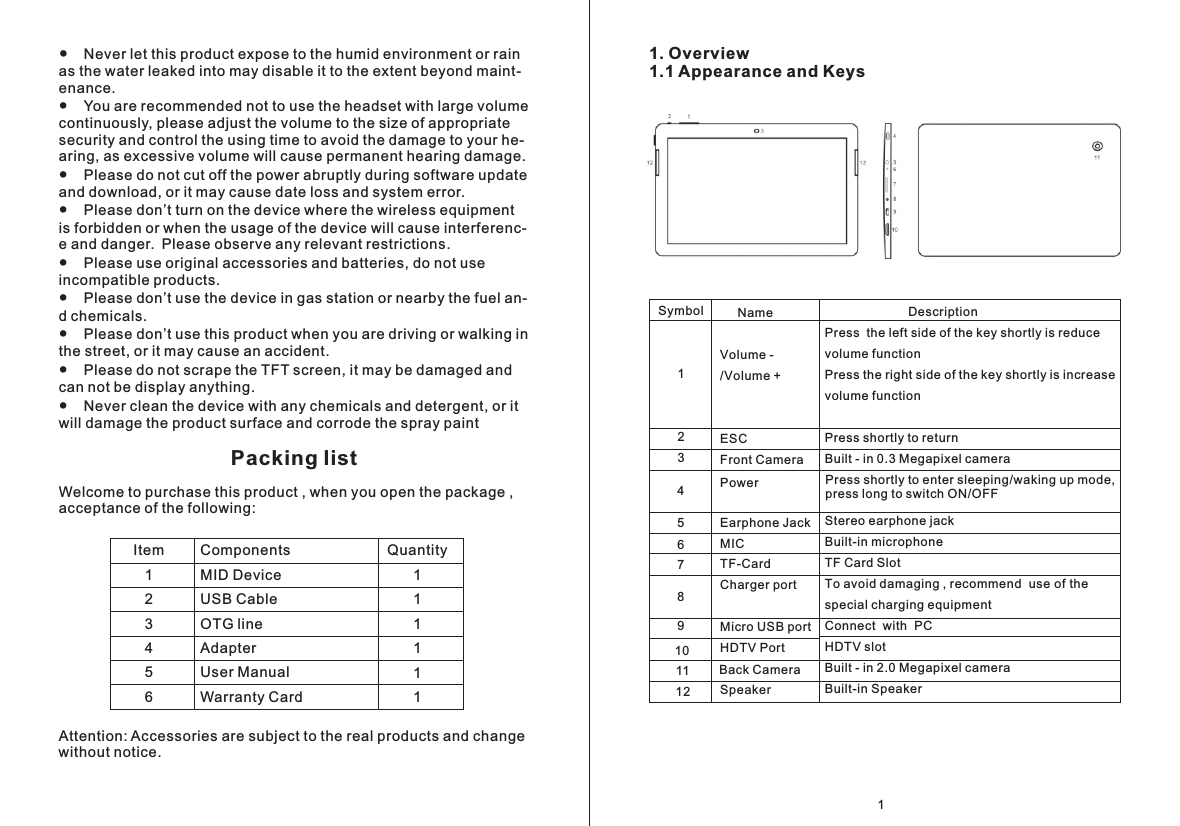
![the battery is fully charged at the first time. On charge the Power indicating lamp of the device is in high light blue color, the desktop icon of the battery keep rolling which shows it is connect to the charger. This device is not recommended to charge with USB port, please use the adapter. 1.2.7 Switch input methodsThe device support handwriting, number, letter, pinyin etc. switching follow:Click any text input area of the working program interface, it will popping input keyboard interface, as shown below:Press , then it will popping “Input Method“ switch interface, as shown below:Select the input method you want here.[Noted] After newly install input method, you should “Settings>La- nguage & input>KEYBOARD & INPUT METHODS”, then you can use. 1.2.8 Use T-Flash card● Insert T-FLASH cardInsert the T-Flash card into the slot in direction of the device’s bottom shell until you hear a sound of click.● Browse files in the memory cardIn this MID device you can view and use the needed files in catalogue of “MENU”>“File manager”> “SD Card”.● Remove T-Flash cardClose all open files from the T-Flash, then enter into “MENU”>“SE- TTINGS”>“TF card and & device storage”, click “Unmount SD card” ,System will prompt that TF card was removed safely. Tap with your 1.2 Basic Operation1.2.1 Switch ONWhen the device is in the OFF mode, press and hold “Power” key for 3 seconds to enter the Android startup progress bar, then you can enter to the system desktop.1.2.2 Unlock the screenPlease press and drag the icon to the , then the LCD will unl- ocked automatically.1.2.3 Lock the screenWhen the device is in the ON mode, press the “POWER” key short- ly, the system will lock the screen and enter the save power mode. Then the screen is OFF but the system still in operation.1.2.4 Switch OFFWhen the device is in the ON mode, press and hold the “POWER” key for 3 seconds, the screen will display the power off interface, choose the power off item to confirm, the system will shut automat- ically.1.2.5 Restart the devicePress “RESET” key and the device will reset.1.2.6 Battery charging Insert the micro port of the battery adaptor into 220V AC slot on the device, and connect the other side with the power socket. Then, you can charge the device. [Note] This device is not recommended to use USB interface to ch- arge, please must use the special power adapter for charging. Yo- u should charge the battery for at least 8-12 hours to make sure](https://usermanual.wiki/Wanchuangbo-Industry-Development/CT1006/User-Guide-1994131-Page-4.png)
![1.2.11 Startup programsClick all the application icon you want to start and it can switch on. 1.2.12 Close programsPress the icon continuously or the “ESC” key, the device will clo- se the active program. You can also use the corresponding functio- n in the management currently running applications to close the program.1.2.13 Screen operation● Zoom in and zoom out : In applications which support zoom gestures, such as photo / IE browser / mail and map etc. you can zoom in or out the screen contents by opening or closing your two fingers.● Rolling: In applications which support rolling gestures, such as photo / IE browser / mail and map etc. you can scroll the screen contents by sliding your fingers on the screen. If you want to stop the rolling screen, you just need to touch it.1.2.14 Home screen● Switch home screen In the home state, you can change the home interface by sliding your fingers on the screen quickly.● Custom Home ScreenPress the blank area on the home screen interface for a few secon- ds, it will appear “Choose wallpaper from” menu, then you can set the home screen.● Move application icons in screenPress the icons of applications you need to move for several seco- nds, it will enter into the moving model (the icon of application will be turn big), then drag the icon to desired position directly.● Move application icons screen to screenPress the icons of applications you need to move for several seco- nds, and you can drag the icon to the left side or right side.● Delete applicationsPress the icon of application you need to remove for several seco- nds, drag the icon to “×” (when the icon was turn big, the bottom of screen will appear “×”, then you can delete the application.1.2.15 Screen gestures● Click fingertips to the pop-up T-Flash Card[Note]1. Do not insert the T-FLASH card by force, this card can only be applied in one direction.2. Do not remove the TF card before Unmounted it, or the card may be damaged.3. If the memory card is write-protected, data will not be formatted and written, please remove the write protection before such opera- tions 4. Major brands memory card is recommended to avoid the card is not compatible to this device.1.2.9 Connected to the computerOne end of the USB line connect to the computer, the other end connect the MID device, select “Settings>Developer options>USB debugging”, the device will connect with computer, and you can copy files to the device.1.2.10 Browse the file in the deviceClick “ Explorer” , You can see the files in the device](https://usermanual.wiki/Wanchuangbo-Industry-Development/CT1006/User-Guide-1994131-Page-5.png)
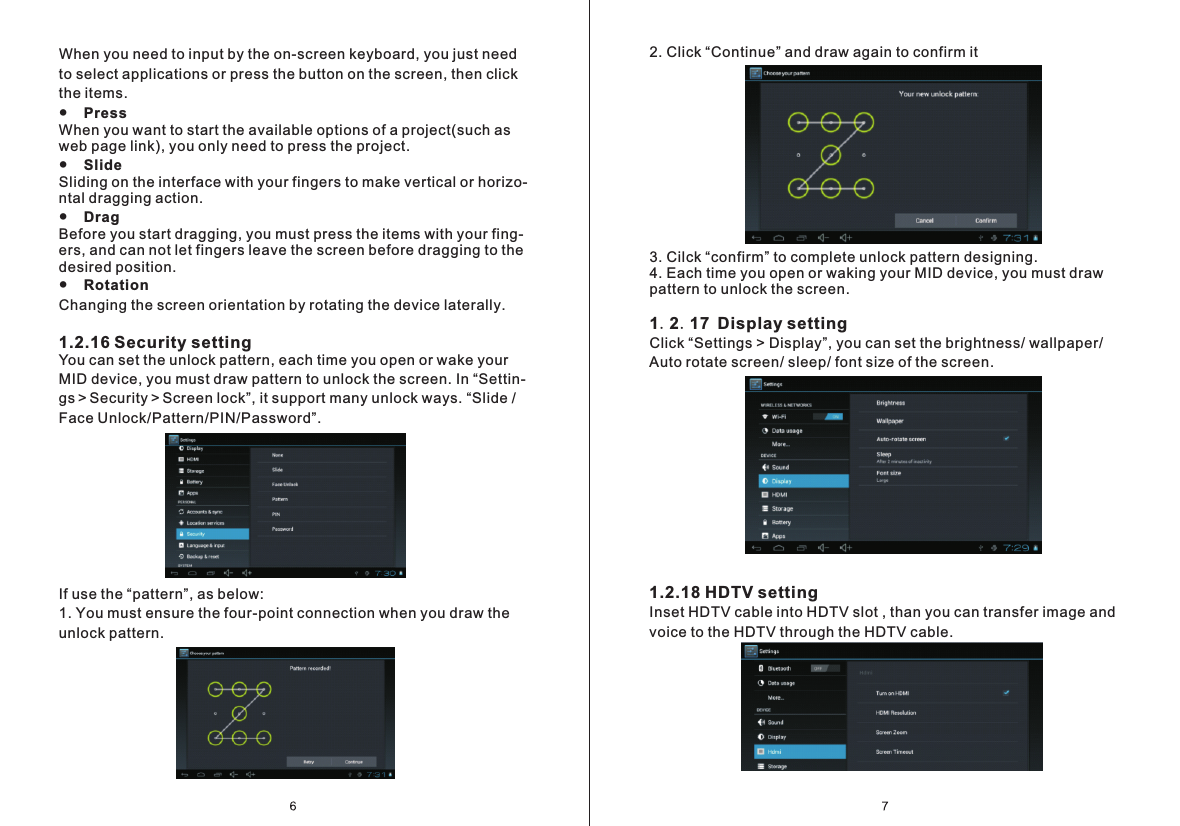
![D) Main functions-Internet Touch Icon to surf the net. Google is the default start page. Touch the input field to display the keyboard:91.2.19 Wireless And Network Settingsa) WIFIClick “Settings>Wi-Fi”, turn on the wifi, the device will find availabl- e wireless network in the right interface.Select the desired wireless network, the system will directly conne- ct the network or popup the password input window according to n-etwork access security settings. Please consult your wireless net- work administrator for the password.B) Use 3G internetThis device supports the 3G wireless Internet access. Insert the 3G USB- Dongle into the USB-Host port, it will connect with the Internet after search the 3G signal.Note] Please choose the generalized 3G Dongle in the market. It is recommended that bring the device when you bought the 3G Dongle and have a test .C) Use Bluetooth Click “Settings>Bluetooth”, The device will search for the attachment of Bluetooth devices automatically, then you can select the device you need to connect.8](https://usermanual.wiki/Wanchuangbo-Industry-Development/CT1006/User-Guide-1994131-Page-7.png)
![1.3 Technical specifications CPU Dual-Core,ARM Cortex-A9;1.5GHz11 0.62KG10.1 inch 1280*800; - Multi-point capacitive touch screenHigh speed Micro USBAndroid 4.1 1GB Support T-Flash card 32GB(max)Format Frequency responseFormatMax. ResolutionsScreen RatioJPG/BMP/JPEG/GIF etc.SupportTransmission rateWork Frequency Front camera 0.3 megapixel camera, Back Camera 2.0 megapixel camera-5-40℃Simplified Chinese/Traditional Chinese/English/Japanese/French/German/Spanish etc.L255*W168*H9.9 (mm)SizeWeight LCD DisplayPC InterfaceOS 4 Cores Mali 400MPGPUHard Drive Capacity System MemoryCapacity ExpansionMusic FunctionVideo FunctionPhoto browseWIFICamera FunctionWorking temperatureLanguagesMP3/WMA/WMV/OGG/APE etc.20Hz-20KHzMKV/AVI/RM/MP4 etc.1920×10804:3/16:9/full screen for optional802.11b/g/nMax 54Mbps2.4GHzBluetooth Support16GB Touch after entering a website address to open the website. [Note] The Android keyboard has few options for settings such as: keyboard language, numbers and icons etc. The Internet browser can open four websites simultaneously; Touch and the menu will be displayed as follows:Touch "Refresh" to refresh the current web page.Touch "New tab" and a new website will be displayed.Touch "New incognito tab" and a new blank website will be displayed. Touch "Share page" to Share this page to others.Touch "Find on page" to enter new web address.Touch "Request desktop site" to make it default web.Touch "Save for offline reading" to read it when offline.Touch "Page info" to check the web information.Touch "Settings" to enter in browser settings.10](https://usermanual.wiki/Wanchuangbo-Industry-Development/CT1006/User-Guide-1994131-Page-8.png)