Wanchuangbo Industry Development V140ABCDE Tablet PC User Manual

Shenzhen Wanchuangbo Industry Development Co., Ltd. Tablet PC Users Manual

Users Manual

 Quatro eBOLT 2.2          User Manual
Table of Contents  1    Overview 1.1    Appearance and Keys 1.2  Basic Operation 1.2.1   Switch  On 1.2.2   Unlock  the Screen 1.2.3   Lock the Screen 1.2.4   Switch  Off 1.2.5   Battery  Charging 1.2.6   Switch input Methods 1.2.7   Use  TF-Card 1.2.8   Connected to the Computer 1.2.9   Browse the File in the Device 1.2.10  Startup Programs 1.2.11  Close Programs 1.2.12  Screen Operation 1.2.13  Home Screen 1.2.14  Screen Gestures 1.2.15  Security Setting 1.2.16  Display Setting 1.2.17  HDMI Setting 1.2.18    Wireless and Network Settings 1.3      FCC IC Warning Statement 1.4   Technical Specifications
 Thanks very much for purchasing our Quatro eBOLT product! Before using this product, please read the manual carefully. We will consider that you have read this manual when you use this product The functions information of this manual is subject to the product itself; we will keep developing new functions. The information in this manual is subject to change without any prior notice The Company will not be responsible for any loss of personal data and damage caused by incorrect operation of software/Hardware, artificial damages, replacement of batteries or any other accident. To avoid loss of your data, please backup your data to your computer at any time. We cannot control any dispute from users’ misunderstanding or incorrect operation against the manual, the Company will not take any relevant responsibility for any accidental loss potentially occurring in the process of using this manual. Please do not repair it by yourself, otherwise, we will not provide you with after-sale service.      Safety Notices Please do not let the player fall or rub or compact with hard objects during using, or it may cause surface scratch of the player, battery loose, data lose or damages of other hardware. Never let this product expose to the humid environment or rain as the water leaked into may disable it to the extent beyond maintenance. You are recommended not to use the headset with large volume continuously, please adjust the volume to the size of appropriate security and control the using time to avoid the damage to your hearing, as excessive volume will cause permanent hearing damage. Please do not cut off the power abruptly during software update and download, or it may cause date loss and system error. Please don’t turn on the device where the wireless equipment is forbidden or when the usage of the device will cause interference and danger. Please observe any relevant restrictions. Please use original accessories and batteries, do not use incompatible products. Please don’t use the device in gas station or nearby the fuel and chemicals.   Please don’t use this product when you are driving or walking in the street, or it may cause an accident. Please do not scrape the TFT screen, it may be damaged and can not be display anything. Never clean the device with any chemicals and detergent, or it will damage the product surface and corrode the spray paint.
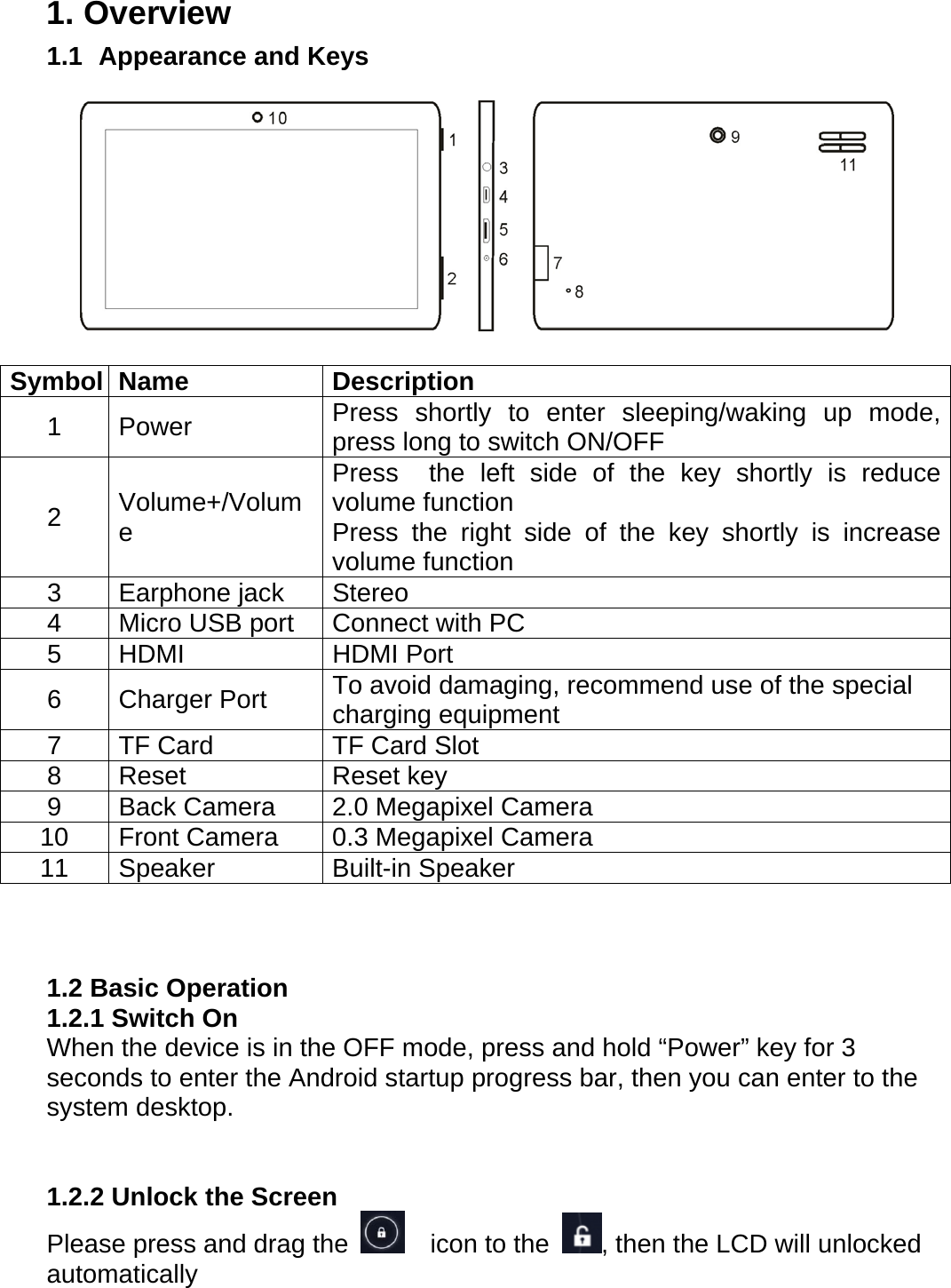
1. Overview 1.1   Appearance and Keys       1.2 Basic Operation 1.2.1 Switch On When the device is in the OFF mode, press and hold “Power” key for 3 seconds to enter the Android startup progress bar, then you can enter to the system desktop.   1.2.2 Unlock the Screen Please press and drag the      icon to the  , then the LCD will unlocked automatically Symbol Name  Description 1 Power   Press shortly to enter sleeping/waking up mode, press long to switch ON/OFF   2  Volume+/Volume Press  the left side of the key shortly is reduce volume function   Press the right side of the key shortly is increase volume function   3  Earphone jack   Stereo  4  Micro USB port    Connect with PC   5 HDMI  HDMI Port 6 Charger Port  To avoid damaging, recommend use of the special   charging equipment   7  TF Card    TF Card Slot   8 Reset  Reset key 9  Back Camera    2.0 Megapixel Camera 10  Front Camera    0.3 Megapixel Camera 11 Speaker   Built-in Speaker
 1.2.3 Lock the Screen When the device is in the ON mode, press the “POWER” key shortly, the system will lock the screen and enter the save power mode. Then the screen is OFF but the system will still operational.  1.2.4 Switch Off When the device is in the ON mode, press and hold the “POWER” key for 3 seconds, the screen will display the power off interface, choose the power off item to confirm, the system will shut automatically.  1.2.5 Battery Charging Insert the micro port of the battery adapter into 220V AC slot on the device, and connect the other side with the power socket. Then, you can charge the device. [Note] This device is not recommended to use USB interface to charge, please must use the special power adapter for charging. You should charge the battery for at least 8-12 hours to make sure the battery is fully charged at the first time. On charge the Power indicating lamp of the device is in high light blue color, the desktop icon of the battery    keep rolling which shows it is connected to the device.    1.2.6 Switch input Methods The device support handwriting, number, letter, pinyin etc. switching follow: Click any text input area of the working program interface, it will popping input keyboard interface, as shown below:
  Press    , then it will popping “Input Method“ switch interface, as shown below:    Select the input method you want here.   [Noted] After newly install input method, you should “Settings>Language & input>KEYBOARD & INPUT METHODS”, then you can use.      1.2.7 Use T-Flash Card     Insert T-FLASH Card Insert the T-Flash card into the slot in direction of the device’s bottom shell until you hear a sound of click.  Browse Files in The Memory Card   In this MID device,you can view and use the needed files in catalogue of “MENU”>”File manager”> “SD Card”. 1) Remove T-Flash Card Close all open files from the T-Flash, then enter into “MANU>”SETTINGS”>”TF card and & device storage”, click “Unmount SD card”, System will prompt that TF card was removed safely. Tap with your fingertips to the pop-up T-Flash Card.
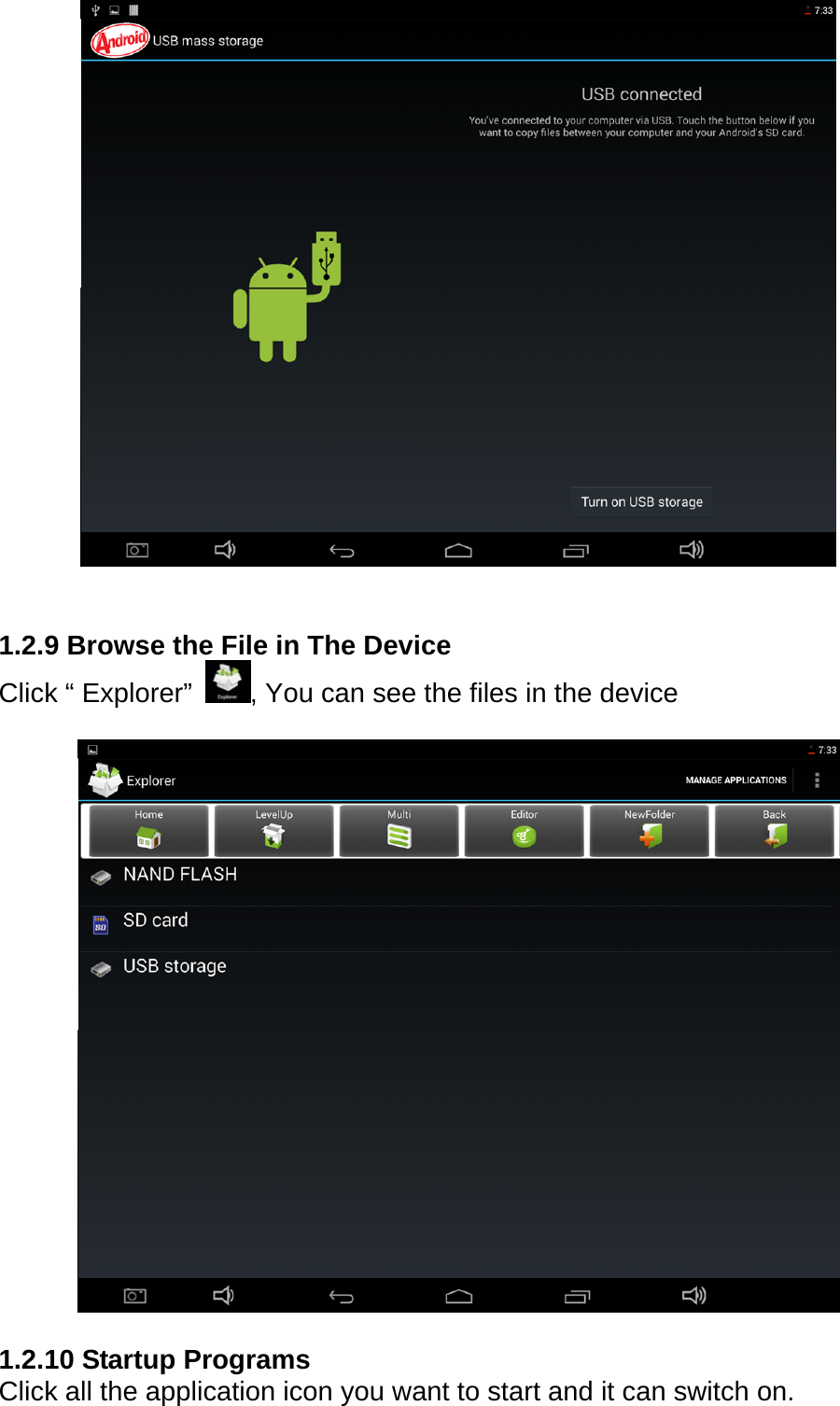
[Note] Do not insert the T-FLASH card by force; this card can only be applied in one direction 2) Do not remove the TF card before Unmounted it, or the card may be damaged. 3) If the memory card is write-protected, data will not be formatted and written, please remove the write protection before such operations.     4) Major brands memory card is recommended to avoid the card is not compatible to this device.  1.2.8 Connected to The Computer One end the data line connect to the computer, the other end connect the USB port of the device, select “Settings > Developer options > USB debugging”, the device will connect with computer, and you can copy files to the device.
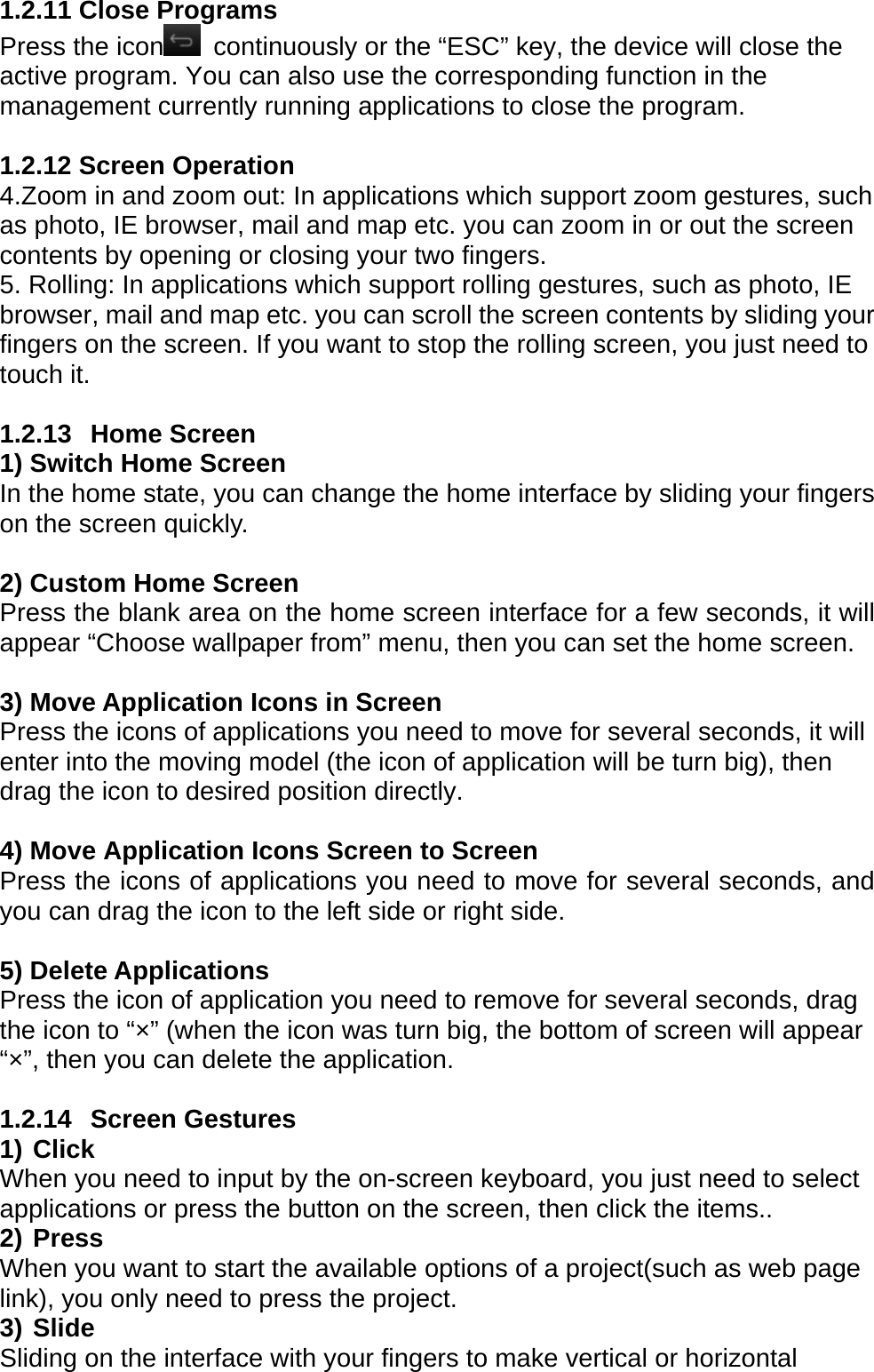
   1.2.9 Browse the File in The Device Click “ Explorer”  , You can see the files in the device      1.2.10 Startup Programs     Click all the application icon you want to start and it can switch on.
1.2.11 Close Programs Press the icon   continuously or the “ESC” key, the device will close the active program. You can also use the corresponding function in the management currently running applications to close the program.  1.2.12 Screen Operation   4.Zoom in and zoom out: In applications which support zoom gestures, such as photo, IE browser, mail and map etc. you can zoom in or out the screen contents by opening or closing your two fingers. 5. Rolling: In applications which support rolling gestures, such as photo, IE browser, mail and map etc. you can scroll the screen contents by sliding your fingers on the screen. If you want to stop the rolling screen, you just need to touch it.  1.2.13  Home Screen  1) Switch Home Screen   In the home state, you can change the home interface by sliding your fingers on the screen quickly.  2) Custom Home Screen Press the blank area on the home screen interface for a few seconds, it will appear “Choose wallpaper from” menu, then you can set the home screen.  3) Move Application Icons in Screen   Press the icons of applications you need to move for several seconds, it will enter into the moving model (the icon of application will be turn big), then drag the icon to desired position directly.  4) Move Application Icons Screen to Screen Press the icons of applications you need to move for several seconds, and you can drag the icon to the left side or right side.  5) Delete Applications Press the icon of application you need to remove for several seconds, drag the icon to “×” (when the icon was turn big, the bottom of screen will appear “×”, then you can delete the application.  1.2.14  Screen Gestures  1) Click When you need to input by the on-screen keyboard, you just need to select applications or press the button on the screen, then click the items.. 2) Press When you want to start the available options of a project(such as web page link), you only need to press the project. 3) Slide Sliding on the interface with your fingers to make vertical or horizontal
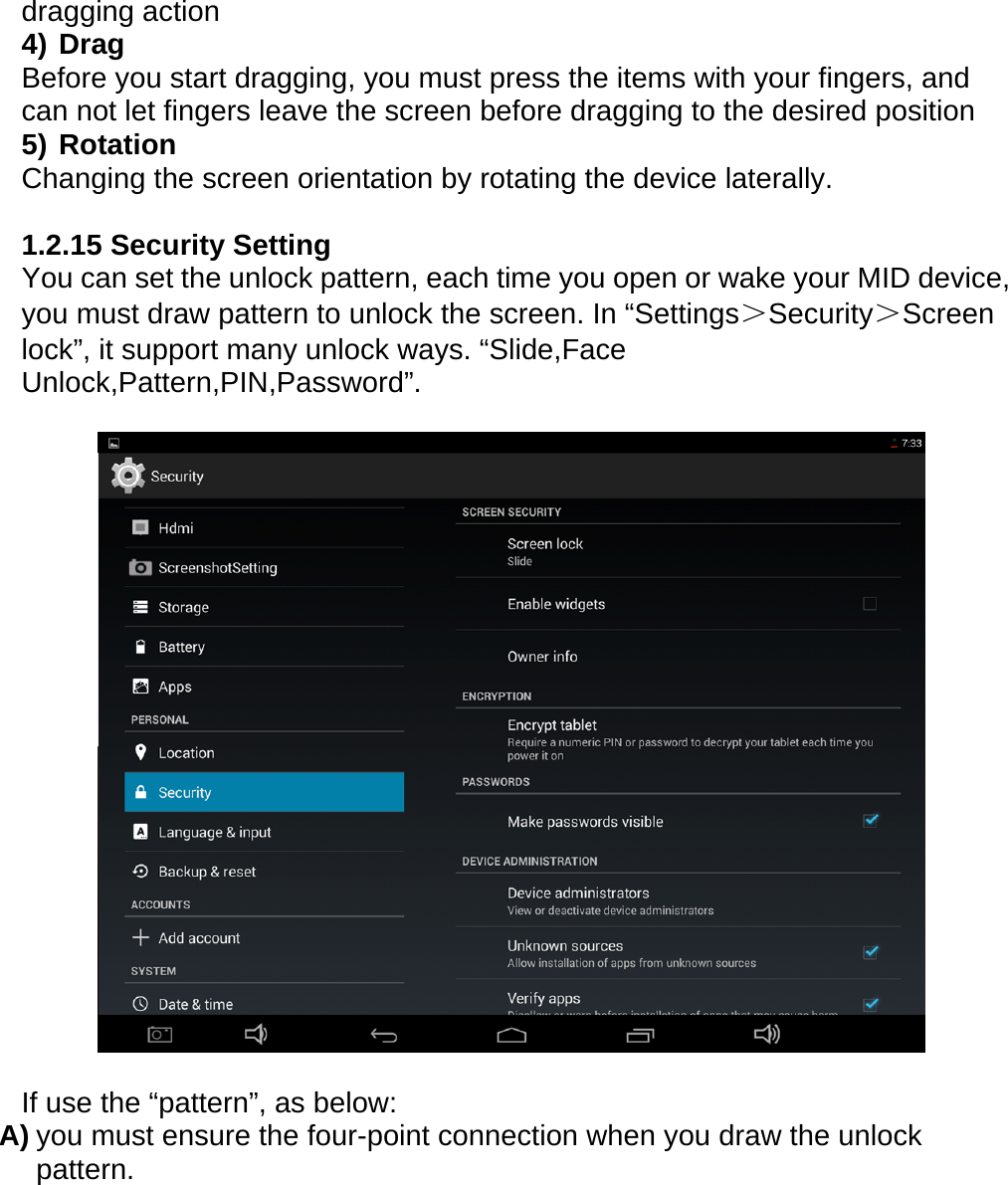
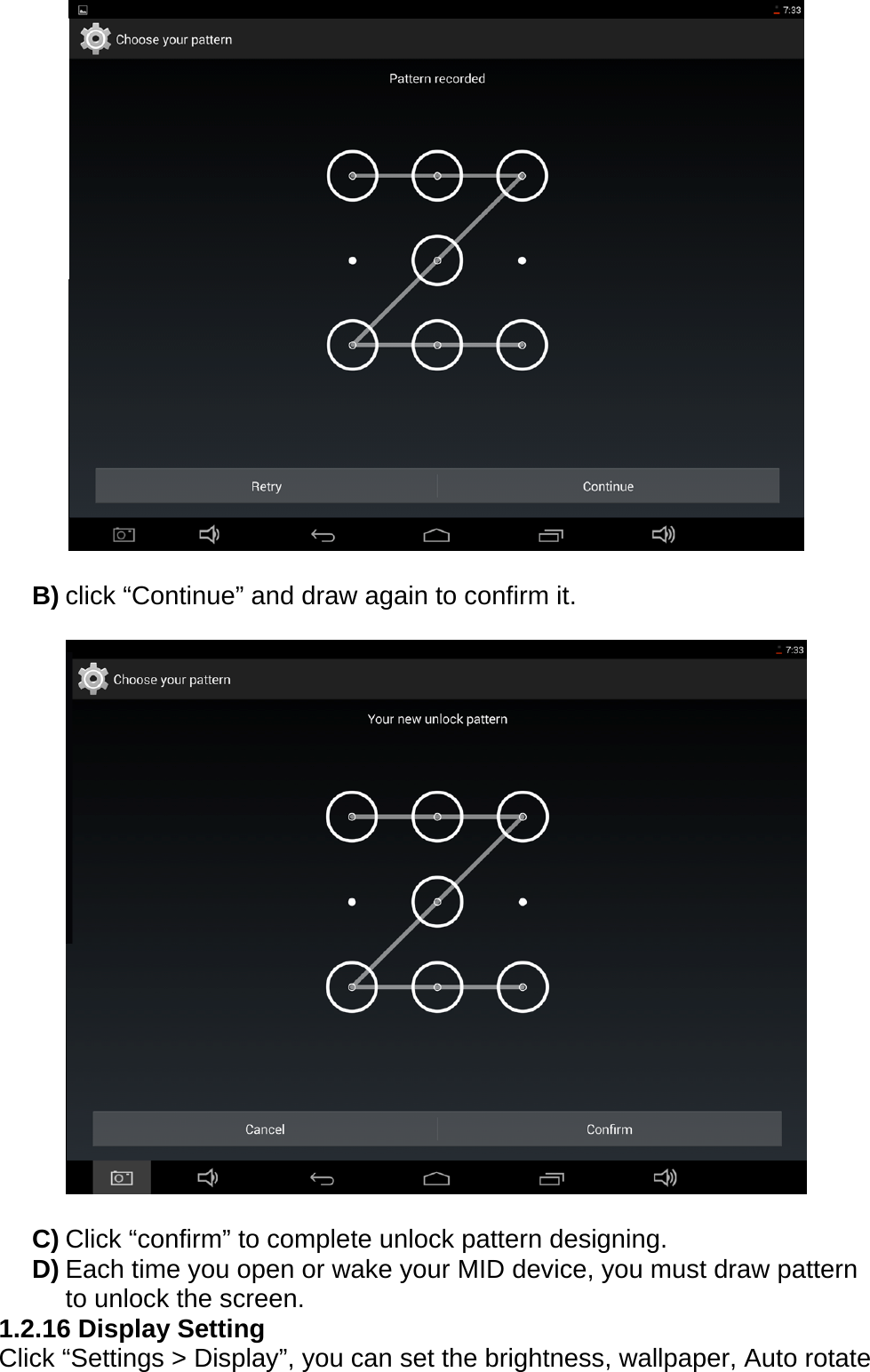
dragging action 4) Drag Before you start dragging, you must press the items with your fingers, and can not let fingers leave the screen before dragging to the desired position 5) Rotation Changing the screen orientation by rotating the device laterally.  1.2.15 Security Setting You can set the unlock pattern, each time you open or wake your MID device, you must draw pattern to unlock the screen. In “Settings>Security>Screen lock”, it support many unlock ways. “Slide,Face Unlock,Pattern,PIN,Password”.    If use the “pattern”, as below: A) you must ensure the four-point connection when you draw the unlock pattern.
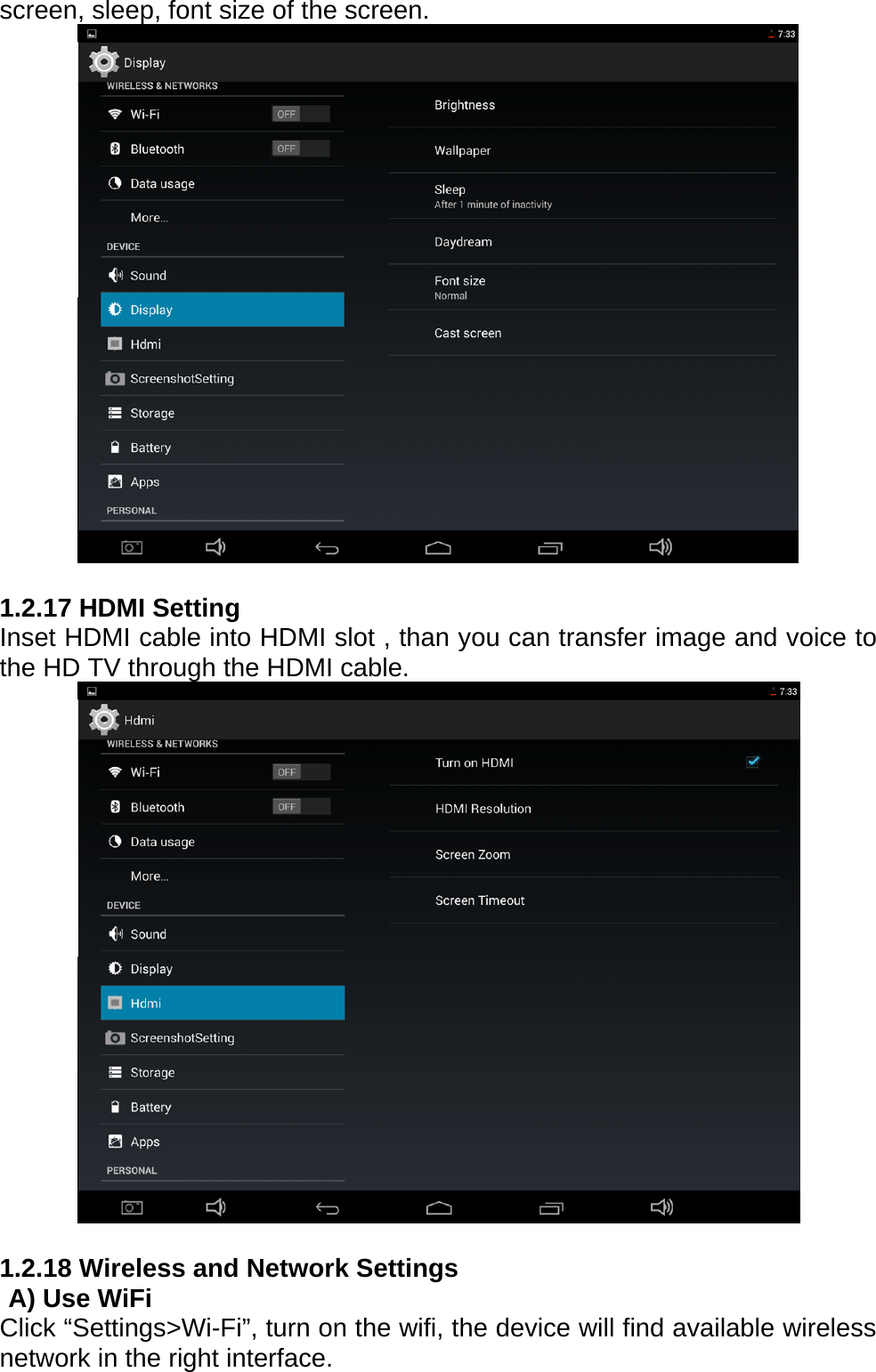
  B) click “Continue” and draw again to confirm it.    C) Click “confirm” to complete unlock pattern designing. D) Each time you open or wake your MID device, you must draw pattern to unlock the screen. 1.2.16 Display Setting Click “Settings > Display”, you can set the brightness, wallpaper, Auto rotate
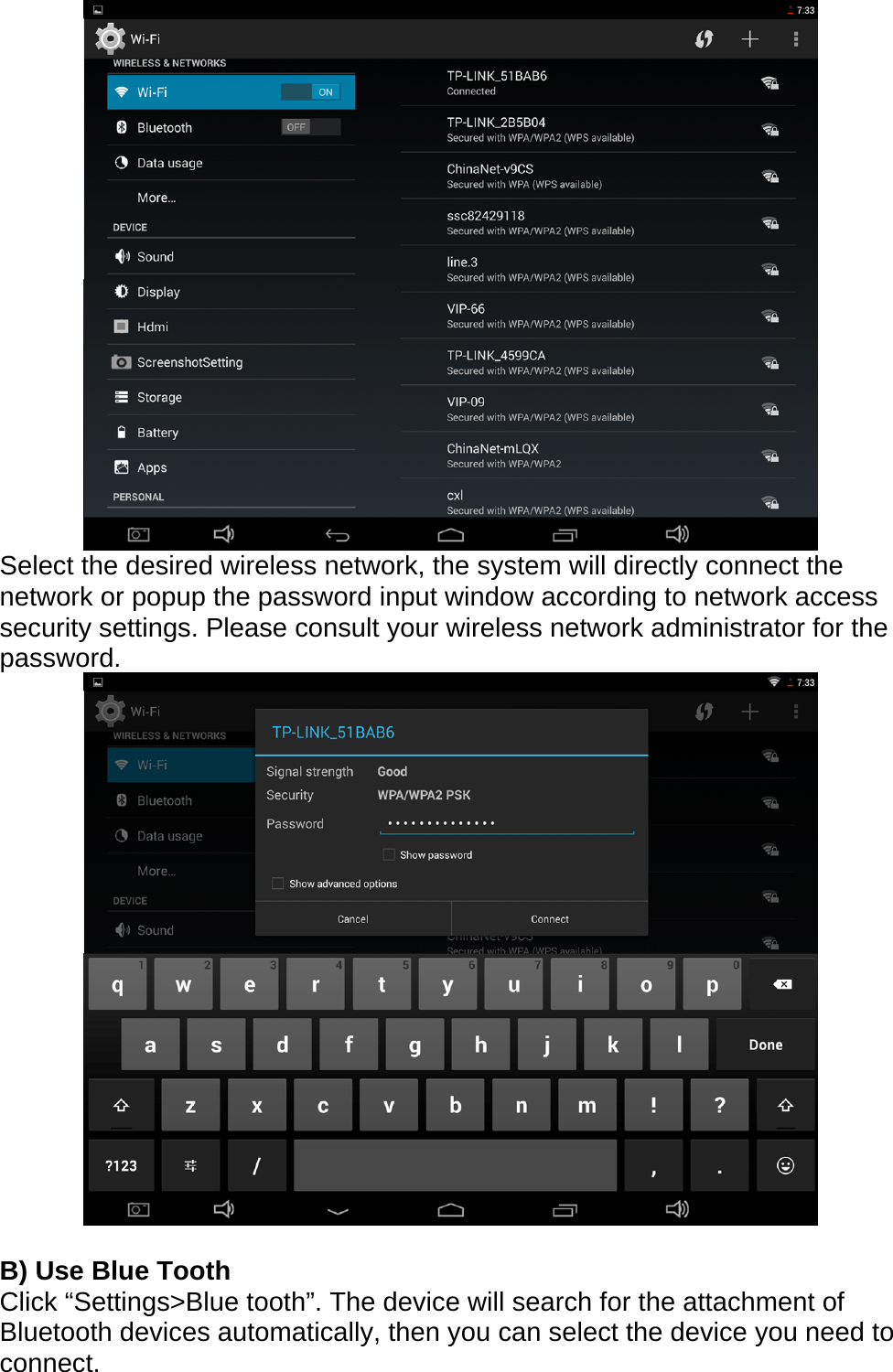
screen, sleep, font size of the screen.   1.2.17 HDMI Setting Inset HDMI cable into HDMI slot , than you can transfer image and voice to the HD TV through the HDMI cable.   1.2.18 Wireless and Network Settings   A) Use WiFi Click “Settings>Wi-Fi”, turn on the wifi, the device will find available wireless network in the right interface.
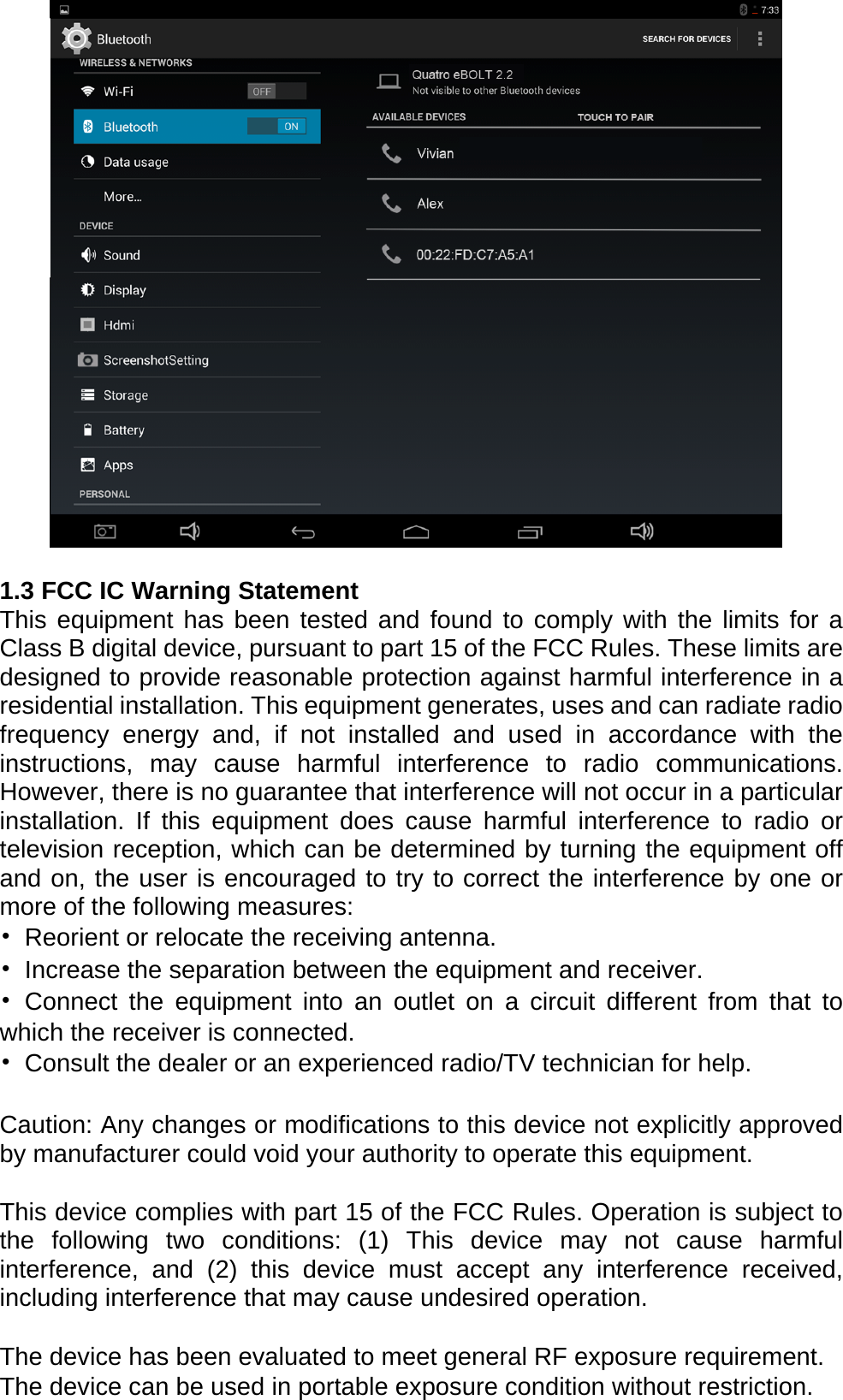
 Select the desired wireless network, the system will directly connect the network or popup the password input window according to network access security settings. Please consult your wireless network administrator for the password.    B) Use Blue Tooth Click “Settings>Blue tooth”. The device will search for the attachment of Bluetooth devices automatically, then you can select the device you need to connect.
  1.3 FCC IC Warning Statement This equipment has been tested and found to comply with the limits for a Class B digital device, pursuant to part 15 of the FCC Rules. These limits are designed to provide reasonable protection against harmful interference in a residential installation. This equipment generates, uses and can radiate radio frequency energy and, if not installed and used in accordance with the instructions, may cause harmful interference to radio communications. However, there is no guarantee that interference will not occur in a particular installation. If this equipment does cause harmful interference to radio or television reception, which can be determined by turning the equipment off and on, the user is encouraged to try to correct the interference by one or more of the following measures: •  Reorient or relocate the receiving antenna. •  Increase the separation between the equipment and receiver. • Connect the equipment into an outlet on a circuit different from that to which the receiver is connected. •  Consult the dealer or an experienced radio/TV technician for help.  Caution: Any changes or modifications to this device not explicitly approved by manufacturer could void your authority to operate this equipment.  This device complies with part 15 of the FCC Rules. Operation is subject to the following two conditions: (1) This device may not cause harmful interference, and (2) this device must accept any interference received, including interference that may cause undesired operation.  The device has been evaluated to meet general RF exposure requirement. The device can be used in portable exposure condition without restriction.
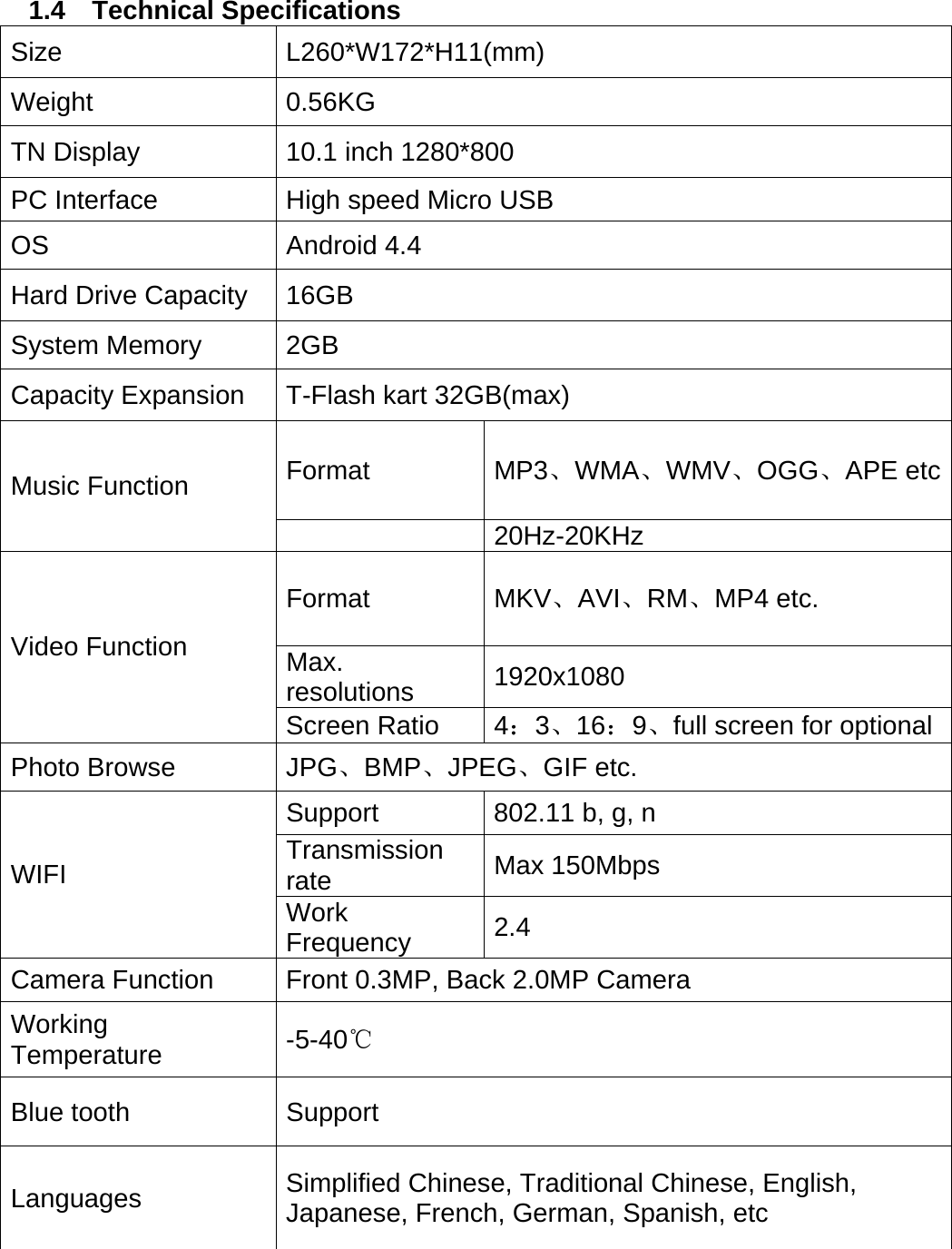
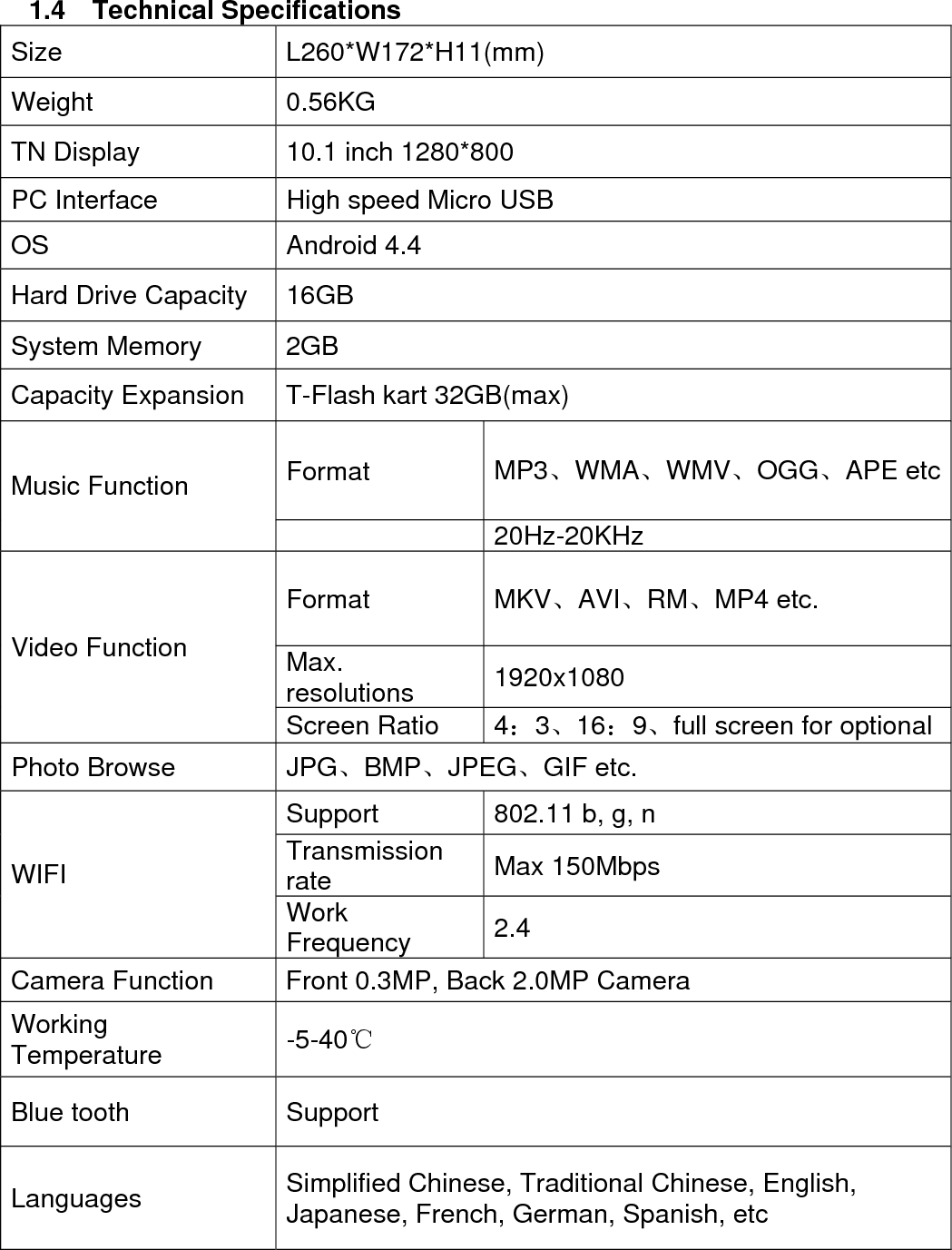
1.4  Technical Specifications Size   L260*W172*H11(mm) Weight   0.56KG TN Display  10.1 inch 1280*800   PC Interface    High speed Micro USB     OS   Android 4.4 Hard Drive Capacity   16GB   System Memory    2GB   Capacity Expansion    T-Flash kart 32GB(max) Format   MP3、WMA、WMV、OGG、APE etcMusic Function  20Hz-20KHz Format   MKV、AVI、RM、MP4 etc. Max. resolutions   1920x1080  Video Function Screen Ratio  4:3、16:9、full screen for optional Photo Browse    JPG、BMP、JPEG、GIF etc. Support    802.11 b, g, n   Transmission rate   Max 150Mbps WIFI Work Frequency  2.4 Camera Function    Front 0.3MP, Back 2.0MP Camera     Working Temperature   -5-40℃ Blue tooth  Support Languages   Simplified Chinese, Traditional Chinese, English, Japanese, French, German, Spanish, etc
 Quatro eBOLT 2.2_V140A_EN_Ver 01

Navigation menu