Wanstonic Electronics WBT420-TX Transmitter portable 3.5mm jack User Manual

Wanstonic Electronics Ltd. Transmitter portable 3.5mm jack

User Manual

               (WBT420) User Manual   Version 1.4       PALM GARDEN ENTERPRISES CORP. Copyright © 2005. All rights reserved
Notice: The changes or modifications not expressly approved by the party responsible for compliance could void the user’s authority to operate the equipment.   IMPORTANT NOTE: To comply with the FCC RF exposure compliance requirements, no change to the antenna or the device is permitted. Any change to the antenna or the device could result in the device exceeding the RF exposure requirements and void user’s authority to operate the device. Federal Communications Commission (FCC) Statement 15.21 You are cautioned that changes or modifications not expressly approved by the part responsible for compliance could void the user’s authority to operate the equipment.  15.105(b) This equipment has been tested and found to comply with the limits for a Class B digital device, pursuant to part 15 of the FCC rules. These limits are designed to provide reasonable protection against harmful interference in a residential installation. This equipment generates, uses and can radiate radio frequency energy and, if not installed and used in accordance with the instructions, may cause harmful interference to radio communications. However, there is no guarantee that interference will not occur in a particular installation. If this equipment does cause harmful interference to radio or television reception, which can be determined by turning the equipment off and on, the user is encouraged to try to correct the interference by one or more of the following measures:  -Reorient or relocate the receiving antenna. -Increase the separation between the equipment and receiver. -Connect the equipment into an outlet on a circuit different from that to which the receiver is connected. -Consult the dealer or an experienced radio/TV technician for help.  Operation is subject to the following two conditions: 1) this device may not cause interference and 2) this device must accept any interference, including interference that may cause undesired operation of the device.
  PALM GARDEN ENTERPRISES CORP. Copyright © 2005. All rights reserved 1FCC RF Radiation Exposure Statement: This equipment complies with FCC radiation exposure limits set forth for an uncontrolled environment. End users must follow the specific operating instructions for satisfying RF exposure compliance. This transmitter must not be co-located or operating in conjunction with any other antenna or transmitter.    Bluetooth Introduction Bluetooth is a global wireless standard for enabling short-range wireless connections. It is a simple and instant radio solution that allows different devices to talk to one another. Bluetooth eliminates the need for cables/wires/cords between devices such as mobile phones and headphones. Bluetooth facilitates fast and secure transmissions of both voice and data between devices even if they are not in line-of-sight. Most Bluetooth devices are described as 'Class 2'. These are very low power and have a range of about 10 meters. Some devices are Class 1. These have range comparable to that of Wi-Fi and have a range up to 100 meters.    A limited, but growing number of devices use Bluetooth at present. Devices that are starting to have Bluetooth connectivity built in include:  •  Headsets  •  Headphone •  Cell Phones • PDAs • Laptops •  Digital cameras and camcorders • Printers • Scanners • Keyboards and Mice •  In-car handsfree kits •  GPS navigation receivers •  Home appliances (microwaves, washers, driers, refrigerators) In addition, add on Bluetooth adapters are available for computers (i.e. with a USB interface) and for PDAs.
  PALM GARDEN ENTERPRISES CORP. Copyright © 2005. All rights reserved 2     Package List The following checked items should be in the package.  Items Quantity Transmitter (TX)  1  Audio Cable  1  WANSTONIC Stereo Headset Kit The music source for this headset can be any consumer device such as a Portable MP3 Player, a Mobile Phone, a PC, a Music System, or an In-car Entertainment System that is compliant with the Bluetooth specification version 1.1 or 1.2 and is supporting the Advanced Audio Distribution Profile (A2DP).   TX Features z Auto Pairing – Search any Bluetooth receivers automatically and show the link status on the status LED indicator.   z Easy to link with the music source – Plug an audio cable in TX and connect the other side of the cable to audio source.
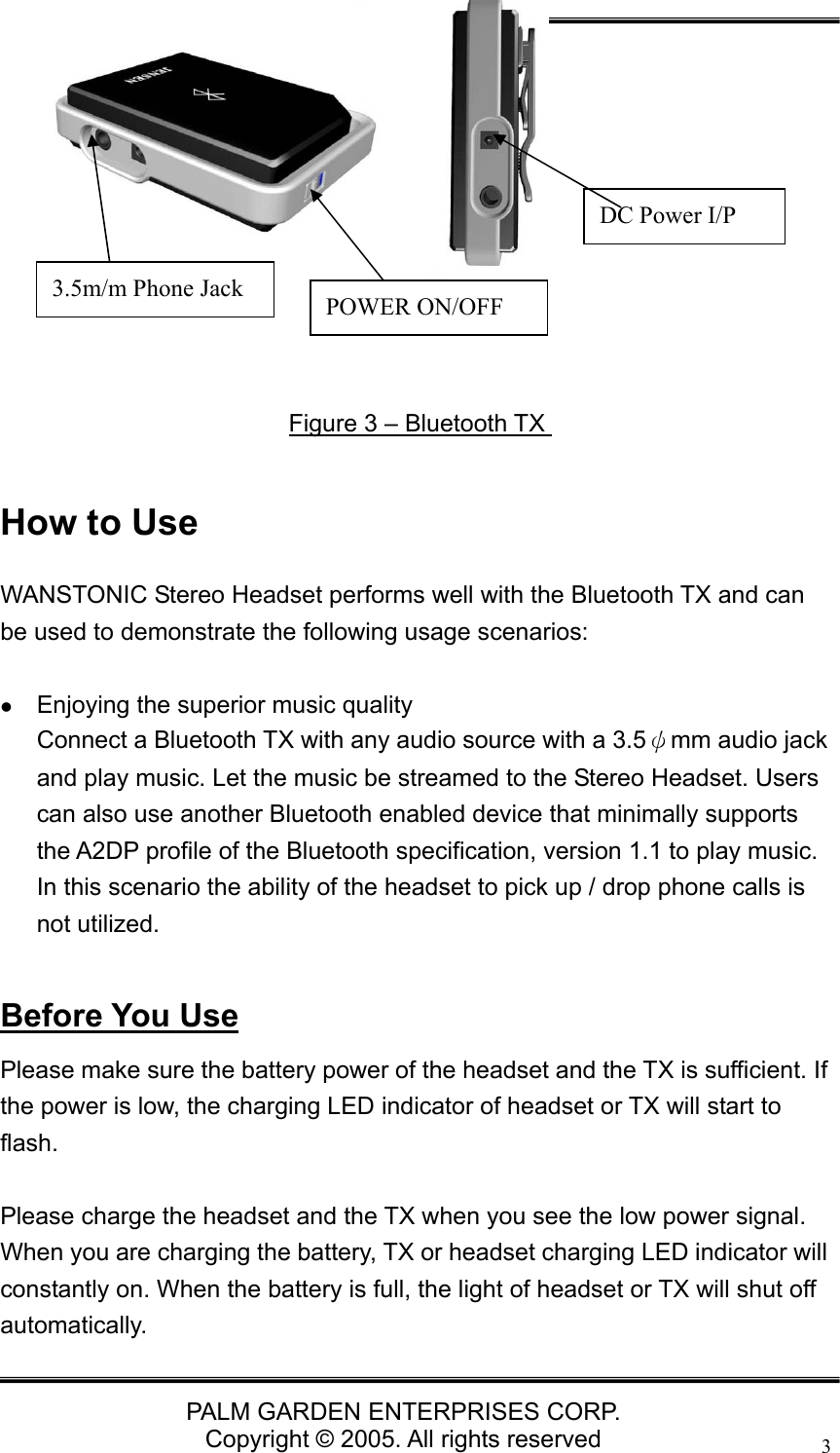
  PALM GARDEN ENTERPRISES CORP. Copyright © 2005. All rights reserved 3      How to Use WANSTONIC Stereo Headset performs well with the Bluetooth TX and can be used to demonstrate the following usage scenarios:   z Enjoying the superior music quality Connect a Bluetooth TX with any audio source with a 3.5ψmm audio jack and play music. Let the music be streamed to the Stereo Headset. Users can also use another Bluetooth enabled device that minimally supports the A2DP profile of the Bluetooth specification, version 1.1 to play music. In this scenario the ability of the headset to pick up / drop phone calls is not utilized.  Before You Use Please make sure the battery power of the headset and the TX is sufficient. If the power is low, the charging LED indicator of headset or TX will start to flash.  Please charge the headset and the TX when you see the low power signal. When you are charging the battery, TX or headset charging LED indicator will constantly on. When the battery is full, the light of headset or TX will shut off automatically. Figure 3 – Bluetooth TX DC Power I/P 3.5m/m Phone Jack  POWER ON/OFF
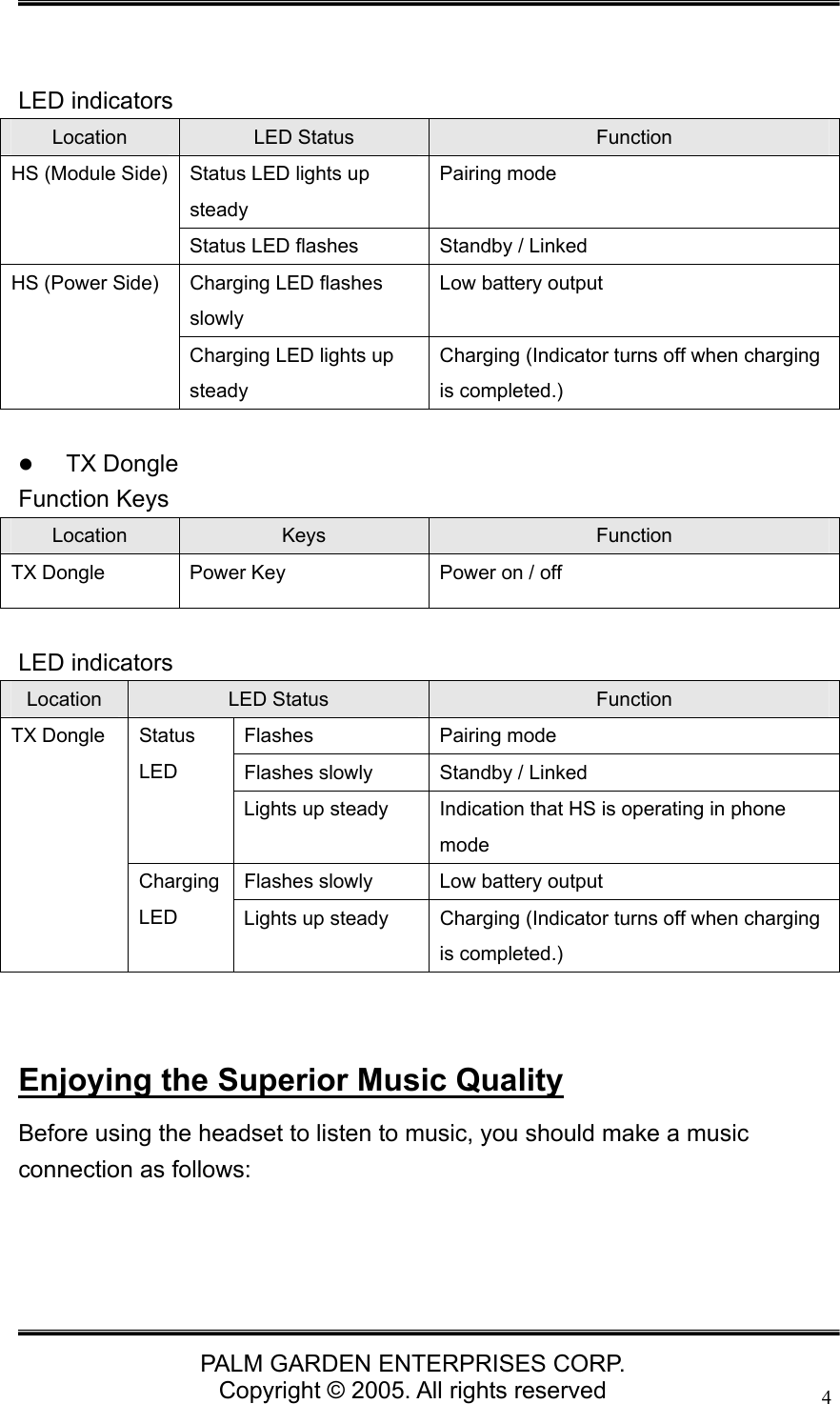
  PALM GARDEN ENTERPRISES CORP. Copyright © 2005. All rights reserved 4   LED indicators Location  LED Status  Function Status LED lights up steady Pairing mode HS (Module Side) Status LED flashes  Standby / Linked Charging LED flashes slowly Low battery output HS (Power Side) Charging LED lights up steady Charging (Indicator turns off when charging is completed.)  z TX Dongle   Function Keys Location  Keys  Function TX Dongle  Power Key  Power on / off  LED indicators Location  LED Status  Function Flashes Pairing mode Flashes slowly  Standby / Linked Status LED  Lights up steady  Indication that HS is operating in phone mode Flashes slowly  Low battery output TX Dongle Charging LED   Lights up steady  Charging (Indicator turns off when charging is completed.)   Enjoying the Superior Music Quality Before using the headset to listen to music, you should make a music connection as follows:
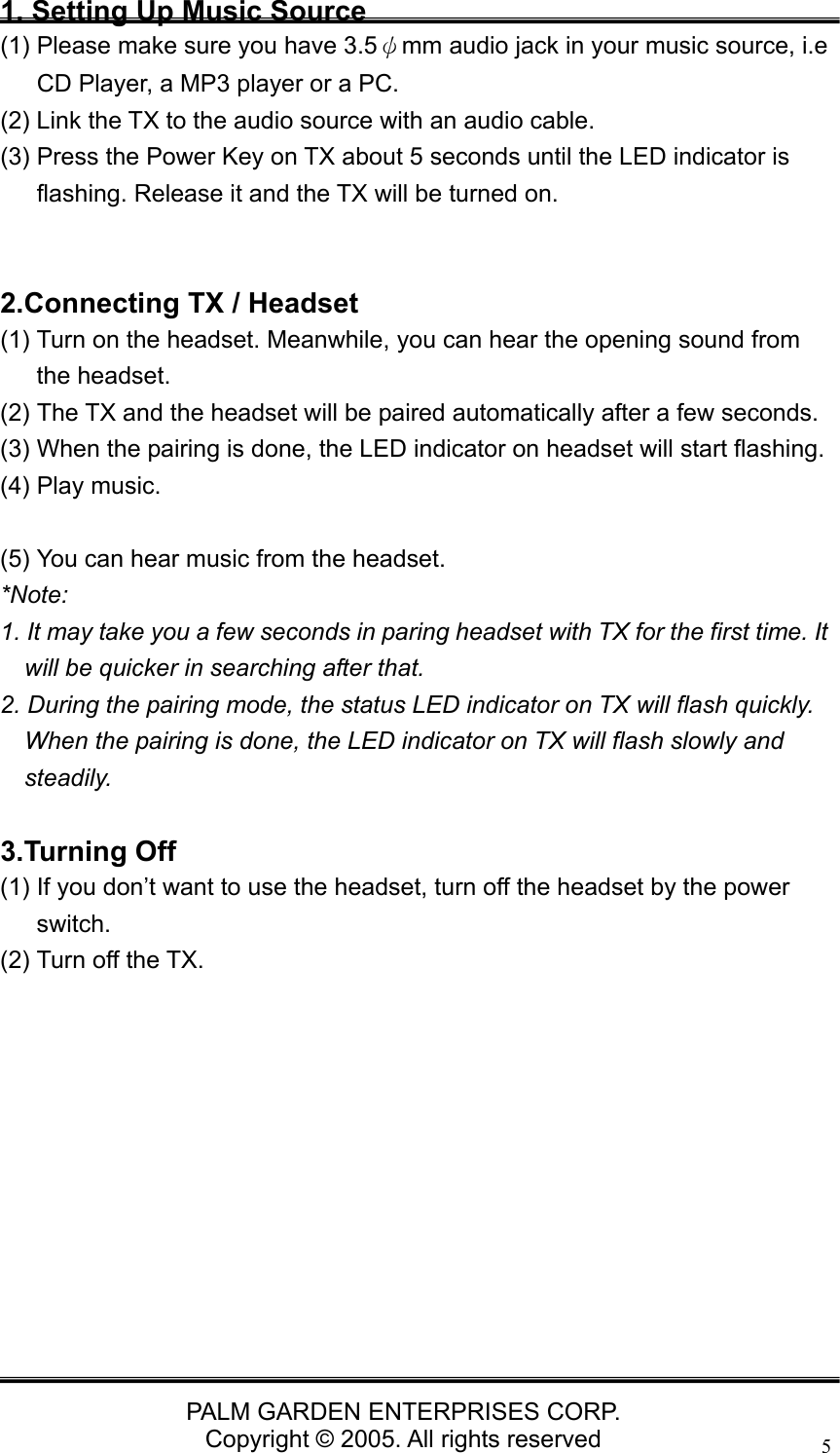
  PALM GARDEN ENTERPRISES CORP. Copyright © 2005. All rights reserved 51. Setting Up Music Source (1) Please make sure you have 3.5ψmm audio jack in your music source, i.e CD Player, a MP3 player or a PC. (2) Link the TX to the audio source with an audio cable. (3) Press the Power Key on TX about 5 seconds until the LED indicator is flashing. Release it and the TX will be turned on.   2.Connecting TX / Headset (1) Turn on the headset. Meanwhile, you can hear the opening sound from the headset. (2) The TX and the headset will be paired automatically after a few seconds.   (3) When the pairing is done, the LED indicator on headset will start flashing. (4) Play music.  (5) You can hear music from the headset. *Note:  1. It may take you a few seconds in paring headset with TX for the first time. It will be quicker in searching after that. 2. During the pairing mode, the status LED indicator on TX will flash quickly. When the pairing is done, the LED indicator on TX will flash slowly and steadily.  3.Turning Off (1) If you don’t want to use the headset, turn off the headset by the power switch. (2) Turn off the TX.
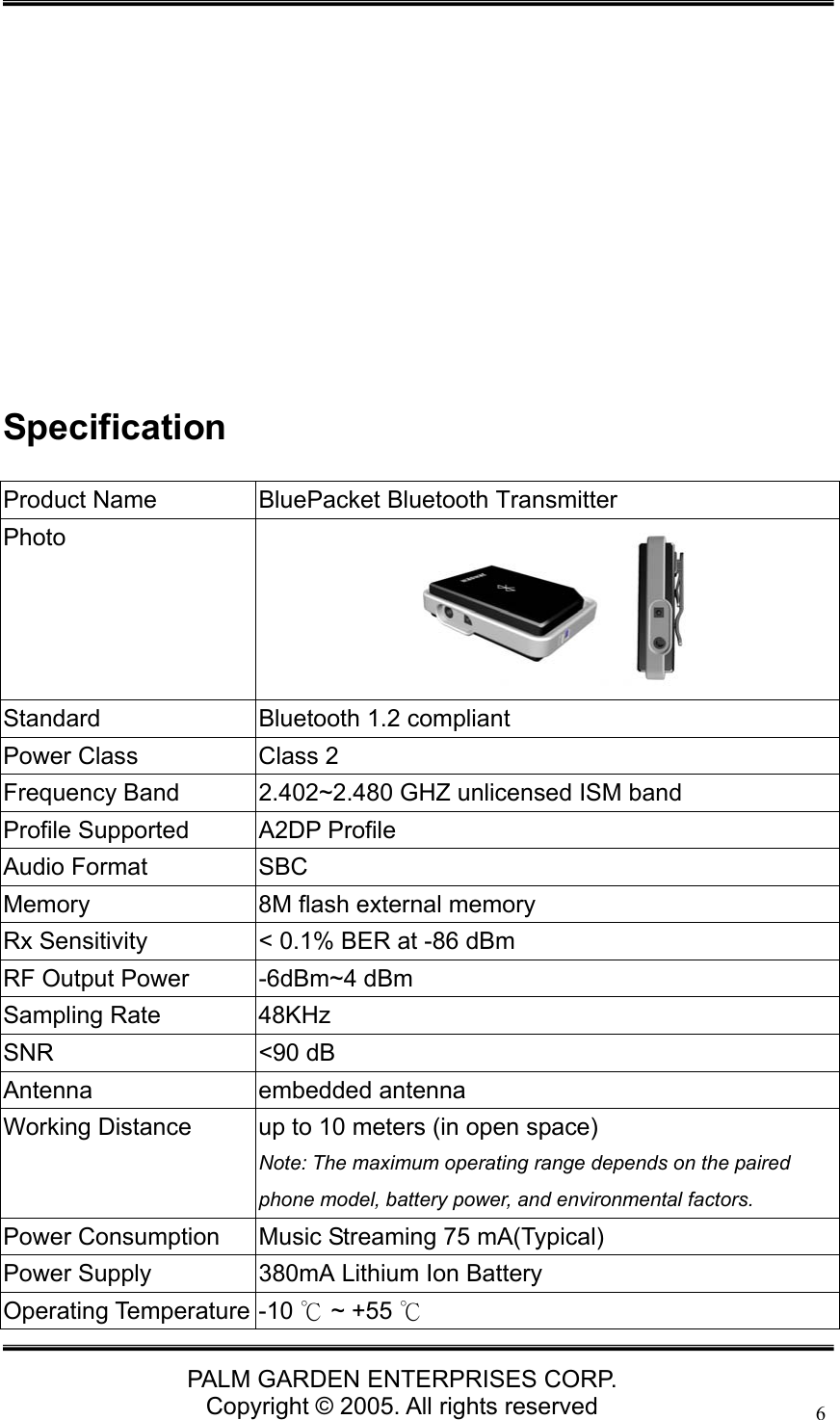
  PALM GARDEN ENTERPRISES CORP. Copyright © 2005. All rights reserved 6           Specification Product Name  BluePacket Bluetooth Transmitter Photo  Standard  Bluetooth 1.2 compliant Power Class  Class 2 Frequency Band  2.402~2.480 GHZ unlicensed ISM band Profile Supported  A2DP Profile Audio Format  SBC Memory  8M flash external memory Rx Sensitivity  < 0.1% BER at -86 dBm RF Output Power  -6dBm~4 dBm Sampling Rate  48KHz SNR <90 dB Antenna embedded antenna Working Distance  up to 10 meters (in open space) Note: The maximum operating range depends on the paired phone model, battery power, and environmental factors.   Power Consumption  Music Streaming 75 mA(Typical) Power Supply  380mA Lithium Ion Battery Operating Temperature -10   ~ +55 ℃℃
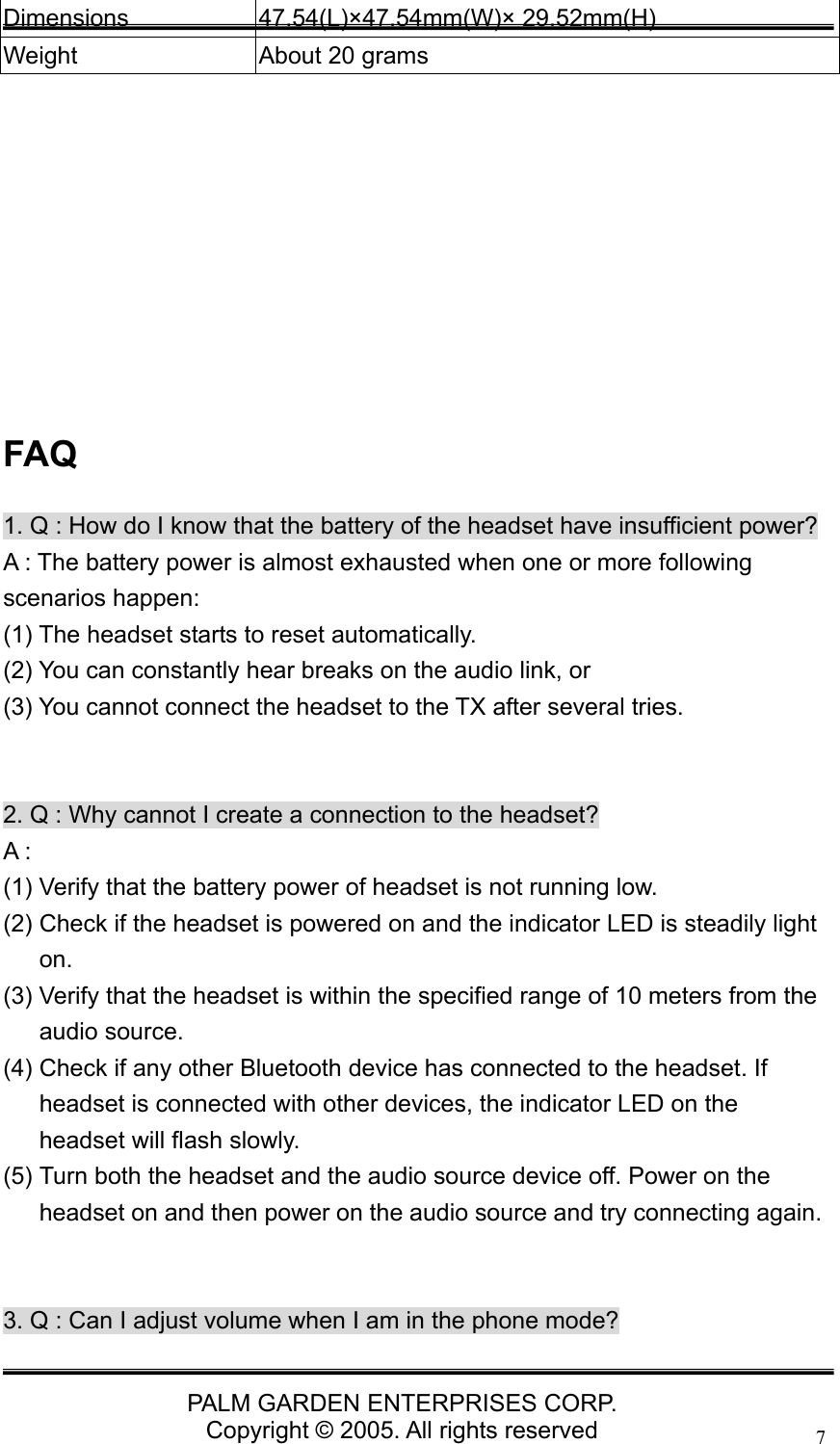
  PALM GARDEN ENTERPRISES CORP. Copyright © 2005. All rights reserved 7Dimensions 47.54(L)×47.54mm(W)× 29.52mm(H) Weight  About 20 grams          FAQ 1. Q : How do I know that the battery of the headset have insufficient power? A : The battery power is almost exhausted when one or more following scenarios happen:   (1) The headset starts to reset automatically.   (2) You can constantly hear breaks on the audio link, or   (3) You cannot connect the headset to the TX after several tries.     2. Q : Why cannot I create a connection to the headset? A : (1) Verify that the battery power of headset is not running low. (2) Check if the headset is powered on and the indicator LED is steadily light on.  (3) Verify that the headset is within the specified range of 10 meters from the audio source. (4) Check if any other Bluetooth device has connected to the headset. If headset is connected with other devices, the indicator LED on the headset will flash slowly. (5) Turn both the headset and the audio source device off. Power on the headset on and then power on the audio source and try connecting again.   3. Q : Can I adjust volume when I am in the phone mode?
  PALM GARDEN ENTERPRISES CORP. Copyright © 2005. All rights reserved 8A: The volume keys can be adjusted in both music and phone mode.     4. Q : Why do I hear beep from the headset? A: The beep means the headset is in the low power status. The headset will beep every 20 seconds to remind you to charge it. Meanwhile, the charging LED indicator is flashing.   5. Q : How do I know the maximum and minimum volume?A: You can hear beep if you adjust the volume up key to the maximum. If you adjust the volume down key to the minimum, you can also hear beep.   6. Q : Why does TX turn off automatically? A: If you turn on TX but it cannot find any device to pair with after 3 minutes, it will turn off automatically to save power. Technical Support If you have further questions, please contact our Technical Support Department. Thank you!

Navigation menu