Wanstonic Electronics WBT430-431 Transmitter USB audio dongle User Manual

Wanstonic Electronics Ltd. Transmitter USB audio dongle

User Manual

              Bluetooth AV / HCI Dual Mode Dongle   User Manual   Version 1.0      BluePacket Communications, Co.,Ltd. Copyright © 2005. All rights reserved
Index  Bluetooth Introduction................................................................. 1 Package List.................................................................................. 2 AV / HCI Dual Mode Dongle ......................................................... 2 AV / HCI Dual Mode Dongle Features .......................................................2 AV / HCI Dual Mode Dongle Outline..........................................................3 How to Use.................................................................................... 4 Before You Use..........................................................................................4 AV Mode ........................................................................................ 5 Enjoying the Superior Music Quality..........................................................5 HCI Mode....................................................................................... 6 BlueSoleil Installation.................................................................................6 1. Setting Up / Prerequisite........................................................................6 2. Starting to Use BlueSoleil ......................................................................6 3. Available Services..................................................................................7 Specification – Bluetooth AV / HCI Dongle............................... 16 FAQ .............................................................................................. 17 Technical Support ...................................................................... 18
  BluePacket Communications, Co.,Ltd. Copyright © 2005. All rights reserved 1Bluetooth Introduction Bluetooth is a global wireless standard for enabling short-range wireless connections. It is a simple and instant radio solution that allows different devices to talk to one another. Bluetooth eliminates the need for cables/wires/cords between devices such as mobile phones and headphones. Bluetooth facilitates fast and secure transmissions of both voice and data between devices even if they are not in line-of-sight. Most Bluetooth devices are described as 'Class 2'. These are very low power and have a range of about 10 meters. Some devices are Class 1. These have range comparable to that of Wi-Fi and have a range up to 100 meters.    A limited, but growing number of devices use Bluetooth at present. Devices that are starting to have Bluetooth connectivity built in include:  •  Headsets  •  Headphone •  Cell Phones • PDAs • Laptops •  Digital cameras and camcorders • Printers • Scanners • Keyboards and Mice •  In-car handsfree kits •  GPS navigation headsets •  Home appliances (microwaves, washers, driers, refrigerators) In addition, add on Bluetooth adapters are available for computers (i.e. with a USB interface) and for PDAs.
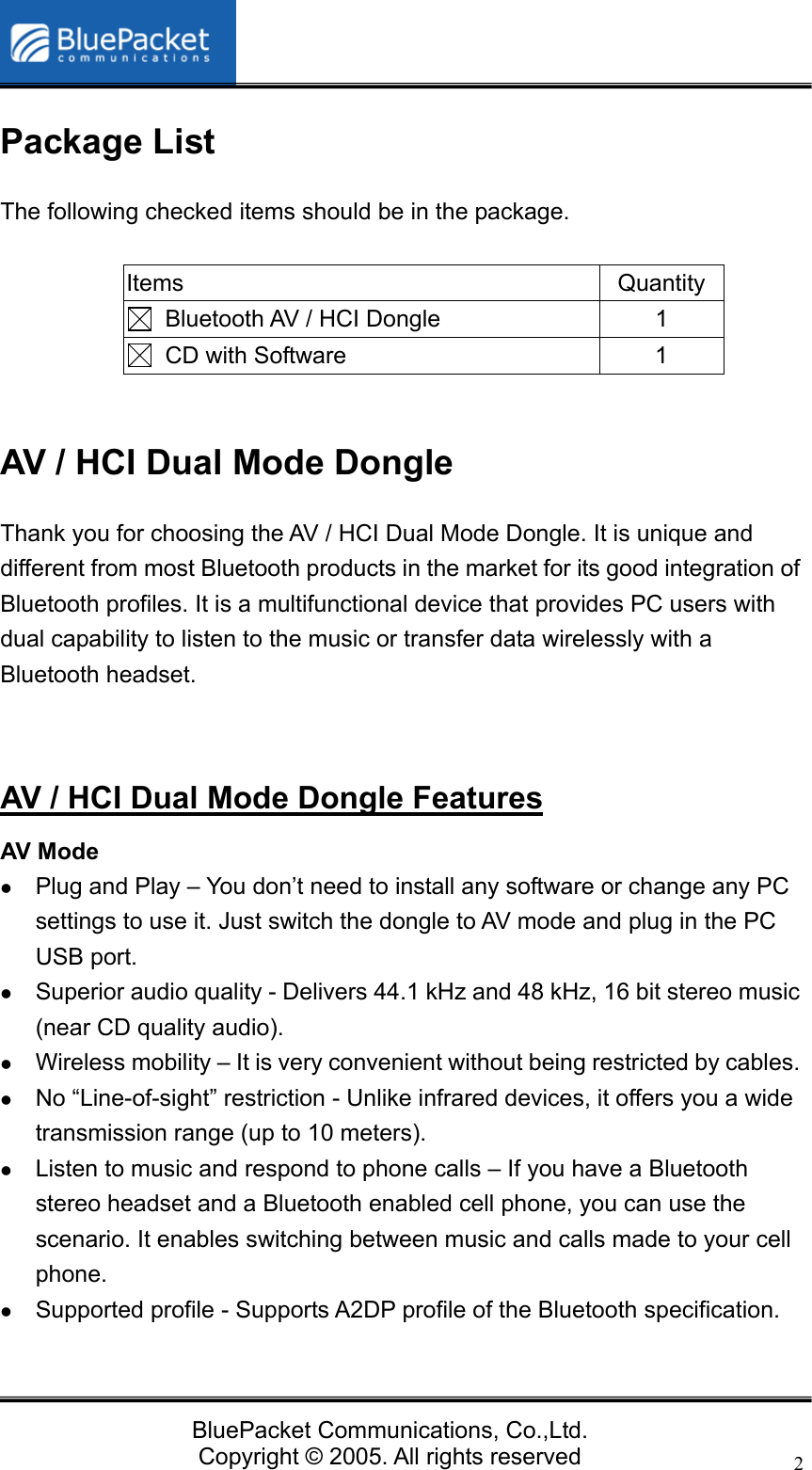
  BluePacket Communications, Co.,Ltd. Copyright © 2005. All rights reserved 2Package List The following checked items should be in the package.  Items Quantity   Bluetooth AV / HCI Dongle  1   CD with Software  1  AV / HCI Dual Mode Dongle   Thank you for choosing the AV / HCI Dual Mode Dongle. It is unique and different from most Bluetooth products in the market for its good integration of Bluetooth profiles. It is a multifunctional device that provides PC users with dual capability to listen to the music or transfer data wirelessly with a Bluetooth headset.   AV / HCI Dual Mode Dongle Features AV Mode z Plug and Play – You don’t need to install any software or change any PC settings to use it. Just switch the dongle to AV mode and plug in the PC USB port.   z Superior audio quality - Delivers 44.1 kHz and 48 kHz, 16 bit stereo music (near CD quality audio). z Wireless mobility – It is very convenient without being restricted by cables. z No “Line-of-sight” restriction - Unlike infrared devices, it offers you a wide transmission range (up to 10 meters). z Listen to music and respond to phone calls – If you have a Bluetooth stereo headset and a Bluetooth enabled cell phone, you can use the scenario. It enables switching between music and calls made to your cell phone. z Supported profile - Supports A2DP profile of the Bluetooth specification.
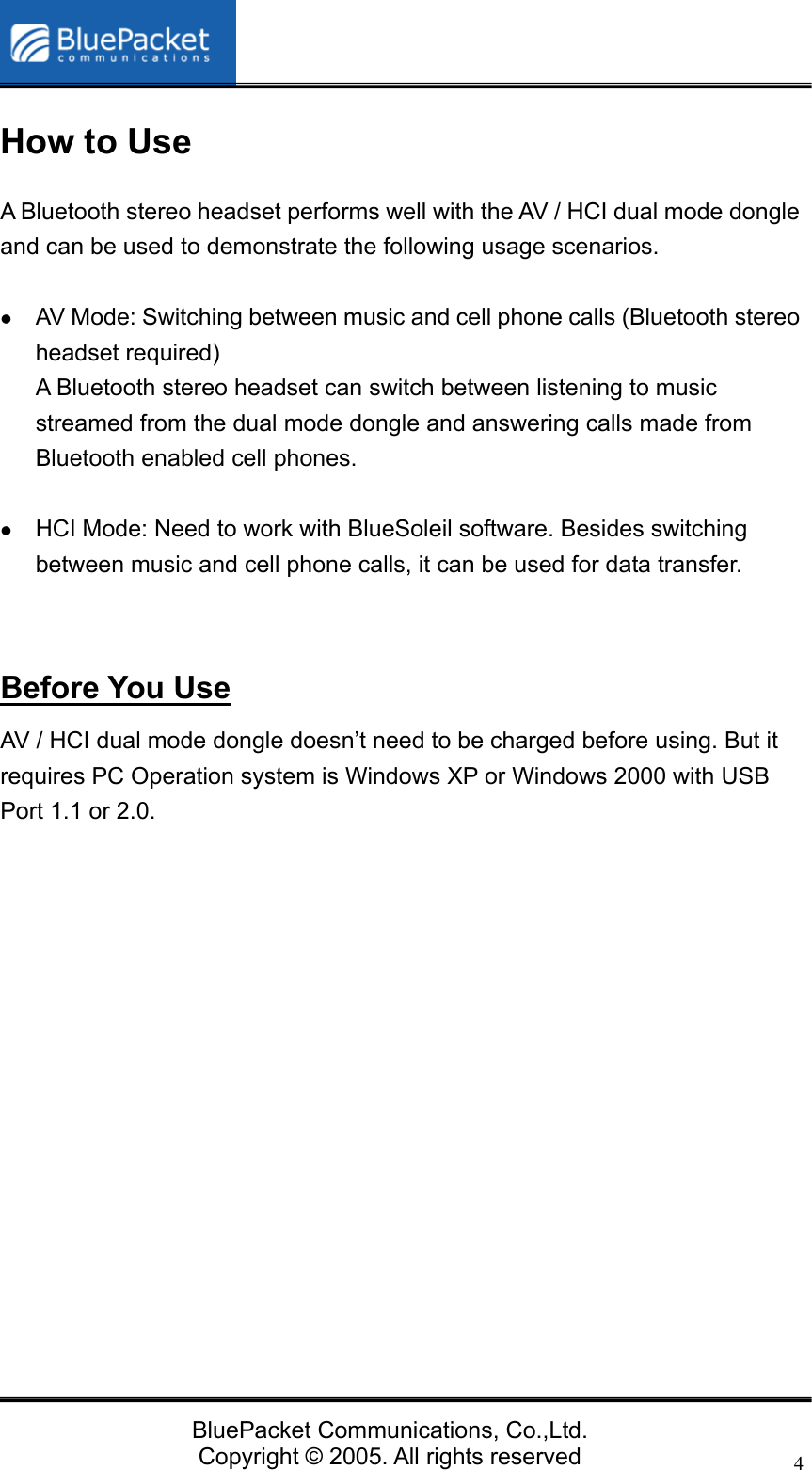
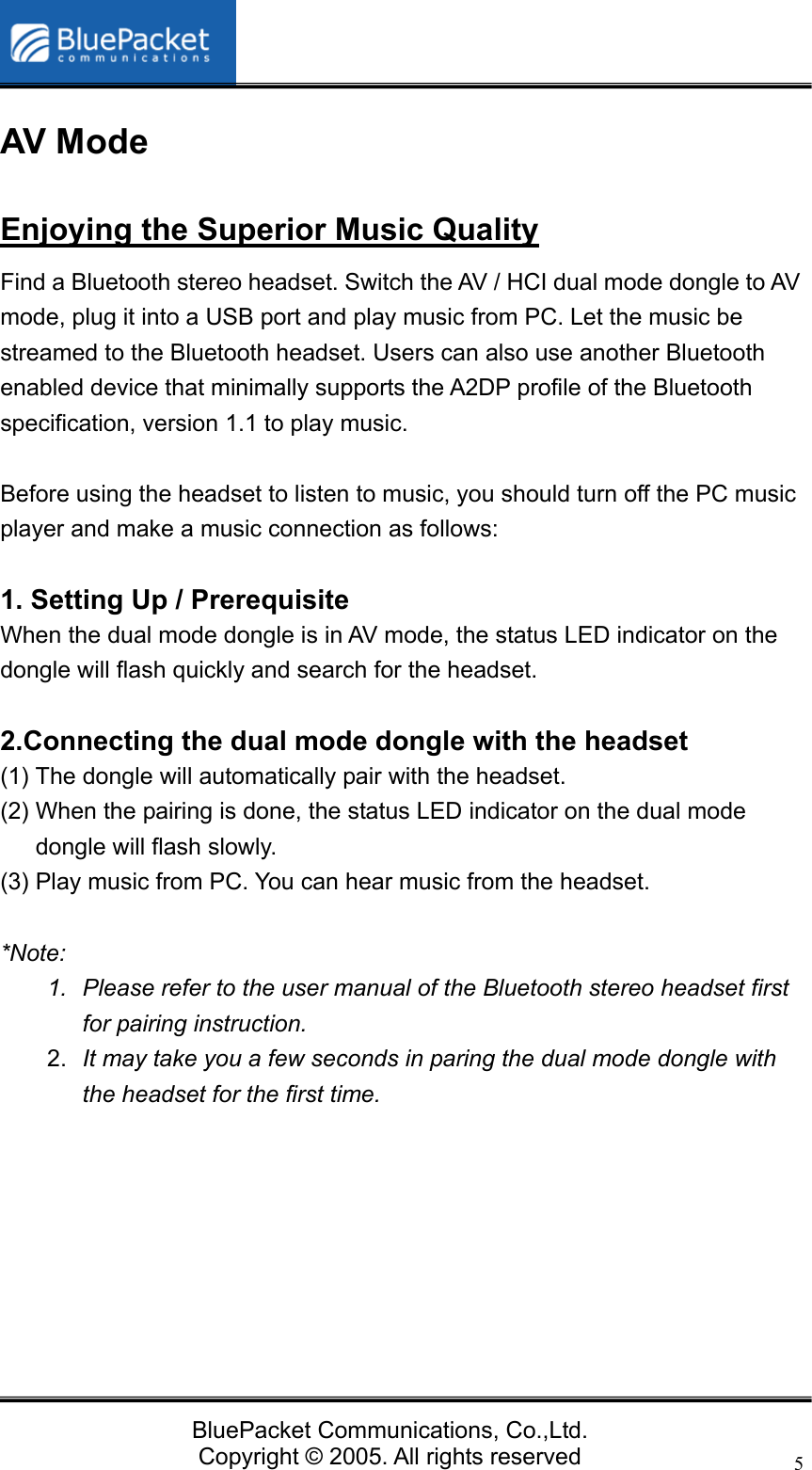
  BluePacket Communications, Co.,Ltd. Copyright © 2005. All rights reserved 3HCI Mode z After install the IVT BlueSoleil software, it can provide various wireless network applications such as audio transfer, file transfer, network access, dial-up networking, and so on.  z After installation, you can use the Bluetooth headset to listen to the music or access the Internet Telephony service.    AV / HCI Dual Mode Dongle Outline       AV Mode    HCI Mode
  BluePacket Communications, Co.,Ltd. Copyright © 2005. All rights reserved 4How to Use A Bluetooth stereo headset performs well with the AV / HCI dual mode dongle and can be used to demonstrate the following usage scenarios.     z AV Mode: Switching between music and cell phone calls (Bluetooth stereo headset required) A Bluetooth stereo headset can switch between listening to music streamed from the dual mode dongle and answering calls made from Bluetooth enabled cell phones.  z HCI Mode: Need to work with BlueSoleil software. Besides switching between music and cell phone calls, it can be used for data transfer.   Before You Use AV / HCI dual mode dongle doesn’t need to be charged before using. But it requires PC Operation system is Windows XP or Windows 2000 with USB Port 1.1 or 2.0.
  BluePacket Communications, Co.,Ltd. Copyright © 2005. All rights reserved 5AV Mode Enjoying the Superior Music Quality Find a Bluetooth stereo headset. Switch the AV / HCI dual mode dongle to AV mode, plug it into a USB port and play music from PC. Let the music be streamed to the Bluetooth headset. Users can also use another Bluetooth enabled device that minimally supports the A2DP profile of the Bluetooth specification, version 1.1 to play music.    Before using the headset to listen to music, you should turn off the PC music player and make a music connection as follows:  1. Setting Up / Prerequisite   When the dual mode dongle is in AV mode, the status LED indicator on the dongle will flash quickly and search for the headset.  2.Connecting the dual mode dongle with the headset (1) The dongle will automatically pair with the headset.   (2) When the pairing is done, the status LED indicator on the dual mode dongle will flash slowly. (3) Play music from PC. You can hear music from the headset.  *Note:  1.  Please refer to the user manual of the Bluetooth stereo headset first for pairing instruction.   2.  It may take you a few seconds in paring the dual mode dongle with the headset for the first time.
  BluePacket Communications, Co.,Ltd. Copyright © 2005. All rights reserved 6HCI Mode BlueSoleil Installation 1. Setting Up / Prerequisite (1) Please make sure your computer is using windows operating system 98SE/ME/2K/ XP or later. (2) Put the companion CD in the CD-ROM. Find the folder “BlueSoleil” and open it. (3) Find the “Setup” file and double click it.   (4) Choose the language version and follow the instruction to complete the installation.  (5) Reboot your system.  2. Starting to Use BlueSoleil (1) Set the AV /HCI dongle to HCI mode. Plug it in a USB port of a PC. Double click BlueSoleil icon  and start to use the software.  (2) Name your AV / HCI dongle.
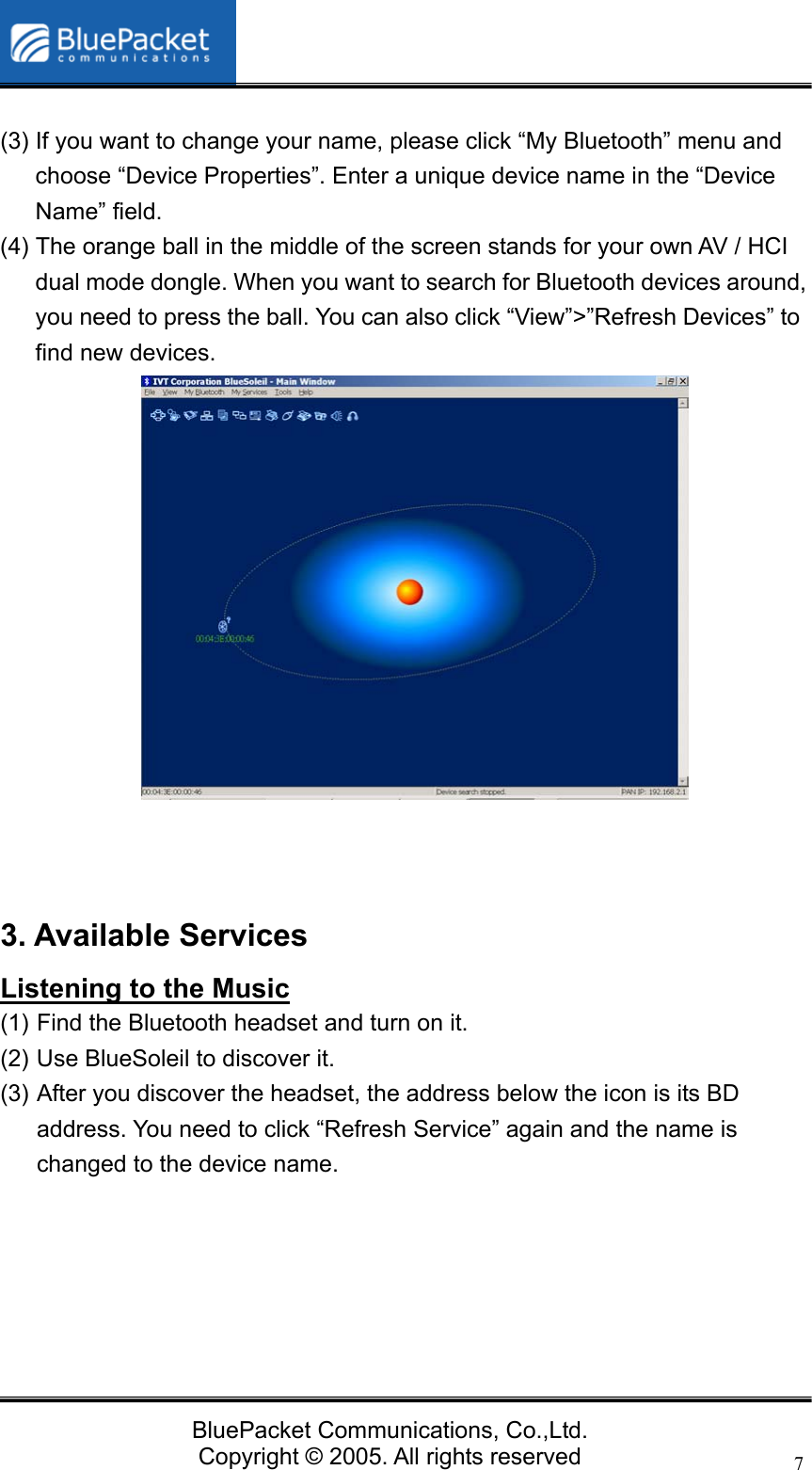
  BluePacket Communications, Co.,Ltd. Copyright © 2005. All rights reserved 7 (3) If you want to change your name, please click “My Bluetooth” menu and choose “Device Properties”. Enter a unique device name in the “Device Name” field. (4) The orange ball in the middle of the screen stands for your own AV / HCI dual mode dongle. When you want to search for Bluetooth devices around, you need to press the ball. You can also click “View”>”Refresh Devices” to find new devices.              3. Available Services Listening to the Music (1) Find the Bluetooth headset and turn on it. (2) Use BlueSoleil to discover it.   (3) After you discover the headset, the address below the icon is its BD address. You need to click “Refresh Service” again and the name is changed to the device name.
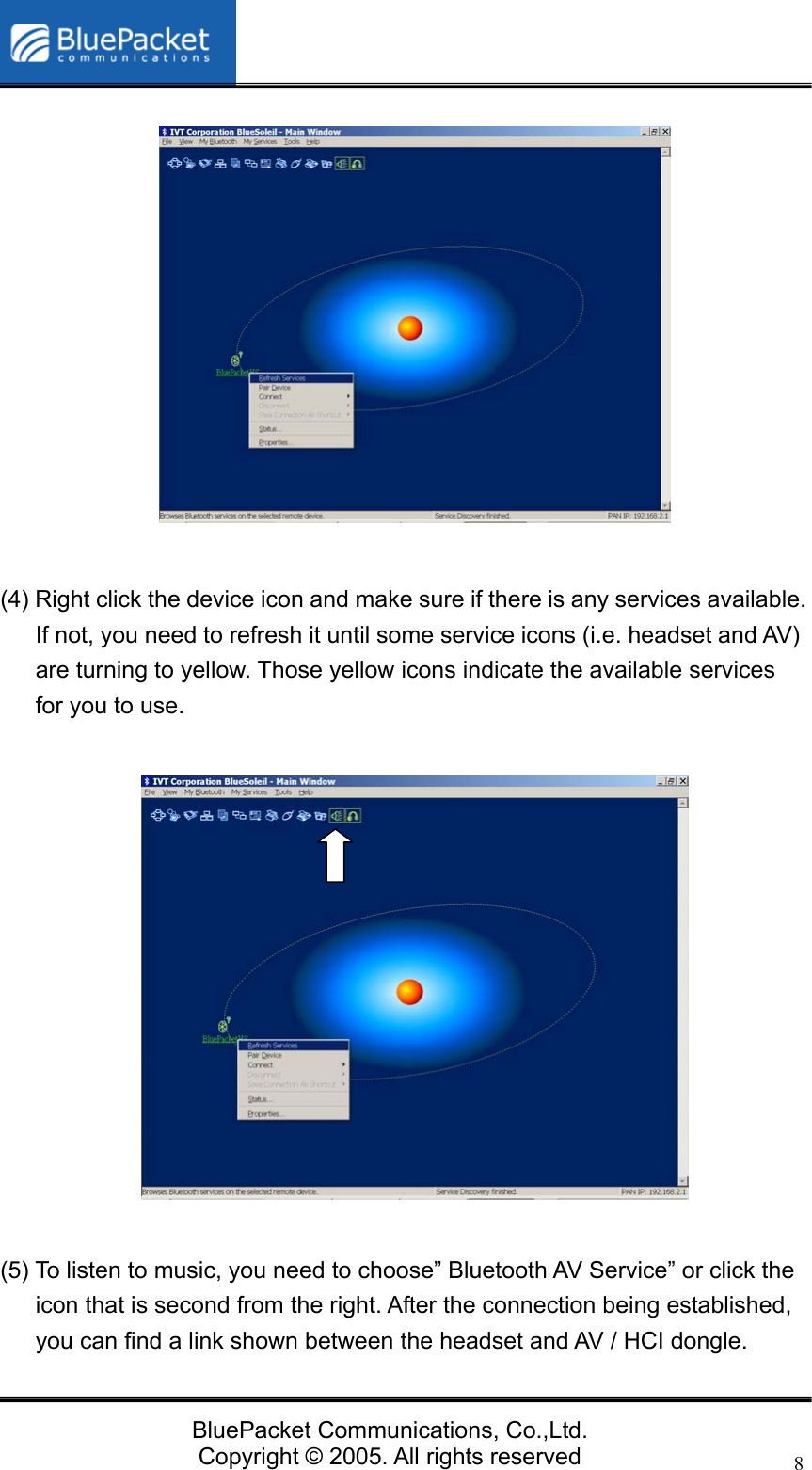
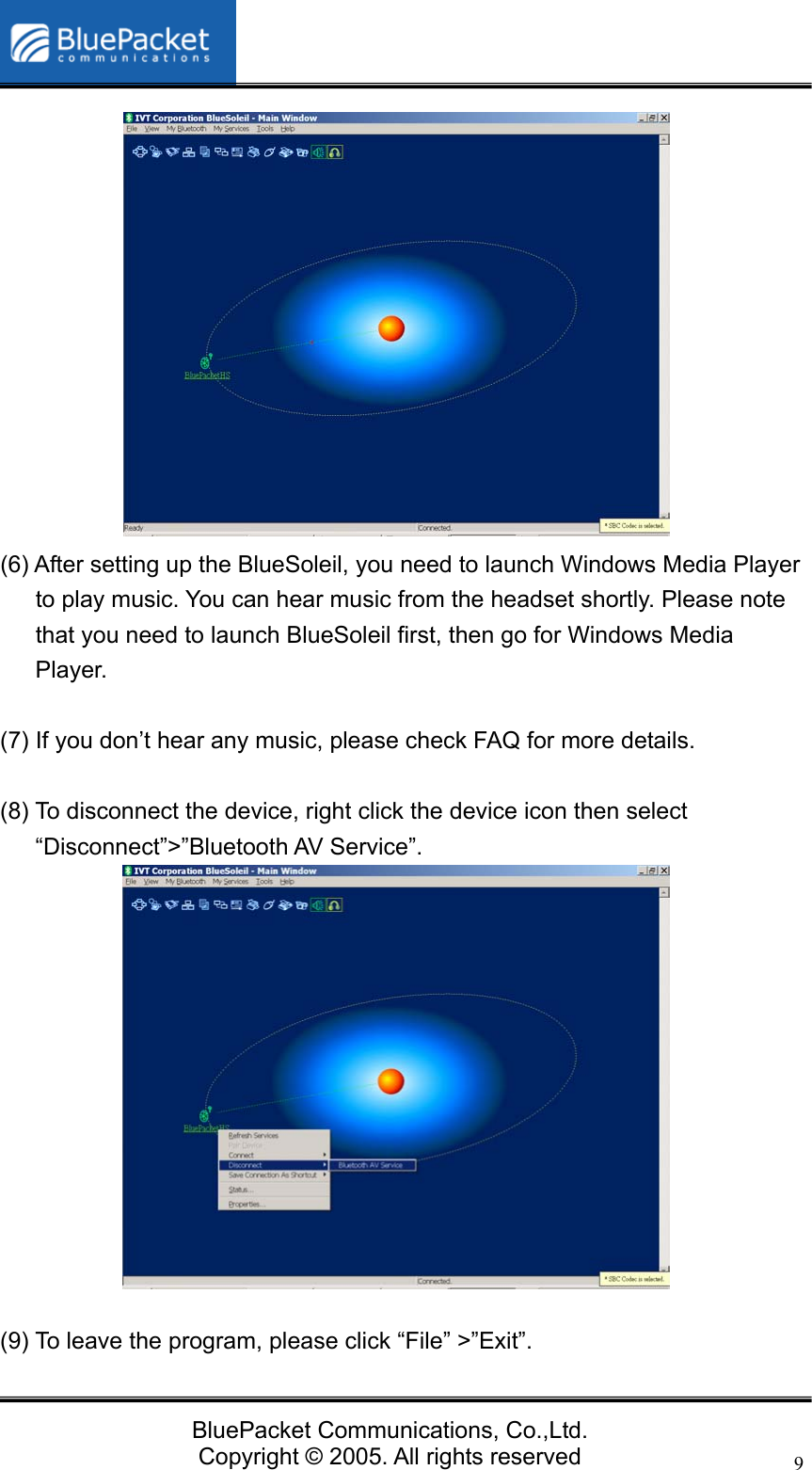
  BluePacket Communications, Co.,Ltd. Copyright © 2005. All rights reserved 8              (4) Right click the device icon and make sure if there is any services available. If not, you need to refresh it until some service icons (i.e. headset and AV) are turning to yellow. Those yellow icons indicate the available services for you to use.                (5) To listen to music, you need to choose” Bluetooth AV Service” or click the icon that is second from the right. After the connection being established, you can find a link shown between the headset and AV / HCI dongle.
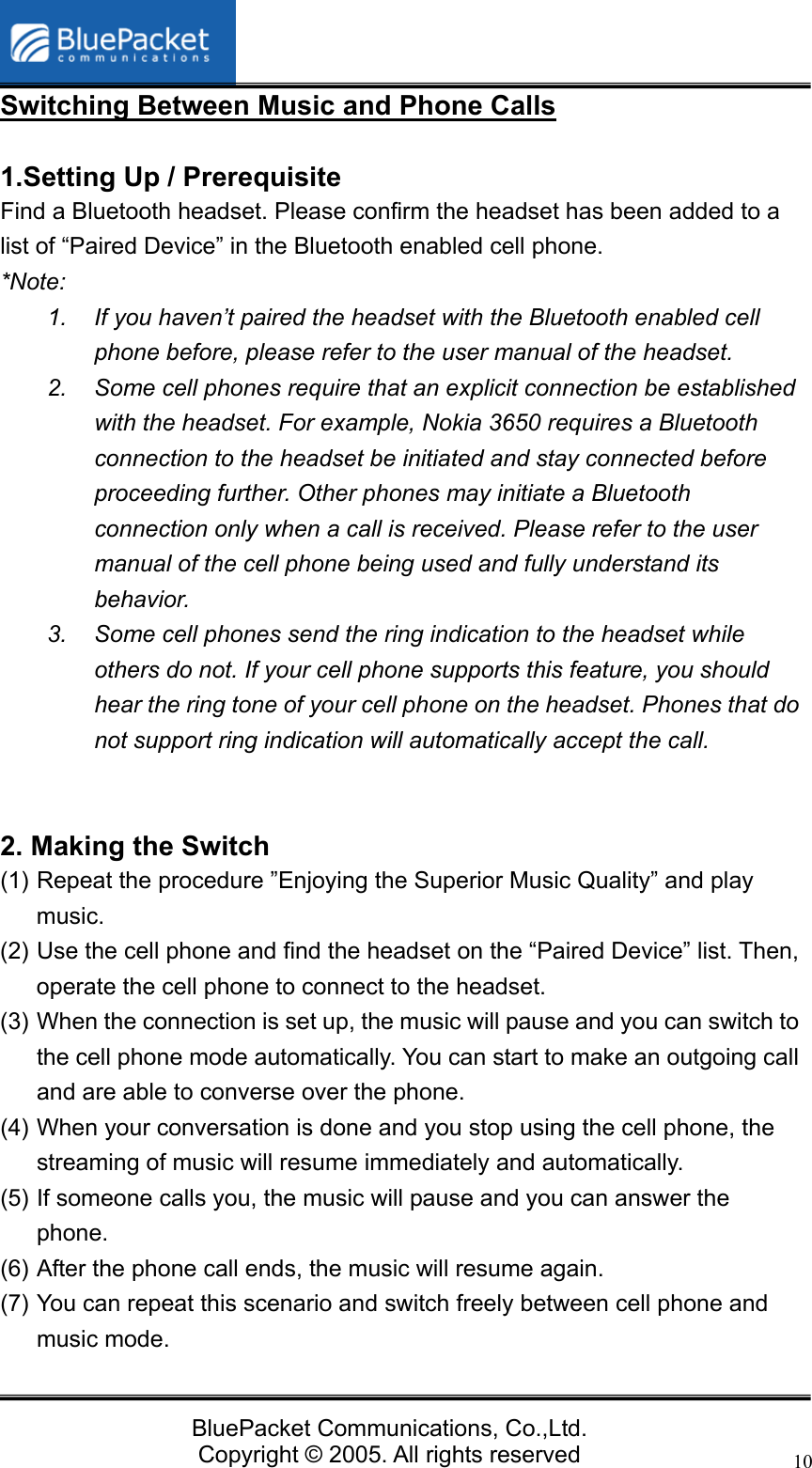
  BluePacket Communications, Co.,Ltd. Copyright © 2005. All rights reserved 9             (6) After setting up the BlueSoleil, you need to launch Windows Media Player to play music. You can hear music from the headset shortly. Please note that you need to launch BlueSoleil first, then go for Windows Media Player.  (7) If you don’t hear any music, please check FAQ for more details.    (8) To disconnect the device, right click the device icon then select “Disconnect”>”Bluetooth AV Service”.              (9) To leave the program, please click “File” >”Exit”.
  BluePacket Communications, Co.,Ltd. Copyright © 2005. All rights reserved 10Switching Between Music and Phone Calls  1.Setting Up / Prerequisite   Find a Bluetooth headset. Please confirm the headset has been added to a list of “Paired Device” in the Bluetooth enabled cell phone. *Note:  1.  If you haven’t paired the headset with the Bluetooth enabled cell phone before, please refer to the user manual of the headset. 2.  Some cell phones require that an explicit connection be established with the headset. For example, Nokia 3650 requires a Bluetooth connection to the headset be initiated and stay connected before proceeding further. Other phones may initiate a Bluetooth connection only when a call is received. Please refer to the user manual of the cell phone being used and fully understand its behavior. 3.  Some cell phones send the ring indication to the headset while others do not. If your cell phone supports this feature, you should hear the ring tone of your cell phone on the headset. Phones that do not support ring indication will automatically accept the call.   2. Making the Switch (1) Repeat the procedure ”Enjoying the Superior Music Quality” and play music.  (2) Use the cell phone and find the headset on the “Paired Device” list. Then, operate the cell phone to connect to the headset. (3) When the connection is set up, the music will pause and you can switch to the cell phone mode automatically. You can start to make an outgoing call and are able to converse over the phone. (4) When your conversation is done and you stop using the cell phone, the streaming of music will resume immediately and automatically. (5) If someone calls you, the music will pause and you can answer the phone. (6) After the phone call ends, the music will resume again. (7) You can repeat this scenario and switch freely between cell phone and music mode.
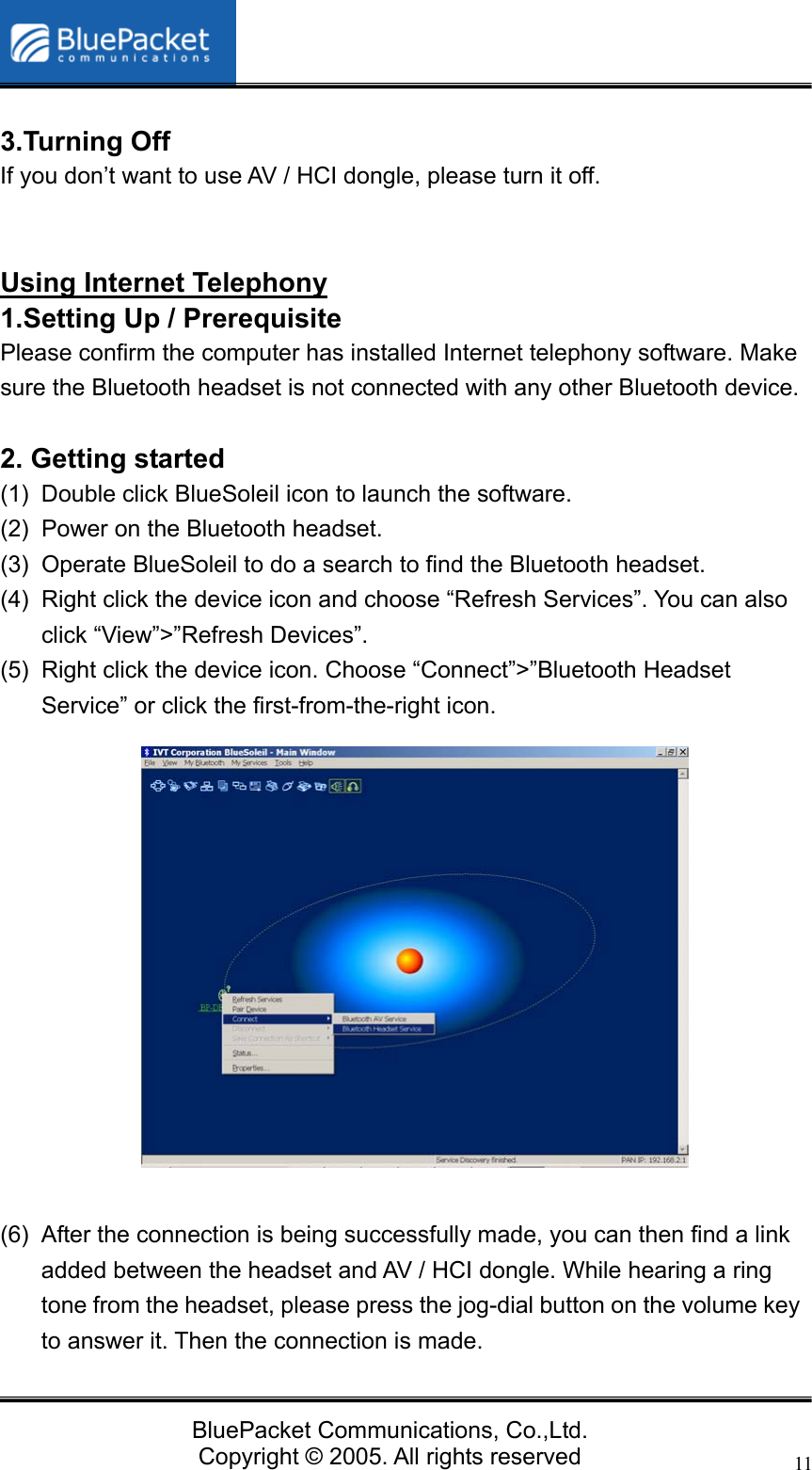
  BluePacket Communications, Co.,Ltd. Copyright © 2005. All rights reserved 11 3.Turning Off If you don’t want to use AV / HCI dongle, please turn it off.   Using Internet Telephony 1.Setting Up / Prerequisite   Please confirm the computer has installed Internet telephony software. Make sure the Bluetooth headset is not connected with any other Bluetooth device.  2. Getting started (1)  Double click BlueSoleil icon to launch the software. (2)  Power on the Bluetooth headset. (3)  Operate BlueSoleil to do a search to find the Bluetooth headset. (4)  Right click the device icon and choose “Refresh Services”. You can also click “View”>”Refresh Devices”. (5)  Right click the device icon. Choose “Connect”>”Bluetooth Headset Service” or click the first-from-the-right icon.                 (6)  After the connection is being successfully made, you can then find a link added between the headset and AV / HCI dongle. While hearing a ring tone from the headset, please press the jog-dial button on the volume key to answer it. Then the connection is made.
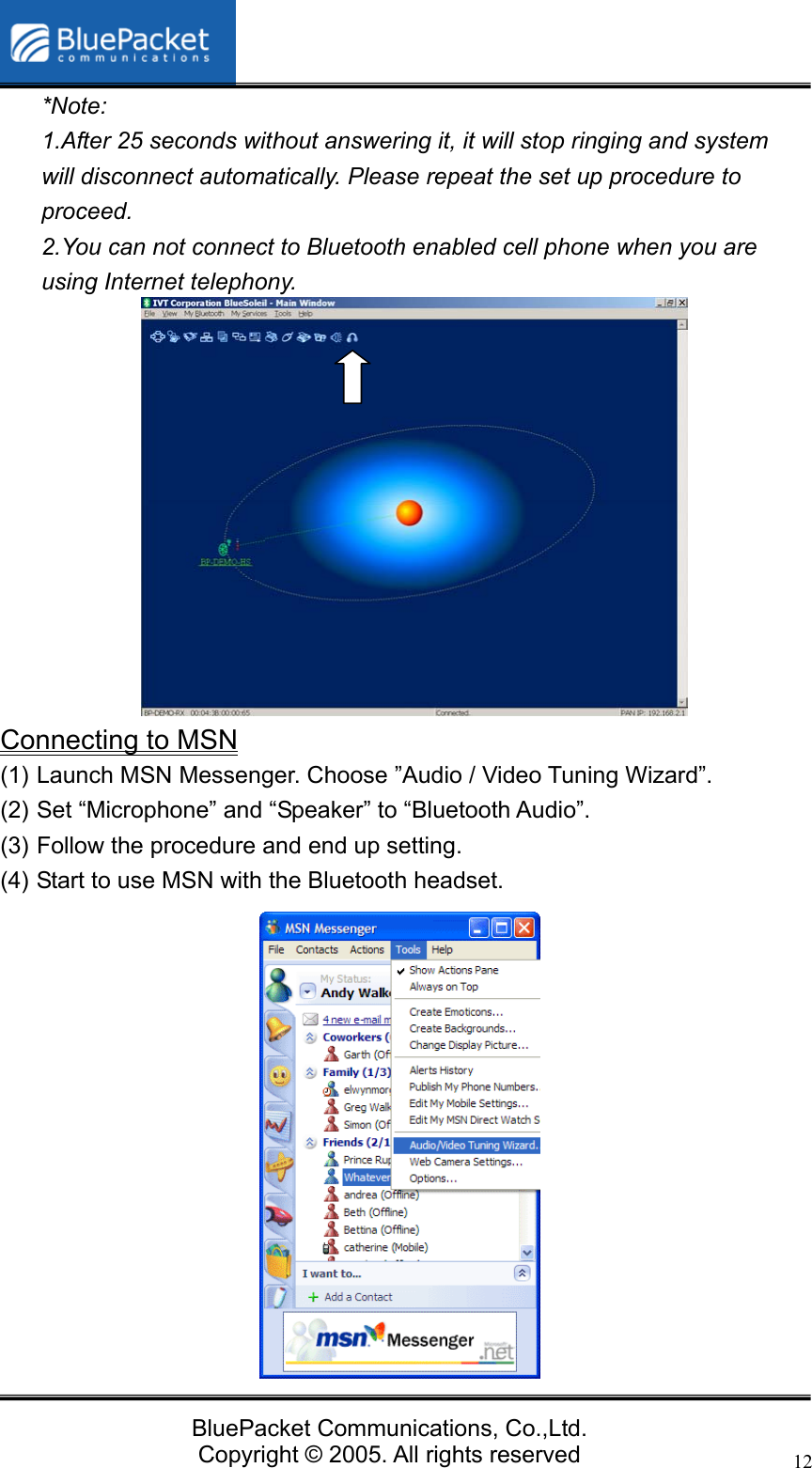
  BluePacket Communications, Co.,Ltd. Copyright © 2005. All rights reserved 12*Note:  1.After 25 seconds without answering it, it will stop ringing and system will disconnect automatically. Please repeat the set up procedure to proceed.  2.You can not connect to Bluetooth enabled cell phone when you are using Internet telephony.              Connecting to MSN (1) Launch MSN Messenger. Choose ”Audio / Video Tuning Wizard”. (2) Set “Microphone” and “Speaker” to “Bluetooth Audio”. (3) Follow the procedure and end up setting.   (4) Start to use MSN with the Bluetooth headset.
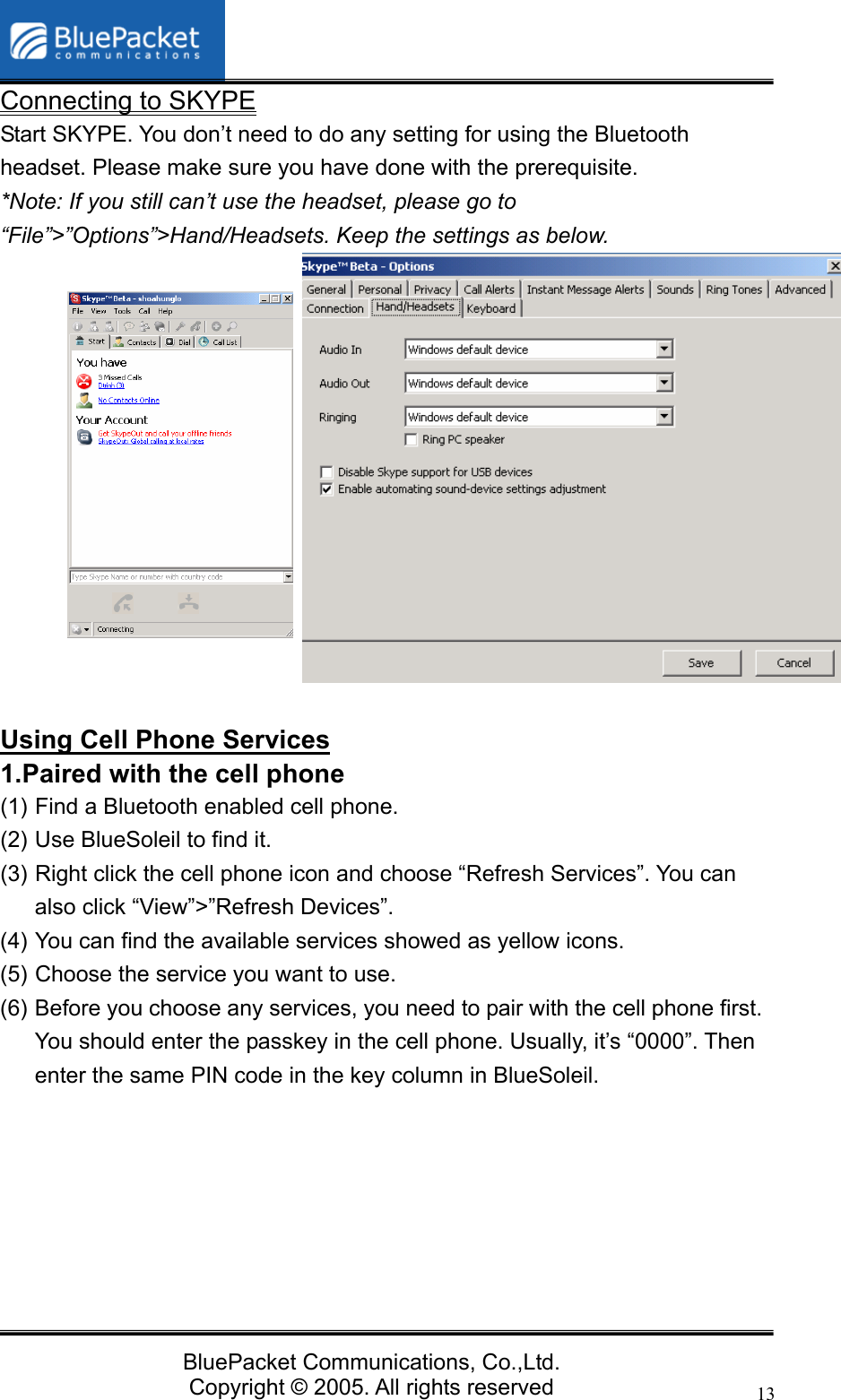
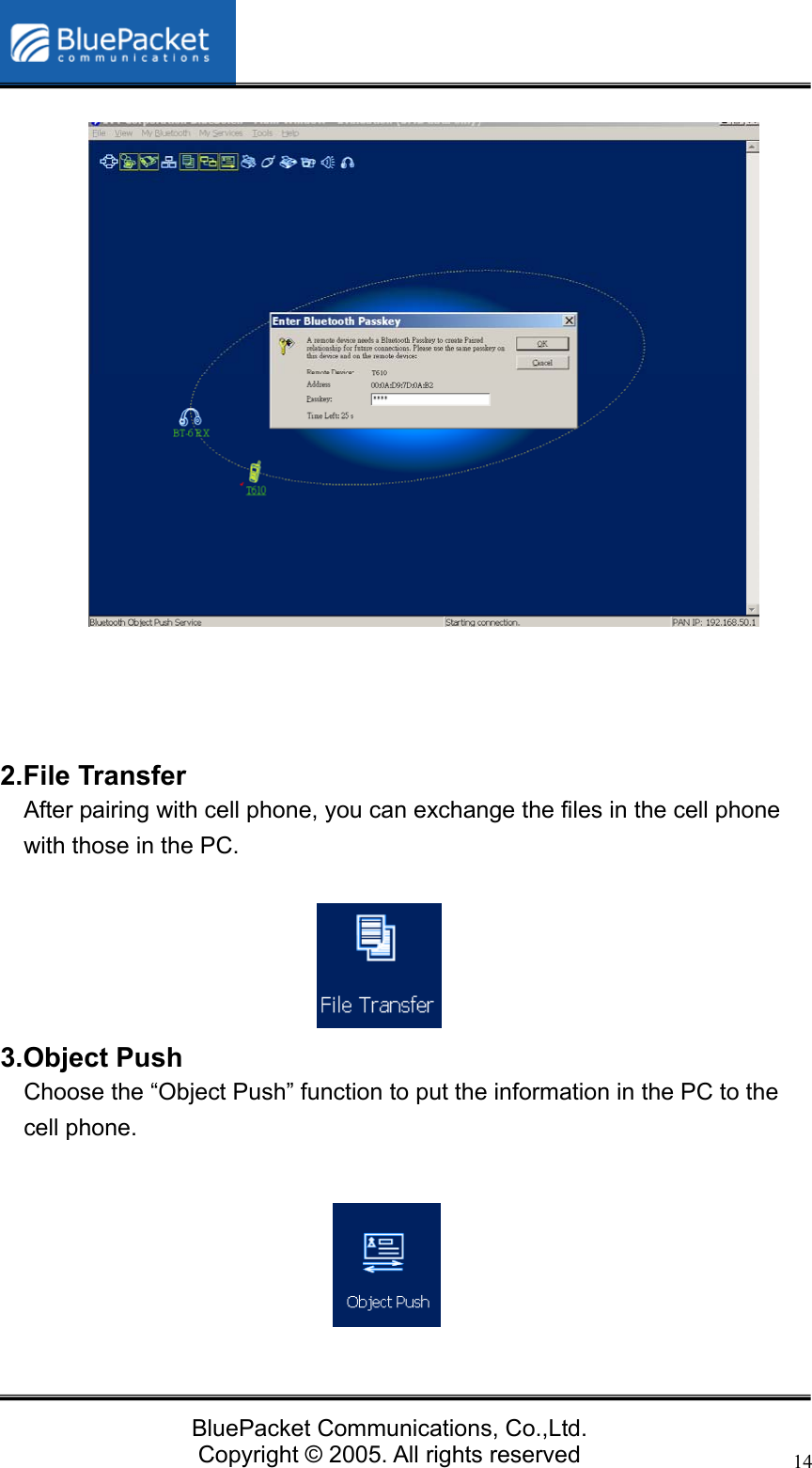
  BluePacket Communications, Co.,Ltd. Copyright © 2005. All rights reserved 13Connecting to SKYPE Start SKYPE. You don’t need to do any setting for using the Bluetooth headset. Please make sure you have done with the prerequisite. *Note: If you still can’t use the headset, please go to “File”>”Options”>Hand/Headsets. Keep the settings as below.             Using Cell Phone Services 1.Paired with the cell phone   (1) Find a Bluetooth enabled cell phone.   (2) Use BlueSoleil to find it. (3) Right click the cell phone icon and choose “Refresh Services”. You can also click “View”>”Refresh Devices”. (4) You can find the available services showed as yellow icons. (5) Choose the service you want to use. (6) Before you choose any services, you need to pair with the cell phone first. You should enter the passkey in the cell phone. Usually, it’s “0000”. Then enter the same PIN code in the key column in BlueSoleil.
  BluePacket Communications, Co.,Ltd. Copyright © 2005. All rights reserved 14                 2.File Transfer After pairing with cell phone, you can exchange the files in the cell phone with those in the PC.        3.Object Push   Choose the “Object Push” function to put the information in the PC to the cell phone.
  BluePacket Communications, Co.,Ltd. Copyright © 2005. All rights reserved 15 4.Information Synchronization Use the “Information Synchronization” function to sync the files with your cell phone. So your files in the cell phone and your information kept in Microsoft Outlook will be in sync.
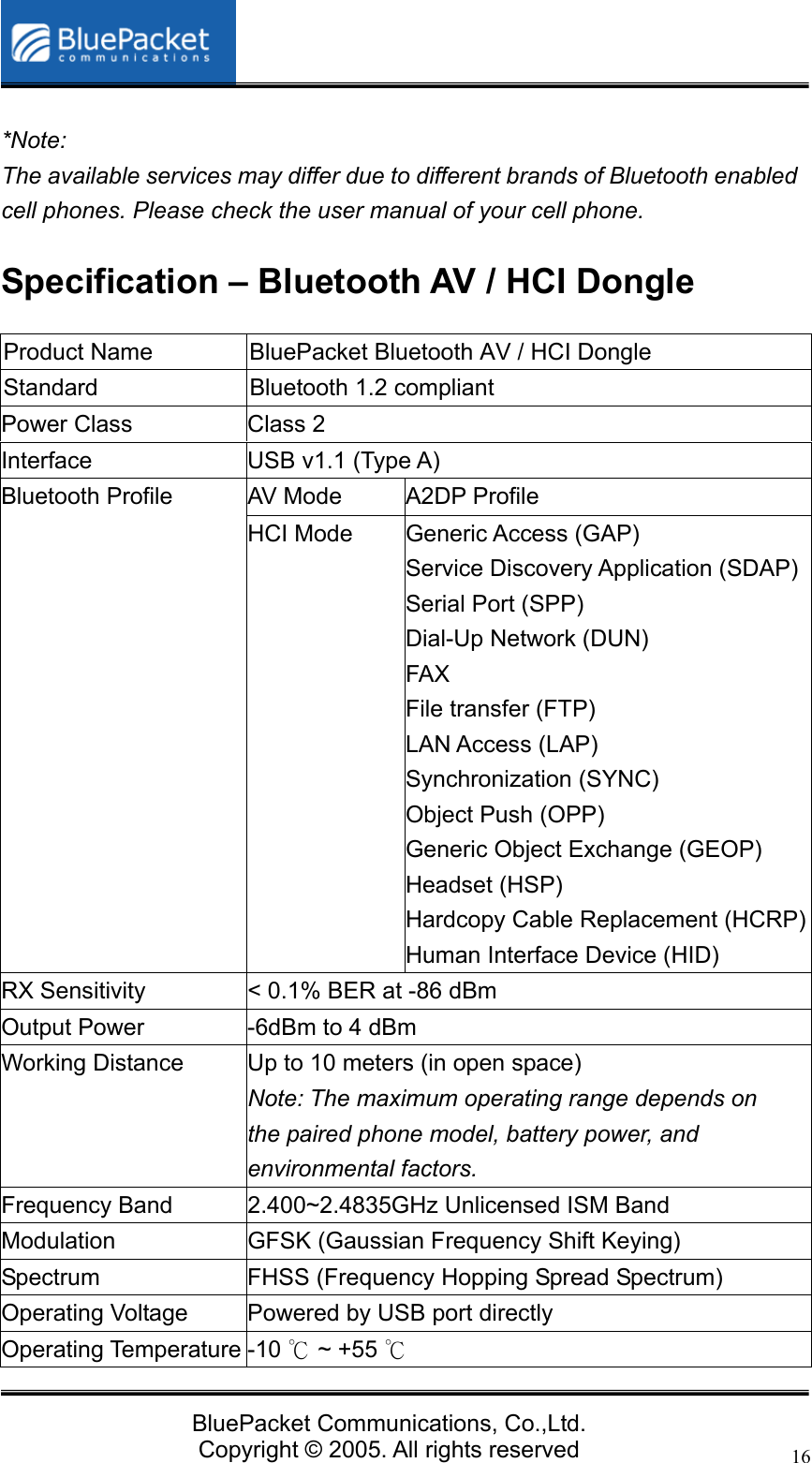
  BluePacket Communications, Co.,Ltd. Copyright © 2005. All rights reserved 16 *Note:  The available services may differ due to different brands of Bluetooth enabled cell phones. Please check the user manual of your cell phone. Specification – Bluetooth AV / HCI Dongle Product Name  BluePacket Bluetooth AV / HCI Dongle Standard  Bluetooth 1.2 compliant Power Class  Class 2 Interface  USB v1.1 (Type A) AV Mode  A2DP Profile Bluetooth Profile HCI Mode  Generic Access (GAP)   Service Discovery Application (SDAP) Serial Port (SPP)   Dial-Up Network (DUN)   FAX  File transfer (FTP) LAN Access (LAP) Synchronization (SYNC) Object Push (OPP)   Generic Object Exchange (GEOP) Headset (HSP) Hardcopy Cable Replacement (HCRP)Human Interface Device (HID) RX Sensitivity  < 0.1% BER at -86 dBm Output Power  -6dBm to 4 dBm Working Distance  Up to 10 meters (in open space) Note: The maximum operating range depends on the paired phone model, battery power, and environmental factors. Frequency Band  2.400~2.4835GHz Unlicensed ISM Band Modulation  GFSK (Gaussian Frequency Shift Keying) Spectrum FHSS (Frequency Hopping Spread Spectrum) Operating Voltage  Powered by USB port directly Operating Temperature -10   ~ +55 ℃℃
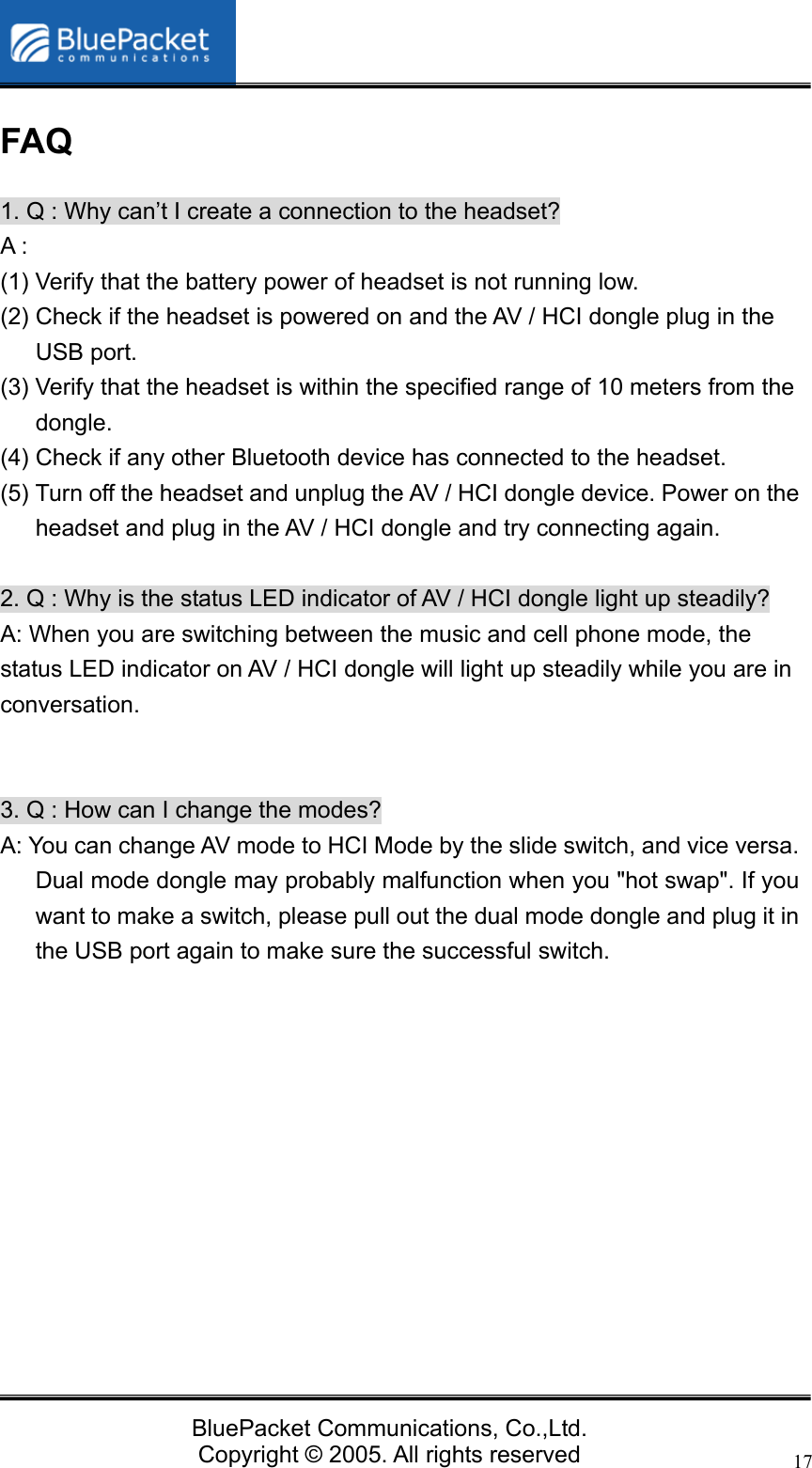
  BluePacket Communications, Co.,Ltd. Copyright © 2005. All rights reserved 17FAQ 1. Q : Why can’t I create a connection to the headset? A : (1) Verify that the battery power of headset is not running low. (2) Check if the headset is powered on and the AV / HCI dongle plug in the USB port.   (3) Verify that the headset is within the specified range of 10 meters from the dongle. (4) Check if any other Bluetooth device has connected to the headset. (5) Turn off the headset and unplug the AV / HCI dongle device. Power on the headset and plug in the AV / HCI dongle and try connecting again.  2. Q : Why is the status LED indicator of AV / HCI dongle light up steadily? A: When you are switching between the music and cell phone mode, the status LED indicator on AV / HCI dongle will light up steadily while you are in conversation.    3. Q : How can I change the modes? A: You can change AV mode to HCI Mode by the slide switch, and vice versa. Dual mode dongle may probably malfunction when you "hot swap". If you want to make a switch, please pull out the dual mode dongle and plug it in the USB port again to make sure the successful switch.
  BluePacket Communications, Co.,Ltd. Copyright © 2005. All rights reserved 18Technical Support If you have further questions, please contact our Technical Support Department. Thank you!  BluePacket Communications Co., Ltd.  Taiwan Office 10F-1, No. 420, Sec. 1, Keelung Rd., 110, Taipei, Taiwan Telephone: +886-2-27201299 Facsimile: +886-2-27205738 Email: inquiries@bluepacket.net Website: http://www.bluepacket.net/  USA Office 1645A S. Main St. Suite 200 Milpitas, CA 95035, USA Telephone:+1-408- 946-6058 Facsimile:+1-408- 946-6084
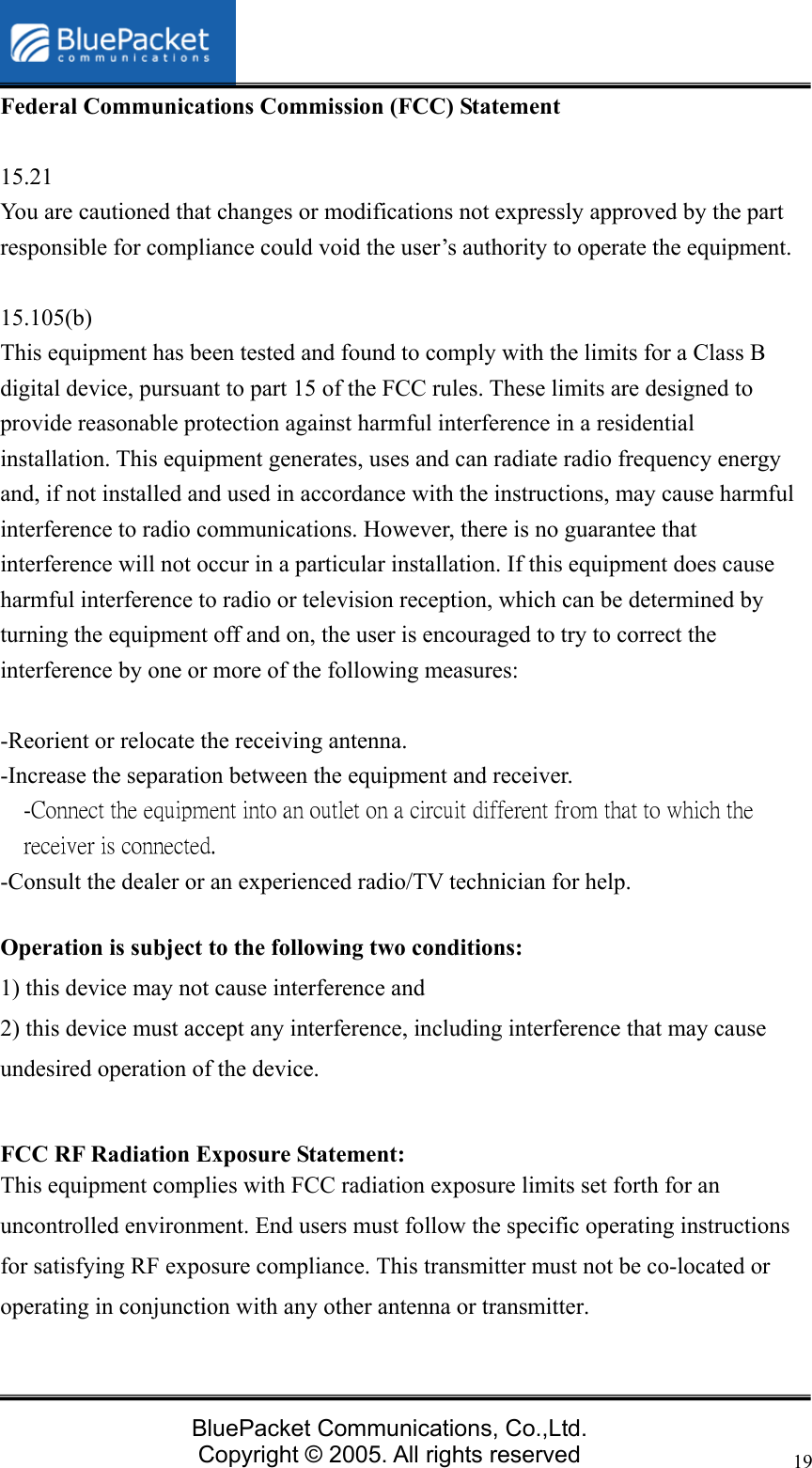
  BluePacket Communications, Co.,Ltd. Copyright © 2005. All rights reserved 19Federal Communications Commission (FCC) Statement  15.21 You are cautioned that changes or modifications not expressly approved by the part responsible for compliance could void the user’s authority to operate the equipment.  15.105(b) This equipment has been tested and found to comply with the limits for a Class B digital device, pursuant to part 15 of the FCC rules. These limits are designed to provide reasonable protection against harmful interference in a residential installation. This equipment generates, uses and can radiate radio frequency energy and, if not installed and used in accordance with the instructions, may cause harmful interference to radio communications. However, there is no guarantee that interference will not occur in a particular installation. If this equipment does cause harmful interference to radio or television reception, which can be determined by turning the equipment off and on, the user is encouraged to try to correct the interference by one or more of the following measures:  -Reorient or relocate the receiving antenna. -Increase the separation between the equipment and receiver. -Connect the equipment into an outlet on a circuit different from that to which the receiver is connected. -Consult the dealer or an experienced radio/TV technician for help.  Operation is subject to the following two conditions: 1) this device may not cause interference and 2) this device must accept any interference, including interference that may cause undesired operation of the device.  FCC RF Radiation Exposure Statement: This equipment complies with FCC radiation exposure limits set forth for an uncontrolled environment. End users must follow the specific operating instructions for satisfying RF exposure compliance. This transmitter must not be co-located or operating in conjunction with any other antenna or transmitter.

Navigation menu