Warmup plc 4IENA Warmup Smart WiFi Thermostat, Programmable WIFI Thermostat with/without GFCI User Manual

Warmup plc Warmup Smart WiFi Thermostat, Programmable WIFI Thermostat with/without GFCI

User Manual

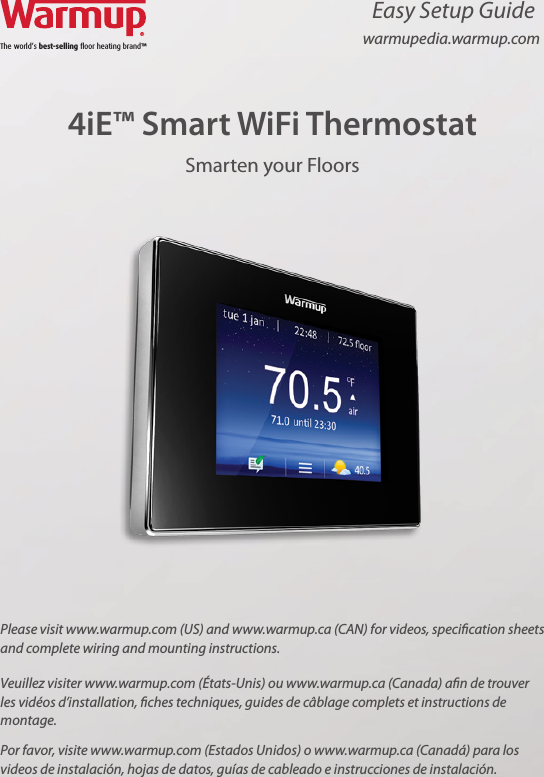
4iE™ Smart WiFi ThermostatThe world’s best-selling floor heating brand™Easy Setup Guidewarmupedia.warmup.comSmarten your FloorsVeuillez visiter www.warmup.com (États-Unis) ou www.warmup.ca (Canada) an de trouver les vidéos d’installation, ches techniques, guides de câblage complets et instructions de montage.Please visit www.warmup.com (US) and www.warmup.ca (CAN) for videos, specication sheets and complete wiring and mounting instructions.Por favor, visite www.warmup.com (Estados Unidos) o www.warmup.ca (Canadá) para los videos de instalación, hojas de datos, guías de cableado e instrucciones de instalación.
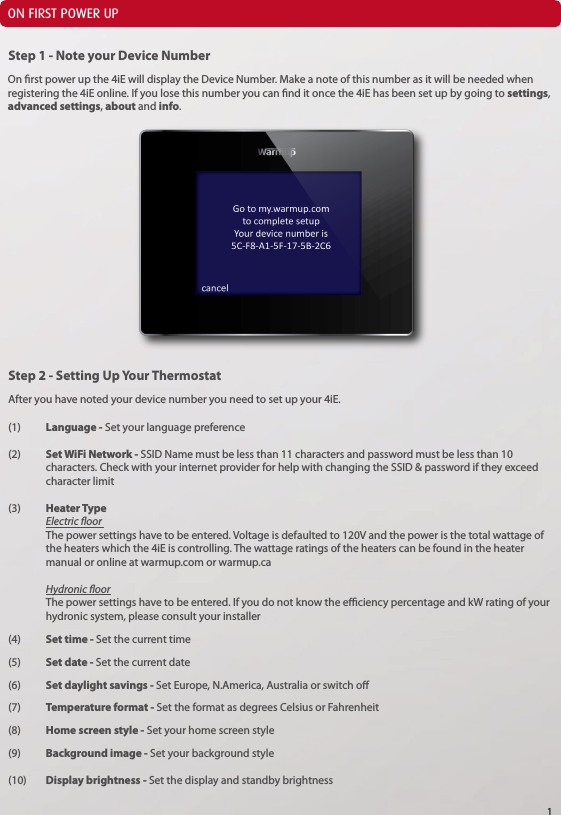
ON FIRST POWER UPOn rst power up the 4iE will display the Device Number. Make a note of this number as it will be needed when registering the 4iE online. If you lose this number you can nd it once the 4iE has been set up by going to settings, advanced settings, about and info.After you have noted your device number you need to set up your 4iE.(1)  Language - Set your language preference(2)   Set WiFi Network - SSID Name must be less than 11 characters and password must be less than 10      characters. Check with your internet provider for help with changing the SSID & password if they exceed    character limit(3)  Heater Type   Electric oor   The power settings have to be entered. Voltage is defaulted to 120V and the power is the total wattage of    the heaters which the 4iE is controlling. The wattage ratings of the heaters can be found in the heater      manual or online at warmup.com or warmup.ca Hydronic oor The power settings have to be entered. If you do not know the eciency percentage and kW rating of your    hydronic system, please consult your installer(4) Set time - Set the current time(5)  Set date - Set the current date(6)  Set daylight savings - Set Europe, N.America, Australia or switch o(7)  Temperature format - Set the format as degrees Celsius or Fahrenheit(8)  Home screen style - Set your home screen style(9)  Background image - Set your background style (10)  Display brightness - Set the display and standby brightnessStep 1 - Note your Device NumberStep 2 - Setting Up Your Thermostat1
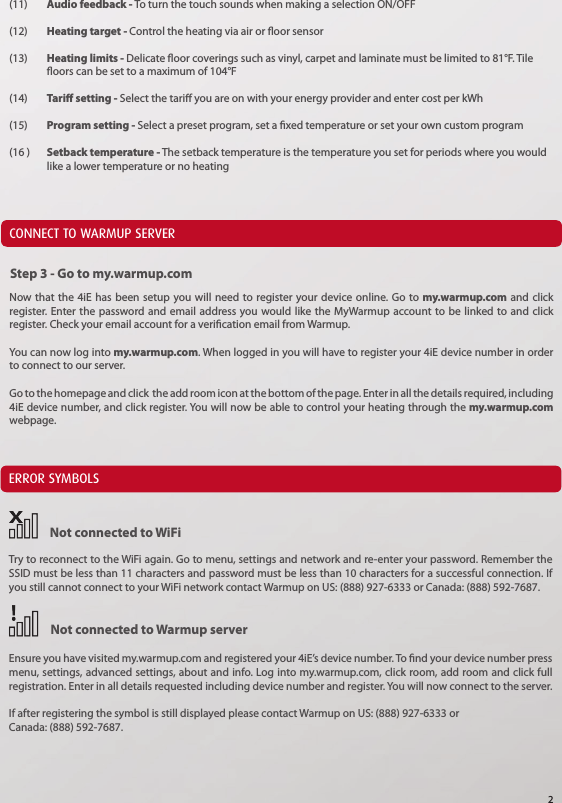
(11)  Audio feedback - To turn the touch sounds when making a selection ON/OFF(12)  Heating target - Control the heating via air or oor sensor(13) Heating limits - Delicate oor coverings such as vinyl, carpet and laminate must be limited to 81°F. Tile    oors can be set to a maximum of 104°F(14)  Tari setting - Select the tari you are on with your energy provider and enter cost per kWh(15)  Program setting - Select a preset program, set a xed temperature or set your own custom program(16 )  Setback temperature - The setback temperature is the temperature you set for periods where you would    like a lower temperature or no heatingCONNECT TO WARMUP SERVERERROR SYMBOLSNow that the 4iE has been setup you will need to register your device online. Go to my.warmup.com and click register. Enter the password and email address you would like the MyWarmup account to be linked to and click register. Check your email account for a verication email from Warmup.You can now log into my.warmup.com. When logged in you will have to register your 4iE device number in order to connect to our server.Go to the homepage and click  the add room icon at the bottom of the page. Enter in all the details required, including 4iE device number, and click register. You will now be able to control your heating through the my.warmup.com webpage.Not connected to WiFiNot connected to Warmup serverStep 3 - Go to my.warmup.comTry to reconnect to the WiFi again. Go to menu, settings and network and re-enter your password. Remember the SSID must be less than 11 characters and password must be less than 10 characters for a successful connection. If you still cannot connect to your WiFi network contact Warmup on US: (888) 927-6333 or Canada: (888) 592-7687.Ensure you have visited my.warmup.com and registered your 4iE’s device number. To nd your device number press menu, settings, advanced settings, about and info. Log into my.warmup.com, click room, add room and click full registration. Enter in all details requested including device number and register. You will now connect to the server.If after registering the symbol is still displayed please contact Warmup on US: (888) 927-6333 or Canada: (888) 592-7687.2
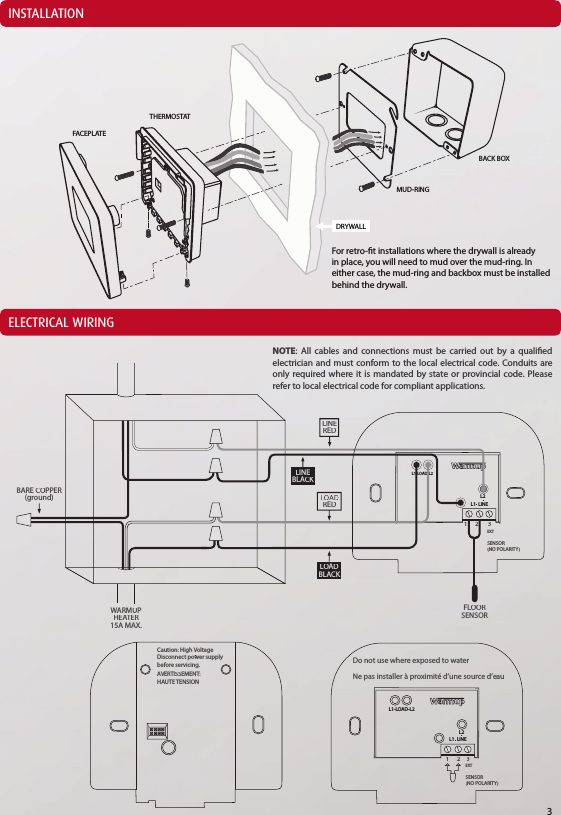
INSTALLATIONELECTRICAL WIRINGDRYWALLTHERMOSTATFACEPLATEMUD-RINGBACK BOXFor retro-t installations where the drywall is already in place, you will need to mud over the mud-ring. In either case, the mud-ring and backbox must be installed behind the drywall.NOTE: All cables and connections must be carried out by a qualied electrician and must conform to the local electrical code. Conduits are only required where it is mandated by state or provincial code. Please refer to local electrical code for compliant applications.3L1-LOAD-L2LINEL1  L2123EXTSENSOR(NO POLARITY)REDLOADBLACKLINEBLACKLINEREDBARE COPPER(ground)FLOORSENSORWARMUPHEATER15A MAX.Do not use where exposed to waterNe pas installer à proximité d’une source d’eauEXTSENSOR(NO POLARITY)123LINEL1  L2Caution: High VoltageDisconnect power supplybefore servicing.AVERTISSEMENT:HAUTE TENSIONL1-LOAD-L2
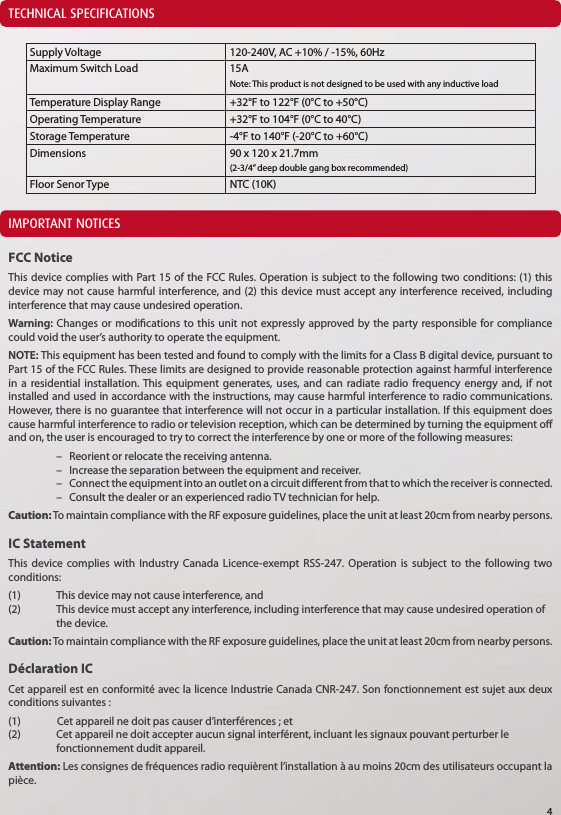
TECHNICAL SPECIFICATIONSIMPORTANT NOTICESFCC NoticeThis device complies with Part 15 of the FCC Rules. Operation is subject to the following two conditions: (1) this device may not cause harmful interference, and (2) this device must accept any interference received, including interference that may cause undesired operation.Warning: Changes or modications to this unit not expressly approved by the party responsible for compliance could void the user’s authority to operate the equipment.NOTE: This equipment has been tested and found to comply with the limits for a Class B digital device, pursuant to Part 15 of the FCC Rules. These limits are designed to provide reasonable protection against harmful interference in a residential installation. This equipment generates, uses, and can radiate radio frequency energy and, if not installed and used in accordance with the instructions, may cause harmful interference to radio communications. However, there is no guarantee that interference will not occur in a particular installation. If this equipment does cause harmful interference to radio or television reception, which can be determined by turning the equipment o and on, the user is encouraged to try to correct the interference by one or more of the following measures:  –   Reorient or relocate the receiving antenna.  –   Increase the separation between the equipment and receiver.  –    Connect the equipment into an outlet on a circuit dierent from that to which the receiver is connected.  –   Consult the dealer or an experienced radio TV technician for help.Caution: To maintain compliance with the RF exposure guidelines, place the unit at least 20cm from nearby persons.IC StatementThis device complies with Industry Canada Licence-exempt RSS-247. Operation is subject to the following two conditions: (1)   This device may not cause interference, and (2)   This device must accept any interference, including interference that may cause undesired operation of    the device.Caution: To maintain compliance with the RF exposure guidelines, place the unit at least 20cm from nearby persons.Déclaration ICCet appareil est en conformité avec la licence Industrie Canada CNR-247. Son fonctionnement est sujet aux deux conditions suivantes :(1)               Cet appareil ne doit pas causer d’interférences ; et(2)  Cet appareil ne doit accepter aucun signal interférent, incluant les signaux pouvant perturber le      fonctionnement dudit appareil.Attention: Les consignes de fréquences radio requièrent l’installation à au moins 20cm des utilisateurs occupant la pièce.Supply Voltage 120-240V, AC +10% / -15%, 60HzMaximum Switch Load 15ANote: This product is not designed to be used with any inductive loadTemperature Display Range +32°F to 122°F (0°C to +50°C)Operating Temperature +32°F to 104°F (0°C to 40°C)Storage Temperature -4°F to 140°F (-20°C to +60°C)Dimensions 90 x 120 x 21.7mm(2-3/4” deep double gang box recommended)Floor Senor Type NTC (10K)4
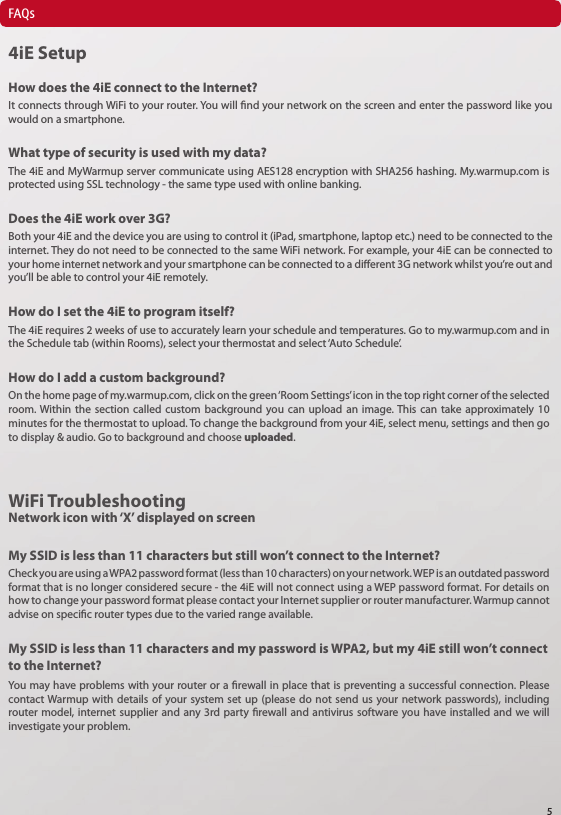
FAQs4iE SetupHow does the 4iE connect to the Internet?What type of security is used with my data?Does the 4iE work over 3G?How do I set the 4iE to program itself?How do I add a custom background?It connects through WiFi to your router. You will nd your network on the screen and enter the password like you would on a smartphone.The 4iE and MyWarmup server communicate using AES128 encryption with SHA256 hashing. My.warmup.com is protected using SSL technology - the same type used with online banking. Both your 4iE and the device you are using to control it (iPad, smartphone, laptop etc.) need to be connected to the internet. They do not need to be connected to the same WiFi network. For example, your 4iE can be connected to your home internet network and your smartphone can be connected to a dierent 3G network whilst you’re out and you’ll be able to control your 4iE remotely.The 4iE requires 2 weeks of use to accurately learn your schedule and temperatures. Go to my.warmup.com and in the Schedule tab (within Rooms), select your thermostat and select ‘Auto Schedule’.On the home page of my.warmup.com, click on the green ‘Room Settings’ icon in the top right corner of the selected room. Within the section called custom background you can upload an image. This can take approximately 10 minutes for the thermostat to upload. To change the background from your 4iE, select menu, settings and then go to display & audio. Go to background and choose uploaded. WiFi TroubleshootingNetwork icon with ‘X’ displayed on screenMy SSID is less than 11 characters but still won’t connect to the Internet?Check you are using a WPA2 password format (less than 10 characters) on your network. WEP is an outdated password format that is no longer considered secure - the 4iE will not connect using a WEP password format. For details on how to change your password format please contact your Internet supplier or router manufacturer. Warmup cannot advise on specic router types due to the varied range available. My SSID is less than 11 characters and my password is WPA2, but my 4iE still won’t connect to the Internet?You may have problems with your router or a rewall in place that is preventing a successful connection. Please contact Warmup with details of your system set up (please do not send us your network passwords), including router model, internet supplier and any 3rd party rewall and antivirus software you have installed and we will investigate your problem. 5
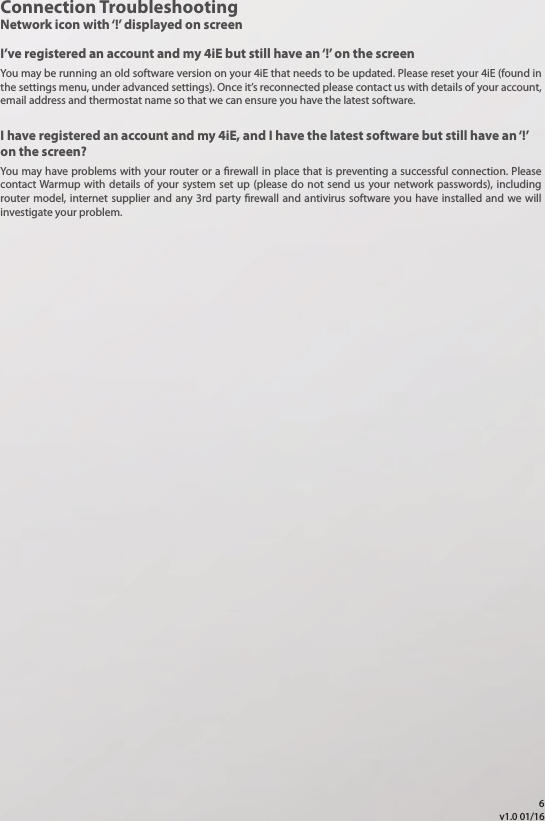
Connection TroubleshootingNetwork icon with ‘!’ displayed on screenI’ve registered an account and my 4iE but still have an ‘!’ on the screenYou may be running an old software version on your 4iE that needs to be updated. Please reset your 4iE (found in the settings menu, under advanced settings). Once it’s reconnected please contact us with details of your account, email address and thermostat name so that we can ensure you have the latest software. You may have problems with your router or a rewall in place that is preventing a successful connection. Please contact Warmup with details of your system set up (please do not send us your network passwords), including router model, internet supplier and any 3rd party rewall and antivirus software you have installed and we will investigate your problem. I have registered an account and my 4iE, and I have the latest software but still have an ‘!’ on the screen?v1.0 01/166

Navigation menu