Watchdata Technologies QROP8-3-1 WatchQRO User Manual Manual
Watchdata Technologies Pte Ltd WatchQRO Manual
Manual

WatchQRO Demo Manual
01-Oct-2014
Watchdata Technologies Pte, Ltd
Content
1. Login .......................................................................................................................................... 1
2. Transaction ................................................................................................................................ 2
3. Change Password via WatchQRO............................................................................................... 3
4. Change Password via QR code ................................................................................................... 4
5. Unlock PIN ................................................................................................................................. 5
6. Activate Token ........................................................................................................................... 6
1
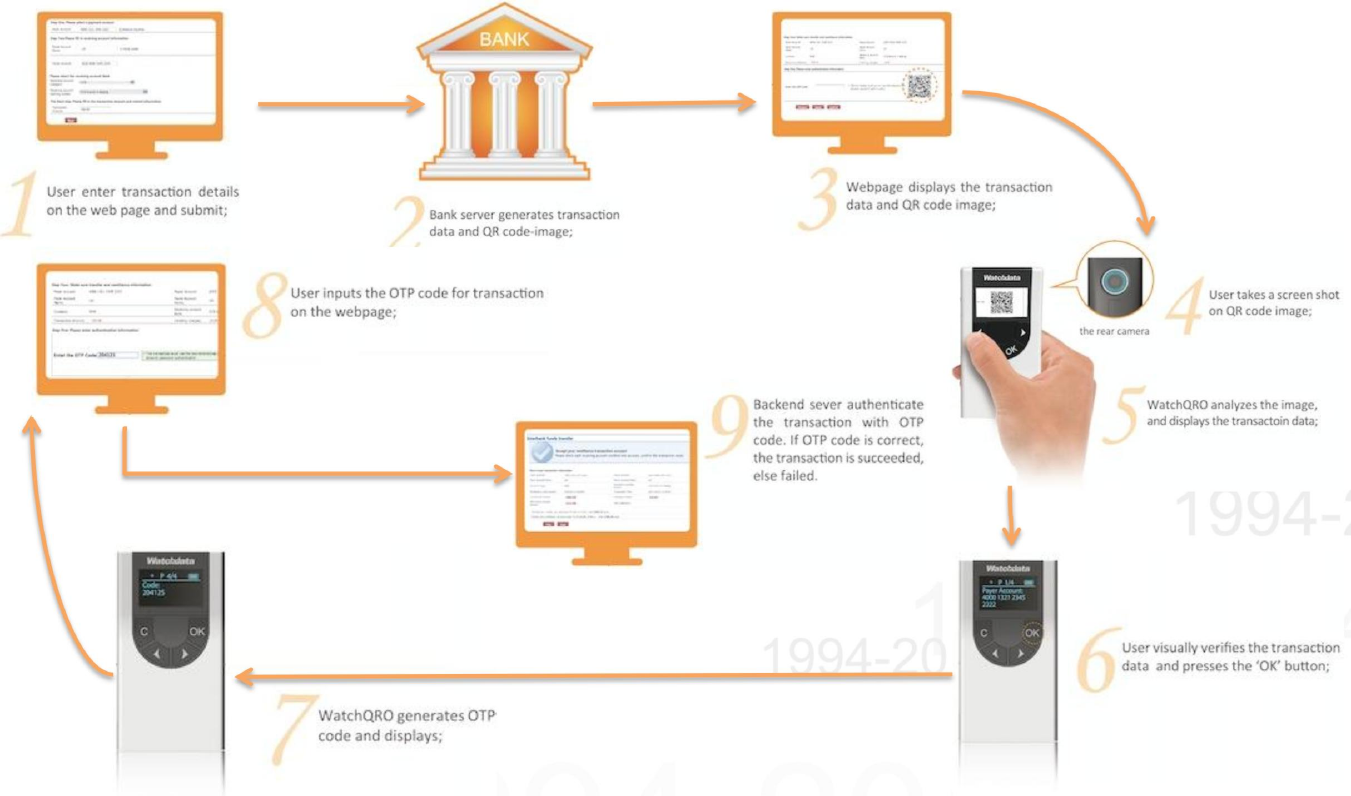
1. Typical Application
1
2. Login
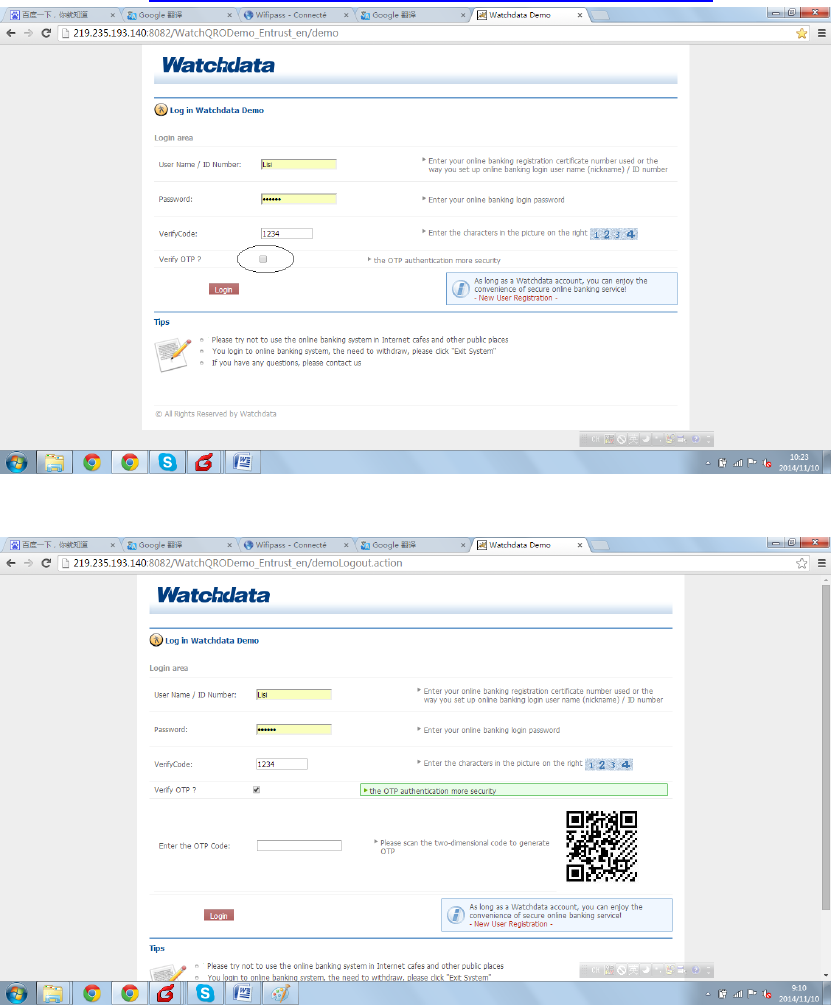
1. Open url:http://219.235.193.140:8082/WatchQRODemo_Entrust_en/demo,as Figure 1.1
Figure 1.1
2. Click “verify OTP” option from Figure 1.1, then as Figure 1.2,
Figure 1.2
3. Open WatchQRO by long press “C”, enter WatchQRO PIN,
4. Take a shot at QR code as Figure 1.2, then WatchQRO screen will display OTP
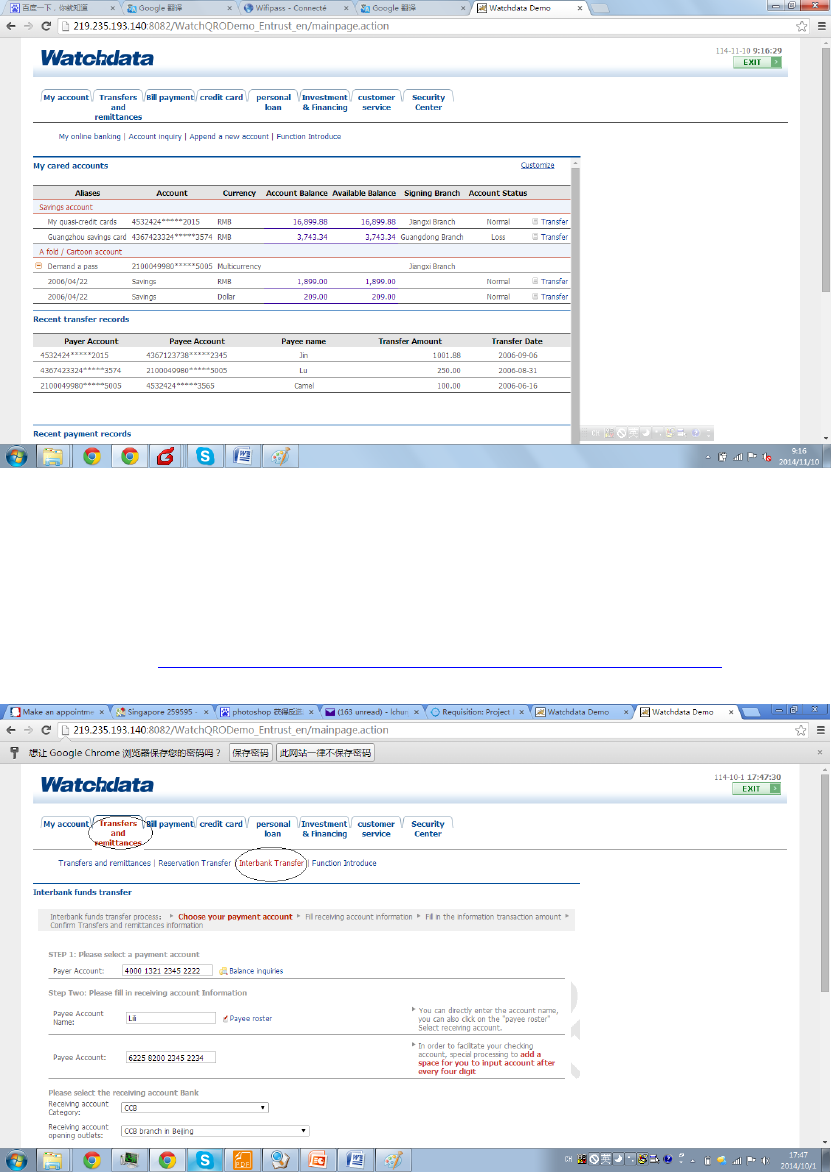
5. Input the OTP into Figure 1.2, then click “login”, as Figure 1.3 successful page.
3
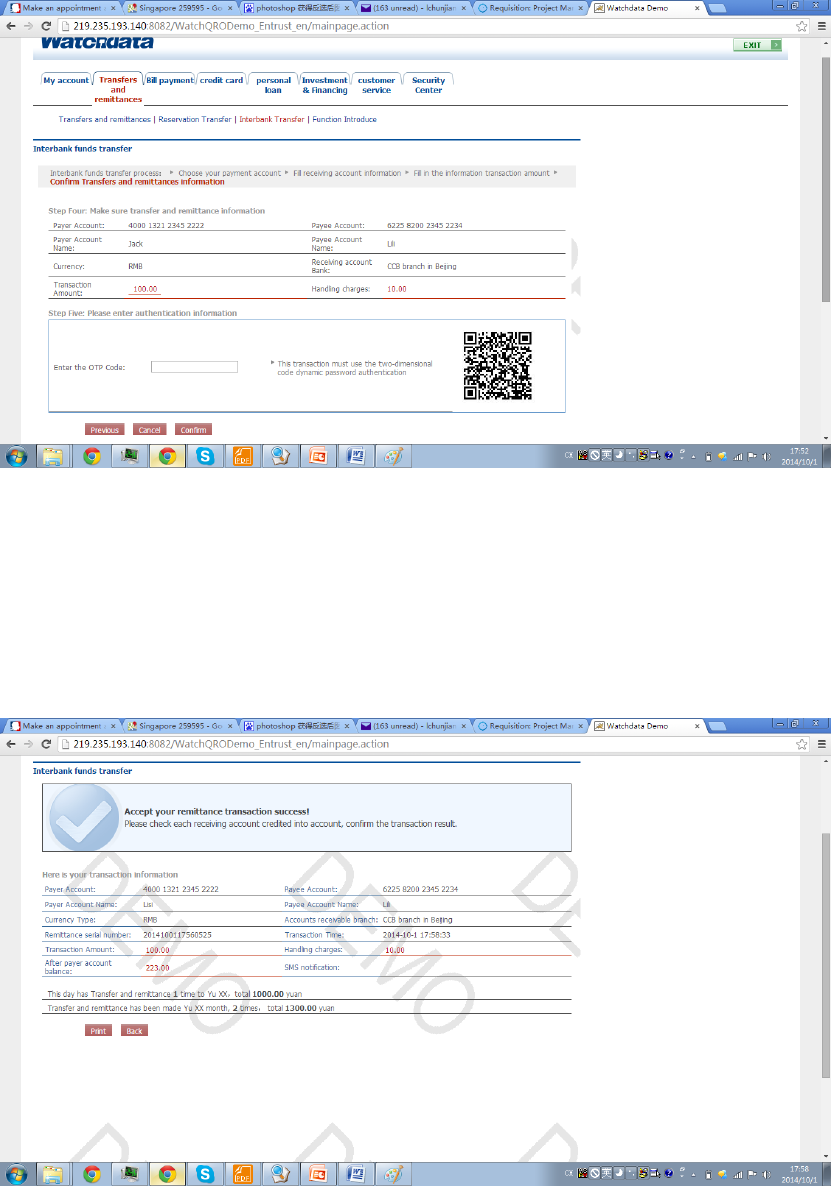
Figure 2.2
3. Open WatchQRO by long press “C”, enter WatchQRO PIN
4. Take a shot at QR code, then WatchQRO screen will display the transaction data as you
input on webpage.
5. Verify the transaction data on WatchQRO screen, if correct, then press “OK” on
WatchQRO, then OTP will be displayed.
6. Input the OTP on Figure 2.2, then click “Confirm”, then as Figure 2.3
Figure 2.3
4. Change Password via WatchQRO
1. Open WatchQRO by long press “C”, enter PIN
2. Enter “Settings”->”Update Pin” by press orientation and OK button
3. Key in old pin and new pin.
4
5. Change Password via QR code
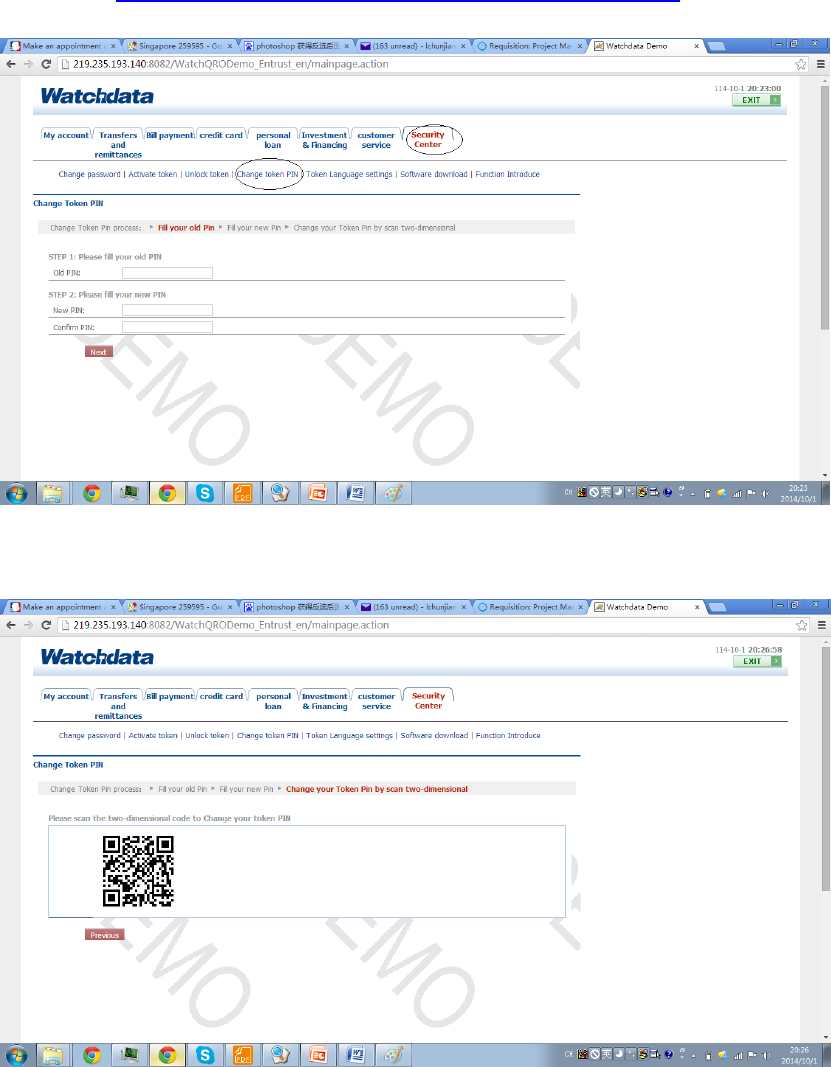
1. Open url:http://219.235.193.140:8082/WatchQRODemo_Entrust_en/demo, login and enter
the webpage figure 4.1
Figure 4.1
2. Enter the current pin of WatchQRO into “old pin”, enter the new pin in Figure 4.1, must be 6
digits. Click “Next”, then Figure 4.2
Figure 4.2
3. Open WatchQRO by long press “C”, enter PIN. Take a shot at the QR code in Figure 4.2. Then
change pin successfully.
5
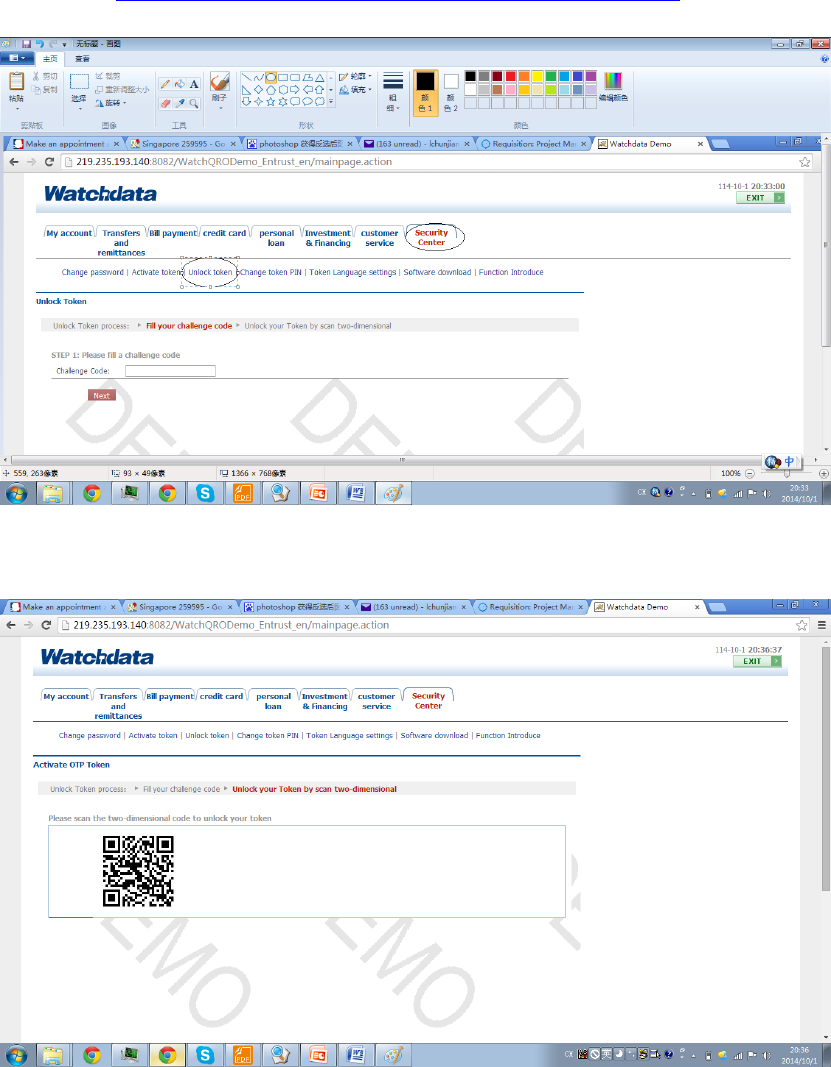
6. Unlock PIN
1. Open WatchQRO by long press “C”
2. Enter wrong PIN 10 times, WatchQRO will be locked, there are 6 digits displayed on screen
3. Open url:http://219.235.193.140:8082/WatchQRODemo_Entrust_en/demo, login and enter
the webpage figure 5.1
Figure 5.1
4. Input the 6 digit on WatchQRO screen into the webpage Figure 5.1, click “Next”, then Figure
5.2
Figure 5.2
5. Take a shot at the QR code in figure 5.2
6. Unlock successfully, then can set a new pin. if not set, the default pin will be “000000”
6
7. Activate Token
Note: The commercial device can be activated only once when user gets the device firstly, but for
test purpose, you can test activation repeatedly.
1. Open WatchQRO by long press “C”, enter PIN
2. Enter “Settings”->”Deactive” by press orientation and OK button
3. Restart token, token will have the non-activated status
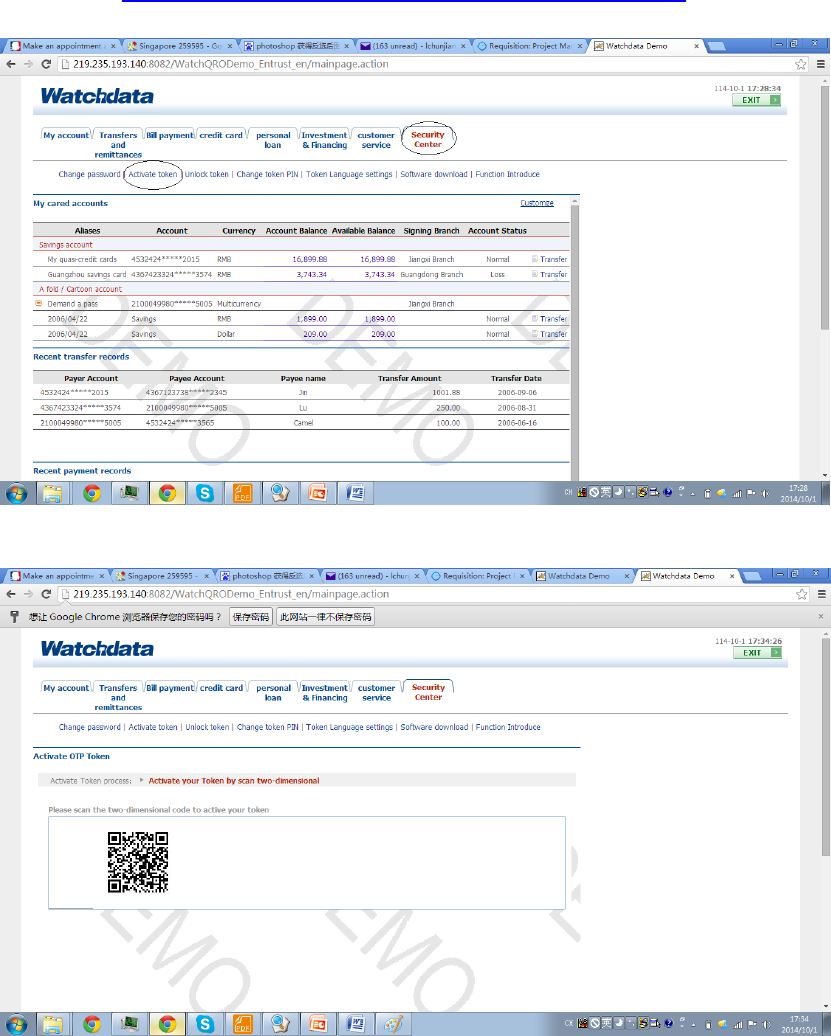
4. Open url:http://219.235.193.140:8082/WatchQRODemo_Entrust_en/demo, login without
OTP verify, then enter Figure 6.1
Figure 6.1
5. Click “Security Center”-> “Activate Token” in Figure 6.1, then as figure 6.2.
Figure 6.2
6. Open WatchQRO by long press “C”, as Figure 6.3
7. Take a shot at the QR code with the WatchQRO.
8. WatchQRO is activated successfully. The default pin of WatchQRO is “000000”.
7
7.0. FCC STATEMENT
1. This device complies with Part 15 of the FCC Rules. Operation is subject to the
following two conditions:
(1) This device may not cause harmful interference.
(2) This device must accept any interference received, including interference that may
cause undesired operation.
2. Changes or modifications not expressly approved by the party responsible for
compliance could void the user's authority to operate the equipment.
NOTE: This equipment has been tested and found to comply with the limits for a Class B
digital device, pursuant to Part 15 of the FCC Rules. These limits are designed to provide
reasonable protection against harmful interference in a residential installation.
This equipment generates uses and can radiate radio frequency energy and, if not
installed and used in accordance with the instructions, may cause harmful interference
to radio communications. However, there is no guarantee that interference will not occur
in a particular installation. If this equipment does cause harmful interference to radio or
television reception, which can be determined by turning the equipment off and on, the
user is encouraged to try to correct the interference by one or more of the following
measures:
Reorient or relocate the receiving antenna.
Increase the separation between the equipment and receiver.
Connect the equipment into an outlet on a circuit different from that to which the
receiver is connected.
Consult the dealer or an experienced radio/TV technician for help.