WaveLynx Technologies WLTC-DHMM-11U3 USB 125 kHz and 13.56 MHz RF Front end reader/writer. User Manual UserManual 04 13 2015 042815x

WaveLynx Technologies Corporation USB 125 kHz and 13.56 MHz RF Front end reader/writer. UserManual 04 13 2015 042815x

Users Manual
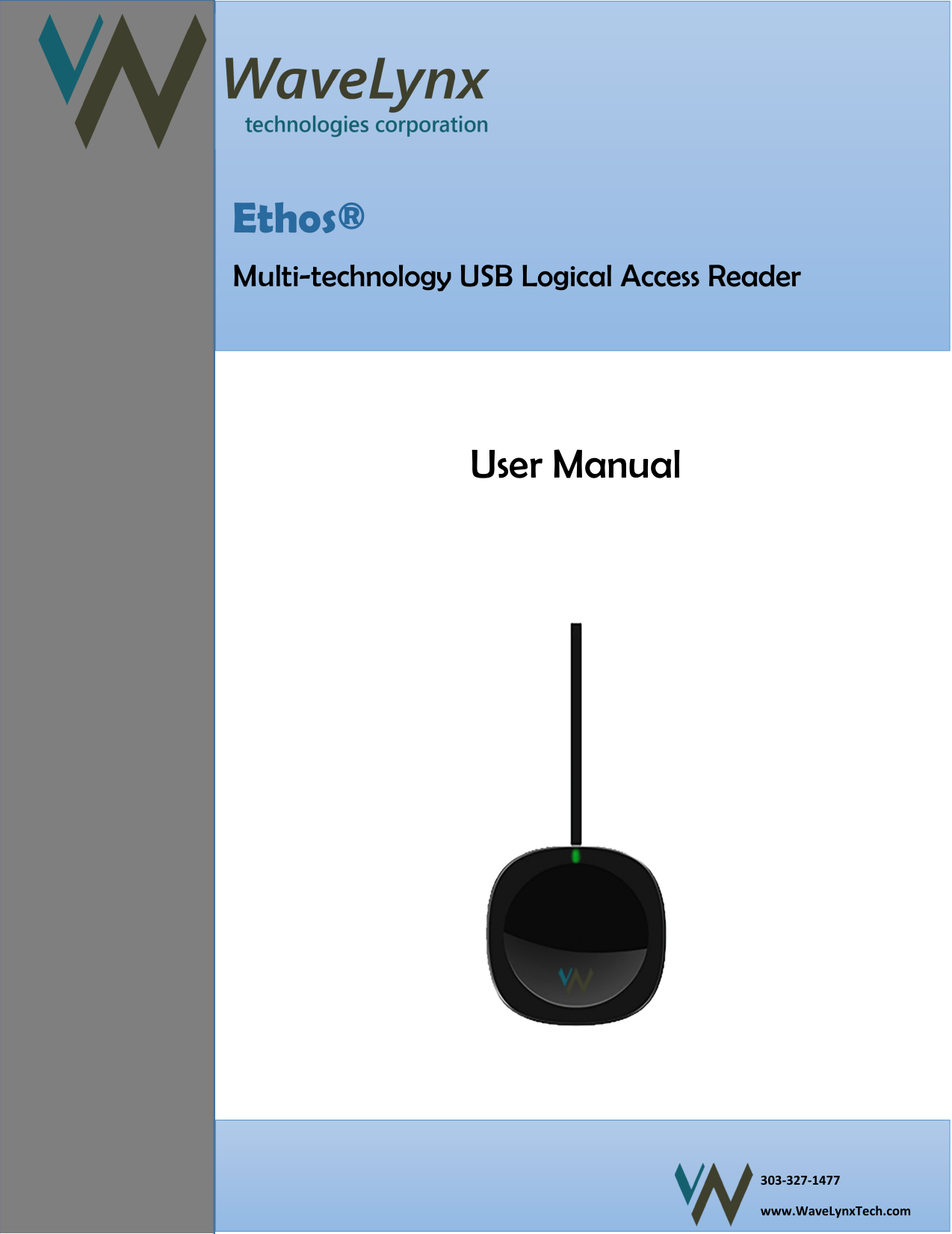
Page 1 of 14         303-327-1477 www.WaveLynxTech.com    Ethos® Multi-technology USB Logical Access Reader User Manual
Page 2 of 14  ContentsContentsContentsContents     3333    Glossary Glossary Glossary Glossary oooof Termsf Termsf Termsf Terms/Acronyms/Acronyms/Acronyms/Acronyms         4 Understanding Your P4 Understanding Your P4 Understanding Your P4 Understanding Your Productroductroductroduct    4 4 4 4 Card Data LayoutCard Data LayoutCard Data LayoutCard Data Layout 4 System Requirements 4 System Requirements 4 System Requirements 4 System Requirements     4444    USB InterfaceUSB InterfaceUSB InterfaceUSB Interface    5 5 5 5 Configuration Software Tool (CST)Configuration Software Tool (CST)Configuration Software Tool (CST)Configuration Software Tool (CST)    5555    Step by Step Software InstallationStep by Step Software InstallationStep by Step Software InstallationStep by Step Software Installation    6666----10 10 10 10 Software Basics Software Basics Software Basics Software Basics     6666----7777    Software Basics Software Basics Software Basics Software Basics ----    The ButtonsThe ButtonsThe ButtonsThe Buttons    8888----10 10 10 10 Software Basics Software Basics Software Basics Software Basics ––––    The TabsThe TabsThe TabsThe Tabs    11111111    Customizing Your Customizing Your Customizing Your Customizing Your Access DataAccess DataAccess DataAccess Data    12 12 12 12 ––––    13131313    Step by Step Password ExampleStep by Step Password ExampleStep by Step Password ExampleStep by Step Password Example    14 14 14 14 CertificationCertificationCertificationCertification    Note to UsersNote to UsersNote to UsersNote to Users
Page 3 of 14      Glossary of TermsGlossary of TermsGlossary of TermsGlossary of Terms/Acronyms/Acronyms/Acronyms/Acronyms        ASCII: ASCII: ASCII: ASCII: The American Standard Code for Information Interchange codes represent text in computers, communications equipment, and other devices that use text. BID:BID:BID:BID: Badge Identifier. BLE:BLE:BLE:BLE: Bluetooth low energy.  Contactless: Contactless: Contactless: Contactless: Technology using wireless electromagnetic fields to transfer data.  Credential Form Factors:Credential Form Factors:Credential Form Factors:Credential Form Factors: There are a variety of low and high frequency form factors customers can choose from to meet their particular needs (clam shells, smart phones, key fobs, etc). CSN:CSN:CSN:CSN: Card Serial Number (sometimes called UID). CST:CST:CST:CST: Configuration Software Tool. Data:Data:Data:Data: The data on access cards are a string of binary numbers set with a fixed configuration and length.  FAC: FAC: FAC: FAC: Facility Access Code Frequencies:Frequencies:Frequencies:Frequencies: Low-frequency 125 kHz band and/or the high-frequency 13.56 MHz band.  HID:HID:HID:HID: USB Human Interface Device (Keyboard and/or Generic).  OEM: OEM: OEM: OEM: Original Equipment Manufacturer. The proximity card and badge reader available in self-contained electronic modules for easy system integration. Proximity: Proximity: Proximity: Proximity: RFID technology with communication distances of typically less than 6 inches.  UID: UID: UID: UID: Unique Identifier (also called CSN). USB: USB: USB: USB: Universal Serial Bus
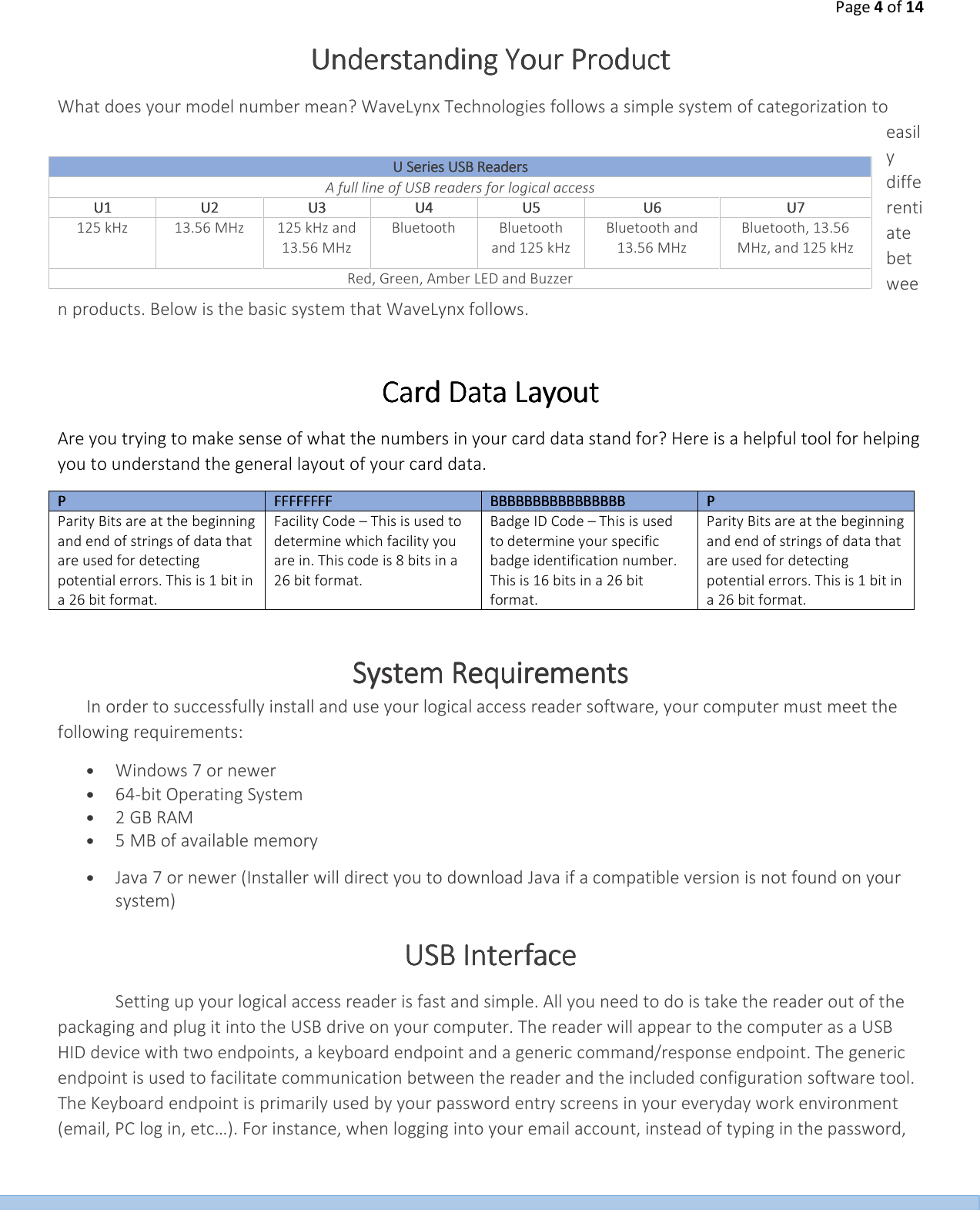
Page 4 of 14  Understanding Your Understanding Your Understanding Your Understanding Your ProductProductProductProduct    What does your model number mean? WaveLynx Technologies follows a simple system of categorization to easily differentiate between products. Below is the basic system that WaveLynx follows.   Card Data LayoutCard Data LayoutCard Data LayoutCard Data Layout    Are you trying to make sense of what the numbers in your card data stand for? Here is a helpful tool for helping you to understand the general layout of your card data.  PPPP     FFFFFFFFFFFFFFFFFFFFFFFFFFFFFFFF     BBBBBBBBBBBBBBBBBBBBBBBBBBBBBBBBBBBBBBBBBBBBBBBBBBBBBBBBBBBBBBBB     PPPP    Parity Bits are at the beginning and end of strings of data that are used for detecting potential errors. This is 1 bit in a 26 bit format.  Facility Code – This is used to determine which facility you are in. This code is 8 bits in a 26 bit format.  Badge ID Code – This is used to determine your specific badge identification number. This is 16 bits in a 26 bit format.  Parity Bits are at the beginning and end of strings of data that are used for detecting potential errors. This is 1 bit in a 26 bit format.  System RequirementsSystem RequirementsSystem RequirementsSystem Requirements    In order to successfully install and use your logical access reader software, your computer must meet the following requirements:    • Windows 7 or newer • 64-bit Operating System • 2 GB RAM • 5 MB of available memory • Java 7 or newer (Installer will direct you to download Java if a compatible version is not found on your system) USB InterfaceUSB InterfaceUSB InterfaceUSB Interface    Setting up your logical access reader is fast and simple. All you need to do is take the reader out of the packaging and plug it into the USB drive on your computer. The reader will appear to the computer as a USB HID device with two endpoints, a keyboard endpoint and a generic command/response endpoint. The generic endpoint is used to facilitate communication between the reader and the included configuration software tool. The Keyboard endpoint is primarily used by your password entry screens in your everyday work environment (email, PC log in, etc…). For instance, when logging into your email account, instead of typing in the password, U Series USB ReadersU Series USB ReadersU Series USB ReadersU Series USB Readers    A full line of USB readers for logical access U1U1U1U1     U2U2U2U2     U3U3U3U3     U4U4U4U4     U5U5U5U5     U6U6U6U6     U7U7U7U7    125 kHz     13.56 MHz     125 kHz and 13.56 MHz    Bluetooth     Bluetooth and 125 kHz    Bluetooth and 13.56 MHz    Bluetooth, 13.56 MHz, and 125 kHz    Red, Green, Amber LED and Buzzer
Page 5 of 14  you can use the information on your secure access card and let the reader “type” the password for you by just reading the card.   Configuration Software Configuration Software Configuration Software Configuration Software Tool (CST)Tool (CST)Tool (CST)Tool (CST)    The card holds information that is strictly numeric in nature. That is, it holds a number that has information embedded in it (e.g. badge identification number, facility code, etc…). Often, it’s desirable to “break out” these information fields and add descriptive or control data to conform to any given access systems conventions. Or, you may want to obfuscate the information so that the card information it is not easily readable by unauthorized viewers. This is the purpose of the CST included with your reader. A simple example is when typing in the password for email, you press the enter key on the keyboard to actually submit the password. The CST can be used to automatically append this enter key press every time you read the card. So you don’t have to press the enter key manually.   Step by Step Step by Step Step by Step Step by Step Software Software Software Software InstallationInstallationInstallationInstallation    Step 1:Step 1:Step 1:Step 1: After downloading the installation directory, navigate to its location within your system and extract its contents by right clicking on the zipped folder and selecting Extract all…Extract all…Extract all…Extract all…. This will unzip the installation directory and place the extracted folder in your current location. Step 2:Step 2:Step 2:Step 2: Open the installation directory to view its contents. Double click on WaveLynxReader_Setup.exeWaveLynxReader_Setup.exeWaveLynxReader_Setup.exeWaveLynxReader_Setup.exe to begin the installation process. If a popup appears requesting permission for the application to make changes to your computer, select YesYesYesYes. The installation will proceed from here. If another popup appears stating that the application requires that a newer version of Java be downloaded please select YesYesYesYes to download the correct version of Java and install it.  Step 3:Step 3:Step 3:Step 3: Once the installer appears, select the folder where you would like the application to be installed, or leave it as the default location. Step 4:Step 4:Step 4:Step 4: Select Install Install Install Install from the bottom right hand corner of the installer to install the application on your system. Step 5: Step 5: Step 5: Step 5: A popup will now appear asking if you would like to create a desktop shortcut to access the logical access reader software. Select Yes Yes Yes Yes if you would like a shortcut, or NoNoNoNo    otherwise. Congratulations, you have now successfully installed your WaveLynx Logical Access Reader software.Congratulations, you have now successfully installed your WaveLynx Logical Access Reader software.Congratulations, you have now successfully installed your WaveLynx Logical Access Reader software.Congratulations, you have now successfully installed your WaveLynx Logical Access Reader software.
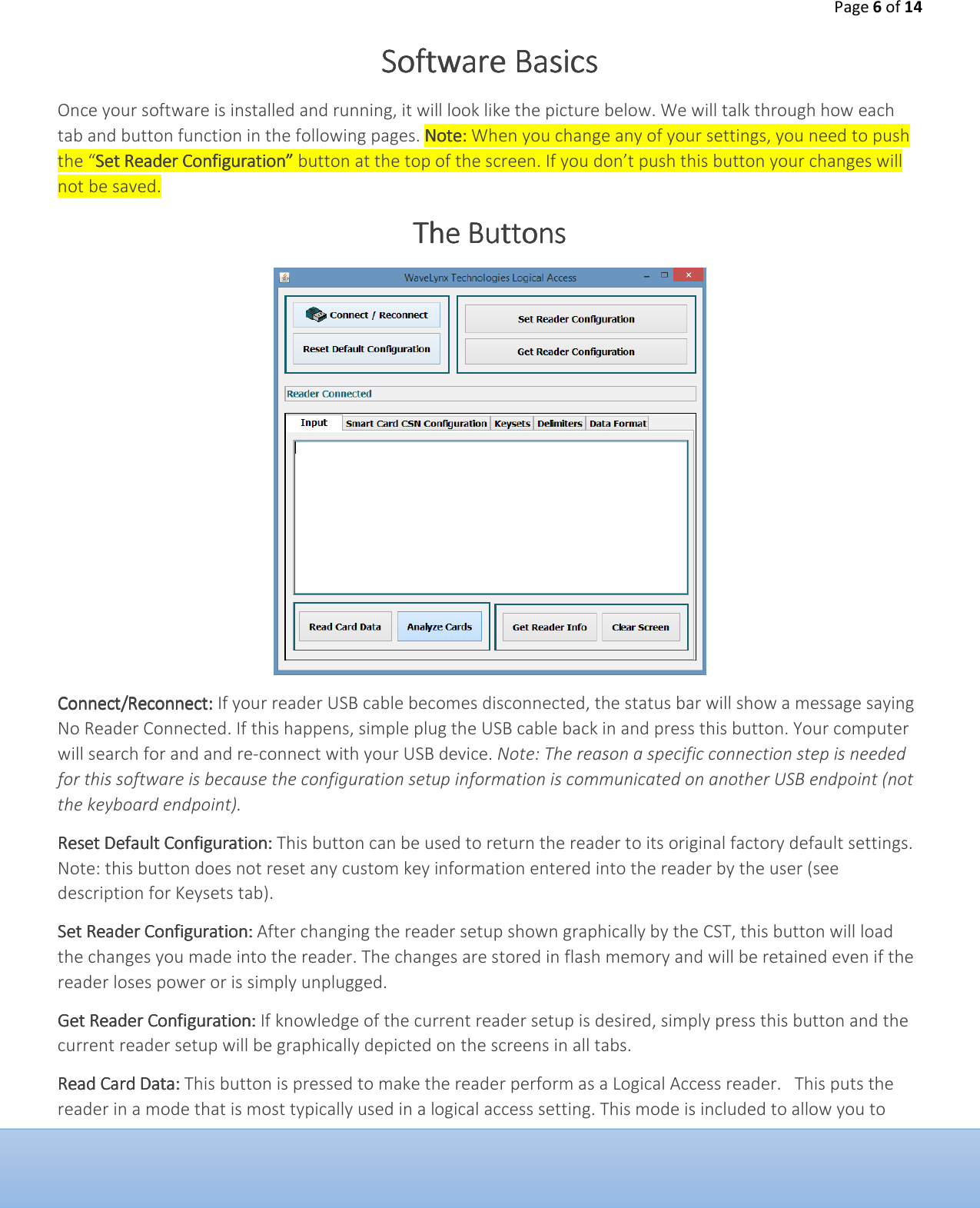
Page 6 of 14  Software BasicsSoftware BasicsSoftware BasicsSoftware Basics    Once your software is installed and running, it will look like the picture below. We will talk through how each tab and button function in the following pages. Note: Note: Note: Note: When you change any of your settings, you need to push the “Set Reader Configuration” Set Reader Configuration” Set Reader Configuration” Set Reader Configuration” button at the top of the screen. If you don’t push this button your changes will not be saved. The ButtonsThe ButtonsThe ButtonsThe Buttons        Connect/ReconnectConnect/ReconnectConnect/ReconnectConnect/Reconnect:::: If your reader USB cable becomes disconnected, the status bar will show a message saying No Reader Connected. If this happens, simple plug the USB cable back in and press this button. Your computer will search for and and re-connect with your USB device. Note: The reason a specific connection step is needed for this software is because the configuration setup information is communicated on another USB endpoint (not the keyboard endpoint). Reset Default ConfigurReset Default ConfigurReset Default ConfigurReset Default Configurationationationation::::    This button can be used to return the reader to its original factory default settings. Note: this button does not reset any custom key information entered into the reader by the user (see description for Keysets tab).  Set Reader ConfigurationSet Reader ConfigurationSet Reader ConfigurationSet Reader Configuration::::    After changing the reader setup shown graphically by the CST, this button will load the changes you made into the reader. The changes are stored in flash memory and will be retained even if the reader loses power or is simply unplugged. Get Reader ConfiguratioGet Reader ConfiguratioGet Reader ConfiguratioGet Reader Configurationnnn:::: If knowledge of the current reader setup is desired, simply press this button and the current reader setup will be graphically depicted on the screens in all tabs.  Read Card DataRead Card DataRead Card DataRead Card Data::::    This button is pressed to make the reader perform as a Logical Access reader.   This puts the reader in a mode that is most typically used in a logical access setting. This mode is included to allow you to
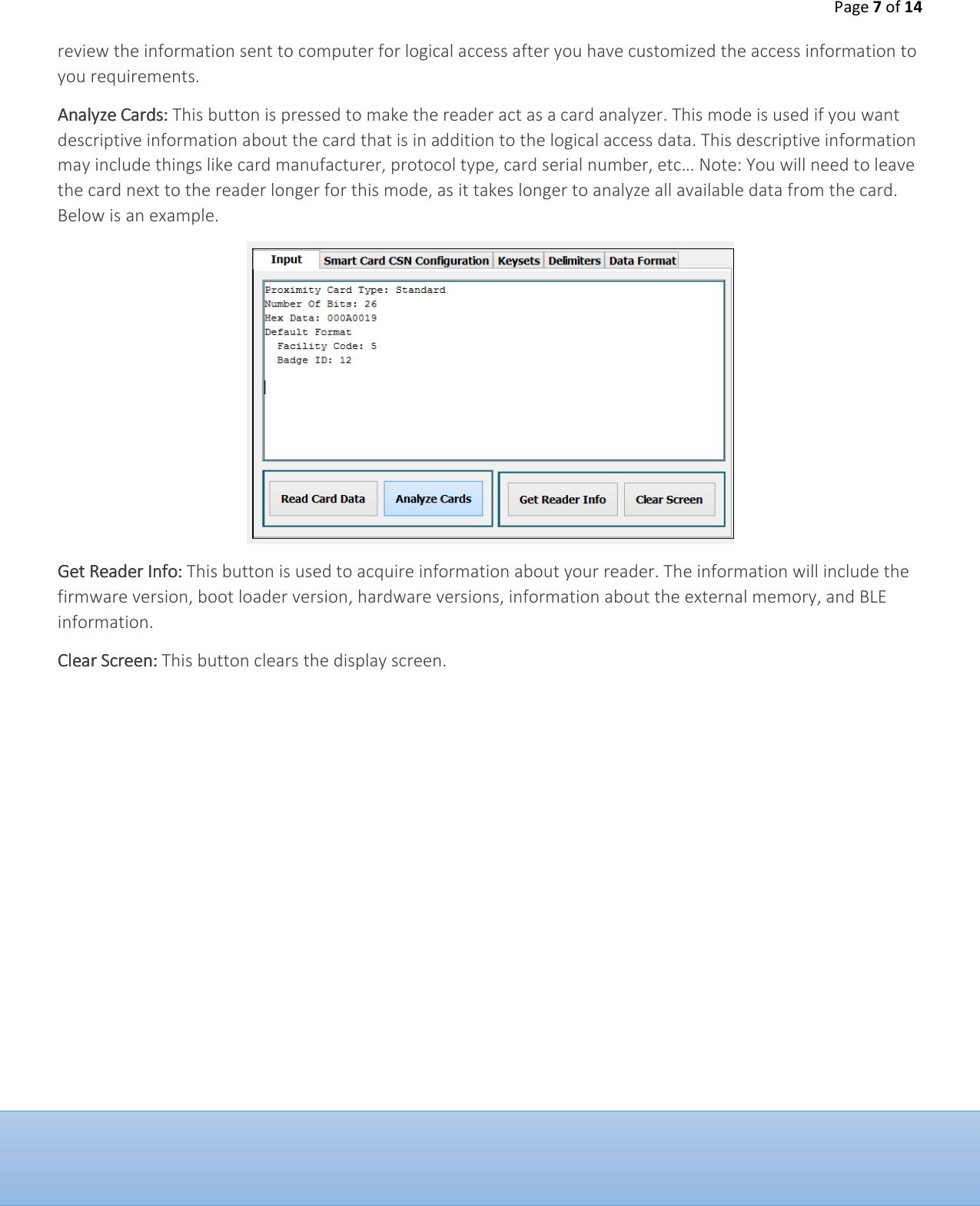
Page 7 of 14  review the information sent to computer for logical access after you have customized the access information to you requirements.  Analyze CardsAnalyze CardsAnalyze CardsAnalyze Cards::::    This button is pressed to make the reader act as a card analyzer. This mode is used if you want descriptive information about the card that is in addition to the logical access data. This descriptive information may include things like card manufacturer, protocol type, card serial number, etc… Note: You will need to leave the card next to the reader longer for this mode, as it takes longer to analyze all available data from the card. Below is an example.  Get Reader InfoGet Reader InfoGet Reader InfoGet Reader Info::::    This button is used to acquire information about your reader. The information will include the firmware version, boot loader version, hardware versions, information about the external memory, and BLE information.  Clear ScreenClear ScreenClear ScreenClear Screen::::    This button clears the display screen.
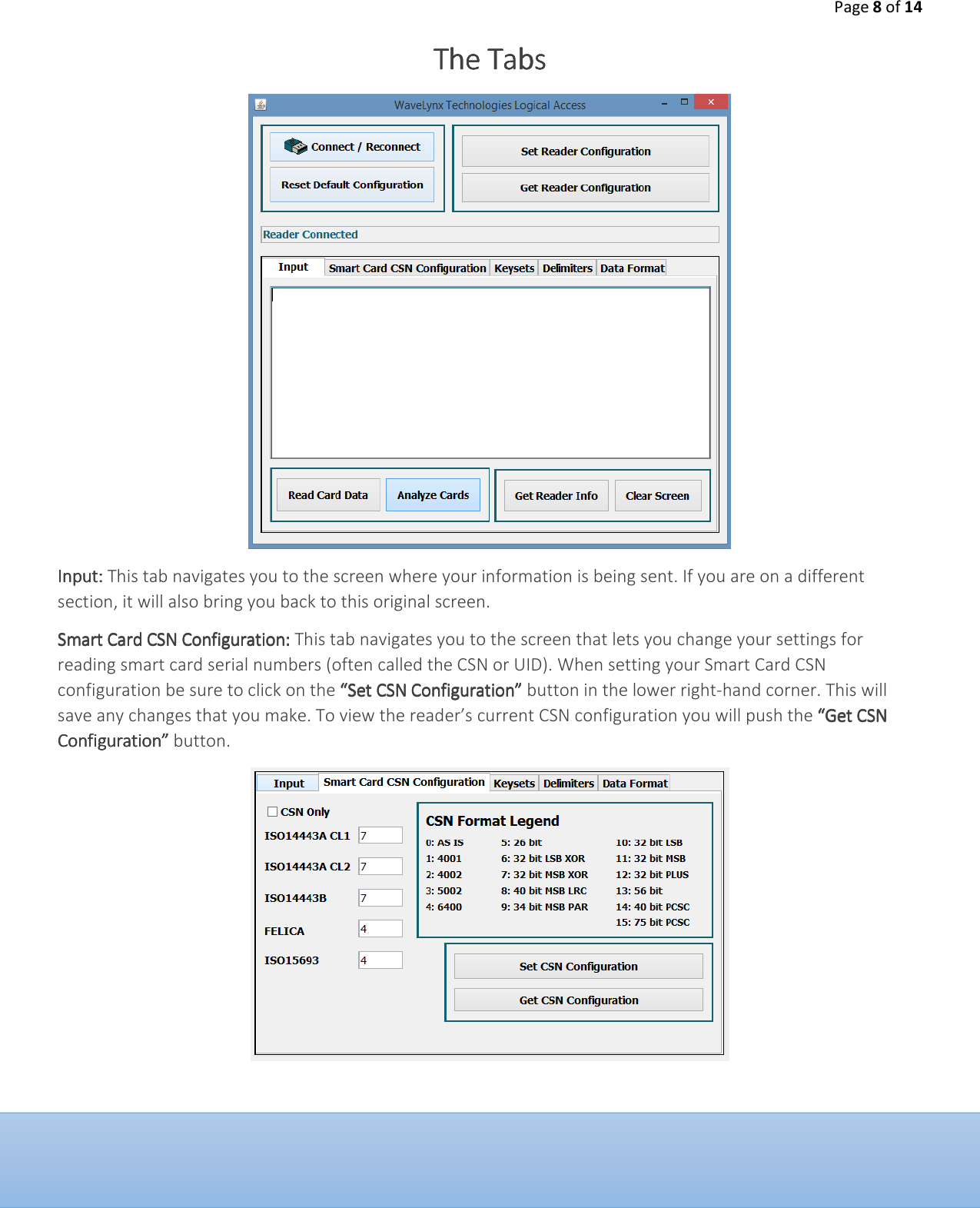
Page 8 of 14  The TabsThe TabsThe TabsThe Tabs        InputInputInputInput:::: This tab navigates you to the screen where your information is being sent. If you are on a different section, it will also bring you back to this original screen.  Smart Card CSN ConfigurationSmart Card CSN ConfigurationSmart Card CSN ConfigurationSmart Card CSN Configuration:::: This tab navigates you to the screen that lets you change your settings for reading smart card serial numbers (often called the CSN or UID). When setting your Smart Card CSN configuration be sure to click on the “Set CSN Configuration”“Set CSN Configuration”“Set CSN Configuration”“Set CSN Configuration” button in the lower right-hand corner. This will save any changes that you make. To view the reader’s current CSN configuration you will push the “Get CSN “Get CSN “Get CSN “Get CSN Configuration” Configuration” Configuration” Configuration” button.
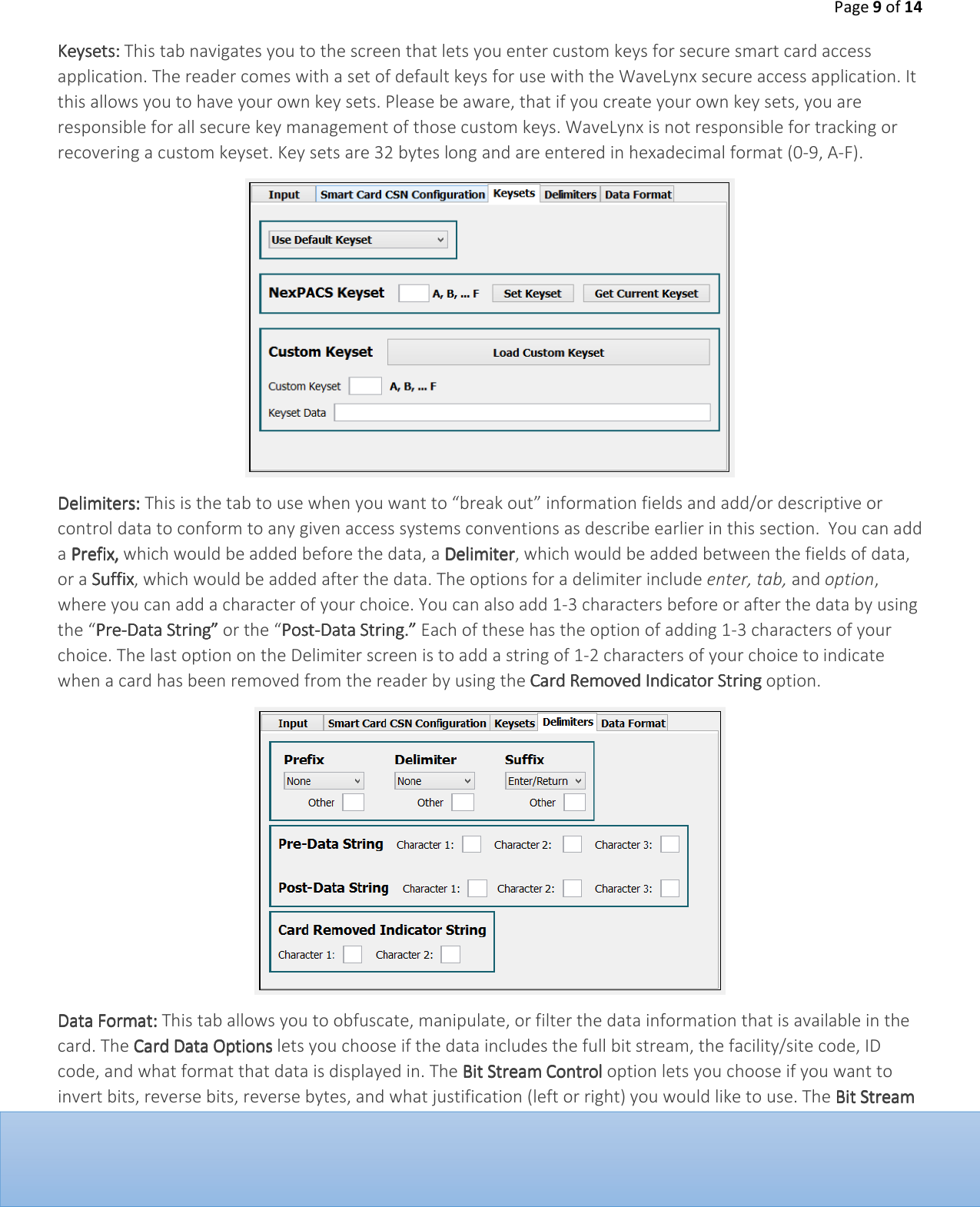
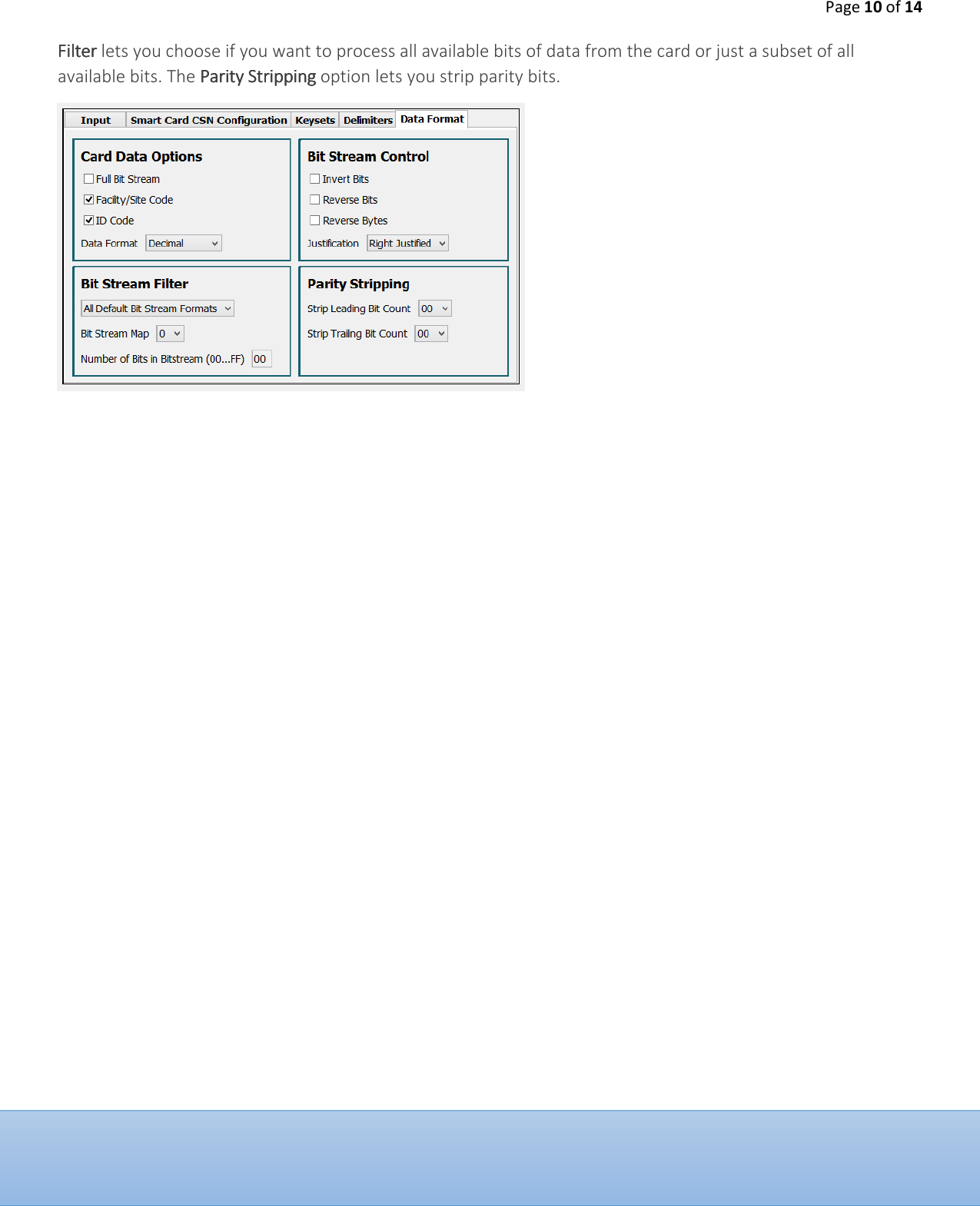
Page 9 of 14  KeysetsKeysetsKeysetsKeysets::::    This tab navigates you to the screen that lets you enter custom keys for secure smart card access application. The reader comes with a set of default keys for use with the WaveLynx secure access application. It this allows you to have your own key sets. Please be aware, that if you create your own key sets, you are responsible for all secure key management of those custom keys. WaveLynx is not responsible for tracking or recovering a custom keyset. Key sets are 32 bytes long and are entered in hexadecimal format (0-9, A-F).      DelimitersDelimitersDelimitersDelimiters:::: This is the tab to use when you want to “break out” information fields and add/or descriptive or control data to conform to any given access systems conventions as describe earlier in this section.  You can add a PPPPrefixrefixrefixrefix,,,, which would be added before the data, a DDDDelimiterelimiterelimiterelimiter, which would be added between the fields of data, or a SSSSuffixuffixuffixuffix, which would be added after the data. The options for a delimiter include enter, tab, and option, where you can add a character of your choice. You can also add 1-3 characters before or after the data by using the “PrePrePrePre----Data String” Data String” Data String” Data String” or the “PostPostPostPost----Data String.”Data String.”Data String.”Data String.” Each of these has the option of adding 1-3 characters of your choice. The last option on the Delimiter screen is to add a string of 1-2 characters of your choice to indicate when a card has been removed from the reader by using the Card Removed Indicator StringCard Removed Indicator StringCard Removed Indicator StringCard Removed Indicator String option.    Data FormatData FormatData FormatData Format:::: This tab allows you to obfuscate, manipulate, or filter the data information that is available in the card. The Card Data OptionsCard Data OptionsCard Data OptionsCard Data Options lets you choose if the data includes the full bit stream, the facility/site code, ID code, and what format that data is displayed in. The Bit Stream ControlBit Stream ControlBit Stream ControlBit Stream Control option lets you choose if you want to invert bits, reverse bits, reverse bytes, and what justification (left or right) you would like to use. The Bit Stream Bit Stream Bit Stream Bit Stream
Page 10 of 14  Filter Filter Filter Filter lets you choose if you want to process all available bits of data from the card or just a subset of all available bits. The Parity StrippingParity StrippingParity StrippingParity Stripping option lets you strip parity bits.
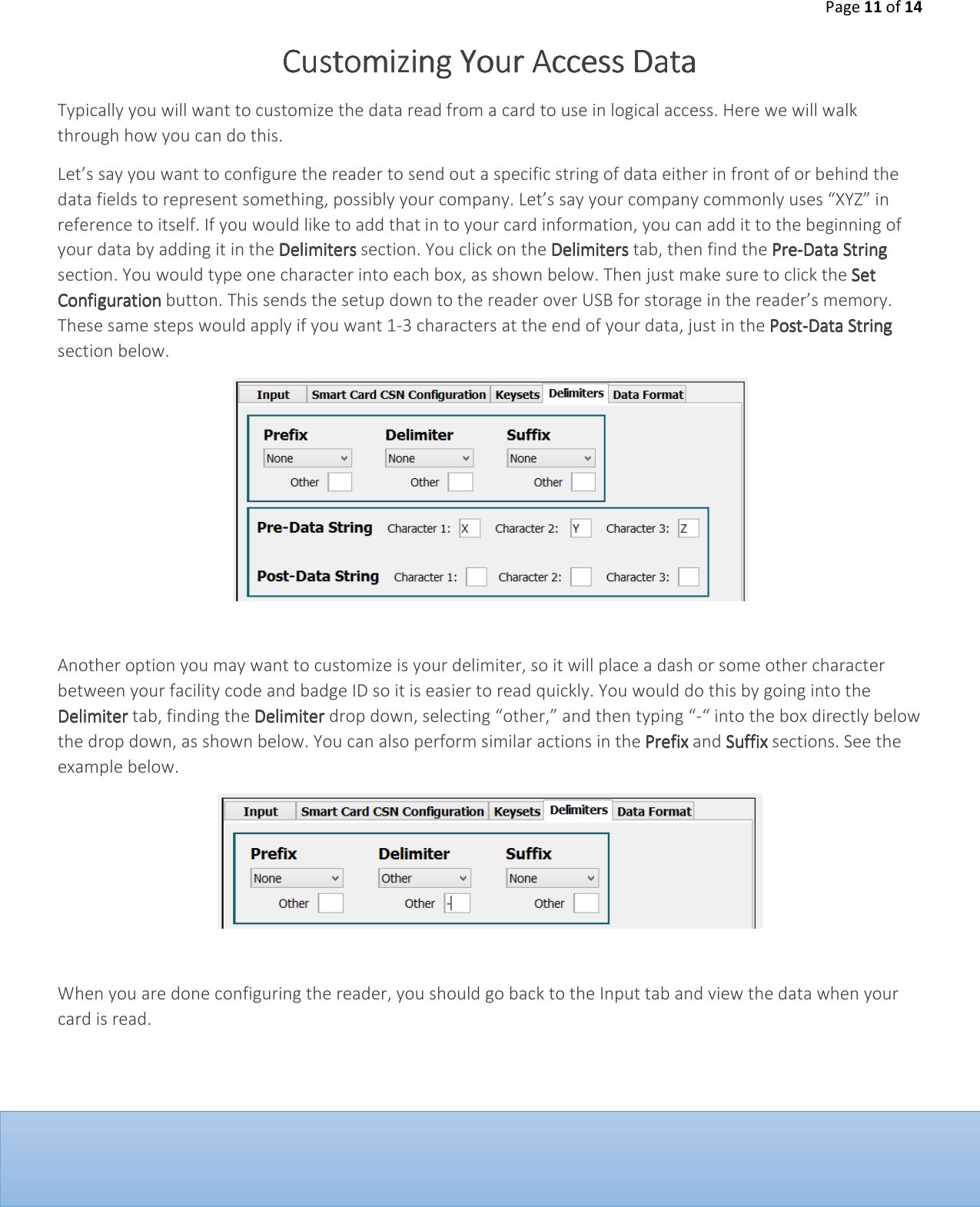
Page 11 of 14  Customizing Your Customizing Your Customizing Your Customizing Your Access DataAccess DataAccess DataAccess Data    Typically you will want to customize the data read from a card to use in logical access. Here we will walk through how you can do this.  Let’s say you want to configure the reader to send out a specific string of data either in front of or behind the data fields to represent something, possibly your company. Let’s say your company commonly uses “XYZ” in reference to itself. If you would like to add that in to your card information, you can add it to the beginning of your data by adding it in the DelimitersDelimitersDelimitersDelimiters section. You click on the DelimitersDelimitersDelimitersDelimiters tab, then find the PrePrePrePre----Data StringData StringData StringData String section. You would type one character into each box, as shown below. Then just make sure to click the Set Set Set Set ConfigurationConfigurationConfigurationConfiguration button. This sends the setup down to the reader over USB for storage in the reader’s memory. These same steps would apply if you want 1-3 characters at the end of your data, just in the PostPostPostPost----Data StringData StringData StringData String section below.    Another option you may want to customize is your delimiter, so it will place a dash or some other character between your facility code and badge ID so it is easier to read quickly. You would do this by going into the Delimiter Delimiter Delimiter Delimiter tab, finding the DelimiterDelimiterDelimiterDelimiter drop down, selecting “other,” and then typing “-“ into the box directly below the drop down, as shown below. You can also perform similar actions in the Prefix Prefix Prefix Prefix and Suffix Suffix Suffix Suffix sections. See the example below.    When you are done configuring the reader, you should go back to the Input tab and view the data when your card is read.
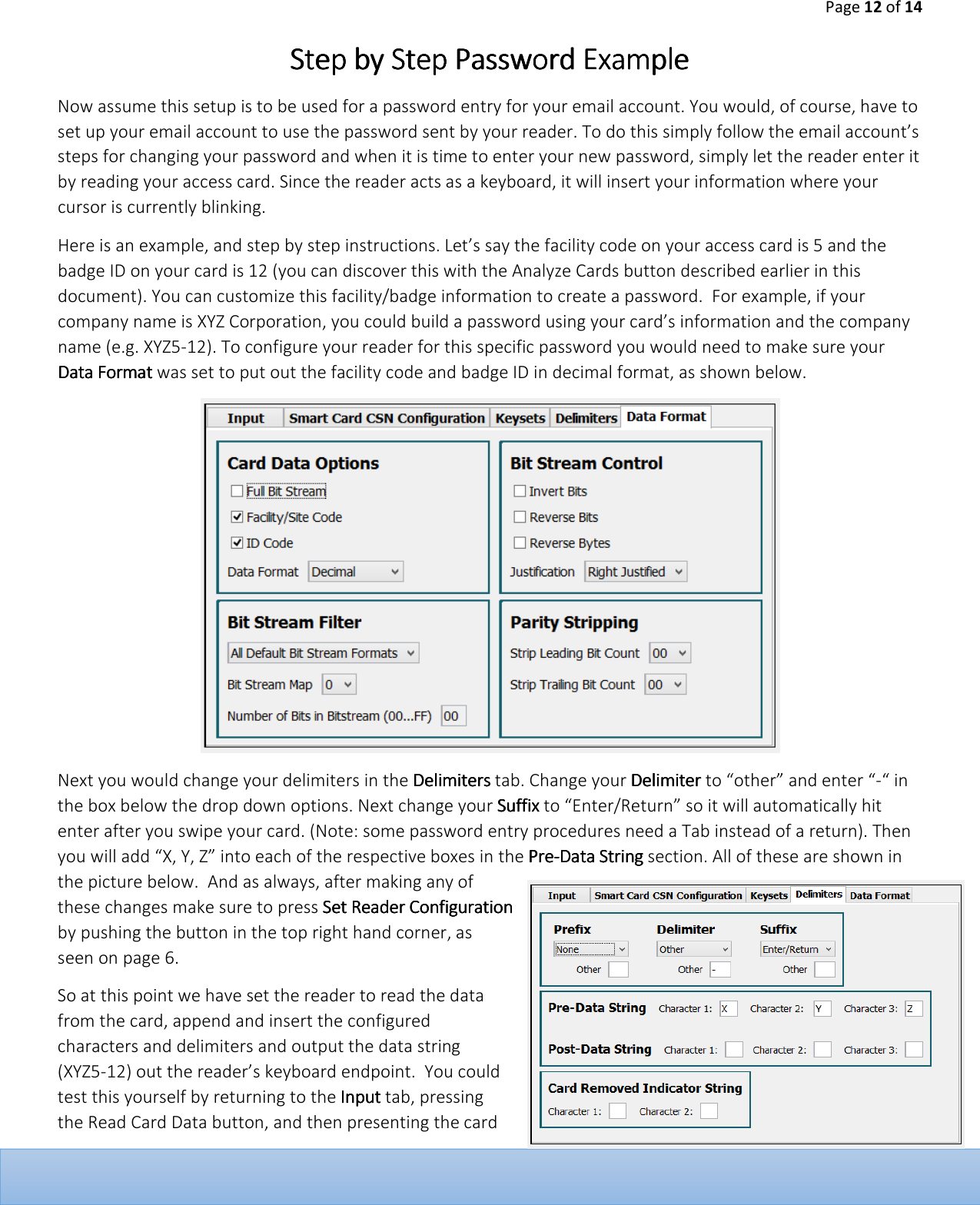
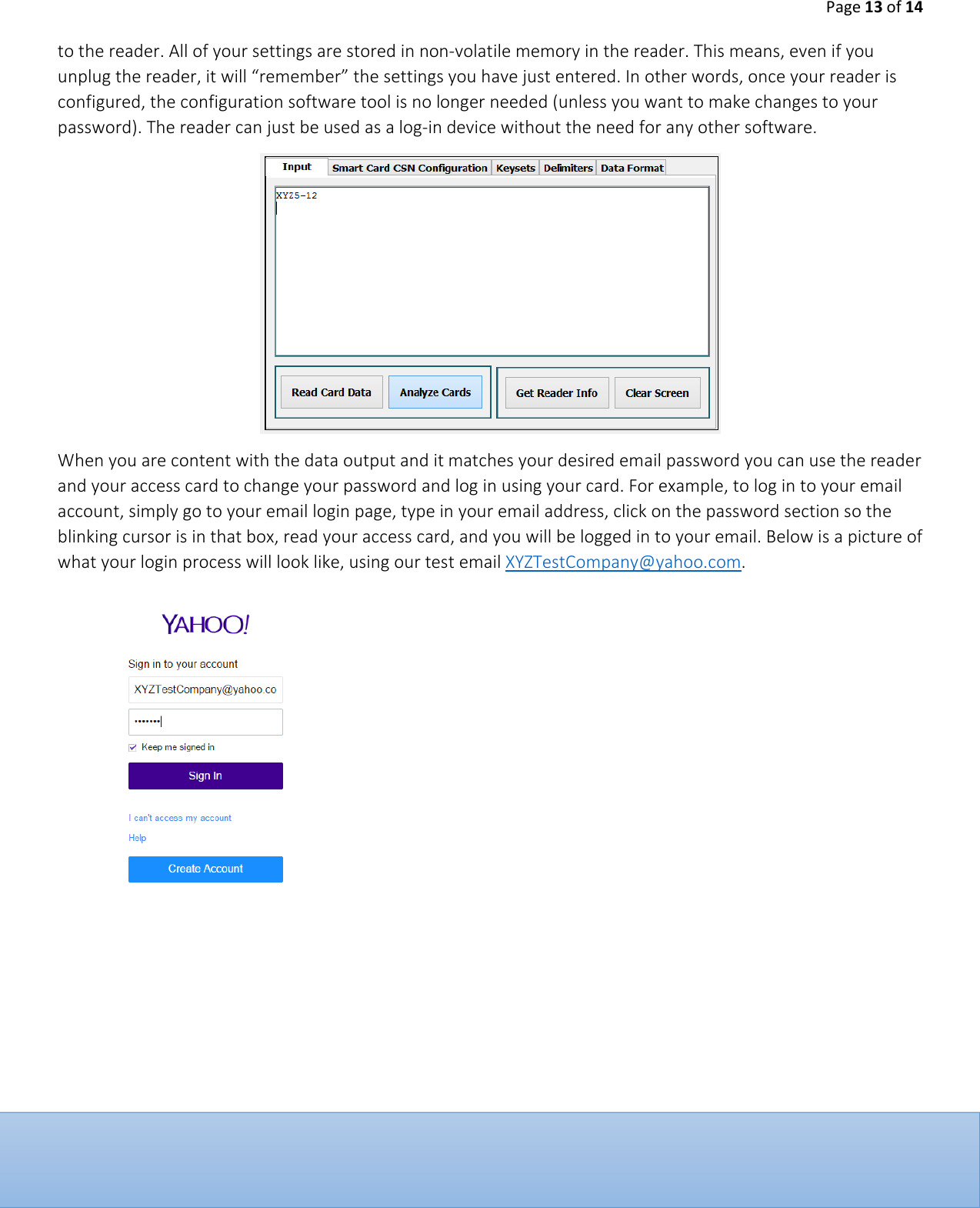
Page 12 of 14  Step by Step Password ExampleStep by Step Password ExampleStep by Step Password ExampleStep by Step Password Example    Now assume this setup is to be used for a password entry for your email account. You would, of course, have to set up your email account to use the password sent by your reader. To do this simply follow the email account’s steps for changing your password and when it is time to enter your new password, simply let the reader enter it by reading your access card. Since the reader acts as a keyboard, it will insert your information where your cursor is currently blinking.   Here is an example, and step by step instructions. Let’s say the facility code on your access card is 5 and the badge ID on your card is 12 (you can discover this with the Analyze Cards button described earlier in this document). You can customize this facility/badge information to create a password.  For example, if your company name is XYZ Corporation, you could build a password using your card’s information and the company name (e.g. XYZ5-12). To configure your reader for this specific password you would need to make sure your Data FData FData FData Formatormatormatormat was set to put out the facility code and badge ID in decimal format, as shown below.   Next you would change your delimiters in the DelimitersDelimitersDelimitersDelimiters tab. Change your DelimiterDelimiterDelimiterDelimiter to “other” and enter “-“ in the box below the drop down options. Next change your SSSSuffixuffixuffixuffix to “Enter/Return” so it will automatically hit enter after you swipe your card. (Note: some password entry procedures need a Tab instead of a return). Then you will add “X, Y, Z” into each of the respective boxes in the PrePrePrePre----Data StringData StringData StringData String section. All of these are shown in the picture below.  And as always, after making any of these changes make sure to press Set Reader Configuration Set Reader Configuration Set Reader Configuration Set Reader Configuration by pushing the button in the top right hand corner, as seen on page 6.  So at this point we have set the reader to read the data from the card, append and insert the configured characters and delimiters and output the data string (XYZ5-12) out the reader’s keyboard endpoint.  You could test this yourself by returning to the    Input Input Input Input tab, pressing the Read Card Data button, and then presenting the card
Page 13 of 14  to the reader. All of your settings are stored in non-volatile memory in the reader. This means, even if you unplug the reader, it will “remember” the settings you have just entered. In other words, once your reader is configured, the configuration software tool is no longer needed (unless you want to make changes to your password). The reader can just be used as a log-in device without the need for any other software.   When you are content with the data output and it matches your desired email password you can use the reader and your access card to change your password and log in using your card. For example, to log in to your email account, simply go to your email login page, type in your email address, click on the password section so the blinking cursor is in that box, read your access card, and you will be logged in to your email. Below is a picture of what your login process will look like, using our test email XYZTestCompany@yahoo.com.
Page 14 of 14   CertificationCertificationCertificationCertification    Note to UsersNote to UsersNote to UsersNote to Users    Note: This equipment has been tested and found to comply with the limits for a Class A digital device, pursuant  to  part  15  of  the  FCC  Rules.  These  limits  are  designed  to  provide  reasonable  protection  against harmful interference when the equipment is operated in a commercial environment. This equipment generates, uses, and can radiate radio frequency energy and, if not installed and used in accordance with the instruction manual, may cause harmful interference to radio communications. Operation of this equipment in a residential area is likely to cause harmful interference in which case the user will be required to correct the interference at his own expense.  This  equipment  has  been  tested  and  found  to  comply  with  the  limits  for  a  Class  B  digital  device, pursuant  to  part  15  of  the  FCC  Rules.  These  limits  are  designed  to  provide  reasonable  protection  against harmful  interference  in  a  residential  installation.  This  equipment  generates,  uses  and  can  radiate  radio frequency  energy,  and  if  not  installed  and  used  in  accordance  with  the  instructions,  may  cause  harmful interference  to  radio  communications.  However,  there  is  no  guarantee  that  interference  will  not  occur  in  a particular installation. If this equipment does cause harmful interference to radio or television reception, which can  be  determined  by  turning  the  equipment  off  and  on,  the  user  is  encouraged  to  try  to  correct  the interference by one or more of the following measures:   • Reorient or relocate the receiving antenna.  • Increase the separation between the equipment and receiver.  •  Connect  the  equipment  into  an  outlet  on  a  circuit  different  from  that  to  which  the  receiver  is connected.  • Consult the dealer or an experienced radio/TV technician for help.  This device complies with Part 15 of the FCC Rules.  Operation is subject to the following two conditions:  (1)  this device may not cause harmful interference, and (2)  this device must accept any interference received, including interference that may cause undesired operation.”  Changes or modifications not expressly approved by WaveLynx Technologies Corporation could void the user's authority to operate the equipment.    This device complies with Industry Canada licence-exempt RSS standard(s). Operation is subject to the following two conditions: (1) this device may not cause interference, and (2) this device must accept any interference, including interference that may cause undesired operation of the device.   Le présent appareil est conforme aux CNR d'Industrie Canada applicables aux appareils radio exempts de  licence.  L'exploitation  est  autorisée  aux  deux  conditions  suivantes  :  (1)  l'appareil  ne  doit  pas  produire  de brouillage,  et  (2)  l'utilisateur  de  l'appareil  doit  accepter  tout  brouillage  radioélectrique  subi,  même  si  le brouillage est susceptible d'en compromettre le fonctionnement.

Navigation menu