Wi Gear MA100 2.4GHz Bluetooth Dongle User Manual 1
Wi-Gear Inc. 2.4GHz Bluetooth Dongle 1
Wi Gear >
Users Manual

USER GUIDE
Contents
Introduction 1
What's included in this package? 2
Product Features 3
Getting Started 5
Playing Music 6
Bluetooth phone operation 8
Troubleshooting 10
Specifications 11
Regulatory Information 13

Introduction
Cut the cord today!
Congratulations on purchasing iMuffs™, the first stereo
wireless headphones for your iPod™ AND Bluetooth®
phone! Soon you'll be enjoying these benefits:
Wireless Freedom - Throw your iPod in your backpack
and listen to your music wirelessly! No more cords to
untangle or snag. Enjoy near-CD quality sound up to
30' (10m) away thanks to the Advanced Audio
Distribution Profile (A2DP) and Bluetooth 2.0.
Never Miss a Call - When your Bluetooth phone rings,
the iMuffs automatically pause your iPod and ring in the
headphones, and let you talk through the integrated
microphone.
Versatile - Listen to music from your laptop or
desktop1, iPaq, or MP3 smartphone2. Talk on the phone
or over iChat or Skype. Even chat while playing video
games.
Ergonomic Controls - Intuitive controls let you pause,
change volume, and skip tracks right from the
headphones.
1 Currently, Windows XP only and requires a Bluetooth adaptor with A2DP
support.
2 Must support stereo over Bluetooth using A2DP.
1
What's Included in this Package?
n iMuffs Stereo Bluetooth Headphones
n iMuffs Adaptor for iPod (see below)
n Travel charger/adaptor
n USB cable
n User Guide
2
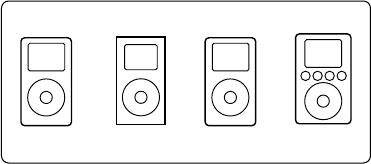
iPod (4G)iPod photo iPod mini iPod (3G)
Compatible with these models:
3
Product Features
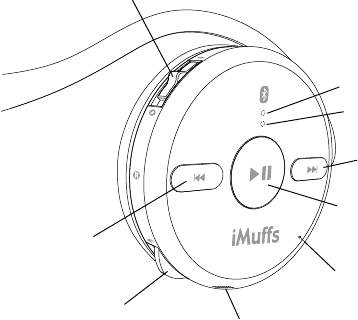
Familiarize yourself with all of the controls located on the
right side of your iMuffs headphones. Please note that
the two LEDs are visible only when lit.
View of controls (right side)
Blue LED
Orange LED
Next/FF
button
Previous/Rewind
button
Power
switch
USB charging
port
Volume control/
button
Microphone
Play/Pause/
Phone button
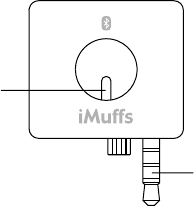
The iMuffs Adaptor for iPod is powered by the iPod. Plug
it into the headphone port of your compatible iPod. To
maximize your iPod's battery life, remove the adaptor
when not in use.
Note that when plugged into either an iPod or an iPod
mini, you still have access to the Hold switch on the iPod.
iMuffs Adaptor for iPod
4
Blue
LED
Headphone
jack
5
Getting Started
Your iMuffs headphones are powered by a built-in
rechargeable battery. Before using your iMuffs for the first
time, you should fully charge the battery.
Charging
1. Plug the smaller end of the USB cable into the USB
charging port located at the bottom of the right ear cup
of the headphones.
2. Plug the other end of the USB cable into an open USB
port on your computer or into the travel charger and
then plug the travel charger into an outlet.
3. The orange LED indicator lights up while the
headphones are charging.
4. The orange LED indicator will turn off when the battery
is fully charged.
5. Unplug the USB cable from the headphones.
When the battery is low, the orange LED will flash, and
an alert will sound in the speakers indicating that you
need to recharge the headphones.
Playing Music
The iMuffs Adaptor for iPod enables the iPod to transmit
a stereo audio signal wirelessly to your iMuffs Stereo
Bluetooth Headphones, with a range of 30 feet (10
meters).
1. Turn your iMuffs headphones on with the power
switch.
2. Plug the Bluetooth adaptor into the headphone port of
your compatible iPod.
3. If your iPod is paused or asleep, press the play button
on the iPod to resume operation.
4. Your iMuffs headphones and adaptor will automatically
connect. The blue LEDs on the headphones and
adaptor will flash while they seek a connection. When
the connection is successful, the LEDs will stay on for
3 seconds, and music will begin playing.
5. To pause music, you may press the Play/Pause button
on the headphones or the iPod itself. Pressing either
button again re-starts the music where it left off.
6. To access the next track, press the Next button. To
access the previous track, press the Previous button.
7. To fast-forward, press and hold the Next button. To
rewind, press and hold the Previous button.
6
7
8. To increase the volume, rock the volume control up. To
decrease the volume, rock the volume control down.
The blue LED on the headphones will flash once
whenever a button is pressed, to indicate that a
Bluetooth signal has been transmitted. Accordingly, the
LED on the adaptor will flash whenever a Bluetooth
signal is received.
Bluetooth Phone Operation
Your iMuffs headphones work with Bluetooth-enabled
phones. However, you will first need to pair the
headphones with your Bluetooth phone before they work.
Pairing with a Bluetooth phone
1. Unplug the adaptor from your iPod, and make sure
your iMuffs headphones are powered off. Make sure
that the Bluetooth phone is nearby.
2. Initiate "Discover" mode in your Bluetooth phone,
according to your phone's user manual.
3. On the headphones, press and hold the volume button
in while switching the power on. This will initiate the
"Discoverable" mode in the headphones. The blue
LED will begin double-flashing.
4. If asked for a PIN, enter "0000" (four zeros).
5. If the pairing process is successful, the blue LED on
the headphones will stop flashing and stay on for 3
seconds.
8
9
Using with a paired Bluetooth phone
When the phone rings (you will hear an audio tone in the
speakers), answer the call by pressing the
Play/Pause/Phone button.
When the phone rings, reject the call by pressing and
holding the Play/Pause/Phone button for 2 seconds.
To end a call, press and hold the Play/Pause/Phone
button for 2 seconds.
To activate voice dialing (if supported by your phone),
press and hold the volume button in for 2 seconds.
To activate redial (if supported by your phone), press
and hold both the Rewind and FF buttons together for 2
seconds.
If you have a call waiting, answer or switch between
calls by pressing the Play/Pause/Phone button.
If you have a call waiting, end the active call and
switch to the other call by holding the
Play/Pause/Phone button for 2 seconds.
Troubleshooting
If you have problems using the iMuffs Stereo Bluetooth
Headphones, this section may help. For further help,
please visit www.wi-gear.com.
Most problems can be resolved with a simple reset.
Switch the headphones off, and then on. Unplug the
adaptor from the iPod, plug it back in.
You hear no sound.
Ensure the headphones are switched on and the iMuffs
Adaptor for iPod is plugged into a compatible iPod. If the
iPod screen is blank, the iPod may have gone to sleep
mode. Press Play on the iPod to turn it on.
Check that the volume level of the iPod is not turned all
the way down.
Verify that the devices are within the recommended
range of approximately 30 feet (10 meters).
The headphone does not power on.
The battery charge may be too low. In this case, the
orange LED may flash and be accompanied by alert
beeps.
10
Specifications
Wireless Range
n 3-10 meters (9-30 feet)
n Actual range depends on environmental factors:
orientation of devices relative to each other,
obstructions and enclosures, radio frequency noise,
and interference.
Bluetooth
n Bluetooth 2.0
n Advanced Audio Distribution Profile (A2DP)
n Audio Video Remote Control Profile (AVRCP)
n Headphones Profile (HSP)
n Handsfree Profile (HFP)
Audio Code
n Codec Encoder/Decoder Type: Sub-band Codec
(SBC)
n Bit Rate: 328 kb/s (High Quality)
Audio Output
n Near CD-quality (44.1 KHz, 16-bit)
n Frequency response: 20Hz-20KHz
Audio Input
n Apple iPod Remote/Headphone Jack
n Built-in unidirectional microphone
11
Battery
n Battery Type: Lithium-Polymer 500mAh (built-in,
not user-serviceable)
n Charge Time: Quick charge, 80% in 2 hours /
Full charge in 5 hours
n Up to 16 hours of continuous operation of the
headphones depending on usage pattern, distance
from adaptor, and battery age. iMuffs Adaptor for iPod
is dependent on iPod's actual battery capacity.
Power Input
n Standard USB voltage input (mini-USB, 5-pin) or
Provided AC-DC
n USB Power Adapter (110-240V)
Temperature
n Operating: 0º-35º C (32º-95º F)
n Storage: -20º-50º C (-68º- 122º F)
Weight
n 2.3 oz (headphones)
n 0.3 oz (adaptor)
12
Regulatory Information
FCC Compliance Statement
This device complies with part 15 of the FCC Rules. Operation is subject to the following
two conditions: (1) This device may not cause harmful interference, and (2) this device must
accept any interference received, including interference that may cause undesired
operation.
Radio and Television Interference
This equipment has been tested and found to comply with the limits for a Class B digital
device, pursuant to part 15 of the FCC Rules. These limits are designed to provide
reasonable protection against harmful interference in a residential installation. This
equipment generates, uses and can radiate radio frequency energy and, if not installed and
used in accordance with the instructions, may cause harmful interference to radio
communications. However, there is no guarantee that interference will not occur in a
particular installation. If this equipment does cause harmful interference to radio or
television reception, which can be determined by turning the equipment off and on, the user
is encouraged to try to correct the interference by one or more of the following measures:
- Reorient or relocate the receiving antenna
- Increase the separation between the equipment and receiver.
- Connect the equipment into an outlet on a circuit different from that to which the receiver is
connected.
- Consult the dealer or an experienced radio/TV technician for help.
IMPORTANT: Changes or modifications not expressly approved by Wi-Gear, Inc. could void
the user's authority to operate the equipment.
IC Compliance Statement
The term "IC": before the certification/registration number only signifies that the Industry
Canada technical specifications were met.
13

© 2005 Wi-Gear, Inc. All rights reserved. iMuffs, Wi-Gear, and the Wi-Gear logo are trademarks of Wi-Gear
Inc. The Bluetooth word mark and logo are owned by the Bluetooth SIG, Inc. and any use of such marks by
Wi-Gear Inc. is under license. iPod is a trademark of Apple Computer, Inc., registered in the U.S. and other
countries. All other products and services may be marks of their respective owners. Printed in China.
www.wi-gear.com
1313