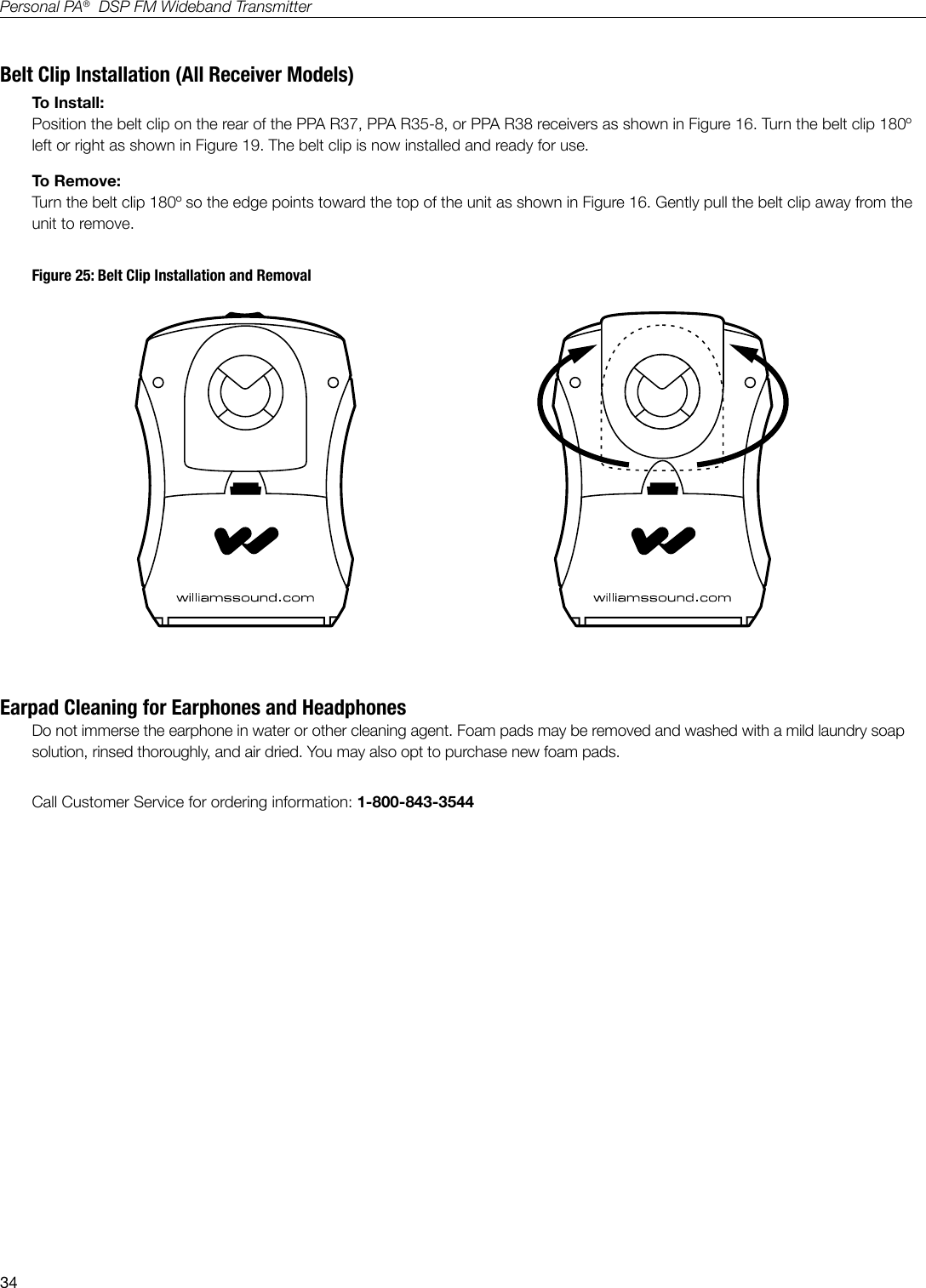
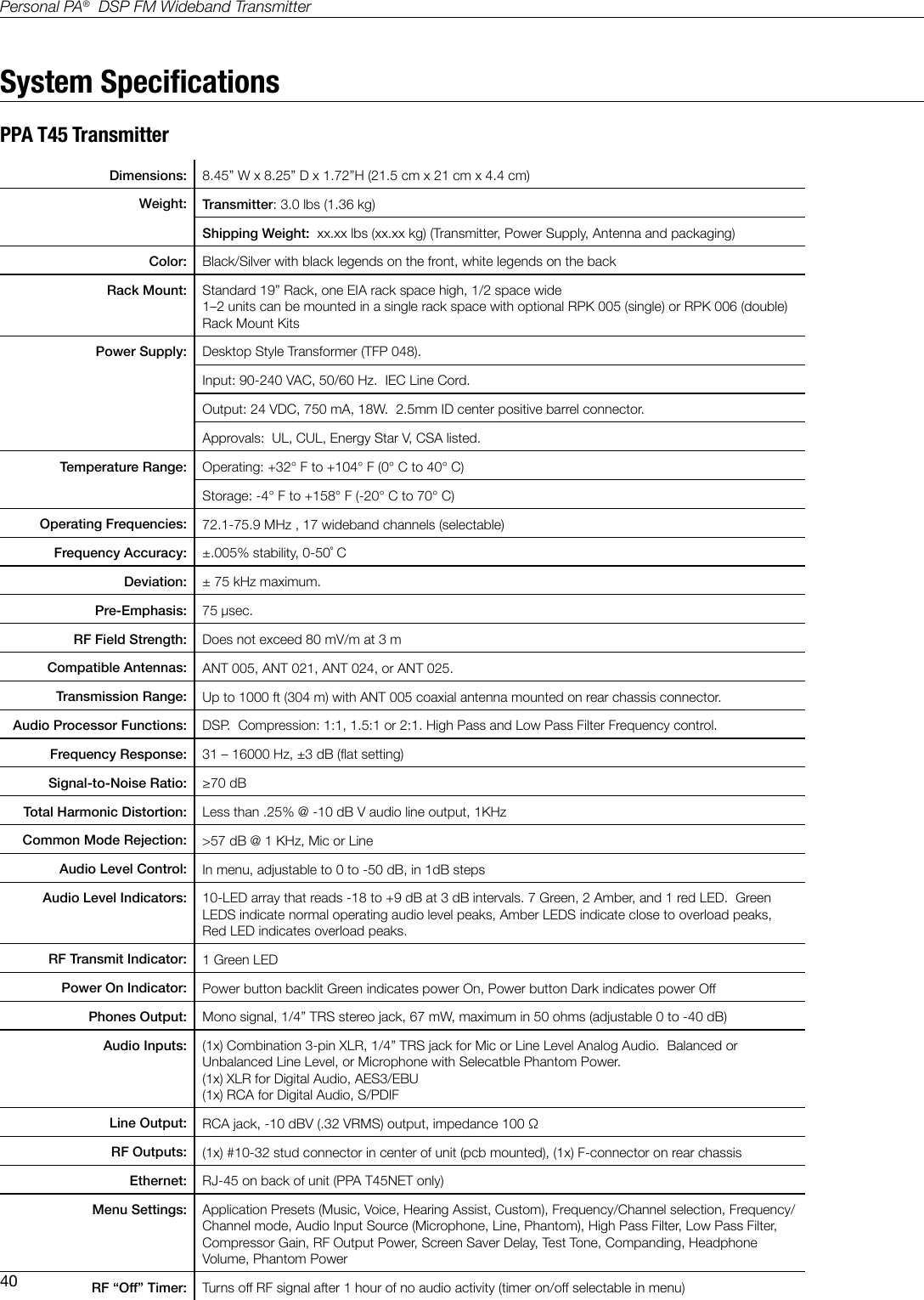
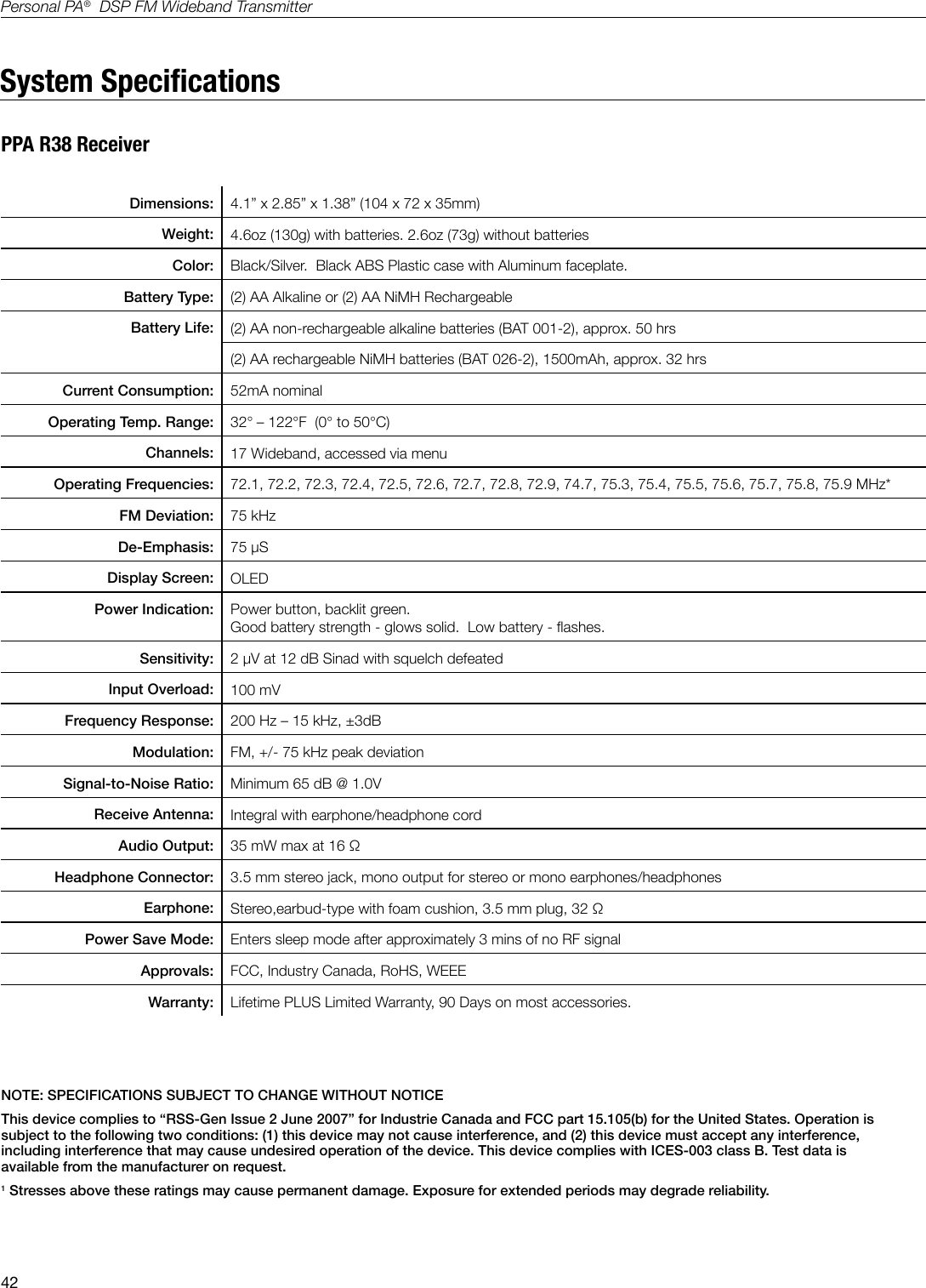
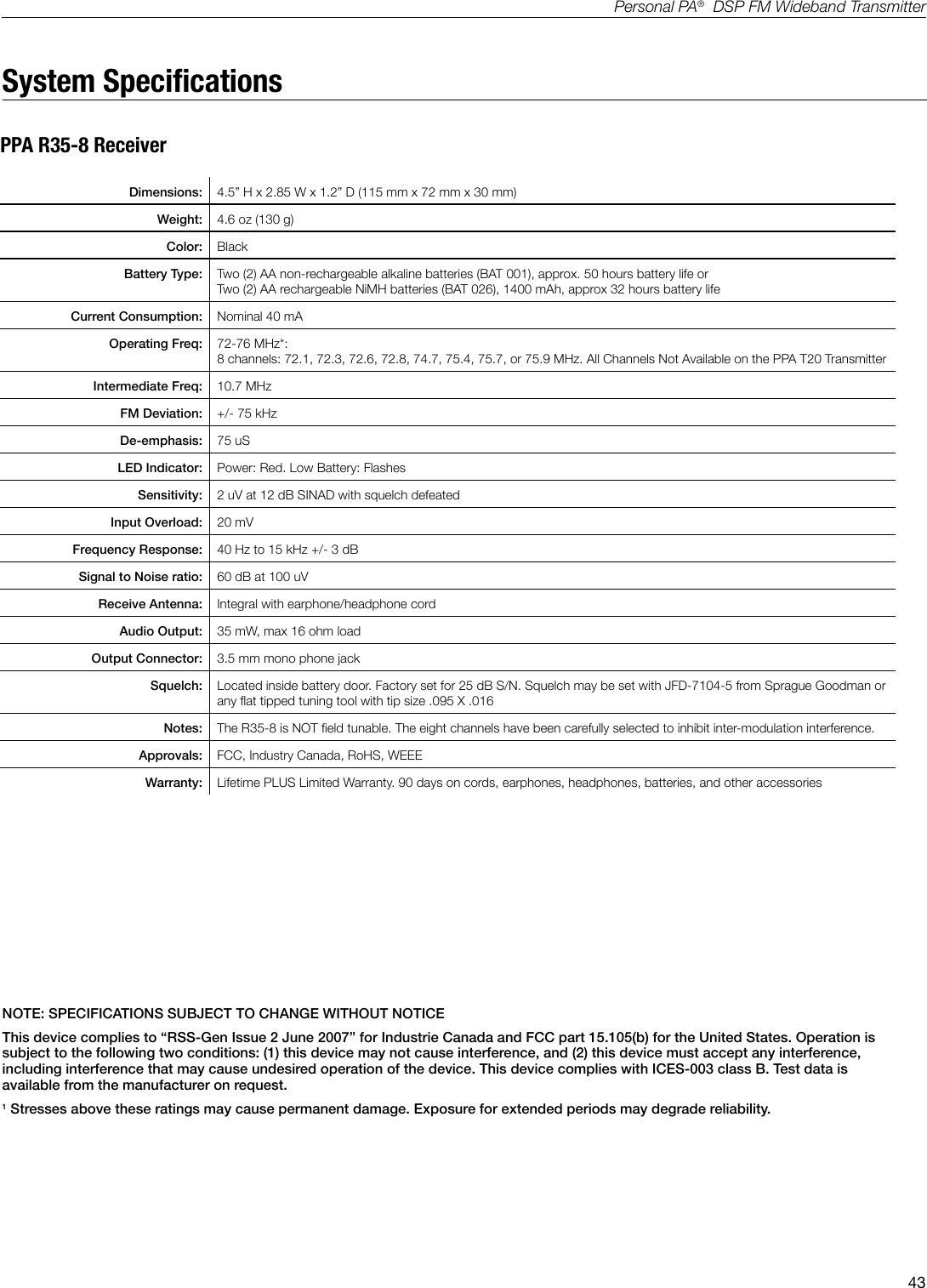
Williams Sound T45 Portable Hearing Assistance Transmitter User Manual

Williams Sound, LLC Portable Hearing Assistance Transmitter

User Manual

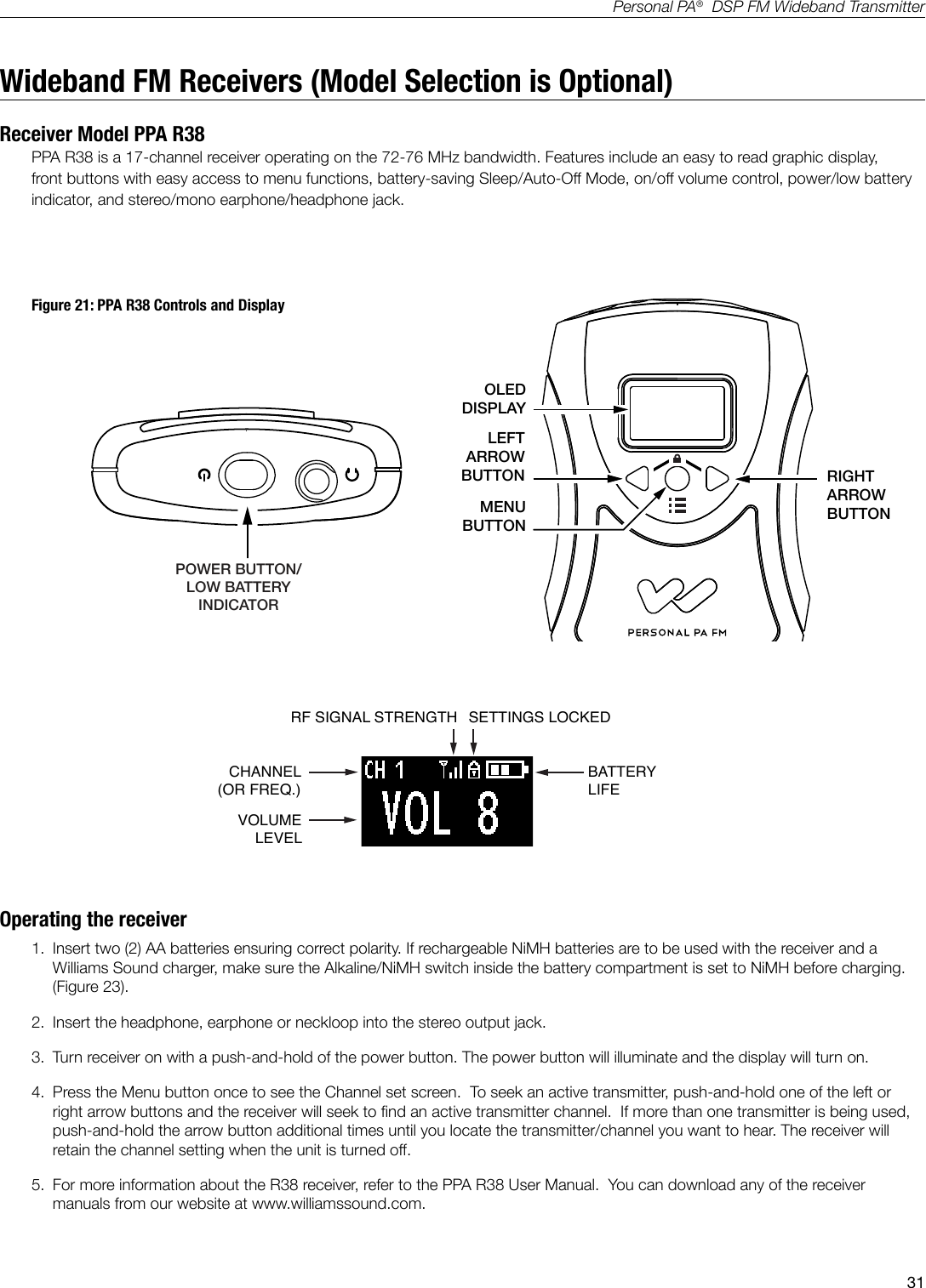
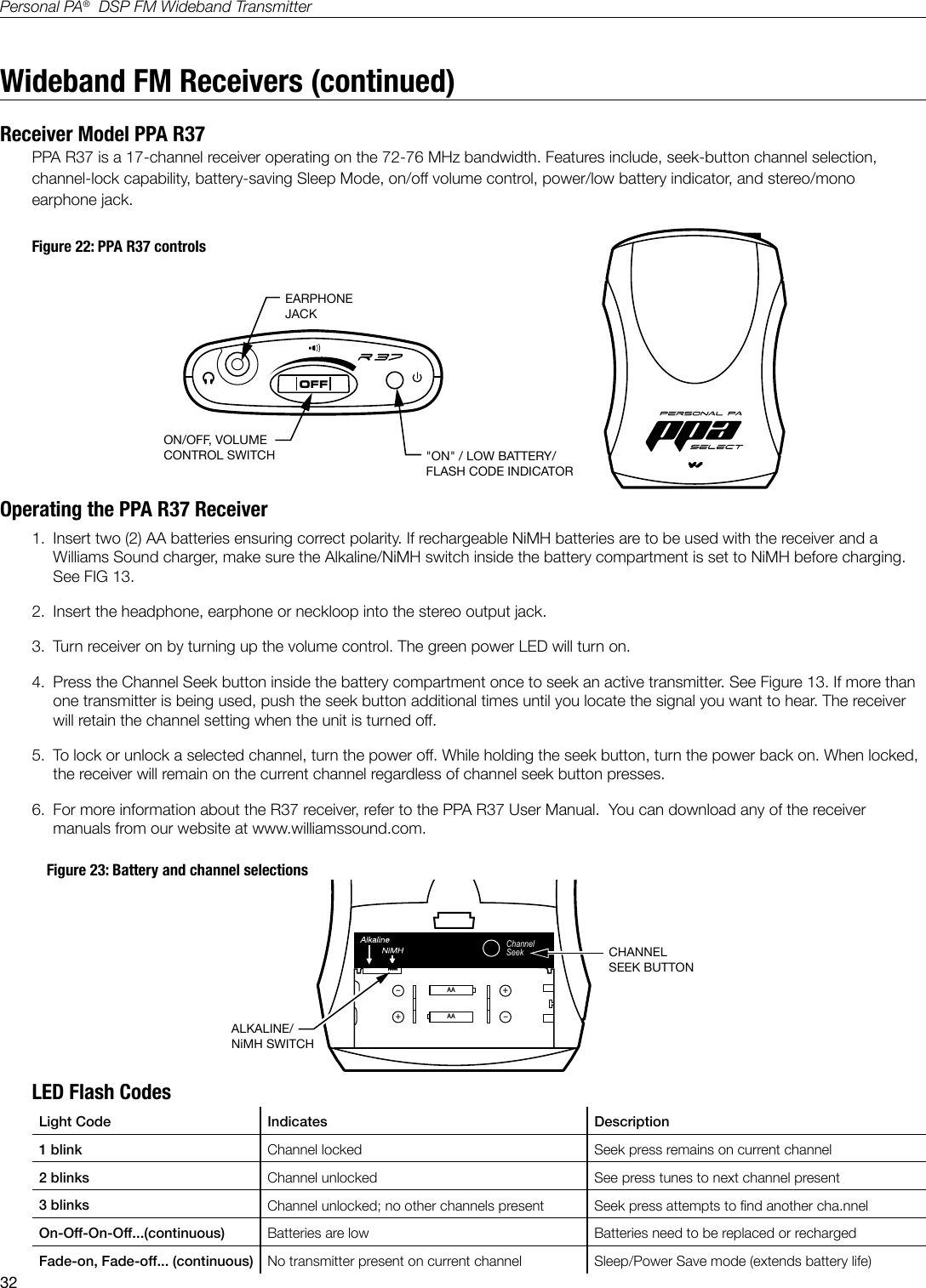
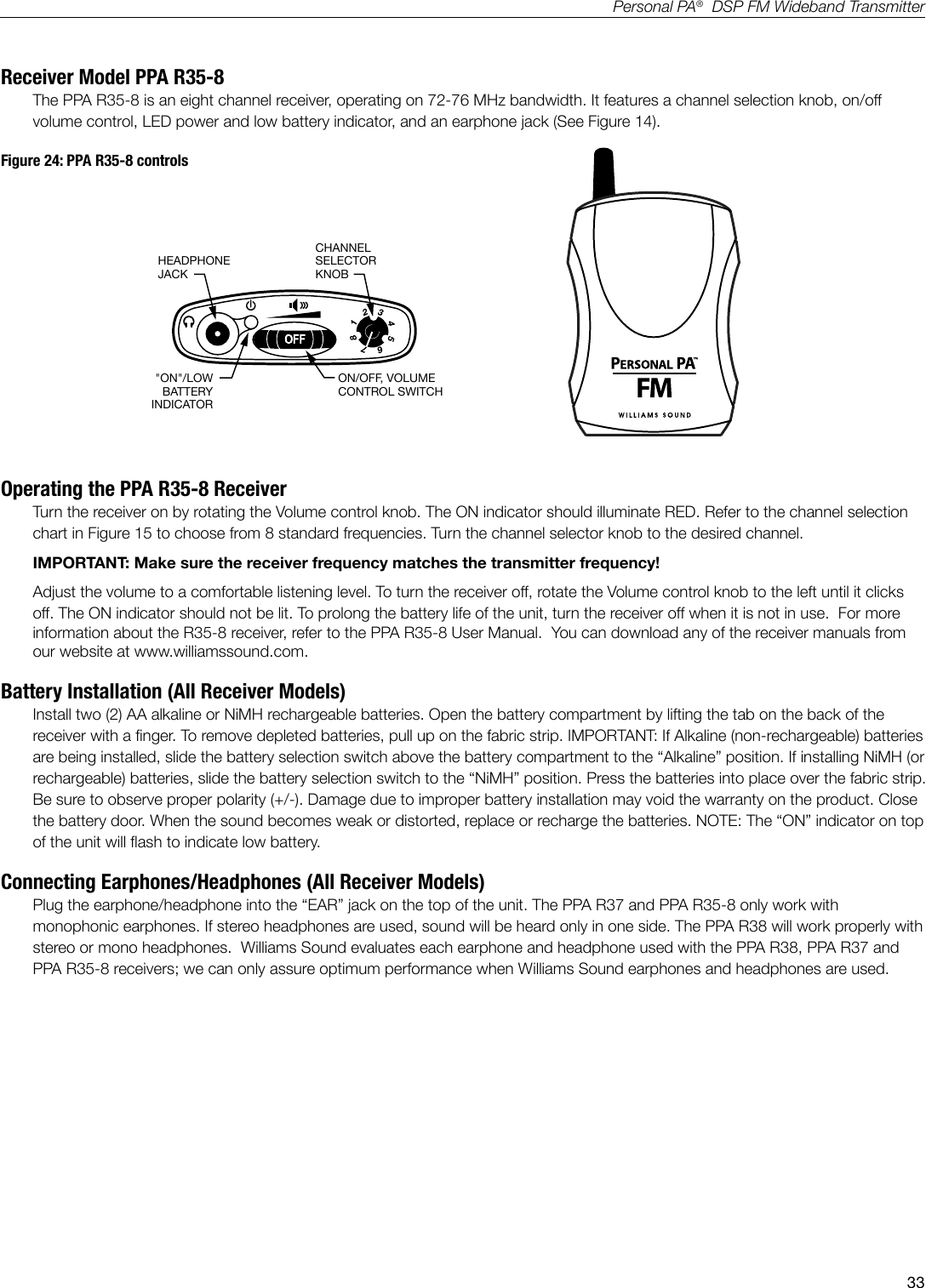
PPA T45NET/T45Personal PA® DSP FM Wideband TransmitterUSER ManualTransmitter Models PPA T45NET and PPA T45Optional Receiver Models PPA R38, PPA R37, PPA R35-8, PPA R1600MAN 176APRINTED IN THE U.S.A.
2Personal PA®  DSP FM Wideband TransmitterPPA T45NET /  T45  Personal PA DSP FM Wideband TransmitterUser Manual  Contents Safety Information, Recycling Instructions .................................................................................................................. 4 System Connection Overview ......................................................................................................................................... 6Wiring and Connections ................................................................................................................................................... 7Power Supply Connection for US Applications ................................................................................................................. 7Audio Source Connections ...............................................................................................................................................7Multi-Channel Sources .....................................................................................................................................................8Selecting an Audio Source Appropriate for Hearing Impaired Listeners .............................................................................8Avoiding Hum in the Audio (as a result of a Ground Loop) ................................................................................................9Installing the ANT 025 Whip Antenna ............................................................................................................................... 9Connecting the T45 to Other Devices ............................................................................................................................. 10Controls and Features ....................................................................................................................................................11Power Button ................................................................................................................................................................. 11OLED Display ................................................................................................................................................................. 11Audio Input Level Indicator ............................................................................................................................................. 11Input Overload Indicator ................................................................................................................................................. 11RF Indicator (On-Air) ....................................................................................................................................................... 11Hot Buttons/Menu Controls............................................................................................................................................11Headphone Jack ............................................................................................................................................................ 12Main Info Screen and Screen Navigation ........................................................................................................................12General Setup Instructions ............................................................................................................................................ 13Front Screen Menu Tree (Quick Reference) ..........................................................................................................14-16Front Screen Menu Tree (Detailed Instructions) ...................................................................................................16-251. AUDIO SETTINGS .................................................................................................................................................... 161a. Application Presets ......................................................................................................................................16-171b. Input Source ................................................................................................................................................17-181c. Input Level ........................................................................................................................................................ 191d. Headphone Source ...........................................................................................................................................191e. Headphone Volume ......................................................................................................................................19-202. RF SETTINGS ........................................................................................................................................................... 202a. Channel (or Frequency) .....................................................................................................................................202b. RF Output Power .............................................................................................................................................. 212c. RF Time-Out ..................................................................................................................................................... 213. PREFERENCES ........................................................................................................................................................ 223a. Display Mode .................................................................................................................................................... 223b. Channel Mode .................................................................................................................................................. 22
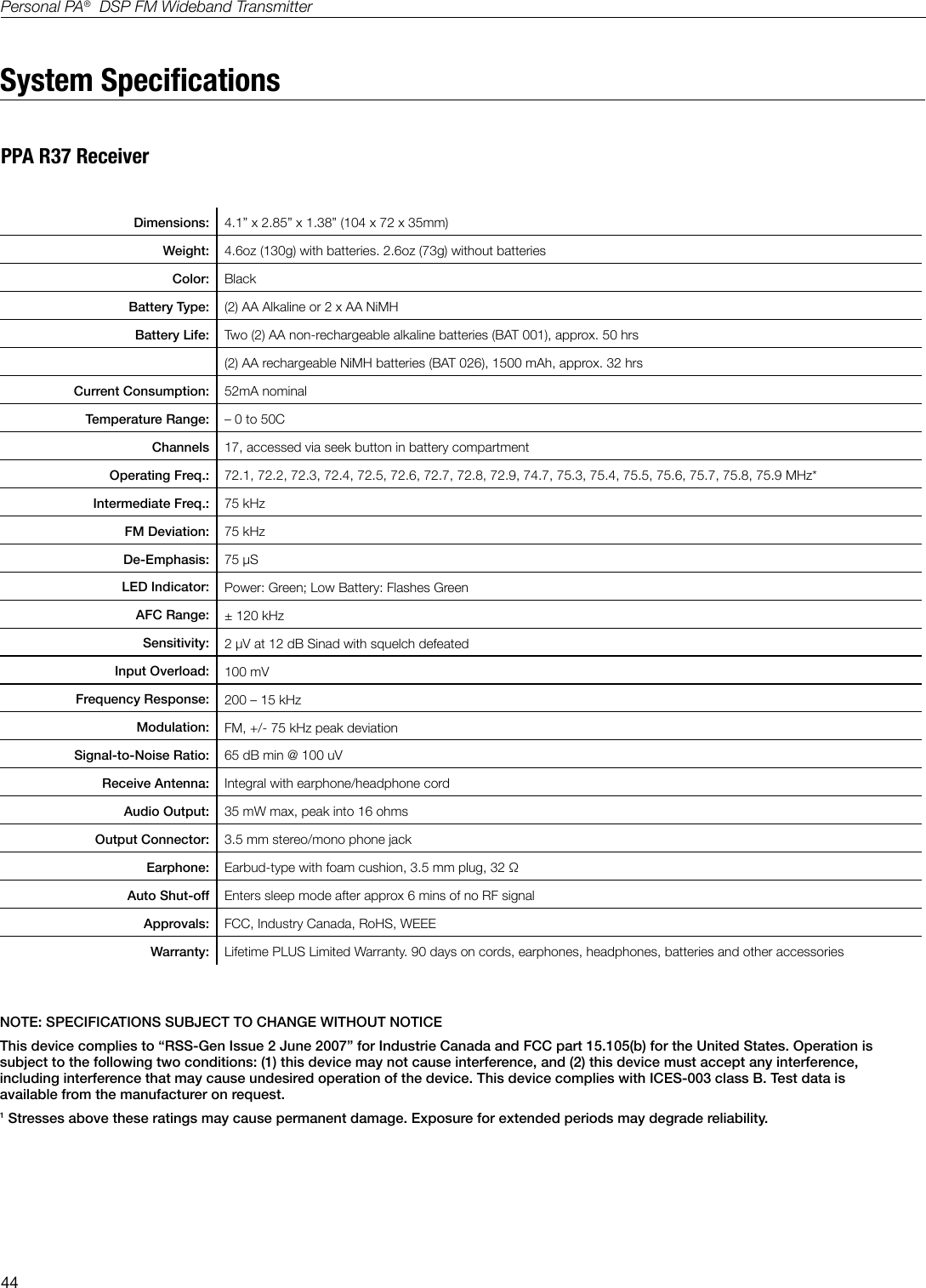
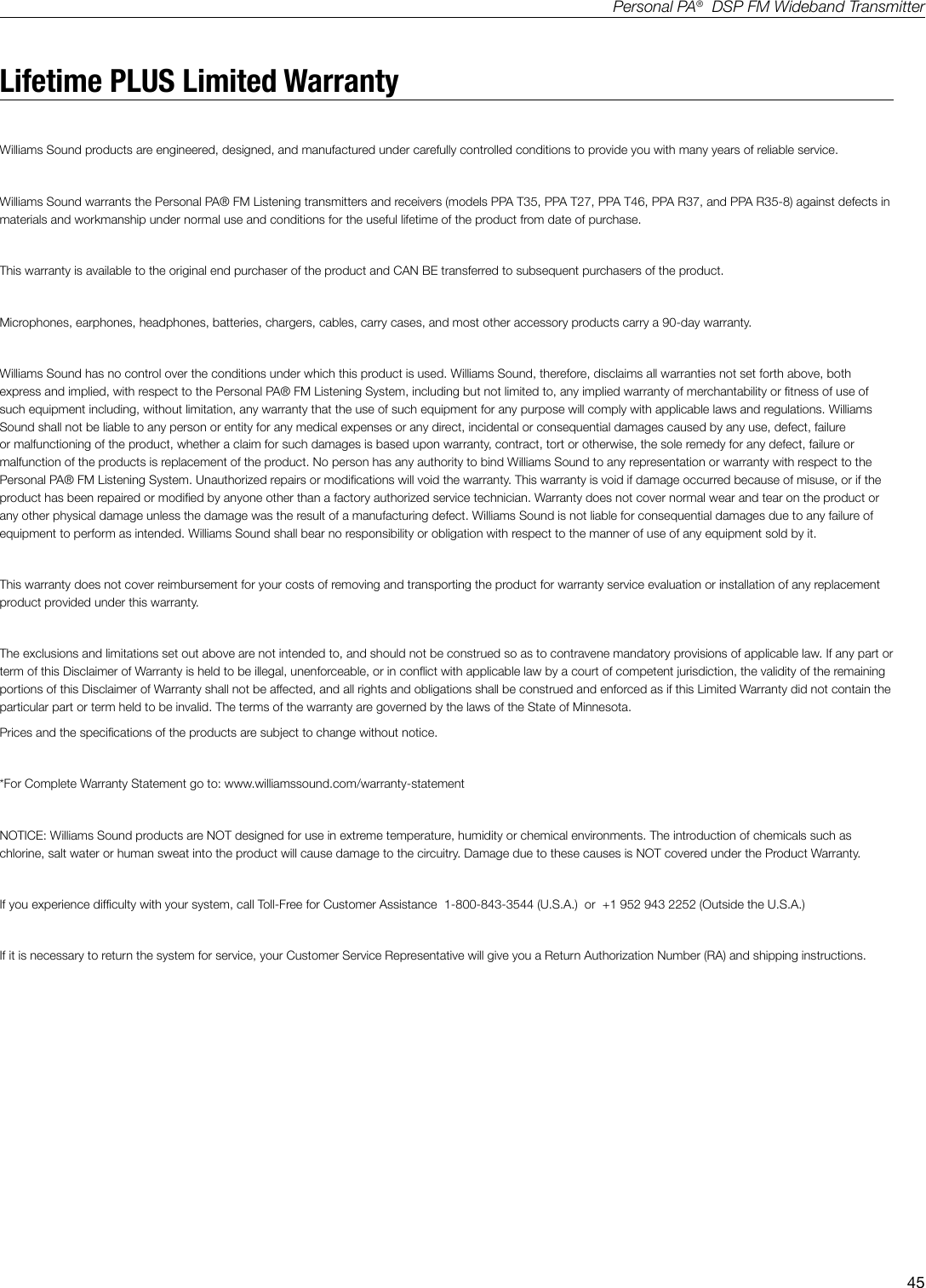
3Personal PA®  DSP FM Wideband Transmitter3c. Screen Time-Out .......................................................................................................................................... 22-233d. Transmitter Description ..................................................................................................................................... 233e. Restore Defaults ...........................................................................................................................................23-244. ADD-ON MODULE (PPA T45NET only) ................................................................................................................... 244a. Status ............................................................................................................................................................... 244b. Security .......................................................................................................................................................24-254c. IP Address Mode ..............................................................................................................................................254d. IP Address ........................................................................................................................................................25Network Setup for Hard-wired Ethernet Devices (Laptop or Desktop PC) ......................................................... 26 Network Setup for Wireless Devices (iPad, Android Tablet, or Smart Phone).................................................... 27 Web Control Interface ................................................................................................................................................28-30Wideband FM Receivers (Model Selection is Optional) .......................................................................................... 31Receiver Model PPA R38 ............................................................................................................................................... 31Operating the Receiver ................................................................................................................................................... 31Receiver Model PPA R37 ............................................................................................................................................... 32Operating the Receiver ................................................................................................................................................... 32Receiver Model PPA R35-8 ............................................................................................................................................ 33Operating the Receiver ................................................................................................................................................... 33Battery Installation (All Receiver Models) ......................................................................................................................... 33Connecting Earphones (All Receiver Models) .................................................................................................................. 33Belt Clip Installation (All Receiver Models) ....................................................................................................................... 34Suggestions for Receiver Management ...................................................................................................................... 35Receiver Battery Information (All Receiver Models) ................................................................................................. 35Troubleshooting ...........................................................................................................................................................36-39The T45 “RF” (On Air) Indicator is not on ........................................................................................................................ 36No Audio heard in Phones Jack .....................................................................................................................................36Noise or Distortion in the Audio ...................................................................................................................................... 36Noise in Audio “grows” when program is silent ............................................................................................................... 36Reception (at Receiver) difculties .............................................................................................................................36-37Remote Control is not working over Wi-Fi....................................................................................................................... 38Remote Control is not working over hard-wired Ethernet network ..................................................................................39System Specications .................................................................................................................................................... 40 PPA T45 Transmitter .................................................................................................................................................40-41PPA R38 Receiver .......................................................................................................................................................... 42PPA R35-8 Receiver ....................................................................................................................................................... 43PPA R37 Receiver .......................................................................................................................................................... 44Lifetime PLUS Limited Warranty ...................................................................................................................................45
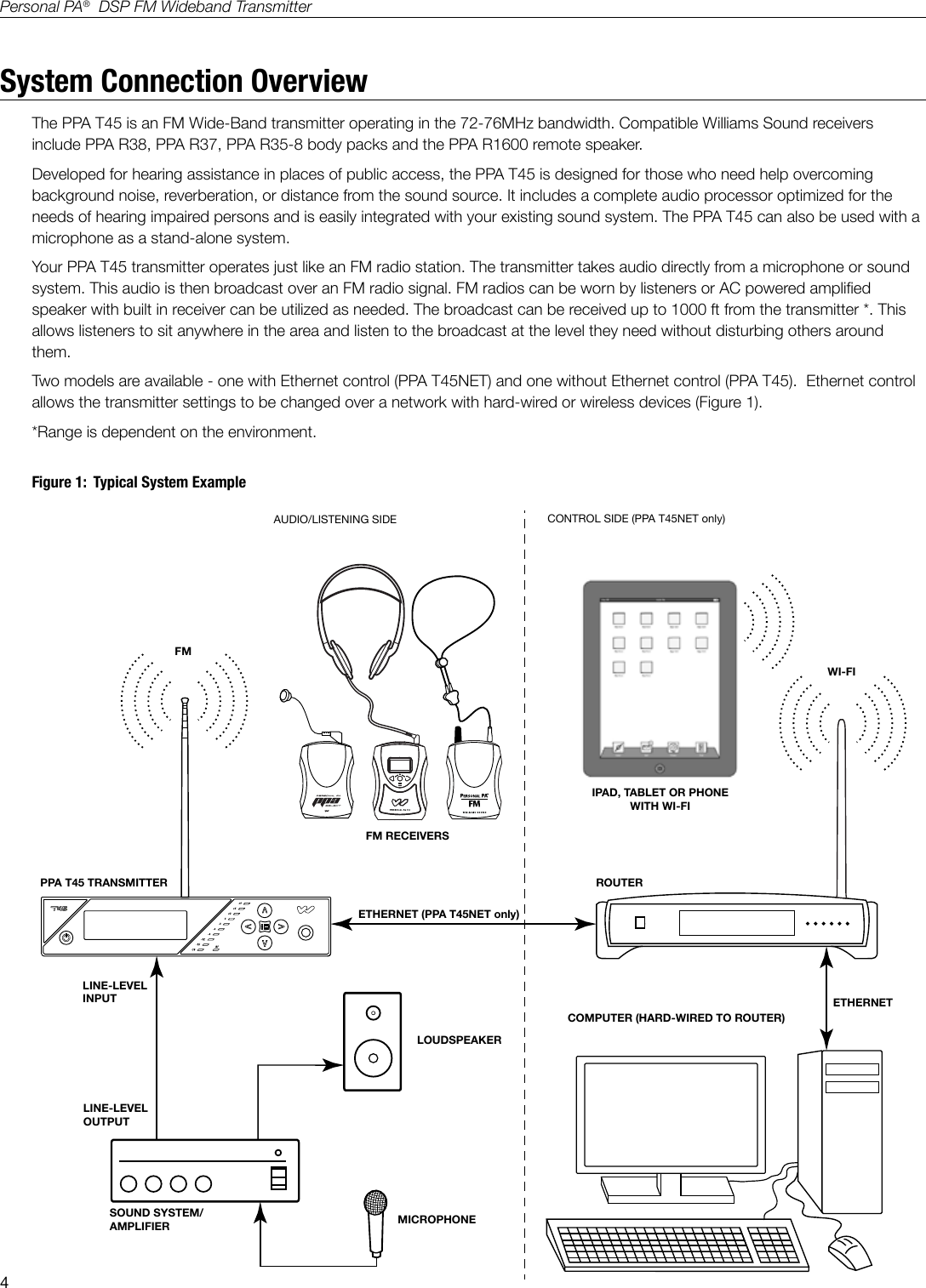
4Personal PA®  DSP FM Wideband TransmitterLOUDSPEAKERLINE-LEVEL OUTPUTSOUND SYSTEM/ AMPLIFIER MICROPHONEPPA T45 TRANSMITTERFM RECEIVERSA408ROUTERIPAD, TABLET OR PHONEWITH WI-FIFMWI-FICOMPUTER (HARD-WIRED TO ROUTER)LINE-LEVEL INPUTAUDIO/LISTENING SIDE CONTROL SIDE (PPA T45NET only) ETHERNET (PPA T45NET only)ETHERNETSystem Connection OverviewThe PPA T45 is an FM Wide-Band transmitter operating in the 72-76MHz bandwidth. Compatible Williams Sound receivers include PPA R38, PPA R37, PPA R35-8 body packs and the PPA R1600 remote speaker.Developed for hearing assistance in places of public access, the PPA T45 is designed for those who need help overcoming background noise, reverberation, or distance from the sound source. It includes a complete audio processor optimized for the needs of hearing impaired persons and is easily integrated with your existing sound system. The PPA T45 can also be used with a microphone as a stand-alone system. Your PPA T45 transmitter operates just like an FM radio station. The transmitter takes audio directly from a microphone or sound system. This audio is then broadcast over an FM radio signal. FM radios can be worn by listeners or AC powered amplied speaker with built in receiver can be utilized as needed. The broadcast can be received up to 1000 ft from the transmitter *. This allows listeners to sit anywhere in the area and listen to the broadcast at the level they need without disturbing others around them.Two models are available - one with Ethernet control (PPA T45NET) and one without Ethernet control (PPA T45).  Ethernet control allows the transmitter settings to be changed over a network with hard-wired or wireless devices (Figure 1).*Range is dependent on the environment.Figure 1:  Typical System Example
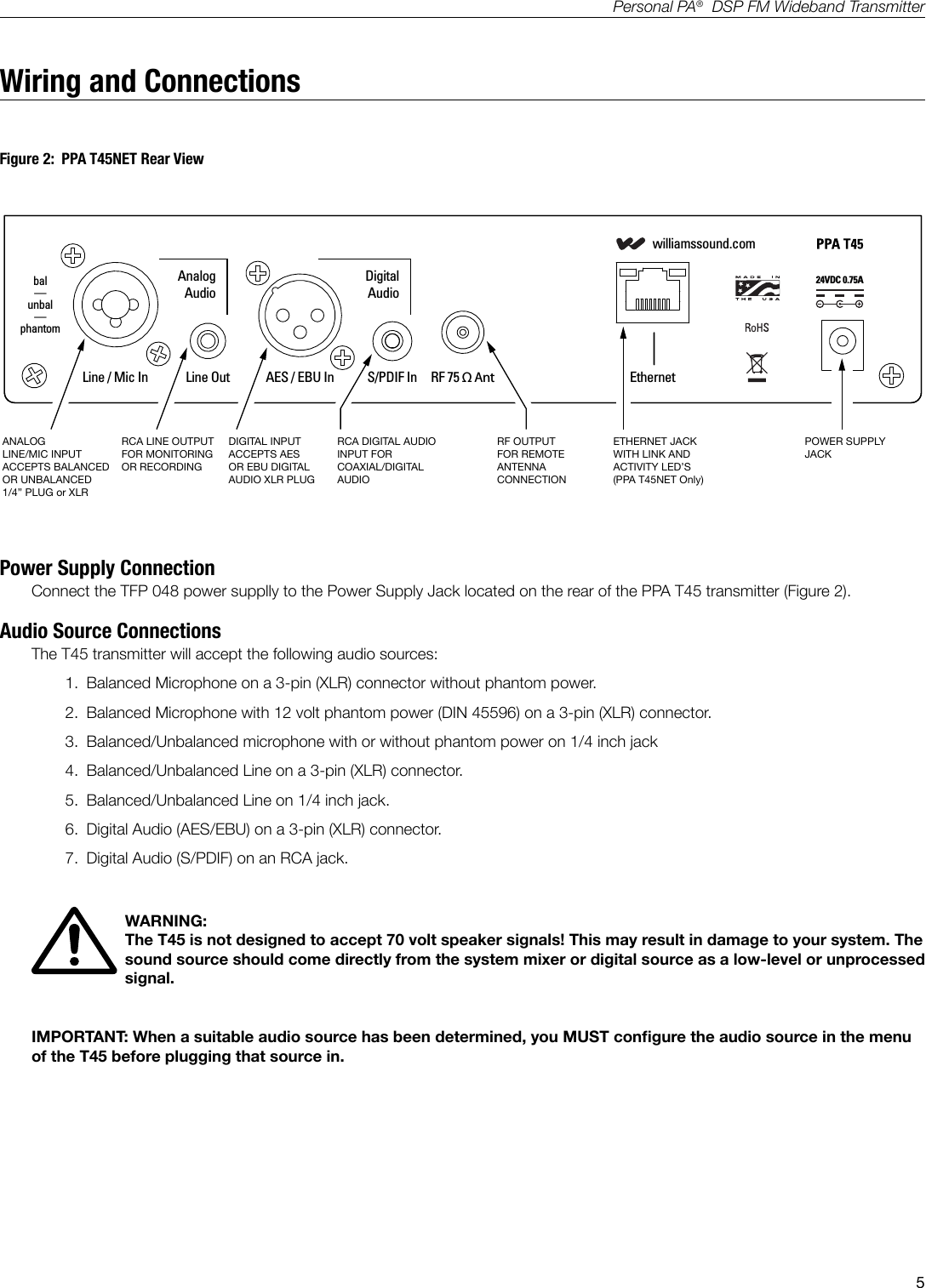
5Personal PA®  DSP FM Wideband TransmitterWiring and Connections24VDC 0.75Awilliamssound.comLine / Mic InAnalogAudioDigitalAudioLine Out AES / EBU In S/PDIF In RF 75 Ω Ant Ethernetbal—unbal—phantomT45 RearA401ANALOG LINE/MIC INPUTACCEPTS BALANCED OR UNBALANCED 1/4” PLUG or XLRRCA LINE OUTPUTFOR MONITORING OR RECORDINGDIGITAL INPUTACCEPTS AESOR EBU DIGITAL AUDIO XLR PLUGRCA DIGITAL AUDIO INPUT FOR COAXIAL/DIGITAL AUDIORF OUTPUTFOR REMOTE ANTENNA CONNECTIONETHERNET JACKWITH LINK AND ACTIVITY LED’S(PPA T45NET Only)POWER SUPPLY JACKPower Supply ConnectionConnect the TFP 048 power supplly to the Power Supply Jack located on the rear of the PPA T45 transmitter (Figure 2).Audio Source ConnectionsThe T45 transmitter will accept the following audio sources:1.  Balanced Microphone on a 3-pin (XLR) connector without phantom power.2.  Balanced Microphone with 12 volt phantom power (DIN 45596) on a 3-pin (XLR) connector.3.  Balanced/Unbalanced microphone with or without phantom power on 1/4 inch jack4.  Balanced/Unbalanced Line on a 3-pin (XLR) connector.5.  Balanced/Unbalanced Line on 1/4 inch jack.6.  Digital Audio (AES/EBU) on a 3-pin (XLR) connector.7.  Digital Audio (S/PDIF) on an RCA jack.WARNING:  The T45 is not designed to accept 70 volt speaker signals! This may result in damage to your system. The sound source should come directly from the system mixer or digital source as a low-level or unprocessed signal. IMPORTANT: When a suitable audio source has been determined, you MUST congure the audio source in the menu of the T45 before plugging that source in. Figure 2:  PPA T45NET Rear View
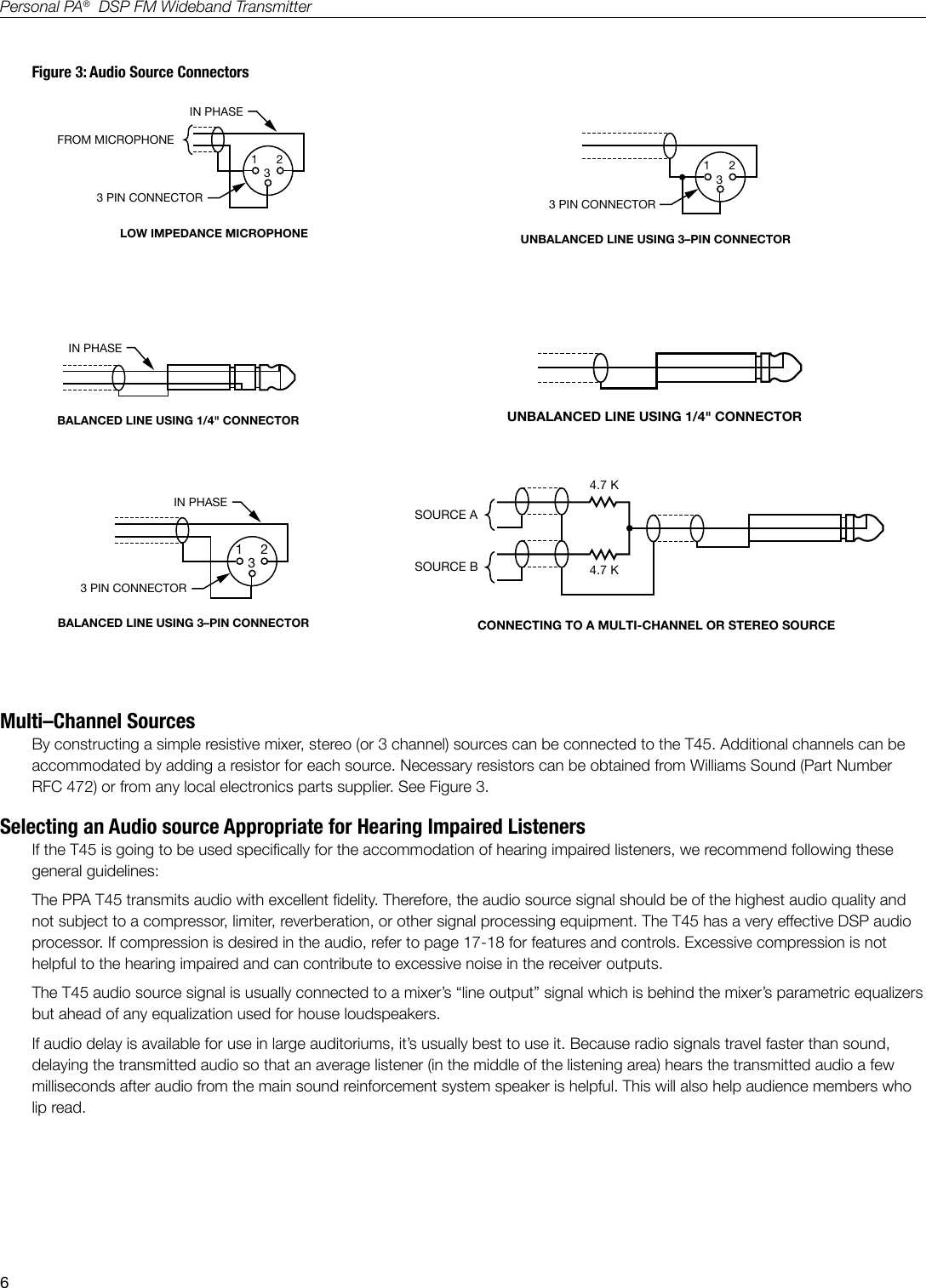
6Personal PA®  DSP FM Wideband TransmitterBALANCED LINE USING 1/4" CONNECTORIN PHASEA106UNBALANCED LINE USING 1/4" CONNECTORA1074.7 K4.7 KSOURCE ASOURCE BCONNECTING TO A MULTI-CHANNEL OR STEREO SOURCEA109BALANCED LINE USING 3–PIN CONNECTORIN PHASE1 233 PIN CONNECTORA108IN PHASEFROM MICROPHONE1 233 PIN CONNECTORLOW IMPEDANCE MICROPHONEA104UNBALANCED LINE USING 3–PIN CONNECTOR1 233 PIN CONNECTORA105Figure 3: Audio Source ConnectorsMulti–Channel SourcesBy constructing a simple resistive mixer, stereo (or 3 channel) sources can be connected to the T45. Additional channels can be accommodated by adding a resistor for each source. Necessary resistors can be obtained from Williams Sound (Part Number RFC 472) or from any local electronics parts supplier. See Figure 3.Selecting an Audio source Appropriate for Hearing Impaired ListenersIf the T45 is going to be used specically for the accommodation of hearing impaired listeners, we recommend following these general guidelines:The PPA T45 transmits audio with excellent delity. Therefore, the audio source signal should be of the highest audio quality and not subject to a compressor, limiter, reverberation, or other signal processing equipment. The T45 has a very effective DSP audio processor. If compression is desired in the audio, refer to page 17-18 for features and controls. Excessive compression is not helpful to the hearing impaired and can contribute to excessive noise in the receiver outputs.The T45 audio source signal is usually connected to a mixer’s “line output” signal which is behind the mixer’s parametric equalizers but ahead of any equalization used for house loudspeakers.If audio delay is available for use in large auditoriums, it’s usually best to use it. Because radio signals travel faster than sound, delaying the transmitted audio so that an average listener (in the middle of the listening area) hears the transmitted audio a few milliseconds after audio from the main sound reinforcement system speaker is helpful. This will also help audience members who lip read.
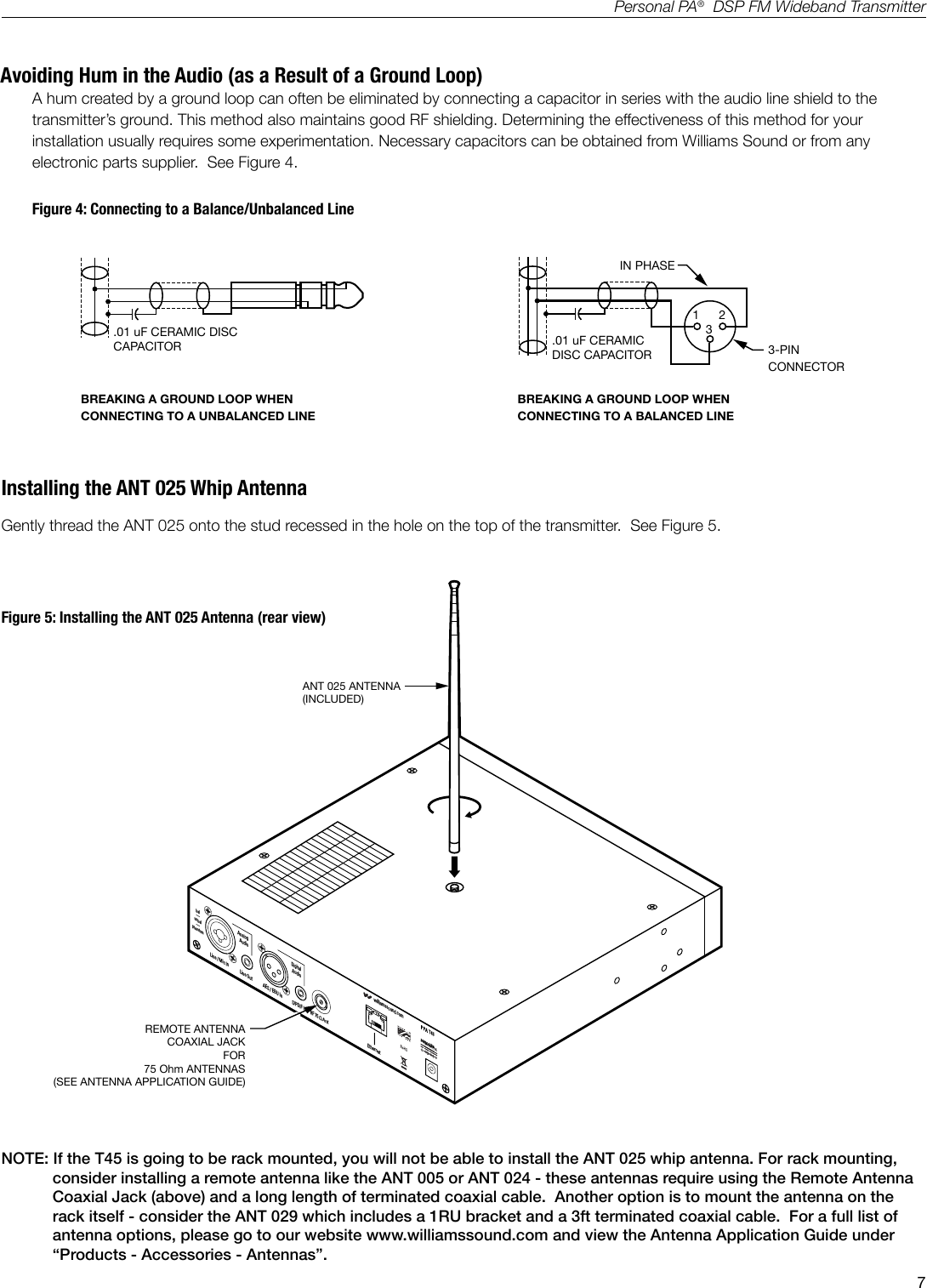
7Personal PA®  DSP FM Wideband TransmitterAvoiding Hum in the Audio (as a Result of a Ground Loop)A hum created by a ground loop can often be eliminated by connecting a capacitor in series with the audio line shield to the transmitter’s ground. This method also maintains good RF shielding. Determining the effectiveness of this method for your installation usually requires some experimentation. Necessary capacitors can be obtained from Williams Sound or from any electronic parts supplier.  See Figure 4.IN PHASE1 233-PINCONNECTORBREAKING A GROUND LOOP WHEN CONNECTING TO A UNBALANCED LINEBREAKING A GROUND LOOP WHEN CONNECTING TO A BALANCED LINE.01 uF CERAMIC DISC CAPACITOR .01 uF CERAMICDISC CAPACITORA110Figure 4: Connecting to a Balance/Unbalanced LineNOTE: If the T45 is going to be rack mounted, you will not be able to install the ANT 025 whip antenna. For rack mounting, consider installing a remote antenna like the ANT 005 or ANT 024 - these antennas require using the Remote Antenna Coaxial Jack (above) and a long length of terminated coaxial cable.  Another option is to mount the antenna on the rack itself - consider the ANT 029 which includes a 1RU bracket and a 3ft terminated coaxial cable.  For a full list of antenna options, please go to our website www.williamssound.com and view the Antenna Application Guide under “Products - Accessories - Antennas”.Installing the ANT 025 Whip AntennaGently thread the ANT 025 onto the stud recessed in the hole on the top of the transmitter.  See Figure 5.ANT 025 ANTENNA(INCLUDED)REMOTE ANTENNACOAXIAL JACKFOR75 Ohm ANTENNAS(SEE ANTENNA APPLICATION GUIDE)A41024VDC 0.75Awilliamssound.comLine / Mic InAnalogAudioDigitalAudioLine Out AES / EBU In S/PDIF In RF 75 Ω Ant Ethernetbal—unbal—phantomFigure 5: Installing the ANT 025 Antenna (rear view)
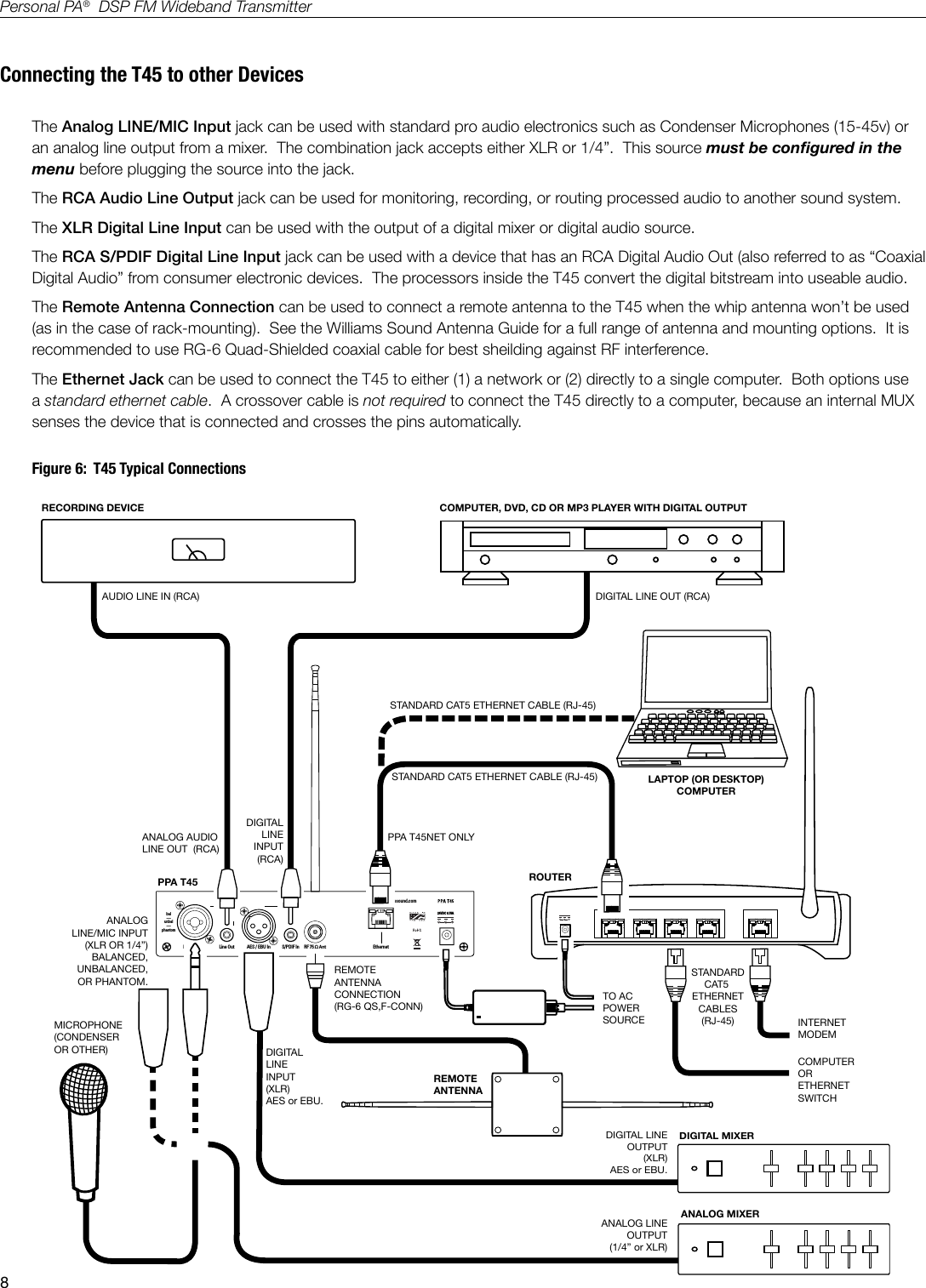
8Personal PA®  DSP FM Wideband TransmitterFigure 6:  T45 Typical ConnectionsA40724VDC 0.75Awilliamssound.comLine / Mic InAnalogAudioDigitalAudioLine Out AES / EBU In S/PDIF In RF 75 Ω Ant Ethernetbal—unbal—phantomANALOG AUDIOLINE OUT  (RCA)ANALOGLINE/MIC INPUT(XLR OR 1/4”)BALANCED,UNBALANCED,OR PHANTOM.DIGITALLINEINPUT(RCA)REMOTEANTENNACONNECTION(RG-6 QS,F-CONN)PPA T45RECORDING DEVICEAUDIO LINE IN (RCA)ROUTERANALOG LINEOUTPUT(1/4” or XLR)DIGITALLINEINPUT(XLR)AES or EBU.PPA T45NET ONLYCOMPUTER, DVD, CD OR MP3 PLAYER WITH DIGITAL OUTPUTDIGITAL LINE OUT (RCA)DIGITAL MIXERREMOTEANTENNASTANDARD CAT5 ETHERNET CABLE (RJ-45)MICROPHONE(CONDENSEROR OTHER)ANALOG MIXERDIGITAL LINEOUTPUT(XLR)AES or EBU.COMPUTERORETHERNETSWITCHINTERNETMODEMSTANDARDCAT5 ETHERNETCABLES(RJ-45)TO ACPOWERSOURCESTANDARD CAT5 ETHERNET CABLE (RJ-45)LAPTOP (OR DESKTOP)COMPUTERConnecting the T45 to other DevicesThe Analog LINE/MIC Input jack can be used with standard pro audio electronics such as Condenser Microphones (15-45v) or an analog line output from a mixer.  The combination jack accepts either XLR or 1/4”.  This source must be congured in the menu before plugging the source into the jack.The RCA Audio Line Output jack can be used for monitoring, recording, or routing processed audio to another sound system.The XLR Digital Line Input can be used with the output of a digital mixer or digital audio source.   The RCA S/PDIF Digital Line Input jack can be used with a device that has an RCA Digital Audio Out (also referred to as “Coaxial Digital Audio” from consumer electronic devices.  The processors inside the T45 convert the digital bitstream into useable audio.The Remote Antenna Connection can be used to connect a remote antenna to the T45 when the whip antenna won’t be used (as in the case of rack-mounting).  See the Williams Sound Antenna Guide for a full range of antenna and mounting options.  It is recommended to use RG-6 Quad-Shielded coaxial cable for best sheilding against RF interference.The Ethernet Jack can be used to connect the T45 to either (1) a network or (2) directly to a single computer.  Both options use a standard ethernet cable.  A crossover cable is not required to connect the T45 directly to a computer, because an internal MUX senses the device that is connected and crosses the pins automatically.
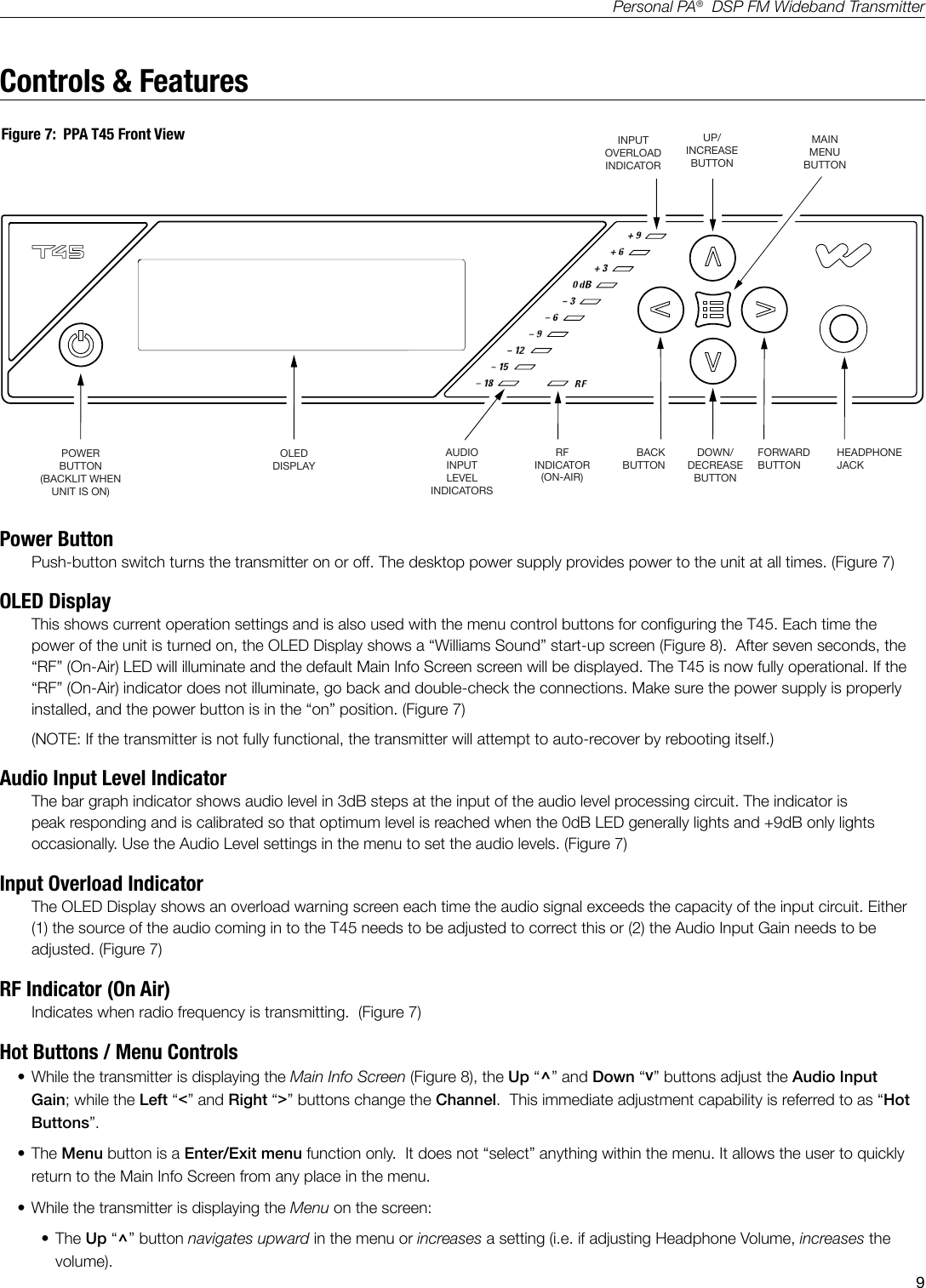
9Personal PA®  DSP FM Wideband TransmitterPower ButtonPush-button switch turns the transmitter on or off. The desktop power supply provides power to the unit at all times. (Figure 7)OLED DisplayThis shows current operation settings and is also used with the menu control buttons for conguring the T45. Each time the power of the unit is turned on, the OLED Display shows a “Williams Sound” start-up screen (Figure 8).  After seven seconds, the “RF” (On-Air) LED will illuminate and the default Main Info Screen screen will be displayed. The T45 is now fully operational. If the “RF” (On-Air) indicator does not illuminate, go back and double-check the connections. Make sure the power supply is properly installed, and the power button is in the “on” position. (Figure 7)(NOTE: If the transmitter is not fully functional, the transmitter will attempt to auto-recover by rebooting itself.)Audio Input Level IndicatorThe bar graph indicator shows audio level in 3dB steps at the input of the audio level processing circuit. The indicator is peak responding and is calibrated so that optimum level is reached when the 0dB LED generally lights and +9dB only lights occasionally. Use the Audio Level settings in the menu to set the audio levels. (Figure 7)Input Overload IndicatorThe OLED Display shows an overload warning screen each time the audio signal exceeds the capacity of the input circuit. Either (1) the source of the audio coming in to the T45 needs to be adjusted to correct this or (2) the Audio Input Gain needs to be adjusted. (Figure 7)RF Indicator (On Air)Indicates when radio frequency is transmitting.  (Figure 7)Hot Buttons / Menu Controls• While the transmitter is displaying the Main Info Screen (Figure 8), the Up “^” and Down “v” buttons adjust the Audio Input Gain; while the Left “<” and Right “>” buttons change the Channel.  This immediate adjustment capability is referred to as “Hot Buttons”.  • The Menu button is a Enter/Exit menu function only.  It does not “select” anything within the menu. It allows the user to quickly return to the Main Info Screen from any place in the menu.• While the transmitter is displaying the Menu on the screen: • The Up “^” button navigates upward in the menu or increases a setting (i.e. if adjusting Headphone Volume, increases the volume). Figure 7:  PPA T45 Front ViewControls & FeaturesPOWERBUTTON(BACKLIT WHENUNIT IS ON)RFINDICATOR(ON-AIR)AUDIOINPUTLEVELINDICATORSBACKBUTTONDOWN/DECREASEBUTTONFORWARDBUTTONUP/INCREASEBUTTONMAINMENUBUTTONOLEDDISPLAYHEADPHONEJACKA405INPUTOVERLOADINDICATOR
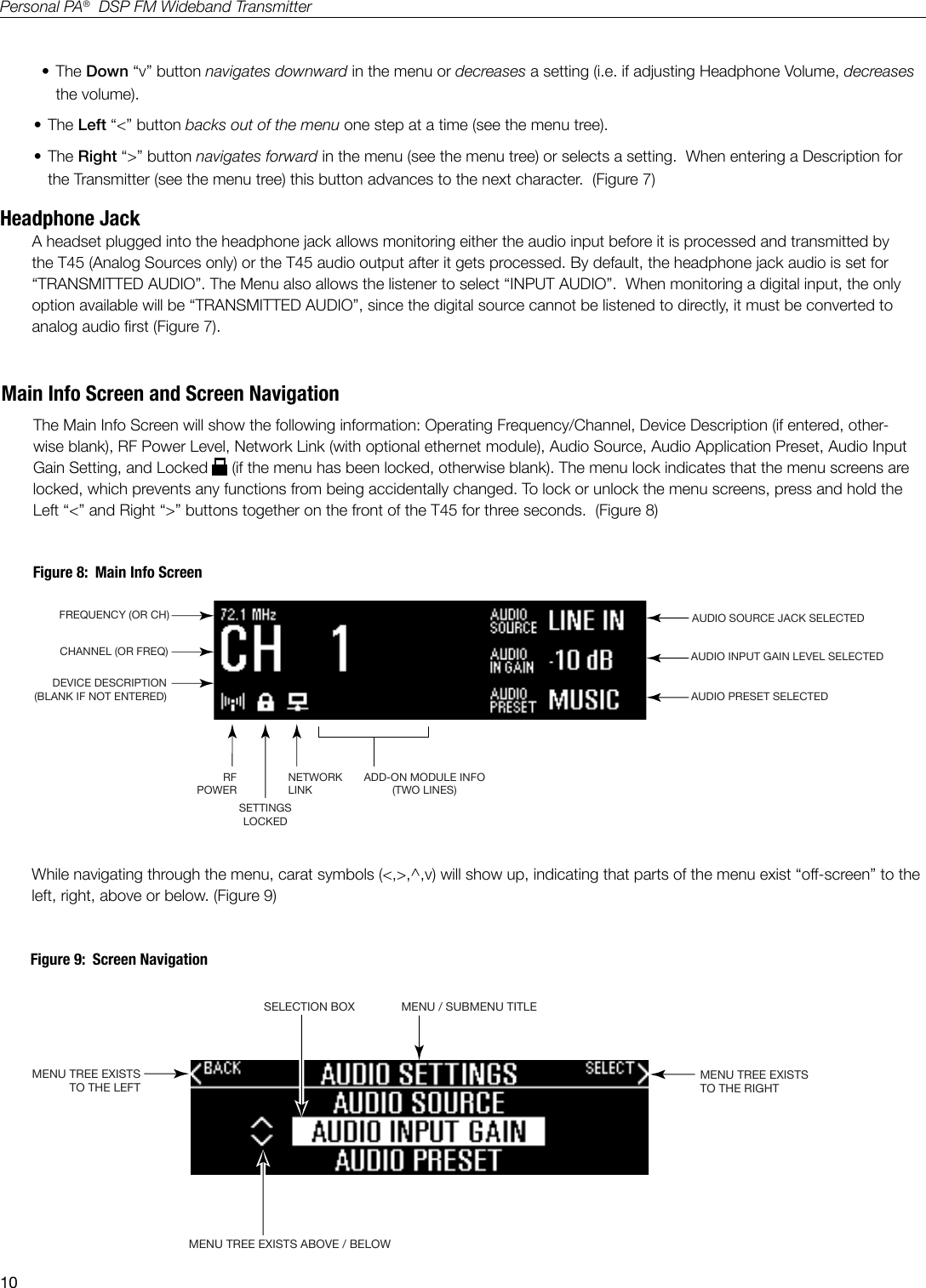
10Personal PA®  DSP FM Wideband TransmitterFREQUENCY (OR CH)CHANNEL (OR FREQ)DEVICE DESCRIPTION(BLANK IF NOT ENTERED)RFPOWERNETWORKLINKSETTINGSLOCKEDADD-ON MODULE INFO(TWO LINES)AUDIO SOURCE JACK SELECTEDAUDIO PRESET SELECTEDAUDIO INPUT GAIN LEVEL SELECTEDA403• The Down “v” button navigates downward in the menu or decreases a setting (i.e. if adjusting Headphone Volume, decreases the volume). • The Left “<” button backs out of the menu one step at a time (see the menu tree). • The Right “>” button navigates forward in the menu (see the menu tree) or selects a setting.  When entering a Description for the Transmitter (see the menu tree) this button advances to the next character.  (Figure 7)Headphone JackA headset plugged into the headphone jack allows monitoring either the audio input before it is processed and transmitted by the T45 (Analog Sources only) or the T45 audio output after it gets processed. By default, the headphone jack audio is set for “TRANSMITTED AUDIO”. The Menu also allows the listener to select “INPUT AUDIO”.  When monitoring a digital input, the only option available will be “TRANSMITTED AUDIO”, since the digital source cannot be listened to directly, it must be converted to analog audio rst (Figure 7).MENU TREE EXISTSTO THE LEFTSELECTION BOXMENU TREE EXISTSTO THE RIGHTA403MENU / SUBMENU TITLEMENU TREE EXISTS ABOVE / BELOWMain Info Screen and Screen NavigationThe Main Info Screen will show the following information: Operating Frequency/Channel, Device Description (if entered, other-wise blank), RF Power Level, Network Link (with optional ethernet module), Audio Source, Audio Application Preset, Audio Input Gain Setting, and Locked   (if the menu has been locked, otherwise blank). The menu lock indicates that the menu screens are locked, which prevents any functions from being accidentally changed. To lock or unlock the menu screens, press and hold the Left “<” and Right “>” buttons together on the front of the T45 for three seconds.  (Figure 8)Figure 8:  Main Info ScreenWhile navigating through the menu, carat symbols (<,>,^,v) will show up, indicating that parts of the menu exist “off-screen” to the left, right, above or below. (Figure 9)        Figure 9:  Screen Navigation
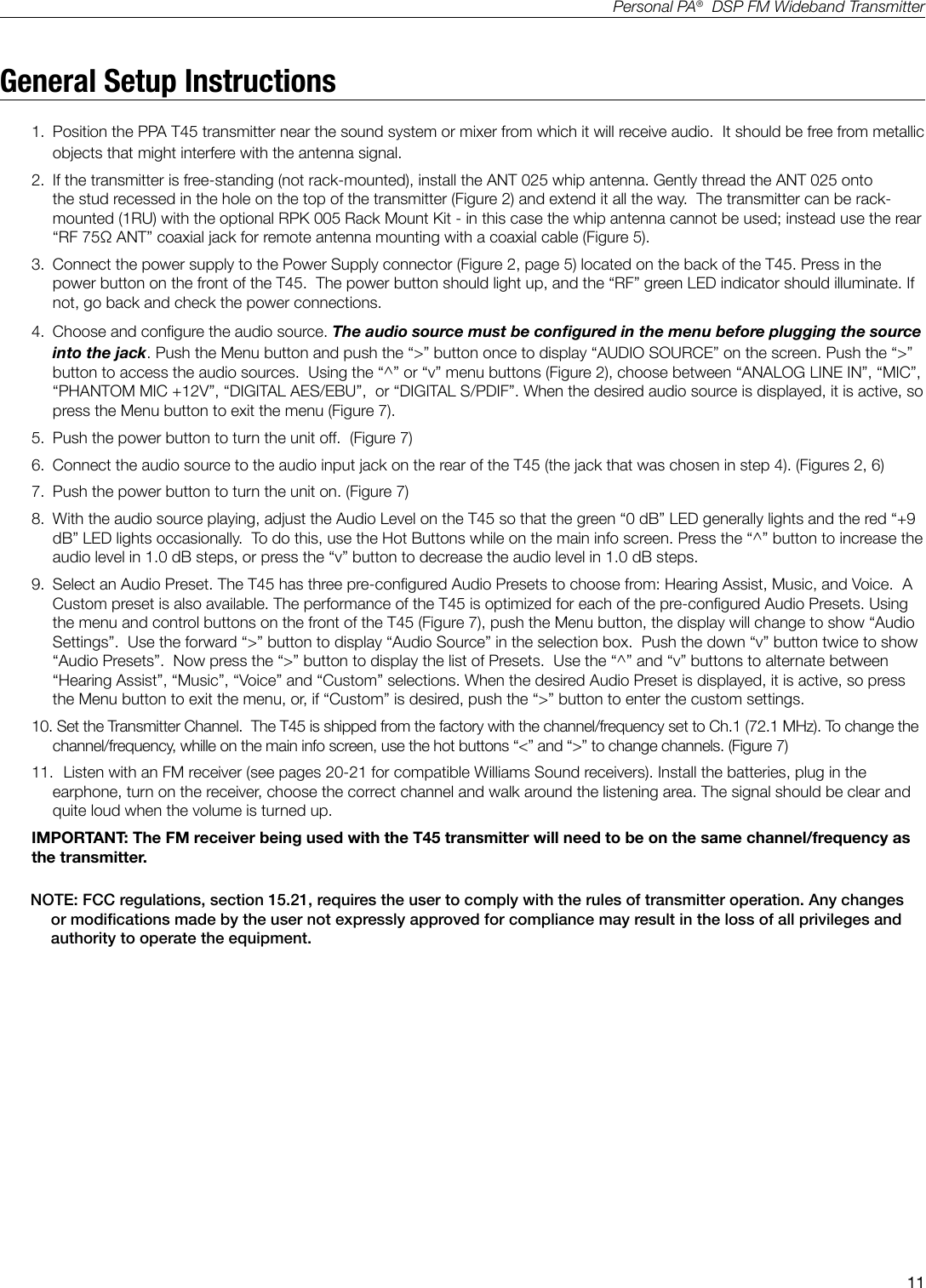
11Personal PA®  DSP FM Wideband TransmitterGeneral Setup Instructions1.  Position the PPA T45 transmitter near the sound system or mixer from which it will receive audio.  It should be free from metallic objects that might interfere with the antenna signal. 2.  If the transmitter is free-standing (not rack-mounted), install the ANT 025 whip antenna. Gently thread the ANT 025 onto the stud recessed in the hole on the top of the transmitter (Figure 2) and extend it all the way.  The transmitter can be rack-mounted (1RU) with the optional RPK 005 Rack Mount Kit - in this case the whip antenna cannot be used; instead use the rear “RF 75Ω ANT” coaxial jack for remote antenna mounting with a coaxial cable (Figure 5).  3.  Connect the power supply to the Power Supply connector (Figure 2, page 5) located on the back of the T45. Press in the power button on the front of the T45.  The power button should light up, and the “RF” green LED indicator should illuminate. If not, go back and check the power connections.4.  Choose and congure the audio source. The audio source must be congured in the menu before plugging the source into the jack. Push the Menu button and push the “>” button once to display “AUDIO SOURCE” on the screen. Push the “>” button to access the audio sources.  Using the “^” or “v” menu buttons (Figure 2), choose between “ANALOG LINE IN”, “MIC”, “PHANTOM MIC +12V”, “DIGITAL AES/EBU”,  or “DIGITAL S/PDIF”. When the desired audio source is displayed, it is active, so press the Menu button to exit the menu (Figure 7).  5.  Push the power button to turn the unit off.  (Figure 7)6.  Connect the audio source to the audio input jack on the rear of the T45 (the jack that was chosen in step 4). (Figures 2, 6)7.  Push the power button to turn the unit on. (Figure 7)8.  With the audio source playing, adjust the Audio Level on the T45 so that the green “0 dB” LED generally lights and the red “+9 dB” LED lights occasionally.  To do this, use the Hot Buttons while on the main info screen. Press the “^” button to increase the audio level in 1.0 dB steps, or press the “v” button to decrease the audio level in 1.0 dB steps.9.  Select an Audio Preset. The T45 has three pre-congured Audio Presets to choose from: Hearing Assist, Music, and Voice.  A Custom preset is also available. The performance of the T45 is optimized for each of the pre-congured Audio Presets. Using the menu and control buttons on the front of the T45 (Figure 7), push the Menu button, the display will change to show “Audio Settings”.  Use the forward “>” button to display “Audio Source” in the selection box.  Push the down “v” button twice to show “Audio Presets”.  Now press the “>” button to display the list of Presets.  Use the “^” and “v” buttons to alternate between “Hearing Assist”, “Music”, “Voice” and “Custom” selections. When the desired Audio Preset is displayed, it is active, so press the Menu button to exit the menu, or, if “Custom” is desired, push the “>” button to enter the custom settings.10.  Set the Transmitter Channel.  The T45 is shipped from the factory with the channel/frequency set to Ch.1 (72.1 MHz). To change the channel/frequency, whille on the main info screen, use the hot buttons “<” and “>” to change channels. (Figure 7)11.  Listen with an FM receiver (see pages 20-21 for compatible Williams Sound receivers). Install the batteries, plug in the earphone, turn on the receiver, choose the correct channel and walk around the listening area. The signal should be clear and quite loud when the volume is turned up. IMPORTANT: The FM receiver being used with the T45 transmitter will need to be on the same channel/frequency as the transmitter.        NOTE: FCC regulations, section 15.21, requires the user to comply with the rules of transmitter operation. Any changes or modications made by the user not expressly approved for compliance may result in the loss of all privileges and authority to operate the equipment.
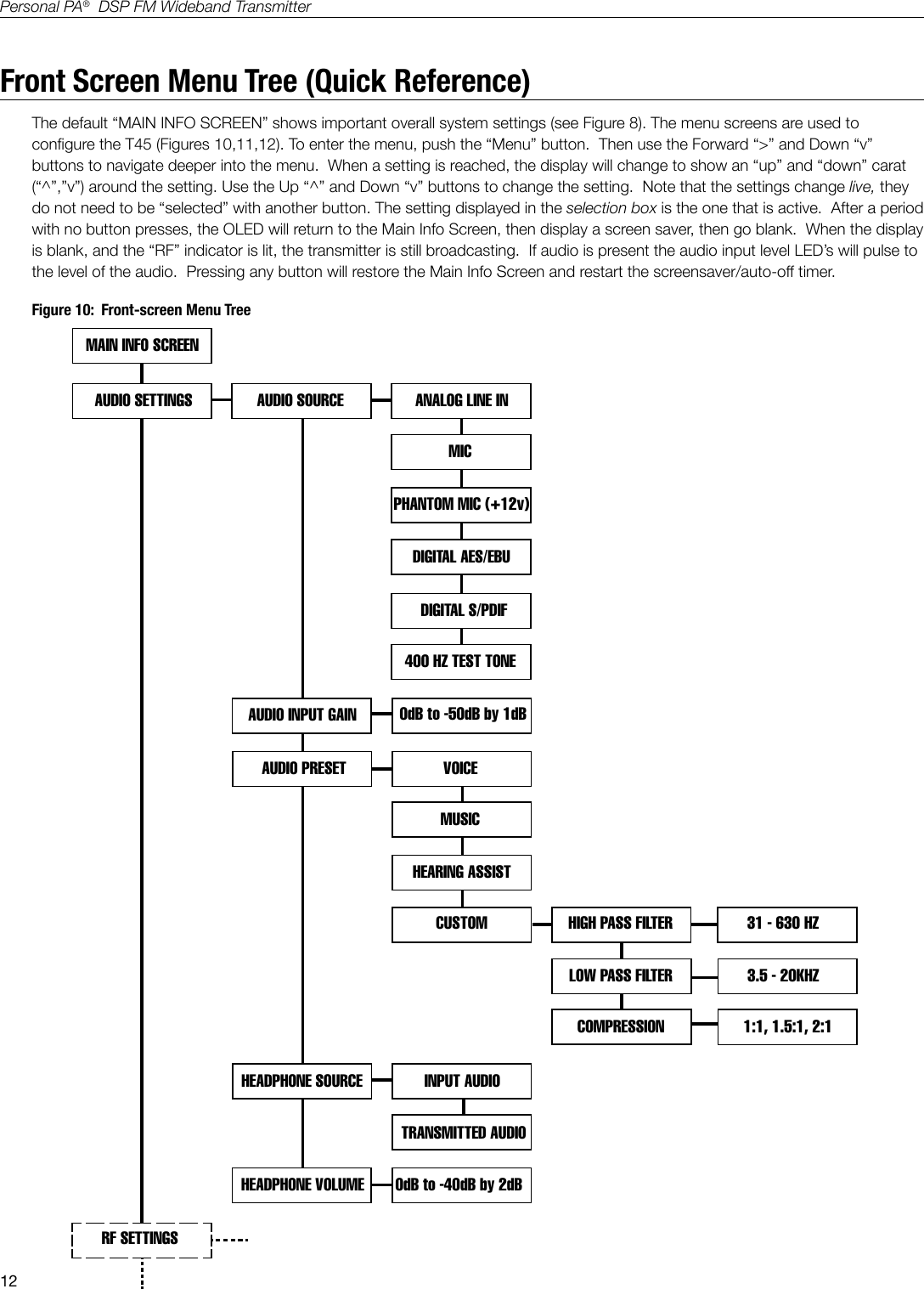
12Personal PA®  DSP FM Wideband TransmitterAUDIO SETTINGSAUDIO PRESETAUDIO INPUT GAINVOICEMUSICHEARING ASSISTCUSTOMANALOG LINE INMICPHANTOM MIC (+12v)DIGITAL AES/EBUDIGITAL S/PDIF400 HZ TEST TONE0dB to -50dB by 1dBRF SETTINGSHEADPHONE SOURCEHEADPHONE VOLUMEINPUT AUDIOTRANSMITTED AUDIO0dB to -40dB by 2dBAUDIO SOURCEHIGH PASS FILTER 31 - 630 HZLOW PASS FILTERCOMPRESSION3.5 - 20KHZ1:1, 1.5:1, 2:1MAIN INFO SCREENFigure 10:  Front-screen Menu TreeFront Screen Menu Tree (Quick Reference)The default “MAIN INFO SCREEN” shows important overall system settings (see Figure 8). The menu screens are used to congure the T45 (Figures 10,11,12). To enter the menu, push the “Menu” button.  Then use the Forward “>” and Down “v” buttons to navigate deeper into the menu.  When a setting is reached, the display will change to show an “up” and “down” carat (“^”,”v”) around the setting. Use the Up “^” and Down “v” buttons to change the setting.  Note that the settings change live, they do not need to be “selected” with another button. The setting displayed in the selection box is the one that is active.  After a period with no button presses, the OLED will return to the Main Info Screen, then display a screen saver, then go blank.  When the display is blank, and the “RF” indicator is lit, the transmitter is still broadcasting.  If audio is present the audio input level LED’s will pulse to the level of the audio.  Pressing any button will restore the Main Info Screen and restart the screensaver/auto-off timer.
13Personal PA®  DSP FM Wideband TransmitterRF SETTINGS RF CHANNELRF OUTPUT POWERCH 1 - CH 17FULLRF TIME-OUTDISPLAY MODECHANNEL MODESCREEN TIME-OUTPREFERENCESDESCRIPTION SECOND CHARACTER LAST CHARACTER]A406Scroll up/down A to Z Scroll up/down A to ZMEDIUMLOWOFF30 MIN4 HRALWAYS ONFREQUENCYCHANNEL NUMBER17-CHANNEL8-CHANNEL10 MIN30 MINRESTORE DEFAULTS120 MINScroll up/down A to ZYES[FIRST CHARACTERNOADD-ON MODULENew Description SavedALWAYS ONFigure 11:  Front-screen Menu Tree (continued)
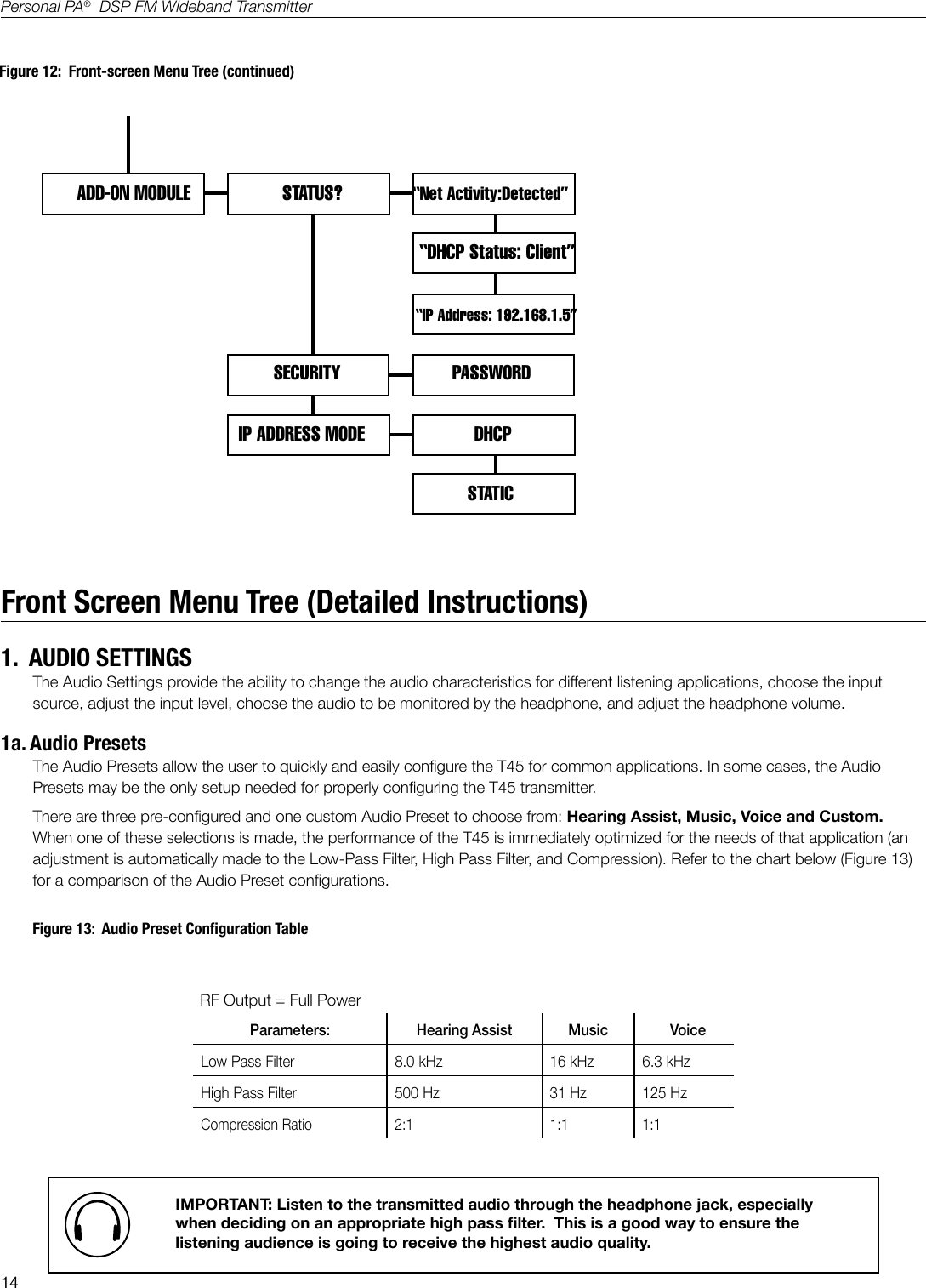
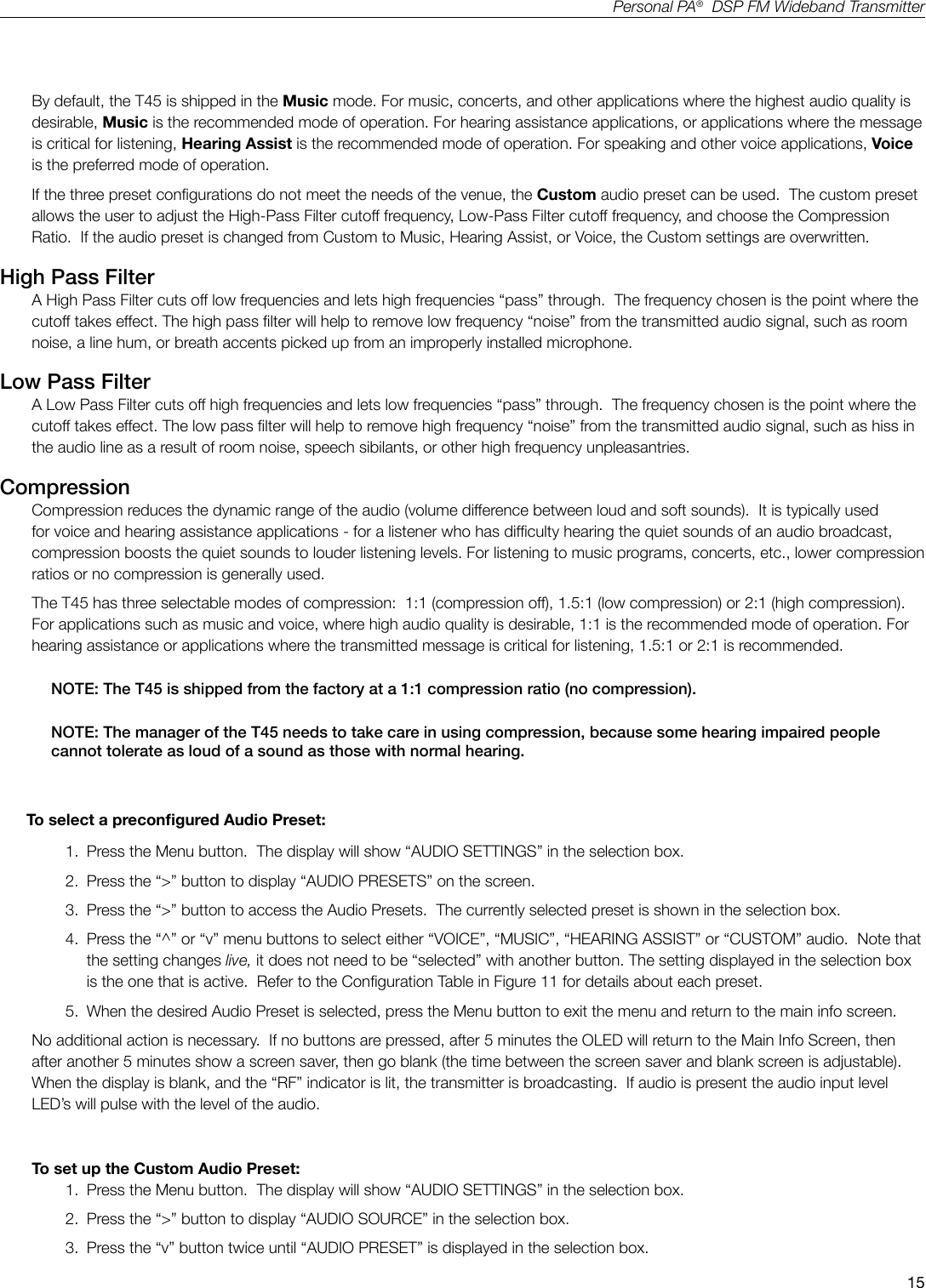
14Personal PA®  DSP FM Wideband TransmitterFront Screen Menu Tree (Detailed Instructions)1.  AUDIO SETTINGSThe Audio Settings provide the ability to change the audio characteristics for different listening applications, choose the input source, adjust the input level, choose the audio to be monitored by the headphone, and adjust the headphone volume.  1a. Audio PresetsThe Audio Presets allow the user to quickly and easily congure the T45 for common applications. In some cases, the Audio Presets may be the only setup needed for properly conguring the T45 transmitter.There are three pre-congured and one custom Audio Preset to choose from: Hearing Assist, Music, Voice and Custom.  When one of these selections is made, the performance of the T45 is immediately optimized for the needs of that application (an adjustment is automatically made to the Low-Pass Filter, High Pass Filter, and Compression). Refer to the chart below (Figure 13) for a comparison of the Audio Preset congurations.RF Output = Full PowerParameters: Hearing Assist Music   VoiceLow Pass Filter 8.0 kHz 16 kHz 6.3 kHzHigh Pass Filter 500 Hz 31 Hz 125 HzCompression Ratio 2:1 1:1 1:1ADD-ON MODULESECURITYIP ADDRESS MODESTATUS? “Net Activity:Detected”“DHCP Status: Client”“IP Address: 192.168.1.5”PASSWORDDHCPSTATICFigure 12:  Front-screen Menu Tree (continued)Figure 13:  Audio Preset Conguration TableIMPORTANT: Listen to the transmitted audio through the headphone jack, especially when deciding on an appropriate high pass lter.  This is a good way to ensure the listening audience is going to receive the highest audio quality.
15Personal PA®  DSP FM Wideband TransmitterRF Output = Full PowerParameters: Hearing Assist Music   VoiceLow Pass Filter 8.0 kHz 16 kHz 6.3 kHzHigh Pass Filter 500 Hz 31 Hz 125 HzCompression Ratio 2:1 1:1 1:1By default, the T45 is shipped in the Music mode. For music, concerts, and other applications where the highest audio quality is desirable, Music is the recommended mode of operation. For hearing assistance applications, or applications where the message is critical for listening, Hearing Assist is the recommended mode of operation. For speaking and other voice applications, Voice is the preferred mode of operation. If the three preset congurations do not meet the needs of the venue, the Custom audio preset can be used.  The custom preset allows the user to adjust the High-Pass Filter cutoff frequency, Low-Pass Filter cutoff frequency, and choose the Compression Ratio.  If the audio preset is changed from Custom to Music, Hearing Assist, or Voice, the Custom settings are overwritten.High Pass FilterA High Pass Filter cuts off low frequencies and lets high frequencies “pass” through.  The frequency chosen is the point where the cutoff takes effect. The high pass lter will help to remove low frequency “noise” from the transmitted audio signal, such as room noise, a line hum, or breath accents picked up from an improperly installed microphone.  Low Pass FilterA Low Pass Filter cuts off high frequencies and lets low frequencies “pass” through.  The frequency chosen is the point where the cutoff takes effect. The low pass lter will help to remove high frequency “noise” from the transmitted audio signal, such as hiss in the audio line as a result of room noise, speech sibilants, or other high frequency unpleasantries. CompressionCompression reduces the dynamic range of the audio (volume difference between loud and soft sounds).  It is typically used for voice and hearing assistance applications - for a listener who has difculty hearing the quiet sounds of an audio broadcast, compression boosts the quiet sounds to louder listening levels. For listening to music programs, concerts, etc., lower compression ratios or no compression is generally used. The T45 has three selectable modes of compression:  1:1 (compression off), 1.5:1 (low compression) or 2:1 (high compression). For applications such as music and voice, where high audio quality is desirable, 1:1 is the recommended mode of operation. For hearing assistance or applications where the transmitted message is critical for listening, 1.5:1 or 2:1 is recommended.  NOTE: The T45 is shipped from the factory at a 1:1 compression ratio (no compression).  NOTE: The manager of the T45 needs to take care in using compression, because some hearing impaired people cannot tolerate as loud of a sound as those with normal hearing.       To select a precongured Audio Preset:1.  Press the Menu button.  The display will show “AUDIO SETTINGS” in the selection box.2.  Press the “>” button to display “AUDIO PRESETS” on the screen.3.  Press the “>” button to access the Audio Presets.  The currently selected preset is shown in the selection box.4.  Press the “^” or “v” menu buttons to select either “VOICE”, “MUSIC”, “HEARING ASSIST” or “CUSTOM” audio.  Note that the setting changes live, it does not need to be “selected” with another button. The setting displayed in the selection box is the one that is active.  Refer to the Conguration Table in Figure 11 for details about each preset.5.  When the desired Audio Preset is selected, press the Menu button to exit the menu and return to the main info screen.No additional action is necessary.  If no buttons are pressed, after 5 minutes the OLED will return to the Main Info Screen, then after another 5 minutes show a screen saver, then go blank (the time between the screen saver and blank screen is adjustable).   When the display is blank, and the “RF” indicator is lit, the transmitter is broadcasting.  If audio is present the audio input level LED’s will pulse with the level of the audio.To set up the Custom Audio Preset:1.  Press the Menu button.  The display will show “AUDIO SETTINGS” in the selection box.2.  Press the “>” button to display “AUDIO SOURCE” in the selection box.3.  Press the “v” button twice until “AUDIO PRESET” is displayed in the selection box.
16Personal PA®  DSP FM Wideband Transmitter4.  Press the “>” button to access the Audio Presets.  The current preset will be shown in the selection box.5.  Press the “^” or “v” button until “CUSTOM” is displayed in the selection box.6.  Press the “>” button to access the Custom Audio Preset.  The current High Pass Filter setting will be displayed in the selection box.7.  Press the “^” or “v” button until the desired High Pass Cutoff Frequency is shown in the selection box.  Press the “^” menu button to decrease the cutoff frequency, or the “v” button to increase the cutoff frequency. Each time the “^” or “v” button is pressed, the cutoff frequency will be changed by 1/2 octave. This can be repeated until the cutoff frequency reaches the minimum of 31 Hz, or maximum of 630 Hz.  Note that the setting changes live, it does not need to be “selected” with another button. The setting displayed in the selection box is the one that is active. 8.  Press the “>” button to access the Compression Setting.9.  Press the “^” or “v” button until the desired Compression Ratio is shown in the selection box. Press the “^” or “v” button to change the compression ratio to 1:1, 1.5:1 or 2:1.  Note that the setting changes live, it does not need to be “selected” with another button. The setting displayed in the selection box is the one that is active. 10. Press the “>” button to access the Low Pass Filter Setting.11. Press the “^” or “v” button until the desired Low Pass Cutoff Frequency is shown in the selection box. Press the “^” button to increase the cutoff frequency, or the “v” menu button to decrease the cutoff frequency. Each time the “^” or “v” button is pressed, the cutoff frequency will be changed by 1/2 octave. This can be repeated until the cutoff frequency reaches the minimum at 3.5 KHz, or maximum at 20 KHz.  Note that the setting changes live, it does not need to be “selected” with another button. The setting displayed in the selection box is the one that is active. 12. When the desired settings have been changed, press the Menu button to exit the menu and return to the Main Info Screen.No additional action is necessary.  If no buttons are pressed, after 5 minutes the OLED will return to the Main Info Screen, then after another 5 minutes show a screen saver, then go blank (the time between the screen saver and blank screen is adjustable).   When the display is blank, and the “RF” indicator is lit, the transmitter is broadcasting.  If audio is present the audio input level LED’s will pulse with the level of the audio.1b.  Audio SourceThe Audio Source menu is used to congure the T45 for the audio source jack and type of source that will be used. The audio source must be congured in the menu before plugging the source into the jack. The transmitter will accept the following audio sources:• Balanced Microphone on a 3-pin (XLR) connector without phantom power.• Balanced Microphone on a 3-pin (XLR) connector with 12 volt phantom power.• Balanced/Unbalanced microphone on 1/4 inch jack without phantom power.• Balanced/Unbalanced microphone on 1/4 inch jack with 12 volt phantom power.• Balanced/Unbalanced Line on a 3-pin (XLR) connector.• Balanced/Unbalanced Line on 1/4 inch jack.• Digital Audio (AES/EBU) on a 3-pin (XLR) connector (44.1 or 48 KHz sample rate).• Digital Audio (S/PDIF) on an RCA jack (44.1 or 48 KHz sample rate).The Audio Source menu has ve possible selections to choose from: Analog Line In, Mic, Phantom Mic +12V, Digital AES/EBU, or Digital S/PDIF.  To select the audio source:1.  Press the Menu button.  The display will show “AUDIO SETTINGS” in the selection box.2.  Press the “>” button to display “AUDIO SOURCE” in the selection box.3.  Press the “>” button to access the Audio Sources.  The current audio source will be shown in the selection box.4.  Press the “^” or “v” button until the desired audio source is displayed in the selection box.  5.  When the desired audio source has been selected, press the Menu button to exit the menu and return to the Main Info
17Personal PA®  DSP FM Wideband TransmitterScreen.  At this point you can plug the source into the jack on the back of the T45.No additional action is necessary.  If no buttons are pressed, after 5 minutes the OLED will return to the Main Info Screen, then after another 5 minutes show a screen saver, then go blank (the time between the screen saver and blank screen is adjustable).   When the display is blank, and the “RF” indicator is lit, the transmitter is broadcasting.  If audio is present the audio input level LED’s will pulse with the level of the audio.1c.  Audio Input GainThe Audio Input Gain adjusts the incoming audio level into the T45.  This adjustment only affects analog audio; it does not affect digital audio.  Changes to the input level will affect the level indicated by the front panel LED’s when audio is present. To adjust the audio input level:1.  Press the Menu button. The display will show “AUDIO SETTINGS” in the selection box.2.  Press the “>” button to display “AUDIO SOURCE” on the screen.3.  Press the “v” button repeatedly until “INPUT LEVEL” is displayed in the selection box.4.  Press the “>” button to access the Input Level.  The currently selected level will be shown in the selection box.5.  With the audio source playing, adjust the Input Level so that the green “0 dB” LED generally lights and the red “+9 dB” LED lights occasionally. Press the “^” or “v” menu buttons to adjust the level from 0dB to -50dB in steps of 1dB.  Note that the settings change live, they do not need to be “selected” with another button. The setting displayed in the selection box is the one that is active. 6.  When the desired audio level is reached, press the Menu button to exit the menu and return to the main info screen.No additional action is necessary.  If no buttons are pressed, after 5 minutes the OLED will return to the Main Info Screen, then after another 5 minutes show a screen saver, then go blank (the time between the screen saver and blank screen is adjustable).   When the display is blank, and the “RF” indicator is lit, the transmitter is broadcasting.  If audio is present the audio input level LED’s will pulse with the level of the audio.1d.  Headphone SourceThe Headphone Source setting allows either input audio or transmitted audio to be monitored through the headphone jack.To change the headphone source:1.  Press the Menu button. The display will show “AUDIO SETTINGS” in the selection box.2.  Press the “>” button to display “AUDIO SOURCE” on the screen.3.  Press the “v” button repeatedly until “HEADPHONE SOURCE” is displayed in the selection box.4.  Press the “>” button to access the Headphone Sources.  The currently selected source will be shown in the selection box.5.  Press the “^” or “v” menu buttons to select either “INPUT” or “TRANSMITTED” audio.  If a Digital Source is being transmitted, the only selection possible for the headphone is transmitted audio, because digital audio has to be processed before it can be listened to. Note that the setting changes live, it does not need to be “selected” with another button. The setting displayed in the selection box is the one that is active. 6.  When the desired headphone source is selected, press the Menu button to exit the menu and return to the main info screen.No additional action is necessary.  If no buttons are pressed, after 5 minutes the OLED will return to the Main Info Screen, then after another 5 minutes show a screen saver, then go blank (the time between the screen saver and blank screen is adjustable).   When the display is blank, and the “RF” indicator is lit, the transmitter is broadcasting.  If audio is present the audio input level LED’s will pulse with the level of the audio.1e.  Headphone VolumeThe headphone volume level can be increased or decreased by using the “Headphone Volume” setting in the menu. To adjust the headphone volume:1.  Press the Menu button. The display will show “AUDIO SETTINGS” in the selection box.
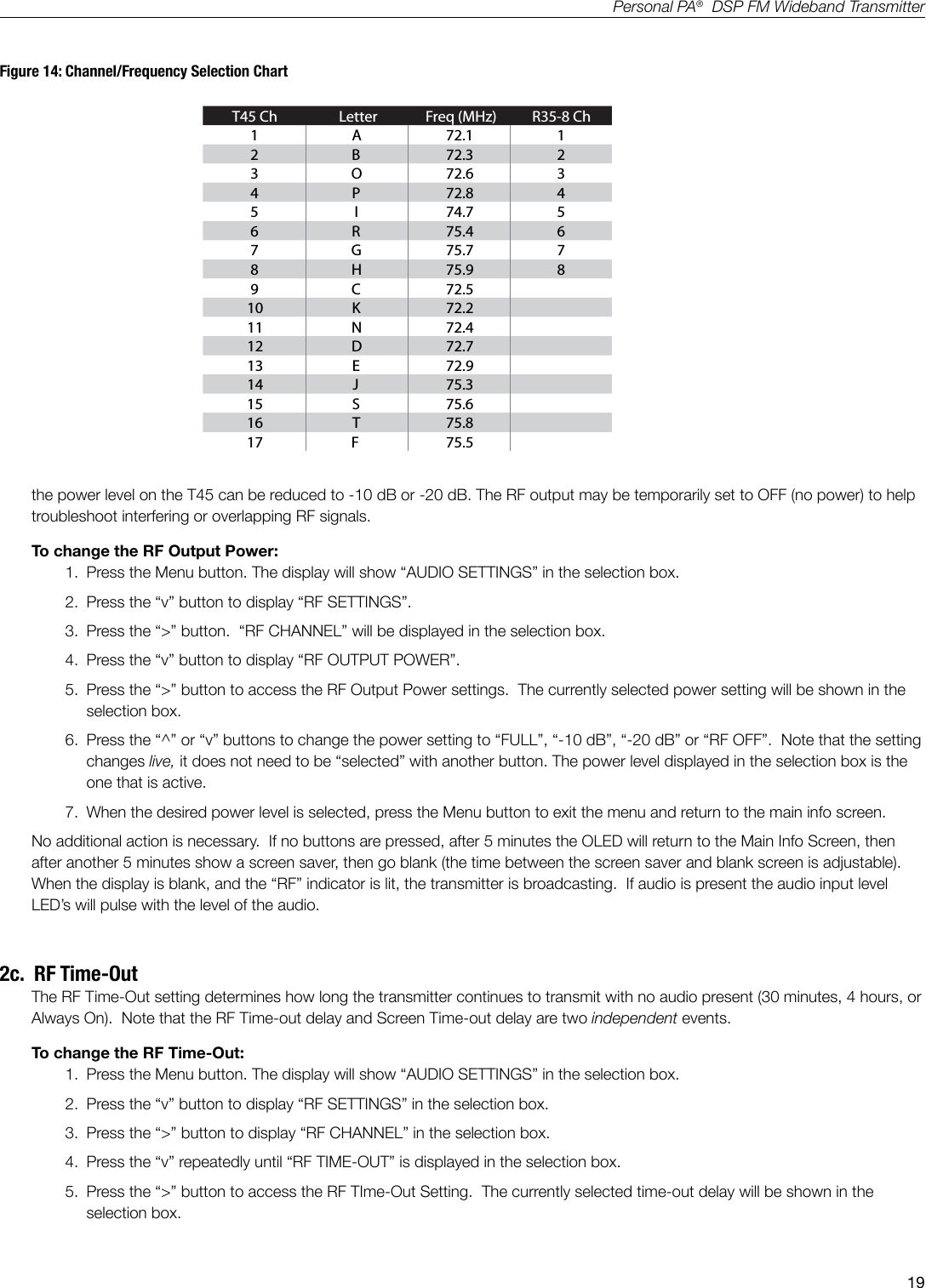
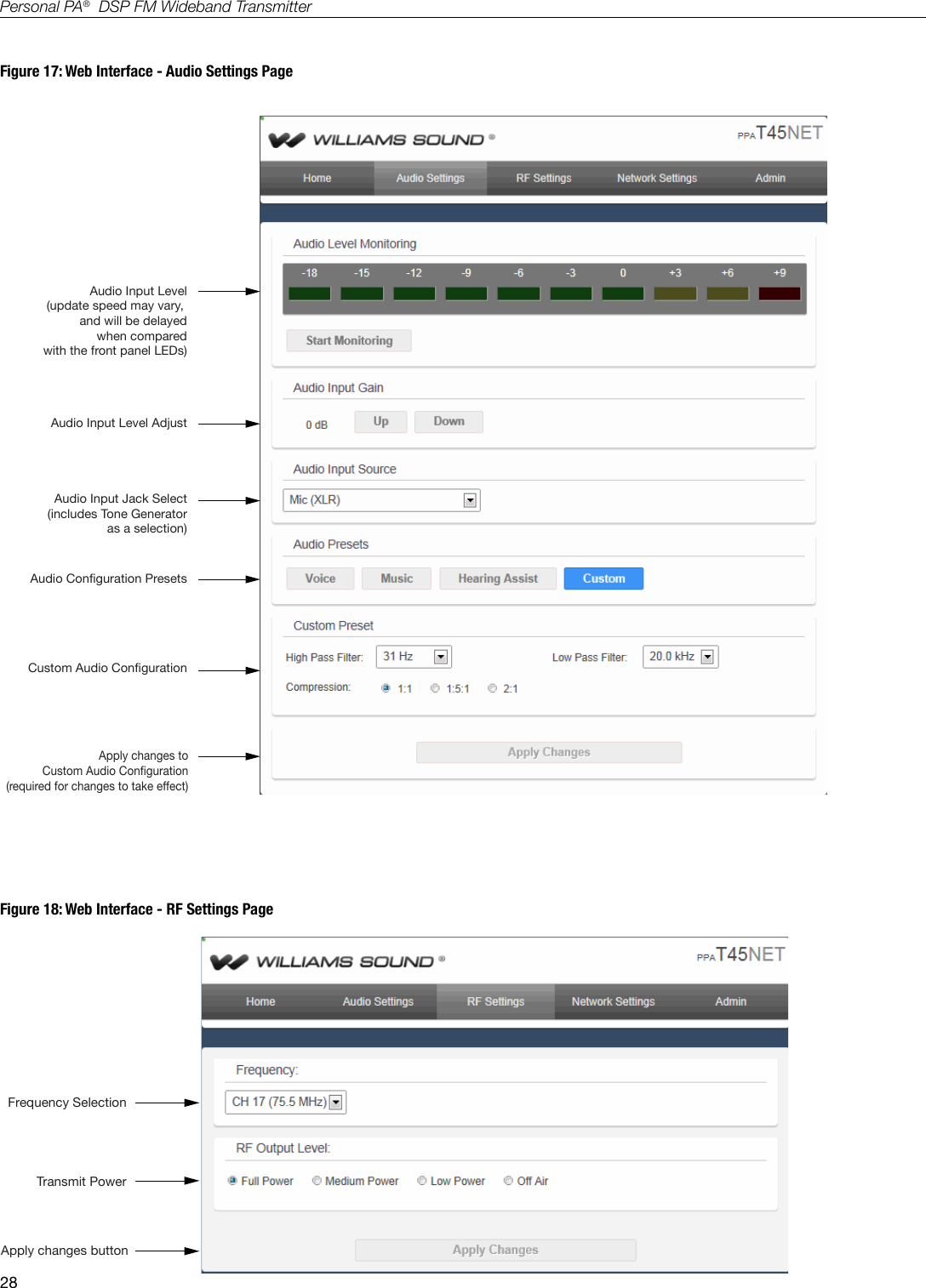
18Personal PA®  DSP FM Wideband Transmitter2.  Press the “>” button to display “AUDIO SOURCE” in the selection box.3.  Press the “v” button repeatedly until “HEADPHONE VOLUME” is displayed in the selection box.4.  Press the “>” button to access the Headphone Volume setting.  The current volume level will be shown in the selection box.5.  Press the “^” button to raise the volume in 2 dB steps, or the “v” button to lower the volume in 2 dB steps.  Note that the volume changes live, it does not need to be “selected” with another button. The volume level displayed in the selection box is the one that is active. 6.  When the desired headphone volume is reached, press the Menu button to exit the menu and return to the main info screen.No additional action is necessary.  If no buttons are pressed, after 5 minutes the OLED will return to the Main Info Screen, then after another 5 minutes show a screen saver, then go blank (the time between the screen saver and blank screen is adjustable).   When the display is blank, and the “RF” indicator is lit, the transmitter is broadcasting.  If audio is present the audio input level LED’s will pulse with the level of the audio.2.  RF SETTINGSThe RF Settings provide the ability to change the broadcasting Channel, RF Output Power level, and the RF time-out delay.  2a.  Channel (or Frequency)The Channel setting allows the channel number or corresponding frequency to be selected.  Note: this depends on what display mode the transmitter is in (see Step 3a).  If the transmitter is in channel display mode, channels 1-17 can be selected.  If the transmitter is in frequency display mode, frequencies can be selected from 72.1 MHz to 75.5 MHz in 0.1 MHz steps. To change the channel/frequency:1.  Press the Menu button. The display will show “AUDIO SETTINGS” in the selection box.2.  Press the “v” button to display “RF SETTINGS”.3.  Press the “>” button.  “RF CHANNEL” will be displayed in the selection box.4.  Press the “>” button to access the Channels/Frequencies.  The currently selected Channel/Frequency will be shown in the selection box.5.  Press the “^” or “v” buttons to change the channel/frequency.  Note that the channel changes live, it does not need to be “selected” with another button. The channel/frequency displayed in the selection box is the one that is active.  Refer to the chart below to choose the channel/frequency (Figure 14).6.  When the desired channel/frequency is selected, press the Menu button to exit the menu and return to the main info screen.No additional action is necessary.  If no buttons are pressed, after 5 minutes the OLED will return to the Main Info Screen, then after another 5 minutes show a screen saver, then go blank (the time between the screen saver and blank screen is adjustable).   When the display is blank, and the “RF” indicator is lit, the transmitter is broadcasting.  If audio is present the audio input level LED’s will pulse with the level of the audio.The T45 is shipped from the factory with the frequency pre-set to Channel 1 (72.1 MHz). 2b.  RF Output PowerThe T45 has three selectable transmitter power levels: FULL, -10dB, -20 dB, or RF OFF. By default the T45 is set to “FULL” power mode. For general listening applications, “FULL” power is the preferred mode of operation. Full power provides the T45 with an operating range of up to 1000 ft (dependent on the environment).For special listening applications, it may be desirable to reduce the overall operating range on the T45 if: 1) The audio transmission is to be contained to a “smaller” listening area; 2) The signal is too strong and it is overloading the receiver; or 3) Multiple T45 transmitters are used in adjacent classrooms where the FM signals overlap each other. In these cases,
19Personal PA®  DSP FM Wideband TransmitterFigure 14: Channel/Frequency Selection ChartT45 Ch Letter Freq (MHz) R35-8 Ch1 A 72.1 12 B 72.3 23 O 72.6 34 P 72.8 45 I 74.7 56 R 75.4 67 G 75.7 78 H 75.9 89 C 72.510 K 72.211 N 72.412 D 72.713 E 72.914 J 75.315 S 75.616 T 75.817 F 75.5A376A425the power level on the T45 can be reduced to -10 dB or -20 dB. The RF output may be temporarily set to OFF (no power) to help troubleshoot interfering or overlapping RF signals.To change the RF Output Power:1.  Press the Menu button. The display will show “AUDIO SETTINGS” in the selection box.2.  Press the “v” button to display “RF SETTINGS”.3.  Press the “>” button.  “RF CHANNEL” will be displayed in the selection box.4.  Press the “v” button to display “RF OUTPUT POWER”. 5.  Press the “>” button to access the RF Output Power settings.  The currently selected power setting will be shown in the selection box.6.  Press the “^” or “v” buttons to change the power setting to “FULL”, “-10 dB”, “-20 dB” or “RF OFF”.  Note that the setting changes live, it does not need to be “selected” with another button. The power level displayed in the selection box is the one that is active.7.  When the desired power level is selected, press the Menu button to exit the menu and return to the main info screen.No additional action is necessary.  If no buttons are pressed, after 5 minutes the OLED will return to the Main Info Screen, then after another 5 minutes show a screen saver, then go blank (the time between the screen saver and blank screen is adjustable).   When the display is blank, and the “RF” indicator is lit, the transmitter is broadcasting.  If audio is present the audio input level LED’s will pulse with the level of the audio.2c.  RF Time-OutThe RF Time-Out setting determines how long the transmitter continues to transmit with no audio present (30 minutes, 4 hours, or Always On).  Note that the RF Time-out delay and Screen Time-out delay are two independent events.To change the RF Time-Out:1.  Press the Menu button. The display will show “AUDIO SETTINGS” in the selection box.2.  Press the “v” button to display “RF SETTINGS” in the selection box.3.  Press the “>” button to display “RF CHANNEL” in the selection box. 4.  Press the “v” repeatedly until “RF TIME-OUT” is displayed in the selection box. 5.  Press the “>” button to access the RF TIme-Out Setting.  The currently selected time-out delay will be shown in the selection box.
20Personal PA®  DSP FM Wideband Transmitter6.  Press the “^” or “v” buttons to change the RF Time-Out to “30 MINUTES”, “4 HOURS”, or “ALWAYS ON”.  Note that the setting changes live, it does not need to be “selected” with another button. The time-out delay displayed in the selection box is the one that is active.  7.  When the desired time-out delay is selected, press the Menu button to exit the menu and return to the main info screen.No additional action is necessary.  If no buttons are pressed, after 5 minutes the OLED will return to the Main Info Screen, then after another 5 minutes show a screen saver, then go blank (the time between the screen saver and blank screen is adjustable).   When the display is blank, and the “RF” indicator is lit, the transmitter is broadcasting.  If audio is present the audio input level LED’s will pulse with the level of the audio.REMINDER: If the lock icon   is displayed on the default display, the menu screens are locked, and you will not be able to make changes. To unlock the menu screens, refer to the instructions on page 11.3.  PREFERENCESThe Preferences Settings provide the ability to change the Display Mode, Channel Mode, Screen Time-Out, Device Description, or Restore Factory Default Settings.  3a.  Display ModeThe Display Mode setting determines (1) whether the channel or frequency is larger on the front display of the transmitter and (2) whether frequency or channel is displayed as the adjustment under the “RF CHANNEL” setting (see step 2a).To change the Display Mode:1.  Press the Menu button. The display will show “AUDIO SETTINGS” in the selection box.2.  Press the “v” button repeatedly until “PREFERENCES” is displayed in the selection box.3.  Press the “>” button to access the Preferences.4.  Press the “>” button to access the “DISPLAY MODE” Setting.  The currently selected display mode will be shown in the selection box.5.  Press the “^” or “v” buttons to change the Display Mode to “FREQUENCY” or “CHANNEL NUMBER”.  Note that the setting changes live, it does not need to be “selected” with another button. The setting displayed in the selection box is the one that is active.  6.  When the desired display mode is selected, press the Menu button to exit the menu and return to the main info screen.No additional action is necessary.  If no buttons are pressed, after 5 minutes the OLED will return to the Main Info Screen, then after another 5 minutes show a screen saver, then go blank (the time between the screen saver and blank screen is adjustable).   When the display is blank, and the “RF” indicator is lit, the transmitter is broadcasting.  If audio is present the audio input level LED’s will pulse with the level of the audio.3b.  Channel ModeThe Channel Mode changes the range of selectable channels from all 17 channels to the 8 non-interfering channels. This comes into play when multiple transmitters are in use, serving multiple groups of listeners.  8-Channel mode allows the user to choose one of the 8 non-interfering channels for simultaneous transmission from multiple transmitters, i.e. Transmitter #1 on Channel 1, Transmitter #2 on Ch. 2, Transmitter #3 on Ch. 3, etc.To change the Display Mode:1.  Press the Menu button. The display will show “AUDIO SETTINGS” in the selection box.2.  Press the “v” button repeatedly until “PREFERENCES” is displayed in the selection box.3.  Press the “>” button to access the Preferences.4.  Press the “v” button until “CHANNEL MODE” is displayed in the selection box.5.  Press the “>” button to access the “CHANNEL MODE” Setting.  The currently selected channel mode will be shown in the selection box.
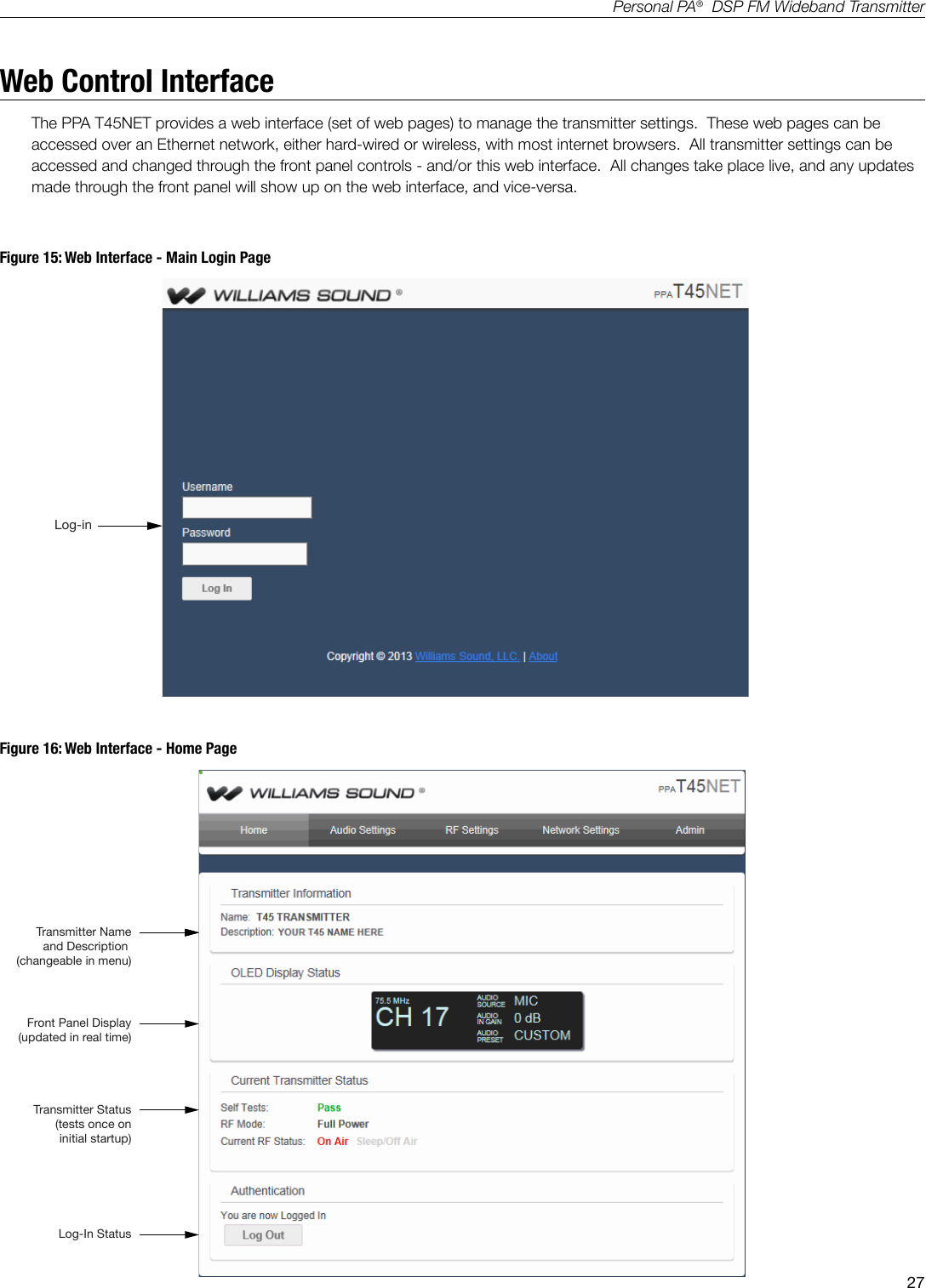
21Personal PA®  DSP FM Wideband Transmitter6.  Press the “^” or “v” buttons to change the Channel Mode from “17” to “8”.  Note that the setting changes live, it does not need to be “selected” with another button. The setting displayed in the selection box is the one that is active.  7.  When the desired channel mode is selected, press the Menu button to exit the menu and return to the main info screen.No additional action is necessary.  If no buttons are pressed, after 5 minutes the OLED will return to the Main Info Screen, then after another 5 minutes show a screen saver, then go blank (the time between the screen saver and blank screen is adjustable).   When the display is blank, and the “RF” indicator is lit, the transmitter is broadcasting.  If audio is present the audio input level LED’s will pulse with the level of the audio.3c.  Screen Time-OutThe Screen Time-Out setting determines how long the transmitter displays the screen saver.  The transmitter waits for 60 seconds after no activity (button pushes) on the front panel, then displays the screen saver.  After displaying the screen saver for the period of time set here, the transmitter display will go blank. Note that the Screen Time-out delay and RF Time-out delay are two independent events.To change the Display Mode:1.  Press the Menu button. The display will show “AUDIO SETTINGS” in the selection box.2.  Press the “v” button repeatedly until “PREFERENCES” is displayed in the selection box.3.  Press the “>” button to access the Preferences.4.  Press the “v” button until “SCREEN TIME-OUT” is displayed in the selection box.5.  Press the “>” button to access the “SCREEN TIME-OUT” Setting.  The currently selected time period will be shown in the selection box.6.  Press the “^” or “v” buttons to change the Screen Time-Out setting to “10 MINUTES”, 30 MINUTES” or “2 Hours”.  Note that the setting changes live, it does not need to be “selected” with another button. The setting displayed in the selection box is the one that is active.  7.  When the desired screen time-out period is selected, press the Menu button to exit the menu and return to the main info screen.No additional action is necessary.  If no buttons are pressed, after 5 minutes the OLED will return to the Main Info Screen, then after another 5 minutes show a screen saver, then go blank (the time between the screen saver and blank screen is adjustable).   When the display is blank, and the “RF” indicator is lit, the transmitter is broadcasting.  If audio is present the audio input level LED’s will pulse with the level of the audio.3d.  Transmitter DescriptionThe Description eld allows the user to easily identify the transmitter.  This typically comes into play when multiple transmitters are being used.  The description appears on the front main info screen, and also on the web page (PPA T45NET only).  In a rack, all the user has to do is activate the main info screen with a touch of any button on the front, and the description is displayed as one of the elds on the main info screen.  On the web interface (PPA T45NET only), the description appears on the Home page (Figure 16), making it easy to identify the transmitter if the IP address is not known.To change the Description:1.  Press the Menu button. The display will show “AUDIO SETTINGS” in the selection box.2.  Press the “v” button repeatedly until “PREFERENCES” is displayed in the selection box.3.  Press the “>” button to access the Preferences.4.  Press the “v” button repeatedly until “DESCRIPTION” is displayed in the selection box.5.  Press the “>” button to access the “DESCRIPTION” eld.  The screen will have a blinking underline under the rst character position.  If a description was previously entered, the character positions will already be lled with the current name.  Note: The default Description “YOUR T45 NAME HERE” will not show on the Main Info Screen unless it has changed.  When the Desription is changed to all spaces, this will also prevent a description form appearing on the Main Info Screen as well.
22Personal PA®  DSP FM Wideband Transmitter6.  Press the “^” or “v” buttons to scroll through the characters.7.  Press the “>” button to advance to the next position.8.  Repeat steps 6 and 7 until the last character is changed.9.  Press the “>” button to exit out of the description eld.  The new description is now active.10.   Press the Menu button to exit the menu and return to the main info screen.No additional action is necessary.  If no buttons are pressed, after 5 minutes the OLED will return to the Main Info Screen, then after another 5 minutes show a screen saver, then go blank (the time between the screen saver and blank screen is adjustable).   When the display is blank, and the “RF” indicator is lit, the transmitter is broadcasting.  If audio is present the audio input level LED’s will pulse with the level of the audio.3e.  Restore DefaultsThe Restore Defaults action will restore the transmitter to it’s original factory settings.  This includes the Audio Preset, Inout Source, Input Level, Headphone Source, Channel/Freq, Output Power, RF Time-Out, Display Mode, Channel Mode, Screen Time-Out, and Description.  If the optional ethernet module is installed, it will also reset the IP address, IP Address Mode, and Security Password. To restore the transmitter to it’s factory default settings:1.  Press the Menu button. The display will show “AUDIO SETTINGS” in the selection box.2.  Press the “v” button repeatedly until “PREFERENCES” is displayed in the selection box.3.  Press the “>” button to access the Preferences.4.  Press the “v” button until “RESTORE DEFAULTS” is displayed in the selection box.5.  Press the “>” button to access the “RESTORE DEFAULTS” Setting.  The currently selected choice “YES” will be shown in the selection box.6.  If “YES” is desired, push the “>” button to perform the reset.  If “NO” is desired, push the “<” button to step back out of this setting, or press the Menu button to exit back to the Main Info Screen without resetting the transmitter.7.  If “YES” was selected in step 6, the transmitter is now resetting and re-booting.  If “NO” was selected in step 6, press the Menu button to exit the menu and return to the main info screen.No additional action is necessary.  If no buttons are pressed, after 5 minutes the OLED will return to the Main Info Screen, then after another 5 minutes show a screen saver, then go blank (the time between the screen saver and blank screen is adjustable).   When the display is blank, and the “RF” indicator is lit, the transmitter is broadcasting.  If audio is present the audio input level LED’s will pulse with the level of the audio.4.  ADD-ON MODULE (PPA T45NET only)The Add-On Module Settings show up in the menu only if the optional ethernet module is installed (PPA T45NET only). This menu provides the ability to view the Status of the add-on module, change the IP Address, change the IP Address Mode and set the Security Password.  4a.  StatusThe Status screen shows whether or not network activity is detected, and the current IP Address.To view the Status:1.  Press the Menu button. The display will show “AUDIO SETTINGS” in the selection box.2.  Press the “v” button repeatedly until “ADD-ON-MODULE” is displayed in the selection box.3.  Press the “>” button to access the Add-On Module settings.4.  The selection box will have “STATUS” selected. Press the “>” button to access the “STATUS” screen.  The current information will be shown.5.  When done viewing the status, press the Menu button to exit the menu and return to the main info screen.
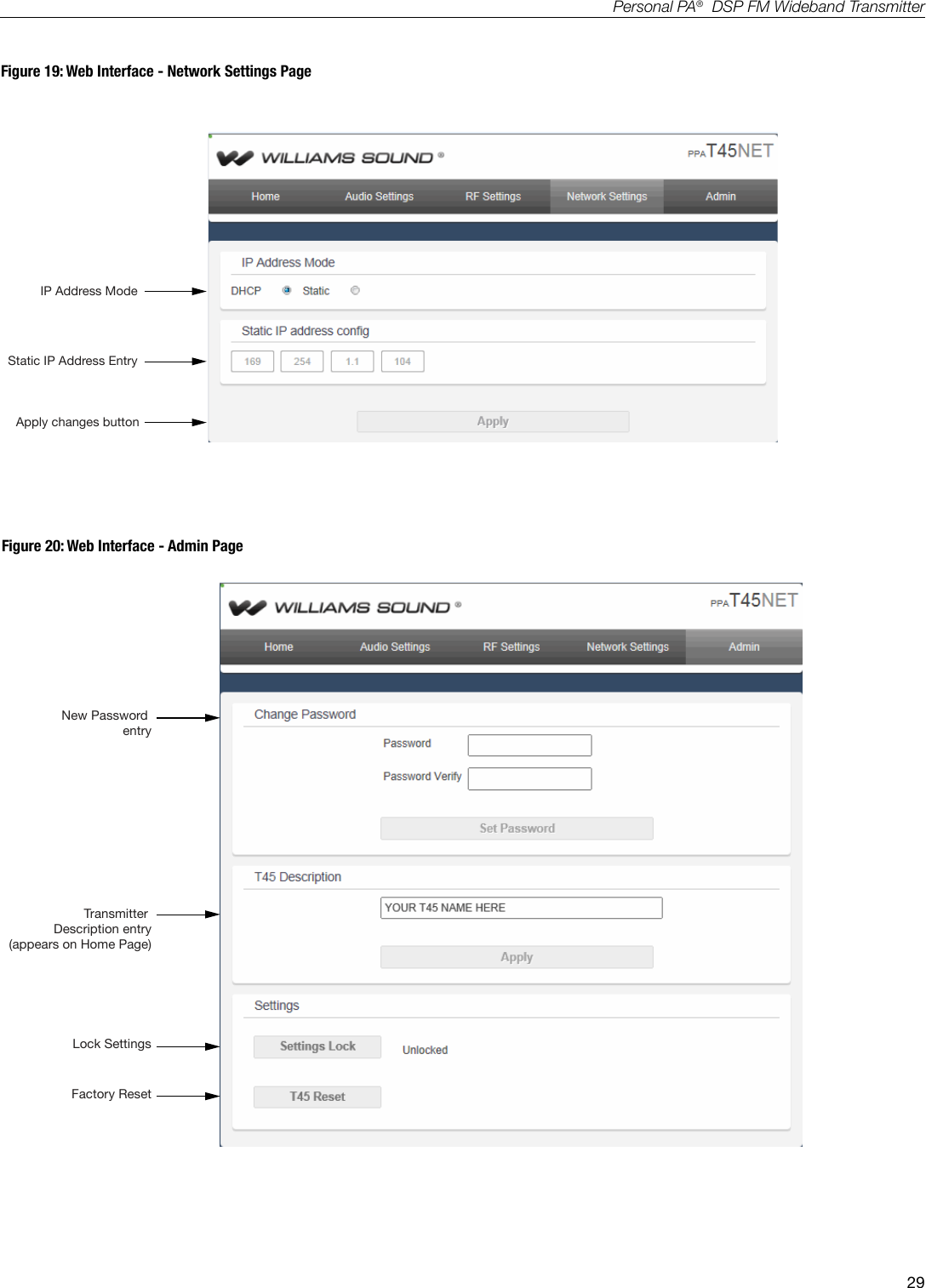
23Personal PA®  DSP FM Wideband TransmitterNo additional action is necessary.  If no buttons are pressed, after 5 minutes the OLED will return to the Main Info Screen, then after another 5 minutes show a screen saver, then go blank (the time between the screen saver and blank screen is adjustable).   When the display is blank, and the “RF” indicator is lit, the transmitter is broadcasting.  If audio is present the audio input level LED’s will pulse with the level of the audio.4b.  SecurityThe Security screen is where the ethernet access password can be set.  This password is used when logging-on to the transmitter via the web interface.  Note this password can also be set/changed through the web interface.To change the Security Password:1.  Press the Menu button. The display will show “AUDIO SETTINGS” in the selection box.2.  Press the “v” button repeatedly until “PREFERENCES” is displayed in the selection box.3.  Press the “>” button to access the Preferences.4.  Press the “v” button repeatedly until “SECURITY” is displayed in the selection box.5.  Press the “>” button to access the “SECURITY” eld.  The screen will have a blinking underline under the rst character position.  If a description was previously entered, the character positions will already be lled with the current name.6.  Press the “^” or “v” buttons to scroll through the characters.7.  Press the “>” button to advance to the next position.8.  Repeat steps 6 and 7 until the last character is changed.9.  Press the “>” button to exit out of the description eld.  The new description is now active.10.  Press the Menu button to exit the menu and return to the main info screen.No additional action is necessary.  If no buttons are pressed, after 5 minutes the OLED will return to the Main Info Screen, then after another 5 minutes show a screen saver, then go blank (the time between the screen saver and blank screen is adjustable).   When the display is blank, and the “RF” indicator is lit, the transmitter is broadcasting.  If audio is present the audio input level LED’s will pulse with the level of the audio.4c.  IP Address ModeThe IP Address Mode setting allows the transmitter to be set up for static or dynamic IP addressing.To change the IP Address Mode:1.  Press the Menu button. The display will show “AUDIO SETTINGS” in the selection box.2.  Press the “v” button repeatedly until “ADD-ON MODULE” is displayed in the selection box.3.  Press the “>” button to access the Add-On Module settings.4.  Press the “v” button repeatedly until “IP ADDRESS MODE” is displayed in the selection box.5.  Press the “>” button to access the IP Address Mode setting. The currently selected choice will be shown in the selection box.6.  Press the “^” or “v” buttons to change the setting to “STATIC” or “DHCP”.  Note that the setting changes live, it does not need to be “selected” with another button. The setting displayed in the selection box is the one that is active. 7.  When the mode has been chosen, press the Menu button to exit the menu and return to the main info screen.8.  If “DHCP” was chosen in step 7, the transmitter will need to be rebooted in order to get a new IP Address.  The transmitter should have power removed and reapplied to reboot.                                If “STATIC” was chosen in step 7, the IP address will need to be set.  Refer to the instructions for setting the IP Address.No additional action is necessary.  If no buttons are pressed, after 5 minutes the OLED will return to the Main Info Screen, then after another 5 minutes show a screen saver, then go blank (the time between the screen saver and blank screen is adjustable).   When the display is blank, and the “RF” indicator is lit, the transmitter is broadcasting.  If audio is present the audio input level LED’s will pulse with the level of the audio.
24Personal PA®  DSP FM Wideband Transmitter4d.  IP AddressThe IP Address eld is where the static IP Address is set.  In order to change the IP Address, the “IP Address Mode” must be set to “Static” before performing these steps.  If the IP Address mode is set to “DHCP”, you will not be able to change the IP address.To change the IP Address:1.  Press the Menu button. The display will show “AUDIO SETTINGS” in the selection box.2.  Press the “v” button repeatedly until “ADD-ON MODULE” is displayed in the selection box.3.  Press the “>” button to access the Add-On Module settings.4.  Press the “v” button repeatedly until “IP ADDRESS” is displayed in the selection box.5.  Press the “>” button to access the “IP ADDRESS” eld.  The screen will have a blinking underline under the rst character position.  If an IP Address was previously entered, or an address was automatically assigned by DHCP, the character positions will already be lled with the current IP Address.6.  Press the “^” or “v” buttons to scroll through the numbers.7.  Press the “>” button to advance to the next position.8.  Repeat steps 6 and 7 until the last number is changed.9.  Press the “>” button to exit out of the IP Address eld.  The new static IP Address is now active.10.   Press the Menu button to exit the menu and return to the main info screen.No additional action is necessary.  If no buttons are pressed, after 5 minutes the OLED will return to the Main Info Screen, then after another 5 minutes show a screen saver, then go blank (the time between the screen saver and blank screen is adjustable).   When the display is blank, and the “RF” indicator is lit, the transmitter is broadcasting.  If audio is present the audio input level LED’s will pulse with the level of the audio.
25Personal PA®  DSP FM Wideband TransmitterNetwork Setup for Hard-wired Ethernet Devices (Laptop or Desktop PC)The PPA T45NET provides a web interface (set of web pages) to manage the transmitter settings.  These web pages can be accessed over an ethernet network, either hard-wired (through a laptop or desktop PC) or wireless (through an iPad, Android tablet, or smart phone).  The web pages can be accessed with most internet browsers, like any website.  All of the settings that can be changed on the transmitter can be accessed and changed through the front panel controls - or the web pages.  Note that the web pages have a different look and feel than the front panel menu tree, but all of the same settings can be accessed. 1. It is assumed that the network has already been set up, and a laptop or desktop pc is connected on the network.2. Determine an appropriate IP address for the T45.   If using a dynamic IP Address, skip to step 4.a. If someone set up your network, they may be able to help you determine an appropriate IP address (i.e. network system administrator). b. There should be no other device having this same address on the network.   c. This will be an address on the same subnet as the router.d. For example, if the router’s address is 192.168.1.1, the rst three sets of numbers will be the same (i.e. 192.168.1), and the last number will be the number you determine for the T45 (i.e.  .100), making your IP address for the T45 “192.168.1.100”.   When you determine this address, remember or write it down.  You will need it for a later step.3. Set the IP Address for the T45 by using the controls on the front of the T45.a. Set the IP Address Mode to “STATIC” (not “DYNAMIC”).b. Enter the IP Address you determined in step 2.c. All settings in the T45 take place immediately (they change “live”). Exit the settings menu.4. Connect to the T45 with the Laptop or Desktop PC.a. Open the web browser on the Laptop or Desktop PC.b. In the address bar, type in the address of the T45 (from step 2) and hit “Enter”.c. You should see the Home Page of the T45 (see Figure 15 on page 28).5.  Verify control of the T45 by changing a setting using the computer, and watching it change on the T45 display.a.  An easy setting to verify is changing the channel (see Figure 18 page 29).6.  For easy access next time, build a “favorite” link to the T45 (just like you would for a favorite website). a. If you can’t make a link, you can always go back to the IP address (step 2) by going into the website history or typing in the rst few numbers of the address (i.e. “192.168”) into the address bar and it should see the link you recently visited.  This method is cumbersome, which is why a “favorite” link is suggested.Note: The procedure outlined here is a simple example of the basic steps required to set up control of the transmitter with a hard-wired computer.  Existing network topology, security, type of devices and network preferences all contribute to how the network may be set up.  Consult with a trained IT professional if you are unsure how you should set up network control.
26Personal PA®  DSP FM Wideband TransmitterNetwork Setup for Wireless Devices (iPad, Android Tablet, or Smart Phone)The PPA T45NET provides a web interface (set of web pages) to manage the transmitter settings.  These web pages can be accessed over an ethernet network, either hard-wired (through a laptop or desktop PC) or wireless (through an iPad, Android tablet, or smart phone).  The web pages can be accessed with most internet browsers, like any website.  All of the settings that can be changed on the transmitter can be accessed and changed through the front panel controls - or the web pages.  Note that the web pages have a different look and feel than the front panel menu tree. 1. Get the Router IP address, Router SSID (Wi-Fi broadcasted name) and Router Wi-Fi Password.a. If someone set up your network, you will need to get this information from them (i.e. network system administrator). Remember or write them down.  You will need these for later steps. 2. Determine an appropriate IP address for the T45.  a. If someone set up your network, they may be able to help you determine an appropriate IP address. b. There should be no other device having this same address on the network.   c. This will be an address on the same subnet as the router.d. For example, if the router’s address is 192.168.1.1, the rst three sets of numbers will be the same (i.e. 192.168.1), and the last number will be the number you determine for the T45 (i.e.  .100), making your IP address for the T45 “192.168.1.100”.   When you determine this address, remember or write it down.  You will need it for a later step.3. Set the IP Address for the T45 by using the controls on the front of the T45.a. Set the IP Mode to “Static” (not “Dynamic”).b. Enter the IP Address you determined in step 2.c. All settings in the T45 take place immediately (they change “live”). Exit the settings menu.4. Connect to the Router through Wi-Fi on the Wireless Device.a. Make sure the Wi-Fi is turned ONb. In Wi-Fi settings, look for the router SSID you got from step 1.c. Click on the Router SSID to connect to it.d. Enter the Router Wi-Fi password you got from step 1.e. The wireless device should now indicate that you are “connected” to the router.f. Exit all the way out of the settings back to the home screen on the wireless device.5. Connect to the T45 with the Wireless Device.a. Open the web browser on the wireless device (i.e. on the iPad: Safari)b. In the address bar of the browser, type in the address of the T45 (from step 2) and hit “Enter”.c. When you connect to the T45, you should see the Home Page (see Figure 15 on page 28).6.  Verify control of the T45 by changing a setting using the wireless device, and watching it change on the T45 display.a.  An easy setting to verify is changing the channel (see Figure 18 page 29).7.  For easy access next time, build a “favorite” link to the T45 (just like you would for a favorite website). a. If you can’t make a link, you can always go back to the IP address (step 2) by going into the website history or typing in the rst few numbers of the address (i.e. “192.168”) into the address bar and it should see the link you recently visited.  This method is cumbersome, which is why a “favorite” link is suggested.Note: The procedure outlined here is a simple example of the basic steps required to set up control of the transmitter with a wireless device.  Existing network topology, security, type of devices and network preferences all contribute to how the network may be set up.  Consult with a trained IT professional if you are unsure how you should set up network control.
27Personal PA®  DSP FM Wideband TransmitterWeb Control InterfaceThe PPA T45NET provides a web interface (set of web pages) to manage the transmitter settings.  These web pages can be accessed over an Ethernet network, either hard-wired or wireless, with most internet browsers.  All transmitter settings can be accessed and changed through the front panel controls - and/or this web interface.  All changes take place live, and any updates made through the front panel will show up on the web interface, and vice-versa.   A417Log-inFigure 15: Web Interface - Main Login PageFigure 16: Web Interface - Home PageA418Transmitter Nameand Description (changeable in menu)Transmitter Status(tests once on initial startup)Log-In StatusFront Panel Display (updated in real time)
28Personal PA®  DSP FM Wideband TransmitterFigure 17: Web Interface - Audio Settings PageFigure 18: Web Interface - RF Settings PageA419Audio Input Jack Select(includes Tone Generatoras a selection)Audio Input Level(update speed may vary, and will be delayed when compared with the front panel LEDs)Audio Input Level Adjust Audio Configuration PresetsCustom Audio ConfigurationApply changes toCustom Audio Configuration(required for changes to take effect)A420Frequency SelectionApply changes buttonTransmit Power
29Personal PA®  DSP FM Wideband TransmitterFigure 19: Web Interface - Network Settings PageFigure 20: Web Interface - Admin PageA421IP Address ModeApply changes buttonStatic IP Address EntryA422New Password entryTransmitter Description entry(appears on Home Page)Lock SettingsFactory Reset
30Personal PA®  DSP FM Wideband TransmitterReceiver Safety InformationHEARING SAFETYCAUTION!This product is designed to amplify sounds to a high volume level which could potentially cause hearing damage if used improperly. To protect your hearing and the hearing of others:1.  Make sure the volume is turned down before putting on the earphone or headphone before adjusting the volume to a comfortable level.2.  Set the volume level at the minimum setting that you need to hear. 3.  If you experience feedback (a squealing or howling sound), reduce the volume setting and move the microphone away from the earphone or headphone. 4.  Do not allow children or other unauthorized persons to have access to this product.BATTERY SAFETY AND DISPOSALCAUTION!This product may be supplied with alkaline batteries. Do not attempt to recharge alkaline batteries, which may explode, release dangerous chemicals, cause burns, or other serious harm to the user or product.PACEMAKER SAFETYCAUTION!1.  Before using this product with a pacemaker or other medical device, consult your physician or the manufacturer of your pacemaker or other medical device.2.  If you have a pacemaker or other medical device, make sure that you are using this product in accordance with safety guidelines established by your physician or the pacemaker manufacturer.Recycling InstructionsHelp Williams Sound protect the environment! Please take the time to dispose of your equipment properly.Product Recycling:Please do NOT dispose of your Williams Sound equipment in the household trash. Please take the equipment to a electronics recycling center; OR return the product to the factory for proper disposal.Battery Recycling:Please do NOT dispose of used batteries in the household trash. Please take the batteries to a retail or community collection point for recycling.
31Personal PA®  DSP FM Wideband TransmitterWideband FM Receivers (Model Selection is Optional)Receiver Model PPA R38PPA R38 is a 17-channel receiver operating on the 72-76 MHz bandwidth. Features include an easy to read graphic display, front buttons with easy access to menu functions, battery-saving Sleep/Auto-Off Mode, on/off volume control, power/low battery indicator, and stereo/mono earphone/headphone jack. Figure 21: PPA R38 Controls and DisplayA447R38 TOPPOWER BUTTON/LOW BATTERYINDICATORT46 FRONTLEFTARROWBUTTON RIGHTARROW BUTTONMENUBUTTONOLEDDISPLAYA309A430VOLUME LEVELBATTERY LIFECHANNEL (OR FREQ.)RF SIGNAL STRENGTH SETTINGS LOCKEDOperating the receiver1.  Insert two (2) AA batteries ensuring correct polarity. If rechargeable NiMH batteries are to be used with the receiver and a Williams Sound charger, make sure the Alkaline/NiMH switch inside the battery compartment is set to NiMH before charging.  (Figure 23). 2.  Insert the headphone, earphone or neckloop into the stereo output jack.3.  Turn receiver on with a push-and-hold of the power button. The power button will illuminate and the display will turn on.4.  Press the Menu button once to see the Channel set screen.  To seek an active transmitter, push-and-hold one of the left or right arrow buttons and the receiver will seek to nd an active transmitter channel.  If more than one transmitter is being used, push-and-hold the arrow button additional times until you locate the transmitter/channel you want to hear. The receiver will retain the channel setting when the unit is turned off.5.  For more information about the R38 receiver, refer to the PPA R38 User Manual.  You can download any of the receiver manuals from our website at www.williamssound.com.
32Personal PA®  DSP FM Wideband TransmitterOperating the PPA R37 Receiver1.  Insert two (2) AA batteries ensuring correct polarity. If rechargeable NiMH batteries are to be used with the receiver and a Williams Sound charger, make sure the Alkaline/NiMH switch inside the battery compartment is set to NiMH before charging. See FIG 13. 2.  Insert the headphone, earphone or neckloop into the stereo output jack.3.  Turn receiver on by turning up the volume control. The green power LED will turn on.4.  Press the Channel Seek button inside the battery compartment once to seek an active transmitter. See Figure 13. If more than one transmitter is being used, push the seek button additional times until you locate the signal you want to hear. The receiver will retain the channel setting when the unit is turned off.5.  To lock or unlock a selected channel, turn the power off. While holding the seek button, turn the power back on. When locked, the receiver will remain on the current channel regardless of channel seek button presses.6.  For more information about the R37 receiver, refer to the PPA R37 User Manual.  You can download any of the receiver manuals from our website at www.williamssound.com.Wideband FM Receivers (continued)Receiver Model PPA R37PPA R37 is a 17-channel receiver operating on the 72-76 MHz bandwidth. Features include, seek-button channel selection, channel-lock capability, battery-saving Sleep Mode, on/off volume control, power/low battery indicator, and stereo/mono  earphone jack. ON/OFF, VOLUME CONTROL SWITCHEARPHONE JACK"ON" / LOW BATTERY/FLASH CODE INDICATOROFFA116Figure 22: PPA R37 controlsLED Flash CodesLight Code Indicates Description1 blink Channel locked Seek press remains on current channel2 blinks Channel unlocked See press tunes to next channel present3 blinks Channel unlocked; no other channels present Seek press attempts to nd another cha.nnelOn-Off-On-Off...(continuous) Batteries are low Batteries need to be replaced or rechargedFade-on, Fade-off... (continuous) No transmitter present on current channel Sleep/Power Save mode (extends battery life)Figure 23: Battery and channel selectionsALKALINE/NiMH SWITCHCHANNELSEEK BUTTONAAAA–++–ChannelSeekA117
33Personal PA®  DSP FM Wideband TransmitterReceiver Model PPA R35-8The PPA R35-8 is an eight channel receiver, operating on 72-76 MHz bandwidth. It features a channel selection knob, on/off volume control, LED power and low battery indicator, and an earphone jack (See Figure 14).ON/OFF, VOLUME CONTROL SWITCH HEADPHONEJACK"ON"/LOWBATTERYINDICATORCHANNELSELECTOR KNOBA118Figure 24: PPA R35-8 controlsOperating the PPA R35-8 ReceiverTurn the receiver on by rotating the Volume control knob. The ON indicator should illuminate RED. Refer to the channel selection chart in Figure 15 to choose from 8 standard frequencies. Turn the channel selector knob to the desired channel. IMPORTANT: Make sure the receiver frequency matches the transmitter frequency! Adjust the volume to a comfortable listening level. To turn the receiver off, rotate the Volume control knob to the left until it clicks off. The ON indicator should not be lit. To prolong the battery life of the unit, turn the receiver off when it is not in use.  For more information about the R35-8 receiver, refer to the PPA R35-8 User Manual.  You can download any of the receiver manuals from our website at www.williamssound.com.Battery Installation (All Receiver Models)Install two (2) AA alkaline or NiMH rechargeable batteries. Open the battery compartment by lifting the tab on the back of the receiver with a nger. To remove depleted batteries, pull up on the fabric strip. IMPORTANT: If Alkaline (non-rechargeable) batteries are being installed, slide the battery selection switch above the battery compartment to the “Alkaline” position. If installing NiMH (or rechargeable) batteries, slide the battery selection switch to the “NiMH” position. Press the batteries into place over the fabric strip. Be sure to observe proper polarity (+/-). Damage due to improper battery installation may void the warranty on the product. Close the battery door. When the sound becomes weak or distorted, replace or recharge the batteries. NOTE: The “ON” indicator on top of the unit will ash to indicate low battery.Connecting Earphones/Headphones (All Receiver Models)Plug the earphone/headphone into the “EAR” jack on the top of the unit. The PPA R37 and PPA R35-8 only work with monophonic earphones. If stereo headphones are used, sound will be heard only in one side. The PPA R38 will work properly with stereo or mono headphones.  Williams Sound evaluates each earphone and headphone used with the PPA R38, PPA R37 and PPA R35-8 receivers; we can only assure optimum performance when Williams Sound earphones and headphones are used.
34Personal PA®  DSP FM Wideband TransmitterBelt Clip Installation (All Receiver Models)To Install:Position the belt clip on the rear of the PPA R37, PPA R35-8, or PPA R38 receivers as shown in Figure 16. Turn the belt clip 180º left or right as shown in Figure 19. The belt clip is now installed and ready for use.To Remove:Turn the belt clip 180º so the edge points toward the top of the unit as shown in Figure 16. Gently pull the belt clip away from the unit to remove.Figure 25: Belt Clip Installation and RemovalA119Earpad Cleaning for Earphones and HeadphonesDo not immerse the earphone in water or other cleaning agent. Foam pads may be removed and washed with a mild laundry soap solution, rinsed thoroughly, and air dried. You may also opt to purchase new foam pads. Call Customer Service for ordering information: 1-800-843-3544
35Personal PA®  DSP FM Wideband TransmitterSuggestions For Receiver Management Different types of facilities use varying approaches to receiver management and earphone sanitation. Following are some options that customers have used successfully:1.  Regular users purchase or are given their own receiver and also take care of their own batteries and earphones. 2.  The facility labels a receiver and earphone for each regular user. The facility maintains the units.3.  Ushers issue receivers to people who request them. 4.  Earphones are sanitized after use. Foam ear cushions can be replaced or washed with a mild detergent, rinsed thoroughly and air-dried. The EAR 022 Surround Earphone can be sanitized with an alcohol pad.5.  The receivers can be stored in a multiple compartment storage case with a credit card or driver’s license left as collateral for the receiver.6.  Regular users purchase their own earphone or headphone and bring them to use with receivers at the facility.Receiver Battery Information (All Receiver Models)If the receiver sound becomes weak or distorted, replace the battery. The indicator light may remain on, even with a battery that is weak. Do not leave dead batteries in the receivers. The chart below shows typical battery life with Williams Sound’s 72-76 MHz receivers:!! IMPORTANT WARNINGS !!DO NOT ATTEMPT TO RECHARGE ZINC CARBON (“HEAVY DUTY”), ALKALINE, OR LITHIUM BATTERIES! DO NOT ATTEMPT TO RECHARGE SINGLE-USE BATTERIES! These batteries may heat up and explode, causing possible injury and damage to the equipment. Avoid short-ing the plus and minus battery terminals together with metal objects. Battery damage and burns can result! Use only Williams Sound supplied chargers and rechargeable batteries!Battery Charger InformationIMPORTANT: Batteries installed in the receiver may only be charged if they are NiMH batteries, and only if a Williams Sound charger is used. Make sure the receiver is turned off during charging! Use the chart below to select a charger for your Williams Sound 72-76 MHz receiver.Model ChargerPPA R38,  PPA R35-8,PPA R37Recharge batteries only with the CHG 3512 Multi-Charger unit. For additional charging instructions, refer to the manual included with the charger unit.Model Battery Type Battery LifePPA R38,PPA R35-8,PPA R37Alkaline AA Batteries (BAT 001-2) 50 hoursRechargeable AA NiMH (BAT 026-2) 32 hours
36Personal PA®  DSP FM Wideband TransmitterTroubleshootingThe T45 “RF” (On Air) Indicator is not on• Make sure the transformer (TFP 048) is plugged into the transmitter and any remote power switch is on.• Make sure the electrical outlet is on.• Make sure the power button on the front of the T45 is pressed to the “on” position.• Make sure the 24 VDC power supply is working.• Make sure the RF output is not set to “OFF.” No Audio heard in Phones jack   • Check to see if there is a signal coming from your audio source. Check and correct your audio source if necessary.• Check to see if the Headphone Volume Level has been turned all the way down. If so, increase it.• Check to see if there is an incorrect or defective connection from your audio source. See page 7 for detailed connection instructions.Noise or Distortion in the Audio• Check to see if there is noise in the audio source. To nd out, disconnect the audio cable. If the noise disappears your noise problem is in the source. Correct or repair your audio source.• Perhaps the Audio Source control is not set to match your audio source input device. See page 15 to properly congure the Audio Source control menu.• Check to see if the Audio Input level is set too high. If the “input overload” is illuminated, then the audio level needs to be adjusted. See page 10.• Check for ground loops or noise on the input signal. See page 9 for more information. Call your Authorized Williams Sound dealer or representative.Noise in audio “grows” when program is silent• The Audio Level Control may be set too high. You’re probably also seeing the +6 level indicator lighting all the time. To correct, adjust the Audio Level control on the front of the T45. See page 10.• It could be that the T45 Audio Processor is set for Normal Compression, which may be inappropriate for the type of program being transmitted. Reset the Compressor Gain control to off. See page 17.• It could be that the T45 Compressor Slope ratio is set to 2:1, which may be inappropriate for the type of program being transmitted. Reset the Compression Slope control to 1:1. See page 16.Reception (at receiver) difcultiesNOTE: Be sure to listen to the audio transmission on the T45 phone jack prior to checking the receiver reception.No Reception • Check to see if the antenna on the T45 has been disconnected. If so, attach the antenna correctly.• Check to see if the RF output power on the T45 is set to “OFF.” If so, reset the RF Output control to FULL, MEDIUM or LOW power. See page 18.• Make sure the FM receiver is ON. Make sure the batteries are properly installed (observing proper polarity). If the batteries are rechargeable, it may be necessary to charge the batteries overnight.• Make sure the FM receiver is operating on the same frequency as the T45. Make sure the receiver is operating on the same bandwidth as the T45: Wideband or Narrowband. Follow tuning instruction for the receiver and adjust accordingly.
37Personal PA®  DSP FM Wideband TransmitterInsufcient range, good reception near transmitter, poor at a distance• Check to see if the transmitting antenna was installed as specied in this manual. If not, correct or replace the antenna. The signal should be clearly audible up to at least a 100-foot distance with the ANT 005 or ANT 025. • Make sure the transmitting antenna is not in an unsuitable location. Perhaps the transmitting antenna was installed inside a metal enclosure or is separated from the reception area by electrically conducting objects. (i.e., steel stud walls, heating ducts, substantial structural steel, or 2x2 or 2x4 ceiling grid.) In either case, reinstall the antenna according to installation instructions, locating it outside metal enclosures and away from electrically conducting objects.• Perhaps there is a strong interfering signal. If so, make sure the transmitter and antenna are correctly installed. Set the transmitter to FULL power output. If this does not solve the problem, try operating the transmitter on a different channel/frequency. Users must turn receiver volume controls way up (to 4 or 5) to get enough volume• Perhaps there is insufcient audio level. If so, the audio level indicator will read too low because the audio level control is set incorrectly on the transmitter. Correct the Audio Level control setting. See page 10.• It could be that the audio input is not congured for the audio source being used. If not, correct the setting of the Audio Source control menu. See page 15.• Some users may not be helped by this system. Severe hearing loss may require using the system with a telecoil coupler (i.e., Neckloop) and personal hearing aid.• Check your batteries. For non-rechargeable (alkaline) batteries, they may need replaced. If you are using rechargeable batteries, make sure the batteries are fully charged prior to use. Users complain of too much noise during soft audio. Dynamic range of music reduced too greatly.• Check to see if the Audio Level control is set too high. This problem is more likely to occur in 2:1 or 1.5:1 Compression modes, but can also occur in 1:1 Compression mode. To reduce the noise, adjust the Audio Level, carefully noting the Level Indicator. The +6 LED should light occasionally.• The transmitter could be set for High Compression (2:1) when Reduced Compression (1.5:1) or  No Compression (1:1) would be more suitable, given the program material. If so, set the Compression Ratio to 1.5:1 or 1:1 and see if this reduces the noise. See page 17.Buzz in other equipment when transmitter is on or off• This is not an RF problem. Instead, it is likely caused by incorrect audio connections, a ground loop, or defective equipment. To remedy, use proper audio wiring practice to make connections described on page 8.Buzz or other noise in equipment only when transmitter is on• This is likely an RF–induced disturbance in the other equipment. To remedy, try these steps in order until the buzz is eliminated:1.  Make certain the transmitter chassis is connected to the equipment cabinet rails. Buzz/hum in system may be experienced when the T45 chassis is insufciently grounded. In this case, install a ground wire to the T45 chassis and terminate to a veried ground source.2.  Make sure antenna connections are secure. 3.  Set the T45 Transmitter to MEDIUM power output on the RF Power menu choice.4.  Install transmitter at a distance from sensitive equipment.5.  Use a remote antenna (ANT 005 or ANT 024).6.  Make sensitive equipment more immune to RFI/EMI. The manufacturers of your audio equipment may offer application notes for this purpose. Williams Sound offers a document giving suggestions for improving RF immunity in existing audio equipment (Technical Bulletin: Buzz Or Hum In The Sound System, FRM 531).
38Personal PA®  DSP FM Wideband TransmitterRemote Control is not working over Wi-Fi• Please note: If you have a network system administrator, please contact them rst before attempting to troubleshoot the network yourself.  If you don’t have a system administrator, the following steps are things you can try on a small, non-managed network. • This situation is most often caused by the mobile device losing connection to the router when the Wi-Fi on the mobile device has been turned off.1.  In order to perform these steps you will need the SSID of the router, the router wi- connection password/passkey (not the administrative password-these are two different passwords), and the IP address of the T45.  You can nd the IP address of the T45 by going into the Menu on the T45 itself (using the front buttons and display). 2.  Make sure the T45 and Router are both ON.3.  Make sure the ethernet cable going to the T45 is plugged into one of the LAN ports on the router (Not the WAN port).  4.  Is the mobile device connected to the router? On the mobile device, go into the Wi-Fi Settings, and make sure Wi-Fi is turned on or enabled.  More than one router may show up in the list of possible connections, depending upon how many routers are nearby.  If you don’t see your router in the list, make sure the router is ON and broadcasting it’s SSID.  5.  If you see the router SSID in the list, connect to it by clicking on it.  Usually there is a check mark or some other indication of which router/SSID you are connected to.  You may need to enter the wi- password/passkey to the router to connect.6.  Once you have veried that you have connected the mobile device to the router, exit the Wi-Fi settings on the mobile device and open an internet browser.  Type the IP address of the T45 into the address bar of the Internet browser and hit the Enter key.  You should see the T45 web page come up.7.  Verify the connection by changing a setting on the T45 through the internet browser.  If you can change settings and get feedback on the web page (or verify the change on the front display of the T45), you are now connected to and controlling the T45.8.  If step 7 didn’t work, try re-booting (1) the router (2) the computer and (3) the T45 (turn it off for 10 sec then turn it back on).  Wait at least two full minutes for the T45 to re-establish itself on the network. Then try pinging it again (go back to step 5). 9.  If you can make changes to the T45 initially but then lose that ability (get disconnected), you may have to look at deeper network issues such as IP address conicts, power issues, or even settings in the router.   Fixing the router to one Channel as opposed to letting the router hunt between channels (as in “Auto Mode”) is one thing to try, and can improve connection stability.  10.  If there is interference, or low signal on the mobile device, try moving the router to a better location.11.  Some mobile devices have known issues with certain routers.  To x this, you can investigate updating the operating system on the mobile device.  Or, try a different mobile device just to verify that ANY device can connect.  If you can get one device connected, but not another, chances are the device that cannot connect has issues.  A different brand/model of router may also x the problem with certain devices not connecting. 12.  You can try connecting a computer directly to the T45 with a crossover cable to verify that the ethernet connection on the T45 is working.  Once this has been veried you can place the T45 on the network and begin troubleshooting back to the mobile wi- device.13.  You can try restoring the T45 to factory settings.  This will clear out any changes and allow you to start clean with a known static IP address (you will need to enter it).  Make sure when entering a static IP address that it is compatible with the network IP structure, and also does not conict with any other device IP addresses on the network.14.  If you have tried all of these steps and still can’t connect, call Williams Sound for additional troubleshooting help.  Note that Wlliams Sound cannot help in all cases, as there are many variables within networks.
39Personal PA®  DSP FM Wideband TransmitterRemote Control is not working over the hardwired Ethernet network• Please note: If you have a network system administrator, please contact them rst before attempting to troubleshoot the network yourself.  The following steps are things you can try on a small, non-managed network. • In this situation you have to check the entire signal path between the control device (laptop or desktop computer) and the T45.  You can save some time by “pinging” the router and T45.  Pinging allows you to verify the wiring path without physically having to trace the wires themselves.1.  In order to perform these steps you will need the IP address of the T45 and the router. You can nd the IP address of the T45 by going into the Menu on the T45 itself (using the front buttons and display). 2.  Make sure the T45, Router, and any other devices in the signal path (i.e. an ethernet switch) are all ON.3.  You can save time tracing wiring/hardware paths with these next three steps: 4.  Open a CMD window on the computer.  (For example, to do this on a Windows XP/Vista/or 7-based PC, click on the Windows symbol on the lower left corner of the screen.  In the search box, type “CMD”.  A black box should come up and the cursor will be blinking.)  5.  Type “ping” followed by a space, followed by the IP address of the T45, and hit Enter.  If you see a “reply from...[ip address]” this means the hard-wired ethernet path is ok.  If this is ok, skip to step 9. If you see “request timed-out”, there is most-likely a break in the wiring path between the computer and the T45.    6.  Try “pinging” the IP address of the router.  If you can get a reply from the router, but not the T45, the problem is either in the wiring between the router and T45, or the T45 itself could be malfunctioning.  If the router doesn’t ping, go to step 7.7.  Now you’ll have to check all of the wiring between the computer and the T45.  Make sure every device in the signal path is plugged in and turned ON.  Re-seat (unplug and plug back in rmly) all ethernet cables in the path between the computer and the T45.  If you nd one that was loose, plug it in and go back to step 5.  Keep repeating this process until the T45 pings successfully.8.  If no loose cables were found in step 7, try re-booting (1) the router (2) the computer and (3) the T45 (turn it off for 10 sec then turn it back on).  Wait at least two full minutes for the T45 to re-establish itself on the network. Then try pinging it again (go back to step 5).9.  At this step you have veried that you can ping the T45 from the computer. Open an internet browser on the computer.  Type the IP address of the T45 into the address bar of the Internet browser.  (i.e. it will be something like 192.168.1.100)  Or, if the address is already there from a previous connection, just refresh the browser.10.  Verify the connection by changing a setting on the T45 through the internet browser.  If you can change settings and get feedback on the web page (or verify the change on the front display of the T45) you are now connected to the T45.11.  If you can make changes to the T45 initially but then lose that ability (get disconnected), you may have to look at deeper network issues such as IP address conicts, power issues, or even settings in the router.    12.  You can try restoring the T45 to factory settings.  This will clear out any changes and allow you to start clean with a known IP address (you will need to enter it).  Make sure when entering a static IP address that it is compatible with the network IP structure, and also does not conict with any other device IP addresses on the network.  After this is done, go to step 9.  If step 10 doesn’t work, go back to step 5.13.  If you have tried all of these steps and still can’t connect, call Williams Sound for additional troubleshooting help.  Note that Wlliams Sound cannot help in all cases, as there are many variables within networks.
40Personal PA®  DSP FM Wideband TransmitterSystem SpecicationsPPA T45 TransmitterDimensions: 8.45” W x 8.25” D x 1.72”H (21.5 cm x 21 cm x 4.4 cm)Weight: Transmitter: 3.0 lbs (1.36 kg)Shipping Weight:  xx.xx lbs (xx.xx kg) (Transmitter, Power Supply, Antenna and packaging)Color: Black/Silver with black legends on the front, white legends on the backRack Mount: Standard 19” Rack, one EIA rack space high, 1/2 space wide 1–2 units can be mounted in a single rack space with optional RPK 005 (single) or RPK 006 (double) Rack Mount KitsPower Supply: Desktop Style Transformer (TFP 048).Input: 90-240 VAC, 50/60 Hz.  IEC Line Cord.Output: 24 VDC, 750 mA, 18W.  2.5mm ID center positive barrel connector.    Approvals:  UL, CUL, Energy Star V, CSA listed.Temperature Range: Operating: +32° F to +104° F (0° C to 40° C)Storage: -4° F to +158° F (-20° C to 70° C)Operating Frequencies: 72.1-75.9 MHz , 17 wideband channels (selectable)Frequency Accuracy: ±.005% stability, 0-50˚ CDeviation: ± 75 kHz maximum.Pre-Emphasis: 75 µsec.RF Field Strength: Does not exceed 80 mV/m at 3 m Compatible Antennas: ANT 005, ANT 021, ANT 024, or ANT 025.Transmission Range: Up to 1000 ft (304 m) with ANT 005 coaxial antenna mounted on rear chassis connector.Audio Processor Functions: DSP.  Compression: 1:1, 1.5:1 or 2:1. High Pass and Low Pass Filter Frequency control.Frequency Response: 31 – 16000 Hz, ±3 dB (at setting)Signal-to-Noise Ratio: ≥70 dBTotal Harmonic Distortion: Less than .25% @ -10 dB V audio line output, 1KHzCommon Mode Rejection: >57 dB @ 1 KHz, Mic or LineAudio Level Control: In menu, adjustable to 0 to -50 dB, in 1dB stepsAudio Level Indicators: 10-LED array that reads -18 to +9 dB at 3 dB intervals. 7 Green, 2 Amber, and 1 red LED.  Green LEDS indicate normal operating audio level peaks, Amber LEDS indicate close to overload peaks, Red LED indicates overload peaks.RF Transmit Indicator: 1 Green LEDPower On Indicator: Power button backlit Green indicates power On, Power button Dark indicates power OffPhones Output: Mono signal, 1/4” TRS stereo jack, 67 mW, maximum in 50 ohms (adjustable 0 to -40 dB)Audio Inputs: (1x) Combination 3-pin XLR, 1/4” TRS jack for Mic or Line Level Analog Audio.  Balanced or Unbalanced Line Level, or Microphone with Selecatble Phantom Power.(1x) XLR for Digital Audio, AES3/EBU(1x) RCA for Digital Audio, S/PDIFLine Output: RCA jack, -10 dBV (.32 VRMS) output, impedance 100 ΩRF Outputs: (1x) #10-32 stud connector in center of unit (pcb mounted), (1x) F-connector on rear chassisEthernet: RJ-45 on back of unit (PPA T45NET only)Menu Settings: Application Presets (Music, Voice, Hearing Assist, Custom), Frequency/Channel selection, Frequency/Channel mode, Audio Input Source (Microphone, Line, Phantom), High Pass Filter, Low Pass Filter, Compressor Gain, RF Output Power, Screen Saver Delay, Test Tone, Companding, Headphone Volume, Phantom PowerRF “Off” Timer: Turns off RF signal after 1 hour of no audio activity (timer on/off selectable in menu)
41Personal PA®  DSP FM Wideband TransmitterSystem SpecicationsPPA T45 Transmitter (continued)Input Levels (Bal or Unbal): Nominal (1st Amber LED) Maximum (Input Overload LED) Absolute Maximum Ratings**   Microphone: -60dBV (1 mV RMS) -20 dBV (100 mV RMS) +20dBV (10.0 V RMS)   Line: -8dBV (400 mV RMS) +16 dBV (6.3 V RMS) +20 dB V (10.0 V RMS)Max. Phantom Power: 12 volts (DIN 45596) on the 3-pin XLR connectorApprovals: FCC, RoHS2, WEEE, Industry CanadaWarranty: Lifetime PLUS Limited Warranty (90 Days on most accessories)NOTE: SPECIFICATIONS SUBJECT TO CHANGE WITHOUT NOTICE** Stresses above these ratings may cause permanent damage. Exposure for extended periods may degrade reliability.This device complies with “RSS-Gen Issue 2 June 2007” for Industry Canada and FCC part 15.105[b] for the United States.Operation is subject to the following two conditions: [1] this device may not cause interference, and [2] this device must accept any interference, including interference that may cause undesired operation of the device.This device complies with Industry Canada licence-exempt RSS standard(s).  Operation is subject to the following two conditions: (1) This device may not cause interference, and (2) this device must accept any interference, including any interference that may cause undesired operation of the device. Cet appareil est conforme à la norme RSS Industrie Canada exempt de licence. Son fonctionnement est soumis aux deux conditions suivantes: (1) cet appareil ne doit pas provoquer d’interférences et (2) cet appareil doit accepter toute interférence, y compris les inter-férences pouvant causer un mauvais fonctionnement du dispositif.This device complies with ICES-003 class B.  Test data is available from the manufacturer on request.Note: This equipment has been tested and found to comply with the limits for a Class B digital device, pursuant to part 15 of the FCC Rules.  These limits are designed to provide reasonable protection against harmful interference in a residential installation.  This equip-ment generates, uses uses and can radiate radio frequency energy and, if not used in accordance with the instructions, may cause harmful interference to radio communications.  However, there is no guarantee that interference will not occur in a particular installation.  If this equipment does cause harmful interference to radio or television reception, which can be determined by turning the equipment off and on, the user is encouraged to try to correct the interference by one or more of the following measures:-Reorient or relocate the receiving antenna.-Increase the separation between the equipment and the receiver.-Connect the equipment into an outlet on a circuit different from that to which the receiver is connected.-Consult the dealer or an experienced radio/TV technician for help.Note: FCC regulations, section 15.21, requires the user to comply with the rules of transmitter operation.  Any changes or modifications made by the user not expressly approved for compliance may result in the loss of all priveleges and authority to operate the equipment.
42Personal PA®  DSP FM Wideband TransmitterSystem SpecicationsPPA R38 ReceiverDimensions: 4.1” x 2.85” x 1.38” (104 x 72 x 35mm) Weight: 4.6oz (130g) with batteries. 2.6oz (73g) without batteries      Color: Black/Silver.  Black ABS Plastic case with Aluminum faceplate.Battery Type: (2) AA Alkaline or (2) AA NiMH RechargeableBattery Life: (2) AA non-rechargeable alkaline batteries (BAT 001-2), approx. 50 hrs(2) AA rechargeable NiMH batteries (BAT 026-2), 1500mAh, approx. 32 hrs                                                                     Current Consumption: 52mA nominal                                                                       Operating Temp. Range: 32° – 122°F  (0° to 50°C)Channels: 17 Wideband, accessed via menuOperating Frequencies: 72.1, 72.2, 72.3, 72.4, 72.5, 72.6, 72.7, 72.8, 72.9, 74.7, 75.3, 75.4, 75.5, 75.6, 75.7, 75.8, 75.9 MHz*FM Deviation: 75 kHzDe-Emphasis: 75 µSDisplay Screen: OLEDPower Indication: Power button, backlit green.Good battery strength - glows solid.  Low battery - ashes.Sensitivity: 2 µV at 12 dB Sinad with squelch defeatedInput Overload: 100 mVFrequency Response: 200 Hz – 15 kHz, ±3dBModulation:  FM, +/- 75 kHz peak deviationSignal-to-Noise Ratio: Minimum 65 dB @ 1.0V Receive Antenna: Integral with earphone/headphone cordAudio Output: 35 mW max at 16 ΩHeadphone Connector: 3.5 mm stereo jack, mono output for stereo or mono earphones/headphones Earphone: Stereo,earbud-type with foam cushion, 3.5 mm plug, 32 Ω Power Save Mode: Enters sleep mode after approximately 3 mins of no RF signalApprovals: FCC, Industry Canada, RoHS, WEEEWarranty: Lifetime PLUS Limited Warranty, 90 Days on most accessories.NOTE: SPECIFICATIONS SUBJECT TO CHANGE WITHOUT NOTICEThis device complies to “RSS-Gen Issue 2 June 2007” for Industrie Canada and FCC part 15.105(b) for the United States. Operation is subject to the following two conditions: (1) this device may not cause interference, and (2) this device must accept any interference, including interference that may cause undesired operation of the device. This device complies with ICES-003 class B. Test data is available from the manufacturer on request.1 Stresses above these ratings may cause permanent damage. Exposure for extended periods may degrade reliability.
43Personal PA®  DSP FM Wideband TransmitterDimensions: 4.5” H x 2.85 W x 1.2” D (115 mm x 72 mm x 30 mm)Weight: 4.6 oz (130 g)Color: BlackBattery Type: Two (2) AA non-rechargeable alkaline batteries (BAT 001), approx. 50 hours battery life or Two (2) AA rechargeable NiMH batteries (BAT 026), 1400 mAh, approx 32 hours battery lifeCurrent Consumption: Nominal 40 mAOperating Freq: 72-76 MHz*: 8 channels: 72.1, 72.3, 72.6, 72.8, 74.7, 75.4, 75.7, or 75.9 MHz. All Channels Not Available on the PPA T20 TransmitterIntermediate Freq: 10.7 MHzFM Deviation: +/- 75 kHzDe-emphasis: 75 uSLED Indicator: Power: Red. Low Battery: FlashesSensitivity: 2 uV at 12 dB SINAD with squelch defeatedInput Overload: 20 mVFrequency Response: 40 Hz to 15 kHz +/- 3 dBSignal to Noise ratio: 60 dB at 100 uV Receive Antenna: Integral with earphone/headphone cordAudio Output: 35 mW, max 16 ohm loadOutput Connector: 3.5 mm mono phone jackSquelch: Located inside battery door. Factory set for 25 dB S/N. Squelch may be set with JFD-7104-5 from Sprague Goodman or any at tipped tuning tool with tip size .095 X .016Notes: The R35-8 is NOT eld tunable. The eight channels have been carefully selected to inhibit inter-modulation interference. Approvals: FCC, Industry Canada, RoHS, WEEE Warranty: Lifetime PLUS Limited Warranty. 90 days on cords, earphones, headphones, batteries, and other accessoriesSystem SpecicationsPPA R35-8 ReceiverNOTE: SPECIFICATIONS SUBJECT TO CHANGE WITHOUT NOTICEThis device complies to “RSS-Gen Issue 2 June 2007” for Industrie Canada and FCC part 15.105(b) for the United States. Operation is subject to the following two conditions: (1) this device may not cause interference, and (2) this device must accept any interference, including interference that may cause undesired operation of the device. This device complies with ICES-003 class B. Test data is available from the manufacturer on request.1 Stresses above these ratings may cause permanent damage. Exposure for extended periods may degrade reliability.
44Personal PA®  DSP FM Wideband TransmitterSystem SpecicationsDimensions: 4.1” x 2.85” x 1.38” (104 x 72 x 35mm) Weight: 4.6oz (130g) with batteries. 2.6oz (73g) without batteries   Color: BlackBattery Type: (2) AA Alkaline or 2 x AA NiMH   Battery Life: Two (2) AA non-rechargeable alkaline batteries (BAT 001), approx. 50 hrs(2) AA rechargeable NiMH batteries (BAT 026), 1500 mAh, approx. 32 hrs                                   Current Consumption: 52mA nominal                                    Temperature Range: – 0 to 50CChannels 17, accessed via seek button in battery compartmentOperating Freq.: 72.1, 72.2, 72.3, 72.4, 72.5, 72.6, 72.7, 72.8, 72.9, 74.7, 75.3, 75.4, 75.5, 75.6, 75.7, 75.8, 75.9 MHz*Intermediate Freq.: 75 kHzFM Deviation: 75 kHzDe-Emphasis: 75 µSLED Indicator: Power: Green; Low Battery: Flashes GreenAFC Range: ± 120 kHzSensitivity: 2 µV at 12 dB Sinad with squelch defeatedInput Overload: 100 mVFrequency Response: 200 – 15 kHzModulation:  FM, +/- 75 kHz peak deviationSignal-to-Noise Ratio: 65 dB min @ 100 uV Receive Antenna: Integral with earphone/headphone cordAudio Output: 35 mW max, peak into 16 ohmsOutput Connector: 3.5 mm stereo/mono phone jackEarphone: Earbud-type with foam cushion, 3.5 mm plug, 32 Ω Auto Shut-off Enters sleep mode after approx 6 mins of no RF signalApprovals: FCC, Industry Canada, RoHS, WEEEWarranty: Lifetime PLUS Limited Warranty. 90 days on cords, earphones, headphones, batteries and other accessoriesNOTE: SPECIFICATIONS SUBJECT TO CHANGE WITHOUT NOTICEThis device complies to “RSS-Gen Issue 2 June 2007” for Industrie Canada and FCC part 15.105(b) for the United States. Operation is subject to the following two conditions: (1) this device may not cause interference, and (2) this device must accept any interference, including interference that may cause undesired operation of the device. This device complies with ICES-003 class B. Test data is available from the manufacturer on request.1 Stresses above these ratings may cause permanent damage. Exposure for extended periods may degrade reliability.PPA R37 Receiver
45Personal PA®  DSP FM Wideband TransmitterLifetime PLUS Limited WarrantyWilliams Sound products are engineered, designed, and manufactured under carefully controlled conditions to provide you with many years of reliable service.Williams Sound warrants the Personal PA® FM Listening transmitters and receivers (models PPA T35, PPA T27, PPA T46, PPA R37, and PPA R35-8) against defects in materials and workmanship under normal use and conditions for the useful lifetime of the product from date of purchase.This warranty is available to the original end purchaser of the product and CAN BE transferred to subsequent purchasers of the product.Microphones, earphones, headphones, batteries, chargers, cables, carry cases, and most other accessory products carry a 90-day warranty.Williams Sound has no control over the conditions under which this product is used. Williams Sound, therefore, disclaims all warranties not set forth above, both express and implied, with respect to the Personal PA® FM Listening System, including but not limited to, any implied warranty of merchantability or tness of use of such equipment including, without limitation, any warranty that the use of such equipment for any purpose will comply with applicable laws and regulations. Williams Sound shall not be liable to any person or entity for any medical expenses or any direct, incidental or consequential damages caused by any use, defect, failure or malfunctioning of the product, whether a claim for such damages is based upon warranty, contract, tort or otherwise, the sole remedy for any defect, failure or malfunction of the products is replacement of the product. No person has any authority to bind Williams Sound to any representation or warranty with respect to the Personal PA® FM Listening System. Unauthorized repairs or modications will void the warranty. This warranty is void if damage occurred because of misuse, or if the product has been repaired or modied by anyone other than a factory authorized service technician. Warranty does not cover normal wear and tear on the product or any other physical damage unless the damage was the result of a manufacturing defect. Williams Sound is not liable for consequential damages due to any failure of equipment to perform as intended. Williams Sound shall bear no responsibility or obligation with respect to the manner of use of any equipment sold by it. This warranty does not cover reimbursement for your costs of removing and transporting the product for warranty service evaluation or installation of any replacement product provided under this warranty.The exclusions and limitations set out above are not intended to, and should not be construed so as to contravene mandatory provisions of applicable law. If any part or term of this Disclaimer of Warranty is held to be illegal, unenforceable, or in conict with applicable law by a court of competent jurisdiction, the validity of the remaining portions of this Disclaimer of Warranty shall not be affected, and all rights and obligations shall be construed and enforced as if this Limited Warranty did not contain the particular part or term held to be invalid. The terms of the warranty are governed by the laws of the State of Minnesota.Prices and the specications of the products are subject to change without notice.*For Complete Warranty Statement go to: www.williamssound.com/warranty-statementNOTICE: Williams Sound products are NOT designed for use in extreme temperature, humidity or chemical environments. The introduction of chemicals such as chlorine, salt water or human sweat into the product will cause damage to the circuitry. Damage due to these causes is NOT covered under the Product Warranty.If you experience difculty with your system, call Toll-Free for Customer Assistance  1-800-843-3544 (U.S.A.)  or  +1 952 943 2252 (Outside the U.S.A.)If it is necessary to return the system for service, your Customer Service Representative will give you a Return Authorization Number (RA) and shipping instructions.
46Personal PA®  DSP FM Wideband TransmitterNotes
47Personal PA®  DSP FM Wideband TransmitterNotes
        ©2013 Williams Sound, LLC • All Rights Reserved10300 Valley View Rd • Eden Prairie, MN  55344800-328-6190 / 952-943-2252 • FAX: 952-943-2174www.williamssound.comMAN 176A

Navigation menu