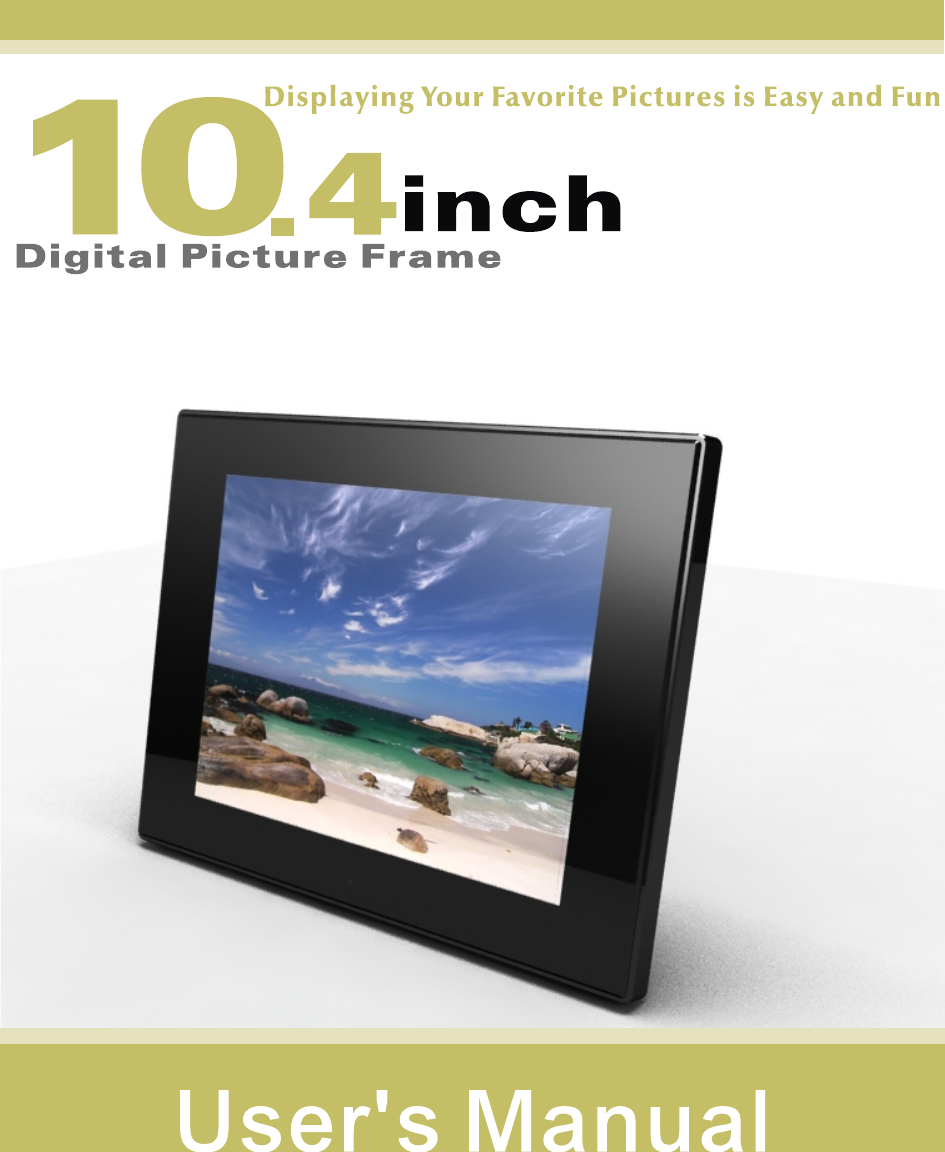
Win Accord 104AML7213D Digital Photo Frame User Manual user manaul

WIN ACCORD LTD., Digital Photo Frame user manaul

user manaul

Table of Contentsf ContentsTable    ……………………………………………….……..…………………    2o…PrecautionsImportant Safety  ……………………………………..…...…....……..3Sc r een.th e  LC D         Clean i ng  .. . .... . ... . .... . .... . ... . .... . ... . .... . ... . .... . .... . ... . .... . ... . 3the         Cleaning  Digital picture Frame ..........................................................3What's in  the  Box… …………………………………………………………………....…4        I d e n t i f y i n g  t h e  P a r t s … … … … … … … … … … … … … … … . … … … … . … … … … 4        R e p l a c i n g   R e m o t e C o n t r o l B a t t e r y … … … … … … … … … … … . . … … … … … . 5Product  Specification …………………………………………………………...………5        F e a t u r e s . … … … … … … … … … … … … … … … … … … … … … … … … … … . . … … … . . 5        S p e c i f i c a t i o n … … … … … … … … … … … … … … … … … … … … . … … … … … … . 6How to Use Your Digital Picture Frame…………………………………..………….6        T u r n i n g  O n  a n d  O f f … … … … … … … … … … … … … … … … … … … … … … … … 6        C o n n e c t i n g  t o  P C … … … … … … … … … … … … … … … … … … … … … … … … . . 6        F e a t u r e  S e l e c t i o n S  c r e e n … … … … … … … … … … … … … … … … … … … … … 7        P h o t o … … … … … … … … … … … … … … … … … … … … … … … … … … … … … … . 7                          S  l id  e  s  h  o  w  Mode …………………………………………………………...7                         T  h  u  m   b n a il  Mode …………………………………………………………...7                          S  i n g l e   V  iew  Mode ………………………………………………………….7        V i d e o    … … … … … … … … … … … … … … … … … … … … … … … … … … … … … … . . 8        M  u  sic      ………………………………………………………………………………..9             V i v id  S  hare    …  ………………………………………………………………………….9         Ca  le  ndar      …………………………………………………………………………...10                           M   o n  t h ly    Calendar ………………………………………………………….10                            C a l e n d ar …………………………………………………………………….10                           C   lo  c  k  …    ………………………………………………………………………11        F  i l e  M a n a g e r … … … … … … … … … … … … … … … … … … … … … … … … … … . . . . 11            S  e  t u p       ………………………………………………………………………………..12                S  y s t e m S e t u p … … … … … … … … … … … … … … … … … … … … … … … . . . 1 2                   P h o to   Setup ……………………………………………………………......12                        C  a  l e n d ar  Setup .…………………………………………………………....12                 V  id  e o  Setup …………………………………………………………………12                M  u  s ic  Setup …………………………………………………………………12                        V  i v id S  h  are ……………………………………………………………………12Frequently  Asked  Questions ………………………………………………………..13................................................................................................................................................................................................................................................................................
Always follow these basic safety precautions when using your Digital Picture Frame. This will reduce the risk of fire, electric shock, and injury.Warning: To reduce the risk of fire or shock hazard, do not expose this product torain or moisture.Warning: To prevent the risk of electric shock, do not remove the cover. There are no user-serviceable parts inside. Refer all servicing to qualified personnel.          The Digital Picture Frame is for indoor use only.          Unplug the Digital Picture Frame before performing care and maintenance.          Do not block the ventilation holes on the back of the Digital Picture Frame at          any time.          Keep your Digital Picture Frame out of direct sunlight and heat sources.          Protect the power cord. Route power cords so that they are not likely to be          walked on or pinched by items places on or against them. Pay particular          attention to the point  where the cord attaches to the Digital Picture Frame.          Only use the AC adapter included with the Digital Picture Frame. Using any          other  power adapter will void your warranty.          Unplug the power cord from the outlet when the unit is not in use.Cleaning the LCD ScreenTreat the screen gently.To clean fingerprints or dust from the LCD screen, it is recommended to use a soft,non-abrasive cloth such as a camera lens cloth to clean the LCD screen.If you use a commercial LCD cleaning kit, do not apply the cleaning liquid directly tothe LCD screen. Clean the LCD screen with cleaning cloth moistened with the liquid.Cleaning the Digital Picture FrameClean the outer surface of the Digital Picture Frame (excluding the screen) witha soft cloth dampened with water.Important Safety Precautions
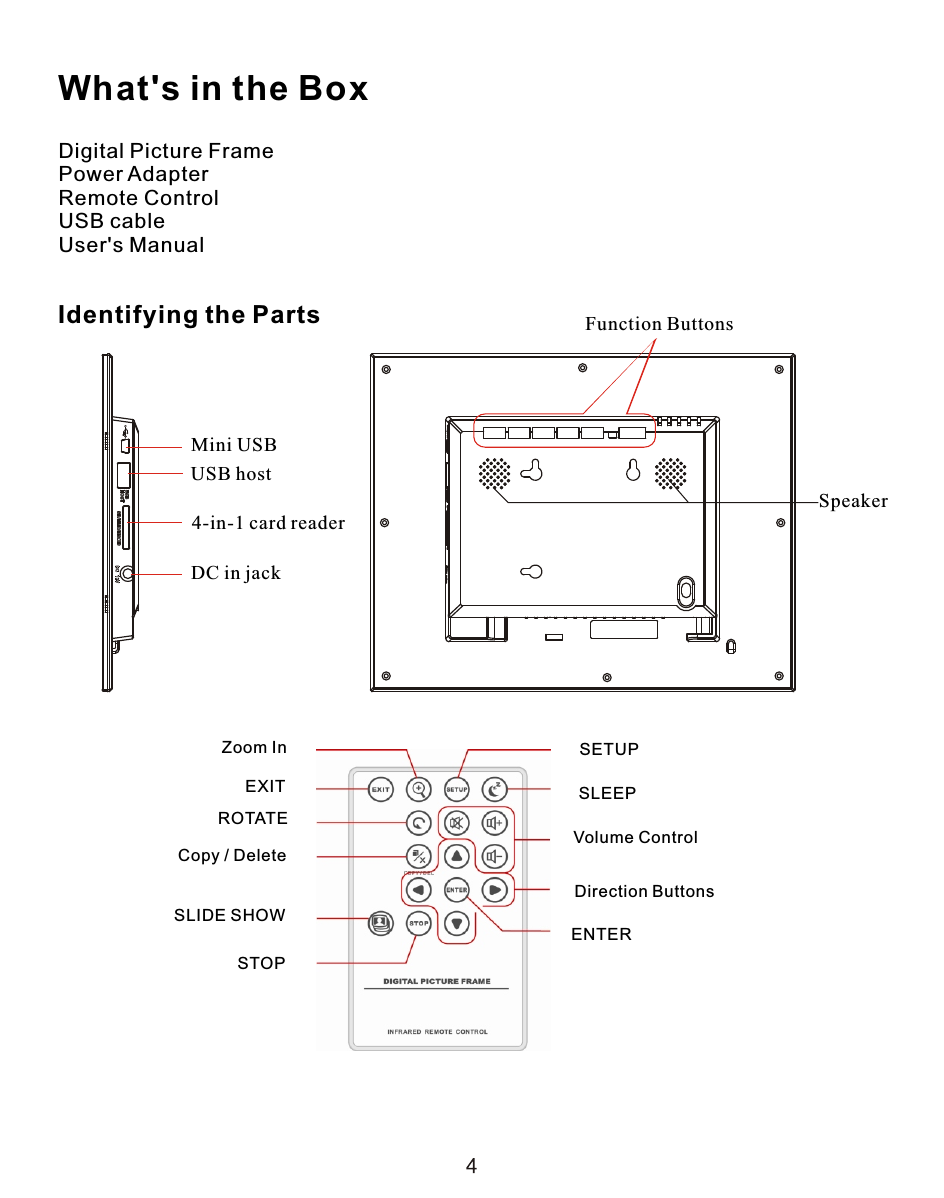
Digital Picture FramePower AdapterRemote ControlUSB cableUser's ManualZoom InEXITROTATECopy / DeleteSLIDE SHOWSTOPSETUPSLEEPVolume ControlDirection ButtonsENTERWhat's in the BoxIdentifying the Parts4-in-1 card readerUSB hostMini USBDC in jackSpeakerFunction Buttons
If the remote control stops working or works improperly, replace the battery (CR2025 lithium battery) with a new one.     1. Pull out the battery holder.     2. Remove the old battery from the holder and then put a new battery          with “+” facing up.     3. Insert the battery holder back to the remote control.WarningBattery may explode if mistreated. Do not recharge,disassemble or dispose of in fire     When the lithium battery becomes weak, the operating distance of the Remote      Control may shorten, or the Remote Control may not function properly. In this     case, replace the battery with a CR2025 lithium battery. Use of another battery      may present a risk of fire  or explosion.     Dispose the used batteries as specified by the local authorities.     Do not leave the Remote Control in a very hot and humid place.     Incorrect use of the battery may cause leaking and corrosion.            -   When the Remote control will not be used for a long period of time,                 remove  the battery from the remote control to prevent leaking and                 corrosion.            -   Incorrectly inserting, shorting, dismantling, or heating the battery, or                  throwing it into a fire may cause the battery to rupture and leak.Replacing Remote Control BatteryProduct Specification Supports JPEG and BMP image formats Image rotation, zoom in, background music, and auto-slideshow with effects Displays clock, calendar, and monthly calendar Auto-rotating Plays personalized stories with VividShare function Supports USB updateFeaturesNotes
SpecificationTurning On and Off         To turn the Digital Picture Frame on, just simply plug the AC adapter to a wall           outlet  and the Digital Picture Frame then switch the POWER switch to ON          position or press the POWER button, and the system will shows the Feature         Selection Screen          To turn off the Digital Picture Frame, just switch the POWER switch to OFF           position or press and hold the POWER button until the screen is blackened. *        * The power switch or the power button may vary from different models.How to Use Your Digital Picture FrameConnecting to PCAt any time connecting the Digital Picture Frame to the PC, it will enter USB mode.The screen will show the message “connecting to PC”. In USB mode, the Digital Picture Frame functions as a USB flash drive. To exit USB mode, simply unplug theUSB cable or press ESC key.Note: If the Digital Picture Frame includes VividShare feature, the VividShare PC            Tool  will pop on the PC screen when the Digital Picture Frame and the PC             are connected.  Please see VividShare section on page 9 for detail.ProductResolutionMemory Card FormatsImage FormatsAudio FormatsVideo FormatsUSB PortsPower InputPower OutputInternal SpeakersCertification10.4”  Digital Photo Frame800X600 PixelSecure Digital™, Multi-Media Card™, Memory Stick™,Memory Stick Pro™, Memory Stick Duo™, Memory Stick Pro Duo™, and USB flash drivesJPEG, BMPMP3, WAV, WMA, OGGMPEG-4, AVI, 3GP, MOVUSB 2.0 (Host) x 1, mini-USB x 1AC 100V~240V, 50~60HzDC 12V/1.5A   CE / FCC / RoHS1.5W X 2
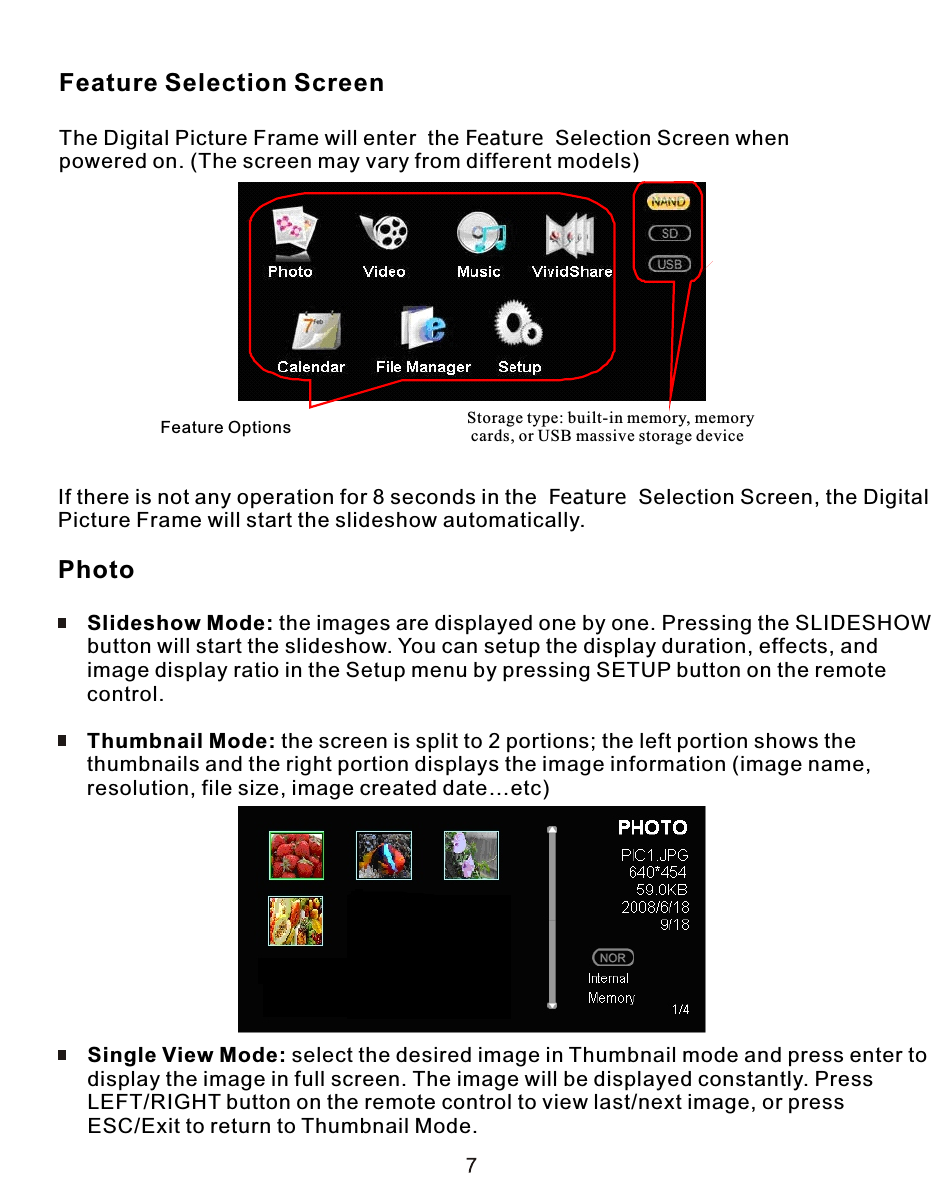
Feature Selection ScreenThe Digital Picture Frame will enter  the Feature  Selection Screen whenpowered on. (The screen may vary from different models)If there is not any operation for 8 seconds in the  Feature  Selection Screen, the Digital Picture Frame will start the slideshow automatically.Photo     Slideshow Mode: the images are displayed one by one. Pressing the SLIDESHOW     button will start the slideshow. You can setup the display duration, effects, and      image display ratio in the Setup menu by pressing SETUP button on the remote      control.     Thumbnail Mode: the screen is split to 2 portions; the left portion shows the      thumbnails and the right portion displays the image information (image name,     resolution, file size, image created date…etc)      Single View Mode: select the desired image in Thumbnail mode and press enter to     display the image in full screen. The image will be displayed constantly. Press     LEFT/RIGHT button on the remote control to view last/next image, or press      ESC/Exit to return to Thumbnail Mode.  Feature Options Storage type: built-in memory, memory cards, or USB massive storage device
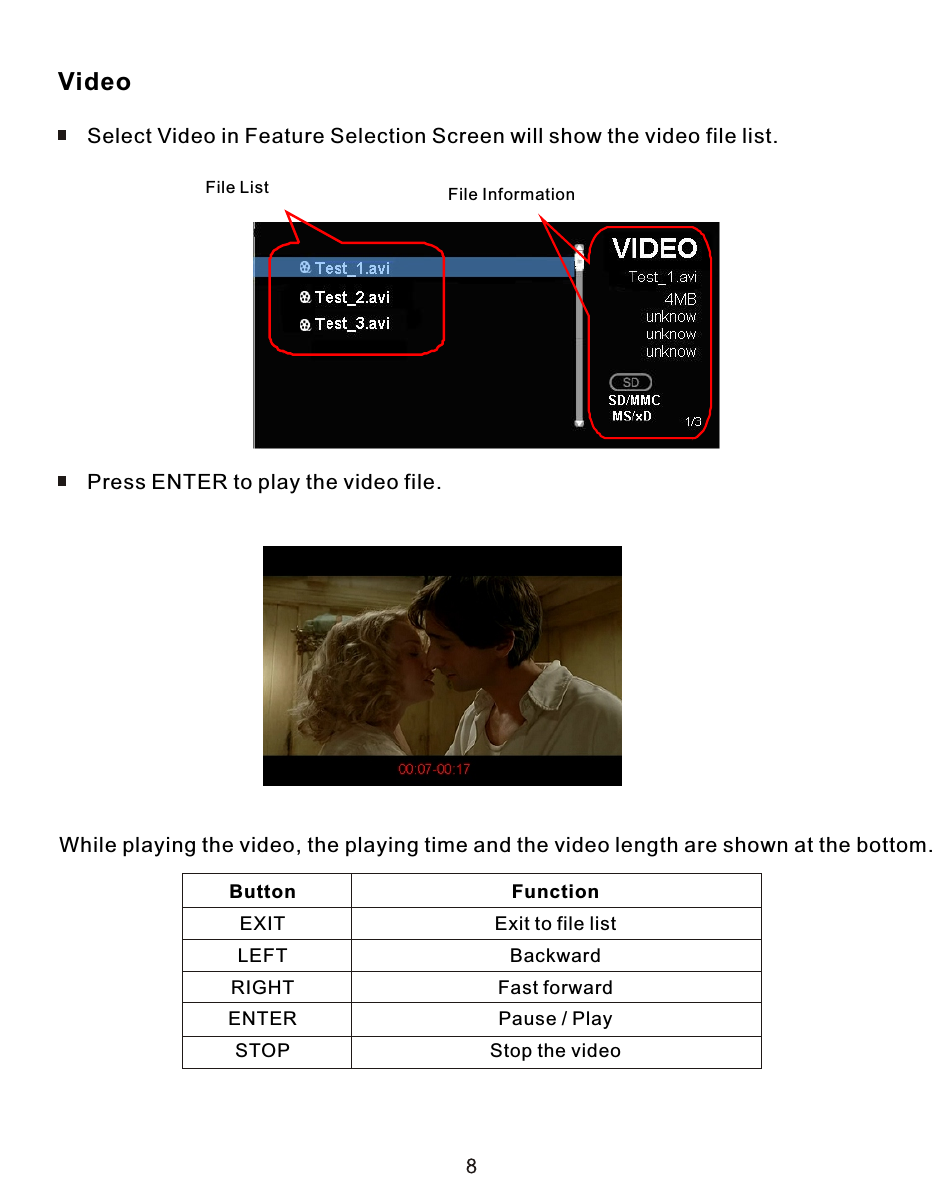
Video     Select Video in Feature Selection Screen will show the video file list.File List File Information     Press ENTER to play the video file.While playing the video, the playing time and the video length are shown at the bottom.ButtonEXITLEFTRIGHTENTERSTOPFunctionExit to file listBackwardFast forwardPause / PlayStop the video
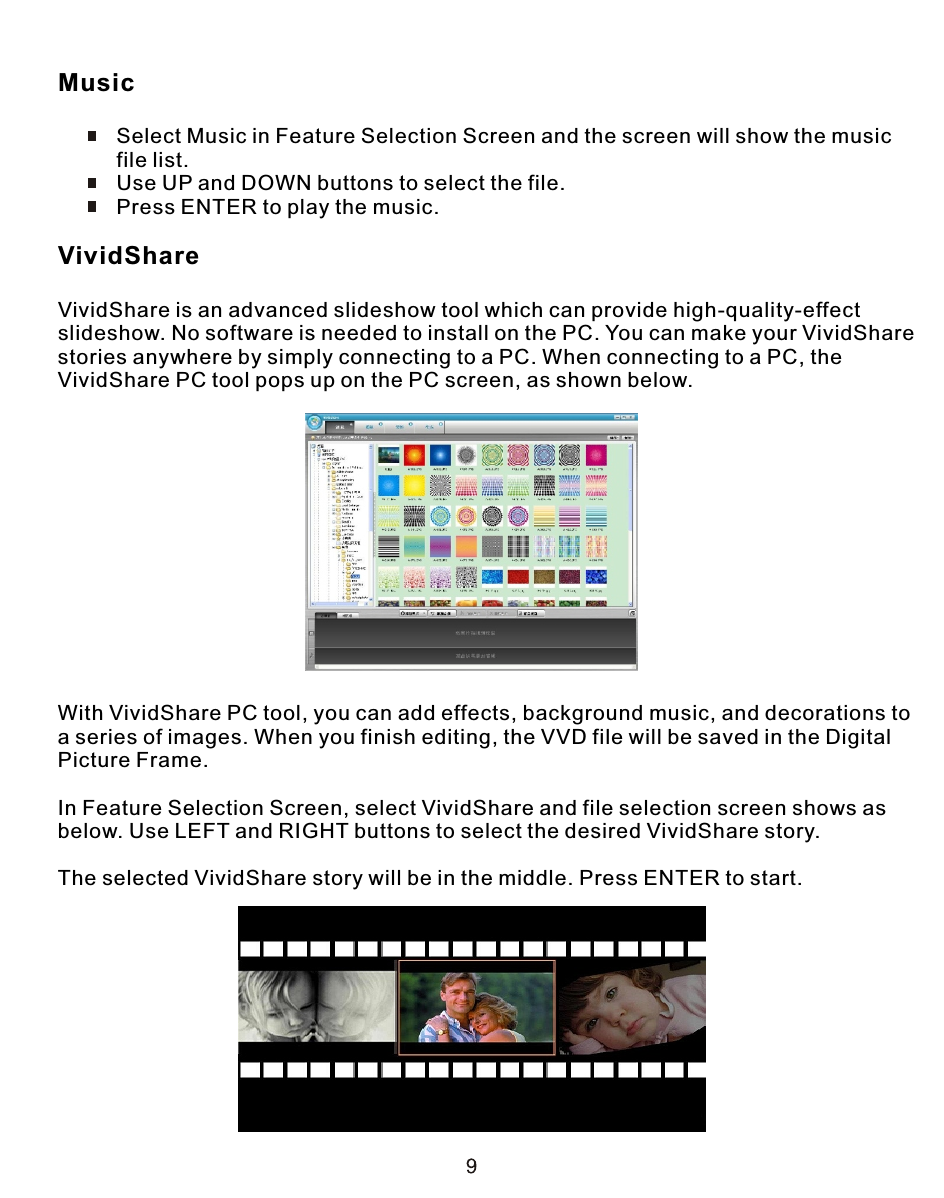
Music          Select Music in Feature Selection Screen and the screen will show the music           file list.          Use UP and DOWN buttons to select the file.          Press ENTER to play the music.VividShareVividShare is an advanced slideshow tool which can provide high-quality-effect slideshow. No software is needed to install on the PC. You can make your VividSharestories anywhere by simply connecting to a PC. When connecting to a PC, the VividShare PC tool pops up on the PC screen, as shown below.With VividShare PC tool, you can add effects, background music, and decorations toa series of images. When you finish editing, the VVD file will be saved in the Digital Picture Frame.In Feature Selection Screen, select VividShare and file selection screen shows asbelow. Use LEFT and RIGHT buttons to select the desired VividShare story.The selected VividShare story will be in the middle. Press ENTER to start.
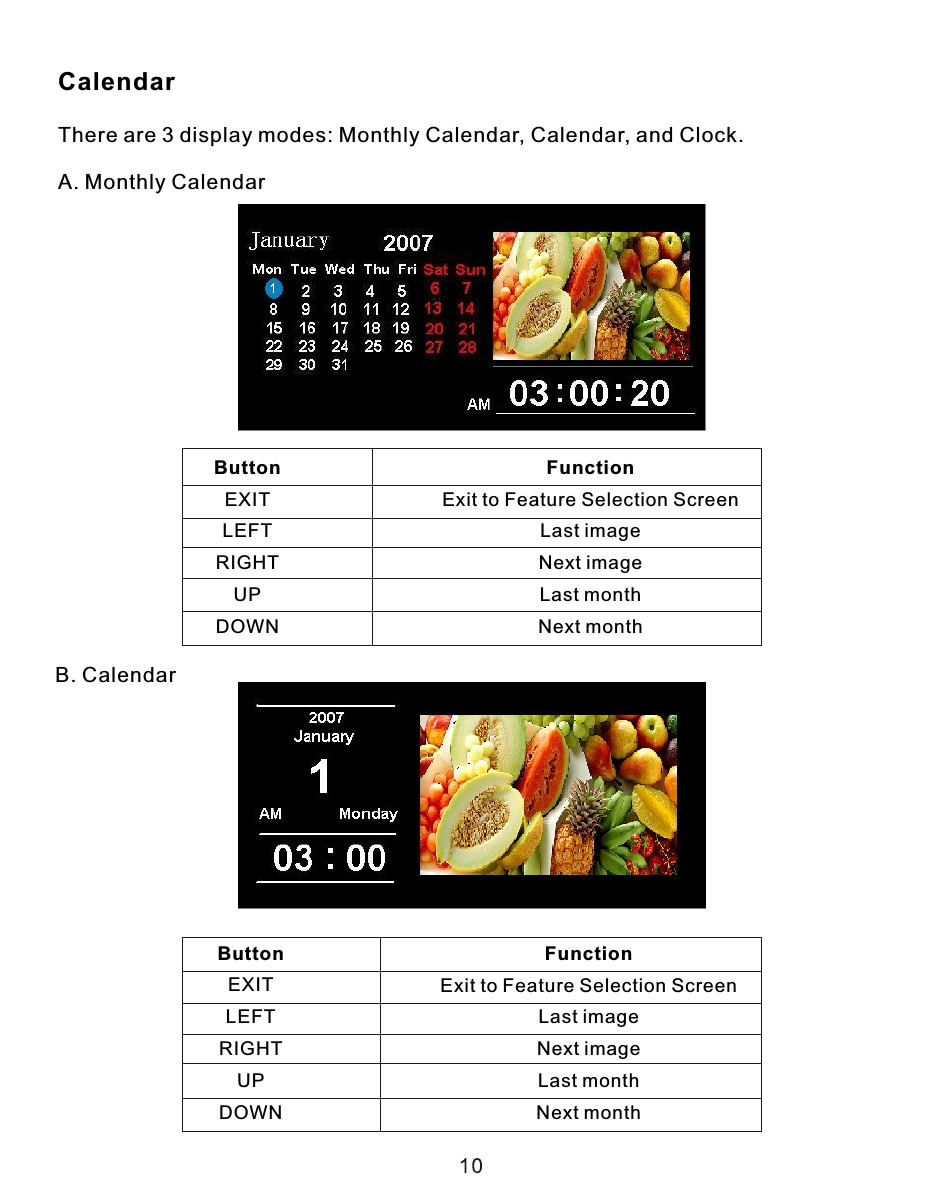
CalendarThere are 3 display modes: Monthly Calendar, Calendar, and Clock. A. Monthly CalendarB. CalendarButtonEXITLEFTRIGHTUPDOWNFunctionExit to Feature Selection ScreenLast imageNext imageLast monthNext monthButtonEXITLEFTRIGHTUPDOWNFunctionExit to Feature Selection ScreenLast imageNext imageLast monthNext month
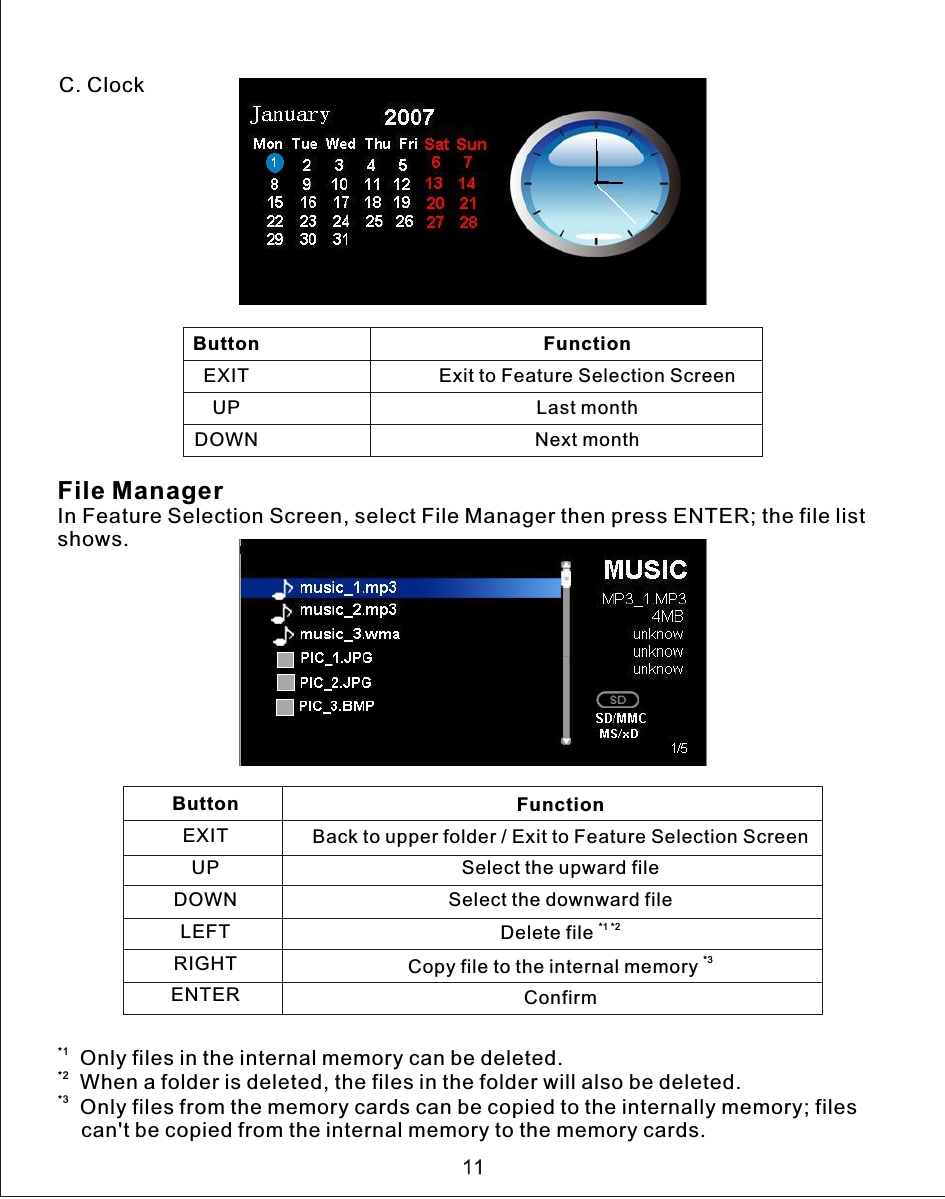
C. ClockFile ManagerIn Feature Selection Screen, select File Manager then press ENTER; the file list shows.*1  Only files in the internal memory can be deleted.*2  When a folder is deleted, the files in the folder will also be deleted.*3  Only files from the memory cards can be copied to the internally memory; files     can't be copied from the internal memory to the memory cards.ButtonEXITUPDOWNFunctionExit to Feature Selection ScreenLast monthNext monthButtonEXITUPDOWNLEFTRIGHTENTER                                              FunctionBack to upper folder / Exit to Feature Selection ScreenSelect the upward fileSelect the downward file*1 *2Delete file *3Copy file to the internal memory Confirm
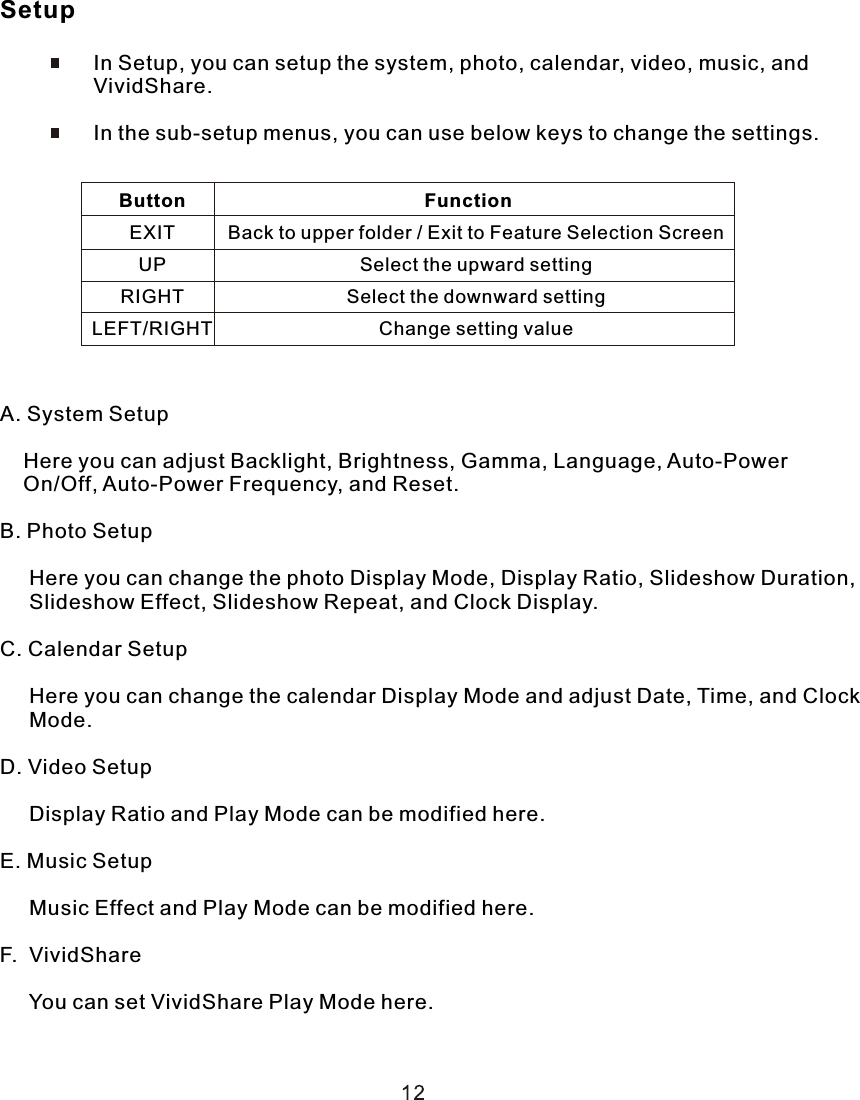
Setup                In Setup, you can setup the system, photo, calendar, video, music, and                 VividShare.                In the sub-setup menus, you can use below keys to change the settings.A. System Setup    Here you can adjust Backlight, Brightness, Gamma, Language, Auto-Power     On/Off, Auto-Power Frequency, and Reset.B. Photo Setup     Here you can change the photo Display Mode, Display Ratio, Slideshow Duration,     Slideshow Effect, Slideshow Repeat, and Clock Display.C. Calendar Setup     Here you can change the calendar Display Mode and adjust Date, Time, and Clock      Mode.D. Video Setup     Display Ratio and Play Mode can be modified here.E. Music Setup     Music Effect and Play Mode can be modified here.F.  VividShare     You can set VividShare Play Mode here.                       Function                          Back to upper folder / Exit to Feature Selection Screen                          Select the upward setting                          Select the downward setting                          Change setting valueButtonEXITUPRIGHTLEFT/RIGHT
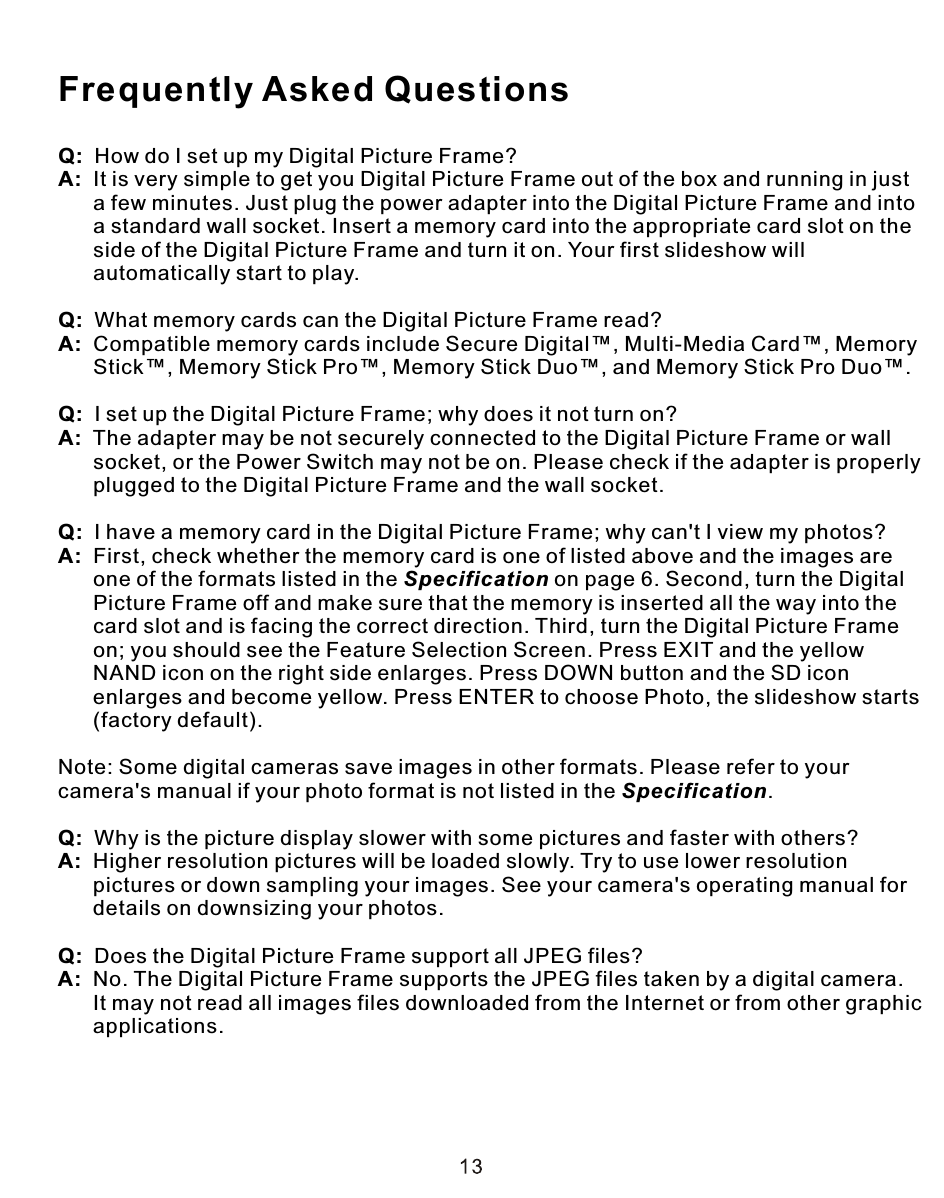
Q:  How do I set up my Digital Picture Frame?A:  It is very simple to get you Digital Picture Frame out of the box and running in just       a few minutes. Just plug the power adapter into the Digital Picture Frame and into      a standard wall socket. Insert a memory card into the appropriate card slot on the       side of the Digital Picture Frame and turn it on. Your first slideshow will       automatically start to play.Q:  What memory cards can the Digital Picture Frame read?A:  Compatible memory cards include Secure Digital™, Multi-Media Card™, Memory      Stick™, Memory Stick Pro™, Memory Stick Duo™, and Memory Stick Pro Duo™.Q:  I set up the Digital Picture Frame; why does it not turn on?A:  The adapter may be not securely connected to the Digital Picture Frame or wall       socket, or the Power Switch may not be on. Please check if the adapter is properly      plugged to the Digital Picture Frame and the wall socket.Q:  I have a memory card in the Digital Picture Frame; why can't I view my photos?A:  First, check whether the memory card is one of listed above and the images are       one of the formats listed in the Specification on page 6. Second, turn the Digital       Picture Frame off and make sure that the memory is inserted all the way into the      card slot and is facing the correct direction. Third, turn the Digital Picture Frame       on; you should see the Feature Selection Screen. Press EXIT and the yellow       NAND icon on the right side enlarges. Press DOWN button and the SD icon       enlarges and become yellow. Press ENTER to choose Photo, the slideshow starts      (factory default).Note: Some digital cameras save images in other formats. Please refer to your camera's manual if your photo format is not listed in the Specification.Q:  Why is the picture display slower with some pictures and faster with others?A:  Higher resolution pictures will be loaded slowly. Try to use lower resolution      pictures or down sampling your images. See your camera's operating manual for       details on downsizing your photos.Q:  Does the Digital Picture Frame support all JPEG files?A:  No. The Digital Picture Frame supports the JPEG files taken by a digital camera.       It may not read all images files downloaded from the Internet or from other graphic      applications.Frequently Asked Questions
Changes or modifications not expressly approved by the party responsible for compliance could void the user's authority to operate the equipment. This equipment has been tested and found to comply with the limits for a Class B digital device, pursuant to Part 15 of the FCC Rules.  These limits are designed to provide reasonable protection against harmful interference in a residential installation. This equipment generates uses and can radiate radio frequency energy and, if not installed and used in accordance with the instructions, may cause harmful interference to radio communications.  However, there is no guarantee that interference will not occur in a particular installation.  If this equipment does cause harmful interference to radio or television reception, which can be determined by turning the equipment off and on, the user is encouraged to try to correct the interference by one or more of the following measures:-- Reorient or relocate the receiving antenna.   -- Increase the separation between the equipment and receiver.     -- Connect the equipment into an outlet on a circuit different from that to which the receiver is connected.   -- Consult the dealer or an experienced radio/TV technician for help

Navigation menu