Win Accord 6213D-10W Digital Photo Frame User Manual
WIN ACCORD LTD., Digital Photo Frame
User Manual

10" Wide Screen
Digital Photo Frame

Table of Contents
Table of Contents..................................................................................................................2
Important Safety Precautions.................................................................................................3
Cleaning the LCD Screen...................................................................................................3
Cleaning the Digital Picture Frame........................................................................................3
Introduction...........................................................................................................................4
What's In the Box...................................................................................................................5
Setting Up the Digital Picture Frame....................................................................................5
Locating the Digital Picture Frame's Features............................................................................5
Using the Control Buttons and Remote Control.........................................................................6
Use the Control Buttons....................................................................................................6
Use the Remote Control....................................................................................................7
Install and Replace the Remote Control Battery..................................................................7
Setting Up the Slideshow........................................................................................................8
Card Selection Screen......................................................................................................8
Mode Selection Screen.....................................................................................................9
Thumbnail Screen............................................................................................................9
Display a Single Photo on the Full Screen.........................................................................10
Controlling the Slide Show and Photo.....................................................................................10
Manually Change the Displayed Photo.............................................................................10
Rotate the Photo............................................................................................................10
Enlarge the Photo...........................................................................................................10
Copy the Displayed Photo to the Built-In Memory...............................................................11
Delete the Displayed Photo..............................................................................................11
Adjust the LCD Color.......................................................................................................11
Add Music to the Slide Show............................................................................................11
How to copy pictures from Flash Card into Built-in memory........................................................12
Listening to Music.............................................................................................................13
Control the Volume.........................................................................................................13
Watching a Video.................................................................................................................13
Setting Viewing Options.......................................................................................................14
Advanced Operations...........................................................................................................15
Connect to a Windows Computer.....................................................................................16
Disconnect the Digital Picture Frame from the Computer.....................................................17
Connect a USB Flash Drive.............................................................................................17
Frequently Asked Questions.................................................................................................18
Technical Specificatons.......................................................................................................19

3
Important Safety Precautions
Always follow these basic safety precautions when using your Digital Picture Frame. This will
reduce the risk of fire, electric shock, and injury.
Warning: To reduce the risk of fire or shock hazard, do not expose this product to rain or moisture.
Warning: To prevent the risk of electric shock, do not remove the cover. There are no
user-serviceable parts inside. Refer all servicing to qualified personnel.
The Digital Picture Frame is for indoor use only.
Unplug the Digital Picture Frame before performing care and maintenance.
Do not block the ventilation holes on the back of the Digital Picture Frame at any time.
Keep your Multimedia Digital Picture Frame out of direct sunlight and heat sources.
Protect the power cord. Route power cords so that they are not likely to be walked on or
pinched by items placed on or against them. Pay particular attention to the point where
the cord attaches to the Digital Picture Frame.
Only use the AC adapter included with the Digital Picture Frame. Using any other power
adapter will void your warranty.
Unplug the power cord from the outlet when the unit is not in use.
Cleaning the LCD Screen
Treat the screen gently. The screen is made of glass and can be scratched or broken.
To clean fingerprints or dust from the LCD screen, we recommend using a soft,
non-abrasive cloth such as a camera lens cloth to clean the LCD screen.
If you use a commercial LCD Cleaning Kit, do not apply the cleaning liquid directly to the
LCD screen. Clean the LCD screen with cleaning cloth moistened with the liquid.
Cleaning the Digital Picture Frame
Clean the outer surface of the Digital Picture Frame (excluding the screen) with a soft cloth
dampened with water.

4
Introduction
Welcome to the Digital Picture Frame! Now you can display your digital photos directly from your
memory card. No computer is necessary. Simply insert a memory card into the Digital Picture Frame,
and turn on the power. You'll be treated to a slideshow of your photos. It's as easy as that. You can
also display individual photos, play video clips, and play background music with your slide show.
The Digital Picture Frame includes these key features:
Displays digital photos (JPEG) without a computer.
Simply insert a compatible memory card into the digital picture frame to show photos,
play music or supported video files (memory card not included).
TM TM TM
Compatible memory cards include Secure Digital , MultiMedia Card , Compact Flash ,
TM TM TM TM
Memory Stick , MemoryStick Pro , Memory Stick Duo , Memory Stick Pro Duo and xD
Card.
Instantly plays music with the integrated speakers.
Digital photo slide Show with Music background.
Displays JPEG images and motion JPEG files (AVI) stored on digital cameras.
Supports up to 12 megapixel image files (JPEG format).
Control the main functions with buttons on the frame or with the included infrared remote
control.
Bright TFT LCD screen.
USB2.0 high-speed connection to connect to your PC.
USB2.0 (Host) for connecting to your digital camera.
Built-In Memory.
To learn more about your new Digital Picture Frame's features, and take full advantage of them,
please take a few minutes to read this User's Guide.
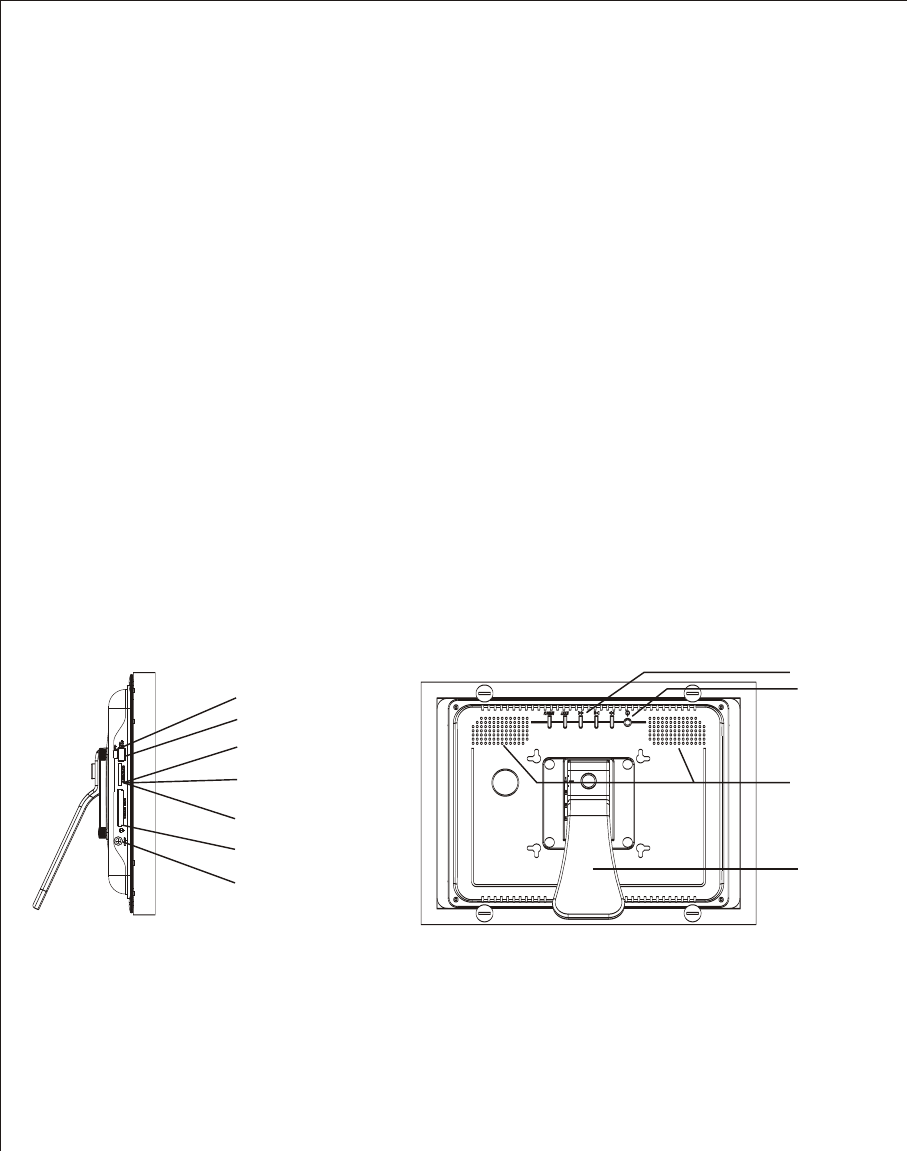
Keypad
Power Button
Adjustable Stand
Speaker
USB Port for USB Flash Drives
Mini USB Port for File Transfer
AC Power Input
xD-Picture Card Slot
TM
Memory Stick ,Memory Stick PRO ,
Memory Stick Duo ,and
Memory Stick PRO Duo Slot
TM
TM
TM
TM
Secure Digital and
Multi Media Card Slot
TM
TM
Compact Flash Slot
TM
5
What's In the Box
Digital Picture Frame
AC Power Adapter (12V, 1.5A)
This User's Guide
Remote Control
Setting Up the Digital Picture Frame
The Digital Picture Frame is easy to set up. Just follow these steps:
1. Plug the AC Power Adapter into the Digital Picture Frame and into a wall outlet.
2. Insert a memory card into the appropriate slot.
TM M TM TM
Slot 1 - Secure Digital or MultiMedia Cardt ,Memory Stick , MemoryStick Pro ,
TM TM TM
Memory Stick Duo ,Memory Stick Pro Duo ,xD Memory Card
TM
Slot 2 - Compact Flash

6
Note: The card will only fit in one direction; do not force it. The card should fit snugly when
properly inserted.
3. Press the power button on the back of the Digital Picture Frame ON and holding 2 Seconds.
until the LED light is on beside the Digital Picture Frame. It will automatically start a slide
show of the photos on the card.
4. To display photos individually, press the Exit button to open the Thumbnails Screen. Use
the Left and Right arrows to choose a photo. Press the Play button (>/II) on the top of the
Digital Picture Frame, or the Enter button on the remote control.
Note: Pull the plastic tab sticking out of the remote control. It protects the battery, and the
remote control will not work unless it is removed.
Locating the Digital Picture Frame's Features
Photo and description of buttons on picture frame.
Using the Control Buttons and Remote Control
You can use all of the Digital Picture Frame's features with either the buttons on top of the frame or
using the remote control.
Use the Control Buttons
The control buttons are located on top of the Digital Picture Frame. Their basic functions are the
same no matter when you press them.
Note:You can open the Setup Menu at any time by pressing the MENU button.
Except in the SlideShow Mode.
7
Use the Remote Control
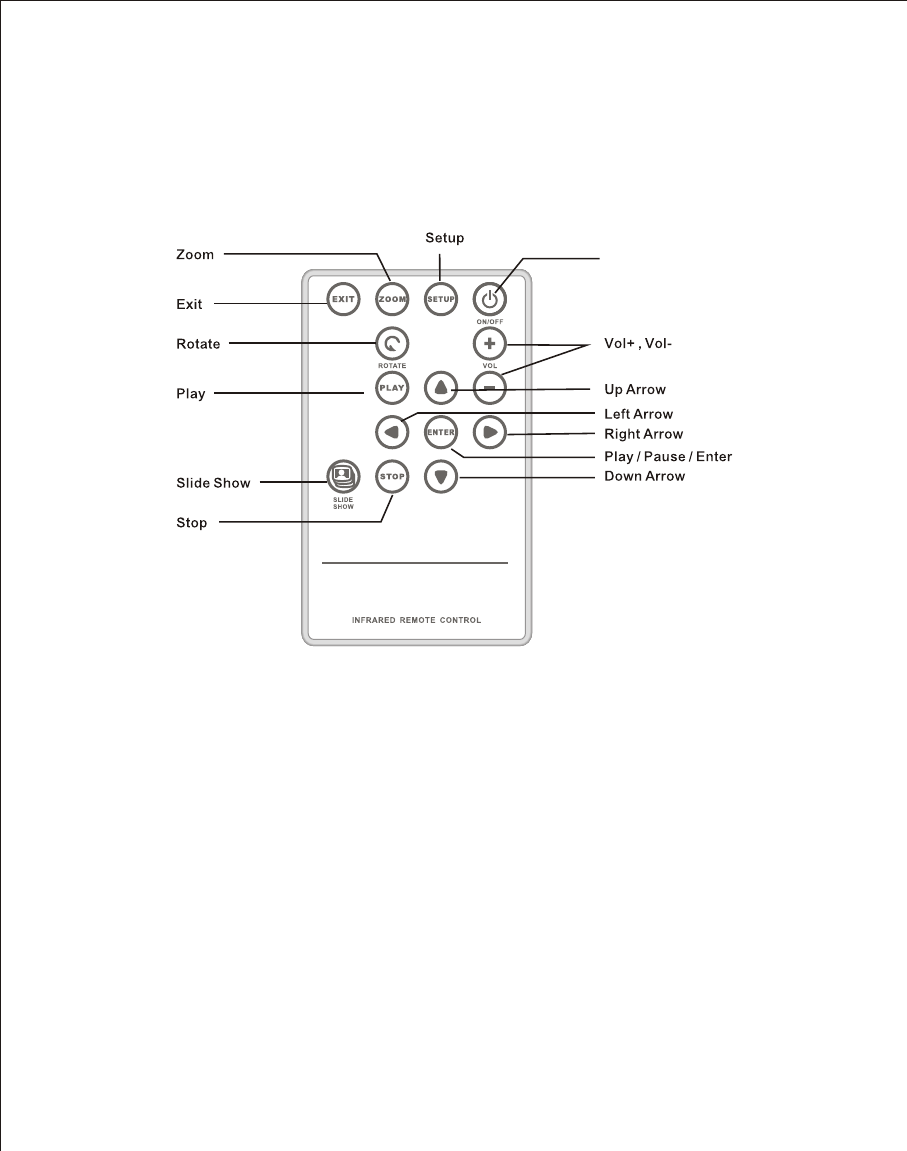
The remote control included with your digital picture frame may look slightly different from the one
shown here, but it includes all of the same buttons, and functions in the same way.
Install and Replace the Remote Control Battery
1. Hold the Remote Control with the control buttons facing downward.
2. While pressing down on the ridged area of the battery cover, pull the tray out.
3. Place a "CR2025" Lithium battery on the tray with the positive "+" end facing toward you.
4. Close the tray.
DIGITAL PICTURE FRAME
ON/OFF
8
Setting Up the Slideshow
You can control all of the Digital PictureFrame functions with the buttons on the top of the frame or
with the remote control. To display the setup screen, simply hold down the Exit button for 2 seconds,
or press the Setup button on the remote control.
Card Selection Screen
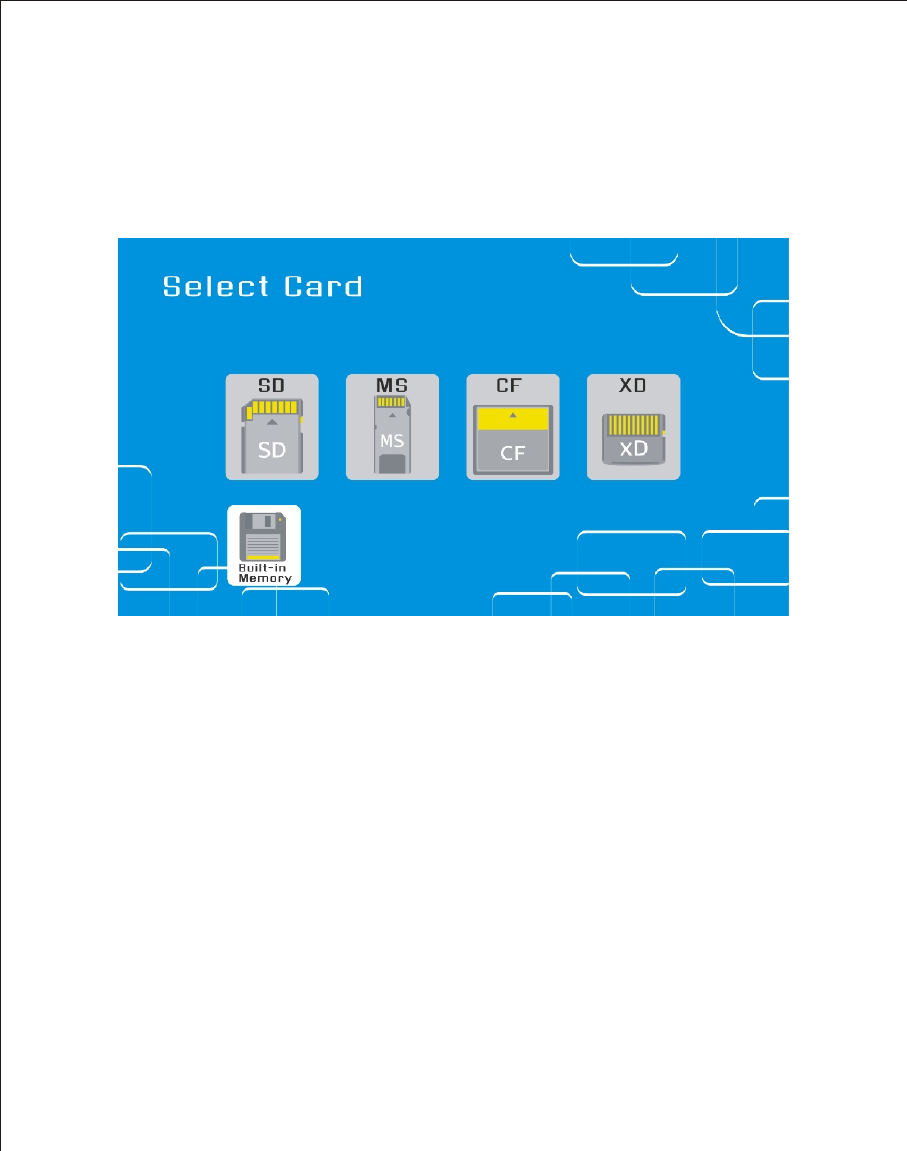
Use the Card Selection menu to choose between memory cards and the build-in memory.
1. To open the card select menu, either insert a new card, or press the Exit button repeatedly
to back through the screens until you see it.
2. Press the Left and Right arrows to select the desired memory card, or built-in memory.
3. Press Enter to make the selection. The Mode Selection Screen opens.
9
Mode Selection Screen
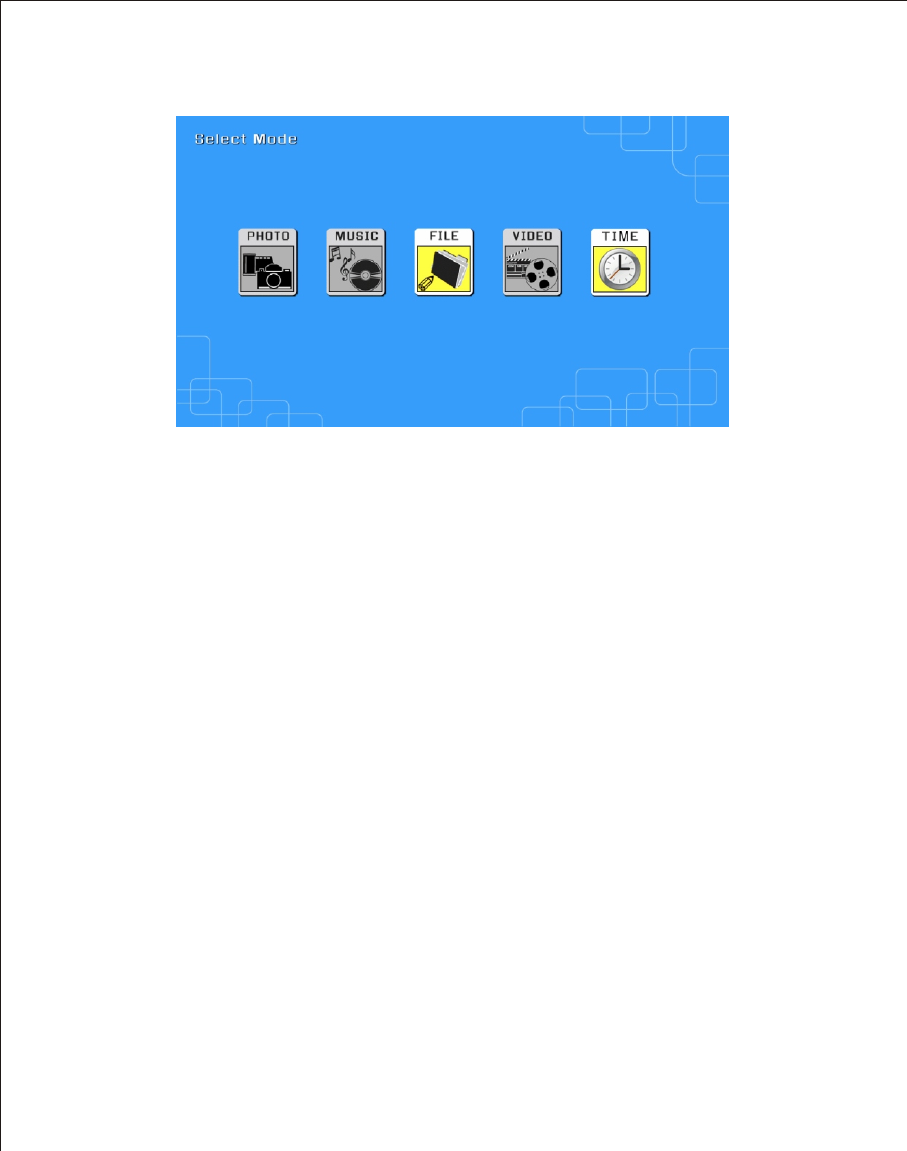
The Mode Selection Screen shows after you choose the memory source. Use it to choose the type
of files you wish to display.
Slide Show Display slide show
Photo Display JPEG still photo slide shows.
Music Play audio files.
Video Show motion JPEG AVI movies.
Clock Clock & Calendar
1. Press the Left and Right arrows on the Remote Control or the Digital Picture Frame to
select the mode.
2. Press Enter to make the selection. If you selected PHOTO, the Thumbnail Screen opens.
It is described below.
If you selected any of the other file types, a screen listing all of the files with the chosen
type. You can select one in the same manner as a photo.
3. To go back to the Mode Selection Screen, press Exit.
Thumbnail Screen
This screen shows thumbnail versions of all photos on the selected memory source; up to 6 photos
are displayed at a time. Use this screen to select a single photo to display, or to start a Slide Show
of all of the photos.
1. Press the Arrow Buttons on the Remote Control or the Digital Picture Frame until the
desired photo is highlighted. The photo's filename is displayed at the top of the screen.
The notations at the top of the screen also indicate if there is
2. Press the Slide Show button to start a slideshow.
3. To stop the Slide Show and return to the Thumbnail screen, press the Exit button.

10
Display a Single Photo on the Full Screen
You can choose a single photo to display, without a Slide show.
1. With the Thumbnails screen displayed, press Enter to display the selected photo on the
full screen.
2. Press the Left Arrow to return to the previous photo.
3. Press the Right Arrow to display the next photo.
4. To stop the display and return to the Thumbnail screen, press the Exit button.
Controlling the Slide Show and Photo
The digital Photo Frame provides many options for customizing the display, and managing files.
These options are available when viewing photos only.
Manually Change the Displayed Photo
During a Slide Show, each photo replaces the previous one at a selected rate (See Slide Show
Speed).
You can also change the displayed photo at any time during a slide show.
Press the Left Arrow to return to the previous photo.
Press the Right Arrow to display the next photo.
Rotate the Photo
You can rotate a photo displayed full-screen using the Remote Control.
Press the rotate button to rotate the photo 90 counterclockwise.
Enlarge the Photo
To magnify a photo displayed full-screen, press the Zoom button.
The photo doubles in size each time you press the button until it is 4x normal size.
Then it will return to normal size.
While the photo is in enlarged, use the Arrow buttons to move the photo so you can see
the portions that aren't currently visible.