Win Accord 84INCHC8 Digital Photo Frame User Manual 0840 Cagic PR indd

WIN ACCORD LTD., Digital Photo Frame 0840 Cagic PR indd

User Manual

thank you for purchasing the
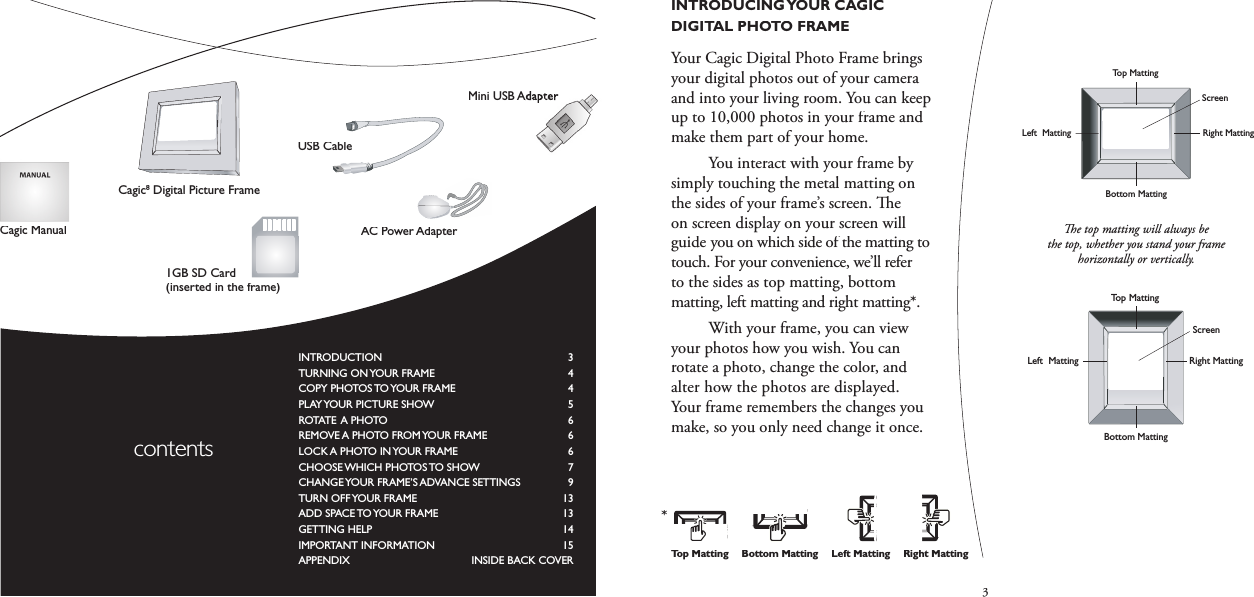
3INTRODUCING YOUR CAGIC DIGITAL PHOTO FRAMEYour Cagic Digital Photo Frame brings your digital photos out of your cameraand into your living room. You can keep up to 10,000 photos in your frame and make them part of your home.  You interact with your frame by simply touching the metal matting on the sides of your frame’s screen.   e on screen display on your screen will guide you on which side of the matting to touch. For your convenience, we’ll refer to the sides as top matting, bottom matting, left matting and right matting*.  With your frame, you can view your photos how you wish. You can rotate a photo, change the color, and alter how the photos are displayed.Your frame remembers the changes you make, so you only need change it once.  e top matting will always be the top, whether you stand your frame horizontally or vertically.AC/DC Power JackCard DoorLatchSD/MMC/MS/xDMemory Card SlotCF Memory Card SlotStorage SD CardUSB PortReset ButtonRight MattingLeft  MattingScreenTop MattingBottom MattingScreenTop MattingBottom MattingRight MattingLeft  MattingAC/DC Power JackCard DoorLatchSD/MMC/MS/xDMemory Card SlotCF Memory Card SlotStorage SD CardUSB PortReset ButtonRight MattingLeft  MattingScreenTop MattingBottom MattingScreenTop MattingBottom MattingRight MattingLeft  MattingINTRODUCTION   3TURNING ON YOUR FRAME  4COPY PHOTOS TO YOUR FRAME  4PLAY YOUR PICTURE SHOW  5ROTATE A PHOTO  6REMOVE A PHOTO FROM YOUR FRAME  6LOCK A PHOTO IN YOUR FRAME  6CHOOSE WHICH PHOTOS TO SHOW  7CHANGE YOUR FRAME’S ADVANCE SETTINGS  9TURN OFF YOUR FRAME  13ADD SPACE TO YOUR FRAME  13GETTING HELP   14IMPORTANT INFORMATION  15APPENDIX     INSIDE BACK COVER contentsAC Power AdapterCagic ManualCagic8 Digital Picture FrameBottom MattingTop MattingLeft MattingRight Matting*1GB SD Card (inserted in the frame)USB CableMini USB AdapterMini USB Adapter
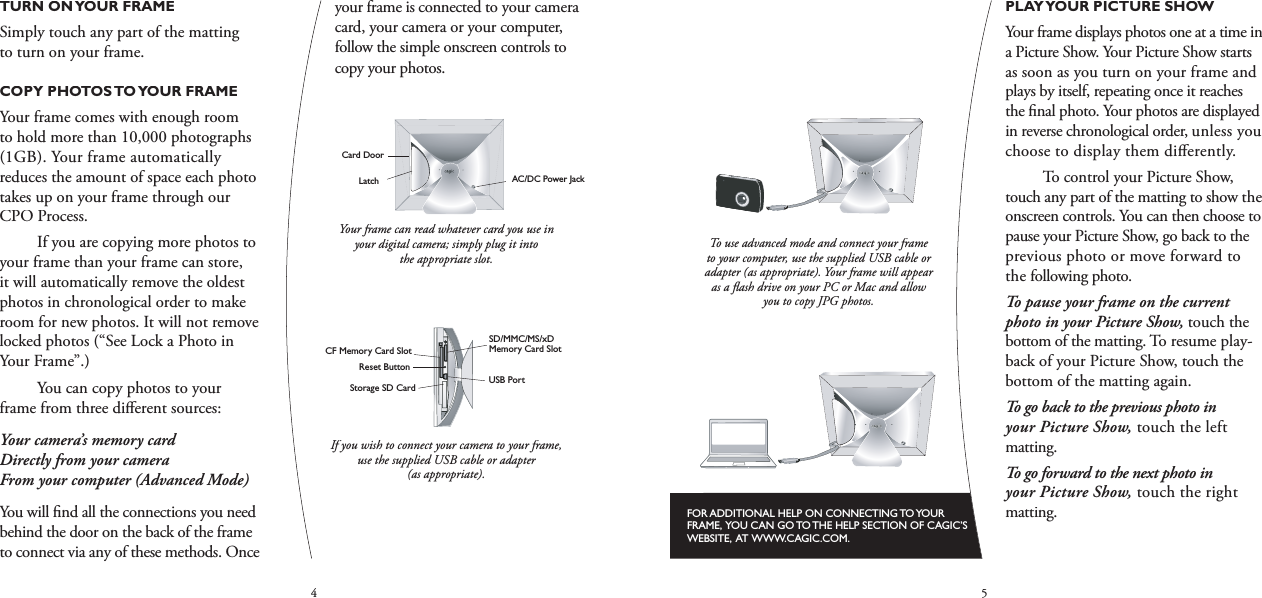
45PLAY YOUR PICTURE SHOWYour frame displays photos one at a time in a Picture Show. Your Picture Show starts as soon as you turn on your frame and plays by itself, repeating once it reaches the fi nal photo. Your photos are displayed in reverse chronological order, unless you choose to display them diff erently.  To control your Picture Show, touch any part of the matting to show the onscreen controls. You can then choose to pause your Picture Show, go back to the previous photo or move forward to the following photo.To pause your frame on the current photo in your Picture Show,touch the bottom of the matting. To resume play-back of your Picture Show, touch the bottom of the matting again.To go back to the previous photo in your Picture Show, touch the left matting.To go forward to the next photo in your Picture Show, touch the right matting.FOR ADDITIONAL HELP ON CONNECTING TO YOUR FRAME,  YOU CAN GO TO THE HELP SECTION OF CAGIC’S WEBSITE,  AT WWW.CAGIC.COM.To use advanced mode and connect your frame to your computer, use the supplied USB cable or adapter (as appropriate). Your frame will appear as a fl ash drive on your PC or Mac and allow you to copy JPG photos.AC/DC Power JackCard DoorLatchSD/MMC/MS/xDMemory Card SlotCF Memory Card SlotStorage SD CardUSB PortReset ButtonRight MattingLeft  MattingScreenTop MattingBottom MattingScreenTop MattingBottom MattingRight MattingLeft  MattingAC/DC Power JackCard DoorLatchSD/MMC/MS/xDMemory Card SlotCF Memory Card SlotStorage SD CardUSB PortReset ButtonRight MattingLeft  MattingScreenTop MattingBottom MattingScreenTop MattingBottom MattingRight MattingLeft  MattingTURN ON YOUR FRAMESimply touch any part of the matting to turn on your frame.COPY PHOTOS TO YOUR FRAMEYour frame comes with enough room to hold more than 10,000 photographs (1GB). Your frame automatically reduces the amount of space each photo takes up on your frame through our CPO Process.  If you are copying more photos to your frame than your frame can store, it will automatically remove the oldest photos in chronological order to make room for new photos. It will not remove locked photos (“See Lock a Photo in Your Frame”.)You can copy photos to your frame from three diff erent sources:Your camera’s memory card Directly from your camera From your computer (Advanced Mode) You will fi nd all the connections you need behind the door on the back of the frame to connect via any of these methods. Once your frame is connected to your camera card, your camera or your computer, follow the simple onscreen controls to copy your photos.AC/DC Power JackCard DoorLatchSD/MMC/MS/xDMemory Card SlotCF Memory Card SlotStorage SD CardUSB PortReset ButtonRight MattingLeft  MattingScreenTop MattingBottom MattingScreenTop MattingBottom MattingRight MattingLeft  MattingYour frame can read whatever card you use in your digital camera; simply plug it into the appropriate slot.AC/DC Power JackCard DoorLatchSD/MMC/MS/xDMemory Card SlotCF Memory Card SlotStorage SD CardUSB PortReset ButtonRight MattingLeft  MattingScreenTop MattingBottom MattingScreenTop MattingBottom MattingRight MattingLeft  MattingIf you wish to connect your camera to your frame, use the supplied USB cable or adapter (as appropriate).
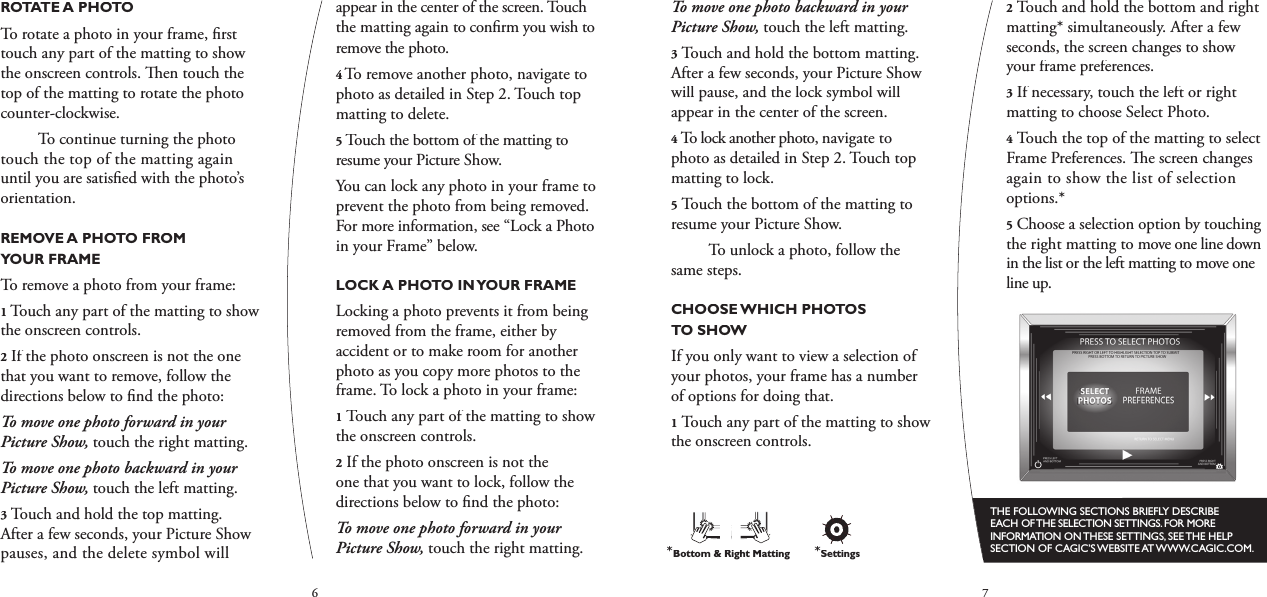
67To move one photo backward in your Picture Show, touch the left matting.3Touch and hold the bottom matting. After a few seconds, your Picture Show will pause, and the lock symbol will appear in the center of the screen.4To lock another photo, navigate to photo as detailed in Step 2. Touch top matting to lock. 5Touch the bottom of the matting to resume your Picture Show.  To unlock a photo, follow the same steps.CHOOSE WHICH PHOTOS TO SHOWIf you only want to view a selection of your photos, your frame has a number of options for doing that.1Touch any part of the matting to show the onscreen controls.2Touch and hold the bottom and right matting* simultaneously. After a few seconds, the screen changes to show your frame preferences.3If necessary, touch the left or right matting to choose Select Photo.4Touch the top of the matting to select Frame Preferences.   e screen changes again to show the list of selection options.*5Choose a selection option by touching the right matting to move one line down in the list or the left matting to move one line up.THE FOLLOWING SECTIONS BRIEFLY DESCRIBE EACH OF THE SELECTION SETTINGS. FOR MORE INFORMATION ON THESE SETTINGS, SEE THE HELP SECTION OF CAGIC’S WEBSITE AT WWW.CAGIC.COM.ROTATE A PHOTOTo rotate a photo in your frame, fi rst touch any part of the matting to show the onscreen controls.   en touch the top of the matting to rotate the photo counter-clockwise.  To continue turning the photo touch the top of the matting again until you are satisfi ed with the photo’s orientation.REMOVE A PHOTO FROM YOUR FRAMETo remove a photo from your frame:1 Touch any part of the matting to show the onscreen controls.2If the photo onscreen is not the one that you want to remove, follow the directions below to fi nd the photo:To move one photo forward in your Picture Show,touch the right matting.To move one photo backward in your Picture Show,touch the left matting.3Touch and hold the top matting. After a few seconds, your Picture Show pauses, and the delete symbol will appear in the center of the screen. Touch the matting again to confi rm you wish to remove the photo.4 To remove another photo, navigate to photo as detailed in Step 2. Touch top matting to delete.5Touch the bottom of the matting to resume your Picture Show.You can lock any photo in your frame to prevent the photo from being removed. For more information, see “Lock a Photo in your Frame” below.LOCK A PHOTO IN YOUR FRAMELocking a photo prevents it from being removed from the frame, either by accident or to make room for another photo as you copy more photos to the frame. To lock a photo in your frame:1Touch any part of the matting to show the onscreen controls.2If the photo onscreen is not the one that you want to lock, follow the directions below to fi nd the photo:To move one photo forward in your Picture Show, touch the right matting.*Bottom & Right Matting*Settings
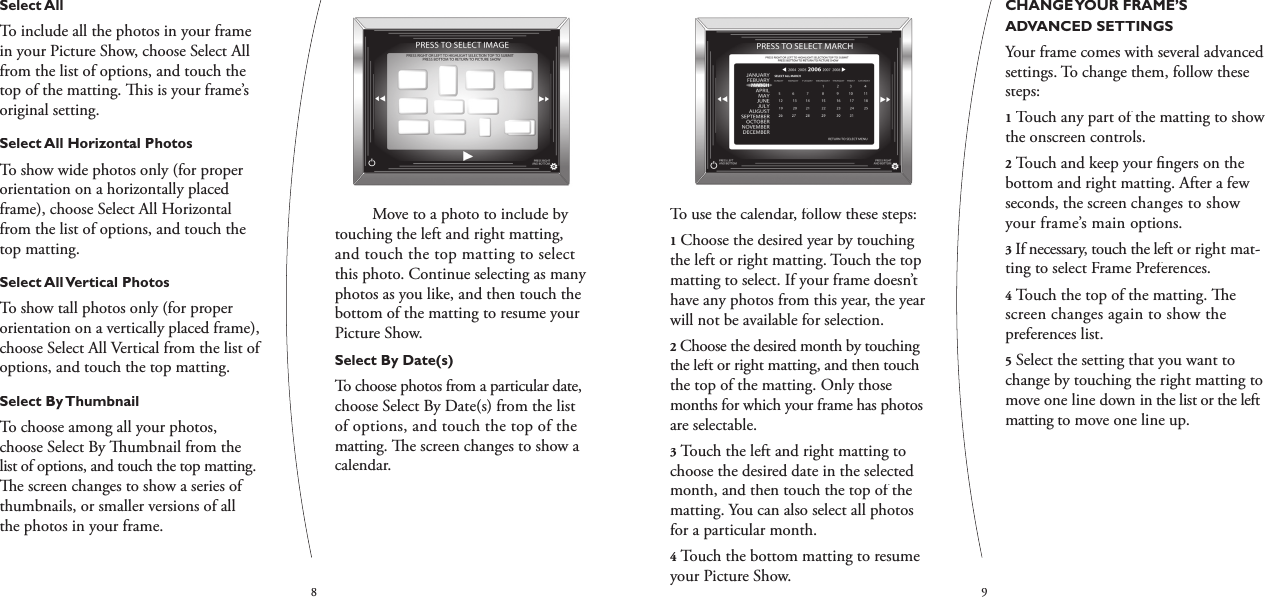
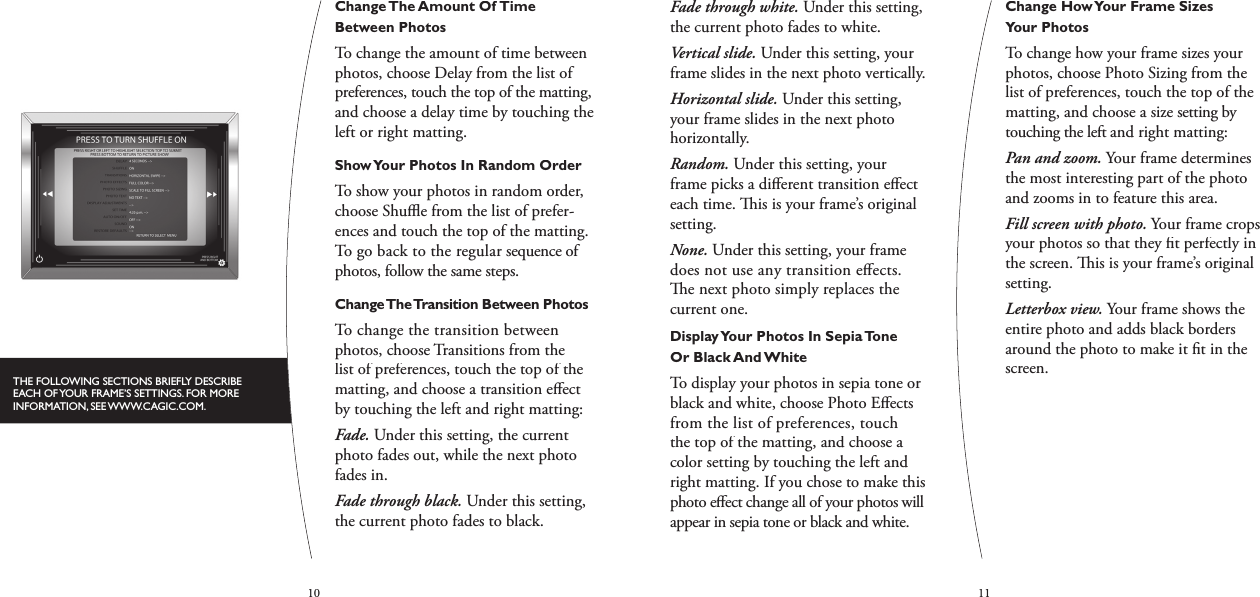
89To use the calendar, follow these steps:1Choose the desired year by touching the left or right matting. Touch the top matting to select. If your frame doesn’t have any photos from this year, the year will not be available for selection.2Choose the desired month by touching the left or right matting, and then touch the top of the matting. Only those months for which your frame has photos are selectable.3Touch the left and right matting to choose the desired date in the selected month, and then touch the top of the matting. You can also select all photos for a particular month.4Touch the bottom matting to resume your Picture Show.CHANGE YOUR FRAME’S ADVANCED SETTINGSYour frame comes with several advanced settings. To change them, follow these steps:1Touch any part of the matting to show the onscreen controls.2Touch and keep your fi ngers on the bottom and right matting. After a few seconds, the screen changes to show your frame’s main options.3If necessary, touch the left or right mat-ting to select Frame Preferences.4Touch the top of the matting.   e screen changes again to show the preferences list.5Select the setting that you want to change by touching the right matting to move one line down in the list or the left matting to move one line up.Select AllTo include all the photos in your frame in your Picture Show, choose Select All from the list of options, and touch the top of the matting.   is is your frame’s original setting.Select All Horizontal PhotosTo show wide photos only (for proper orientation on a horizontally placed frame), choose Select All Horizontal from the list of options, and touch the top matting.Select All Vertical PhotosTo show tall photos only (for proper orientation on a vertically placed frame), choose Select All Vertical from the list of options, and touch the top matting.Select By ThumbnailTo choose among all your photos, choose Select By   umbnail from the list of options, and touch the top matting.   e screen changes to show a series of thumbnails, or smaller versions of all the photos in your frame.  Move to a photo to include by touching the left and right matting, and touch the top matting to select this photo. Continue selecting as many photos as you like, and then touch the bottom of the matting to resume your Picture Show.Select By Date(s)To choose photos from a particular date, choose Select By Date(s) from the list of options, and touch the top of the matting.   e screen changes to show a calendar.
1011Fade through white. Under this setting, the current photo fades to white.Vertical slide. Under this setting, your frame slides in the next photo vertically.Horizontal slide. Under this setting, your frame slides in the next photo horizontally.Random. Under this setting, your frame picks a diff erent transition eff ect each time.   is is your frame’s original setting.None. Under this setting, your frame does not use any transition eff ects.   e next photo simply replaces the current one.Display Your Photos In Sepia Tone Or Black And WhiteTo display your photos in sepia tone or black and white, choose Photo Eff ects from the list of preferences, touch the top of the matting, and choose a color setting by touching the left and right matting. If you chose to make this photo eff ect change all of your photos will appear in sepia tone or black and white. Change How Your Frame Sizes Your PhotosTo change how your frame sizes your photos, choose Photo Sizing from the list of preferences, touch the top of the matting, and choose a size setting by touching the left and right matting:Pan and zoom. Your frame determines the most interesting part of the photo and zooms in to feature this area.Fill screen with photo. Your frame crops your photos so that they fi t perfectly in the screen.   is is your frame’s original setting.Letterbox view. Your frame shows the entire photo and adds black borders around the photo to make it fi t in the screen.Change The Amount Of Time Between PhotosTo change the amount of time between photos, choose Delay from the list of preferences, touch the top of the matting, and choose a delay time by touching the left or right matting.Show Your Photos In Random OrderTo show your photos in random order, choose Shuffl  e from the list of prefer-ences and touch the top of the matting. To go back to the regular sequence of photos, follow the same steps. Change The Transition Between PhotosTo change the transition between photos, choose Transitions from the list of preferences, touch the top of the matting, and choose a transition eff ect by touching the left and right matting:Fade. Under this setting, the current photo fades out, while the next photo fades in.Fade through black. Under this setting, the current photo fades to black.THE FOLLOWING SECTIONS BRIEFLY DESCRIBE EACH OF YOUR FRAME’S SETTINGS. FOR MORE INFORMATION, SEE WWW.CAGIC.COM.
1213Turn Your Frame’s Sound On And OffTo turn your frame’s sound on and off, choose Sound from the list of prefer-ences, and touch the top of the matting.   is will turn off  the audible click heard when you touch the matting.Return To Your Frame’s Original SettingsTo go back to your frame’s original settings, choose Restore Factory Defaults from the list of preferences, and touch the top matting.   is will delete all frame preferences and start the frame as if it is new in the box.   is will not delete any photos from the frame.   is will just restore all settings to their original state.TURN OFF YOUR FRAMETo turn off your frame, touch and hold the left and the bottom matting. When the power-off  symbol* appears in the center of the screen, touch the top matting to turn off  your frame. Touch any other part of the matting to go back to the Picture Show.ADD SPACE TO YOUR FRAME   e Cagic frame grows with your collection of photos. Your frame comes with a 1GB memory card. If you want more space, slide the small door next to your memory card slots open to reveal your Storage SD card. You can simply replace that 1GB SD card with a larger one (2GB, 4GB, 8GB, etc.). Once you take the old memory card out, you will need to move your pictures to the new memory card. You can do this by simply following the directions in the “COPY PHOTOS TO YOUR FRAME” section. Your frame is now ready to display thousands more photos.Show Photo Titles And Dates OnscreenTo show titles and dates onscreen with your photos, choose Photo Text from the list of preferences, touch the top of the matting, and choose a text setting by touching the left and right matting:Display photo titles. Your frame displays titles with your photos.Display photo dates. Your frame displays dates with your photos.Display photo titles and dates. Your frame displays dates and titles with your photos.Do not display text. Your frame does not display dates or titles with your photos.   is is your frame’s original setting.Change Brightness, Contrast, And TemperatureTo change the brightness, contrast, and color balance of the screen:1Choose Display Adjustments from the list of preferences2Touch the top of the matting. 3Choose the desired setting by touch-ing the left or right matting. 4Touch the top of the matting again, and touch the left and right matting to move the selected setting down and up.Set Your Frame’s ClockTo set your frame’s clock, choose Set Time from the list of preferences, and touch the top matting.Use Auto On/Off  e Auto On/Off  feature turns your frame on and off  automatically at the same time each day. To set this feature, choose Auto On/Off  from the list of preferences, and touch the top matting. Set the appropriate time(s) of your choosing.*Power Off
15IMPORTANT INFORMATION WARNING: FCC Regulations state that any unauthorized changes or modifi cations to this equipment not expressly approved by the manufacturer could void the user’s authority to operate this equipment. DECLARATION OF CONFORMITY: CAGIC8 DIGITAL PICTURE FRAME.  is device complies with part 15 of the FCC Rules. Operation is subject to the following two conditions: (1)   is device may not cause harmful interference, and (2) this device must accept any interference received, including interference that may cause undesired operations. INFORMATION:   is equipment has been tested and found to comply with the limits for a digital device, pursuant to part 15 of the FCC Rules.   ese limits are designed to provide reasonable protection against harmful interference in a residential installation. This equipment generates, uses and can radiate radio frequency energy and, if not installed and used in accordance with the instructions, it may cause harmful interference to radio communications. However, there is no guarantee that interference will not occur in a particular installation. TRADEMARKS Cagic; Cagic, LLC; TrueVu; CPO5DEAR CAGIC CUSTOMER  ank you for your purchase. To ensure safety and many years of trouble-free operation of your product, please read the Important Safety Instructions carefully before using this product.IMPORTANT SAFETY INSTRUCTIONS Electricity is used to perform many useful functions, but it can also cause personal injuries and property damage if improperly handled.   e Cagic frame has been engineered and manufactured with the highest priority of safety. However, improper use can result in electric shock and/or fi re. In order to prevent potential danger, please observe the following instructions when installing, operating, and cleaning your frame. To ensure your safety and to prolong the service life of your picture frame, please read the following precautions carefully before using this product. 1Read these instructions.2Keep these instructions.3Heed all warnings.4Follow the instructions.5Do not use this frame near water.6Clean only with dry cloth.7Do not install frame near any heat sources  such as radiators, heat registers, stoves, or other apparatus (including amplifi ers) that produce heat.IF YOU NEED HELP, IT IS AVAILABLE 24 HOURS A DAYAT WWW.CAGIC.COM. YOU CAN ALSO E-MAIL US AT HELP@CAGIC.COM. ALTERNATIVELY, YOU CAN CALL US AT 1-877-48-CAGIC. WE WOULD LOVE TO HEAR FROM YOU AND BE OF ASSISTANCE.FOR WARRANTY TERMS AND CONDITIONS, SEE WWW.CAGIC.COM/WARRANTY.HTMLgetting helpSD/MMC/MS/xdMemory Card SlotCF Memory Card SlotStorage SD CardUSB PortReset Button
168Protect the power cord from being walked on or pinched particularly at plugs, convenience receptacles, and the point where they exit from the frame.9Only use attachments/accessories specifi ed by the manufacturer. 10Unplug the frame during lightning storms or when unused for long periods of time.11Refer all servicing to qualifi ed service personnel. Servicing is required when the frame has been damaged in any way, such as power-supply cord or plug is damaged, liquid has been spilled or objects have fallen into the frame, the frame has been exposed to rain or moisture, does not operate normally, or has been dropped.Additional Safety Information1Power Sources.   is product should be operated only from the type of power source indicated on the marking label. If you are not sure of the type of power supply to your home, consult your local power company. For products intended to operate from battery power, or other sources, refer to the operating instructions. 2Overloading. Do not overload wall outlets, extension cords, or integral conveniences receptacles as this can result in a risk of fi re or electric shock.3Object and Liquid Entry. Never spill liquid of any kind on the product.4Damage Requiring Services – Unplug this product from the wall outlet and refer servicing to qualified service personnel under the following conditions.    aWhen the AC cord or plug is damaged.    bIf liquid has been spilled, or objects  have fallen into the product.    cIf the product has been exposed to rain or water.    dIf the product does not operate normally by following the operating instructions. Adjust only those controls that are covered by the operating instructions as an improper adjustment of other controls may result in damage and will often require extensive work by a qualifi ed technician to restore the product to its normal operations.5Install the product on the place where the AC cord can be unplugged easily from the AC outlet, or from the AC INPUT terminal on the rear of the product.IMPORTANT SAFETY INSTRUCTIONSWater and moisture. Do not use this frame near water. For example, do not use near a bath tub, wash bowl, kitchen sink, laundry tub, in a wet basement, or near a swimming pool.  e Liquid Crystal Panel used in this frame is made of glass.   erefore it can break when the product is dropped or applied with impact. Be careful not to be injured by broken glass pieces in case the panel breaks.

Navigation menu