Win Accord LIBAR7DWHSD Digital Photo Frame User Manual
WIN ACCORD LTD., Digital Photo Frame Users Manual
Users Manual

Table of Contents
Table of Contents……………………………………………………..………………………..… 2
Important Safety Precautions………………………………………..…………………….….… 3
Cleaning the LCD Screen
...............................................................................................
. 3
Cleaning the Digital Picture Frame
.................................................................................
…3
What
’
sintheBox…………………………………………………………………….
………..
…4
Identifying the Parts
……………………………………………………………………..
…4
Replacing Remote Control Battery …………………………….………………………… 5
Product Specification…………………………………………….
…………………………...
.… 5
Features
…………………………………………………………………………….....
……
.5
Specification
……………………………………………………………………………..
…. 6
How to Use
Yo u r
Digital Picture Frame…………………………….
……………………….
…. 6
Turning on and off
………………………………………….………......
…………
.
…..
….6
Connecting to PC……………………………………………….
…………………
...
…..
…. 6
Function Select Screen………………………………………….……………………….
Photo
……………………………………………………………………………………..
…. 7
Slideshow Mode……………………………………………………….………………. 7
Thumbnail Mode
…………………………………………………………………...
…. 7
Single View Mode
…………………………………………………………………..…
.7
Video……………………………………………………………………...
……………..
….. 8
Music……………………………………………………………………...
……………. …
. 9
Calendar………………………………………………………….……..……………... … . 9
Monthly Calendar
…………………………………………………………………..
…. 9
Calendar
…………………………………………………………………………...
…. 10
Clock…………………………………………………………………………………..10
File Manager
…………………………………………………………………………...
…. 11
Setting
…………………………………………………………………………………..
…. 11
System Setup………………………………………………………………………..... 11
Photo Setup
………………………………………………………………………..
…. 11
Calendar Setup……………………………………………………………………. …. 11
Video Setup………………………………………………………………………..…. 11
Music Setup………………………………………………………………………. ….
1
1
About EzDisplay (Optional) …………………………………….
……………………
.
…
.........12
Install the Program
Install Device Driver
Program Working and Operating
…………………
…
...........17
Use of Application Program………………………………. ...17
Program Status
……………………………………………………………………
.......19
Frequently Asked Questions………………………………………….………………….....….. 20
….7
.
.
.
3
Important Safety Precautions
Always follow these basic safety precautions when using your Digital Picture Frame. This will
reduce the risk of fire, electric shock, and injury.
Warning:
To
reduce the risk of fire or shock hazard, do not expose this product to rain or moisture.
Warning:
To
prevent the risk of electric shock, do not remove the cover. There are no user-
serviceable parts inside. Refer all servicing to qualified personnel.
The Digital Picture Frame
is
for indoor use only.
Unplug the Digital Picture Frame before performing care and maintenance.
Do not block the ventilation holes on the back of the Digital Picture Frame at any time.
Keep your Digital Picture Frame out of direct sunlight and heat sources.
Protect the power cord. Route power cords so that they are not likely to be walked on or
pinched by items placed on or against them. Pay particular attention to the point where the
cord
is
attached to the Digital Picture Frame.
Only use the AC adapter included with the Digital Picture Frame. Using any other power
adapter will void your warranty.
Unplug the power cord from the outlet when the unit
is
not in use.
Cleaning the LCD Screen
Treat the screen gently.
To
clean fingerprints or dust from the LCD screen,
it
is
recommended to use a soft, non-abrasive
cloth such
as
a camera lens cloth to clean the LCD screen.
If you use a commercial LCD cleaning kit, do not apply the cleaning liquid directly to the LCD
screen. Clean the LCD screen with cleaning cloth moistened with the liquid.
Cleaning the Digital Picture Frame
Clean the outer surface of the Digital Picture Frame (excluding the screen) with a soft cloth
dampened with water.
4
What
’
s in the Box
Digital Picture Frame
PowerAdapter
Remote Control
USB cable
Stand
User
’
s
Manual
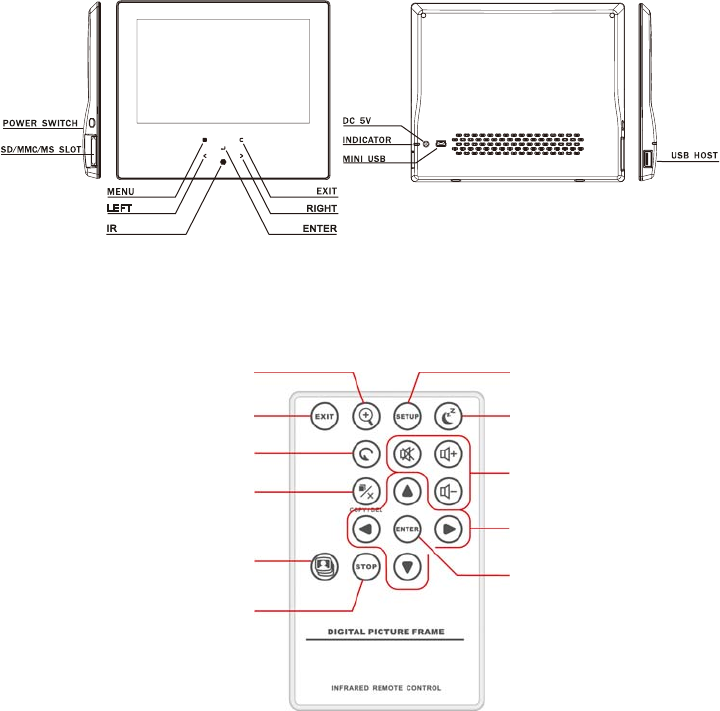
Identifying the Parts
6(783
6/((3
92/80( &21752O
',5(&7,21 %877216
(17(5
=220 ,1
(;,7
527$7(
&23<'(/(7(
6/,'( 6+2:
6723

5
Replacing Remote Control Battery
If the remote control stops working or works improperly, replace the battery (CR2025 lithium
battery) with a new one.
1. Pull out the battery holder.
2. Remove the old battery from the holder and then put a new battery with “+” facing up.
3. Insert the battery holder back to the remote control.
Notes
When the lithium battery becomes weak, the operating distance of the Remote Control
may shorten, or the Remote Control may not function properly. In this case, replace the
battery with a CR2025 lithium battery. Use of another battery may present a risk of fire
or explosion.
Dispose the used batteries
as
specified by the local authorities.
Do not leave the Remote Control in a very hot and humid place.
Incorrect use of the battery may cause leaking and corrosion.
- When the Remote control will not be used for a long period of time, remove the
battery from the remote control to prevent leaking and corrosion.
- Incorrectly inserting, shorting, dismantling, or heating the battery, or throwing
it
into a fire may cause the battery to rupture and leak.
Product Specification
Features
Support JPEG image formats
Zoom in, background music, and auto-slideshow with effects
Displays clock, monthly calendar
Auto-Crop
Auto-Resize
File Management
Supports USB update
Warning
Battery may explode if mistreated. Do not recharge,
disassemble or dispose of in fire
6
Specification
HowtoUse
Your
Digital Picture Frame
Turning on and off
To
turn the Digital Picture Frame on, just simply plug theAC adapter to a wall outl
the Digital Picture Frame then switch the POWER switch to ON posit
POWER button, and the system will shows the Function interface. *
To
turn off the Digital Picture Frame, just switch the POWER switch to OFF po
press and hold the POWER button until the screen
is
blackened. *
* The power switch or the power button may vary from different models.
Connecting to PC
A
t
any time connecting the Digital Picture Frame to the PC,
it
will enter USB mode. The screen
will show the message “connecting to PC”. InUSB mode, the Digital Picture Frame functions
as
aUSB flash drive.
T
oexit USB mode, simply unplug the USB cable or press ESC key.
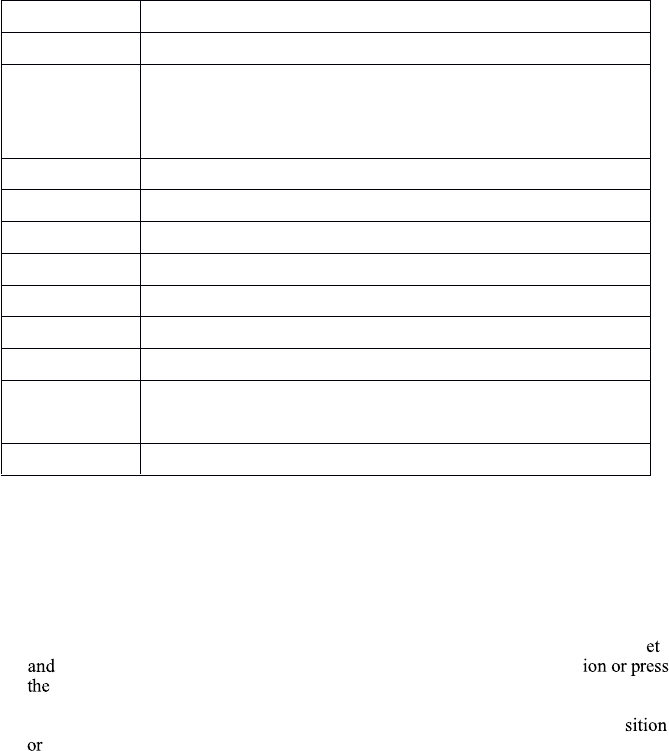
Product
7
’’
Digital Photo Frame
Resolution
800x480pixel
Memory Card
Formats
Secure Digital™, Multi-Media Card™, Memory Stick™,
Memory Stick Pro™, Memory Stick Duo™, Memory Stick Pro
Duo™ and USB flash drives
Image Formats
JPEG
Audio Formats
MP3
Video Formats
Motion JPEG,XVID,H.264
Sub-Display
Optional
USB Ports
USB 2.0 (Host) x 1, mini-USB x 1
Power Input
AC 100V~240V, 50~60Hz
Power Output
DC 5V / 1.5A
Internal
Speakers 1W x 2
Certification
CE / FCC / RoHS
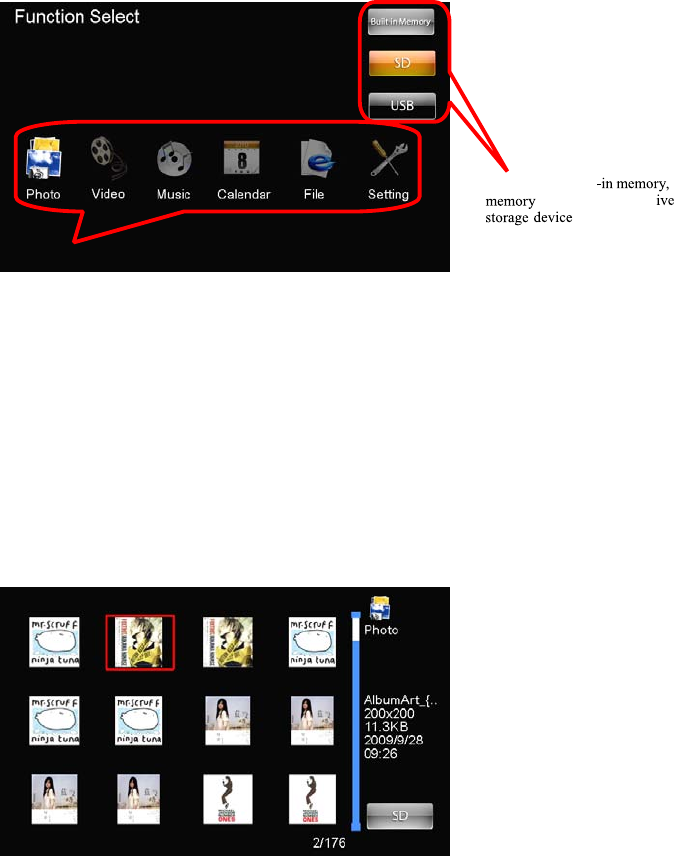
Function Select Screen
The Digital Picture Frame will enter the ode election creen when powered on. (The screen
may vary from different models)
If there
is
no any operation for seconds in the ode election creen, the Digital Picture Frame
will start the slideshow automatically.
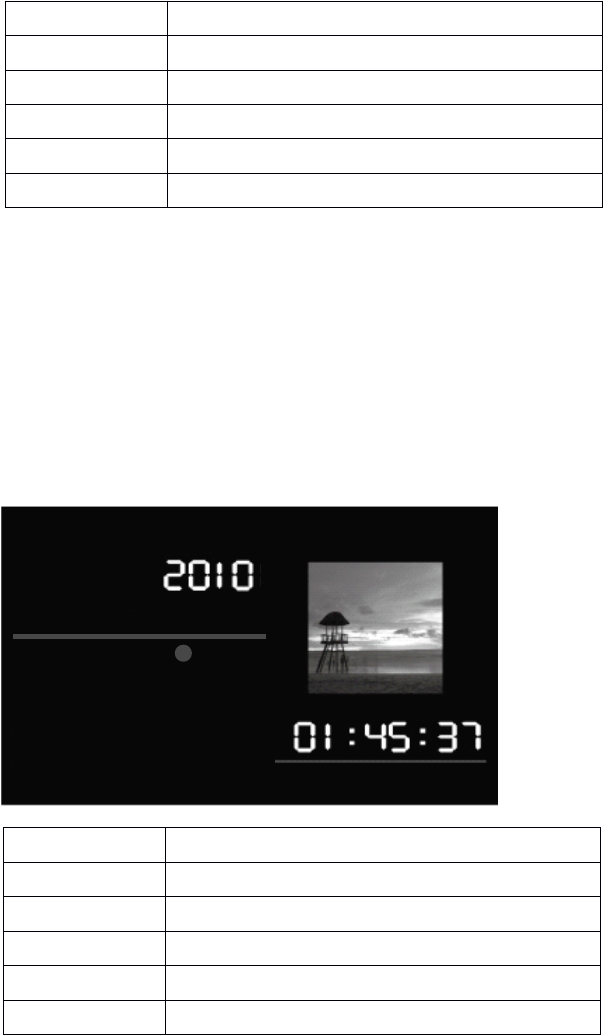
Photo
Sli esho o e the images are displayed one by one. Pressing the LID OW
button will start the slideshow. ou can setup the display duration, effects, and image
display ratio in the etup menu by pressing TUP button on the remote control. While
playing slideshow, press T R to switch from lide with music and lide photo
only .
hum nail o e the screen
is
split to portions the left portion shows the thumbnails
and the right portion displays the image information (image name, resolution, file size,
image created date etc)
Single ie o e select the desired image in Thumbnail mode and press T R to
display the image in full screen. The image will be displayed constantly. Press
L FT RI T button on the remote control to view last next image, or press C xit to
return to Thumbnail ode.
Feature Options
torage type: built
cards, or U mass
8
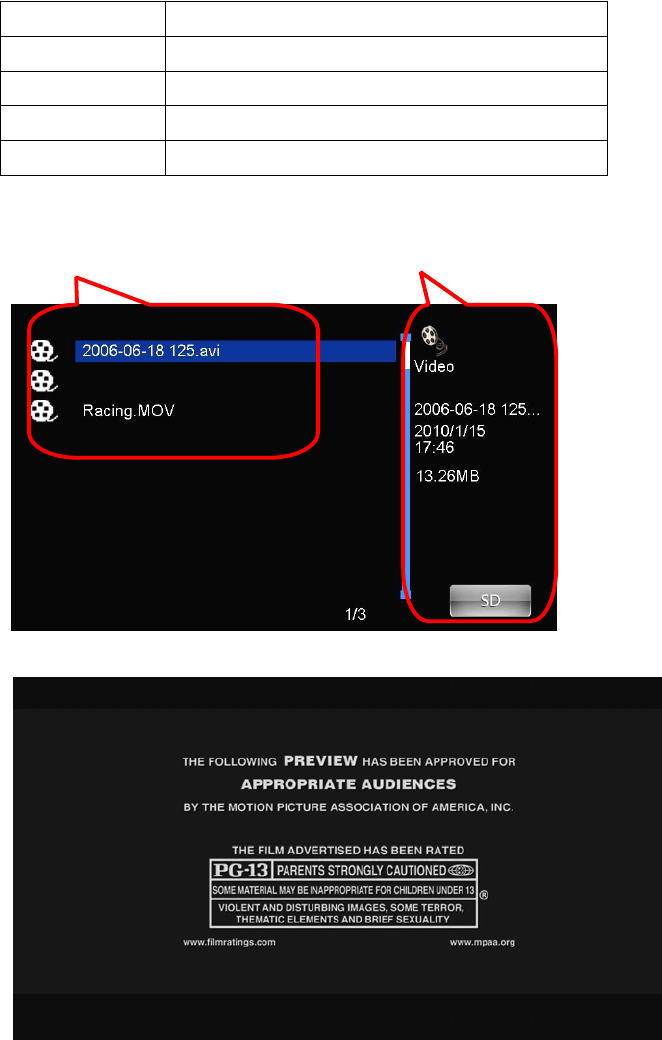
Vieo
elect ideo in Function elect creen will show the video file list.
Press T R to play the video file.
While playing the video, the playing time and the video length are shown
at
the bottom.
utton
Function
TR
lideshow start slideshow music on(off)
TOP
xit to thumbnail
IT
xit to thumbnail
COP D L T
Copy Delete photos
File Information
File List
00.avi
9
Music
Select Music in Function Select Screen and the screen will show the music file list.
Use UP and DOWN buttonsto select the file.
Press ENTER to play the music.
Calendar
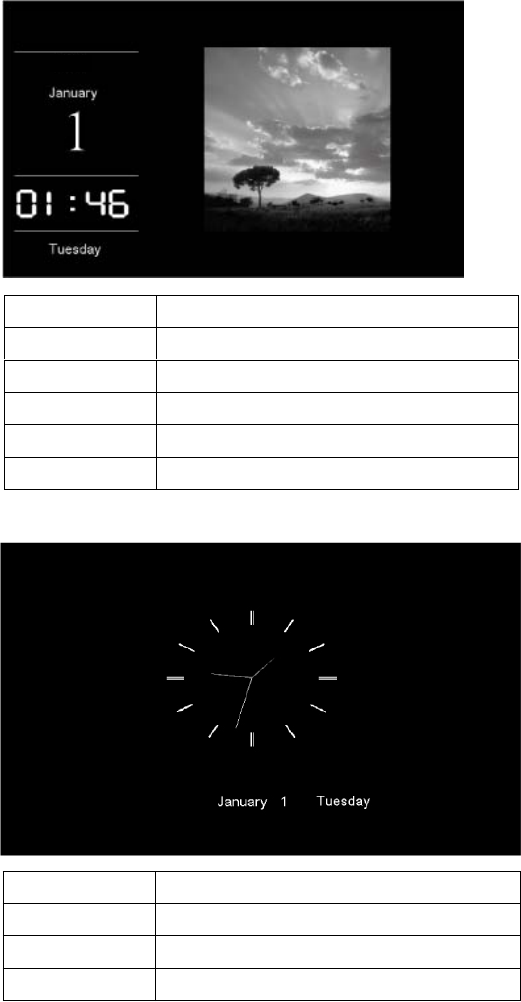
There are 3 display modes: Monthly Calendar,Calendar and Clock.
A. Monthly Calendar
The slideshow runs
at
right side
Button
Function
EXIT
Exit to file list
LEFT
Backward
RIGHT
Fast forward
ENTER
Pause / Play
STOP
Stop the video
Button
Function
EXIT
Exit to Function Select Screen
LEFT
Last image
RIGHT
Next image
UP
Last month
DOWN
Next month
4 5 6 7 8 9 10
11 12 13 14 15 16 17
18 19 20 21 22 23 24
25 26 27 28 29 30 31
Sun Mon Tue Wed Thu Fri Sat
January
1 2 3
. Calendar
noitcnuFnottu
IT
egamitsaLTFL
egamitxeTIR
htnomtsaLPU
htnomtxeWOD
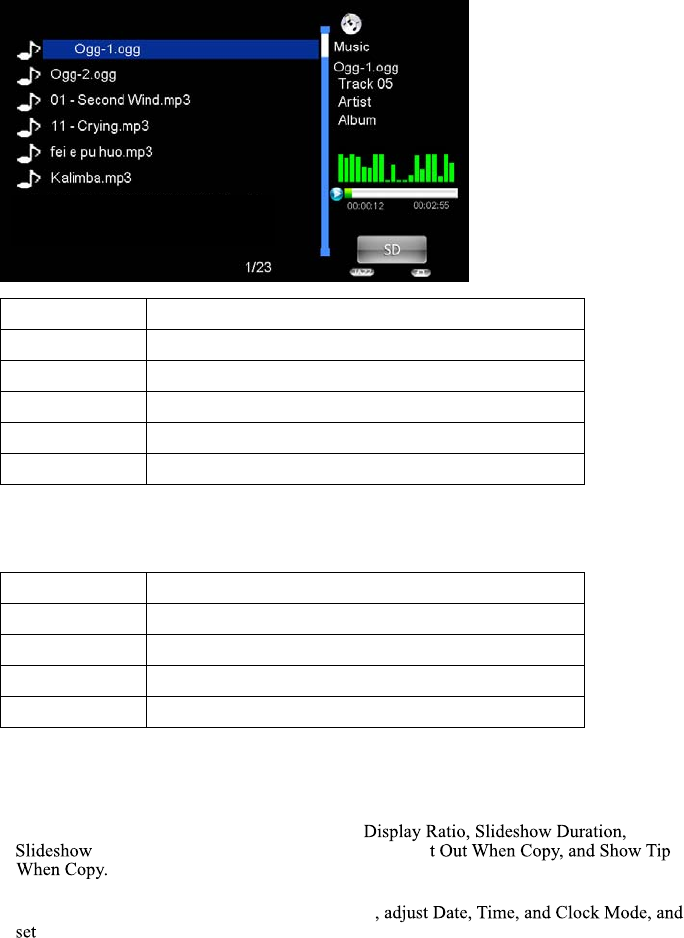
C. Clock
noitcnuFnottu
IT
htnomtsaLPU
htnomtxeWOD
The slideshow runs at right side
xit to Function elect creen
xit to Function elect creen
2010
2010
11
File Manager
In Function Select Screen, select File Manager then press ENTER, the file list shows.
noitcnuFnottuB
EXIT Back to upper folder / Exit to Function Select Screen
elifdrawpuehttceleSPU
DOWN Select the downward file
COPY/DELETE Copy/Delete Files
mrifnoCRETNE
Setting
In Setting, you can setup the system, photo, calendar, video and music.
In the sub-setup menus, you can use below keys to change the settings.
noitcnuFnottuB
EXIT Back to upper folder / Exit to Function Select Screen
UP Select the upward setting
RIGHT Select the downward setting
LEFT/RIGHT Change setting value
A. System Setup
Here you can adjust Backlight, Brightness, Gamma, Hue, Language, Auto-Power On/Off,
Auto-Power Frequency, and Reset.
B. Photo Setup
Here you can change the photo Display Mode,
Effect, Slideshow Repeat, Clock, Resize, Cu
C. Calendar Setup
Here you can change the calendar Display Mode
Alarm.
D. Video Setup
Display Mode and Play Mode can be modified here.
E. Music Setup
Music Effect and Play Mode can be modified here.
12
About EzDisplay (Optional)
EzDisplay is a PC software based on Windows (Windows XP™, Windows Vista™), with rich
your PC or Laptop. EzDisplay supports Unicode and Multi-Language according to your OS
configuration.
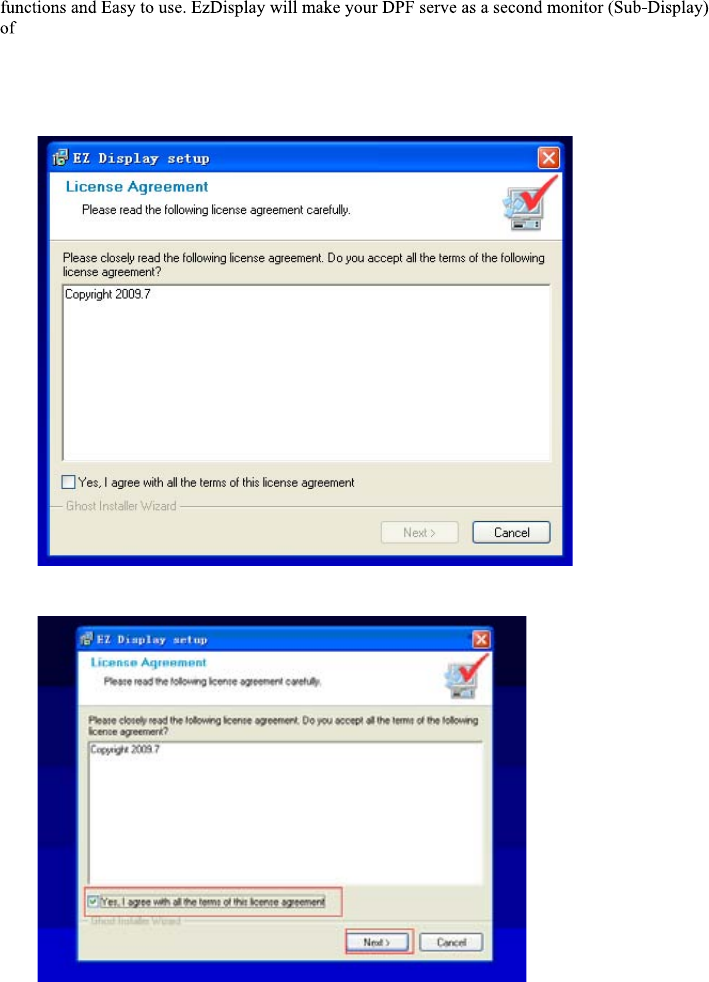
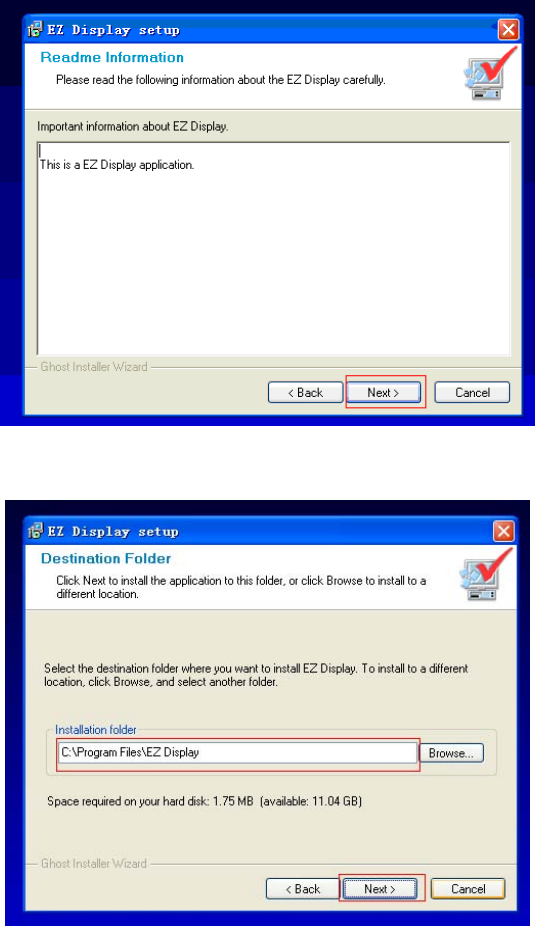
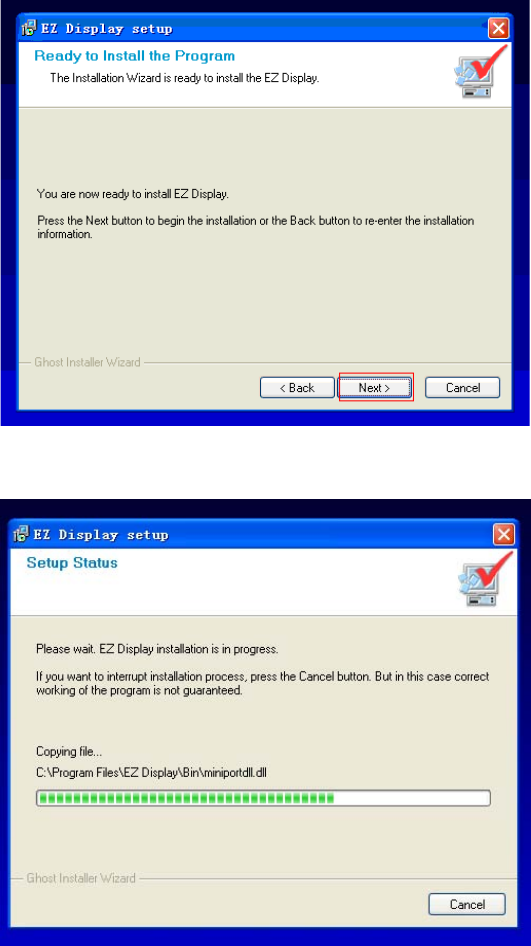
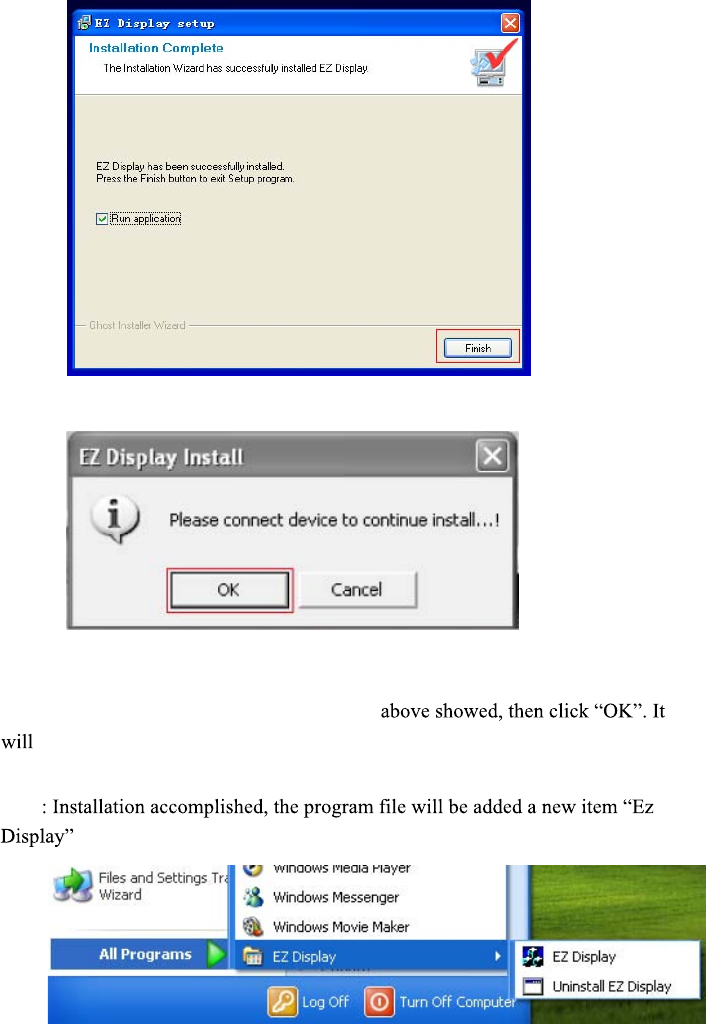
1. Install the Program
Double-click the icon of Ezdisplay Setup.exe to install program, see as following:
Step1
Step2
13
Step3
Step4
14
Step5
Step6
15
Step7
Step8
Plug DPF and connect device to the PC when
automatically install device driver .
Note as following:
16
During installation, it needs two driver programs which are SubVGA driver (As
figure Step9 signs :reset the PC) and USB device driver(Automatically search the
program and unnecessary restart PC once USB device driver was connecting )
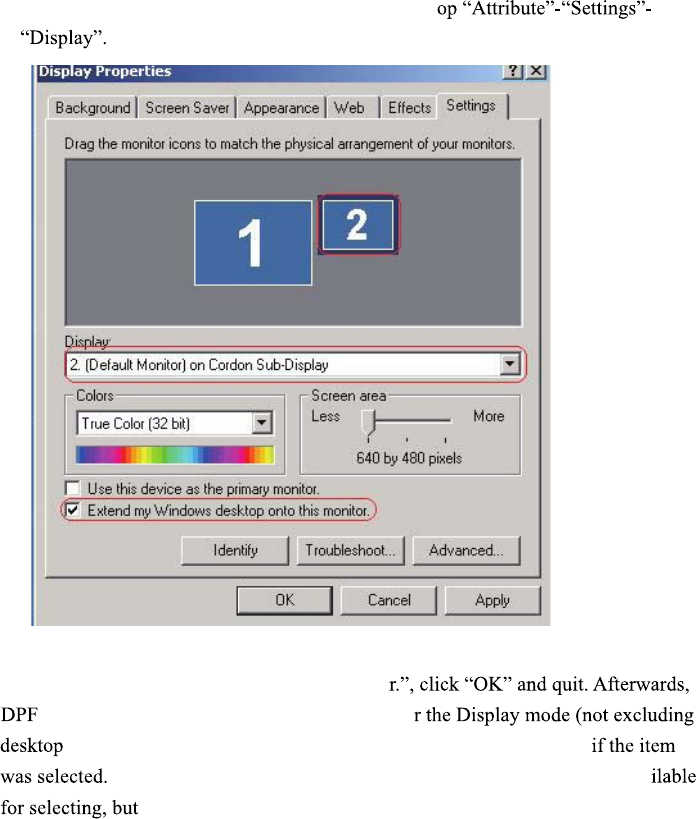
a. The SubVGA driver serves for external display (DPF as secondly monitor). You
would find the “Cordon Sub-Display” in the deskt
As following::
NOTE : Selected the “(Default Monitor) on Cordon Sub-Display”, then click the
“Extend my Windows desktop onto this monito
will display the same desktop of the PC unde
icon). In case of blank screen is showing on DPF, please check
Only under the particular situation: It needs quit the system if ava
it is unworkable.
b.Install USB device driver is for getting through the connection by PC and DPF.
Please make correct connection of DPF and PC, and the driver can be well installed.
2. Install Device Driver
17
3. Program Working and Operating
3.1. Use of Application Program
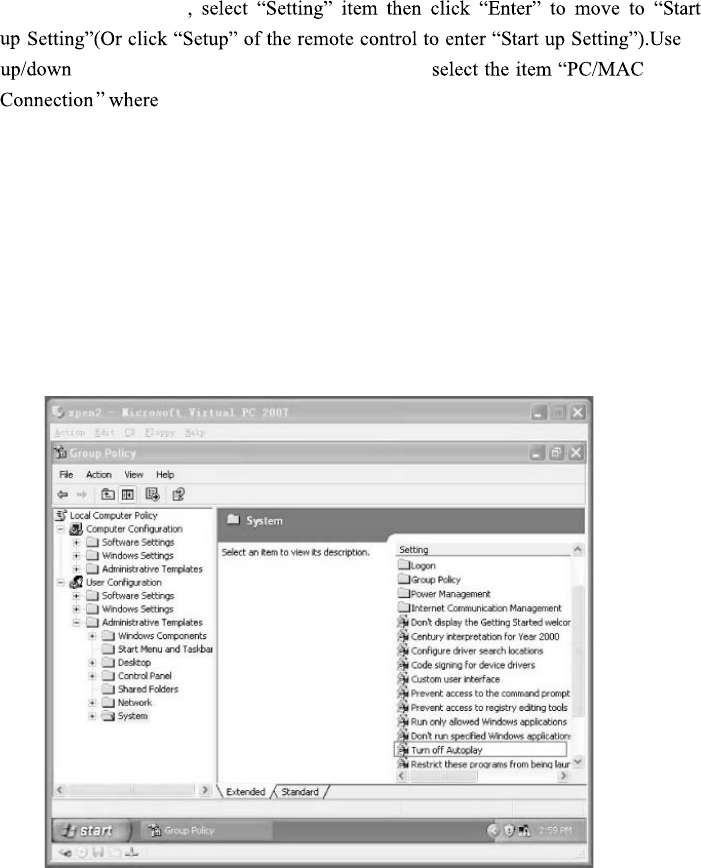
At main menu of DPF
to select “System setup”, click “ENTER”,
are three options at this step(Left/Right for choosing) .
A
.
Mass Storage
: Select this function, DPF will become a memorizer after USB
connected to PC.
B. Display: Select this function, DPF will be an external display (DPF as secondly
monitor).
NOTE: TheAutomatic run function of PC should keep working, then enter into
STAR-RUN-Input gpedit.msc to go to Group Policy to check the setting, see as
following:
Figure 1
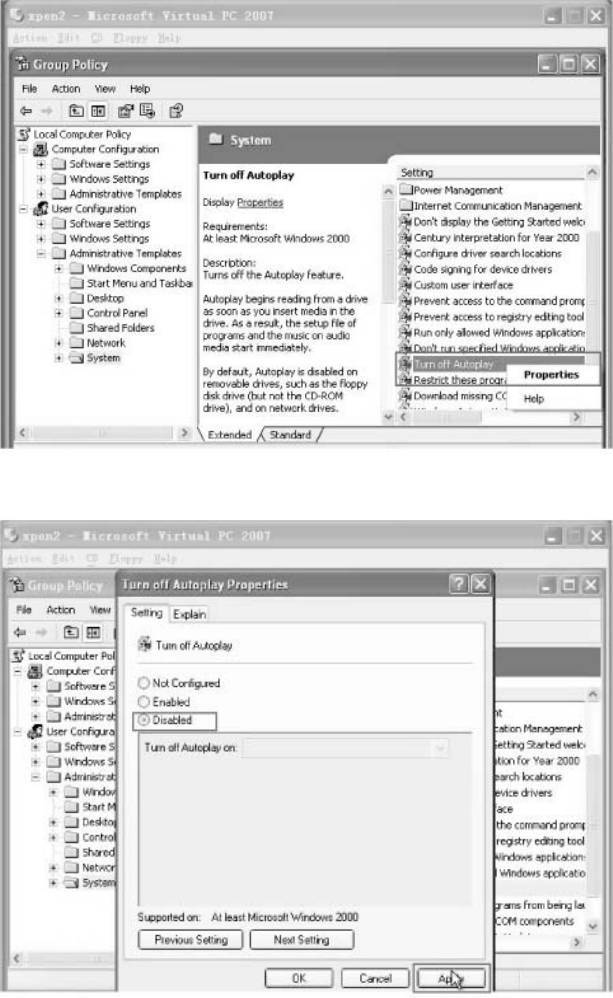
Click the right button of the mouse, see as following::
Figure
Choose Attribute - click the left button of the mouse, see as following:
Figure 3
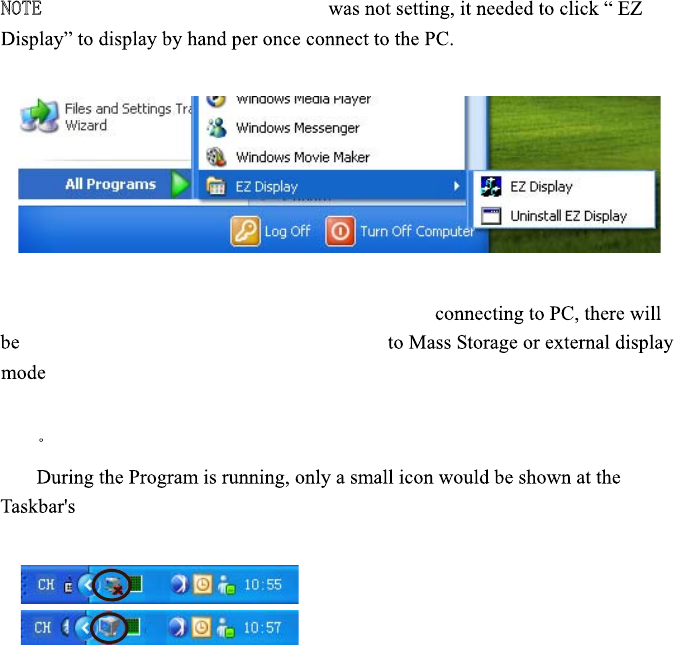
19
NOTE Automatic run function of PC
:If
C.Always Ask : Setup this function, once DPF is
a questioning icon, click "up or down" to go
(DPF as secondly monitor).
ˊProgram Status
left side with two status: disconnecting or connecting. See as following:
Status of disconnecting
Status of connecting
20
Frequently Asked Questions
Q: How do I set up my Digital Picture Frame?
A: It is very simple to get you Digital Picture Frame out of the box and running in just a few
minutes. Just plug the power adapter into the Digital Picture Frame and into a standard wall
socket. Insert a memory card into the appropriate card slot on the side of the Digital Picture
Frame and turn it on. Your first slideshow will automatically start to play.
Q: What memory cards can the Digital Picture Frame read?
A: Compatible memory cards include Secure Digital™, Multi-Media Card™, Memory Stick™,
Memory Stick Pro™, Memory Stick Duo™, and Memory Stick Pro Duo™.
Q: I set up the Digital Picture Frame; why does it not turn on?
A: The adapter may be not securely connected to the Digital Picture Frame or wall socket, or
the Power Switch may not be on. Please check if the adapter is properly plugged to the
Digital Picture Frame and the wall socket.
Q: I have a memory card in the Digital Picture Frame; why can’t I view my photos?
A: First, check whether the memory card is one of listed above and the images are one of the
formats listed in the Specification on page 6. Second, turn the Digital Picture Frame off
and make sure that the memory is inserted all the way into the card slot and is facing the
correct direction. Third, turn the Digital Picture Frame on; you should see the Function
Select Screen. Press EXIT and the yellow Built in Memory icon on the right side enlarges.
Photo, the slideshow starts(factory default).
Note: Some digital cameras save images in other fo
your photo format is not listed in the specification.
Q: Why is the picture display slower with some pictures and faster with others?
A: Higher resolution pictures will be loaded slowly. Try to use lower resolution pictures or
down sampling your images. See your camera’s operating manual for
your photos.
Q: Does the Digital Picture Frame support all JPEG files?
A: No. The Digital Picture Frame supports the J
read all images files downloaded from the Internet or from other graphic applications.
Changes or modifications not expressly approved by the party responsible for
compliance could void the user's authority to operate the equipment.
This equipment has been tested and found to comply with the limits for a Class
B digital device, pursuant to Part 15 of the FCC Rules. These limits are
designed to provide reasonable protection against harmful interference in a
residential installation. This equipment generates uses and can radiate radio
frequency energy and, if not installed and used in accordance with the
instructions, may cause harmful interference to radio communications.
However, there is no guarantee that interference will not occur in a particular
installation. If this equipment does cause harmful interference to radio or
television reception, which can be determined by turning the equipment off and
on, the user is encouraged to try to correct the interference by one or more of
the following measures:
-- Reorient or relocate the receiving antenna.
-- Increase the separation between the equipment and receiver.
-- Connect the equipment into an outlet on a circuit different from that to which
the receiver is connected.
-- Consult the dealer or an experienced radio/TV technician for help