Winner Wave B02 EZCast Pro Box User Manual EZCast Pro Box Manual V1 01x

Winner Wave Limited EZCast Pro Box EZCast Pro Box Manual V1 01x

User Manual

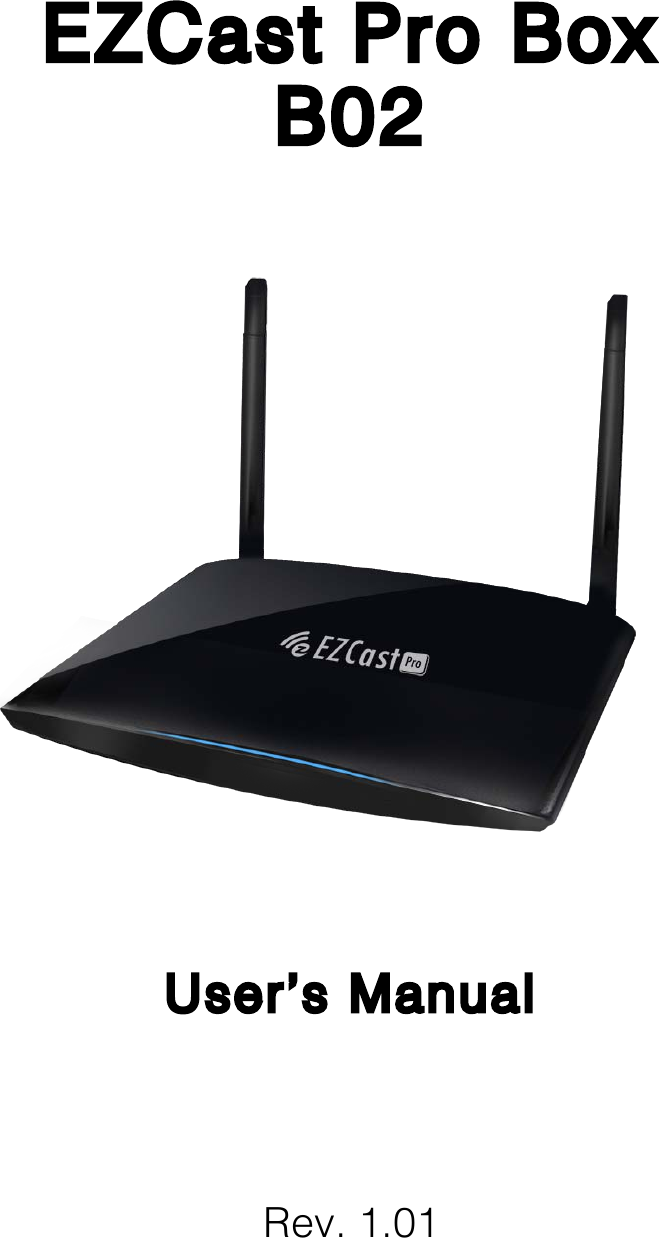
  EZCast Pro Box B02     User’s Manual     Rev. 1.01
 Histrory: Revision Change Note Date V1.00 Initial version 2016/4/14 V1.01  Miscellaneous Modification 2016/4/26
Introduction   Thanks for choosing EZCast Pro Box B02, it is based on popular EZCast Pro app and adding new dual WiFi to support 2.4Ghz and 5Ghz at the same time. It’s the most advanced WiFi Display device ever, which supports most Wireless display standards like Miracast, DLNA and AirPlay, Multimedia decoding, PDF/Office Viewer, Web browser,  Real  object  projection (Live  camera),  as  well  as  our advanced  split  screen  control.  It  also embedded  10M/100M Ethernet,  which  will  provide  stable  connection  and  easier  setup steps.  The USB  port supports  HID device  and USB disk, and the extended  control  port  helps  you  to  control  projectors  or  other devices at one time. With the regularly firmware update, it will keep compatible with latest OS platforms and keep improving features. This will be the best device for classroom, and conference rooms!!  What’s in Box l EZCast Pro Box x1 l Antenna x2 l 5V-1.5A DC adapter with cable x1 l VGA cable x1 l HDMI cable x1 l Audio out cable x1 l UART cable x1 l QSG x1 l Manual x1  Hardware Installation There will be an HDMI cable and USB adapter inside of the box, use the 5V-1.5A DC adapter to power up EZCast Pro Box, and plug HDMI or VGA cable to your TV or Projector. We also suggest connect RJ-45 port with your router to simplify setup procedures and get stable connection.
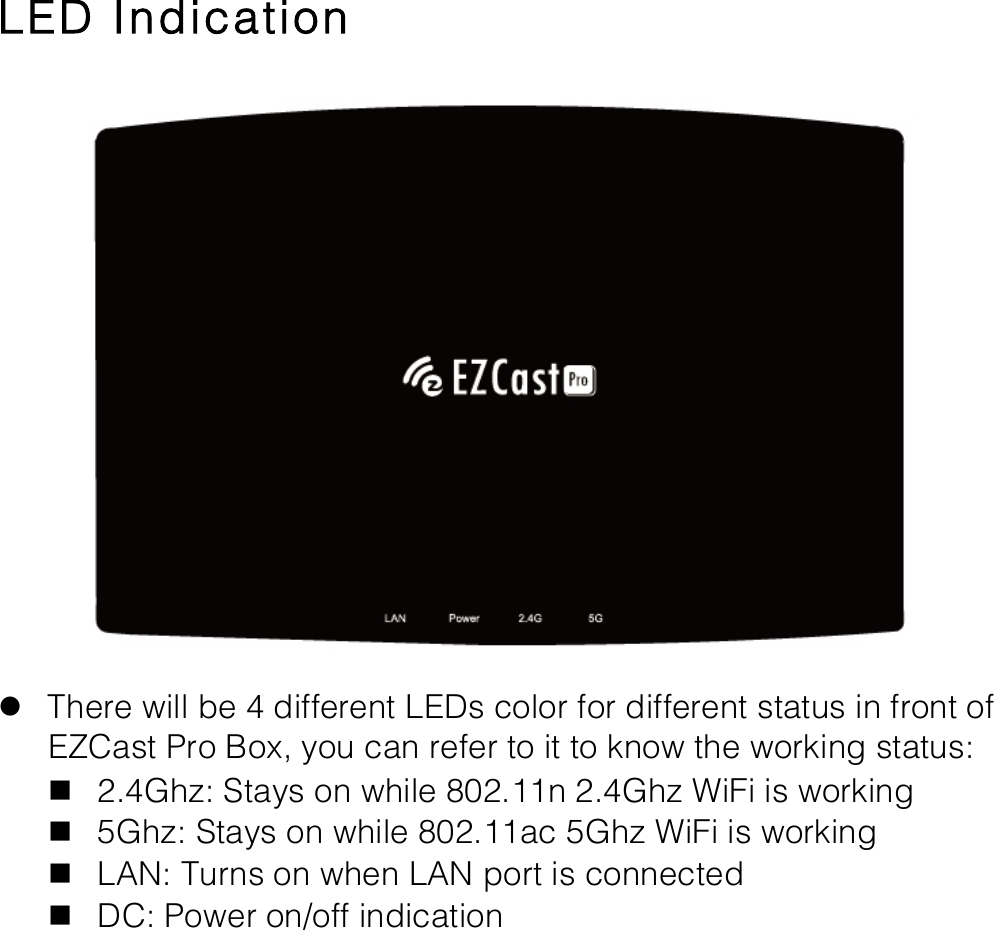
  LED Indication  l There will be 4 different LEDs color for different status in front of EZCast Pro Box, you can refer to it to know the working status: n 2.4Ghz: Stays on while 802.11n 2.4Ghz WiFi is working n 5Ghz: Stays on while 802.11ac 5Ghz WiFi is working n LAN: Turns on when LAN port is connected n DC: Power on/off indication
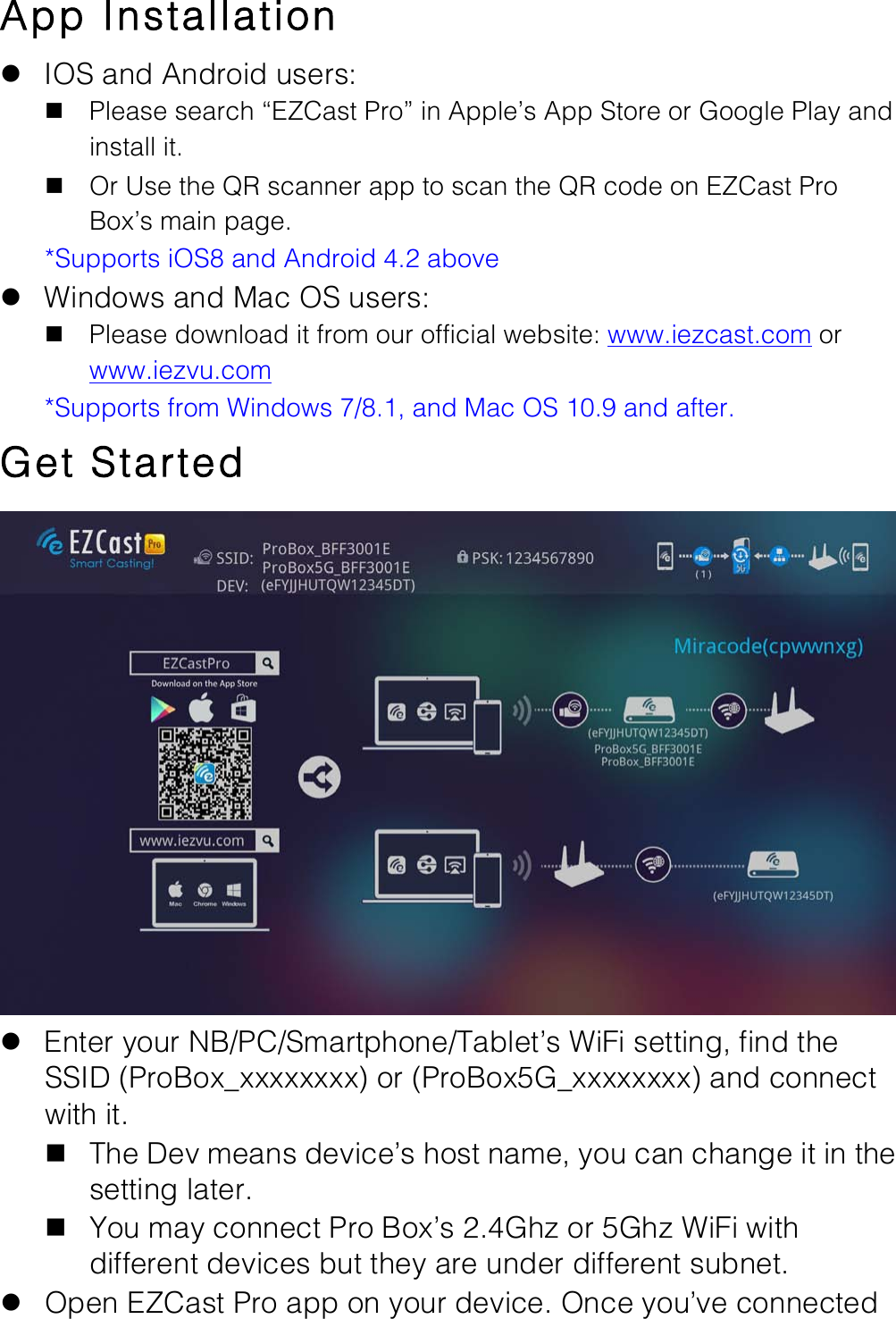
App Installation l IOS and Android users: n Please search “EZCast Pro” in Apple’s App Store or Google Play and install it. n Or Use the QR scanner app to scan the QR code on EZCast Pro Box’s main page. *Supports iOS8 and Android 4.2 above l Windows and Mac OS users: n Please download it from our official website: www.iezcast.com or www.iezvu.com *Supports from Windows 7/8.1, and Mac OS 10.9 and after. Get Started  l Enter your NB/PC/Smartphone/Tablet’s WiFi setting, find the SSID (ProBox_xxxxxxxx) or (ProBox5G_xxxxxxxx) and connect with it. n The Dev means device’s host name, you can change it in the setting later. n You may connect Pro Box’s 2.4Ghz or 5Ghz WiFi with different devices but they are under different subnet. l Open EZCast Pro app on your device. Once you’ve connected
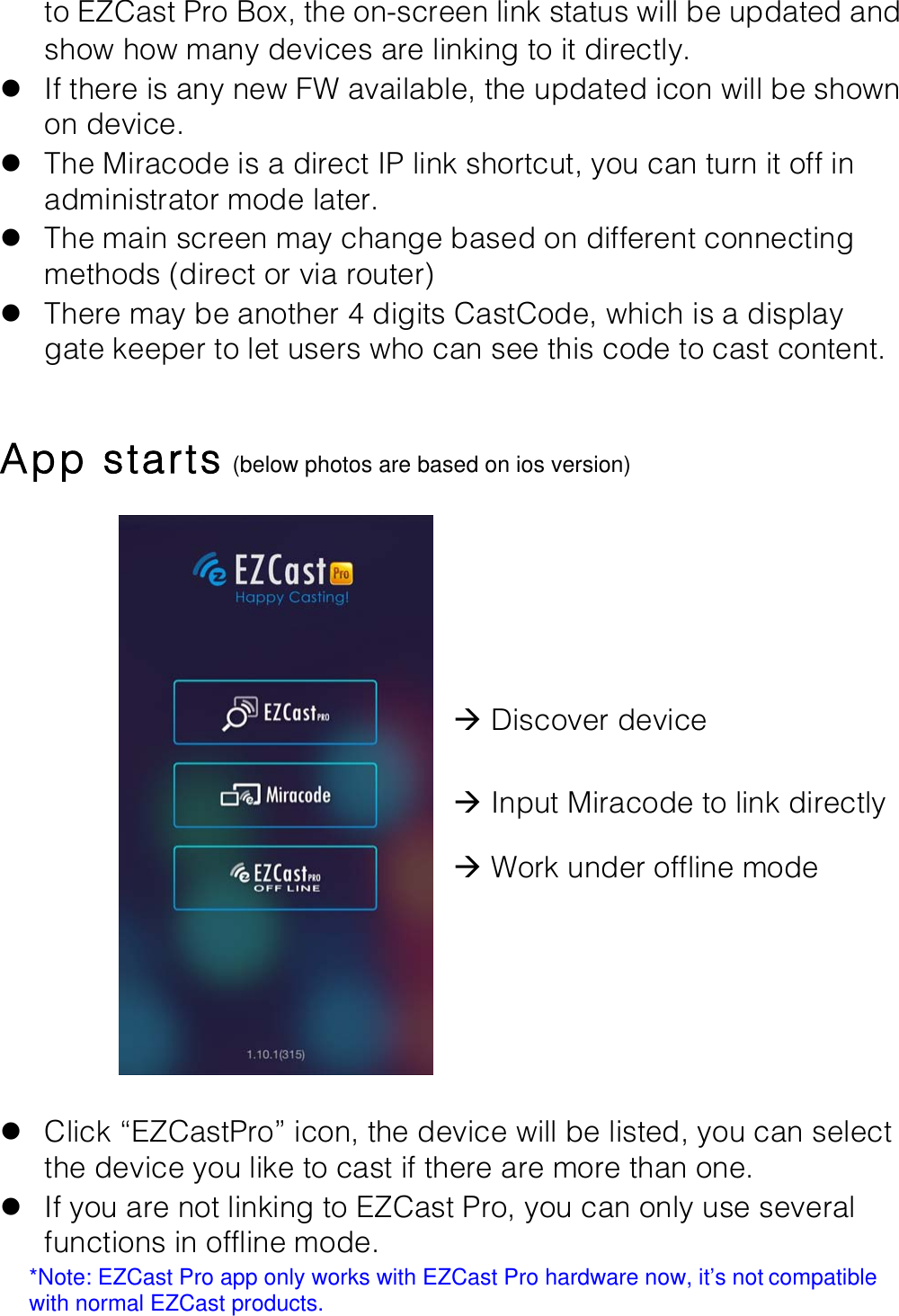
to EZCast Pro Box, the on-screen link status will be updated and show how many devices are linking to it directly. l If there is any new FW available, the updated icon will be shown on device. l The Miracode is a direct IP link shortcut, you can turn it off in administrator mode later. l The main screen may change based on different connecting methods (direct or via router) l There may be another 4 digits CastCode, which is a display gate keeper to let users who can see this code to cast content.  App starts (below photos are based on ios version)  !!!!!!à Discover device!à Input Miracode to link directly!à Work under offline mode!!l Click “EZCastPro” icon, the device will be listed, you can select the device you like to cast if there are more than one. l If you are not linking to EZCast Pro, you can only use several functions in offline mode. *Note: EZCast Pro app only works with EZCast Pro hardware now, it’s not!compatible with normal EZCast products.!
l In the first time of app launching, there will be a pop up WiFi router list so that you can link with your WiFi router through EZCast Pro device to keep internet surfing.    *Note: After setting up your internet, sometimes the connection between EZCast Pro and your mobile phone might be disconnected because of different WiFi router channel. Please remember to reconnect again.  l There is another link mode “Infrastructure mode”, which allows you to link with EZCast Pro Box through router. However, the performance may not as good as direct link, and you will need to enter the setting to enable it if need it.  !l There is a special mode for WiFi connections, we added a “Router only” to shut down Soft AP mode, in this mode the soft AP (SSID) will be turned off so that no one can search it directly to prevent some hacker’s attack. Please be careful you will need
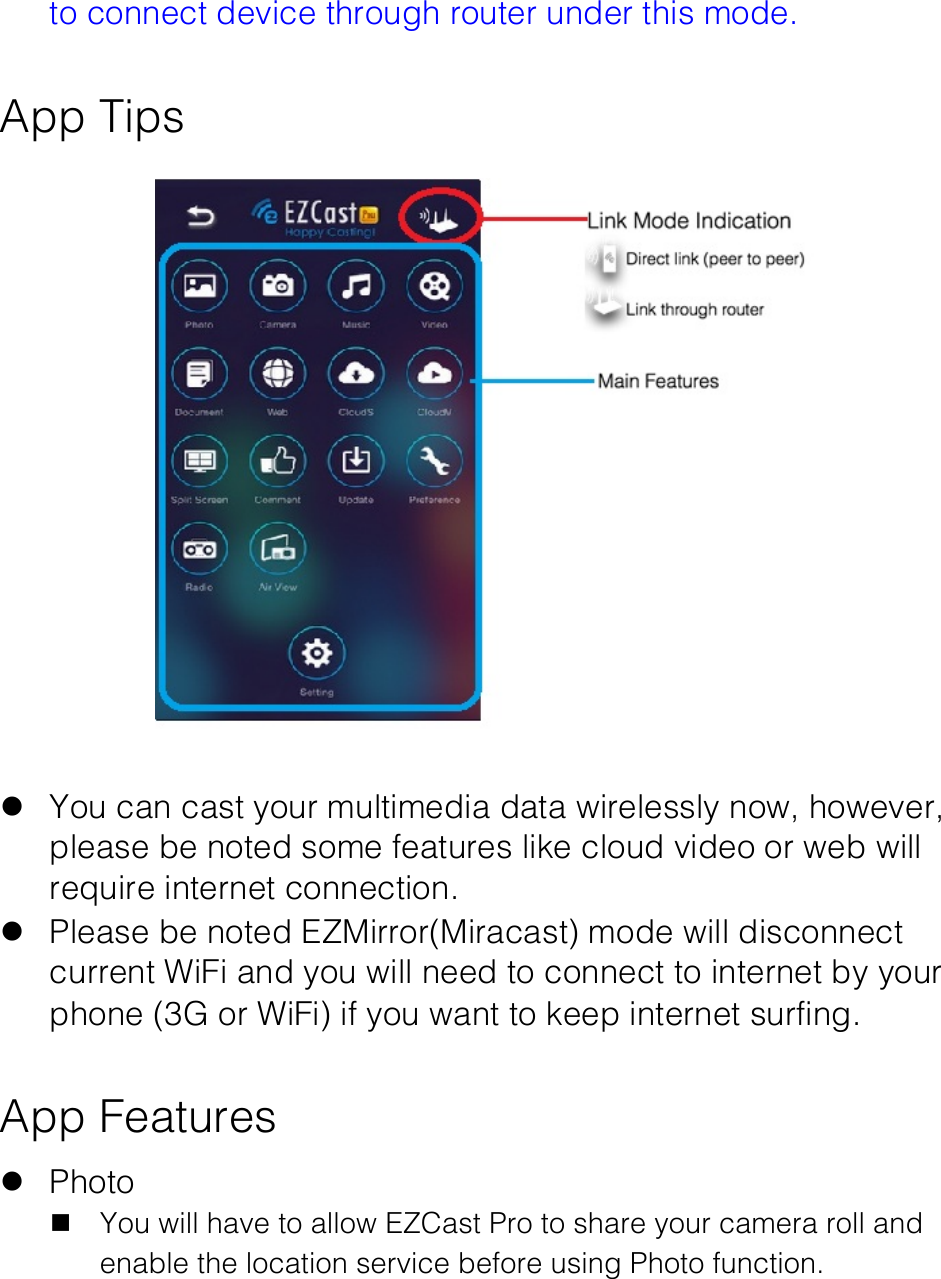
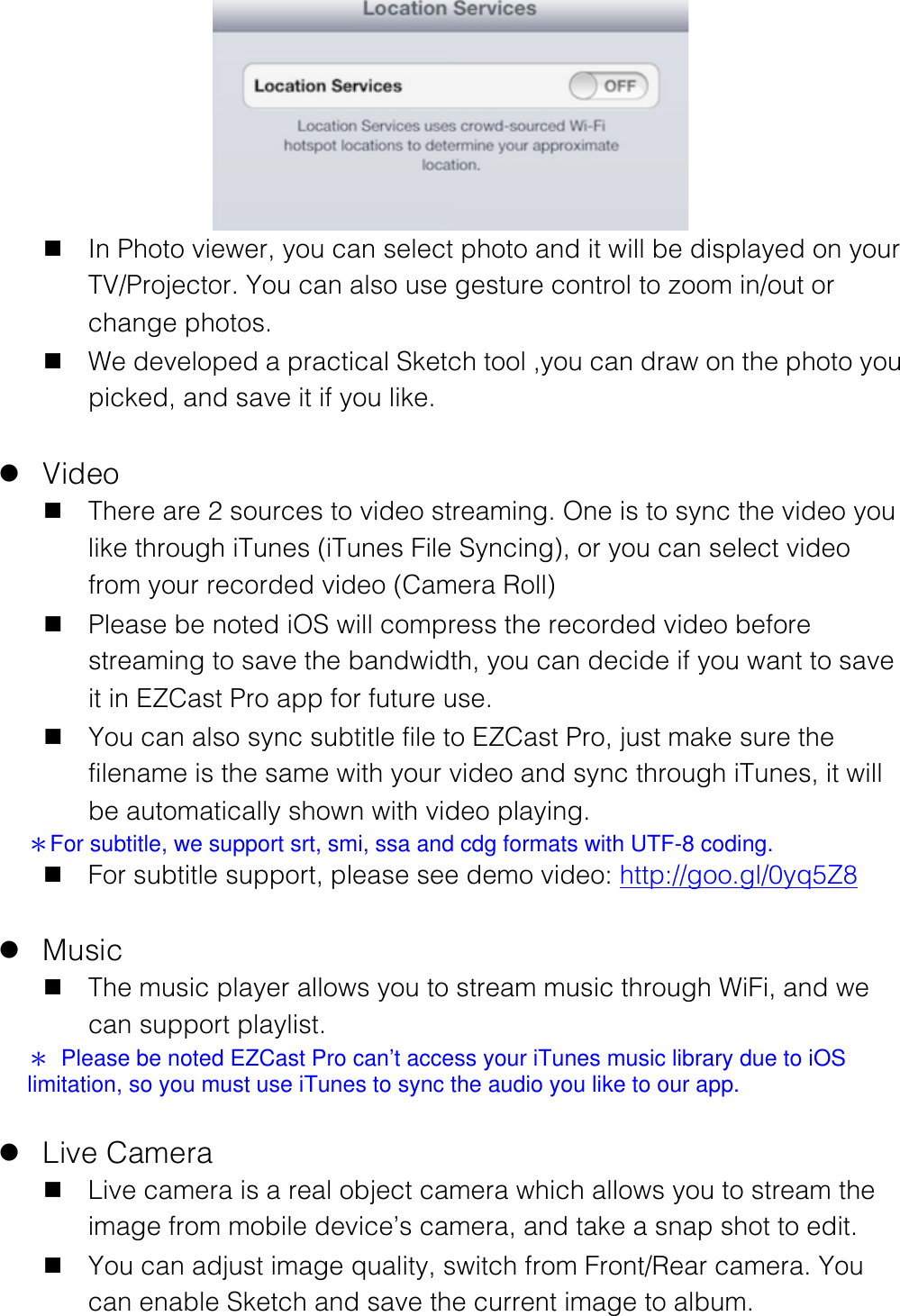
to connect device through router under this mode.!  App Tips        l You can cast your multimedia data wirelessly now, however, please be noted some features like cloud video or web will require internet connection. l Please be noted EZMirror(Miracast) mode will disconnect current WiFi and you will need to connect to internet by your phone (3G or WiFi) if you want to keep internet surfing.  App Features l Photo n You will have to allow EZCast Pro to share your camera roll and enable the location service before using Photo function.
 n In Photo viewer, you can select photo and it will be displayed on your TV/Projector. You can also use gesture control to zoom in/out or change photos. n We developed a practical Sketch tool ,you can draw on the photo you picked, and save it if you like.  l Video n There are 2 sources to video streaming. One is to sync the video you like through iTunes (iTunes File Syncing), or you can select video from your recorded video (Camera Roll) n Please be noted iOS will compress the recorded video before streaming to save the bandwidth, you can decide if you want to save it in EZCast Pro app for future use. n You can also sync subtitle file to EZCast Pro, just make sure the filename is the same with your video and sync through iTunes, it will be automatically shown with video playing. *For subtitle, we support srt, smi, ssa and cdg formats with UTF-8 coding. n For subtitle support, please see demo video: http://goo.gl/0yq5Z8  l Music n The music player allows you to stream music through WiFi, and we can support playlist. *  Please be noted EZCast Pro can’t access your iTunes music library due to iOS limitation, so you must use iTunes to sync the audio you like to our app.  l Live Camera n Live camera is a real object camera which allows you to stream the image from mobile device’s camera, and take a snap shot to edit. n You can adjust image quality, switch from Front/Rear camera. You can enable Sketch and save the current image to album.
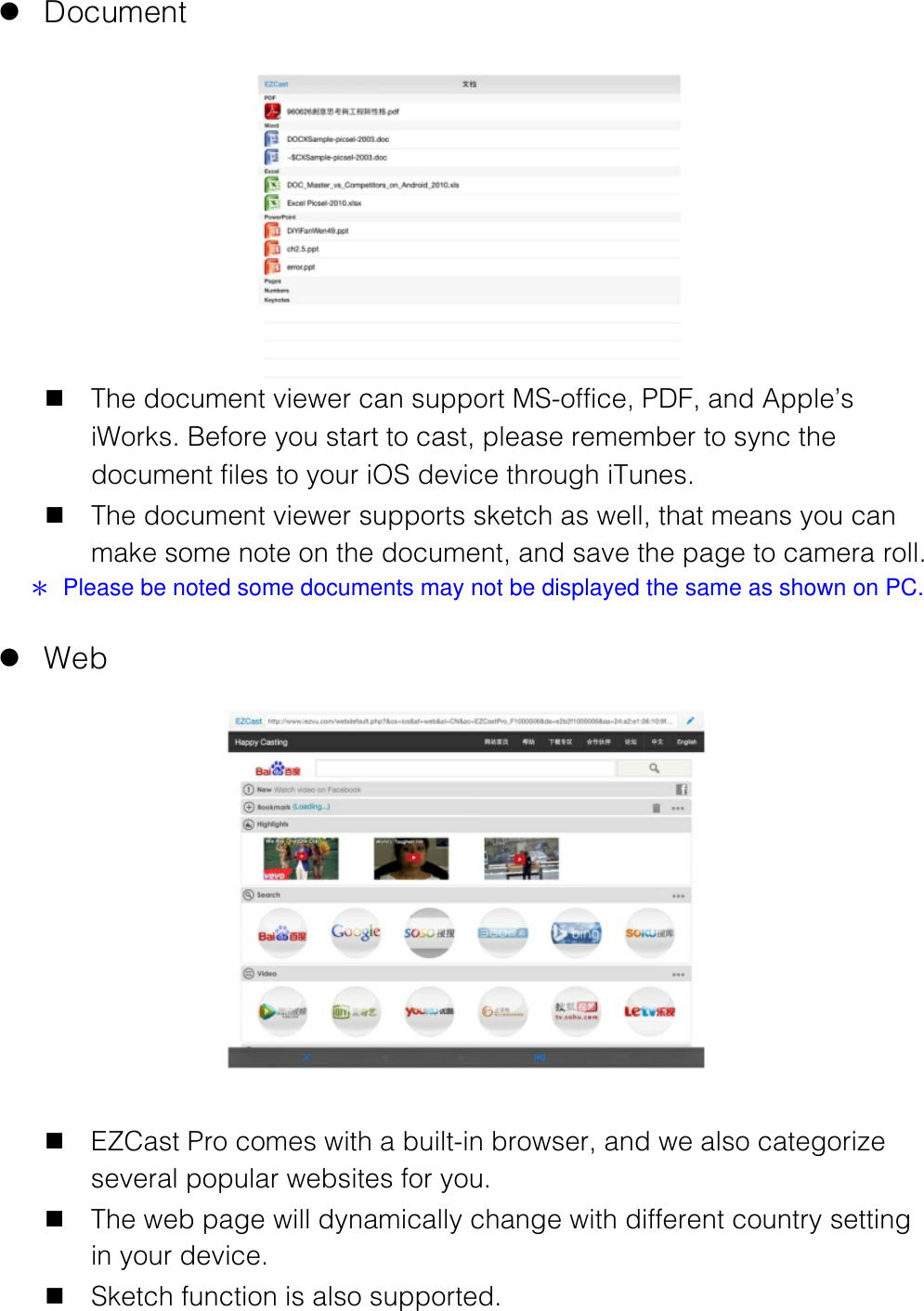
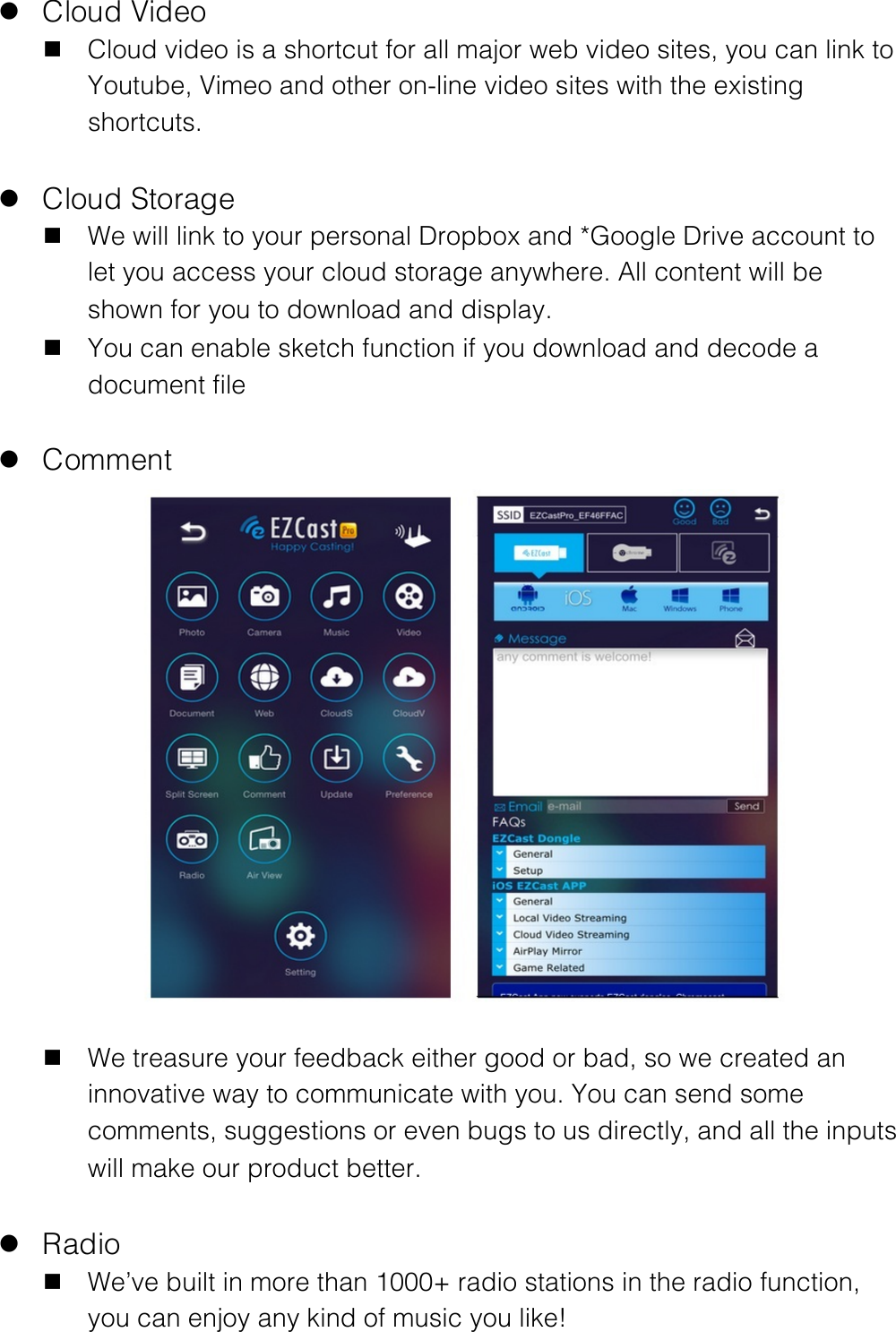
 l Document  n The document viewer can support MS-office, PDF, and Apple’s iWorks. Before you start to cast, please remember to sync the document files to your iOS device through iTunes. n The document viewer supports sketch as well, that means you can make some note on the document, and save the page to camera roll. *  Please be noted some documents may not be displayed the same as shown on PC.  l Web  n EZCast Pro comes with a built-in browser, and we also categorize several popular websites for you. n The web page will dynamically change with different country setting in your device. n Sketch function is also supported.
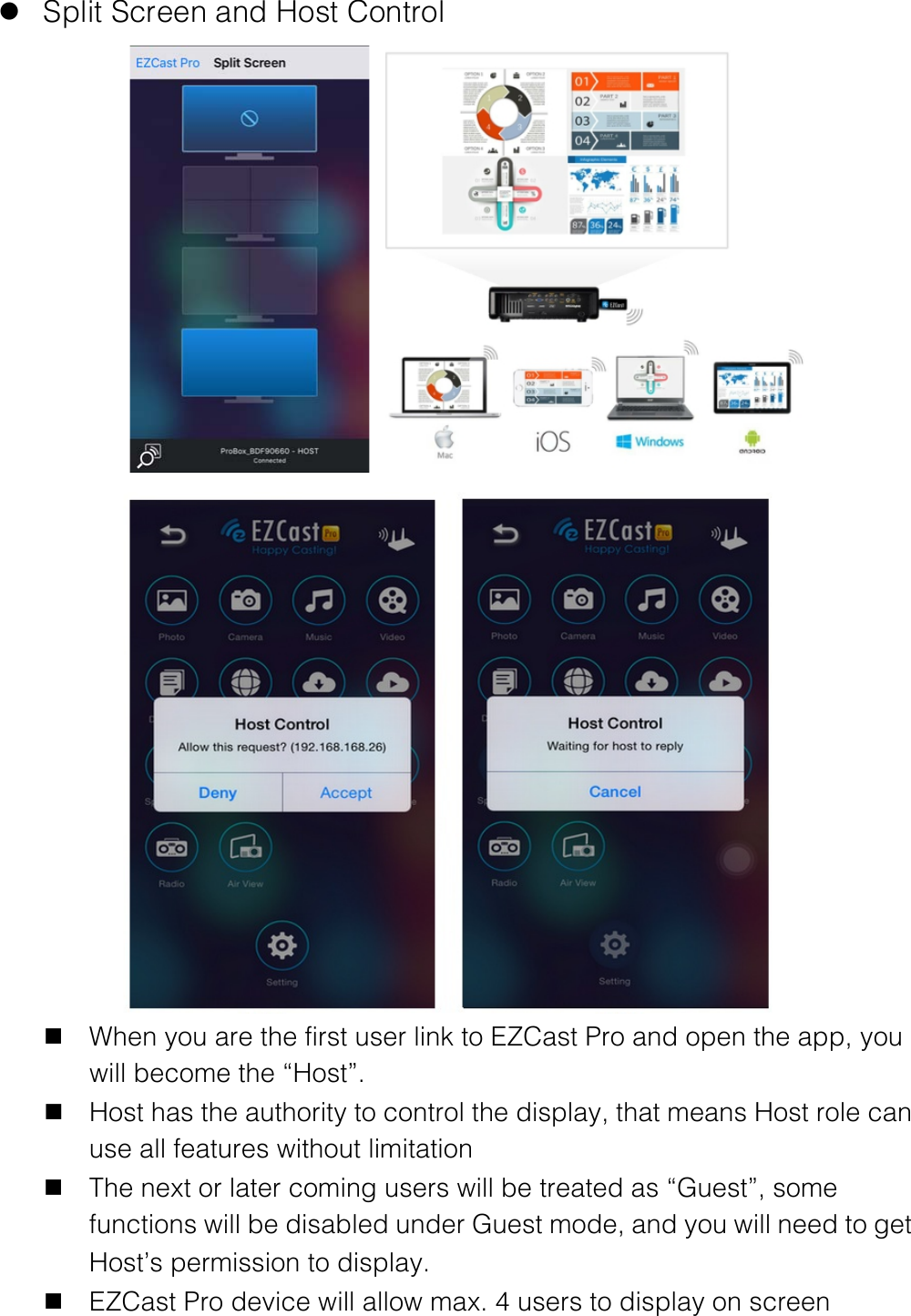
l Cloud Video n Cloud video is a shortcut for all major web video sites, you can link to Youtube, Vimeo and other on-line video sites with the existing shortcuts.  l Cloud Storage n We will link to your personal Dropbox and *Google Drive account to let you access your cloud storage anywhere. All content will be shown for you to download and display. n You can enable sketch function if you download and decode a document file  l Comment  n We treasure your feedback either good or bad, so we created an innovative way to communicate with you. You can send some comments, suggestions or even bugs to us directly, and all the inputs will make our product better.  l Radio n We’ve built in more than 1000+ radio stations in the radio function, you can enjoy any kind of music you like!
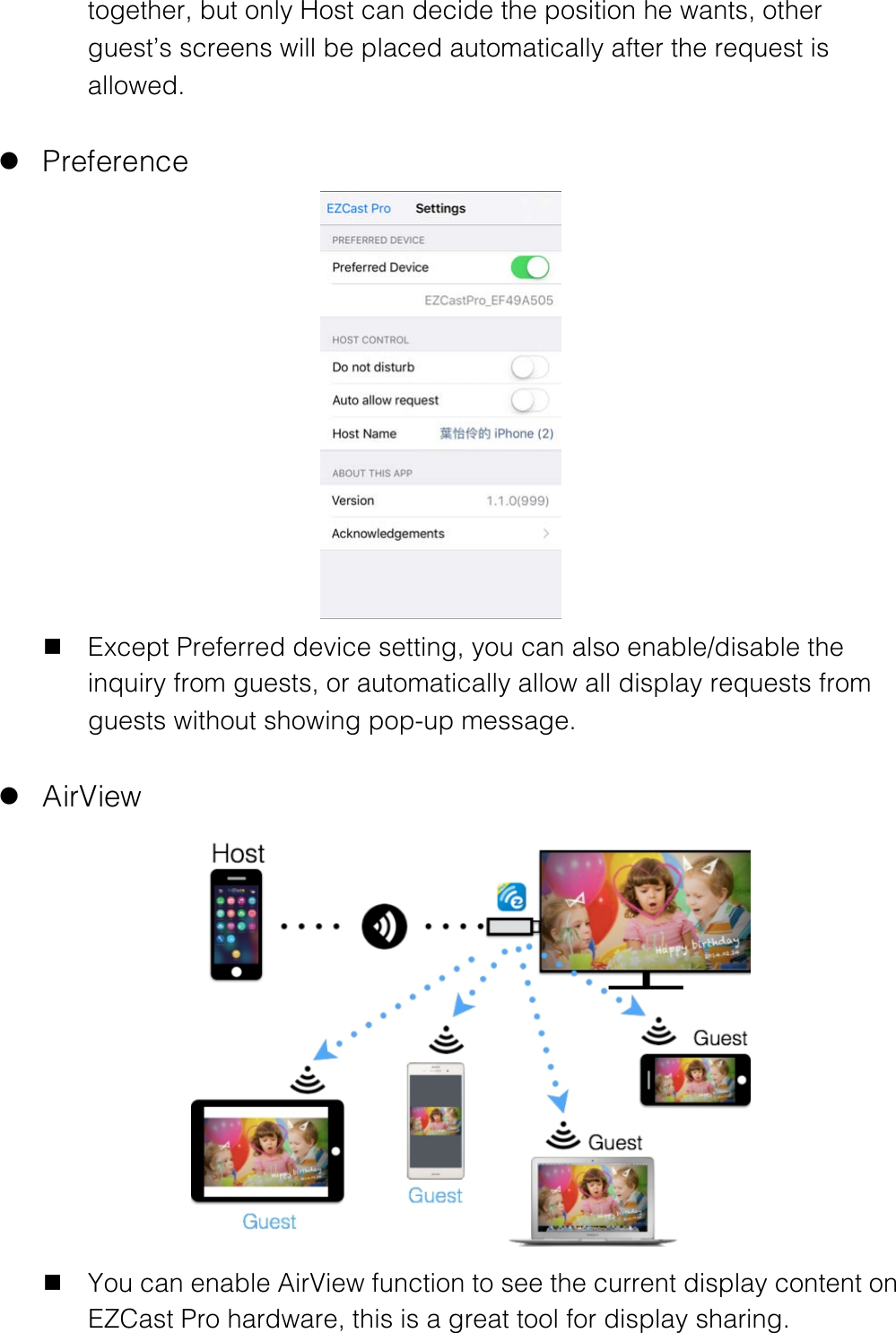
 l Split Screen and Host Control         n When you are the first user link to EZCast Pro and open the app, you will become the “Host”. n Host has the authority to control the display, that means Host role can use all features without limitation n The next or later coming users will be treated as “Guest”, some functions will be disabled under Guest mode, and you will need to get Host’s permission to display. n EZCast Pro device will allow max. 4 users to display on screen
together, but only Host can decide the position he wants, other guest’s screens will be placed automatically after the request is allowed.  l Preference  n Except Preferred device setting, you can also enable/disable the inquiry from guests, or automatically allow all display requests from guests without showing pop-up message.  l AirView  n You can enable AirView function to see the current display content on EZCast Pro hardware, this is a great tool for display sharing.
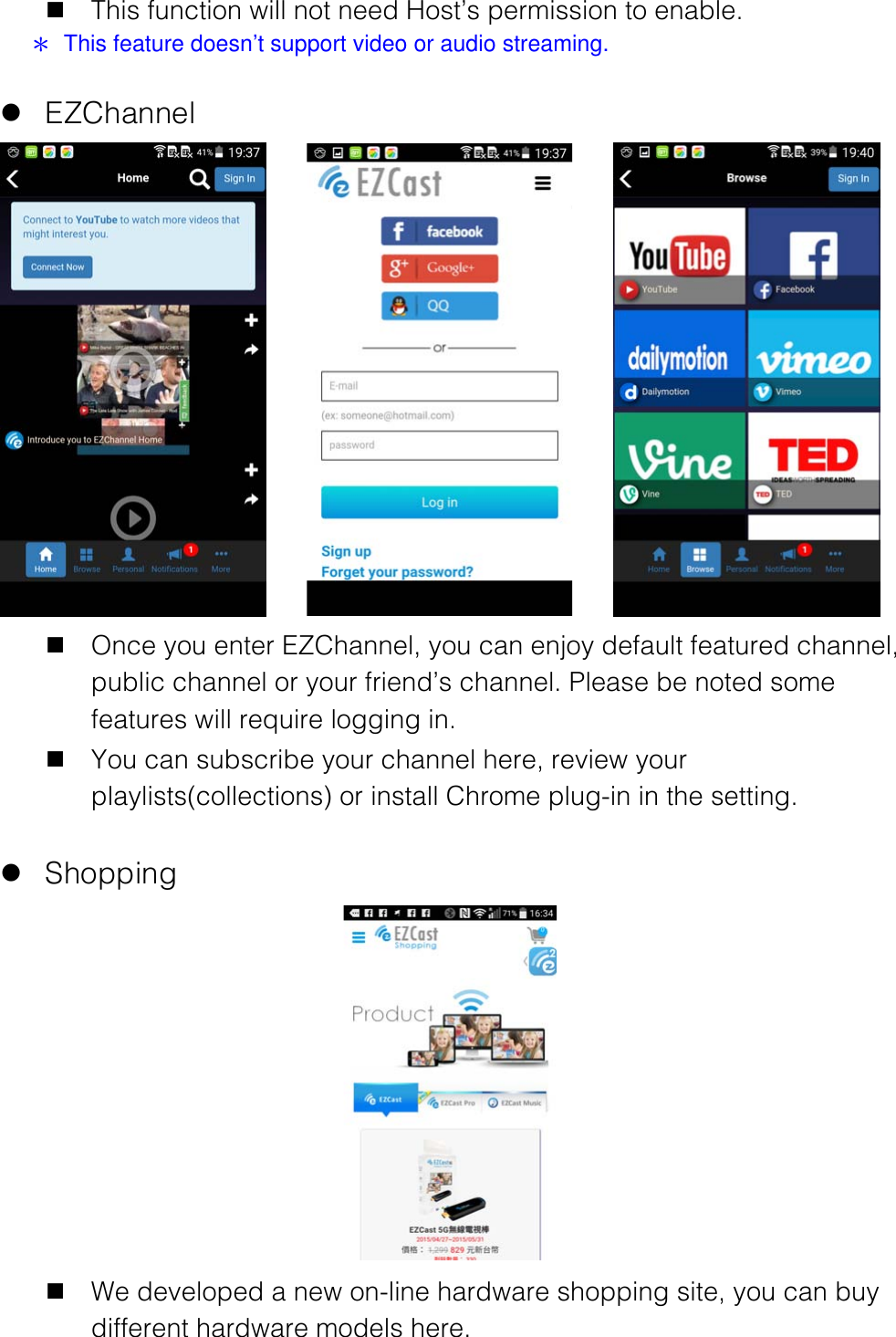
n This function will not need Host’s permission to enable. *  This feature doesn’t support video or audio streaming.  l EZChannel    n Once you enter EZChannel, you can enjoy default featured channel, public channel or your friend’s channel. Please be noted some features will require logging in. n You can subscribe your channel here, review your playlists(collections) or install Chrome plug-in in the setting.  l Shopping  n We developed a new on-line hardware shopping site, you can buy different hardware models here.
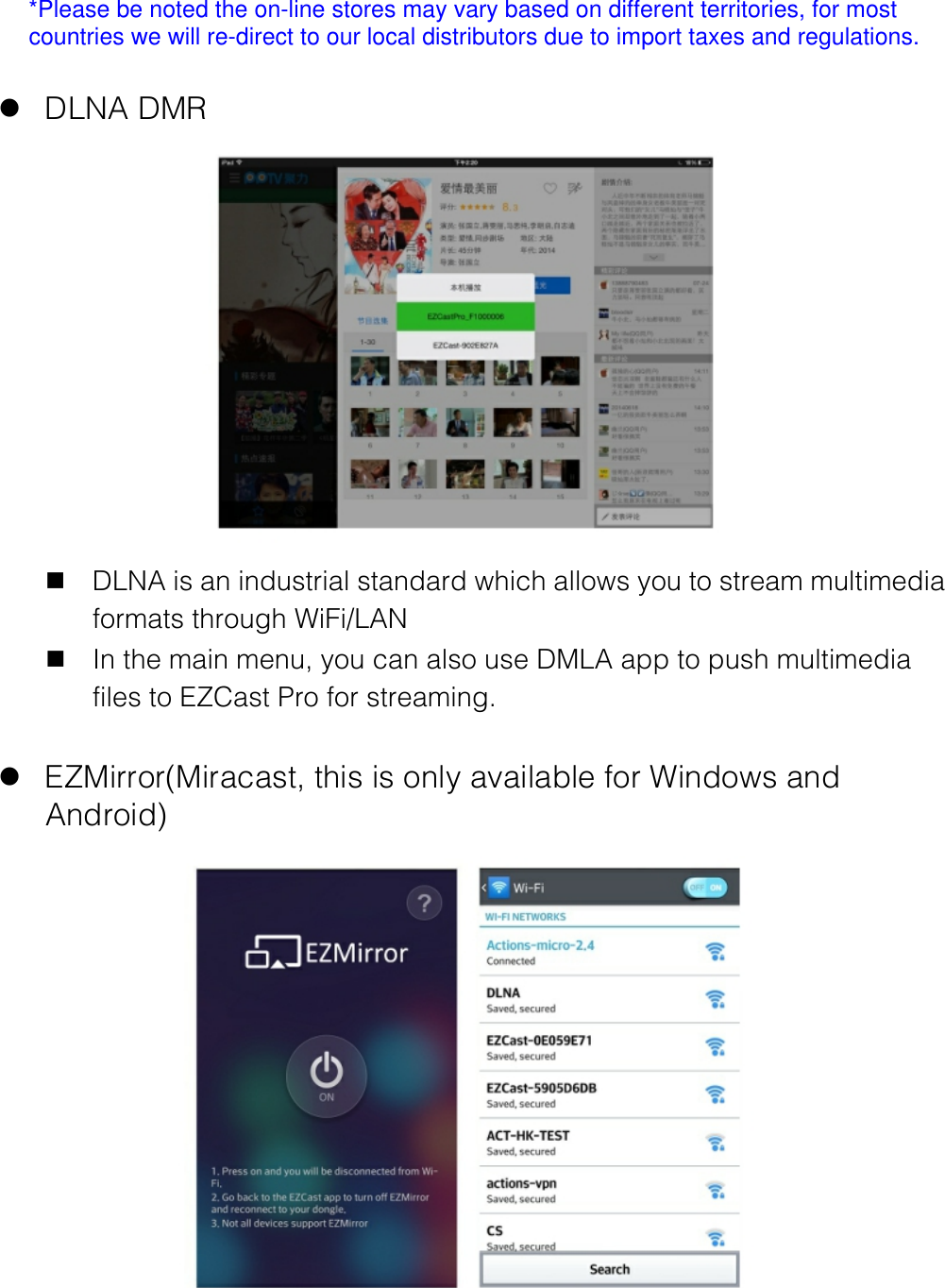
*Please be noted the on-line stores may vary based on different territories, for most countries we will re-direct to our local distributors due to import taxes and regulations.  l DLNA DMR  n DLNA is an industrial standard which allows you to stream multimedia formats through WiFi/LAN n In the main menu, you can also use DMLA app to push multimedia files to EZCast Pro for streaming.  l EZMirror(Miracast, this is only available for Windows and Android)
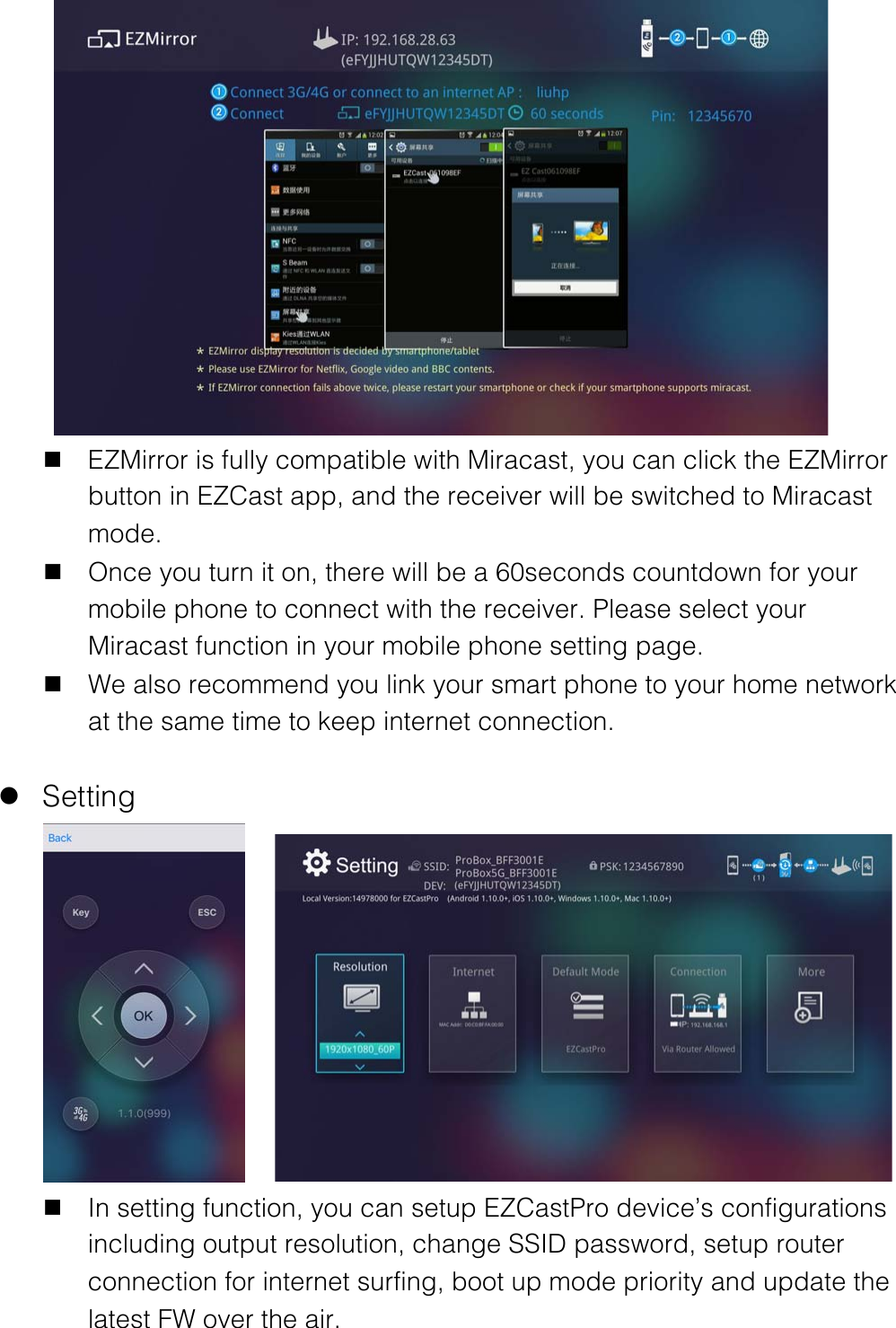
 n EZMirror is fully compatible with Miracast, you can click the EZMirror button in EZCast app, and the receiver will be switched to Miracast mode. n Once you turn it on, there will be a 60seconds countdown for your mobile phone to connect with the receiver. Please select your Miracast function in your mobile phone setting page. n We also recommend you link your smart phone to your home network at the same time to keep internet connection.  l Setting     n In setting function, you can setup EZCastPro device’s configurations including output resolution, change SSID password, setup router connection for internet surfing, boot up mode priority and update the latest FW over the air.
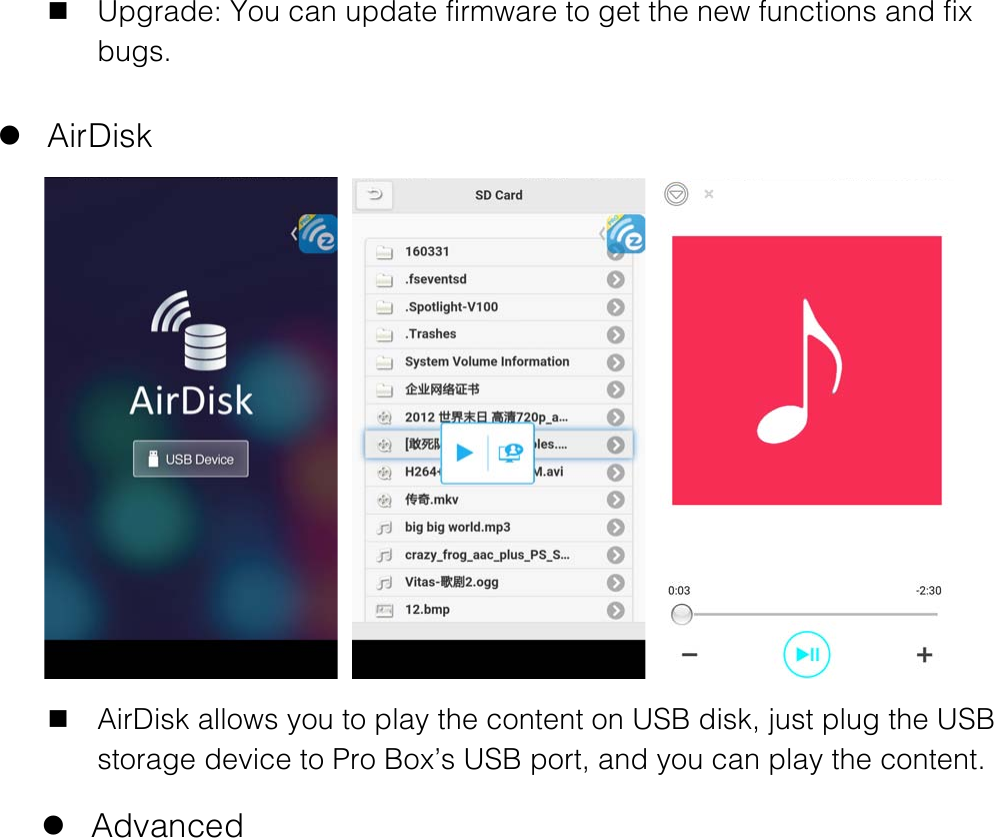
    n Upgrade: You can update firmware to get the new functions and fix bugs.  l AirDisk      n AirDisk allows you to play the content on USB disk, just plug the USB storage device to Pro Box’s USB port, and you can play the content.  l Advanced
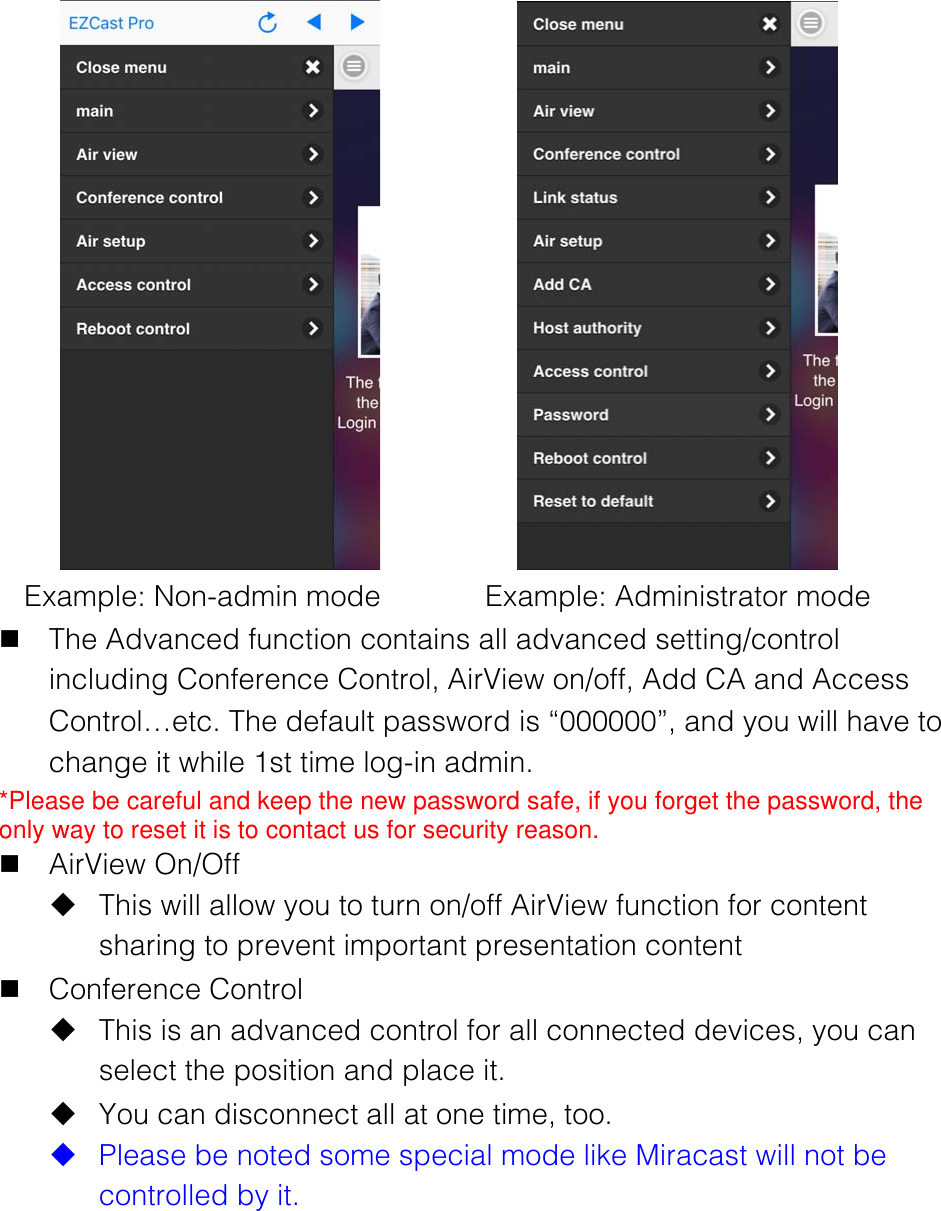
 Example: Non-admin mode  Example: Administrator mode n The Advanced function contains all advanced setting/control including Conference Control, AirView on/off, Add CA and Access Control…etc. The default password is “000000”, and you will have to change it while 1st time log-in admin. *Please be careful and keep the new password safe, if you forget the password, the only way to reset it is to contact us for security reason.   n AirView On/Off u This will allow you to turn on/off AirView function for content sharing to prevent important presentation content n Conference Control u This is an advanced control for all connected devices, you can select the position and place it. u You can disconnect all at one time, too. u Please be noted some special mode like Miracast will not be controlled by it.
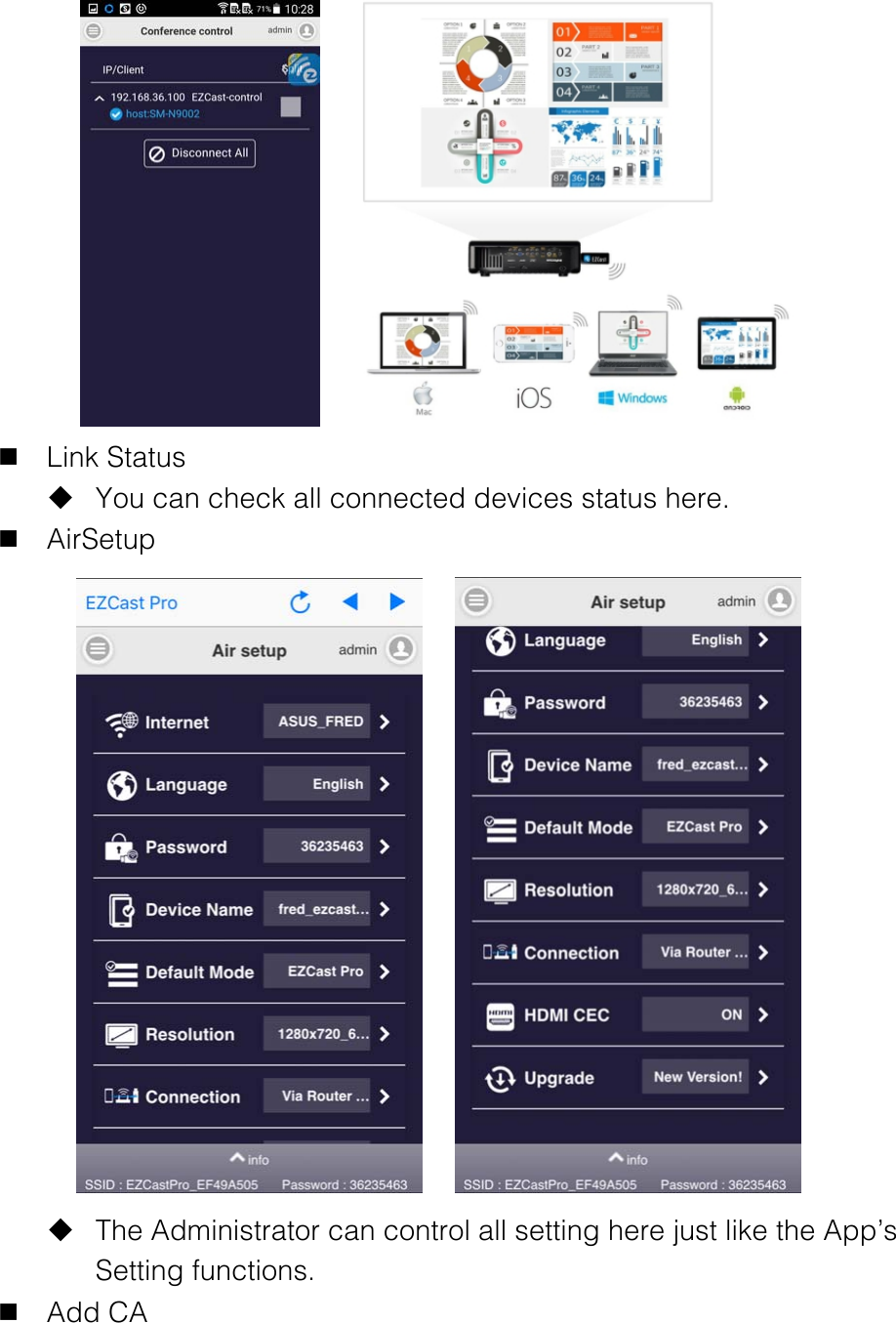
     n Link Status u You can check all connected devices status here. n AirSetup     u The Administrator can control all setting here just like the App’s Setting functions. n Add CA
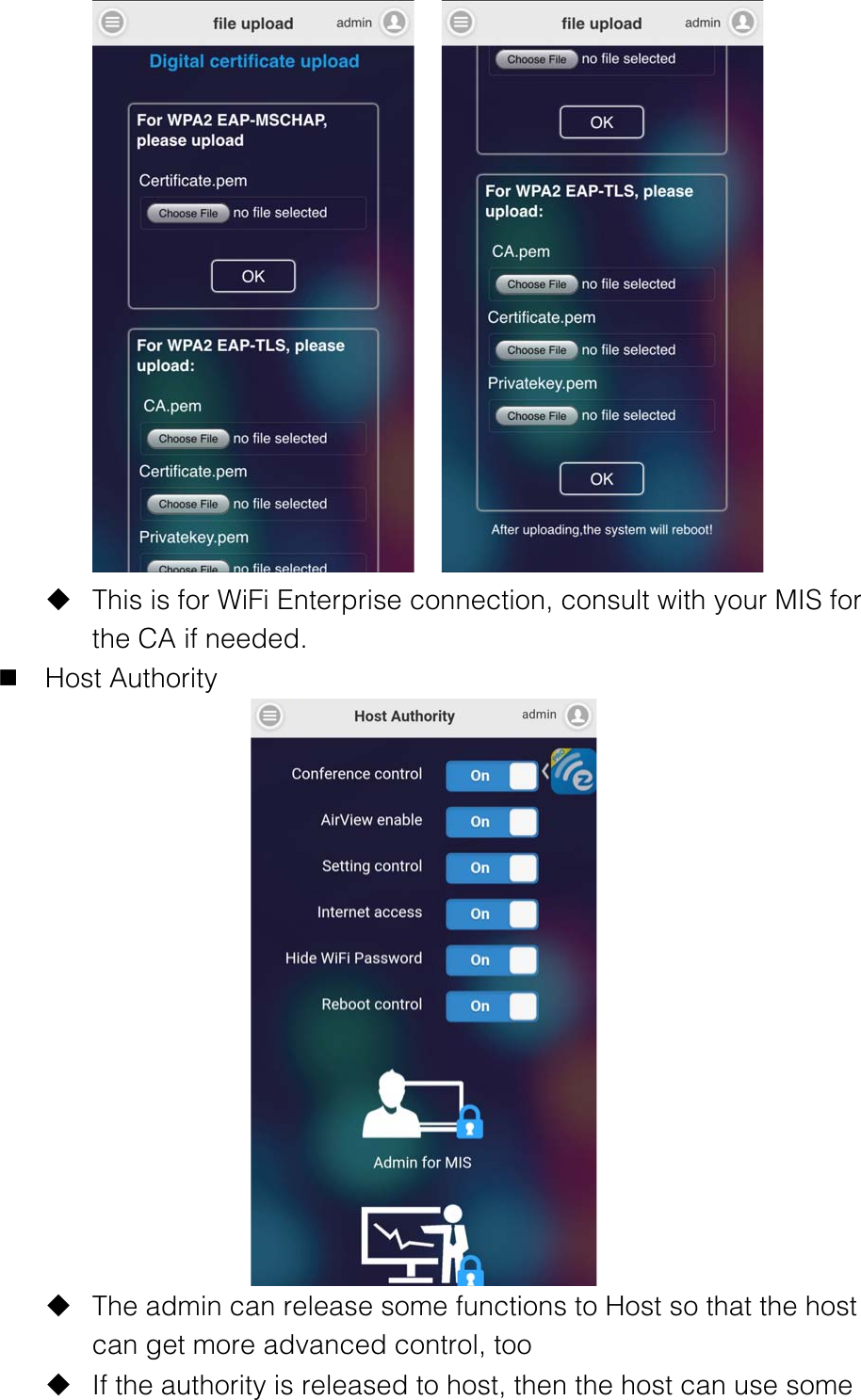
    u This is for WiFi Enterprise connection, consult with your MIS for the CA if needed. n Host Authority  u The admin can release some functions to Host so that the host can get more advanced control, too u If the authority is released to host, then the host can use some
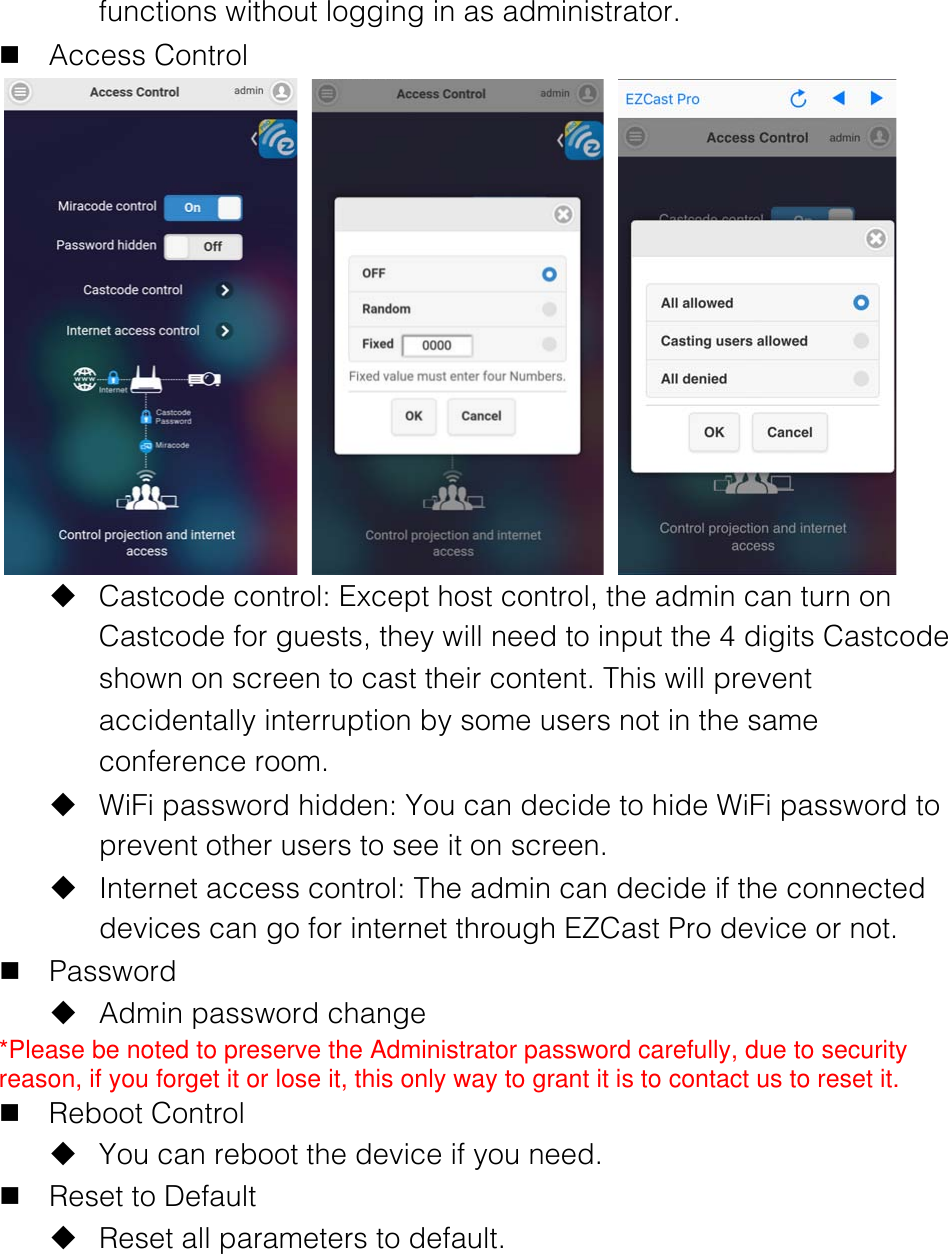
functions without logging in as administrator. n Access Control      u Castcode control: Except host control, the admin can turn on Castcode for guests, they will need to input the 4 digits Castcode shown on screen to cast their content. This will prevent accidentally interruption by some users not in the same conference room. u WiFi password hidden: You can decide to hide WiFi password to prevent other users to see it on screen. u Internet access control: The admin can decide if the connected devices can go for internet through EZCast Pro device or not. n Password u Admin password change *Please be noted to preserve the Administrator password carefully, due to security reason, if you forget it or lose it, this only way to grant it is to contact us to reset it. n Reboot Control u You can reboot the device if you need. n Reset to Default u Reset all parameters to default.
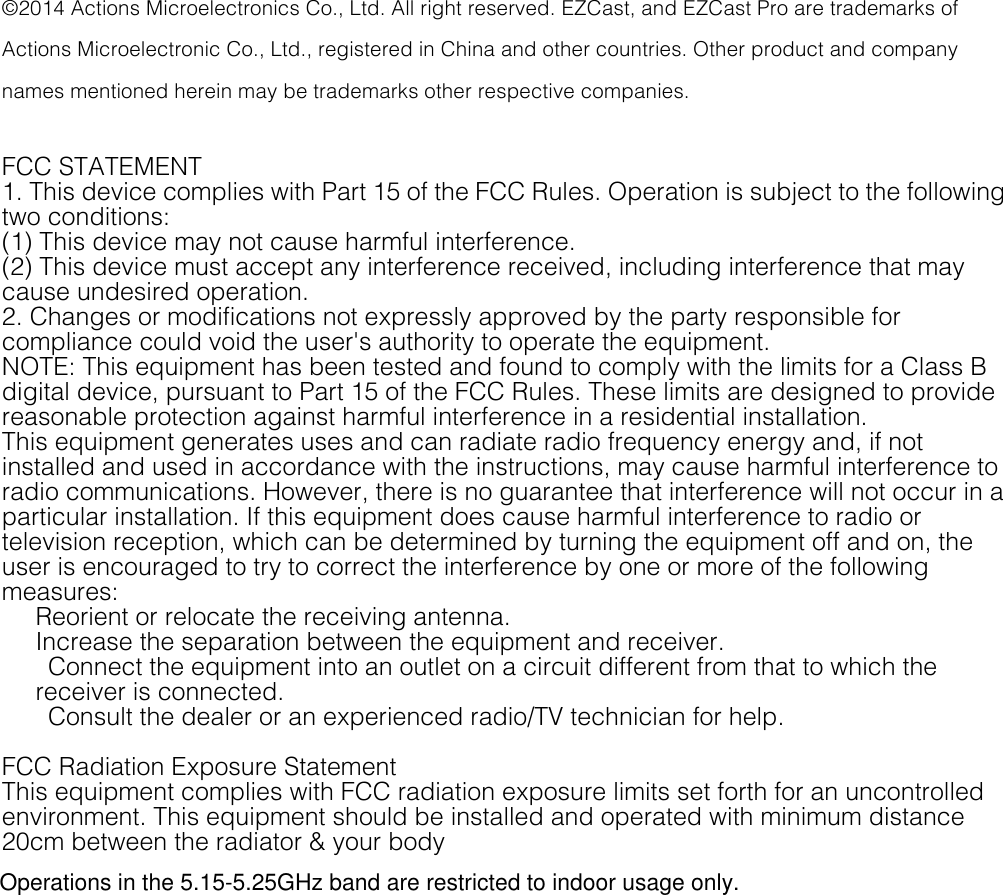
 ©2014 Actions Microelectronics Co., Ltd. All right reserved. EZCast, and EZCast Pro are trademarks of Actions Microelectronic Co., Ltd., registered in China and other countries. Other product and company names mentioned herein may be trademarks other respective companies.  FCC STATEMENT   1. This device complies with Part 15 of the FCC Rules. Operation is subject to the following two conditions:   (1) This device may not cause harmful interference.   (2) This device must accept any interference received, including interference that may cause undesired operation.   2. Changes or modifications not expressly approved by the party responsible for compliance could void the user's authority to operate the equipment.   NOTE: This equipment has been tested and found to comply with the limits for a Class B digital device, pursuant to Part 15 of the FCC Rules. These limits are designed to provide reasonable protection against harmful interference in a residential installation.   This equipment generates uses and can radiate radio frequency energy and, if not installed and used in accordance with the instructions, may cause harmful interference to radio communications. However, there is no guarantee that interference will not occur in a particular installation. If this equipment does cause harmful interference to radio or television reception, which can be determined by turning the equipment off and on, the user is encouraged to try to correct the interference by one or more of the following measures:   Reorient or relocate the receiving antenna.   Increase the separation between the equipment and receiver.     Connect the equipment into an outlet on a circuit different from that to which the receiver is connected.     Consult the dealer or an experienced radio/TV technician for help.  FCC Radiation Exposure Statement   This equipment complies with FCC radiation exposure limits set forth for an uncontrolled environment. This equipment should be installed and operated with minimum distance 20cm between the radiator & your body           Operations in the 5.15-5.25GHz band are restricted to indoor usage only.

Navigation menu