Winner Wave CC32A EZCast User Manual

Winner Wave Limited EZCast

User manual

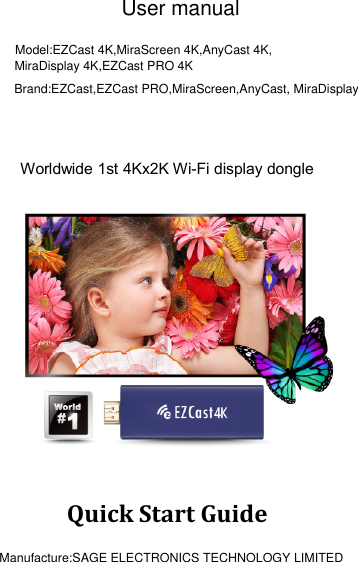
   Worldwide 1st 4Kx2K Wi-Fi display dongle  Quick Start Guide  User manualModel:EZCast 4K,MiraScreen 4K,AnyCast 4K,Brand:EZCast,EZCast PRO,MiraScreen,AnyCast, MiraDisplayManufacture:SAGE ELECTRONICS TECHNOLOGY LIMITED MiraDisplay 4K,EZCast PRO 4K
                                                                                           Introduction  Thanks for choosing EZCast! EZCast 4k dongle is the 4Kx2K Wi-Fi display dongle which is a media streaming device that plugin into the HDMI port on your T V.  EZCast 4K supports a reliable Wi-Fi 802.11ac dual band of 2.4G/5G connection for larger bandwidth and multiple Wi-Fi display standards, including Miracast, DLNA and Airplay. EZCast 4K also provide a fantastic Auto play function which can automatically play your favorites show without phone involvement. With H.265 4K video decoding, EZCast 4K offers you a superior viewing experience! The EZCast 4K dongle firmware upgrade will be provided accordingly in order to compatible with latest devices. EZCast 4K cooperates with the EZCast 2.0 and EZChannel app, and support all popular OS such as iOS, Android, Mac, Microsoft Windows and Chrome. EZCast 2.0 App provide many cool app functions such as EZChannel, Music, Video, Camera and Web Browser. Kindly download EZCast 2.0 app and enjoy all the features now! Please read this Quick Start Guide to setup your EZCast. Happy Casting!
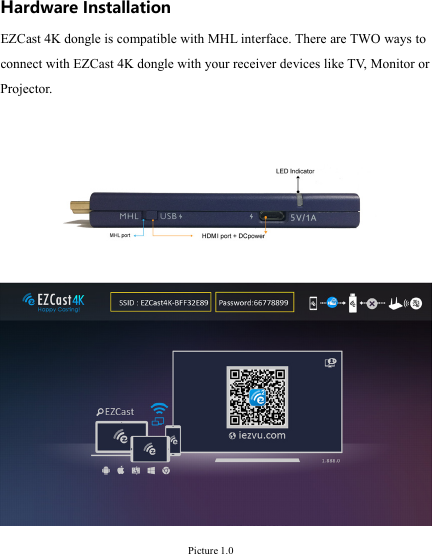
                                                                                           Hardware Installation EZCast 4K dongle is compatible with MHL interface. There are TWO ways to connect with EZCast 4K dongle with your receiver devices like T V,  Monitor or Projector. Picture 1.0
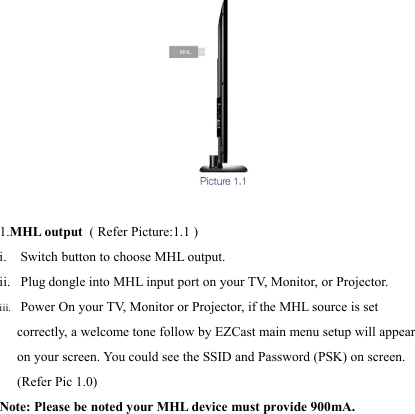
                                                                                           1.MHL output  ( Refer Picture:1.1 )   i.  Switch button to choose MHL output. ii.  Plug dongle into MHL input port on your T V,  Monitor, or Projector. iii.  Power On your T V,  Monitor or Projector, if the MHL source is set correctly, a welcome tone follow by EZCast main menu setup will appear on your screen. You could see the SSID and Password (PSK) on screen. (Refer Pic 1.0)  Note: Please be noted your MHL device must provide 900mA.
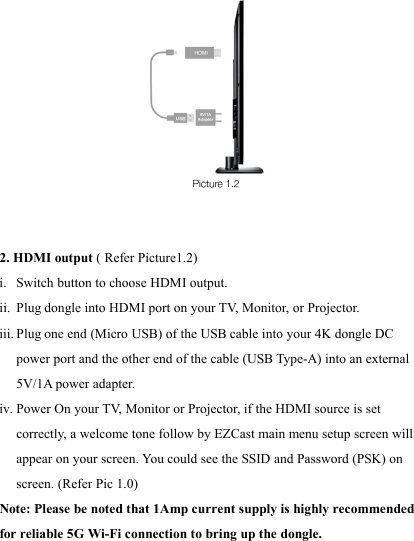
                                                                                            2. HDMI output ( Refer Picture1.2) i. Switch button to choose HDMI output. ii. Plug dongle into HDMI port on your T V,  Monitor, or Projector. iii. Plug one end (Micro USB) of the USB cable into your 4K dongle DC power port and the other end of the cable (USB Type-A) into an external 5V/1A power adapter. iv. Power On your T V,  Monitor or Projector, if the HDMI source is set correctly, a welcome tone follow by EZCast main menu setup screen will appear on your screen. You could see the SSID and Password (PSK) on screen. (Refer Pic 1.0) Note: Please be noted that 1Amp current supply is highly recommended for reliable 5G Wi-Fi connection to bring up the dongle.
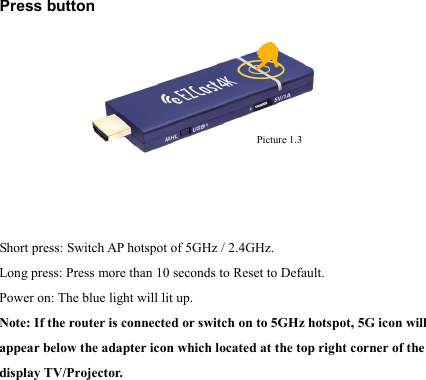
                                                                                           Press button         Short press: Switch AP hotspot of 5GHz / 2.4GHz. Long press: Press more than 10 seconds to Reset to Default. Power on: The blue light will lit up. Note: If the router is connected or switch on to 5GHz hotspot, 5G icon will appear below the adapter icon which located at the top right corner of the display TV/Projector.       Picture 1.3
                                                                                           Software Installation  Please follow below steps to download software for your devices:  (a) Mac or Microsoft Windows: 1. Visit to EZCast Website : http://www.iezvu.com 2. At EZCast Homepage, click the Download button to go to the  download page. 3. At Download page, click EZCast Button and then select the OS software you prefer to download.  Note: Supports from Windows 7/8/10, and Mac OS 10.10 and a ft er.   (b) iOS and Android: 1. Apple device: Please download “EZCast 2.0” and “EZChannel” from Apple iTunes App Store (iOS)  2. Android device: Please download “EZCast 2.0” and “EZChannel” from Google play (Android).  3. You may also scan the QR code on TV screen for download. Note: Supports iOS9 and above Note: Supports Android 4.4 and above
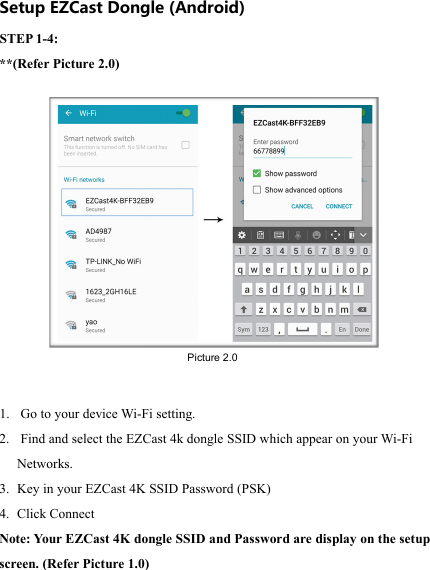
                                                                                           Setup EZCast Dongle (Android) STEP 1-4:  **(Refer Picture 2.0) 1.  Go to your device Wi-Fi setting. 2.  Find and select the EZCast 4k dongle SSID which appear on your Wi-Fi Networks. 3. Key in your EZCast 4K SSID Password (PSK) 4. Click Connect Note: Yo ur EZCast 4K dongle SSID and Password are display on the setup screen. (Refer Picture 1.0) Picture 2.0
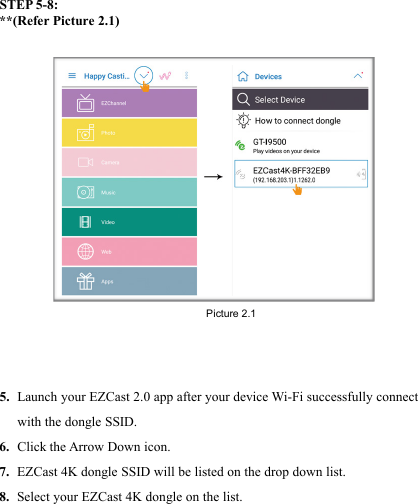
                                                                                           STEP 5-8: **(Refer Picture 2.1)    5. Launch your EZCast 2.0 app after your device Wi-Fi successfully connect with the dongle SSID. 6. Click the Arrow Down icon.  7. EZCast 4K dongle SSID will be listed on the drop down list. 8. Select your EZCast 4K dongle on the list.    Picture 2.1
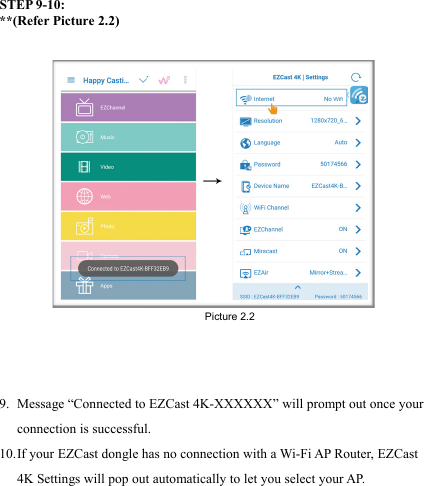
                                                                                           STEP 9-10: **(Refer Picture 2.2)    9. Message “Connected to EZCast 4K-XXXXXX” will prompt out once your connection is successful. 10. If your EZCast dongle has no connection with a Wi-Fi AP Router, EZCast 4K Settings will pop out automatically to let you select your AP.        Picture 2.2
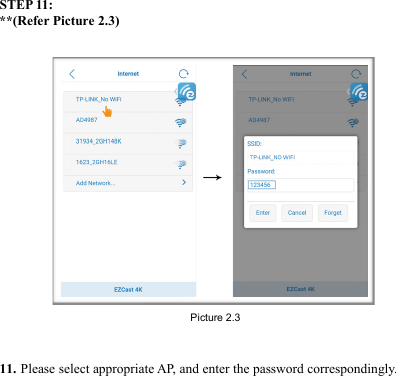
                                                                                           STEP 11: **(Refer Picture 2.3)  11.  Please select appropriate AP,  and enter the password correspondingly.              Picture 2.3
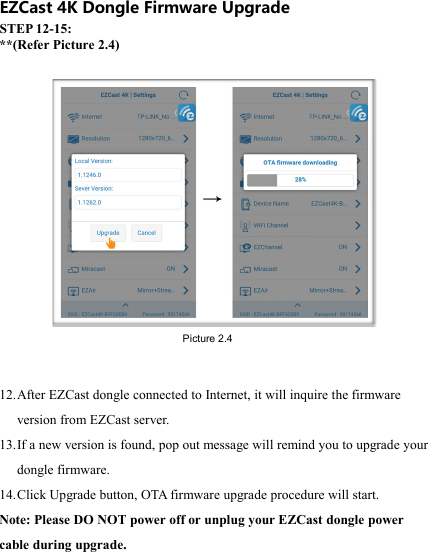
                                                                                           EZCast 4K Dongle Firmware Upgrade STEP 12-15: **(Refer Picture 2.4)  12. After EZCast dongle connected to Internet, it will inquire the firmware version from EZCast server. 13. If a new version is found, pop out message will remind you to upgrade your dongle firmware. 14. Click Upgrade button, OTA firmware upgrade procedure will start. Note: Please DO NOT power off or unplug your EZCast dongle power cable during upgrade.  Picture 2.4
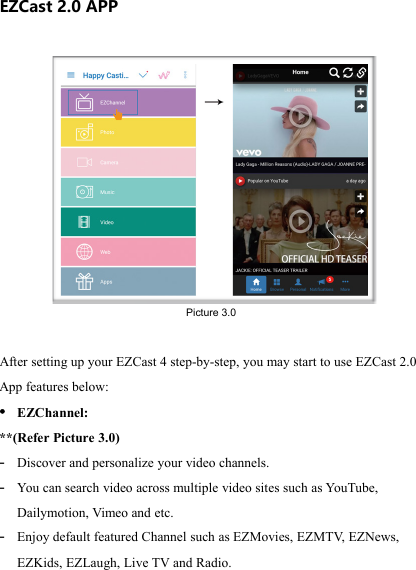
                                                                                           EZCast 2.0 APP After setting up your EZCast 4 step-by-step, you may start to use EZCast 2.0 App features below:  • EZChannel:  **(Refer Picture 3.0) - Discover and personalize your video channels. - You  can search video across multiple video sites such as YouTube, Dailymotion, Vimeo and etc. - Enjoy default featured Channel such as EZMovies, EZMTV, EZNews, EZKids, EZLaugh, Live TV and Radio. Picture 3.0
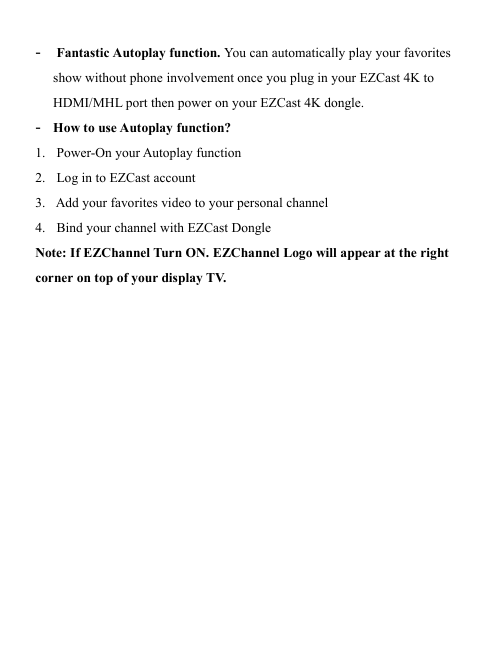
                                                                                           -  Fantastic Autoplay function. You can automatically play your favorites show without phone involvement once you plug in your EZCast 4K to HDMI/MHL port then power on your EZCast 4K dongle. - How to use Autoplay function?  1.  Power-On your Autoplay function 2.  Log in to EZCast account  3.  Add your favorites video to your personal channel 4.  Bind your channel with EZCast Dongle Note: If EZChannel Turn ON. EZChannel Logo will appear at the right corner on top of your display T V.
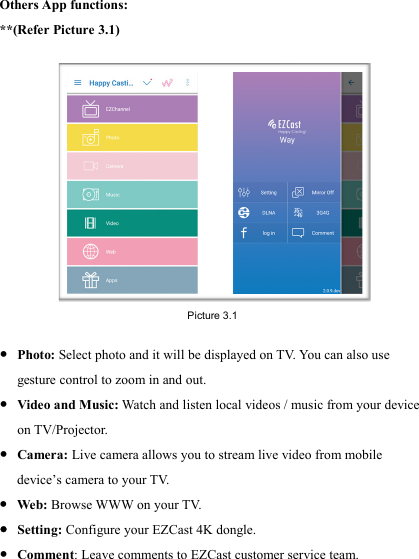
                                                                                           Others App functions: **(Refer Picture 3.1) ● Photo: Select photo and it will be displayed on T V.  You can also use gesture control to zoom in and out. ● Video and Music: Watch and listen local videos / music from your device on TV/Projector. ● Camera: Live camera allows you to stream live video from mobile device’s camera to your T V.  ● Web: Browse WWW on your T V.  ● Setting: Configure your EZCast 4K dongle. ● Comment: Leave comments to EZCast customer service team. Picture 3.1
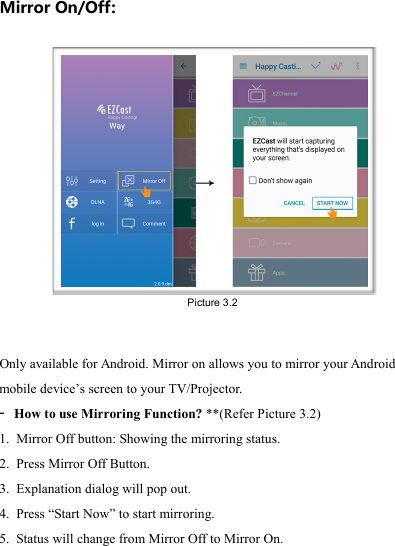
                                                                                           Mirror On/Off:  Only available for Android. Mirror on allows you to mirror your Android mobile device’s screen to your TV/Projector. -  How to use Mirroring Function? **(Refer Picture 3.2) 1. Mirror Off button: Showing the mirroring status. 2. Press Mirror Off Button. 3. Explanation dialog will pop out. 4. Press “Start Now” to start mirroring. 5. Status will change from Mirror Off to Mirror On.  Picture 3.2
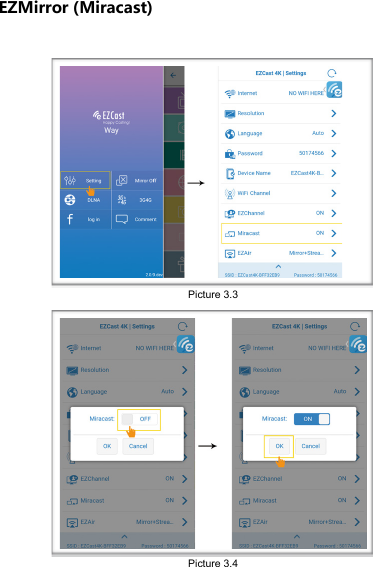
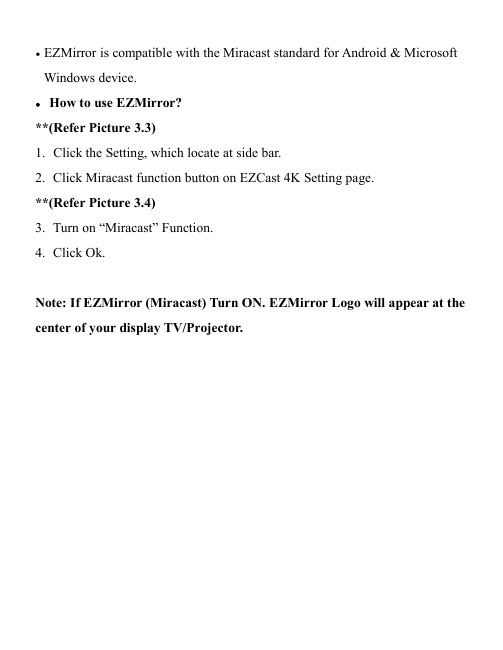
                                                                                           EZMirror (Miracast) Picture 3.3    Picture 3.4
                                                                                           • EZMirror is compatible with the Miracast standard for Android & Microsoft Windows device.  • How to use EZMirror? **(Refer Picture 3.3) 1. Click the Setting, which locate at side bar. 2. Click Miracast function button on EZCast 4K Setting page. **(Refer Picture 3.4) 3. Turn on “Miracast” Function. 4. Click Ok.  Note: If EZMirror (Miracast) Turn ON. EZMirror Logo will appear at the center of your display TV/Projector.
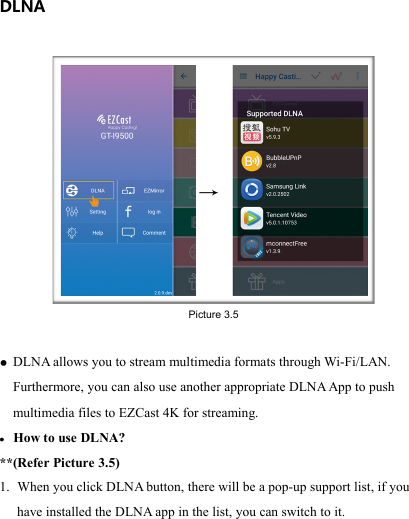
                                                                                           DLNA ● DLNA allows you to stream multimedia formats through Wi-Fi/LAN. Furthermore, you can also use another appropriate DLNA App to push multimedia files to EZCast 4K for streaming. • How to use DLNA? **(Refer Picture 3.5) 1. When you click DLNA button, there will be a pop-up support list, if you have installed the DLNA app in the list, you can switch to it.   Picture 3.5
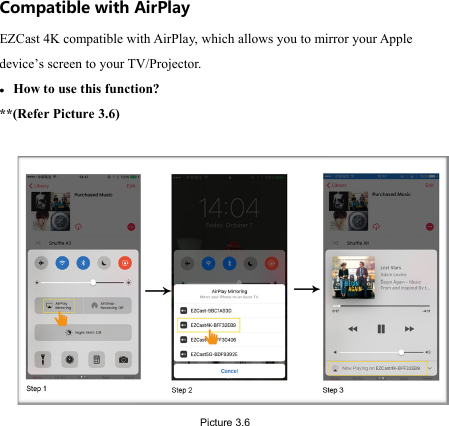
                                                                                           Compatible with AirPlay  EZCast 4K compatible with AirPlay, which allows you to mirror your Apple device’s screen to your TV/Projector. • How to use this function?  **(Refer Picture 3.6)        Picture 3.6
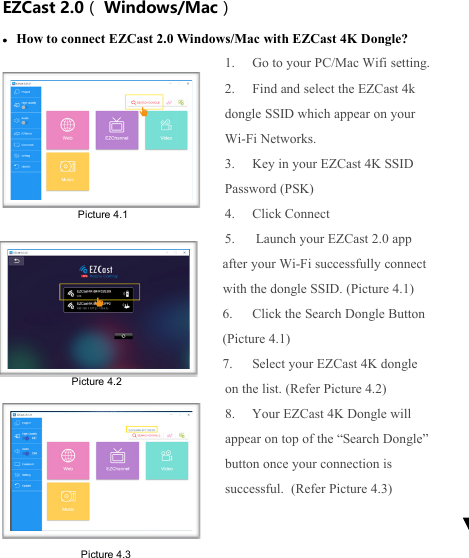
                                                                                           EZCast 2.0( Windows/Mac) • How to connect EZCast 2.0 Windows/Mac with EZCast 4K Dongle? 1. Go to your PC/Mac Wifi setting. 2. Find and select the EZCast 4k dongle SSID which appear on your Wi-Fi Networks. 3. Key in your EZCast 4K SSID Password (PSK) 4. Click Connect 5.  Launch your EZCast 2.0 app after your Wi-Fi successfully connect with the dongle SSID. (Picture 4.1) 6. Click the Search Dongle Button (Picture 4.1) 7. Select your EZCast 4K dongle on the list. (Refer Picture 4.2) 8. Your EZCast 4K Dongle will appear on top of the “Search Dongle” button once your connection is successful.  (Refer Picture 4.3)    Picture 4.2 Picture 4.1 Picture 4.3
FCC Caution.  This  device  complies  with  part  15  of  the  FCC  Rules.  Operation  is  subject  to  the  following  two conditions: (1) This device may not cause harmful interference, and (2) this device must accept any interference received, including interference that may cause undesired operation.  Any  Changes  or modifications  not  expressly  approved  by  the  party  responsible  for  compliance could void the user's authority to operate the equipment.  Note: This equipment has been tested and found to comply with the limits for a Class B digital device,  pursuant  to part  15  of  the  FCC  Rules.  These  limits  are designed  to provide reasonable protection  against  harmful  interference  in  a  residential  installation.  This  equipment  generates uses and can radiate radio frequency energy and, if not installed and used in accordance with the instructions,  may  cause  harmful  interference  to  radio  communications.  However,  there  is  no guarantee  that  interference  will  not  occur  in  a  particular  installation.  If  this  equipment  does cause harmful interference to radio or television reception, which can be determined by turning the equipment off  and  on, the user  is encouraged to try  to  correct  the interference by  one  or more of the following measures: -Reorient or relocate the receiving antenna. -Increase the separation between the equipment and receiver. -Connect the equipment into an outlet on a circuit different  from that to which the receiver  is connected. -Consult the dealer or an experienced radio/TV technician for help.  This  equipment  complies  with  FCC  radiation  exposure  limits  set  forth  for  an  uncontrolled environment.  This  equipment  should  be  installed  and  operated  with  minimum  distance  20cm between the radiator & your body.

Navigation menu