Winner Wave D10 EZCast Pro Dongle 2 User Manual
Winner Wave Limited EZCast Pro Dongle 2
User Manual
EZCast Pro
Quick Start Guide
Rev. 1.05
General
“EZCast Pro” is a new product based on successful wireless app EZCast,
and adds some new features for commercial/educational application. It
supports Multi-users Display under our new Host Control System and Content
Broadcasting function. There are still more new features to be added soon,
please download and enjoy our EZCast Pro features with your EZCast Pro
hardware!
Hardware Installation
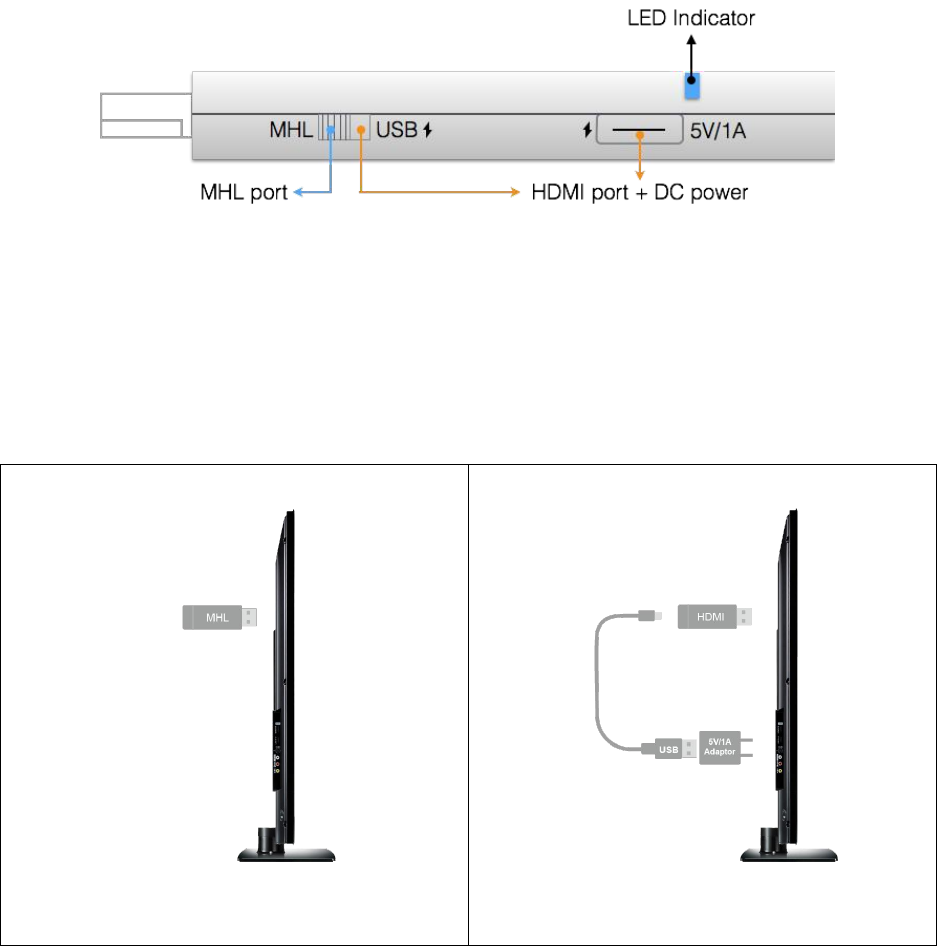
The EZCast Pro dongle is compatible with MHL interface, so there are 2
ways to connect with EZCast Pro dongle with your receiver devices like TV,
Monitor or Projector. Use the switch to choose HDMI output or MHL output,
please be noted your MHL device must provide 900mA power, and if you use
HDMI out, you will need external 5V/1A DC power to bring up the dongle.
MHL
HDMI
Plug into MHL port directly to use it directly.
*Requires 900mA from MHL port
Use external DC power, and make sure you're
your USB DC power can provide 1A current.

App Installation
IOS and Android users:
Please search “EZCast Pro” in Apple’s App Store or Google Play and
install it.
Or Use the QR scanner app to scan the QR code on EZCast LAN’s
main page.
*Supports iOS9 and Android 4.2 above
Windows and Mac OS users:
Please download it from our official website: www.iezcast.com or
www.iezvu.com
*Supports from Windows 7/8.1/10, and Mac OS 10.10 and after.
Get Started (ex: iOS version)
Enter your NB/PC/Smartphone/Tablet’s WiFi setting, find the
SSID (EZCast Pro_xxxxxxxx or Pro D01_xxxxxxxx) and connect
with it.
Open EZCast Pro app on your device.
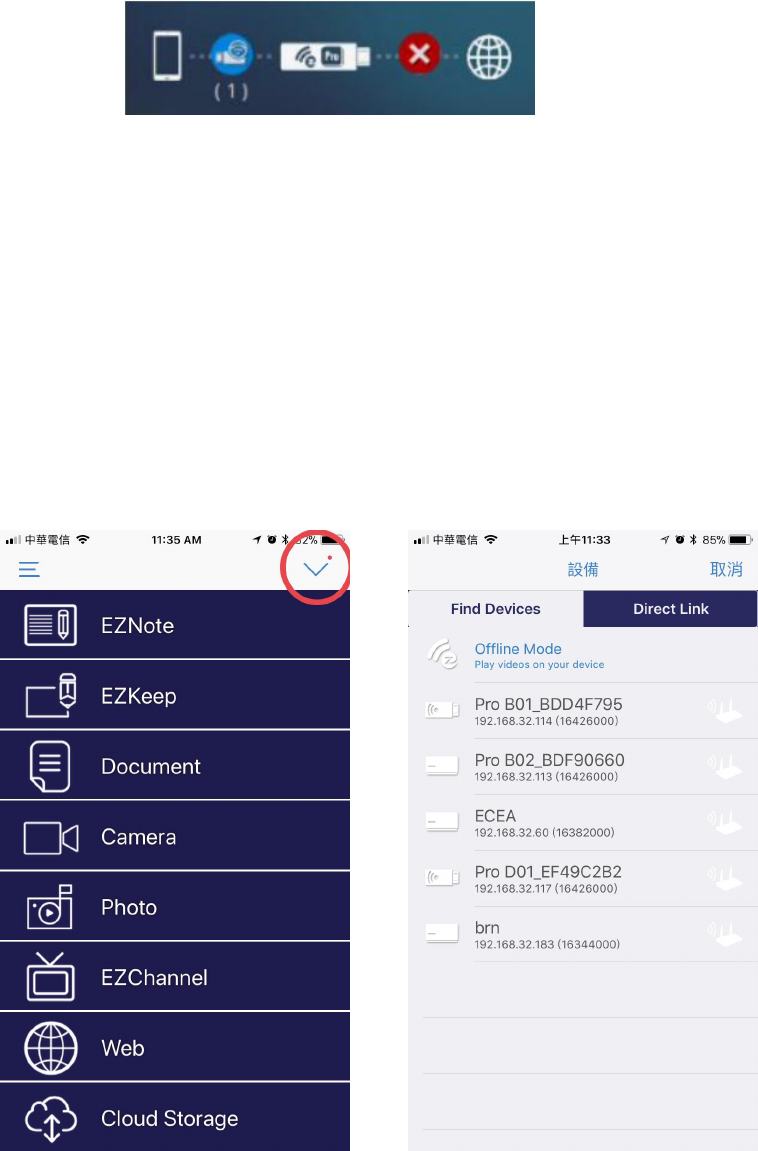
Once you’ve connected to EZCastPro, the on-screen link status
will be updated and show how many devices are linking to it
directly.
App starts (below photos are based on iOS version)
When you execute the app, if you are not linking to EZCast Pro,
you can only use several functions in offline mode.
Click upper right icon, the device will be listed, you can select
the device you like to cast if there are more than one.
*Note: EZCast Pro app only works with EZCast Pro hardware now, it’s not compatible
with normal EZCast product.
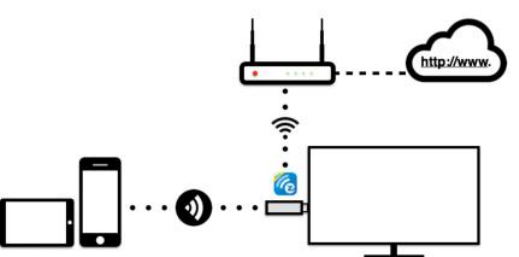
Important: WiFi Link mode explanations
EZCast Pro devices allow various connection methods, here are
the descriptions:
SoftAP mode: It’s direct linking from PC/MobilePhone/Tablet to
a Pro device, you can link to EZCast Pro’s SSID directly to
discover it, and you can also setup Pro devices’ WiFi to link with
your router to keep internet surfing.
*Note: After setting up your internet, sometimes the connection between EZCast Pro
and your mobile phone might be disconnected because of different WiFi router channel.
Please remember to reconnect again.
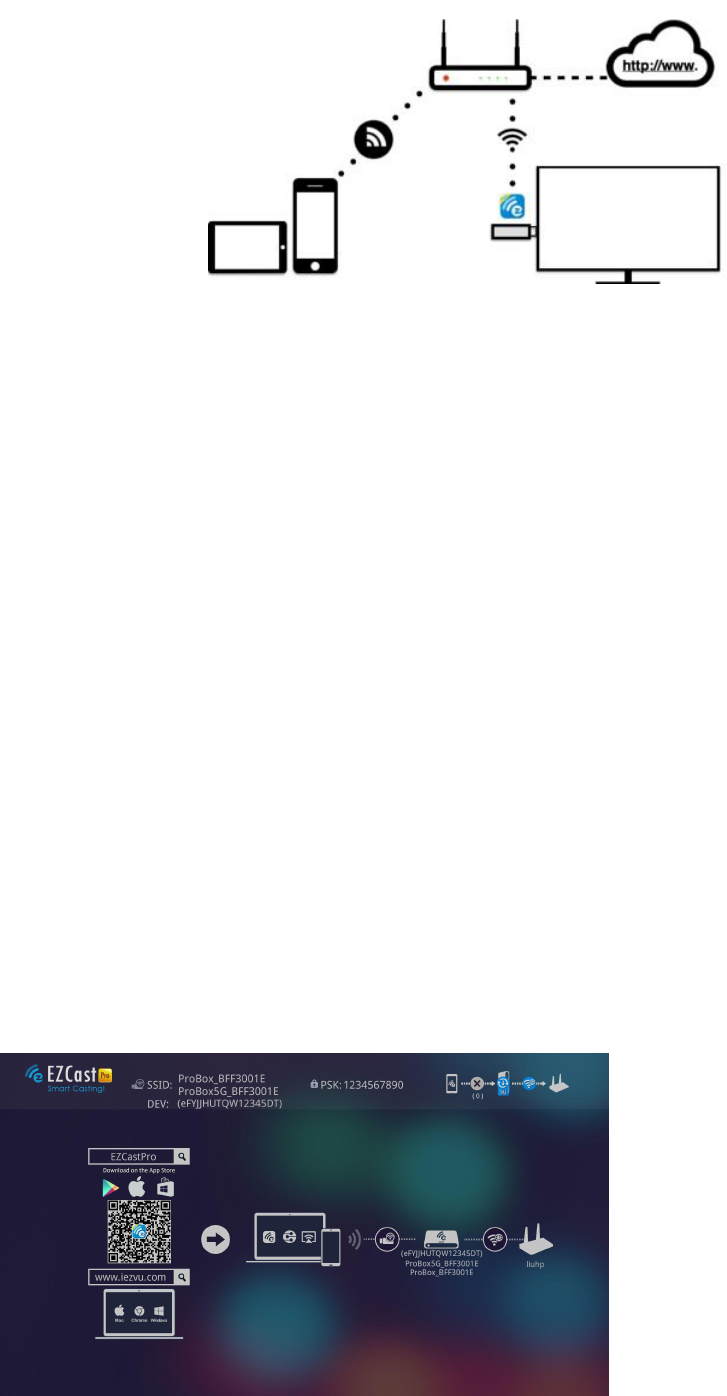
There is another link mode “Infrastructure mode”, which allows
you to link with EZCast Pro Box through router instead of SoftAP
mode. However, the performance may not as good as direct link,
and you will need to enter the setting to enable it if need it.
There is 2 special modes for WiFi connections in our advanced
setting, one is “Direct link only” and the other is “Via Router
only”.
In “Direct Link Only” mode, you will not be able to discover
EZCast Pro through your home router. Under “Via Router Only”
mode, the Pro device will shut down Soft AP (SSID), in this mode
the SSID will be turned off so that no one can search it directly
to prevent some hacker’s attack. Please be careful you will need
to connect device through router under this mode.
Direct Link: This provides
best bandwidth between
your Smart devices/PC
and EZCast Pro
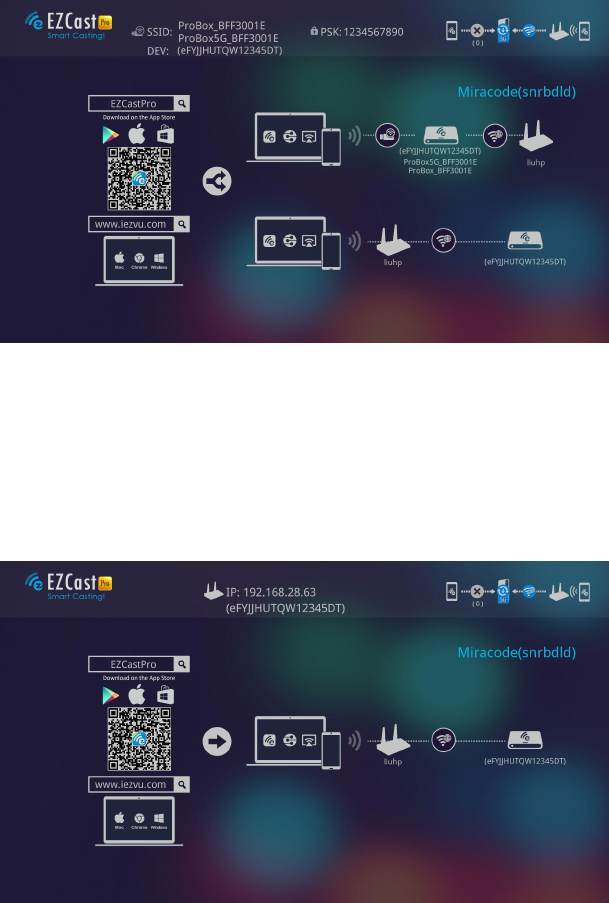
Via Router Allowed: You
will be able to discover
EZCast Pro through
home router if you have
established the
connection with router.
Via Router Only: In this
mode, the SoftAP of
2.4Ghz/5Ghz WiFi will be
turned off, you can use it
under some particular
purpose so no one can
link to EZCast Pro
directly.
App Tips
You can cast your multimedia data wirelessly now, however,
please be noted some features like cloud video or web will
require internet connection.
Please be noted EZMirror(Miracast) mode will disconnect
current WiFi and you will need to connect to internet by your
phone (3G or WiFi) if you want to keep internet surfing.
The EZCast Pro app is an innovative app, we will keep increasing
more features, so please download the latest app manual from
our official website.
©2014 Actions Microelectronics Co., Ltd. All right reserved. EZCast, and EZCast Pro are trademarks of
Actions Microelectronic Co., Ltd., registered in China and other countries. Other product and company
names mentioned herein may be trademarks other respective companies.
FCC STATEMENT
1. This device complies with Part 15 of the FCC Rules. Operation is subject to the following
two conditions:
(1) This device may not cause harmful interference.
(2) This device must accept any interference received, including interference that may
cause undesired operation.
2. Changes or modifications not expressly approved by the party responsible for
compliance could void the user's authority to operate the equipment.
NOTE: This equipment has been tested and found to comply with the limits for a Class B
digital device, pursuant to Part 15 of the FCC Rules. These limits are designed to provide
reasonable protection against harmful interference in a residential installation.
This equipment generates uses and can radiate radio frequency energy and, if not
installed and used in accordance with the instructions, may cause harmful interference to
radio communications. However, there is no guarantee that interference will not occur in
a particular installation. If this equipment does cause harmful interference to radio or
television reception, which can be determined by turning the equipment off and on, the
user is encouraged to try to correct the interference by one or more of the following
measures:
Reorient or relocate the receiving antenna.
Increase the separation between the equipment and receiver.
Connect the equipment into an outlet on a circuit different from that to which the
receiver is connected.
Consult the dealer or an experienced radio/TV technician for help.
FCC Radiation Exposure Statement
This equipment complies with FCC radiation exposure limits set forth for an uncontrolled
environment. This equipment should be installed and operated with minimum distance
20cm between the radiator & your body