Wintime Electronics WP504 Digitizing Tablet User Manual Manual 1
Wintime Electronics Corp. Digitizing Tablet Manual 1
manual

User’s Manual
Version 1.0
Limited Warranty
Wintime warrants that the enclosed Hardware Device will be free from defects
in materials and workmanship under normal use and service for a period of
one year from the date of purchase. Any support services provided by Wintime
shall be substantially as described in applicable written materials provided to
you by Wintime. Some states and jurisdictions do no allow limitations on dura-
tion of an implied warranty, so the above limitation may not apply to you. To
the extent allowed by applicable law, implied warranties on the Hardware De-
vice, if any, are limited to one years.
Should you have any questions concerning this Warranty, please contact your
dealer or you may visit the Wintime web site at http://www.wintime.com.tw
Trademarks Information
Wintime and Paint Pal Deluxe are the trademarks of Wintime Electronics Inc.
IBM is a trademark of the International Business Machine Corporation. Microsoft
and the Windows Logo are registered trademarks and Windows is a trade-
mark of Microsoft Corporation. All brand names and trademarks are proper-
ties of their respective owners.

Chapter 1 Introduction .......................................... 1
Suggested uses for Paint Pal Deluxe ..................... 1
System Requirements .......................................... 2
Package Contents ............................................... 2
Chapter 2 Installing the Hardware ......................... 3
Getting familiar with Paint Pal Deluxe ................... 3
Connecting to Desktop system ............................ 4
Connecting to Notebook Computer ...................... 6
Chapter 3 Installing the Software ......................... 7
Installing the Driver .............................................. 7
Chapter 4 Customizing the Pen Tablet .................. 10
Finding the Pen Table icon ................................... 10
Appendix A. Taking care of your Tablet ............... 13
B. Questions & Answers ...................... 14
C. Specifications .................................. 15
D. FCC Compliance Statement ............. 16
Table of Contents

Introduction
Chapter 1
Congratulations on your purchase of Paint Pal Deluxe!
Paint Pal Deluxe is the perfect tool for creating art on
your computer. Paint Pal Deluxe replaces a traditional
Mouse with a flexible pen tablet, giving you a more
natural way to draw, trace, write, and design. Paint Pal
Deluxe also comes bundled with advanced drawing soft-
ware that will get you started right away.
Suggested uses for Paint Pal Deluxe
Paint Pal Deluxe is a powerful aid in creating com-
puter graphics and for any application that requires
the accuracy of hand held writing tools. Possible uses
for Paint Pal Deluxe include:
uDrawing and graphic design
uHandwriting
uSignatures
uComputer-aided design
uImage Editing
uCAI
uPicking commands on a template
Welcomw !
- 1 -

System requirements
uIntel Pentium level computer or compatible.
uWindows 95/98 operating system.
u32MB RAM
u80 MB hard disk space
u256 color VGA display adapter(Hi-color or True-
color preferred)
uSerial port
uCD-ROM drive
Package contents
After you open the box, please check the package
contents carefully. You should have the following
items:
Tablet with Serial port/Power cable
Wireless Stylus Pen
AT to PS/2 Adapter
Quick Installation Guide
Driver & Manual CD
Art Dabbler CD
Introduction
- 2 -
Installing the Hardware
Chapter 2
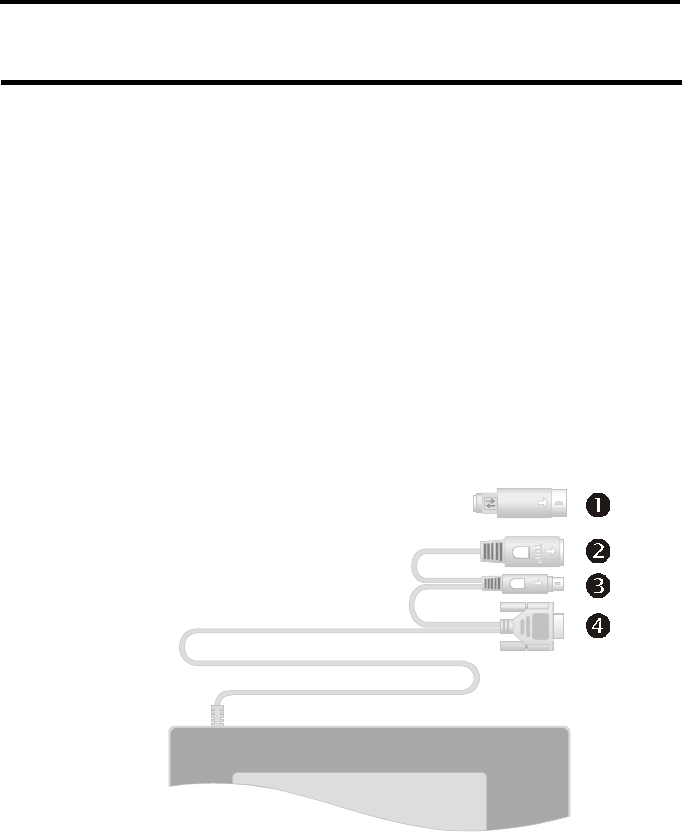
Getting familiar with Paint Pal Deluxe
Before you install Paint Pal Deluxe, take a few minutes
to inspect the parts and get familiar with how Paint Pal
Deluxe connects to your computer (see the diagrams
below).
Conntors descriptions :
AT to PS/2 Adapter
AT Type Keyboard Connector
PS/2 Type Keyboard Connector
Serial Port (COM Port) Connector
- 3 -
To Tablet
To Keyboard
AT to PS/2
Adapter
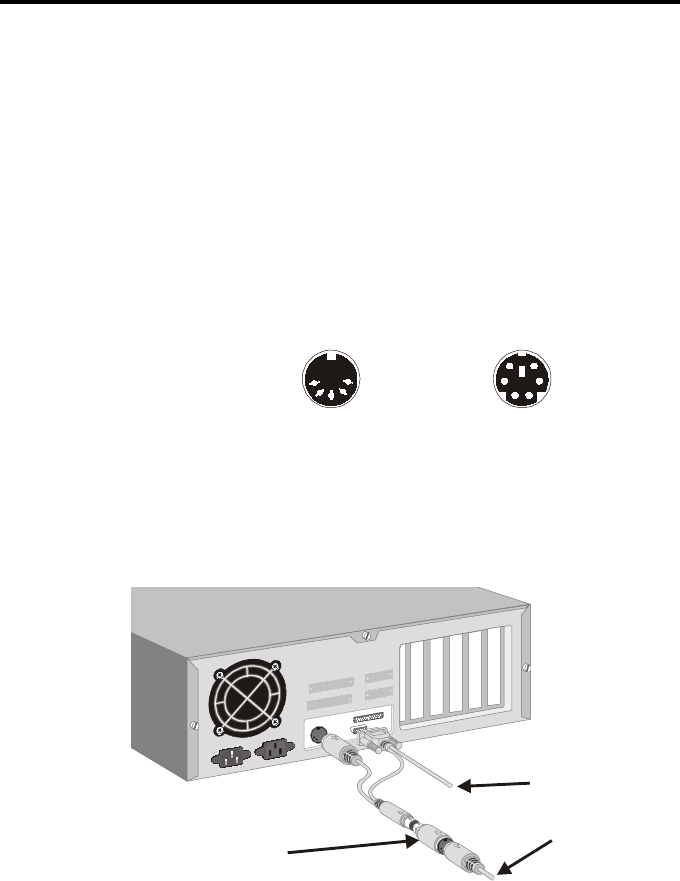
Connecting to a desktop system
Follow these simple procedures to connect Paint Pal
Deluxe to a desktop system:
1. Turn off your system and any other devices connected
with the system.
2. Paint Pal Deluxe needs to connect keyboard and
gets power from keyboard connector. Please
identify your keyboard type before you first, there are
two type of keyboards, AT and PS/2 type (see
diagram below).
3. If your keyboard is AT type, you may connect Paint
Pal Deluxe to your system and to an available serial
port and AT keyboard connector according to
diagrams below :
- 4 -
PS/2 Connector
AT Connector
Installing the Hardware
To Tablet
To Keyboard
AT to PS/2
Adapter
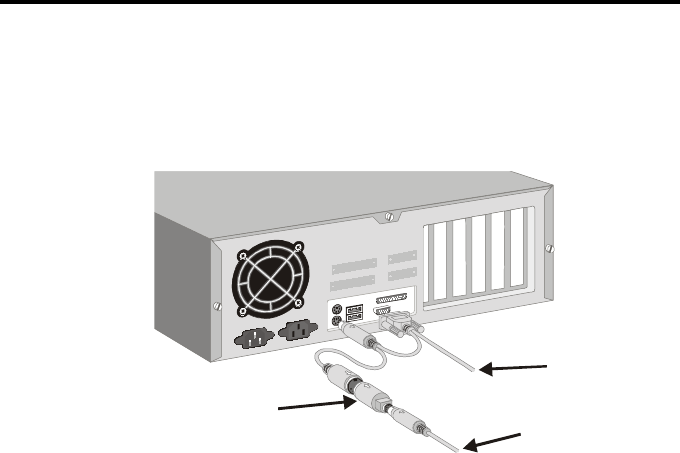
4. If your keyboard is PS/2 type, you mayconnect Paint
Pal Deluxe to your system and to an available serial
port and PS/2 keyboard connector according to dia
grams below :
- 5 -
Installing the Hardware
To Tablet
To Other PS/2
Device
AT to PS/2
Adapter
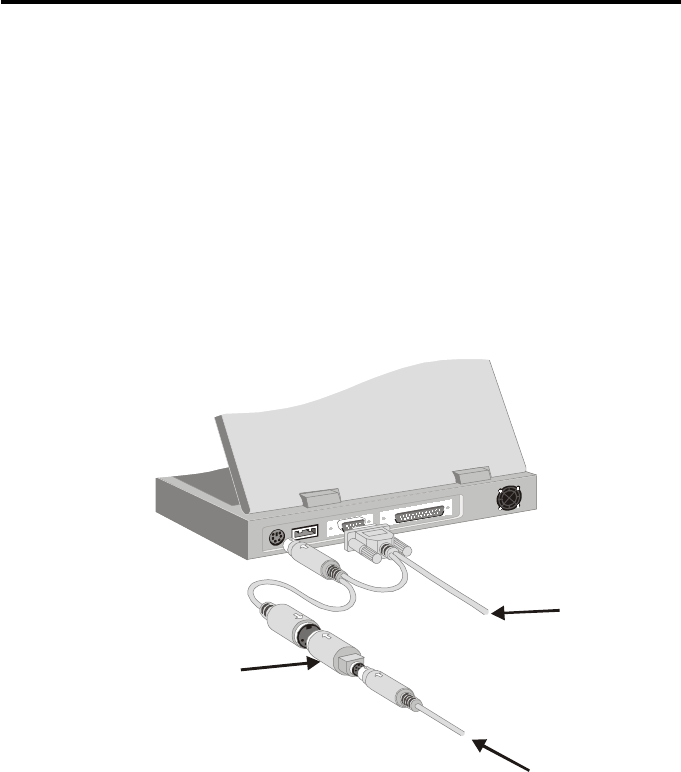
Connecting to a Notebook computer
Follow these simple procedures to connect Paint Pal
Deluxe to a Notebook computer:
1. Turn off your Notebook and any other devices
connected with the Notebook.
2. Connect Paint Pal Deluxe to an available serial port
and PS/2 keyboard connector according to the
diagram below.
- 6 -
Installing the Hardware

Installing the Software
Chapter 3
Installing the Driver
After you have successfully installed the hardware, you
may turn on the power to install the software driver. If
you have previously installed any pen tablet’s driver,
please first remove the old driver from your system
before installing the Paint Pal Deluxe driver.
Follow these procedures to install Paint Pal Deluxe :
1. Power on your computer.
2. Paint Pal Deluxe is a Plug & Play (PnP) device, your
system will detect the new hardware and activate the
new device installation procedures automatically.
Follwoing window will appears on screen :
- 7 -
Some systems do not support PnP, you may go to
Start, and click on Run. Then select CD-ROM drive
and run Setup.exe
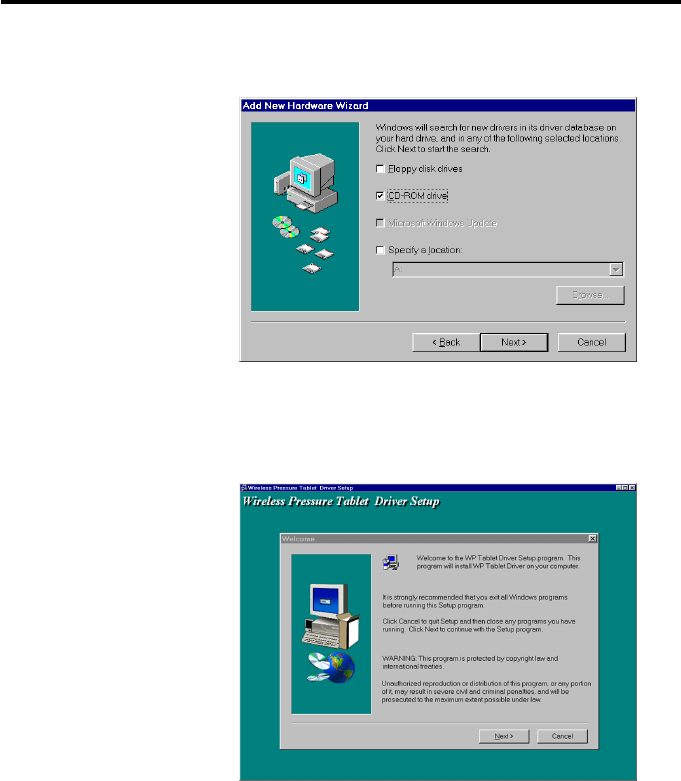
3. Insert the Paint Pal Deluxe driver CD and define the
correct path to load driver from CD-ROM
4. You will then see a Window welcoming you to the
Tablet driver. (see the diagrams below ). Click Next
when you are ready to continue.
5. System will ask where that you wish to place the
driver. You can select the default folder by just
clicking Next, or type in your own preference.
Installing the Software
- 8 -
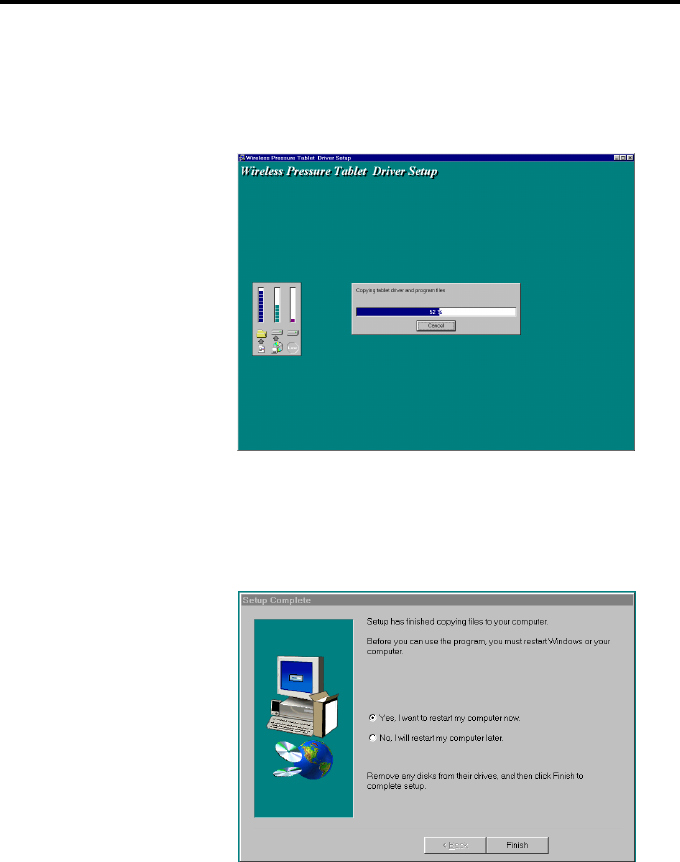
6. You can then select the folder for the program icons
that come with Paint Pal Deluxe. Click Next when
you are ready to continue. The Tablet driver will then
install.
7. After the installation ends, you will need to reboot
your system to start using your Paint Pal Deluxe.
- 9 -
Installing the Software
Finding the Pen Tablet icon
After you have installed your pen tablet, it is easy to
customize according to your own personal preferences.
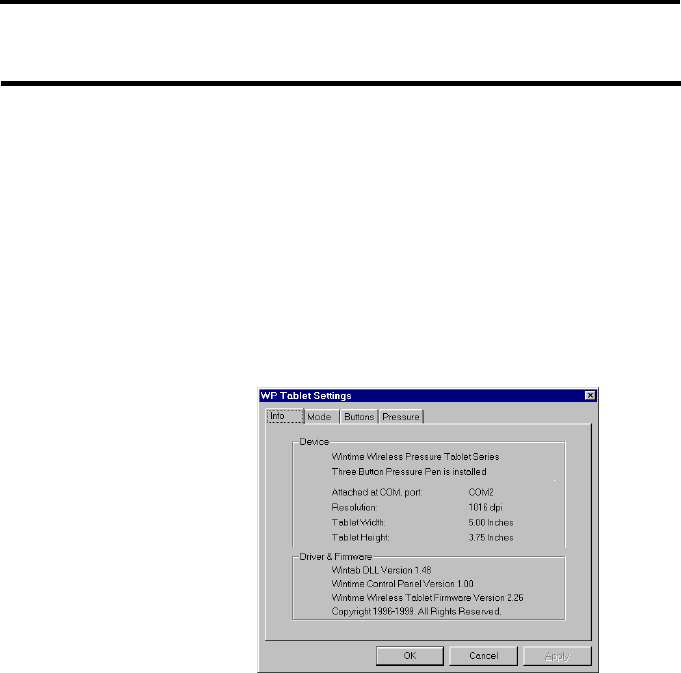
1. The pen tablet icon can be found under the Windows
Control Panel. Click on this icon, and the “WP Tab-
let Settings” parameter window will appear.
2. There are four pages in this window: Info, Mode,
Buttons, and Pressure. The details as :
Info
This page shows the basic information of the Device,
Firmware and Driver (see diagram above).
Customizing the Pen Tablet
Chapter 4
- 10 -

Mode
There are two major settings in this page: Operation
Mode and Double Click. In “Operation Mode” area,
you may select Absolute Mode or Relative Mode, you
may also define the sensitivity of the Relative Mode
here. In “Double Click” area, you may define the
double-click speed and double-click area here. There
is a testing area for testing the double-click functions.
Buttons
In this page, you may define the action of Button 2
and Button 3 here. There are 25 options for Button 2
and 14 options for Button 3. If you press “default”
button, the action of these buttons will back to
manufacturer default settings. Manufacturer default
setting are Button 1 as Mouse’s left button, Button 2
as Mouse’s right button and Button 3 as Mouse’s
middle button.
Customizing the Pen Tablet
- 11 -
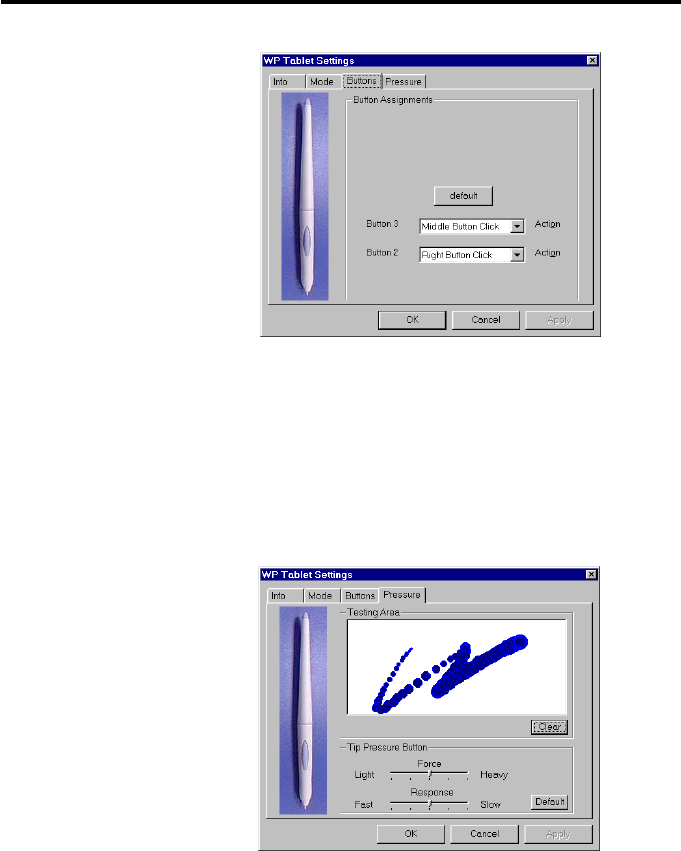
Pressure
You may define the pressure sensitivity of Tip Button
in this page. There are two elements “Force” and
“Response”, are adjustable. There is a testing area
for testing the pressure sensitivity.
Customizing the Pen Tablet
- 12 -

Taking Care of Your Tablet
Appendix A
Working environment
Paint Pal Deluxe must be installed at temperatures
between 41o F to 104o F (5o C to 40o C), and humidity
of 10 to 80 percent.
Paint Pal Deluxe may not function properly if these
conditions are not met.
How to clean Tablet
1. Be sure to use soft textures and natural cleaners to
clean the Tablet.
2. Do not use chemicals or gasoline to clean the
surface of the Tablet.
3. Please do not place anything that is very hot (like a
coffee cup) on the Tablet’s surface.
- 13 -

Questions and Answers
Appendix B
What do I need to use Paint Pal Deluxe?
The hardware requirements for Paint Pal Deluxe are:
nIntel Pentium level computer or compatible.
nWindows 95/98 operating system.
n32MB RAM
n80 MB hard disk space
n256 color VGA display adapter(Hi-color or True-color
preferred)
nSerial port
nCD-ROM drive
What are the buttons on the stylus pen
for?
Buttons on the stylus pen are the same as buttons on
a mouse. The Tip-Button is just like the left button on
a mouse. The Button 2 (one near the tip) is corre-
sponds to the button on the right side of a mouse. The
Button 3 (one near the base) is the same as the
button in the middle of a mouse.
Can a pen and mouse be used at the
same time?
As long as you have enough open ports, Paint Pal
Deluxe and a mouse can be used at the same time.
- 14 -

Specifications
Appendix C
Model : WP504
Active Area : 5 x 3.75 inches
Resolution : Default 1000, can be set up to
2048 lpi
Accuracy : +/- 0.5mm / 0.0125 inches
Proximity : 0.5 inch
Report Rate : Up to 120 per second
Pressure Level : 512 levels
Technology : Electromagnetic
Certifications : FCC Class B, CE, BCIQ, UL
Data Format : Packed binary
Interface Type : RS-232C
Baud Rate : Default 9600
Frame : 1 start bit, 8 data bits, none parity
bit, 1 stop bit
Dimensions : 205.5 x 207.1 x 10.5 mm
(L x W x H)
Weight : 400 g
Operation Temp. : 5o to 40oC (32o to 132 oF)
- 15 -

FCC Compliance Statement
Appendix D
This equipment has been tested and found to comply with the limits for
a Class B digital device, pursuant to Part 15 of FCC Rules. These limits
are designed to provide reasonable protection against harmful interfer-
ence when the equipment is operated in a residential installation.
This equipment generates, uses, and can radiate radio frequency en-
ergy and if not installed and used in accordance with the instruction
manual may cause harmful interference to radio communications. How-
ever, there is no guarantee that interference will not occur in a particular
installation.
If this equipment causes harmful interference to radio or television re-
ception, which can be determined by turning the equipment off and on,
the user is encouraged to try to correct the interference by one or more
of the following measures:
lReorient the receiving antenna.
lIncrease the separation between the equipment and receiver.
lConnect the equipment into an outlet on a circuit different from that
to which the receiver is connected.
Changes or modifications not expressly approved by the party respon-
sible for compliance can void the user's authority to operate the equip-
ment. This product is equipped with a shielded cable. Extension cable,
if used, must be shielded in order to comply with the emission limits.
Operation of this device is subject to the following conditions: (1) This
device may not cause harmful interference, and (2) this device must
accept any interference received, including interference that may cause
undesired operation.
- 16 -