Wireless Cables ACC1300 Bluetooth Serial Interface User Manual AIRcable

Wireless Cables Inc. Bluetooth Serial Interface AIRcable

Contents

user manual update

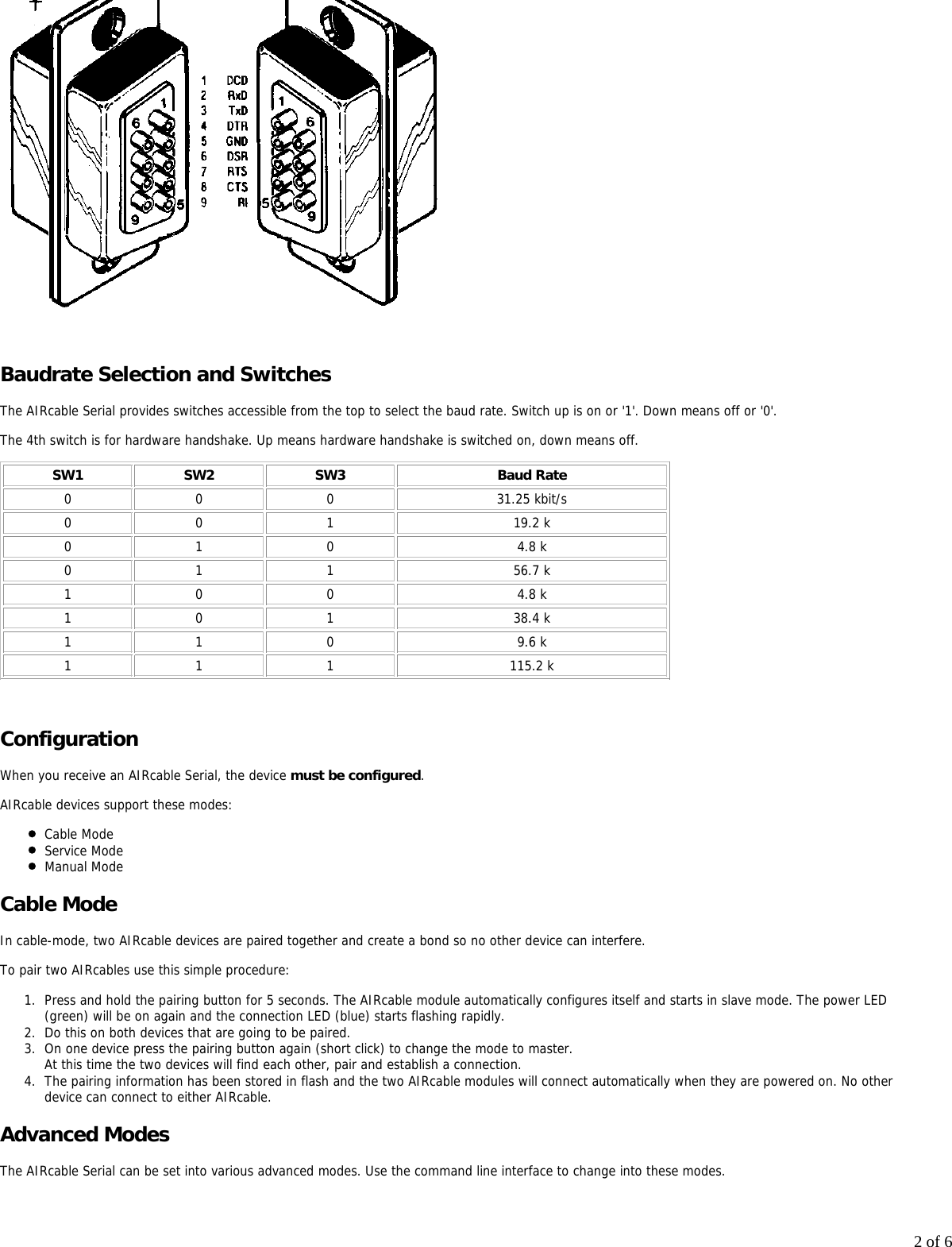
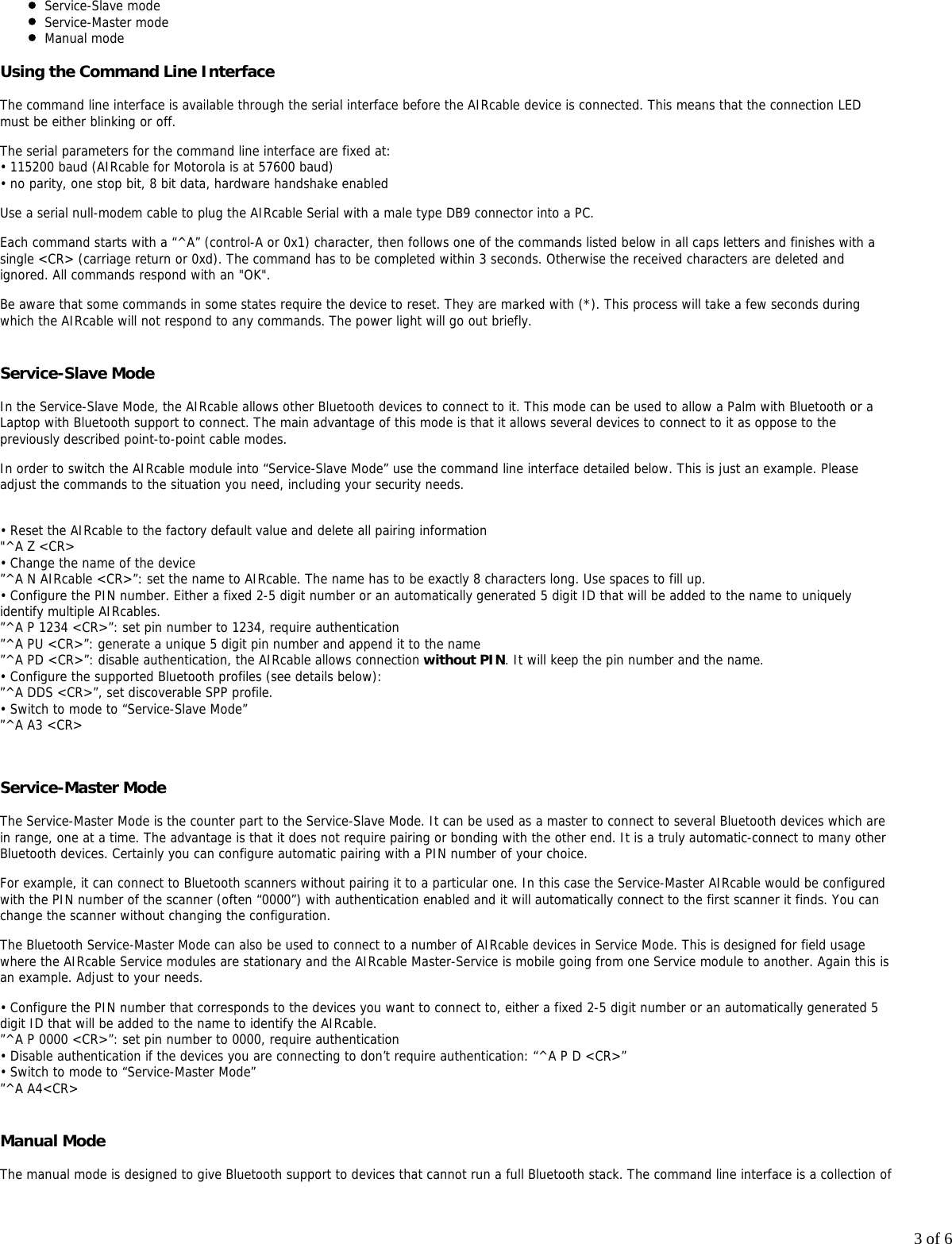
1 of 6AIRcable User ManualAIRcable SerialModel 1302Wireless Bluetooth to Serial AdapterUser GuideRev 0.97January 12, 2005 Thank you for purchasing an AIRcable. Your satisfaction is very important to us, so please read this guide before installingyour AIRcable modules. We’d appreciate your feedback.For more information and instructions or for support please visit our website at http://www.aircable.netThe AIRcable product is a Bluetooth to serial adapter for cable replacement functions with user accessible command linefor configuration. The AIRcable product is Bluetooth 1.1 certified.AIRcable modules are intelligent and run firmware-based onboard Bluetooth connection software. There is no need toinstall and configure extra software to establish a wireless connection. Because the AIRcable is designed to replacephysical connections, you can run the same software that would support a physical cable.Each module has a button accessible through a hole in the device which is used to pair two modules to become a point-to-point “Wireless Cable™”.During this pairing process, make sure no other Bluetooth device is discoverable within range (approx. 10 meters).Each module has one power LED (green) which shows that the firmware is running correctly and a connection LED (blue) that shows the status of aconnection. The connection LED is on solid if a connection to another device is active. Otherwise it is blinking or it is off.The AIRcable Serial is fully Bluetooth 1.1 certified and is compatible with all other Bluetooth 1.1 compatible devices. The AIRcable Serial is compilantwith RS-232 serial industrial standard EIA-232-E. There are two different versions available: The DTE has a Sub-D 9 pin female connector and the DCEhas a Sub-D 9 pin male adapter.The AIRcable Serial supports all modem control signals, including DTR, DSR, and DCD. Data flow control is implemented using RTS/CTS handshake.Data mode by default is 8 bit, no parity, one stop bit.NOTE: Because the devices implement hardware handshake, the RTS/CTS lines have to be connected or it must be switched off. If your device does not support hardware handshake you must switch off hardware handshake with the 4th switch on the AIRcable switch (down) in order forthe AIRcable Serial to work properly. Pin 9 can also be used for powering the AIRcable Serial module. Apply 5-15V DC, plus to pin 9, GND is pin 5 instead of using an external poweradapter.
2 of 6 Baudrate Selection and SwitchesThe AIRcable Serial provides switches accessible from the top to select the baud rate. Switch up is on or '1'. Down means off or '0'.The 4th switch is for hardware handshake. Up means hardware handshake is switched on, down means off.SW1 SW2 SW3 Baud Rate0 0 0 31.25 kbit/s0 0 1 19.2 k0 1 0 4.8 k0 1 1 56.7 k1 0 0 4.8 k1 0 1 38.4 k1 1 0 9.6 k1 1 1 115.2 k ConfigurationWhen you receive an AIRcable Serial, the device must be configured.AIRcable devices support these modes:Cable ModeService ModeManual ModeCable ModeIn cable-mode, two AIRcable devices are paired together and create a bond so no other device can interfere.To pair two AIRcables use this simple procedure: Press and hold the pairing button for 5 seconds. The AIRcable module automatically configures itself and starts in slave mode. The power LED(green) will be on again and the connection LED (blue) starts flashing rapidly.1.Do this on both devices that are going to be paired.2. On one device press the pairing button again (short click) to change the mode to master. At this time the two devices will find each other, pair and establish a connection.3.The pairing information has been stored in flash and the two AIRcable modules will connect automatically when they are powered on. No otherdevice can connect to either AIRcable.4.Advanced ModesThe AIRcable Serial can be set into various advanced modes. Use the command line interface to change into these modes.
3 of 6Service-Slave modeService-Master modeManual modeUsing the Command Line InterfaceThe command line interface is available through the serial interface before the AIRcable device is connected. This means that the connection LEDmust be either blinking or off.The serial parameters for the command line interface are fixed at:• 115200 baud (AIRcable for Motorola is at 57600 baud)• no parity, one stop bit, 8 bit data, hardware handshake enabledUse a serial null-modem cable to plug the AIRcable Serial with a male type DB9 connector into a PC.Each command starts with a “^A” (control-A or 0x1) character, then follows one of the commands listed below in all caps letters and finishes with asingle <CR> (carriage return or 0xd). The command has to be completed within 3 seconds. Otherwise the received characters are deleted andignored. All commands respond with an "OK".Be aware that some commands in some states require the device to reset. They are marked with (*). This process will take a few seconds duringwhich the AIRcable will not respond to any commands. The power light will go out briefly.Service-Slave ModeIn the Service-Slave Mode, the AIRcable allows other Bluetooth devices to connect to it. This mode can be used to allow a Palm with Bluetooth or aLaptop with Bluetooth support to connect. The main advantage of this mode is that it allows several devices to connect to it as oppose to thepreviously described point-to-point cable modes.In order to switch the AIRcable module into “Service-Slave Mode” use the command line interface detailed below. This is just an example. Pleaseadjust the commands to the situation you need, including your security needs.• Reset the AIRcable to the factory default value and delete all pairing information"^A Z <CR>• Change the name of the device”^A N AIRcable <CR>”: set the name to AIRcable. The name has to be exactly 8 characters long. Use spaces to fill up.• Configure the PIN number. Either a fixed 2-5 digit number or an automatically generated 5 digit ID that will be added to the name to uniquelyidentify multiple AIRcables.”^A P 1234 <CR>”: set pin number to 1234, require authentication”^A PU <CR>”: generate a unique 5 digit pin number and append it to the name”^A PD <CR>”: disable authentication, the AIRcable allows connection without PIN. It will keep the pin number and the name.• Configure the supported Bluetooth profiles (see details below):”^A DDS <CR>”, set discoverable SPP profile.• Switch to mode to “Service-Slave Mode””^A A3 <CR>Service-Master ModeThe Service-Master Mode is the counter part to the Service-Slave Mode. It can be used as a master to connect to several Bluetooth devices which arein range, one at a time. The advantage is that it does not require pairing or bonding with the other end. It is a truly automatic-connect to many otherBluetooth devices. Certainly you can configure automatic pairing with a PIN number of your choice.For example, it can connect to Bluetooth scanners without pairing it to a particular one. In this case the Service-Master AIRcable would be configuredwith the PIN number of the scanner (often “0000”) with authentication enabled and it will automatically connect to the first scanner it finds. You canchange the scanner without changing the configuration.The Bluetooth Service-Master Mode can also be used to connect to a number of AIRcable devices in Service Mode. This is designed for field usagewhere the AIRcable Service modules are stationary and the AIRcable Master-Service is mobile going from one Service module to another. Again this isan example. Adjust to your needs.• Configure the PIN number that corresponds to the devices you want to connect to, either a fixed 2-5 digit number or an automatically generated 5digit ID that will be added to the name to identify the AIRcable.”^A P 0000 <CR>”: set pin number to 0000, require authentication• Disable authentication if the devices you are connecting to don’t require authentication: “^A P D <CR>”• Switch to mode to “Service-Master Mode””^A A4<CR>Manual ModeThe manual mode is designed to give Bluetooth support to devices that cannot run a full Bluetooth stack. The command line interface is a collection of
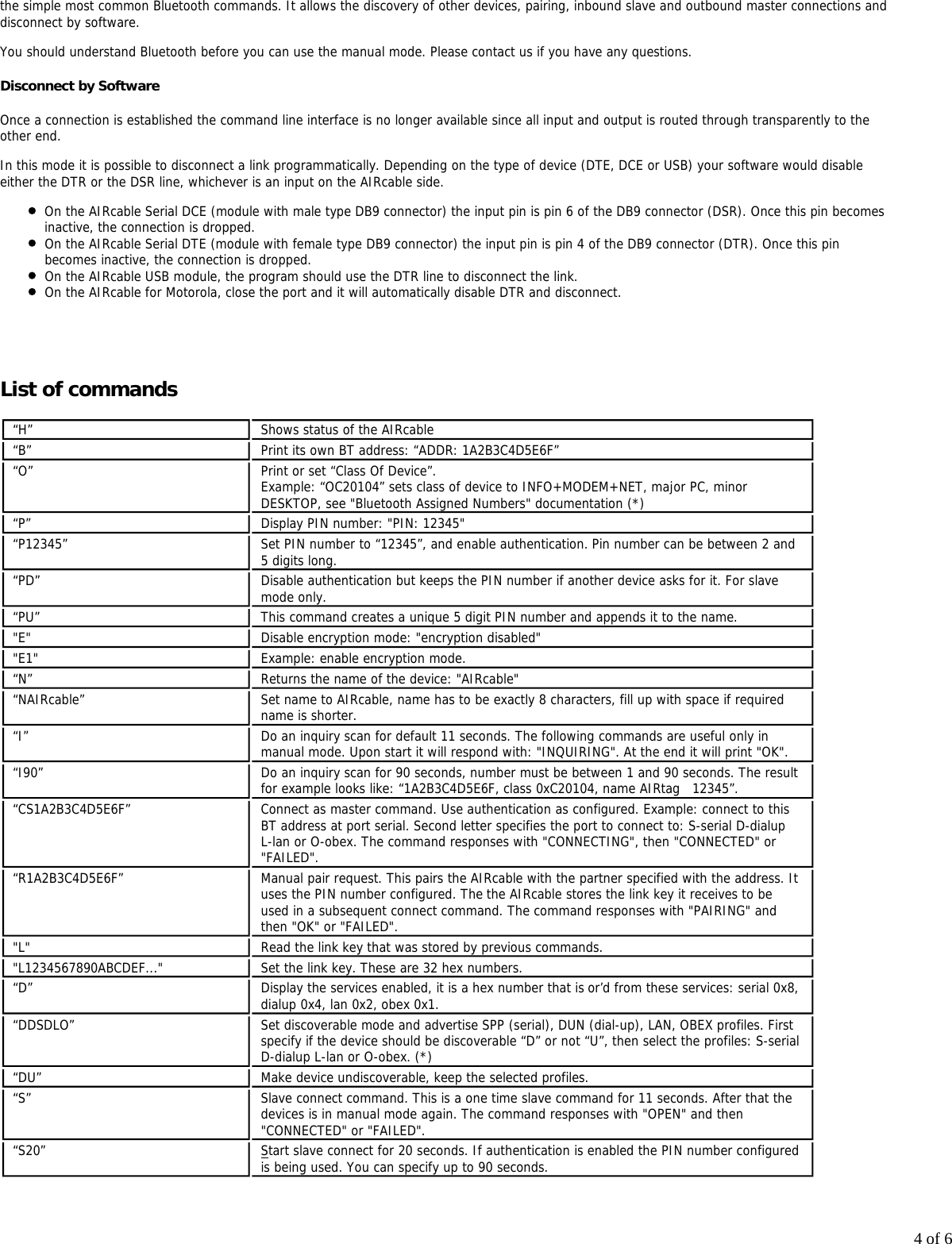
4 of 6the simple most common Bluetooth commands. It allows the discovery of other devices, pairing, inbound slave and outbound master connections anddisconnect by software.You should understand Bluetooth before you can use the manual mode. Please contact us if you have any questions.Disconnect by SoftwareOnce a connection is established the command line interface is no longer available since all input and output is routed through transparently to theother end.In this mode it is possible to disconnect a link programmatically. Depending on the type of device (DTE, DCE or USB) your software would disableeither the DTR or the DSR line, whichever is an input on the AIRcable side.On the AIRcable Serial DCE (module with male type DB9 connector) the input pin is pin 6 of the DB9 connector (DSR). Once this pin becomesinactive, the connection is dropped.On the AIRcable Serial DTE (module with female type DB9 connector) the input pin is pin 4 of the DB9 connector (DTR). Once this pinbecomes inactive, the connection is dropped.On the AIRcable USB module, the program should use the DTR line to disconnect the link.On the AIRcable for Motorola, close the port and it will automatically disable DTR and disconnect. List of commands“H” Shows status of the AIRcable“B” Print its own BT address: “ADDR: 1A2B3C4D5E6F”“O” Print or set “Class Of Device”.Example: “OC20104” sets class of device to INFO+MODEM+NET, major PC, minorDESKTOP, see "Bluetooth Assigned Numbers" documentation (*)“P” Display PIN number: "PIN: 12345"“P12345” Set PIN number to “12345”, and enable authentication. Pin number can be between 2 and5 digits long.“PD” Disable authentication but keeps the PIN number if another device asks for it. For slavemode only.“PU” This command creates a unique 5 digit PIN number and appends it to the name."E" Disable encryption mode: "encryption disabled""E1" Example: enable encryption mode.“N” Returns the name of the device: "AIRcable"“NAIRcable” Set name to AIRcable, name has to be exactly 8 characters, fill up with space if requiredname is shorter.“I” Do an inquiry scan for default 11 seconds. The following commands are useful only inmanual mode. Upon start it will respond with: "INQUIRING". At the end it will print "OK".“I90” Do an inquiry scan for 90 seconds, number must be between 1 and 90 seconds. The resultfor example looks like: “1A2B3C4D5E6F, class 0xC20104, name AIRtag   12345”.“CS1A2B3C4D5E6F” Connect as master command. Use authentication as configured. Example: connect to thisBT address at port serial. Second letter specifies the port to connect to: S-serial D-dialupL-lan or O-obex. The command responses with "CONNECTING", then "CONNECTED" or"FAILED".“R1A2B3C4D5E6F” Manual pair request. This pairs the AIRcable with the partner specified with the address. Ituses the PIN number configured. The the AIRcable stores the link key it receives to be used in a subsequent connect command. The command responses with "PAIRING" andthen "OK" or "FAILED"."L" Read the link key that was stored by previous commands."L1234567890ABCDEF..." Set the link key. These are 32 hex numbers.“D” Display the services enabled, it is a hex number that is or’d from these services: serial 0x8,dialup 0x4, lan 0x2, obex 0x1.“DDSDLO” Set discoverable mode and advertise SPP (serial), DUN (dial-up), LAN, OBEX profiles. Firstspecify if the device should be discoverable “D” or not “U”, then select the profiles: S-serialD-dialup L-lan or O-obex. (*)“DU” Make device undiscoverable, keep the selected profiles.“S” Slave connect command. This is a one time slave command for 11 seconds. After that thedevices is in manual mode again. The command responses with "OPEN" and then"CONNECTED" or "FAILED".“S20” Start slave connect for 20 seconds. If authentication is enabled the PIN number configuredis being used. You can specify up to 90 seconds.
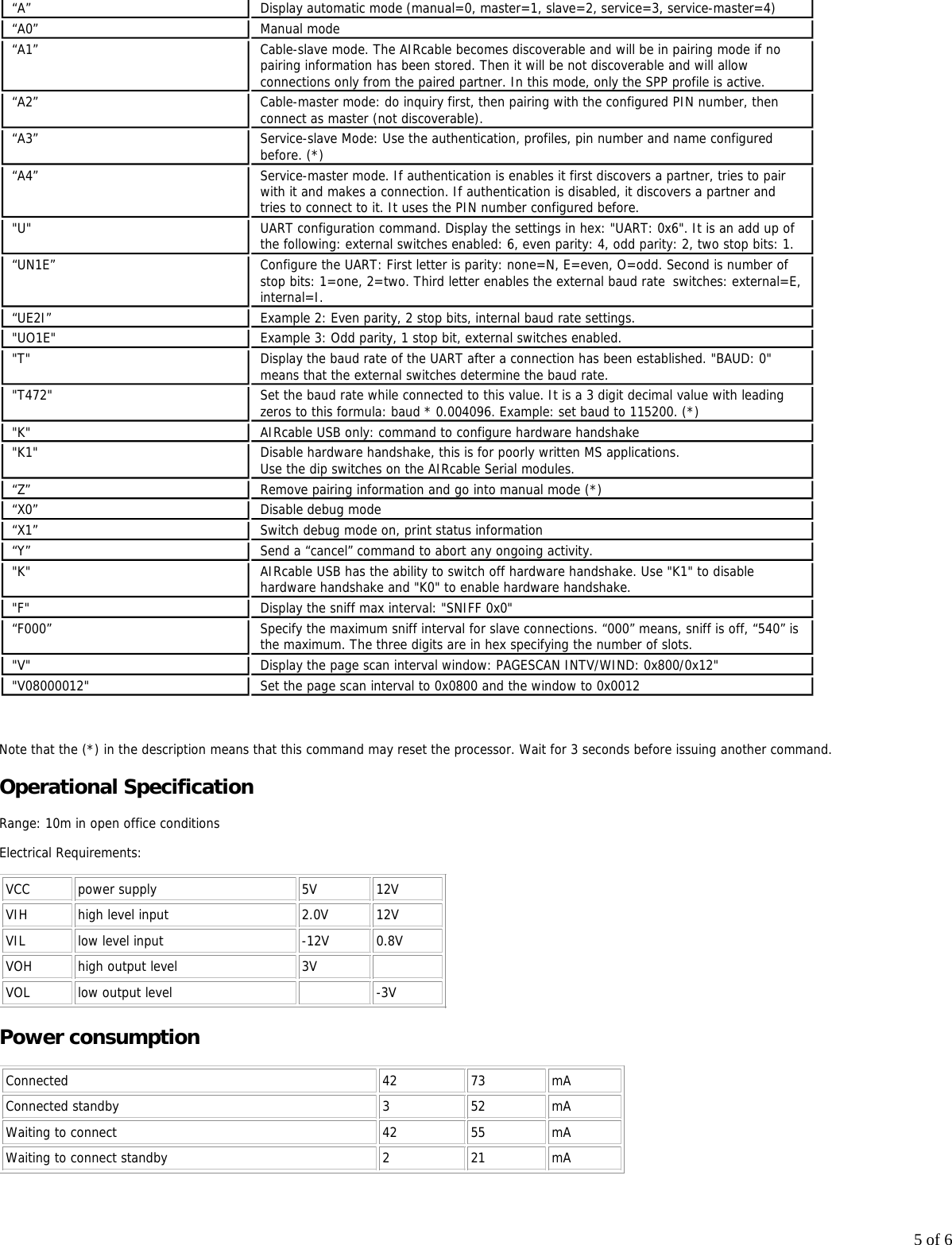
5 of 6“A” Display automatic mode (manual=0, master=1, slave=2, service=3, service-master=4)“A0” Manual mode“A1” Cable-slave mode. The AIRcable becomes discoverable and will be in pairing mode if nopairing information has been stored. Then it will be not discoverable and will allowconnections only from the paired partner. In this mode, only the SPP profile is active.“A2” Cable-master mode: do inquiry first, then pairing with the configured PIN number, thenconnect as master (not discoverable). “A3” Service-slave Mode: Use the authentication, profiles, pin number and name configuredbefore. (*)“A4” Service-master mode. If authentication is enables it first discovers a partner, tries to pairwith it and makes a connection. If authentication is disabled, it discovers a partner andtries to connect to it. It uses the PIN number configured before."U" UART configuration command. Display the settings in hex: "UART: 0x6". It is an add up ofthe following: external switches enabled: 6, even parity: 4, odd parity: 2, two stop bits: 1.“UN1E” Configure the UART: First letter is parity: none=N, E=even, O=odd. Second is number ofstop bits: 1=one, 2=two. Third letter enables the external baud rate  switches: external=E, internal=I.“UE2I” Example 2: Even parity, 2 stop bits, internal baud rate settings."UO1E" Example 3: Odd parity, 1 stop bit, external switches enabled."T" Display the baud rate of the UART after a connection has been established. "BAUD: 0"means that the external switches determine the baud rate."T472" Set the baud rate while connected to this value. It is a 3 digit decimal value with leadingzeros to this formula: baud * 0.004096. Example: set baud to 115200. (*)"K" AIRcable USB only: command to configure hardware handshake"K1" Disable hardware handshake, this is for poorly written MS applications.Use the dip switches on the AIRcable Serial modules.“Z” Remove pairing information and go into manual mode (*)“X0” Disable debug mode“X1” Switch debug mode on, print status information“Y” Send a “cancel” command to abort any ongoing activity."K" AIRcable USB has the ability to switch off hardware handshake. Use "K1" to disablehardware handshake and "K0" to enable hardware handshake."F" Display the sniff max interval: "SNIFF 0x0"“F000” Specify the maximum sniff interval for slave connections. “000” means, sniff is off, “540” isthe maximum. The three digits are in hex specifying the number of slots."V" Display the page scan interval window: PAGESCAN INTV/WIND: 0x800/0x12""V08000012" Set the page scan interval to 0x0800 and the window to 0x0012 Note that the (*) in the description means that this command may reset the processor. Wait for 3 seconds before issuing another command.Operational SpecificationRange: 10m in open office conditionsElectrical Requirements: VCC power supply 5V 12VVIH high level input 2.0V 12VVIL low level input -12V 0.8VVOH high output level 3V  VOL low output level   -3VPower consumptionConnected 42 73 mAConnected standby 3 52 mAWaiting to connect 42 55 mAWaiting to connect standby 2 21 mA
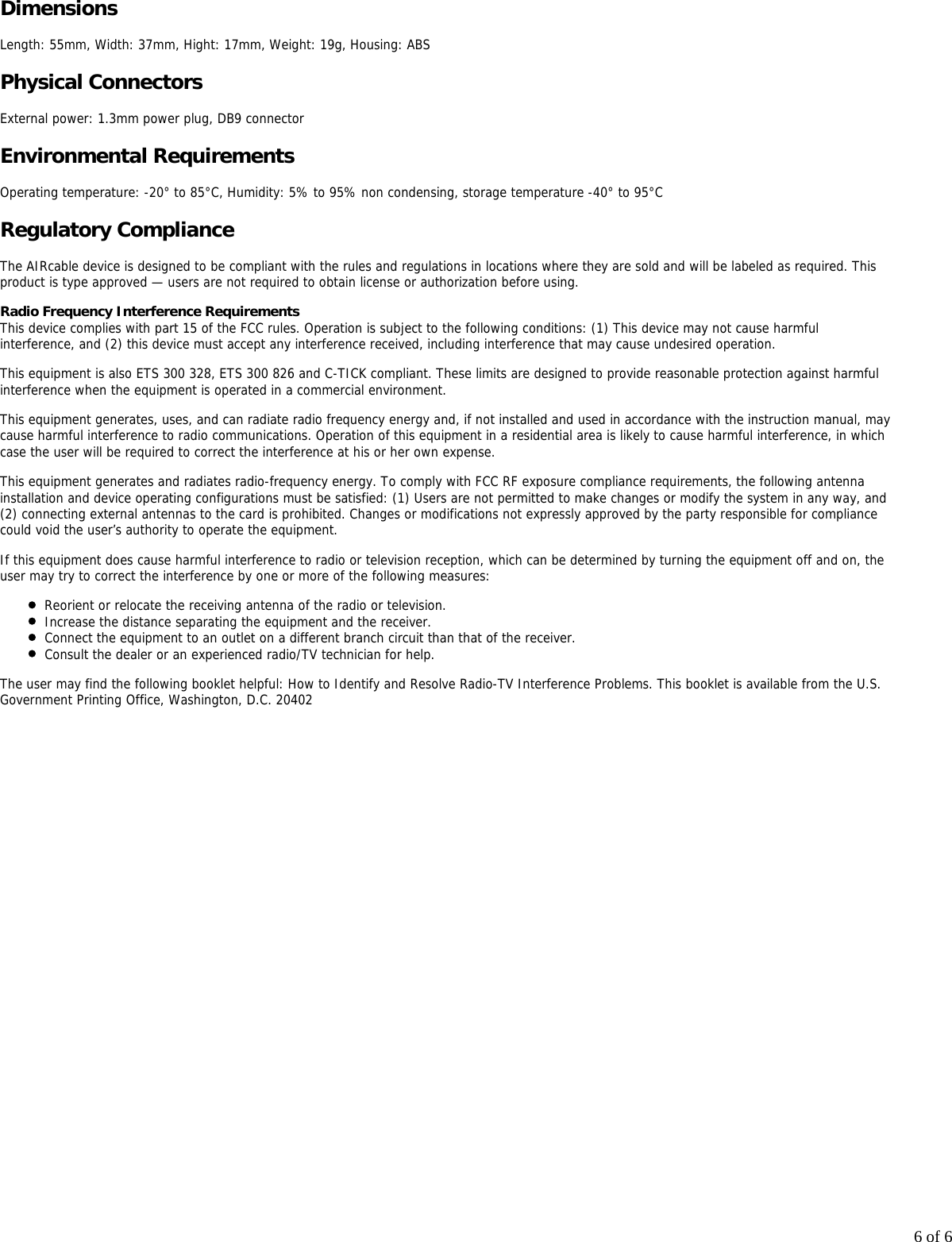
6 of 6DimensionsLength: 55mm, Width: 37mm, Hight: 17mm, Weight: 19g, Housing: ABSPhysical ConnectorsExternal power: 1.3mm power plug, DB9 connectorEnvironmental RequirementsOperating temperature: -20° to 85°C, Humidity: 5% to 95% non condensing, storage temperature -40° to 95°CRegulatory ComplianceThe AIRcable device is designed to be compliant with the rules and regulations in locations where they are sold and will be labeled as required. Thisproduct is type approved — users are not required to obtain license or authorization before using.Radio Frequency Interference RequirementsThis device complies with part 15 of the FCC rules. Operation is subject to the following conditions: (1) This device may not cause harmfulinterference, and (2) this device must accept any interference received, including interference that may cause undesired operation.This equipment is also ETS 300 328, ETS 300 826 and C-TICK compliant. These limits are designed to provide reasonable protection against harmfulinterference when the equipment is operated in a commercial environment.This equipment generates, uses, and can radiate radio frequency energy and, if not installed and used in accordance with the instruction manual, maycause harmful interference to radio communications. Operation of this equipment in a residential area is likely to cause harmful interference, in whichcase the user will be required to correct the interference at his or her own expense.This equipment generates and radiates radio-frequency energy. To comply with FCC RF exposure compliance requirements, the following antennainstallation and device operating configurations must be satisfied: (1) Users are not permitted to make changes or modify the system in any way, and(2) connecting external antennas to the card is prohibited. Changes or modifications not expressly approved by the party responsible for compliancecould void the user’s authority to operate the equipment.If this equipment does cause harmful interference to radio or television reception, which can be determined by turning the equipment off and on, theuser may try to correct the interference by one or more of the following measures:Reorient or relocate the receiving antenna of the radio or television. Increase the distance separating the equipment and the receiver. Connect the equipment to an outlet on a different branch circuit than that of the receiver.Consult the dealer or an experienced radio/TV technician for help.The user may find the following booklet helpful: How to Identify and Resolve Radio-TV Interference Problems. This booklet is available from the U.S.Government Printing Office, Washington, D.C. 20402

Navigation menu