Wooyoung WTN-17WE2 LCD Monitor With TV Function User Manual WTN 17WE2 UsrMan

Wooyoung Co., Ltd. LCD Monitor With TV Function WTN 17WE2 UsrMan

Contents

User Manual 2 of 2

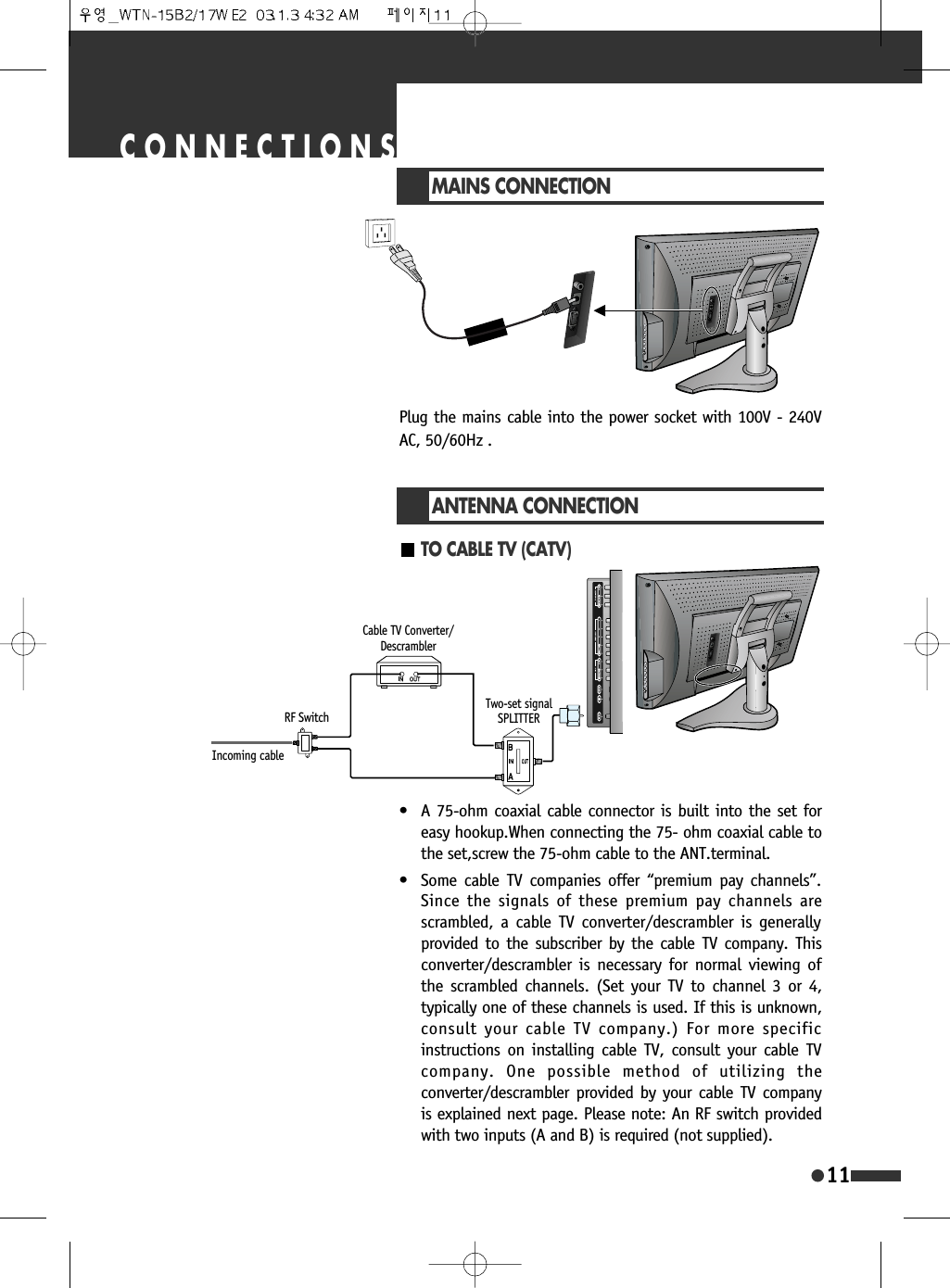
11CONNECTIONSMAINS CONNECTIONPlug the mains cable into the power socket with 100V - 240VAC, 50/60Hz .TO CABLE TV (CATV)ANTENNA CONNECTION• A 75-ohm coaxial cable connector is built into the set foreasy hookup.When connecting the 75- ohm coaxial cable tothe set,screw the 75-ohm cable to the ANT.terminal.• Some cable TV companies offer “premium pay channels”.Since the signals of these premium pay channels arescrambled, a cable TV converter/descrambler is generallyprovided to the subscriber by the cable TV company. Thisconverter/descrambler is necessary for normal viewing ofthe scrambled channels. (Set your TV to channel 3 or 4,typically one of these channels is used. If this is unknown,consult your cable TV company.) For more specificinstructions on installing cable TV, consult your cable TVcompany. One possible method of utilizing theconverter/descrambler provided by your cable TV companyis explained next page. Please note: An RF switch providedwith two inputs (A and B) is required (not supplied). Incoming cableRF SwitchTwo-set signalSPLITTERCable TV Converter/Descrambler
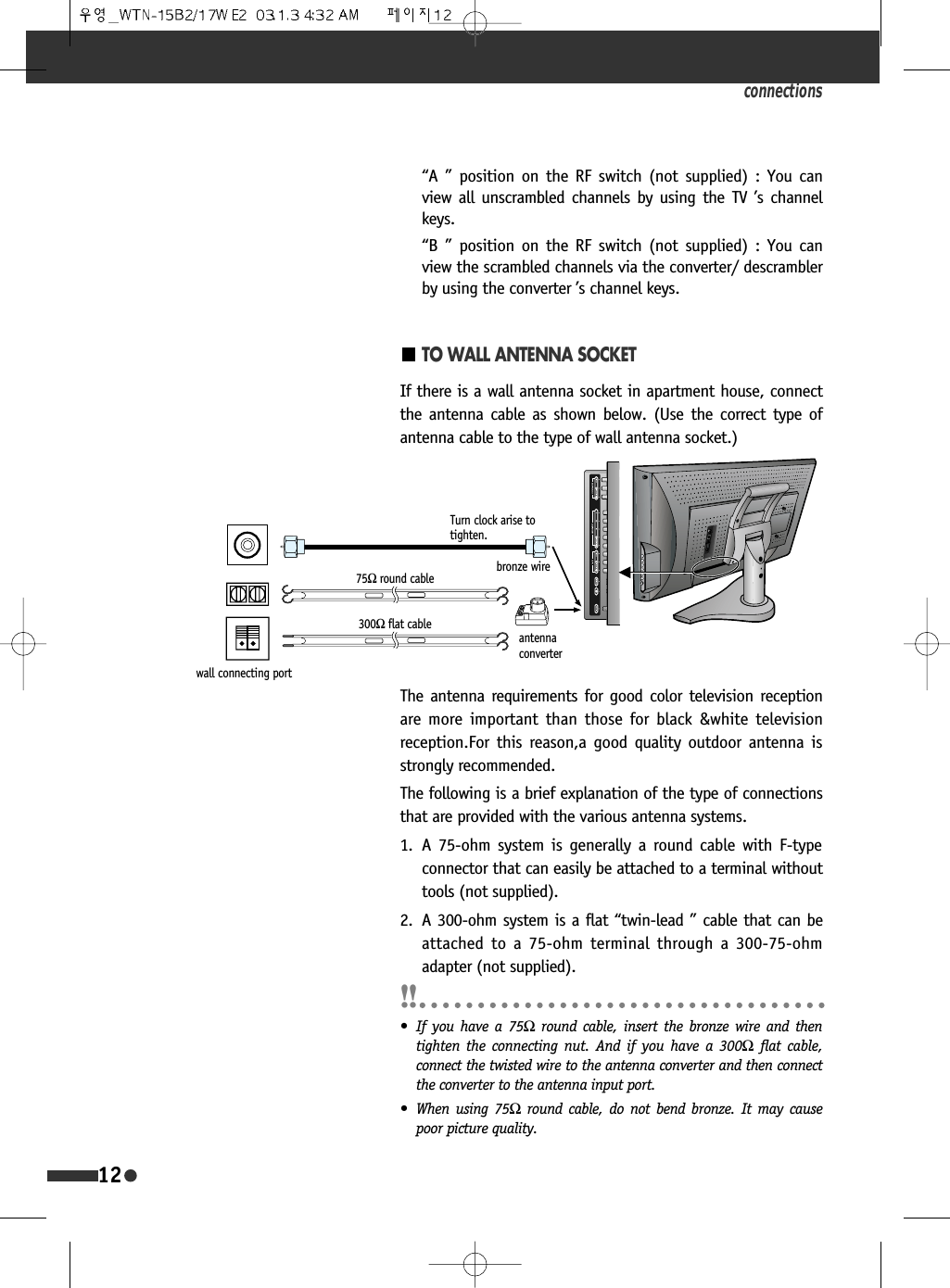
connections12TO WALL ANTENNA SOCKETIf there is a wall antenna socket in apartment house, connectthe antenna cable as shown below. (Use the correct type ofantenna cable to the type of wall antenna socket.)The antenna requirements for good color television receptionare more important than those for black &white televisionreception.For this reason,a good quality outdoor antenna isstrongly recommended.The following is a brief explanation of the type of connectionsthat are provided with the various antenna systems.1. A 75-ohm system is generally a round cable with F-typeconnector that can easily be attached to a terminal withouttools (not supplied).2. A 300-ohm system is a flat “twin-lead ” cable that can beattached to a 75-ohm terminal through a 300-75-ohmadapter (not supplied).“A ” position on the RF switch (not supplied) : You canview all unscrambled channels by using the TV ’s channelkeys.“B ” position on the RF switch (not supplied) : You canview the scrambled channels via the converter/ descramblerby using the converter ’s channel keys.• If you have a 75Ωround cable, insert the bronze wire and thentighten the connecting nut. And if you have a 300Ωflat cable,connect the twisted wire to the antenna converter and then connectthe converter to the antenna input port.• When using 75Ωround cable, do not bend bronze. It may causepoor picture quality.Turn clock arise totighten.bronze wireantennaconverter75Ωround cable300Ωflat cablewall connecting port
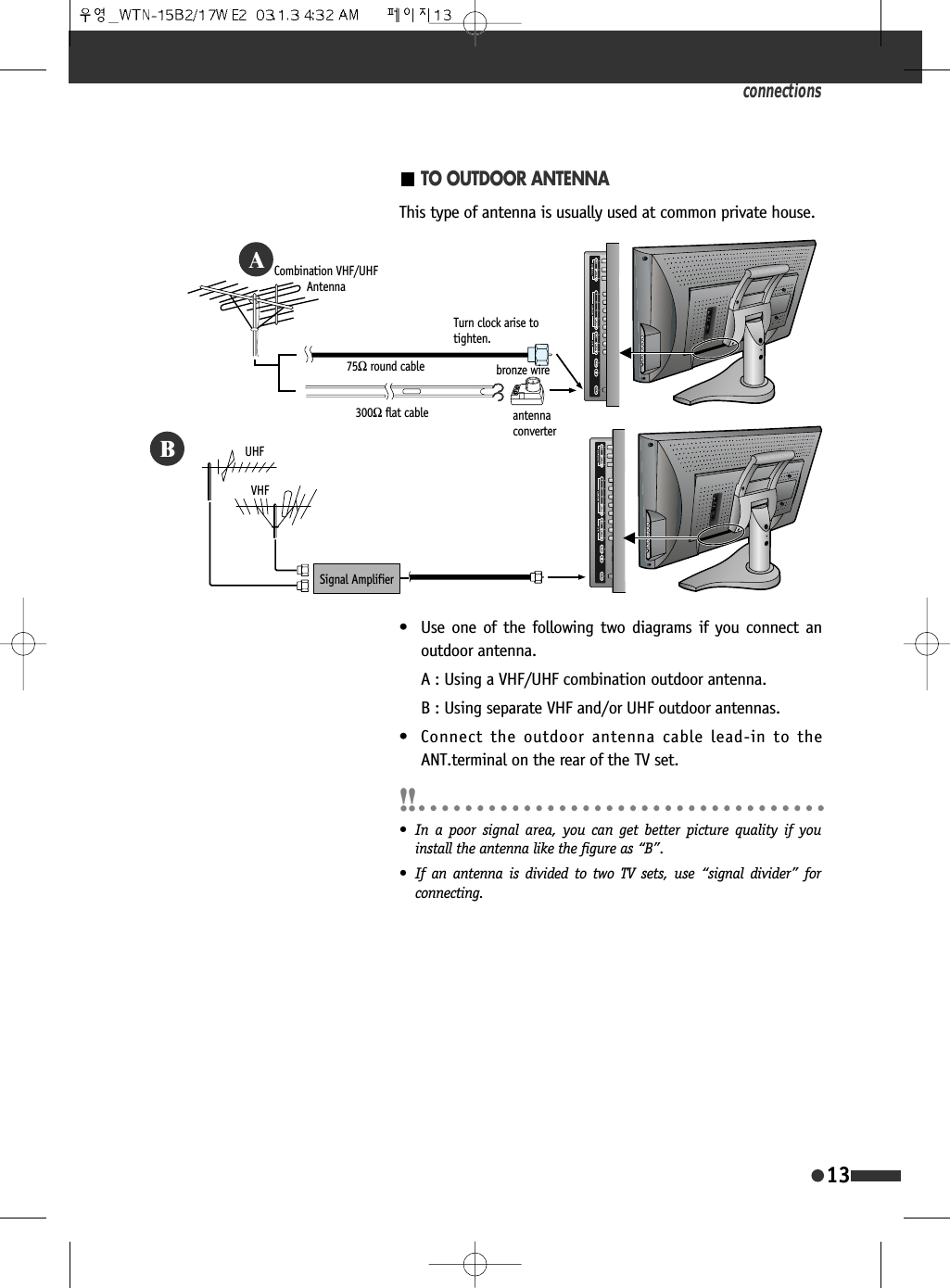
connections13TO OUTDOOR ANTENNA• Use one of the following two diagrams if you connect anoutdoor antenna.A : Using a VHF/UHF combination outdoor antenna.B : Using separate VHF and/or UHF outdoor antennas.• Connect the outdoor antenna cable lead-in to theANT.terminal on the rear of the TV set.This type of antenna is usually used at common private house.%$• In a poor signal area, you can get better picture quality if youinstall the antenna like the figure as “B”.• If an antenna is divided to two TV sets, use “signal divider” forconnecting.Combination VHF/UHFAntenna75Ωround cableTurn clock arise totighten.bronze wireantennaconverter300Ωflat cableUHFVHFSignal Amplifier
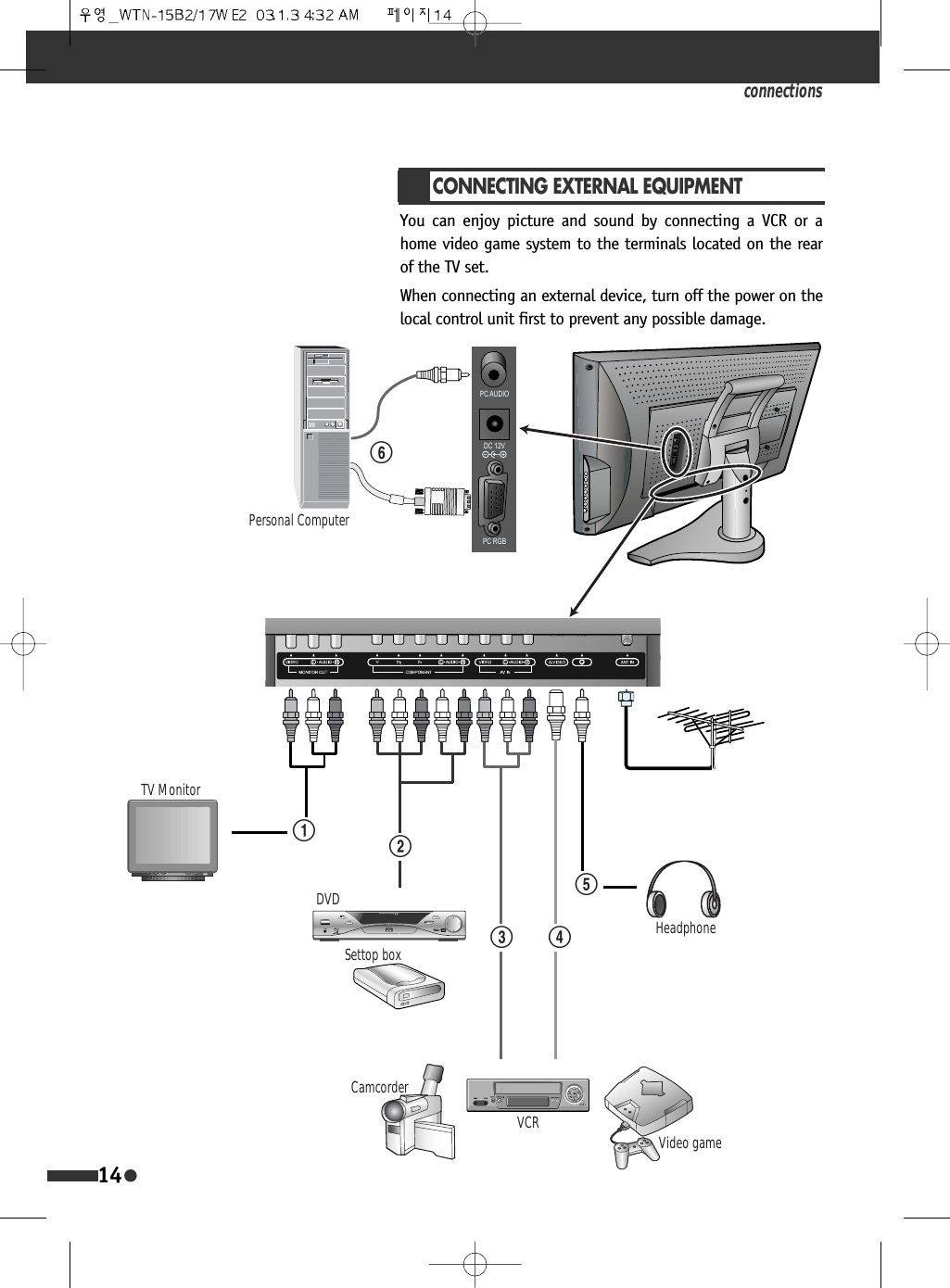
3&$8',2'&93&5*%CONNECTING EXTERNAL EQUIPMENTYou can enjoy picture and sound by connecting a VCR or ahome video game system to the terminals located on the rearof the TV set.When connecting an external device, turn off the power on thelocal control unit first to prevent any possible damage.connections14TV MonitorDVDSettop boxCamcorderVCR Video gameHeadphone@#$%!Personal Computer^
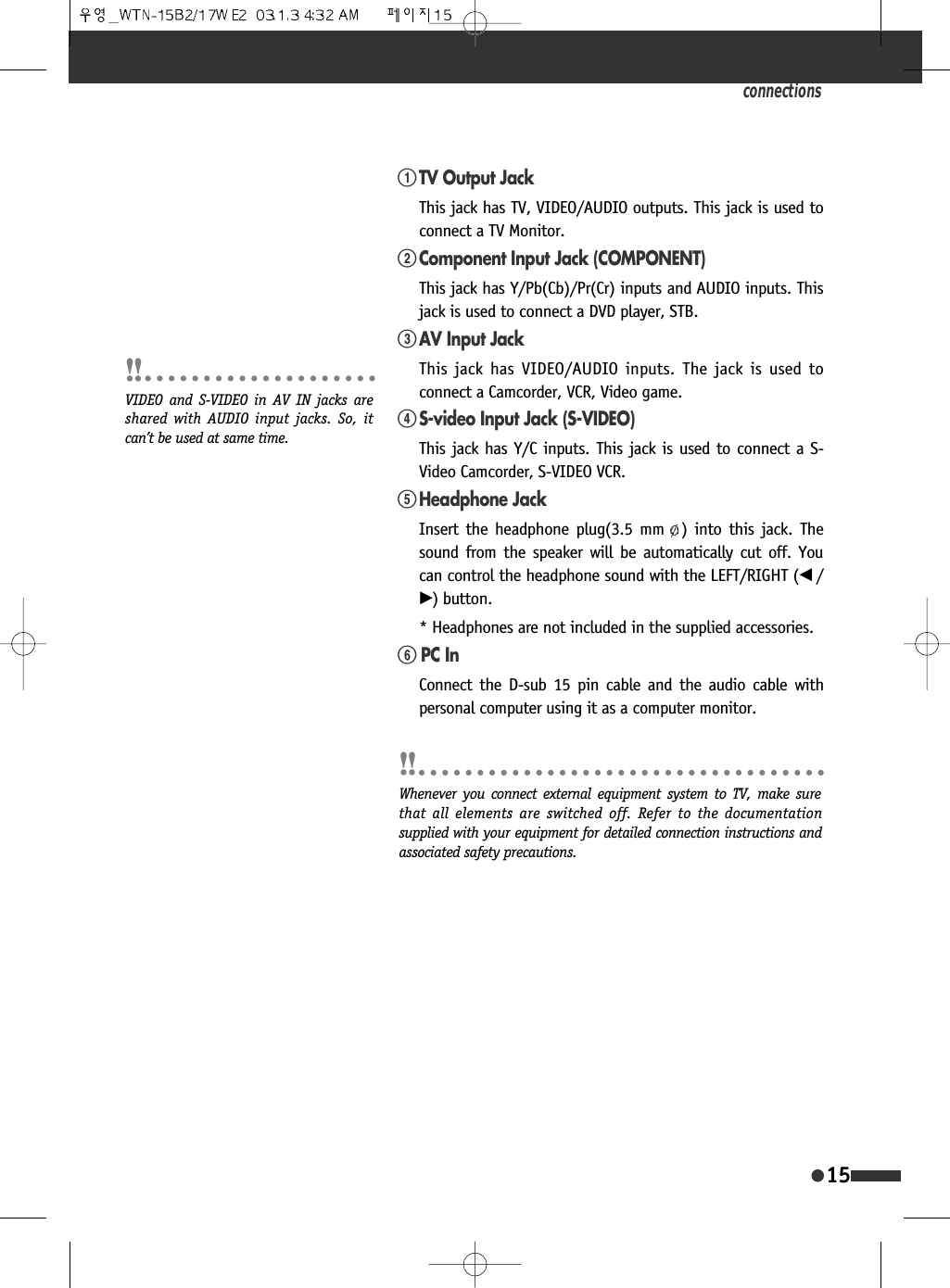
connections15!TV Output JackThis jack has TV, VIDEO/AUDIO outputs. This jack is used toconnect a TV Monitor. @Component Input Jack (COMPONENT) This jack has Y/Pb(Cb)/Pr(Cr) inputs and AUDIO inputs. Thisjack is used to connect a DVD player, STB. #AV Input JackThis jack has VIDEO/AUDIO inputs. The jack is used toconnect a Camcorder, VCR, Video game.$S-video Input Jack (S-VIDEO)This jack has Y/C inputs. This jack is used to connect a S-Video Camcorder, S-VIDEO VCR. %Headphone JackInsert the headphone plug(3.5 mm ) into this jack. Thesound from the speaker will be automatically cut off. Youcan control the headphone sound with the LEFT/RIGHT (œ /√) button.* Headphones are not included in the supplied accessories.^ PC InConnect the D-sub 15 pin cable and the audio cable withpersonal computer using it as a computer monitor.VIDEO and S-VIDEO in AV IN jacks areshared with AUDIO input jacks. So, itcan’t be used at same time.Whenever you connect external equipment system to TV, make surethat all elements are switched off. Refer to the documentationsupplied with your equipment for detailed connection instructions andassociated safety precautions.
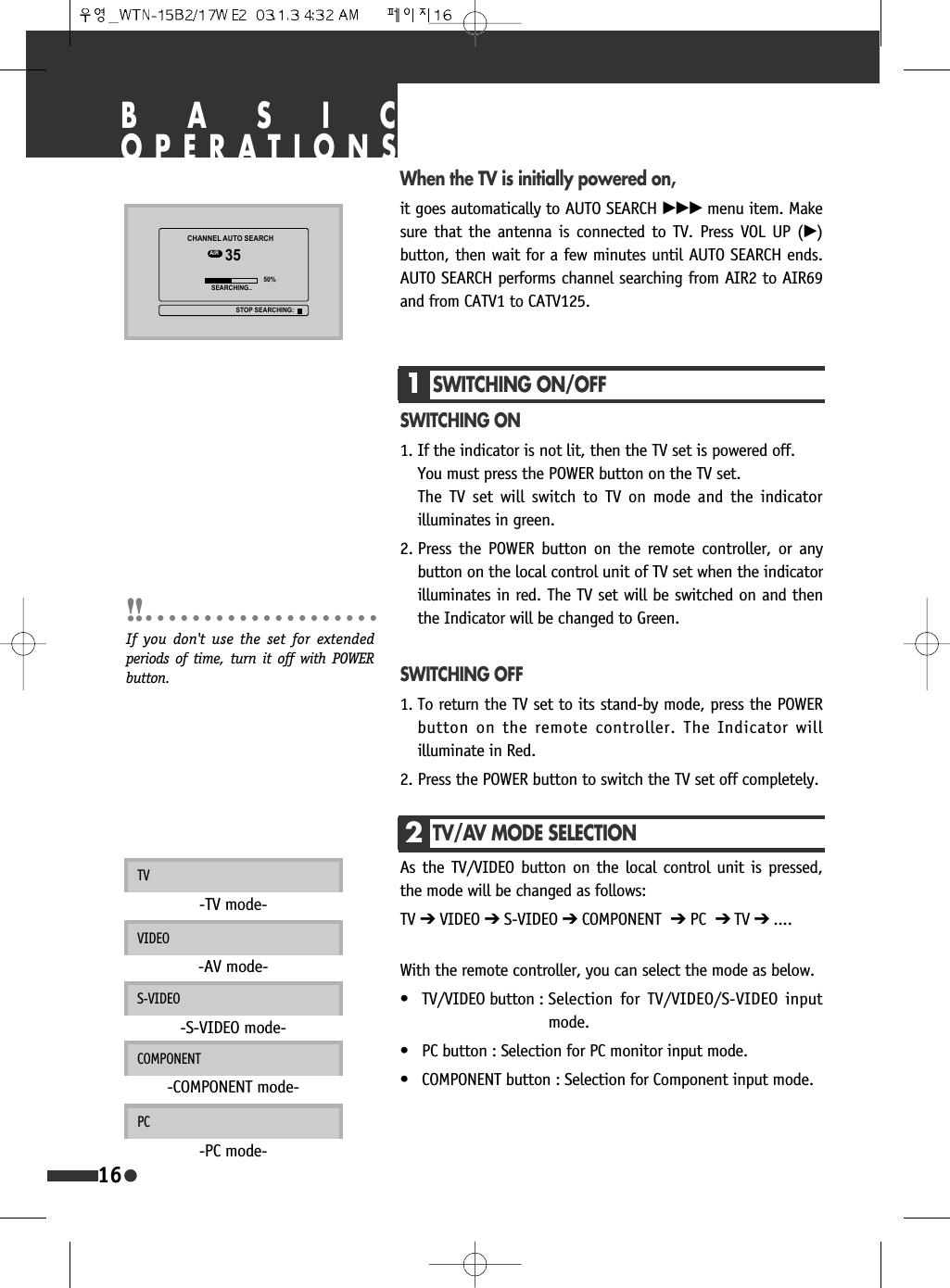
BASICOPERATIONS1SWITCHING ON/OFFSWITCHING ON1. If the indicator is not lit, then the TV set is powered off.You must press the POWER button on the TV set.The TV set will switch to TV on mode and the indicatorilluminates in green.2. Press the POWER button on the remote controller, or anybutton on the local control unit of TV set when the indicatorilluminates in red. The TV set will be switched on and thenthe Indicator will be changed to Green.SWITCHING OFF1. To return the TV set to its stand-by mode, press the POWERbutton on the remote controller. The Indicator willilluminate in Red.2. Press the POWER button to switch the TV set off completely. When the TV is initially powered on,it goes automatically to AUTO SEARCH √√√ menu item. Makesure that the antenna is connected to TV. Press VOL UP (√)button, then wait for a few minutes until AUTO SEARCH ends.AUTO SEARCH performs channel searching from AIR2 to AIR69and from CATV1 to CATV125.16With the remote controller, you can select the mode as below.• TV/VIDEO button : Selection for TV/VIDEO/S-VIDEO inputmode.• PC button : Selection for PC monitor input mode.• COMPONENT button : Selection for Component input mode.COMPONENT-COMPONENT mode-PC-PC mode-If you don't use the set for extendedperiods of time, turn it off with POWERbutton.2TV/AV MODE SELECTIONAs the TV/VIDEO button on the local control unit is pressed,the mode will be changed as follows:TV ➔VIDEO ➔S-VIDEO ➔COMPONENT ➔PC ➔ TV ➔ ....TV-TV mode-VIDEO-AV mode-S-VIDEO-S-VIDEO mode-&+$11(/$8726($5&+$,5 6($5&+,1*67236($5&+,1*
3VOLUME CONTROLAdjust the volume with the VOL (œ /√) buttons.TO MUTE THE SOUNDPress the MUTE button to turns the sound off. The MUTE willbe displayed.  The sound returns if the button is pressed oncemore, or pressed the VOL (œ /√) buttons.4CHANNEL SELECTIONThe set has 125 channel numbers, CH01..CH125. [AIR02-69,CATV01-125]DIRECT SELECTIONThe NUMBER buttons are used for direct channel selection.To select two-digit channel, press the second numbered buttonwithin 2 seconds.In case of selecting channels from 14 to 69 with Numberbuttons, the channel will go to AIR channel in first. If youpress the same button again, then it goes to CATV  channel.UP/DOWN SELECTIONYou can also select a channel by pressing step by step the CH(…/†) buttons.basic operations17MUTE0(18087(799,'(2 6/((3&$37,213&&20321(173,&02'(&+&+92/92/
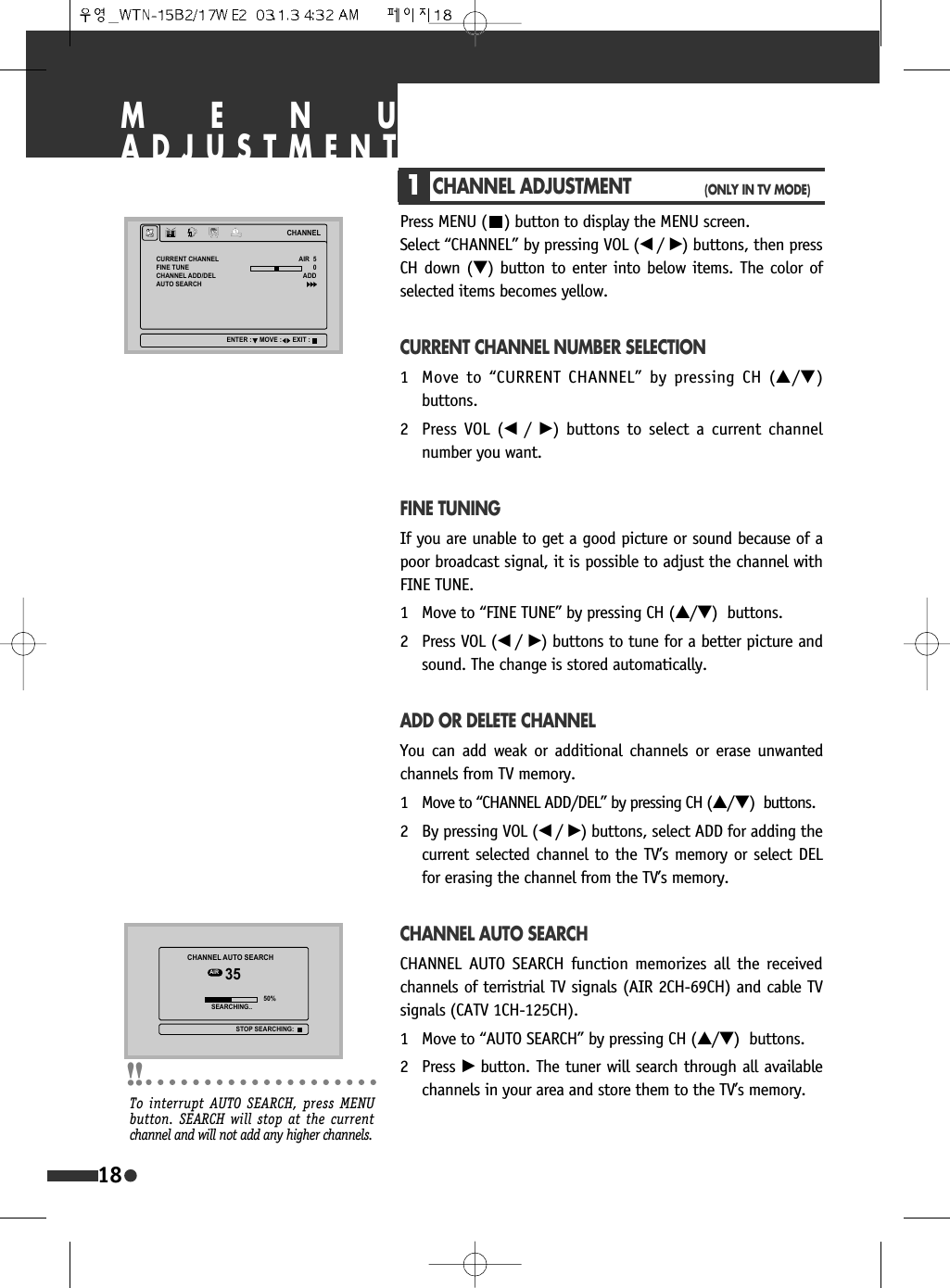
MENUADJUSTMENT1CHANNEL ADJUSTMENT(ONLY IN TV MODE)Press MENU ( ) button to display the MENU screen. Select “CHANNEL” by pressing VOL (œ /√) buttons, then pressCH down (†) button to enter into below items. The color ofselected items becomes yellow.CURRENT CHANNEL NUMBER SELECTION1 Move to “CURRENT CHANNEL” by pressing CH (…/†)buttons.2 Press VOL (œ  /√) buttons to select a current channelnumber you want.FINE TUNINGIf you are unable to get a good picture or sound because of apoor broadcast signal, it is possible to adjust the channel withFINE TUNE.1 Move to “FINE TUNE” by pressing CH (…/†)  buttons.2 Press VOL (œ /√) buttons to tune for a better picture andsound. The change is stored automatically.ADD OR DELETE CHANNELYou can add weak or additional channels or erase unwantedchannels from TV memory.1 Move to “CHANNEL ADD/DEL” by pressing CH (…/†)  buttons.2 By pressing VOL (œ /√) buttons, select ADD for adding thecurrent selected channel to the TV’s memory or select DELfor erasing the channel from the TV’s memory.CHANNEL AUTO SEARCHCHANNEL AUTO SEARCH function memorizes all the receivedchannels of terristrial TV signals (AIR 2CH-69CH) and cable TVsignals (CATV 1CH-125CH).1 Move to “AUTO SEARCH” by pressing CH (…/†)  buttons.2 Press √button. The tuner will search through all availablechannels in your area and store them to the TV’s memory.18&+$11(/&855(17&+$11(/),1(781(&+$11(/$'''(/$8726($5&+$,5$''(17(5 029( (;,7&+$11(/$8726($5&+$,5 6($5&+,1*67236($5&+,1*To interrupt AUTO SEARCH, press MENUbutton. SEARCH will stop at the currentchannel and will not add any higher channels.
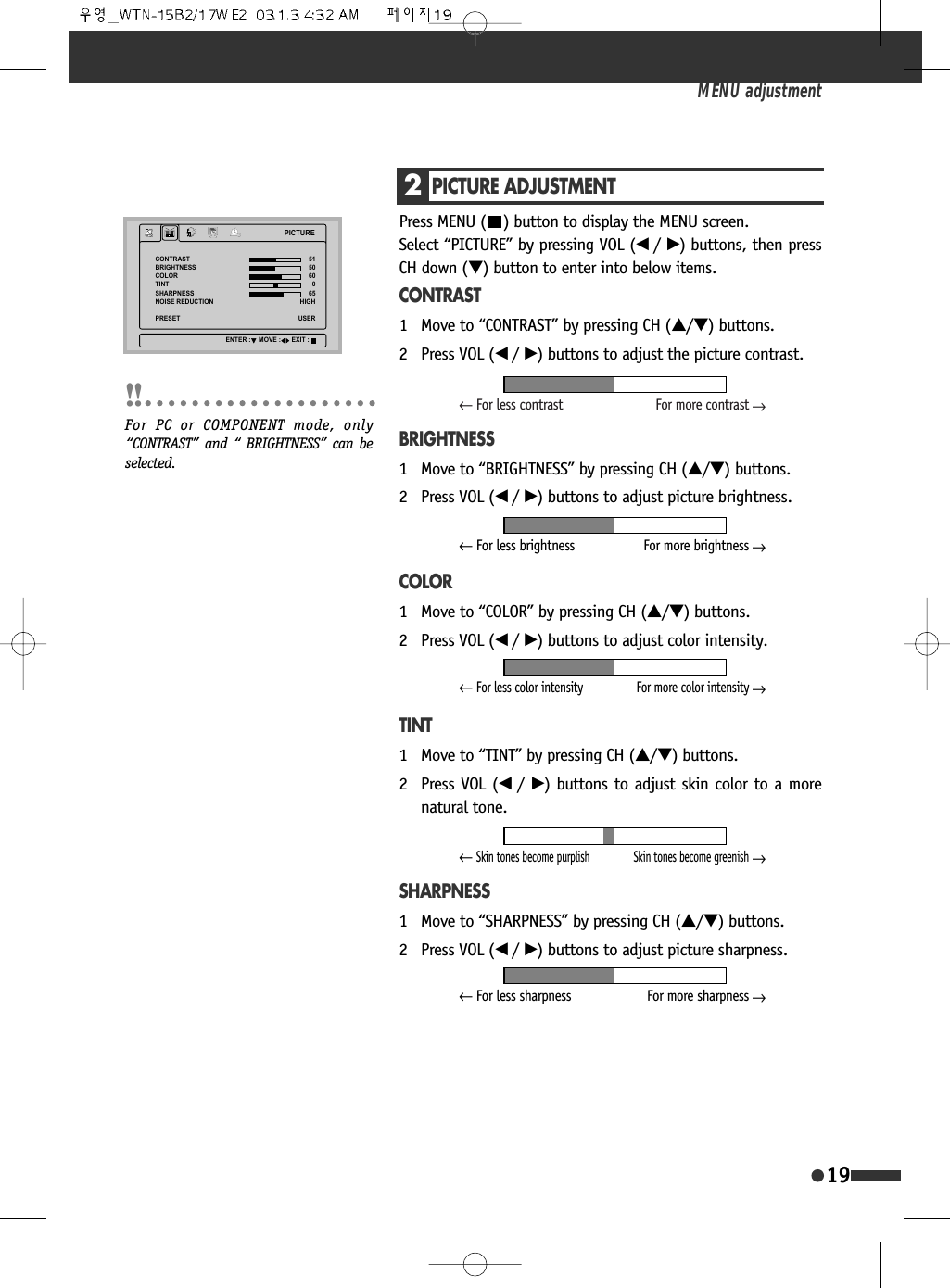
2PICTURE ADJUSTMENTPress MENU ( ) button to display the MENU screen. Select “PICTURE” by pressing VOL (œ /√) buttons, then pressCH down (†) button to enter into below items.CONTRAST1 Move to “CONTRAST” by pressing CH (…/†) buttons.2 Press VOL (œ /√) buttons to adjust the picture contrast.BRIGHTNESS1 Move to “BRIGHTNESS” by pressing CH (…/†) buttons.2 Press VOL (œ /√) buttons to adjust picture brightness.COLOR1 Move to “COLOR” by pressing CH (…/†) buttons.2 Press VOL (œ /√) buttons to adjust color intensity.TINT1 Move to “TINT” by pressing CH (…/†) buttons.2 Press VOL (œ /√) buttons to adjust skin color to a morenatural tone.SHARPNESS1 Move to “SHARPNESS” by pressing CH (…/†) buttons.2 Press VOL (œ /√) buttons to adjust picture sharpness.MENU adjustment193,&785(&2175$67%5,*+71(66&2/257,176+$531(6612,6(5('8&7,2135(6(7+,*+86(5(17(5 029( (;,7For PC or COMPONENT mode, only“CONTRAST” and “ BRIGHTNESS” can beselected.←For less contrast For more contrast←←For less brightness For more brightness←←Skin tones become purplish Skin tones become greenish←←For less color intensity For more color intensity←←For less sharpness For more sharpness←
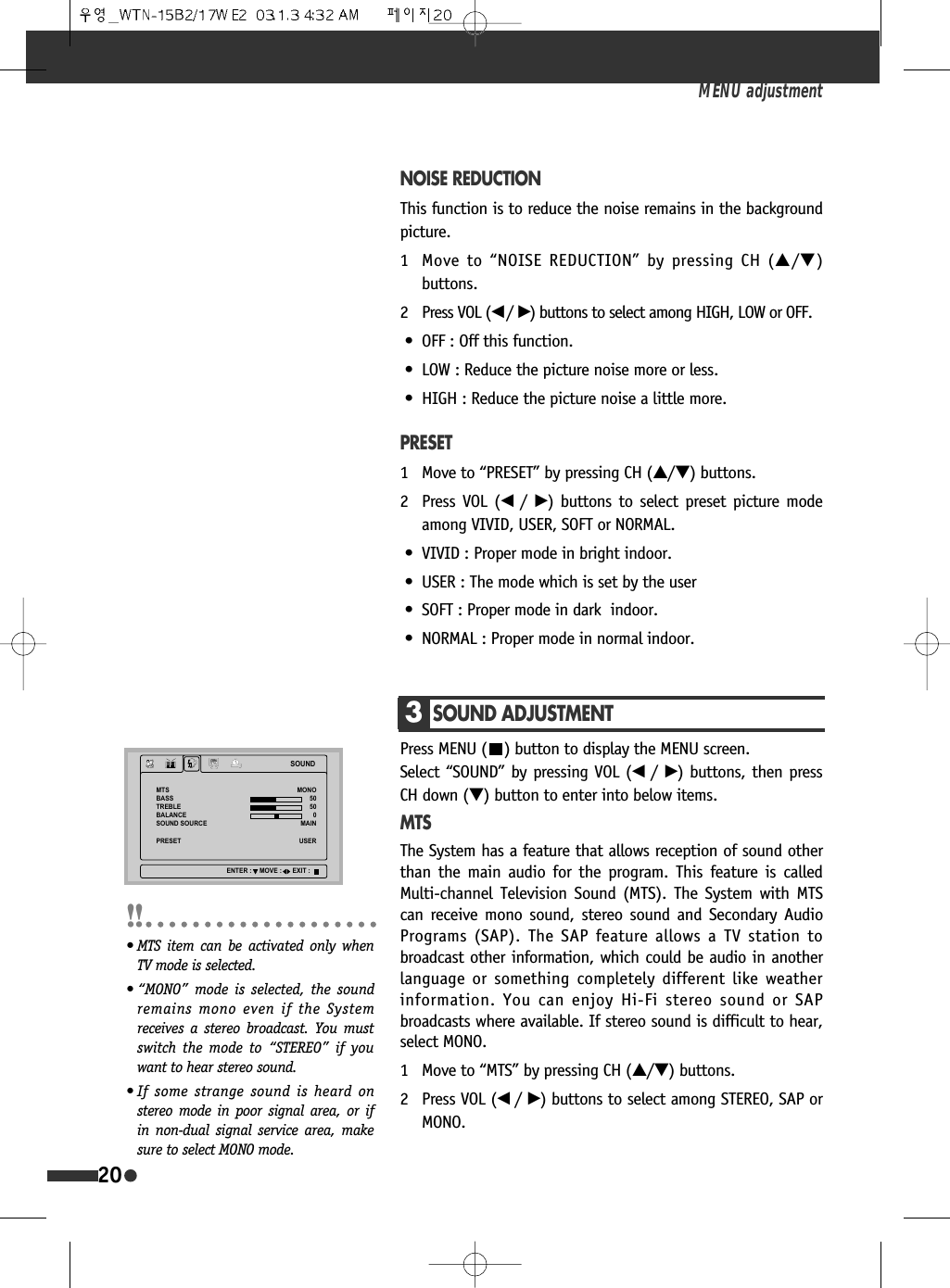
NOISE REDUCTIONThis function is to reduce the noise remains in the backgroundpicture.1 Move to “NOISE REDUCTION” by pressing CH (…/†)buttons.2 Press VOL (œ /√) buttons to select among HIGH, LOW or OFF.• OFF : Off this function.• LOW : Reduce the picture noise more or less.• HIGH : Reduce the picture noise a little more.PRESET1 Move to “PRESET” by pressing CH (…/†) buttons.2 Press VOL (œ  /√) buttons to select preset picture modeamong VIVID, USER, SOFT or NORMAL.• VIVID : Proper mode in bright indoor.• USER : The mode which is set by the user• SOFT : Proper mode in dark  indoor.• NORMAL : Proper mode in normal indoor.MENU adjustment203SOUND ADJUSTMENTPress MENU ( ) button to display the MENU screen. Select “SOUND” by pressing VOL (œ /√) buttons, then pressCH down (†) button to enter into below items.MTSThe System has a feature that allows reception of sound otherthan the main audio for the program. This feature is calledMulti-channel Television Sound (MTS). The System with MTScan receive mono sound, stereo sound and Secondary AudioPrograms (SAP). The SAP feature allows a TV station tobroadcast other information, which could be audio in anotherlanguage or something completely different like weatherinformation. You can enjoy Hi-Fi stereo sound or SAPbroadcasts where available. If stereo sound is difficult to hear,select MONO.1 Move to “MTS” by pressing CH (…/†) buttons.2 Press VOL (œ /√) buttons to select among STEREO, SAP orMONO.6281'076%$6675(%/(%$/$1&(6281'6285&(35(6(702120$,186(5(17(5 029( (;,7• MTS item can be activated only whenTV mode is selected.• “MONO” mode is selected, the soundremains mono even if the Systemreceives a stereo broadcast. You mustswitch the mode to “STEREO” if youwant to hear stereo sound.• If some strange sound is heard onstereo mode in poor signal area, or ifin non-dual signal service area, makesure to select MONO mode.
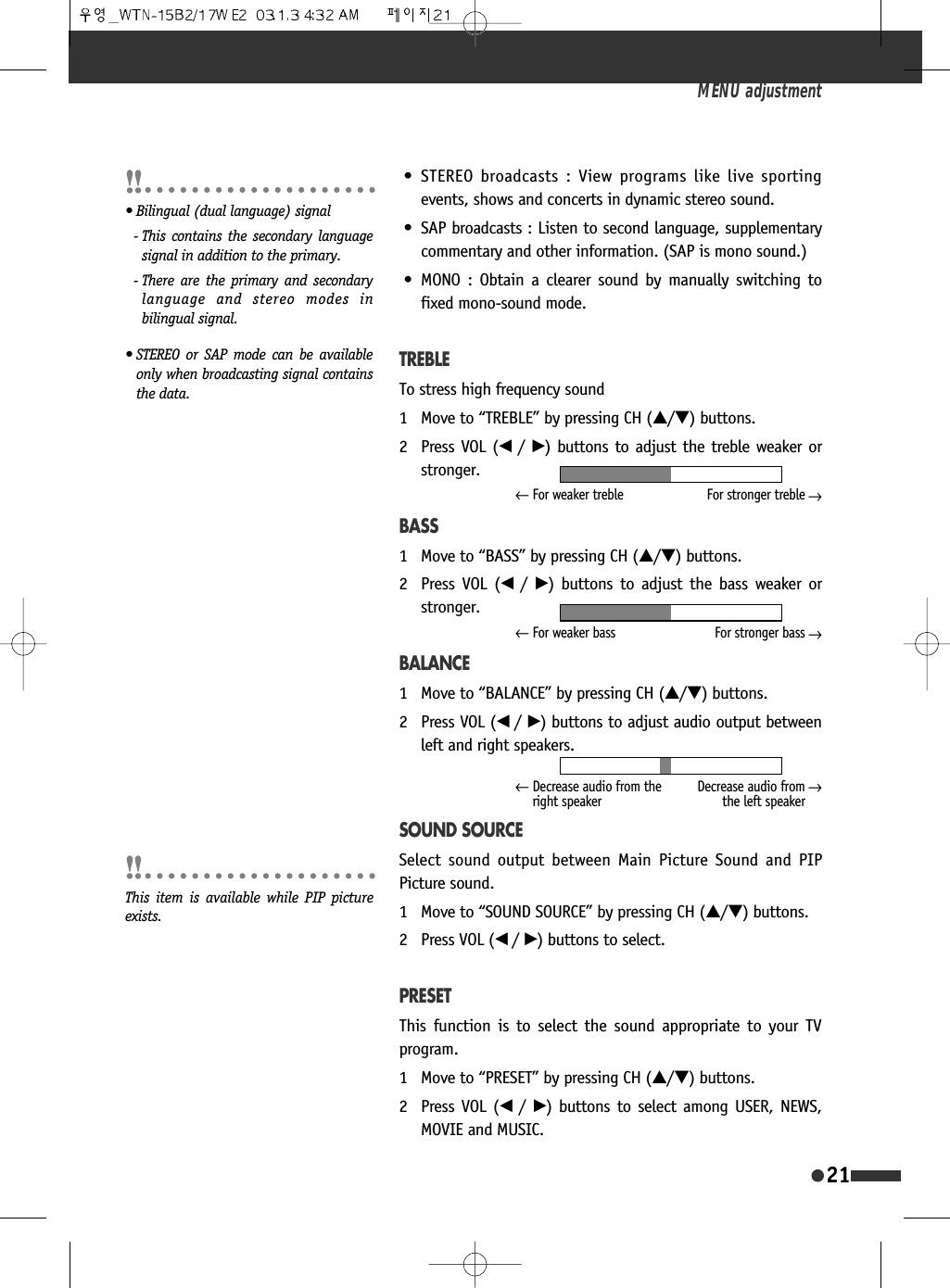
• STEREO broadcasts : View programs like live sportingevents, shows and concerts in dynamic stereo sound.• SAP broadcasts : Listen to second language, supplementarycommentary and other information. (SAP is mono sound.)• MONO : Obtain a clearer sound by manually switching tofixed mono-sound mode.TREBLETo stress high frequency sound1 Move to “TREBLE” by pressing CH (…/†) buttons.2 Press VOL (œ /√) buttons to adjust the treble weaker orstronger.BASS1 Move to “BASS” by pressing CH (…/†) buttons.2 Press VOL (œ  /√) buttons to adjust the bass weaker orstronger.BALANCE1 Move to “BALANCE” by pressing CH (…/†) buttons.2 Press VOL (œ /√) buttons to adjust audio output betweenleft and right speakers.SOUND SOURCESelect sound output between Main Picture Sound and PIPPicture sound.1 Move to “SOUND SOURCE” by pressing CH (…/†) buttons.2 Press VOL (œ /√) buttons to select.PRESETThis function is to select the sound appropriate to your TVprogram.1 Move to “PRESET” by pressing CH (…/†) buttons.2 Press VOL (œ  /√) buttons to select among USER, NEWS,MOVIE and MUSIC.MENU adjustment21←For weaker treble For stronger treble←←For weaker bass For stronger bass←←Decrease audio from theright speakerDecrease audio fromthe left speaker←This item is available while PIP pictureexists.• Bilingual (dual language) signal- This contains the secondary languagesignal in addition to the primary.- There are the primary and secondarylanguage and stereo modes inbilingual signal.• STEREO or SAP mode can be availableonly when broadcasting signal containsthe data.
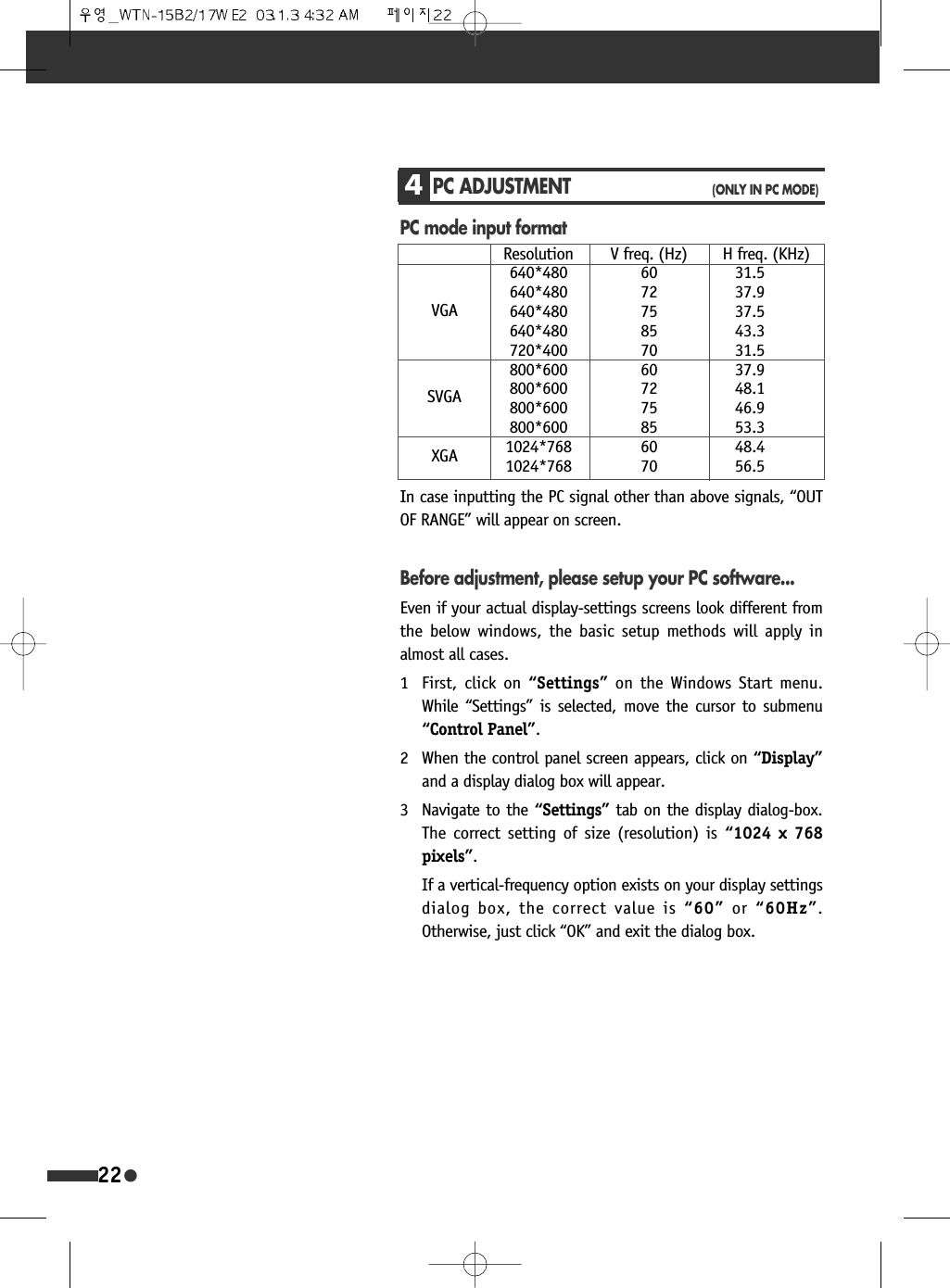
4PC ADJUSTMENT(ONLY IN PC MODE)PC mode input formatResolution V freq. (Hz) H freq. (KHz)640*480 60 31.5640*480 72 37.9640*480 75 37.5640*480 85 43.3720*400 70 31.5800*600 60 37.9800*600 72 48.1800*600 75 46.9800*600 85 53.31024*768 60 48.41024*768 70 56.5VGASVGAXGAIn case inputting the PC signal other than above signals, “OUTOF RANGE” will appear on screen.Before adjustment, please setup your PC software...Even if your actual display-settings screens look different fromthe below windows, the basic setup methods will apply inalmost all cases.1 First, click on “Settings” on the Windows Start menu.While “Settings” is selected, move the cursor to submenu“Control Panel”.2 When the control panel screen appears, click on “Display”and a display dialog box will appear.3 Navigate to the “Settings” tab on the display dialog-box.The correct setting of size (resolution) is “1024 x 768pixels”.If a vertical-frequency option exists on your display settingsdialog box, the correct value is “60” or “60Hz”.Otherwise, just click “OK” and exit the dialog box.22
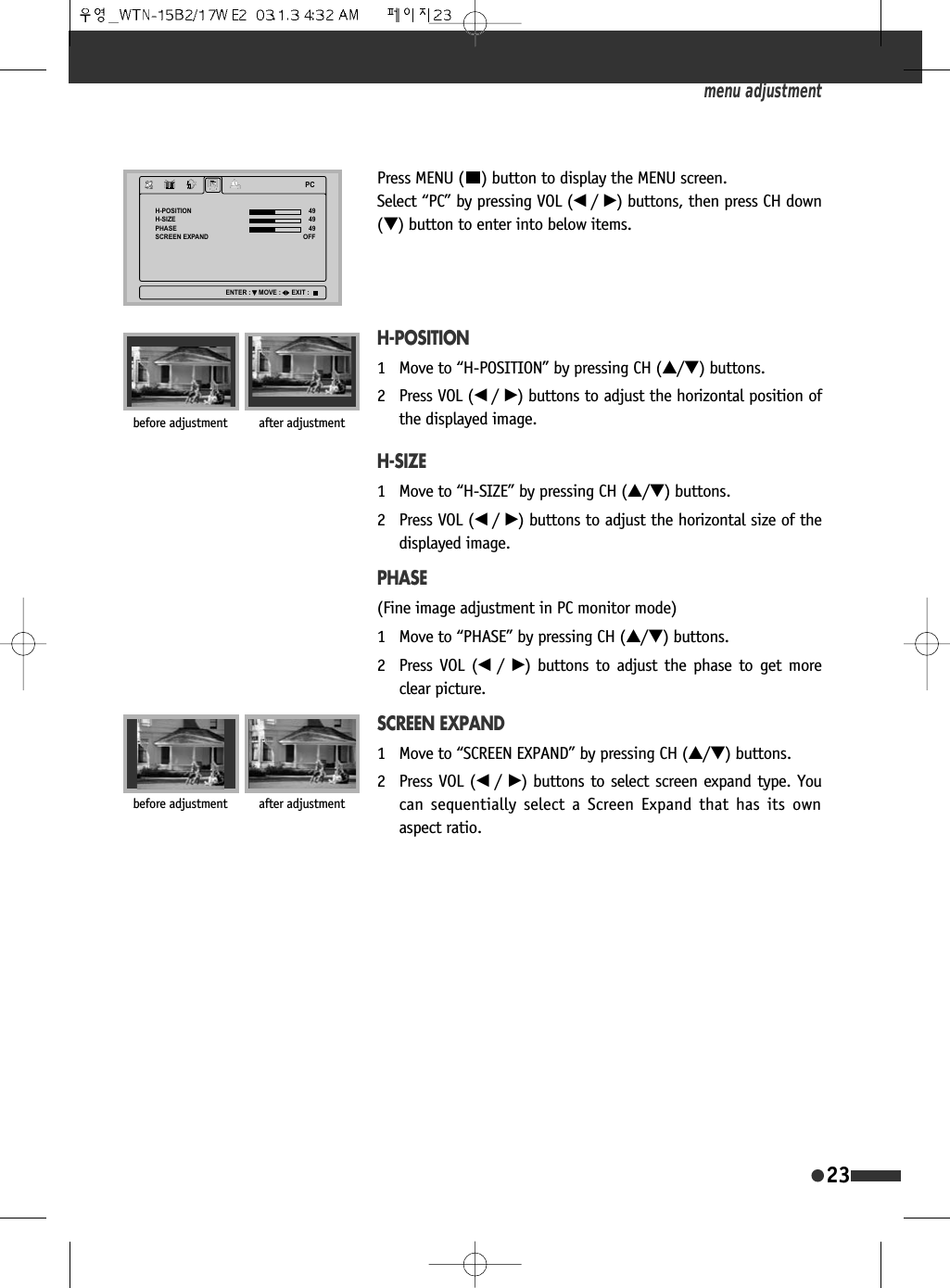
23Press MENU ( ) button to display the MENU screen. Select “PC” by pressing VOL (œ /√) buttons, then press CH down(†) button to enter into below items.H-POSITION1 Move to “H-POSITION” by pressing CH (…/†) buttons.2 Press VOL (œ /√) buttons to adjust the horizontal position ofthe displayed image.H-SIZE1 Move to “H-SIZE” by pressing CH (…/†) buttons.2 Press VOL (œ /√) buttons to adjust the horizontal size of thedisplayed image.PHASE(Fine image adjustment in PC monitor mode)1 Move to “PHASE” by pressing CH (…/†) buttons.2 Press VOL (œ  /√) buttons to adjust the phase to get moreclear picture.SCREEN EXPAND1 Move to “SCREEN EXPAND” by pressing CH (…/†) buttons.2 Press VOL (œ /√) buttons to select screen expand type. Youcan sequentially select a Screen Expand that has its ownaspect ratio.menu adjustment3&+326,7,21+6,=(3+$6(6&5((1(;3$1'2))(17(5 029( (;,7before adjustment after adjustmentbefore adjustment after adjustment
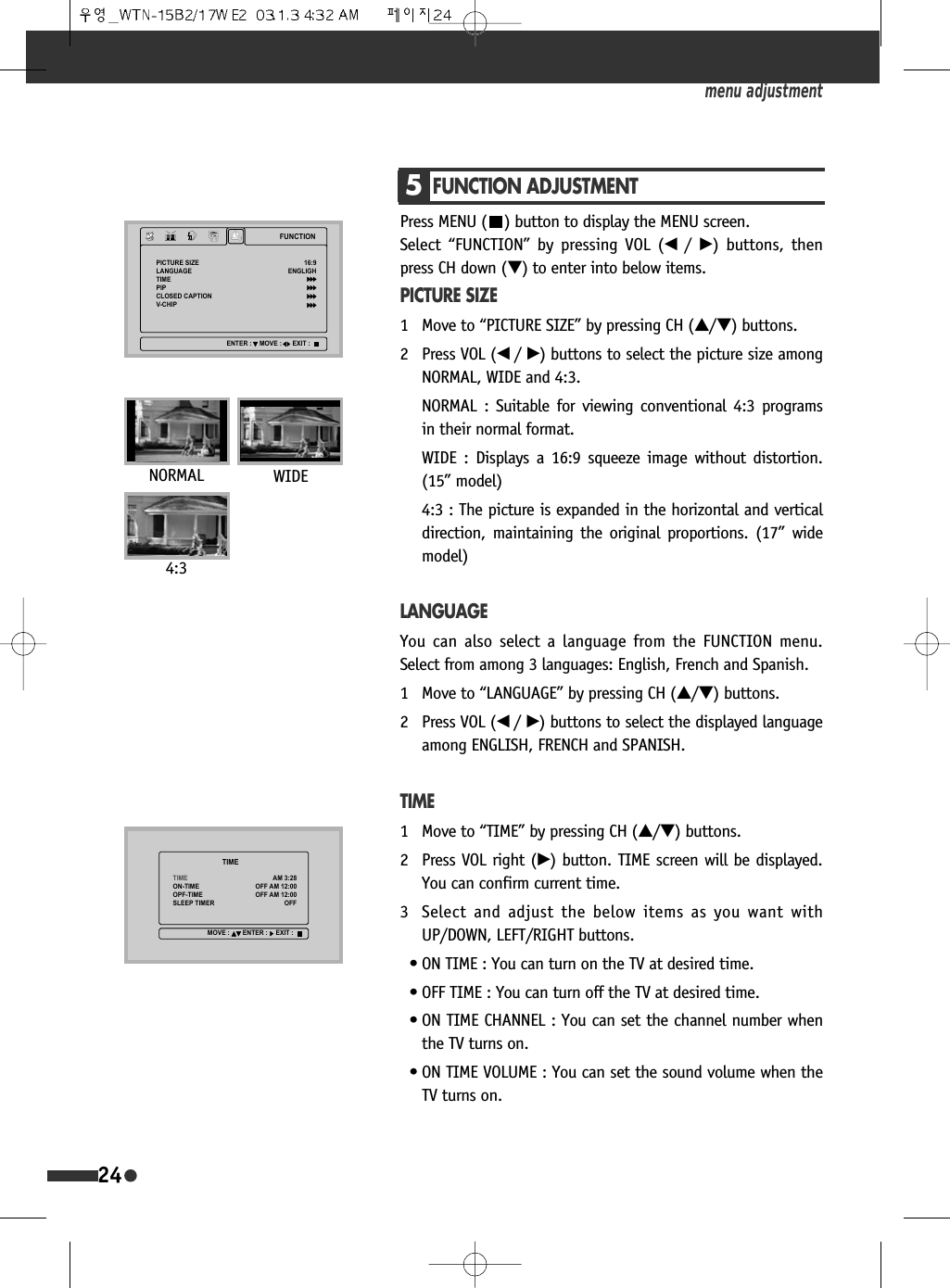
24Press MENU ( ) button to display the MENU screen. Select “FUNCTION” by pressing VOL (œ /√) buttons, thenpress CH down (†) to enter into below items.PICTURE SIZE1 Move to “PICTURE SIZE” by pressing CH (…/†) buttons.2 Press VOL (œ /√) buttons to select the picture size amongNORMAL, WIDE and 4:3.NORMAL : Suitable for viewing conventional 4:3 programsin their normal format.WIDE : Displays a 16:9 squeeze image without distortion.(15” model)4:3 : The picture is expanded in the horizontal and verticaldirection, maintaining the original proportions. (17” widemodel)LANGUAGEYou can also select a language from the FUNCTION menu.Select from among 3 languages: English, French and Spanish.1 Move to “LANGUAGE” by pressing CH (…/†) buttons.2 Press VOL (œ /√) buttons to select the displayed languageamong ENGLISH, FRENCH and SPANISH.TIME1 Move to “TIME” by pressing CH (…/†) buttons.2 Press VOL right (√) button. TIME screen will be displayed.You can confirm current time. 3 Select and adjust the below items as you want withUP/DOWN, LEFT/RIGHT buttons.• ON TIME : You can turn on the TV at desired time.• OFF TIME : You can turn off the TV at desired time.• ON TIME CHANNEL : You can set the channel number whenthe TV turns on.• ON TIME VOLUME : You can set the sound volume when theTV turns on.menu adjustment5FUNCTION ADJUSTMENT)81&7,213,&785(6,=(/$1*8$*(7,0(3,3&/26('&$37,219&+,3(1*/,*+(17(5 029( (;,77,0(7,0(217,0(23)7,0(6/((37,0(5$02))$02))$02))029( (17(5 (;,7NORMAL WIDE4:3
25PIPAllows you to display two pictures on the screen at one time.1 Move to “PIP” by pressing CH (…/†) buttons.2 Press VOL right ( √) button. PIP screen will be displayed. • PIP : Turn PIP mode on or off. PIP picture will appear whenyou set PIP mode to ON.• INPUT : Select the PIP input signal among TV, VIDEO or S-VIDEO.• POSITION : Select the picture position among R-BOTTOM, L-BOTTOM, R-TOP or L-TOP.• CHANNEL : Select the channel of PIP picture when PIPinput is TV.* Not available 480i COMPONENT signal.menu adjustment3,33,3,1387326,7,21&+$11(/2))795%27720$,5Available PIP picture setting modePIP pictureTV VIDEO S-VIDEOCOMPONENTPCMAIN pictureTV X X X X XVIDEO X X X X XS-VIDEO X X X X X*COMPONENT O O O X XPC O O O X X- PIP POSITION-
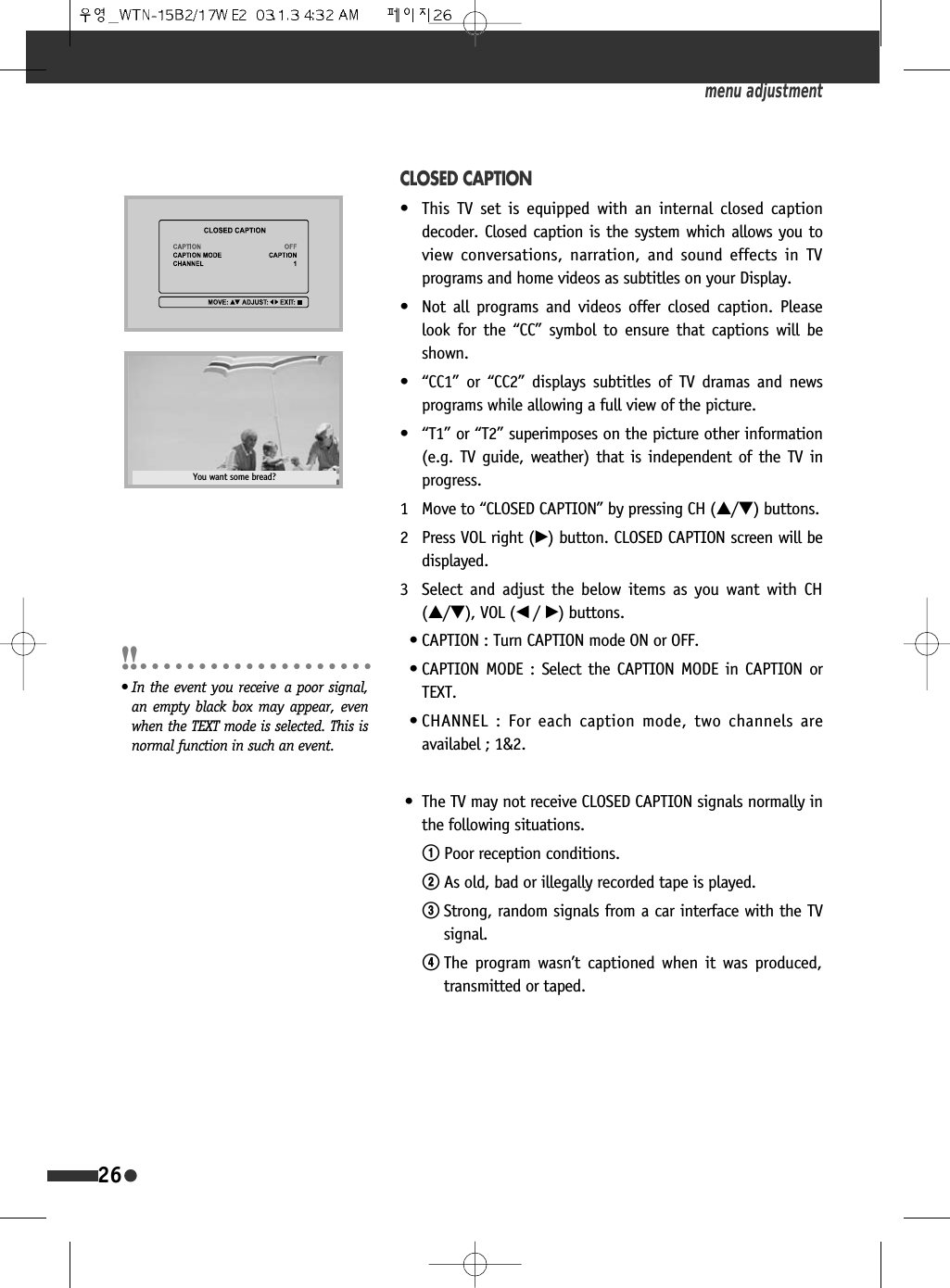
26CLOSED CAPTION•  This TV set is equipped with an internal closed captiondecoder. Closed caption is the system which allows you toview conversations, narration, and sound effects in TVprograms and home videos as subtitles on your Display.•  Not all programs and videos offer closed caption. Pleaselook for the “CC” symbol to ensure that captions will beshown.• “CC1” or “CC2” displays subtitles of TV dramas and newsprograms while allowing a full view of the picture.• “T1” or “T2” superimposes on the picture other information(e.g. TV guide, weather) that is independent of the TV inprogress.1 Move to “CLOSED CAPTION” by pressing CH (…/†) buttons.2 Press VOL right (√) button. CLOSED CAPTION screen will bedisplayed.3 Select and adjust the below items as you want with CH(…/†), VOL (œ /√) buttons.• CAPTION : Turn CAPTION mode ON or OFF. • CAPTION MODE : Select the CAPTION MODE in CAPTION orTEXT.• CHANNEL : For each caption mode, two channels areavailabel ; 1&2.• The TV may not receive CLOSED CAPTION signals normally inthe following situations.!Poor reception conditions.@As old, bad or illegally recorded tape is played.#Strong, random signals from a car interface with the TVsignal.$The program wasn’t captioned when it was produced,transmitted or taped.menu adjustmentYou want some bread?• In the event you receive a poor signal,an empty black box may appear, evenwhen the TEXT mode is selected. This isnormal function in such an event.
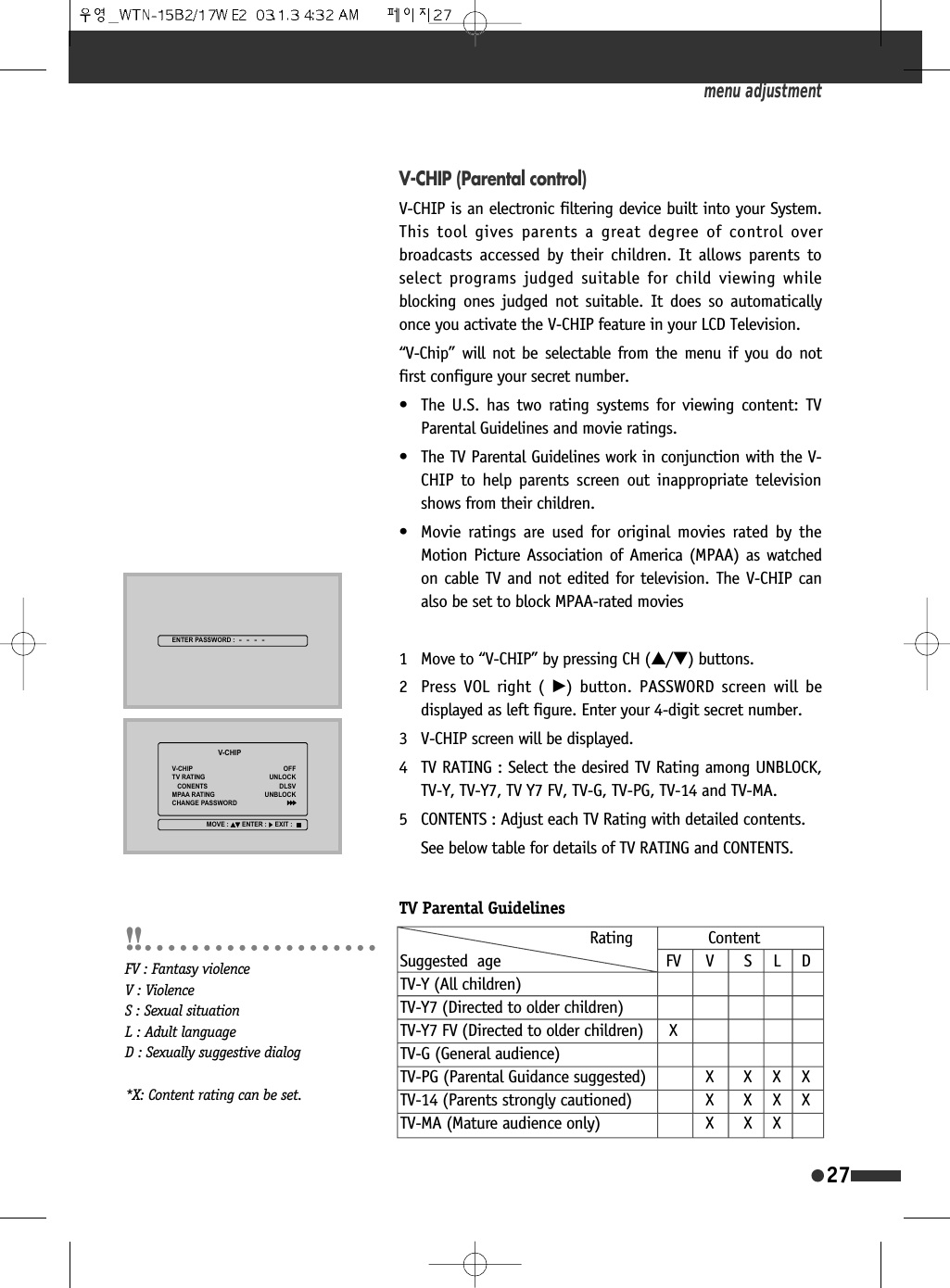
27V-CHIP (Parental control)V-CHIP is an electronic filtering device built into your System.This tool gives parents a great degree of control overbroadcasts accessed by their children. It allows parents toselect programs judged suitable for child viewing whileblocking ones judged not suitable. It does so automaticallyonce you activate the V-CHIP feature in your LCD Television.“V-Chip” will not be selectable from the menu if you do notfirst configure your secret number.•  The U.S. has two rating systems for viewing content: TVParental Guidelines and movie ratings.•  The TV Parental Guidelines work in conjunction with the V-CHIP to help parents screen out inappropriate televisionshows from their children.•  Movie ratings are used for original movies rated by theMotion Picture Association of America (MPAA) as watchedon cable TV and not edited for television. The V-CHIP canalso be set to block MPAA-rated movies1 Move to “V-CHIP” by pressing CH (…/†) buttons.2 Press VOL right ( √) button. PASSWORD screen will bedisplayed as left figure. Enter your 4-digit secret number.3 V-CHIP screen will be displayed. 4 TV RATING : Select the desired TV Rating among UNBLOCK,TV-Y, TV-Y7, TV Y7 FV, TV-G, TV-PG, TV-14 and TV-MA. 5 CONTENTS : Adjust each TV Rating with detailed contents.See below table for details of TV RATING and CONTENTS. menu adjustment(17(53$66:25'9&+,39&+,3795$7,1*&21(17603$$5$7,1*&+$1*(3$66:25'2))81/2&.'/6981%/2&.029( (17(5 (;,7TV Parental GuidelinesRating ContentSuggested  age FV V S L DTV-Y (All children)TV-Y7 (Directed to older children)TV-Y7 FV (Directed to older children) XTV-G (General audience)TV-PG (Parental Guidance suggested) X X X XTV-14 (Parents strongly cautioned) X X X XTV-MA (Mature audience only) X X XFV : Fantasy violenceV : ViolenceS : Sexual situationL : Adult languageD : Sexually suggestive dialog*X: Content rating can be set.
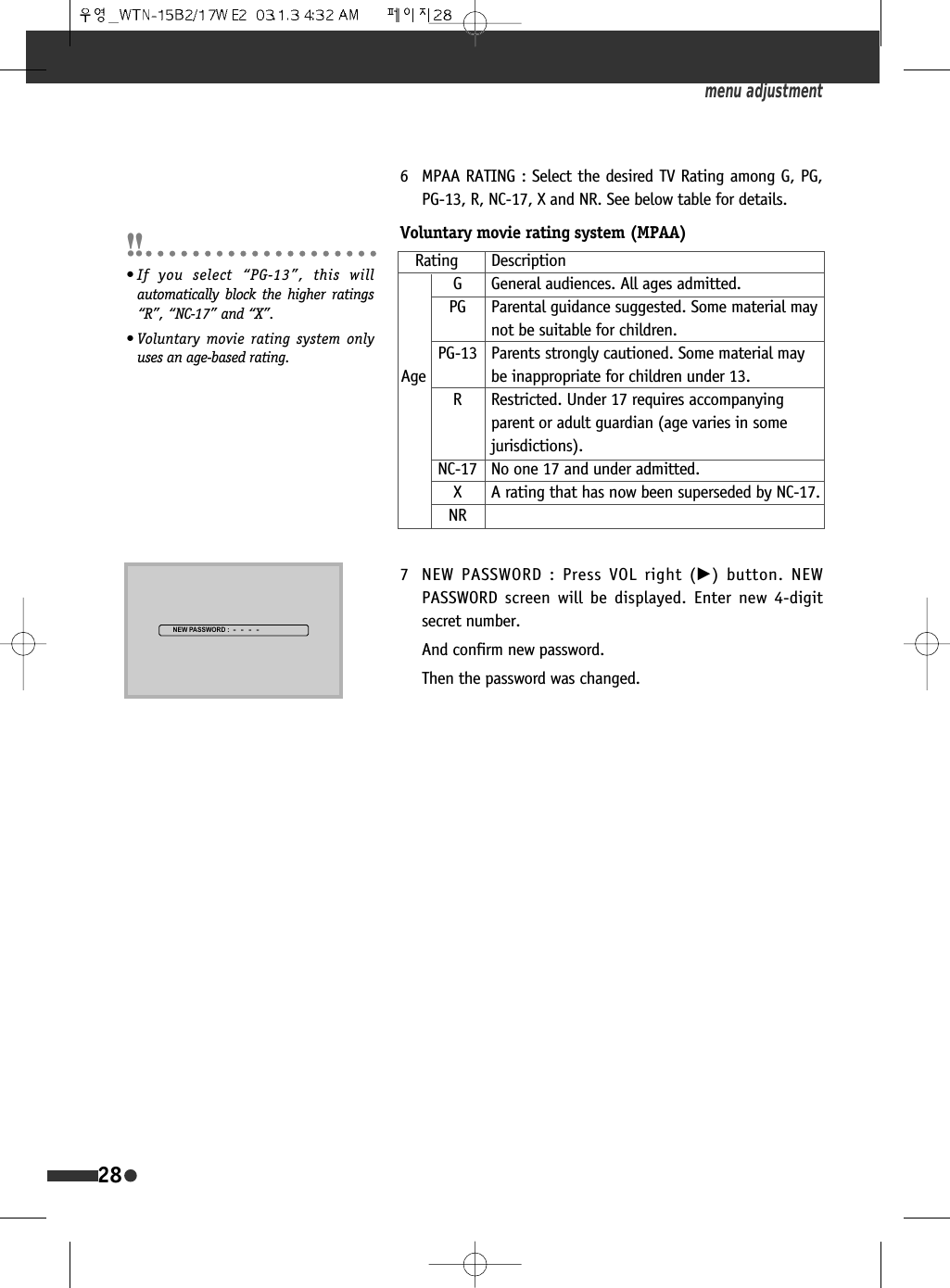
286 MPAA RATING : Select the desired TV Rating among G, PG,PG-13, R, NC-17, X and NR. See below table for details. 7 NEW PASSWORD : Press VOL right (√) button. NEWPASSWORD screen will be displayed. Enter new 4-digitsecret number.And confirm new password.Then the password was changed.menu adjustmentVoluntary movie rating system (MPAA)Rating DescriptionG General audiences. All ages admitted.PG Parental guidance suggested. Some material may not be suitable for children.PG-13 Parents strongly cautioned. Some material may Age be inappropriate for children under 13.R Restricted. Under 17 requires accompanying parent or adult guardian (age varies in some jurisdictions).NC-17 No one 17 and under admitted.X A rating that has now been superseded by NC-17.NR• If you select “PG-13”, this willautomatically block the higher ratings“R”, “NC-17” and “X”.• Voluntary movie rating system onlyuses an age-based rating.1(:3$66:25'
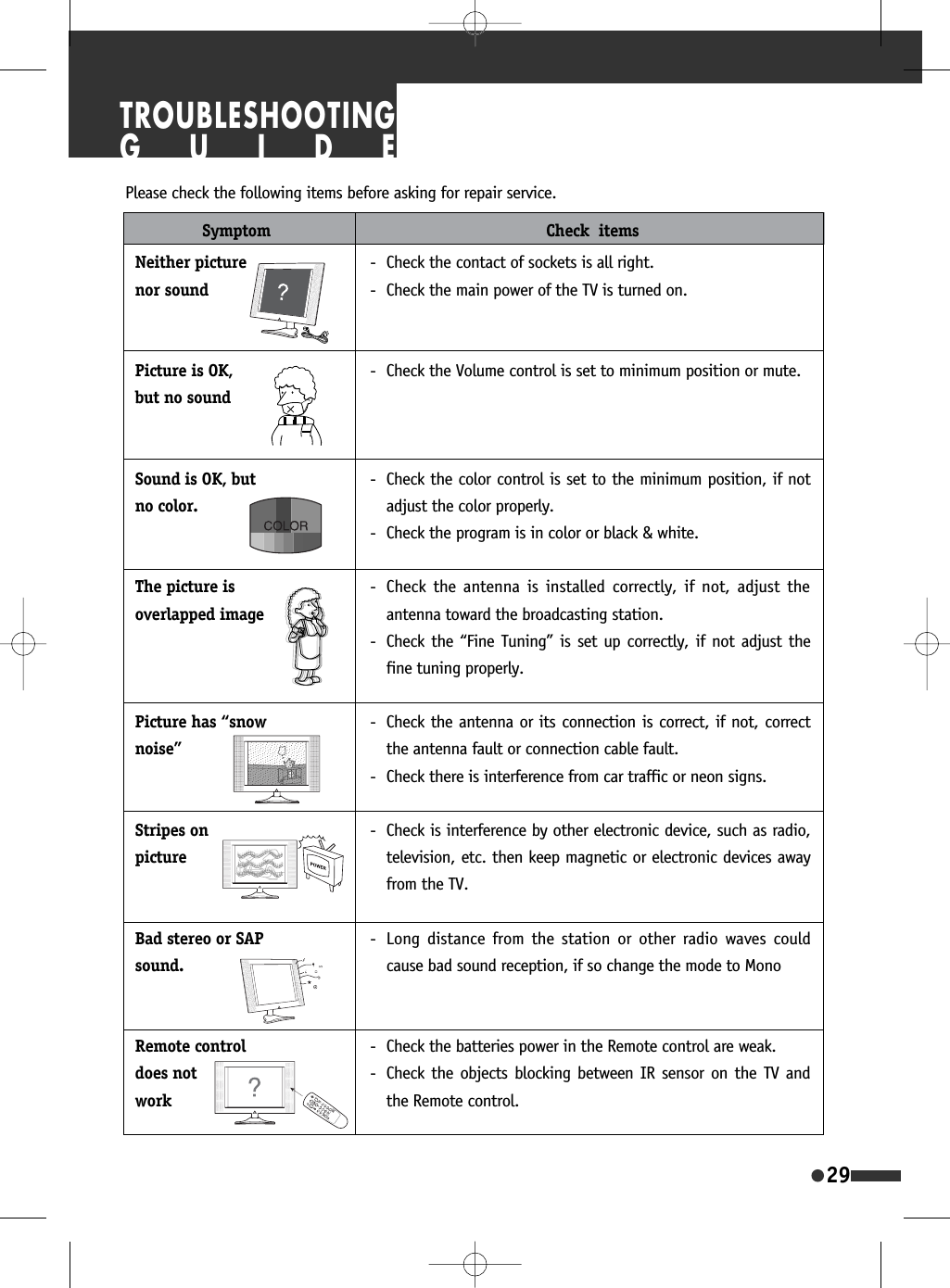
29Please check the following items before asking for repair service.Symptom Check  itemsNeither picturenor soundPicture is OK,but no soundSound is OK, butno color.The picture is overlapped imagePicture has “snownoise”Stripes on pictureBad stereo or SAPsound.Remote controldoes not work- Check the contact of sockets is all right.- Check the main power of the TV is turned on.- Check the Volume control is set to minimum position or mute.- Check the color control is set to the minimum position, if notadjust the color properly.- Check the program is in color or black & white. - Check the antenna is installed correctly, if not, adjust theantenna toward the broadcasting station.- Check the “Fine Tuning” is set up correctly, if not adjust thefine tuning properly.- Check the antenna or its connection is correct, if not, correctthe antenna fault or connection cable fault.- Check there is interference from car traffic or neon signs.- Check is interference by other electronic device, such as radio,television, etc. then keep magnetic or electronic devices awayfrom the TV.- Long distance from the station or other radio waves couldcause bad sound reception, if so change the mode to Mono - Check the batteries power in the Remote control are weak. - Check the objects blocking between IR sensor on the TV andthe Remote control.TROUBLESHOOTINGGUIDE
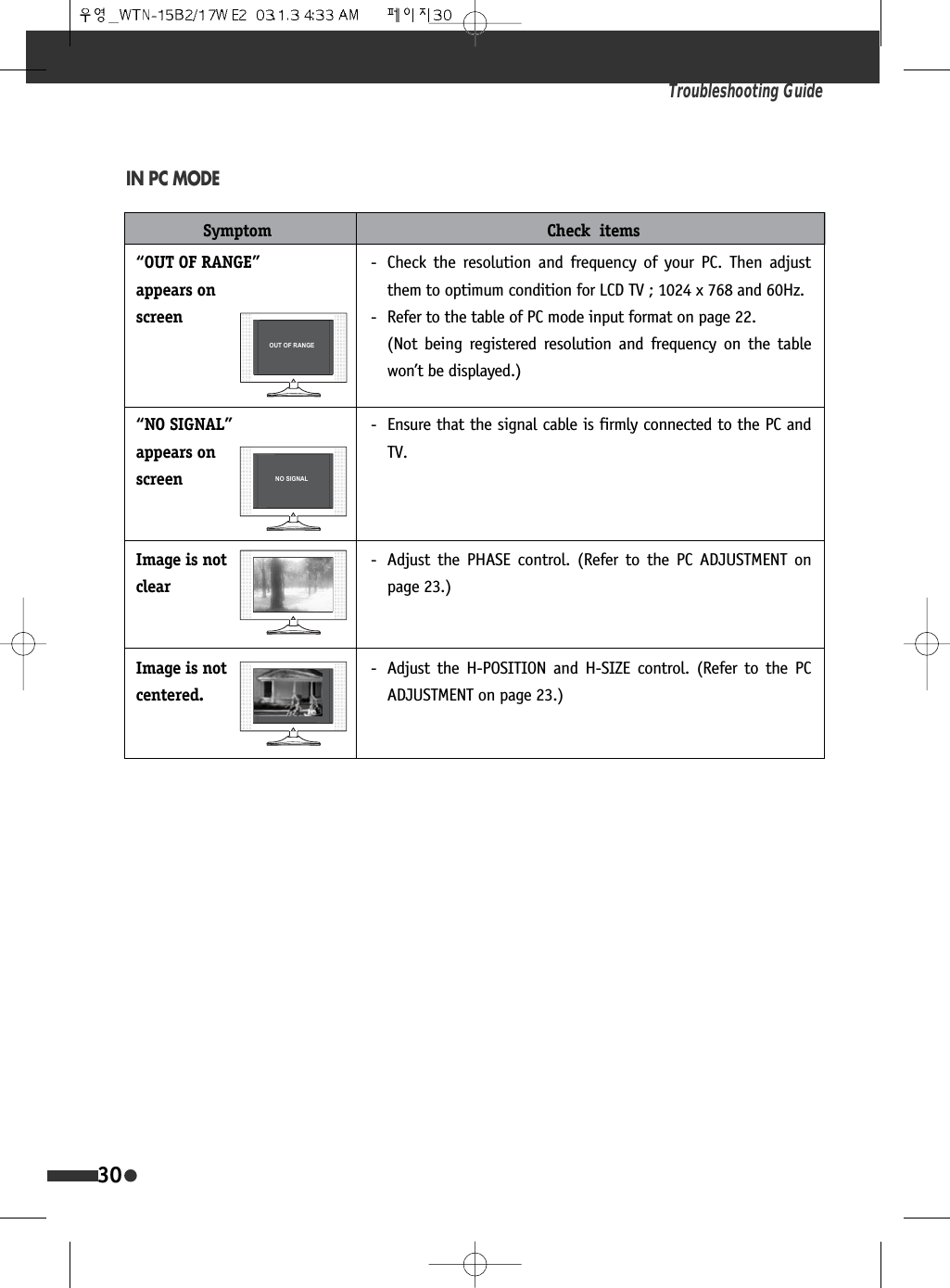
Troubleshooting Guide30IN PC MODESymptom Check  items2872)5$1*(126,*1$/“OUT OF RANGE”appears onscreen“NO SIGNAL”appears on screenImage is not clearImage is notcentered.- Check the resolution and frequency of your PC. Then adjustthem to optimum condition for LCD TV ; 1024 x 768 and 60Hz. - Refer to the table of PC mode input format on page 22. (Not being registered resolution and frequency on the tablewon’t be displayed.)- Ensure that the signal cable is firmly connected to the PC andTV.- Adjust the PHASE control. (Refer to the PC ADJUSTMENT onpage 23.)- Adjust the H-POSITION and H-SIZE control. (Refer to the PCADJUSTMENT on page 23.)
31SPECIFICATIONMODEL WTN-15B2 WTN-17WE2PANEL 15.1” TFT LCD 17”WIDE TFT LCDRESOLUTION 1024 X RGB X 768 (XGA) 1028 X RGB X 768 (WXGA)ACTIVE AREA [mm] 307.0 x 230.4 372.5 x 223.550/ 70/ 75/ 75 50/ 70/ 75/ 75BRIGHTNESS [cd/m2] 450 450484 X 350 X 185 532 X 352 X 185484 X 303 X 59.7 532 X 296.5 X 68.2WEIGHT [WITHOUT ACCESSORIES] 12.8lbs [5.8kg] 13.7lbs [6.6kg]TV STANDARD NTSC-MTUNING SYSTEM                  ELECTRIC TUNING SYSTEM WITH PLL 181 CHANNELSSTEREO MTS + SAPCATV 125 CHANNELSINPUT POWER DC12V, AC 100-240V~, 50/60HzSOUND OUTPUT 3W + 3WPOWER CONSUMPTION 43W 46WAV IN                                    VIDEO (COMPOSITE), S-VIDEO (Y/C), AUDIO L&RCOMPONENT                      Y, Pb(Cb), Pr(Cr) [480i, 480p, 720p, 1,080i], AUDIO L&RMONITOR OUT VIDEO (COMPOSITE) OUTHEADPHONE 3.5G STEREO MINI-JACKPC IN D-SUB 15PIN RGB IN, PC AUDIO INANT. IN F-TYPEACCESSORIES                           REMOTE CONTROLLER, BATTERIES, AC ADAPTER, AC CORD, D-SUB 15PIN CABLE, PC AUDIO CABLE, USER’S MANUALVIEWING ANGLE[U / D/ L/ R]WITH STAND[mm, W X H X D]WITHOUT STAND[mm, W X H X D]LCDDIMENSIONTV-FUNCTIONTERMINALS
FCC RF INTERFERENCE STATEMENT   NOTE :  This equipment has been tested and found to comply with the limits for a Class B digital device, pursuant to Part 15 of the FCC Rules. These limits are designed to provide reasonable protection against harmful interference in a residential installation.  This equipment generates, uses and can radiate radio frequency energy and, if not installed and used in accordance with the instructions, may cause harmful interference to radio communications. However, there is no guarantee that interference will not occur in a particular installation.  If this equipment does cause harmful interference to radio or television reception which can be determined by turning the equipment off and on, the user is encouraged to try to correct the interference by one or more of the following measures.  - Reorient or relocate the receiving antenna. - Increase the separation between the equipment and receiver.  - Connect the equipment into an outlet on a circuit different from that to which the receiver is connected. - Consult the dealer or an experienced radio, TV technical for help. - Only shielded interface cable should be used.  Finally, any changes or modifications to the equipment by the user not expressly approved by the grantee or manufacturer could void the users authority to operate such equipment,

Navigation menu