Wuxi iData Technology IDATA New Mobile Computer User Manual SAR
WUXI IDATA TECHNOLOGY COMPANY LTD. New Mobile Computer SAR
User Manual
Contents
1 Introduction ............................................................................................................ 1
1.1 Appearance of iData 95 ............................................................................................................. 1
1.2 Installing an SD Card ................................................................................................................. 2
1.3 Installing a SIM Card.................................................................................................................. 3
1.4 Installing a Battery ...................................................................................................................... 3
1.5 Disassembling the Battery Cover............................................................................................. 4
1.6 Charging....................................................................................................................................... 4
2 Instructions on iData 95 ...................................................................................... 6
2.1 Power-on and Power-off............................................................................................................ 6
2.2 Locking and Unlocking the iData 95 ........................................................................................ 6
2.3 Keys of iData 95.......................................................................................................................... 6
2.4 Home ............................................................................................................................................ 7
2.5 Status Icons and Indicators ....................................................................................................... 7
2.6 Basic Settings.............................................................................................................................. 8
3 Call Function ........................................................................................................ 12
3.1 Making a Call............................................................................................................................. 12
3.2 Contacts ..................................................................................................................................... 12
3.3 SMS and MMS .......................................................................................................................... 13
3.4 Email........................................................................................................................................... 14
4. Network and Connection Synchronization................................................. 16
4.1 GPRS Data Connection........................................................................................................... 16
4.2 Wi-Fi Network Connection ...................................................................................................... 16
4.3 GPS ............................................................................................................................................ 17
4.4 Connecting iData 95 to a Computer ...................................................................................... 18
4.5 Synchronization ........................................................................................................................ 18
5 Introduction to iScan of iData 95 .................................................................... 20
5.1 Installing and Using iScan ....................................................................................................... 20
6 Managing iData 95............................................................................................... 21
6.1 Installing Software .................................................................................................................... 21
6.2 Uninstalling Software ............................................................................................................... 21
6.3 Managing Applications............................................................................................................. 22
7 Precautions and Troubleshooting.................................................................. 23
7.1 Precautions for iData 95 .......................................................................................................... 23
7.2 Troubleshooting ........................................................................................................................ 24
Appendix 1................................................................................................................ 26
iData 95 User Manual
- 1 -
1 Introduction
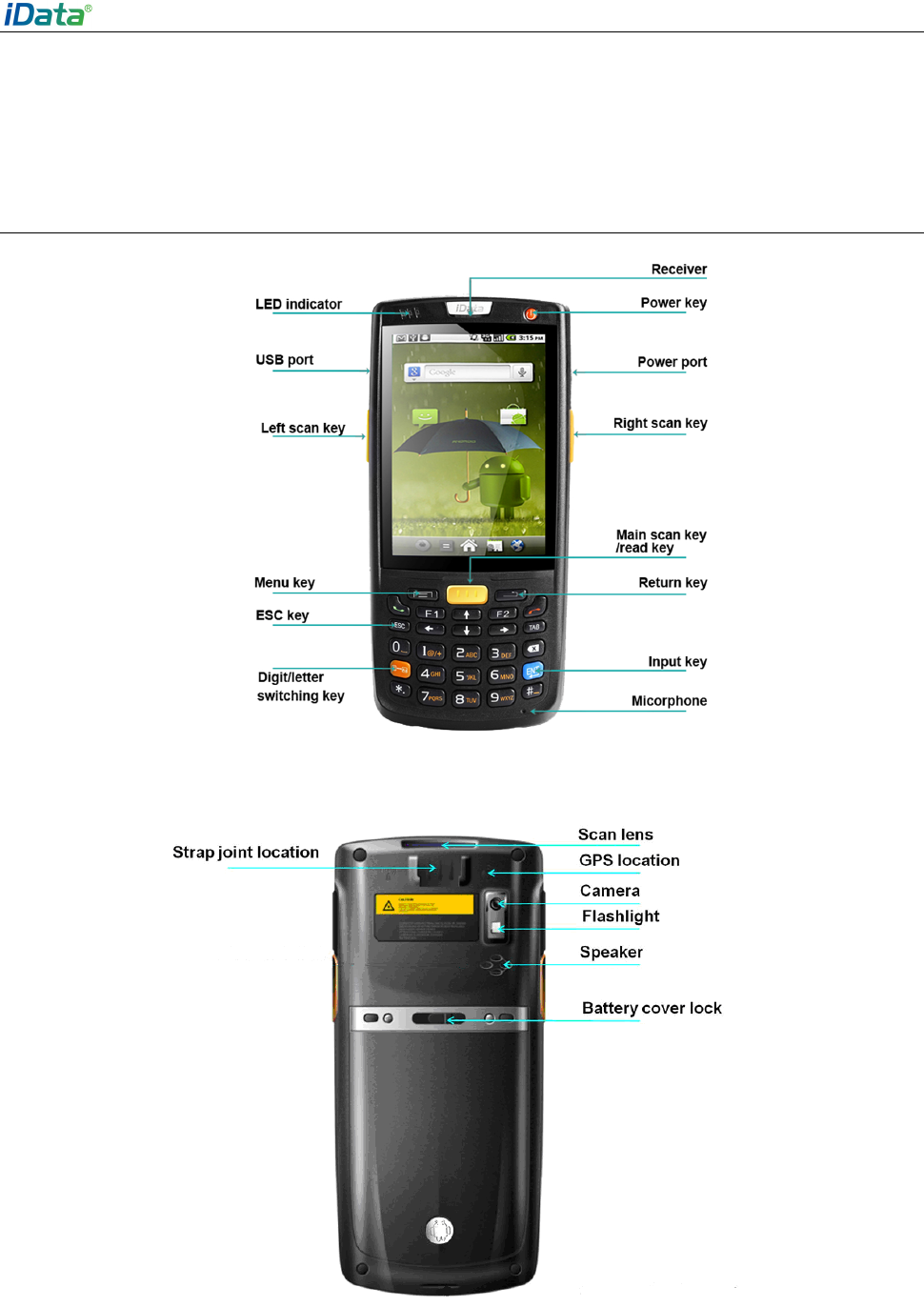
1.1 Appearance of iData 95
Figure 1-1 Front view of iData 95
Figure 1-2 Rear view of iData 95
iData 95 User Manual
- 2 -
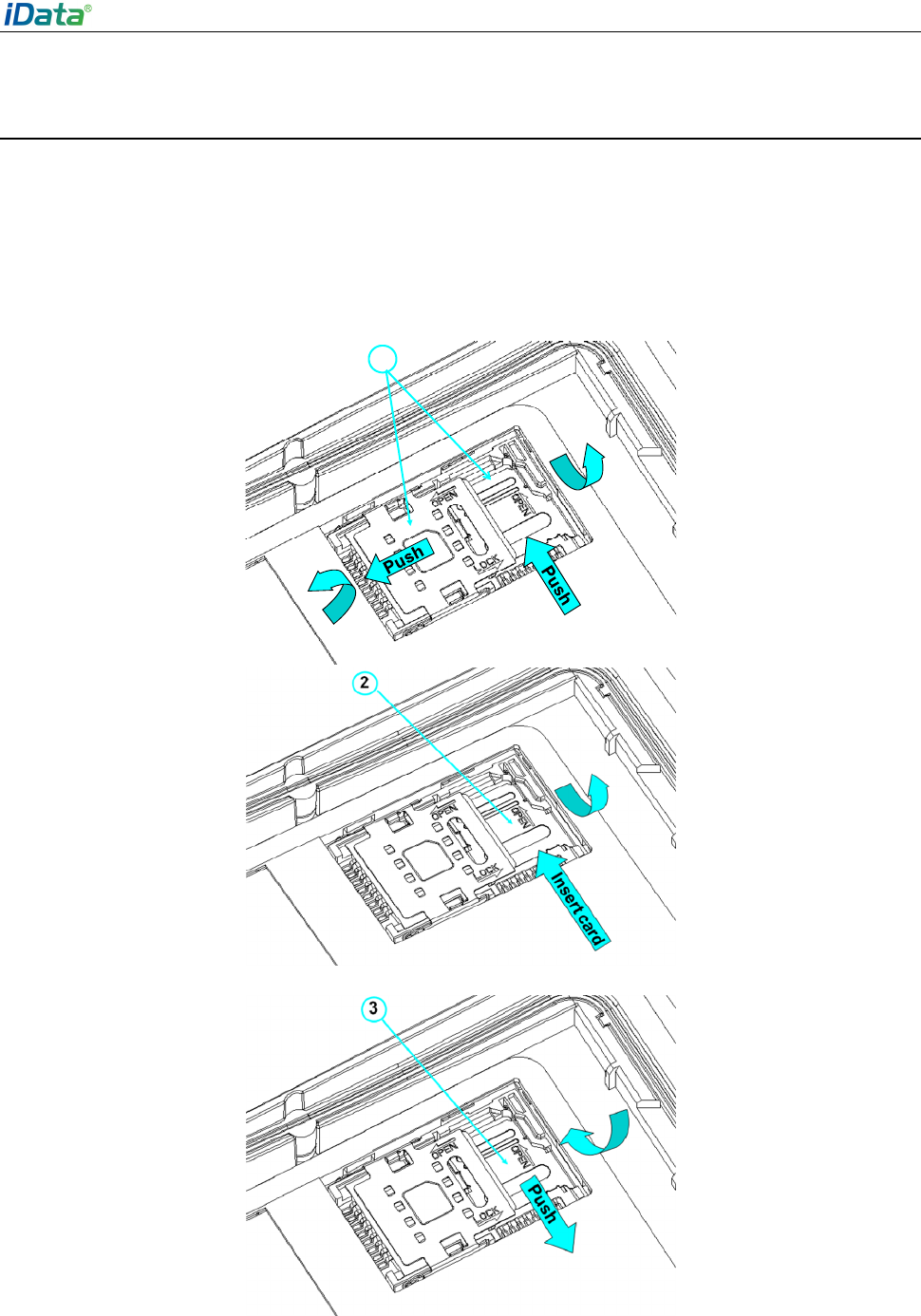
1.2 Installing an SD Card
To install an SD card, do as follows:
1. Push the card cover along the direction marked on the cover and open the cover.
2. Insert an SD card.
3. Press the SD card downward and lock the card along the IN direction marked on the
cover.
1
Figure 1-3 Inserting an SD card
iData 95 User Manual
- 3 -
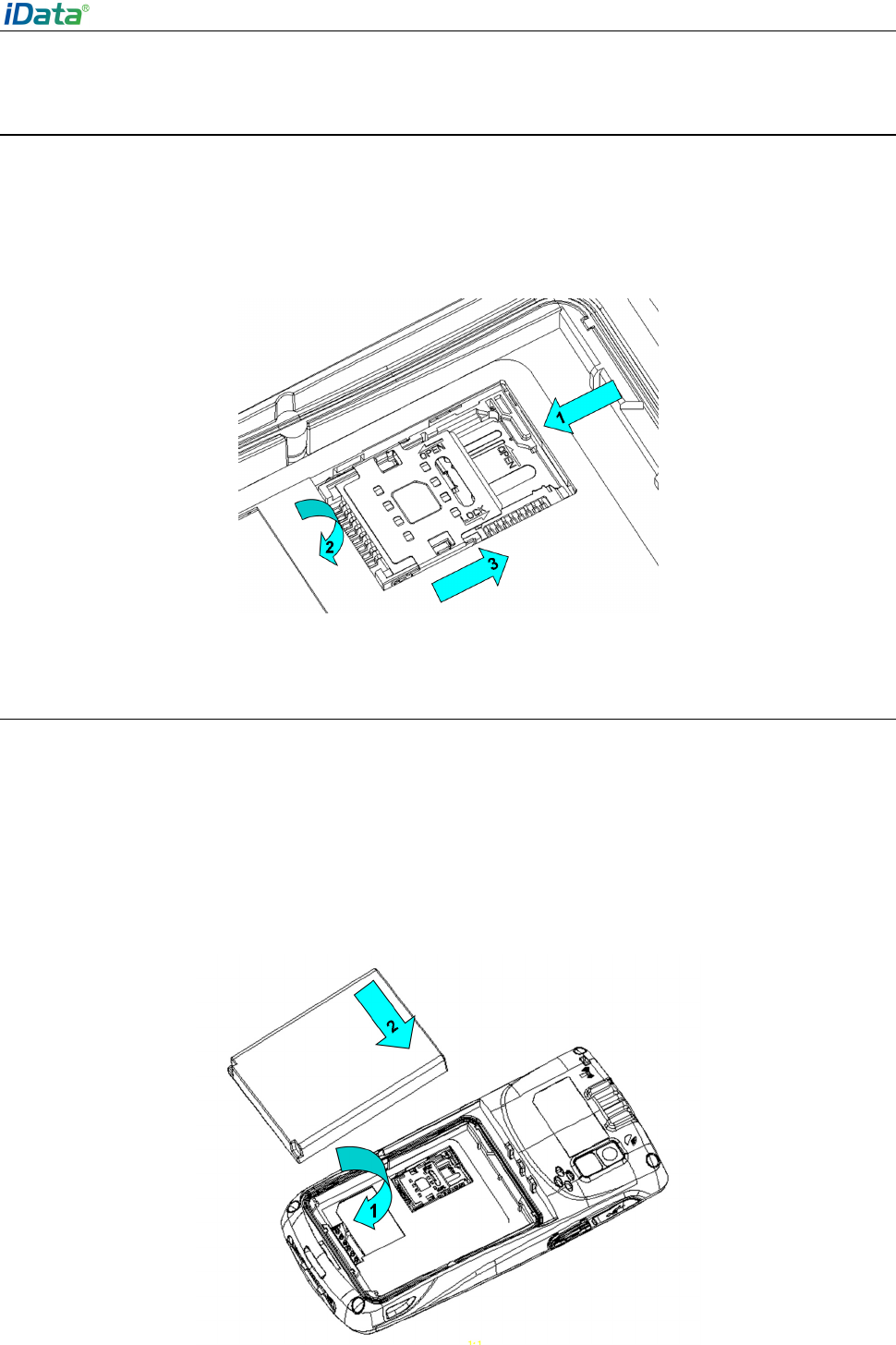
1.3 Installing a SIM Card
To install a SIM card, do as follows:
1. Insert a SIM card along the direction, as shown in Figure 1-4.
2. Press the card cover downward.
3. Push the SIM card along the LOCK direction to lock the card cover.
Figure 1-4 Inserting a SIM card
1.4 Installing a Battery
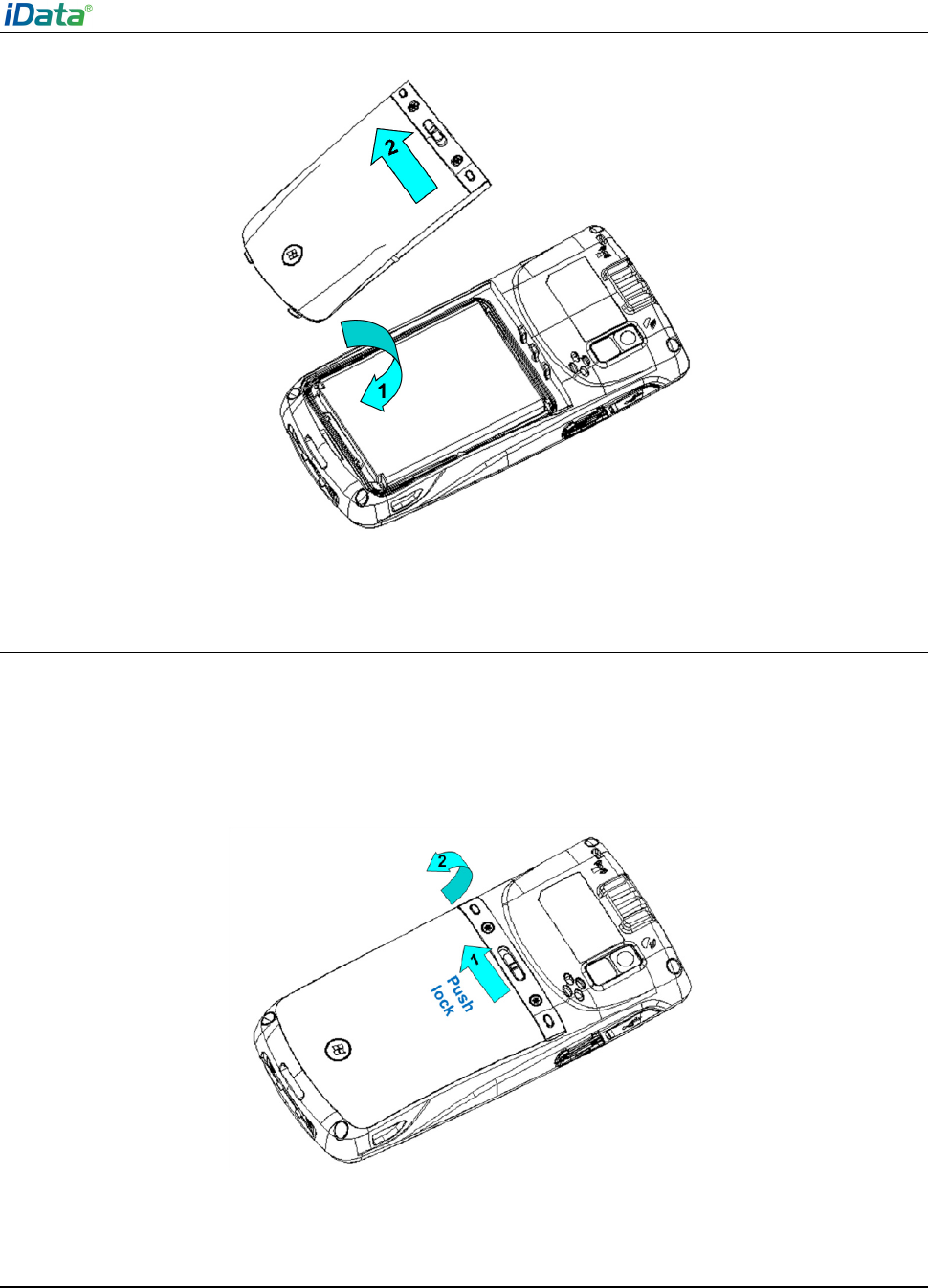
To install a battery, do as follows:
1. Push the battery to the bottom of the battery compartment.
2. Press the top of the battery downward to tighten the battery.
3. Push the joint at the bottom of the battery cover into the back shell.
4. Push the lock to the left and press the battery cover downward until the lock
automatically returns to the location on the right.
iData 95 User Manual
- 4 -
Figure 1-5 Installing a battery
1.5 Disassembling the Battery Cover
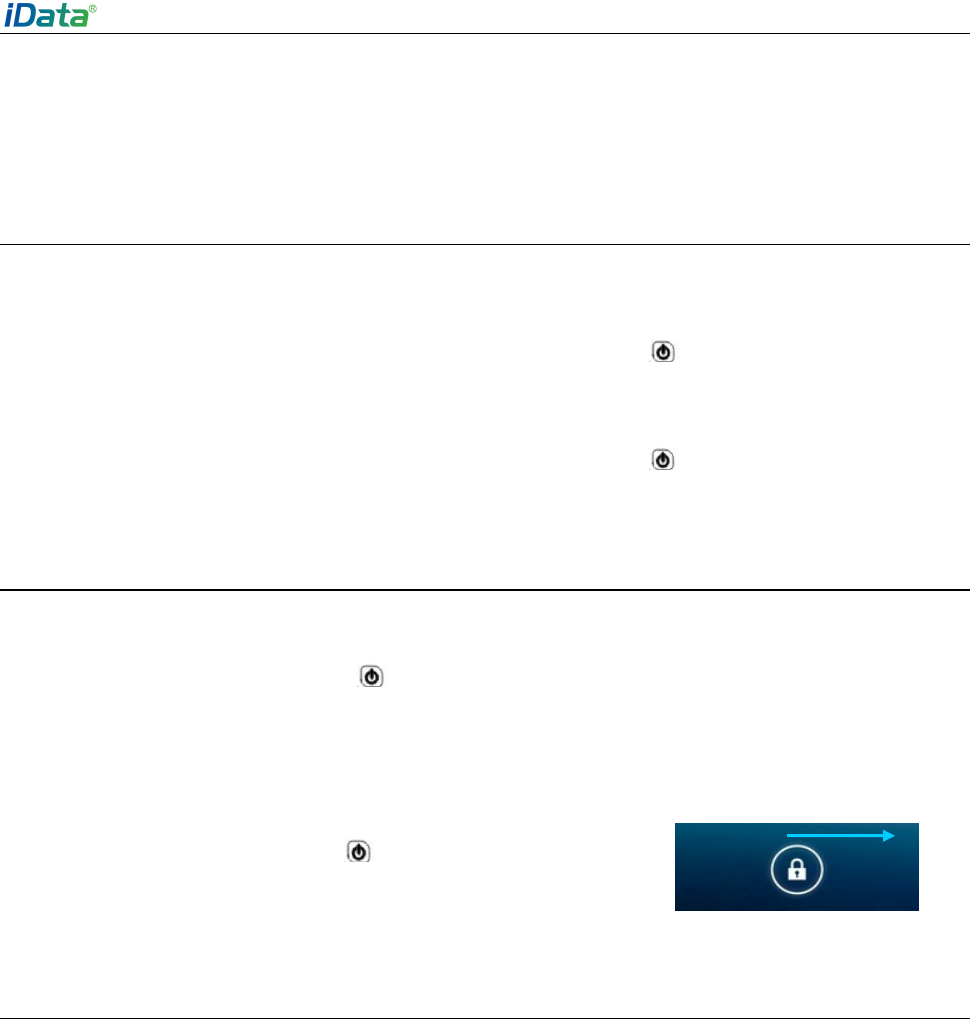
To disassemble the battery cover, do as follows:
1. Insert your left forefinger into the upper left part of the battery cover and push the lock to
the left by using the thumb.
2. Pull out the battery cover.
Figure 1-6 Disassembling the battery cover
1.6 Charging
You can charge the iData 95 in the following ways:
1. Charge the iData 95 by using a charger.

iData 95 User Manual
- 5 -
2. Connect the iData 95 to a PC by using a USB cable to charge the iData 95.
In the charging status, the LED is red. When the LED becomes blue, charging is complete.
When the battery volume is insufficient, the iData 95 displays alarm information.
When the battery volume is too low, the iData 95 is automatically powered off.
Caution★
The battery can be charged for more than or less than three hours. The battery will not be
damaged if charging is interrupted. The duration of the battery depends on different
applications of the iData 95, for example, selected functions of iData 95, usage mode, and
data transmission.
Tips ★
To ensure a longer standby time of the iData 95, follow the following tips:
Always connect the iData 95 to the AC power supply when you do not use it.
In Settings, set the time to sleep to a smaller value for the iData 95 by selecting Home
> Applications > Settings > Display > Screen Delay.
Stop all wireless activities when you do not use the iData 95.
iData 95 User Manual
- 6 -
2 Instructions on iData 95
2.1 Power-on and Power-off
After installing a SIM card and a battery and fully charging the iData 95, you can use the
iData 95.
1. To power on the iData 95, press and hold the On/Off key for some time. The
power-on page is displayed. After the guiding progress is complete, the iData 95 enters
the Android system. It takes some time to initialize the iData 95. Please wait patiently.
2. To power off the iData 95, press and hold the On/Off key for some time. After a
dialog box for powering off the iData 95 is displayed, click Power Off.
2.2 Locking and Unlocking the iData 95
Locking iData 95
Press and hold the On/Off key for a short time to lock the iData 95. If you do not
perform any operation within the default and preset time to lock the iData 95, the iData 95 is
locked automatically.
Unlocking the iData 95
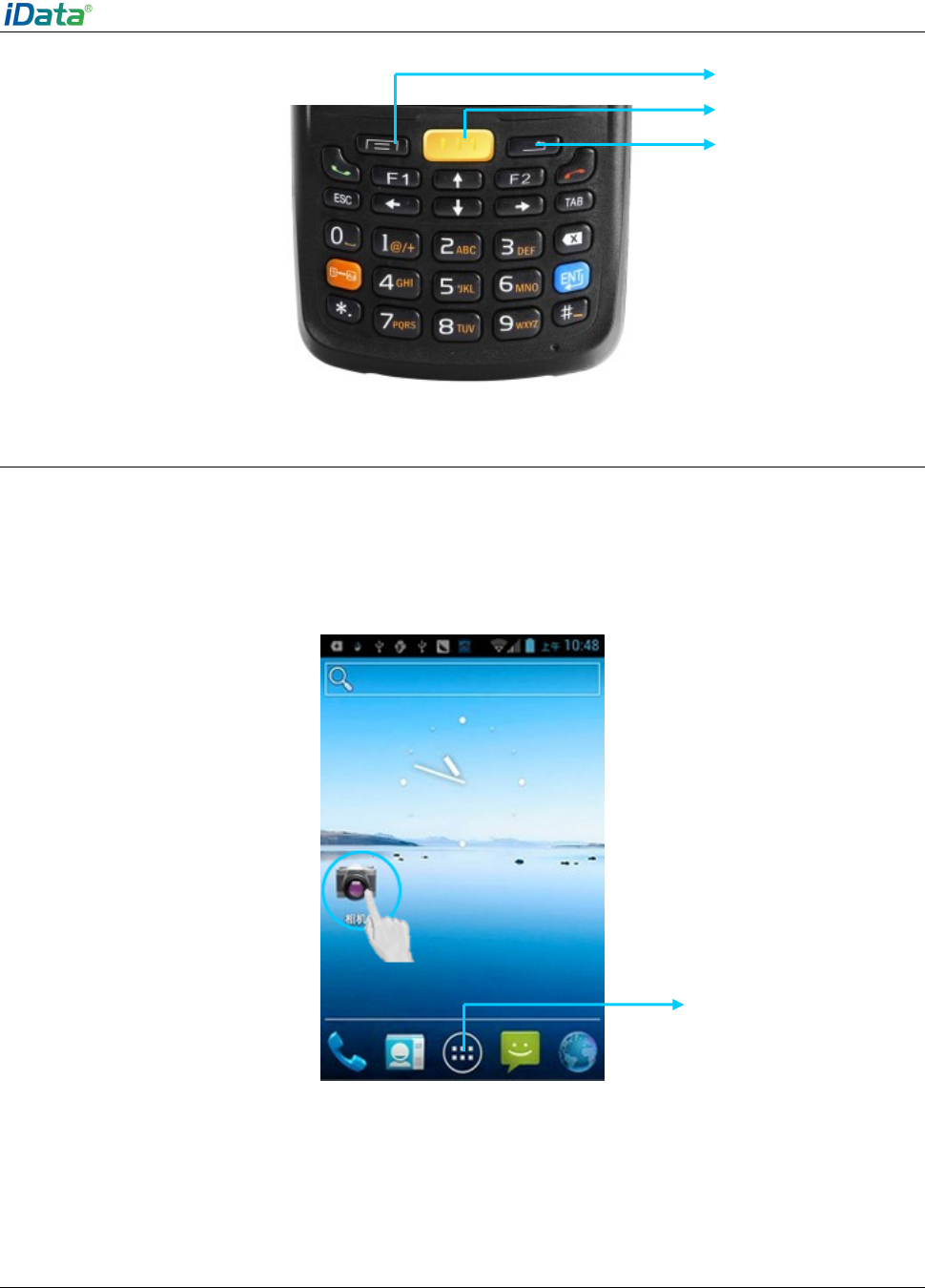
Press and hold the On/Off key for a short time and slide
the unlock key on the screen to the right to unlock the iData
95.
2.3 Keys of iData 95
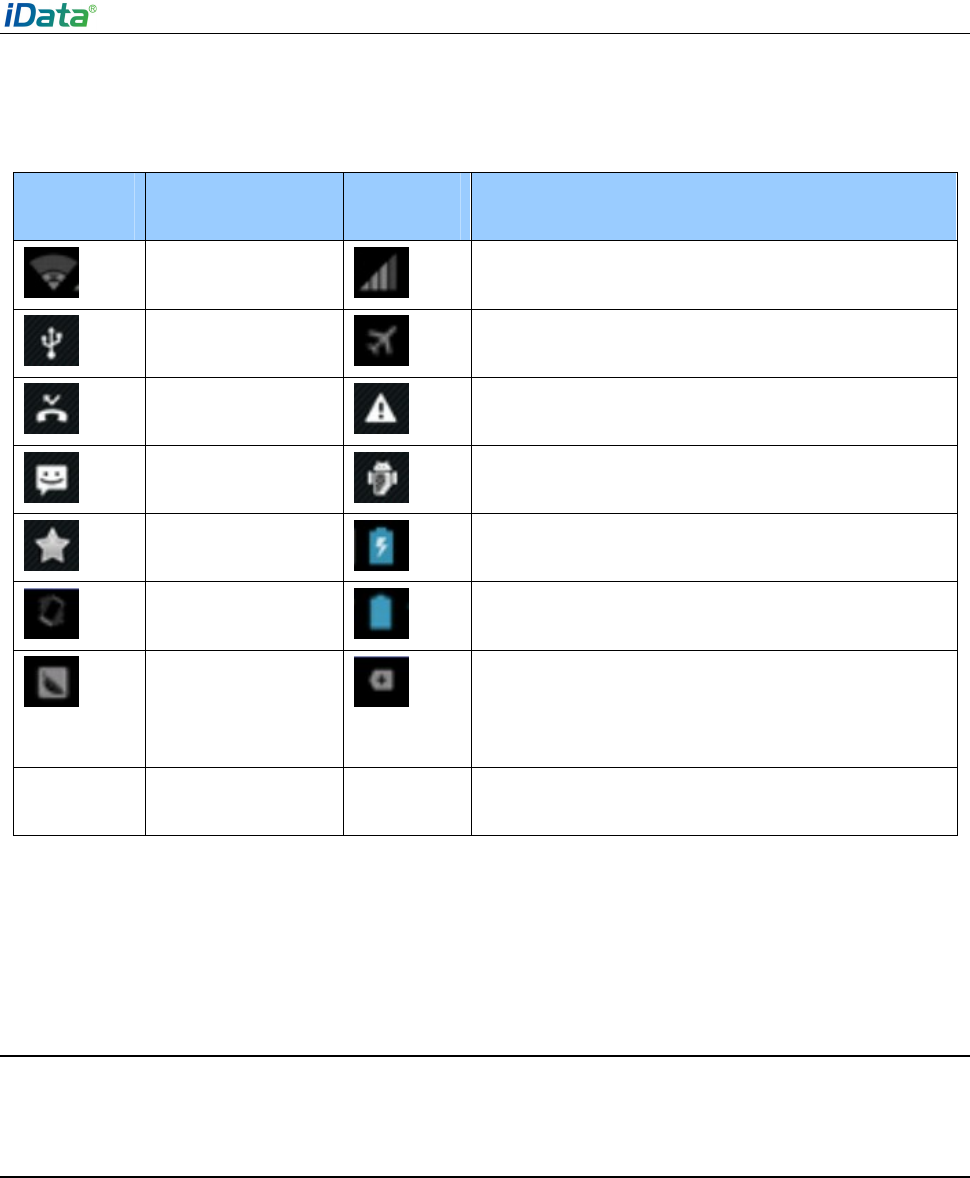
The iData 95 provides a physical keypad that has 28 keys in total, as shown in the following
figure. In terms of function, the keys are divided into numeric/letter/symbolic keys, direction
keys, and scan keys.
On the physical keypad of the iData 95, the left and right function keys and the yellow scan
key correspond respectively to the home key, return key, and menu key.
Home key/left function key: Used to return to the home page.
Press the home key. The applications used recently are displayed. Click the required
application to start the application.
Return key/right function key: Used to return to the previous operation page.
Menu key/scan key: Used to display related menus on the current page.
iData 95 User Manual
- 7 -
2.4 Home
The iData 95 has five home pages. Slide to the left or right to switch among the pages. On
any page, press the Home key (left function key) to return to the home page. Click any
application on the home page to start the application.
Tips ★
You can add application icons in blank space of the home page.
Click the application tray to view all applications.
2.5 Status Icons and Indicators
Status icons and indicators are in the status bar in the upper part of the screen and show
device status and notifications.
Application tray
Menu key
Return key
Home key
iData 95 User Manual
- 8 -
Table 2-1 Status icons
Icon Description Icon Description
WLAN Signal strength
USB connection Offline mode
Missed calls Internet access restricted
New messages USB debug
Modem logs Charging
Mute mode Full power
Connect to Pea There are multiple notification icons, which are
beyond the scope of display.
Note★
The applications of the iData 95 are often upgraded. Therefore, the status icons may be
different from those on the iData 95. The actual status icons prevail.
2.6 Basic Settings
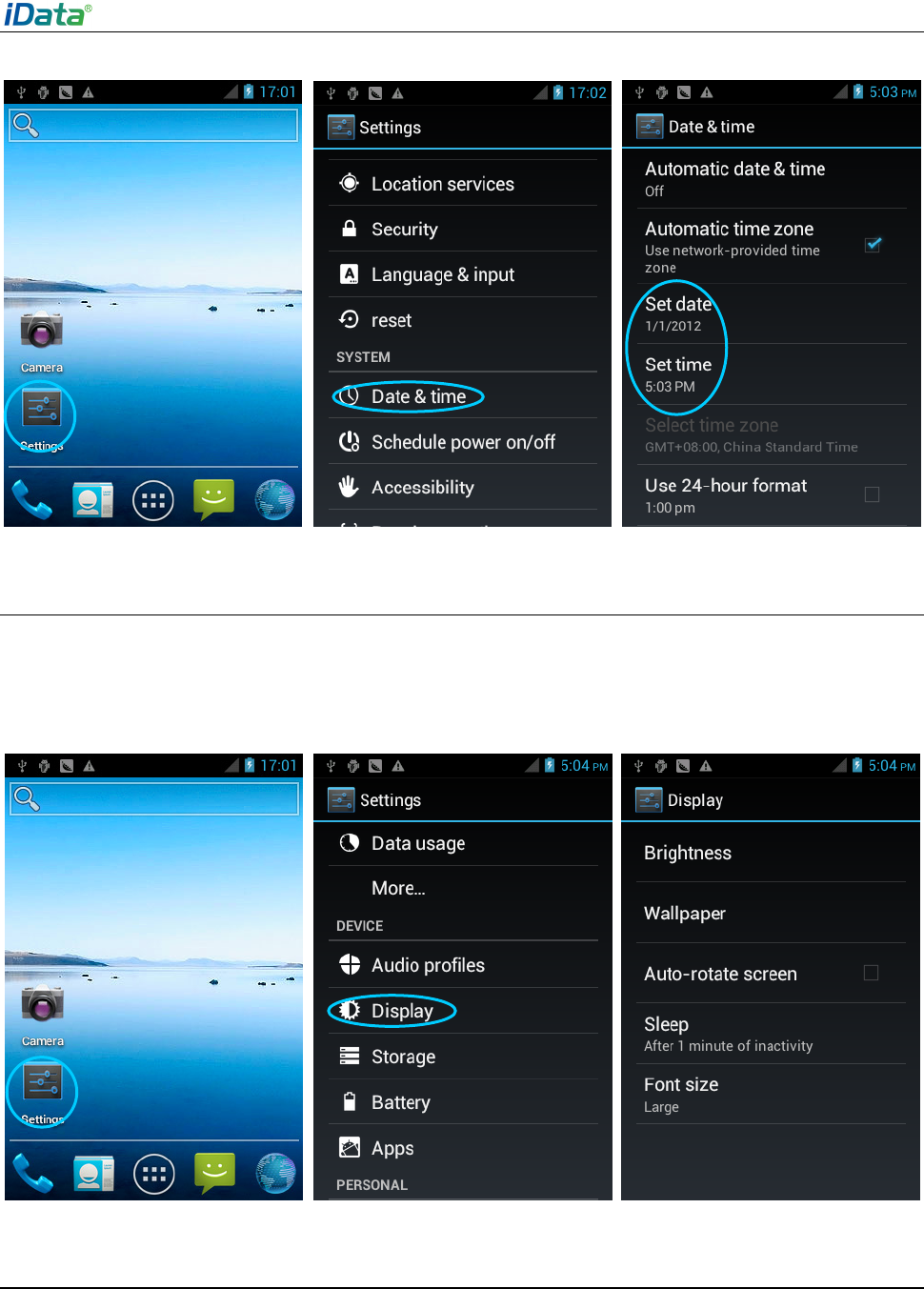
2.6.1 Date and Time Setting
To change the date and time in the iData 95, do as follows:
Select Settings > Date & time and click Set Date or Set time.
iData 95 User Manual
- 9 -
2.6.2 Display Settings
To set display options, do as follows:
Select Settings > Display and set display options such as Brightness, Wallpaper,
Auto-rotate screen, and Font size.
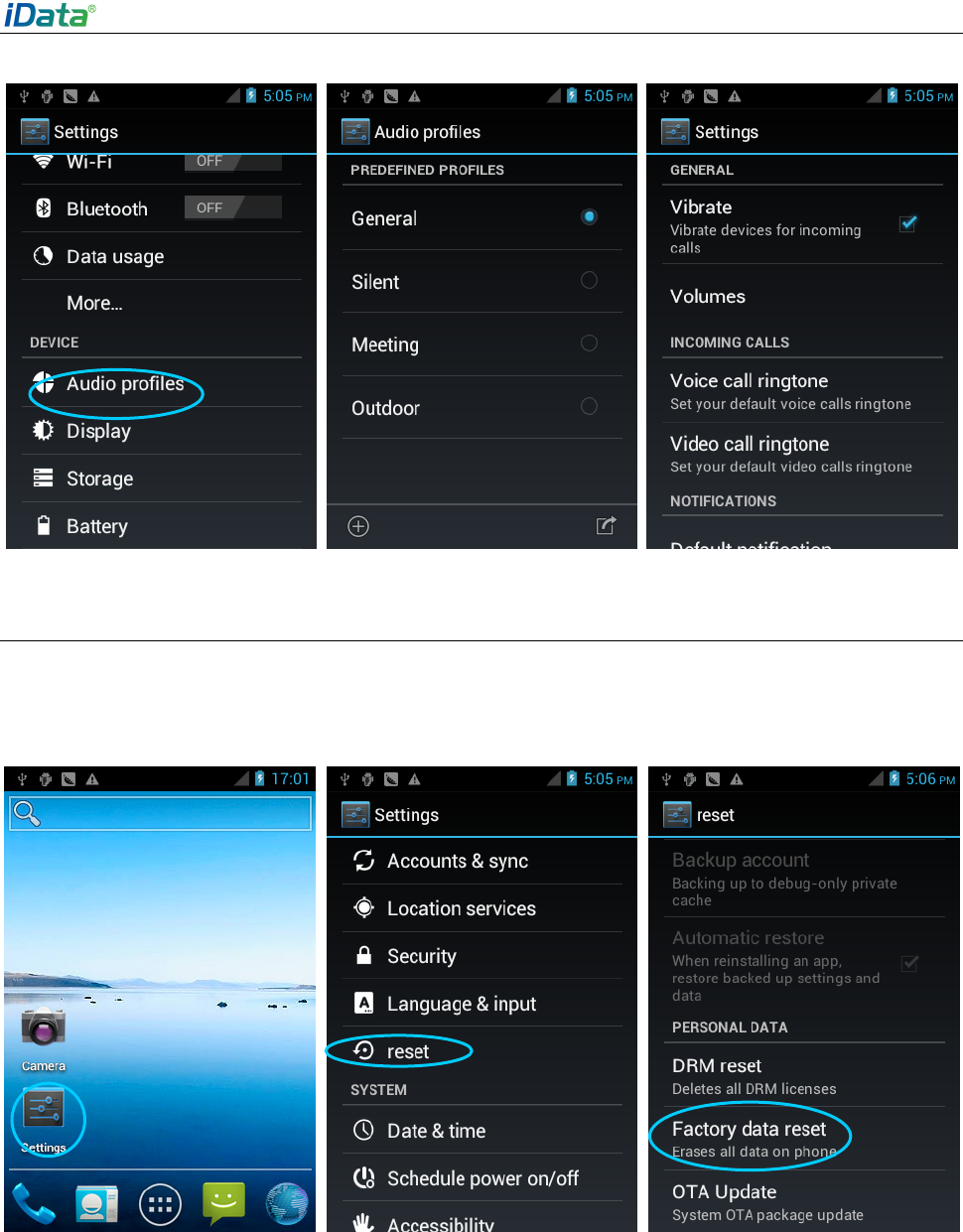
2.6.3 Ringtone Setting
Select Settings > Audio Profiles and click General/Silent/Meeting/Outdoor to set the
ringtone in the corresponding mode.
iData 95 User Manual
- 10 -
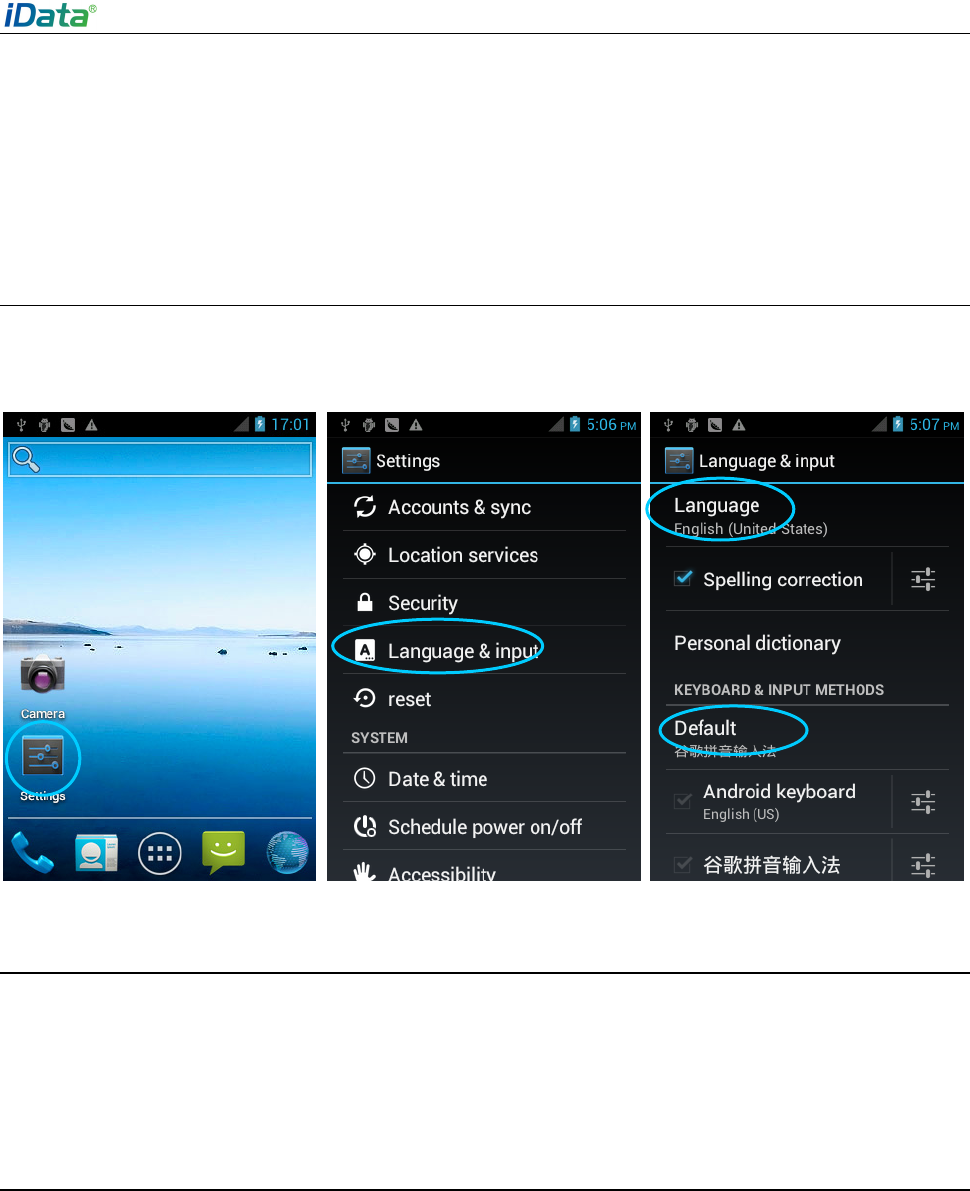
2.6.4 Security Setting
Select Settings > Reset > Factory date reset.
Click Clear all. The iData 95 starts to restore factory settings.
Caution★
This operation will clear the following data in the iData 95:
Account
Data and settings of the system and applications
iData 95 User Manual
- 11 -
Downloaded applications
This operation does not clear the following data:
Current system software and bound applications
Files in the SD card, for example, music and pictures
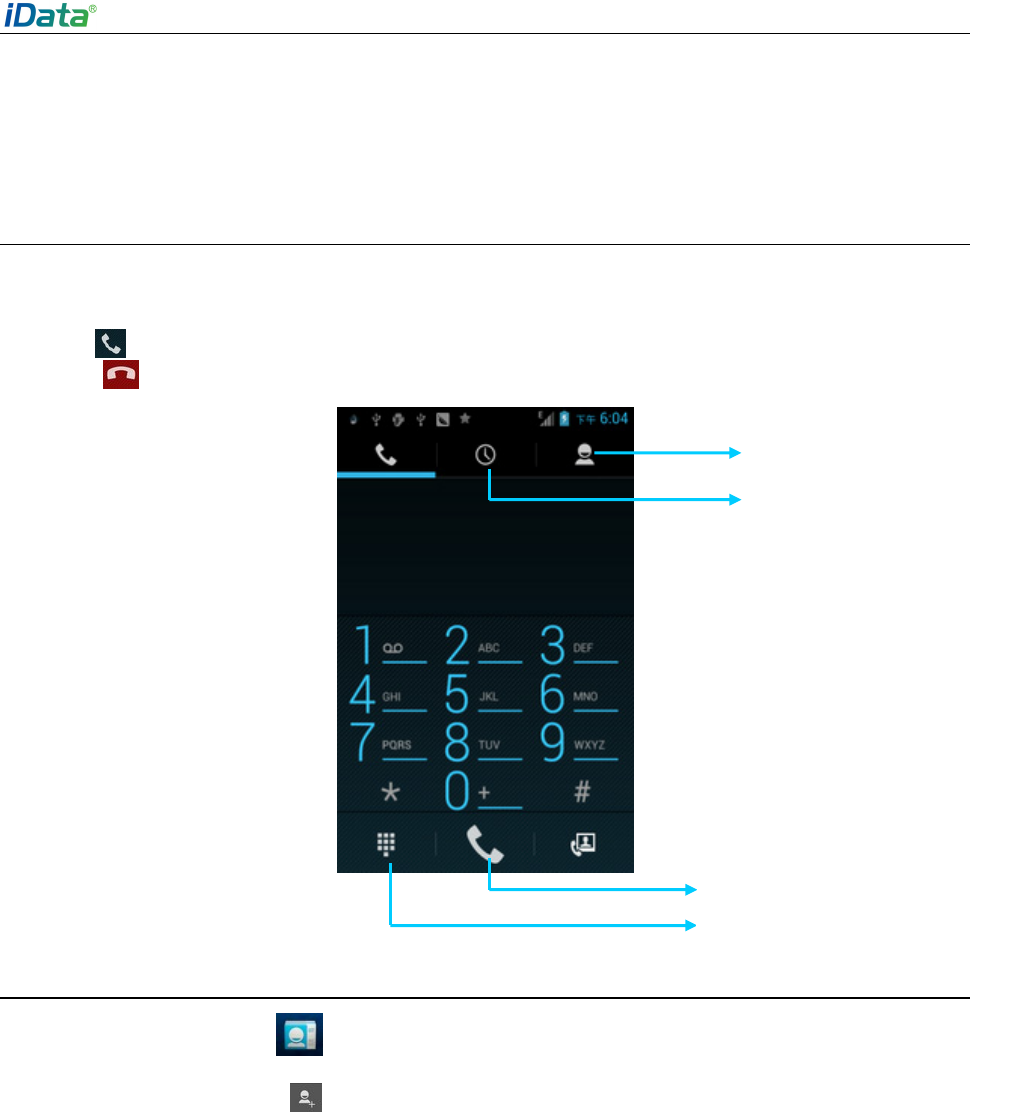
2.6.5 Language and Input Setting
Select Settings > Language and input. In the displayed list, select the desired language.
Click Default and select the desired input in the list.
2.6.6 Shortcuts
You can add shortcut icons on the home page of the iData 95.
On the home page, click the application tray icon, select and drag the icon to be added to
the home page.
2.6.7 Widgets
You can add widgets such as clock, music player, and calendar on the home page of the
iData 95.
On the home page, click the application tray icon, slide the screen to the widget page,
select and drag the widget to be added to the home page.
Click the icon of the widget to open the widget.
iData 95 User Manual
- 12 -
3 Call Function
3.1 Making a Call
To make a call, do as follows:
1. Enter a telephone number by pressing number keys.
2. Click to make a call.
3. Click to terminate the call.
3.2 Contacts
Find the following icon:
1. Click Contacts to open the contact list.
2. To add a contact, click .
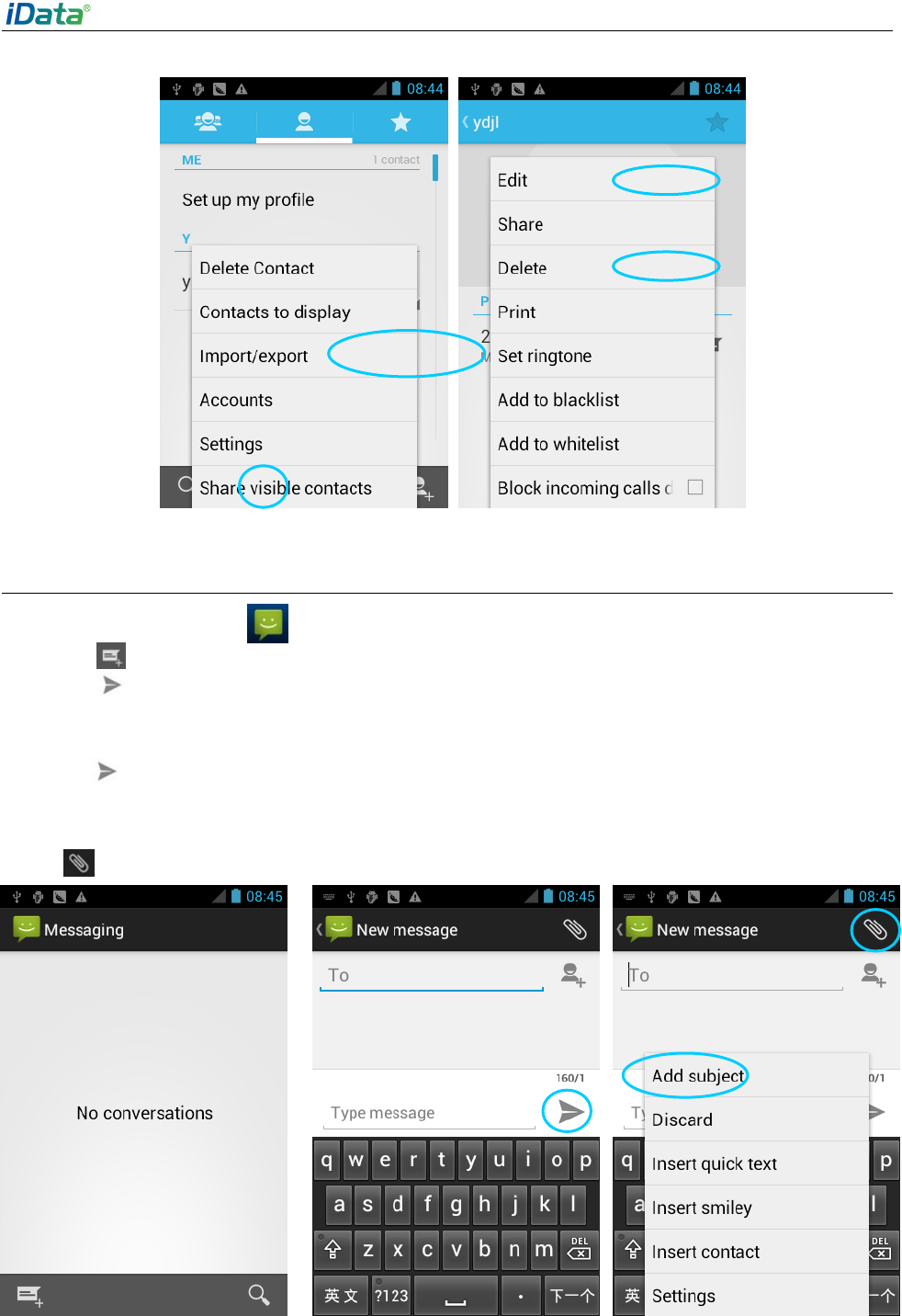
3. To import or export contacts, press the menu key (yellow scan key) to open the menu
and click Import/export.
4. To edit or delete a contact, select a contact, press the menu key (yellow scan key) to
open the menu, and click Edit or Delete.
Contact
Call record
Virtual numeric keypad
Voice call
iData 95 User Manual
- 13 -
3.3 SMS and MMS
Find the following icon:
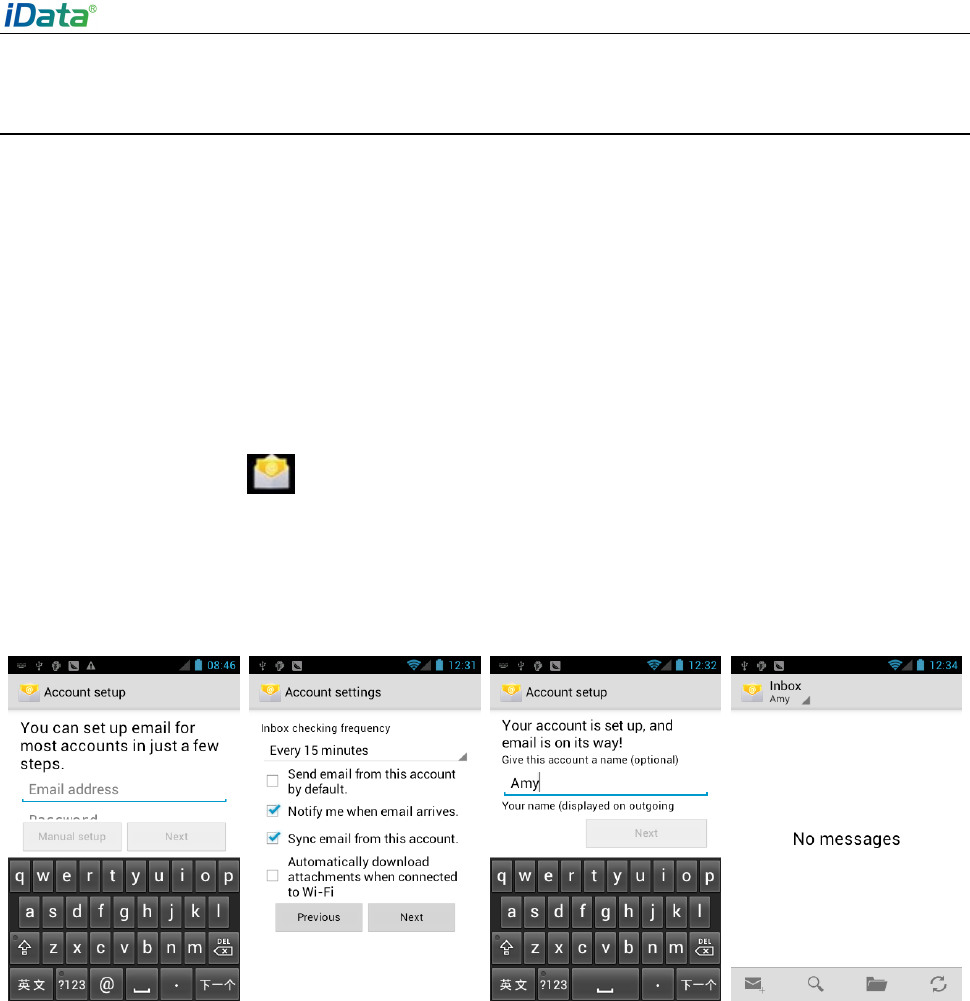
1. Click and enter the message recipient and the text to be sent.
2. Click to send the message.
3. On the message editing page, press the menu key (yellow scan key) to open the menu
and click Add Subject. Convert the message to be sent into a multimedia message and
click .
Tips ★
Click to add attachments such as picture, video, and audio files.
iData 95 User Manual
- 14 -
3.4 Email
You can send or receive emails.
Note★
To create an email account on the iData 95, you need to set the account on a PC. For
example, to create a QQ email account, log in to the QQ mailbox, click Settings in the
upper right corner of the mailbox to access the account options. Find the server options and
email receiving options, select all options, and click Save.
To set a mailbox on the iData 95, do as follows:
Find the following icon:
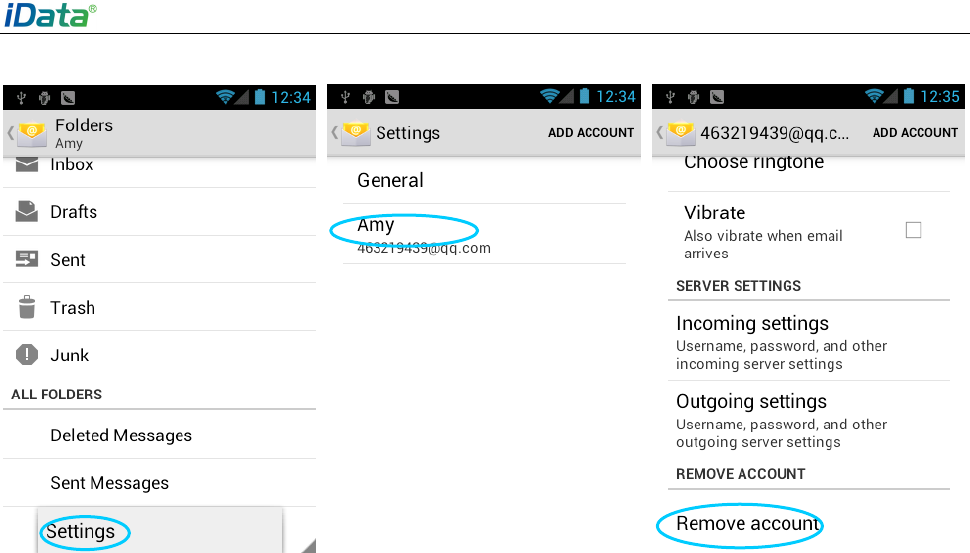
1. Enter the email address and password and click Next. The system starts to connect the
email account.
2. Set
Inbox checking frequency and click Next.
3. Create a name for this account and click Next. The Inbox page is displayed.
To delete an account, do as follows:
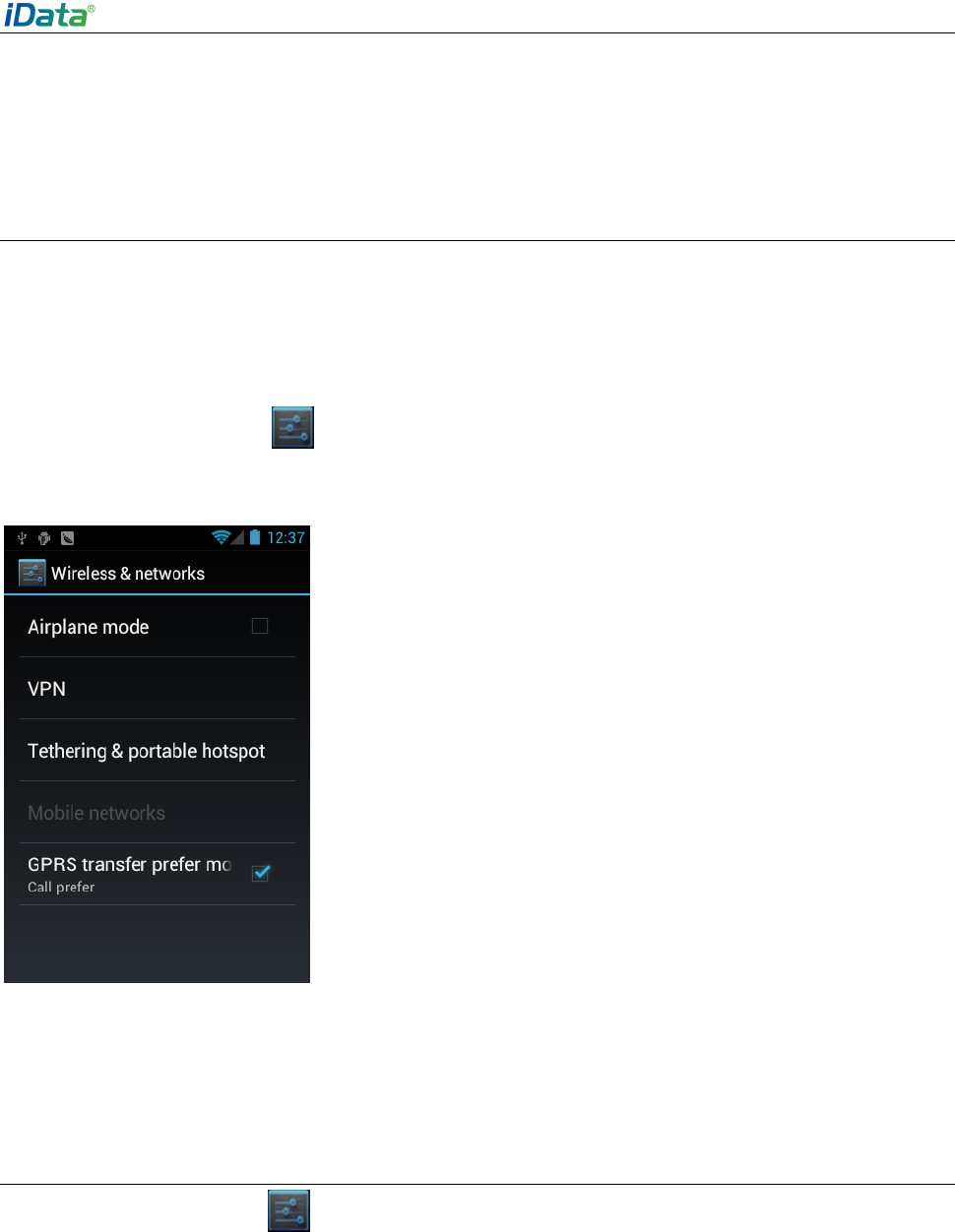
1. On the mailbox page, press the menu key (yellow scan key) to open the menu and click
Settings.
2. Click the email account to be deleted and access the setting page.
3. Click
Remove account.
iData 95 User Manual
- 15 -
iData 95 User Manual
- 16 -
4. Network and Connection Synchronization
4.1 GPRS Data Connection
After a GPRS data connection is established, you can access the Internet. To establish a
GPRS data connection, ensure that a SIM card is installed in the iData 95. Generally, the
iData 95 has configured Internet access. If you delete the default configuration by mistake,
set the network as follows (assume that China Mobile’s network is used):
Find the following icon:
Select Settings > More > Wireless & networks > APN > CMNET and set the following
options as follows:
Name: CMNET
APN: cmnet
APN type: default,supl,net
Proxy: null
Port: null
User name: null
Password: null
Server: null
MMSC: null
MMS proxy: null
MMS port: null
MCC: 460
MNC: 02
Identity authentication type: null
APN protocol: IPv4
Enable/disable APN: APN enabled
Bearer system: null
4.2 Wi-Fi Network Connection
Find the following icon:
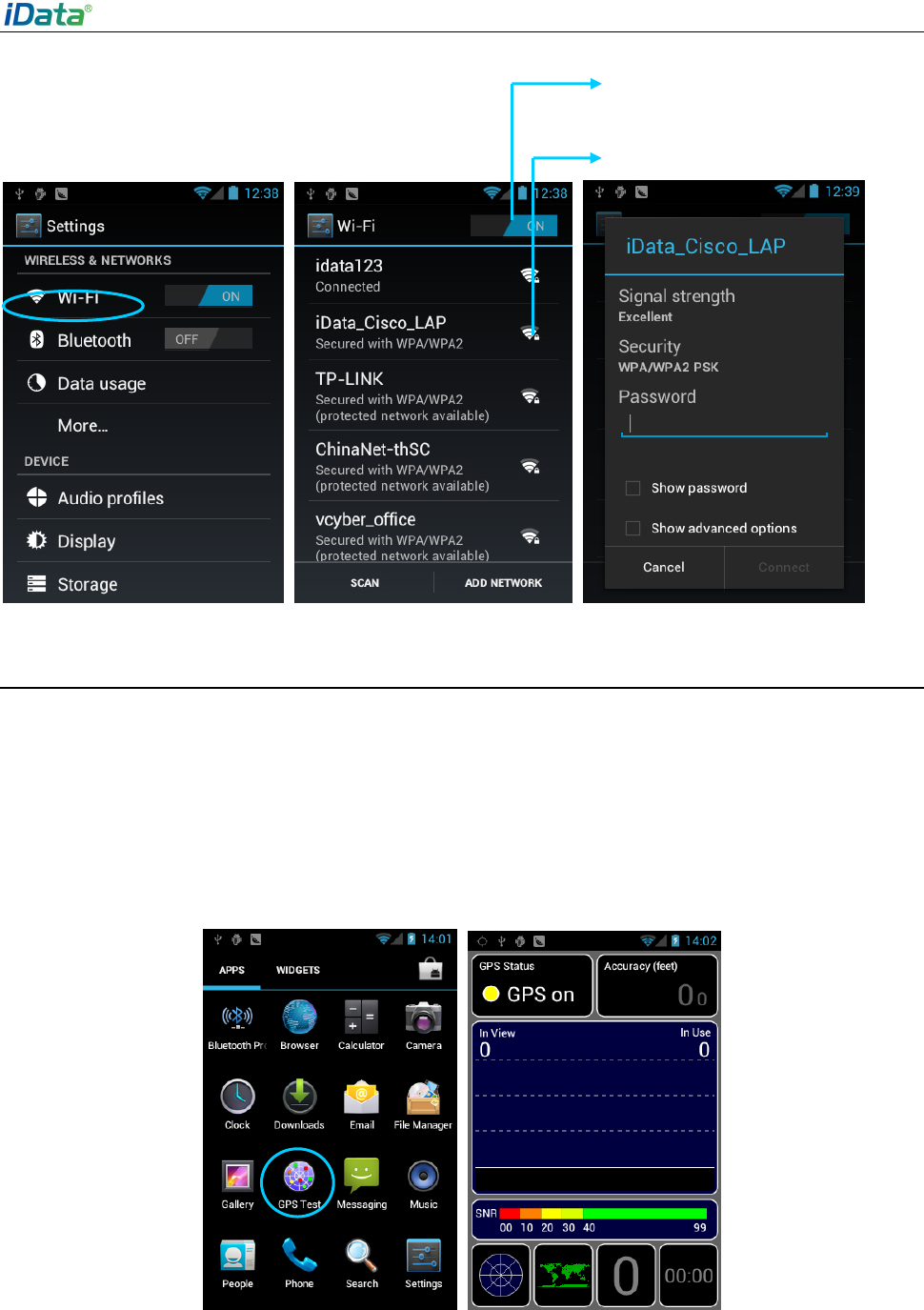
Select Settings > Wireless & networks > WLAN.
1. Click
On for Wi-Fi. The system starts to search for networks. If the WLAN is enabled,
click Scan. The iData 95 lists the searched networks.
2. Click the network to be connected and enter the password in the displayed dialog box.
3. Click Connect to complete the Wi-Fi connection.
iData 95 User Manual
- 17 -
4.3 GPS
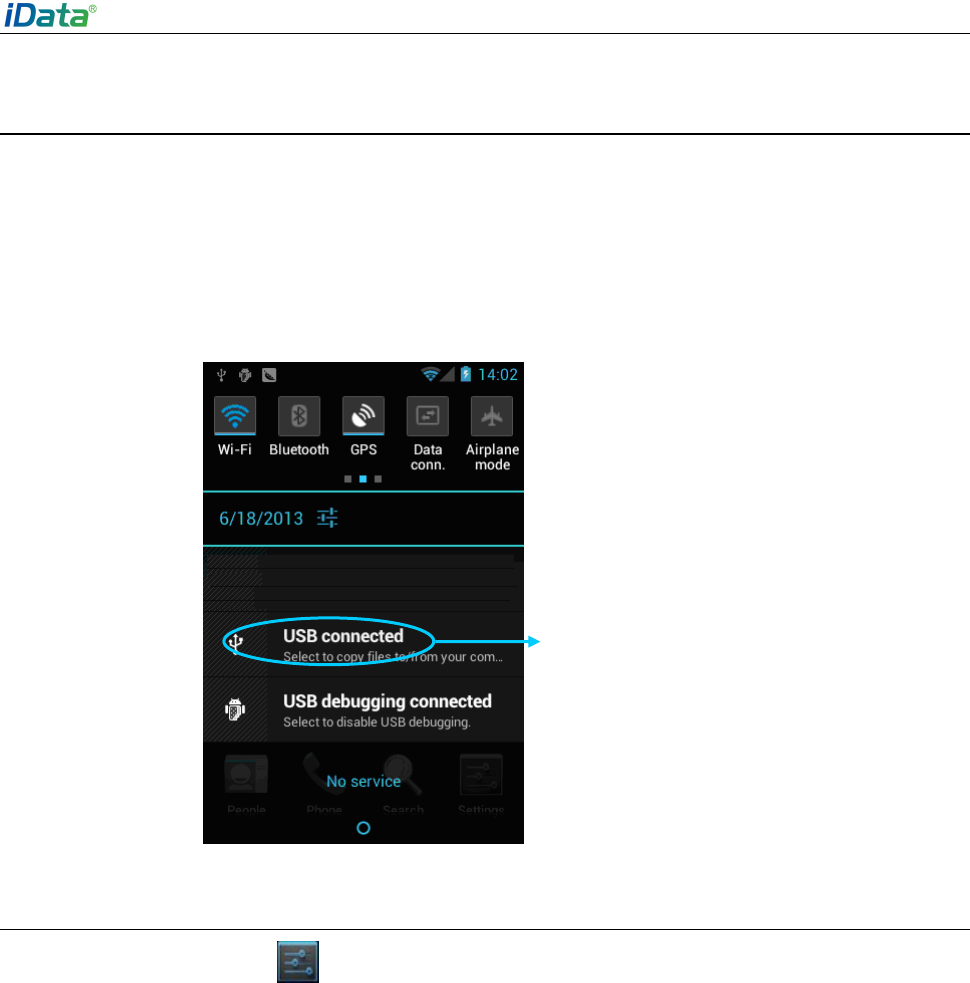
The iData 95 is equipped with a high-performance navigation chip and can obtain position
information quickly and accurately. The manufacturer of the iData 95, Wuxi iData
Technology Company Ltd., provides GPS Test, which is a GPS demonstration program.
Before using the GPS, install GPS Test. You can download GPS software (for the
information related to GPS software and HiMarket, see relevant description in 6.1 Installing
Software) from HiMarket and view position information.
Click to connect to the network
Click to enable Wi-Fi and
search for networks
iData 95 User Manual
- 18 -
4.4 Connecting iData 95 to a Computer
Connect the iData 95 to a computer by using a USB cable so that files in the memory card,
for example, pictures, videos, and music, can be transferred to the computer and
processed in the computer.
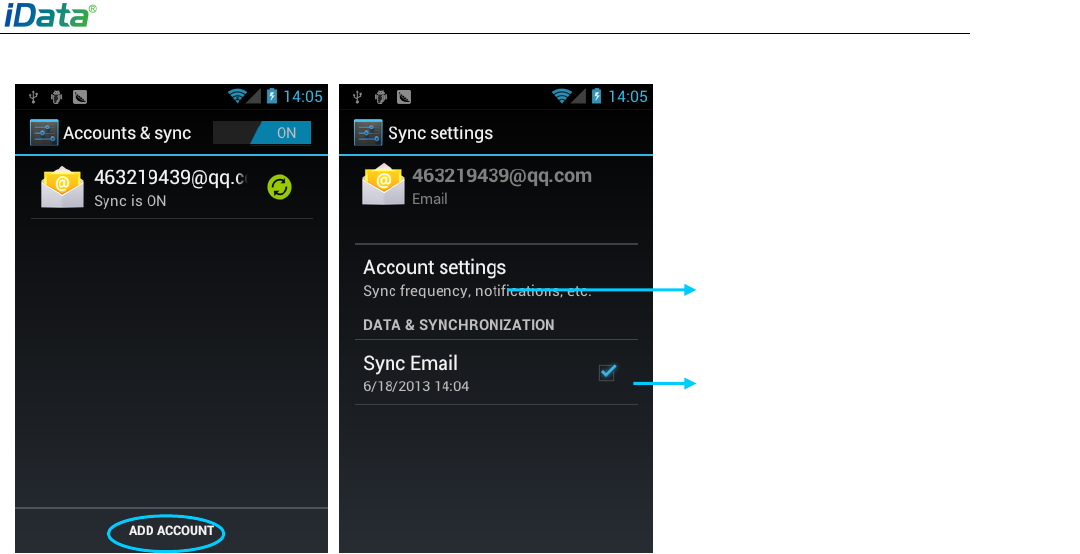
1. Connect the iData 95 to a USB port of a computer by using the USB cable.
2. The icon of USB connection is displayed in the status bar of the iData 95. Slide the
status bar. You can see USB connected and select the USB connection mode.
4.5 Synchronization
Find the following icon:
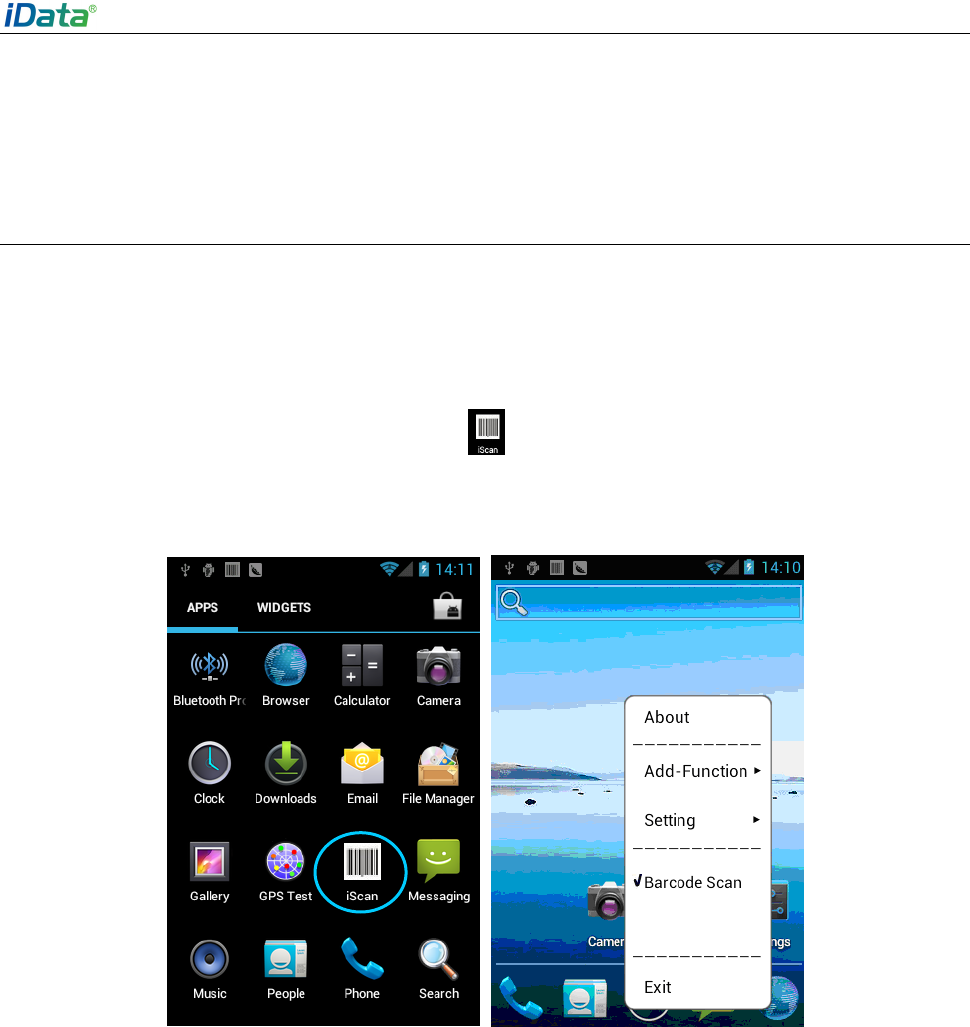
Select Settings > Accounts & sync.
1. Click
ADD ACCOUNT to set a new account.
2. Click
Company or Email, enter the email address and password, and click Next. Wait
until the connection is completed (for details about mailbox settings, see section 3.4
Email).
3. Click the account. On the Sync settings page, set the account as required.
Click the option to open the USB storage
device and copy files between a
computer and the iData 95
iData 95 User Manual
- 19 -
Set email synchronization
frequency, notification, etc.
Select the option to
synchronize emails.
iData 95 User Manual
- 20 -
5 Introduction to iScan of iData 95
5.1 Installing and Using iScan
To collect data, you must install and start the scan application on the iData 95. At present,
Wuxi iData Technology Company Ltd. provides the scan demonstration software, iScan, to
obtain and decode barcode information.
First of all, install iScan on the iData95 (for details on how to install iScan, see 6.1 Installing
Software). After iScan is installed, the icon is displayed on the application page. Click
the icon to start the software and select Barcode Scan. In this case, you can scan
barcodes.
iData 95 User Manual
- 21 -
6 Managing iData 95
6.1 Installing Software
The iData 95 uses Google’s Android platform whose suffix is apk. To install software on the
iData 95, use the following methods:
1. Download and install software through the online software store provided by Google
(Google Play) or Android software download platform (HiMarket) used in China.
HiMarket is recommended.
2. Download software installation packages, store them on an SD card, and install the
software by using file manager.
3. Connect the iData 95 to a computer by using the USB cable and install software on the
computer. First of all, install software such as APK installer, Pea, or 91 mobile assistant
on the computer so that software can be installed in batches.
6.2 Uninstalling Software
If too many programs are installed or some installed programs are unnecessary, uninstall
existing software to increase the operation speed of the iData 95. To uninstall software, use
the following methods:
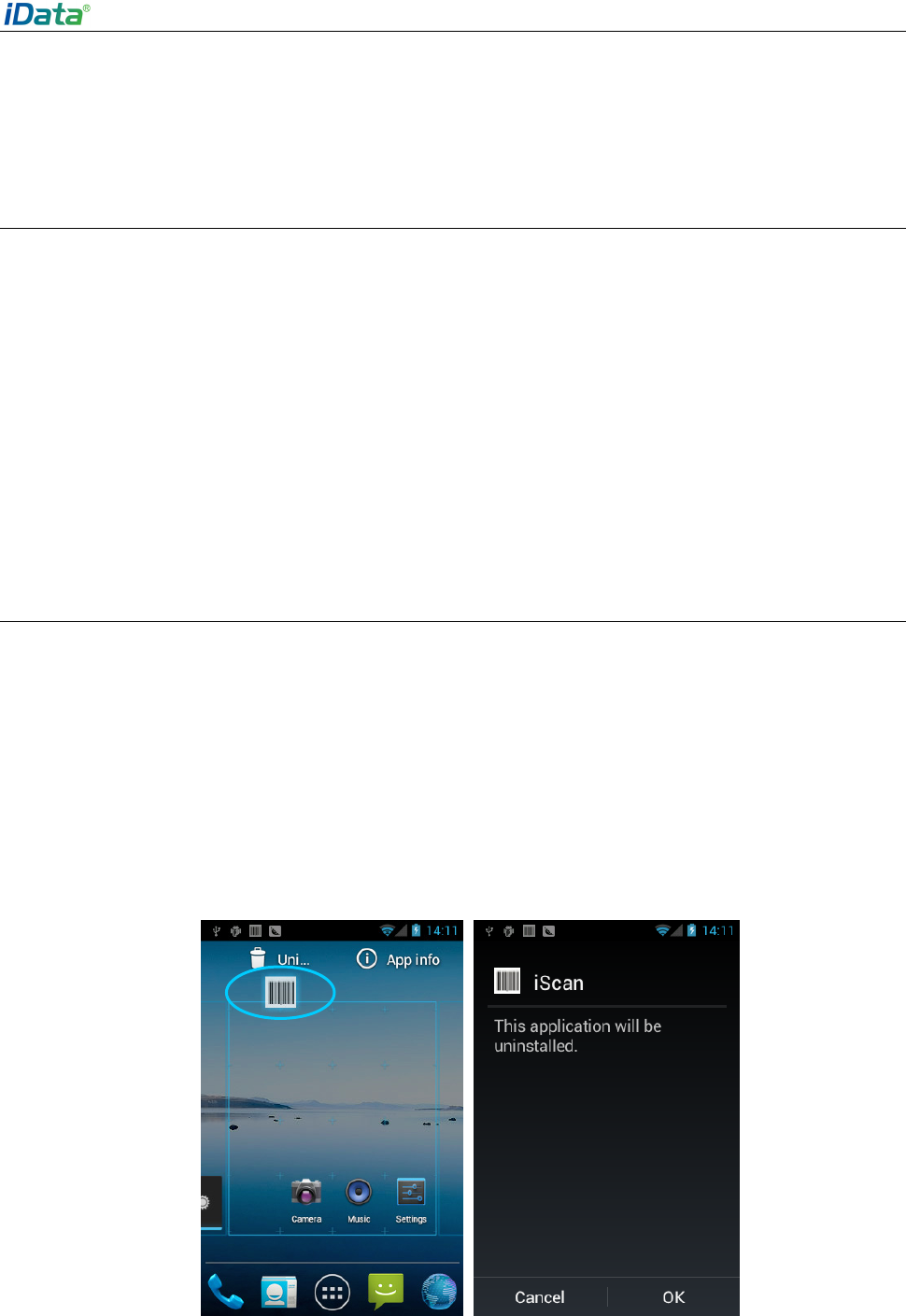
1. Select
Settings > Applications. In the displayed application list, select the software to
be uninstalled and click the software. On the App info page, click Uninstall and then
click OK. Several seconds later, the system prompts that the software is uninstalled.
2. Click the application tray. On the application page, find the icon of the software to be
uninstalled and click the icon.
iData 95 User Manual
- 22 -
6.3 Managing Applications
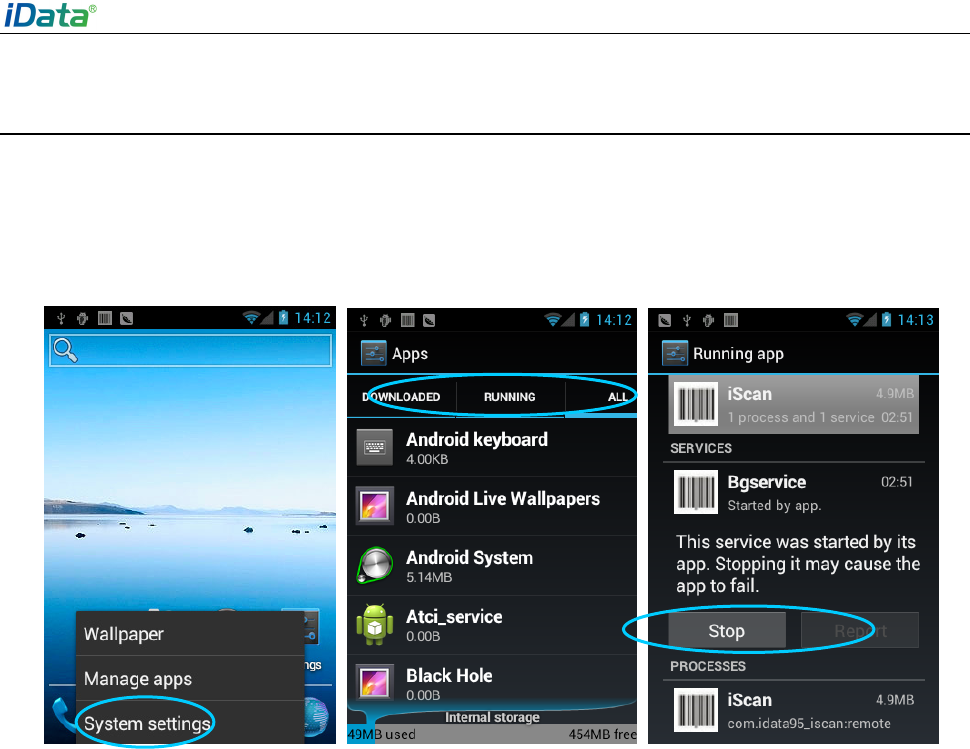
Press the menu key (yellow scan key) and click Manage apps. You can view the status of
downloaded applications, applications in the SD card, and running applications and click
any application to access the application information page where you can stop, uninstall, or
suspend the application.

iData 95 User Manual
- 23 -
7 Precautions and Troubleshooting
7.1 Precautions for iData 95
To ensure that the iData 95 does not fail, follow the following precautions during use
of the iData 95:
Put the iData 95 and its components and accessories in the places where children
cannot reach.
Keep the iData 95 dry. Rain, moisture and liquid contain acidic materials and will
corrode the circuit board.
Do not store or use the iData 95 in dusty or dirty places.
Do not store the iData 95 in a place that is too hot. High temperature will shorten the
service life of electronic components.
Do not store the iData 95 in a place that is too cold. When the temperature inside the
iData 95 rises, moisture is generated inside the iData 95, which may damage the circuit
board.
Do not try to disassemble the iData 95. Otherwise, the iData 95 may be damaged.
Do not touch the screen surface of the iData 95 by using a pen, a pencil or other sharp
articles in case the screen may be scratched.
Do not throw, beat or violently collide the iData 95. Otherwise, the components of the
iData 95 may be damaged and the iData 95 may be faulty.
Do not use strong chemical products or strong detergent to clean the iData 95. If the
iData 95 become dirty, clean the surface of the iData 95 by using a soft cloth soaked
with dilute glass detergent.
Please use the protective film to reduce wear as much as possible. The screen
protective film can improve the availability and durability of the screen.
Pay attention to the following during use of the battery.
The area where the iData 95 is charged must keep away from scraps, inflammables or
chemical substances.
When you charge the battery of a mobile device, the temperature on the battery and
charger must be in the range 0°C to 40°C.
Do not use incompatible batteries or chargers, which may cause fire, explosion, leakage
or other hazards.
Do not disassemble, press, twist, pierce or cut the battery.
Do not make the battery short-circuited or contact the connecting terminal of the battery
by using metal or other conductive objects.
Do not insert other materials into the battery, contact the battery with water or other
liquid, or expose the battery in an open fire, explosive source or other sources of
danger.
Do not put or store the battery in the environment where the temperature is too high.
Do not put the battery in a microwave oven or a drying machine.
iData 95 User Manual
- 24 -
Do not put the battery into a fire.
If the battery leaks, do not let the liquid stain your skin or eyes. Otherwise, wash your
skin or eyes with lots of water and go to see the doctor immediately.
Cleaning iData 95
Shell
Clean the shell by using a cloth soaked with alcohol, including keys and space between
keys.
Display screen
You can clean the display screen by using a cloth soaked with alcohol. Do not let the
liquid gather around the screen. Otherwise, dry the screen by using a soft non-woven
cloth in case strip marks are left on the screen.
Scan lens
Clean the scan lens regularly by using lens paper or other articles suitable for cleaning
optical materials.
7.2 Troubleshooting
Table 7-1 iData 95 troubleshooting
Fault Cause Solution
The battery volume is too
low or the battery is not
charged.
Charge the iData 95 or replace the battery.
The battery is incorrectly
installed. Correctly install the battery.
After the power key is
pressed, the iData 95 is
not powered on.
The system breaks down. Restores factory settings.
The battery fails. Replace the battery.
Battery charging fails. The temperature of the
battery is too high or low. Put the battery in normal temperature.
The cable configuration is
incorrect. Consult the system administrator.
During data
communication, data is
not transmitted or
transmitted data is
incomplete.
The communication
software is incorrectly
installed or configured.
Install or reinstall the ActiveSync software to
update the driver.
The relevant function is
not activated after a user
clicks a button or icon.
The system does not
respond. Restart the system.
No sound can be heard. The volume is too low or is
disabled. Adjust the volume.
The iData 95 is in the
inactive state.
After being inactive for a period of time, the
iData 95 is closed.
The iData 95 is closed.
The battery is used up. Replace the battery.
The iData 95 responds Too many files are stored Remove unused memos and records. If
iData 95 User Manual
- 25 -
Fault Cause Solution
on the iData 95. necessary, save the records on the host or
increase the storage capacity by using an
SD card.
at a low speed.
Too many applications are
installed on the iData 95.
Remove applications installed on the iData
95.
The scan application is not
loaded. Load iScan in the iData 95.
Reading a barcode fails. Check that the barcode is not defective.
The iData 95 does not
decode barcodes.
The battery volume is low.
If the scanner stops sending out laser beam
after you turn on the switch, check the
battery volume.
Table 7-2 Cable troubleshooting
Fault Cause Solution
Charging fails. The cable is in poor
contact.
Replace the cable.
Connecting the
ActiveSync software fails.
The cable is in poor
contact.
Replace the cable.
Table 7-3 Wi-Fi connection troubleshooting
Fault Cause Solution
An AP cannot be
connected.
“Authentication fails” is
displayed.
The password of the WLAN device is
incorrect.
iData 95 User Manual
Appendix 1
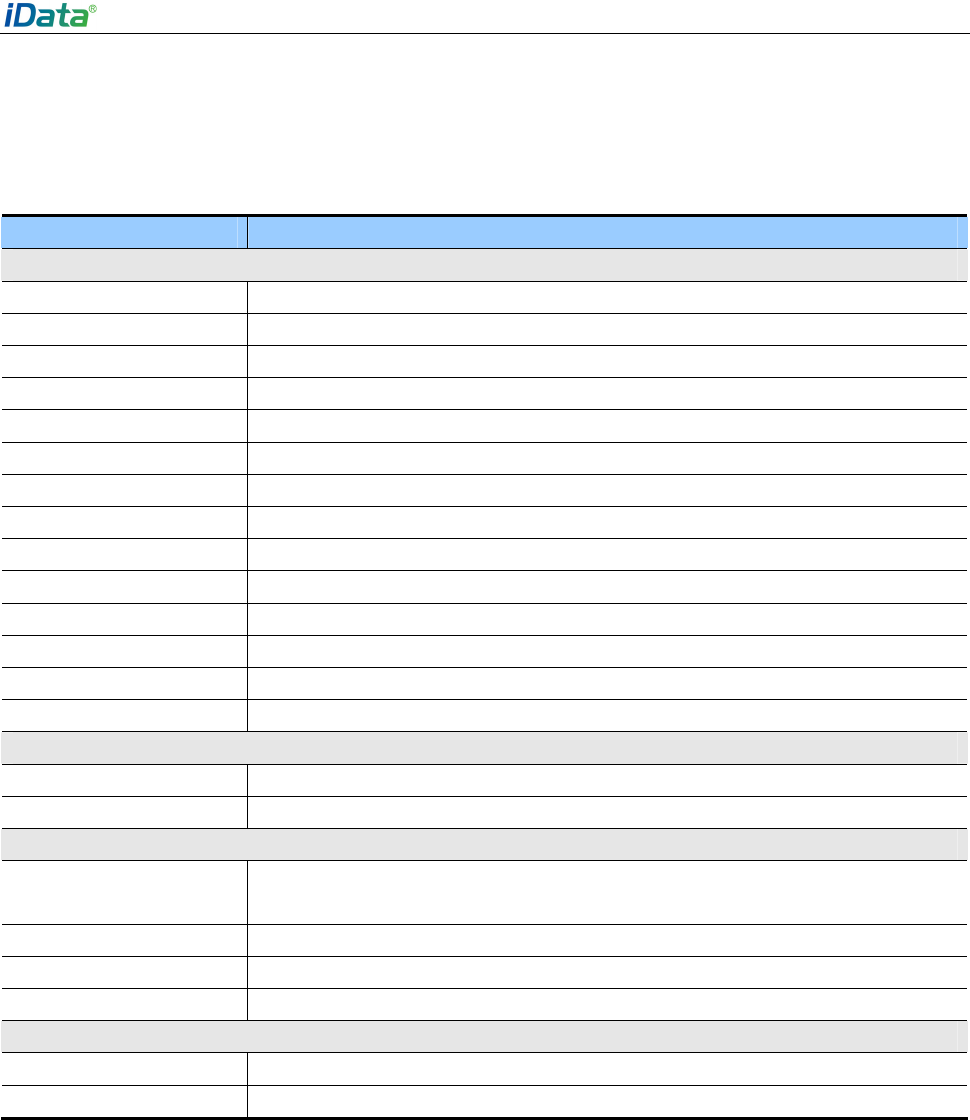
Technical specifications of iData 95
Item Description
System Configuration
Processor MSM8625
Operating system Android 4.0
Memory 4 GB ROM+512MB RAM
Expansion slot Mini SD card (up to 32 GB is supported)
Display 3.5 inches, HVGA (320 X 480), TFT high brightness, LED backlight
Display material Toughened glass
Touch screen Capacitive touch screen
Camera (optional) 5 Mega pixel, auto-focus lens, LED flash
Scan lens Corning® Gorilla® glass
Keypad 31-key durable industrial keypad with interior transmission light
Main battery 3.7 V 4000 mAH rechargeable lithium polymer battery
Audio Built-in microphone
Notification Vibrator alerts/LED prompt/audio notification
Vibration motor Built-in programmable vibration motor
Structural Parameters
Dimensions (LxWxD) 152 mm x 68 mm x 24 mm
Weight 255 g (standard battery included)
Communication & Transmission
Wireless voice
communication
2G: GSM 850/1900 MHz
3G: CDMA 850/1900 MHz
BT 4.0
WLAN Wi-Fi 802.11b/g/n
GPS High-performance GPS chip
Input/Input Interface
USB port 1 (Micro USB port)
Charger port 1 (DC port)

iData 95 User Manual
FCC RF Exposure Information and Statement:
The SAR limit of USA FCC is 1.6W/kg averaged over one gram of tissue.
Product: New Mobile Computer, model number: iData95 FCC ID: 2ADE3IDATA
has also been tested against this SAR limit. The highest SAR value reported
under this standard during product certification for use at the head is
0.182W/kg and when properly worn on the body is 1.25 W/kg.
The device was tested for typical body‐worn operations with the back of the
handset kept 0cm from the body.To maintain compliance with FCC RF
exposure requirements, use accessories that maintain a 0cm
separation distance between the user body and the back of the
handset .The use of belt clips,holders and similar accessories should not
contain metallic components in its assembly.The use of accessories that
do not satisfy these requirements may not comply with FCC RF
exposure requirements , and should be avoided.
FCC Warning Statement:
Changes or modifications not expressly approved by the partyresponsible for compliance could
void the user’s authority to operate the equipment.
This equipment has been tested and found to comply with the limits for a Class B digital
device,pursuant to Part 15 of the FCC Rules.
These limits are designed to provide reasonable protection against harmful interference in a
residential installation. This equipment generates uses and can radiate radio frequency energy
and, if not installed and used in accordance with the instructions, may cause harmful
interference to radio communications. However, there is no guarantee that interference will
not occur in a particular installation. If this equipment does cause harmful interference to
radio or television reception, which can be determined by turning the equipment off and on,
the user is encouraged to try to correct the interference by one or more of the following
measures:
-Reorient or relocate the receiving antenna.
-Increase the separation between the equipment and receiver.
-Connect the equipment into an outlet on a circuit different from that to which the receiver
is connected.
- Consult the dealer or an experienced radio/TV technician for help.
The equipment complies with FCC radiation exposure limits set forth for an uncontrolled
environment. End users must follow the specific operating instructions for satisfying RF
exposure compliance. This transmitter must not be colocated or operating in conjunction with
any other antenna or transmitter.