X Air Australia XCOMVHF VHF Aircraft Transceiver User Manual

X-Air Australia VHF Aircraft Transceiver

User Manual

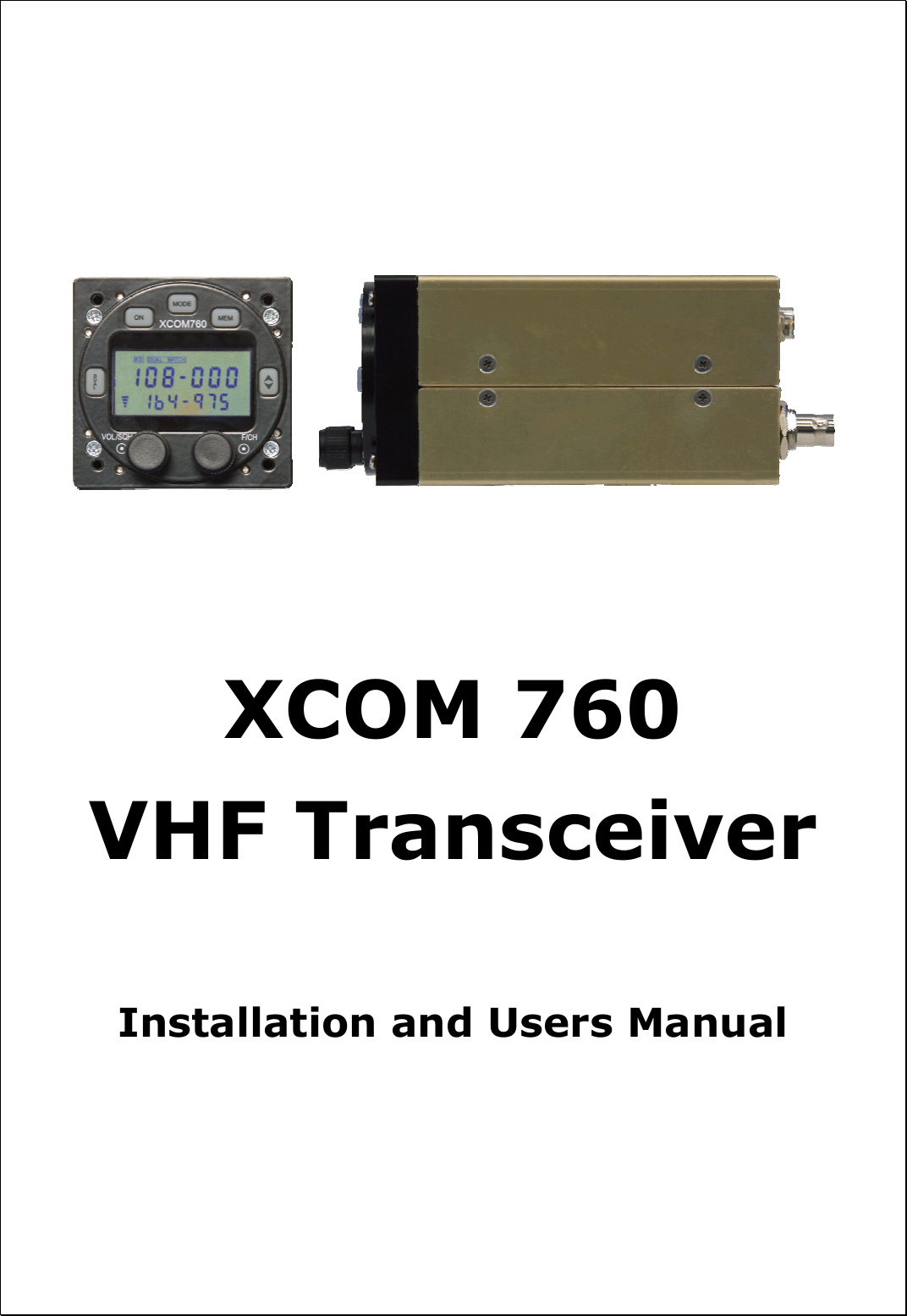
           XCOM 760  VHF Transceiver      Installation and Users Manual
Release 1.2  © XCOM Avionics 2004       www.xcom760.com Page 3               Table of Contents  Introduction...................................................................................................4 Features Overview..........................................................................................4 Manual Release Information.............................................................................5 Contents .......................................................................................................6 Users Manual .................................................................................................6 Warranty Card ...............................................................................................6 Description ....................................................................................................6 Front Panel Controls and Switches ....................................................................7 LCD Display ...................................................................................................8 TX Transmit Icon ......................................................................................8 RX Receive Icon........................................................................................8 DUAL WATCH ...........................................................................................8 LOW BATT ...............................................................................................8 MEM........................................................................................................8 Top Line ..................................................................................................8 Bottom line ..............................................................................................8 Bar Graph ................................................................................................8 XCOM Installation...........................................................................................9 Wiring Harness ..............................................................................................9 Aerials ..........................................................................................................9 Radio Frequency Hazard Information...........................................................9 Operating your XCOM Transceiver ..................................................................10 On ........................................................................................................10 MODE....................................................................................................10 MEM......................................................................................................10 Dual......................................................................................................11 Flip Flop button Ú...................................................................................11 Memory Programming...................................................................................12 Introduction ...........................................................................................12 Operation ..............................................................................................12 Setup Options ..............................................................................................13 Introduction ...........................................................................................13 Operation ..............................................................................................13 DUAL - MODE - ON .................................................................................13 Aerial Information ........................................................................................14 Wiring Diagram – Typical Installation ..............................................................16 XCOM VHF760 Transceiver Specifications - Subject to Change ...........................17 Drilling Template ..........................................................................................18 Warranty Card .............................................................................................18 Notes..........................................................................................................19
Release 1.2  © XCOM Avionics 2004       www.xcom760.com Page 4               Introduction  Thank you for purchasing the XCOM 760 VHF Transceiver, this manual describes the operation and installation of this product, should you have any questions that are not answered in this manual please contact XCOM Avionics in Australia on +61 7 5568 7770 or by email to tech@xcom760.com  The XCOM 760 VHF Transceiver is the first of several innovative avionics products to be released by XCOM Avionics. Based on the very successful Microair and Becker ranges, the XCOM 760 offers many advanced features previously only available in the more expensive brands.  Designed from the ground up, the XCOM 760 offers superior performance under the demanding and noisy conditions experienced in many amateur built aircraft. With low power consumption, this radio is ideally suited to use in gliders, homebuilts and ultralights. A full 6 watt carrier output ensures that you will be heard above the general chatter in busy airspace and the VOX intercom with muting music input will enhance your enjoyment of the flight. With expanded receive range up to 163 MHz, the XCOM 760 provides NOAA Weather reception ensuring that you are always aware of impending weather conditions (NOAA Weather only operates in the USA) and has an optional MARS/CAP capability. Additional safety enhancements such as dual watch allow the pilot to listen to the standby frequency while still monitoring the primary frequency. The XCOM 760 also has 99 memory channels, large volume and channel selector knobs and well spaced buttons. This radio is extremely easy to operate even when wearing flight gloves and you can even check the condition of your battery with the built in voltage monitor. Even at voltages as low as 10 volts, the XCOM 760 is capable of delivering 2 watts of carrier with full modulation.  Software update capability and Internet downloads mean that you are always provided with the latest features. Features Overview • Digital volume and squelch controls from front panel  • Digital volume and VOX intercom controls from front panel (same Volume Squelch control, but activated by mode button when required). • 2 place voice activated intercom, with pilot over ride and passenger isolate (pax can listen to CD music whilst pilot listens to com). CD music has auto fade, turns off if comm is receiving or reduces in volume if pilot or pax talk. • Extra audio input (second com, VOR or GPS alert) • Remote toggle (toggle active or standby via a push button on the stick, or scroll memory channels)
Release 1.2  © XCOM Avionics 2004       www.xcom760.com Page 5               • TX timeout (stuck Mike) which times out after 45 seconds, re-enable by releasing PTT. • 99 channels of user defined memory channels. • 10 pre-programmed NOAA weather channels (suitable for USA only) • Dual Watch - allows monitoring of the active and standby frequency, active has priority. • User enabled wide receive mode - allows monitoring of frequencies between 137 and 163 MHz, in 25 kHz steps. These can be stored in memory channels. • RS 232 interface, allows upgrading of firmware by internet or CD-ROM. Allows interfacing of radio to multifunction displays (MFD's) or remote computer. • Low battery alert, user selects level to alert for under voltage (default is 10.5 Vdc) • Optional MARS / CAP capability (special order)  XCOM Avionics reserves the right to update this manual as product enhancements are made throughout the life of this product. The actual release number of this manual is printed on the bottom of the pages for easy reference and the latest version can always be downloadable from the XCOM web site.  Manual Release Information  Release Date  Changes 1.0  Jan 04  Original draft of document 1.1  May 04  Release of manual to public 1.2  July 04  Addition of aerial safety information re: FCC Request
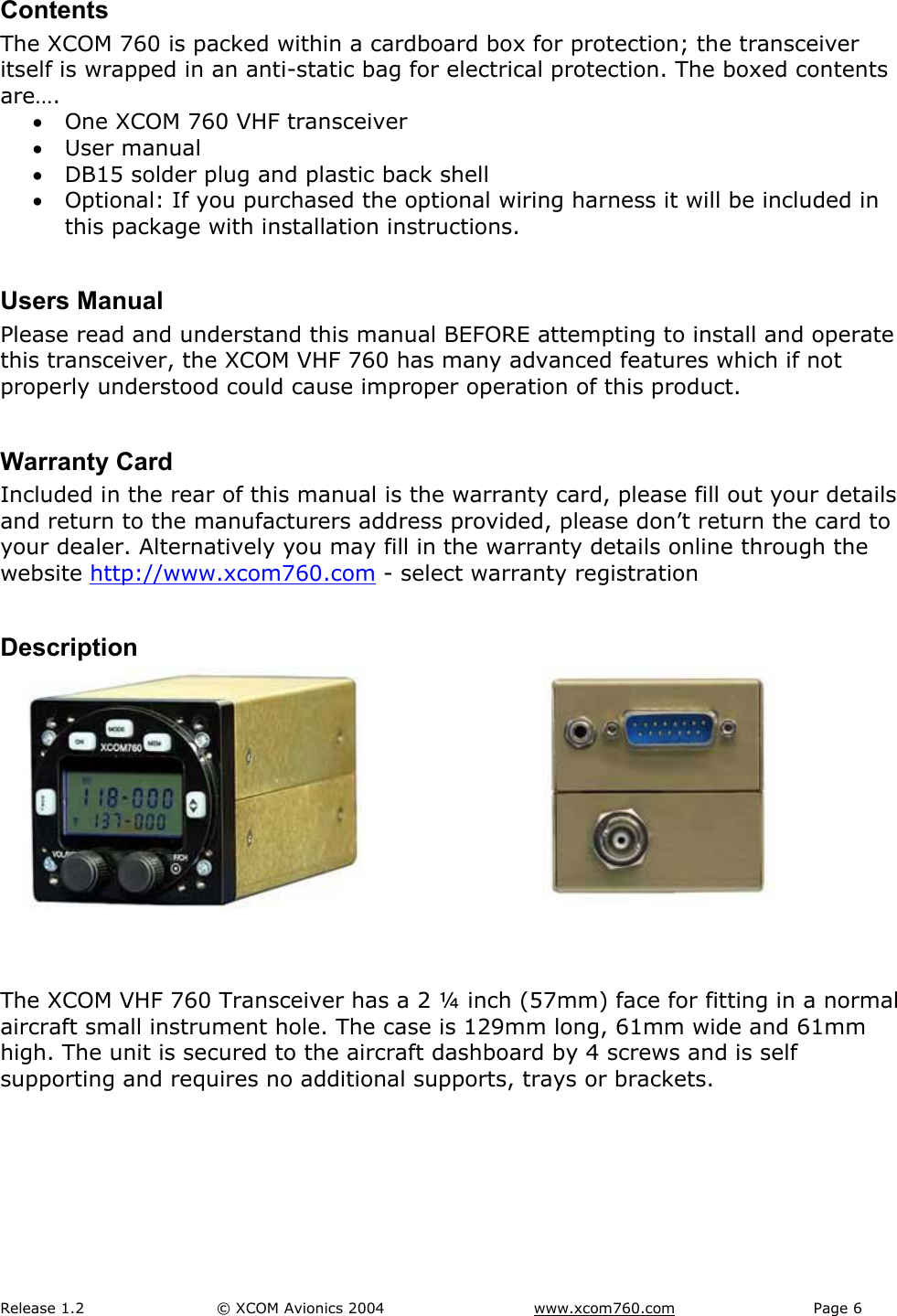
Release 1.2  © XCOM Avionics 2004       www.xcom760.com Page 6               Contents The XCOM 760 is packed within a cardboard box for protection; the transceiver itself is wrapped in an anti-static bag for electrical protection. The boxed contents are…. • One XCOM 760 VHF transceiver • User manual • DB15 solder plug and plastic back shell • Optional: If you purchased the optional wiring harness it will be included in this package with installation instructions.  Users Manual Please read and understand this manual BEFORE attempting to install and operate this transceiver, the XCOM VHF 760 has many advanced features which if not properly understood could cause improper operation of this product.  Warranty Card Included in the rear of this manual is the warranty card, please fill out your details and return to the manufacturers address provided, please don’t return the card to your dealer. Alternatively you may fill in the warranty details online through the website http://www.xcom760.com - select warranty registration  Description       The XCOM VHF 760 Transceiver has a 2 ¼ inch (57mm) face for fitting in a normal aircraft small instrument hole. The case is 129mm long, 61mm wide and 61mm high. The unit is secured to the aircraft dashboard by 4 screws and is self supporting and requires no additional supports, trays or brackets.
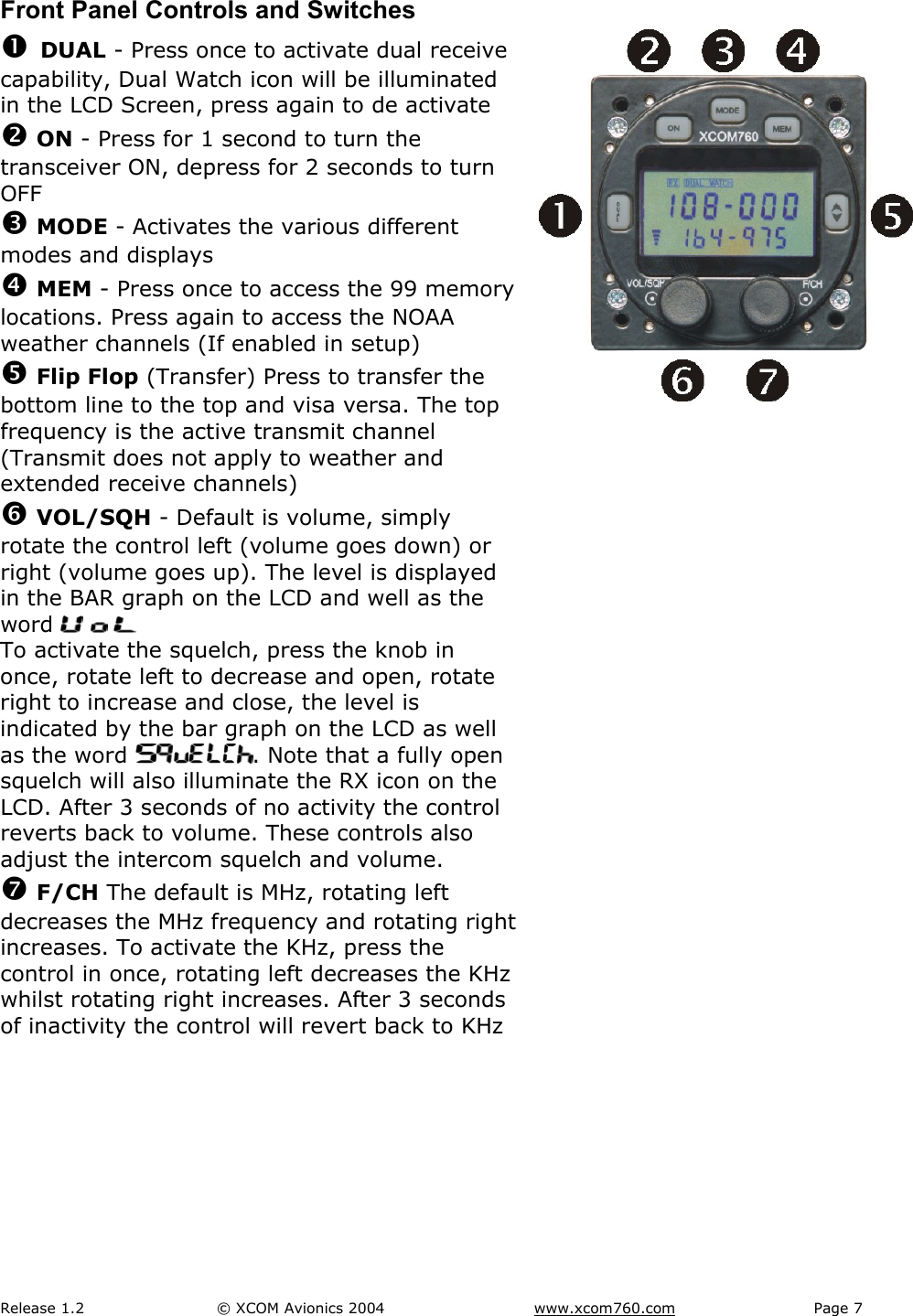
Release 1.2  © XCOM Avionics 2004       www.xcom760.com Page 7               Front Panel Controls and Switches n DUAL - Press once to activate dual receive capability, Dual Watch icon will be illuminated in the LCD Screen, press again to de activate o ON - Press for 1 second to turn the transceiver ON, depress for 2 seconds to turn OFF p MODE - Activates the various different modes and displays q MEM - Press once to access the 99 memory locations. Press again to access the NOAA weather channels (If enabled in setup) r Flip Flop (Transfer) Press to transfer the bottom line to the top and visa versa. The top frequency is the active transmit channel (Transmit does not apply to weather and extended receive channels) s VOL/SQH - Default is volume, simply rotate the control left (volume goes down) or right (volume goes up). The level is displayed in the BAR graph on the LCD and well as the word       To activate the squelch, press the knob in once, rotate left to decrease and open, rotate right to increase and close, the level is indicated by the bar graph on the LCD as well as the word  . Note that a fully open squelch will also illuminate the RX icon on the LCD. After 3 seconds of no activity the control reverts back to volume. These controls also adjust the intercom squelch and volume.  t F/CH The default is MHz, rotating left decreases the MHz frequency and rotating right increases. To activate the KHz, press the control in once, rotating left decreases the KHz whilst rotating right increases. After 3 seconds of inactivity the control will revert back to KHz
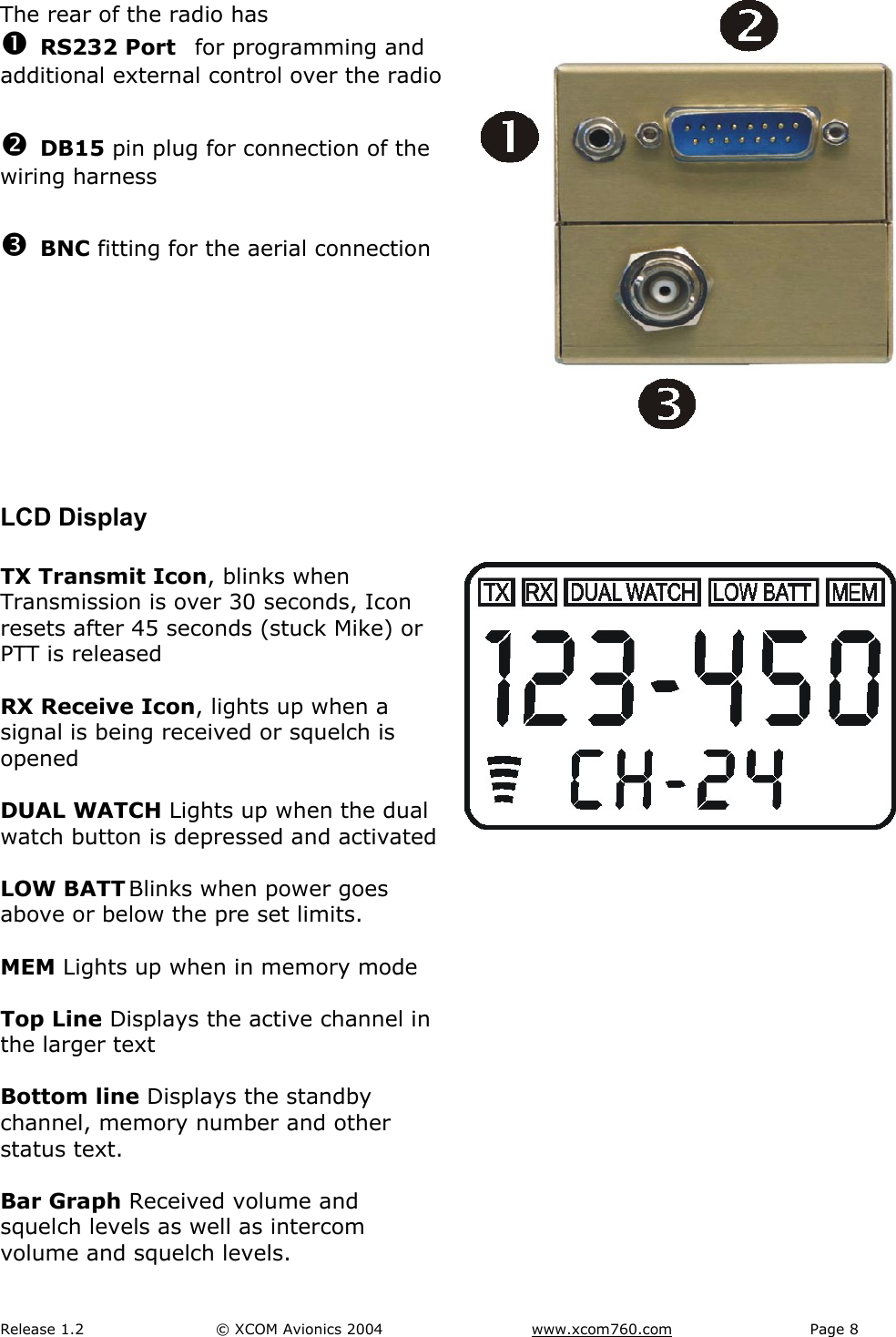
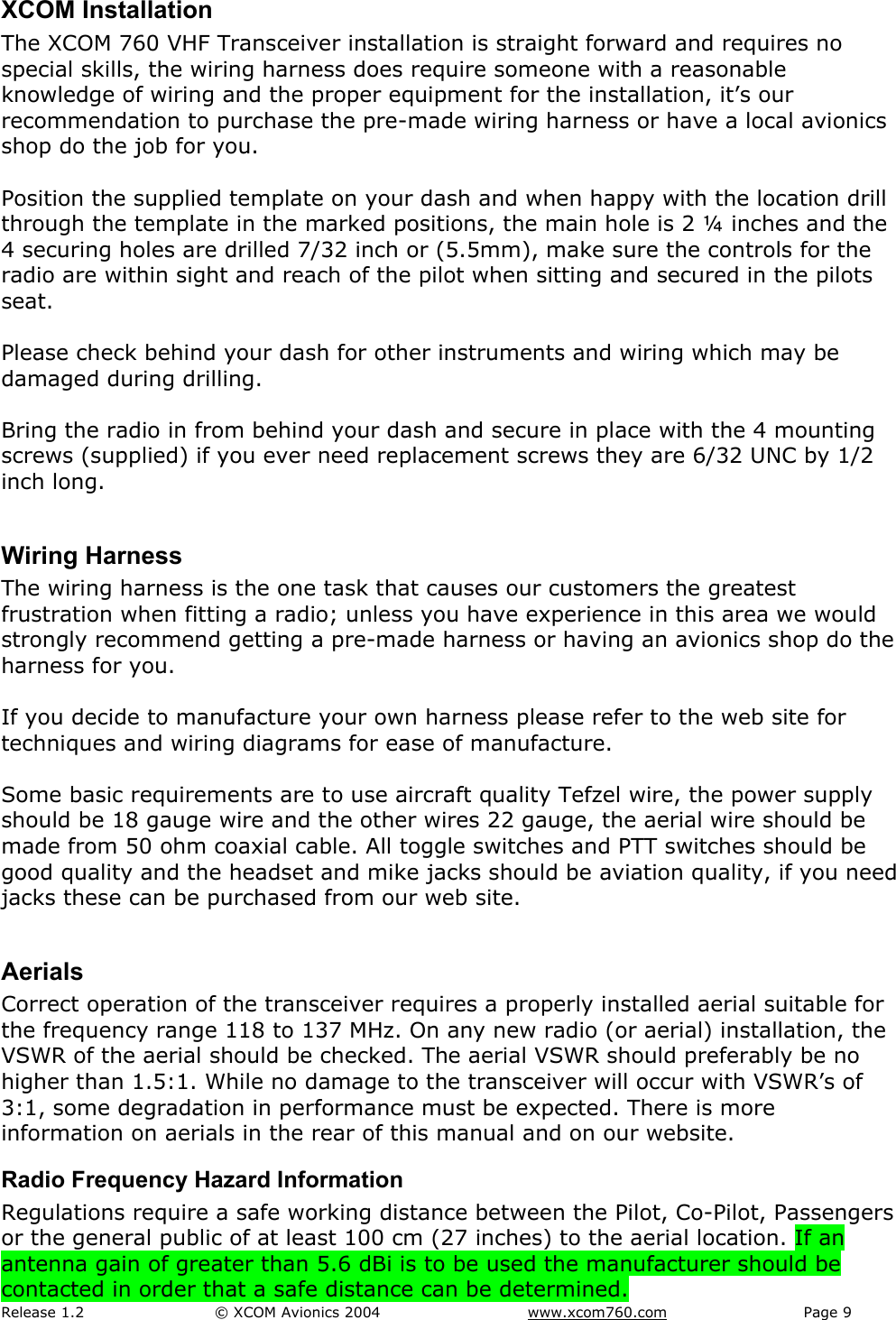
Release 1.2  © XCOM Avionics 2004       www.xcom760.com Page 8               The rear of the radio has n RS232 Port  for programming and additional external control over the radio  o DB15 pin plug for connection of the wiring harness  p BNC fitting for the aerial connection      LCD Display  TX Transmit Icon, blinks when Transmission is over 30 seconds, Icon resets after 45 seconds (stuck Mike) or PTT is released  RX Receive Icon, lights up when a signal is being received or squelch is opened  DUAL WATCH Lights up when the dual watch button is depressed and activated  LOW BATT Blinks when power goes above or below the pre set limits.  MEM Lights up when in memory mode  Top Line Displays the active channel in the larger text  Bottom line Displays the standby channel, memory number and other status text.  Bar Graph Received volume and squelch levels as well as intercom volume and squelch levels.
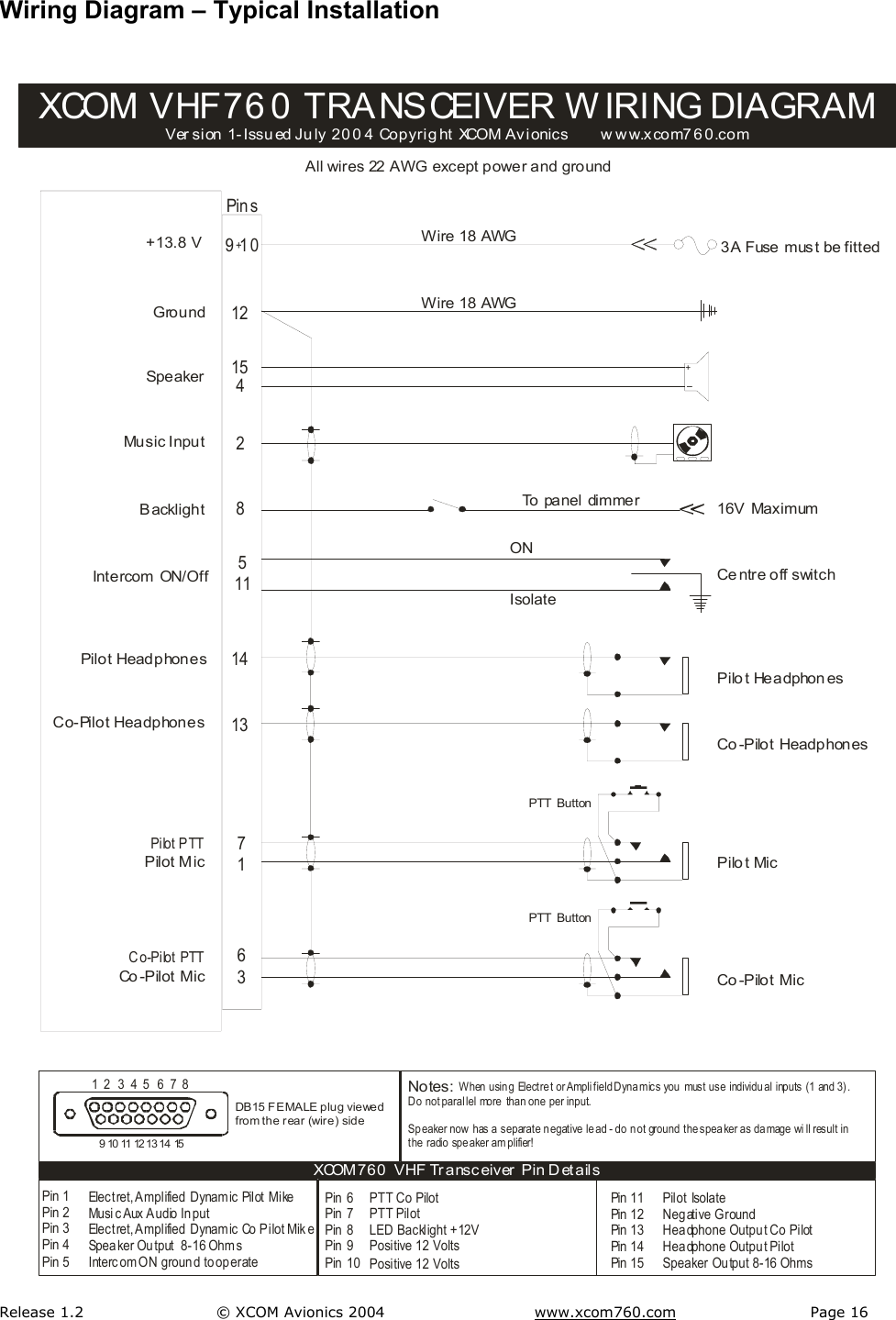
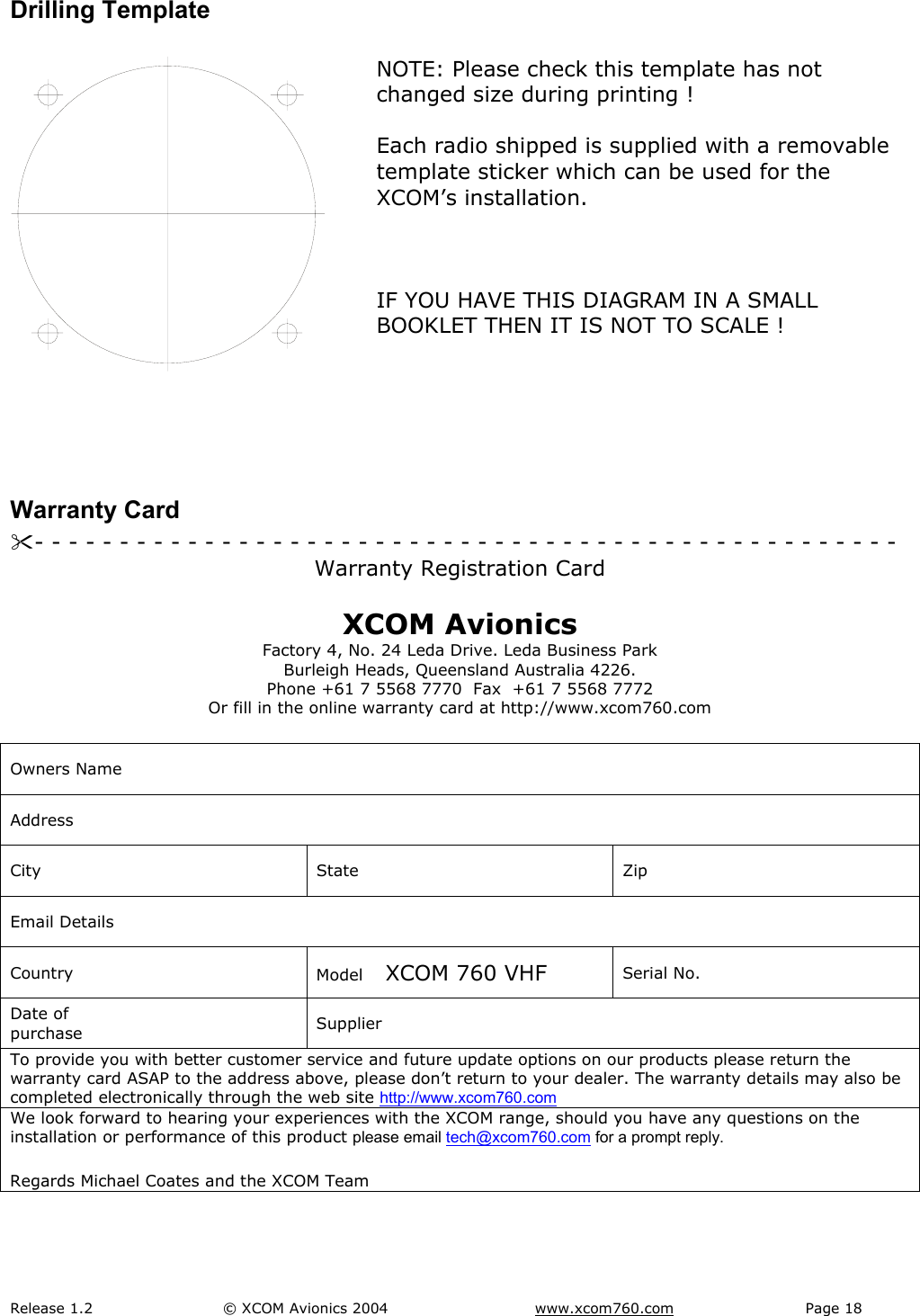
Release 1.2  © XCOM Avionics 2004       www.xcom760.com Page 9               XCOM Installation The XCOM 760 VHF Transceiver installation is straight forward and requires no special skills, the wiring harness does require someone with a reasonable knowledge of wiring and the proper equipment for the installation, it’s our recommendation to purchase the pre-made wiring harness or have a local avionics shop do the job for you.  Position the supplied template on your dash and when happy with the location drill through the template in the marked positions, the main hole is 2 ¼ inches and the 4 securing holes are drilled 7/32 inch or (5.5mm), make sure the controls for the radio are within sight and reach of the pilot when sitting and secured in the pilots seat.  Please check behind your dash for other instruments and wiring which may be damaged during drilling.  Bring the radio in from behind your dash and secure in place with the 4 mounting screws (supplied) if you ever need replacement screws they are 6/32 UNC by 1/2 inch long.  Wiring Harness The wiring harness is the one task that causes our customers the greatest frustration when fitting a radio; unless you have experience in this area we would strongly recommend getting a pre-made harness or having an avionics shop do the harness for you.  If you decide to manufacture your own harness please refer to the web site for techniques and wiring diagrams for ease of manufacture.  Some basic requirements are to use aircraft quality Tefzel wire, the power supply should be 18 gauge wire and the other wires 22 gauge, the aerial wire should be made from 50 ohm coaxial cable. All toggle switches and PTT switches should be good quality and the headset and mike jacks should be aviation quality, if you need jacks these can be purchased from our web site.  Aerials Correct operation of the transceiver requires a properly installed aerial suitable for the frequency range 118 to 137 MHz. On any new radio (or aerial) installation, the VSWR of the aerial should be checked. The aerial VSWR should preferably be no higher than 1.5:1. While no damage to the transceiver will occur with VSWR’s of 3:1, some degradation in performance must be expected. There is more information on aerials in the rear of this manual and on our website.  Radio Frequency Hazard Information Regulations require a safe working distance between the Pilot, Co-Pilot, Passengers or the general public of at least 100 cm (27 inches) to the aerial location. If an antenna gain of greater than 5.6 dBi is to be used the manufacturer should be contacted in order that a safe distance can be determined.
Release 1.2  © XCOM Avionics 2004       www.xcom760.com Page 10               Operating your XCOM Transceiver  On - To switch the unit on simply depress the ON button for one second. The transceiver will switch on. To switch off hold the button in for 2 seconds, the transceiver will switch OFF. The transceiver will start up in whatever mode it was left in, e.g. if the unit was turned on by the ON button, but turned off via the power, say an avionics switch, then when the power is restored it will turn on automatically. If the unit was turned off using the ON button, and then power removed, it will be off when power is re-applied.  MODE - This is the main menu button for selecting various user options and for displaying the voltage. To activate the first option push the button once, at any time you want to go back to the main receiving screen hit the Ú button, this acts as a hotkey to return you back to the main screen, when back in the main screen it reverts back to a flip flop function.  There are 5 options  IntVol  Intercom Volume, rotating the VOL/SQH control will increase or decrease the intercom volume. The bar graph will go up or down to indicate level. Hit the Ú to return to the main screen or MODE to access the next option.  IntSQH  Intercom Squelch, rotating the VOL/SQH control will increase or decrease the intercom squelch. The bar graph will go up or down to indicate level. Hit the Ú to return to the main screen or MODE to access the next option.  VoR On  Receive VOR (Audio ONLY) this means the receive range includes 108 to 117.975 MHz. Push the F/CH knob to toggle the option between On & Off. Rotating the F/CH knob clockwise accesses the General Coverage option.  Gen On  General Coverage option is enabled. The receive range is now from 118.00 to 163 MHz or 108 to 163Mhz if the VOR option is also enabled. The receive sensitivity reduces at the 150 MHz + end. Above 137 MHz the mode changes to FM. This enables monitoring of the popular Amateur 2 meter band and marine frequencies. Push the F/CH knob to toggle the option between On & Off. Hit the Ú to return to the main screen or MODE to access the next option. Rotating the F/CH knob anti-clockwise will return to the VOR option screen.  VoLTS  Shows the current voltage, rotating the F/CH up or down will show the high volts set point and the low volts set point. Hit the Ú to select this option and return to the main screen.  MEM - Press this button once to access the 99 memory channels. Note that if nothing is programmed into the memory, the display remains unchanged. The
Release 1.2  © XCOM Avionics 2004       www.xcom760.com Page 11               memory channels are displayed as channel number on the bottom line and frequency on the top. Use the F/CH control to scroll through the memory channels.   Only channels that are programmed will be displayed. If you wish to load the memory frequency to the main flip flop screen for either using later to transmit on, or to dual monitor, simply press and hold in the Ú for 2 seconds, this will transfer the currently displayed memory channel to the flip flop screen and return you to the flip flop screen. If you press it only once (do not hold in for longer than a second) the screen will revert back to the main screen (flip flop) with no memory channel loaded.  Press the MEM button twice to access the NOAA weather channels, use the F/CH control to scroll through the weather channels. Hit the Ú to select this option and return to the main screen.  Dual - Press this button when in the main screen (flip flop). The DUAL WATCH icon will be illuminated. Both the active and the standby frequencies are now being monitored. The active is always considered the priority frequency and the standby the secondary frequency. Whilst listening to the active frequency the transceiver checks the standby 4 times a second for activity, if there is activity then it locks on to the standby and stays there for the duration of the transmission on the standby frequency unless there is a transmission on the active frequency. If there is a transmission on the active frequency the transceiver will stay there only returning to scanning on dual watch 5 seconds after voice transmission has ceased. If you press the PTT button you will only transmit on the active frequency while in dual watch, the dual watch feature will temporarily switch off for about 5 seconds when you transmit expecting a reply to come back from another aircraft or ATC, if no reply comes back then the transceiver will return to scanning again.  Note: When there is a station talking on the standby frequency a slight PIP PIP sound may be heard, this is the scanning sound as the transceiver momentarily checks the active frequency, this sound is normal in this mode.  If the active frequency is receiving the RX icon will be illuminated, and the – between the MHz and KHz on the active frequency display will blink (top line display), this indicates that the active is receiving. If the standby is receiving then the RX icon will be illuminated and the – between the MHz and KHz will blink on the standby frequency (bottom line display), this indicates that the standby frequency is receiving.   Flip Flop button Ú - Pressing this in the main screen (flip flop screen) will transfer the top line to the bottom, and the bottom to the top. When in MEM mode, pressing and holding it down for 2 SECONDS will transfer the currently displayed MEM channel to the standby screen in the main screen (flip flop screen). When in MEM mode pressing it for 1 second will revert back to main screen. When in MODE screens, hitting the button will either enter and return or just return back to the main screen.
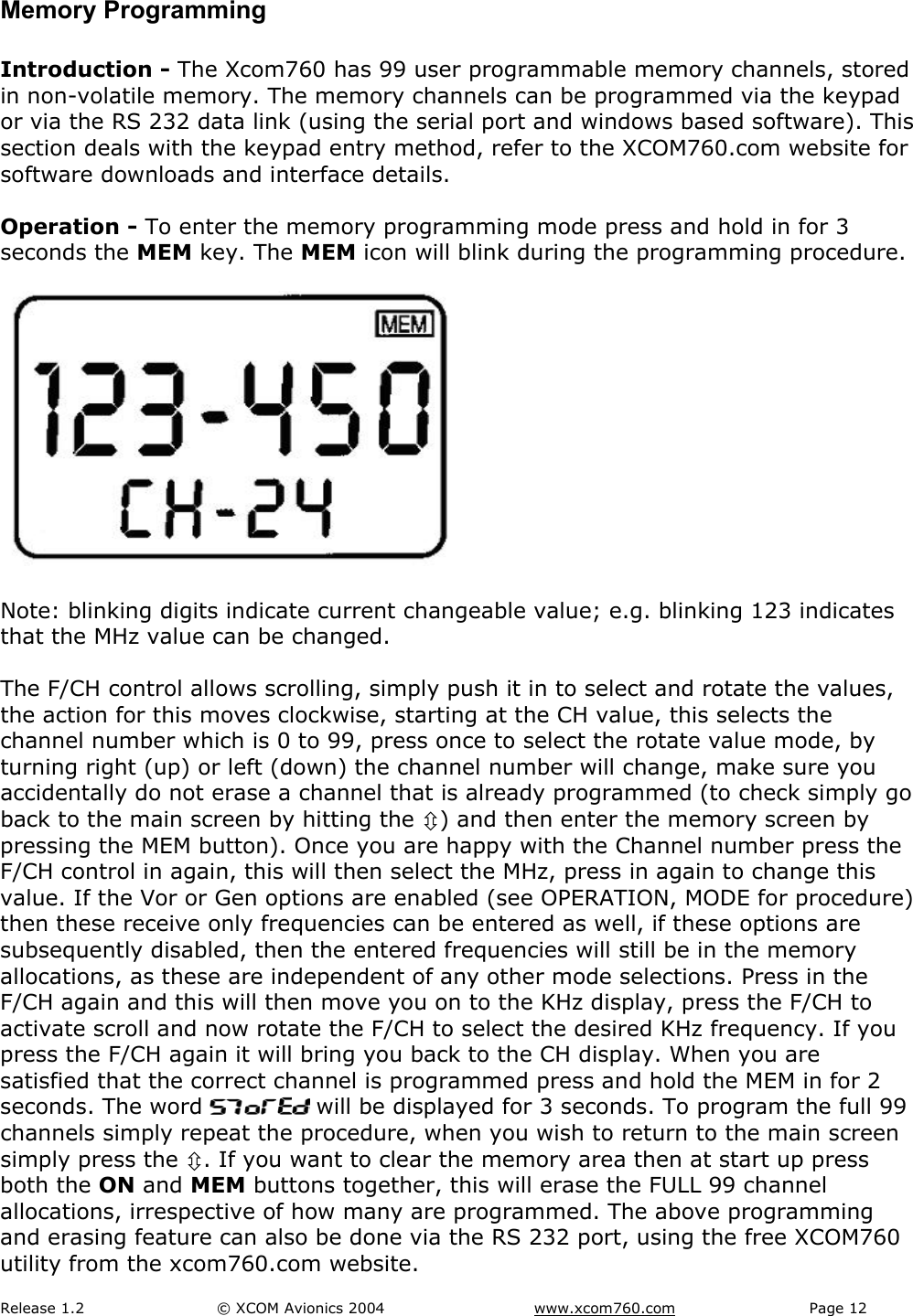
Release 1.2  © XCOM Avionics 2004       www.xcom760.com Page 12               Memory Programming  Introduction - The Xcom760 has 99 user programmable memory channels, stored in non-volatile memory. The memory channels can be programmed via the keypad or via the RS 232 data link (using the serial port and windows based software). This section deals with the keypad entry method, refer to the XCOM760.com website for software downloads and interface details.  Operation - To enter the memory programming mode press and hold in for 3 seconds the MEM key. The MEM icon will blink during the programming procedure.    Note: blinking digits indicate current changeable value; e.g. blinking 123 indicates that the MHz value can be changed.  The F/CH control allows scrolling, simply push it in to select and rotate the values, the action for this moves clockwise, starting at the CH value, this selects the channel number which is 0 to 99, press once to select the rotate value mode, by turning right (up) or left (down) the channel number will change, make sure you accidentally do not erase a channel that is already programmed (to check simply go back to the main screen by hitting the Ú) and then enter the memory screen by pressing the MEM button). Once you are happy with the Channel number press the F/CH control in again, this will then select the MHz, press in again to change this value. If the Vor or Gen options are enabled (see OPERATION, MODE for procedure) then these receive only frequencies can be entered as well, if these options are subsequently disabled, then the entered frequencies will still be in the memory allocations, as these are independent of any other mode selections. Press in the F/CH again and this will then move you on to the KHz display, press the F/CH to activate scroll and now rotate the F/CH to select the desired KHz frequency. If you press the F/CH again it will bring you back to the CH display. When you are satisfied that the correct channel is programmed press and hold the MEM in for 2 seconds. The word   will be displayed for 3 seconds. To program the full 99 channels simply repeat the procedure, when you wish to return to the main screen simply press the Ú. If you want to clear the memory area then at start up press both the ON and MEM buttons together, this will erase the FULL 99 channel allocations, irrespective of how many are programmed. The above programming and erasing feature can also be done via the RS 232 port, using the free XCOM760 utility from the xcom760.com website.
Release 1.2  © XCOM Avionics 2004       www.xcom760.com Page 13               Setup Options Introduction  The setup screens are not programmable during normal use, as these options effect how the transceiver will display screens, or operate in general. The following procedure relates to programming these options and care should be taken. DO NOT adjust the Microphone gain control unless you are confident to, read the instructions and if in doubt have an avionics technician do the adjustment for you. The setup parameters can also be changed via the RS-232 port using the windows based SETUP utility, which can be downloaded at xcom760.com   Operation  The access the setup screen, press and hold at startup the following buttons:  DUAL - MODE - ON  The setup screen will appear; first it will display the current version number for 5 seconds, e.g.    1-01  The screen will then display the following setup options:   option  or    This selects the intercom to be on, or off  (default is ON). In the ON mode, the intercom is enabled in the transceiver and the   and   appear in the MODE screen. To set on or off simply rotate the F/CH control. Press the F/CH to go on to the next option or Ú to return to the main screen, the new values will be stored.     Note: Selecting the intercom to OFF aids in current consumption savings, important for battery powered applications like gliding.   option  or     This selects the Microphone sidetone ON or OFF (Default is ON). Selecting ON enables the sidetone during transmission, which can only be heard in the headsets. Selecting OFF removes the sidetone. To set on or off simply rotate the F/CH control. Press the F/CH to go on to the next option or Ú to return to the main screen, the new values will be stored.    Note: Selecting the SIDETONE to OFF aids in current consumption savings, important for battery powered applications like gliding.   -    This sets the HIGH point trip for the battery alert, Rotate the F/CH control to set the upper limit. The default is 15
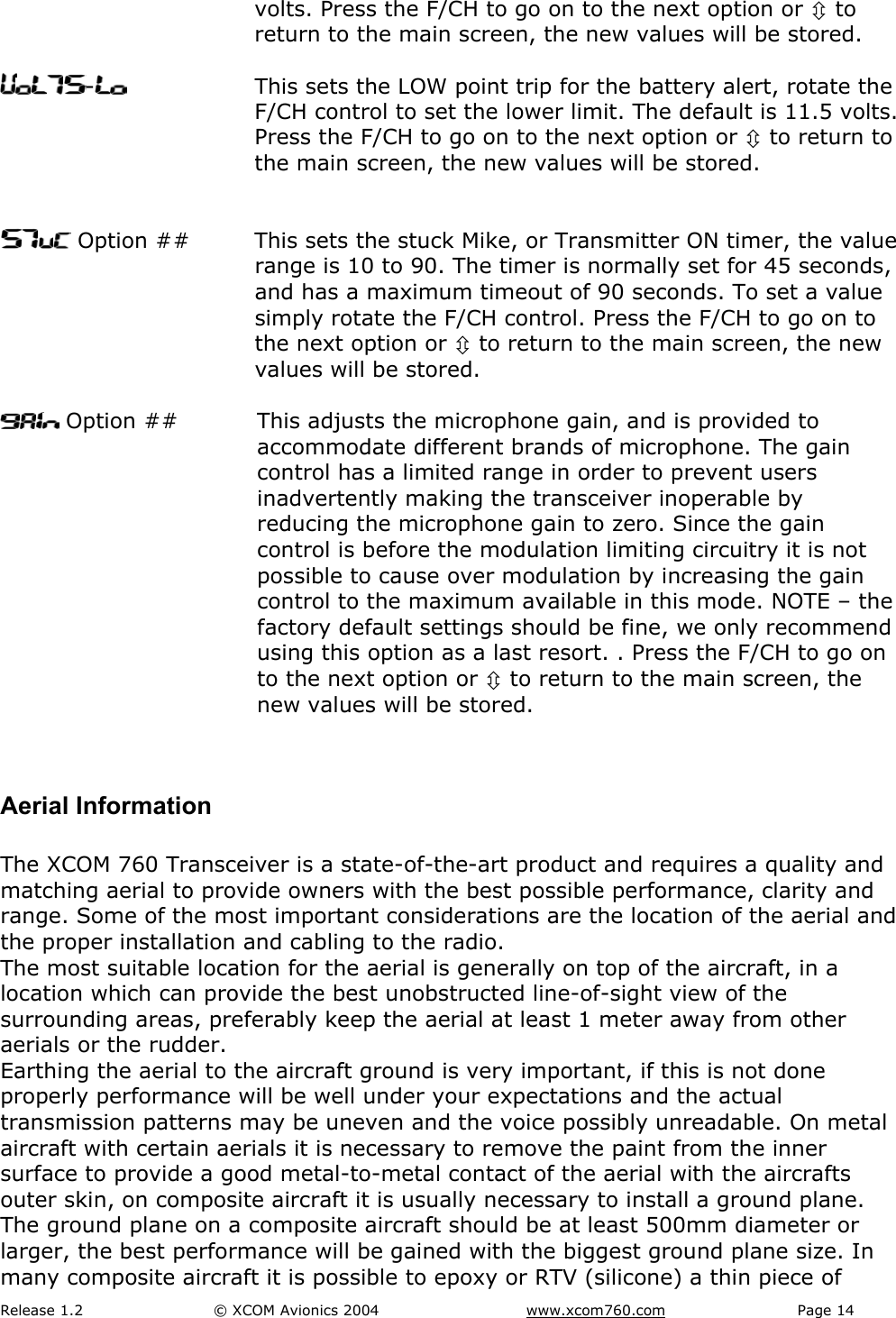
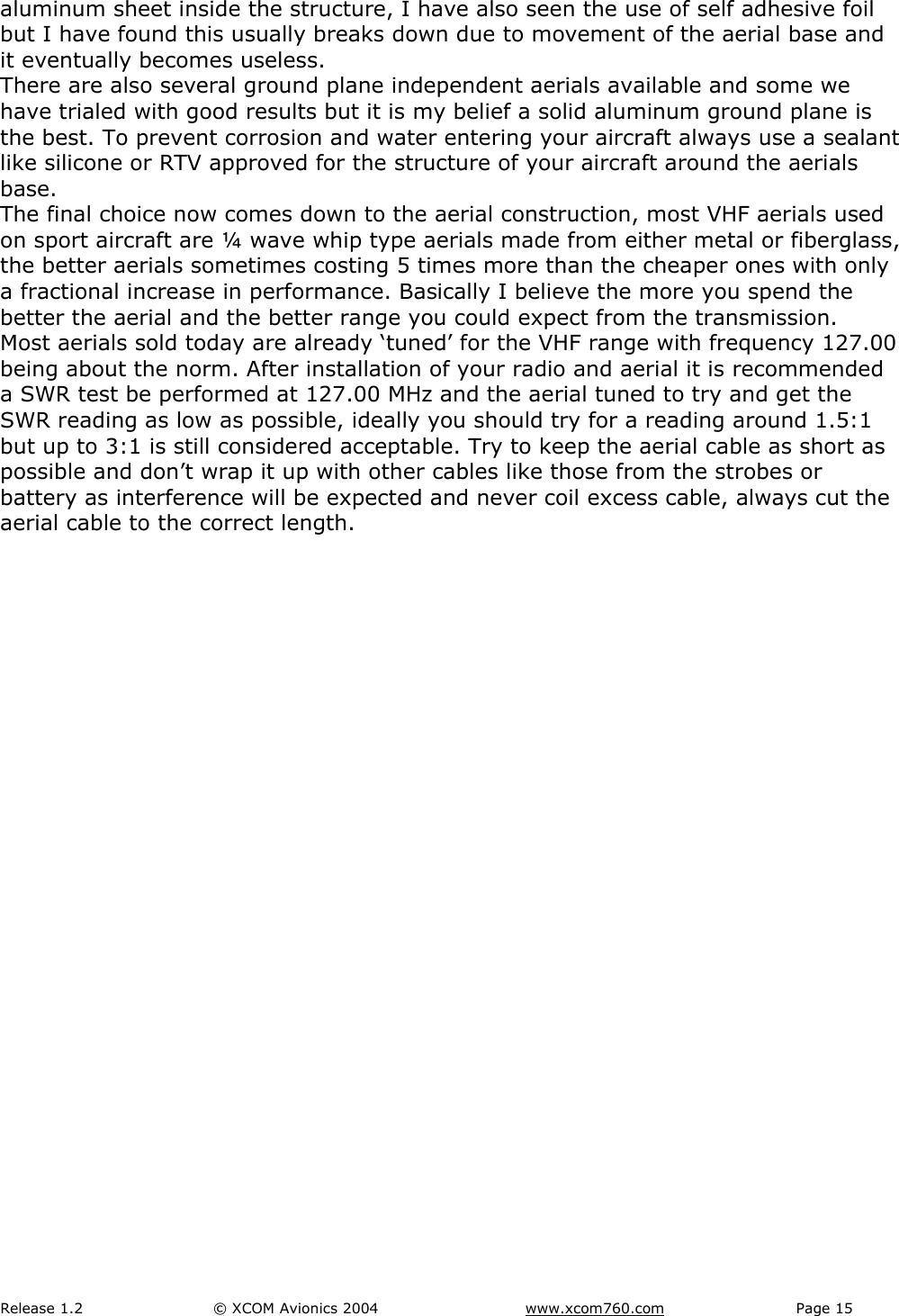
Release 1.2  © XCOM Avionics 2004       www.xcom760.com Page 14               volts. Press the F/CH to go on to the next option or Ú to return to the main screen, the new values will be stored.  -  This sets the LOW point trip for the battery alert, rotate the F/CH control to set the lower limit. The default is 11.5 volts. Press the F/CH to go on to the next option or Ú to return to the main screen, the new values will be stored.    Option ##  This sets the stuck Mike, or Transmitter ON timer, the value range is 10 to 90. The timer is normally set for 45 seconds, and has a maximum timeout of 90 seconds. To set a value simply rotate the F/CH control. Press the F/CH to go on to the next option or Ú to return to the main screen, the new values will be stored.   Option ##  This adjusts the microphone gain, and is provided to accommodate different brands of microphone. The gain control has a limited range in order to prevent users inadvertently making the transceiver inoperable by reducing the microphone gain to zero. Since the gain control is before the modulation limiting circuitry it is not possible to cause over modulation by increasing the gain control to the maximum available in this mode. NOTE – the factory default settings should be fine, we only recommend using this option as a last resort. . Press the F/CH to go on to the next option or Ú to return to the main screen, the new values will be stored.  Aerial Information  The XCOM 760 Transceiver is a state-of-the-art product and requires a quality and matching aerial to provide owners with the best possible performance, clarity and range. Some of the most important considerations are the location of the aerial and the proper installation and cabling to the radio. The most suitable location for the aerial is generally on top of the aircraft, in a location which can provide the best unobstructed line-of-sight view of the surrounding areas, preferably keep the aerial at least 1 meter away from other aerials or the rudder. Earthing the aerial to the aircraft ground is very important, if this is not done properly performance will be well under your expectations and the actual transmission patterns may be uneven and the voice possibly unreadable. On metal aircraft with certain aerials it is necessary to remove the paint from the inner surface to provide a good metal-to-metal contact of the aerial with the aircrafts outer skin, on composite aircraft it is usually necessary to install a ground plane. The ground plane on a composite aircraft should be at least 500mm diameter or larger, the best performance will be gained with the biggest ground plane size. In many composite aircraft it is possible to epoxy or RTV (silicone) a thin piece of
Release 1.2  © XCOM Avionics 2004       www.xcom760.com Page 15               aluminum sheet inside the structure, I have also seen the use of self adhesive foil but I have found this usually breaks down due to movement of the aerial base and it eventually becomes useless. There are also several ground plane independent aerials available and some we have trialed with good results but it is my belief a solid aluminum ground plane is the best. To prevent corrosion and water entering your aircraft always use a sealant like silicone or RTV approved for the structure of your aircraft around the aerials base. The final choice now comes down to the aerial construction, most VHF aerials used on sport aircraft are ¼ wave whip type aerials made from either metal or fiberglass, the better aerials sometimes costing 5 times more than the cheaper ones with only a fractional increase in performance. Basically I believe the more you spend the better the aerial and the better range you could expect from the transmission.  Most aerials sold today are already ‘tuned’ for the VHF range with frequency 127.00 being about the norm. After installation of your radio and aerial it is recommended a SWR test be performed at 127.00 MHz and the aerial tuned to try and get the SWR reading as low as possible, ideally you should try for a reading around 1.5:1 but up to 3:1 is still considered acceptable. Try to keep the aerial cable as short as possible and don’t wrap it up with other cables like those from the strobes or battery as interference will be expected and never coil excess cable, always cut the aerial cable to the correct length.
Release 1.2  © XCOM Avionics 2004       www.xcom760.com Page 16               Wiring Diagram – Typical Installation   910+ Pin sWire 18 AWG12Wire 18 AWGPilo t Headphon esCo -Pilot Headphones1413Pilot MicCo -Pilo t MicPTT  ButtonPTT  Button6371Pilot PTTPilot MicCo-Pilot PTTCo -P ilot M icCo-Pilot HeadphonesPilot Headphones+-154SpeakerMu sic Inpu t2BacklightIntercom ON/Off8511Ground+13.8 V1 2 3 4 5 6 7 89  10  11  12 1 3  1 4  15DB15 FEMALE plug viewedfrom the rear  (wire) sideXCOM VHF7 6 0  TRA NS CEIVER W IRING DIAGRAMVer si on  1 - Issu ed Ju ly  20 0 4  Copyri g ht  XCOM  Av i onics         w w w.x com7 6 0.co m3A Fuse must be fittedNotes: When using Electret or Amplifield Dyna mics you  must use individual inputs (1 and 3) . Do not parallel more  than one per input.Speaker now has a  separate n egative lead - do not  ground  the speaker  as da mage  wi ll result  in  the radio speaker am plifier!Electret, Amplified Dynamic Pilot MikeMusic Aux Audio InputElectret, Amplified Dynamic Co Pilot MikeSpeaker Output  8-16 OhmsInterc om ON ground to operatePTT Co PilotPTT PilotPositive 12 VoltsPositive 12 VoltsLED Backlight +12VSpeaker Output 8-16 OhmsPilot IsolateNegative GroundHeadphone Output Co PilotHeadphone Output PilotXCOM760  VHF Tr ansceiver  Pin DetailsPin 1Pin 2Pin 3Pin 4Pin 5Pin 6Pin 7Pin 8Pin 9Pin 10Pin  11Pin  12Pin  13Pin  14Pin  15All wires 22 AWG except power and groundCentre off switchONIsolate16V  MaximumTo  pa nel  di mme r
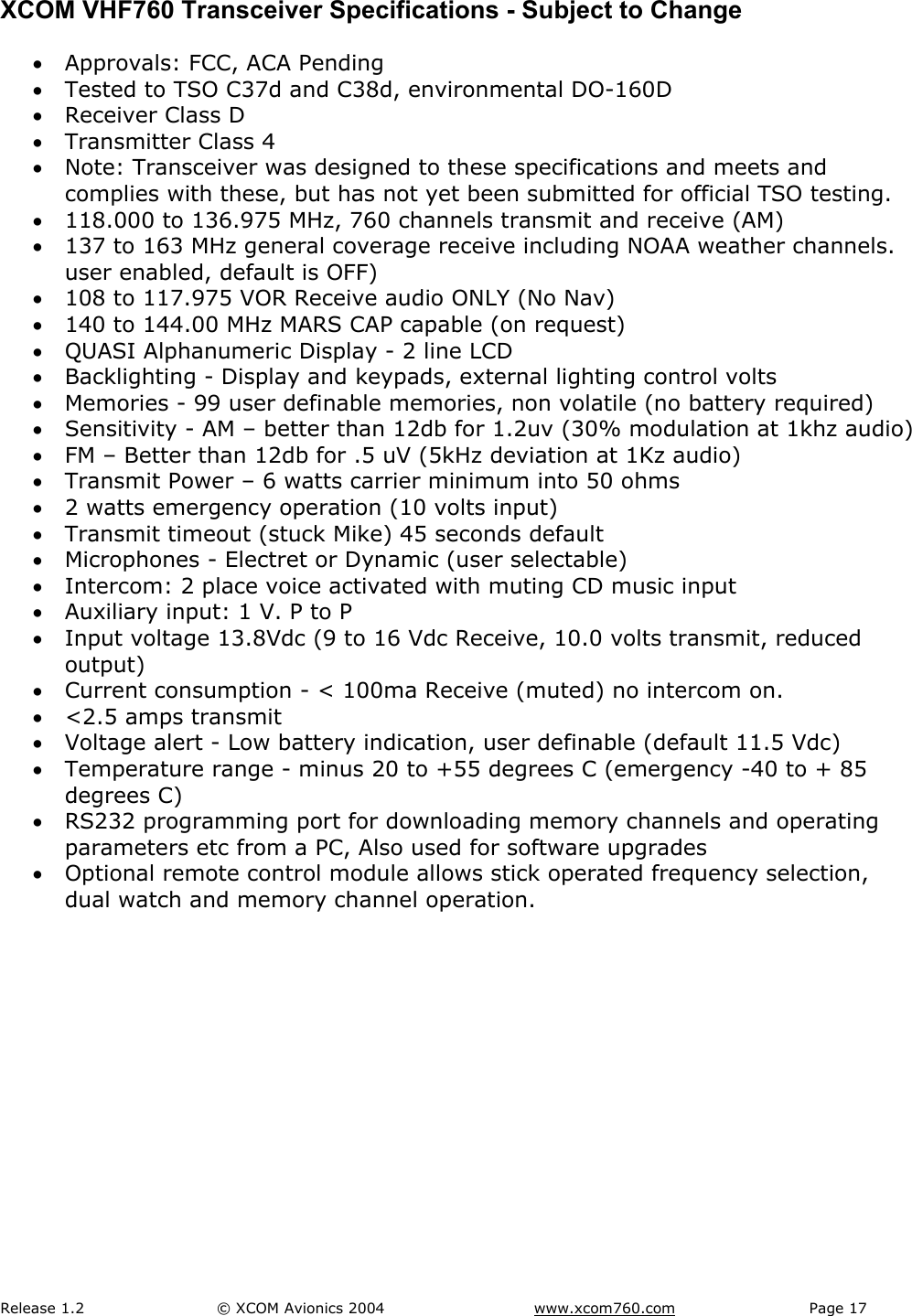
Release 1.2  © XCOM Avionics 2004       www.xcom760.com Page 17               XCOM VHF760 Transceiver Specifications - Subject to Change • Approvals: FCC, ACA Pending • Tested to TSO C37d and C38d, environmental DO-160D • Receiver Class D • Transmitter Class 4 • Note: Transceiver was designed to these specifications and meets and complies with these, but has not yet been submitted for official TSO testing. • 118.000 to 136.975 MHz, 760 channels transmit and receive (AM) • 137 to 163 MHz general coverage receive including NOAA weather channels. user enabled, default is OFF) • 108 to 117.975 VOR Receive audio ONLY (No Nav) • 140 to 144.00 MHz MARS CAP capable (on request) • QUASI Alphanumeric Display - 2 line LCD  • Backlighting - Display and keypads, external lighting control volts • Memories - 99 user definable memories, non volatile (no battery required) • Sensitivity - AM – better than 12db for 1.2uv (30% modulation at 1khz audio) • FM – Better than 12db for .5 uV (5kHz deviation at 1Kz audio) • Transmit Power – 6 watts carrier minimum into 50 ohms • 2 watts emergency operation (10 volts input) • Transmit timeout (stuck Mike) 45 seconds default • Microphones - Electret or Dynamic (user selectable) • Intercom: 2 place voice activated with muting CD music input • Auxiliary input: 1 V. P to P • Input voltage 13.8Vdc (9 to 16 Vdc Receive, 10.0 volts transmit, reduced output) • Current consumption - < 100ma Receive (muted) no intercom on. • <2.5 amps transmit  • Voltage alert - Low battery indication, user definable (default 11.5 Vdc) • Temperature range - minus 20 to +55 degrees C (emergency -40 to + 85 degrees C) • RS232 programming port for downloading memory channels and operating parameters etc from a PC, Also used for software upgrades • Optional remote control module allows stick operated frequency selection, dual watch and memory channel operation.
Release 1.2  © XCOM Avionics 2004       www.xcom760.com Page 18               Drilling Template   NOTE: Please check this template has not changed size during printing !  Each radio shipped is supplied with a removable template sticker which can be used for the XCOM’s installation.    IF YOU HAVE THIS DIAGRAM IN A SMALL BOOKLET THEN IT IS NOT TO SCALE !    Warranty Card - - - - - - - - - - - - - - - - - - - - - - - - - - - - - - - - - - - - - - - - - - - - - - - - - - -  Warranty Registration Card  XCOM Avionics Factory 4, No. 24 Leda Drive. Leda Business Park Burleigh Heads, Queensland Australia 4226. Phone +61 7 5568 7770  Fax  +61 7 5568 7772 Or fill in the online warranty card at http://www.xcom760.com  Owners Name Address City State Zip Email Details Country  Model    XCOM 760 VHF  Serial No. Date of purchase  Supplier To provide you with better customer service and future update options on our products please return the warranty card ASAP to the address above, please don’t return to your dealer. The warranty details may also be completed electronically through the web site http://www.xcom760.com   We look forward to hearing your experiences with the XCOM range, should you have any questions on the installation or performance of this product please email tech@xcom760.com for a prompt reply. Regards Michael Coates and the XCOM Team
Release 1.2  © XCOM Avionics 2004       www.xcom760.com Page 19               Notes                                                                                                                                                                                                                                                                                                                                                           Please retain this manual for future reference
Release 1.2  © XCOM Avionics 2004       www.xcom760.com Page 20

Navigation menu