XSOUND Innovation Technologies H6 Bluetooth Stereo Headphone User Manual
XSOUND Innovation Technologies Co., Ltd. Bluetooth Stereo Headphone Users Manual
Users Manual
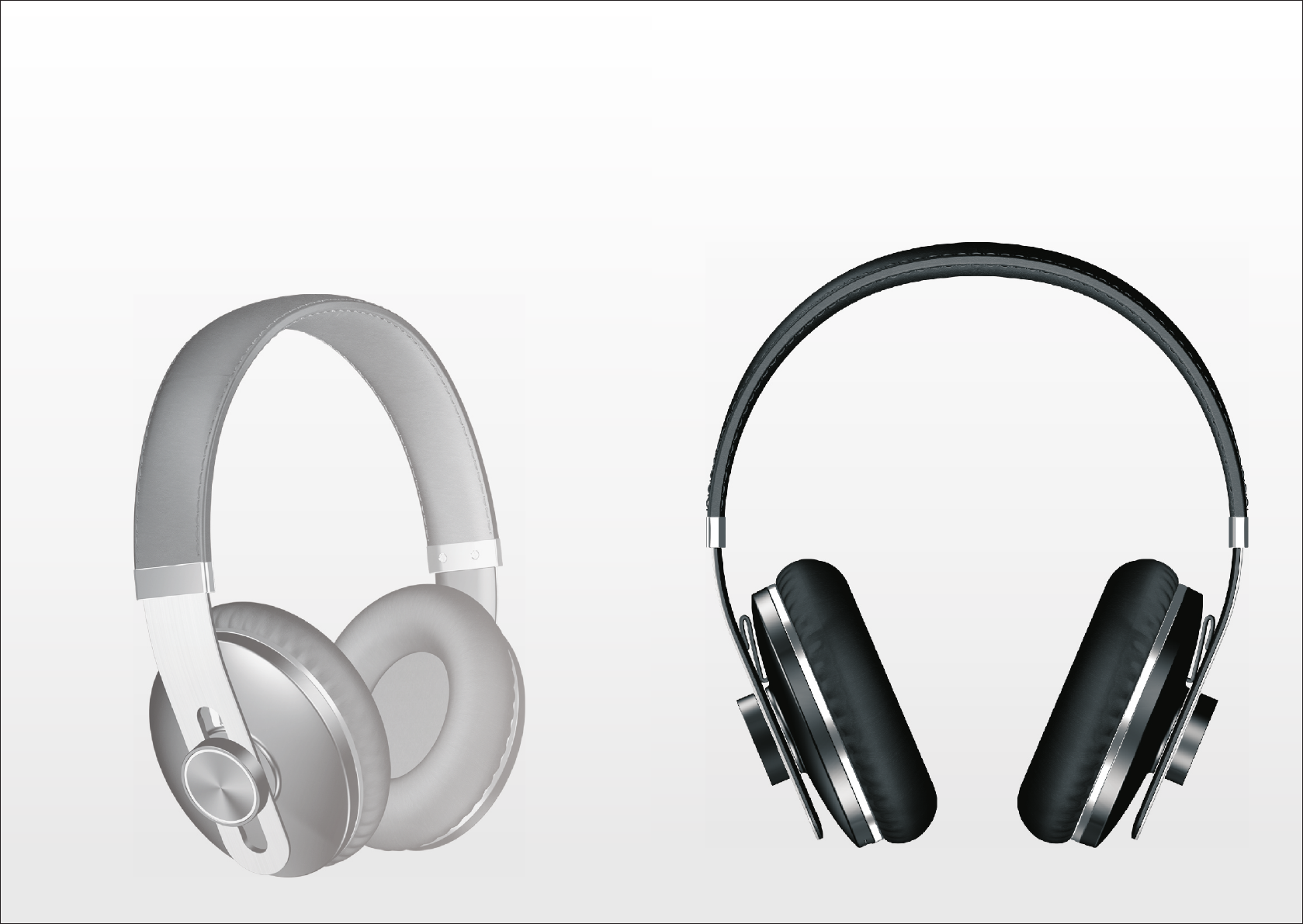
BLUETOOTH STEREO HEADPHONE
H6 USER MANUAL

1 Introduction
2 Kit Contents
3 Connection Diagram
4 How to use
4.1 General function
4.2 Pairing to mobile phone
4.3 Charging your
5
6 Service and Support
7 FAQ
device
Technical specification
1
1
2
2
2
4
5
7
7
6
Table of contents
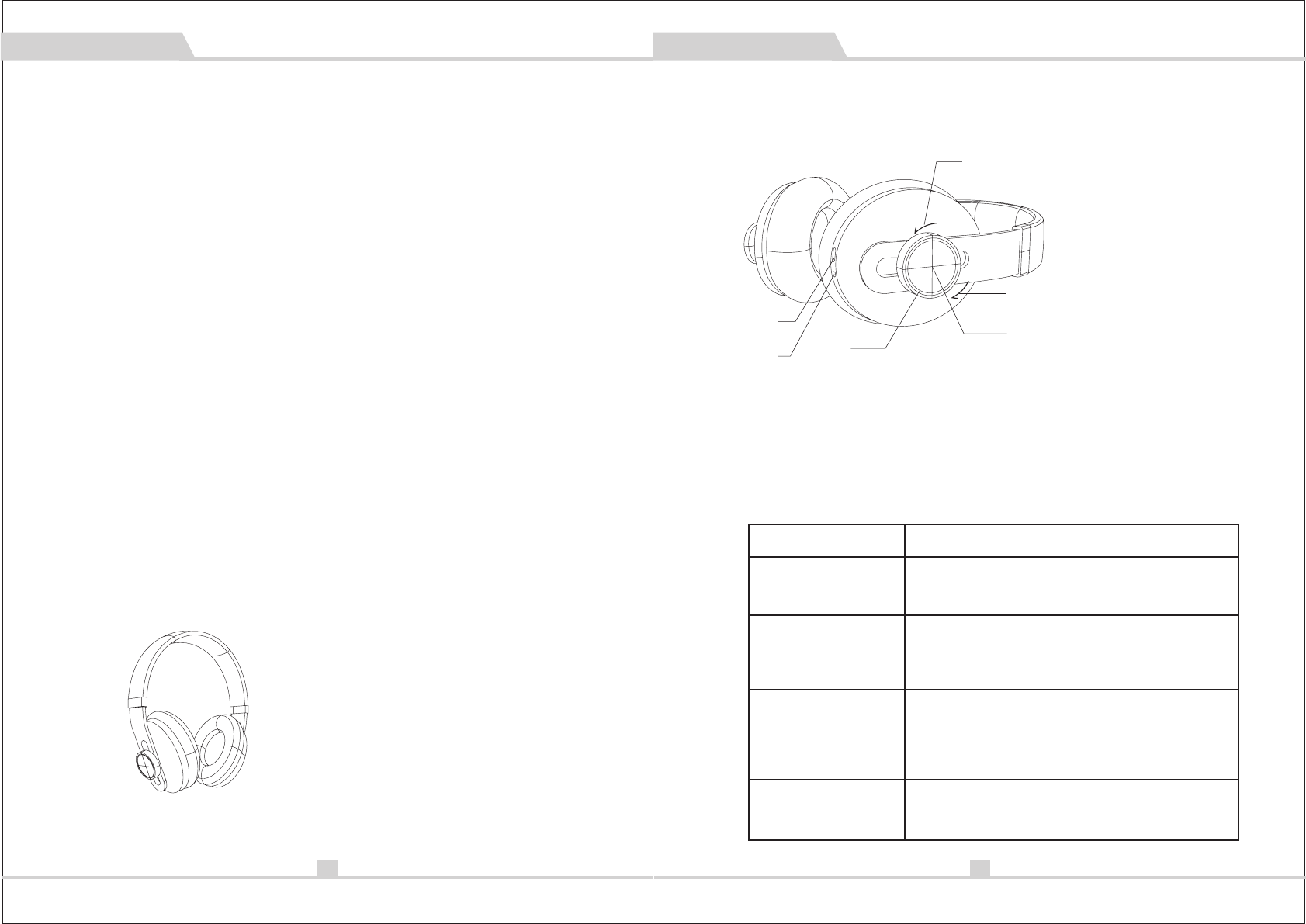
2. Kit Contents
1X Bluetooth Headphone H6
1 X USB Charger Cable
1X User Manual
01
1.Introduction
Congratulations, and thank you for choosing the Bluetooth
Stereo Headphone. This manual will help you operate the
Bluetooth Stereo Headphone, but you should first
familiarize yourself with the Bluetooth functionality of your
mobile phone or other devices before using the Bluetooth
Stereo Headphone
Safety Rules
1\ Please follow the rules depicted in this manual closely
to ensure your safety. Before using this Bluetooth
Stereo Headphone, we would strongly encourage you
to read through this user manual.
2\ Be more wary of any edges, uneven surfaces, metal
parts, accessories and its packaging so as to prevent
any possible injury or damage.
3\ Do not modify, repair or dismantle this Bluetooth
Stereo Headphone. Doing so may result in fires, electric
shocks, complete breakdown of this Bluetooth Stereo
Headphone, etc. All of which, are not covered under
warranty.
4\ Do not use any diluents or volatile liquid to clean the
Bluetooth Stereo Headphone.
5\ Do not use the Bluetooth Stereo Headphone in a
hazardous location.
H6 USER MANUAL
In power off mode Press the “ ① ” button
and hold on for 6 seconds.(White LED and
Red LED quickly flash alternately with two
beep tone voice).
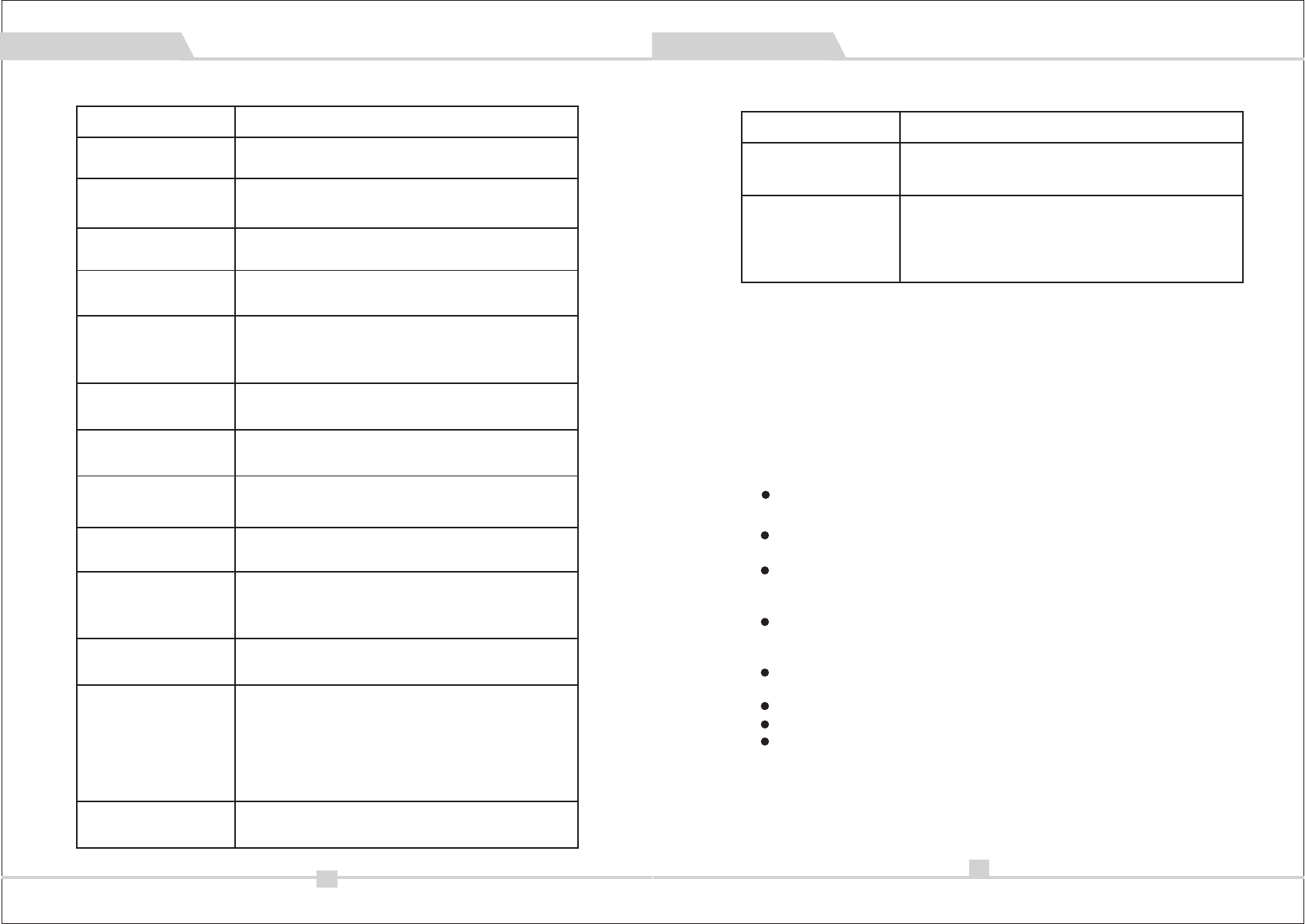
3.Connection Diagram
4.How to use
4.1General Functions
Turn on
Enter the pairing
Mode
Pairing
Desired Result Required Action
02
Press the “ ① ” button for 2 seconds when
the device is off. (White LED slowly flashes
and a tone voice beep)
In pairing Mode use a Bluetooth function
mobile phone or other Bluetooth Master
Device and to perform pairing action
(detail refer to the chapter about pairing)
Play / pause
Press “ ① ” to play when the device is
pausing and press to pause when the
device is playing.
①
②
③
④
⑤⑥
① Tact switch
② Clockwise rotation switch
③ Counterclockwise
rotation switch
④ USB charging port
⑤ Microphone
⑥ LED indication
H6 USER MANUAL
04
4.2.Pairing to Mobile phone or other device
To use your Bluetooth Stereo Headphone, you must first pair
your Stereo Headphone with a phone or a computer. Once
your Bluetooth Stereo Headphone is paired to a specific
mobile phone, they will remain paired and automatically
recognize each other whenever they are within range.
Pairing to a phone and Entertainment:
Turn on your phone and ensure its Bluetooth function
is activated
Turn on the Bluetooth Stereo Headphone go to the paring
mode.
Search your Bluetooth devices on your phone by
following the phone's instructions. Refer to your phone's
user manual for more information.
After a few second the phone will list the device as a
discover device. Select it and follow your phone
instruction to select this pairing.
Then your phone will request a passkey or PIN, enter
0000 as your PIN or passkey.
Your phone will confirm the pairing, and then press Yes/Ok.
Finally, select to connect with device from your phone.
You can play music; watch TV/movie and play game with
your phone, then you can hear all the sound or music
from the device. Also you can control the player by
operating the device. Example, volume up and next music.
Double-click the multifunction button under
pairring mode
Desired Result Required Action
Disable Multipoint
Battery display
Connected to the mobile phone battery in the
phone's screen will be shown after the top
right corner (only support the iphone)
H6 USER MANUAL
Previous
Clockwise rotation and hold for volume up
Desired Result Required Action
Short counterclockwise rotation and release
for previous music
Short clockwise rotation and release
for next music
03
Volume up
Volume down Counterclockwise rotation and hold for
volume down
Next
Turn off
Press the “ ” button for 3 seconds when
the device is on.(a tone voice beep and
all LED is off)
①
Low battery
warning The Red LED flash and three tone voice beep
Charging Plug the charger to port of the device.
(Red LED is on)
Answer call Press the button for 0.5 second while
the call coming
“ ① ”
End call Press the button for 0.5 second to end
call
“ ① ”
Transfer call
voice
Press the button for 2 seconds to
transfer the call voice between the
mobile phone and device
“ ① ”
Reject call Press the button for 2 seconds to
reject call when the call is ringing
“ ① ”
Enable Multipoint
short single-click the multifunction button
under pairring mode.Enter into the state of
pairing with A mobile phone succesfully
matching,and then restart the pairing with
B mobile phone in pairing staus,and then
use A mobile phone connect headphones.
H6 USER MANUAL
Last number redial Press the button for 1 second on
connected state.
“ ① ”
After a few second the “ device name” will list in Bluetooth
software of your computer as a discover device.
Select this icon and click right button of mouse to select
“pairing” item,then select “connect with audio device”
with same operation.
Open your media player soft to play music, watch
TV/move and play game, then all the sound will be
playback on your device.
05
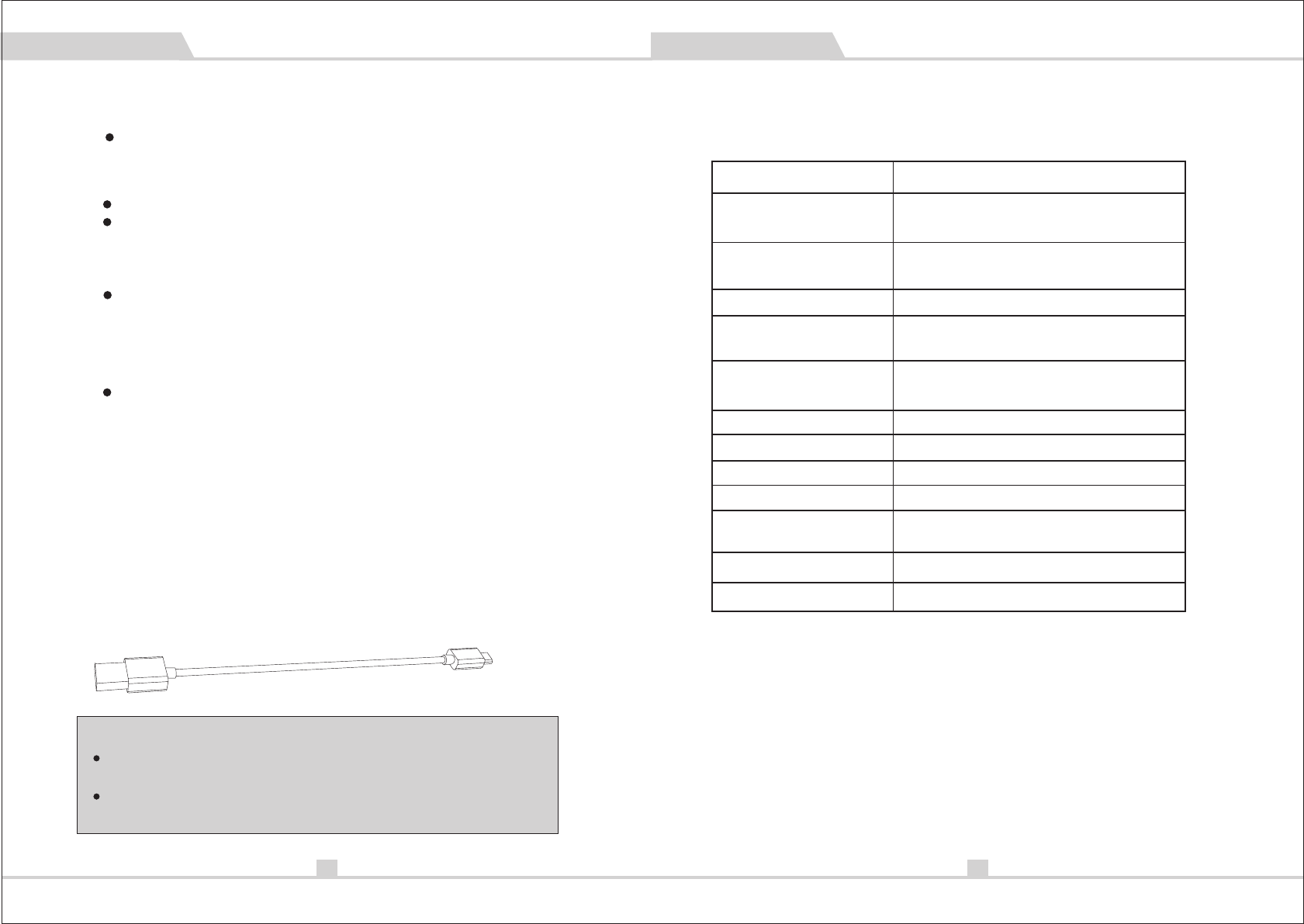
4.3.Charging your device
The device is convenient to connect to AC charger or a USB
charger with port marked with.Make sure that
your device is full charged for at least 6 hours before initial
use. Insert one terminal of your charger to AC main or USB
port of PC and other terminal to . While charging,
he red LED light constantly. When charging is completed,
the LED turns off.
Micro USB
Micro USB
You must select a qualified charger from a regular
manufacturer.
You must charge the Bluetooth headphone if it has been
not used for more than 12 months.
Warning:
Pairing to a computer and Entertainment:
If there is no Bluetooth function supported by your
computer, a Bluetooth adapter is necessary. Fix the
adapter with your computer and ensure its Bluetooth
function is activated.
Turn on the device go to the paring mode.
Open the Bluetooth software (such as BlueSoleil)
installed on your computer, and selects “Search your
Bluetooth devices” function. Refer to user manual of the
Bluetooth software for more information.
H6 USER MANUAL H6 USER MANUAL
5.Technical specification
Bluetooth
Specification 3.0
Bluetooth Profile Support A2DP1.2, AVRCP1.4,
HFP1.6,HSP1.2
Parameter Value
RF Range 10 m
Charging Time 2-3 hours
Playback Time 12 hours
Distortion ≤1.0%
≥90dB
Loudspeaker
Output 20mW
Signal-To-Noise
Dimension
(L×W×H) 190×189×71mm
Weight 240g
80Hz-20KHz
Frequency
Response
06
Talking Time 16 hours
6.Service and Support
If your device is not working properly, please contact the local service providers or
dealer for service.
7.FAQ
1 \ Why is there no power even when the Headset is power on?
Ans: Ensure the battery is being charged up to 6 hours for first time using. The LED is
lighted when it starts charging.
2 \ There is no sound when playback.

Ans: Check the connection between your device with phone or computer, if the
connection is not established, please reconnect again. Make sure the Headset is
paired and connected with your target phone or other master device.
3 \ How can I know the Bluetooth Headset has been fully charged?
Ans: When the indicator LED turns from red to white during charging ,this indicate the
battery has been fully charged.
H6 USER MANUAL
07
This device complies with Part 15 of the FCC Rules. Operation is subject to the
following two conditions: (1) this device may not cause harmful interference,
and (2) this device must accept any interference received, including interference
that may cause undesired operation.
Changes or modifications not expressly approved by the party responsible for
compliance could void the user's authority to operate the equipment.
NOTE: This equipment has been tested and found to comply with the limits for
a Class B digital device, pursu-ant to Part 15 of the FCC Rules. These limits are
designed to provide reasonable protection against harmful interference in a
residential installation. This equipment generates, uses and can radiate radio
frequency energy and, if not installed and used in accordance with the instruc-
tions, may cause harmful interference to radio communications. However, there
is no guarantee that interference will not occur in a particular installation. If this
equipment does cause harmful interference to radio or television reception,
which can be determined by turning the equipment off and on, the user is en-
couraged to try to correct the interference by one or more of the following
measures:
-- Reorient or relocate the receiving antenna.
-- Increase the separation between the equipment and
receiver.
-- Connect the equipment into an outlet on a circuit different
from that to which the receiver is connected.
-- Consult the dealer or an experienced radio/TV technician
for help.
FCC RF warning statement: The device has been evaluated to meet general RF
exposure requirement. The device can be used in portable exposure condition
without restriction.
8.Warning