XTR C FX24TVU feature phone User Manual L550

XTR S.A.C. feature phone L550

User Manual

    1    User Manual Model: FX2.4TVU Brand: EKS
    2 Introduction                                                                                    © 2016. All rights are reserved. No part of this document may be reproduced without permission.  While all efforts have been made to ensure the accuracy of all contents in this manual, we assume no liability for errors or omissions or statements of any kind in this manual, whether such  errors  or  omissions  or  statements  resulting  from negligence,  accidents, or  any  other  cause. The  contents  of this manual are subject to change without notice.  Protect  our  environment!  We  strive  to  produce  products  in compliance  with  global  environmental  standards.  Please consult your local authorities for proper disposal. Note:  User’s  Manual  is  just  to  guide  the  user  about  the functionality  of  the  phone.  This  does  not  substantiate  any certificate  of  technology.  Some  functions  may  very  due  to modifications and up-gradation of software or due to printing mistake Welcome Congratulations on your purchase of our phone. Your phone provides  many  functions  which  are  practical  for  daily  use, such as a MP3 player, Loud Speaker, Games & more You can read the manual for complete knowledge about the use of the mobile handset and experience the frequently used functions,  simple  &  smart  usage.  Please  use  the  original accessories  in  order  to  achieve  best  results.  Use  of non-original  components  may  cause  damage  to machinery, for which the company shall not be held responsible.   For Your Safety Before  using  your  handset,  please  read  the  following  important information  to  eliminate  or  reduce  any  possibility  of  causing damage and personal injury.
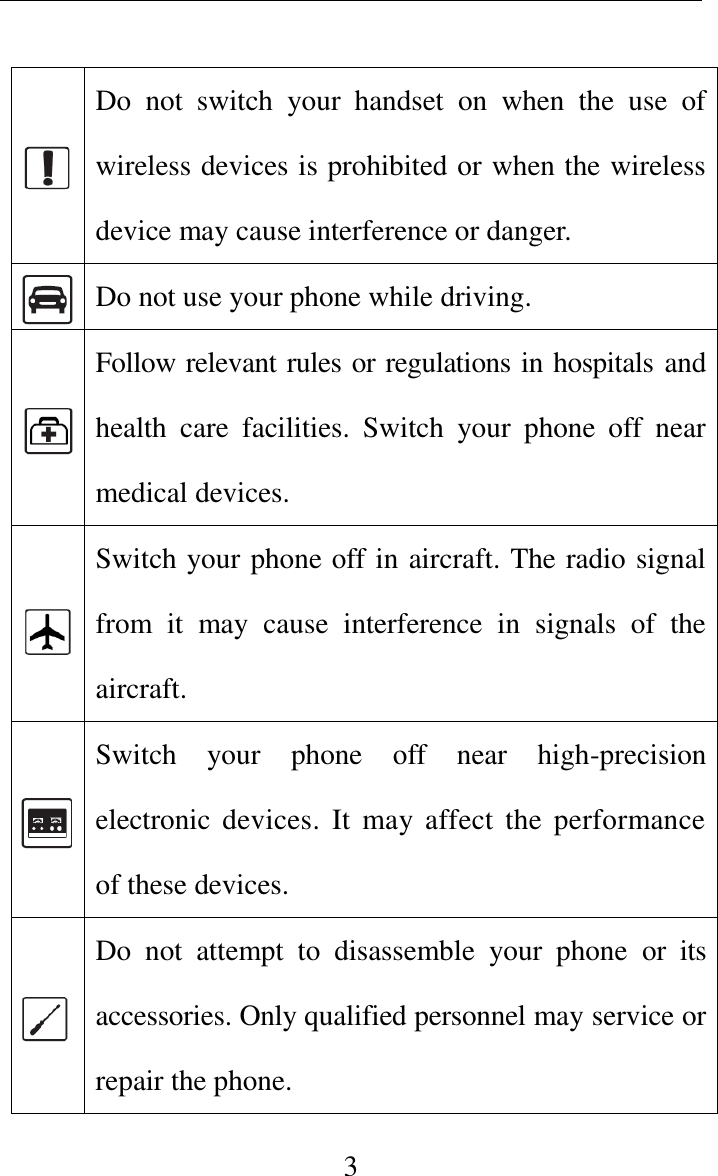
    3   Do  not  switch  your  handset  on  when  the  use  of wireless devices is prohibited or when the wireless device may cause interference or danger.  Do not use your phone while driving.  Follow relevant rules or regulations in hospitals and health  care  facilities.  Switch  your  phone  off  near medical devices.  Switch your phone off in aircraft. The radio signal from  it  may  cause  interference  in  signals  of  the aircraft.       Switch  your  phone  off  near  high-precision electronic devices. It  may affect the performance of these devices.  Do  not  attempt  to  disassemble  your  phone  or  its accessories. Only qualified personnel may service or repair the phone.
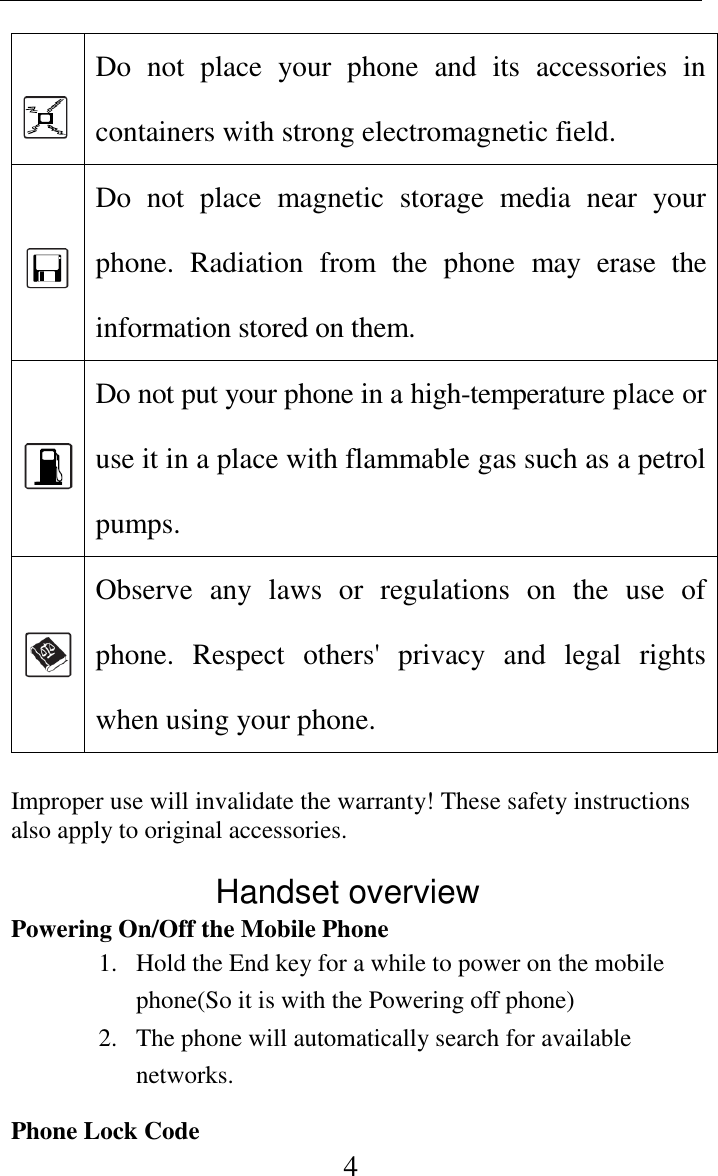
    4  Do  not  place  your  phone  and  its  accessories  in containers with strong electromagnetic field.    Do  not  place  magnetic  storage  media  near  your phone.  Radiation  from  the  phone  may  erase  the information stored on them.    Do not put your phone in a high-temperature place or use it in a place with flammable gas such as a petrol pumps.    Observe  any  laws  or  regulations  on  the  use  of phone.  Respect  others'  privacy  and  legal  rights when using your phone.  Improper use will invalidate the warranty! These safety instructions also apply to original accessories.                Handset overview Powering On/Off the Mobile Phone 1. Hold the End key for a while to power on the mobile phone(So it is with the Powering off phone) 2. The phone will automatically search for available networks. Phone Lock Code
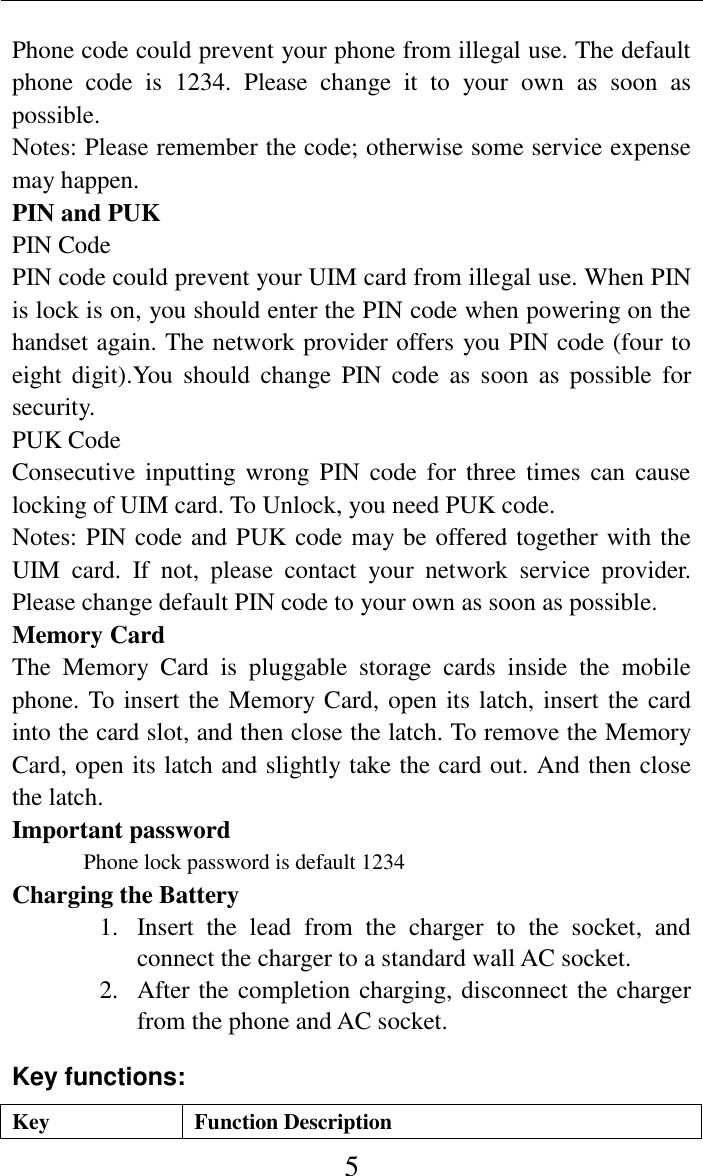
    5 Phone code could prevent your phone from illegal use. The default phone  code  is  1234.  Please  change  it  to  your  own  as  soon  as possible. Notes: Please remember the code; otherwise some service expense may happen. PIN and PUK PIN Code PIN code could prevent your UIM card from illegal use. When PIN is lock is on, you should enter the PIN code when powering on the handset again. The network provider offers you PIN code (four to eight digit).You  should  change  PIN  code  as  soon  as  possible  for security. PUK Code Consecutive inputting  wrong PIN  code for three  times can  cause locking of UIM card. To Unlock, you need PUK code. Notes: PIN code and PUK code may be offered together with the UIM  card.  If  not,  please  contact  your  network  service  provider. Please change default PIN code to your own as soon as possible. Memory Card The  Memory  Card  is  pluggable  storage  cards  inside  the  mobile phone. To insert the Memory Card, open its latch, insert the card into the card slot, and then close the latch. To remove the Memory Card, open its latch and slightly take the card out. And then close the latch. Important password Phone lock password is default 1234 Charging the Battery 1. Insert  the  lead  from  the  charger  to  the  socket,  and connect the charger to a standard wall AC socket. 2. After the completion charging, disconnect the charger from the phone and AC socket. Key functions: Key Function Description
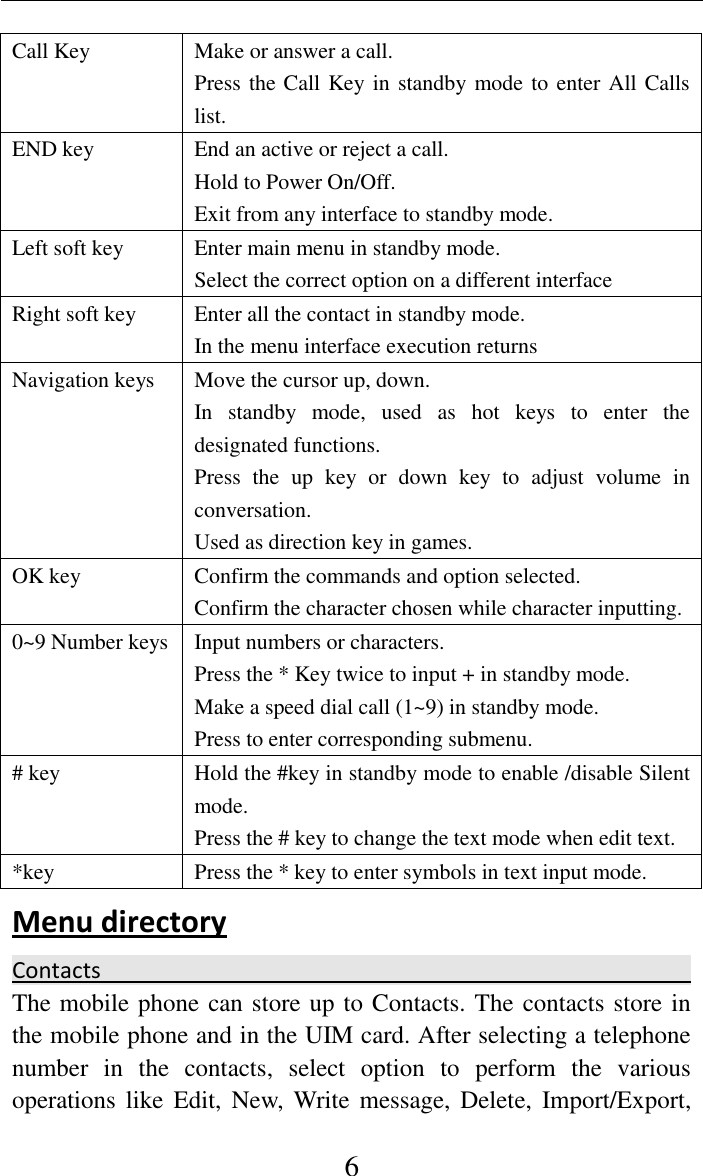
    6 Call Key   Make or answer a call. Press the Call Key in standby mode to enter All Calls list. END key End an active or reject a call. Hold to Power On/Off. Exit from any interface to standby mode. Left soft key   Enter main menu in standby mode. Select the correct option on a different interface Right soft key   Enter all the contact in standby mode. In the menu interface execution returns Navigation keys Move the cursor up, down. In  standby  mode,  used  as  hot  keys  to  enter  the designated functions. Press  the  up  key  or  down  key  to  adjust  volume  in conversation. Used as direction key in games. OK key Confirm the commands and option selected. Confirm the character chosen while character inputting. 0~9 Number keys Input numbers or characters. Press the * Key twice to input + in standby mode. Make a speed dial call (1~9) in standby mode. Press to enter corresponding submenu. # key Hold the #key in standby mode to enable /disable Silent mode. Press the # key to change the text mode when edit text. *key Press the * key to enter symbols in text input mode. Menu directory   Contacts                                                                                                                            The mobile phone can store up to Contacts. The contacts store in the mobile phone and in the UIM card. After selecting a telephone number  in  the  contacts,  select  option  to  perform  the  various operations like  Edit,  New,  Write message,  Delete,  Import/Export,
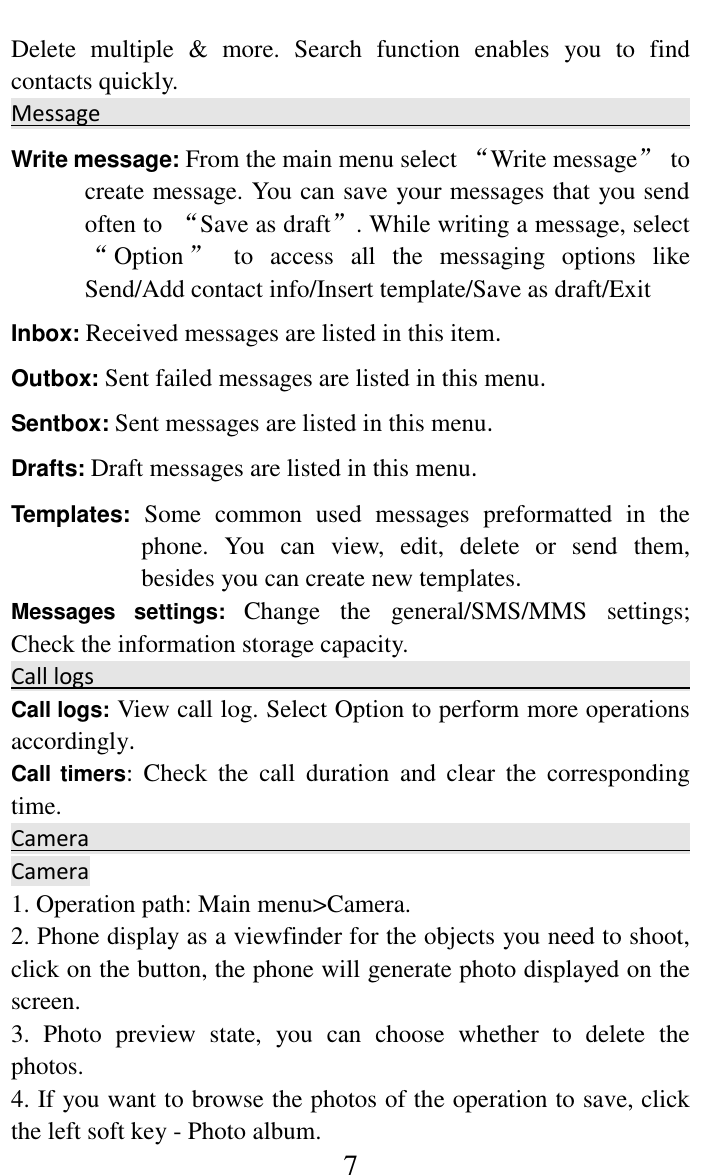
    7 Delete  multiple  &  more.  Search  function  enables  you  to  find contacts quickly.   Message                                                                            Write message: From the main menu select “Write message”  to create message. You can save your messages that you send often to  “Save as draft”. While writing a message, select “Option ”  to  access  all  the  messaging  options  like Send/Add contact info/Insert template/Save as draft/Exit Inbox: Received messages are listed in this item. Outbox: Sent failed messages are listed in this menu. Sentbox: Sent messages are listed in this menu. Drafts: Draft messages are listed in this menu. Templates: Some  common  used  messages  preformatted  in  the phone.  You  can  view,  edit,  delete  or  send  them, besides you can create new templates. Messages  settings:  Change  the  general/SMS/MMS  settings; Check the information storage capacity. Call logs                                                                                                                                                                 Call logs: View call log. Select Option to perform more operations accordingly. Call timers:  Check  the  call  duration  and  clear  the  corresponding time. Camera                                                                                      Camera                                                                    1. Operation path: Main menu>Camera.   2. Phone display as a viewfinder for the objects you need to shoot, click on the button, the phone will generate photo displayed on the screen.   3.  Photo  preview  state,  you  can  choose  whether  to  delete  the photos.   4. If you want to browse the photos of the operation to save, click the left soft key - Photo album.
    8 5. If you need to set the photo effects used in the camera viewfinder state path: left soft key> Effect> Normal / B & W / Blue / Green / Yellow / Red / Sepia /Negative. Multimedia                                                                                   Audio player Play an audio file   1. Path of operation: Main menu> Multimedia> Audio.   2.  Player  interface  on  the  key  or  the  option  to  enter  the  playlist update list (need to plug the T-card, MP3 files in the My Music file)   3. Select the music track list, press the [OK key] music files start playing.    Recorder   Recorder (T card is required)   1. Path of operation: Main menu> Multimedia> Recorder.   2. If you need to turn on the recorder, the recorder interface press the [OK key] to open the recording function.   3.  The  state  of  being  recorded,  press  the  [Left  key]  to  pause recording; press the right soft key to stop recording.   4.  After  the  recording  is  finished,  return  to  recording  standby interface.   5. Select the recording folder View saved audio file   Settings                                                 Profiles: In order to  use this phone in different scenarios, set personalized ring tones and phone tone.   1.  Need  to  set  the  scene  mode,  press  the  [Left  key]  to  open  the parameter setting interface.   2. You need to set the type and settings, the setup is complete, save the set value.   3. When the phone returns profile list, select the profile.   Display Settings:   You can change the settings of wallpaper, contrast, backlight time. Phone Settings:
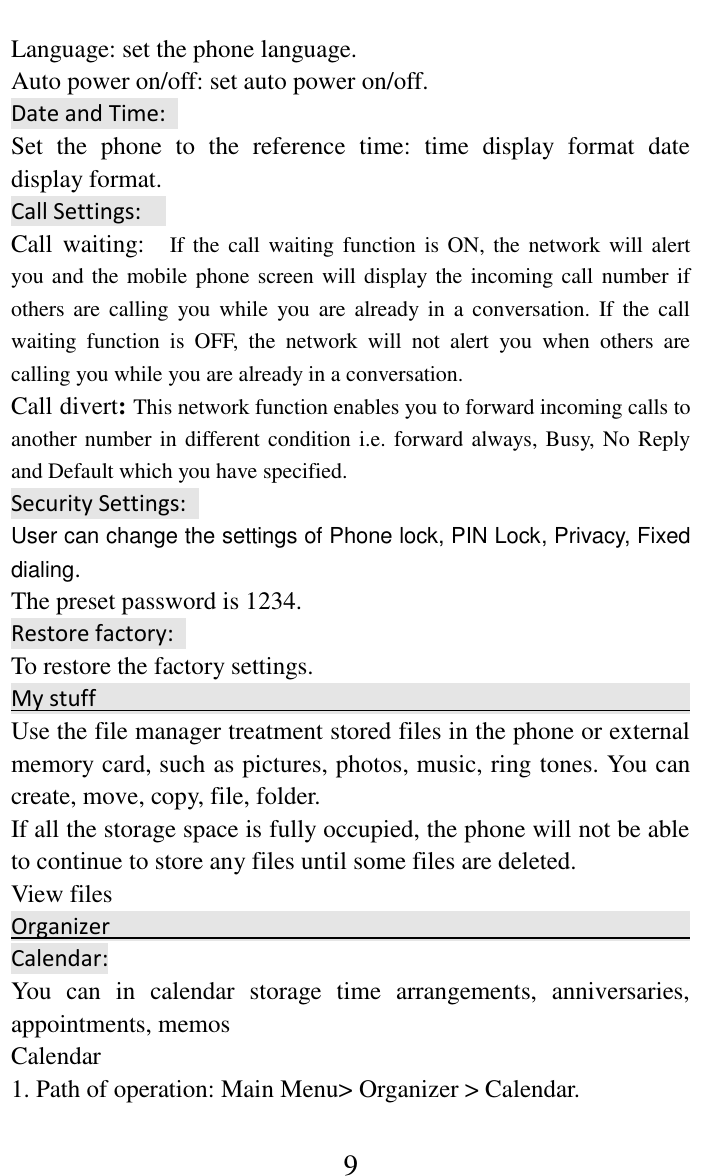
    9 Language: set the phone language.   Auto power on/off: set auto power on/off. Date and Time:   Set  the  phone  to  the  reference  time:  time  display  format  date display format.   Call Settings:   Call  waiting:    If  the  call waiting function is ON, the network will alert you and the mobile phone screen will display the incoming call number if others are  calling  you  while  you  are  already in  a  conversation.  If  the  call waiting  function  is  OFF,  the  network  will  not  alert  you  when  others  are calling you while you are already in a conversation. Call divert: This network function enables you to forward incoming calls to another number in different condition i.e. forward always, Busy, No Reply and Default which you have specified.   Security Settings:   User can change the settings of Phone lock, PIN Lock, Privacy, Fixed dialing. The preset password is 1234. Restore factory:   To restore the factory settings. My stuff                                                                                  Use the file manager treatment stored files in the phone or external memory card, such as pictures, photos, music, ring tones. You can create, move, copy, file, folder.   If all the storage space is fully occupied, the phone will not be able to continue to store any files until some files are deleted.   View files                                               Organizer                                                                                     Calendar: You  can  in  calendar  storage  time  arrangements,  anniversaries, appointments, memos   Calendar   1. Path of operation: Main Menu> Organizer > Calendar.
    10 2. Choose the new date of the event in the calendar, press the [OK key] to display details.   3. Option select "Add new schedule" in the calendar entry is set to enter the event Subject, date, time, Ringtone, Repeat mode. 4. After completing the settings, press the left soft key to save the information.   Alarm:   The alarm can also be set for a specific time at a specific date loop start alarm. When the phone is set to silent or turned off, the alarm function is still available.   Set the alarm   1. Path of operation: Main Menu> Organizer > Alarm.   2. The phone supports multiple alarm settings, use the up and down navigation keys  you want  to set  the alarm,  press  the [key]  to enter the alarm edit page.   3.  Use  the  up  and  down  navigation  keys  to  turn  input  alarm parameters, select "Save" and confirm to turn on the alarm.   4. Click on the "left soft key" to open or close the selected alarm.   5. When the alarm clock to remind, click the "snooze" after three minutes snooze alarm   Calculator : The  phone  supports  a  simple  calculator  functions,  including addition,  subtraction,  multiplication,  and  division  operations. Including the decimal point, the operands and results.   Using the Calculator   1. Path of operation: Main Menu> Organizer > Calculator.   2. Simple arithmetic, the input sequence: first operand> operation symbol  (addition,  subtraction,  multiplication  and  division)> second operand> equal sign.   3. For continuous operation after the results of the use of an equal sign as the first operand, to continue entering operation symbols and the second operand.   4. The calculator in accordance with the order of input operations. The calculated results are displayed in the input area.
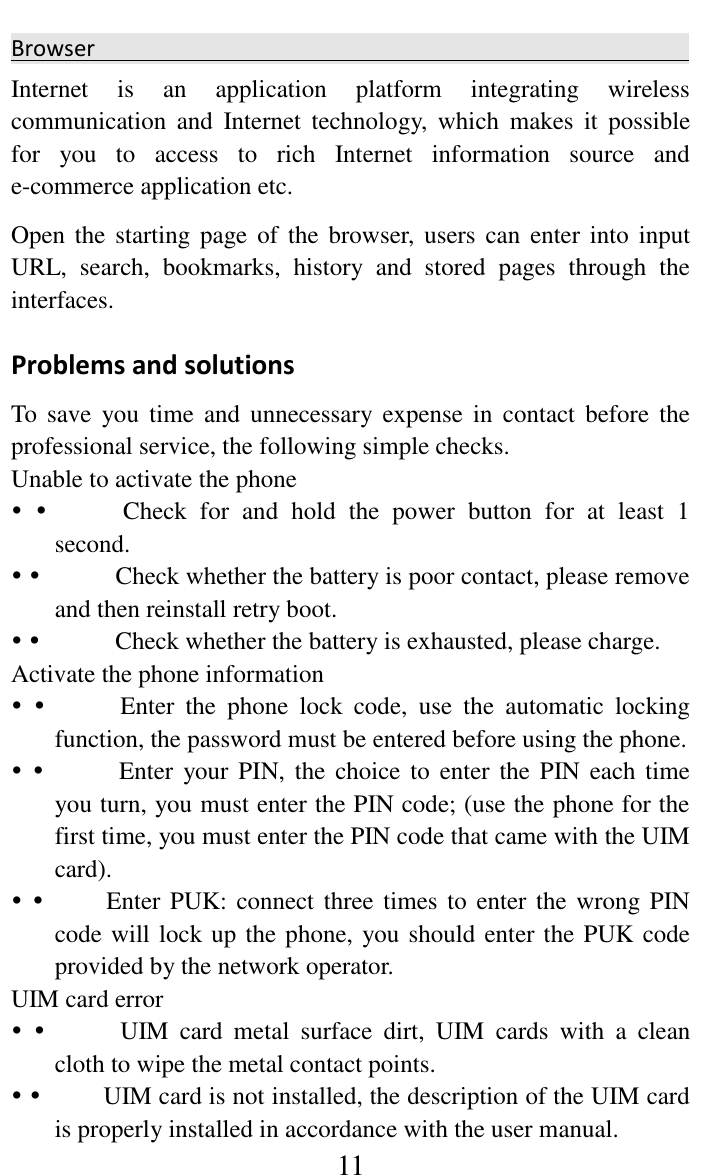
    11 Browser                                                 Internet  is  an  application  platform  integrating  wireless communication  and  Internet  technology,  which  makes  it  possible for  you  to  access  to  rich  Internet  information  source  and e-commerce application etc.   Open the  starting page of  the browser,  users can  enter into  input URL,  search,  bookmarks,  history  and  stored  pages  through  the interfaces.   Problems and solutions   To  save  you time  and  unnecessary  expense in  contact  before  the professional service, the following simple checks.   Unable to activate the phone                Check  for  and  hold  the  power  button  for  at  least  1 second.                Check whether the battery is poor contact, please remove and then reinstall retry boot.                Check whether the battery is exhausted, please charge.   Activate the phone information                Enter  the  phone  lock  code,  use  the  automatic  locking function, the password must be entered before using the phone.                Enter  your PIN,  the choice to  enter the PIN  each time you turn, you must enter the PIN code; (use the phone for the first time, you must enter the PIN code that came with the UIM card).              Enter PUK: connect three times to enter the wrong PIN code will lock up the phone, you should enter the PUK code provided by the network operator.   UIM card error                UIM  card  metal  surface  dirt,  UIM  cards  with  a  clean cloth to wipe the metal contact points.              UIM card is not installed, the description of the UIM card is properly installed in accordance with the user manual.
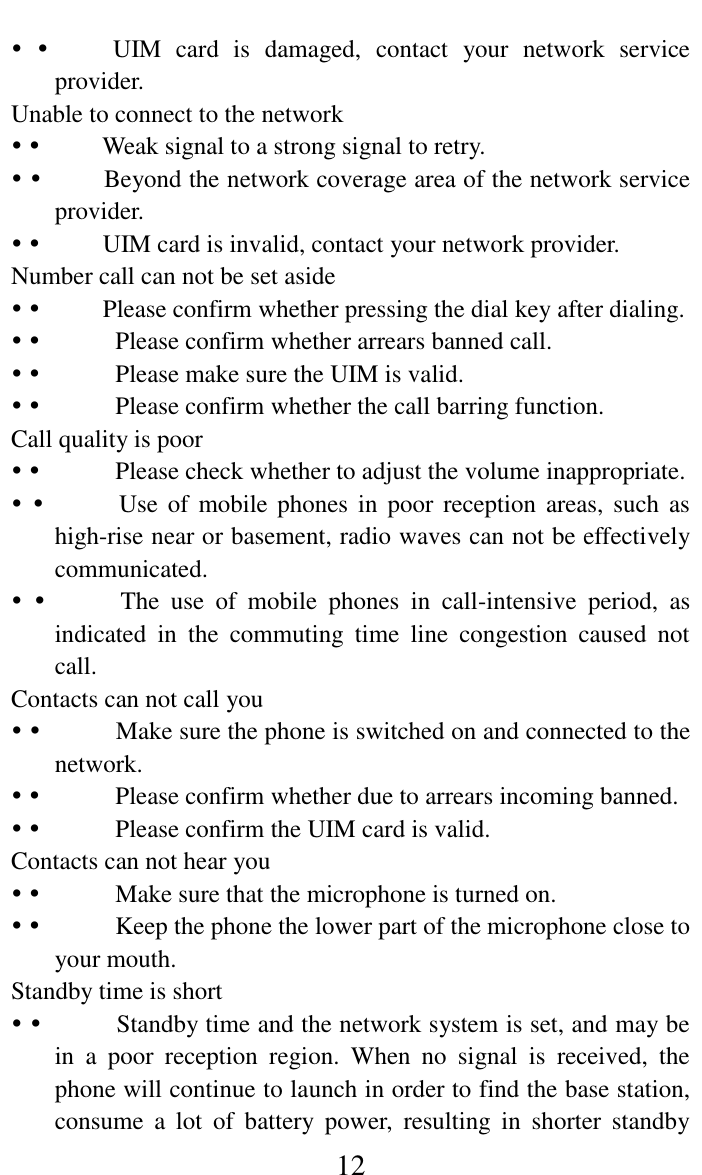
    12            UIM  card  is  damaged,  contact  your  network  service provider.   Unable to connect to the network              Weak signal to a strong signal to retry.              Beyond the network coverage area of the network service provider.              UIM card is invalid, contact your network provider.   Number call can not be set aside            Please confirm whether pressing the dial key after dialing.                Please confirm whether arrears banned call.                Please make sure the UIM is valid.                Please confirm whether the call barring function.  Call quality is poor                Please check whether to adjust the volume inappropriate.                Use of  mobile  phones in  poor reception  areas,  such  as high-rise near or basement, radio waves can not be effectively communicated.                The  use  of  mobile  phones  in  call-intensive  period,  as indicated  in  the  commuting  time  line  congestion  caused  not call.    Contacts can not call you                Make sure the phone is switched on and connected to the network.                Please confirm whether due to arrears incoming banned.                Please confirm the UIM card is valid.   Contacts can not hear you                Make sure that the microphone is turned on.                Keep the phone the lower part of the microphone close to your mouth.  Standby time is short                Standby time and the network system is set, and may be in  a  poor  reception  region.  When  no  signal  is  received,  the phone will continue to launch in order to find the base station, consume  a  lot  of  battery  power,  resulting  in  shorter  standby
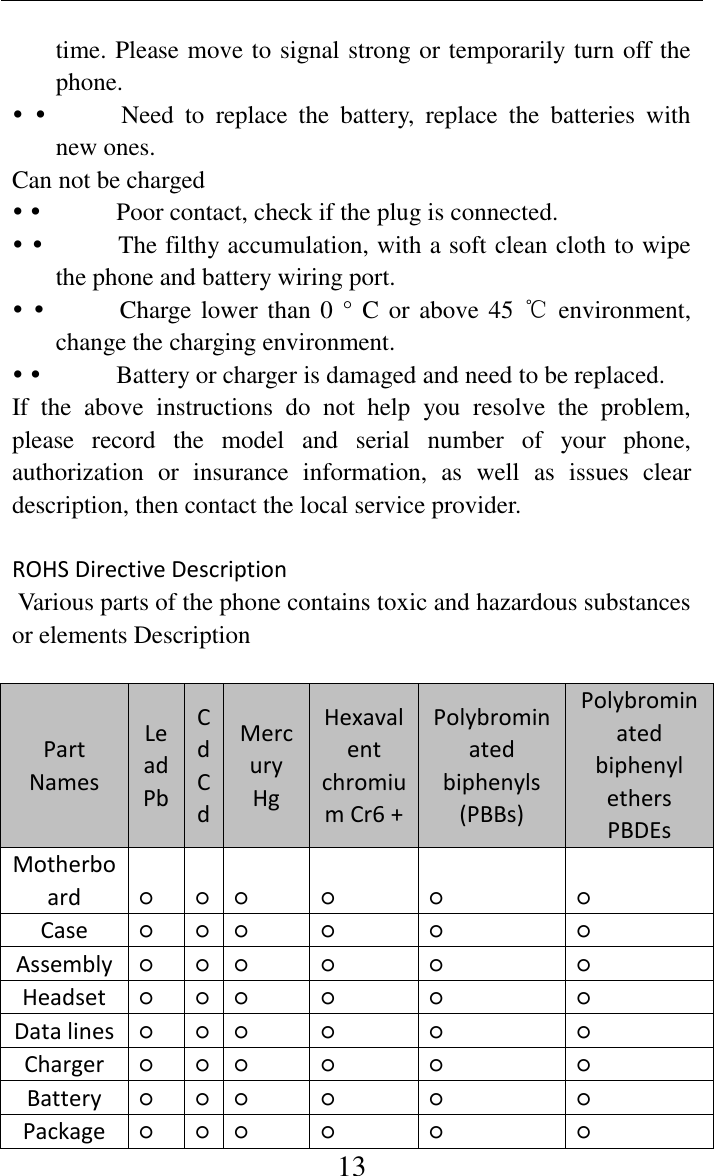
    13 time. Please move to signal strong or temporarily turn off the phone.                Need  to  replace  the  battery,  replace  the  batteries  with new ones.   Can not be charged                Poor contact, check if the plug is connected.                The filthy accumulation, with a soft clean cloth to wipe the phone and battery wiring port.                Charge lower  than 0 ° C or above 45  ℃ environment, change the charging environment.                Battery or charger is damaged and need to be replaced.   If  the  above  instructions  do  not  help  you  resolve  the  problem, please  record  the  model  and  serial  number  of  your  phone, authorization  or  insurance  information,  as  well  as  issues  clear description, then contact the local service provider.    ROHS Directive Description    Various parts of the phone contains toxic and hazardous substances or elements Description     Part Names   Lead Pb   Cd Cd   Mercury Hg   Hexavalent chromium Cr6 +   Polybrominated biphenyls (PBBs)   Polybrominated biphenyl ethers PBDEs   Motherboard   ○   ○   ○   ○   ○   ○   Case   ○     ○   ○   ○   ○   ○   Assembly   ○   ○   ○   ○   ○   ○   Headset   ○     ○   ○   ○   ○   ○   Data lines   ○   ○   ○   ○   ○   ○   Charger   ○     ○   ○   ○   ○   ○   Battery   ○   ○   ○   ○   ○   ○   Package   ○     ○   ○   ○   ○   ○
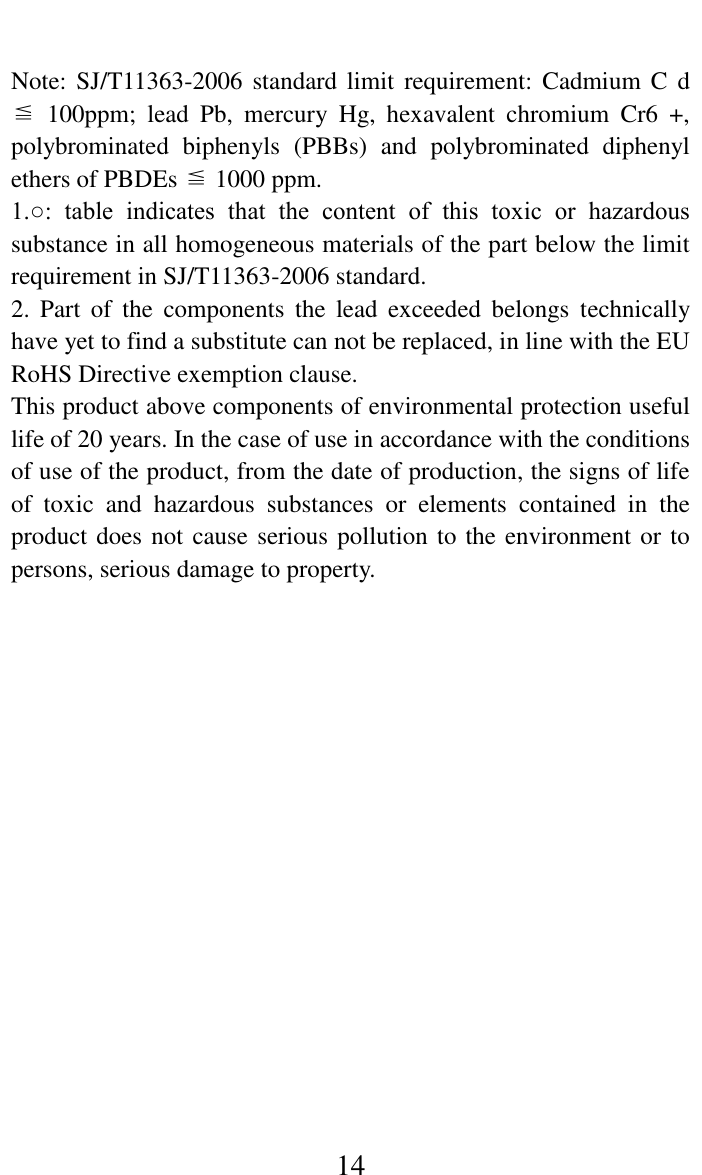
    14    Note: SJ/T11363-2006 standard  limit requirement:  Cadmium  C d ≦  100ppm;  lead  Pb,  mercury  Hg,  hexavalent  chromium  Cr6  +, polybrominated  biphenyls  (PBBs)  and  polybrominated  diphenyl ethers of PBDEs ≦ 1000 ppm.   1.○:  table  indicates  that  the  content  of  this  toxic  or  hazardous substance in all homogeneous materials of the part below the limit requirement in SJ/T11363-2006 standard.   2.  Part  of  the  components  the  lead  exceeded  belongs  technically have yet to find a substitute can not be replaced, in line with the EU RoHS Directive exemption clause.   This product above components of environmental protection useful life of 20 years. In the case of use in accordance with the conditions of use of the product, from the date of production, the signs of life of  toxic  and  hazardous  substances  or  elements  contained  in  the product does not cause serious pollution to the environment or to persons, serious damage to property.
    15 FCC Warning  This device complies with part 15 of the FCC Rules. Operation is subject to the condition that this device does not cause harmful interference. Any Changes or modifications not expressly approved by the party responsible for compliance could void the user's authority to operate the equipment.    Note: This equipment has been tested and found to comply with the limits for a Class B digital device, pursuant to part 15 of the FCC Rules. These limits are designed to provide reasonable protection against harmful interference in a residential installation. This equipment generates uses and can radiate radio frequency energy and, if not installed and used in accordance with the instructions, may cause harmful interference to radio communications. However, there is no guarantee that interference will not occur in a particular installation. If this equipment does cause harmful interference to radio or television reception, which can be determined by turning the equipment off and on, the user is encouraged to try to correct the interference by one or more of the following measures:     -Reorient or relocate the receiving antenna.     -Increase the separation between the equipment and receiver.     -Connect the equipment into an outlet on a circuit different from that to which the receiver is connected.     -Consult the dealer or an experienced radio/TV technician for help.    Specific Absorption Rate (SAR) information:   This feature phone meets the government's requirements for exposure to radio waves. The guidelines are based on standards that were developed by independent scientific organizations through periodic and thorough evaluation of scientific studies. The standards include a substantial safety margin designed to assure the safety of all persons regardless of age or health.    FCC RF Exposure Information and Statement   The SAR limit of USA (FCC) is 1.6 W/kg averaged over one gram of tissue. Device types: FX2.4TVU (FCC ID: 2AGAK-FX24TVU) has also been tested against this SAR limit. The highest SAR value reported under this standard during product
    16 certification for use at the ear is 0.248W/kg and when properly worn on the body is 1.097W/kg. This device was tested for typical body-worn operations with the back of the handset kept 10mm from the body. To maintain compliance with FCC RF exposure requirements, use accessories that maintain a 10mm separation distance between the user's body and the back of the handset. The use of belt clips, holsters and similar accessories should not contain metallic components in its assembly. The use of accessories that do not satisfy these requirements may not comply with FCC RF exposure requirements, and should be avoided.    Body-worn Operation   This device was tested for typical body-worn operations. To comply with RF exposure requirements, a minimum separation distance of 10mm must be maintained between the user’s body and the handset, including the antenna. Third-party belt-clips, holsters, and similar accessories used by this device should not contain any metallic components. Body-worn accessories that do not meet these requirements may not comply with RF exposure requirements and should be avoided. Use only the supplied or an approved antenna.

Navigation menu