XTR C S45U Smart Phone User Manual i mobile i STYLE 1

XTR S.A.C. Smart Phone i mobile i STYLE 1

User Manual

1   User Manual  Product Name: Smart Phone Brand: EKS Model: S45U  Manufacture: ENCORP LIMITED
2 About Android An  Android  phone  can  perform  many  of  the  same  functions  as  a computer. But you can also adjust it to better suit your needs, to receive the information you want, and have fun at the same time. You can add and delete applications, or enhance them to  improve functionality. At Android Market you can download a range of applications and games from a constantly growing collection.   Applications An application is a phone program that helps you perform a task. For example, there are applications to make calls, take photos and download more applications. Home screen You need slide the Home screen left or right to view more content in other  panels  on  the  Home  screen.  You  can  add  shortcuts,  widgets, folders, etc. to Home screen.  Context menus Context menus contain tools that apply to specific item on the screen. You can open a context menu by touching and holding an item on the screen. Not all items have context menus. If you touch and hold an item that has no context menu, nothing happens.   . Widget A widget is small application on the Home screen that typically displays information such as Analog clock, Music and you can use directly on your
3 Home screen. For example, the Music widget allows you to start playing audio files directly on Home screen. You can also add a widget such as Analog clock that shows time.   Application menu  Application menu The Application menu, which you open from your Home screen, contains the applications that come installed with your phone. The Application menu extends beyond the screen width, so you need to slide left and right to view all content.  Phone status bar and notifications  You can drag down the status bar to open the Notification panel and get more  information.  For  example,  view  missed  calls  from  Notification panel. You can also open running applications, such as the music player.  Dial pad Touch Phone icon on the Home screen. In dialing screen, input number and touch dial icon to dial the inputted number. Communication  Messaging
4 Find it: Application menu > Messaging You can compose, send and receive text messages from your phone, and also  can  compose,  send  and  receive  multimedia  messages,  which contain media files such as pictures, videos and audios.     Find it: Application menu > People Phone The People application offers you to store and manage all your contacts Call log Find it: Application menu > Phone > Call log tab Touch different tabs such as All, Received, Dialed, and Missed calls on upside screen of Call log interface, and then you can view different call logs.  Email Find it: Application menu > Email The Email application in your phone offers you to  compose, send and receive emails through your regular email account. You need create account first, and then create email to send.   Multimedia Listen it, watch it, capture it, Enjoy it!  Camera Find it: Application menu > Camera Take a photo or record a video with the camera in your phone. You can hold the camera horizontally or vertically. Share a photo or a video with
5 your friends, or upload your photos and videos to a web service.  Music Find it: Application menu > Music The phone comes with a Music player that plays songs, listen to audio book and podcasts you have stored. It gives you a host of setting options to make your listening experience interesting.  FM radio Find it: Application menu > FM radio he phone comes with an in-built FM Radio错误!未找到引用源。. You can listen to FM radio stations, and add them to channel list. You have to plug in an earphone, as the antenna of the FM radio. You can listen to the radio either through an earphone, or through the speaker in the phone.  Gallery Find it: Application menu > Gallery The  Gallery  offers  you  to  view  photos  and  play  videos  which  are downloaded as well as those taken by the phone camera.  From  Gallery,  you  can  also  share  your  photos  and  videos  with  your friends, via Messaging, Bluetooth, or Email.    Calendar Find it: Application menu > Calendar Your phone has a calendar for managing your time schedule. You can use the calendar to keep track of important events. After entering the calendar function menu, you can select year, month and date.
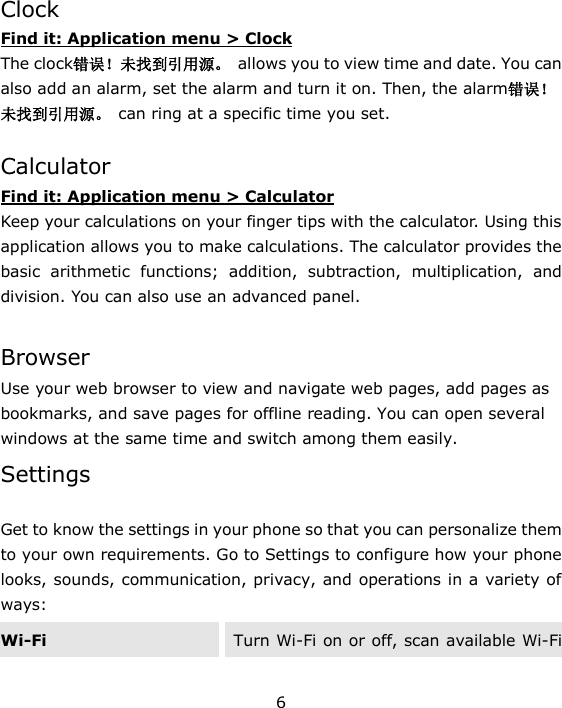
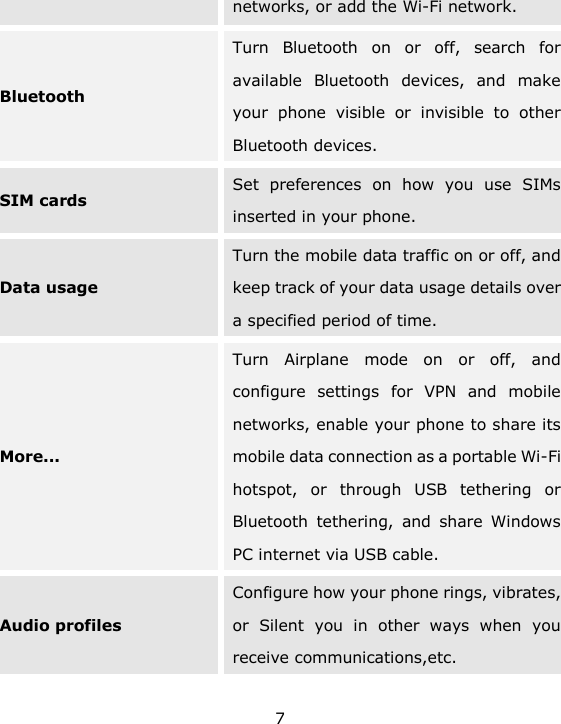
6  Clock Find it: Application menu > Clock The clock错误!未找到引用源。  allows you to view time and date. You can also add an alarm, set the alarm and turn it on. Then, the alarm错误!未找到引用源。  can ring at a specific time you set.   Calculator Find it: Application menu > Calculator Keep your calculations on your finger tips with the calculator. Using this application allows you to make calculations. The calculator provides the basic  arithmetic  functions;  addition,  subtraction,  multiplication,  and division. You can also use an advanced panel.  Browser Use your web browser to view and navigate web pages, add pages as bookmarks, and save pages for offline reading. You can open several windows at the same time and switch among them easily.   Settings  Get to know the settings in your phone so that you can personalize them to your own requirements. Go to Settings to configure how your phone looks, sounds, communication, privacy, and operations in a variety of ways: Wi-Fi Turn Wi-Fi on or off, scan available Wi-Fi
7 networks, or add the Wi-Fi network. Bluetooth Turn  Bluetooth  on  or  off,  search  for available  Bluetooth  devices,  and  make your  phone  visible  or  invisible  to  other Bluetooth devices. SIM cards Set  preferences  on  how  you  use  SIMs inserted in your phone. Data usage Turn the mobile data traffic on or off, and keep track of your data usage details over a specified period of time. More... Turn  Airplane  mode  on  or  off,  and configure  settings  for  VPN  and  mobile networks, enable your phone to share its mobile data connection as a portable Wi-Fi hotspot,  or  through  USB  tethering  or Bluetooth  tethering,  and  share  Windows PC internet via USB cable. Audio profiles Configure how your phone rings, vibrates, or  Silent  you  in  other  ways  when  you receive communications,etc.
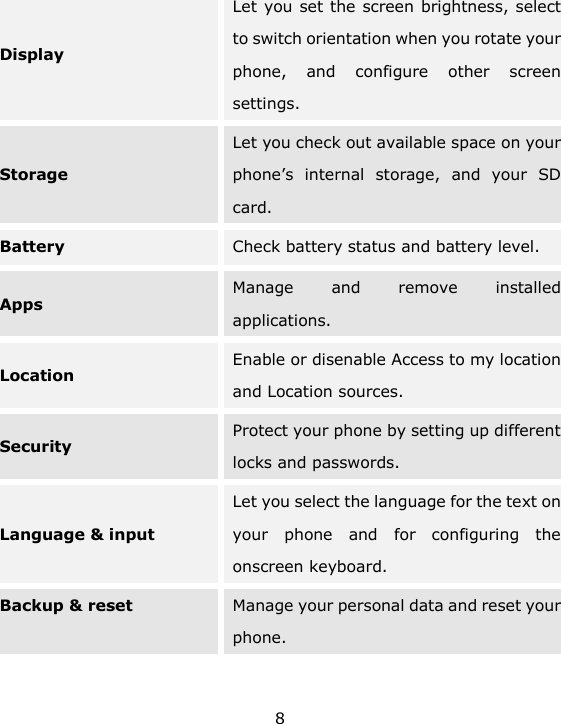
8 Display Let you set the screen brightness, select to switch orientation when you rotate your phone,  and  configure  other  screen settings. Storage Let you check out available space on your phone’s  internal  storage,  and  your  SD card. Battery Check battery status and battery level. Apps Manage  and  remove  installed applications. Location Enable or disenable Access to my location and Location sources. Security Protect your phone by setting up different locks and passwords. Language & input Let you select the language for the text on your  phone  and  for  configuring  the onscreen keyboard. Backup & reset Manage your personal data and reset your phone.
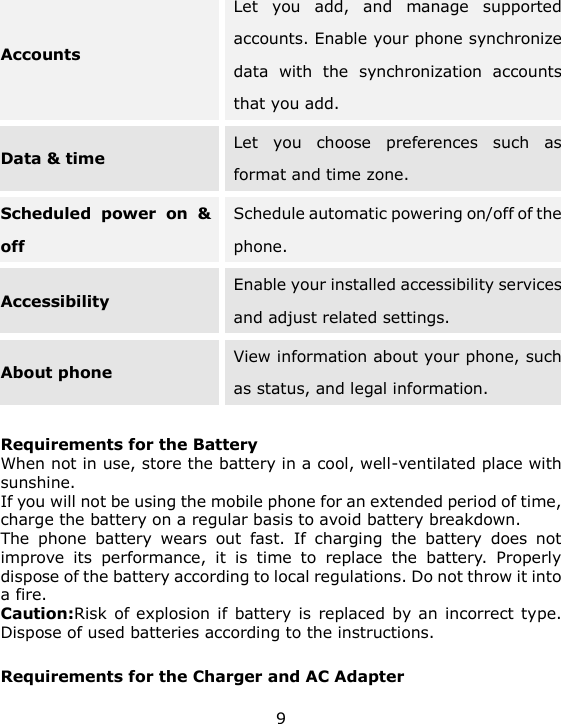
9 Accounts   Let  you  add,  and  manage  supported accounts. Enable your phone synchronize data  with  the  synchronization  accounts that you add. Data & time Let  you  choose  preferences  such  as format and time zone. Scheduled  power  on  & off Schedule automatic powering on/off of the phone. Accessibility Enable your installed accessibility services and adjust related settings. About phone View information about your phone, such as status, and legal information.  Requirements for the Battery When not in use, store the battery in a cool, well-ventilated place with sunshine. If you will not be using the mobile phone for an extended period of time, charge the battery on a regular basis to avoid battery breakdown. The  phone  battery  wears  out  fast.  If  charging  the  battery  does  not improve  its  performance,  it  is  time  to  replace  the  battery.  Properly dispose of the battery according to local regulations. Do not throw it into a fire. Caution:Risk  of explosion if  battery is replaced by  an  incorrect type. Dispose of used batteries according to the instructions.  Requirements for the Charger and AC Adapter
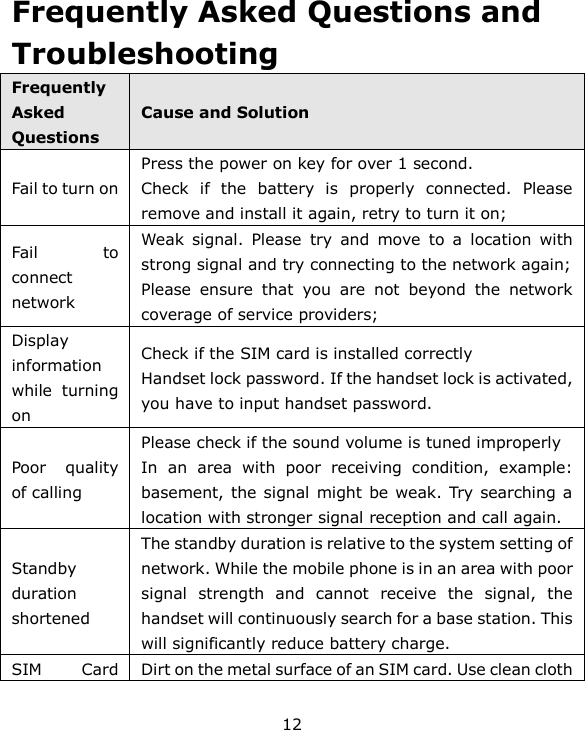
10 Please confirm if the environment temperature is within the range of 0ºC ~40ºC while charging. Please make sure the  temperature  for  device will  not  be  higher  than 40˚C The device could be used with a  separation distance of 10mm to the humanbody. All  the  reports  of  the  applied  standards  have  the  Positive  Opinion  of Notified Body: PHOENIX TESTLAB, Königswinkel 10 D-32825 Blomberg, Germany Identification mark:   0700 (Notified Body) CE        Precautions  Safe transportation first Please observe all related local laws and regulations.  Turn off on an airplane Please follow related limitations. Do  not  use  your  mobile phone on an airplane.。  All  mobile  phones  may be disturbed, and affect their performance.  Turn off when in the hospital  Please follow related limitations.  To  ensure  the  best performance  or  avoid damage  to  mobile phone,  please  use  the  Turn off when at a gasoline station Do  not  use  your  mobile
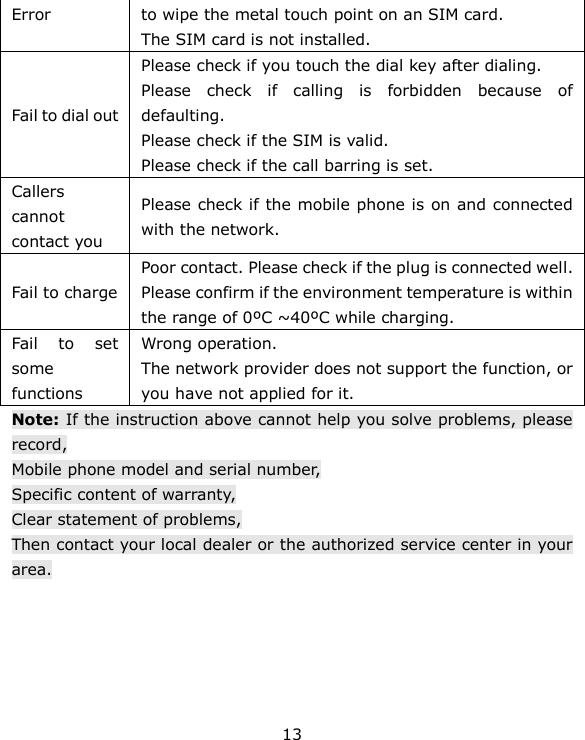
11 original accessories and batteries. phone at a filling station or around fuels or chemicals.  urn off around exposure Area Please  observe  related limitations  and  do  not use  your  mobile  phone near  an  area  where explosions can occur.  Please don't burn batteries as  ordinary  garbage,  to avoid  the  risk  of  life  and damage  to  the environments.  Please abide  by  the  local environmental  policy, timely deal with or recycle the waste batteries.  Before  your  mobile phone  is  connect  with another  equipment, please  read  carefully this  manual  to  ensure safety.  Some  small  articles  (such as  T-Flash  card,  etc.) should  be  placed  out  of children  reach,  to  prevent children  swallowing  or other hazard.  Please  backup  the important  information or  keep  a  written record,  to  prevent  its loss. SOS SOS emergency calls Make  sure  your  mobile phone  is  switched  on  and in  a  service  area.  In  idle mode,  input  the  SOS number,  then  touch  the Dial Key. Advise where you are  and  do  not  hang  up without permission.
12 Frequently Asked Questions and Troubleshooting Frequently Asked Questions Cause and Solution Fail to turn on Press the power on key for over 1 second. Check  if  the  battery  is  properly  connected.  Please remove and install it again, retry to turn it on; Fail  to connect network Weak  signal.  Please  try  and  move  to  a  location  with strong signal and try connecting to the network again; Please  ensure  that  you  are  not  beyond  the  network coverage of service providers; Display information while  turning on Check if the SIM card is installed correctly   Handset lock password. If the handset lock is activated, you have to input handset password. Poor  quality of calling Please check if the sound volume is tuned improperly   In  an  area  with  poor  receiving  condition,  example: basement, the signal might be weak. Try searching a location with stronger signal reception and call again. Standby duration shortened The standby duration is relative to the system setting of network. While the mobile phone is in an area with poor signal  strength  and  cannot  receive  the  signal,  the handset will continuously search for a base station. This will significantly reduce battery charge.   SIM  Card Dirt on the metal surface of an SIM card. Use clean cloth
13 Error to wipe the metal touch point on an SIM card. The SIM card is not installed. Fail to dial out Please check if you touch the dial key after dialing. Please  check  if  calling  is  forbidden  because  of defaulting. Please check if the SIM is valid. Please check if the call barring is set. Callers cannot contact you Please check if the mobile phone is on and connected with the network. Fail to charge Poor contact. Please check if the plug is connected well. Please confirm if the environment temperature is within the range of 0ºC ~40ºC while charging. Fail  to  set some functions Wrong operation. The network provider does not support the function, or you have not applied for it. Note: If the instruction above cannot help you solve problems, please record, Mobile phone model and serial number, Specific content of warranty, Clear statement of problems, Then contact your local dealer or the authorized service center in your area.
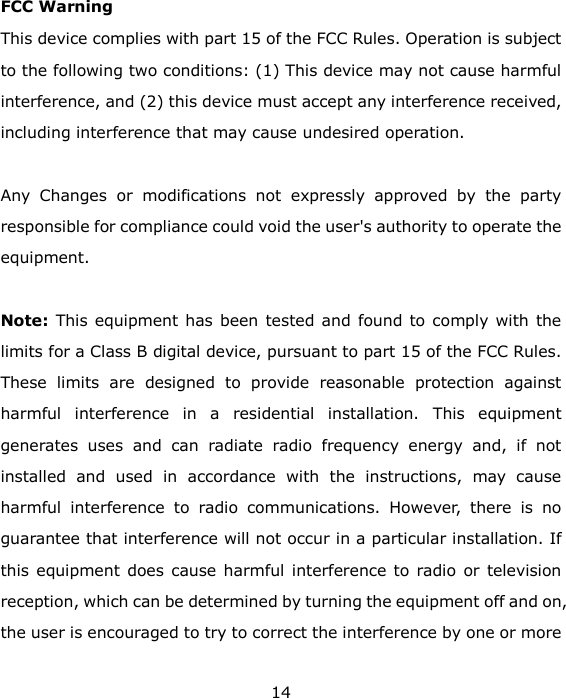
14  FCC Warning This device complies with part 15 of the FCC Rules. Operation is subject to the following two conditions: (1) This device may not cause harmful interference, and (2) this device must accept any interference received, including interference that may cause undesired operation.  Any  Changes  or  modifications  not  expressly  approved  by  the  party responsible for compliance could void the user's authority to operate the equipment.   Note:  This equipment has been tested and  found to comply with the limits for a Class B digital device, pursuant to part 15 of the FCC Rules. These  limits  are  designed  to  provide  reasonable  protection  against harmful  interference  in  a  residential  installation.  This  equipment generates  uses  and  can  radiate  radio  frequency  energy  and,  if  not installed  and  used  in  accordance  with  the  instructions,  may  cause harmful  interference  to  radio  communications.  However,  there  is  no guarantee that interference will not occur in a particular installation. If this equipment does cause harmful interference to radio or television reception, which can be determined by turning the equipment off and on, the user is encouraged to try to correct the interference by one or more
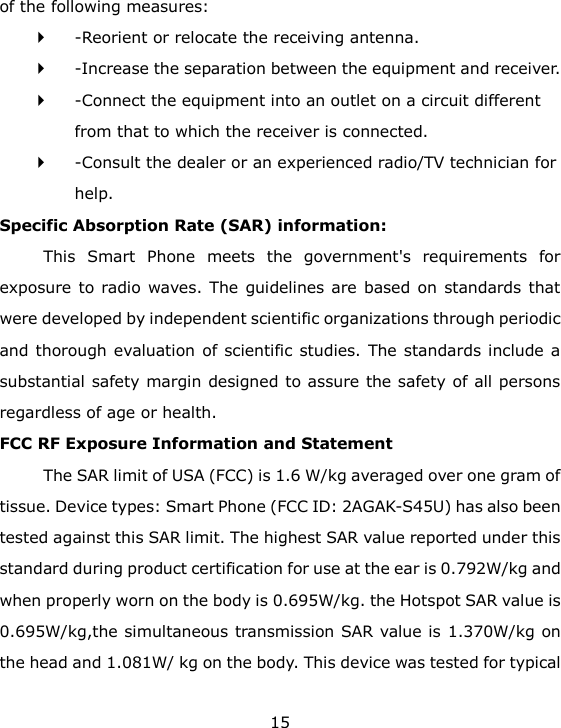
15 of the following measures:   -Reorient or relocate the receiving antenna.    -Increase the separation between the equipment and receiver.    -Connect the equipment into an outlet on a circuit different from that to which the receiver is connected.    -Consult the dealer or an experienced radio/TV technician for help.  Specific Absorption Rate (SAR) information:   This  Smart  Phone  meets  the  government's  requirements  for exposure to radio waves. The  guidelines are based on standards that were developed by independent scientific organizations through periodic and thorough evaluation of scientific studies. The standards include a substantial safety margin designed to assure the safety of all persons regardless of age or health.   FCC RF Exposure Information and Statement The SAR limit of USA (FCC) is 1.6 W/kg averaged over one gram of tissue. Device types: Smart Phone (FCC ID: 2AGAK-S45U) has also been tested against this SAR limit. The highest SAR value reported under this standard during product certification for use at the ear is 0.792W/kg and when properly worn on the body is 0.695W/kg. the Hotspot SAR value is 0.695W/kg,the simultaneous transmission SAR value is 1.370W/kg on the head and 1.081W/ kg on the body. This device was tested for typical
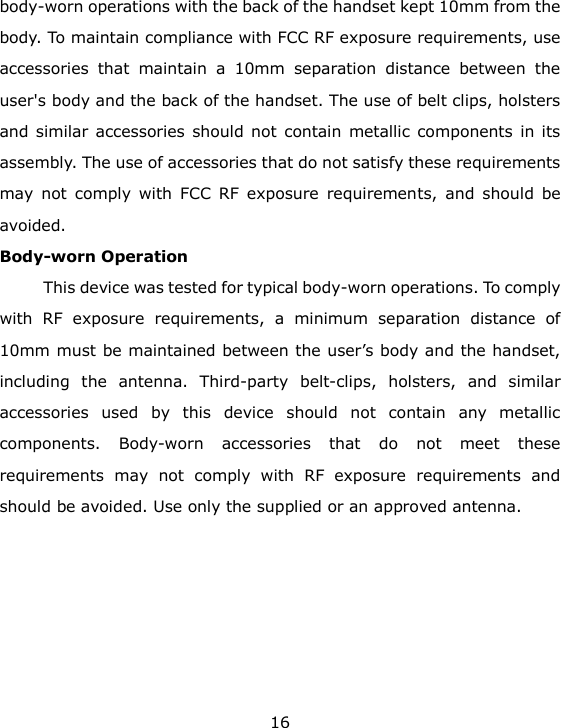
16 body-worn operations with the back of the handset kept 10mm from the body. To maintain compliance with FCC RF exposure requirements, use accessories  that  maintain  a  10mm  separation  distance  between  the user's body and the back of the handset. The use of belt clips, holsters and similar accessories should not contain metallic components in  its assembly. The use of accessories that do not satisfy these requirements may  not  comply  with  FCC  RF  exposure  requirements,  and  should  be avoided.   Body-worn Operation   This device was tested for typical body-worn operations. To comply with  RF  exposure  requirements,  a  minimum  separation  distance  of 10mm must be maintained between the user’s body and the handset, including  the  antenna.  Third-party  belt-clips,  holsters,  and  similar accessories  used  by  this  device  should  not  contain  any  metallic components.  Body-worn  accessories  that  do  not  meet  these requirements  may  not  comply  with  RF  exposure  requirements  and should be avoided. Use only the supplied or an approved antenna.

Navigation menu