XTR C S5US SMART PHONE User Manual Sanjeev

XTR S.A.C. SMART PHONE Sanjeev

User manual

   User Manual Product Name: SMART PHONE         Brand: EKS Model: S5US   Manufacture: ENCORP LIMITED    A56 User
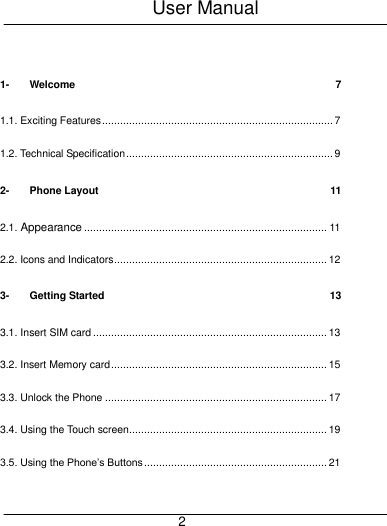
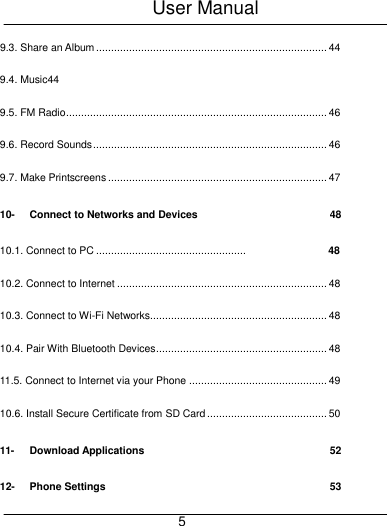
User Manual     2  1- Welcome  7 1.1. Exciting Features ............................................................................. 7 1.2. Technical Specification ..................................................................... 9 2- Phone Layout  11 2.1. Appearance ................................................................................. 11 2.2. Icons and Indicators ....................................................................... 12 3- Getting Started  13 3.1. Insert SIM card .............................................................................. 13 3.2. Insert Memory card ........................................................................ 15 3.3. Unlock the Phone .......................................................................... 17 3.4. Using the Touch screen.................................................................. 19 3.5. Using the Phone’s Buttons ............................................................. 21
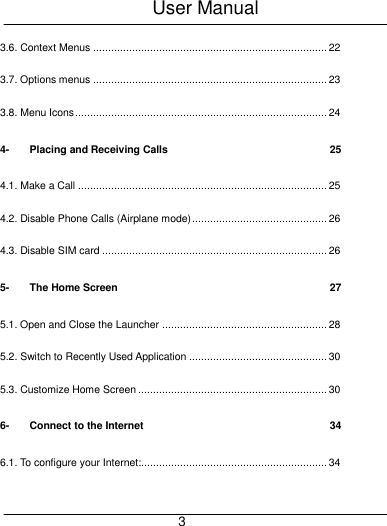
User Manual     3 3.6. Context Menus .............................................................................. 22 3.7. Options menus .............................................................................. 23 3.8. Menu Icons .................................................................................... 24 4- Placing and Receiving Calls  25 4.1. Make a Call ................................................................................... 25 4.2. Disable Phone Calls (Airplane mode) ............................................. 26 4.3. Disable SIM card ........................................................................... 26 5- The Home Screen  27 5.1. Open and Close the Launcher ....................................................... 28 5.2. Switch to Recently Used Application .............................................. 30 5.3. Customize Home Screen ............................................................... 30 6- Connect to the Internet  34 6.1. To configure your Internet:.............................................................. 34
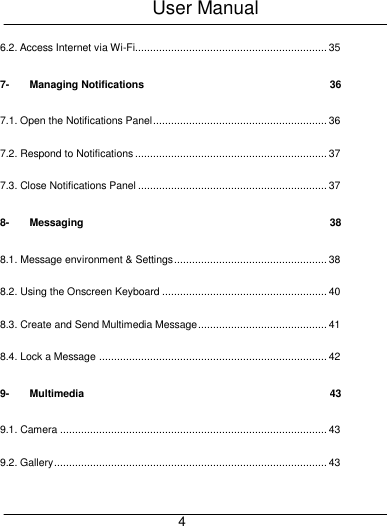
User Manual     4 6.2. Access Internet via Wi-Fi................................................................ 35 7- Managing Notifications  36 7.1. Open the Notifications Panel .......................................................... 36 7.2. Respond to Notifications ................................................................ 37 7.3. Close Notifications Panel ............................................................... 37 8- Messaging  38 8.1. Message environment & Settings ................................................... 38 8.2. Using the Onscreen Keyboard ....................................................... 40 8.3. Create and Send Multimedia Message ........................................... 41 8.4. Lock a Message ............................................................................ 42 9- Multimedia  43 9.1. Camera ......................................................................................... 43 9.2. Gallery ........................................................................................... 43
User Manual     5 9.3. Share an Album ............................................................................. 44 9.4. Music44 9.5. FM Radio ....................................................................................... 46 9.6. Record Sounds .............................................................................. 46 9.7. Make Printscreens ......................................................................... 47 10- Connect to Networks and Devices  48 10.1. Connect to PC ..................................................   10.2. Connect to Internet ...................................................................... 48 10.3. Connect to Wi-Fi Networks........................................................... 48 10.4. Pair With Bluetooth Devices ......................................................... 48 11.5. Connect to Internet via your Phone .............................................. 49 10.6. Install Secure Certificate from SD Card ........................................ 50 11- Download Applications  52 12- Phone Settings  53 48
User Manual     6 13- Health and Safety Information  57
User Manual     7 11--  WWEELLCCOOMMEE  1.1. Exciting Features  Congratulations on becoming a proud owner of the Nougat Android mobile phone. You have now joined the millions of satisfied customers spread across the Globe. Your Nougat device offers you these exciting features and much more:   Android™ 7.0   5.0 inch Screen   Cameras (front and back)   1.0GHz Dual-core Processor
User Manual     8   External Memory (Expandable to 32 GB)   Single SIM   Multimedia player  Wi-Fi     Bluetooth 2.1+EDR
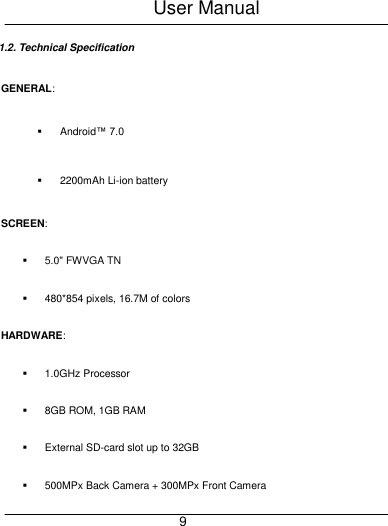
User Manual     9 1.2. Technical Specification GENERAL:   Android™ 7.0   2200mAh Li-ion battery SCREEN:  5.0" FWVGA TN  480*854 pixels, 16.7M of colors HARDWARE:   1.0GHz Processor     8GB ROM, 1GB RAM     External SD-card slot up to 32GB   500MPx Back Camera + 300MPx Front Camera
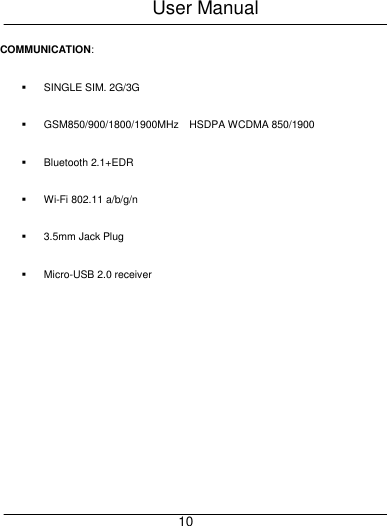
User Manual     10 COMMUNICATION:   SINGLE SIM. 2G/3G   GSM850/900/1800/1900MHz    HSDPA WCDMA 850/1900       Bluetooth 2.1+EDR  Wi-Fi 802.11 a/b/g/n   3.5mm Jack Plug   Micro-USB 2.0 receiver
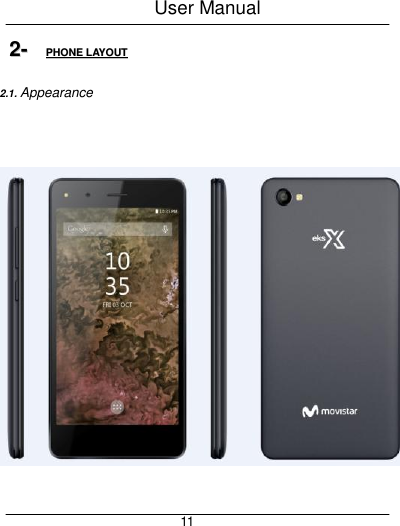
User Manual     11 22--  PPHHOONNEE  LLAAYYOOUUTT  2.1. Appearance
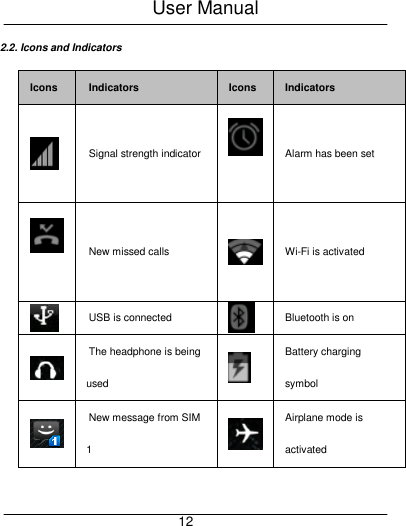
User Manual     12 2.2. Icons and Indicators Icons Indicators Icons Indicators  Signal strength indicator  Alarm has been set  New missed calls  Wi-Fi is activated  USB is connected  Bluetooth is on  The headphone is being used  Battery charging symbol  New message from SIM 1  Airplane mode is activated
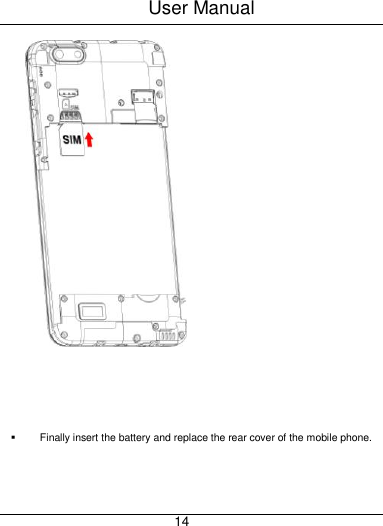
User Manual     13 33--  GGEETTTTIINNGG  SSTTAARRTTEEDD  3.1. Insert SIM card The Nougat is a Single SIM mobile phone allowing you to use the facility of one network. To insert SIM card(s):    Switch off the mobile phone and remove the rear cover and battery.   Insert the SIM card correctly in the card slot(s) (See figure below).   Insert SIM card carefully!
User Manual     14      Finally insert the battery and replace the rear cover of the mobile phone.
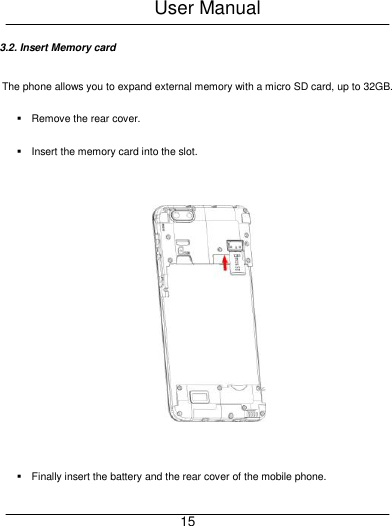
User Manual     15 3.2. Insert Memory card The phone allows you to expand external memory with a micro SD card, up to 32GB.   Remove the rear cover.     Insert the memory card into the slot.        Finally insert the battery and the rear cover of the mobile phone.
User Manual     16  Use only compatible memory cards approved by with this device. Incompatible memory cards may damage the card or the device will corrupt the data stored in the card.
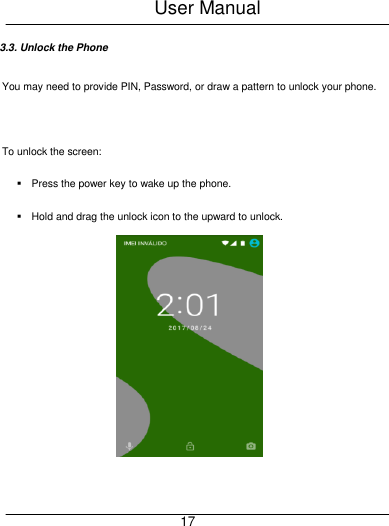
User Manual     17 3.3. Unlock the Phone You may need to provide PIN, Password, or draw a pattern to unlock your phone.    To unlock the screen:   Press the power key to wake up the phone.   Hold and drag the unlock icon to the upward to unlock.
User Manual     18    You may be required to unlock your phone based on the unlock method in settings.  To set the unlock method:   On the main menu, touch Settings > Security.   Touch Set    up screen lock.   Choose the type of locking as desired. You can set your screen lock on the basis of pattern, PIN, Password or none.
User Manual     19 3.4. Using the Touch screen  You can use the touch screen in the following ways:   Touch: Acts on items on the screen, such as application and settings icons, to type letters and symbols using the onscreen keyboard, or to press onscreen buttons.  Touch and hold: Touch and hold an item on the screen until an action occurs.  Drag: Touch and hold an item and move your finger on the screen until you reach the target position.  Swipe or slide: Quickly slide your finger across the surface of the screen, (without dragging an item). For example, slide the screen up or down to scroll a list,
User Manual     20  Double-tap: Tap quickly twice on a webpage, map, or other screen to zoom. For example, double-tap a section of a webpage in Browser to zoom that section to fit the width of the screen. You can also double-tap to control t zoom, in Maps, and in other applications.  Pinch: In some applications (Such as Maps, Browser, and Gallery) you can zoom in and out by placing two fingers on the screen at once and pinching them together (to zoom out) or spreading them apart (to zoom in).  Rotate the screen: On most screens, the orientation of the screen changes as you rotate it. You can turn this feature on and off.
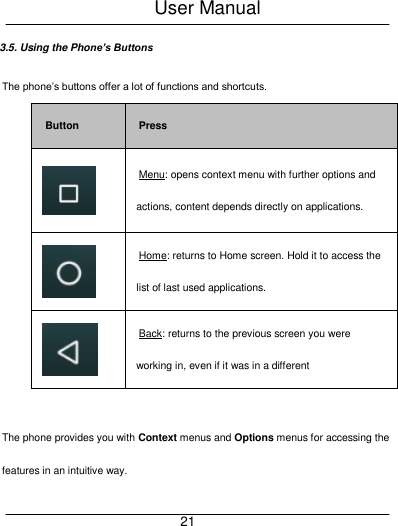
User Manual     21 3.5. Using the Phone’s Buttons The phone’s buttons offer a lot of functions and shortcuts. Button Press  Menu: opens context menu with further options and actions, content depends directly on applications.  Home: returns to Home screen. Hold it to access the list of last used applications.  Back: returns to the previous screen you were working in, even if it was in a different    The phone provides you with Context menus and Options menus for accessing the features in an intuitive way.
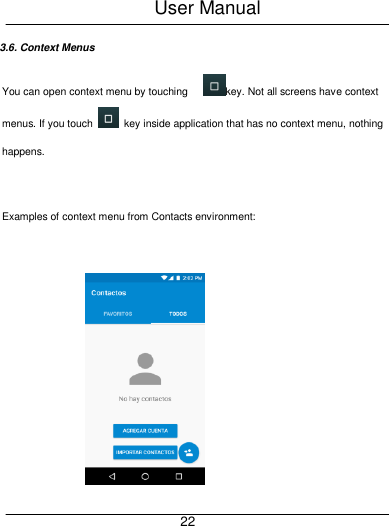
User Manual     22 3.6. Context Menus You can open context menu by touching      key. Not all screens have context menus. If you touch    key inside application that has no context menu, nothing happens.  Examples of context menu from Contacts environment:
User Manual     23   3.7. Options menus Options menus contain tools that apply to specific items on the screen. You can open an option by touching and holding an item on the screen. Not all items have options menus.   When you touch and hold some items on a screen, an Options menu opens.
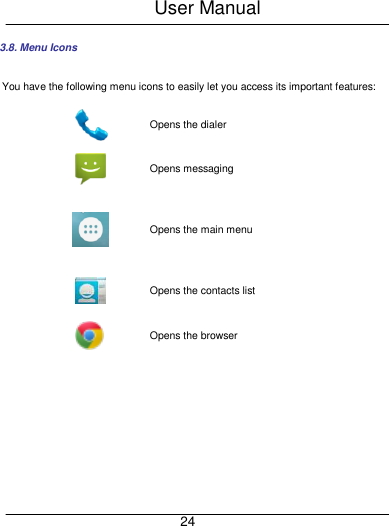
User Manual     24 3.8. Menu Icons You have the following menu icons to easily let you access its important features:  Opens the dialer  Opens messaging  Opens the main menu  Opens the contacts list  Opens the browser
User Manual     25 44--  PPLLAACCIINNGG  AANNDD  RREECCEEIIVVIINNGG  CCAALLLLSS  You can dial a phone number or touch a number in your contacts. You can also place from the call log or contacts.  4.1. Make a Call   Tap the    icon on main menu or the home screen to dial the desired number.   Touch the    icon on main menu or the home screen to make a call from contact, groups or favorites.   To dial an international number, touch and hold the 0 key to enter the Plus (+) symbol, and then enter the international country prefix, followed by the phone number   Touch the    icon to call with SIM 1 or SIM 2.   Press the Volume Up/ Down keys to adjust the call volume.   You can access Call Logs, Contacts from the dialer screen.
User Manual     26   While during a call, touch the    icon to end a call.   4.2. Disable Phone Calls (Airplane mode) Some locations like airplanes may require you to turn off your mobile, Wi-Fi, and Bluetooth wireless connections.   Press and hold the Power button.   Touch the Airplane mode.
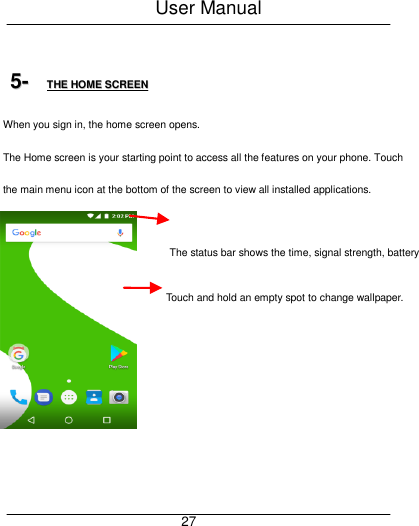
User Manual     27  55--  TTHHEE  HHOOMMEE  SSCCRREEEENN  When you sign in, the home screen opens. The Home screen is your starting point to access all the features on your phone. Touch the main menu icon at the bottom of the screen to view all installed applications. Touch and hold an empty spot to change wallpaper.       The status bar shows the time, signal strength, battery     satus and notification
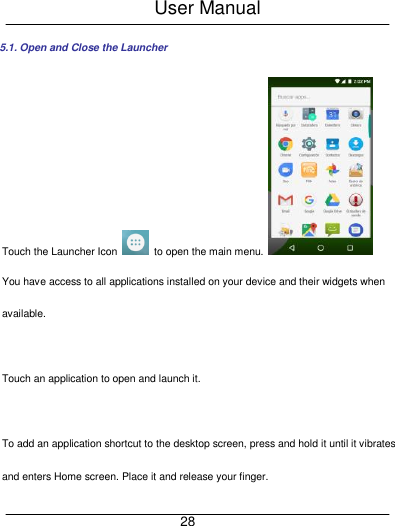
User Manual     28 5.1. Open and Close the Launcher Touch the Launcher Icon    to open the main menu.  You have access to all applications installed on your device and their widgets when available.  Touch an application to open and launch it.    To add an application shortcut to the desktop screen, press and hold it until it vibrates and enters Home screen. Place it and release your finger.
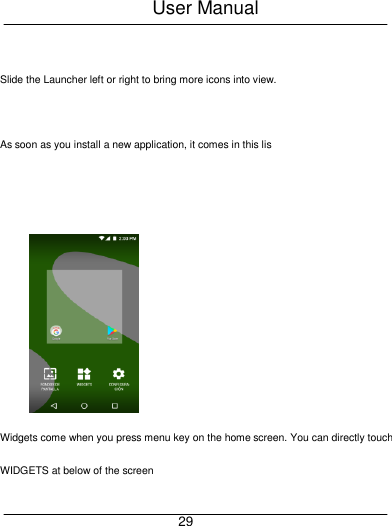
User Manual     29  Slide the Launcher left or right to bring more icons into view.  As soon as you install a new application, it comes in this lis  Widgets come when you press menu key on the home screen. You can directly touch WIDGETS at below of the screen
User Manual     30  You cannot launch widget like an application; you can only place it on desktop screen.  Press and hold it until it vibrates and enters Home screen. Place it and release your finger. A context menu opens to configure the widget or resize it, naturally, it depends on the widget. Press Home icon or Back icon to close the Launcher. 5.2. Switch to Recently Used Application   Press    click on this icon   Touch an icon to open its application. Or press    to return to the current application.   5.3. Customize Home Screen
User Manual     31 You can add applications, shortcuts, widgets, and other items to any part of the Home screen or change the wallpaper.  Applications:     Press    to open the Home screen.   Touch the Launcher Icon  to open the main menu.   To add an application shortcut to the desktop screen, press and hold it until it vibrates and enters Home screen. Place it and release your finger.  Widgets:   Press    to open the Home screen.   Touch the Launcher Icon    on your home screen.   Touch widgets on the top of screen.
User Manual     32 You are in the main widgets screen, you can     Move between screens: Swipe left or right  Drag a widget to a home screen: Touch and hold the widget’s icon, slide your finger where you want to place it, and lift your finger.   You may be asked to make further choices before the widget activates. If there isn’t room where you dropped it, the widget won’t get added to the Home Screen.  Wallpapers: Wallpapers are images from Gallery, still images included with the system, and live images. They take the place of the default background for your Home Screen.      Touch and hold anywhere on a desktop Home screen that’s not occupied. A list of options appears.   Touch one of the following wallpaper source:
User Manual     33 o Gallery: Choose from pictures that you’ve taken with camera or downloaded to your device. o Wallpaper: Choose from thumbnails of default images.   For set wallpaper, touch SET WALLPAPER at the top of the screen (for Gallery images) or set wallpaper.  Folders: You can very easily regroup desktop icons in a folder on screen to save space and access more applications.   Touch and hold any icon on desktop screen to move it.   Go on another icon and release to create a folder containing both icons.   Then add as many icons as folder can hold, give it a name, move it where you want. You have all the tools to customize your Nougat Smart Phone.
User Manual     34 66--  CCOONNNNEECCTT  TTOO  TTHHEE  IINNTTEERRNNEETT  6.1. To configure your    Internet:   Go to Settings> Wireless & Networks >More > Mobile Networks >Tap Data Enabled.   By default, your network provider sends the Access Point Name settings via SMS, or it comes automatically with your SIM card. You may need to install these settings. After this, you can choose from the listed access point names. If the access point names are not listed by default, please contact your network provider for the same.   To add any operator Access point Name, go to settings > More > Mobile networks > Access Point Name. WARNING: to avoid any over cost contact your operator to know more about Access Point Name regarding your subscription.
User Manual     35   After you have selected or configured the access point name, go to Settings> Wireless & Networks >Data usage >Tap Mobile Data to enable Internet connection.  6.2. Access Internet via Wi-Fi To browse the Internet via Wi-Fi:   Go to Menu> System settings> wireless & networks and then tap Wi-Fi.   Next, go to Menu> settings> wireless & networks > Wi-Fi Settings and then enable Wi-Fi. Next, select the WIFI connection listed under Wi-Fi networks.
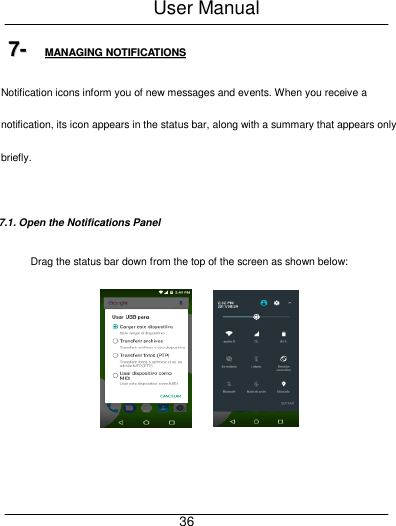
User Manual     36 77--  MMAANNAAGGIINNGG  NNOOTTIIFFIICCAATTIIOONNSS  Notification icons inform you of new messages and events. When you receive a notification, its icon appears in the status bar, along with a summary that appears only briefly.  7.1. Open the Notifications Panel Drag the status bar down from the top of the screen as shown below:
User Manual     37 The Notifications panel displays your network provider name and a list of your current notifications.  7.2. Respond to Notifications Open the notification panel and touch a notification to respond to it. What happens next depends on the notification.  7.3. Close Notifications Panel Drag the tab at the bottom of the Notifications panel to the top of the screen. Or just press the back button. The panel also closes when you touch a notification to respond to it.
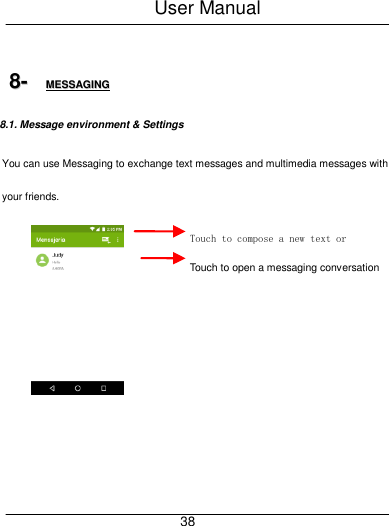
User Manual     38  88--  MMEESSSSAAGGIINNGG  8.1. Message environment & Settings You can use Messaging to exchange text messages and multimedia messages with your friends.    Touch to compose a new text or multimedia message. Touch to open a messaging conversation
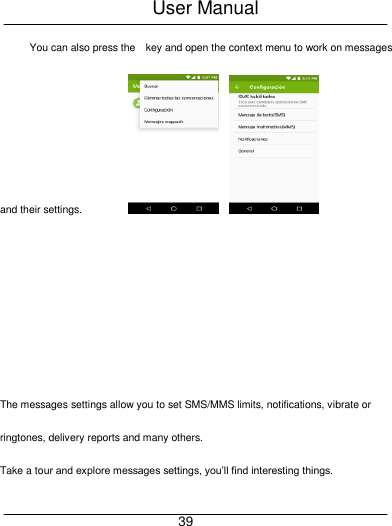
User Manual     39 You can also press the    key and open the context menu to work on messages and their settings.                            The messages settings allow you to set SMS/MMS limits, notifications, vibrate or ringtones, delivery reports and many others. Take a tour and explore messages settings, you’ll find interesting things.
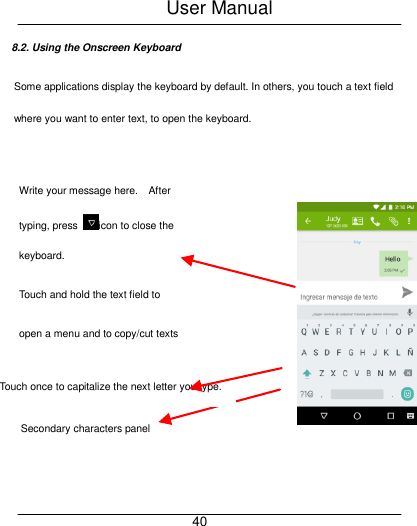
User Manual     40 8.2. Using the Onscreen Keyboard Some applications display the keyboard by default. In others, you touch a text field where you want to enter text, to open the keyboard.     Touch once to capitalize the next letter you type. Touch double tap for CapsLock.   Secondary characters panel (special, symbols, numbers) Write your message here.    After typing, press  icon to close the keyboard.  Touch and hold the text field to   open a menu and to copy/cut texts
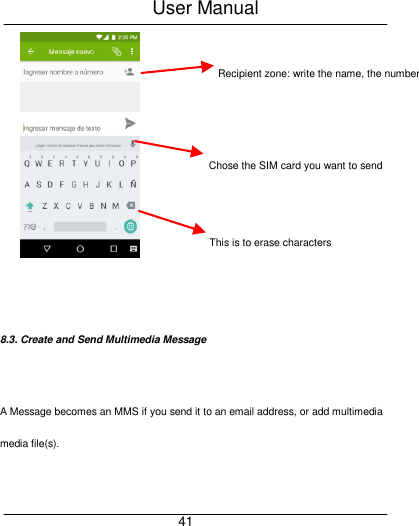
User Manual     41    8.3. Create and Send Multimedia Message  A Message becomes an MMS if you send it to an email address, or add multimedia media file(s).  Recipient zone: write the name, the number   or tap the icon on right to access contacts list This is to erase characters Chose the SIM card you want to send your message with
User Manual     42   Touch compose new message.   Enter or select a mobile phone number.   Touch the composition text box and write your message.   Touch the    key to open the context menu.   Touch Attach to attach various types of files.   Send the MMS.  8.4. . Lock a Message You can lock a message so it won’t be deleted if you reach your storage limits.     Touch and hold message in a message window.   Touch Lock message in the menu that opens.    Unlock a message by touching and holding it and then touch Unlock message.
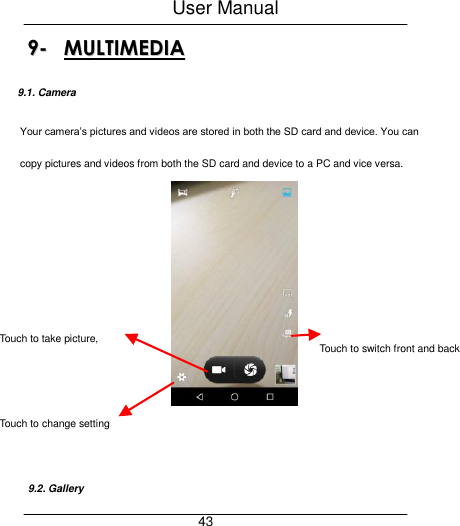
User Manual     43 99--  MMUULLTTIIMMEEDDIIAA  9.1. Camera Your camera’s pictures and videos are stored in both the SD card and device. You can copy pictures and videos from both the SD card and device to a PC and vice versa.      9.2. Gallery Touch to take picture, video or panoramic Touch to switch front and back camera  Touch to change setting
User Manual     44 You can use the Gallery to view pictures and play videos and share files.   Touch the Gallery icon in the main menu.   Touch an album to open and view its contents.   Touch a picture or a video in an album to view it.  9.3. Share an Album   Open the main Gallery window.   Check or uncheck the albums you want to share.   Touch the    icon at the top of screen to share via Bluetooth, Email. Or touch the message icon at the top of screen to Share via MMS.   You can share via email, Bluetooth, and so on.  9.4. Music
User Manual     45 You can easily transfer your favorite music from your PC to the SD card and experience a whole world of interesting and melodious music. Touch the    key or the intuitive buttons and icons on the phone in music interface to enjoy the features of your music player. Press the phone’s volume up/down keys on the left side of the mobile phone to adjust the volume.
User Manual     46  9.5. FM Radio You can listen to your favorite FM channels using the inbuilt FM receiver of your phone and a corded earphone (the wire is used as antenna). Touch the key or the intuitive buttons and icons on the phone in Radio interface to explore and enjoy the features of your inbuilt FM radio:   Record sound   Search FM stations   Enable speaker Press the phone’s volume up/down keys on the left side of the mobile phone to adjust the volume  9.6. Record Sounds   Touch the Sound Recorder in the main menu.
User Manual     47  Tap  to start recording a voice clip. “Recording” appears when it is recording a voice clip.   Tap    to stop and save the recording.  9.7. Make Screenshot   Press and hold for 1 second both Volume Down and Power buttons together.
User Manual     48  1100--  CCOONNNNEECCTT  TTOO  NNEETTWWOORRKKSS  AANNDD  DDEEVVIICCEESS  Your phone can connect to a variety of networks and devices, including Wi-Fi, GPRS, Bluetooth, devices, such as headsets. You can also transfer files to/from your PC through the data cable.  10.1. Connect to Internet Refer to section 6 for details.  10.2. Connect to Wi-Fi Networks Refer to Section 6 for details.  10.3. Pair With Bluetooth Devices
User Manual     49   Go to Settings > Wireless & networks> Bluetooth settings.   If Bluetooth is off, check Bluetooth to turn it on. Your phone scans and displays the Bluetooth devices in range.   If the device you want to pair with is not in the list, make it discoverable.   If your phone stops scanning before you make the other device discoverable, touch Scan for devices.   Touch the ID of the other device in the list Settings to pair them. If you are prompted to for a password, enter any password on one device and enter the same password you entered in the other device to be paired, If the pairing is successful, your phone connects to the device.   10.4. Connect to Internet via your Phone You can browse the Internet on your PC using your mobile phone. To do this:
User Manual     50    Connect your mobile phone to your PC via the USB cable.   Go to Settings> Wireless & Networks>More >Tethering & portable hotspot and then touch USB Tethering.  A prompt for installation will appear on your PC. Proceed as suggested.   In case of Linux, Windows 7 and Vista OS, the drivers get automatically installed. However, in case of Windows XP, maybe you need to manually install the drivers.  10.5. Install Secure Certificate from SD Card If your VPN or Wi-Fi Network relies on secure certificates, you must obtain the certificates and store them in your phone’s storage, before you can configure access to those VPN or Wi-Fi networks on your phone. You may need to download the certificates from a website.
User Manual     51   Copy the certificate from your computer to the root of the SD card.   Touch Settings> Security.   Touch Install from SD card under Credential Storage.   Touch the file name of the certificate to install. Only the names of certificates that you have not already installed on your phone are displayed.  If prompted, enter the certificate’s password and touch OK.   Enter a name for the certificate and touch OK.
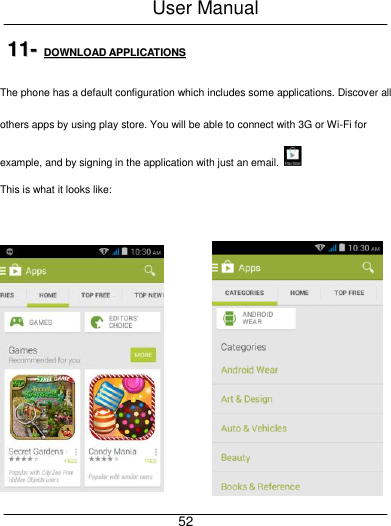
User Manual     52 1111--  DDOOWWNNLLOOAADD  AAPPPPLLIICCAATTIIOONNSS  The phone has a default configuration which includes some applications. Discover all others apps by using play store. You will be able to connect with 3G or Wi-Fi for example, and by signing in the application with just an email.   This is what it looks like:
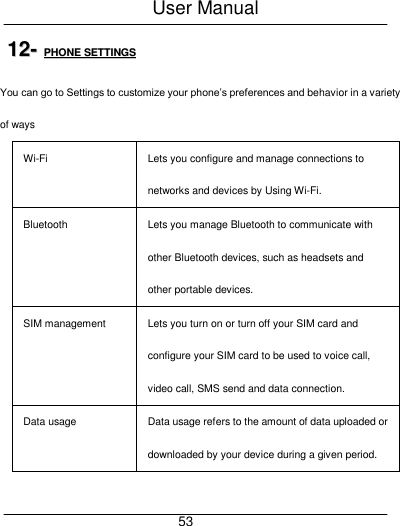
User Manual     53 1122--  PPHHOONNEE  SSEETTTTIINNGGSS  You can go to Settings to customize your phone’s preferences and behavior in a variety of ways Wi-Fi Lets you configure and manage connections to networks and devices by Using Wi-Fi. Bluetooth Lets you manage Bluetooth to communicate with other Bluetooth devices, such as headsets and other portable devices. SIM management Lets you turn on or turn off your SIM card and configure your SIM card to be used to voice call, video call, SMS send and data connection. Data usage Data usage refers to the amount of data uploaded or downloaded by your device during a given period.
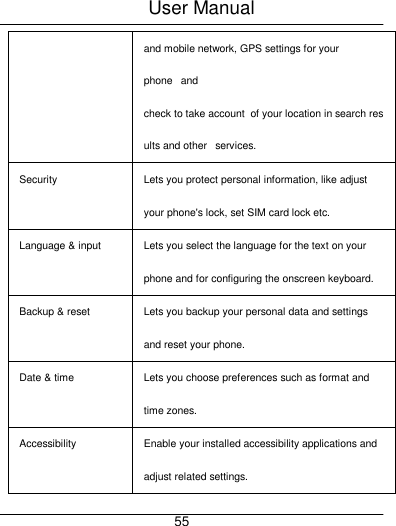
User Manual     54 More… Lets you configure and manage connections to networks and devices. Audio profiles Lets you configure how and at what volume the phone rings, vibrates etc. Display Lets you configure brightness and other screen settings. Storage Lets you see and manage available space on your phone and on your SD card. Battery Lets you check the battery level and status. Apps Lets you view all applications downloaded or on SD card and mange all running applications in devices. Accounts & sync Lets you add, remove and manage your Google and other supported accounts. Location   Lets you set the location related settings like Wi-Fi
User Manual     55 and mobile network, GPS settings for your phone   and check to take account  of your location in search results and other   services. Security Lets you protect personal information, like adjust your phone's lock, set SIM card lock etc. Language & input Lets you select the language for the text on your phone and for configuring the onscreen keyboard. Backup & reset Lets you backup your personal data and settings and reset your phone. Date & time Lets you choose preferences such as format and time zones. Accessibility Enable your installed accessibility applications and adjust related settings.
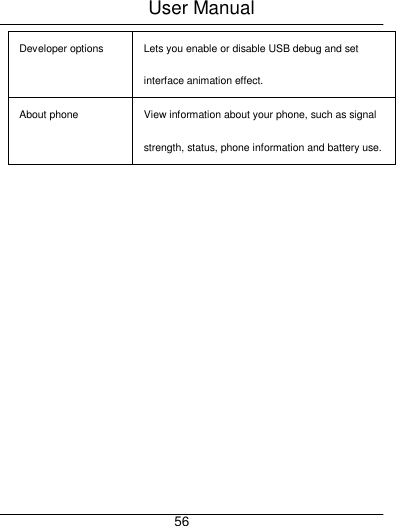
User Manual     56 Developer options Lets you enable or disable USB debug and set interface animation effect. About phone  View information about your phone, such as signal strength, status, phone information and battery use.
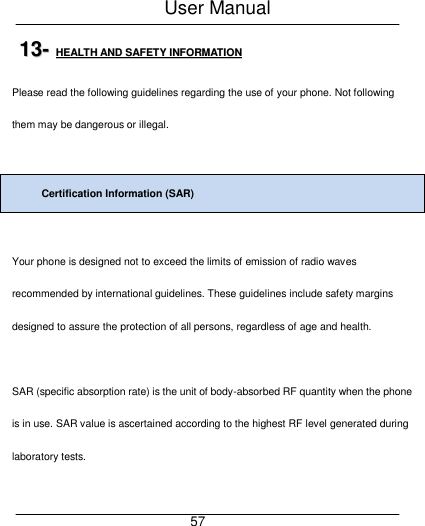
User Manual     57 1133--  HHEEAALLTTHH  AANNDD  SSAAFFEETTYY  IINNFFOORRMMAATTIIOONN  Please read the following guidelines regarding the use of your phone. Not following them may be dangerous or illegal.  Certification Information (SAR)  Your phone is designed not to exceed the limits of emission of radio waves recommended by international guidelines. These guidelines include safety margins designed to assure the protection of all persons, regardless of age and health.  SAR (specific absorption rate) is the unit of body-absorbed RF quantity when the phone is in use. SAR value is ascertained according to the highest RF level generated during laboratory tests.
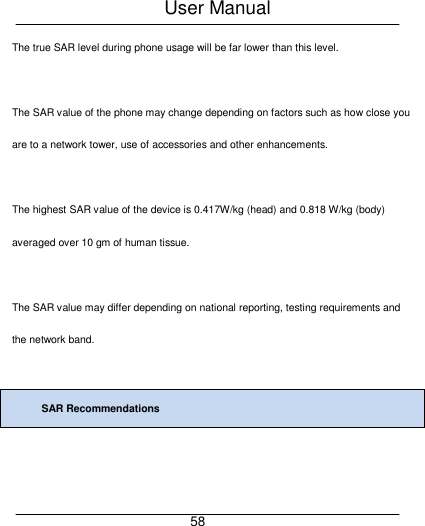
User Manual     58 The true SAR level during phone usage will be far lower than this level.  The SAR value of the phone may change depending on factors such as how close you are to a network tower, use of accessories and other enhancements.  The highest SAR value of the device is 0.417W/kg (head) and 0.818 W/kg (body) averaged over 10 gm of human tissue.  The SAR value may differ depending on national reporting, testing requirements and the network band.  SAR Recommendations
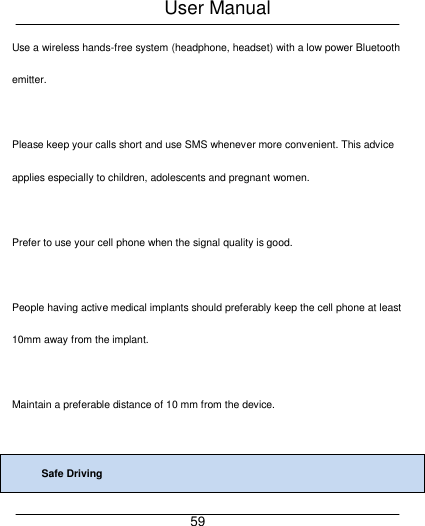
User Manual     59 Use a wireless hands-free system (headphone, headset) with a low power Bluetooth emitter.  Please keep your calls short and use SMS whenever more convenient. This advice applies especially to children, adolescents and pregnant women.  Prefer to use your cell phone when the signal quality is good.  People having active medical implants should preferably keep the cell phone at least 10mm away from the implant.  Maintain a preferable distance of 10 mm from the device.  Safe Driving
User Manual     60  Do not use the phone while driving. When you have to use the phone, please use the personal hands-free kit.  Please do not put the phone onto any passenger seat or any place from which it may fall down in case of vehicular collision or emergency braking.  During Flight  Flight is influenced by interference caused by the phone. It is illegal to use a phone on the airplane. Please turn off your phone or switch to flight mode during a flight.
User Manual     61  In Hospitals Your Phone’s radio waves may interfere with the functioning medical devices. Consult a physician or the manufacturer of the medical device to determine whether they are adequately shielded from external Radio Frequency. Switch off your device when regulations instruct you to do so.  Do not carry the wireless device in the breast pocket.  Turn off the phone if there is any reason to suspect that interference is taking place.  Unsafe Areas
User Manual     62 Please turn off your phone when you are close to a gas station or in the vicinity of any place where fuel and chemical preparations, or any other dangerous goods are stored.  Taking Care of Your Device  Your device is a product of superior design and craftsmanship and should be handled with care: The following suggestions will help you protect your phone:  Keep the device dry. If your device gets wet, remove the battery without turning on the device, wipe it with a dry cloth and take it the service center.  Do not store the device in high or cold temperature. High temperatures can shorten the life of electronic devices and damage batteries.
User Manual     63 Do not use or store the device in dusty, dirty areas. Its moving parts and electronic components can be damaged.  Do not attempt to open the device other than as instructed in this guide. Repairing the phone by yourself other than our authorized service agents/centers goes against the warranty rules.  Do not drop, knock, or shake the device. Rough handling can break internal circuit boards and fine mechanics.  Do not use harsh chemicals, cleaning solvents, or strong detergents to clean the device. Only use a soft, clean, dry cloth to clean the surface of the device.
User Manual     64 Do not store your device near magnetic fields or allow your device to come in contact with magnetic fields for extended period of time.  Battery Recommendations  Please put the battery in a well-ventilated place out of direct sunlight. Charge the battery at room temperature range.  If the time span of the battery after charging becomes much shorter than usual, the battery life is at an end. Replace the battery with a new battery of the same make and specification.  Do not discard the battery with household trash. Please dispose of used battery according to your local environmental laws and guidelines.
User Manual     65  Use manufacturer approved batteries, chargers, accessories and supplies. We will not be responsible for user’s safety when using unapproved batteries or accessories.  Recycle Your Phone   The WEEE logo (shown at the left) appears on the product (battery, handset, and charger) to indicate that this product must not be disposed off or dumped with your other household wastes. You are liable to dispose of all your electronic or electrical waste equipment by relocating over to the specified collection point for recycling. of such hazardous waste.
User Manual     66 Collection and proper recovery of your electronic waste equipments at the time of disposal will allow us to help preserve the environment. Recycling of the electronic waste equipment will ensure safety of human health and environment.    Disclaimers  The colors and specifications shown/mentioned in the user manual may differ from the actual product. Images shown are for representation purpose only. Other product logos and company names mentioned herein may be trademarks or trade names of their respective owners.    The content of this manual may vary from the actual content displayed in the mobile phone. In such a case, the later shall govern.
User Manual     67 We keep the right to make modifications to any of the content in this user guide without public announcement or prior notification.  For devices with external power supplies, plug socket should be placed in short distance and easily accessible.  Using the wrong type battery replacement there is a danger of explosion, be sure to follow the instructions disposal of used batteries.  Copyrights  All rights reserved. Reproduction, transfer, distribution or storage of part or all of the contents in this document in any form without the prior written permission of is strictly prohibited.
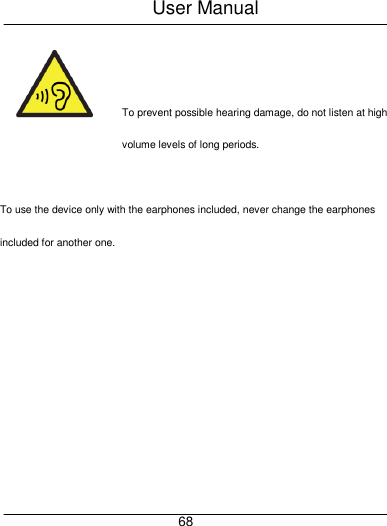
User Manual     68   To prevent possible hearing damage, do not listen at high volume levels of long periods.  To use the device only with the earphones included, never change the earphones included for another one.
User Manual     69 FCC Warning This device complies with part 15 of the FCC Rules. Operation is subject to the following two conditions: (1) This device may not cause harmful interference, and (2) this device must accept any interference received, including interference that may cause undesired operation.  Any Changes or modifications not expressly approved by the party responsible for compliance could void the user's authority to operate the equipment.    Note: This equipment has been tested and found to comply with the limits for a Class B digital device, pursuant to part 15 of the FCC Rules. These limits are designed to provide reasonable protection against harmful interference in a residential installation. This equipment generates uses and can radiate radio frequency energy and, if not installed and used in accordance with the instructions, may cause harmful interference
User Manual     70 to radio communications. However, there is no guarantee that interference will not occur in a particular installation. If this equipment does cause harmful interference to radio or television reception, which can be determined by turning the equipment off and on, the user is encouraged to try to correct the interference by one or more of the following measures:     -Reorient or relocate the receiving antenna.     -Increase the separation between the equipment and receiver.     -Connect the equipment into an outlet on a circuit different from that to which the receiver is connected.     -Consult the dealer or an experienced radio/TV technician for help.   Specific Absorption Rate (SAR) information:   This    SMART PHONE meets the government's requirements for exposure to radio waves. The guidelines are based on standards that were developed by independent scientific organizations through periodic and thorough evaluation of
User Manual     71 scientific studies. The standards include a substantial safety margin designed to assure the safety of all persons regardless of age or health.   FCC RF Exposure Information and Statement The SAR limit of USA (FCC) is 1.6 W/kg averaged over one gram of tissue. Device types: SMART PHONE (FCC ID: 2AGAK-S5US) has also been tested against this SAR limit. The highest SAR value reported under this standard during product certification for use at the ear is 0.417W/kg and when properly worn on the body is 0.818W/kg. the Hotspot SAR value is 0.818W/kg,the simultaneous transmission SAR value is 0.950W/kg on the head and 1.256W/ kg on the body. This device was tested for typical body-worn operations with the back of the handset kept 10mm from the body. To maintain compliance with FCC RF exposure requirements, use accessories that maintain a 10mm separation distance between the user's body and the back of the handset. The use of belt clips, holsters and similar accessories should not contain metallic components in its assembly. The use of accessories that do not satisfy these
User Manual     72 requirements may not comply with FCC RF exposure requirements, and should be avoided.   Body-worn Operation   This device was tested for typical body-worn operations. To comply with RF exposure requirements, a minimum separation distance of 10mm must be maintained between the user’s body and the handset, including the antenna. Third-party belt-clips, holsters, and similar accessories used by this device should not contain any metallic components. Body-worn accessories that do not meet these requirements may not comply with RF exposure requirements and should be avoided. Use only the supplied or an approved antenna.

Navigation menu