Xeline LTd XUP Powerline Home LAN User Manual manual

Xeline Co., LTd. Powerline Home LAN manual

User Manual

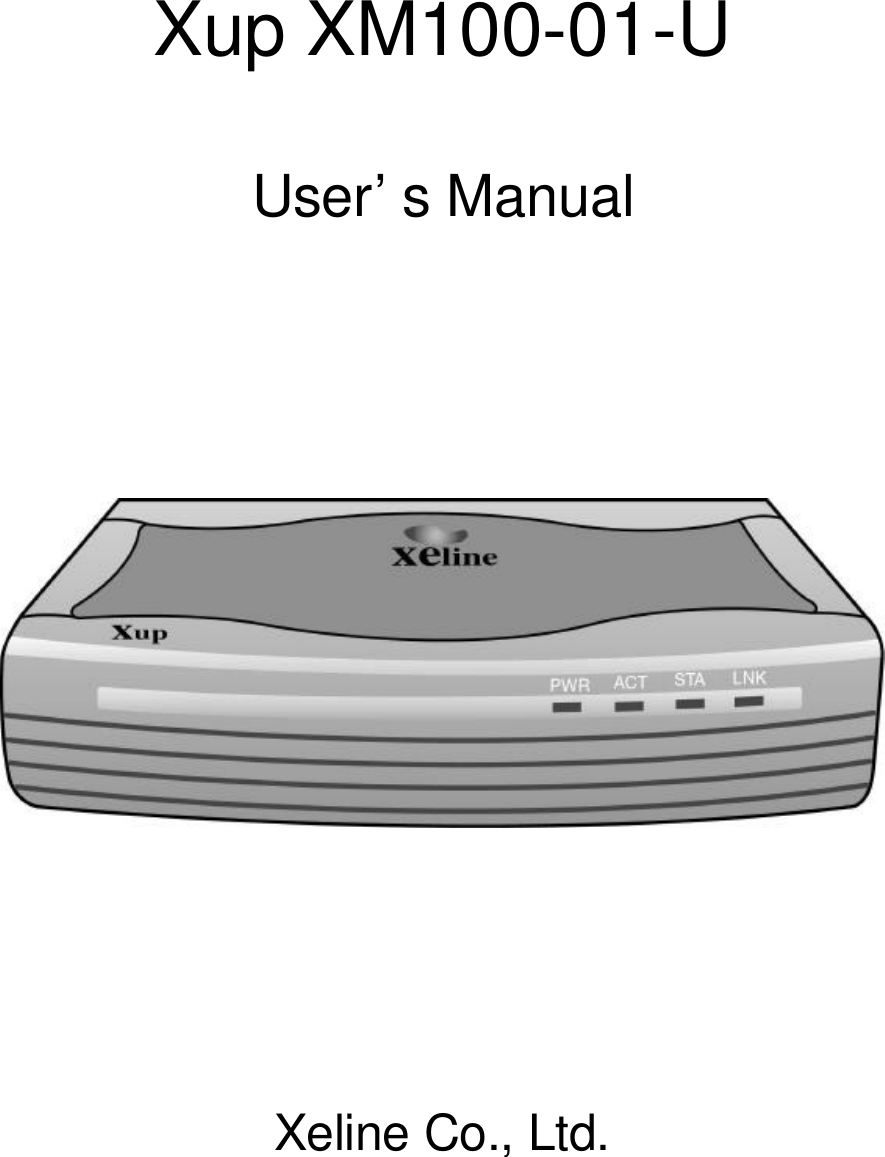
      Xup XM100-01-U   User’s Manual                                                          Xeline Co., Ltd.
    Guide on User’s Manual  Copyright 2001 by Xeline Co., Ltd. All Rights Reserved.  No part of this publication may be reproduced, transcribed, stored in a retrieval system, translated into any language, or transmitted in any form or by any means, electronic, mechanical, magnetic, optical, chemical, photocopying, manual, or otherwise, without prior written permission from Xeline Co., Ltd.  Please be aware that the product would be upgraded to enhance the features and performance without any prior notice. There could be slight difference on actual installation and operation of product from this User’s manual.  Should you have any questions or comments on this User’s manual, please communicate through “Contact us” menu at our web site www.xeline.com.  Technical Support Center Address:7F. Chungjin B/D., 475-22, Bangbae 2-dong, Seocho-ku, Seoul, Korea Telephone: 822) 598-0980 Web Site: http://www.xeline.com  Trademarks โ€ปXup XM100-01-U is a registered trademark of Xeline Co., Ltd. โ€ปWidows98/Windows N/T is a registered trademark of Microsoft Corporation. โ€ปMS-Windows is a registered trademark of Microsoft Corporation.  โ€ปGeneral Notice: Other brand and product names used herein are for identification purposes only and may be trademarks of their respective owners.
    Contents 1. Product Introduction…………………………………………  4 1.1  Product Characteristics  ……………………………………………    4 1.2  Product Contents   ……………………………………………………   4 1.3  Product Details     ……………………………………………………   5 Product Outfit    ………………………………………  ……………  5 Specifications   …………………………………………………  …………   6  2. Installation Guide ……………………………………………………   7 2.1 Installation ……………………………………………………  ………    7 Set up Xup XM100-01-U          ………………………………  7 Installation of Xup XM100-01-U Driver   ………………………………………   8 TCP/IP setting              ………………………..……  11  3. Useful Notes   ………………………………………………………  15 3.1 Useful notes      ………………………………………………………  15 Cautions       ………………………………………………………  15 Troubleshooting      ………………………………………………………  16 Warranty     ………………………………………………………  16
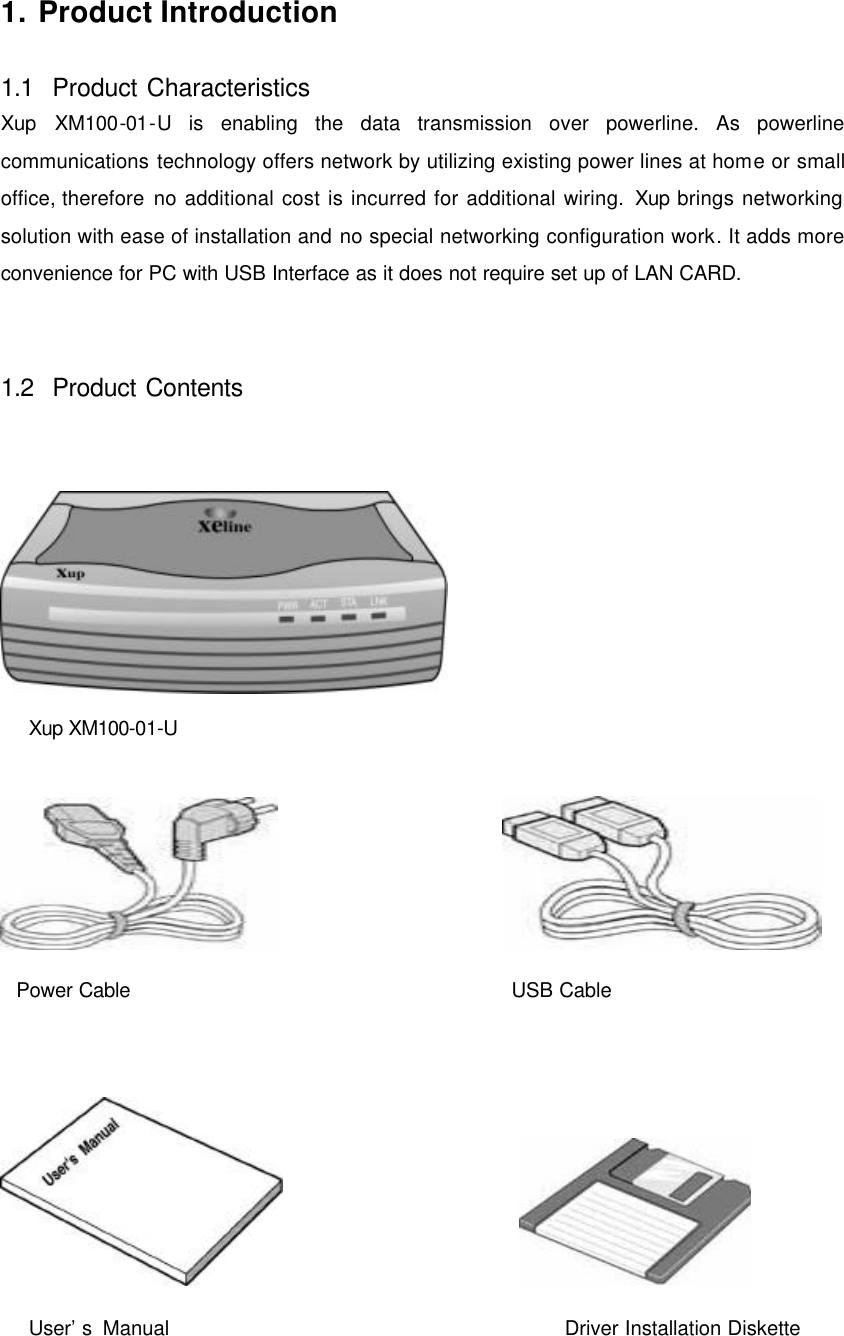
    1. Product Introduction  1.1  Product Characteristics Xup XM100-01-U is enabling the data transmission over powerline. As powerline communications technology offers network by utilizing existing power lines at home or small office, therefore no additional cost is incurred for additional wiring. Xup brings networking solution with ease of installation and no special networking configuration work. It adds more convenience for PC with USB Interface as it does not require set up of LAN CARD.   1.2  Product Contents    ๎€Ÿ Xup XM100-01-U                      ๎€Ÿ Power Cable      ๎€Ÿ USB Cable                        ๎€Ÿ User’s Manual                                  ๎€Ÿ Driver Installation Diskette
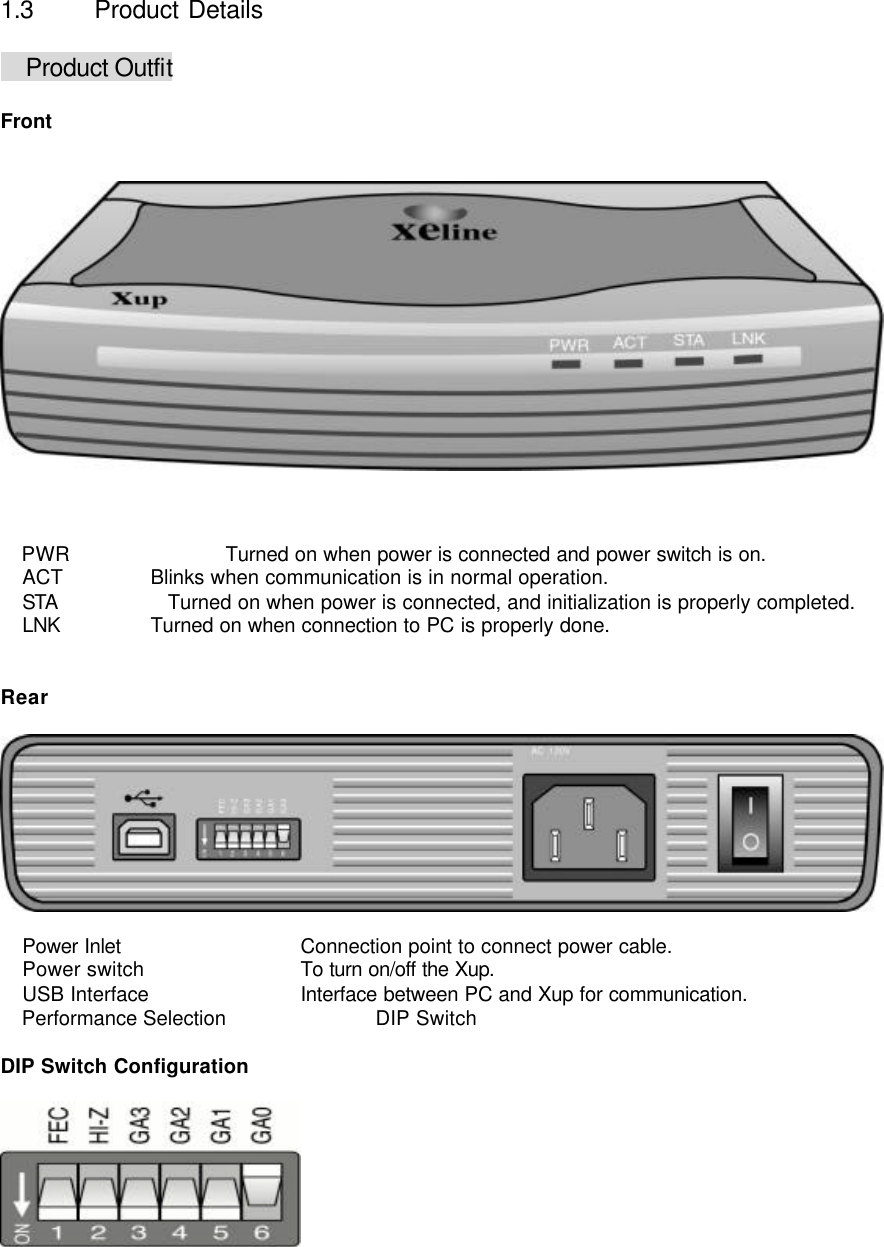
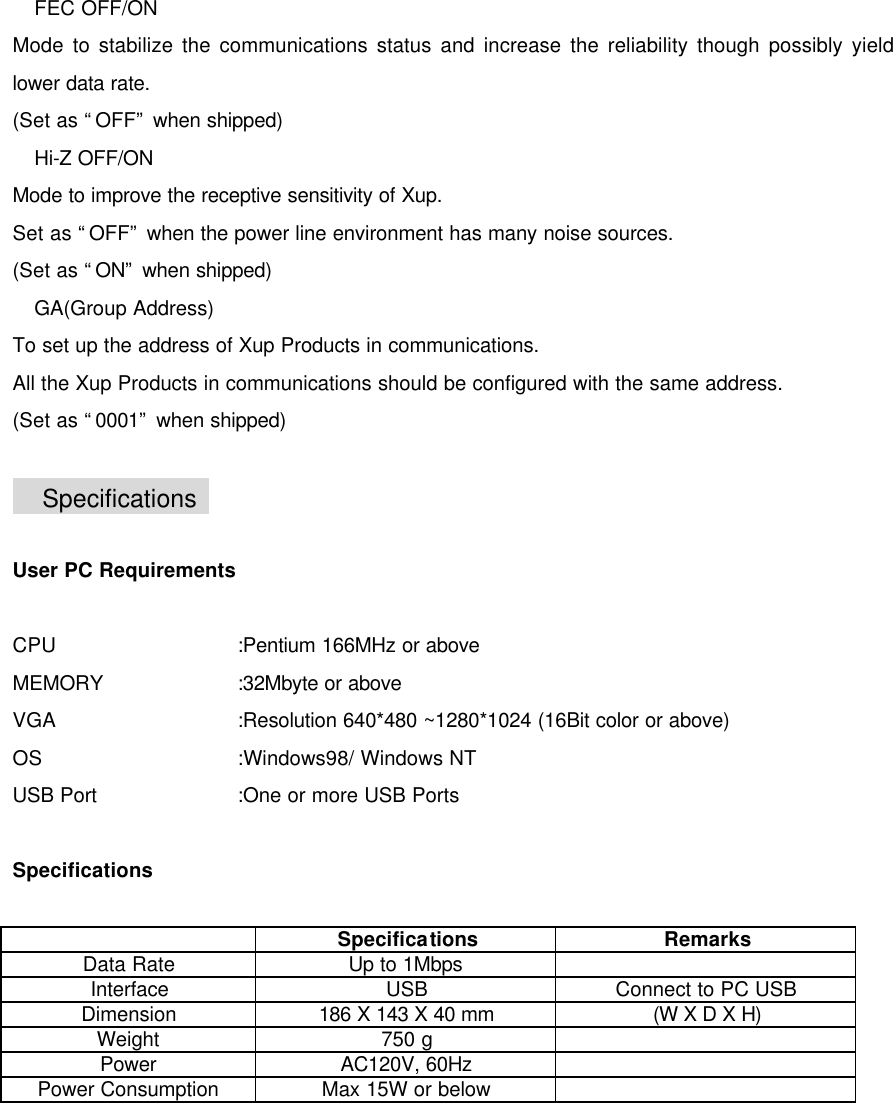
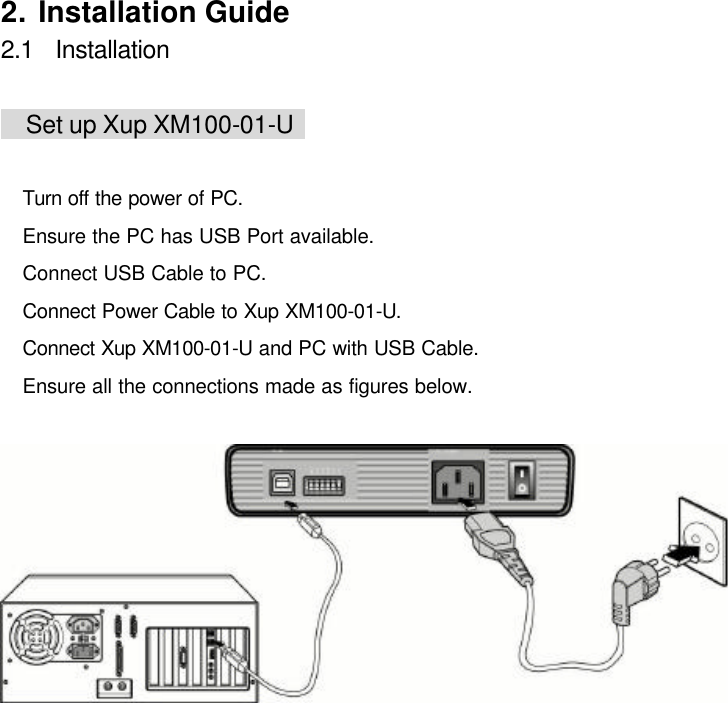
    1.3  Product Details  ๎€Ÿ Product Outfit  Front       ๎€Ÿ PWR      Turned on when power is connected and power switch is on. ๎€Ÿ ACT    Blinks when communication is in normal operation. ๎€Ÿ STA Turned on when power is connected, and initialization is properly completed.   ๎€Ÿ LNK    Turned on when connection to PC is properly done.   Rear    ๎€Ÿ Power Inlet        Connection point to connect power cable. ๎€Ÿ Power switch   To turn on/off the Xup. ๎€Ÿ USB Interface   Interface between PC and Xup for communication. ๎€Ÿ Performance Selection        DIP Switch  DIP Switch Configuration
    ๎€Ÿ FEC OFF/ON Mode to stabilize the communications status and increase the reliability though possibly yield lower data rate. (Set as “OFF” when shipped) ๎€Ÿ Hi-Z OFF/ON Mode to improve the receptive sensitivity of Xup. Set as “OFF” when the power line environment has many noise sources. (Set as “ON” when shipped) ๎€Ÿ GA(Group Address) To set up the address of Xup Products in communications. All the Xup Products in communications should be configured with the same address. (Set as “0001” when shipped)  ๎€Ÿ Specifications    User PC Requirements  CPU   :Pentium 166MHz or above MEMORY    :32Mbyte or above VGA   :Resolution 640*480 ~1280*1024 (16Bit color or above) OS   :Windows98/ Windows NT USB Port    :One or more USB Ports    Specifications   Specifications Remarks Data Rate Up to 1Mbps   Interface USB Connect to PC USB Dimension 186 X 143 X 40 mm (W X D X H) Weight 750 g   Power AC120V, 60Hz   Power Consumption Max 15W or below
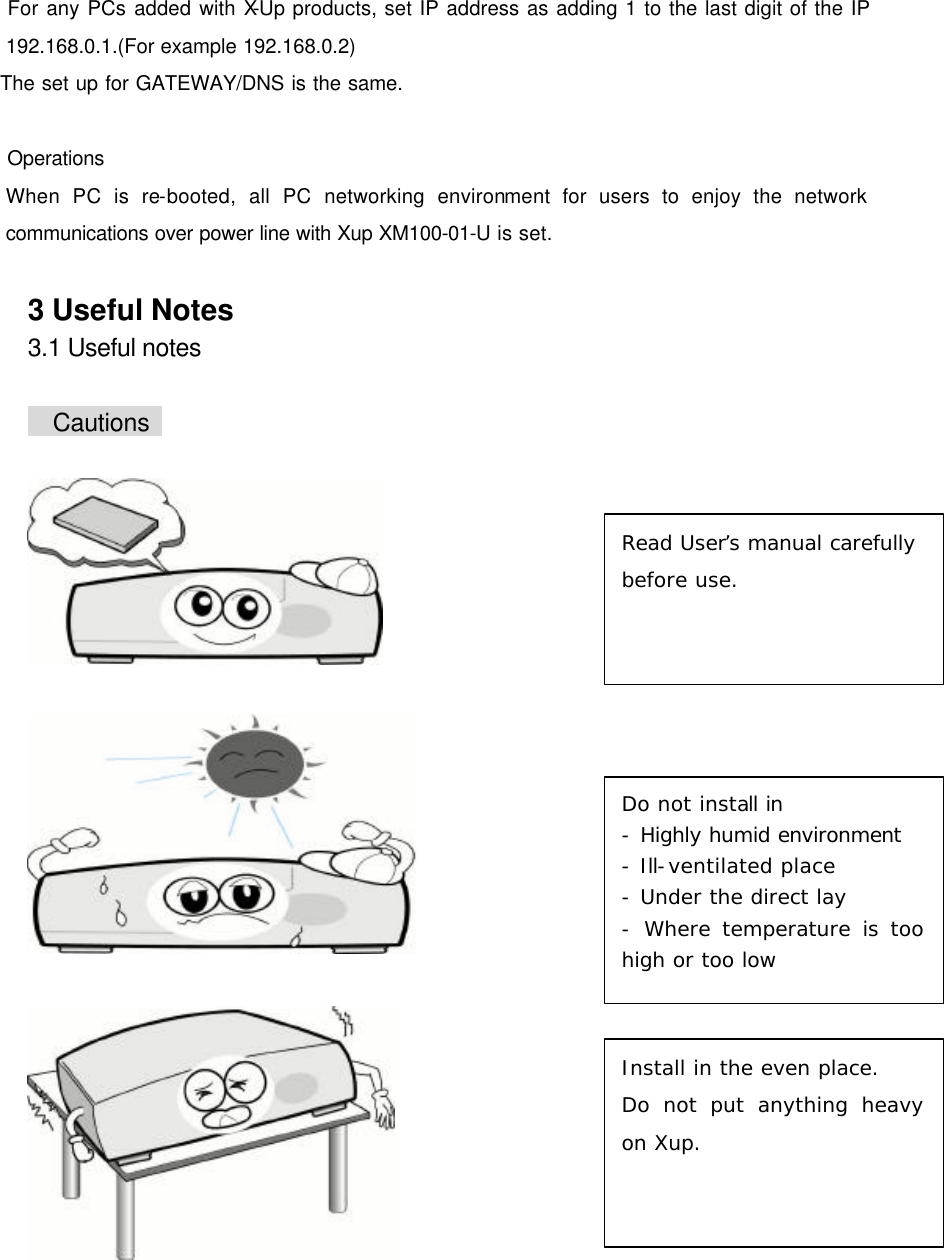
    2. Installation Guide 2.1  Installation  ๎€Ÿ Set up Xup XM100-01-U    ๎€Ÿ Turn off the power of PC. ๎€Ÿ Ensure the PC has USB Port available. ๎€Ÿ Connect USB Cable to PC. ๎€Ÿ Connect Power Cable to Xup XM100-01-U. ๎€Ÿ Connect Xup XM100-01-U and PC with USB Cable. ๎€Ÿ Ensure all the connections made as figures below.
    ๎€Ÿ Installation of Xup XM100-01-U Driver    ๎€Ÿ Turn on your PC and Xup XM100-01-U . Find the new device and display the   ”ADMtek  10/100 USB MAC ” window to install the hardware device driver. (Based on Windows98)  ๎€Ÿ Continue and click [Next>].  ๎€Ÿ The Add New Hardware Wizard will search for the driver. Click [Next>].  ๎€Ÿ Select Search for the best driver for your device[Recommended] and click [Next>].
     ๎€Ÿ Specify the location to install the control device driver. Select Floppy disk drives and click [Next>].   ๎€Ÿ Find ”ADMtek AN986 USB 10/100 MAC ” from the floppy disk to bring up the above screen. Continue and click [Next>].
     ๎€Ÿ When you click the [Next>] button, the software installation for the new ”ADMtek AN986 USB 10/100 MAC ” hardware will be finished. ๎€Ÿ Click [Finish>] and complete the installation. ๎€Ÿ Installation of the Xup XM100-01-U driver is now finished. Once the hardware installation has been completed, click Control Panelà Device Managerà Network Adapters and check if it is set up to display ”ADMtek AN986 USB 10/100 MAC.” If not, the installation process must be done over again from the beginning. If the driver has been properly installed, you will see the following screen.
    ๎€Ÿ TCP/IP setting ๎€Ÿ Go to  Network Resources ๎€Ÿ TCP/IP  ๎€ŸADMtek AN 986 USB 10/100 MAC and adjust TCP/IP Settings.    ๎€Ÿ If “TCP/IP ๎€ŸADMtek AN 986 USB 10/100 MAC” is not shown in the network components, “ TCP/IP PROTOCOL” should be added.  ๎€Ÿ Click [Add..] button, then you will see the following screen.   ๎€Ÿ Select [Protocol], then click [Add] button (A).
     ๎€Ÿ Select [TCP/IP] in right side, then click [OK] button.   ๎€Ÿ Select TCP/IP -> ADMtek AN986 USB 10/100 MAC, and click [Properties] button. :If you are setting Home networking or Internet sharing, set as follows: ๎€Ÿ In the following screen, select [Specify an IP address] and input IP address.  :IP address : 192.168.0.1
    Subnet Mask: 255.255.255.0  ๎€Ÿ In the following screen, input 192.168.0.1 at New Gateway, then click [Add] button.
    ๎€Ÿ When you use DNS already, keep the existing DNS as is.   ๎€Ÿ If not, check on [Disable DNS].
     ๎€Ÿ For any PCs added with X-Up products, set IP address as adding 1 to the last digit of the IP 192.168.0.1.(For example 192.168.0.2)   The set up for GATEWAY/DNS is the same.  ๎€Ÿ Operations When PC is re-booted, all PC networking environment for users to enjoy the network communications over power line with Xup XM100-01-U is set.  3 Useful Notes 3.1 Useful notes  ๎€Ÿ Cautions          Read User’s manual carefully before use. Do not install in - Highly humid environment - Ill-ventilated place - Under the direct lay - Where temperature is too high or too low  Install in the even place. Do not put anything heavy on Xup.
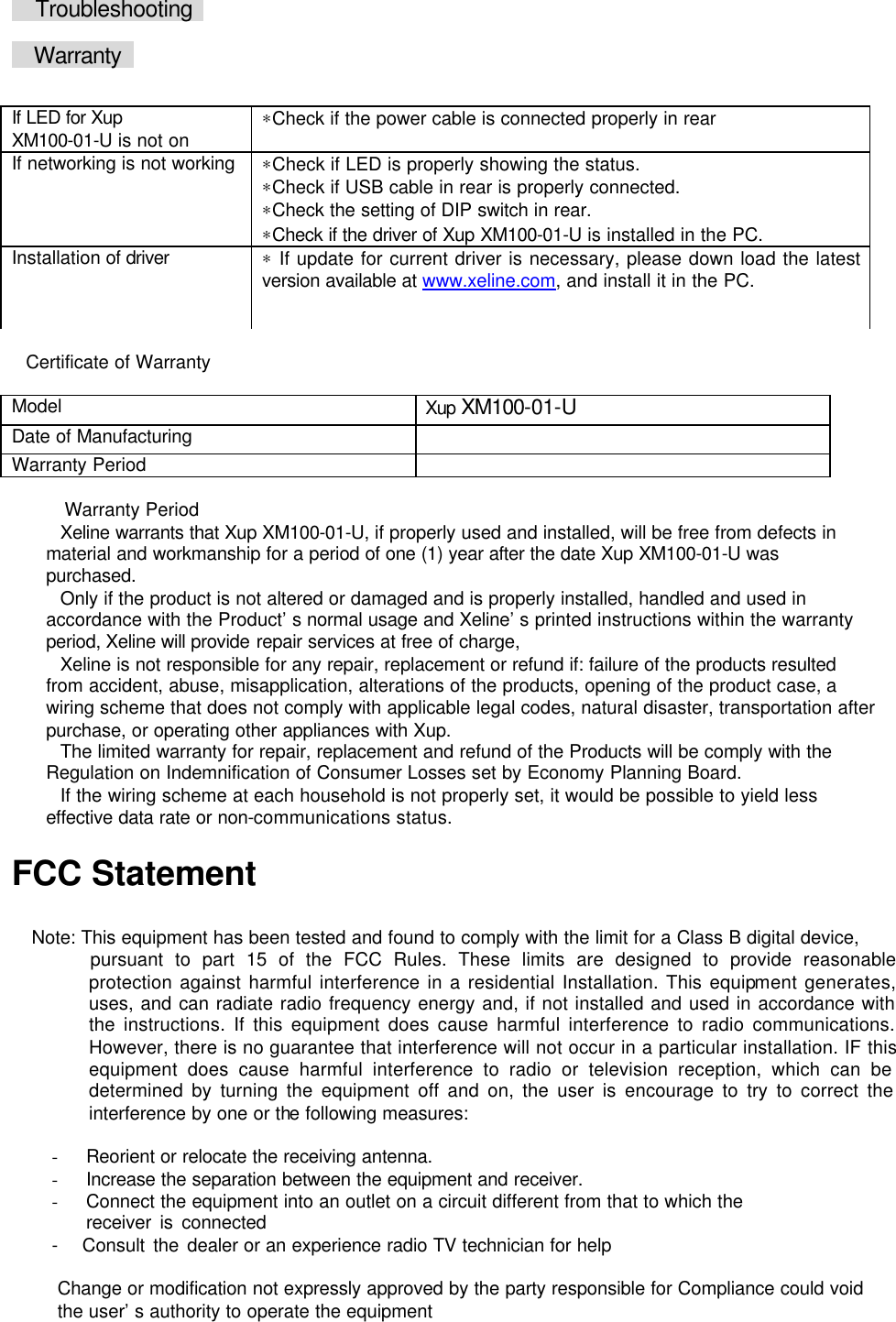
    ๎€Ÿ Troubleshooting    ๎€Ÿ Warranty     ๎€ŸCertificate of Warranty  Model Xup XM100-01-U Date of Manufacturing   Warranty Period    ๎€ŸWarranty Period ๎€ŸXeline warrants that Xup XM100-01-U, if properly used and installed, will be free from defects in material and workmanship for a period of one (1) year after the date Xup XM100-01-U was purchased. ๎€ŸOnly if the product is not altered or damaged and is properly installed, handled and used in accordance with the Product’s normal usage and Xeline’s printed instructions within the warranty period, Xeline will provide repair services at free of charge,   ๎€ŸXeline is not responsible for any repair, replacement or refund if: failure of the products resulted from accident, abuse, misapplication, alterations of the products, opening of the product case, a wiring scheme that does not comply with applicable legal codes, natural disaster, transportation after purchase, or operating other appliances with Xup. ๎€ŸThe limited warranty for repair, replacement and refund of the Products will be comply with the Regulation on Indemnification of Consumer Losses set by Economy Planning Board. ๎€ŸIf the wiring scheme at each household is not properly set, it would be possible to yield less effective data rate or non-communications status.  FCC Statement  Note: This equipment has been tested and found to comply with the limit for a Class B digital device, pursuant to part 15 of the FCC Rules. These limits are designed to provide reasonable protection against harmful interference in a residential Installation. This equipment generates, uses, and can radiate radio frequency energy and, if not installed and used in accordance with the instructions. If this equipment does cause harmful interference to radio communications. However, there is no guarantee that interference will not occur in a particular installation. IF this equipment does cause harmful interference to radio or television reception, which can be determined by turning the equipment off and on, the user is encourage to try to correct the interference by one or the following measures:    - Reorient or relocate the receiving antenna. - Increase the separation between the equipment and receiver. - Connect the equipment into an outlet on a circuit different from that to which the     receiver is connected -   Consult the dealer or an experience radio TV technician for help  Change or modification not expressly approved by the party responsible for Compliance could void the user’s authority to operate the equipment  If LED for Xup XM100-01-U is not on ∗Check if the power cable is connected properly in rear If networking is not working ∗Check if LED is properly showing the status.   ∗Check if USB cable in rear is properly connected.   ∗Check the setting of DIP switch in rear. ∗Check if the driver of Xup XM100-01-U is installed in the PC. Installation of driver ∗ If update for current driver is necessary, please down load the latest version available at www.xeline.com, and install it in the PC.

Navigation menu