Xerox 5 Users Manual VIPOUsersGuide
5 to the manual 2cd01985-c6c2-0734-d961-7571c0f0b3eb
2015-01-23
: Xerox Xerox-5-Users-Manual-308707 xerox-5-users-manual-308707 xerox pdf
Open the PDF directly: View PDF  .
.
Page Count: 104 [warning: Documents this large are best viewed by clicking the View PDF Link!]
- VI PDF Originator
- User’s Guide
- Using VI PDF Originator
- Using VIPO Web
- Using VIPO and Adobe Distiller
- Using BOOKMARK, PDF features, and Project Containers
- Using lpr to submit VIPO jobs
- Using VIPO Dispatch
- Using VIPO Services
- Index
- User’s Guide

Version 5.0, July 2006
FreeFlow™
VI PDF Originator
User’s Guide
©2006 by Xerox Corporation. All rights reserved.
Xerox®, FreeFlow™and all identifying numbers used in connection with the products mentioned in this publication are trademarks of
XEROX CORPORATION. GlossMark® is a Registered Trademark of XEROX CORPORATION. Copyright protection claimed includes
all forms and matters of copyrightable material and information now allowed by statutory or judicial law or hereinafter granted, including
without limitations, material generated from the software programs which are displayed on the screen such as styles, templates, icons,
screen displays looks, etc.
While every care has been taken in the preparation of this material, no liability will be accepted by Xerox Corporation arising out of any
inaccuracies or omissions.
Microsoft, Windows, Windows 2000, and Windows XP are registered trademarks of Microsoft Corporation.
Macintosh is a registered trademark of Apple Computer, Inc., registered in the US and other countries. Elements of Apple's Technical
User Documentation used by permission from Apple Computer, Inc.
PostScript is a registered trademark of Adobe Systems Incorporated. All instances of the name PostScript in the text are references to
the PostScript language as defined by Adobe Systems Incorporated unless otherwise stated. The name PostScript also is used as a
product trademark for Adobe Systems' implementation of the PostScript language interpreter, and other Adobe products. Adobe,
Acrobat, Distiller, Illustrator, InDesign, and Photoshop are registered trademarks of Adobe Systems, Inc. This product is not endorsed
or sponsored by Adobe Systems, publisher of Adobe Photoshop.
All other product names and services mentioned in this publication are trademarks or registered trademarks of their respective
companies. They are used throughout this publication for the benefit of those companies, and are not intended to convey endorsement
or other affiliation with the publication.
Companies, names, and data used in examples herein are fictitious unless otherwise noted.
This publication and the information herein are furnished AS IS, subject to change without notice, and should not be construed as a
commitment by Xerox Corporation. Xerox Corporation assumes no responsibility or liability for any errors or inaccuracies, makes no
warranty of any kind (expressed, implied, or statutory) with respect to this publication, and expressly disclaims any and all warranties
of merchantability, fitness for particular purposes, and non-infringement of third party rights. Changes are periodically made to the
document contained herein. Changes, technical inaccuracies, and typographic errors will be corrected in subsequent editions.
Produced in the United States of America.

VI PDF Originator User’s Guide
FreeFlow Variable Information Suite 5.0 (7/2006) VIPO-3
Table of contents
Using VI PDF Originator 7
VI PDF Originator................................................................................................................8
The VIPO Server and Client .................................................................................................9
Using the VIPO Local Server..............................................................................................10
File menu options ..................................................................................................11
Accounting file format................................................................................. 11
Job Selection menu options....................................................................................12
Help menu options................................................................................................. 12
Using the VIPO Job Submission Client ................................................................................13
Window elements .................................................................................................. 13
Job creation area field descriptions.......................................................................... 15
Profile files ................................................................................................18
Specifying PDF output file names............................................................................ 19
Template syntax ........................................................................................19
Examples..................................................................................................21
Template field descriptions.......................................................................... 21
Specifying an index file...........................................................................................23
Template syntax ........................................................................................24
Examples..................................................................................................26
Template field descriptions .....................................................................................27
Using the VIPO Watched Folders Client............................................................................... 28
Window elements .................................................................................................. 30
Adding watched folders .......................................................................................... 31
File ready check ....................................................................................................32
Command line options for the VIPO Watched Folders Client ......................................33
Bulk Processing ................................................................................................................34

Table of contents
VI PDF Originator User’s Guide
VIPO-4 FreeFlow Variable Information Suite 5.0 (7/2006)
Using VIPO Web 35
Accessing VIPO via your web browser.................................................................................35
Job Submission/View/Retrieval........................................................................................... 37
Job Submission - upper frame.................................................................................37
Job Submission - lower frame .................................................................................40
Change Password............................................................................................................. 42
Administration...................................................................................................................42
User Administration................................................................................................ 43
Changing passwords.................................................................................. 44
Adding new users ...................................................................................... 44
Assigning users to groups........................................................................... 44
Server Administration............................................................................................. 45
Cluster Administration ............................................................................................ 47
Basic Authentication Quick Step.............................................................................. 51
Disable Basic Authentication...................................................................................51
Web browser notes............................................................................................................52
Using VIPO and Adobe Distiller 53
PDF security options..........................................................................................................53
Adobe Distiller and fonts .................................................................................................... 55
Acrobat Distiller versions prior to 6.0........................................................................ 55
Acrobat Distiller 6.0 and later ..................................................................................55
Assigning a Distiller job options file......................................................................................56
Using BOOKMARK, PDF features, and Project Containers 57
Using the VIPP BOOKMARK command...............................................................................57
Extended bookmarks ............................................................................................. 58
Using VIPP PDF interactive features ...................................................................................59
Using VI Project Containers................................................................................................59
Using lpr to submit VIPO jobs 61
lpr command syntax for Windows 2000................................................................................ 61
Parameter definitions.........................................................................................................62
Parameter defaults ............................................................................................................ 63
Example lpr job submissions .............................................................................................. 63

VI PDF Originator User’s Guide
FreeFlow Variable Information Suite 5.0 (7/2006) VIPO-5
Table of contents
Using VIPO Dispatch 65
Dispatch filters ..................................................................................................................66
Dispatch Rule files.............................................................................................................67
System built-in macros........................................................................................... 74
Rule file variable references.................................................................................... 74
Special Character Sequences in CSV and XML Index Files ...................................................75
VIPO Dispatch window....................................................................................................... 76
Pending Jobs ........................................................................................................77
Eligible Jobs..........................................................................................................78
Conflict Jobs ......................................................................................................... 79
Ineligible Jobs .......................................................................................................79
Held Jobs ............................................................................................................. 80
Completed Jobs .................................................................................................... 80
File menu..............................................................................................................81
Edit menu ............................................................................................................. 82
IncomingFolders Filters ..............................................................................82
AutoRun Filters.......................................................................................... 84
Dispatch Rules ..........................................................................................86
Trace menu...........................................................................................................88
Using VIPO Dispatch - a simple example............................................................................. 89
Using VIPO Services 97
Definitions ........................................................................................................................97
VI PDF Originator Server........................................................................................ 97
VI PDF Originator Service.......................................................................................98
Constraints .......................................................................................................................98
FreeFlow VI PDF Originator Secure Web Service.................................................................98
Index 99

Table of contents
VI PDF Originator User’s Guide
VIPO-6 FreeFlow Variable Information Suite 5.0 (7/2006)

VI PDF Originator User’s Guide
FreeFlow Variable Information Suite 5.0 (7/2006) VIPO-7
Using VI PDF Originator
This User’s Guide is designed to provide information about how to use a properly installed
version of the FreeFlow VI PDF Originator (VIPO). For information about installing or
updating the software refer to the Variable Information Suite Installation Guide
(VISInstallation.pdf) provided as a part of the FreeFlow VI Suite Documentation CD
included in the VI Suite Ship kit.
“Using VI PDF Originator” describes the VI PDF Originator, and explains how to use VIPO
features, menus, and dialogs. These topics are covered:
•VI PDF Originator
•The VIPO Server and Client
•Using the VIPO Local Server
—File menu options
—Accounting file format
—Job Selection menu options
—Help menu options
•Using the VIPO Job Submission Client
—Window elements
—Job creation area field descriptions
—Specifying PDF output file names
—Specifying an index file
—Template field descriptions
•Using the VIPO Watched Folders Client
—Window elements
—Adding watched folders
—File ready check
•Bulk Processing
NOTE — SOFTWARE SUPPORT
The VI PDF Originator supports Acrobat Distiller 5.x, 6.x and Acrobat
Distiller Professional 7.0. The VI PDF Originator does not support
Acrobat Elements 7.0
Beginning with version 4.0, VIPO is not supported on Solaris systems.

VI PDF Originator User’s Guide
VIPO-8 FreeFlow Variable Information Suite 5.0 (7/2006)
VI PDF Originator
VI PDF Originator is a client/server application that allows you to generate Adobe PDF
documents from VIPP-based variable data applications and forward them to other
processes within your environment. VIPO extends the VIPP workflow into electronic
distribution and archive by providing the ability to generate Adobe PDF files from the
same data files sent to a VIPP-enabled print device. The PDF files, along with information
from the data record that produced them, can then be passed to a user defined process
using the VIPO Dispatch module. The files can be integrated into processes within your
environment, which can include E-mail servers or archive systems. In addition, the VIPO
Server can forward the data submission file to an identified VIPP-enabled print device for
hard copy output.
A standard VIPP application that is submitted to a VIPP-enabled print device can be
submitted directly to the VI PDF Originator server. No changes in the data or VIPP
resources are required. VIPP resources are installed on the VIPO Server just as they are
installed on a printer disk. VIPO uses the same resource management structures.
VIPO operates like any other VIPP-enabled printer. A job submitted to the print device
using lpr can use the VIPO lpr client to submit to VIPO. In addition, VIPO provides three
other job submission clients:
• Watched Folder client
• Web submission client
• Job Submission client
A VIPP job processed by the VIPO Server results in the generation of an Adobe PDF file.
This PDF file will be output to a named directory on the server. A print path can also be
specified. The data file processed by VIPO will be forwarded to the print device after
being processed by VIPO. This allows both electronic and hard copy printing from a single
job submission.
Any job that uses the VIPP BOOKMARK command can be further enhanced to create
individual sets of PDF files. For example, a statement run containing 10,000 customer
records can be split into 10,000 individual variable length customer PDF statements.
These PDF files, along with additional information contained in the bookmark, can be
dispatched to a “user defined” process that may include, but is not limited to, web
presentment, archive or viewing systems, all without making any changes to the data or
your workflow.
PDF Interactive features such as PDF Bookmarks, PDF notes, or URL's, can be added to
the PDF output file using the VIPP SETPIF command. In the statement example above
several additional PDF bookmarks can be set to guide the user to different sections within
the statement. PDF notes can be placed in the PDF file and a URL can be inserted into
the PDF that can link the user to additional web sites.
NOTE
This book, which is part of the FreeFlow VI Suite Documentation,
describes the VI PDF Originator and provides information on using VI
PDF Originator and its features. For instructions on installing VI PDF
Originator or any other VI Suite information, refer to the appropriate
book, which can be located from the FreeFlow VI Suite Documentation
“Master Table of Contents.”
VI PDF Originator User’s Guide
FreeFlow Variable Information Suite 5.0 (7/2006) VIPO-9
The VIPO Server and Client
A VIPO Server must be running and accessible by the Job Submission Client in order for
VIPP jobs to be processed via VIPO. Each VIPO Server automatically starts when the
workstation on which it is installed boots, and it subsequently runs as a background
process.
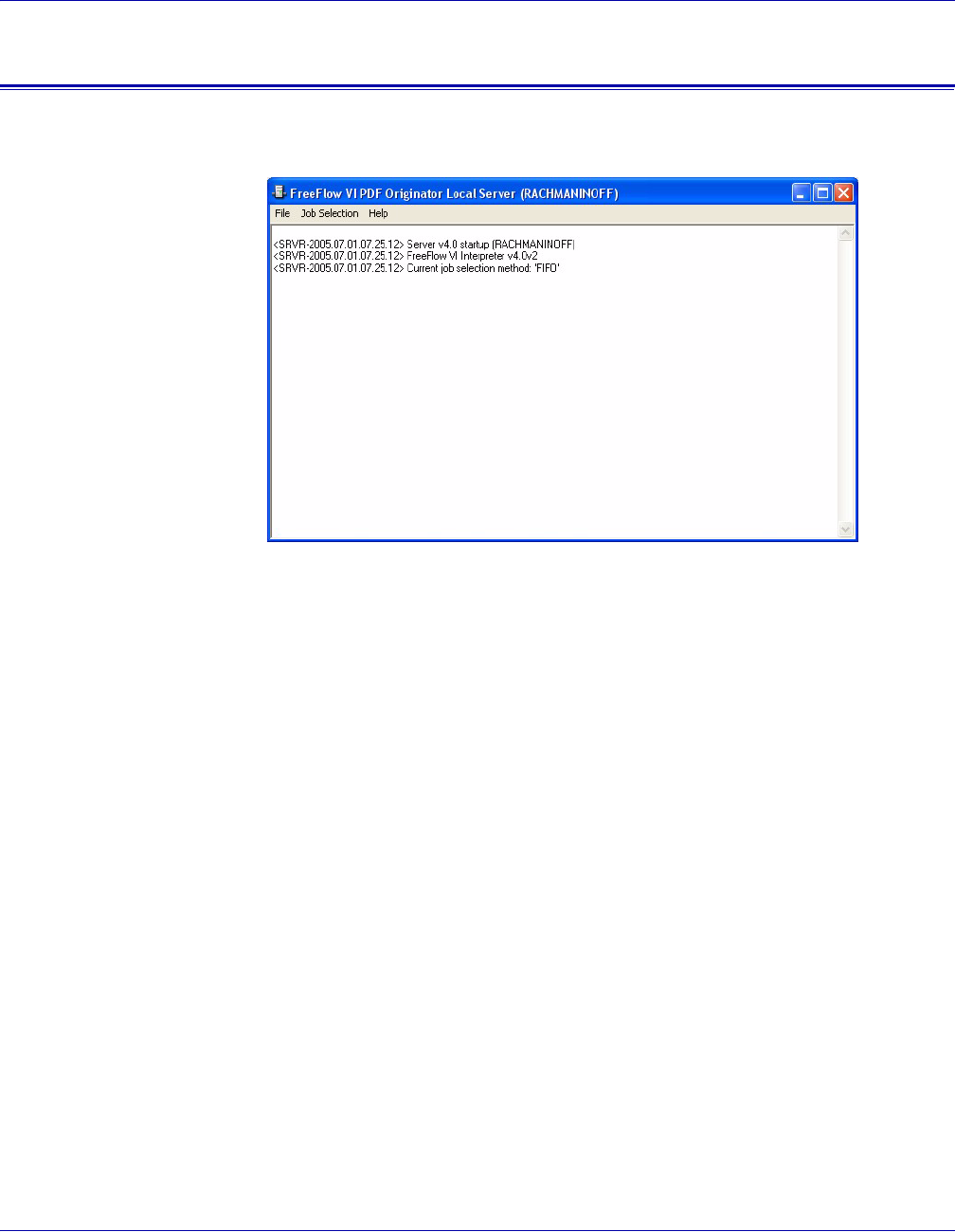
You can tell a VIPO Server is running by the presence of its icon in the Windows task bar
(by default, this is in the lower-right corner of the desktop). Right-click the VIPO Local
Server icon to display these options:
•Launch Job Submission Client — Select this option to open the VI PDF Originator
Job Submission Client window.
•Launch Watched Folders Client — Select this option to open the VIPO Watched
Folders Client window. For more information on the VIPO Watched Folders feature,
see “Using the VIPO Watched Folders Client.”
•Launch Web Server — Select this option to open the VI PDF Originator Web Server
Window. For information on the VIPO Web Server, see “Using VIPO Web.”
•Launch Secure Web Server — Select this option to open the VI PDF Originator
Secure Web Server Window. For information on the VIPO Secure Web Server, see
“Using VIPO Web.”
•Launch Dispatcher — Select this option to open the VI PDF Originator Dispatch
Window. For information on the VIPO Dispatch option, see “Using VIPO Dispatch.”
•Restore VI PDF Originator Local Server — Select this option to maximize the VI
PDF Originator Local Server window, allowing access to more Server options.
•Exit — Select this option to exit the Server. If you exit the Server, VIPO jobs will not
be processed by that workstation until the Server is restarted. You can restart the
Server from the workstation's Start menu (Start > Programs > VI PDF Originator >
Start VI PDF Originator Server).
VI PDF Originator User’s Guide
VIPO-10 FreeFlow Variable Information Suite 5.0 (7/2006)
Using the VIPO Local Server
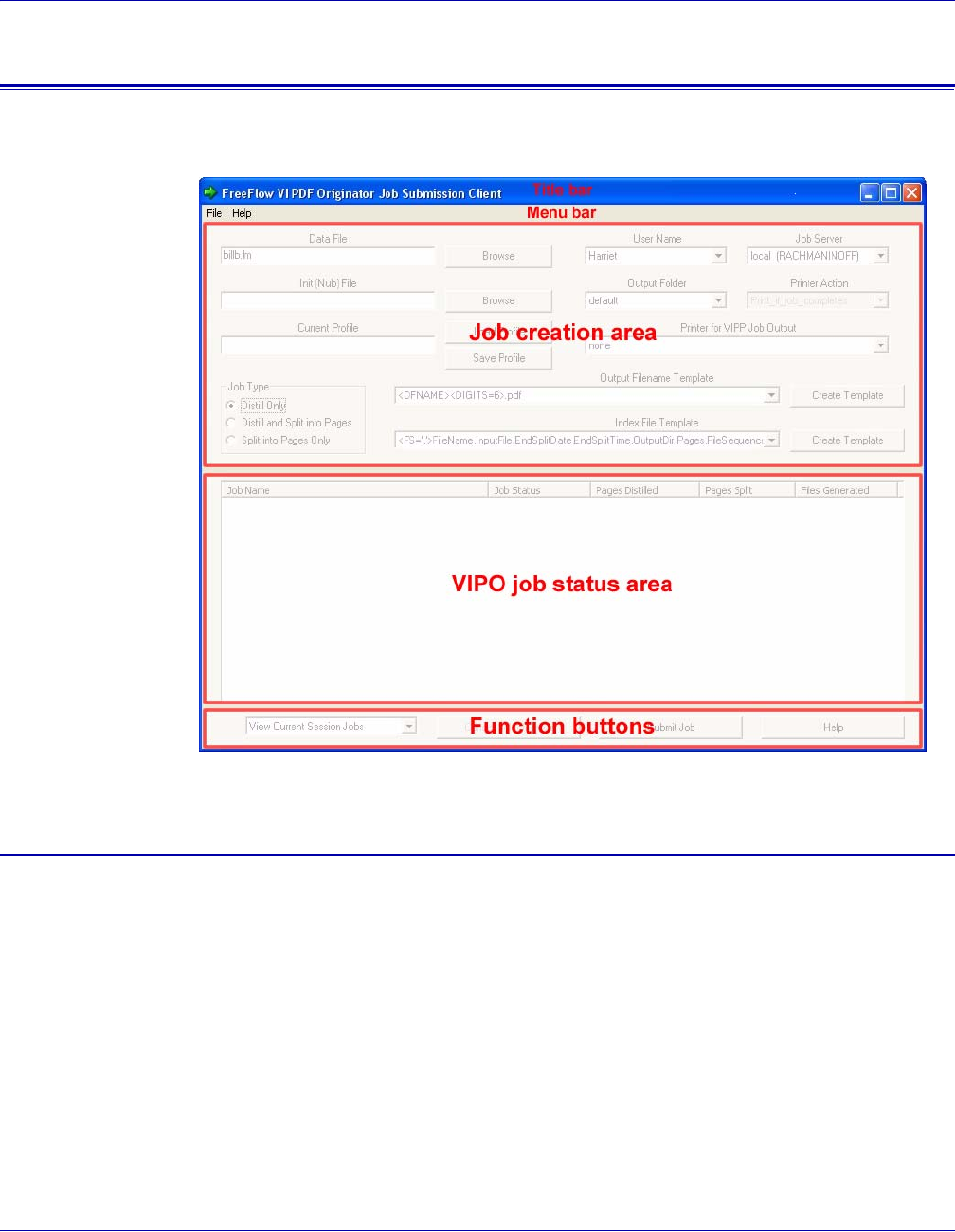
The VI PDF Originator Local Server window provides access to the File, Job Selection,
and Help drop-down menu options.
You can maximize the VIPO Local Server window in one of two ways:
• By double-clicking its task bar icon
• By right-clicking its task bar icon, then choosing Restore VI PDF Originator Local
Server from the menu
Clicking the X button in the upper right corner of the window does not cause the Server
to exit; instead, it minimizes the Server (that is, it returns to the task bar icon). Jobs will
still be processed.
To exit the VIPO Local Server, either select Exit from the File drop-down menu or select
Exit from the task-bar icon's right-click menu.

VI PDF Originator User’s Guide
FreeFlow Variable Information Suite 5.0 (7/2006) VIPO-11
File menu options
These options are available from the File drop-down menu:
• Hide Server — Returns the VIPO Local Server window to a task-bar icon.
• Pause Server — Pauses/unpauses the Server. You must pause the Server before
dumping an accounting file.
• Save Logfile — Used when reporting software problems.
• Clear Logfile — Used when diagnosing software problems.
• Dump Accounting File — Saves accounting information to a file, then clears. See
“Accounting file format” for a list of fields included in accounting files.
• Show Billing Meters — Tracks the number of pages distilled, pages split, and PDF
files generated on the Server.
• Exit — Exits the Server; jobs will not be processed.
Accounting file format
The accounting file is a field delimited format file. There is no header on the accounting
file. Each record in the accounting file is delimited with commas. These fields are included
in each record:
• VIPO Server Name
• User Name
• Input Job Name
• Distill Start Date
• Distill End Date
• Distill Start Time
• Distill End Time
• Distill CPU Time Used — in seconds (this field is not yet available)
• Distill Result — “Completed” or “Failed”
• Distill Message — empty if Result is “Completed,” otherwise within double quotes
• Number Distill Pages
• Distill PDF Name
• Split Start Date
• Split End Date
• Split Start Time
• Split End Time
• Split CPU Time used — in seconds (this field is not yet available)
• Split Result — “Completed” or “Failed”
• Split Message — empty if result is “Completed,” otherwise within double quotes
• Number Split Pages
• Number Split Files
The following is an example accounting file record:
MYSERVER,John_Doe,bigjob.ps,2001-09-18,2001-09-18,16:35:39,16:36:19,0,
Completed,,1060,bigjob.pdf,2001-09-18,2001-09-18,16:36:20,16:37:05,0,
Completed,,1060,1060

VI PDF Originator User’s Guide
VIPO-12 FreeFlow Variable Information Suite 5.0 (7/2006)
In addition to the standard Server Accounting file created when you select Dump
Accounting File from the File menu on the VIPO Local Server window, a corresponding
XML-formatted Accounting file is also created automatically. Both accounting files have
the same filename except for the file extension (*.acct and *.xml).
The following is an example of an XML-formatted Accounting file.
<?xml version="1.0" encoding="ISO-8859-1" ?>
<XVTPAF Version="0.1">
<XVTPDOC>
<XVTP_Server_Name>XRX-MAVILES-W2K</XVTP_Server_Name>
<User_Name>maviles</User_Name>
<Input_Job_Name>credit.vpc</Input_Job_Name>
<Distill_Start_Date>2002-07-16</Distill_Start_Date>
<Distill_End_Date>2002-07-16</Distill_End_Date>
<Distill_Start_Time>01:14:45</Distill_Start_Time>
<Distill_End_Time>01:14:53</Distill_End_Time>
<Distill_CPU_Time_Used>0</Distill_CPU_Time_Used>
<Distill_Result>Completed</Distill_Result>
<Distill_Message />
<Number_Distill_Pages>14</Number_Distill_Pages>
<Distill_PDF_Name>credit.pdf</Distill_PDF_Name>
<Split_Start_Date>2002-07-16</Split_Start_Date>
<Split_End_Date>2002-07-16</Split_End_Date>
<Split_Start_Time>01:14:53</Split_Start_Time>
<Split_End_Time>01:14:53</Split_End_Time>
<Split_CPU_Time_Used>0</Split_CPU_Time_Used>
<Split_Result>Completed</Split_Result>
<Split_Message />
<Number_Split_Pages>14</Number_Split_Pages>
<Number_Split_Files>8</Number_Split_Files>
</XVTPDOC>
</XVTPAF>
Job Selection menu options
Select one of these options from the Job Selection drop-down menu to determine the
order in which the VIPO Server processes jobs:
• First In First Out (FIFO)
• Shortest Job First (SJF)
• Longest Job First (LJF)
The length of a job is based on the size of the VIPP file submitted for processing.
Help menu options
These options are available from the Help drop-down menu:
• VIPO Help — Provides access to the online help facility.
• About — Displays the VIPO Server version information.
VI PDF Originator User’s Guide
FreeFlow Variable Information Suite 5.0 (7/2006) VIPO-13
Using the VIPO Job Submission Client
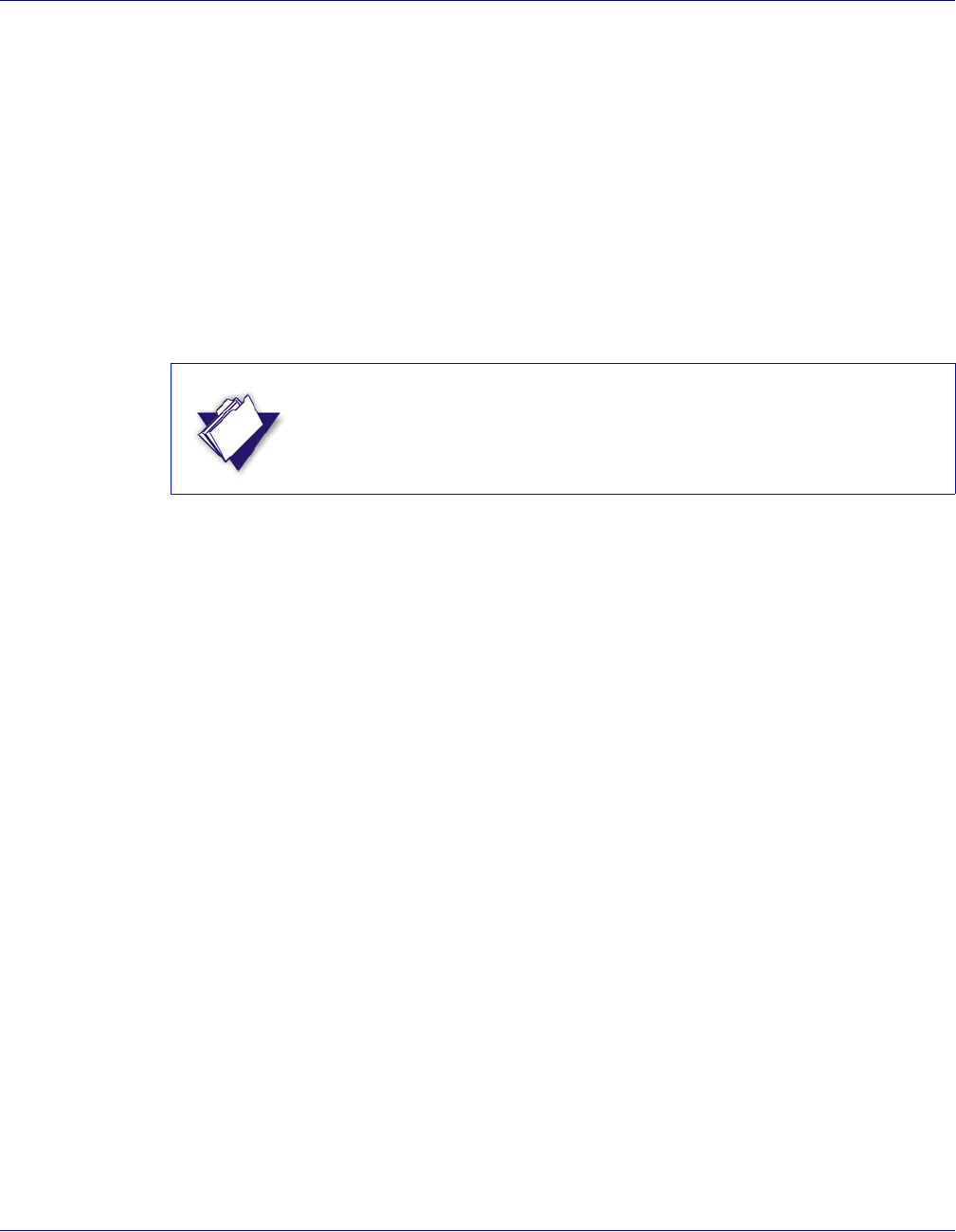
You can use the VI PDF Originator Job Submission Client window, shown below, to select
and configure a job for submission.
Window elements
The VI PDF Originator Job Submission Client window consists of these elements:
Title bar
Displays the product name.
Menu bar
Provides access to the File and Help menus.
The File drop-down menu provides access to the Exit option. Select this option to close
the Job Submission Client window. Closing this window while a job is in progress will not
cancel the job; it will continue to process to completion unless explicitly canceled.
The Help drop-down menu provides access to the About option, which displays the
version information of the VIPO Job Submission Client.
VI PDF Originator User’s Guide
VIPO-14 FreeFlow Variable Information Suite 5.0 (7/2006)
Job creation area
Contains the fields necessary to select and configure a job for submission. See “Job
creation area field descriptions” for a description of each of the fields.
VIPO job status area
Provides the status of each job submitted, including the number of pages distilled and/or
split, and the number of files split.
When a job submission has been successfully completed, the PDF documents generated
can be found and viewed using Acrobat Reader by selecting the job folder entry in the
Job Status list and double-clicking to invoke a File Selection dialog. If Acrobat Reader is
not present or the file cannot be opened, an error message will be displayed.
Function buttons
These buttons appear at the bottom of the VIPO Job Submission Client window:
• View Current Session Jobs/View All Pending Jobs/View All Jobs — Choose to view:
— Current session jobs that are submitted only within the current session
— All pending jobs from the currently selected user's folder that have not yet been
processed and completed, or whose Cancel requests have not yet been
acknowledged by the Server, whether the jobs were submitted before or after
the current session began
— All jobs from the currently selected user's folder, whether they were submitted
before or after the current session began
• Cancel Selected Job — Click this button to cancel your job during processing.
Select your job in the VIPO job status area before clicking this button. Depending on
the job processing status at the time of cancellation, the job may run to completion
before the cancellation request is initiated by VIPO.
Multiple jobs can be selected and a request to cancel them as a group can be
submitted. By default, you can cancel only the jobs from your own folders and from
the folders of the “default_user.” Use one of these valid settings in the VIPO
Configuration file (xvtp.ini) to change the default:
— ## User may cancel jobs ONLY from his own folders ##
jsc_cancel_job_scope=1
— ## User may also cancel jobs from the folders of “default_user” ##
jsc_cancel_job_scope=2
— ## User may also cancel jobs from any other users' folders ##
jsc_cancel_job_scope=8
NOTE
Acrobat Reader is not supplied with VIPO. It can be obtained from the
Adobe website at www.adobe.com.

VI PDF Originator User’s Guide
FreeFlow Variable Information Suite 5.0 (7/2006) VIPO-15
• Job Name and Job Status column headers — Left-click either of these headers to
sort the list of jobs.
— Left-clicking Job Name sorts the job list by the job name or by the job date/time
stamp, in ascending or descending order, one sorting type per mouse left-button
click in the following sequence:
– Sort by Job Name, alphabetic ascending order (A to Z, from top)
– Sort by Job Name, alphabetic descending order (Z to A, from top)
– Sort by Date/Time stamp, ascending order (latest at the bottom)
– Sort by Date/Time stamp, descending order (latest at the top) (default)
— Left-clicking Job Status sorts the job list alphabetically based on the status
string in ascending or descending order, one sorting type per mouse left-button
click.
• Submit Job — Click this button to submit your job after completing the appropriate
fields in the job creation area.
• Help — Click this button to access the VIPO online help facility.
Job creation area field descriptions
The following fields/buttons are located in the job creation area of the VIPO Job
Submission Client window.
Data File
Enter the name of the data file, or use browse to locate the VIPP data file (or print file) to
be submitted. This can be a VIPP line mode, database mode, native mode, or XML mode
print file (.lm, .dbf, .nm, .xml); a VI Project Container (.vpc); or a PDF file with bookmarks.
Init (Nub) File
Enter the name of the init file to be used when processing the job. This file must be
specified for each “raw” data file (one without a VIPP preamble such as STARTLM. For
these jobs, the init (nub) file supplies the appropriate VIPP preamble.
Current Profile
Optional. Load or save a profile using the Load Profile or Save Profile buttons. Profiles
are sets of previously used job submission options, which save you from re-entering the
data. The default folder for loading and saving profiles is the Profiles folder belonging to
NOTE
Job cancellation requests are only submitted by the client; in order for
jobs to be cancelled they must be processed by the VIPO Server. A
cancellation request submitted by the client while the Server is not
running, or is in a paused state, will not be processed until the Server is
executing a VIPO job.

VI PDF Originator User’s Guide
VIPO-16 FreeFlow Variable Information Suite 5.0 (7/2006)
the current VIPO user (as selected in the Job Submission Client dialog). However, you
may browse any other directories on the VIPO Client system for loading or saving profiles,
including the virtual printers profile directory located in the VIPO<server_root>/Profiles
folder.
For more information, see “Profile files.”
Job Type
Select one of these job types:
• Distill Only
•Distill and Split into Pages — Requires that bookmarks be present in the VIPP job
(via the BOOKMARK command). If bookmarks are not present in the VIPP job, the
job will be processed successfully, however, no splitting will occur.
•Split into Pages Only — PDF files that must contain one or more bookmark.
User Name
Enter the user name. This will most often be the logon name of the current user
(default_user is used by lpr and is not normally used from within the Job Submission
Client).
Job Server
Select either local (Server is installed on your local workstation and is using your
workstation's CPU and disk resources) or remote (use a network VIPO Server's CPU and
disk resources).
Output Folder
Select the destination folder for the job. These are “named” folders, meaning that you do
not browse for a path on your disk(s), but choose from named directories that you or an
administrator already created in a special pre-designated location under control of the
VIPO Server.
Printer Action
Conditional action of optional job printing is selected. Select one of these options:
•print_always — Sends the job to the selected printer no matter what the outcome
of the VIPO job submission.
•print_if_job_completes — Sends the job to the selected printer only if it
successfully completes to VIPO.
Printer for VIPP Job Output
Specify the printer for printing the job that was submitted to VIPO for processing. If you
do not want the job to print, select none.
Only PostScript printers will be listed. You must ensure that the VI Interpreter is installed
on the printer selected for VIPP job output, as well as any resources the VIPP job may
need.

VI PDF Originator User’s Guide
FreeFlow Variable Information Suite 5.0 (7/2006) VIPO-17
Output Filename Template
Select a pre-defined Output Filename template from a drop down list or create an Output
Filename template using the Output Filename template wizard. The template you select
will be applied to the job being processed. The output file name of the PDF files being
produced will be controlled via this Output Filename template.
This option is only available when the VI PDF Originator Job Type option is set to “Distill
and Split into Pages” or “Split into Pages Only.”
For more information on this option, see “Specifying PDF output file names.”
Index File Template
Select the default index template or define an Index file template using the Index template
wizard. The Index template will be applied to the job being processed. Use the Index
Template wizard to add additional fields, from the VIPP BOOKMARK, to the index file
generated by VIPO when the job type option is set to “Distill and Split into Pages” or “Split
into Pages only.” VIPO generates a comma separated and an XML index file. The index
files are used by VIPO Dispatch, or other third party components, to identify individual
PDF records and additional data contained in the BOOKMARK for that record, for
example, an e-mail address, location ID or printer address.
This option is only available when the VIPO Job Type option is set to “Distill and Split into
Pages” or “Split into Pages Only.”
For more information, see “Specifying an index file.”
NOTE
The PDF filename is based on the name of the data submission file.
When using the “Distill Only” Job Type, the output PDF filename uses the
data submission filename as the output PDF filename. If a single “.”
character is included as part of the data file filename, VIPO considers this
a file extension and replaces this information with the .pdf file extension.
If the “.” character is a part of the filename, you must include an
additional “.” character followed by at least one other valid character. The
second period character will be treated as the file extension. VIPO
replaces this with the .pdf file extension, and maintains the first period in
the filename.
For example, if the submission filename is:
•P31199-SS.234, the resulting PDF filename is P31199-SS.pdf
•P31199-SS.234.xx, the resulting PDF filename is P31199-SS.234.pdf
Using the other Job Type options allows you to use the Output Filename
Template. When doing so, the value “DFNAME,” or the option “Add Data
Filename,” result in the same filename as the job submission data file
being used as part of the filename template.

VI PDF Originator User’s Guide
VIPO-18 FreeFlow Variable Information Suite 5.0 (7/2006)
Profile files
A Profile file must contain the necessary job parameters for the VIPO job submitted via
lpr. The table below lists the valid job parameters.
The default location for loading and saving the profiles is your user Profiles directory.
However, you may select any other directory on the Client for loading and saving profiles,
including the virtual printers profile directory located in VIPO <server_root>/profiles.
Job parameter Parameter default Parameter description
InitFile=text No default (Optional) VIPP startup file that
prepends to the submitted data file.
JobType=text distill_only Valid values are:
• distill_only
• distill_and_split into PDF files
• split_only into PDF files
OutputFolderName=text Default Folder location of the VIPO job output.
OutputFilenameTemplate=text <DFNAME><DIGITS=6>.pdf Controls the name(s) created for the
PDF output file(s).
IndexFileTemplate=text <FS=’:’>FileName:InputFile:
EndSplitDate:EndSplitTime:
OutputDir:Pages:
FileSequence:Bookmark
Controls header creation and bookmark
extraction in the index file that is
generated as part of the VIPO
file-splitting output.
PrinterName=text None Specifies the printer for printing the job
submitted to VIPO for processing. If you
do not want the job to print, select none.
Ensure that VI Interpreter is installed on
the printer selected for VIPP job output,
as well as any resources the VIPP job
may need. Only PostScript printers will
be listed.
PrinterAction=print-action print_if_job_completes Conditional action if optional job printing
is selected. Select one of these options:
print_always — Sends the job to the
selected printer no matter what the
outcome of the VIPO job submission.
print_if_job_completes — Sends the
job to the selected printer only if it is
successfully completed by the VIPO
server.
DistillJobOptions=filename Default filename is an existing Acrobat Distiller
job options file. See “Assigning a
Distiller job options file“
VI PDF Originator User’s Guide
FreeFlow Variable Information Suite 5.0 (7/2006) VIPO-19
Specifying PDF output file names
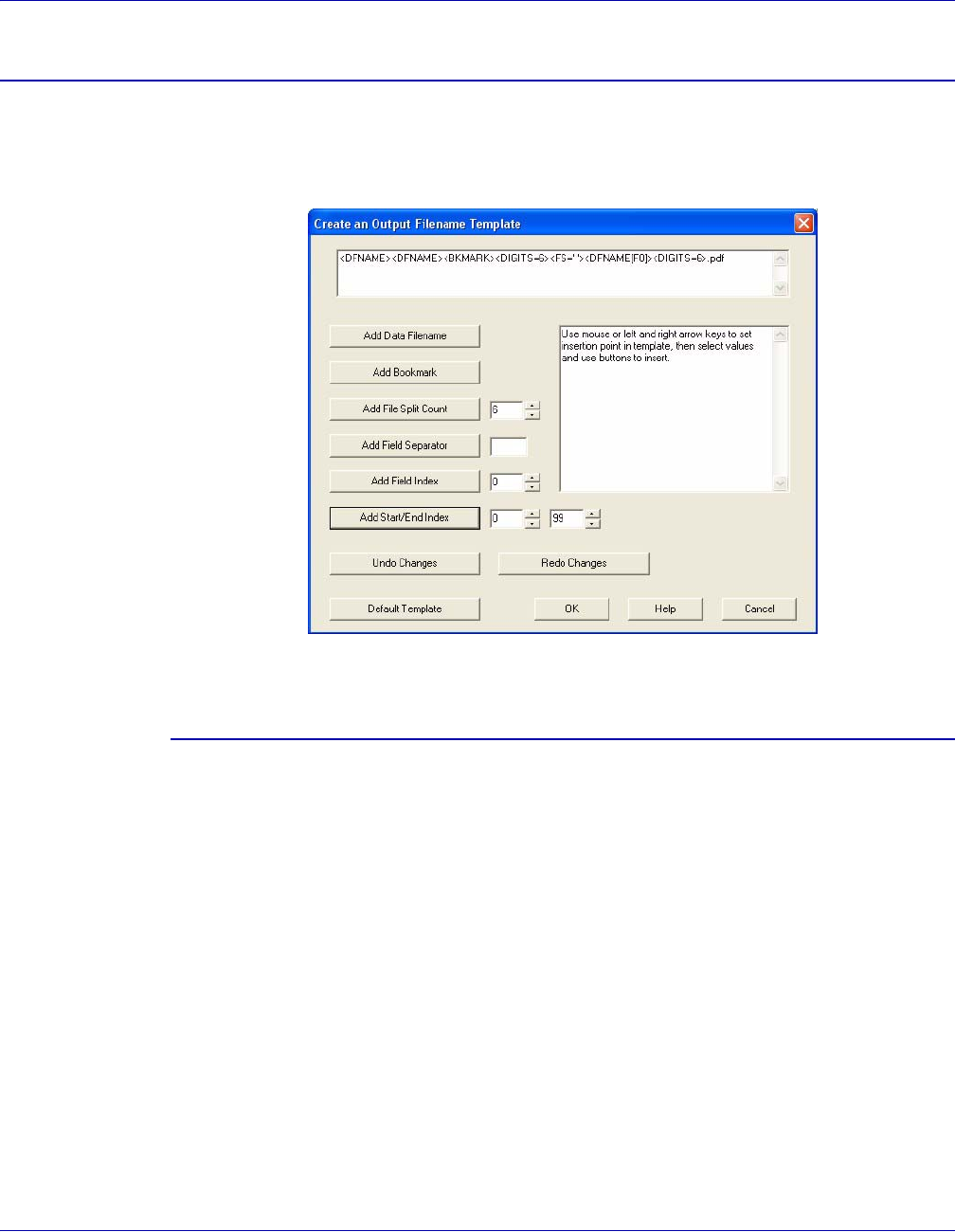
You can use a template to specify how PDF file names are formatted during the PDF split
operation. To create a template, click Create Template next to the Output Filename
Template field on the VIPO Job Submission Client window. The Create an Output
Filename Template window appears.
Template syntax
Template syntax must be enclosed within matching < >. All other characters, other than
characters that are invalid for file names and those described here, are treated as literal
characters in the resulting output file name generated by VIPO.
By default, “strict filename checking” is performed on filename templates. These
characters are considered invalid:
\ / : * ? " < > | ' ` ~ ! $ ^ & , ; [ ] { } ( ) % # = + @ tab and blank space
You can modify the default behavior by setting the following value in the VIPO
configuration file (xvtp.ini):
output_filename_strict_checking=false

VI PDF Originator User’s Guide
VIPO-20 FreeFlow Variable Information Suite 5.0 (7/2006)
By setting the value to false, these invalid characters will be considered valid literals in
the filename template:
[ ] { } ( ) % # = + @
<DFNAME[x..y][Fn]>
Uses the data file name. [x..y] and [Fn] are optional. When producing multiple files, this
is the first part of the file name.
<BKMARK[x..y][Fn]>
Uses the bookmark field. [x..y] and [Fn] are optional.
[x..y]
An optional range modifier that can appear in any order or number after a DFNAME or
BKMARK; for example, [0..5] indicates to use character 0 through character 5 of
DFNAME or BKNAME. Valid values for x and y are 0 through 99.
[Fn]
An optional field number that can appear in any order or number after a DFNAME or
BKMARK; for example, [F2] indicates to use field 2 of DFNAME or BKMARK. Valid values
for n are 0 through 99.
<FS=‘char’>
A field separator character that must be specified if [Fn] is used. Valid values for char are
any printable ASCII character except: [ ] < >.
You can use more than one FS designation. If used within [ ], it only has an effect within
those [ ]. If used outside of the [ ], it takes effect until the next FS is encountered outside
of the [ ].
<DIGITS=n>
The number of digits to use in the output file names when multiple files are produced. If
only a single PDF file is produced, no digits are used in the output file name. Valid values
for n are 1 through 10.
NOTE
The square brackets, [ ] , must be “escaped” (preceded by a backslash
character “\”) to be valid literals in the template syntax (for example:
“filename_\[OK\].pdf”). Use the other characters without the “escape”
backslash.

VI PDF Originator User’s Guide
FreeFlow Variable Information Suite 5.0 (7/2006) VIPO-21
<GET_INDEX_WITHOUT_SPLIT>
Indicates that the resulting PDF file will go through the split process without actually being
split into smaller PDF child files. However, the corresponding CSV/XML index files will be
generated, which then allows the job to be processed by the VIPO Dispatch server.
You can submit a “Distill Only” VIPP job with the non-split option to generate the job index
files needed to process the distilled PDF file with the Dispatch module.
Examples
The following data file name and bookmarks will produce the named files in the table
below when the indicated templates are used:
data file name = mybigjob.lm
pg1 bookmark = account number 01234:xyz
pg2 bookmark = account number 43210:abc
In the last example, the syntax specifies to extract field number 2 (zero based) from the
bookmark using a space as the field delimiter, then extract digits 0 through 4 from that
result and use that as the first part of the file name. Then append the literal character “_”,
followed by 4 digits that increment with each file produced.
Template field descriptions
Use the buttons on the Create an Output Filename Template window to build your
template; as you click the buttons, your selections appear in the display window. The
default template is:
<DFNAME><DIGITS=6>.pdf
You can manually edit the template shown in the display window; just make sure you
follow the template syntax rules.
Add Data Filename
Adds <DFNAME> to the displayed template at the current insertion point, if legal;
otherwise adds it at the most logical insertion point.
Template syntax Output file names
<DFNAME><DIGITS=3>.pdf mybigjob001.pdf
mybigjob002.pdf
...
<DFNAME[0..4]><DIGITS=5>.pdf mybig00001.pdf
mybig00002.pdf
...
<FS=' '><BKMARK[F2][0..4]>_<DIGITS=4>.pdf 01234_0001.pdf
43210_0002.pdf
...

VI PDF Originator User’s Guide
VIPO-22 FreeFlow Variable Information Suite 5.0 (7/2006)
Add Bookmark
Adds <BKMARK> to the displayed template at the current insertion point, if legal;
otherwise adds it at the most logical insertion point.
Add File Split Count
Adds <DIGITS=n> to the displayed template at the current insertion point, if legal;
otherwise adds it at the most logical insertion point. n is specified in the box to the right
of the button.
Add Field Separator
Adds <FS=‘char’> to the displayed template at the current insertion point, if legal;
otherwise adds it at the most logical insertion point. char is specified in the box to the right
of the button.
Add Field Index
Adds <Fn> to the displayed template at the current insertion point, if legal; otherwise adds
it at the most logical insertion point. n is specified in the box to the right of the button.
Add Start/End Index
Adds [x..y] to the displayed template at the current insertion point, if legal; otherwise adds
it at the most logical insertion point. x (start index) and y (end index) are specified in the
boxes to the right of the button.
Undo Changes
Undoes your last change. You can undo multiple changes by clicking this button multiple
times.
Redo Changes
Redoes your last change. You can redo multiple changes by clicking this button multiple
times.
OK
Saves your changes and closes the template window. The template created appears in
the window under the Output Filename Template field on the Job Submission Client
window.
Help
Provides access to the online help facility.
Cancel
Closes the template window without saving any changes.

VI PDF Originator User’s Guide
FreeFlow Variable Information Suite 5.0 (7/2006) VIPO-23
Specifying an index file
During the PDF splitting process, two index files are automatically created: an ASCII file
formatted in Comma Separated Values (CSV) and a corresponding XML-formatted index
file. Both have the same file name, except for the file extension (*.csv and *.xml).
This is a sample of output for an automatically generated XML-formatted index file:
<?xml version="1.0" encoding="ISO-8859-1" ?>
<XVTPIF Version="0.1">
<XVTPDOC>
<FileName>credit000000.pdf</FileName>
<InputFile>credit.pdf</InputFile>
<EndSplitDate>2002-07-15</EndSplitDate>
<EndSplitTime>17:20:13:890</EndSplitTime>
<OutputDir>C:\xvtp\users\maviles\incoming\default\
maviles_credit_vpc_2002_07_15_17_20_09</OutputDir>
<Pages>2</Pages>
<FileSequence>0</FileSequence>
<Bookmark>David Kirk</Bookmark>
</XVTPDOC>
<XVTPDOC>
<FileName>credit000001.pdf</FileName>
<InputFile>credit.pdf</InputFile>
<EndSplitDate>2002-07-15</EndSplitDate>
<EndSplitTime>17:20:13:921</EndSplitTime>
<OutputDir>C:\xvtp\users\maviles\incoming\default\
maviles_credit_vpc_2002_07_15_17_20_09</OutputDir>
<Pages>1</Pages>
<FileSequence>1</FileSequence>
<Bookmark>Michael Sotelo</Bookmark>
</XVTPDOC>
<XVTPDOC>
<FileName>credit000002.pdf</FileName>
<InputFile>credit.pdf</InputFile>
<EndSplitDate>2002-07-15</EndSplitDate>
<EndSplitTime>17:20:13:968</EndSplitTime>
<OutputDir>C:\xvtp\users\maviles\incoming\default\
maviles_credit_vpc_2002_07_15_17_20_09</OutputDir>
<Pages>3</Pages>
<FileSequence>2</FileSequence>
<Bookmark>Carolyn Cliff</Bookmark>
</XVTPDOC>
</XVTPIF>
VI PDF Originator User’s Guide
VIPO-24 FreeFlow Variable Information Suite 5.0 (7/2006)
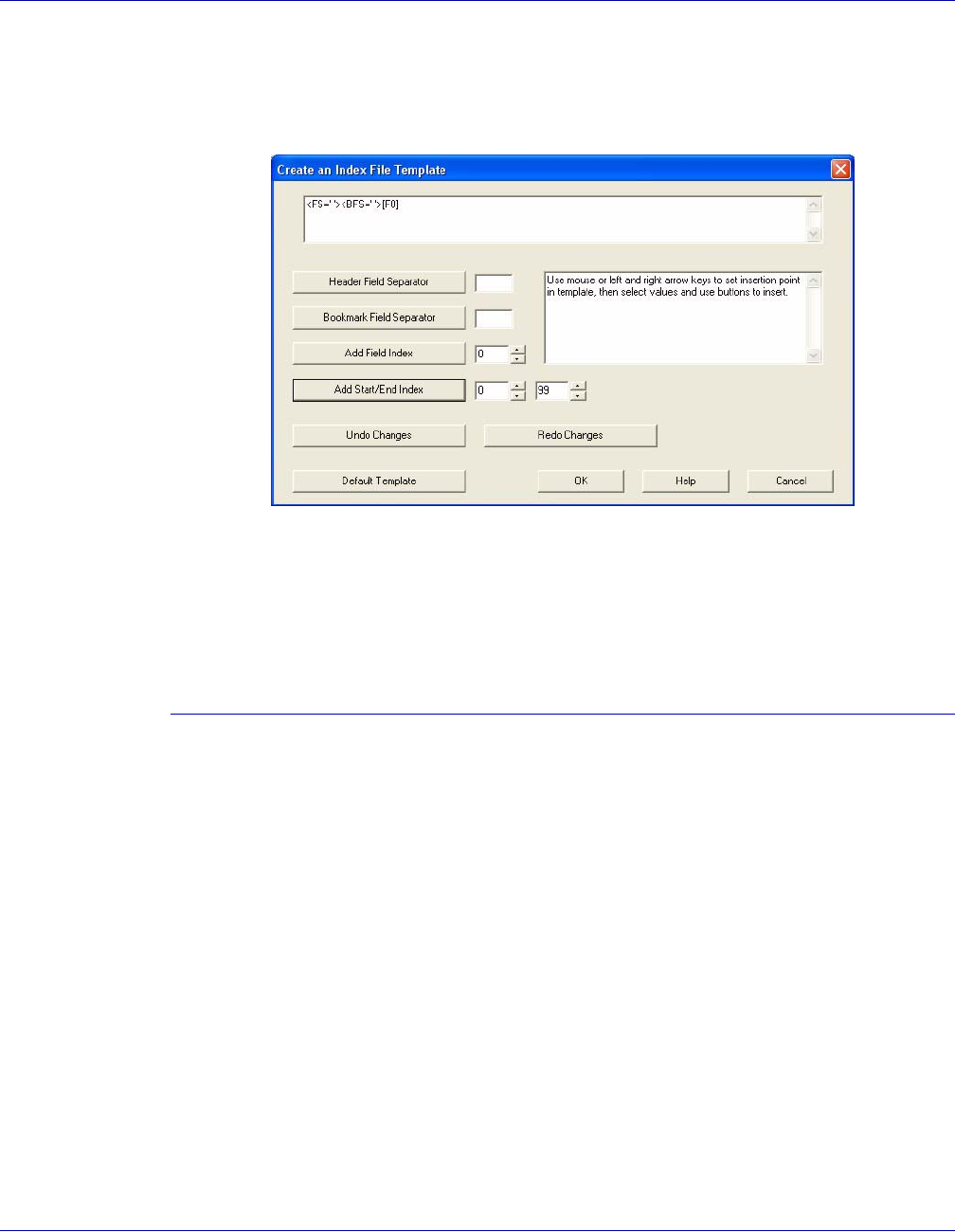
You can also use a template to specify the contents of the index file header and index file
record. To create a template, click Create Template next to the Index File Template field
on the VIPO Job Submission Client window. The Create an Index File Template window
appears; the default template appears in the display window.
Additional checks are made when creating and supplying an Index File Template to make
sure the field names have the appropriate syntax for XML tag creation. These characters
are invalid for template field names:
\ / : * ? " < > | ( ) [ ] { } ' ` ~ ! @ # $ % ^ & + = , ; tab and blank space.
Template syntax
The Create an Index File Template window consists of the following eight fields (seven
index file fields and a bookmark field). A defined character separates each field; see
“Field separator” for more information.
1. FileName
2. InputFile
3. EndSplitDate
4. EndSplitTime
5. OutputDir
6. Pages
7. FileSequence
8. Bookmark
The first seven fields are names of corresponding fields in each line of the index file
generated by VIPO. Only the names of these seven fields can be changed in the Index
File Template.
VI PDF Originator User’s Guide
FreeFlow Variable Information Suite 5.0 (7/2006) VIPO-25
The bookmark field (the eighth field) can be replaced with as many field names as
needed, each separated by the defined field separator. For more information, see
“Bookmark field.”
Field separator
A field separator is a single character that separates the index file fields and bookmark
fields. The separator is used to generate the field separators in the index file header and
in each index file record. You can change the field separator used in the template. The
syntax for the field separator is:
<FS=‘char’>
where char is any printable ASCII character except: [ ] < >. The field separator in the
default template is a comma (,).
Bookmark field
You can replace the bookmark field with an unlimited number of field names. Each
bookmark field name appears in the index file header.
Use the following syntax with any bookmark field name in the template to control which
portions of the bookmark are extracted and placed into the corresponding fields in each
index file entry generated by VIPO.
[x..y]
Uses a substring of Bookmark from zero-based indices x to y. This is an optional range
modifier that can appear in any order or number after the fixed fields in the template. Valid
values for x and y are 0 through 99.
[Fn]
Uses field number n of the bookmark according to BFS. This is an optional field number
that can appear in any order or number after the fixed fields in the template. Valid values
for n are 0 through 99.
NOTE
All fields in the index file header and index file record are enclosed in
double quotes. This feature cannot be turned off.
NOTE
The default template places the entire bookmark into the last field of each
index file.

VI PDF Originator User’s Guide
VIPO-26 FreeFlow Variable Information Suite 5.0 (7/2006)
<BFS=‘c’>
A bookmark field separator (BFS) that must be specified if [Fn] is used. Valid values for
c are any printable ASCII character except: [ ] < >.
You can use more than one BFS designation. If used within [ ], it only has an effect within
those [ ]. If used outside of the [ ], it takes effect until the next BFS is encountered outside
of the [ ].
Examples
The following bookmark contents will produce the index file headers and index file
records below when the indicated templates are used:
bookmark contents = John Doe 123-45-456
Example 1:
Example 2:
Example 3:
Template <FS=':'>Fld1:Fld2:Fld3:Fld4:Fld5:Fld6:Fld7:BookFld1|<BFS=' '>[F1]:BookFld2|[0..2]:
BookFld3|[F2][0..2]
Index file header
produced Fld1:Fld2:Fld3:Fld4:Fld5:Fld6:Fld7:BookFld1:BookFld2:BookFld3
Index file record
produced outfile_001.pdf:infile:10-2-01:“23:56:34”:“c:\user\...”:5:1-50:Doe:Joh:123
Template <FS=':'>FldA:FldB:FldC:FldD:FldE:FldF:FldG:Bookfield1|<BFS=' '>[F1]:
Bookfield2|[F2][<BFS='-'>[F2]]
Index file header
produced FldA:FldB:FldC:FldD:FldE:FldF:FlgG:Bookfield1:Bookfield2
Index file record
produced outfile_003.pdf:infile:10-2-01:“13:06:14”:“c:\user\...”:7:3-80:Doe:456
Template <FS=','>Fld1,Fld2,Fld3,Fld4,Fld5,Fld6,Fld7,FirstNam|<BFS=' '>[F0],LastNam|[F1],
Num|[F2][<BFS='-'>[F0]]
Index file header
produced Fld1,Fld2,Fld3,Fld4,Fld5,Fld6,Fld7,FirstNam,LastNam,Num
Index file record
produced file_xyz.pdf,infile,10-7-01,14:29:14,c:\user\...,4,10-100,John,Doe,123

VI PDF Originator User’s Guide
FreeFlow Variable Information Suite 5.0 (7/2006) VIPO-27
Template field descriptions
Use the buttons on the Create an Index File Template window to build your template; your
selections appear in the display window. The default template is:
<FS=':'>FileName:InputFile:EndSplitDate:EndSplitTime:OutputDir:
Pages:FileSequence:Bookmark
Header Field Separator
Adds the index field separator to the displayed template at the current insertion point, if
legal; otherwise, adds it at the appropriate insertion point. Specify the field separator in
the box to the right of the button.
Bookmark Field Separator
Adds the bookmark field separator to the displayed template at the current insertion point,
if legal; otherwise, adds it at the appropriate insertion point. Specify the field separator in
the box to the right of the button.
Add Field Index
Adds <Fn> to the displayed template at the current insertion point, if legal; otherwise adds
it at the most logical insertion point. n is specified in the box to the right of the button.
Add Start/End Index
Adds [x..y] to the displayed template at the current insertion point, if legal; otherwise adds
it at the most logical insertion point. x (start index) and y (end index) are specified in the
boxes to the right of the button.
Undo Changes
Undoes your last change. You can undo multiple changes by clicking this button multiple
times.
Redo Changes
Redoes your last change. You can redo multiple changes by clicking this button multiple
times.
OK
Saves your changes and closes the template window. The template created appears in
the window under the Index File Template field on the Job Submission Client window.
NOTE
You can manually edit the template shown in the display window; just
make sure you follow the template syntax rules.
VI PDF Originator User’s Guide
VIPO-28 FreeFlow Variable Information Suite 5.0 (7/2006)
Help
Provides access to the online help facility.
Cancel
Closes the template window without saving any changes.
Using the VIPO Watched Folders Client
The VIPO Watched Folders Client (WFC) allows you to specify one or more directories
where VIPP jobs can be placed for automatic submission to VIPO. A VIPO user (remote
or local) and an optional profile are associated with each watched folder, which controls
the processing of all jobs submitted from that folder. Submitted jobs can be monitored
using the Job Submission Client in the same manner as for lpr-submitted jobs. All VIPP
jobs found in each watched folder are checked at each watch interval to determine file
readiness.
Start the Watched Folders Client either from the VIPO program folder or from the
right-click menu of the VIPO Local Server icon. The Client runs as a background process.
A VIPO Server must be running in order for watched folders to be processed.
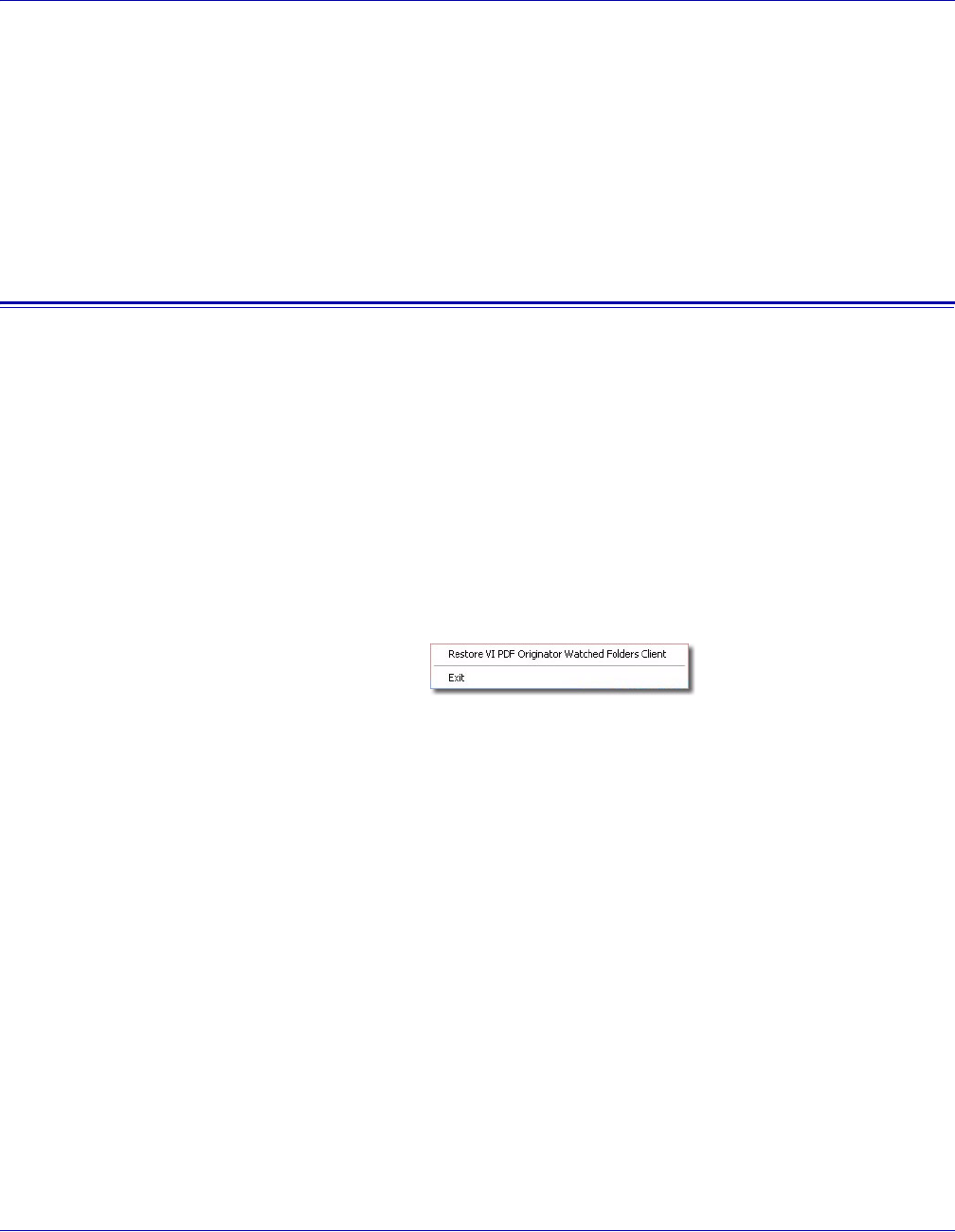
You can tell the Watched Folders Client is running by the presence of its icon in the
Windows task bar. Right click the VIPO Watched Folders Client icon to display these
options:
•Restore VI PDF Originator Watched Folders Client — Maximizes the VIPO
Watched Folders Client window.
•Exit — Exits the Watched Folders Client. If you exit the Client, folders will not be
watched until the Client is restarted.
VI PDF Originator User’s Guide
FreeFlow Variable Information Suite 5.0 (7/2006) VIPO-29
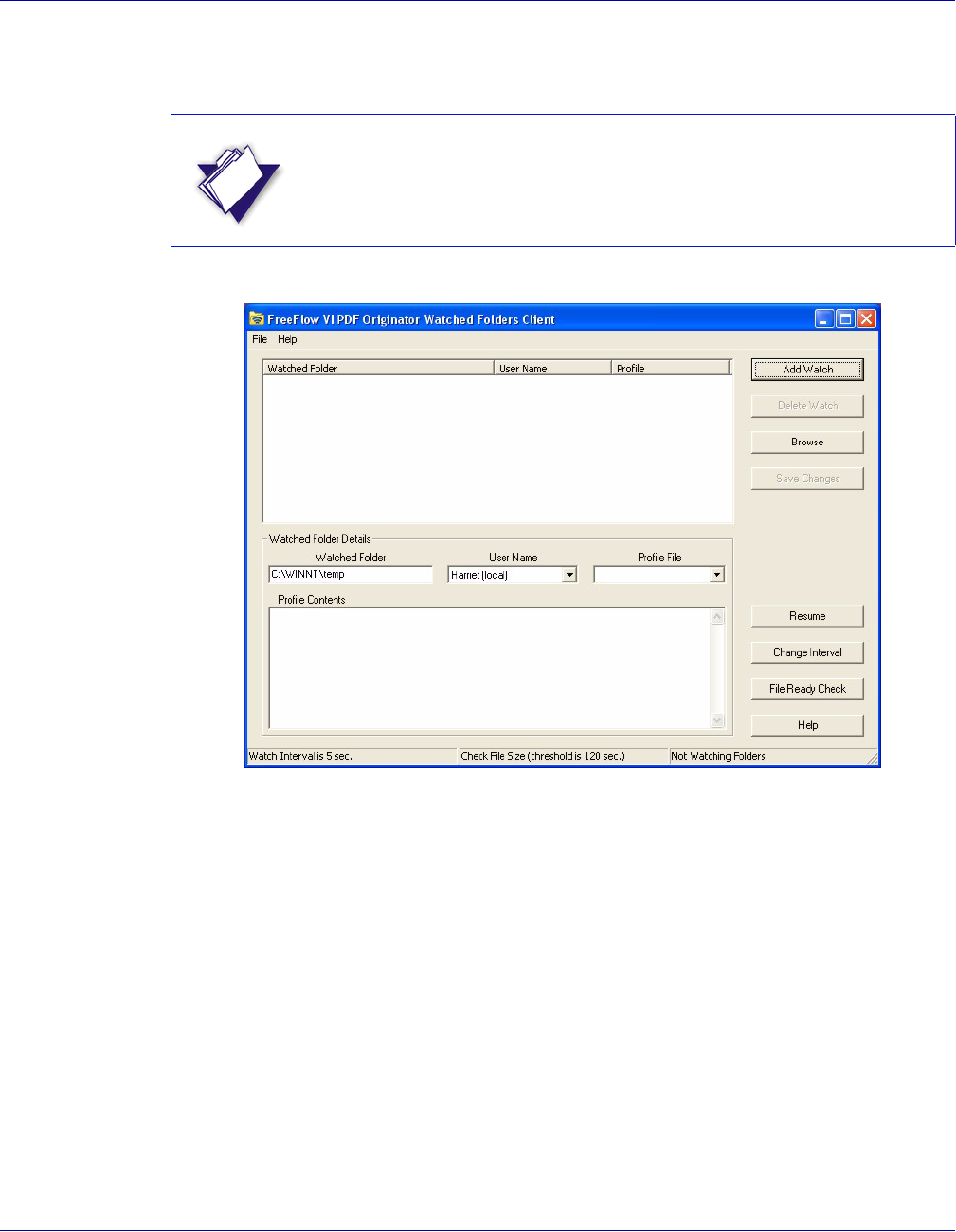
The VI PDF Originator Watched Folders Client window is used to control and monitor
watched folders.
NOTE
When the Client is invoked, the watch process is inactive.

VI PDF Originator User’s Guide
VIPO-30 FreeFlow Variable Information Suite 5.0 (7/2006)
Window elements
The VIPO Watched Folders Client window consists of these elements:
Title bar
Displays the product name (VI PDF Originator Watched Folders Client).
Menu bar
Provides access to the File and Help menus. These options are available from the File
drop-down menu:
• Hide Watched Folders Client — Returns the VIPO Watched Folders Client window
to a task-bar icon.
• Input File Disposition — Controls what happens to watched jobs after they are
submitted to VIPO. There are two sub-menu choices:
— Delete Input File: Deletes the job from the watched folder (default).
— Move Input File to Saved Jobs Folder: Moves the job to the Saved Jobs folder
contained under each watched folder.
• Exit — Exits the Watched Folders Client; folders will no longer be watched.
The Help drop-down menu provides access to the About option, which displays the
version information of the VIPO Watched Folders Client.
Watched folders list
Lists the folders currently defined for watching.
Watched folder details area
Shows the details for the selected watched folder (folder name, VIPO user associated
with the folder, and profile file (optional)) in the watched folders list. If a profile file is
specified, the contents of the file display in the Profile Contents box.
Status area
Displays the current watch interval, which can be changed using the Change Interval
button, and the current method used to check file readiness. It also indicates if folders are
currently being watched.

VI PDF Originator User’s Guide
FreeFlow Variable Information Suite 5.0 (7/2006) VIPO-31
Function buttons
These buttons appear on the right side of the VIPO Watched Folders window:
• Add Watch — Allows you to add a folder to the watched list.
• Delete Watch — Allows you to delete the selected folder from the watched list.
• Browse — Allows you to browse for the folder you want to add to the watched list.
• Save Changes — Saves the current changes for the selected folder.
• Resume/Pause — Resume starts or resumes watched folder processing; Pause
pauses processing.
• Change Interval — Changes the current watch interval. When you click this button,
a Change Watched Folders Interval pop-up window appears, which allows you to
change the interval in seconds. The status area on the VIPO Watched Folders
window shows the watch interval.
• File Ready Check — Used to select the method used to determine when a file is
actually ready for job submission, thus preventing processing and submitting files
that are not yet ready for job submission. This selection is indicated in the Status
area of the window. See “File ready check” for more information.
• Help — Provides access to the VIPO online help facility.
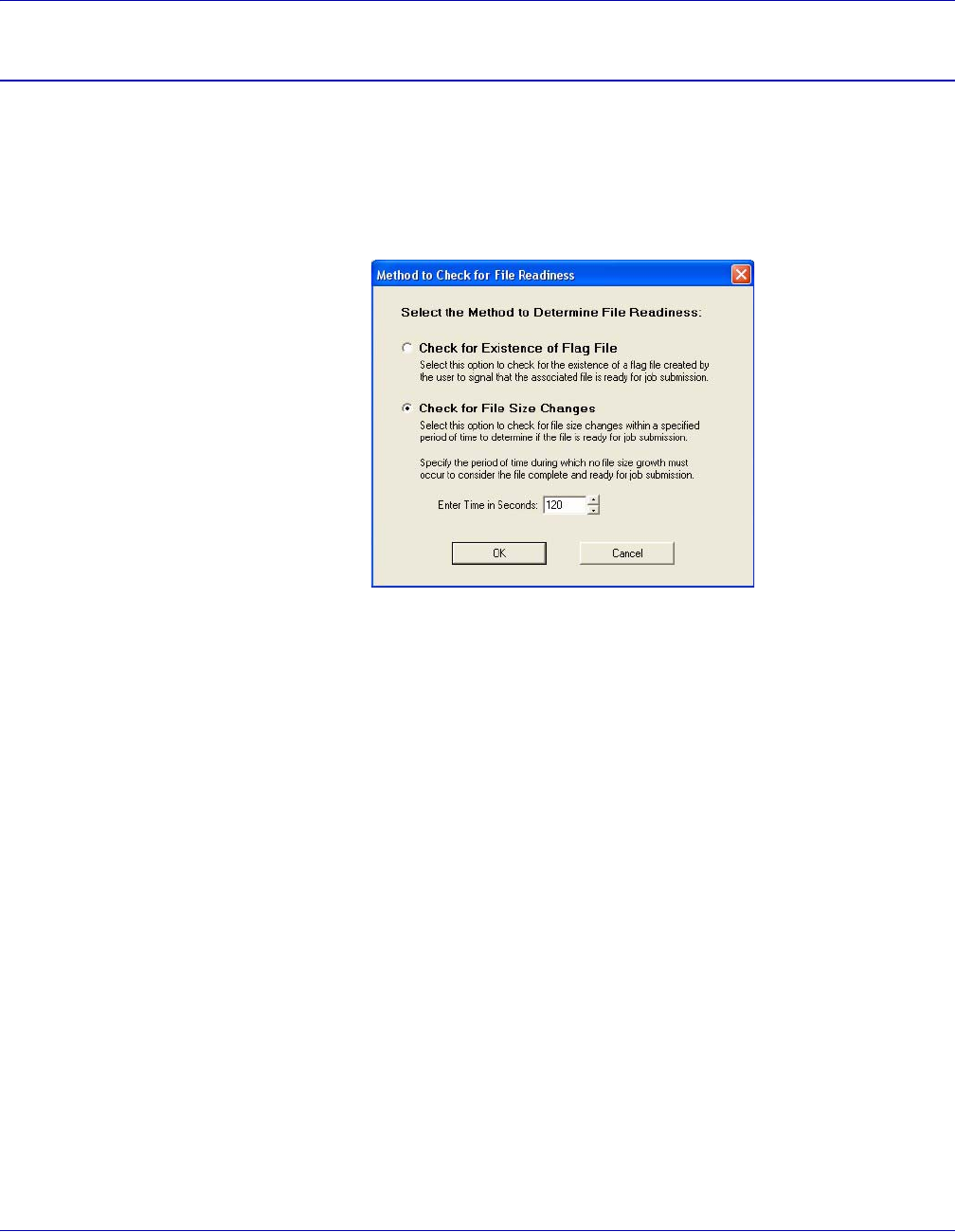
Adding watched folders
To add a new watched folder:
1Click the Browse button and select the new folder. The folder appears in the
Watched Folder box in the watched folder details area.
2Select the user from the XVTP User selection box in the watched folder details area.
This will be the user for all the jobs submitted from that new watched folder.
3Select the profile file from the Profile File selection box for the jobs that will be
submitted to this watched folder.
4Click the Add Watch button to add the new watched folder to the current list of
watched folders.
VI PDF Originator User’s Guide
VIPO-32 FreeFlow Variable Information Suite 5.0 (7/2006)
File ready check
The file ready check feature allows you to choose the method you want VIPO to use to
determine if a file is ready for use in a VIPO application. Using this feature prevents
problems that may occur when the WFC encounters a file that may not be ready for
submission. For example, a very large file that is still being transferred or copied from a
remote location or files being built “on the fly” by an automated process.
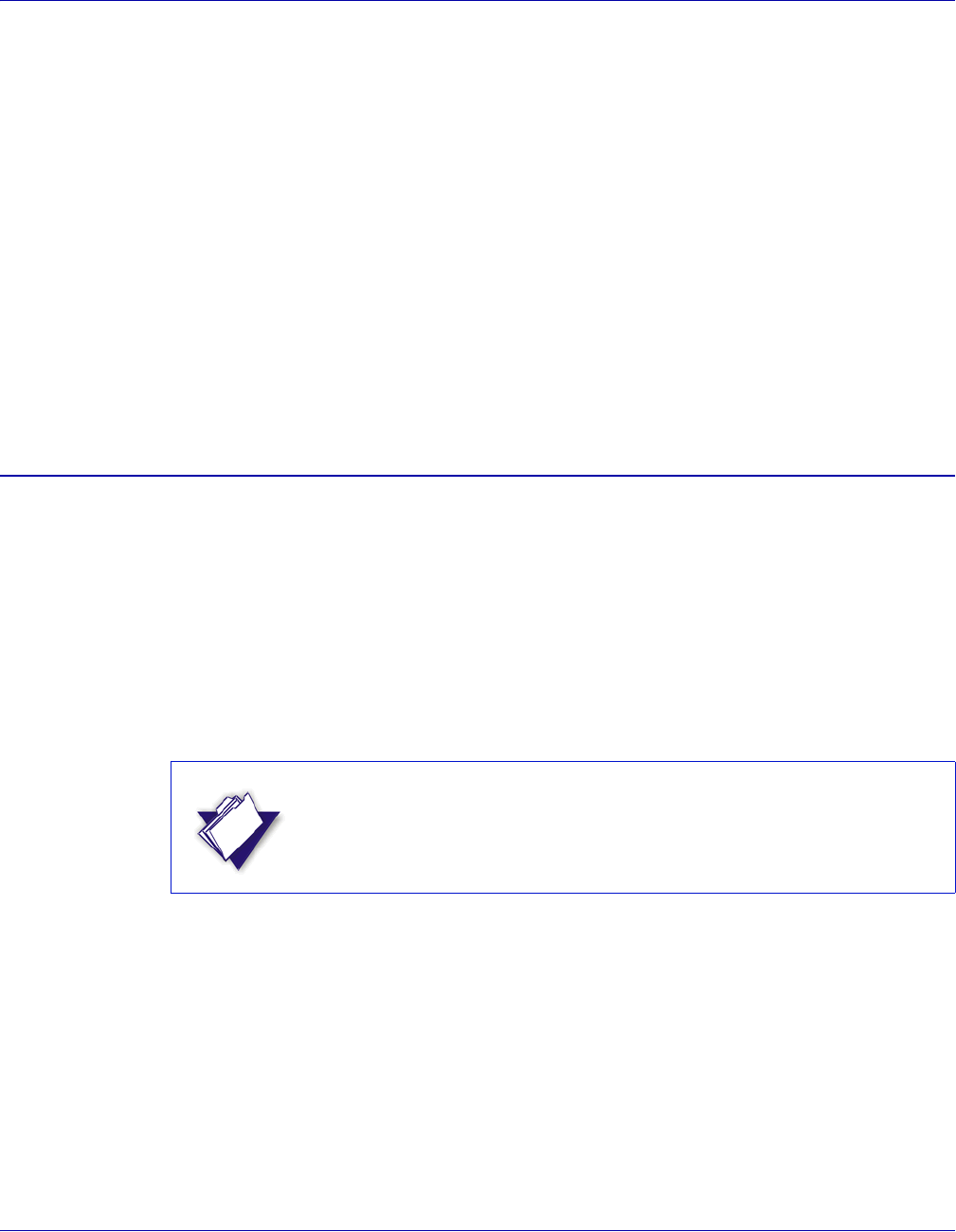
The File Ready Check button invokes this dialog:
The dialog offers two choices to check for file readiness before a file is actually picked up
for job submission:
• Check for Existence of Flag File — Used to directly signal the WFC when a file is
ready for job submission by creating a “flag” file. The flag file is an empty file you
create. In addition to having the same name as the job file, this file must have the
additional extension: ._File_Ready_For_Submission_.
Thus, the flag file for myVIProject.vpc, becomes:
myVIProject.vpc._File_Ready_For_Submission_
You must create the flag file associated with the job file in the watched folder after
the file is ready for submission. If no flag file is found while this option is active, the
job file will not be processed for job submission and is ignored by the file search at
every watch interval.
• Check for File Size Changes — This is the default setting in which the WFC checks
and monitors changes in the file size at every watch interval. If the size of the file to
be submitted does not change at all within the specified period of time, the file is
considered to be ready for job submission and is processed at that time, whether or
not a flag file exists. The range of time is from 5 to 1800 seconds, the default
threshold is 120 seconds.
VI PDF Originator User’s Guide
FreeFlow Variable Information Suite 5.0 (7/2006) VIPO-33
When using the Check for File Size Changes option, if very large files are transferred or
copied from a remote location to the watched folder, and the time it takes for the file
transfer to be completed is longer than the current watch interval, the file size changes
during the transfer are monitored and the file will not be picked up for job submission until
file size growth is not detected within the specified time. You must choose a period of time
for the watch interval, taking this information into consideration:
• The file size changes to be detected by the operating system
• The speed of file transfer or copy
When the Check for File Size option is active, files may no longer be picked up and
submitted for processing when found at every watch interval. The effective submission
rate is based on the file size check threshold as well as the watch interval. Even for small
files, job submission takes place after the threshold is reached, assuming the watch
interval is smaller than the threshold time.
A very small threshold (for example, five seconds) can be used for very small files, but
for large files this might not be long enough; change the threshold accordingly.
Command line options for the VIPO Watched Folders Client
The VIPO Watched Folders Client has two command parameters:
v2vwatch autostart noshow
These parameters are optional and can appear in any order or case on the command line.
• autostart — the VIPO Watched Folders Client will start watching folders
immediately. Normally, you need to press the Resume button on the Watched
Folders Client dialog.
• noshow — the VIPO Watched Folders Client will start in iconized size (minimized).
Both of these options are to facilitate automatic command-line starting of the VIPO
Watched Folders Client.
NOTE
The full path name of the VIPO Watched Folders Client executable may
need to be specified depending on the system environment (e.g.,
C:\xvtp\bin\v2vwatch.exe param1 param2).
VI PDF Originator User’s Guide
VIPO-34 FreeFlow Variable Information Suite 5.0 (7/2006)
Bulk Processing
Bulk Processing allows a VIPO user to direct the PDF output of multiple jobs to a single
“bulk” directory, typically to facilitate batch or other automated post-processing of the
VIPO-generated output.
The VIPO system administrator must ensure that your system is upgraded to a VIPO
software version that supports Bulk Processing. If you do not upgrade, jobs submitted to
the bulk folder will be processed in the same manner as non-bulk jobs and the results will
be generated in individual subfolders on a per-job basis.
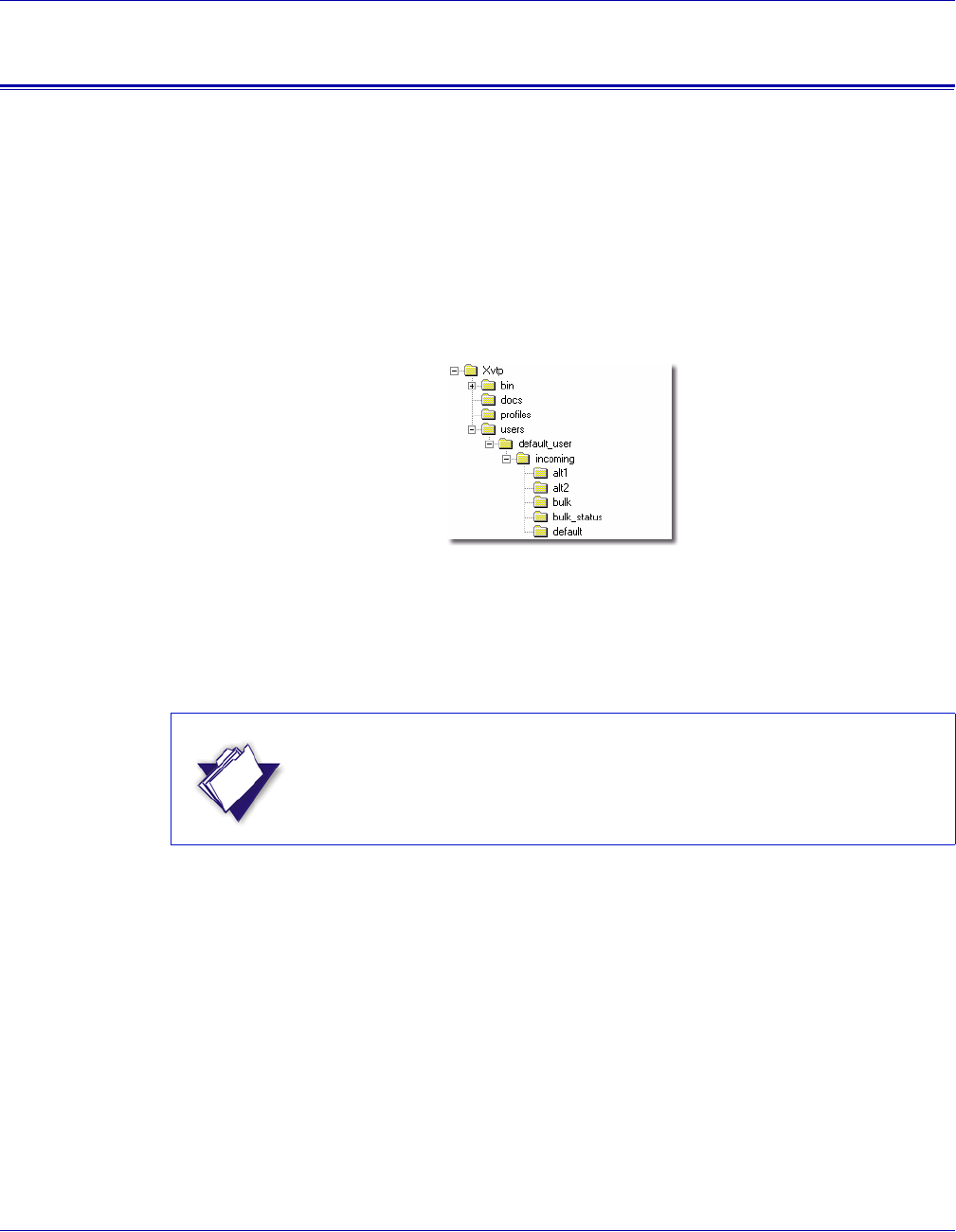
To enable Bulk Processing, if not automatically created during installation, each user
must create two additional directories, \incoming\bulk and \incoming\bulk_status, as
shown:
Jobs sent to a bulk destination folder will have their PDF output sent to
\user\incoming\bulk, while the status folders and files for those jobs accumulate in
\user\incoming\bulk_status. All PDFs generated using Distill Only, Distill and Split, and
Split Only options, and the index file for each submitted job, are placed in
\user\incoming\bulk.
NOTE
Ensure that your job and file naming conventions and split templates do
not cause output file name clashes that result in overwritten files.

VI PDF Originator User’s Guide
FreeFlow Variable Information Suite 5.0 (7/2006) VIPO-35
Using VIPO Web
VIPO Web allows you to use your web browser to:
• Submit VIPP jobs
• Create new or additional VIPO user accounts
• Administer VIPO Servers remotely
• Administer VIPO Web passwords and other security functions
Instructions are based on sessions using Internet Explorer; you may have to make
adjustments to the instructions if you are using Netscape or other web browser.
Accessing VIPO via your web browser
For instructions on web-enabling your VIPO Server and obtaining the Server’s IP
address, see “Web-enabling your VIPO Server” in the Variable Information Suite
Installation Guide.
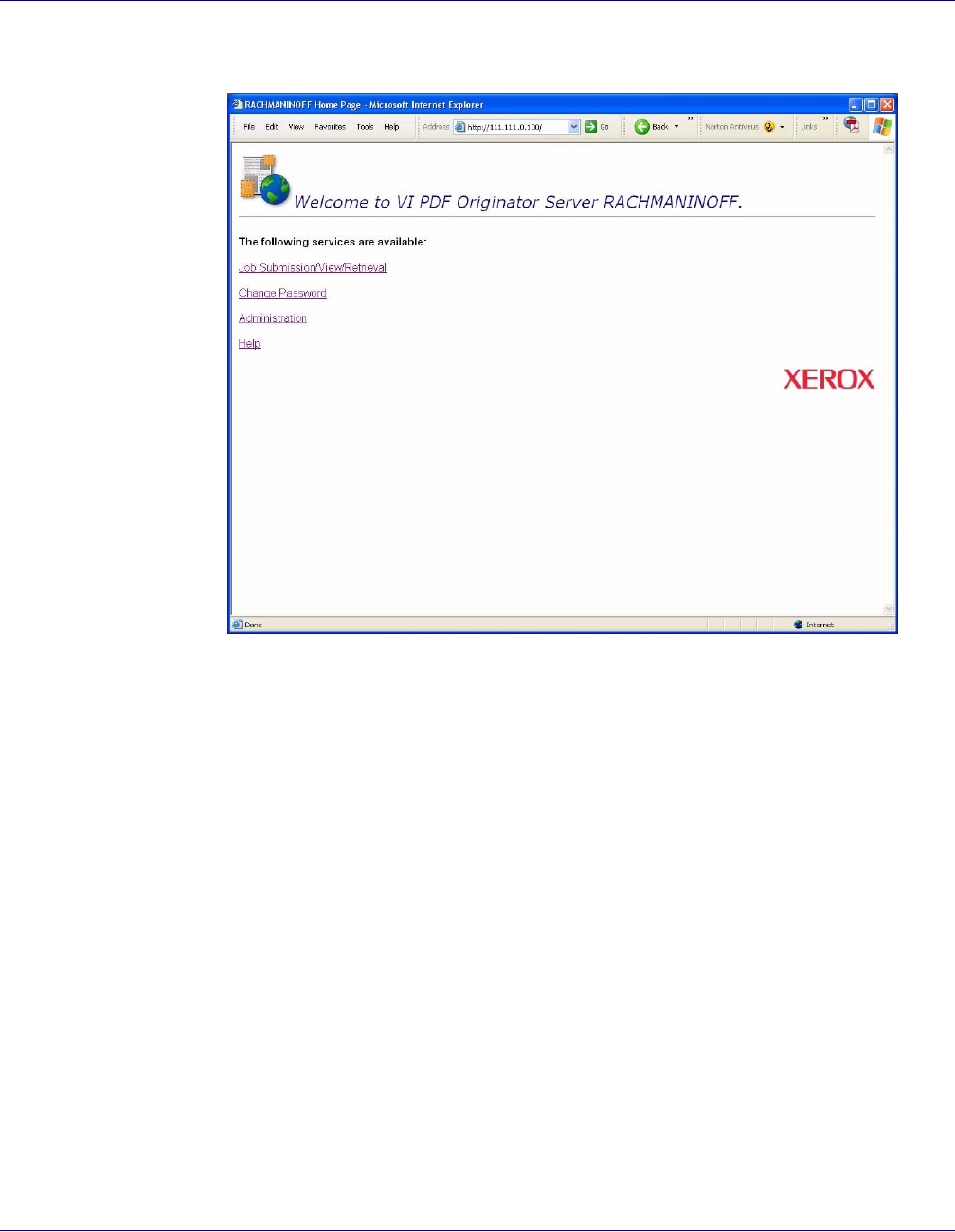
To begin using VIPO Web to administer your VIPO jobs:
• Open your web browser.
• Enter the IP or web address (URL) of the web-enabled VIPO Server in the address
field.
• Click on Go.
VI PDF Originator User’s Guide
VIPO-36 FreeFlow Variable Information Suite 5.0 (7/2006)
VIPO Web finds your server and opens a session.
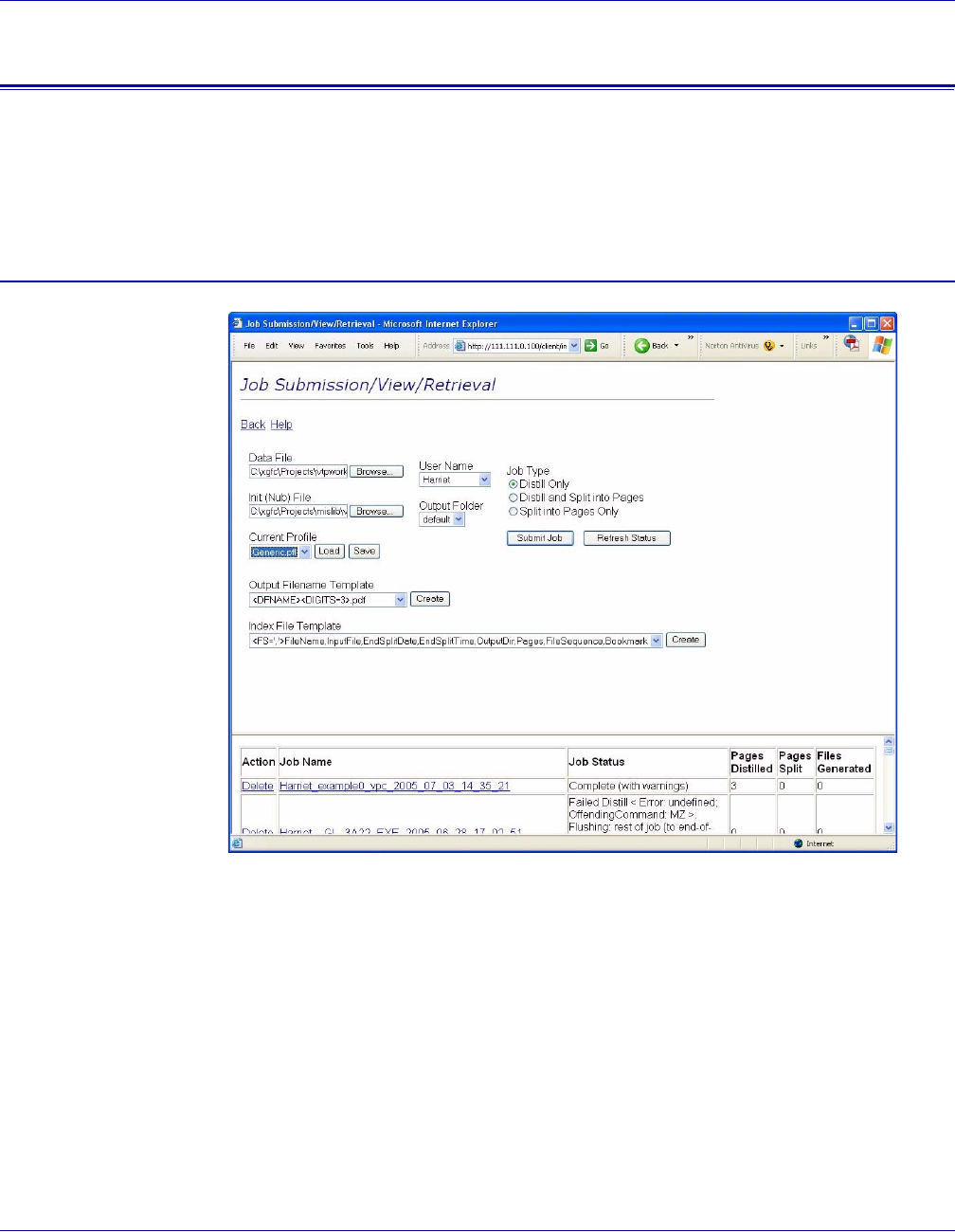
The Welcome to VI PDF Originator Server page provides these options:
•Job Submission/View/Retrieval — Provides access to VIPO jobs and functions.
•Change Password — Allows you to change your password.
• Administration — Provides access to these administrative tasks:
—User Administration
—Server Administration
—Cluster Administration
—Basic Authentication Quick Step
—Disable Basic Authentication
• Help — Provides access to the online VIPO Web Help.
VI PDF Originator User’s Guide
FreeFlow Variable Information Suite 5.0 (7/2006) VIPO-37
Job Submission/View/Retrieval
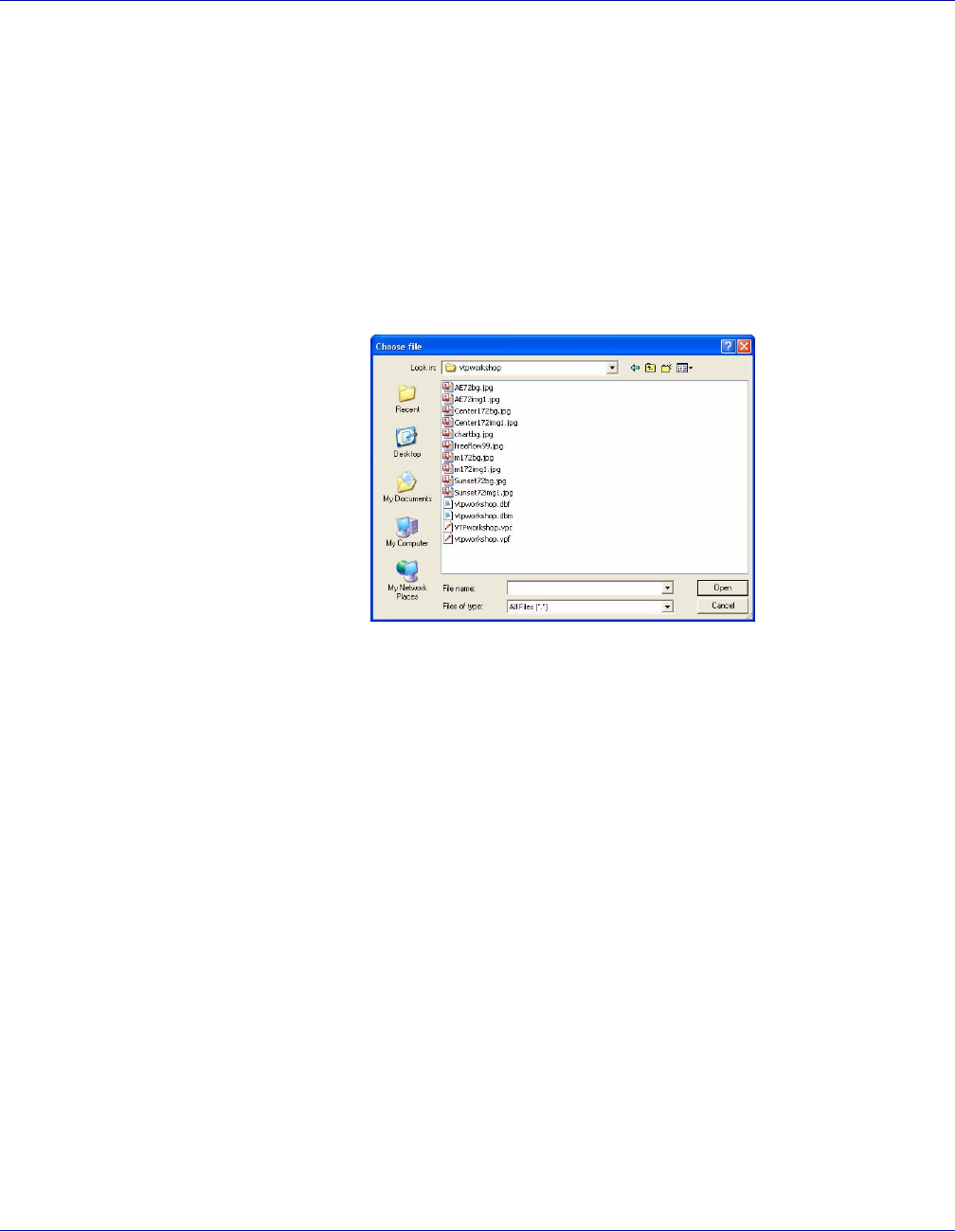
The Job Submission/View/Retrieval page provides access to the VIPO job submission
functions. The page contains two frames. The upper frame provides access to the VIPO
functions you will need to submit your job. The lower frame contains system-generated
information about the jobs you have submitted.
Job Submission - upper frame
For descriptions of the files and templates found on this page, see “Job creation area field
descriptions.” Use these options to submit a job to VIPO:
VI PDF Originator User’s Guide
VIPO-38 FreeFlow Variable Information Suite 5.0 (7/2006)
Data File
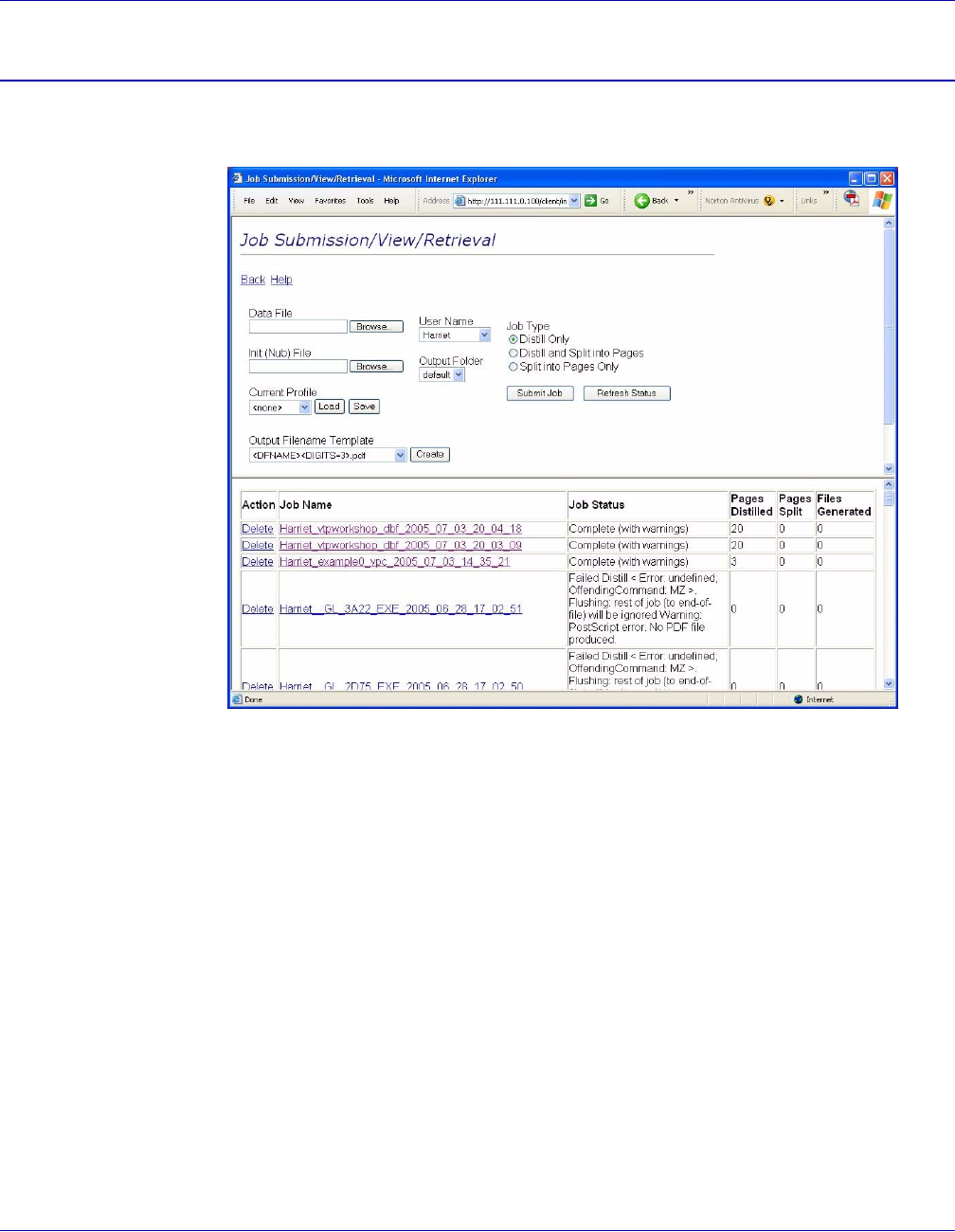
Allows you to Browse for the file to be submitted to VIPO. When you click Browse, the
Choose File window will open. Use this window to browse for and select the file or job for
submission.
Retrieved files are pulled from VIPO Web as the result of dynamic queries, and NOT by
direct links to files on the VIPO Server. This means that if your browser prompts you with
a choice to either open or save a file, you should always choose to open the file rather
than save it. Once the file is open you can save it using the Save option in the application
your browser used to open the file. If you inadvertently choose Save, the web page that
generated the query may be saved, rather than the file itself. When saving files, make
sure the destination path and type are appropriate for the file.
Init (Nub) File
Allows you to Browse for the appropriate init file for your job. When you click Browse, the
Choose File window will open. Use this window to browse for and select the file.
Current Profile (Load/Save)
The Current Profile drop-down contains a list of the available profiles. Choose the
appropriate profile, then click Load to load the selected profile or Save to save the profile
name entered. The profile file is located in your profiles directory (the same one used by
the Job Submission Client). Only the file name, not any path information, is entered in the
name field. See “Profile files” for more information on these files.
Output Filename Template (Create)
Select from the drop-down list of existing options or create a new Output Filename
Template. For more information on creating these templates, see “Specifying PDF output
file names.”
Index File Template (Create)
Select from the drop-down list of existing options or create a new Index File Template.
For more information on creating these templates, see “Specifying an index file.”

VI PDF Originator User’s Guide
FreeFlow Variable Information Suite 5.0 (7/2006) VIPO-39
User Name
Select the user name appropriate for this job. If you have administrative privileges, all
user names will appear, as the job can be submitted for another user.
Output Folder
Choose one of the available directories as a repository for your completed job files.
Job Type
Click one of these three options for your job type:
• Distill Only
• Distill and Split into Pages
• Split into Pages only
These options are discussed in “Job creation area field descriptions.”
Submit Job
Submits your job to the VIPO Server.
Refresh Status
Refreshes the entries in the Job Status column of the table on the lower frame of this
page.
VI PDF Originator User’s Guide
VIPO-40 FreeFlow Variable Information Suite 5.0 (7/2006)
Job Submission - lower frame
When a job is submitted to the VIPO Server, the table on the lower frame of the Job
Submission page is filled with information on the submitted job.
This information is produced for each submitted job:
Action
You will be able to Cancel a pending job or Delete a completed job using the option
displayed in this column. Clicking Delete deletes the entire job, including the output and
the folder.

VI PDF Originator User’s Guide
FreeFlow Variable Information Suite 5.0 (7/2006) VIPO-41
Job Name
The name of the job you submitted. When the job is complete, you can display the job
files generated via VIPO Web by clicking the Job Name link for the desired job. Clicking
a displayed file link causes the file to be displayed on your system; how it is displayed
depends on how your system is configured to handle the various file types.
Job Status
The Job Status of your submitted job is displayed in this part of the table. If the job failed
or did not process properly, this entry will contain an explanation of the failure, including
information about errors and how VIPO handled the job.
Pages Distilled
The total number of pages created in PDF format.
Pages Split
The number of pages split in the job. A split file may have more than one page within it. For
example, an original PDF containing three bookmarks is split into three PDF files. If each split
PDF file consists of four pages, the total of the split pages is twelve.
Files Generated
The number of files generated by your job.
VI PDF Originator User’s Guide
VIPO-42 FreeFlow Variable Information Suite 5.0 (7/2006)
Change Password
The Change Password option allows you to change your password, the password
associated with the user name under which you logged into the system. Use the “User
Administration” option to change passwords other than your own.
Administration
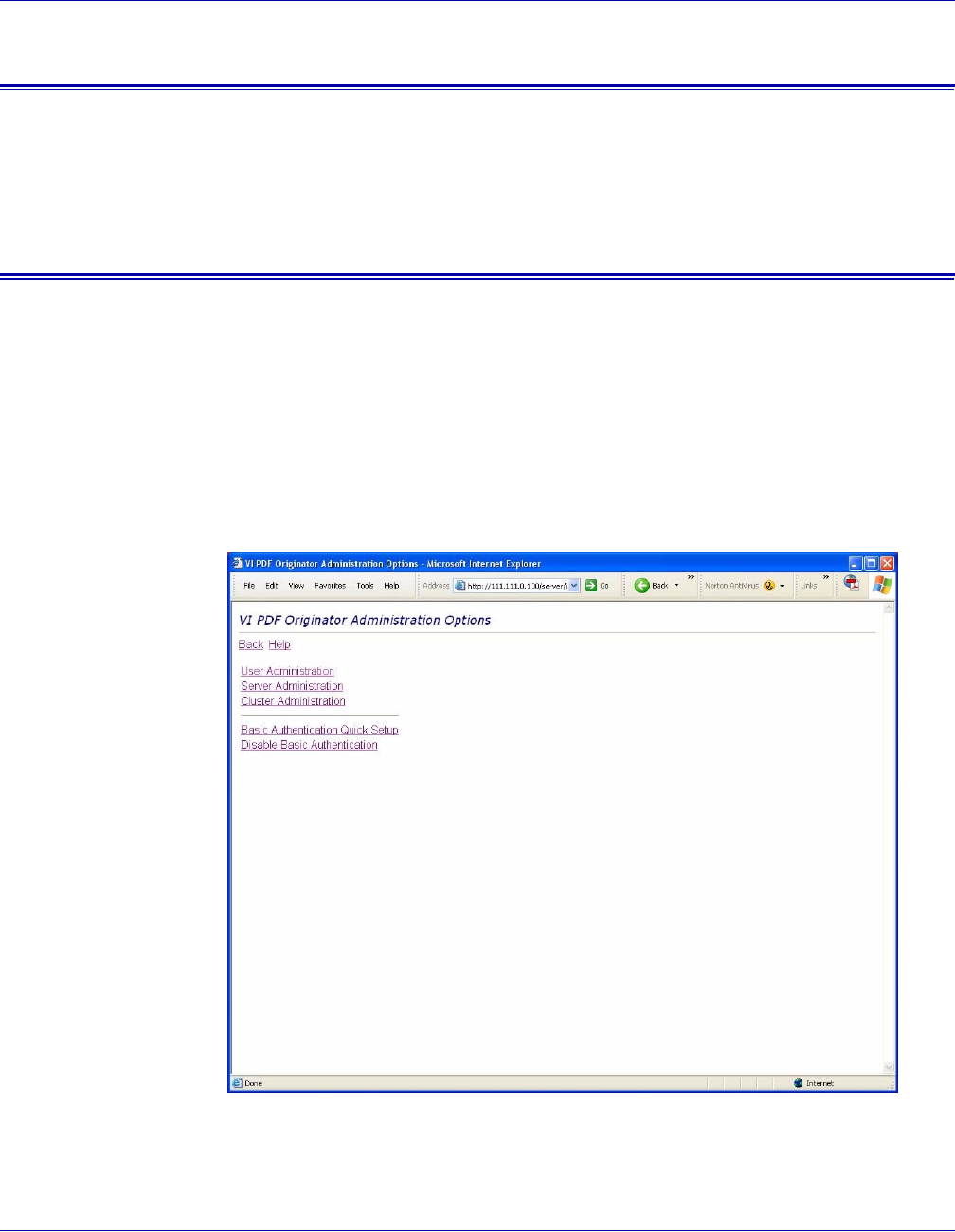
The VI PDF Originator Administration Options page provides access to these
administrative functions:
•User Administration
•Server Administration
•Cluster Administration
•Basic Authentication Quick Step
•Disable Basic Authentication
For a discussion on the four available security levels supported by VIPO, see “Defining
the VIPO Web security levels” in the Variable Information Suite Installation Guide. Xerox
strongly recommends setting security levels for this application.
VI PDF Originator User’s Guide
FreeFlow Variable Information Suite 5.0 (7/2006) VIPO-43
User Administration
VIPO Web allows the creation of new or additional VIPO user accounts. The default
incoming folders produced for each user are:
•alt1
•alt2
• bulk (mandatory)
• default (mandatory)
Additional incoming folders can be added manually for any user on the User
Administration page, or the VIPO Web administrator can add an additional line to the
X:\Winnt\xvtp.ini file in the following format:
vtpw_addtl_user_folders=first_directory_name|second_directory_name|...
As an example, after adding this line to the xvtp.ini file:
vtpw_addtl_user_folders=example1|example2|example3
adding a new user via the VIPO Web User Administration Add New User option will result
in the creation of these directories for that user:
•example1
•example2
•example3
•bulk
• default
VI PDF Originator User’s Guide
VIPO-44 FreeFlow Variable Information Suite 5.0 (7/2006)
Changing passwords
To change a user’s password, double-click the user name on the left frame, then click the
Set/Reset Password button. Enter the new password in the New Password window, then
enter the same password in the Repeat new password window. Once entered, click the
Set Password button. A message giving the status of the password change will be
generated in the right frame of the page.
Adding new users
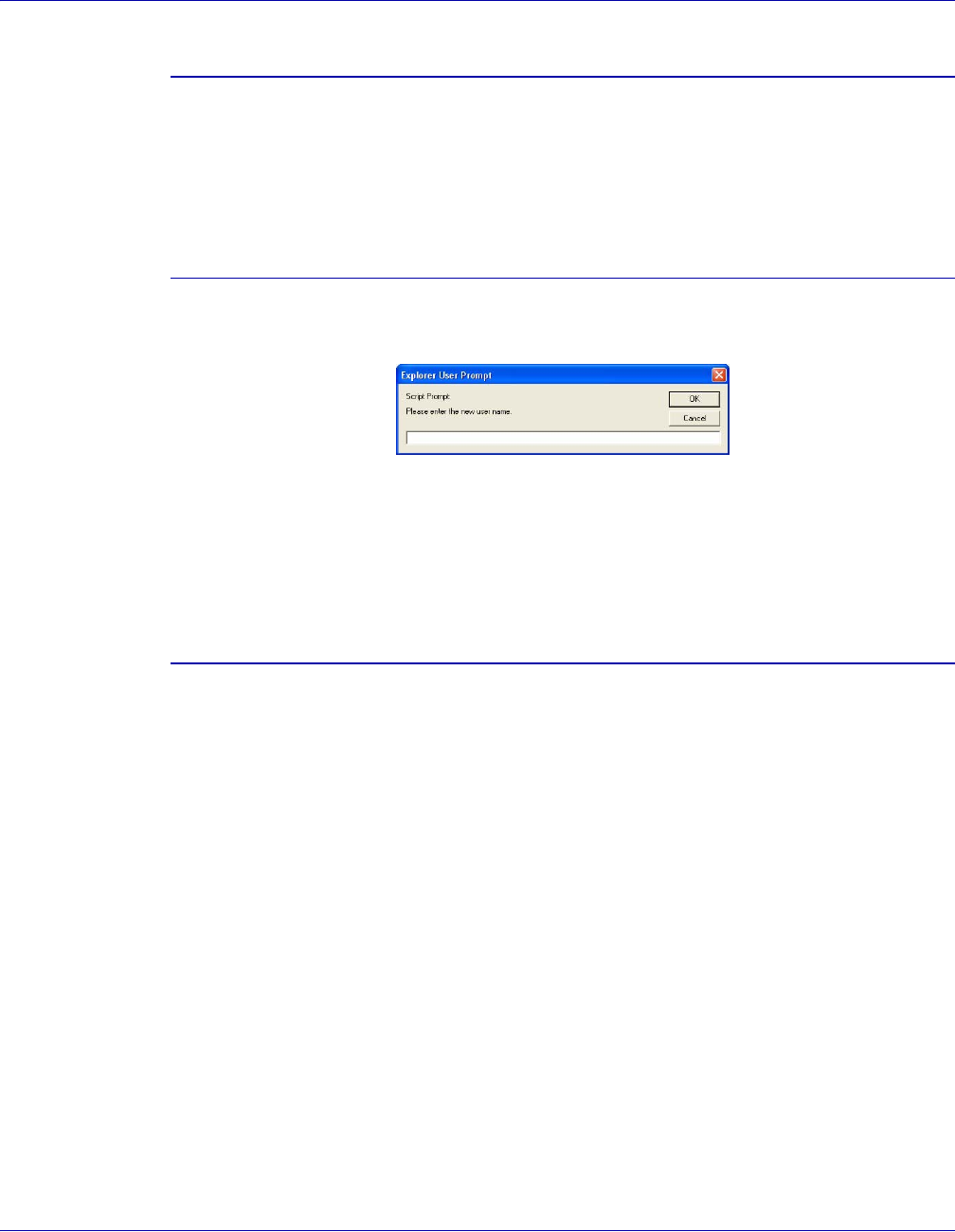
To enter a new user, click the Add New User link in the left frame of the page. A pop-up
is produced. Enter the new user name in the New User field and press OK.
The new user name will appear in list of user names in the left frame.
When a new user is created, the new user does not belong to a group and must be
explicitly added to the user group (to be able to submit jobs) or to the admin group (to
perform administrative functions) by the Administrator.
Assigning users to groups
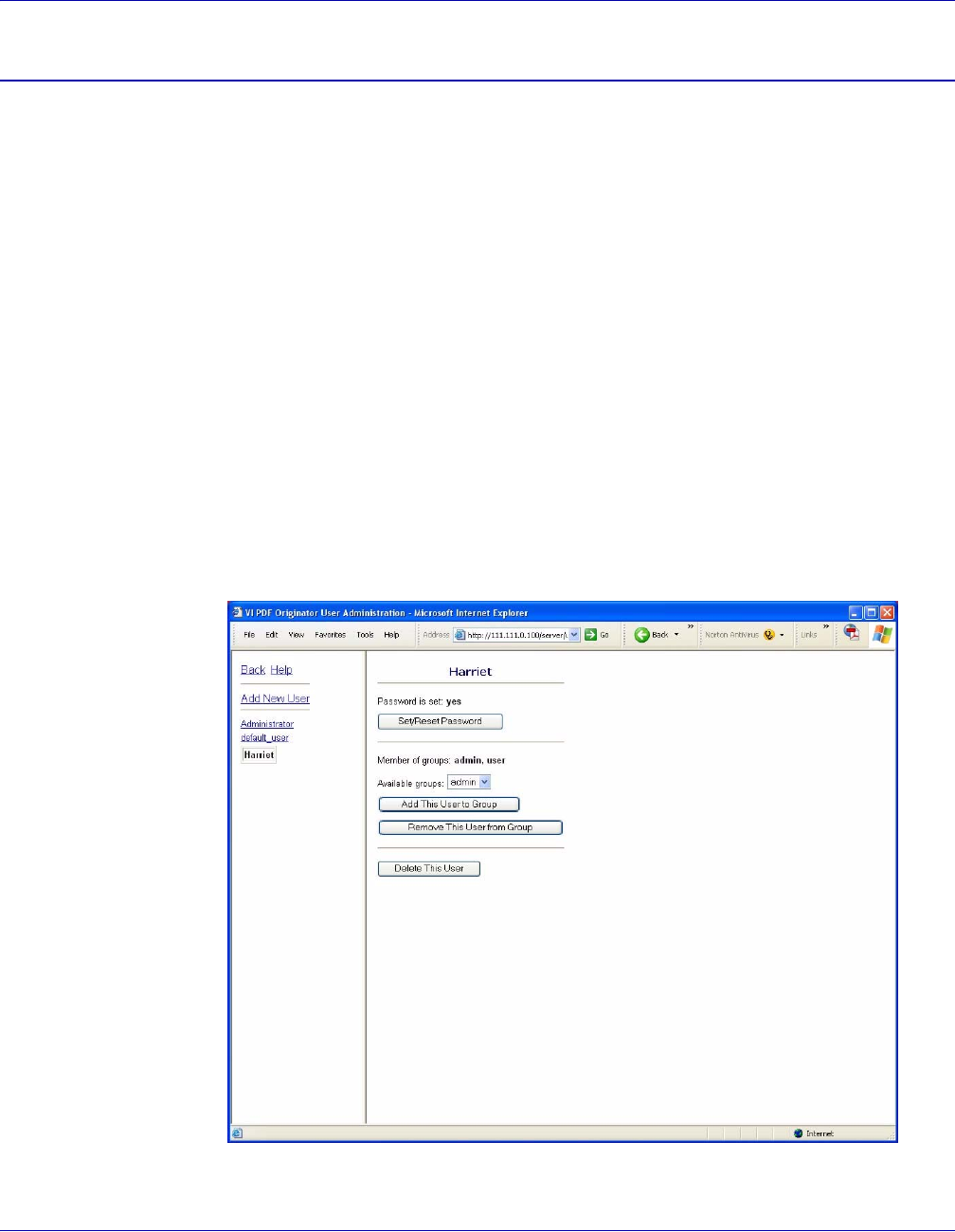
The User Administration feature allows you to classify each user into one or both of the
defined user groups, admin and user. Users associated with the admin group are able to
access and complete the administrative tasks found on the VI PDF Originator
Administration Options page. Users associated with the user group can submit jobs to the
VIPO Servers accessible from VIPO Web.
To assign a user to one or both groups, double-click the user name on the left frame, then
click the Available groups drop-down and highlight the name of the group to which the
user will be added. Next, click Add This User to Group. Repeat this process to add the
user to a second group. As the groups are assigned, the “Member of groups:” list will be
updated.
To remove the user from a specified group, select the user, highlight the group you want
the user removed from, and click Remove This User From Group.
VI PDF Originator User’s Guide
FreeFlow Variable Information Suite 5.0 (7/2006) VIPO-45
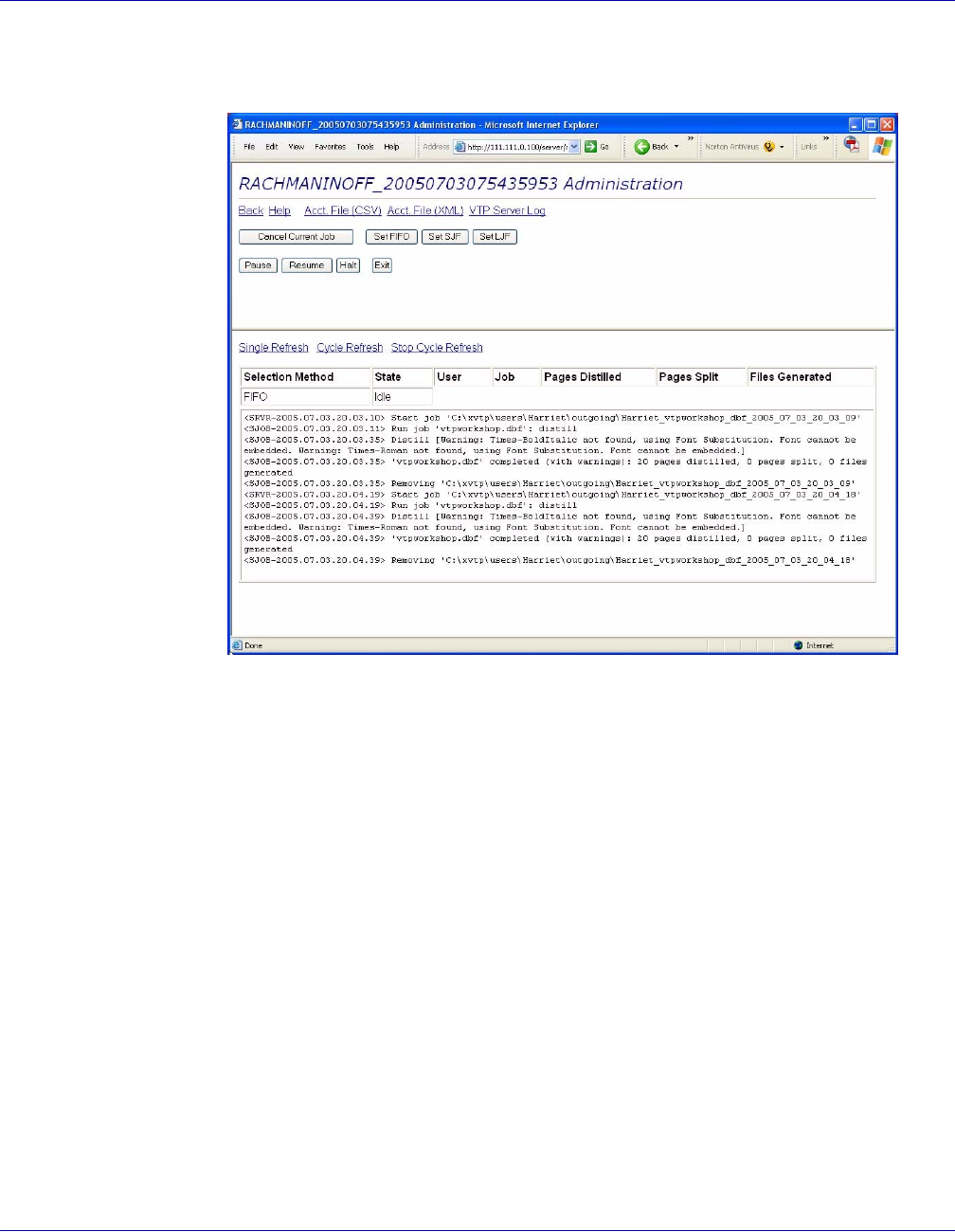
Server Administration
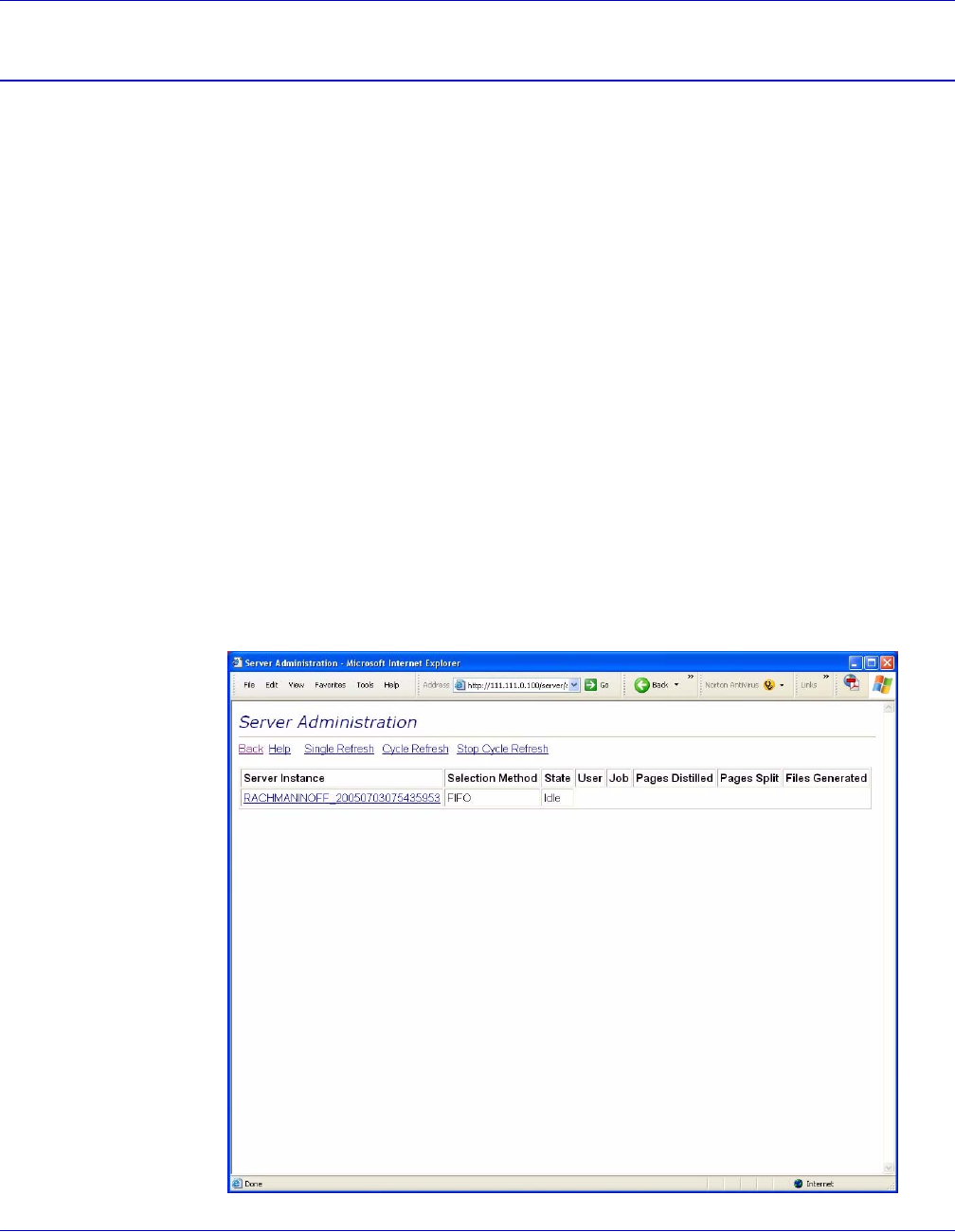
The Server Administration feature of VIPO Web allows you to set preferences for the
Servers that are part of the cluster of servers accessible from your VIPO Web Server. The
primary Server Administration page contains this information:
•Server Instance — the names of the servers in the cluster.
•Selection Method — the way job submission order is determined on each server.
•State — usually idle or active, the activity state of each server.
•User — the user assigned to the currently processing job.
•Job — the name of the currently processing job.
•Pages Distilled — total number of pages distilled in the currently processing job.
•Pages Split — total number of pages split in the job that the Server is presently
processing.
•Files Generated — total number of files generated in the job that the Server is
currently processing.
In addition to the above information, you can choose to:
•Single Refresh — refresh (reset) the job information for the selected Server.
•Cycle Refresh — poll the Server(s) for its status at a short, fixed interval.
•Stop Cycle Refresh — stop the polling of the Cycle Refresh option. Click Cycle
Refresh to return to continuous polling.
VI PDF Originator User’s Guide
VIPO-46 FreeFlow Variable Information Suite 5.0 (7/2006)
To view information specific to a Server in the cluster, click the Server name link in the
Server Instance field. A new Server Administration page will open.
From the Server Administration page, you can:
• View the VIPO Server Log.
• View the accounting file in CSV or XML format.
• Cancel the current job.
• Set the Server’s selection method to:
— FIFO (First In First Out)
— SJF (Shortest Job First)
— LJF (Longest Job First)
• Pause processing on the Server (if the Server is in a busy state, the pause will not
occur until it becomes idle).
• Resume processing on the Server.
• Halt (cancel) the current job and place the Server in a paused state.
• Exit the current job and terminate the process for the Server. You will not be able to
restart the Server via VIPO Web; it must be restarted by someone with physical
access to the Server.
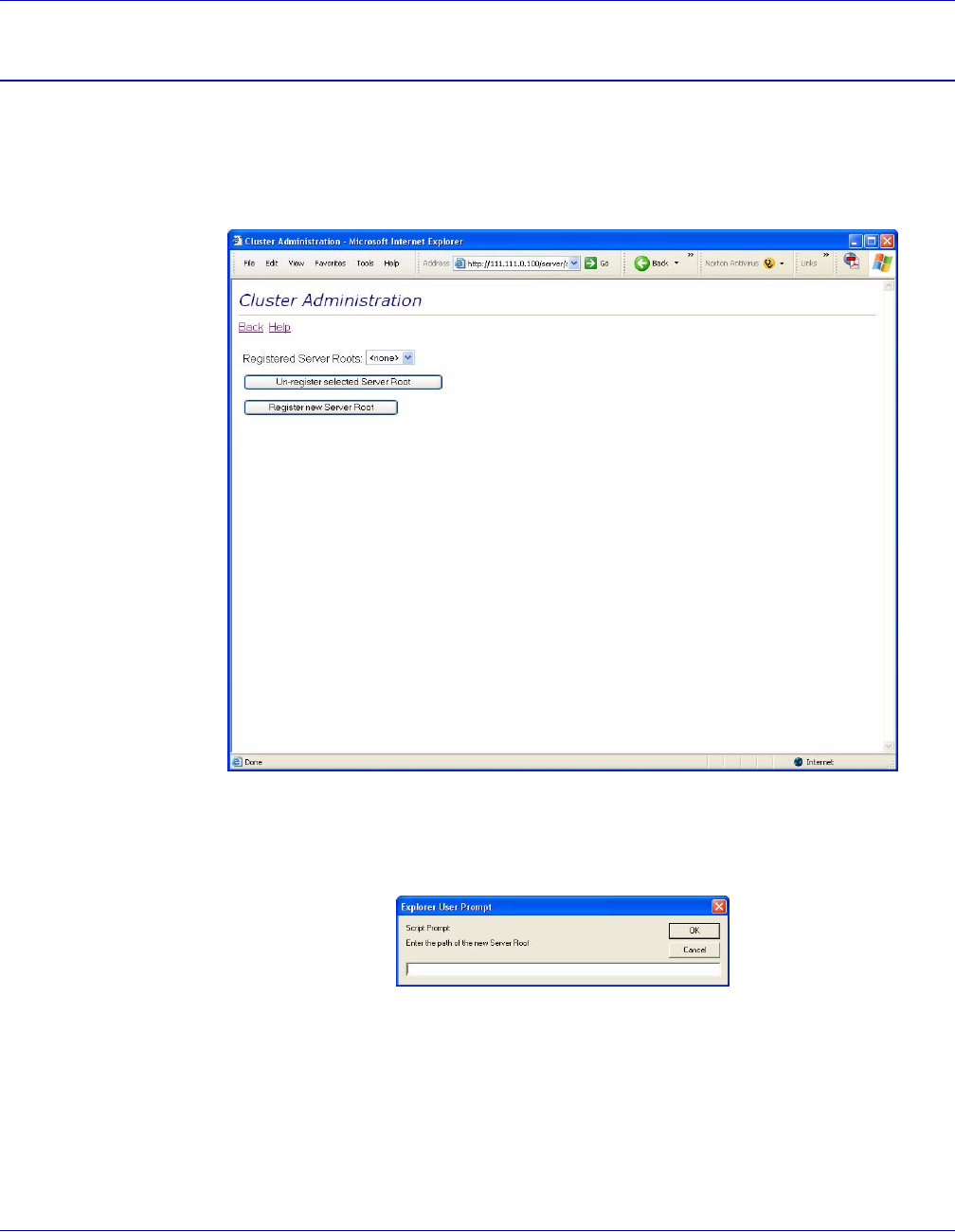
VI PDF Originator User’s Guide
FreeFlow Variable Information Suite 5.0 (7/2006) VIPO-47
Cluster Administration
The VIPO Web Cluster Administration window allows you to register the paths of drives
that have been mapped or mounted in order to allow access to the root path(s) of VIPO
Servers. VIPO Web displays these additional Cluster Servers on the VIPO Web Server
Administration window, where they can be administered in the same way as the primary
VIPO Server administered by VIPO Web.
When you click the Register New Server Route button, the system will prompt you to
enter the path of the new Server Root. Once entered, click OK to add the new Server root
to the drop-down list.
Refer to “VIPO configuration options” in the Variable Information Suite Installation Guide
and use the following discussion to help determine how to set up your VIPO Web Server
Clusters:
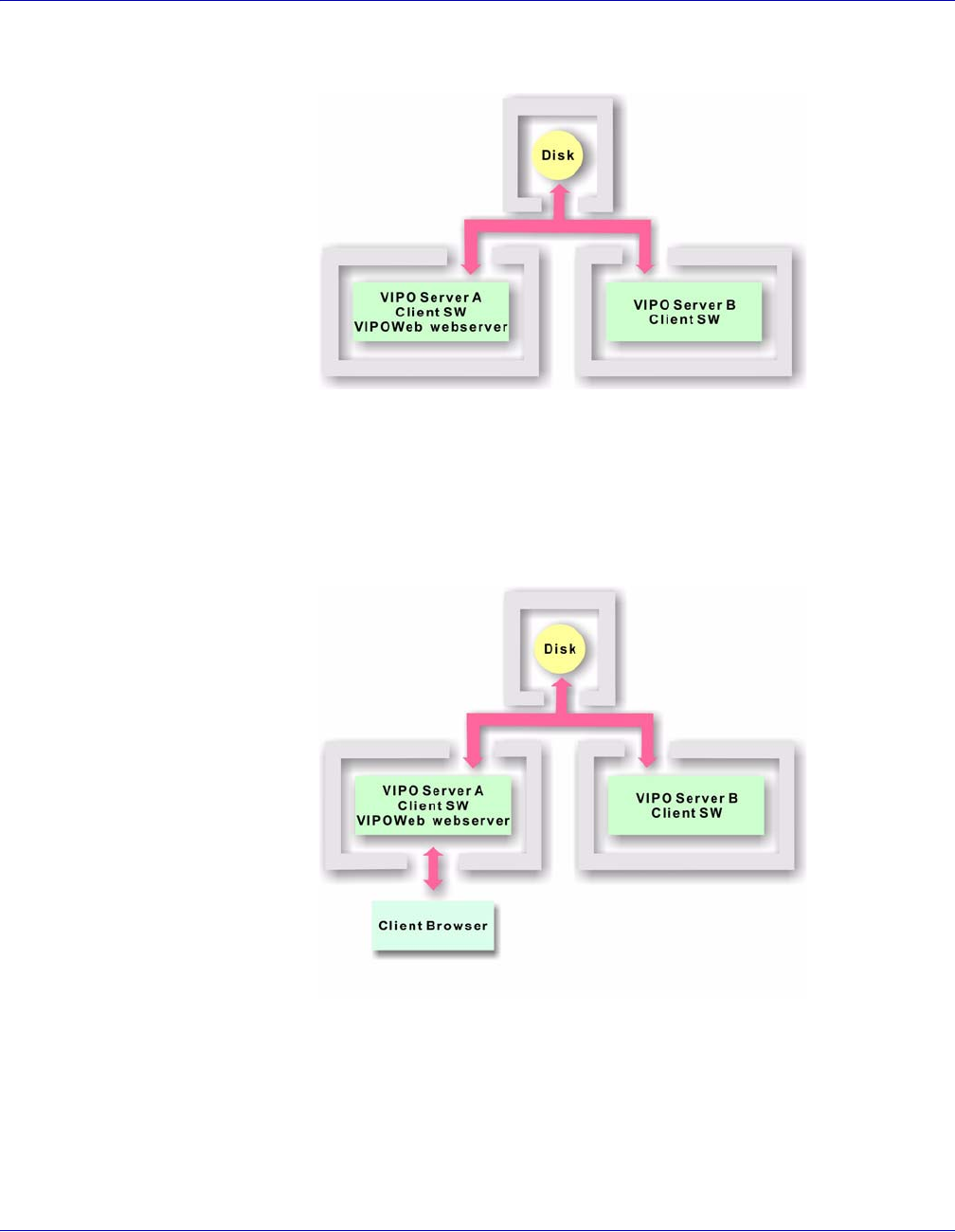
VI PDF Originator User’s Guide
VIPO-48 FreeFlow Variable Information Suite 5.0 (7/2006)
Assume that you have a two-node cluster set up as follows:
In this configuration, both VIPO Servers service a common job pool resident on a disk,
which is shared over a network. Before VIPO Web, administering the VIPO Server nodes
(server pause, server resume, examining logs, etc.) required physical access to the
individual VIPO Servers.
With the addition of VIPO Web, VIPO Server A can now be administered via your web
browser:
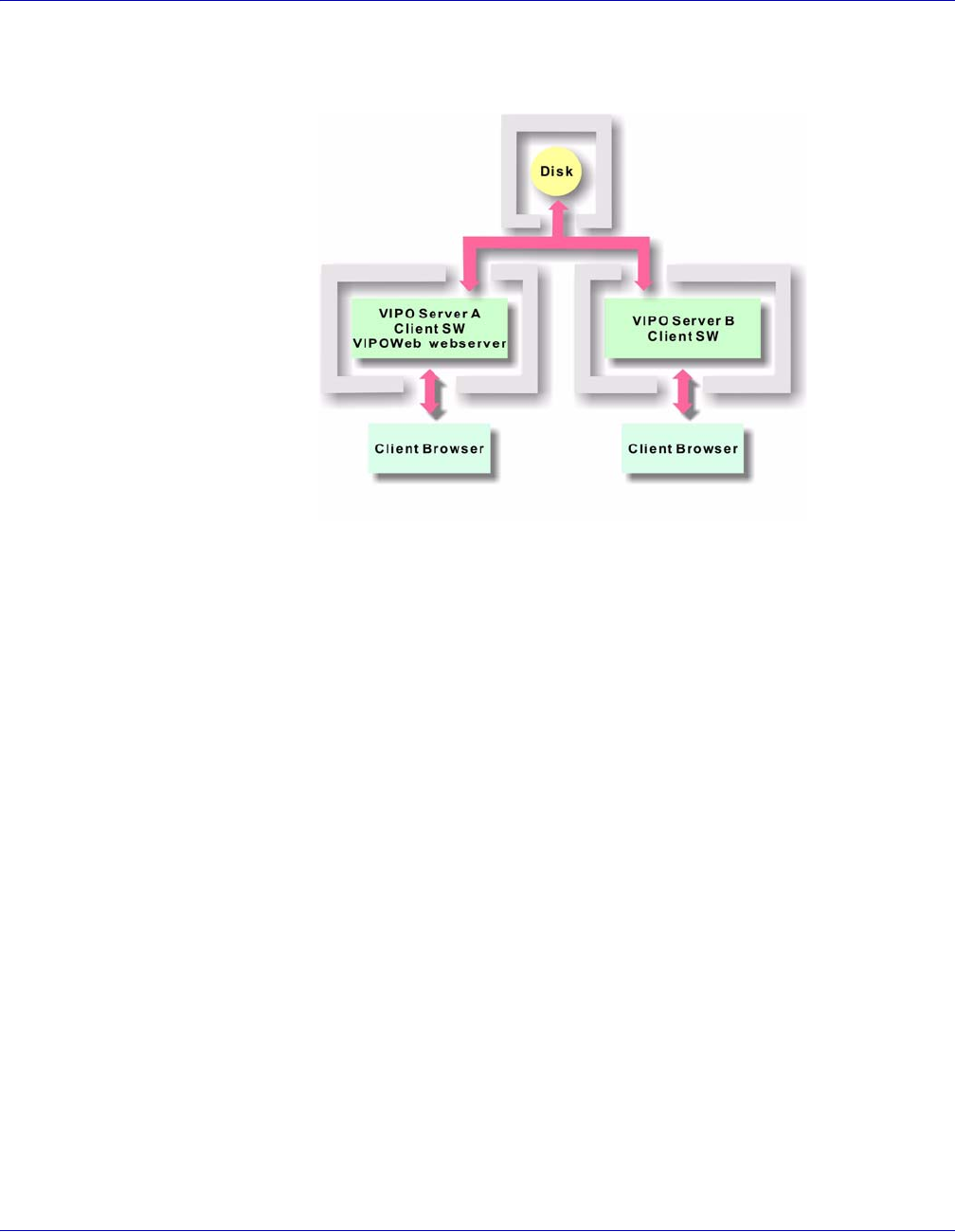
VI PDF Originator User’s Guide
FreeFlow Variable Information Suite 5.0 (7/2006) VIPO-49
Without Cluster Administration, however, the only way to remotely administer VIPO
Server B is to run an additional VIPO Web Server where:
This configuration is inconvenient for several reasons:
• VIPO Web administration with regard to SSH Certificates
• User account passwords
• Multiple access points to monitor with regard to network security, etc.
The complexity and issues multiply in direct proportion to the number of additional nodes
added to the cluster.
Cluster Administration via VIPO Web addresses these issues. To enable Cluster
Administration for VIPO Server B, the administrator makes VIPO Server B's X:\xvtp
directory (or VIPO Server B's server root directory) sharable or mountable by VIPO
Server A.
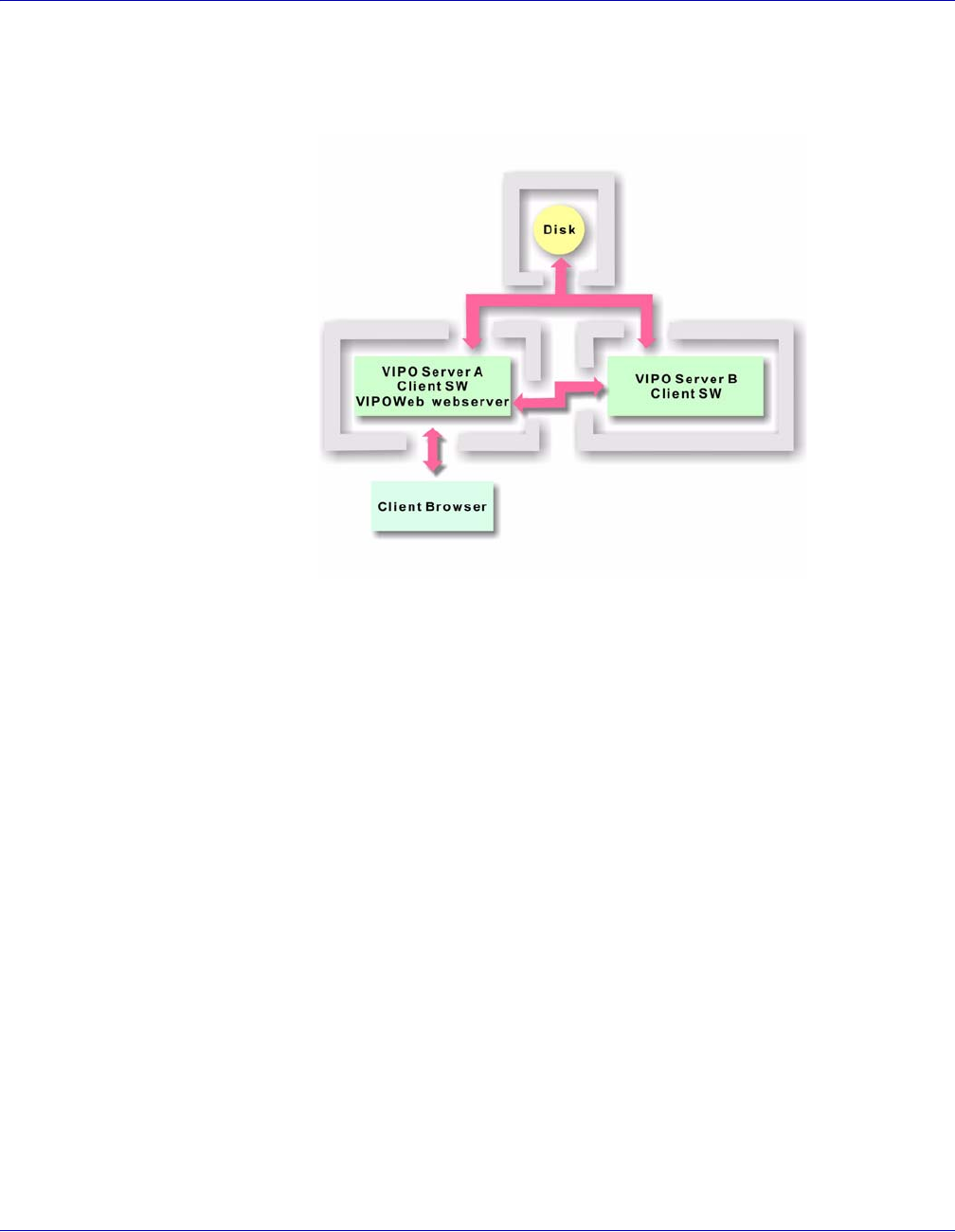
VI PDF Originator User’s Guide
VIPO-50 FreeFlow Variable Information Suite 5.0 (7/2006)
Then, from the Cluster Administration window of the VIPO Web web server hosted by
VIPO Server A, VIPO Server B is added to the Cluster Server Root list of the VIPO Web
web server hosted by VIPO Server A, which results in:
VIPO Server B can be remotely administered over the HTTP connection to the VIPO Web
web server hosted by VIPO Server A, which acts as an intermediary and interacts with
VIPO Server B on behalf of the client browser session.
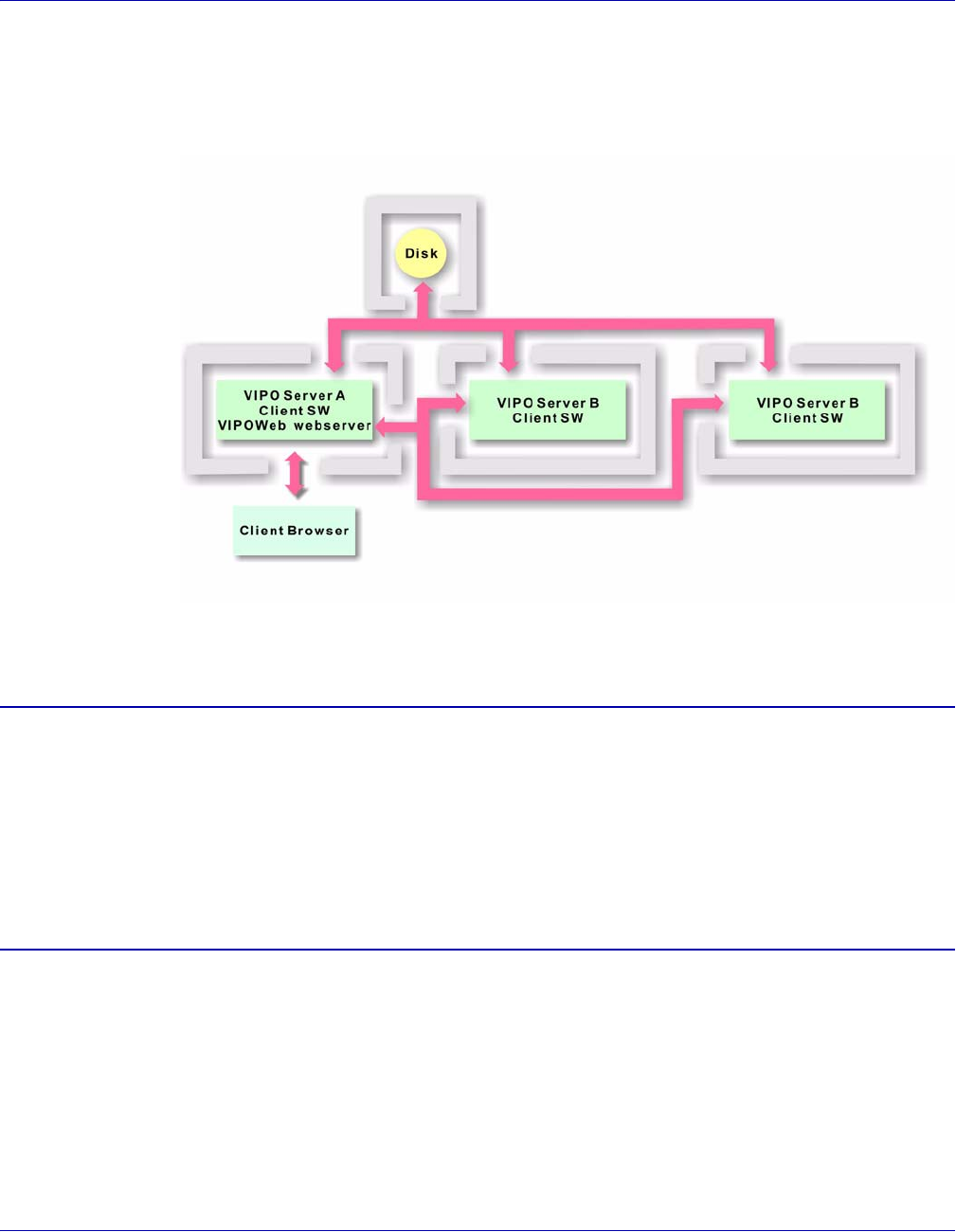
VI PDF Originator User’s Guide
FreeFlow Variable Information Suite 5.0 (7/2006) VIPO-51
Even if additional nodes are added to the cluster, as long as their server root paths are
accessible by the VIPO web server hosted by VIPO Server A, and added to its cluster
server root list, they can all be administered remotely from the single client browser
session:
Basic Authentication Quick Step
The Basic Authentication Quick Step process allows user-account level security with user
passwords, as well as group security on an area-by-area basis. If your site requires a
higher level of security, refer to “Defining the VIPO Web security levels” in the Variable
Information Suite Installation Guide for more information.
A description of the Basic Authentication Quick Step, “HTTP Basic Authentication,” can
be found in the Variable Information Suite Installation Guide.
Disable Basic Authentication
You can disable the HTTP basic authentication level on your web server by choosing
Disable Basic Authentication on the Administration page, then clicking the Disable
button. You will receive confirmation of the change.
Xerox strongly recommends that you maintain an appropriate level of security on your
VIPO Server network.

VI PDF Originator User’s Guide
VIPO-52 FreeFlow Variable Information Suite 5.0 (7/2006)
Web browser notes
When using Internet Explorer, be aware of these notes:
• PDF files — When Acrobat Reader is installed, clicking on a PDF file link causes the
PDF file to be displayed in Acrobat Reader. PDFs encountered as the result of
dynamic queries disable the Save As option in Acrobat. To save the PDF file from
within Acrobat Reader:
—Use the Shift-Ctrl-S command
— Click the small floppy icon on the upper left of the IE-embedded Acrobat display
• XML files — Unless some other tool is associated with XML files, they will be
opened in a new Internet Explorer window.
• CSV files — CSV files will be opened in Notepad, or other tool associated with plain
text.
When using Netscape, be aware that when a file type is opened for the first time,
Netscape will prompt you to select the application to use to open that file type.

VI PDF Originator User’s Guide
FreeFlow Variable Information Suite 5.0 (7/2006) VIPO-53
Using VIPO and Adobe Distiller
“Using VIPO and Adobe Distiller” explains how to use VIPO with Acrobat Distiller. These
topics are covered:
•PDF security options
•Adobe Distiller and fonts
PDF security options
The PDF Splitter module supports PDF Security features.
You can set one of these password options in PDF documents generated with Acrobat
Distiller:
•User passwords
• Owner or Master passwords
A User password “locks” the file and restricts file open and read access. If this password
is set, the document cannot be opened unless the password is supplied.
An Owner or Master password “locks” all of the PDF document security settings in the
file. If this password is set, none of the document’s security options can be changed
unless the password is supplied.
To configure Acrobat Distiller to generate PDF files with security settings and optional
password protection, the passwords must be supplied to VIPO so that the original file can
be processed and split into smaller PDF “child” documents.
A User password must be defined in the VIPO Configuration file for VIPO to use it to open
and read the PDF files that have file open and read access restrictions. The User
password is used only to open and read PDF documents for splitting purposes; VIPO will
not transfer this password to any PDF file generated as a result of the split process. This
means that while the original PDF file may have been produced with a User password,
none of the split files generated will have the User password set.
This allows you to generate “parent” PDF files using Distiller, which contains a
site-specific “global” User password for security purposes; however, the generated split
files will not inherit the password.
If an Owner/Master password is defined in the VIPO Configuration file, VIPO will use this
password to process the original PDF file and will transfer the password to each of the
split files generated. Thus, all “child” PDF documents will inherit not only all the security
settings of the “parent” PDF file, but will also have the Owner/Master password set
(security settings passed on to “child” PDF documents do NOT include the User/Open
password). Those security settings are “locked;” regular users cannot change the settings
unless they know the password.

VI PDF Originator User’s Guide
VIPO-54 FreeFlow Variable Information Suite 5.0 (7/2006)
If you choose not to set any passwords in Acrobat Distiller but define an Owner/Master
password in the VIPO Configuration file, VIPO will still transfer this password to all files
generated during the split process. This means that while the original file may not have
an Owner/Master password set, all the split files generated will. However, in order to
transfer the Owner/Master password, the original PDF file must have at least one of the
other security options set. If a parent PDF file has no security restrictions defined, no
password will be transferred to any generated split files.
To inform VIPO to use a User and/or Owner Password when processing PDF files, the
following entries must be defined in the VIPO Configuration file (C:\WINNT\xvtp.ini for
Windows 2000, or C:\Windows\xvtp.ini for Windows XP):
## User/Open Password Entry Example ##
pdf_user_password=ExampleOfUserOpenPwd
## Owner/Master Password Entry Example ##
pdf_owner_password=ExampleOfOwnerMasterPwd
VIPO will not use the password when processing PDF files if an entry is:
• left blank
• commented out (by using # character)
• completely removed
The password string(s) defined above must exactly match the corresponding password(s)
set for Acrobat Distiller, if any. These password strings can contain any printable ASCII
characters except for blank spaces. Currently, encryption/decryption of passwords is not
supported in VIPO.

VI PDF Originator User’s Guide
FreeFlow Variable Information Suite 5.0 (7/2006) VIPO-55
Adobe Distiller and fonts
All the fonts required for your VIPP job must be in a location where Distiller can find them.
Failure to do so will result in font substitution warnings in the VIPO Server log and console
display.
Example:
<SJOB-2002.03.14.10.26.13> Run job 'billb.lm': distill
<SJOB-2002.03.14.10.26.17> Distill Warning: Helvetica-Condensed not found,
using Font Substitution. Font cannot be embedded.
<SJOB-2002.03.14.10.26.17> 'billb.lm' complete (with warnings):1 pages
distilled, 0 pages split, 0 files generated
Even though the VIPP job may have been processed successfully, any font substitution
can affect the appearance of your finished job.
Acrobat Distiller versions prior to 6.0
Specify where Distiller will look for fonts via the Distiller graphical user interface (GUI).
Select Start>Programs>Acrobat Distiller x.x to invoke the Distiller GUI, then choose
Font Locations from the Settings drop-down menu. More information about Distiller
options can be accessed through the Distiller GUI; select Acrobat Guide from the Help
drop-down menu.
Acrobat Distiller 6.0 and later
With version 6.0 the Distiller Server installer no longer installs fonts in the C:\Program
Files\Adobe\Acrobat x.x\Resource\Font directory as in previous versions. Instead, fonts
are installed in C:\Program Files\Adobe\Acrobat 6.0\Distillr\Data\Fonts, and Asian fonts
in C:\Program Files\Adobe\Acrobat 6.0\Distillr\Data\psdisk\fonts.
This change in font setup can cause some VI PDF Originator job submissions to fail for
one of these reasons:
• The Distiller installation does not set these font folders as part of the “Font
Locations” setting; it sets the default font location to the ..\Resource\Font directory.
The fix for this is to manually add the two new font locations using the Distiller GUI
menu.
• There may be references in your job to the Symbol font (/NSY), which does not exist
in the Distiller 6.0 fontset, and has no font substitution. The references to the
Symbol font may cause job submission failure even after adding the new font
locations. A simple fix for this problem is to copy the Symbol font files from the
Acrobat Reader fontset.
Job submission failures due to the change in font setup will not occur if Acrobat Reader
is installed in the same program folder as Acrobat Distiller because the ..\Resource\Font
directory installed with Acrobat Reader is shared with Distiller.

VI PDF Originator User’s Guide
VIPO-56 FreeFlow Variable Information Suite 5.0 (7/2006)
Assigning a Distiller job options file
You can assign a particular Distiller job options file to be used for generating a PDF
document when submitting a VIPP job to the VI PDF Originator. The DistillJobOptions
entry found in a Profile file is set by default to use whatever job options file has been set
as the default in the Distiller GUI.
When the VIPO Profile file is set to
DistillJobOptions=<default>
VI PDF Originator will use the default job options file set in the Distiller GUI Default
Settings” selection. This Profile entry can be modified to specify an existing Distiller job
options file, which VI PDF Originator will use when invoking Distiller.
For instance, the following entry in the Profile file will use the High Quality job options file
for distillation:
DistillJobOptions=High Quality.joboptions
The Profile entry must exactly match one of the option files available in the Distiller GUI
Default Settings menu options.

VI PDF Originator User’s Guide
FreeFlow Variable Information Suite 5.0 (7/2006) VIPO-57
Using BOOKMARK, PDF features, and
Project Containers
Descriptions of using VIPO with the BOOKMARK command and Project Containers are
found in these sections:
•Using the VIPP BOOKMARK command
•Using VIPP PDF interactive features
•Using VI Project Containers
Using the VIPP BOOKMARK command
The VIPP BOOKMARK command can be used in any VIPP mode to generate a bookmark
on the PDF document. The syntax is:
(bookmark contents) BOOKMARK
Where:
bookmark contents
is the text that will appear on the PDF bookmark generated by VIPO. Variables are
allowed.
The following example will create a PDF bookmark containing “John Doe 687863456”
(John Doe’s name and social security number) on the specified page.
DBF file:
%!
XGF
FNAME:NAME:SS#
John:Doe:687863456
DBM file:
600 300 MOVETO
($$FNAME. $$NAME. $$SS#.) VSUB BOOKMARK
PAGEBRK

VI PDF Originator User’s Guide
VIPO-58 FreeFlow Variable Information Suite 5.0 (7/2006)
Extended bookmarks
An extended bookmark is a transparent PDF note, which is usually visible from the
“Comment” section of the completed PDF only. Extended bookmarks are only used with
the Dispatch function of VIPO.
Extended bookmarks can contain information up to 64K in size, regular bookmarks
contain up to 256 characters. The contents of the extended bookmark is:
• appended to the contents of the regular bookmark
• always linked to a regular bookmark
• created after the regular bookmark
Several extended bookmarks may be created in a sub-document (between two
consecutive regular bookmarks).
This syntax is used to create an extended bookmark:
(
bookmark contents
) [ /EX
opt1 opt2
] BOOKMARK
Where:
/EX tells BOOKMARK to create an “extended bookmark” rather than a regular bookmark.
opt1is an integer that tells the VIPO splitter how to handle the child PDF file:
• 0 — Do not produce the child PDF file
• 1— Produce the child PDF file but do not include bookmark in it.
• 2— Produce the child PDF file and include bookmark in it. This is the default.
All extended bookmarks within a sub-document must carry the same opt1 value
opt2is an integer that tells the VIPO splitter how to handle the extended bookmark:
• 0 — Do nothing with this extended bookmark
• 1 — Merge the extended bookmark with the associated regular bookmark (for
index file processing), but do not include it in the child PDF
• 2— Merge the extended bookmark with the associated regular bookmark (for
index file processing) and include it in the child PDF
opt2=0 can be used to insert comments or instructions in the main PDF file present
only in this file.
The combination opt1=0 and opt2=2 is irrelevant. It will act as opt2=1.
This example creates an extended bookmark that instructs the VIPO splitter to produce
a child PDF that does not contain the extended bookmark. However, this extended
bookmark will be included in the VIPO index file and, with appropriate VIPO Dispatch and
mail server settings, will trigger an e-mail to John Smith with the child PDF attached.
(John Smith@isp.com:April invoice:Dear John,\nAttached you will find your
invoice for April.\nBest regards,\nPaul Martin) [ /EX 2 1 ] BOOKMARK
VI PDF Originator User’s Guide
FreeFlow Variable Information Suite 5.0 (7/2006) VIPO-59
Using VIPP PDF interactive features
A complete set of VIPP PDF Interactive Features (PIF), available in VIPP 4.0 and later,
allow you to create interactive elements when the VIPP job is rendered into a PDF
document. For an overview of VIPP PIF and details about each related command, refer
to the VIPP Language Reference Manual.
Using VI Project Containers
VI Project Containers (VPC or .vpc) are a convenient way to archive, exchange, and
deploy VIPP applications. VPCs are created with VI Designer.
When creating an application with VI Designer, you typically work with a sample print file
containing a limited number of records (the sample print file is shown as a local resource
in the notebook display; it is the one with the blue gear icon). By definition, this is sample
data and is not intended for use in a production run.
However, VIPO is intended for use in a production environment; it knows about VI Project
Containers and will not use the VPCs sample data.
Follow these steps to add a production submission file to your VI Project from within VI
Designer:
1From the notebook display, right click on the Local folder icon. A pop-up menu
appears.
2Select Add Resource To Project from the pop-up menu to add your production
submission file to the project (submission files must have an extension of .lm, .nm,
or .dbf). Your submission file will have a small number “1” in its icon, indicating that
it is submission file 1.
3Export your project as a VPC from VI Designer by clicking the Export VI Project
Container button on the VI Designer tool bar.
NOTE
A VPC sent to the VIPO Server must contain a production submission
file; any VPC submitted to the VIPO Server with only a sample data file
will be rejected.
NOTE
VI Designer allows you to add multiple submission files to your project,
but the VIPO Server only processes submission file 1.

VI PDF Originator User’s Guide
VIPO-60 FreeFlow Variable Information Suite 5.0 (7/2006)

VI PDF Originator User’s Guide
FreeFlow Variable Information Suite 5.0 (7/2006) VIPO-61
Using lpr to submit VIPO jobs
“Using lpr to submit VIPO jobs” provides the lpr command syntax for Windows 2000.
Also included are:
•Parameter definitions
•Parameter defaults
•Example lpr job submissions
lpr command syntax for Windows 2000
lpr –S
servername
–P
printername
printfilename
Windows 2000 does not accept the -T option or parameters on the lpr command line. Any
lpr jobs will only be able to use the defaults as described in “Parameter defaults.”
For submission of .pdf, .vpc, or other non-text type jobs, be sure to use the -o l option on
the lpr command line as the last parameter before the job file name as in this example:
lpr -P
HostName
-P
XVTPrinterName
-o l
BinaryJobFile
For more information on lpr command parameters, type lpr on the command line.
NOTE
Job files to be submitted through an lpr command cannot contain blank
spaces, pound signs (#), equal signs (=), or colons (:) in their names.
NOTE
In order to use lpr printing, the TCP/IP Print Server must be installed and
started.
When submitting jobs to VIPO through lpr commands the VIPO Server
console will show the job names with extra numeric tags, or IDs,
appended to the file extension. Because all lpr jobs are sent to a common
spool area, the extra tags are needed to avoid file name collisions and
guarantee unique name identifiers. The unique tags generated by the
system are appended to the original files before file submission and
processing by the VIPO Server. The resulting files do not have the extra
numeric tags.
VI PDF Originator User’s Guide
VIPO-62 FreeFlow Variable Information Suite 5.0 (7/2006)
Parameter definitions
VIPO_user
[:local|remote]
Defines the scope of the VIPO user, either local or remote.
•VIPO_user :local — a local-scope VIPO user defined on the lpd print server
associated with printername.
•VIPO_user :remote — a remote-scope VIPO user reachable from the lpd print
server associated with printername.
• If neither local nor remote is specified, local scope is searched first; if the user is not
found, then remote scope is searched. If the user is not found in either, the job
receives a submission error.
profile_name
Specifies the name of a profile belonging to the VIPO_user on the lpd print server
associated with printername.
print_file_name
Specifies the same name as the printfilename parameter of the lpr command. This
parameter is required if any -T options are present. This duplicated name is an artifact of
the non-standard Windows 2000 lpd implementation.
printername
This is an lpr-to-VIPO printer defined on a VIPO Client on Windows 2000 running an lpd
server.
servername
This is an IP address or hostname of a VIPO Client running lpd. The host name is defined
in the file winnt/system32/drivers/etc/hosts.
NOTE
If the –T option is omitted, this parameter is not needed and
printfilename is passed correctly to lpd.
NOTE
The initial printername must be created using the Install VI PDF
Originator LPR Option in the VIPO program folder or by checking the lpr
option when installing VIPO.

VI PDF Originator User’s Guide
FreeFlow Variable Information Suite 5.0 (7/2006) VIPO-63
Parameter defaults
If any or all of the –T or –C parameters are omitted from the lpr command, the following
defaults are used:
• If user= is undefined in the lpr command, then the VIPO_user defaults to
default_user (local-scope) on the lpd server associated with printername.
• If profile= is undefined in the lpr command, the following defaults are tried in this
order:
1. The user defined default lpr profile (lpr_default.pfl) belonging to the
VIPO_user[:scope] as defined on (local-scope) or reachable from
(remote-scope) the lpd server associated with printername.
2. The profile printername.pfl in the XVTP <server_root>/Profiles directory (virtual
printer profile) as defined by the lpd server associated with printername.
• Virtual printer and user default lpr profiles must be supplied by the VIPO user, and
can be created and modified using the VIPO Job Submission Client (Load and Save
Profile functions).
• If printfile= is undefined and other –T options are supplied, then no print file name is
supplied and the job receives a submission error. If no -T options are present, then
printfile= is not necessary.
Example lpr job submissions
This section provides three examples of jobs submitted via lpr.
• This job prints the xyz.lm file using lpr_default.pfl of the default_user if a profile
exists; otherwise it uses xvtprinter.pfl from the generic profile directory:
lpr –P XVTPrinter xyz.lm
• This job prints the xyz.lm file using lpr_default.pfl of the user johndoe if a profile
exists; otherwise it uses xvtp3.pfl from the generic profile directory:
lpr –P XVTP3 –T “user=johndoe printfile=xyz.lm” xyz.lm
• This job prints the xyz.lm file using newjob.pfl of the user johndoe:
lpr –P XVTPrinter –T “user=johndoe profile=newjob.pfl printfile=xyz.lm” xyz.lm

VI PDF Originator User’s Guide
VIPO-64 FreeFlow Variable Information Suite 5.0 (7/2006)

VI PDF Originator User’s Guide
FreeFlow Variable Information Suite 5.0 (7/2006) VIPO-65
Using VIPO Dispatch
VIPO Dispatch (VIPOD) is the generic mechanism by which VIPO jobs that have been
distilled and split, or split into pages are sent, or dispatched, to other programs or
functions such as:
• E-mail
•Fax
• DocuShare repository
VIPOD monitors VIPO output and performs post-processing via a customer-specified
back-end. Post-processing is completed in accordance with parameters and other data
embedded in a job, and is communicated to the dispatch mechanism via the index file
(specifically the splitfile index record field names and values) of completed VIPO jobs.
Because different applications require different workflows, VIPOD handles these types of
workflow simultaneously:
• Jobs in which the entire VIPO-to-VIPOD process runs automatically, such as an
interface with a DocuShare repository
• Jobs that require verification of the VIPO output before the dispatch proceeds, such
as an interface with an e-mail disbursement system
VIPOD inspects, or polls, the VIPO Incoming Folders directories in the context of a
user-specified filter and compares the field names of the first record from the VIPO job's
splitfile index against a repository of Dispatch Rules. If a completed VIPO job is
associated with a single Dispatch Rule, it is considered eligible for dispatch and becomes
a VIPOD job. If a VPTD job is either manually approved for processing or meets the
user-specified criteria for autorun (via another filter), VIPOD resolves and applies the
appropriate Dispatch Rule for each record of the VIPO job's splitfile index.
Each of the VIPOD job's splitfile records in the context of a Dispatch Rule effectively
defines a subtask of the VIPOD job. Processing of each subtask first (optionally) writes
the contents of one or more splitfile index records to disk and then performs a single
invocation of a rule-specified external program (for example, an e-mail client interface).
The results of subtask processing are accumulated in a log file in the VIPO job's Incoming
directory and represent the results of the overall VIPOD job.
VI PDF Originator User’s Guide
VIPO-66 FreeFlow Variable Information Suite 5.0 (7/2006)
Dispatch filters
A filter file can have up to 100 user/folder pair entries, with a maximum of 2048 characters
for each entry. Only one AutoRun filter and one IncomingFolders filter can be active
during a current invocation of the application. The active filter(s) can be set with the Set
Active Filter button found in the Editing dialog panel. This button is greyed out when the
currently active filter is displayed.
All filter files must have a file extension of .filter and must be placed in the corresponding
directory shown below for the application to find them and be available for editing:
•The AutoRun filter files must be in:X:\xvtp\dispatch\filters\AutoRun\
•The IncomingFolders filter files must be in: X:\xvtp\dispatch\filters\IncomingFolders\
Where X is the disk drive where VIPO was initially installed.
To edit Dispatch Filter files, click the Edit drop-down menu and select either AutoRun or
IncomingFolders filters.
One default AutoRun filter and one default IncomingFolders filter are provided with this
installation.
A filter entry of all or none for either the “user” or “folder” key will effectively disable all
other options from being selected. To change an all or none setting, either delete or clear
the entry before selecting a new option. In addition, filter entries such as the following are
special filter entries that are allowed as the only single entry in a filter. No other entries
can be found along with it in the same filter file.
user=all
folder=all
or
user=all
folder=none
or
user=all
folder=rule-based
NOTE
Always use the GUI editing facilities to modify filter files; manual edits
may introduce errors in the file that can result in unpredictable behavior.
NOTE
All, none, and rule-based are reserved words used for special filter
entries. Do not use these words to define a user name or an incoming
folder name. If you do, VIPO Dispatch will interpret the reserved words
as special filter entries rather than a user name or an incoming folder
name, and unexpected results will occur.

VI PDF Originator User’s Guide
FreeFlow Variable Information Suite 5.0 (7/2006) VIPO-67
Dispatch Rule files
All rule files must have a file extension of .rule and must be placed in the
X:\xvtp\dispatch\rules\ directory for the application to find them and for editing. X is the
disk drive where VIPO was initially installed.
To edit Dispatch Rule files, click the Edit drop-down menu and select the Dispatch Rules
option. Some sample rule files are provided with this installation and can be used as a
template to create your own customized rule files.
The following are defaults and limits imposed on Dispatch Rule settings.
NOTE
Always use the GUI editing facilities to modify rule files because doing
manual edits may introduce errors in the file that can result in
unpredictable behavior.
Key name Factory defaults Maximum length or value
RuleName Rule Filename 75 characters
Invalid characters:
\ / : * ? < > | ' ` ~ ! $ ^ & , ; % # = + @ ”
RuleVars <empty> (optional) Variable Name: 25 characters
Invalid characters:
\ / : * ? < > | ' ` ~ ! $ ^ & , ; % # = + @ ”
blank space
Variable Value: 70 characters
Invalid characters:
* ? < > | ' ` ~ ! ^ & , ; = +
(There is a maximum of 25 Name/Value
sets)
DataFileTemplate <empty> (optional) Field Name: 25 characters
Invalid characters:
\ : * ? < > | ' ` ~ ! $ ^ & , ; % # = + @ ”
blank space
Destination File Path: 90 characters
Invalid characters:
* ? < > | ' ` ~ ! ^ & , ; = + @ " blank space
(There is a maximum of 20
FieldName/FilePath sets)

VI PDF Originator User’s Guide
VIPO-68 FreeFlow Variable Information Suite 5.0 (7/2006)
CommandTemplate NO default and NOT
optional (must be
defined by user)
1024 characters
TimeOut 0 (ZERO=infinite wait) 32,400 sec. (~9.0 hours)
LogStdOut true (boolean)
LogStdErr true (boolean)
FailOnWarning false (boolean)
FailOnError true (boolean)
RetValTriggerTrumpsStdOutStdErr true (boolean)
RetValTrigger <empty> (optional) 100 characters for each of the three integer
triggers
Valid characters:
0 1 2 3 4 5 6 7 8 9 < = > - | * blank space
StdOutTrigger <empty> (optional) 256 characters for each of the three string
triggers
Invalid characters: \ / ;
StdErrTrigger <empty> (optional) 256 characters for each of the three string
triggers
Invalid characters: \ / ;
AutoRun false (boolean)
RunPostProcessCmd false (boolean)
PostProcessCommandTemplate <empty> (optional) 1024 characters
Key name Factory defaults Maximum length or value

VI PDF Originator User’s Guide
FreeFlow Variable Information Suite 5.0 (7/2006) VIPO-69
Dispatch Rule entries are defined as follows:
RuleName
The user-specified name by which the rule is identified to the user. Examples might be
“E-mail via Exchange” or “Submit to DocuShare.”
RuleVars
A set of name-value pair definitions that define the specified field names for use in the
CommandTemplate. When a RuleVars name is the same as a field name encountered in
a VIPOD job's splitfile index record, the field name contents of the splitfile index record
takes precedence over the RuleVars value.
Example:
RuleVars=(profileName="Bill Walker-Test2" | password=wazoo)
The RuleVars entry can be empty, indicating that no RuleVars name or value pairs are
defined for the given Dispatch Rule.
DataFileTemplate
The template from which the data file preprocessing step(s) are defined.
These steps specify the writing to disk of zero or more files containing the contents of one
or more splitfile index fields. This is required to support external programs like some
batch e-mail clients, where the body of an e-mail message must be specified as a file
name on the client's command line.
The template consists of a set of rules internally delimited by the “|” character and
interstitially delimited by the “;” character of the form:
FieldName|DestinationFilePath|deleteOnExit;...
where the fieldName is the name of a field in the splitfile index (i.e., “body” or “mailtext”),
the path resolves to the full path of a destination file. The boolean deleteOnExit indicates
whether the destination file is deleted by VIPOD upon successful processing of the
subtask. An example:
DataFileTemplate=(body | c:\xvtp\bin\bodytemp.txt | 1)
results in the contents of the body field of the splitfile index record being written to the file
c:\xvtp\bin\bodytemp.txt, which would then be deleted after the execution of the rule's
command. This example:
DataFileTemplate=(body | c:\xvtp\bin\$(destFilename) | 0)
where destFilename is a field of the splitfile index record having the value “jones.txt,”
results in the contents of the body field of the splitfile index record being written to the file
c:\xvtp\bin\jones.txt. The file is not deleted after the execution of the rule's command.
A DataFile Template can be empty, indicating that no file creation is to take place.

VI PDF Originator User’s Guide
VIPO-70 FreeFlow Variable Information Suite 5.0 (7/2006)
CommandTemplate
The template from which the command (passed to the operating system representing the
execution of the subtask) is derived. An example:
blat c:\xvtp\bin\bodytemp.txt -t $mailto
where mailto is a field of the splitfile index record or RuleVars name having the value
jones@ip.com would result in the file c:\xvtp\bin\bodytemp.txt being mailed to
jones@ip.com via the SMTP batch tool, blat, (assuming that blat.exe was somewhere on
the execution path of the VIPOD process).
The command template is preprocessed to produce the actual command string that is
passed to the OS. Command template fields that begin with the reserved character “$”
are substituted by the respective splitfile index record field or RuleVars value. VIPOD
assumes that a single target executable will be called when the command is executed.
Multi-step executions are not supported by VIPOD. If a multi-step subtask is desired for
a given VIPOD job, it should be realized by calling a single batch process, which is
responsible for executing the multiple steps and reporting status back to VIPOD.
A command template cannot be empty and to be valid, must contain at least one index
file record fieldname reference beginning with the reserved character “$.” Otherwise, the
Dispatch Rule will not be associated with any job when evaluating the job's eligibility
against the Dispatch Rule's CommandTemplate definition.
TimeOut
Specifies the length of time between when the OS command is executed and a timeout
error is declared, in seconds. A timeout value of “0” indicates an infinite waiting period.
An OS command that triggers a timeout should be terminated by VIPOD and treated as
having returned with an error return value.
LogStdOut
A boolean (.INI false: 0, or true: 1) indicating whether the stdout of the executing OS
command should be appended to the log file for the VIPOD job associated with this
Dispatch Rule.
LogStdErr
A boolean (.INI false: 0, or true: 1) indicating whether the stderr of the executing OS
command should be appended to the log file for the VIPOD job associated with this
Dispatch Rule.
FailOnWarning
A boolean (.INI false: 0, or true: 1) indicating whether detection of a warning during
execution of the OS command should cause the VIPOD job to halt processing (transition
from “current” to “complete,” with a status of “failure”) at the record that generated the
warning.

VI PDF Originator User’s Guide
FreeFlow Variable Information Suite 5.0 (7/2006) VIPO-71
FailOnError
A boolean (.INI false: 0. or true: 1) indicating whether detection of an error during
execution of the OS command should cause the VIPOD job to halt processing (transition
from “current” to “complete,” with a status of “failure”) at the record that generated the
error.
RetValTriggerTrumpsStdoutStderr
If true (.INI true: 1), indicates that the RetValTrigger value takes precedence over any
return value indication returned by either StdOutTrigger or StdErrTrigger. If false (0), then
the return value indication from either StdOutTrigger or StdErrTrigger takes precedence
over that returned by RetValTrigger.
RetValTrigger
The definition of the integer value(s) returned by the executed OS command, which are
interpreted in the context of success, warning, or failure. These are presented as a set of
rules internally delimited by the “|” character and interstitially delimited by the “;” character
of the form:
trigger(s);trigger(s);trigger(s)
where the first set (highest precedence) defines those return values that indicate
success, the second set defines those that indicate warning, and the third (lowest
precedence) defines those indicating failure. In a trigger definition, the “*” (asterisk)
character indicates any value that causes a trigger, except those values defined in a
trigger with higher precedence. An empty value indicates that no triggers exist at that
precedence. A simple example:
RetValTrigger=(0 ; ; *)
indicates that a zero return value indicates success, that no values indicate warning, and
that any value other than those values defined for success or warning indicates failure.
Within a trigger definition, multiple sets of conditions can be separated by the “|”
character, as in:
RetValTrigger=(0 ; 1 | 2 ; <0)
meaning that a zero return value indicates success, a one or two value indicates a
warning, and any negative value indicates failure.
Within a trigger definition, the following operators are recognized:
<, <=, >, >=.
For example:
RetValTrigger=(0 ; >0 ; <0)
meaning that a zero return value indicates success, values greater than zero indicate a
warning, and values less than zero indicate failure.
A RetValTrigger definition may be empty, indicating that return values are ignored - the
OS command is assumed to have completed with “success” regardless of the return value
(unless trumped by the stdout or stderr triggers, see below).
Any value returned by the OS command not covered by the RetValTrigger definitions
shall be treated as a “warning” return value.

VI PDF Originator User’s Guide
VIPO-72 FreeFlow Variable Information Suite 5.0 (7/2006)
If RetValTrumpsStdOutStdErr is false, the RetValTrigger return value indication is
trumped by those detected via either a StdOutTrigger or a StdErrTrigger. A trumped
RetValTrigger return value indication should not preclude the RetValTrigger value from
being considered for inclusion in the log file.
StdOutTrigger
The definition of substring value(s) whose presence in the stdout stream emitted by the
executed OS command are interpreted in the context of success, warning, or failure.
These are presented as a set of rules internally delimited by the “|” character and
interstitially delimited by the “;” character of the form:
trigger(s);trigger(s);trigger(s)
where the first set (highest precedence) defines those substrings whose presence
indicates success, the second set defines those that indicate warning, and the third
(lowest precedence) defines those indicating failure. In a trigger definition, an empty
value indicates that no triggers exist at that precedence. A simple example:
StdOutTrigger=(; ; "Error:")
means that the presence of the substring “Error:” in the OS command's stdout indicates
an error.
Another example:
StdOutTrigger=(; "Warning:" ; "Error:" | "Fatal:")
means that the presence of the substring “Warning:” in stdout indicates a warning, while
the presence of either “Error:” or “Fatal:” indicates an error.
A StdOutTrigger definition may be empty, indicating that the contents of the stdout stream
is ignored for purposes of determining the return status of the OS command.
A StdOutTrigger return value indication is trumped by those detected via a StdErrTrigger,
or by a RetValTrigger return value indication if RetValTrumpsStdOutStdErr is true. A
trumped StdOutTrigger return value indication should not preclude the StdOutTrigger
value from being considered for inclusion in the log file.
StdErrTrigger
The definition of substring value(s) whose presence in the stderr stream emitted by the
executed OS command are interpreted in the context of success, warning, or failure.
These are presented as a set of rules internally delimited by the “|” character and
interstitially delimited by the “;” character of the form:
trigger(s);trigger(s);trigger(s)
where the first set (highest precedence) defines those substrings whose presence
indicates success, the second set defines those that indicate warning, and the third
(lowest precedence) defines those indicating failure. In a trigger definition, an empty
value indicates that no triggers exist at that precedence. A simple example:
StdErrTrigger=(; ; "Error:")
means that the presence of the substring “Error:” in the OS command's stderr indicates
an error.
VI PDF Originator User’s Guide
FreeFlow Variable Information Suite 5.0 (7/2006) VIPO-73
Another example:
StdErrTrigger=(; "Warning:" ; "Error:" | "Fatal:")
means that the presence of the substring “Warning:” in stderr indicates a warning, while
the presence of either “Error:” or “Fatal:” indicates an error.
A StdErrTrigger definition may be empty, indicating that the contents of the stderr stream
is ignored for purposes of determining the return status of the OS command.
A StdOutTrigger return value indication is trumped by a RetValTrigger return value
indication if RetValTriggersStdoutStdErr is true. A trumped StdErrTrigger return value
indication should not preclude the StdErrTrigger value from being considered for
inclusion in the log file.
AutoRun
If the current AutoRun filter is set to give rules control of automatic job processing, the
AutoRun entry in Dispatch Rules allows you to control automatic processing of eligible
jobs on a rule-by-rule basis. For example, if the AutoRun filter entry for “folder” has been
set to “rule-based” value, automatic job processing is controlled by the setting of the
“AutoRun” rule entry.
RunPostProcessCmd=[true/false]
This boolean entry indicates whether to execute the command string found in the
PostProcessCommandTemplate entry (if not empty). Use this entry to turn the
“post-processing” command on and off without having to remove or comment out the
actual command string.
PostProcessCommandTemplate=(...command string...)
This optional free-format rule entry can specify a command string that will be executed
after the job has been processed successfully by the VIPO Dispatch server. Use this entry
to perform post-processing tasks on a per-job basis. The post-processing command
string has a maximum length of 1024 bytes, and can include field name variable
references and built-in macros that will be resolved before the command is sent for
execution.
NOTE
The AutoRun setting in Dispatch Rules is completely ignored if the
AutoRun filter has not been set to yield control to Dispatch Rules. The
AutoRun filter setting acts as a global on/off switch that can take or give
control of the automatic processing of all jobs.
NOTE
Once the command string is sent to the operating system for execution,
VIPO Dispatch does not wait for success or failure; it simply sends the
post-processing command string to execute and moves on to process the
next job.

VI PDF Originator User’s Guide
VIPO-74 FreeFlow Variable Information Suite 5.0 (7/2006)
System built-in macros
Use these built-in macros as variables in a rule file for DataFileTemplate and
CommandTemplate definitions:
• PDF_DIR_PATH — Full path of the directory location where the distilled PDF file
associated with the job can be found.
• PDF_FILE_PATH — Full path of the individual split PDF file associated with the
index file record currently being processed.
• PDF_FILE_NAME — File name only of the individual split PDF file associated with
the index file record currently being processed.
• USER_NAME_ID — User ID associated with the job being processed.
• JOB_NAME_ID — Job Name ID associated with the job being processed.
Rule file variable references
The DataFileTemplate, CommandTemplate, and PostProcessingCommandTemplate
definitions allow the use of variable references. The variable names used can be field
names from the header of the job index file, variable names defined within the rule file
itself (RuleVars) or system built-in macros. The reserved character “$” is used to indicate
a variable reference. Only these two syntax forms are supported:
$varname
$(varname)
Examples:
The following are examples only and are not intended to work in all conditions.
These DataFileTemplate definitions have variable references:
body | C:\xvtp\bin\$(TempFolder)\bodytemp.txt | 0
body | C:\xvtp\bin\temp\$(BodyFileName) | 0
These CommandTemplate definitions have variable references:
blat C:\xvtp\bin\$(TempFolder)\bodytemp.txt -t $mailto
blat C:\xvtp\bin\$(TempFolder)\$(BodyFileName) -t $mailto
xcopy $(OutputDir)\$(FileName) C:\xvtp\dispatch\MyArchiveFolder /y
xcopy $(PDF_FILE_PATH) C:\xvtp\dispatch\MyArchiveFolder /y
VI PDF Originator User’s Guide
FreeFlow Variable Information Suite 5.0 (7/2006) VIPO-75
Special Character Sequences in CSV and XML Index
Files
All new line characters (<CR> and <LF>) found in bookmark fields extracted from the
distilled PDF file are first converted to a special sequence of characters before placing
the bookmark string in the CSV and XML index files.The character sequence 
 is
used to replace all new line characters found in the bookmark fields. This allows the index
files to carry line break information within the bookmark contents without breaking the
format of the index file record, and to pass the information to any utility being used to
parse and extract information from the index file records.
All double quotes (") found in the bookmark fields are also converted to a special
sequence of characters before placing the bookmark string in the CSV file. For
consistency, the standard XML character sequence " is used to replace all double
quotes in CSV index files.
The following INI entries can be modified to change the default character sequences used
to convert new lines and double quotes in a CSV index file:
• csv_newline_char_seq=(
)
• csv_dquotes_char_seq=(")
NOTE
These settings apply only to CSV index files; they do not change the
character sequences used in the XML index file. Be careful when
redefining these character sequences as some characters are invalid
and may corrupt the format of the CSV file. These characters should not
be used in the special character sequences: < > ' " and blank space.
CAUTION
Some sequences that appear to be valid may in fact prevent the index
file from being processed by VIPP. For instance, the following sequence
appears as if it is a place holder delimiter for the VSUB command: [=...=].
Do not modify the default character sequences unless absolutely
necessary.
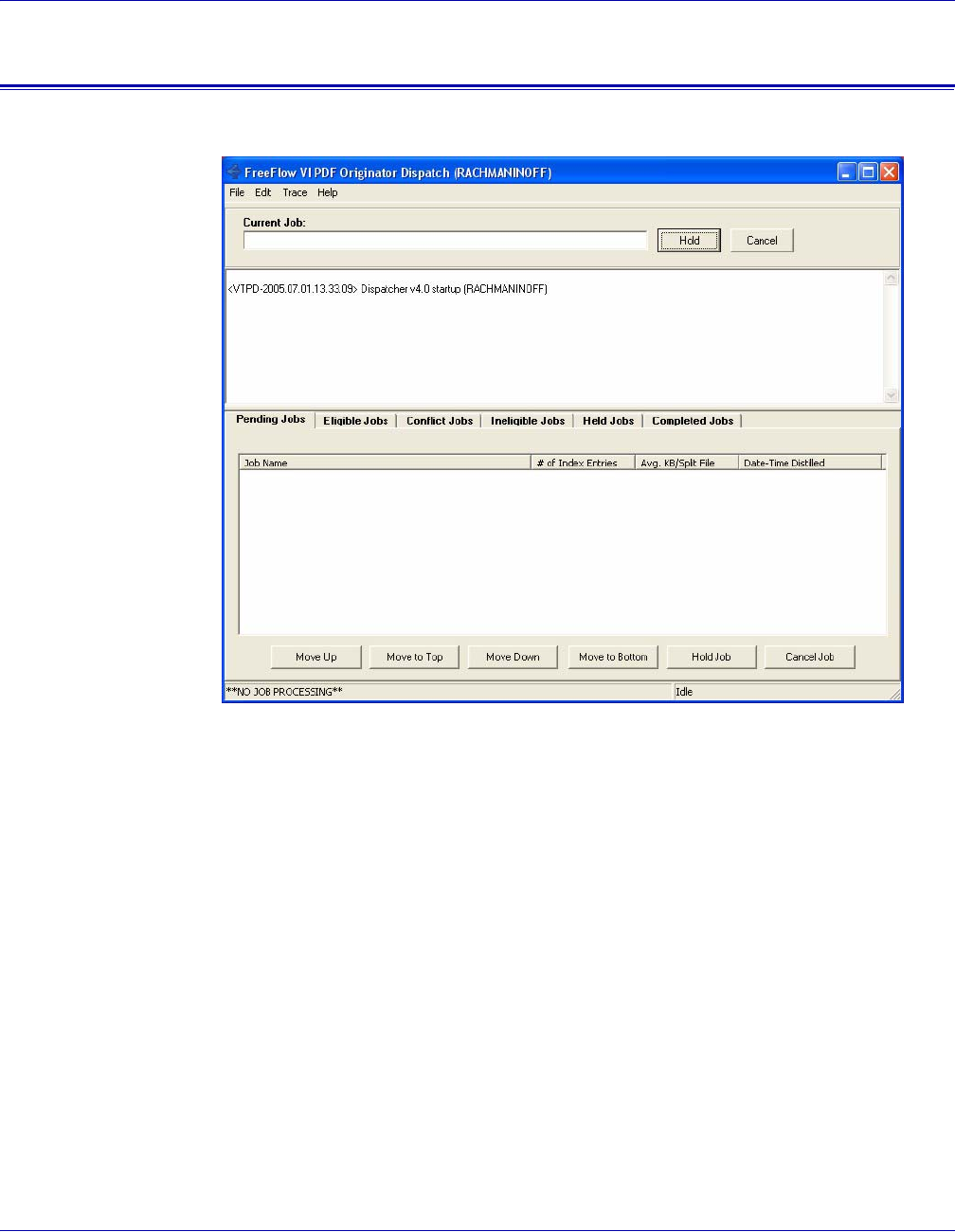
VI PDF Originator User’s Guide
VIPO-76 FreeFlow Variable Information Suite 5.0 (7/2006)
VIPO Dispatch window
The VI PDF Originator Dispatch window provides access to dispatch functions.
The upper portion of the Dispatch window consists of these elements:
Title bar
Displays the name of the program and your computer’s name. It also contains the
standard minimize, maximize, and cancel buttons.
Menu bar
Provides access to these functions, which are described in more detail below:
•File menu
— Pause Dispatcher
— Save Logfile
— Clear Logfile
— Hide Dispatcher
•Edit menu
— IncomingFolders Filters
— AutoRun Filters
— Dispatch Rules

VI PDF Originator User’s Guide
FreeFlow Variable Information Suite 5.0 (7/2006) VIPO-77
•Trace menu
— Clear Display
— Job Selection Loop
— Job Selection Trace
• Help menu
—Help
— About
Current Job
Lists the job currently being processed.
Hold
Places the current job on hold.
Cancel
Cancels processing of the current job.
Log file window
Contains the logged information for the VIPO jobs being processed.
The lower portion of the VI PDF Originator Dispatch window consists of these six tabs,
with corresponding windows and buttons for each function:
•Pending Jobs
•Eligible Jobs
•Conflict Jobs
•Ineligible Jobs
•Held Jobs
•Completed Jobs
Pending Jobs
When the Pending Jobs tab is selected, VIPO produces a window containing a list of all
VIPO jobs pending processing.
When any entry in the Pending Jobs list is highlighted, these buttons can be used to alter
how the selected job will be processed:
Move Up
Moves the selected file up one position on the Pending Jobs list. This affects the
processing order of your jobs.
Move to Top
Moves the selected file to the top of the Pending Jobs list. The selected job will be the
next job processed.

VI PDF Originator User’s Guide
VIPO-78 FreeFlow Variable Information Suite 5.0 (7/2006)
Move Down
Moves the selected file down one position on the Pending Jobs list. This affects the
processing order of your jobs.
Move to Bottom
Moves the selected file to the end of the Pending Jobs list. The selected job will be the
last job processed.
Hold Job
Holds the selected job. Once placed on hold, the job appears on the Held Jobs window
until you choose to release or cancel that job.
Cancel Job
Cancels the selected job. Once selected for cancellation, the job is removed from the list
and placed in the Completed Jobs queue with a “Cancelled” status.
Eligible Jobs
When the Eligible Jobs tab is selected, VIPO produces a window containing a list of all
VIPO jobs eligible for processing.
When any entry in the Eligible Jobs list is highlighted, these buttons can be used to alter
how the selected job will be processed:
Preview Job File
Previews the PDF file. Adobe Acrobat Reader is launched and the original, unsplit,
distilled master PDF will be previewed. This option is used to visually inspect and verify
the job before submitting it to the Pending Jobs queue.
Submit Job
Submits the selected job for processing. Once selected the job will appear on the Pending
Jobs window.
Hold Job
Holds the selected job. Once placed on hold, the job appears on the Held Jobs window
until you choose to release or cancel that job.
Cancel Job
Cancels the selected job. Once selected for cancellation, the job is removed from the list
and placed in the Completed Jobs queue with a “Cancelled” status.
VI PDF Originator User’s Guide
FreeFlow Variable Information Suite 5.0 (7/2006) VIPO-79
Conflict Jobs
When the Conflict Jobs tab is selected, VIPO produces a window containing a list of all
VIPO jobs with conflicts. Conflict jobs are jobs where more than one Dispatch Rule can
be applied.
When any entry in the Conflict Jobs list is highlighted, these buttons can be used to alter
how the selected job will be processed:
Select Dispatch Rule
Allows you to select the appropriate Dispatch Rule from a list.
Cancel Job
Cancels the selected job. Once selected for cancellation, the job is removed from the list
and placed in the Completed Jobs queue with a “Cancelled” status.
Ineligible Jobs
When the Ineligible Jobs tab is selected, VIPO produces a window containing a list of all
ineligible VIPO jobs. Ineligible jobs are jobs for which no existing Dispatch Rules could
be applied at the time the job was accessed by VIPO Dispatch.
When any entry in the Ineligible Jobs list is highlighted, these buttons can be used to alter
how the selected job will be processed:
View IndexRecord Field Names
Allows you to inspect the field names in the CSV index file header to determine why no
existing Dispatch Rule can be applied.
Cancel Job
Cancels the selected job. Once selected for cancellation, the job is removed from the list
and placed in the Completed Jobs queue with a “Cancelled” status.
NOTE
It is possible that one or more of the listed Dispatch Rules may not apply
because of modifications made between the time the conflict was
identified and the time at which the Dispatch Rule file is selected. In this
situation, the job may remain in the Conflict Jobs queue or be moved to
the Ineligible Jobs queue.

VI PDF Originator User’s Guide
VIPO-80 FreeFlow Variable Information Suite 5.0 (7/2006)
Held Jobs
When the Held Jobs tab is selected, VIPO produces a window containing a list of all VIPO
jobs on hold.
When any entry in the Held Jobs list is highlighted, these buttons can be used to alter how
the selected job will be processed:
Release Job
Releases the selected job from the “Hold” status. The job’s eligibility is re-evaluated
against the current set of Dispatch Rules, which may result in the job moving to the
“Ineligible,” “Eligible,” or “Conflict” state.
Cancel Job
Cancels the selected job. Once selected for cancellation, the job is removed from the list
and placed in the Completed Jobs queue with a “Cancelled” status.
Completed Jobs
When the Completed Jobs tab is selected, VIPO produces a window containing a list of
all completed VIPO jobs.
When any of the entries in the Completed Jobs list is highlighted, these buttons can be
used to alter how the selected job will be processed:
Review Job Status
Provides the status of the selected job.
Resubmit Job
Resubmits a job for processing, at which point the job’s eligibility is re-evaluated against
the current set of Dispatch Rules. This may result in the job moving to the “Ineligible,”
Eligible,” or “Conflict” state.

VI PDF Originator User’s Guide
FreeFlow Variable Information Suite 5.0 (7/2006) VIPO-81
File menu
The File menu provides drop-down access to these functions:
Hide Dispatcher
Minimizes the VIPO Dispatch window. The window can be reopened by double-clicking
the VIPO Dispatch icon on the lower right menu bar.
Pause Dispatcher
Pauses the VIPO Dispatch program. To restart VIPO Dispatch, remove the check mark.
The status of the program is displayed in the upper logfile window.
Save Logfile
Saves the current logfile to your disk. You will be prompted to browse for the directory in
which to save the logfile.
Clear Logfile
Clears the entries that appear on the logfile window.
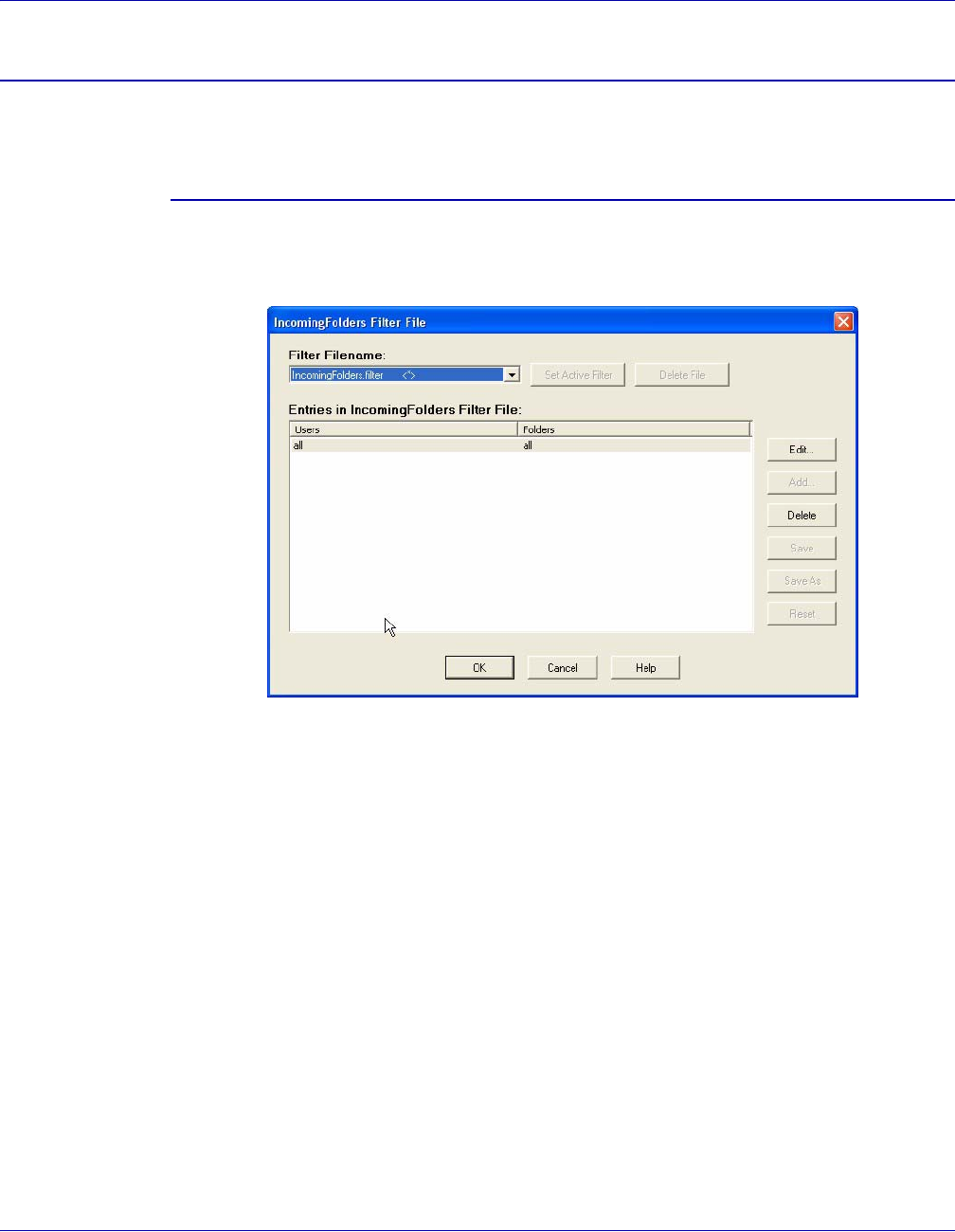
VI PDF Originator User’s Guide
VIPO-82 FreeFlow Variable Information Suite 5.0 (7/2006)
Edit menu
The Edit menu provides drop-down access to the following functions.
IncomingFolders Filters
Selecting this option produces a pop-up window that allows you to select and edit the
IncomingFolders Filters. These filters are used to decide which VIPO jobs will make it into
the VIPO Dispatch for evaluation against the Dispatch Rules.
C
These options are available on the IncomingFolders Filter File window:
Filter Filename
Contains a list of all defined IncomingFolders Filter files found in the VIPO Dispatch
Server IncomingFolders directory. Highlight the file name you want to edit; the entries in
the highlighted filter file will appear in the lower dialog.
Set Active Filter
Sets the highlighted filter to active status to get potential VIPO jobs into the dispatcher.
Delete File
Deletes the selected filter file from the list and from the disk.
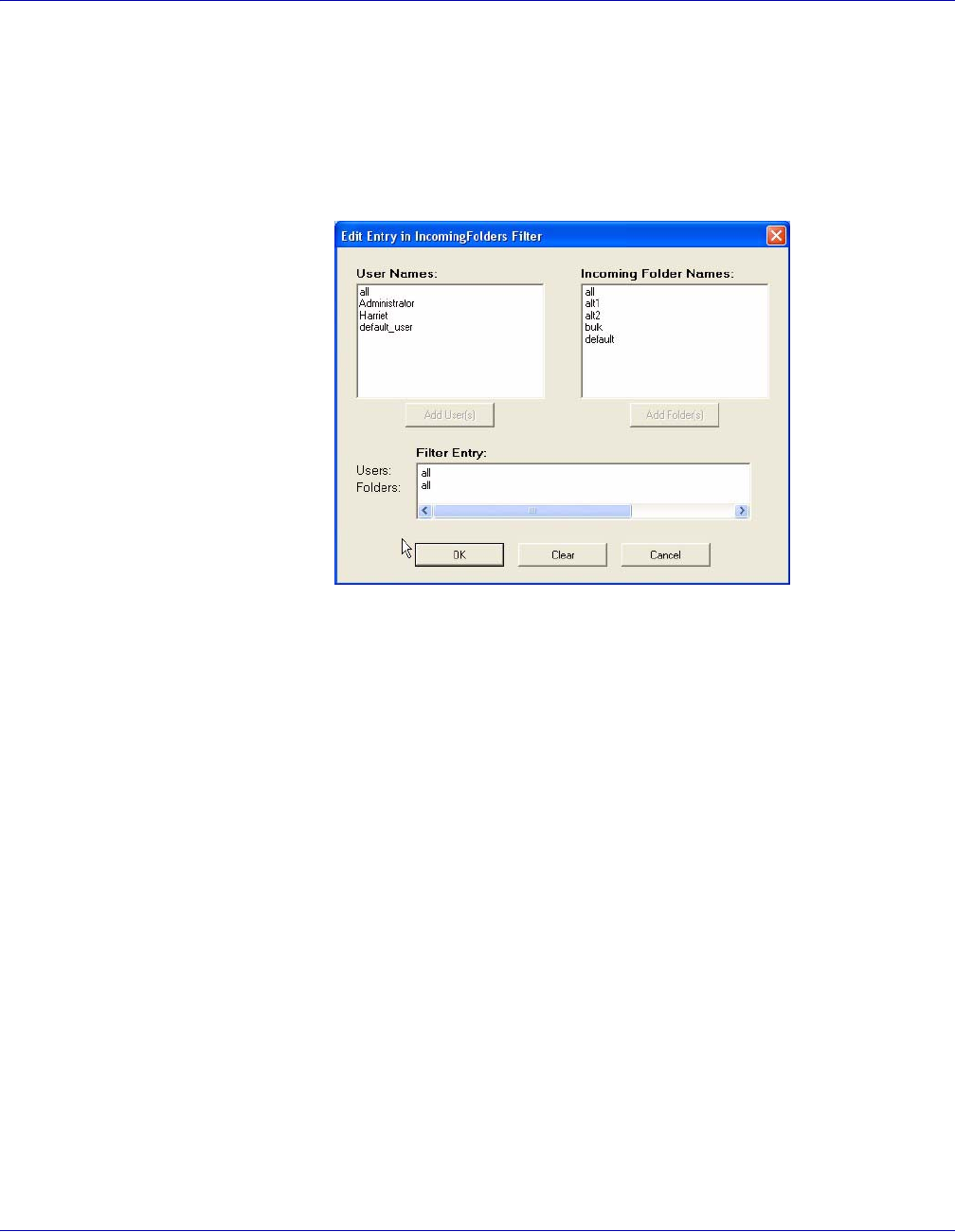
VI PDF Originator User’s Guide
FreeFlow Variable Information Suite 5.0 (7/2006) VIPO-83
Edit
Produces a dialog that lists user names and incoming folder names for the selected filter
file. Use the entries to select new users and/or folder file names. When the correct
settings for your filter appear in the Filter entry field, select OK to edit the selected entry
and store it in memory; it will not alter the filter file on the disk. The filter file is only
modified and stored on the disk when the Save or Save As buttons are pressed.
Add
Adds new users and folders for processing. Adding information and selecting OK stores
the change in memory only. Select the Save or Save As button after making changes to
store the addition to disk.
Delete
Deletes an entry in the Incoming Folder filter list. You cannot leave the list empty.
Deleting information and selecting OK stores the change in memory only. Select the Save
or Save As button after making changes to store the deletion to disk.
Save
Saves all the modified entries (not just the selected information) into the existing file on
disk.
Save As
Saves all the entries into a new Filter file.
Reset
Resets the values of the selected entries to their original state (not the factory defaults).
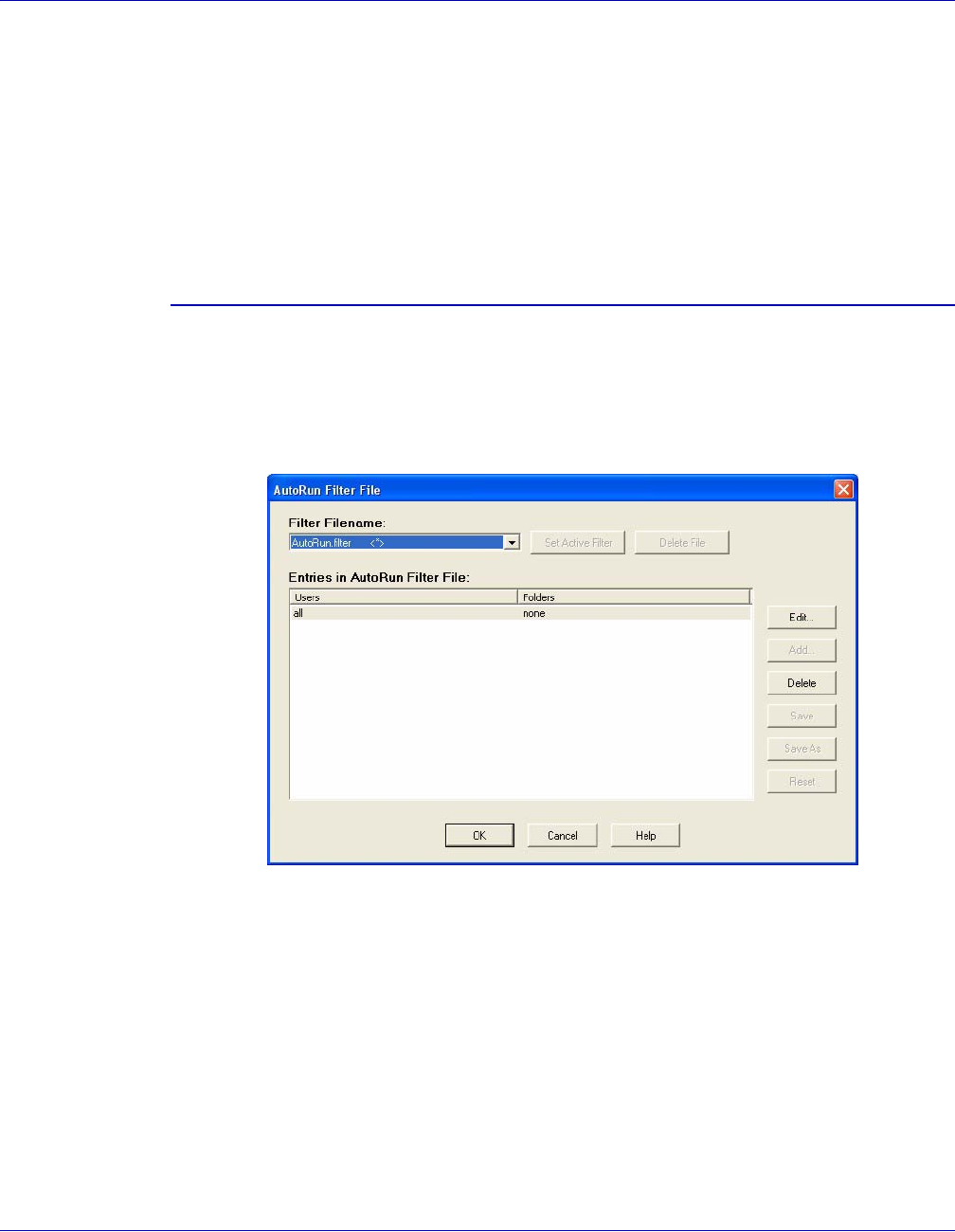
VI PDF Originator User’s Guide
VIPO-84 FreeFlow Variable Information Suite 5.0 (7/2006)
OK/Cancel
Approves or cancels your changes. Unless you select Save or Save As, the changes are
stored in memory only, not to the filter file saved on disk.
Pressing OK after making changes to filter entries without saving them invokes a pop-up
window prompting you to approve all changes and then to confirm overwriting the file with
the modified entries. Pressing Yes will store the changes into the file on disk. Pressing
No aborts all changes from memory and leaves filter file unchanged.
AutoRun Filters
Selecting this option produces a pop-up window that allows you to select and edit the
AutoRun Filters, which are used to automatically determine which jobs are moved from
the eligible job queue to the pending jobs queue. When the correct settings for your filter
appear in the Filter entry field, press OK to edit the selected entry and store it in memory.
It does not alter the filter file on the disk; the filter file is only modified and stored on the
disk when the Save or Save As buttons are pressed.
These options are available on the IncomingFolders Filter File window:
Filter Filename
This drop-down contains a list of all defined AutoRun filters. Highlight the file name you
want to edit; the entries in the highlighted filter file will appear in the lower dialog.
Set Active Filter
Sets the highlighted filter to active status.
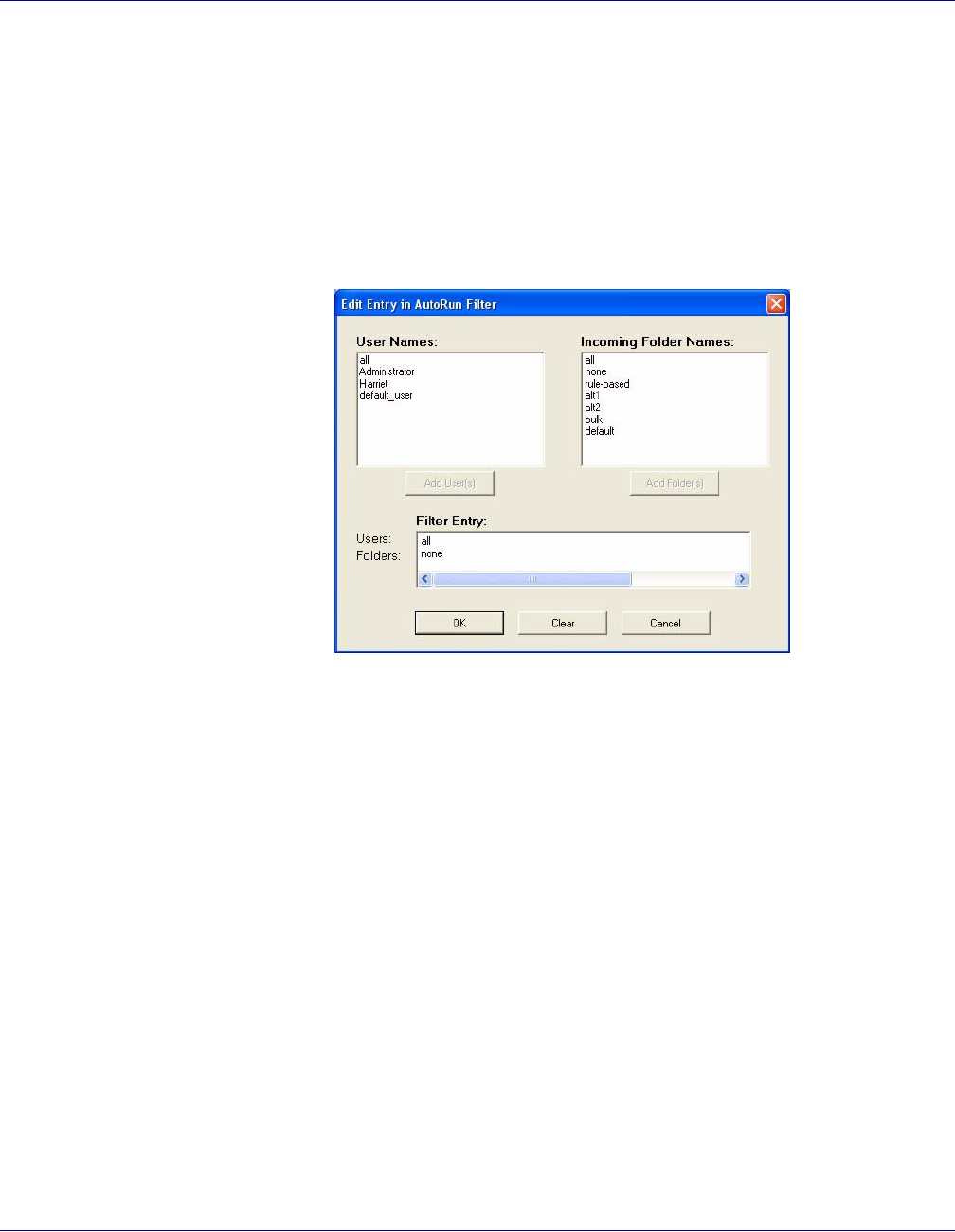
VI PDF Originator User’s Guide
FreeFlow Variable Information Suite 5.0 (7/2006) VIPO-85
Delete File
Deletes the selected filter file from the list and from the disk.
Edit
Select a filter file name and click Edit to produce a dialog that lists user names and
incoming folder names. Use the entries to select new users and/or folder file names.
When the correct settings for your filter appear in the Filter entry field, select OK to save
the setting to memory without altering the actual filter file.
Add
Adds new users and folders for processing. Adding information and selecting OK stores
the change in memory only. Select the Save or Save As button after making changes to
store the addition to disk.
Delete
Deletes an entry in the Incoming Folder filter list. You cannot leave the list empty.
Deleting information and selecting OK stores the change in memory only. Select the Save
or Save As button after making changes to store the deletion to disk.
Save
Saves all the modified entries (not just the selected information) into the existing file on
disk.
Save As
Saves all the entries into a new Filter file.
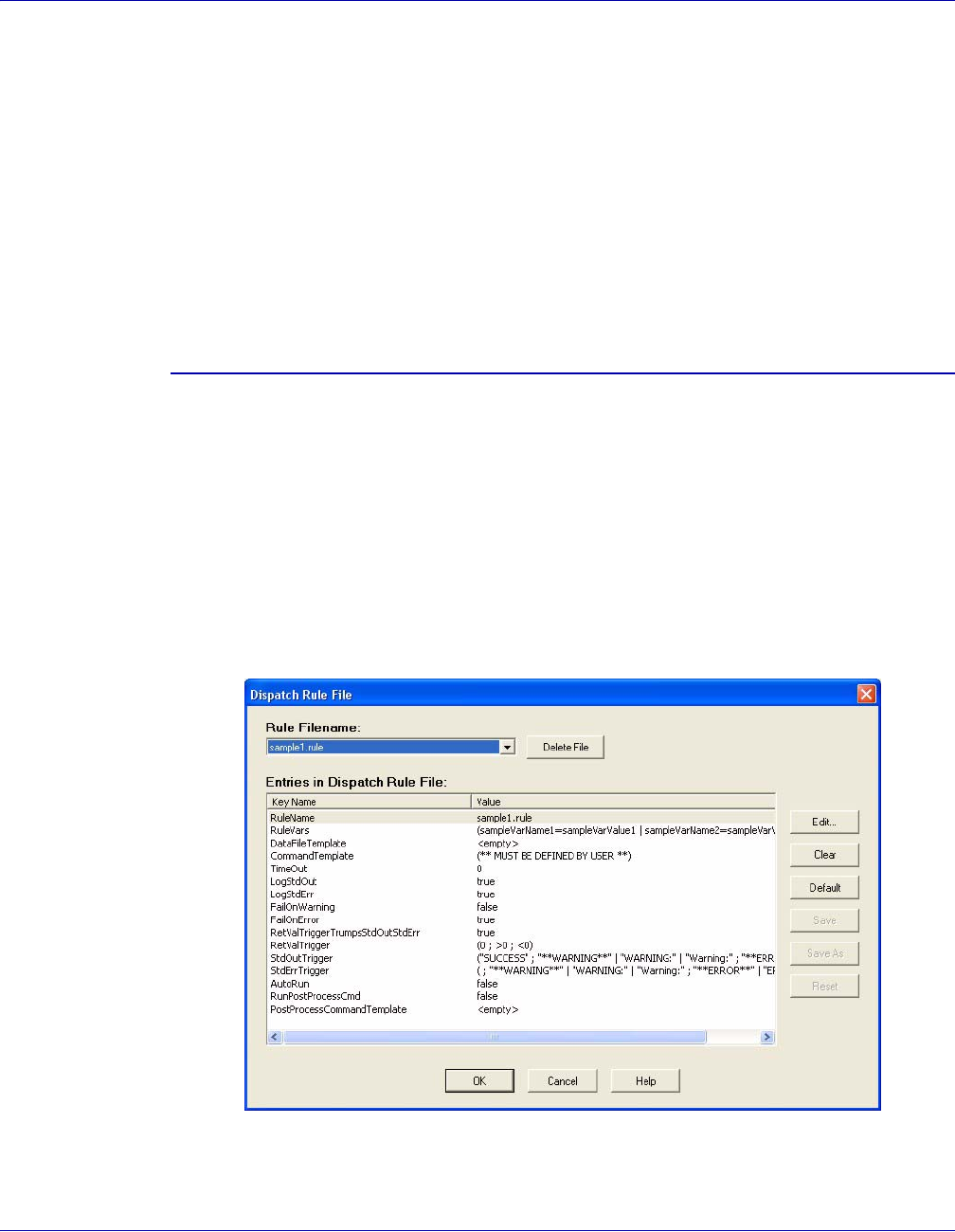
VI PDF Originator User’s Guide
VIPO-86 FreeFlow Variable Information Suite 5.0 (7/2006)
Reset
Resets the values of the selected entries to their original state (not the factory defaults).
OK/Cancel
Approves or cancels your changes.
Pressing OK after making changes to filter entries without saving them invokes a pop-up
window prompting you to approve all changes and then to confirm overwriting the file with
the modified entries. Pressing Yes will store the changes into the file on disk. Pressing
No aborts all changes from memory and leaves filter file unchanged.
Dispatch Rules
Select this option from the Edit drop-down menu to edit the DispatchRule File.
Rule Filename
The primary Dispatch Rule file window contains a drop-down box from which you can
select any of the Rule files found in the VIPO Dispatcher rules directory. When a Rule file
name is highlighted, the lower window will display a list of all the entries found for the
selected rule file.
Delete File
Select this option to delete the selected Rule file from the disk.

VI PDF Originator User’s Guide
FreeFlow Variable Information Suite 5.0 (7/2006) VIPO-87
These options are available on the Entries in Dispatch Rule File window:
Edit
When a Rule file name is selected, a key name is highlighted. Click Edit to produce a
dialog where you can edit the saved values for the selected key name. Each dialog varies
according to the type of key name (string, boolean, value, etc.). The dialogs produced
contain a description of the key name being edited, helpful information such as invalid
characters for that field, and a description of how VIPO Dispatch will work when settings
are changed.
Clear
Clears all selected entries.
Default
Sets the values of the selected entries to the “factory defaults.”
Save
Saves all the modified entries (not just the selected information) into the existing file on
disk.
Save As
Saves all the entries into a new Dispatch Rule file.
Reset
Resets the values of the selected entries to their original state (not the factory defaults).
OK/Cancel
Approves or cancels your changes.
Pressing OK after making changes to rule entries without saving them invokes a pop-up
window prompting you to approve all changes and then to confirm overwriting the file with
the modified entries. Pressing Yes will store the changes into the file on disk. Pressing
No aborts all changes from memory and leaves rule file unchanged.

VI PDF Originator User’s Guide
VIPO-88 FreeFlow Variable Information Suite 5.0 (7/2006)
Trace menu
Trace menu options allow you to see more detailed information regarding the job
selection process. It can be especially useful to determine why a job is ineligible for
processing.
The Trace menu has three options:
Clear Display
Clears the log console window of all current messages. It does not delete messages
placed in the log file.
Job Selection Loop
Displays trace messages generated within the scanning portion of the job selection
process where jobs are searched to be picked up for processing.
Job Selection Trace
Displays trace messages generated during the job eligibility portion of the job selection
process where each job is reconciled with every existing dispatch rule to determine if it's
eligible for processing.
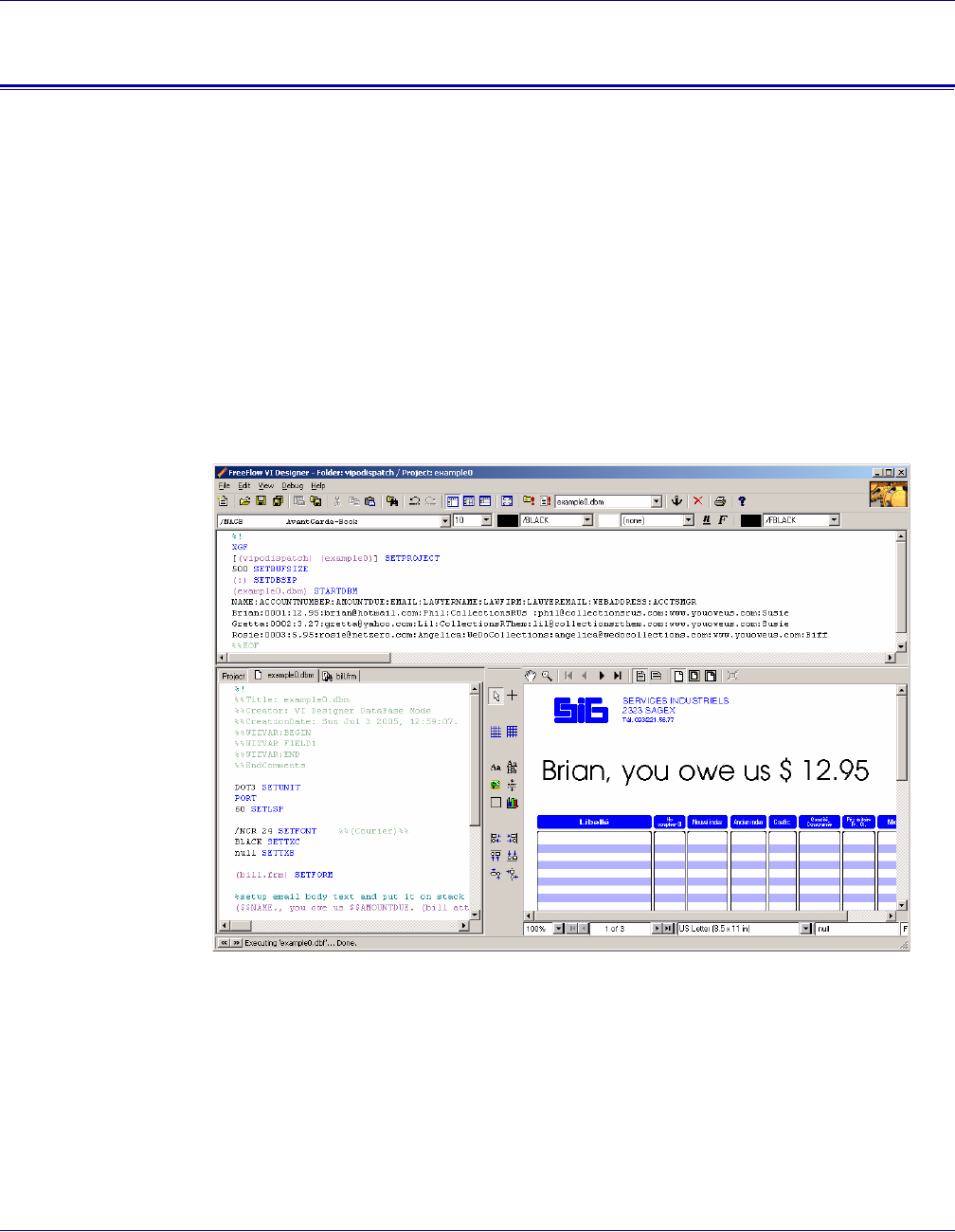
VI PDF Originator User’s Guide
FreeFlow Variable Information Suite 5.0 (7/2006) VIPO-89
Using VIPO Dispatch - a simple example
Acme Telephone company (a fictitious company) uses VIPO to generate their delinquent
account notices in PDF format. They want to have the notices e-mailed to their delinquent
customers, as well as to the lawyer at the collection agency nearest the customer's
location.
Acme uses a batch file interface to their e-mail program called mymailprog.bat. Currently,
after VIPO generates their PDF files, someone must manually look up the customer data
in their database, collect the generated PDF's, generate the mail note bodies, and finally
invoke their e-mail front-end to send each e-mail, attachment, and copy. The interface to
their e-mail program looks like this:
mymailprog path_of_email_body -t to_address -cc cc_address -s subject
-a path_of_attachment
With VIPO Dispatch available, you can extend the VIPO job that generates the PDF files
to produce the e-mail bodies and other information required to have the e-mails sent
automatically.
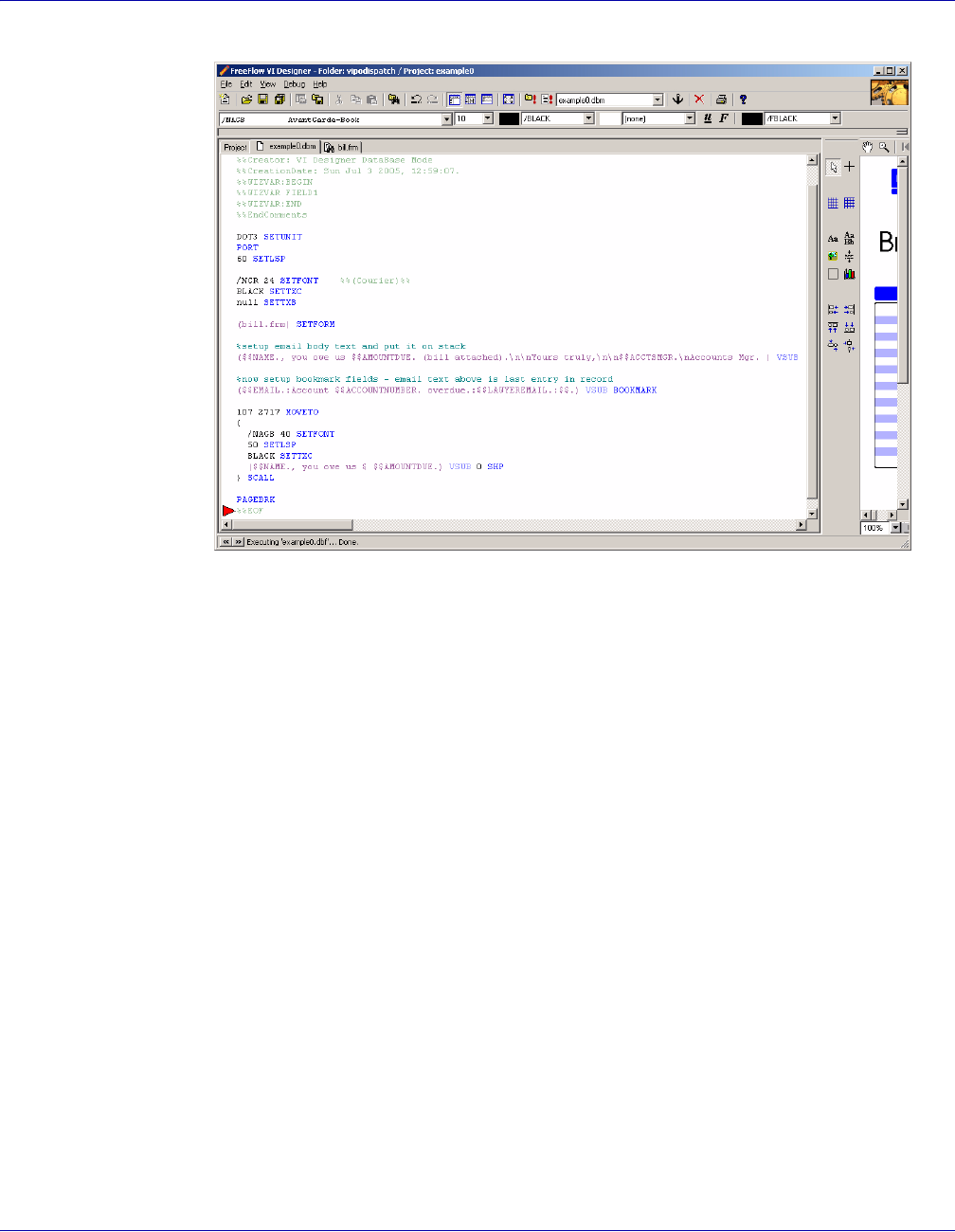
VI PDF Originator User’s Guide
VIPO-90 FreeFlow Variable Information Suite 5.0 (7/2006)
The first step in using VIPOD is to add some additional fields (like e-mail addresses, and
other things that may be useful as their application becomes more sophisticated) to
their .dbf file:
%!
XGF
[(vtpdispatch) (example0)] SETPROJECT
500 SETBUFSIZE
(:) SETDBSEP
(example0.dbm) STARTDBM
NAME:ACCOUNTNUMBER:AMOUNTDUE:EMAIL:LAWYERNAME:LAWFIRM:LAWYEREMAIL:WEBADDRESS :ACC
TSMGR
Brian:0001:12.95:brian@hotmail.com:Phil:CollectionsRUs
:phil@collectionsrus.com:www.youoweus.com:Susie
Gretta:0002:3.27:gretta@yahoo.com:Lil:CollectionsRThem
:lil@collectionsrthem.com:www.youoweus.com:Susie
Rosie:0003:5.95:rosie@netzero.com:Angelica:WeDoCollections
:angelica@wedocollections.com:www.youoweus.com:Biff
%%EOF
Next, in the .dbm, compose the additional information required to process each record,
which is placed in the PDF's bookmark via the BOOKMARK command:
%setup email body text and put it on stack
($$NAME., you owe us $$AMOUNTDUE. (bill attached).\n\nYours truly,\n\n$$ACCTSMGR.\n
Accounts Mgr. ) VSUB
%now setup bookmark fields - email text above is last entry in record
($$EMAIL.:Account $$ACCOUNTNUMBER. overdue.:$$LAWYEREMAIL.:$$.)
VSUB BOOKMARK
Verify that the job looks as expected in VI Designer and generate a VI Project Container
containing the production data.
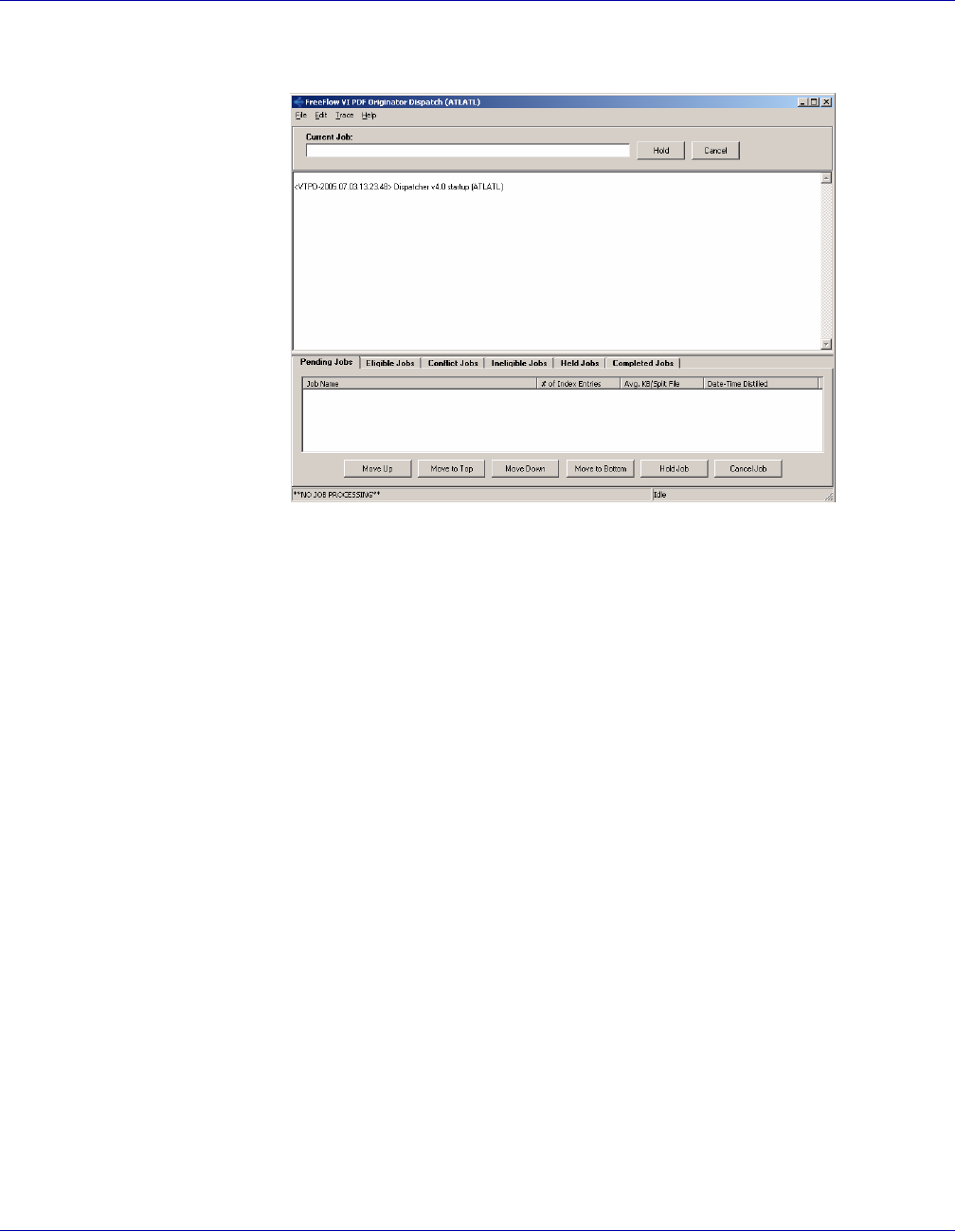
VI PDF Originator User’s Guide
FreeFlow Variable Information Suite 5.0 (7/2006) VIPO-91
Start up VIPO Dispatch to build a Dispatch Rule that will handle the job.
Begin editing a new rule by selecting Edit>Distpatch Rules from the top menu.
Edit one of the sample rules by selecting it in the Rule Filename drop-down box.
The contents of the “mailtext” field for each record needs to be placed into a temporary
file so that mymailprog can read it, therefore, double-click on the DataFileTemplate line
and add a new entry:
Field Name: mailtext
Destination File Path: c:\temp\temp.txt
Delete-On-Exit Setting: True
then choose OK twice.
Next, format the invocation of mymailprog by double-clicking on the CommandTemplate
entry of the Dispatch Rule. Enter the following for the CommandTemplate:
c:\mymailprog.bat c:\temp\temp.txt -t "$mailto" -cc "$cc" -s "$subject"
-a $(PDF_FILE_PATH)
In the entry shown above, the first parameter is the path of the program that will be
handling the record information. This “back-end” program is not supplied by Xerox; it
could be an off-the-shelf program or an application developed by the customer or a third
party.
The other parameters are those required by the (fictitious) mymailprog, as follows:
c:\temp\temp.txt
the path where the e-mail body for each e-mail record is written.
-t a flag indicating that the next entry is the recipient's e-mail address.
"$mailto"
indicates that the “mailto” field of the record will be placed here.
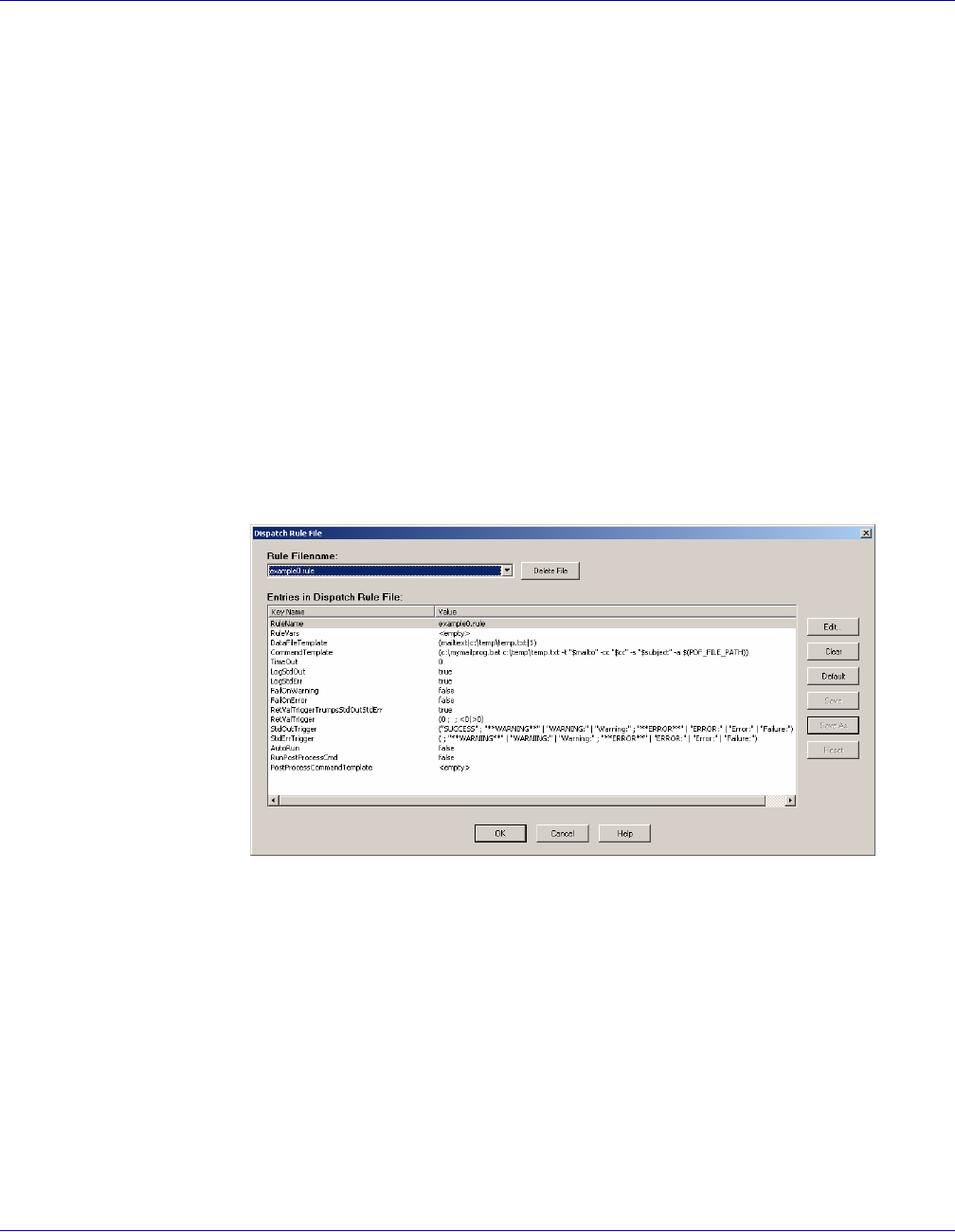
VI PDF Originator User’s Guide
VIPO-92 FreeFlow Variable Information Suite 5.0 (7/2006)
-cc is a flag indicating that the next entry is the e-mail address of the person being
carbon-copied.
"$cc"
indicates that the “cc” field of the record will be placed here.
-s is a flag indicating that the next entry is the subject line of the e-mail.
"$subject"
indicates that the “subject” field of the record will be placed here.
-a is a flag indicating that the next entry is the path of the PDF file to be attached.
$(PDF_FILE_PATH)
is the VIPOD macro indicating to place the PDF file associated with the record here.
All that mymailprog does is echo its command arguments to stdout in order to verify that
what was passed was, in fact, intended to pass.
Once the CommandTemplate is built, click OK and Save As to save the Dispatch Rule.
It is saved as example0.rule.
The rule should look as follows.
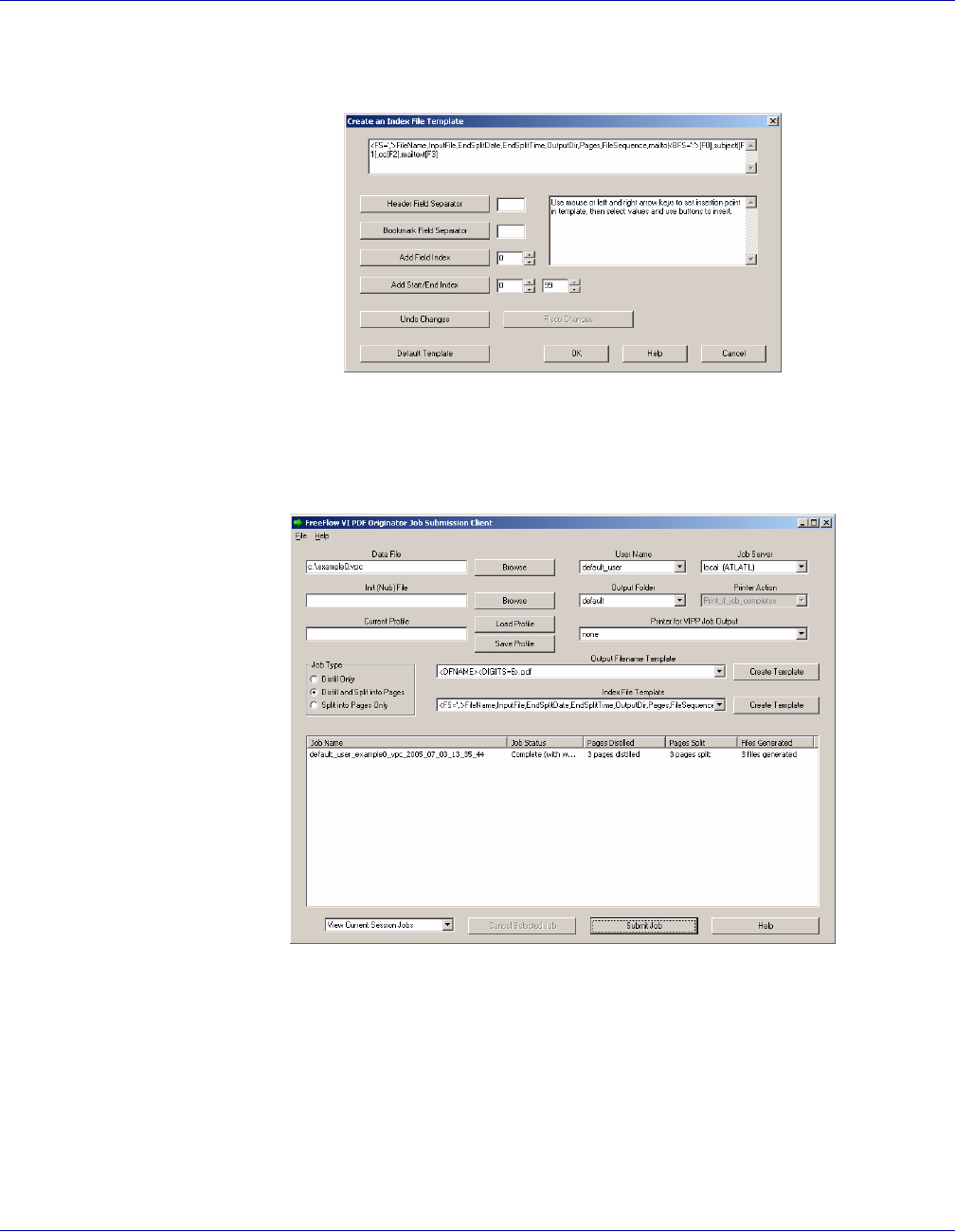
VI PDF Originator User’s Guide
FreeFlow Variable Information Suite 5.0 (7/2006) VIPO-93
The job is almost ready to submit to VIPO. The next step is to start up the VIPO Job
Submission Client and create the index file template for the job:
<FS=','>FileName,InputFile,EndSplitDate,EndSplitTime,OutputDir,Pages,
FileSequence,mailto|<BFS=':'>[F0],subject|[F1],cc[F2],mailtext[F3]
After entering the information shown above, click OK to submit the job for Distill and Split:
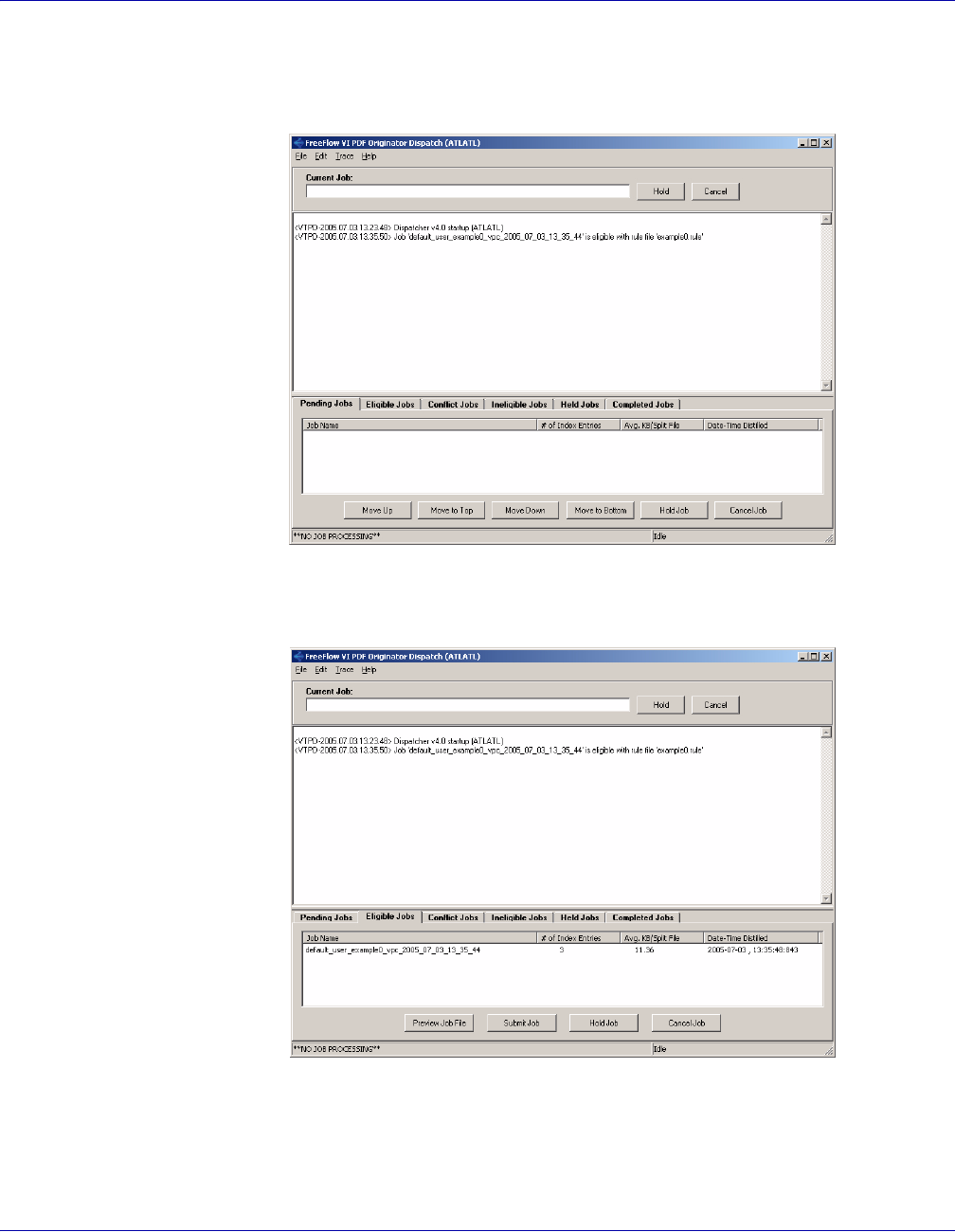
VI PDF Originator User’s Guide
VIPO-94 FreeFlow Variable Information Suite 5.0 (7/2006)
VIPO Dispatch, meanwhile, is monitoring VIPO jobs for those that complete and match a
Dispatch Rule; because of this, VIPO Dispatch picks up the job and indicates that it is
eligible for processing.
Click the Eligible Jobs tab on the VI PDF Originator Dispatch window to show the list of
eligible jobs:
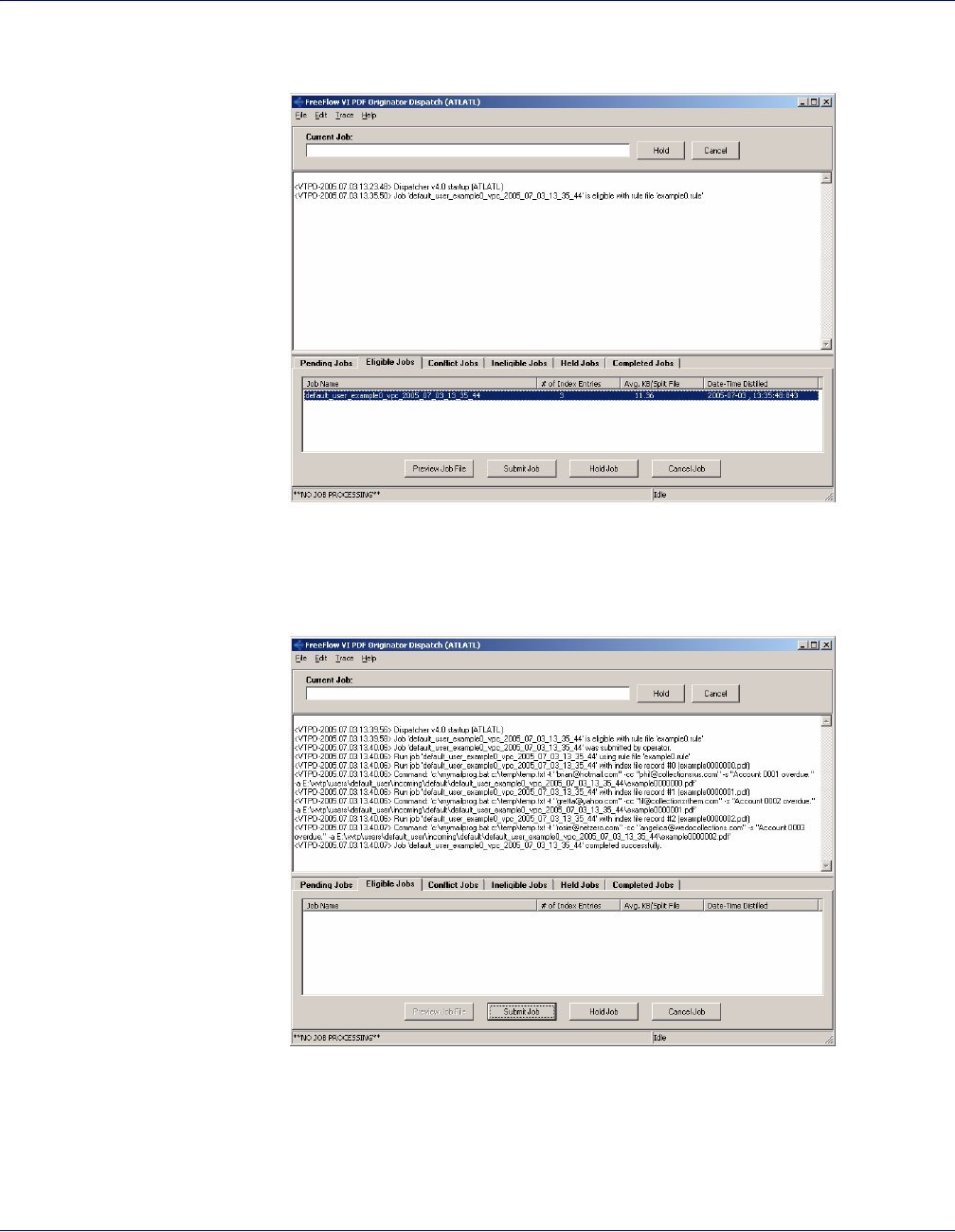
VI PDF Originator User’s Guide
FreeFlow Variable Information Suite 5.0 (7/2006) VIPO-95
Highlight the job and then click to select it:
Finally, click the Submit Job button to submit the job.
The job is processed and displayed in the dialog. The display allows you to verify that the
arguments were passed to mymailprog correctly.
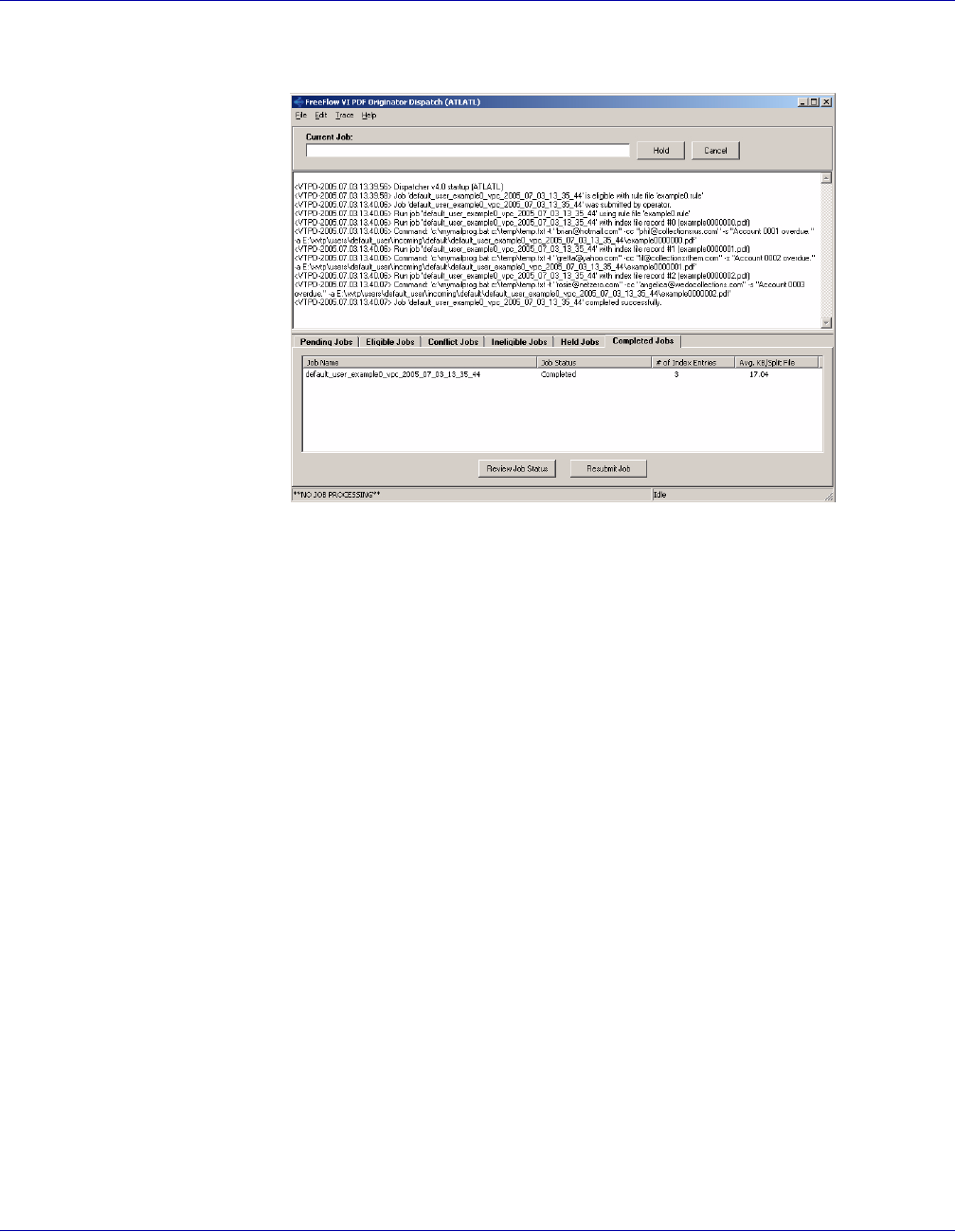
VI PDF Originator User’s Guide
VIPO-96 FreeFlow Variable Information Suite 5.0 (7/2006)
Click on the Completed Jobs tab to see that the job is now in the “Completed” category.
Had mymailprog been a real e-mail front-end, the PDF's would have been e-mailed as
attachments to each delinquent account holder and the appropriate collection agencies.
The body of each e-mail, its subject, and all other information would have been generated
from within the VIPP application itself.
You can replace the fictitious mymailprog with whatever custom back-end you desire, as
long as it has a definite path in your file system and has a command-line interface.
Some back-end programs cannot be accessed directly via command-line, or require
extensive startup time per record if accessed in that fashion. In these cases, a custom
“bridge” and/or session entity must be placed between VIPO Dispatch and the back-end
program.

VI PDF Originator User’s Guide
FreeFlow Variable Information Suite 5.0 (7/2006) VIPO-97
Using VIPO Services
VIPO and VIPO Servers can be initiated from a Windows Service, which allows the
various servers to be initiated and to perform operations without requiring a manual
logon. Launching and activating VIPO and VIPO servers when the system is booted up
allows a “hands-off” VIPO system.
Use of VIPO Services depends entirely upon the proper installation of the functionality.
For a complete description of the installation process, and related background
information, refer to the Variable Information Suite Installation Guide.
Definitions
In the context of VI PDF Originator, a server is the component that performs some sort of
VI PDF Originator work and/or function, and its associated service performs the startup
and shutdown operations appropriate for a Windows Service.
VI PDF Originator Server
A VI PDF Originator Server is one of the following VI PDF Originator components:
• FreeFlow VI PDF Originator
• FreeFlow VI PDF Originator Watched Folders Client
• FreeFlow VI PDF Originator Dispatch
• FreeFlow VI PDF Originator Secure Web Server
• FreeFlow VI PDF Originator Web Server
These components, once running, perform various operations related to VI PDF
Originator.

VI PDF Originator User’s Guide
VIPO-98 FreeFlow Variable Information Suite 5.0 (7/2006)
VI PDF Originator Service
A VI PDF Originator Service is one of the following service components:
• FreeFlow VI PDF Originator Service
• FreeFlow VI PDF Originator Watched Folders Service
• FreeFlow VI PDF Originator Dispatch Service
• FreeFlow VI PDF Originator Secure Web Service
• FreeFlow VI PDF Originator Web Service
These components are Windows Services, which in turn are responsible for starting and
stopping their associated VI Originator Servers.
Constraints
Windows Services must not rely on a user interface for their normal operation because
for a “hands-off” configuration there will not be anyone logged into the machine, thus no
desktop is available for displaying a user interface.Therefore, when initiated by their
associated VI PDF Originator services, the VI PDF Originator servers will suppress their
user interfaces entirely.
As a consequence of running in this manner, access for control or configuration of the
servers is reduced. For example, the user interface for job selection and activation or rule
editing and configuration for VI PDF Originator Dispatch is not available. Therefore, only
jobs that successfully meet the qualifications of the AutoRun specifications in effect at
startup will be processed.
Some remote configuration and control functionality for the VI PDF Originator server is
available if one of the VI PDF Originator Web Servers is running. In general, if direct
interaction with a server user interface is required, it will be necessary to first shut down
the associated Windows Service and then start the server application manually from the
desktop. After the required interactions are performed the server application should be
shut down (exited), and then the associated Window Service can be restarted.
FreeFlow VI PDF Originator Secure Web Service
The VI PDF Originator Secure Web Service requires a PEM Passphrase as part of its
startup procedure (this is a kind of password, and is required to validate use of the web
server's SSL certificate). Normally, this is entered via a dialog box when the web server
starts up, however, that option is not available when the web server has been initiated by
its associated Windows Service. When the web server is initiated by a Windows Service,
upon startup it will instead look for a file named vtpws_service.pphrase in the bin
directory, and use those contents as the passphrase. A default passphrase file is included
with the VI PDF Originator distribution, and it already contains the default passphrase
(pass). If you are using your own SSL certificate, alter the contents of that file to contain
the correct passphrase.

VI PDF Originator User’s Guide
FreeFlow Variable Information Suite 5.0 (7/2006) VIPO-99
Index
A
Add Field Index
Index File Template
Add Field Index, VIPO-27
Add Start/End Index, VIPO-27
Adobe Acrobat Distiller, VIPO-53
fonts, VIPO-55
B
BOOKMARK command, VIPO-57
bookmark field
examples, VIPO-26
specifying, VIPO-25
Bookmark Field Separator, VIPO-27
bookmarks
extended, VIPO-58
built-in macros
JOB_NAME_ID, VIPO-74
PDF_DIR_PATH, VIPO-74
PDF_FILE_NAME, VIPO-74
PDF_FILE_PATH, VIPO-74
USER_NAME_ID, VIPO-74
Bulk Processing, VIPO-34
C
changing passwords, VIPO-42, VIPO-44
Cluster administration, VIPO-47
CommandTemplate, VIPO-70
completed jobs, VIPO-80
conflict jobs, VIPO-79
Current Profile, VIPO-15
D
Data File, VIPO-15
DataFileTemplate, VIPO-69
Dispatch
filters, VIPO-66
AutoRun, VIPO-73
RunPostProcessCmd, VIPO-73
window, VIPO-76
Edit menu, VIPO-82
File menu, VIPO-81
Dispatch Rules, VIPO-67, VIPO-86
CommandTemplate, VIPO-70
DataFileTemplate, VIPO-69
FailOnError, VIPO-71
FailOnWarning, VIPO-70
LogStdErr, VIPO-70
LogStdOut, VIPO-70
PostProcessCommandTemplate, VIPO-73
RetValTrigger, VIPO-71
RetValTriggerTrumpsStdoutStderr, VIPO-71
RuleName, VIPO-69
RuleVars, VIPO-69
StdErrTrigger, VIPO-72
StdOutTrigger, VIPO-72
TimeOut, VIPO-70
Dispatcher
opening window for, VIPO-9
Distiller, VIPO-53
fonts, VIPO-55
E
eligible jobs, VIPO-78
F
FailOnError, VIPO-71
FailOnWarning, VIPO-70
field separator, VIPO-25
filters
AutoRun, VIPO-84
IncomingFolders, VIPO-82

VI PDF Originator User’s Guide
VIPO-100 FreeFlow Variable Information Suite 5.0 (7/2006)
Index
fonts, VIPO-55
H
Header Field Separator, VIPO-27
held jobs, VIPO-80
I
index file
bookmarks, VIPO-25
creating a template for, VIPO-24
field separator, VIPO-25
Index File Template, VIPO-17
Add Start/End Index, VIPO-27
bookmark field, VIPO-25
Bookmark Field Separator, VIPO-27
field descriptions, VIPO-27
field separator, VIPO-25
Header Field Separator, VIPO-27
template syntax, VIPO-24
ineligible jobs, VIPO-79
Init (Nub) File, VIPO-15
J
Job Server, VIPO-16
Job Submission
Current Profile, VIPO-15
Data File, VIPO-15
Index File Template, VIPO-17
Init (Nub) File, VIPO-15
Job Server, VIPO-16
Job Type, VIPO-16
Output Filename Template, VIPO-17
Output Folder, VIPO-16
Printer Action, VIPO-16
Printer for VIPP Job, VIPO-16
User Name, VIPO-16
job submission, VIPO-37
Job Submission Client
field descriptions, VIPO-15
opening window for, VIPO-9
window elements, VIPO-13
Job Type, VIPO-16
job types
distill and split into pages, VIPO-16
distill only, VIPO-16
split into pages only, VIPO-16
JOB_NAME_ID, VIPO-74
L
LogStdErr, VIPO-70
LogStdOut, VIPO-70
lpr command syntax
Windows 2000, VIPO-61
lpr job submission
examples, VIPO-63
lpr parameter defaults, VIPO-63
O
Output Filename Template, VIPO-17
creating, VIPO-19
Output Folder, VIPO-16
P
PDF output file name
creating a template for, VIPO-19
examples, VIPO-21
PDF security, VIPO-53
PDF_DIR_PATH, VIPO-74
PDF_FILE_NAME, VIPO-74
PDF_FILE_PATH, VIPO-74
PEM Passphrase, VIPO-98
pending jobs, VIPO-77
PostProcessCommandTemplate, VIPO-73
Printer Action, VIPO-16
Printer for VIPP Job Output, VIPO-16
R
RetValTrigger, VIPO-71
RetValTriggerTrumpsStdoutStderr, VIPO-71
RuleName, VIPO-69
RuleVars, VIPO-69
S
Secure Web Server
opening window for, VIPO-9
Server administration, VIPO-45
software support, VIPO-7

VI PDF Originator User’s Guide
FreeFlow Variable Information Suite 5.0 (7/2006) VIPO-101
Index
StdErrTrigger, VIPO-72
StdOutTrigger, VIPO-72
submitting VIPO jobs using lpr, VIPO-61
T
TimeOut, VIPO-70
U
User Name, VIPO-16
USER_NAME_ID, VIPO-74
using lpr to submit VIPO jobs, VIPO-61
using VIPO, VIPO-7
V
VI PDF Originator Server, VIPO-97
VI PDF Originator Service, VIPO-98
VIPO description, VIPO-8
VIPO Dispatch (VIPOD)
filters, VIPO-66
AutoRun, VIPO-84
IncomingFolders, VIPO-82
Rules, VIPO-67
window, VIPO-76
Edit menu, VIPO-82
File menu, VIPO-81
VIPO job submission, VIPO-37
VIPO Local Server
exiting, VIPO-9, VIPO-10
File menu, VIPO-11
Job Selection menu, VIPO-12
maximizing window for, VIPO-9
VIPO Secure Web Service, VIPO-98
VIPO Server and Client
installing, VIPO-9
options available, VIPO-9
VIPO Services, VIPO-97
VIPO Web
adding new users, VIPO-44
administrative functions, VIPO-42
changing passwords, VIPO-42, VIPO-44
Cluster administration, VIPO-47
Server administration, VIPO-45
Web browser notes, VIPO-47
W
Watched Folders Client
adding watched folders, VIPO-31
opening window for, VIPO-9
window elements, VIPO-30
Web Server
opening window for, VIPO-9
Windows Services
VIPO Service constraints, VIPO-98

VI PDF Originator User’s Guide
VIPO-102 FreeFlow Variable Information Suite 5.0 (7/2006)
Index

