Xinwei Electronic Quanzhou HSH31 Bluetooth Headset User Manual ok

Xinwei Electronic Co., Ltd., Quanzhou Bluetooth Headset ok

Users Manual

 1User Manual Content                                        Content…………….……………………………………………………1-2 Welcome to use UTEL-H31 Bluetooth headset ... ………………………...3 UTEL-H31 Bluetooth headset illustration………………………….……..…. 4-6  How to Use ①Charging Your Headset
 2Battery..……………….……………..………..6 ②Wearing your headset.…….………………. …………………....……..7 ③How to Power On/Off Your Headset.……….………………….…….....8 ④Pairing Your Headset and Phone.……………………………….…..8-9 ⑤Pairing to additional devices and Adjusting Headset Volume…....10-11 ⑥Listening to the stereo music and Receiving Call……….……..……..12
 3Making Calls………………………...………………….…………..12-14 Using Your Headset Indicator LED……………..……..….……..… 15-16 Audio frequency Alarm………………………..….……...…………16-18 Troubleshooting...……………………………….…………………..19-20
 4Welcome to use UTEL-H31 Bluetooth headset UTEL-H31 wireless Bluetooth headset surpasses the tradition. It is compact, small and lightweight, also easy to use. Bluetooth V2.0 transmit more fast, voice quality more better and high ability to avoid interference, Although you don’t need wire connect   anymore,  but you  will  more close  with  the pioneer global Bluetooth science and technology. Free to communicate with others. Please read this manual carefully before starting operation and keep it for future reference.      Introduction What is Bluetooth Wireless Technology?
 5Bluetooth devices communicate without wires, using built-in radio transceivers that operate on a globally available radio frequency to ensure  worldwide compatibility.  Your  Bluetooth wireless headset can communicate with other Bluetooth devices within a range of approximately 10 meters (33feet). How Can I Use My Wireless Headset?    Your Wireless headset, with Bluetooth technology, lets you connect with other similarity equipped devices. Such  as  using with  Nokia  6230   Use your phone hands free  Handle incoming and outgoing call with the handset  Multifunction control button (MFB)  Use voice activation to make calls  Headset Features           Headset (Top View)
 61Headset (Side View)                                                                                                                                                                4                                     5   2                                                                   6                                                                                                                       3                                    1. Charging Port-accepts the plug for your headset battery charge 2. Multifunction button (MFB)-Adjusts many function of Bluetooth
 73. Microphone-Picks up your voice input 4. Volume control buttons-Adjusts speaker volume up to down. 5. Indication light 6 Speaker-Plays the sound you receive on the call  Using Your Headset Charging Your Headset Battery When to charge First Time Use-Before you can use your headset, charge its self-contained battery for two hours.   Recharging-when you hear five rapid high tones through the headset speaker, repeated at 20-second intervals, the headset battery needs recharging. Over extended periods of time, batteries gradually ware down and require longer charging times. This is normal.   Additionally, you battery will have less standby time the more you talk on the phone with your headset.
 8The rechargeable batteries that power you wireless headset must be disposed of properly and may need to be recycled. Contact your local recycling center for proper disposal methods.  Warning: Never dispose of batteries in a fire because they may explode.  How to charge   Step 1.First Time Use-Before you can use your headset, charge its self-contained battery for two hours.  2. Recharging-when you hear five rapid high tones through the headset speaker, repeated at 20-second intervals, the headset battery needs recharging. 3. You can also use a Original Vehicle Power Adapter to charge the headset battery while in your vehicle. Note: You can also use a Original Vehicle Power Adapter to charge the headset battery while in your vehicle. A fully charged headset battery provides approximately *4 hours talk time * 130 hours standby time
 9How to Power On/Off Your Headset To Power Your Headset On Action Press and hold the MFB for 3 seconds until the LED flashes rapidly.  To Power Your Headset Off Action Press and hold  the  MFB for  3 seconds until the LED  flashes rapidly.  Pairing Your Headset and Phone Note: You must pair your headset and phone before you can make a call.  “Pairing”  creates  a  link  between  devices  with  Bluetooth wireless  technology,  and  allows  the  phone  to  remember  the headset’s unique ID. When your headset and phone are paired, your headset automatically connects to your phone. Pairing With the headset and phone close together Action 1. With the headset off, hold the multifunction Button until
 10the LED remains on (about 8 seconds).   2. Performa device discovery for your phone, refer to the phone’s user’ guide. When the scan is complete, the phone displays the devices found. 3. Select the logo and model number from the discovered devices list and confirm following the on screen prompts.  4. When prompted by the phone enter the  passkey  0000  and confirm to pair the headset with the phone. 5. The device ID is now stored in the phone’s memory pairing is successful when the headset indicator flashes rapidly. Pairing to Additional Devices Your  headset  can  store  pairing  information for  up to  eight different devices when Bluetooth wireless technology. Devices are stored in a “Paired Device List” in memory in the order entered.  When an attempt to pair to more than eight devices is made, the oldest paired device is removed from the list.  Any of the eight paired devices can initiate a connection to the headset.  The headset will only automatically initiate a connection (upon
 11power-up) with the last device is was connected to. If you want to connect the headset to another device in the paired device list.  You  must  initiate  the  connection  form  that  device. Whichever of the eight devices initiates a connection to the headset  afterwards.  That  device  then  becomes  the  “last connected” device.   Adjusting Headset Volume Increasing or Decreasing Volume To  increase  speaker  volume,  press  the  top  volume  button repeatedly until you reach the desired volume level. To decrease speaker volume, press the bottom volume button repeatedly until you reach the desired volume level.  Making and Receiving Calls Your headset supports both hands free and headset profiles. Accessing call functions depends on which profile your phone supports. Note: Some phone do not support all features listed. See your
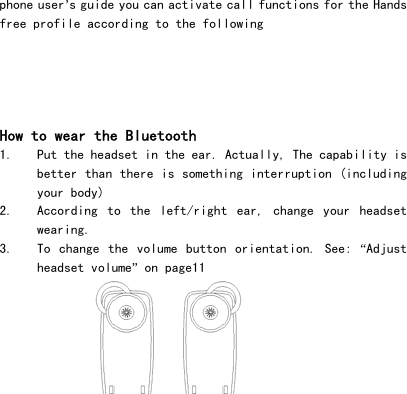
 12phone user’s guide you can activate call functions for the Hands free profile according to the following       How to wear the Bluetooth 1. Put the headset in the ear. Actually, The capability is better than there is something interruption (including your body) 2. According  to  the  left/right  ear,  change  your  headset wearing. 3. To  change  the  volume  button orientation.  See:  “Adjust headset volume” on page11
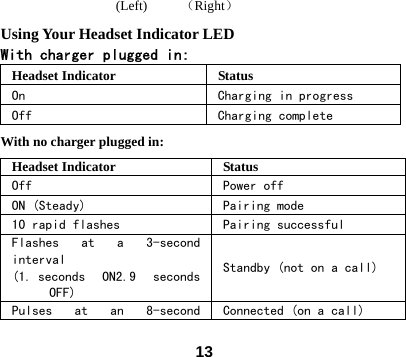
 13  (Left)     (Right) Using Your Headset Indicator LED With charger plugged in: Headset Indicator  Status On  Charging in progress Off  Charging complete With no charger plugged in: Headset Indicator  Status Off  Power off ON (Steady)  Pairing mode 10 rapid flashes  Pairing successful Flashes  at  a  3-second interval (1. seconds  ON2.9  seconds OFF) Standby (not on a call) Pulses  at  an  8-second  Connected (on a call)
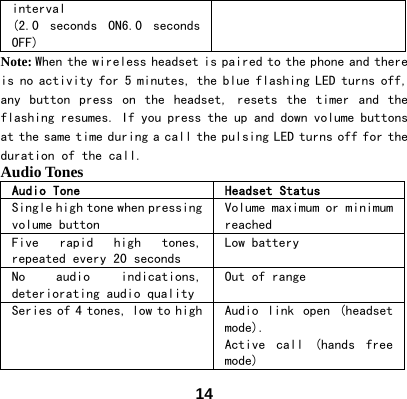
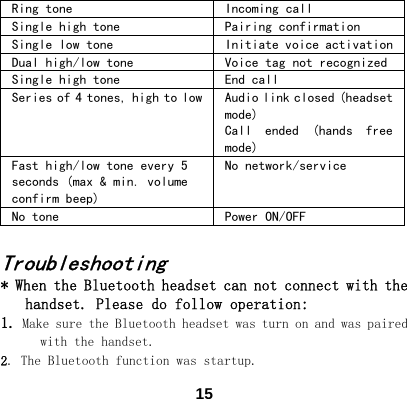
 14interval (2.0  seconds  ON6.0  seconds OFF) Note: When the wireless headset is paired to the phone and there is no activity for 5 minutes, the blue flashing LED turns off, any  button  press  on  the  headset,  resets  the  timer  and  the flashing resumes. If you press the up and down volume buttons at the same time during a call the pulsing LED turns off for the duration of the call.  Audio Tones Audio Tone  Headset Status Single high tone when pressing volume button Volume maximum or minimum reached Five  rapid  high  tones, repeated every 20 seconds Low battery No  audio  indications, deteriorating audio quality Out of range Series of 4 tones, low to high Audio  link  open  (headset mode).  Active  call  (hands  free mode)
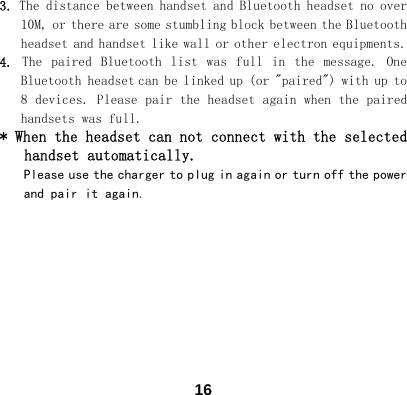
 15Ring tone  Incoming call Single high tone  Pairing confirmation Single low tone  Initiate voice activation Dual high/low tone  Voice tag not recognized Single high tone  End call Series of 4 tones, high to low Audio link closed (headset mode) Call  ended  (hands  free mode) Fast high/low tone every 5 seconds (max & min. volume confirm beep) No network/service No tone  Power ON/OFF  Troubleshooting * When the Bluetooth headset can not connect with the handset. Please do follow operation: 1. Make sure the Bluetooth headset was turn on and was paired with the handset.  2. The Bluetooth function was startup.
 163. The distance between handset and Bluetooth headset no over 10M, or there are some stumbling block between the Bluetooth headset and handset like wall or other electron equipments. 4.  The  paired  Bluetooth  list  was  full  in  the  message.  One Bluetooth headset can be linked up (or "paired") with up to 8 devices. Please pair the headset again when the paired handsets was full. * When the headset can not connect with the selected handset automatically.  Please use the charger to plug in again or turn off the power and pair it again.
 17FCC Warning: This device complies with part 15 of the FCC Rules. Operation is subject to the following two conditions: (1) This device may not cause harmful interference, and (2) this device must accept any interference received, including interference that may cause undesired operation.  Changes or modifications to this unit not expressly approved by the party responsible for compliance will void the user’s authority to operate the equipment. Any change to the equipment will void FCC grant.
 18This equipment has been tested and found to comply with the limits for a Class B digital device, pursuant to part 15 of the FCC Rules. These limits are designed to provide reasonable protection against harmful interference in a residential installation. This equipment generates, uses and can radiate radio frequency energy and, if not installed used in accordance with the instructions, may cause harmful interference to radio communications. However, there is no guarantee that interference will not occur in a particular installation. If this equipment does cause harmful interference to radio or television reception, which can be determined by turning the equipment off and on, the user is encouraged to try to correct the interference by one or more of the
 19following measures: --Reorient or relocate the receiving antenna. --Increase the separation between the equipment and receiver. --Connect the equipment into an outlet on a circuit different     from that to which the receiver is connected. --Consult the dealer or an experienced radio/TV technician for    help.  The equipment compliance with FCC radiation exposure limit set forth for uncontrolled Environment

Navigation menu