Xinwei Electronic Quanzhou HST15S Stereo Bluetooth Headset User Manual 01 t15s user manua ok

Xinwei Electronic Co., Ltd., Quanzhou Stereo Bluetooth Headset 01 t15s user manua ok

User Manual

 1 Contents Content…………………………………………………………1-2 Welcome to use stereo Bluetooth headset T15S……………...3-4 Scheme of stereo Bluetooth headset T15S…………………....…5 Indicate symbols ……………………….…………………....…6-7 Usage ①How to charge stereo Bluetooth headset T15S……………..8-9 ②How to wear stereo Bluetooth headset T15S.…………..…..10 ③How to power stereo Bluetooth headset T15S ON/OFF….11-12 ④How to pair T15S with mobile phones.…………….……..12-15
 2⑤How to pair stereo Bluetooth headset T15S with other devices………………………………………………..……15-16 ⑥How to use stereo Bluetooth headset T15S to listen to music/ call out/ answer phones......................................................16-19 ⑦ Communication function………………………..….…...19-24 ⑧How to check the Caller ID………………………….…...25-27 Troubleshooting.……………………………………….………27-28 Maintenance …………………………...……………………...28-30
 3Welcome to Use Stereo Bluetooth headset T15S                        Stereo Bluetooth headset T15S has stylish and compact appearance. Its OLED display screen will bring you more convenience in identifying each caller's ID.. Besides, with Bluetooth V2.0 version T15S  enable faster connectivity and transmission speed, stronger anti-interference capability, and more attractive entertainment functions. You can enjoy the hearing shock of stereo audio from phones or other Bluetooth devices (such as computer or portable music player) with T15S. When you make or answer a call, the music automatically suspends and continues after the calls, which
 4allows you to enjoy music but never miss a call. Furthermore,  T15S also has multi-connection function (can be used with two mobile phones or one mobile phone and one other Bluetooth audio device together) to make your communication and entertainment become so easy. Before using stereo Bluetooth headset T15S, please read this User Manual carefully. In addition to this User Manual, please also read the user instruction of your mobile phone which provides important safety and maintenance information.
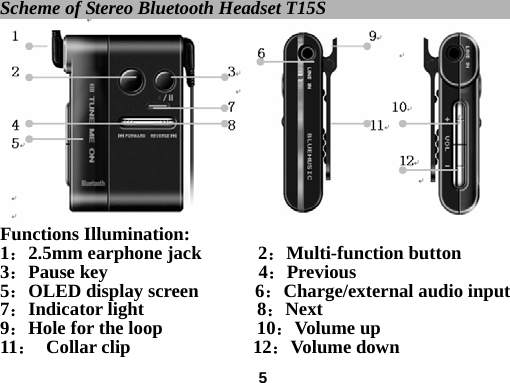
 5Scheme of Stereo Bluetooth Headset T15S                                      Functions Illumination: 1:2.5mm earphone jack      2:Multi-function button   3:Pause key                4:Previous   5:OLED display screen      6:Charge/external audio input   7:Indicator light            8:Next 9:Hole for the loop          10:Volume up 11: Collar clip             12:Volume down
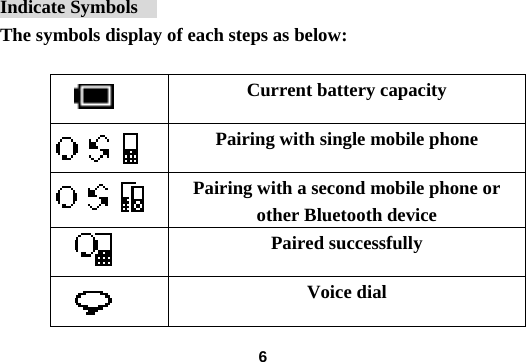
 6                                                          Indicate Symbols    The symbols display of each steps as below:       Current battery capacity  Pairing with single mobile phone  Pairing with a second mobile phone or other Bluetooth device        Paired successfully    Voice dial
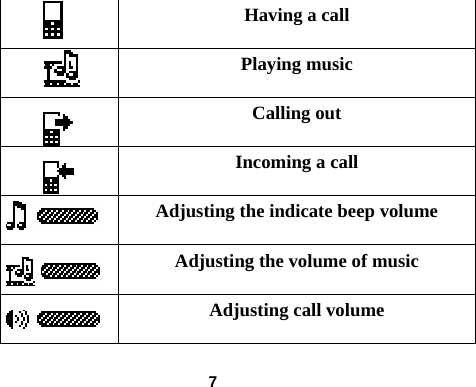
 7 Having a call    Playing music    Calling out  Incoming a call    Adjusting the indicate beep volume    Adjusting the volume of music    Adjusting call volume
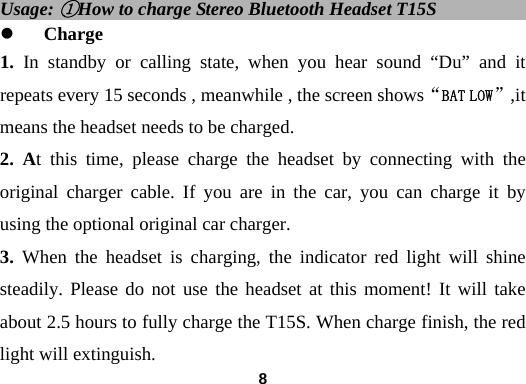
 8Usage: ①How to charge Stereo Bluetooth Headset T15S               z Charge 1. In standby or calling state, when you hear sound “Du” and it repeats every 15 seconds , meanwhile , the screen shows“BAT LOW”,it means the headset needs to be charged. 2. At this time, please charge the headset by connecting with the original charger cable. If you are in the car, you can charge it by using the optional original car charger. 3. When the headset is charging, the indicator red light will shine steadily. Please do not use the headset at this moment! It will take about 2.5 hours to fully charge the T15S. When charge finish, the red light will extinguish.
 9Using for the first time: 1: Before using, please charge the headset for about eight hours.          2: Pair the headset with your mobile phone.         3: Before used to call, the headset must be paired with mobile phone. Please turn on the Bluetooth function of your mobile phone according to its instruction. Notes: 1. In order to ensure the performance of the headset, please only use our original charge accessories to avoid unnecessary damage to the headset.   2. Please don’t connect the headset with the charger if you won’t use it for a long time.
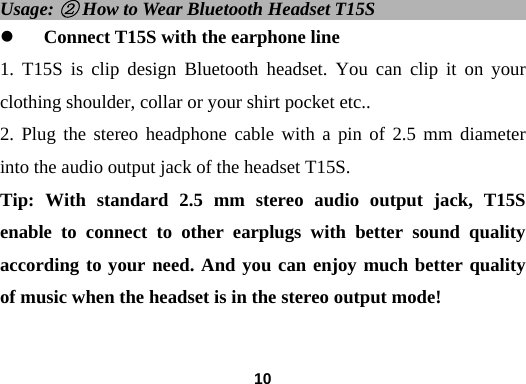
 10Usage: ② How to Wear Bluetooth Headset T15S                      z Connect T15S with the earphone line 1. T15S is clip design Bluetooth headset. You can clip it on your clothing shoulder, collar or your shirt pocket etc..   2. Plug the stereo headphone cable with a pin of 2.5 mm diameter into the audio output jack of the headset T15S. Tip: With standard 2.5 mm stereo audio output jack, T15S enable to connect to other earplugs with better sound quality according to your need. And you can enjoy much better quality of music when the headset is in the stereo output mode!
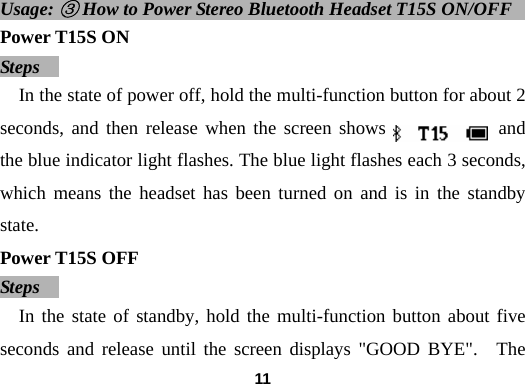
 11Usage: ③ How to Power Stereo Bluetooth Headset T15S ON/OFF             Power T15S ON Steps   In the state of power off, hold the multi-function button for about 2 seconds, and then release when the screen shows            and the blue indicator light flashes. The blue light flashes each 3 seconds, which means the headset has been turned on and is in the standby state.  Power T15S OFF Steps   In the state of standby, hold the multi-function button about five seconds and release until the screen displays "GOOD BYE".  The
 12"GOOD BYE" indicator lasts about 2 seconds. And when it extinguished means the headset has been turned off.   Note: Please hold the multi-function button when the screen display "      ",      and rel   ease till “GOOD BYE" showed.    Usage: ④ How to Pair Stereo Bluetooth Headset T15S with Mobile Phones                                                   Note: Before using, the Bluetooth headset must be paired with the mobile phones or other Bluetooth devices. ("Pairing" refers to establishing link between two Bluetooth-enabled devices, meanwhile the phone stores the unique identification ID of the headset. After paired successfully, the Bluetooth headset will
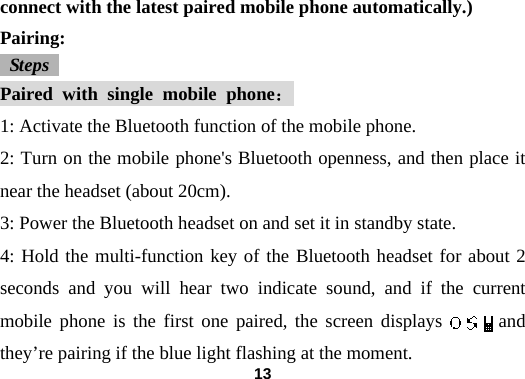
 13connect with the latest paired mobile phone automatically.) Pairing:  Steps  Paired with single mobile phone: 1: Activate the Bluetooth function of the mobile phone.   2: Turn on the mobile phone's Bluetooth openness, and then place it near the headset (about 20cm).   3: Power the Bluetooth headset on and set it in standby state.   4: Hold the multi-function key of the Bluetooth headset for about 2 seconds and you will hear two indicate sound, and if the current mobile phone is the first one paired, the screen displays      and they’re pairing if the blue light flashing at the moment.
 145: If your phone supports automatically paired, please click "yes" when it shows "add device?” to complete pairing, otherwise, please continue to the next step.   6: Please operate your mobile phone according to the user's guide of your cell phone on how to add Bluetooth devices.   7: During pairing, input password "0000" to confirm pairing the headset and the cell phone. And the headset’s ID will be stored on the phone memory. After paired successfully, the Bluetooth headset is in standby state. Paired with a second mobile phones or other Bluetooth devices   Pair with a second mobile phone or other Bluetooth audio device according to above instruction for pairing with single mobile phone. When use Bluetooth headset T15S, the distance between the devices
 15more than 10 meters is not recommend, and please avoid solid intermediate obstacles to assure communication to be smooth without interferential noise. Usage: ⑤ How to pair Stereo Bluetooth Headset T15S with Other Bluetooth Devices z With Bluetooth technology, T15S can store up to eight Bluetooth devices’ paring information. All the devices will be stored in the “pairing devices list” in order in the headset. And the first one will be deleted when the headset pair with the ninth device.   z All the 8 paired devices in the list can connect to the headset automatically without paired again in paired reciprocal order. z The headset can link to only the latest paired device automatically when all paired devices in cover range. If you
 16want to connect to other devices in the “pairing devices list”, you need to start connect through operating the device. Any device of the eight in the list will be taking as the default one to link to the headset automatically if it’s the latest connects one. (Please follow the mobile phone’s user instruction.) Usage: ⑥ How to Use Stereo Bluetooth Headset T15S to Listen to Music and Call Note: When Bluetooth headset T15S and your Bluetooth audio device connected, only your Bluetooth audio device supports Bluetooth A2DP transfer mode, the T15S headset perform its stereo function normally. Listen to stereo music   Before you listen to music, please assure the headset has been added
 17to your mobile phone. Please follow the instructions.  Play music 1. Turn on the phone's media player, and choose “use headphones” mode.  2. Press the music button, and the headset will connect to the phone and begin to play music.   3. Press “Previous” or “Next” keys to switch songs in the phone. Stop music 1. Press the pause key once to stop music.   2. Press the pause key again to continue the music, and the Bluetooth headset will connect to the cell phone and begin to play music.
 18 Answer phone calls   1. When there is an incoming call, the headset will have indicator sound and the OLED screen will display the current caller's telephone number or name (only supports English). And please short press the multi-function button to answer the call.   2. When the headset is in playing stereo music mode, short press the multi-function once to answer the call and short press again to hang up and continue the music. Note: Some of the above functions may not be compatible among different brands or models of mobile phones (can not be used), such as select songs, pause music or other features. But this kind
 19of performance is normal. Use T15S to listen to music from other Bluetooth audio devices T15S can be used with two mobile phones or one cell phone and one other Bluetooth audio device together. Before listening to music from other Bluetooth devices, you need to pair the headset with the device .T15S can pair with 8 Bluetooth devices at most. When press the music button, the headset will connect to the latest paired device automatically. Usage: ⑦ Communication Function Make calls
 20You can use headset to make calls, even if you are listening to the music from other devices. Answer calls When it rings with incoming call and displays caller ID, please short press the multi-function key to answer the call. And the music automatically stops if you are listening to. Reject calls When it rings with incoming call and displays caller ID, long press the multi-function key about 2 seconds to reject the call. Make voice dial calls
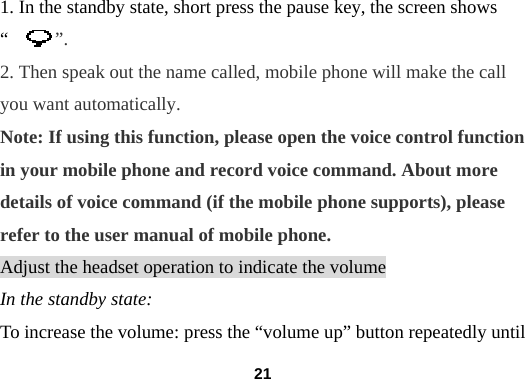
 211. In the standby state, short press the pause key, the screen shows “     ”. 2. Then speak out the name called, mobile phone will make the call you want automatically. Note: If using this function, please open the voice control function in your mobile phone and record voice command. About more details of voice command (if the mobile phone supports), please refer to the user manual of mobile phone. Adjust the headset operation to indicate the volume In the standby state: To increase the volume: press the “volume up” button repeatedly until
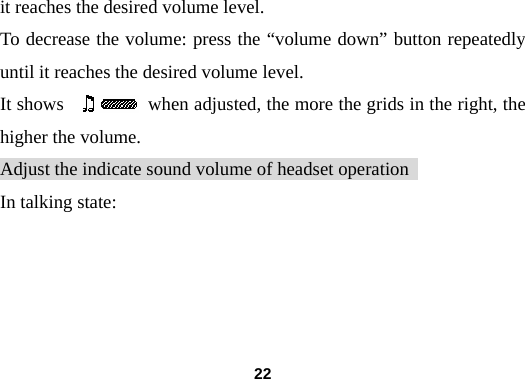
 22it reaches the desired volume level. To decrease the volume: press the “volume down” button repeatedly until it reaches the desired volume level. It shows         when adjusted, the more the grids in the right, the higher the volume. Adjust the indicate sound volume of headset operation   In talking state:
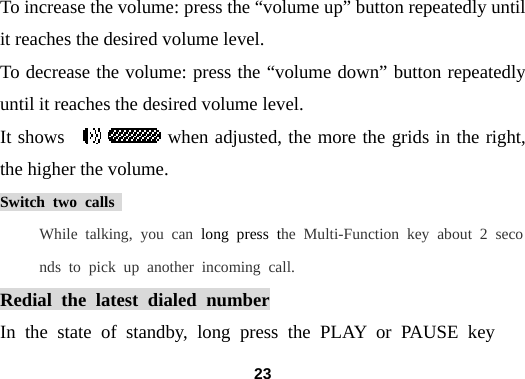
 23To increase the volume: press the “volume up” button repeatedly until it reaches the desired volume level. To decrease the volume: press the “volume down” button repeatedly until it reaches the desired volume level. It shows           when adjusted, the more the grids in the right, the higher the volume. Switch two calls  While talking, you can long press the Multi-Function key about 2 seconds to pick up another incoming call.  Redial the latest dialed number In the state of standby, long press the PLAY or PAUSE key
 24about 2 seconds, the last dialed number will be dialed out automatically.  Note: 1.The function and using way may be different for some Bluetooth headsets, please see the user manual of your mobile phone for reference.   2.If your headset always disconnect with the Bluetooth device, Please confirm that weather these two    devices are among the range of using in gear. Please make them in the available range. (We suggest that it is better to keep the distance in 10 meters) .Another way to solve the problem is that you can turn off the mobile phone and the headset, and then turn them on again.
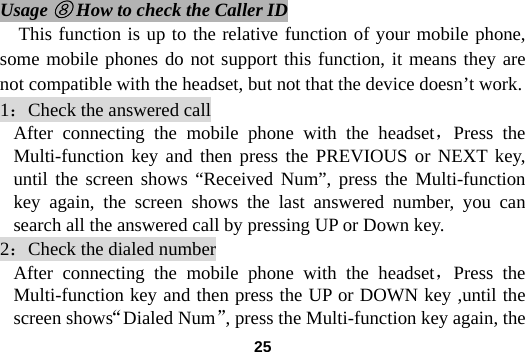
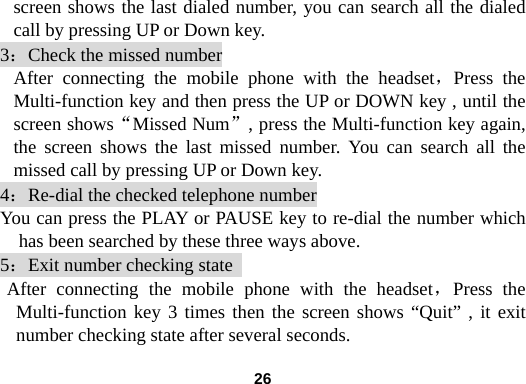
 25 Usage ⑧ How to check the Caller ID This function is up to the relative function of your mobile phone, some mobile phones do not support this function, it means they are not compatible with the headset, but not that the device doesn’t work. 1:Check the answered call After connecting the mobile phone with the headset,Press the Multi-function key and then press the PREVIOUS or NEXT key, until the screen shows “Received Num”, press the Multi-function key again, the screen shows the last answered number, you can search all the answered call by pressing UP or Down key.   2:Check the dialed number After connecting the mobile phone with the headset,Press the Multi-function key and then press the UP or DOWN key ,until the screen shows“Dialed Num”, press the Multi-function key again, the
 26screen shows the last dialed number, you can search all the dialed call by pressing UP or Down key.   3:Check the missed number After connecting the mobile phone with the headset,Press the Multi-function key and then press the UP or DOWN key , until the screen shows“Missed Num”, press the Multi-function key again, the screen shows the last missed number. You can search all the missed call by pressing UP or Down key.   4:Re-dial the checked telephone number You can press the PLAY or PAUSE key to re-dial the number which has been searched by these three ways above. 5:Exit number checking state   After connecting the mobile phone with the headset,Press the Multi-function key 3 times then the screen shows “Quit” , it exit number checking state after several seconds.
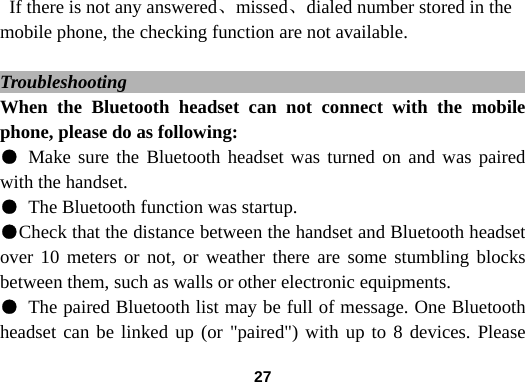
 27If there is not any answered、missed、dialed number stored in the mobile phone, the checking function are not available.    Troubleshooting                                               When the Bluetooth headset can not connect with the mobile phone, please do as following: ● Make sure the Bluetooth headset was turned on and was paired with the handset.   ● The Bluetooth function was startup. ●Check that the distance between the handset and Bluetooth headset over 10 meters or not, or weather there are some stumbling blocks between them, such as walls or other electronic equipments. ● The paired Bluetooth list may be full of message. One Bluetooth headset can be linked up (or "paired") with up to 8 devices. Please
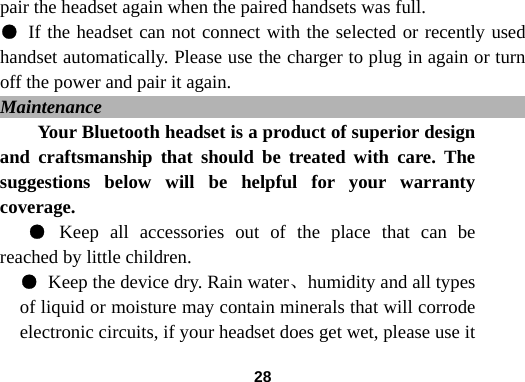
 28pair the headset again when the paired handsets was full. ● If the headset can not connect with the selected or recently used handset automatically. Please use the charger to plug in again or turn off the power and pair it again.   Maintenance                                                  Your Bluetooth headset is a product of superior design and craftsmanship that should be treated with care. The suggestions below will be helpful for your warranty coverage.  ● Keep all accessories out of the place that can be reached by little children. ● Keep the device dry. Rain water、humidity and all types of liquid or moisture may contain minerals that will corrode electronic circuits, if your headset does get wet, please use it
 29after completely air it. ● Do not use or store the device in dusty、dirty areas. Its moving parts and electronic components will be damaged. ● Do not store the device in the areas which are too hot , high temperature will shorten the using time of electronic devices, damage batteries, and warp or melt certain plastics.  ● Do not store the device in the areas which are too cold, when the device returns to its normal temperature, moisture will be formed inside the device and damage the electronic circuit board. ● Do not attempt to drop 、knock or shake the device, Rough handling will damage the inside circuit board and the precious structure.
 30● Do not use the harsh chemicals、cleaning solvents or strong detergents to clean the device.   ● Do not paint the device, painting may clog the moving parts and prevent proper operation.   All the above suggestions are also suit for your headset, battery,  charger, or any spare part. If any device doesn’t work properly, take it to the nearest authorized service institution for service.
 31FCC Warning: This device compiles with part 15 of the FCC Rules. Operation is subject to the following two conditions: (1) The device may not cause harmful interference, and (2) this device must accept any interference received, including interference that may cause undesired operation. Changes or modification not expressly approved by the party responsible for compliance could void the user’s authority to operate the equipment. FCC Radio Frequency Exposure statement This product has been evaluated under FCC Bulletin OET 65C and found compliant to the requirement asset as set forth in CFR 47 section 2.1091, 2.1093 and 15.247(i) addressing RF Exposure from radio frequency device. The redialed output power of this product is far below the FCC radio frequency exposure limits.

Navigation menu