Xinwei Electronic Quanzhou HST16 Bluetooth Headset User Manual
Xinwei Electronic Co., Ltd., Quanzhou Bluetooth Headset
User Manual
1
Table of Content
Introduction to CLIP ULTRA 2……………………………...…….……2
① Charging the Headset………………………...…. …. …..….. ......5
② Wearing the Headset .……………………………….…..……...….6
③ Powering On/Off the Headset .……….……...…..…………….….7
④ Pairing with Mobile Phones.……...…..………... …………...... …7
⑤ Pairing with Additional Devices………………………………. …11
⑥ Making Calls and Adjusting Volume……………………….……12
⑦ Turning the Beeper on/off …………………….....…...….………12
Operation guide table ……………………….. …...…..…....……....13
LED Chart ……………………………………………...…….………..15
Troubleshooting.......………………………………..…….……..……16
Maintenance……………………………….. ……...…....……………17

2
Introduction to CLIP ULTRA 2
CLIP ULTRA 2 wireless Bluetooth headset surpasses the
tradition. It is compact, small and light weight, as well as easy to
use. Bluetooth V2.1 enables faster connection speed, better
voice quality and less power cost.
Please read this manual as well as your mobile phone's user
instructions carefully before using headset Clip Ultra 2. And
keep the manuals well for future reference.
What is Bluetooth technology?
Bluetooth devices communicate without wires, using built-in
radio transceivers that operate on a globally available radio
frequency to ensure worldwide compatibility. Your Bluetooth
wireless headset can communicate with other Bluetooth devices
3
within a range of approximately 10 meters (33feet).
Your wireless headset enables you to connect with other
Bluetooth enabled devices, use your phone hands free, answer
calls and make calls with a single multi function button and is
equipped with voice dialing.
Clip Ultra 2 support both hands free and headset profiles.
4
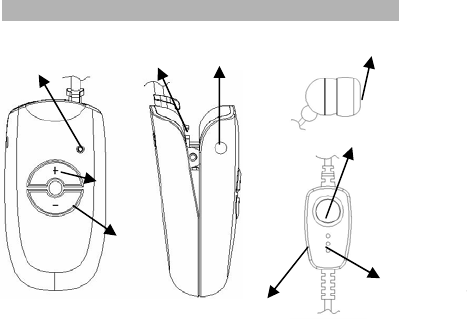
Bluetooth Headset CLIP ULTRA 2 Illustration
Volume Up
Volume Dow n
Microphone
Speaker
Beeper Charging port
Indicator LED
Multi-Function Button (MFB)
Wired-controller
5
How to Use Bluetooth Headset CLIP ULTRA 2
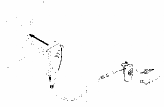
◆ ① Charging the Headset
1. Before using for the first time, Clip Ultra 2
needs to be fully charged. And it takes
approximately 2 hours.
2. When you hear five rapid tones which repeat every 20 seconds from the
headset, it indicates your headset needs to be recharged.
3. When the red indicator LED flashes twice and then constantly on, which
means your headset is charging; when the headset is fully charged the red
indicator LED turns to blue.
Note: when fully charged, the battery offers:
* Over 8 hours talking time
* Over 200 hours standby time
Attention:Please only charge your Bluetooth headset Clip Ultra 2 with
the original travel charger, in car charger or USB charging cable supplied in
the box.
6
◆ ② Wearing the Headset
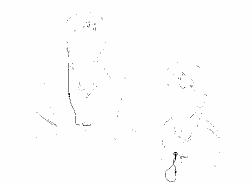
Bluetooth headset Clip Ultra 2 is a clip design with wire. It can be clipped
easily onto your clothes for more comfort.
1. To use the headset, simply put the headphone into your ear.
2. Adjust the microphone toward your mouth, about 7-8 cm.
3. The earphone can rest on the headset when not being used.
7
◆ ③ Powering ON/OFF the Headset
Power ON☆
Hold the multi-function button for 3 seconds and release it when the
indicator LEDs (red and blue) light which indicates the headset is in Power
On mode. Then the red indicator LED will flash.
Note: The red indicator LED flashes when the headset is ready to
connect.
☆Power OFF
When the headset is on, please hold the multi-function button for 3
seconds and release it when the indicator LEDs turn off which means the
headset has been turned off properly.
◆ ④ Pairing with Mobile Phones
Attention:Please make sure the Bluetooth headset has been paired
with mobile phones before you start using it to make calls.

8
(“Pairing” creates a link between devices with Bluetooth wireless
technology, and allows the phone to remember the headset’s ID. Once they
are paired, your headset will automatically connect to your phone.)
Pairing with single mobile phone
:
1. Place the headset and phone together at a maximum of 1 meter distance
between each other. When the headset is powered off, hold the headset’s
multi-function button until the blue and red indicator LEDs flash alternately
(the whole process takes about 8 seconds). The headset is in pairing mode.
2. Activate your mobile phone’s Bluetooth function and search for new
devices (please refer to your mobile phone's instruction manual).
3. Select “CLIP ULTRA 2” in the searched list and confirm the steps as
requested by your mobile phone.
4. Enter the password “0000” to confirm and connect the headset to the
phone. The headset’s blue LED will flash to indicate the pairing was
successful.

9
Pairing with the second mobile phone
:
Bluetooth headset Clip Ultra 2 supports the multi-point function which
enables you to pair with 2 mobile phones simultaneously.
1. Once the first mobile phone has been paired successfully following the
instruction given above, you will need to turn the Bluetooth function of the
already paired mobile phone off before you start the pairing process of the
second mobile phone with the headset. The headset will connect to the
second phone automatically once you have followed the same pairing
instructions as the one described previously.
2. Connecting the headset to the first paired phone:
You can either:
1) Turn off the Bluetooth headset and power it on again after the Bluetooth
function of the first phone has been activated. Then the Bluetooth headset
will connect automatically to both paired phones and enter Standby mode
which enable to switch between the two mobile phones.
10
2) Press both the “Volume Up” and “Volume Down” keys on the headset
simultaneously once; then activate the Bluetooth function of the first phone
to connect with Bluetooth headset “Clip Ultra 2”.
Note: If the Bluetooth headset has been paired with more than 2 mobile
phones, for example, it has been paired with four phones in A \ B \ C \ D
order, then it can connect to any two phones of the four automatically,
When the headset is connected to 2 phones, for example, phone C and D,
only certain functions (Voice dialing, last call redial) will be activated for
phone C (the first connected phone).
When the headset is connected with two mobile phones, you can only make
or take calls from one phone at a time. For example, when the headset is on
a call from phone C, it will disconnect from phone D automatically and
reconnect with phone D after the call from phone C is ended.
Attention: Clip Ultra 2 can only be connected to 2 phones at a time.
11
◆ ⑤ Pairing with Additional Bluetooth Devices
z The headset can store up to eight different devices. Devices are
stored as one of the “Paired Devices List” in order of pairing. When
the headset attempts to pair with the ninth device, the first paired
device will be removed from the list.
z Any of the eight paired devices can initiate connection to the
headset.
z The headset will only automatically connect to the latest two paired
devices. If you want to connect the headset to the others of the
paired device list, you have to manually initiate the connection from
that device; after any two of the eight devices initiate a connection
to the headset, they will become the default “last connected”
devices.
12
◆ ⑥ Making Calls and Adjusting Volume
CLIP ULTRA 2 supports both, Headset and Hands-free modes.
1.Press the Multi-function button to answer an incoming call.
2.Please keep pressing the Volume Up or Down key to increase or
decrease the volume to its desired level.
3.To end a call, press the Multi-function button.
◆ ⑦ Turning the Beeper Function ON/OFF
CLIP ULTRA 2 has a Beeper indicator function which can be
turned ON or OFF according to your preference. The default is set to
ON. User can turning OFF the Beeper function to extend the battery
life
1.Turning the Beeper function on: When the headset is connected with
mobile phone (s) and the Beeper function is off, you can press and hold the
“Volume Up” key or “Volume Down” for 4 seconds until one indicator
sound is heard from the speaker. The Beeper function is activated. The

13
Beeper will indicate an incoming call and the indicator LED won’t flash.
The indicator LED will flash normally during the call.
2.Turning the Beeper function off: When the headset is connected with
mobile phone (s) and the Beeper function is activated, press and hold
the “Volume Up” key"or “Volume Down” key for 2 seconds until one
indicator sound is heard from the speaker. The Beeper function is now
turned off. The indicator LED flashes normally when there is an
incoming call and when the Beeper function is off.
Note:You can do the above operations when the phone is ringing. The
headset will use more power when the Beeper function is activated.
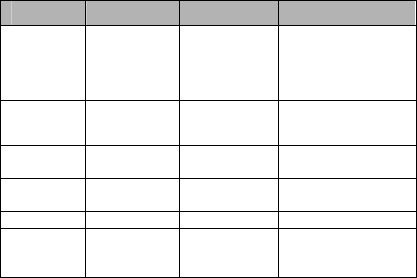
Operation Guide Table
Bluetooth headset CLIP ULTRA 2 supports all following functions, and you
can activate them according to the guide table below (continue to P14):
14
Function Phone mode Headset mode Headset operation
Enter
pairing mode ON OFF
Hold the Multi-Function
Button (MFB) until the
red and blue indicator
LEDs flash alternately
Voice dialing standby Connected and
standby
Quickly press the MFB
once
Redial a call standby Connected and
standby
Quickly press the MFB
twice
Answer calls With incoming
call indication
With incoming
call indication Press the MFB once
End a call On a call On a call Press the MFB once
Reject a call With incoming
call indication
With incoming
call indication
Press and hold the MFB
for 3 seconds and then
release
Attention:The functions listed above are dependent on your mobile
phone. Please refer to your mobile phone instruction manual for more
details.
15
LED Chart
With charger plugged in:
Red LED comes on and then flashes twice Begin to charge
Red LED comes off and blue LED comes on Charge complete
When Clip Ultra 2 is not plugged in:
Indication Description
Blue and red LEDs flash alternately Enter pairing mode
Blue LED flashes 3 times rapidly Connected and standby
Red LED flashes 3 times rapidly Ready to connect
Red LED flashes rapidly Low power indicator
Note:Once paired, if the headset is disconnected from a device for 30
minutes, the headset will turn off automatically to save power.

16
Troubleshooting
When the Bluetooth headset is not connecting to the mobile phone:
● Make sure the Bluetooth headset is turned on and is paired with the
handset.
● The Bluetooth function on the handset is on.
● Check the distance between the handset and Bluetooth headset is not over
10 meters or whether there are some interferences between them, such as
walls or other electronic equipments.
●The paired Bluetooth list may be full. One Bluetooth headset can be
linked (or "paired") with up to 8 devices. Please pair the headset again when
the paired list is full.
● If the headset can not be connected with the selected or last used handset
automatically, please charge it or turn it off and pair it again.

17
Maintenance
Your Bluetooth headset is a high-tech product that should be
treated with care. Following suggestions will help ensure its good
maintenance.
● Keep all accessories out of children's reach.
● Keep the device dry. Rain, water, humidity and all types of liquids or
moisture may corrode its electronic circuits, if your headset gets wet, please
dry it before using it.
●Do not use or store the device in dusty or dirty areas.
●Do not store the device in heat. High temperatures will shorten the
lifetime of electronic devices, damage batteries, and could melt certain
plastic parts.
●Do not store the device in areas which are too cold. When the device
returns to its normal temperature, moisture will be formed inside and
damage its electronic circuit board.

18
●Do not attempt to drop, knock or shake the device. Rough handling
will damage its inside circuit board.
●Do not use harsh chemicals, cleaning solvents or strong detergents to
clean the device.
●Do not paint the device, painting may clog the moving parts and
prevent proper operation.
All the above suggestions are applicable for your headset, battery,
charger, or any spare part. If any one of them doesn’t work properly, please
return it where you purchased the Clip Ultra 2 from.
19
Warning:
This device compiles with part 15 of the FCC Rules.
Operation is subject to the following two conditions:
(1) The device may not cause harmful interference,
and (2) this device must accept any interference
received, including interference that may cause
undesired operation.
Changes or modification not expressly approved by
the party responsible for compliance could void the
user’s authority to operate the equipment.
20
FCC Radio Frequency Exposure Statement
This product has been evaluated under FCC
Bulletin OET 65C and found compliant to the
requirement asset as set forth in CFR 47 section
2.1093 and 15.247(i) addressing RF Exposure
from radio frequency device. The redialed output
power of this product is far below the FCC radio
frequency exposure limits.