Xunison BLERCU Remote Control User Manual
Xunison Ltd Remote Control
UserManual.wiki
>
Xunison
>
BLERCU User Manual
User manual
Navigation menu
Upload a User Manual
Namespaces
Wiki Guide
HTML
PDF
Info
Views
User Manual
Discussion / Help
Navigation
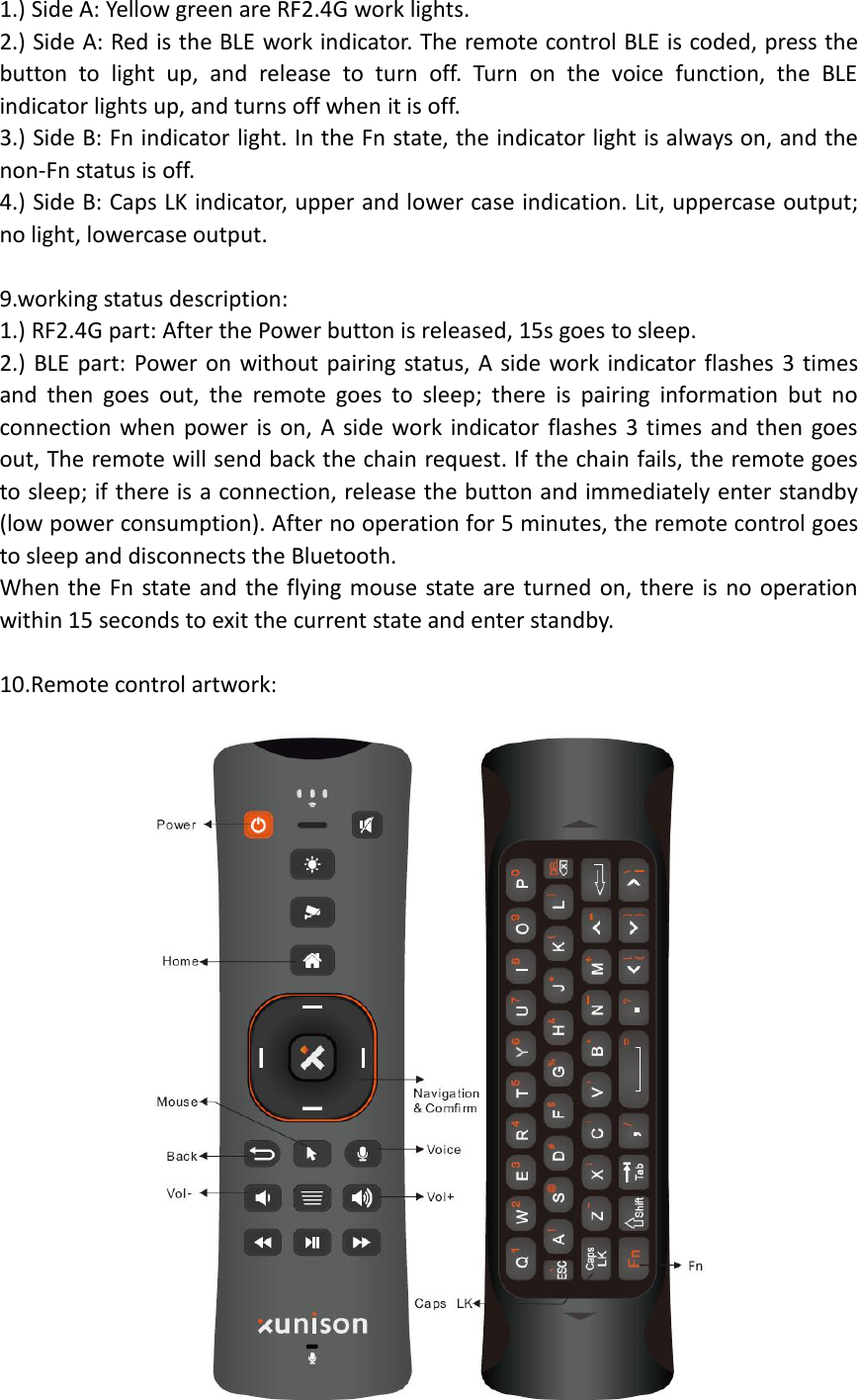
![AM003-2XU-002 brief user manual一、Brief introductionThis product is an RF2.4G + BLE double-sided keyboard remote control, thepower button is RF2.4G communication mode, can switch the terminal device (smartbox), and other buttons are BLE communication mode. The receiver is built into thedevice terminal board, and the remote is only the transmitter. The remote controlhas one-way voice, air mouse, low power detection and other functions.二、Basic instructions for remote control1.battery installation:Open the battery cover at both ends of the remote control, and then press thebattery polarity indicator inside, insert two 7-cell batteries, and then install thebattery cover.2.Pairing:The remote control is one-to-one paired with the terminal device.RF2.4G, and theBLE portion is respectively paired with the device. When the device is turned on,power on remote control and press any button, remote control will connect withdevice automatically.RF2.4G part of the remote control: If the remote controller needs to be re-pairedwith other devices, the terminal device needs to be restarted,and power on remotecontrol, press the power button, the remote control will enter the pairing state andbe paired with the terminal device.BLE part of the remote control: If the remote control needs to be re-paired with thedevice, press and hold [HOME] and [RETURN] on the A side of the remote control atthe same time for 3 seconds, after the BLE work indicator on the front of the remotecontrol flashes three times to enter pairing mode. The long light enters the pairingstate, and the remote controller enters the broadcast pairing request state. Duringthe pairing time, the terminal device searches for the Bluetooth device name of theremote controller and selects to connect with it.Remote control automatically exits the pairing state if it is not paired in 60 secondsin paring state.Bluetooth device name: BLE RCU3.Air mouse function:Air mouse function is turned off by default when the remote control is powered on.Press air mouse button on A side to turn on/off air mouse function. When air mouseis on, OK button is left mouse button. Press up/down/left/right button to turn off air](https://usermanual.wiki/Xunison/BLERCU/User-Guide-3944262-Page-1.png)
![mouse.When air mouse is off, OK button is of ENTER function.If there is no operationfor 15s when air mouse is turned on, the remote mouse function is turned off.4. sensor correction function:Correction key combination: [VOL+] & [VOL-]The remote can enter the calibration state under the Bluetooth connection state. Atthe same time, press the calibration key for about 3 seconds, and the A-side BLEwork indicator light is on to indicate that the calibration state is entered, and theremote controller is placed on the stationary horizontal desktop. After a few seconds(about 5 s) the calibration is successful, and the work indicator flashes three timesand then goes out.5.one-way voice function:A side has a voice function key. The box is Google Voice Assistant, the standardGoogle Voice mode of operation.Regardless of whether the button is released or clicked, the remote controlimmediately sends a HID CODE to the device, and the device terminal pops up theGoogle Voice Assistant to start the tone, and then the remote controller starts toupload the voice to the device.6.Bluetooth power service and low voltage prompt function:The remote control has an automatic power detection function. When the BLE partof the remote control is connected to the device, pressing the button, the Bluetoothpower service will report the power information to the device. The device displaysthe corresponding percentage of charge.When the power is lower than 2.4V, each time the button pressed the button, theA-side BLE work indicator will flash 5 times to indicate that the battery is low.7.keyboard surface Fn key combination function:There are two states on the B side of the remote control keyboard surface, one is thenormal state (also the default state), and the other is the Fn state (there is a Fn stateswitching dedicated key and an Fn status indicator, which is bright in the Fn state,normal state To extinguish.)Power the remote control, if there is no state selection in front of the keyboard, it isthe normal output state, press the button to send the key value of the white silkscreen button.Press the Fn button, the Fn light is on, the keyboard surface is in the Fn state, and theorange-red silk screen button key value in the upper right corner of the outputbutton is output. The button without the orange-red silk screen sends its own keyvalue. In the Fn state, the button with the Shift key can output the key code of theorange-red silk screen button in the lower right corner of the button.8. the indicator description:Indicator light: 2 on the A side and 2 on the B side](https://usermanual.wiki/Xunison/BLERCU/User-Guide-3944262-Page-2.png)