Y Soft a s 0YX0MU03015 USB Card Reader User Manual

Y Soft Corporation, a.s. USB Card Reader Users Manual

Users Manual

making the MFDs think™USB Card Reader v3 Administrator’s GuideAuthor:  Nováek Štpán
Date:     August 19, 2016
USB Card Reader v3 Administrator’s Guide YSoft SafeQ 63 of 15Table of Contents1 INTRODUCTION . . . . . . . . . . . . . . . . . . . . . . . . . . . . . . . . . . . . . . . . . . . . . . . . . . . . . . . . . . . . . . . . . . . .  41.1 PURPOSE OF DOCUMENT  . . . . . . . . . . . . . . . . . . . . . . . . . . . . . . . . . . . . . . . . . . . . . . . . . . . . . . .  41.2 VALIDITY OF DOCUMENT . . . . . . . . . . . . . . . . . . . . . . . . . . . . . . . . . . . . . . . . . . . . . . . . . . . . . . . .  41.3 GOALS AND OBJECTIVES  . . . . . . . . . . . . . . . . . . . . . . . . . . . . . . . . . . . . . . . . . . . . . . . . . . . . . . .  41.4 TERMS AND ABBREVIATIONS  . . . . . . . . . . . . . . . . . . . . . . . . . . . . . . . . . . . . . . . . . . . . . . . . . . . .  41.5 PREREQUISITE KNOWLEDGE  . . . . . . . . . . . . . . . . . . . . . . . . . . . . . . . . . . . . . . . . . . . . . . . . . . . .  41.6 DISCLAIMER  . . . . . . . . . . . . . . . . . . . . . . . . . . . . . . . . . . . . . . . . . . . . . . . . . . . . . . . . . . . . . . . . . .  42 OVERVIEW  . . . . . . . . . . . . . . . . . . . . . . . . . . . . . . . . . . . . . . . . . . . . . . . . . . . . . . . . . . . . . . . . . . . . . . . .  52.1 SYSTEM OVERVIEW  . . . . . . . . . . . . . . . . . . . . . . . . . . . . . . . . . . . . . . . . . . . . . . . . . . . . . . . . . . . .  52.2 HARDWARE COMPONENTS . . . . . . . . . . . . . . . . . . . . . . . . . . . . . . . . . . . . . . . . . . . . . . . . . . . . . .  52.3 USB CARD READER SPECIFICATION  . . . . . . . . . . . . . . . . . . . . . . . . . . . . . . . . . . . . . . . . . . . . . .  53 CONFIGURATION  . . . . . . . . . . . . . . . . . . . . . . . . . . . . . . . . . . . . . . . . . . . . . . . . . . . . . . . . . . . . . . . . . .  74 Configuration of the USB reader by usbrdrtool  . . . . . . . . . . . . . . . . . . . . . . . . . . . . . . . . . . . . . . . . . . . . .  85 Card reader configuration screen  . . . . . . . . . . . . . . . . . . . . . . . . . . . . . . . . . . . . . . . . . . . . . . . . . . . . . . .  95.1 USB keyboard  . . . . . . . . . . . . . . . . . . . . . . . . . . . . . . . . . . . . . . . . . . . . . . . . . . . . . . . . . . . . . . . . .  105.2 USB serial  . . . . . . . . . . . . . . . . . . . . . . . . . . . . . . . . . . . . . . . . . . . . . . . . . . . . . . . . . . . . . . . . . . . .  106 Action 3 - Setting card reader protocol  . . . . . . . . . . . . . . . . . . . . . . . . . . . . . . . . . . . . . . . . . . . . . . . . . .  116.1 Card reader testing screen  . . . . . . . . . . . . . . . . . . . . . . . . . . . . . . . . . . . . . . . . . . . . . . . . . . . . . . .  126.2 Card reader Update firmware  . . . . . . . . . . . . . . . . . . . . . . . . . . . . . . . . . . . . . . . . . . . . . . . . . . . . .  136.3 Card reader Update Service firmware . . . . . . . . . . . . . . . . . . . . . . . . . . . . . . . . . . . . . . . . . . . . . . .  136.4 Card reader settings for downloadeing the log files  . . . . . . . . . . . . . . . . . . . . . . . . . . . . . . . . . . . .  146.5 Card reader USBRDRTOOL starting with predefined commands  . . . . . . . . . . . . . . . . . . . . . . . . .  146.6 Information BeeP codes  . . . . . . . . . . . . . . . . . . . . . . . . . . . . . . . . . . . . . . . . . . . . . . . . . . . . . . . . .  15
USB Card Reader v3 Administrator’s Guide YSoft SafeQ 64 of 151.   INTRODUCTION1.1.   PURPOSE OF DOCUMENTThis documentation provides essential information on installation and configuration of YSoft SafeQ® USB Card Reader verison 3.1.2.   VALIDITY OF DOCUMENTThis document applies to YSoft SafeQ® USB Card Reader v3.1.3.   GOALS AND OBJECTIVESThe YSoft SafeQ® USB Card Reader v3 that could be simply connected to the multi-functional device and serves for user authentication using card. Card must be assigned to any user in the YSoft SafeQ system. After the successful authentication the user is able to manipulate with device and perform his print jobs, copy jobs or scan jobs (depends on the device).The YSoft SafeQ® USB Card Reader v3 could be also connected to workstations and can be used with the credit charger application or with the SQ client for authentication.1.4.   TERMS AND ABBREVIATIONSMFD - Multi-Functional DeviceUSB Card Reader v3 - YSoft SafeQ® USB Card Reader version 31.5.   PREREQUISITE KNOWLEDGEThe person who installs USB Card Reader v3 must meet the following requirements:knowledge of the YSoft SafeQ system (installation / administration / attendance)knowledge of OS Win 2000, Win 2003 (installation / administration)1.6.   DISCLAIMERThe user that makes changes or modifications not expressly approved by the party responsible for compliance (Y Soft Corporation a.s.) could void the user’s authority to operate the equipment.NOTE: This equipment has been tested and found to comply with the limits for a Class A digital device, pursuant to part 15 of the FCC Rules. These limits are designed to provide reasonable protection against harmful interference when the equipment is operated in a commercial environment. This equipment generates, uses, and can radiate radio frequency energy and, if not installed and used in accordance with the instruction manual, may cause harmful interference to radio communications. Operation of this equipment in a residential area is likely to cause harmful interference in which case the user will be required to correct the interference at his own expense.This device complies with Industry Canada’s licence-exempt RSSs. Operation is subject to the following two conditions:  (1) This device may not cause interference; and  (2) This device must accept any interference, including interference that may cause undesired operation of the device. Le présent appareil est conforme aux CNR d'Industrie Canada applicables aux appareils radio exempts de licence. L'exploitation est autorisée aux deux conditions suivantes : (1) l'appareil ne doit pas produire de brouillage, et (2) l'utilisateur de l'appareil doit accepter tout brouillage radioélectrique subi, même si le brouillage est susceptible d'en compromettre le fonctionnement.
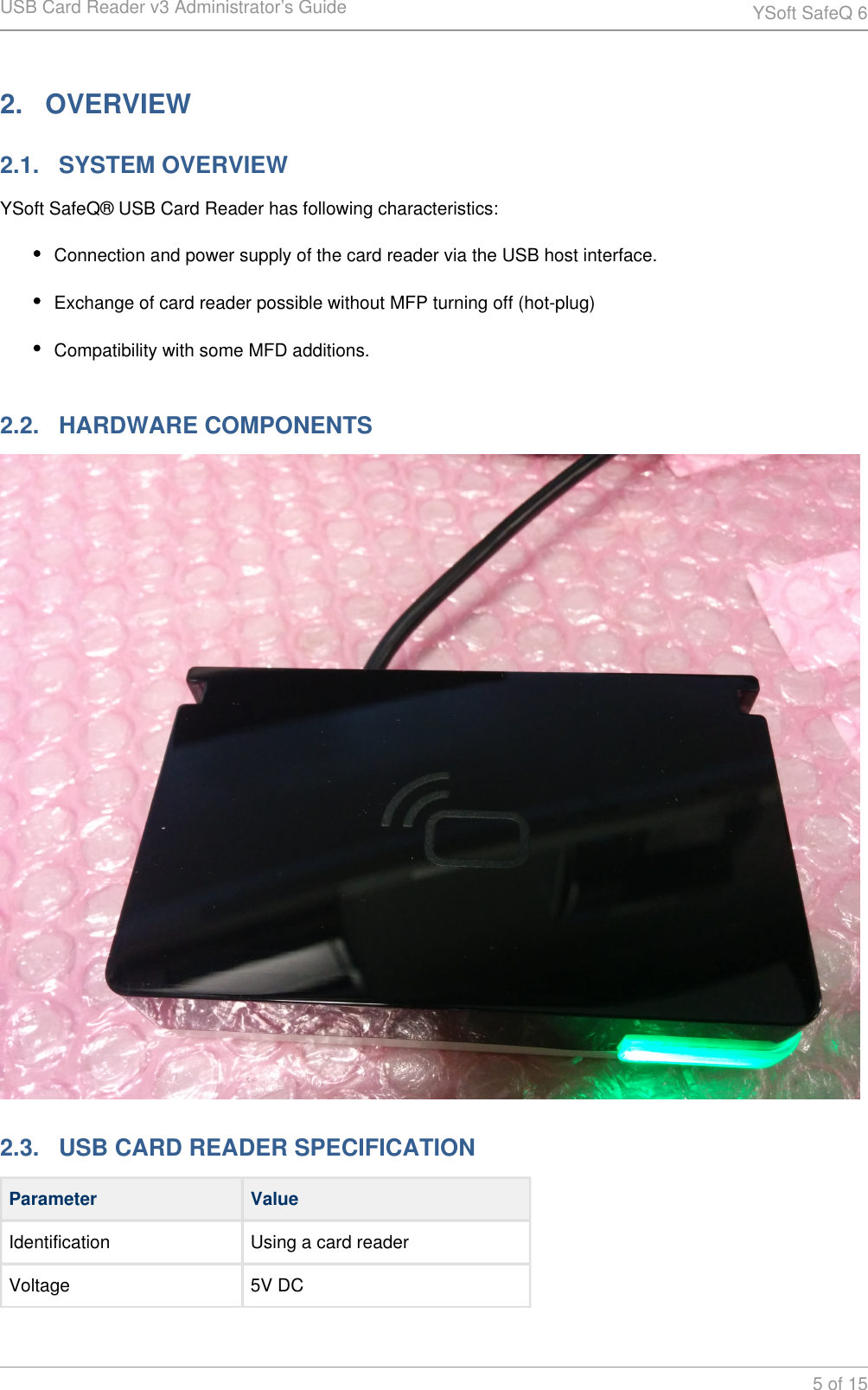
USB Card Reader v3 Administrator’s Guide YSoft SafeQ 65 of 152.   OVERVIEW2.1.   SYSTEM OVERVIEWYSoft SafeQ® USB Card Reader has following characteristics:Connection and power supply of the card reader via the USB host interface.Exchange of card reader possible without MFP turning off (hot-plug)Compatibility with some MFD additions.2.2.   HARDWARE COMPONENTS2.3.   USB CARD READER SPECIFICATIONParameter ValueIdentification Using a card readerVoltage 5V DC
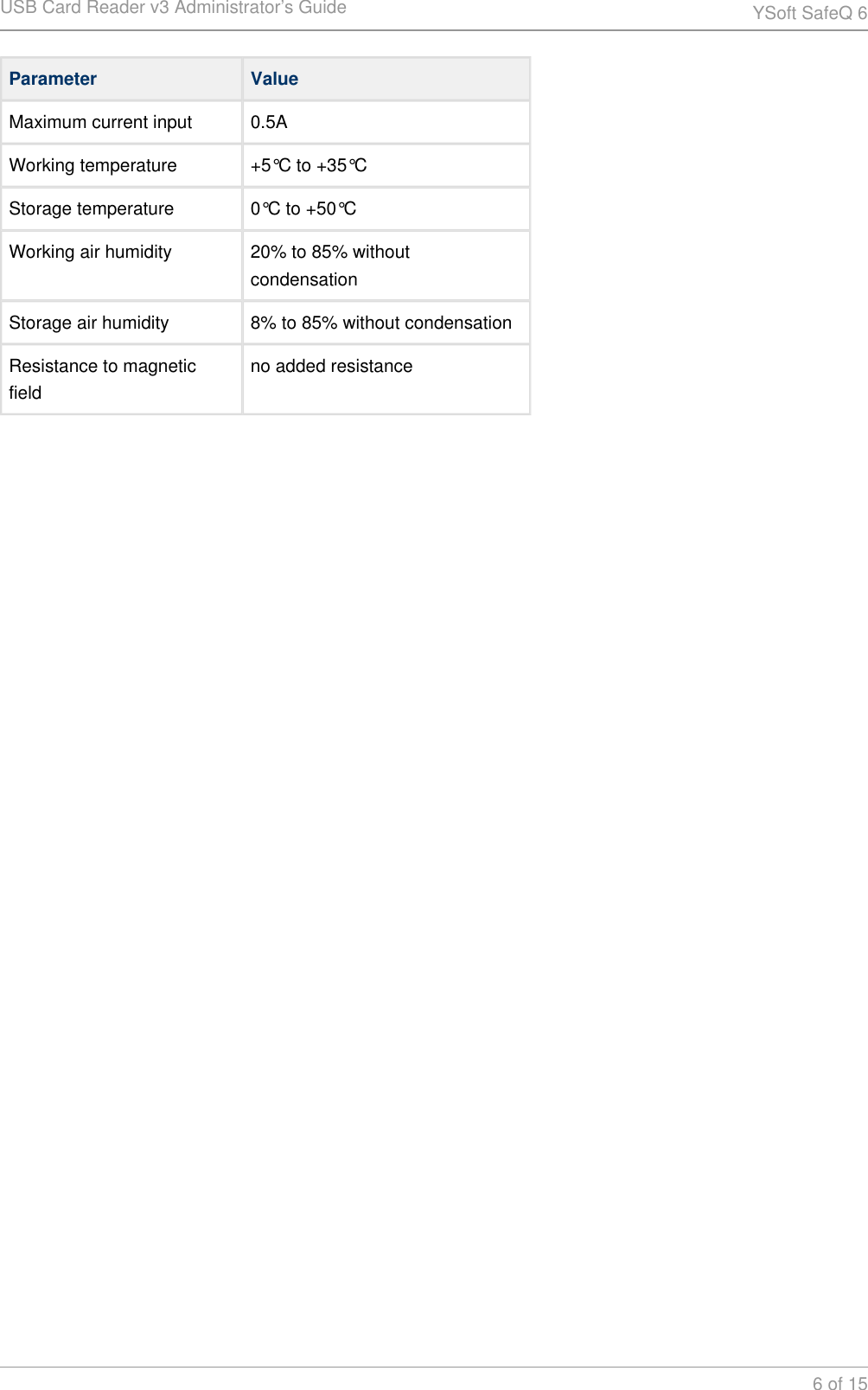
USB Card Reader v3 Administrator’s Guide YSoft SafeQ 66 of 15Parameter ValueMaximum current input 0.5AWorking temperature +5°C to +35°CStorage temperature 0°C to +50°CWorking air humidity 20% to 85% without condensationStorage air humidity 8% to 85% without condensationResistance to magnetic fieldno added resistance
USB Card Reader v3 Administrator’s Guide YSoft SafeQ 67 of 153.   CONFIGURATIONUSB Card reader v2/v3 can be configured only with software utility called "usbrdrtool". The software runs in a system console. It is not a gui application, it is an application running in text mode.The   configuration tool is designed for USB readers v2/v3 only!usbrdrtoolThe   prerequisites:usbrdrtoolWindows 2000 and higherLinux kernel 2.4 or higher with glibc 2.3.2 or higherRoot access on Linux or possibility of sudousbfs support for libusb-0.12 library on Linuxusbrdrtool.exe (WIN32) or usbrdtool (Linux) exacutable binariesNote: The program requires "root" privileges under Linux, therefore it must be run as user root or sudo must be used.The purpose of the   is:usbrdrtoolShow information about connected USB readers.Set basic parameters of each reader such as USB reader class type, reader protocol, debug mode etc.Card testing for verifying correct reader functionality and reading distance.Display of card type during testing (with readers where applicable)Update of USB reader normal firmware.Update of USB reader service firmware.Download log from USB reader for debugging purposes.
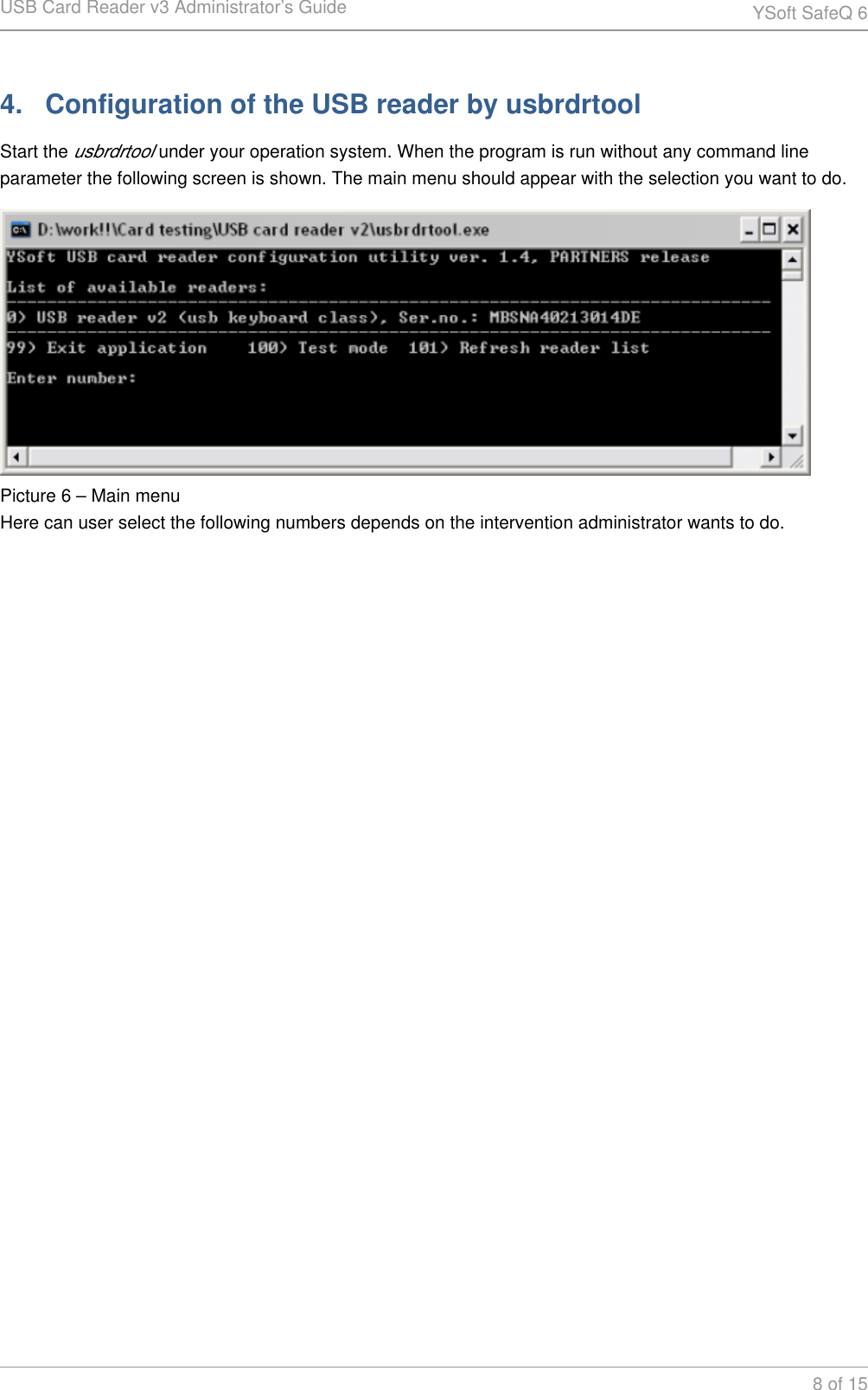
USB Card Reader v3 Administrator’s Guide YSoft SafeQ 68 of 154.   Configuration of the USB reader by usbrdrtoolStart the   under your operation system. When the program is run without any command line usbrdrtoolparameter the following screen is shown. The main menu should appear with the selection you want to do.Picture 6 – Main menuHere can user select the following numbers depends on the intervention administrator wants to do.
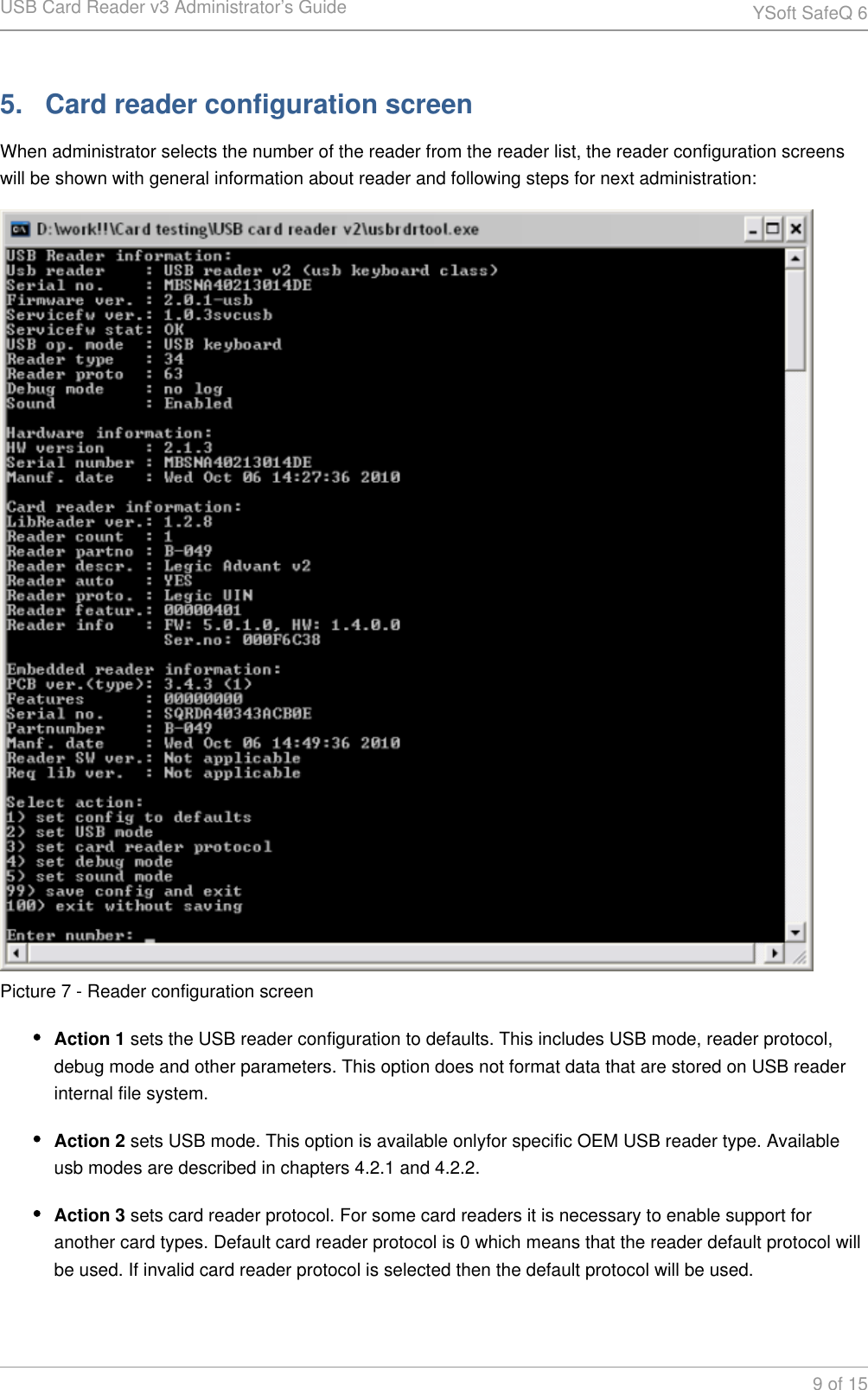
USB Card Reader v3 Administrator’s Guide YSoft SafeQ 69 of 155.   Card reader configuration screenWhen administrator selects the number of the reader from the reader list, the reader configuration screens will be shown with general information about reader and following steps for next administration:Picture 7 - Reader configuration screenAction 1 sets the USB reader configuration to defaults. This includes USB mode, reader protocol, debug mode and other parameters. This option does not format data that are stored on USB reader internal file system.Action 2 sets USB mode. This option is available onlyfor specific OEM USB reader type. Available usb modes are described in chapters 4.2.1 and 4.2.2.Action 3 sets card reader protocol. For some card readers it is necessary to enable support for another card types. Default card reader protocol is 0 which means that the reader default protocol will be used. If invalid card reader protocol is selected then the default protocol will be used.
USB Card Reader v3 Administrator’s Guide YSoft SafeQ 610 of 15Note: Please see Y Soft Card Readers Protocols.pdf for more details about card reader protocols. This*. pdf file is always attached to the zip file with released FW of the USB reader.Action 4 enables debugging in case something goes wrong with the reader (for example hang-up or reboot or anything similar). Please note that debugging enabled causes wear-out of the internal flash so enable it only in cases when it is necessary!Action 5 enables or disables sound on the USB reader. Please note that there is no visual identification of successful card reading so users in some cases cannot guess what may be wrong if the card reader makes no soundAction 99 returns user to the previous menu. If any changes are made, the card reader is rebooted and the changes are applied.Action 100 returns user to the previous menu. If any changes in settings are made they are discarded and original settings remain.5.1.   USB keyboardUSB keyboard – Optional modeIn this mode the USB reader works as a standard USB keyboard and can be switched to mode 3 only.NOTE:Typing of the keys is emulated as numeric keypad for 0-9 and A-F keys on standard EN/US keyboard layout. If the card number contains any other characters, they are ignored. Caps-lock and Num-lock are enabled and disabled if necessary and returned back to previous state after the card number is read.The "Shift", "Ctrl", "Alt" keys must not be held during card placing or it will collide with caps-lock and num-lock setting and incorrect card number will be readIf a national keyboard layout is used (such as French, Russian, Chinese or other) a wrong card number will be entered. In such cases a switch to US/EN keyboard layout is necessary before placing the card.5.2.   USB serialUSB serial – Optional modeThis mode emulates operation of COM port and can be switched to mode 1 only.On Windows platform the installation of the USB reader in this mode requires   file. This file is usb2-reader.infdistributed along with the   application and should be selected in the "new hardware" wizard after usbrdrtoolthe USB reader plugging/reconfiguration.On Linux platform the driver for the serial port is installed automatically.Card testing in   application will work in this modusbrdrtool
USB Card Reader v3 Administrator’s Guide YSoft SafeQ 611 of 156.   Action 3 - Setting card reader protocolWhen you are on the main page select appropriate number of the reader. If you want to change card reader protocol for specified reader type (selected number), then you need to open the value 3 "Set card reader protocol"Picture 8 - Selecting of card readerTo choose appropriate reading protocol, please see Y Soft Card Readers Protocols.pdf for more details about card reader protocols. This*. pdf file is always attached to the zip file with released FW of the USB reader.Select the number and confirm by "enter" confirmation.Picture 9 - Reader protocol confirmationAfter selecting the appropriate number of protocol, you will be navigated to submenu page, when you need to save currently changed settings. Select "99" to save settings for changed reading protocol and confirm.
USB Card Reader v3 Administrator’s Guide YSoft SafeQ 612 of 15Picture 10 - Saving of changes after protocol change6.1.   Card reader testing screenCard testing screen menu can be started by number 100 from the main menu. See Picture 6 – Main menu.When testing window will appear you can test the reader by placing a card above the reader.Picture 11 - Test card window 1Reader should display result from reading inside this window like example on the Picture 12 - Card testing result.Picture 12 - Card testing resultMultiple card readers can be tested at once. The screen automatically recognizes disconnected and newlyconnected readers so it may be used for mass-production card reader testing.If the connected reader supports card presence detection then the card number and type is visible only when the card is placed at the card reader.If the connected reader does not support card presence detection, a "tmout" is displayed.
USB Card Reader v3 Administrator’s Guide YSoft SafeQ 613 of 15The card number will be automatically erased after a couple of seconds of inactivity. This feature is intended to make sure that the reader works properly and card numbers are read correctly every time a card is placed.Please note that displaying the correct card type depends on card reader used and card reader protocol set.Before using   as a tool for customer card testing please consult USB card reader testing usbrdrtoolguidelines.It is also possible to start the card testing screen directly by specifying -t command line option to the  application.usbrdrtool6.2.   Card reader Update firmwareUpdate of firmware for USB card reader can be done by issuing the following command in the Windows command like (CMD) or on Linux OS:Windows:usbrdrtool.exe -u -i usb2-2.0.1.fw --kPicture 13 - FW update exampleLinux:sudo ./usbrdrtool -u -i usb2-2.0.1.fw -k'-k' option will cause the new firmware to be booted after successful update.Note: This command can be run form CMD windows or Linux, this is not a command inside the usbrdrtool.6.3.   Card reader Update Service firmwareUpdate of service firmware for USB card reader can be done by issuing the following command in the Windows command like (CMD) or on Linux OS:Windows:usbrdrtool.exe -w -i usb2_service-1.0.1.fw -kPicture 14 - Example of the service firmware update
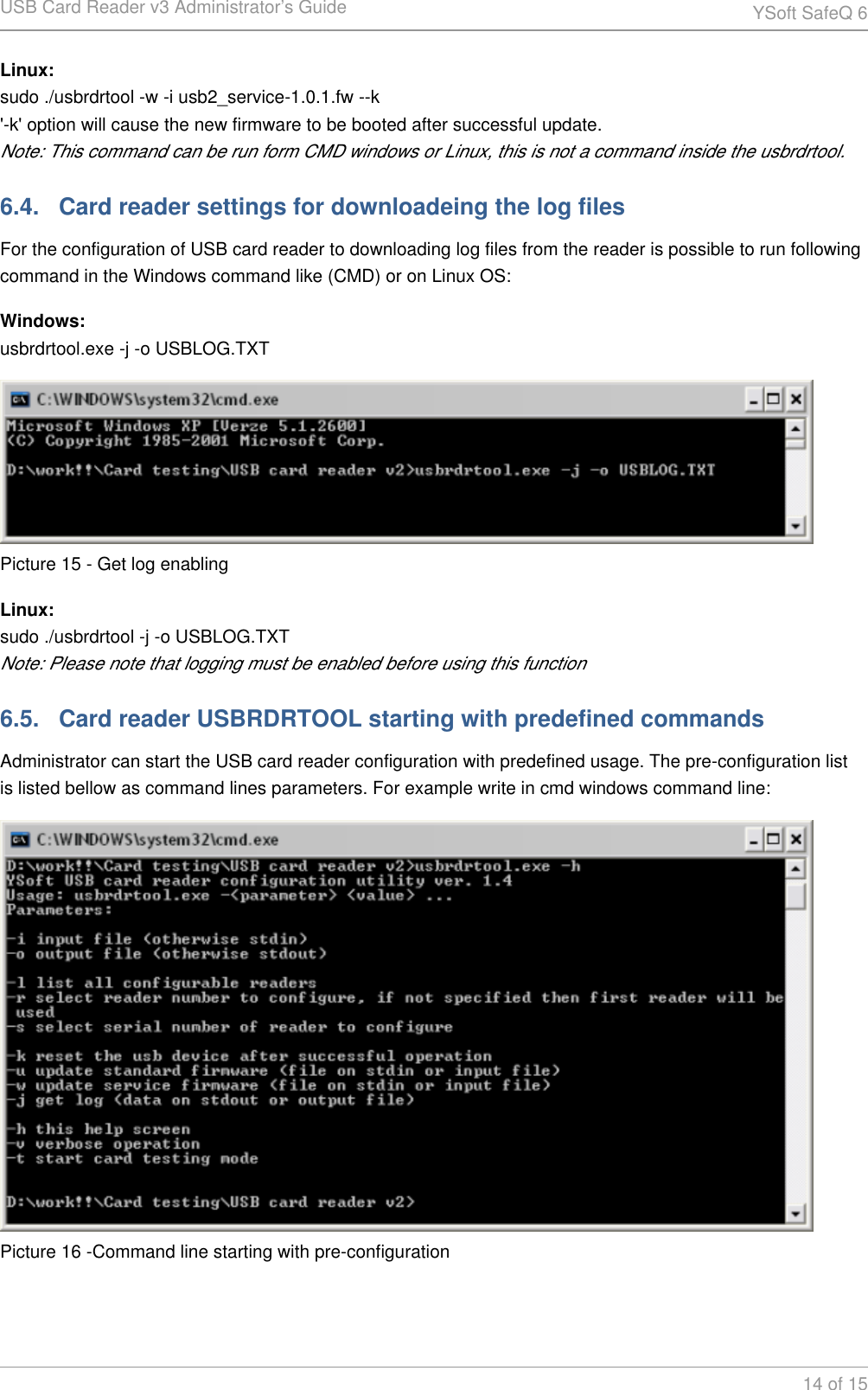
USB Card Reader v3 Administrator’s Guide YSoft SafeQ 614 of 15Linux:sudo ./usbrdrtool -w -i usb2_service-1.0.1.fw --k'-k' option will cause the new firmware to be booted after successful update.Note: This command can be run form CMD windows or Linux, this is not a command inside the usbrdrtool.6.4.   Card reader settings for downloadeing the log filesFor the configuration of USB card reader to downloading log files from the reader is possible to run following command in the Windows command like (CMD) or on Linux OS:Windows:usbrdrtool.exe -j -o USBLOG.TXTPicture 15 - Get log enablingLinux:sudo ./usbrdrtool -j -o USBLOG.TXTNote: Please note that logging must be enabled before using this function6.5.   Card reader USBRDRTOOL starting with predefined commandsAdministrator can start the USB card reader configuration with predefined usage. The pre-configuration list is listed bellow as command lines parameters. For example write in cmd windows command line:Picture 16 -Command line starting with pre-configuration
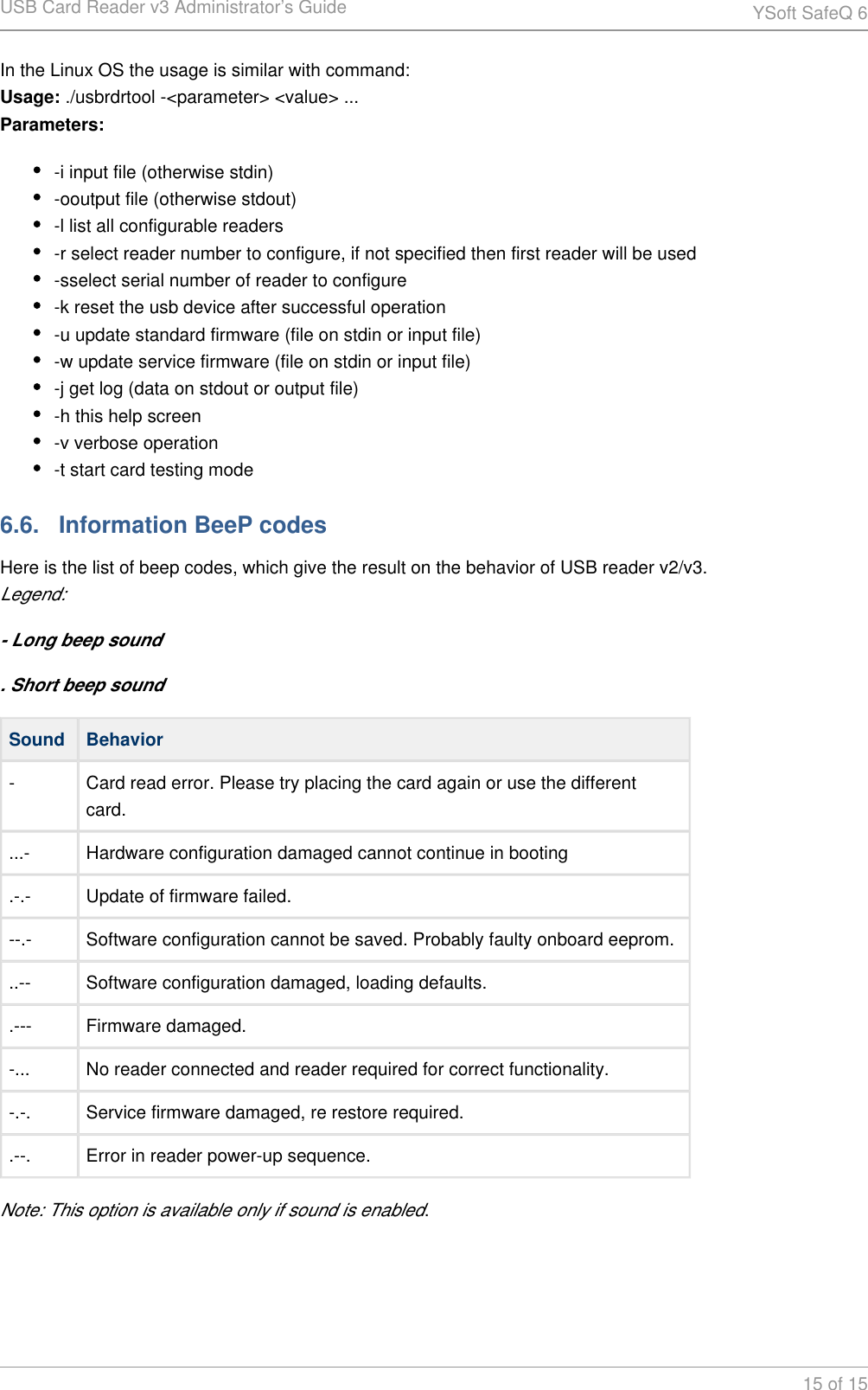
USB Card Reader v3 Administrator’s Guide YSoft SafeQ 615 of 15In the Linux OS the usage is similar with command: ./usbrdrtool -<parameter> <value> ...Usage:Parameters:-i input file (otherwise stdin)-ooutput file (otherwise stdout)-l list all configurable readers-r select reader number to configure, if not specified then first reader will be used-sselect serial number of reader to configure-k reset the usb device after successful operation-u update standard firmware (file on stdin or input file)-w update service firmware (file on stdin or input file)-j get log (data on stdout or output file)-h this help screen-v verbose operation-t start card testing mode6.6.   Information BeeP codesHere is the list of beep codes, which give the result on the behavior of USB reader v2/v3.Legend:- Long beep sound. Short beep soundSound Behavior- Card read error. Please try placing the card again or use the different card....- Hardware configuration damaged cannot continue in booting.-.- Update of firmware failed.--.- Software configuration cannot be saved. Probably faulty onboard eeprom...-- Software configuration damaged, loading defaults..--- Firmware damaged.-... No reader connected and reader required for correct functionality.-.-. Service firmware damaged, re restore required..--. Error in reader power-up sequence.Note: This option is available only if sound is enabled.
ThedevicehasbeenevaluatedtomeetgeneralRFexposurerequirement,thedevicecanbeusedinportableexposureconditionwithoutrestriction.Thisdevicecomplieswithpart15oftheFCCrules.Operationissubjecttothe followingtwoconditions:(1)thisdevicemaynotcauseharmfulinterference,and(2) thisdevicemustacceptanyinterferencereceived,includinginterferencethatmay causeundesiredoperation. NOTE:ThemanufacturerisnotresponsibleforanyradioorTVinterferencecaused byunauthorizedmodificationsorchangestothisequipment.Suchmodificationsorchangescouldvoidtheuser’sauthoritytooperatetheequipment.NOTE:Thisequipmenthasbeentestedandfoundtocomplywiththelimitsfora ClassBdigitaldevice,pursuanttopart15oftheFCCRules.Theselimitsare designedtoprovidereasonableprotectionagainstharmfulinterferenceina residentialinstallation.Thisequipmentgeneratesusesandcanradiateradio frequencyenergyand,ifnotinstalledandusedinaccordancewiththeinstructions, maycauseharmfulinterferencetoradiocommunications.However,thereisno guaranteethatinterferencewillnotoccurinaparticularinstallation.Ifthis equipmentdoescauseharmfulinterferencetoradioortelevisionreception,which canbedeterminedbyturningtheequipmentoffandon,theuserisencouragedto trytocorrecttheinterferencebyoneormoreofthefollowingmeasures:‐Reorientorrelocatethereceivingantenna.‐Increasetheseparationbetweentheequipmentandreceiver.‐Connecttheequipmentintoanoutletonacircuitdifferentfromthattowhichthe receiverisconnected.‐Consultthedealeroranexperiencedradio/TVtechnicianforhelp. 

Navigation menu