Y Soft a s 0YX0X040000 Terminal UltraLight Reader User Manual YSQ Terminal Ultralight Users Guide v1 4 EN
Y Soft Corporation, a.s. Terminal UltraLight Reader YSQ Terminal Ultralight Users Guide v1 4 EN
Contents
- 1. User Manual 1
- 2. User Manual 2
- 3. User Manual 3
- 4. User Manual 4
User Manual 2

making the MFDs think™
YSoft SafeQ® Terminal UltraLight
User’s Guide
Version 1.4

4.9.2009
YSOFT SAFEQ® TERMINAL ULTRALIGHT – USERS GUIDE V1.4 [EN] 2/14
© 2009 by YSoft s.r.o.
All rights to this document, domestic and international, are reserved by YSoft s.r.o.. No part of this publication
may be reproduced, stored in a retrieval system, or transmitted in any form or by any means (electronic, me-
chanical, photocopying, recording, or otherwise) without prior written permission of YSoft.
YSoft®, YSoft SafeQ® and its logo are registered trademarks of YSoft s.r.o.
All other brands and their products are trademarks or registered trademarks of their respective holders, and
should be noted as such.

4.9.2009
YSOFT SAFEQ® TERMINAL ULTRALIGHT – USERS GUIDE V1.4 [EN] 3/14
TABLE OF CONTENTS
Table of Contents .................................................................................................................................................... 3
1 Introduction ................................................................................................................................................... 4
1.1 Purpose of document ........................................................................................................................... 4
1.2 Goals and Objectives ............................................................................................................................. 4
1.3 Terms and Abbreviations ....................................................................................................................... 4
1.4 Disclaimer .............................................................................................................................................. 4
2 Terminal UltraLight Overview ........................................................................................................................ 5
2.1 Keyboard usage ..................................................................................................................................... 6
3 Basic features ................................................................................................................................................. 8
3.1 User Authentication............................................................................................................................... 8
3.2 User Interface ........................................................................................................................................ 8
3.3 Administration ....................................................................................................................................... 8
3.4 Operating Environment ......................................................................................................................... 8
4 Status of Terminal UltraLight ......................................................................................................................... 9
4.1 Terminal UltraLight flash code sequences ............................................................................................. 9
4.2 Terminal beep code sequences ........................................................................................................... 11
5 Conclusion .................................................................................................................................................... 12
6 Relationship with other documents ............................................................................................................. 13
7 Version history ............................................................................................................................................. 14
4.9.2009
YSOFT SAFEQ® TERMINAL ULTRALIGHT – USERS GUIDE V1.4 [EN] 4/14
1 INTRODUCTION
1.1 PURPOSE OF DOCUMENT
This documentation provides essential information on usage of YSoft SafeQ® Terminal UltraLight. It covers
both YSoft SafeQ® Terminal UltraLight Print & Copy and YSoft SafeQ® Terminal UltraLight Print Only versions.
1.2 GOALS AND OBJECTIVES
The YSoft SafeQ® Terminal UltraLight is a low-price version of Terminal Professional. It is realized in form of an
external hardware device. YSoft SafeQ® Terminal UltraLight has no display available; therefore user interaction
is limited to status leds, keyboard and beep sequences.
1.3 TERMS AND ABBREVIATIONS
Terminal UltraLight
YSoft SafeQ® Terminal UltraLight
MFD
Multi-Functional Device
1.4 DISCLAIMER
The user that makes changes or modifications not expressly approved by the party responsible for compliance
(Y Soft s.r.o.) could void the user’s authority to operate the equipment.
4.9.2009
YSOFT SAFEQ® TERMINAL ULTRALIGHT – USERS GUIDE V1.4 [EN] 5/14
2 TERMINAL ULTRALIGHT OVERVIEW
The purpose of Terminal UltraLight is to provide user interface when interacting with printer and copier. The
key function of the terminal is to handle user authentication and authorization to the device and the user inter-
face for job queue management.
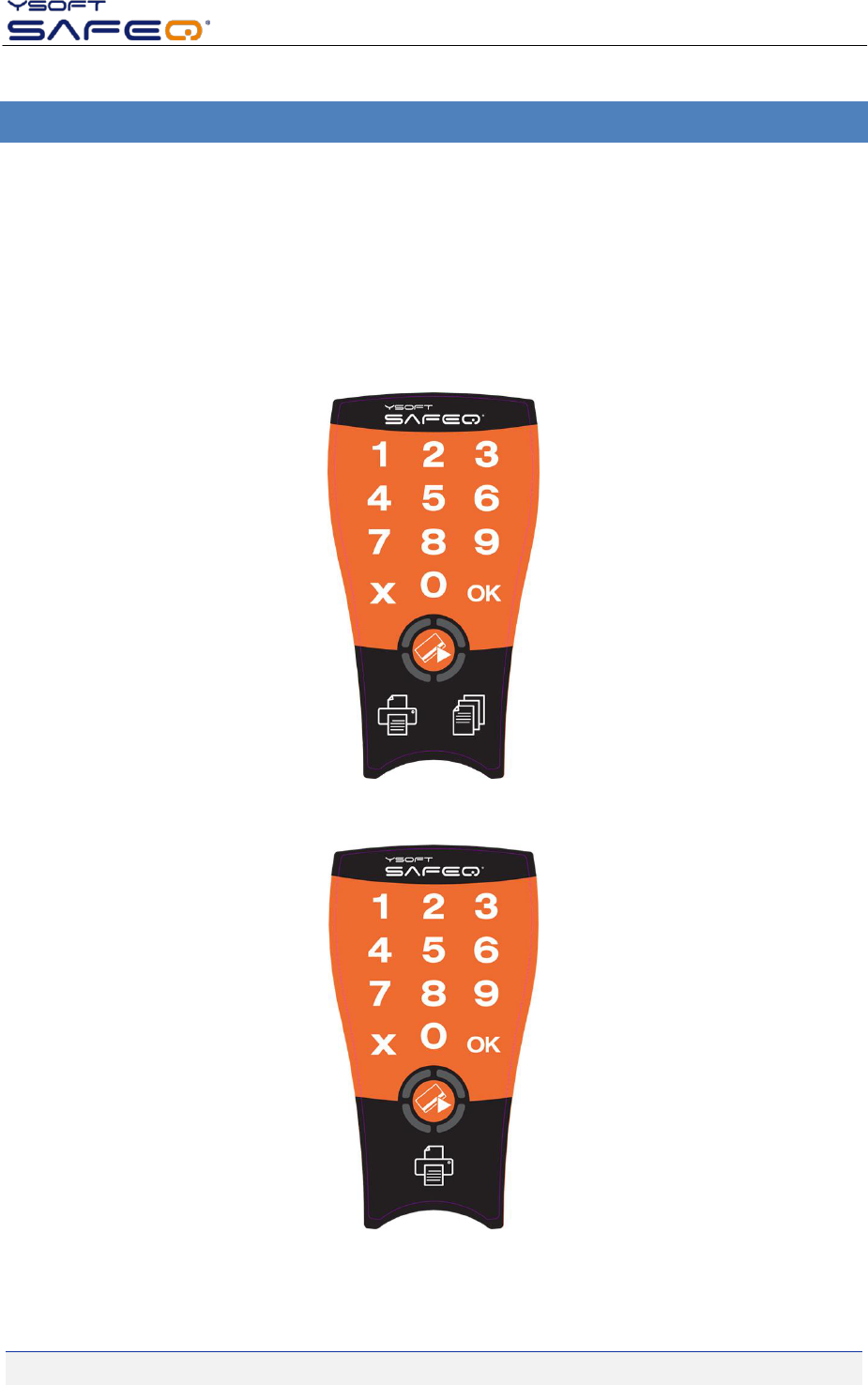
As already mentioned the Terminal UltraLight is produced in two versions:
YSOFT SAFEQ® TERMINAL ULTRALIGHT PRINT & COPY
YSOFT SAFEQ® TERMINAL ULTRALIGHT PRINT ONLY
Picture 1 - YSoft SafeQ Terminal UltraLight Print & Copy
Picture 2 - YSoft SafeQ Terminal UltraLight Print Only
4.9.2009
YSOFT SAFEQ® TERMINAL ULTRALIGHT – USERS GUIDE V1.4 [EN] 6/14
User authentication is possible with card or pin or any combination.
Only selected card readers are supported by Terminal UltraLight.
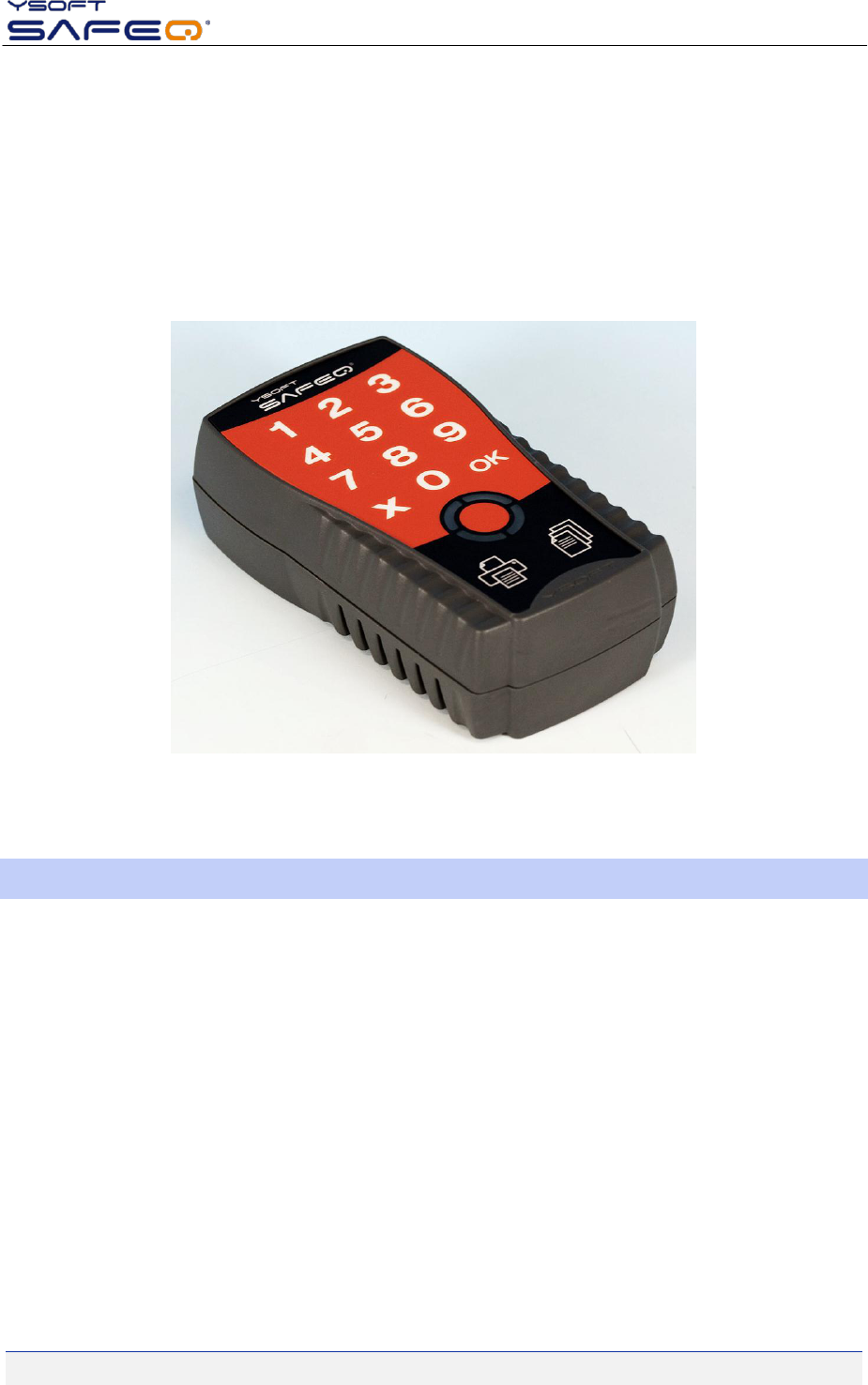
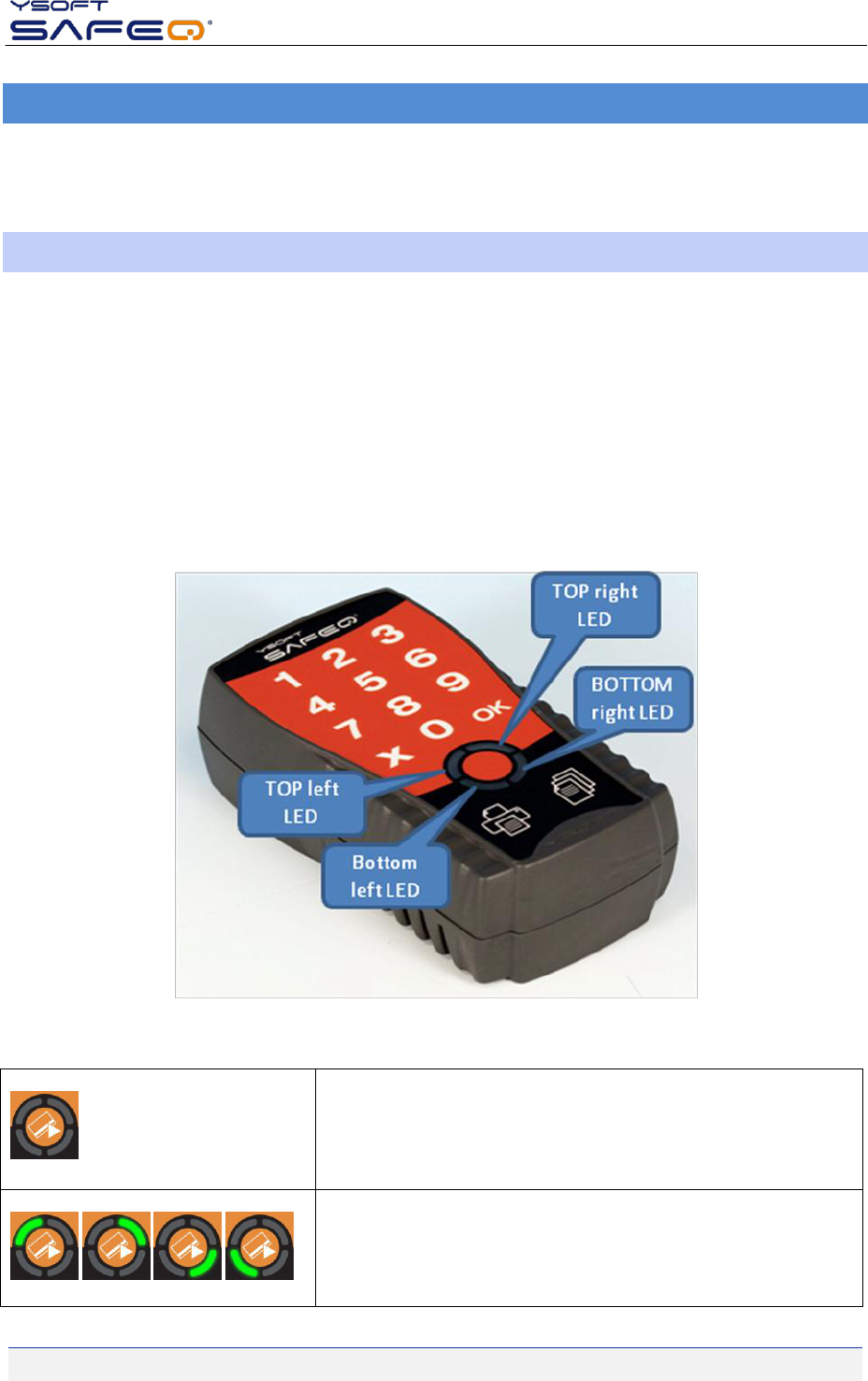
The Terminal UltraLight is displayed on the Picture 3. It consist of keyboard, print and copy button and status
leds. For more details on leds refer to chapter 4.
Picture 3 - YSQ Terminal UltraLight
2.1 KEYBOARD USAGE
Capacitive touch keyboard utilized in the Terminal UltraLight is the latest technology providing better reliability
and endurance than standard micro switch or membrane keyboards. Each key press is signalized by a short
beep (if beeps are enabled and use of given key is applicable at the moment).
There are some recommendations for using keyboard:
Use fingerpads instead of fingertips. Fingerpads cover larger area and are much better detected than
fingertips.
Using of force is irrelevant, it is absolutely enough to gently place the finger on the keyboard.
The keyboard will not work when touched by non-conductive materials or materials with very small
capacitance. Such materials include nails, plastic, styluses, pens, screwdrivers etc.

4.9.2009
YSOFT SAFEQ® TERMINAL ULTRALIGHT – USERS GUIDE V1.4 [EN] 7/14
The keyboard will not work when wearing gloves. Some exceptions to this may however apply to latex
gloves used in medicine or food industry.
4.9.2009
YSOFT SAFEQ® TERMINAL ULTRALIGHT – USERS GUIDE V1.4 [EN] 8/14
3 BASIC FEATURES
This Chapter provides the complete feature set of the Terminal UltraLight in connection with YSoft SafeQ®
PCAS.
3.1 USER AUTHENTICATION
User authentication using PIN
User authentication using card
User authentication using any PIN and card combination
Card assignment to the user based on the PUK code
3.2 USER INTERFACE
All waiting jobs can be printed immediately just after authorization
Option to print all waiting print jobs
3.3 ADMINISTRATION
Network auto detection (DHCP)
3.4 OPERATING ENVIRONMENT
Support for online accounting
Support for batch accounting
Support for follow-me feature
Support for cluster fail-over
4.9.2009
YSOFT SAFEQ® TERMINAL ULTRALIGHT – USERS GUIDE V1.4 [EN] 9/14
4 STATUS OF TERMINAL ULTRALIGHT
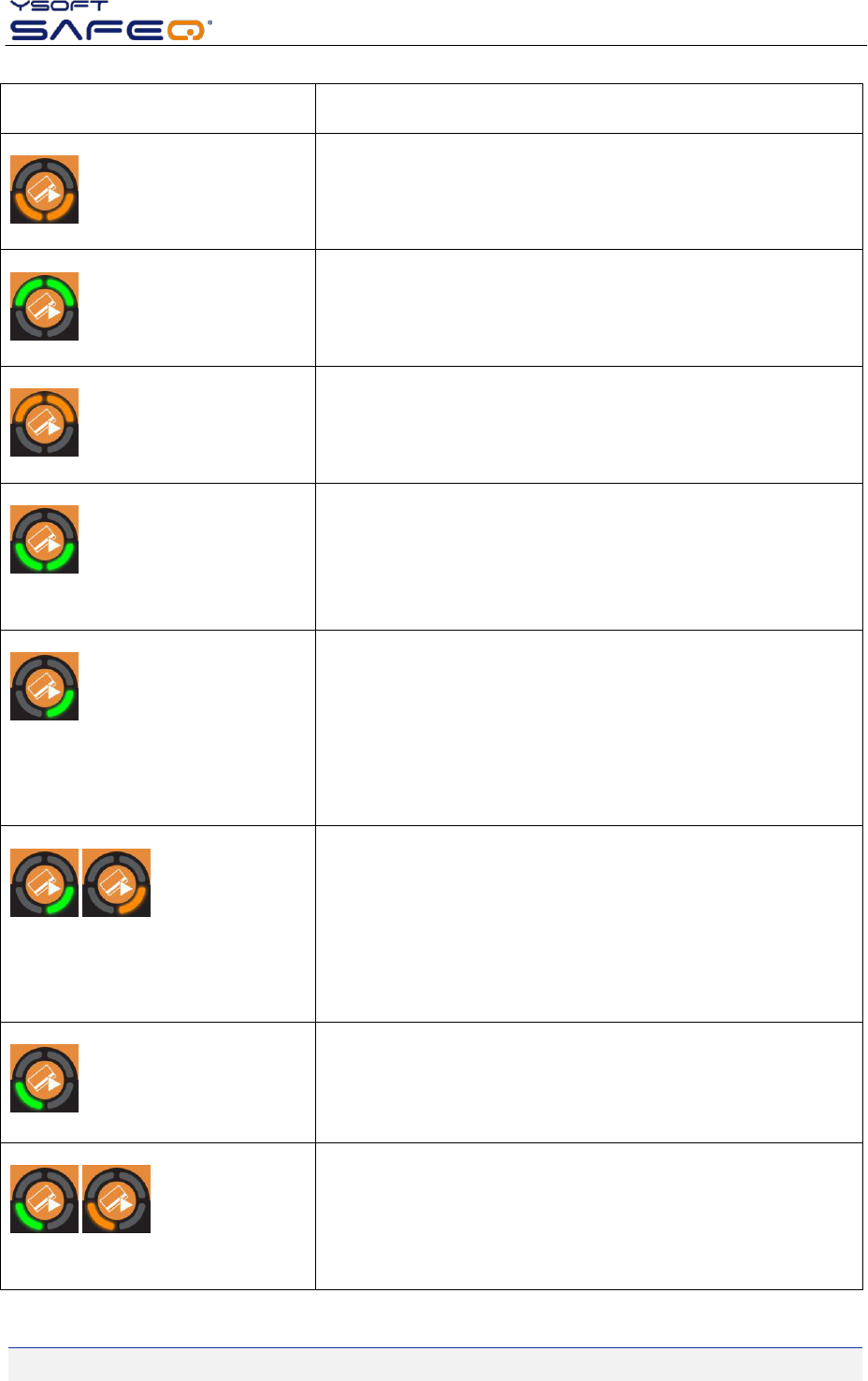
As already mentioned the Terminal UltraLight contains status leds that serve for interaction with user. This
chapter provides list of beep and flash code sequences as well as their meanings.
4.1 TERMINAL ULTRALIGHT FLASH CODE SEQUENCES
This section provides flash code sequences used for interaction with a user.
There are following colors used for icons:
Green - Led is green
Red - Led is red
Orange - Led is orange
Grey - Led is off
The position of particular leds illustrates Picture 4.
Picture 4 - Status leds
All leds are switched off.
Terminal power is off.
*animated*
4.9.2009
YSOFT SAFEQ® TERMINAL ULTRALIGHT – USERS GUIDE V1.4 [EN] 10/14
Terminal is processing, please wait.
Place card or enter pin.
Enter pin when authentication "Card and PIN" used.
Enter PUK when PUKs are enabled on server.
Some print jobs available and copying possible. Select (P)rint or
(C)opy.
Valid only for YSoft SafeQ® Terminal UltraLight Print & Copy.
*flashing*
Copying in progress. Cancel by pressing (C), (X) or (OK) or by placing a
card.
Valid only for YSoft SafeQ® Terminal UltraLight Print & Copy.
*flashing*
Copying in progress. Server issued a warning, see MFP display for
more details.
Valid only for YSoft SafeQ® Terminal UltraLight Print & Copy.
*flashing*
Printing in progress, please wait until it is finished.
*flashing*
Printing in progress. Server issued a warning, see MFP display for
more details.
4.9.2009
YSOFT SAFEQ® TERMINAL ULTRALIGHT – USERS GUIDE V1.4 [EN] 11/14
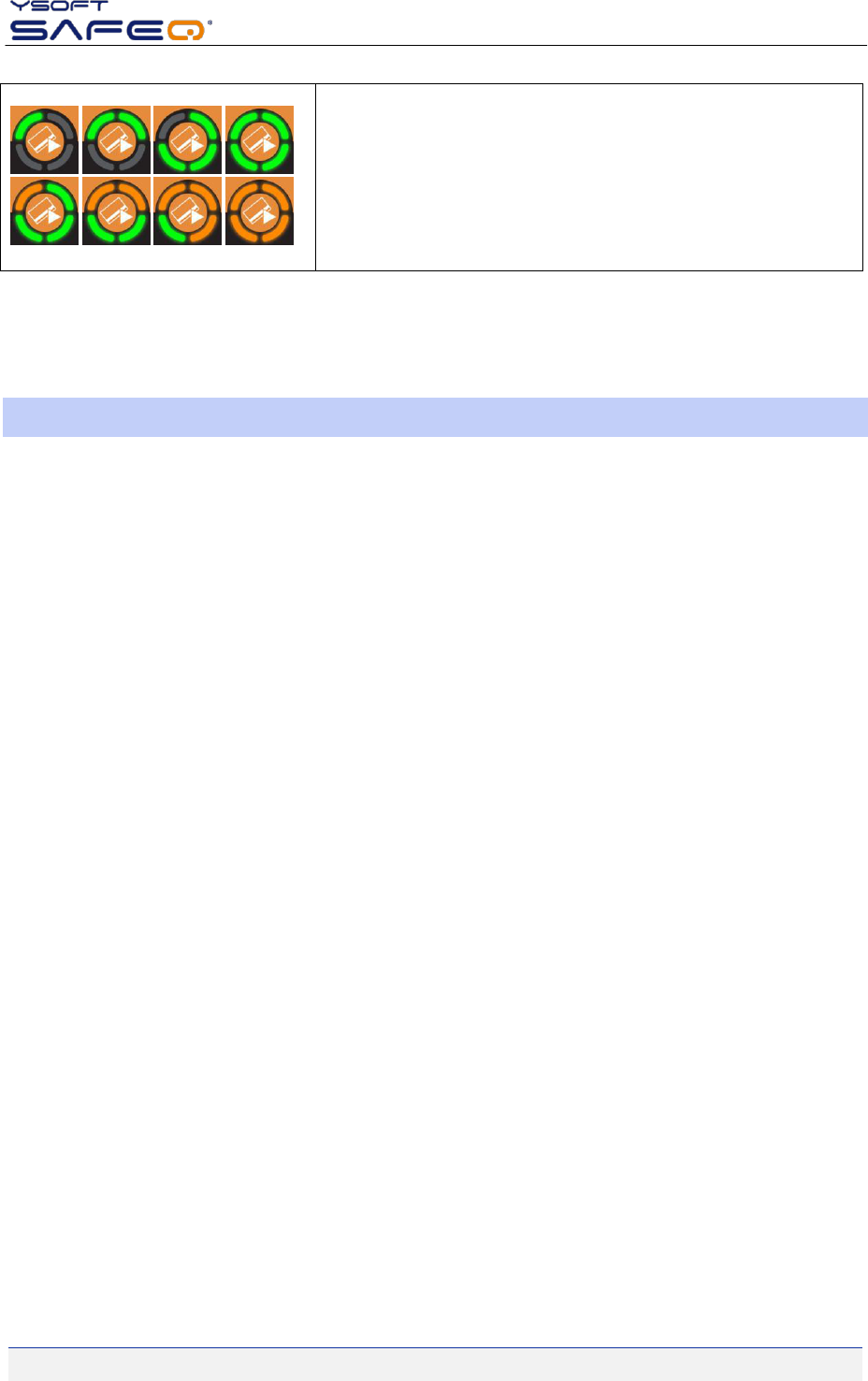
*changing*
Animation when user enters a pin on the keyboard.
Table No. 1 - Flash code sequences
For more Terminal UltraLight flash sequences refer to 1.
4.2 TERMINAL BEEP CODE SEQUENCES
- Card read error. Please try placing the card again or use the different card.
.- Terminal validation failed. Server reports that the terminal is not registered on SafeQ. Please consult
administrator manual.
-- No print job waiting in queue.
..- User quota has exceeded.
-.- User validation failed. User entered either invalid pin or user card is not registered in the system.
.-- Received error or warning message from server.
--- Connection to SafeQ server failed.
For more Terminal UltraLight beep sequences refer to 1.
4.9.2009
YSOFT SAFEQ® TERMINAL ULTRALIGHT – USERS GUIDE V1.4 [EN] 12/14
5 CONCLUSION
In this document you got acquainted with the basic functions of Ysoft SafeQ® Terminal UltraLight. You can find
more information about other processes, configurations and possibilities in the Administrator’s guide which
you can download along with other newest manuals on the Partner’s Portal.
Partner‘s Portal web page: http://www.ysoft.com/partner-network/log-on-to-partner-portal/

4.9.2009
YSOFT SAFEQ® TERMINAL ULTRALIGHT – USERS GUIDE V1.4 [EN] 13/14
6 RELATIONSHIP WITH OTHER DOCUMENTS
This section describes how this guide is related to other documentation:
Nr.
Document
Version
Author
1.
YSQ Terminal UltraLight – Administrator’s Guide [EN]
1.5
PNE
2.
3.
4.
5.
6.
7.

4.9.2009
YSOFT SAFEQ® TERMINAL ULTRALIGHT – USERS GUIDE V1.4 [EN] 14/14
7 VERSION HISTORY
Document author/owner: Petr Neugebauer <petr.neugebauer@ysoft.com>
Version
Date
Change
Status
Author
0.1
06/2009
Initial version
Final
PNE
1.0
06/2009
Chapter 2.4 added
Final
PNE
1.1
06/2009
Added icons for flash sequences
Final
PNE
1.2
06/2009
Added keyboard overviews for Print & Copy and Print Only
editions
Final
PNE
1.3
07/2009
Update of Administration issues
Final
PNE
1.4
09/2009
Chapter 1.4 (disclaimer added)
Final
PNE