YICHEN JWA-N8002 Intelligent Wireless Router User Manual U25

YICHEN (SHENZHEN) TECHNOLOGY CO., LTD Intelligent Wireless Router U25

User Manual

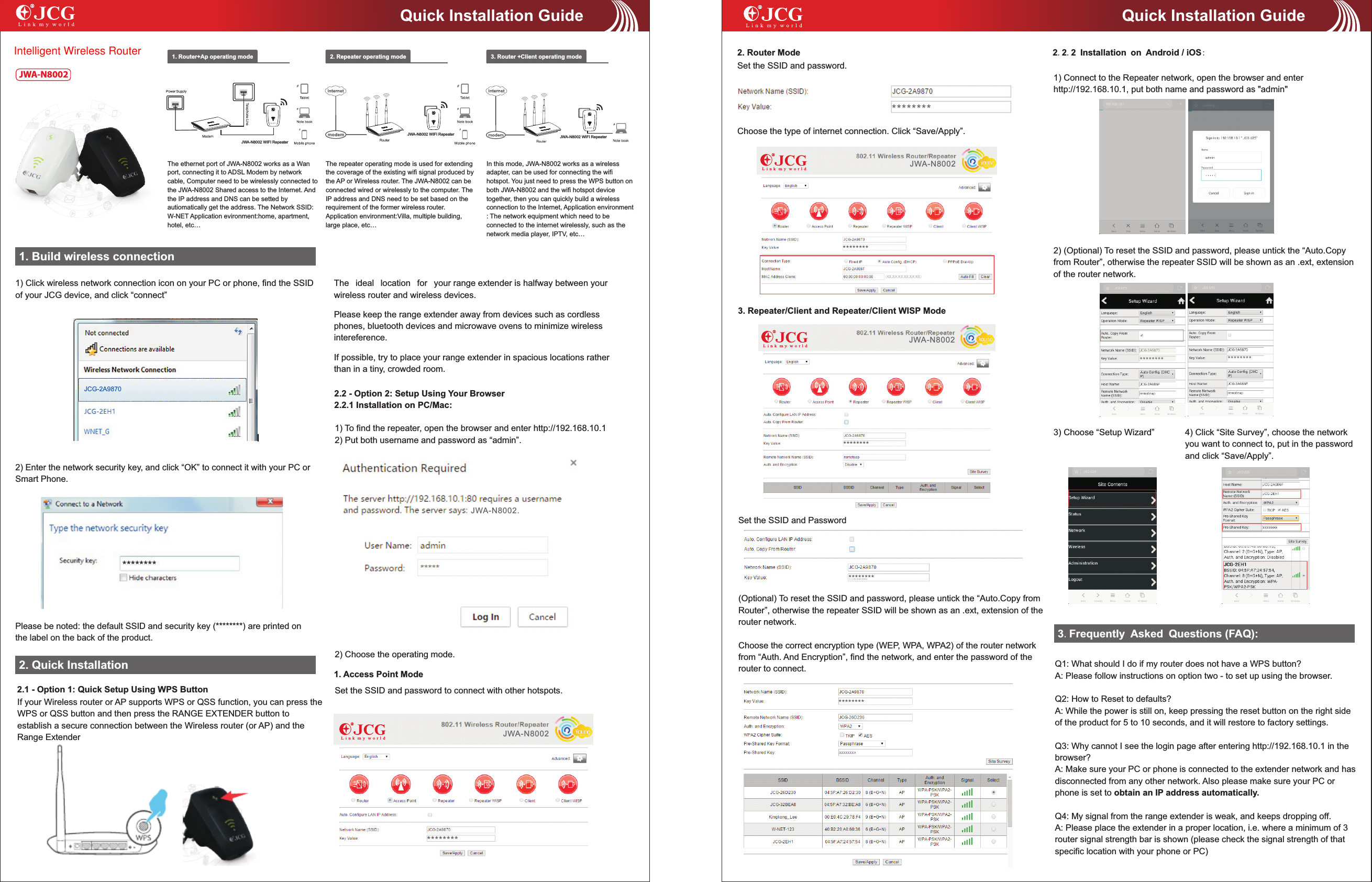
1. Build wireless connection1) Click wireless network connection icon on your PC or phone, find the SSID of your JCG device, and click “connect”2) Enter the network security key, and click “OK” to connect it with your PC or Smart Phone.1. Router+Ap operating mode 2. Repeater operating mode 3. Router +Client operating modeThe repeater operating mode is used for extending the coverage of the existing wifi signal produced by the AP or Wireless router. The   can be connected wired or wirelessly to the computer. The IP address and DNS need to be set based on the requirement of the former wireless router. Application environment:Villa, multiple building, large place, etc…JWA-N8002In this mode,   works as a wireless adapter, can be used for connecting the wifi hotspot. You just need to press the WPS button on both   and the wifi hotspot device together, then you can quickly build a wireless connection to the Internet, Application environment : The network equipment which need to be connected to the internet wirelessly, such as the network media player, IPTV, etc…JWA-N8002JWA-N8002The ethernet port of JWA-N8002 works as a Wan port, connecting it to ADSL Modem by network cable, Computer need to be wirelessly connected to the   Shared access to the Internet. And the IP address and DNS can be setted by autiomatically get the address. The Network SSID: W-NET Application evironment:home, apartment, hotel, etc…JWA-N8002Please be noted: the default SSID and security key (********) are printed on the label on the back of the product. 2. Quick InstallationJWA-N80023. Repeater/Client and Repeater/Client WISP ModeQuick Installation GuideJWA-N8002 WIFI RepeaterJWA-N8002 WIFI Repeater JWA-N8002 WIFI RepeaterQuick Installation Guide2.2 - Option 2: Setup Using Your Browser2.2.1 Installation on PC/Mac:JCG-2A9870The ideal location for your range extender is halfway between your wireless router and wireless devices. Please keep the range extender away from devices such as cordless phones, bluetooth devices and microwave ovens to minimize wireless intereference.If possible, try to place your range extender in spacious locations rather than in a tiny, crowded room.1) To find the repeater, open the browser and enter http://192.168.10.12) Put both username and password as “admin”.2) Choose the operating mode. 1. Access Point ModeSet the SSID and password to connect with other hotspots.2. Router ModeSet the SSID and password.Choose the type of internet connection. Click “Save/Apply”.Set the SSID and Password(Optional) To reset the SSID and password, please untick the “Auto.Copy from Router”, otherwise the repeater SSID will be shown as an .ext, extension of the router network.Choose the correct encryption type (WEP, WPA, WPA2) of the router network from “Auth. And Encryption”, find the network, and enter the password of the router to connect.2.2.2 Installation on Android / iOS:1) Connect to the Repeater network, open the browser and enter http://192.168.10.1, put both name and password as "admin"2) (Optional) To reset the SSID and password, please untick the “Auto.Copy from Router”, otherwise the repeater SSID will be shown as an .ext, extension of the router network.3) Choose “Setup Wizard” 4) Click “Site Survey”, choose the network you want to connect to, put in the password and click “Save/Apply”. 2.1 - Option 1: Quick Setup Using WPS ButtonIf your Wireless router or AP supports WPS or QSS function, you can press the WPS or QSS button and then press the RANGE EXTENDER button to establish a secure connection between the Wireless router (or AP) and the Range Extender3.Frequently Asked Questions (FAQ):Q1: What should I do if my router does not have a WPS button?A: Please follow instructions on option two - to set up using the browser.Q2: How to Reset to defaults?A: While the power is still on, keep pressing the reset button on the right side of the product for 5 to 10 seconds, and it will restore to factory settings.Q3: Why cannot I see the login page after entering http://192.168.10.1 in the browser?A: Make sure your PC or phone is connected to the extender network and has disconnected from any other network. Also please make sure your PC or phone is set to obtain an IP address automatically.Q4: My signal from the range extender is weak, and keeps dropping off.A: Please place the extender in a proper location, i.e. where a minimum of 3 router signal strength bar is shown (please check the signal strength of that specific location with your phone or PC)L i n k  m y  w o r l dL i n k  m y  w o r l dL i n k  m y  w o r l d**************************************************************** ********JWA-N8002.JWA-N8002JWA-N8002JWA-N8002Intelligent Wireless Router
 FCC Information and Copyright  This equipment has been tested and found to comply with the limits for a Class B digital device, pursuant to part 15 of the FCC Rules. These limits are designed to provide reasonable protection against harmful interference in a residential installation. This equipment generates, uses and can radiate radio frequency energy and, if not installed and used in accordance with the instructions, may cause harmful interference to radio communications. However, there is no guarantee that interference will not occur in a particular installation. If this equipment does cause harmful interference to radio or television reception, which can be determined by turning the equipment off and on, the user is encouraged to try to correct the interference by one or more of the following measures: —Reorient or relocate the receiving antenna. —Increase the separation between the equipment and receiver. —Connect the equipment into an outlet on a circuit different from that to which the receiver is connected. —Consult the dealer or an experienced radio/TV technician for help.  This device complies with part 15 of the FCC Rules. Operation is subject to the following two conditions: (1)This device may not cause harmful interference, and   (2) this device must accept any interference received, including interference that may cause undesired operation.  changes or modifications not expressly approved by the party responsible for compliance could void the user's authority to operate the equipment.  This equipment complies with FCC radiation exposure limits set forth for an uncontrolled environment .This equipment should be installed and operated with minimum distance 20cm between the radiator& your body.    This transmitter must not be co-located or operating in conjunction with any other antenna or transmitter.            28

Navigation menu