Yamaha DV C6860 User Manual DVD PLAYER Manuals And Guides L0609078
YAMAHA Home Theatre Manual L0609078 YAMAHA Home Theatre Owner's Manual, YAMAHA Home Theatre installation guides
User Manual: Yamaha DV-C6860 DV-C6860 YAMAHA DVD PLAYER - Manuals and Guides View the owners manual for your YAMAHA DVD PLAYER #DVC6860. Home:Electronics Parts:Yamaha Parts:Yamaha DVD PLAYER Manual
Open the PDF directly: View PDF  .
.
Page Count: 42
@YAMAHA
DVD CHANGER
LECTEUR DE DVD CHANGEUR
DV-C
OWNER'S MANUAL
MODE D'EMPLOI
iMPORTANTSAFETY iNSTRUCTiONS
1
Explanation of Graphical Symbols
,_ The lighming Jllsh with arrovd/e Msymbol.
wJlhh] an equiJller d Iri ingle, Js intended to ak'rl
VOII 10 the pie _l)ce oJ uJ/h]sLIJaled %11J/_l"ot]s
volt I_e" _Jthin the product's _oncJosure thll
Inay be oJ suJIicJ_I]t nlagnilud_" to conslitul_" a
risk ol elecllJc shock Io per ons.
The excl nllliion I)Oh]t whhin an equJl iI_q'M
tlJ ulgle is h/len&'d to dell you to II/_"i)r_-senc_-
o] illiporl_llll op_l"_llill_ Hl/d iil_lilll_-i] iiic_-
O;e]_Jchlg) hlstrucfions hi the Ih_q'alur_"
accompanying the appli race.
1 Read In';llu¢lk)n_ All the slJ_.qy and opc]ath/g
h]stluclions should be leld bel_>re file product i opt'i" m'd.
2 Ret Ih/]nslruclJons Tile _ iJ_-t}' and opel ath/g h]structions
_hould be i_q fin_-d lot Jutule reJ_lenc_%
3 He{-d W unings All warnings on th{_ ploduct and in Ilw
ol}erath/g h]stluctions qlould b{_adheled Io.
4Follow ]l]stluctiOllS All operalh]g and us{_ il/Stl'tlciiOl]S
should be i_)llo'_ed.
fi Cle mlng lJnphlg ibis p]'od ucl fi'onl liie wall oulJcl beiole
cleaning. Do nol use liquid clean{l s ol aerosol cleaners. Use
a damp clofl/ ior cleaning,
6 Allt_chlll{l/Is Do I1O1 tlse all;ichl3ltllts 11ol It/COll3lllel/(]{%l
by the ploducl m mtdacltu'{l" :Is flwy nlay cruse hazalds.
7 Watel and Moisture Do not use this ploduct near water
Jot e\ nnple, heal a bath tub. wash bo_d, kitchen sink, or
] ILllldr) [LIB: in f_ \v{_[ Das{q13ell[; or Ilef]l {1 S\viml3]ill$ pool:
and the like.
8 Accessol:i_ _ Do nol pllce this product on ;113unst ible
carl. sland, tripod, brackel, or lable. The ploduct nlay Jail.
causing serious injury Io a child ol adult, md selious
danlage Io th{_ ploducL Use only whh a cnL stand, tripod,
[)l';ickt/I, ol Ifl)le I'{_collllll{lldt_d I)y the l)3lll)lI]?ll{2tLIrel. OI sold
with Ih{_producL
Any mounting ol the ploducl should M low Ihe
131 lJlLl] ICitlr{l 'S illSirLieliOllS, lind sllouJd us{ _ a ll]O(ll31in$
:i{2{2eSSOl_, J't't2Oll3nleJldt_d by the n3iiJlUl:il21uley,
t) A product Ind ca_l combinalion should b{_
nioved wllh clle. Quick slops, excessJv{ _
I?olce, fll]d Ulle¥'t'Jl SUl J{IC{:S lilly CiI[]S¢' tile
pyodu_21 tll]d C;lll (2ol]lbil]illiOll Io Ovt'IIIIHL
10 Venfillfion SIols and openhlgs in lhe
cabinet ire proGded fol _enlihllion lnd Io ensure leliable
opelalkm oflhe producl md 1o plolecl il horn okel'he llJng, and
these opening musl nol be blocked ol co_el'ed The opening
shoukl newel he blocked b_ pl Icing lhe ploducl on a bed, sofil,
lug, OY other Similal _;ull{ice
This ploduct houkl nol Ix_placed in il buill-in install ilion such
_s _ bookc_se ol lick Ullless plopeI" ;elll]lalioI_ i plox]ded or
tile [13;HILIf_IcIUlel 'S hlstitlCliOllS h;l;e I)eell adhered 1o
11 Power Sourc{_s This producl shotdd be Ol)e]ated only
horn the type ol powel soui'c{ _ indic ded on tile nmrking
I ibel. II you are nol stue ol tile type oJ power supply Io youl
]/om{% COllsuh yoLir p]'od [icI dt_alel Ol ]ocd pox_er col]ll3tilly.
Fol l)roducls iJltendt_d Io opelate horn batte]y powtq', or
oflw]" soui'c{_s, i'el_1"to Ilw operaling ill Stl'llcl k)ll s,
12 Grounding or Polm ization This product may be equipped
_ith a polarized alternating current line plug (a plug having
one blade wld_ ¸than the origen). This plug will fit into the
power outlet only one way. This is a safety I_atuJ_. I]! you
al_ unable to in_ert the plug fully into the outlet, try
J_versing the plug. If the plug should still I_il to fit, contact
your electrician to J_place your obsolete outlet. Do not
del_al the safety purpose of the polarized phlg.
13 Power-Cord Protectk>n Power-supply cords should be
routed so that they al_ not likely to be _ alked on or pinched
by items placed upon or against thenl, paying particular
attention to cords al plugs, convenience J_ceptacles, and the
point where riley exit flora the product.
14 Lighlning For added protection i!!r this product during a
lightning storm, or when it is left unattended and unused _r
long periods of time, unphlg il flonl the wall oullet and
disconnect the antenn_ or cable syslem This will prevenl
damage 1o the product due to lighming _nd powel-line surges¸
15 Power Lines An outskle anlenna _ystem shouM nol
located in tile vicinity of overhead power lines or olher electric
light or power circuits, or where it call _ll into _uch power
lines or circuits When installing all outside antenna system,
exti_me cai_ should be t_ken to keep flora louching such
power line_ or chcuits as conlacl with them mighl be _1al
16 Overloading Do not oveHoad wall outlets, extension
cords, or integral convenience receptacles as this can resuh
in a _i_k of fire or electric shock.
17 O_ect and Liquid Entry Never push ol_jects of _ny kind
into this product through openings as they may touch
dangerous vohage points or short-out parts that could resuh
in a fire or electric shock. Never spill liquid of any kind on
file product.
18 Selwicing Do not atten3pt to servlce this product yourself
as opening or removing covers may expose you to
dangerous voltage o_¸other hazards. Refer all servicing to
qualified service personnel.
19 Da_3_ge Req ui_iJ_gSe]'vice -- LJJ/pltlg tills I_ (>dtlct l!l'{)_]lthe
wall outlet and _el_ ¸ servicing to qual flied seMce personnel
under the l_dlowing conditions:
a) When the power-supply cord or plug is damaged,
b) if liquid h_s been sl_illed, or o_ects h_ve I_llen into the
product,
c) If the product has been exposed to rain ol¸ water,
d) If the product does nol opelale normally by ff!llowing tile
operaling hlsmlclion_ A@lst only those controls that are
covered by lhe ol_er_llillg instruclions as an hnproper
adiustmenl of other conlrols may resuh in d_mage and
will often requii_ extensive work by a qualified
lechnician to re,tore lhe producl to its normnl operation,
e) If the product has been dropped or damaged in _ny
w_y, _nd
f) When the product exhibits a distinct change in
per%nnance - this indicates _ need l_}r service.
20 Rephlcemenl Parts When replacement palt_ are required,
be _ure the service lechnician has used replacement parts
specified by lhe manu_turer or I_lvellle sanle characteristics
as the original part¸ Unauthorized substitutions may resuh ill
fire, electric shock, or other hazards¸
21 Safety Check /Jpon completk>n of any service or _pairs
to this product, ask the service technician to perform safety
check_ to determine that the product is in proper operaling
condition.
22 Wall or Ceiling Mounting The unit should be mounted to
a wall or ceiling only as i_commended by the manul_ctmer.
23 Heal The product should be situated a_ ay flora heat
sources such as radiatol_, heat registers, stoves, or other
products (including amplifiers) tl/_t produce heat.
FCC INFORMATION (for US customers)
1. iMPORTANT NOTICE: DO NOT MODIFY THiS UNIT!
This product, when installed as indicated in tile instructions contained in this manual, meets FCC requirements. Modgications
not expressly approved by Yamaha may void your authority, granted by the FCC, to use the product.
2. IMPORTANT: When connecting this product to accessories and/or another product use only Mgls quality shielded cables.
Cabieis supplied with this product MUST be used. Follow aii installation instructions. Failure to follow instructions could void
your FCC authorization to use tHs product in the USA.
3. NOmE:Thisproduct hasbeen tested andfoundto complywiththe requirements listed in FCC Regulations, Part 15forClass
"B" digital devices.
Compliance witil these requirements provides a reasonable level of assurance that your use of this product in a residential
environment will not result in harmful interference with other electronic devices. This equipment generates/uses radio
frequencies and, if not installed and used according to the instructions found in the users manual, may cause interference
harmful to the operation of other electronic devices. Compliance with FCC regulations does not guarantee that interference
will not occur in all installations. If this product is found to be the source of interference, which can be determined by turning
the product "OFF" and "ON", please try to eliminate the problem by using one of the following measures:
Relocate either this product or the device that is being affected by the interference.
Utilize power outlets that are on different branch (circuit breaker or fuse) drcuits or install AC line filter/s.
In the case of radio or TV interference, relocate/reodent the antenna, g the antenna lead in is 300 ohm ribbon lead, change
the lead-in to coaxial type cable.
If these corrective measures do not produce satisfactory results, please contact the local retailer authorized to distribute this
type of product, g you can not locate tile appropriate retailer, please contact Yamaha Electronics Corp., 6660 Orangethorpe
Ave. Buena Park, CA90622.
The above statements apply ONLY to those products distributed by Yamaha Corporation of Amedca or its subsidiaries.
We Want You Listening For ALifetime
YAMAHA and the Electronic industries Association's Consumer Electronics Group want you to get the most out of your
equipment by playing it at a safe level. One that lets the sound come through loud and clear witllout annoying bladng or
distortion and, mos importantly, without affecting your sensitive hearing.
Since hearing damage from loud sounds is often undetectable until it is too late, YAMAHA and the Electronic industries
Association's Consumer Electronics Group recommend you to avoid prolonged exposure from excessive volume levels. L_S'_}N_
CLASS 1 LASER PRODUCT
LASER KLASSE 1 PRODUKT
LUOKAN 1 LASERLAITE
KLASS I LASER APPARAT
LASER SAFETY
This unit employs a laser-. Due to possible eye
injury, only a qualified service person should
_move the cover- or attempt to service this device.
SECUR|TE LASER
L'appa_il utilise un laser. En r_ison des risques de
blessu_\e des yeux, le _tr_it du couvercle ou les
r6par_tions de I'appaisil devront &tre confi&s
exdusivement _ un technicien d'entretien qualifid.
DANGER
Risque d'exposition au laser en cas d'ouverOul_.
Eviter route exposition au faisceau.
Lorsque cet appaisil est b_anch& _ la prise de
courant, ne pas approcher les yeux de I'ouvelture
du plateau chan£eur et des autres ouvertures
pour _s£arder _ I'int6rieun
1 Toassur_thefinestpelfbrmance,pleasereadthis
manualcarefully.Keepitinasafeplaceforfuture
tolerance,
2 Install this unit in a well ventilated, cool, dr},, clean
place away fiom direct sunlight, heat sources,
vibration, dust, moistu_s, or cold. In a cabinet,
allow about 2.5(m (I inch) of frse space all
around this unit for adequate ventilation,
3Locate this unit away frorn other electrical appliances,
motors, or t_ansformers to avoid humming sounds,
4 Do not expose this unit to sudden temperatur@
changes from cold to hot, nor locate this unit in
an environment with high humidity (i,e,, a room
with a humidifier) to p_svent condensation inside
this unit which may cause an electdcal shock, fi_s,
damage to this unit, and/or pelsonal injuly,
SAvoid installing this unit where fbreign objects
may fall onto this unit and/or this unit may be
exposed to liquid dripping or splashing, On the
top of this unit do not place;
Other components, as they may cause damage
and/or discoloration on the surface oftNs unit,
Burning objects (i.e., candles), asthey may cause
fir÷, damage to this unit, and/or personal injur7.
Containers with liquid in them, as they may fall,
spilling the liquid and causing an electrical
shock to the user and/or damage to this unit
6Do not cover this unit with a newspaper, tablecloth,
curtain, etc. in order not to obsSr'uc¢heat radiation.
If the temperaturo inside this unit rises, it may cause
fir\e, damage to this unit, and/or pelsonal in/ury.
7 Do not plug in this unit to a wall outlet until all
connections a_e complete.
8 Do not operate this unit upside down. It may
overheaL possibly causing damage.
9Do not use excessive fome on switches, knobs
and/or cords,
10 When disconnecting the power cord f_om the
wall outlet, grasp the plug; do not pull the cord,
11 Do not dean this unit with chemical solvents; tNs
might damage the finish, Use a clean, (by cloth,
1"/ Only voltage specified on this un¢ must be used.
Using this unit with a higher" voltage than specified
is dangerous and may cause fir÷, damage to this
unit, and/or personal injur7. YAMAHA will not be
held responsible Br" any damage resulting fiom use
of this unit with a voltage other-than as specified.
13 Do not alSempt to modify or fix this unit Contact
qualified YAMAHA selvice personnel when any
service is needed. The cabinet should never be
opened for any reason.
14 When not planning to use this unit for long
periods of time (i,e,, vacation), disconnect the AC
power plug from the wall outlet.
15 Be sure to _ad the "Troubleshooting" section on
common operating errors before concluding that
this unit is faulty.
16 Before moving this unit, press STANDBY/ON to
set the unit in standby mode, and then disconnect
the AC power plug from the wall outbt.
11 Install this unit near the wall outlet and wher_ the
AC power plug can be _ached easily.
WARNING
TO REDUCE THE RISK OF FIRE OR ELECTRIC
SHOCK, DO NOT EXPOSE THB UNIT TO
RAIN OR MOISTURE
FOR CANADIAN CUSTOMERS
To prevent electdc shock, match wide blade of plug
to wide slot and fully insert.
This Class B digital apparatus complies with
Canadian ICES 003,
This digital apparatus does not exceed the Class B
limits for" radio noise emissions from digital apparatus
as set out in the Radio Interference Regulations of
the Canadian Department of Communications.
For Customer Use:
Read carefully the inforTnation located at the roar
panel of this unit and enter- below the Serial No.
Retain this inforw_ation for futu_s _sference.
Model No.
Sedal No.
Be sure to place this unit on a level surface,
If you do not do so, PLAYXCHANGE operation of
this unit will not function corTectly, and may damage
the disc(s) and/or this unit itself:
CAUTION
Danger-of explosion if bailer}' is inco_Tectly replaced.
Replace only with the same or equivalent type.
CAUTION
Use of controls or adjustments or per_orTnance of
procedul_s other than those specified he_\ein may
_sult in hazardous radiation exposure.
LASER
Type Semiconductor laser GaAIAs
Wave len_h 650 nm (DVD)
780 nm (VCD/CD)
Output Power 7 mW (DVD)
10 mW (VCD/CD)
Beam divergence 60 degree
Contents
Introduction
Region codes ........................................................................... 2
Supplied accessories ............................................................... 2
Notes on discs ........................................................................ 2
Cleaning discs .......................................................................... 2
Patent information .................................................................. 2
Functional Overview
Front panel ............................................................................... 3
Rear panel ................................................................................ 4
Remote control ....................................................................... 5
Preparation
General notes on connections ............................................ 6
Digital connection .................................................................. 6
Analog connection .................................................................. 6
Video connections .................................................................. 7
Component video jacks <A> ......................................................7
S_ideo jack <B> .................................................................................7
Composite video jack <C> ...........................................................7
Getting Started
Inserting batteries into the remote control ..................... 8
Using the r÷mote control ...............................................................8
Turning on the power ........................................................... 9
About the auto standby function ...............................................9
Setting a TV type and display ............................................... 9
Setting a colol- system for" youl TV ...........................................9
Setting an aspect la£Jo for your TV ........................................10
Setting a language preference ............................................ 11
Setting the OSD language ...........................................................11
Setting the audio, subtitle and disc menu languages,.,,11
Disc Operations
Basic playback ........................................................................ 12
General operation ................................................................ 12
Pausing playback ................................................................................12
Selecting a tracWchapter. ..............................................................1 }
Searching backward/folwar d ......................................................1 _
Stopping pl4yback .............................................................................1 }
Selecting the various repeat/shuffle functions ................ 13
Repe4t .....................................................................................................1 S
Repeating a section within a chapter/track ........................14
Shuffle (except DVDfVCD/SVCD) ........................................14
Operations for video playback (DVDIVCDISVCD).....14
Using the disc menu ........................................................................14
S]ow motion ........................................................................................14
Zooming in ...........................................................................................15
Resurni_g playback from the last stopped point .............15
On screen display (OSD) ............................................................15
Special DVD features ........................................................... 16
Playing by tide .....................................................................................16
Camera angle ......................................................................................16
Audio .......................................................................................................17
Subtitles ..................................................................................................17
Special VCD & SVCD features ......................................... 17
Playback control (PBC) .................................................................17
Audio CDs ............................................................................. 17
Playing by discs ...................................................................................17
Playing PIP3/JPEG/KodaI< picture CDs ............................ 17
Genel al operation ............................................................................17
Selecting a folder and tr_cWf]le .................................................18
Special picture disc features .............................................. 18
Preview function (JPEG) ...............................................................18
Zooming pictures .............................................................................18
Playback with multi angles ...........................................................18
Scan effect .............................................................................................19
Playing NP3 music and JPEG pictures simultaneously,.19
Setup Menu
General setup menu ............................................................ 20
Lod<ing/Unlocking the disc for viewing ................................20
Dimming the front panel display ..............................................20
Programming disc t/_cks and discs .........................................20
OSD language .....................................................................................22
Screen saver, ........................................................................................22
Sleep tu _/er ...........................................................................................22
Audio setup menu ................................................................ 22
Setting the analog output .............................................................23
Setting the digital output ..............................................................23
CD upsampling ..................................................................................24
Night mode ..........................................................................................24
Video setup menu ................................................................ 24
TV type ...................................................................................................24
Settiug the TV display ....................................................................25
Progressive ............................................................................................26
Pircu_ e settings ...................................................................................26
Selecting the black level ................................................................27
Closed caption ...................................................................................27
Switching the YUWS video .........................................................28
Preference setup menu ....................................................... 28
Audio, subtide and disc menu ...................................................28
Restdcting playback with parental contlol .........................28
PBC (Playback control) .................................................................29
HP3/JPEG menu ................................................................................29
Changing the password .................................................................30
Reselling the system .......................................................................30
Language Code .......................... 31
Troubieshoodng ........................ 33
Glossary ...................................... 35
Specifications ............................. 37
introduction
Thank you for purchasing this unit. This
Owner's Manual explains the basic
operation of this unit.
DVD discs must be labeled ALL
regions or Region 1 (U.S.A.
model) in order to play on this
unit. You cannot play discs I(_l
labeled for other regions,
-Remote control
- Two batteries (AA, R06, UM-3) for the
remote control
- Audio/Video cable
- Owner's Manual
- Do not use discs with tape, seals, or
paste on their surface. Doing so may
damage this unit.
- Do not use discs affixed with labels
printed by a commercially available label
printer.
" When a disc becomes dirty, clean it
with a cleaning cloth. Wipe the disc
from the center out. Do not wipe in a
circular motion.
. Do not use solvents such as benzine,
thinner, commercially available cleaners,
or antistatic spray intended for analog
records.
- This unit is designed for use with the
following discs: DVD-Video, Video CD,
Super Video CD, Audio CD, CD-R,
CD-RW, DVD+RW, DVD+R, DVD-R
and DVD-RW.
This unit can play:
- MP3 and picture (Kodak, JPEG) files
recorded on CD-R(W).
-JPEG/ISO 9660 format
-Maximum 30 characters per display
- CD-R and CD-RW cannot be played
unless finalized.
- Some discs cannot be played depending
on the recording conditions, such as the
PC environment and application
software. The characteristics and
conditions of some discs (materials,
scratches, curvature, etc.) may result in
playback failure.
- Be sure to use only CD-R and CD-RW
discs made by reliable manufacturers.
- Do not use any non-standard shaped
discs (heart-shaped, etc.).
aa_
DIGITAL
bqanufactu_d under license f?om
Dolb 7LaboFatories. "Dolby" and
the double D symbol are
trgdema_ ks of Dolby
Laboratorbs,
"DTS" and "DTS Digital Out" are
trademarks of Digital Theater
Systems, Inc.
This product incor?orntes copyright pl_tection
technology that is protected by method claims
of certain U,S, patents and other intellectual
property rights owned by Hacrovision
Cor?orntion and other rights owners, Use of
this copyright p_T)tection technology must be
authorized by Hac_x>vision Cor?orntion, and is
intended for home and other limited viewing
uses only unless otherwise authorized by
Hacrovision Cor'po_ ation. Reverse engineering
or disassembly is prohibited,
Functional Overview
®
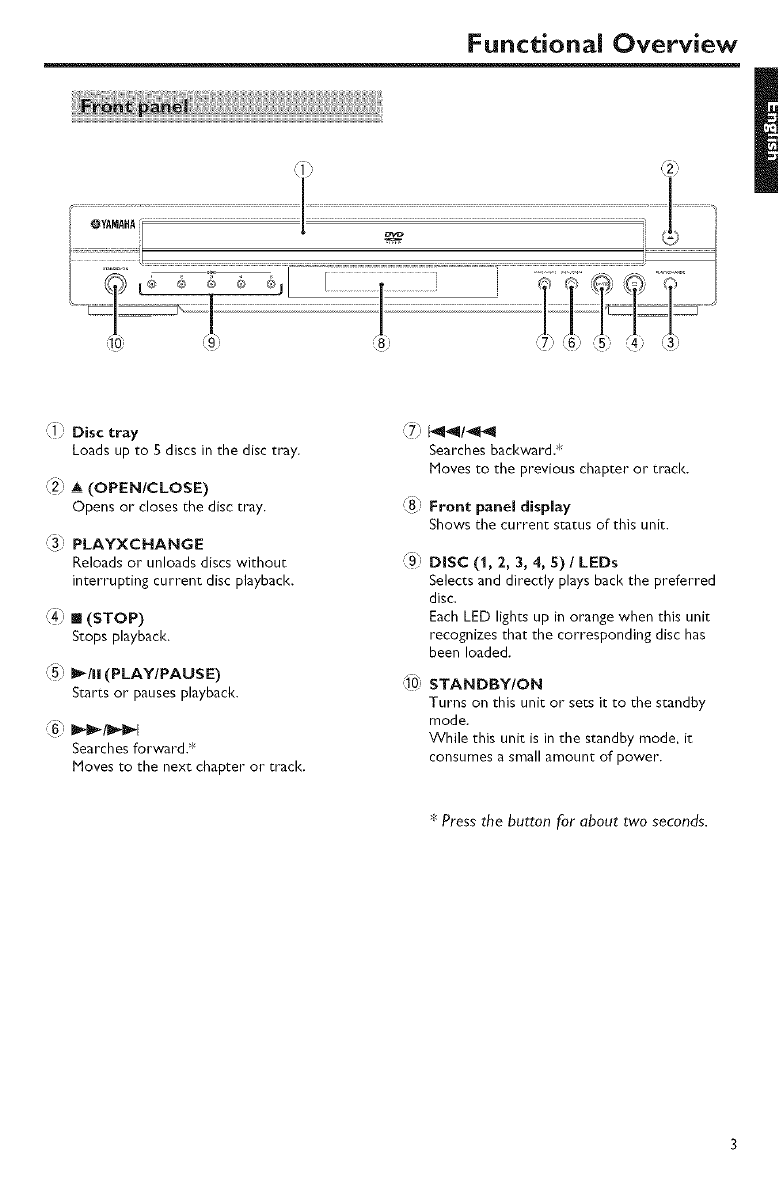
l_ Disctray
Loads up to S discs in the disc tray.
,_2,,A (OPEN/CLOSE)
Opens or closes the disc tray.
,3_ PLAYXCNANGE
Reloads or unloads discswithout
interruptingcurrent discplayback.
(4) II (STOP)
Stops playback.
/•\
,_5, I_111 (PLAYIPAUSE)
Stares or pauses playback.
Searchesforward.*
Moves to the next chapter or track.
(7 1441/_14
Searches backward.*
Moves to the previous chapter or tracl<.
(8- Front panel display
Shows the current status of this unit.
,:9_
DISC (1, 2, 3, 4, S) /LEDs
Selects and directly plays back the preferred
disc.
Each LED lights up in orange when this unit
recognizes that the corresponding disc has
been loaded.
STANDBY/ON
Turns on this unit or sets it to the standby
mode.
While this unit is in the standby mode. it
consumes a small amount of power.
_Press the button for about two seconds.
Functional Overview
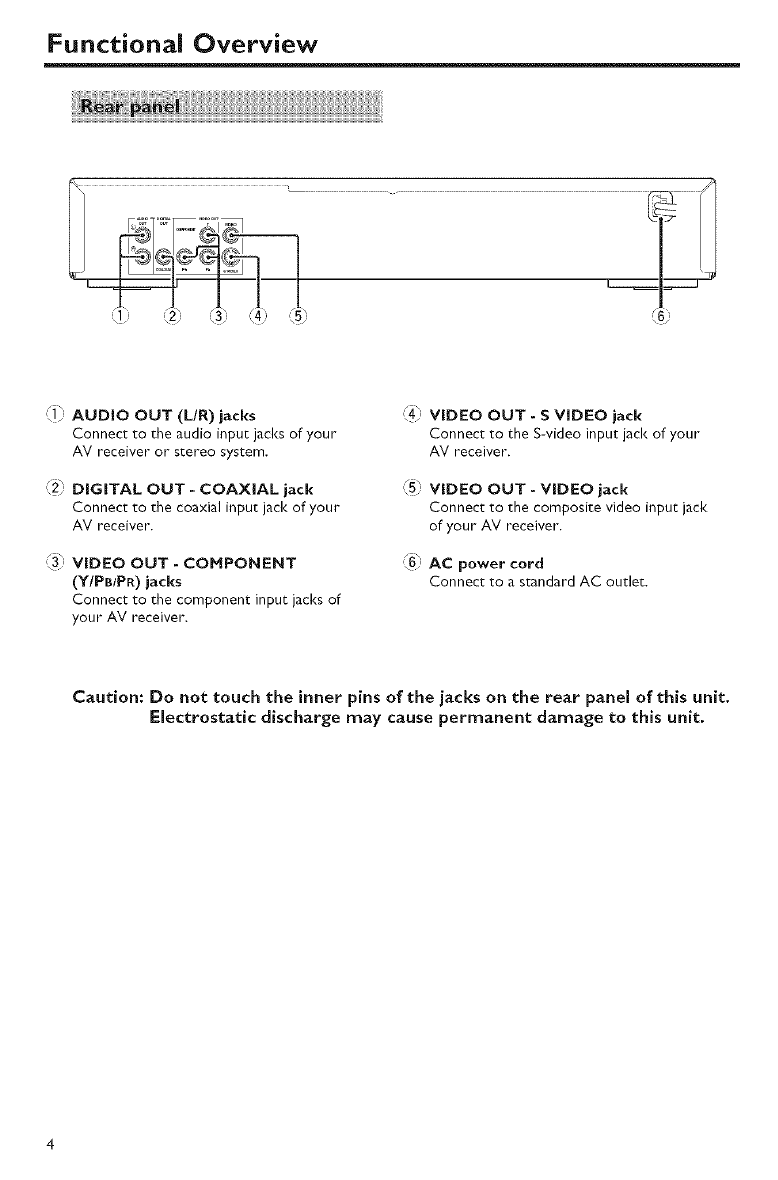
_) AUDIO OUT (L/R) jacks
Connect to the audio input jacks of you="
AV receiver or stereo system.
_2_ DiGiTAL OUT - COAXIAL jack
Connect to the coaxial input jack of your
AV receiver.
_3) VIDEO OUT - COMPONENT
(Y/PB/PR) jacks
Connect to the component input jacks of
your AV receiver.
(4) VIDEO OUT - SVIDEO jack
Connect to the S-video input jack of your
AV receiver.
_5) VIDEO OUT - VIDEO jack
Connect to the composite video input jack
of your AV receiver.
6) AC power cord
Connect to a standard AC outlet.
Caution: Do not touch the inner pins of the jacks on the rear panel of this unit.
Electrostatic discharge may cause permanent damage to this unit.
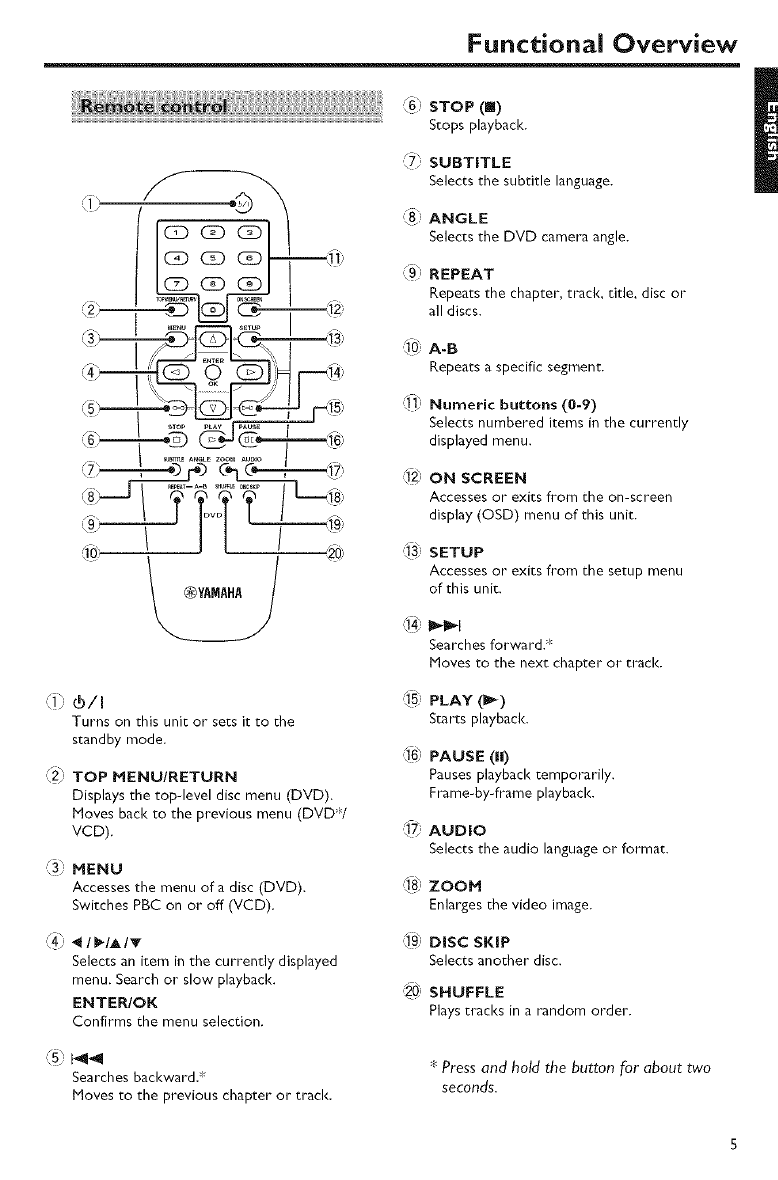
Functional Overview
GD CD C]DII _at_
.......... _:J13"
j-t_
_TOP PLAY _ -
;;; ]l t
(1} ®/I
Turns on this unit or sets it to the
standby mode.
{2} TOP MENU/RETURN
Displays the top-level disc menu (DVD).
Moves bad< to the previous menu (DVD;Y
VCD).
'{3) MENU
Accesses the menu of a disc (DVD).
Switches PBC on or off (VCD).
(4} _ /_/A/v
Selects an item in the currently displayed
menu. Search or slow playbacl<.
ENTER/OK
Confirms the menu selection.
Searches backward.*
Moves to the previous chapter or tracl<.
STOP (|)
Stops playback.
7} SUBTITLE
Selects the subtitle language.
_{8_ ANGLE
Selects the DVD camera angle.
_9s REPEAT
Repeats the chapter, track, title, disc or
all discs.
,_Q) A-B
Repeats a specific segment.
:_fi_
Numeric buttons (0-9)
Selectsnumbered items in the currently
displayed menu.
ON SCREEN
Accesses or exits fi*onl the on-screen
display (OSD) menu of this unit.
,'_3 SETUP
Accesses or exitsfi'omthe setup menu
of this unit.
Searches forward.*
Moves to the next chapter or tracl<.
_51 PLAY (I_)
Starts playback.
46' PAUSE(H)
Pauses playback temporarily.
Frame-by-frame playback.
]7} AUDIO
Selects the audio language or format.
',_ ZOOM
Enlarges the video image.
Q9_ DiSC SKiP
Selectsanother disc.
20, SNUFFLE
Plays tracks in a random order.
*Press and hold the button Forabout two
seconds.
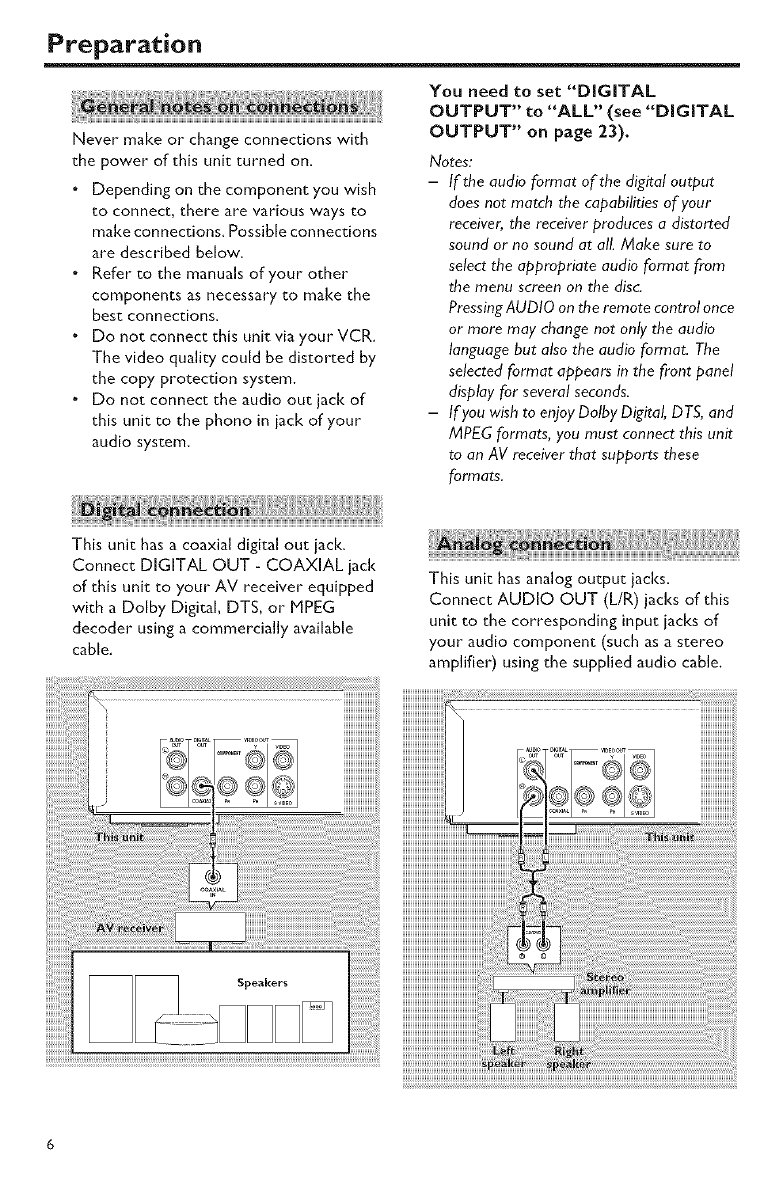
Preparation
Never make or change connections with
the power of this unit turned on.
•Depending on the component you wish
to connect, there are various ways to
make connections. Possible connections
are described below.
•Refer to the manuals of your other
components as necessary to make the
best connections.
.Do not connect this unit via your VCR.
The video quality could be distorted by
the copy protection system.
.Do not connect the audio out jack of
this unit to the phono in jack of your
audio system.
You need to set "DiGiTAL
OUTPUT" to "ALL" (see "DiGiTAL
OUTPUT" on page 23),
Notes:
-If the audio format of the digital output
does not match the capabilities of your
receiver, the receiver produces adistorted
sound or no sound at all. Make sure to
select the appropriate audio format from
the menu screen on the disc
PressingAUDIO on the remote control once
or more may change not only the audio
language but also the audio format. The
selected format appears in the front panel
display for several seconds.
-If you wish to enjoyDalbyDigital, DTS, and
MPEG formats, you must connect this unit
to an AV receiver that supports these
formats.
This unit has acoaxial digital out jack.
Connect DIGITAL OUT -COAXIAL jack
of this unit to your AV receiver equipped
with a Dolby Digital, DTS, or MPEG
decoder using a commercially available
cable.
This unit has analog output jacks.
Connect AUDIO OUT (L/R) jacks of this
unit to the corresponding input iacks of
your audio component (such as a stereo
amplifier) using the supplied audio cable,
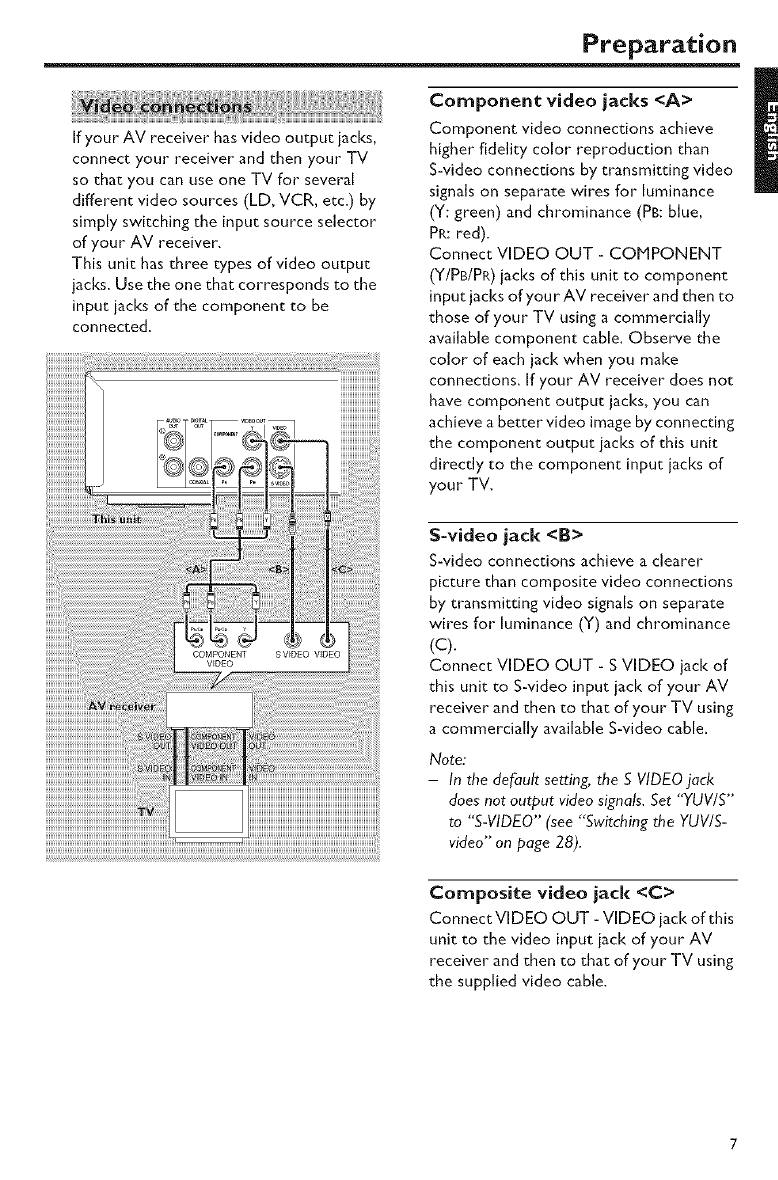
Preparation
If your AV receiver has video output jacks,
connect your receiver and then your TV
so that you can use one TV for several
different video sources (LD, VCR, etc.) by
simply switching the input source selector
of your AV receiver.
This unit has three types of video output
jacks. Use the one that corresponds to the
input jacks of the component to be
connected.
Component video jacks <A>
Component video connections achieve
higher fidelity color reproduction than
S-video connections by transmitting video
signals on separate wires for luminance
(Y: green) and chrominance (PB: blue,
PR: red).
Connect VIDEO OUT - COMPONENT
(Y/PB/PP_)jacks of this unit to component
input jacks of your AV receiver and then to
those of your TV using a commercially
available component cable. Observe the
color of each jack when you make
connections. If your AV receiver does not
have component output jacks, you can
achieve a better video image by connecting
the component output iacks of this unit
directly to the component input jacks of
your TV.
S-video jack <B>
S-videoconnectionsachievea clearer
picturethan composite video connections
by transmitting video signals on separate
wires for luminance (Y) and chrominance
(C).
Connect VIDEO OUT - S VIDEO jack of
this unit to S-video input iack of your AV
receiver and then to that of your TV using
a commercially available S-video cable.
Note:
-In the default setting, the S VIDEO jack
does not output video signals. Set "YUWS'"
to "S-VIDEO'" (see "'Switching the YUV/S-
video" on page 28).
Composite video jack <C>
Connect VIDEO OUT - VIDEO iack of this
unit to the video input iack of'your AV
receiver and then to that of"your TV using
the supplied video cable.
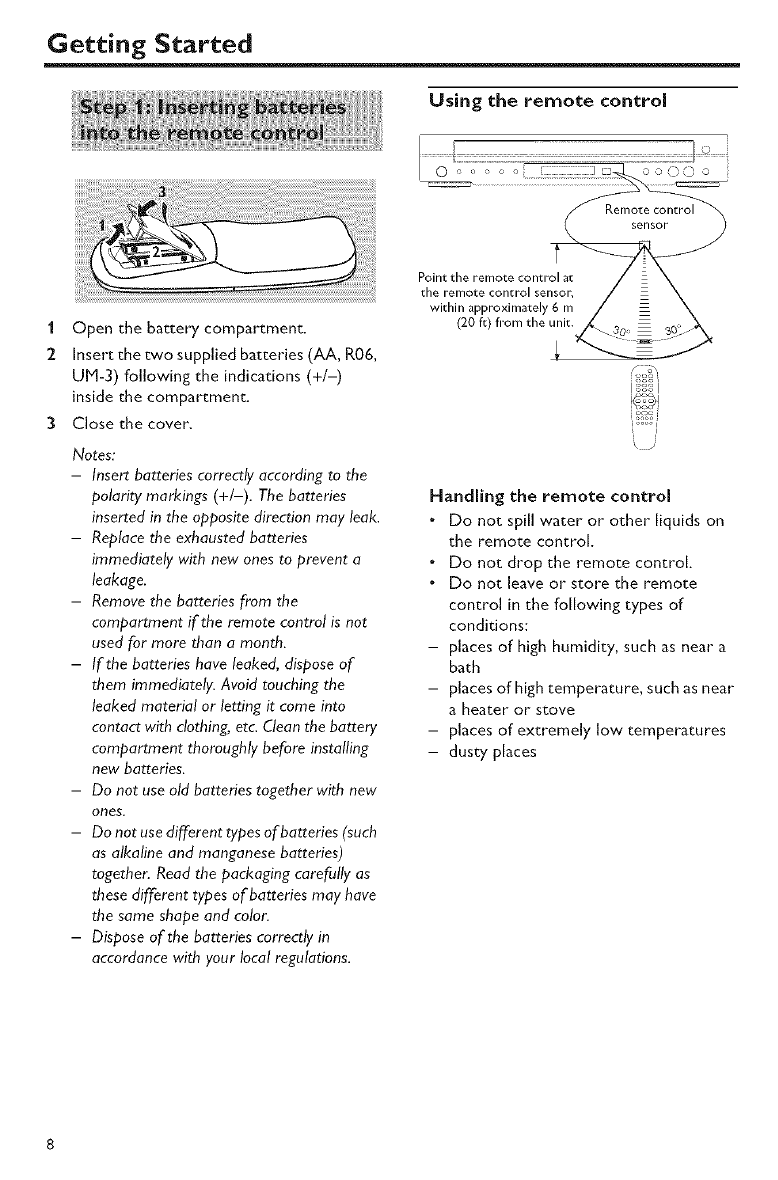
Using the remote control
oo00 o
i Open the battery compartment.
2 Insert the two suppled batteries (AA, R06,
UM-3) following the indications (+/-)
inside the compartment.
3Close the cover.
Notes:
-Insert batteries correctly according to the
polarity markings (+/-). The batteries
inserted in the opposite direction may leak.
- Replace the exhausted batteries
immediately with new ones to prevent a
leakage.
- Remove the batteries from the
compartment if the remote control is not
used for more than a month.
-If the batteries have leaked, dispose of
them immediately. Avoid touching the
leaked material or letting it come into
contact with clothing, etc. Clean the battery
compartment thoroughly before installing
new batteries.
-Do not use old batteries together with new
ones.
-Do not use different types ofba_zeries (such
as alkaline and manganese batteries)
together. Read the packaging carefully as
these different types of batteries may have
the same shape and color.
-Dispose of the batteries correctly in
accordance with your local regulations.
Point the remote control at
the remote control sensor,
within approximately 6 m
(20 ft) from the unit.
Handling the remote control
.Do not spill water or other liquids on
the remote control.
•Do not drop the remote control
•Do not leave or store the remote
control in the following types of
conditions:
- places of high humidity, such as near a
bath
- places of high temperature, such as near
a heater or stove
- places of extremely low temperatures
- dusty places
Getting Started
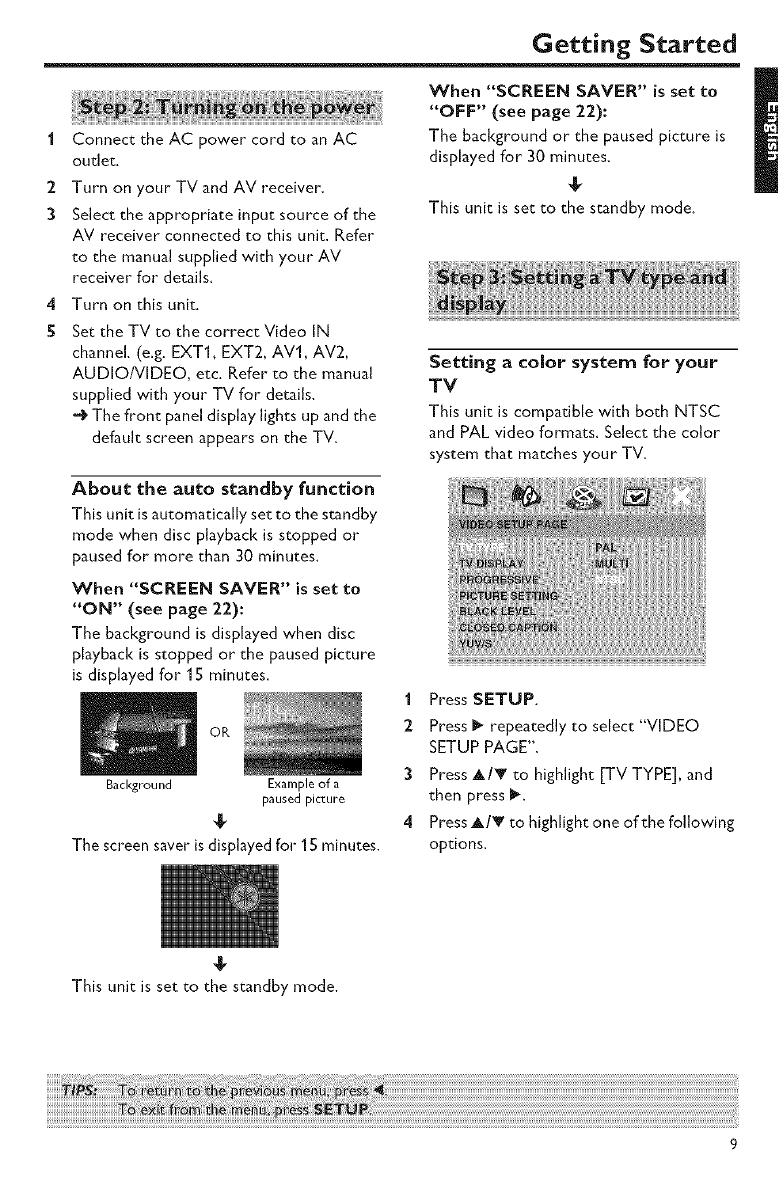
1 Connect the AC power cord to an AC
outlet.
2 Turn on your TV and AV receiver.
3Select the appropriate input source of the
AV receiver connected to this unit. Refer
to the manual supplied with your AV
receiver for details.
4 Turn on this unit.
SSet the TV to the correct Video IN
channel. (e.g. EXT1, EXT2, AV1, AV2,
AUDIO/VIDEO, etc. Refer to the manual
supplied with your TV for details.
The front panel display lights up and the
default screen appears on the TV.
When "SCREEN SAVER" is set to
"OFF" (see page 22):
The background or the paused picture is
displayed for 30 minutes.
This unit is set to the standby mode.
Setting acolor system for your
TV
This unit is compatible with both NTSC
and PAL video formats. Select the color
system that matches your TV.
About the auto standby function
This unit is automatically set to the standby
mode when disc playback is stopped or
paused for more than 30 minutes.
When "SCREEN SAVER" is set to
"ON" (see page 22):
The background isdisp{ayedwhen disc
playbackisstopped or the paused picture
isdisplayedfor 15 minutes.
OR
Background Example of a
paused picture
The screen saver is displayed for 1S minutes.
1 Press SETUP.
2 Press I_ repeatedly to select "VIDEO
SETUP PAGE'.
3Press A/_' to highlight [TV TYPE], and
then press I_.
4 Press A/T to highlight one of the following
options.
This unit is set to the standby mode.
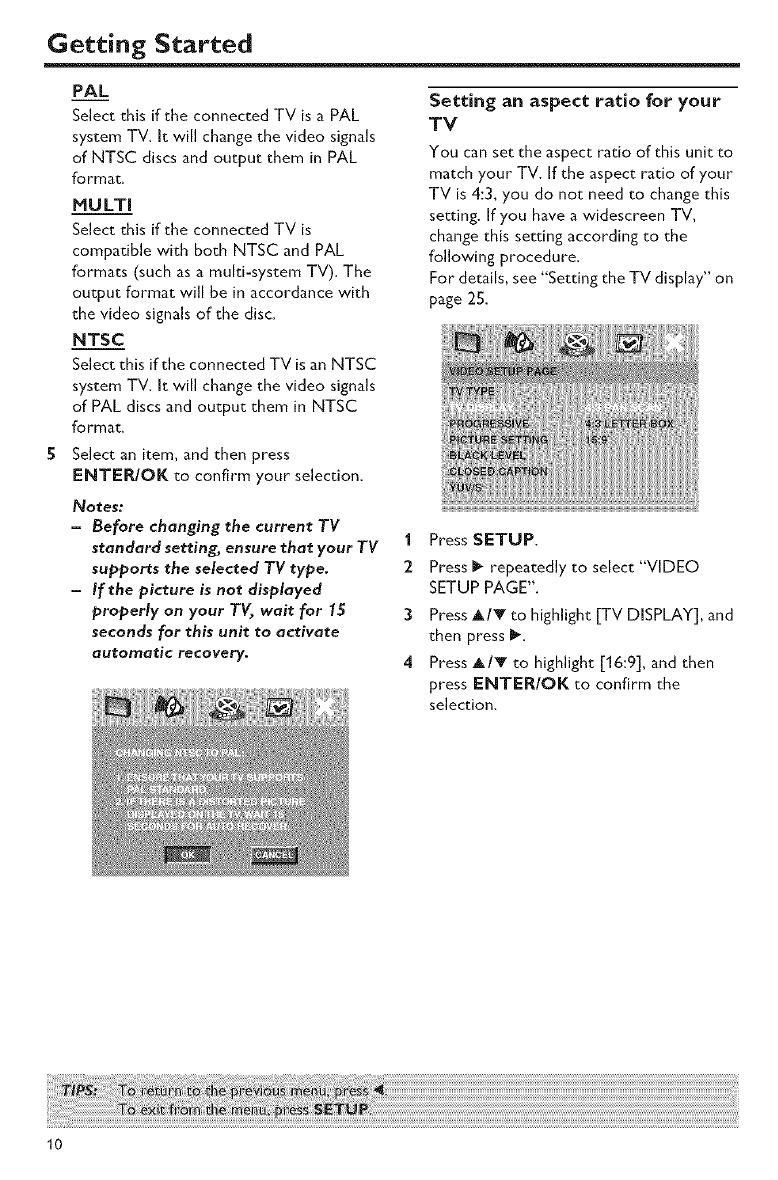
PAL
Select this if the connected TV is a PAL
system TV. It will change the video signals
of NTSC discs and output them in PAL
format.
MULTi
Select this if the connected TV is
compatible with both NTSC and PAL
formats (such as a multi-system TV). The
output format will be in accordance with
the video signals of the disc.
NTSC
Select this if the connected TV is an NTSC
system TV. It will change the video signals
of PAL discs and output them in NTSC
format.
Select an item, and then press
ENTER/OK to confirm your selection.
Notes:
-Before changing the current TV
standard setting, ensure that your TV
supports the selected TV type.
-If the picture is not displayed
properly on your TV, wait for 15
seconds for this unit to activate
automatic recovery.
Setting an aspect ratio for your
TV
Youcansetthe aspectratio of this unit to
match your TV. If the aspect ratio of your
TV is4:3, you do not needto change this
setting. If you have a wJdescreen TV,
change this setting according to the
following procedure.
For details, see "Setting the TV display" on
page 2S.
1 Press SETUP.
2 Press I_ repeatedly to select "VIDEO
SETUP PAGE".
3Press A/T to highlight [TV DISPLAY], and
then press _.
4 Press A/T to highlight [16:9], and then
press ENTER/OK to confirm the
selection.
10
Getting Started
Setting the audio, subtitle and
disc menu languages
You can select your own preferred
language settings. This unit automatically
switches to your preferred language
whenever you load a disc. If the selected
language is not available on the disc, the
default language of the disc will be used
instead. The OSD language in the system
menu remains once selected.
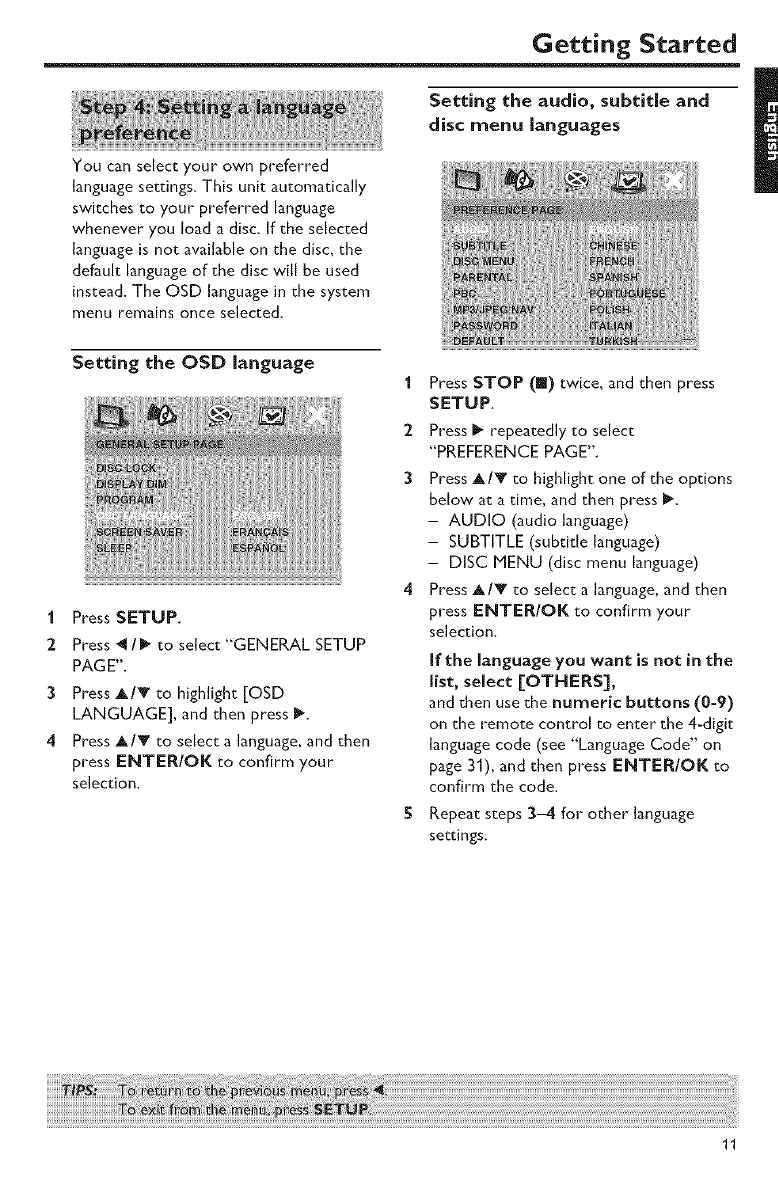
Setting the OSD language
I Press SETUP.
2 Press _1/1_ to select "GENERAL SETUP
PAGE".
3 Press A/V to highlight [OSD
LANGUAGE], and then press I_
4 Press A/Y to select a language, and then
press ENTER/OK to confirm your
selection.
1Press STOP (!1) twice, and then press
SETUP.
:2 Press I_ repeatedly to select
"PREFERENCE PAGE".
3Press A/Y to highlight one of the options
below at a time, and then press I_
- AUDIO (audio language)
- SUBTITLE (subtitle language)
- DISC MENU (disc menu language)
4 Press A/V to select a language, and then
press ENTER/OK to confirm your
selection.
If the language you want is not in the
list, select [OTHERS],
and then use the numeric buttons (0-9)
on the remote control to enter the 4-digit
language code (see "Language Code" on
page 31), and then press ENTER/OK to
confirm the code.
SRepeat steps 3-4 for other language
settings.
11
Disc Operations
IMPORTANT!
- If the inhibition icon (@ or X)
appears on the TV screen when a
button is pressed, the function for
that button is not available on the
current disc or at the current time,
- Depending on the DVD or VIDEO
CD disc, some operations may
operate differently or be
restricted.
- Do not push on the disc tray or put
any objects other than discs on the
disc tray, Doing so may cause the
disc player to malfunction,
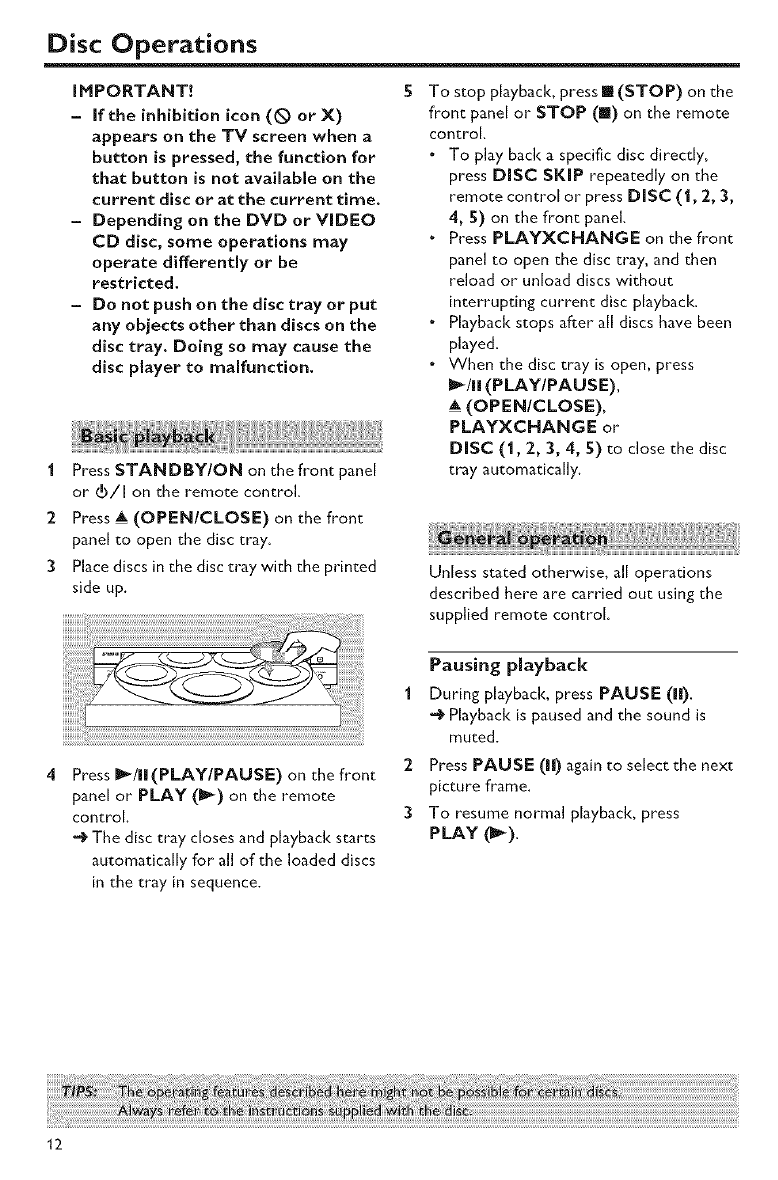
1 Press STANDBY/ON on the front panel
or (b/I on the remote control.
2 Press A (OPEN/CLOSE) on the front
panel to open the disc tray.
3Place discs in the disc tray with the printed
side up,
To stop playback, press [] (STOP) on the
front panel or STOP (1) on the remote
control.
• To play back a specific disc directly,
press DISC SKIP repeatedly on the
remote control or press DiSC (l, 2, 3,
4, 5) on the front panel.
"Press PLAYXCHANGE on the front
panel to open the disc tray, and then
reload or unload discs without
interrupting current disc playback.
.Playback stops after all discs have been
played.
•When the disc tray is open, press
II_/I I (PLAY/PAUSE),
_A(OPEN/CLOSE),
PLAYXCHANGE or
DiSC (1,2, 3, 4, 5) to close the disc
tray automatically.
Unless stated otherwise, all operations
described here are carried out using the
supplied remote control.
Press II_/ll (PLAY/PAUSE) on the front
panel or PLAY (_-) on the remote
control.
The disc tray closes and playback starts
automatically for all of the loaded discs
in the tray in sequence.
Pausing playback
1During playback, press PAUSE (|l).
Playback is paused and the sound is
muted.
2 Press PAUSE (Ira) again to select the next
picture frame.
3To resume normal playback, press
PLAY (_).
12
Disc Operations
1
2
Selecting a traddchapter
•Press k_ /_lD_t or use the numeric
buttons (0-9) to select a track/chapter
number.
.During repeated playback of a track/
chapter', press _41 /_1_1 to replay the
same track/chapter.
Searching backward/forward
Press and hold k_ /ll_l_l or press 4 /I_.
While searching, press _14 /_l_J or
/I_ repeatedly to select the desired
speed.
To resume normal playback, press
PlAY (1_).
Notes:
- _ I_key may not be available with some
discs.
-For MP3 and WMA, the search function
allows you to search the track currently
being played.
Stopping playback
.Press STOP (I).
Repeat
Repeating chapter/title/disc (DVD)
Each time you press REPEAT, the display
changes as follows:
_ CHAPTER -_ _ TITLE ]
REPEATOFF_- _ ALL DISC_- _ DISC
_P CHAPTER*: repeats the current
chapter
__P TITLE: repeats the current title
C___ DISC_: repeats the entire disc
__P ALL DISC: repeats all discs loaded in
the tray
REPEAT OFF: exits from the repeat mode
;" This feature may not be _vailablewith some
discs.
Repeating track/disc (except DVD)
Each time you press REPEAT, the display
changes as follows;
_- __D TRACK -_ O DISC --_
REPEAT OFF _ O ALL DISC
O TRACK: repeats the current track
O DISC: repeats the entire disc
c__P ALL DISC: repeats all discs loaded in
the tray
REPEAT OFF: exits from the repeat mode
Notes:
-When only one disc is available in the disc
tray, it is continuously played when
ALL DISC is selected.
-For VCD, repeat playback is not available
when the PBC mode is selected.
13
Disc Operations
Repeating a section within a
chapter/track
I While playing a disc, press A-B at the
desired starting point.
:2 Press A-IB again at the desired end point.
•A and B can only be set within the same
chaptedtrack.
The selected section repeats
continuously.
3 To exit from the sequence, press A-B.
Shuffle (except DVD/VCD/SVCD)
With the shuffle function, you can play
tracks in a random order.
During playback, press SHUFFLE
repeatedly to select between SHUFFLE
DISC, SHUFFLE ALL DISC, and SHUFFLE
OFF.
The selected mode appears in the front
panel display for several seconds.
. In the SHUFFLE DISC mode, all tracks
on the disc currently playing are played
in a random order.
• In the SHUFFLE ALL DISC mode, tracks
from all discs are played in a random
order:
- If the disc currently playing is a CD, only
tracks from CDs will be played.
- If the disc currently playing is formatted
in MP3 or WMA, tracks on the disc
currently playing are played in a random
order. When all the tracks on that disc
have been played, shuffle playback
continues with the next disc.
Using the disc menu
Depending on the disc, a menu may appear
on the TV screen once you load the disc.
To select a playback feature or item
•Use _I_IAIV or the numeric
buttons (0-9) on the remote control
and then press ENTER/OK to start
playback.
To access or exit from the menu
•Press MENU on the remote control.
1
2
3
Slow motion
You can play back in slow motion.
Press Afor reverse slow motion or V for
forward slow motion.
During slow motion, press A/Y
repeatedly to select the desired speed.
To resume normal playback, press
PlAY (_).
Note:
- Reverse slow motion is not available for
VCDs and SVCDs.
14
Disc Operations
Zooming in
This function allows you to enlarge or
lessen the picture on the TV screen and
pan through the enlarged picture,
1 During playback, pressZOOM repeatedly
to display the picture at different scales.
• Use _II_IAIT to pan through the
enlarged picture.
•_ Playback continues.
2 Press ZOOM repeatedly to return to the
original size.
On-screen display (OSD)
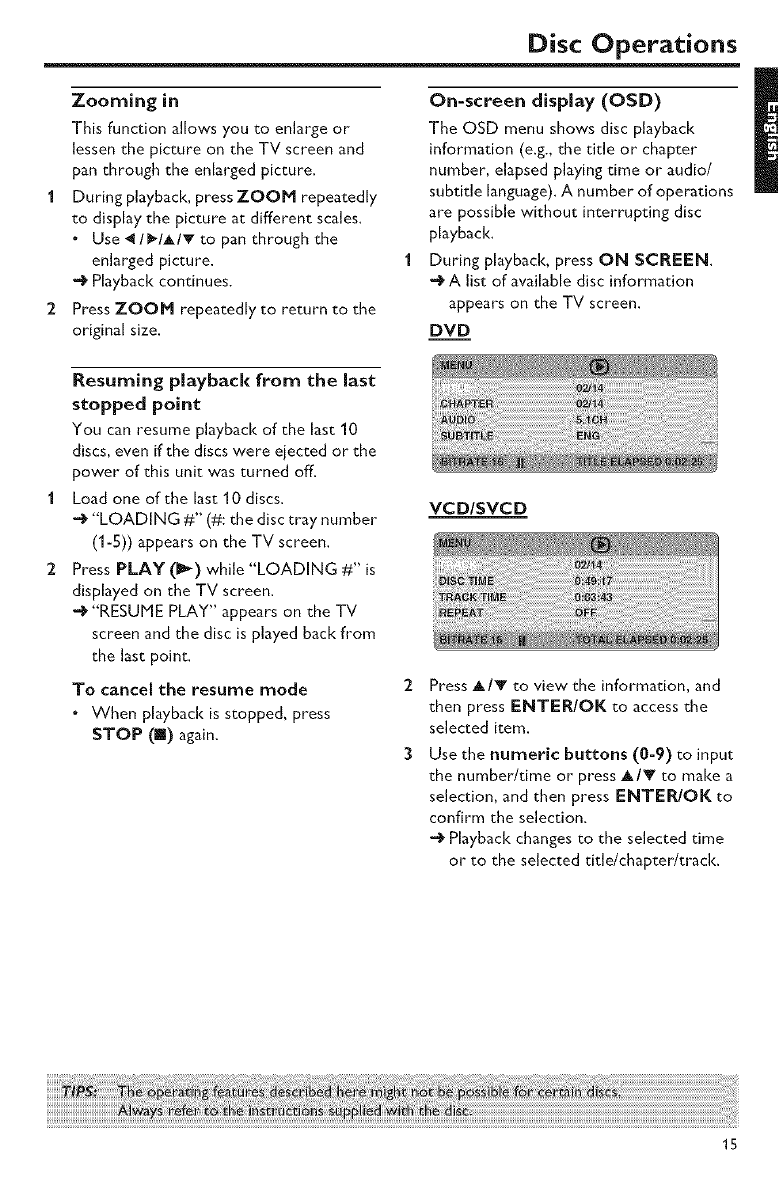
The OSD menu shows disc playback
information (e.g., the title or chapter
number, elapsed playing time or audio/
subtitle language). A number of operations
are possible without interrupting disc
playback.
1 During playback, press ON SCREEN.
-@A list of available disc information
appears on the TV screen,
DVD
Resuming playback from the last
stopped point
You can resume playback of the last 10
discs, even if the discs were eiected or the
power of this unit was turned off.
Load one of the last 10 discs.
-_ "LOADING #" (#: the disc tray number
(1-5)) appears on the TV screen.
Press PLAY (_) while "LOADING #" is
displayed on the TV screen,
-_ "RESUME PLAY '_ appears on the TV
screen and the disc is played back from
the last point.
To cancel the resume mode
• When playback is stopped, press
STOP (II) again.
VCD/SVCD
Press AIT to view the information, and
then press ENTER!OK to access the
selected item.
Use the numeric buttons (0-9) to input
the number/rime or press AIY to make a
selection, and then press ENTER/OK to
confirm the selection.
•_ Playback changes to the selected time
or to the selected title/chapter/track.
15

Disc Operations
Tide/Chapter/Track selection
(DVDIVCD)
I Press AIr to select [TITLE] or
[CHAPTER] (DVD) or [TRACK] (VCD).
2 Press ENTER/OK to confirm the
selection.
3 Select a title, chapter or track number
using the numeric buttons (0-9).
Time search (DVDIVCD)
I Press AI_" to select [TT TIME] or [CH
TIME] (DVD) or [TRACK TIME] or [DISC
TIME] (VCD),
. [TT TIME] refers to the toga[ time of the
current title, and [CH TIME] refers to
the toga[ time of the current chapter.
2 Press ENTER/OK to confirm the
selection.
1
2
Repeat/Time display (DVD/VCD)
Press A/V to select [REPEAT] or [TIME
DISP.].
Press ENTER/OK to confirm the
selection.
Press A/Y to highlight your selection, and
then press ENTER/OK.
Time display (CD)
Each time you press ON SCREEN, the
time display changes as follows:
3Enter hours, minutes and seconds from left
to right using the numeric buttons (0-9)
(e.g. 0:34:27).
AudiolSubddelAngle (DVD)
You can change [AUDIO], [SUBTITLE] or
[ANGLE] if these functions are available on
the disc you are playing.
I Press AIr to select [AUDIO],
[SUBTITLE] or [ANGLE].
2Press ENTER/OK to confirm the
selection.
3 For Audio and Subtitle:
Press A/Y to highlight your selection, and
then press ENTER/OK.
OR
For Angle:
Select an angle using the numeric
buttons (0-9).
Playing by title
I Press MENU.
The disc title menu appears on the TV
screen,
2 Use _ I1_1_.1_or the numeric buttons
(0-9) to select a playback option.
3 Press ENTER/OK to confirm your
selection.
Camera angle
.Press ANGLE repeatedly to select the
desired angle.
16
Disc Operations
Audio
Changing the audio language and/or
format
Press AUDIO repeatedly to select an
audio language.
Subtitles
• Press SUBTITLE repeatedly to select
a subtitle language.
Playing by discs
I Load a disc.
-_ Playback starts automatically.
-_ The TV screen displays the current
playback status and the number of
tracks to select the desired track.
2 Playback stops at the end of the disc.
3To stop playback, press STOP (m).
2
3
Playback control (PBC)
For VCD with playback control
(PBC) feature (version 2.0 only)
Press NENU to toggle between "PBC
ON" and "PBC OFF".
-_ If you select "PBC ON", the disc menu
(if available) appears on the TV.
Use k_41 /_ll_[ or the numeric buttons
(0=9) to select a playback option.
During playback, press TOP MENU/
RETURN to return to the menu screen
(if PBC is selected).
If you want to skip the index menu
and play back a disc directly from the
beginning,
"Press HENU on the remote control to
turn off PBC.
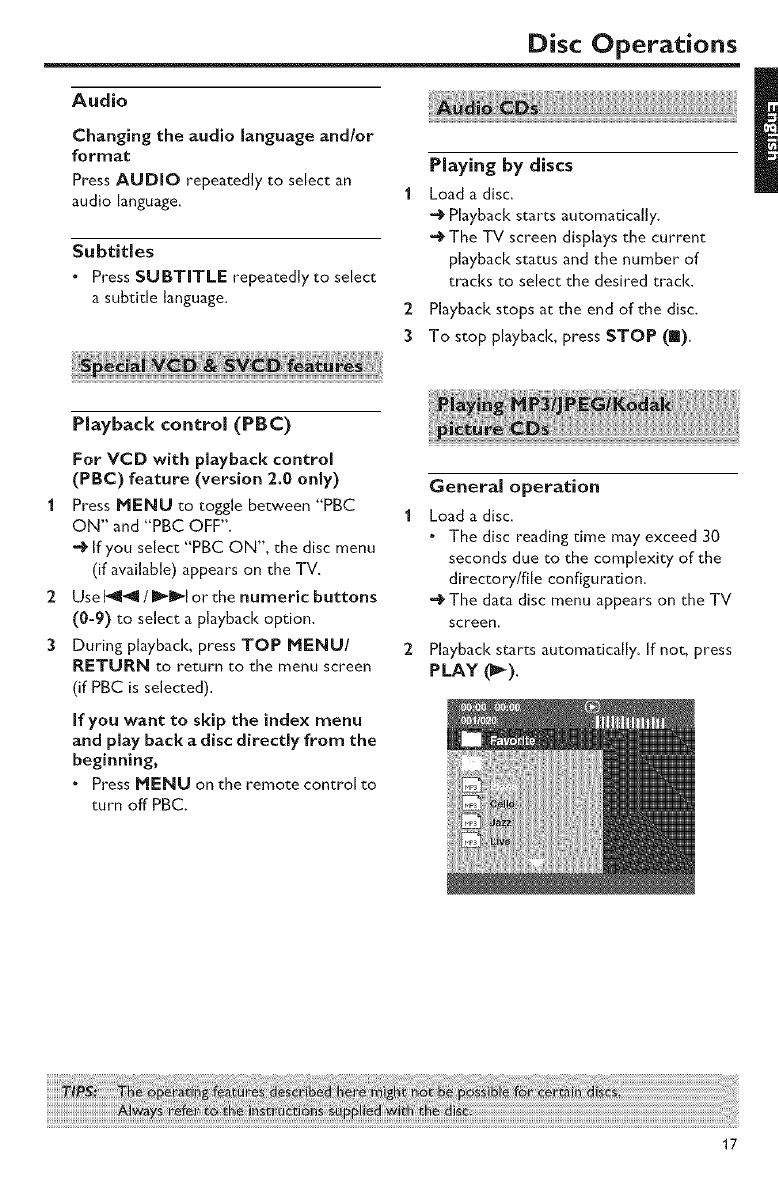
General operation
ILoad a disc.
.The disc reading time may exceed 30
seconds due to the complexity of the
directory/file configuration.
-_ The data disc menu appears on the TV
screen.
2 Playback starts automatically. [f not, press
PLAY (_).
17
Disc Operations
During playback, you can:
•Press k_l_l /I_k to select another
track/file in the current folder.
.Press PAUSE (ll) to pause playback.
Note:
-It may not be possible to play certain MP3/
JPEG discs due to the configuration and
characteristics of the discs or the recording
conditions.
1
2
3
Selecting a folder and tracld_le
Press A/Y to select a folder, and then
press ENTER/OK to open the folder.
Press A/Y to select a track/file.
Press ENTER/OK to confirm your
selection.
•0 Playback starts from the selected file to
the end of the folder.
2 Press _4 /_ll_t to display the other
pictures on the previous/next page.
3Use _i /_/A/_ to highlight one of the
pictures, and then press ENTER/OK to
start playback.
OR
Move the cursor to highlight _ on the
bottom of the page to start playback from
the first picture on the current page.
4 Press MENU to return to the picture CD
menu.
1 Load a picture disc (Kodak Picture CD or
JPEG)
•_ For Kodak discs, the slideshow begins.
For JPEG discs, the picture menu
appears on the TV screen.
2 Press PIJ_Y (_-) to start the slideshow.
Preview function 0PEG)
This function displays the content of the
current folder or the entire disc.
Press STOP (m) during playback.
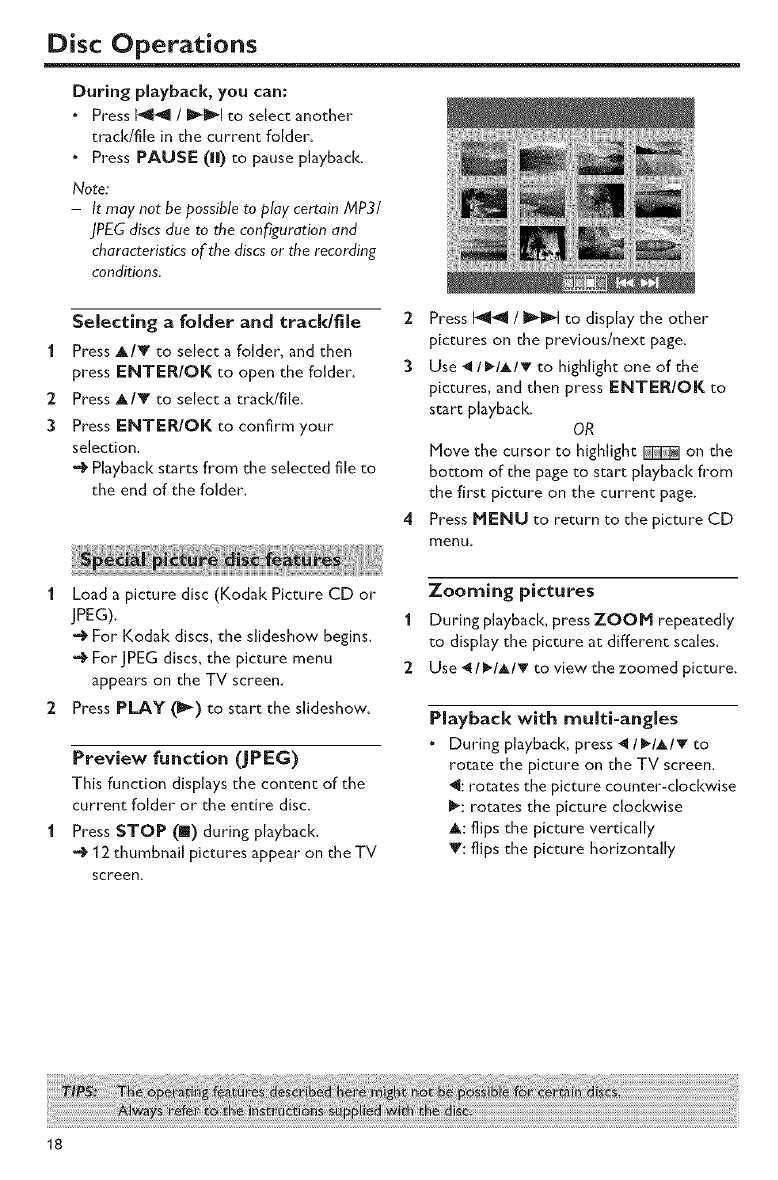
•012 thumbnail pictures appear on the TV
screen.
Zooming pictures
I During playback, pressZOOM repeatedly
to display the picture at different scales.
2 Use _/I_/A/T to view the zoomed picture.
Playback with multi-angles
.During playback, press _I_IAI_ to
rotate the picture on the TV screen.
4[: rotates the picture counter-clockwise
I_: rotates the picture clockwise
A: flips the picture vertically
Y: flips the picture horizontally
18
Disc Operations
Scan effect
•Press ANGLE repeatedly to choose a
scan effect.
Various scan effects appear in the top
left corner of the TV screen.
Playing MP3 music and JPEG
pictures simultaneously
1 Load a disc chat contains both music and
picture data.
The disc menu appears on the TV
screen.
2 Select an MP3 track.
3During MP3 music playback, select a
picture from the TV screen, and then press
PLAY (_).
The picture files are played back one
after another until the end of the folder.
4 To quit simultaneous playback, press
MENU, and then press STOP (m).
Note:
-Some files on Kodak orJPEG discs may be
distorted during playback due to the
configuration and characteristics of the
discs.
19
Setup Menu
Setup is carried out on the TV screen,
enabling you to customize this unit to suit
your own particular requirements.
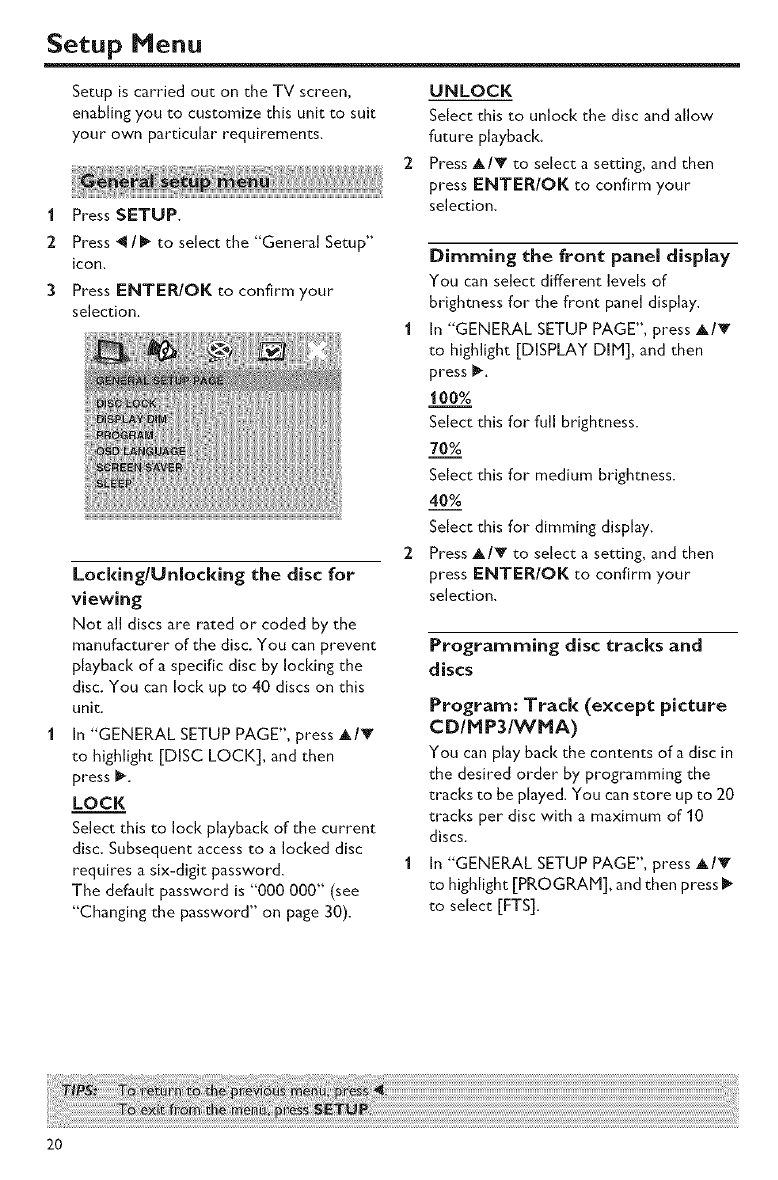
1 Press SETUP.
2 Press _1/1_ to select the "General Setup"
icon.
3Press ENTER/OK to confirm your
selection.
Locking/Unlocking the disc for
viewing
Not all discs are rated or coded by the
manufacturer of the disc. You can prevent
playback of a specific disc by locking the
disc. You can lock up to 40 discs on this
unit.
In "GENERAL SETUP PAGE", press A/_'
to highlight [DISC LOCK], and then
press 1_.
LOCK
Select this to lock playback of the current
disc. Subsequent access to a locked disc
requires a six-digit password.
The default password is "000 000" (see
"Changing the password" on page 30).
UNLOCK
Select this to unlock the disc and allow
future playback.
Press A/T to select asetting, and then
press ENTER/OK to confirm your
selection.
Dimming the front panel display
You can select different leve[s of
brighmess for the front panel display.
1 In "GENERAL SETUP PAGE", press A/V
to highlight [DISPLAY DIM], and then
press I_
100%
Select this for full brightness.
Select this for medium brightness.
40%
Select this for dimming display.
2 Press A/T to select asetting, and then
press ENTER/OK to confirm your
selection.
Programming disc tracks and
discs
Program: Track (except picture
CD/M P3/_VMA)
You can play back the contents of a disc in
the desired order by programming the
tracks to be played. You can store up to 20
tracks per disc with a maximum of 10
discs.
1 In "GENERAL SETUP PAGE", press A/T
to highlight [PROGRAM], and then press I_
to select [FTS].
2O
Setup Menu
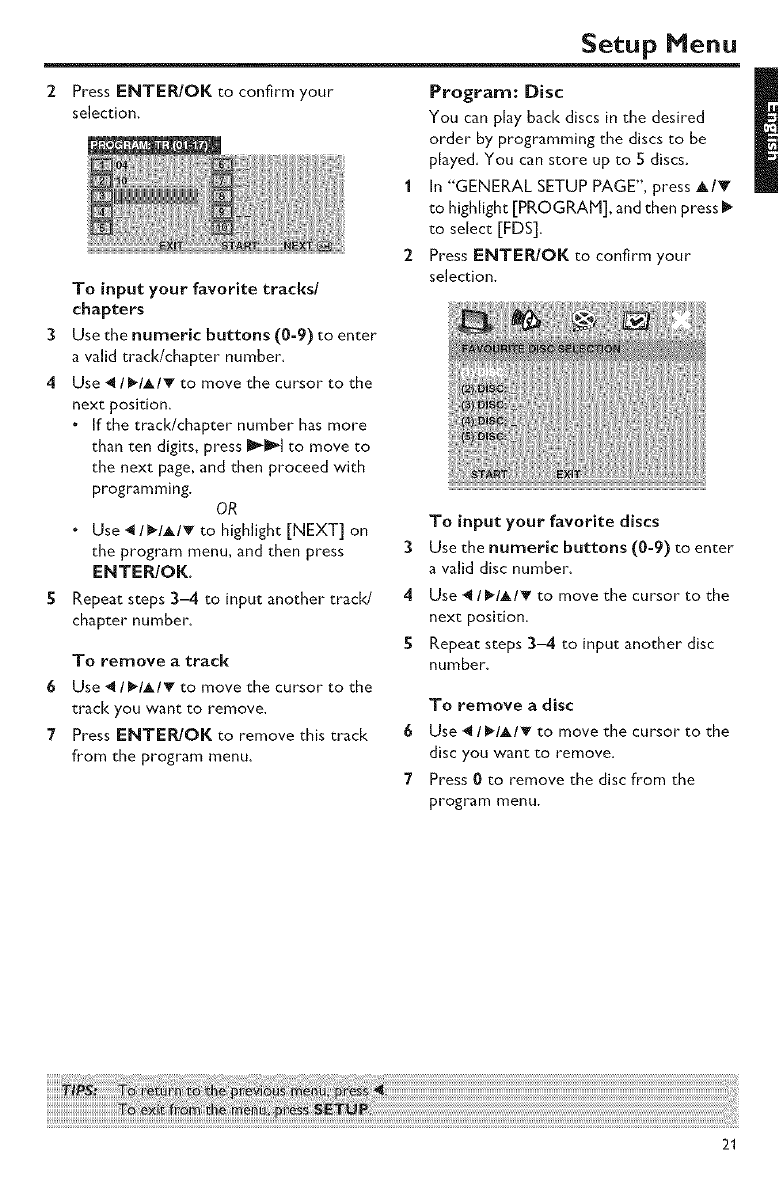
Press ENTER/OK to confirm your
selection.
To input your favorite tracks/
chapters
3Use the numeric buttons (0-9) to enter
a valid track/chapter number.
4 Use _ I_'I,LIT to move the cursor to the
next position.
.If the track/chapter number has more
than ten digits, press _1_ to move to
the next page, and then proceed with
programming.
OR
•Use 411_.lAl_' to highlight [NEXT] on
the program menu, and then press
ENTER/OK.
S Repeat steps 3-4 to input another track/
chapter number.
To remove a track
6 Use _ /_/A/v to move the cursor to the
track you want to remove.
7Press ENTER/OK to remove this track
from the program menu.
Program: Disc
You can play back discs in the desired
order by programming the discs to be
played. You can store up to 5 discs.
In "GENERAL SETUP PAGE", press A/T
to highlight [PROGRAM], and then press
to select [FDS].
Press ENTER/OK to confirm your
selection.
To input your favorite discs
3Use the numeric buttons (0-9) to enter
a valid disc number.
4 Use _ I_'IAI_ to move the cursor to the
next position.
S Repeat steps 3-4 to input another disc
number.
To remove a disc
6 Use _I_IAIT to move the cursor to the
disc you want to remove.
7Press 0 to remove the disc from the
program menu.
21
Setup Menu
To start program playback
•Use _I_IAI'V to highlight [START] on
the program menu and then press
ENTER/OK.
Playback starts for the selected tracks
or discs in the programmed sequence.
To exit from program playback
• Use'_/l_/t_/v to highlight [EXIT] on the
program menu, and then press
ENTER/OK.
OSD language
This menu contains various options for the
on-screen display (OSD) language. For
derails, see "Setting the OSD language" on
page 11.
Screen saver
Use this feature to turn on or off the
screen saver.
1 In "GENERAL SETUP PAGE", press _/V
to highlight [SCREEN SAVER], and then
press I_
ON
Select this if you wish to turn off the TV
screen when disc playback is stopped or
paused for more than 15 minutes.
OFF
Select this to disable the screen saver
function.
2 Press A/Y to select a setting, and then
press ENTER/OK to confirm your
selection.
Sleep timer
This feature automatically sets this unit to
standby mode after a certain elapsed
period.
1In "GENERAL SETUP PAGE", press A/_'
to highlight [SLEEP], and then press I_.
2 Press A/Y to select a setting.
. You can select from 15, 30,45 and 60
minutes. Select [OFF] to cancel the
sleep timer function.
3Press ENTER/OK to confirm your
selection.
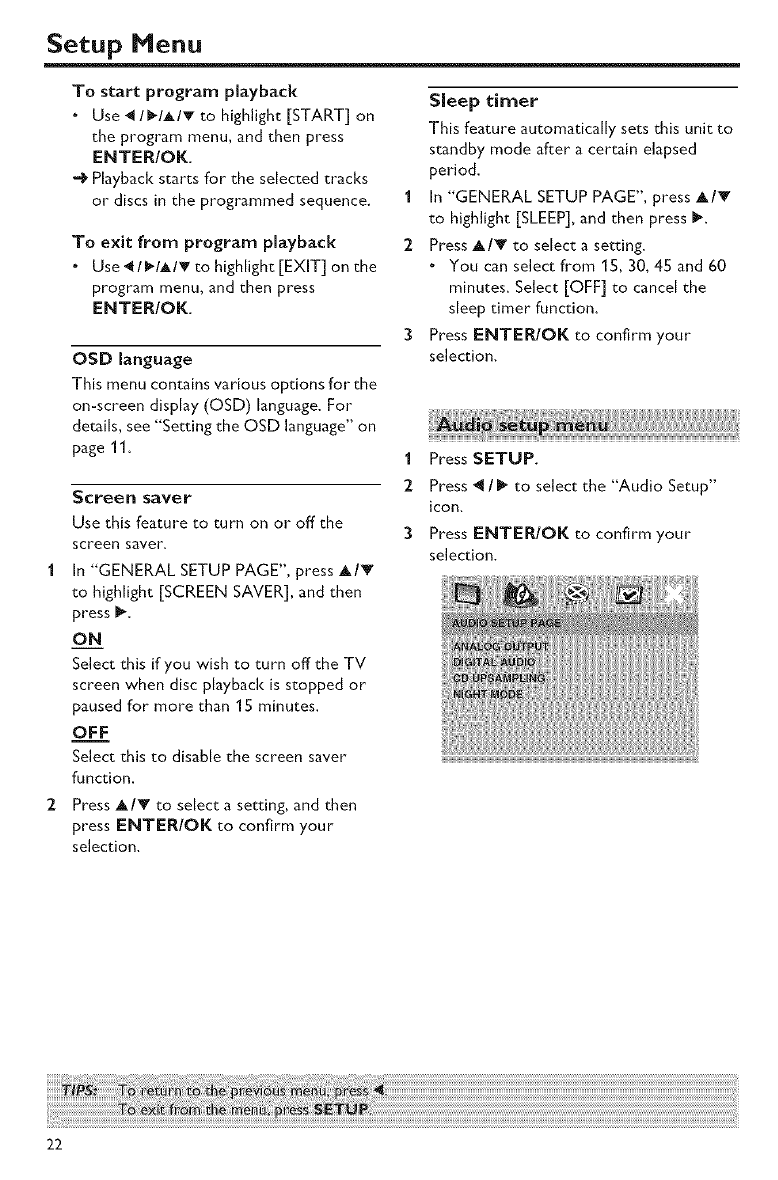
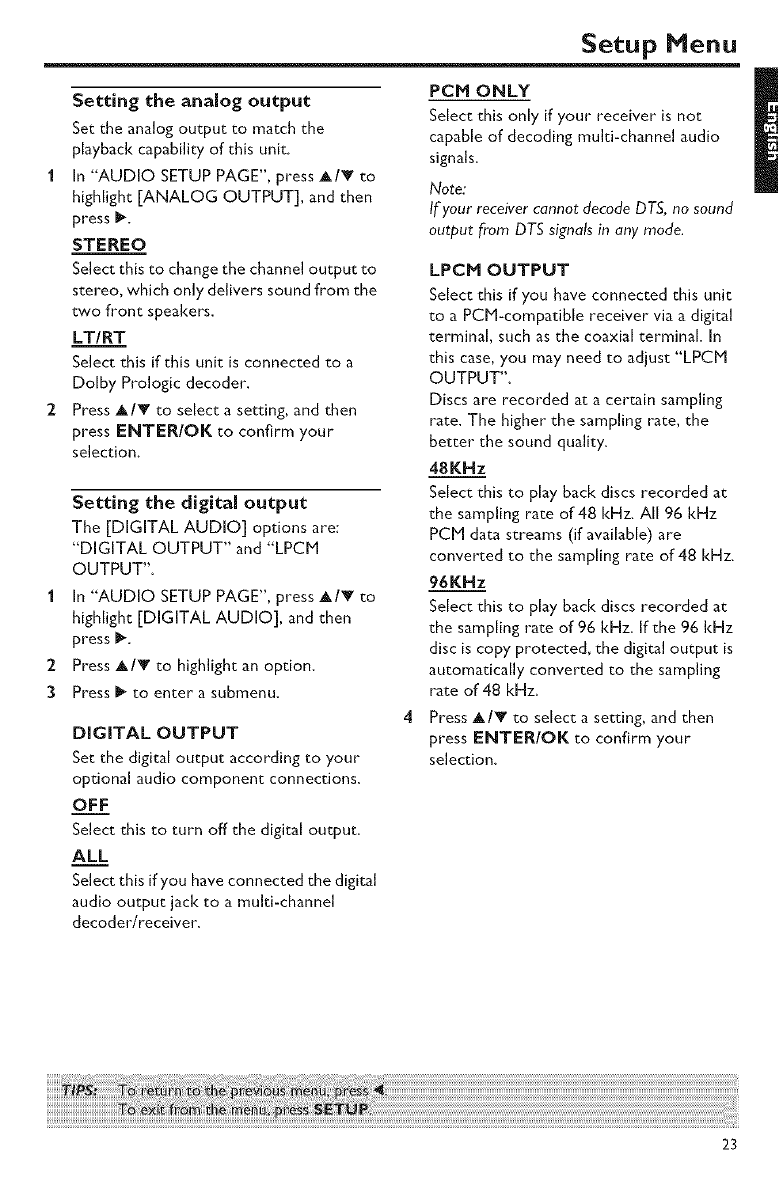
1Press SETUP.
2 Press _1/I_ to select the "Audio Setup"
icon.
3 Press ENTER/OK to confirm your
selection.
22
Setup Menu
Setting the analog output
Set the analog output to match the
playback capability of this unit.
1 In "AUDIO SETUP PAGE", press A/_ to
highlight [ANALOG OUTPUT], and then
press I_.
STEREO
Select this to change the channel output to
stereo, which only delivers sound from the
two front speakers.
LT/RT
Select this if this unit is connected to a
Dolby Prologic decoder.
2 Press A/T to select asetting, and then
press ENTER/OK to confirm your
selection.
Setting the digital output
The [DIGITAL AUDIO] options are:
"DIGITAL OUTPUT" and "LPCM
OUTPUT".
1 In "AUDIO SETUP PAGE", press A/T to
highlight [DIGITAL AUDIO], and then
press I_
2 Press A/T to highlight an option.
3 Press I_ to enter a submenu.
DIGITAL OUTPUT
Set the digital output according to your
optional audio component connections.
OFF
Select this to turn off the digital output.
ALL
Select this if you have connected the digital
audio output jack to a multi-channel
decoder/receiver.
PCM ONLY
Select this only if your receiver is not
capable of decoding multi-channel audio
signals.
Note:
If'your receiver cannot decode DTS, no sound
output from DTS signals in any mode.
LPCH OUTPUT
Select this if you have connected this unit
to a PCH-compatible receiver via a digital
terminal, such as the coaxial terminal. In
this case, you may need to adjust "LPCM
OUTPUT".
Discs are recorded at a certain sampling
rate. The higher the sampling rate, the
better the sound quality.
48KNz
Select this to play back discs recorded at
the sampling rate of 48 kHz. All 96 kHz
PCM data streams (if available) are
converted to the sampling rate of 48 kHz.
96KHz
Select this to play back discs recorded at
the sampling rate of 96 kHz. If the 96 kHz
disc is copy protected, the digital output is
automatically converted to the sampling
rate of 48 kHz.
Press A/Y to select a setting, and then
press ENTER/OK to confirm your
selection.
23
Setup Menu
CD upsarnpEng
Use this feature to convert your music CD
to a higher sampling rate using
sophisticated digital signal processing for
better sound quality. If you activate the
upsampling function, this unit automatically
switches to the stereo mode.
1 In "AUDIO SETUP PAGE", press A/T to
highlight [CD UPSAMPLING], and then
press I_
OFF
Select this to disable CD-upsampling.
88.2kHz
Select this to convert the sampling rate of
CDs to twice that of the original.
176.4kHz
Select this to convert the sampling rate of
CDs to four times that of the original.
2 Press ,L/Y to select a setting, and then
press ENTER/OK to confirm your
selection.
ON
i
Select this to level out the volume, This
feature is only available for movies with the
Dolby Digital mode.
OFF
Select this when you want to enjoy the full
dynamic range of surround sound,
Press A/V to select asetting, and then
press ENTER/OK to confirm your
selection.
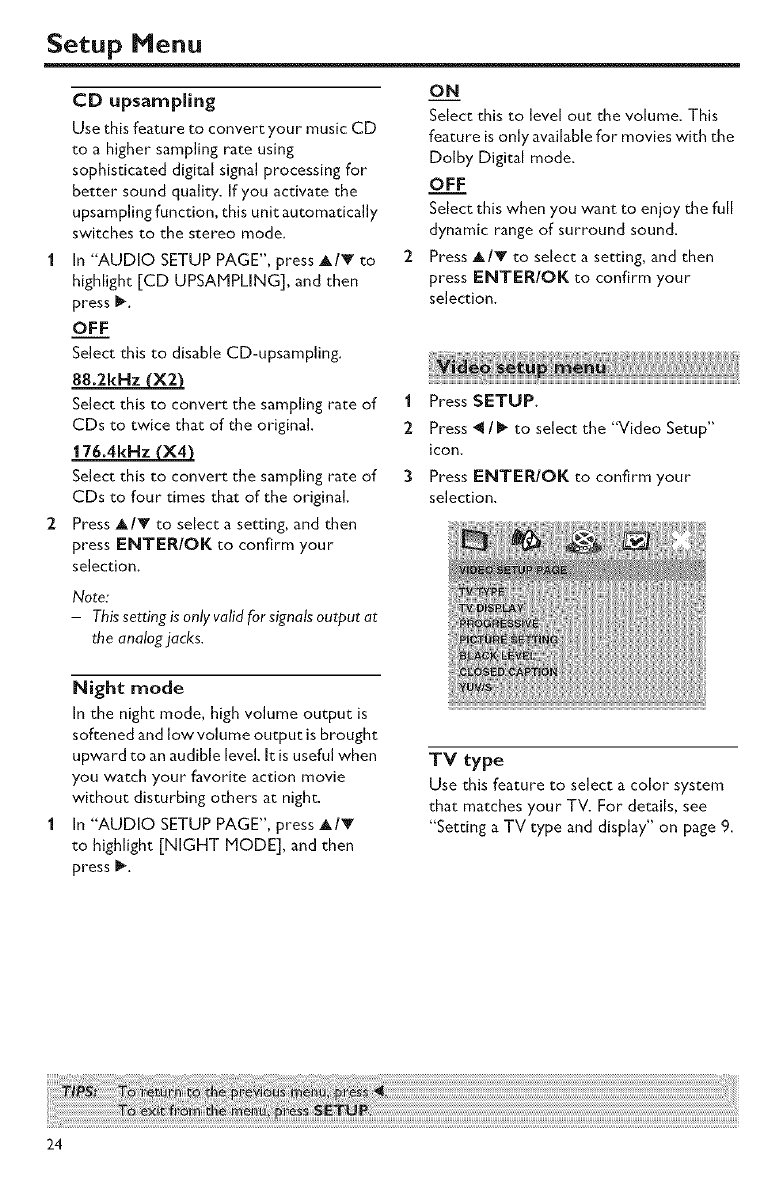
1 Press SETUP.
2 Press _ /_ to select the "Video Setup"
icon,
3 Press ENTE_OK to confirm your
selection.
Note:
-Thissettingisanlyvalidforsignalsoutputat
the analogjacks.
Night mode
In the night mode, high volume output is
softened and low volume output is brought
upward to an audible level. It is useful when
you watch your favorite action movie
without disturbing others at night.
In "AUDIO SETUP PAGE", press A/V
to highlight [NIGHT MODE], and then
press _.
TV type
Use this feature to select acolor system
that matches your TV. For details, see
"Setting a TV type and display" on page 9.
24
Setup Menu
Setting the TV display
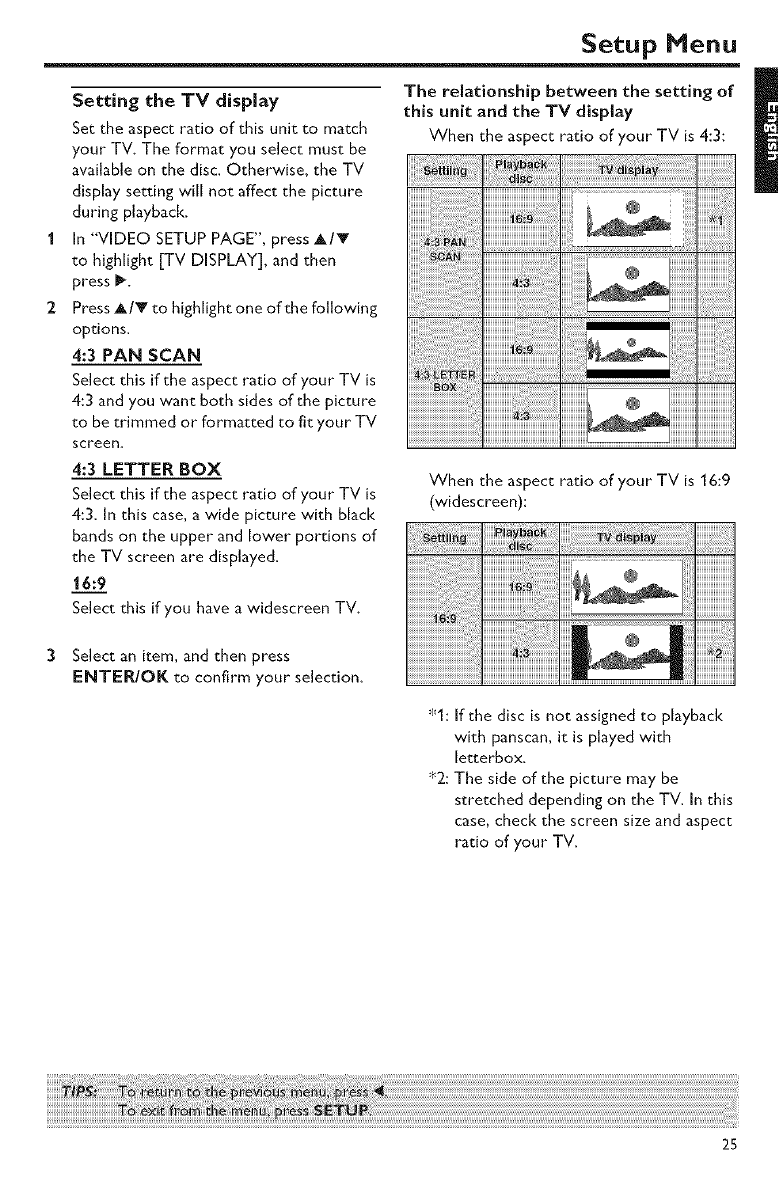
Set the aspect ratio of this unit to match
your TV. The format you select must be
available on the disc. ©therwise, the TV
display setting will not affect the picture
during playback.
In "VIDEO SETUP PAGE", press A/V
to highlight [TV DISPLAY], and then
press _.
Press AIr to highlight one of the following
options.
4:3 PAN SCAN
Select this if the aspect ratio of your TV is
4:3 and you want both sides of the picture
to be trimmed or formatted to fit your TV
screen_
4:3 LETTER BOX
Select this if the aspect ratio of your TV is
4:3. In this case, a wide picture with black
bands on the upper and lower portions of
the TV screen are displayed.
16:9
Select this if you have a widescreen TV.
Select an item, and then press
ENTER/OK to confirm your selection.
When the aspect ratio of your TV is 16:9
(widescreen):
@
:I_1:If the disc is not assigned to playback
with panscan, it is played with
letterbox.
:_2: The side of the picture may be
stretched depending on the TV. In this
case, check the screen size and aspect
ratio of your TV.
25
Setup Menu
Progressive
This feature is only valid if you have
connected this unit to a progressive scan
TV through the component video jacks
(see "Component video jacks <A>" on
page 7).
1 In "VIDEO SETUP PAGE", press A/V to
highlight [PROGRESSIVE], and then press
O___N_N
Select this to enable the progressive scan
function.
OFF
Select this to disable the progressive scan
function.
2 Press A/Y to select asetting, and then
press ENTER/OK to confirm your
selection.
Notes on activating progressive scan:
-Ensure that your TV is equipped with
progressive scan.
- Connect using a component video
cable.
-Ensure that "YUV/S" is set to "YUV"
(see "Switching the YUV/S-video" on
page 28).
- When the progressive scan is active, the
VIDEO (CVBS) and S VIDEO jacks do
not output video signals.
- If no picture is displayed, wait for 15
seconds for this unit to activate
automatic recovery, or deactivate
progressive scan manually as follows:
IPressA (OPENICLOSE) on the
front panel to open the disc tray.
2 Press 4.
CONSUMERS SHOULD NOTE THAT NOT ALL
HIGH DEFINITION TELEVISION SETS ARE FULLY
COMPATIBLE WITH THIS PRODUCT AND MAY
CAUSE ARTIFACTS TO BE DISPLAYED IN THE
PICTURE. IN CASE OF 52.5 OR 625 PROGRESSIVE
SCAN PICTURE PROBLEMS, IT ISRECOMMENDED
THAT THE USER SWITCH THE CONNECTION
TO THE "STANDARD DEFINITION" OUTPUT. IF
THERE ARE QUESTIONS REGARDING OUR
VIDEO MONITOR COMPATIBILITY WITH THIS
MODEL 525P AND B25P DVD PLAYER, PLEASE
CONTACT OUR CUSTOMER SERVICE CENTER.
This unk is compatible with the complete line of
YAMAHA products, including the pl_)jectors DPX
1200, LPX 510 and the plasma monitor PDM 4220.
Picture settings
This unit comes with three predefined sets
of picture color settings and one personal
setting that you can defne yourself.
1 In "VIDEO SETUP PAGE", press A/_' to
highlight (PICTURE SETTING], and then
press 1_.
STANDARD
Select this for the standard picture setting.
BRIGHT
Select this to make the TV picture
brighter.
SOFT
Select this to make the TV picture softer.
PERSONAL
Select this to personalize your picture
color by adjusting the brightness, contrast,
tint and color (saturation).
2 Press A/V to select asetting, and then
press ENTER/OK to confirm your
selection.
3 Press ANGLE.
26
Setup Menu
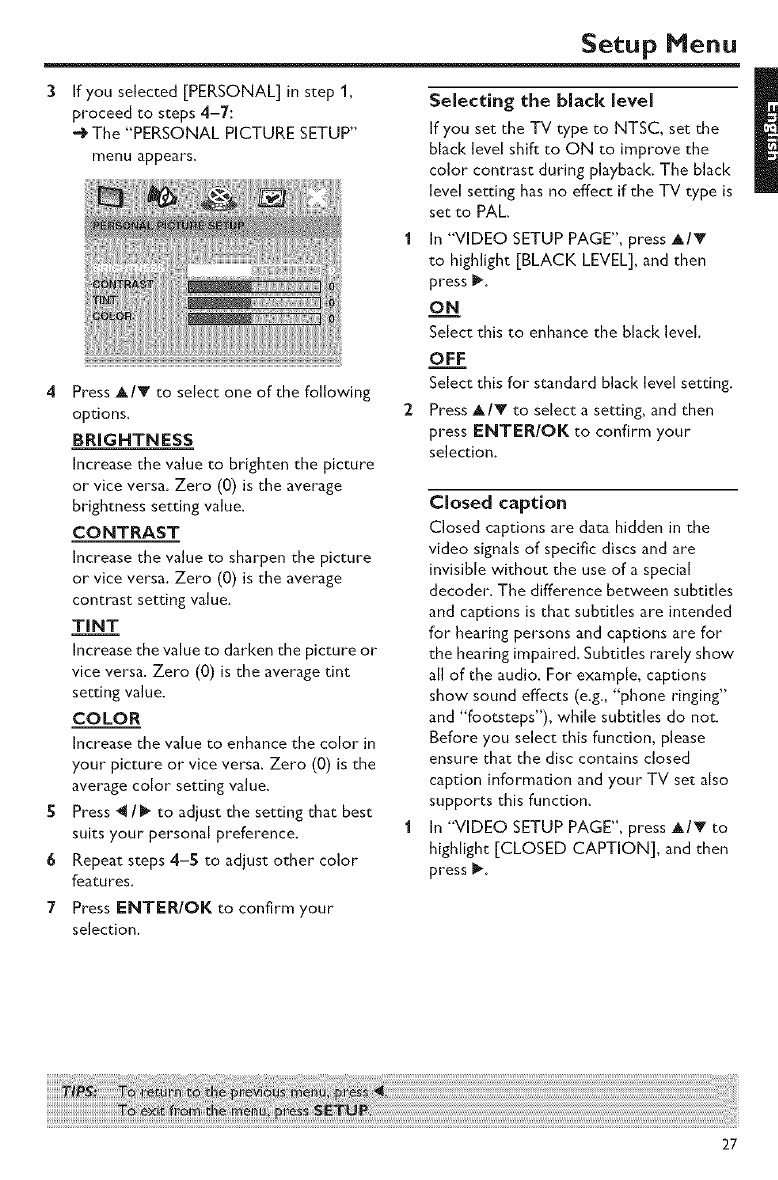
If you selected [PERSONAL] in step 1,
proceed to steps 4-7:
The "PERSONAL PICTURE SETUP"
menu appears.
4 Press A/Y to select one of the following
options.
BRIGHTNESS
increase the value to brighten the picture
or vice versa. Zero (0) is the average
brightness setting value.
CONTRAST
Increase the value to sharpen the picture
or vice versa. Zero (0) is the average
contrast setting value.
TINT
Increase the value to darken the picture or
vice versa. Zero (0) is the average tint
setting value.
COLOR
Increase the value to enhance the color in
your" picture or vice versa, Zero (0) is the
average color setting value.
SPress _11/1_ to adjust the setting that best
suits your personal preference.
6 Repeat steps 4-S to adjust other color
features.
7 Press ENTER/OK to confirm your
selection.
Selecting the black level
If you set the TV type to NTSC, set the
black level shift to ON to improve the
color contrast during playback. The black
level setting has no effect if the TV type is
set to PAL.
1 In "VIDEO SETUP PAGE", press A/V
to highlight [BLACK LEVEL], and then
press I_.
o__N
Select this to enhance the black level.
OFF
Select this for standard black level setting.
2 Press A/Y to select a setting, and then
press ENTER/OK to confirm your
selection.
Closed caption
Closed captions are data hidden in the
video signals of specific discs and are
invisible without the use of a special
decoder. The difference between subtitles
and captions is that subtitles are intended
for hearing persons and captions are for
the hearing impaired. Subtitles rarely show
all of the audio, For example, captions
show sound effects (e.g., "phone ringing"
and "footsteps"), while subtitles do not.
Before you select this function, please
ensure that the disc contains closed
caption information and your TV set also
supports this function,
In "VIDEO SETUP PAGE", press AIr to
highlight [CLOSED CAPTION], and then
press I_.
27
Setup Menu
ON
Select this to enable the closed caption
function.
OFF
Select this to disable the closed caption
function.
Press A/Y to select a setting, and then
press ENTER/OK to confirm your
selection.
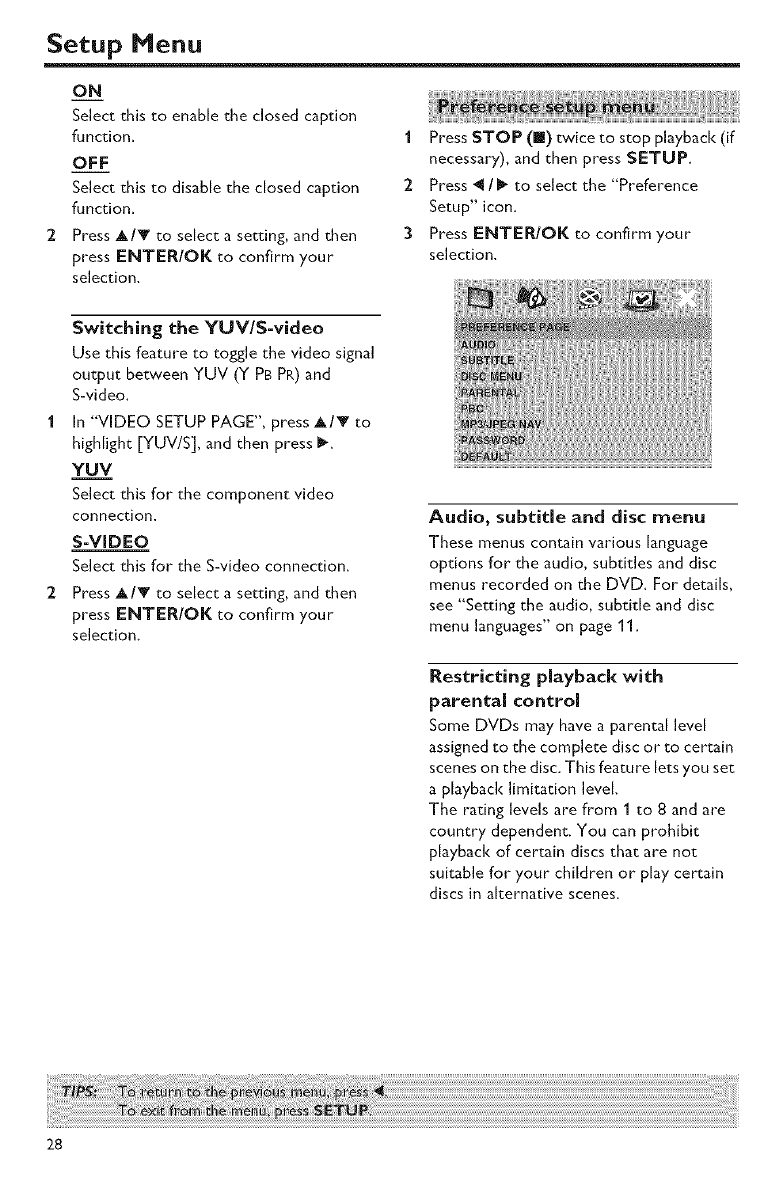
1 Press STOP (|) twice to stop playback (if
necessary), and then press SETUP.
2 Press _l /_ to select the "Preference
Setup" icon.
3Press ENTEWOK to confirm your
selection.
Switching the YUV/S-video
Use this feature to toggle the video signal
output between YUV (Y PB PR) and
S-video.
1 In "VIDEO SETUP PAGE", press A/V to
highlight [YUV/S], and then press _.
YUV
Select this for the component video
connection.
S-VIDEO
Select this for the S-video connection.
2 Press A/Y to select a setting, and then
press ENTER/OK to confirm your
selection.
Audio, subtitle and disc menu
These menus contain various language
options for the audio, subtitles and disc
menus recorded on the DVD. For details,
see "Setting the audio, subtitle and disc
menu languages _ on page 11.
Restricting playback with
parental control
Some DVDs may have a parental level
assigned to the complete disc or to certain
scenes on the disc. This feature lets you set
a playback limitation level.
The rating levels are from 1 to 8 and are
country dependent. You can prohibit
playback of certain discs that are not
suitable for your children or play certain
discs in alternative scenes.
28
Setup Menu
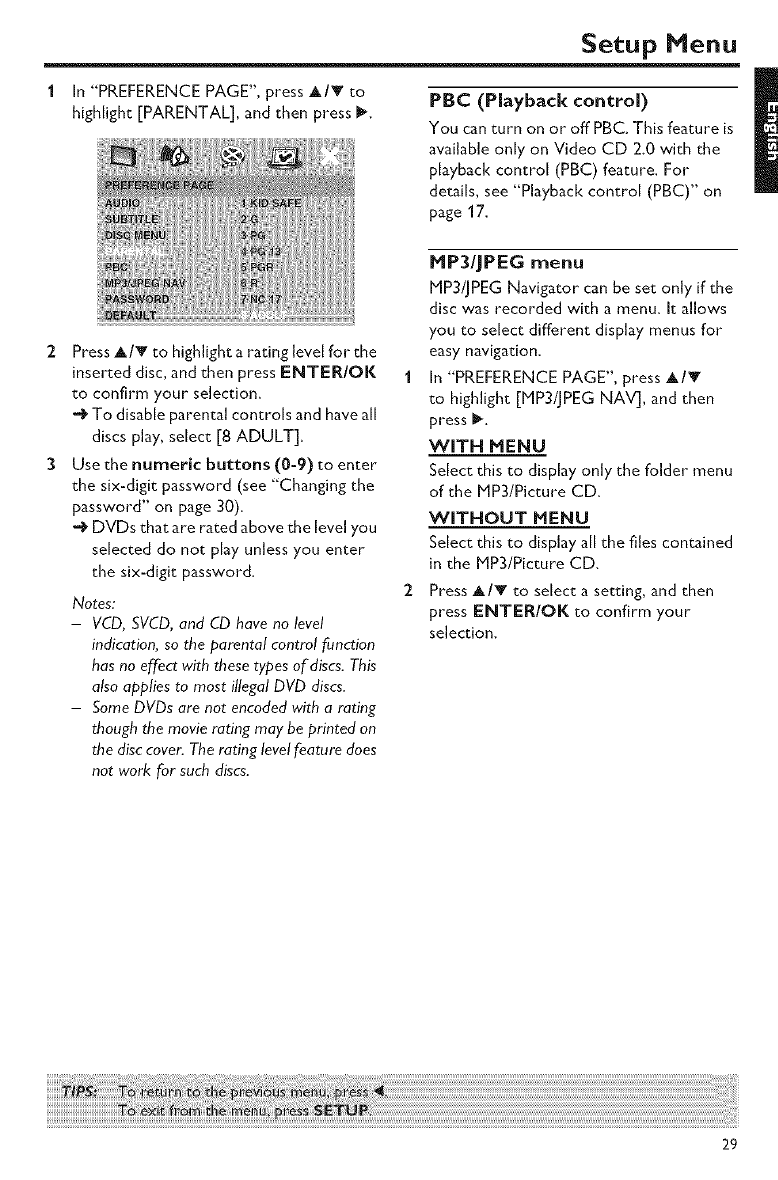
In "PREFERENCE PAGE", press A/T to
highlight [PARENTAL], and then press i_. PBC (Playback control)
You can turn on or off PBC. This feature is
available only on Video CD 2.0 with the
playback control (PBC) feature. For
details, see "Playback control (PBC)" on
page 17.
Press A/_' to highlight a rating level for the
inserted disc, and then press ENTER/OK
to confirm your selection.
-_ To disable parental controls and have all
discs play, select [8 ADULT].
Use the numeric buttons (0=9) to enter
the six-digit password (see "Changing the
password" on page 30).
•_ DVDs that are rated above the level you
selected do not play unless you enter
the six-digit password.
Notes:
-VCD, SVCD, and CD have no level
indication, so the parental control function
has no etTect with these types of'discs. This
also applies to most illegal DVD discs.
-Some DVDs are not encoded with arating
though the movie rating may be printed on
the disc cover. The rating level feature does
not work for such discs.
HP3/JPEG menu
HP3/]PEG Navigator can be set only if the
disc was recorded with a menu. It allows
you to select different display menus for
easy navigation.
1 In "PREFERENCE PAGE", press A/T
to highlight [P1P3/JPEG NAV], and then
press _.
WITH MENU
Select this to display only the folder menu
of the P1P3/Picture CD.
WITHOUT MENU
Select this to display all the files contained
in the P1P3/Picture CD.
2 Press AIr to select asetting, and then
press ENTEPJOK to confirm your
selection.
29
Setup Menu
Changing the password
The same password is used for both
Parental Control and Disc Lock. Enter
your six-digit password when prompted
on the screen. The default password is 000
000.
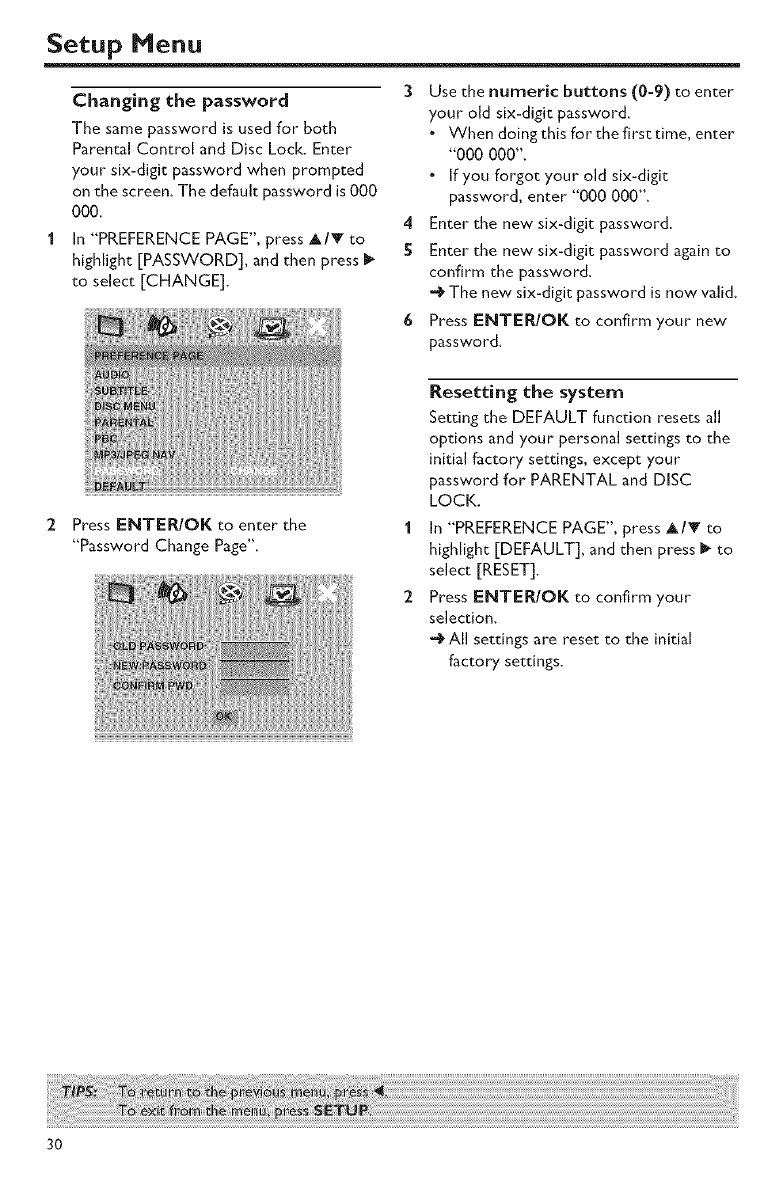
In "PREFERENCE PAGE", press A/V to
highlight [PASSWORD], and then press I_
to select [CHANGE].
3Use the numeric buttons (0-9) to enter
your old six-digit password.
.When doingthis for thefirsttime, enter
"000 000".
•If you forgot your old six-digit
password, enter "000 000".
4 Enter the new six-digit password.
S Enter the new six-digit password again to
confirm the password.
-_ The new six-digit password is now valid.
6 Press ENTER/OK to confirm your new
password.
Press ENTEPdOK to enter the
"Password Change Page".
Resetting the system
Setting the DEFAULT function resets all
options and your personal settings to the
initial factory settings, except your
password for PARENTAL and DISC
LOCK.
In "PREFERENCE PAGE", press A/V to
highlight [DEFAULT], and then press _ to
select [RESET].
Press ENTER/OK to confirm your
selection.
--_ All settings are reset to the initial
factory settings.
3O
Language Code
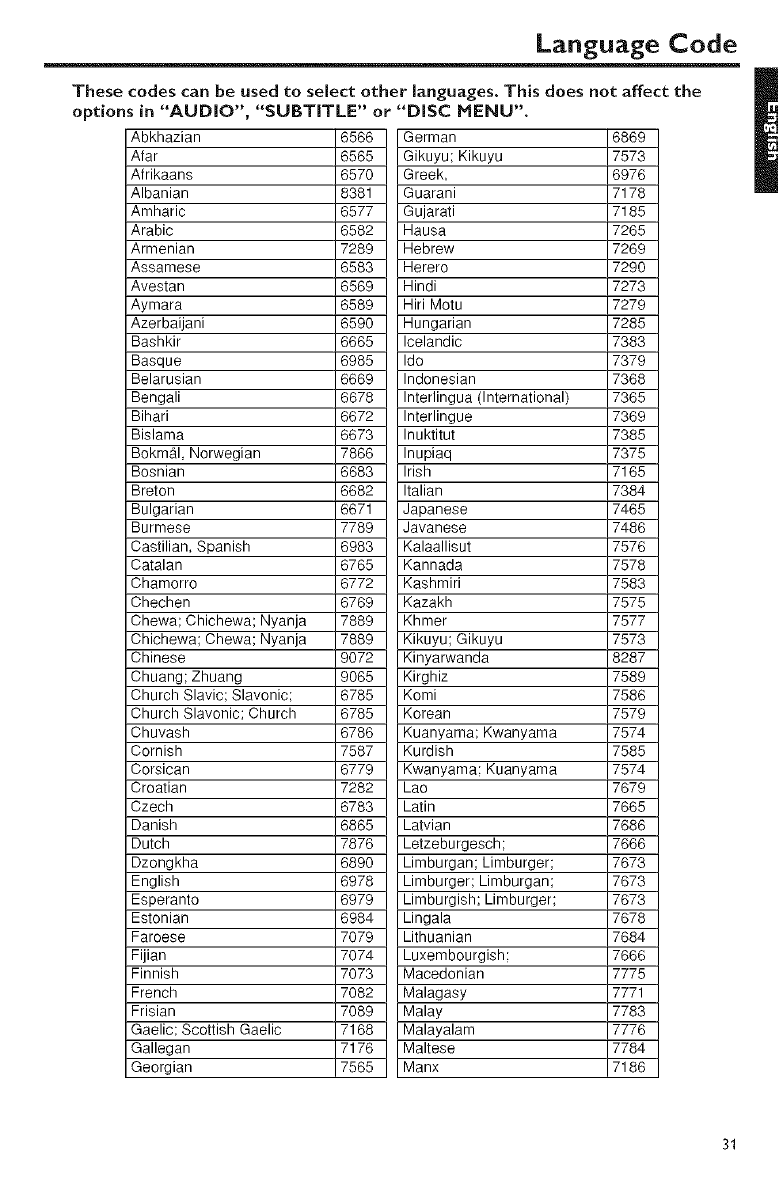
These codes can be used to select other languages. This does not affect the
options in "AUDIO", "SUBTITLE" or "DISC MENU".
Abkhazian 6566
Afar 6565
Afrikaans 6570
Albanian 8381
Amharic 6577
Arabic 6582
Armenian 7289
Assamese 6583
Avestan 6569
Aymara 6589
Azerbaijani 6590
Bashkir 6665
Basque 6985
Belarusian 6669
Bengali 6678
Bihari 6672
Bislama 6673
Bokm_l, Norwegian 7866
Bosnian 6683
Breton 6682
Bulgarian 6671
Burmese 7789
Castilian, Spanish 6983
Catalan 6765
Chamorro 6772
Chechen 6769
Chewa; Chichewa; Nyanja 7889
Chichewa; Chewa; Nyanja 7889
Chinese 9072
Chuang; Zhuang 9065
Church Slavic; Slavonic; 6785
Church Slavonic; Church 6785
Chuvash 6786
Cornish 7587
Corsican 6779
Croatian 7282
Czech 6783
Danish 6865
Dutch 7876
Dzongkha 6890
English 6978
Esperanto 6979
Estonian 6984
Faroese 7079
Fijian 7074
Finnish 7073
French 7082
Frisian 7089
Gaelic; Scottish Gaelic 7168
Gallegan 7176
Georgian 7565
German 6869
Gikuyu; Kikuyu 7573
Greek, 6976
Guarani 7178
Gujarati 7185
Hausa 7265
Hebrew 7269
Herero 7290
Hindi 7273
Hiri Motu 7279
Hungarian 7285
Icelandic 7383
Ido 7379
Indonesian 7368
Interlingua (International) 7365
Interlingue 7369
Inuktitut 7385
Inupiaq 7375
Irish 7165
Italian 7384
Japanese 7465
Javanese 7486
Kalaallisut 7576
Kannada 7578
Kashmiri 7583
Kazakh 7575
Khmer 7577
Kikuyu; Gikuyu 7573
Kinyarwanda 8287
Kirghiz 7589
Komi 7586
Korean 7579
Kuanyama; Kwanyama 7574
Kurdish 7585
Kwanyama; Kuanyama 7574
Lao 7679
Latin 7665
Latvian 7686
Letzeburgesch; 7666
Limburgan; Limburger; 7673
Limburger; Limburgan; 7673
Limburgish; Limburger; 7673
Lingala 7678
Lithuanian 7684
Luxembourgish; 7666
Macedonian 7775
Malagasy 7771
Malay 7783
Malayalam 7776
Maltese 7784
Manx 7186
31
Language Code
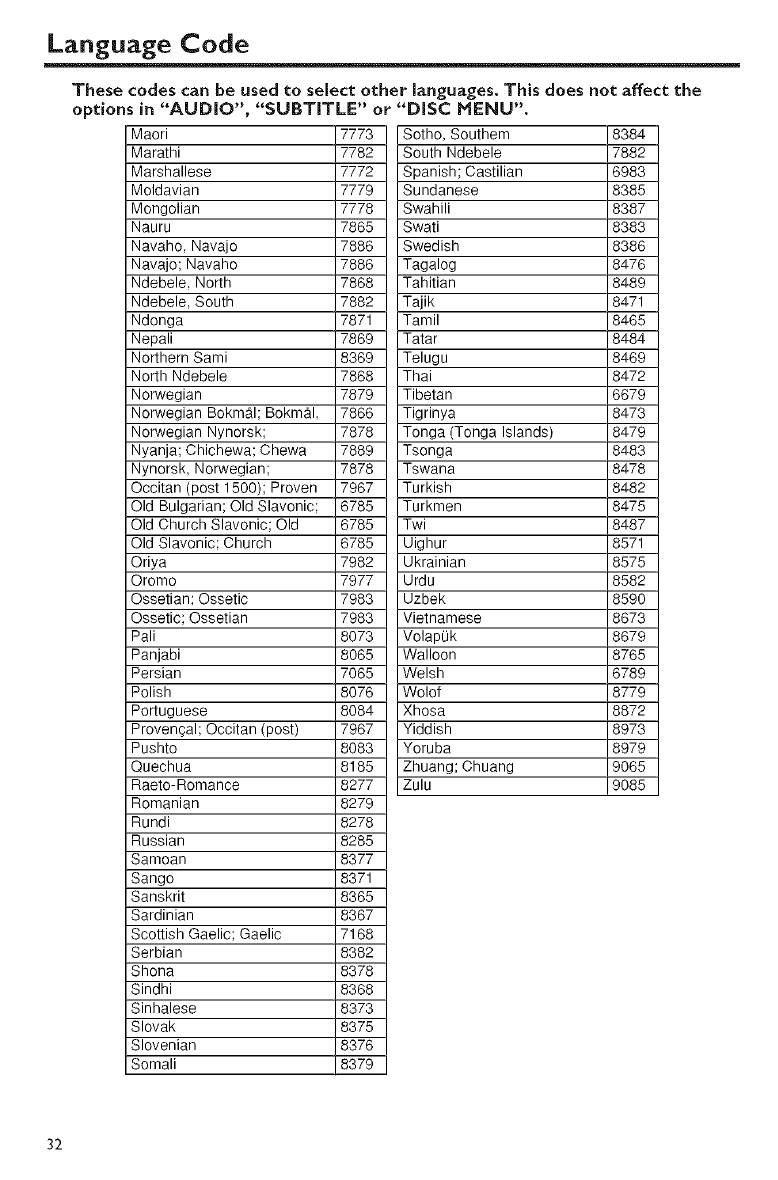
These codes can be used to select other languages. This does not affect the
options in "AUDIO", "SUBTITLE" or "DISC MENU".
Maori 7773
Marathi 7782
Marshallese 7772
Moldavian 7779
Mongolian 7778
Nauru 7865
Navaho, Navajo 7886
Navajo; Navaho 7886
Ndebele, North 7868
Ndebele, South 7882
Ndonga 7871
Nepali 7869
Northern Sami 8369
North Ndebele 7868
Norwegian 7879
Norwegian Bokm_l; Bokmal, 7866
Norwegian Nynorsk; 7878
Nyanja; Chichewa; Chewa 7889
Nynorsk, Norwegian; 7878
Occitan (post 1500); Proven 7967
Old Bulgarian; Old Slavonic; 6785
Old Church Slavonic; Old 6785
Old Slavonic; Church 6785
Oriya 7982
Oromo 7977
Ossetian; Ossetic 7983
Ossetic; Ossetian 7983
Pali 8073
Panjabi 8065
Persian 7065
Polish 8076
Portuguese 8084
Provenoal; Occitan (post) 7967
Pushto 8083
Quechua 8185
Raeto-Romance 8277
Romanian 8279
Rundi 8278
Russian 8285
Samoan 8377
Sango 8371
Sanskrit 8365
Sardinian 8367
Scottish Gaelic; Gaelic 7168
Serbian 8382
Shona 8378
Sindhi 8368
Sinhalese 8373
Slovak 8375
Slovenian 8376
Somali 8379
Sotho, Southem 8384
South Ndebele 7882
Spanish; Castilian 6983
Sundanese 8385
Swahili 8387
Swati 8383
Swedish 8386
Tagalog 8476
Tahitian 8489
Tajik 8471
Tamil 8465
Tatar 8484
Telugu 8469
Thai 8472
Tibetan 6679
Tigrinya 8473
Tonga (Tonga Islands) 8479
Tsonga 8483
Tswana 8478
Turkish 8482
Turkmen 8475
Twi 8487
Uighur 8571
Ukrainian 8575
Urdu 8582
Uzbek 8590
Vietnamese 8673
Volap(Jk 8679
Walloon 8765
Welsh 6789
Wolof 8779
Xhosa 8872
Yiddish 8973
Yoruba 8979
Zhuang; Chuang 9065
Zulu 9085
32
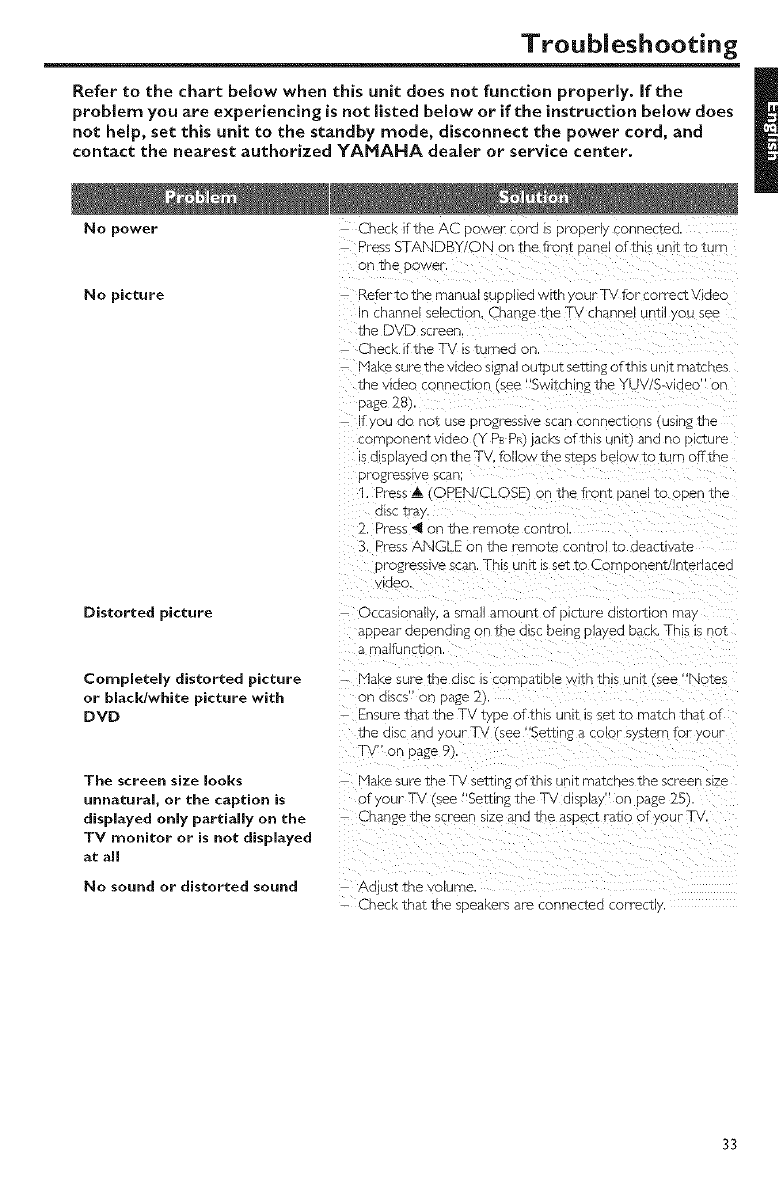
Troubleshooting
Refer to the chart below when this unit does not function properly. If the
problem you are experiencing is not listed below or if the instruction below does
not help, set this unit to the standby mode, disconnect the power cord, and
contact the nearest authorized YAMAHA dealer or service center.
No power Check if the ACE Dwer cor'a is D[¥DDe connectec
Press STANDBY/ON on the fi on_ DaneLof this unit to turn
on Ine Dowel
No picture
Distorted picture
Completely distorted picture
or black/white picture with
DVD
The screen size looks
unnatural, or the caption is
displayed only partially on the
TV monitor or is not displayed
at all
No sound or distorted sound
Refertothe manual SUDDIleawltr /ourTV for:orreclvlaeo
- cnanne _electlon Change the TV channel untl ou see
the D\_ D screen
Check if the T stumea or
Nake sure the video signm ou_pu_ semng of this unit matches
me waec -onnec_ or see "Switching me YUV/S-video" on
_age 28}
'_ ,ou ao not use prYogr'esslve scan connec_ on_ using Ine
co :anen_vmec 'vc[Pa)iacksofthisunitlan(]nomc_ure
s (]lsma 'ed on the TV follow the SeeDSDelow IC wrr )ffthe
)rogresswe scan:
1, Press A DPEN/CLOSB o _the front panel to ode _me
]lSC Ira
2, Pres= _! on the rm _o_e con_rc
3, Dess ANGLE on the emote con_'o _o (]eac_wate
progressive scan, Tnls unl_ _ssetto Cc-_[)oneni/inTe ace(]
vlaeo
Occasiona a small amount of elcture alstor_Elon ma
aDDear aeDenalng on the alsc Delng pla' e(] DOCK. This _ ]ot
TlalTUBClIO_
- Make sure tpe also IScomDatlDle wltn thiS unlI (see 'Notes
on aLscs on page 2).
Ensure that £he TV tYPe of thLs unit s set to match that of
the also an(] your TV {see "Selling a color system for YOU
TV" or _age 9).
Ida .e sure the TV settir _of this unit matcf' esme screen size
of your TV (see "Setting the TV display" on page 25
......................... me asDect ratio of bur
Ad JSl tne volume
- Check that the sDeaKeFSare connec_eo correct
33
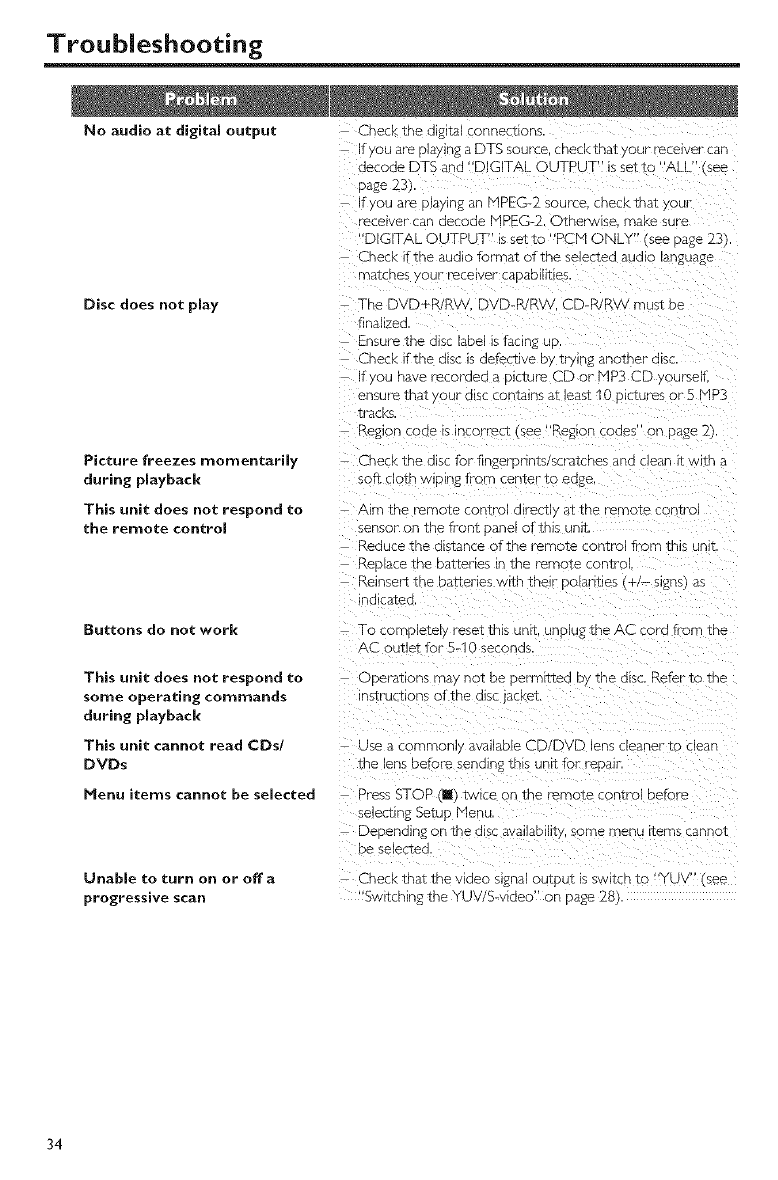
Troubleshooting
No audio at digital output Check tne a@_al connec_ ons
- au are pla/in£ a DTS source cnecKtnat 'our recewer can
aecc Je DTS a-d "DIGITAL OUT D JT" is set to "ALL see
_age 23)
,ou are pla/Jn£ a HPEG-2 sou_c_ cnecKtnat our
recewer can decode HPEG-2. Otherwise _aKe sure
DIGITAL OUTPL T" is set to "PCH ONLY' see pa£e 23
Check if the audio format ol the selecteo auo ) lan£ua£e
q'_atcne_ bur receiver CaDaDHIIles
Disc does not play
Picture freezes momentarily
during playback
This unit does not respond to
the remote control
The DVD+P4R\N DVD-R/R'v_ CD-P4R/v must be
finahzea.
Ensure the disc label is facing up.
Chc :k if the disc is defective by tt'yln£ another a sc.
,ou nave recoroea a oicture CD or" l'qP3 CE outsell
ensule tr _t our oJsc contains at least I( sictures or 5 NP3
!raCKS.
Re£ an coae is incorrect (see "Re£Lon coaes on page 2
Check the disc for fingerprints/so "atcnes ana clean it itn a
soft cloth wipln£ fr_om center to eage.
Aim the remote control dlrec_ v at tne remoTe control
sensor c the front panel of this snlt.
Reduce the distance of tne remote contrc from tl s ur
Reolace "me Datterles n the remote coMtro
Reinsert the oa_erles With tneir" polarities ÷/- sl£ns) as
_QIcateo
Buttons do not work To cot iDletel "eset tnls unto unDlufJ the AC cord f"or_ tne
AC outlet for 5-1C seconc]s.
This unit does not respond to
some operating commands
during playback
This unit cannot read CDs/
DVDs
Menu items cannot be selected
C )eratJons ma tot De _erm_ttea D' the disc. Refer to the
nstr'uctlons of the disc jacket
use a commor ava _Dle CD/DVD lens c_eaner to clean
ine lens Defore sendin£ th s unL_for [eDalr
Press STOP la) twice on the remote control before
selecting Setup Menu
Uepenoln_ an Ine C]lscaVallaDlllIV, some IT enu Items cannot
De selectec]
Unable to turn on or offa
progressive scan
Check that the video si£nal output is swltcn t( _, see
Swltch_n£ the YUV/S-video" on gage 2_8),
34
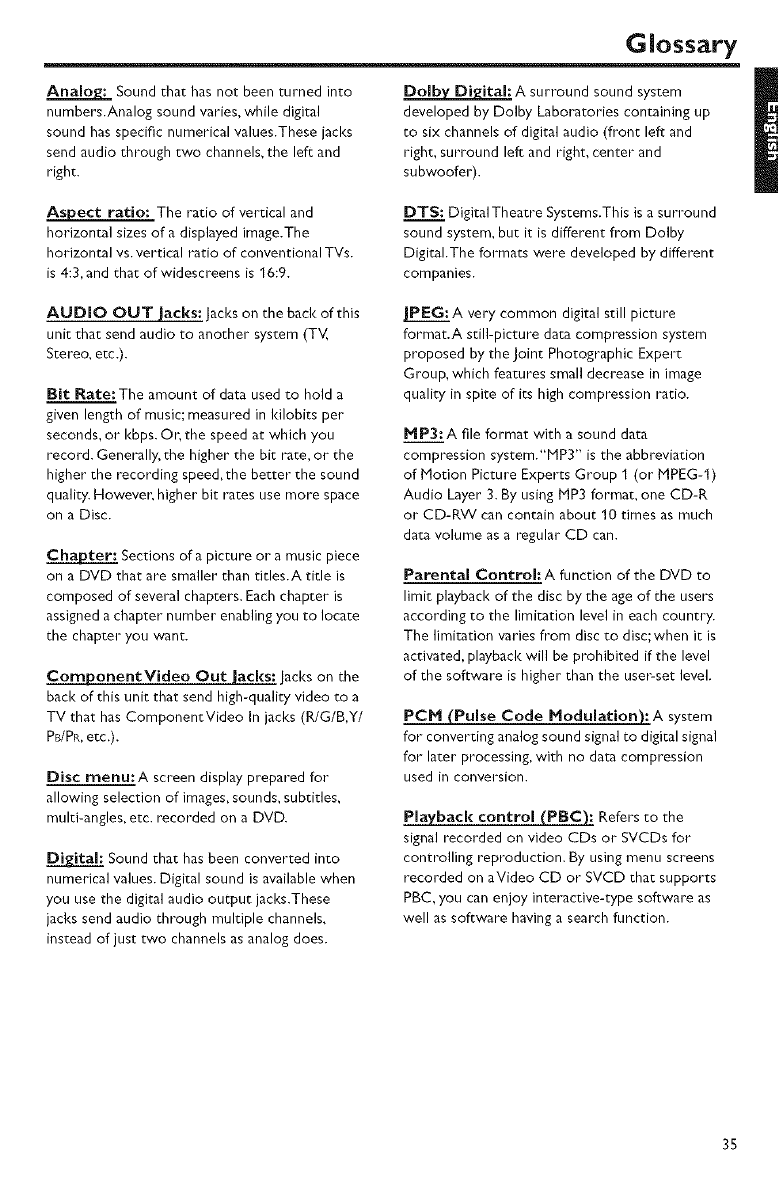
Glossary
Analog: Sound that has not been turned into
numbers.Analog sound varies, while digital
sound has specific numerical values.These jacks
send audio through two channels, the left and
right.
_:A surround sound system
developed by Dolby Laboratories containing up
to six channels of digital audio (front left and
right, surround left and right, center and
subwoofer).
As ect ratio: The ratio of vertical and
horizontal sizes of a displayed image.The
horizontal vs. vertical ratio of conventional TVs.
is 4:3,and that of widescreens is 16:9.
DTS: Digital Theatre Systems.This is a surround
sound system, but it is different from Dolby
Digital.The formats were developed by different
companies.
AUDIO OUT jacks: Jacks on the back of this
unit that send audio to another system (TV,
Stereo, etc.).
Bit Rate: The amount of data used to hold a
given length of music; measured in Idlobits per
seconds, or I<bps. On the speed at which you
record. Generally, the higher the bit rate, or the
higher the recording speed, the better the sound
quality. Howevel: higher bit rates use more space
on a Disc.
Chapter: Sections of a picture or a music piece
on a DVD that are smaller than tides.A title is
composed of several chapters. Each chapter is
assigned a chapter number enabling you to locate
the chapter you want.
ComponentVideo Out jacks: lacks on the
back of this unit that send high-quality video to a
TV that has ComponentVideo In jacks (R/G/B,Y/
PB/PR, etc.).
Disc menu:A screen display prepared for
allowing selection of images, sounds, subtitles,
multi-angles, etc. recorded on a DVD.
Sound that has been converted into
numerical values. Digital sound is available when
you use the digital audio output jacks.These
jacks send audio through multiple channels,
instead of just two channels as analog does.
]PEG: A very common digital still picture
format.A still-picture data compression system
proposed by the Joint Photographic Expert
Group, which features small decrease in image
quality in spite of its high compression ratio.
MP3:A file format with a sound data
compression system."MP3" is the abbreviation
of blotion Picture Experts Group 1 (or blPEG-I)
Audio Layer 3. By using klP3 format, one CD-R
or CD-RW can contain about 10 times as much
data volume as a regular CD can.
Parental Control: A function of the DVD to
limit playback of the disc bythe age of the users
according to the limitation level in each country.
The limitation varies from disc to disc; when it is
activated, playback will be prohibited if the level
of the software is higher than the usemset level.
PCH _Pulse Code ModulationS: A system
for converting analog sound signal co digital signal
for later processing, with no data compression
used in conversion.
Playback control (PBc): Refers to the
signal recorded on video CDs or SVCDs for
controlling reproduction. By using menu screens
recorded on aVideo CD or SVCD that supports
PBC, you can enjoy interactive-type software as
well as software having a search function.
35
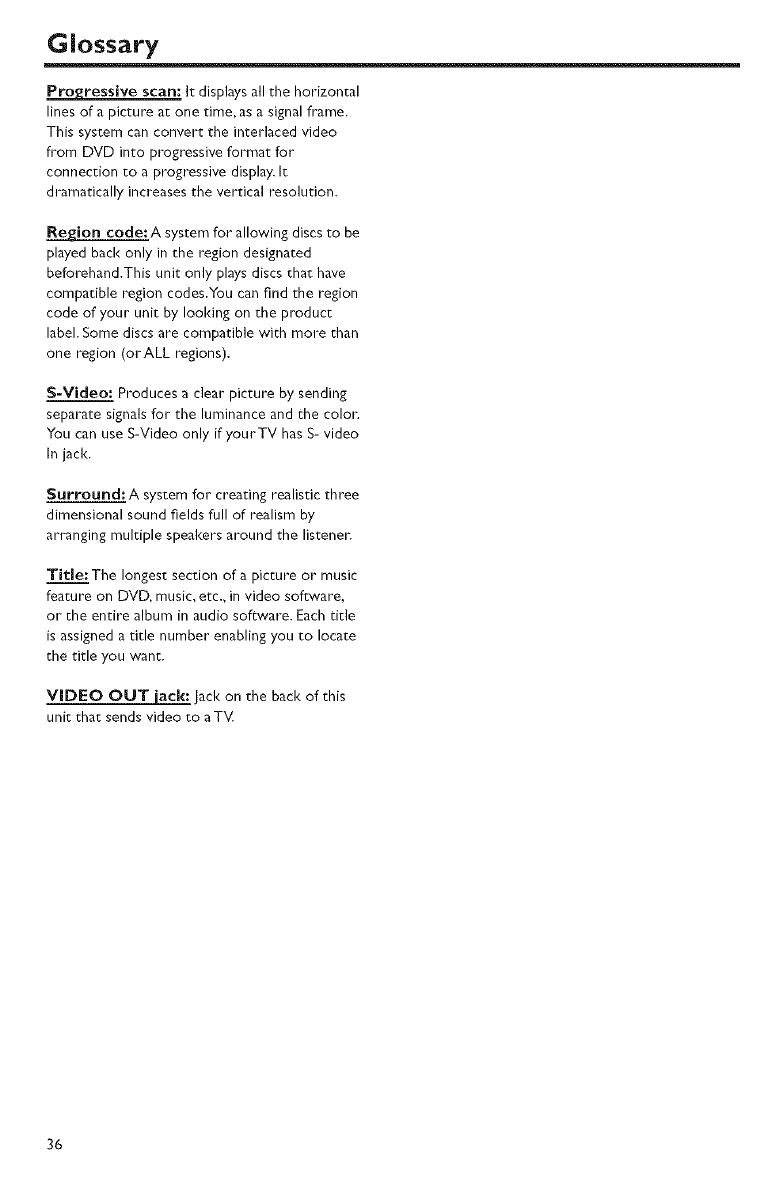
Glossary
ProEressive scan: It displays all the horizontal
lines of a picture at one time, as a signal frame.
This system can convert the interlaced video
from DVD into progressive format for
connection to a progressive display. It
dramatically increases the vertical resolution.
_A system for allowing discs to be
played back only in the region designated
beforehand.This unit only plays discs that have
compatible region codes.You can find the region
code of your unit by looking on the product
label. Some discs are compatible with more than
one region (orALL regions).
S-Video: Produces a clear picture by sending
separate signals for the luminance and the colol:
You can use S-Video only if yourTV has S- video
In jack.
Surround: A system for creating realistic three
dimensional sound fields full of realism by
arranging multiple speakers around the listenel=
Title: The longest section of a picture or music
feature on DVD, music, etc., in video software,
or the entire album in audio software. Each title
is assigned a title number enabling you to locate
the title you want.
VIDEO OUT iack: Jack on the back of this
unit that sends video to aTM
36

Specifications
PLAYBACK SYSTEM TV STANDARD (PAL/S0 Nz) (NTSC/60 Nz)
DVD-Video Number of lines 625 525
Video CD & SVCD Playback Multistandard (PAL/NTSC)
CD
PICTURE CD CONNECTIONS
CD-R, CD-RW Y Output Cinch (green)
DVD+R, DVD+RW PB/CB Output Cinch (blue)
DVD-R, DVD-RW PR/CR Output Cinch (red)
S-Video Output Mini DIN, 4 pins
VIDEO PERFORMANCE Video Output Cinch
Video (CVBS) Output 1 Vpp into 75 ohm Audio Output (L+R) Cinch
S-Video output Y: 1 Vpp into 75 ohm Digital Output 1 coaxial
C: 0.3 Vpp into 75 ohm IEC60958 for CDDA/LPCM
Component video output Y: 1 Vpp into 75 ohm IEC61937 for MPEG 1/2, Dolhy
PB/CB PR/CR: 0.7 Vpp into Digital and DTS
75 ohm
Black Level Shift On/Off CABINET
Dimensions (w x d x h) 435 x 425 x 75 mm
AUDIO FORMAT Weight Approx. 5.5 Kg
Digital Mpeg/Dolby Digital/ Compressed Digital
DTS
PCN 16, 20, 24 bits
fs, 44.1.48, 96 kHz
MP3(ISO 9660) 241 321 561 641 961 1281
256 kbps
ft, 16, 22.05, 24, 32,
44.1,48 kHz
WMA 32 192 I<bps, mono, stereo
Analog Sound Stereo
POWER SUPPLY
Power inlet U.S.A model 120 V, 60 Hz
Power usage Approx. 15 W
Power usage standby < 1 W
AUDIO PERFORMANCE
DA Converter 24 bit
Signal-Noise (1 kHz) 115 dB
Dynamic range (1 kHz) 100 dB
DVD fs 96 kHz
fs 48 kHz
SVCD fs 48 kHz
fs 44.1 kHz
CD/VCD fs 44.1 kHz
Distortion and Noise (1 kHz)
2 Hz - 44 kHz
2 Hz - 22 kHz
2 Hz - 22 kHz
2 Hz - 20 kHz
2 Hz - 20 kHz
0.0035%
Speci_cations are subject to chenge without
prior notice.
37

@YAMAHA
02005 YAMAHA CORPORATION All rights reserved.
YAMAHA ELECTRONICS CORPORATION, USA 6660 ORANGETHORPEAVE BUENA PARK CAUF 90620 USA
YAMAHA CANADA MUSIC LTD 135 MILNER AVE, SCARBOROUGH ONTARIO MIS 3R1 CANADA
YAMAHA ELECTRON_KEUROPA 6m.bH SlEMENSSTR 2234 25462 RELLINGENBEI HAMBURG¸GERMANY
YAMAHA ELECTRON_QUEFRANCE S.A RUE AMBROISE CROIZAT BPT0 ¢ROISSY BEAUBOURG77312 MARNELA VALLEE CEDEX02 FRANOE
YAMAHA ELECTRONICS (UK) LTD" YAMAHA HOUSE 200 RICKMANSWORTHROAD WATFORD HERTS WD18 7GO ENGLAND YAMAHA CORPORATION
YAMAHA SCANDINAVIA A8 J A WETTERGRENSGATA 1 BOX 30053 400 43 VASTRA FROLUNDA SWEDEN
YAMAHA MUSIC AUSTRAUA PTY LTD 1733 MARKET ST SOUTH MELBOURNE 3205 VIO AUSTRALIA Printed in China C 3139 246 18351
