Yamaha Htr 5630Rds Users Manual 02V340GB_Cau_EN.p65
HTR-5630RDS to the manual 54afad0f-cb3c-46be-9445-e9b7a7492341
2015-01-15
: Yamaha Htr-5630Rds-Users-Manual yamaha-htr-5630rds-users-manual-133067 yamaha pdf
Open the PDF directly: View PDF  .
.
Page Count: 106 [warning: Documents this large are best viewed by clicking the View PDF Link!]
- English
- CAUTION
- INTRODUCTION
- PREPARATION
- BASICOPERATION
- ADVANCEDOPERATION
- SET MENU
- Set menu list
- Adjusting the items on the set menu
- SOUND 1 SPEAKER SET (speaker mode settings)
- SOUND 2 SP DISTANCE (speaker distance)
- SOUND 3 LFE LEVEL
- SOUND 4 D. RANGE (dynamic range)
- SOUND 5 CENTER GEQ (center graphic equalizer)
- SOUND 6 HP TONE CTRL (headphone tone control)
- INPUT 1 I/O ASSIGN (input/ output assignment)
- INPUT 2 INPUT MODE (initial input mode)
- OPTION 1 DISPLAY SET
- OPTION 2 MEM. GUARD (memory guard)
- OPTION 3 AUDIO MUTE
- SETTING THE SPEAKER LEVELS
- SET MENU
- ADDITIONALINFORMATION
- NS-P100,P106.pdf
- DVD-S540.pdf
- IMPORTANT SAFETY INSTRUCTIONS
- CAUTION: READ THIS BEFORE OPERATING YOUR UNIT.
- Contents
- Introduction
- Functional Overview
- Preparation
- Operation
- Picture CD & MP3 Playback
- Setup Menu
- Troubleshooting
- Specifications
- Maintenance
- Language Code

YAMAHA ELECTRONICS CORPORATION, USA 6660 ORANGETHORPE AVE., BUENA PARK, CALIF. 90620, U.S.A.
YAMAHA CANADA MUSIC LTD. 135 MILNER AVE., SCARBOROUGH, ONTARIO M1S 3R1, CANADA
YAMAHA ELECTRONIK EUROPA G.m.b.H. SIEMENSSTR. 22-34, 25462 RELLINGEN BEI HAMBURG, F.R. OF GERMANY
YAMAHA ELECTRONIQUE FRANCE S.A. RUE AMBROISE CROIZAT BP70 CROISSY-BEAUBOURG 77312 MARNE-LA-VALLEE CEDEX02, FRANCE
YAMAHA ELECTRONICS (UK) LTD. YAMAHA HOUSE, 200 RICKMANSWORTH ROAD WATFORD, HERTS WD1 7JS, ENGLAND
YAMAHA SCANDINAVIA A.B. J A WETTERGRENS GATA 1, BOX 30053, 400 43 VÄSTRA FRÖLUNDA, SWEDEN
YAMAHA MUSIC AUSTRALIA PTY, LTD. 17-33 MARKET ST., SOUTH MELBOURNE, 3205 VIC., AUSTRALIA
Printed in China
WB14660
HTR-5630RDS
GB
OWNER’S MANUAL
MODE D’EMPLOI
BEDIENUNGSANLEITUNG
BRUKSANVISNING
MANUALE DI ISTRUZIONI
MANUAL DE INSTRUCCIONES
GEBRUIKSAANWIJZING
HTR-5630RDS
AV Receiver
Ampli-tuner audio-vidéo
TECHNISCHE GEGEVENS
AUDIO GEDEELTE
• Minimum RMS uitgangsvermogen voor hoofd, midden, achter
1 kHz, 0,1% THV, 6 Ω
[Modellen voor de VS en Canada] ........................................ 70 W
[Overige modellen] ................................................................ 60 W
1 kHz, 0,7% THV, 6 Ω
[Modellen voor de VS en Canada] ........................................ 75 W
[Modellen voor het V.K., Europa, Australië en Korea] ......... 65 W
• DIN Standaard uitgangsvermogen
[Modellen voor Europa]
1 kHz, 0,7% THV, 4 Ω .......................................................... 75 W
• Maximum uitgangsvermogen (EIAJ)
[Modellen voor China, Korea en algemene modellen]
1 kHz, 10% THV, 6 Ω ........................................................... 80 W
• Dynamisch uitgangsvermogen (IHF) 6/4/2 Ω
[Modellen voor de VS en Canada] .......................... 85/100/115 W
[Overige modellen] .................................................... 75/95/105 W
• Frequentierespons
CD, etc naar Hoofd L/R ....................... 10 Hz t/m 100 kHz, –3 dB
• Totale Harmonische Vervorming
1 kHz, 30 W, 6 Ω, Hoofd L/R ...............................................0,06%
• Signaal-ruis verhouding (IHF-A Netwerk)
CD (kortgesloten 250 mV) naar Hoofd L/R, Effect uit
..................................................................................... h100 dB
• Residuele ruis (IHF-A Netwerk)
Hoofd L/R ......................................................... 150 µV of minder
• Kanaalscheiding (1 kHz/10 kHz)
CD, etc (5,1 kΩ getermineerd) naar Hoofd L/R
........................................................................ h60 dB/h45 dB
• Toonregeling (Hoofd L/R)
BASS versterking/verzwakking ............................ ±10 dB/100 Hz
TREBLE versterking/verzwakking ....................... ±10 dB/20 kHz
• Uitgangsvermogen hoofdtelefoon ............................. 300 mV/470 Ω
• Ingangsgevoeligheid
CD, etc .................................................................... 150 mV/47 kΩ
6CH INPUT ............................................................ 150 mV/47 kΩ
• Uitgangsniveau
OUT (REC) ........................................................... 150 mV/1,2 kΩ
OUTPUT SUBWOOFER ............................................. 4 V/1,2 kΩ
VIDEO GEDEELTE
• Videosignaal-type ....................................................... NTSC of PAL
• Composiet videosignaal-niveau ..................................... 1 Vp-p/75 Ω
• Signaal-ruis verhouding ...................................................... h50 dB
• Frequentierespons (MONITOR OUT) ...... 5 Hz t/m 10 MHz, –3 dB
FM GEDEELTE
• Afstembereik
[Modellen voor de VS en Canada] ................ 87,5 t/m 107,9 MHz
[Overige modellen] .................................... 87,50 t/m 108,00 MHz
• 50 dB Rustgevoeligheid (IHF, 100% mod.)
Mono/Stereo ........................ 2,0 µV (17,3 dBf) /25 µV (39,2 dBf)
• Selectiviteit (400 kHz) ............................................................. 70 dB
• Signaal-ruis verhouding (IHF)
Mono/Stereo .............................................................. 76 dB/70 dB
• Harmonische vervorming (1 kHz)
Mono/Stereo ................................................................. 0,2%/0,3%
• Stereoscheiding (1 kHz) .......................................................... 42 dB
• Frequentierespons ............................. 20 Hz t/m 15 kHz +0,5, –2 dB
AM GEDEELTE
• Afstembereik ........................................ 530/531 t/m 1710/1611 kHz
• Bruikbare gevoeligheid .................................................... 300 µV/m
ALGEMEEN
• Stroomvoorziening
[Modellen voor de VS en Canada] ...... 120 V wisselstroom/60 Hz
[Modellen voor Australië] ................... 240 V wisselstroom/50 Hz
[Modellen voor het V.K., Europa en Singapore]
.......................................................... 230 V wisselstroom/50 Hz
[Modellen voor Korea] ........................ 220 V wisselstroom/60 Hz
[Modellen voor China] ........................ 220 V wisselstroom/50 Hz
[Algemene modellen]
............................ 110-120V/220-240 V wisselstroom, 50/60 Hz
• Stroomverbruik
[Modellen voor de VS en Canada] ......................... 210 W/280 VA
[Overige modellen] .............................................................. 210 W
Standby-stand ....................................................... 0,8 W of minder
• Afmetingen (b x h x d) ..................................... 435 x 151 x 322 mm
• Gewicht .................................................................................... 8,0 kg
*Technische gegevens kunnen zonder voorafgaande kennisgeving
gewijzigd worden.
01HTR5630_cv_GB-b.p65 03.4.1, 6:51 PM1
1 To assure the finest performance, please read this
manual carefully. Keep it in a safe place for future
reference.
2 Install this sound system in a well ventilated, cool,
dry, clean place — away from direct sunlight, heat
sources, vibration, dust, moisture, and/or cold.
Allow ventilation space of at least 30 cm on the top,
20 cm on the left and right, and 20 cm on the back
of this unit.
3 Locate this unit away from other electrical
appliances, motors, or transformers to avoid
humming sounds.
4
Do not expose this unit to sudden temperature
changes from cold to hot, and do not locate this unit
in a environment with high humidity (i.e. a room with
a humidifier) to prevent condensation inside this unit,
which may cause an electrical shock, fire, damage to
this unit, and/or personal injury.
5 Avoid installing this unit where foreign object may
fall onto this unit and/or this unit may be exposed
to liquid dripping or splashing. On the top of this
unit, do not place:
– Other components, as they may cause damage
and/or discoloration on the surface of this unit.
–
Burning objects (i.e. candles), as they may cause
fire, damage to this unit, and/or personal injury.
– Containers with liquid in them, as they may fall
and liquid may cause electrical shock to the
user and/or damage to this unit.
6 Do not cover this unit with a newspaper, tablecloth,
curtain, etc. in order not to obstruct heat radiation.
If the temperature inside this unit rises, it may
cause fire, damage to this unit, and/or personal
injury.
7 Do not plug in this unit to a wall outlet until all
connections are complete.
8 Do not operate this unit upside-down. It may
overheat, possibly causing damage.
9 Do not use force on switches, knobs and/or cords.
10 When disconnecting the power cord from the wall
outlet, grasp the plug; do not pull the cord.
11 Do not clean this unit with chemical solvents; this
might damage the finish. Use a clean, dry cloth.
12 Only voltage specified on this unit must be used.
Using this unit with a higher voltage than specified
is dangerous and may cause fire, damage to this
unit, and/or personal injury. YAMAHA will not be
held responsible for any damage resulting from use
of this unit with a voltage other than specified.
13
To prevent damage by lightning, disconnect the power
cord from the wall outlet during an electrical storm.
14 Do not attempt to modify or fix this unit. Contact
qualified YAMAHA service personnel when any
service is needed. The cabinet should never be
opened for any reasons.
15 When not planning to use this unit for long periods
of time (i.e. vacation), disconnect the AC power
plug from the wall outlet.
CAUTION: READ THIS BEFORE OPERATING YOUR UNIT.
16 Be sure to read the “TROUBLESHOOTING” section
on common operating errors before concluding that
this unit is faulty.
17 Before moving this unit, press STANDBY/ON to set
this unit in standby mode, and disconnect the AC
power plug from the wall outlet.
18
VOLTAGE SELECTOR (General model only)
The VOLTAGE SELECTOR on the rear panel of this
unit must be set for your local main voltage
BEFORE plugging into the AC main supply.
Voltages are 110V-120V, 220V-240V AC, 50/60 Hz.
This unit is not disconnected from the AC power
source as long as it is connected to the wall outlet,
even if this unit itself is turned off. This state is called
standby mode. In this state, this unit is designed to
consume a very small quantity of power.
WARNING
TO REDUCE THE RISK OF FIRE OR ELECTRIC
SHOCK, DO NOT EXPOSE THIS UNIT TO RAIN
OR MOISTURE.
■For U.K. customers
If the socket outlets in the home are not suitable for the
plug supplied with this appliance, it should be cut off and
an appropriate 3 pin plug fitted. For details, refer to the
instructions described below.
Note
• The plug severed from the mains lead must be destroyed, as a
plug with bared flexible cord is hazardous if engaged in a live
socket outlet.
■Special Instructions for U.K. Model
IMPORTANT
THE WIRES IN MAINS LEAD ARE COLOURED
IN ACCORDANCE WITH THE FOLLOWING
CODE:
Blue: NEUTRAL
Brown: LIVE
As the colours of the wires in the mains lead of this
apparatus may not correspond with the coloured
markings identifying the terminals in your plug,
proceed as follows:
The wire which is coloured BLUE must be connected
to the terminal which is marked with the letter N or
coloured BLACK. The wire which is coloured
BROWN must be connected to the terminal which is
marked with the letter L or coloured RED.
Making sure that neither core is connected to the earth
terminal of the three pin plug.
CAUTION 53
Nederlands
AANVULLENDE
INFORMATIE
■PCM (Lineair PCM)
Lineair PCM is een signaalformaat voor
ongecomprimeerde gedigitaliseerde analoge
geluidssignalen, geschikt voor opname, transmissie en
weergave. Dit is de methode waarmee CD’s en DVD
audio discs zijn opgenomen. Het PCM systeem maakt
gebruik van een systeem waarbij het analoge signaal in
zeer kleine stukjes wordt gehakt en per stukje gemeten
wordt (‘bemonsterd’). PCM staat voor “Puls Code
Modulatie” en betekent dat het analoge signaal gecodeerd
wordt als pulsjes en vervolgens o gemoduleerd voor
opname.
■Bemonsteringsfrequentie en aantal
kwantificeringsbits
Bij het digitaliseren van een analoog audiosignaal wordt
het aantal keren dat het signaal per seconde gemeten
wordt de bemonsteringsfrequentie genoemd, terwijl de
mate van detail waarin het geluid wordt omgezet in een
digitale waarde wordt aangegeven door het aantal
kwantificeringsbits.
De signalen die kunnen worden weergegeven hangen
mede af van de bemonsteringsfrequentie terwijl het
dynamisch bereik, het verschil tussen maximum en
minimum volume, afhangt van het aantal
kwantificeringsbits. Hoe hoger de
bemonsteringsfrequentie, hoe meer frequenties er kunnen
worden weergegeven en hoe hoger het aantal
kwantificeringsbits, hoe beter het volume kan worden
gereproduceerd.
WOORDENLIJST
01RX-V340RDS_cv2-3_GB.p65 03.4.1, 6:51 PM1

1
English
INTRODUCTION PREPARATION
BASIC
OPERATION
ADVANCED
OPERATION
ADDITIONAL
INFORMATION
CONTENTS
INTRODUCTION
CONTENTS ............................................................ 1
FEATURES ............................................................. 2
GETTING STARTED ............................................ 3
Supplied accessories .................................................. 3
Installing batteries in the remote control ................... 3
CONTROLS AND FUNCTIONS ......................... 4
Front panel ................................................................. 4
Remote control .......................................................... 6
Front panel display .................................................... 8
PREPARATION
CONNECTIONS .................................................... 9
Before connecting components ................................. 9
Connecting video components ................................ 10
Connecting audio components ................................ 11
Connecting the antennas .......................................... 12
Connecting an external decoder .............................. 13
Connecting the speakers .......................................... 14
Connecting the power supply cords ........................ 17
Turning on the power .............................................. 17
BASIC SYSTEM SETTINGS ............................. 18
Using the basic menu .............................................. 18
Setting the unit to match your speaker system ........ 20
Setting speaker output levels (SP LEVEL) ............. 20
BASIC OPERATION
PLAYBACK .......................................................... 21
Input modes and indications .................................... 23
Selecting a sound field program .............................. 24
DIGITAL SOUND FIELD PROCESSING (DSP)
............................................................................ 27
Understanding sound fields ..................................... 27
Hi-Fi DSP programs ................................................ 27
CINEMA-DSP ...................................................... 28
Sound design of CINEMA-DSP ............................. 28
CINEMA-DSP Programs ........................................ 28
Sound field effects ................................................... 30
TUNING ................................................................ 31
Presetting stations .................................................... 32
Selecting a preset station ......................................... 34
RECEIVING RDS STATIONS ........................... 35
Description of RDS data ......................................... 35
Changing the RDS mode ......................................... 35
PTY SEEK function ................................................ 36
EON function .......................................................... 36
SLEEP TIMER ..................................................... 37
RECORDING ....................................................... 38
ADVANCED OPERATION
SET MENU ........................................................... 39
Set menu list ............................................................ 39
Adjusting the items on the set menu ....................... 39
SOUND 1 SPEAKER SET (speaker mode settings)
............................................................................. 40
SOUND 2 SP DISTANCE (speaker distance) ........ 42
SOUND 3 LFE LEVEL .......................................... 42
SOUND 4 D. RANGE (dynamic range) ................. 42
SOUND 5 CENTER GEQ
(center graphic equalizer) .................................... 43
SOUND 6 HP TONE CTRL
(headphone tone control) .................................... 43
INPUT 1 I/O ASSIGN (input/output assignment) .. 43
INPUT 2 INPUT MODE (initial input mode) ........ 43
OPTION 1 DISPLAY SET ...................................... 44
OPTION 2 MEM. GUARD (memory guard) ......... 44
OPTION 3 AUDIO MUTE ..................................... 44
SETTING THE SPEAKER LEVELS ................ 45
Adjusting the volume during playback ................... 45
Using the test tone ................................................... 45
ADDITIONAL INFORMATION
SOUND FIELD PROGRAM PARAMETER
EDITING .......................................................... 46
Changing parameter settings ................................... 46
Digital sound field parameter descriptions .............. 47
TROUBLESHOOTING ....................................... 48
GLOSSARY .......................................................... 52
SPECIFICATIONS .............................................. 54
03V340G_01-08_EN(03.4.14)a.p65 03.4.14, 11:48 AM1
2
Manufactured under license from Dolby Laboratories.
“Dolby”, “Pro Logic”, and the double-D symbol are
trademarks of Dolby Laboratories.
FEATURES
Multi-mode digital sound field processing
◆Dolby Pro Logic/Dolby Pro Logic II decoder
◆Dolby Digital/Dolby Digital + Matrix 6.1 Decoder
◆DTS/DTS + Matrix 6.1 Decoder
◆CINEMA DSP: Combination of YAMAHA DSP
technology and Dolby Pro Logic, Dolby Digital or
DTS
◆Virtual CINEMA DSP
◆SILENT CINEMA DSP
Sophisticated AM/FM Tuner
◆40-Station random access preset tuning
◆Automatic preset tuning
◆Preset station shifting capability (Preset editing)
Other features
◆96 kHz/24-bit D/A converter
◆Set menu for optimizing this unit for your Audio/
Video system
◆Test tone generator for easier speaker balance
adjustment
◆6-channel external decoder input
◆Optical and coaxial digital audio signal jacks
◆Sleep timer
“DTS” and “DTS Digital Surround” are registered
trademarks of Digital Theater Systems, Inc.
Built-in 5-channel power amplifier
◆Minimum RMS output power
(0.1% THD, 1 kHz, 6Ω)
[U.S.A. and Canada models]
Main: 70 W + 70 W
Center: 70 W
Rear: 70 W + 70 W
[Other models]
Main: 60 W + 60 W
Center: 60 W
Rear: 60 W + 60 W
■About this manual
•y indicates a tip for your operation.
• Some operations can be performed by using either the buttons on the main unit or on the remote control. In cases
when the button names differ between the main unit and the remote control, the button name on the remote control is
given in parentheses.
• This manual is printed prior to production. Design and specifications are subject to change in part for the reason of
the improvement in operativity ability, and others. In this case, the product has priority.
03V340G_01-08_EN(03.4.14)a.p65 03.4.14, 11:48 AM2
3
English
INTRODUCTION
Installing batteries in the remote
control
Insert the batteries in the correct direction by aligning the
+ and – marks on the batteries with the polarity markings
(+ and –) inside the battery compartment.
1Press the tab of the battery compartment
cover and pull it in the direction of the arrow
to open the cover.
2Remove the cover.
3Insert the two batteries supplied (AA, R06,
UM-3) according to the polarity markings on
the inside of the battery compartment.
4Put the cover back into place.
■Notes on batteries
• Change all of the batteries if you notice a decrease in
the operating range of the remote control.
• Do not use old batteries together with new ones.
• Do not use different types of batteries (such as alkaline
and manganese batteries) together. Read the packaging
carefully as these different types of batteries may have
the same shape and color.
• If the batteries have leaked, dispose of them
immediately. Avoid touching the leaked material or
letting it come into contact with clothing, etc. Clean the
battery compartment thoroughly before installing new
batteries.
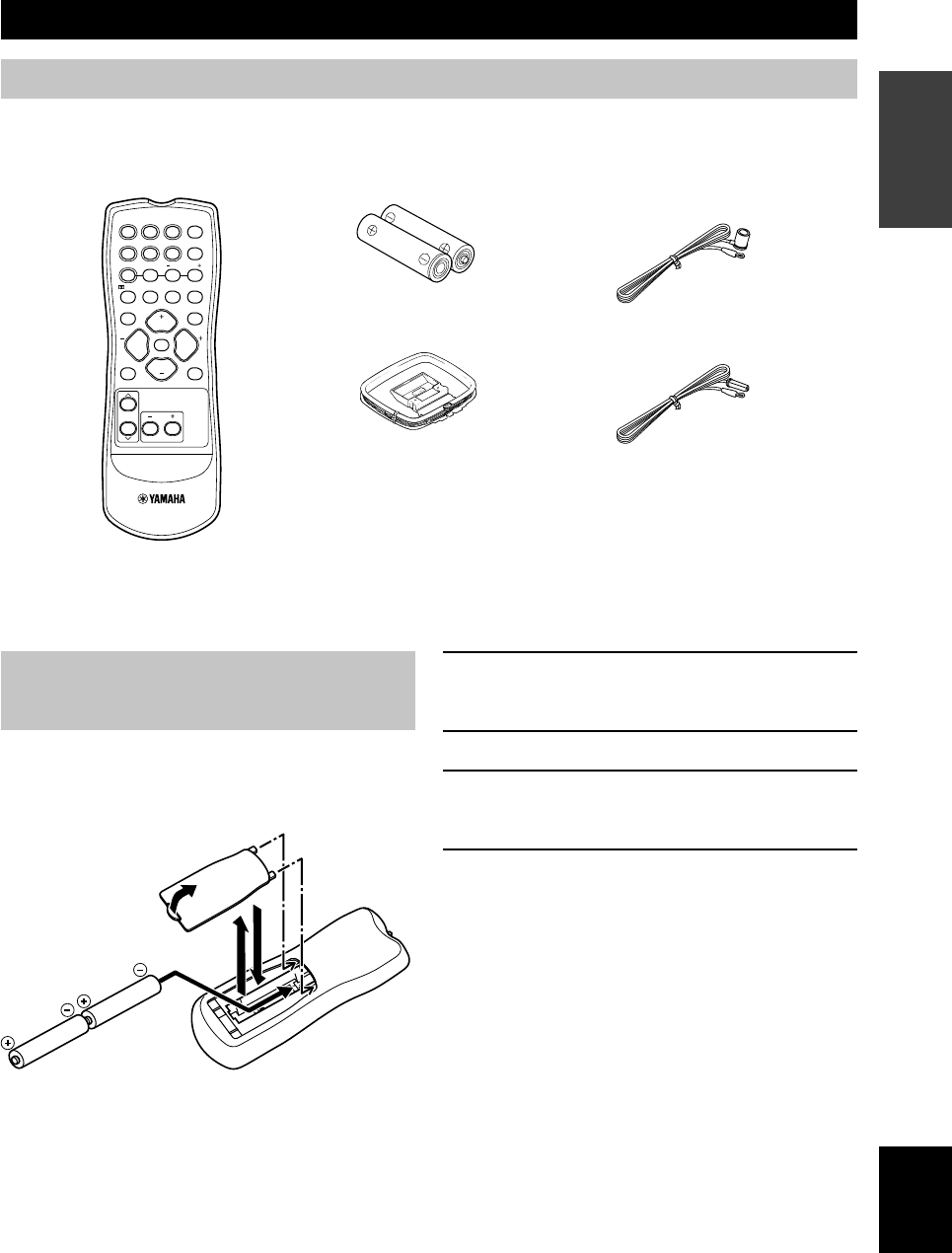
AM loop antenna (Europe, U.K., Australia and
Singapore models)
Indoor FM antenna
(U.S.A., Canada, China,
Korea and General models)
Batteries (2)
(AA, R06, UM-3)
Remote control
GETTING STARTED
Supplied accessories
After unpacking, check that the following parts are contained.
TEST
PROG PROG
STEREO
LEVEL
SET MENU
TUNER
CD MD/CD-R V-AUX 6CH IN
/DTS 6.1/5.1 NIGHT SLEEP
DVD D-TV/CBL VCR POWER
PRESET
A/B/C/D/E
MUTE
VOLUME
VOLUME
1
2
4
3
03V340G_01-08_EN(03.4.14)a.p65 03.4.14, 11:49 AM3
4
CONTROLS AND FUNCTIONS
Front panel
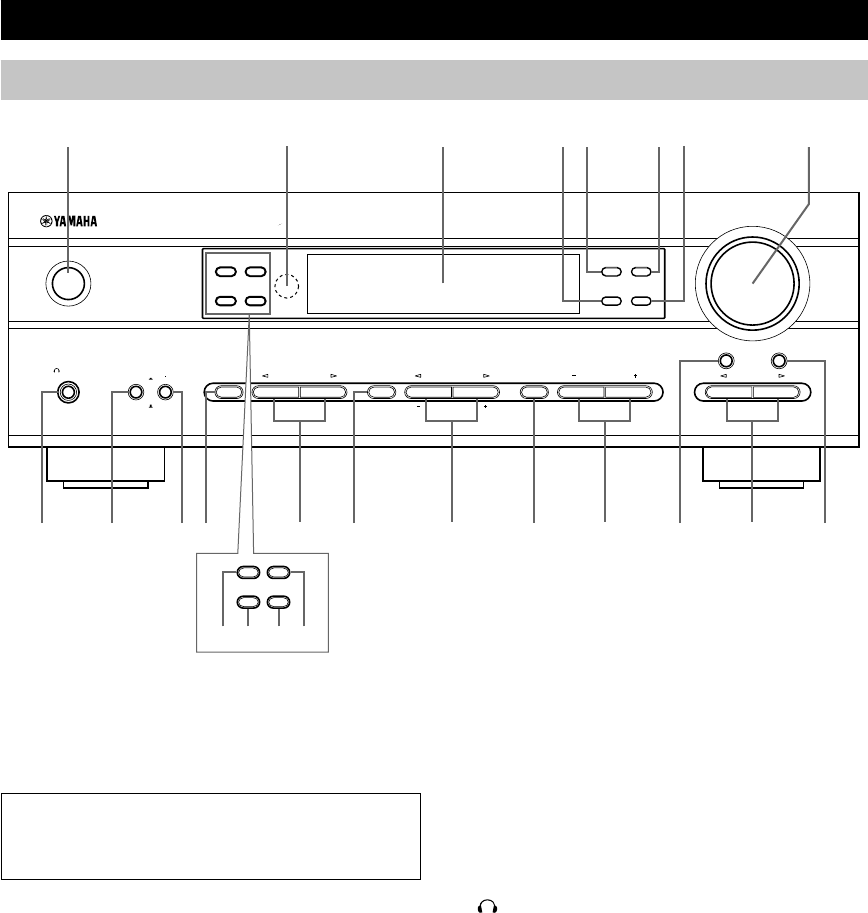
1STANDBY/ON
Turns the unit on, or sets it in standby mode. When you
turn the unit on, you will hear a click and there will be a 4
to 5-second delay before it can reproduce sound.
Standby mode
In this mode, the unit uses a small amount of power in
order to receive infrared-signals from the remote
control.
2Remote control sensor
Receives signals from the remote control.
3Front panel display
Shows information about the operational status of the
unit.
4TUNING MODE (AUTO/MAN’L MONO)
Switches the tuning mode between automatic and manual.
5PRESET/TUNING (EDIT)
Switches the function of PRESET/TUNING l / h
between selecting a preset station number and tuning (the
colon (:) turns on or off).
This button is also used to exchange the assignment of
two preset stations with each other.
6FM/AM
Switches the reception band between FM and AM.
7MEMORY (MAN’L/AUTO FM)
Stores the current station in memory.
8VOLUME
Controls the output level of all audio channels.
This does not affect the OUT (REC) level.
9 SILENT (PHONES jack)
Allows you to enjoy DSP effects when listening with
headphones.
Inserting the plug from your headphones into the
PHONES jack does not affect the sound output from the
speakers. If you wish to stop the signal output to the
speakers, press SPEAKERS ON/OFF so that it is in the
OFF position.
0SPEAKERS ON/OFF
Turns on or off the speakers that you selected by
SPEAKERS A/B.
qSPEAKERS A/B
Selects the set of main speakers connected to the A or B
terminals.
(U.K. and Europe models only)
VOLUME
STANDBY
/ON
MODE START
PTY SEEK
RDS MODE/FREQ EON
AUTO/MAN`L MONO MAN`L/AUTO FM
TUNING MODE MEMORY
EDIT
PRESET/TUNING FM/AM
SILENT
PHONES
SPEAKERS
AON
BOFF EFFECT
PRESET/TUNING
SET MENU
A/B/C/D/E
NEXT
PROGRAM
STEREO BASS/TREBLE
CONTROL
INPUT
6CH INPUTINPUT MODE
12 543 67 8
y
a s fd
MODE START
RDS MODE/FREQ
PTY SEEK
EON
9 0 q w r iute po
03V340G_01-08_EN(03.4.14)a.p65 03.4.14, 11:49 AM4

5
English
INTRODUCTION
wSTEREO (EFFECT)
Switches between normal stereo and DSP effect
reproduction. When you select STEREO, the unit mixes
down all Dolby Digital and DTS signals (except the LFE
channel) as well as those 2-channel signals without
effects, to the main left and right speakers.
ePROGRAM l / h
Select the DSP program.
rA/B/C/D/E
Selects preset station groups A to E when the unit is in
tuner mode.
NEXT
Selects the set menu mode when the unit is not in tuner
mode.
tPRESET/TUNING l / h
Select preset station numbers 1 to 8 when a colon (:) is
displayed in the front panel display.
Select the tuning frequency when a colon (:) is not
displayed when the unit is in tuner mode.
SET MENU –/+
Adjust settings on the set menu when the unit is not in
tuner mode.
yCONTROL
Switches between Bass (low-frequency response) control
mode and Treble (high-frequency response) control mode.
uBASS/TREBLE –/+
Increase or decrease low/high-frequency response when
the unit is in Bass/Treble control mode. The sound
changes 2dB each time you press one of these buttons.
Control range: –10 to +10dB.
iINPUT MODE
Sets the priority for the types of input signals (AUTO,
DTS, ANALOG) received when one component is
connected to two types of input jacks. You cannot set
priority for an audio sources if you have selected 6CH
INPUT as the input source.
oINPUT l / h
Selects the input source you want to listen to or watch.
p6CH INPUT
Selects the audio source connected to the 6CH INPUT
jacks. This selection takes priority over sources selected
with INPUT (or the input selector buttons on the remote
control).
(U.K. and Europe models only)
aRDS MODE/FREQ
Press this button when the unit is receiving an RDS
station, to cycle the display mode among PS mode,
PTY mode, RT mode, CT mode (if the station offers
those RDS data service) and/or frequency display
mode in turn.
sPTY SEEK MODE
Press this button to set the unit in the PTY SEEK
mode.
dPTY SEEK START
Press this button to begin searching for a station after
the desired program type has been selected in the PTY
SEEK mode.
fEON
Press this button to select a radio program type
(NEWS, INFO, AFFAIRS, SPORT) to tune in
automatically.
CONTROLS AND FUNCTIONS
03V340G_01-08_EN(03.4.14)a.p65 03.4.14, 11:49 AM5
6
TEST
PROG PROG
STEREO
LEVEL
SET MENU
TUNER
CD MD/CD-R V-AUX 6CH IN
/DTS 6.1/5.1 NIGHT SLEEP
DVD D-TV/CBL VCR POWER
PRESET
A/B/C/D/E
MUTE
VOLUME
VOLUME
2
8
1
0
3
5
9
7
4
6
r
y
e
q
w
t
u
i
Remote control
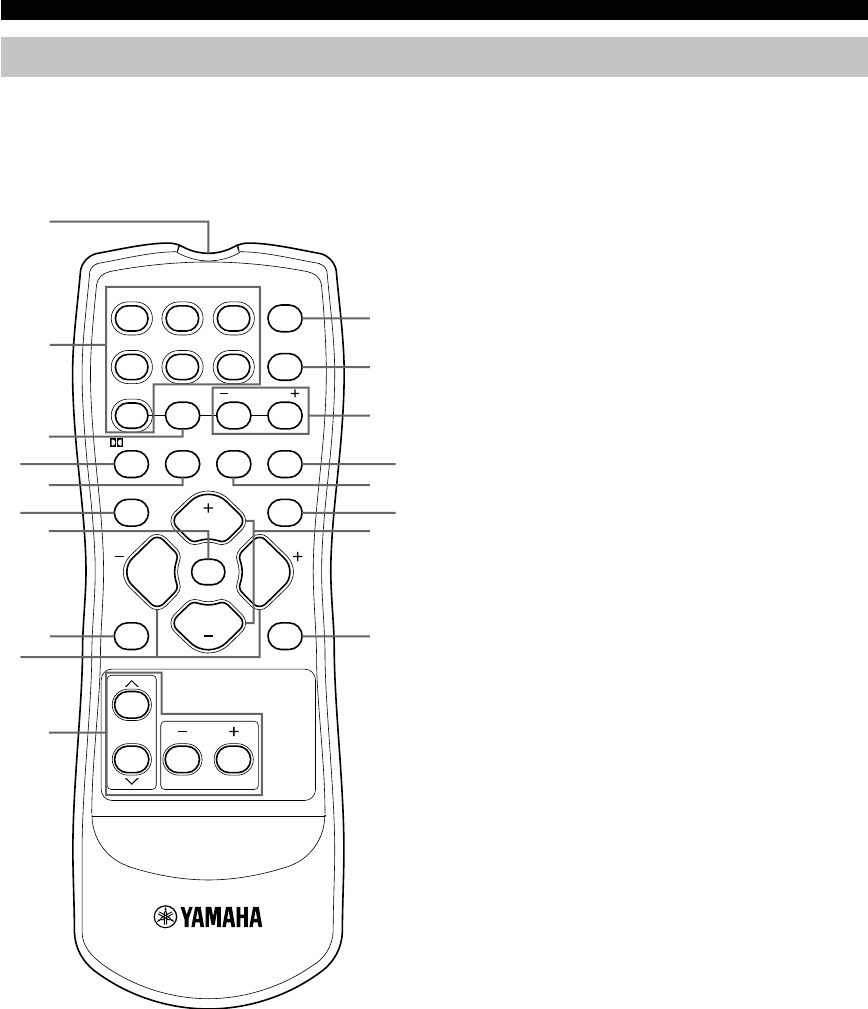
1Infrared emitter
Outputs infrared control signals. Aim this emitter at the
unit when using the remote control.
2Input selector buttons
Select the input source.
3A/B/C/D/E
Selects preset station groups A to E when the unit is in
tuner mode.
4q/DTS
Selects the built-in Dolby Digital, DTS, Dolby Pro Logic
or Pro Logic II decoder.
56.1/5.1
Switches on or off the Dolby Digital + Matrix 6.1 or DTS
+ Matrix 6.1 decoder.
6TEST
Outputs a test tone for use when adjusting the speaker
levels.
7MUTE
Mutes the sound. Press again to restore the audio output
to the previous volume level.
8LEVEL
Selects the effect speaker channel to adjust.
9PROGRAM –/+
Select the DSP program.
0Multi control section
Used to change and implement settings.
qPOWER
Turns the unit on, or sets it in standby mode.
w6CH IN
Selects the audio source connected to the 6CH INPUT
jacks.
ePRESET –/+
Select preset station numbers 1 to 8.
rSLEEP
Sets the sleep timer.
CONTROLS AND FUNCTIONS
This section describes the remote control controls and
their functions.
03V340G_01-08_EN(03.4.14)a.p65 03.4.14, 11:49 AM6
7
English
INTRODUCTION
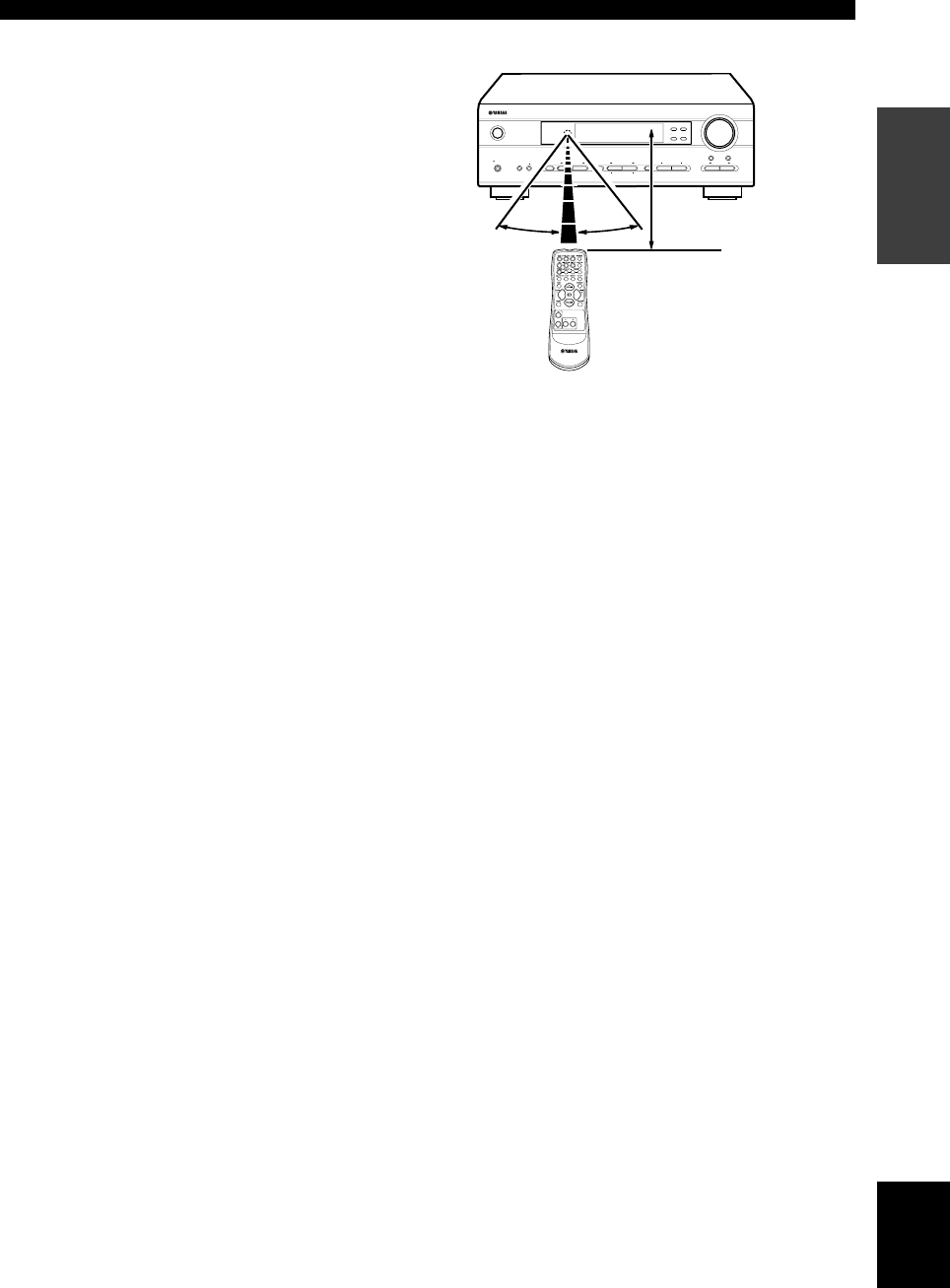
Approximately 6 m (20 feet)
■Using the remote control
The remote control transmits a directional infrared beam.
Be sure to aim the remote control directly at the remote
control sensor on the main unit during operation.
■Handling the remote control
• Do not spill water or other liquids on the remote
control.
• Do not drop the remote control.
• Do not leave or store the remote control in the
following types of conditions:
– high humidity or temperature such as near a heater,
stove or bath;
– dusty places; or
– in places subject to extremely low temperatures.
VOLUME
STANDBY
/ON
AUTO/MAN`L MONO MAN`L/AUTO FM
TUNING MODE MEMORY
EDIT
PRESET/TUNING FM/AM
SILENT
PHONES
SPEAKERS
AON
BOFF
EFFECT
PRESET/TUNING
SET MENU
A/B/C/D/E
NEXT
PROGRAM
STEREO BASS/TREBLE
CONTROL
INPUT
6CH INPUTINPUT MODE
30°30°
CONTROLS AND FUNCTIONS
tNIGHT
Sets the unit in night listening mode.
ySTEREO
Switches between normal stereo and DSP effect
reproduction. When you select STEREO the unit mixes
down all Dolby Digital and DTS signals (except the LFE
channel) as well as those 2-channel signals without effect
sounds, to the main left and right speakers.
uVOLUME +/–
Increases or decreases the volume level.
iSET MENU
Selects the set menu mode.
03V340G_01-08_EN(03.4.14)a.p65 03.4.14, 11:49 AM7
8
V-AUXVCR
D-TV/CBL
DVD
MD/CD-R
TUNER CD
MATRIX
DIGITAL
PL
PL
PCM
SILENT
DSP
HiFi
NIGHT
VIRTUAL AUTO
STEREO
SLEEP
VOLUME
MUTE
MEMORYTUNED
L C R
RLLFE RC RR
~~~~~~~~~~~~~~
dB
ft
CTRTPTYPS HOLDPTYEON
13 45 8
7
62
90qw yer uiop
a
t
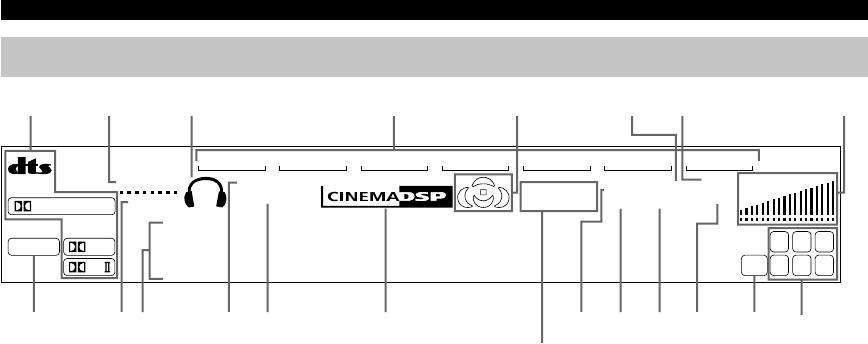
1Processor indicators
The indicators for the various decoders light up when the
decoders are in use.
2VIRTUAL indicator
Lights up when using Virtual CINEMA DSP.
3Headphones indicator
Lights up when headphones are connected to the
headphone jack.
4Input source indicator
Highlights the current input source with a cursor.
5Sound field indicator
Displays the sound field management the unit is using
when you listen to a DSP sound field program.
6AUTO indicator
Shows that this unit is in the automatic tuning mode.
7MUTE indicator
Flashes while the MUTE function is on.
8VOLUME level indicator
Indicates the volume level.
9PCM indicator
Lights up when this unit is reproducing PCM (pulse code
modulation) digital audio signals.
0SILENT indicator
Lights up when headphones are connected and the digital
sound field processor is on.
qMulti-information display
Shows the current DSP program name and other
information when you are adjusting or changing settings.
wNIGHT indicator
Lights up when the unit is set to night listening mode.
eHiFi DSP indicator
Lights up when you select a Hi-Fi DSP sound field
program.
rCINEMA DSP indicator
Lights up when you select a CINEMA DSP sound field
program.
tSTEREO indicator
Lights up when the unit is receiving a strong signal from
a FM stereo broadcast while the “AUTO” indicator is lit.
yTUNED indicator
Lights up when this unit is tuned to a radio station.
uMEMORY indicator
Flashes to show a station can be stored in memory.
iSLEEP indicator
Lights up while the sleep timer is on.
oLFE indicator
Lights up when the input signal contains an LFE signal.
pInput channel indicator
The indicators for the appropriate sound channels light up
when a digital signal from a source is played back.
aRDS indicator (U.K. and Europe models only)
The name(s) of the RDS data offered by the currently
received RDS station light(s) up.
EON indicator lights up when an RDS station that offers
the EON data service is being received.
PTY HOLD indicator lights up while searching for
stations in the PTY SEEK mode.
Front panel display
(U.K. and Europe models only)
CONTROLS AND FUNCTIONS
03V340G_01-08_EN(03.4.14)a.p65 03.4.14, 11:49 AM8
9
English
PREPARATION
CONNECTIONS
Before connecting components
CAUTION
Do not connect this unit or other components to the
mains power until all connections between the
components have been completed.
• Be sure all connections are made correctly, that is to
say L (left) to L, R (right) to R, “+” to “+” and “–” to
“–”. Some components require different connection
methods and have different jack names. Refer to the
operation instructions for each component you wish to
connect to this unit.
• After you have completed all connections, check them
again to make sure they are correct.
• The jack names correspond to the names on the input
selector.
■Connecting to digital jacks
This unit has digital jacks for direct transmission of
digital signals through either a coaxial or fiber optic
cable. You can use the digital jacks to input PCM, Dolby
Digital and DTS bitstreams. Use digital connections if
you wish to enjoy the multi-channel sound track of DVD
material, etc. with DSP effects. Both digital input jacks
are acceptable for 96 kHz sampling digital signals.
Note
• The OPTICAL jack on this unit conform to the EIA standard.
If you use a fiber optic cable that does not conform to this
standard this unit may not function properly.
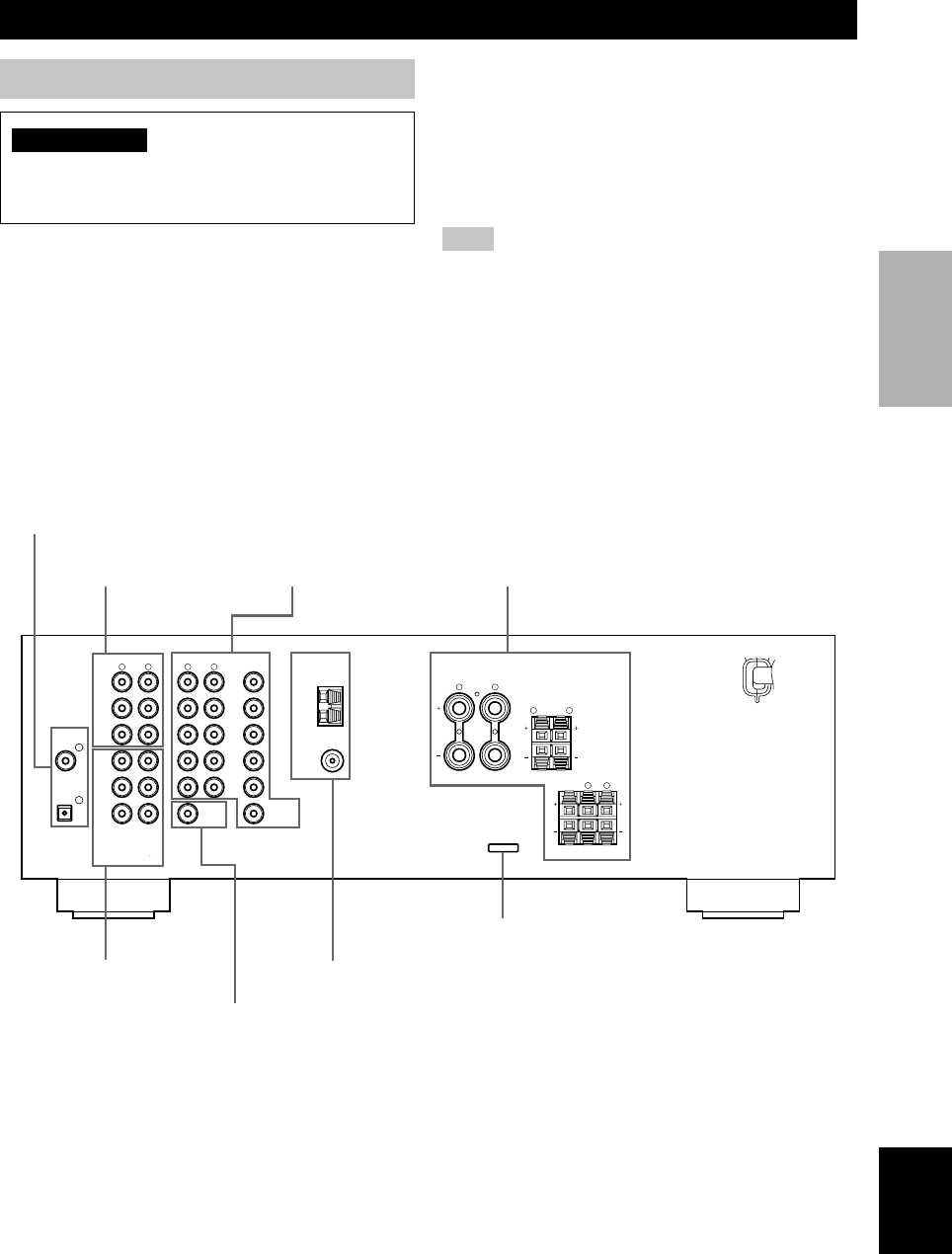
6CH INPUT jacks
(page 13)
DIGITAL INPUT jacks
(pages 9 – 11)
Antenna input terminals
(page 12)
Speaker terminals
(page 16)
Video component jacks
(page 10)
Audio component jacks
(page 11)
SUBWOOFER OUTPUT
jack (page 16)
This jack is reserved for factory use.
Do not connect any equipment to this jack.
AUDIO
LR
2
1
AUDIO VIDEO TUNER SPEAKERS
CLASS 2 WIRING
LR
LR
LR
LR
CD DVD
AM
MAIN
A
MAIN
REAR
(SURROUND)
CENTER
B
ANT
GND
FM
ANT
IN
(PLAY)
MAIN
DVD
CD
DIGITAL
INPUT
SUB
WOOFER CENTER
SUB
WOOFER
MONITOR
OUT
SURROUND
OPTICAL
COAXIAL
OUT
(REC)
MD
/CD-R
D-TV
/CBL
V-AUX
IN
VCR
OUT
6CH INPUT OUTPUT
75Ω UNBAL.
MAIN A OR B : 6Ω MIN./SPEAKER
CENTER : 6Ω MIN./SPEAKER
REAR : 6Ω MIN./SPEAKER
04V340G_09-18_EN(03.3.12)a.p65 03.4.14, 11:49 AM9
10
AUDIO
LR
2
1
AUDIO VIDEO TUNER
LR
CD DVD
AM
ANT
GND
FM
ANT
IN
(PLAY)
MAIN
DVD
CD
DIGITAL
INPUT
SUB
WOOFER CENTER
SUB
WOOFER
MONITOR
OUT
SURROUND
OPTICAL
COAXIAL
OUT
(REC)
MD
/CD-R
D-TV
/CBL
V-AUX
IN
VCR
OUT
6CH INPUT OUTPUT
75Ω UNBAL.
VIDEO
INPUT
AUDIO
OUTPUT
LR
AUDIO
INPUT
LR
O
OPTICAL
OUTPUT VIDEO
OUTPUT
AUDIO
OUTPUT
LV
R
V V
AUDIO
OUTPUT
L R
VIDEO
OUTPUT
V
AUDIO
OUTPUT
L R
VIDEO
OUTPUT
V
V
VIDEO
INPUT
VIDEO
OUTPUT
O
L
R
V
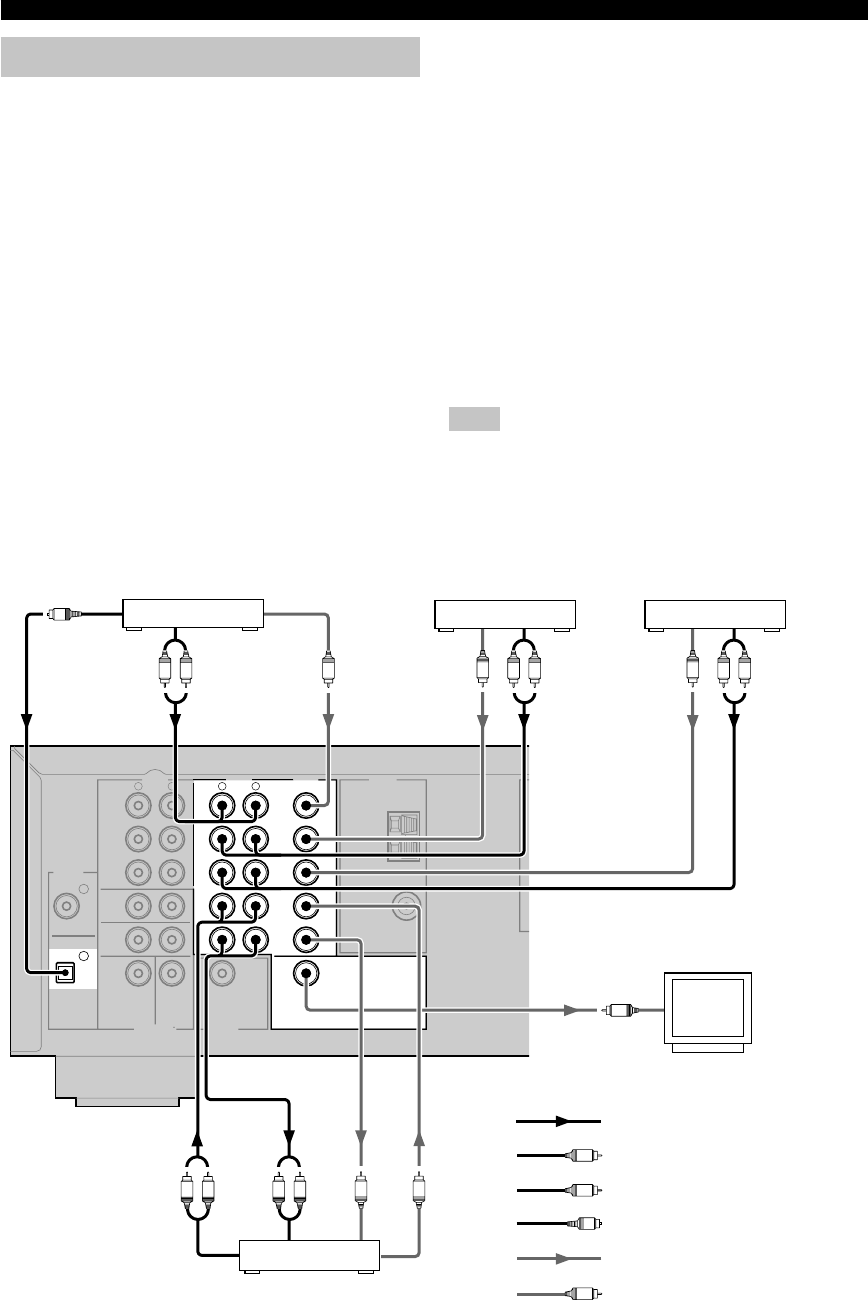
Connecting video components
■Connecting a video monitor
Connect the video input jack on your video monitor to the
MONITOR OUT VIDEO jack.
■Connecting a DVD player
Connect the optical digital audio signal output jack on
your component to the DIGITAL INPUT jack and
connect the video signal output jack on the component to
the VIDEO jack on this unit.
y
• Use the AUDIO jacks on this unit for a video component
which does not have optical digital output jack. However,
multi-channel reproduction cannot be obtained with audio
signals input from the AUDIO jacks.
■Connecting a digital TV/cable TV
Connect the video signal output jack on your component
to the VIDEO jack on this unit.
Connect the audio signal output jacks on the component
to the AUDIO jacks on this unit.
■Connecting another video component
Connect the video signal output jack on your component
to the VIDEO jack on this unit.
Connect the audio signal output jacks on the component
to the AUDIO jacks on this unit.
■Connecting a recording component
Connect the audio signal input jacks on your video
component to the AUDIO OUT jacks on this unit. Then
connect the video signal input jack on the video
component to the VIDEO OUT jack on this unit for
picture recording.
Connect the audio signal output jacks on your component
to the AUDIO IN jacks on this unit. Then connect the
video signal output jack on the component to the VIDEO
IN jack on this unit to play a source from your recording
component.
Note
• Once you have connected a recording component to this unit,
keep its power turned on while using this unit. If the power is
off, this unit may distort the sound from other components.
indicates right analog cables
indicates left analog cables
indicates audio signal direction
Video monitor
VCR
DVD player
TV/digital TV/
cable TV
CONNECTIONS
Another video
component
indicates optical cables
indicates video signal direction
indicates video cables
04V340G_09-18_EN(03.3.12)a.p65 03.4.14, 11:49 AM10
11
English
PREPARATION
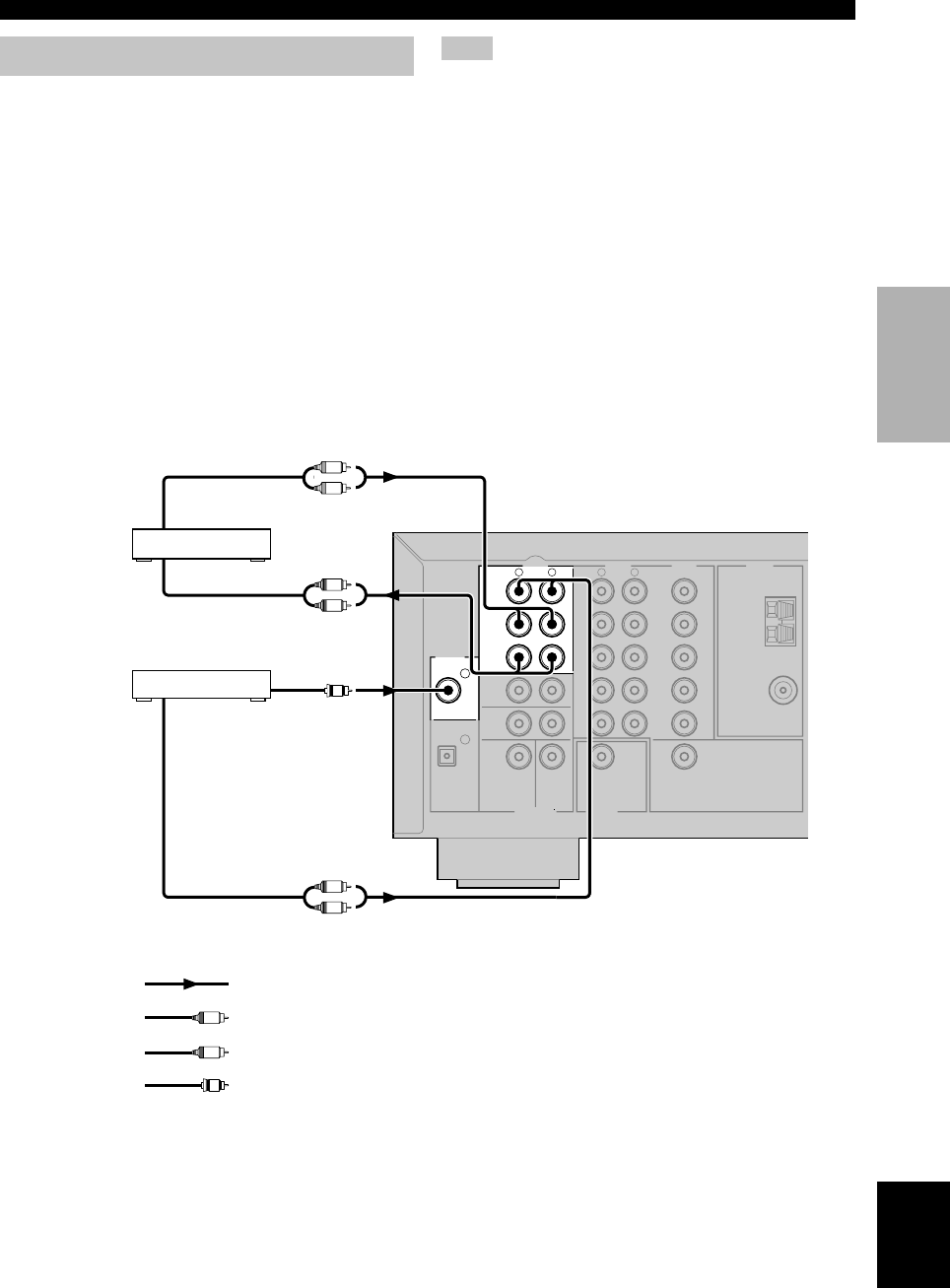
Connecting audio components
■Connecting a CD player
Connect the coaxial digital output jack on your CD player
to the DIGITAL INPUT CD jack on this unit.
y
• Use the AUDIO jacks on this unit to connect to a CD player
that does not have a COAXIAL DIGITAL OUTPUT jack, or
to record from CD players.
■Connecting a CD recorder or MD
recorder
Connect the input jacks on your CD recorder or MD
recorder to the MD/CD-R OUT (REC) jacks.
Connect the output jacks on your CD recorder or MD
recorder to the MD/CD-R IN (PLAY) jacks to play a
source from your recording component.
indicates right analog cables
indicates left analog cables
indicates signal direction
CD player
indicates coaxial cables
CD recorder or
MD recorder
CONNECTIONS
AUDIO
LR
2
1
AUDIO VIDEO TUNER
LR
CD DVD
AM
ANT
GND
FM
ANT
IN
(PLAY)
MAIN
DVD
CD
DIGITAL
INPUT
SUB
WOOFER CENTER
SUB
WOOFER
MONITOR
OUT
SURROUND
OPTICAL
COAXIAL
OUT
(REC)
MD
/CD-R
D-TV
/CBL
V-AUX
IN
VCR
OUT
6CH INPUT OUTPUT
75Ω UNBAL.
C
L
R
AUDIO
INPUT
L
R
AUDIO
OUTPUT
L
R
AUDIO
OUTPUT
L
R
COAXIAL
OUTPUT
C
Note
• Once you have connected a recording component to this unit,
keep its power turned on while using this unit. If the power is
off, this unit may distort the sound from other components.
04V340G_09-18_EN(03.3.12)a.p65 03.4.14, 11:49 AM11
12
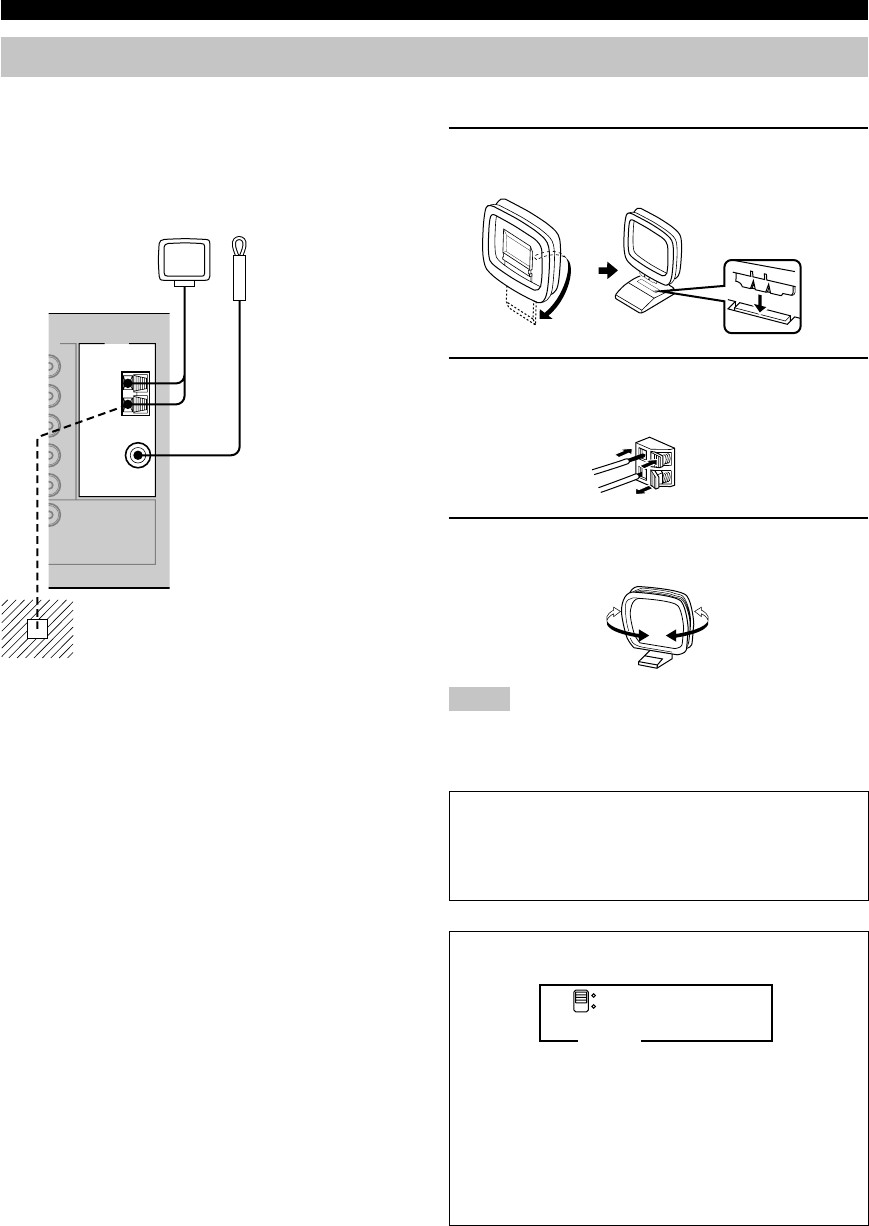
■Connecting the AM loop antenna
1Set up the AM loop antenna, then connect it
to the terminals on this unit.
2Press and hold the tab to insert the AM loop
antenna lead wires into the AM ANT and
GND terminals.
3Orient the AM loop antenna for the best
reception.
Notes
• The AM loop antenna should be placed away from this unit.
• The AM loop antenna should always be connected, even if an
outdoor AM antenna is connected to this unit.
A properly installed outdoor antenna provides clearer
reception than an indoor one. If you experience poor
reception quality, an outdoor antenna may improve the
quality. Consult the nearest authorized YAMAHA
dealer or service center about the outdoor antennas.
FREQUENCY STEP switch
(General model only)
Because the inter-station frequency spacing differs in
different areas, set the FREQUENCY STEP switch
(located on the rear panel) according to the frequency
spacing in your area.
North, Central and South America: 100 kHz/10 kHz
Other areas: 50 kHz/9 kHz
Before setting this switch, disconnect the AC power
plug of this unit from the AC outlet.
Ground (GND terminal)
For maximum safety and minimum
interference, connect the antenna GND
terminal to a good earth ground. A good
earth ground is a metal stake driven into
moist earth.
Indoor FM
antenna
(included)
AM loop antenna
(included)
Connecting the antennas
Both AM and FM indoor antennas are included with this
unit. In general, these antennas should provide sufficient
signal strength.
Connect each antenna correctly to the designated
terminals.
CONNECTIONS
D
EO TUNER
AM
ANT
GND
FM
ANT
MONITOR
OUT
75Ω UNBAL.
50 kHz/ 9kHz
100 kHz/10kHz
FM/AM
FREQUENCY STEP
04V340G_09-18_EN(03.3.12)a.p65 03.4.14, 11:49 AM12
13
English
PREPARATION
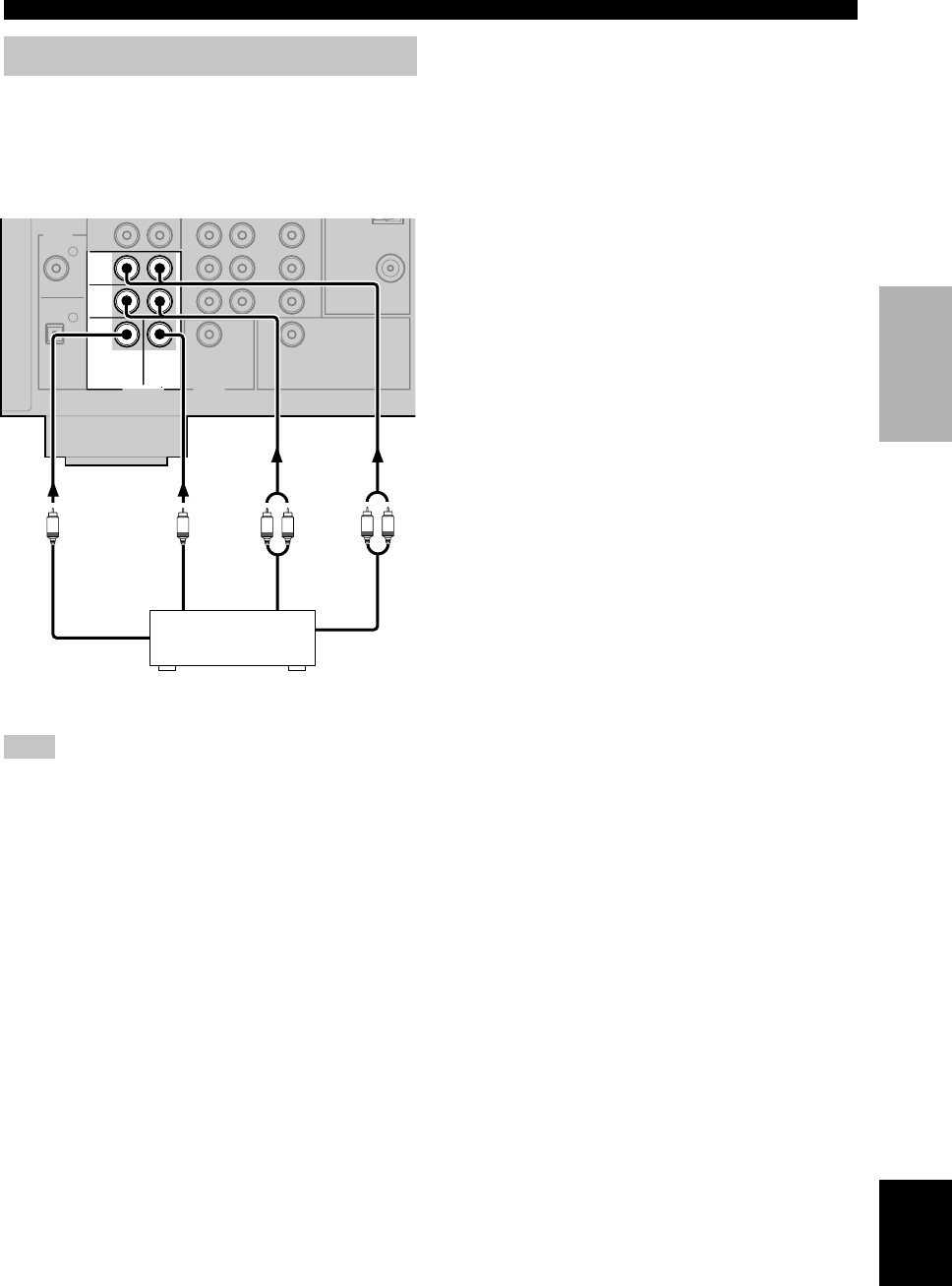
Connecting an external decoder
This unit is equipped with 6 additional input jacks (MAIN
left and right, CENTER, SURROUND left and right and
SUBWOOFER) for discrete multi-channel input from a
component equipped with a multi-channel decoder and 6
channel output jacks such as a DVD/SACD player.
Note
• When you select 6CH INPUT as the input source, the unit
automatically turns off the digital sound field processor, and
you cannot use DSP programs.
CONNECTIONS
DVD/SACD player
2
1
FM
ANT
MAIN
DVD
CD
DIGITAL
INPUT
SUB
WOOFER CENTER
SUB
WOOFER
MONITOR
OUT
SURROUND
OPTICAL
COAXIAL
OUT
(REC)
/CD
-
R
V-AUX
IN
VCR
OUT
6CH INPUT OUTPUT
75Ω UNBAL.
L R LR
SUBWOOFER MAIN
CENTER SURROUND
SUBWOOFER MAIN
CENTER SURROUND
04V340G_09-18_EN(03.3.12)a.p65 03.4.14, 11:49 AM13
14
Connecting the speakers
■Speakers
This unit has been designed to provide the best sound-
field quality with a 5-speaker system, using main left and
right speakers, rear left and right speakers and a center
speaker. If you use different brands of speakers (with
different tonal qualities) in your system, the tone of a
moving human voice and other types of sound may not
shift smoothly. We recommend that you use speakers
from the same manufacturer or speakers with the same
tonal quality.
The main speakers are used for the main source sound
plus effect sounds. They will probably be the speakers
from your present stereo system. The rear speakers are
used for effect and surround sounds. The center speaker is
for the center sounds (dialog, vocals, etc.).
The main speakers should be high-performance models
and have enough power-handling capacity to accept the
maximum output of your audio system. The other
speakers do not have to be equal to the main speakers. For
precise sound localization, however, it is ideal to use the
models of equivalent performance with the main
speakers.
Use of a subwoofer expands your sound field
It is also possible to further expand your system with the
addition of a subwoofer. The use of a subwoofer is
effective not only for reinforcing bass frequencies from
any or all channels, but also for reproducing the LFE
(low-frequency effect) channel with high fidelity when
playing back Dolby Digital or DTS signals. The
YAMAHA Active Servo Processing Subwoofer System is
ideal for natural and lively bass reproduction.
CONNECTIONS
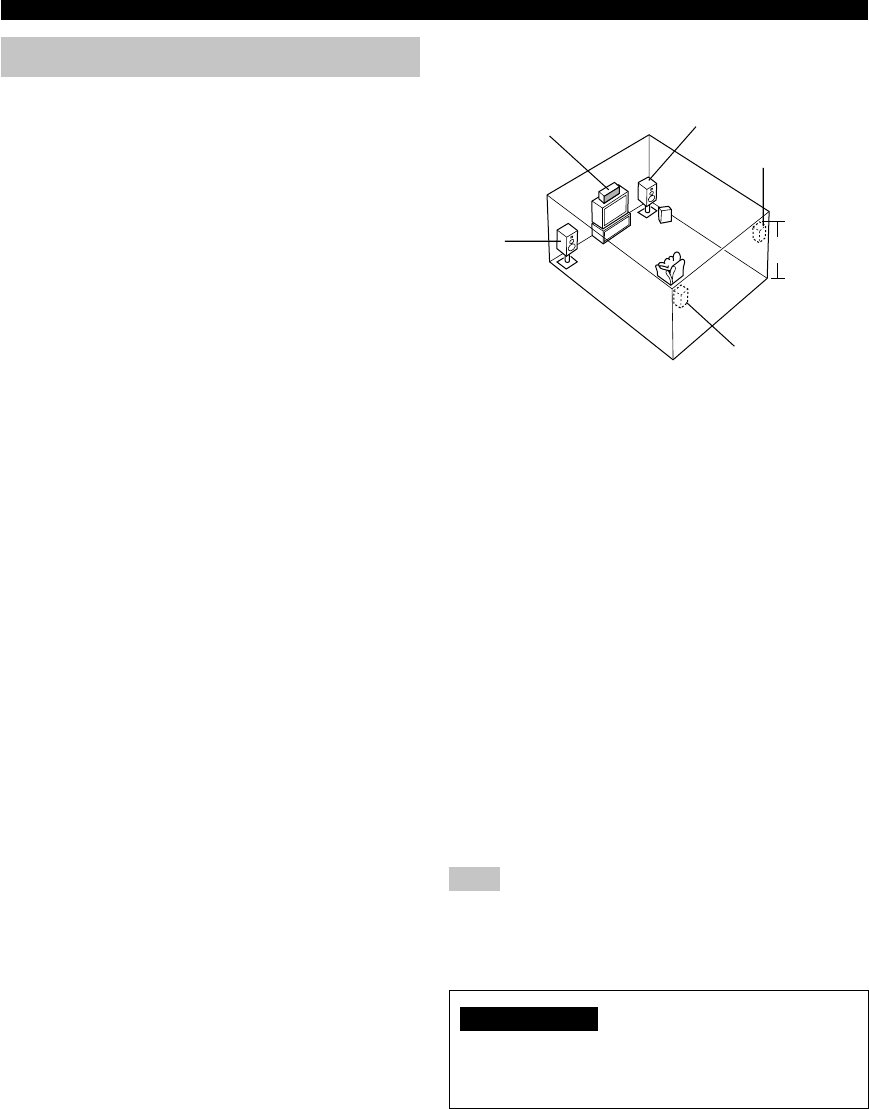
■Speaker placement
Refer to the following diagram when you place the
speakers.
Main speakers
Place the main left and right speakers an equal distance
from the ideal listening position. The distance between
each speaker and each side of the video monitor should
also be the same.
Center speaker
Align the front face of the center speaker with the front
face of your video monitor. Place the speaker as close to
the monitor as possible (such as directly over or under the
monitor) and centrally between the main speakers.
Rear speakers
Place these speakers behind your listening position,
facing slightly inwards, about 1.8 m (6 feet) above the
floor.
Subwoofer
The position of the subwoofer is not so critical, because
low bass sounds are not highly directional. However, it is
better to place the subwoofer near the main speakers.
Turn it slightly toward the center of the room to reduce
wall reflections.
Note
• If you do not use any of effect speakers (rear and/or center),
change the settings of “SOUND 1 SPEAKER SET” items at
the set menu to direct signals to other terminals you have
connected speakers to.
CAUTION
Use magnetically shielded speakers. If these speakers
still create interference with the monitor, place the
speakers away from the monitor.
Main
speaker (L) 1.8 m (6 feet)
Rear speaker (L)
Rear speaker (R)
Subwoofer
Main speaker (R)
Center speaker
04V340G_09-18_EN(03.3.12)a.p65 03.4.14, 11:49 AM14
15
English
PREPARATION
10 mm (3/8”)
Red: positive (+)
Black: negative (–)
Banana plug
CONNECTIONS
12
■Connections
Be sure to connect the left channel (L), right channel (R), “+” (red) and “–” (black) in accordance with the markers on
this unit, the speakers, and the speaker cables. If the connections are faulty, no sound will be heard from the speakers,
and if the polarity of the speaker connections is incorrect, the sound will be unnatural and lack bass.
CAUTION
• Use speakers with the specified impedance shown on the rear panel of this unit.
• Do not let the bare speaker wires touch each other or any metal part of this unit. This could damage this unit and/
or the speakers.
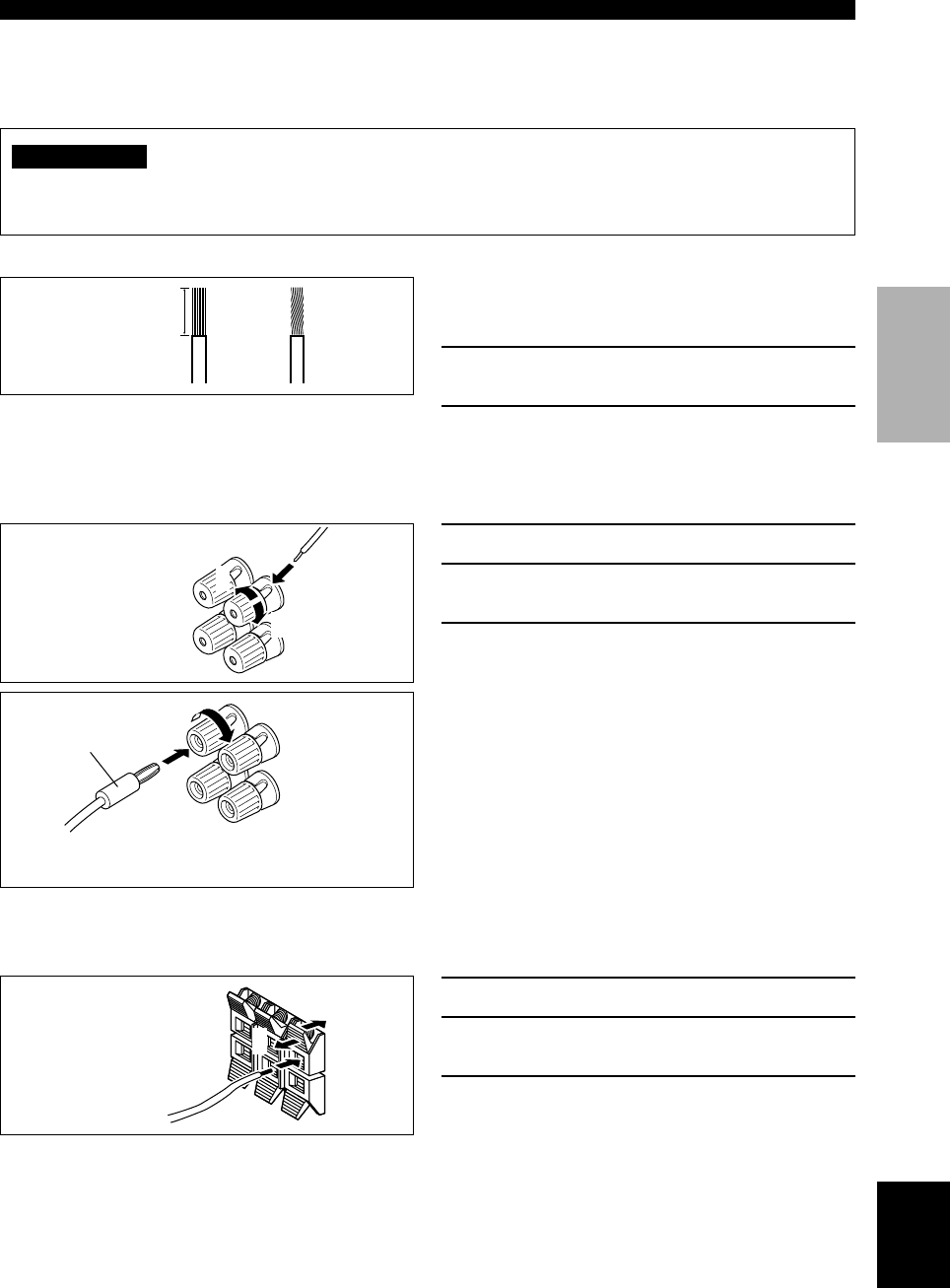
A speaker cord is actually a pair of insulated cables
running side by side. One cable is colored or shaped
differently, perhaps with a stripe, groove or ridge.
1Remove approximately 10 mm (3/8”) of
insulation from each of the speaker cables.
2Twist the exposed wires of the cable
together to prevent short circuits.
1Unscrew the knob.
2Insert one bare wire into the hole in the side
of each terminal.
3Tighten the knob to secure the wire.
y
(With the exception of U.K., Europe, Korea, and Singapore
models)
• You can also use banana plug connectors. First, tighten the
knob and then insert the banana plug connector into the end of
the corresponding terminal.
1Press and open the tab.
2Insert one bare wire into the hole of each
terminal.
3Release the tab to secure the wire.
(With the exception of U.K., Europe, Korea, and
Singapore models)
Connecting to the MAIN A SPEAKERS terminals
31
2
Red: positive (+)
Black: negative (–)
Connecting to the MAIN B, CENTER and REAR SPEAKERS terminals
1
2
3
04V340G_09-18_EN(03.3.12)a.p65 03.4.14, 11:49 AM15
16
Subwoofer
system
Main B speaker
Center
speaker
Right
Rear speaker
SUBWOOFER jack
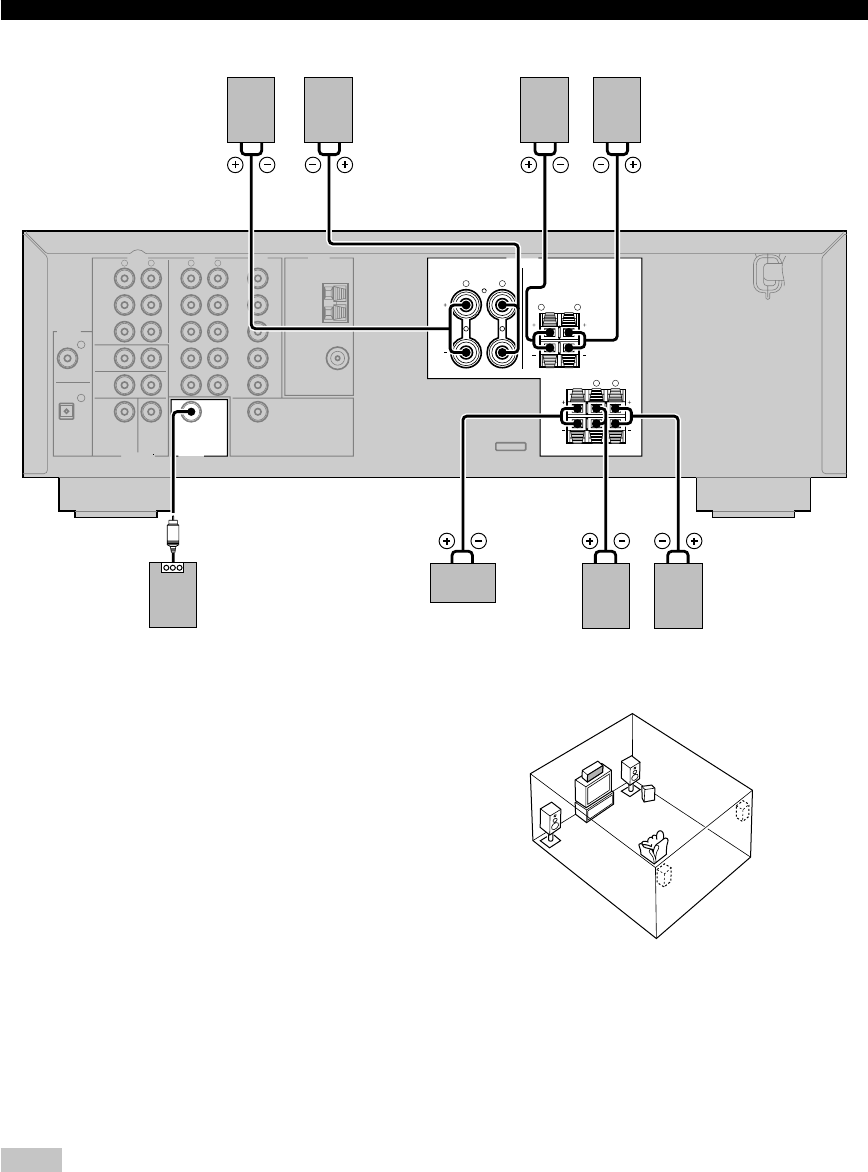
When using a subwoofer with built-in amplifier, including the YAMAHA Active Servo Processing Subwoofer System,
connect the input jack of the subwoofer system to this jack. This unit will direct low bass signals distributed from the
main, center and/or rear channels to this jack in accordance with your SPEAKER SET selections. The LFE (low-
frequency effect) signals generated when Dolby Digital or DTS is decoded are also directed to this jack in accordance
with your SPEAKER SET selections.
Notes
• The cut-off frequency of the SUBWOOFER jack is 90 Hz.
• If you do not use a subwoofer, allocate the signals to the main left and right speakers by changing the setting of “SOUND 1
SPEAKER SET” item “1D BASS” on the set menu to MAIN.
• Use the control on the subwoofer to adjust its volume level. You can also adjust the volume level by using this unit’s remote control
(see “SETTING THE SPEAKER LEVELS” on page 45).
Right Left
Main A speaker
Right Left Left
MAIN SPEAKERS terminals
You can connect up to two speaker systems to these
terminals. When using only one speaker system, connect
it to either of the MAIN A or the MAIN B terminals.
REAR SPEAKERS terminals
A rear speaker system can be connected to these
terminals.
CENTER SPEAKER terminals
A center speaker can be connected to these terminals.
CONNECTIONS
The diagram shows the speaker layout in the listening
room.
AUDIO
LR
2
1
AUDIO VIDEO TUNER SPEAKERS
CLASS 2 WIRING
LR
LR
LR
LR
CD DVD
AM
MAIN
A
MAIN
REAR
(SURROUND)
CENTER
B
ANT
GND
FM
ANT
IN
(PLAY)
MAIN
DVD
CD
DIGITAL
INPUT
SUB
WOOFER CENTER
SUB
WOOFER
MONITOR
OUT
SURROUND
OPTICAL
COAXIAL
OUT
(REC)
MD
/CD-R
D-TV
/CBL
V-AUX
IN
VCR
OUT
6CH INPUT OUTPUT
75Ω UNBAL.
MAIN A OR B : 6Ω MIN./SPEAKER
CENTER : 6Ω MIN./SPEAKER
REAR : 6Ω MIN./SPEAKER
3
65
21
4
1
2
4
3
6
5
04V340G_09-18_EN(03.3.12)a.p65 03.4.14, 11:49 AM16
17
English
PREPARATION
Connecting the power supply
cords
■Connecting the AC power cord
Plug in this unit to a wall outlet.
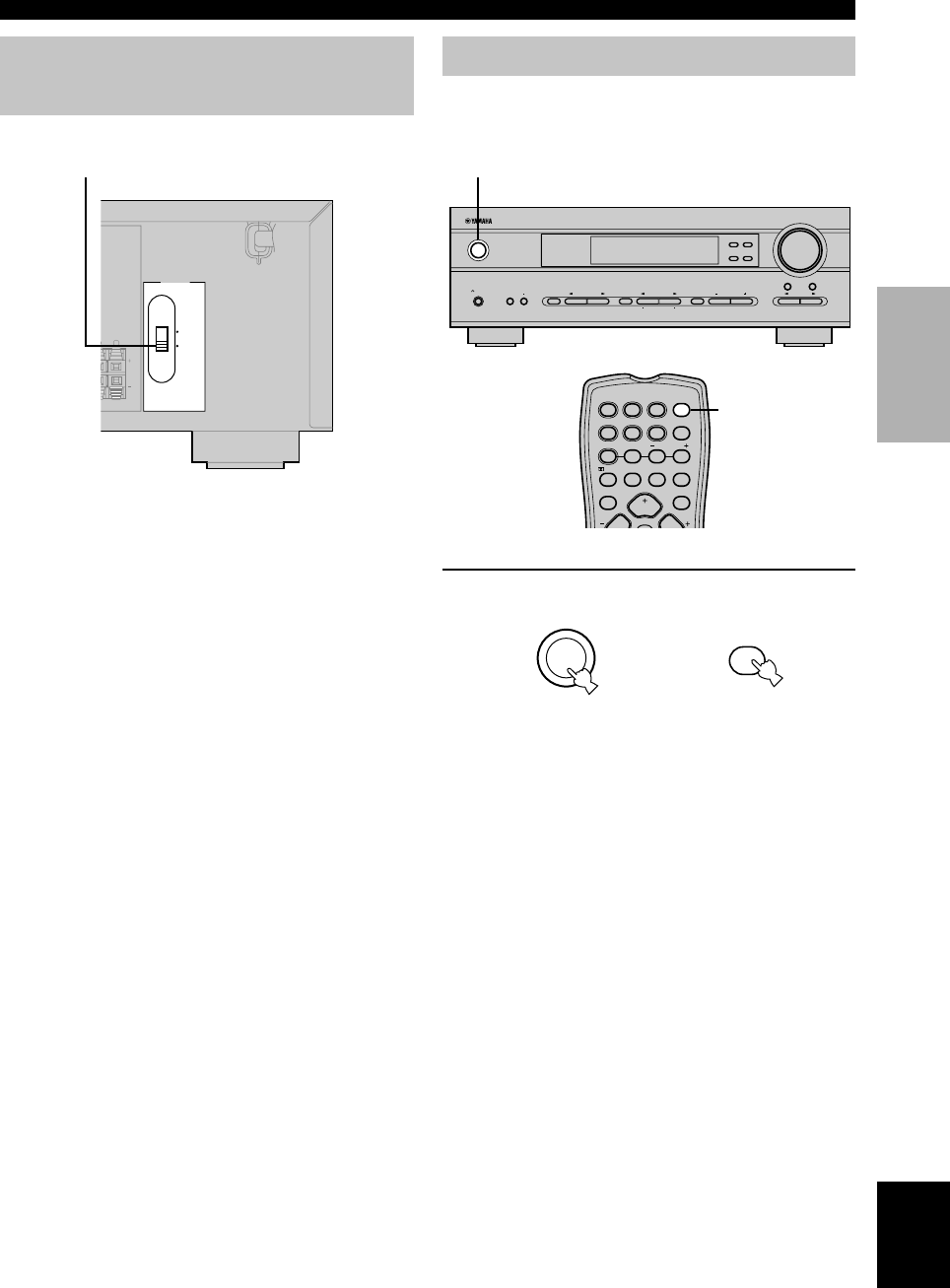
■VOLTAGE SELECTOR
(General model only)
The VOLTAGE SELECTOR on the rear panel of this unit
must be set for your local main voltage BEFORE
plugging into the AC main supply. Voltages are 110V-
120V/220V-240V AC, 50/60 Hz.
VOLTAGE SELECTOR
Turning on the power
When all connections are complete, turn on the power of
this unit.
1Press STANDBY/ON (POWER on the remote
control) to turn on the power of this unit.
The level of the main volume, and then the current
DSP program name appear on the front panel
display.
or
Remote control
Front panel
(General model)
CONNECTIONS
L
REAR
U
RROUND)
110V-120V
220V-240V
N
./SPEAKER
N
./SPEAKER
VOLTAGE
SELECTOR
VOLUME
STANDBY
/ON
AUTO/MAN`L MONO MAN`L/AUTO FM
TUNING MODE MEMORY
EDIT
PRESET/TUNING FM/AM
SILENT
PHONES
SPEAKERS
AON
BOFF
EFFECT
PRESET/TUNING
SET MENU
A/B/C/D/E
NEXT
PROGRAM
STEREO BASS/TREBLE
CONTROL
INPUT
6CH INPUTINPUT MODE
1
TEST
PROG PROG
STEREO
TUNER
CD MD/CD-R V-AUX 6CH IN
/D T S 6.1/ 5.1 NIGHT SLEEP
DVD D-TV/CBL VCR POWER
PRESET
A/B/C/D/E
VOLUME
1
STANDBY
/ON
POWER
04V340G_09-18_EN(03.3.12)a.p65 03.4.14, 11:49 AM17
18
Using the basic menu
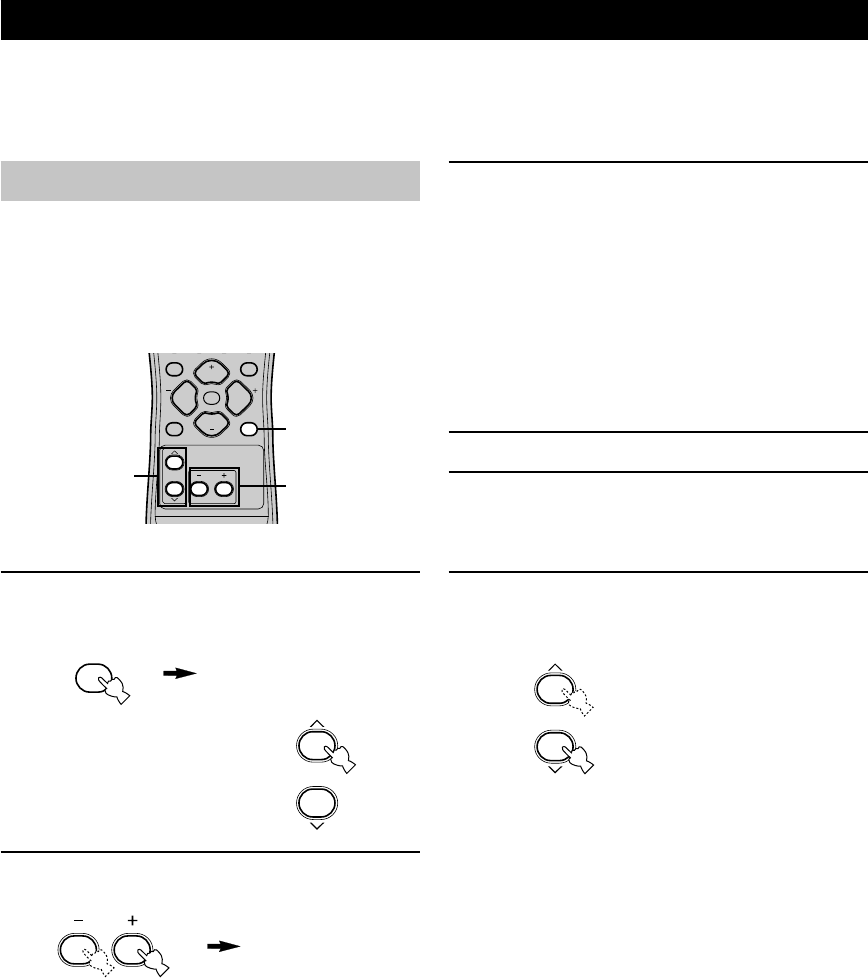
Use the remote control to make adjustments.
• Press SPEAKERS A/B on the front panel to select the
main speakers you want to use, and set SPEAKERS
ON/OFF to the ON position.
• Make sure you disconnect headphones from this unit.
1Press SET MENU.
“BASIC MENU” appears on the front panel display,
as shown here.
If the front panel display
changes to show anything
other than “BASIC MENU”,
press u until it displays
“BASIC MENU”.
2Press –/+ to enter into the BASIC menu.
The front panel display changes as shown here:
BASIC SYSTEM SETTINGS
The “BASIC” menu allows you to set some of the basic “SOUND” menu parameters with a minimum of effort. If you
wish to configure the unit more precisely to suit your listening environment, use the more detailed parameters from the
“SOUND” menu instead of those under the “BASIC” menu (See page 40). Altering any parameters in the BASIC menu
will reset all parameters in the “SOUND” menu.
TEST
PROG PROG
STEREO
LEVEL
SET MENU
MUTE
VOLUME
VOLUME
1
2,4
3,6
3Press u / d to change the display to the
setting you want to alter.
SETUP
Changes the speaker and amplifier settings to suit the
size of the room you are using. Refer to “Setting the
unit to match your speaker system” on page 20 for
more information.
SP LEVEL
Adjusts the output levels of the speakers.
Refer to “Setting speaker output levels” on page 20
for more information.
4Press –/+ to enter the desired setting mode.
5Change the unit settings to suit your
listening environment. When you have
finished, the unit will automatically return to
the basic menu.
6Press u / d to exit from the set menu.
The front panel display changes in the following
order:
BASIC MENU
1 SETUP
↑
BASIC
↓↑
SOUND
↓↑
INPUT
↓↑
OPTION
↓
Exit
Exit
SET MENU
05V340G_19-21_EN(03.3.18)a.p65 03.4.14, 11:49 AM18
English
19
PREPARATION
SET MENU
BASIC SOUND INPUT OPTION
1 SETUP
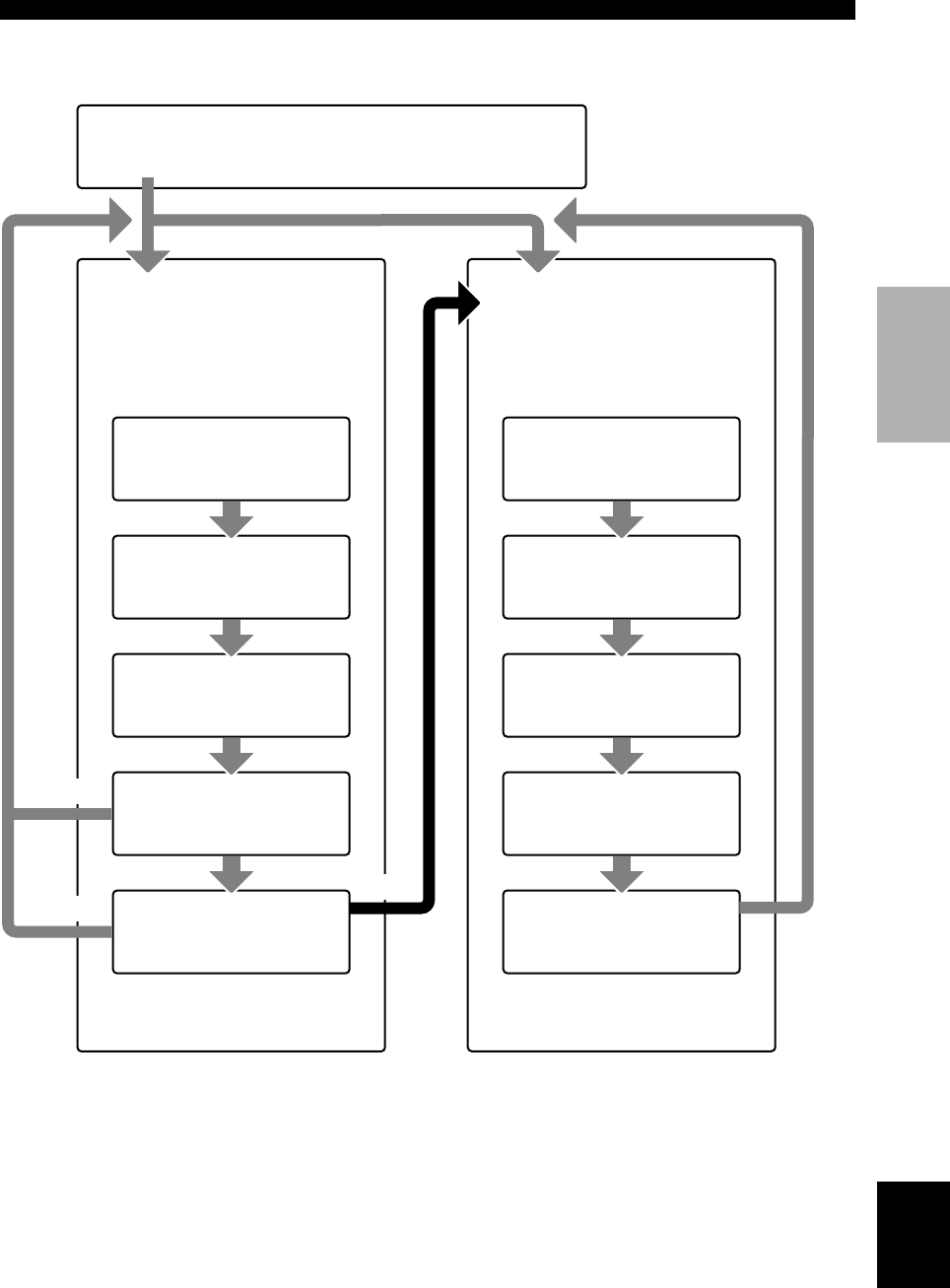
Press –/+ to alter the settings for each
parameter. Use d to move to the next
setting.
2 SP LEVEL
Press –/+ to adjust the balance between
each speaker and the left main speaker.
Use d to move to the next setting.
1ROOM
Choose from S/M/L.
2SUBWOOFER
Choose either of YES/NONE.
3SPEAKERS
Choose from 2/3/4/5 spk.
4SET/CANCEL
Choose either of SET/CANCEL.
5CHECK OK:
Choose either of YES/NO.
1L-R
Adjust the balance between the main
left and right speakers.
2C
Adjust the balance between the main
left and center speakers.
3RL
Adjust the balance between the main
left and rear left speakers.
4RR
Adjust the balance between the rear
left and rear right speakers.
SET
BASIC SYSTEM SETTINGS
NO
YES
CANCEL
• After altering the “1 SETUP” parameters, readjust the output levels of the speakers at “2 SP LEVEL”.
• See pages 39 – 44 for a detailed explanation of the “SOUND”, “INPUT” and “OPTION” menus.
5SWFR
Adjust the balance between the main
left speaker and the subwoofer.
05V340G_19-21_EN(03.3.18)a.p65 03.4.14, 11:49 AM19
20
Setting the unit to match your
speaker system
Follow the instructions below to set the amplifier output
to match the size of your room and speakers. Press u / d
to cycle through parameters 1 through 4, and –/+ to alter
the parameter setting.
Factory default settings are highlighted.
1ROOM
Settings: S, M, L
Select the size of the room you have installed your
speakers in. Roughly speaking, the room sizes are
defined as follows:
[U.S.A. and Canada models]
S: 16ft. x 3ft., 200sq.ft. (4.8 x 4m, 20m2)
M: 20ft. x 16ft., 300sq.ft. (6.3 x 5.0m, 30m2)
L: 26ft. x 19ft., 450sq.ft. (7.9 x 5.8m, 45m2)
[Other models]
S: 3.6m x 2.8m, 10m2
M: 4.8m x 4.0m, 20m2
L: 6.3m x 5.0m, 30m2
2SUBWOOFER
Settings: YES, NONE
Select YES if you have a subwoofer in your system,
or NONE if you do not.
3SPEAKERS
Settings: 2, 3, 4, 5 (spk)
Select the number of speakers you wish to use in your
speaker configuration. This number does not include
your subwoofer.
BASIC SYSTEM SETTINGS
4SET or CANCEL
Select SET to confirm the changes you made to the
above three settings. The unit will output a test tone to
the speakers (see 5). Alternatively, select CANCEL
to exit this menu without altering any of the unit
settings.
5Use the test tone to check the speaker levels.
When you select SET in 4, the display changes to
“CHECK: TestTone”, and the unit outputs a test tone
to each of the speakers in turn. When the test tone
begins, the display changes to “CHECK OK?-- YES”.
If the volume of the test tone varies between speakers,
press –/+ to change the display to “NO”. The unit will
automatically enter the “2 SP LEVEL” mode.
If the test tone is output at the same volume from all
of the speakers, select “CHECK OK: YES”. Press d
to exit from the SETUP menu.
Notes
• The unit cycles the test tone around each of the speakers in
turn twice.
• The indicator of the speaker currently outputting the test tone
flashes on the front panel display.
Setting speaker output levels
(SP LEVEL)
Use this menu to compare and adjust the test tone output
from each speaker to the output from the left main (or left
rear) speaker so that the volume level for all speakers is
identical. Press u / d to select a speaker, then adjust the
balance using –/+.
Note
• The unit outputs the test tone from the selected speaker and
the left main (or left rear) speaker in turn. The indicator of the
speaker currently outputting the test tone flashes on the front
panel display.
1L-R
Adjusts the balance between the main left and right
speakers.
2C
Adjusts the balance between the main left and center
speakers.
3RL
Adjusts the balance between the main left and rear
left speakers.
4RR
Adjusts the balance between the rear left and rear
right speakers.
5SWFR
Adjust the balance between the main left speaker and
the subwoofer.
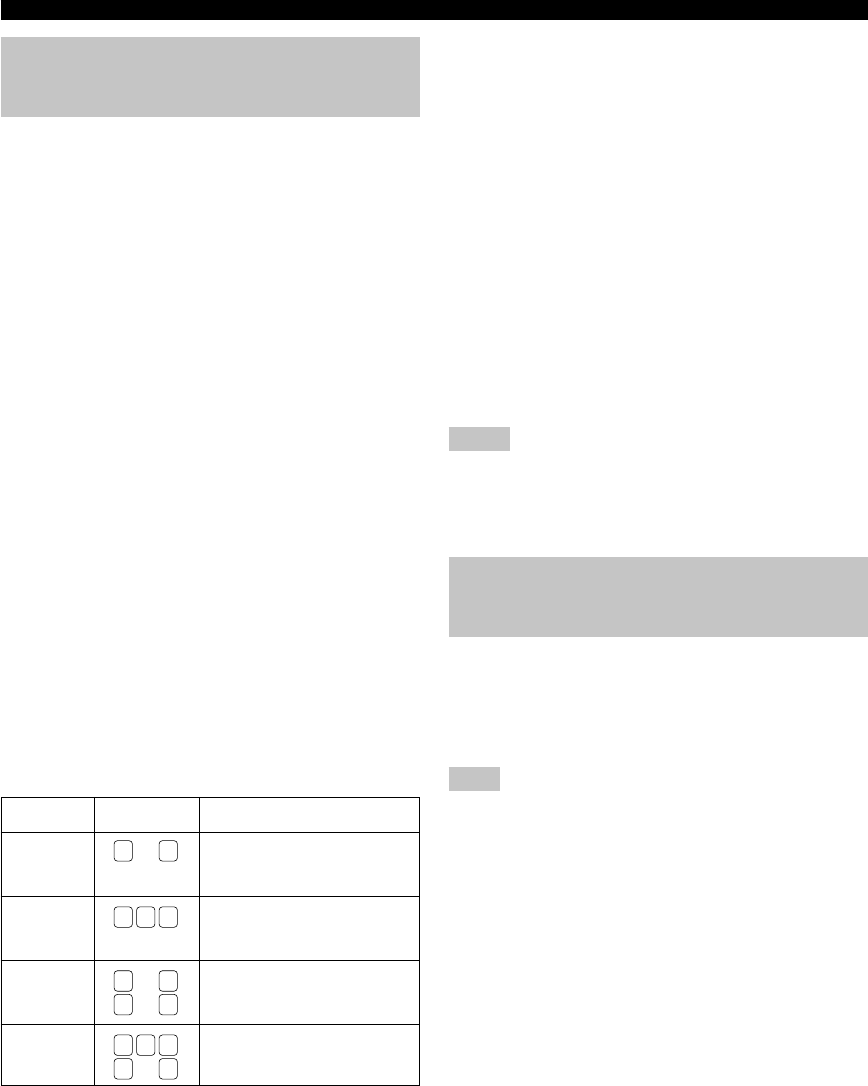
Setting
2spk
3spk
4spk
5spk
Display
L R
L C R
L R
RL RR
L C R
RL RR
Speaker
Main L/Main R
Main L/Center/Main R
Main L/Main R/Rear L/
Rear R
Main L/Center/Main R/
Rear L/Rear R
05V340G_19-21_EN(03.3.18)a.p65 03.4.14, 11:49 AM20
English
21
BASIC
OPERATION
PLAYBACK
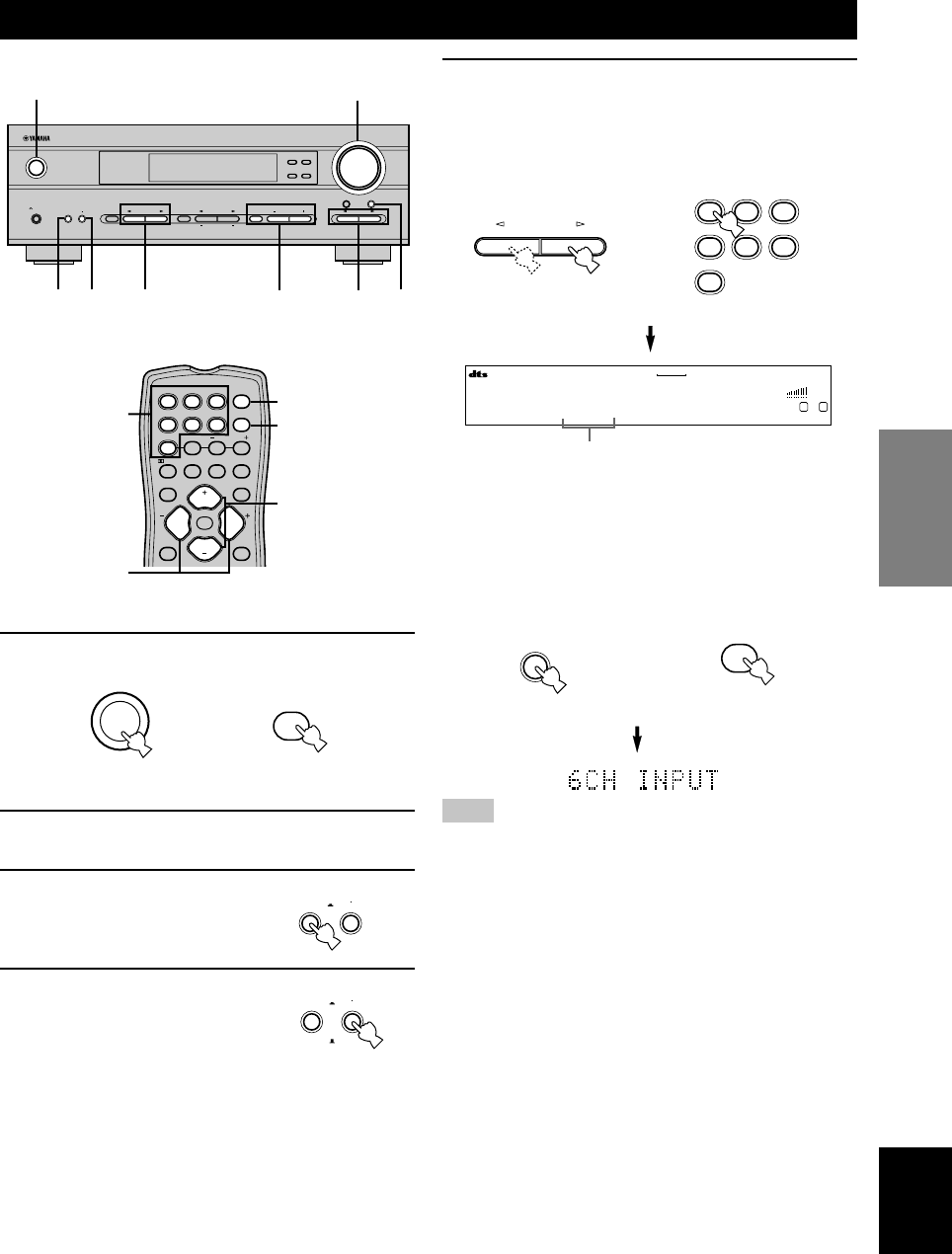
1Press STANDBY/ON (POWER on the remote
control) to turn on the power.
2Turn on the video monitor connected to this
unit.
3Press and set SPEAKERS
ON/OFF inward (ON).
4Press and set SPEAKERS
A/B inward (A) or outward
(B) to select the main
speakers you want to use.
5Press INPUT l / h repeatedly (one of the
input selector buttons on the remote control)
to select the input source.
The selected input source name and input mode
appear on the front panel display for a few seconds.
To select the audio source connected to the 6CH
INPUT jacks
• Select the input to which the video source component is
connected before selecting an audio source.
Press 6CH INPUT until “6CH INPUT” appears on the
front panel display.
Note
• If “6CH INPUT” is shown on the front panel display, no other
source can be played. To select another input source, first
press 6CH INPUT so that “6CH INPUT” disappears from the
front panel display.
STANDBY
/ON
or
or
Remote control
Remote control
Front panel
Front panel
Selected input source
6CH INPUT
Remote control
Front panel
or
VOLUME
STANDBY
/ON
AUTO/MAN`L MONO MAN`L/AUTO FM
TUNING MODE MEMORY
EDIT
PRESET/TUNING FM/AM
SILENT
PHONES
SPEAKERS
AON
BOFF EFFECT
PRESET/TUNING
SET MENU
A/B/C/D/E
NEXT
PROGRAM
STEREO BASS/TREBLE
CONTROL
INPUT
6CH INPUTINPUT MODE
1
7
7
85
34 5
V-AUXVCR
D-TV/CBL
DVD
MD/CD-R
TUNER CD
VOLUME
L R
DVD AUTO
SPEAKERS
AON
BOFF
SPEAKERS
AON
BOFF
INPUT
TEST
PROG PROG
STEREO
LEVEL
SET MENU
TUNER
CD MD/CD-R V-AUX 6CH IN
/DTS 6.1/5.1 NIGHT SLEEP
DVD D-TV/CBL VCR POWER
PRESET
A/B/C/D/E
MUTE
VOLUME
VOLUME
1
5
7
5
8
POWER
TUNER
CD MD/CD-R V-AUX
DVD D-TV/CBL VCR
6CH IN
06V340G_22-27_EN(03.2.27)a.p65 03.4.14, 11:49 AM21
22
■BGV (background video) function
The BGV function allows you to view images from a
video source together with sounds from an audio source.
For example, you can enjoy listening to classical music
while watching beautiful scenery from a video source on
the video monitor.
Select a source from the video group, then select a source
from the audio group using the input selector buttons on
the remote control.
■To mute the sound
Press MUTE on the
remote control.
To resume audio output, press
MUTE again.
y
• You can change the amount by which the unit reduces the
volume in “OPTION 3 AUDIO MUTE” in the set menu.
• You can also cancel mute by pressing VOLUME +/–, etc.
• During muting, the MUTE indicator flashes on the front panel
display.
■Night listening mode
This mode reproduces dialogue clearly while reducing the
volume of loud sound effects for easier listening at low
volumes or at night.
Press NIGHT on the
remote control.
Press NIGHT once more to
return to normal reproduction.
Note
• Setting the unit in standby mode cancels night listening mode.
y
• You can use night listening mode with any of the sound field
programs.
• The NIGHT indicator on the front panel display lights when
the unit is in night listening mode.
• Night listening mode may vary in effectiveness depending on
the input source and surround sound settings you use.
■When you have finished using this unit
Press STANDBY/ON (POWER on the remote
control) to set this unit in standby mode.
6Start playback or select a broadcast station
on the source component.
Refer to the operation instructions for the
component.
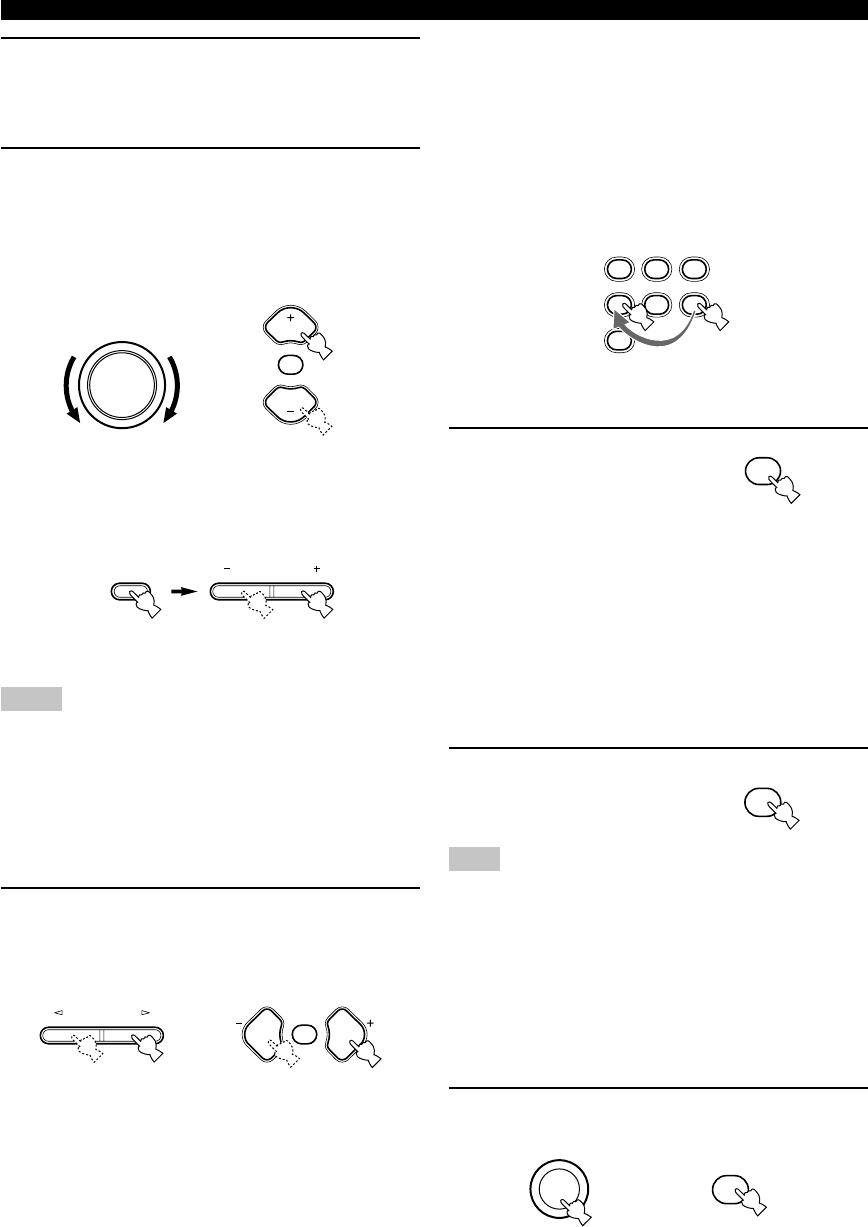
7Adjust the volume to the desired level.
The volume level is displayed digitally.
Example: –70 dB
Control range: VOLUME MUTE (minimum) to
0 dB (maximum)
The volume level indicator also shows the current
volume level as a bar graph.
If desired, use CONTROL and BASS/TREBLE –/+.
These controls only effect the sound from the main
speakers.
Notes
• If you increase or decrease the high-frequency or the low-
frequency sound to an extreme level, the tonal quality from the
center and rear speakers may not match that of the main left
and right speakers.
• If you have connected a recording component to the VCR
OUT, or MD/CD-R OUT jacks, and you notice distortion or
low volume during playback from other components, try
turning the recording component on.
8Select a DSP program if desired.
Use PROGRAM l / h (PROG –/+ on the remote
control) to select a DSP program. See pages 27 – 30
for details about DSP programs.
VOLUME
Front panel
or
Remote control
or
Front panel Remote control
STANDBY
/ON
or
Front panel Remote control
PROGRAM
PLAYBACK
BASS/TREBLE
CONTROL
Front panel
MUTE
VOLUME
VOLUME
PROG PROG
MUTE
TUNER
CD MD/CD-R V-AUX
DVD D-TV/CBL VCR
MUTE
NIGHT
POWER
06V340G_22-27_EN(03.2.27)a.p65 03.4.14, 11:49 AM22
English
23
BASIC
OPERATION
Input modes and indications
This unit is equipped with 2 types of input jacks for the
CD and DVD sources only. You can select the type of
input signals you wish to use.
Each time you turn on the unit power, the input mode is
set to the “INPUT 2 INPUT MODE” setting defined in
the set menu.
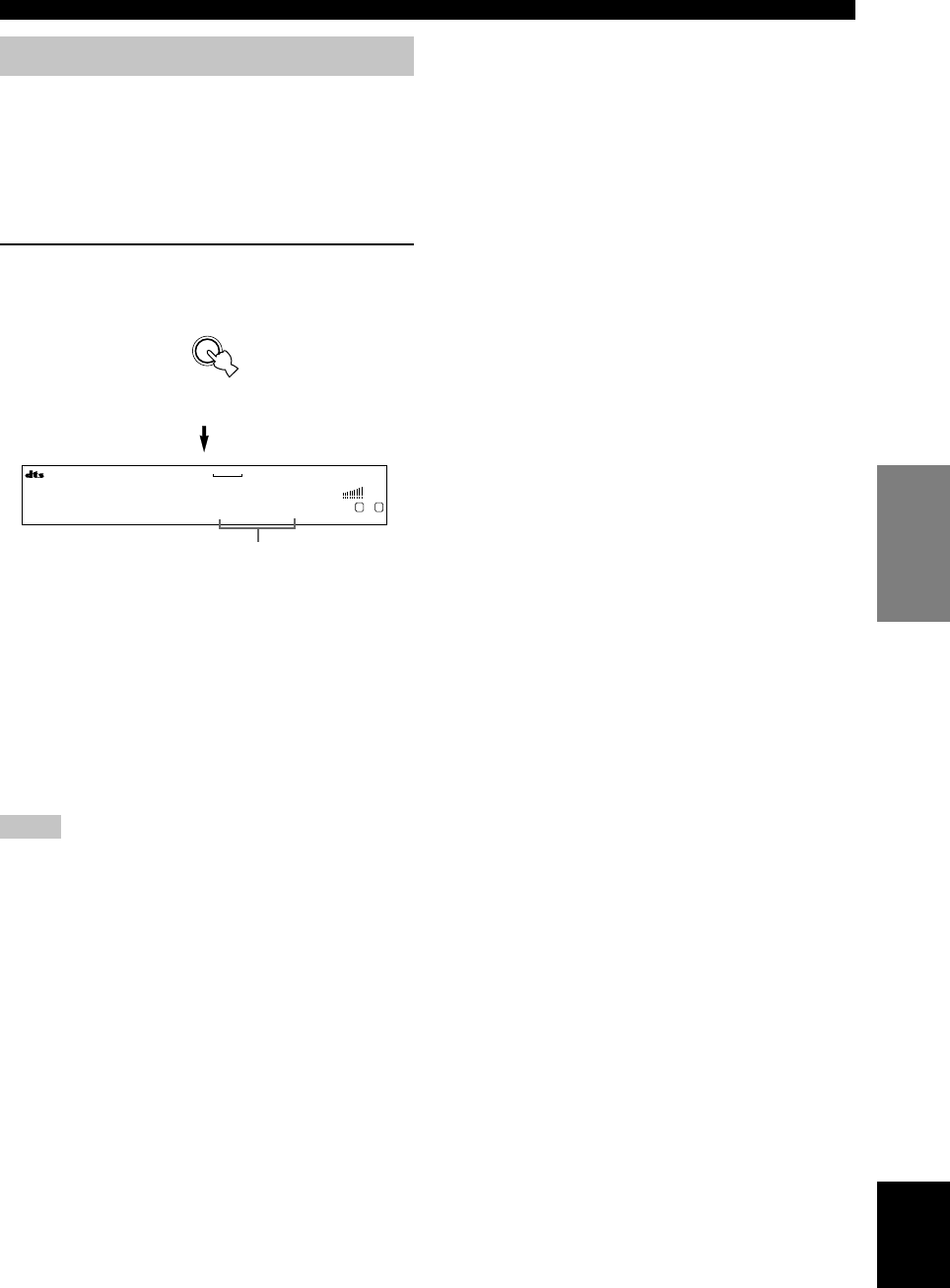
Press INPUT MODE repeatedly until the
desired input mode is shown on the front
panel display.
AUTO: In this mode, the input signal is selected
automatically as follows:
1) Digital signal
2) Analog signal
DTS: In this mode, only digital input signals
encoded with DTS are selected, even if the
unit is receiving another signal
simultaneously.
ANALOG: In this mode, only analog input signals are
selected, even the unit is receiving digital
signals at the same time.
Notes
• When AUTO is selected, this unit automatically determines
the type of signal. If it detects a Dolby Digital or DTS signal,
the decoder automatically switches to the appropriate setting.
• When playing a disc encoded with Dolby Digital or DTS on
some LD or DVD players, there is a delay in sound output for
a moment when playback resumes after a search, because the
unit must select the digital signal again.
• When playing a LD source that has not been digitally
recorded, the unit may not output any sound for some LD
players. In this case, set the input mode to ANALOG.
Front panel
Input mode
■Notes on digital signals
The digital input jacks of this unit can handle 96 kHz
sampling digital signals. Note the following when a
digital signal with a sampling frequency greater than 48
kHz is input to this unit:
• You cannot use any DSP programs.
• The unit will output sound as 2-channel stereo from the
main left and right speakers only. Therefore, you
cannot adjust the level of the effect speakers while
listening to such a source.
■Notes on playing DTS-CD/LDs
• If the digital output data of the player has been
processed in any way, the unit may not be able to
perform DTS decoding even if there is a digital
connection between this unit and the player.
• If you play a source encoded with a DTS signal and set
the input mode to ANALOG, the unit may reproduce
the noise of an unprocessed DTS signal. In this case,
connect the source to a digital input jack on this unit
and set the input mode to AUTO or DTS.
• If you switch the input mode to ANALOG while
playing a source encoded with a DTS signal, the unit
does not output any sound.
• If you play a source encoded with a DTS signal with
the input mode set to AUTO;
– The unit automatically switches to the DTS-
decoding mode (The “t” indicator lights up)
after detecting the DTS signal. When playback of
the DTS source is completed, the “t” indicator
may flash. While this indicator is flashing, the unit
can only reproduce DTS source. If you want to play
a normal PCM source immediately, change the input
mode back to AUTO.
– When the input mode is set to AUTO and a search
or skip operation is performed during playback of a
DTS source, the “t” indicator may flash. If this
state continues for longer than 30 seconds, the unit
will automatically switch from “DTS-decoding”
mode to PCM digital signal input mode. The “t”
indicator will turn off.
PLAYBACK
V-AUXVCR
D-TV/CBL
DVD
MD/CD-R
TUNER CD
VOLUME
L R
DVD AUTO
INPUT MODE
06V340G_22-27_EN(03.2.27)a.p65 03.4.14, 11:50 AM23
24
Selecting a sound field program
You can enhance your listening experience by selecting a
DSP program. For details about each program, see pages
27 – 30.
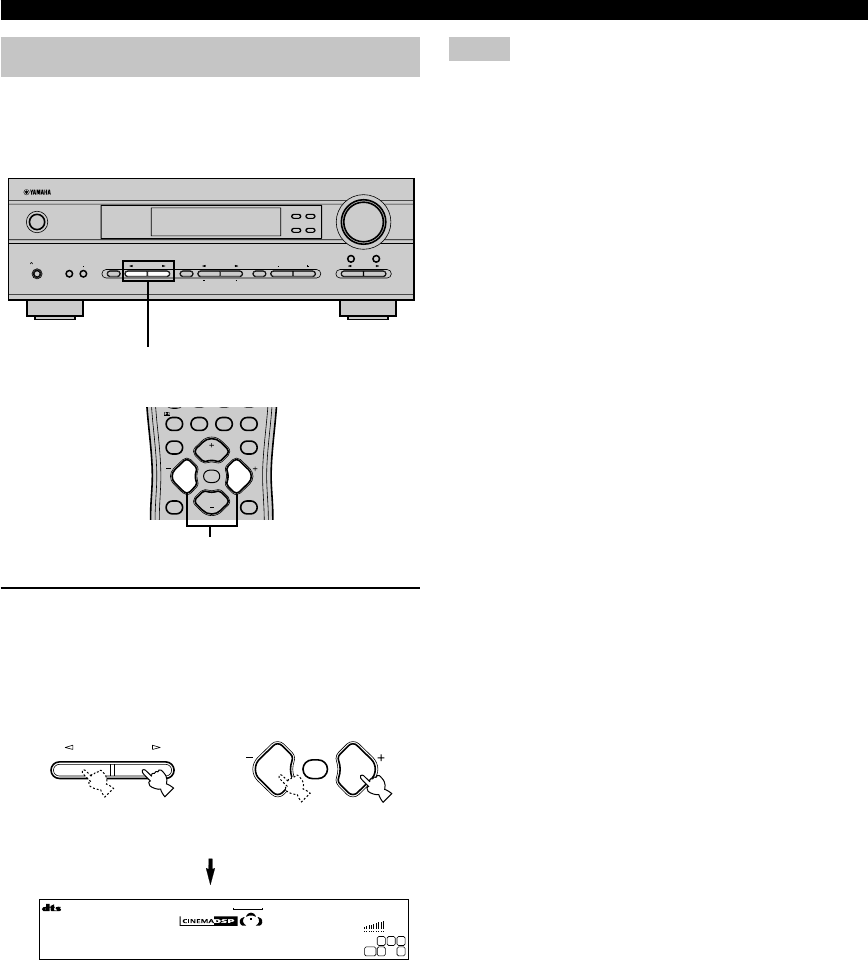
Press PROGRAM l / h (PROG –/+ on the
remote control) repeatedly to select the
desired program (including sub-programs if
available).
The name of the selected program (or sub-program)
appears on the front panel display.
Program No. 7, 8 and 9 have two sub-programs
respectively. Refer to page 29 for details.
Notes
• There are 9 programs with sub-programs available with this
unit. However, the selection depends on the input signal
format and not all sub-programs can be used with all input
signal formats.
• You cannot use the digital sound field processor with a source
connected to the 6CH INPUT jacks of this unit or when the
unit is reproducing a digital source with a sampling frequency
greater than 48 kHz.
• The acoustics of your listening room affect the DSP program.
Minimize the sound reflections in your room to maximize the
effect created by the program.
• When you select an input source, this unit automatically
selects the last DSP program used with that source.
• When you set this unit in standby mode, it stores the current
source and DSP program in memory and automatically selects
them when you turn on the power again.
• If the unit receives a Dolby Digital or DTS signal when the
input mode is set to AUTO, the DSP program (No. 7–9)
automatically switches to the appropriate decoding program.
• When the unit is reproducing a monaural source with PRO
LOGIC or PRO LOGIC/Enhanced, or PRO LOGIC II Movie,
no sound is output from the main and rear speakers. Sound can
only be heard from the center speaker. (If “1A CENTER” on
the set menu is set to NON, the center channel sound is output
from the main speakers.)
y
• Select a program based on your listening preference. Program
names are just for reference.
VOLUME
STANDBY
/ON
AUTO/MAN`L MONO MAN`L/AUTO FM
TUNING MODE MEMORY
EDIT
PRESET/TUNING FM/AM
SILENT
PHONES
SPEAKERS
AON
BOFF EFFECT
PRESET/TUNING
SET MENU
A/B/C/D/E
NEXT
PROGRAM
STEREO BASS/TREBLE
CONTROL
INPUT
6CH INPUTINPUT MODE
PROGRAM l / h
PLAYBACK
V-AUXVCR
D-TV/CBL
DVD
MD/CD-R
TUNER CD
VOLUME
L C R
RLLFE RR
Adventure
TEST
PROG PROG
STEREO
LEVEL
SET MENU
/D T S 6.1/ 5.1 NI G H T SL E E P
MUTE
VOLUME
VOLUME
PROG –/+
or
Front panel Remote control
PROGRAM
PROG PROG
MUTE
06V340G_22-27_EN(03.2.27)a.p65 03.4.14, 11:50 AM24
English
25
BASIC
OPERATION
■Playing Dolby Digital EX or DTS ES
material
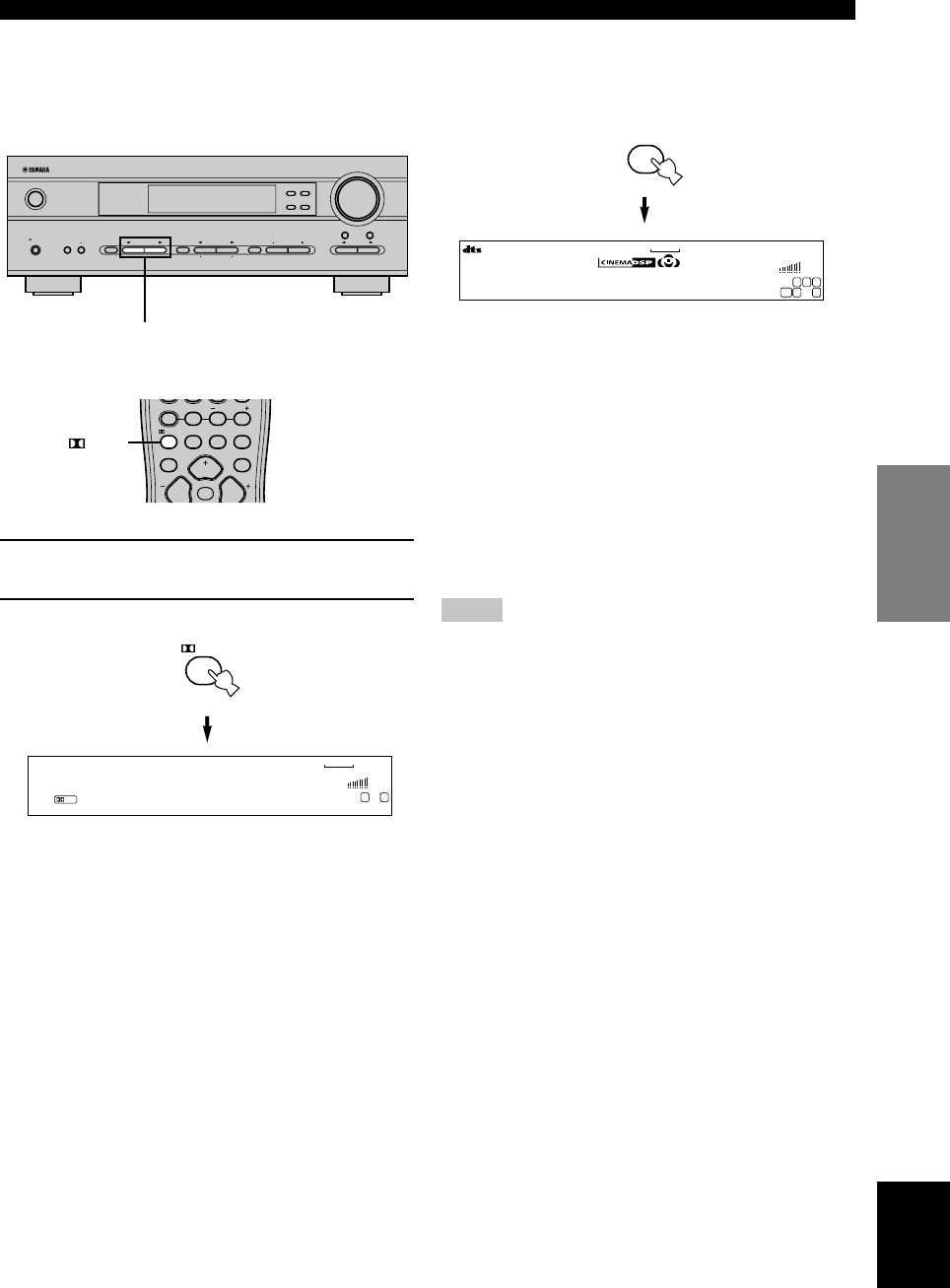
Press 6.1/5.1 to turn on the Dolby Digital + Matrix 6.1 or
DTS + Matrix 6.1 decoder.
The display changes AUTO → Matrix6.1 → OFF each
time 6.1/5.1 is pressed.
AUTO: This mode automatically switches Dolby
Digital + Matrix 6.1 and DTS + Matrix 6.1
depending on the signal. Virtual rear center
speaker does not work for 5.1 channel
sources.
Matrix 6.1: This setting produces 6-channel playback of
the input source using the Matrix 6.1
decoder. The virtual rear center speaker can
be used when playing a 5.1-channel source.
OFF: Virtual rear center speaker does not work in
this setting.
Notes
• Some 6.1-channel compatible discs do not have a signal (flag)
that this unit can automatically detect. Select “Matrix 6.1” to
play these kinds of discs with 6.1-channel sound.
• 6.1-channel playback is not possible even if you press 6.1/5.1
in the following cases:
1When effects are turned off.
2When the source connected to the 6CH INPUT jacks is
being played.
3When the unit is reproducing a Dolby Digital KARAOKE
source.
4When headphones are connected to the PHONES jack.
• The input mode resets to AUTO when you turn the unit power
off.
■Selecting PRO LOGIC or PRO LOGIC II
You can listen to 2-channel sources decoded into five
discrete channels by selecting PRO LOGIC or PRO
LOGIC II in program No. 9.
1Select a 2-channel source and start playback
on the source component.
2Press q/DTS.
The display cycles as follows each time you press q/
DTS:
PRO LOGIC→PRO LOGIC Enhanced→PRO LOGIC II
Movie→PRO LOGIC II Music→PRO LOGIC→....
y
• You can select PRO LOGIC, PRO LOGIC Enhanced, PRO
LOGIC II Movie, and PRO LOGIC II Music by pressing
PROGRAM l / h on the front panel repeatedly.
VOLUME
STANDBY
/ON
AUTO/MAN`L MONO MAN`L/AUTO FM
TUNING MODE MEMORY
EDIT
PRESET/TUNING FM/AM
SILENT
PHONES
SPEAKERS
AON
BOFF EFFECT
PRESET/TUNING
SET MENU
A/B/C/D/E
NEXT
PROGRAM
STEREO BASS/TREBLE
CONTROL
INPUT
6CH INPUTINPUT MODE
PROGRAM l / h
(Example)
PLAYBACK
V-AUXVCR
D-TV/CBL
DVD
MD/CD-R
TUNER CD
MATRIX
VOLUME
L C R
RLLFE RR
Matrix 6.1
V-AUXVCR
D-TV/CBL
DVD
MD/CD-R
TUNER CD
PL
VOLUME
L R
PRO LOGIC
TEST
PROG PROG
STEREO
TUNER
/DTS 6.1/5.1 NIGHT SLEEP
PRESET
A/B/C/D/E
MUTE
VOLUME
/DTS
/DTS
6.1/5.1
06V340G_22-27_EN(03.2.27)a.p65 03.4.14, 11:50 AM25
26
Notes
• If you turn off the sound effects, no sound is output from the
center speaker or rear speakers.
• If you turn off the sound effects while the unit is reproducing
sound from a Dolby Digital or DTS signal, the dynamic range
of the signal is automatically compressed and the unit will mix
the sounds of the center and rear speaker channels and output
them from the main speakers.
• The volume may be greatly reduced when you turn off the
sound effects or if you set “SOUND 4 D. RANGE (dynamic
range)” on the set menu to MIN. In this case turn on the sound
effect.
y
• During stereo reproduction, you can display information such
as the type, format and sampling frequency of the signal input
from the components connected to this unit.
(While playing a source)
1Press d to display the information about the
input signal.
(Format): The display shows the signal format. When the
unit cannot detect a digital signal it
automatically switches to analog input.
in: The display shows the number of input signal
source channels, as follows: For multi-channel
soundtrack such as front 3 channels, rear 2
channels and LFE, the display shows “3/2/
LFE”.
fs: The display shows the sampling frequency.
When the unit is unable to detect the sampling
frequency “Unknown” shows in the front panel
display.
rate: The display shows the bit rate. When the unit is
unable to detect the bit rate “Unknown” shows
in the front panel display.
flg: The display shows the flag - data encoded in a
DTS or Dolby Digital signal that causes this
unit to automatically switch to the appropriate
decoder for playback.
■Virtual CINEMA DSP
With Virtual CINEMA DSP, you can enjoy all DSP
programs without rear speakers. It creates virtual speakers
to reproduce a natural sound field.
You can listen to virtual CINEMA DSP by setting “1C
REAR LR” in the set menu to NON. Sound field
processing changes to VIRTUAL CINEMA DSP
automatically.
Note
• This unit is not set in the virtual CINEMA DSP mode even if
“1C REAR LR” is set to NON in the following cases:
– when the 5ch Stereo, DOLBY DIGITAL, Pro Logic, Pro
Logic II, or DTS program is selected;
– when the sound effect is turned off;
– when 6CH INPUT is selected as the input source;
– when a digital signal with a sampling frequency greater
than 48 kHz is input to this unit;
– when using the test tone; or
– when connecting the headphones.
■SILENT CINEMA DSP
You can enjoy a powerful sound field similar to what you
could expect from actual speakers through headphones,
with SILENT CINEMA DSP. You can listen to SILENT
CINEMA DSP by connecting your headphones to the
PHONES jack while the digital sound field processor is
on. The “SILENT” indicator lights up on the front panel
display. (When sound effects are off, the unit reproduces
the source in normal stereo.)
To listen to sounds with headphones only, press
SPEAKERS ON/OFF to turn off the output of all the
speakers.
Notes
• This feature is not available when 6CH INPUT is selected or
the unit is receiving a digital signal with a sampling frequency
greater than 48 kHz.
• The sound from the LFE channel will be mixed and output
from the headphones.
■Normal stereo reproduction
Press STEREO to turn off the sound effect
for normal stereo reproduction.
Press STEREO again to turn the sound effect back
on.
Front panel
or
Remote control
EFFECT
STEREO
PLAYBACK
STEREO
06V340G_22-27_EN(03.2.27)a.p65 03.4.14, 11:50 AM26
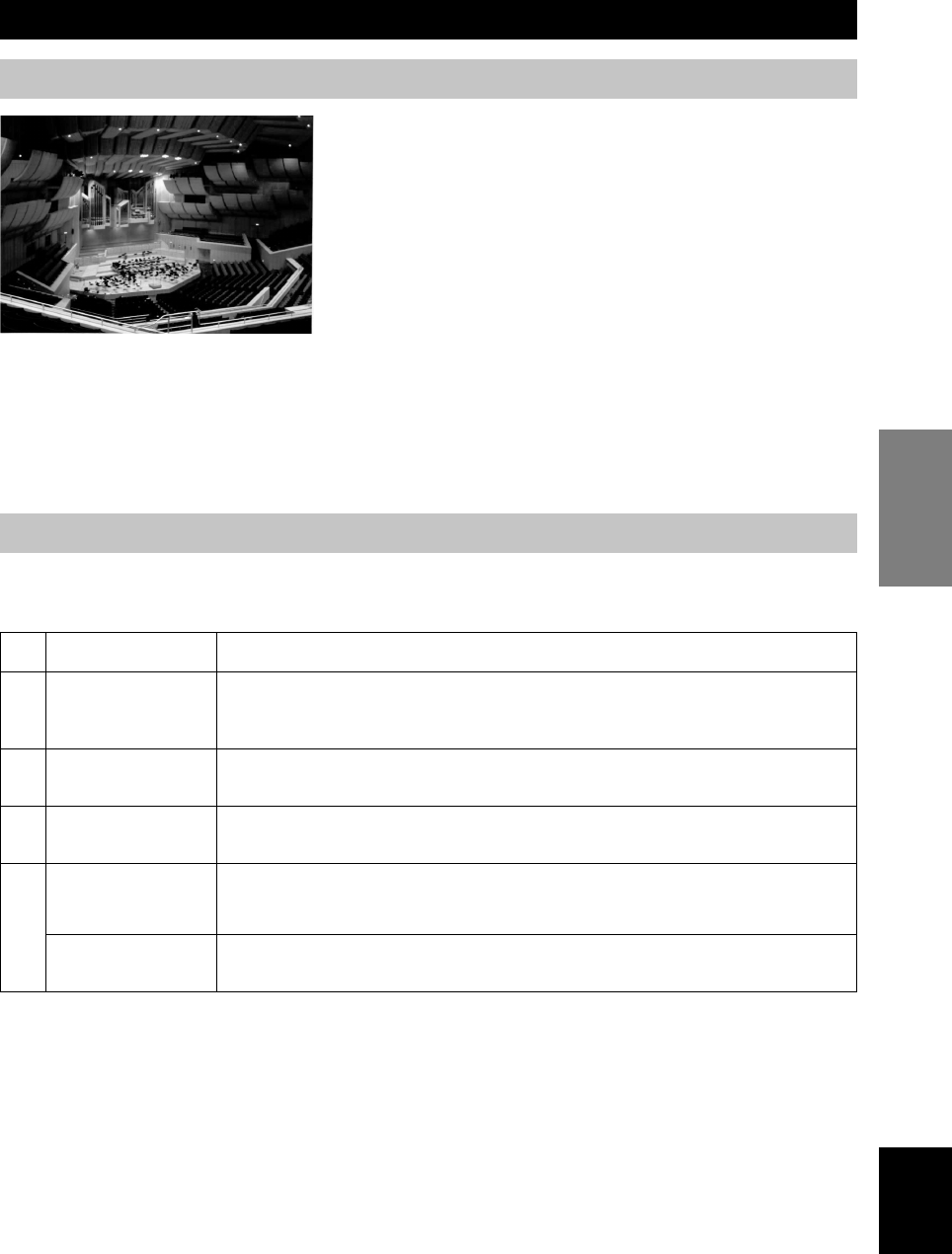
English
BASIC
OPERATION
27
DIGITAL SOUND FIELD PROCESSING (DSP)
Understanding sound fields
A sound field is defined as the “characteristic sound reflections of a
particular space.” In concert halls and other music venues, we hear
early reflections and reverberations as well as the direct sound
produced by the artist(s). The variations in the early reflections and
other reverberations among the different music venues is what gives
each venue its special and recognizable sound quality.
YAMAHA sent teams of sound engineers all around the world to
measure the sound reflections of famous concert halls and music
venues, and collect detailed sound field information such as the
direction, strength, range, and delay time of those reflections. Then
we stored this enormous amount of data in the ROM chips of this
unit.
■Recreating a sound field
Recreating the sound field of a concert hall or an opera house requires localizing the virtual sound sources in your
listening room. The traditional stereo system that uses only two speakers is not capable of recreating a realistic sound
field. YAMAHA’s DSP requires four effect speakers to recreate sound fields based on the measured sound field data.
The processor controls the strength and delay time of the signals output from the four effect speakers to localize the
virtual sound sources and fully encompass the listener.
Hi-Fi DSP programs
The following list gives you a brief description of the sound fields produced by each of the DSP programs. Keep in
mind that most of these are precise digital recreations of actual acoustic environments.
No.
1
2
3
4
Program
CONCERT HALL
JAZZ CLUB
ROCK CONCERT
ENTERTAINMENT/
Disco
ENTERTAINMENT/
5ch Stereo
Features
A large round concert hall with a rich surround effect. Pronounced reflections from all directions
emphasize the extension of sounds. The sound field has a great deal of presence, and your virtual
seat is near the center, close to the stage.
This is the sound field at stage front in “The Bottom Line”, a famous New York jazz club, that
seats up to 300 people. Its wide left to right seating arrangement offers a real and vibrant sound.
The ideal program for lively, dynamic rock music. The data for this program was recorded at LA’s
“hottest” rock club. The listener’s virtual seat is at the center-left of the hall.
This program recreates the acoustic environment of a lively disco in the heart of a big city. The
sound is dense and highly concentrated. It is also characterized by a high-energy, “immediate”
sound.
Using this program increases the listening position range. This is a sound field suitable for
background music at parties, etc.
07V340G_28-31_EN(03.1.17).p65 03.4.14, 11:50 AM27
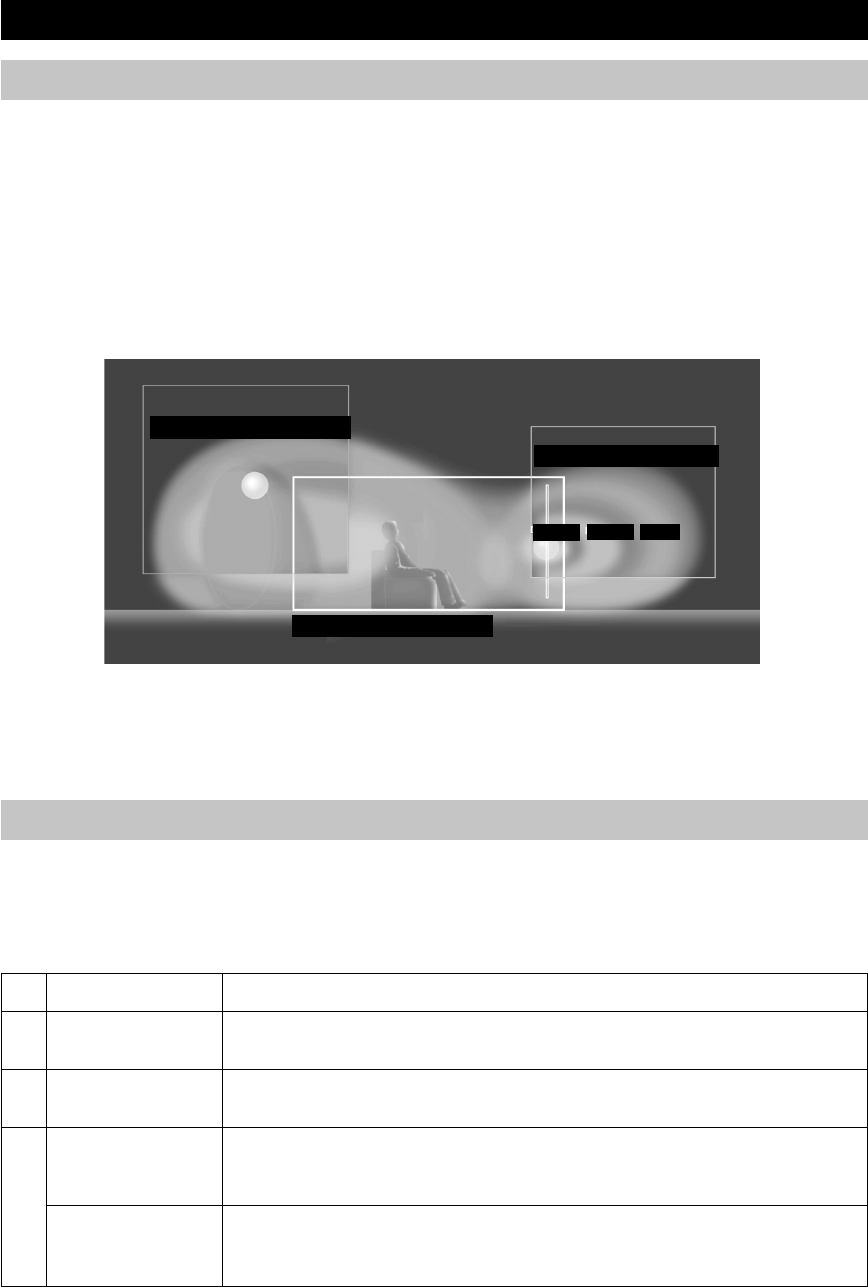
28
CINEMA-DSP
Sound design of CINEMA-DSP
Filmmakers intend for the dialog to be located right on the screen, the effect sound a little farther back, the music spread
even farther back, and the surround sound around the listener. Of course, all of these sounds must be synchronized with
the images on the screen.
CINEMA-DSP is an upgraded version of YAMAHA DSP specially designed for movie soundtracks. CINEMA-DSP
integrates the DTS, Dolby Digital, and Dolby Pro Logic surround sound technologies with YAMAHA DSP sound field
programs to provide a surround sound field. It recreates comprehensive movie sound design in your audio room. In
CINEMA-DSP sound field programs, YAMAHA’s exclusive DSP processing is added to the Main left and right, and
Center channels, so the listener can enjoy realistic dialogue, depth of sound, smooth transition between sound sources,
and a surround sound field that goes beyond the screen.
When a DTS or Dolby Digital signal is detected, the CINEMA-DSP sound field processor automatically chooses the
most suitable sound field program for that signal.
L SURROUND SOUND FIELD
R SURROUND SOUND FIELD
PRESENCE SOUND FIELD
DIALOG EFFECT MUSIC
In addition to the DSP, this unit is equipped with a variety of precise decoders; Dolby Pro Logic decoder for Dolby
Surround sources, Dolby Pro Logic II decoder for Dolby Surround and 2-channel sources, Dolby Digital/DTS decoder
for multi-channel sources and Dolby Digital + Matrix 6.1 or DTS + Matrix 6.1 decoder for adding a rear center channel
(the rear center channel is outputted from virtual rear center speaker). You can select CINEMA-DSP programs to
optimize these decoders and the DSP sound patterns depending on the input source.
CINEMA-DSP Programs
The following list gives you a brief description of the sound fields produced by each of the DSP programs. Keep in
mind that most of these are precise digital recreations of actual acoustic environments. Select the DSP program that you
feel sounds best regardless of the name and description given for it below.
■For audio-video sources: No. 4 to 6
No.
4
5
6
Program
ENTERTAINMENT/
Game
MUSIC VIDEO
TV THEATER/
Mono Movie
TV THEATER/Variety/
Sports
Features
This program adds a deep and spatial feeling to video game sounds.
This program lends an enthusiastic atmosphere to the sound, giving you the feeling you are at an
actual jazz or rock concert.
This program is provided for reproducing monaural video sources (such as old movies). The
program produces the optimum reverberation to create sound depth using only the presence sound
field.
Though the presence sound field is relatively narrow, the surround sound field employs the sound
environment of a large concert hall. This effect enhances the experience of watching various TV
programs such as news, variety shows, music programs or sports programs.
07V340G_28-31_EN(03.1.17).p65 03.4.14, 11:50 AM28
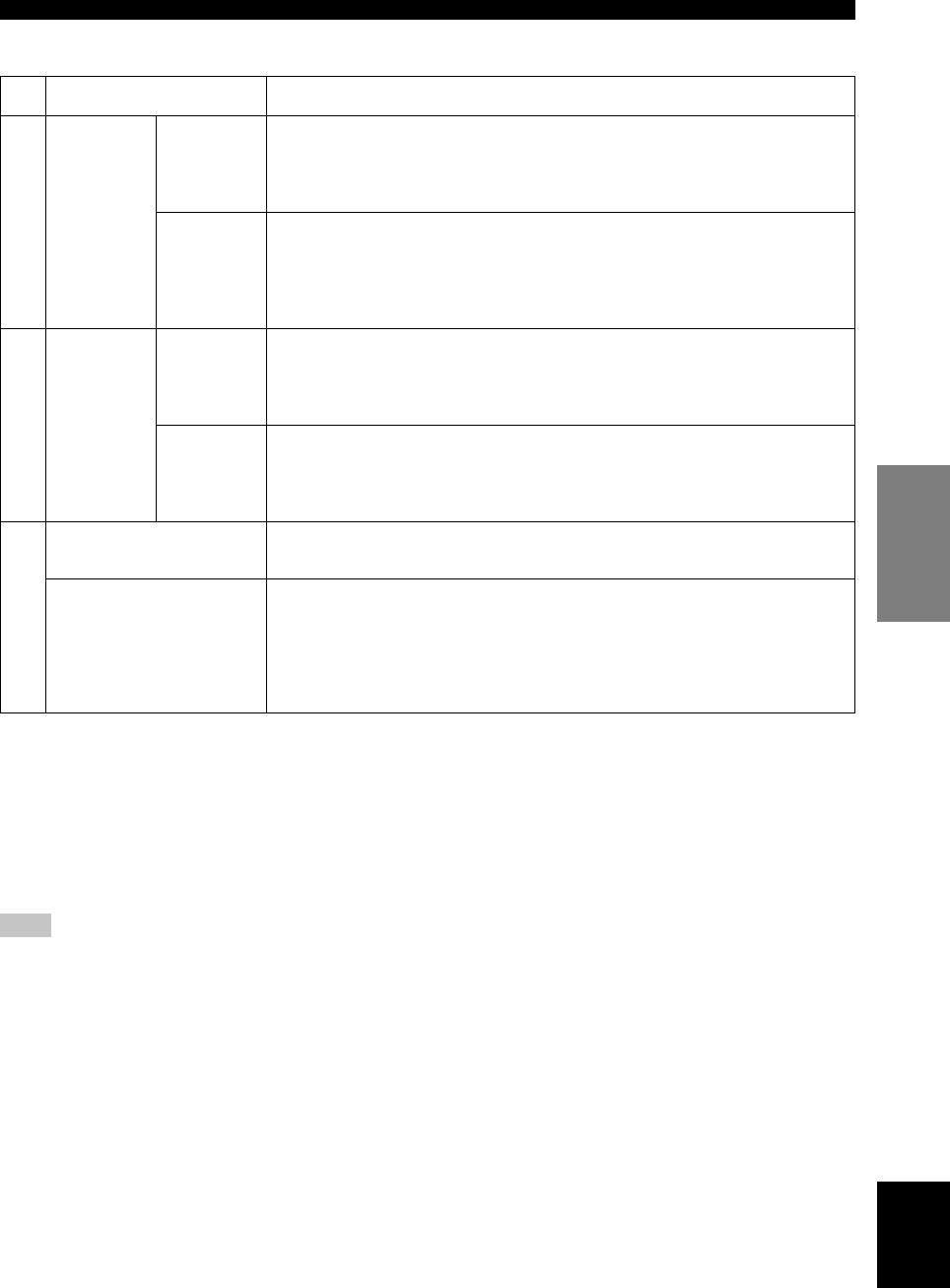
English
BASIC
OPERATION
29
■For movie programs
No.
7
8
9
Features
This program creates the extremely wide sound field of a 70-mm movie theater. It
precisely reproduces the source sound in detail, making both the video and the sound field
incredibly real. This is ideal for any kind of video source encoded with Dolby Surround,
Dolby Digital or DTS (especially large-scale movie productions).
This program clearly reproduces dialog and sound effects in the latest sound form of
science fiction films, thus creating a broad and expansive cinematic space amid the
silence. You can enjoy science fiction films in a virtual-space sound field that includes
Dolby Surround, Dolby Digital and DTS-encoded software employing the most advanced
techniques.
This program is ideal for precisely reproducing the sound design of the newest 70-mm and
multichannel soundtrack films. The sound field is made to be similar to that of the newest
movie theaters, so the reverberations of the sound field itself are restrained as much as
possible.
This program is for reproducing sounds from 70-mm and multichannel soundtrack films,
and is characterized by a soft and extensive sound field. The presence sound field is
relatively narrow. It spatially spreads all around and toward the screen, restraining the
echo effect of conversations without losing clarity.
The built-in decoder reproduces source sounds and sound-effects precisely.
No DSP effect is applied in this program.
This program ideally simulates the multi-surround speaker systems of the 35-mm film
theaters. Dolby Pro Logic decoding, Dolby Digital decoding or DTS decoding and digital
sound field processing create precise effects without altering the original sound orienta-
tion.
The surround effects produced by this sound field wrap around the viewer naturally from
the back to the left and right, and toward the screen.
MOVIE
THEATER 1
MOVIE
THEATER 2
Spectacle
Sci-Fi
Adventure
General
Program
Straight Decode
Enhanced Mode
CINEMA-DSP
Straight Decode
This unit is equipped with various precise decoders;
• Dolby Digital/DTS decoder for multi-channel reproduction of the original sound
• Dolby Pro Logic/Pro Logic II decoder for multi-channel reproduction of 2-channel sources
Select any of the Straight Decode modes in Program 9 (except for the sub-program “Enhanced”) to use any of these
decoders for reproducing the original sound without any sound effects added. In this case, no DSP effect is applied and
the DSP indicator turns off.
Note
• When playing a monaural source with a CINEMA DSP program, the source signal is directed to the center channel, and the main
and rear speakers output effect sounds.
07V340G_28-31_EN(03.1.17).p65 03.4.14, 11:50 AM29
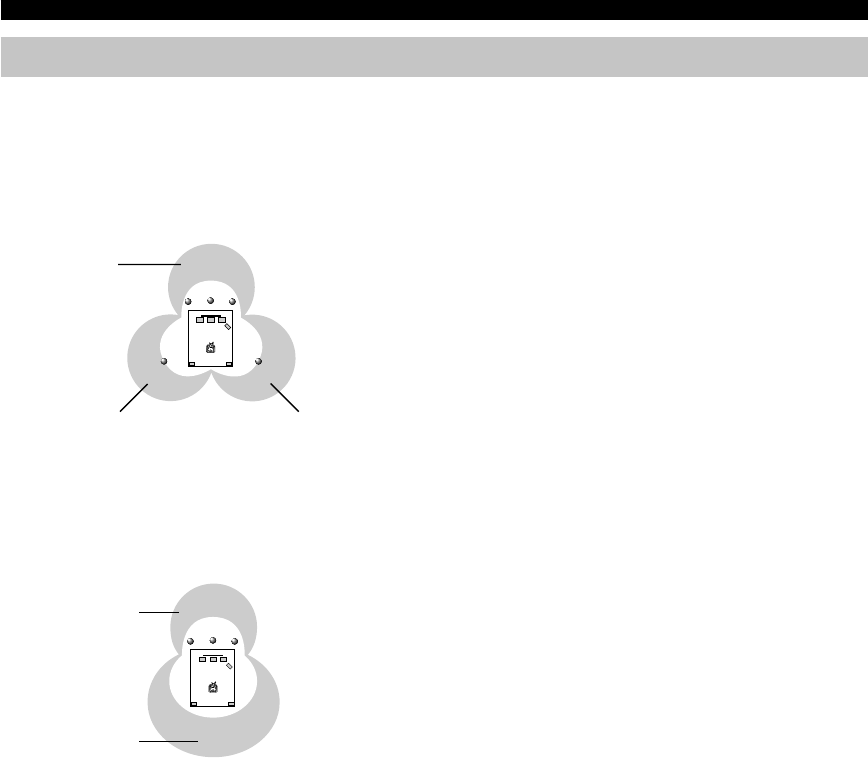
30
Sound field effects
The 6-channel soundtracks found on 70-mm film produce precise sound field localization and rich, deep sound without
using matrix processing. This unit’s MOVIE THEATER programs provide the same quality of sound and sound
localization that 6-channel soundtracks do. The built-in Dolby Digital or DTS decoder brings the professional-quality
sound designed for movie theaters into your home. With this unit’s MOVIE THEATER programs, you can use Dolby
Digital or DTS technology to recreate a dynamic sound that gives you the feeling of being in a public theater.
■Dolby Digital/DTS + DSP sound field effect
These programs use YAMAHA’s tri-field DSP processing
on each of the Dolby Digital or DTS signals for the front,
left surround, and right surround channels. This
processing enables this unit to reproduce the immense
sound field and surround expression of a Dolby Digital-
or DTS-equipped movie theater without sacrificing the
clear separation of all channels.
■Dolby Digital/DTS + Matrix 6.1 + DSP sound field effect
These programs provide you with the maximum experience of the spacious surround effects by adding an extra rear
center DSP sound field created from the virtual rear center speaker.
■Dolby Pro Logic + DSP sound field effect
Most movie material has 4-channel (left, center, right, and
surround) sound information encoded by Dolby Surround
matrix processing and stored on the left and right tracks.
These signals are processed by the Dolby Pro Logic
decoder. The MOVIE THEATER programs are designed
to recreate the spaciousness and delicate nuances of
sound that tend to be lost in the encoding and decoding
processes.
■Dolby Pro Logic II
Dolby Pro Logic II decodes Dolby Surround software into 5 discrete full-range channels (3 channels in front and 2
channels in rear). There are 2 modes; MOVIE for movies and MUSIC for 2-channel audio sources.
Surround DSP
sound field
Right surround DSP
sound field
Presence DSP
sound field
Left surround DSP
sound field
Presence DSP
sound field
CINEMA-DSP
07V340G_28-31_EN(03.1.17).p65 03.4.14, 11:50 AM30
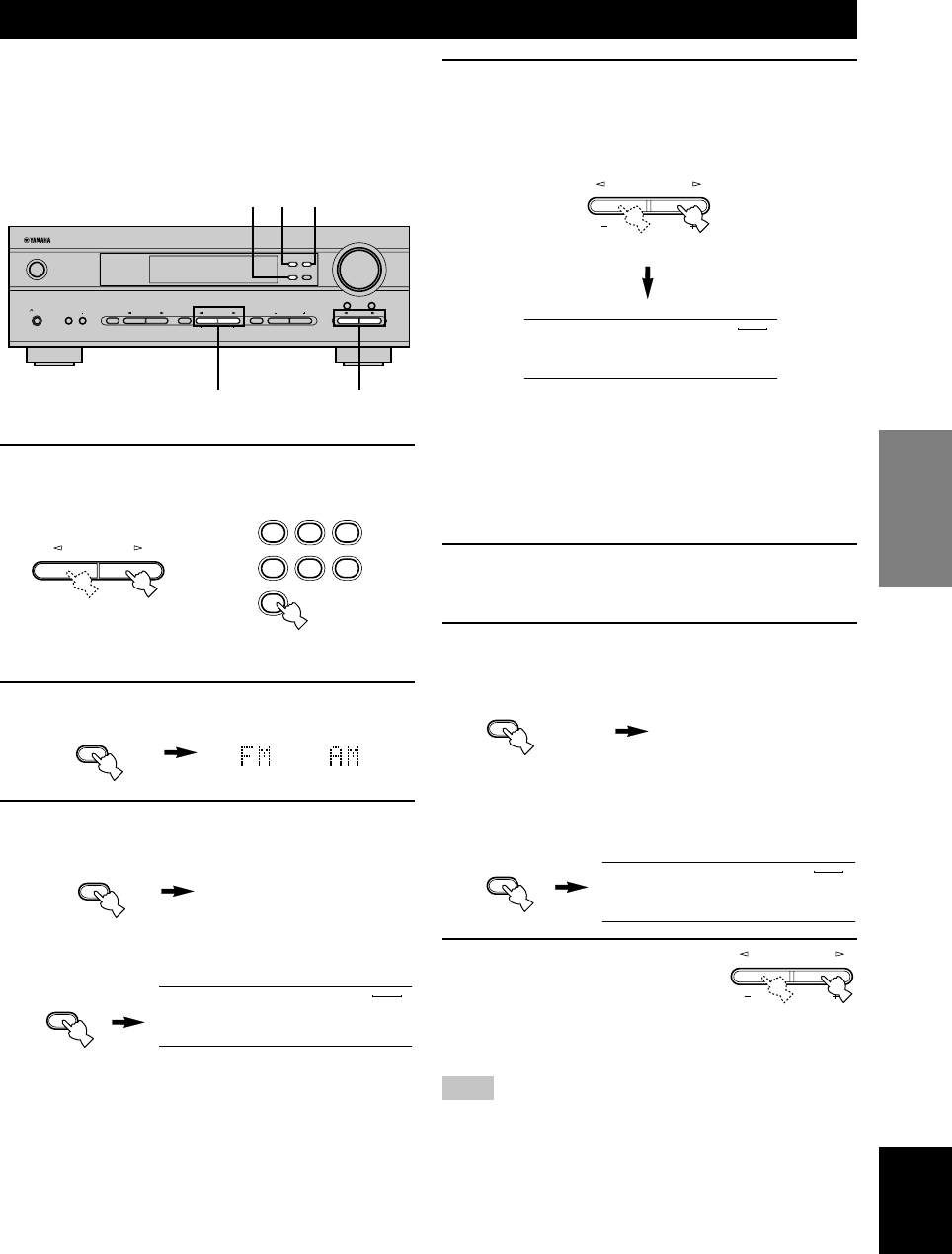
English
BASIC
OPERATION
31
TUNING
4Press PRESET/TUNING l / h once to begin
automatic tuning.
Press h to tune in to a higher frequency, or press l
to tune in to a lower frequency.
When the unit is tuned in to a station, the “TUNED”
indicator lights up and the frequency of the station
received is shown on the front panel display.
■Manual tuning
If the signal from the station you are trying to select is
weak, you must tune in to it manually.
1Select TUNER and the reception band
following steps 1 and 2 described in
“Automatic tuning” at left.
2Press TUNING MODE (AUTO/MAN’L MONO)
until the “AUTO” indicator disappears from
the front panel display.
If the colon (:) appears on the front panel display,
press PRESET/TUNING (EDIT) to turn it off.
3Press PRESET/TUNING
l/h to tune in to the
desired station manually.
Hold down the button to
continue searching.
Note
• Manually tuning in to an FM station will automatically change
the reception mode to monaural to increase the signal quality.
There are 2 methods of tuning; automatic and manual.
Automatic tuning is effective when station signals are
strong and there is no interference.
■Automatic tuning
1Press INPUT l / h (TUNER on the remote
control) to select TUNER as the input source.
2Press FM/AM to select the reception band.
“FM” or “AM” appears on the front panel display.
3Press TUNING MODE (AUTO/MAN’L MONO)
so that the “AUTO” indicator lights up on the
front panel display.
If the colon (:) appears on the front panel display,
press PRESET/TUNING (EDIT) to turn it off.
or
Lights up
or
Front panel Remote control
Disappears
VOLUME
STANDBY
/ON
AUTO/MAN`L MONO MAN`L/AUTO FM
TUNING MODE MEMORY
EDIT
PRESET/TUNING FM/AM
SILENT
PHONES
SPEAKERS
AON
BOFF EFFECT
PRESET/TUNING
SET MENU
A/B/C/D/E
NEXT
PROGRAM
STEREO BASS/TREBLE
CONTROL
INPUT
6CH INPUTINPUT MODE
233
41
FM/AM
AUTO/MANUAL MONO
TUNING MODE
AUTO
EDIT
PRESET/TUNING
V-AUXVCR
D-TV/CBL
DVD
MD/CD-R
TUNER
AUTO
TUNED
A AM 1440 kHz
PRESET/TUNING
SET MENU
V-AUXVCR
D-TV/CBL
DVD
MD/CD-R
TUNER
AUTO
TUNED
A AM 1530 kHz
AUTO/MANUAL MONO
TUNING MODE
AUTO
EDIT
PRESET/TUNING
V-AUXVCR
D-TV/CBL
DVD
MD/CD-R
TUNER
TUNED
A AM 1440 kHz
PRESET/TUNING
SET MENU
INPUT
TUNER
CD MD/CD-R V-AUX
DVD D-TV/CBL VCR
08V340G_32-39_EN(03.3.18)a.P65 03.4.14, 11:50 AM31
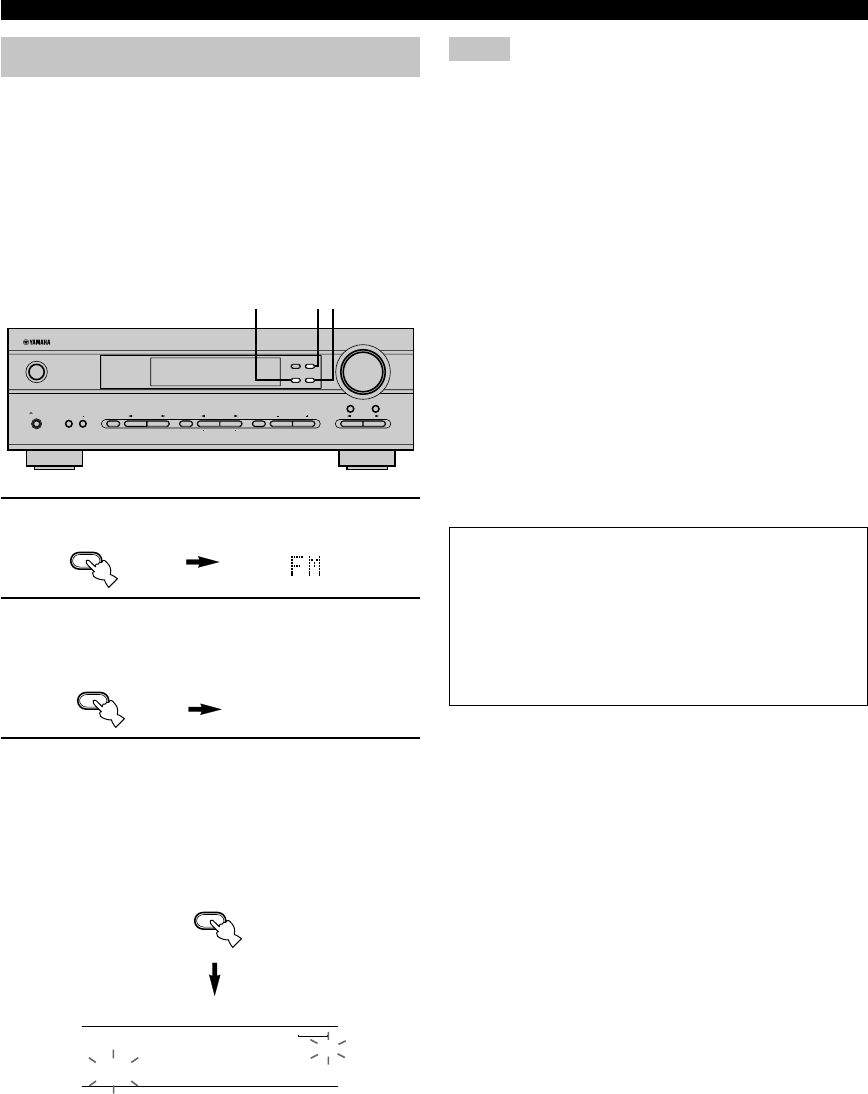
32
Presetting stations
■Automatically presetting stations (for FM
stations)
You can use the automatic preset tuning feature to store
FM stations. This function enables the unit to
automatically tune in to FM stations with strong signals,
and to store up to 40 (8 stations x 5 groups) of those
stations in order. You can then recall any preset station
easily by selecting the preset number.
1Press FM/AM to select the FM band.
2Press TUNING MODE (AUTO/MAN’L MONO)
until the “AUTO” indicator lights up on the
front panel display.
3Press and hold MEMORY (MAN’L/AUTO FM)
for at least 3 seconds.
The preset number and the “MEMORY” and
“AUTO” indicators flash. After about 5 seconds,
automatic preset tuning starts, beginning at the
frequency currently displayed and moving toward the
higher frequencies.
When automatic preset tuning is completed, the front
panel display shows the frequency of the last preset
station.
AUTO
Lights up
Notes
• Any stored station data existing under a preset number is
cleared when you store a new station under that preset number.
• If the number of the received stations does not reach E8,
automatic preset tuning has automatically stopped after
searching all stations.
• Only FM stations with sufficient signal strength are stored
automatically by automatic preset tuning. If the station you
want to store is weak in signal strength, tune in to it manually
in the monaural mode, and store it by following the procedure
described in “Manually presetting stations” on page 33.
Automatic preset tuning options
You can select the preset number from which this unit
will store FM stations and/or begin tuning toward lower
frequencies. After pressing MEMORY in step 3:
1. Press A/B/C/D/E and PRESET/TUNING l / h to
select the preset number under which the first station
will be stored. Automatic preset tuning will stop when
stations have all been stored up to E8.
2. Press PRESET/TUNING (EDIT) to turn off the colon
(:) and then press PRESET/TUNING l to begin
tuning toward lower frequencies.
Memory back-up
The memory back-up circuit prevents the stored data
from being lost even if this unit is set in standby mode,
the power cord is disconnected from the AC outlet, or
the power supply is temporarily cut due to power
failure. However, if the power is cut for more than one
week, the preset stations may be cleared. If so, store
the stations again.
TUNING
VOLUME
STANDBY
/ON
AUTO/MAN`L MONO MAN`L/AUTO FM
TUNING MODE MEMORY
EDIT
PRESET/TUNING FM/AM
SILENT
PHONES
SPEAKERS
AON
BOFF
EFFECT
PRESET/TUNING
SET MENU
A/B/C/D/E
NEXT
PROGRAM
STEREO BASS/TREBLE
CONTROL
INPUT
6CH INPUTINPUT MODE
1 32
FM/AM
AUTO/MANUAL MONO
TUNING MODE
MAN`L/AUTO FM
MEMORY
V-AUXVCR
D-TV/CBL
DVD
MD/CD-R
TUNER
AUTO
MEMORY
A1:FM 89.9 MHz
08V340G_32-39_EN(03.3.18)a.P65 03.4.14, 11:50 AM32
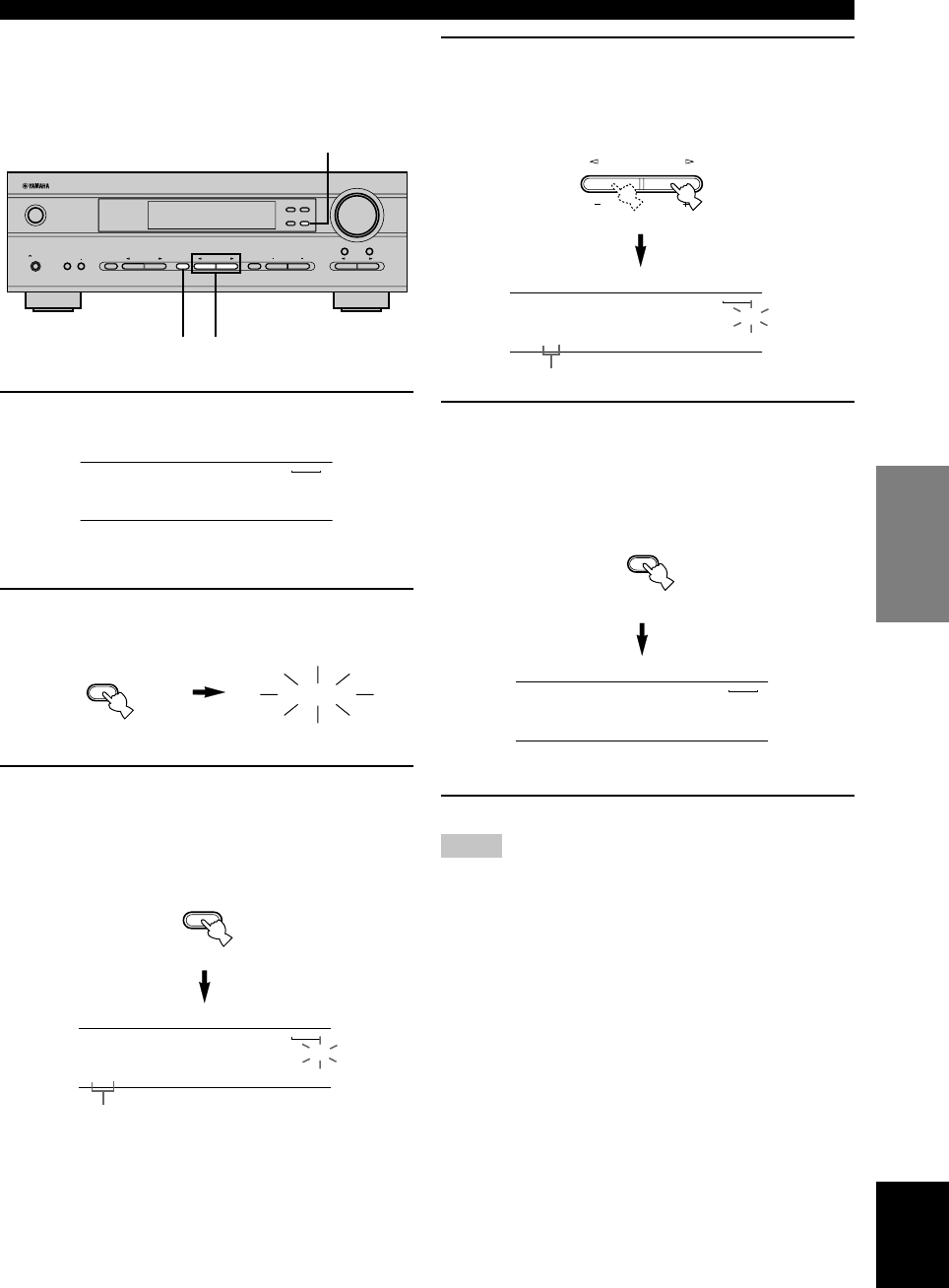
English
BASIC
OPERATION
33
4Press PRESET/TUNING l / h to select a
preset station number (1 to 8) while the
“MEMORY” indicator is flashing.
Press h to select a higher preset station number.
Press l to select a lower preset station number.
5Press MEMORY (MAN’L/AUTO FM) on the
front panel while the “MEMORY” indicator is
flashing.
The station band and frequency appear on the front
panel display with the preset group and number you
have selected.
Shows the displayed station has been stored as C3.
6Repeat steps 1 to 5 to store other stations.
Notes
• Any stored station data existing under a preset number is
cleared when you store a new station under that preset number.
• The reception mode (stereo or monaural) is stored along with
the station frequency.
■Manually presetting stations
You can store up to 40 stations (8 stations x 5 groups)
manually.
1Tune in to a station.
See page 31 for tuning instructions.
When tuned to a station, the front panel display
shows the frequency of the station received.
2Press MEMORY (MAN’L/AUTO FM).
The “MEMORY” indicator flashes for about
5 seconds.
3Press A/B/C/D/E repeatedly to select a preset
station group (A to E) while the “MEMORY”
indicator is flashing.
The group letter appears. Check that the colon (:) is
showing on the front panel display.
Flashes
TUNING
Preset group
Preset number
VOLUME
STANDBY
/ON
AUTO/MAN`L MONO MAN`L/AUTO FM
TUNING MODE MEMORY
EDIT
PRESET/TUNING FM/AM
SILENT
PHONES
SPEAKERS
AON
BOFF EFFECT
PRESET/TUNING
SET MENU
A/B/C/D/E
NEXT
PROGRAM
STEREO BASS/TREBLE
CONTROL
INPUT
6CH INPUTINPUT MODE
2,5
43
V-AUXVCR
D-TV/CBL
DVD
MD/CD-R
TUNER
TUNED
A AM 1440 kHz
MAN`L/AUTO FM
MEMORY
MEMORY
A/B/C/D/E
NEXT
V-AUXVCR
D-TV/CBL
DVD
MD/CD-R
TUNER
MEMORYTUNED
C :AM 1440 kHz
PRESET/TUNING
SET MENU
V-AUXVCR
D-TV/CBL
DVD
MD/CD-R
TUNER
MEMORYTUNED
C3:AM 1440 kHz
V-AUXVCR
D-TV/CBL
DVD
MD/CD-R
TUNER
TUNED
C3:AM 1440 kHz
MAN`L/AUTO FM
MEMORY
08V340G_32-39_EN(03.3.18)a.P65 03.4.14, 11:50 AM33
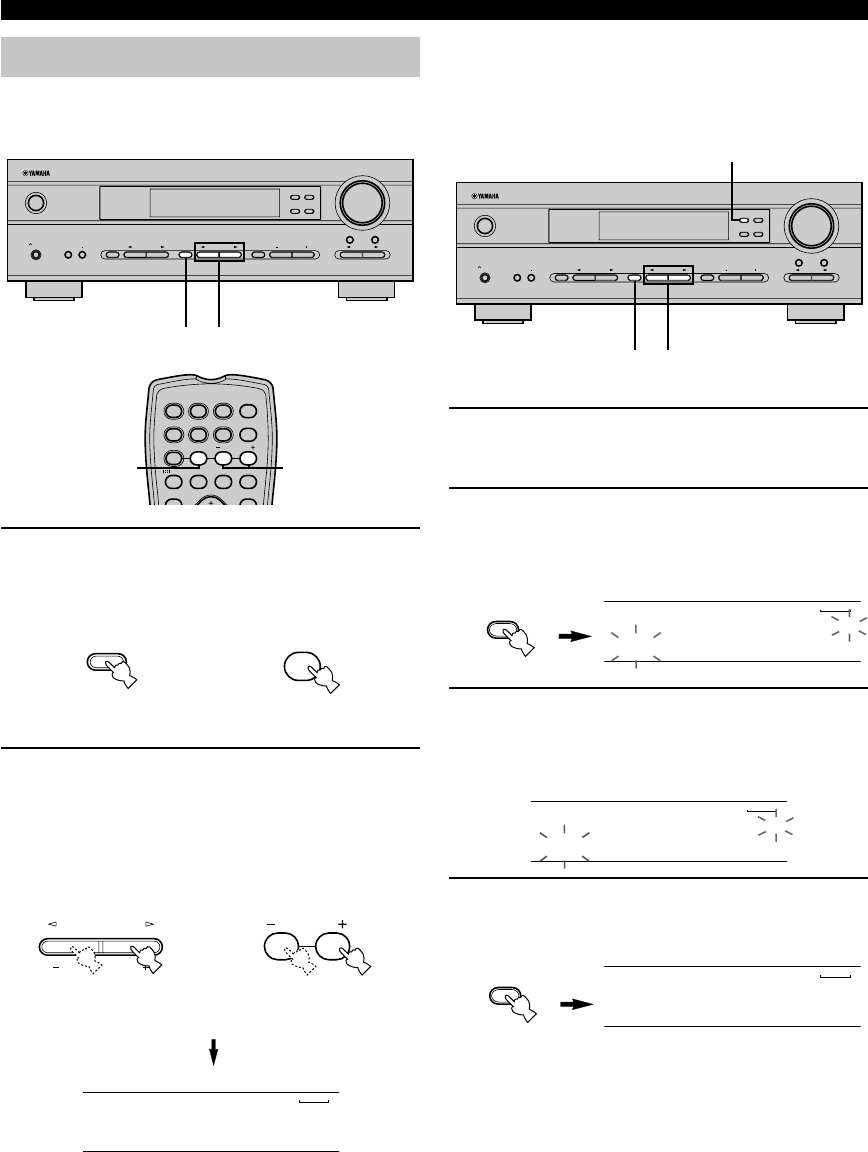
34
■Exchanging preset stations
You can exchange the assignment of two preset stations.
The example below describes the procedure for
exchanging preset station “E1” with “A5”.
1Select preset station “E1” by using the
A/B/C/D/E and PRESET/TUNING l / h.
See “Selecting a preset station” at left.
2Press and hold PRESET/TUNING (EDIT) for
at least 3 seconds.
“E1” and the “MEMORY” indicator flash on the
front panel display.
3Select preset station “A5” by using the
A/B/C/D/E and PRESET/TUNING l / h.
“A5” and the “MEMORY” indicator flash on the
front panel display.
4Press PRESET/TUNING (EDIT) again.
The stations stored at the two preset assignments are
exchanged.
Selecting a preset station
You can recall any desired station simply by selecting the
preset station number under which it was stored.
1Press A/B/C/D/E (A/B/C/D/E on the remote
control) to select the preset station group.
The preset group letter appears on the front panel
display and changes each time you press A/B/C/D/E.
2Press PRESET/TUNING l / h (PRESET –/+
on the remote control) to select a preset
station number (1 to 8).
The preset group and number appear on the front
panel display along with the station band and
frequency, and the “TUNED” indicator lights up.
Shows the exchange of stations has been
completed.
Front panel
Remote control
or
Front panel
Remote control
or
TUNING
V-AUXVCR
D-TV/CBL
DVD
MD/CD-R
TUNER
TUNED
C3:AM 1440 kHz
VOLUME
STANDBY
/ON
AUTO/MAN`L MONO MAN`L/AUTO FM
TUNING MODE MEMORY
EDIT
PRESET/TUNING FM/AM
SILENT
PHONES
SPEAKERS
AON
BOFF
EFFECT
PRESET/TUNING
SET MENU
A/B/C/D/E
NEXT
PROGRAM
STEREO BASS/TREBLE
CONTROL
INPUT
6CH INPUTINPUT MODE
21
A/B/C/D/E
NEXT
PRESET/TUNING
SET MENU
VOLUME
STANDBY
/ON
AUTO/MAN`L MONO MAN`L/AUTO FM
TUNING MODE MEMORY
EDIT
PRESET/TUNING FM/AM
SILENT
PHONES
SPEAKERS
AON
BOFF EFFECT
PRESET/TUNING
SET MENU
A/B/C/D/E
NEXT
PROGRAM
STEREO BASS/TREBLE
CONTROL
INPUT
6CH INPUTINPUT MODE
2,4
1,31,3
EDIT
PRESET/TUNING
V-AUXVCR
D-TV/CBL
DVD
MD/CD-R
TUNER
MEMORYTUNED
E1:FM 87.5 MHz
V-AUXVCR
D-TV/CBL
DVD
MD/CD-R
TUNER
MEMORYTUNED
A5:FM 90.6 MHz
EDIT
PRESET/TUNING
V-AUXVCR
D-TV/CBL
DVD
MD/CD-R
TUNER
MEMORY
EDIT E1-A5
TEST STEREO
TUNER
CD MD/CD-R V-AUX 6CH IN
/DTS 6.1/5.1 NIGHT SLEEP
DVD D-TV/CBL VCR POWER
PRESET
A/B/C/D/E
2
1
A/B/C/D/E
PRESET
08V340G_32-39_EN(03.3.18)a.P65 03.4.14, 11:51 AM34
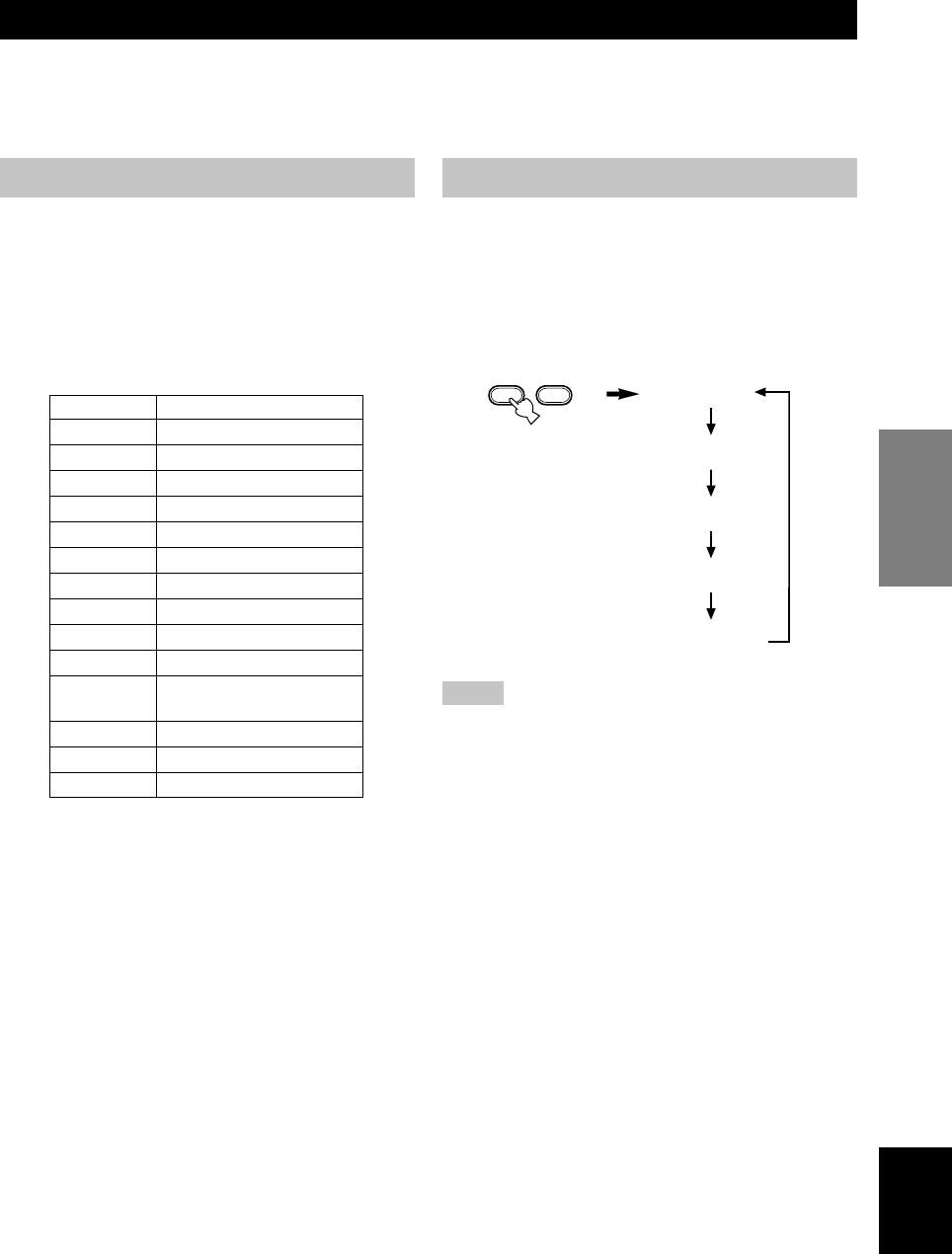
English
BASIC
OPERATION
35
Description of RDS data
This unit can receive, PS, PTY, RT, CT, and EON data
when tuned to stations broadcasting RDS.
■PS (Program Service name) mode:
The name of the RDS station being received is displayed.
■PTY (Program Type) mode:
There are 15 program types used to classify RDS stations.
■RT (Radio Text) mode:
Information about the program (such as the title of the
song, name of the singer, etc.) on the RDS station being
received is displayed using a maximum of 64
alphanumeric characters, including the umlaut symbol.
Any other characters used in RT data are displayed with
under-bars.
■CT (Clock Time) mode:
The current time is displayed and updated every minute.
“CT WAIT” may appear if the data is accidentally cut off.
■EON (Enhanced Other Networks):
Refer to the following page.
Changing the RDS mode
This unit provides four modes for displaying RDS data.
The PS, PTY, RT and/or CT mode indicators that
correspond to the RDS data services offered by the station
light up on the front panel display when an RDS station is
being received. Press RDS MODE/FREQ repeatedly to
cycle the display through the RDS data offered by the
transmitting station in the order shown below.
Notes
• Do not press RDS MODE/FREQ when an RDS station is
being received until one or more RDS mode indicators light
up on the front panel display. You cannot change the mode if
you press this button prior to this. This is because this unit has
not finished receiving all of the RDS data on the station.
• RDS data not offered by the station cannot be selected.
• This unit cannot utilize the RDS data service if the signal
received is not strong enough. In particular, the RT mode
requires a large amount of data, so it is possible that the RT
mode may not be displayed even if other RDS modes (PS,
PTY, etc.) are displayed.
• Sometimes, RDS data cannot be received in poor reception
conditions. If this is the case, press TUNING MODE so that
the “AUTO” indicator disappears from the front panel display.
Although this will change the reception mode to monoaural,
RDS data may be displayed when you change the display to
RDS mode.
• If the signal strength is weakened by external interference
during the reception of an RDS station, the RDS data service
may cut off suddenly and “...WAIT” will appear on the front
panel display.
PS mode
RDS mode
OFF
CT mode
RT mode
PTY mode
NEWS
AFFAIRS
INFO
SPORT
EDUCATE
DRAMA
CULTURE
SCIENCE
VARIED
POP M
ROCK M
M.O.R. M
LIGHT M
CLASSICS
OTHER M
News
Current affairs
General information
Sports
Education
Drama
Culture
Science
Light entertainment
Pops
Rock
Middle-of-the-road music
(easy-listening)
Light classics
Serious classics
Other music
RECEIVING RDS STATIONS
RDS (Radio Data System) is a data transmission system used by FM stations in many countries.
RDS data contains a variety of information such as PS (Program Service name), PTY (Program Type), RT (Radio Text),
CT (Clock Time), EON (Enhanced Other Networks), and others.
RDS MODE/FREQ EON
08V340G_32-39_EN(03.3.18)a.P65 03.4.14, 11:51 AM35
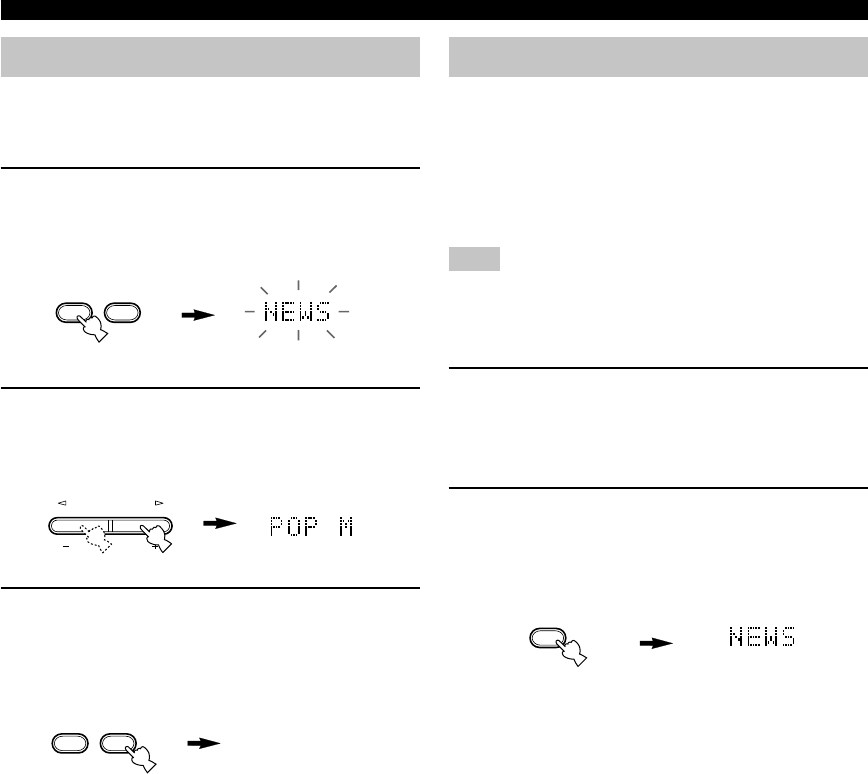
36
RECEIVING RDS STATIONS
PTY SEEK function
If you select the desired program type, the unit
automatically searches all preset RDS stations that are
broadcasting a program of the required type.
1Press PTY SEEK MODE to set the unit in
PTY SEEK mode.
The program type of the station the unit is currently
receiving , or “NEWS” flashes on the front panel
display.
2Press PRESET/TUNING l / h to select the
desired program type.
The selected program type appears on the front panel
display.
3Press PTY SEEK START to begin searching
all preset RDS stations.
The selected program type flashes and the “PTY
HOLD” indicator lights up on the front panel display
while the unit is searching for stations.
• The unit will stop searching if a station that is
broadcasting a program of the required type is
found.
• If the station found is not the desired one, press
PTY SEEK START again. The unit begins
searching for another station that is broadcasting a
program of the same type.
■To cancel this function
Press PTY SEEK MODE twice.
EON function
This function uses the EON data service on the RDS
station network. If you select the desired program type
(NEWS, INFO, AFFAIRS or SPORT), the unit
automatically searches for all preset RDS stations that are
scheduled to broadcast a program of the required type and
switches from the station being currently received to the
new station when the broadcasts starts.
Note
• This function can only be used when an RDS station that
offers the EON data service is being received. When the unit is
tuned to such a station, the “EON” indicator lights up on the
front panel display.
1Check that the “EON” indicator lights up on
the front panel display.
If the “EON” indicator does not light up, tune in to
another RDS station so that the “EON” indicator
lights up.
2Press EON repeatedly to select the desired
program type (NEWS, INFO, AFFAIRS or
SPORT).
The selected program type name appears on the front
panel display.
• If a preset RDS station of the selected program
type starts broadcasting, the unit will automatically
switch from the program being currently received
to that program. (EON indicator flashes.)
• When broadcasting of the required program ends,
the unit returns to the previous station (or another
program on the same station).
■To cancel this function
Press EON repeatedly until the program type name
disappears from the front panel display.
Flashes
Lights up
MODE START
PTY SEEK
PRESET/TUNING
SET MENU
MODE START
PTY SEEK
PTY HOLD
EON
08V340G_32-39_EN(03.3.18)a.P65 03.4.14, 11:51 AM36
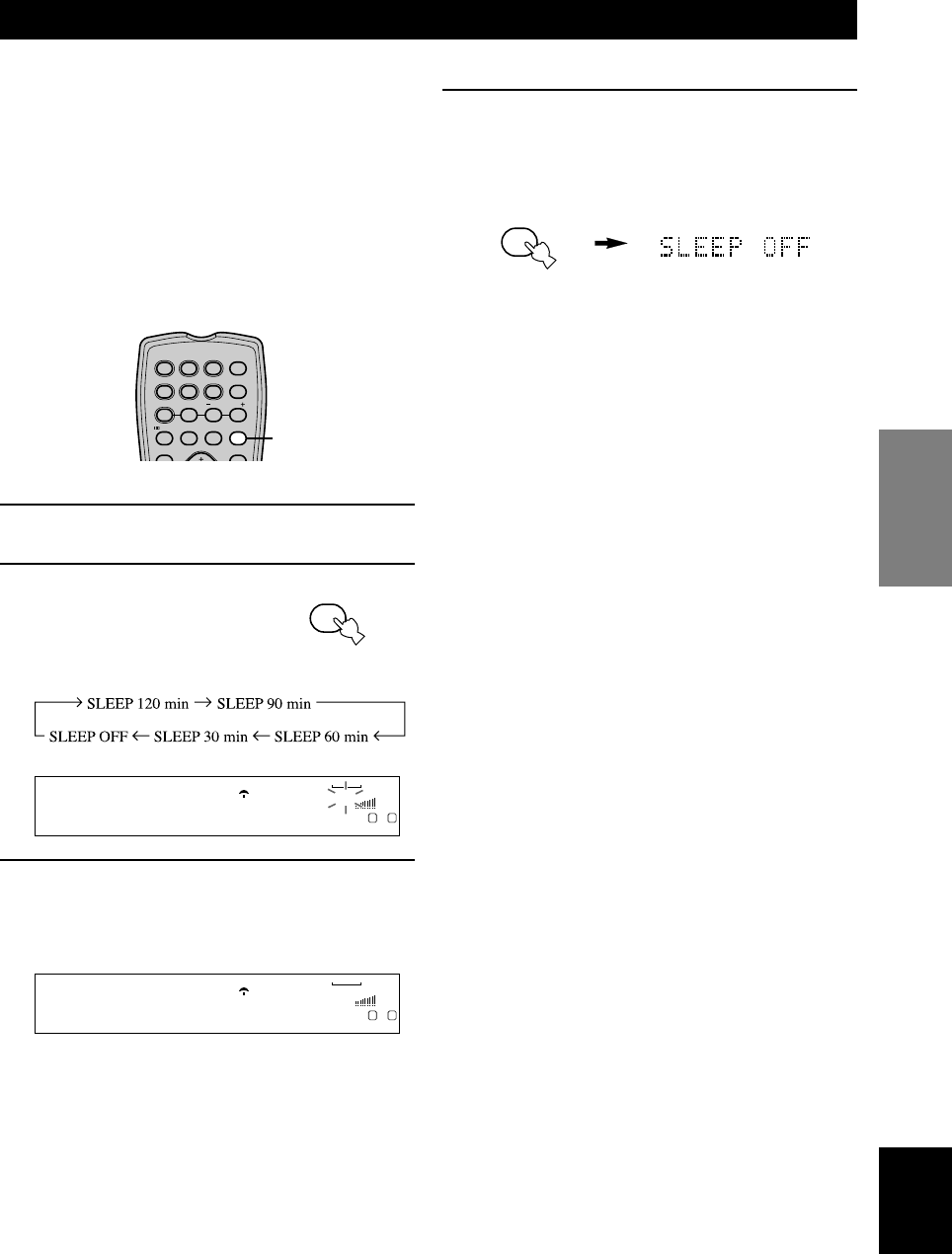
English
BASIC
OPERATION
37
Use this feature to automatically set this unit in standby
mode after the amount of time you have set. The sleep
timer is useful when you are going to sleep while this unit
is playing or recording a source.
The sleep timer can only be set with the remote control.
y
• By connecting a commercially available timer to this unit, you
can also set a wake-up timer. Refer to the operation
instructions of the timer.
■Setting the sleep timer
1Select a source and start playback on the
source component.
2Press SLEEP repeatedly
to set the amount of time.
Each time you press SLEEP,
the front panel display changes
as shown below.
3The “SLEEP” indicator lights up on the front
panel display soon after the sleep timer has
been set.
The display then returns to the previous indication.
SLEEP TIMER
■Canceling the sleep timer
Press SLEEP repeatedly until “SLEEP OFF”
appears on the front panel display.
After a few seconds, “SLEEP OFF” disappears, the
“SLEEP” indicator goes off and the display returns
to the previous indication.
y
• The sleep timer setting can also be canceled by setting this
unit in standby mode by using POWER on the remote control
(or STANDBY/ON on the front panel) or by disconnecting the
AC power cord from the AC outlet.
V-AUXVCR
D-TV/CBL
DVD
MD/CD-R
TUNER CD
DSP
HiFi
SLEEP
VOLUME
L R
ROCK CONCERT
V-AUXVCR
D-TV/CBL
DVD
MD/CD-R
TUNER CD
DSP
HiFi
SLEEP
VOLUME
L R
SLEEP 120min
TEST STEREO
TUNER
CD MD/CD-R V-AUX 6CH IN
/DTS 6.1/5.1 NIGHT SLEEP
DVD D-TV/CBL VCR POWER
PRESET
A/B/C/D/E
2
SLEEP
SLEEP
08V340G_32-39_EN(03.3.18)a.P65 03.4.14, 11:51 AM37
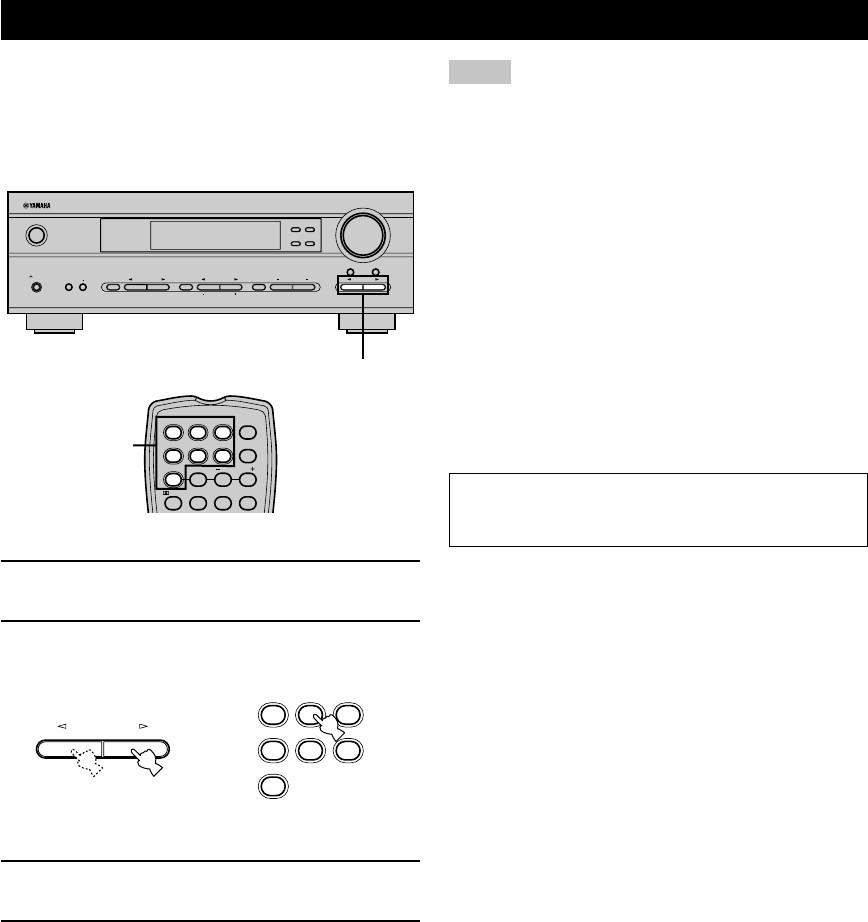
38
Recording adjustments and other operations are
performed on other recording components. Refer to the
operation instructions for these components for details on
their operation .
1Turn on the power of this unit and all
connected components.
2Select the source component you want to
record from.
3Start playback (or select a broadcast station)
on the source component.
4Start recording on the recording component.
Front panel Remote control
or
RECORDING
Notes
• Do a test recording before you start an actual recording.
• When this unit is set in standby mode, you cannot record
between the components connected to it.
• DSP programs and volume, bass, and treble settings do not
affect the recorded material.
• You cannot record from a source connected to the 6CH
INPUT jacks on this unit.
• Input sources are not output to the same OUT (REC) channel.
(For example, the signal input from VCR IN is not output to
VCR OUT.)
• You cannot record audio signals from a source connected to
the DIGITAL INPUT jack on this unit because the signals
from the DIGITAL INPUT jack and analog input jacks are
independent. Please connect a source to the analog in jacks if
you wish to record from the analog out jacks.
• Check the copyright laws in your country if you wish to
record from records, CDs, radio, etc. Recording of
copyrighted material may infringe copyright laws.
If you playback a video source that uses scrambled or
encoded signals to prevent it from being dubbed, the
picture itself may be disturbed due to those signals.
■Special considerations when recording
DTS material
The DTS signal is a digital bitstream. Attempting to
digitally record the DTS bitstream will result in noise
being recorded. Therefore, if you want to use this unit to
record sources that have DTS signals recorded on them,
the following considerations and adjustments need to be
made.
For LDs, DVDs and CDs encoded with DTS, follow the
operating instructions of your player to set it to output an
analog signal, if it is compatible with the DTS format.
VOLUME
STANDBY
/ON
AUTO/MAN`L MONO MAN`L/AUTO FM
TUNING MODE MEMORY
EDIT
PRESET/TUNING FM/AM
SILENT
PHONES
SPEAKERS
AON
BOFF
EFFECT
PRESET/TUNING
SET MENU
A/B/C/D/E
NEXT
PROGRAM
STEREO BASS/TREBLE
CONTROL
INPUT
6CH INPUTINPUT MODE
2
INPUT
TUNER
CD MD/CD-R V-AUX 6CH IN
/DTS 6.1/5.1 NIGHT SLEEP
DVD D-TV/CBL VCR POWER
PRESET
A/B/C/D/E
2
TUNER
CD MD/CD-R V-AUX
DVD D-TV/CBL VCR
08V340G_32-39_EN(03.3.18)a.P65 03.4.14, 11:51 AM38
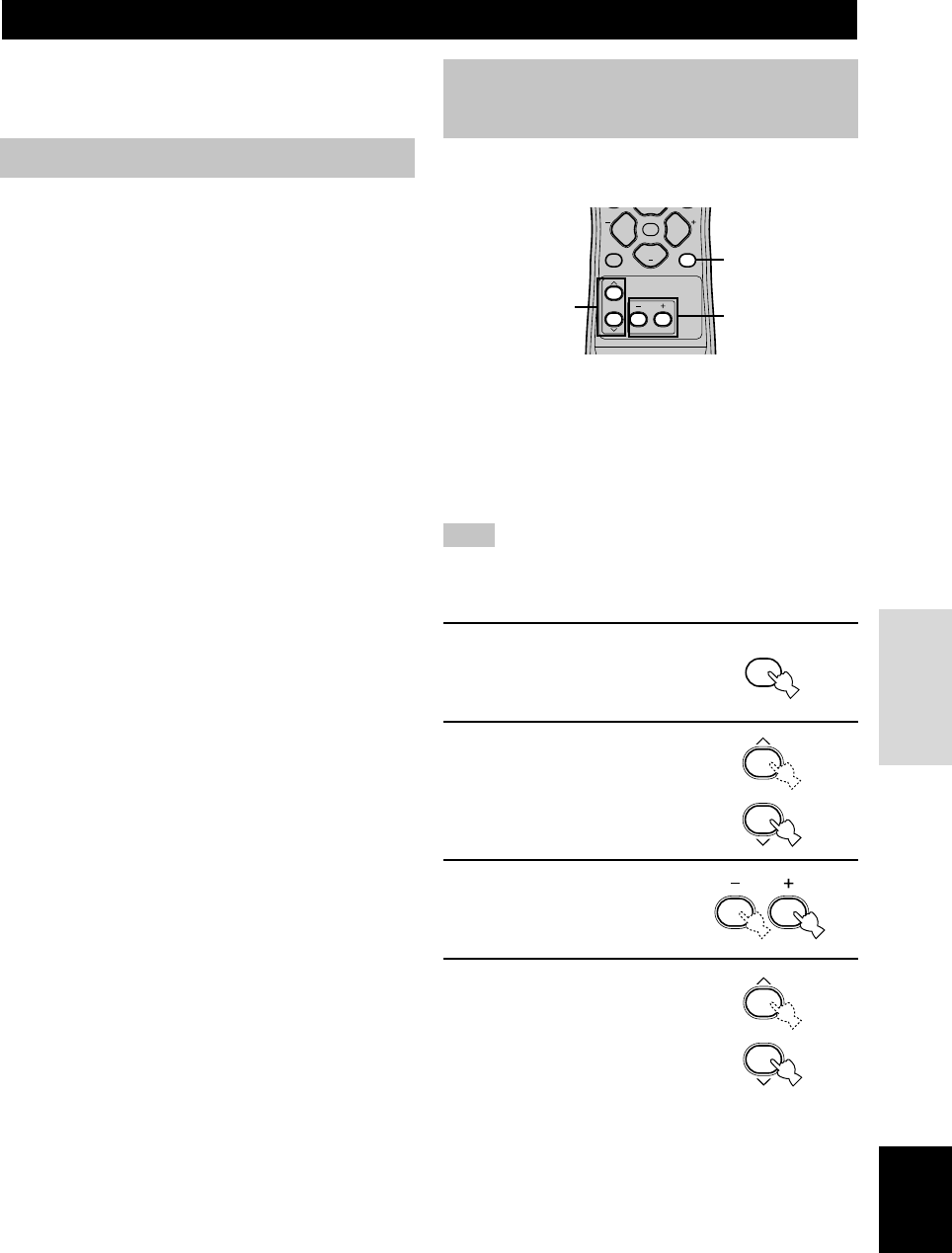
39
English
ADVANCED
OPERATION
Adjusting the items on the set
menu
Use the remote control to make adjustments.
y
• You can change set menu parameters while the unit is
reproducing sound.
• You can use NEXT and SET MENU +/– on the front panel to
change these settings, if the unit is not set to TUNER mode.
Press NEXT to select the category or field you wish to change,
and SET MENU +/– to change the parameters.
Note
• You cannot change some set menu parameters while the unit is
in night listening mode.
1Press SET MENU to enter
the set menu.
2Press u / d repeatedly to
select the desired menu.
3Press –/+ to enter the
selected menu.
4Press u / d repeatedly to
select the item you want
to adjust.
y
• By pressing SET MENU repeatedly, you can select items in
the same order as when pressing d.
SET MENU
You can set the following parameters on the set menu to
obtain a better sound from the unit. Change the settings to
reflect the needs of your listening environment.
Set menu list
The set menus are divided by use and function into the 4
categories listed here.
■BASIC
The BASIC area contains the basic parameters that you
must set before using this unit. It consists of the following
menus. See pages 18 – 20 for a detailed explanation.
1 SETUP
2 SP LEVEL (Speaker level)
■SOUND
The SOUND area contains parameters for altering sound
output. It consists of the following menus that you can
use to alter the quality and tone of the sound output by the
system.
1 SPEAKER SET
2 SP DISTANCE (Speaker distance)
3 LFE LEVEL (Low frequency effect level)
4 D. RANGE (Dynamic range)
5 CENTER GEQ (Center graphic equalizer)
6 HP TONE CTRL (Headphone tone control)
■INPUT
The INPUT area contains parameters concerned with
signal input. It consists of the following menus that you
can use to change the assignment of input jacks.
1 I/O ASSIGN
2 INPUT MODE
■OPTION
This is a supplementary set up menu provided for your
convenience. It consists of the following menus that you
can use to change display brightness, protect existing
settings, and perform other non-essential functions.
1 DISPLAY SET
2 MEM. GUARD
3 AUDIO MUTE
• In the descriptions for each item from the following page, the
default setting is indicated in bold.
PROG PROG
LEVEL
SET MENU
MUTE
VOLUME
1
3,5,6
2,4,7
SET MENU
09V340G_40-45_EN(03.3.4)a.p65 03.4.14, 11:51 AM39
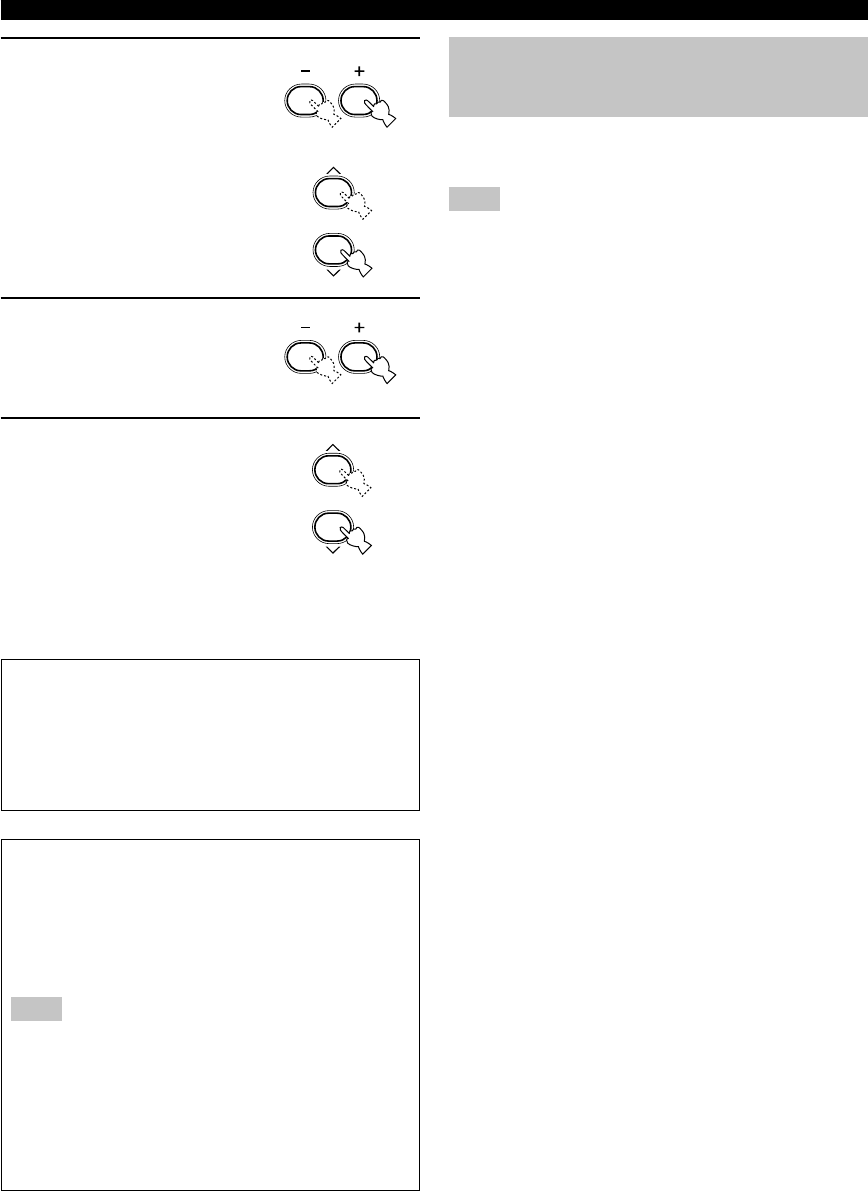
40
5Press –/+ once to enter
the setup mode of the
selected item.
The last setting you adjusted
appears on the front panel
display.
Depending on the menu item,
press u/d to select a sub
item.
6Press –/+ repeatedly to
change the menu item
setting.
7Press u/d repeatedly
until the menu
disappears.
Memory back-up
The memory back-up circuit prevents the stored data
from being lost even if this unit is in standby mode.
However, if the power cord is disconnected from the
AC outlet, or the power supply is cut for more than
one week, the stored data will be lost. If this happens,
adjust the items again.
The BASIC and SOUND menus
The “BASIC” menu allows you to easily set the
“SOUND 1 SPEAKER SET” and “SOUND 2 SP
DISTANCE” parameters. It is not necessary to reset
any of the parameters in the “BASIC” menu, but you
can access more detailed parameters in the “SOUND”
menu if you wish.
Note
• After altering parameters in the “SOUND” menu, if you
select “BASIC 1 SETUP” and then select “SET”, the
parameters from the “SOUND” menu alter in response to
any changes you make in “BASIC 1 SETUP”. Do not enter
the “BASIC 1 SETUP” menu unless you wish to change
these settings. If you accidentally enter the “BASIC 1
SETUP” menu, select CANCEL to return to the “BASIC”
menu. (page 19)
SOUND 1 SPEAKER SET
(speaker mode settings)
Use this feature to select suitable output modes for your
speaker configuration.
Note
• Some menu item settings have no effect when the unit is
reproducing a source with a digital signal sampling frequency
greater than 48 kHz.
■1A CENTER (center speaker mode)
If you add a center speaker to your speaker configuration,
this unit can provide better dialog localization for several
listeners and superior synchronization of sound and
images.
Choices: LRG (large), SML (small), NON (none)
LRG
Select this if you have a large center speaker. The unit
directs the entire range of the center channel signal to the
center speaker.
SML
Select this if you have a small center speaker. The unit
directs the low-frequency signals (90 Hz and below) of
the center channel to the speakers selected with “1D
BASS”.
NON
Select this if you do not have a center speaker. The unit
directs all of the center channel signal to the main left and
right speakers.
SET MENU
09V340G_40-45_EN(03.3.4)a.p65 03.4.14, 11:51 AM40

41
English
ADVANCED
OPERATION
■1B MAIN (main speaker mode)
Choices: LARGE, SMALL
LARGE
Select this if you have large main speakers. The unit
directs the entire range of the main left and right channel
signals to the main left and right speakers.
SMALL
Select this if you have small main speakers. The unit
directs the low-frequency signals (90 Hz and below) of
the main channel to the speakers selected with “1D
BASS”.
■1C REAR LR (rear speaker mode)
Choices: LRG (large), SML (small), NON (none)
LRG
Select this if you have large rear left and right speakers or
if a rear subwoofer is connected to the rear speakers. The
entire range of the rear channel signal is directed to the
rear left and right speakers.
SML
Select this if you have small rear left and right speakers.
The low-frequency signals (90 Hz and below) of the rear
channel are directed to the speakers selected with “1D
BASS”.
NON
Select this if you do not have rear speakers.
y
• This unit is set in the virtual CINEMA DSP mode when you
select NON for “1C REAR LR”.
■1D BASS (bass out mode)
LFE signals carry low-frequency effects when this unit
decodes a Dolby Digital or DTS signal. Low-frequency
signals are defined as 90 Hz and below. The Low-
frequency signals can be directed to both main left and
right speakers, and to the subwoofer (subwoofer can be
used for both stereo reproduction and the DSP program).
Choices: SWFR (subwoofer), MAIN, BOTH
SWFR
Select this if you use a subwoofer. The unit directs the
LFE signals to the subwoofer.
MAIN
Select this if you do not use a subwoofer. The unit directs
LFE signals to the main speakers.
BOTH
The unit directs LFE signals to the subwoofer. Low-
frequency signals designated to the main channels in
accordance with other speaker mode settings are directed
to both main speakers and the subwoofer.
Note
• When you select MAIN for “1D BASS”, the unit directs the
low-frequency signals (90 Hz and below) of the main channel
to the main speakers even if you select SMALL for the main
speaker mode.
SET MENU
09V340G_40-45_EN(03.3.4)a.p65 03.4.14, 11:51 AM41
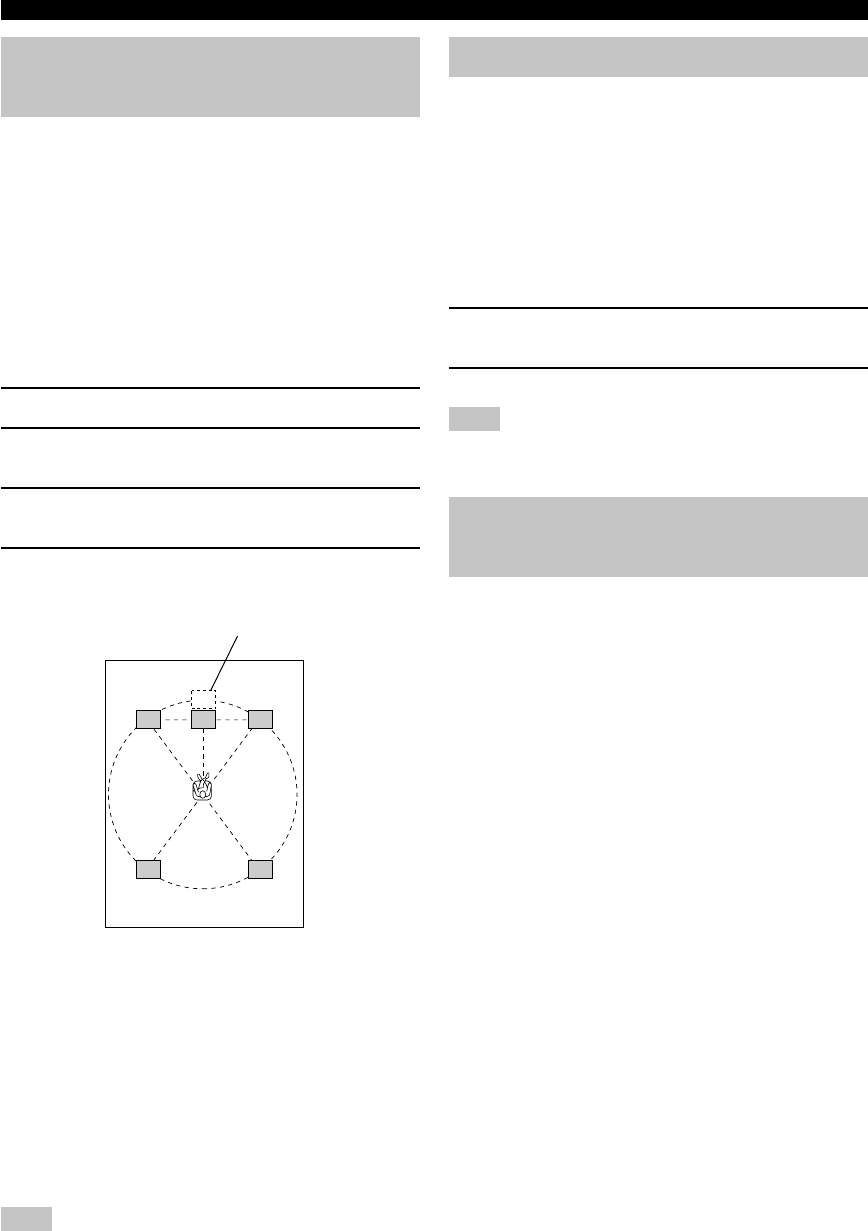
42
SOUND 2 SP DISTANCE
(speaker distance)
Use this feature to adjust the delay applied to center
channel sounds. This feature works when there is sound
output from the center speakers with a source such as
Dolby Digital or DTS. Ideally, the center speaker should
be the same distance from the main listening position as
the left and right main speakers. However, in most home
situations, the center speaker is placed in line with the
main speakers. By delaying the sound from the center
speaker, you can adjust the apparent distance from the
center speaker to the main listening position to make it
seem the same as the distance between the listening
position and main left and right speakers.
1Press u / d to select “UNIT”.
2Press –/+ to select the unit “meters” or “feet”
to be used in setting.
3Press u / d to select the speaker for which
you want to adjust the delay.
4Press –/+ to set the delay.
Press + for higher values and – for lower values.
■Setting by “meters”
Control range: 0.3 to 24.00 m (for main L/R,
center, rear L/R)
Initial settings: 3.00 m (for main L/R, center,
rear L/R)
■Setting by “feet”
Control range: 1 to 80 ft (for main L/R, center,
rear L/R)
Initial settings: 10.0 ft (for main L/R, center,
rear L/R)
Note
• No delay will be set if you set the same distance for the main
L/R, center and rear L/R.
SOUND 3 LFE LEVEL
Use this feature to adjust the output level of the LFE
(low-frequency effect) channel when playing back a
Dolby Digital or DTS signal. The LFE signal carries low-
frequency special effect sound which is only added to
certain scenes.
Control range:
SPEAKER ............ –20 to 0 dB
HEADPHONE ..... –20 to 0 dB
Initial setting: 0 dB
1Press u / d to select the item to be
adjusted.
2Press – to adjust the LFE level.
Note
• Adjust the LFE level according to the capacity of your
subwoofer or headphones.
SOUND 4 D. RANGE
(dynamic range)
Use this feature to adjust the dynamic range. This setting
is effective only when the unit is decoding Dolby Digital
signals.
Choices: MAX, STD (standard), MIN (minimum)
MAX
Select MAX for feature films.
STD
Select STD for general use.
MIN
Select MIN for listening to sources at low volume levels.
SET MENU
LC
C
R
RL RR
Center speaker image
09V340G_40-45_EN(03.3.4)a.p65 03.4.14, 11:51 AM42

43
English
ADVANCED
OPERATION
SOUND 5 CENTER GEQ (center
graphic equalizer)
Use this feature to adjust the built-in 5-band graphic
equalizer so that the center speaker tonal quality matches
that of the left and right main speakers. You can select the
100 Hz, 300 Hz, 1 kHz, 3 kHz, or 10 kHz frequencies.
Control range (dB): –6 to +6
Initial setting: 0 dB for 5-band
1Press d to select a higher frequency and u
to select a lower frequency.
2Press –/+ to adjust the level of that
frequency.
Note
• You can monitor the center speaker sound while adjusting this
parameter by using the test tone. Press TEST before starting
the foregoing procedure. Once you begin this procedure, the
test tone remains at the center speaker and you can hear how
the sound changes as you adjust the various frequency levels.
To stop the test tone, press TEST.
SOUND 6
HP TONE CTRL
(headphone tone control)
Use this feature to adjust the level of the bass and treble
when you are using headphones.
Control range (dB):
BASS .................... –6 to +3
TRBL (treble) ....... –6 to +3
Initial setting:
BASS .................... 0 dB
TRBL .................... 0 dB
INPUT 1 I/O ASSIGN (input/
output assignment)
You can assign jacks according to the component to be
used if this unit’s DIGITAL INPUT jack settings
(component names for jacks) differ from those of the
component. This lets you to change the jack assignment
and effectively connect more components.
Once assigned, select that component with INPUT l / h
(or the input selector buttons on the remote control).
■1A for OPTICAL INPUT jack
Choices: (1) DVD, MD/CD-R, CD, VCR, V-AUX,
D-TV/CBL
■1B for COAXIAL INPUT jack
Choices: (2) CD, VCR, V-AUX, D-TV/CBL,
DVD, MD/CD-R
Note
• When you connect a component to both the COAXIAL and
OPTICAL jacks, priority is given to the input signals from the
COAXIAL jack.
INPUT 2 INPUT MODE
(initial input mode)
Use this feature to designate the input mode for sources
connected to the DIGITAL INPUT jacks when you turn
this unit on (see page 23 for details about the input
mode).
Choices: AUTO, LAST
AUTO
Select this setting to allow the unit to automatically detect
the type of input signal and select the appropriate input
mode.
LAST
Select this setting to set this unit to automatically select
the last input mode used for the respective sources.
SET MENU
09V340G_40-45_EN(03.3.4)a.p65 03.4.14, 11:51 AM43

44
OPTION 1 DISPLAY SET
■DIMMER
Use this to adjust the brightness of the front panel display.
Control range: –4 to 0
OPTION 2 MEM. GUARD
(memory guard)
Use this feature to prevent accidental changes to settings
on the unit.
Choices: ON, OFF
Select ON to protect the following features:
• All set menu items
• Main, center, rear speakers, and subwoofer levels
• DSP program parameters
Notes
• When this item is set to ON, you cannot use the test tone.
• When this item is set to ON, you cannot select any other set
menu items.
OPTION 3 AUDIO MUTE
Adjusts the amount by which the MUTE function reduces
the output volume.
Choices: MUTE, –50dB, –20dB
MUTE
Completely halts all output of sound.
–50dB
Reduces the volume of the present sound output by 50dB.
–20dB
Reduces the volume of the present sound output by 20dB.
SET MENU
09V340G_40-45_EN(03.3.4)a.p65 03.4.14, 11:51 AM44
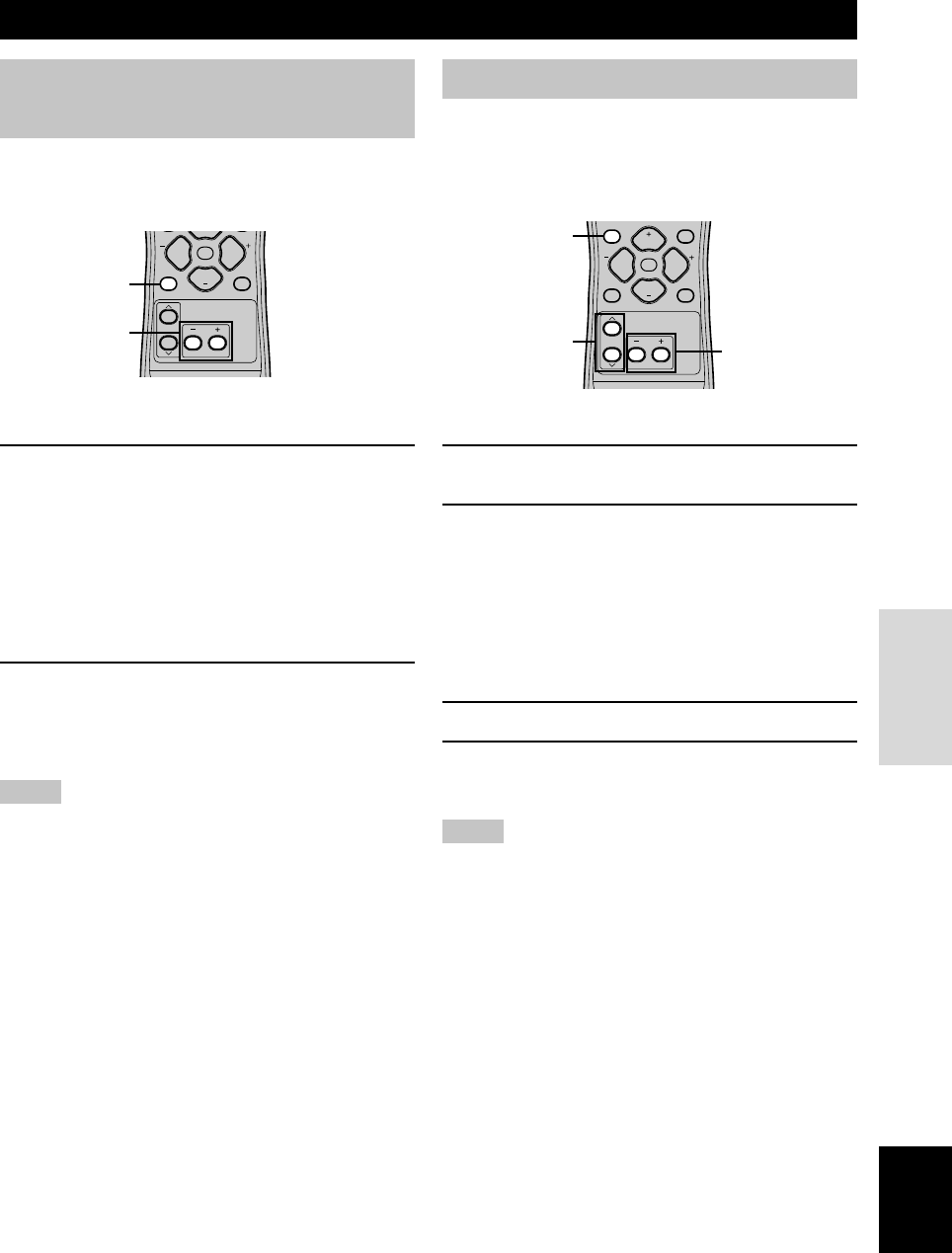
45
English
ADVANCED
OPERATION
Using the test tone
Use the test tone to set speaker levels so that the volume
from each speaker is identical when heard from your
listening position.
1Press TEST.
The unit will output a test tone.
2Press u / d repeatedly to select a speaker
to adjust.
Each time you press d, the unit will cycle through
the speakers in the following order:
TEST LEFT (main L)→TEST CENTER (center)→
TEST RIGHT (main R)→TEST R SUR. (rear R)→
TEST L SUR. (rear L)→TEST SUBWOOFER
(subwoofer)→.....
(Press u to cycle the speakers in the reverse order.)
3Press –/+ to adjust speaker volumes.
4Press TEST when you have completed your
adjustment.
The test tone halts.
Notes
• You cannot enter test mode if headphones are connected to the
PHONES jack. Remove the headphones from the PHONES
jack.
• You cannot adjust speaker volumes if the “SOUND 1
SPEAKER SET” parameter on the set menu is set to NON.
• You cannot adjust the subwoofer level if the “1D BASS”
parameter in “SOUND 1 SPEAKER SET” in the set menu is
set to MAIN.
• If you select “BASIC 1 SETUP” in the set menu and then
select “SET”, speaker levels change in response to any
changes you make in “BASIC 1 SETUP”.
y
• Depending on the source the unit is reproducing, the speaker
levels set with the test tone may not be to your liking. If this is
the case, adjust the speaker levels while listening to the
source.
SETTING THE SPEAKER LEVELS
Adjusting the volume during
playback
You can adjust the volume of the speakers while listening
to sound playback.
1Press LEVEL repeatedly to select the
speaker you want to adjust.
The unit cycles through the speakers in the following
order each time you press LEVEL:
MAIN L→CENTER→MAIN R→
R SUR. (rear R)→L SUR. (rear L)→
SWFR (subwoofer)→.....
y
• Pressing LEVEL once opens the level display. Press u / d at
this time to select a speaker.
2Press –/+ to adjust the speaker volume.
• The center and rear speakers can be adjusted by a
maximum of –10dB ~ +10dB.
• The main speakers and subwoofer can be adjusted
by a maximum of –20dB ~ 0dB.
Notes
• You cannot adjust speaker levels if the “SOUND 1 SPEAKER
SET” parameter in the set menu is set to NON.
• You cannot adjust the subwoofer level if the “1D BASS”
parameter in “SOUND 1 SPEAKER SET” in the set menu is
set to MAIN.
• If you use LEVEL to adjust speaker levels, the speaker levels
you previously set with the test tone will also change.
• If you select “BASIC 1 SETUP” in the set menu and then
select “SET”, speaker levels change in response to any
changes you make in ”BASIC 1 SETUP”.
PROG PROG
LEVEL
SET MENU
MUTE
VOLUME
1
2
TEST
PROG PROG
STEREO
LEVEL
SET MENU
MUTE
VOLUME
VOLUME
3
2
1,4
09V340G_40-45_EN(03.3.4)a.p65 03.4.14, 11:51 AM45
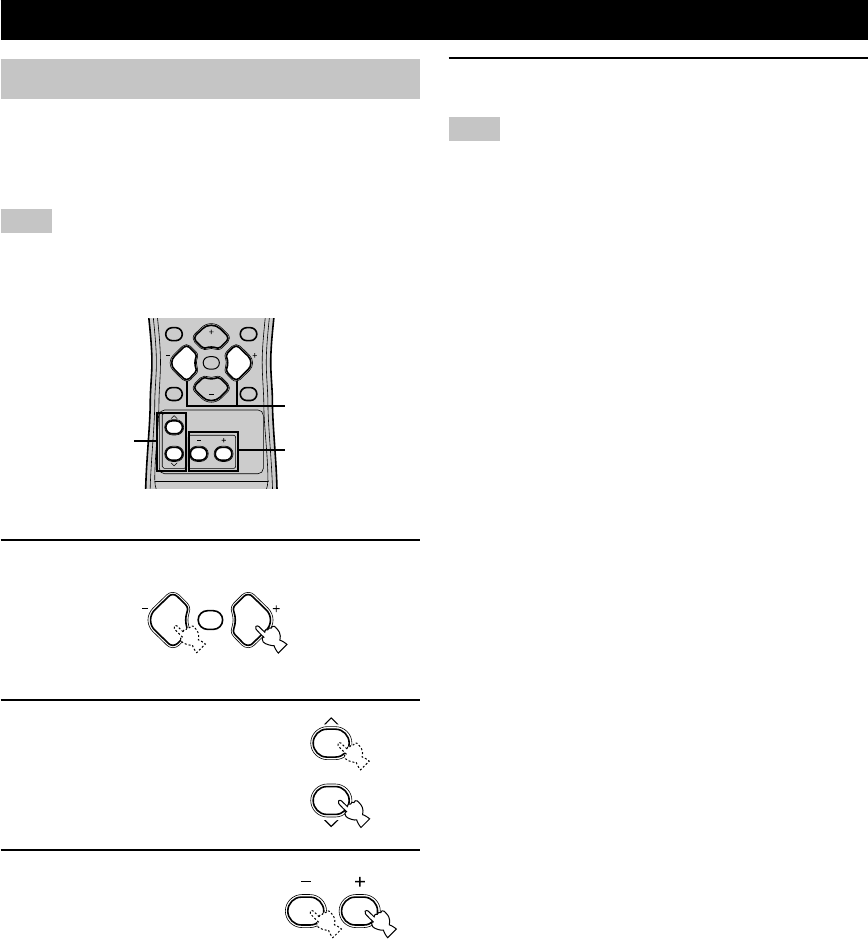
46
SOUND FIELD PROGRAM PARAMETER EDITING
Changing parameter settings
The initial sound field program settings will provide you
with an excellent listening experience as they are. It is not
necessary to alter these settings, but you can create an
original listening environment by doing so.
Note
• The editable parameters vary depending on the sound field
program you select. Refer to the explanation for the parameter.
1Select a sound field program.
2Press u / d to select the
parameter you want to
change.
3Press –/+ to change the
parameter setting.
4Repeat steps 1 – 3 if you wish to alter other
parameters.
Note
• You cannot alter these parameters if the “OPTION 2 MEM.
GUARD” parameter in the Set menu is set to ON. Change this
setting to OFF if you wish to alter any other parameters.
TEST
PROG PROG
STEREO
LEVEL
SET MENU
MUTE
VOLUME
VOLUME
3
2
1
PROG PROG
MUTE
11V340G_50-58_EN(03.4.14)a.p65 03.4.14, 11:51 AM46

47
English
ADDITIONAL
INFORMATION
Digital sound field parameter descriptions
You can adjust the values of certain digital sound field parameters so the sound fields are recreated accurately in your
listening room. Not all of the following parameters are found in every program.
■DSP LEVEL
Function: This parameter adjusts the level of all the DSP effect sounds within a narrow range.
Description: Depending on the acoustics of your listening room, you may want to increase or decrease the DSP
effect level relative to the direct sound.
Control Range: –6 dB to +3 dB
■DELAY
Function: Adjusts the time difference between the beginning of the sound from the main speakers and the
beginning of the sound effect from the rear speakers. The larger the value, the later the sound effect is
generated.
Control range: 1 to 99 ms (Control range varies depending on the input source and the DSP program you use.)
For 5ch Stereo
Function: These parameters adjust the volume level for each channel in 5-channel stereo mode.
Control range: 0 to 100%
■CT LEVEL (Center level)
■RL LEVEL (Rear left level)
■RR LEVEL (Rear right level)
For PRO LOGIC II Music
■PANORAMA
Function: Extends the front stereo image to include the surround speakers for a wraparound effect.
Choices: OFF/ON, initial setting is OFF.
■DIMENSION
Function: Gradually adjusts the soundfield either towards the front or towards the rear.
Control range: –3 (towards the rear) to +3 (towards the front), initial setting is STD (standard).
■CT WIDTH (Center width)
Function: Adjusts the center image from all three front speakers to varying degrees. A larger value adjusts the
center image towards the main left and right speakers.
Control range: 0 (center channel sound is output only from center speaker) to 7 (center channel sound is output only
from main left and right speakers), initial setting is 3.
SOUND FIELD PROGRAM PARAMETER EDITING
11V340G_50-58_EN(03.4.14)a.p65 03.4.14, 11:51 AM47
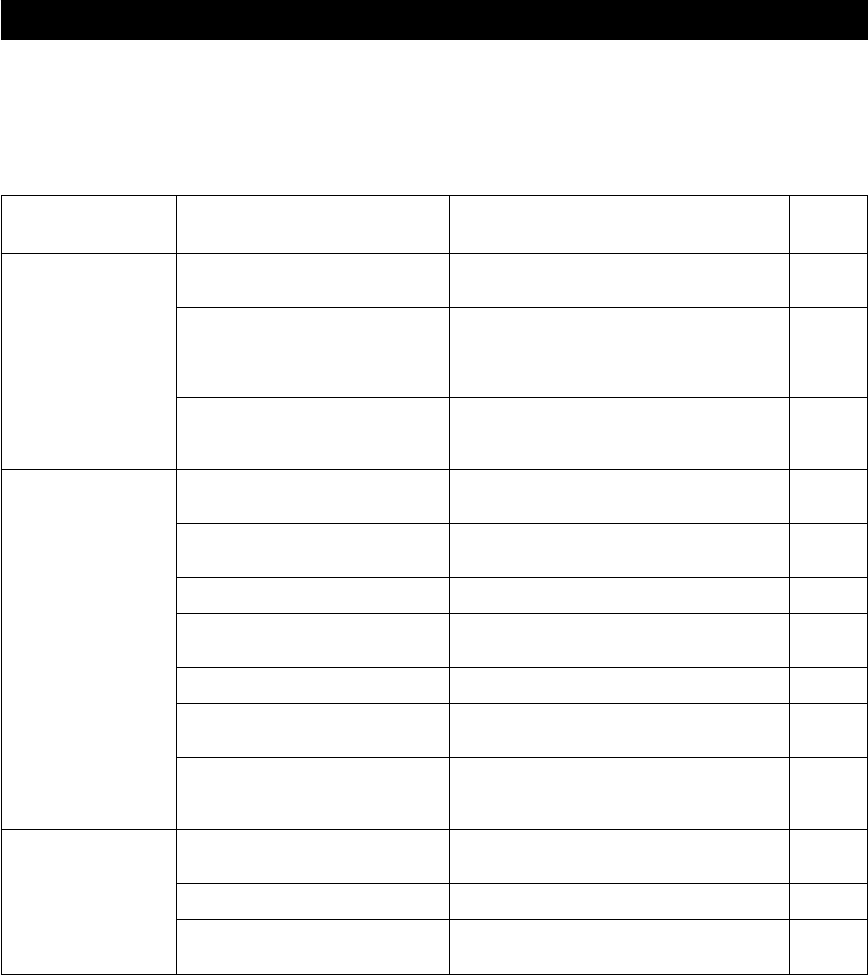
48
TROUBLESHOOTING
Refer to the chart below when this unit does not function properly. If the problem you are experiencing is not listed
below or if the instruction below does not help, set this unit to standby mode, disconnect the power cord, and contact the
nearest authorized YAMAHA dealer or service center.
■General
Problem
This unit fails to turn
on when STANDBY/
ON (or POWER) is
pressed, or enters in
standby mode soon
after the power has
been turned on.
No sound.
The sound suddenly
goes off.
Cause
The power cord is not connected or the
plug is not completely inserted.
The protection circuitry has been
activated.
This unit has been exposed to a strong
external electric shock (such as lightning
and strong static electricity).
Incorrect input or output cable connec-
tions.
No appropriate input source is selected.
The speaker connections are not secure.
The main speakers have not been selected
properly.
The volume is turned down.
The sound is muted.
Digital signals which this unit cannot
reproduce are being received from a
source component e.g.; a CD-ROM.
The protection circuit has been activated
because of a short circuit, etc.
The sleep timer has turned the unit off.
The sound is muted.
Remedy
Connect the power cord firmly.
Make sure all speaker wire connections on this unit
and on all speakers are secure and that the wire for
each connection is not touching anything other than
its respective connection.
Set this unit in standby mode, disconnect the power
cord, plug it back in after 30 seconds, then use it
normally.
Connect the cables properly. If the problem persists,
the cables may be defective.
Select an appropriate input source with INPUT l /
h or 6CH INPUT (or the input selector buttons).
Secure the connections.
Press and set SPEAKERS ON/OFF to ON, and select
the proper main speakers with SPEAKERS A/B.
Turn up the volume.
Press MUTE or any operation buttons on the unit to
cancel mute and adjust the volume.
Play a source whose signals this unit can reproduce.
Check the speaker wires are not touching each other
and then turn the unit back on.
Turn on the power, and play the source again.
Press MUTE or any operation buttons on the unit to
cancel a mute and adjust the volume.
Refer to
page
–
15 – 16
–
9 – 16
21
15 – 16
21
22
–
–
–
–
–
11V340G_50-58_EN(03.4.14)a.p65 03.4.14, 11:51 AM48
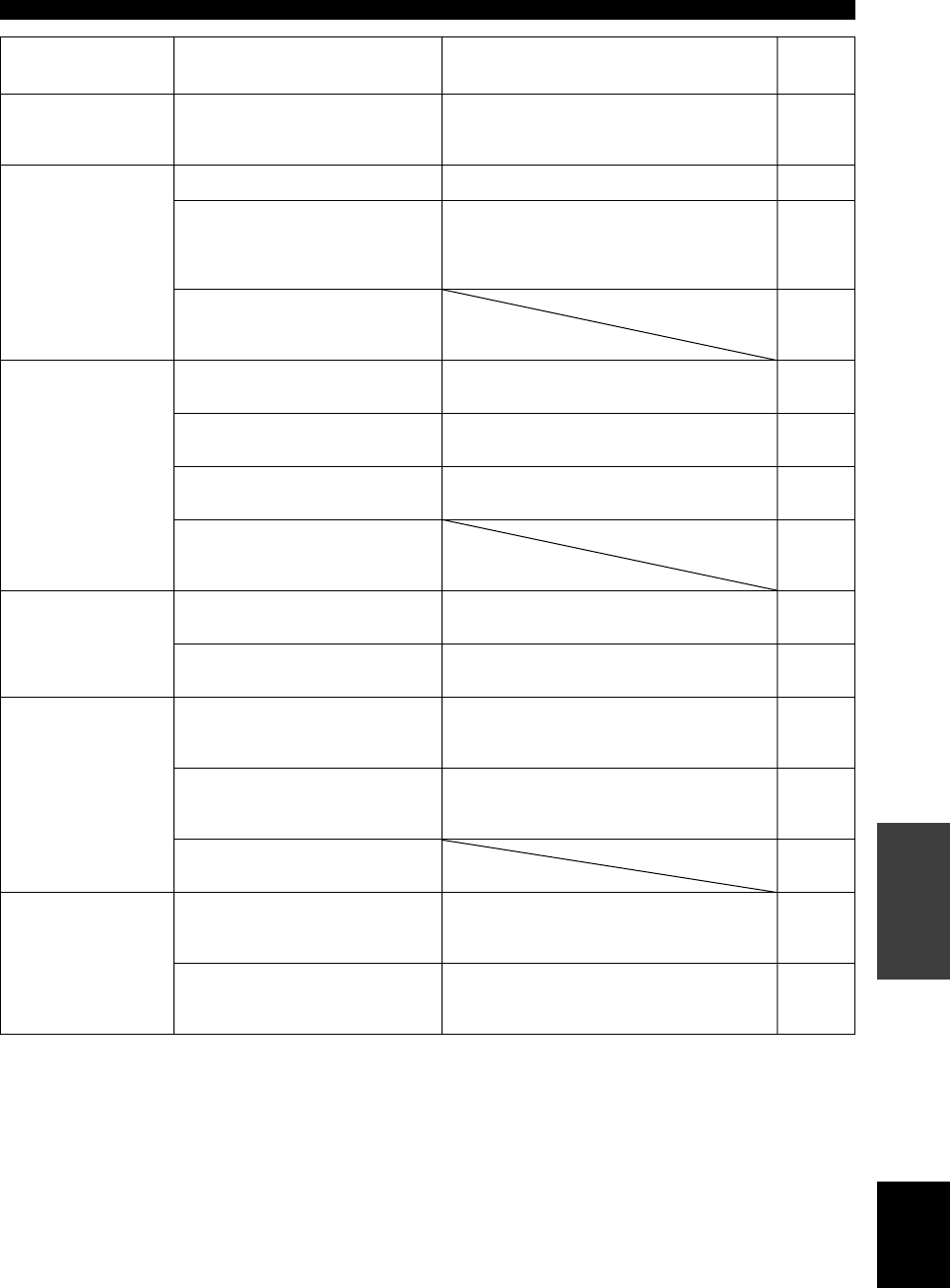
49
English
ADDITIONAL
INFORMATION
Problem
No sound / weak
sound from particular
speakers.
No sound from the
effect speakers.
No sound from the
center speaker.
No sound from the
rear speakers.
No sound from the
subwoofer.
Poor bass
reproduction.
Cause
Incorrect cable connections.
The sound effect is switched off.
A Dolby Surround, Dolby Digital or DTS
decoding DSP program is being used with
material not encoded with Dolby
Surround, Dolby Digital or DTS.
A digital signal with a sampling
frequency of greater than 48 kHz is input
to this unit.
The output level of the center speaker is
set to minimum.
“SOUND 1A CENTER” on the set menu
is set to NON.
One of the Hi-Fi DSP programs (1 to 4)
has been selected (except for 5ch Stereo).
The source encoded with a Dolby Digital
or DTS signal does not have a center
channel signal.
The output level of the rear speakers is set
to minimum.
A monaural source is being played with
program 9.
“SOUND 1D BASS” on the set menu is
set to MAIN when a Dolby Digital or
DTS signal is being played.
“SOUND 1D BASS” on the set menu is
set to SWFR or MAIN when a 2-channel
source is being played.
The source does not contain low bass
signals (90 Hz and below).
“SOUND 1D BASS” on the set menu is
set to SWFR or BOTH and your system
does not include a subwoofer.
The speaker mode settings (main, center
or rear) on the set menu does not match
your speaker configuration.
Remedy
Connect the cables properly. If the problem persists,
the cables may be defective.
Press STEREO to turn it on.
Select another DSP program.
Raise the level of the center speaker.
Select the appropriate mode for your center speaker.
Select another DSP program.
Raise the output level of the rear speakers.
Select another DSP program.
Select SWFR or BOTH.
Select BOTH.
Select MAIN.
Select the appropriate position for each speaker based
on the size of the speakers in your configuration.
Refer to
page
15
–
24 – 29
–
45
40
24 – 29
–
45
24 – 29
41
41
–
41
40 – 41
TROUBLESHOOTING
11V340G_50-58_EN(03.4.14)a.p65 03.4.14, 11:51 AM49
50
Problem
A “humming” sound can
be heard.
The volume level cannot
be increased, or the
sound is distorted.
The sound effect cannot
be recorded.
The sound field
parameters and some
other settings on the
unit cannot be changed.
The unit does not
operate properly.
“CHECK SP WIRES”
appears on the front
panel display.
There is noise interfer-
ence from digital or
high-frequency
equipment, or this unit.
The unit suddenly turns
into standby mode.
Cause
Incorrect cable connections.
The component connected to the OUT
(REC) jacks of this unit is turned off.
It is not possible to record the sound effect
with a recording component.
“OPTION 2 MEM.” in the set menu is set
to ON.
The internal microcomputer has been
frozen by an external electric shock (such
as lightning or excessive static electricity)
or by a power supply with low voltage.
The speaker cables are short circuited.
This unit is too close to the digital or high-
frequency equipment.
The internal temperature has become too
high and the overheat protection circuitry
has been activated.
Remedy
Firmly connect the audio plugs. If the problem
persists, the cables may be defective.
Turn on the power to the component.
Set “OPTION 2 MEM.” in the set menu to OFF.
Disconnect the AC power cord from the outlet
and then plug it in again after about 30 seconds.
Make sure all speaker cables are connected
correctly.
Move this unit further away from such
equipment.
Wait until the unit cools down and then turn it
back on.
Refer to
page
–
–
–
–
–
–
–
–
TROUBLESHOOTING
11V340G_50-58_EN(03.4.14)a.p65 03.4.14, 11:51 AM50
51
English
ADDITIONAL
INFORMATION
■Tuner
FM stereo reception is
noisy.
There is distortion, and
clear reception cannot
be obtained even with a
good FM antenna.
The desired station
cannot be tuned in with
the automatic tuning
method.
Previously preset
stations can no longer
be tuned in.
The desired station
cannot be tuned in with
the automatic tuning
method.
There are continuous
crackling and hissing
noises.
There are buzzing and
whining noises
(especially in the
evening).
Problem
FM
AM
Cause
The characteristics of FM stereo
broadcasts may cause this problem
when the transmitter is too far away or
the antenna input is poor.
There is multipath interference.
The station is too weak.
The unit has been disconnected for a
long period.
The signal is weak or the antenna
connections are loose.
Noises result from lightning,
fluorescent lamps, motors, thermostats
and other electrical equipment.
A TV set is being used nearby.
Remedy
Check the antenna connections.
Try using a high-quality directional FM
antenna.
Use the manual tuning method.
Adjust the antenna position to eliminate
multipath interference.
Use a high-quality directional FM antenna.
Use the manual tuning method.
Re-store the stations.
Tighten the AM loop antenna connections and
orient it for best reception.
Use the manual tuning method.
Use an outdoor antenna and a ground wire.
This will help somewhat, but it is difficult to
eliminate all noise.
Move this unit away from the TV.
Refer to
page
12
31
–
–
31
32
–
31
12
–
■Remote control
Problem
The remote control does
not work nor function
properly.
Cause
Wrong distance or angle.
Direct sunlight or lighting (from an
inverter type of fluorescent lamp, etc.) is
striking the remote control sensor of this
unit.
The batteries are weak.
Remedy
The remote control will function within a
maximum range of 6 m (20 feet) and no more
than 30 degrees off-axis from the front panel.
Reposition this unit.
Replace all batteries with new ones.
Refer to
page
7
–
3
TROUBLESHOOTING
11V340G_50-58_EN(03.4.14)a.p65 03.4.14, 11:51 AM51

52
GLOSSARY
■Dolby Surround
Dolby Surround uses a 4 channel analog recording system
to reproduce realistic and dynamic sound effects: 2 main
left and right channels (stereo), a center channel for
dialog (monaural), and a rear channel for special sound
effects (monaural). The rear channel reproduces sound
within a narrow frequency range.
Dolby Surround is widely used with nearly all video tapes
and laser discs, and in many TV and cable broadcasts as
well. The Dolby Pro Logic decoder built into this unit
employs a digital signal processing system that
automatically stabilizes the volume on each channel to
enhance moving sound effects and directionality.
■Dolby Digital
Dolby Digital is a digital surround sound system that
gives you completely independent multi-channel audio.
With 3 front channels (left, center, and right), and 2 rear
stereo channels, Dolby Digital provides 5 full-range audio
channels. With an additional channel especially for bass
effects, called LFE (low frequency effect), the system has
a total of 5.1 channels (LFE is counted as 0.1 channel).
By using 2-channel stereo for the rear speakers, more
accurate moving sound effects and surround sound
environment are possible than with Dolby Surround. The
wide dynamic range (from maximum to minimum
volume) reproduced by the 5 full-range channels and the
precise sound orientation generated using digital sound
processing provide listeners with previously unheard of
excitement and realism.
With this unit, any sound environment from monaural up
to a 5.1-channel configuration can be freely selected for
your enjoyment.
■Matrix 6.1
The unit incorporates Matrix 6.1 decoder for Dolby
Digital and DTS multi-channel software that enables 6.1-
channel reproduction by adding the rear center channel to
existing 5.1-channel format. (The rear center channel is
created from rear left and right channels, and outputted
from virtual rear center speaker.) With this additional
channel, you can experience more dynamic and realistic
moving sound especially with scenes with “fly-over ” and
“fly-around ” effects.
■Dolby Pro Logic II
Dolby Pro Logic II is an improved technique used to
decode vast numbers of existing Dolby Surround
software. This new technology enables a discrete 5-
channel playback with 2 main left and right channels, 1
center channel, and 2 rear left and right channels (instead
of only 1 rear channel for conventional Pro Logic
technology). A music mode is also available for 2-channel
sources in addition to the movie mode.
■DTS (Digital Theater Systems) Digital
Surround
DTS digital surround was developed to replace the analog
soundtracks of movies with a 6-channel digital sound
track, and is now rapidly gaining popularity in movie
theaters around the world. Digital Theater Systems Inc.
has developed a home theater system so that you can
enjoy the depth of sound and natural spatial
representation of DTS digital surround in your home.
This system produces practically distortion-free 6-channel
sound (technically, a left, right and center channels, 2 rear
channels, plus an LFE 0.1 channel as a subwoofer, for a
total of 5.1 channels).
■LFE 0.1 channel
This channel is for the reproduction of low bass signals.
The frequency range for this channel is 20 Hz to 120 Hz.
This channel is counted as 0.1 because it only enforces a
low frequency range compared to the full-range
reproduced by the other 5 channels in a Dolby Digital or
DTS 5.1 channel systems.
■CINEMA DSP
Since the Dolby Surround and DTS systems were
originally designed for use in movie theaters, their effect
is best felt in a theater having many speakers and
designed for acoustic effects. Since home conditions,
such as room size, wall material, number of speakers, and
so on, can differ so widely, it’s inevitable that there are
differences in the sound heard as well. Based on a wealth
of actually measured data, YAMAHA CINEMA DSP uses
YAMAHA original sound field technology to combine
Dolby Pro Logic, Dolby Digital and DTS systems to
provide the visual and audio experience of movie theater
in the listening room of your own home.
■SILENT CINEMA
YAMAHA has developed a natural, realistic sound effect
DSP algorithm for headphones.
Parameters for headphones have been set for each sound
field so that accurate representations of all the sound field
programs can be enjoyed using headphones.
■Virtual CINEMA DSP
YAMAHA has developed a virtual CINEMA DSP
algorithm that allows you to enjoy DSP sound field
surround effects even without any rear speakers by using
virtual rear speakers.
It is even possible to enjoy virtual CINEMA DSP using a
minimal 2-speaker system that does not include a center
speaker.
11V340G_50-58_EN(03.4.14)a.p65 03.4.14, 11:51 AM52

53
English
ADDITIONAL
INFORMATION
■PCM (Linear PCM)
Linear PCM is a signal format under which an analog
audio signal is digitized, recorded and transmitted without
using any compression. This is used as a method of
recording CDs and DVD audio. The PCM system uses a
technique for sampling the size of the analog signal per
very small unit of time. Standing for “pulse code
modulation”, the analog signal is encoded as pulses and
then modulated for recording.
■Sampling frequency and number of
quantized bits
When digitizing an analog audio signal, the number of
times the signal is sampled per second is called the
sampling frequency, while the degree of fineness when
converting the sound level into a numeric value is called
the number of quantized bits.
The range of rates that can be played back is determined
based on the sampling rate, while the dynamic range
representing the sound level difference is determined by
the number of quantized bits. In principle, the higher the
sampling frequency, the wider the range of frequencies
that can be played back, and the higher the number of
quantized bits, the more finely the sound level can be
reproduced.
GLOSSARY
11V340G_50-58_EN(03.4.14)a.p65 03.4.14, 11:51 AM53

54
SPECIFICATIONS
FM SECTION
• Tuning Range
[U.S.A. and Canada models] ............................ 87.5 to 107.9 MHz
[Other models] .............................................. 87.50 to 108.00 MHz
• 50 dB Quieting Sensitivity (IHF, 100% mod.)
Mono/Stereo ........................ 2.0 µV (17.3 dBf) /25 µV (39.2 dBf)
• Selectivity (400 kHz) ............................................................... 70 dB
• Signal to Noise Ratio (IHF)
Mono/Stereo .............................................................. 76 dB/70 dB
• Harmonic Distortion (1 kHz)
Mono/Stereo ................................................................. 0.2%/0.3%
• Stereo Separation (1 kHz) ....................................................... 42 dB
• Frequency Response ........................... 20 Hz to 15 kHz +0.5, –2 dB
AM SECTION
• Tuning Range ......................................... 530/531 to 1710/1611 kHz
• Usable Sensitivity ............................................................. 300 µV/m
GENERAL
• Power Supply
[U.S.A. and Canada models] ............................... AC 120 V/60 Hz
[Australia model] ................................................. AC 240 V/50 Hz
[U.K., Europe and Singapore models] ................ AC 230 V/50 Hz
[Korea model] ...................................................... AC 220 V/60 Hz
[China model] ...................................................... AC 220 V/50 Hz
[General model] .................... AC 110-120 V/220-240 V, 50/60 Hz
• Power Consumption
[U.S.A. and Canada models] .................................. 210 W/280 VA
[Other models] ..................................................................... 210 W
Standby Mode ........................................................... 0.8 W or less
• Dimension (W x H x D) ................................... 435 x 151 x 322 mm
(17-1/8” x 5-15/16” x 12-11/16”)
• Weight ................................................................. 8 kg (17 lbs 10 oz)
*Specifications are subject to change without notice.
AUDIO SECTION
• Minimum RMS Output Power for Main, Center, Rear
1 kHz, 0.1% THD, 6 Ω
[U.S.A. and Canada models] ................................................. 70 W
[Other models] ....................................................................... 60 W
1 kHz, 0.7% THD, 6 Ω
[U.S.A. and Canada models] ................................................. 75 W
[U.K., Europe, Australia and Korea models] ......................... 65 W
• DIN Standard Output Power
[Europe model]
1 kHz, 0.7% THD, 4 Ω .......................................................... 75 W
• Maximum Power (EIAJ)
[China, Korea and General models]
1 kHz, 10% THD, 6 Ω ........................................................... 80 W
• Dynamic Power (IHF, 6/4/2 Ω)
[U.S.A. and Canada models] ................................... 85/100/115 W
[Other models] ........................................................... 75/95/105 W
• Frequency Response
CD, etc. to Main L/R .............................. 10 Hz to 100 kHz, –3 dB
• Total Harmonic Distortion
1 kHz, 30 W, 6 Ω, Main L/R ................................................. 0.06%
• Signal to Noise Ratio (IHF-A Network)
CD (250 mV, shorted) to Main L/R, Effect Off .............. h100 dB
• Residual Noise (IHF-A Network)
Main L/R ................................................................ 150 µV or less
• Channel Separation (1 kHz/10 kHz)
CD, etc. (5.1 kΩ terminated) to Main L/R ........ h60 dB/h45 dB
• Tone Control (Main L/R)
BASS Boost/Cut .................................................... ±10 dB/100 Hz
TREBLE Boost/Cut ............................................... ±10 dB/20 kHz
• Phones Output ........................................................... 300 mV/470 Ω
• Input Sensitivity
CD, etc. ................................................................... 150 mV/47 kΩ
6CH INPUT ............................................................ 150 mV/47 kΩ
• Output Level
OUT (REC) ........................................................... 150 mV/1.2 kΩ
OUTPUT SUBWOOFER ............................................. 4 V/1.2 kΩ
VIDEO SECTION
• Video Signal Type ...................................................... NTSC or PAL
• Composite Video Signal Level ...................................... 1 Vp-p/75 Ω
• Signal to Noise Ratio ........................................................... h50 dB
• Frequency Response (MONITOR OUT)
............................................................... 5 Hz to 10 MHz, –3 dB
11V340G_50-58_EN(03.4.14)a.p65 03.4.14, 11:51 AM54

RX-V340
YAMAHA ELECTRONICS CORPORATION, USA 6660 ORANGETHORPE AVE., BUENA PARK, CALIF. 90620, U.S.A.
YAMAHA CANADA MUSIC LTD. 135 MILNER AVE., SCARBOROUGH, ONTARIO M1S 3R1, CANADA
YAMAHA ELECTRONIK EUROPA G.m.b.H. SIEMENSSTR. 22-34, 25462 RELLINGEN BEI HAMBURG, F.R. OF GERMANY
YAMAHA ELECTRONIQUE FRANCE S.A. RUE AMBROISE CROIZAT BP70 CROISSY-BEAUBOURG 77312 MARNE-LA-VALLEE CEDEX02, FRANCE
YAMAHA ELECTRONICS (UK) LTD. YAMAHA HOUSE, 200 RICKMANSWORTH ROAD WATFORD, HERTS WD1 7JS, ENGLAND
YAMAHA SCANDINAVIA A.B. J A WETTERGRENS GATA 1, BOX 30053, 400 43 VÄSTRA FRÖLUNDA, SWEDEN
YAMAHA MUSIC AUSTRALIA PTY, LTD. 17-33 MARKET ST., SOUTH MELBOURNE, 3205 VIC., AUSTRALIA
Printed in China
WB14680
RX-V340
RTL
AV Receiver
OWNER’S MANUAL
MANUAL DE INSTRUCCIONES
0100RX-V340(RTL)-cv1-4 03.3.28, 11:31 AM1
I
NS-P100/
NS-P106
(NS-P100/NS-P106: NX-E130 + NX-C130 + SW-P130)
HOME CINEMA 5.1CH SPEAKER PACKAGE/
HOME CINEMA 6.1CH SPEAKER PACKAGE
OWNER’S MANUAL
U B
NS-P100-106 PRE(UB)a 03.2.21, 9:07 AM1
II
• Explanation of Graphical Symbols
The lightning flash with arrowhead
symbol, within an equilateral triangle,
is intended to alert you to the
presence of uninsulated “dangerous
voltage” within the product’s
enclosure that may be of sufficient
magnitude to constitute a risk of
electric shock to persons.
The exclamation point within an
equilateral triangle is intended to alert
you to the presence of important
operating and maintenance
(servicing) instructions in the
literature accompanying the
appliance.
IMPORTANT SAFETY INSTRUCTIONS
1Read these instructions.
2Keep these instructions.
3Heed all warnings.
4Follow all instructions.
5Do not use this apparatus near water.
6Clean only with dry cloth.
7Do not block any ventilation openings. Install in
accordance with the manufacturer’s instructions.
8Do not install near any heat sources such as radiators,
heat registers, stoves, or other apparatus (including
amplifiers) that produce heat.
9Do not defeat the safety purpose of the polarized or
grounding-type plug. A polarized plug has two blades
with one wider than the other. A grounding type plug
has two blades and a third grounding prong. The wide
blade or the third prong are provided for your safety. If
the provided plug does not fit into your outlet, consult
an electrician for replacement of the obsolete outlet.
10 Protect the power cord from being walked on or
pinched particularly at plugs, convenience receptacles,
and the point where they exit from the apparatus.
11 Only use attachments/accessories specified by the
manufacturer.
12 Use only with the cart, stand, tripod,
bracket, or table specified by the
manufacturer, or sold with the
apparatus. When a cart is used, use
caution when moving the cart/
apparatus combination to avoid injury
from tip-over.
13 Unplug this apparatus during lightning storms or when
unused for long periods of time.
14 Refer all servicing to qualified service personnel.
Servicing is required when the apparatus has been
damaged in any way, such as power-supply cord or
plug is damaged, liquid has been spilled or objects
have fallen into the apparatus, the apparatus has been
exposed to rain or moisture, does not operate normally,
or has been dropped.
●Be sure to allow spaces of at least 20 cm above,
behind and on both sides of the unit.
●Do not place the following objects on this unit:
A vessel with water in it.
If the vessel falls by vibrations and water spills, it
may cause damage to the unit, and/or you may get
an electric shock.
CAUTION: TO REDUCE THE RISK OF
ELECTRIC SHOCK, DO NOT REMOVE
COVER (OR BACK). NO USER-SERVICEABLE
PARTS INSIDE. REFER SERVICING TO
QUALIFIED SERVICE PERSONNEL.
RISK OF ELECTRIC SHOCK
DO NOT OPEN
CAUTION
IMPORTANT
Please record the serial number of this system in
the space below.
Model:
Serial No.:
The serial number is located on the rear of the main
unit.
Retain this Owner’s Manual in a safe place for
future reference.
NS-P100-106 PRE(UB)a 03.2.21, 9:07 AM2
III
We Want You Listening For A Lifetime
YAMAHA and the Electronic Industries Association’s
Consumer Electronics Group want you to get the most out
of your equipment by playing it at a safe level. One that lets
the sound come through loud and clear without annoying
blaring or distortion – and, most importantly, without
affecting your sensitive hearing.
Since hearing damage from loud sounds is
often undetectable until it is too late, YAMAHA
and the Electronic Industries Association’s
Consumer Electronics Group recommend you
to avoid prolonged exposure from excessive
volume levels.
FCC INFORMATION (for US customers only)
1. IMPORTANT NOTICE : DO NOT MODIFY THIS
UNIT!
This product, when installed as indicated in the
instructions contained in this manual, meets FCC
requirements. Modifications not expressly approved
by Yamaha may void your authority, granted by the
FCC, to use the product.
2. IMPORTANT : When connecting this product to
accessories and/or another product use only high
quality shielded cables. Cable/s supplied with this
product MUST be used. Follow all installation
instructions. Failure to follow instructions could void
your FCC authorization to use this product in the
USA.
3. NOTE : This product has been tested and found to
comply with the requirements listed in FCC
Regulations, Part 15 for Class “B” digital devices.
Compliance with these requirements provides a
reasonable level of assurance that your use of this
product in a residential environment will not result in
harmful interference with other electronic devices.
This equipment generates/uses radio frequencies
and, if not installed and used according to the
instructions found in the users manual, may cause
interference harmful to the operation of other
electronic devices.
Compliance with FCC regulations does not guarantee that
interference will not occur in all installations. If this
product is found to be the source of interference, which
can be determined by turning the unit “OFF” and “ON”,
please try to eliminate the problem by using one of the
following measures:
Relocate either this product or the device that is being
affected by the interference.
Utilize power outlets that are on different branch (circuit
breaker or fuse) circuits or install AC line filter/s.
In the case of radio or TV interference, relocate/reorient
the antenna. If the antenna lead-in is 300 ohm ribbon
lead, change the lead-in to coaxial type cable.
If these corrective measures do not produce satisfactory
results, please contact the local retailer authorized to
distribute this type of product. If you can not locate the
appropriate retailer, please contact Yamaha Electronics
Corp., U.S.A. 6660 Orangethorpe Ave, Buena Park, CA
90620.
The above statements apply ONLY to those products
distributed by Yamaha Corporation of America or its
subsidiaries.
NS-P100-106 PRE(UB)a 03.2.21, 9:07 AM3
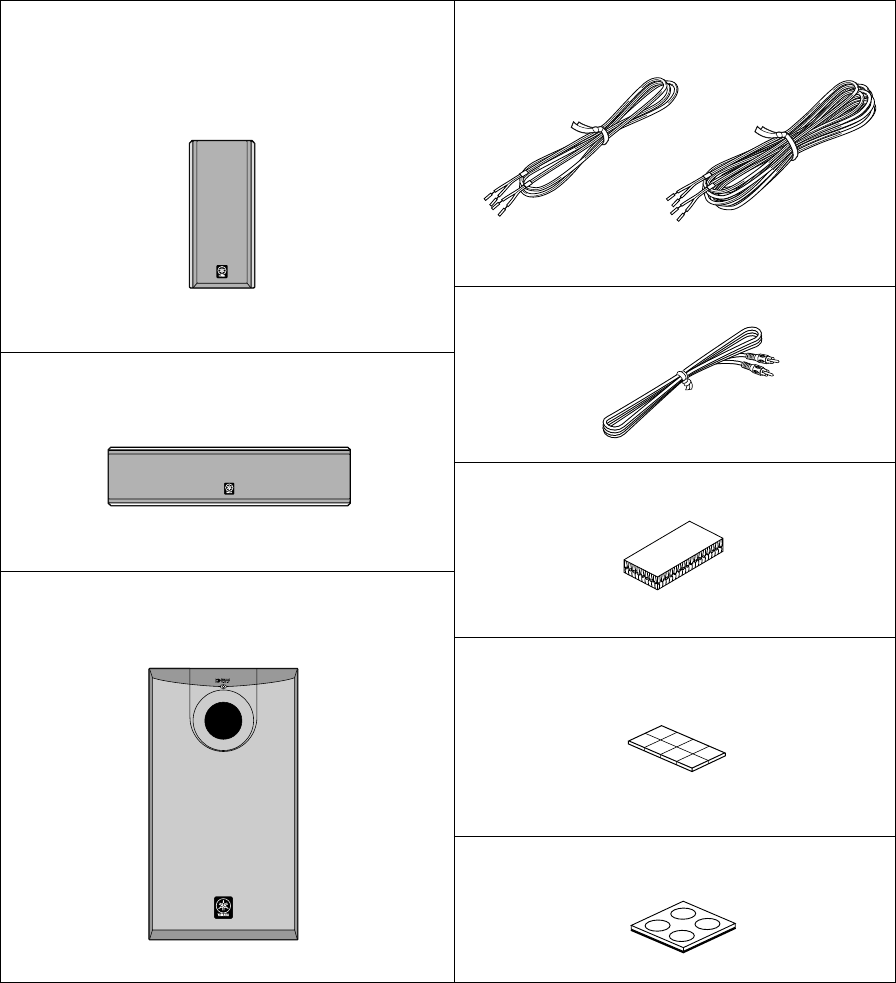
IV
●Speaker cables
●Subwoofer cable
●Fasteners (for NX-C130)
●Nonskid pads (for NX-E130)
●Nonskid pads (for SW-P130)
●Main and rear speakers
(and rear center speaker for NS-P106)
●Center speaker
●Subwoofer
UNPACKING Please check to make sure all listed items are included.
[4m] [10m]
X 2
X 3
NX-E130
NX-C130
SW-P130
X 2
<NS-P100>
X 3
<NS-P106>
X 4
<NS-P100>
X 5
<NS-P106>
SUBWOOFER SYSTEM YST SW005
X 2
<NS-P100>
X 3
<NS-P106>
NS-P100-106 PRE(UB)a 03.2.21, 9:08 AM4
English
E-1
●To assure the finest performance, please read this manual
carefully. Keep it in a safe place for future reference.
●Install the speakers in a cool, dry, clean place – away from
windows, heat sources, sources of excessive vibration, dust,
moisture and cold. Avoid sources of humming (transformers,
motors). To prevent fire or electric shock, do not expose the
speakers to rain or water.
●To prevent the enclosure from warping or discoloring, do not
place the speakers where they will be exposed to direct sunlight
or excessive humidity.
●Avoid installing the speakers where foreign objects may fall onto
them and/or where they may be exposed to liquid dripping or
splashing.
Do not place the following objects on top of the speakers:
●Other components, as they might cause damage and/or
discoloration on the surface of the speakers.
●Burning objects (i.e. candles), as they might cause fire,
damage to the speakers and/or personal injury.
●Containers with liquid in them, as they might cause electric
shock to the user and/or damage to the speakers.
●Do not place the speakers where they are liable to be knocked
over or struck by falling objects. Stable placement will also
ensure better sound performance.
●Placing the speakers on the same shelf or rack as the turntable
can result in feedback.
●Secure placement or installation is the owner’s responsibility.
YAMAHA shall not be liable for any accident caused by improper
placement or installation of speakers.
●Any time you note distortion, reduce the volume control on your
amplifier to a lower setting. Never allow your amplifier to be
driven into “clipping”. Otherwise the speakers may be damaged.
●When using an amplifier with a rated output power higher than
the nominal input power of the speakers, care should be taken
never to exceed the speakers’ maximum input.
●Do not attempt to clean the speakers with chemical solvents as
this might damage the finish. Use a clean, dry cloth.
●Do not attempt to modify or fix the speakers. Contact qualified
YAMAHA service personnel when any service is needed. The
cabinet should never be opened for any reason.
●Be sure to read the “TROUBLESHOOTING” section regarding
common operating errors before concluding that the speakers
are faulty.
For SW-P130
●Do not operate this unit upside down. It may overheat, possibly
causing damage.
●Do not use excessive force on switches, controls or connection
wires. When moving this unit, first disconnect the power plug
and the wires connected to other equipments. Never pull the
wires themselves.
●Since this unit has a built-in power amplifier, heat will radiate
from the rear panel. Place the unit apart from the walls, allowing
at least 20 cm of space above, behind and on both sides of the
unit to prevent fire or damage. Furthermore, do not position with
the rear panel facing down on the floor or other surfaces.
●When using a humidifier, be sure to avoid condensation inside
this unit by allowing enough spaces around this unit or avoiding
excess humidification. Condensation might cause a fire, damage
to this unit, and/or electric shock.
●Do not cover the rear panel of this unit with a newspaper, a
tablecloth, a curtain, etc. in order not to obstruct heat radiation. If
the temperature inside this unit rises, it may cause fire, damage
to this unit and/or personal injury.
CAUTION: Read this before operating your unit.
Thank you for selecting this YAMAHA NS-P100/NS-P106 Speaker Package.
●Do not plug in this unit to a wall outlet until all connections are
completed.
●The voltage to be used must be the same as that specified on
the rear panel. Using this unit with a higher voltage than
specified is dangerous and may cause fire, damage to this unit,
and/or personal injury. YAMAHA will not be held responsible for
any damage resulting from use of this unit with a voltage other
than specified.
●To prevent lightning damage, disconnect the AC power plug
when there is an electric storm.
●Super-bass frequencies reproduced by this unit may cause a
turntable to generate a howling sound. In such a case, move this
unit away from the turntable.
●This unit may be damaged if certain sounds are continuously
outputted at high volume level. For example, if 20 Hz–50 Hz sine
waves from a test disc, bass sounds from electronic instruments,
etc. are continuously outputted, or when the stylus of a turntable
touches the surface of a disc, reduce the volume level to prevent
this unit from being damaged.
●If you hear distorted noise (i.e. unnatural, intermittent “rapping” or
“hammering” sounds) coming from this unit, reduce the volume
level. Extremely loud playing of a movie soundtrack’s low
frequency, bass-heavy sounds or similarly loud popular music
passages can damage this speaker system.
●Vibration generated by super-bass frequencies may distort
images on a TV. In such a case, move this unit away from the TV
set.
●When disconnecting the power cord from the wall outlet, grasp
the plug; do not pull the cord.
●When not planning to use this unit for a long period (i.e. vacation,
etc.), disconnect the AC power plug from the wall outlet.
●VOLTAGE SELECTOR
(For China, Korean and General models)
The voltage selector switch on
the rear panel of this unit must
be set for your local main
voltage BEFORE plugging this
unit into the AC main supply.
Voltages are 110-120/220-240 V AC,
50/60 Hz.
Standby mode
If the POWER switch is set to the ON position and the AUTO
STANDBY switch is set to the HIGH or LOW position, this unit
turns into the standby mode when no signal is received by this
unit for 7 to 8 minutes.
In this state, this unit is designed to consume a very small
quantity of power.
WARNING
TO REDUCE THE RISK OF FIRE OR ELECTRIC SHOCK, DO
NOT EXPOSE THIS UNIT TO RAIN OR MOISTURE.
110V-120V VOLTAGE
SELECTOR
220V-240V
NS-P100-106 ENG(UB)a 03.2.21, 9:08 AM1

E-2
CONTENTS
IMPORTANT SAFETY INSTRUCTIONS ........ II
UNPACKING .................................................. IV
CAUTION .........................................................1
COMPONENTS OF THE PACKAGE .............. 2
SETTING UP THE SPEAKERS ...................... 3
Placing the subwoofer ....................................... 4
Placing the center speaker ................................ 4
Mounting the rear speakers (and rear center
speaker for NS-P106) ........................................ 5
Placing the main/rear speakers (and rear center
speaker for NS-P106) ........................................ 6
CONNECTIONS.............................................. 7
An example of basic connections ...................... 7
How to connect speaker cables ......................... 8
USING THE SUBWOOFER (SW-P130).......... 9
Controls and their functions ............................... 9
Automatic-power-switching function ................ 10
Adjusting the subwoofer before use ................ 10
Frequency characteristics ................................ 11
ADVANCED YAMAHA ACTIVE SERVO
TECHNOLOGY (for SW-P130) .................... 12
TROUBLESHOOTING .................................. 13
SPECIFICATIONS ........................................ 14
COMPONENTS OF THE PACKAGE
<NX-E130>
Full range acoustic-suspension speaker system used
for the main and rear speakers (and rear center speaker
for NS-P106)
<NX-C130>
Full range acoustic-suspension speaker system used
for the center speaker
<SW-P130>
Active Servo Processing Subwoofer System with a
built-in power amplifier
●This subwoofer system employs Advanced Yamaha
Active Servo Technology which YAMAHA has developed
for reproducing higher quality super-bass sound. (Refer to
page 12 for details on Advanced Yamaha Active Servo
Technology.) This super-bass sound adds a more
realistic, theater-in-the-home effect to your stereo system.
●The AUTO STANDBY switch saves you the trouble of
setting the POWER switch to the ON or OFF position.
The speaker package “NS-P100 and NS-P106” is designed
for use in a multi-channel audio system such as a home
theater system.
NS-P100 includes four NX-E130 speaker systems, one NX-
C130 speaker system and one SW-P130 subwoofer
system.
NS-P106 includes five NX-E130 speaker systems, one NX-
C130 speaker system and one SW-P130 subwoofer
system.
SPECIAL INSTRUCTIONS FOR U.K. MODEL
IMPORTANT:
THE WIRES IN MAINS LEAD ARE COLOURED IN
ACCORDANCE WITH THE FOLLOWING CODE:
Blue: NEUTRAL
Brown: LIVE
As the colours of the wires in the mains lead of this
apparatus may not correspond with the coloured
markings identifying the terminals in your plug, proceed
as follows: The wire which is coloured BLUE must be
connected to the terminal which is marked with the letter
N or coloured BLACK. The wire which is coloured
BROWN must be connected to the terminal which is
marked with the letter L or coloured RED. Making sure
that neither core is connected to the earth terminal of the
three pin plug.
For U.K. customers
If the socket outlets in the home are not suitable for the plug
supplied with this appliance, it should be cut off and an
appropriate 3 pin plug fitted. For details, refer to the
instructions described below.
Note: The plug severed from the mains lead must be
destroyed, as a plug with bared flexible cord is hazardous if
engaged in a live socket outlet.
For Canadian Customers
To prevent electric shock, match wide blade of plug to
wide slot and fully insert.
This Class B digital apparatus complies with Canadian
ICES-003.
NS-P100-106 ENG(UB)a 03.2.21, 9:08 AM2
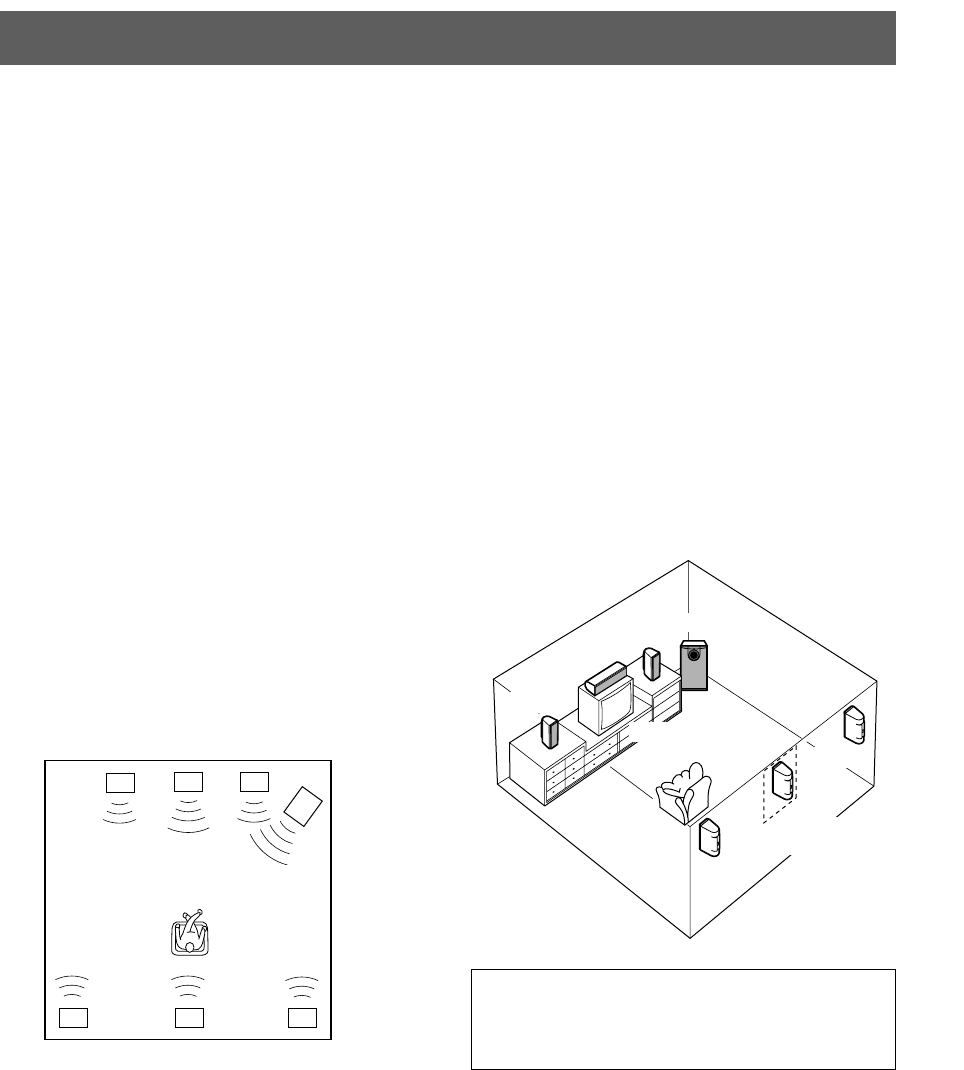
English
E-3
Before making connections, place all speakers in their respective positions. The positioning of the speakers is important
because it controls the whole sound quality of this system.
Place the speakers depending on your listening position by following the instructions below.
Speaker configuration
<NS-P100>
This speaker package employs a 6 speaker configuration: 2
main speakers, 2 rear speakers, a center speaker and a
subwoofer.
The main speakers emit main source sound. The rear
speakers emit surround sounds, and the center speaker
emits center sounds (dialog etc.). The subwoofer emits
reinforcing low frequencies on your audio system.
<NS-P106>
This speaker package employs a 7 speaker configuration: 2
main speakers, 2 rear speakers, a center speaker, a rear
center speaker and a subwoofer.
The main speakers emit main source sound. The rear and
rear center speakers emit surround sounds, and the center
speaker emits center sounds (dialog etc.). The subwoofer
emits reinforcing low frequencies on your audio system.
Note
In this speaker package, the same speakers (NX-E130)
are used for the main and rear speakers (and rear
center speaker for NS-P106).
Placing speakers
Main speakers: On both sides of and at approximately
the same height as the TV set.
Rear speakers: Behind your listening position, facing
slightly inward. About 1.8 m (approx. 6
feet) from the floor.
Center speaker: Precisely between the main speakers.
Rear center speaker (for NS-P106):
Precisely between the rear speakers.
Subwoofer: The position of the subwoofer is not so
critical because low bass tones are not
highly directional.
Refer to “Placing the subwoofer” on
page 4 for a recommended positioning
of the subwoofer.
Main L Center Main R
Rear L
Subwoofer
Rear R
Main L
Main R Subwoofer
Center
Rear L
Rear R
TV-set
Rear center
(for NS-P106)
Rear center
(for NS-P106)
SETTING UP THE SPEAKERS
These speakers feature a magnetically shielded design,
but there is still a chance that placing them too close to a
TV set might impair picture color. Should this happen,
move the speakers away from the TV set.
NS-P100-106 ENG(UB)a 03.2.21, 9:08 AM3
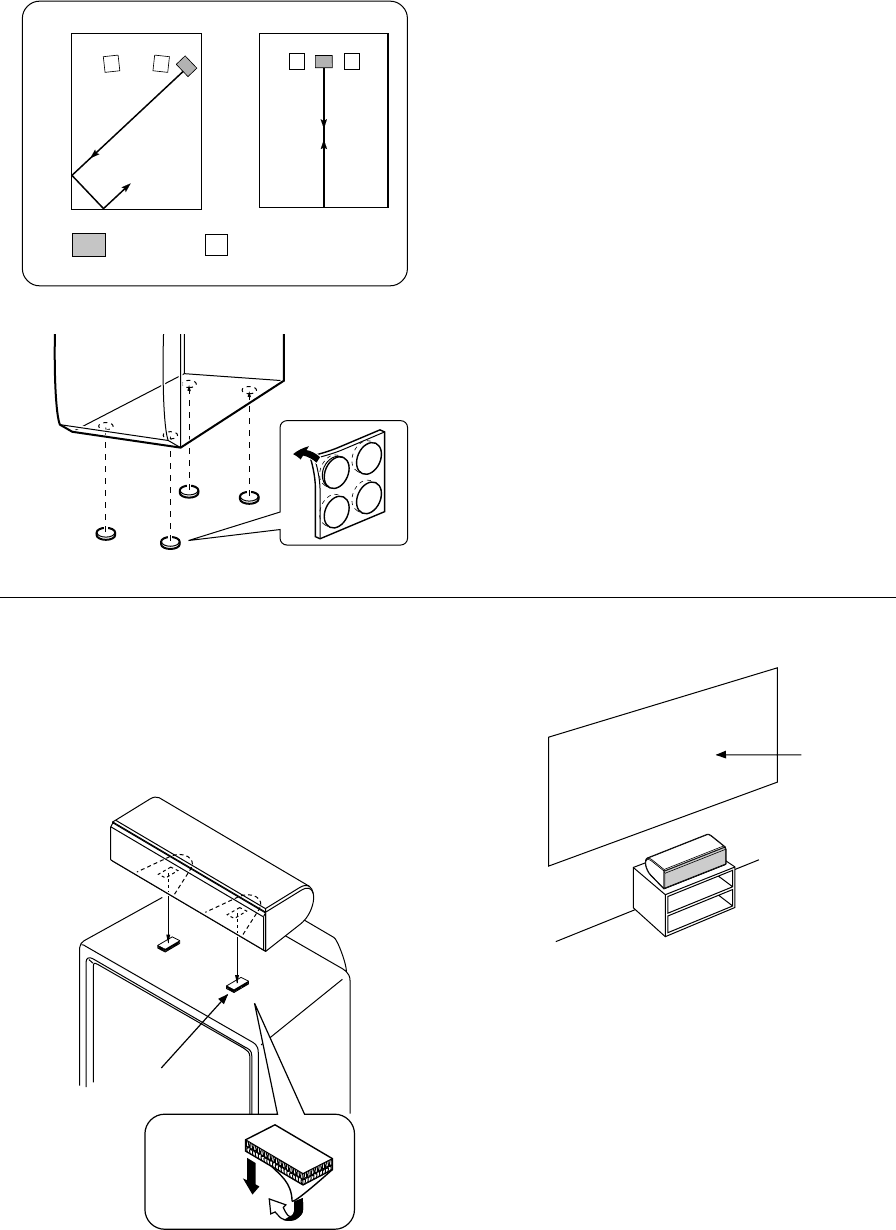
E-4
䡵 Placing the subwoofer
It is recommended to place the subwoofer on the outside of
either the right or the left main speaker. (See fig. Å .) The
placement shown in fig. ı is also possible, however, if the
subwoofer system is placed directly facing the wall, the
bass effect may die because the sound from it and the
sound reflected by the wall may cancel out each other. To
prevent this from happening, face the subwoofer system at
an angle as shown in fig. Å.
Note
There may be a case that you cannot obtain enough super-
bass sounds from the subwoofer when listening in the
center of the room. This is because “standing waves” have
been developed between two parallel walls and they cancel
the bass sounds.
In such a case, face the subwoofer obliquely to the wall. It
also may be necessary to break up the parallel surfaces by
placing bookshelves etc. along the walls.
Use the nonskid pads
Put the provided nonskid pads at the four corners on the
bottom of the subwoofer to prevent the subwoofer from
moving by vibrations etc.
( : Subwoofer, : Main speaker)
ıÅ
You can place the speaker on top of the TV if the top is flat,
on the floor under the TV, or inside the TV rack . Be sure to
place the speaker in a stable position.
When placing the speaker on top of the TV, to prevent the
speaker from falling, attach the provided fasteners at two
points on the bottom of the speaker and on the top of the
TV.
䡵Placing the center speaker
Notes
●Do not place the speaker on top of a TV whose area is
smaller than the bottom of the speaker. If placed, the
speaker may fall and cause injury.
●Do not place the speaker on top of a TV if the top is
inclined.
●Do not touch the adhesive surface after peeling off
the seal as this will weaken its adhesive strength.
●Thoroughly wipe clean the surface where the fastener
is to be applied. Note that adhesive strength is
weakened if the surface is dirty, oily or wet and that
this may cause the center speaker to fall.
Screen
Peel off
the seal
Fastener
NS-P100-106 ENG(UB)a 03.2.21, 9:08 AM4
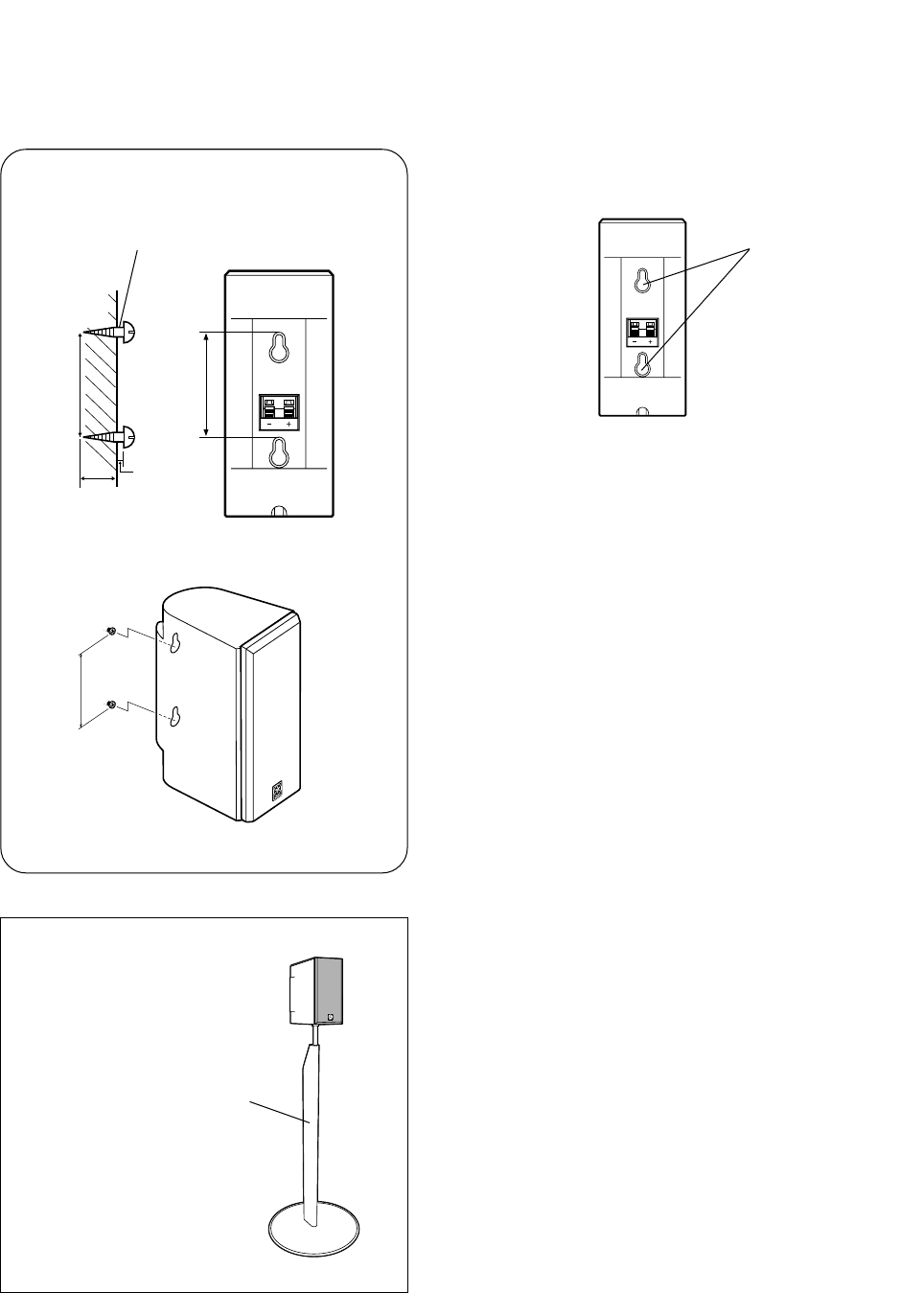
English
E-5
䡵Mounting the main/rear speakers (and rear center speaker for
NS-P106)
Mount the main/rear speakers (and rear center speaker for
NS-P106) on a shelf, rack or directly on the floor, or hang
them on the wall.
To mount the speakers on a wall by
using the holes on the speakers’
back panels
1Fasten screws into a firm wall or wall support as shown
in the figure.
2Hang the speaker by mounting the holes on the
protruding screws.
* Make sure that the screws are securely affixed by the
narrow parts of the holes.
WARNING
●Each speaker weighs 0.9 kg (2 lbs.). Do not mount
them on thin plywood or a wall composed of a soft
surface material. If mounted, the screws may pull out
of the flimsy surface and the speakers may fall. This
may damage the speakers or cause personal injury.
●Do not affix the speakers to a wall using nails,
adhesives, or any other unstable hardware. Long-
term use and vibrations may cause the speakers to
fall.
●To avoid accidents resulting from tripping over loose
speaker cables, fix the cables to the wall.
●Select an appropriate position on the wall to mount
the speaker so that no one will injure his/her head or
face.
1
70 mm
Holes
2
Wall/ wall
support
Tapping screw
(Available at the
hardware store)
Min.
20 mm
Diam. 3.5 to 4 mm
10 mm
70 mm
70 mm
Using the Yamaha Speaker Stand SPS-80 (option)
By using the Yamaha Speaker
Stand SPS-80, speakers can be
placed on the floor.
* The SPS-80 is not available in some areas.
SPS-80
NS-P100-106 ENG(UB)a 03.2.21, 9:08 AM5
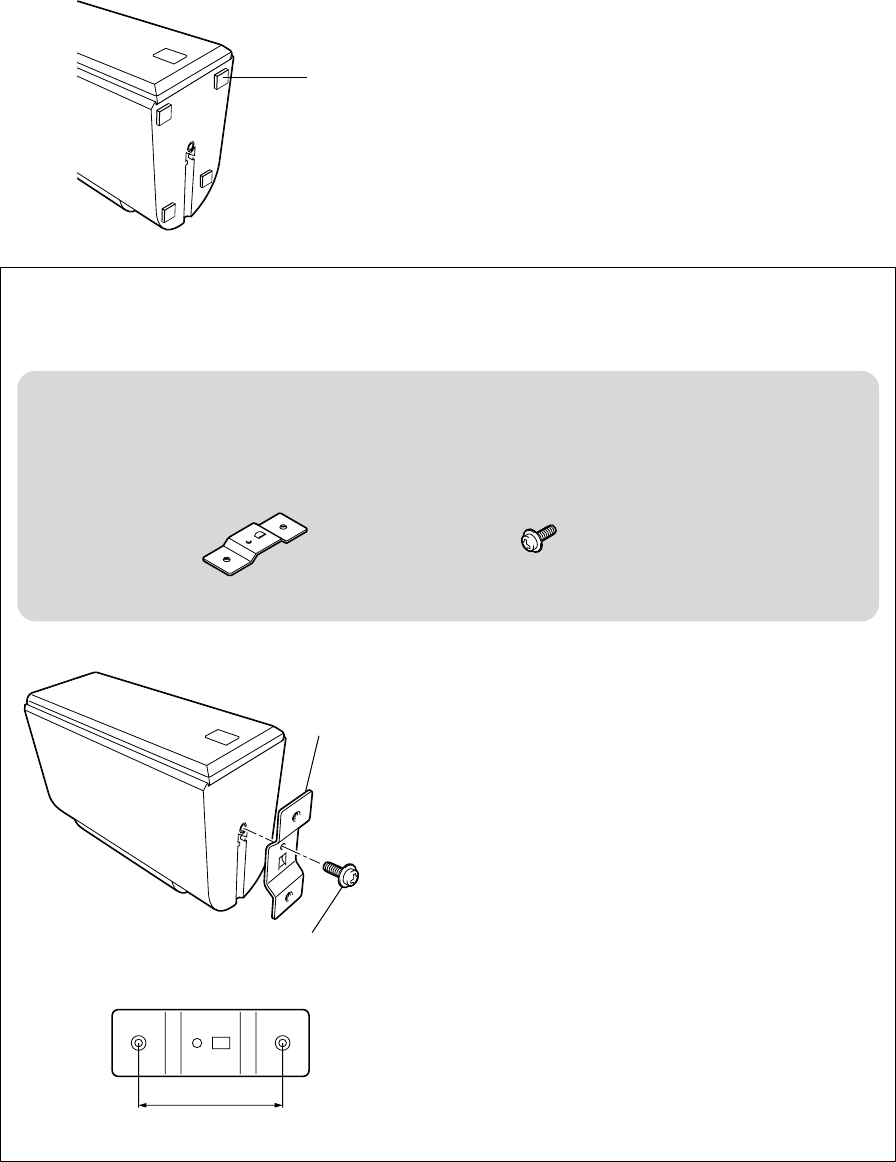
E-6
If you want to mount a speaker on a commercially available speaker stand
for the main/rear speakers (and rear center speaker for NS-P106)
Mounting
bracket
(AAX34790)
Screw
(AAX12390)
60 mm
1Attach the bracket (AAX34790) to the bottom of the
speaker by using the screw (AAX12390) so that the
convex part of the bracket fits in the grooved part on
the bottom of the speaker as shown on the left.
2Mount the speaker on the speaker stand by using a
pair of screw holes (at an interval of 60 mm) on the
bracket.
* Those screw holes can be used with M4 screws
only.
䡵Placing the the main/rear speakers (and rear center speaker for
NS-P106)
Nonskid pad
When placing the speakers on a flat surface, attach the
included nonskid pads to the corners on the bottom of the
speakers as shown on the left. This prevents the speakers
from sliding around.
* For NS-P106, the nonskid pads include four spare ones.
X 4
<NS-P100>
X 5
<NS-P106>
X 4
<NS-P100>
X 5
<NS-P106>
The following optional accessories are needed for mounting the speakers on commercially available speaker stands.
* Inquire at your authorized YAMAHA dealer for the optional accessories.
Mounting bracket (AAX34790) Screw (AAX12390)
NS-P100-106 ENG(UB)a 03.2.21, 9:08 AM6
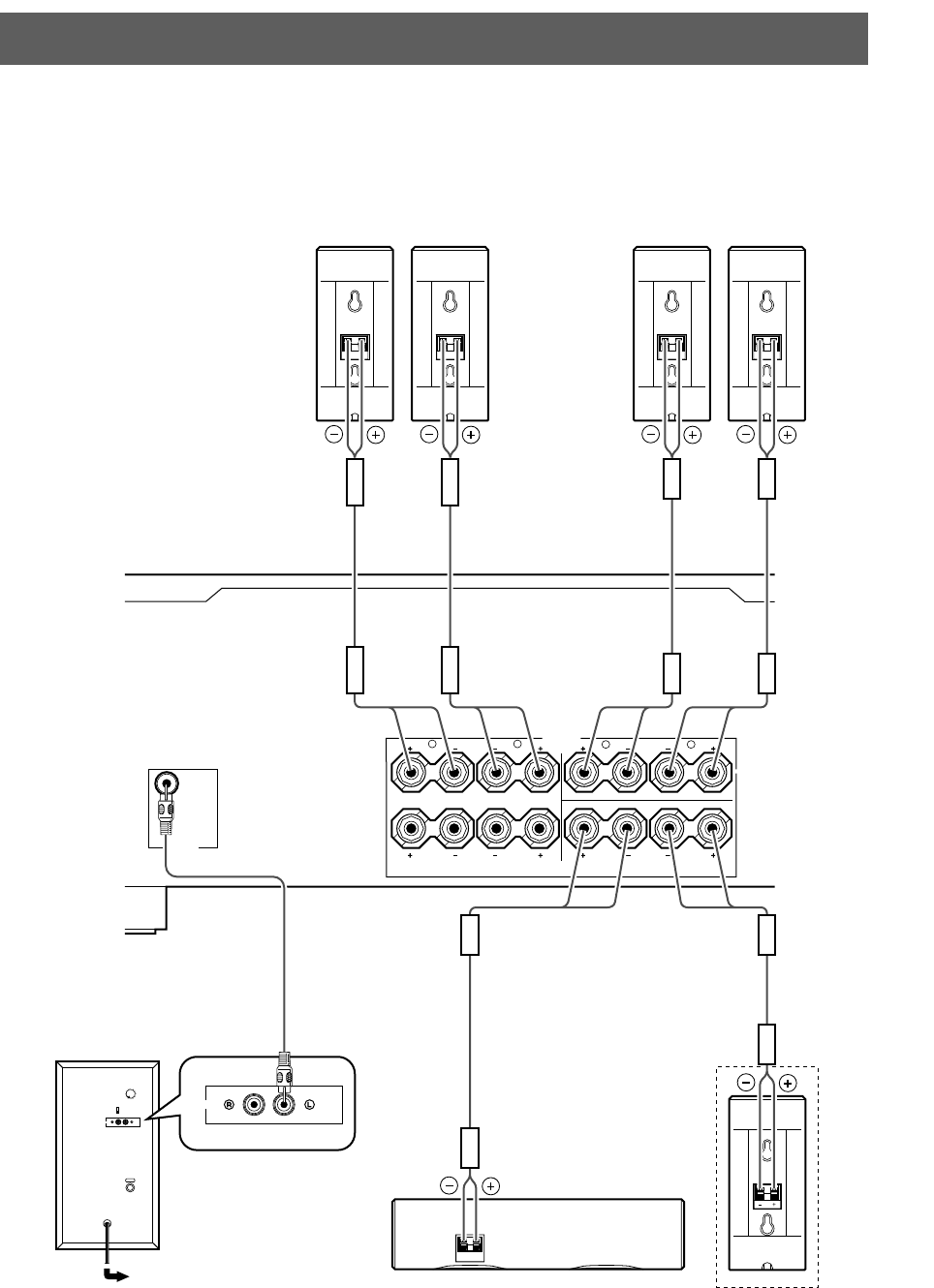
English
E-7
B
A
MAIN
CENTER
R L
SUB
WOOFER
OUTPUT
SPEAKERS
REAR
(SURROUND)
REAR
CENTER
CENTER
R L
INPUT2 /MONO
AUTO
STANDBY
OFF
LOW
HIGH
OFF
POWER
ON
VOLUME
010
INPUT /MONO
FRONT RFRONT R
FRONT LFRONT L
REAR LREAR L
REAR RREAR R
REAR C REAR C
CENTER CENTER
CONNECTIONS
Caution: Plug in the subwoofer and other audio/video components after all
connections are completed.
䡵An example of basic connections
Subwoofer
Amplifier
To AC outlet Center speaker
LeftRight
Main speakers
Rear center speaker
(for NS-P106)
LeftRight
Rear speakers
NS-P100-106 ENG(UB)a 03.2.21, 9:08 AM7
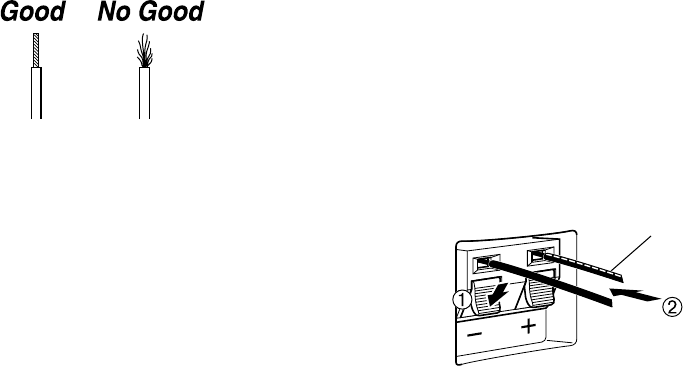
E-8
For connections, keep the speaker cables as short as
possible. Do not bundle or roll up the excess part of the
cables. If the connections are faulty, no sound will be heard
from the speakers.
Before connecting
Remove the insulation coating at the extremity of each
speaker cable by twisting the coating off.
䡵How to connect speaker cables
One side of the provided speaker cable has a white broken
line and the other side has no line.
Connect the (+) terminals on both the speaker and the
amplifier using the side with a white broken line. Connect
the (–) terminals on both components using the side with no
line.
How to Connect:
1Press and hold the terminal’s tab, as shown in the
figure.
2Insert the bare wire.
3Release your finger from the tab to allow it to lock
securely on the cable’s wire end.
4Test the firmness of the connection by pulling lightly on
the cable at the terminal.
Red: positive (+)
Black: negative (–)
Note
Do not let the bare speaker wires touch each other as
this could damage the speaker or the amplifier, or both
of them.
White broken line
●Connect the main, center and rear speakers (and rear
center speaker for NS-P106) to the speaker output
terminals of your amplifier with the provided speaker
cables.
* The provided speaker cables have labels marked
FRONT L, FRONT R, CENTER, REAR L, REAR R
(and REAR C for NS-P106). Connect each speaker
cable to the corresponding speaker by following the
figure on page 7.
(The speaker cables marked FRONT L/R are used for
connecting the main speakers to the MAIN speakers’
terminals on the amplifier.)
* Connect each speaker making sure not to reverse the
polarity (+, –). If the speaker is connected with
reversed polarity, the sound will be unnatural and lack
bass.
* For the main and rear speakers only, connect one
speaker to the left (marked L) terminals of your
amplifier, and another speaker to the right (marked R)
terminals.
●Connect the subwoofer to the line output (pin jack)
terminal(s) of the amplifier.
* To connect with a YAMAHA DSP amplifier (or AV
receiver), connect the SUBWOOFER (or LOW PASS
etc.) terminal on the rear of the DSP amplifier (or AV
receiver) to the L/MONO INPUT terminal of the
subwoofer.
* To connect the subwoofer to the SPLIT SUBWOOFER
terminals on the rear of the DSP amplifier, connect
them to both the left L/MONO and right R INPUT
terminals of the subwoofer.
Note
When connecting to a monaural line output terminal of the
amplifier, connect to the L/MONO INPUT terminal.
NS-P100-106 ENG(UB)a 03.2.21, 9:08 AM8
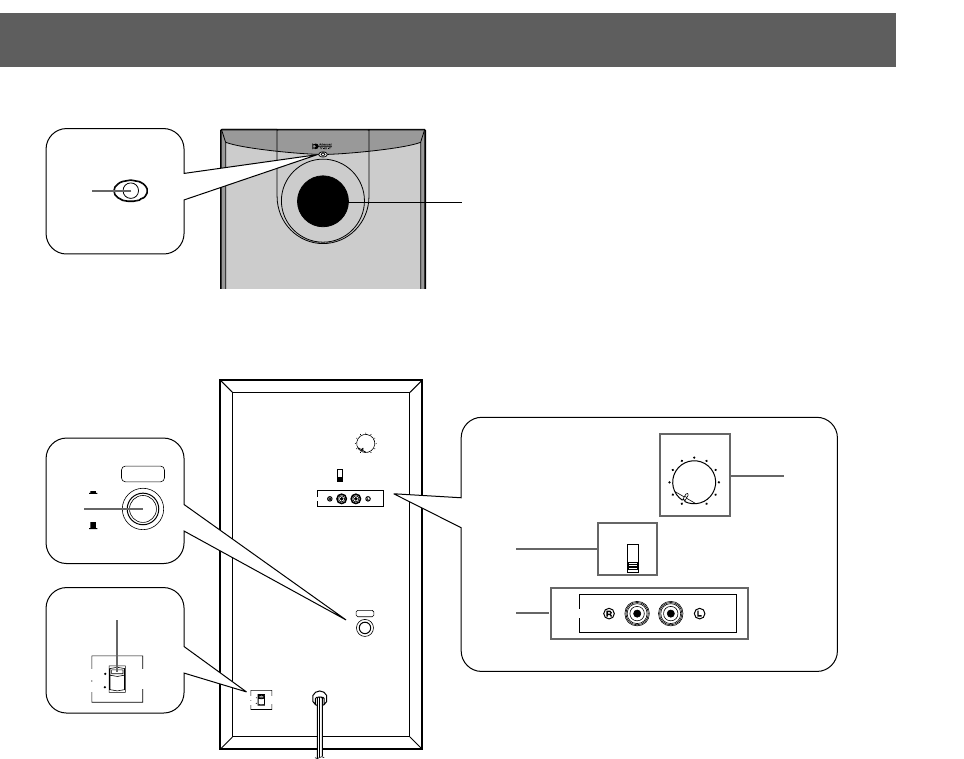
English
E-9
SUBWOOFER SYSTEM YST SW005
INPUT
/MONO
AUTO
STANDBY
OFF
LOW
HIGH
OFF
POWER
ON
VOLUME
010
220V-240V
110V-120V
VOLTAGE
SELECTOR
5
4
6
INPUT /MONO
AUTO
STANDBY
OFF
LOW
HIGH
VOLUME
010
OFF
POWER
ON
2
110V-120V VOLTAGE
SELECTOR
220V-240V
3
1
USING THE SUBWOOFER (SW-P130)
䡵 Controls and their functions
1Power indicator
Lights up GREEN when the POWER switch (2) is
pressed in to the ON position and goes off when set to
the OFF position.
* Standby mode
If the POWER switch (2) is pressed in to the ON
position and the AUTO STANDBY switch (4) is set
to the HIGH or LOW position, this indicator lights up
RED when no signal is received by the subwoofer.
2POWER switch
Press this switch to the ON position to turn on the
power of the subwoofer. When the power of the
subwoofer is on, the power indicator (1) on the front
panel lights up GREEN. Press this switch again to set
to the OFF position to turn off the power of the
subwoofer.
3VOLTAGE SELECTOR switch
(For China, Korean and General models)
If the preset setting of the switch is incorrect, set the
switch to the proper voltage range (220V-240V or
110V-120V) of your area.
Consult your dealer if you are unsure of the correct
setting.
WARNING
Be sure to unplug the subwoofer before setting the
VOLTAGE SELECTOR switch correctly.
4AUTO STANDBY (HIGH/LOW/OFF) switch
This switch is originally set to the OFF position. By
setting this switch to the HIGH or LOW position, the
subwoofer’s automatic power-switching function
operates as explained on page 10. If you do not need
this function, set to the OFF position.
* Make sure to change the setting of this switch only
when the POWER switch (2) is in the OFF position.
5INPUT terminals
Used to input line level signals from the amplifier.
6VOLUME control
Adjusts the volume level. Turn the control clockwise to
increase the volume, and counterclockwise to
decrease the volume.
Rear panel
Front panel
Port
NS-P100-106 ENG(UB)a 03.2.21, 9:08 AM9
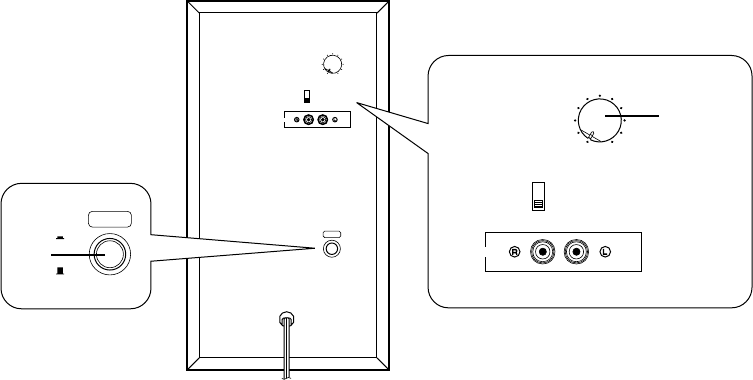
E-10
䡵 Adjusting the subwoofer before use
Before using the subwoofer, adjust the subwoofer to obtain the optimum volume balance between the subwoofer and the main
speakers by following the procedures described below.
Rear panel
INPUT
/MONO
AUTO
STANDBY
OFF
LOW
HIGH
OFF
POWER
ON
VOLUME
010
INPUT /MONO
AUTO
STANDBY
OFF
LOW
HIGH
VOLUME
010
OFF
POWER
ON
3
1, 5
䡵Automatic power-switching function
* The power might turn on unexpectedly by sensing noise
from other appliances. If that occurs, set the AUTO
STANDBY switch to the OFF position and use the
POWER switch to switch the power between ON and
OFF manually.
* This function detects the low-frequency components
below 200 Hz of the input signals (i.e., the explosion in
the action movie, the sound of the bass guitar or the bass
drum, etc.).
* The minutes required to switch the subwoofer to the
standby mode might change by sensing noise from other
appliances.
This function is available only when the power of the
subwoofer is on (by pressing the POWER switch).
If the source being played is stopped and the input signal is
cut off for 7 to 8 minutes, the subwoofer automatically
switches to the standby mode. (When the subwoofer
switches to the standby mode by the automatic power-
switching function, the power indicator lights up in red.)
When you play a source again, the power of the subwoofer
turns on automatically by sensing audio signals input to the
subwoofer.
This function will operate by sensing a certain level of low
frequency input signal. Usually set the AUTO STANDBY
switch to the LOW position. However, if the power is not
switched on or to the standby mode smoothly, set the switch
to the HIGH position. In the HIGH position, the power will
turn on even with a low level of input signal. But please be
aware that the subwoofer may not switch to the standby
mode when there is an extremely low input signal.
NS-P100-106 ENG(UB)a 03.2.21, 9:08 AM10
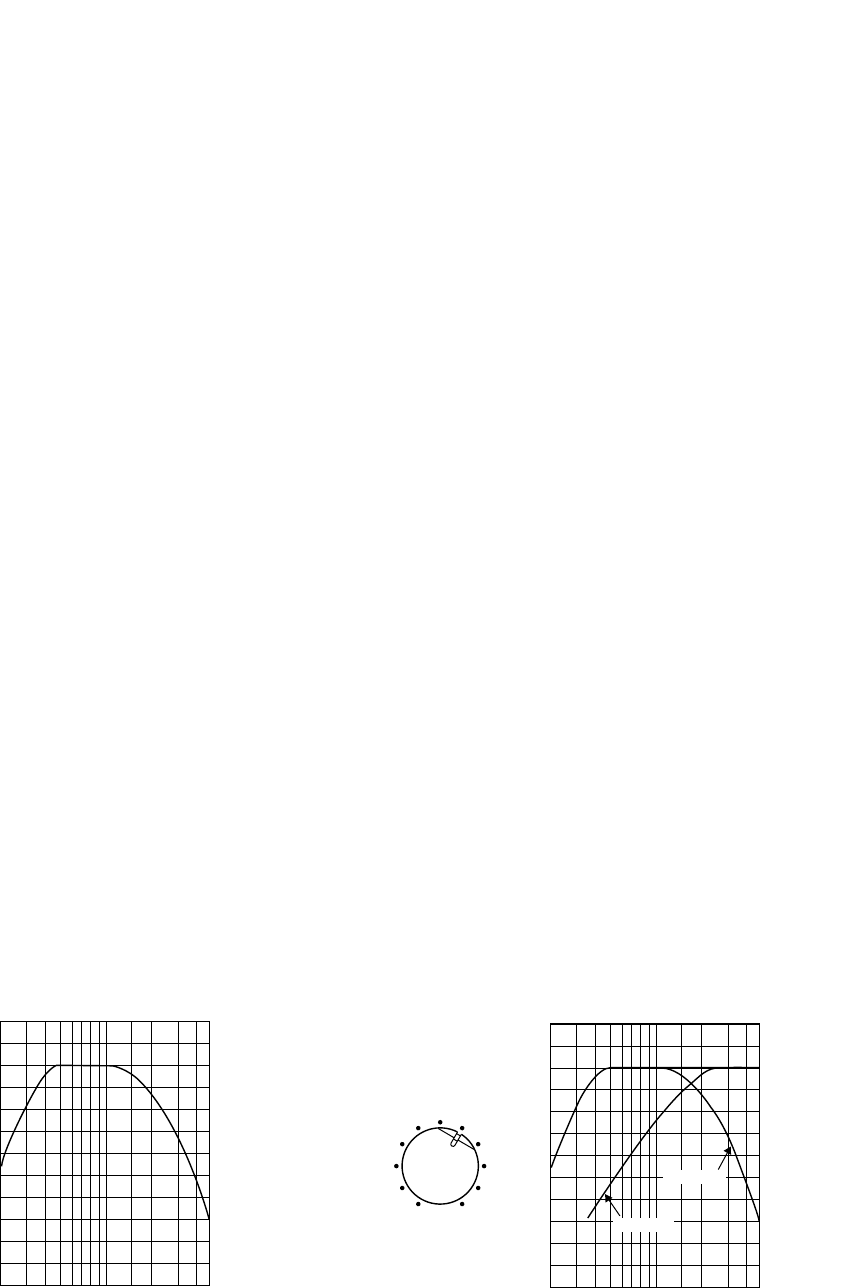
English
E-11
1Set the VOLUME control to minimum (0).
2Turn on the power of all the other
components.
3Press the POWER switch to the ON position.
* The power indicator on the front panel lights
up in green.
4Play a source containing low-frequency
components and adjust the amplifier’s
volume control to the desired listening level.
5Increase the volume gradually to adjust the
volume balance between the subwoofer and
the main speakers.
Normally, set the control to the level where you
can obtain a little more bass effect than when
this unit is not used.
●Once the volume balance between the subwoofer and
the main speakers is adjusted, you can adjust the
volume of your whole sound system by using the
amplifier’s volume control.
However, if you change the main speakers (NX-E130)
to others, you must make this adjustment again.
●For adjusting the VOLUME control, refer to
“Frequency characteristics” below.
20 50 100 200 500 Hz
40
50
60
70
80
90
100 dB
SW-P130
NX-E130
䡵 Frequency characteristics
Fig. 1 shows the frequency characteristics of the subwoofer. Fig. 2 shows the frequency characteristics when the
subwoofer is combined with NX-E130 and the subwoofer’s
volume level is set to the figured position.
Fig. 1 Fig. 2
20 50 100 200 500 Hz
40
50
60
70
80
90
100 dB
VOLUME
0I0
NS-P100-106 ENG(UB)a 03.2.21, 9:08 AM11
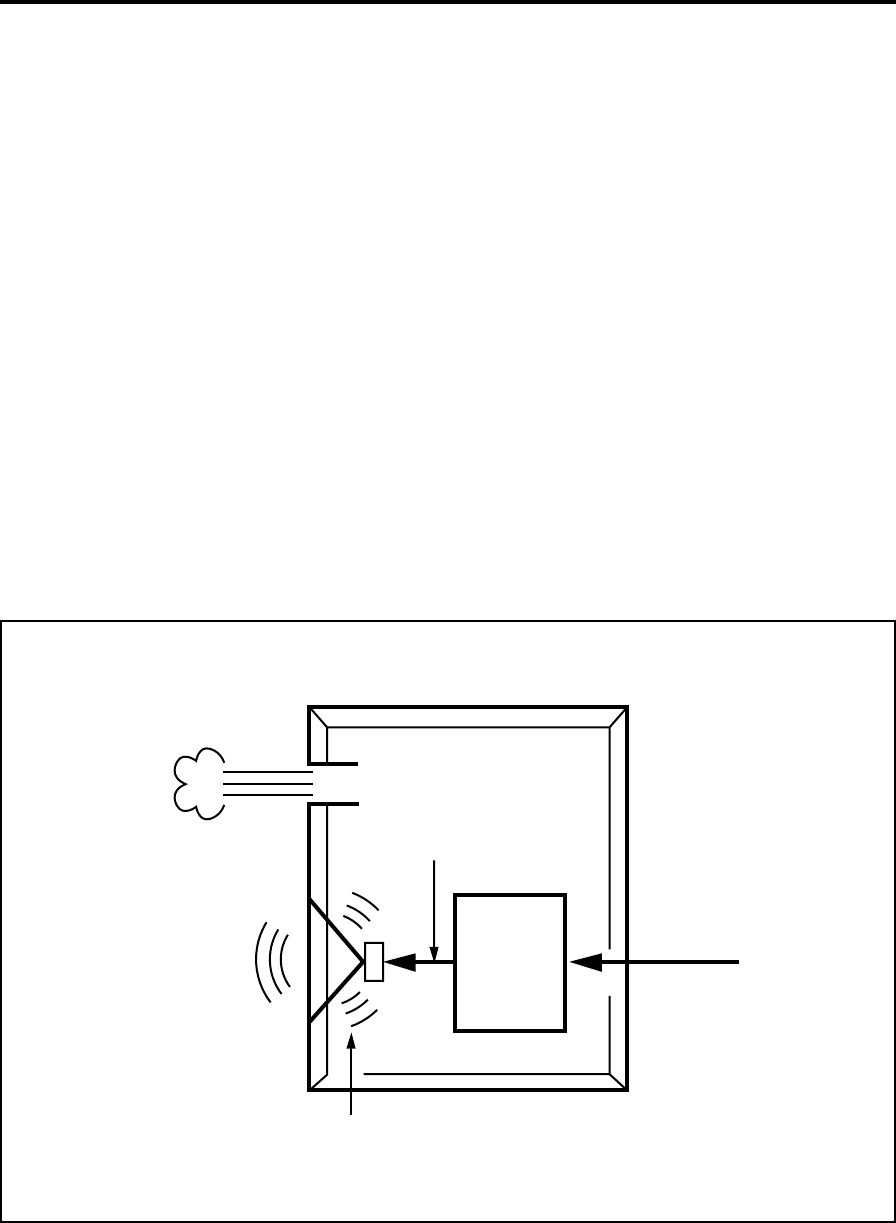
E-12
ADVANCED YAMAHA ACTIVE SERVO TECHNOLOGY
(for SW-P130)
The theory of Yamaha Active Servo Technology has been
based upon two major factors, the Helmholtz resonator and
negative-impedance drive. Active Servo Processing
speakers reproduce the bass frequencies through an “air
woofer”, which is a port or opening in the speaker’s cabinet.
This opening is used instead of, and performs the functions
of, a woofer in a conventionally designed speaker system.
Thus, signals of low amplitude within the cabinet can,
according to the Helmholtz resonance theory, be outputted
from this opening as waves of great amplitude if the size of
the opening and the volume of the cabinet are in the correct
proportion to satisfy a certain ratio.
In order to accomplish this, moreover, the amplitudes within
the cabinet must be both precise and of sufficient power
because these amplitudes must overcome the “load”
presented by the air that exists within the cabinet.
Thus it is this problem that is resolved through the
employment of a new design in which the amplifier supplies
special signals. If the electrical resistance of the voice coil
could be reduced to zero, the movement of the speaker unit
would become linear with respect to signal voltage. To
accomplish this, a special negative-impedance output-drive
amplifier for subtracting output impedance of the amplifier is
used.
By employing negative-impedance drive circuits, the
amplifier is able to generate precise, low-amplitude, low-
frequency waves with superior damping characteristics.
These waves are then radiated from the cabinet opening as
high-amplitude signals. The system can, therefore, by
employing the negative-impedance output drive amplifier
and a speaker cabinet with the Helmholtz resonator,
reproduce an extremely wide range of frequencies with
amazing sound quality and less distortion.
The features described above, then, are combined to be the
fundamental structure of the conventional Yamaha Active
Servo Technology.
Our new Active Servo Technology — Advanced Yamaha
Active Servo Technology — adopted Advanced Negative
Impedance Converter (ANIC) circuits, which allows the
conventional negative impedance converter to dynamically
vary in order to select an optimum value for speaker
impedance variation. With this new ANIC circuits, Advanced
Yamaha Active Servo Technology can provide more stable
performance and improved sound pressure compared with
the conventional Yamaha Active Servo Technology, resulting
in more natural and dynamic bass reproduction.
High-amplitude
bass sound
Cabinet
Port
Air woofer
(Helmholtz resonator)
Active Servo
Processing
Amplifier
Signals
Signals of low amplitude
Advanced Negative-
impedance Converter
NS-P100-106 ENG(UB)a 03.2.21, 9:08 AM12
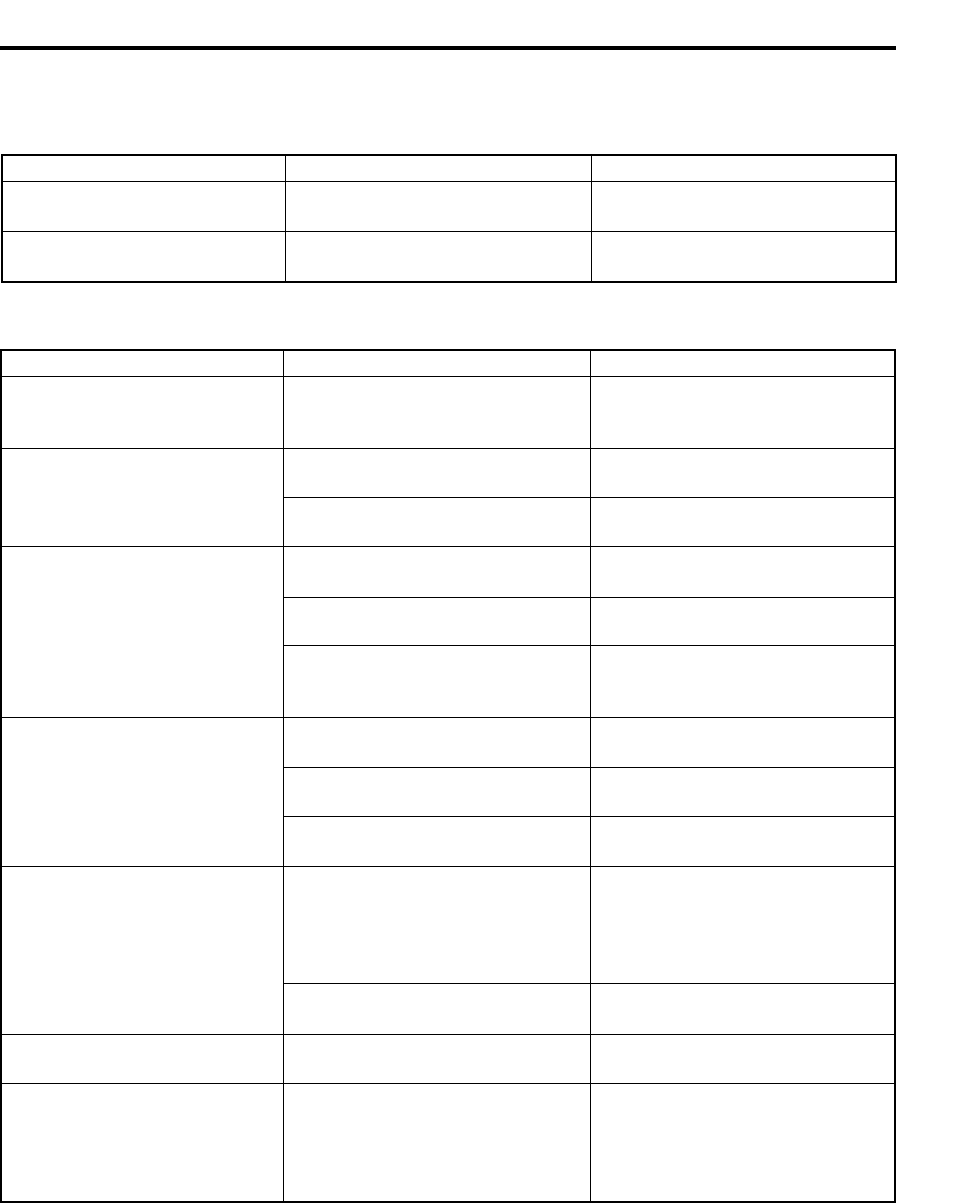
English
E-13
TROUBLESHOOTING
Refer to the chart below when this unit does not function properly. If the problem you are experiencing is not listed below or if
the instructions given below do not help, disconnect the power cord and contact your authorized YAMAHA dealer or service
center.
Problem
No sound.
Sound level is too low.
What to Do
Connect them securely.
Connect them correctly, that is L (left) to
L, R (right) to R, “+” to “+” and “–” to “–”.
Cause
Speaker cables are not connected
securely.
Speaker cables are not connected
correctly.
For SW-P130
Problem
Power is not supplied even
though the POWER switch is set
to the ON position.
No sound.
Sound level is too low.
The subwoofer does not turn on
automatically.
The subwoofer does not turn into
the standby mode automatically.
The subwoofer turns into the
standby mode unexpectedly.
The subwoofer turns on
unexpectedly.
What to Do
Connect it securely.
Turn the VOLUME control to the right
(clockwise).
Connect them securely.
Connect them correctly, that is L (left) to
L, R (right) to R, “+” to “+” and “–” to “–”.
Play a source sound with bass
frequencies.
Reposition the subwoofer or break up
the parallel surface by placing
bookshelves etc. along the walls.
Set the POWER switch to the ON
position.
Set the AUTO STANDBY switch to the
“HIGH” or “LOW” position.
Set the AUTO STANDBY switch to the
“HIGH” position.
Move the subwoofer farther away from
such appliances and/or reposition the
connected speaker cables.
Otherwise, set the AUTO STANDBY
switch to the “OFF” position.
Set the AUTO STANDBY switch to the
“HIGH” position.
Set the AUTO STANDBY switch to the
“HIGH” position.
Move the subwoofer farther away from
such appliances and/or reposition the
connected speaker cables.
Otherwise, set the AUTO STANDBY
switch to the “OFF” position.
Cause
The power plug is not securely
connected.
The VOLUME control is set to 0.
Speaker cables are not connected
securely.
Speaker cables are not connected
correctly.
A source sound with few bass
frequencies is played.
It is influenced by standing waves.
The POWER switch is set to the OFF
position.
The AUTO STANDBY switch is set to
the OFF position.
The level of input signal is too low.
There is an influence of noise
generated from external appliances etc.
The AUTO STANDBY switch is set to
the OFF position.
The level of input signal is too low.
There is an influence of noise
generated from external appliances etc.
NS-P100-106 ENG(UB)a 03.2.21, 9:08 AM13

E-14
SPECIFICATIONS
䡵 NX-E130, NX-C130
Type ......... Full range acoustic-suspension speaker system
Magnetic shielding type
Driver ........................ 5 cm (2”) full range cone speaker x 2
Nominal Input Power ................................................. 30W
Maximum Input Power ............................................. 100W
Impedance ..................................................................... 6Ω
Frequency Response
<NX-E130>........................................... 100 Hz to 25 kHz
<NX-C130>............................................ 80 Hz to 25 kHz
Sensitivity ................................................... 86 dB/2.83V/m
Dimensions (W x H x D)
<NX-E130>.......................... 72 mm x 164 mm x 111 mm
(2-13/16” x 6-7/16” x 4-3/8”)
<NX-C130>......................... 300 mm x 72 mm x 110 mm
(11-13/16” x 2-13/16”x 4-5/16”)
Weight
<NX-E130>................................................. 0.9 kg (2 lbs.)
<NX-C130>....................................... 1.1 kg (2 lbs. 7 oz.)
䡵 SW-P130
Type ............... Advanced Yamaha Active Servo Technology
Magnetic shielding type
Driver ....................................... 16 cm (6-1/2”) cone woofer
Amplifier Output
U.S.A. and Canada models .............................. 55 W/5Ω
Other models .................................................... 50 W/5Ω
Dynamic Power ................................................. 100 W/5Ω
Frequency Response ............................... 30 Hz to 200 Hz
Power Supply
U.S.A. and Canada models ................... AC 120V, 60 Hz
U.K. and Europe models ....................... AC 230V, 50 Hz
Australia model ...................................... AC 240V, 50 Hz
China, Korean and General models
....................................... AC 110-120/220-240V, 50/60 Hz
Power Consumption ................................................. 60 W
(In the standby mode: 0.8 W)
Dimensions (W x H x D) ...... 200 mm x 365 mm x 375 mm
(7-7/8” x 14-7/20” x 14-3/4”)
Weight .............................................. 8.5 kg (18 lbs. 11 oz.)
* Specifications are subject to change without notice due to
product improvements.
NS-P100-106 ENG(UB)a 03.2.21, 9:08 AM14
YAMAHA ELECTRONICS CORPORATION, USA 6660 ORANGETHORPE AVE., BUENA PARK, CALIF. 90620, U.S.A.
YAMAHA CANADA MUSIC LTD. 135 MILNER AVE., SCARBOROUGH, ONTARIO M1S 3R1, CANADA
YAMAHA ELECTRONIK EUROPA G.m.b.H. SIEMENSSTR. 22-34, 25462 RELLINGEN BEI HAMBURG, F.R. OF GERMANY
YAMAHA ELECTRONIQUE FRANCE S.A. RUE AMBROISE CROIZAT BP70 CROISSY-BEAUBOURG 77312 MARNE-LA-VALLEE CEDEX02, FRANCE
YAMAHA ELECTRONICS (UK) LTD. YAMAHA HOUSE, 200 RICKMANSWORTH ROAD WATFORD, HERTS WD1 7JS, ENGLAND
YAMAHA SCANDINAVIA A.B. J A WETTERGRENS GATA 1, BOX 30053, 400 43 VÄSTRA FRÖLUNDA, SWEDEN
YAMAHA MUSIC AUSTRALIA PTY, LTD. 17-33 MARKET ST., SOUTH MELBOURNE, 3205 VIC., AUSTRALIA
Printed in China
WB32590
NS-P100-106(H4)(UB) 03.2.21, 9:08 AM2
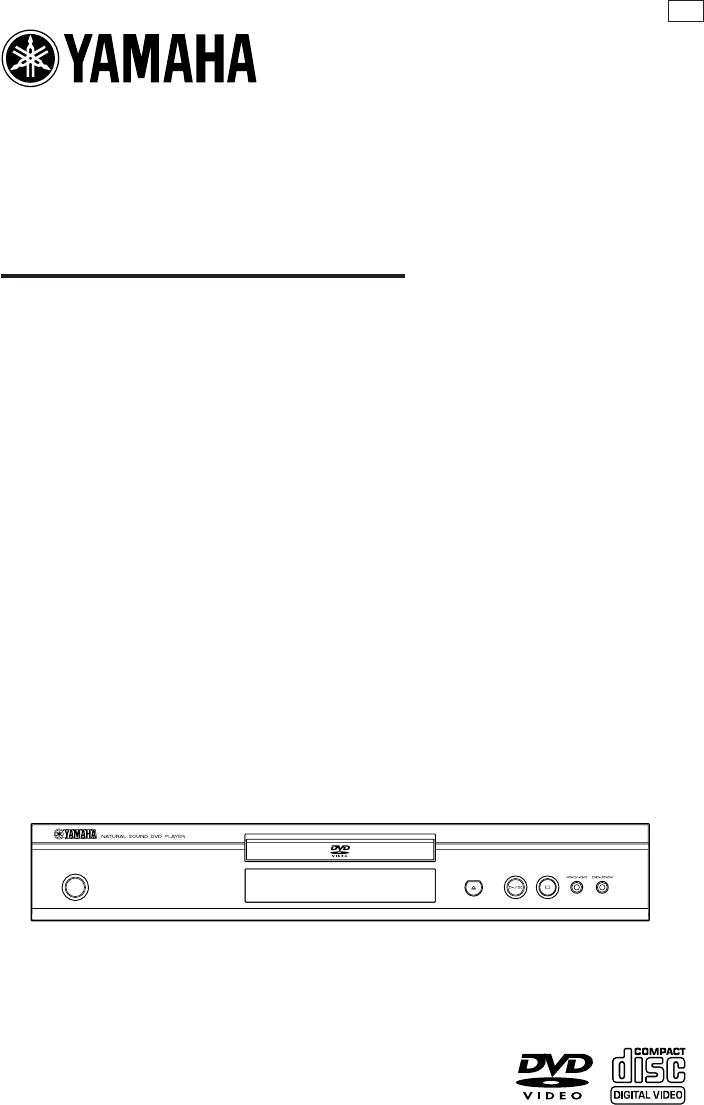
STANDBY
/ON
DVD / VIDEO CD / CD PLAYER
DVD-S540
OWNER’S MANUAL
U
This symbol warns the user that uninsulated voltage
within the unit may have sufficient magnitude to cause
electric shock. Therefore, it is dangerous to make
any kind of contact with any inside part of this unit.
This symbol alerts the user that important literature
concerning the operation and maintenance of this
unit has been included. Therefore, it should be read
carefully in order to avoid any problems.
CAUTION
RISK OF ELECTRIC SHOCK
DO NOT OPEN
CAUTION: TO REDUCE THE RISK OF ELECTRIC SHOCK,
DO NOT REMOVE COVER (OR BACK).
NO USER-SERVICEABLE PARTS INSIDE.
REFER SERVICING TO QUALIFIED SERVICE PERSONNEL.
WARNING
To r educe the risk of fire or electric shock, do not
expose this appliance to rain or moisture.
CAUTION
Use of controls or adjustments or performance of
procedures other than herein may result in hazardous
radiation exposure.
The set complies with the FCC-Rules, Part 15 and
with 21 CFR 1040.10.
1.
Read these instructions.
2.
Keep these instructions.
3.
Heed all warnings.
4.
Follow all instructions.
5.
Do not use this apparatus near water.
6.
Clean only with a dry cloth.
7.
Do not block any of the ventilation openings.
Install in accordance with the manufacturers
instructions.
8.
Do not install near any heat sources such as
radiators, heat registers, stoves, or other apparatus
(including amplifiers) that produce heat.
9.
Do not defeat the safety
purpose of the polarized or
grounding-type plug. A polarized plug
has two blades with one wider than
the other. A grounding type plug has two blades and a third
grounding prong.The wide blade or the third prong are
provided for your safety.When the provided plug does not
fit into your outlet, consult an electrician for replacement of
the obsolete outlet.
10.
Protect the power cord from being walked on or
pinched, particularly at plugs, convenience receptacles, and
the point where they exit from the apparatus.
11.
Only use attachments/accessories specified by the
manufacturer.
12.
Use only with a cart, stand, tripod, bracket,
or table specified by the manufacturer or sold
with the apparatus. When a cart is used, use
caution when moving the cart/apparatus
combination to avoid injury from tip-over.
13.
Unplug this apparatus during lightning storms or when
unused for long periods of time.
14.
Refer all servicing to qualified service personnel.
Servicing is required when the apparatus has been
damaged in any way, such as if the power-supply cord or
plug is damaged, liquid has been spilled or objects have
fallen into the apparatus, or when the apparatus has been
exposed to rain or moisture, does not operate normally, or
has been dropped.
15.
Battery usage
CAUTION
– To prevent battery leakage
which may result in bodily injury or damage to the unit:
Install all batteries correctly, +and -as marked on the unit.
Do not mix batteries (old and new or carbon and
alkaline, etc.).
Remove batteries when the unit is not used for a long time.
EL 6475-E002: 01/3
IMPORTANT SAFETY INSTRUCTIONS
AC Polarized
Plug
16. Be sure to allow spaces of at least 2.5cm above, behind and
on both sides the unit.
17. Do not place the following objects on this unit:
A vessel with water in it. If the vessel falls by vibrations and
water spills, it may cause damage to the unit, and/or you
may get an electric shock.
FCC INFORMATION (for US customers only)
1. IMPORTANT NOTICE: DO NOT MODIFY THIS UNIT!
This product, when installed as indicated in the instructions contained in this manual, meets FCC requirements. Modifications not expressly
approved by Yamaha may void your authority, granted by the FCC, to use the product.
2. IMPORTANT: When connecting this product to accessories and/or another product use only high quality shielded cables. Cable/s supplied with this
product MUST be used. Follow all installation instructions. Failure to follow instructions could void your FCC authorization to use this product in the
USA.
3. NOTE: This product has been tested and found to comply with the requirements listed in FCC Regulations, Part 15 for Class "B" digital devices.
Compliance with these requirements provides a reasonable level of assurance that your use of this product in a residential environment will not
result in harmful interference with other electronic devices. This equipment generates/uses radio frequencies and, if not installed and used accord-
ing to the instructions found in the users manual, may cause interference harmful to the operation of other electronic devices. Compliance with
FCC regulations does not guarantee that interference will not occur in all installations. If this product is found to be the source of interference,
which can be determined by turning the product "OFF" and "ON", please try to eliminate the problem by using one of the following measures:
Relocate either this product or the device that is being affected by the interference.
Utilize power outlets that are on different branch (circuit breaker or fuse) circuits or install AC line filter/s.
In the case of radio or TV interference, relocate/reorient the antenna. If the antenna lead-in is 300 ohm ribbon lead, change the lead-in to coaxial
type cable.
If these corrective measures do not produce satisfactory results, please contact the local retailer authorized to distribute this type of product. If you
can not locate the appropriate retailer, please contact Yamaha Electronics Corp., 6600 Orangethorpe Ave. Buena Park, CA90622.
The above statements apply ONLY to those products distributed by Yamaha Corporation of America or its subsidiaries.
We Want You Listening For A Lifetime
YAMAHA and the Electronic Industries Association's Consumer Electronics Group want you to get the most out of
your equipment by playing it at a safe level. One that lets the sound come through loud and clear without annoying
blaring or distortion - and, most importantly, without affecting your sensitive hearing.
Since hearing damage from loud sounds is often undetectable until it is too late, YAMAHA and the Electronic
Industries Association's Consumer Electronics Group recommend you to avoid prolonged exposure from excessive
volume levels.
For Customer Use:
Read carefully the information located at the rear panel of the
player and enter below the Serial No. Retain this information for
future reference.
Model No.
Serial No. __________________________
FOR CANADIAN CUSTOMERS
To prevent electric shock, match wide blade of plug to wide slot and
fully insert.
This Class B digital apparatus complies with Canadian ICES-003.
This digital apparatus does not exceed the Class B limits for radio noise
emissions from digital apparatus as set out in the Radio Interference
Regulations of the Canadian Department of Communications.
le laser
CAUTION
Use of controls or adjustments or
performance of procedures other than
those specified herein may result in
hazardous radiation exposure.
CAUTION
- Visible and invisib
radiation when open. Avoid exposure to beam.
CAUTION
- Visible and invisible laser radiation
when open. Avoid exposure to beam.
MODEL NO.
20 WATTS 60Hz
120 VOLTS
MADE IN CHINA
CAUTION: READ THIS BEFORE OPERATING YOUR UNIT.
1To assure the finest performance, please read
this manual carefully. Keep it in a safe place for
future reference.
2Install this unit in a well ventilated, cool, dry, clean
place — away from direct sunlight, heat sources,
vibration, dust, moisture, or cold. In a cabinet,
allow about 2.5cm (1 inch) of free space all
around this unit for adequate ventilation.
3Locate this unit away from other electrical
appliances, motors, or transformers to avoid
humming sounds.
4Do not expose this unit to sudden temperature
changes from cold to hot, nor locate this unit in
an environment with high humidity (i.e., a room
with a humidifier) to prevent condensation inside
this unit, which may cause an electrical shock, fire,
damage to this unit, and/or personal injury.
5Avoid installing this unit in a location where
foreign objects may fall onto this unit or where
this unit may be exposed to liquid dripping or
splashing. On the top of this unit, do not place:
–Other components, as they may cause
damage and/or discoloration on the surface
of this unit.
–Burning objects (i.e., candles), as they may
cause fire, damage to this unit, and/or
personal injury.
–Containers with liquid in them, as they may
fall, spilling the liquid and causing an electrical
shock to the user and/or damage to this unit.
6Do not cover this unit with a newspaper,
tablecloth, curtain, etc. in order not to obstruct
heat radiation. If the temperature inside this unit
rises, it may cause fire, damage to this unit, and/or
personal injury.
7Do not plug in this unit to a wall outlet until all
connections are complete.
8Do not operate this unit upside-down. It may
overheat, possibly causing damage.
9Do not use excessive force on switches, knobs
and/or cords.
10 When disconnecting the power cord from the
wall outlet, grasp the plug; do not pull the cord.
11 Do not clean this unit with chemical solvents; this
might damage the finish. Use a clean, dry cloth.
12 Use only the voltage specified on this unit. Using
this unit with a higher voltage than specified is
dangerous and may cause fire, damage to this
unit, and/or personal injury. YAMAHA will not be
held responsible for any damage resulting from
use of this unit with a voltage other than as
specified.
13 To prevent damage by lightning, disconnect the
power cord from the wall outlet during an
electrical storm.
14 Do not attempt to modify or fix this unit.
Contact qualified YAMAHA service personnel
when any service is needed. The cabinet should
never be opened for any reason.
15 When not planning to use this unit for long
periods of time (i.e., vacation), disconnect the AC
power plug from the wall outlet.
16 Be sure to read the “TROUBLESHOOTING”
section on common operating errors before
concluding that this unit is faulty.
17 Before moving this unit, press STANDBY/ON to
set the unit in standby mode, then disconnect
the AC power plug from the wall outlet.
WARNING
TO REDUCE THE RISK OF FIRE OR ELECTRIC
SHOCK, DO NOT EXPOSE THIS UNIT TO
RAIN OR MOISTURE.
NOTE:
Pictures shown maybe different between countries.
Never make or change connections with the power
switched on.
When playing DTS encoded CDs, excessive noise
will be heard from the analog stereo outputs. To
avoid possible damage to the audio system, the
consumer should take proper precautions when the
analog stereo outputs of the player are connected to
an amplification system. To enjoy DTS Digital
Surround™ playback, an external 5.1-channel DTS
Digital Surround™ decoder system must be
connected to the digital output of the player.
LASER SAFETY
This unit employs a laser. Due to possible eye injury,
only a qualified service person should remove the
cover or attempt to service this device.
CAUTION
VISIBLE AND INVISIBLE LASER RADIATION
WHEN OPEN. AVOID EXPOSURE TO BEAM
(WARNING LOCATION: INSIDE ON LASER
COVERSHIELD OR THE BACKPLATE OF SET)
LASER
Type Semiconductor laser GaAlAs
Wave length 650 nm (DVD)
780 nm (VCD/CD)
Output Power 7 mW (DVD)
10 mW (VCD/CD)
Beam divergence 60 degree

1
Introduction
Environmental Information ......................................2
Supplied accessories ..................................................2
Notes about discs ......................................................2
Cleaning discs..........................................................................2
Symbols Used in this Manual ...................................2
Functional Overview
Front and Rear Panels...............................................3
Remote Control.........................................................4
Preparation
General Notes on connections ..............................5
Digital Connections...................................................5
Analog Connections ..................................................5
Video Connections ....................................................6
S-Video terminal <A>.......................................................6
Component Video terminal <B> ...............................6
Composite Video terminal (1, 2) <C> ...................6
Inserting batteries into the Remote Control ......7
Using the Remote Control .............................................7
NTSC/PAL Conversion ............................................7
Turning on the power...............................................7
Smart Power On/Off.................................................7
Operation
Basic Playback .............................................................8
General Operation ....................................................8
Video control during playback ......................................8
Audio control during playback......................................8
Repeat and Shuffle...............................................................9
Repeat A-B...............................................................................9
Disc Resume............................................................................9
OSD (On-Screen Display)..............................................9
Zoom .......................................................................................10
Special DVD Features ............................................ 10
Playing a Title .......................................................................10
Playing a Chapter...............................................................10
Camera Angle......................................................................10
Changing the Audio Language and/or format...10
Subtitles...................................................................................10
Special VCD & SVCD Features............................ 10
Playback Control (PBC).................................................10
Preview Function ...............................................................11
Picture CD & MP3 Playback
General Operation.................................................. 12
MP3 & JPEG Navigator...................................................12
Play Mode..............................................................................12
Special JPEG Features............................................. 13
Function Introduction......................................................13
Preview Function ...............................................................13
Zoom picture.......................................................................13
Playback with multi-angles............................................13
Wipe Effect ...........................................................................13
Special MP3 Features..............................................13
Function Introduction......................................................13
JPEG and MP3 simultaneous playback ................13
Setup Menu
Basic Operation.......................................................14
General Setup menu............................................... 14
Disc Lock................................................................................14
Program (not for Picture CD/MP3)........................14
OSD language......................................................................15
Screen Saver.........................................................................15
Audio Setup menu................................................... 15
Speaker Setup......................................................................15
Digital Audio Setup ..........................................................16
Equalizer (Sound Mode)................................................16
3D (Reverb Mode)...........................................................16
Video Setup menu................................................... 17
TV Type..................................................................................17
TV Display .............................................................................17
Closed Caption...................................................................18
Progressive.............................................................................18
Picture Setting......................................................................18
Password Setup........................................................ 19
Preference Setup menu.......................................... 20
Audio language ...................................................................20
Subtitle language ................................................................20
Disc Menu language.........................................................20
Parental Control.................................................................21
Default Setup.......................................................................21
MP3/JPEG Navigator........................................................21
Troubleshooting ........................ 22
Specifications ............................. 23
Maintenance ............................... 23
Language Code .......................... 24
Contents
2
Thank you for purchasing this unit. This Owner’s
Manual explains the basic operation of this unit.
The region code is 1 for U.S.A and
Canada models.
Since it is usual for DVD movies to
be released at different times in
different regions of the world, all players have
region codes and discs can have an optional
region code. This unit can play discs containing the
identical region code, or mentioned as region
“ALL”. If you load a disc of a different region code
to this unit, you will see the region code notice on
the screen. The disc will not playback, and should
be unloaded.
Environmental Information
This unit consists of materials which can be
recycled and reused if disassembled by a
specialised company. Please observe the local
regulations regarding the disposal of packaging
materials, exhausted batteries and old equipment.
Supplied accessories
– Remote control
– Batteries (two AA size) for remote control
– Audio/Video cable
– Owner’s Manual
Notes about discs
– This unit is designed for use with DVD video,
Video CD, Super video CD, Audio CD, CD-R, CD-RW
(MP3 Supported), DVD+RW, DVD+R, DVD-R and
DVD-RW.
– CD-R and CD-RW cannot be played unless
finalized.
– Some discs cannot be played depending on the
recording conditions such as PC environment and
application software. The characteristics and
condition of the discs; materials, scratches,
curvature, and etc, may result in failure.
– Be sure to use only CD-R and CD-RW discs made
by reliable manufacturers.
– Do not use any non standard shaped discs (heart,
etc.)
– Do not use disc with tape, scals, or paste on it,
damage to the unit may result.
– Do not use a disc printed on its surface by a
commercially available label printer.
Cleaning discs
●
When a disc becomes dirty, clean it with a
cleaning cloth. Wipe the disc from the centre out.
Do not wipe in a circular motion.
●
Do not use solvents such as benzine, thinner,
commercially available cleaners, or antistatic spray
intended for analog records.
Symbols Used in this Manual
The below symbols appear in some headings and
notes with the following meanings:
●
Some DVD video discs require specific
functions or allow only limited functions
during playback.
●
“
Ä
” may appears on the TV screen
which means that the function is not
available on that specific DVD video disc.
1
Manufactured under license from Dolby Laboratories.
“Dolby” and the double-D symbol are trademarks of
Dolby Laboratories.
”DTS” and ”DTS Digital Out” are trademarks of
Digital Theater Systems, Inc.
This product incorporates copyright protection
technology that is protected by method claims of
certain U.S. patents and other intellectual property
rights owned by Macrovision Corporation and other
rights owners. Use of this copyright protection
technology must be authorized by Macrovision
Corporation, and is intended for home and other
limited viewing uses only unless otherwise authorized
by Macrovision Corporation. Reverse engineering or
disassembly is prohibited.
DVD
VCD
CD
– Description refers to playback of
DVD-video discs
– Description refers to playback of
Video CDs
– Description refers to playback of
Audio CDs
– Description refers to playback of
Super VCDs
SVCD
SVCD
Introduction
3
Front and Rear Panels
* Press button for about two seconds.
Caution: Do not touch the inner pins of the jacks on the rear panel.
Electrostatic discharge may cause permanent damage to the unit.
STANDBY
/ON
STANDBY/ON
–to turn this unit to standby mode or
ON
Disc Tray
/ OPEN/CLOSE
–to open/close the disc tray
B/ ; PLAY/PAUSE
– to start/interrupt playback
R/T
– search forward* / go to the next
chapter or track
S/Q
– search backward* / go to a previous
chapter or track
9 STOP
– to stop playback
COAXIAL
PCM
DTS MPEG
DIGITAL
OPTICAL
VIDEO
AUDIO OUT
VIDEO OUT
COMPONENT
S VIDEO P
R
P
B
Y
R
L
DIGITAL OUT
S-VIDEO
COMPONENT VIDEO
VIDEO
–connect to S-Video input of your AV
receiver
–connect to component video inputs of
your AV receiver
–connect to Video inputs of your AV
receiver
AC Power Cord
– connect to a standard AC outlet
COAXIAL
– connect to DIGITAL INPUT of your
AV receiver
– connect to DIGITAL INPUT of your
AV receiver
OPTICAL
– connect to AUDIO inputs of your
AV receiver or stereo system
AUDIO OUT (Left/Right)
Functional Overview
4
Remote Control
* Press and hold button for about two seconds.
MENU SETUP
ENTER
OK
STOP
ANGLE
AB
PAUSE
PLAY
23
546
8
0
79
1
TOP MENU RETURN
ON SCREEN
DVD
ZOOM AUDIO
MUTESCAN
SUBTITLE
REPEAT
B/ |
– turn this unit ON or go to
standby-on mode
0-9 numeric buttons
– select numbered items in a
menu
ON SCREEN
– access or remove player’s On
Screen Display menu
SETUP
– access or remove player’s setup
menu
T
– search forward* / next chapter
or track
SUBTITLE
– subtitle language selector
ANGLE
– select DVD camera angle
ZOOM
– enlarge video image
AUDIO
– audio language and format
selector
TOP MENU/RETURN
– display the top-level disc menu
(DVD) / go back to previous
menu (VCD)
MENU
– access menu of a disc (DVD) /
switch PBC on/off (VCD)
1 2 3 4
– (left/right/up/down) select an
item in the menu
ENTER/OK
– acknowledge menu selection
S
– search backward* / go to a
previous chapter or track
STOP ( 9 )
– stop playback
PLAY ( B )
– start playback
PAUSE ( ; )
– pause playback temporarily /
frame-by-frame playback
REPEAT
– repeat chapter, track, title, disc /
shuffle chapter, track
A-B
– repeat a specific segment
SCAN
– preview the content of a track
or whole disc (VCD) / play the
first 6 seconds or less of each
track (CD)
MUTE
– disable or enable sound output
Functional Overview
5
General Notes on connections
Never make or change connections with the
power switched on.
●
Depending on the equipment you wish to
connect, there are various ways you could
connect this unit. Possible connections are shown
in the following drawings.
●
Please refer to the manuals of other equipment as
necessary to make the best connections.
●
Do not connect this unit via your VCR. The video
quality could be distorted by the copy protection
system.
●
Do not connect this unit’s audio out jack to the
phono in jack of your audio system.
Digital Connections
This unit has COAXIAL and OPTICAL digital out
jacks. Connect one or both of them to your AV
receiver equipped with Dolby digital, DTS, or
MPEG decoder using each specific cable (separate
purchase).
You will need to set this unit’s digital
output to All (see ‘Digital Output’).
Note:
– If the audio format of the digital output does not
match the capabilities of your receiver, the receiver
will produce a strong, distorted sound or no sound at
all. Make sure to select the appropriate audio
format at menu screen included on the disc.
Pressing AUDIO once or more may change not only
audio languages but also audio formats, and the
selected format appears for several seconds on the
status window.
Analog Connections
Use audio/video cable supplied with this unit to
connect AUDIO OUT L (left) and R (right) jacks
of this unit to corresponding input jacks of your
audio equipment such as Stereo amplifier.
COAXIAL
PCM
DTS MPEG
DIGITAL
OPTICAL
VIDEO
AUDIO OUT
VIDEO OUT
COMPONENT
S VIDEO PRPB
Y
R
L
DIGITAL OUT
AV receiver
Left main
speaker
Left rear
speaker
Center speaker
Right main
speaker
Subwoofer
Right rear
speaker
COAXIAL
IN
OPTICAL
IN
CO
COAXIAL
PCM
DTS MPEG
DIGITAL
OPTICAL
VIDEO
AUDIO OUT
VIDEO OUT
COMPONENT
S VIDEO PRPB
Y
R
L
DIGITAL OUT
Stereo
amplifier
(supplied)
Left
speaker
Right
speaker
1 CD/DVD
RL
RL
L
R
Preparation
6
Video Connections
If your AV receiver has video output jacks,
connect your receiver (and then to your TV) so
that you can use one TV for several different
video sources (LD, VCR etc.) by simply switching
the input source selector of your receiver.
The player has three types of video output jacks.
Use one of them in accordance with the input
jacks of the equipment to be connected.
S-Video terminal <A>
S (separate) video connection achieves a clearer
picture than composite video connection by
separating color and luminance when transmitting
signals. Use commercially available S-video cable.
Receiver (and TV) with S-video input is required.
Component Video terminal <B>
Component video connection achieves high
fidelity in reproducing colors (better performance
than S-video connection), separating video signal
into luminance (Y, terminal color-coded as green),
and color difference (Pb, blue/Pr, red). Use
commercially available coaxial cables. Receiver
(and TV) with component input is required.
Observe the color of each jack when connecting.
If your receiver does not have component output
jacks, connecting the player’s component output
directly to your TV’s component input can
reproduce better video image.
Composite Video terminal (1, 2) <C>
Use audio/video cable supplied with this unit
when connecting the player to a TV.
VIDEO 1, 2 jacks of VIDEO OUT output the
same signal. You can connect one to your
receiver’s input using supplied Audio/Video cable,
and the other to another receiver or a TV.
COAXIAL
PCM
DTS MPEG
DIGITAL
OPTICAL
VIDEO
AUDIO OUT
VIDEO OUT
COMPONENT
S VIDEO PRPB
Y
R
L
DIGITAL OUT
VIDEO
OUT
VIDEO
IN
COMPONENT
VIDEO OUT
COMPONENT
VIDEO IN
S VIDEO
OUT
S VIDEO
IN
COMPONENT
VIDEO IN
S VIDEO
INPUT VIDEO
YPBCBPRCR
S
<B><A>
AV receiver
V<C>
(supplied)
Preparation
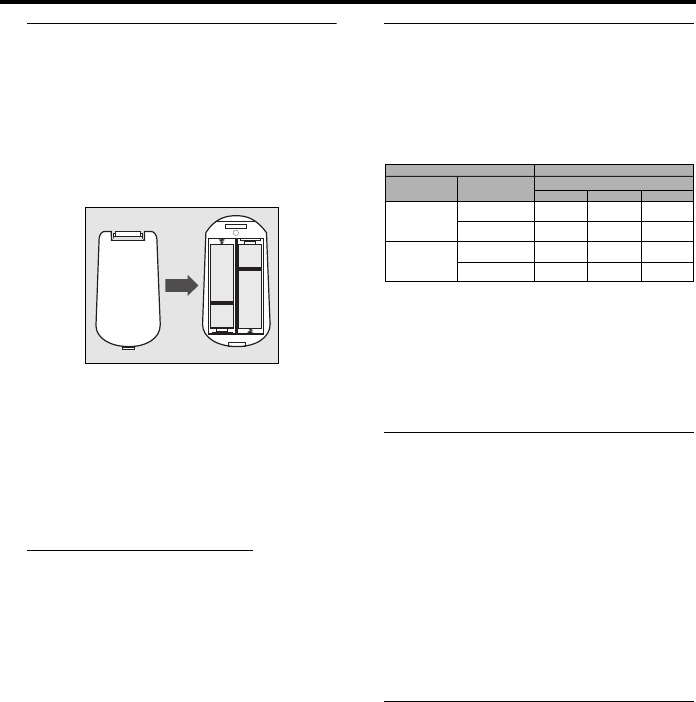
7
Inserting batteries into the
Remote Control
1
Open the battery cover by pressing in the tab,
then lift off the cover.
2
Insert batteries with the correct polarity as
indicated by the +
and -
symbols inside the
battery compartment.
3
Close the cover.
CAUTION!
– Remove batteries if they are exhausted or
not to be used for a long time.
– Do not use old and new or different types
of batteries in combination.
– Batteries contain chemical substances, so
they should be disposed off properly and
kept away from children.
Using the Remote Control
●Direct the remote control at the remote sensor
of the DVD player.
●Do not drop or give the remote control a shock.
●Do not leave the remote control in extremely hot
or humid places.
●Do not spill water or put anything wet on the
remote control.
NTSC/PAL Conversion
This player is equipped with a NTSC/PAL
conversion feature to convert the video output of
the disc to match your TV system. The
conversions supported are as below. To activate
the conversion, refer to “TV Type”:
Notes:
– “Multi” can only be selected when using a TV that
has both the NTSC and PAL systems.
– Slight picture distortions may occur due to this
conversion. This is normal. Thus, the “Multi” is most
suitable for the best picture quality.
Turning on the power
1Connect the AC power cord to the power outlet.
2Turn on the TV and your AV receiver.
3Select the appropriate input source at the AV
receiver that was used to connect to this unit.
Refer to the equipment owner’s manual for detail.
4Turn this unit on.
5Set the TV to the correct Video IN channel. (eg.
EXT1, EXT2, AV1, AV2, AUDIO/VIDEO, etc.
(Refer to your TV owner’s manual for detail)
➜ The front display lights up and the default
screen appears on the TV.
Smart Power On/Off
When in STOP or NO DISC mode, the DVD
player will switch to standby mode after 15
minutes without any operations for saving energy.
It is easily reactivated by pressing the POWER or
PLAY on the remote control or the STANDBY/
ON button on the front panel.
+
-
+
-
DVD
VCD
NTSC NTSC
NTSC
NTSC
NTSC
NTSCPA L
PAL
NTSC
PAL
PAL
PAL
PAL
PAL
NTSC
PAL
Type Format
Disc Output format
Selected mode
NTSC PAL MULTI
Preparation
8
Basic Playback
1Press STANDBY/ON on the front panel to turn
on the DVD player.
2Press / (OPEN/CLOSE) on the front panel to
open disc loading tray.
3Place the chosen disc in the tray, with the label
facing up.
4Press / (OPEN/CLOSE) again to close the tray.
➜ After recognizing this disc, the player begin to
playback automatically.
Notes:
– DVDs may have a region code. Your player will
not play discs that have a region code different from
the region code of your player.
– If ‘Disc Lock’ is set to LOCK and the disc inserted
is not authorized, the 6-digit code must be entered
and/or the disc must be authorized (see ‘Disc Lock’).
General Operation
Note: All instructions set out below refer to the
remote control, unless otherwise stated.
Video control during playback
STOP
1You can resume the play from the point at which
you stopped last time, if you just press STOP
once. It will start from the beginning if you press
STOP twice to stop playback.
PAUSE/STEP
1To get a still picture, press PAUSE during
playback.
2To step forward to the next frame picture, press
PAUSE again.
3To resume normal playback, press PLAY.
SKIP
1Press ¡1 or 2™ briefly during playback to go to
the next chapter/track or to return to the
beginning of the currect chapter/track
respectively.
2Press ¡1 twice briefly to step back to the
previous chapter/track.
3To go directly to any chapter/track, enter the
chapter/track number using the numeric buttons
and press ENTER/OK.
Note: Long press of the ¡1 or 2™ till switch on
backward or forward search.
SEARCH
1To search the contents in fast speed, press 2 or
1 for fast forward/backward searching.
2Press 2 or 1 again to increase the speed for
searching.
3Press PLAY to return to normal playback.
Slow Motion
1To get a slow motion effect during playback, press
3 or 4.
2Press 3 or 4 again, you can get different playback
forward/backward speeds.
3Press PLAY to return to normal play back.
1To get a slow motion effect during playback, press
4.
2Press 4 again, you can get different playback
forward speeds.
3Press PLAY to return to normal play back.
Note: The SLOW BACKWARD function is not
available for VCD/Super VCD discs.
Audio control during playback
MUTE
1Press MUTE to disable the sound output.
2Press MUTE again to deactivate the mute.
Audio channel selection
1Super VCD has two stereo audio channels which
are used for playing karaoke or the audio language
selection. ( for instance, you can choose one
channel for only the music background of the
song while you play the karaoke.)
2Press AUDIO to select the audio channels you
want.
3VCD has only one stereo audio channel, you can
select STEREO, MONO LEFT, MONO RIGHT or
MIX-MONO by pressing AUDIO.
➜ Stereo: Output the left and right audio
channels of the disc through the left and right
audio jacks accordingly.
➜ Mono Left: Output the left audio channels of
the disc through the left and right audio jacks.
DVDDVD VCDVCD CDCD SVCDSVCD
DVDDVD VCDVCD CDCD SVCDSVCD
DVDDVD VCDVCD CDCD SVCDSVCD
DVDDVD
VCDVCD SVCDSVCD
DVDDVD VCDVCD CDCD SVCDSVCD
VCDVCD CDCD SVCDSVCD
Operation
9
➜ Mono Right: Output the right audio channels
of the disc through the left and right audio jacks.
➜ MIX-Mono: each of the audio jacks can output
the same audio effect as stereo.
Repeat and Shuffle
●Each time you press REPEAT, the Repeat/Shuffle
mode changes as follows;
* This feature may not be available with some
discs.
With PBC OFF,
●Each time you press REPEAT, the Repeat/Shuffle
mode changes as follows;
Repeat A-B
DVD-Video Discs: repeat a sequence in a title
Video and Audio CDs: repeat a sequence in a
track
1Press Repeat A-B at your chosen starting point.
2Press Repeat A-B again at your chosen end point.
➜ The repeat sequence begins.
3To exit the sequence, press Repeat A-B.
Disc Resume
This player can resume playback of the last 5 discs,
even if the disc was ejected or the power
switched off.
1Load one disc, which is one of the last 5 discs.
2Press PLAY when DVD player is recognizing the
disc. If the information of this disc has been stored
in the memory of DVD player, it will be played
back from the stop point last time.
OSD (On-Screen Display)
This function will provide some information about
your playing disc on the screen.
●Press ON SCREEN.
The Status window appears on the TV.
Title/Chapter/Track selection
1Press 34 to select “Title” or “Chapter” (DVD) or
“Track” (VCD).
2Press ENTER/OK.
3Select a title, chapter or track number using the
numeric buttons.
Time Search
1Press 34 to select “TT Time” or “CH
Time”(DVD) or “Track Time” or “Disc
Time”(VCD).
➜ “TT Time” refers to the total time of the
current title, and the “CH Time” refers to the
total time of the current chapter.
2Press ENTER/OK.
3Enter hours, minutes and seconds from left to
right using the numeric buttons. (e.g. 0:34:27)
Audio/Subtitle/Angle
You can change “Audio”, “Subtitle” or “Angle” if
available on the disc you are playing.
1Press 34 to select “Audio”, “Subtitle” or “Angle”.
2Press ENTER/OK.
3For Audio and Subtitle,
Press 34 to highlight your selection and press
ENTER/OK.
or
For Angle,
Select an angle using the numeric buttons.
Repeat/Time Display
1Press 34 to select “Repeat” or “Time Disp.”.
2Press ENTER/OK.
3Press 34 to highlight your selection and press
ENTER/OK.
Time display
Each time you press ON SCREEN, the time
display changes as follows;
DVDDVD
Chapter Repeat* Title Repeat
ShuffleShuffle RepeatRepeat/Shuffle Off
VCDVCD CDCD
Track Repeat Disc Repeat
ShuffleShuffle RepeatRepeat/Shuffle Off
DVDDVD VCDVCD CDCD
DVDDVD VCDVCD CDCD SVCDSVCD
DVDDVD VCDVCD
DVDDVD VCDVCD
DVDDVD
DVDDVD VCDVCD
CDCD
Total Elapsed Total Remain
Single ElapsedSingle Remain
Operation
10
Zoom
The Zoom function allows you to change the
image size.
1Press ZOOM to activate the function.
➜ Use 341 2 to view other parts of the
zoomed picture.
➜ Playback will continue.
2Press ZOOM repeatedly to return to the original
size.
Special DVD Features
Playing a Title
A DVD disc may have one or more titles. This
depends on the content (a movie, video clips, a
drama series, etc.) on the disc.
●After you load a disc, information about the
content shows on the screen waiting for your
selection. You can also press TOP MENU to turn
back to the title menu during playback.
➜ Press the appropriate numeric buttons or
341 2 to highlight your selection.
➜ Press ENTER/OK to confirm.
Playing a Chapter
When you have selected a title, it may include one
or more chapters.
●Any time you want to watch another chapter
during playback, press MENU to turn back to the
chapter menu (If disc has chapter menu).
➜ Press the appropriate numeric buttons or
341 2 on the remote control to highlight your
selection.
➜ Press ENTER/OK.
➜ After a chapter has been selected, you also
can press ¡1 or 2™ to make a change.
Camera Angle
Some discs contain scenes which have been shot
simultaneously from various angles.
This DVD player allows you to select the desired
camera angle.
●Press ANGLE on your remote control.
Note: The function is available only for the DVD
discs which have several angles recorded.
Changing the Audio Language and/or
format
●Press AUDIO repeatedly to select the different
languages.
Note: The function will be activated only if the DVD
is recorded with multi-language audio tracks.
Subtitles
●Press SUBTITLE repeatedly to select the different
subtitles.
Note: The function will be activated, only if the DVD
or Super VCD is recorded with multi-subtitles.
Special VCD & SVCD Features
Playback Control (PBC)
PBC function allows you to enter the index menu
which is used to select a track after loading the
VCD & SVCD disc.
If you want to activate the function during the
playback or after pressing STOP twice,
1Press MENU to set the PBC On.
➜ Pay attention to the hint on the screen.
2Use ¡1 or 2™ to select the page you like.
➜ If the items of the index menus are numbered,
press the appropriate numeric buttons.
➜ Press ENTER/OK.
3Press RETURN to enter the index menu during
the playback.
Notes:
– The content of the index menu depends on the
disc. Please refer to the disc’s instructions for details.
– If the disc doesn’t include the PBC information,
this function will have no effect.
If you want to skip the index menu and
playback directly from the beginning,
1Press MENU to switch off the function.
DVDDVD VCDVCD SVCDSVCD
DVDDVD
DVDDVD
DVDDVD
DVDDVD
DVDDVD SVCDSVCD
Operation
11
Preview Function
●Press SCAN to enter previewing menu.
●Press 34 to highlight Track Digest, Disc Interval
or Track Interval.
●Press ENTER/OK to open one option.
●After you enter the menu of any digest type,
➜ To quit preview function: Press 341 2 to
highlight EXIT and press ENTER/OK.
➜ To return to the previewing menu for
selecting the other digest type: Press 341 2 to
highlight MENU and press ENTER/OK.
Note: You can select Track Interval only during
playback, with PBC Off.
1Track Digest
This function will minimize the picture of every
track in order to display every six of these tracks
on the screen to help you know the content of
every track on the disc.
- To choose the desired track, press 341 2 to
highlight the second line and input your selected
track number next to “SELECT”.
➜ Select the others from the current six by
pressing the ¡1 or 2™ to open the previous or
next page and press ENTER/OK.
2Disc Interval
This function is used to divide a disc into six parts
by regular intervals and display them on one page
to help you preview the whole disc.
- To choose the desired track, press 341 2 to
highlight the second line and input your numerical
selection next to “SELECT” and press ENTER/
OK.
3Track Interval
This function is used to divide a single track into
six parts by regular intervals and display them on
one page to help you preview the selected track.
-To choose the desired track, please press 341 2
to highlight the second line and input your
numerical selection next to “SELECT” and press
ENTER/OK.
Operation
12
This player can playback JPEG format pictures and
MP3 files on a personally recorded CD-R/RW
disc or commercial CD, and is compatible with
Kodak Picture CD.
●Playback pictures or songs one by one
automatically.
●Album and track selection.
●Repeat (disc / album / track / picture).
●Select any music or pictures from the disc to
playback them together.
●Maximum files numbers in one folder is 500.
●Maximum files Programmable is 100.
General Operation
●If you choose WITH MENU in the Setup Menu
(Please refer to the MP3 & JPEG navigator below),
the Picture CD/MP3 CD menu will be shown on
the screen before playback.
●At any time during JPEG playback, press MENU to
return to the menu.
●To open the selected folder, press ENTER/OK.
●The menu shows six files or folders at a time. To
move to the next (or previous) page, press 2™
(or ¡1).
MP3 & JPEG Navigator
To select a different playback method, follow the
steps below.
1At STOP mode, press SETUP to open the setup
menu.
2Press 1 2 to highlight PREFERENCE icon.
3Press 4 to open the PREFERENCE menu.
4Press 34 to highlight the MP3/JPEG NAV menu.
5Press 2 to enter the menu.
6Press 34 to highlight the WITHOUT MENU or
WITH MENU item.
➜ WITHOUT MENU: automatically playback all
files in according date sequence.
➜ WITH MENU: playback files in the selected
folder.
7Press ENTER/OK to confirm your selection.
Play Mode
Auto Playback
If you choose WITHOUT MENU, the DVD
player will automatically playback Picture CD/MP3
CD in sequence when it is loaded.
Repeat / Shuffle
●When the Picture CD/MP3 CD menu is shown
on the screen, Press REPEAT repeatedly, the
button beside PLAY MODE will display different
option,
➜ Repeat Folder: All files in this folder will be
replayed time after time.
➜ Shuffle: All files in this folder will be played at
random without any repeat.
➜ Folder: All files in this folder will be played.
●If you press REPEAT during playback, the option
will be displayed on the screen accordingly.
●During Shuffle mode, you can skip tracks by
pressing ¡1 or 2™.
Picture CD & MP3 Playback
13
Special JPEG Features
Function Introduction
Picture CD is a disc with a collection of JPEG
format pictures, and all extension filenames
should end with ‘JPG’. The CD can be recorded
on any computer, and pictures may be from digital
camera or scanner. If the customers prefer, they
can make this CD become a Digital Album.
You can choose any general function introduced
in General Operation, besides, you also can,
●Display the thumbnails of 12 pictures.
●Zoom the picture.
●Rotate the picture.
●Flip the picture vertically or horizontally.
●Scan pictures by different effects.
Preview Function
This function shows the content of the current
folder or the whole disc.
1Press STOP during playback of JPEG pictures. You
will see the thumbnails of 12 pictures on the
screen.
2Press ¡1 or 2™ to display the other pictures on
the next or the previous page.
3Press 341 2 to highlight one of them and press
ENTER/OK to playback, or,
Move the cursor to highlight on the
bottom of the page to start playback from the first
picture on the current page.
4Press MENU to go to the Picture CD/MP3 CD
menu.
Zoom picture
●During playback, press ZOOM to display the
picture with different scales.
●Press 341 2 to view the rest of the zoomed
picture.
Playback with multi-angles
When displaying one picture on TV screen
●Press 341 2 to get different effects.
3: Flip the picture vertically.
4: Flip the picture horizontally.
1: rotate the picture anti-clockwise.
2: rotate the picture clockwise.
Wipe Effect
●Press ANGLE repeatedly to choose different
wipe effects.
Special MP3 Features
Function Introduction
“MP3” stands for “MPEG Audio Layer-3”. and is a
part of the MPEG standard. A CD can store up to
10 hours of MP3 audio, which is nearly 10 times
as much as an Audio CD. Each song is recorded
as a file. You can choose any general function
introduced in General Operation. You can also
choose different playback speeds.
JPEG and MP3 simultaneous
playback
1Firstly playback MP3 music according to the
instructions introduced in playback Selection.
2Then select a picture to playback. Refer to the
instructions introduced in playback Selection.
➜ Now the pictures will be played back in
sequence together with MP3 music.
3To quit simultaneous playback, press MENU to
return to the Picture CD/MP3 CD menu, then
pictures will be stopped. After that, press STOP,
then MP3 music will be stopped as well.
Note: In the function of JPEG and MP3 Simultaneous
Playback, ¡1 and 2™ are invalid for MP3.
Picture CD & MP3 Playback
14
Basic Operation
1Press SETUP in the STOP mode to enter the
Setup Menu.
2Press ENTER/OK to go to the next level submenu
or confirm your selection.
3Press 1 2 to enter the submenu or return to the
previous menu.
4Press 34 to highlight the desired menu.
5Press SETUP to quit the setup menu.
➜ When you quit the setup menu, the settings
will be stored in the player’s memory even if the
player is switched to power off.
General Setup menu
Some settings need to be made in this menu.
They are: “Disc Lock”, “Program”, “OSD
Language” and “Screen Saver”.
Follow the steps below:
1Press SETUP to enter the setup menu.
2Press 1 2 to choose the GENERAL SETUP icon
.
Disc Lock
When the disc is locked, the player will store its
specific code into the memory for future
identification. For the next playback, the DVD
player will prompt you to enter the password.
Then, press ENTER/OK to load the disc.
1Press 34 to highlight “Disc Lock”.
2Enter its submenu by pressing 2.
➜ Lock: Lock the disc being played.
➜ Unlock: unlock the disc.
3Press 1 to return to the General Setup Page.
Program (not for Picture CD/MP3)
1press 34 to choose “Program”.
2Press 2 to move the cursor to the field of the
submenu to choose the item Input menu.
➜ Input menu: Enter the Program item.
3Press ENTER/OK to enter the program page.
Input your favorite track
1Input valid track number by pressing the numeric
buttons.
2Press 341 2 to move the cursor to the next
selected position.
➜ If the track number is more than ten, press 2™
to open the next page and go on programing, or
press 341 2 to highlight NEXT button, and then
press ENTER/OK.
3Repeat this steps to input another track number
until the whole program is completed.
Remove a track
1Press 341 2 to move the cursor to the track you
want to remove.
2Press ENTER/OK or PLAY to remove this track
from the program menu.
Playback tracks
When programing is completed,
1Press 341 2 to move the cursor to the START
button.
2Press ENTER/OK.
➜ DVD player will playback the selected tracks
under the programed sequence.
Quit the program playback
In the Program menu,
1Press 341 2 to move the cursor to the EXIT
button.
2Press ENTER/OK to quit this menu.
Stop the program playback
●During playback of the programmed tracks, press
STOP. Then after you press PLAY, the DVD
player will resume normal playback.
Setup Menu
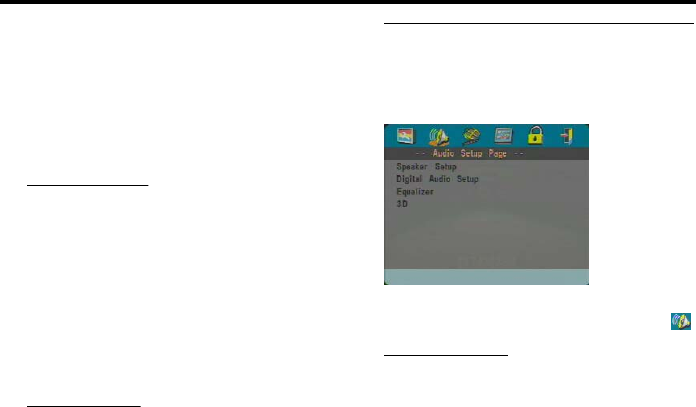
15
Repeat the program playback
●During playback of the programmed tracks, press
REPEAT. The programed tracks can be played
again.
Note: If you select Shuffle mode by pressing REPEAT
several times, the DVD player cancels program
playback.
OSD language
This option is to select a language for information
displayed on TV screen.
1Press 34 to highlight “OSD Language” in the
General Setup menu.
2Enter its submenu by pressing 2.
3Move the cursor by pressing 34 to highlight the
selected language.
4Press ENTER/OK to confirm.
5Press 1 to return to the General Setup Page.
Screen Saver
This function is used to turn the screen saver on
or off.
1Press 34 to highlight “Screen Saver” in the
General Setup menu.
2Enter its submenu by pressing 2.
3Move the cursor by pressing 34 to highlight the
selected item.
➜ On: In STOP or No DISC mode, if no actions
are performed within 5~6 minutes, the screen
saver will be activated.
➜ Off: Screen saver is disabled.
4Press ENTER/OK.
5Press 1 to return to the General Setup Page.
Audio Setup menu
There are items included in Audio Setup Page
such as “Speaker Setup”, “Digital Audio Setup”,
“Equalizer” and “3D”.
1Press SETUP to enter the setup menu.
2Press 1 2 to choose the AUDIO SETUP icon .
Speaker Setup
This menu contains setup options for your analog
audio output, such as “Downmix”, “D.R.C.”
(Dynamic Range Compression) etc. which makes
the setup system reproduce high quality surround
sound.
Downmix
1Press 34 to highlight the “Downmix”.
2Enter its submenu by pressing 2.
3Move the cursor by pressing 34 to highlight the
selected item.
●LT/RT
➜ This option should be used only if your DVD
player is connected to a Dolby Prologic decoder.
●Stereo
➜ This option will downmix Dolby Digital signals
directly into analogue stereo from L/R jacks.
●Virtual Surround
➜ This option will reproduce the surround
channels virtually.
4Press ENTER/OK.
5Press 1 to return to the Audio Setup Page.
D.R.C. (Dynamic Range Compression)
The DVD player will compress the dynamic range
of its sound output for late-night listening.
1Press 34 to highlight “D.R.C.”.
2Enter its submenu by pressing 2.
3Move the cursor by pressing 34 to highlight the
selected item.
➜ On: Enable D.R.C.
➜ Off: Disable D.R.C.
4Press ENTER/OK.
5Press 1 to return to the Audio Setup Page.
Setup Menu

16
Digital Audio Setup
In this menu, you can set up the digital audio
output signal from the digital jacks, such as coaxial
etc.
Digital Output
1Press 34 to highlight Digital Output.
2Enter its submenu by pressing 2.
3Press 34 to highlight the selected item.
➜ All: Original digital signals output. In this mode,
all audio settings except MUTE are invalid.
➜ PCM Only: If your receiver is PCM-
compatible, or your receiver can not decode
MPEG-2, Dolby Digital, or DTS audio, choose this
option.
4Press ENTER/OK.
5Press 1 and return to the Audio Setup Page.
Note: If Digital Output is set to All, all audio settings
except MUTE are invalid.
LPCM Output
In this menu, you can select PCM digital output
between 48kHz and 96kHz.
1Press 34 to highlight the LPCM Output.
2Enter its submenu by pressing 2.
3Move the cursor by pressing 34 to highlight the
selected item.
➜ 48K: 96kHz (if available on disc) PCM data
stream will be converted to 48kHz.
➜ 96K: If the 96kHz disc is copy protected, the
disital output will be muted to comply with the
standards.
4Press ENTER/OK.
5Press 1 to return to the Audio Setup Page.
Equalizer (Sound Mode)
The “Equalizer” allow you to select from various
preset modes that control the frequency bands of
sound to optimize certain musical styles.
It greatly enhances the excitement and enjoyment
of your favourite music.
1Press 34 to highlight the “Equalizer”.
2Enter its submenu “Sound Mode” by pressing 2.
3Press 2.
4Move the cursor by pressing 34 to highlight the
selected item.
➜ None: Playback the disc under the original
sound effect.
5Press ENTER/OK.
6Press 1 to return to the Audio Setup Page.
3D (Reverb Mode)
The “3D” can simulate the echoes and
frequency response of some particular places so
as to make you feel like personally on the place.
1Press 34 to highlight the “3D”.
2Enter its submenu “Reverb Mode” by pressing 2.
3Press 2.
4Move the cursor by pressing 34 to highlight the
selected item.
➜ Off: Playback the disc under the original sound
effect.
5Press ENTER/OK.
6Press 1 to return to the Audio Setup Page.
Setup Menu
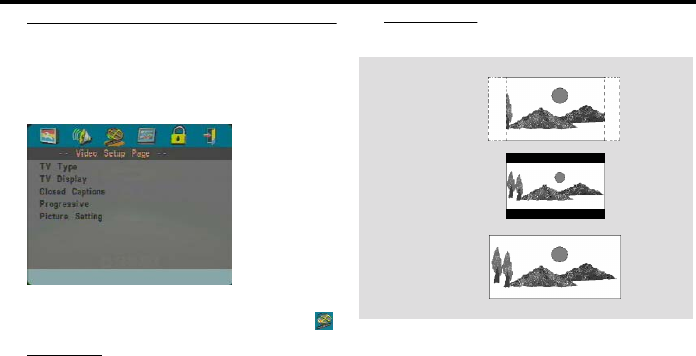
17
Video Setup menu
There are items included in Video Setup menu
such as “TV Type”, “TV Display”, “Closed
Caption”, “Progressive” and “Picture Setting”.
1Press SETUP to enter the setup menu.
2Press 1 2 to choose the VIDEO SETUP icon .
TV Type
Before viewing the DVD or VCD, ensure that the
PAL or NTSC setting of the system matches your
TV set.
1Press 34 to highlight “TV Type” in the Video
Setup menu.
2Enter its submenu by pressing 2.
3Move the cursor by pressing 34 to highlight one
option.
4Press ENTER/OK.
5Press 1 to return to the Video Setup Page.
Note: Choosing NTSC item indicates that the player
will output NTSC signals, Similarly, you can get PAL
signals by choosing the PAL option. The option Multi
means video output depends on the format of the
DVD or VCD discs.
TV Display
Select the aspect ratio of the TV to be connected.
4:3 PANSCAN ➜ when you connect a normal
TV to the DVD player. Displays the wide picture
on the whole TV screen with a portion
automatically cut off.
4:3 LETTERBOX ➜ when you connect a
normal TV to the DVD player. Displays a wide
picture with bands displayed on the upper and
lower portions of the TV screen.
16:9 ➜ when you connect a wide-screen TV to
the DVD player.
Setup the item as follows,
1Press 34 to highlight the “TV Display” option in
the Video Setup menu.
2Enter its submenu by pressing 2.
3Move the cursor by pressing 34 to highlight the
selected item.
4Press ENTER/OK.
5Press 1 to return to the Video Setup Page.
4:3
LETTERBOX
4:3
PANSCAN
16:9
Setup Menu
18
Closed Caption
Closed captions are data that are hidden in the
video signal on specific discs, invisible without a
special decoder. The difference between subtitles
and captions is that subtitles are intended for
hearing persons and captions are for the hearing
impaired. Subtitles rarely show all of the audio.
For example, captions show sound effects (e.g.,
“phone ringing” and “footsteps”), while subtitles
don’t.
Before you select this function, please ensure that
the disc contains closed captions information and
your TV set also has this function.
1Press 34 to highlight “Closed Caption” in the
Video Setup menu.
2Enter its submenu by pressing 2.
3Move the cursor by pressing 34 to highlight one
option.
➜ On: Enable Closed Caption.
➜ Off: Disable Closed Caption.
4Press ENTER/OK.
5Press 1 to return to the Video Setup Page.
Progressive
This player’s COMPONENT video jack can
output progressive signals to a progressive signal
compatible TV for an extra high-quality picture.
1Press 34 to highlight “Progressive”.
2Enter its submenu by pressing 2.
3Move the cursor by pressing 34 to highlight one
option.
➜ On: Enable Progressive.
➜ Off: Disable Progressive.
If you select “On”, the player prompt you to
comfirm your selection.
4Press ENTER/OK.
5Press 1 to return to the Video Setup Page.
Notes on activating Progressive:
●Ensure that your TV has progressive scan.
●Connect with YPbPr video cable.
●When the Progressive is active, the VIDEO
(CVBS) and S VIDEO jacks do not output video
signals.
●If there is no picture, wait 15 seconds for auto
recover or disactivate Progressive manually.
1Open the disc tray by pressing / (OPEN/
CLOSE)on the front panel.
2Press 1.
3Press MUTE.
Picture Setting
In this menu, you can personalize your picture
color by adjusting brightness, contrast, tint and
color (saturation).
1Press 34 to highlight “Picture Setting” in the
Video Setup menu.
2Press 2 to open its submenu.
Brightness
1Press 34 to highlight “Brightness”.
2Press 2 to open the level bar.
3Press 1 2 to increase and decrease the brightness
level.
4Press ENTER/OK to return to the Picture Setting
menu.
Contrast
1Press 34 to highlight “Contrast”.
2Press 2 to open the level bar.
3Press 1 2 to increase and decrease the contrast
level.
4Press ENTER/OK to return to the Picture Setting
menu.
Tint
1Press 34 to highlight “Tint”.
2Press 2 to open the level bar.
3Press 1 2 to increase and decrease the tint level.
4Press ENTER/OK to return to the Picture Setting
menu.
CONSUMERS SHOULD NOTE THAT NOT ALL
HIGH DEFINITION TELEVISION SETS ARE
FULLY COMPATIBLE WITH THIS PRODUCT
AND MAY CAUSE ARTIFACTS TO BE
DISPLAYED IN THE PICTURE. IN CASE OF 525
PROGRESSIVE SCAN PICTURE PROBLEMS, IT IS
RECOMMENDED THAT THE USER SWITCH
THE CONNECTION TO THE “STANDARD
DEFINITION” OUTPUT. IF THERE ARE
QUESTIONS REGARDING OUR VIDEO
MONITOR COMPATIBILITY WITH THIS
MODEL 525P DVD PLAYER, PLEASE CONTACT
OUR CUSTOMER SERVICE CENTER.
This unit is compatible with the complete line of
YAMAHA products, including the projectors DPX-
1, DPX-1000, LPX-500 and the plasma monitor
PDM-1.
BRIGHTNESS -1
Setup Menu
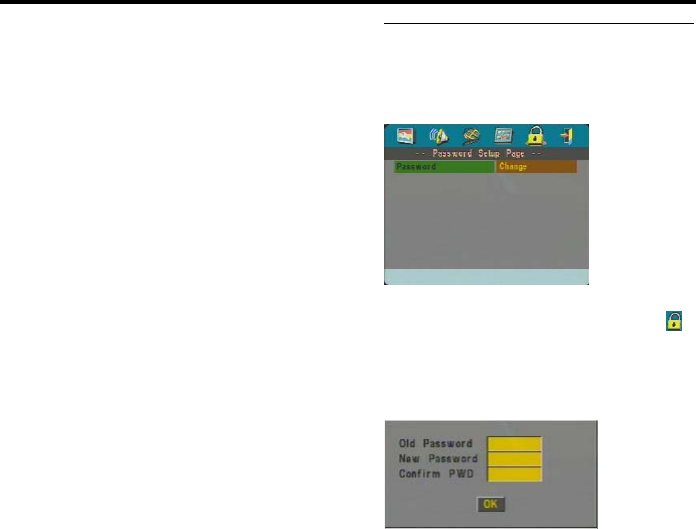
19
Color (saturation)
1Press 34 to highlight “Color”.
2Press 2 to open the level bar.
3Press 1 2 to increase and decrease the color
level.
4Press ENTER/OK to return to the Picture Setting
menu.
Password Setup
This item is used for the parental control and disc
lock. Enter your six digit password when a hint is
displayed on the screen.
1Press SETUP to enter the setup menu.
2Press 1 2 to choose the PASSWORD icon .
3Press 4 to highlight “Password”.
4Press 2 to highlight “Change”.
5Press ENTER/OK to open the Password Change
Page.
6Press 4 to repeatedly until the player prompt you
to enter the old password.
7Enter the current 6 digit code.
8If successful, the player will prompt for a new one.
9After that, enter the new password again to
reconfirm.
10 Press ENTER/OK to return to the Password
Setup Page.
Notes:
– You can change the setup of parental control and
load a locked disc with a valid password being
entered.
– If you forget your password, you can enter the
default password 842100, then you can input your
password after logging on.
Setup Menu
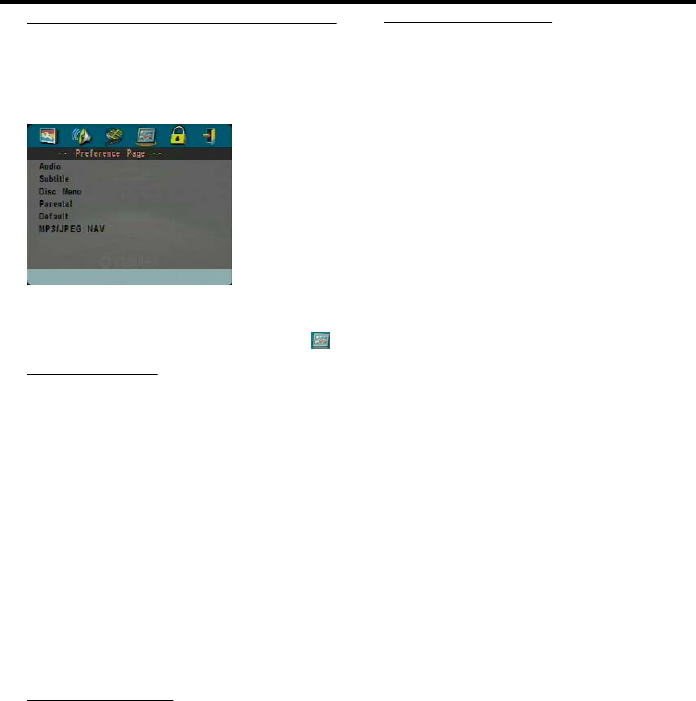
20
Preference Setup menu
There are options included in this menu such as
“Audio”, “Subtitle”, “Disc Menu”, “Parental”,
“Default” and “MP3/JPEG NAV”.
1Press STOP twice.
2Press SETUP to enter the setup menu.
3Press 1 2 to choose the PREFERENCE icon .
Audio language
DVD discs are available with multiple audio
languages. Use this option to select the preferred
default audio language.
1Press 34 to highlight “Audio”.
2Enter the submenu by pressing 2.
3Move the cursor by pressing 34 to highlight the
selected option.
➜ If you want to choose other languages, please
refer to the instructions on the next page.
4Press ENTER/OK.
5Press 1 to return to the Preference Page.
Note: Your DVD disc may not include the audio
language which you set in the AUDIO menu. If so,
the player will use another audio language instead.
Subtitle language
DVD discs are available with multi-subtitle
languages. Use this option to select the preferred
default subtitle language.
1Press 34 to highlight “Subtitle”.
2Enter the submenu by pressing 2.
3Move the cursor by pressing 34 to highlight the
selected option.
➜ If you want to choose other languages, please
refer to the following instructions.
4Press ENTER/OK.
5Press 1 to return to the Preference Page.
Note: Your DVD disc may not include the subtitle
which you set in the SUBTITLE menu. If so, the
player will use another subtitle language instead.
Disc Menu language
DVD discs are available with multiple disc menu
languages. This option is used to select the default
disc menu language.
1Press 34 to highlight “Disc Menu”.
2Enter the submenu by pressing 2.
3Move the cursor by pressing 34 to highlight the
selected item.
➜ If you want to choose other languages, please
refer to the following instructions.
4Press ENTER/OK.
5Press 1 to return to the Preference Page.
Note: If your DVD disc doesn’t include the disc menu
language you have set, the player will use another
recorded language instead.
If you choose Others in Audio, Subtitle or
Disc Menu menu,
You can select other languages. Please do as
follows,
1Move the cursor by pressing 34 to highlight
“Others”.
2Press ENTER/OK.
➜ The DVD player will prompt you to enter a
language code (Four digits).
3Input a language code by pressing numeric
buttons.
➜ Please look up the preferred language code in
the chapter LANGUAGE CODE, which can be
found at the end of this manual.
4Press ENTER/OK.
Setup Menu
21
Parental Control
Movies on DVDs may contain scenes which are
not suitable for children. Therefore, discs may
contain ‘Parental Control’ information which
applies to the complete disc or to certain scenes
on the disc. These scenes are rated from 1 to 8,
and alternative, more suitable scenes are available
on the disc. Ratings are country dependent. The
‘Parental Control’ feature allows you to prevent
discs from being played by your children or to
have certain discs played with alternative scenes.
●VCD, SVCD, CD have no level indication, so
parental control function has no effect on those
kinds of discs. This applies to most illegal DVD
discs.
●You can follow the steps below to setup the
parental control:
1Press 34 to highlight “Parental”.
2Move to its submenu by pressing 2.
3Then use 34 to highlight a rating for the disc
inserted.
4Press ENTER/OK to confirm, then press 1 to
return to the Preference Page.
No Parental Control
Parental Control is not activated. The Disc will be
played in full.
1Select 8 ADULT item.
2Press ENTER/OK.
Ratings 1 to 7:
3Some discs contain scenes which are not suitable
for children. All scenes with a rating higher than
you set will be skipped during playback. However
if the disc contains alternate scenes, these will play
automatically. If not, the playback will stop and the
six digits code will need to be entered again.
Default Setup
If problems occur while setting up the DVD
player, the “Default” function can be used to reset
all options to the factory defaults and all your
personal settings will be erased.
1Press 34 to highlight “Default”.
2Highlight RESET by pressing 2.
3Press ENTER/OK.
Note: When this function is activated, all setups will
be reset to factory defaults.
MP3/JPEG Navigator
This menu allows you to select alternate settings
when you playback picture CD and MP3 CD.
1Press 34 to highlight MP3/JPEG NAV.
2Press 2 to enter the submenu.
3Press 34 to highlight WITHOUT MENU or
WITH MENU.
➜ WITHOUT MENU: playback all pictures or
MP3 music in sequence automatically.
➜ WITH MENU: playback pictures or MP3
music in the selected folder.
4Press ENTER/OK to confirm your selection.
DVDDVD
Setup Menu

22
Refer to the chart below when this unit does not function properly. If the problem you are
experiencing is not listed below or if the instruction below does not help, set this unit to the
standby mode, disconnect the power cord, and contact the nearest authorized YAMAHA dealer
or service center.
Problem Solution
No power – Check if the AC power cord is properly connected.
No picture – Check if the TV is switched on.
– Check the video connection.
– If you did not use Progressive Scan connections (using the Y PB
PR jacks on the DVD Player) and you do not have a picture at the
TV, please follow the steps below to turn off Progressive Scan;
1. Press / (OPEN/CLOSE) to open the disc tray.
2. Press 2.
3. Then press MUTE to deactivate the Progressive. The DVD
Player will reset itself to Component/Interlaced video. The disc
tray will closed automatically to let you know it has reset itself.
Distorted picture – The disc is badly scratched or dirty.
– Sometimes a small amount of picture distortion may appear.
This is not a malfunction.
Completely distorted picture or black/
white picture with DVD or Video CD
–Make sure the NTSC/PAL setting at the DVD player matches the
video signal of your television. (See NTSC/PAL CONVERSION)
No sound or distorted sound – Adjust the volume.
– Check that the speakers are connected correctly.
No audio at digital output – Check the digital connections.
– Check if your receiver can decode MPEG-2 or DTS and if not,
please make sure the digital output is set to PCM.
–Check if the audio format of the selected audio language matches
your receiver capabilities.
Disc can’t be played – The DVD+R/DVD+RW/DVD-R/DVD-RW/CD-R/CD-RW
must be finalized.
– Ensure the disc label is facing up.
– Check if the disc is defective by trying another disc.
– If you have recorded this particular Picture CD or MP3 CD
yourself, please ensure that your disc contains at least about 6~10
pictures or 3~5MP3 music tracks before using it with the player.
No return to start-up screen when
disc is removed
– Reset the unit by switching the player off, then on again.
The player does not respond to the
remote control
–Aim the remote control directly at the sensor on the front of the
player.
– Reduce the distance to the player.
– Replace the batteries in the remote control.
– Insert the batteries with their polarities (+/– signs) as indicated.
Buttons do not work –In order to completely reset the player, unplug the AC cord from
the AC outlet.
Player does not respond to some
operating commands during playback
– Operations may not be permitted by the disc. Refer to the
instructions of the disc.
DVD Video player cannot read CDs/
DVDs
– Use a commonly available cleaning CD/DVD to clean the lens
before sending the DVD Video player for repair.
Troubleshooting
23
PLAYBACK SYSTEM
DVD Video
Video CD & SVCD
CD
PICTURE CD
CD-R, CD-RW
DVD+R, DVD+RW
DVD-R, DVD-RW
VIDEO PERFORMANCE
Video (CVBS) Output 1 Vpp into 75 ohm
S-Video output Y: 1 Vpp into 75 ohm
C: 0.3 Vpp into 75 ohm
Component video output Y: 1 Vpp into 75 ohm
Pb/Cb Pr/Cr: 0.7 Vpp into
75 ohm
Black Level Shift On/Off
Video Shift Left/Right
AUDIO FORMAT
Digital Mpeg/ AC-3/ DTS Compressed Digital
PCM 16, 20, 24 bits
fs, 44.1, 48, 96 kHz
MP3(ISO 9660) 24, 32, 56, 64, 96, 128, 256 kbps
fs, 16, 22.05, 24, 32, 44.1, 48 kHz
Analog Sound Stereo
Specifications subject to change without prior notice.
AUDIO PERFORMANCE
DA Converter 24bit
Signal-Noise (1 kHz) 105dB
Dynamic range (1 kHz) 100dB
DVD fs 96 kHz 2Hz- 44kHz
fs 48 kHz 2Hz- 22kHz
SVCD fs 48 kHz 2Hz- 22kHz
fs 44.1kHz 2Hz- 20kHz
CD/VCD fs 44.1kHz 2Hz- 20kHz
Distortion and Noise (1 kHz) 0.003%
TV STANDARD (PAL/50Hz) (NTSC/60Hz)
Number of lines 625 525
Playback Multistandard (PAL/NTSC)
CONNECTIONS
Y Output Cinch (green)
Pb/Cb Output Cinch (blue)
Pr/Cr Output Cinch (red)
S-Video Output Mini DIN, 4 pins
Video Output Cinch
Audio Output (L+R) Cinch
Digital Output 1 coaxial, 1 optical
IEC958 for CDDA / LPCM/
MPEG1
IEC1937 for MPEG 2, Dolby
Digital and DTS
CABINET
Dimensions (w x d x h) 435 x 302 x 75 mm
Weight Approx. 2.8 Kg
POWER SUPPLY
Power inlet 120V, 60Hz
Power usage Approx. 12W
Power usage standby < 1W
Maintenance
Cleaning the Cabinet
●Use a soft cloth slightly moistened with a mild
detergent solution. Do not use a solution
containing alcohol, spirits, ammonia or abrasives.
Cleaning Discs
●When a disc becomes dirty, clean it with a
cleaning cloth. Wipe the disc from the center out.
Do not wipe in a circular motion.
●Do not use solvents such as benzine, thinner,
commercially available cleaners, or antistatic spray
intended for analog records.
Specifications

24
These pages can be used to select other languages.This does not affect the options in
“Audio”, “Subtitle” or “Disc Menu”.
Abkhazian 6566 German 6869
Afar 6565 Gikuyu; Kikuyu 7573
Afrikaans 6570 Greek, 6976
Albanian 8381 Guarani 7178
Amharic 6577 Gujarati 7185
Arabic 6582 Hausa 7265
Armenian 7289 Hebrew 7269
Assamese 6583 Herero 7290
Avestan 6569 Hindi 7273
Aymara 6589 Hiri Motu 7279
Azerbaijani 6590 Hungarian 7285
Bashkir 6665 Icelandic 7383
Basque 6985 Ido 7379
Belarusian 6669 Indonesian 7368
Bengali 6678 Interlingua (International) 7365
Bihari 6672 Interlingue 7369
Bislama 6673 Inuktitut 7385
Bokmål, Norwegian 7866 Inupiaq 7375
Bosnian 6683 Irish 7165
Breton 6682 Italian 7384
Bulgarian 6671 Japanese 7465
Burmese 7789 Javanese 7486
Castilian, Spanish 6983 Kalaallisut 7576
Catalan 6765 Kannada 7578
Chamorro 6772 Kashmiri 7583
Chechen 6769 Kazakh 7575
Chewa; Chichewa; Nyanja 7889 Khmer 7577
Chichewa; Chewa; Nyanja 7889 Kikuyu; Gikuyu 7573
Chinese 9072 Kinyarwanda 8287
Chuang; Zhuang 9065 Kirghiz 7589
Church Slavic; Slavonic; 6785 Komi 7586
Church Slavonic; Church 6785 Korean 7579
Chuvash 6786 Kuanyama; Kwanyama 7574
Cornish 7587 Kurdish 7585
Corsican 6779 Kwanyama; Kuanyama 7574
Croatian 7282 Lao 7679
Czech 6783 Latin 7665
Danish 6865 Latvian 7686
Dutch 7876 Letzeburgesch; 7666
Dzongkha 6890 Limburgan; Limburger; 7673
English 6978 Limburger; Limburgan; 7673
Esperanto 6979 Limburgish; Limburger; 7673
Estonian 6984 Lingala 7678
Faroese 7079 Lithuanian 7684
Fijian 7074 Luxembourgish; 7666
Finnish 7073 Macedonian 7775
French 7082 Malagasy 7771
Frisian 7089 Malay 7783
Gaelic; Scottish Gaelic 7168 Malayalam 7776
Gallegan 7176 Maltese 7784
Georgian 7565 Manx 7186
Language Code
25
These pages can be used to select other languages.This does not affect the options in
“Audio”, “Subtitle” or “Disc Menu”.
Maori 7773 Sotho, Southem 8384
Marathi 7782 South Ndebele 7882
Marshallese 7772 Spanish; Castilian 6983
Moldavian 7779 Sundanese 8385
Mongolian 7778 Swahili 8387
Nauru 7865 Swati 8383
Navaho, Navajo 7886 Swedish 8386
Navajo; Navaho 7886 Tagalog 8476
Ndebele, North 7868 Tahitian 8489
Ndebele, South 7882 Tajik 8471
Ndonga 7871 Tamil 8465
Nepali 7869 Tatar 8484
Northern Sami 8369 Telugu 8469
North Ndebele 7868 Thai 8472
Norwegian 7879 Tibetan 6679
Norwegian Bokmål; Bokmål, 7866 Tigrinya 8473
Norwegian Nynorsk; 7878 Tonga (Tonga Islands) 8479
Nyanja; Chichewa; Chewa 7889 Tsonga 8483
Nynorsk, Norwegian; 7878 Tswana 8478
Occitan (post 1500); Proven 7967 Turkish 8482
Old Bulgarian; Old Slavonic; 6785 Turkmen 8475
Old Church Slavonic; Old 6785 Twi 8487
Old Slavonic; Church 6785 Uighur 8571
Oriya 7982 Ukrainian 8575
Oromo 7977 Urdu 8582
Ossetian; Ossetic 7983 Uzbek 8590
Ossetic; Ossetian 7983 Vietnamese 8673
Pali 8073 Volapük 8679
Panjabi 8065 Walloon 8765
Persian 7065 Welsh 6789
Polish 8076 Wolof 8779
Portuguese 8084 Xhosa 8872
Provençal; Occitan (post) 7967 Yiddish 8973
Pushto 8083 Yoruba 8979
Quechua 8185 Zhuang; Chuang 9065
Raeto-Romance 8277 Zulu 9085
Romanian 8279
Rundi 8278
Russian 8285
Samoan 8377
Sango 8371
Sanskrit 8365
Sardinian 8367
Scottish Gaelic; Gaelic 7168
Serbian 8382
Shona 8378
Sindhi 8368
Sinhalese 8373
Slovak 8375
Slovenian 8376
Somali 8379
Language Code

YAMAHA CORPORATION
IP
Printed in China
YAMAHA ELECTRONICS CORPORATION, USA 6660 ORANGETHORPE AVE., BUENA PARK, CALIF. 90620, U.S.A.
YAMAHA CANADA MUSIC LTD. 135 MILNER AVE., SCARBOROUGH, ONTARIO M1S 3R1, CANADA
YAMAHA ELECTRONIK EUROPA G.m.b.H. SIEMENSSTR. 22-34, 25462 RELLINGEN BEI HAMBURG, F.R. OF GERMANY
YAMAHA ELECTRONIQUE FRANCE S.A. RUE AMBROISE CROIZAT BP70 CROISSY-BEAUBOURG 77312 MARNE-LA-VALLEE CEDEX02, FRANCE
YAMAHA ELECTRONICS (UK) LTD. YAMAHA HOUSE, 200 RICKMANSWORTH ROAD WATFORD, HERTS WD18 7GQ, ENGLAND
YAMAHA SCANDINAVIA A.B. J A WETTERGRENS GATA 1, BOX 30053, 400 43 VÄSTRA FRÖLUNDA, SWEDEN
YAMAHA MUSIC AUSTRALIA PTY, LTD. 17-33 MARKET ST., SOUTH MELBOURNE, 3205 VIC., AUSTRALIA
3139 246 12401
