Yamaha Supplement For Pandora English
User Manual: Yamaha Supplement for Pandora
Open the PDF directly: View PDF  .
.
Page Count: 4
En 1
Supplement for Pandora®
Pandora is a free, personalized Internet radio service
playing only music you love. Enter your favorite artists or
tracks and Pandora will bring an effortless personal
soundtrack into your living room. Rate tracks as they
play, because Pandora caters to your tastes and adapts
stations to your feedback on the spot.
Since all Pandora accounts are portable, you can
always access your own personalized Pandora stations
from any computer or device in the United States that
supports Pandora. Pandora is only available within the
United States due to licensing restrictions.
Pandora is always free, with the option to upgrade to
Pandora One which is completely free of all advertising
and comes with additional features.
For more information, http://www.pandora.com
• To use this function, the unit must be connected to the Internet. For
detail on connections and network settings, refer to “Owner’s
Manual”.
• If any error message appears on the front display, see “Error
indications on the front display” in “Owner’s Manual”.
• The actual display may be partly different from display images used
on this document depending on the model.
Account setup for Pandora
If you have not set up your Pandora account yet, the
account setup screen appears when you select
“Pandora”. To start using the Pandora service on the
unit, follow the procedure below to set up your Pandora
account.
• You can register up to eight Pandora accounts on the unit. For
details, see “Editing the Pandora accounts” (p.4).
1Press NET repeatedly to select “Pandora”
as the input source.
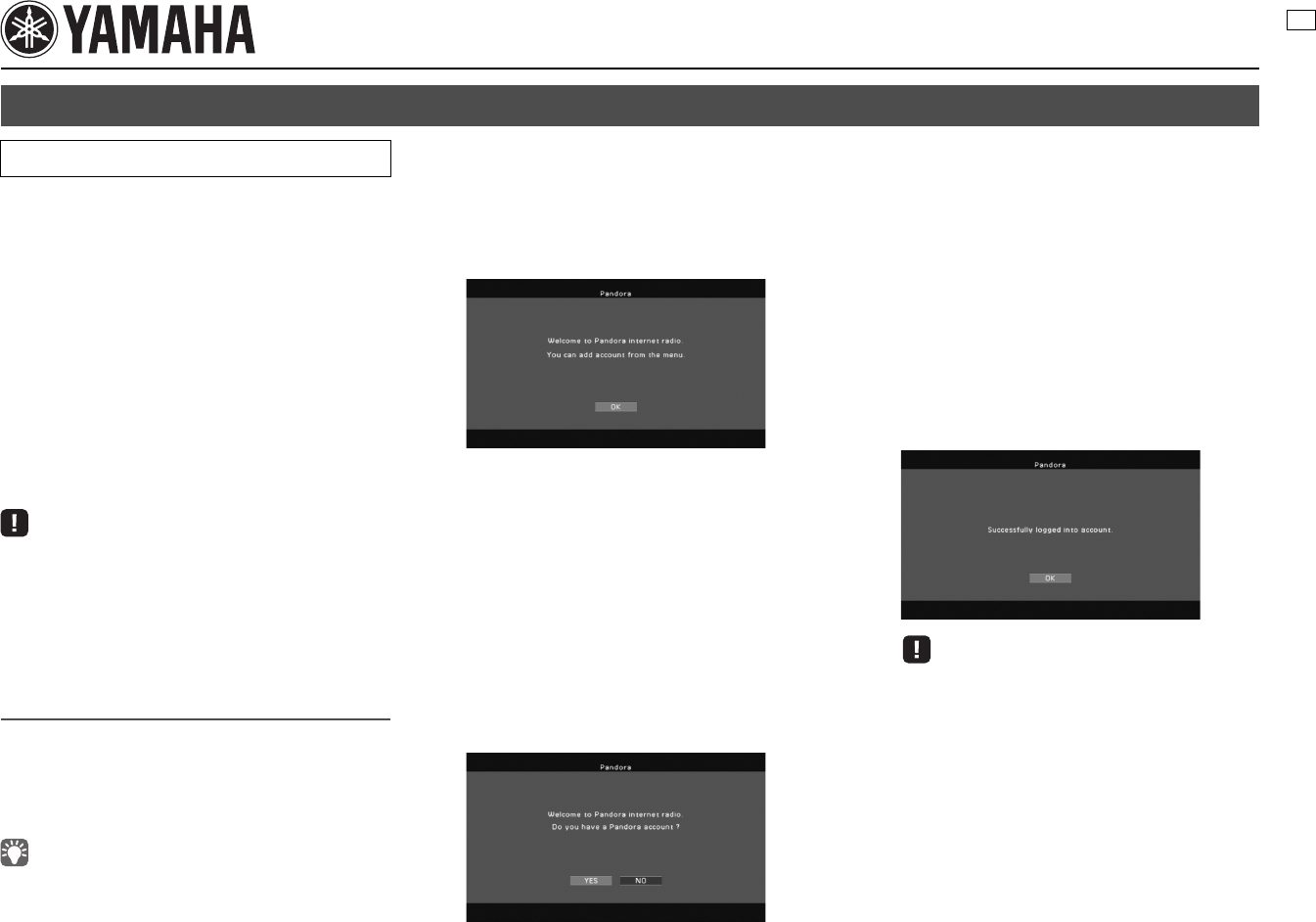
The following screen is displayed on the TV if
you have not set up your Pandora account on
the unit yet.
2Press ENTER.
3Use the cursor keys (q/w) to select “Add
Account” and press ENTER.
4If you have a Pandora account, use the
cursor keys to select “YES” and press
ENTER.
If you do not have a Pandora account, use
the cursor keys to select “NO” and press
ENTER.
5Perform the following procedure.
If you select “YES” in Step 4
aPress ENTER to enter the email address entry
screen.
bUse the cursor keys and ENTER to enter your
Pandora account email address and select “OK”.
To clear the entry, select “CLEAR”
cPress ENTER to enter the password entry screen.
dUse the cursor keys and ENTER to enter your
Pandora password and select “OK”.
The following screen appears if you have
successfully logged into your account.
• If the error screen appears, login has failed. In this case, read
the on-screen message and start all over again.
ePress ENTER.
Using the Pandora service
The Pandora service is available in the U.S.A. only.
U
2En
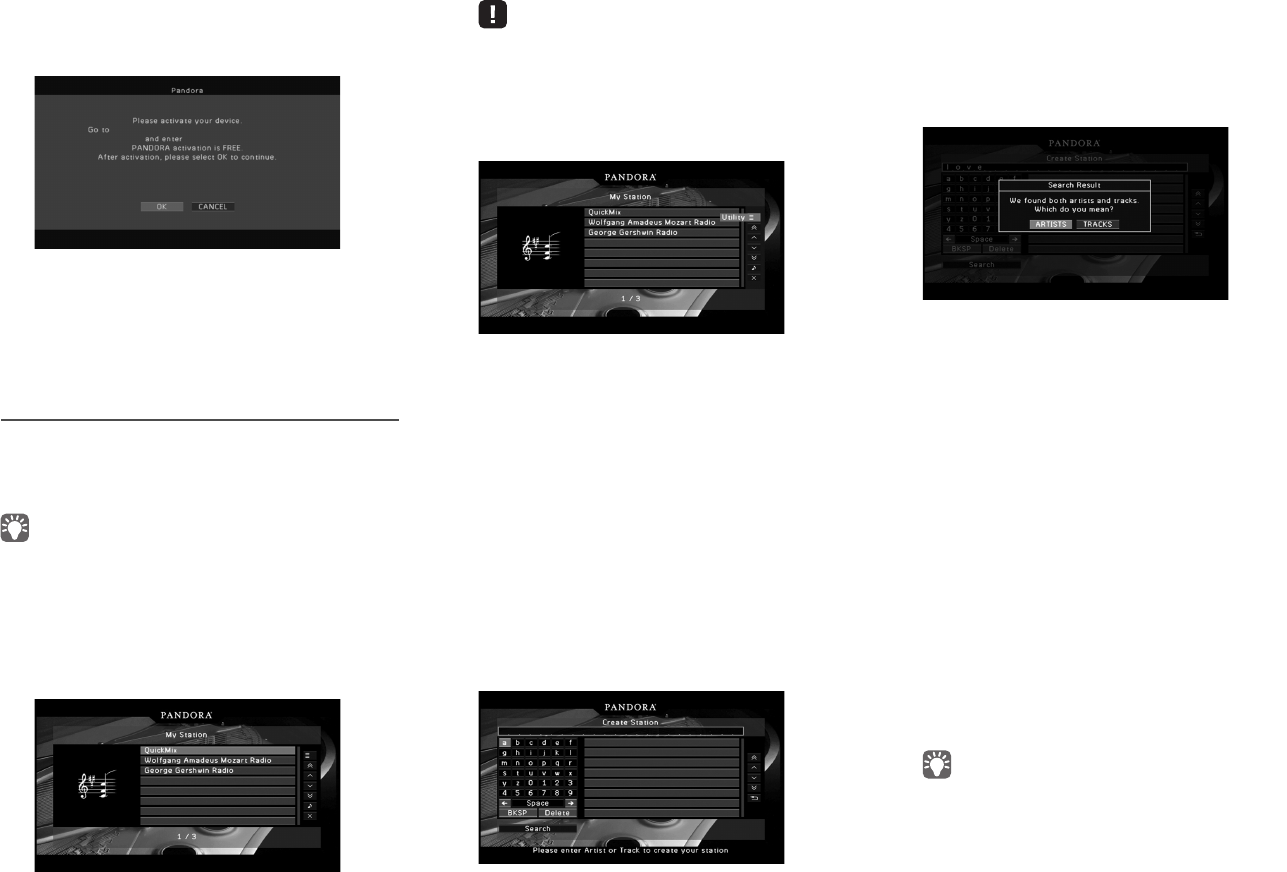
If you select “NO” in Step 4
aWrite down the URL and active code shown in the
TV.
bUse a web browser on your PC to access the URL
and follow the on-screen instruction to register for a
Pandora account.
cAfter activation, press ENTER to log in with your
new Pandora account.
Creating Pandora stations
Pandora lets you create up to 100 custom radio stations
that play only music you love. Just type in your favorite
track or artist and Pandora will create a station that
plays similar music.
• If there are no Pandora stations in your account, the “Create
Station” screen appears automatically. In this case, proceed to
Step 4 and create Pandora stations.
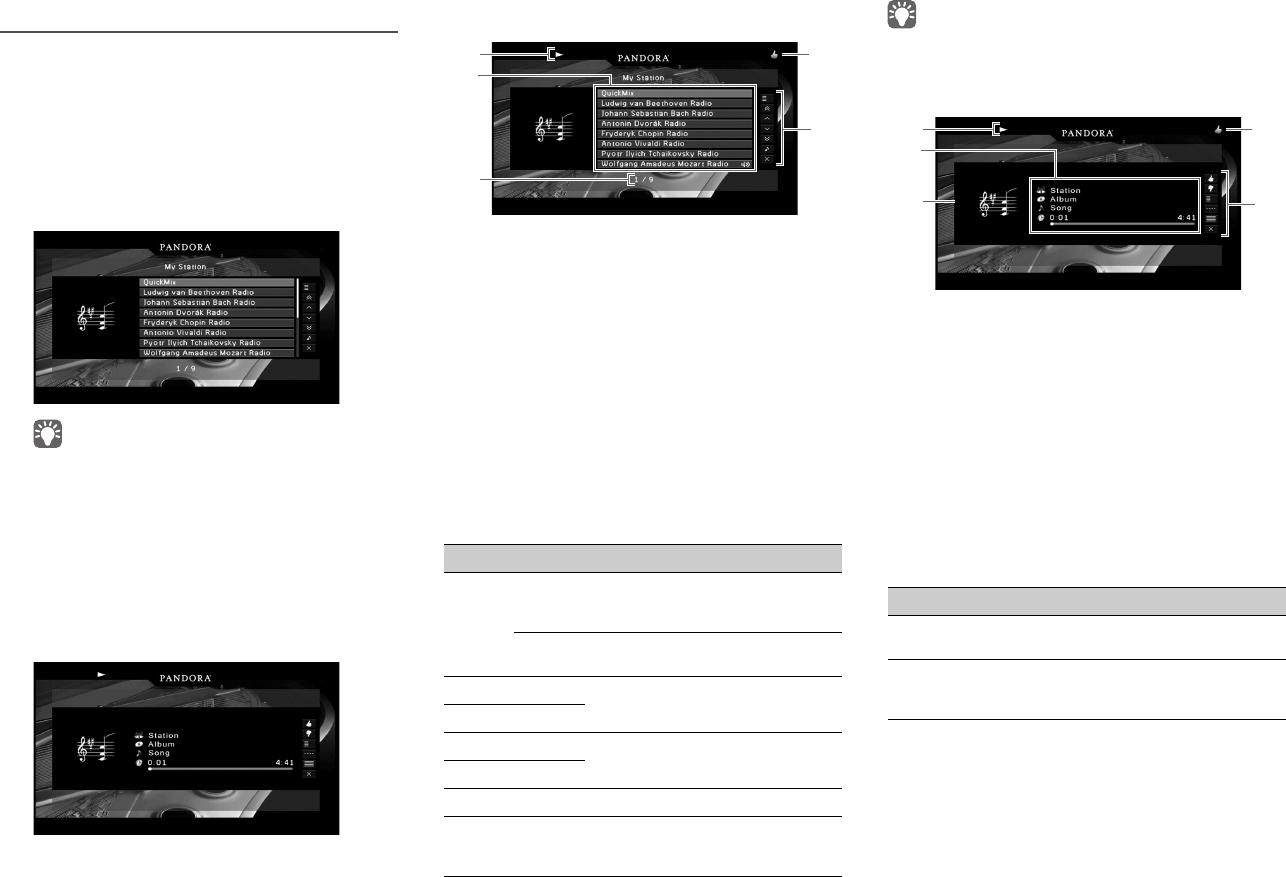
1Press NET repeatedly to select “Pandora”
as the input source.
The browse screen is displayed on the TV.
• If playback of any Pandora station is ongoing, the playback
screen is displayed. Press RETURN to display the browse
screen.
2Use the cursor keys to select “Utility” and
press ENTER.
3Use the cursor keys to select “Create
Station” and press ENTER.
4Use the cursor keys and ENTER to enter
the name of an artist or a track (all or part
of the name) and select “Search”.
The auto-complete list will appear on the right
side of the screen during the name entry. If you
select an artist or a track from the list, it will be
added to your Pandora stations. The playback of
the selected station starts automatically and the
playback screen is displayed.
To close the “Create Station” screen and return
to the browse screen, press RETURN.
5Perform the following procedure.
If both artists and tracks are found
aUse the cursor keys to select “ARTISTS” or
“TRACKS” and press ENTER.
bUse the cursor keys to select a desired item and
press ENTER.
The selected item is added to your Pandora
stations. The playback starts automatically and the
playback screen is displayed.
If either artists or tracks are found
Use the cursor keys to select a desired item and press
ENTER.
The selected item is added to your Pandora stations.
The playback starts automatically and the playback
screen is displayed.
If only one item is found
In this case, the item found is automatically added to
your Pandora stations. The playback starts
automatically and the playback screen is displayed.
If no items are found
Press ENTER and repeat Step 4 to try another
keyword.
• To return to the browse screen, press RETURN.
http://xxxx.xxxxxxxxxx.xxx:xxxx/xxxxxx
XXXXXXXX
En 3
Playback of Pandora stations
If you have created Pandora stations, follow the
procedure below to select a Pandora station to be
played.
1Press NET repeatedly to select “Pandora”
as the input source.
The browse screen (My Station list) is displayed
on the TV.
• If playback of any Pandora station is ongoing, the playback
screen is displayed.
• If you have not signed in, the account list screen is displayed.
Use the cursor keys to select your Pandora account and press
ENTER.
2Use the cursor keys to select a Pandora
station and press ENTER.
Playback of the selected station starts and the
playback screen is displayed.
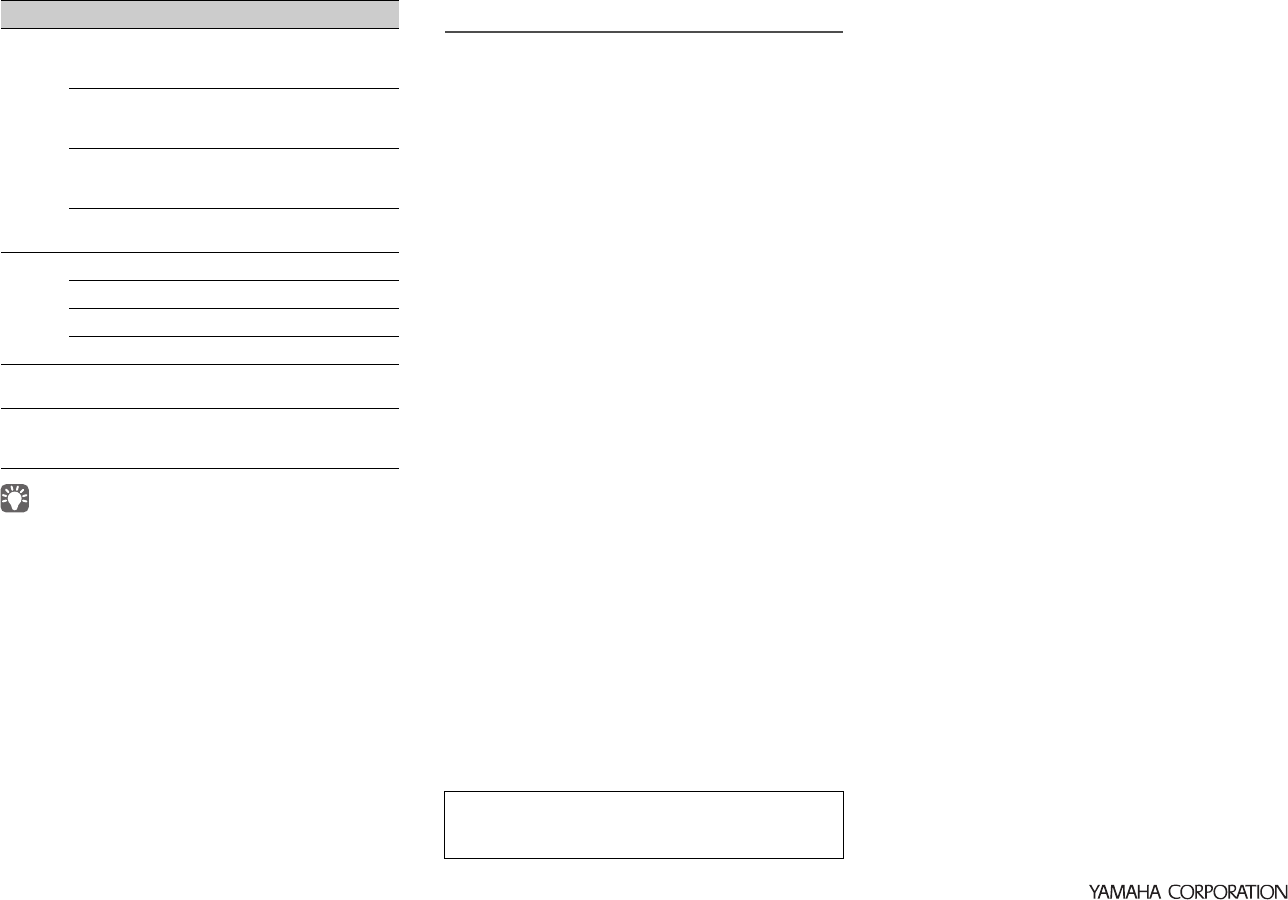
■Browse screen
1Playback indicators (play/pause)
2My Station list
Displays the list of Pandora stations. Use the cursor keys
(q/w) to select a Pandora station and press ENTER to start
playback.
A speaker icon indicates the station currently played back.
3Item number/total
4Feedback indicator
Displays your feedback (thumb up/down) for the current
track. You can give feedback for the track in the playback
screen.
5Operation menu
Press the cursor key (r) and then use the cursor keys (q/w)
to select an item. Press ENTER to confirm the selection.
To close the submenu, press RETURN.
• Submenus available in “Utility” vary depending on the selected item.
■Playback screen
1Playback indicators (play/pause)
2Playback information
Displays the station name, album name, track title and
elapsed/total time.
Use the cursor keys (q/w) to select scrollable information.
3Album image
4Feedback indicator
Displays you feedback (thumb up/down) for the current
track.
5Operation menu
Press the cursor key (r) and then use the cursor keys (q/w)
to select an item. Press ENTER to confirm the selection.
To close the submenu, press RETURN.
Menu
Submenu
Function
Utility
Create
Station
Creates a new Pandora station. For
details, see “Creating Pandora stations”
(p.2)
Delete
Station
Delete the Pandora station selected in
the list.
1 Page Up Moves to the previous/next page of the
list.
1 Page Down
10 Pages Up
Moves to 10 pages forward/backward.
10 Pages Down
Now Playing Moves to the playback screen.
Screen Off
Closes the screen display and shows
the background. Press one of the menu
operation keys to redisplay it.
5
2
1
3
4
Menu Submenu Function
I like
this track
Gives positive feedback (thumb up)
for the current track.
I don't like
this track
Gives negative feedback (thumb
down) for the current track and skip to
the next track.
5
3
2
14
© 2012 Yamaha Corporation Printed in Malaysia ZF22890
• You can also use the external device operation keys (a, s, d,
g) on the remote control to control playback.
• Some functions are not available during advertisement broadcast.
■Switching information on the front
display
1Press INFO.
Each time you press the key, the displayed item
changes.
Display items
Track (track title), Station (station name), Album (album
name), DSP Program (sound mode name), Audio
Decoder (decoder name)
Editing the Pandora accounts
You can register up to 8 Pandora accounts on the unit.
Follow the procedure below to add or remove Pandora
accounts, or switch to another Pandora account.
1Press ON SCREEN.
2Use the cursor keys to select “Input” and
press ENTER.
3Use the cursor keys (e/r) to select
“Pandora” and press the cursor key (q).
4Perform the following procedure.
To add a new Pandora account
aUse the cursor keys (q/w) to select “Add Account”
and press ENTER.
bFollow from Step 4 of “Account setup for Pandora”
(p.1).
To remove a Pandora account
aUse the cursor keys (q/w) to select “Remove
Account” and press ENTER.
bUse the cursor keys to select a Pandora account to
be removed and press ENTER.
cUse the cursor keys to select “OK” and press
ENTER.
To switch to another Pandora account
aUse the cursor keys (q/w) to select “Switch User”
and press ENTER.
bUse the cursor keys to select a Pandora account to
be used and press ENTER.
The browse screen (My Station list) for the selected
Pandora account is displayed.
Utility
Bookmark
this track
Adds the current track to your
bookmarks on your Pandora profile
page at “http://www.pandora.com”.
Bookmark
this artist
Adds the current artist to your
bookmarks on your Pandora profile
page at “http://www.pandora.com”.
Tired of
this track
Requests not to play back the current
track for a month and skip to the next
track.
Why this
track?
Display the information why this track
is selected.
Play
Control
aResumes playback from pause.
sStops playback.
dStops playback temporarily.
gSkips forward.
Browse Moves to the browse screen (My
Station list).
Screen Off
Closes the screen display and shows
the background. Press one of the
menu operation keys to redisplay it.
Menu Submenu Function
Pandora and Pandora Internet Radio logo are registered
trademarks or trademarks of Pandora Media, Inc. in the United
States and/or other countries.
