Yamaha RX A2020 Manual
RX-A3020 Manual RX-A3020_manual
User Manual: Yamaha RX-A2020 Manual
Open the PDF directly: View PDF  .
.
Page Count: 196 [warning: Documents this large are best viewed by clicking the View PDF Link!]
- Accessories
- FEATURES
- PREPARATIONS
- PLAYBACK
- Basic playback procedure
- Selecting the input source and favorite settings with one touch (SCENE)
- Selecting the sound mode
- Listening to FM/AM radio
- Playing back iPod music
- Playing back music stored on a USB storage device
- Playing back music stored on media servers (PCs/NAS)
- Listening to Internet radio
- Playing back iTunes/iPod music via a network (AirPlay)
- Playing back videos/audio in multiple rooms (multi-zone)
- Viewing the current status
- Configuring playback settings for different playback sources (Option menu)
- CONFIGURATIONS
- Configuring input sources (Input menu)
- Configuring the SCENE function (Scene menu)
- Configuring sound programs/surround decoders (Sound Program menu)
- Configuring various functions (Setup menu)
- Viewing information about the unit (Information menu)
- Configuring the system settings (ADVANCED SETUP menu)
- ADVANCED SETUP menu items
- Changing the speaker impedance setting (SPEAKER IMP.)
- Turning on/off the remote control sensor (REMOTE SENSOR)
- Selecting the remote control ID (REMOTE CON AMP)
- Changing the FM/AM tuning frequency setting (TUNER FRQ STEP)
- Switching the video signal type (TV FORMAT)
- Removing the limitation on HDMI video output (MONITOR CHECK)
- Backing up/recovering the settings (RECOV./BACKUP)
- Restoring the default settings (INITIALIZE)
- Updating the firmware (FIRM UPDATE)
- Checking the firmware version (VERSION)
- Controlling external devices with the remote control
- Updating the unit’s firmware
- APPENDIX
- FCC Information
- Safety Brochure
- Web Control
- Software License
- Remote Control Codes
English
Read the supplied booklet “Safety Brochure” before using the unit.
AV Receiver
Owner’s Manual

En 2
CONTENTS
Accessories . . . . . . . . . . . . . . . . . . . . . . . . . . . . . . . . . . . . . . . . . . . . . . . . . . . . . . 5
FEATURES 6
What you can do with the unit . . . . . . . . . . . . . . . . . . . . . . . . . . . . . . . . . . . . 6
Part names and functions . . . . . . . . . . . . . . . . . . . . . . . . . . . . . . . . . . . . . . . 10
Front panel . . . . . . . . . . . . . . . . . . . . . . . . . . . . . . . . . . . . . . . . . . . . . . . . . . . . . . . . . . . . . . . . . . . . . . . . . . . . . . . . . . . . . . . 10
Front display (indicators) . . . . . . . . . . . . . . . . . . . . . . . . . . . . . . . . . . . . . . . . . . . . . . . . . . . . . . . . . . . . . . . . . . . . . . . . . . 12
Rear panel . . . . . . . . . . . . . . . . . . . . . . . . . . . . . . . . . . . . . . . . . . . . . . . . . . . . . . . . . . . . . . . . . . . . . . . . . . . . . . . . . . . . . . . . 13
Remote control . . . . . . . . . . . . . . . . . . . . . . . . . . . . . . . . . . . . . . . . . . . . . . . . . . . . . . . . . . . . . . . . . . . . . . . . . . . . . . . . . . . 15
PREPARATIONS 17
General setup procedure . . . . . . . . . . . . . . . . . . . . . . . . . . . . . . . . . . . . . . . . 17
1 Connecting speakers . . . . . . . . . . . . . . . . . . . . . . . . . . . . . . . . . . . . . . . . . . 18
Basic speaker configuration . . . . . . . . . . . . . . . . . . . . . . . . . . . . . . . . . . . . . . . . . . . . . . . . . . . . . . . . . . . . . . . . . . . . . . . 19
Advanced speaker configuration . . . . . . . . . . . . . . . . . . . . . . . . . . . . . . . . . . . . . . . . . . . . . . . . . . . . . . . . . . . . . . . . . . 24
Input/output jacks and cables . . . . . . . . . . . . . . . . . . . . . . . . . . . . . . . . . . . 34
2 Connecting a TV . . . . . . . . . . . . . . . . . . . . . . . . . . . . . . . . . . . . . . . . . . . . . . . 35
3 Connecting playback devices . . . . . . . . . . . . . . . . . . . . . . . . . . . . . . . . . . 41
Connecting video devices (such as BD/DVD players) . . . . . . . . . . . . . . . . . . . . . . . . . . . . . . . . . . . . . . . . . . . . . . . 41
Connecting audio devices (such as CD players) . . . . . . . . . . . . . . . . . . . . . . . . . . . . . . . . . . . . . . . . . . . . . . . . . . . . . 43
Connecting to the jacks on the front panel . . . . . . . . . . . . . . . . . . . . . . . . . . . . . . . . . . . . . . . . . . . . . . . . . . . . . . . . . 44
4 Connecting the FM/AM antennas . . . . . . . . . . . . . . . . . . . . . . . . . . . . . . . 44
5 Connecting to a network . . . . . . . . . . . . . . . . . . . . . . . . . . . . . . . . . . . . . . . 45
6 Connecting other devices . . . . . . . . . . . . . . . . . . . . . . . . . . . . . . . . . . . . . . 46
Connecting recording devices . . . . . . . . . . . . . . . . . . . . . . . . . . . . . . . . . . . . . . . . . . . . . . . . . . . . . . . . . . . . . . . . . . . . . 46
Connecting a device with analog multi-channel output . . . . . . . . . . . . . . . . . . . . . . . . . . . . . . . . . . . . . . . . . . . . 46
Connecting a device that supports SCENE link playback (remote connection) . . . . . . . . . . . . . . . . . . . . . . . 47
Connecting a device compatible with the trigger function . . . . . . . . . . . . . . . . . . . . . . . . . . . . . . . . . . . . . . . . . . 47
7 Connecting the power cable . . . . . . . . . . . . . . . . . . . . . . . . . . . . . . . . . . . 48
8 Selecting an on-screen menu language . . . . . . . . . . . . . . . . . . . . . . . . . 49
9 Optimizing the speaker settings automatically (YPAO) . . . . . . . . . . 50
Measuring at one listening position (single measure) . . . . . . . . . . . . . . . . . . . . . . . . . . . . . . . . . . . . . . . . . . . . . . . 52
Measuring at multiple listening positions (multi measure) . . . . . . . . . . . . . . . . . . . . . . . . . . . . . . . . . . . . . . . . . .54
Checking the measurement results . . . . . . . . . . . . . . . . . . . . . . . . . . . . . . . . . . . . . . . . . . . . . . . . . . . . . . . . . . . . . . . .56
Reloading the previous YPAO adjustments . . . . . . . . . . . . . . . . . . . . . . . . . . . . . . . . . . . . . . . . . . . . . . . . . . . . . . . . .57
Error messages . . . . . . . . . . . . . . . . . . . . . . . . . . . . . . . . . . . . . . . . . . . . . . . . . . . . . . . . . . . . . . . . . . . . . . . . . . . . . . . . . . . .58
Warning messages . . . . . . . . . . . . . . . . . . . . . . . . . . . . . . . . . . . . . . . . . . . . . . . . . . . . . . . . . . . . . . . . . . . . . . . . . . . . . . . .59
PLAYBACK 60
Basic playback procedure . . . . . . . . . . . . . . . . . . . . . . . . . . . . . . . . . . . . . . . 60
Selecting an HDMI output jack . . . . . . . . . . . . . . . . . . . . . . . . . . . . . . . . . . . . . . . . . . . . . . . . . . . . . . . . . . . . . . . . . . . . .60
Selecting the input source and favorite settings with one touch
(SCENE) . . . . . . . . . . . . . . . . . . . . . . . . . . . . . . . . . . . . . . . . . . . . . . . . . . . . . . . . 61
Configuring scene assignments . . . . . . . . . . . . . . . . . . . . . . . . . . . . . . . . . . . . . . . . . . . . . . . . . . . . . . . . . . . . . . . . . . . .62
Selecting setting items to be included as scene assignments . . . . . . . . . . . . . . . . . . . . . . . . . . . . . . . . . . . . . . .62
Selecting the sound mode . . . . . . . . . . . . . . . . . . . . . . . . . . . . . . . . . . . . . . . 63
Enjoying stereoscopic sound fields (CINEMA DSP HD/CINEMA DSP 3D) . . . . . . . . . . . . . . . . . . . . . . . . . . . . . 64
Enjoying unprocessed playback . . . . . . . . . . . . . . . . . . . . . . . . . . . . . . . . . . . . . . . . . . . . . . . . . . . . . . . . . . . . . . . . . . . 67
Enjoying pure high fidelity sound (Pure Direct) . . . . . . . . . . . . . . . . . . . . . . . . . . . . . . . . . . . . . . . . . . . . . . . . . . . . .68
Enjoying compressed music with enhanced sound (Compressed Music Enhancer) . . . . . . . . . . . . . . . . . . .68
Listening to FM/AM radio . . . . . . . . . . . . . . . . . . . . . . . . . . . . . . . . . . . . . . . 69
Setting the frequency steps . . . . . . . . . . . . . . . . . . . . . . . . . . . . . . . . . . . . . . . . . . . . . . . . . . . . . . . . . . . . . . . . . . . . . . . . 69
Selecting a frequency for reception . . . . . . . . . . . . . . . . . . . . . . . . . . . . . . . . . . . . . . . . . . . . . . . . . . . . . . . . . . . . . . . . 69
Registering favorite radio stations (presets) . . . . . . . . . . . . . . . . . . . . . . . . . . . . . . . . . . . . . . . . . . . . . . . . . . . . . . . .70
HD Radio™ tuning . . . . . . . . . . . . . . . . . . . . . . . . . . . . . . . . . . . . . . . . . . . . . . . . . . . . . . . . . . . . . . . . . . . . . . . . . . . . . . . . .71
Radio Data System tuning . . . . . . . . . . . . . . . . . . . . . . . . . . . . . . . . . . . . . . . . . . . . . . . . . . . . . . . . . . . . . . . . . . . . . . . . .73
Operating the radio on the TV . . . . . . . . . . . . . . . . . . . . . . . . . . . . . . . . . . . . . . . . . . . . . . . . . . . . . . . . . . . . . . . . . . . . .74
Playing back iPod music . . . . . . . . . . . . . . . . . . . . . . . . . . . . . . . . . . . . . . . . . 76
Connecting an iPod . . . . . . . . . . . . . . . . . . . . . . . . . . . . . . . . . . . . . . . . . . . . . . . . . . . . . . . . . . . . . . . . . . . . . . . . . . . . . . .76
Playback of iPod content . . . . . . . . . . . . . . . . . . . . . . . . . . . . . . . . . . . . . . . . . . . . . . . . . . . . . . . . . . . . . . . . . . . . . . . . . .77

En 3
Playing back music stored on a USB storage device . . . . . . . . . . . . . . . 80
Connecting a USB storage device . . . . . . . . . . . . . . . . . . . . . . . . . . . . . . . . . . . . . . . . . . . . . . . . . . . . . . . . . . . . . . . . . . 80
Playback of USB storage device contents . . . . . . . . . . . . . . . . . . . . . . . . . . . . . . . . . . . . . . . . . . . . . . . . . . . . . . . . . . 80
Playing back music stored on media servers (PCs/NAS) . . . . . . . . . . . . 83
Media sharing setup . . . . . . . . . . . . . . . . . . . . . . . . . . . . . . . . . . . . . . . . . . . . . . . . . . . . . . . . . . . . . . . . . . . . . . . . . . . . . . 83
Playback of PC music contents . . . . . . . . . . . . . . . . . . . . . . . . . . . . . . . . . . . . . . . . . . . . . . . . . . . . . . . . . . . . . . . . . . . . 83
Listening to Internet radio . . . . . . . . . . . . . . . . . . . . . . . . . . . . . . . . . . . . . . . 86
Playing back iTunes/iPod music via a network (AirPlay) . . . . . . . . . . . 88
Playback of iTunes/iPod music contents . . . . . . . . . . . . . . . . . . . . . . . . . . . . . . . . . . . . . . . . . . . . . . . . . . . . . . . . . . . 88
Playing back videos/audio in multiple rooms (multi-zone) . . . . . . . . . 90
Multi-zone configuration examples . . . . . . . . . . . . . . . . . . . . . . . . . . . . . . . . . . . . . . . . . . . . . . . . . . . . . . . . . . . . . . . . 90
Preparing the multi zone system . . . . . . . . . . . . . . . . . . . . . . . . . . . . . . . . . . . . . . . . . . . . . . . . . . . . . . . . . . . . . . . . . . 91
Controlling Zone2, Zone3 or Zone4 . . . . . . . . . . . . . . . . . . . . . . . . . . . . . . . . . . . . . . . . . . . . . . . . . . . . . . . . . . . . . . . . 95
Viewing the current status . . . . . . . . . . . . . . . . . . . . . . . . . . . . . . . . . . . . . . 97
Switching information on the front display . . . . . . . . . . . . . . . . . . . . . . . . . . . . . . . . . . . . . . . . . . . . . . . . . . . . . . . . 97
Viewing the status information on the TV . . . . . . . . . . . . . . . . . . . . . . . . . . . . . . . . . . . . . . . . . . . . . . . . . . . . . . . . . . 97
Configuring playback settings for different playback sources
(Option menu) . . . . . . . . . . . . . . . . . . . . . . . . . . . . . . . . . . . . . . . . . . . . . . . . . . 98
Option menu items . . . . . . . . . . . . . . . . . . . . . . . . . . . . . . . . . . . . . . . . . . . . . . . . . . . . . . . . . . . . . . . . . . . . . . . . . . . . . . . 98
CONFIGURATIONS 103
Configuring input sources (Input menu) . . . . . . . . . . . . . . . . . . . . . . . . .103
Input menu items . . . . . . . . . . . . . . . . . . . . . . . . . . . . . . . . . . . . . . . . . . . . . . . . . . . . . . . . . . . . . . . . . . . . . . . . . . . . . . . . 103
Configuring the SCENE function (Scene menu) . . . . . . . . . . . . . . . . . . .105
Scene menu items . . . . . . . . . . . . . . . . . . . . . . . . . . . . . . . . . . . . . . . . . . . . . . . . . . . . . . . . . . . . . . . . . . . . . . . . . . . . . . .106
Configuring sound programs/surround decoders
(Sound Program menu) . . . . . . . . . . . . . . . . . . . . . . . . . . . . . . . . . . . . . . . .108
Sound Program menu items . . . . . . . . . . . . . . . . . . . . . . . . . . . . . . . . . . . . . . . . . . . . . . . . . . . . . . . . . . . . . . . . . . . . . .109
Configuring various functions (Setup menu) . . . . . . . . . . . . . . . . . . . . . 111
Setup menu items . . . . . . . . . . . . . . . . . . . . . . . . . . . . . . . . . . . . . . . . . . . . . . . . . . . . . . . . . . . . . . . . . . . . . . . . . . . . . . . 112
Speaker (Manual Setup) . . . . . . . . . . . . . . . . . . . . . . . . . . . . . . . . . . . . . . . . . . . . . . . . . . . . . . . . . . . . . . . . . . . . . . . . . .114
Sound . . . . . . . . . . . . . . . . . . . . . . . . . . . . . . . . . . . . . . . . . . . . . . . . . . . . . . . . . . . . . . . . . . . . . . . . . . . . . . . . . . . . . . . . . . .118
Video . . . . . . . . . . . . . . . . . . . . . . . . . . . . . . . . . . . . . . . . . . . . . . . . . . . . . . . . . . . . . . . . . . . . . . . . . . . . . . . . . . . . . . . . . . . . 119
HDMI . . . . . . . . . . . . . . . . . . . . . . . . . . . . . . . . . . . . . . . . . . . . . . . . . . . . . . . . . . . . . . . . . . . . . . . . . . . . . . . . . . . . . . . . . . . .122
Network . . . . . . . . . . . . . . . . . . . . . . . . . . . . . . . . . . . . . . . . . . . . . . . . . . . . . . . . . . . . . . . . . . . . . . . . . . . . . . . . . . . . . . . . .123
Multi Zone . . . . . . . . . . . . . . . . . . . . . . . . . . . . . . . . . . . . . . . . . . . . . . . . . . . . . . . . . . . . . . . . . . . . . . . . . . . . . . . . . . . . . . .125
Function . . . . . . . . . . . . . . . . . . . . . . . . . . . . . . . . . . . . . . . . . . . . . . . . . . . . . . . . . . . . . . . . . . . . . . . . . . . . . . . . . . . . . . . . .127
ECO . . . . . . . . . . . . . . . . . . . . . . . . . . . . . . . . . . . . . . . . . . . . . . . . . . . . . . . . . . . . . . . . . . . . . . . . . . . . . . . . . . . . . . . . . . . . . .130
Language . . . . . . . . . . . . . . . . . . . . . . . . . . . . . . . . . . . . . . . . . . . . . . . . . . . . . . . . . . . . . . . . . . . . . . . . . . . . . . . . . . . . . . . .130
Viewing information about the unit (Information menu) . . . . . . . . . 131
Types of information . . . . . . . . . . . . . . . . . . . . . . . . . . . . . . . . . . . . . . . . . . . . . . . . . . . . . . . . . . . . . . . . . . . . . . . . . . . . .131
Configuring the system settings (ADVANCED SETUP menu) . . . . . . 132
ADVANCED SETUP menu items . . . . . . . . . . . . . . . . . . . . . . . . . . . . . . . . . . . . . . . . . . . . . . . . . . . . . . . . . . . . . . . . . . .133
Changing the speaker impedance setting (SPEAKER IMP.) . . . . . . . . . . . . . . . . . . . . . . . . . . . . . . . . . . . . . . . . .133
Turning on/off the remote control sensor (REMOTE SENSOR) . . . . . . . . . . . . . . . . . . . . . . . . . . . . . . . . . . . . . .133
Selecting the remote control ID (REMOTE CON AMP) . . . . . . . . . . . . . . . . . . . . . . . . . . . . . . . . . . . . . . . . . . . . . .133
Changing the FM/AM tuning frequency setting (TUNER FRQ STEP) . . . . . . . . . . . . . . . . . . . . . . . . . . . . . . . . .134
Switching the video signal type (TV FORMAT) . . . . . . . . . . . . . . . . . . . . . . . . . . . . . . . . . . . . . . . . . . . . . . . . . . . . .134
Removing the limitation on HDMI video output (MONITOR CHECK) . . . . . . . . . . . . . . . . . . . . . . . . . . . . . . . .134
Backing up/recovering the settings (RECOV./BACKUP) . . . . . . . . . . . . . . . . . . . . . . . . . . . . . . . . . . . . . . . . . . . . .135
Restoring the default settings (INITIALIZE) . . . . . . . . . . . . . . . . . . . . . . . . . . . . . . . . . . . . . . . . . . . . . . . . . . . . . . . . .135
Updating the firmware (FIRM UPDATE) . . . . . . . . . . . . . . . . . . . . . . . . . . . . . . . . . . . . . . . . . . . . . . . . . . . . . . . . . . . .135
Checking the firmware version (VERSION) . . . . . . . . . . . . . . . . . . . . . . . . . . . . . . . . . . . . . . . . . . . . . . . . . . . . . . . . .135
Controlling external devices with the remote control . . . . . . . . . . . . 136
Registering remote control codes . . . . . . . . . . . . . . . . . . . . . . . . . . . . . . . . . . . . . . . . . . . . . . . . . . . . . . . . . . . . . . . . .136
Programming from other remote controls (learning) . . . . . . . . . . . . . . . . . . . . . . . . . . . . . . . . . . . . . . . . . . . . . .138
Editing device names . . . . . . . . . . . . . . . . . . . . . . . . . . . . . . . . . . . . . . . . . . . . . . . . . . . . . . . . . . . . . . . . . . . . . . . . . . . . .139
Operating multiple functions at once (macro) . . . . . . . . . . . . . . . . . . . . . . . . . . . . . . . . . . . . . . . . . . . . . . . . . . . . .140
Resetting the remote control configurations . . . . . . . . . . . . . . . . . . . . . . . . . . . . . . . . . . . . . . . . . . . . . . . . . . . . . .142
Updating the unit’s firmware . . . . . . . . . . . . . . . . . . . . . . . . . . . . . . . . . . . 144

En 4
APPENDIX 145
Frequently asked questions . . . . . . . . . . . . . . . . . . . . . . . . . . . . . . . . . . . .145
Troubleshooting . . . . . . . . . . . . . . . . . . . . . . . . . . . . . . . . . . . . . . . . . . . . . . . 146
Power and system . . . . . . . . . . . . . . . . . . . . . . . . . . . . . . . . . . . . . . . . . . . . . . . . . . . . . . . . . . . . . . . . . . . . . . . . . . . . . . .146
Audio . . . . . . . . . . . . . . . . . . . . . . . . . . . . . . . . . . . . . . . . . . . . . . . . . . . . . . . . . . . . . . . . . . . . . . . . . . . . . . . . . . . . . . . . . . . .147
Video . . . . . . . . . . . . . . . . . . . . . . . . . . . . . . . . . . . . . . . . . . . . . . . . . . . . . . . . . . . . . . . . . . . . . . . . . . . . . . . . . . . . . . . . . . . . 148
FM/AM radio . . . . . . . . . . . . . . . . . . . . . . . . . . . . . . . . . . . . . . . . . . . . . . . . . . . . . . . . . . . . . . . . . . . . . . . . . . . . . . . . . . . . . 149
USB and network . . . . . . . . . . . . . . . . . . . . . . . . . . . . . . . . . . . . . . . . . . . . . . . . . . . . . . . . . . . . . . . . . . . . . . . . . . . . . . . .150
Remote control . . . . . . . . . . . . . . . . . . . . . . . . . . . . . . . . . . . . . . . . . . . . . . . . . . . . . . . . . . . . . . . . . . . . . . . . . . . . . . . . . . 151
Error indications on the front display . . . . . . . . . . . . . . . . . . . . . . . . . . . .152
Glossary . . . . . . . . . . . . . . . . . . . . . . . . . . . . . . . . . . . . . . . . . . . . . . . . . . . . . . .153
Audio information . . . . . . . . . . . . . . . . . . . . . . . . . . . . . . . . . . . . . . . . . . . . . . . . . . . . . . . . . . . . . . . . . . . . . . . . . . . . . . .153
HDMI and video information . . . . . . . . . . . . . . . . . . . . . . . . . . . . . . . . . . . . . . . . . . . . . . . . . . . . . . . . . . . . . . . . . . . . . 154
Yamaha technologies . . . . . . . . . . . . . . . . . . . . . . . . . . . . . . . . . . . . . . . . . . . . . . . . . . . . . . . . . . . . . . . . . . . . . . . . . . . . 155
Video signal flow . . . . . . . . . . . . . . . . . . . . . . . . . . . . . . . . . . . . . . . . . . . . . . . . . . . . . . . . . . . . . . . . . . . . . . . . . . . . . . . . .156
Multi-zone output . . . . . . . . . . . . . . . . . . . . . . . . . . . . . . . . . . . . . . . . . . . . . . . . . . . . . . . . . . . . . . . . . . . . . . . . . . . . . . . 157
Information on HDMI . . . . . . . . . . . . . . . . . . . . . . . . . . . . . . . . . . . . . . . . . .158
HDMI Control . . . . . . . . . . . . . . . . . . . . . . . . . . . . . . . . . . . . . . . . . . . . . . . . . . . . . . . . . . . . . . . . . . . . . . . . . . . . . . . . . . . .158
HDMI signal compatibility . . . . . . . . . . . . . . . . . . . . . . . . . . . . . . . . . . . . . . . . . . . . . . . . . . . . . . . . . . . . . . . . . . . . . . . . 159
Trademarks . . . . . . . . . . . . . . . . . . . . . . . . . . . . . . . . . . . . . . . . . . . . . . . . . . .160
Specifications . . . . . . . . . . . . . . . . . . . . . . . . . . . . . . . . . . . . . . . . . . . . . . . . .161
Index . . . . . . . . . . . . . . . . . . . . . . . . . . . . . . . . . . . . . . . . . . . . . . . . . . . . . . . . .164
Accessories En 5
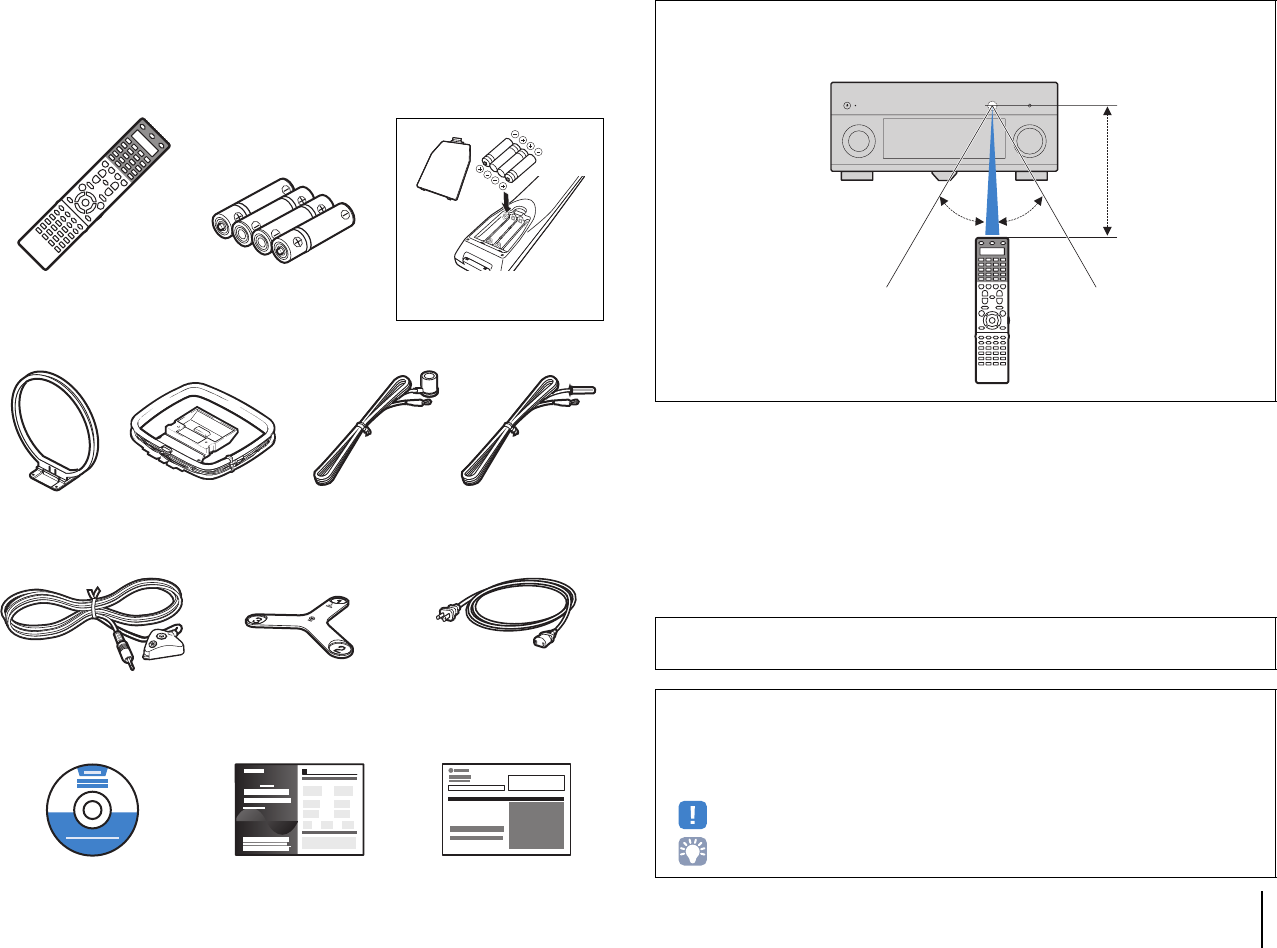
Accessories
Check that the following accessories are supplied with the product.
Remote control Batteries (x4)
AM antenna
*One of the above is supplied depending on the region
of purchase.
FM antenna
*One of the above is supplied depending on the region
of purchase.
YPAO microphone Microphone base
(RX-A3020 only)
*Using for angle measurement
during YPAO.
Power cable
*The supplied power cable varies
depending on the region of purchase.
CD-ROM
(Owner’s Manual)
Easy Setup Guide Safety Brochure
Insert the batteries the right way
round.
*RX-A3020: AAA, LR03, UM-4
RX-A2020: AAA, R03, UM-4
Operating range of the remote control
• Point the remote control at the remote control sensor on the unit and remain within the operating range
shown below.
• The illustrations of the main unit and remote control used in this manual are of the RX-A3020
(U.S.A. model), unless otherwise specified.
• Some features are not available in certain regions.
• Due to product improvements, specifications and appearance are subject to change without notice.
• This manual explains operations using the supplied remote control.
• This manual describes all the “iPod”, “iPhone” and “iPad” as the “iPod”. “iPod” refers to “iPod”, “iPhone”
and “iPad”, unless otherwise specified.
• indicates precautions for use of the unit and its feature limitations.
• indicates supplementary explanations for better use.
30° 30°
Within
6 m (20 ft)
FEATURES ➤What you can do with the unit En 6
FEATURES
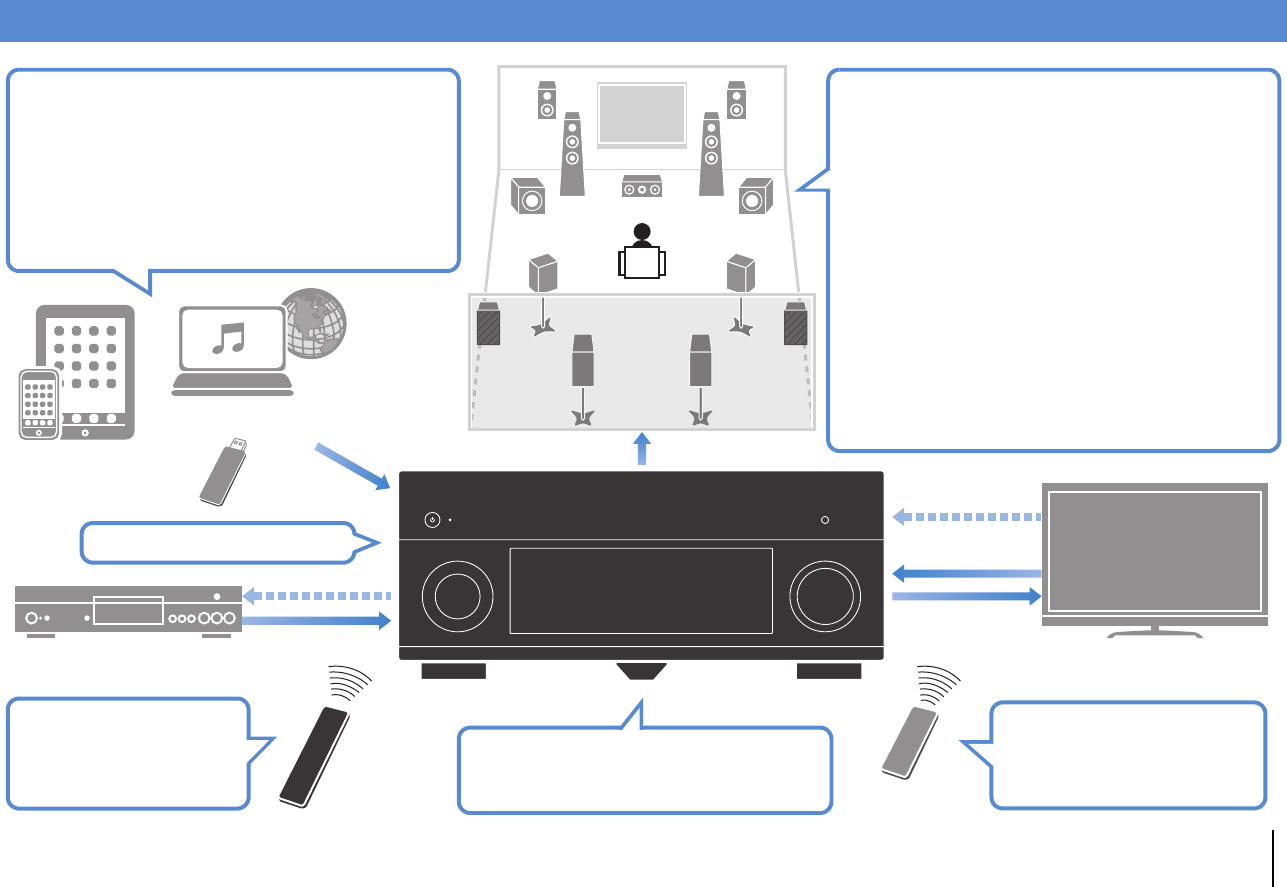
What you can do with the unit
Speakers
BD/DVD player
HDMI Control
Audio/Video
The unit’s
remote control TV remote control
Audio
HDMI Control
Audio
Video
TV
Sequential operation of a TV,
AV receiver, and BD/DVD
player (HDMI Control)
.p.158
Supports 2- to 9-channel (plus rear presence) speaker
system and up to 2 subwoofer connections. Allows
you to enjoy favorite acoustic spaces in various styles.
• Automatically optimizing the speaker
settings to suit your room (YPAO)
.p.50
• Reproducing stereo or multichannel
sounds with the sound fields like
actual movie theaters and concert halls
(CINEMA DSP)
.p.64
• Enjoying compressed music with
enhanced sound (Compressed Music
Enhancer)
.p.68
• Bi-amp connections, channel
expansion (with external power-amp)
and multi-zone configurations to
enhance your system
.p.24
Operating external
devices with the supplied
remote control
.p.136
iPod/iPhone/iPad
USB device
Audio
Network contents
Wide variety of supported content
• iPod/iPhone/iPad .p.76
•USB .p.80
• Media server (PC/NAS) .p.83
• Internet radio .p.86
•AirPlay .p.88
3D and 4K signals supported
AV receiver (the unit)
Change the input source and favorite
settings with one touch (SCENE)
.p.61
FEATURES ➤What you can do with the unit En 7
Full of useful functions!
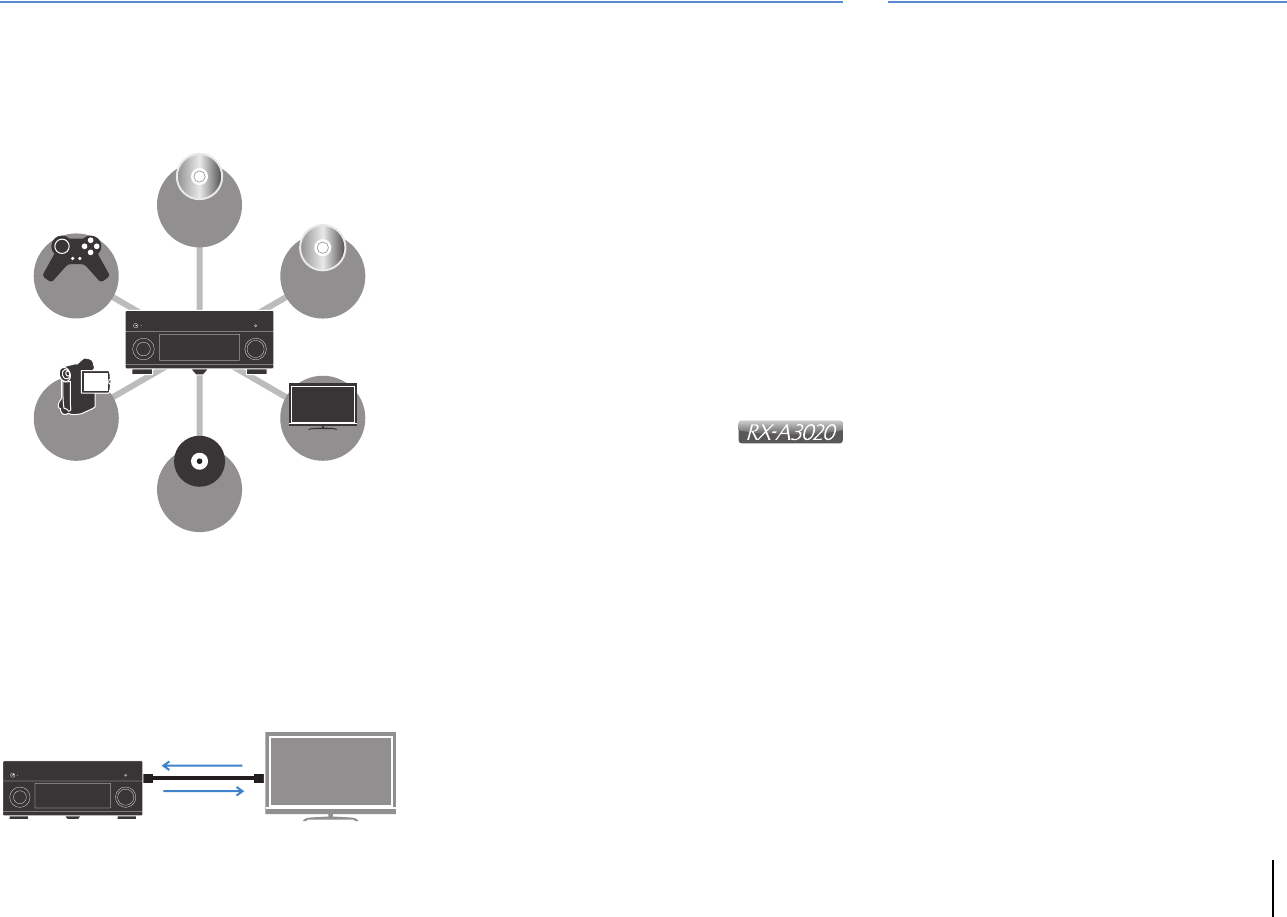
❑Connecting various devices (p.41)
A number of HDMI jacks and various input/output jacks
on the unit allow you to connect video devices (such as
BD/DVD players), audio devices (such as CD players),
game consoles, camcorders, and other devices.
❑Playing back TV audio in surround sound
with a single HDMI cable connection
(Audio Return Channel: ARC) (p.35)
When using an ARC -compatible TV, you only need one
HDMI cable to enable video output to the TV, audio
input from the TV, and the transmission of HDMI Control
signals.
❑Listening to FM/AM radio (p.69)
The unit is equipped with a built-in FM/AM tuner. You
can register up to 40 favorite radio stations as presets.
❑Enjoying pure high fidelity sound (p.68)
When the Pure Direct mode is enabled, the unit plays
back the selected source with the least circuitry, which
lets you to enjoy Hi-Fi sound quality.
❑Easy operation with a TV screen
You can navigate through different types of content
(such as iPod, USB, and network), view information, or
easily configure the settings using the on-screen menu.
❑Low power consumption
The ECO mode (power saving function) reduces the
unit’s power consumption (p.130).
❑Backlight illumination
remote control
The backlight illumination allows you to easily operate
the remote control even in a dark home theater room.
BD/DVD
player
Game
console
Camcorder
Turntable
TV
CD player
HDMI Control
TV audio
Video from
external device
Useful tips
I want to connect a playback device using HDMI for
video and non-HDMI for audio...
Use “Audio Select” in the “Option” menu to specify the
type of an audio input jack to be used for the
corresponding input source (p.101).
Video and audio are not synchronized...
Use “Lipsync” in the “Setup” menu to adjust the delay
between video and audio output (p.118).
I want to hear audio from the TV speakers...
Use “Audio Output” in the “Setup” menu to select the
output destination of signals input into the unit (p.122).
Your TV speakers may be selected as an output
destination.
I want to change the on-screen menu language...
Use “Language” in the “Setup” menu to select a
language from English, Japanese, French, German,
Spanish, Russian and Chinese (p.49).
I want to update the firmware...
Use “FIRM UPDATE” in the “ADVANCED SETUP” menu
to update the unit’s firmware (p.135). If the unit is
connected to the Internet, a message will be displayed
on the TV when a firmware update is available (p.144).
Many other settings are available that let you to
customize the unit. For details, see the following
pages.
• Input settings (p.103)
• Scene settings (p.106)
• Sound program and surround decoder settings
(p.109)
• Various function settings (p.112)
• Information view (such as audio signal and video
signal) (p.131)
• System settings (p.133)
FEATURES ➤What you can do with the unit En 8
The excitement of a concert hall and the powerful sense of being inside a movie - we all want to enjoy these
experiences in our own living room. Yamaha has pursued the fulfillment of these desires for more than 20 years, and
this fulfillment has now taken shape as the Yamaha AV receivers.
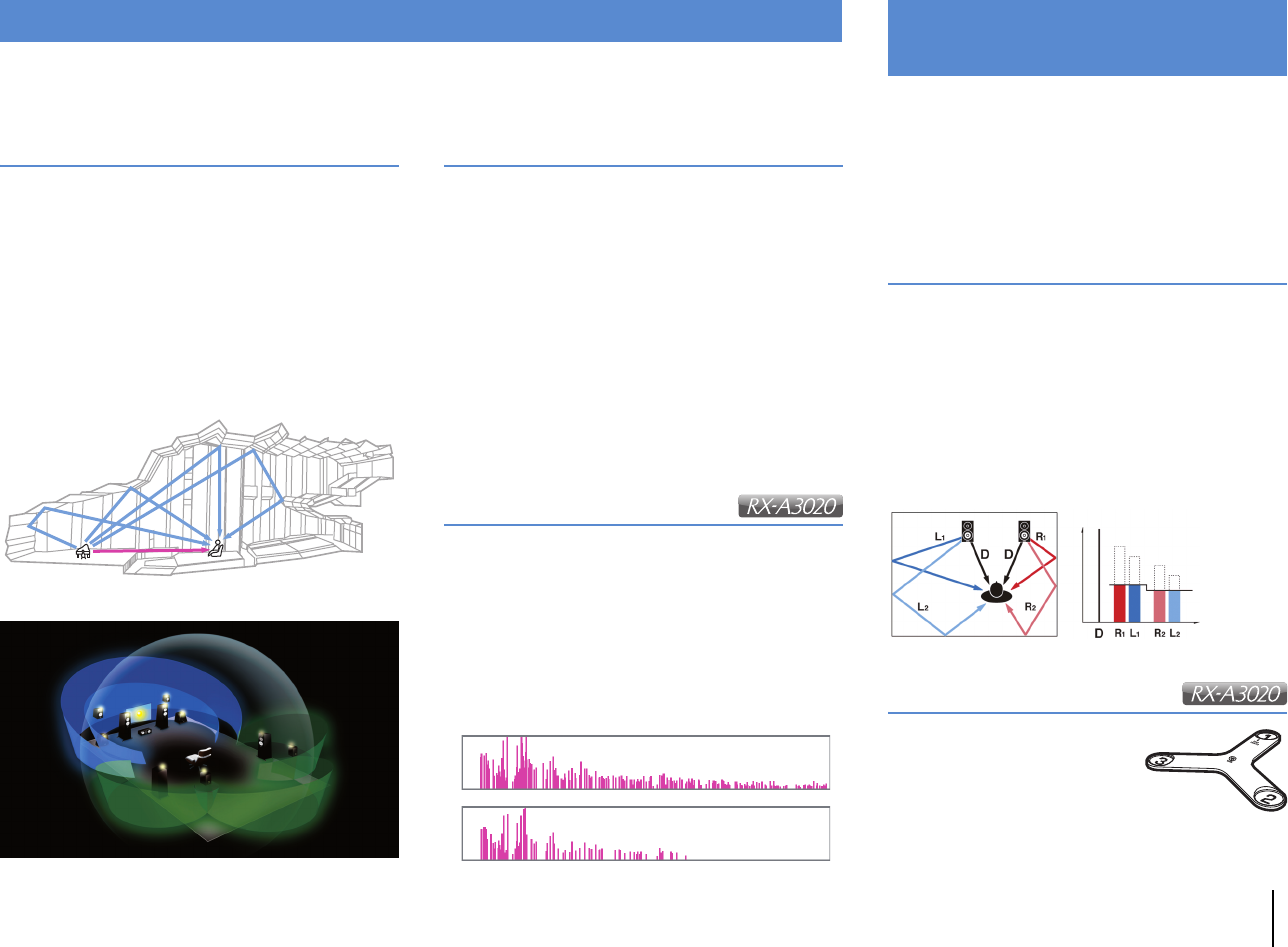
What is a sound field?
We perceive sound from a voice or an instrument not
only as the sounds that are heard directly but also as
the “reflected” or “reverberant” sound that has been
reflected by the walls or ceiling of the building. The
character of the reflected and reverberant sound is
affected by the shape, size, and material of the building,
and all of these sounds taken together are what give us
the auditory sensation of being in that specific place.
This unique acoustical character of a specific space is
what we call the “sound field”.
Conceptual diagram of a concert hall's sound field
Conceptual diagram of a sound field created by the unit
CINEMA DSP/CINEMA DSP 3D
Yamaha has accumulated a massive amount of
acoustical data by analyzing the actual sound fields of
concert halls and performance spaces around the
world. “CINEMA DSP” allows this data to be applied to
create sound fields. This unit contains a wide variety of
sound programs using CINEMA DSP.
By selecting a sound program that is appropriate to the
content of the playback source such as movies, music,
or games, you can maximize the acoustical
effectiveness of that specific content. (For example, a
sound program designed for movies can give you the
sensation of actually being in that scene.)
In addition, the “CINEMA DSP 3D” function uses
3-dimensional sound field data that includes the axis of
height, generating an even more realistic sound field
with a spatial sense.
CINEMA DSP HD
“CINEMA DSP HD³” is Yamaha's flagship 3D sound field
playback technology that takes full advantage of the
massive amount of acoustic reflection data included in the
sound field data. With support for rear presence speaker
output, it delivers more than twice as much capability for
generating acoustic reflections as conventional CINEMA
DSP 3D, in addition to high-frequency playback capability,
delivering an utterly natural and powerful spatial sound field.
Capability for reproducing reflections
(when the sound program “Hall in Munich” is selected)
CINEMA DSP
CINEMA DSP HD³
Level
CINEMA DSP 3D
Time
The included YPAO microphone can be used to analyze
the environment so that this information can be used to
automatically adjust various settings for the speakers and
the sound field. This allows the distinctive character of the
content you are hearing to be maximized, and optimizes
the effectiveness of Yamaha's sound field generating
technology for your specific listening environment.
YPAO-R.S.C.
In rooms that have not been designed or constructed
with acoustics in mind, reflections from the walls or
ceiling can cause problems such as a blurred
low-frequency range or a smearing of the acoustical
image. “YPAO-R.S.C.” is technology that reduces only
the unwanted reflections that can be difficult to avoid in
a typical home. This corrects the tonal changes and
inconsistencies in the sound field that can occur due to
speaker placement, thus creating a listening
environment comparable to that of a room specifically
designed for acoustic perfection.
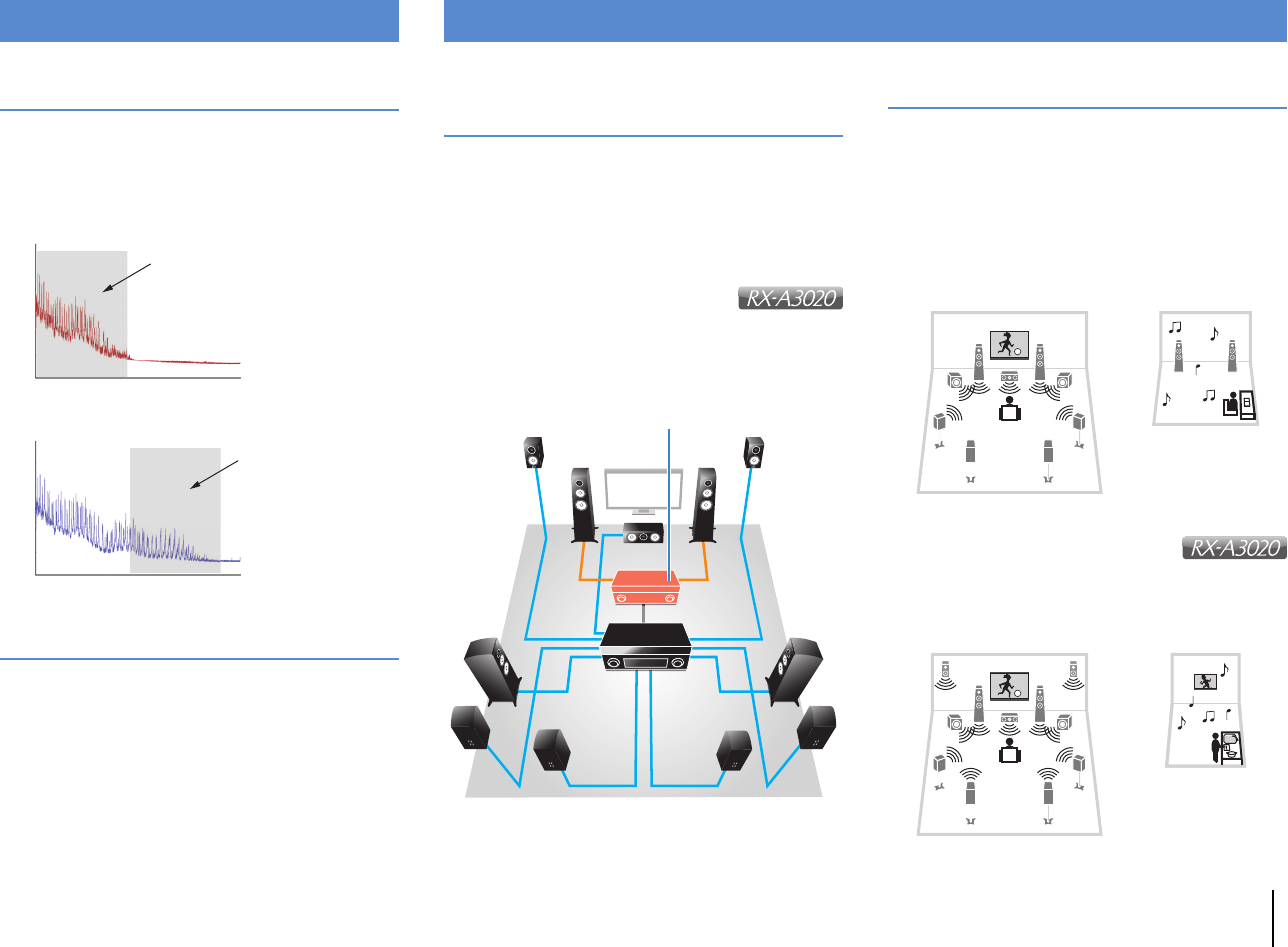
Angle measurement
The direction (angle) of the front
speakers, surround speakers,
and presence speakers as seen
from the listening position is
measured, and compensation
is applied to the sound field in
order to maximize the
effectiveness of the CINEMA DSP sound field.
Optimizing speaker settings
for the environment (YPAO)
Compensation
Time
Level
Microphone base
FEATURES ➤What you can do with the unit En 9
High-resolution music enhancer
Hi-bit high-sampling extension up to 96 kHz / 24-bit can
be applied to lossless 44.1/48 kHz content such as from a
CD (2-channel PCM) or a FLAC file for further heightening
of the musicality in the original content (p.101)
Before processing
After processing
High-quality video processing
From low-quality digital video to BD (Blu-ray disc)
images, any content can be played back as a
high-quality image (p.119).
• High-performance I/P conversion, high-performance
scaling
• Powerful noise reduction
• Resolution enhancement adds more detail
The RX-A3020 can also apply fine touches such as
noise reduction and resolution enhancement.
Unrivaled audio and video quality
Frequency
Loudness
Playback bandwidth of a 44.1/48 kHz
signal (such as a CD)
Frequency
Loudness
Playback bandwidth of a
88.2/96 kHz signal
Support for bi-amp connections and
external power amp expansion
To obtain even high audio quality, you can connect front
speakers that support power amp expansion, or
expand your system by adding an external power amp
(such as a Hi-Fi amp).
For details, refer to “Advanced speaker configuration”
(p.24).
The best expandability in Yamaha
By connecting an external power amp,
you can enjoy the highest peak of CINEMA DSP
- an 11.2-channel 3-dimensional sound field.
(Example)
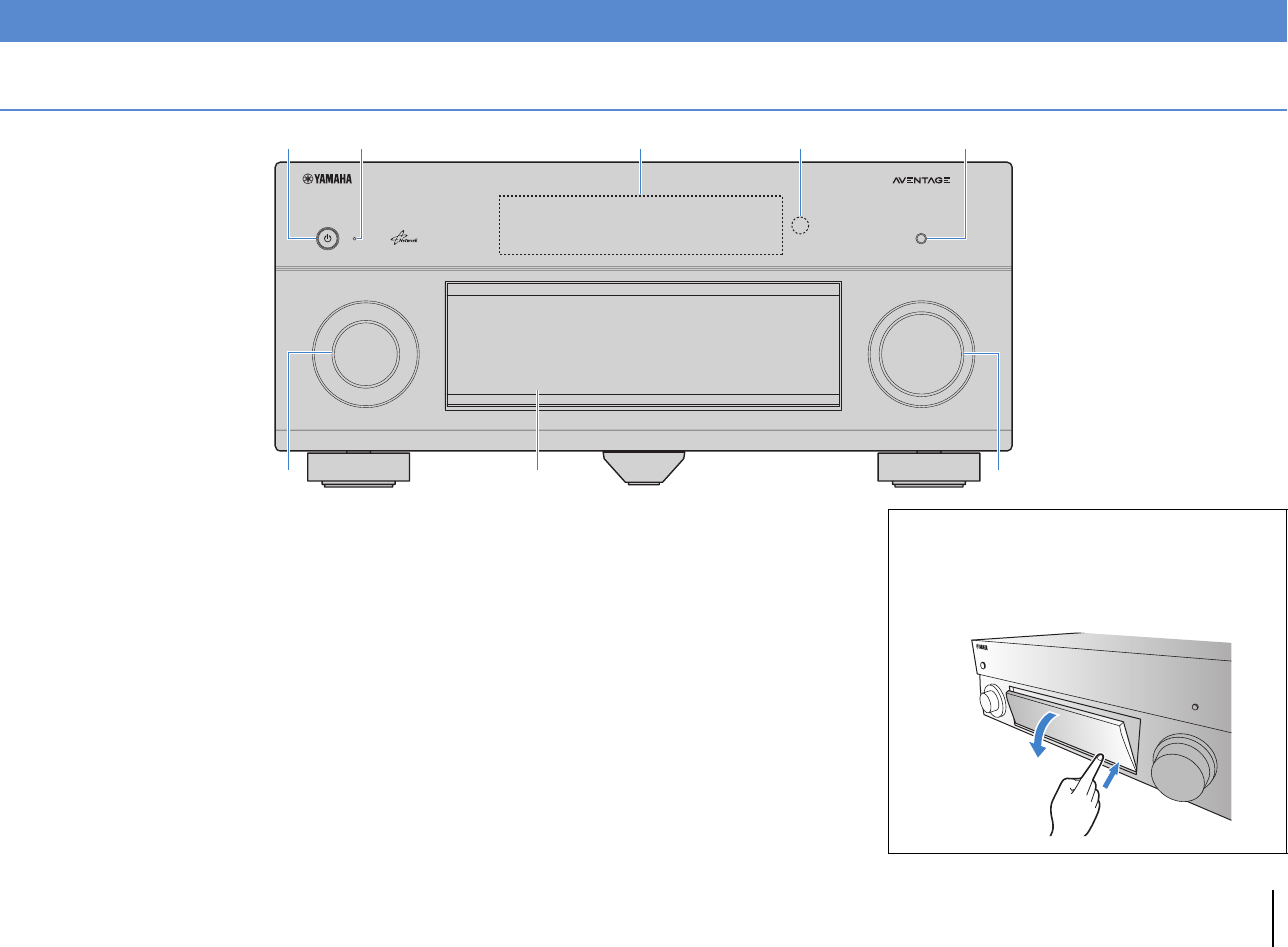
Multi-zone function
The multi-zone function (p.90) allows you to play back
different input sources in the room where the unit is
installed (main zone) and in other rooms (such as Zone2).
(The following shows examples of use.)
Enjoying music using speakers in another room
While enjoying multi-channel playback in your living
room, you can listen to music through the speakers of a
different room.
Enjoying videos using a TV in
another room (HDMI connection)
While enjoying multi-channel playback in your living
room, you can enjoy videos and music being input via
HDMI on a TV in a different room.
Expandable to meet diverse needs
External power amp
Living room (main zone)
Study room
(such as Zone2)
Living room (main zone)
Kitchen
(such as Zone4)
FEATURES ➤Part names and functions En 10
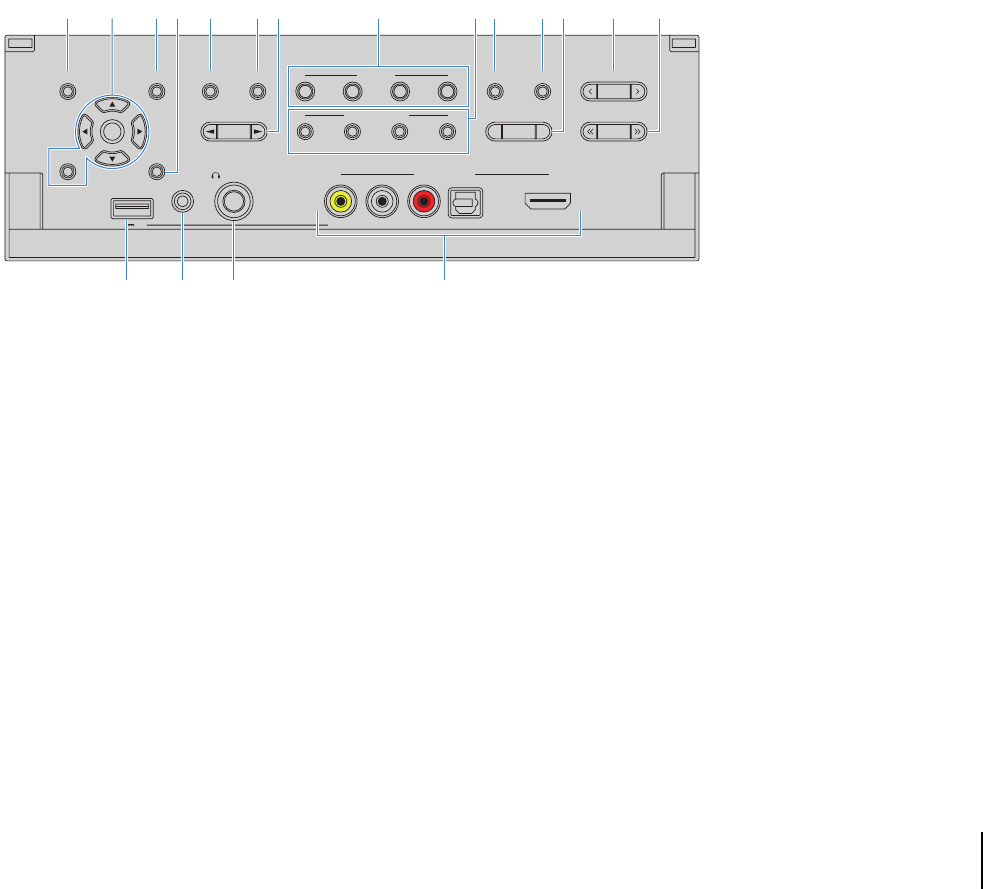
Front panel
1MAIN ZONE z key
Turns on/off (standby) the unit.
2Standby indicator
Lights up when the unit is in standby mode under any of the
following conditions.
• HDMI Control is enabled (p.122)
• Standby Through is enabled (p.123)
• Network Standby is enabled (p.124)
• An iPod is being charged (p.76)
3Front display
Displays information (p.12).
4Remote control sensor
Receives remote control signals (p.5).
5PURE DIRECT key
Enables/disables Pure Direct (p.68).
6INPUT knob
Selects an input source.
7Front panel door
For protecting controls and jacks (p.11)
8VOLUME knob
Adjusts the volume.
Part names and functions
INPUT
MAIN ZONE
VOLUME
PURE DIRECT
ENTER
OPTION
ON SCREEN
DISPLAYRETURN
USB
YPAO MIC
PHONES
TONE/BALANCE
STRAIGHT
PROGRAM
MULTI ZONE
VIDEO AUX
ZONE 2 ZONE 3 ZONE 4
ZONE CONTROL
SILENT CINEMA
VIDEO
5V 2.1A
SCENE
1234
RLAUDIO
HDMI IN
OPTICAL
INFO
MEMORY
FM AM TUNING
PRESET
4 5231
68
7
Opening the front panel door
• To use controls or jacks behind the front panel door, gently
press the bottom of the door to open it. Keep the door closed
when not using controls or jacks behind the front panel door.
(Be careful not to trap your fingers.)
FEATURES ➤Part names and functions En 11
■Inside of the front panel door
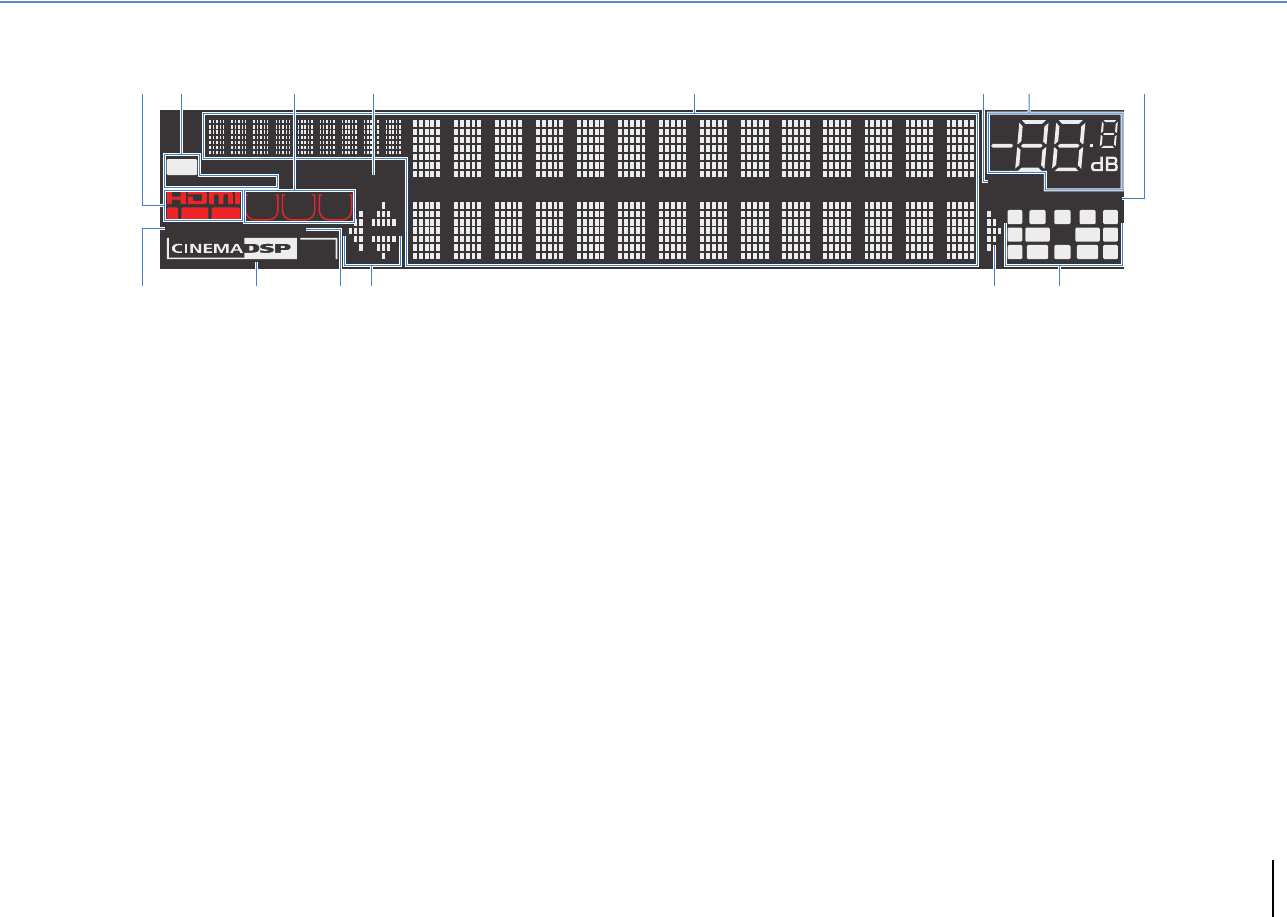
9ON SCREEN key
Displays the on-screen menu on the TV.
0Menu operations keys
Cursor keys Select a menu or a parameter.
ENTER Confirms a selected item.
RETURN Returns to the previous screen.
AOPTION key
Displays the option menu (p.98).
BDISPLAY key
Displays status information on the TV (p.97).
CTONE/BALANCE key
Adjusts the high-frequency range and low-frequency range
of output sounds (p.99).
Adjusts the right/left channel volume balance for Zone2 or
Zone3 (p.96).
DSTRAIGHT key
Enables/disables the straight decode mode (p.67).
EPROGRAM keys
Select a sound program or a surround decoder (p.63).
FSCENE keys
Select the registered input source, sound program, and
various settings with one touch. Also, turns on the unit when
it is in standby mode (p.61).
GMULTI ZONE keys
ZONE 2–4 (ZONE 4: RX-A3020 only)
Enables/disables the audio output to
each zone (p.95).
ZONE CONTROL Changes the zone that is controlled by
the keys and knobs on the front panel
(p.95).
HINFO key
Selects the information displayed on the front display (p.97).
IMEMORY key
Registers FM/AM radio stations as preset stations (p.70).
JFM and AM keys
Switch between FM and AM (p.69).
KPRESET keys
Select a preset FM/AM radio station (p.70).
LTUNING keys
Select the radio frequency (p.69).
MUSB jack
For connecting a USB storage device (p.80) or an iPod
(p.76).
NYPAO MIC jack
For connecting the supplied YPAO microphone (p.50).
OPHONES jack
For connecting headphones.
PVIDEO AUX jacks
For connecting devices, such as camcorders and game
consoles (p.44).
ENTER
OPTION
ON SCREEN
DISPLAYRETURN
USB
YPAO MIC
PHONES
TONE/BALANCE
STRAIGHT
PROGRAM
MULTI ZONE
VIDEO AUX
ZONE 2 ZONE 3ZONE 4
ZONE CONTROL
SILENT CINEMA
VIDEO
5V 2.1A
SCENE
1234
RLAUDIO
HDMI IN
OPTICAL
INFO
MEMORY
FM AM TUNING
PRESET
BE JL9ACD HIK0FG
MNO P
(RX-A3020)
FEATURES ➤Part names and functions En 12
Front display (indicators)
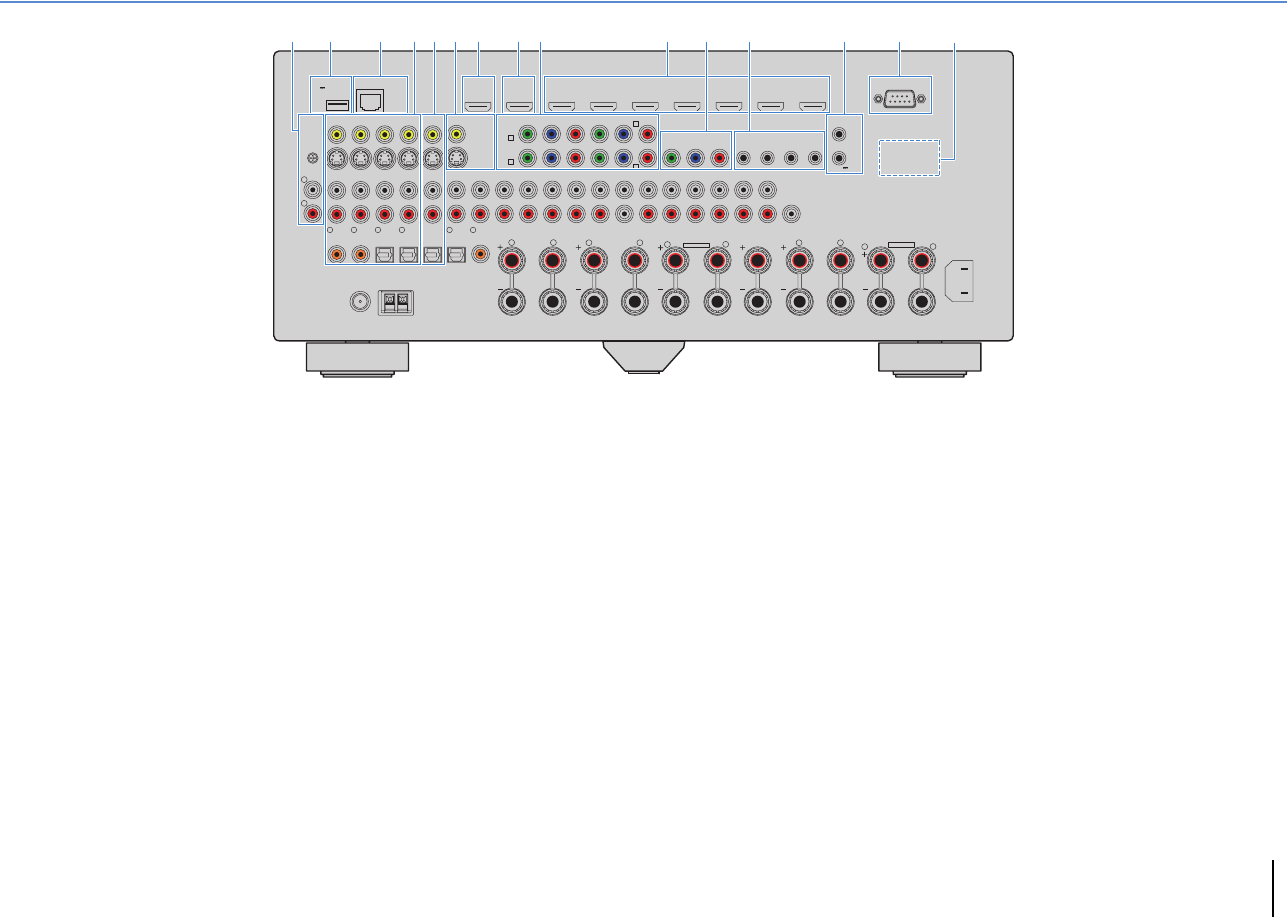
1HDMI
Lights up when HDMI signals are being input or output.
IN
Lights up when HDMI signals are being input.
OUT1/OUT2
Indicates the HDMI OUT jacks currently outputting an HDMI
signal.
2STEREO
Lights up when the unit is receiving a stereo FM radio signal.
TUNED
Lights up when the unit is receiving an FM/AM radio station
signal.
HD
(U.S.A. model only)
Lights up when the unit is receiving an HD Radio station
signal.
3ZONE indicators
Lights up when Zone2, Zone3 or Zone4 (RX-A3020 only) is
enabled (p.95).
4PARTY
Lights up when the unit is in the party mode. (p.96)
5Information display
Displays the current status (such as input name and sound
mode name). You can switch the information by pressing
INFO (p.97).
6MUTE
Blinks when audio is muted.
7Volume indicator
Indicates the current volume.
8ADAPTIVE DRC
Lights up when Adaptive DRC (p.99) is working.
9ENHANCER
Lights up when Compressed Music Enhancer (p.68) is
working.
0CINEMA DSP indicator
(RX-A3020)
“CINEMA DSP HD” lights up when CINEMA DSP (p.64) is
working. “CINEMA DSP !” lights up when CINEMA DSP
HD³ is activated.
(RX-A2020)
“CINEMA DSP” lights up when CINEMA DSP (p.64) is
working. “CINEMA DSP n” lights up when CINEMA DSP 3D
is activated.
ASLEEP
Lights up when the sleep timer is on.
BCursor indicators
Indicate the remote control cursor keys currently operational.
CSpeaker indicators
Indicate speaker terminals from which signals are output.
AFront speaker (L)
SFront speaker (R)
DCenter speaker
FSurround speaker (L)
GSurround speaker (R)
HSurround back speaker (L)
JSurround back speaker (R)
KSurround back speaker
ZFront/rear presence speakers (L)
XFront/rear presence speakers (R)
CSubwoofer (1)
VSubwoofer (2)
OUT
1
IN
OUT
2
VOLUME
MUTE
DRCADAPTIVE
3
ZONE
2
SBLPL SBRSB PR
SW1
SL
SW2
SR
PL
CL R
PR
STEREO
ENHANCER
SLEEP
HD
TUNED PARTY
ZONE
3
ZONE
4
HD
287
6
09 BCB
15
A
3 4
(RX-A3020 U.S.A. model)
FEATURES ➤Part names and functions En 13
Rear panel
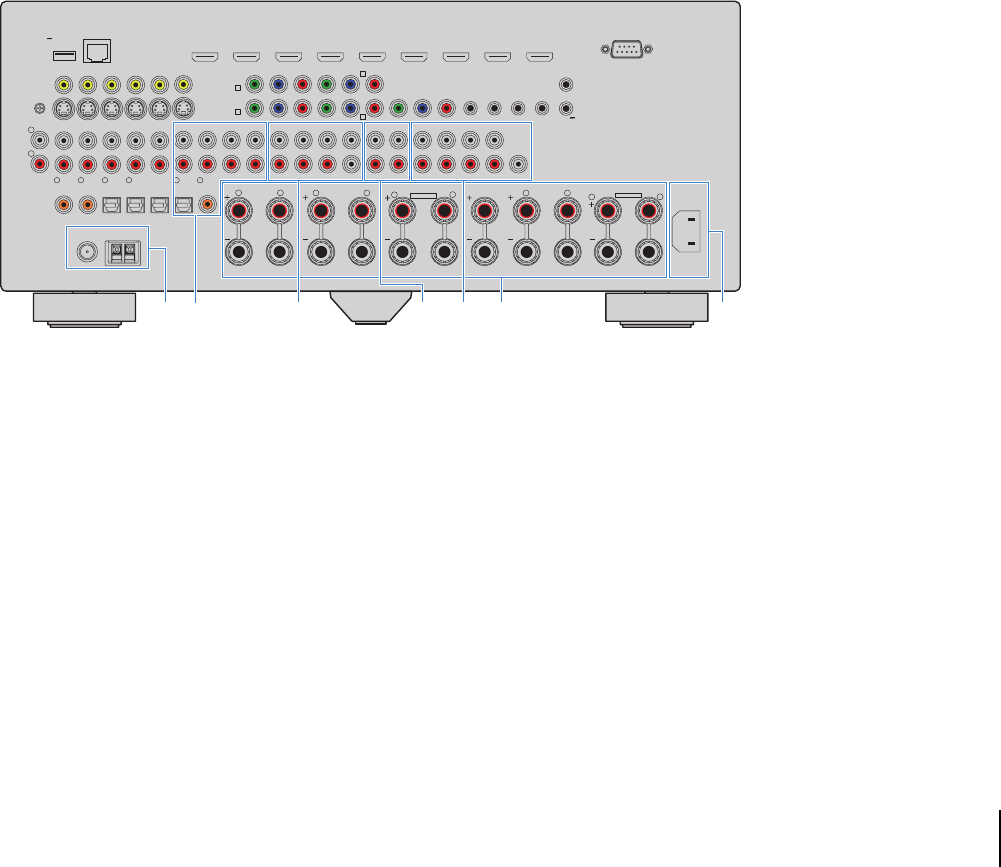
1PHONO jacks
For connecting to a turntable (p.43).
2DC OUT jack
For connecting to an optional accessory.
3NETWORK jack
For connecting to a network (p.45).
4AV 1–4 jacks
For connecting to video/audio playback devices and
inputting video/audio signals (p.41).
5AV OUT jacks
For outputting video/audio to a recording device (such as a
VCR) (p.46).
6MONITOR OUT/ZONE OUT
(composite video/S-video) jacks
For connecting to a TV that supports composite video or
S-video and outputting video signals (p.39) or for connecting
to a zone video monitor used in Zone2 or Zone3 (p.92).
7HDMI OUT 1 jack
For connecting to an HDMI-compatible TV and outputting
video/audio signals (p.35). When using ARC, TV audio signal
can also be input through the HDMI OUT 1 jack.
8HDMI OUT 2 (ZONE OUT) jack (RX-A3020)
For connecting to an HDMI-compatible TV and outputting
video/audio signals (p.40), or for connecting to an
HDMI-compatible device used in Zone2 or Zone4 (p.93).
HDMI OUT 2 jack (RX-A2020)
For connecting to an HDMI-compatible TV and outputting
video/audio signals (p.40).
9COMPONENT VIDEO (AV 1–4) jacks
For connecting to video playback devices that support
component video and inputting video signals (p.41).
0HDMI (AV 1–7) jacks
For connecting to HDMI-compatible playback devices and
inputting video/audio signals (p.41).
AMONITOR OUT/ZONE OUT (component video)
jacks
For connecting to a TV that supports component video and
outputting video signals (p.39) or for connecting to a zone
video monitor used in Zone2 or Zone3 (p.92).
BREMOTE IN/OUT 1–2 jacks
For connecting to a Yamaha product that supports SCENE
link playback (p.47) or for connecting to an infrared signal
receiver/emitter that allows you to operate the unit and other
devices from another room (p.94).
CTRIGGER OUT 1–2 jacks
For connecting to devices that support the trigger function
(p.47).
DRS-232C terminal
This is a control expansion terminal for custom installation.
Consult your dealer for details.
EVOLTAGE SELECTOR
(General model only)
Selects the switch position according to your local voltage
(p.48).
NETWORKDC OUT
5V
0.5A
( 3 NET )
MONITOR OUT/
ZONE OUT
HDMI OUT
ARC
(ZONE OUT)
12
HDMI
(1 BD/DVD)
AV 1 AV 2 AV 3AV 4 AV 5 AV 6 AV 7
TRIGGER
OUT
1
2
RS-232C
YPBPR
YPBPR
YPBPR
MONITOR OUT/ZONE OUT
IN OUT IN OUT
AV 1
AV 3
REMOTE
12
COMPONENT VIDEO
A
AV 2
B
C
AV 4 D
AV OUT
R
L
AV 3AV 4AV 2AV 1
(1 BD/DVD)
OPTICAL
4
OPTICAL
3
COAXIAL
2
COAXIAL
1
PHONO
GND
AC IN
OPTICAL
1
2
AUDIO 4
MULTI CH INPUT
ZONE OUT/PRE OUT
AUDIO 3AUDIO 2AUDIO 1
(2 TV)
CENTER
SUBWOOFER
ZONE 2 /
F.P RE SENSE
ZONE 3 /
R.PRESENSE
FRONT
SURROUND SUR. BACK
SPEAKERS
CENTER FRONT
SURROUND BACKSURROUND
BI–AMP
ZONE 2/ZONE 3/F.PRESENCE/
ZONE 2/ZONE 3/R.PRESENCE
R
5
COAXIAL
6
L
R L RRR
LLL
SINGLE
PRE OUT
SUBWOOFER
CENTER
FRONT
SURROUND SUR. BACK
(SINGLE) (FRONT)
(REAR)
EXTRA SP1
EXTRA SP2
12V 0.1A
FM
75Ω
ANTENNA
HD Radio
AM
(4 RADIO)
21 3 7 8 D5 6 CA B904E
* The area around the video/audio output
jacks is marked in white on the actual
product to prevent improper connections.
(RX-A3020 U.S.A. model)
FEATURES ➤Part names and functions En 14
FANTENNA jacks
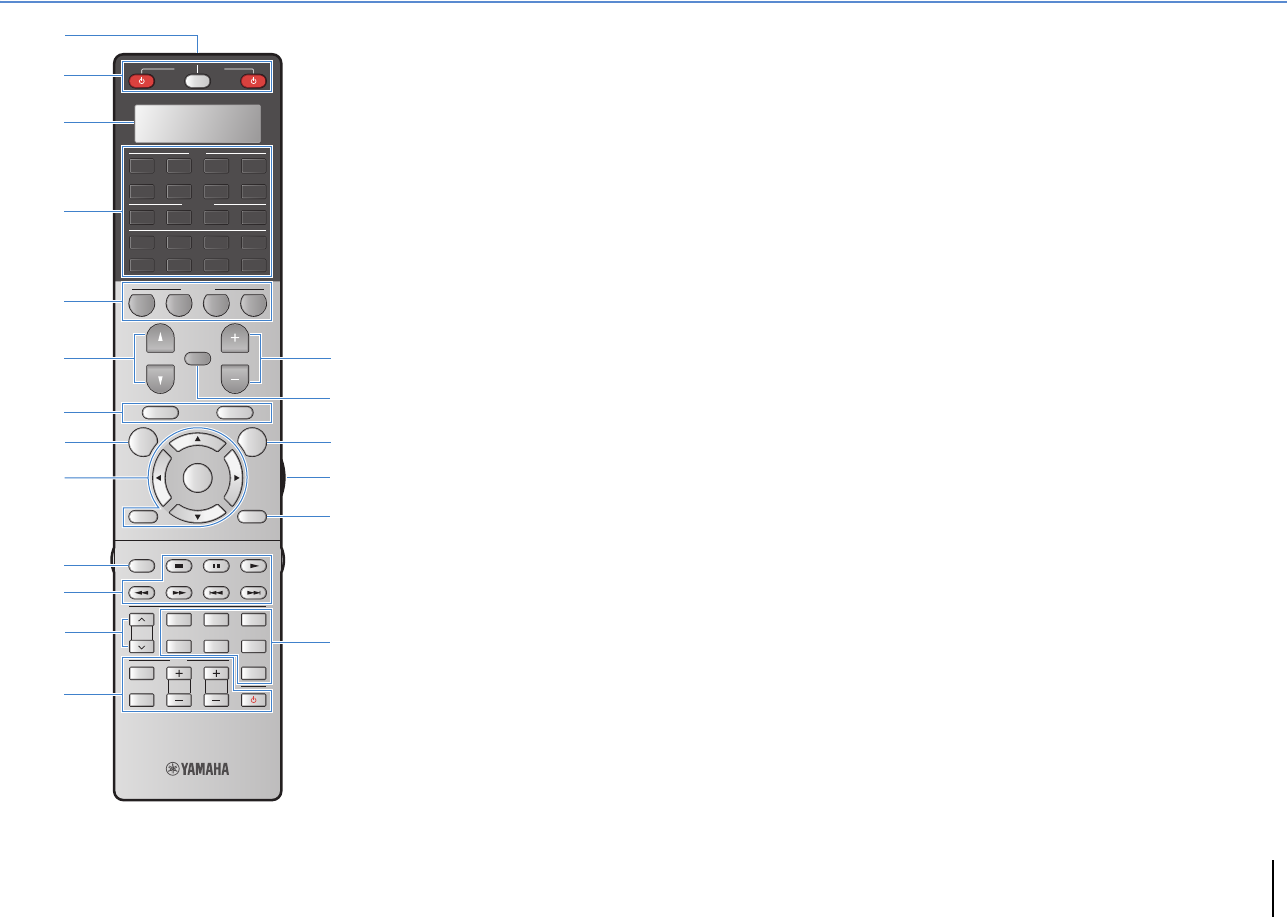
For connecting to FM and AM antennas (p.44).
GAUDIO 1–4 jacks
For connecting to audio playback devices and inputting
audio signals (p.43).
HMULTI CH INPUT jacks
For connecting to a device that supports multi-channel
output and inputting audio signals (p.46).
IZONE OUT/PRE OUT jacks (RX-A3020)
For connecting to an external amplifier used in Zone2 or
Zone3 and outputting audio (p.91), or for connecting to an
external power amplifier for front presence or rear presence
channels (p.33).
ZONE OUT jacks (RX-A2020)
For connecting to an external amplifier used in Zone2 or
Zone3 and outputting audio (p.91).
JPRE OUT jacks
For connecting to a subwoofer with built-in amplifier (p.22) or
to an external power amplifier (p.33).
KSPEAKERS terminals
For connecting to speakers (p.18).
LAC IN jack
For connecting the supplied power cable (p.48).
NETWORKDC OUT
5V
0.5A
( 3 NET )
MONITOR OUT/
ZONE OUT
HDMI OUT
ARC
(ZONE OUT)
12
HDMI
(1 BD/DVD)
AV 1 AV 2 AV 3AV 4 AV 5 AV 6 AV 7
TRIGGER
OUT
1
2
RS-232C
YPBPR
YPBPR
YPBPR
MONITOR OUT/ZONE OUT
IN OUT IN OUT
AV 1
AV 3
REMOTE
12
COMPONENT VIDEO
A
AV 2
B
C
AV 4 D
AV OUT
R
L
AV 3AV 4AV 2AV 1
(1 BD/DVD)
OPTICAL
4
OPTICAL
3
COAXIAL
2
COAXIAL
1
PHONO
GND
AC IN
OPTICAL
1
2
AUDIO 4
MULTI CH INPUT
ZONE OUT/PRE OUT
AUDIO 3AUDIO 2AUDIO 1
(2 TV)
CENTER
SUBWOOFER
ZONE 2 /
F.P RE SENSE
ZONE 3 /
R.PRESENSE
FRONT
SURROUND SUR. BACK
SPEAKERS
CENTER FRONT
SURROUND BACKSURROUND
BI–AMP
ZONE 2/ZONE 3/F.PRESENCE/
ZONE 2/ZONE 3/R.PRESENCE
R
5
COAXIAL
6
L
R L RRR
LLL
SINGLE
PRE OUT
SUBWOOFER
CENTER
FRONT
SURROUND SUR. BACK
(SINGLE) (FRONT)
(REAR)
EXTRA SP1
EXTRA SP2
12V 0.1A
FM
75Ω
ANTENNA
HD Radio
AM
(4 RADIO)
K LGF I JH
* The area around the video/audio output
jacks is marked in white on the actual
product to prevent improper connections.
(RX-A3020 U.S.A. model)
FEATURES ➤Part names and functions En 15
Remote control
1Remote control signal transmitter
Transmits infrared signals.
2SOURCE z key
Turns on/off an external device.
SOURCE/RECEIVER key
Changes the device (the unit or external device) that is
operated with the remote control (p.138). You can operate
the unit when this key lights up in orange, and an external
device when this key lights up in green.
RECEIVER z key
Turns on/off (standby) the unit.
3Display window
Displays remote control information.
4Input selection keys
Select an input source for playback.
AV 1–7 AV 1–7 jacks
V-AUX VIDEO AUX jacks (on the front panel)
AUDIO 1–4 AUDIO 1–4 jacks
PHONO PHONO jacks
MULTI MULTI CH INPUT jacks
USB USB jack (on the front panel)
NET NETWORK jack (press repeatedly to select a
desired network source)
TUNER FM/AM radio
[A], [B], [C] Change the external device to operate with the
remote control without switching the input
source.
5SCENE keys
Select the registered input source, sound program, and
various settings with one touch. Also, turns on the unit when
it is in standby mode (p.61).
6PROGRAM keys
Select a sound program (p.63).
7External device operation keys
Let you play back and perform other operations for external
devices (p.138).
8ON SCREEN key
Displays the on-screen menu on the TV.
9Menu operation keys
Cursor keys Select a menu or a parameter.
ENTER Confirms a selected item.
RETURN Returns to the previous screen.
0MODE key
Switches the iPod operation modes (p.78).
(U.S.A. model only) Selects an HD Radio audio program
(p.71).
APRESET keys
Select a preset FM/AM radio station (p.70).
BTV operation keys
Let you select TV input and volume, and perform other TV
operations (p.137).
CVOLUME keys
Adjust the volume.
DMUTE key
Mutes the audio output.
EOPTION key
Displays the option menu (p.98).
FLIGHT key (RX-A3020 only)
Turns on the backlight of the remote control keys for about 10
seconds.
GDISPLAY key
Displays status information on the TV (p.97).
HSound mode keys
Select a sound mode (p.63).
SOURCE RECEIVER
AV
AUDIO
1 2 3 4
567
V-AUX
1 2 3 4
MULTI
PHONO
USB NET
TUNER
[ C ][ A ] [ B ]
CLASSICAL
LIVE
CLUB
ENTERTAIN
MOVIE
STEREO STRAIGHT
INPUT PURE
DIRECT
MUTE
TV
SCENE
1 2 3 4
PROGRAM
VOLUME
TV VOL
MUTE
MODE
TOP MENU
RETURN DISPLAY
POP-UP/MENU
TV CH
PRESET
ENTER
ON SCREEN
OPTION
D
E
G
F
1
4
2
5
3
6C
7
B
8
7
:
9
H
A
(RX-A3020)

FEATURES ➤Part names and functions En 16
■Inside of the remote control cover
ISound mode keys
Select a sound mode (p.63).
JINFO key
Selects the information displayed on the front display (p.97).
KNumeric keys
Let you enter numerical values, such as radio frequencies.
LZONE key
Changes the zone that is controlled by the remote control
(p.95).
MPARTY key
Turns on/off the party mode (p.96).
NHDMI OUT key
Selects HDMI OUT jacks to be used for video/audio output
(p.60).
ORadio keys
Operate the FM/AM radio (p.69).
MEMORY Registers FM/AM radio stations as presets.
FM Switches to FM radio.
AM Switches to AM radio.
TUN./CH Select the radio frequency.
PSLEEP key
Switches the unit to standby mode automatically after a
specified period of time has elapsed (sleep timer). Press
repeatedly to set the time (120 min, 90 min, 60 min, 30 min,
off).
QLEVEL key
Adjusts the volume of each speaker (p.117).
RSETUP key
Switches the remote control to the setup mode (p.136).
• To operate external devices with the remote control, register a
remote control code for each device before using (p.136).
SOURCE RECEIVER
AV
AUDIO
1 2 3 4
567
V-AUX
1 2 3 4
MULTI
PHONO
USB NET
TUNER
[ C ][ A ] [ B ]
CLASSICAL
LIVE
CLUB
ENTERTAIN
MOVIE
STEREO STRAIGHT
INPUT PURE
DIRECT
MUTE
TV
SCENE
1 2 3 4
PROGRAM
VOLUME
TV VOL
MUTE
MODE
TOP MENU
RETURN DISPLAY
POP-UP/MENU
TV CH
PRESET
ENTER
ON SCREEN
OPTION
2 3
5
1
4 6
TUN./ CH
ENHANCER
SUR.
DECODE
HDMI OUT
MEMORY
INFO AM
PARTY
FM
0
10
LEVELENT
SETUPZONE
87
SLEEP
9
M
N
P
Q
R
I
K
J
L
O
(RX-A3020)
PREPARATIONS ➤General setup procedure En 17
PREPARATIONS
This completes all the preparations. Enjoy playing movies, music, radio and other content with the unit!
General setup procedure
1Connecting speakers (p.18) Basic speaker configuration (p.19)
Select the speaker layout and connect the speakers to the unit.
Advanced speaker configuration (p.24)
Apply bi-amp connections, channel expansion (using an external power amplifier) or multi-zone
configurations to enhance the system.
2Connecting a TV (p.35) Connect a TV to the unit.
3Connecting playback devices (p.41) Connect video devices (such as BD/DVD players) and audio devices (such as CD players) to the unit.
4Connecting the FM/AM antennas (p.44) Connect the supplied FM/AM antennas to the unit.
5Connecting to a network (p.45) Connect the unit to a network.
6Connecting other devices (p.46) Connect external devices such as recording devices.
7Connecting the power cable (p.48) After all the connections are complete, plug in the power cable.
8Selecting an on-screen menu language
(p.49) Select the desired on-screen menu language.
9Optimizing the speaker settings
automatically (YPAO) (p.50)
Optimize the speaker settings, such as volume balance and acoustic parameters, to suit your room
(YPAO).
PREPARATIONS ➤Connecting speakers En 18
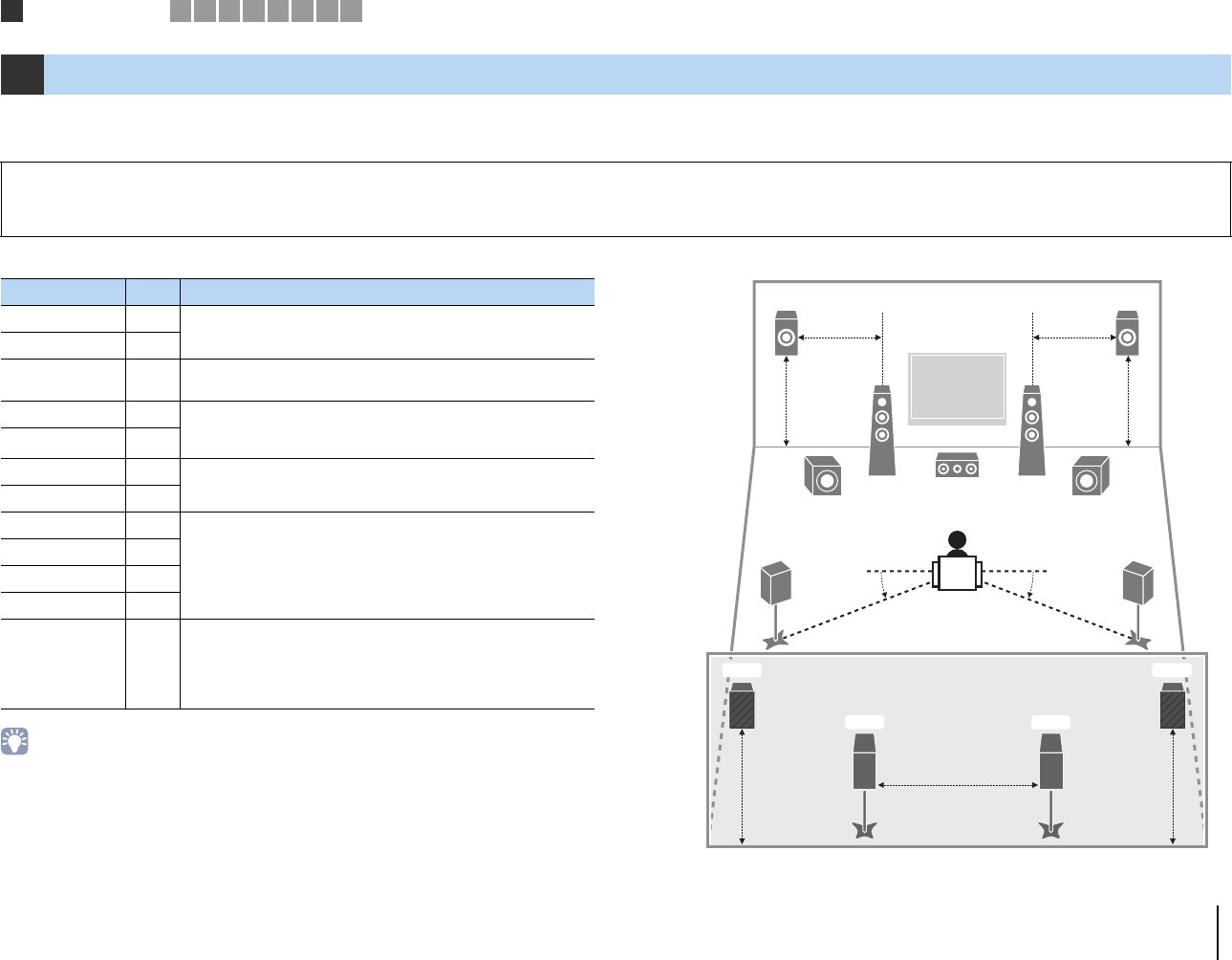
The unit has 9 built-in amplifiers. You can connect 2 to 11 speakers and up to 2 subwoofers to create the favorite acoustic space in your room.
You can also apply bi-amp connections, channel expansion (using an external power amplifier) or multi-zone configurations to enhance your system (p.24).
Functions of each speaker
• We recommend using presence speakers to have a full effect of the 3-dimensional sound fields. However,
the unit creates Virtual Presence Speaker (VPS) using the front, center and surround speakers to produce
3-dimensional sound fields even when no presence speakers are connected (p.64).
• Use “Ideal speaker layout” (diagram on the right) as reference. You do not need to exactly adjust the
speaker layout to this diagram since the YPAO function of the unit will automatically optimize the speaker
settings (such as distances) to suit the speaker layout.
• When using only one surround back speaker, place it straight behind the listening position (middle of “SBL”
and “SBR” in the diagram).
Ideal speaker layout
1Connecting speakers
Caution
• Under its default settings, the unit is configured for 8-ohm speakers. When connecting 6-ohm speakers, set the unit’s speaker impedance to “6 Ω MIN”. In this case, you can also use 4-ohm speakers as the front speakers.
For details, see “Setting the speaker impedance” (p.21).
Speaker type Abbr. Function
Front (L) 1
Produce front right/left channel sounds (stereo sounds).
Front (R) 2
Center 3Produces center channel sounds (such as movie dialogues and
vocals).
Surround (L) 4Produce surround right/left channel sounds. Surround speakers
also produce surround back channel sounds when no surround
back speakers are connected.
Surround (R) 5
Surround back (L) 6
Produce surround back right/left channel sounds.
Surround back (R) 7
Front presence (L) E
Produce CINEMA DSP effect sounds. In combination with CINEMA
DSP HD³ (RX-A3020) or CINEMA DSP 3D (RX-A2020) (p.64), the
presence speakers create a natural 3-dimensional sound field in
your room.
Front presence (R) R
Rear presence (L) T
Rear presence (R) Y
Subwoofer 9
Produces LFE (low-frequency effect) channel sounds and
reinforces bass parts of other channels.
This channel is counted as “0.1”. You can connect 2 subwoofers to
the unit and place them on the right/left (or front/rear) sides of the
room.
E
12
39
4
6
T Y
5
9
R
7
0.3 m (1 ft) or more
1.8 m
(5.9 ft)
0.5 to 1 m
(1.6 to 3.3 ft)
1.8 m
(5.9 ft)
0.5 to 1 m
(1.6 to 3.3 ft)
10°~30°10°~30°
1.8 m
(5.9 ft)
1.8 m
(5.9 ft)
1Speaker connections 2 3 4 5 6 7 8 9
PREPARATIONS ➤Connecting speakers En 19
Basic speaker configuration
■Placing speakers in your room
Depending on the number of speakers, place the speakers and subwoofer in your room. This section describes the representative speaker layout examples.
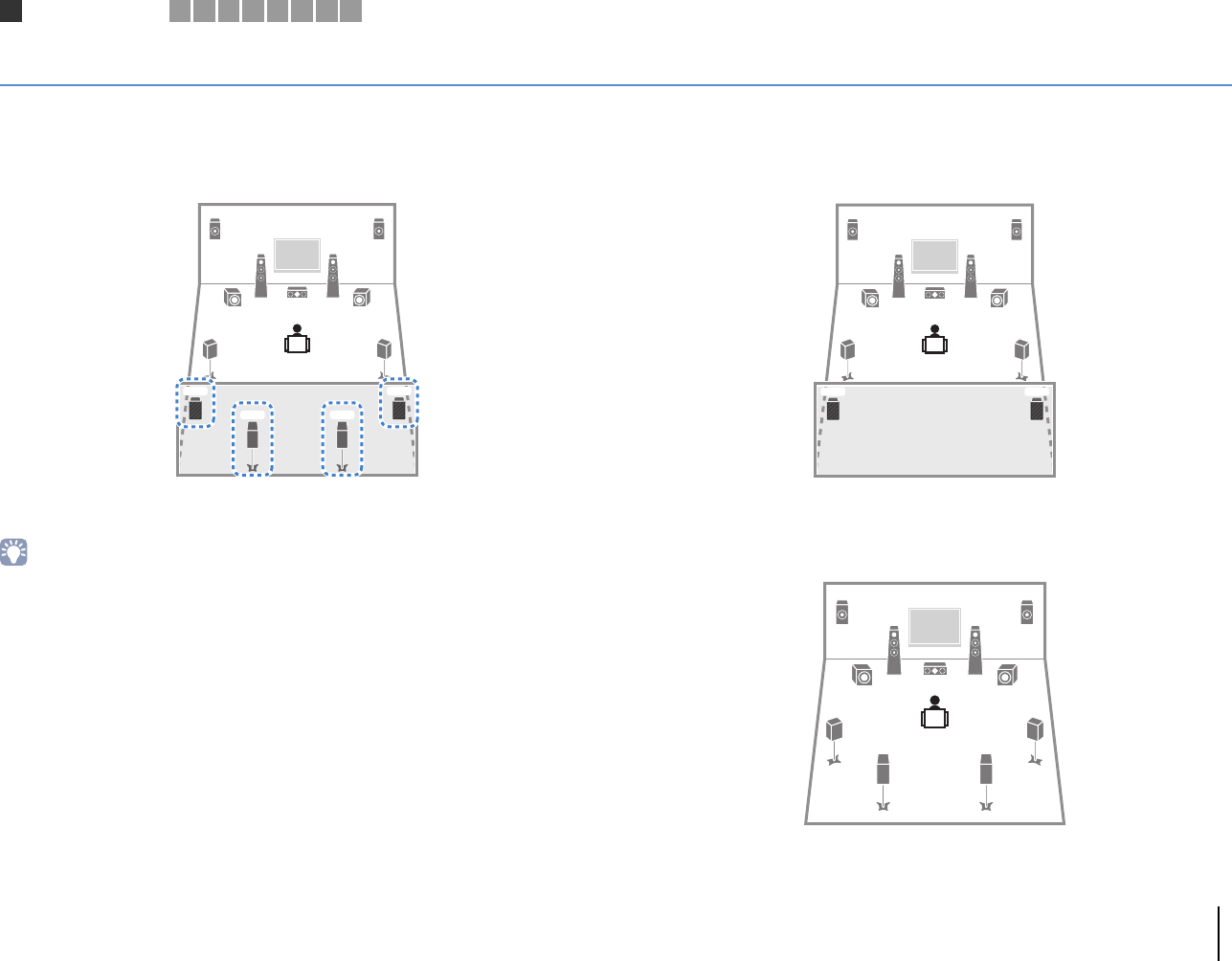
❑9.2+2-channel system
(using both surround back and rear presence speakers)
This speaker system brings out the full performance of the unit and allows you to enjoy
a highly-natural 3-dimensional sound field with any contents.
• The surround back speakers and rear presence speakers do not produce sounds simultaneously. The unit
automatically changes the speakers to be used, depending on the selected sound program (p.64).
• (RX-A3020 only)
You can make an 11-channel system by using an external power amplifier (p.25).
❑9.2-channel system (using rear presence speakers)
This speaker system uses the front and rear presence speakers to produce a
highly-natural 3-dimensional sound field, and is suited for enjoying 5.1-channel contents.
❑9.2-channel system (using surround back speakers)
This speaker system uses the front presence speakers to produce a natural
3-dimensional sound field, and also allows you to enjoy extended surround sounds
using the surround back speakers.
E
9
R
12
39
45
6 7
T Y
E
9
R
12
39
45
T Y
21
39
45
9
67
ER
1Speaker connections 2 3 4 5 6 7 8 9
PREPARATIONS ➤Connecting speakers En 20
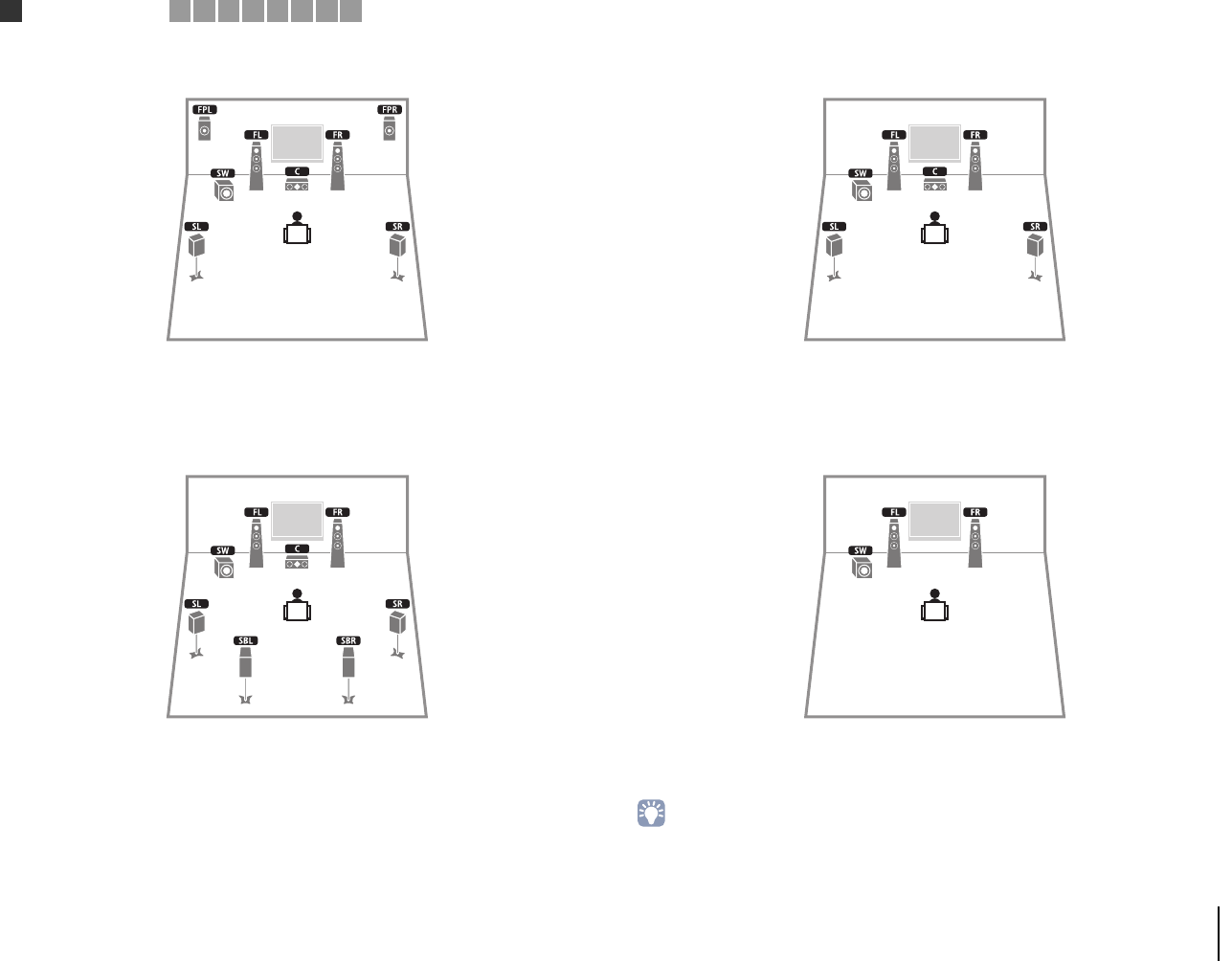
❑7.1-channel system (using front presence speakers)
This speaker system uses the front presence speakers to produce a natural
3-dimensional sound field, and is suited for enjoying 5.1-channel contents.
❑7.1-channel system (using surround back speakers)
This speaker system creates Virtual Presence Speaker (VPS) using the front, center and
surround speakers to produce a 3-dimensional sound field, and also allows you to
enjoy extended surround sounds using the surround back speakers.
❑5.1-channel system
This speaker system creates Virtual Presence Speaker (VPS) using the front, center and
surround speakers to produce a 3-dimensional sound field, and is suited for enjoying
5.1-channel contents.
❑2.1-channel system
Even when no surround speakers are connected, the unit creates the virtual surround
speakers using the front speakers to allow you to enjoy multi-channel surround sound
(Virtual CINEMA DSP).
• Add the center speaker to configure a 3.1-channel system.
1Speaker connections 2 3 4 5 6 7 8 9
PREPARATIONS ➤Connecting speakers En 21
■Setting the speaker impedance
Under its default settings, the unit is configured for 8-ohm speakers. When connecting
6-ohm speakers, set the speaker impedance to “6 Ω MIN”. In this case, you can also
use 4-ohm speakers as the front speakers.
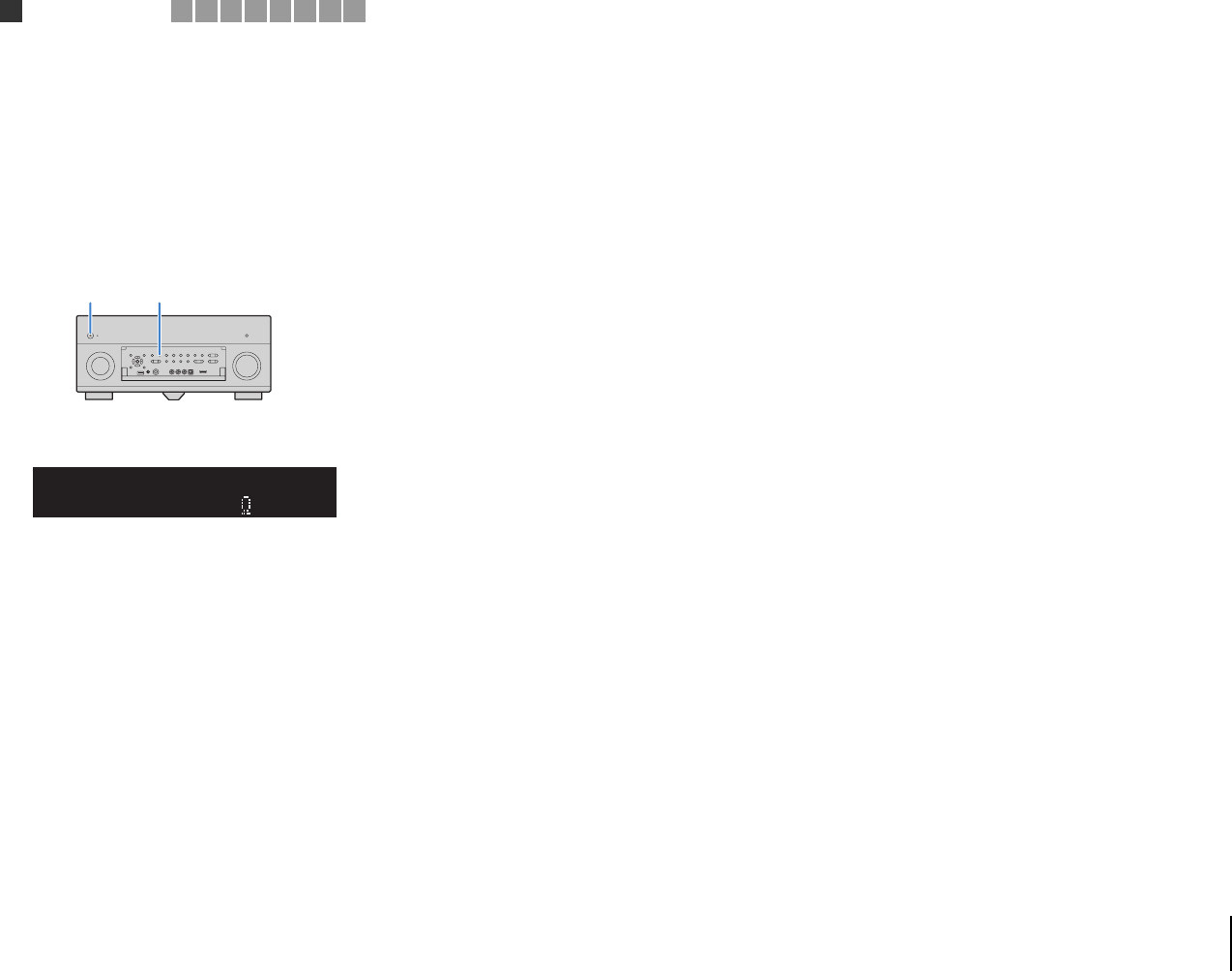
1Before connecting speakers, connect the power cable to an AC wall
outlet.
2While holding down STRAIGHT on the front panel, press
MAIN ZONE z.
3Check that “SPEAKER IMP.” is displayed on the front display.
4Press STRAIGHT to select “6 Ω MIN”.
5Press MAIN ZONE z to set the unit to standby mode and remove the
power cable from the AC wall outlet.
You are now ready to connect the speakers.
MAIN ZONE zSTRAIGHT
OUT
1
IN
OUT
2
VOLUME
MUTE
DRCADAPTIVE
3
ZONE
2
SBLPL SBRSBPR
SW1
SL
SW2SW
SR
PL
CL R
PR
STEREO
ENHANCER
SLEEP
HD
TUNED
PRE
AMP
PAR TY
ZONE
3
ZONE
4
HD
TAG
DOCK
SPIMP.-
8MIN
SPEAKERIMP.
1Speaker connections 2 3 4 5 6 7 8 9
PREPARATIONS ➤Connecting speakers En 22
■Connecting speakers
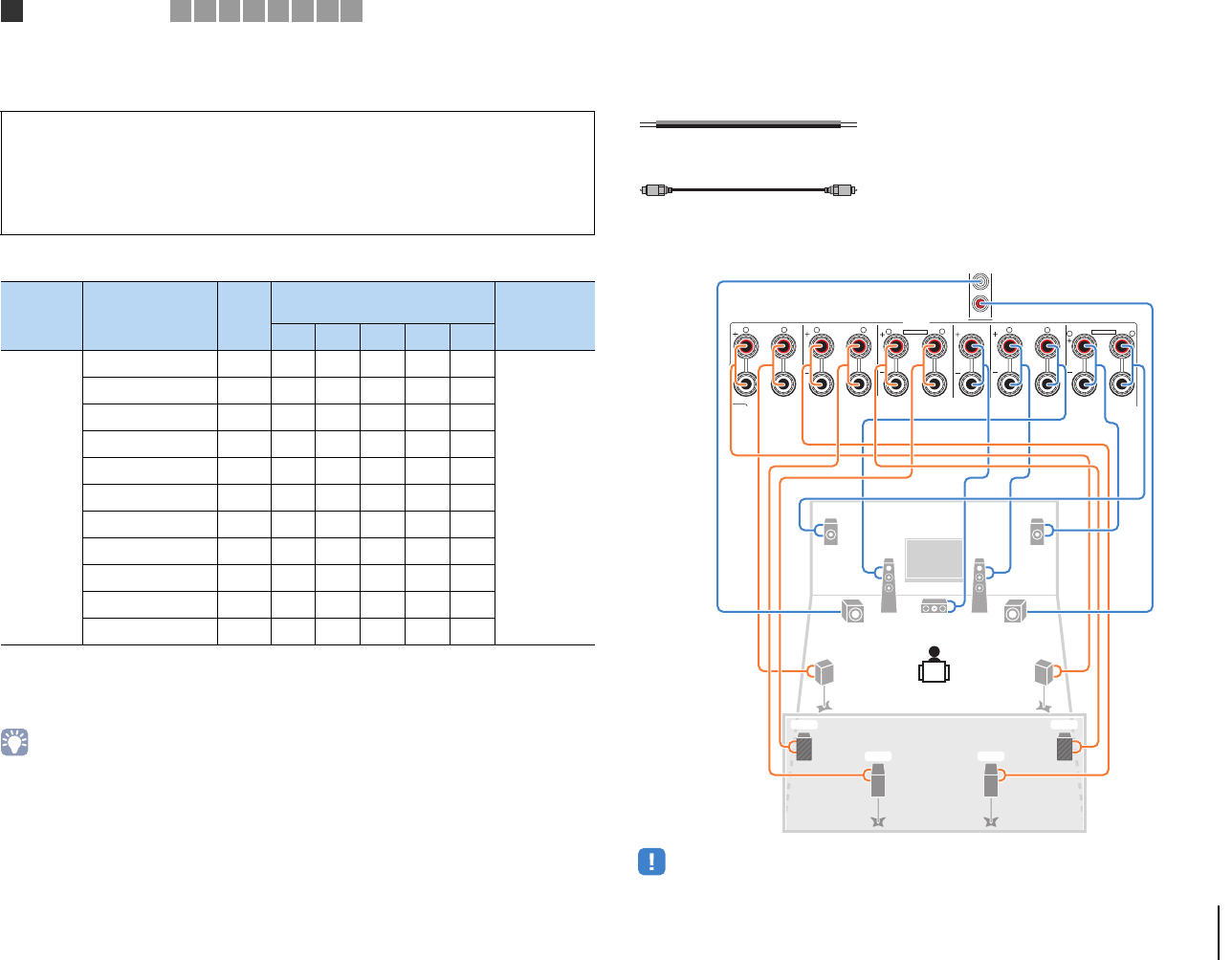
Connect the speakers placed in your room to the unit.
Speakers to be connected
If you have nine speakers, use two of them as surround back speakers (*1) or rear
presence speakers (*2). If you have seven speakers, use two of them as surround back
speakers (*3) or front presence speakers (*4).
• You can also connect up to 2 subwoofers (with built-in amplifier) to the unit. When using 2 subwoofers,
configure the “SWFR Layout” setting (p.116) in the “Setup” menu after connecting the power cable to an AC
wall outlet.
• To use an external power amplifier (Hi-Fi amplifier, etc.) to enhance speaker output, see “Connecting an
external power amplifier” (p.33).
Cables necessary for connection (commercially available)
Speaker cables (x the number of speakers)
Audio pin cable (two for connecting two subwoofers)
Connection diagram
Refer to the following diagram and connect the speakers to the unit.
• When using only one surround back speaker, connect it to the SINGLE jack (L side).
Caution
• Remove the unit’s power cable from an AC wall outlet and turn off the subwoofer before connecting the
speakers.
• Ensure that the core wires of the speaker cable do not touch one another or come into contact with the
unit’s metal parts. Doing so may damage the unit or the speakers. If the speaker cables short circuit,
“Check SP Wires” will appear on the front display when the unit is turned on.
Room Speaker type Abbr.
Speaker system
(the number of channels) Power Amp
Assign
(p.114)
9+2 9752
Main zone
Front (L) 1●●●●●
Basic (default)
Front (R) 2●●●●●
Center 3●●●●
Surround (L) 4●●●●
Surround (R) 5●●●●
Surround back (L) 6●c*1 c*3
Surround back (R) 7●c*1 c*3
Front presence (L) E●●c*4
Front presence (R) R●●c*4
Rear presence (L) T●c*2
Rear presence (R) Y●c*2
–
+
–
+
1
2
UO
UC U
ZONE OUT/PRE OUT
UO3
CENTER
SUBWOOFER
ZONE 2 /
F.PRESENSE ZONE 3 /
R.PRESENSE
FRONT
SURROUND SUR. BACK
SPEAKERS CENTER FRONT
SURROUND BACKSURROUND
BI–AMP
ZONE 2/ZONE 3/F.PRESENCE/
ZONE 2/ZONE 3/R.PRESENCE
R L
R L RRR
LLL
SINGLE
PRE OUT
SUBWOOFER
CENTER
FRONT
SURROUND SUR. BACK
(SINGLE) (FRONT)
(REAR)
EXTRA SP1
EXTRA SP2
12
3
45
99
T
6 7
Y
ER
The unit (rear)
1Speaker connections 2 3 4 5 6 7 8 9
PREPARATIONS ➤Connecting speakers En 23
❑Connecting speaker cables
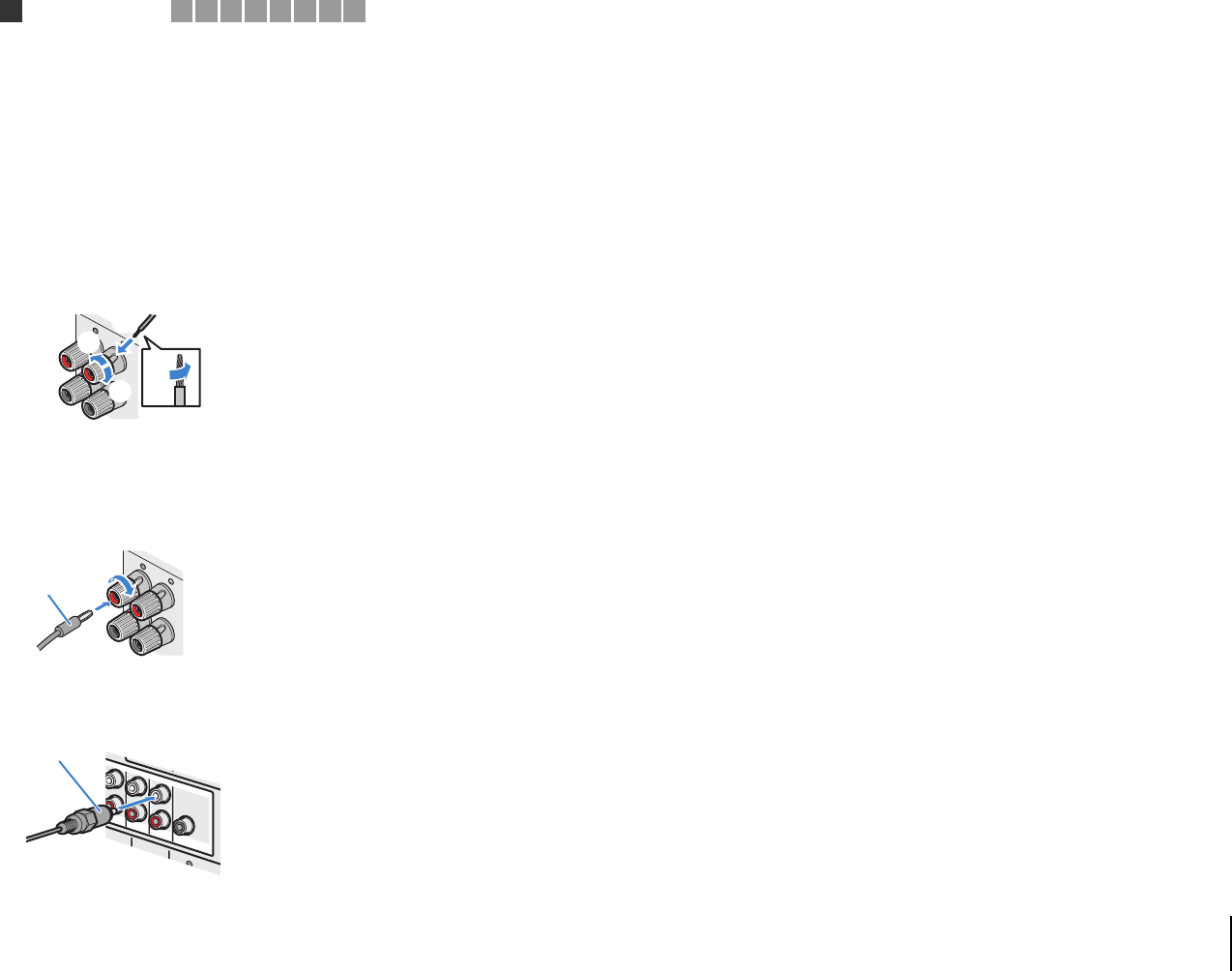
Speaker cables have two wires. One is for connecting the negative (-) terminal of the
unit and the speaker, and the other is for the positive (+) terminal. If the wires are
colored to prevent confusion, connect the black wire to the negative and the other wire
to the positive terminal.
aRemove approximately 10 mm (3/8”) of insulation from the ends of the speaker cable, and
twist the bare wires of the cable firmly together.
bLoosen the speaker terminal.
cInsert the bare wires of the cable into the gap on the side (upper right or bottom left) of the
terminal.
dTighten the terminal.
Using a banana plug
(U.S.A., Canada, China, Australia and General models only)
aTighten the speaker terminal.
bInsert a banana plug into the end of the terminal.
❑Connecting the subwoofer (with built-in amplifier)
Use an audio pin cable to connect the subwoofer.
FRONT
-
+
aa
b
d
c
+ (red)
– (black)
FRONT
+
a
b
Banana plug
(SINGLE)
PRE OUT
CENTER
CENTER
SUR. BACKSURRUND
1
2
FRONT
(REAR)
SUBWOOFER
(FRONT)
Audio pin cable
1Speaker connections 2 3 4 5 6 7 8 9
PREPARATIONS ➤Connecting speakers En 24
Advanced speaker configuration
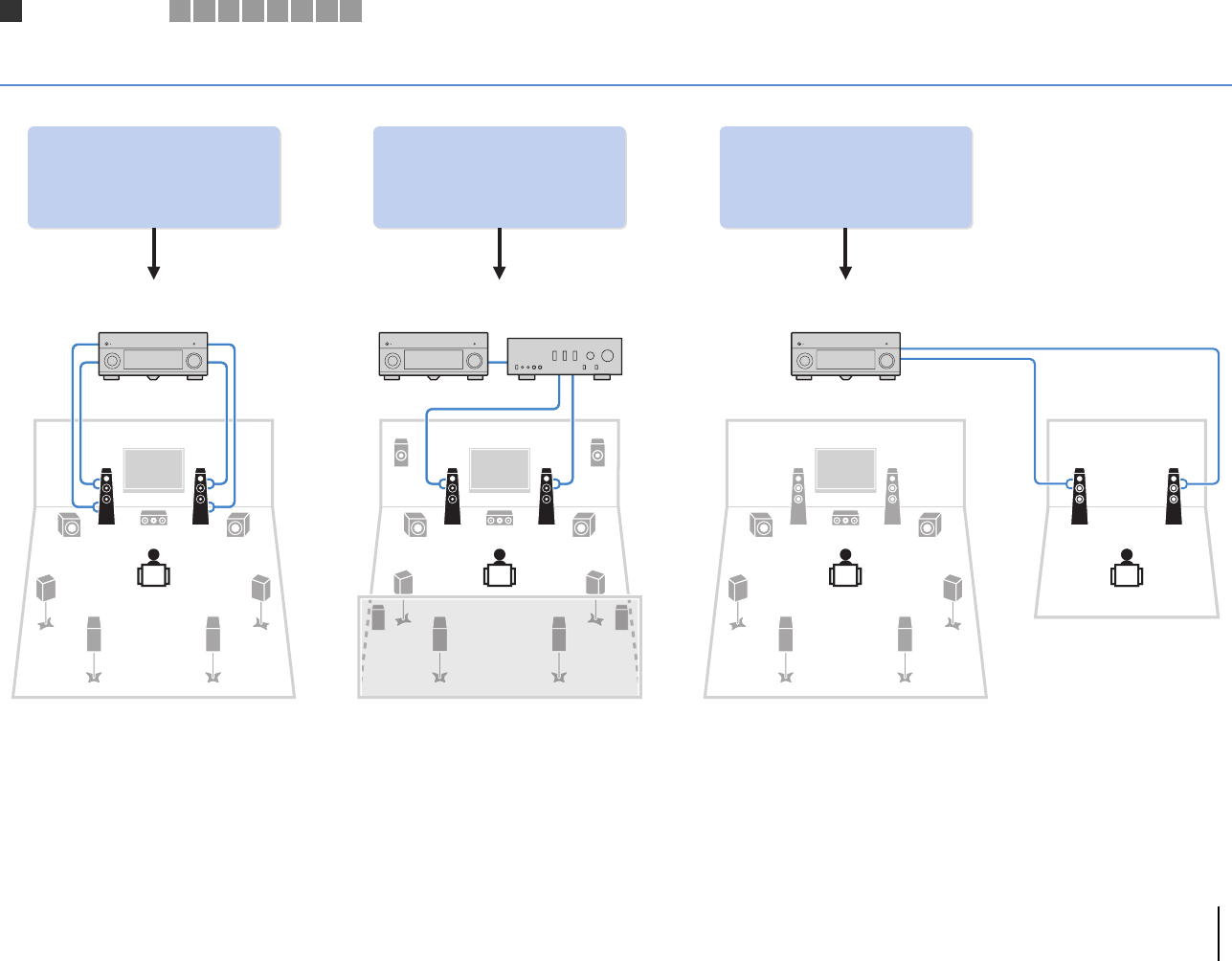
In addition to the basic speaker configuration (p.19), the unit also allows you to apply the following speaker configurations to enhance your system.
Using the four internal
amplifiers for front speakers to
have more high-quality sounds
(Example) (Example) (Example)
Bi-amp
connection
Combining with an external
power amplifier (Hi-Fi
amplifier, etc.) to build an
extended system
Using the excess internal
amplifiers for stereo speakers
in another room
External power
amplifier
Main zone
Zone2
Bi-amp connection Power-amp channel expansion Multi-zone configuration
1Speaker connections 2 3 4 5 6 7 8 9
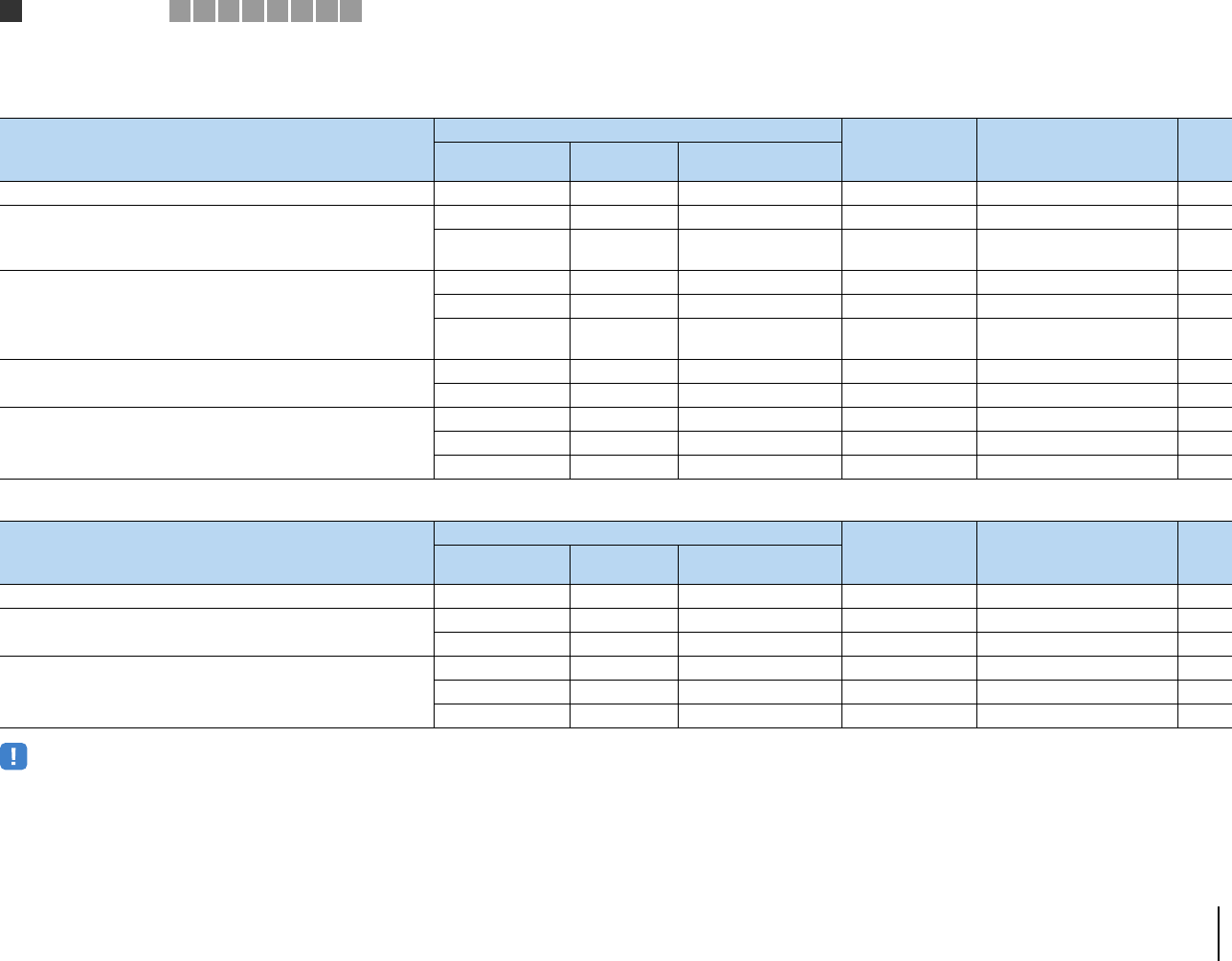
PREPARATIONS ➤Connecting speakers En 25
■Available speaker configurations
(RX-A3020)
(RX-A2020)
• When applying one of these configurations, you need to configure the “Power Amp Assign” setting (p.114)
in the “Setup” menu.
• When applying a multi-zone configuration, you can select a zone (Zone2 or Zone3) to be assigned to the
EXTRA SP 1–2 jacks in “Power Amp Assign” (p.114) in the “Setup” menu. By default, Zone2 is assigned to
the EXTRA SP 1 jacks and Zone3 is assigned to the EXTRA SP 2 jacks. The following explanation is based
on the assumption that you have not changed the default zone assignments.
Speaker configuration
Main zone
Multi-zone Power Amp Assign (p.114) Page
Output channel
(max) Bi-amp External power
amplifier (required)
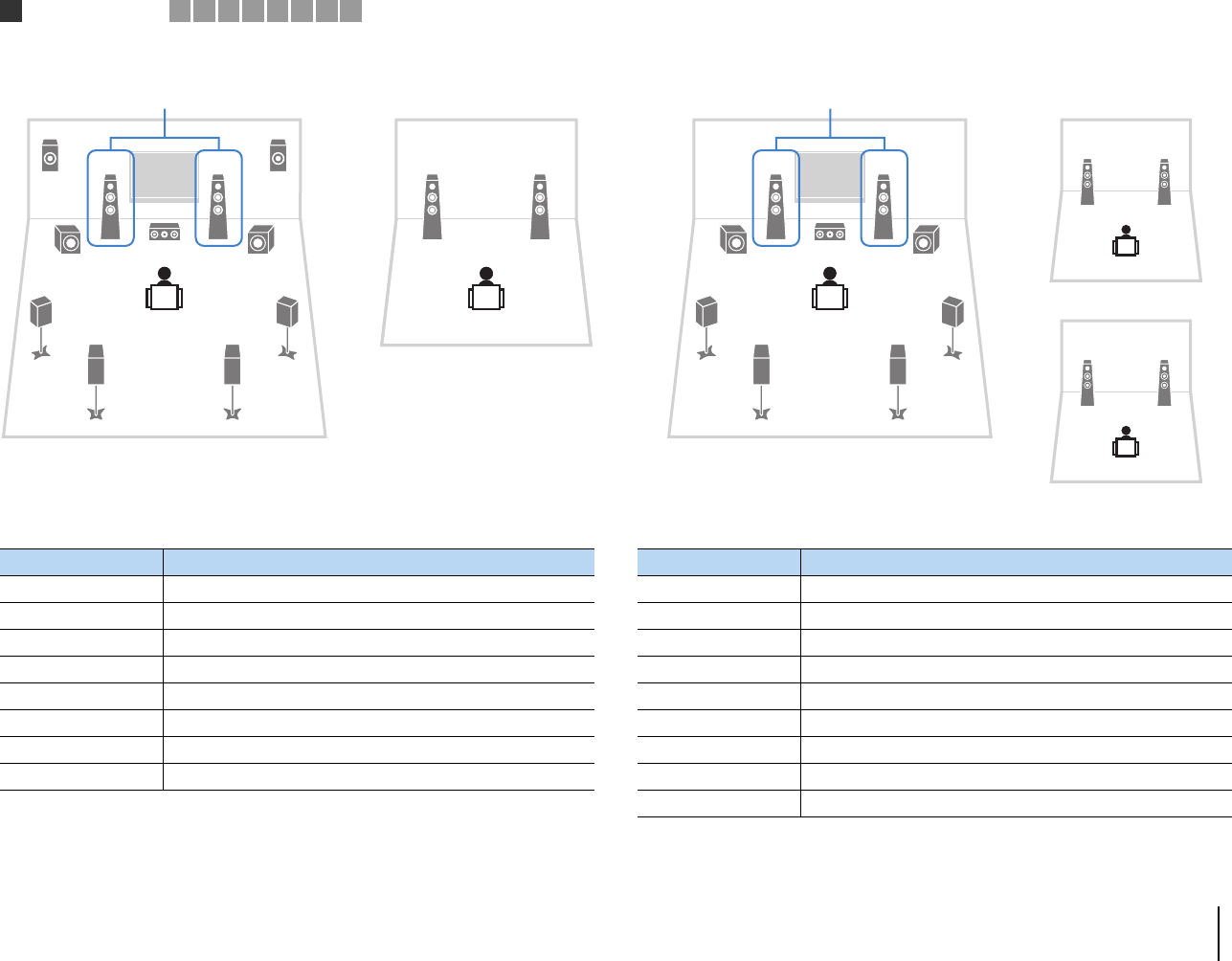
Using a bi-amp connection in the main zone 7 c7ch BI-AMP 26
Using a bi-amp connection in the main zone and power-amp channel
expansion (for presence channels)
9cFront presence 7ch BI-AMP +FP 26
11 cFront presence
Rear presence 7ch BI-AMP +FP+RP 27
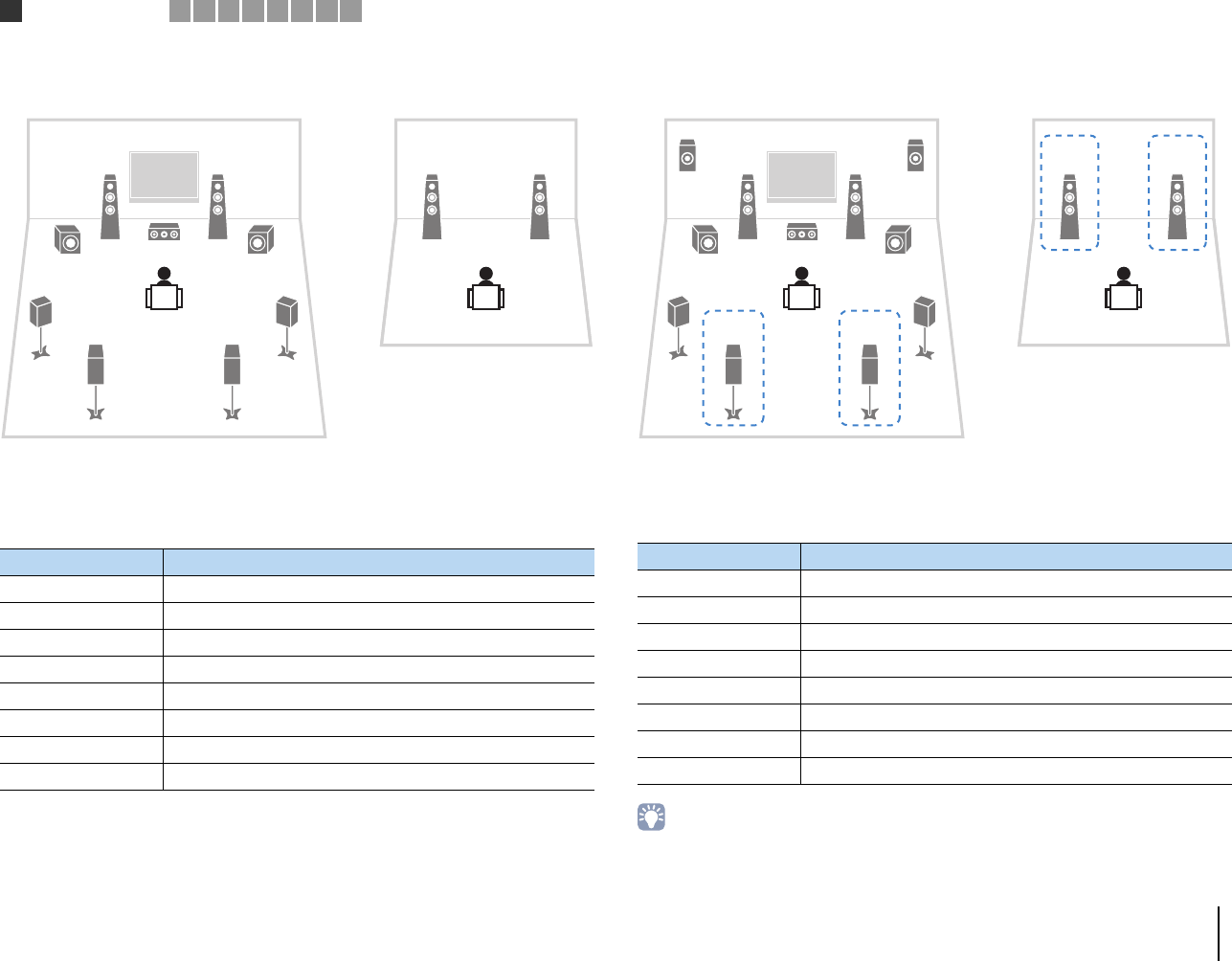
Using power-amp channel expansion (for front and/or presence
channels)
11 Rear Presence 9ch +RP 27
11 Front 9ch +FRONT 28
11 Front presence
Rear presence 7ch +FP+RP 28
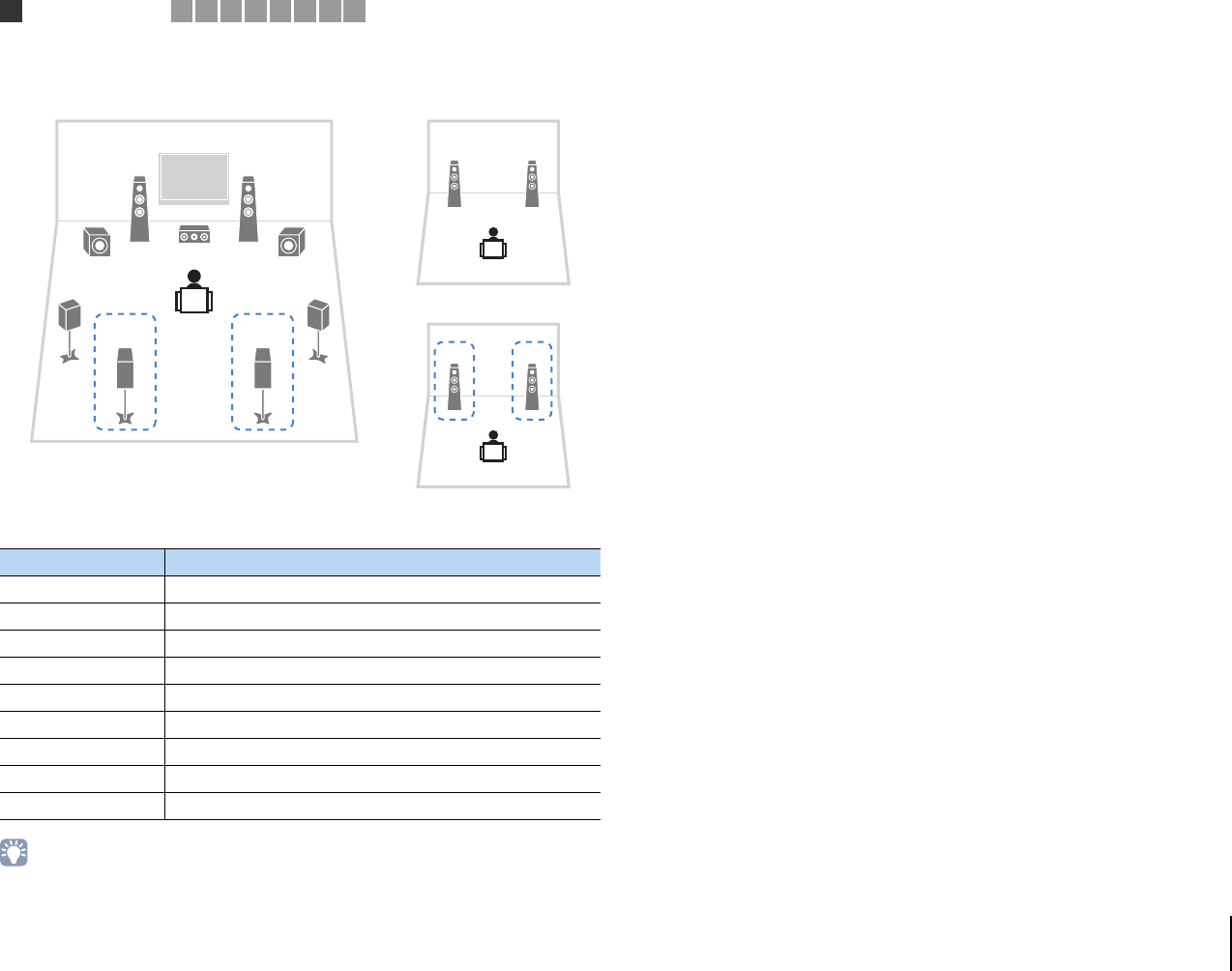
Using power-amp channel expansion (for front channels) and
multi-zone speakers
9 Front +1 room 7ch +FRONT+1ZONE 29
7 Front +2 rooms 5ch +FRONT+2ZONE 29
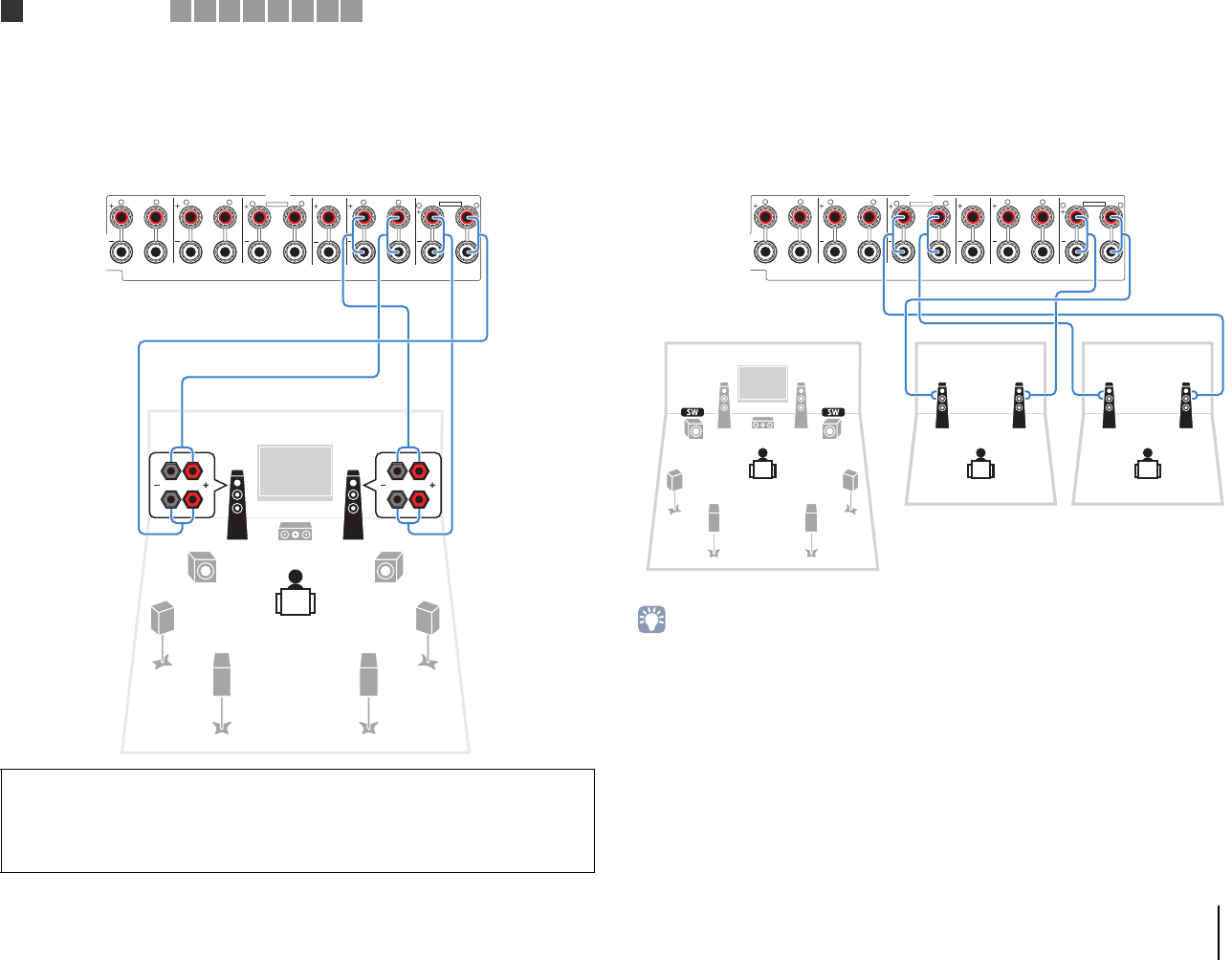
Using multi-zone speakers
7 +1 room 7ch +1ZONE 30
9 +1 room 9ch +1ZONE 30
7 +2 rooms 7ch +2ZONE 31
Speaker configuration
Main zone
Multi-zone Power Amp Assign (p.114) Page
Output channel
(max) Bi-amp External power
amplifier (required)
Using a bi-amp connection in the main zone 7 c7ch BI-AMP 26
Using power-amp channel expansion (for front channels) and
multi-zone speakers
9 Front +1 room 7ch +FRONT+1ZONE 29
7 Front +2 rooms 5ch +FRONT+2ZONE 29
Using multi-zone speakers
7 +1 room 7ch +1ZONE 30
9 +1 room 9ch +1ZONE 30
7 +2 rooms 7ch +2ZONE 31
1Speaker connections 2 3 4 5 6 7 8 9
PREPARATIONS ➤Connecting speakers En 26
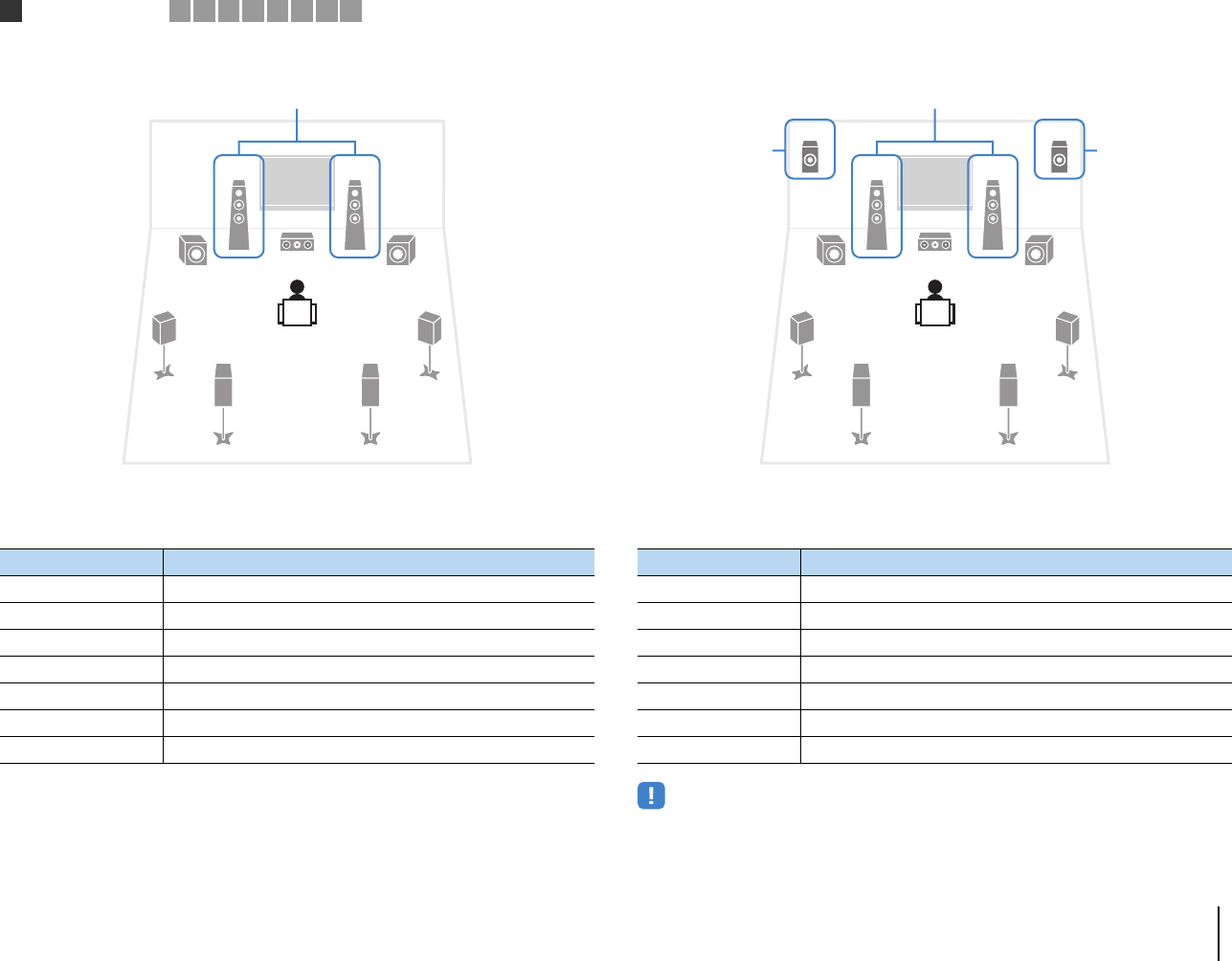
❑7ch BI-AMP ❑7ch BI-AMP +FP (RX-A3020 only)
1
3
45
99
2
67
Bi-amp
Speaker Connect to
12 FRONT and EXTRA SP 1 (bi-amp connection)
3CENTER
45 SURROUND
67 SURROUND BACK
ER (not used)
TY (not used)
9SUBWOOFER 1–2
1
3
45
99
2
67
ER
Bi-amp
via external amp
via external amp
• When this configuration is applied, you cannot utilize the ZONE OUT/PRE OUT jacks for connecting an
external amplifier for Zone2 (p.91).
Speaker Connect to
12 FRONT and EXTRA SP 1 (bi-amp connection)
3CENTER
45 SURROUND
67 SURROUND BACK
ER F.PRESENCE (PRE OUT) via external power amplifier
TY (not used)
9SUBWOOFER 1–2
1Speaker connections 2 3 4 5 6 7 8 9
PREPARATIONS ➤Connecting speakers En 27
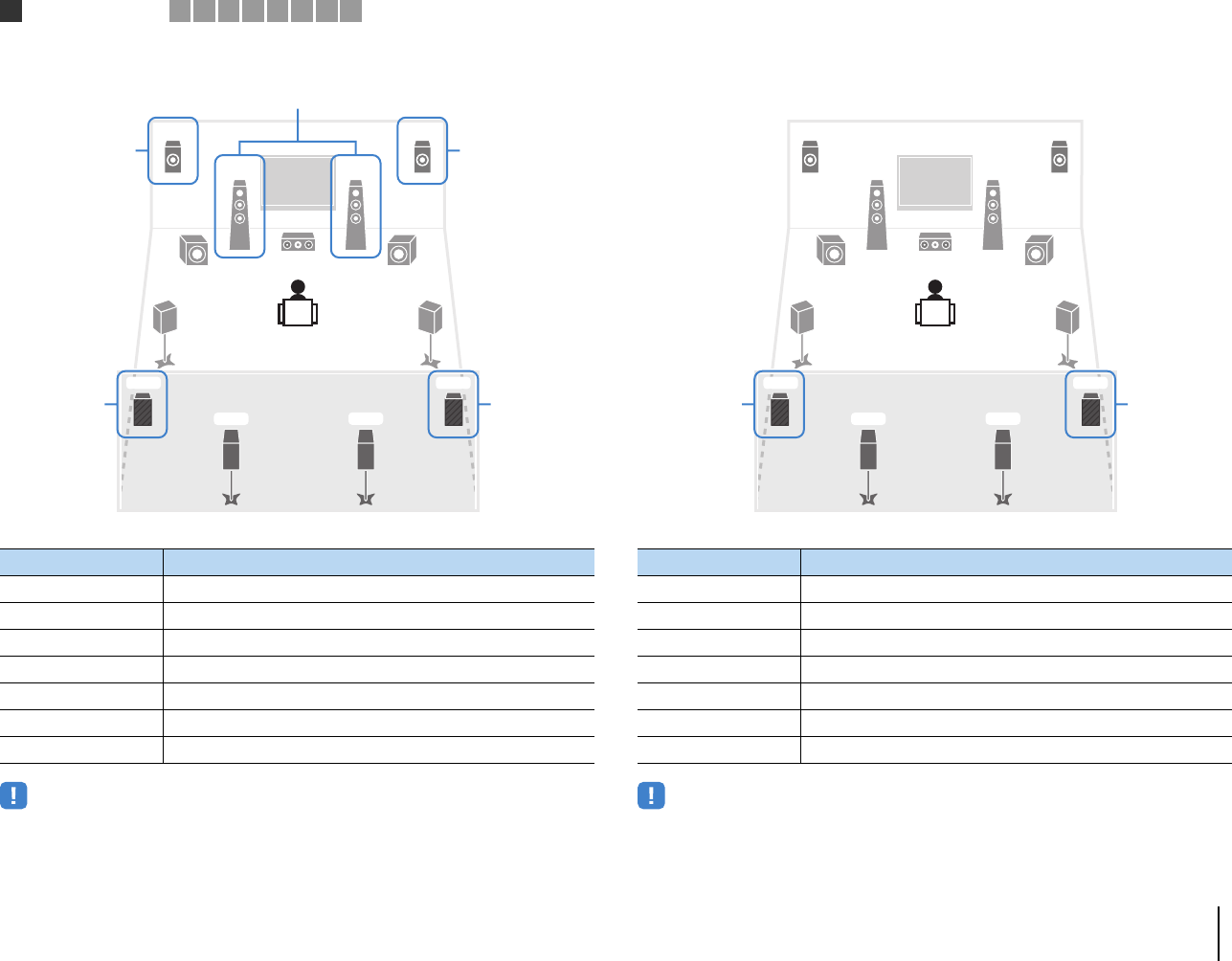
❑7ch BI-AMP +FP+RP (RX-A3020 only) ❑9ch +RP (RX-A3020 only)
1
3
45
99
2
ER
6 7
YT
Bi-amp
via external amp
via external amp
via
external amp
via
external amp
• When this configuration is applied, you cannot utilize the ZONE OUT/PRE OUT jacks for connecting
external amplifiers for Zone2 and Zone3 (p.91).
Speaker Connect to
12 FRONT and EXTRA SP 1 (bi-amp connection)
3CENTER
45 SURROUND
67 SURROUND BACK
ER F.PRESENCE (PRE OUT) via external power amplifier
TY R.PRESENCE (PRE OUT) via external power amplifier
9SUBWOOFER 1–2
1
3
45
99
2
ER
6 7
YT
via
external amp
via
external amp
• When this configuration is applied, you cannot utilize the ZONE OUT/PRE OUT jacks for connecting an
external amplifier for Zone3 (p.91).
Speaker Connect to
12 FRONT
3CENTER
45 SURROUND
67 SURROUND BACK
ER EXTRA SP 1
TY R.PRESENCE (PRE OUT) via external power amplifier
9SUBWOOFER 1–2
1Speaker connections 2 3 4 5 6 7 8 9
PREPARATIONS ➤Connecting speakers En 28
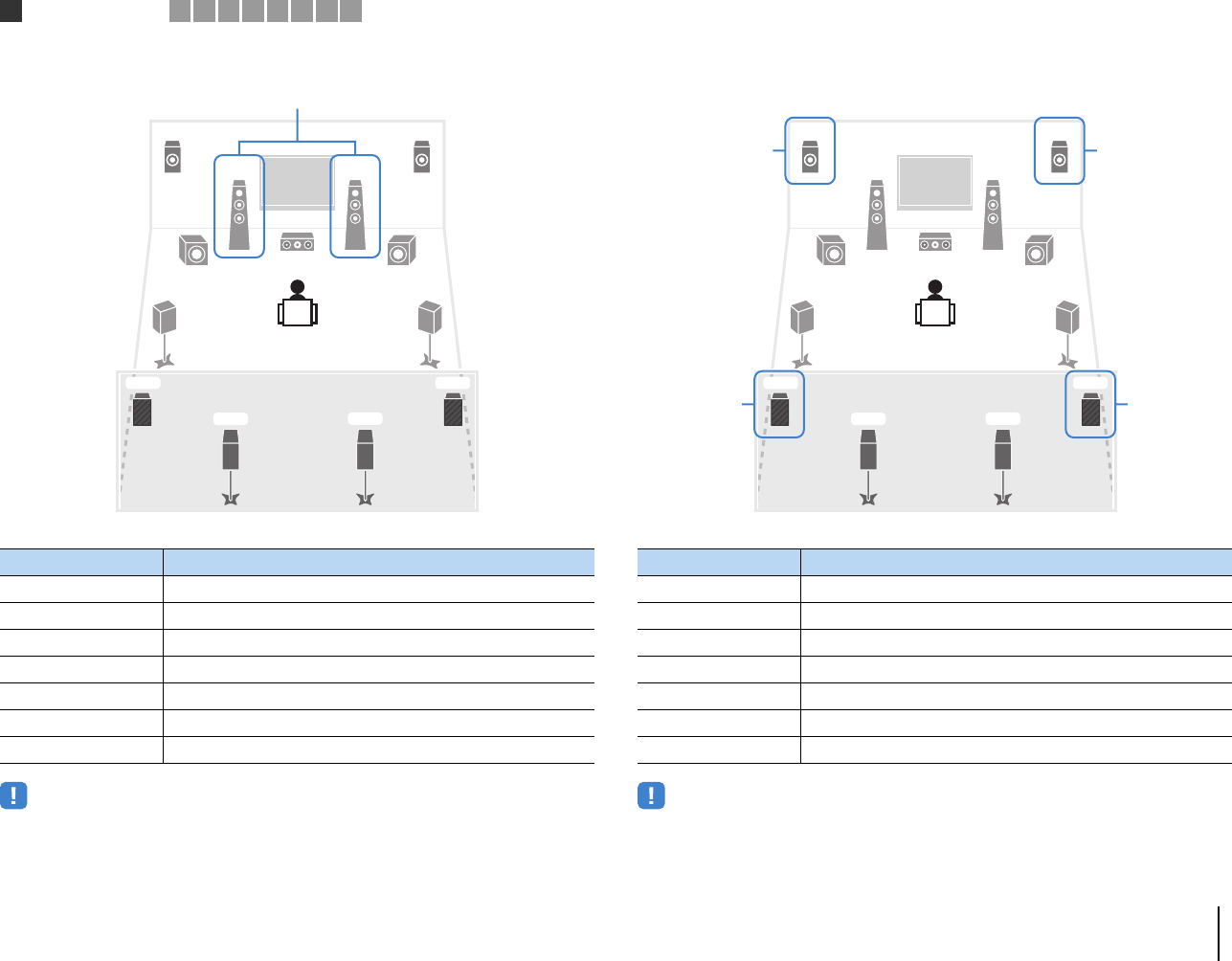
❑9ch +FRONT (RX-A3020 only) ❑7ch +FP+RP (RX-A3020 only)
1
3
45
99
2
ER
6 7
YT
via external amp
• When this configuration is applied, you cannot utilize the ZONE OUT/PRE OUT jacks for connecting an
external amplifier for Zone3 (p.91).
Speaker Connect to
12 FRONT (PRE OUT) via external power amplifier
3CENTER
45 SURROUND
67 SURROUND BACK
ER EXTRA SP 1
TY EXTRA SP 2
9SUBWOOFER 1–2
1
3
45
99
2
ER
6 7
YT
via external amp
via external amp
via
external amp
via
external amp
• When this configuration is applied, you cannot utilize the ZONE OUT/PRE OUT jacks for connecting
external amplifiers for Zone2 and Zone3 (p.91).
Speaker Connect to
12 FRONT
3CENTER
45 SURROUND
67 SURROUND BACK
ER F.PRESENCE (PRE OUT) via external power amplifier
TY R.PRESENCE (PRE OUT) via external power amplifier
9SUBWOOFER 1–2
1Speaker connections 2 3 4 5 6 7 8 9
PREPARATIONS ➤Connecting speakers En 29
❑7ch +FRONT+1ZONE ❑5ch +FRONT+2ZONE
21
1
E
2
3
4
6
99
7
5
R
via external amp
Main zone
Zone3
Speaker Connect to
12 FRONT (PRE OUT) via external power amplifier
3CENTER
45 SURROUND
67 SURROUND BACK
ER EXTRA SP 1
TY (not used)
9SUBWOOFER 1–2
Zone3 speakers EXTRA SP 2
12
3
4
6
99
7
5
12
12
Zone2
Zone3
Main zone
via external amp
Speaker Connect to
12 FRONT (PRE OUT) via external power amplifier
3CENTER
45 SURROUND
67 SURROUND BACK
ER (not used)
TY (not used)
9SUBWOOFER 1–2
Zone2 speakers EXTRA SP 1
Zone3 speakers EXTRA SP 2
1Speaker connections 2 3 4 5 6 7 8 9
PREPARATIONS ➤Connecting speakers En 30
❑7ch +1ZONE ❑9ch +1ZONE
21
12
3
4
6
99
7
5
Main zone
Zone2
Speaker Connect to
12 FRONT
3CENTER
45 SURROUND
67 SURROUND BACK
ER (not used)
TY (not used)
9SUBWOOFER 1–2
Zone2 speakers EXTRA SP 1
21
1
E
2
3
4
6
99
7
5
R
Main zone
Zone3
• When Zone3 output is enabled (p.95), the surround back speakers in the main zone do not output sound.
Speaker Connect to
12 FRONT
3CENTER
45 SURROUND
67 SURROUND BACK
ER EXTRA SP 1
TY (not used)
9SUBWOOFER 1–2
Zone3 speakers EXTRA SP 2
1Speaker connections 2 3 4 5 6 7 8 9
PREPARATIONS ➤Connecting speakers En 31
❑7ch +2ZONE
12
3
4
6
99
7
5
12
12
Zone2
Zone3
Main zone
• When Zone3 output is enabled (p.95), the surround back speakers in the main zone do not output sound.
Speaker Connect to
12 FRONT
3CENTER
45 SURROUND
67 SURROUND BACK
ER (not used)
TY (not used)
9SUBWOOFER 1–2
Zone2 speakers EXTRA SP 1
Zone3 speakers EXTRA SP 2
1Speaker connections 2 3 4 5 6 7 8 9
PREPARATIONS ➤Connecting speakers En 32
■
Connecting front speakers that support bi-amp connections
When using front speakers that support bi-amp connections, connect them to the
FRONT terminals and EXTRA SP 1 terminals.
To enable the bi-amp function, configure the “Power Amp Assign” setting (p.114) in the
“Setup” menu after connecting the power cable to an AC wall outlet.
■Connecting Zone2/3 speakers
When using Zone2/3 speakers, connect them to the EXTRA SP 1–2 terminals.
To utilize the EXTRA SP 1–2 terminals for Zone2/3 speakers, configure the “Power Amp
Assign” setting (p.114) in the “Setup” menu after connecting the power cable to an AC
wall outlet.
• You can select a zone (Zone2 or Zone3) to be assigned to the EXTRA SP 1–2 jacks in “Power Amp Assign”
(p.114) in the “Setup” menu. By default, Zone2 is assigned to the EXTRA SP 1 jacks and Zone3 is
assigned to the EXTRA SP 2 jacks.
• You can also connect Zone2 and Zone3 speakers using an external amplifier (p.91).
Caution
• Before making bi-amp connections, remove any brackets or cables that connect a woofer with a
tweeter. Refer to the instruction manual of the speakers for details. If you are not making bi-amp
connections, make sure that the brackets or cables are connected before connecting the speaker
cables.
SPEAKERS CENTER FRONT
SURROUND BACKSURROUND
BI–AMP
ZONE 2/ZONE 3/F.PRESENCE/
ZONE 2/ZONE 3/R.PRESENCE
R L
R L RRR
LLL
SINGLE
EXTRA SP1
EXTRA SP2
12
3
9
45
9
67
The unit (rear)
SPEAKERS
CENTER FRONT
SURROUND BACKSURROUND
BI–AMP
ZONE 2/ZONE 3/F.PRESENCE/
ZONE 2/ZONE 3/R.PRESENCE
R L
R L RRR
LLL
SINGLE
EXTRA SP1
EXTRA SP2
1
4
6
2
5
7
3
12 12
The unit (rear)
Main zone
Zone2 Zone3
1Speaker connections 2 3 4 5 6 7 8 9
PREPARATIONS ➤Connecting speakers En 33
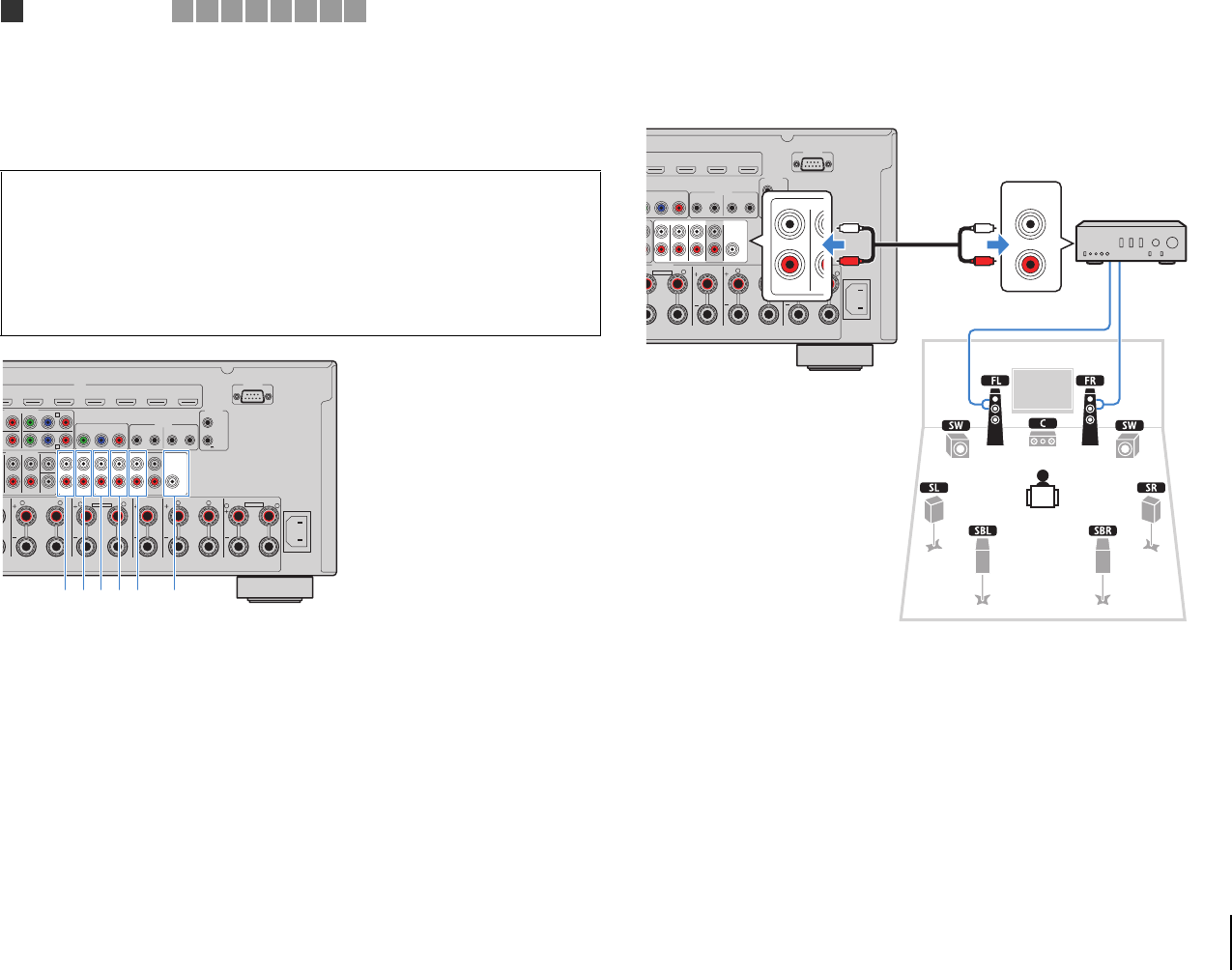
■Connecting an external power amplifier
When connecting an external power amplifier (pre-main amplifier) to enhance speaker
output, connect the input jacks of the power amplifier to the PRE OUT jacks of the unit.
The same channel signals are output from the PRE OUT jacks as from their
corresponding SPEAKERS terminals.
1F.PRESENCE jacks (RX-A3020 only)
Output front presence channel audio signals or Zone2 audio signals depending on the “Power
Amp Assign” setting (p.114).
2R.PRESENCE jacks (RX-A3020 only)
Output rear presence channel audio signals or Zone3 audio signals depending on the “Power
Amp Assign” setting (p.114).
3FRONT jacks
Output front channel sounds.
4SURROUND jacks
Output surround channel sounds.
5SUR. BACK jacks
Output surround back channel sounds. When using only one surround back speaker, connect
the external amplifier to the SINGLE jack (L side).
6CENTER jack
Outputs center channel sounds.
(Example)
Connecting front speakers via an external power amplifier
About external power amplifiers
We recommend using power amplifiers that meet the following conditions.
• With unbalanced inputs
• With volume control bypass (or without volume control circuit)
• Output power: about 100 W (6 to 8 Ω)
Caution
• To prevent the generation of loud noises or abnormal sounds, make sure the followings before making
connections.
– Remove the power cable of the unit and turn off the external power amplifier before connecting them.
– When using the PRE OUT jacks, do not connect speakers to the corresponding SPEAKERS terminals.
– When using a pre-main amplifier that does not have the volume control bypass, turn up the volume of
the pre-main amplifier enough and fix it. In this case, do not connect other devices (except the unit) to
the pre-main amplifier.
HDMI
/
DVD)
AV 2 AV 3 AV 4 AV 5 AV 6 AV 7
TRIGGER
OUT
1
2
RS-232C
PR
YPBPR
YPBPR
MONITOR OUT/ZONE OUT
IN OUT IN OUT
AV 3
REMOTE
12
COMPONENT VIDEO
C
AV 4 D
AC IN
1
2
MULTI CH INPUT
ZONE OUT/PRE OUT
CENTER
SUBWOOFER
ZONE 2 /
F.PRESENSE ZONE 3 /
R.PRESENSE
SURROUND SUR. BACK
SPEAKERS CENTER FRONT
SURROUND BACK
BI–AMP
ZONE 2/ZONE 3/F.PRESENCE/
ZONE 2/ZONE 3/R.PRESENCE
R L RRR
LLL
SINGLE
PRE OUT
SUBWOOFER
CENTER
FRONT
SURROUND SUR. BACK
(SINGLE) (FRONT)
(REAR)
EXTRA SP1
EXTRA SP2
12V 0.1A
321 4 56 The unit (rear)
4 AV 5 AV 6 AV 7
TRIGGER
OUT
1
2
RS-232C
PBPR
M
ONITOR OUT/ZONE OUT
IN OUT IN OUT
REMOTE
12
AC IN
1
2
T
3
/
N
SE
SPEAKERS CENTER FRONT
BI–AMP
ZONE 2/ZONE 3/F.PRESENCE/
E
2/ZONE 3/R.PRESENCE
RR
LLL
PRE OUT
SUBWOOFER
CENTER
FRONT
SURROUND SUR. BACK
(SINGLE) (FRONT)
(REAR)
EXTRA SP1
EXTRA SP2
12V 0.1A
MAIN IN
PR
SU
R
FRONT
L
R
L
R
The unit (rear)
PRE OUT (FRONT) jacks
Main input jack
Amplifier with
volume control
bypass
(such as A-S2000)
1Speaker connections 2 3 4 5 6 7 8 9
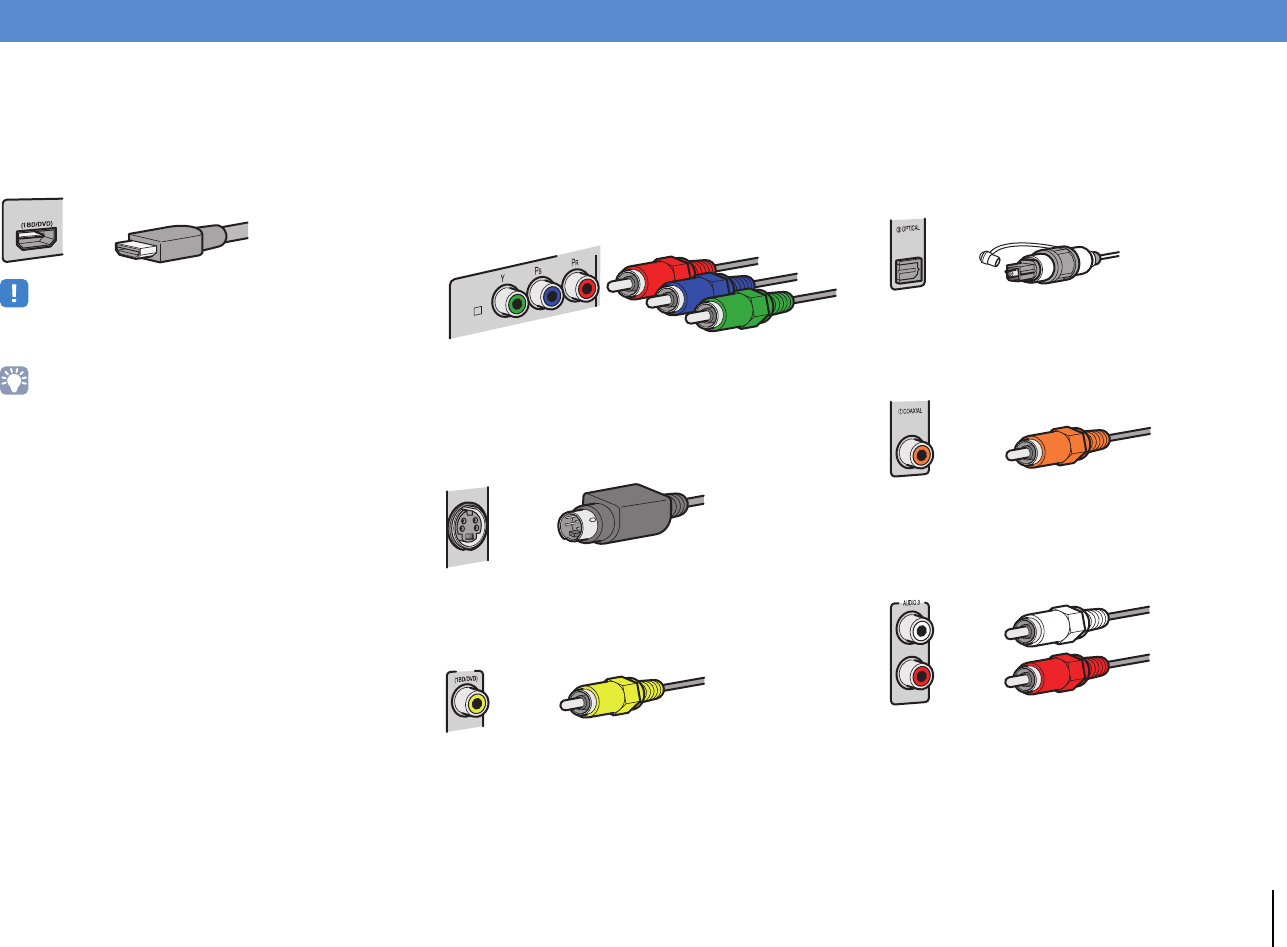
PREPARATIONS ➤Input/output jacks and cables En 34
■Video/audio jacks
❑HDMI jacks
Transmit digital video and digital sound through a single
jack. Use an HDMI cable.
• Use a 19-pin HDMI cable with the HDMI logo. We recommend using
a cable less than 5.0 m (16.4 ft) long to prevent signal quality
degradation.
• The unit’s HDMI jacks support the HDMI Control, Audio Return
Channel (ARC), and 3D and 4K video transmission features.
• Use high speed HDMI cables to enjoy 3D or 4K videos.
■Video jacks
❑COMPONENT VIDEO jacks
Transmit video signals separated into three
components: luminance (Y), chrominance blue (PB),
and chrominance red (PR). Use a component video
cable with three plugs.
❑S VIDEO jack
Transmits S-video signals that include luminance (Y)
and chrominance (C) components. Use an S-video
cable.
❑VIDEO jacks
Transmit analog video signals. Use a video pin cable.
■Audio jacks
❑OPTICAL jacks
Transmit digital audio signals. Use a digital optical
cable. Remove the tip protector (if available) before
using the cable.
❑COAXIAL jacks
Transmit digital audio signals. Use a digital coaxial
cable.
❑AUDIO jacks
Transmit analog stereo audio signals. Use a stereo pin
cable.
Input/output jacks and cables
AV 1
HDMI cable
COMPONEN
AV 1
A
Component video cable
S-video cable
AV 1
Video pin cable
Digital optical cable
Digital coaxial cable
Stereo pin cable
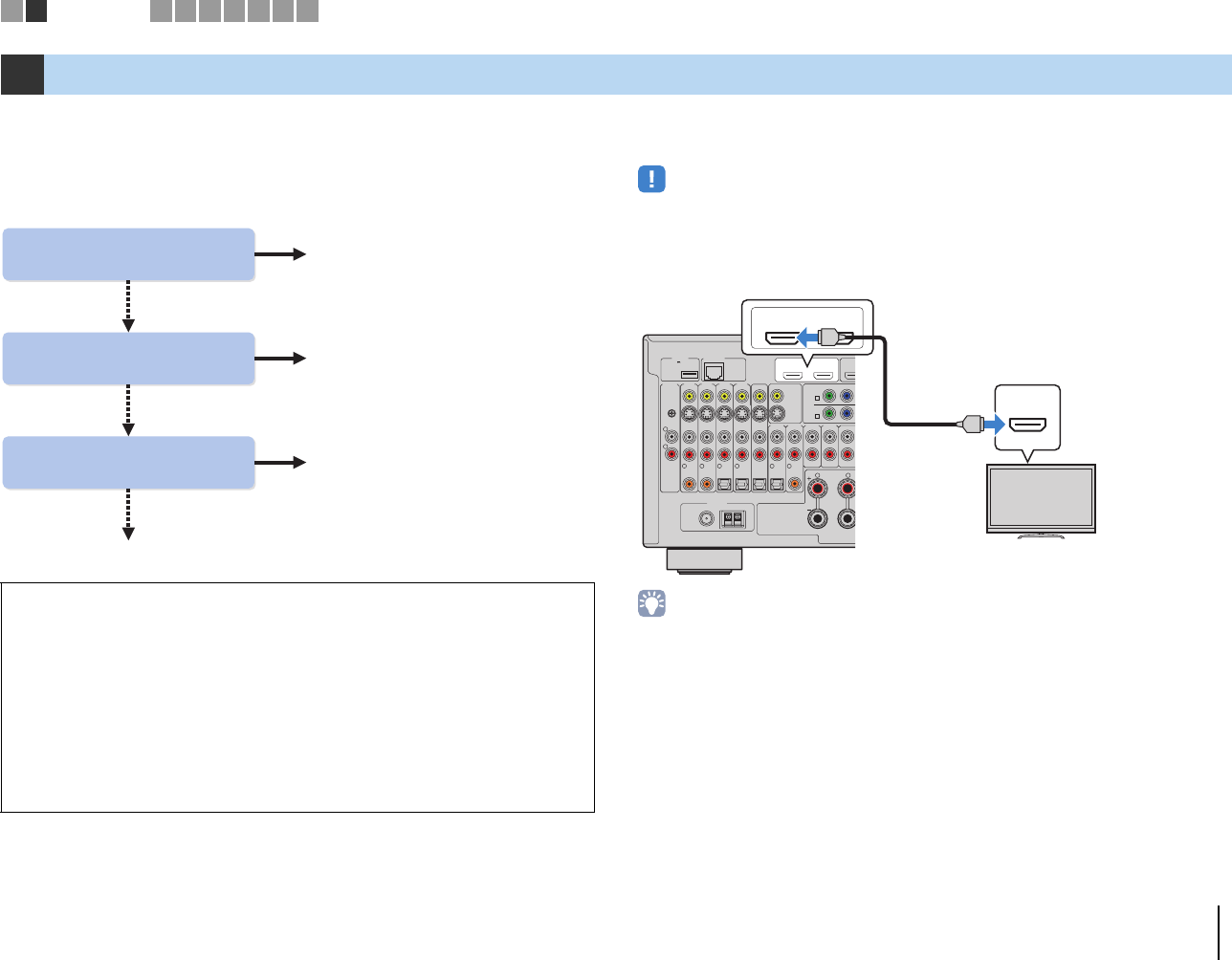
PREPARATIONS ➤Connecting a TV En 35
Connect a TV to the unit so that video input to the unit can be output to the TV.
You can also enjoy playback of TV audio on the unit.
The connection method varies depending on the functions and video input jacks
available on your TV.
Refer to the instruction manual of the TV and choose a connection method.
■
Connection Method 1 (HDMI Control/ARC-compatible TV)
Connect the TV to the unit with an HDMI cable.
• The following explanation is based on the assumption that you have not changed the “HDMI” parameters
(p.122) in the “Setup” menu.
• HDMI Control is available only on the HDMI OUT 1 jack.
• Use an HDMI cable that supports ARC.
• By connecting a TV to the unit with an HDMI cable, any video input to the unit can be output to the TV,
regardless of the method used to connect the video device to the unit. For details, see “Video signal flow”
(p.156).
• You can connect another TV or a projector by using the HDMI OUT 2 jack (p.40).
2Connecting a TV
About HDMI Control
HDMI Control allows you to operate external devices via HDMI. If you connect a TV
that supports HDMI Control to the unit with an HDMI cable, you can control the unit’s
power and volume with the TV’s remote control. You can also control playback
devices (such as an HDMI Control-compatible BD/DVD player) connected to the
unit with an HDMI cable. For details, see “HDMI Control” (p.158).
About Audio Return Channel (ARC)
ARC allows audio signals to travel both ways under HDMI Control. If you connect a
TV that supports HDMI Control and ARC to the unit with a single HDMI cable, you
can output video/audio to the TV or input TV audio to the unit.
Does your TV support
Audio Return Channel (ARC)?
Does your TV support
HDMI Control?
Does your TV have an
HDMI input jack? ■ Connection Method 3 (p.38)
■ Connection Method 2 (p.37)
■ Connection Method 1 (p.35)
■ Connection Method 4 (p.39)
Yes
Yes
Yes
No
No
No
NETWORKDC OUT
5V
0.5A
( 3 NET )
MONITOR OUT/
ZONE OUT
HDMI OUT
ARC (ZONE OUT)
12
(1 BD/
D
AV 1
YPB
AV 1
A
AV 2
B
AV OUT
R
L
AV 3 AV 4AV 2AV 1
(1 BD/DVD)
OPTICAL
4
OPTICAL
3
COAXIAL
2
COAXIAL
1
PHONO
GND
OPTICAL
AUDIO 4AUDIO 3AUDIO 2AUDI O 1
(2 TV)
FRONT
SURROUND
5
COAXIAL
6
R L
FM
75Ω
ANTENNA
HD Radio
AM
(4 RADIO)
HDMI OUT
ARC (ZONE OUT)
12
HDMI
ARC
HDMI
HDMI
HDMI OUT 1 jack
HDMI input
(ARC-compatible)
The unit (rear)
TV
1 2 TV connection 3456789
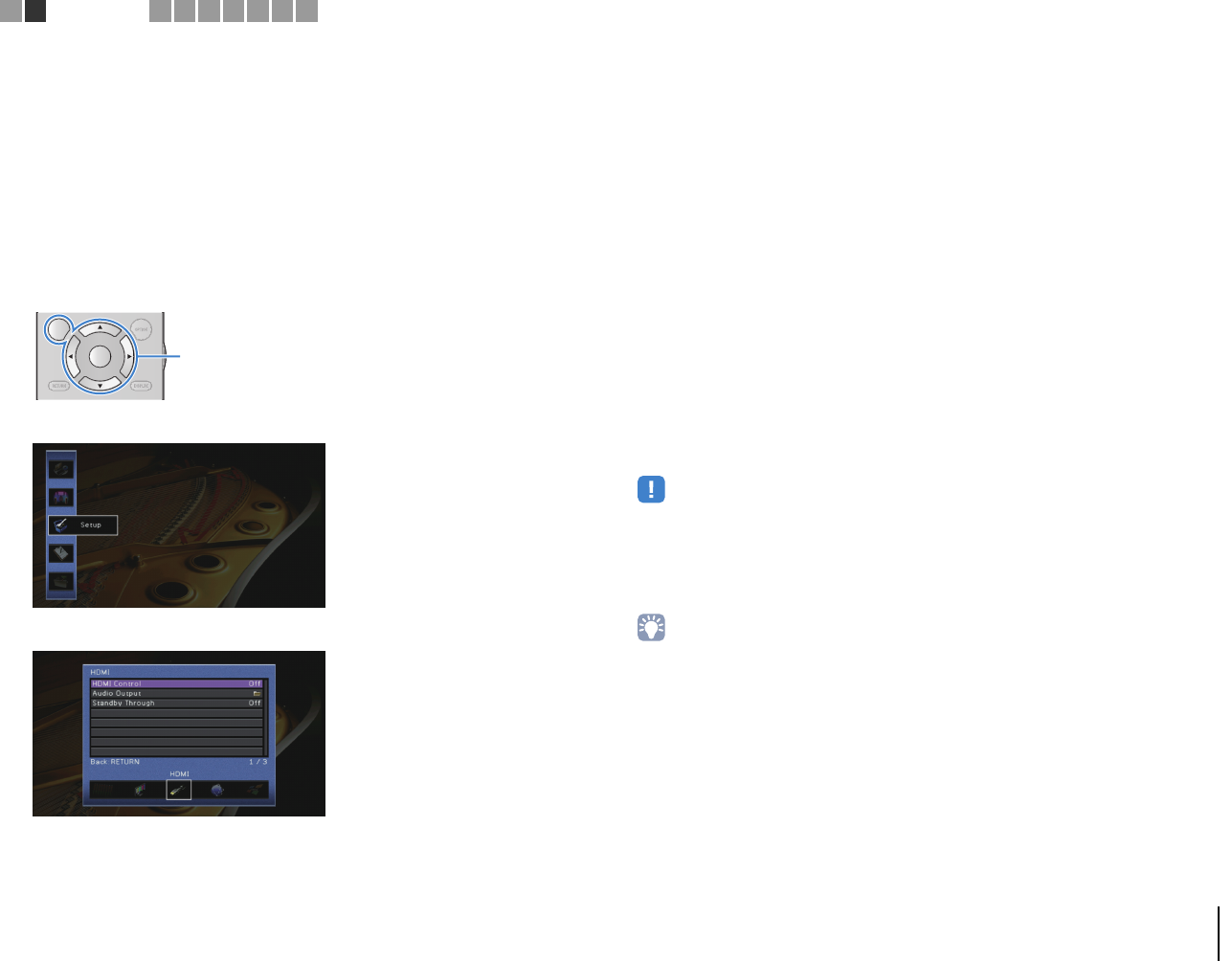
PREPARATIONS ➤Connecting a TV En 36
❑Necessary settings
To use HDMI Control and ARC, you need to configure the following settings.
For details on settings and operating your TV, refer to the instruction manual for the TV.
1
After connecting external devices (such as a TV and playback devices)
and the power cable to the unit, turn on the unit, TV, and playback devices.
2Configure the settings of the unit.
aCheck that ARC is enabled on the TV.
bSwitch the TV input to display video from the unit.
cPress ON SCREEN.
dUse the cursor keys to select “Setup” and press ENTER.
eUse the cursor keys (e/r) to select “HDMI”.
fUse the cursor keys (q/w) to select “HDMI Control” and press ENTER.
gUse the cursor keys to select “On”.
hPress ON SCREEN.
3Configure the settings for HDMI Control.
aEnable HDMI Control on the TV and playback devices (such as HDMI
Control-compatible BD/DVD player).
bTurn off the TV’s main power and then turn off the unit and playback devices.
cTurn on the unit and playback devices and then turn on the TV’s main power.
dSwitch the TV input to display video from the unit.
eCheck the following.
On the unit: The input to which the playback device is connected is selected. If not,
select the input source manually.
On the TV: The video from the playback device is displayed.
fCheck that the unit is properly synchronized with the TV by turning off the TV or
adjusting the TV volume with the TV remote control.
This completes the necessary settings.
If you select a TV program with the TV remote control, the input source of the unit will be
automatically switched to “AUDIO 1” and the TV audio will be played back on the unit.
If you cannot hear the TV’s audio, check that “ARC” (p.122) in the “Setup” menu is set
to “On”.
• If HDMI Control does not work properly, try turning off and on (or unplugging and then plugging in again)
the devices. It may solve the problem.
• If the unit is not synchronized to the TV’s power operations, check the priority of the audio output setting on
the TV.
• If the audio is interrupted while using ARC, set “ARC” (p.122) in the “Setup” menu to “Off” and use an audio
cable (digital optical or stereo pin cable) to input TV audio to the unit (p.37).
• “AUDIO 1” is set as TV audio input at the factory. If you have connected any external device to the AUDIO 1
jacks, use “TV Audio Input” (p.122) in the “Setup” menu to change the TV audio input assignment. To use
the SCENE function (p.61), you also need to change the input assignment for SCENE(TV).
RETURN DISPLAY
ENTER
ON SCREEN
OPTION
ON SCREEN
Cursor keys
ENTER
1 2 TV connection 3456789
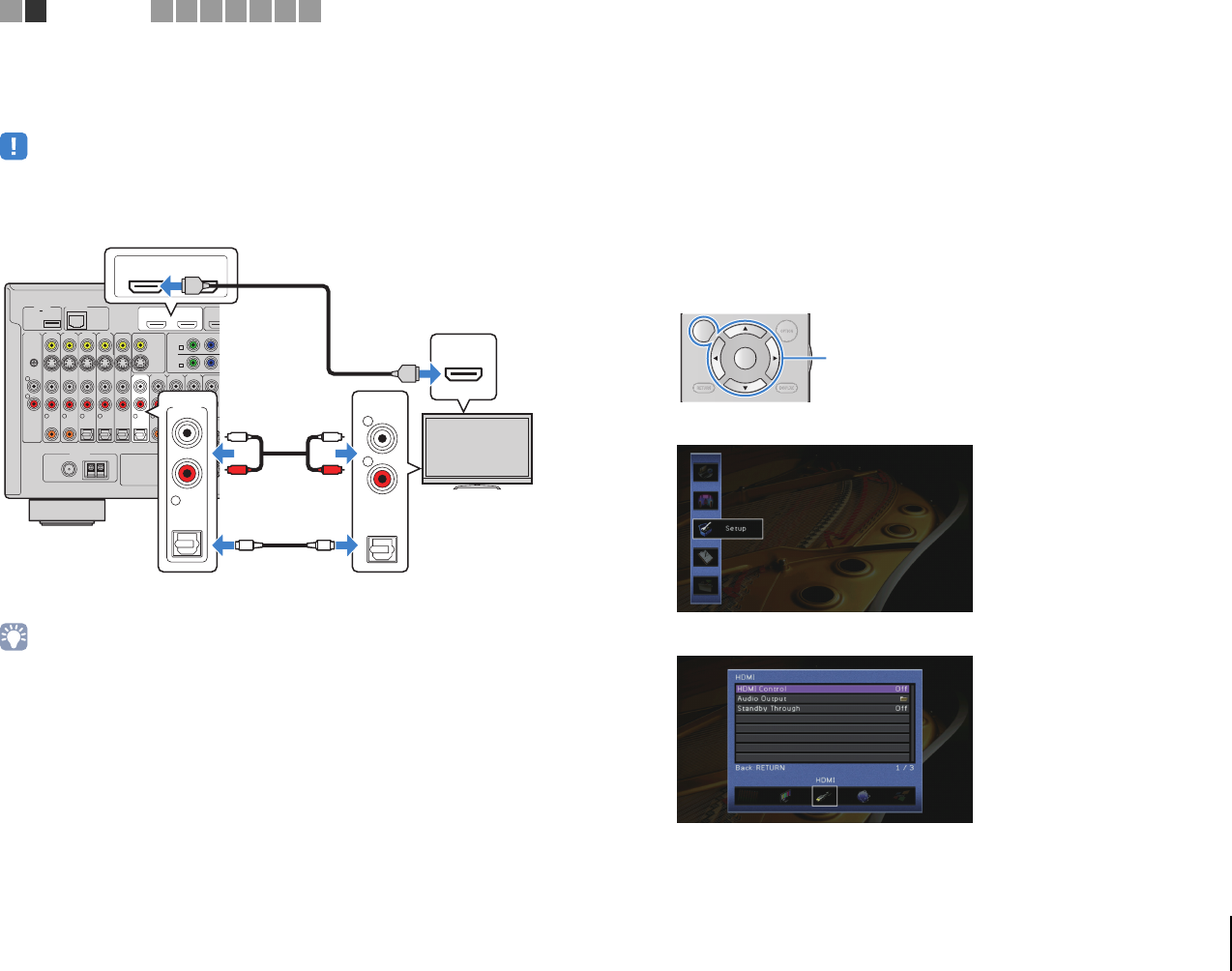
PREPARATIONS ➤Connecting a TV En 37
■Connection Method 2 (HDMI Control-compatible TV)
Connect the TV to the unit with an HDMI cable and an audio cable (digital optical or
stereo pin cable).
• The following explanation is based on the assumption that you have not changed the “HDMI” parameters
(p.122) in the “Setup” menu.
• HDMI Control is available only on the HDMI OUT 1 jack.
• By connecting a TV to the unit with an HDMI cable, any video input to the unit can be output to the TV,
regardless of the method used to connect the video device to the unit. For details, see “Video signal flow”
(p.156).
• You can connect another TV or a projector by using the HDMI OUT 2 jack (p.40).
❑Necessary settings
To use HDMI Control, you need to configure the following settings.
For details on settings and operating your TV, refer to the instruction manual for the TV.
1After connecting external devices (such as a TV and playback
devices) and power cable of the unit, turn on the unit, TV, and
playback devices.
2Configure the settings of the unit.
aSwitch the TV input to display video from the unit.
bPress ON SCREEN.
cUse the cursor keys to select “Setup” and press ENTER.
dUse the cursor keys (e/r) to select “HDMI”.
eUse the cursor keys (q/w) to select “HDMI Control” and press ENTER.
fUse the cursor keys to select “On”.
gPress ON SCREEN.
NETWORKDC OUT
5V
0.5A
( 3 NET )
MONITOR OUT/
ZONE OUT
HDMI OUT
ARC (ZONE OUT)
12
(1 BD/
D
AV 1
YPB
AV 1
A
AV 2
B
AV OUT
R
L
AV 3 AV 4AV 2AV 1
(1 BD/DVD)
OPTICAL
4
OPTICAL
3
COAXIAL
2
COAXIAL
1
PHONO
GND
OPTICAL
AUDIO 4AUDIO 3AUDIO 2AUDIO 1
(2 TV)
FRONT
SURROUND
5
COAXIAL
6
R L
FM
75Ω
ANTENNA
HD Radio
AM
(4 RADIO)
HDMI OUT
ARC (ZONE OUT)
12
HDMI
OPTICAL
AUDIO 1
(2 TV)
5
AUDIO
OPTICAL
R
L
HDMI
HDMI
OO
L
R
L
R
The unit (rear)
HDMI OUT 1 jack
AUDIO 1
(OPTICAL or AUDIO) jacks
Audio output
(digital optical or analog stereo)
TV
HDMI input
RETURN DISPLAY
ENTER
ON SCREEN
OPTION
ON SCREEN
Cursor keys
ENTER
1 2 TV connection 3456789
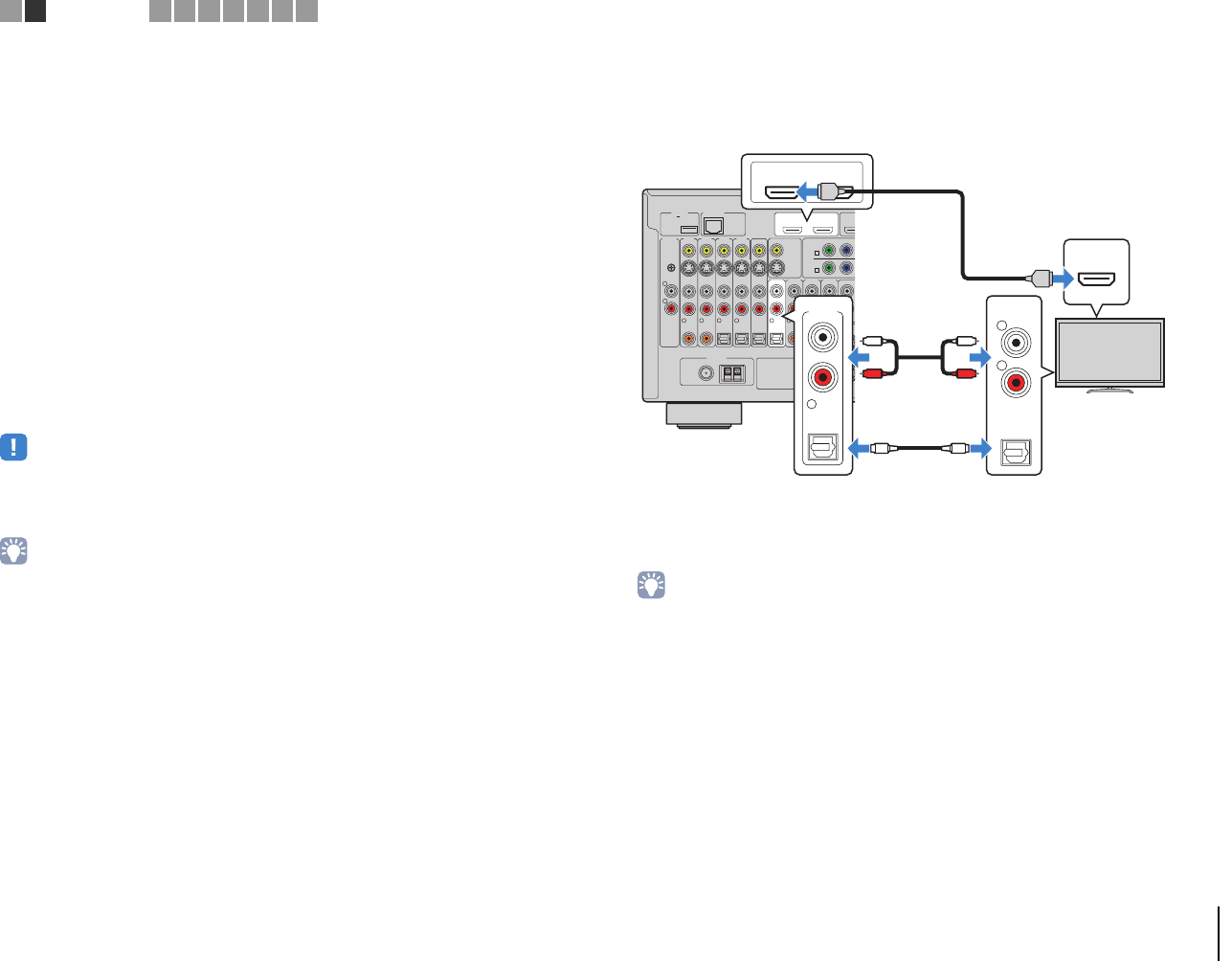
PREPARATIONS ➤Connecting a TV En 38
3Configure the settings for HDMI Control.
aEnable HDMI Control on the TV and playback devices (such as a HDMI
Control-compatible BD/DVD player).
bTurn off the TV’s main power and then turn off the unit and playback devices.
cTurn on the unit and playback devices and then turn on the TV.
dSwitch the TV input to display video from the unit.
eCheck the following.
On the unit: The input to which the playback device is connected is selected. If not,
select the input source manually.
On the TV: The video from the playback device is displayed.
fCheck that the unit is properly synchronized with the TV by turning off the TV or
adjusting the TV volume with the TV remote control.
This completes the necessary settings.
If you select a TV program with the TV remote control, the input source of the unit will be
automatically switched to “AUDIO 1” and the TV audio will be played back on the unit.
• If HDMI Control does not work properly, try turning off and on (or unplugging and then plugging in again)
the devices. It may solve the problem.
• If the unit is not synchronized to the TV’s power operations, check the priority of the audio output setting on
the TV.
• “AUDIO 1” is set as TV audio input at the factory. If you have connected any external device to the AUDIO 1
jacks, use “TV Audio Input” (p.122) in the “Setup” menu to change the TV audio input assignment. To use
the SCENE function (p.61), you also need to change the input assignment for SCENE(TV).
■Connection Method 3 (TV with HDMI input jacks)
Connect the TV to the unit with an HDMI cable and an audio cable (digital optical or
stereo pin cable).
If you select “AUDIO 1” as the input source by pressing AUDIO 1 or SCENE(TV) on the
remote control, the TV audio will be played back on the unit.
• By connecting a TV to the unit with an HDMI cable, any video input to the unit can be output to the TV,
regardless of the method used to connect the video device to the unit. For details, see “Video signal flow”
(p.156).
• If you have connected any external device to the AUDIO 1 jacks, connect the TV to one of the AUDIO 2–4
jacks. To use the SCENE function (p.61), you also need to change the input assignment for SCENE(TV).
• You can connect another TV or a projector by using the HDMI OUT 2 jack (p.40).
NETWORKDC OUT
5V
0.5A
( 3 NET )
MONITOR OUT/
ZONE OUT
HDMI OUT
ARC (ZONE OUT)
12
(1 BD/
D
AV 1
YPB
AV 1
A
AV 2
B
AV OUT
R
L
AV 3 AV 4AV 2AV 1
(1 BD/DVD)
OPTICAL
4
OPTICAL
3
COAXIAL
2
COAXIAL
1
PHONO
GND
OPTICAL
AUDIO 4AUDIO 3AUDIO 2AUDIO 1
(2 TV)
FRONT
SURROUND
5
COAXIAL
6
R L
FM
75Ω
ANTENNA
HD Radio
AM
(4 RADIO)
HDMI OUT
ARC (ZONE OUT)
12
HDMI
OPTICAL
AUDIO 1
(2 TV)
5
AUDIO
OPTICAL
R
L
HDMI
HDMI
OO
L
R
L
R
The unit (rear)
HDMI OUT 1 jack
AUDIO 1
(OPTICAL or AUDIO) jacks
Audio output
(digital optical or analog stereo)
TV
HDMI input
1 2 TV connection 3456789
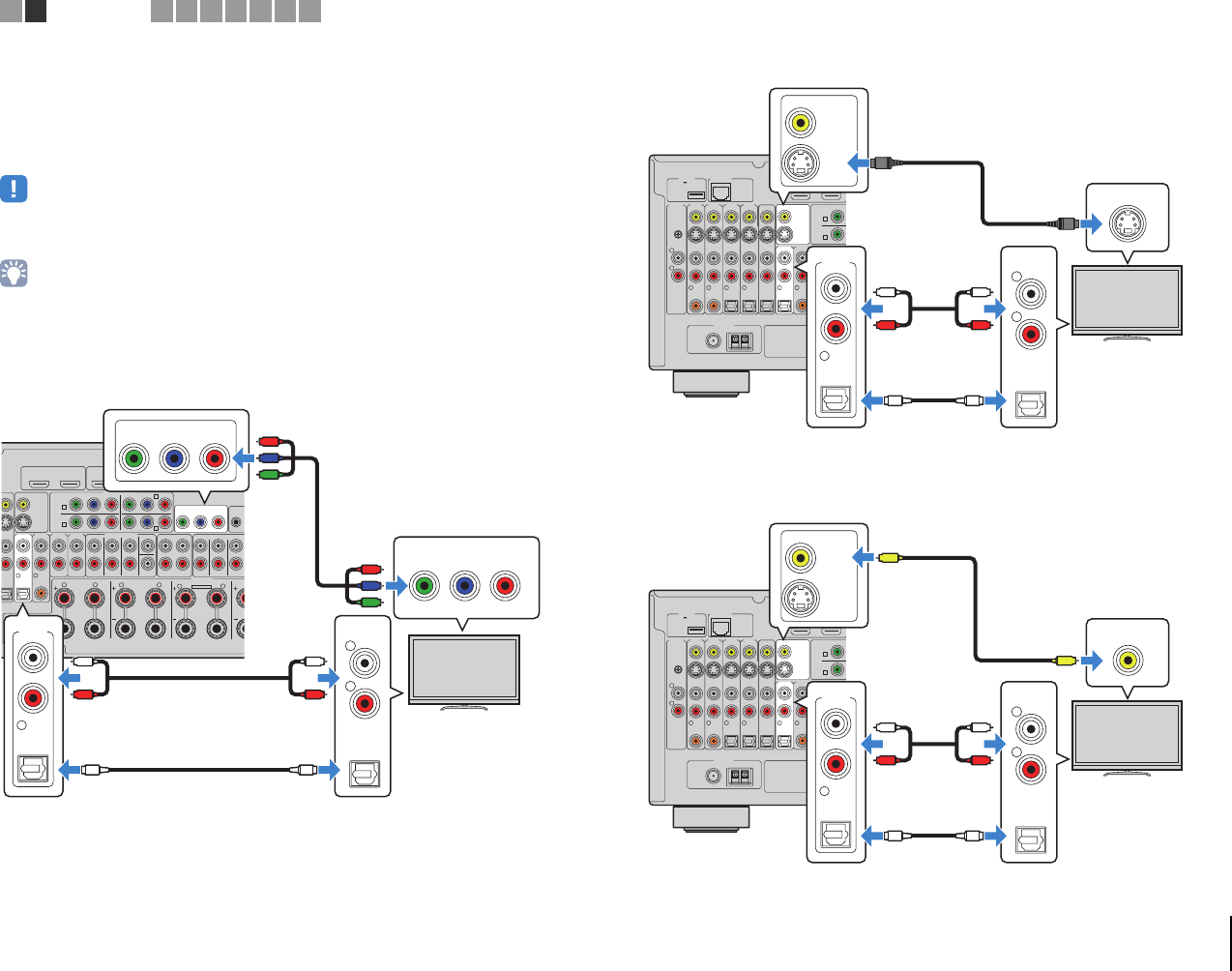
PREPARATIONS ➤Connecting a TV En 39
■Connection Method 4 (TV without HDMI input jacks)
Depending on the video input jacks available on your TV, choose one of the following
connections.
If you select “AUDIO 1” as the input source by pressing AUDIO 1 or SCENE(TV) on the
remote control, the TV audio will be played back on the unit.
• If you connect your TV to the unit with a cable other than HDMI, video input to the unit via HDMI cannot be
output to the TV. Also, analog videos that can be output to the TV differ according to the “Analog to Analog
Conversion” setting in the “Setup” menu. For details, see “Video signal flow” (p.156).
• If you have connected any external device to the AUDIO 1 jacks, connect the TV to one of the AUDIO 2–4
jacks. To use the SCENE function (p.61), you also need to change the input assignment for SCENE(TV).
❑COMPONENT VIDEO connection (with a component video cable)
❑S VIDEO connection (with an S-video cable)
❑VIDEO (composite video) connection (with a video pin cable)
MONITOR OUT/
ZONE OUT
HDMI OUT
ARC (ZONE OUT)
12
HDMI
(1 BD/DVD)
AV 1 AV 2 AV 3 AV 4 AV 5
A
YPBPR
YPBPR
YPBPR
MONITOR OUT/ZONE OUT
IN
AV 1
AV 3
COMPONENT VIDEO
A
AV 2
B
C
AV 4 D
A
V OUT
OPTICAL
AUDIO 4
MULTI CH INPUT
ZONE OUT/PRE OUT
AUDIO 3AUDIO 2AUDIO 1
(2 TV)
CENTER
SUBWOOFER
ZONE 2 /
F.PRESENSE ZONE 3 /
R.PRESENSE
FRONT
SURROUND SUR. BACK
SPEAKERS C
E
SURROUND BACKSURROUND
ZONE 2/ZONE 3/R.PRESENCE
R
5
COAXIAL
6
L
R L RL
SINGLE
PRE OUT
FRONT
SURROUND SUR. BACK
(SINGLE)
EXTRA SP2
OPTICAL
AUDIO 1
(2 TV)
5
AUDIO
OPTICAL
R
L
YPBPR
MONITOR OUT/ZONE OUT
YPBPR
COMPONENT VIDEO
OO
L
R
L
R
P
R
P
B
Y
P
R
P
B
Y
The unit (rear)
MONITOR OUT
(COMPONENT VIDEO) jacks
Video input
(component video)
AUDIO 1
(OPTICAL or AUDIO) jacks
Audio output
(digital optical or analog stereo)
TV
NETWORKDC OUT
5V
0.5A
( 3 NET )
MONITOR OUT/
ZONE OUT
HDMI OUT
ARC (ZONE OUT)
12
Y
AV 1
A
AV 2
B
AV OUT
R
L
AV 3 AV 4AV 2AV 1
(1 BD/DVD)
OPTICAL
4
OPTICAL
3
COAXIAL
2
COAXIAL
1
PHONO
GND
OPTICAL
AUDI O 4AUDIO 3AUDIO 2AUDIO 1
(2 TV)
SURROU
N
5
COAXIAL
6
R
FM
75Ω
ANTENNA
HD Radio
AM
(4 RADIO)
OPTICAL
AUDIO 1
(2 TV)
5
AUDIO
OPTICAL
R
L
MONITOR OUT/
ZONE OUT
S VIDEO
OO
L
R
L
R
S
S
The unit (rear)
MONITOR OUT (S VIDEO) jack
Video input (S-video)
AUDIO 1
(OPTICAL or AUDIO) jacks
Audio output
(digital optical or analog stereo)
TV
NETWORKDC OUT
5V
0.5A
( 3 NET )
MONITOR OUT/
ZONE OUT
HDMI OUT
ARC (ZONE OUT)
12
Y
AV 1
A
AV 2
B
AV OUT
R
L
AV 3 AV 4AV 2AV 1
(1 BD/DVD)
OPTICAL
4
OPTICAL
3
COAXIAL
2
COAXIAL
1
PHONO
GND
OPTICAL
AUDI O 4AUDI O 3AUDIO 2AUDIO 1
(2 TV)
SURROU
N
5
COAXIAL
6
R
FM
75Ω
ANTENNA
HD Radio
AM
(4 RADIO)
OPTICAL
AUDIO 1
(2 TV)
5
AUDIO
OPTICAL
R
L
MONITOR OUT/
ZONE OUT
VIDEO
V
V
OO
L
R
L
R
The unit (rear)
MONITOR OUT (VIDEO) jack
Video input (S-video)
AUDIO 1
(OPTICAL or AUDIO) jacks
Audio output
(digital optical or analog stereo)
TV
1 2 TV connection 3456789
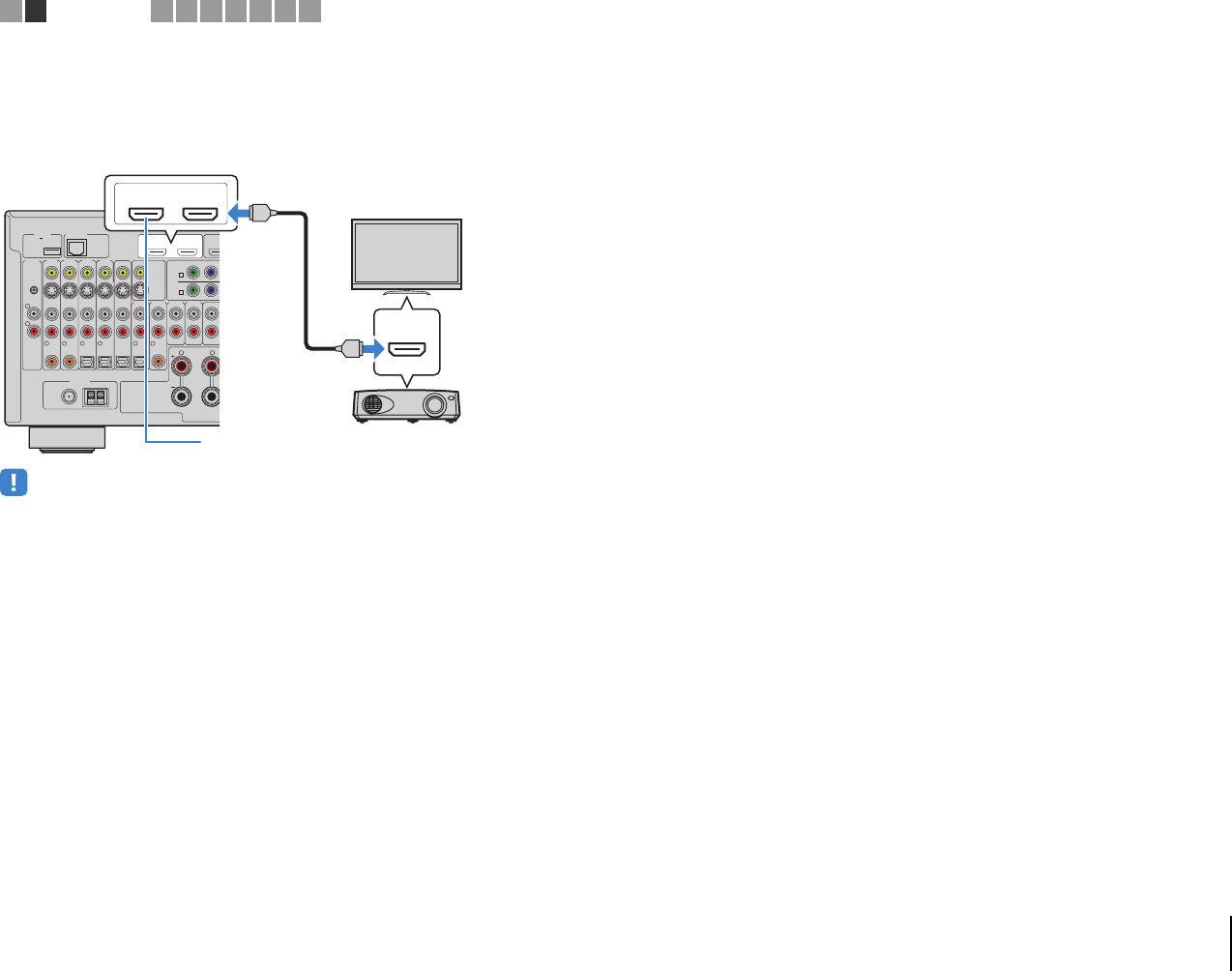
PREPARATIONS ➤Connecting a TV En 40
■Connecting another TV or a projector
The unit has two HDMI output jacks. If you connect another TV or a projector to the unit
with an HDMI cable, you can switch the TV (or projector) to be used for watching
videos with the remote control (p.60).
• HDMI Control is not available on the HDMI OUT 2 jack.
• (RX-A3020 only)
If you set “HDMI OUT2 Assign” (p.127) in the “Setup” menu to “Zone2” or “Zone4”, you can connect a video
monitor for Zone2 or Zone4 to the HDMI OUT 2 jack and enjoy videos and audio using the video monitor
(p.93).
NETWORKDC OUT
5V
0.5A
( 3 NET )
MONITOR OUT/
ZONE OUT
HDMI OUT
ARC (ZONE OUT)
12
(1 BD/
D
AV 1
YPB
AV 1
A
AV 2
B
AV O UT
R
L
AV 3 AV 4AV 2AV 1
(1 BD/DVD)
OPTICAL
4
OPTICAL
3
COAXIAL
2
COAXIAL
1
PHONO
GND
OPTICAL
AUDIO 4AUDIO 3AUDIO 2AUDIO 1
(2 TV)
FRONT
SURROUND
5
COAXIAL
6
R L
FM
75Ω
ANTENNA
HD Radio
AM
(4 RADIO)
HDMI
HDMI OUT
ARC (ZONE OUT)
12
HDMI
HDMI
The unit (rear)
HDMI OUT 2 jack
HDMI input
Projector
TV (already connected)
TV
1 2 TV connection 3456789
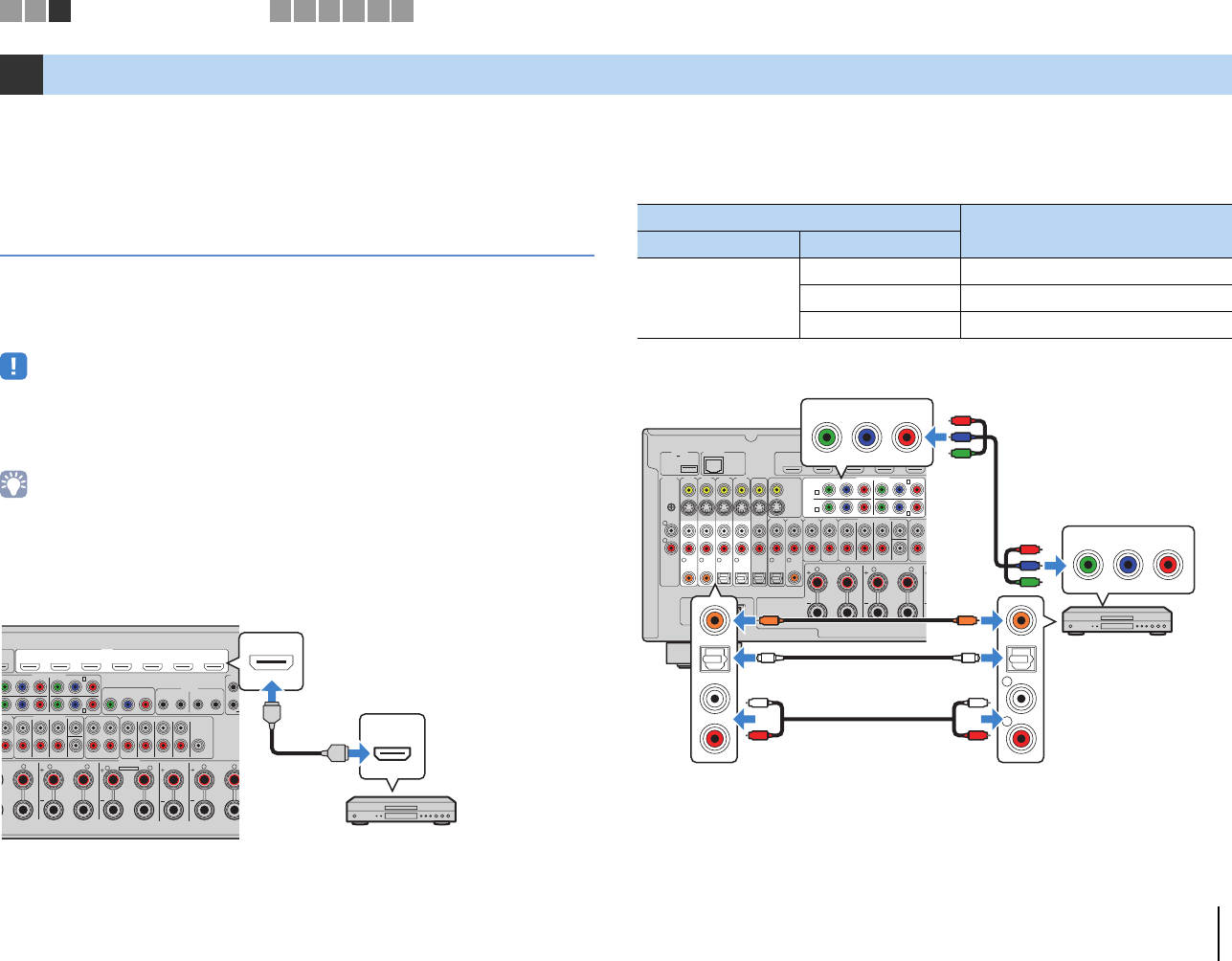
PREPARATIONS ➤Connecting playback devices En 41
The unit is equipped with a variety of input jacks including HDMI input jacks to allow
you to connect different types of playback devices. For information on how to connect
an iPod or a USB storage device, see the following pages.
• Connecting an iPod (p.76)
• Connecting a USB storage device (p.80)
Connecting video devices (such as BD/DVD players)
Connect video devices such as BD/DVD players, set-top boxes (STBs) and game
consoles to the unit. Depending on the video/audio output jacks available on your video
device, choose one of the following connections. We recommend using an HDMI
connection if the video device has an HDMI output jack.
• Videos input to the unit via HDMI cannot be output to a TV connected to the unit with a cable other than
HDMI.
• The following explanation is based on the assumption that you have not changed the “Input Assignment”
setting (p.127) in the “Setup” menu. As necessary, you can assign the COMPONENT VIDEO (A, B, C,
D), COAXIAL (a, b, f) and OPTICAL (c, d, e) jacks to another input source.
• If you make more than one audio connection for one input source, an audio signal played back on the unit
will be determined according to the “Audio Select” setting (p.101) in the “Option” menu.
■HDMI connection
Connect a video device to the unit with an HDMI cable.
If you select the input source by pressing AV 1–7 on the remote control, the video/audio
played back on the video device will be output from the unit.
■Component video connection
Connect a video device to the unit with a component video cable and an audio cable
(digital coaxial, digital optical or stereo pin cable). Choose a set of input jacks (on the
unit) depending on the audio output jacks available on your video device.
If you select the input source by pressing AV 1–4 on the remote control, the video/audio
played back on the video device will be output from the unit.
3Connecting playback devices
U
T)
2
HDMI
(1 BD/DVD)
AV 1 AV 2 AV 3 AV 4 AV 5 AV 6 AV 7
TRI
G
O
U
YPBPR
YPBPR
YPBPR
MONITOR OUT/ZONE OUT
IN OUT IN OUT
AV 3
REMOTE
12
COMPONENT VIDEO
C
AV 4
D
1
2
A
UDIO 4
MULTI CH INPUT
ZONE OUT/PRE OUT
CENTER
SUBWOOFER
ZONE 2 /
F.PRESENSE ZONE 3 /
R.PRESENSE
FRONT
SURROUND SUR. BACK
SPEAKERS CENTER FRONT
SURROUND BACK
U
RROUND
ZONE 2/ZONE 3/R.PRESENCE
R L
LRR
LL
SINGLE
PRE OUT
SUBWOOFER
CENTER
FRONT
SURROUND SUR. BACK
(SINGLE) (FRONT)
(REAR)
EXTRA SP2
12V
HDMI
HDMI
HDMI
The unit (rear)
HDMI output
Video device
HDMI (AV 1–7) jacks
Output jacks on video device
Input jacks on the unit
Video Audio
Component video
Digital optical AV 1–2 (COMPONENT VIDEO + OPTICAL)
Digital coaxial AV 3–4 (COMPONENT VIDEO + COAXIAL)
Analog stereo AV 1–4 (COMPONENT VIDEO + AUDIO)
NETWORKDC OUT
5V
0.5A
( 3 NET )
MONITOR OUT/
ZONE OUT
HDMI OUT
ARC (ZONE OUT)
12
(1 BD/DVD)
AV 1 AV 2 AV 3
YPBPRYPBPR
AV 1
AV 3
COMPONENT VIDEO
A
AV 2
B
C
AV 4 D
AV OUT
R
L
AV 3 AV 4AV 2AV 1
(1 BD/DVD)
OPTICAL
4
OPTICAL
3
COAXIAL
2
COAXIAL
1
PHONO
GND
OPTICAL
AUDIO 4
MULTI CH INPUT
ZONE OU
T
AUDI O 3AUDI O 2AUDIO 1
(2 TV)
CENTER
SUBWOOFER
ZONE 2 /
F.PRESENSE
FRONT
SURROUND SUR. BACK
SURROUND BACKSURROUND
R
5
COAXIAL
6
L
R L
SINGLE
FM
75Ω
ANTENNA
HD Radio
AM
(4 RADIO)
YPBPR
YPBPR
R
L
COAXIAL
OPTICAL
CC
L
R
L
R
OO
PR
PB
Y
PR
PB
Y
The unit (rear)
AV 1–4
(COMPONENT VIDEO) jacks
Video output
(component video)
Video device
Audio output
(any of digital coaxial, digital optical,
analog stereo)
Any of AV 1–2 (COAXIAL),
AV 3–4 (OPTICAL),
AV 1–4 (AUDIO) jacks
1 2 3 Playback device connections 4 5 6 7 8 9
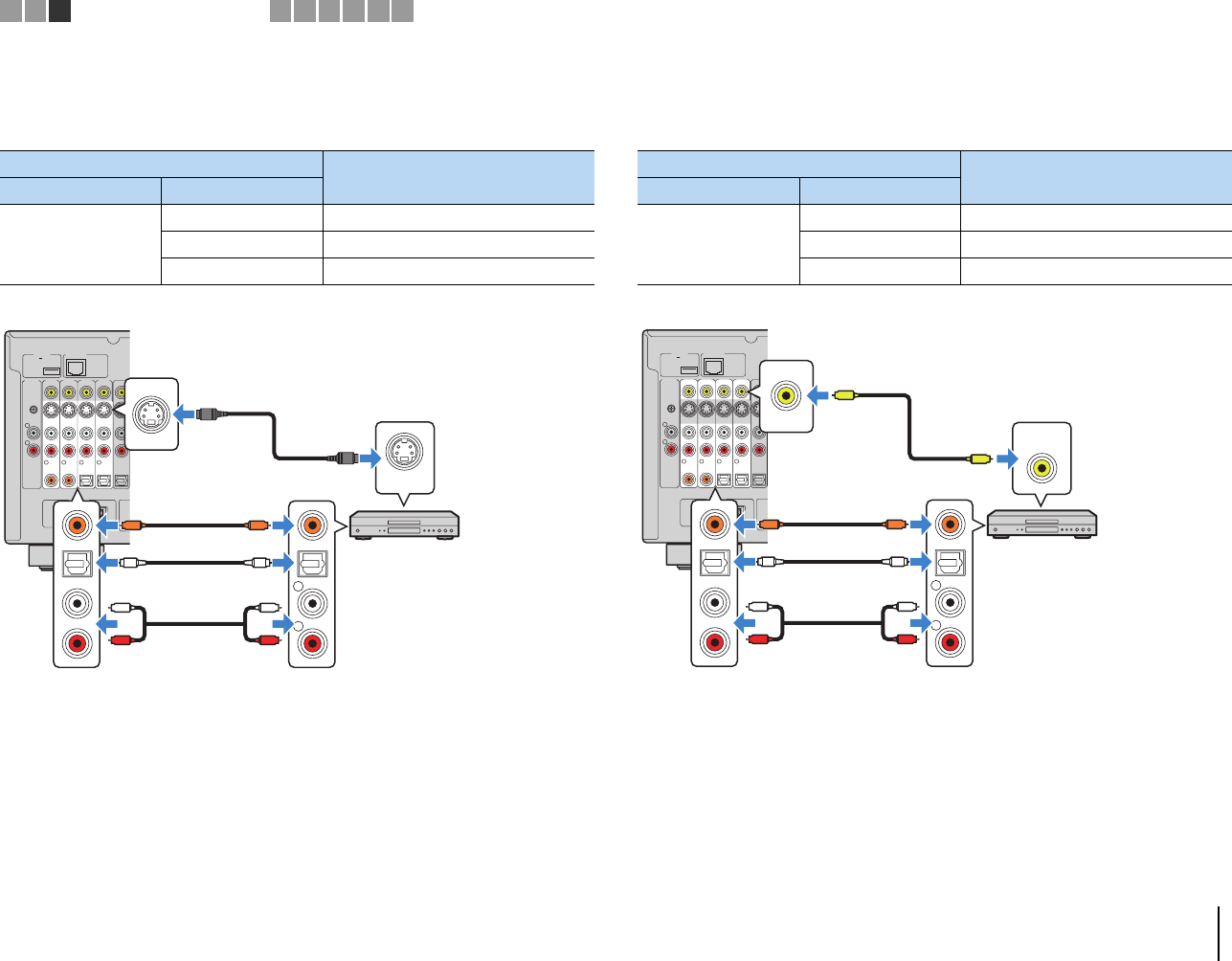
PREPARATIONS ➤Connecting playback devices En 42
■S-video connection
Connect a video device to the unit with an S-video cable and an audio cable (digital
coaxial, digital optical or stereo pin cable). Choose a set of input jacks (on the unit)
depending on the audio output jacks available on your video device.
If you select the input source by pressing AV 1–4 on the remote control, the video/audio
played back on the video device will be output from the unit.
■Composite video connection
Connect a video device to the unit with a video pin cable and an audio cable (digital
coaxial, digital optical, or stereo pin cable). Choose a set of input jacks (on the unit)
depending on the audio output jacks available on your video device.
If you select the input source by pressing AV 1–4 on the remote control, the video/audio
played back on the video device will be output from the unit.
Output jacks on video device
Input jacks on the unit
Video Audio
S-video
Digital coaxial AV 1–2 (S VIDEO + COAXIAL)
Digital optical AV 3–4 (S VIDEO + OPTICAL)
Analog stereo AV 1–4 (S VIDEO + AUDIO)
NETWORKDC OUT
5V
0.5A
( 3 NET )
AV OUT
R
L
AV 3 AV 4AV 2AV 1
(1 BD/DVD)
OPTICAL
4
OPTICAL
3
COAXIAL
2
COAXIAL
1
PHONO
GND
FM
75Ω
ANTENNA
HD Radio
AM
(4 RADIO)
S VIDEO
S
S
R
L
COAXIAL
OPTICAL
CC
L
R
L
R
OO
The unit (rear)
AV 1–4
(S VIDEO) jacks
Video output
(S-video)
Video device
Audio output
(any of digital coaxial, digital optical,
analog stereo)
Any of AV 1–2 (COAXIAL),
AV 3–4 (OPTICAL),
AV 1–4 (AUDIO) jacks
Output jacks on video device
Input jacks on the unit
Video Audio
Composite video
Digital coaxial AV 1–2 (VIDEO + COAXIAL)
Digital optical AV 3–4 (VIDEO + OPTICAL)
Analog stereo AV 1–4 (VIDEO + AUDIO)
NETWORKDC OUT
5V
0.5A
( 3 NET )
AV OUT
R
L
AV 3 AV 4AV 2AV 1
(1 BD/DVD)
OPTICAL
4
OPTICAL
3
COAXIAL
2
COAXIAL
1
PHONO
GND
FM
75Ω
ANTENNA
HD Radio
AM
(4 RADIO)
R
L
COAXIAL
OPTICAL
VIDEO
CC
L
R
L
R
OO
V
V
The unit (rear)
AV 1–4 (VIDEO) jacks
Video output
(composite video)
Video device
Audio output
(any of digital coaxial, digital optical,
analog stereo)
Any of AV 1–2 (COAXIAL),
AV 3–4 (OPTICAL),
AV 1–4 (AUDIO) jacks
1 2 3 Playback device connections 4 5 6 7 8 9
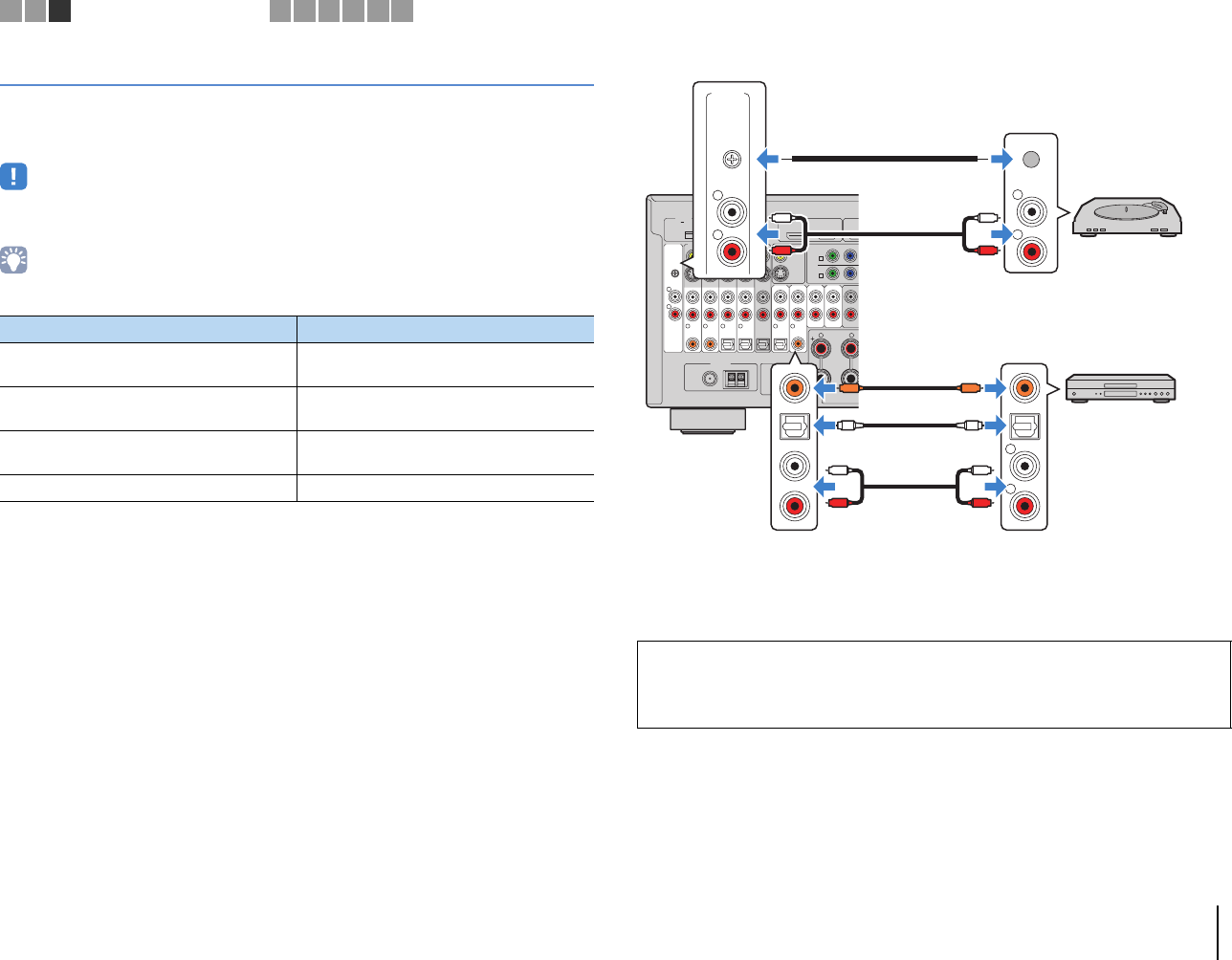
PREPARATIONS ➤Connecting playback devices En 43
Connecting audio devices (such as CD players)
Connect audio devices such as CD players, MD players, and a turntable to the unit.
Depending on the audio output jacks available on your audio device, choose one of the
following connections.
• The following explanation is based on the assumption that you have not changed the “Input Assignment”
setting (p.127) in the “Setup” menu. As necessary, you can assign the COAXIAL (a, b, f) and OPTICAL
(c, d, e) jacks to another input source.
• If you make more than one audio connection for one input source, an audio signal played back on the unit
will be determined according to the “Audio Select” setting (p.101) in the “Option” menu.
If you select the input source by pressing AV 1–4, AUDIO 1–4 or PHONO on the remote
control, the audio played back on the audio device will be output from the unit.
Audio output jacks on audio device Audio output jacks on the unit
Digital optical AV 1–2 (COAXIAL)
AUDIO 2 (COAXIAL)
Digital coaxial AV 3–4 (OPTICAL)
AUDIO 1 (OPTICAL)
Analog stereo AV 1–4 (AUDIO)
AUDIO 1–4 (AUDIO)
Turntable (PHONO) PHONO
When connecting a turntable
• The PHONO jack of the unit is compatible with an MM cartridge. To connect a turntable with a
low-output MC cartridge, use a boosting transformer.
• Connecting the turntable to the GND terminal of the unit may reduce noise in the signal.
NETWORKDC OUT
5V
0.5A
( 3 NET )
MONITOR OUT/
ZONE OUT
HDMI OUT
ARC (ZONE OUT)
12
(1 BD/
D
AV 1
YPB
AV 1
A
AV 2
B
AV OUT
R
L
AV 3 AV 4AV 2AV 1
(1 BD/DVD)
OPTICAL
4
OPTICAL
3
COAXIAL
2
COAXIAL
1
PHONO
GND
OPTICAL
AUDIO 4AUDIO 3AUDIO 2AUDIO 1
(2 TV)
FRONT
SURROUND
5
COAXIAL
6
R L
FM
75Ω
ANTENNA
HD Radio
AM
(4 RADIO)
R
L
PHONO
GND
R
L
COAXIAL
OPTICAL
R
L
PHONO
GND
CC
L
R
L
R
OO
L
R
L
R
Audio output
(any of digital coaxial, digital optical,
analog stereo)
Any of AV 1–4, AUDIO 1–4
(COAXIAL, OPTICAL, AUDIO) jacks
The unit
(rear)
Audio device
PHONO jacks
Audio output
(PHONO)
Turntable
Ground lead
1 2 3 Playback device connections 4 5 6 7 8 9
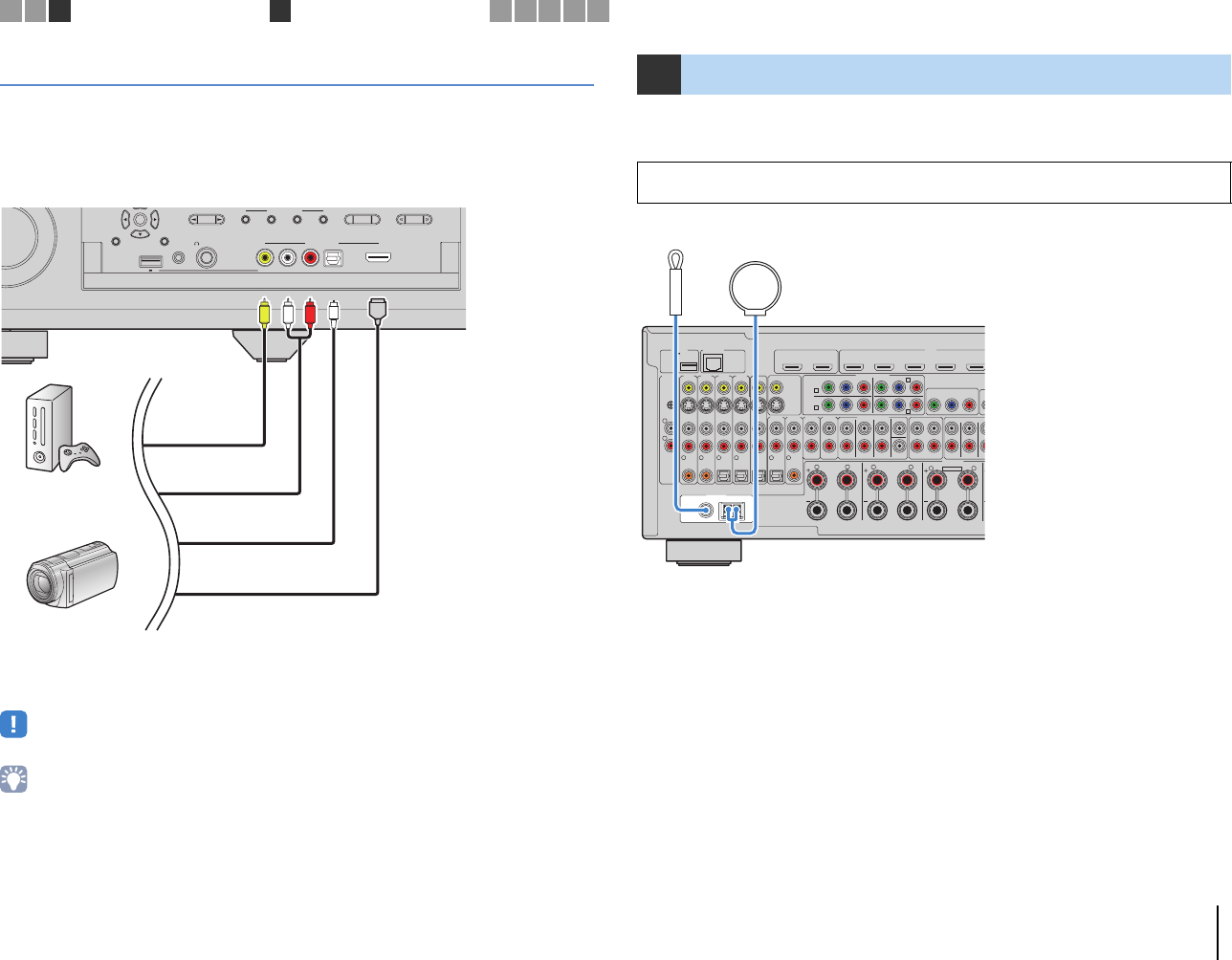
PREPARATIONS ➤Connecting the FM/AM antennas En 44
Connecting to the jacks on the front panel
Use the VIDEO AUX jack to temporarily connect devices such as game consoles and
camcorders to the unit.
Before making a connection, stop playback on the device and turn down the volume on
the unit.
If you select “V-AUX” as the input source by pressing V-AUX on the remote control on
the remote control, the video/audio played back on the device will be output from the
unit.
• You need to prepare a cable that match the output jacks on your device.
• If you connect video devices to both the HDMI IN jack and analog video/audio jacks, the unit outputs
video/audio input through the HDMI IN jack.
• When “USB” is selected as the input source, video signals input to the VIDEO AUX (VIDEO) jack are output
from the HDMI OUT and MONITOR OUT jacks.
Connect the supplied FM/AM antennas to the unit.
Fix the end of the FM antenna to a wall, and place the AM antenna on a flat surface.
ENTER
DISPLAYRETURN
USB
YPAO MIC
PHONES
PROGRAM
MULTI ZONE
VIDEO AUX
ZONE 2 ZONE 3 ZONE 4
ZONE CONTROL
SILENT CINEMA
VIDEO
5V 2.1A
RL AUDIO
HDMI IN
OPTICAL
FM AM TUNING
V RL
HDMI
O
Game console
Camcorder
The unit (front)
4Connecting the FM/AM antennas
• The supplied antennas and the location of the antenna jacks vary depending on the region of
purchase.
NETWORKDC OUT
5V
0.5A
( 3 NET )
MONITOR OUT/
ZONE OUT
HDMI OUT
ARC (ZONE OUT)
12
HDMI
(1 BD/DVD)
AV 1 AV 2 AV 3 AV 4 AV 5
YP
B
P
R
YP
B
P
R
YP
B
P
R
MONITOR OUT/ZONE OUT
AV 1
AV 3
COMPONENT VIDEO
A
AV 2
B
C
AV 4 D
AV OUT
R
L
AV 3 AV 4AV 2AV 1
(1 BD/DVD)
OPTICAL
4
OPTICAL
3
COAXIAL
2
COAXIAL
1
PHONO
GND
OPTICAL
AUDIO 4
MULTI CH INPUT
ZONE OUT/PRE OUT
AUDIO 3AUDIO 2AUDIO 1
(2 TV)
CENTER
SUBWOOFER
ZONE 2 /
F.PRESENSE ZONE 3 /
R.PRESENSE
FRONT
SURROUND SUR. BACK
SPEAKERS
SURROUND BACKSURROUND
ZONE 2/ZONE 3/R.PRESENCE
R
5
COAXIAL
6
L
R L RL
SINGLE
PRE OUT
FRONT
SURROUND SU
R
(S
I
EXTRA SP2
FM
75Ω
ANTENNA
HD Radio
AM
(4 RADIO)
FM antenna AM antenna
The unit (rear)
1 2 3 Playback device connections 4FM/AM antenna connections 5 6 7 8 9
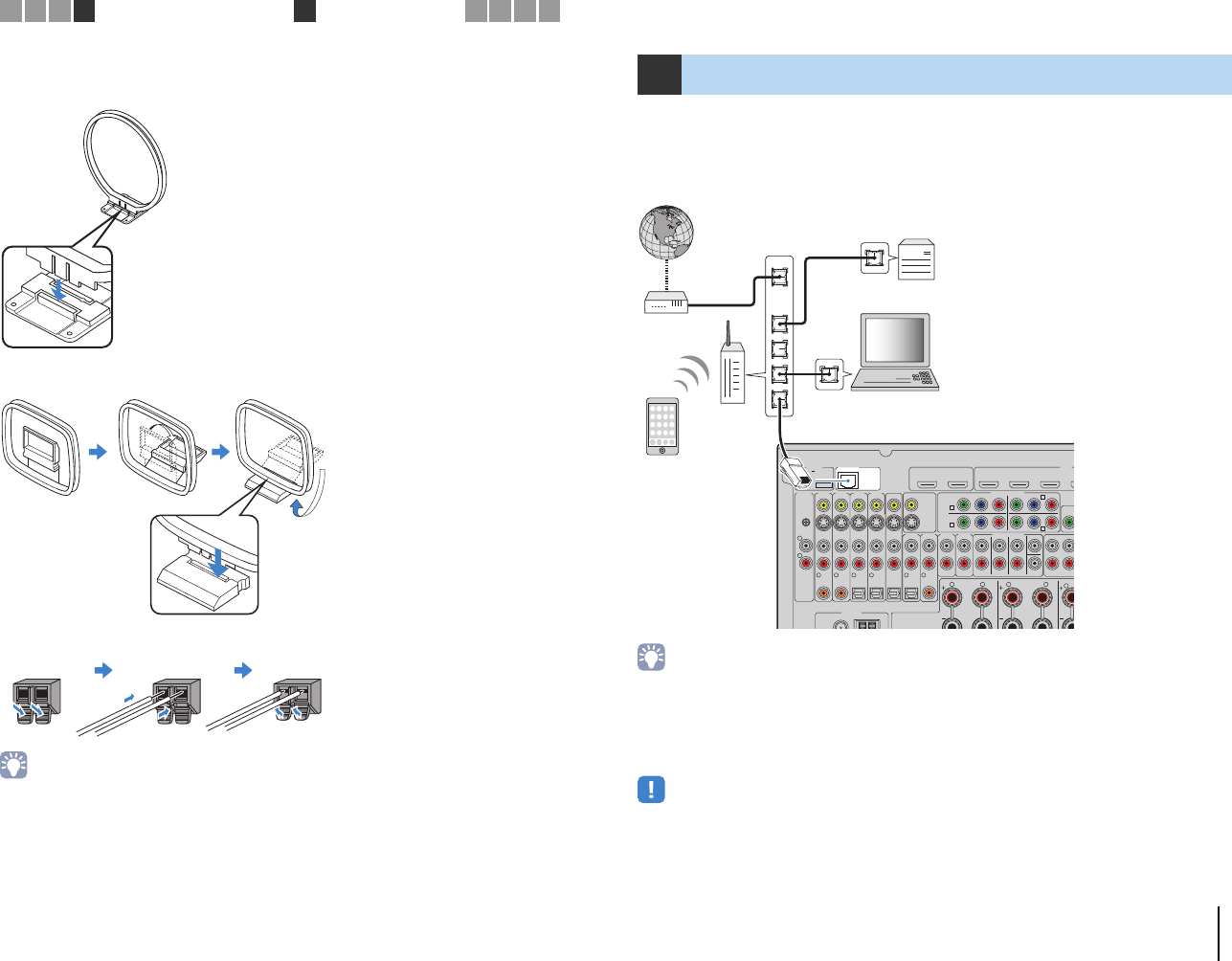
PREPARATIONS ➤Connecting to a network En 45
Assembling the AM antenna
(U.S.A. model)
(Other models)
Connecting the AM antenna
• Unwind only the length of cable needed from the AM antenna unit.
• The wires of the AM antenna have no polarity.
Connect the unit to your router with a commercially-available STP network cable (CAT-5
or higher straight cable).
You can enjoy Internet radio or music files stored on media servers, such as PCs and
Network Attached Storage (NAS), on the unit.
• If you are using a router that supports DHCP, you do not need to configure any network settings for the unit,
as the network parameters (such as the IP address) will be assigned automatically to it. You only need to
configure the network settings if your router does not support DHCP or if you want to configure the network
parameters manually (p.123).
• You can check whether the network parameters (such as IP address) are properly assigned to the unit in
“Network” (p.132) in the “Information” menu.
• Some security software installed on your PC or the firewall settings of network devices (such as a router)
may block the access of the unit to the network devices or the Internet. In these cases, configure the
security software or firewall settings appropriately.
• Each server must be connected to the same subnet as the unit.
• To use the service via the Internet, broadband connection is strongly recommended.
Hold down Insert Release
5Connecting to a network
NETWORKDC OUT
5V
0.5A
( 3 NET )
MONITOR OUT/
ZONE OUT
HDMI OUT
ARC (ZONE OUT)
12
HDMI
(1 BD/DVD)
AV 1 AV 2 AV 3 AV
4
YPBPR
Y
YP
BPR
M
O
AV 1
AV 3
COMPONENT VIDEO
A
AV 2
B
C
AV 4 D
AV OUT
R
L
AV 3 AV 4AV 2AV 1
(1 BD/DVD)
OPTICAL
4
OPTICAL
3
COAXIAL
2
COAXIAL
1
PHONO
GND
OPTICAL
AUDI O 4
MULTI CH INPUT
ZONE OUT/PRE OUT
AUDIO 3AUDIO 2AUDI O 1
(2 TV)
CENTER
SUBWOOFER
ZONE 2 /
F.PRESENSE ZONE 3 /
R.PRESEN
S
FRONT
SURROUND SUR. BACK
SURROUND BACKSURROUND
ZONE
2
R
5
COAXIAL
6
L
R L R
FM
75Ω
ANTENNA
HD Radio
AM
(4 RADIO)
LAN
WAN
Network Attached Storage
(NAS)
Internet
Modem
Router Network cable
PC
The unit (rear)
Mobile device
(such as iPhone)
1 2 3 4 FM/AM antenna connections 5Network connections 6 7 8 9
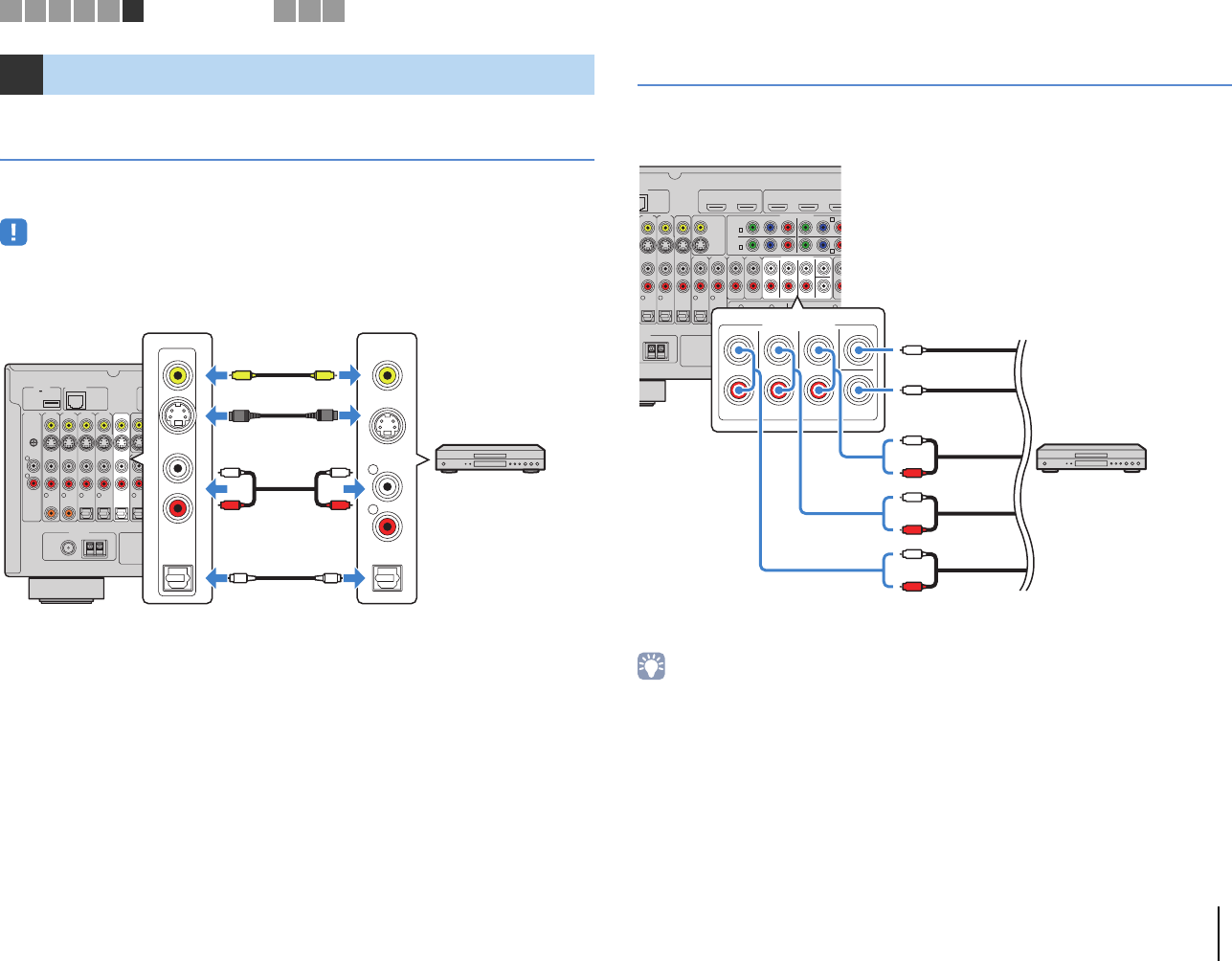
PREPARATIONS ➤Connecting other devices En 46
Connecting recording devices
You can connect video/audio recording devices to the AV OUT jacks. These jacks
output video/audio signals selected as the input.
• The AV OUT jacks cannot output video/audio signals input through the HDMI or COMPONENT VIDEO
jacks.
• Be sure to use the AV OUT jacks only for connecting recording devices.
Connecting a device with analog multi-channel output
You can connect an analog multi-channel output device such as a DVD player and an
SACD player to the MULTI CH INPUT jacks.
If you select “MULTI CH” as the input source by pressing MULTI on the remote control,
the audio played back on the device will be output from the unit.
• You can select a video source to be displayed when “MULTI CH” is selected as the input source using
“Video Out” (p.104) in the “Input” menu. When connecting a video device (such as a DVD player) to the
MULTI CH INPUT jacks, use the input jack specified in “Video Out” for the video connection.
• Since the unit does not redirect signals input to the MULTI CH INPUT jacks to accommodate for missing
speakers, make appropriate settings on the external device (such as a DVD player) that suit to the speaker
configuration.
• When “MULTI CH” is selected as the input source, sound mode selection and tone control adjustment are
not available.
6Connecting other devices
NETWORKDC OUT
5V
0.5A
( 3 NET )
MONITOR OUT/
ZONE OUT
HDMI OUT
ARC (ZONE OUT)
12
Y
AV 1
A
AV 2
B
AV O UT
R
L
AV 3 AV 4AV 2AV 1
(1 BD/DVD)
OPTICAL
4
OPTICAL
3
COAXIAL
2
COAXIAL
1
PHONO
GND
OPTICAL
AUDI O 4AUDI O 3AUDI O 2AUDIO 1
(2 TV)
SURROU
N
5
COAXIAL
6
R
FM
75Ω
ANTENNA
HD Radio
AM
(4 RADIO)
VIDEO
S VIDEO
AUDIO
OPTICAL
AV OUT
R
L
V
L
R
L
R
OO
SS
V
The unit (rear)
AV OUT jacks Video/audio input
Video/audio
recording device
O
RK
( 3 NET )
MONITOR OUT/
ZONE OUT
HDMI OUT
ARC (ZONE OUT)
12
(1 BD/DVD)
AV 1 AV 2 AV 3
YPBPRYPBP
AV 1
AV 3
COMPONENT VIDEO
A
AV 2
B
C
AV 4 D
AV OUT
AV 3 AV 4
OPTICAL
4
OPTICAL
3
OPTICAL
AUDIO 4
MULTI CH INPUT
ZO
N
AUDIO 3AUDIO 2AUDI O 1
(2 TV)
CENTER
SUBWOOFER
ZON
F.P RE
S
FRONT
SURROUND SUR. BACK
SURROUND BACKSURROUND
R
5
COAXIAL
6
L
R L
SINGLE
E
NNA
R
adio
AM
(4 RADIO)
MULTI CH INPUT CENTER
SUBWOOFER
FRONT
SURROUND SUR. BACK
L
R
L
R
L
R
The unit (rear)
MULTI CH
INPUT jacks
Channel output
(Center)
Device with analog
multi-channel output
(Subwoofer)
(Surround
back)
(Surround)
(Front)
1 2 3 4 5 6 Other connections 7 8 9
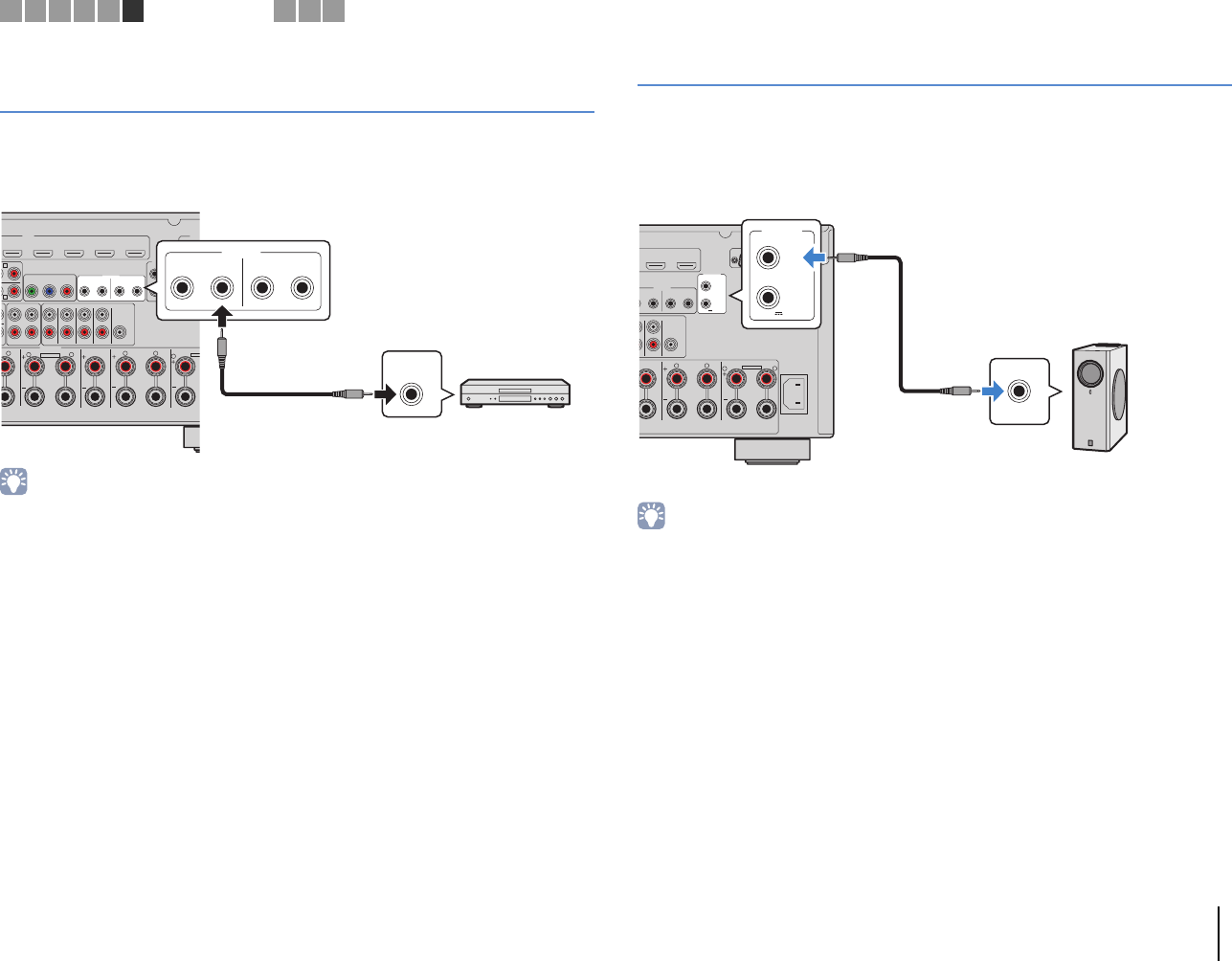
PREPARATIONS ➤Connecting other devices En 47
Connecting a device that supports
SCENE link playback (remote connection)
If you have a Yamaha product that supports SCENE control signal transmission, you
can operate it remotely by connecting it to one of the REMOTE OUT jacks, using a
monaural mini-jack cable, and linking with the SCENE function (p.61).
• If you connect a Yamaha product that supports the SCENE link playback function to one of the REMOTE
OUT jacks, you can remotely start playback on it by linking with a scene selection (p.61). To enable the
SCENE link playback function, specify the device type in “Device Control” (p.106) in the “Scene” menu.
• You can also connect an infrared signal receiver/emitter to operate the unit and external devices from
another room (p.94).
Connecting a device compatible with the trigger function
The trigger function can control an external device in conjunction with operating the
unit (such as powering on/off and input selection). If you have a Yamaha subwoofer that
supports a system connection or a device with a trigger input jack, you can use the
trigger function by connecting the external device to one of the TRIGGER OUT jacks.
• You can configure the trigger function settings in “Trigger Output1” and “Trigger Output2” (p.128) in the
“Setup” menu.
HDMI
A
V 3 AV 4 AV 5 AV 6 AV 7
TRIGGER
OUT
1
2
RS-
2
YPBPR
PR
MONITOR OUT/ZONE OUT
IN OUT IN OUT
REMOTE
12
C
D
1
2
ZONE OUT/PRE OUT
R
E
R
ZONE 2 /
F.PRESENSE ZONE 3 /
R.PRESENSE
SPEAKERS CENTER FRONT
K
BI–AMP
ZONE 2/ZONE
3
ZONE 2/ZONE 3/R.PRESENCE
LRRR
LL
NGLE
PRE OUT
SUBWOOFER
CENTER
FRONT
SURROUND SUR. BACK
(SINGLE) (FRONT)
(REAR)
EXT
R
EXTRA SP2
12V 0.1A
IN
REMOTE
1
IN OUT
2
IN OUT
REMOTE
The unit (rear)
REMOTE OUT jack
Yamaha product
(such as a DVD player)
Remote input
AV 6 AV 7
TRIGGER
OUT
1
2
RS-232C
OUT IN OUT
REMOTE
12
AC IN
1
2
CENTER FRONT
BI–AMP
ZONE 2/ZONE 3/F.PRESENCE/
RR
LL
SUBWOOFER
CENTER
C
K
L
E) (FRONT)
(REAR)
EXTRA SP1
12V 0.1A
TRIGGER
OUT
1
2
12V 0.1A
The unit (rear)
TRIGGER OUT
1–2 jacks
System connection
input
Yamaha subwoofer that
supports a system connection
1 2 3 4 5 6 Other connections 7 8 9
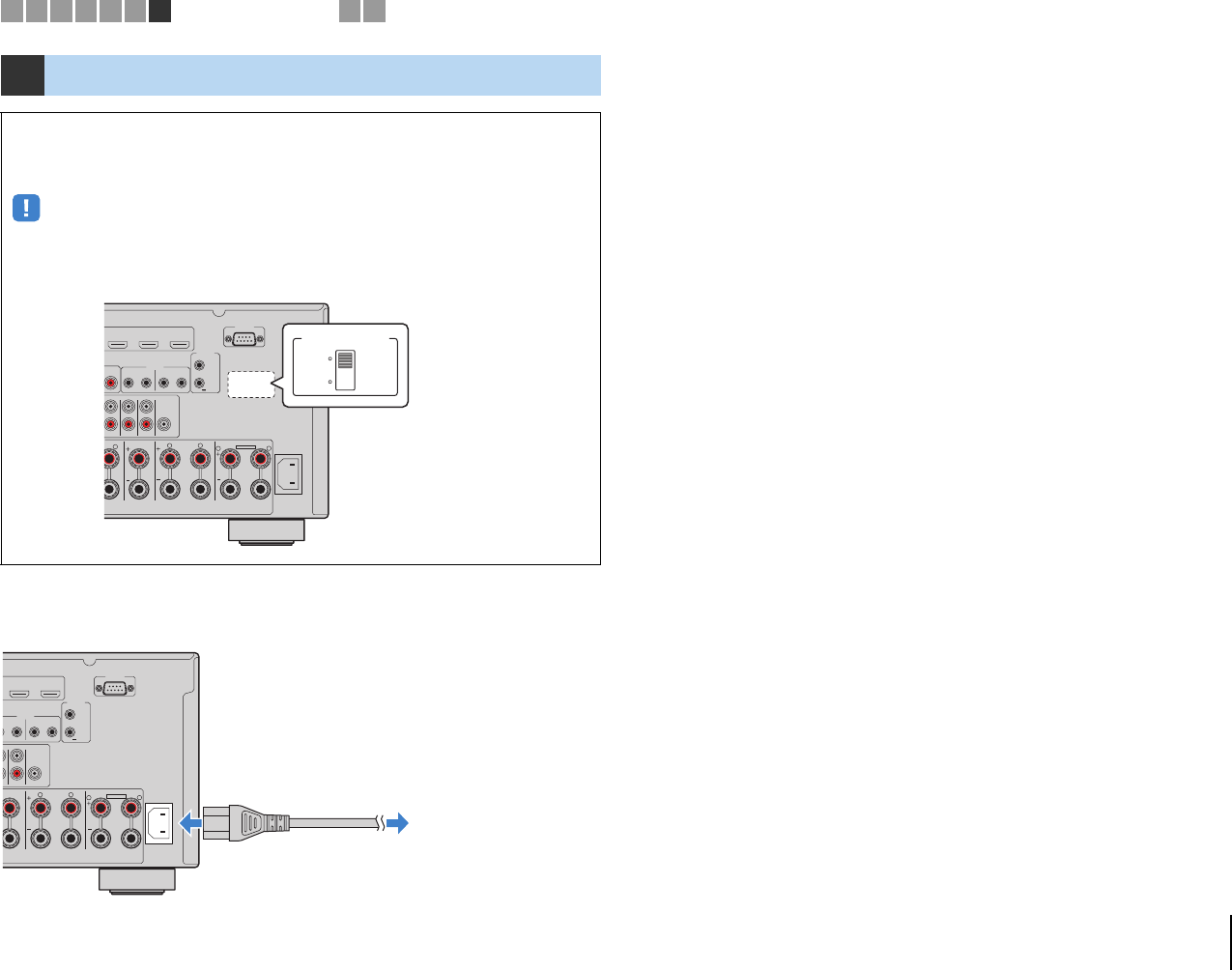
PREPARATIONS ➤Connecting the power cable En 48
After all the connections are complete, connect the supplied power cable to the unit
and then to an AC wall outlet.
7Connecting the power cable
Before connecting the power cable (General model only)
Set the switch position of VOLTAGE SELECTOR according to your local voltage.
Voltages are AC 110–120/220–240 V, 50/60 Hz.
• Make sure you set VOLTAGE SELECTOR of the unit BEFORE plugging the power cable into an AC
wall outlet. Improper setting of VOLTAGE SELECTOR may cause damage to the unit and create a
potential fire hazard.
AV 5 AV 6 AV 7
TRIGGER
OUT
1
2
RS-232C
PR
O
UT
IN OUT IN OUT
REMOTE
12
AC IN
1
2
CENTER FRONT
BI–AMP
ZONE 2/ZONE 3/F.PRESENCE/
R
ESENCE
RR
LLL
P
RE OUT
SUBWOOFER
CENTER
SURROUND SUR. BACK
(SINGLE) (FRONT)
(REAR)
EXTRA SP1
12V 0.1A
VOLTAGE SELECTOR
220V-
240V
110V-
120V
The unit (rear)
VOLTAGE SELECTOR
AV 6 AV 7
TRIGGER
OUT
1
2
RS-232C
OUT IN OUT
REMOTE
12
AC IN
1
2
CENTER FRONT
BI–AMP
ZONE 2/ZONE 3/F.PRESENCE/
RR
LL
SUBWOOFER
CENTER
C
K
L
E) (FRONT)
(REAR)
EXTRA SP1
12V 0.1A
To an AC wall outlet
The unit (rear)
1 2 3 4 5 6 7 Power cable connection 8 9
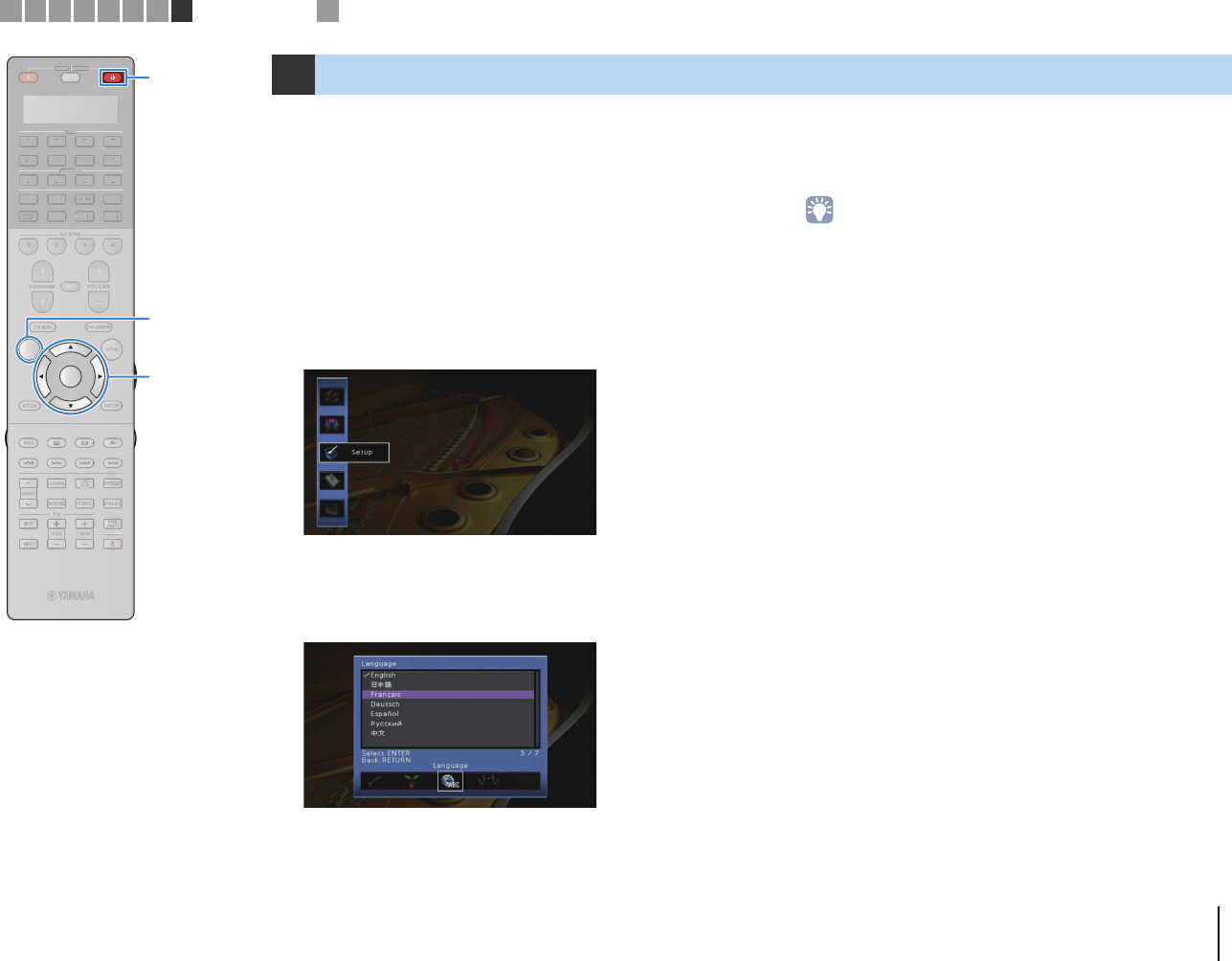
PREPARATIONS ➤Selecting an on-screen menu language En 49
Select the desired on-screen menu language from English,
Japanese, French, German, Spanish, Russian and Chinese.
1Press RECEIVER z to turn on the unit.
2Turn on the TV and switch the TV input to display
video from the unit.
3Press ON SCREEN.
4Use the cursor keys to select “Setup” and press
ENTER.
5Use the cursor keys (e/r) to select “Language” and
the cursor keys (q/w) to select the desired
language.
6To confirm the setting, press ENTER.
7To exit from the menu, press ON SCREEN.
• The information on the front display is provided in English only.
8Selecting an on-screen menu language
1 2 3 4 5 6 7 8 Language setting 9
SOURCE RECEIVER
AV
AUDIO
1 2 3 4
5 6 7
V-AUX
1 2 3 4
MULTI
PHONO
USB NET
TUNER
[ C ][ A ] [ B ]
CLASSICAL
LIVE
CLUB
ENTERTAIN
MOVIE
STEREO STRAIGHT
INPUTPURE
DIRECT
MUTE
TV
SCENE
1 2 3 4
PROGRAM
VOLUME
TV VOL
MUTE
MODE
TOP MENU
RETURN DISPLAY
POP-UP/MENU
TV CH
PRESET
ENTER
ON SCREEN
OPTION
SOU
R
CE
RECEIVE
R
A
V
A
U
DI
O
1
2
3
4
5
6
7
V-
AUX
1
2
3
4
MUL
T
I
L
L
PH
O
N
O
US
B NE
T
TUNE
R
[
C
]
[
A
]
[
B
]
ON SCREEN ON SCREEN
ENTER
RECEIVER z RECEIVER z
Cursor keys
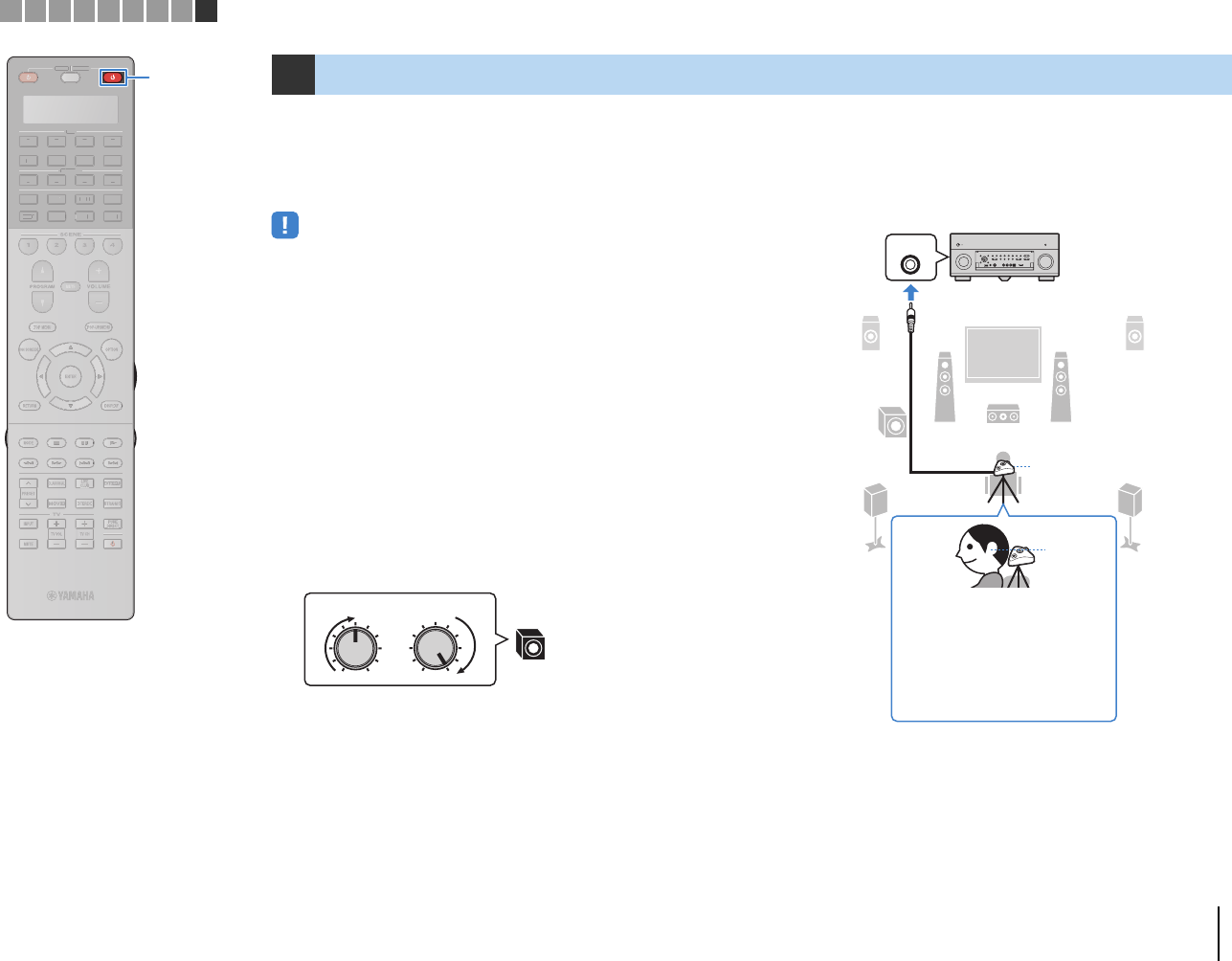
PREPARATIONS ➤Optimizing the speaker settings automatically (YPAO) En 50
The Yamaha Parametric room Acoustic Optimizer (YPAO) function
detects speaker connections, measures the distances from them to
your listening position(s), and then automatically optimizes the
speaker settings, such as volume balance and acoustic
parameters, to suit your room.
• Please note the following when using YPAO.
– Use YPAO after connecting a TV and speakers to the unit.
– During the measuring process, test tones are output at high volume. Ensure that
the test tones do not frighten small children. Also, refrain from using this function
at night when it may be a nuisance to others.
– During the measuring process, you cannot adjust the volume.
– During the measuring process, keep the room as quiet as possible.
– Do not connect headphones.
1Press RECEIVER z to turn on the unit.
2Turn on the TV and switch the TV input to display
video from the unit.
3Turn on the subwoofer and set the volume to half. If
the crossover frequency is adjustable, set it to
maximum.
4According to your speaker configuration, configure
the “Power Amp Assign” setting (p.114) in the
“Setup” menu.
For the basic speaker configuration (p.19): set to “Basic”
(default).
For any of the advanced speaker configurations (p.24): set
to the appropriate setting.
5Place the YPAO microphone at your listening
position (same height as your ears) and connect it
to the YPAO MIC jack on the front panel.
9Optimizing the speaker settings automatically (YPAO)
VOLUME HIGH CUT
CROSSOVER/
MIN MAXMIN MAX
9
YPAO MIC
9
12
3
45
ER
The unit (front)
YPAO
microphone
Ear height
Place the YPAO microphone at
your listening position (same height
as your ears). We recommend the
use of a tripod as a microphone
stand. You can use the tripod
screws to stabilize the microphone.
(The microphone direction is not
considered.)
YPAO MIC
jack
123456789Automatic speaker setup
SOURCE RECEIVER
AV
AUDIO
1 2 3 4
5 6 7
V-AUX
1 2 3 4
MULTI
PHONO
USB NET
TUNER
[ C ][ A ] [ B ]
CLASSICAL
LIVE
CLUB
ENTERTAIN
MOVIE
STEREO STRAIGHT
INPUTPURE
DIRECT
MUTE
TV
SCENE
1 2 3 4
PROGRAM
VOLUME
TV VOL
MUTE
MODE
TOP MENU
RETURN DISPLAY
POP-UP/MENU
TV CH
PRESET
ENTER
ON SCREEN
OPTION
SOU
R
CE
RECEIVE
R
A
V
A
U
DI
O
1
2
3
4
5
6
7
V-
AUX
1
2
3
4
MUL
T
I
L
L
PH
O
N
O
US
B NE
T
TUNE
R
[
C
]
[
A
]
[
B
]
RECEIVER z RECEIVER z
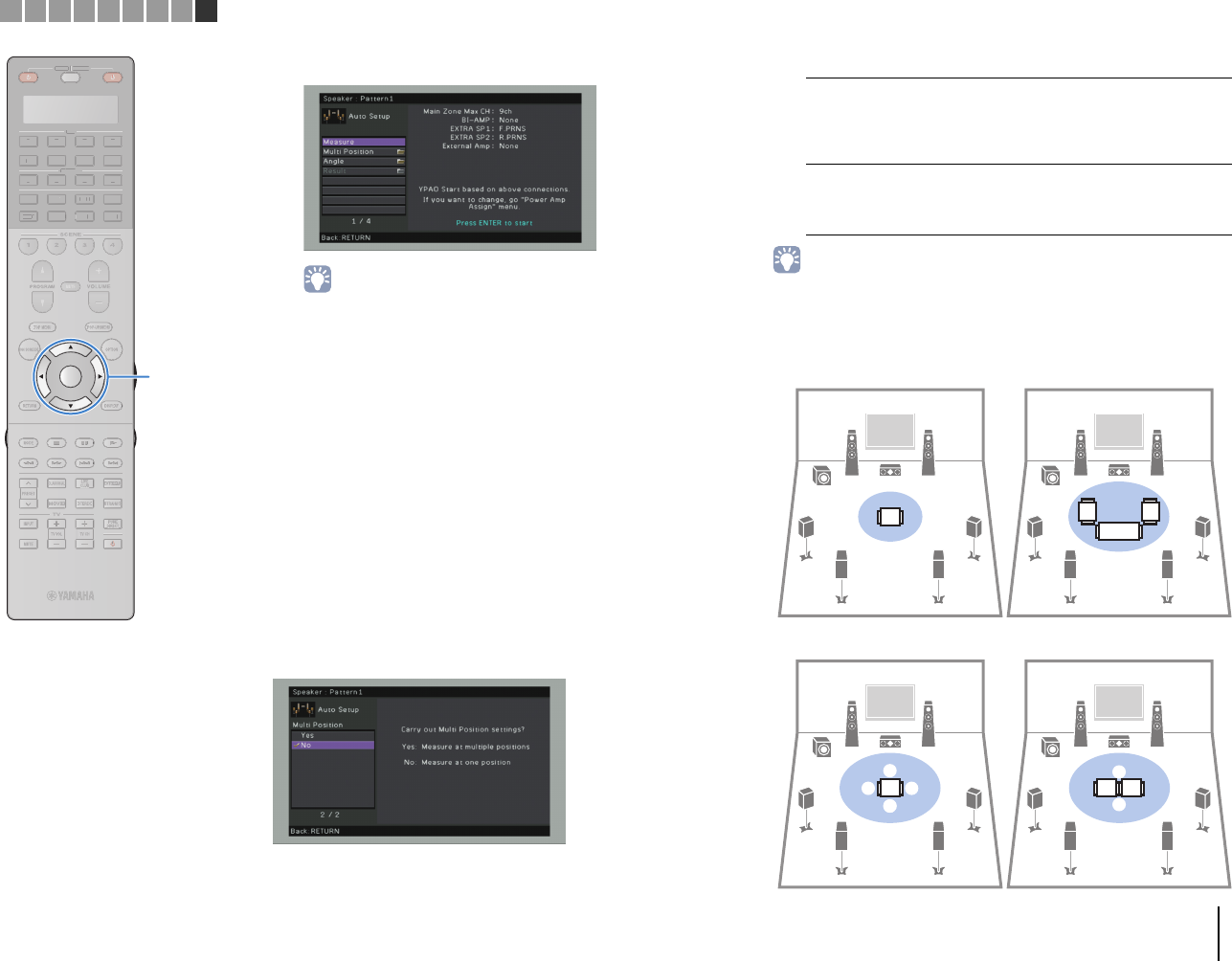
PREPARATIONS ➤Optimizing the speaker settings automatically (YPAO) En 51
The following screen appears on the TV.
• To cancel the operation, disconnect the YPAO microphone before starting
the measurement.
6If desired, select the measuring options.
aUse the cursor keys to select “Multi Position” (p.51) or “Angle”
(p.52) (RX-A3020 only) and press ENTER.
bUse the cursor keys to select a setting and then press ENTER.
This completes the preparations. See the following page to start the
measurement.
When “Multi Position” is set to “Yes”:
“Measuring at multiple listening positions (multi measure)” (p.54)
When “Multi Position” is set to “No”:
“Measuring at one listening position (single measure)” (p.52)
❑Multi Position
Selects multi measure or single measure.
Settings
• If you perform the multi measure, the speaker settings will be optimized for you to
enjoy surround sound in a wider space.
• If you perform the multi measure, first place the YPAO microphone at the listening
position you will be seated most frequently.
Yes
Select this option if you will have several listening
positions or if you want others to enjoy surround sound.
You can take measurements at up to 8 different positions
in the room. The speaker settings will be optimized to
suit the area defined by those positions (multi measure).
No (default)
Select this option if your listening position will always be
fixed. Take the measurements at only one position. The
speaker settings will be optimized to suit that position
(single measure).
a b
a
a
b
c
d
e
c
d
de
bac
Multi measure
(5 listening positions)
Multi measure
(2 listening positions + front/back)
Multi measure
(1 listening position + front/back/left/right)
Single measure
SOURCE RECEIVER
AV
AUDIO
1 2 3 4
5 6 7
V-AUX
1 2 3 4
MULTI
PHONO
USB NET
TUNER
[ C ][ A ] [ B ]
CLASSICAL
LIVE
CLUB
ENTERTAIN
MOVIE
STEREO STRAIGHT
INPUTPURE
DIRECT
MUTE
TV
SCENE
1 2 3 4
PROGRAM
VOLUME
TV VOL
MUTE
MODE
TOP MENU
RETURN DISPLAY
POP-UP/MENU
TV CH
PRESET
ENTER
ON SCREEN
OPTION
SOU
R
CE
RECEIVE
R
A
V
A
U
DI
O
1
2
3
4
5
6
7
V-
AUX
1
2
3
4
MUL
T
I
L
L
PH
O
N
O
US
B NE
T
TUNE
R
[
C
]
[
A
]
[
B
]
ENTER
123456789Automatic speaker setup
Cursor keys
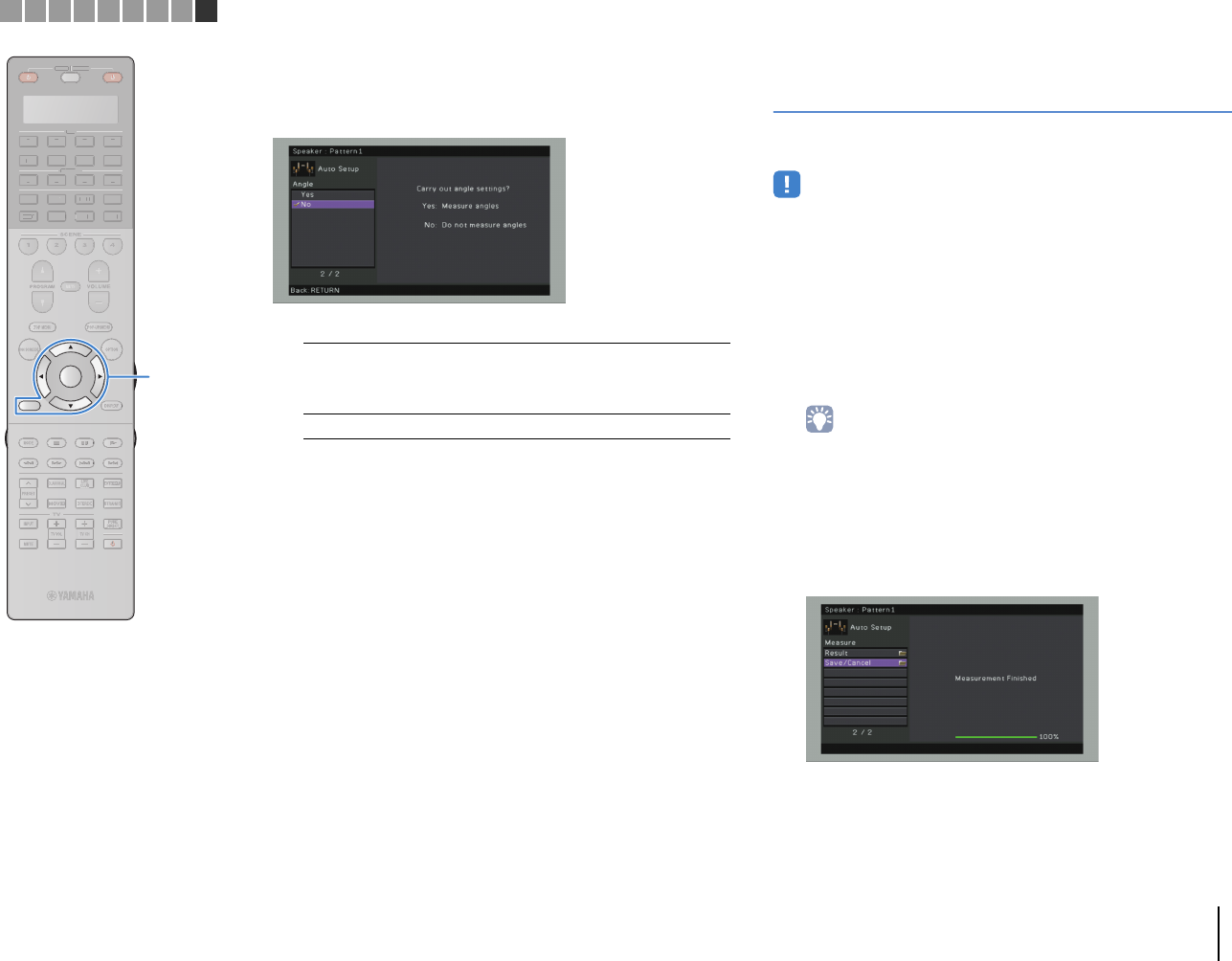
PREPARATIONS ➤Optimizing the speaker settings automatically (YPAO) En 52
❑Angle
(RX-A3020 only)
Enables/disables the angle measurement.
Settings
Measuring at one listening position
(single measure)
When “Multi Position” is set to “No”, follow the procedure below for
measurement.
• Do not stand between the speakers and the YPAO microphone during the
measurement process (about 5 minutes).
• Move to the corner of the room or leave the room.
• If any error message (such as E-1) or warning message (such as W-1) appears,
see “Error messages” (p.58) or “Warning messages” (p.59).
1To start the measurement, use the cursor keys to
select “Measure” and press ENTER.
The measurement will start in 10 seconds. Press ENTER
again to start the measurement immediately.
• To cancel the measurement temporarily, press RETURN.
The following screen appears on the TV when the
measurement finishes.
(RX-A2020)
(RX-A3020 [when angle measurement is disabled])
Proceed to Step 3.
Yes
Enables the angle measurement. The unit will measure
angle of each speaker at the listening position and
correct the speaker parameters so that CINEMA DSP
can create more effective sound fields.
No (default) Disables the angle measurement.
SOURCE RECEIVER
AV
AUDIO
1 2 3 4
5 6 7
V-AUX
1 2 3 4
MULTI
PHONO
USB NET
TUNER
[ C ][ A ] [ B ]
CLASSICAL
LIVE
CLUB
ENTERTAIN
MOVIE
STEREO STRAIGHT
INPUTPURE
DIRECT
MUTE
TV
SCENE
1 2 3 4
PROGRAM
VOLUME
TV VOL
MUTE
MODE
TOP MENU
RETURN DISPLAY
POP-UP/MENU
TV CH
PRESET
ENTER
ON SCREEN
OPTION
SOU
R
CE
RECEIVE
R
A
V
A
U
DI
O
1
2
3
4
5
6
7
V-
AUX
1
2
3
4
MUL
T
I
L
L
PH
O
N
O
US
B NE
T
TUNE
R
[
C
]
[
A
]
[
B
]
ENTER
RETURN
123456789Automatic speaker setup
Cursor keys
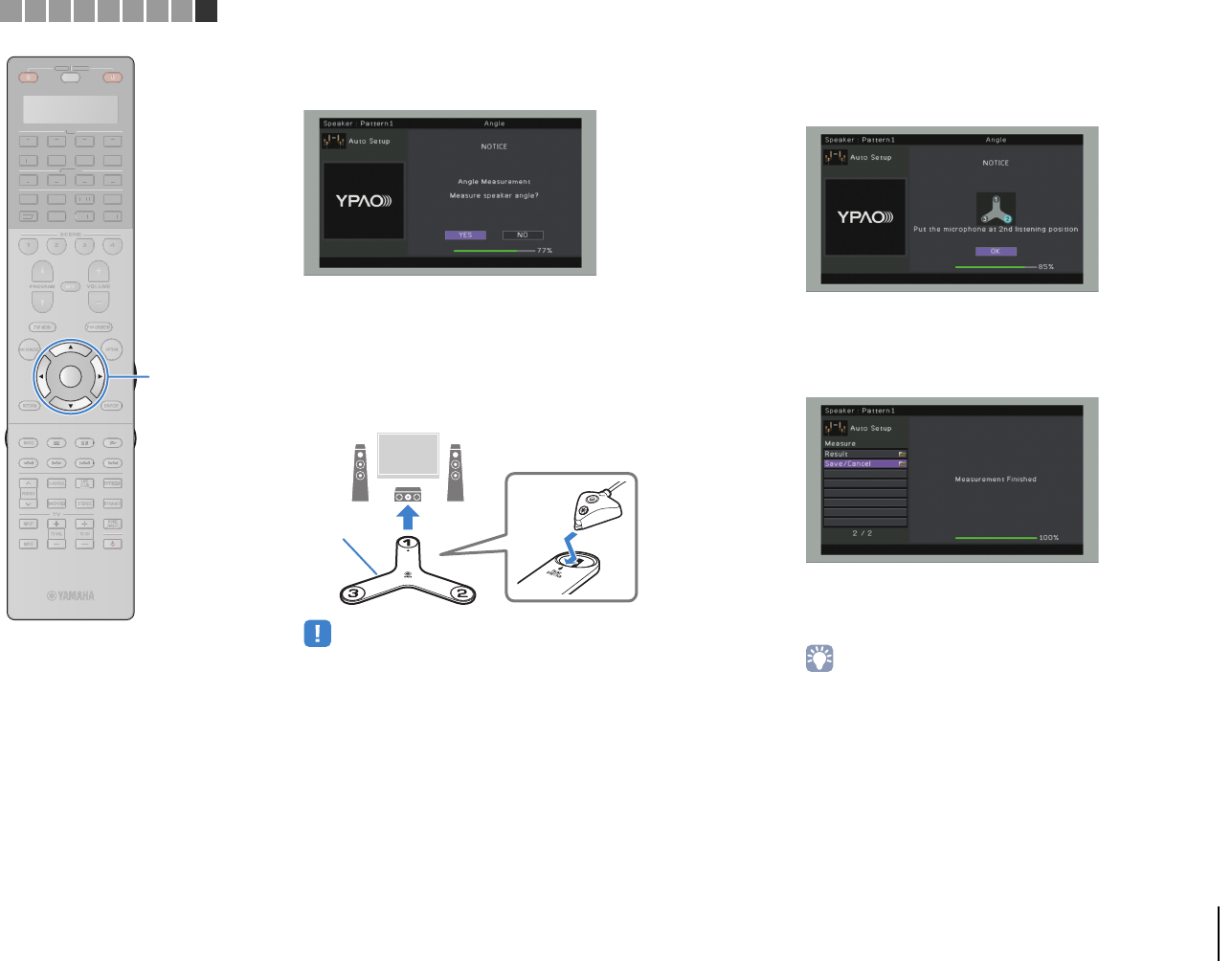
PREPARATIONS ➤Optimizing the speaker settings automatically (YPAO) En 53
(RX-A3020 [when angle measurement is enabled])
Proceed to Step 2.
2Perform the angle measurement.
aUse the cursor keys to select “YES” and press ENTER.
Select “NO” to cancel the angle measurement.
bPlace the supplied microphone base at the listening position and
set the YPAO microphone to the position “1”.
• We recommend using a tripod to place the microphone base at ear height.
Use the tripod screws to fix the microphone base in place.
• Do not move the microphone base until the third angle measurement
finishes.
cPress ENTER to start the first angle measurement.
The following screen appears on the TV when the first angle
measurement finishes.
dIn the same way, perform the angle measurement for the
positions “2” and “3”.
The following screen appears on the TV when the third angle
measurement finishes.
3Use the cursor keys to select “Save/Cancel” and
press ENTER.
• To check the measurement results, select “Result”. For details, see
“Checking the measurement results” (p.56).
FRONT
DIRECTION
Microphone
base
SOURCE RECEIVER
AV
AUDIO
1 2 3 4
5 6 7
V-AUX
1 2 3 4
MULTI
PHONO
USB NET
TUNER
[ C ][ A ] [ B ]
CLASSICAL
LIVE
CLUB
ENTERTAIN
MOVIE
STEREO STRAIGHT
INPUTPURE
DIRECT
MUTE
TV
SCENE
1 2 3 4
PROGRAM
VOLUME
TV VOL
MUTE
MODE
TOP MENU
RETURN DISPLAY
POP-UP/MENU
TV CH
PRESET
ENTER
ON SCREEN
OPTION
SOU
R
CE
RECEIVE
R
A
V
A
U
DI
O
1
2
3
4
5
6
7
V-
AUX
1
2
3
4
MUL
T
I
L
L
PH
O
N
O
US
B NE
T
TUNE
R
[
C
]
[
A
]
[
B
]
ENTER
123456789Automatic speaker setup
Cursor keys
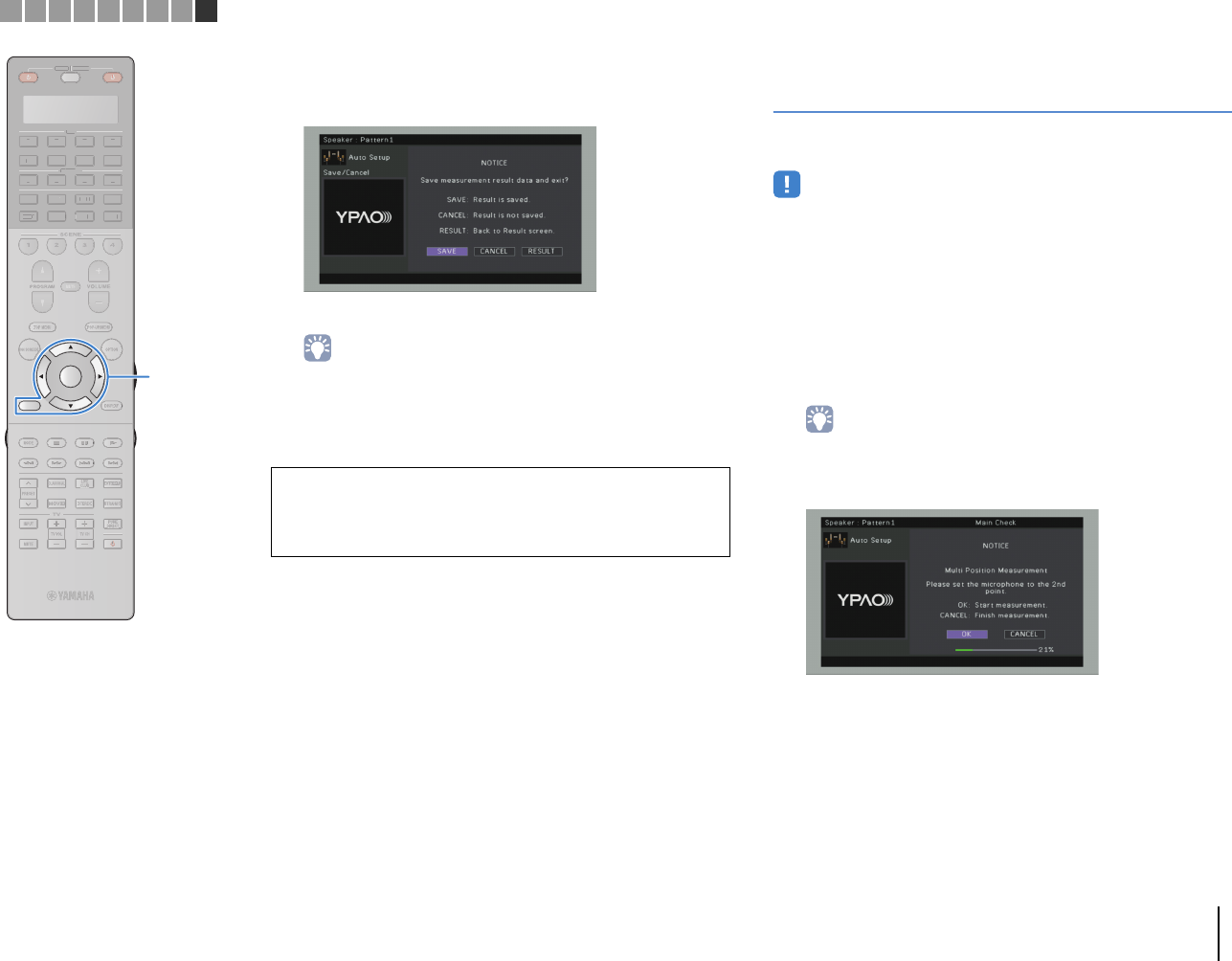
PREPARATIONS ➤Optimizing the speaker settings automatically (YPAO) En 54
4To save the measurement results, use the cursor
keys (e/r) to select “SAVE” and press ENTER.
The adjusted speaker settings are applied.
• To finish the measurement without saving the result, select “CANCEL”.
5Disconnect the YPAO microphone from the unit.
This completes optimization of the speaker settings.
Measuring at multiple listening positions
(multi measure)
When “Multi Position” is set to “Yes”, follow the procedure below for
measurement.
• Do not stand between the speakers and the YPAO microphone during the
measurement process. It takes about 15 minutes to measure 8 listening positions.
• Move to the corner of the room or leave the room.
• If any error message (such as E-1) or warning message (such as W-1) appears,
see “Error messages” (p.58) or “Warning messages” (p.59).
1To start the measurement, use the cursor keys to
select “Measure” and press ENTER.
The measurement will start in 10 seconds. Press ENTER
again to start the measurement immediately.
• To cancel the measurement temporarily, press RETURN.
The following screen appears on the TV when the
measurement at the first position finishes.
2Move the YPAO microphone to the next listening
position and press ENTER.
Repeat Step 2 until measurements at all listening positions
(up to 8) have been taken.
Caution
• The YPAO microphone is sensitive to heat, so should not be placed anywhere
where it could be exposed to direct sunlight or high temperatures (such as on
top of AV equipment).
SOURCE RECEIVER
AV
AUDIO
1 2 3 4
5 6 7
V-AUX
1 2 3 4
MULTI
PHONO
USB NET
TUNER
[ C ][ A ] [ B ]
CLASSICAL
LIVE
CLUB
ENTERTAIN
MOVIE
STEREO STRAIGHT
INPUTPURE
DIRECT
MUTE
TV
SCENE
1 2 3 4
PROGRAM
VOLUME
TV VOL
MUTE
MODE
TOP MENU
RETURN DISPLAY
POP-UP/MENU
TV CH
PRESET
ENTER
ON SCREEN
OPTION
SOU
R
CE
RECEIVE
R
A
V
A
U
DI
O
1
2
3
4
5
6
7
V-
AUX
1
2
3
4
MUL
T
I
L
L
PH
O
N
O
US
B NE
T
TUNE
R
[
C
]
[
A
]
[
B
]
ENTER
RETURN
123456789Automatic speaker setup
Cursor keys
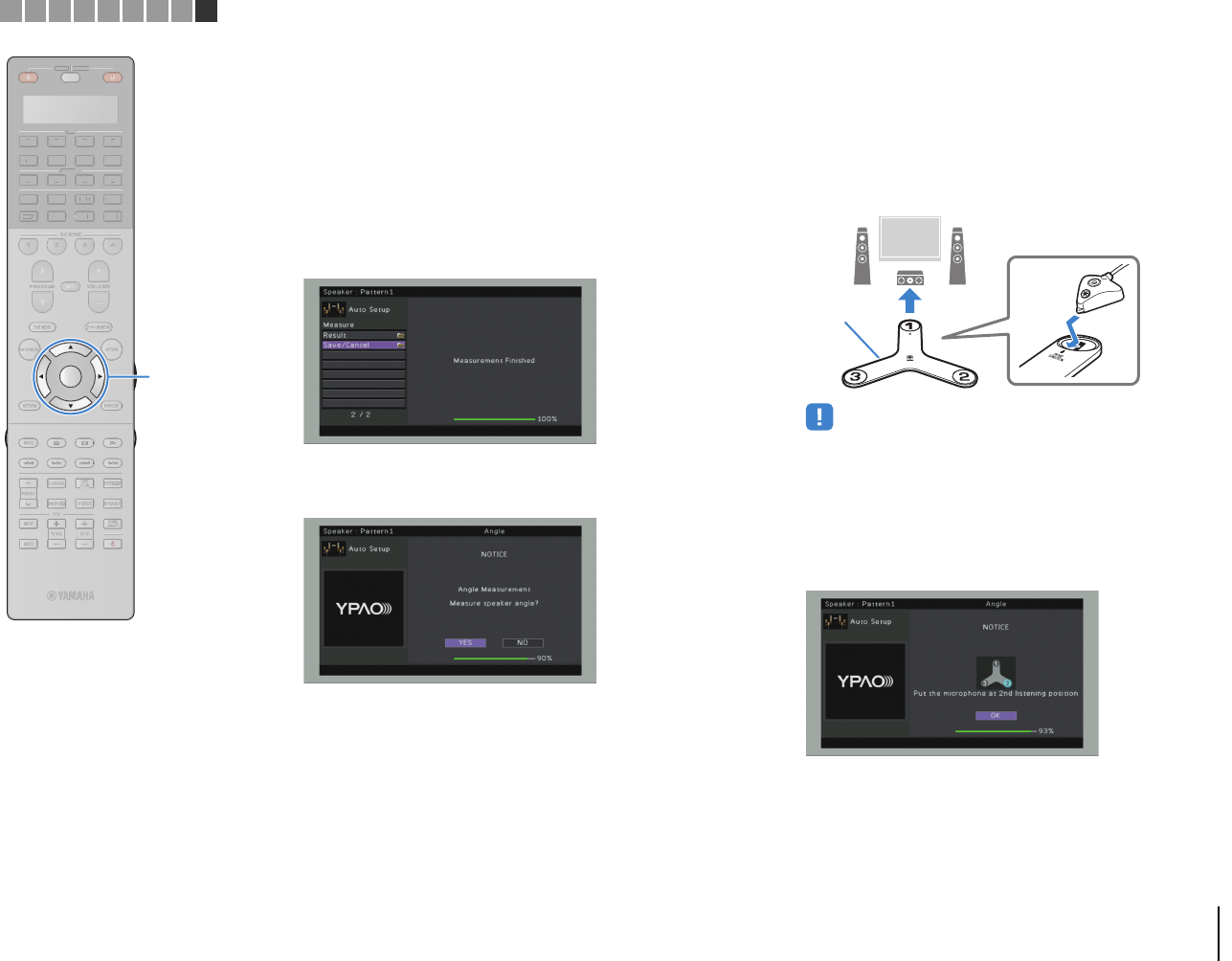
PREPARATIONS ➤Optimizing the speaker settings automatically (YPAO) En 55
3When the measurements at the positions you want
to measure are completed, use the cursor keys to
select “CANCEL” and press ENTER.
When you have taken measurements at 8 listening
positions, the following screen appears automatically.
(RX-A2020)
(RX-A3020 [when angle measurement is disabled])
Proceed to Step 5.
(RX-A3020 [when angle measurement is enabled])
Proceed to Step 4.
4Perform the angle measurement.
aUse the cursor keys to select “YES” and press ENTER.
Select “NO” to cancel the angle measurement.
bPlace the supplied microphone base at the listening position you
will be seated most frequently and set the YPAO microphone to
the position “1”.
• We recommend using a tripod to place the microphone base at ear height.
Use the tripod screws to fix the microphone base in place.
• Do not move the microphone base until the third angle measurement
finishes.
cPress ENTER to start the first angle measurement.
The following screen appears on the TV when the first angle
measurement finishes.
FRONT
DIRECTION
Microphone
base
SOURCE RECEIVER
AV
AUDIO
1 2 3 4
5 6 7
V-AUX
1 2 3 4
MULTI
PHONO
USB NET
TUNER
[ C ][ A ] [ B ]
CLASSICAL
LIVE
CLUB
ENTERTAIN
MOVIE
STEREO STRAIGHT
INPUTPURE
DIRECT
MUTE
TV
SCENE
1 2 3 4
PROGRAM
VOLUME
TV VOL
MUTE
MODE
TOP MENU
RETURN DISPLAY
POP-UP/MENU
TV CH
PRESET
ENTER
ON SCREEN
OPTION
SOU
R
CE
RECEIVE
R
A
V
A
U
DI
O
1
2
3
4
5
6
7
V-
AUX
1
2
3
4
MUL
T
I
L
L
PH
O
N
O
US
B NE
T
TUNE
R
[
C
]
[
A
]
[
B
]
ENTER
123456789Automatic speaker setup
Cursor keys
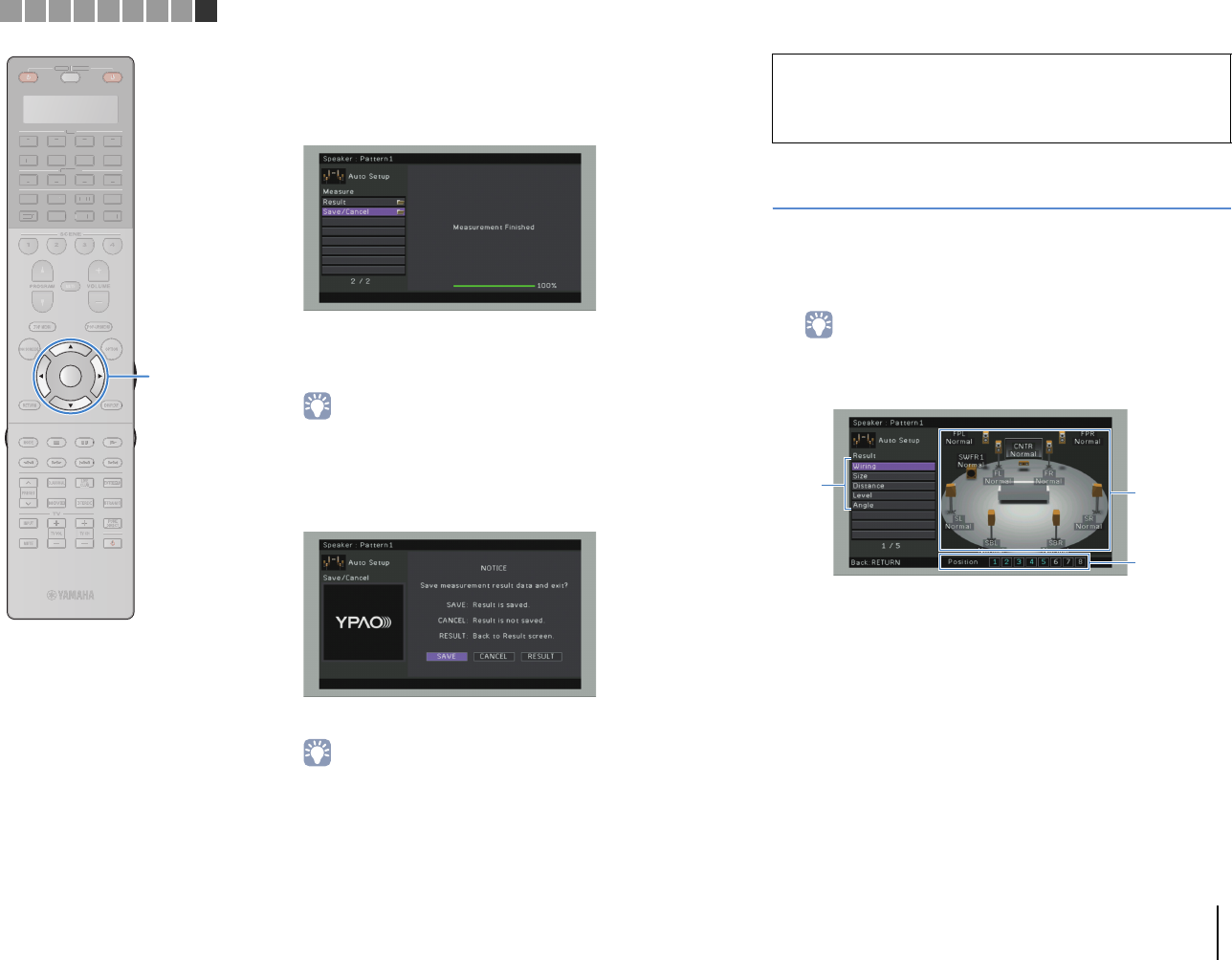
PREPARATIONS ➤Optimizing the speaker settings automatically (YPAO) En 56
dIn the same way, perform the angle measurement for the
positions “2” and “3”.
The following screen appears on the TV when the third angle
measurement finishes.
5Use the cursor keys to select “Save/Cancel” and
press ENTER.
• To check the measurement results, select “Result”. For details, see
“Checking the measurement results” (p.56).
6To save the measurement result, use the cursor
keys to select “SAVE” and press ENTER.
The adjusted speaker settings are applied.
• To finish the measurement without saving the result, select “CANCEL”.
7Disconnect the YPAO microphone from the unit.
This completes optimization of the speaker settings.
Checking the measurement results
You can check the YPAO measurement results.
1After the measurement, use the cursor keys to
select “Result” and press ENTER.
• You can also select “Result” from “Auto Setup” (p.112) in the “Setup” menu,
which displays the previous measurement results.
The following screen appears.
1Measurement result items
2Measurement result details
3The number of measured positions (when multi
measure is performed)
Caution
• The YPAO microphone is sensitive to heat, so should not be placed anywhere
where it could be exposed to direct sunlight or high temperatures (such as on
top of AV equipment).
2
3
1
SOURCE RECEIVER
AV
AUDIO
1 2 3 4
5 6 7
V-AUX
1 2 3 4
MULTI
PHONO
USB NET
TUNER
[ C ][ A ] [ B ]
CLASSICAL
LIVE
CLUB
ENTERTAIN
MOVIE
STEREO STRAIGHT
INPUTPURE
DIRECT
MUTE
TV
SCENE
1 2 3 4
PROGRAM
VOLUME
TV VOL
MUTE
MODE
TOP MENU
RETURN DISPLAY
POP-UP/MENU
TV CH
PRESET
ENTER
ON SCREEN
OPTION
SOU
R
CE
RECEIVE
R
A
V
A
U
DI
O
1
2
3
4
5
6
7
V-
AUX
1
2
3
4
MUL
T
I
L
L
PH
O
N
O
US
B NE
T
TUNE
R
[
C
]
[
A
]
[
B
]
ENTER
123456789Automatic speaker setup
Cursor keys
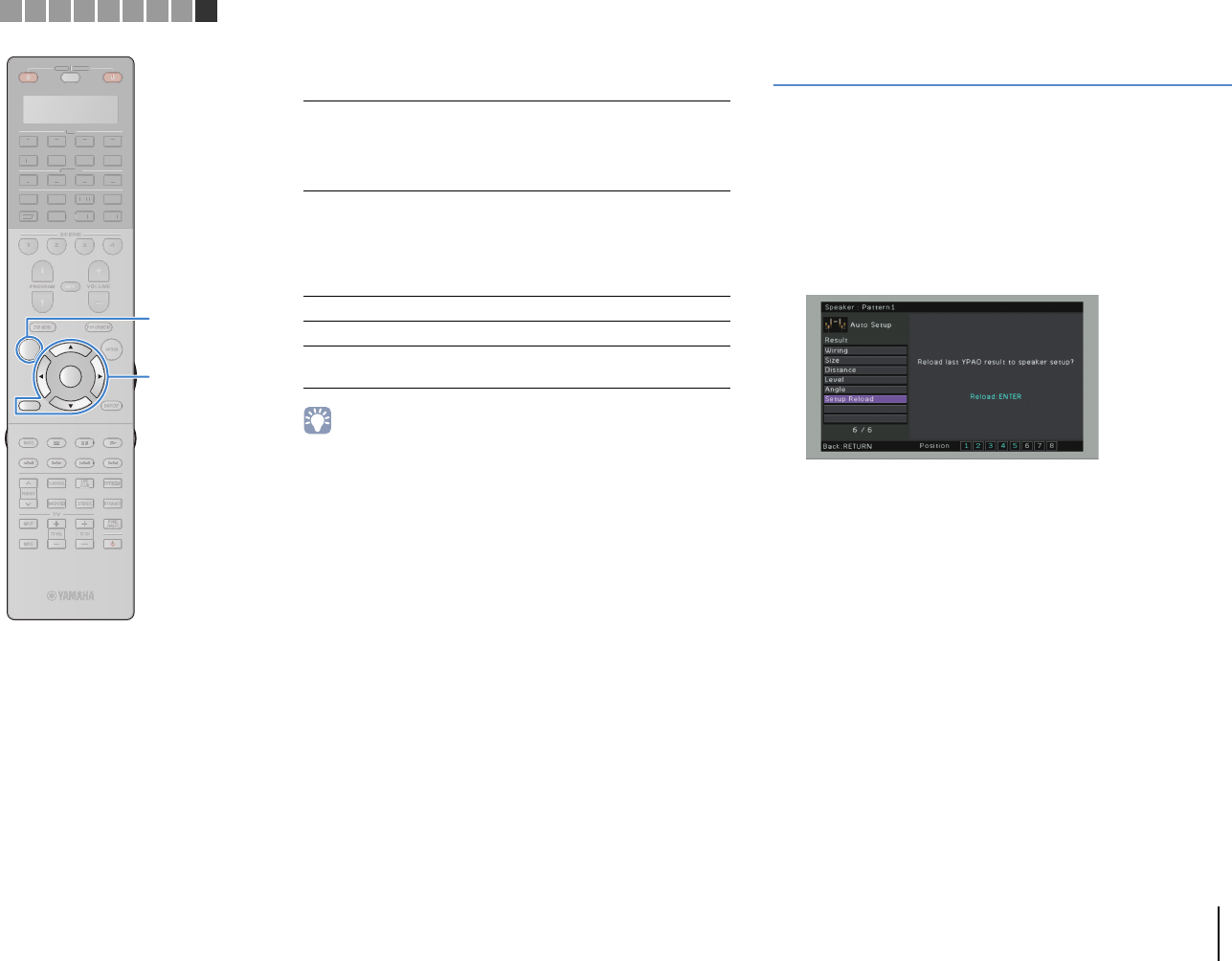
PREPARATIONS ➤Optimizing the speaker settings automatically (YPAO) En 57
2Use the cursor keys to select an item.
• A speaker with a problem is indicated with a message enclosed in a red box.
3To finish checking the results and return to the
previous screen, press RETURN.
Reloading the previous YPAO adjustments
When the speaker settings you have configured manually are not
suitable, follow the procedure below to discard the manual settings
and reload the previous YPAO adjustments.
1In the “Setup” menu, select “Speaker”, “Auto
Setup”, and then “Result” (p.111).
2Use the cursor keys to select “Setup Reload” and
press ENTER.
3To exit from the menu, press ON SCREEN.
Wiring
Polarity of each speaker
Normal: The speaker cable is connected with the
correct polarity (+/-).
Reverse: The speaker cable may be connected with the
reverse polarity (+/-).
Size
Size of each speaker (cross-over frequency of the
subwoofer)
Large: The speaker can reproduce low-frequency
signals effectively.
Small: The speaker cannot reproduce low-frequency
signals effectively.
Distance Distance from the listening position to each speaker
Level Output level adjustment for each speaker
Angle (RX-A3020 only)
Angle of each speaker at the listening position
SOURCE RECEIVER
AV
AUDIO
1 2 3 4
5 6 7
V-AUX
1 2 3 4
MULTI
PHONO
USB NET
TUNER
[ C ][ A ] [ B ]
CLASSICAL
LIVE
CLUB
ENTERTAIN
MOVIE
STEREO STRAIGHT
INPUTPURE
DIRECT
MUTE
TV
SCENE
1 2 3 4
PROGRAM
VOLUME
TV VOL
MUTE
MODE
TOP MENU
RETURN DISPLAY
POP-UP/MENU
TV CH
PRESET
ENTER
ON SCREEN
OPTION
SOU
R
CE
RECEIVE
R
A
V
A
U
DI
O
1
2
3
4
5
6
7
V-
AUX
1
2
3
4
MUL
T
I
L
L
PH
O
N
O
US
B NE
T
TUNE
R
[
C
]
[
A
]
[
B
]
ON SCREEN ON SCREEN
ENTER
RETURN
123456789Automatic speaker setup
Cursor keys
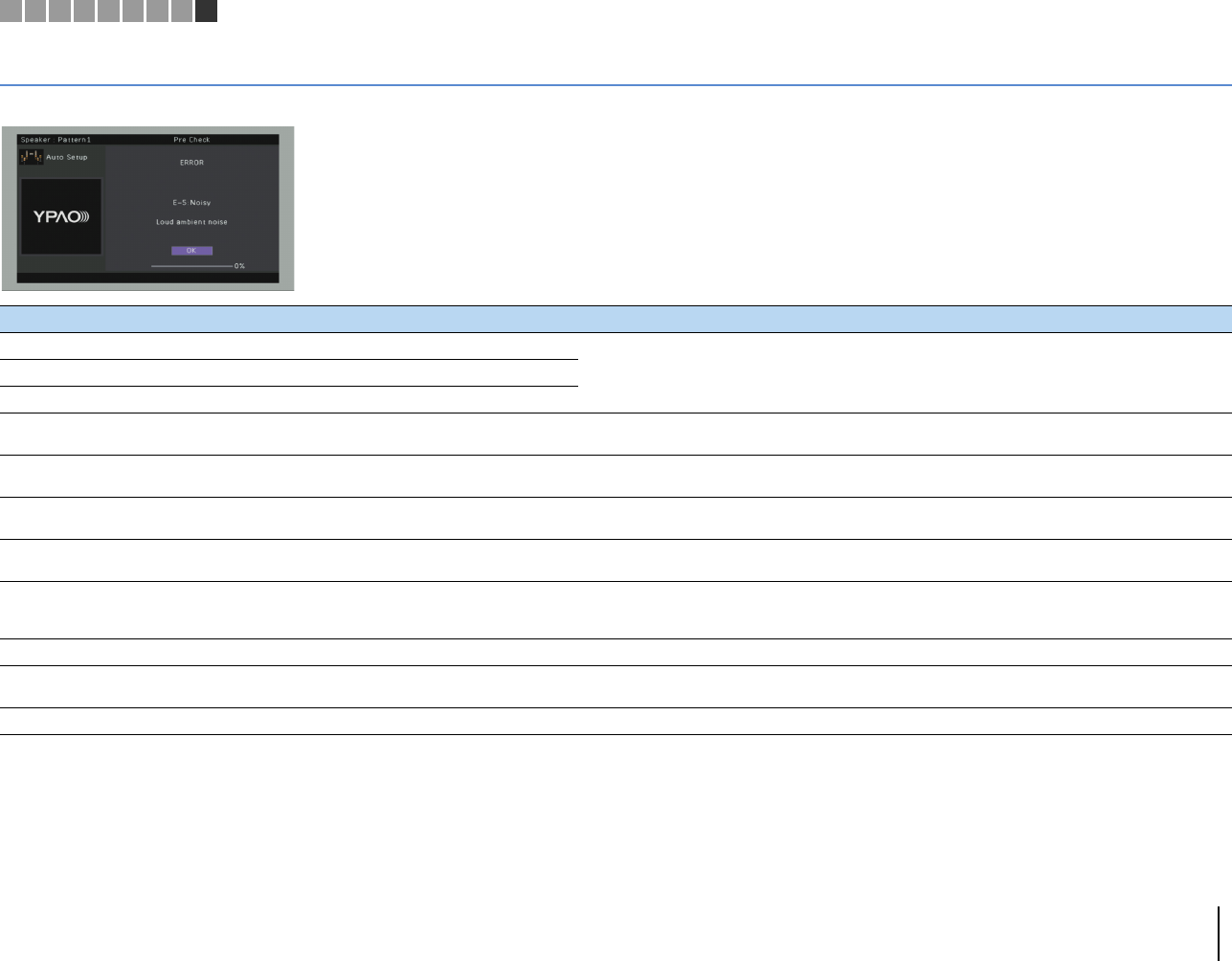
PREPARATIONS ➤Optimizing the speaker settings automatically (YPAO) En 58
Error messages
If any error message is displayed during the measurement, resolve the problem and perform YPAO again.
Error message Cause Remedy
E-1: No Front SP Front speakers are not detected.
Follow the on-screen instructions to exit YPAO, turn off the unit, and then check the speaker connections.E-2: No Sur. SP One of the surround speakers cannot be detected.
E-3: No F.PRNS SP One of the front presence speakers cannot be detected.
E-4: SBR → SBL A surround back speaker is connected to the R side only. When using only one surround back speaker, you need to connect it to the SINGLE jack (L side). Follow the
on-screen instructions to exit YPAO, turn off the unit, and then reconnect the speaker.
E-5: Noisy The noise is too loud. Keep the room quiet and follow the on-screen instructions to start the measurement again. If you select
“PROCEED”, YPAO takes the measurement again and ignores any noise detected.
E-6: Check Sur. Surround back speakers are connected, but no surround
speakers are connected.
Surround speakers need to be connected in order to use surround back speakers. Follow the on-screen
instructions to exit YPAO, turn off the unit, and then reconnect the speakers.
E-7: No MIC The YPAO microphone has been removed. Connect the YPAO microphone to the YPAO MIC jack firmly and follow the on-screen instructions to start the
measurement again.
E-8: No Signal The YPAO microphone cannot detect test tones.
Connect the YPAO microphone to the YPAO MIC jack firmly and follow the on-screen instructions to start the
measurement again. If this error occurs repeatedly, contact the nearest authorized Yamaha dealer or service
center.
E-9: User Cancel The measurement has been canceled. Follow the on-screen instructions to start the measurement again. To cancel the measurement, select “EXIT”.
E-10: Internal Error An internal error has occurred. Follow the on-screen instructions to exit YPAO, turn off and on the unit. If this error occurs repeatedly, contact
the nearest authorized Yamaha dealer or service center.
E-11: No R.PRNS SP One of the rear presence speakers cannot be detected. Follow the on-screen instructions to exit YPAO, turn off the unit, and then check the speaker connections.
123456789Automatic speaker setup
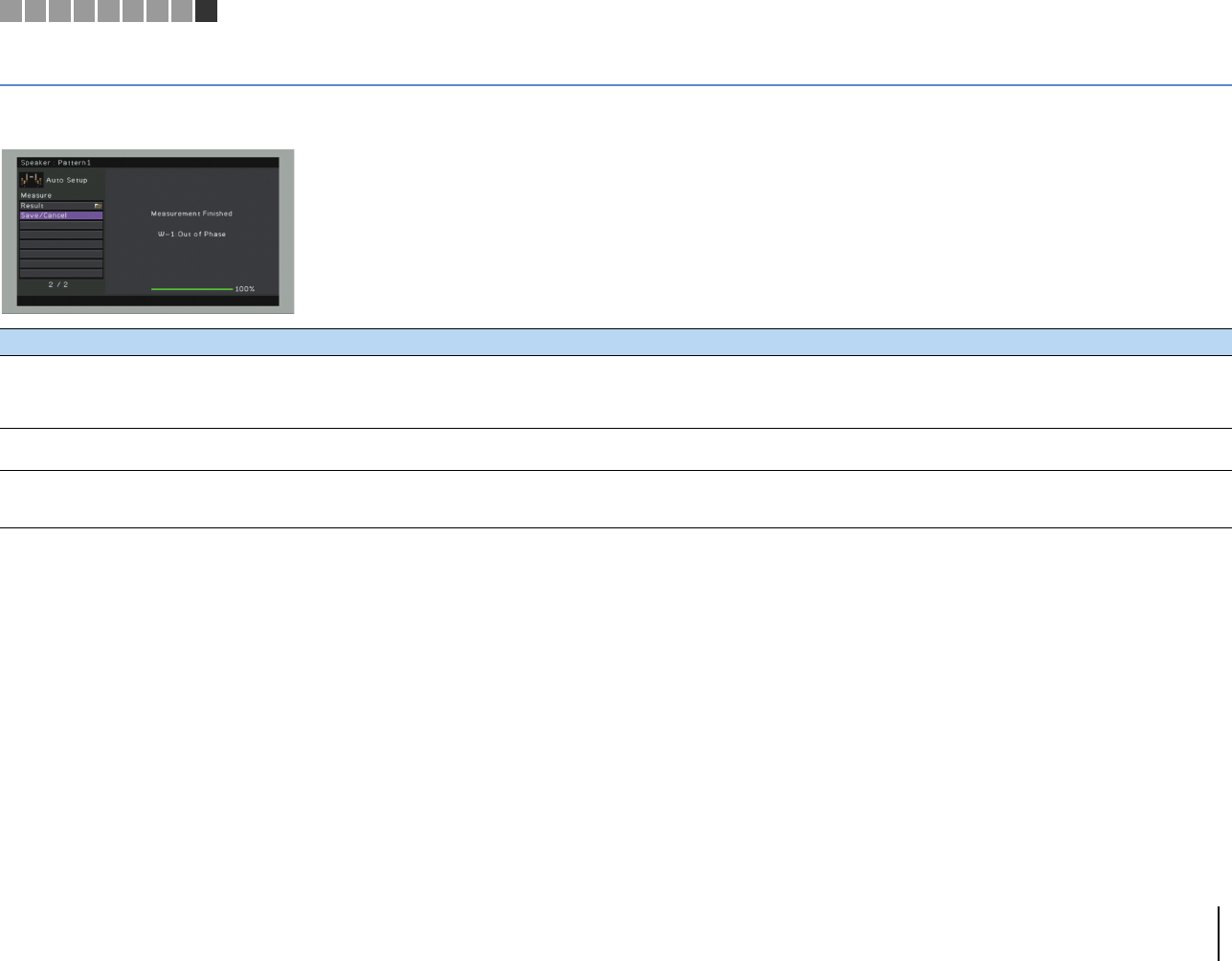
PREPARATIONS ➤Optimizing the speaker settings automatically (YPAO) En 59
Warning messages
If a warning message is displayed after the measurement, you can still save the measurement results by following on-screen instructions.
However, we recommend you perform YPAO again in order to use the unit with the optimal speaker settings.
Warning message Cause Remedy
W-1: Out of Phase A speaker cable may be connected with the reverse polarity
(+/-).
Select “Wiring” in “Result” (p.56) and check the cable connections (+/-) of the speaker identified by
“Reverse”. If the speaker is connected incorrectly, turn off the unit and then reconnect the speaker cable.
Depending on the type of speakers or room environment, this message may appear even if the speakers are
connected correctly. In this case, you can ignore the message.
W-2: Over Distance A speaker is placed more than 24 m (80 ft) from the listening
position.
Select “Distance” in “Result” (p.56) and move the speaker identified by “>24.00m (>80.0ft)” within 24 m (80
ft) of the listening position.
W-3: Level Error There are significant volume differences between the
speakers.
Check the usage environment and cable connections (+/-) of each speaker, and the volume of the
subwoofer. We recommend using the same speakers or speakers with specifications that are as similar as
possible.
123456789Automatic speaker setup
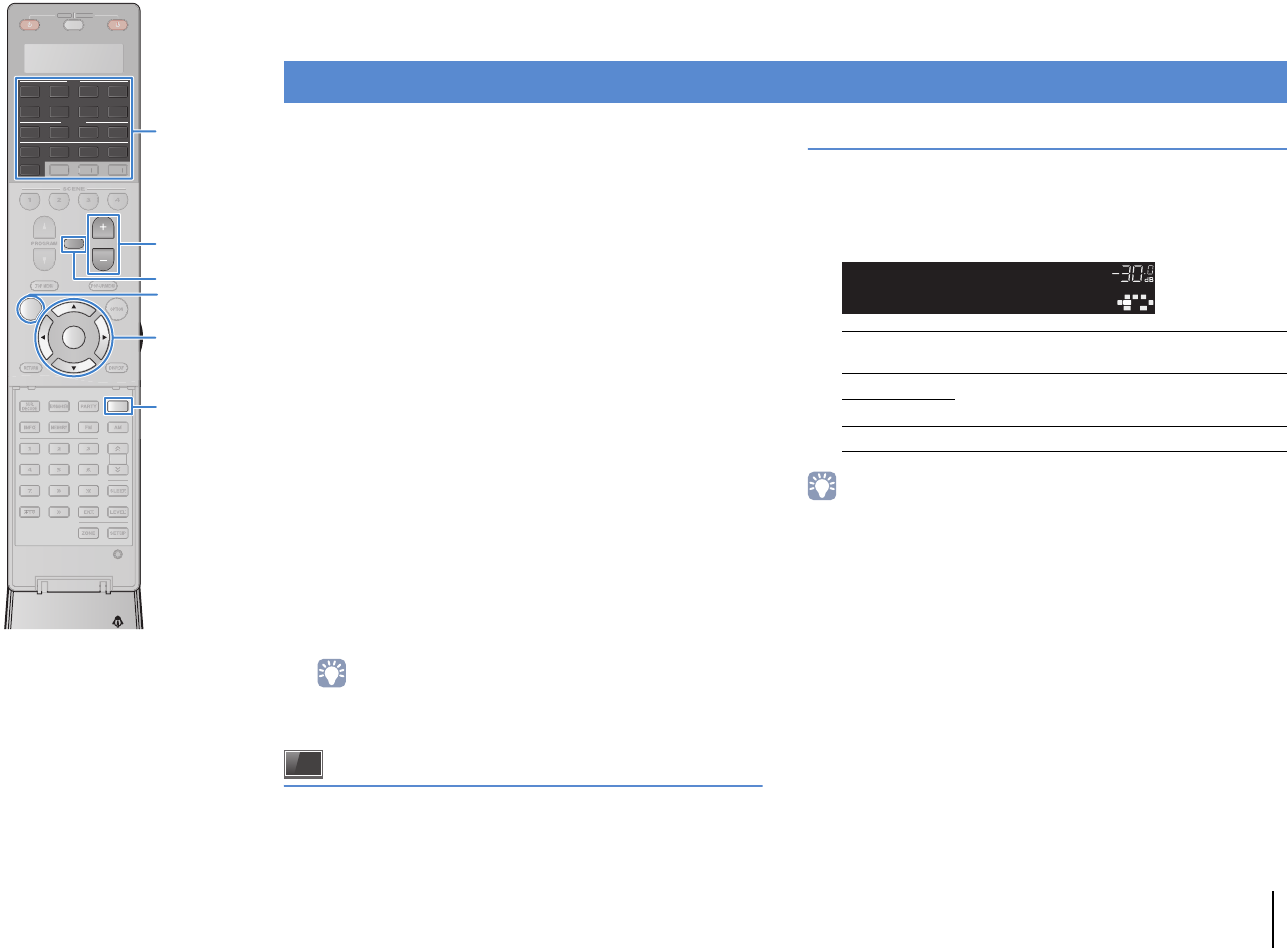
PLAYBACK ➤Basic playback procedure En 60
PLAYBACK
1Turn on the external devices (such as a TV or
BD/DVD player) connected to the unit.
2Use the input selection keys to select an input
source.
3Start playback on the external device or select a
radio station.
Refer to the instruction manual for the external device.
For details on the following operations, see the
corresponding pages.
• Listening to FM/AM radio (p.69)
• Playing back iPod music (p.76)
• Playing back music stored on a USB storage device
(p.80)
• Playing back music stored on media servers (PCs/NAS)
(p.83)
• Listening to Internet radio (p.86)
• Playing back iTunes/iPod music via a network (AirPlay)
(p.88)
4Press VOLUME to adjust the volume.
• To mute the audio output, press MUTE. Press MUTE again to unmute.
• To adjust the treble/bass settings, use the “Option” menu or
TONE/BALANCE on the front panel (p.99).
On-screen input selection
aPress ON SCREEN.
bUse the cursor keys to select “Input” and press ENTER.
cUse the cursor keys to select the desired input source and
press ENTER.
Selecting an HDMI output jack
1Press HDMI OUT to select an HDMI OUT jack.
Each time you press the key, the HDMI OUT jack to be
used for signal output changes.
• You can also select an HDMI output jack by selecting a scene (p.61).
• When “OUT 1+2” is selected, the unit outputs video signals at the highest
resolution supported by both TVs (or projectors) connected to the unit. (For
example, if you have connected a 1080p TV to the HDMI OUT 1 jack and a 720p
TV to the HDMI OUT 2 jack, the unit outputs 720p video signals.)
• (RX-A3020 only)
If the HDMI OUT 2 jack is assigned to Zone2 or Zone4 (p.127), you can turn on/off
each zone by pressing HDMI OUT repeatedly.
Basic playback procedure
OUT 1+2 Outputs the same signal at both the HDMI OUT 1
and HDMI OUT 2 jacks.
OUT 1 Output the signals at the selected HDMI OUT jack.
OUT 2
Off Does not output the signals at the HDMI OUT jacks.
OUT
1
IN
OUT
2
VOLUME
MUTE
DRCADAPTIVE
3
ZONE
2
SBLPL SBRSBPR
SW1
SL
SW2SW
SR
PL
CL R
PR
STEREO
ENHANCER
SLEEP
HD
TUNED
PRE
AMP
PAR TY
ZONE
3
ZONE
4
HD
TAG
DOCK
OUT1+2
HDMIOUTSel.
SOURCE RECEIVER
AV
AUDIO
1 2 3 4
5 6 7
V-AUX
1 2 3 4
MULTI
PHONO
USB NET
TUNER
[ C ][ A ] [ B ]
CLASSICAL
LIVE
CLUB
ENTERTAIN
MOVIE
STEREO STRAIGHT
INPUTPURE
DIRECT
MUTE
TV
SCENE
1 2 3 4
PROGRAM
VOLUME
TV VOL
MUTE
MODE
TOP MENU
RETURN DISPLAY
POP-UP/MENU
TV CH
PRESET
ENTER
ON SCREEN
OPTION
23
5
1
4 6
TUN./ CH
ENHANCER
SUR.
DECODE
HDMI OUT
MEMORY
INFO AM
PAR TY
FM
0
10
LEVELENT
SETUPZONE
87
SLEEP
9
SOU
R
CE
RE
C
EIVE
R
TU
N.
/
CH
HDMI OUTHDMI OUT
ON SCREEN ON SCREEN
ENTER
MUTE
VOLUME
[
C
]
[
A
]
[
B
]
Cursor keys
Input selection keys
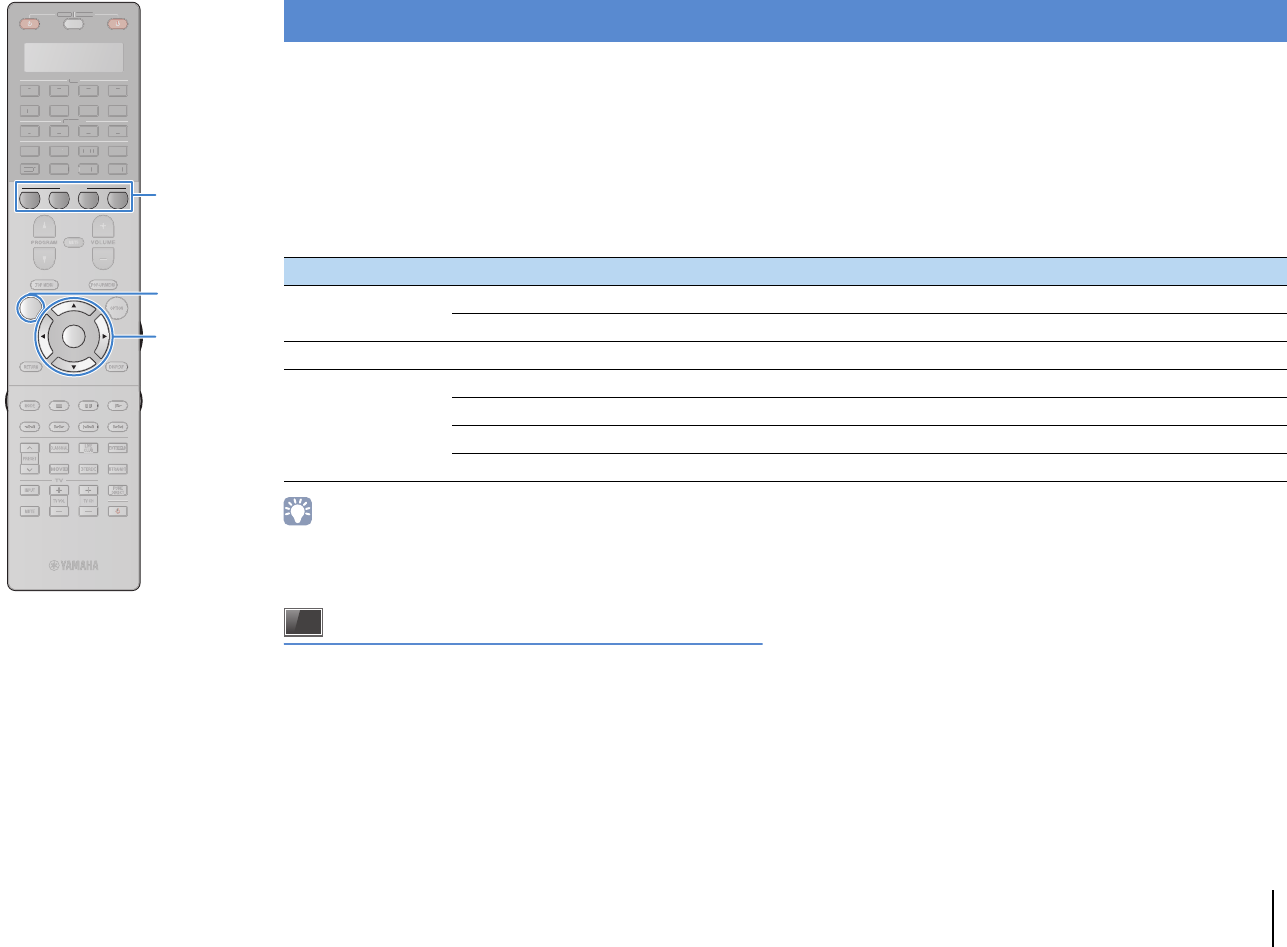
PLAYBACK ➤Selecting the input source and favorite settings with one touch (SCENE) En 61
The SCENE function allows you to select the assigned input source, sound program, HDMI output and various settings with just one touch.
You can use up to 12 scenes to register your favorite settings and switch them depending on a playback source.
1Press SCENE.
The input source and settings registered to the
corresponding scene are selected. The unit turns on
automatically when it is in standby mode.
By default, the following settings are registered for each scene.
• You can select SCENE 1–4 by pressing SCENE on the remote control.
Additionally, you can create 8 scenes (SCENE 5–12) and select those scenes
from the “Scene” menu (p.105).
On-screen scene selection
aPress ON SCREEN.
bUse the cursor keys to select “Scene” and press ENTER.
cUse the cursor keys to select a desired scene and press
ENTER.
Selecting the input source and favorite settings with one touch (SCENE)
SCENE (SCENE key) 1 (BD/DVD) 2 (TV) 3 (NET) 4 (RADIO)
Input
Input (p.60) AV 1 AUDIO 1 NET RADIO TUNER
Audio Select (p.101) Auto Auto — —
HDMI Output HDMI Output (p.60) OUT 1+2 OUT 1+2 OUT 1+2 OUT 1+2
Mode
Sound Program (p.63) Sci-Fi STRAIGHT 9ch Stereo 9ch Stereo
Pure Direct Mode (p.119) Auto Auto Auto Auto
Enhancer (p.68) Off On On On
Enhancer Hi-Res Mode (p.101) On On On On
SOURCE RECEIVER
AV
AUDIO
1 2 3 4
5 6 7
V-AUX
1 2 3 4
MULTI
PHONO
USB NET
TUNER
[ C ][ A ] [ B ]
CLASSICAL
LIVE
CLUB
ENTERTAIN
MOVIE
STEREO STRAIGHT
INPUTPURE
DIRECT
MUTE
TV
SCENE
1 2 3 4
PROGRAM
VOLUME
TV VOL
MUTE
MODE
TOP MENU
RETURN DISPLAY
POP-UP/MENU
TV CH
PRESET
ENTER
ON SCREEN
OPTION
SOU
R
CE
RECEIVE
R
A
V
A
U
DI
O
1
2
3
4
5
6
7
V-
AUX
1
2
3
4
MUL
T
I
L
L
PH
O
N
O
US
B NE
T
TUNE
R
[
C
]
[
A
]
[
B
]
ON SCREEN ON SCREEN
ENTER
SCENE
Cursor keys
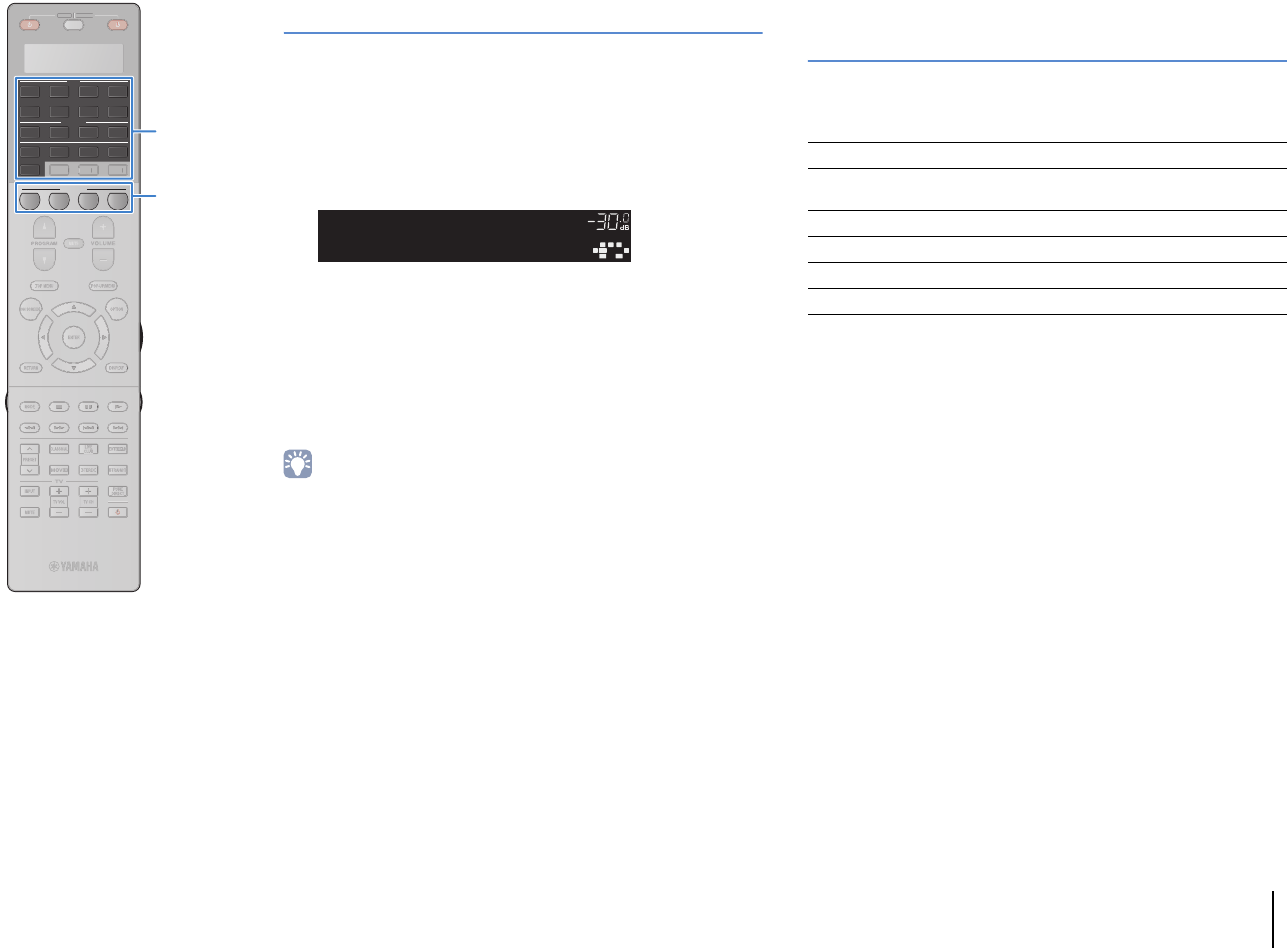
PLAYBACK ➤Selecting the input source and favorite settings with one touch (SCENE) En 62
Configuring scene assignments
1Set the unit to the condition (such as input source
and sound program) that you want to assign to a
scene.
2Hold down the desired SCENE key until “SET
Complete” appears on the front display.
3If you want to control the corresponding playback
device after selecting the scene, hold down the
corresponding SCENE key and input selection key
together for more than 3 seconds.
Once the setting is completed successfully, “OK” appears in the
display window on the remote control.
• If you have not registered the remote control code of the playback device yet, see
“Registering the remote control codes for playback devices” (p.137) to register it.
• The SCENE link playback function allows you to start playback of an external
device connected to the unit via HDMI or of a Yamaha product connected to the
REMOTE OUT jack. To enable SCENE link playback, specify the device type in
“Device Control” (p.106) in the “Scene” menu.
Selecting setting items to be included as
scene assignments
In addition to the default scene assignments (Input, HDMI Output
and Mode), you can also include the following setting items as the
scene assignments in “Detail” (p.107) in the “Scene” menu.
OUT
1
IN
OUT
2
VOLUME
MUTE
DRCADAPTIVE
3
ZONE
2
SBLPL SBRSBPR
SW1
SL
SW2SW
SR
PL
CL R
PR
STEREO
ENHANCER
SLEEP
HD
TUNED
PRE
AMP
PAR TY
ZONE
3
ZONE
4
HD
TAG
DOCK
SETComplete
SCENE1
Sound Tone Control, Adaptive DRC
Surround CINEMA DSP 3D Mode, Dialogue Lift, Dialogue
Level, Subwoofer Trim, Extended Surround
Video Video Mode, Video Adjustment
Vol ume Master Volume
Lipsync Lipsync, Delay
Speaker Setup Setting Pattern, PEQ Select
SOURCE RECEIVER
AV
AUDIO
1 2 3 4
5 6 7
V-AUX
1 2 3 4
MULTI
PHONO
USB NET
TUNER
[ C ][ A ] [ B ]
CLASSICAL
LIVE
CLUB
ENTERTAIN
MOVIE
STEREO STRAIGHT
INPUTPURE
DIRECT
MUTE
TV
SCENE
1 2 3 4
PROGRAM
VOLUME
TV VOL
MUTE
MODE
TOP MENU
RETURN DISPLAY
POP-UP/MENU
TV CH
PRESET
ENTER
ON SCREEN
OPTION
SOU
R
CE
RECEIVE
R
SCENE
[
C
]
[
A
]
[
B
]
Input selection keys
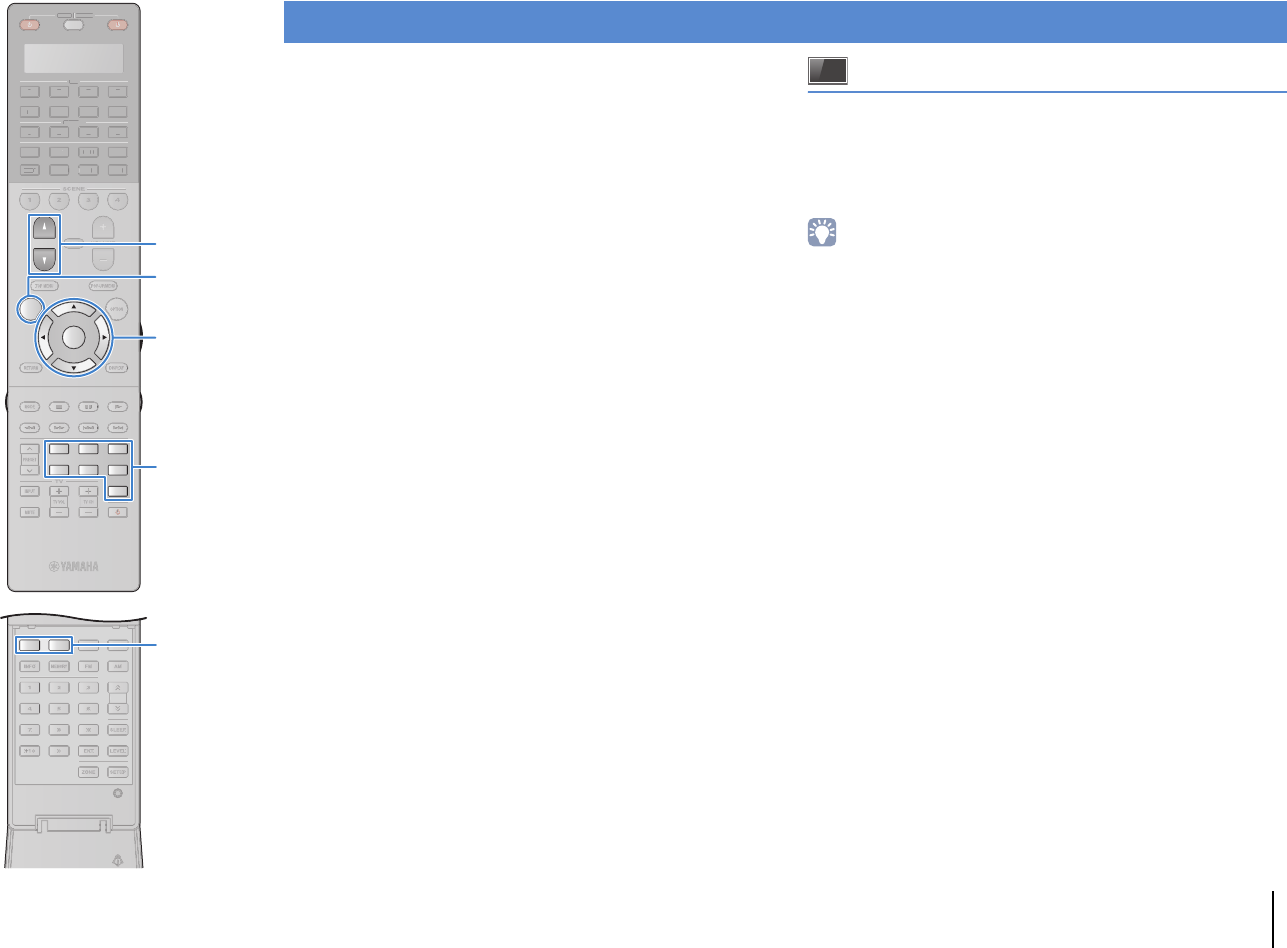
PLAYBACK ➤Selecting the sound mode En 63
The unit is equipped with a variety of sound programs and
surround decoders that allow you to enjoy playback sources with
your favorite sound mode (such as sound field effect or stereo
playback).
Selecting a sound program suitable for movies
• MOVIE THEATER category (p.65):
Press MOVIE repeatedly.
• ENTERTAINMENT category (p.65):
Press ENTERTAIN repeatedly.
Selecting a sound program suitable for music or stereo
playback
• CLASSICAL category (p.66):
Press CLASSICAL repeatedly.
• LIVE/CLUB category (p.66):
Press LIVE/CLUB repeatedly.
• STEREO category (p.66):
Press STEREO repeatedly.
Selecting a surround decoder (p.67)
Press SUR.DECODE repeatedly.
Switching to the straight decode mode (p.67)
Press STRAIGHT.
Switching to the Pure Direct mode (p.68)
Press PURE DIRECT.
Enable Compressed Music Enhancer (p.68)
Press ENHANCER.
On-screen sound program/surround decoder selection
aPress ON SCREEN.
bUse the cursor keys to select “Sound Program” and press
ENTER.
cUse the cursor keys to select a sound program/surround
decoder and press ENTER.
• You can also switch the sound programs and surround decoder by pressing
PROGRAM.
• You can change the settings of the surround programs and surround decoders in
the “Sound Program” menu (p.108).
• The sound mode can be applied separately to each input source.
• You can check which speakers are currently outputting sound by looking at the
speaker indicators on the unit’s front panel (p.12) or at the “Audio Signal” screen in
the “Information” menu (p.131).
Selecting the sound mode
23
5
1
4 6
TUN./ CH
ENHANCER
SUR.
DECODE
HDMI OUT
MEMORY
INFO AM
PAR TY
FM
0
10
LEVELENT
SETUPZONE
87
SLEEP
9
SOURCE RECEIVER
AV
AUDIO
1 2 3 4
5 6 7
V-AUX
1 2 3 4
MULTI
PHONO
USB NET
TUNER
[ C ][ A ] [ B ]
CLASSICAL
LIVE
CLUB
ENTERTAIN
MOVIE
STEREO STRAIGHT
INPUTPURE
DIRECT
MUTE
TV
SCENE
1 2 3 4
PROGRAM
VOLUME
TV VOL
MUTE
MODE
TOP MENU
RETURN DISPLAY
POP-UP/MENU
TV CH
PRESET
ENTER
ON SCREEN
OPTION
T
UN.
/
CH
SOU
R
CE
RECEIVE
R
A
V
A
U
DI
O
1
2
3
4
5
6
7
V-
AUX
1
2
3
4
MUL
T
I
L
L
PH
O
N
O
US
B NE
T
TUNE
R
[
C
]
[
A
]
[
B
]
SUR.DECODE
ENHANCER
SUR.DECODE
ENHANCER
CLASSICAL
LIVE/CLUB
ENTERTAIN
MOVIE
STEREO
STRAIGHT
PURE DIRECT
CLASSICAL
LIVE/CLUB
ENTERTAIN
MOVIE
STEREO
STRAIGHT
PURE DIRECT
ON SCREEN ON SCREEN
ENTER
PROGRAM
Cursor keys
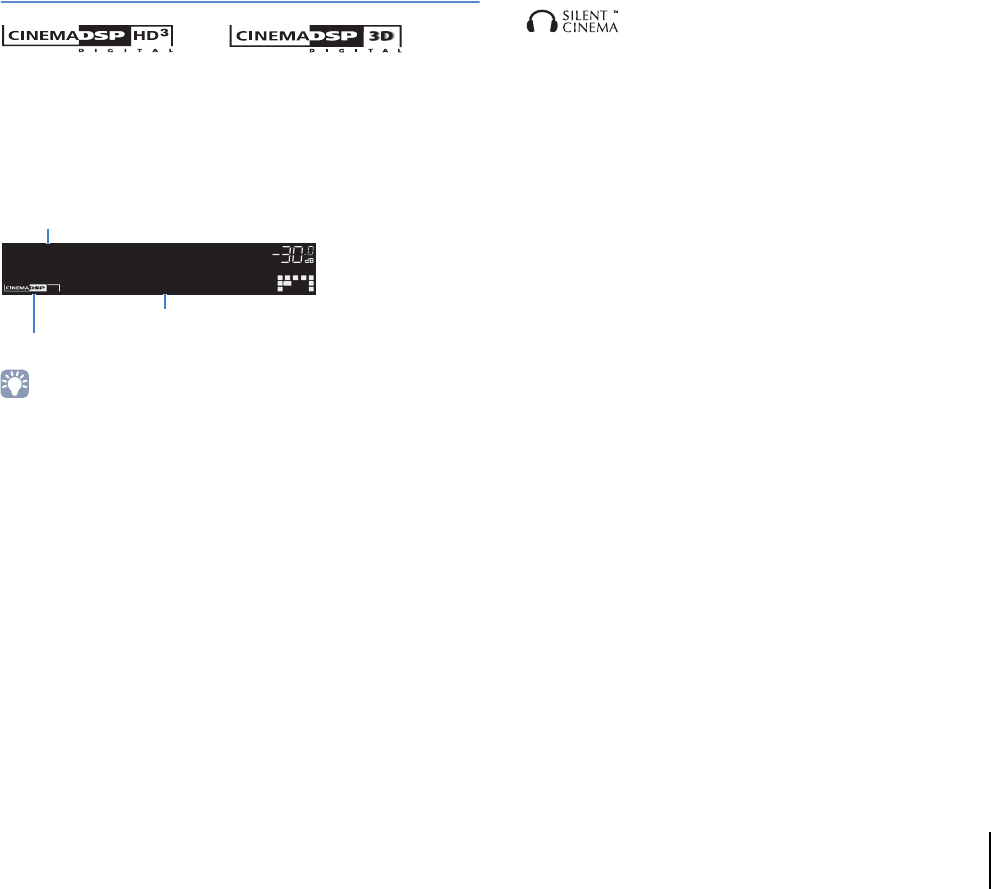
PLAYBACK ➤Selecting the sound mode En 64
Enjoying stereoscopic sound fields
(CINEMA DSP HD/CINEMA DSP 3D)
* CINEMA DSP HD³: RX-A3020, CINEMA DSP 3D: RX-A2020
The unit is equipped with a variety of sound programs that utilize
Yamaha’s original DSP technology (CINEMA DSP HD³/CINEMA
DSP 3D). It allows you to easily create sound fields like actual
movie theaters or concert halls in your room and enjoy natural
stereoscopic sound fields.
• To use the conventional CINEMA DSP, set “CINEMA DSP 3D Mode” (p.99) in the
“Option” menu to “Off”.
• We recommend using front presence speakers in order to experience the full
effect of the stereoscopic sound fields (and rear presence speakers for further
spatial sounds). However, even when no front presence speakers are connected,
the unit creates Virtual Presence Speaker (VPS) using the front, center, and
surround speakers to produce stereoscopic sound fields.
■Enjoying sound field effects without
surround speakers (Virtual CINEMA DSP)
If you select one of the sound programs when no surround
speakers are connected, the unit creates the surround sound field
using the front-side speakers.
■Enjoying surround sound with
headphones (SILENT CINEMA)
You can enjoy surround or sound field effects, like a multichannel
speaker system, with stereo headphones by connecting the
headphones to the PHONES jack and selecting a sound program
or a surround decoder.
OUT
1
IN
OUT
2
VOLUME
MUTE
DRCADAPTIVE
3
ZONE
2
SBLPL SBRSBPR
SW1
SL
SW2SW
SR
PL
CL R
PR
STEREO
ENHANCER
SLEEP
HD
TUNED
PRE
AMP
PAR TY
ZONE
3
ZONE
4
HD
TAG
DOCK
HallinVienna
CLASSICAL
MUSIC
“CINEMA DSP !” (RX-A3020) or “CINEMA DSP n” (RX-A2020) lights up
Sound program category
Sound program

PLAYBACK ➤Selecting the sound mode En 65
■Sound programs suitable for movies (MOVIE)
The following sound programs are optimized for viewing video sources, such as
movies, TV programs, and games.
❑MOVIE THEATER
❑ENTERTAINMENT
Standard
This program creates a sound field that emphasizes the surround feeling
without disturbing the original acoustic positioning of multichannel audio,
such as Dolby Digital and DTS. Its design is based on the concept of the
ideal movie theater, in which the audience is surrounded by beautiful
reverberations from the left, right, and rear.
Spectacle
This program delivers the scale and grandeur of spectacular movie
productions. It delivers an expansive sound space to match the
cinemascope wide-screen, and boasts a broad dynamic range, providing
everything from small delicate sounds to powerful loud booms.
Sci-Fi
This program clearly reproduces the finely elaborated sound design of the
latest Sci-Fi and SFX movies. You can enjoy a variety of
cinematographically created virtual spaces reproduced with clear
separation between dialogue, sound effects, and background music.
Adventure
This program is ideal for reproducing the sound design of action and
adventure movies precisely. The sound field restrains reverberations, but
puts emphasis on reproducing a sensation of expansiveness on both sides,
powerful space expanded widely to the left and right. The restrained depth
creates a clear and powerful space, while also maintaining the articulation
of the sounds and the separation of the channels.
Drama
This program features stable reverberations that match a wide range of
movie genres, from serious dramas to musicals and comedies. The
reverberations are modest, but suitably stereophonic. The sound effects
and background music are reproduced with a gentle echo that does not
impinge on the articulation of the dialogue. You’ll never get tired listening for
long periods.
Mono Movie
This program reproduces monaural video sources, such as classic movies,
in an atmosphere of a good old movie theater. The program creates a
pleasant space with depth, by adding breadth and the appropriate
reverberation to the original audio.
Sports
This program allows listeners to enjoy the rich vividness of sport broadcasts
and light entertainment programs. In sports broadcasts, the commentators’
voices are positioned clearly at the center, while the atmosphere inside the
stadium is realistically conveyed by the peripheral delivery of the sounds of
the fans in a suitable space.
Action Game
This program is suitable for action games, such as car racing and fighting
games. The reality of, and emphasis on, various effects makes the player
feel like they are right in the middle of the action, allowing for greater
concentration. Use this program in combination with Compressed Music
Enhancer for a more dynamic and strong sound field.
Roleplaying Game
This program is suitable for role-playing and adventure games. This
program adds depth to the sound field for natural and realistic reproduction
of background music, special effects, and dialogue from a wide variety of
scenes. Use this program in combination with Compressed Music
Enhancer for a clearer and more spatial sound field.
Music Video
This program allows you to enjoy videos of pop, rock, and jazz concerts, as
if you were there yourself. Immerse yourself in the hot concert atmosphere
thanks to the vividness of the singers and solos on stage, a presence
sound field that emphasizes the beat of rhythm instruments, and a surround
sound field that reproduces the space of a big live hall.
Recital/Opera
This program controls the amount of reverberations at an optimum level and
emphasizes the depth and clarity of human voices to offer the
reverberations of an orchestra box in front the listener at the same time as
providing the acoustic positioning and feeling of presence on the stage.
The surround sound field is relatively moderate, but the data for concert hall
effects are used to represent the inherent beauty of music. The listener will
not be fatigued even after long hours of opera entertainment.
PLAYBACK ➤Selecting the sound mode En 66
■Sound programs suitable for music/stereo playback
(MUSIC)
The following sound programs are optimized for listening to music sources.
You can also select stereo playback.
❑CLASSICAL
❑LIVE/CLUB
❑STEREO
• CINEMA DSP HD³/CINEMA DSP 3D (p.64) and Virtual CINEMA DSP (p.64) do not work when “2ch
Stereo” or “9ch Stereo” is selected.
Hall in Munich
This program simulates a Munich concert hall with approximately 2,500
seats that uses stylish wood for the interior finishing. Fine, beautiful
reverberations spread richly, creating a calming atmosphere. The listener’s
virtual seat is at the center left of the arena.
Hall in Vienna
This program simulates a 1,700-seat, middle-sized concert hall with a
shoebox shape that is traditional in Vienna. Pillars and ornate carvings
create extremely complex reverberations from all around the audience,
producing a very full, rich sound.
Hall in Amsterdam The large, shoe box shaped hall seats about 2,200 around the circle stage.
Reflections are rich and pleasing while the sound travels freely.
Church in Freiburg
Located in the south of Germany, this grand, stone-built church has a
pointed tower at 120 meters in height. Its long and narrow shape and the
high ceiling enable the elongated reverberation time and limited initial
reflection time. Thus, the rich reverberation rather than the sound itself
reproduces the atmosphere of the church.
Church in
Royaumont
This program features the sound field created by the refectory (dining hall)
of a beautiful medieval Gothic monastery located in Royaumont on the
outskirts of Paris.
Chamber
This program creates a relatively wide space with a high ceiling, like an
audience hall in a palace. It offers pleasant reverberations that are suitable
for courtly music and chamber music.
Village Vanguard
The Jazz club is on 7th Avenue, New York. This small club with the low
ceiling makes the powerful reflections converge toward the stage located in
the center.
Warehouse Loft The warehouse resembles some lofts in Soho. Sound reflects off the
concrete walls clearly with a lot of energy.
Cellar Club
This program simulates an intimate concert venue with a low ceiling and
homey atmosphere. A realistic, live sound field delivers powerful sounds
that make you feel as if you are sitting in the front row in front of a small
stage.
The Roxy Theatre
This program creates the sound field of a 460-seat rock music concert
venue in Los Angeles. The listener’s virtual seat is at the center left of the
hall.
The Bottom Line
This program creates the sound field at stage front in The Bottom Line, a
famous New York jazz club once. The floor can seat 300 people to the left
and right in a sound field offering real and vibrant sound.
2ch Stereo
Use this program to mix down multichannel sources to 2 channels. When
multichannel signals are input, they are down mixed to 2 channels and
output from the front speakers (this program does not utilize CINEMA DSP).
9ch Stereo
Use this program to output sound from all speakers. When you play back
multichannel sources, the unit mixes down the source to 2 channels, and
then outputs the sound from all speakers. This program creates a larger
sound field and is ideal for background music at parties.
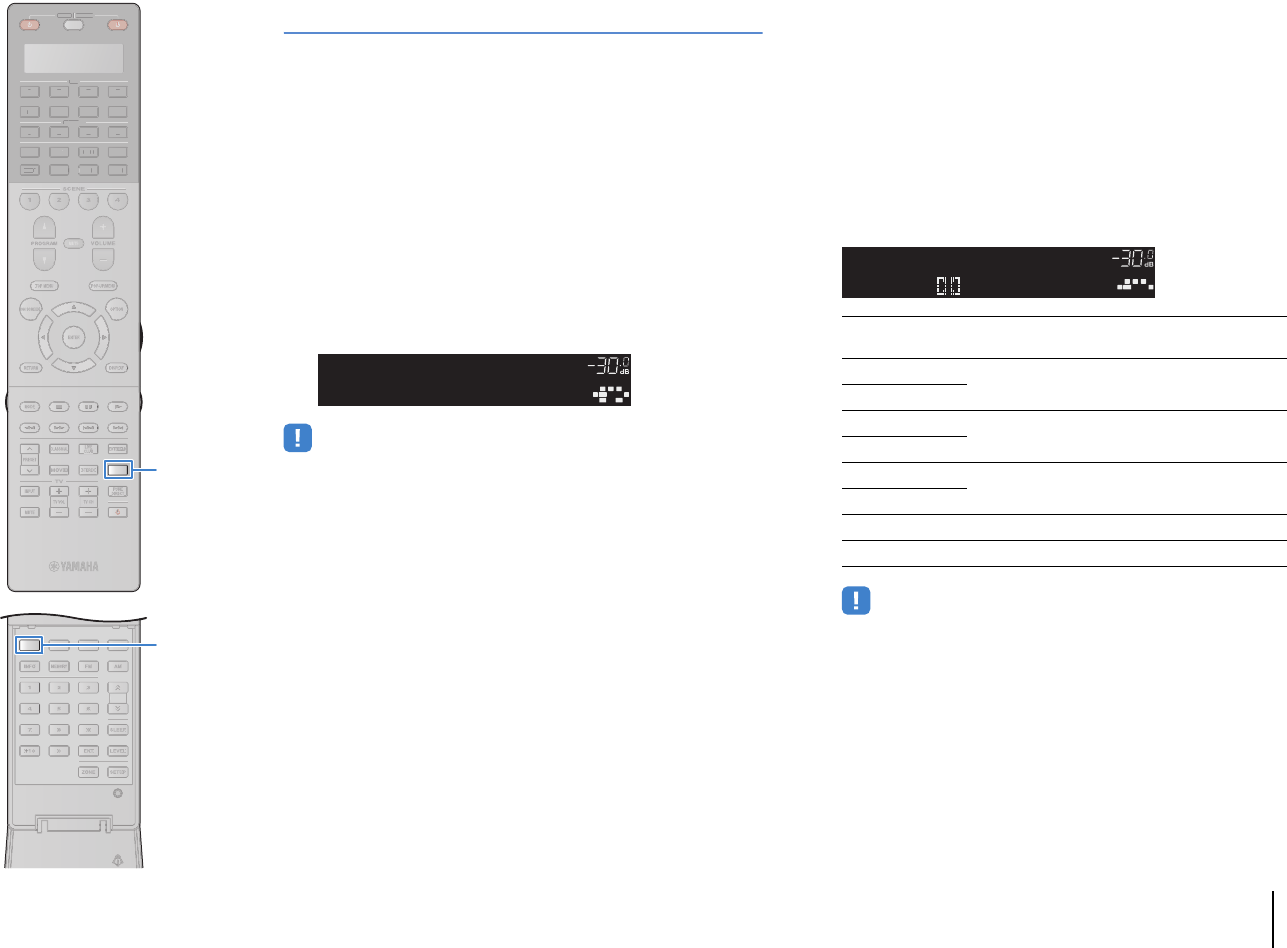
PLAYBACK ➤Selecting the sound mode En 67
Enjoying unprocessed playback
You can play back input sources without any sound field effect
processing.
■Playing back in original channels
(straight decode)
When the straight decode mode is enabled, the unit produces
stereo sound from the front speakers for 2-channel sources such as
CDs, and produces unprocessed multichannel sounds for
multichannel sources.
1Press STRAIGHT.
Each time you press the key, the straight decode mode is
enabled or disabled.
• To enable 6.1/7.1-channel playback from 5.1-channel sources when surround
back speakers are used, set “Extended Surround” (p.100) in the “Option” menu to
a setting other than “Off”.
■Playing back 2-channel sources in
multichannel (surround decoder)
The surround decoder enables unprocessed multichannel
playback from 2-channel sources. When a multichannel source is
input, it works the same way as the straight decode mode.
For details on each decoder see “Glossary” (p.153).
1Press SUR.DECODE to select a surround decoder.
Each time you press the key, the surround decoder
changes.
• You cannot select the Dolby Pro Logic IIx decoders when headphones are
connected or when “Surround Back” (p.115) in the “Setup” menu is set to
“None”.
VOLUME
SBL SBR
SW1
SLSR
CL R
STRAIGHT
bPro Logic Uses the Dolby Pro Logic decoder suitable for all
sources.
bPLIIx Movie Use the Dolby Pro Logic IIx decoder (or Dolby Pro
Logic II decoder) suitable for movies.
bPLII Movie
bPLIIx Music Use the Dolby Pro Logic IIx decoder (or Dolby Pro
Logic II decoder) suitable for music.
bPLII Music
bPLIIx Game Use the Dolby Pro Logic IIx decoder (or Dolby Pro
Logic II decoder) suitable for games.
bPLII Game
Neo:6 Cinema Uses the DTS Neo:6 decoder suitable for movies.
Neo:6 Music Uses the DTS Neo:6 decoder suitable for music.
OUT
1
IN
OUT
2
VOLUME
MUTE
DRCADAPTIVE
3
ZONE
2
SBLPL SBRSBPR
SW1
SL
SW2SW
SR
PL
CL R
PR
STEREO
ENHANCER
SLEEP
HD
TUNED
PRE
AMP
PAR TY
ZONE
3
ZONE
4
HD
TAG
DOCK
ProLogic
SUR.DECODE
23
5
1
4 6
TUN./ CH
ENHANCER
SUR.
DECODE
HDMI OUT
MEMORY
INFO AM
PAR TY
FM
0
10
LEVELENT
SETUPZONE
87
SLEEP
9
SOURCE RECEIVER
AV
AUDIO
1 2 3 4
5 6 7
V-AUX
1 2 3 4
MULTI
PHONO
USB NET
TUNER
[ C ][ A ] [ B ]
CLASSICAL
LIVE
CLUB
ENTERTAIN
MOVIE
STEREO STRAIGHT
INPUTPURE
DIRECT
MUTE
TV
SCENE
1 2 3 4
PROGRAM
VOLUME
TV VOL
MUTE
MODE
TOP MENU
RETURN DISPLAY
POP-UP/MENU
TV CH
PRESET
ENTER
ON SCREEN
OPTION
T
UN.
/
CH
SOU
R
CE
RECEIVE
R
A
V
A
U
DI
O
1
2
3
4
5
6
7
V-
AUX
1
2
3
4
MUL
T
I
L
L
PH
O
N
O
US
B NE
T
TUNE
R
[
C
]
[
A
]
[
B
]
SUR.DECODESUR.DECODE
STRAIGHTSTRAIGHT
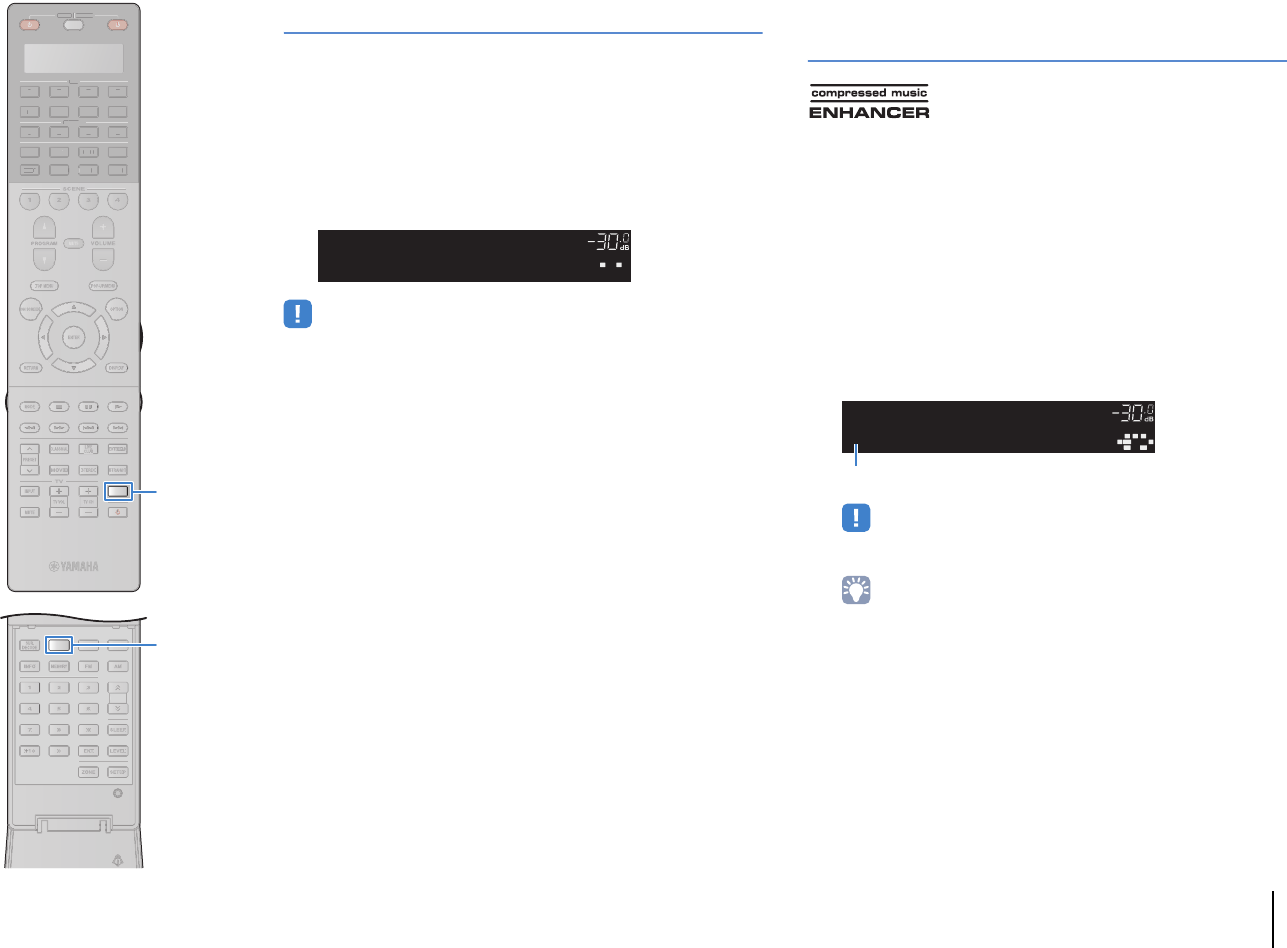
PLAYBACK ➤Selecting the sound mode En 68
Enjoying pure high fidelity sound (Pure Direct)
When the Pure Direct mode is enabled, the unit plays back the
selected source with the least circuitry in order to reduce the
electrical noise from other circuitry (such as the front display). It
allows you to enjoy Hi-Fi sound quality.
1Press PURE DIRECT.
Each time you press the key, the Pure Direct mode is
enabled or disabled.
• When the Pure Direct mode is enabled, the following functions are not available.
– Some settings for the speakers or sound programs
– Operating the on-screen and “Option” menus
– Using the multi-zone function
– Output from the AV OUT jacks
– Viewing information on the front display (when not in operation)
Enjoying compressed music with enhanced
sound (Compressed Music Enhancer)
Compressed Music Enhancer adds depth and breadth to the
sound, allowing you to enjoy a dynamic sound close to the original
sound before it was compressed. This function can be used along
with any other sound modes.
In addition, Compressed Music Enhancer enhances the quality of
uncompressed digital audio (such as 2-channel PCM and FLAC)
when “Hi-Res Mode” (p.101) in the “Option” menu is set to “On”
(default).
1Press ENHANCER.
Each time you press the key, Compressed Music Enhancer
is enabled or disabled.
• Compressed Music Enhancer does not work on signals whose sampling
rate is over 48 kHz.
• You can also use “Enhancer” (p.101) in the “Option” menu to enable/disable
Compressed Music Enhancer.
OUT
1
IN
OUT
2
VOLUME
MUTE
DRCADAPTIVE
3
ZONE
2
SBLPL SBRSBPR
SW1
SL
SW2SW
SR
PL
CL R
PR
STEREO
ENHANCER
SLEEP
HD
TUNED
PRE
AMP
PAR TY
ZONE
3
ZONE
4
HD
TAG
DOCK
PUREDIRECT
OUT
1
IN
OUT
2
VOLUME
MUTE
DRCADAPTIVE
3
ZONE
2
SBLPL SBRSBPR
SW1
SL
SW2SW
SR
PL
CL R
PR
STEREO
ENHANCER
SLEEP
HD
TUNED
PRE
AMP
PAR TY
ZONE
3
ZONE
4
HD
TAG
DOCK
EnhancerOn
“ENHANCER” lights up
23
5
1
4 6
TUN./ CH
ENHANCER
SUR.
DECODE
HDMI OUT
MEMORY
INFO AM
PAR TY
FM
0
10
LEVELENT
SETUPZONE
87
SLEEP
9
SOURCE RECEIVER
AV
AUDIO
1 2 3 4
5 6 7
V-AUX
1 2 3 4
MULTI
PHONO
USB NET
TUNER
[ C ][ A ] [ B ]
CLASSICAL
LIVE
CLUB
ENTERTAIN
MOVIE
STEREO STRAIGHT
INPUTPURE
DIRECT
MUTE
TV
SCENE
1 2 3 4
PROGRAM
VOLUME
TV VOL
MUTE
MODE
TOP MENU
RETURN DISPLAY
POP-UP/MENU
TV CH
PRESET
ENTER
ON SCREEN
OPTION
T
UN.
/
CH
SOU
R
CE
RECEIVE
R
A
V
A
U
DI
O
1
2
3
4
5
6
7
V-
AUX
1
2
3
4
MUL
T
I
L
L
PH
O
N
O
US
B NE
T
TUNE
R
[
C
]
[
A
]
[
B
]
ENHANCERENHANCER
PURE DIRECTPURE DIRECT
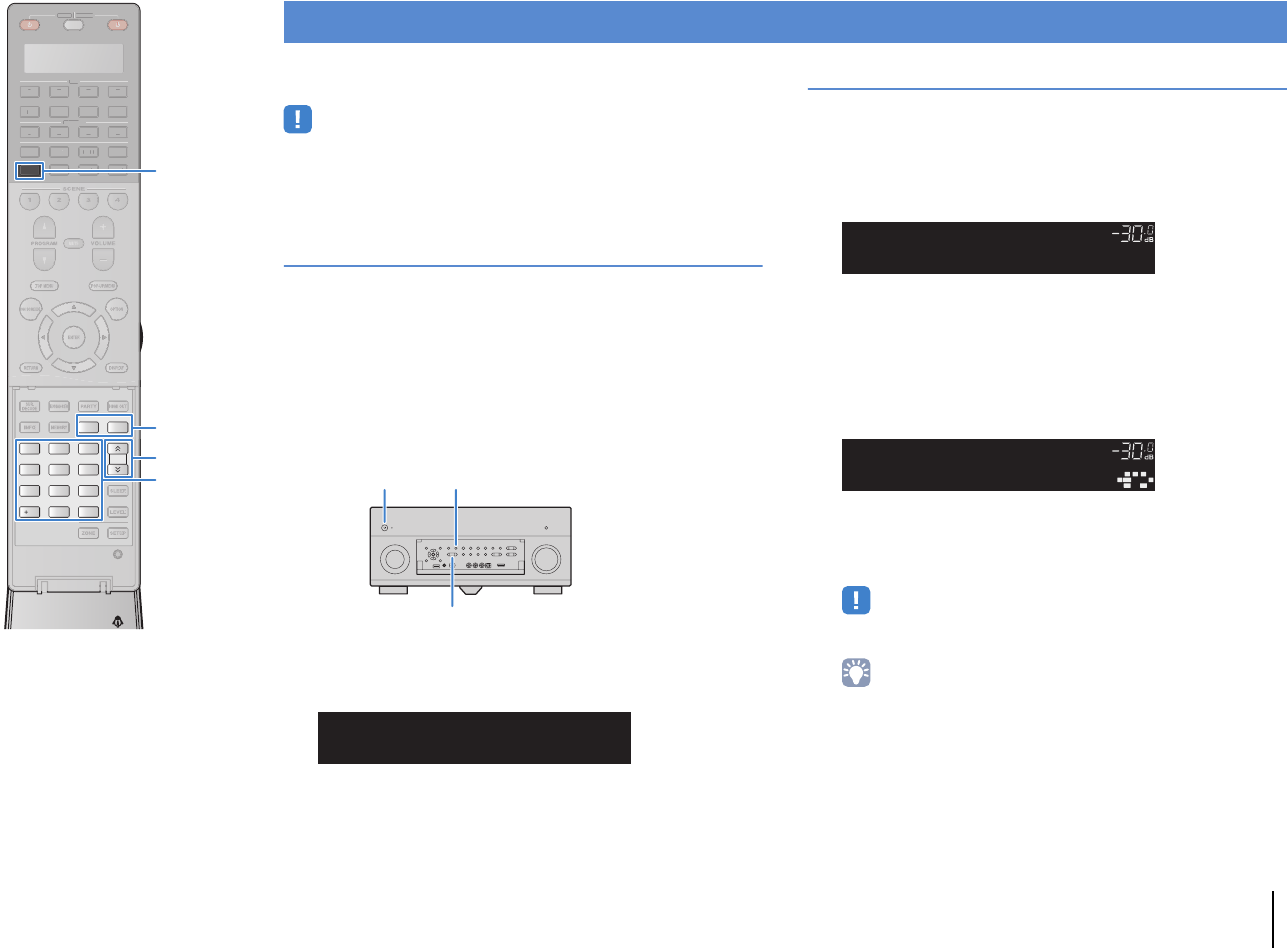
PLAYBACK ➤Listening to FM/AM radio En 69
You can tune into a radio station by specifying its frequency or
selecting from registered radio stations.
• The radio frequencies differ depending on the country or region where the unit is
being used. The explanation of this section uses a display with frequencies used
in U.K. and Europe models.
• If you cannot obtain good reception on the radio, adjust the direction of the FM/AM
antennas.
Setting the frequency steps
(Asia and General models only)
At the factory, the frequency step setting is set to 50 kHz for FM and
9 kHz for AM. Depending on your country or region, set the
frequency steps to 100 kHz for FM and 10 kHz for AM.
1Set the unit to standby mode.
2When holding down STRAIGHT on the front panel,
press MAIN ZONE z.
3Press PROGRAM repeatedly to select “TUNER FRQ
STEP”.
4Press STRAIGHT to select “FM100/AM10”.
5Press MAIN ZONE z to set the unit to standby
mode and turn it on again.
Selecting a frequency for reception
1Press TUNER to select “TUNER” as the input
source.
2Press FM or AM to select a band.
3Use the following keys to set a frequency.
TUN./CH: Increase/decrease the frequency. Hold down the
key for about a second to search stations automatically.
Numeric keys: Enter a frequency directly. For example, to
select 98.50 MHz, press “9”, “8”, “5” and “0” (or ENT).
“TUNED” lights up when a signal is received from a radio
station.
“STEREO” also lights up when a stereo signal is received.
• “Wrong Station!” appears when you enter a frequency that is out of
reception range.
• (U.S.A. model only)
You can switch between “Auto” (stereo) and “Mono” (monaural) for FM radio
reception in “Audio Mode” (p.102) in the “Option” menu. When the signal
reception for an FM radio station is unstable, switching to monaural may
improve it. (HD Radio programs are not available when the unit is in the
monaural reception mode.)
• (Except for U.S.A. model)
You can switch between “Stereo” (stereo) and “Mono” (monaural) for FM
radio reception in “FM Mode” (p.102) in the “Option” menu. When the signal
reception for an FM radio station is unstable, switching to monaural may
improve it.
Listening to FM/AM radio
MAIN ZONE zSTRAIGHT
PROGRAM
OUT
1
IN
OUT
2
3
ZONE
2
STEREO
SLEEP
HD
TUNED
PRE
AMP
PAR TY
ZONE
3
ZONE
4
HD
TAG
DOCK
FM50/AM9
TUNERFRQSTEP
OUT
1
IN
OUT
2
VOLUME
MUTE
DRCADAPTIVE
3
ZONE
2
SBLPL SBRSBPR
SW1
SL
SW2SW
SR
PL
CLR
PR
STEREO
SLEEP
HD
TUNED
PRE
AMP
PAR TY
ZONE
3
ZONE
4
HD
TAG
DOCK
FM87.50MHz
OUT
1
IN
OUT
2
VOLUME
MUTE
DRCADAPTIVE
3
ZONE
2
SBLPL SBRSBPR
SW1
SL
SW2SW
SR
PL
CL R
PR
STEREO
SLEEP
HD
TUNED
PRE
AMP
PAR TY
ZONE
3
ZONE
4
HD
TAG
DOCK
FM98.50MHz
SOURCE RECEIVER
AV
AUDIO
1 2 3 4
5 6 7
V-AUX
1 2 3 4
MULTI
PHONO
USB NET
TUNER
[ C ][ A ] [ B ]
CLASSICAL
LIVE
CLUB
ENTERTAIN
MOVIE
STEREO STRAIGHT
INPUTPURE
DIRECT
MUTE
TV
SCENE
1 2 3 4
PROGRAM
VOLUME
TV VOL
MUTE
MODE
TOP MENU
RETURN DISPLAY
POP-UP/MENU
TV CH
PRESET
ENTER
ON SCREEN
OPTION
2 3
5
1
4 6
TUN./ CH
ENHANCER
SUR.
DECODE
HDMI OUT
MEMORY
INFO AM
PAR TY
FM
0
10
LEVELENT
SETUPZONE
87
SLEEP
9
SOU
R
CE
RE
C
EIVE
R
AV
A
UDI
O
1
2
3
4
5
6
7
V-
AUX
1
2
3
4
MUL
T
I
L
L
PH
O
N
O
US
B NE
T
[
C
]
[
A
]
[
B
]
TUN./CHTUN./CH
FM
AM
FM
AM
TUNERTUNER
Numeric keys
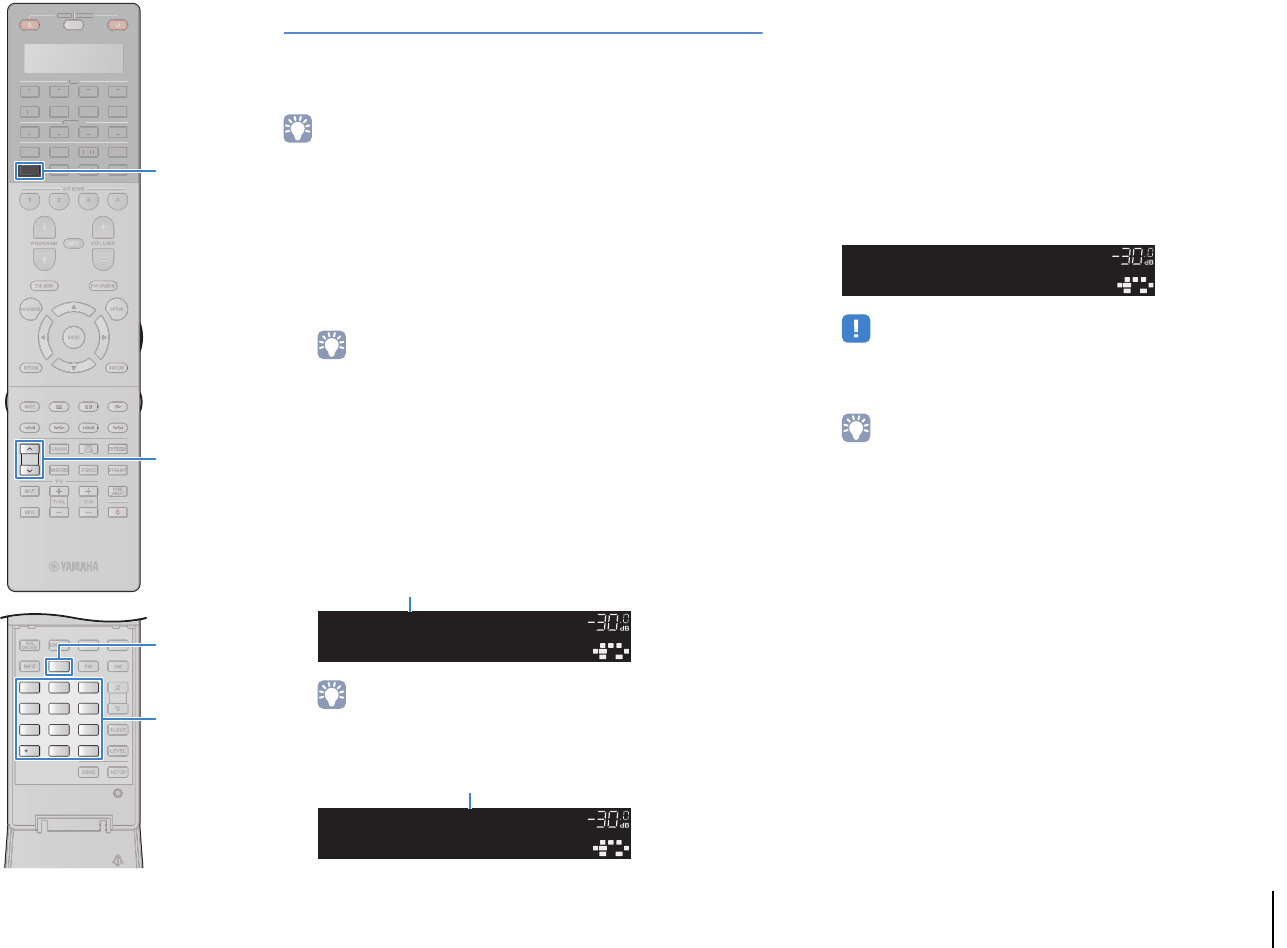
PLAYBACK ➤Listening to FM/AM radio En 70
Registering favorite radio stations (presets)
You can register up to 40 radio stations as presets. Once you have
registered stations, you can easily tune into them by selecting their
preset numbers.
• You can automatically register FM radio stations that have strong signals and HD
Radio stations (U.S.A. model only) by using “Auto Preset” (p.73, p.75).
■Registering a radio station
Select a radio station manually and register it to a preset number.
1Follow “Selecting a frequency for reception” (p.69)
to tune into the desired radio station.
• (U.S.A. model only)
To register a specific HD Radio program, select an audio program (p.71)
after tuning into the radio station.
2Hold down MEMORY for more than 2 seconds.
The first time that you do register a station, the selected
radio station will be registered to the preset number “01”.
Thereafter, each radio station you select will be registered
to the next empty (unused) preset number after the most
recently registered number.
• To select a preset number for registering, press MEMORY once after tuning
into the desired radio station, use PRESET or numeric keys to select a
preset number, and then press MEMORY again.
■Selecting a preset station
Tune into a registered radio station by selecting its preset number.
1Press TUNER to select “TUNER” as the input
source.
2Press PRESET repeatedly to select the desired radio
station.
You can also enter a preset number (01 to 40) directly by
using the numeric keys after pressing PRESET once.
• “No Presets” appears when no radio stations are registered.
• “Wrong Num.” appears when an invalid number is entered.
• “Empty” appears when a preset number not in use is entered.
• To clear preset stations, use “Clear Preset” or “Clear All Preset” (p.73, p.75).
OUT
1
IN
OUT
2
VOLUME
MUTE
DRCADAPTIVE
3
ZONE
2
SBLPL SBRSBPR
SW1
SL
SW2SW
SR
PL
CL R
PR
STEREO
SLEEP
HD
TUNED
PRE
AMP
PAR TY
ZONE
3
ZONE
4
HD
TAG
DOCK
PresetOK
01:FM98.50MHz
Preset
Preset number
OUT
1
IN
OUT
2
VOLUME
MUTE
DRCADAPTIVE
3
ZONE
2
SBLPL SBRSBPR
SW1
SL
SW2SW
SR
PL
CL R
PR
STEREO
SLEEP
HD
TUNED
PRE
AMP
PAR TY
ZONE
3
ZONE
4
HD
TAG
DOCK
FM98.50MHz
02:Empty
Preset
“Empty” (not in use) or the frequency currently registered
OUT
1
IN
OUT
2
VOLUME
MUTE
DRCADAPTIVE
3
ZONE
2
SBLPL SBRSBPR
SW1
SL
SW2SW
SR
PL
CL R
PR
STEREO
SLEEP
HD
TUNED
PRE
AMP
PAR TY
ZONE
3
ZONE
4
HD
TAG
DOCK
01:FM98.50MHz
Preset
2 3
5
1
4 6
TUN./ CH
ENHANCER
SUR.
DECODE
HDMI OUT
MEMORY
INFO AM
PAR TY
FM
0
10
LEVELENT
SETUPZONE
87
SLEEP
9
SOURCE RECEIVER
AV
AUDIO
1 2 3 4
5 6 7
V-AUX
1 2 3 4
MULTI
PHONO
USB NET
TUNER
[ C ][ A ] [ B ]
CLASSICAL
LIVE
CLUB
ENTERTAIN
MOVIE
STEREO STRAIGHT
INPUTPURE
DIRECT
MUTE
TV
SCENE
1 2 3 4
PROGRAM
VOLUME
TV VOL
MUTE
MODE
TOP MENU
RETURN DISPLAY
POP-UP/MENU
TV CH
PRESET
ENTER
ON SCREEN
OPTION
T
UN.
/
CH
SOU
R
CE
RECEIVE
R
A
V
A
U
DI
O
1
2
3
4
5
6
7
V-
AUX
1
2
3
4
MUL
T
I
L
L
PH
O
N
O
US
B NE
T
[
C
]
[
A
]
[
B
]
MEMORYMEMORY
PRESETPRESET
TUNERTUNER
Numeric keys
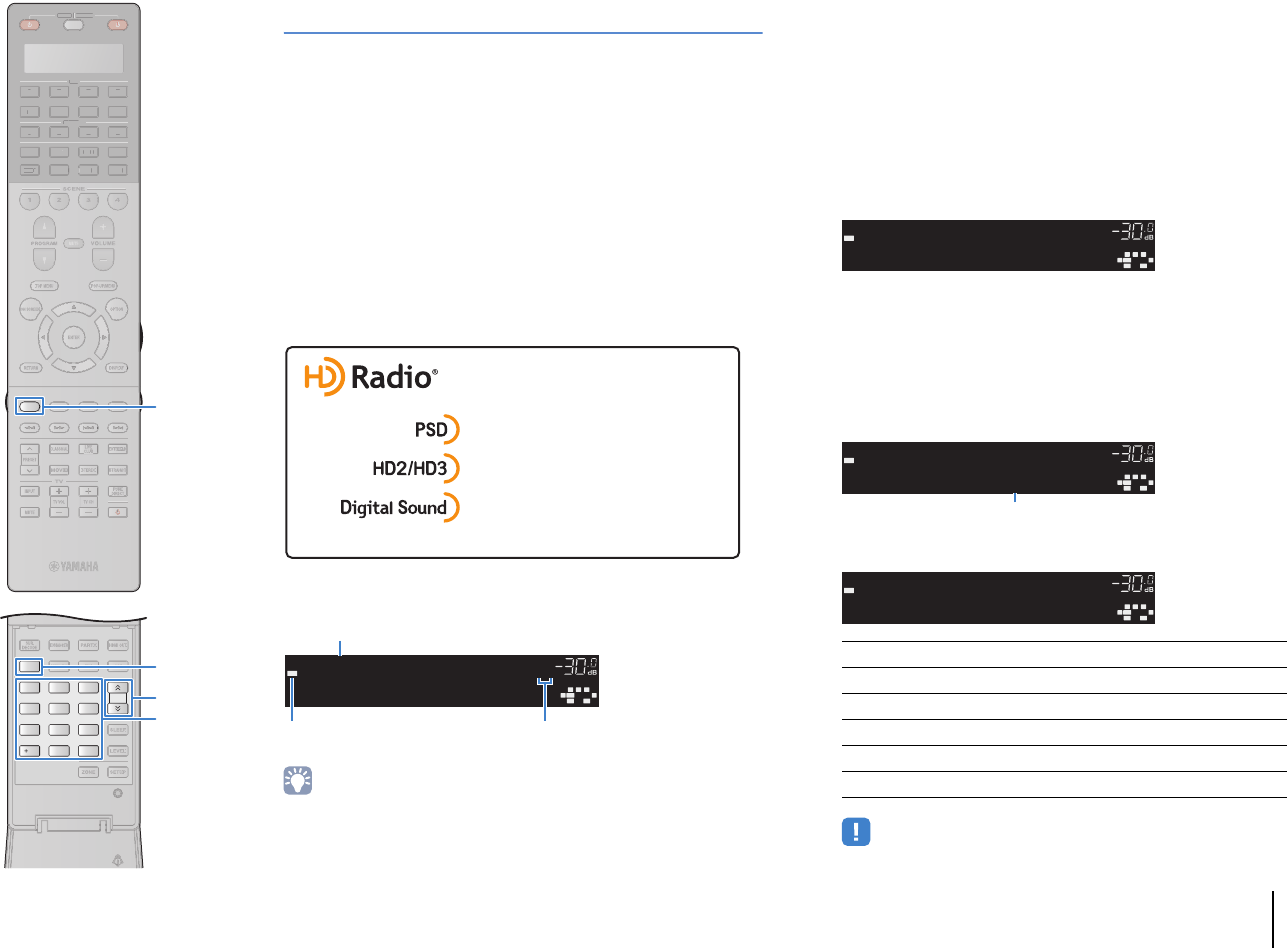
PLAYBACK ➤Listening to FM/AM radio En 71
HD Radio™ tuning
(U.S.A. model only)
HD Radio Technology is a new technology that enables FM/AM
radio stations to broadcast programs digitally. Digital broadcasting
provides listeners with radically improved audio quality and
reception as well as new data services. Furthermore, supplemental
program services allow listeners to select from up to 8 HD Radio
programs multicast on a single FM HD Radio channel. For further
information on HD Radio Technology, visit
“http://www.ibiquity.com/”.
The unit is equipped with an HD Radio reception feature, facilitating
CD quality FM broadcasts as well as analog FM stereo quality AM
broadcasts. In addition, the unit can receive both audio and data
(such as song titles, artist names, album titles and program types)
from all HD Radio programs (HD1 to HD8).
When tuning into an HD Radio station
• The unit is capable of receiving both hybrid and all-digital FM/AM radio stations. If
you cannot search the desired all-digital HD Radio station by holding down
TUN./CH, enter the frequency directly using the numeric keys.
• When the unit is in the monaural reception mode (p.102), you can tune into the
analog part of a hybrid HD Radio station only.
■Selecting an HD Radio™ audio program
You can select an audio program when the unit is tuned into an HD
Radio station that provides multiple audio programs (up to 8).
1Press MODE repeatedly to select a desired audio
program.
You can also enter an audio program number (1 to 8)
directly by using the numeric keys. For example, to select
program 3, press 3 and then ENT (or just leave it).
■Displaying the HD Radio™ information
You can switch the HD Radio information displayed on the front display.
1Press INFO.
Each time you press the key, the item switches.
About 3 seconds later, the information is displayed.
• Some audio programs may not provide information depending on the station
or period of time.
zProgram Service Data: Contributes to the superior user experience
of HD RadioTechnology. Presents song name, artist, station IDs,
HD2/HD3 Channel Guide, and other relevant data streams.
zAdjacent to traditional main stations are extra local FM channels.
These HD2/HD3 Channels provide new, original music as well as
deep cuts into traditional genre.
zDigital, CD-quality sound. HD Radio Technology enables local radio
stations to broadcast a clean digital signal. AM sounds like today’s
FM and FM sounds like a CD.
OUT
1
IN
OUT
2
VOLUME
MUTE
DRCADAPTIVE
3
ZONE
2
SBLPL SBRSBPR
SW1
SL
SW2SW
SR
PL
CL R
PR
SLEEP
HD
TUNED
PRE
AMP
PAR TY
ZONE
3
ZONE
4
HD
TAG
DOCK
WXYZ-FM
FM88.9MHz1
HD1/3
Relative/total program number
(when multiple programs are available)
“HD” lights up Absolute program number
(when multiple programs are available)
Station Info Frequency, station name (call sign)
Category Station name (call sign), program category
Artist/Song Station name (call sign), artist name/song title
Album Station name (call sign), album title
DSP Program Frequency, sound program selected on the unit
Audio Decoder Frequency, decoder selected on the unit
OUT
1
IN
OUT
2
VOLUME
MUTE
DRCADAPTIVE
3
ZONE
2
SBLPL SBRSBPR
SW1
SL
SW2SW
SR
PL
CL R
PR
SLEEP
HD
TUNED
PRE
AMP
PAR TY
ZONE
3
ZONE
4
HD
TAG
DOCK
WXYZ-FM
FM88.9MHz3
HD2/3
OUT
1
IN
OUT
2
VOLUME
MUTE
DRCADAPTIVE
3
ZONE
2
SBLPL SBRSBPR
SW1
SL
SW2SW
SR
PL
CL R
PR
SLEEP
HD
TUNED
PRE
AMP
PAR TY
ZONE
3
ZONE
4
HD
TAG
DOCK
Category
Info
Item name
OUT
1
IN
OUT
2
VOLUME
MUTE
DRCADAPTIVE
3
ZONE
2
SBLPL SBRSBPR
SW1
SL
SW2SW
SR
PL
CL R
PR
SLEEP
HD
TUNED
PRE
AMP
PAR TY
ZONE
3
ZONE
4
HD
TAG
DOCK
RhythmandBlu
WXYZ-FM
FM88.9-1
2 3
5
1
4 6
TUN./ CH
ENHANCER
SUR.
DECODE
HDMI OUT
MEMORY
INFO AM
PAR TY
FM
0
10
LEVELENT
SETUPZONE
87
SLEEP
9
SOURCE RECEIVER
AV
AUDIO
1 2 3 4
5 6 7
V-AUX
1 2 3 4
MULTI
PHONO
USB NET
TUNER
[ C ][ A ] [ B ]
CLASSICAL
LIVE
CLUB
ENTERTAIN
MOVIE
STEREO STRAIGHT
INPUTPURE
DIRECT
MUTE
TV
SCENE
1 2 3 4
PROGRAM
VOLUME
TV VOL
MUTE
MODE
TOP MENU
RETURN DISPLAY
POP-UP/MENU
TV CH
PRESET
ENTER
ON SCREEN
OPTION
SOU
R
CE
RECEIVE
R
A
V
A
U
DI
O
1
2
3
4
5
6
7
V-
AUX
1
2
3
4
MUL
T
I
L
L
PH
O
N
O
US
B NE
T
TUNE
R
[
C
]
[
A
]
[
B
]
ENT
TUN./CHTUN./CH
INFOINFO
MODEMODE
Numeric keys
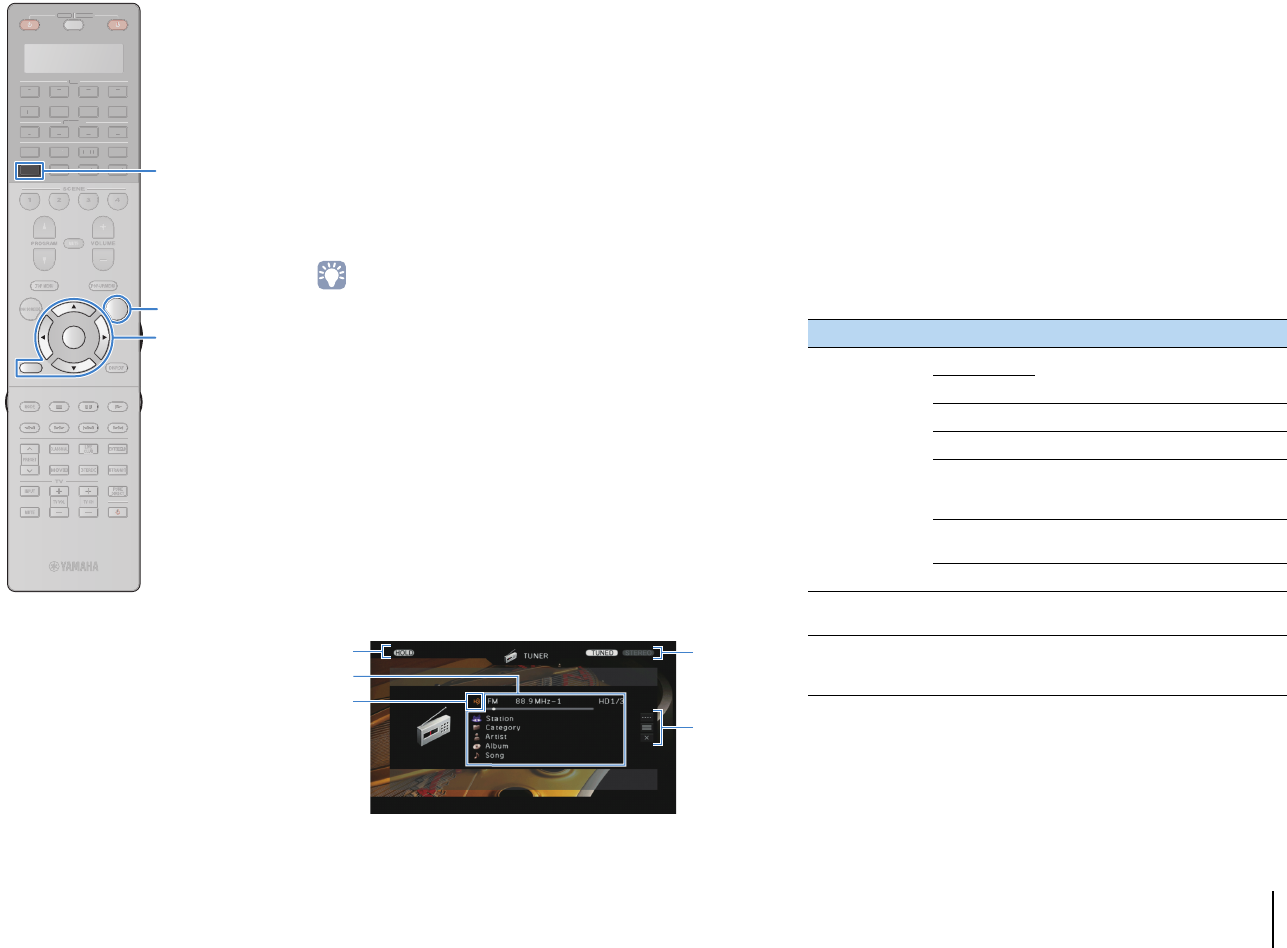
PLAYBACK ➤Listening to FM/AM radio En 72
■Holding HD Radio™ information display
You can hold the HD Radio information currently displayed on the
TV (playback screen) and front display by using the hold function.
1When the desired HD Radio information is
displayed, press OPTION.
2Use the cursor keys to select “Hold/Unhold”
(Hold/Unhold) and press ENTER.
The current information will remain displayed until
“Hold/Unhold” is selected again.
• Texts in parentheses denote indications on the front display.
• The hold function is automatically disabled if the unit is set to standby mode
or if another input source or another radio station is selected.
3To exit from the menu, press OPTION.
■Operating HD Radio™ on the TV
You can view the HD Radio information or select a radio station on
the TV.
1Press TUNER to select “TUNER” as the input
source.
The playback screen is displayed on the TV.
❑Playback screen
1HOLD indicator
Flashes when the hold function (p.72) is enabled.
2Radio station information
Displays the information of the selected radio station such as the selected
band (FM/AM) and frequency.
When tuning into an HD Radio station, the selected audio program
number and HD Radio information (station name [call sign], program
category, artist name, album name and song title) are also displayed.
Use the cursor keys (q/w) to select scrollable information.
3HD indicator
Lights up when an HD Radio station signal is received.
4TUNED/STEREO indicators
“TUNED” lights up when a signal is received from a radio station.
“STEREO” lights up when a stereo signal is received.
5Operation menu
Press the cursor key (r) and then use the cursor keys (q/w) to select an
item. Press ENTER to confirm the selection.
To close the submenu, press RETURN.
1
2
4
5
3
Menu Submenu Function
Manual Tuning
FM
Switches to FM/AM.
AM
Tuning (+/-) Selects a frequency.
Auto (+/-) Selects a radio station automatically.
Program (+/-)
Selects an audio program (when
multiple audio programs are
available).
Memory Registers the selected station as
presets.
Direct Enters a frequency directly.
Browse Moves to the browse screen (preset
station list).
Screen Off
Closes the screen display and shows
the background. Press one of the
menu operation keys to redisplay it.
SOURCE RECEIVER
AV
AUDIO
1 2 3 4
5 6 7
V-AUX
1 2 3 4
MULTI
PHONO
USB NET
TUNER
[ C ][ A ] [ B ]
CLASSICAL
LIVE
CLUB
ENTERTAIN
MOVIE
STEREO STRAIGHT
INPUTPURE
DIRECT
MUTE
TV
SCENE
1 2 3 4
PROGRAM
VOLUME
TV VOL
MUTE
MODE
TOP MENU
RETURN DISPLAY
POP-UP/MENU
TV CH
PRESET
ENTER
ON SCREEN
OPTION
SOU
R
CE
RECEIVE
R
A
V
A
U
DI
O
1
2
3
4
5
6
7
V-
AUX
1
2
3
4
MUL
T
I
L
L
PH
O
N
O
US
B NE
T
[
C
]
[
A
]
[
B
]
OPTIONOPTION
ENTER
RETURN
TUNERTUNER
Menu operation keys
Cursor keys
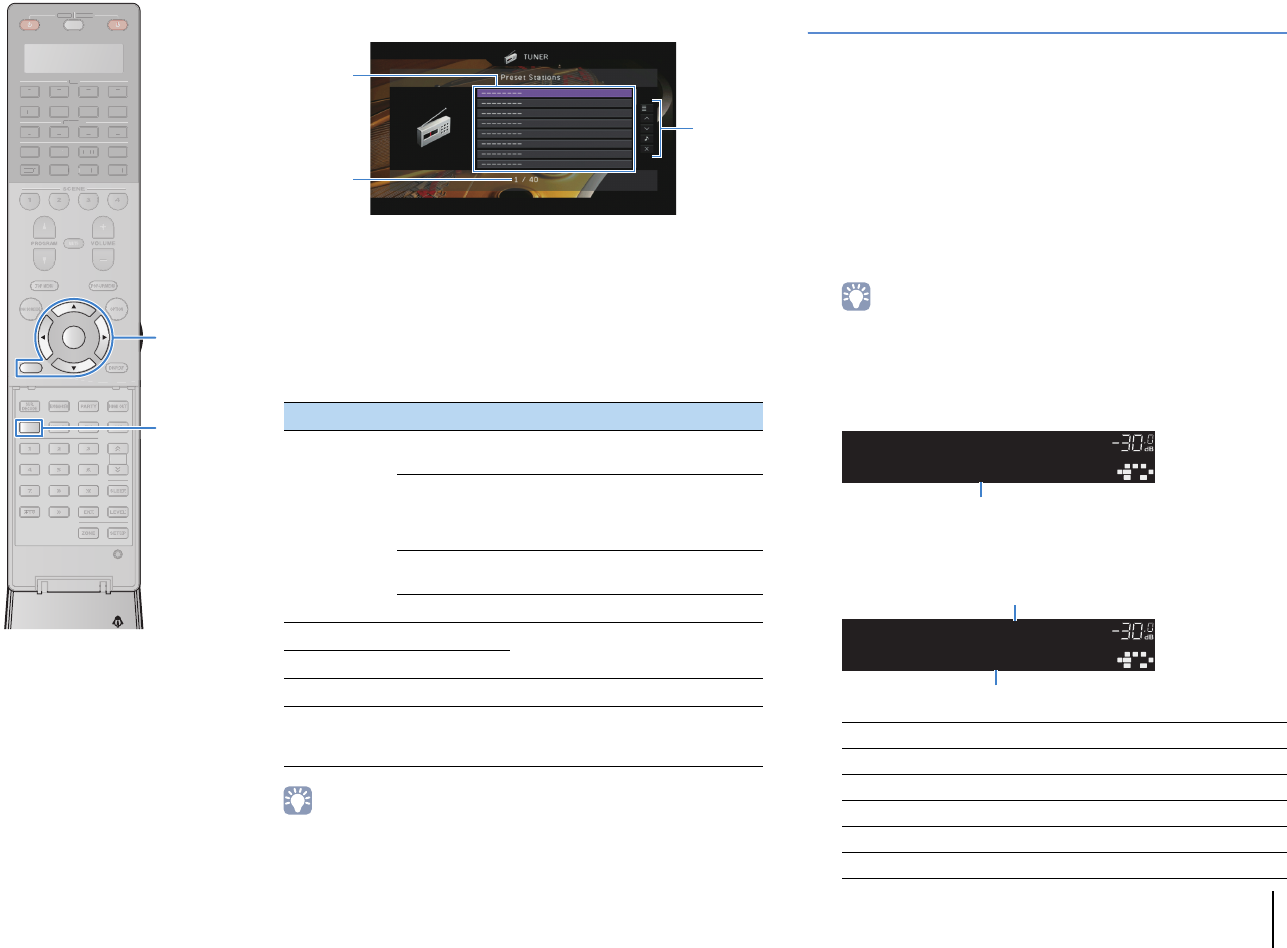
PLAYBACK ➤Listening to FM/AM radio En 73
■Browse screen
1Preset station list
Displays the list of preset stations. Use the cursor keys (q/w) to select a
preset station and press ENTER to tune into it.
2Preset number
3Operation menu
Press the cursor key (r) and then use the cursor keys (q/w) to select an
item. Press ENTER to confirm the selection.
To close the submenu, press RETURN.
• If HD Radio stations are detected by “Auto Preset”, only the audio program 1
(HD1) will be registered. If you want to register a specific HD Radio program,
register it manually (p.70).
Radio Data System tuning
(U.K. and Europe models only)
Radio Data System is a data transmission system used by FM
stations in many countries. The unit can receive various types of
Radio Data System data, such as “Program Service”, “Program
Type,” “Radio Text” and “Clock Time”, when it is tuned into a Radio
Data System broadcasting station.
■
Displaying the Radio Data System information
1Tune into the desired Radio Data System
broadcasting station.
• We recommend using “Auto Preset” to tune into the Radio Data System
broadcasting stations (p.75).
2Press INFO.
Each time you press the key, the displayed item changes.
About 3 seconds later, the corresponding information for
the displayed item appears.
Menu Submenu Function
Utility
Memory Registers the current station to the
preset number selected in the list.
Auto Preset
Automatically registers HD Radio
(FM/AM) stations and FM radio
stations with strong signals (up to 40
stations).
Clear Preset Clear the preset station selected in the
list.
Clear All Preset Clear all the preset stations.
1 Page Up Moves to the previous/next page of the
list.
1 Page Down
Now Playing Moves to the playback screen.
Screen Off
Closes the screen display and shows
the background. Press one of the
menu operation keys to redisplay it.
3
2
1
Program Service Program service name
Program Type Current program type
Radio Text Information on the current program
Clock Time Current time
DSP Program Sound mode name
Audio Decoder Decoder name
OUT
1
IN
OUT
2
VOLUME
MUTE
DRCADAPTIVE
3
ZONE
2
SBLPL SBRSBPR
SW1
SL
SW2SW
SR
PL
CL R
PR
STEREO
SLEEP
HD
TUNED
PRE
AMP
PAR TY
ZONE
3
ZONE
4
HD
TAG
DOCK
ProgramType
Info
Item name
OUT
1
IN
OUT
2
VOLUME
MUTE
DRCADAPTIVE
3
ZONE
2
SBLPL SBRSBPR
SW1
SL
SW2SW
SR
PL
CL R
PR
STEREO
SLEEP
HD
TUNED
PRE
AMP
PAR TY
ZONE
3
ZONE
4
HD
TAG
DOCK
CLASSICS
FM98.50MHz
Information
Frequency (always displayed)
SOURCE RECEIVER
AV
AUDIO
1 2 3 4
5 6 7
V-AUX
1 2 3 4
MULTI
PHONO
USB NET
TUNER
[ C ][ A ] [ B ]
CLASSICAL
LIVE
CLUB
ENTERTAIN
MOVIE
STEREO STRAIGHT
INPUTPURE
DIRECT
MUTE
TV
SCENE
1 2 3 4
PROGRAM
VOLUME
TV VOL
MUTE
MODE
TOP MENU
RETURN DISPLAY
POP-UP/MENU
TV CH
PRESET
ENTER
ON SCREEN
OPTION
23
5
1
4 6
TUN./ CH
ENHANCER
SUR.
DECODE
HDMI OUT
MEMORY
INFO AM
PAR TY
FM
0
10
LEVELENT
SETUPZONE
87
SLEEP
9
SOU
R
CE
RE
C
EIVE
R
AV
A
UDI
O
1
2
3
4
5
6
7
V-
AUX
1
2
3
4
MUL
T
I
L
L
PH
O
N
O
US
B NE
T
TUNE
R
[
C
]
[
A
]
[
B
]
TU
N.
/
CH
INFOINFO
ENTER
RETURN
Menu operation keys
Cursor keys
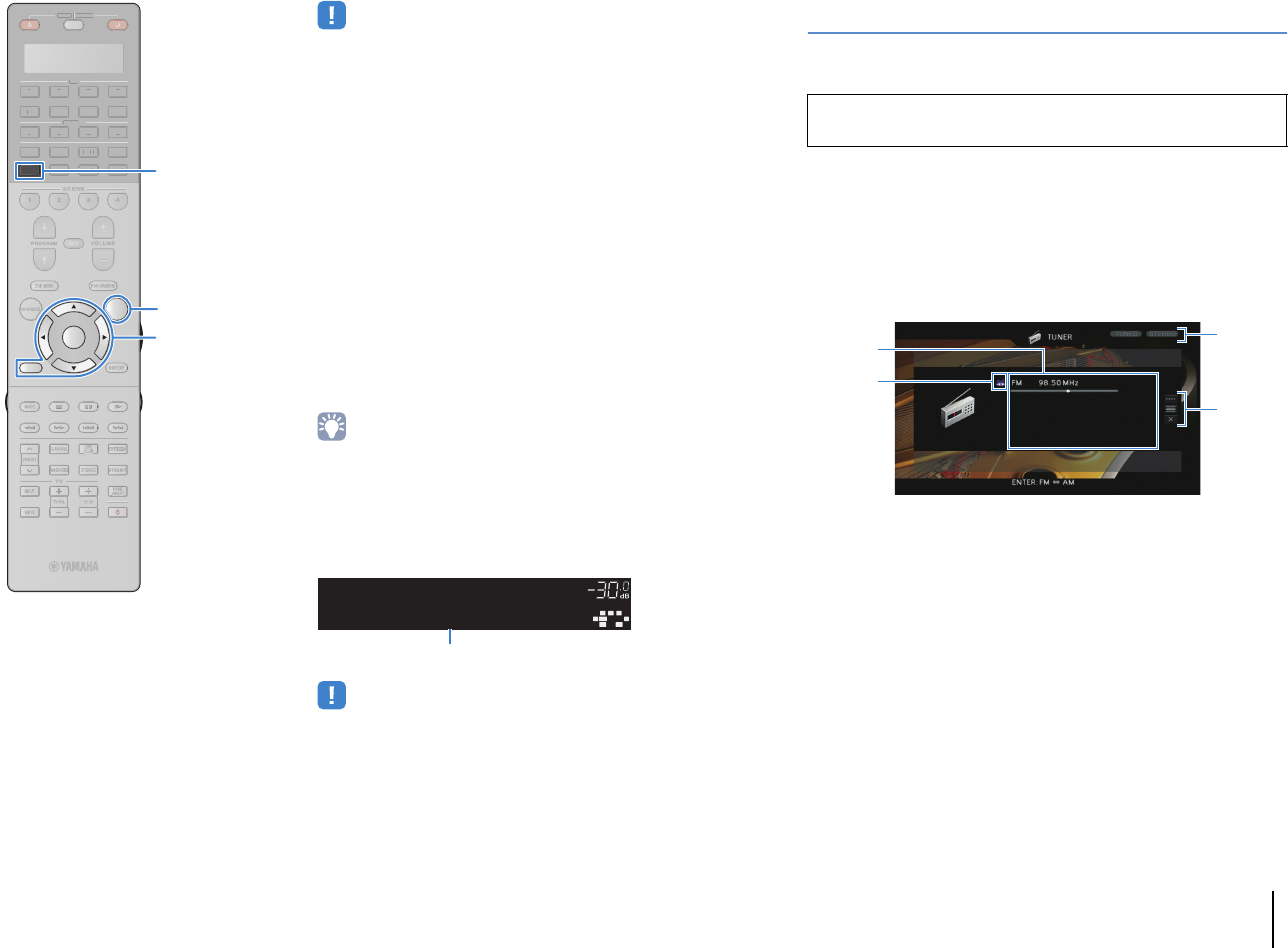
PLAYBACK ➤Listening to FM/AM radio En 74
• “Program Service”, “Program Type”, “Radio Text”, and “Clock Time” are not
displayed if the radio station does not provide the Radio Data System
service.
■Receiving traffic information
automatically
When “TUNER” is selected as the input source, the unit
automatically receives traffic information. To enable this function,
follow the procedure below to set the traffic information station.
1When “TUNER” is selected as the input source,
press OPTION.
2Use the cursor keys to select “Traffic Program”
(TrafficProgram) and press ENTER.
The traffic information station search will start in 5 seconds.
Press ENTER again to start the search immediately.
• To search upward/downward from the current frequency, press the cursor
keys (q/w) while “READY” is displayed.
• To cancel the search, press RETURN.
• Texts in parentheses denote indicators on the front display.
The following screen appears for about 3 seconds when the
search finishes.
• “TP Not Found” appears for about 3 seconds when no traffic information
stations are found.
Operating the radio on the TV
You can view the radio information or select a radio station on the
TV.
1Press TUNER to select “TUNER” as the input
source.
The playback screen is displayed on the TV.
■Playback screen
1Radio station information
Displays the information of the selected radio station such as the selected
band (FM/AM) and frequency.
(U.K. and Europe models only)
When tuning into a Radio Data System broadcasting station (p.73), the
Radio Data System information (“Program Service”, “Program Type,”
“Radio Text” and “Clock Time”) is also displayed.
2Band icon
(Except for U.K. and Europe models)
Select this icon and press ENTER to switch between FM and AM.
3TUNED/STEREO indicators
“TUNED” lights up when a signal is received from a radio station.
“STEREO” lights up when a stereo signal is received.
4Operation menu
Press the cursor key (r) and then use the cursor keys (q/w) to select an
item. Press ENTER to confirm the selection.
To close the submenu, press RETURN.
OUT
1
IN
OUT
2
VOLUME
MUTE
DRCADAPTIVE
3
ZONE
2
SBLPL SBRSBPR
SW1
SL
SW2SW
SR
PL
CL R
PR
STEREO
SLEEP
HD
TUNED
PRE
AMP
PAR TY
ZONE
3
ZONE
4
HD
TAG
DOCK
TPFM101.30MHz
TrafficProgram
Finished
Traffic information station (frequency)
• (U.S.A. model only)
See “Operating HD Radio™ on the TV” (p.72) to operate the radio on the TV.
2
13
4
SOURCE RECEIVER
AV
AUDIO
1 2 3 4
5 6 7
V-AUX
1 2 3 4
MULTI
PHONO
USB NET
TUNER
[ C ][ A ] [ B ]
CLASSICAL
LIVE
CLUB
ENTERTAIN
MOVIE
STEREO STRAIGHT
INPUTPURE
DIRECT
MUTE
TV
SCENE
1 2 3 4
PROGRAM
VOLUME
TV VOL
MUTE
MODE
TOP MENU
RETURN DISPLAY
POP-UP/MENU
TV CH
PRESET
ENTER
ON SCREEN
OPTION
SOU
R
CE
RE
C
EIVE
R
A
V
A
U
DI
O
1
2
3
4
5
6
7
V-
AUX
1
2
3
4
MUL
T
I
L
L
PH
O
N
O
US
B NE
T
[
C
]
[
A
]
[
B
]
OPTIONOPTION
ENTER
RETURN
TUNERTUNER
Cursor keys
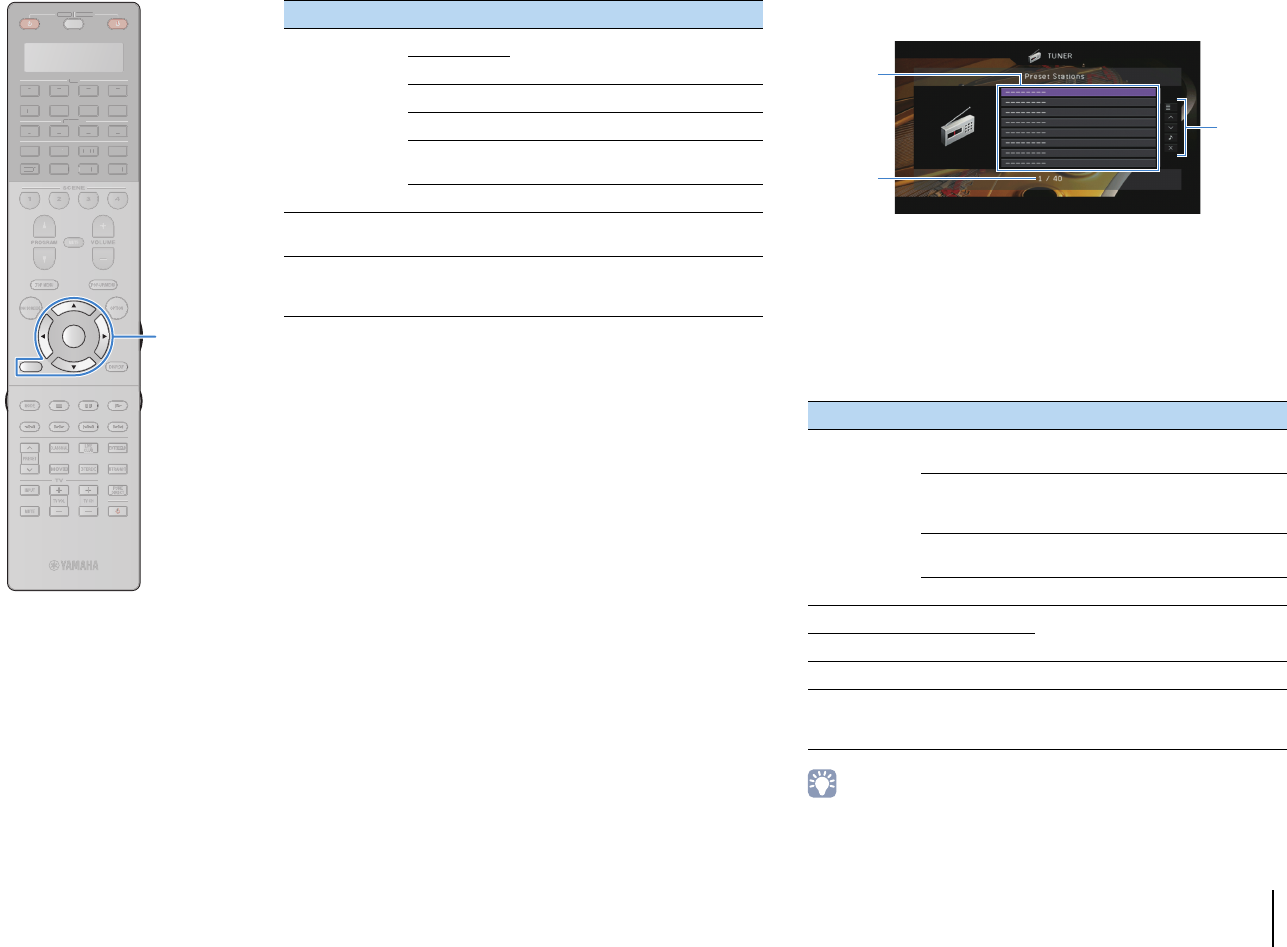
PLAYBACK ➤Listening to FM/AM radio En 75
■Browse screen
1Preset station list
Displays the list of preset stations. Use the cursor keys (q/w) to select a
preset station and press ENTER to tune into it.
2Preset number
3Operation menu
Press the cursor key (r) and then use the cursor keys (q/w) to select an
item. Press ENTER to confirm the selection.
To close the submenu, press RETURN.
• (U.K. and Europe models only)
Only Radio Data System broadcasting stations are stored automatically by “Auto
Preset”.
Menu Submenu Function
Manual Tuning
FM (U.K. and Europe models only)
Switches to FM/AM.
AM
Tuning (+/-) Selects a frequency.
Auto (+/-) Selects a radio station automatically.
Memory Registers the selected station as
presets.
Direct Enters a frequency directly.
Browse Moves to the browse screen (preset
station list).
Screen Off
Closes the screen display and shows
the background. Press one of the
menu operation keys to redisplay it.
Menu Submenu Function
Utility
Memory Registers the current station to the
preset number selected in the list.
Auto Preset
Automatically registers FM radio
stations with strong signals (up to 40
stations).
Clear Preset Clear the preset station selected in the
list.
Clear All Preset Clear all the preset stations.
1 Page Up Moves to the previous/next page of the
list.
1 Page Down
Now Playing Moves to the playback screen.
Screen Off
Closes the screen display and shows
the background. Press one of the
menu operation keys to redisplay it.
3
2
1
SOURCE RECEIVER
AV
AUDIO
1 2 3 4
5 6 7
V-AUX
1 2 3 4
MULTI
PHONO
USB NET
TUNER
[ C ][ A ] [ B ]
CLASSICAL
LIVE
CLUB
ENTERTAIN
MOVIE
STEREO STRAIGHT
INPUTPURE
DIRECT
MUTE
TV
SCENE
1 2 3 4
PROGRAM
VOLUME
TV VOL
MUTE
MODE
TOP MENU
RETURN DISPLAY
POP-UP/MENU
TV CH
PRESET
ENTER
ON SCREEN
OPTION
SOU
R
CE
RECEIVE
R
A
V
A
U
DI
O
1
2
3
4
5
6
7
V-
AUX
1
2
3
4
MUL
T
I
L
L
PH
O
N
O
US
B NE
T
TUNE
R
[
C
]
[
A
]
[
B
]
ENTER
RETURN
Menu operation keys
Cursor keys
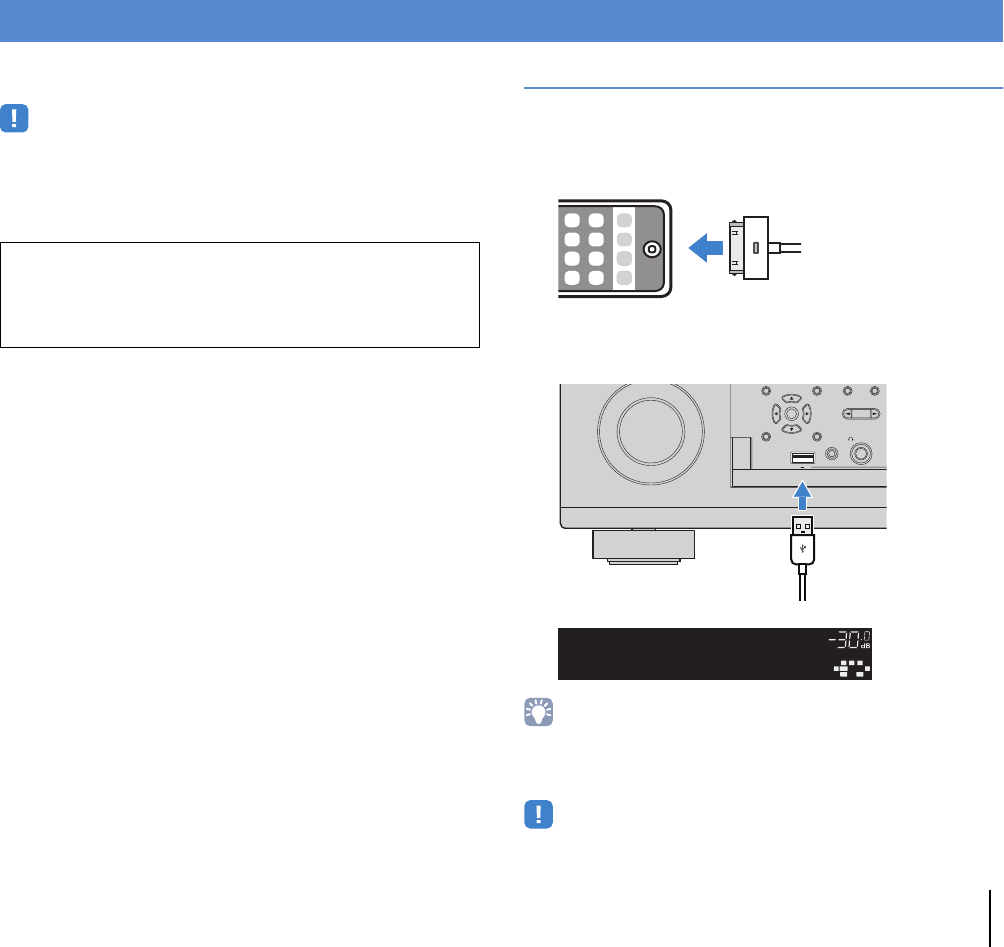
PLAYBACK ➤Playing back iPod music En 76
You can play back iPod music on the unit using a USB cable
supplied with the iPod.
• An iPod may not be detected by the unit or some features may not be compatible,
depending on the model or software version of the iPod.
• To play back iPod videos on the unit, an Apple Composite AV Cable (not supplied)
is required. Connect the USB and composite video plugs of the Apple Composite
AV cable to the USB jack and VIDEO AUX (VIDEO) jack on the front panel. To
select a video, operate the iPod itself in the simple play mode (p.78).
Connecting an iPod
Connect your iPod to the unit with the USB cable supplied with the
iPod.
1Connect the USB cable to the iPod.
2Connect the USB cable to the USB jack.
• The iPod charges while it is connected to the unit. If you set the unit to standby
mode while the iPod is charging, the iPod continues to charge up to 4 hours. If
“Network Standby” (p.124) in the “Setup” menu is set to “On”, it continues to
charge without limit.
• Disconnect the iPod from the USB jack when it is not in use.
Playing back iPod music
Supported iPod (as of April 2012)
• iPod touch, iPod nano (2nd gen. to 6th gen.)
• iPhone 4S, iPhone 4, iPhone 3GS, iPhone 3G, iPhone
• iPad2, iPad
ENTER
DISPLAYRETURN
USB
YPAO MIC
PHONES
PROGRAM
SILEN
T
5V 2.1A
The unit (front)
OUT
1
IN
OUT
2
VOL UME
MUTE
DRCADAPTIVE
3
ZONE
2
SBLPL SBRSB PR
SW1
SL
SW2SW
SR
PL
CL R
PR
SLEEP
HD
PRE
AMP
PAR T Y
ZONE
3
ZONE
4
HD
TAG
DOCK
Connected
USB
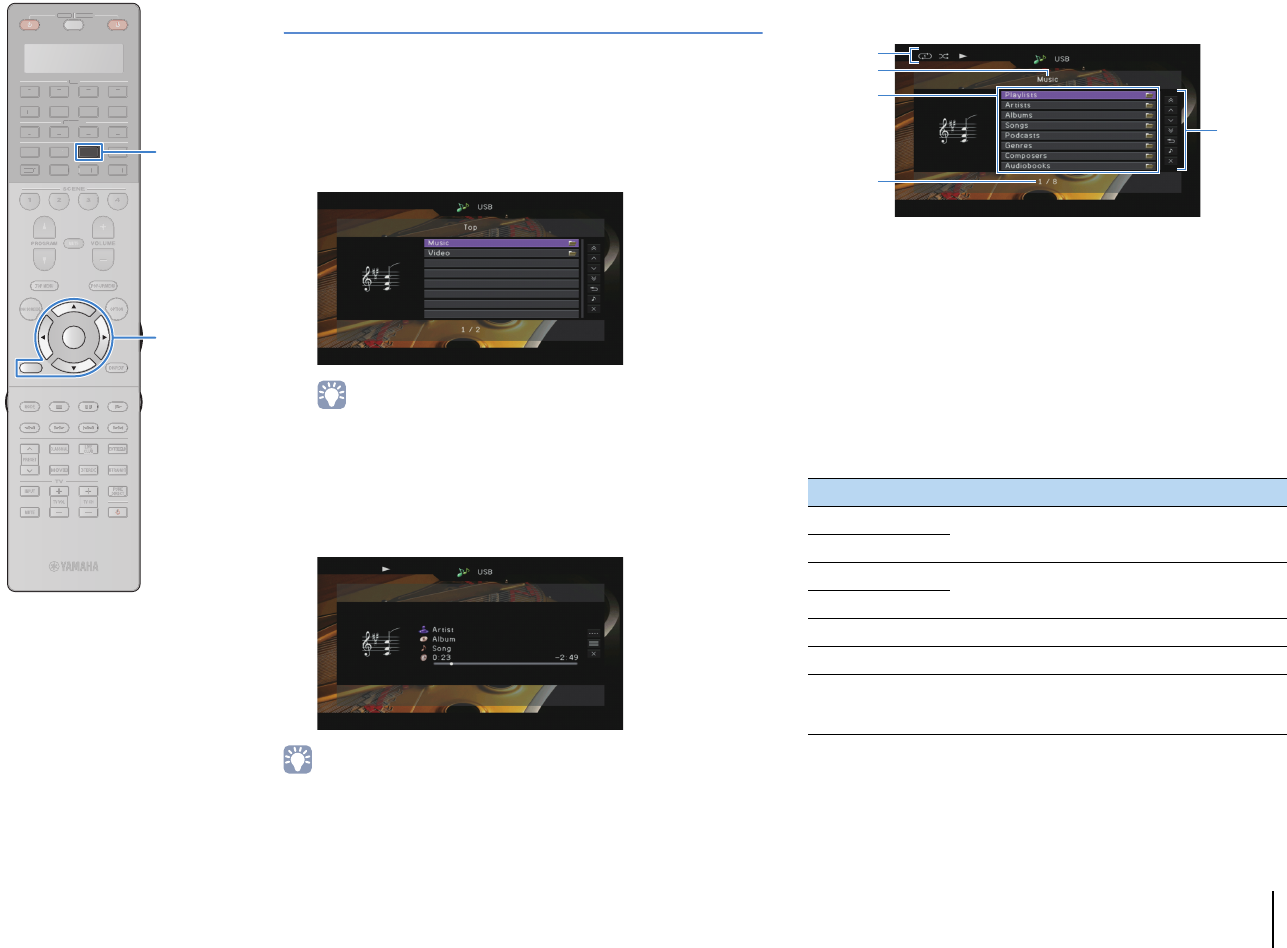
PLAYBACK ➤Playing back iPod music En 77
Playback of iPod content
Follow the procedure below to operate the iPod contents and start
playback.
You can control the iPod with the menu displayed on the TV screen.
1Press USB to select “USB” as the input source.
The browse screen is displayed on the TV.
• If playback is ongoing on your iPod, the playback screen is displayed.
2Use the cursor keys to select an item and press
ENTER.
If a song is selected, playback starts and the playback
screen is displayed.
• To return to the previous screen, press RETURN.
• To operate the iPod manually to select content or control playback, switch to the
simple play mode (p.78).
■Browse screen
1Status indicators
Display the current repeat/shuffle settings (p.79) and playback status
(such as play/pause).
2List name
3Contents list
Displays the list of iPod content. Use the cursor keys (q/w) to select an
item and press ENTER to confirm the selection.
4Item number/total
5Operation menu
Press the cursor key (r) and then use the cursor keys (q/w) to select an
item. Press ENTER to confirm the selection.
Menu Function
1 Page Up
Moves to the previous/next page of the list.
1 Page Down
10 Pages Up
Moves 10 pages forward/backward.
10 Pages Down
Return Returns to the higher-level list.
Now Playing Moves to the playback screen.
Screen Off
Closes the screen display and shows the
background. Press one of the menu operation keys
to redisplay it.
1
5
3
2
4
SOURCE RECEIVER
AV
AUDIO
1 2 3 4
5 6 7
V-AUX
1 2 3 4
MULTI
PHONO
USB NET
TUNER
[ C ][ A ] [ B ]
CLASSICAL
LIVE
CLUB
ENTERTAIN
MOVIE
STEREO STRAIGHT
INPUTPURE
DIRECT
MUTE
TV
SCENE
1 2 3 4
PROGRAM
VOLUME
TV VOL
MUTE
MODE
TOP MENU
RETURN DISPLAY
POP-UP/MENU
TV CH
PRESET
ENTER
ON SCREEN
OPTION
SOU
R
CE
RECEIVE
R
A
V
A
U
DI
O
1
2
3
4
5
6
7
V-
AUX
1
2
3
4
MUL
T
I
L
L
PH
O
N
O
NE
T
TUNE
R
[
C
]
[
A
]
[
B
]
ENTER
RETURN
USBUSB
Menu operation keys
Cursor keys
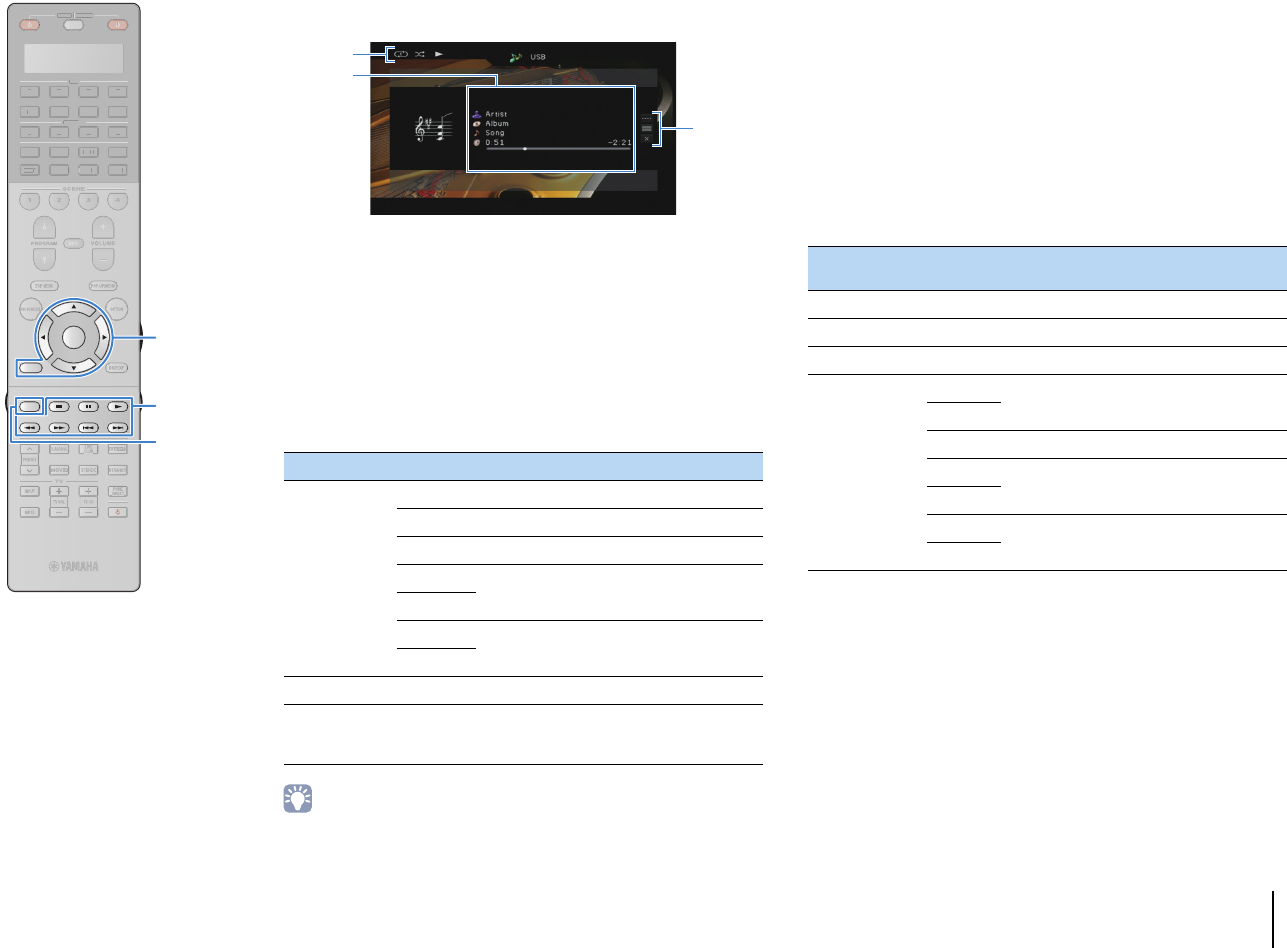
PLAYBACK ➤Playing back iPod music En 78
■Playback screen
1Status indicators
Display the current repeat/shuffle settings (p.79) and playback status
(such as play/pause).
2Playback information
Displays the artist name, album name, song title, and elapsed/remaining
time.
Use the cursor keys (q/w) to select scrollable information.
3Operation menu
Press the cursor key (r) and then use the cursor keys (q/w) to select an
item. Press ENTER to confirm the selection.
To close the submenu, press RETURN.
• You can also use the external device operation keys on the remote control to
control playback.
■Operating the iPod itself or remote control
(simple play)
1Press MODE to switch to the simple play mode.
The TV menu screen turns off and iPod operations are
enabled.
To display the TV menu screen, press MODE again.
2Operate your iPod itself or the remote control to
start playback.
Menu Submenu Function
Play Control
aResumes playback from pause.
sStops playback.
dStops playback temporarily.
f
Skips forward/backward.
g
hSearches forward/backward (by holding
down).
j
Browse Moves to the browse screen.
Screen Off
Closes the screen display and shows the
background. Press one of the menu
operation keys to redisplay it.
1
3
2
Operational remote control
keys Function
Cursor keys Select an item.
ENTER Confirms the selection.
RETURN Returns to the previous screen.
External device
operation keys
aStarts playback or stops playback
temporarily.
d
sStops playback.
f
Skips forward/backward.
g
hSearches forward/backward (by holding
down).
j
SOURCE RECEIVER
AV
AUDIO
1 2 3 4
5 6 7
V-AUX
1 2 3 4
MULTI
PHONO
USB NET
TUNER
[ C ][ A ] [ B ]
CLASSICAL
LIVE
CLUB
ENTERTAIN
MOVIE
STEREO STRAIGHT
INPUTPURE
DIRECT
MUTE
TV
SCENE
1 2 3 4
PROGRAM
VOLUME
TV VOL
MUTE
MODE
TOP MENU
RETURN DISPLAY
POP-UP/MENU
TV CH
PRESET
ENTER
ON SCREEN
OPTION
SOU
R
CE
RECEIVE
R
A
V
A
U
DI
O
1
2
3
4
5
6
7
V-
AUX
1
2
3
4
MUL
T
I
L
L
PH
O
N
O
US
B NE
T
TUNE
R
[
C
]
[
A
]
[
B
]
MODEMODE
ENTER
RETURN
Menu operation keys
Cursor keys
External device
operation keys
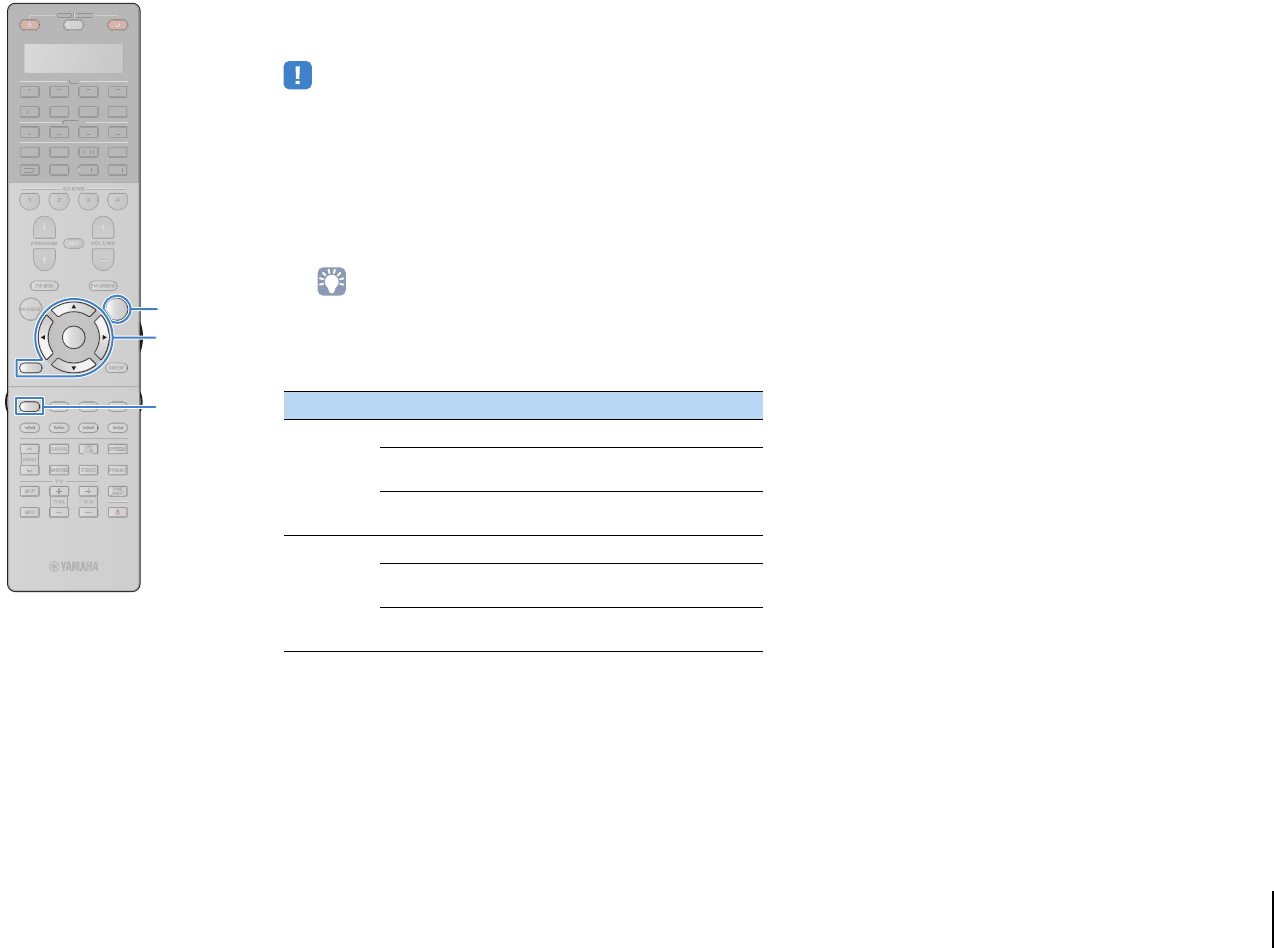
PLAYBACK ➤Playing back iPod music En 79
■Repeat/shuffle settings
You can configure the repeat/shuffle settings of your iPod.
• During simple play, configure the repeat/shuffle settings directly on your iPod or
press MODE to display the TV menu screen and then follow the procedure below.
1When “USB” is selected as the input source, press
OPTION.
2Use the cursor keys to select “Shuffle” (Shuffle) or
“Repeat” (Repeat) and press ENTER.
• To return to the previous screen during menu operations, press RETURN.
• Texts in parentheses denote indicators on the front display.
3Use the cursor keys (e/r) to select a setting.
4To exit from the menu, press OPTION.
Item Setting Function
Shuffle
(Shuffle)
Off (Off) Turns off the shuffle function.
Songs (Songs) Plays back songs in random order. “x”
appears in the TV screen.
Albums
(Albums)
Plays back albums in random order. “x”
appears in the TV screen.
Repeat
(Repeat)
Off (Off) Turns off the repeat function.
One (One) Plays back the current song repeatedly.
“c” appears in the TV screen.
All (All) Plays back all songs repeatedly. “v”
appears in the TV screen.
SOURCE RECEIVER
AV
AUDIO
1 2 3 4
5 6 7
V-AUX
1 2 3 4
MULTI
PHONO
USB NET
TUNER
[ C ][ A ] [ B ]
CLASSICAL
LIVE
CLUB
ENTERTAIN
MOVIE
STEREO STRAIGHT
INPUTPURE
DIRECT
MUTE
TV
SCENE
1 2 3 4
PROGRAM
VOLUME
TV VOL
MUTE
MODE
TOP MENU
RETURN DISPLAY
POP-UP/MENU
TV CH
PRESET
ENTER
ON SCREEN
OPTION
SOU
R
CE
RECEIVE
R
A
V
A
U
DI
O
1
2
3
4
5
6
7
V-
AUX
1
2
3
4
MUL
T
I
L
L
PH
O
N
O
US
B NE
T
TUNE
R
[
C
]
[
A
]
[
B
]
MODEMODE
OPTIONOPTION
ENTER
RETURN
Cursor keys
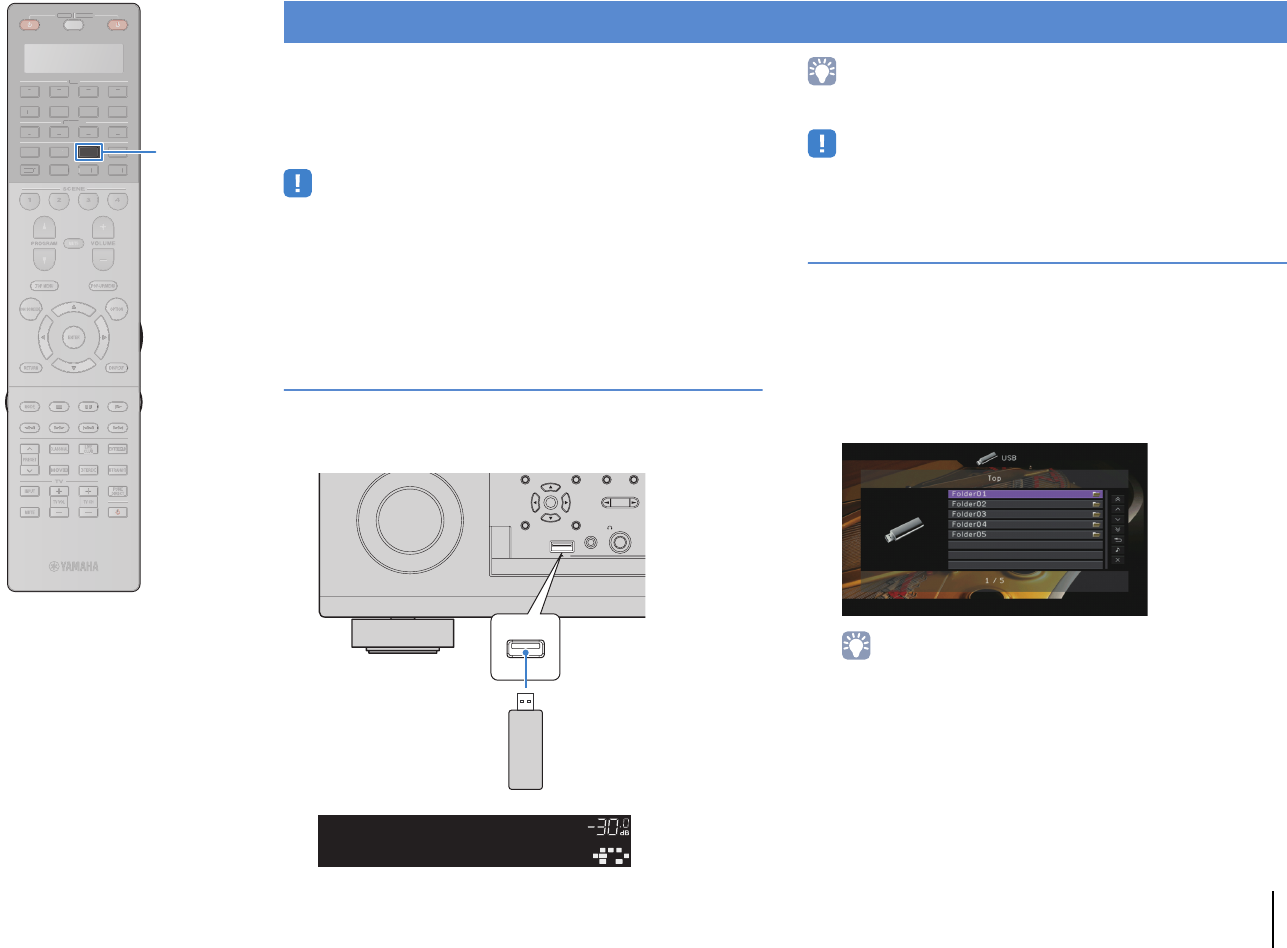
PLAYBACK ➤Playing back music stored on a USB storage device En 80
You can play back music files stored on a USB storage device on
the unit. Refer to the instruction manuals for the USB storage
device for more information.
The unit supports USB mass storage class devices (FAT16 or
FAT32 format).
• The unit supports WAV (PCM format only), MP3, WMA, MPEG-4 AAC and FLAC
files (1- or 2-channel audio only).
• The unit is compatible with sampling rate of up to 96 kHz for WAV and FLAC files,
and 48 kHz for other files.
• Some features may not be compatible, depending on the model or manufacturer
of the USB storage device.
• Digital Rights Management (DRM) contents cannot be played back.
Connecting a USB storage device
1Connect the USB storage device to the USB jack.
• If the USB storage device contains many files, it may take time to load the them. In
this case, “Loading...” appears in the front display.
• Stop playback of the USB storage device before disconnect it from the USB jack.
• Disconnect the USB storage device from the USB jack when it is not in use.
Playback of USB storage device contents
Follow the procedure below to operate the USB storage device
contents and start playback.
You can control the USB memory device with the menu displayed
on the TV screen.
1Press USB to select “USB” as the input source.
The browse screen is displayed on the TV.
• If playback is ongoing on your USB storage device, the playback screen is
displayed.
Playing back music stored on a USB storage device
ENTER
DISPLAYRETURN
USB
YPAO MIC
PHONES
PROGRAM
SILEN
T
5V 2.1A
USB
The unit (front)
USB storage device
OUT
1
IN
OUT
2
VOLUME
MUTE
DRCADAPTIVE
3
ZONE
2
SBLPL SBRSBPR
SW1
SL
SW2SW
SR
PL
CL R
PR
SLEEP
HD
PRE
AMP
PAR TY
ZONE
3
ZONE
4
HD
TAG
DOCK
Connected
USB
SOURCE RECEIVER
AV
AUDIO
1 2 3 4
5 6 7
V-AUX
1 2 3 4
MULTI
PHONO
USB NET
TUNER
[ C ][ A ] [ B ]
CLASSICAL
LIVE
CLUB
ENTERTAIN
MOVIE
STEREO STRAIGHT
INPUTPURE
DIRECT
MUTE
TV
SCENE
1 2 3 4
PROGRAM
VOLUME
TV VOL
MUTE
MODE
TOP MENU
RETURN DISPLAY
POP-UP/MENU
TV CH
PRESET
ENTER
ON SCREEN
OPTION
SOU
R
CE
RECEIVE
R
A
V
A
U
DI
O
1
2
3
4
5
6
7
V-
AUX
1
2
3
4
MUL
T
I
L
L
PH
O
N
O
NE
T
TUNE
R
[
C
]
[
A
]
[
B
]
USBUSB
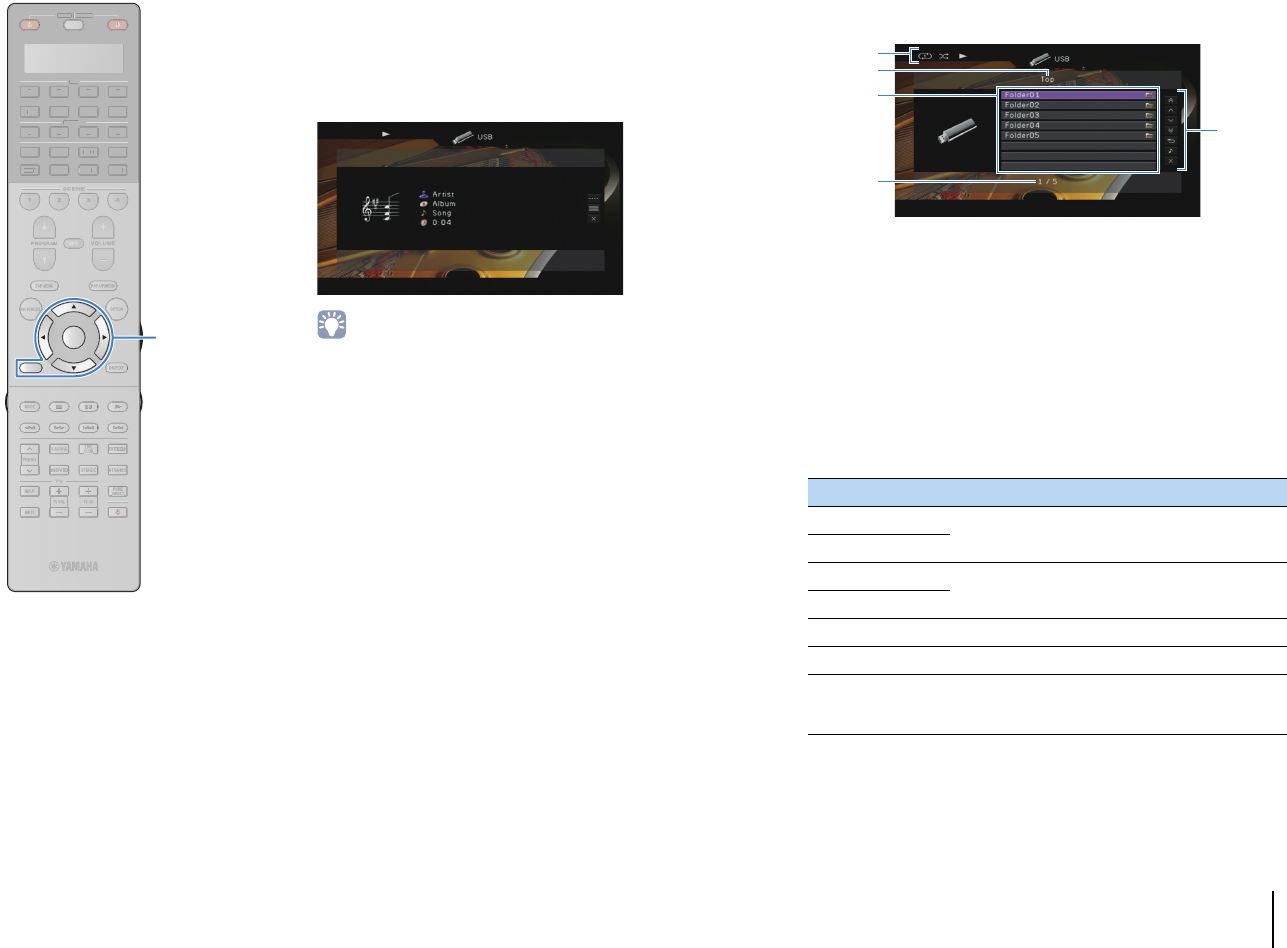
PLAYBACK ➤Playing back music stored on a USB storage device En 81
2Use the cursor keys to select an item and press
ENTER.
If a song is selected, playback starts and the playback
screen is displayed.
• To return to the previous screen, press RETURN.
• Files not supported by the unit cannot be selected.
• If the unit detects a series of unsupported files (such as images and hidden
files) during playback, playback stops automatically.
■Browse screen
1Status indicators
Display the current repeat/shuffle settings (p.82) and playback status
(such as play/pause).
2List name
3Contents list
Displays the list of USB storage device contents. Use the cursor keys
(q/w) to select an item and press ENTER to confirm the selection.
4Item number/total
5Operation menu
Press the cursor key (r) and then use the cursor keys (q/w) to select an
item. Press ENTER to confirm the selection.
Menu Function
1 Page Up
Moves to the previous/next page of the list.
1 Page Down
10 Pages Up
Moves 10 pages forward/backward.
10 Pages Down
Return Returns to the higher-level list.
Now Playing Moves to the playback screen.
Screen Off
Closes the screen display and shows the
background. Press one of the menu operation keys
to redisplay it.
1
5
3
2
4
SOURCE RECEIVER
AV
AUDIO
1 2 3 4
5 6 7
V-AUX
1 2 3 4
MULTI
PHONO
USB NET
TUNER
[ C ][ A ] [ B ]
CLASSICAL
LIVE
CLUB
ENTERTAIN
MOVIE
STEREO STRAIGHT
INPUTPURE
DIRECT
MUTE
TV
SCENE
1 2 3 4
PROGRAM
VOLUME
TV VOL
MUTE
MODE
TOP MENU
RETURN DISPLAY
POP-UP/MENU
TV CH
PRESET
ENTER
ON SCREEN
OPTION
SOU
R
CE
RECEIVE
R
A
V
A
U
DI
O
1
2
3
4
5
6
7
V-
AUX
1
2
3
4
MUL
T
I
L
L
PH
O
N
O
US
B NE
T
TUNE
R
[
C
]
[
A
]
[
B
]
ENTER
RETURN
Menu operation keys
Cursor keys
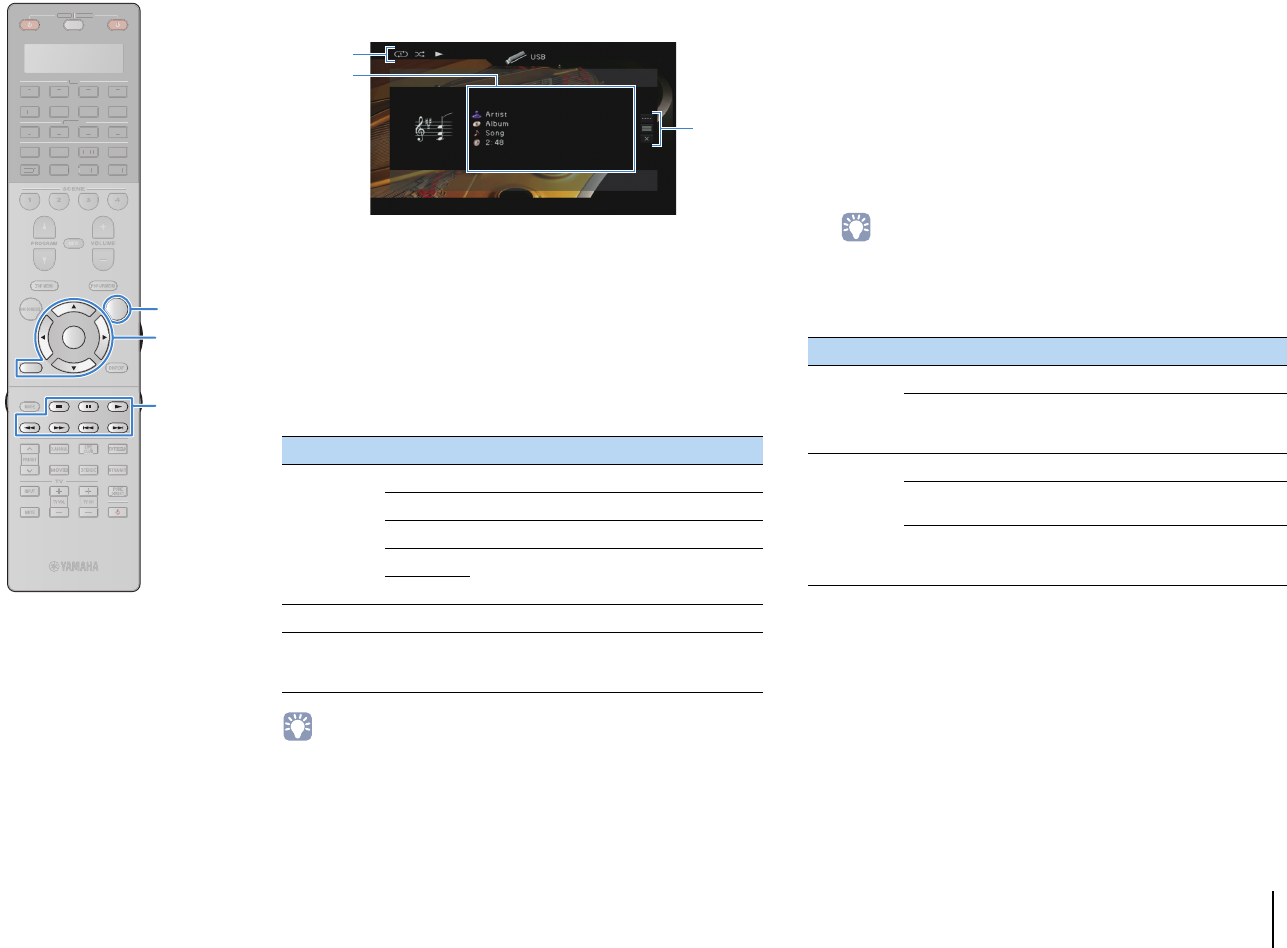
PLAYBACK ➤Playing back music stored on a USB storage device En 82
■Playback screen
1Status indicators
Display the current repeat/shuffle settings (p.82) and playback status
(such as play/pause).
2Playback information
Displays the artist name, album name, song title, and elapsed time.
Use the cursor keys (q/w) to select scrollable information.
3Operation menu
Press the cursor key (r) and then use the cursor keys (q/w) to select an
item. Press ENTER to confirm the selection.
To close the submenu, press RETURN.
• You can also use the external device operation keys (a, s, d, f, g) on
the remote control to control playback.
■Repeat/shuffle settings
You can configure the repeat/shuffle settings for playback of USB
storage device contents.
1When “USB” is selected as the input source, press
OPTION.
2Use the cursor keys to select “Shuffle” (Shuffle) or
“Repeat” (Repeat) and press ENTER.
• To return to the previous screen during menu operations, press RETURN.
• Texts in parentheses denote indicators on the front display.
3Use the cursor keys (e/r) to select a setting.
4To exit from the menu, press OPTION.
Menu Submenu Function
Play Control
aResumes playback from pause.
sStops playback.
dStops playback temporarily.
f
Skips forward/backward.
g
Browse Moves to the browse screen.
Screen Off
Closes the screen display and shows the
background. Press one of the menu
operation keys to redisplay it.
1
3
2
Item Setting Function
Shuffle
(Shuffle)
Off (Off) Turns off the shuffle function.
On (On)
Plays back songs in the current album
(folder) in random order. “x” appears on
the TV screen.
Repeat
(Repeat)
Off (Off) Turns off the repeat function.
One (One) Plays back the current song repeatedly.
“c” appears on the TV screen.
All (All)
Plays back all songs in the current album
(folder) repeatedly. “v” appears on the
TV screen.
SOURCE RECEIVER
AV
AUDIO
1 2 3 4
5 6 7
V-AUX
1 2 3 4
MULTI
PHONO
USB NET
TUNER
[ C ][ A ] [ B ]
CLASSICAL
LIVE
CLUB
ENTERTAIN
MOVIE
STEREO STRAIGHT
INPUTPURE
DIRECT
MUTE
TV
SCENE
1 2 3 4
PROGRAM
VOLUME
TV VOL
MUTE
MODE
TOP MENU
RETURN DISPLAY
POP-UP/MENU
TV CH
PRESET
ENTER
ON SCREEN
OPTION
SOU
R
CE
RECEIVE
R
A
V
A
U
DI
O
1
2
3
4
5
6
7
V-
AUX
1
2
3
4
MUL
T
I
L
L
PH
O
N
O
US
B NE
T
TUNE
R
[
C
]
[
A
]
[
B
]
OPTIONOPTION
ENTER
RETURN
Menu operation keys
Cursor keys
External device
operation keys
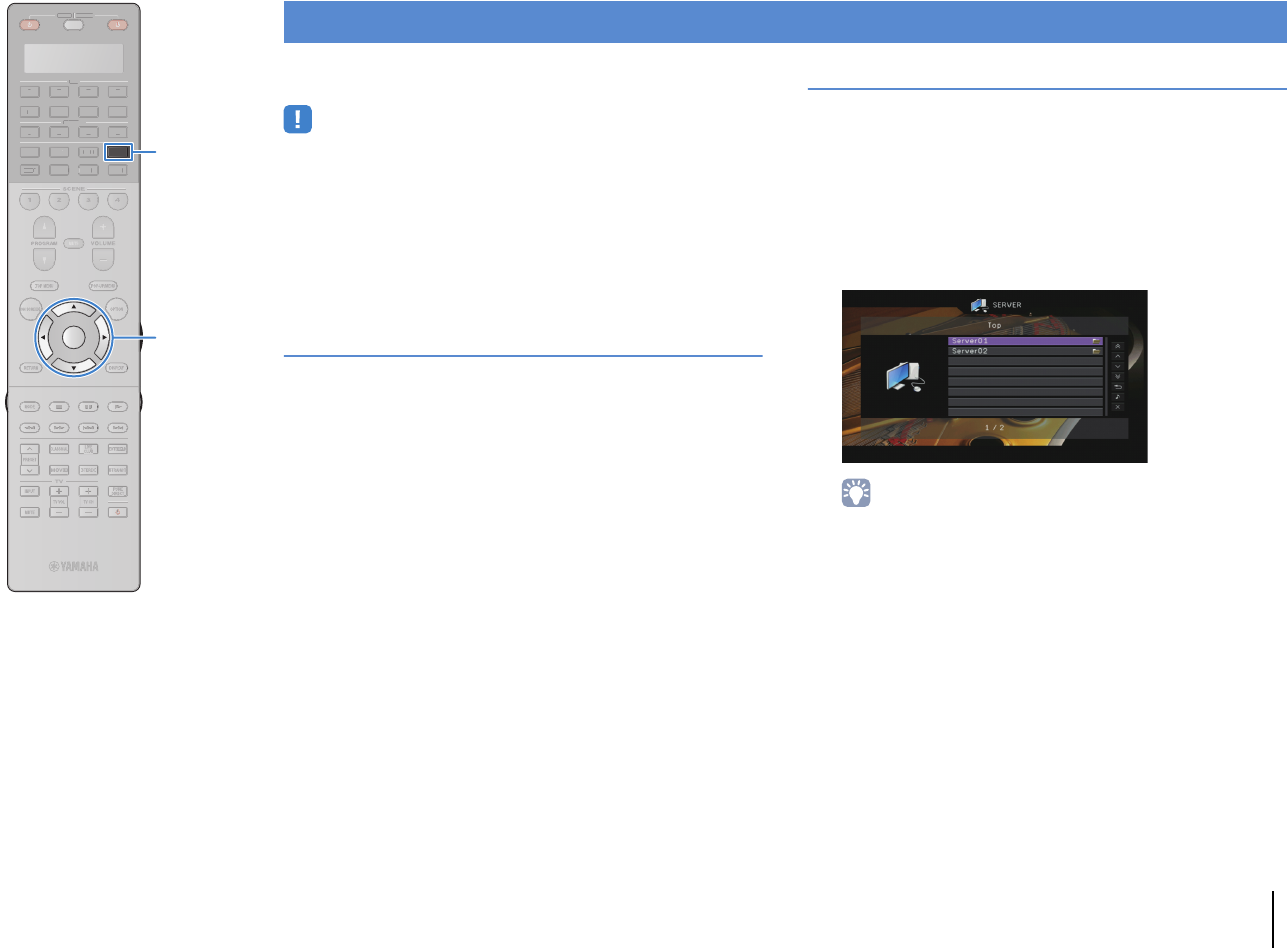
PLAYBACK ➤Playing back music stored on media servers (PCs/NAS) En 83
You can play back music files stored on your PC or
DLNA-compatible NAS on the unit.
• To use this function, the unit and your PC must be connected to the same router
(p.45). You can check whether the network parameters (such as the IP address)
are properly assigned to the unit in “Network” (p.132) in the “Information” menu.
• The unit supports playback of WAV (PCM format only), MP3, WMA, MPEG-4 AAC
and FLAC files (1- or 2-channel audio only).
• The unit is compatible with sampling rates of up to 96 kHz for WAV and FLAC files,
and 48 kHz for other files.
• To play back FLAC files, you need to install server software that supports sharing
of FLAC files via DLNA on your PC or use a NAS that supports FLAC files.
Media sharing setup
To play back music files stored on your PC or DLNA-compatible
NAS, first you need to configure the media sharing setting on each
music server.
■For a PC with Windows Media Player
installed
1Check that Windows Media Player 11 or later is
installed on your PC.
2In the media sharing settings, enable media sharing
and allow media to be shared with the device.
■For a PC or a NAS with other DLNA server
software installed
Refer to the instruction manual for the device or software and
configure the media sharing settings.
Playback of PC music contents
Follow the procedure below to operate the PC music contents and
start playback.
You can control the PC/NAS with the menu displayed on the TV
screen.
1Press NET repeatedly to select “SERVER” as the
input source.
The browse screen is displayed on the TV.
• If playback of a music file selected from the unit is ongoing on your PC, the
playback screen is displayed.
2Use the cursor keys to select a music server and
press ENTER.
Playing back music stored on media servers (PCs/NAS)
SOURCE RECEIVER
AV
AUDIO
1 2 3 4
5 6 7
V-AUX
1 2 3 4
MULTI
PHONO
USB NET
TUNER
[ C ][ A ] [ B ]
CLASSICAL
LIVE
CLUB
ENTERTAIN
MOVIE
STEREO STRAIGHT
INPUTPURE
DIRECT
MUTE
TV
SCENE
1 2 3 4
PROGRAM
VOLUME
TV VOL
MUTE
MODE
TOP MENU
RETURN DISPLAY
POP-UP/MENU
TV CH
PRESET
ENTER
ON SCREEN
OPTION
SOU
R
CE
RECEIVE
R
A
V
A
U
DI
O
1
2
3
4
5
6
7
V-
AUX
1
2
3
4
MUL
T
I
L
L
PH
O
N
O
US
B
TUNE
R
[
C
]
[
A
]
[
B
]
ENTER
NETNET
Cursor keys
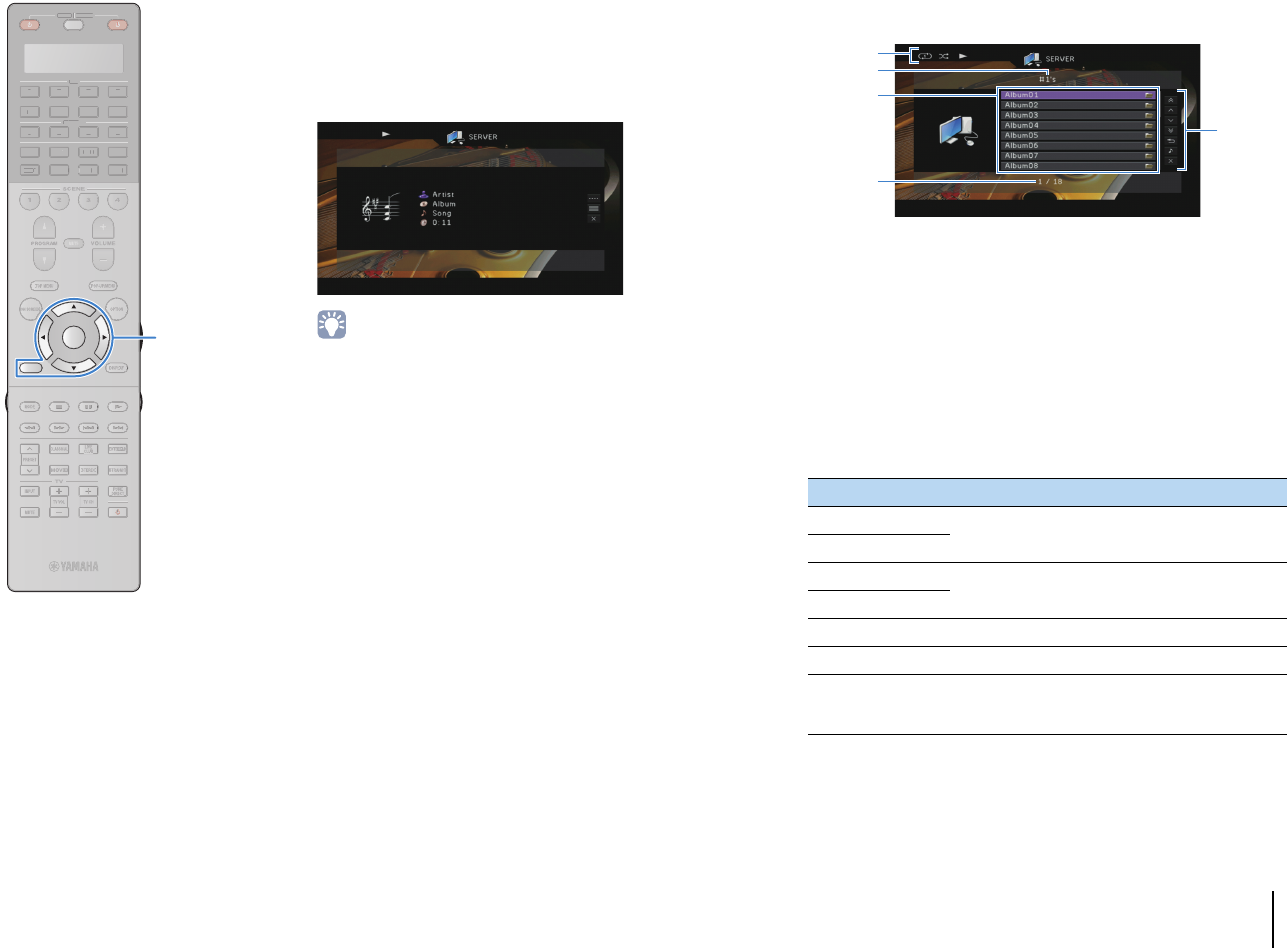
PLAYBACK ➤Playing back music stored on media servers (PCs/NAS) En 84
3Use the cursor keys to select an item and press
ENTER.
If a song is selected, playback starts and the playback
screen is displayed.
• To return to the previous screen, press RETURN.
• Files not supported by the unit cannot be selected.
• If the unit detects a series of unsupported files (such as images and hidden
files) during playback, playback stops automatically.
■Browse screen
1Status indicators
Display the current repeat/shuffle settings (p.85) and playback status
(such as play/pause).
2List name
3Contents list
Displays the list of PC content. Use the cursor keys (q/w) to select an
item and press ENTER to confirm the selection.
4Item number/total
5Operation menu
Press the cursor key (r) and then use the cursor keys (q/w) to select an
item. Press ENTER to confirm the selection.
Menu Function
1 Page Up
Moves to the previous/next page of the list.
1 Page Down
10 Pages Up
Moves 10 pages forward/backward.
10 Pages Down
Return Returns to the higher-level list.
Now Playing Moves to the playback screen.
Screen Off
Closes the screen display and shows the
background. Press one of the menu operation keys
to redisplay it.
1
5
3
2
4
SOURCE RECEIVER
AV
AUDIO
1 2 3 4
5 6 7
V-AUX
1 2 3 4
MULTI
PHONO
USB NET
TUNER
[ C ][ A ] [ B ]
CLASSICAL
LIVE
CLUB
ENTERTAIN
MOVIE
STEREO STRAIGHT
INPUTPURE
DIRECT
MUTE
TV
SCENE
1 2 3 4
PROGRAM
VOLUME
TV VOL
MUTE
MODE
TOP MENU
RETURN DISPLAY
POP-UP/MENU
TV CH
PRESET
ENTER
ON SCREEN
OPTION
SOU
R
CE
RECEIVE
R
A
V
A
U
DI
O
1
2
3
4
5
6
7
V-
AUX
1
2
3
4
MUL
T
I
L
L
PH
O
N
O
US
B NE
T
TUNE
R
[
C
]
[
A
]
[
B
]
ENTER
RETURN
Menu operation keys
Cursor keys
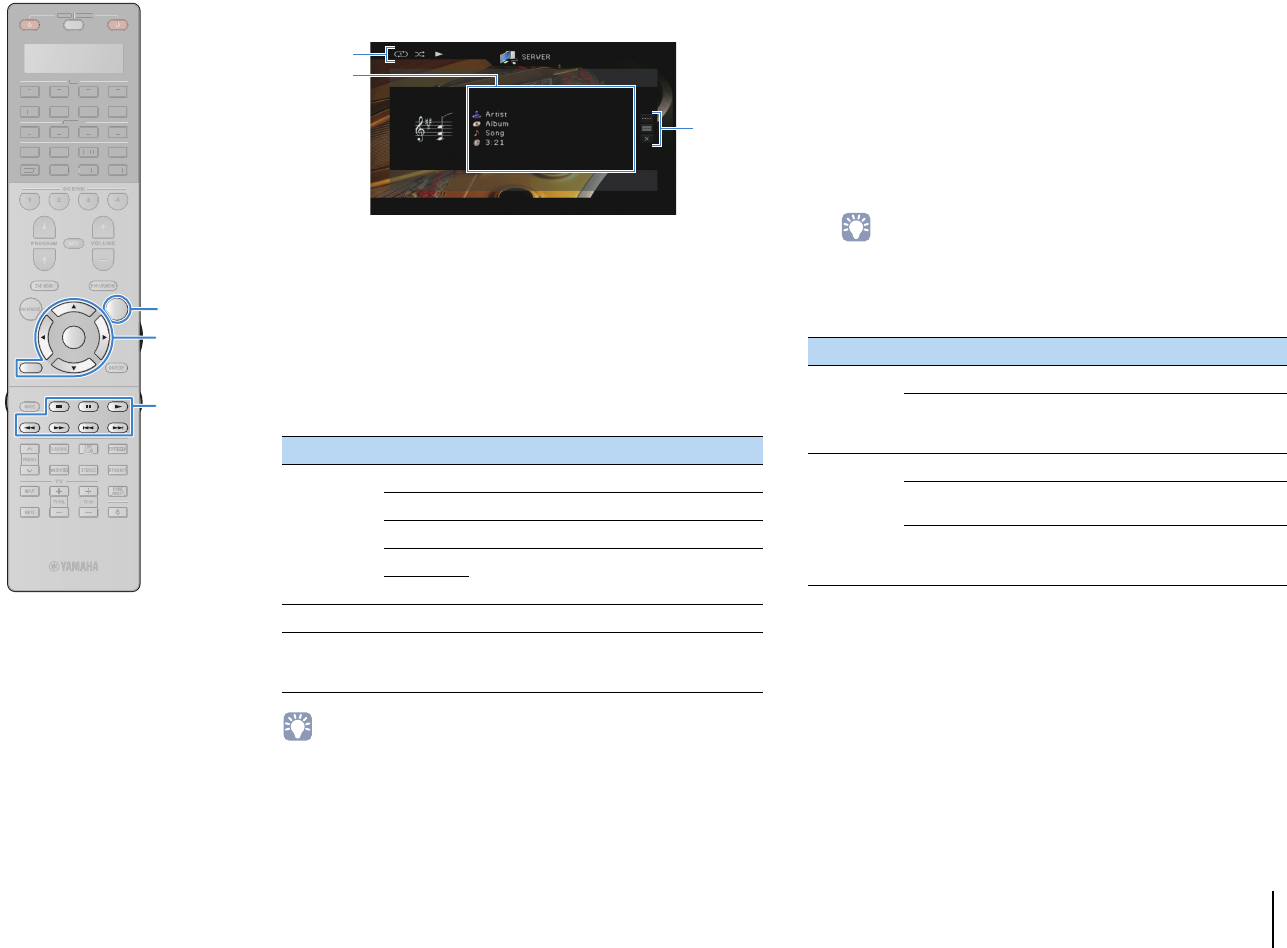
PLAYBACK ➤Playing back music stored on media servers (PCs/NAS) En 85
■Playback screen
1Status indicators
Display the current repeat/shuffle settings (p.85) and playback status
(such as play/pause).
2Playback information
Displays the artist name, album name, song title, and elapsed time.
Use the cursor keys (q/w) to select scrollable information.
3Operation menu
Press the cursor key (r) and then use the cursor keys (q/w) to select an
item. Press ENTER to confirm the selection.
To close the submenu, press RETURN.
• You can also use the external device operation keys (a, s, d, f, g) on
the remote control to control playback.
• You can also use a DLNA-compatible Digital Media Controller (DMC) to control
playback. For details, see “DMC Control” (p.105).
■Repeat/shuffle settings
You can configure the repeat/shuffle settings for the playback of PC
music content.
1When “SERVER” is selected as the input source,
press OPTION.
2Use the cursor keys to select “Shuffle” (Shuffle) or
“Repeat” (Repeat) and press ENTER.
• To return to the previous screen during menu operations, press RETURN.
• Text in parentheses denotes indicators on the front display.
3Use the cursor keys (e/r) to select a setting.
4To exit from the menu, press OPTION.
Menu Submenu Function
Play Control
aResumes playback from pause.
sStops playback.
dStops playback temporarily.
f
Skips forward/backward.
g
Browse Moves to the browse screen.
Screen Off
Closes the screen display and shows the
background. Press one of the menu operation
keys to redisplay it.
1
3
2
Item Setting Function
Shuffle
(Shuffle)
Off (Off) Turns off the shuffle function.
On (On)
Plays back songs in the current album
(folder) in random order. “x” appears on
the TV screen.
Repeat
(Repeat)
Off (Off) Turns off the repeat function.
One (One) Plays back the current song repeatedly.
“c” appears on the TV screen.
All (All)
Plays back all songs in the current album
(folder) repeatedly. “v” appears on the
TV screen.
SOURCE RECEIVER
AV
AUDIO
1 2 3 4
5 6 7
V-AUX
1 2 3 4
MULTI
PHONO
USB NET
TUNER
[ C ][ A ] [ B ]
CLASSICAL
LIVE
CLUB
ENTERTAIN
MOVIE
STEREO STRAIGHT
INPUTPURE
DIRECT
MUTE
TV
SCENE
1 2 3 4
PROGRAM
VOLUME
TV VOL
MUTE
MODE
TOP MENU
RETURN DISPLAY
POP-UP/MENU
TV CH
PRESET
ENTER
ON SCREEN
OPTION
SOU
R
CE
RECEIVE
R
A
V
A
U
DI
O
1
2
3
4
5
6
7
V-
AUX
1
2
3
4
MUL
T
I
L
L
PH
O
N
O
US
B NE
T
TUNE
R
[
C
]
[
A
]
[
B
]
OPTIONOPTION
ENTER
RETURN
Menu operation keys
Cursor keys
External device
operation keys
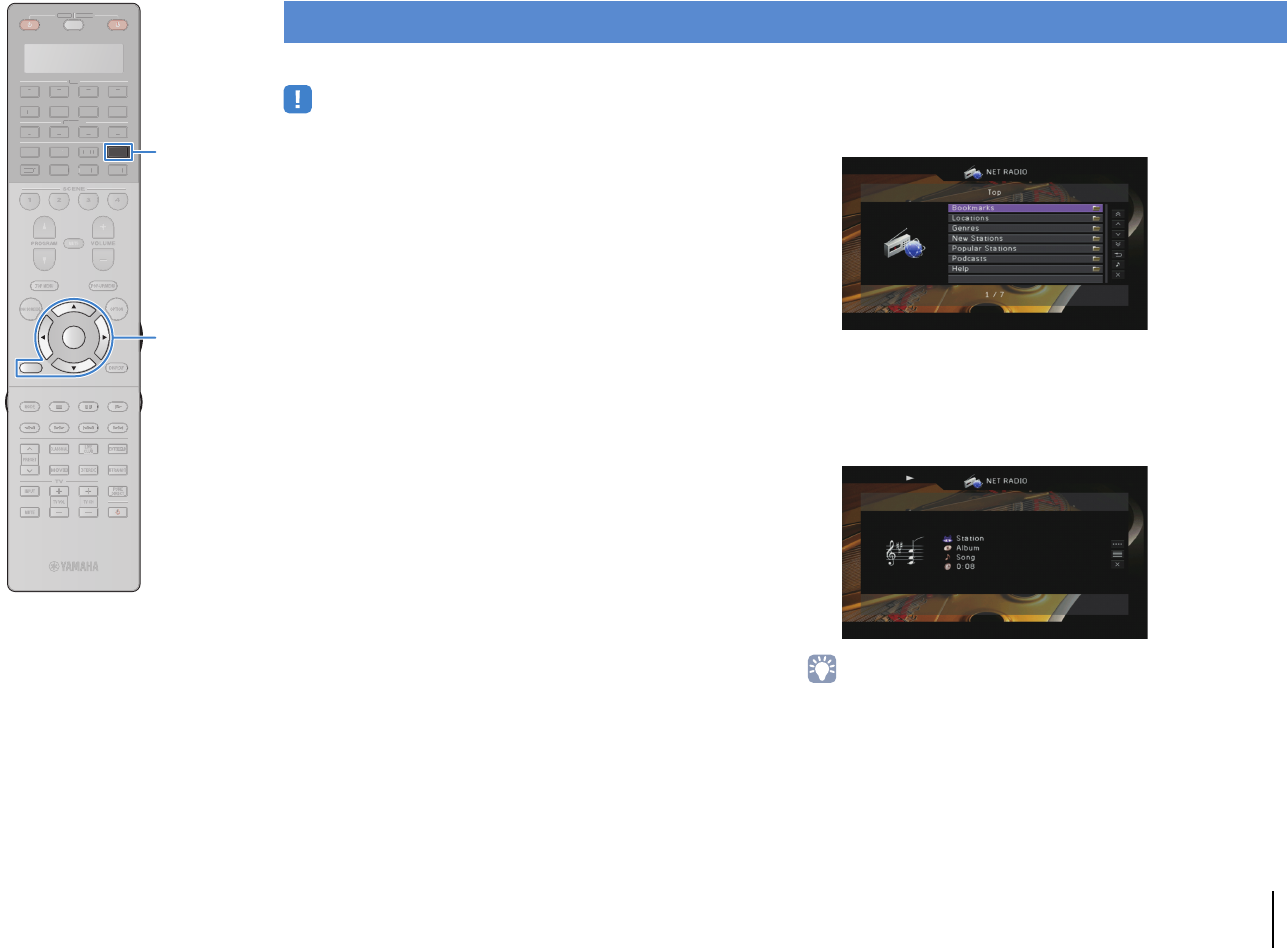
PLAYBACK ➤Listening to Internet radio En 86
You can listen to Internet radio stations from all over the world.
• To use this function, the unit must be connected to the Internet (p.45). You can
check whether the network parameters (such as the IP address) are properly
assigned to the unit in “Network” (p.132) in the “Information” menu.
• This service may be discontinued without notice.
• You may not be able to receive some Internet radio stations.
• The unit uses the vTuner Internet radio station database service.
1Press NET repeatedly to select “NET RADIO” as the
input source.
The browse screen is displayed on the TV.
2Use the cursor keys to select an item and press
ENTER.
If an Internet radio station is selected, playback starts and
the playback screen is displayed.
• To return to the previous screen, press RETURN.
Listening to Internet radio
SOURCE RECEIVER
AV
AUDIO
1 2 3 4
5 6 7
V-AUX
1 2 3 4
MULTI
PHONO
USB NET
TUNER
[ C ][ A ] [ B ]
CLASSICAL
LIVE
CLUB
ENTERTAIN
MOVIE
STEREO STRAIGHT
INPUTPURE
DIRECT
MUTE
TV
SCENE
1 2 3 4
PROGRAM
VOLUME
TV VOL
MUTE
MODE
TOP MENU
RETURN DISPLAY
POP-UP/MENU
TV CH
PRESET
ENTER
ON SCREEN
OPTION
SOU
R
CE
RECEIVE
R
A
V
A
U
DI
O
1
2
3
4
5
6
7
V-
AUX
1
2
3
4
MUL
T
I
L
L
PH
O
N
O
US
B
TUNE
R
[
C
]
[
A
]
[
B
]
ENTER
RETURN
NETNET
Cursor keys
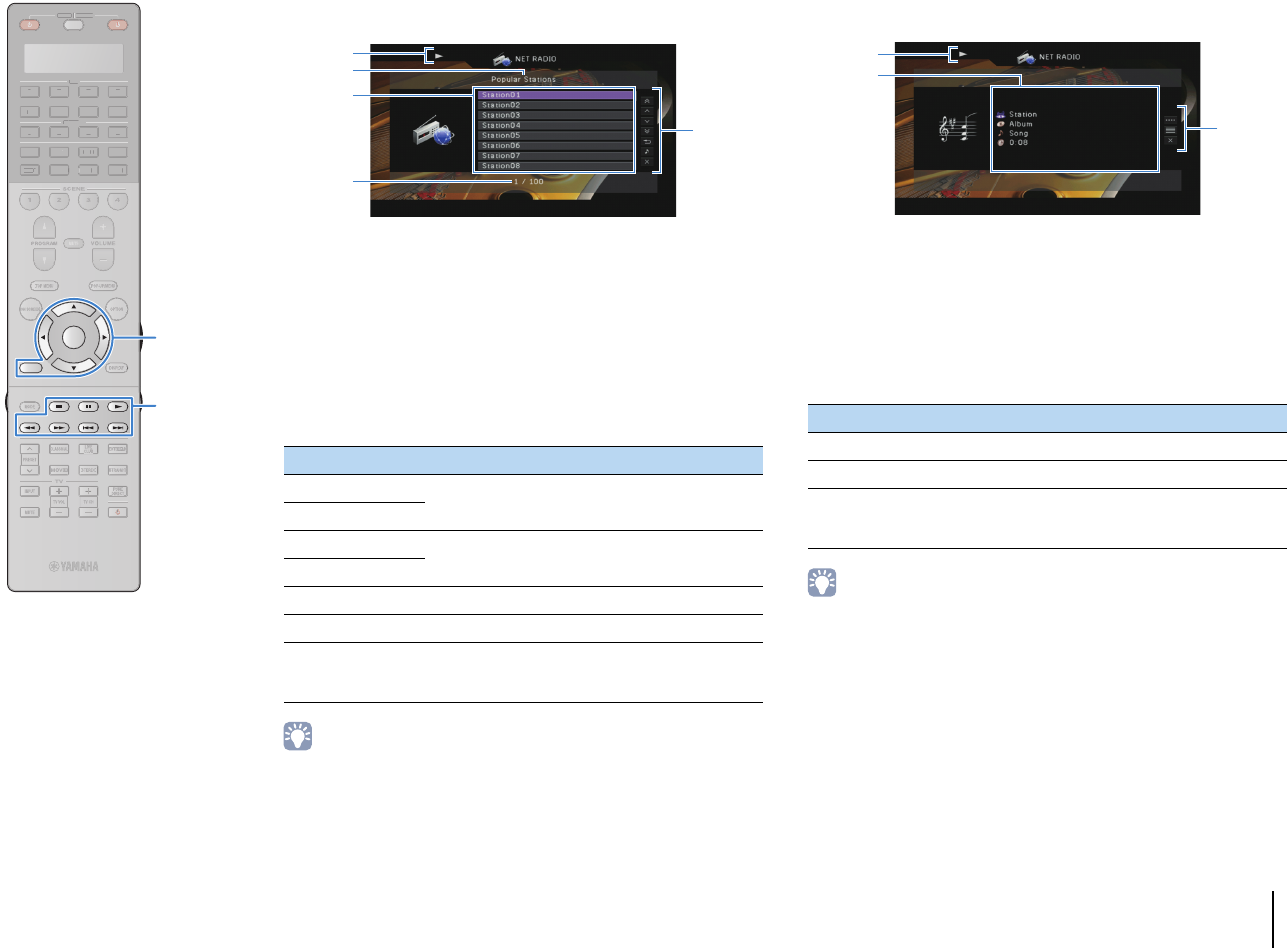
PLAYBACK ➤Listening to Internet radio En 87
■Browse screen
1Playback indicator
2List name
3Contents list
Displays the list of Internet radio content. Use the cursor keys (q/w) to
select an item and press ENTER to confirm the selection.
4Item number/total
5Operation menu
Press the cursor key (r) and then use the cursor keys (q/w) to select an
item. Press ENTER to confirm the selection.
• You can register your favorite Internet radio stations to the “Bookmarks” folder by
accessing the following website with the web browser on your PC. To use this
feature, you need the unit’s vTuner ID and your e-mail address in order to create
your personal account. You can find the vTunerID (MAC address of the unit) in
“Network” (p.132) in the “Information” menu.
http://yradio.vtuner.com/
■Playback screen
1Playback indicator
2Playback information
Displays the station name, album name, song title, and elapsed time.
Use the cursor keys (q/w) to select scrollable information.
3Operation menu
Press the cursor key (r) and then use the cursor keys (q/w) to select an
item. Press ENTER to confirm the selection.
To close the submenu, press RETURN.
• You can also use the external device operation key (s) on the remote control to
stop playback.
• Some information may not be available depending on the station.
Menu Function
1 Page Up
Moves to the previous/next page of the list.
1 Page Down
10 Pages Up
Moves 10 pages forward/backward.
10 Pages Down
Return Returns to the higher-level list.
Now Playing Moves to the playback screen.
Screen Off
Closes the screen display and shows the
background. Press one of the menu operation keys
to redisplay it.
1
5
3
2
4
Menu Submenu Function
Play Control sStops playback.
Browse Moves to the browse screen.
Screen Off
Closes the screen display and shows the
background. Press one of the menu
operation keys to redisplay it.
1
3
2
SOURCE RECEIVER
AV
AUDIO
1 2 3 4
5 6 7
V-AUX
1 2 3 4
MULTI
PHONO
USB NET
TUNER
[ C ][ A ] [ B ]
CLASSICAL
LIVE
CLUB
ENTERTAIN
MOVIE
STEREO STRAIGHT
INPUTPURE
DIRECT
MUTE
TV
SCENE
1 2 3 4
PROGRAM
VOLUME
TV VOL
MUTE
MODE
TOP MENU
RETURN DISPLAY
POP-UP/MENU
TV CH
PRESET
ENTER
ON SCREEN
OPTION
SOU
R
CE
RECEIVE
R
A
V
A
U
DI
O
1
2
3
4
5
6
7
V-
AUX
1
2
3
4
MUL
T
I
L
L
PH
O
N
O
US
B NE
T
TUNE
R
[
C
]
[
A
]
[
B
]
ENTER
RETURN
Menu operation keys
Cursor keys
External device
operation keys
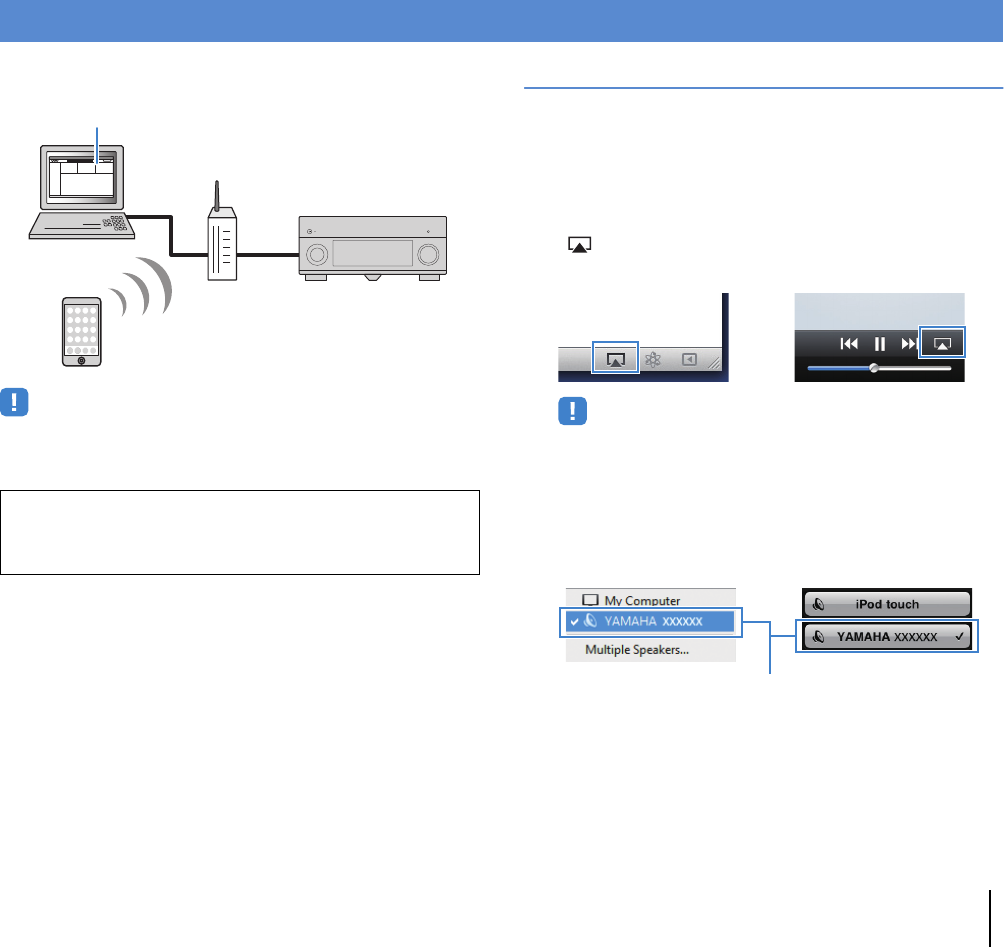
PLAYBACK ➤Playing back iTunes/iPod music via a network (AirPlay) En 88
The AirPlay function allows you to play back iTunes/iPod music on
the unit via network.
• To use this function, the unit and your PC or iPod must be connected to the same
router (p.45). You can check whether the network parameters (such as the IP
address) are properly assigned to the unit in “Network” (p.132) in the “Information”
menu.
Playback of iTunes/iPod music contents
Follow the procedure below to play back iTunes/iPod music
contents on the unit.
1Turn on the unit, and start iTunes on the PC or
display the playback screen on the iPod.
If the iTunes/iPod recognizes the unit, the AirPlay icon
( ) appears.
• If the icon does not appear, check whether the unit and PC/iPod are
connected to the router properly.
2On the iTunes/iPod, click (tap) the AirPlay icon and
select the unit (network name of the unit) as the
audio output device.
3Select a song and start playback.
The unit automatically selects “AirPlay” as the input source and
starts playback.
The playback screen is displayed on the TV.
Playing back iTunes/iPod music via a network (AirPlay)
Supported iTunes/iPod (as of April 2012)
• iTunes 10.2.2 or later (Windows/Mac)
• iPod touch, iPhone or iPad with iOS 4.3.3 or later
PC
iTunes
Router
Playback starts
iPod
Starts playback
on iTunes
or iPod
The unit
iTunes (example) iPod (example)
iTunes (example) iPod (example)
Network name of the unit
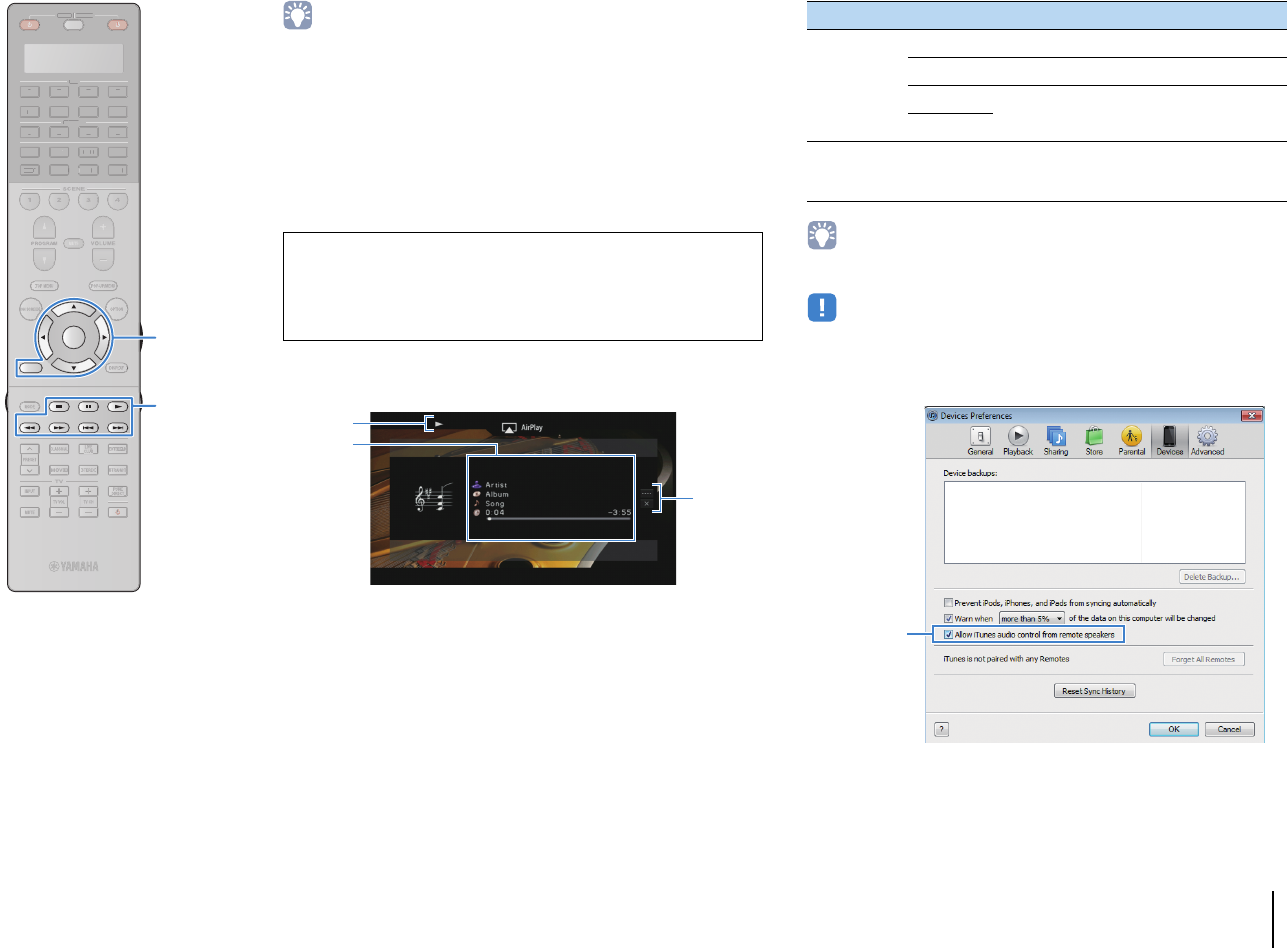
PLAYBACK ➤Playing back iTunes/iPod music via a network (AirPlay) En 89
• You can turn on the unit automatically when starting playback on iTunes or iPod by
setting “Network Standby” (p.124) in the “Setup” menu to “On”.
• You can edit the network name (the unit’s name on the network) displayed on
iTunes/iPod in “Network Name” (p.124) in the “Setup” menu.
• If you select the other input source on the unit during playback, playback on the
iTunes/iPod stops automatically.
• You can adjust the unit’s volume from the iTunes/iPod during playback. To disable
volume controls from iTunes/iPod, set “Volume Interlock” (p.104) in the “Input”
menu to “Off”.
• To start AirPlay playback when AirPlay from another device is ongoing, first stop
the current playback.
■Playback screen
1Playback indicator
2Playback information
Displays the artist name, album name, song title, and elapsed/remaining
time.
Use the cursor keys (q/w) to select scrollable information.
3Operation menu
Press the cursor key (r) and then use the cursor keys (q/w) to select an
item. Press ENTER to confirm the selection.
To close the submenu, press RETURN.
• You can also use the external device operation keys (a, s, d, f, g) on
the remote control to control playback.
• To control iTunes playback with the remote control of the unit, you need to
configure the iTu nes preferences to enable iTunes control from remote speakers
in advance.
Caution
• When you use iTunes/iPod controls to adjust volume, the volume may be
unexpectedly loud. This could result in damage to the unit or speakers. If the
volume suddenly increases during playback, stop playback on the iTunes/iPod
immediately.
1
3
2
Menu Submenu Function
Play Control
aResumes playback from pause.
dStops playback temporarily.
f
Skips forward/backward.
g
Screen Off
Closes the screen display and shows the
background. Press one of the menu operation
keys to redisplay it.
iTunes (example of English version)
Check this box
SOURCE RECEIVER
AV
AUDIO
1 2 3 4
5 6 7
V-AUX
1 2 3 4
MULTI
PHONO
USB NET
TUNER
[ C ][ A ] [ B ]
CLASSICAL
LIVE
CLUB
ENTERTAIN
MOVIE
STEREO STRAIGHT
INPUTPURE
DIRECT
MUTE
TV
SCENE
1 2 3 4
PROGRAM
VOLUME
TV VOL
MUTE
MODE
TOP MENU
RETURN DISPLAY
POP-UP/MENU
TV CH
PRESET
ENTER
ON SCREEN
OPTION
SOU
R
CE
RECEIVE
R
A
V
A
U
DI
O
1
2
3
4
5
6
7
V-
AUX
1
2
3
4
MUL
T
I
L
L
PH
O
N
O
US
B NE
T
TUNE
R
[
C
]
[
A
]
[
B
]
ENTER
RETURN
Menu operation keys
Cursor keys
External device
operation keys
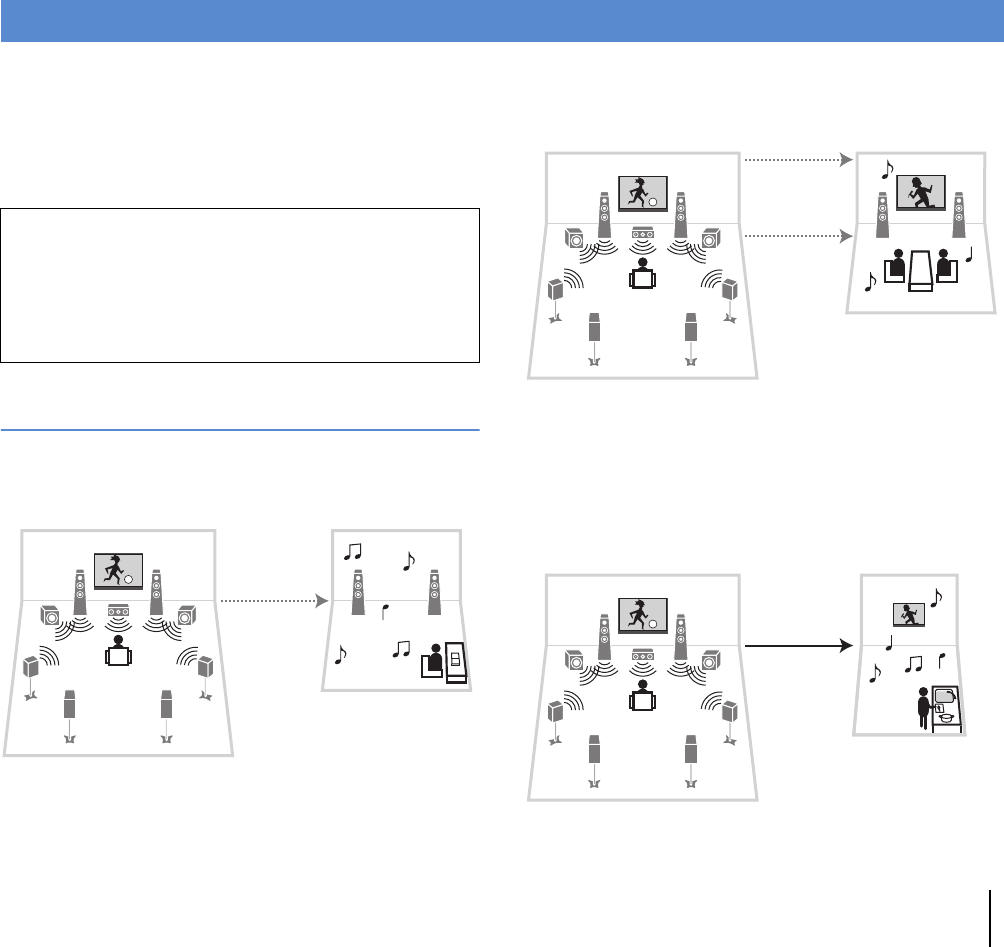
PLAYBACK ➤Playing back videos/audio in multiple rooms (multi-zone) En 90
The multi-zone function allows you to play back different input
sources in the room where the unit is installed (main zone) and in
other rooms (Zone2, Zone3 and Zone4).
For example, while you are watching TV in the living room (main
zone), another person can listen to PC music in the study room
(Zone2), and another can listen to radio in the guest room (Zone3)
and play DVD in the kitchen (Zone4).
Multi-zone configuration examples
■Enjoying music in other rooms
You can enjoy music using speakers placed in other rooms.
Connections
Speakers (connecting to the unit directly): p.32
Speakers (using an external amplifier): p.91
■Enjoying videos/music in other rooms
You can enjoy videos/music using TVs placed in other rooms.
❑Enjoying videos/music using a TV and speakers
Connections
TV (for analog video playback): p.92
TV (for digital video playback [RX-A3020 only]): p.93
Speakers (connecting to the unit directly): p.32
Speakers (using an external amplifier): p.91
❑
Enjoying videos/music using only a TV (RX-A3020 only)
Connection
TV: p.93
Playing back videos/audio in multiple rooms (multi-zone)
• The Zone4 function is available on RX-A3020 only.
• Video/audio signals that can be output to each zone vary depending on how
you connect the device in each zone to the unit’s output jacks. For details, see
“Multi-zone output” (p.157).
• Since there are many possible ways to use the unit in a multi-zone
configuration, we recommend that you consult with your nearest authorized
Yamaha dealer or service center about the multi-zone connections that best
meet your requirements.
Living room (main zone)
Study room
(Zone2 and/or Zone3)
Audio
(SPEAKERS or
ZONE OUT)
Living room (main zone)
Guest room
(Zone2 or Zone3)
Audio
(SPEAKERS or
ZONE OUT)
Video (ZONE
OUT or HDMI)
Living room (main zone)
Kitchen
(Zone2 or Zone4)
Video/audio
(HDMI)
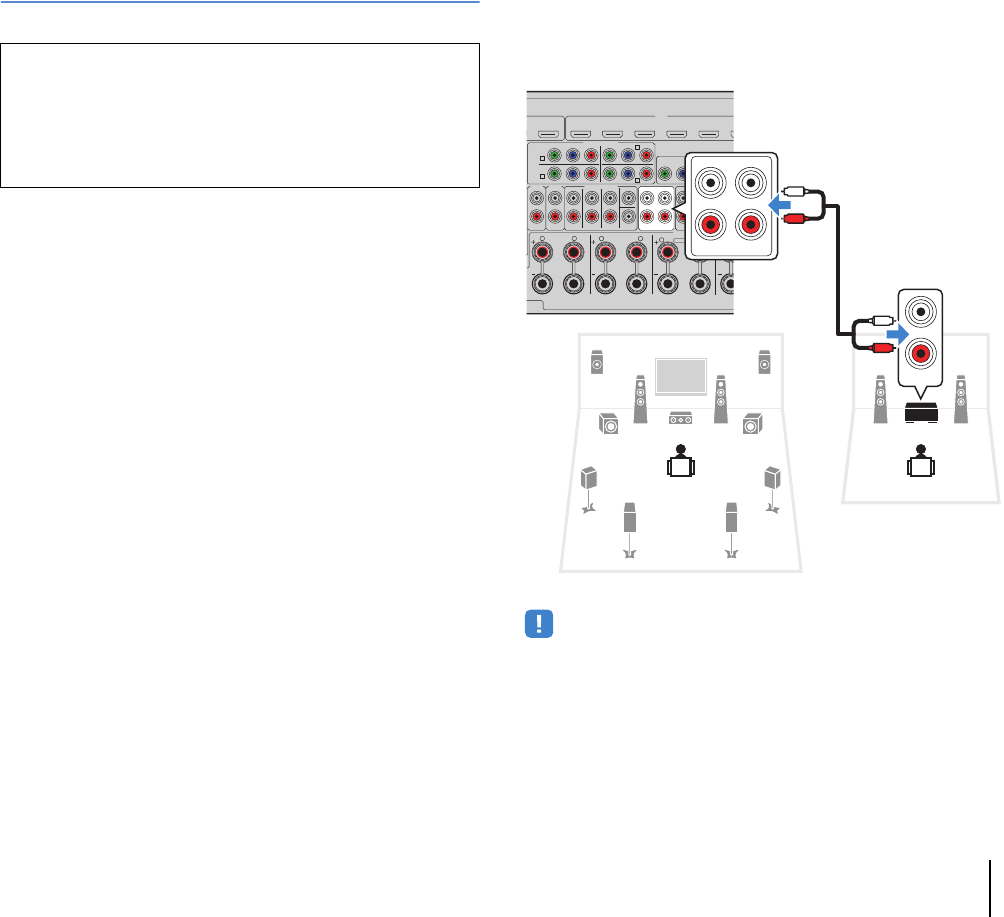
PLAYBACK ➤Playing back videos/audio in multiple rooms (multi-zone) En 91
Preparing the multi zone system
Connect the device that will be used in other rooms to the unit.
■Connecting speakers to play back audio
Connect speakers to play back audio in Zone2 or Zone3. The
connection method varies depending on the amplifier being used
(the unit or an external amplifier).
❑Using the unit’s internal amplifier
Connect the speakers placed in Zone2 or Zone3 to the unit with
speaker cables. For details, see “Connecting Zone2/3 speakers”
(p.32).
❑Using an external amplifier
Connect the external amplifier placed in Zone2 or Zone3 to the unit
with a stereo pin cable and connect speakers to the external
amplifier.
• (RX-A3020 only)
You cannot utilize the ZONE OUT/PRE OUT jacks for connecting an external
amplifier for Zone2 or Zone3 depending on the “Power Amp Assign” setting
(p.114) in the “Setup” menu.
Caution
• Remove the unit’s power cable from the AC wall outlet before connecting
speakers or an external amplifier.
• Ensure that the core wires of the speaker cable do not touch one another or
come into contact with the unit’s metal parts. Doing so may damage the unit
or the speakers. If the speaker cables short circuit, “Check SP Wires” will
appear on the front display when the unit is turned on.
D
MI OUT
(ZONE OUT)
2
HDMI
(1 BD/DVD)
AV 1 AV 2 AV 3 AV 4 AV 5 AV
6
YPBPR
YPBPR
YPBPR
MONITOR OUT/ZONE OUT
IN
AV 1
AV 3
1
COMPONENT VIDEO
A
AV 2
B
C
AV 4 D
AUDIO 4
MULTI CH INPUT
ZONE OUT/PRE OUT
AUDIO 3
CENTER
SUBWOOFER
ZONE 2 /
F.PRESENSE ZONE 3 /
R.PRESENSE
FRONT
SURROUND SUR. BACK
SPEAKERS CENT
E
SURROUND BACKSURROUND
ZONE 2/ZONE 3/R.PRESENCE
R L
R L RL
SINGLE
PRE OUT
S
U
FRONT
SURROUND SUR. BACK
(SINGLE) (
(
EXTRA SP2
ZONE OUT/PRE OUT
ZONE 2 /
F.PRE SENSE
ZONE 3 /
R.PRESENSE
L
R
L
R
AUDIO
The unit (rear)
ZONE OUT
(ZONE 2 or ZONE 3) jacks
Zone2 or Zone3
Main zone
External amplifier
Audio input
(analog stereo)
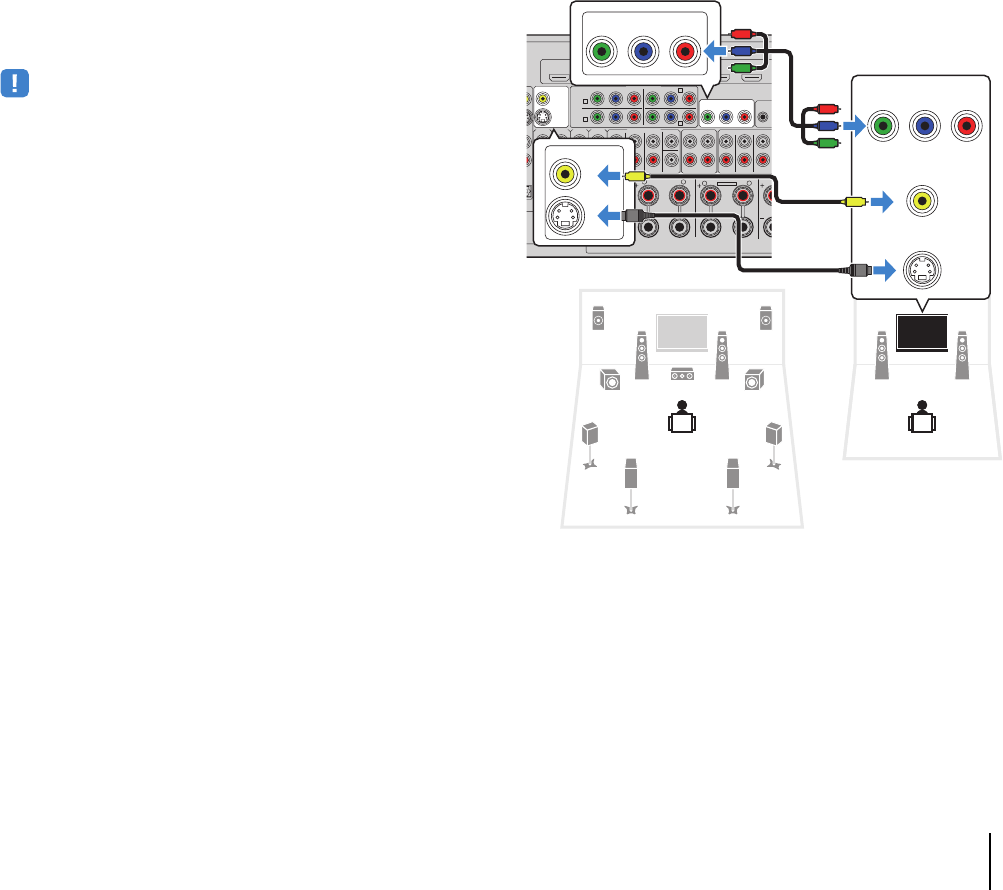
PLAYBACK ➤Playing back videos/audio in multiple rooms (multi-zone) En 92
■Connecting a video monitor to play back
analog videos
Connect a video monitor to watch analog videos at Zone2 or
Zone3. Depending on the video input jacks available on your video
monitor, choose one of the video connection methods.
• The video conversion between the analog video jacks does not work for
multi-zone video output. To watch videos played back on a video device on the
zone video monitor, you need to connect the video monitor to the unit in the same
way as the video device. For example, if you want to watch videos input from the
DVD player via a component video cable, connect the video monitor to the
MONITOR OUT/ZONE OUT (COMPONENT VIDEO) jacks with a component
video cable.
• (RX-A3020 only)
On-screen operations are not available for Zone3 when “HDMI OUT2 Assign”
(p.127) in the “Setup” menu is set to “Zone2”.
To assign the MONITOR OUT/ZONE OUT jacks to the video monitor
for Zone2 or Zone3, set “Monitor Out Assign” (p.126) in the “Setup”
menu to “Zone2” or “Zone3”.
MONITOR OUT/
ZONE OUT
HDMI OUT
ARC (ZONE OUT)
12
HDMI
(1 BD/DVD)
AV 1 AV 2 AV 3 AV 4 AV 5
A
YPBPR
YPBPR
YPBPR
MONITOR OUT/ZONE OUT
IN
AV 1
AV 3
COMPONENT VIDEO
A
AV 2
B
C
AV 4 D
U
T
OPTICAL
AUDIO 4
MULTI CH INPUT
ZONE OUT/PRE OUT
AUDI O 3AUDIO 2AUDIO 1
(2 TV)
CENTER
SUBWOOFER
ZONE 2 /
F.PRESENSE ZONE 3 /
R.PRESENSE
FRONT
SURROUND SUR. BACK
SPEAKERS CE
SURROUND BACKSURROUND
ZONE 2/ZONE 3/R.PRESENCE
R
5
COAXIAL
6
L
R L RL
SINGLE
PRE OUT
FRONT
SURROUND SUR. BACK
(SINGLE)
EXTRA SP2
YPBPR
MONITOR OUT/ZONE OUT
YPBPR
COMPONENT VIDEO
S VIDEO
VIDEO
MONITOR OUT/
ZONE OUT
S
S
V
V
P
R
P
B
Y
P
R
P
B
Y
The unit (rear)
ZONE OUT jacks
(any of COMPONENT VIDEO,
VIDEO, S VIDEO)
Zone2 or Zone3
Main zone
Video input
(any of component video,
composite video, S-video)
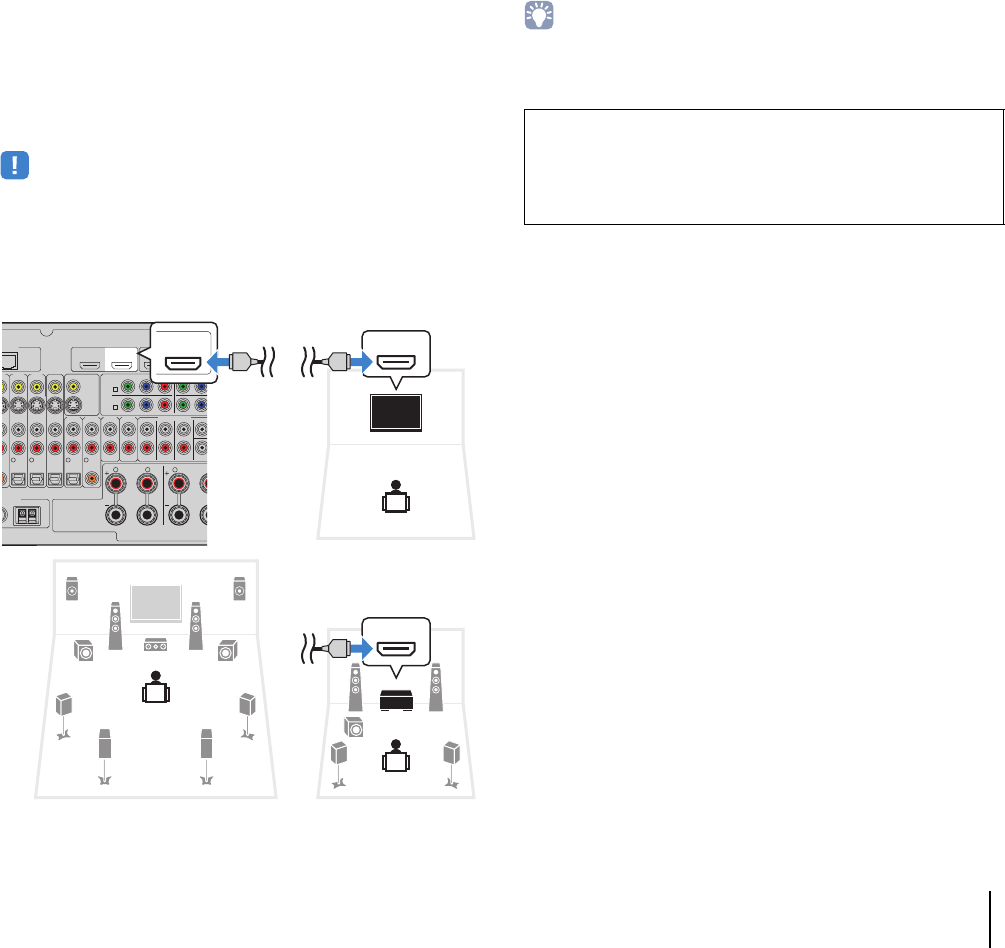
PLAYBACK ➤Playing back videos/audio in multiple rooms (multi-zone) En 93
■Connecting an HDMI-compatible device to
play back videos/audio
(RX-A3020 only)
Connect an HDMI-compatible device (such as a TV) to play back
videos/audio at Zone2 or Zone4. If you connect an AV amplifier, you
can enjoy multi-channel playback in another room (Zone4).
• To watch videos played back on a video device at Zone2 or Zone4, you need to
connect the video device to the unit with an HDMI cable (p.41).
• We recommend that you disable HDMI Control on the playback devices connected
to the unit.
• On-screen operations are not available for Zone4.
To assign the HDMI OUT 2 (ZONE OUT) jack to Zone2 or Zone4, set
“HDMI OUT2 Assign” (p.127) in the “Setup” menu to “Zone2” or “Zone4”.
• When the HDMI OUT 2 (ZONE OUT) jack is assigned to Zone2, you can
enable/disable the audio output from the HDMI OUT 2 jack by setting “Audio
Output” (p.127) in the “Setup” menu to “On” or “Off” (default).
• You can also use speakers placed in Zone2 to output audio (p.32).
E
TWORK
( 3 NET )
MONITOR OUT/
ZONE OUT
HDMI OUT
ARC (ZONE OUT)
12
(1 BD/DVD)
AV 1 AV 2
A
YPBPRYPB
AV 1
AV 3
COMPONENT VIDEO
A
AV 2
B
AV 4
AV OUT
AV 3 AV 4
2
OPTICAL
4
OPTICAL
3
A
XIAL OPTICAL
AUDI O 4
MULTI CH INPUT
AUDI O 3AUDI O 2AUDI O 1
(2 TV)
CENTE
R
SUBWOOF
E
FRONT
SURROUND SUR. BACK
SURROUND BAC
K
SURROUND
R
5
COAXIAL
6
R L
SI
N
A
NTENNA
HD Radio
AM
(4 RADIO)
HDMI
HDMI
OUT
(ZONE OUT)
2
HDMI
HDMI
HDMI
The unit (rear)
HDMI OUT 2
(ZONE OUT) jack
Zone4
Main zone
HDMI input
(Example: using a TV)
HDMI input
(Example: using an AV amplifier)
Zone2 or Zone4
• Videos/audio interruptions may happen in another zone when any of the
following operations is performed.
– Tuning on/off a TV connected to the unit via HDMI or switching the TV input
– Enabling/disabling a zone output or selecting its input source
– Changing the sound mode or audio settings (such as “Extended Surround”)
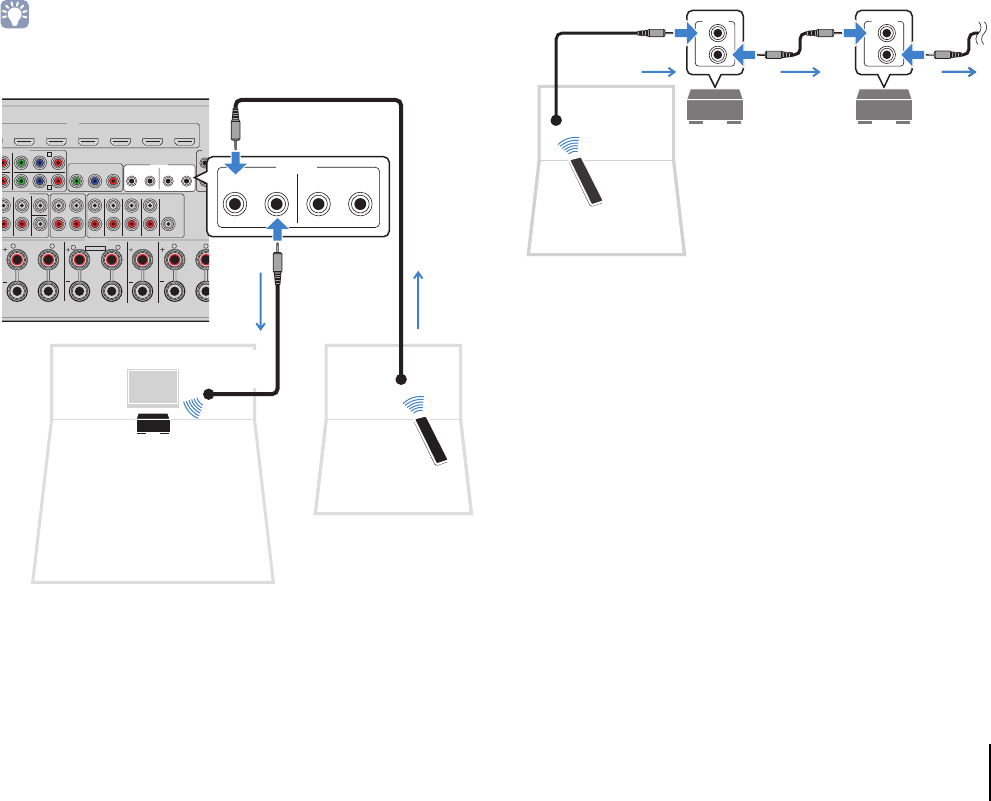
PLAYBACK ➤Playing back videos/audio in multiple rooms (multi-zone) En 94
■Operating the unit from another room
(remote connection)
You can operate the unit and external devices from Zone2, Zone3
or Zone4 using the supplied remote control if you connect an
infrared signal receiver/emitter to the unit’s REMOTE IN/OUT 1 or
REMOTE IN/OUT 2 jacks.
• To operate external devices with the supplied remote control, you must register a
remote control code for each device before using (p.136).
Remote connections between Yamaha products
An infrared signal transmitter is not required if you are using
Yamaha products that support remote connections, as the unit
does. You can transmit remote control signals by connecting the
REMOTE IN/OUT jacks with monaural mini-jack cables and an
infrared signal receiver.
HDMI
AV 2 AV 3 AV 4 AV 5 AV 6 AV 7
TRI
G
O
P
R
YPBPR
YPBPR
MONITOR OUT/ZONE OUT
IN OUT IN OUT
AV 3
REMOTE
12
M
PONENT VIDEO
C
AV 4 D
1
2
U
LTI CH INPUT
ZONE OUT/PRE OUT
CENTER
SUBWOOFER
ZONE 2 /
F.PRESENSE ZONE 3 /
R.PRESENSE
R
OUND SUR. BACK
SPEAKERS CENTER FRONT
SURROUND BACK
ZONE 2/ZONE 3/R.PRESENCE
R L RR
LL
SINGLE
PRE OUT
SUBWOOFER
CENTER
FRONT
SURROUND SUR. BACK
(SINGLE) (FRONT)
(REAR)
EXTRA SP2
12V
1
IN OUT
2
IN OUT
REMOTE
The unit (rear) REMOTE IN/OUT 1–2 jacks
External device
(such as a CD player)
Remote control
Infrared
signal
receiver
Zone2, Zone3 or Zone4
Main zone
Infrared signal
transmitter
IN
OUT
REMOTE
IN
OUT
REMOTE
Remote control
Infrared signal
receiver
Yamaha products
(up to six, including the unit)
REMOTE IN/OUT jacks REMOTE IN/OUT jacks
Zone2, Zone3 or Zone4
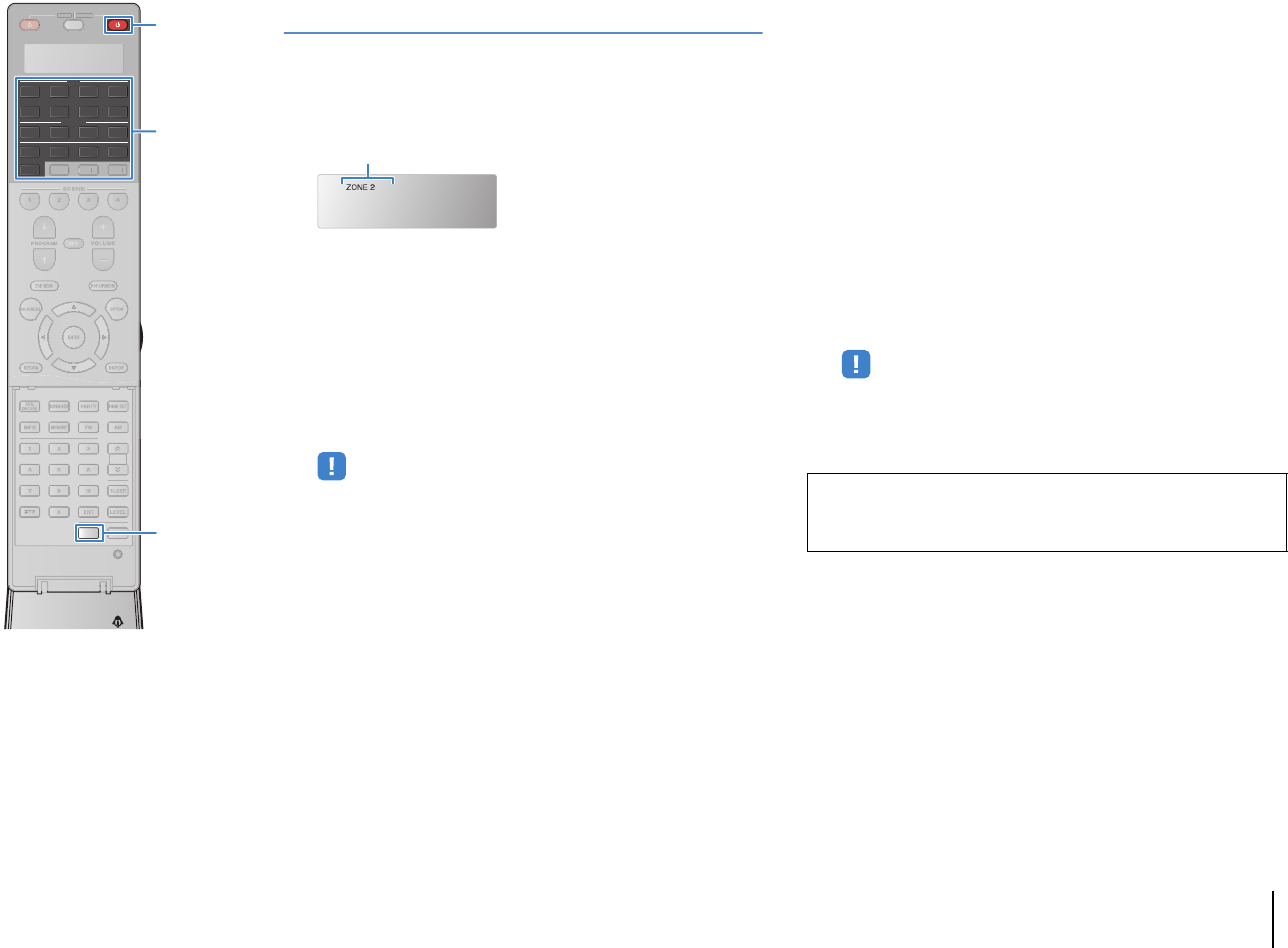
PLAYBACK ➤Playing back videos/audio in multiple rooms (multi-zone) En 95
Controlling Zone2, Zone3 or Zone4
1Press ZONE repeatedly to select a zone.
Each time you press the key, the zone to be operated
switches.
2Press RECEIVER z.
Each time you press the key, the selected zone is enabled
or disabled.
When zone audio output is enabled, the corresponding
zone indicator lights up in the front display.
3Use the input selection keys to select an input
source.
• Video/audio signals that can be output to each zone vary depending on how
you connect the device in each zone to the unit’s output jacks. For details,
see “Multi-zone output” (p.157).
• You cannot select USB and network sources exclusively for each zone. For
example, if you select “SERVER” for Zone2 when “USB” is selected for the
main zone, the input source for the main zone also switches to “SERVER”.
4Start playback on the external device or select a
radio station.
Refer to the instruction manual for the external device.
For details on the following operations, see the
corresponding pages.
• Listening to FM/AM radio (p.69)
• Playing back iPod music (p.76)
• Playing back music stored on a USB storage device (p.80)
• Playing back music stored on media servers (PCs/NAS)
(p.83)
• Listening to Internet radio (p.86)
• Playing back iTunes/iPod music via a network (AirPlay)
(p.88)
• You can also use the web control to control Zone2, Zone3 or Zone4. For
details on the web control function, refer to “Supplement for Web Control” on
the CD-ROM.
• AirPlay is available in Zone2 and Zone3 only when AirPlay playback is
ongoing in the main zone.
RECEIVER
Selected zone (turns off when main zone is selected)
Caution
• To avoid unexpected noise, never play back DTS-CDs in Zone2, Zone3 or
Zone4.
SOURCE RECEIVER
AV
AUDIO
1 2 3 4
5 6 7
V-AUX
1 2 3 4
MULTI
PHONO
USB NET
TUNER
[ C ][ A ] [ B ]
CLASSICAL
LIVE
CLUB
ENTERTAIN
MOVIE
STEREO STRAIGHT
INPUTPURE
DIRECT
MUTE
TV
SCENE
1 2 3 4
PROGRAM
VOLUME
TV VOL
MUTE
MODE
TOP MENU
RETURN DISPLAY
POP-UP/MENU
TV CH
PRESET
ENTER
ON SCREEN
OPTION
23
5
1
4 6
TUN./ CH
ENHANCER
SUR.
DECODE
HDMI OUT
MEMORY
INFO AM
PAR TY
FM
0
10
LEVELENT
SETUPZONE
87
SLEEP
9
SOU
R
CE
RE
C
EIVE
R
TU
N.
/
CH
ZONEZONE
[
C
]
[
A
]
[
B
]
RECEIVER z RECEIVER z
Input selection keys
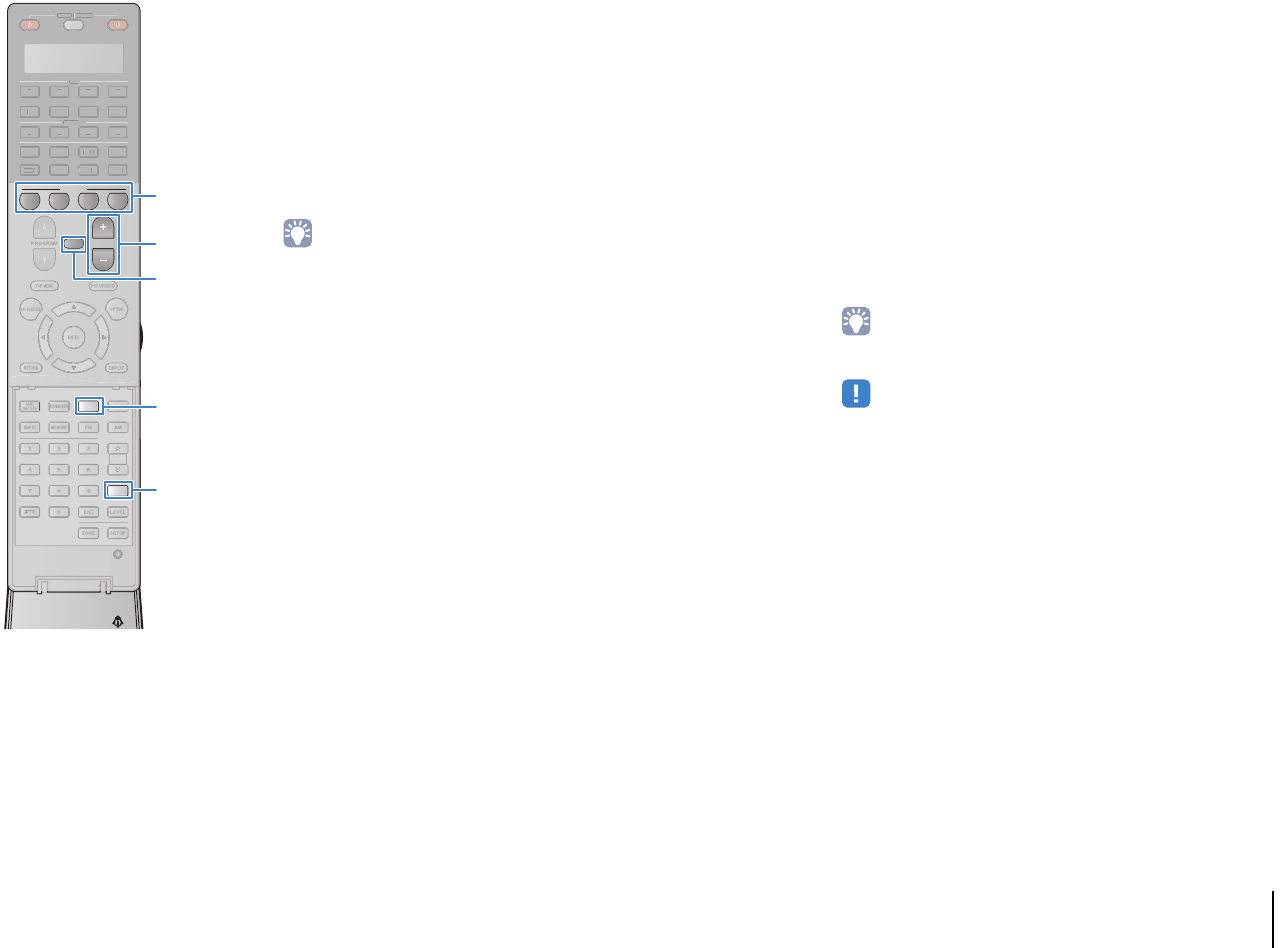
PLAYBACK ➤Playing back videos/audio in multiple rooms (multi-zone) En 96
■Other operations for Zone2, Zone3 or
Zone4
The following functions are also available when the zone you want
to operate is enabled.
Adjusting the volume (for Zone2 and Zone3 only)
Press VOLUME or MUTE.
Selecting the input source and settings at once (SCENE)
Press SCENE.
• To register the current settings (input source, volume and tone control) to a scene,
hold down the desired SCENE key until “SET Complete” appears on the front
display. (Only an input source can be registered for Zone4.)
Setting the sleep timer
Press SLEEP repeatedly to set the time (120 min, 90 min, 60 min, 30
min, off).
Adjusting the high-/low-frequency range of sounds
(for Zone2 and Zone3 only)
aPress ZONE CONTROL on the front panel to select the zone to be
operated.
bPress TONE/BALANCE repeatedly to select “Treble” or “Bass”.
cPress PROGRAM to make an adjustment.
Setting range
-10.0 dB to +10.0 dB (2.0 dB steps)
Default
0.0 dB
Adjusting the front speaker balance (for Zone2 and Zone3 only)
aPress ZONE CONTROL on the front panel to select the zone to be
operated.
bPress TONE/BALANCE repeatedly to select “Balance”.
cPress PROGRAM to make an adjustment.
■Enjoying the same source in multiple
rooms (party mode)
The party mode allows you to play back in all zones the same
music that is being played back in the main zone. During the party
mode, stereo playback is automatically selected for all zones.
Utilize this function when you want to use main zone music as
background music for a house party.
1Press PARTY.
Each time you press the key, the party mode is turned on or
off.
When the party mode is turned on, “PARTY” lights up in the
front display.
• You can select the zones to be included in the party mode in “Party Mode
Set” (p.127) in the “Setup” menu.
• (RX-A3020 only)
Zone4 output is available only when an HDMI input is selected in the main
zone.
SOURCE RECEIVER
AV
AUDIO
1 2 3 4
5 6 7
V-AUX
1 2 3 4
MULTI
PHONO
USB NET
TUNER
[ C ][ A ] [ B ]
CLASSICAL
LIVE
CLUB
ENTERTAIN
MOVIE
STEREO STRAIGHT
INPUTPURE
DIRECT
MUTE
TV
SCENE
1 2 3 4
PROGRAM
VOLUME
TV VOL
MUTE
MODE
TOP MENU
RETURN DISPLAY
POP-UP/MENU
TV CH
PRESET
ENTER
ON SCREEN
OPTION
23
5
1
4 6
TUN./ CH
ENHANCER
SUR.
DECODE
HDMI OUT
MEMORY
INFO AM
PAR TY
FM
0
10
LEVELENT
SETUPZONE
87
SLEEP
9
SOU
R
CE
RE
C
EIVE
R
AV
A
UDI
O
1
2
3
4
5
6
7
V-
AUX
1
2
3
4
MUL
T
I
L
L
PH
O
N
O
US
B NE
T
TUNE
R
[
C
]
[
A
]
[
B
]
TU
N.
/
CH
SLEEPSLEEP
PARTYPARTY
MUTE
VOLUME
SCENE
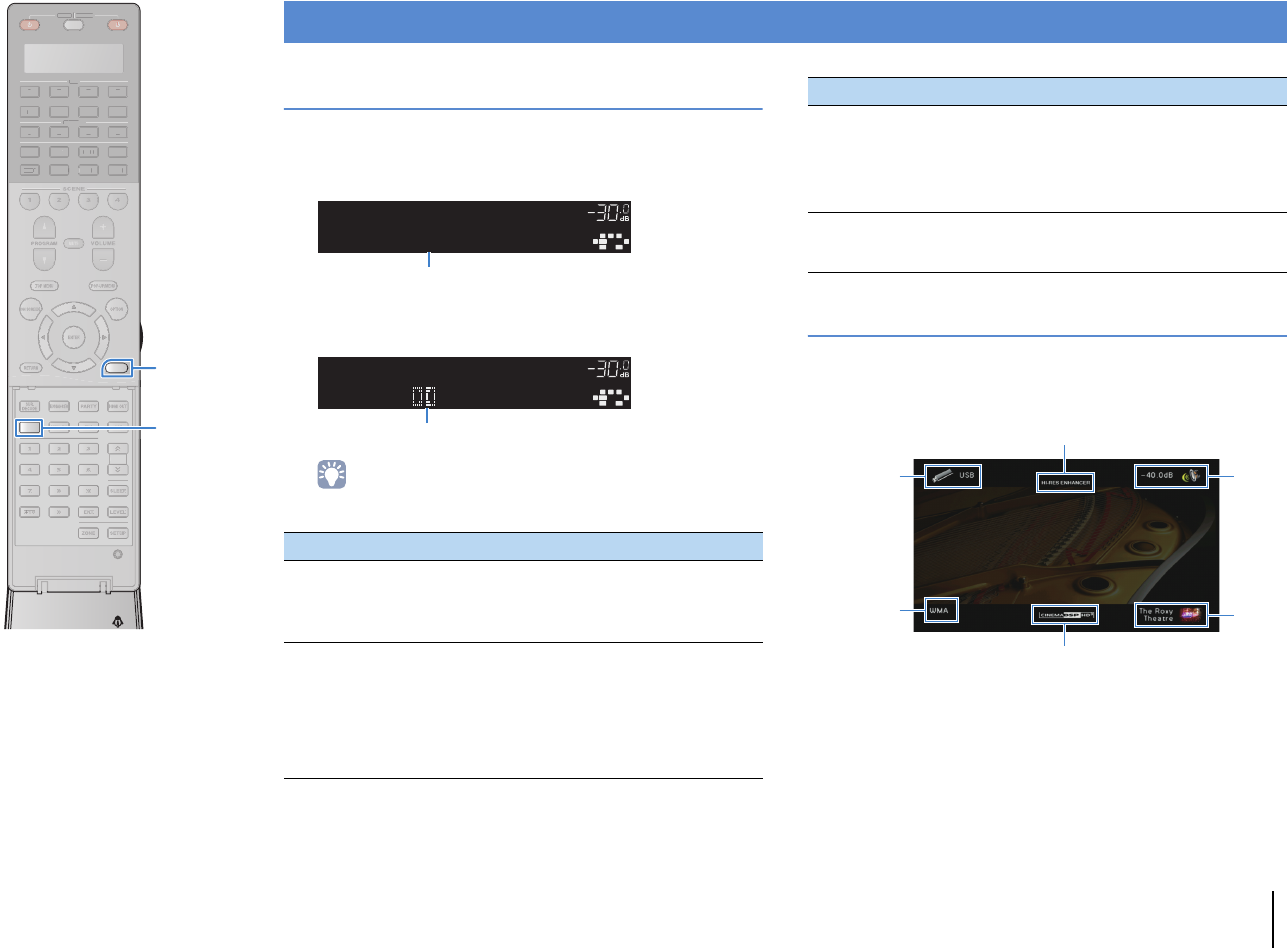
PLAYBACK ➤Viewing the current status En 97
Switching information on the front display
1Press INFO.
Each time you press the key, the displayed item changes.
About 3 seconds later, the corresponding information for
the displayed item appears.
• Available items vary depending on the selected input source. The displayed
item can also be applied separately to each input source group.
Viewing the status information on the TV
1Press DISPLAY.
The following information is displayed on the TV.
2To close the information display, press DISPLAY.
Viewing the current status
Input source group Item
AV 1–7
V-AUX
AUDIO 1–4
PHONO
DSP Program (sound mode name), Audio Decoder
(decoder name)
TUNER
DSP Program (sound mode name), Audio Decoder
(decoder name)
* (U.S.A. model only)
HD Radio data is also available when the unit is tuned
into an HD Radio station (p.71).
* (U.K. and Europe models only)
Radio Data System data is also available when the unit is
tuned into a Radio Data System broadcasting station (p.73).
OUT
1
IN
OUT
2
VOLUME
MUTE
DRCADAPTIVE
3
ZONE
2
SBLPL SBRSBPR
SW1
SL
SW2SW
SR
PL
CL R
PR
SLEEP
HD
PRE
AMP
PAR TY
ZONE
3
ZONE
4
HD
TAG
DOCK
AudioDecoder
Info
Item name
OUT
1
IN
OUT
2
VOLUME
MUTE
DRCADAPTIVE
3
ZONE
2
SBLPL SBRSBPR
SW1
SL
SW2SW
SR
PL
CL R
PR
SLEEP
HD
PRE
AMP
PAR TY
ZONE
3
ZONE
4
HD
TAG
DOCK
ProLogic
AV1
Information
USB
SERVER
AirPlay
Song (song title), Artist (artist name), Album (album
name), DSP Program (sound mode name), Audio
Decoder (decoder name)
* During simple playback of iPod:
Input (input source name), DSP Program (sound mode
name), Audio Decoder (decoder name)
NET RADIO
Song (song title), Album (album name), Station
(station name), DSP Program (sound mode name),
Audio Decoder (decoder name)
Input source group Item
Input source/
Party mode
status
Audio format/
Decoder
Compressed Music Enhancer/Hi-Res mode status
CINEMA DSP status
Sound
mode
Volume
SOURCE RECEIVER
AV
AUDIO
1 2 3 4
5 6 7
V-AUX
1 2 3 4
MULTI
PHONO
USB NET
TUNER
[ C ][ A ] [ B ]
CLASSICAL
LIVE
CLUB
ENTERTAIN
MOVIE
STEREO STRAIGHT
INPUTPURE
DIRECT
MUTE
TV
SCENE
1 2 3 4
PROGRAM
VOLUME
TV VOL
MUTE
MODE
TOP MENU
RETURN DISPLAY
POP-UP/MENU
TV CH
PRESET
ENTER
ON SCREEN
OPTION
23
5
1
4 6
TUN./ CH
ENHANCER
SUR.
DECODE
HDMI OUT
MEMORY
INFO AM
PAR TY
FM
0
10
LEVELENT
SETUPZONE
87
SLEEP
9
SOU
R
CE
RE
C
EIVE
R
AV
A
UDI
O
1
2
3
4
5
6
7
V-
AUX
1
2
3
4
MUL
T
I
L
L
PH
O
N
O
US
B NE
T
TUNE
R
[
C
]
[
A
]
[
B
]
TU
N.
/
CH
INFOINFO
DISPLAYDISPLAY
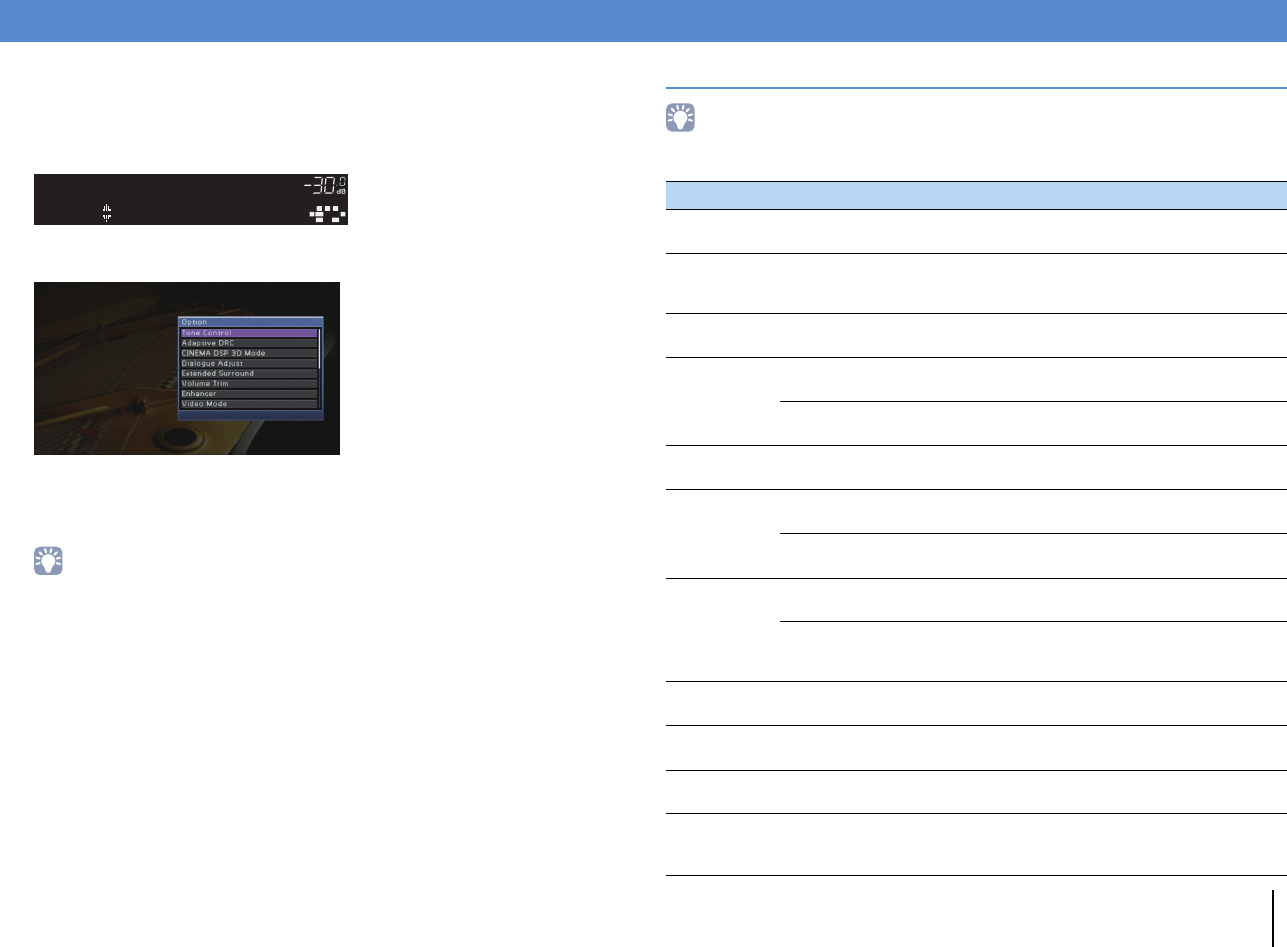
PLAYBACK ➤Configuring playback settings for different playback sources (Option menu) En 98
You can configure separate playback settings for different playback sources. This
menu is available on the front panel (or on the TV screen), allowing you to easily
configure settings during playback.
1Press OPTION.
Front display
TV screen
2Use the cursor keys to select an item and press ENTER.
• To return to the previous screen during menu operations, press RETURN.
3Use the cursor keys (e/r) to select a setting.
4To exit from the menu, press OPTION.
Option menu items
• Available items vary depending on the selected input source.
• Text in parentheses denotes indicators on the front display.
Configuring playback settings for different playback sources (Option menu)
OUT
1
IN
OUT
2
VOLUME
MUTE
DRCADAPTIVE
3
ZONE
2
SBLPL SBRSBPR
SW1
SL
SW2SW
SR
PL
CL R
PR
SLEEP
HD
PRE
AMP
PAR TY
ZONE
3
ZONE
4
HD
TAG
DOCK
ToneControl
Option
Item Function Page
Tone Control
(Tone Control)
Adjusts the high-frequency range and low-frequency
range of sounds. 99
Adaptive DRC
(Adaptive DRC)
Sets whether the dynamic range (from maximum to
minimum) is automatically adjusted when the volume
is adjusted.
99
CINEMA DSP 3D Mode
(CINEMA DSP 3D) Enables/disables CINEMA DSP 3D. 99
Dialogue Adjust
(Dialog Adjust)
Dialogue Level
(Dialog Lvl) Adjusts the volume of dialogue sounds. 100
Dialogue Lift
(Dialog Lift) Adjusts the perceived height of dialogue sounds. 100
Extended Surround
(EXTD Surround)
Selects how to play back 5.1- to 7.1-channel sources
when surround back speakers are used. 100
Volume Trim
(Volume Trim)
Input Trim
(In.Trim) Corrects volume differences between input sources. 100
Subwoofer
Trim (SW.Trim) Fine-adjusts the subwoofer volume. 101
Enhancer
(Enhancer)
Enhancer
(Enhancer) Enables/disables Compressed Music Enhancer. 101
Hi-Res Mode
(HiRes Mode)
Enables/disables the high-resolution mode (for
enhancing the quality of uncompressed digital
audio).
101
Video Mode
(Video Mode)
Enables/disables the video signal processing
settings configured in the “Setup” menu. 101
Video Adjustment
(Video Adjust) Selects a video adjustment setting from presets. 101
Audio Select
(Audio Select)
Selects the audio input jack to use when more than
one audio connection is made for one input source. 101
Audio Mode
(Audio Mode)
(U.S.A. model only)
Switches between stereo and monaural for FM/AM
radio reception.
102
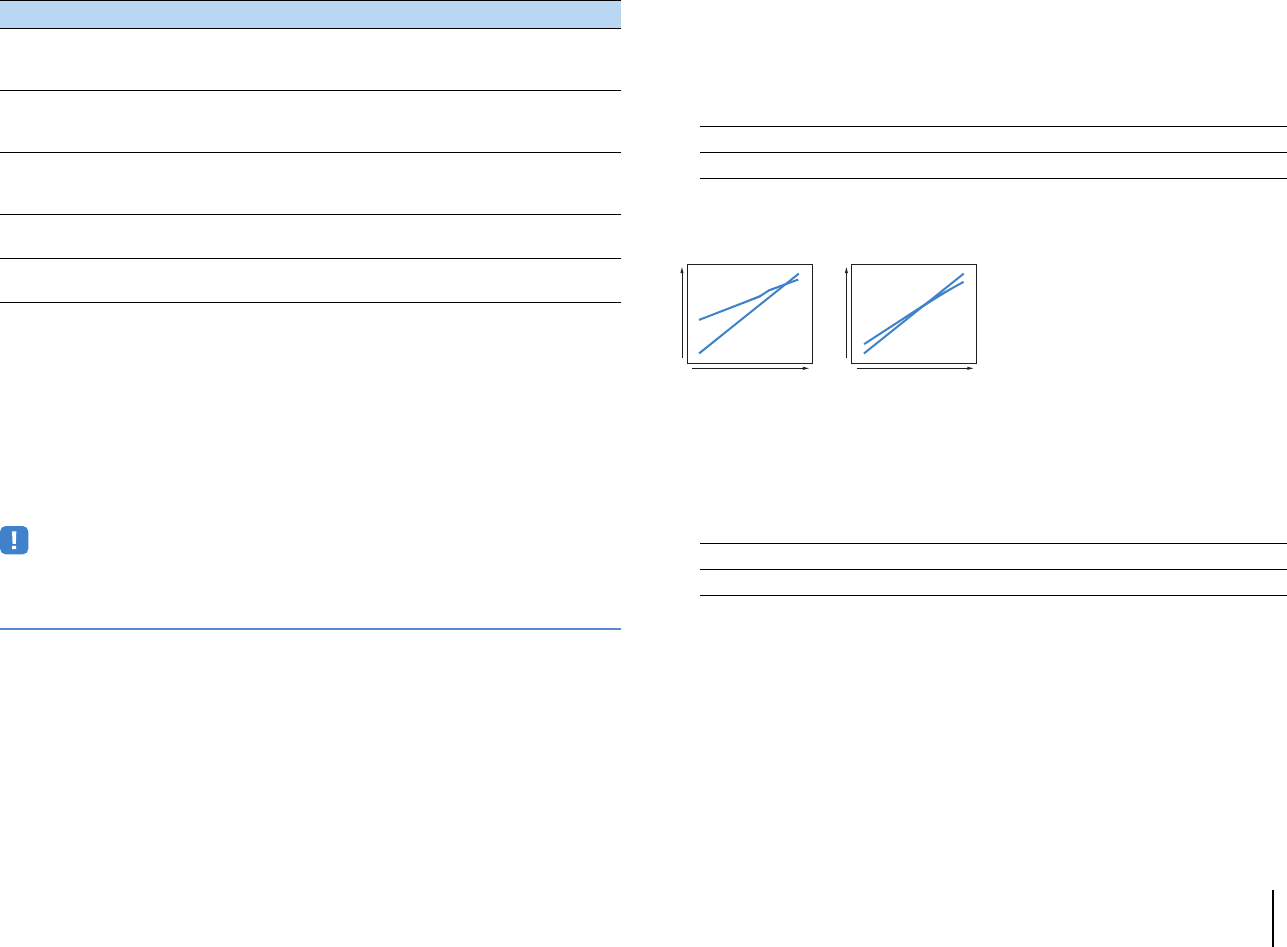
PLAYBACK ➤Configuring playback settings for different playback sources (Option menu) En 99
■Tone Control (Tone Control)
Adjusts the high-frequency range (Treble) and low-frequency range (Bass) of sounds.
Choices
Treble (Treble), Bass (Bass)
Setting range
-6.0 dB to Bypass (Bypass) to +6.0 dB, *0.5 dB increments
Default
Bypass (Bypass)
• If you set an extreme value, sounds may not match those from other channels.
Adjusting with the front panel controls
aPress TONE/BALANCE repeatedly to select “Treble” or “Bass”.
bPress PROGRAM to make an adjustment.
■Adaptive DRC (Adaptive DRC)
Sets whether the dynamic range (from maximum to minimum) is automatically adjusted
when the volume level is adjusted. When it is set to “On”, it is useful for listening to
playback at a low volume at night.
Settings
If “On” is selected, the dynamic range becomes narrow at a low volume and wide at a
high volume.
■CINEMA DSP 3D Mode (CINEMA DSP 3D)
Enables/disables CINEMA DSP HD³ (RX-A3020) or CINEMA DSP 3D (RX-A2020)
(p.64). If this function is set to “On”, CINEMA DSP HD³/CINEMA DSP 3D functions with
the selected sound programs (except 2ch Stereo and 9ch Stereo).
Settings
FM Mode
(FM Mode)
(Except for U.S.A. model)
Switches between stereo and monaural for FM radio
reception.
102
Hold/Unhold
(Hold/Unhold)
(U.S.A. model only)
Enables/disables the hold function when the unit is
tuned into an HD Radio station.
72
Traffic Program
(TrafficProgram)
(U.K. and Europe models only)
Automatically searches for a traffic information
station.
74
Repeat
(Repeat)
Configures the repeat setting for the iPod (p.79),
USB storage device (p.82), or media server (p.85). —
Shuffle
(Shuffle)
Configures the shuffle setting for the iPod (p.79),
USB storage device (p.82), or media server (p.85). —
Item Function Page
On (On) Automatically adjusts the dynamic range.
Off (Off) (default) The dynamic range is not automatically adjusted.
On (On) (default) Enables CINEMA DSP HD³/CINEMA DSP 3D.
Off (Off) Disables CINEMA DSP HD³/CINEMA DSP 3D.
Volume: low Volume: high
Input level Input level
On
Off
On
Off
Output level
Output level

PLAYBACK ➤Configuring playback settings for different playback sources (Option menu) En 100
■Dialogue Adjust (Dialog Adjust)
Adjusts the volume or perceive height of dialogue sounds.
❑Dialogue Level (Dialog Lvl)
Adjusts the volume of dialogue sounds. If dialogue sounds cannot be heard clearly, you
can turn up its volume by increasing this setting.
Setting range
0 to 3
Default
0
❑Dialogue Lift (Dialog Lift)
Adjusts the perceived height of dialogue sounds. If the dialogue sounds as if it is
coming from below the TV screen, you can raise its perceived height by increasing this
setting.
• This setting is available only when one of the following conditions is met.
– One of the sound programs (except for 2ch Stereo and 9ch Stereo) is selected when front presence
speakers are used.
– Virtual Presence Speaker (VPS) (p.64) is working.
(You may hear dialogue sounds from the surround speakers depending on the listening position.)
Setting range
0 to 5 (The bigger the value the higher the position)
Default
0
■Extended Surround (EXTD Surround)
Selects how to play back 5.1- to 7.1-channel sources when surround back speakers
are used.
Settings
• Some early Dolby Digital EX or DTS-ES sources do not contain a flag for reproducing surround back
channel. We recommend you set “Extended Surround” to “bPLIIx Movie” or “EX/ES” when playing back
those sources.
■Volume Trim (Volume Trim)
Fine-adjusts volume difference between input sources or subwoofer volume.
❑Input Trim (In.Trim)
Corrects volume differences between input sources. If you are bothered by volume
differences when switching between input sources, use this function to correct it.
• This setting is applied separately to each input source.
Setting range
-6.0 dB to +6.0 dB (0.5 dB increments)
Default
0.0 dB
Ideal position
Auto (Auto)
(default)
Automatically selects the most suitable decoder if signals that contain
surround back channel signals are input, and reproduces the signals
in 6.1- or 7.1-channel. If two surround back speakers are connected,
the unit reproduces the 5.1-channel signals in 7.1-channel.
bPLIIx Movie
(bPLIIxMo)
Always reproduces signals in 7.1-channel using the Dolby Pro Logic
IIx Movie decoder. This setting is available only when two surround
back speakers are connected.
bPLIIx Music
(bPLIIxMu)
Always reproduces signals in 6.1- or 7.1-channel using the Dolby Pro
Logic IIx Music decoder. This setting is available only when one or two
surround back speakers are connected.
EX/ES (EX/ES) Automatically selects the Dolby EX or DTS-ES decoder, and
reproduces signals in 6.1- or 7.1-channel.
Off (Off)
Always reproduces signals in their original channels. (Even when
DTS-ES or Dolby Digital EX signal is input, the unit reproduces the
signal in 5.1-channel.)
PLAYBACK ➤Configuring playback settings for different playback sources (Option menu) En 101
❑Subwoofer Trim (SW.Trim)
Fine-adjusts the subwoofer volume.
Setting range
-6.0 dB to +6.0 dB (0.5 dB increments)
Default
0.0 dB
■Enhancer (Enhancer)
Enables/disables Compressed Music Enhancer and the high-resolution mode.
❑Enhancer (Enhancer)
Enables/disables Compressed Music Enhancer (p.68).
• This setting is applied separately to each input source.
• You can also use ENHANCER on the remote control to enable/disable Compressed Music Enhancer
(p.68).
Settings
Default
TUNER, USB, (network sources): On (On)
Others: Off (Off)
• Compressed Music Enhancer does not work on signals whose sampling rate is over 48 kHz.
❑Hi-Res Mode (HiRes Mode)
Enables/disables the high-resolution mode when “Enhancer” is set to “On”. If this
function is set to “On”, you can enhance the quality of uncompressed digital audio
(such as 2-channel PCM and FLAC) using Compressed Music Enhancer.
Settings
■Video Mode (Video Mode)
Enables/disables the video signal processing (resolution, aspect ratio and video
adjustments) settings configured in “Processing” (p.119) in the “Setup” menu.
Settings
■Video Adjustment (Video Adjust)
Selects a video adjustment setting from presets you have configured in “Adjustment”
(p.120) in the “Setup” menu.
• This setting is applied separately to each input source.
Settings
1 to 6
■Audio Select (Audio Select)
Selects the audio input jack to use when more than one audio connection is made for
one input source.
• This setting is applied separately to each input source.
Settings
Off (Off) Disables Compressed Music Enhancer.
On (On) Enables Compressed Music Enhancer.
Off (Off) Disables the high-resolution mode.
On (On) (default) Enables the high-resolution mode.
Processing
(Processing) Enables the video signal processing.
Direct (Direct)
(default) Disables the video signal processing.
Auto (Auto) (default)
Automatically selects the audio input jack in the following priority order.
1. HDMI input
2. Digital input (COAXIAL or OPTICAL)
3. Analog input (AUDIO)
HDMI (HDMI) Always selects HDMI input. No sounds are produced when no signals
are input through the HDMI jack.
Coax/Opt
(Coax/Opt)
Always selects digital input (COAXIAL or OPTICAL). No sounds are
produced when no signals are input through the COAXIAL or
OPTICAL jack.
Analog (Analog) Always selects analog input (AUDIO). No sounds are produced when
no signals are input through the AUDIO jacks.

PLAYBACK ➤Configuring playback settings for different playback sources (Option menu) En 102
■Audio Mode (Audio Mode)
(U.S.A. model only)
Switches between stereo and monaural for FM/AM radio reception.
• This setting is applied separately to each band (FM/AM).
Settings
• HD Radio programs are not available when the unit is in the monaural reception mode.
■FM Mode (FM Mode)
(Except for U.S.A. model)
Switches between stereo and monaural for FM radio reception.
Settings
Auto (Auto) (default) Receives the selected band (FM or AM) in stereo sounds when the
signal reception is good and in monaural sounds when it is not good.
Mono (Mono) Receives the selected band (FM or AM) in monaural sounds.
Stereo (Stereo)
(default) Receives FM radio in stereo sounds.
Mono (Mono) Receives FM radio in monaural sounds.
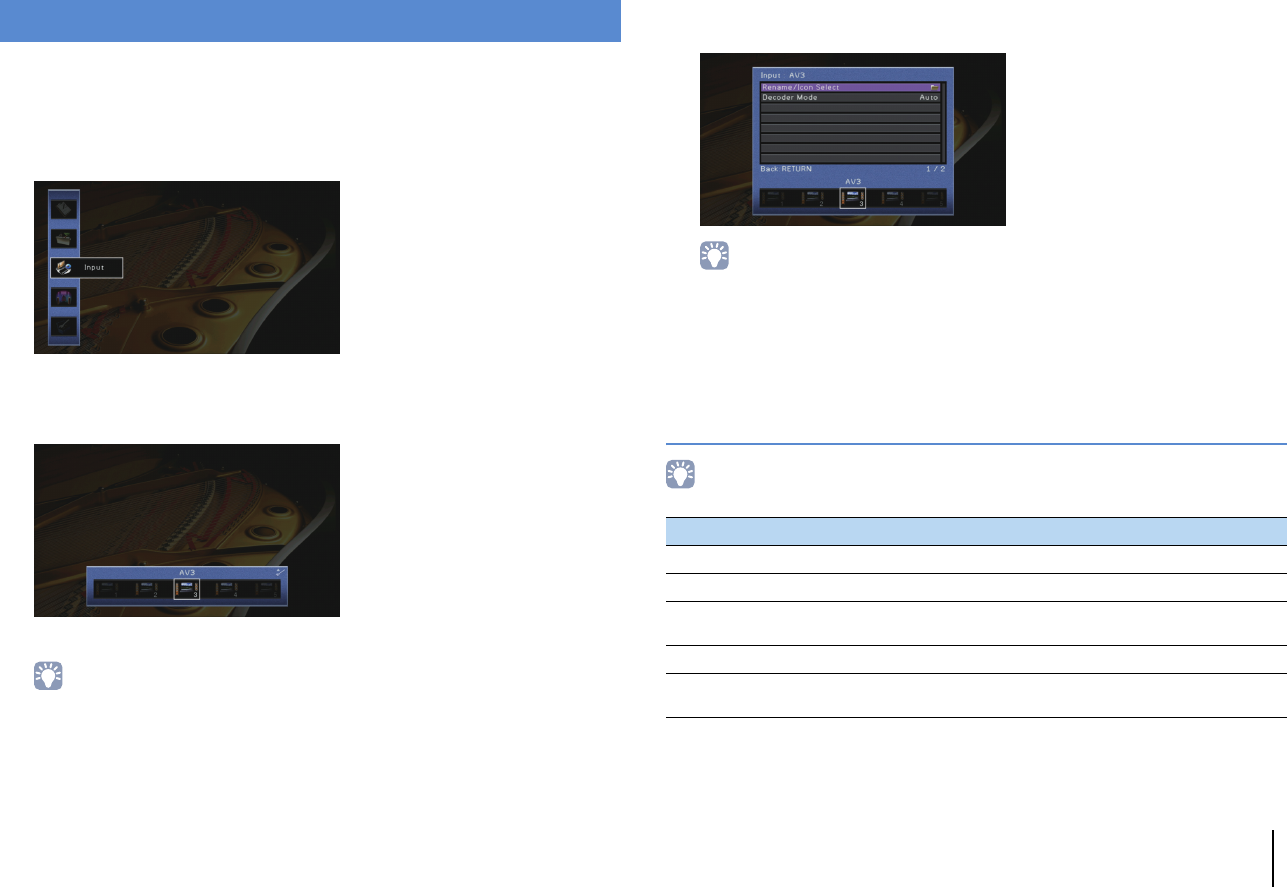
CONFIGURATIONS ➤Configuring input sources (Input menu) En 103
CONFIGURATIONS
You can change the input source settings using the TV screen.
1Press ON SCREEN.
2Use the cursor keys to select “Input” and press ENTER.
3Use the cursor keys (e/r) to select an input source to be configured
and press the cursor key (q).
The input source of the unit also changes.
• You can still switch the input source by using cursor keys (e/r) after Step 3.
4Use the cursor keys (q/w) to select an item and press ENTER.
• To return to the previous screen during menu operations, press RETURN.
5Use the cursor keys to select a setting and press ENTER.
6To exit from the menu, press ON SCREEN.
Input menu items
• Available items vary depending on the selected input source.
Configuring input sources (Input menu)
Item Function Page
Rename/Icon Select Changes the input source name and icon. 104
Decoder Mode Sets the format of digital audio playback to DTS. 104
Volume Interlock Enables/disables volume controls from iTunes/iPod via
AirPlay. 104
Video Out Selects a video to be output with the audio input source. 104
DMC Control Selects whether to allow a DLNA-compatible Digital Media
Controller (DMC) to control playback. 105
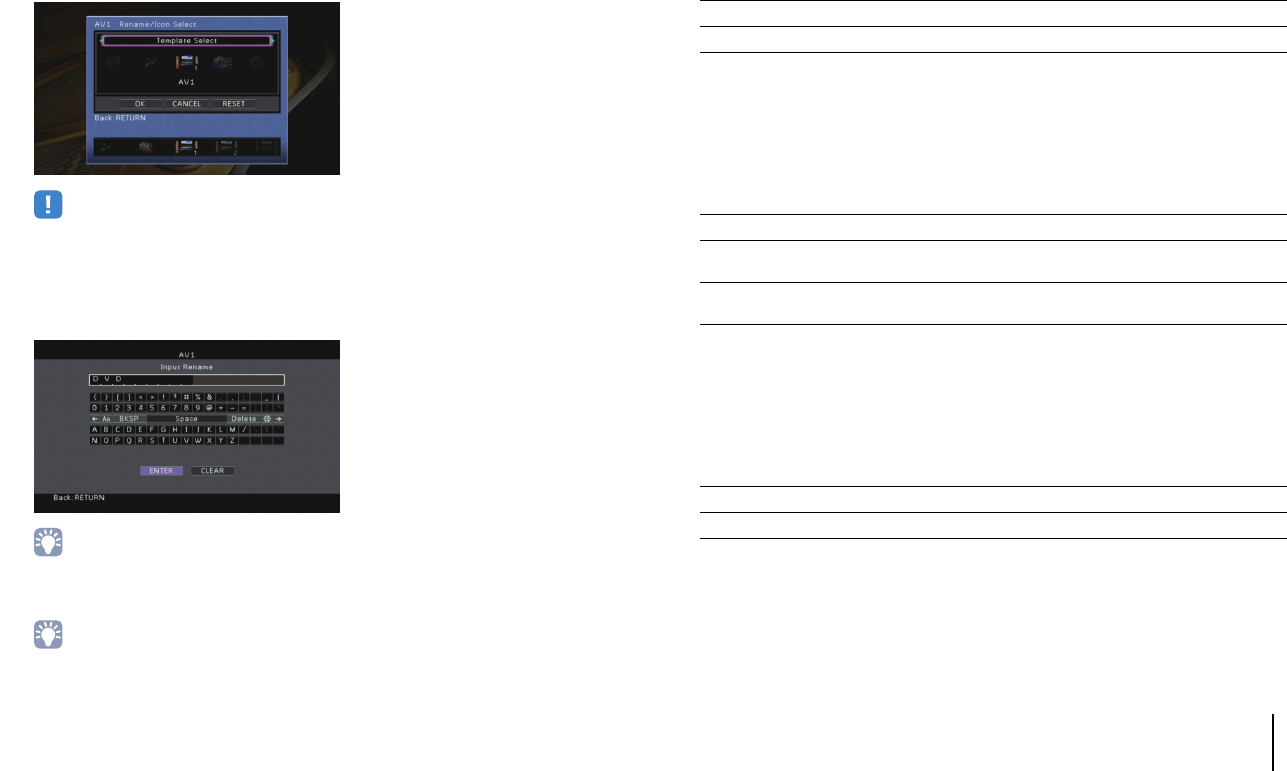
CONFIGURATIONS ➤Configuring input sources (Input menu) En 104
■Rename/Icon Select
Changes the input source name and icon displayed on the front display or TV screen.
Input sources
AV 1–7, V-AUX, AUDIO 1–4, PHONO, USB, MULTI CH
■Setup procedure
1Use the cursor keys (e/r) to select a template and press the cursor key (w).
• You cannot change the template or icon for “USB” when an iPod is connected.
2Use the cursor keys (e/r) to select an icon and press the cursor key (w).
3Press ENTER to enter the name edit screen.
4
Use the cursor keys and ENTER to rename and select “ENTER” to confirm the entry.
• To clear the entry, select “CLEAR”.
5Use the cursor keys to select “OK” and press ENTER.
• To restore the default setting, select “RESET”.
6To exit from the menu, press ON SCREEN.
■Decoder Mode
Sets the format of digital audio playback to “DTS”.
For example, if the unit does not detect DTS audio and outputs noise, set “Decoder
Mode” to “DTS”.
Input sources
AV 1–7, V-AUX, AUDIO 1–4 (available only when any audio digital input jack is assigned)
Settings
■Volume Interlock
Enables/disables volume controls from iTunes/iPod via AirPlay.
Input sources
AirPlay
Settings
■Video Out
Selects a video to be output with the audio input source.
Input sources
TUNER, (network sources), USB, MULTI CH
Settings
Default
USB: V-AUX
Others: Off
Auto (default) Automatically selects an audio format to match the input audio signal.
DTS Selects DTS only. (Other audio signals are not reproduced.)
Off Disables volume controls from iTunes/iPod.
Limited (default) Enables volume controls from iTunes/iPod within the limited range
(-80 dB to 0 dB and mute).
Full Enables volume controls from iTunes/iPod in the full range (-80 dB to
+16.5 dB and mute).
Off Does not output video.
AV 1–7, V-AUX Outputs video input through the corresponding video input jacks.
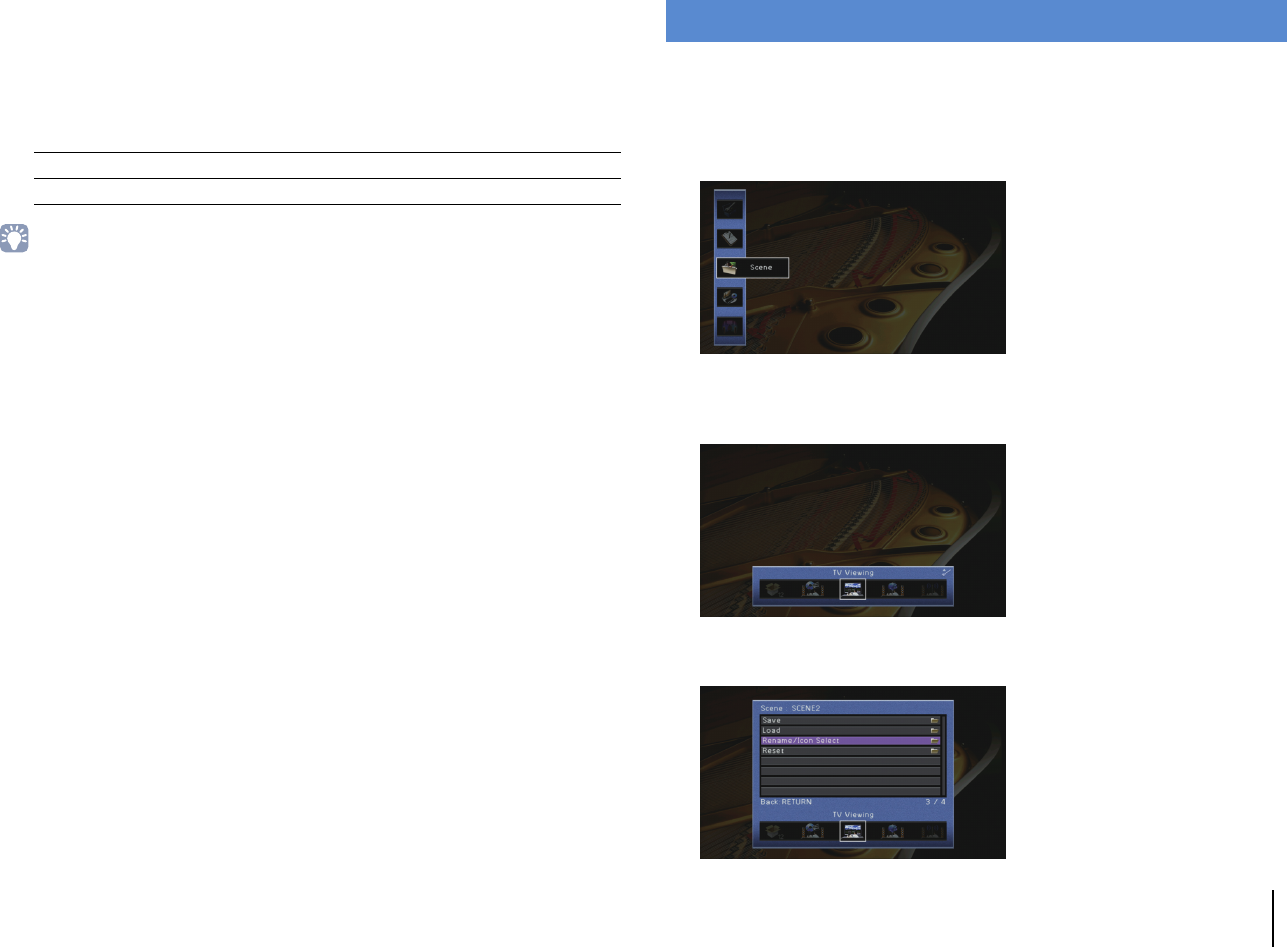
CONFIGURATIONS ➤Configuring the SCENE function (Scene menu) En 105
■DMC Control
Selects whether to allow DLNA-compatible Digital Media Controller (DMC) to control
playback.
Input source
SERVER
Settings
• A Digital Media Controller (DMC) is a device that can control other network devices through the network.
When this function is enabled, you can control playback of the unit from DMCs (such as Windows Media
Player 12) on the same network.
You can change the settings of the SCENE function (p.61) using the TV screen.
1Press ON SCREEN.
2Use the cursor keys to select “Scene” and press ENTER.
3Use the cursor keys (e/r) to select a scene to be configured and
press the cursor key (q).
4Use the cursor keys (q/w) to select an item and press ENTER.
Disable Does not allow DMCs to control playback.
Enable (default) Allows DMCs to control playback.
Configuring the SCENE function (Scene menu)
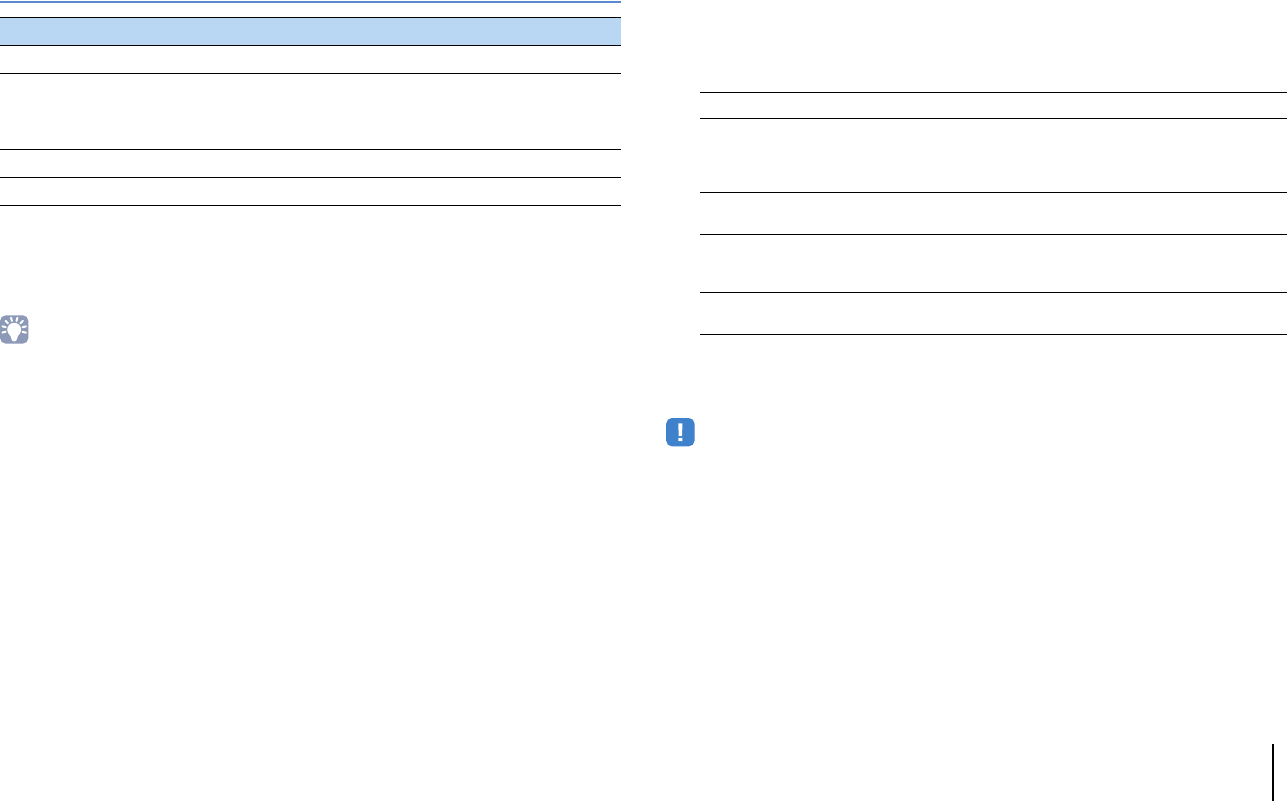
CONFIGURATIONS ➤Configuring the SCENE function (Scene menu) En 106
5Use the cursor keys and ENTER to change the setting.
6To exit from the menu, press ON SCREEN.
Scene menu items
■Save
Registers the unit’s current settings (such as input source and sound program) in the
selected scene.
• If you have changed the input assignment for a scene, you also need to change the external device
assigned to the corresponding SCENE key (p.62).
■Load
Loads the settings registered for the selected scene.
Select “DETAIL” to configure the SCENE link playback setting or view the scene
assignments.
❑Device Control
Recalls a selected scene and starts its playback on an external device connected to
the unit via HDMI or on a Yamaha product connected to the REMOTE OUT jack.
(SCENE link playback)
Settings
Default
SCENE1 (BD/DVD), SCENE2 (TV): HDMI Control
SCENE3 (NET), SCENE4 (RADIO), SCENE5–12: Off
• To control playback of an HDMI Control-compatible device by SCENE link playback, you need to set “HDMI
Control” in the “Setup” menu to “On” and perform the HDMI Control link setup (p.158).
Item Function Page
Save Registers the current settings in the selected scene. 106
Load
Loads the settings registered for the selected scene. You can
also configure the SCENE link playback setting, select items
to be included as the scene assignments, or view the settings
currently assigned to the selected scene.
106
Rename/Icon Select Changes the scene name and icon. 107
Reset Restores the default settings for the selected scene. 107
Off Disables the SCENE link playback function.
HDMI Control
Enables SCENE link playback using HDMI Control signals. Select this
if an HDMI Control-compatible device (such as a BD/DVD player) is
connected to the unit via HDMI. It also turns on the TV if it supports
HDMI Control.
IR: Yamaha BD/DVD 1
Enables SCENE link playback using remote control signals. Select this
if a Yamaha BD/DVD player is connected to the REMOTE OUT jack.
IR: Yamaha BD/DVD 2
Enables SCENE link playback using remote control signals. Select this
if a Yamaha BD/DVD player is connected to the REMOTE OUT jack
and “IR: Yamaha BD/DVD 1” does not work properly.
IR: Yamaha CD Enables SCENE link playback using remote control signals. Select this
if a Yamaha CD player is connected to the REMOTE OUT jack.
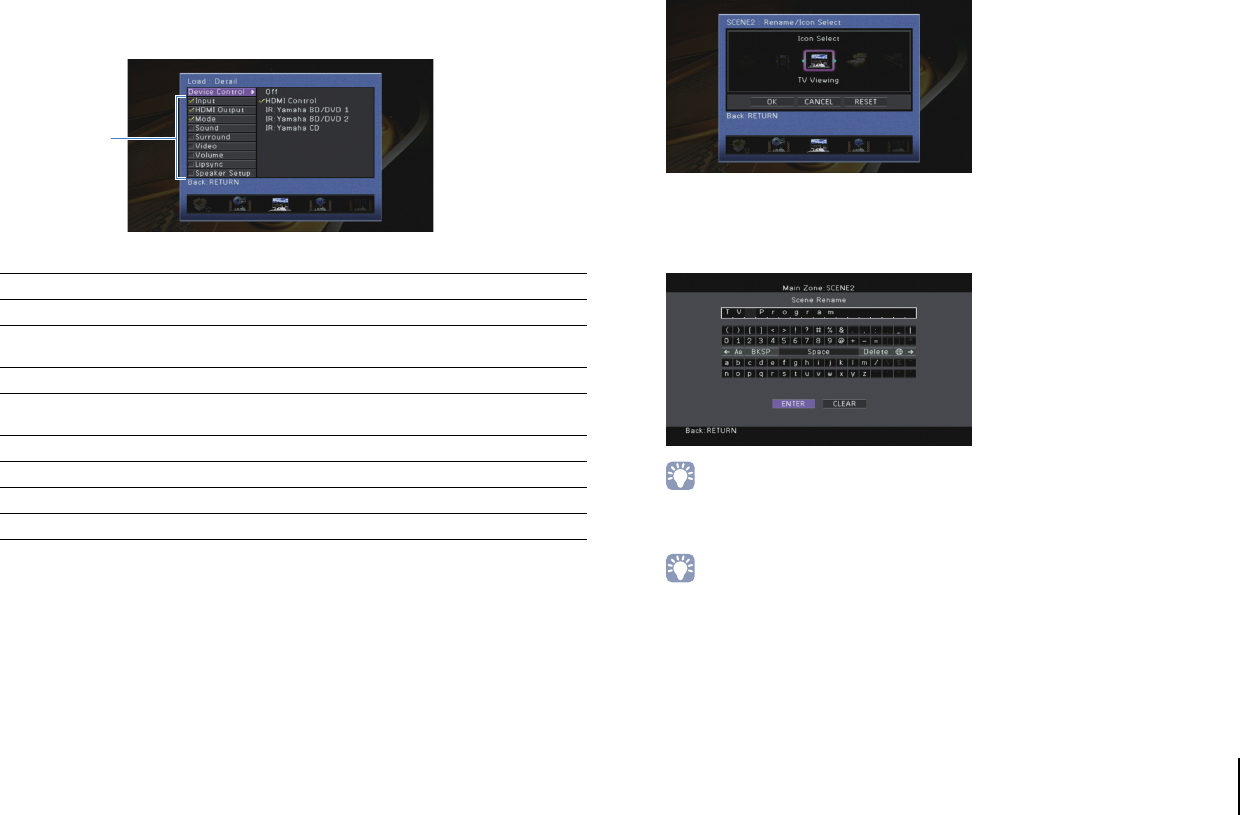
CONFIGURATIONS ➤Configuring the SCENE function (Scene menu) En 107
❑Detail
Selects items to be included as the scene assignments. You can also view the settings
currently assigned to the selected scene.
To include items as the scene assignments, use the cursor keys to select an item and
press ENTER to check the box (or uncheck the box to exclude).
For example, if you often adjust the volume while watching TV but listen to radio with
low volume at night, exclude “Volume” from the assignments for SCENE2 (TV) and
include “Volume” in the assignments for SCENE4 (RADIO).
Choices
Default
Input, HDMI Output, Mode: selected
Sound, Surround, Video, Volume, Lipsync, Speaker Setup: not selected
■Rename/Icon Select
Changes the scene name and icon displayed on the front display or TV screen.
■Setup procedure
1Use the cursor keys (e/r) to select an icon and press the cursor key (w).
2Press ENTER to enter the name edit screen.
3Use the cursor keys and ENTER to rename and select “ENTER” to confirm the
entry.
• To clear the entry, select “CLEAR”.
4Use the cursor keys to select “OK” and press ENTER.
• To restore the default setting, select “RESET”.
5To exit from the menu, press ON SCREEN.
■Reset
Restores the default settings (p.61) for the selected scene.
Input Input (p.60), Audio Select (p.101)
HDMI Output HDMI Output (p.60)
Mode Sound Program (p.63), Pure Direct Mode (p.119), Enhancer (p.68),
Enhancer Hi-Res Mode (p.101)
Sound Tone Control (p.99), Adaptive DRC (p.99)
Surround CINEMA DSP 3D Mode (p.99), Dialogue Lift (p.100), Dialogue Level
(p.100), Subwoofer Trim (p.101), Extended Surround (p.100)
Video Video Mode (p.119), Video Adjustment (p.101)
Volume Master Volume (p.60)
Lipsync Lipsync (p.118), Delay (p.118)
Speaker Setup Setting Pattern (p.114), PEQ Select (p.117)
Check or uncheck
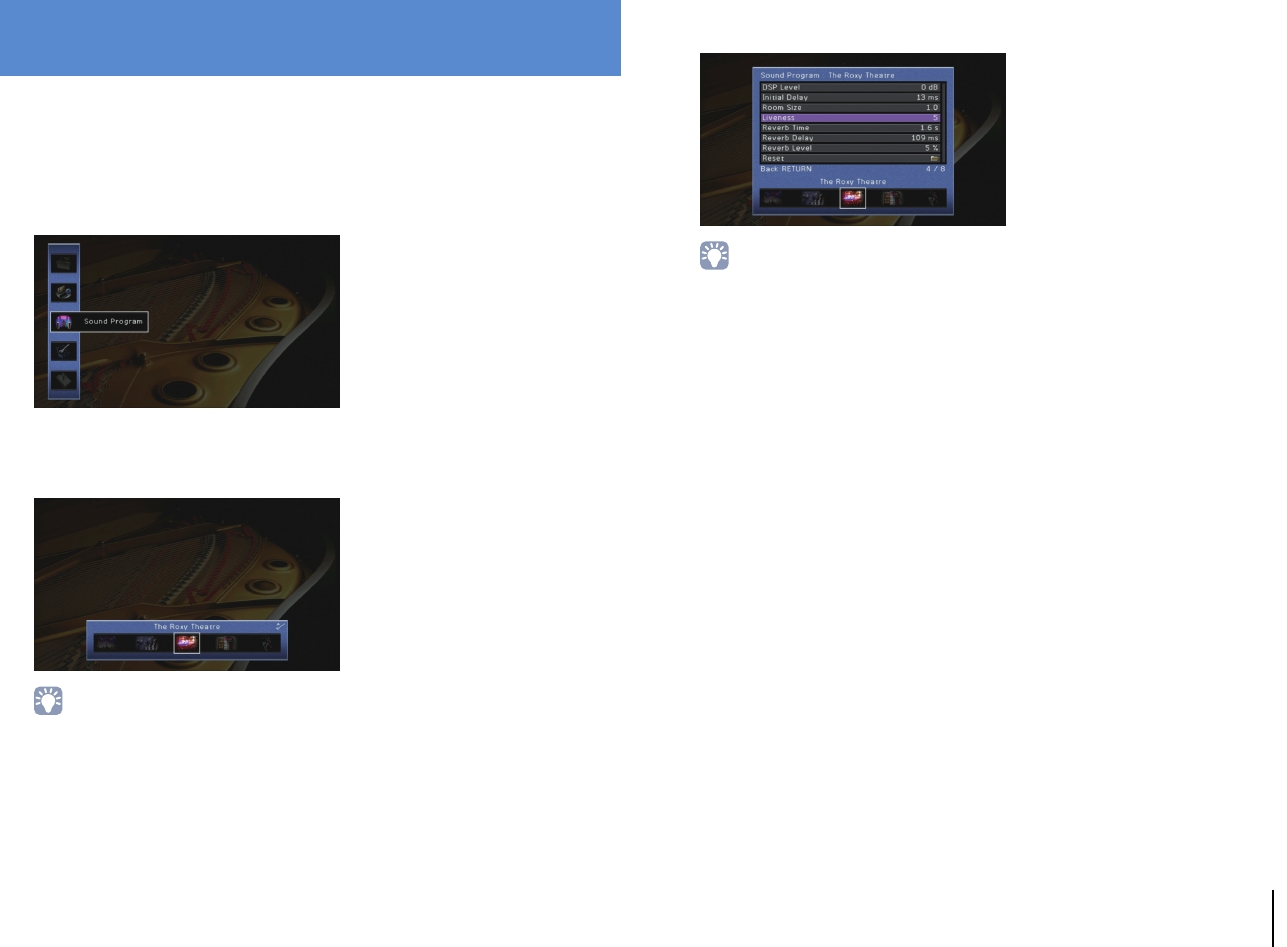
CONFIGURATIONS ➤Configuring sound programs/surround decoders (Sound Program menu) En 108
You can change the settings of the sound programs and surround decoders using the
TV screen.
1Press ON SCREEN.
2Use the cursor keys to select “Sound Program” and press ENTER.
3Use the cursor keys (e/r) to select a sound program to be
configured and press the cursor key (q).
• You can still switch the sound program by using cursor keys (e/r) after Step 3.
4Use the cursor keys (q/w) to select an item and press ENTER.
• To return to the previous screen during menu operations, press RETURN.
• To restore the default settings for the selected sound program, select “Reset”.
5Use the cursor keys to select a setting and press ENTER.
6To exit from the menu, press ON SCREEN.
Configuring sound programs/surround
decoders (Sound Program menu)
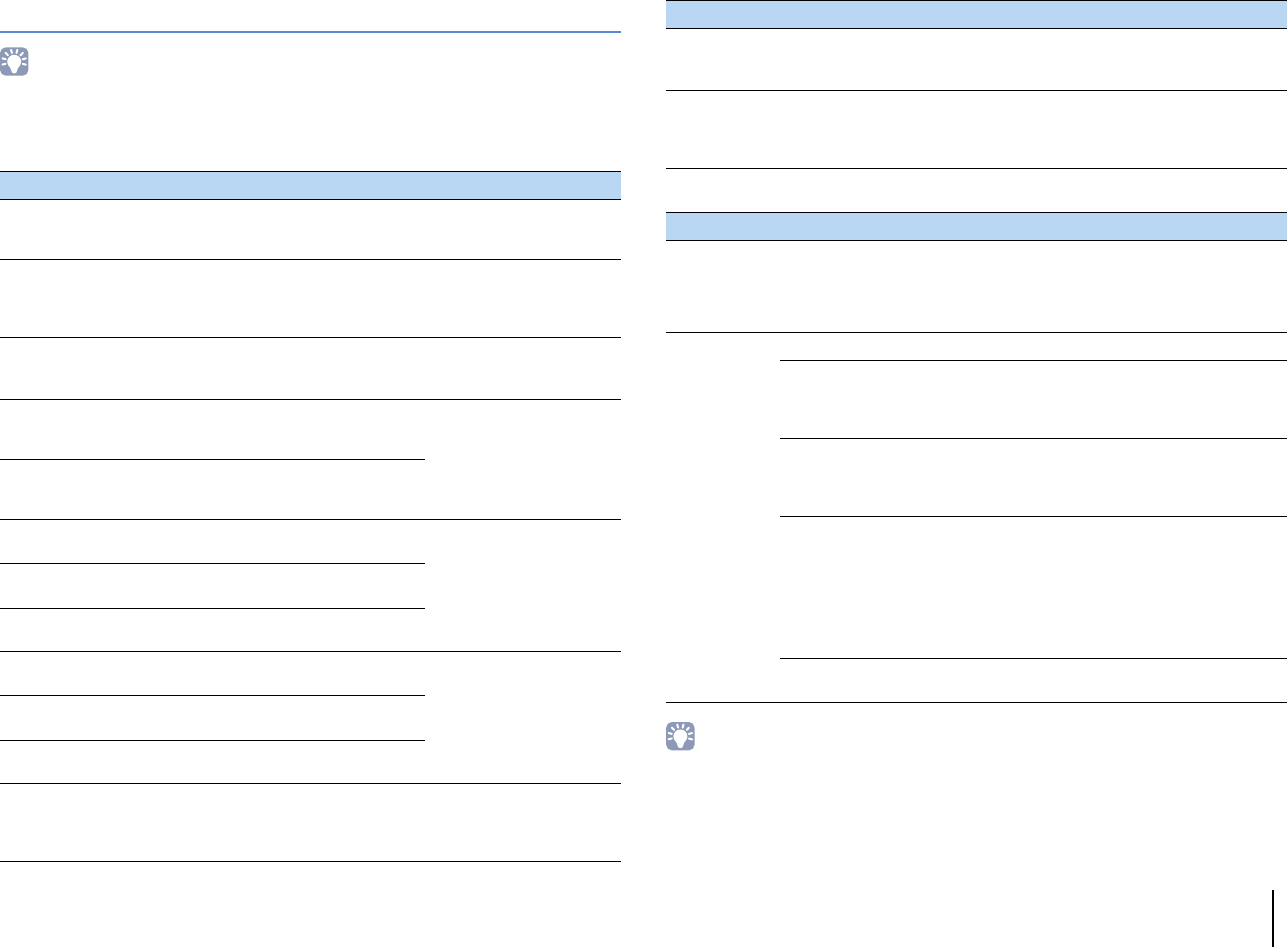
CONFIGURATIONS ➤Configuring sound programs/surround decoders (Sound Program menu) En 109
Sound Program menu items
• Available items and the default settings vary depending on the selected sound program or surround
decoder.
■Settings for sound programs
The following items are available when you select “2ch Stereo” or “9ch Stereo”.
• Available items in “9ch Stereo” vary depending on the speaker system being used.
Item Function Settings
Decode Type
Selects a surround decoder to be used
in combination with the selected sound
program.
bPLIIx Movie (bPLII
Movie), Neo:6 Cinema
DSP Level Adjusts the sound field effect level.
-6 dB to +3 dB (default: 0 dB)
Higher to enhance the sound
field effect, and lower to
reduce it.
Initial Delay
Adjusts the delay between the direct
sound and presence sound field
generation.
1 ms to 99 ms
Higher to enhance the delay
effect, and lower to reduce it.
Surround Initial Delay
Adjusts the delay between the direct
sound and surround sound field
generation. 1 ms to 49 ms
Higher to enhance the delay
effect, and lower to reduce it.
Surround Back Initial
Delay
Adjusts the delay between the direct
sound and surround back sound field
generation.
Room Size Adjusts the broadening effect of the
presence sound field. 0.1 to 2.0
Higher to enhance the
broadening effect, and lower
to reduce it.
Surround Room Size Adjusts the broadening effect of the
surround sound field.
Surround Back Room
Size
Adjusts the broadening effect of the
surround back sound field.
Liveness Adjusts the loss of the presence sound
field. 0 to 10
Higher to enhance the
reflectivity, and lower to
reduce it.
Surround Liveness Adjusts the loss of the surround sound
field.
Surround Back
Liveness
Adjusts the loss of the surround back
sound field.
Reverb Time Adjust the decay time of the rear
reverberant sound.
1.0 s to 5.0 s
Higher to enrich the
reverberant sound and lower
to have clear sound.
Reverb Delay
Adjusts the delay between the direct
sound and reverberant sound
generation.
0ms to 250ms
Higher to enhance the delay
effect, and lower to reduce it.
Reverb Level Adjusts the volume of the reverberant
sound.
0% to 100%
Higher to strengthen the
reverberant sound, and lower
to weaken it.
Sound program
Item Function Settings
2ch Stereo Direct
Selects whether to
automatically bypass the
DSP circuit when an
analog audio source is
played back.
Auto (default), Off
9ch Stereo
Level Adjusts the entire volume. -5 to +5 (default: 0)
Front / Rear Balance Adjusts the front and rear
volume balance.
-5 to +5 (default: 0)
Higher to enhance the front
side, and lower to enhance
the rear side.
Left / Right Balance Adjusts the right and left
volume balance.
-5 to +5 (default: 0)
Higher to enhance the right
side, and lower to enhance
the left side.
Height Balance
Adjust the height volume
balance using the front
presence speakers.
0 to 10 (default: 5)
Higher to enhance the
upside, and lower to
enhance the downside. (The
front presence speakers do
not produce sounds when
“Height Balance” is set to
“0”.)
Monaural Mix Enables/disables
monaural sound output. Off (default), On
Item Function Settings
CONFIGURATIONS ➤Configuring sound programs/surround decoders (Sound Program menu) En 110
■Settings for decoders
The following items are available when you set “Decode Type” of “SURROUND
DECODER” to “bPLIIx Music” (bPLII Music) or “Neo:6 Music”.
Decode Type Item Function Settings
bPLIIx Music
(bPLII Music)
Panorama
Adjusts the broadening
effect of the front sound
field.
Off (default), On
Select “On” to wrap front right/left
channel sounds around the field
and generate a spacious sound
field in combination with the
surround sound field.
Center Width
Adjusts the broadening
effect of the center
sound field.
0 to 7 (default: 3)
Higher to enhance the broadening
effect, and lower to reduce it
(closer to center).
Dimension
Adjusts the difference in
level between the front
and surround sound
fields.
-3 to +3 (default: 0)
Higher to strengthen the front
sound field and lower to strengthen
the surround sound field.
Neo:6 Music Center Image
Adjusts the center
orientation level
(broadening effect) of
the front sound field.
0.0 to 1.0 (default: 0.3)
Higher to strengthen the center
orientation level (less broadening
effect) and lower to weaken (more
broadening effect).
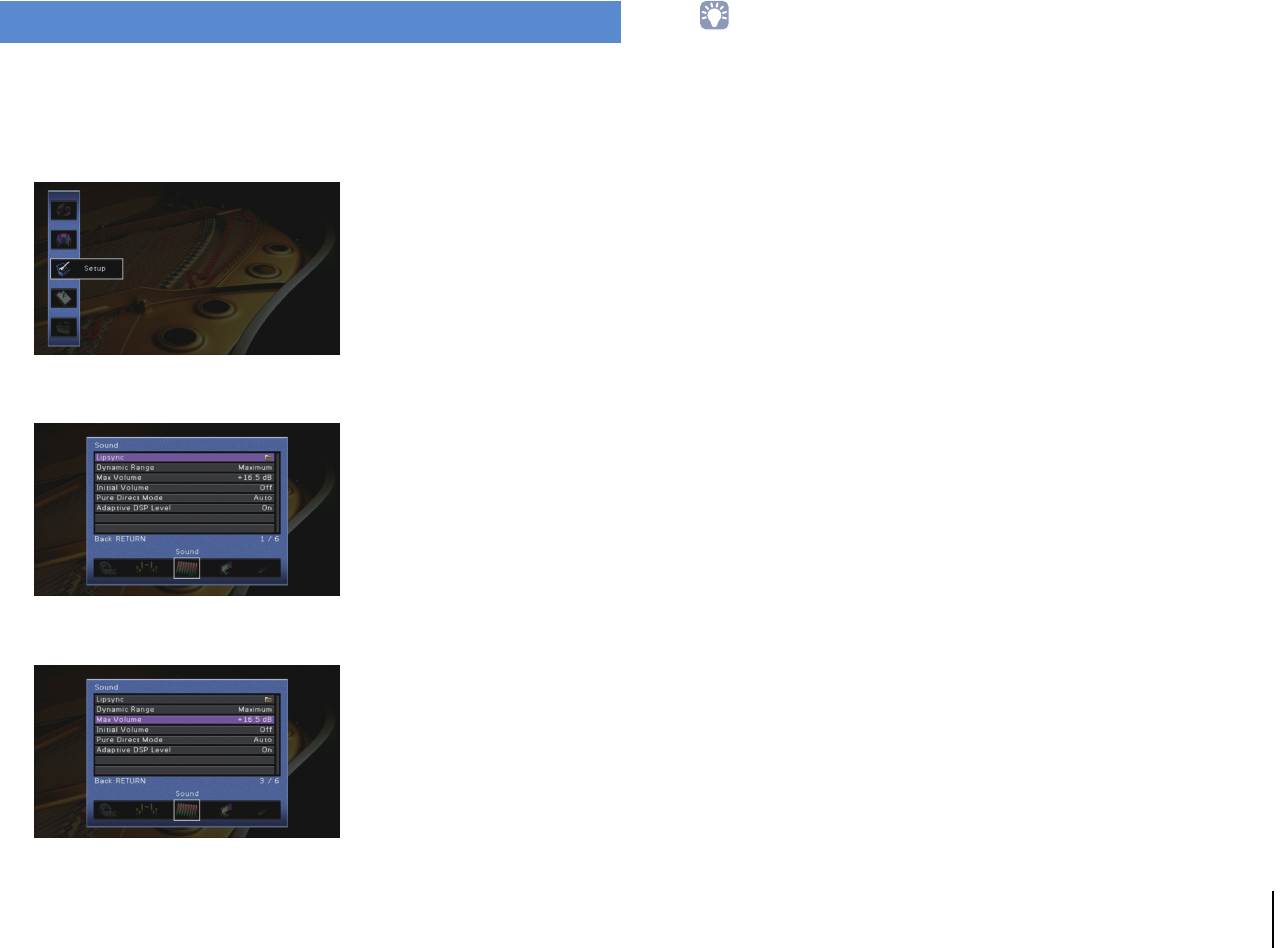
CONFIGURATIONS ➤Configuring various functions (Setup menu) En 111
You can configure the unit’s various function with the menu displayed on the TV screen.
1Press ON SCREEN.
2Use the cursor keys to select “Setup” and press ENTER.
3Use the cursor keys (e/r) to select a menu.
4Use the cursor keys (q/w) to select an item and press ENTER.
• To return to the previous screen during menu operations, press RETURN.
5Use the cursor keys to select a setting and press ENTER.
6To exit from the menu, press ON SCREEN.
Configuring various functions (Setup menu)
CONFIGURATIONS ➤Configuring various functions (Setup menu) En 112
Setup menu items
Menu Item Function Page
Speaker
Auto Setup Automatically optimizes the speaker settings (YPAO). 50
Manual Setup
Setting Pattern Registers two speaker setting patterns and switches between them. 114
Setting Data Copy Copies the “Setting Pattern” parameters in the specified direction. 114
Power Amp Assign Selects a speaker system. 114
Configuration
Front Selects the size of the front speakers. 115
Center Selects whether or not a center speaker is connected and its size. 115
Surround Selects whether or not surround speakers are connected and their size. 115
Surround Back Selects whether or not surround back speakers are connected and their size. 115
Front Presence Selects whether or not front presence speakers are connected. 116
Rear Presence Selects whether or not rear presence speakers are connected. 116
Subwoofer 1
Subwoofer 2 Selects whether or not a subwoofer is connected to the SUBWOOFER 1 or SUBWOOFER 2 jack and its phase. 116
SWFR Layout Selects a subwoofer layout when 2 subwoofers are used. 116
Extra Bass Sets the speakers to produce the front channel low-frequency components. 116
Distance Sets the distance between each speaker and listening position. 116
Level Adjusts the volume of each speaker. 117
Parametric EQ Adjusts the tone with an equalizer. 117
Test Tone Enables/disables the test tone output. 117
Sound
Lipsync
Delay Enable Enables/disables the Lipsync adjustment for each input source. 118
Auto/Manual Select Selects the method to adjust the delay between video and audio output. 118
Adjustment Adjusts the delay between video and audio output manually. 118
Dynamic Range Selects the dynamic range adjustment method for bitstream audio (Dolby Digital and DTS signals) playback. 118
Max Volume Sets the maximum volume to prevent excessive loudness. 118
Initial Volume Sets the initial volume for when this receiver is turned on. 119
Pure Direct Mode Selects whether to output video signals during the Pure Direct mode. 119
Adaptive DSP Level Selects whether to automatically adjust the CINEMA DSP effect level. 119
Video
Analog to Analog Conversion Enables/disables the video conversion between the analog video jacks 119
Video Mode Enables/disables the video signal processing (resolution, aspect ratio and video adjustments). 119
CONFIGURATIONS ➤Configuring various functions (Setup menu) En 113
HDMI
HDMI Control Enables/disables HDMI Control. You can also configure the relevant settings (such as ARC and TV audio input). 122
Audio Output Selects a device to output audio. 122
Standby Through Select whether to output videos/audio (input through HDMI jacks) to the TV when the unit is in standby mode. 123
Network
IP Address Configures the network parameters (such as IP address). 123
Network Standby Selects whether to enable/disable the function that turns on the unit from other network devices. 124
MAC Address Filter Sets the MAC address filter to limit access to the unit from other network devices. 124
Network Name Edits the network name (the unit’s name on the network) displayed on other network devices. 124
Multi Zone
Main Zone Set Zone Rename Changes the zone name (for main zone) displayed on the front display or TV screen. 125
Zone2 Set
Zone3 Set
Vol ume Enables/disables volume adjustments for Zone2 or Zone3 output. 125
Max Volume Sets the Zone2 or Zone3 maximum volume to prevent excessive loudness in the second zone. 125
Initial Volume Sets the Zone2 or Zone3 initial volume for when the unit is turned on. 125
Mono Switches between stereo and monaural for Zone2 or Zone3 output. 126
Zone Scene Rename Changes the scene names (for Zone2 or Zone3) displayed on the front display or TV screen. 126
Zone Rename Changes the zone name (for Zone2 or Zone3) displayed on the front display or TV screen. 126
Zone4 Set
(RX-A3020 only)
Zone Scene Rename Changes the scene names (for Zone4) displayed on the front display or TV screen. 126
Zone Rename Changes the zone name (for Zone4) displayed on the front display or TV screen. 126
Monitor Out Assign Select the zone for which the MONITOR OUT/ZONE OUT jacks are used. 126
HDMI OUT2 Assign
(RX-A3020 only) Select the zone for which the HDMI OUT 2 (ZONE OUT) jack is used. 127
Party Mode Set Enables/disables switching to the party mode for each zone. 127
Function
Input Assignment Assigns the COMPONENT VIDEO, COAXIAL and OPTICAL jacks to another input source. 127
Display Set
Dimmer (Front Display) Adjusts the brightness of the front display. 128
Short Message Selects whether to display short messages on the TV screen when the unit is operated. 128
Wall Paper Selects the image to be used as wallpaper on the TV. 128
Trigger Output1
Trigger Output2
Trigger Mode Specifies the condition for the TRIGGER OUT jack to function. 128
Target Zone Specifies the zone with which the TRIGGER OUT jack functions are synchronized. 129
Memory Guard Prevents accidental changes to the settings. 129
ECO
Auto Power Down Sets the amount of time for the auto-standby function. 130
ECO Mode Enables/disables the eco mode (power saving mode). 130
Language Select an on-screen menu language. 130
Menu Item Function Page
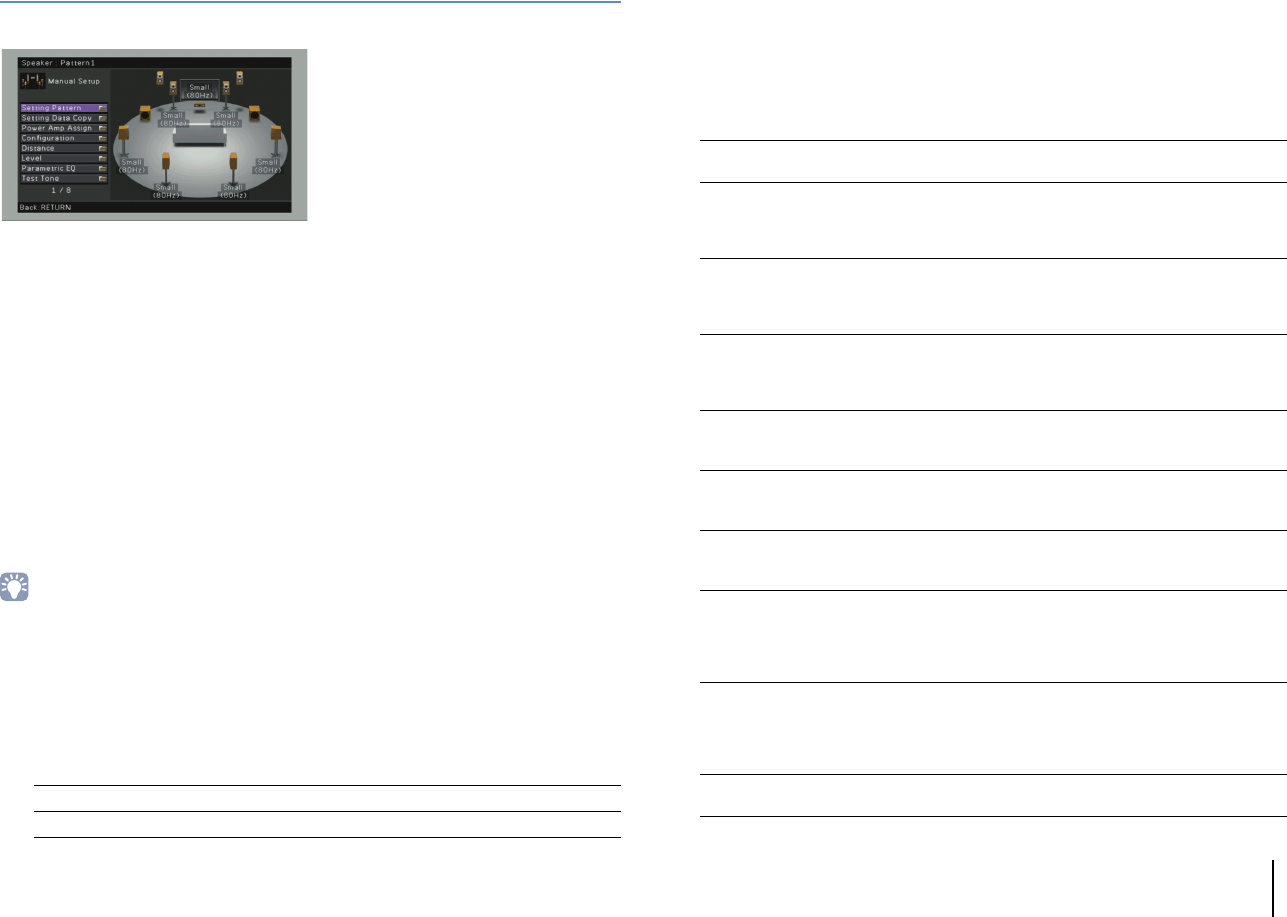
CONFIGURATIONS ➤Configuring various functions (Setup menu) En 114
Speaker (Manual Setup)
Configures the speaker settings manually.
■Setting Pattern
Registers two speaker setting patterns and switches between them.
When you configure the following speaker settings, the settings will be memorized in
the selected pattern.
• Measurement results (Auto Setup)
• Power Amp Assign
• Configuration
• Distance
• Level
• Parametric EQ
Settings
Pattern1 (default), Pattern2
• The setting pattern currently selected is shown at the top of the “Auto Setup” and “Manual Setup” screens.
• This function is useful when you want to save certain settings according to the varying conditions of your
listening environment. For example, if you want to switch the settings when curtains are open or closed,
you can save the settings suited for each condition and switch between them.
■Setting Data Copy
Copies the “Setting Pattern” parameters in the specified direction.
Choices
■Power Amp Assign
Selects a speaker system.
The unit has 9 built-in amplifiers. You can connect 2 to 11 speakers and up to
2 subwoofers (with built-in amplifier) to create the favorite acoustic space in your room.
You can also apply bi-amp connections, channel expansion (using an external power
amplifier) or multi-zone configurations to enhance your system.
Settings
Pattern1 > 2 Copies the “Pattern1” parameters to “Pattern2”.
Pattern2 > 1 Copies the “Pattern2” parameters to “Pattern1”.
Basic (default) Select this option when you use the basic speaker configuration (up to
9-channel plus rear presence speakers) (p.19).
7ch +1ZONE
Select this when you use 7-channel speakers in the main zone and
Zone2 (or Zone3) speakers (p.30).
You can select a zone to be assigned to the EXTRA SP 1 jacks
(default: Zone2).
9ch +1ZONE
Select this when you use 9-channel speakers in the main zone and
Zone3 (or Zone2) speakers (p.30).
You can select a zone to be assigned to the EXTRA SP 2 jacks
(default: Zone3).
7ch +2ZONE
Select this when you use 7-channel speakers in the main zone, plus
Zone2 and Zone3 speakers (p.31).
You can select a zone to be assigned to the EXTRA SP 1 jacks
(default: Zone2) and EXTRA SP 2 jacks (default: Zone3).
9ch +RP
(RX-A3020 only)
Select this when you use 9-channel speakers plus rear presence
channel expansion using an external amplifier (p.27).
9ch +FRONT
(RX-A3020 only)
Select this when you use 9-channel speakers plus front channel
expansion using an external amplifier (p.28).
7ch +FP+RP
(RX-A3020 only)
Select this when you use 7-channel speakers, plus front presence and
rear presence channel expansion using an external amplifier (p.28).
7ch
+FRONT+1ZONE
Select this when you use 7-channel speakers plus front channel
expansion using an external amplifier in the main zone and Zone3 (or
Zone2) speakers (p.29).
You can select a zone to be assigned to the EXTRA SP 2 jacks
(default: Zone3).
5ch
+FRONT+2ZONE
Select this when you use 5-channel speakers plus front channel
expansion using an external amplifier in the main zone, plus Zone2
and Zone3 speakers (p.29).
You can select a zone to be assigned to the EXTRA SP 1 jacks
(default: Zone2) and EXTRA SP 2 jacks (default: Zone3).
7ch BI-AMP Select this when you use 7-channel speakers (including bi-amp front
speakers) (p.26).
CONFIGURATIONS ➤Configuring various functions (Setup menu) En 115
■Configuration
Configures the output characteristics of the speakers.
• When you configure the speaker size, select “Large” if the woofer diameter of your speaker is 16 cm
(6-1/4”) or larger or “Small” if it is smaller than 16 cm (6-1/4”).
❑Front
Selects the size of the front speakers.
Settings
• “Front” is automatically set to “Large” when both “Subwoofer 1” and “Subwoofer 2” are set to “None”.
❑Center
Selects whether or not a center speaker is connected and its size.
Settings
❑Surround
Selects whether or not surround speakers are connected and their sizes.
Settings
❑Surround Back
Selects whether or not surround back speakers are connected and their sizes.
Settings
• This setting is not available when “Surround” is set to “None”.
7ch BI-AMP +FP
(RX-A3020 only)
Select this when you use 7-channel speakers (including bi-amp front
speakers) plus front presence channel expansion using an external
amplifier (p.26).
7ch BI-AMP +FP+RP
(RX-A3020 only)
Select this when you use 7-channel speakers (including bi-amp front
speakers), plus front presence and rear presence channel expansion
using an external amplifier (p.27).
Large
Select this option for large speakers.
The front speakers will produce all of the front channel frequency
components.
Small (default)
Select this option for small speakers.
The subwoofer will produce front channel low-frequency components
lower than the specified crossover frequency (default: 80 Hz).
Large
Select this option for large speakers.
The center speaker will produce all of the center channel frequency
components.
Small (default)
Select this option for small speakers.
The subwoofer or front speakers will produce center channel
low-frequency components lower than the specified crossover
frequency (default: 80 Hz).
None Select this option when no center speaker is connected.
The front speakers will produce center channel audio.
Large
Select this option for large speakers.
The surround speakers will produce all of the surround channel
frequency components.
Small (default)
Select this option for small speakers.
The subwoofer or front speakers will produce surround channel
low-frequency components lower than the specified crossover
frequency (default: 80 Hz).
None
Select this option when no surround speakers are connected.
The front speakers will produce surround channel audio. Virtual
CINEMA DSP works when you select a sound program.
Large x1
Select this option when one large speaker is connected.
The surround back speaker will produce all of the surround back
channel frequency components.
Large x2
Select this option when two large speakers are connected.
The surround back speakers will produce all of the surround back
channel frequency components.
Small x1
Select this option when one small speaker is connected.
The subwoofer or front speakers will produce surround back channel
low-frequency components lower than the specified crossover
frequency (default: 80 Hz).
Small x2 (default)
Select this option when two small speakers are connected.
The subwoofer or front speakers will produce surround back channel
low-frequency components lower than the specified crossover
frequency (default: 80 Hz).
None Select this option when no surround back speakers are connected.
The surround speakers will produce surround back channel audio.
CONFIGURATIONS ➤Configuring various functions (Setup menu) En 116
❑Front Presence
Selects whether or not front presence speakers are connected.
Settings
❑Rear Presence
Selects whether or not rear presence speakers are connected.
Settings
• This setting is not available when “Surround” or “Front Presence” is set to “None”.
❑Subwoofer 1, Subwoofer 2
Selects whether or not a subwoofer is connected to the SUBWOOFER 1 or
SUBWOOFER 2 jack and its phase.
Settings
• When the bass sound is lacking or unclear, switch the subwoofer phase.
❑SWFR Layout
Selects a subwoofer layout when 2 subwoofers are used.
Settings
• This setting is not available when “Subwoofer 1” or “Subwoofer 2” is set to “None”.
❑Extra Bass
Sets the speakers to produce the front channel low-frequency components.
Settings
• This setting is not available when both “Subwoofer 1” and “Subwoofer 2” are set to “None”, or when “Front”
is set to “Small”.
■Distance
Sets the distance between each speaker and listening position so that sounds from the
speakers reach the listening position at the same time. First, select the unit of distance
from “Meter” or “Feet”.
Choices
Front L, Front R, Center, Surround L, Surround R, Surround Back L, Surround Back R,
Front Presence L, Front Presence R, Rear Presence L, Rear Presence R, Subwoofer 1,
Subwoofer 2
Setting range
0.30 m to 24.00 m (1.0 ft to 80.0 ft), *0.05 m (0.2 ft) increments
Default
3.00 m (10.0 ft)
Use (default) Select this option when front presence speakers are connected.
None Select this option when no front presence speakers are connected.
Use Select this option when rear presence speakers are connected.
None (default) Select this option when no rear presence speakers are connected.
Use
Normal
(default)
Select this option when a subwoofer is connected to the
SUBWOOFER 1 or SUBWOOFER 2 jack (phase not reversed). The
subwoofer will produce LFE (low-frequency effect) channel audio and
low-frequency components from other channels.
Reverse
Select this option when a subwoofer is connected to the
SUBWOOFER 1 or SUBWOOFER 2 jack (phase reversed). The
subwoofer will produce LFE (low-frequency effect) channel audio and
low-frequency components from other channels.
None
Select this option when no subwoofer is connected to the
SUBWOOFER 1 or SUBWOOFER 2 jack. The front speakers will
produce LFE (low-frequency effect) channel audio and low-frequency
components from other channels when both “Subwoofer 1” and
“Subwoofer 2” are set to “None”.
Left + Right Select this option when 2 subwoofers are placed on the left and right
sides of the room.
Front + Rear Select this option when 2 subwoofers are placed on the front and rear
sides of the room.
Monaural x2
(default) Select this option when 2 subwoofers are placed freely.
Off (default) Depending on the size of the front speakers, either the subwoofer or
front speakers produce the front channel low-frequency components.
On Both the front speakers and subwoofer produce the front channel
low-frequency components.
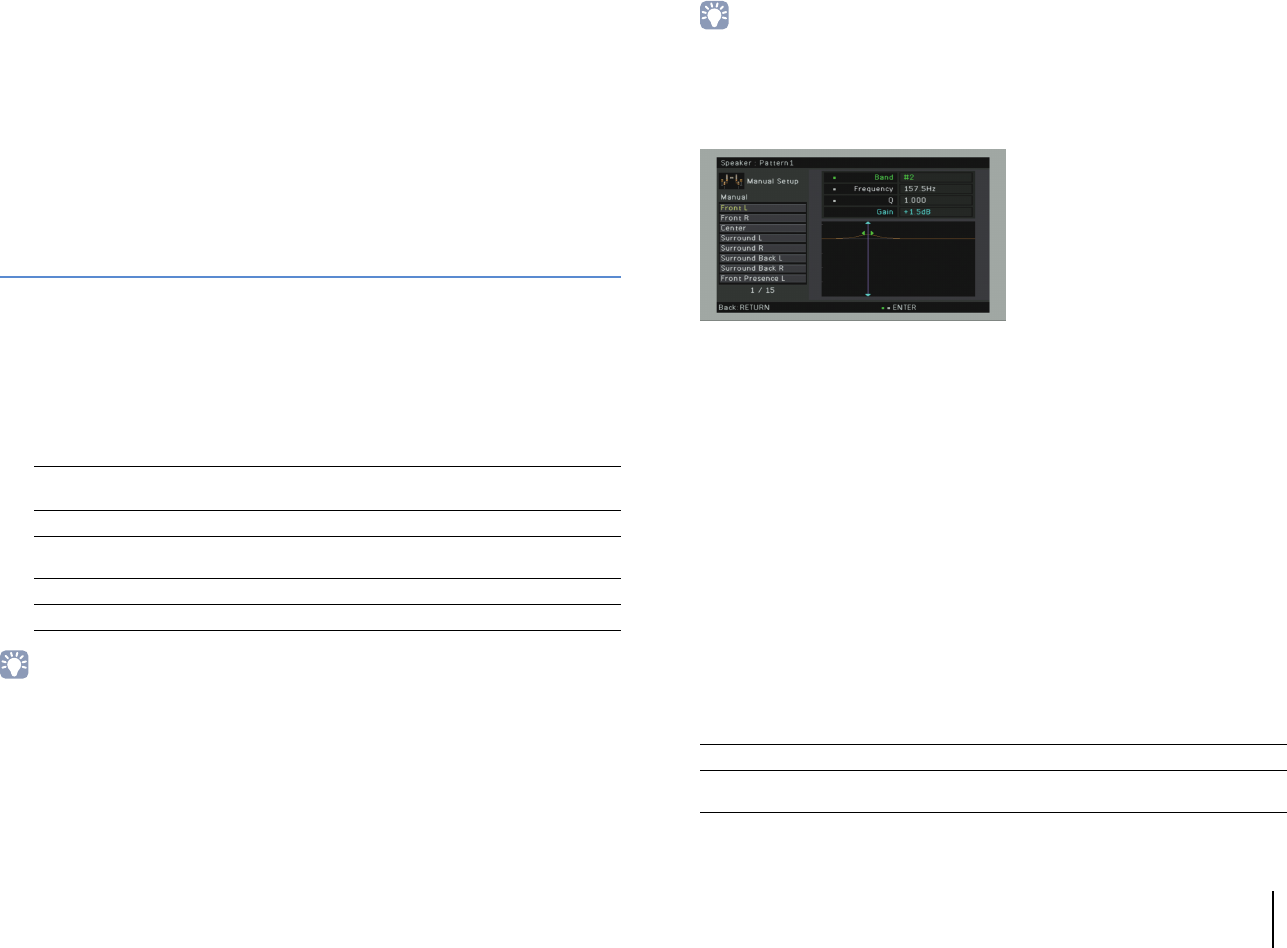
CONFIGURATIONS ➤Configuring various functions (Setup menu) En 117
■Level
Adjusts the volume of each speaker.
Choices
Front L, Front R, Center, Surround L, Surround R, Surround Back L, Surround Back R,
Front Presence L, Front Presence R, Rear Presence L, Rear Presence R, Subwoofer 1,
Subwoofer 2
Setting range
-10.0 dB to +10.0 dB (0.5 dB increments)
Default
0.0 dB
Adjusting while viewing the front display
aPress LEVEL.
bUse the cursor keys (q/w) to select a speaker.
cUse the cursor keys (e/r) to adjust the volume of the selected speaker.
■Parametric EQ
Adjusts the tone with an equalizer.
Settings
• “YPAO:Flat”, “YPAO:Front”, and “YPAO:Natural” are available only when the measurement results of “Auto
Setup” have already been saved (p.50). Press ENTER again to view the measurement results.
■Manual equalizer adjustment
1Set “Parametric EQ” to “Manual” and press ENTER.
2Press ENTER again to enter the edit screen.
3Use the cursor keys to select a speaker and press ENTER.
• To restore the default settings for all speakers, select “PEQ Data Clear” and then “OK”.
• To copy the parametric equalizer values acquired with “Auto Setup” (p.50) to the “Manual” fields for
fine adjustment, select “PEQ Data Copy” and then an equalizer type.
4Use the cursor keys (e/r) to select a preset band and the cursor keys (q/w) to
adjust the gain.
Setting range
Gain: -20.0 dB to +6.0 dB
5To fine-adjust the center frequency or Q factor (bandwidth), press ENTER
repeatedly to select an item.
Frequency: Use the cursor keys (e/r) to adjust the center frequency of the selected
band and the cursor keys (q/w) to adjust the gain.
Q: Use the cursor keys (e/r) to adjust the Q factor (bandwidth) of the selected band and
the cursor keys (q/w) to adjust the gain.
Setting range
Center frequency: 31.3 Hz to 16.0 kHz (31.3 Hz to 250.0 Hz for subwoofer)
Q factor: 0.500 to 10.080
6To exit from the menu, press ON SCREEN.
■Test Tone
Enables/disables the test tone output. Test tone output helps you to adjust the speaker
balance or equalizer while confirming its effect.
Settings
Manual Select this option when you want to adjust the equalizer manually.
For details, see “Manual equalizer adjustment”.
YPAO:Flat Adjusts individual speakers to achieve the same characteristics.
YPAO:Front Adjusts individual speakers to achieve the same characteristics as
the front speakers.
YPAO:Natural Adjusts all speakers to achieve a natural sound.
Through Does not use the equalizer.
Off (default) Does not output test tones.
On Outputs test tones automatically when you adjust the speaker balance
or equalizer.
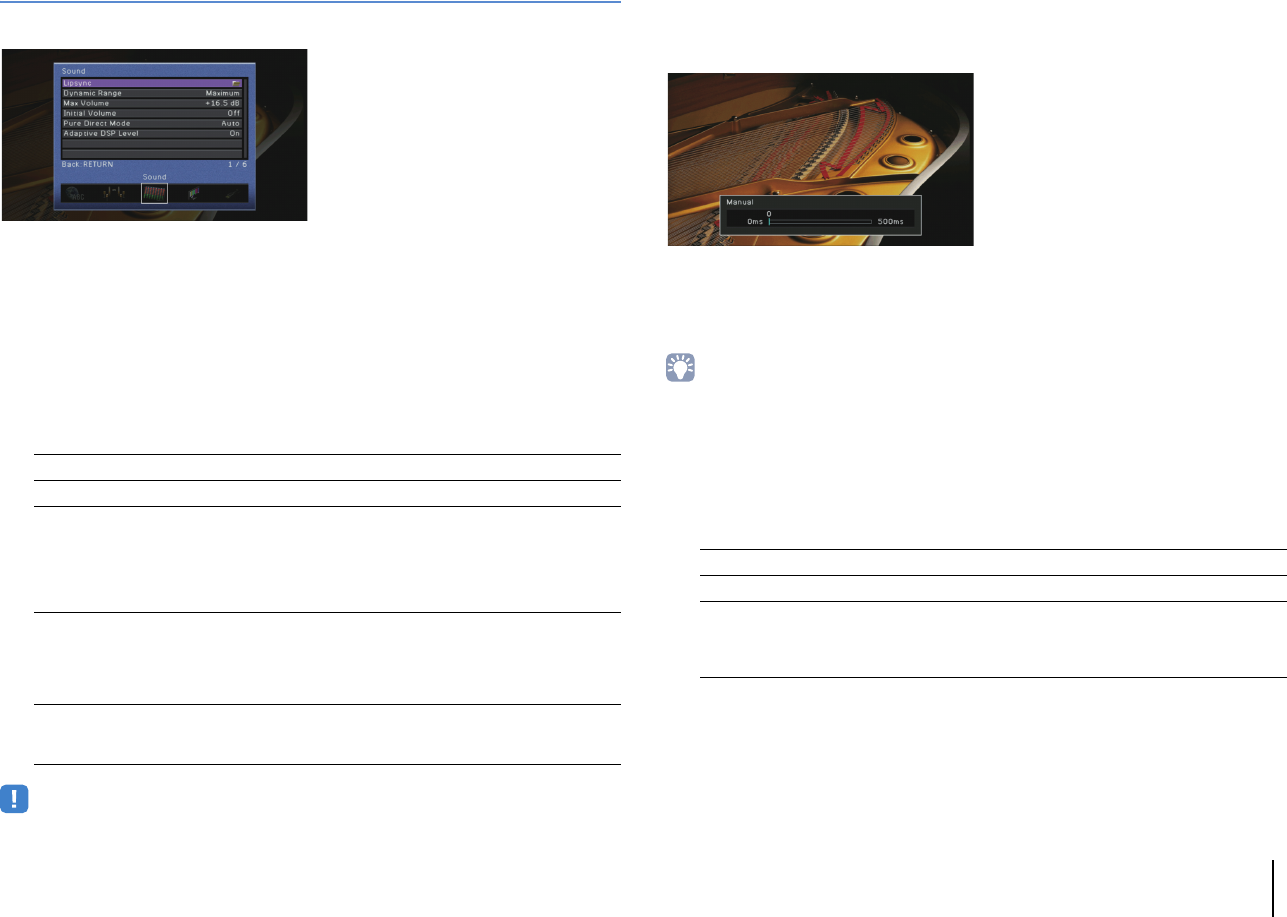
CONFIGURATIONS ➤Configuring various functions (Setup menu) En 118
Sound
Configures the audio output settings.
■Lipsync
Adjusts the delay between video and audio output.
❑Delay Enable
Enables/disables the Lipsync adjustment for each input source.
Choices
AV 1–7, AUDIO 1–4
Settings
❑Auto/Manual Select
Selects the method to adjust the delay between video and audio output.
Setting range
• Even if “Auto/Manual Select” is set to “Auto”, the automatic adjustment does not work depending on the TV
connected to the unit. In this case, adjust the delay manually in “Adjustment”.
❑Adjustment
Adjusts the delay between video and audio output manually when “Auto/Manual
Select” is set to “Manual”. You can fine-adjust the audio output timing when
“Auto/Manual Select” is set to “Auto”.
Setting range
0 ms to 500 ms (1 ms increments)
Default
0 ms
• When “Auto/Manual Select” is set to “Auto”, “Offset” shows the difference between automatic adjustment
and fine adjustment.
■Dynamic Range
Selects the dynamic range adjustment method for bitstream audio (Dolby Digital and
DTS signals) playback.
Settings
■Max Volume
Sets the maximum volume to prevent excessive loudness.
Setting range
-30.0 dB to +15.0 dB (5.0 dB increments), +16.5 dB
Default
+16.5 dB
Disable Disable the Lipsync adjustment for the selected input source.
Enable (default) Enables the Lipsync adjustment for the selected input source.
Auto (default)
Adjusts the delay between video and audio output automatically when
a TV that supports an automatic lipsync function is connected to the
unit via HDMI.
If necessary, you can fine-adjust the audio output timing in
“Adjustment”.
Manual
Select this option when you want to adjust the delay between video
and audio output manually.
Adjust the audio output timing in “Adjustment”.
Maximum (default) Produces audio without adjusting the dynamic range.
Standard Optimizes the dynamic range for regular home use.
Minimum/Auto
Sets the dynamic range for clear sound even at night or at low
volumes.
When playing back Dolby TrueHD signals, the dynamic range is
automatically adjusted based on the input signal information.
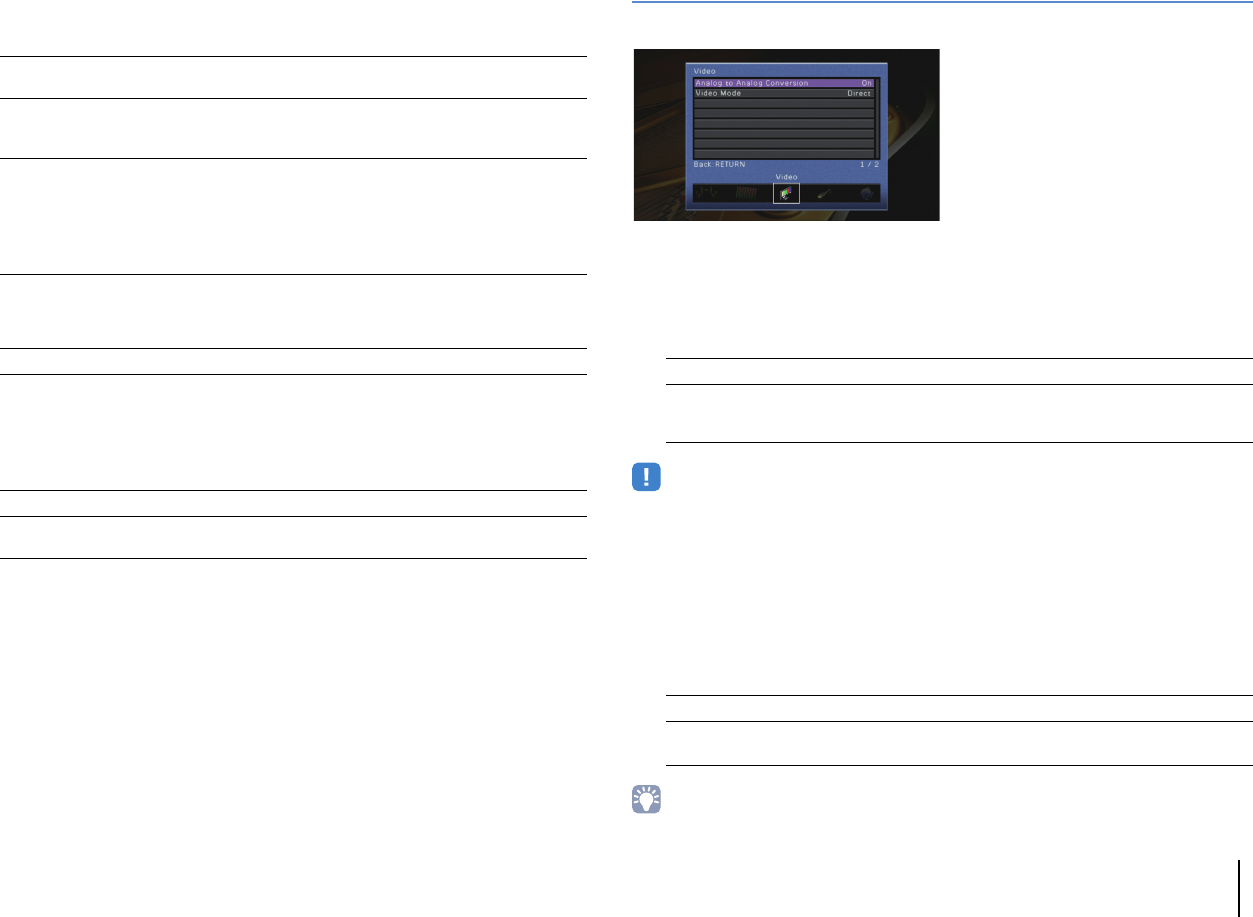
CONFIGURATIONS ➤Configuring various functions (Setup menu) En 119
■Initial Volume
Sets the initial volume when the receiver is turned on.
Settings
■Pure Direct Mode
Selects whether to output video signals during the Pure Direct mode (p.68).
Settings
■Adaptive DSP Level
Selects whether to automatically adjust the CINEMA DSP effect level.
Settings
Video
Configures the video output settings.
■Analog to Analog Conversion
Enables/disables the video conversion (p.156) between the analog video jacks
(COMPONENT VIDEO, S VIDEO and VIDEO).
Settings
• This function works only when “Monitor Out Assign” (p.126) is set to “Main” (default) and “HDMI OUT2
Assign” (RX-A3020 only) (p.127) is set to “Main” (default) or “Zone4”.
• The unit does not convert 480-line and 576-line video signals interchangeably.
• Only 480i/576i-resolution video signals can be output from the S VIDEO and VIDEO jacks (p.156).
■Video Mode
Enables/disables the video signal processing (resolution, aspect ratio and video
adjustments).
Settings
• When “Video Mode” is set to “Direct”, the unit transmits video signals with the least circuitry in order to
reduce video output delay.
Off (default) Sets the level to the volume level of the unit when it last entered
standby mode.
On
Sets at Mute or the specified volume level (-80.0 dB to +16.5 dB, 0.5
dB increments).
(Specify a volume level which is lower than the “Max Volume” setting.)
Auto (default)
Automatically outputs video signals when any videos are input from
the selected input source or an input source that can be operated with
the on-screen display is selected. When no video signals are input,
the wall paper is displayed.
Video Off Does not output video signals including the wall paper.
Off Does not adjust the effect level automatically.
On (default) Adjusts the effect level automatically according to the YPAO
measurement results and the volume level.
Off Disables the video conversion between the analog video jacks.
On (default)
Enables the video conversion between the analog video jacks.
Converted video signals are output from the MONITOR OUT jacks
only.
Direct (default) Disables the video signal processing.
Processing Enables the video signal processing.
Configure the settings in “Resolution”, “Aspect” and “Adjustment”.
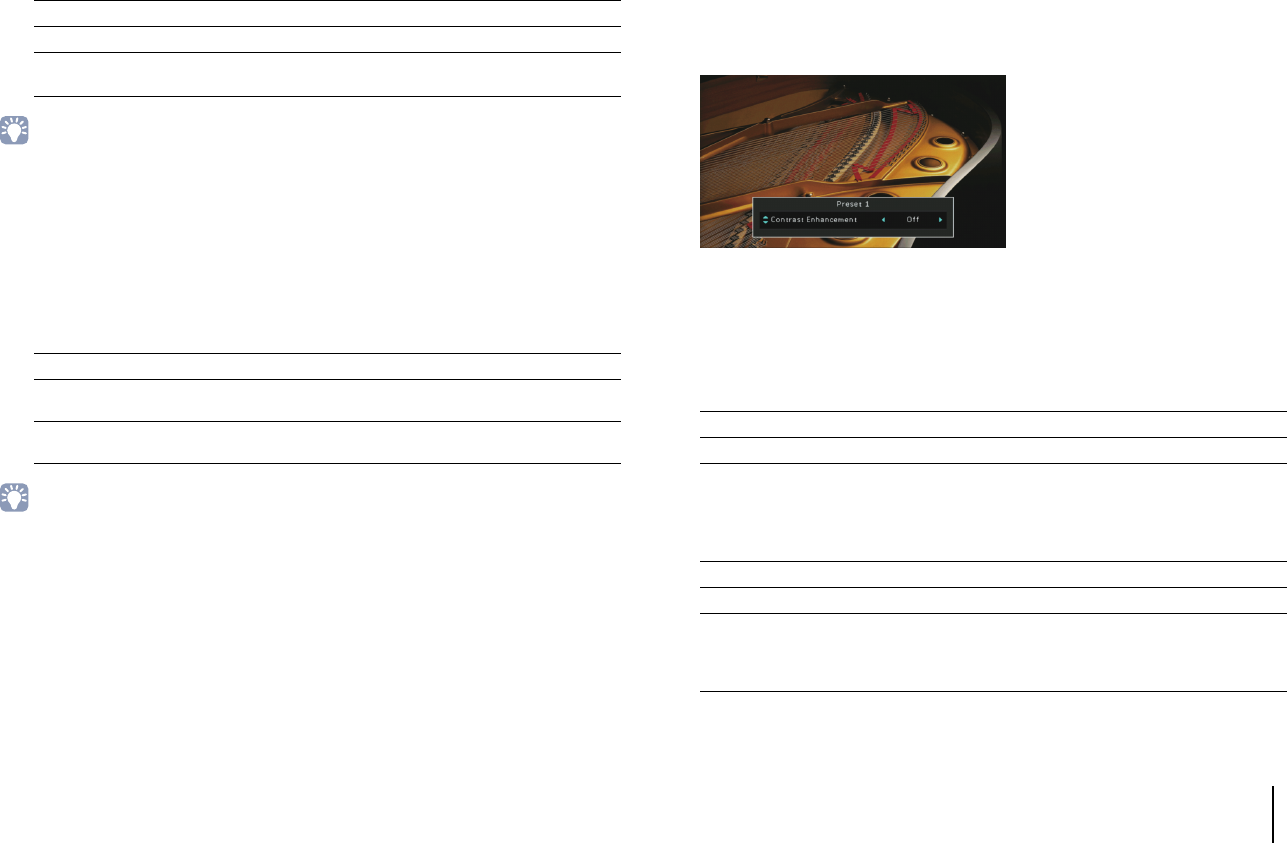
CONFIGURATIONS ➤Configuring various functions (Setup menu) En 120
❑Resolution
Selects a resolution to output HDMI video signals when “Video Mode” is set to
“Processing”.
Settings
• Conversion into 4K signals is available only when both “Monitor Out Assign” (p.126) and “HDMI OUT2
Assign” (RX-A3020 only) (p.127) are set to “Main” (default).
• If you need to select a resolution that is not supported by your TV, set “MONITOR CHECK” (p.134) in the
“ADVANCED SETUP” menu to “SKIP” and try again. (Note that the output video may not be displayed on
your TV normally.)
❑Aspect
Selects an aspect ratio to output HDMI video signals when “Video Mode” is set to
“Processing”.
Settings
• This setting functions only when 480i/576i or 480p/576p signals are converted into 720p, 1080i, 1080p, or
2160p (4K) signals.
❑Adjustment
Configures the video adjustments when “Video Mode” is set to “Processing”. You can
register the video adjustments as presets (up to 6).
■Setup procedure
1Use the cursor keys (q/w) to select a preset number and press ENTER.
2Use the cursor keys (q/w) to select an item.
3Use the cursor keys (e/r) to select a setting and press ENTER.
4To exit from the menu, press ON SCREEN.
Contrast Enhancement
Selects whether to automatically enhance the video contrast.
Settings
Resolution Enhancement
Selects whether to enhance the video resolution.
Settings
Through Does not convert the resolution.
Auto (default) Selects a resolution automatically in accordance with TV resolution.
480p/576p, 720p,
1080i, 1080p, 4K
Output video signals with a selected resolution.
(Only the resolutions supported by your TV are selectable.)
Through (default) Does not convert the aspect ratio.
16:9 Normal Outputs 4:3 video signals to a 16:9 TV with black bands on either side
of the screen.
Smart Zoom Adjusts 4:3 video signals to fit a 16:9 TV. (The edges of video images
may be distorted.)
Off (default) Does not enhance the video contrast.
Auto Enhances the video contrast automatically.
Off (default) Does not enhance the video resolution.
Auto Enhances the video resolution automatically.
Manual
(RX-A3020 only)
Adjusts the video resolution settings manually.
Configure the settings in “Detail Enhancement” and “Edge
Enhancement”.

CONFIGURATIONS ➤Configuring various functions (Setup menu) En 121
Detail Enhancement
(RX-A3020 only)
Adjusts the enhancement effect of video details manually when “Resolution
Enhancement” is set to “Manual”.
Setting range
0 to 50
Default
0
Edge Enhancement
(RX-A3020 only)
Adjusts the enhancement effect of video edges manually when “Resolution
Enhancement” is set to “Manual”.
Setting range
0 to 50
Default
0
Noise Reduction (NR)
Selects whether to use the noise reduction functions.
Settings
Mosquito NR
(RX-A3020 only)
Selects the effect of the mosquito noise reduction when “Noise Reduction (NR)” is set to
“Manual”. Mosquito noise is a distortion that comes out at the video edges.
Settings
Block NR
(RX-A3020 only)
Selects the effect of the block noise reduction when “Noise Reduction (NR)” is set to
“Manual”. Block noise is a block-shaped distortion that often appears during playback
of low bit-rate videos.
Settings
Temporal NR
(RX-A3020 only)
Selects the effect of the temporal noise (film-grain noise and random noise of analog
video signals) reduction when “Noise Reduction (NR)” is set to “Manual”.
Settings
Brightness
Adjusts the video brightness.
Setting range
-100 to +100
Default
0
Contrast
Adjusts the video contrast.
Setting range
-100 to +100
Default
0
Saturation
Adjusts the video saturation.
Setting range
-100 to +100
Default
0
Off (default) Does not use the noise reduction functions.
Auto Reduces the video noises automatically.
Manual
(RX-A3020 only)
Selects noise types and noise reduction effects manually.
Configure the settings in “Mosquito NR”, “Block NR” and “Temporal
NR”.
Off (default) Does not use the mosquito noise reduction.
Low, Medium, High Reduces mosquito noises according to the selected effect level.
Off (default) Does not use the block noise reduction.
Low, Medium, High Reduces block noises according to the selected effect level.
Off (default) Does not use the temporal noise reduction.
Low, Medium, High Reduces temporal noises according to the selected effect level.
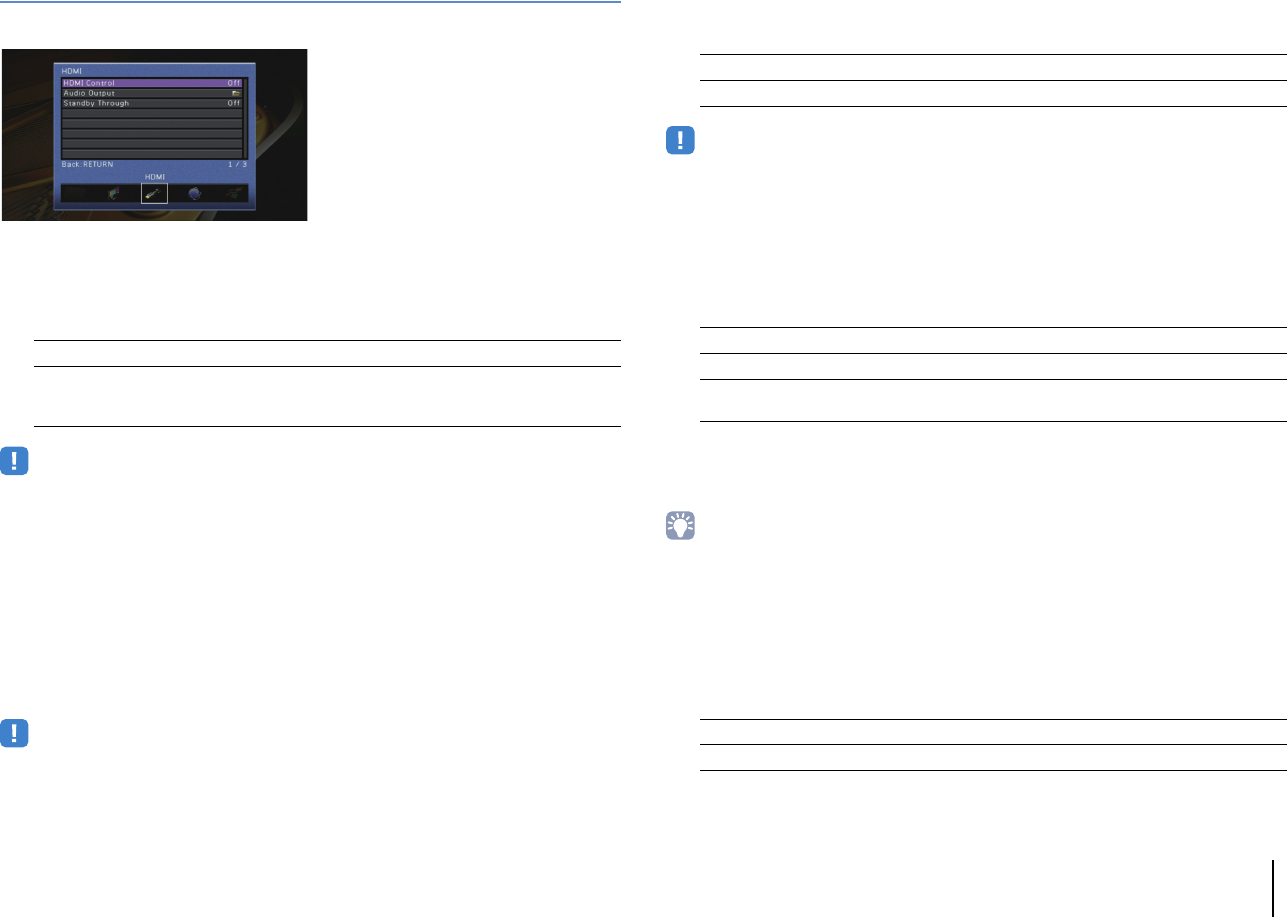
CONFIGURATIONS ➤Configuring various functions (Setup menu) En 122
HDMI
Configures the HDMI settings.
■HDMI Control
Enables/disables HDMI Control (p.158).
Settings
• To use HDMI control, you need to perform the HDMI Control link setup (p.158) after connecting HDMI
Control-compatible devices.
❑TV Audio Input
Selects an audio input jack of the unit to be used for TV audio input when “HDMI
Control” is set to “On”. The unit’s input source automatically switches to TV audio when
the TV input is switched to its built-in tuner.
Settings
AUDIO 1–4
Default
AUDIO 1
• When using ARC to input TV audio to the unit, you cannot use the input jacks selected here for connecting
an external device because the input will be used for TV audio input.
❑ARC
Enables/disables ARC (p.35) when “HDMI Control” is set to “On”.
Settings
• You do not need to change this setting normally. In case noises are produced from the speakers connected
to the unit because TV audio signals input to the unit via ARC are not supported by the unit, set “ARC” to
“Off” and use the TV’s speakers.
❑Standby Sync
Select whether to use HDMI control to link the standby behavior of the TV and the unit
when “HDMI Control” is set to “On”.
Settings
■Audio Output
Selects a device to output audio.
• The “Amp” and “HDMI OUT1” settings are available only when “HDMI Control” is set to “Off”.
• (RX-A3020 only)
The “HDMI OUT2” setting is available only when “HDMI OUT2 Assign” (p.127) is set to “Main”.
❑Amp
Enables/disables the audio output from the speakers and headphones connected to
the unit.
Settings
Off (default) Disables HDMI Control.
On
Enables HDMI Control.
Configure the settings in “TV Audio Input”, “ARC” and “Standby
Sync”.
Off Disables ARC.
On (default) Enables ARC.
Off Does not set the unit to standby mode when the TV is turned off.
On Sets the unit to standby mode when the TV is turned off.
Auto (default) Sets the unit to standby mode when the TV is turned off only when the
unit is receiving TV audio or HDMI signals.
Off Disables the audio output from the speakers and headphones.
On (default) Enables the audio output from the speakers and headphones.
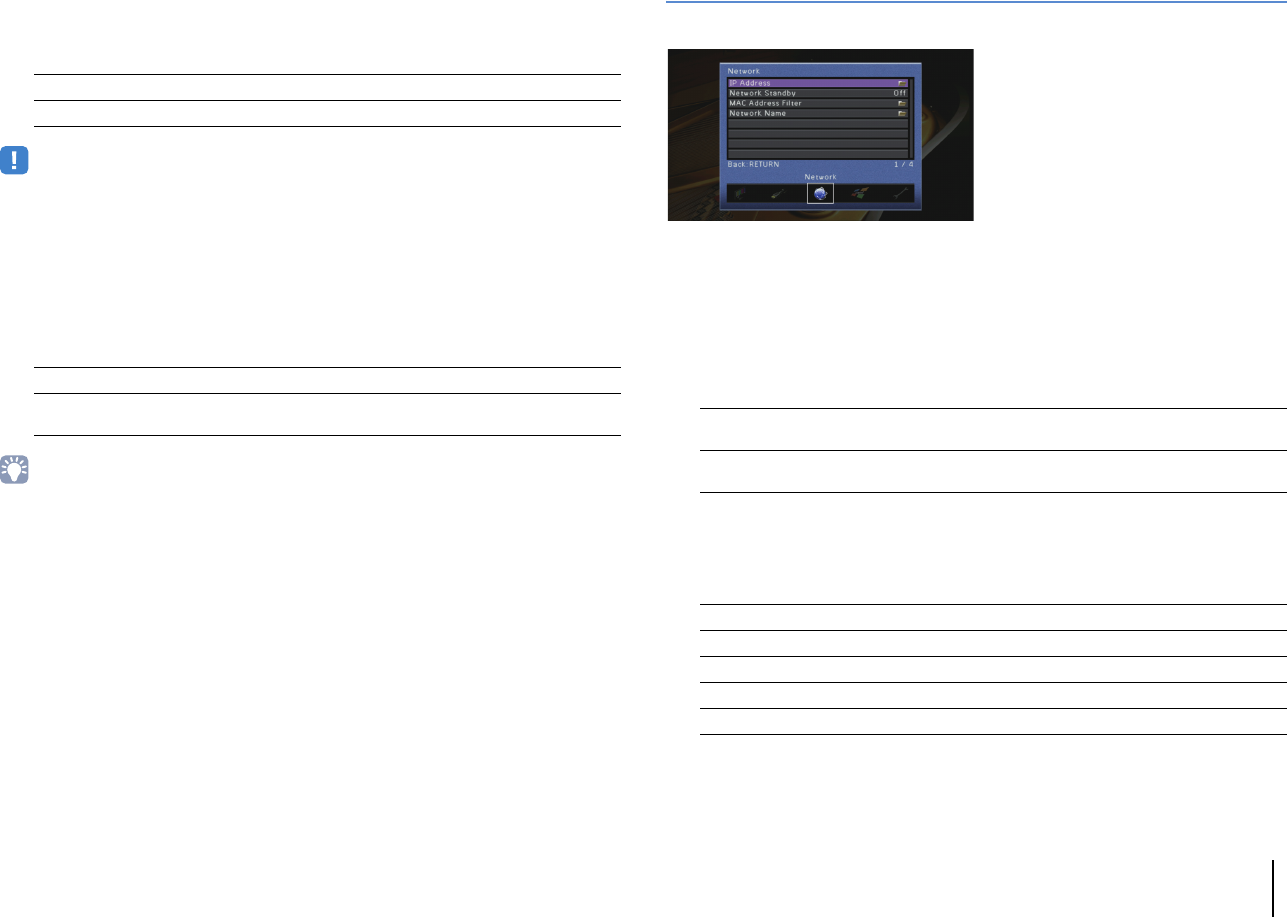
CONFIGURATIONS ➤Configuring various functions (Setup menu) En 123
❑HDMI OUT1, HDMI OUT2
Enables/disables the audio output from a TV connected to the HDMI OUT 1 jack or
HDMI OUT 2 jack.
Settings
• The HDMI OUT 1–2 jacks output 2-channel audio signals when the unit is turned on.
■Standby Through
Select whether to output videos/audio (input through HDMI jacks) to the TV when the
unit is in standby mode. If this function is set to “On”, you can use the input selection
keys (AV 1–7 and V-AUX) to select an HDMI input even when the unit is in standby
mode (the standby indicator on the unit blinks).
Settings
• This setting is available only when “HDMI Control” is set to “Off”.
Network
Configures the network settings.
■IP Address
Configures the network parameters (such as IP address).
❑DHCP
Select whether to use a DHCP server.
Settings
■Manual network settings
1Set “DHCP” to “Off”.
2Use the cursor keys (q/w) to select a parameter type and press ENTER.
3Use the cursor keys (e/r) to move the edit position and the cursor keys (q/w) to
select a value.
4To confirm the setting, press ENTER.
5To configure another network parameter, repeat steps 2 to 4.
Off (default) Disables the audio output from the TV.
On Enables the audio output from the TV.
Off (default) Does not output videos/audio to the TV.
On Outputs videos/audio to the TV.
(The unit consumes more power than when “Off” is selected.) Off Does not use a DHCP server. Configure the network parameters
manually. For details, see “Manual network settings”.
On (default) Uses a DHCP server to automatically obtain the unit’s network
parameters (such as IP address).
IP Address Specifies an IP address.
Subnet Mask Specifies a subnet mask.
Default Gateway Specifies the IP address of the default gateway.
DNS Server (P) Specifies the IP address of the primary DNS server.
DNS Server (S) Specifies the IP address of the secondary DNS server.
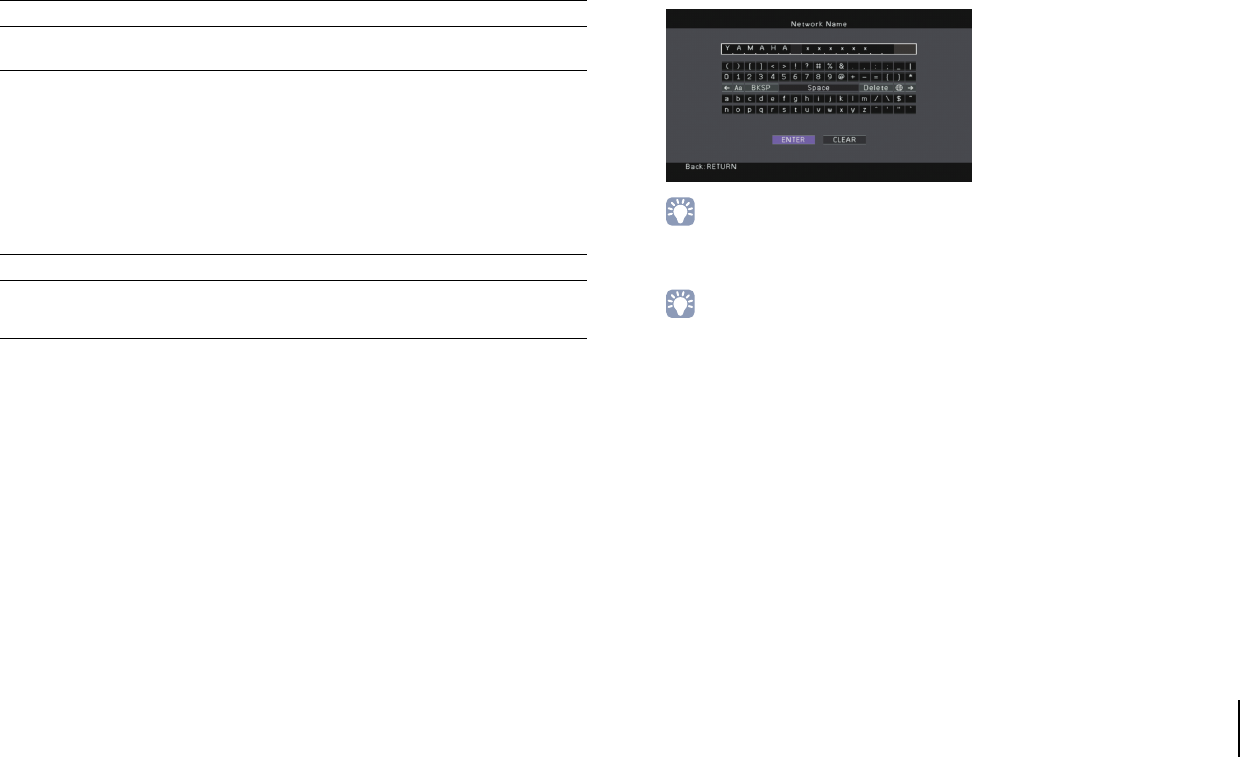
CONFIGURATIONS ➤Configuring various functions (Setup menu) En 124
6To save the changes, use the cursor keys to select “OK” and press ENTER.
7To exit from the menu, press ON SCREEN.
■Network Standby
Selects whether the unit can be turned on from other network devices (network
standby).
Settings
■MAC Address Filter
Sets the MAC address filter to limit access to the unit from other network devices.
❑Filter
Enables/disables the MAC address filter.
Settings
❑MAC Address 1–10
Specifies the MAC addresses (up to 10) of the network devices that will be permitted
access to the unit when “Filter” is set to “On”.
■Procedure
1Use the cursor keys (q/w) to select “MAC Address 1–5” or “MAC Address 6–10”
and press ENTER.
2Use the cursor keys (q/w) to select an MAC address number and press ENTER.
3Use the cursor keys (e/r) to move the edit position and the cursor keys (q/w) to
select a value.
4To confirm the setting, press ENTER.
5To save the changes, use the cursor keys to select “OK” and press ENTER.
6To exit from the menu, press ON SCREEN.
■Network Name
Edits the network name (the unit’s name on the network) displayed on other network
devices.
■Procedure
1Press ENTER to enter the name edit screen.
2Use the cursor keys and ENTER to rename and select “ENTER” to confirm the
entry.
• To clear the entry, select “CLEAR”.
3Use the cursor keys to select “OK” and press ENTER.
• To restore the default setting, select “RESET”.
4To exit from the menu, press ON SCREEN.
Off (default) Disables the network standby function.
On Enables the network standby function.
(The unit consumes more power than when “Off” is selected.)
Off (default) Disables the MAC address filter.
On
Enables the MAC address filter. In “MAC Address 1–10”, specify the
MAC addresses of the network devices that will be permitted access
to the unit.
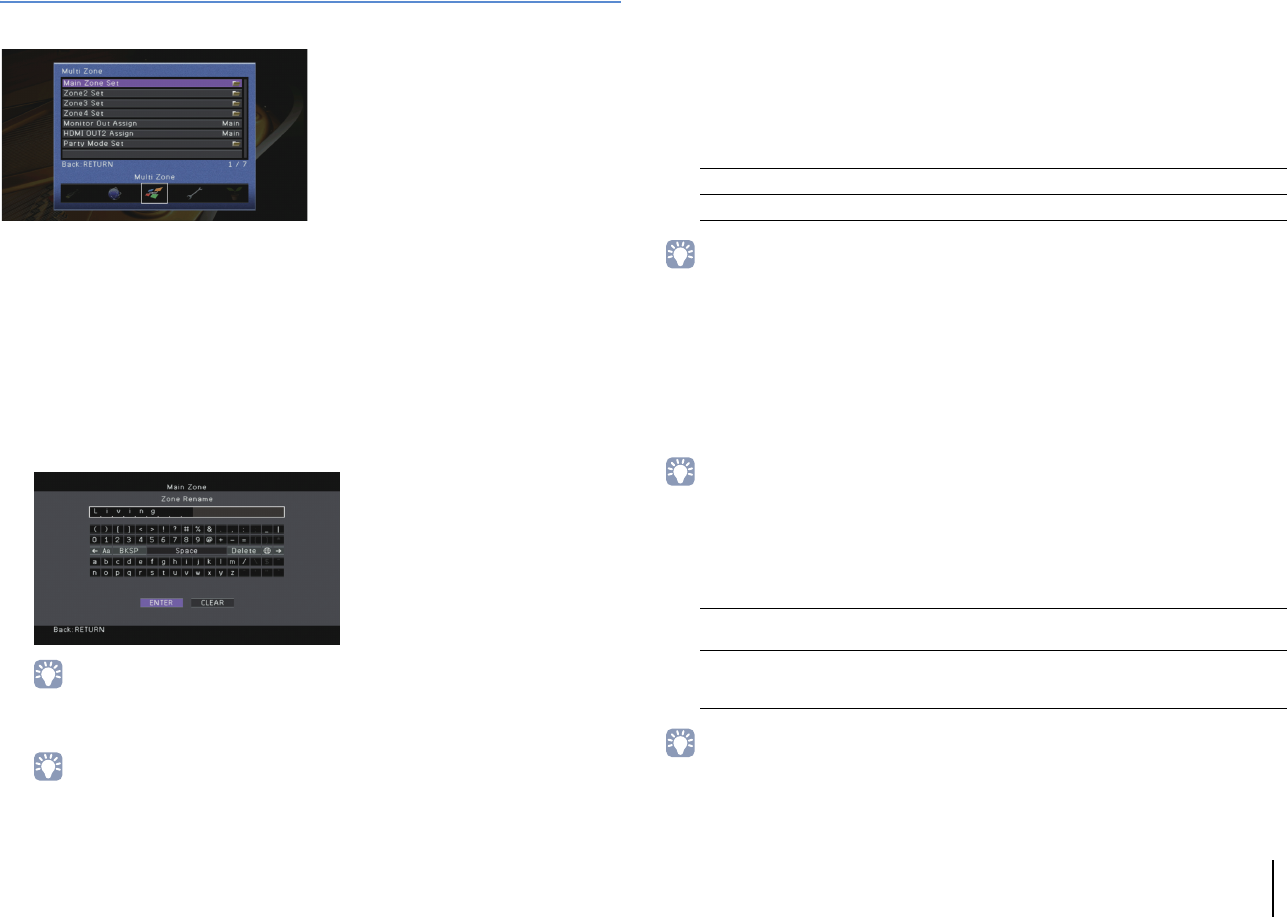
CONFIGURATIONS ➤Configuring various functions (Setup menu) En 125
Multi Zone
Configures the multi zone settings.
■Main Zone Set
Configures the main zone setting.
❑Zone Rename
Changes the zone name (for main zone) displayed on the front display or TV screen.
■Procedure
1Press ENTER to enter the name edit screen.
2
Use the cursor keys and ENTER to rename and select “ENTER” to confirm the entry.
• To clear the entry, select “CLEAR”.
3Use the cursor keys to select “OK” and press ENTER.
• To restore the default setting, select “RESET”.
4To exit from the menu, press ON SCREEN.
■Zone2 Set, Zone3 Set
Configures the Zone2 or Zone3 settings.
❑Volume
Enables/disables volume adjustments for Zone2 or Zone3 output.
If you have connected an external amplifier with volume control to the unit, disable the
volume adjustment for the corresponding zone.
Settings
• This setting is not available depending on the “Power Amp Assign” setting (p.114).
❑Max Volume
Sets the Zone2 or Zone3 maximum volume to prevent excessive loudness.
Setting range
-30.0 dB to +15.0 dB (5.0 dB increments), +16.5 dB
Default
+16.5 dB
• This setting is available only when “Volume” is set to “Variable”.
❑Initial Volume
Sets the Zone2 or Zone3 initial volume for when the unit is turned on.
Settings
• This setting is available only when “Volume” is set to “Variable”.
Fixed Disables volume adjustments for Zone2 or Zone3 output.
Variable (default) Enables volume adjustments for Zone2 or Zone3 output.
Off (default) Sets the level at the volume level of the unit when it last entered standby
mode.
On
Sets at Mute or the specified volume level (-80.0 dB to +16.5 dB, 0.5 dB
increments).
(Specify a volume level which is lower than the “Max Volume” setting.)
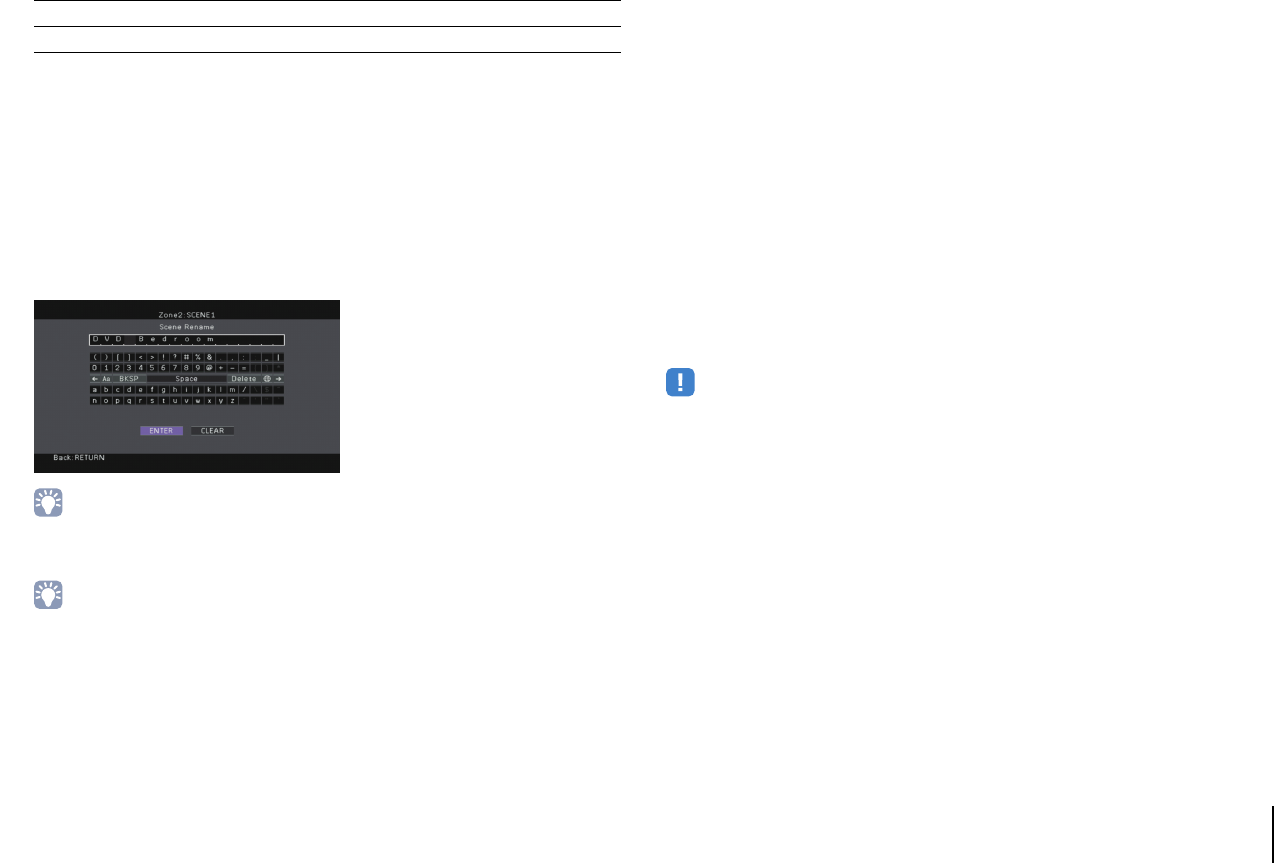
CONFIGURATIONS ➤Configuring various functions (Setup menu) En 126
❑Mono
Switches between stereo and monaural for Zone2 or Zone3 output.
Settings
❑Zone Scene Rename
Changes the scene names (for Zone2 or Zone3) displayed on the front display or TV
screen.
■Procedure
1Use the cursor keys to select a scene to be renamed and press ENTER.
2Press ENTER to enter the name edit screen.
3Use the cursor keys and ENTER to rename and select “ENTER” to confirm the
entry.
• To clear the entry, select “CLEAR”.
4Use the cursor keys to select “OK” and press ENTER.
• To restore the default setting, select “RESET”.
5To exit from the menu, press ON SCREEN.
❑Zone Rename
Changes the zone name (for Zone2 or Zone3) displayed on the front display or TV
screen.
You can change the zone name in the same manner as “Zone Rename” in “Main Zone
Set” (p.125).
■Zone4 Set
(RX-A3020 only)
Configures the Zone4 settings.
❑Zone Scene Rename
Changes the scene names (for Zone4) displayed on the front display or TV screen.
You can change the scene names in the same manner as “Zone Scene Rename” in
“Zone2 Set, Zone3 Set” (p.126).
❑Zone Rename
Changes the zone name (for Zone4) displayed on the front display or TV screen.
You can change the zone name in the same manner as “Zone Rename” in “Main Zone
Set” (p.125).
■Monitor Out Assign
Select the zone for which the MONITOR OUT/ZONE OUT (COMPONENT VIDEO,
S VIDEO and VIDEO) jacks are used.
Settings
Main (default), Zone2, Zone3
• To watch videos played back on a video device on the zone video monitor, you need to connect the video
monitor to the unit in the same way as the video device. For example, if you want to watch videos input from
the DVD player via a component video cable, connect the video monitor to the COMPONENT VIDEO jacks
with a component video cable.
Off (default) Produces stereo sounds in Zone2 or Zone3.
On Produces monaural sounds in Zone2 or Zone3.
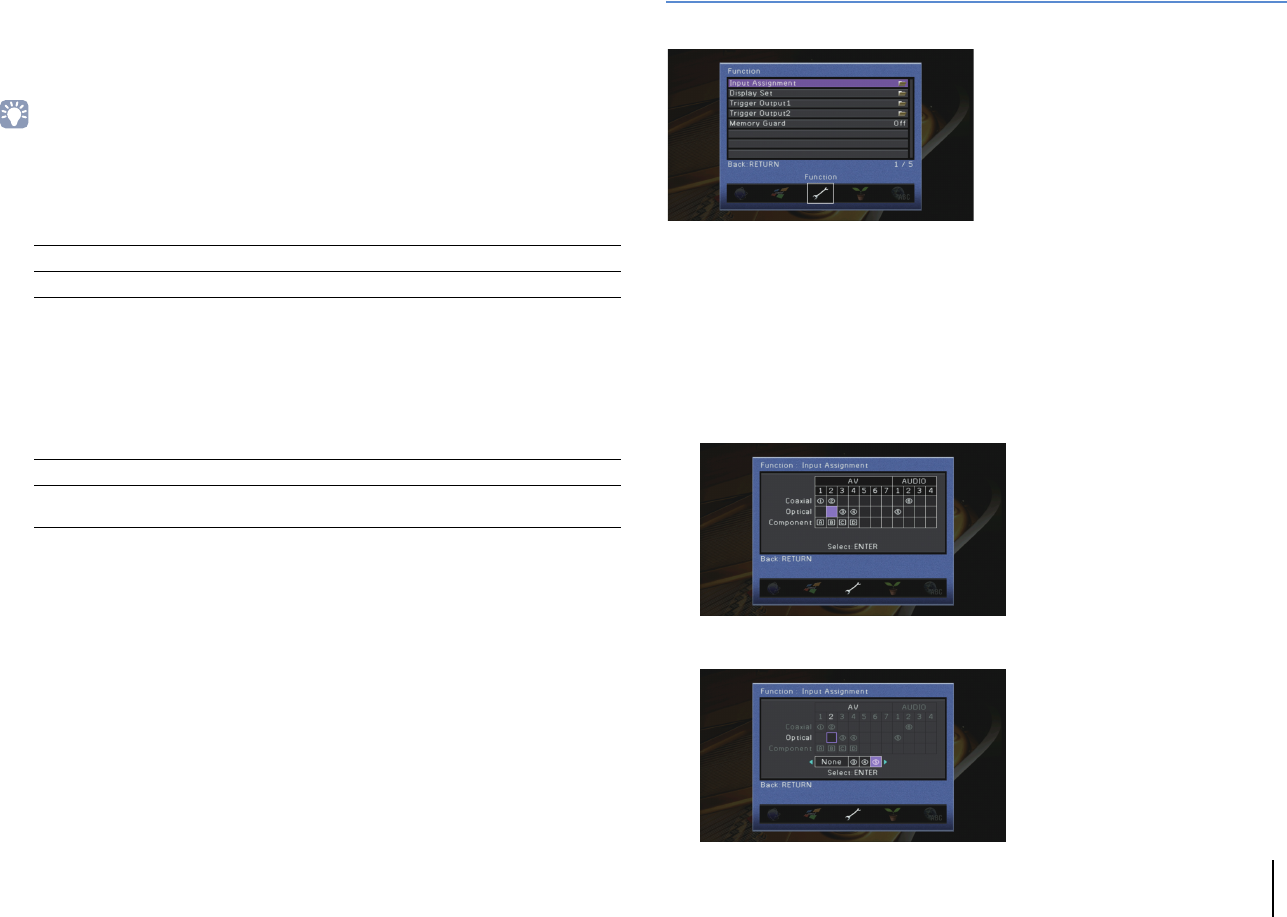
CONFIGURATIONS ➤Configuring various functions (Setup menu) En 127
■HDMI OUT2 Assign
(RX-A3020 only)
Select the zone for which the HDMI OUT 2 (ZONE OUT) jack is used.
Settings
Main (default), Zone2, Zone4
• For details on video/audio signals that can be output to each zone, see “Multi-zone output” (p.157).
❑Audio Output
Enables/disables the audio output from the HDMI OUT 2 jack when “HDMI OUT2
Assign” is set to “Zone2”.
■Party Mode Set
Enables/disables switching to the party mode (p.96) for each zone.
Choice
Target: Zone2, Target: Zone3, Target: Zone4 (RX-A3020 only)
Settings
Function
Configures the functions that make the unit easier to use.
■Input Assignment
Assigns the COMPONENT VIDEO, COAXIAL and OPTICAL jacks to another input
source.
■Procedure
Example: assigning the OPTICAL (e) jack to the input source “AV 2”
1Use the cursor keys to select the cell at the intersection of “AV 2” and “Optical”,
and press ENTER.
2Use the cursor keys to select “e” and press ENTER.
On Enables the audio output.
Off (default) Disables the audio output (video output only).
Disable Disables switching to the party mode.
Enable (default) Enables switching to the party mode. You can turn on/off the party
mode by pressing PARTY on the remote control.
CONFIGURATIONS ➤Configuring various functions (Setup menu) En 128
3To exit from the menu, press ON SCREEN.
• You cannot assign both COAXIAL and OPTICAL jacks to the same input source.
■Display Set
Configures the settings related to the front display and TV screen display.
❑Dimmer (Front Display)
Adjusts the brightness of the front display.
Setting range
-4 to 0 (higher to brighten)
Default
0
• The front display may become dark when “ECO Mode” (p.130) is set to “On”.
❑Short Message
Selects whether to display short messages on the TV screen when the unit is operated
(such as input selection and volume adjustment).
Settings
❑Wall Paper
Selects the image to be used as wallpaper on the TV.
Settings
■Trigger Output1, Trigger Output2
Sets the TRIGGER OUT 1–2 jacks to function in sync with the power status of each zone
or input switching.
❑Trigger Mode
Specifies the condition for the TRIGGER OUT jack to function.
Settings
Source
Specifies the output level of the electronic signal transmitted with each input, switching
when “Trigger Mode” is set to “Source”.
Choices
AV 1–7, V-AUX, AUDIO 1–4, PHONO, TUNER, (network sources), USB, MULTI CH
Settings
Manual
Switches the output level for electronic signal transmission manually when “Trigger
Mode” is set to “Manual”. This setting can also be used to confirm proper function of
the external device connected via the TRIGGER OUT jack.
Choices
On (default) Displays short messages on the TV screen.
Off Does not display short messages on the TV screen.
Picture 1 (default),
Picture 2, Picture 3
Displays the selected image on the TV screen when there is no video
signal.
Gray Displays a gray background on the TV screen when there is no video
signal.
Power (default) The TRIGGER OUT jack functions in sync with the power status of the
zone specified with “Target Zone”.
Source
The TRIGGER OUT jack functions in sync with the input switching in
the zone specified with “Target Zone”.
An electronic signal is transmitted according to the setting made in
“Source”.
Manual Select this to manually switch the output level for electronic signal
transmission with “Manual”.
Low Stops the electronic signal transmission when you switch to the input
source specified in this option.
High (default) Transmits the electronic signal when you switch to the input source
specified in this option.
Low Stops the electronic signal transmission.
High (default) Transmits the electronic signal.
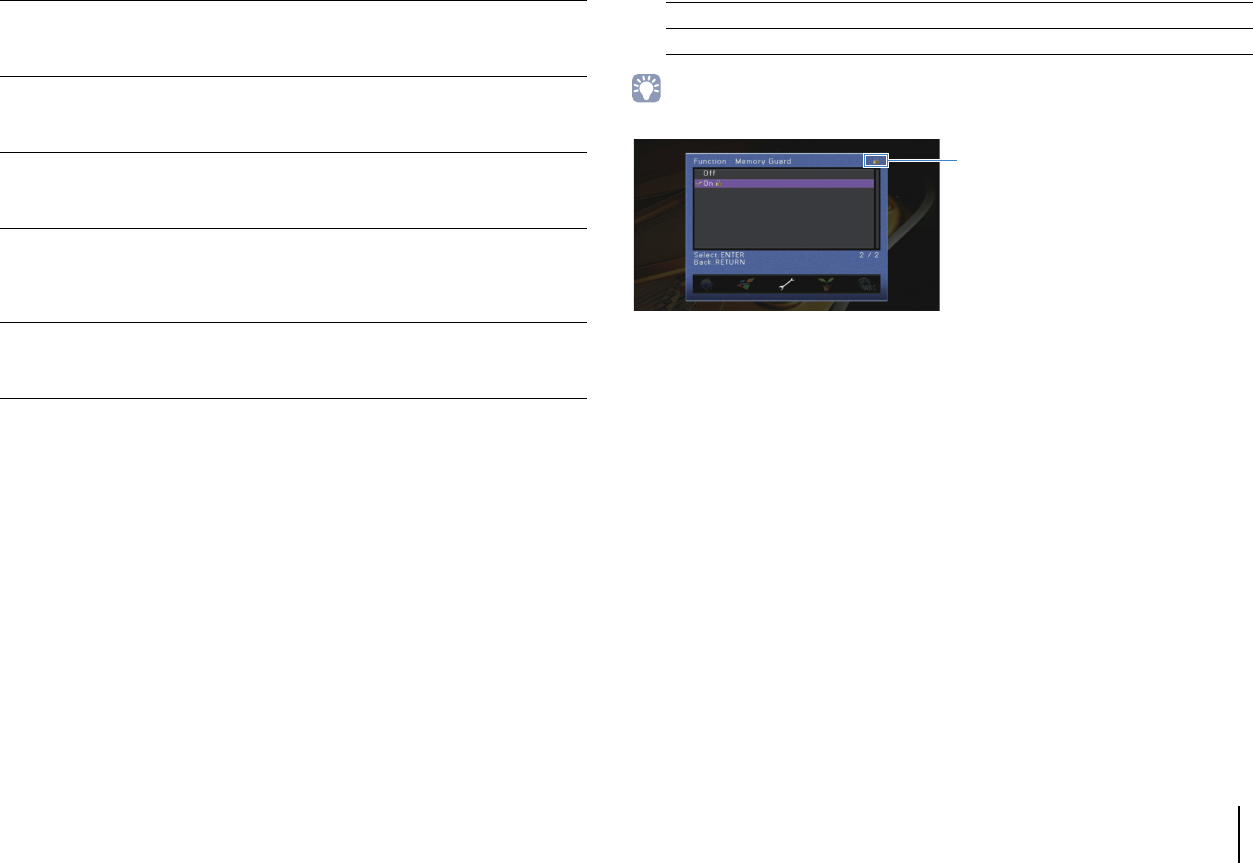
CONFIGURATIONS ➤Configuring various functions (Setup menu) En 129
❑Target Zone
Specifies the zone with which the TRIGGER OUT jack functions are synchronized.
Settings
■Memory Guard
Prevents accidental changes to the settings.
Settings
• When “Memory Guard” is set to “On”, the lock icon (o) is displayed on the menu screen.
Main
When “Trigger Mode” is set to “Power”, electronic signal transmission
is synchronized with the power status of the main zone.
When “Trigger Mode” is set to “Source”, electronic signal transmission
is synchronized with the input switching in the main zone.
Zone2
When “Trigger Mode” is set to “Power”, electronic signal transmission
is synchronized with the power status of Zone2.
When “Trigger Mode” is set to “Source”, electronic signal transmission
is synchronized with the input switching in Zone2.
Zone3
When “Trigger Mode” is set to “Power”, electronic signal transmission
is synchronized with power status of Zone3.
When “Trigger Mode” is set to “Source”, electronic signal transmission
is synchronized with input switching in Zone3.
Zone4
(RX-A3020 only)
When “Trigger Mode” is set to “Power”, electronic signal transmission
is synchronized with power status of Zone4.
When “Trigger Mode” is set to “Source”, electronic signal transmission
is synchronized with input switching in Zone4.
All (default)
When “Trigger Mode” is set to “Power”, electronic signal transmission
is synchronized with the power status of any zone.
When “Trigger Mode” is set to “Source”, electronic signal transmission
is synchronized with the input switching in any zone.
Off (default) Does not protect the settings.
On Protects the settings until “Off” is selected.
Icon
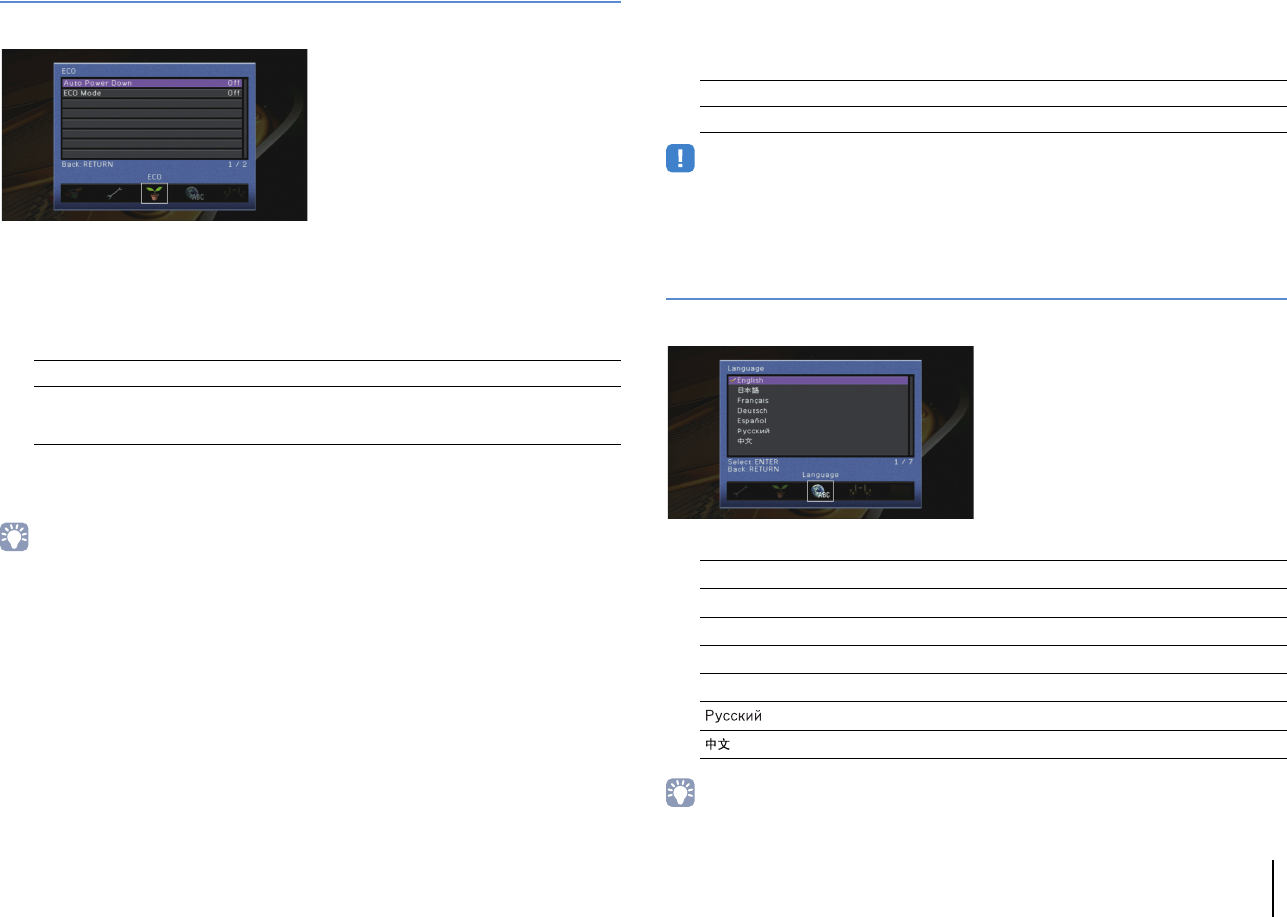
CONFIGURATIONS ➤Configuring various functions (Setup menu) En 130
ECO
Configures the power supply settings.
■Auto Power Down
Sets the amount of time for the auto-standby function. If you do not operate the unit for
the specified time, the unit will automatically go into standby mode.
Settings
Default
U.K. and Europe models: 8 hours
Other models: Off
• Just before the unit enters standby mode, “AutoPowerDown” appears and then countdown starts in the
front display.
■ECO Mode
Enables/disables the eco (power saving) mode.
When the eco mode is enabled, you can reduce the unit’s power consumption.
Settings
• The new setting will take effect after the unit is restarted.
• When “ECO Mode” is set to “On”, the front panel display may become dark.
• If you want to play audio at high volume, set “ECO Mode” to “Off”.
Language
Select an on-screen menu language.
Settings
• The information on the front display is provided in English only.
Off Does not set the unit to standby mode automatically.
2 hours, 4 hours,
8 hours, 12 hours
Sets the unit to standby mode when you have not operated the unit for
the specified time. For example, when “2 hours” is selected, the unit
will switch to standby mode if you do not operate it for 2 hours.
Off (default) Disables the eco mode.
On Enables the eco mode.
English (default) English
日本語 Japanese
French
German
Spanish
Russian
Chinese
Français
Deutsch
Español
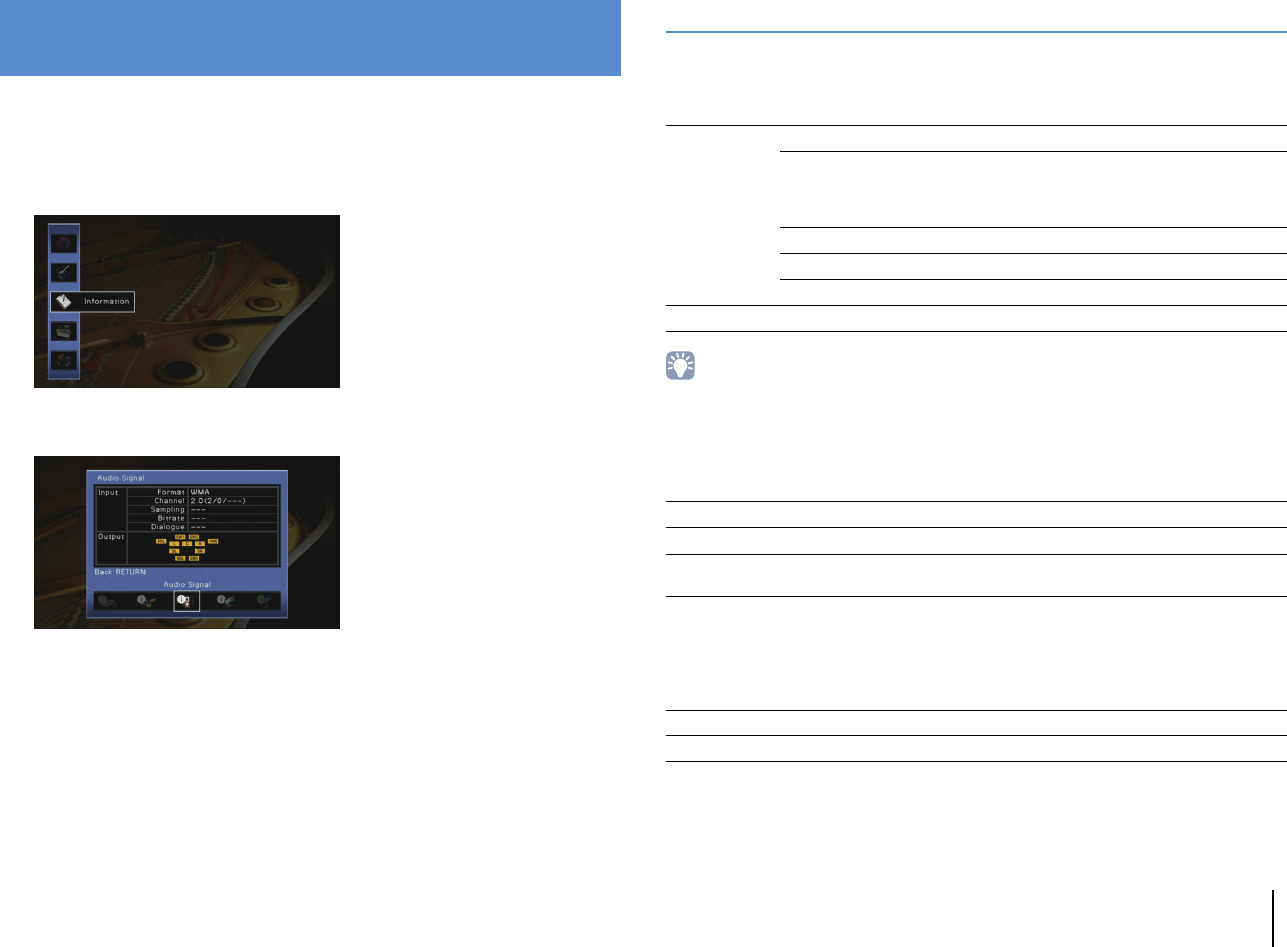
CONFIGURATIONS ➤Viewing information about the unit (Information menu) En 131
You can view information about the unit using the TV screen.
1Press ON SCREEN.
2Use the cursor keys to select “Information” and press ENTER.
3Use the cursor keys (e/r) to select an information type.
4To exit from the menu, press ON SCREEN.
Types of information
■Audio Signal
Displays information about the current audio signal.
• Even when the unit is set to output bitstream signals directly, the signal may be converted depending on the
specifications and settings of the playback device.
■Video Signal
Displays information about the current video signal.
■HDMI Monitor
Displays information about the TVs connected to the HDMI OUT jacks.
Use the cursor keys (q/w) to switch between “OUT1” and “OUT2”.
Viewing information about the unit
(Information menu)
Input
Format Audio format of the input signal
Channel
The number of source channels in the input signal
(front/surround/LFE)
For example, “5.1 (3/2/0.1)” means 5.1ch in total
(3 front channels, 2 surround channels, and LFE).
Sampling The number of samples per second of the input digital signal
Bitrate The amount of data per second of the input bitstream signal
Dialogue The dialogue normalization level of the input bitstream signal
Output The speaker terminals from which signals are output
HDMI Signal Presence or absence of HDMI signal input/output
HDMI Resolution Resolutions of input signal (analog or HDMI) and output signal (HDMI)
Analog Resolution Resolutions of input signal (analog) and signal output at the MONITOR OUT
jacks (analog)
Interface TV interface
Video Resolution Resolutions supported by the TV
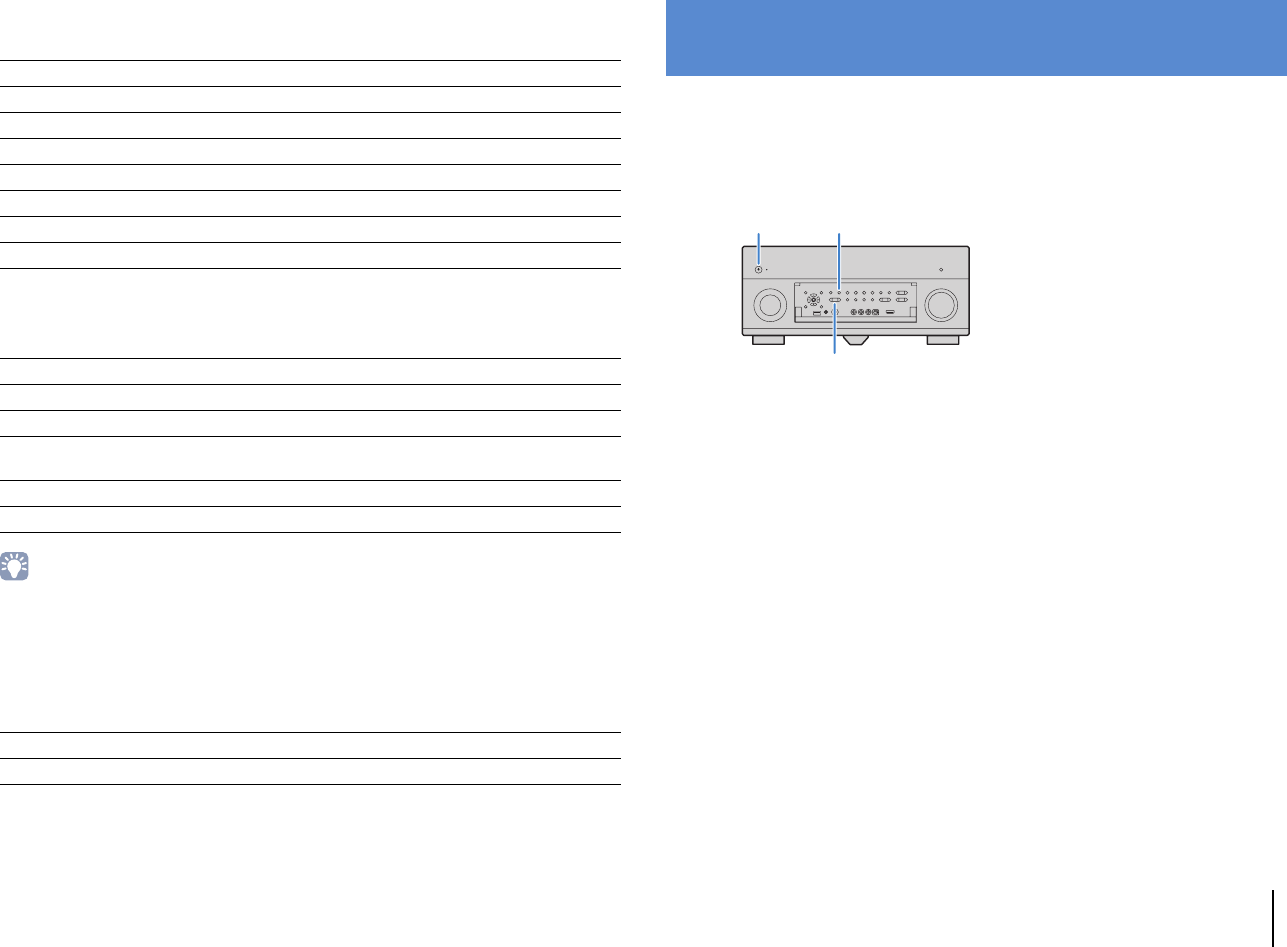
CONFIGURATIONS ➤Configuring the system settings (ADVANCED SETUP menu) En 132
■Network
Displays the network information on the unit.
■System
Displays the system information on the unit.
• If the unit detects a newer firmware over the network, “!” (exclamation mark) appears at the upper right of
the “Information” and “System” icons, and the corresponding message will be displayed in this screen. You
can update the unit’s firmware by pressing ENTER in this screen and following the procedure in “Updating
the unit’s firmware” (p.144).
■Zone
Displays information about Zone2, Zone3 and Zone4 (RX-A3020 only).
Configure the system settings of the unit while viewing the front display.
1Set the unit to standby mode.
2
While holding down STRAIGHT on the front panel, press MAIN ZONE
z
.
3Press PROGRAM to select an item.
4Press STRAIGHT to select a setting.
5Press MAIN ZONE z to set the unit to standby mode and turn it on
again.
The new settings take effect.
IP Address IP address
Subnet Mask Subnet mask
Default Gateway The IP address of the default gateway
DNS Server (P) The IP address of the primary DNS server
DNS Server (S) The IP address of the secondary DNS server
MAC Address MAC address
Network Name Network name (the unit’s name on the network) (p.124)
Status The connection status of the NETWORK jack
Remote ID The unit’s remote control ID setting (p.133)
TV Format The unit’s video signal type (p.134)
Speaker Impedance The speaker impedance setting of the unit (p.133)
Tuner Freq. Step (Asia and General models only)
The FM/AM tuning frequency setting of the unit (p.134)
System ID System ID number
Firmware Version The version of firmware installed on the unit
Input The input source selected for Zone2, Zone3 or Zone4
Volume The volume for Zone2 or Zone3
Configuring the system settings
(ADVANCED SETUP menu)
MAIN ZONE zSTRAIGHT
PROGRAM
CONFIGURATIONS ➤Configuring the system settings (ADVANCED SETUP menu) En 133
ADVANCED SETUP menu items
Changing the speaker impedance setting (SPEAKER IMP.)
Change the unit’s speaker impedance settings depending on the impedance of the
speakers connected.
Settings
Turning on/off the remote control sensor
(REMOTE SENSOR)
Turn on/off the remote control sensor on the main unit. While the remote control sensor
is turned off, you cannot control the unit from the remote control.
Settings
Selecting the remote control ID (REMOTE CON AMP)
Change the unit’s remote control ID so that it matches the remote control’s ID (default:
ID1). When using multiple Yamaha AV receivers, you can set each remote control with a
unique remote control ID for its corresponding receiver.
Settings
ID1 (default), ID2
■Changing the remote control ID of the remote control
Perform each of the following steps within 30 seconds. Otherwise, the setting will be
automatically canceled.
1Press SETUP.
2Use the cursor keys (q/w) to select “PRESET” and press ENTER.
3Press RECEIVER z and press ENTER.
4Use the numeric keys or cursor keys to enter “5019” (ID1) or “5020” (ID2).
Item Function Page
SPEAKER IMP. Changes the speaker impedance setting. 133
REMOTE SENSOR Turns on/off of the remote control sensor on the main unit. 133
REMOTE CON AMP Selects the unit’s remote control ID. 133
TUNER FRQ STEP (Asia and General models only)
Changes the FM/AM tuning frequency setting. 134
TV FORMAT Switches the video signal type. 134
MONITOR CHECK Removes the limitation on HDMI video output. 134
RECOV./BACKUP Creates backup of the settings of the unit, or recovers the settings
from the backup. 135
INITIALIZE Restores the default settings. 135
FIRM UPDATE Updates the firmware. 135
VERSION Checks the version of firmware currently installed on the unit. 135
6 Ω MIN Select this option when you connect 6-ohm speakers to the unit. You
can also use 4-ohm speakers as the front speakers.
8 Ω MIN (default) Select this option when you connect 8-ohm or higher speakers to the
unit.
OUT
1
IN
OUT
2
VOLUME
MUTE
DRCADAPTIVE
3
ZONE
2
SBLPL SBRSBPR
SW1
SL
SW2SW
SR
PL
CL R
PR
STEREO
ENHANCER
SLEEP
HD
TUNED
PRE
AMP
PAR TY
ZONE
3
ZONE
4
HD
TAG
DOCK
SPIMP.-
8MIN
SPEAKERIMP.
ON (default) Turns on the remote control sensor.
OFF Turns off the remote control sensor.
OUT
1
IN
OUT
2
VOLUME
MUTE
DRCADAPTIVE
3
ZONE
2
SBLPL SBRSBPR
SW1
SL
SW2SW
SR
PL
CL R
PR
STEREO
ENHANCER
SLEEP
HD
TUNED
PRE
AMP
PAR TY
ZONE
3
ZONE
4
HD
TAG
DOCK
SPIMP.-
ON
REMOTESENSOR
OUT
1
IN
OUT
2
VOLUME
MUTE
DRCADAPTIVE
3
ZONE
2
SBLPL SBRSBPR
SW1
SL
SW2SW
SR
PL
CL R
PR
STEREO
ENHANCER
SLEEP
HD
TUNED
PRE
AMP
PAR TY
ZONE
3
ZONE
4
HD
TAG
DOCK
SPIMP.-
ID1
REMOTECONAMP
PRESET
5020
CONFIGURATIONS ➤Configuring the system settings (ADVANCED SETUP menu) En 134
5Press ENTER to confirm the setting.
Once the remote control ID is registered successfully, “OK” appears in the display
window.
If “ERROR” appears, registration failed. Repeat from step 3.
6To exit from the setup menu, press SETUP.
• The registered remote control codes (p.136) are not cleared even if you change the remote control ID.
Changing the FM/AM tuning frequency setting
(TUNER FRQ STEP)
(Asia and General models only)
Change the FM/AM tuning frequency setting of the unit depending on your country or
region.
Settings
Switching the video signal type (TV FORMAT)
Switch the video signal type of the unit so that it matches to the format of your TV.
Settings
NTSC, PAL
Default
U.S.A., Canada, Korea and General models: NTSC
Other models: PAL
Removing the limitation on HDMI video output
(MONITOR CHECK)
The unit automatically detects resolutions supported by a TV connected to the HDMI
OUT jack.
Disable the monitor check function if you want to specify a resolution in “Resolution”
(p.120) when the unit cannot detect the TV’s resolution or when you want to specify a
different resolution than the detected resolution.
Settings
• Reset to “YES” if the unit becomes inoperable because video from the unit cannot be displayed on the TV
after “MONITOR CHECK” has been set to “SKIP”.
FM100/AM10 Select this when you want to adjust the FM frequency by 100-kHz
steps and AM by 10-kHz steps.
FM50/AM9 (default) Select this when you want to adjust the FM frequency by 50-kHz steps
and AM by 9-kHz steps.
OUT
1
IN
OUT
2
3
ZONE
2
STEREO
SLEEP
HD
TUNED
PRE
AMP
PAR TY
ZONE
3
ZONE
4
HD
TAG
DOCK
FM50/AM9
TUNERFRQSTEP
OUT
1
IN
OUT
2
VOLUME
MUTE
DRCADAPTIVE
3
ZONE
2
SBLPL SBRSBPR
SW1
SL
SW2SW
SR
PL
CL R
PR
STEREO
ENHANCER
SLEEP
HD
TUNED
PRE
AMP
PAR TY
ZONE
3
ZONE
4
HD
TAG
DOCK
SPIMP.-
NTSC
TVFORMAT
YES (default) Enables the monitor check function. (Outputs video signals with a
resolution supported by the TV only.)
SKIP Disables the monitor check function. (Outputs video signals with a
specified resolution regardless of compatibility with the TV.)
OUT
1
IN
OUT
2
VOLUME
MUTE
DRCADAPTIVE
3
ZONE
2
SBLPL SBRSBPR
SW1
SL
SW2SW
SR
PL
CL R
PR
STEREO
ENHANCER
SLEEP
HD
TUNED
PRE
AMP
PAR TY
ZONE
3
ZONE
4
HD
TAG
DOCK
SPIMP.-
YES
MONITORCHECK
CONFIGURATIONS ➤Configuring the system settings (ADVANCED SETUP menu) En 135
Backing up/recovering the settings (RECOV./BACKUP)
Creates backup of the settings of the unit, or recovers the settings from the backup.
■Backup/recovery procedure
1Press STRAIGHT repeatedly to select “BACKUP” or “RECOVERY” and press INFO
to start the process.
Choices
Restoring the default settings (INITIALIZE)
Restores the default settings for the unit.
Choices
Updating the firmware (FIRM UPDATE)
New firmware that provides additional features or product improvements will be
released as needed. Updates can be downloaded from our website. If the unit is
connected to the Internet, you can download the firmware via the network. For details,
refer to the information supplied with updates.
■Firmware update procedure
Do not perform this procedure unless firmware update is necessary. Also, make sure
you read the information supplied with updates before updating the firmware.
1Press STRAIGHT repeatedly to select “USB” or “NETWORK” and press INFO to
start firmware update.
Choices
• If the unit detects newer firmware over the network, the corresponding message will be displayed after
ON SCREEN is pressed. In this case, you can also update the unit’s firmware by following the procedure in
“Updating the unit’s firmware” (p.144).
Checking the firmware version (VERSION)
Check the version of firmware currently installed on the unit.
• You can also check the firmware version in “System” (p.132) in the “Information” menu.
• It may take a while until the firmware version is displayed.
BACKUP Creates backup of the settings of the unit in the internal memory.
RECOVERY Recovers the settings of the unit from the backup (available only when
backup has been created).
Note
• Do not turn off the unit during the recovery process. Otherwise, the settings may not be restored
correctly.
• The backup does not contain user information (such as user accounts and passwords).
VIDEO Restores the default settings for video configurations.
ALL Restores the default settings for the unit.
CANCEL Does not perform an initialization.
OUT
1
IN
OUT
2
VOLUME
MUTE
DRCADAPTIVE
3
ZONE
2
SBLPL SBRSBPR
SW1
SL
SW2SW
SR
PL
CL R
PR
STEREO
ENHANCER
SLEEP
HD
TUNED
PRE
AMP
PAR TY
ZONE
3
ZONE
4
HD
TAG
DOCK
SPIMP.-
BACKUP
RECOV./BACKUP
OUT
1
IN
OUT
2
VOLUME
MUTE
DRCADAPTIVE
3
ZONE
2
SBLPL SBRSBPR
SW1
SL
SW2SW
SR
PL
CL R
PR
STEREO
ENHANCER
SLEEP
HD
TUNED
PRE
AMP
PAR TY
ZONE
3
ZONE
4
HD
TAG
DOCK
SPIMP.-
CANCEL
INITIALIZE
USB Update the firmware using a USB memory device.
NETWORK Update the firmware via the network.
OUT
1
IN
OUT
2
VOLUME
MUTE
DRCADAPTIVE
3
ZONE
2
SBLPL SBRSBPR
SW1
SL
SW2SW
SR
PL
CL R
PR
STEREO
ENHANCER
SLEEP
HD
TUNED
PRE
AMP
PAR TY
ZONE
3
ZONE
4
HD
TAG
DOCK
SPIMP.-
USB
FIRMUPDATE
OUT
1
IN
OUT
2
VOLUME
MUTE
DRCADAPTIVE
3
ZONE
2
SBLPL SBRSBPR
SW1
SL
SW2SW
SR
PL
CL R
PR
STEREO
ENHANCER
SLEEP
HD
TUNED
PRE
AMP
PAR TY
ZONE
3
ZONE
4
HD
TAG
DOCK
SPIMP.-
x.xx
VERSION
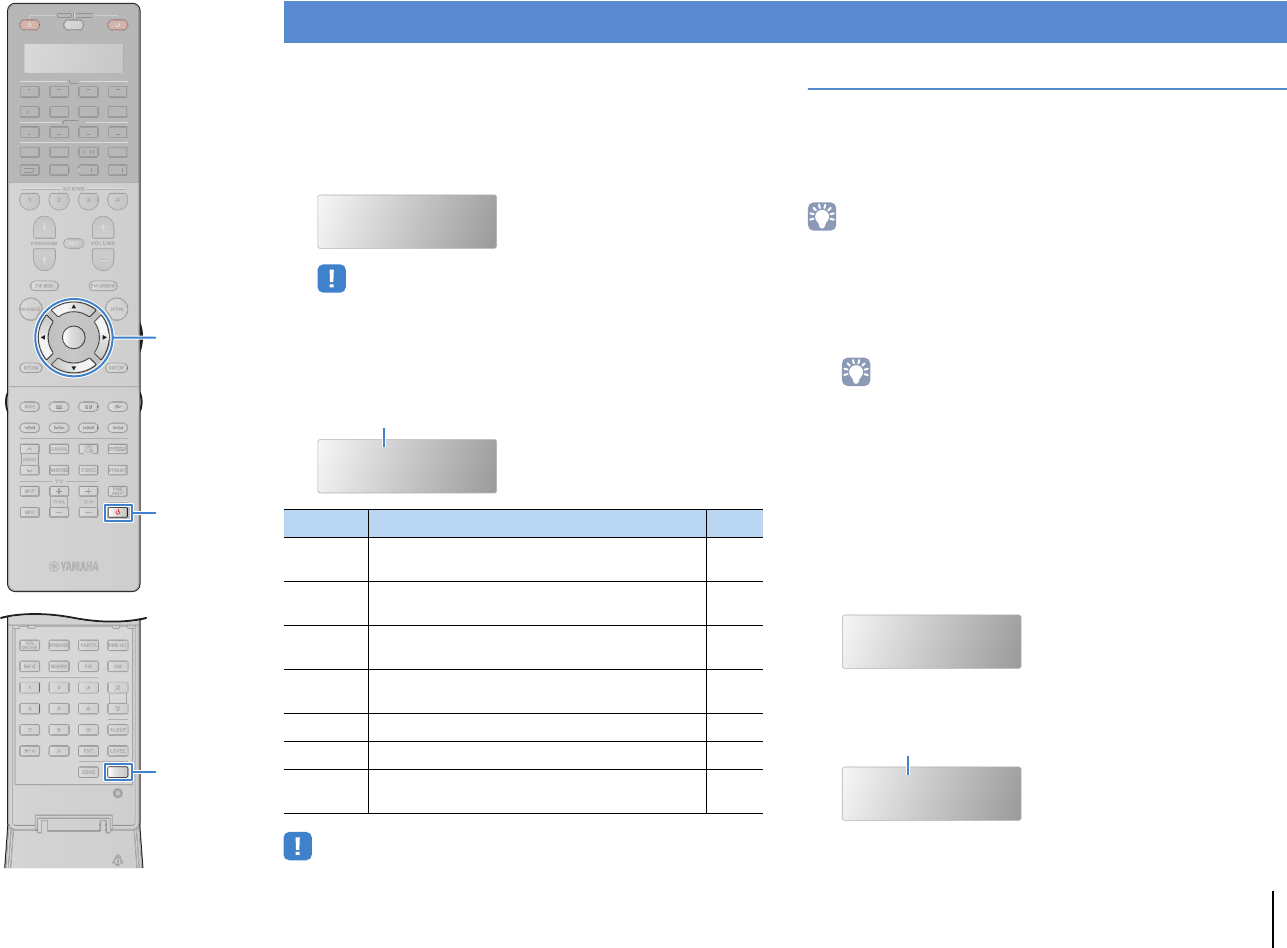
CONFIGURATIONS ➤Controlling external devices with the remote control En 136
You can use the unit’s remote control to operate external devices
(such as BD/DVD players) if you have registered the remote control
code of the external device. You can also use the macro function to
sequentially operate multiple functions at once.
1Press SETUP.
• If no operation is performed within 30 seconds, the remote control
automatically exits from the setup menu.
2Use the cursor keys (q/w) to select an item and
press ENTER.
• You cannot control an external device that does not have a remote control sensor.
Registering remote control codes
■
Registering the remote control code for a TV
You can use the unit’s remote control to operate a TV if you have
registered its remote control code.
• You can also register your TV’s remote control code to the unit’s input selection
keys (p.137). This would allow you to use the cursor keys or numeric keys to
operate the TV (this function may not be available on some TV models).
1Use “Remote Control Code Search” in the CD-ROM
to find your TV’s remote control code.
• If there are multiple remote control codes, register the first code in the list.
If that does not work, try the other codes.
2Press SETUP.
Perform each of the following steps within 30 seconds.
Otherwise, the setting will be canceled. If this happens,
repeat from Step 2.
3Use the cursor keys (q/w) to select “PRESET” and
press ENTER.
4Press TV z and press ENTER.
Controlling external devices with the remote control
Item Function Page
LEARN Assigns a function to each key by learning the code
from other remote controls. 138
PRESET Registers the remote control code for external
devices. 136
RENAME Edits the device names or scene names displayed
on the remote control’s display window. 139
MACRO Programs macro operations (sequence of control
commands). 140
CLEAR Clears the remote control configurations. 142
ERASE Erases a function assigned to each key by learning. 143
EX-IR Extended IR code mode. This feature is for the
authorized custom installers only. —
SETUP
PRESET
Item name
PRESET
----
“----” (empty) or code currently registered
23
5
1
4 6
TUN./ CH
ENHANCER
SUR.
DECODE
HDMI OUT
MEMORY
INFO AM
PAR TY
FM
0
10
LEVELENT
SETUPZONE
87
SLEEP
9
SOURCE RECEIVER
AV
AUDIO
1 2 3 4
5 6 7
V-AUX
1 2 3 4
MULTI
PHONO
USB NET
TUNER
[ C ][ A ] [ B ]
CLASSICAL
LIVE
CLUB
ENTERTAIN
MOVIE
STEREO STRAIGHT
INPUTPURE
DIRECT
MUTE
TV
SCENE
1 2 3 4
PROGRAM
VOLUME
TV VOL
MUTE
MODE
TOP MENU
RETURN DISPLAY
POP-UP/MENU
TV CH
PRESET
ENTER
ON SCREEN
OPTION
T
UN.
/
CH
SOU
R
CE
RECEIVE
R
A
V
A
U
DI
O
1
2
3
4
5
6
7
V-
AUX
1
2
3
4
MUL
T
I
L
L
PH
O
N
O
US
B NE
T
TUNE
R
[
C
]
[
A
]
[
B
]
SETUP
TV z
ENTER
Cursor keys
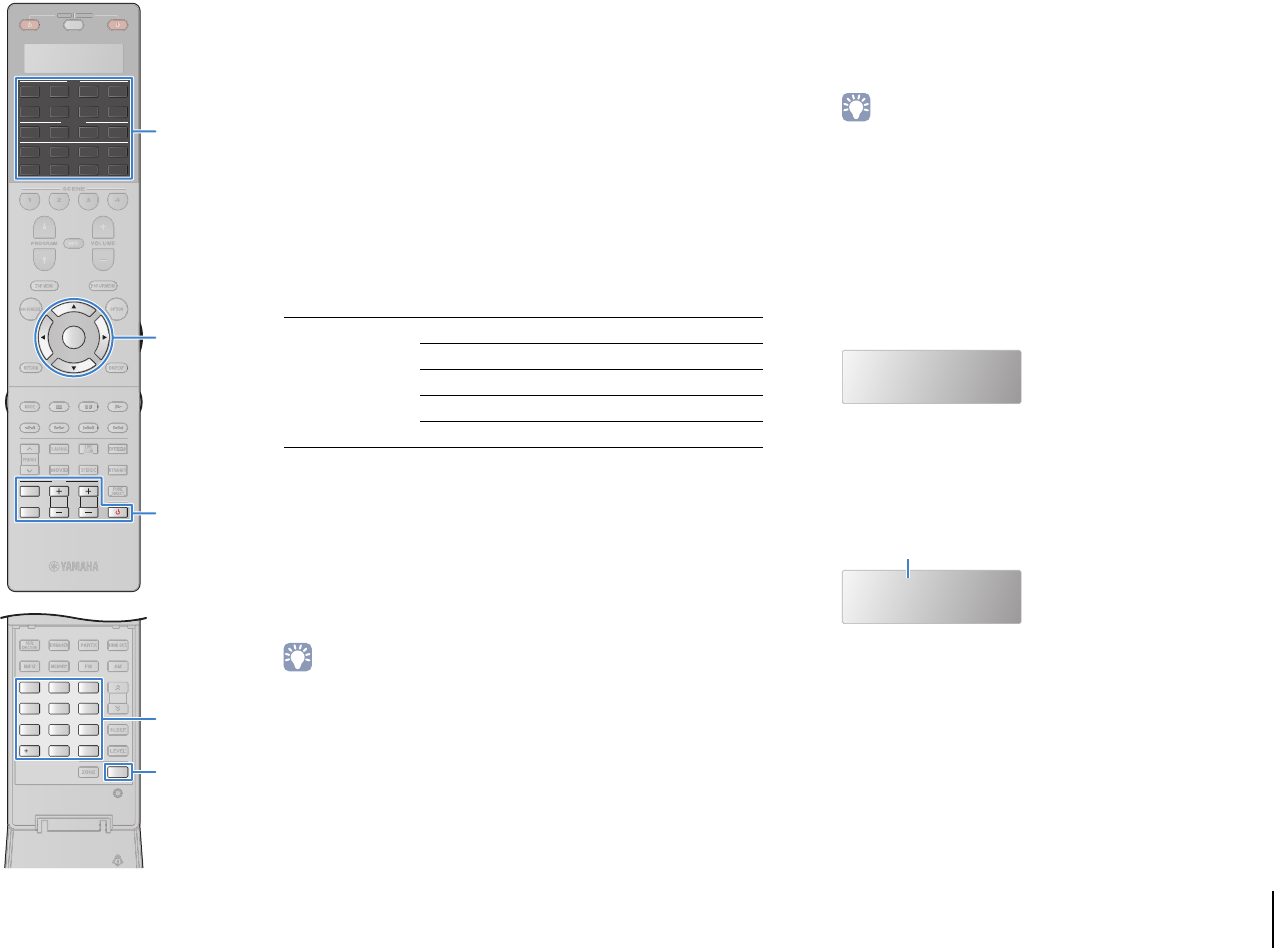
CONFIGURATIONS ➤Controlling external devices with the remote control En 137
5Use the numeric keys or cursor keys to enter the
4-digit remote control code and press ENTER.
Once the remote control code is successfully registered,
“OK” appears in the display window.
If “ERROR” appears, registration has failed. Repeat from
Step 3.
6To exit from the setup menu, press SETUP.
❑TV operations
Once you have registered the remote control code for your TV, you
can control it using the TV operation keys, regardless of the input
source selected on the unit.
■Registering the remote control codes for
playback devices
You can use the unit’s remote control to operate playback devices if
you have registered their remote control codes. You can also use
the input selection keys to change the playback devices that are
controlled by the remote control, because their remote control
codes are assigned to the input selection keys.
• Under the unit’s default settings, the amplifier code (Yamaha: 5098) is set for all
the input selection keys. With this setting, you can control HDMI
Control-compatible devices connected to the unit with the remote control. (This
function may not work depending on the specification of the external device.)
• If you have registered the remote control code for an external device to the [A], [B]
or [C] key, you can operate the device with the remote control without switching
the input source after pressing the key.
1Use “Remote Control Code Search” in the CD-ROM
to find the remote control code for your playback
device.
• If there are multiple remote control codes, register the first code in the list. If
that does not work, try the other codes.
2Press SETUP.
Perform each of the following steps within 30 seconds.
Otherwise, the setting will be canceled. If this happens,
repeat from Step 2.
3Use the cursor keys (q/w) to select “PRESET” and
press ENTER.
4Press a corresponding input selection key and
press ENTER.
For example, press AV1 to set the remote control code for
the playback device connected to the AV1 jack.
5Use the numeric keys or cursor keys to enter the
4-digit remote control and press ENTER.
Once the remote control code is successfully registered,
“OK” appears in the display window.
If “ERROR” appears, registration has failed. Repeat from
Step 3.
TV operation keys
INPUT Switches the video inputs of the TV.
MUTE Mutes the audio output of the TV.
TV VOL Adjust the volume of the TV.
TV CH Switch the channels of the TV.
TV zTurns on/off the TV.
PRESET
5098
Code currently registered
2 3
5
1
4 6
TUN./ CH
ENHANCER
SUR.
DECODE
HDMI OUT
MEMORY
INFO AM
PAR TY
FM
0
10
LEVELENT
SETUPZONE
87
SLEEP
9
SOURCE RECEIVER
AV
AUDIO
1 2 3 4
5 6 7
V-AUX
1 2 3 4
MULTI
PHONO
USB NET
TUNER
[ C ][ A ] [ B ]
CLASSICAL
LIVE
CLUB
ENTERTAIN
MOVIE
STEREO STRAIGHT
INPUTPURE
DIRECT
MUTE
TV
SCENE
1 2 3 4
PROGRAM
VOLUME
TV VOL
MUTE
MODE
TOP MENU
RETURN DISPLAY
POP-UP/MENU
TV CH
PRESET
ENTER
ON SCREEN
OPTION
T
UN.
/
CH
SOU
R
CE
RECEIVE
R
SETUP
ENTER
Input selection keys
TV operation keys
Numeric keys
Cursor keys
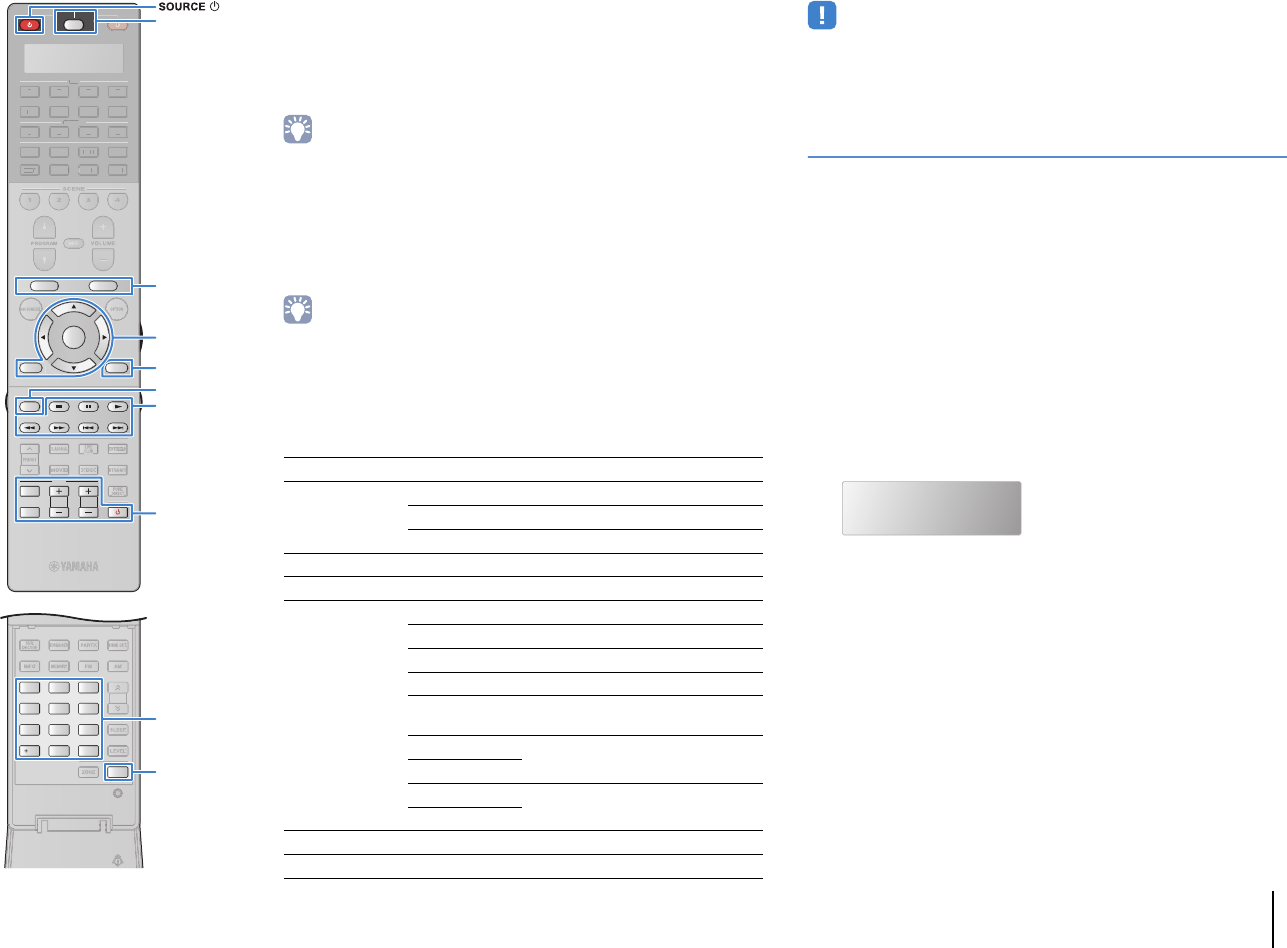
CONFIGURATIONS ➤Controlling external devices with the remote control En 138
6To set another remote control code, repeat Steps 4
and 5.
7To exit from the setup menu, press SETUP.
• For details on how to register a remote control code to a SCENE key, refer to
“Configuring scene assignments” (p.62).
❑Playback device operations
Once you have registered the remote control code for your
playback device, you can control it using the following keys after
selecting the input source or scene.
• By pressing SOURCE/RECEIVER, you can switch the devices (the unit or
external device) that are operated by the menu operation keys, DISPLAY and
numeric keys. You can operate the unit when SOURCE/RECEIVER lights up in
orange, and an external device when SOURCE/RECEIVER lights up in green. For
example, if you register the remote control code of your external device on
TUNER, you can operate the unit’s built-in FM/AM radio when
SOURCE/RECEIVER lights up in orange, and the external device when
SOURCE/RECEIVER lights up in green.
• These keys work only if the corresponding function is available on your playback
device and if the device can be operated with an infrared remote control.
Programming from other remote controls
(learning)
The remote control of the unit can receive remote control signals
from other infrared remote controls and learn the remote control
operation. If you cannot find a remote control code for your
playback device or if any key on the remote control does not work
after you register the remote control code, use the learning function
to assign a function to each key.
1Press SETUP.
Perform each of the following steps within 30 seconds.
Otherwise, the setting will be canceled. If this happens,
repeat from Step 1.
2Use the cursor keys (q/w) to select “LEARN” and
press ENTER.
3Press one of the following keys depending on the
type of your device.
For playback device: press the input selection key
(corresponding to the input jacks where the device is
connected).
For TV: press TV z.
SOURCE zTurns on/off the playback device.
Menu operation
keys
Cursor keys Select an item.
ENTER Confirms a selected item.
RETURN Returns to the previous screen.
DISPLAY Switches information on the display.
MODE Switches between modes.
External device
operation keys
TOP MENU Displays the top menu.
POP-UP/MENU Displays the pop-up menu.
sStops playback.
dStops playback temporarily.
aStarts playback of the selected
song/video.
hSearches forward/backward (by
holding down).
j
fSkips forward/backward.
g
Numeric keys Enter numerical values.
TV operation keys Control the TV (p.137).
LEARN
2 3
5
1
4 6
TUN./ CH
ENHANCER
SUR.
DECODE
HDMI OUT
MEMORY
INFO AM
PAR TY
FM
0
10
LEVELENT
SETUPZONE
87
SLEEP
9
SOURCE RECEIVER
AV
AUDIO
1 2 3 4
5 6 7
V-AUX
1 2 3 4
MULTI
PHONO
USB NET
TUNER
[ C ][ A ] [ B ]
CLASSICAL
LIVE
CLUB
ENTERTAIN
MOVIE
STEREO STRAIGHT
INPUTPURE
DIRECT
MUTE
TV
SCENE
1 2 3 4
PROGRAM
VOLUME
TV VOL
MUTE
MODE
TOP MENU
RETURN DISPLAY
POP-UP/MENU
TV CH
PRESET
ENTER
ON SCREEN
OPTION
T
UN.
/
CH
A
V
A
U
DI
O
1
2
3
4
5
6
7
V-
AUX
1
2
3
4
MUL
T
I
L
L
PH
O
N
O
US
B NE
T
TUNE
R
[
C
]
[
A
]
[
B
]
SETUP
TV z
MODEMODE
DISPLAYDISPLAY
ENTER
SOURCE/RECEIVER
Menu operation keys
Cursor keys
TV operation keys
Numeric keys
External device
operation keys
External device
operation keys
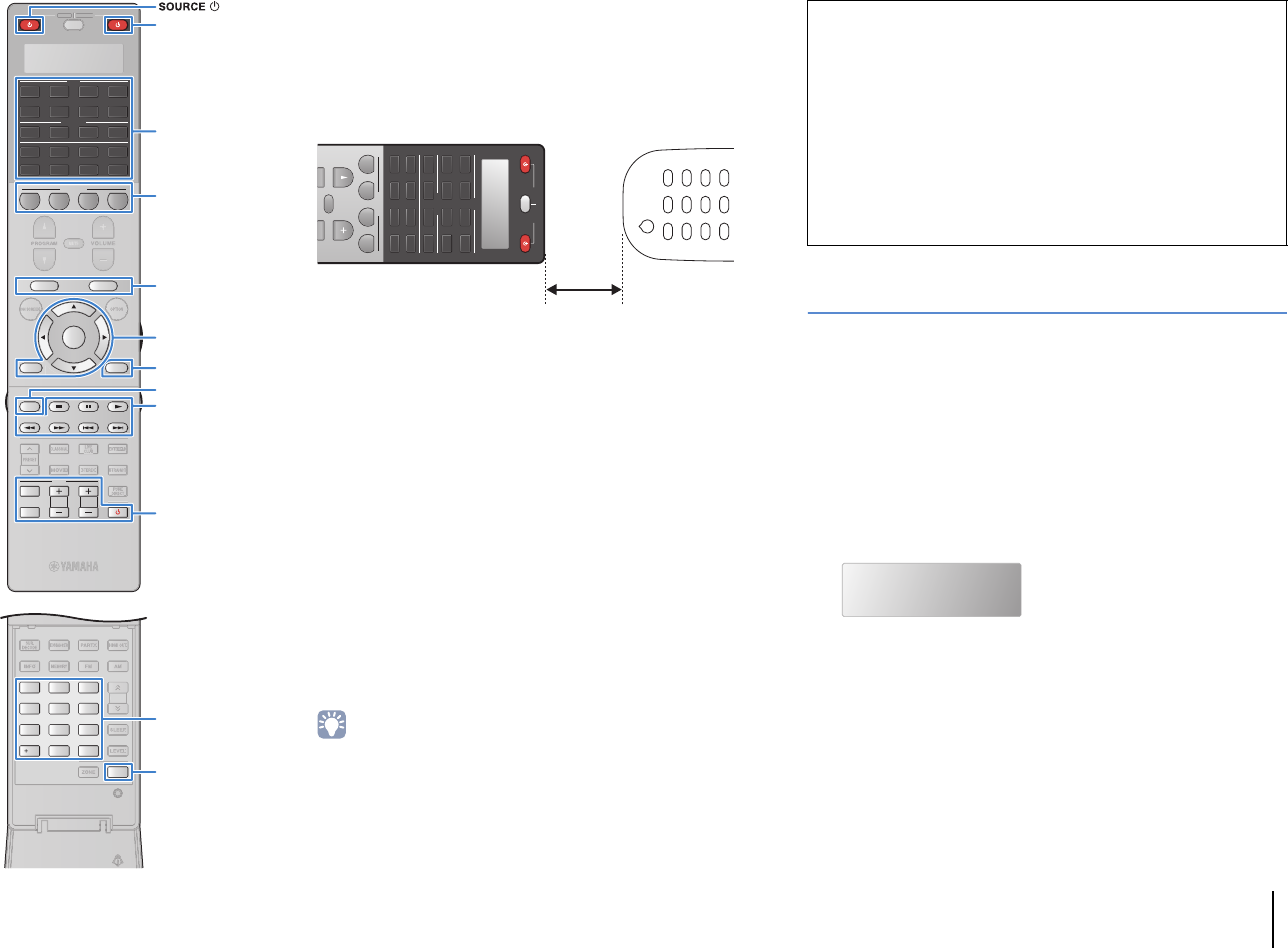
CONFIGURATIONS ➤Controlling external devices with the remote control En 139
4Press ENTER.
5Aim the infrared transmitters of the remote controls
at each other.
6Perform the following steps (a and b) within
10 seconds.
aOn the unit, press one of the following keys to which you want to
assign a function.
For playback device: SOURCE z, menu operations keys,
DISPLAY, MODE, external device operation keys, numeric keys
For TV: TV operation keys
bOn the external device, press the key from which the operation is
learned until “OK” appears in the display window.
If “NG” appears, learning has failed. Repeat from Step 4.
7Repeat Steps 3 to 6 until all desired operations are
learned.
8To exit from the setup menu, press SETUP.
• This remote control can learn approximately 200 functions (may be
decreased depending on the signals). If “FULL” appears in the display
window, clear unnecessary assignments to free some memory space for the
new functions.
Editing device names
You can edit the device names or scene names displayed on the
remote control’s display window.
1Press SETUP.
Perform each of the following steps within 30 seconds.
Otherwise, the setting will be canceled. If this happens,
repeat from Step 1.
2Use the cursor keys (q/w) to select “RENAME” and
press ENTER.
3Press one of the following keys to select a device or
a scene.
For playback device: press the input selection key
(corresponding to the input jacks where the device is connected).
For TV: press TV z.
For AV receiver (the unit): press RECEIVER z.
For scene: press one of the SCENE keys.
SOURCE RECEIVER
AV
AUDIO
1 2 3 4
567
V-AU X
1 2 3 4
MULTI
PHONO
USB NET
TUNER
[ C ][ A ] [ B ]
SCENE
1 2 3 4
PROGRAM
VOLUME
MUTE
Remote control of external device
5 to 10 cm (2 to 4”) apart
Note
• If you press RECEIVER z in Step 3, you can assign functions of an external
receiver to the menu operation keys, external device operation keys or
numeric keys. However, it makes these keys to control the unit impossible. If
you need to restore the remote control code for the unit, perform the following
steps.
aPress SETUP.
bUse the cursor keys (q/w) to select “CLEAR” and press ENTER.
cUse the cursor keys (q/w) to select “LEARN” and press ENTER.
dPress RECEIVER z.
eHold down ENTER until “OK” appears on the window display.
fTo exit from the setup menu, press SETUP.
RENAME
2 3
5
1
4 6
TUN./ CH
ENHANCER
SUR.
DECODE
HDMI OUT
MEMORY
INFO AM
PAR TY
FM
0
10
LEVELENT
SETUPZONE
87
SLEEP
9
SOURCE RECEIVER
AV
AUDIO
1 2 3 4
5 6 7
V-AUX
1 2 3 4
MULTI
PHONO
USB NET
TUNER
[ C ][ A ] [ B ]
CLASSICAL
LIVE
CLUB
ENTERTAIN
MOVIE
STEREO STRAIGHT
INPUTPURE
DIRECT
MUTE
TV
SCENE
1 2 3 4
PROGRAM
VOLUME
TV VOL
MUTE
MODE
TOP MENU
RETURN DISPLAY
POP-UP/MENU
TV CH
PRESET
ENTER
ON SCREEN
OPTION
T
UN.
/
CH
SOU
R
CE
RECEIVE
R
SETUP
TV z
MODEMODE
DISPLAYDISPLAY
ENTER
SCENE
RECEIVER z RECEIVER z
Input selection keys
Menu operation keys
Cursor keys
TV operation keys
Numeric keys
External device
operation keys
External device
operation keys
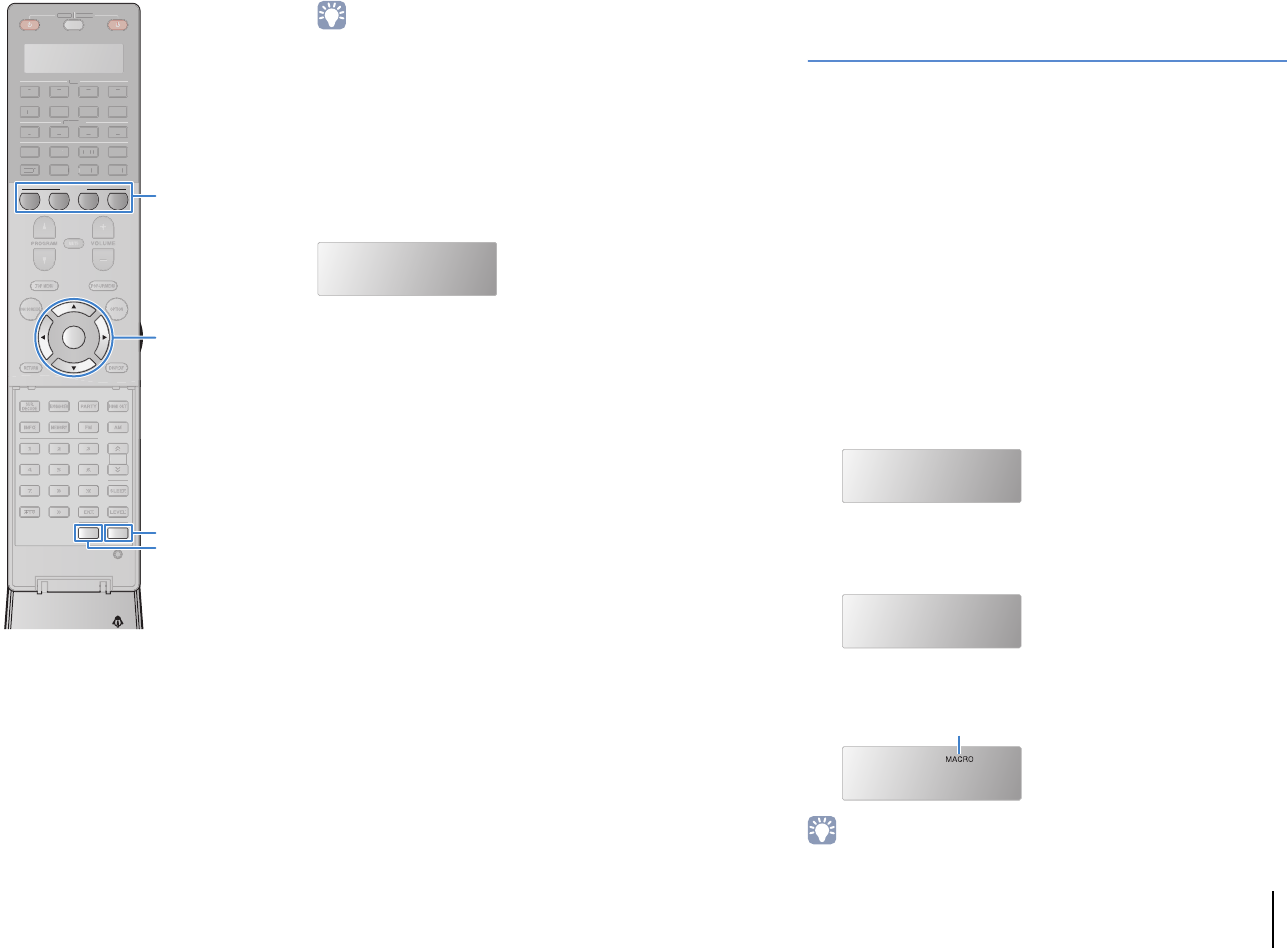
CONFIGURATIONS ➤Controlling external devices with the remote control En 140
• To edit scene names of each zone, press one of the SCENE keys and press
ZONE to select a zone.
4Press ENTER.
5Use the cursor keys to rename.
To locate the position, use the cursor keys (e/r).
To select a character (A to Z, a to z, 0 to 9, space,
symbols), use the cursor keys (q/w).
6Press ENTER to register the new name.
Once the new name is successfully registered, “OK”
appears in the display window.
7To edit another device name (or scene name), repeat
Steps 3 to 6.
8To exit from the setup menu, press SETUP.
Operating multiple functions at once
(macro)
The macro function allows you to sequentially operate multiple
functions at once.
For example, when you want to listen to a CD, you can turn on the
CD player, select the corresponding input source on the unit and
start playback on the CD player sequentially with a single key
operation.
■Enabling the macro operations
1Press SETUP.
Perform each of the following steps within 30 seconds.
Otherwise, the setting will be canceled. If this happens,
repeat from Step 1.
2Use the cursor keys (q/w) to select “MACRO” and
press ENTER.
3Use the cursor keys (q/w) to select “ON” and press
ENTER.
4To exit from the setup menu, press SETUP.
• To disable the macro operations, select “OFF” in Step 3.
BD/DVD
MACRO
ON
RECEIVER
“MACRO” lights up (when macro operations are enabled)
RECEIVER
SOURCE RECEIVER
AV
AUDIO
1 2 3 4
5 6 7
V-AUX
1 2 3 4
MULTI
PHONO
USB NET
TUNER
[ C ][ A ] [ B ]
CLASSICAL
LIVE
CLUB
ENTERTAIN
MOVIE
STEREO STRAIGHT
INPUTPURE
DIRECT
MUTE
TV
SCENE
1 2 3 4
PROGRAM
VOLUME
TV VOL
MUTE
MODE
TOP MENU
RETURN DISPLAY
POP-UP/MENU
TV CH
PRESET
ENTER
ON SCREEN
OPTION
23
5
1
4 6
TUN./ CH
ENHANCER
SUR.
DECODE
HDMI OUT
MEMORY
INFO AM
PAR TY
FM
0
10
LEVELENT
SETUPZONE
87
SLEEP
9
SOU
R
CE
RE
C
EIVE
R
AV
A
UDI
O
1
2
3
4
5
6
7
V-
AUX
1
2
3
4
MUL
T
I
L
L
PH
O
N
O
US
B NE
T
TUNE
R
[
C
]
[
A
]
[
B
]
TU
N.
/
CH
SETUP
ZONE
ENTER
SCENE
Cursor keys
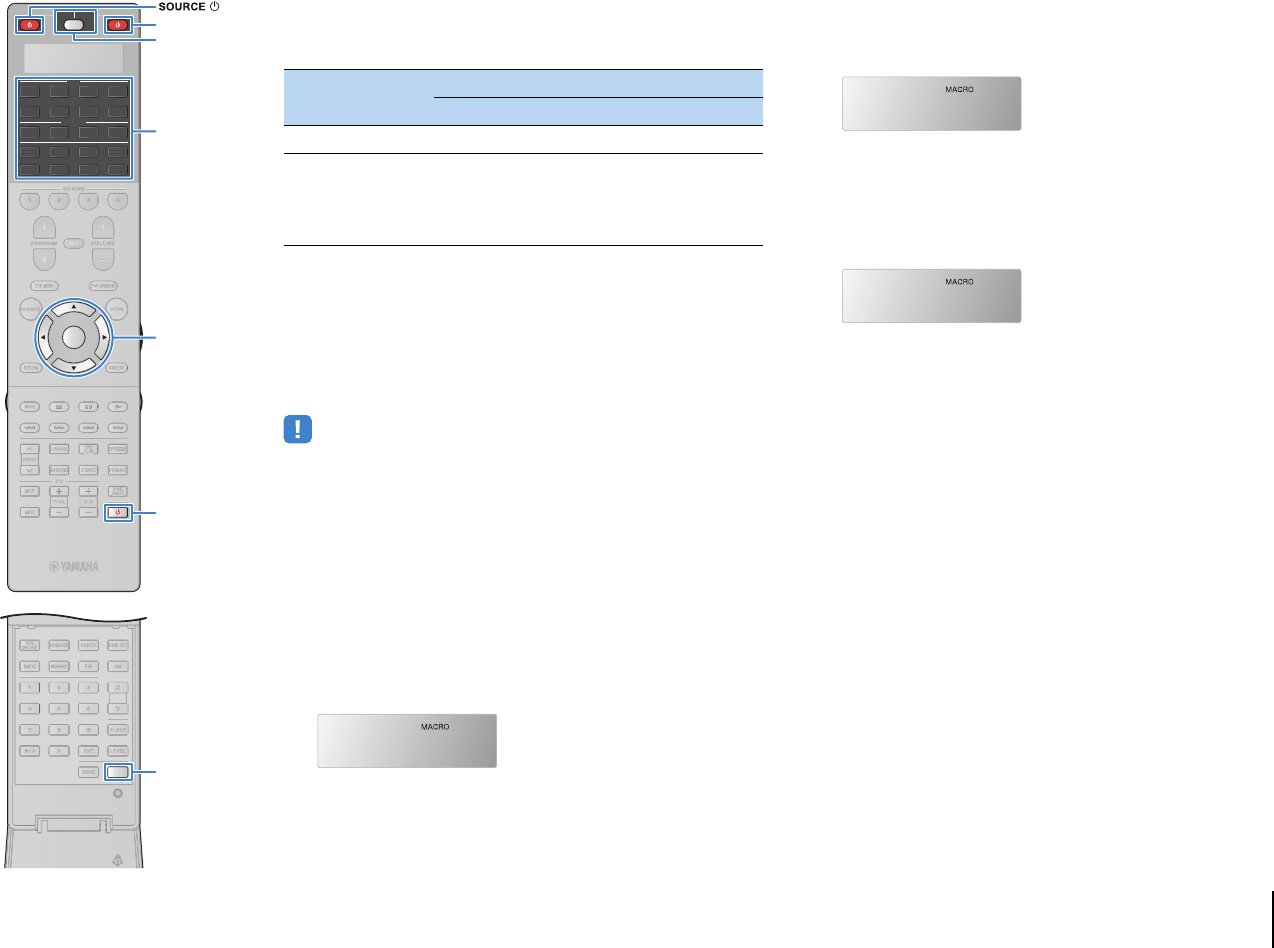
CONFIGURATIONS ➤Controlling external devices with the remote control En 141
By default, the following macro operations are available after
pressing a macro operation key when the macro operations are
enabled.
■Programming macro operations
You can program up to 10 remote control commands for each
macro operation key. If you press the corresponding macro
operation key, the multiple operations will be carried out
sequentially according to the programmed remote control
commands.
• Before programming macro operations, you need to register the remote control
codes (p.136) or assign a function to each key using the learning function (p.138).
• We do not recommend including continuous operations (such as volume
adjustment) in macro operations.
1Press SETUP.
Perform each of the following steps within 30 seconds.
Otherwise, the setting will be canceled. If this happens,
repeat from Step 1.
2Use the cursor keys (q/w) to select “MACRO” and
press ENTER.
3Use the cursor keys (q/w) to select “EDIT” and
press ENTER.
4Press the macro operation key (RECEIVER z or
input selection key) to which macro operations are
assigned and press ENTER.
“MACRO 1” appears in the display window.
5Press the keys for functions (up to 10) you want to
include in the macro operations in sequence.
To switch the devices (the unit or external device) to control,
press SOURCE/RECEIVER.
(Example)
Programming for aturning on the unit, bselecting “AV1” as
the input source, cturning on the DVD player assigned to
“AV1” and dturning on the TV
a(MACRO 1) Press RECEIVER z.
b(MACRO 2) Press AV1.
c(MACRO 3) Press SOURCE/RECEIVER repeatedly to select
“AV1” and press SOURCE z.
d(MACRO 4) Press SOURCE/RECEIVER repeatedly to select
“TV” and press TV z.
6To confirm the setting, hold down ENTER until “OK”
appears on the window display.
If you have programmed 10 functions, “FULL” appears and
the setting is confirmed automatically.
7To exit from the setup menu, press SETUP.
Macro operation key
Macro operations
1st command 2nd commend
RECEIVER zTurns on the unit. (unregistered)
Input selection keys Turns on the unit.
Selects the
corresponding input
source. (unregistered
for the [A], [B] and [C]
keys)
MACRO
EDIT
MACRO1
23
5
1
4 6
TUN./ CH
ENHANCER
SUR.
DECODE
HDMI OUT
MEMORY
INFO AM
PAR TY
FM
0
10
LEVELENT
SETUPZONE
87
SLEEP
9
SOURCE RECEIVER
AV
AUDIO
1 2 3 4
5 6 7
V-AUX
1 2 3 4
MULTI
PHONO
USB NET
TUNER
[ C ][ A ] [ B ]
CLASSICAL
LIVE
CLUB
ENTERTAIN
MOVIE
STEREO STRAIGHT
INPUTPURE
DIRECT
MUTE
TV
SCENE
1 2 3 4
PROGRAM
VOLUME
TV VOL
MUTE
MODE
TOP MENU
RETURN DISPLAY
POP-UP/MENU
TV CH
PRESET
ENTER
ON SCREEN
OPTION
T
UN.
/
CH
SETUP
TV z
ENTER
RECEIVER z RECEIVER z
SOURCE/RECEIVER
Input selection keys
Cursor keys
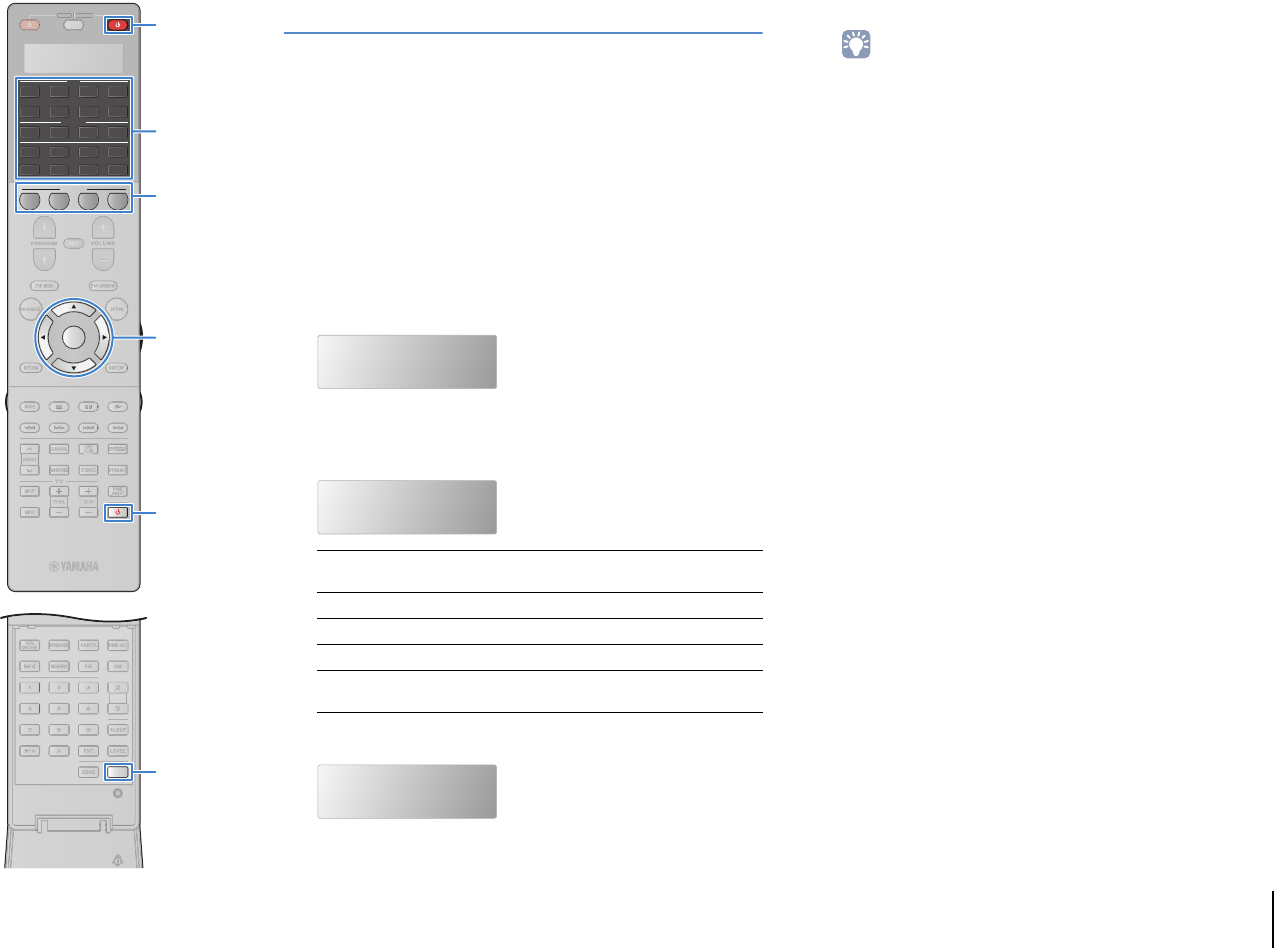
CONFIGURATIONS ➤Controlling external devices with the remote control En 142
Resetting the remote control configurations
■Clearing the remote control configurations
You can clear remote control configurations by selecting a type of
settings or clear all the remote control configurations.
1Press SETUP.
Perform each of the following steps within 30 seconds.
Otherwise, the setting will be canceled. If this happens,
repeat from Step 1.
2Use the cursor keys (q/w) to select “CLEAR” and
press ENTER.
3Use the cursor keys (q/w) to select the settings to
be cleared and press ENTER.
“ALL” appears in the display window.
To apply the selection to all the corresponding keys,
proceed to Step 5.
To apply the selection to a specific key, proceed to Step 4.
• When “RESET” is selected, all remote control configurations will be cleared.
You cannot select a specific key. Proceed to step 5.
4Press a key to which the selected process is
applied.
When “LEARN” or “PRESET” is selected: press the
input selection key or TV z.
When “RENAME” is selected: press the input selection
key, RECEIVER z, TV z or SCENE.
When “MACRO” is selected: press the macro operation
key (input selection key or RECEIVER z).
5Hold down ENTER until “OK” appears on the
window display.
If “NG” or “ERROR” appears, clearing has failed. Repeat
from Step 2.
6To exit from the setup menu, press SETUP.
LEARN Clears the functions learned from other remote
controls.
PRESET Restores the default remote control code settings.
RENAME Restores the default device name settings.
MACRO Clears the macro operation settings.
RESET Clears all remote control configurations and
restores default settings.
CLEAR
PRESET
ALL
23
5
1
4 6
TUN./ CH
ENHANCER
SUR.
DECODE
HDMI OUT
MEMORY
INFO AM
PAR TY
FM
0
10
LEVELENT
SETUPZONE
87
SLEEP
9
SOURCE RECEIVER
AV
AUDIO
1 2 3 4
5 6 7
V-AUX
1 2 3 4
MULTI
PHONO
USB NET
TUNER
[ C ][ A ] [ B ]
CLASSICAL
LIVE
CLUB
ENTERTAIN
MOVIE
STEREO STRAIGHT
INPUTPURE
DIRECT
MUTE
TV
SCENE
1 2 3 4
PROGRAM
VOLUME
TV VOL
MUTE
MODE
TOP MENU
RETURN DISPLAY
POP-UP/MENU
TV CH
PRESET
ENTER
ON SCREEN
OPTION
T
UN.
/
CH
SOU
R
CE
RECEIVE
R
SETUP
TV z
ENTER
SCENE
RECEIVER z RECEIVER z
Input selection keys
Cursor keys
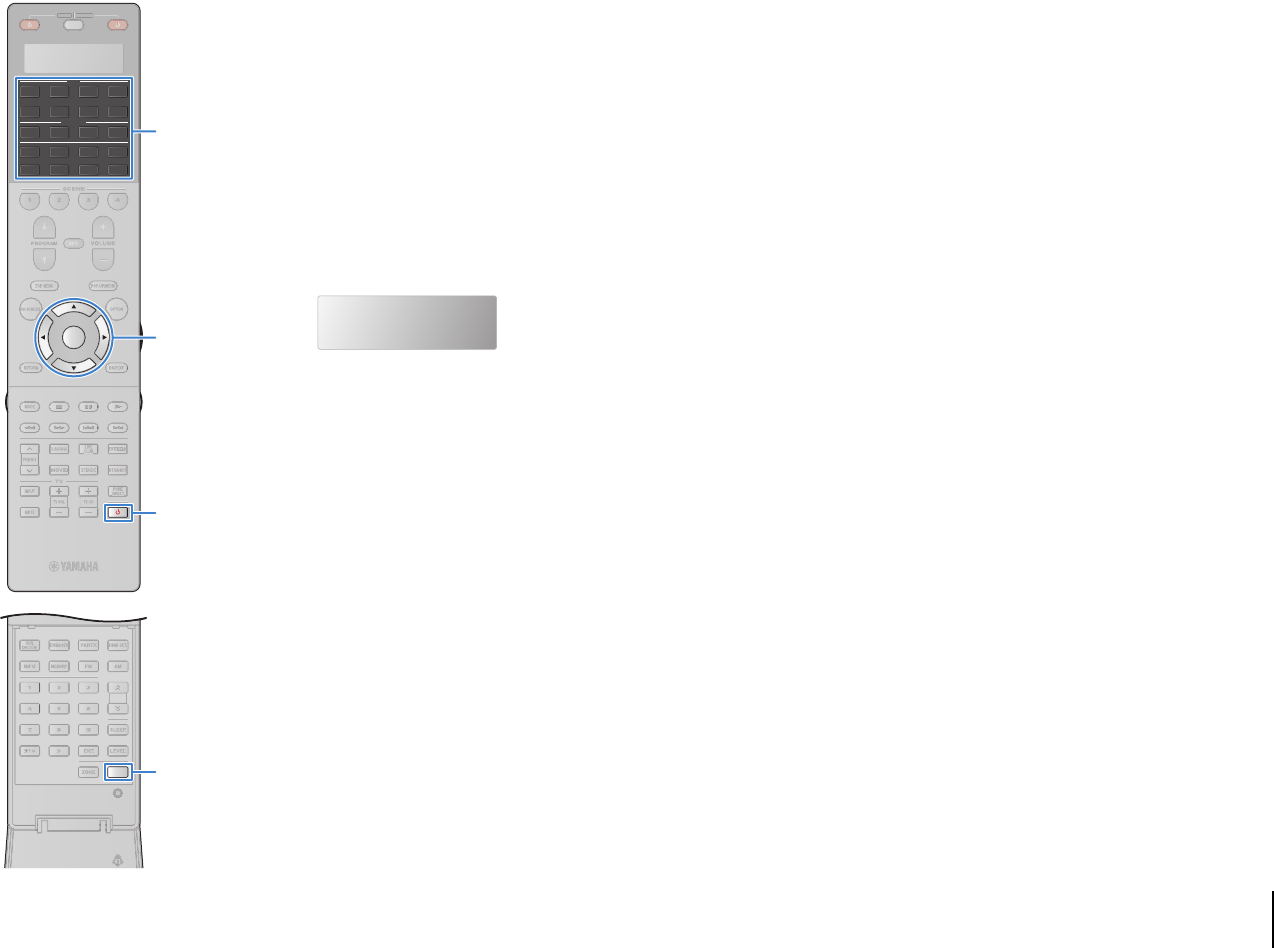
CONFIGURATIONS ➤Controlling external devices with the remote control En 143
■Erasing a function assigned to each key by
learning
You can erase a function assigned to each key by learning and
restore the default key assignments.
1Press SETUP.
Perform each of the following steps within 30 seconds.
Otherwise, the setting will be canceled. If this happens,
repeat from Step 1.
2Use the cursor keys (q/w) to select “ERASE” and
press ENTER.
3Press one of the following keys to select the device
for which key assignments will be cleared.
For playback device: press the input selection key.
For TV: press TV z.
4Press ENTER.
5Hold down the key to be reset until “OK” appears on
the window display.
If “NG” or “ERROR” appears, clearing has failed. Repeat
from Step 2.
6Repeat Steps 3 to 5 until all desired key
assignments are erased.
7To exit from the setup menu, press SETUP.
ERASE
23
5
1
4 6
TUN./ CH
ENHANCER
SUR.
DECODE
HDMI OUT
MEMORY
INFO AM
PAR TY
FM
0
10
LEVELENT
SETUPZONE
87
SLEEP
9
SOURCE RECEIVER
AV
AUDIO
1 2 3 4
5 6 7
V-AUX
1 2 3 4
MULTI
PHONO
USB NET
TUNER
[ C ][ A ] [ B ]
CLASSICAL
LIVE
CLUB
ENTERTAIN
MOVIE
STEREO STRAIGHT
INPUTPURE
DIRECT
MUTE
TV
SCENE
1 2 3 4
PROGRAM
VOLUME
TV VOL
MUTE
MODE
TOP MENU
RETURN DISPLAY
POP-UP/MENU
TV CH
PRESET
ENTER
ON SCREEN
OPTION
T
UN.
/
CH
SOU
R
CE
RECEIVE
R
SETUP
TV z
ENTER
Cursor keys
Input selection keys
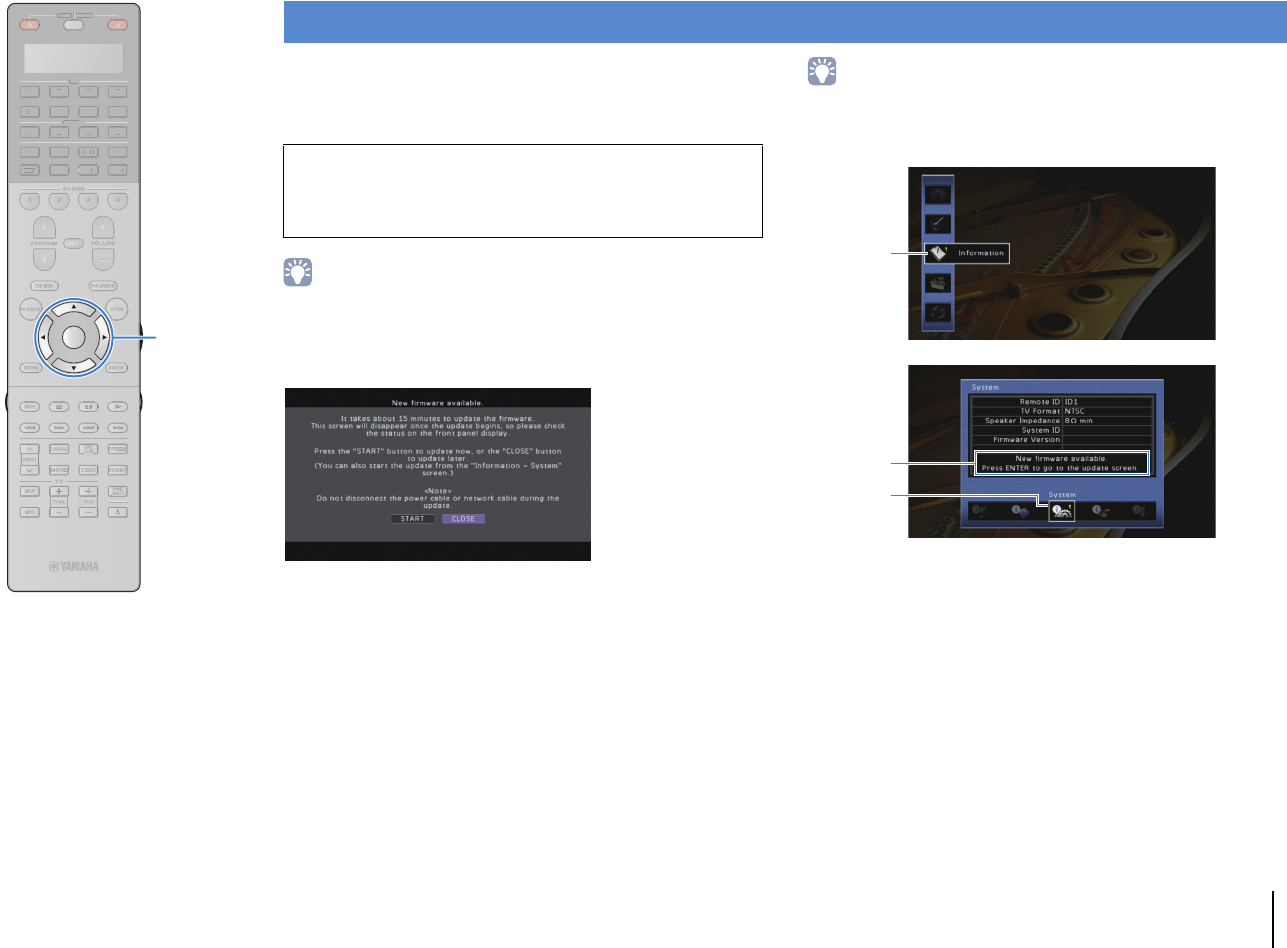
CONFIGURATIONS ➤Updating the unit’s firmware En 144
New firmware that provides additional features or product
improvements will be released as needed. If the unit is connected
to the Internet, you can download the firmware via the network and
update it.
• You can also update the firmware using the USB memory device from the
“ADVANCED SETUP” menu (p.135).
A firmware update is available if the following message is displayed
after ON SCREEN is pressed.
1Read the on-screen description.
2To start the firmware update, use the cursor keys to
select “START” and press ENTER.
The on-screen display turns off.
3If “UPDATE SUCCESS PLEASE POWER OFF!”
appears on the front display, press MAIN ZONE z
on the front panel.
The firmware update is complete.
• If you want to update the firmware later, select “CLOSE” in Step 2. “!” (exclamation
mark) appears at the upper right of the “Information” and “System” icons, and a
message will be displayed in the “System” screen (p.132). You can update the
unit’s firmware by pressing ENTER in the “System” screen.
Updating the unit’s firmware
Note
• Do not operate the unit or disconnect the power cable or network cable during
firmware update. Firmware update takes about 20 minutes or more
(depending on your Internet connection speed).
Information
icon
Message
System Icon
SOURCE RECEIVER
AV
AUDIO
1 2 3 4
5 6 7
V-AUX
1 2 3 4
MULTI
PHONO
USB NET
TUNER
[ C ][ A ] [ B ]
CLASSICAL
LIVE
CLUB
ENTERTAIN
MOVIE
STEREO STRAIGHT
INPUTPURE
DIRECT
MUTE
TV
SCENE
1 2 3 4
PROGRAM
VOLUME
TV VOL
MUTE
MODE
TOP MENU
RETURN DISPLAY
POP-UP/MENU
TV CH
PRESET
ENTER
ON SCREEN
OPTION
SOU
R
CE
RECEIVE
R
A
V
A
U
DI
O
1
2
3
4
5
6
7
V-
AUX
1
2
3
4
MUL
T
I
L
L
PH
O
N
O
US
B NE
T
TUNE
R
[
C
]
[
A
]
[
B
]
ENTER
Cursor keys

APPENDIX ➤Frequently asked questions En 145
APPENDIX
The new speaker system does not provide an ideal sound
balance...
If you have changed speakers or have a new speaker system, use “Auto Setup” to
optimize the speaker settings again (p.50). If you want to adjust the speaker settings
manually, use “Manual Setup” in the “Setup” menu (p.114).
Since we have small children, we want to set limitations on the
volume control...
If a small child accidentally operates the controls on the main unit or remote control, the
volume may suddenly increase. This may also cause injury or damage the unit or
speakers. We recommend using “Max Volume” in the “Setup” menu to set the maximum
volume level for the unit in advance (p.118). You can also set the maximum volume for
Zone2 or Zone3 (p.125).
I am occasionally startled by a sudden loud sound when turning
on the unit...
By default, the volume level when the unit last entered standby mode is automatically
applied. If you want to fix the volume, use “Initial Volume” in the “Setup” menu to set the
volume to be applied when the receiver is turned on (p.119). You can also set the initial
volume for Zone2 or Zone3 (p.125).
I made HDMI connections but HDMI Control does not work at
all...
To use HDMI Control, you need to perform the HDMI Control link setup (p.158). After
connecting HDMI Control-compatible devices (such as BD/DVD players) to the unit,
enable HDMI Control on each device and perform the HDMI Control link setup. This
setup is required every time you add a new HDMI Control-compatible device to your
system. For information on how HDMI Control works between your TV and playback
devices, refer to the instruction manuals for each device.
I want to turn off the on-screen messages displayed during
operations...
By default, short messages are displayed on the TV screen when the unit is operated
(such as input selection and volume adjustment). If the short messages bother you
when you are watching movies or sports, configure “Short Message” (p.128) in the
“Setup” menu to turn off the short messages.
I want to prevent accidental changes to the settings...
You can protect the settings configured on the unit (such as speaker settings) by
utilizing “Memory Guard” in the “Setup” menu (p.129).
The unit’s remote control is simultaneously controlling another
Yamaha product as well as the unit...
When using multiple Yamaha products, the remote control may work on another
Yamaha product or another remote control may work on the unit. If this happens,
register different remote control IDs for the devices that you want to control with each
remote control (p.133).
Frequently asked questions
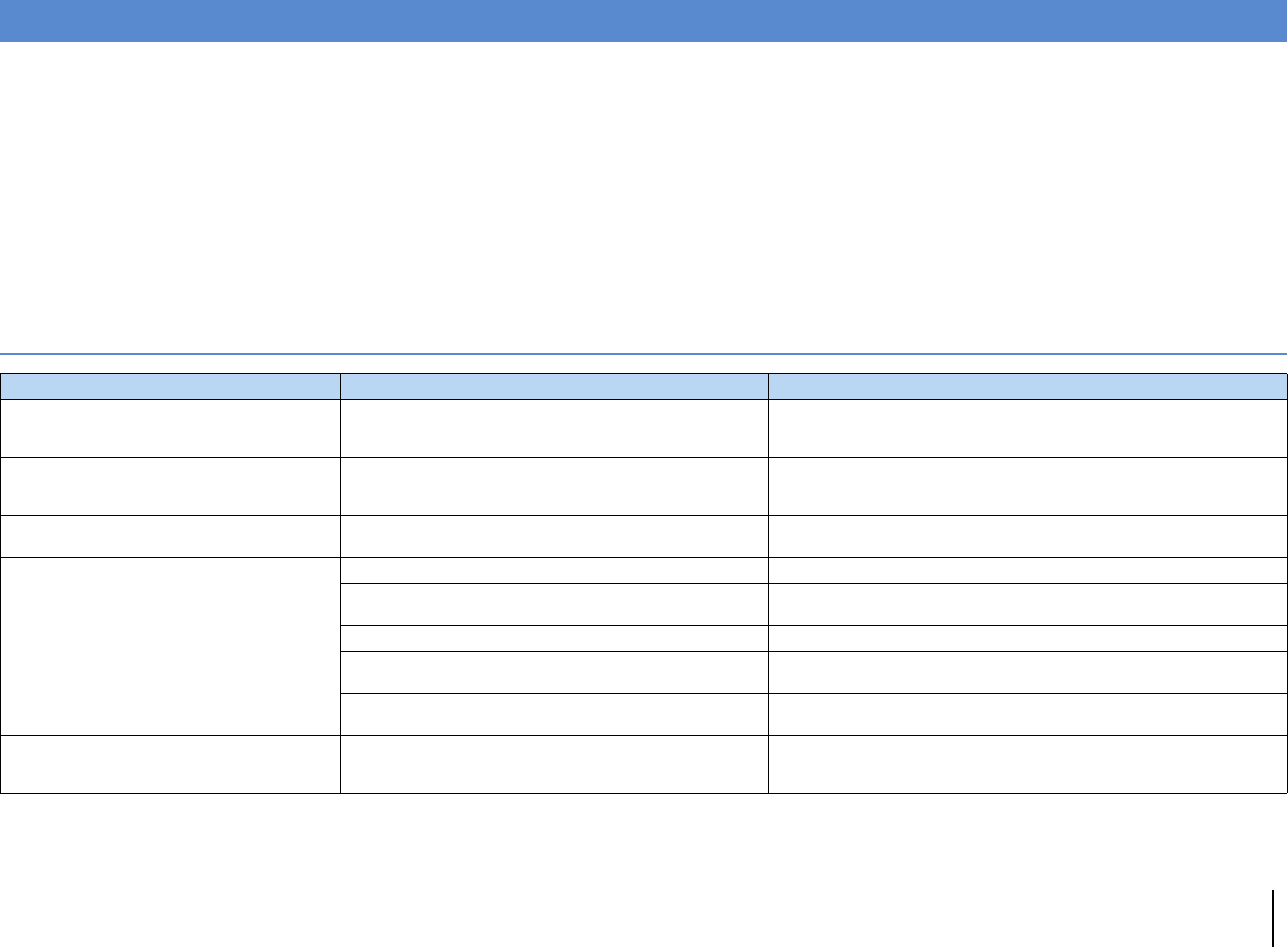
APPENDIX ➤Troubleshooting En 146
Refer to the table below when the unit does not function properly.
If the problem you are experiencing is not listed below or if the instructions below do not help, turn off the unit, disconnect the power cable, and contact the nearest authorized
Yamaha dealer or service center.
First, check the following:
aThe power cables of the unit, TV and playback devices (such as BD/DVD players) are connected to AC wall outlets
securely.
bThe unit, subwoofer, TV and playback devices (such as BD/DVD players) are turned on.
cThe connectors of each cable are securely inserted in to jacks on each device.
Power and system
Troubleshooting
Problem Cause Remedy
The power does not turn on.
The protection circuitry has been activated three times
consecutively. When the unit is in this condition, the standby
indicator on the unit blinks if you try to turn on the power.
As a safety precaution, capability to turn on the power is disabled. Contact your
nearest Yamaha dealer or service center to request repair.
The power does not turn off.
The internal microcomputer has frozen, due to an external electric
shock (such as lightning or excessive static electricity) or to a drop
in the power supply voltage.
Hold down MAIN ZONE z on the front panel for more than 10 seconds to
initialize and reboot the unit. (If the problem persists, disconnect the power cable
from the AC wall outlet and plug it again.)
The power turns off (standby mode) immediately. The unit was turned on while a speaker cable was shorted. Twist the bare wires of each speaker cable firmly and reconnect to the unit and
speakers (p.23).
The unit enters standby mode automatically.
The sleep timer worked. Turn on the unit and start playback again.
The auto-standby function kicked in because the unit was not used
for the specified time.
To disable the auto-standby function, set “Auto Power Down” in the “Setup” menu
to “Off” (p.130).
The speaker impedance setting is incorrect. Set the speaker impedance to match your speakers (p.133).
The protection circuitry has been activated because of a short
circuit.
Twist the bare wires of each speaker cable firmly and reconnect to the unit and
speakers (p.23).
The protection circuitry has been activated because the volume of
the unit is too high.
Turn down the volume. If “ECO Mode” in the “Setup” menu is set to “On”, set it to
“Off” (p.130).
The unit is not reacting.
The internal microcomputer is frozen, due to an external electric
shock (such as lightning or excessive static electricity) or to a drop
in the power supply voltage.
Hold down MAIN ZONE z on the front panel for more than 10 seconds to
initialize and reboot the unit. (If the problem persists, disconnect the power cable
from the AC wall outlet and plug it again.)
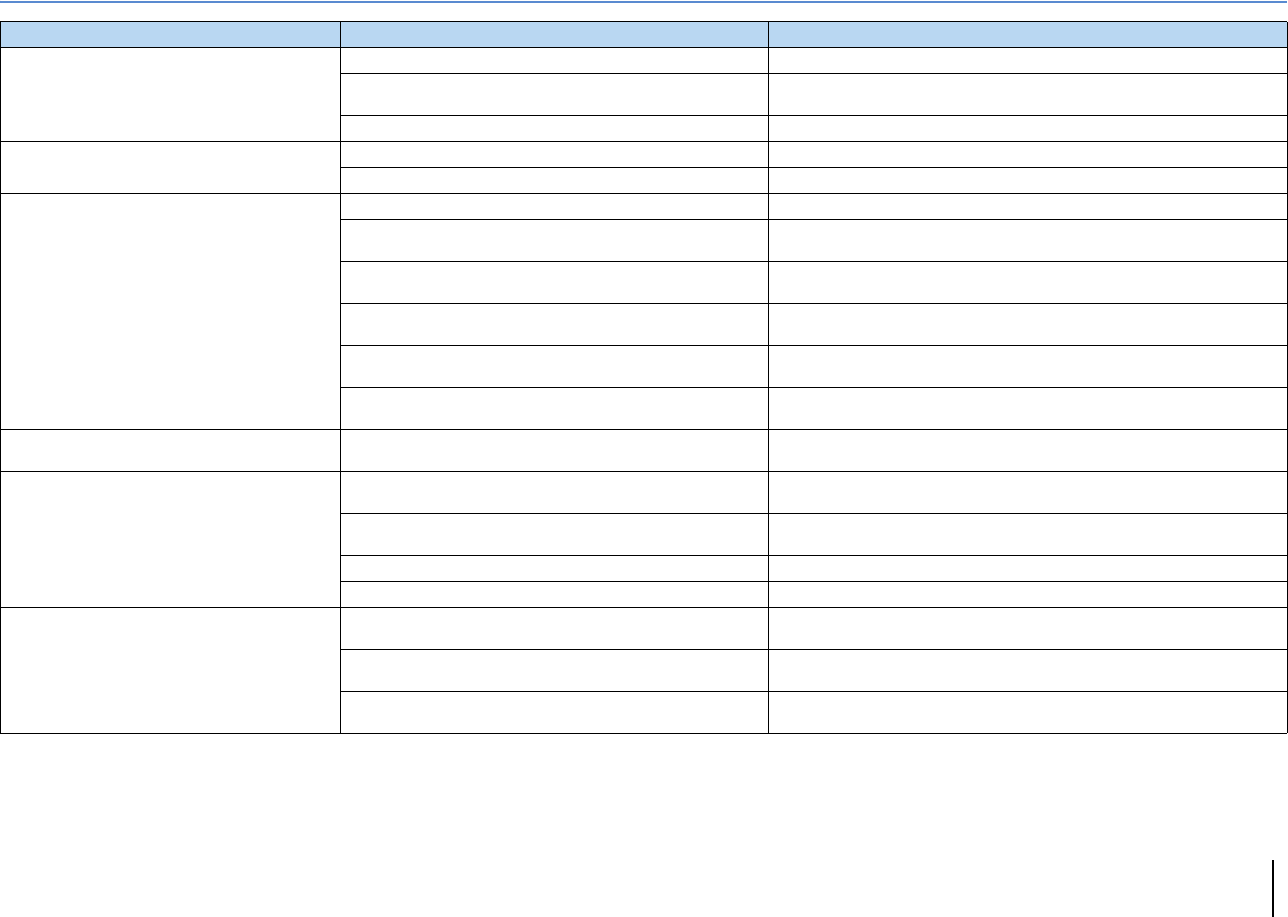
APPENDIX ➤Troubleshooting En 147
Audio
Problem Cause Remedy
No sound.
Another input source is selected. Select an appropriate input source with the input selection keys.
Signals that the unit cannot reproduce are being input. Some digital audio formats cannot be played back on the unit. To check the audio
format of the input signal, use “Audio Signal” in the “Information” menu (p.131).
The cable connecting the unit and playback device is defective. If there is no problem with the connection, replace with another cable.
The volume cannot be increased. The maximum volume is set. Use “Max Volume” in the “Setup” menu to adjust the maximum volume (p.118).
A device connected to the output jacks of the unit is not turned on. Turn on all devices connected to the output jacks of the unit.
No sound is coming from a specific speaker.
The playback source does not contain a signal for the channel. To check it, use “Audio Signal” in the “Information” menu (p.131).
The currently selected sound program/decoder does not use the
speaker. To check it, use “Test Tone” in the “Setup” menu (p.117).
Audio output of the speaker is disabled. Perform “Auto Setup” (p.50) or use “Configuration” in the “Setup” menu to change
the speaker settings (p.115).
The volume of the speaker is set too low. Perform “Auto Setup” (p.50) or use “Level” in the “Setup” menu to adjust the
speaker volume (p.117).
The speaker cable connecting the unit and the speaker is
defective. If there is no problem with the connection, replace with another speaker cable.
The speaker is malfunctioning. To check it, replace with another speaker. If the problem persists, the unit may be
malfunctioning.
No sound is coming from the surround back
speaker. The extended surround is disabled. Use “Extended Surround” in the “Option” menu to select a decoder to be used
(p.100).
No sound is coming from the subwoofer.
The playback source does not contain LFE or low-frequency
signals.
To check it, set “Extra Bass” in the “Setup” menu to “On”, in order to output the
front channel low-frequency components from the subwoofer (p.116).
Subwoofer output is disabled. Perform “Auto Setup” (p.50) or set “Subwoofer 1” or “Subwoofer 2” in the “Setup”
menu to “Use” (p.116).
The volume of the subwoofer is too low. Adjust the volume on the subwoofer.
The subwoofer has been turned off by its auto-standby function. Disable the auto-standby function of the subwoofer or adjust its sensitivity level.
No sound from the playback device (connected to
the unit with HDMI).
The TV does not support HDCP (High-bandwidth Digital Content
Protection). Refer to the instruction manuals for the TV and check the TV’s specifications.
The unit is set not to output audio input through HDMI jacks from
the SPEAKERS terminals. In “Audio Output” in the “Setup” menu, set “Amp” to “On” (p.122).
The number of devices connected to the HDMI OUT jack exceeds
the limit. Disconnect some of the HDMI devices.
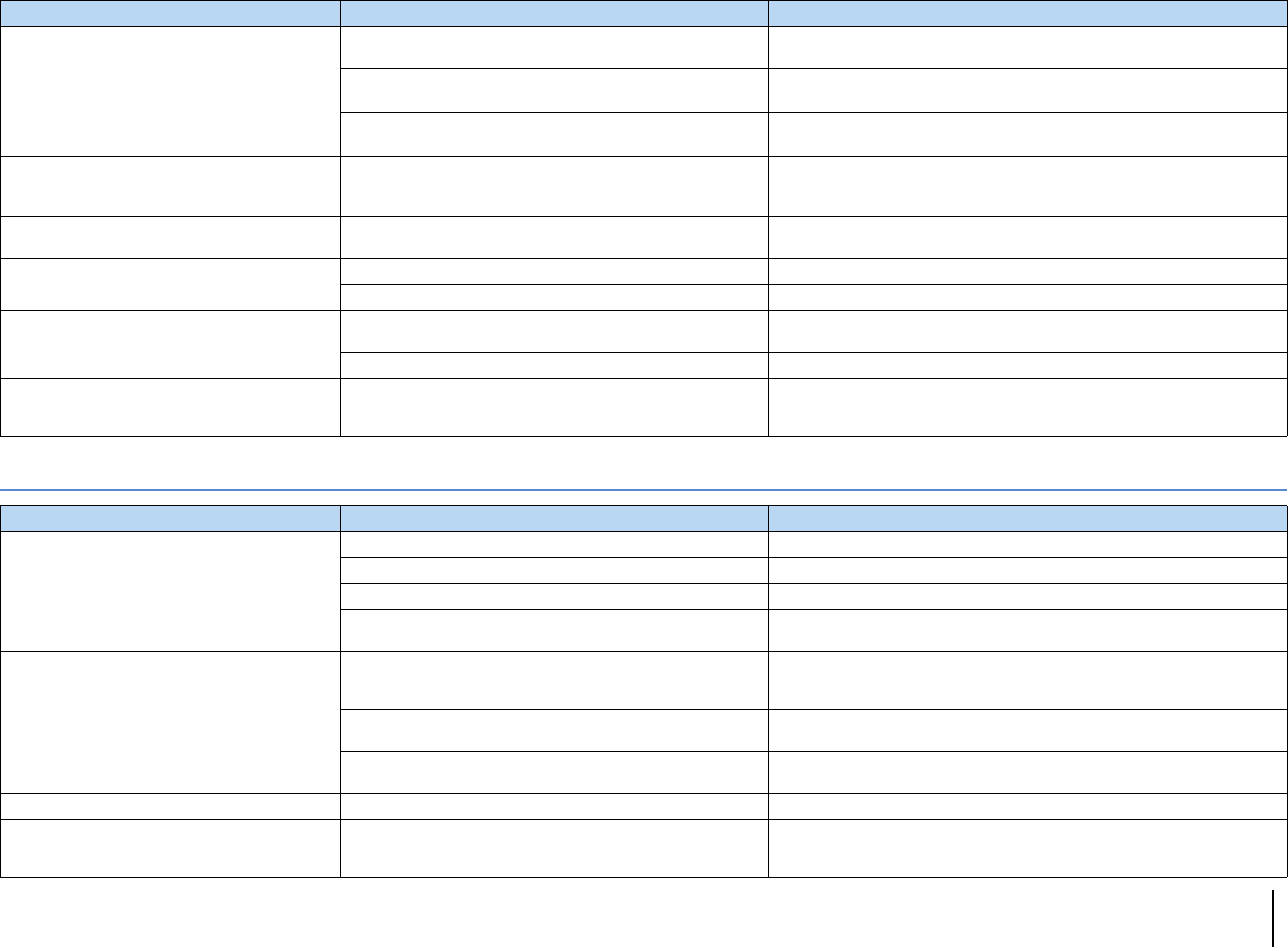
APPENDIX ➤Troubleshooting En 148
Video
No sound from the TV (when HDMI Control is
used).
The TV is set to output audio from the TV speakers. Change the audio output setting on your TV so that the TV audio is output from the
speakers connected to the unit.
(If the TV is connected to the unit with an audio cable)
The TV audio input setting does not match the actual connection.
Use “TV Audio Input” in the “Setup” menu to select the correct audio input jack
(p.122).
(If you are trying to use ARC)
ARC is disabled on the unit or TV. Set “ARC” in the “Setup” menu to “On” (p.122). Also, enable ARC on the TV.
No sound from the Zone2 TV (connected to the
unit with HDMI).
(RX-A3020 only)
The audio output from the HDMI OUT 2 (ZONE OUT) jack is
disabled. Set “Audio Output” in the “Setup” menu to “On” (p.127).
Only the front speakers work on multichannel
audio.
The playback device is set to output 2-channel audio (such as
PCM) only.
To check it, use “Audio Signal” in the “Information” menu (p.131). If necessary,
change the digital audio output setting on the playback device.
Noise/hum is heard. The unit is too close to another digital or radio frequency device. Move the unit further away from the device.
The cable connecting the unit and playback device is defective. If there is no problem with the connection, replace with another cable.
The sound is distorted. The volume of the unit is too high. Turn down the volume. If “ECO Mode” in the “Setup” menu is set to “On”, set it to
“Off” (p.130).
A device connected to the unit’s output jacks is not turned on. Turn on all devices connected to the unit’s output jacks.
The sound is interrupted.
(RX-A3020 only)
If the HDMI OUT 2 (ZONE OUT) jack is assigned to Zone2 or
Zone4, HDMI audio output may be interrupted during some zone
operations due to internal circuitry switching.
For details, see “Connecting an HDMI-compatible device to play back
videos/audio” (p.93).
Problem Cause Remedy
Problem Cause Remedy
No video.
Another input source is selected on the unit. Select an appropriate input source with the input selection keys.
Another input source is selected on the TV. Switch the TV input to display the video from the unit.
The video signal output from the unit is not supported by the TV. Set “MONITOR CHECK” in the “ADVANCED SETUP” menu to “YES” (p.134).
The cable connecting the unit and TV (or playback device) is
defective. If there is no problem with the connection, replace with another cable.
No video from the playback device (connected to
the unit with HDMI).
The input video signal (resolution) is not supported by the unit.
To check the information about the current video signal (resolution), use “Video
Signal” in the “Information” menu (p.131). For information about video signals
supported by the unit, see “HDMI signal compatibility” (p.159).
The TV does not support HDCP (High-bandwidth Digital Content
Protection). Refer to the instruction manuals for the TV and check the TV’s specifications.
The number of devices connected to the HDMI OUT jack is over
the limit. Disconnect some of the HDMI devices.
The menu of the unit is not displayed on the TV. Another input source is selected on the TV. Switch the TV input to display the video from the unit.
The video is interrupted.
(RX-A3020 only)
If the HDMI OUT 2 (ZONE OUT) jack is assigned to Zone2 or
Zone4, HDMI video output may be interrupted during some zone
operations due to internal circuitry switching.
For details, see “Connecting an HDMI-compatible device to play back
videos/audio” (p.93).
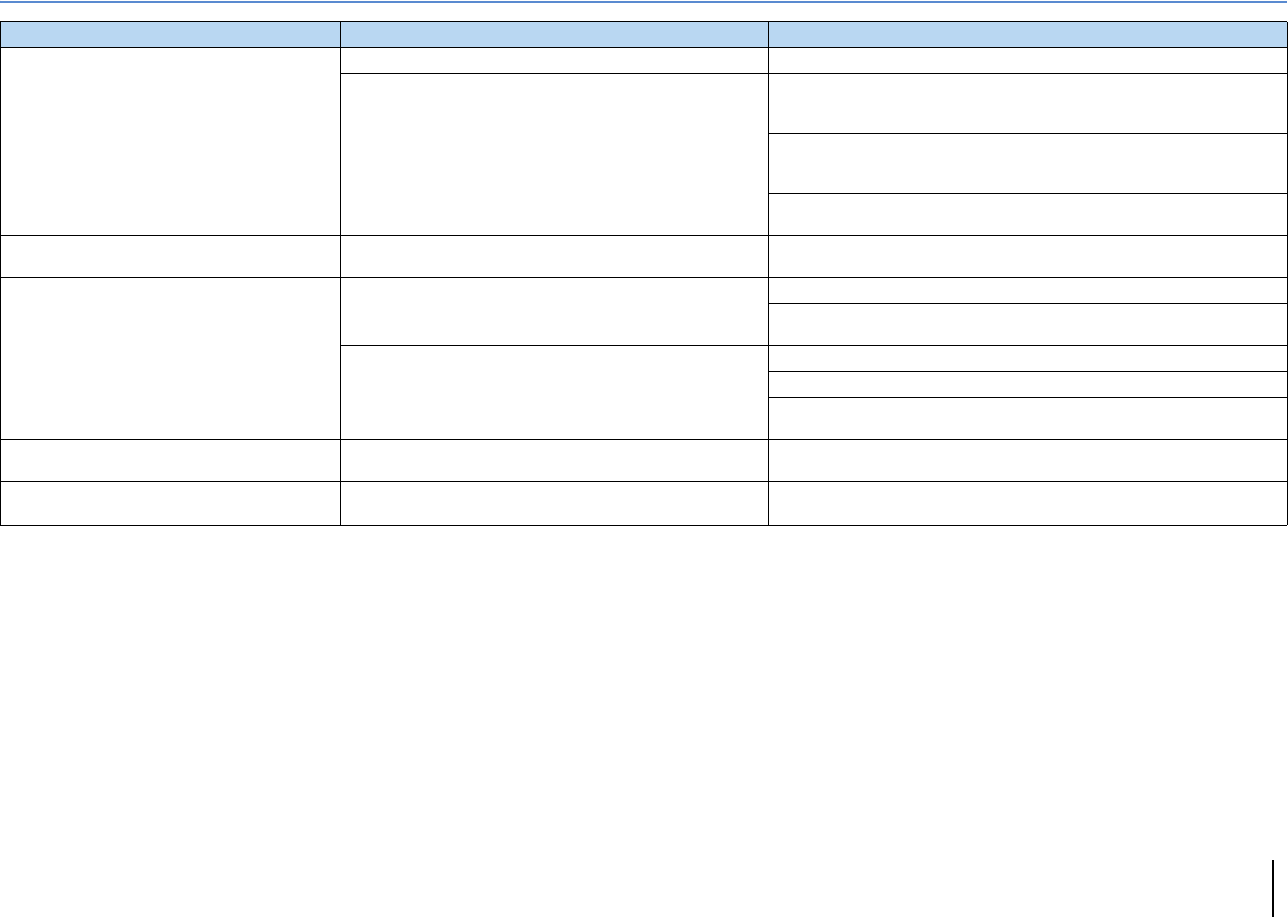
APPENDIX ➤Troubleshooting En 149
FM/AM radio
Problem Cause Remedy
FM radio reception is weak or noisy.
There is multi-path interference. Adjust the FM antenna height or orientation, or place it in a different location.
Your area is too far from the FM station transmitter.
(U.S.A. model only)
Set “Audio Mode” in the “Option” menu to “Mono” to select monaural FM radio
reception (p.102).
(Except for U.S.A. model)
Set “FM Mode” in the “Option” menu to “Mono” to select monaural FM radio
reception (p.102).
Use an outdoor FM antenna. We recommend using a sensitive multi-element
antenna.
AM radio reception is weak or noisy. The noises may be caused by fluorescent lamps, motors,
thermostats, or other electrical equipment.
It is difficult to completely eliminate noise. It may be reduced by using an outdoor
AM antenna.
Radio stations cannot be selected automatically.
Your area is too far from the FM station transmitter.
Select the station manually (p.69).
Use an outdoor antenna. We recommend using a sensitive multi-element
antenna.
The AM radio signal is weak.
Adjust the AM antenna orientation.
Select the station manually (p.69).
Use an outdoor AM antenna. Connect it to the ANTENNA (AM) jack together with
the supplied AM antenna.
AM radio stations cannot be registered as
presets. Auto Preset has been used. Auto Preset is for registering FM radio stations and HD Radio station (U.S.A.
model only) only. Register AM radio stations manually (p.70).
The unit does not receive HD Radio signals.
(U.S.A. model only) The unit is in the monaural reception mode. Set “Audio Mode” in the “Option” menu to “Auto” (p.102).
APPENDIX ➤Troubleshooting En 150
USB and network
Problem Cause Remedy
The unit does not detect the USB device. The USB device is not connected to the USB jack securely. Turn off the unit, reconnect your USB device, and turn the unit on again.
The file system of the USB device is not FAT16 or FAT32. Use a USB device with FAT16 or FAT32 format.
Folders and files in the USB device cannot be
viewed. The data in the USB device is protected by the encryption. Use a USB device without an encryption function.
The files in the USB device cannot be played back
continuously. Files not supported by the unit exist in the selected folder.
If the unit detects a series of unsupported files (such as images and hidden files)
during playback, playback stops automatically. Do not store the unsupported files
in the playback folder.
The network feature does not function. The network parameters (IP address) have not been obtained
properly.
Enable the DHCP server function on your router and set “DHCP” in the “Setup”
menu to “On” on the unit (p.123). If you want to configure the network parameters
manually, check that you are using an IP address which is not used by other
network devices in your network (p.123).
The unit does not detect the PC.
The media sharing setting is not correct. Configure the sharing setting and select the unit as a device to which music
contents are shared (p.83).
Some security software installed on your PC is blocking the access
of the unit to your PC. Check the settings of security software installed on your PC.
The unit and PC are not in the same network. Check the network connections and your router settings, and then connect the
unit and the PC to the same network.
The files in the PC cannot be viewed or played
back. The files are not supported by the unit or the media server.
Use the file format supported by both the unit and the media server. For
information about the file formats supported by the unit, see “Playing back music
stored on media servers (PCs/NAS)” (p.83).
The files in the PC cannot be played back
continuously. Files not supported by the unit exist in the selected folder.
If the unit detects a series of unsupported files (such as images and hidden files)
during playback, playback stops automatically. Do not store the unsupported files
in the playback folder.
The Internet radio cannot be played.
The selected Internet radio station is currently not available. There may be a network problem at the radio station, or the service may have
been stopped. Try the station later or select another station.
The selected Internet radio station is currently broadcasting
silence.
Some Internet radio stations broadcast silence at certain of times of the day. Try
the station later or select another station.
Access to the network is restricted by the firewall settings of your
network devices (such as the router).
Check the firewall settings of your network devices. The Internet radio can be
played only when it passes through the port designated by each radio station.
The port number varies depending on the radio station.
APPENDIX ➤Troubleshooting En 151
Remote control
Problem Cause Remedy
The unit cannot be controlled using the remote
control.
The unit is out of the operating range. Use the remote control within the operating range (p.5).
The batteries are weak. Replace with new batteries.
The unit’s remote control sensor is exposed to direct sunlight or
strong lighting. Adjust the lighting angle, or reposition the unit.
The remote control is set to control external devices. Press SOURCE/RECEIVER to set the remote control to control the unit (the key
lights up in orange).
The remote control IDs of the unit and the remote control are not
identical. Change the remote control ID of the unit or the remote control (p.133).
External devices cannot be controlled using the
remote control.
The remote control is set to control the unit. Press SOURCE/RECEIVER to set the remote control to control external devices
(the key lights up in green).
The corresponding remote control code is not set properly. Set the remote control code again (p.136). Even if the remote control code is
registered properly, some products may not respond to the remote control.
The remote control does not learn new functions.
The batteries of the remote control of the unit and/or the external
device are weak. Replace with new batteries.
The distance between the two remote controls is not appropriate. Place the remote controls at a proper distance (p.138).
The signal coding or modulation of the other remote control is not
compatible with the remote control. Learning is impossible in this case.
Memory capacity is full. Clear unnecessary assignments to free some memory space for new functions
(p.143).
APPENDIX ➤Error indications on the front display En 152
Error indications on the front display
Message Cause Remedy
Access denied Access to the PC is denied. Configure the sharing settings and select the unit as a device to which music contents are shared
(p.83).
Access error
The unit cannot access the USB device. Turn off the unit and reconnect your USB device. If the problem persists, try another USB device.
The unit cannot access the iPod. Turn off the iPod and turn it on again.
The connected iPod is not supported by the unit. Use an iPod supported by the unit (p.76).
There is a problem with the signal path from the network to the unit. Make sure your router and modem are turned on.
Check the connection between the unit and your router (or hub) (p.45).
Check SP Wires The speaker cables short circuit. Twist the bare wires of the cables firmly and connect to the unit and speakers properly.
Internal Error An internal error has occurred. Contact the nearest authorized Yamaha dealer or service center.
No content There are no playable files in the selected folder. Select a folder that contains files supported by the unit.
No device The unit cannot detect the USB device. Turn off the unit and reconnect your USB device. If the problem persists, try another USB device.
The unit cannot detect the iPod. Turn off the iPod and then turn it on again.
Please wait The unit is preparing for connecting to the network. Wait until the message disappears. If the message stays more than 3 minutes, turn off the unit and turn
it on again.
RemID Mismatch The remote control IDs of the unit and the remote control are not
identical. Change the remote control ID of the unit or the remote control (p.133).
Remote Off The unit cannot be operated from remote control because the
remote control sensor on the main unit is turned off.
Use the controls on the front panel. To use the remote control, set “REMOTE SENSOR” in the
“ADVANCED SETUP” menu to “ON” (p.133).
Unable to play
The unit cannot play back the songs stored on the USB device for
some reasons. Check the song data. If it cannot be played on another device, the song data may be defective.
The unit cannot play back the songs stored on the iPod for some
reason.
Check the song data. If it cannot be played on the iPod itself, the song data or storage area may be
defective.
The unit cannot play back the songs stored on the PC for some
reason.
Check if the format of files you are trying to play is supported by the unit. For information about the
formats supported by the unit, see “Playing back music stored on media servers (PCs/NAS)” (p.83). If
the unit supports the file format, but still cannot play back any files, the network may be overloaded with
heavy traffic.
USB Overloaded An overcurrent is flowing through the USB device. Turn off the unit and reconnect your USB device. If the problem persists, try another USB device.
APPENDIX ➤Glossary En 153
Audio information
■Audio decoding format
Dolby Digital
Dolby Digital is a compressed digital audio format developed by Dolby Laboratories, Inc. that supports
5.1-channel audio. This technology is used for audio on most DVD discs.
Dolby Digital EX
Dolby Digital EX creates total 6.1-channel audio from 5.1-channel sources that are recorded with Dolby
Digital Surround EX. This decoder adds a surround back sound to the original 5.1-channel sound.
Dolby Digital Plus
Dolby Digital Plus is a compressed digital audio format developed by Dolby Laboratories, Inc. that supports
7.1-channel audio. Dolby Digital Plus remains fully compatible with the existing multichannel audio systems
that support Dolby Digital. This technology is used for audio on BD (Blu-ray discs).
Dolby Pro Logic II
Dolby Pro Logic II enables 5-channel playback from 2-channel sources. There are three modes available:
“Music mode” for music sources, “Movie mode” for movie sources, and “Game mode” for game sources.
Dolby Pro Logic IIx
Dolby Pro Logic IIx enables 7-channel playback from 2-channel or multichannel sources. There are three
modes available: “Music mode” for music sources, “Movie mode” for movie sources and “Game mode” for
game sources (for 2-channel sources only).
Dolby TrueHD
Dolby TrueHD is an advanced lossless audio format developed by Dolby Laboratories, Inc. to offer a
high-definition home theater experience with the quality of the studio master. Dolby TrueHD can carry up to
eight channels of 96 kHz/24-bit audio (up to six channels of 192 kHz/24-bit audio) simultaneously. This
technology is used for audio on BD (Blu-ray discs).
DTS 96/24
DTS 96/24 is a compressed digital audio format that supports 5.1-channel and 96 kHz/24-bit audio. This
format remains fully compatible with the existing multichannel audio systems that support DTS Digital
Surround. This technology is used for music DVDs, etc.
DTS Digital Surround
DTS Digital Surround is a compressed digital audio format developed by DTS, Inc. that supports
5.1-channel audio. This technology is used for audio on most DVD discs.
DTS-ES
DTS-ES creates total 6.1-channel audio from 5.1-channel sources that are recorded with DTS-ES. This
decoder adds a surround back sound to the original 5.1-channel sound. In the DTS-ES Matrix 6.1 format, a
surround back sound is recorded in the surround channels, and in the DTS-ES Discrete 6.1 format, a
discrete surround back channel is recorded.
DTS Express
DTS Express is a compressed digital audio format that supports 5.1-channel audio and allows a higher
compression rate than the DTS Digital Surround format developed by DTS, Inc. This technology is
developed for audio streaming services on the Internet and secondary audio on BD (Blu-ray discs).
DTS-HD High Resolution Audio
DTS-HD High Resolution Audio is a compressed digital audio format developed by DTS, Inc. that supports
7.1-channel and 96 kHz/24-bit audio. DTS-HD High Resolution Audio remains fully compatible with the
existing multichannel audio systems that support DTS Digital Surround. This technology is used for audio on
BD (Blu-ray discs).
DTS-HD Master Audio
DTS-HD Master Audio is an advanced lossless audio format developed to offer a high-definition home
theater experience with the quality of the studio master by DTS, Inc. DTS-HD Master Audio can carry up to
eight channels of 96 kHz/24-bit audio (up to six channels of 192 kHz/24-bit audio) simultaneously. This
technology is used for audio on BD (Blu-ray discs).
DTS Neo:6
DTS Neo:6 enables 6-channel playback from 2-channel sources. There are two modes available: “Music
mode” for music sources and “Cinema mode” for movie sources. This technology provides discrete
full-bandwidth matrix channels of surround sound.
DSD (Direct Stream Digital)
DSD (Direct Stream Digital) technology stores audio signals on digital storage media, such as SACD (Super
Audio CDs). The signals are stored at a high-frequency sampling rate of 2.8224 MHz. The highest
frequency response is equal to or higher than 100 kHz, with a dynamic range of 120 dB. This technology
offers better audio quality than that used for CDs.
FLAC
FLAC is a file format for lossless audio data compression. FLAC is inferior to lossy compressed audio
formats in compression rate but provides higher audio quality.
MP3
One of the compressed digital audio format used by MPEG. With psychoacoustic technologies, this
compression method achieves a high compression rate. Reportedly, it is capable of compressing data
quantity by about 1/10 maintaining a certain level of audio quality.
MPEG-4 AAC
An MPEG-4 audio standard. It is used for mobile telephones, portable audio players, and audio streaming
services on Internet because it allows a high compression rate of data while maintaining better audio quality
than MP3.
PCM (Pulse Code Modulation)
PCM is a signal format under which an analog audio signal is digitized, recorded, and transmitted. This
technology is the basis of all other audio format. This technology is used as a lossless audio format called
Linear PCM for audio on a variety of media, including CDs and BD (Blu-ray discs).
Glossary

APPENDIX ➤Glossary En 154
Sampling frequency/Quantization bit
Sampling frequency and quantization bits indicate the quantity of information when an analog audio signal
is digitized. These values are noted as in the following example: “48 kHz/24-bit”.
• Sampling frequency
Sampling frequency (the number of times the signal is sampled per second) is called the sampling rate.
When the sampling frequency is higher, the range of frequencies that can be played back are wider.
• Quantization bit
The number of quantization bits indicate the degree of accuracy when converting the sound level into a
numeric value. When the number of quantized bits is higher, the expression of the sound level is more
accurate.
WAV
Windows standard audio file format, which defines the method of recording the digital data obtained by
converting audio signals. By default, the PCM method (no compression) is used, but you can also use other
compression methods.
WMA (Windows Media Audio)
One of the compressed digital audio formats developed by Microsoft Corporation. With psychoacoustic
technologies, this compression method achieves a high compression rate. Reportedly, it is capable of
compressing data quantity by about 1/20 maintaining a certain level of audio quality.
■Others
Bi-amplification connection (Bi-amp)
A bi-amplification connection uses two amplifiers for a speaker. When you use the bi-amplification
connection, the unit drives the tweeter and woofer in a speaker with the discrete amplifiers. As a
consequence, the tweeter and woofer provide clear audio signal without the interference.
LFE (Low Frequency Effects) 0.1 channel
This channel reproduces low-frequency bass signals and has a frequency range from 20 Hz to 120 Hz. This
channel is added to the channels for all bands with Dolby Digital or DTS to enhance low frequency audio
effects. This channel is labeled 0.1 because it is limited to only low frequency audio.
Lip sync
Video output sometimes lags behind audio output due to the complexity of signal processing caused by an
increase in video signal capacity. Lip sync is a technique for automatically correcting the timing lag
between audio and video output.
HDMI and video information
Component video signal
With the component video signal system, the video signal is separated into the Y signal for luminance and
the Pb and Pr signals for chrominance. Color can be reproduced more faithfully with this system because
each of these signals is independent.
Composite video signal
With the composite video signal system, color, brightness, and synchronization data signals are combined
and transmitted with a single cable.
Deep Color
Deep Color is a technology that HDMI specification supports. Deep Color increases the number of available
colors within the boundaries defined by the RGB or YCbCr color space. Conventional color systems
process the color using 8 bits. Deep Color processes the color with 10, 12, or 16 bits. This technology
allows HDTVs and other displays to increase from millions of colors to billions of colors and eliminate
on-screen color banding for smooth tonal transitions and subtle gradations between colors.
HDMI
HDMI (High-Definition Multimedia Interface) is the world-wide standard interface for digital audio/video
signal transmission. This interface transmits both digital audio and digital video signals using a single cable
without any loss. HDMI complies with HDCP (High-bandwidth Digital Content Protection) and provides a
secure audio/video interface. For further information on HDMI, visit the HDMI website at
“http://www.hdmi.org/”.
S-video signal
With the S-video signal system, the video signal is separated into the Y signal for the luminance and the C
signal for the chrominance through the S-video cable. This technology achieves more accurate color
reproduction than the composite video signal system.
x.v.Color
“x.v.Color” is a technology that the HDMI specification supports. It is a more extensive color space than
sRGB and allows the expression of colors that were not hitherto possible. While remaining compatible with
the color gamut of sRGB standards, “x.v.Color” expands the color space, and thus can produce more vivid,
natural images.

APPENDIX ➤Glossary En 155
Yamaha technologies
CINEMA DSP (Digital Sound Field Processor)
Since the Dolby Surround and DTS systems were originally designed for use in movie theaters, their effect is
best experienced in a theater that has many speakers designed for acoustic effects. Since home conditions
(such as room size, wall material, and number of speakers) can differ so widely, it is inevitable that there are
differences in the sound that you hear. Based on a wealth of actually measured data, CINEMA DSP,
Yamaha’s original DSP technology provides the audiovisual experience of a movie theater in your own
home.
CINEMA DSP 3D
The actually measured sound field data contain the information of the height of the sound images. CINEMA
DSP 3D mode achieves the reproduction of the accurate height of the sound images so that it creates the
accurate and intensive 3D sound fields in a listening room.
CINEMA DSP HD³
The actually measured sound field data contain the information of the height of the sound images. CINEMA
DSP HD³ feature achieves the reproduction of the accurate height of the sound images so that it creates the
accurate and intensive stereoscopic sound fields in a listening room.
Compressed Music Enhancer
The Compressed Music Enhancer feature compensates for missing harmonics in compression music
formats (such as MP3). As a result, this technology provides improved performance for the overall sound
system.
SILENT CINEMA
Yamaha has developed a natural, realistic sound effect DSP algorithm for headphones. Parameters for
headphones have been set for each sound program, so that accurate representations of all the sound
programs can be enjoyed on headphones.
Virtual CINEMA DSP
Virtual CINEMA DSP allows the system to virtually reproduce the sound field of the surround speakers with
front left and right speakers. Even if the surround speakers are not connected, the unit creates the realistic
sound field in a listening room.
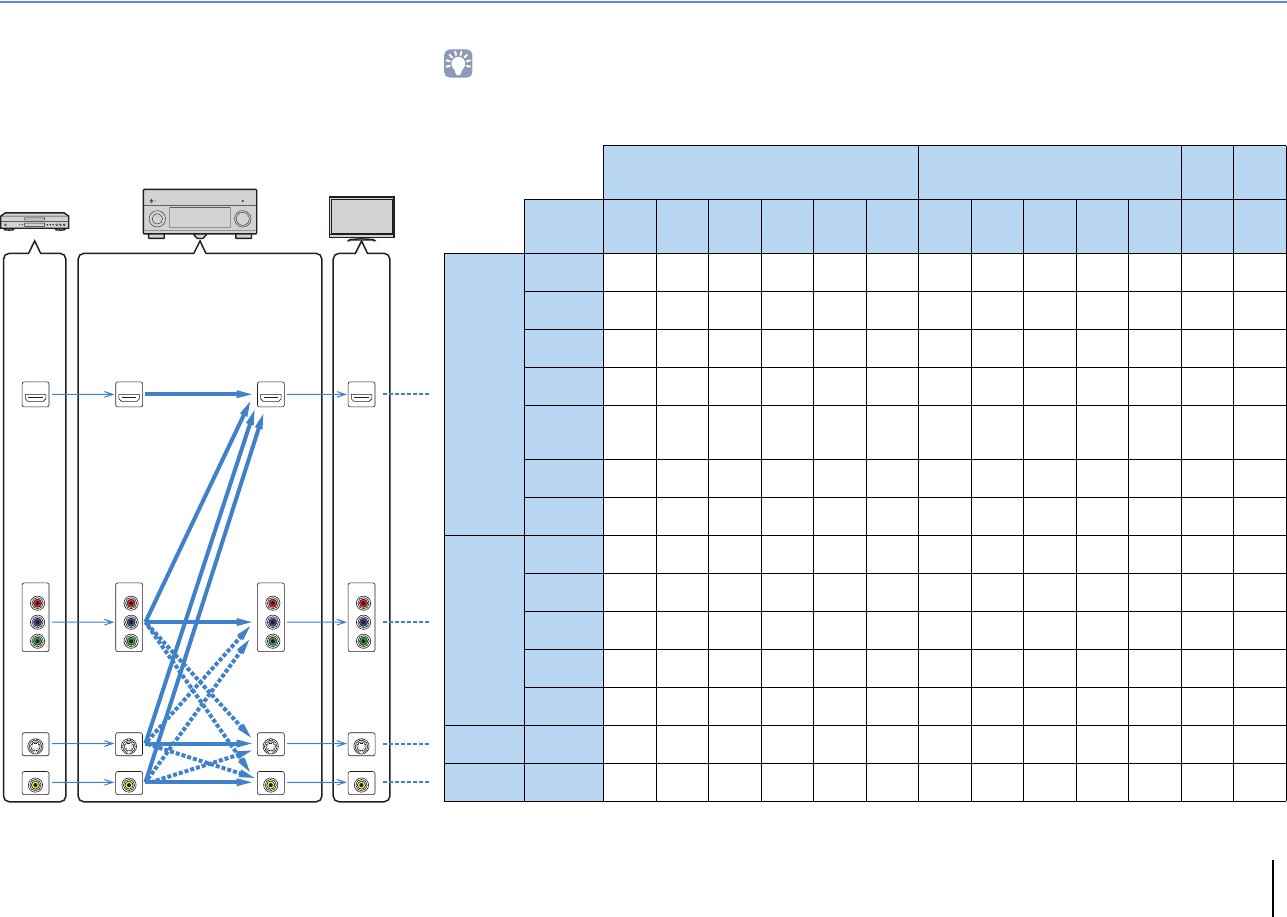
APPENDIX ➤Glossary En 156
Video signal flow
Video signals input from a video device to the unit are
output to a TV as shown below.
m (solid line) is always available. , (dotted line)
is available only when “Analog to Analog Conversion”
(p.119) in the “Setup” menu is set to “On” (default).
■Video conversion table
• You can select the resolution and the aspect ratio applied to HDMI-output video processing in “Video Mode” (p.119) in the “Setup” menu.
• The unit does not convert 480-line and 576-line video signals interchangeably.
HDMI HDMI
PR
PB
Y
COMPONENT
VIDEO
HDMI
PR
PB
Y
COMPONENT
VIDEO
HDMI
S VIDEO
VIDEO VIDEO VIDEOVIDEO
S VIDEO S VIDEO S VIDEO
PR
PB
Y
COMPONENT
VIDEO
PR
PB
Y
COMPONENT
VIDEO
HDMI out COMPONENT VIDEO out
SVIDEO
out
VIDEO
out
Resolution
480i/
576i
480p/
576p 720p 1080i 1080p 4K 480i/
576i
480p/
576p 720p 1080i 1080p 480i/
576i
480i/
576i
HDMI in
480i/576i mmmmmm
480p/576p mmmmm
720p mmmmm
1080i mmmmm
1080p/
50, 60 Hz mmmmm
1080p/24 Hz
mm
4K m
COMPONENT
VIDEO
in
480i/576i mmmmmmm ,,
480p/576p mmmmm m
720p mmmmm m
1080i mmmmm m
1080p m
S VIDEO in
480i/576i mmmmmm, m,
VIDEO in 480i/576i mmmmmm, ,m
Video device The unit TV
HDMI outHDMI in
COMPONENT
VIDEO in
COMPONENT
VIDEO out
VIDEO outVIDEO in
S VIDEO outS VIDEO in
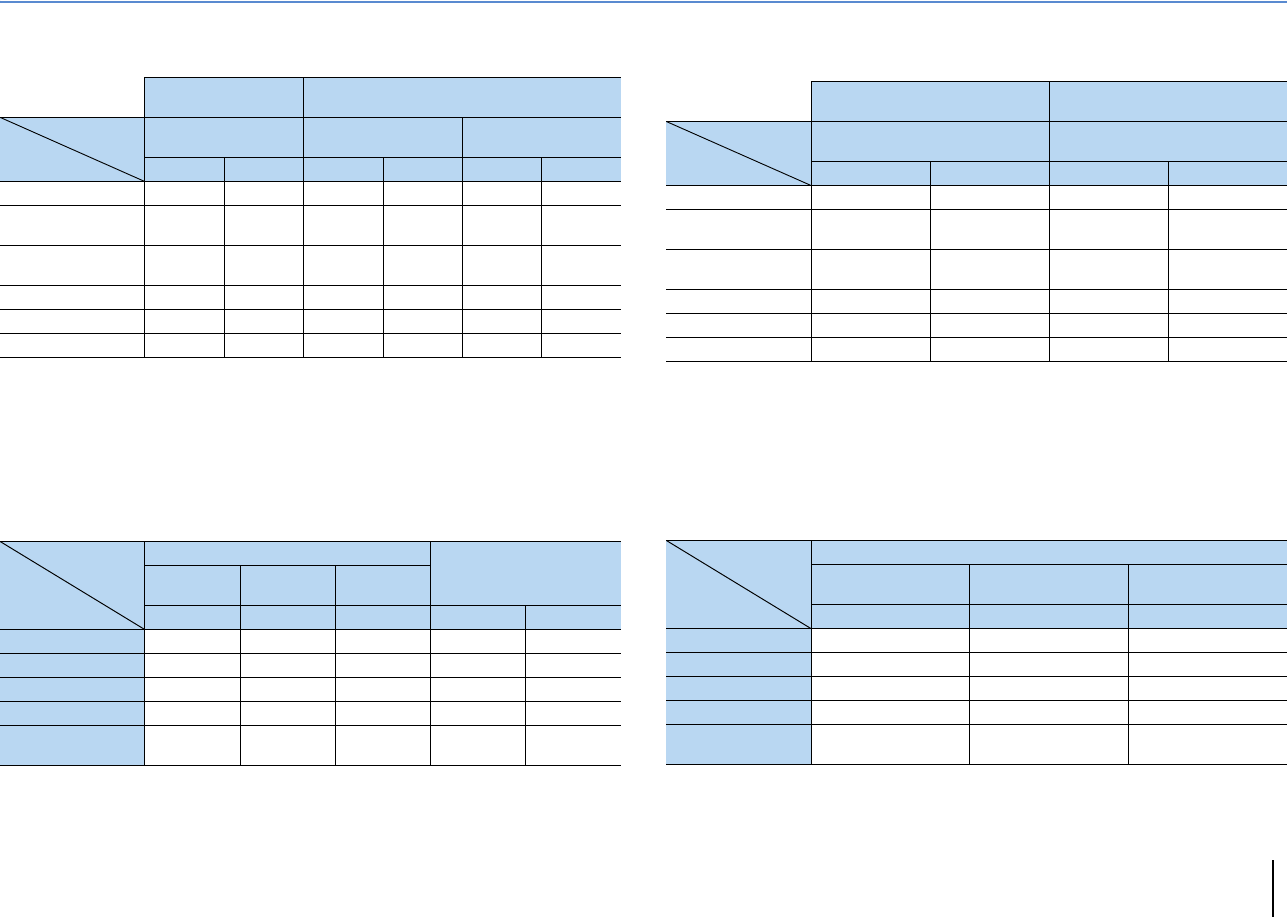
APPENDIX ➤Glossary En 157
Multi-zone output
■RX-A3020
❑Audio output
m: Available
*1 Available when “HDMI OUT2 Assign” (p.127) in the “Setup” menu is set to “Zone2” (Audio Output: On)
*2 Available when “HDMI OUT2 Assign” (p.127) in the “Setup” menu is set to “Zone4”
*3 Available when 2-channel PCM signals are input (stereo output [down mixed to 2-channels] when the input
source selected in the main zone is selected)
*4 HDMI audio pass-through (stereo output [down mixed to 2-channels] when the input source selected in the
main zone is selected)
*5 Available when 2-channel PCM signals are input
❑Video output
m: Available
*6 Available when “Monitor Out Assign” (p.126) in the “Setup” menu is set to “Zone2” or “Zone3”
*7 Available when “HDMI OUT2 Assign” (p.127) in the “Setup” menu is set to “Zone2” or “Zone4”
*8 Not available in Zone3 when “HDMI OUT2 Assign” (p.127) in the “Setup” menu is set to “Zone2”
■RX-A2020
❑Audio output
m: Available
* To listen to the playback of an external device in Zone2 or Zone3, connect the device to the AUDIO jacks of
the unit with a stereo pin cable.
❑Video output
m: Available
* To watch videos in Zone2 or Zone3, set “Monitor Out Assign” (p.126) in the “Setup” menu is set to “Zone2”
or “Zone3”.
Using the unit's
internal amplifier (p.32)
Using an external amplifier (p.91)
Out
In
EXTRA SP 1–2 jacks ZONE OUT/PRE OUT
jacks
HDMI OUT 2
(ZONE OUT) jack
Zone2 Zone3 Zone2 Zone3 Zone2 (*1) Zone4 (*2)
Digital audio (HDMI) m (*3) m (*3) m (*3) m (*4)
Digital audio
(COAXIAL/OPTICAL) m (*5) m (*5) m (*5)
Analog audio
(AUDIO) mmmmm
USB (including iPod) mmmmm
Network sources mmmmm
TUNER mmmmm
Out
In
MONITOR OUT/ZONE OUT jacks (*6) HDMI OUT 2 (ZONE OUT)
jack (*7)
COMPONENT
VIDEO
S VIDEO VIDEO
Zone2/3 Zone2/3 Zone2/3 Zone2 Zone4
HDMI video mm
Component video m
S-video m
Composite video m
On-screen display
(browse/playback) m (*8) m (*8) m (*8) m
Using the unit's internal amplifier
(
p.32
)
Using an external amplifier
(p.91)
Out
In
EXTRA SP 1–2
jacks
ZONE OUT
jacks
Zone2 Zone3 Zone2 Zone3
Digital audio (HDMI)
Digital audio
(COAXIAL/OPTICAL)
Analog audio
(AUDIO) mmmm
USB (including iPod) mmmm
Network sources mmmm
TUNER mmmm
Out
In
MONITOR OUT/ZONE OUT jacks
COMPONENT
VIDEO S VIDEO VIDEO
Zone2/3 Zone2/3 Zone2/3
HDMI video
Component video m
S-video m
Composite video m
On-screen display
(browse/playback) mmm
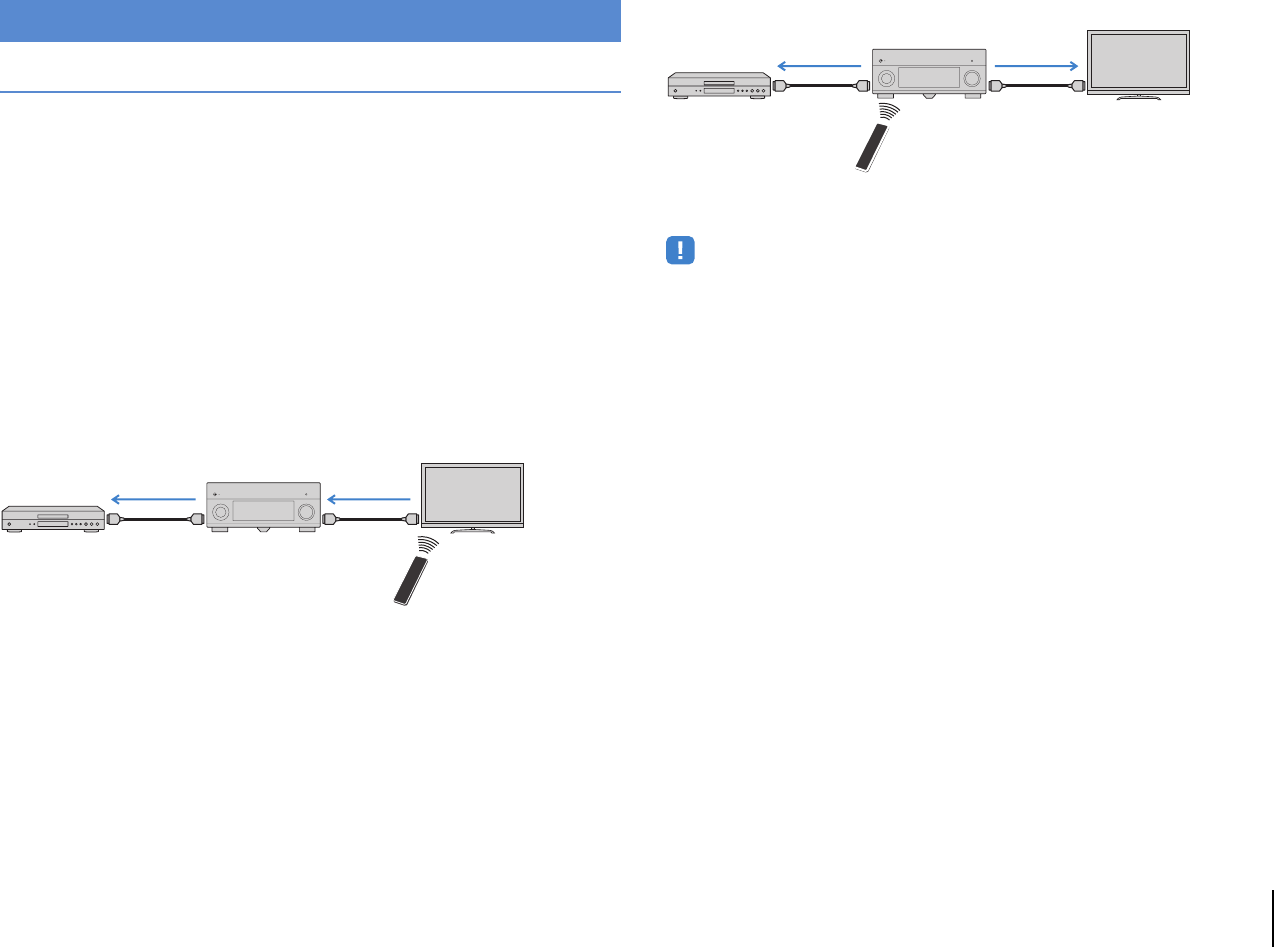
APPENDIX ➤Information on HDMI En 158
HDMI Control
HDMI Control allows you to operate external devices via HDMI. If you connect a TV that
supports HDMI Control to the unit with an HDMI cable, you can control the unit (such as
power and volume) with TV remote control operations. You can also control playback
devices (such as HDMI Control-compatible BD/DVD players) connected to the unit with
an HDMI cable.
For details on connections, see “Connecting a TV” (p.35) and “Connecting video
devices (such as BD/DVD players)” (p.41).
Operations available from the TV’s remote control
• Standby synchronization
• Volume control including mute
• Switching to input audio from the TV when the TV input is switched to its built-in tuner
• Switching to input video/audio from the selected playback device
• Switching between audio output devices (the unit or TV speaker)
(Example)
Operations available from the unit’s remote control
• Starting playback on the playback device and turning on the TV with a scene
selection (p.61)
• Switching the TV input to display the on-screen menu (when ON SCREEN is pressed)
• Controlling the playback device (playback and menu operations) without registering
remote control codes (p.137)
(Example)
To use HDMI Control, you need to perform the following HDMI Control link setup after
connecting the TV and playback devices.
• This setup is required every time you add a new HDMI Control-compatible device to your system.
1Turn on the unit, TV, and playback devices.
2Enable HDMI Control on the unit, TV, and playback devices (such as
HDMI Control-compatible BD/DVD players).
To enable HDMI Control on the unit, set “HDMI Control” (p.122) in the “Setup”
menu to “On” and configure the related items (“TV Audio Input”, “ARC”, and
“Standby Sync”).
3Turn off the main power of the TV and then turn off the unit and
playback devices.
4Turn on the unit and playback devices and then turn on the TV.
5Switch the TV input to display the video from the unit.
6Check the followings.
On the unit: The input to which the playback device is connected is selected.
If not, select the input source manually.
On the TV: The video from the playback device is displayed.
Information on HDMI
HDMI Control
Turn off the TV
The unit turns off
(standby)
HDMI Control
Playback device
also turns off
HDMI Control
Press SCENE (BD/DVD)
Turns on and displays
video from the playback
device
HDMI Control
Playback starts
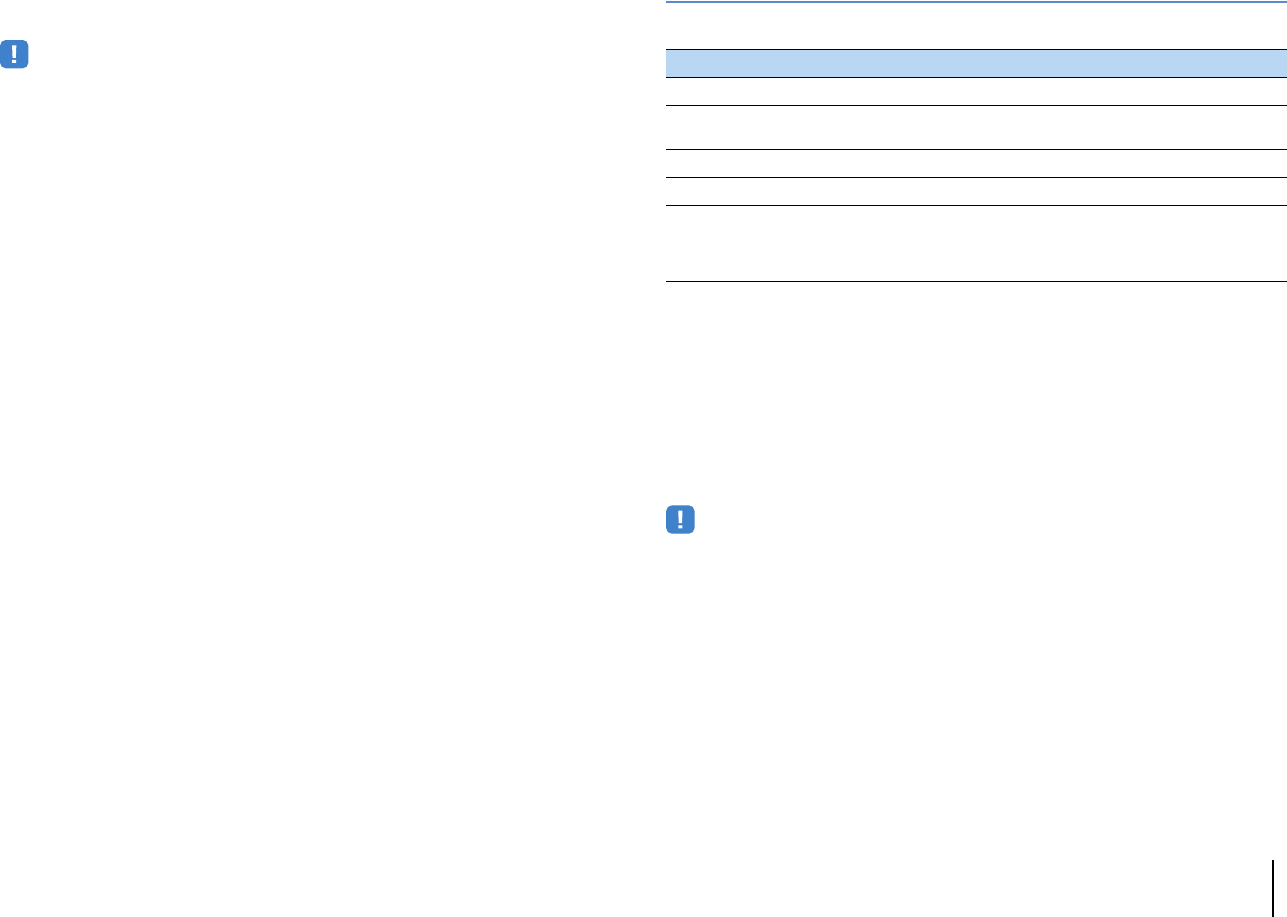
APPENDIX ➤Information on HDMI En 159
7Check that the unit is properly synchronized with the TV by turning
off the TV or adjusting the TV volume with the TV remote control.
• If HDMI Control does not work properly, try unplugging the TV in Step 3 and plugging in the TV again in
Step 4. It may solve the problem. Also, HDMI Control may not work if the number of connected devices
exceeds the limit. In this case, disable HDMI Control on the devices not in use.
• If the unit is not synchronized to the TV’s power operations, check the priority of the audio output setting on
the TV.
• We recommend using TV and playback devices from the same manufacturer so that HDMI Control works
more effectively.
HDMI signal compatibility
Audio signals
Video signals
The unit is compatible with the video signals of the following resolutions:
• When CPPM copy-protected DVD-Audio is played back, video/audio signals may not be output, depending
on the type of the DVD player.
• The unit is not compatible with HDCP-incompatible HDMI or DVI devices. For details, refer to the instruction
manual for each device.
• To decode audio bitstream signals on the unit, set the input source device appropriately so that the device
outputs the bitstream audio signals directly (does not decode the bitstream signals on the playback device).
For details, refer to the instruction manual for the playback device.
Audio signal type Audio signal format Compatible media (example)
2ch Linear PCM 2ch, 32 to 192 kHz, 16/20/24 bit CD, DVD-Video, DVD-Audio
Multichannel Linear PCM 8ch, 32 to 192 kHz, 16/20/24 bit DVD-Audio, BD (Blu-ray disc),
HD DVD
DSD 2 to 5.1ch, 2.8224 MHz, 1 bit SACD
Bitstream Dolby Digital, DTS DVD-Video
Bitstream
(High definition audio)
Dolby TrueHD, Dolby Digital Plus,
DTS-HD Master Audio, DTS-HD
High Resolution Audio, DTS
Express
BD (Blu-ray disc), HD DVD
• VGA • 720p/60 Hz, 50 Hz
• 480i/60 Hz • 1080i/60 Hz, 50 Hz
• 576i/50 Hz • 1080p/60 Hz, 50 Hz, 24 Hz
• 480p/60 Hz • 4K/30 Hz, 25 Hz, 24 Hz
• 576p/50 Hz
APPENDIX ➤Trademarks En 160
Manufactured under license from Dolby Laboratories. Dolby, Pro Logic and the double-D symbol are
trademarks of Dolby Laboratories.
Manufactured under license under U.S. Patent Nos: 5,956,674; 5,974,380; 6,226,616; 6,487,535; 7,212,872;
7,333,929; 7,392,195; 7,272,567 & other U.S. and worldwide patents issued & pending. DTS-HD, the
Symbol, & DTS-HD and the Symbol together are registered trademarks & DTS-HD Master Audio is a
trademark of DTS, Inc.
Product includes software. © DTS, Inc. All Rights Reserved.
“Made for iPod,” “Made for iPhone,” and “Made for iPad” mean that an electronic accessory has been
designed to connect specifically to iPod, iPhone, or iPad, respectively, and has been certified by the
developer to meet Apple performance standards.
Apple is not responsible for the operation of this device or its compliance with safety and regulatory
standards.
Please note that the use of this accessory with iPod, iPhone, or iPad may affect wireless performance.
AirPlay, the AirPlay logo, iPad, iPhone, iPod, iPod nano, and iPod touch are trademarks of Apple Inc.,
registered in the U.S. and other countries.
MPEG Layer-3 audio coding technology licensed from Fraunhofer IIS and Thomson.
This receiver supports network connections.
HD Radio Technology manufactured under license from iBiquity Digital Corporation. U.S. and Foreign
Patents. HD Radio™ and the HD, HD Radio, and “Arc” logos are proprietary trademarks of iBiquity Digital
Corp.
“HDMI,” the “HDMI” logo and “High-Definition Multimedia Interface” are trademarks, or registered
trademarks of HDMI Licensing LLC.
x.v.Color™
“x.v.Color” is a trademark of Sony Corporation.
“SILENT CINEMA” is a trademark of Yamaha Corporation.
DLNA™ and DLNA CERTIFIED™ are trademarks or registered trademarks of Digital Living Network
Alliance. All rights reserved. Unauthorized use is strictly prohibited.
Windows™
Windows is a registered trademark of Microsoft Corporation in the United States and other countries.
Windows XP, Windows Vista, Windows 7, Windows Media Audio and Windows Media Player are either
registered trademarks or trademarks of Microsoft Corporation in the United States and/or other countries.
Rovi™
This product incorporates copyright protection technology that is protected by U.S. patents and other
intellectual property rights. Use of this copyright protection technology must be authorized by Rovi
Corporation, and is intended for home and other limited viewing uses only unless otherwise authorized by
Rovi Corporation. Reverse engineering or disassembly is prohibited.
Trademarks

APPENDIX ➤Specifications En 161
Input jacks
• Analog Audio
Audio x 10 (AV 1–4, AUDIO 1–4, PHONO, V-AUX)
MULTI CH INPUT x 1 (8 ch)
(FRONT L/R, CENTER, SURROUND L/R,
SURROUND BACK L/R, SUBWOOFER)
• Digital Audio (Supported frequencies: 32 kHz to 96 kHz)
Optical x 4 (AV 3–4, AUDIO 1, V-AUX)
Coaxial x 3 (AV 1–2, AUDIO 2)
•Video
Composite x 5 (AV 1–4, V-AUX)
S-video x 4 (AV 1–4)
Component x 4 (AV 1–4)
• HDMI Input
HDMI x 8 (AV 1–7, V-AUX)
•Other
USB x 1 (USB2.0)
NETWORK x 1 (100Base-TX/10Base-T)
Output jacks
• Analog Audio
- Speaker Out x 11 (9 ch) (FRONT L/R, CENTER, SURROUND
L/R, SURROUND BACK L/R, EXTRA SP 1 L/R*1, EXTRA SP 2
L/R*2)
*1 Note: Assignment is possible
[ZONE2, ZONE3, F.PRESENCE, BI-AMP (FRONT L/R)]
*2 Note: Assignment is possible
[ZONE2, ZONE3, R.PRESENCE]
- Subwoofer Out x 2
(SUBWOOFER 1–2, Stereo/Front&Rear/Monox2)
- Audio x 1 (AV OUT)
[RX-A3020]
- Pre Out x 11 (FRONT L/R, CENTER, SURROUND L/R,
SURROUND BACK L/R, F.PRESENCE L/R
*3
, R.PRESENCE L/R
*4
)
*3 Note: barter to ZONE2
*4 Note: barter to ZONE3
[RX-A2020]
- Pre Out x 7 (FRONT L/R, CENTER, SURROUND L/R,
SURROUND BACK L/R)
- ZONE OUT x 2 (ZONE2/ZONE3)
• Digital Audio
Optical x 1 (AV OUT)
•Video
MONITOR OUT/ZONE OUT
- Composite x 1
-S-video x 1
- Component x 1
AV OUT
- Composite x 1
-S-video x 1
• HDMI Output
HDMI OUT x 2 (HDMI OUT 1–2*5)
*5 [RX-A3020 only] barter to ZONE OUT (ZONE2/ZONE4)
Other jacks
• REMOTE IN x 2
• REMOTE OUT x 2
• TRIGGER OUT x 2
• RS-232C x 1
• DC OUT x 1
HDMI
• HDMI Specification: Deep Color, “x.v.Color,” Auto Lip Sync,
ARC (Audio Return Channel), 3D, 4K
• Video Format (Repeater Mode)
-VGA
- 480i/60 Hz
- 576i/50 Hz
- 480p/60 Hz
- 576p/50 Hz
- 720p/60 Hz, 50 Hz
- 1080i/60 Hz, 50 Hz
- 1080p/60 Hz, 50 Hz, 24 Hz
- 4K/30 Hz, 25 Hz, 24 Hz
• Audio Format
-Dolby TrueHD
- Dolby Digital Plus
- Dolby Digital
- DTS-HD Master Audio
- DTS-HD High Resolution Audio
- DTS Express
-DTS
-DSD 6-ch
- PCM 2-ch to 8-ch (Max. 192 kHz/24-bit)
• Content Protection: HDCP compatible
• Link Function: CEC supported
TUNER
• Analog Tuner
[U.K. and Europe models]
FM/AM with Radio Data System x 1 (TUNER)
[Other models]
FM/AM x 1 (TUNER)
• HD Radio tuner [U.S.A. model] x 1 (TUNER)
USB
• Capable of iPod, Mass Storage Class USB Memory
• Current Supply Capacity: 2.1 A
Network
• PC Client Function
• Compatible with DLNA ver. 1.5
• AirPlay supported
• Internet Radio
Specifications

APPENDIX ➤Specifications En 162
Compatible Decoding Formats
• Decoding Format
- Dolby TrueHD, Dolby Digital Plus
- Dolby Digital, Dolby Digital EX
- DTS-HD Master Audio, DTS-HD High Resolution Audio,
DTS Express
- DTS, DTS 96/24, DTS-ES Matrix 6.1, DTS-ES Discrete 6.1
- DTS Digital Surround
• Post Decoding Format
- Dolby Pro Logic
- Dolby Pro Logic II Music, Dolby Pro Logic II Movie,
Dolby Pro Logic II Game
- Dolby Pro Logic IIx Music, Dolby Pro Logic IIx Movie,
Dolby Pro Logic IIx Game
- DTS Neo:6 Music, DTS Neo:6 Cinema
Audio Section
• Rated Output Power (2-channel driven)
[RX-A3020]
(20 Hz to 20 k Hz, 0.06% THD, 8 Ω)
Front L/R ..........................................................150 W+150 W
Center .......................................................................... 150 W
Surround L/R....................................................150 W+150 W
Surround Back L/R ..........................................150 W+150 W
Front Presence L/R ..........................................150 W+150 W
(1 k Hz, 0.9% THD, 8 Ω)
Front L/R ..........................................................165 W+165 W
Center .......................................................................... 165 W
Surround L/R....................................................165 W+165 W
Surround Back L/R ..........................................165 W+165 W
Front Presence L/R ..........................................165 W+165 W
[RX-A2020]
(20 Hz to 20 k Hz, 0.06% THD, 8 Ω)
Front L/R.......................................................... 140 W+140 W
Center...........................................................................140 W
Surround L/R ................................................... 140 W+140 W
Surround Back L/R .......................................... 140 W+140 W
Front Presence L/R.......................................... 140 W+140 W
(1 k Hz, 0.9% THD, 8 Ω)
Front L/R.......................................................... 155 W+155 W
Center...........................................................................155 W
Surround L/R ................................................... 155 W+155 W
Surround Back L/R .......................................... 155 W+155 W
Front Presence L/R.......................................... 155 W+155 W
• Rated Output Power (1-channel driven)
[RX-A3020]
(1 k Hz, 0.9% THD, 8 Ω)
Front L/R..................................................................185 W/ch
Center......................................................................185 W/ch
Surround L/R ...........................................................185 W/ch
Surround Back L/R ..................................................185 W/ch
Front Presence L/R..................................................185 W/ch
(1 k Hz, 0.9% THD, 4 Ω)
Front L/R [U.K. and Europe models] .......................230 W/ch
[RX-A2020]
(1 k Hz, 0.9% THD, 8 Ω)
Front L/R..................................................................175 W/ch
Center......................................................................175 W/ch
Surround L/R ...........................................................175 W/ch
Surround Back L/R ..................................................175 W/ch
Front Presence L/R..................................................175 W/ch
(1 k Hz, 0.9% THD, 4 Ω)
Front L/R [U.K. and Europe models] .......................220 W/ch
• Maximum Effective Output Power (1-channel driven)
(JEITA, 1 kHz, 10% THD, 8
Ω
)
[China, Korea, Asia and General models]
[RX-A3020]
Front L/R..................................................................230 W/ch
Center .....................................................................230 W/ch
Surround L/R ...........................................................230 W/ch
Surround Back L/R..................................................230 W/ch
Front Presence L/R..................................................230 W/ch
[RX-A2020]
Front L/R..................................................................220 W/ch
Center .....................................................................220 W/ch
Surround L/R ...........................................................220 W/ch
Surround Back L/R..................................................220 W/ch
Front Presence L/R..................................................220 W/ch
• Dynamic Power (IHF)
[RX-A3020]
Front L/R (8/6/4/2 Ω)................................175/220/295/410 W
[RX-A2020]
Front L/R (8/6/4/2 Ω)................................165/210/285/405 W
• Damping Factor
Front L/R, 1 kHz, 8 Ω..............................................150 or more
• Input Sensitivity / Input Impedance
PHONO (1 kHz, 100 W/8 Ω)................................ 3.5 mV/47 kΩ
AUDIO 2 etc. (1 kHz, 100 W/8 Ω) ...................... 200 mV/47 kΩ
• Maximum Input Signal
PHONO (1 kHz, 0.5% THD) ...............................60 mV or more
AUDIO 2 etc. (1 kHz, 0.5% THD).........................2.4 V or more
• Output Level / Output Impedance
AV OUT ............................................................. 200 mV/1.2 kΩ
HEADPHONE OUT............................................. 150 mV/100 Ω
PRE OUT
SUBWOOFER (50 Hz)........................................ 1.0 V/1.2 kΩ
Except SUBWOOFER (1 kHz)............................ 1.0 V/1.2 kΩ
ZONE OUT ............................................................ 1.0 V/1.2 kΩ
• Frequency Response
AUDIO 2 etc. (10 Hz to 100 kHz)................................ +0/-3 dB

APPENDIX ➤Specifications En 163
• RIAA Equalization Deviation
PHONO (20 Hz to 20 kHz)..........................................0±0.5 dB
• Total Harmonic Distortion
PHONO to AV OUT..............................................0.02% or less
MULTI CH INPUT to Speaker Out (Pure Direct, 70 W, 8 Ω)
.............................................................................0.04% or less
• Signal to Noise Ratio (IHF-A Network)
PHONO to AV OUT (Input Shorted 5 mV)
[U.S.A., Canada, China and General models] ...86 dB or more
[Other models]....................................................81 dB or more
AUDIO 2 etc. to Speaker Out (Pure Direct, Input Shorted 250 mV)
..........................................................................100 dB or more
• Residual Noise (IHF-A Network)
Front L/R (Speaker Out)......................................150 µV or less
• Channel Separation
PHONO (Input Shorted, 1 kHz/10 kHz) ... 60 dB/55 dB or more
AUDIO 2 etc. (Input 5.1 kΩ Shorted, 1 kHz/10 kHz)
................................................................. 60 dB/45 dB or more
• Volume Control
Main Zone.................MUTE, -80 dB to +16.5 dB (0.5 dB Step)
Zone2/Zone3 ............MUTE, -80 dB to +16.5 dB (0.5 dB Step)
• Tone Control Characteristics
Main Zone
Bass Boost/Cut.........................±6.0 dB/50 Hz (0.5 dB Step)
Bass Turnover............................................................. 350 Hz
Treble Boost/Cut ..................... ±6.0 dB/20 kHz (0.5 dB Step)
Treble Turnover .......................................................... 3.5 kHz
Zone2/Zone3
Bass Boost/Cut.............................±10 dB/50 Hz (2 dB Step)
Bass Turnover............................................................. 350 Hz
Treble Boost/Cut ...........................±10 dB/50 Hz (2 dB Step)
Treble Turnover .......................................................... 3.5 kHz
• Filter Characteristics
(fc=40/60/80/90/100/110/120/160/200 Hz)
H.P.F. (Front, Center, Surround, Surround Back: Small)
..................................................................................12 dB/oct.
L.P.F. (Subwoofer).....................................................24 dB/oct.
Video Section
• Video Signal Type
[U.S.A., Canada, Korea and General models]................ NTSC
[Other models] ................................................................... PAL
• Video Signal Type (Video Conversion) ..................... NTSC/PAL
• Video Signal Level
Composite ..............................................................1 Vp-p/75 Ω
S-video
Y ..........................................................................1 Vp-p/75 Ω
C (NTSC) [U.S.A., Canada, Korea and General models]
.....................................................................0.286 Vp-p/75 Ω
C (PAL) [Other models]....................................0.3 Vp-p/75 Ω
Component
Y ..........................................................................1 Vp-p/75 Ω
Pb/Pr.................................................................0.7 Vp-p/75 Ω
• Video Maximum Input Level (Video Conversion Off)
.......................................................................1.5 Vp-p or more
• Signal to Noise Ratio (Video Conversion Off).....60 dB or more
• Monitor Out Frequency Response (Video Conversion Off)
Component (MONITOR OUT/ZONE OUT)
........................................................... 5 Hz to 100 MHz, ±3 dB
FM Section
• Tuning Range
[U.S.A. and Canada models] .............. 87.5 MHz to 107.9 MHz
[Asia and General models]
...................................... 87.5/87.50 MHz to 108.0/108.00 MHz
[Other models] ................................ 87.50 MHz to 108.00 MHz
• 50 dB Quiet Sensitivity (IHF, 1 kHz, 100% MOD.)
Mono .................................................................3 µV (20.8 dBf)
• Signal to Noise Ratio (IHF)
Mono/Stereo [except U.S.A. model] .....................72 dB/70 dB
HD [U.S.A. model]........................................................... 80 dB
• Harmonic Distortion (IHF, 1 kHz)
Mono/Stereo [except U.S.A. model] ....................... 0.3%/0.5%
HD [U.S.A. model]...........................................................0.03%
• Antenna Input................................................ 75 Ω unbalanced
AM section
• Tuning Range
[U.S.A. and Canada models]...................530 kHz to 1710 kHz
[Asia and General models]......530/531 kHz to 1710/1611 kHz
[Other models].........................................531 kHz to 1611 kHz
General
• Power Supply
[U.S.A. and Canada models].......................... AC 120 V, 60 Hz
[General model]............AC 110 to 120/220 to 240 V, 50/60 Hz
[China model] ................................................. AC 220 V, 50 Hz
[Korea model] .................................................AC 220 V, 60 Hz
[Australia model]............................................. AC 240 V, 50 Hz
[U.K. and Europe models] .............................. AC 230 V, 50 Hz
[Asia model].................................... AC 220 to 240 V, 50/60 Hz
• Power Consumption
[U.S.A. model].....................................................490 W/620 VA
[Canada model]..................................................400 W/510 VA
[Korea model] .................................................................390 W
[Other models]................................................................490 W
• Standby Power Consumption
HDMI Control Off, Standby Through Off ........... 0.3 W (Typical)
HDMI Control On, Standby Through On ........... 5.0 W (Typical)
HDMI Control Off, Standby Through On (AV 1, No Signals)
.......................................................................... 4.2 W (Typical)
Network Standby On......................................... 2.2 W (Typical)
• Maximum Power Consumption
[Asia and General models]...........................................1210 W
• Dimensions (W x H x D)
......................435 x 192 x 467 mm (17-1/8” x 7-1/2” x 18-3/8”)
•Weight
[RX-A3020]
[China, U.K. and Europe models]..............19.9 kg (43.9 lbs)
[Other models] ........................................... 18.2 kg (40.1 lbs)
[RX-A2020].................................................... 17.1 kg (37.7 lbs)
* Specifications are subject to change without notice.

APPENDIX ➤Index En 164
Symbols
Lock icon (o) .........................................129
bPLII Game (surround decoder) ............67
bPLII Movie (surround decoder) ............67
bPLII Music (surround decoder) ............67
bPLIIx Game (surround decoder) ..........67
bPLIIx Movie (Extended Surround) ......100
bPLIIx Movie (surround decoder) ..........67
bPLIIx Music (Extended Surround) ......100
bPLIIx Music (surround decoder) ..........67
bPLIIxMo (Extended Surround) ............100
bPLIIxMu (Extended Surround) ............100
bPro Logic (surround decoder) ..............67
Numerics
2.1-channel system
(speaker configuration) ...........................20
2ch Stereo (sound program) .....................66
4K signal (video signal resolution) ..........159
5.1-channel system
(speaker configuration) ...........................20
5ch +FRONT+2ZONE
(Power Amp Assign, Setup menu) ........114
5ch +FRONT+2ZONE
(speaker configuration) ...........................29
7.1-channel system
(speaker configuration) ...........................20
7ch +1ZONE
(Power Amp Assign, Setup menu) ........114
7ch +1ZONE (speaker configuration) .......30
7ch +2ZONE
(Power Amp Assign, Setup menu) ........114
7ch +2ZONE (speaker configuration) .......31
7ch +FP+RP
(Power Amp Assign, Setup menu) ....... 114
7ch +FP+RP (speaker configuration) ...... 28
7ch +FRONT+1ZONE
(Power Amp Assign, Setup menu) ....... 114
7ch +FRONT+1ZONE
(speaker configuration) .......................... 29
7ch BI-AMP
(Power Amp Assign, Setup menu) ....... 114
7ch BI-AMP (speaker configuration) ........ 26
7ch BI-AMP +FP
(Power Amp Assign, Setup menu) ....... 115
7ch BI-AMP +FP
(speaker configuration) .......................... 26
7ch BI-AMP +FP+RP
(Power Amp Assign, Setup menu) ....... 115
7ch BI-AMP +FP+RP
(speaker configuration) .......................... 27
9.2+2-channel system
(speaker configuration) .......................... 19
9.2-channel system
(speaker configuration) .......................... 19
9ch +1ZONE
(Power Amp Assign, Setup menu) ....... 114
9ch +1ZONE (speaker configuration) ...... 30
9ch +FRONT
(Power Amp Assign, Setup menu) ....... 114
9ch +FRONT (speaker configuration) ...... 28
9ch +RP
(Power Amp Assign, Setup menu) ....... 114
9ch +RP (speaker configuration) ............. 27
9ch Stereo (sound program) .................... 66
A
Access control (network device) ............ 124
Action Game (sound program) ................ 65
Adaptive DRC (Option menu) .................. 99
Adaptive DSP Level
(Sound, Setup menu) ........................... 119
Adjustment (Lipsync, Setup menu) ........ 118
Adjustment
(Video Mode, Setup menu) .................. 120
ADVANCED SETUP menu ...................... 132
ADVANCED SETUP menu items ............ 133
Adventure (sound program) ..................... 65
AirPlay ...................................................... 88
AM antenna .............................................. 44
Amp (Audio Output, Setup menu) .......... 122
Analog to Analog Conversion
(Video, Setup menu) ............................ 119
Angle measurement (YPAO) .............. 53, 55
Apple Composite AV Cable ..................... 76
ARC (Audio Return Channel) ................... 35
ARC (HDMI Control, Setup menu) ......... 122
Aspect (Video Mode, Setup menu) ........ 120
Audio Decoder
(front display information) ...................... 97
Audio device connection ......................... 43
Audio file format (PC/NAS) ....................... 83
Audio file format (USB storage device) .... 80
AUDIO jack .............................................. 34
Audio Mode (Option menu) .................... 102
Audio Output
(HDMI OUT2 Assign, Setup menu) ...... 127
Audio Output (HDMI, Setup menu) ........ 122
Audio program (HD Radio) ...................... 71
Audio Return Channel (ARC) ................... 35
Index

APPENDIX ➤Index En 165
Audio Select (Option menu) ....................101
Audio Signal (Information menu) ............131
Auto Power Down (ECO, Setup menu) ...130
Auto/Manual Select
(Lipsync, Setup menu) ..........................118
Automatic station preset (FM radio) ..........75
Automatic station preset (HD Radio) ........73
AV OUT jacks ............................................46
B
Backup/recovery of the settings
(ADVANCED SETUP menu) ..................135
Banana plug ..............................................23
Battery .........................................................5
Bitrate
(Audio Signal, Information menu) .........131
Bitstream .................................................159
Block NR (Adjustment, Setup menu) ......121
Brightness (Adjustment, Setup menu) ....121
C
Cartridge ...................................................43
Cellar Club (sound program) ....................66
Center (Configuration, Setup menu) .......115
Center Image (Sound Program menu) ....110
Center Width (Sound Program menu) .....110
Chamber (sound program) .......................66
Channel
(Audio Signal, Information menu) .........131
Church in Freiburg (sound program) ........66
Church in Royaumont (sound program) ...66
CINEMA DSP 3D .......................................64
CINEMA DSP 3D Mode (Option menu) ....99
CINEMA DSP HD³ .....................................64
CLASSICAL
(sound program subcategory) ................66
Clearing (remote control) ........................142
Clock Time (Radio Data System) ............. 73
COAXIAL jack .......................................... 34
Component video cable ........................... 34
COMPONENT VIDEO jack ....................... 34
Compressed Music Enhancer .................. 68
Configuration (Speaker, Setup menu) .... 115
Contrast (Adjustment, Setup menu) ....... 121
Contrast Enhancement
(Adjustment, Setup menu) ................... 120
Crossover frequency setting
(subwoofer) ............................................ 50
D
DC OUT jack ............................................ 13
Decode Type (Sound Program menu) ... 109
Decoder Mode (Input menu) .................. 104
Default Gateway ..................................... 123
Default Gateway
(Network, Information menu) ................ 132
Delay Enable (Lipsync, Setup menu) ..... 118
Detail (Scene menu) .............................. 107
Detail Enhancement
(Adjustment, Setup menu) ................... 121
Device Control (Scene menu) ................ 106
DHCP (IP Address, Setup menu) ........... 123
Dialogue
(Audio Signal, Information menu) ........ 131
Dialogue Adjust (Option menu) .............. 100
Dialogue Level (Option menu) ............... 100
Dialogue Lift (Option menu) ................... 100
Dialogue normalization level .................. 131
Digital coaxial cable ................................. 34
Digital Media Controller (DMC) .............. 105
Digital optical cable ................................. 34
Dimension (Sound Program menu) ........ 110
Dimmer (Front Display)
(Display Set, Setup menu) ................... 128
Direct (Sound Program menu) ............... 109
Direct Stream Digital (DSD) ................... 153
DISPLAY key ............................................ 97
Display Set (Function, Setup menu) ....... 128
Display window (remote control) .............. 15
Distance (Speaker, Setup menu) ........... 116
DMC (Digital Media Controller) .............. 105
DMC Control (Input menu) ..................... 105
DNS Server ............................................. 123
DNS Server
(Network, Information menu) ................ 132
Dolby Digital EX (Extended Surround) ... 100
Dolby Pro Logic (surround decoder) ....... 67
Dolby Pro Logic II (surround decoder) .... 67
Dolby Pro Logic IIx
(surround decoder) ................................ 67
Dolby Pro Logic IIx Movie
(Extended Surround) ............................ 100
Dolby Pro Logic IIx Music
(Extended Surround) ............................ 100
Drama (sound program) .......................... 65
DSD (Direct Stream Digital) ................... 153
DSP Level (Sound Program menu) ........ 109
DSP Program
(front display information) ...................... 97
DTS Neo:6 (surround decoder) ................ 67
DTS-ES (Extended Surround) ................ 100
Dynamic Range
(Sound, Setup menu) ........................... 118
E
ECO (Setup menu) ................................. 130
ECO Mode (ECO, Setup menu) ............. 130
Edge Enhancement
(Adjustment, Setup menu) ................... 121
Enhancer (Option menu) ........................ 101
ENHANCER (sound mode) ...................... 68

APPENDIX ➤Index En 166
ENTERTAINMENT
(sound program subcategory) ................65
Erasing (remote control) .........................143
Error message (YPAO) ..............................58
EX/ES (Extended Surround) ....................100
Extended Surround (Option menu) .........100
External device control
(remote control) .....................................136
External device operation keys
(remote control) .......................................15
External power amplifier connection .........33
Extra Bass
(Configuration, Setup menu) .................116
F
Filter
(MAC Address Filter, Setup menu) .......124
FIRM UPDATE
(ADVANCED SETUP menu) ..................135
Firmware update .....................................144
Firmware update
(ADVANCED SETUP menu) ..................135
Firmware Version
(System, Information menu) ..................132
Firmware version check
(ADVANCED SETUP menu) ..................135
FM antenna ...............................................44
FM Mode (Option menu) .........................102
FM/AM antenna connection ......................44
Format
(Audio Signal, Information menu) .........131
Frequency step setting
(ADVANCED SETUP menu) ....................69
Front (Configuration, Setup menu) ..........115
Front / Rear Balance
(Sound Program menu) .........................109
Front display
(part names and functions) .................... 12
Front display information .......................... 97
Front panel (part names and functions) ... 10
Front panel door (front panel) .................. 10
Front Presence
(Configuration, Setup menu) ................ 116
Function (Setup menu) ........................... 127
G
GND terminal (turntable connection) ....... 43
Ground lead (turntable connection) ......... 43
H
Hall in Amsterdam (sound program) ........ 66
Hall in Munich (sound program) .............. 66
Hall in Vienna (sound program) ............... 66
HD Radio audio program selection .......... 71
HD Radio information ............................... 71
HDMI (Setup menu) ............................... 122
HDMI cable .............................................. 34
HDMI Control ......................................... 158
HDMI Control (HDMI, Setup menu) ........ 122
HDMI jack ................................................ 34
HDMI Monitor (Information menu) .......... 131
HDMI OUT1
(Audio Output, Setup menu) ................ 123
HDMI OUT2
(Audio Output, Setup menu) ................ 123
HDMI OUT2 Assign
(Multi Zone, Setup menu) ..................... 127
HDMI output selection ............................. 60
Height Balance
(Sound Program menu) ........................ 109
High definition audio .............................. 159
High speed HDMI cable .......................... 34
Hi-Res Mode (Option menu) .................. 101
Hold (HD Radio information) .................... 72
Hold/Unhold (Option menu) ..................... 72
I
INFO key .................................................. 97
Information display (front display) ............ 12
Information menu ................................... 131
Initial Delay (Sound Program menu) ...... 109
Initial setting restoration
(ADVANCED SETUP menu) ................. 135
Initial Volume (Sound, Setup menu) ....... 119
Initial Volume
(Zone2 Set/Zone3 Set, Setup menu) .... 125
INITIALIZE
(ADVANCED SETUP menu) ................. 135
Input Assignment
(Function, Setup menu) ........................ 127
Input jack assignment ............................ 127
Input menu ............................................. 103
Input menu items .................................... 103
Input selection keys (remote control) ....... 15
Input Trim (Option menu) ....................... 100
Internet radio ............................................ 86
IP Address .............................................. 123
IP Address
(Network, Information menu) ................ 132
IP Address (Network, Setup menu) ........ 123
iPad .......................................................... 76
iPhone ...................................................... 76
iPod .......................................................... 76
iPod connection ....................................... 76
iTunes ....................................................... 88
L
Language (Setup menu) ........................ 130
Learning (remote control) ....................... 138

APPENDIX ➤Index En 167
Left / Right Balance
(Sound Program menu) .........................109
Level (Sound Program menu) .................109
Level (Speaker, Setup menu) .................117
LFE (Low Frequency Effects) ..................154
LIGHT key .................................................15
Lipsync ....................................................154
Lipsync (Sound, Setup menu) ................118
LIVE/CLUB
(sound program subcategory) ................66
Liveness (Sound Program menu) ...........109
Load (Scene menu) ................................106
Low Frequency Effects (LFE) ..................154
M
MAC Address
(MAC Address Filter, Setup menu) .......124
MAC Address
(Network, Information menu) .................132
MAC Address Filter
(Network, Setup menu) .........................124
Macro (remote control) ...........................140
Main Zone Set
(Multi Zone, Setup menu) ......................125
Manual Setup (Speaker, Setup menu) ....114
Manual station preset (FM/AM radio) ........70
Mass storage class device .......................80
Max Volume (Sound, Setup menu) .........118
Max Volume
(Zone2 Set/Zone3 Set, Setup menu) .....125
Measurement result (YPAO) .....................56
Media sharing setup .................................83
Memory Guard
(Function, Setup menu) .........................129
Menu language selection ..........................49
Menu operation keys (front panel) ............11
Menu operation keys (remote control) ......15
Microphone base ............................... 53, 55
Monaural Mix (Sound Program menu) ... 109
Monaural reception mode (FM radio) ...... 69
MONITOR CHECK
(ADVANCED SETUP menu) ................. 134
Monitor check
(ADVANCED SETUP menu) ................. 134
Monitor Out Assign
(Multi Zone, Setup menu) ..................... 126
Mono
(Zone2 Set/Zone3 Set, Setup menu) .... 126
Mono Movie (sound program) .................. 65
Mosquito NR
(Adjustment, Setup menu) ................... 121
MOVIE (sound program category) ........... 65
MOVIE THEATER
(sound program subcategory) ............... 65
MULTI CH INPUT jacks ............................ 46
Multi measurement (YPAO) ...................... 54
Multi Zone (Setup menu) ........................ 125
Multi-zone ................................................. 90
Multi-zone output ................................... 157
MUSIC (sound program category) ........... 66
Music Video (sound program) ................. 65
MUTE key ................................................. 15
Muting ...................................................... 60
N
NAS (Network Attached Storage) ............ 45
NAS connection ....................................... 45
Neo:6 Cinema (surround decoder) .......... 67
Neo:6 Music (surround decoder) ............. 67
Network (Information menu) ................... 132
Network (Setup menu) ........................... 123
Network Attached Storage (NAS) ............ 45
Network connection ................................. 45
Network Name
(Network, Information menu) ................ 132
Network Name
(Network, Setup menu) ........................ 124
Network Standby
(Network, Setup menu) ........................ 124
Noise Reduction
(NR) (Adjustment, Setup menu) ........... 121
Numeric keys (remote control) ................. 16
O
ON SCREEN key ...................................... 15
On-screen menu ...................................... 15
OPTICAL jack ........................................... 34
OPTION key ............................................. 98
Option menu ............................................. 98
Option menu items ................................... 98
P
Panorama (Sound Program menu) ........ 110
Parametric EQ
(Speaker, Setup menu) ........................ 117
PARTY key ................................................ 96
Party mode ............................................... 96
Party Mode Set
(Multi Zone, Setup menu) ..................... 127
PC connection .......................................... 45
PHONES jack ........................................... 11
PHONO jack (turntable connection) ........ 43
Playback (iPod) ........................................ 77
Playback (NAS) ........................................ 83
Playback (PC) .......................................... 83
Playback (USB storage device) ............... 80
Power Amp Assign
(Speaker, Setup menu) ........................ 114
Power cable connection ........................... 48
PRE OUT jacks ......................................... 33

APPENDIX ➤Index En 168
Program Service (Radio Data System) .....73
Program Type (Radio Data System) .........73
Pure Direct ................................................68
PURE DIRECT (sound mode) ...................68
Pure Direct Mode
(Sound, Setup menu) ............................119
R
Radio Data System (FM radio) ..................73
Radio Data System information .................73
Radio Text (Radio Data System) ...............73
Rear panel (part names and functions) ....13
Rear Presence
(Configuration, Setup menu) .................116
Recital/Opera (sound program) ................65
Recording device connection ...................46
RECOV./BACKUP
(ADVANCED SETUP menu) ..................135
REMOTE CON AMP
(ADVANCED SETUP menu) ..................133
Remote connection ...................................47
Remote control
(part names and functions) .....................15
Remote control code registration
(playback device) .................................137
Remote control code registration (TV) ....136
Remote control ID setting
(ADVANCED SETUP menu) ..................133
Remote control ID setting
(remote control) .....................................133
Remote control sensor ................................5
Remote control sensor setting
(ADVANCED SETUP menu) ..................133
Remote control signal transmitter
(remote control) .......................................15
Remote ID
(System, Information menu) ..................132
REMOTE IN jacks ..................................... 94
REMOTE OUT jacks ................................. 47
REMOTE SENSOR
(ADVANCED SETUP menu) ................. 133
Rename
(device name on the remote control) ... 139
Rename (input source name) ................ 104
Rename (network name) ........................ 124
Rename (scene name) ........................... 107
Rename/Icon Select (Input menu) ......... 104
Rename/Icon Select (Scene menu) ....... 107
Repeat (iPod, Option menu) .................... 79
Repeat (PC/NAS, Option menu) ............... 85
Repeat
(USB storage device, Option menu) ...... 82
Reset (remote control) ........................... 142
Reset (Scene menu) .............................. 107
Resolution
(Video Mode, Setup menu) .................. 120
Resolution Enhancement
(Adjustment, Setup menu) ................... 120
Reverb Delay (Sound Program menu) ... 109
Reverb Level (Sound Program menu) .... 109
Reverb Time (Sound Program menu) .... 109
Roleplaying Game (sound program) ....... 65
Room Size (Sound Program menu) ........ 109
Router connection .................................... 45
S
S VIDEO jack ............................................ 34
Sampling
(Audio Signal, Information menu) ........ 131
Saturation (Adjustment, Setup menu) .... 121
Save (Scene menu) ................................ 106
Scene configuration ................................. 62
SCENE function ........................................ 61
SCENE key ............................................... 61
SCENE link playback ............................... 47
Scene menu ........................................... 105
Scene menu items .................................. 106
Sci-Fi (sound program) ............................ 65
Setting Data Copy
(Speaker, Setup menu) ........................ 114
Setting Pattern
(Speaker, Setup menu) ........................ 114
Setup menu ............................................ 111
Setup menu items .................................. 112
Short Message
(Display Set, Setup menu) ................... 128
Shuffle (iPod, Option menu) ..................... 79
Shuffle (PC/NAS, Option menu) ............... 85
Shuffle
(USB storage device, Option menu) ...... 82
SILENT CINEMA ....................................... 64
Simple play (iPod) .................................... 78
Single measurement (YPAO) ................... 52
SLEEP key ................................................ 16
Sleep timer ............................................... 16
Sound (Setup menu) .............................. 118
Sound field effect ..................................... 64
Sound mode selection ............................. 63
Sound program ........................................ 64
Sound program category ......................... 64
Sound Program menu ............................ 108
Sound Program menu items ................... 109
Speaker (Setup menu) ........................... 114
Speaker connection ................................. 22
Speaker connection (bi-amp) .................. 32
Speaker connection (Zone2/Zone3) ........ 32
SPEAKER IMP.
(ADVANCED SETUP menu) ................. 133
Speaker Impedance
(System, Information menu) ................. 132

APPENDIX ➤Index En 169
Speaker impedance setting
(ADVANCED SETUP menu) ....................21
Speaker indicator (front display) ...............12
Spectacle (sound program) ......................65
Sports (sound program) ............................65
Standard (sound program) .......................65
Standby indicator (front panel) .................10
Standby Sync
(HDMI Control, Setup menu) .................122
Standby Through
(HDMI, Setup menu) .............................123
STEREO (sound program subcategory) ...66
Stereo pin cable ........................................34
Stereo reception mode (FM radio) ............69
STP network cable ....................................45
STRAIGHT (sound mode) .........................67
Straight decode ........................................67
Subnet Mask ...........................................123
Subnet Mask
(Network, Information menu) .................132
Subwoofer 1
(Configuration, Setup menu) .................116
Subwoofer 2
(Configuration, Setup menu) .................116
Subwoofer connection ..............................23
Subwoofer Trim (Option menu) ...............101
SUR.DECODE (sound mode) ...................67
Surround (Configuration, Setup menu) ...115
Surround Back
(Configuration, Setup menu) .................115
Surround Back Initial Delay
(Sound Program menu) .........................109
Surround Back Liveness
(Sound Program menu) .........................109
Surround Back Room Size
(Sound Program menu) .........................109
Surround decoder .................................... 67
Surround Initial Delay
(Sound Program menu) ........................ 109
Surround Liveness
(Sound Program menu) ........................ 109
Surround Room Size
(Sound Program menu) ........................ 109
S-video cable ........................................... 34
SWFR Layout
(Configuration, Setup menu) ................ 116
System (Information menu) .................... 132
System ID
(System, Information menu) ................. 132
T
Target Zone
(Trigger Output, Setup menu) .............. 129
Temporal NR
(Adjustment, Setup menu) ................... 121
Test Tone (Speaker, Setup menu) ......... 117
The Bottom Line (sound program) ........... 66
The Roxy Theatre (sound program) ......... 66
Tone Control (Option menu) .................... 99
Traffic information .................................... 74
Traffic Program (Option menu) ................ 74
Trigger function ........................................ 47
Trigger Mode
(Trigger Output, Setup menu) .............. 128
TRIGGER OUT jacks ................................ 47
Trigger Output1
(Function, Setup menu) ........................ 128
Trigger Output2
(Function, Setup menu) ........................ 128
TUNER FRQ STEP
(ADVANCED SETUP menu) ................. 134
Tuner Frq. Step
(System, Information menu) ................. 132
Tuning (FM/AM radio) .............................. 69
Tuning (HD Radio) ................................... 71
Turntable .................................................. 43
TV Audio Input
(HDMI Control, Setup menu) ................ 122
TV connection .......................................... 35
TV FORMAT
(ADVANCED SETUP menu) ................. 134
TV Format
(System, Information menu) ................. 132
TV operation keys (remote control) .......... 15
U
USB jack ................................................... 11
USB storage device connection .............. 80
V
VERSION (ADVANCED SETUP menu) ... 135
Video (Setup menu) ............................... 119
Video Adjustment (Option menu) ........... 101
VIDEO AUX jacks ..................................... 44
Video device connection .......................... 41
VIDEO jack ............................................... 34
Video Mode (Option menu) .................... 101
Video Mode (Video, Setup menu) .......... 119
Video Out (Input menu) .......................... 104
Video pin cable ........................................ 34
Video Signal (Information menu) ............ 131
Video signal type setting
(ADVANCED SETUP menu) ................. 134
Village Vanguard (sound program) .......... 66
Virtual CINEMA DSP ................................. 64
Virtual Presence Speaker (VPS) ............... 64
VOLTAGE SELECTOR .............................. 48
Volume
(Zone2 Set/Zone3 Set, Setup menu) .... 125
Volume Interlock (Input menu) ............... 104

APPENDIX ➤Index En 170
Volume Trim (Option menu) ....................100
VPS (Virtual Presence Speaker) ................64
W
Wall Paper (Display Set, Setup menu) ....128
Warehouse Loft (sound program) .............66
Warning message (YPAO) ........................59
Windows Media Player ..............................83
Y
Yamaha Parametric room
Acoustic Optimizer (YPAO) .....................50
YPAO (Yamaha Parametric room
Acoustic Optimizer) ................................50
YPAO MIC jack .........................................50
YPAO microphone ....................................50
Z
Zone (Information menu) .........................132
Zone Rename
(Main Zone Set, Setup menu) ...............125
Zone Rename
(Zone2 Set/Zone3 Set, Setup menu) .....126
Zone Rename
(Zone4 Set, Setup menu) ......................126
Zone Scene Rename
(Zone2 Set/Zone3 Set, Setup menu) .....126
Zone Scene Rename
(Zone4 Set, Setup menu) ......................126
Zone2 ........................................................90
Zone2 Set (Multi Zone, Setup menu) ......125
Zone3 ........................................................90
Zone3 Set (Multi Zone, Setup menu) ......125
Zone4 ........................................................90
Zone4 Set (Multi Zone, Setup menu) ......126

© 2012 Yamaha Corporation YE450A0/EN
English
FCC INFORMATION (for US customers)
1 IMPORTANT NOTICE: DO NOT MODIFY THIS UNIT!
This product, when installed as indicated in the instructions contained in this manual, meets
FCC requirements. Modifications not expressly approved by Yamaha may void your
authority, granted by the FCC, to use the product.
2 IMPORTANT: When connecting this product to accessories and/or another product use only
high quality shielded cables. Cable/s supplied with this product MUST be used. Follow all
installation instructions. Failure to follow instructions could void your FCC authorization to
use this product in the USA.
3 NOTE: This product has been tested and found to comply with the requirements listed in
FCC Regulations, Part 15 for Class “B” digital devices. Compliance with these requirements
provides a reasonable level of assurance that your use of this product in a residential
environment will not result in harmful interference with other electronic devices.
This equipment generates/uses radio frequencies and, if not installed and used according to
the instructions found in the users manual, may cause interference harmful to the operation of
other electronic devices.
Compliance with FCC regulations does not guarantee that interference will not occur in all
installations. If this product is found to be the source of interference, which can be determined by
turning the unit “OFF” and “ON”, please try to eliminate the problem by using one of the
following measures:
Relocate either this product or the device that is being affected by the interference.
Utilize power outlets that are on different branch (circuit breaker or fuse) circuits or install AC
line filter/s.
In the case of radio or TV interference, relocate/reorient the antenna. If the antenna lead-in is 300
ohm ribbon lead, change the lead-in to coaxial type cable.
If these corrective measures do not produce satisfactory results, please contact the local retailer
authorized to distribute this type of product. If you can not locate the appropriate retailer, please
contact Yamaha Corporation of America A/V Division, USA. 6660 Orangethorpe Ave., Buena
Park, CA 90620.
The above statements apply ONLY to those products distributed by Yamaha Corporation of
America or its subsidiaries.
COMPLIANCE INFORMATION STATEMENT (DECLARATION OF CONFORMITY PROCEDURE)
Responsible Party:
Address:
Telephone:
Type of Equipment
:
Model Name:
Yamaha Corporation of America A/V Division
6660 Orangethorpe Avenue Buena Park, CA 90620
714-522-9011
AV Receiver
RX-A3020/RX-A2020/RX-A1020/RX-A820/RX-A720/
RX-V3073/RX-V2073/RX-V1073/RX-V773/RX-V673/RX-V573/RX-V473/
HTR-7065/HTR-6065/HTR-5065/HTR-4065
• This device complies with Part 15 of the FCC Rules.
•
Operation is subject to the following conditions
:
– This device may not cause harmful interference.
– This device must accept any interference received including interference that may cause
undesired operation.
See the Troubleshooting section at the end of the Owner’s Manual on the supplied CD-ROM if
interference to radio reception is suspected.
UC
© 2012 Yamaha Corporation Printed in Malaysia ZD81470
Français
INFORMATION DE LA FCC (pour les clients résidant aux États-Unis)
1 AVIS IMPORTANT : NE PAS APPORTER DE MODIFICATIONS À CET APPAREIL !
Cet appareil est conforme aux exigences de la FCC s’il est installé selon les instructions du
mode d’emploi. Toute modification non approuvée expressément par Yamaha peut invalider
l’autorisation de la FCC d’utiliser cet appareil.
2 IMPORTANT : N’utiliser que des câbles blindés de haute qualité pour le raccordement de
cet appareil à des accessoires et/ou à un autre appareil. Seuls le ou les câbles fournis avec le
produit DOIVENT être utilisés. Suivre les instructions concernant l’installation. Le non
respect des instructions peut invalider l’autorisation, accordée par la FCC, d’utiliser ce
produit aux États-Unis.
3 REMARQUE : Cet appareil a été testé et déclaré conforme aux normes relatives aux
appareils numériques de Classe
«
B
»
,
telles que fixées dans l’Article 15 de la Réglementation
FCC. Ces normes sont destinées à assurer une protection suffisante contre les interférences
nuisibles avec d’autres appareils électroniques dans une installation résidentielle.
Cet équipement génère et utilise des fréquences radio qui, en cas d’installation et d’utilisation
non conformes aux instructions du mode d’emploi, peuvent être à l’origine d’interférences
empêchant d’autres appareils de fonctionner.
Cependant, la conformité à la Réglementation FCC ne garantit pas l’absence d’interférences
dans une installation particulière. Si cet appareil devait produire des interférences, ce qui peut
être déterminé en « ÉTEIGNANT », puis en « RALLUMANT » l’appareil, l’utilisateur est invité
à essayer de corriger le problème d’une des manières suivantes :
Réorienter cet appareil ou le dispositif affecté par les interférences.
Utiliser des prises d’alimentation branchées sur différents circuits (avec interrupteur de circuit ou
fusible) ou installer un ou des filtres pour ligne secteur.
Dans le cas d’interférences radio ou TV, changer de place l’antenne et la réorienter. Si l’antenne
est un conducteur plat de 300 ohms, remplacer ce câble par un câble de type coaxial.
Si ces mesures ne donnent pas les résultats escomptés, prière de contacter le détaillant local
autorisé à commercialiser ce type d’appareil. Si ce n’est pas possible, prière de contacter Yamaha
Corporation of America A/V Division, États-Unis, 6660 Orangethorpe Ave., Buena Park, CA
90620.
Les déclarations précédentes concernent EXCLUSIVEMENT les appareils commercialisés par
Yamaha Corporation of America ou ses filiales.
DÉCLARATION SUR LES INFORMATIONS DE CONFORMITÉ
(PROCÉDURE DE DÉCLARATION DE CONFORMITÉ)
Partie responsable:
Addresse:
Téléphone:
Type d’équipement:
Nom de modèle:
Yamaha Corporation of America A/V Division
6660 Orangethorpe Avenue Buena Park, CA 90620
714-522-9011
Ampli-tuner audio-vidéo
RX-A3020/RX-A2020/RX-A1020/RX-A820/RX-A720/
RX-V3073/RX-V2073/RX-V1073/RX-V773/RX-V673/RX-V573/
RX-V473/
HTR-7065/HTR-6065/HTR-5065/HTR-4065
• Cet appareil est conforme à l’article 15 de la réglementation FCC.
• Le fonctionnement est soumis aux conditions suivantes:
– Cet appareil ne peut pas causer d’interférences nuisibles.
– Cet appareil doit recevoir toutes les interférences, y compris celles pouvant entraîner des problèmes de
fonctionnement.
Voyez la section Guide de dépannage à la fin de ce mode d’emploi si vous pensez que le problème
de réception radio est dû à des interférences.
AV Receiver
Safety Brochure
• Explanation of Graphical Symbols
The lightning flash with arrowhead symbol, within an equilateral triangle, is
intended to alert you to the presence of uninsulated “dangerous voltage” within the
product’s enclosure that may be of sufficient magnitude to constitute a risk of
electric shock to persons.
The exclamation point within an equilateral triangle is intended to alert you to the
presence of important operating and maintenance (servicing) instructions in the
literature accompanying the appliance.
1 Read these instructions.
2 Keep these instructions.
3 Heed all warnings.
4 Follow all instructions.
5 Do not use this apparatus near water.
6 Clean only with dry cloth.
7 Do not block any ventilation openings. Install in accordance with the manufacturer’s instructions.
8 Do not install near any heat sources such as radiators, heat registers, stoves, or other apparatus
(including amplifiers) that produce heat.
9 Do not defeat the safety purpose of the polarized or grounding-type plug. A polarized plug has
two blades with one wider than the other. A grounding type plug has two blades and a third
grounding prong. The wide blade or the third prong are provided for your safety. If the
provided plug does not fit into your outlet, consult an electrician for replacement of the
obsolete outlet.
10 Protect the power cord from being walked on or pinched particularly at plugs, convenience
receptacles, and the point where they exit from the apparatus.
11 Only use attachments/accessories specified by the manufacturer.
12 Use only with the cart, stand, tripod, bracket, or table specified by the
manufacturer, or sold with the apparatus. When a cart is used, use caution when
moving the cart/apparatus combination to avoid injury from tip-over.
13 Unplug this apparatus during lightning storms or when unused for long periods
of time.
14 Refer all servicing to qualified service personnel. Servicing is required when the apparatus has
been damaged in any way, such as power-supply cord or plug is damaged, liquid has been
spilled or objects have fallen into the apparatus, the apparatus has been exposed to rain or
moisture, does not operate normally, or has been dropped.
A(Power key)
Turns on the power of this unit or sets it to the standby mode.
For more detailed information, refer to the Owner’s Manual on the CD-ROM. To view the
Owner’s Manual, click on “English” in the screen displayed automatically when you insert the
CD-ROM into your PC, or click on the model name if the screen to select models is displayed,
and then click on “English” in the next screen. Then, follow the onscreen instructions.
If the screen is not displayed automatically, open the “index.html” in the CD-ROM.
Caution: Do not attempt to play this CD-ROM in an audio player.
The Owner’s Manual contained in the CD-ROM can be downloaded from the following website.
http://download.yamaha.com/
IMPORTANT SAFETY INSTRUCTIONS
CAUTION
CAUTION: TO REDUCE THE RISK OF
ELECTRIC SHOCK, DO NOT REMOVE
COVER (OR BACK). NO USER-SERVICEABLE
PARTS INSIDE. REFER SERVICING TO
QUALIFIED SERVICE PERSONNEL.
RISK OF ELECTRIC
SHOCK DO NOT OPEN
We Want You Listening For A Lifetime
Yamaha and the Electronic Industries Association’s Consumer Electronics Group
want you to get the most out of your equipment by playing it at a safe level. One
that lets the sound come through loud and clear without annoying blaring or
distortion – and, most importantly, without affecting your sensitive hearing. Since
hearing damage from loud sounds is often undetectable until it is too late, Yamaha
and the Electronic Industries Association’s Consumer Electronics Group recommend you to
avoid prolonged exposure from excessive volume levels.
UAB
2En
■For U.K. customers
If the socket outlets in the home are not suitable for the plug supplied with this appliance, it should
be cut off and an appropriate 3 pin plug fitted. For details, refer to the instructions described below.
The plug severed from the mains lead must be destroyed, as a plug with bared flexible cord is
hazardous if engaged in a live socket outlet.
■Special Instructions for U.K. Model
FOR CANADIAN CUSTOMERS
To prevent electric shock, match wide blade of plug to wide slot and fully insert.
This Class B digital apparatus complies with Canadian ICES-003.
POUR LES CONSOMMATEURS CANADIENS
Pour éviter les chocs électriques, introduire la lame la plus large de la fiche dans la borne
correspondante de la prise et pousser jusqu’au fond. Cet appareil numérique de la classe B est
conforme à la norme NMB-003 du Canada.
Note
IMPORTANT
THE WIRES IN MAINS LEAD ARE COLOURED IN ACCORDANCE WITH THE
FOLLOWING CODE:
Blue: NEUTRAL
Brown: LIVE
As the colours of the wires in the mains lead of this apparatus may not correspond with the
coloured markings identifying the terminals in your plug, proceed as follows:
The wire which is coloured BLUE must be connected to the terminal which is marked with the
letter N or coloured BLACK. The wire which is coloured BROWN must be connected to the
terminal which is marked with the letter L or coloured RED.
Making sure that neither core is connected to the earth terminal of the three pin plug.
3En
1 To assure the finest performance, please read this manual carefully. Keep it in a safe place for future reference.
2 Install this sound system in a well ventilated, cool, dry, clean place - away from direct sunlight, heat
sources, vibration, dust, moisture, and/or cold. For proper ventilation, allow the following minimum
clearances.
Top: 30 cm, Rear: 20 cm, Sides: 20 cm
3 Locate this unit away from other electrical appliances, motors, or transformers to avoid humming sounds.
4 Do not expose this unit to sudden temperature changes from cold to hot, and do not locate this unit in
an environment with high humidity (i.e. a room with a humidifier) to prevent condensation inside this
unit, which may cause an electrical shock, fire, damage to this unit, and/or personal injury.
5 Avoid installing this unit where foreign object may fall onto this unit and/or this unit may be exposed
to liquid dripping or splashing. On the top of this unit, do not place:
– Other components, as they may cause damage and/or discoloration on the surface of this unit.
– Burning objects (i.e. candles), as they may cause fire, damage to this unit, and/or personal injury.
– Containers with liquid in them, as they may fall and liquid may cause electrical shock to the user
and/or damage to this unit.
6 Do not cover this unit with a newspaper, tablecloth, curtain, etc. in order not to obstruct heat radiation.
If the temperature inside this unit rises, it may cause fire, damage to this unit, and/or personal injury.
7 Do not plug in this unit to a wall outlet until all connections are complete.
8 Do not operate this unit upside-down. It may overheat, possibly causing damage.
9 Do not use force on switches, knobs and/or cords.
10 When disconnecting the power cable from the wall outlet, grasp the plug; do not pull the cable.
11 Do not clean this unit with chemical solvents; this might damage the finish. Use a clean, dry cloth.
12 Only voltage specified on this unit must be used. Using this unit with a higher voltage than specified is
dangerous and may cause fire, damage to this unit, and/or personal injury. Yamaha will not be held
responsible for any damage resulting from use of this unit with a voltage other than specified.
13 To prevent damage by lightning, keep the power cable and outdoor antennas disconnected from a wall
outlet or this unit during a lightning storm.
14 Do not attempt to modify or fix this unit. Contact qualified Yamaha service personnel when any
service is needed. The cabinet should never be opened for any reasons.
15 When not planning to use this unit for long periods of time (i.e. vacation), disconnect the AC power
plug from the wall outlet.
16 Be sure to refer to the “Troubleshooting” section of the Owner’s Manual on the CD-ROM for
common operating errors before concluding that this unit is faulty.
17 Before moving this unit, press A to set it to standby mode and disconnect the AC power plug from the wall outlet.
18 VOLTAGE SELECTOR (General model)
The VOLTAGE SELECTOR on the rear panel of this unit must be set for your local main voltage
BEFORE plugging into the AC wall outlet. Voltages are:
...........................................................................................................AC 110-120/220-240V, 50/60Hz
19 Condensation will form when the surrounding temperature changes suddenly. Disconnect the power
cable from the outlet, then leave this unit alone.
20 When using this unit for a long time, this unit may become warm. Turn the power off, then leave this
unit alone for cooling.
21 Install this unit near the AC outlet and where the AC power plug can be reached easily.
22 The batteries shall not be exposed to excessive heat such as sunshine, fire or the like. When you
dispose of batteries, follow your regional regulations.
23 Excessive sound pressure from earphones and headphones can cause hearing loss.
24 When replacing the batteries, be sure to use batteries of the same type. Danger of explosion may
happen if batteries are incorrectly replaced.
■Notes on remote controls and batteries
• Do not spill water or other liquids on the remote control.
• Do not drop the remote control.
• Do not leave or store the remote control in the following conditions:
– places of high humidity, such as near a bath
– places of high temperatures, such as near a heater or stove
– places of extremely low temperatures
– dusty places
• Insert the battery according to the polarity markings (+ and -).
• Change all batteries if you notice the following conditions:
– the operation range of the remote control narrows
– the transmit indicator does not flash or is dim
• If the batteries run out, immediately remove them from the remote control to prevent an explosion or
acid leak.
• If you find leaking batteries, discard the batteries immediately, taking care not to touch the leaked
material. If the leaked material comes into contact with your skin or gets into your eyes or mouth, rinse
it away immediately and consult a doctor. Clean the battery compartment thoroughly before installing
new batteries.
• Do not use old batteries together with new ones. This may shorten the life of the new batteries or cause
old batteries to leak.
• Do not use different types of batteries (such as alkaline and manganese batteries) together. Specification
of batteries may be different even though they look the same.
• Before inserting new batteries, wipe the compartment clean.
• If the remote control is without batteries for more than 2 minutes, or if exhausted batteries remain in the
remote control, the contents of the memory may be cleared. In such a case, install new batteries and set
the remote control code.
• Dispose of batteries according to your regional regulations.
• Keep batteries away from children. If a battery is accidentally swallowed, contact your doctor
immediately.
• When not planning to use the remote control for long periods of time, remove the batteries from the
remote control.
• Do not charge or disassemble the supplied batteries.
This label is required to be attached to a product of which the temperature of the top cover may hot during
operation.
CAUTION: READ THIS BEFORE OPERATING YOUR UNIT.
This unit is not disconnected from the AC power source as long as it is connected to the wall
outlet, even if this unit itself is turned off by A. This state is called the standby mode. In this
state, this unit is designed to consume a very small quantity of power.
WARNING
TO REDUCE THE RISK OF FIRE OR ELECTRIC SHOCK, DO NOT EXPOSE THIS UNIT
TO RAIN OR MOISTURE.
© 2012 Yamaha Corporation Printed in Malaysia ZD81440
AVEG1A1102C
Information for Users on Collection and Disposal of Old
Equipment and Used Batteries
These symbols on the products, packaging, and/or accompanying documents mean
that used electrical and electronic products and batteries should not be mixed with
general household waste.
For proper treatment, recovery and recycling of old products and used batteries,
please take them to applicable collection points, in accordance with your national
legislation and the Directives 2002/96/EC and 2006/66/EC.
By disposing of these products and batteries correctly, you will help to save
valuable resources and prevent any potential negative effects on human health and
the environment which could otherwise arise from inappropriate waste handling.
For more information about collection and recycling of old products and batteries,
please contact your local municipality, your waste disposal service or the point of
sale where you purchased the items.
[Information on Disposal in other Countries outside the
European Union]
These symbols are only valid in the European Union. If you wish to discard these
items, please contact your local authorities or dealer and ask for the correct method
of disposal.
Note for the battery symbol (bottom two symbol examples):
This symbol might be used in combination with a chemical symbol. In this case it
complies with the requirement set by the Directive for the chemical involved.
IMPORTANT
Please record the serial number of this unit in the space below.
MODEL:
Serial No.:
The serial number is located on the rear of the unit. Retain this Owner's Manual in a safe place
for future reference.
Important Notice:Guarantee Information for customers
in EEA* and Switzerland English
For detailed guarantee information about this Yamaha product, and Pan-EEA* and Switzerland
warranty service, please either visit the website address below (Printable file is available at our
website) or contact the Yamaha representative office for your country. *EEA:European
Economic Area
http://europe.yamaha.com/warranty/
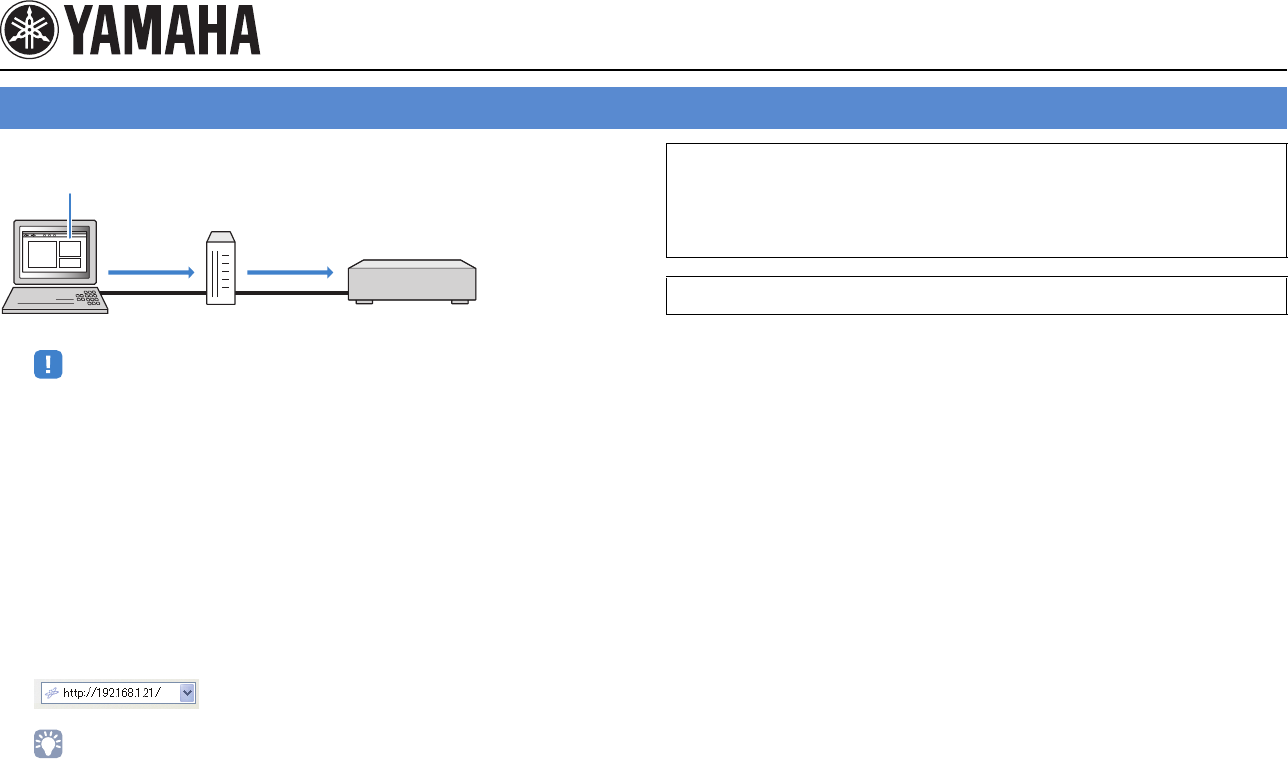
En 1
Supplement for Web Control
You can control the unit with the web control screen displayed in a web browser.
• To use this function, the unit and your PC must be connected to the network properly.
• Some security software installed on your PC may block the access of the unit to your PC. In these
cases, configure the security software appropriately.
• To display the web control screen or turn on the unit from the web control when the unit is in standby
mode, set “Network Standby” (p.3) to “On”.
• We recommend using one of the following web browsers.
– Internet Explorer 7.x, 8.x or 9.x
– Safari 5.x
1Start the web browser.
2Enter the IP address of the unit in the address bar of the web
browser.
(Example)
• You can check the IP address of the unit in “Network” in the “Information” menu.
• You can bookmark the unit’s IP address in the browser or create a shortcut link (p.3) to access the
web control screen quickly in the future.
Controlling the unit from a web browser (web control)
Web browser
Web control
PC Router The unit
Web control
Note
• If you are using a DHCP server, the IP address of the unit may change each time the unit is turned on.
• If you have enabled the MAC address filter, you need to specify the MAC address of your PC to allow
the PC to access the unit. For information on how to check the MAC address of your PC, refer to its
instruction manual.
• Items available on the web control screen vary depending on the model.
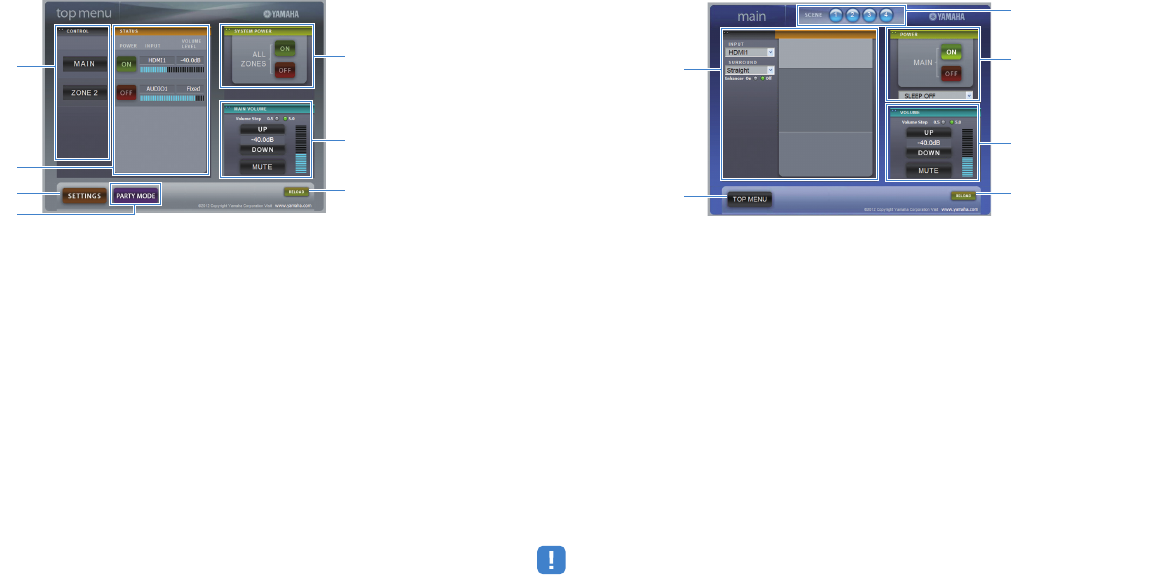
En 2
■Top menu screen
1CONTROL
Moves to the control screen for the selected zone.
2STATUS
Turns on/off the power for each zone or displays the input source and volume set for each zone.
3SETTINGS
Moves to the settings screen.
4PARTY MOD E
(Not available on some models)
Turns on/off the party mode.
5SYSTEM POWER
Turns on/off the power for all zones.
6MAIN VOLUME
Adjusts the volume or mutes the audio output for the main zone. You can also select the
increments used for volume adjustment.
7RELOAD
Reloads the current status of the unit.
■Control screen
1PLAY INFO
Selects an input source or controls playback for the selected zone.
2TOP MENU
Moves to the top menu screen.
3SCENE
Selects a scene for the selected zone (only for the main zone on some models).
4POWER
Turns on/off the power for the selected zone.
5VOLUME
Adjusts the volume or mutes the audio output for the selected zone. You can also select the
increments used for volume adjustment.
6RELOAD
Reloads the current status of the unit.
• Multi-zone volume adjustment is not available when an external amplifier is used.
3
4
1
2
5
6
72
14
3
5
6
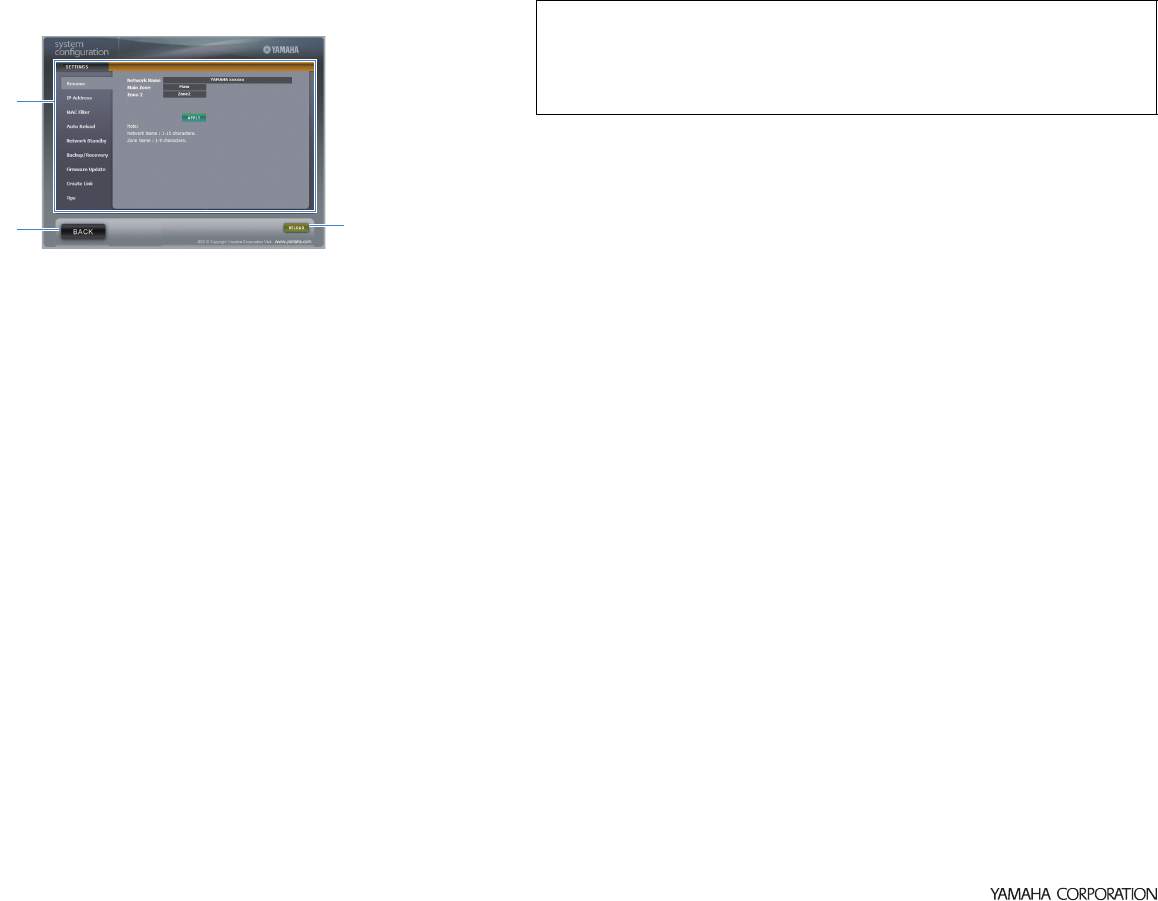
© 2012 Yamaha Corporation YE224A0/WCEN
■Settings screen
1Rename
Edits the network name (the unit’s name on the network) or the name of each zone. Click “APPLY”
to apply the changes to the unit.
IP Address
Configures the network parameters (such as IP address). Click “APPLY” to apply the changes to
the unit.
MAC Filter
Sets the MAC address filter to limit access to the unit from the network devices. Click “APPLY” to
apply the changes to the unit.
Auto Reload
Enables/disables automatic reloading. When “Auto Reload” is “On” (enabled), the web control
screen reloads the status of the unit every 5 seconds.
Network Standby
Enables/disables the network standby function.
Backup/Recovery
Creates a backup of the unit’s settings on the PC or restores the settings from the backup.
Firmware Update
Updates the firmware of the unit by using the firmware you have downloaded on the PC.
Follow the on-screen instructions to start the firmware update.
Create Link
Creates a shortcut link to the desired control screen.
Tips
Displays tips for use of the web control.
2BACK
Moves to the top menu screen.
3RELOAD
Reloads the current status of the unit.
2
1
3
Note
• Do not operate the unit during the recovery process, as this may result in the incorrect recovery of the
settings. When the recovery finishes, click “OK” to set the unit to standby mode.
• The backup does not contain user information (such as user account and password) or unit-specific
information (such as MAC address and IP address).

En 1
This product uses the following free software.
For information (copyright, etc) about each software, read the original sentences stated below.
■ About ASN.1 object dumping code
ASN.1 object dumping code, copyright Peter Gutmann
<pgut001@cs.auckland.ac.nz>, based on ASN.1 dump
program by David Kemp <dpkemp@missi.ncsc.mil>,
with contributions from various people including
Matthew Hamrick <hamrick@rsa.com>, Bruno Couillard
<bcouillard@chrysalis-its.com>, Hallvard Furuseth
<h.b.furuseth@usit.uio.no>, Geoff Thorpe
<geoff@raas.co.nz>, David Boyce
<d.boyce@isode.com>, John Hughes
<john.hughes@entegrity.com>, Life is hard, and then
you die <ronald@trustpoint.com>, Hans-Olof
Hermansson <hans-olof.hermansson@postnet.se>, Tor
Rustad <Tor.Rustad@bbs.no>, Kjetil Barvik
<kjetil.barvik@bbs.no>, James Sweeny
<jsweeny@us.ibm.com>, and several other people
whose names I've misplaced.
This code grew slowly over time without much design or
planning, with features being tacked on as required.
It's not representative of my normal coding style.
■ About FLAC codec Library
Copyright ©
2000,2001,2002,2003,2004,2005,2006,2007,2008,2009
Josh Coalson
Redistribution and use in source and binary forms, with
or without modification, are permitted provided that the
following conditions are met:
Redistributions of source code must retain the above
copyright notice, this list of conditions and the following
disclaimer.
Redistributions in binary form must reproduce the
above copyright notice, this list of conditions and the
following disclaimer in the documentation and/or other
materials provided with the distribution.
Neither the name of the Xiph.org Foundation nor the
names of its contributors may be used to endorse or
promote products derived from this software without
specific prior written permission.
THIS SOFTWARE IS PROVIDED BY THE COPYRIGHT
HOLDERS AND CONTRIBUTORS “AS IS” AND ANY
EXPRESS OR IMPLIED WARRANTIES, INCLUDING,
BUT NOT LIMITED TO, THE IMPLIED WARRANTIES OF
MERCHANTABILITY AND FITNESS FOR A
PARTICULAR PURPOSE ARE DISCLAIMED. IN NO
EVENT SHALL THE FOUNDATION OR
CONTRIBUTORS BE LIABLE FOR ANY DIRECT,
INDIRECT, INCIDENTAL, SPECIAL, EXEMPLARY, OR
CONSEQUENTIAL DAMAGES (INCLUDING, BUT NOT
LIMITED TO, PROCUREMENT OF SUBSTITUTE
GOODS OR SERVICES; LOSS OF USE, DATA, OR
PROFITS; OR BUSINESS INTERRUPTION) HOWEVER
CAUSED AND ON ANY THEORY OF LIABILITY,
WHETHER IN CONTRACT, STRICT LIABILITY, OR TORT
(INCLUDING NEGLIGENCE OR OTHERWISE) ARISING
IN ANY WAY OUT OF THE USE OF THIS SOFTWARE,
EVEN IF ADVISED OF THE POSSIBILITY OF SUCH
DAMAGE.
■ About libexpat
Copyright © 1998, 1999, 2000 Thai Open Source
Software Center Ltd and Clark Cooper
Copyright © 2001, 2002, 2003, 2004, 2005, 2006 Expat
maintainers.
Permission is hereby granted, free of charge, to any
person obtaining a copy of this software and associated
documentation files (the “Software”), to deal in the
Software without restriction, including without limitation
the rights to use, copy, modify, merge, publish,
distribute, sublicense, and/or sell copies of the
Software, and to permit persons to whom the Software is
furnished to do so, subject to the following conditions:
The above copyright notice and this permission notice
shall be included in all copies or substantial portions of
the Software.
THE SOFTWARE IS PROVIDED “AS IS”, WITHOUT
WARRANTY OF ANY KIND, EXPRESS OR IMPLIED,
INCLUDING BUT NOT LIMITED TO THE WARRANTIES
OF MERCHANTABILITY, FITNESS FOR A PARTICULAR
PURPOSE AND NONINFRINGEMENT. IN NO EVENT
SHALL THE AUTHORS OR COPYRIGHT HOLDERS BE
LIABLE FOR ANY CLAIM, DAMAGES OR OTHER
LIABILITY, WHETHER IN AN ACTION OF CONTRACT,
TORT OR OTHERWISE, ARISING FROM, OUT OF OR IN
CONNECTION WITH THE SOFTWARE OR THE USE OR
OTHER DEALINGS IN THE SOFTWARE.
Information about software
English
En 2
■ About The Independent JPEG
Group’s JPEG software
The Independent JPEG Group’s JPEG software
Copyright © 1991-2010, Thomas G. Lane, Guido
Vollbeding.
All Rights Reserved except as specified below.
The authors make NO WARRANTY or representation,
either express or implied, with respect to this software,
its quality, accuracy, merchantability, or fitness for a
particular purpose. This software is provided “AS IS”,
and you, its user, assume the entire risk as to its quality
and accuracy.
Permission is hereby granted to use, copy, modify, and
distribute this software (or portions thereof) for any
purpose, without fee, subject to these conditions:
(1) If any part of the source code for this software is
distributed, then this README file must be
included, with this copyright and no-warranty notice
unaltered; and any additions, deletions, or changes
to the original files must be clearly indicated in
accompanying documentation.
(2) If only executable code is distributed, then the
accompanying documentation must state that “this
software is based in part on the work of the
Independent JPEG Group”.
(3) Permission for use of this software is granted only if
the user accepts full responsibility for any
undesirable consequences; the authors accept NO
LIABILITY for damages of any kind.
These conditions apply to any software derived from or
based on the IJG code, not just to the unmodified
library. If you use our work, you ought to acknowledge
us.
Permission is NOT granted for the use of any IJG
author's name or company name in advertising or
publicity relating to this software or products derived
from it. This software may be referred to only as “the
Independent JPEG Group’s software”.
We specifically permit and encourage the use of this
software as the basis of commercial products, provided
that all warranty or liability claims are assumed by the
product vendor.
■ About JsonCpp
Copyright © 2007-2010 Baptiste Lepilleur
Permission is hereby granted, free of charge, to any
person obtaining a copy of this software and associated
documentation files (the “Software”), to deal in the
Software without restriction, including without limitation
the rights to use, copy, modify, merge, publish,
distribute, sublicense, and/or sell copies of the
Software, and to permit persons to whom the Software is
furnished to do so, subject to the following conditions:
The above copyright notice and this permission notice
shall be included in all copies or substantial portions of
the Software.
THE SOFTWARE IS PROVIDED “AS IS”, WITHOUT
WARRANTY OF ANY KIND, EXPRESS OR IMPLIED,
INCLUDING BUT NOT LIMITED TO THE WARRANTIES
OF MERCHANTABILITY, FITNESS FOR A PARTICULAR
PURPOSE AND NONINFRINGEMENT. IN NO EVENT
SHALL THE AUTHORS OR COPYRIGHT HOLDERS BE
LIABLE FOR ANY CLAIM, DAMAGES OR OTHER
LIABILITY, WHETHER IN AN ACTION OF CONTRACT,
TORT OR OTHERWISE, ARISING FROM, OUT OF OR IN
CONNECTION WITH THE SOFTWARE OR THE USE OR
OTHER DEALINGS IN THE SOFTWARE.
■ About Ogg/Vorbis
Copyright © 2002-2008 Xiph.org Foundation
Redistribution and use in source and binary forms, with
or without modification, are permitted provided that the
following conditions are met:
– Redistributions of source code must retain the above
copyright notice, this list of conditions and the
following disclaimer.
– Redistributions in binary form must reproduce the
above copyright notice, this list of conditions and the
following disclaimer in the documentation and/or
other materials provided with the distribution.
– Neither the name of the Xiph.org Foundation nor the
names of its contributors may be used to endorse or
promote products derived from this software without
specific prior written permission.
THIS SOFTWARE IS PROVIDED BY THE COPYRIGHT
HOLDERS AND CONTRIBUTORS “AS IS” AND ANY
EXPRESS OR IMPLIED WARRANTIES, INCLUDING,
BUT NOT LIMITED TO, THE IMPLIED WARRANTIES OF
MERCHANTABILITY AND FITNESS FOR A
PARTICULAR PURPOSE ARE DISCLAIMED.IN NO
EVENT SHALL THE FOUNDATION OR
CONTRIBUTORS BE LIABLE FOR ANY DIRECT,
INDIRECT, INCIDENTAL, SPECIAL, EXEMPLARY, OR
CONSEQUENTIAL DAMAGES (INCLUDING, BUT NOT
LIMITED TO, PROCUREMENT OF SUBSTITUTE
GOODS OR SERVICES; LOSS OF USE, DATA, OR
PROFITS; OR BUSINESS INTERRUPTION) HOWEVER
CAUSED AND ON ANY THEORY OF LIABILITY,
WHETHER IN CONTRACT, STRICT LIABILITY, OR TORT
(INCLUDING NEGLIGENCE OR OTHERWISE) ARISING
IN ANY WAY OUT OF THE USE OF THIS SOFTWARE,
EVEN IF ADVISED OF THE POSSIBILITY OF SUCH
DAMAGE.

© 2012 Yamaha Corporation YE161A0/SLEN
■ About RC4 Algorithm
Copyright Mocana Corp 2003-2005. All Rights
Reserved.
Proprietary and Confidential Material.
■ About zlib Library
Copyright notice:
© 1995-2010 Jean-loup Gailly and Mark Adler
This software is provided ‘as-is’, without any express or
implied warranty. In no event will the authors be held
liable for any damages arising from the use of this
software.
Permission is granted to anyone to use this software for
any purpose, including commercial applications, and to
alter it and redistribute it freely, subject to the following
restrictions:
1. The origin of this software must not be
misrepresented; you must not claim that you wrote
the original software. If you use this software in a
product, an acknowledgment in the product
documentation would be appreciated but is not
required.
2. Altered source versions must be plainly marked as
such, and must not be misrepresented as being the
original software.
3. This notice may not be removed or altered from any
source distribution.
Do not disassemble, decompile, or reverse engineer
the software included in Yamaha AV products.

1
TV
A.R. Systems 0320
Acme 0342
Acura 0323, 0343
ADC 0337
Admiral 0054, 0178, 0336, 0337,
0339, 0346, 0347
Advent 0158
Adventura 0057
Adyson 0277, 0282, 0342
Agashi 0277, 0282
Agazi 0337
Aiko 0277, 0282, 0320, 0323,
0342, 0343
Aim 0320
Aiwa 0078, 0379
Akai 0050, 0055, 0109, 0159,
0181, 0277, 0282, 0320,
0323, 0340, 0343, 0349,
0350
Akiba 0320, 0340
Akura 0320, 0323, 0337, 0340
Alaron 0277
Alba 0161, 0277, 0320, 0323,
0340, 0342, 0343, 0344,
0349, 0351, 0372, 0382
Albatron 0140
Alcyon 0171
Alleron 0059
Allorgan 0282
Allstar 0320, 0350
America Action 0179
AMOi 0276
Amplivision 0161, 0282, 0321, 0342
Amstrad 0320, 0323, 0337, 0340,
0343
Amtron 0058
Anam 0179, 0343
Anam National 0052, 0058
Anglo 0323, 0343
Anitech 0171, 0320, 0323, 0337,
0343
Ansonic 0161, 0168, 0320, 0323,
0341, 0343
AOC 0008, 0026, 0050, 0053
Apex 0039, 0111, 0217
Arcam 0277, 0282
Arcam Delta 0342
Aristona 0320, 0349, 0350
Arthur Martin 0321
ASA 0339, 0347
Asberg 0171, 0320, 0350
Astra 0343
Asuka 0277, 0282, 0337, 0340,
0342
Atlantic 0277, 0320, 0342, 0349,
0350
Atori 0323, 0343
Auchan 0321
Audiosonic 0161, 0282, 0320, 0340,
0342, 0343, 0349, 0350
AudioTon 0161, 0282, 0342
Audiovox 0058, 0179, 0194
Ausind 0171
Autovox 0171, 0282, 0337, 0339,
0342
Aventura 0051
Awa 0277, 0282
Axion 0156
Baird 0282
Bang & Olufsen 0180, 0339
Basic Line 0282, 0320, 0323, 0340,
0343, 0350
Bastide 0282, 0342
Baur 0320, 0349
Bazin 0282
Beko 0161, 0269, 0294, 0302,
0311, 0320, 0328, 0351
Belcor 0008
Bell & Howell 0019, 0054
Benq 0097, 0242, 0361
Beon 0320, 0349, 0350
Best 0161
Bestar 0161, 0320, 0350
Binatone 0282, 0342
Blue Sky 0320, 0340
Blue Star 0348
Boots 0282, 0342
BPL 0320, 0348
Bradford 0058, 0179
Brandt 0322, 0345
Brillian 0182
Brinkmann 0320
Brionvega 0320, 0339, 0349, 0350
Britannia 0277, 0282, 0342
Brockwood 0008
Broksonic 0109, 0179
Bruns 0339
BTC 0340
Bush 0269, 0282, 0283, 0304,
0320, 0323, 0328, 0332,
0340, 0343, 0344, 0346,
0348, 0349, 0350, 0372,
0382, 0463, 0470, 0472
byd:sign 0093
Candle 0008, 0026, 0050, 0057
Capsonic 0337
Carena 0320
Carnivale 0050
Carrefour 0344
Carver 0010
Cascade 0320, 0323, 0343
Casio 0367
Cathay 0320, 0349, 0350
CCE 0183, 0282
Celebrity 0055, 0107
Celera 0039
Centurion 0320, 0349, 0350
Century 0339
CGE 0161, 0171
Changhong 0039
Chimei 0273
Cimline 0323, 0343
Citizen 0007, 0008, 0026, 0050,
0058
City 0323, 0343
Clarion 0179
Clarivox 0349
Clatronic 0161, 0171, 0282, 0320,
0323, 0337, 0340, 0342,
0343, 0350, 0351
CMS 0277
CMS Hightec 0282
Coby 0197
Colortyme 0008, 0026
Commercial Solutions
0021
Concerto 0008, 0026
Concorde 0323, 0343
Condor 0161, 0277, 0320, 0323,
0342, 0350, 0351
Contec 0179, 0277, 0323, 0342,
0343, 0344
Contec/Cony 0012, 0058
Continental Edison
0345
Cosmel 0323, 0343
Craig 0058, 0179
Crosley 0010, 0037, 0171, 0339
List of remote control codes
Liste des codes de commande
Liste der Fernbedienungscodes
Lista över fjärrstyrningskoder
Elenco dei codici di telecomando
Lista de códigos de mando a distancia
Lijst met afstandsbedieningscodes
Liste over fjernbetjeningskoder
Liste over fjernkontrollkoder
2
Crown 0058, 0161, 0171, 0179,
0320, 0323, 0343, 0349,
0350, 0351
CS Electronics 0277, 0340, 0342
CTC Clatronic 0341
CTX 0205
Curtis Mathes 0007, 0008, 0010, 0019,
0021, 0026, 0049, 0050,
0178
CXC 0058, 0179
Cybertron 0340
Cytron 0152
Daewoo 0007, 0008, 0026, 0037,
0053, 0167, 0266, 0275,
0277, 0282, 0315, 0320,
0323, 0331, 0335, 0342,
0343, 0350, 0381, 0465
Dainichi 0277, 0340
Dansai 0277, 0282, 0320, 0337,
0349, 0350
Dantax 0161, 0349
Dawa 0320
Daytron 0007, 0008, 0026, 0323,
0343
De Graaf 0346
Decca 0282, 0320, 0342, 0349,
0350
Dell 0145, 0245
Denver 0358, 0362
Desmet 0320, 0349, 0350
Diamant 0320
Diamond 0277
DiamondVision 0135, 0143
Dimensia 0049
Disney 0219
Dixi 0282, 0320, 0323, 0343,
0349, 0350
Dream Vision 0461, 0498
DTS 0323, 0343
Dual 0282, 0320, 0342
Dual-Tec 0342, 0343
Dumont 0008, 0030, 0062, 0282,
0339, 0341, 0342
Durabrand 0031, 0051, 0179, 0215
Dux 0349
Dwin 0178
Dynatron 0320, 0349, 0350
Dynex 0228, 0231
EIZO 0509
Elbe 0161, 0168, 0282, 0320
Elcit 0339
Electa 0348
ELECTRO TECH
0343
Electroband 0055, 0107
Electrograph 0176
Electrohome 0008, 0026, 0052, 0055
Element 0230
Elin 0277, 0320, 0323, 0342,
0349, 0350
Elite 0320, 0340, 0350
Elman 0341
Elta 0277, 0323, 0343
Emerson 0000, 0007, 0008, 0012,
0013, 0019, 0026, 0031,
0037, 0051, 0058, 0059,
0161, 0179, 0320, 0339
Emprex 0154
Envision 0008, 0026, 0050
Epson 0155, 0206, 0359
Erres 0320, 0349, 0350
ESA 0051
ESC 0282
Etron 0343
Eurofeel 0282
Euro-Feel 0337
Euroline 0349
Euroman 0161, 0277, 0282
Euromann 0320, 0337, 0342, 0350
Europhon 0277, 0282, 0320, 0341,
0342, 0350
Expert 0321
Exquisit 0320
Fenner 0323, 0343
Ferguson 0322, 0345, 0349
Fidelity 0277, 0320, 0342, 0346
Filsai 0282
Finlandia 0346
Finlux 0171, 0282, 0320, 0339,
0341, 0342, 0349, 0350
FIRST LINE 0342, 0343, 0350
Firstline 0277, 0282, 0320, 0323
Fisher 0019, 0161, 0282, 0339,
0342, 0344, 0351
Flint 0320, 0350
Formenti 0171, 0277, 0336, 0339,
0342, 0349
Formenti/Phoenix
0277
Fortress 0336, 0339
Fraba 0161, 0320
Friac 0161
Frontech 0282, 0323, 0337, 0343,
0346, 0347
Fujitsu 0059, 0069, 0074, 0075,
0282
Fujitsu General 0282
Fujitsu Siemens 0504, 0505, 0507, 0510,
0511
Funai 0051, 0058, 0059, 0112,
0113, 0115, 0118, 0119,
0179, 0337, 0488, 0489
Futuretech 0058, 0179
Galaxi 0320, 0351
Galaxis 0161, 0320
Gateway 0176, 0177, 0241
GBC 0323, 0343, 0344
GE 0008, 0021, 0023, 0026,
0027, 0031, 0034, 0049,
0052, 0056, 0209
Geant Casino 0321
GEC 0282, 0320, 0342, 0347,
0349, 0350
Geloso 0323, 0343, 0346
General Technic 0323, 0343
Genexxa 0320, 0340, 0347, 0350
GFM 0128, 0227
Giant 0282
Gibralter 0008, 0030, 0050, 0062
GoldHand 0277
Goldline 0320
GoldStar 0007, 0008, 0012, 0026,
0031, 0050, 0053, 0161,
0277, 0282, 0320, 0323,
0342, 0343, 0346, 0349,
0350
Goodmans 0246, 0272, 0282, 0320,
0323, 0337, 0343, 0344,
0349, 0350, 0462, 0473,
0477
Gorenje 0161, 0351
GPM 0340
GPX 0129
Gradiente 0240
Graetz 0347
Granada 0171, 0282, 0320, 0321,
0342, 0344, 0346, 0349,
0350
Grandin 0340, 0343, 0348, 0349
Gronic 0282
Grundig 0160, 0161, 0171, 0310,
0320
Grunpy 0058, 0059, 0179
Haier 0157, 0233
Halifax 0277, 0282, 0337, 0342
Hallmark 0008, 0026, 0031
Hampton 0277, 0282, 0342
Hanseatic 0161, 0168, 0282, 0320,
0323, 0342, 0343, 0344,
0349, 0350
Hantarex 0320, 0323, 0343
Hantor 0320
Harman/Kardon 0010
Harvard 0058, 0179
Harwood 0320, 0323
Havermy 0178
HCM 0282, 0320, 0323, 0337,
0342, 0343, 0348
Hema 0282, 0323
Hewlett Packard 0192
Higashi 0277
HiLine 0320
Hinari 0320, 0323, 0340, 0343,
0344, 0349, 0350
Hisawa 0321, 0340, 0348
Hisense 0247
Hitachi 0008, 0012, 0026, 0066,
0084, 0092, 0093, 0120,
0172, 0173, 0255, 0270,
0271, 0282, 0320, 0335,
0338, 0342, 0344, 0346,
0347, 0365, 0382, 0448,
0456, 0467, 0482, 0484,
0487
Hornyphon 0320, 0350
Hoshai 0340
Huanyu 0277, 0342
Hygashi 0277, 0282, 0342
Hyper 0277, 0282, 0323, 0342,
0343
Hypson 0282, 0320, 0321, 0337,
0342, 0348, 0349, 0350
Hyundai 0141
Iberia 0320
ICE 0277, 0282, 0320, 0323,
0337, 0340, 0342, 0343,
0350
ICeS 0277
Ilo 0148, 0153
IMA 0058
Imperial 0161, 0171, 0320, 0347,
0350, 0351
3
Indiana 0320, 0349, 0350
Infinity 0010
InFocus 0250, 0327, 0363, 0479,
0508
Ingelen 0347
Ingersol 0323, 0343
Initial 0153
Inno Hit 0171, 0282, 0320, 0323,
0340, 0342, 0343, 0349,
0350
Innovation 0337, 0343
Insignia 0131, 0228, 0236, 0238
Inteq 0030
Interactive 0161
Interbuy 0323, 0343
Interfunk 0161, 0320, 0339, 0347,
0349, 0350
International 0277
Intervision 0161, 0282, 0320, 0337,
0341, 0342
Irradio 0171, 0320, 0323, 0340,
0343, 0349, 0350
Isukai 0320, 0340
ITC 0282, 0342
ITS 0277, 0320, 0340, 0348,
0350
ITT 0343, 0347
ITV 0320, 0343, 0349
Janeil 0057
JBL 0010
JC Penney 0007, 0008, 0026, 0027,
0049, 0053, 0056
JCB 0055, 0107
Jensen 0008, 0026
JVC 0012, 0014, 0015, 0056,
0064, 0065, 0067, 0169,
0174, 0297, 0314, 0344,
0350, 0375
Kaisui 0277, 0282, 0320, 0323,
0340, 0342, 0343, 0348
Kamosonic 0342
Kamp 0277, 0342
Kapsch 0347
Karcher 0161, 0320, 0342, 0343,
0349
Kawasho 0008, 0026, 0055, 0277
KEC 0179
Kendo 0161, 0320, 0341, 0346
Kenwood 0008, 0026, 0050
KIC 0282
Kingsley 0277, 0342
KLH 0039
Kloss Novabeam
0057, 0058
Kneissel 0161, 0168, 0320
Kolster 0320, 0350
Konka 0340
Korpel 0320, 0349, 0350
Korting 0161, 0339
Kosmos 0320
Koyoda 0343
KTV 0007, 0050, 0058, 0179,
0183, 0282, 0342
Kyoto 0277, 0282
Lasat 0161
Lenco 0323, 0343
Lenoir 0323, 0342, 0343
Leyco 0320, 0337, 0349, 0350
LG 0031, 0053, 0066, 0116,
0117, 0140, 0161, 0164,
0175, 0195, 0269, 0277,
0282, 0300, 0309, 0317,
0320, 0323, 0328, 0342,
0343, 0346, 0349, 0350,
0366, 0368, 0377, 0466,
0471, 0478
LG/GoldStar 0164
Liesenk 0349
Liesenkotter 0320
Life 0337, 0343
Lifetec 0320, 0323, 0337, 0343
Lloyds 0323
Loewe 0161, 0168, 0265, 0320,
0330, 0352
Loewe Opta 0339, 0349, 0350
Logik 0054
Luma 0320, 0323, 0346, 0349
Lumatron 0282, 0320, 0346, 0349,
0350
Lux May 0350
Luxman 0008, 0026
Luxor 0282, 0342, 0346
LXI 0010, 0019, 0021, 0026,
0027, 0031, 0049, 0111
M Electronic 0342, 0343, 0345, 0347,
0349, 0350
MAG 0096
Magnadyne 0339, 0341, 0349
Magnafon 0171, 0277, 0341, 0342
Magnavox 0008, 0009, 0010, 0013,
0026, 0032, 0033, 0048,
0050, 0128, 0211, 0212,
0224, 0226, 0239
Magnum 0337, 0343
Majestic 0054
Mandor 0337
Manesth 0282, 0320, 0337, 0342,
0349, 0350
Marantz 0008, 0010, 0026, 0050,
0204, 0320, 0349, 0350
Marelli 0339
Mark 0277, 0282, 0320, 0323,
0349, 0350
Masuda 0282
Matsui 0282, 0320, 0323, 0342,
0343, 0344, 0346, 0349,
0350, 0455
Matsushita 0017
Maxent 0147, 0176
Mediator 0320, 0349, 0350
Medion 0320, 0337, 0343
Megapower 0140
Megatron 0026, 0031
MElectronic 0277, 0282, 0320, 0323
Melvox 0321
Memorex 0019, 0026, 0031, 0053,
0054, 0137, 0215, 0323,
0343
Memphis 0323, 0343
Mercury 0320, 0323
Metz 0339
MGA 0008, 0026, 0031, 0050,
0053
Micromaxx 0337, 0343
Microstar 0337, 0343
Midland 0007, 0021, 0023, 0027,
0030, 0056, 0062
Minerva 0171
Minoka 0320, 0350
Mintek 0153
Mitsubishi 0008, 0026, 0031, 0053,
0066, 0084, 0093, 0098,
0150, 0178, 0289, 0320,
0339, 0344, 0350, 0376
Mivar 0161, 0168, 0171, 0277,
0282, 0342
Monivision 0140
Montgomery Ward
0054
Motion 0171
Motorola 0052, 0178
MTC 0008, 0026, 0050, 0053,
0161, 0277
Multi System 0349
Multitech 0058, 0161, 0179, 0183,
0277, 0282, 0320, 0323,
0341, 0342, 0343, 0344,
0346, 0349
Murphy 0277, 0342
NAD 0026, 0031, 0111
Naonis 0346
NEC 0008, 0026, 0050, 0052,
0053, 0072, 0103, 0282,
0344
Neckermann 0161, 0282, 0320, 0339,
0342, 0346, 0349, 0350,
0351
NEI 0320, 0349, 0350
Net-TV 0176
Neufunk 0320, 0323
New Tech 0343, 0350
New World 0340
NewTech 0282, 0320, 0323
Nicamagic 0277, 0342
Nikkai 0277, 0282, 0320, 0323,
0337, 0340, 0342, 0349,
0350
Nikko 0026, 0031, 0050
Nobliko 0171, 0277, 0341, 0342
Nokia 0347
Norcent 0201
Nordic 0282
Nordmende 0339, 0345, 0347, 0350
Nordvision 0349
Novatronic 0320
Oceanic 0321, 0347
Okano 0161, 0320, 0351
Olevia 0102, 0199, 0200, 0207,
0222
ONCEAS 0342
Onwa 0058, 0179
Opera 0320
Oppo 0130
Optimus 0017, 0019
Optoma 0144
Optonica 0178
Orbit 0320, 0350
4
Orion 0043, 0146, 0283, 0320,
0323, 0328, 0343, 0349,
0350
Orline 0320
Osaki 0282, 0320, 0337, 0340,
0342
Oso 0340
Otto Versand 0282, 0320, 0336, 0342,
0344, 0348, 0349, 0350
Pael 0277, 0342
Palladium 0161, 0282, 0320, 0342,
0351
Palsonic 0282
Panama 0277, 0282, 0320, 0323,
0337, 0342, 0343
Panasonic 0016, 0017, 0020, 0022,
0023, 0035, 0052, 0056,
0084, 0085, 0133, 0163,
0193, 0284, 0286, 0290,
0292, 0320, 0325, 0347,
0356, 0483, 0485, 0490
Panavision 0320
Pathe Cinema 0161, 0168, 0277, 0321,
0342
Pausa 0323, 0343
Penney 0021, 0023, 0031, 0050,
0111
Perdio 0277, 0320
Perfekt 0320
Philco 0008, 0009, 0010, 0012,
0026, 0050, 0052, 0053,
0161, 0171, 0320, 0339
Philharmonic 0282, 0342
Philips 0008, 0009, 0010, 0011,
0012, 0032, 0048, 0049,
0052, 0122, 0128, 0134,
0186, 0187, 0213, 0221,
0224, 0226, 0239, 0256,
0257, 0259, 0261, 0263,
0267, 0280, 0281, 0287,
0296, 0299, 0301, 0303,
0305, 0313, 0319, 0320,
0324, 0333, 0339, 0342,
0349, 0350, 0353, 0357,
0360, 0380, 0383, 0452,
0459, 0460
Philips Magnavox
0011, 0032, 0033
Phoenix 0161, 0277, 0320, 0339,
0349, 0350
Phonola 0277, 0320, 0339, 0349,
0350
Pilot 0007, 0008, 0050
Pioneer 0008, 0026, 0094, 0095,
0161, 0320, 0345, 0347,
0349, 0350, 0458, 0480
Plantron 0320, 0323, 0337, 0350
Playsonic 0282
Polaroid 0039, 0142, 0202, 0234
Poppy 0323, 0343
Portland 0007, 0008, 0026, 0053
Prandoni-Prince
0171, 0346
Precision 0282, 0342
Prima 0157, 0243, 0323, 0343,
0347
Princeton 0140
Prism 0023, 0056
Profex 0323, 0343
Profi-Tronic 0320, 0350
Proline 0320, 0350
Proscan 0021, 0027, 0049
Prosonic 0161, 0277, 0282, 0320,
0342, 0349
Protech 0282, 0337, 0341, 0342,
0343, 0349, 0350
Proton 0008, 0012, 0026, 0031
Protron 0196
PROVIEW 0096, 0246
Provision 0320, 0349
Pulsar 0008, 0030, 0062
Pye 0256, 0320, 0349, 0350,
0378
Pymi 0323, 0343
Quandra Vision 0321
Quasar 0017, 0023, 0052, 0056
Quelle 0282, 0320, 0337, 0342,
0349, 0350
Questa 0344
Radialva 0320
RadioShack 0019, 0021, 0031, 0050,
0179, 0320
RadioShack/Realistic
0007, 0008, 0012, 0026,
0049, 0058
Radiola 0282, 0320, 0349, 0350
Radiomarelli 0320, 0339
Radiotone 0161, 0320, 0323, 0350
Rank 0344
RCA 0008, 0021, 0024, 0025,
0026, 0027, 0042, 0049,
0052, 0053, 0063, 0136,
0225
Realistic 0019, 0031, 0050, 0179
Recor 0320
Redstar 0320
Reflex 0320
Revox 0161, 0320, 0349, 0350
Rex 0337, 0346, 0347
RFT 0161, 0168, 0339
Rhapsody 0277
R-Line 0320, 0349, 0350
Roadstar 0323, 0337, 0340, 0343
Robotron 0339
Rowa 0277, 0282
Royal Lux 0161
RTF 0339
Runco 0030, 0050, 0062
Saba 0298, 0322, 0339, 0345,
0347
Saisho 0282, 0323, 0337, 0342,
0343
Salora 0346, 0347
Sambers 0171, 0341
Sampo 0007, 0008, 0026, 0050,
0176
Samsung 0004, 0005, 0006, 0007,
0008, 0012, 0026, 0031,
0036, 0050, 0053, 0076,
0077, 0079, 0114, 0124,
0125, 0126, 0127, 0139,
0161, 0183, 0185, 0190,
0191, 0258, 0264, 0277,
0282, 0320, 0323, 0334,
0337, 0342, 0343, 0349,
0350, 0351, 0373, 0453,
0468
Sandra 0277, 0282, 0342
Sansui 0043, 0109, 0320, 0350
Sanyo 0008, 0019, 0068, 0070,
0071, 0099, 0161, 0168,
0223, 0237, 0277, 0282,
0288, 0295, 0323, 0342,
0344, 0369, 0469
SBR 0320, 0349
Sceptre 0235, 0244
Schaub Lorenz 0347
Schneider 0282, 0316, 0318, 0320,
0333, 0340, 0342, 0349,
0350, 0382
Scotch 0026, 0031
Scott 0008, 0012, 0026, 0031,
0058, 0059, 0149, 0179
Sears 0008, 0010, 0019, 0021,
0026, 0027, 0031, 0049,
0051, 0059, 0111
SEG 0277, 0282, 0320, 0323,
0337, 0341, 0342, 0344,
0349, 0382
SEI 0320
SEI-Sinudyne 0339, 0341, 0347
Seleco 0344, 0346, 0347
Sencora 0323, 0343
Sentra 0323
Serino 0277
Sharp 0000, 0001, 0002, 0003,
0007, 0008, 0012, 0026,
0060, 0088, 0089, 0091,
0138, 0165, 0170, 0178,
0198, 0229, 0262, 0278,
0279, 0291, 0308, 0312,
0336, 0344, 0354, 0370,
0449, 0450, 0451, 0464,
0474, 0476, 0481
Sheng Chia 0178
Shogun 0008
Siarem 0320, 0339, 0341
Sierra 0320, 0350
Siesta 0161
Signature 0054
Silva 0277
Silver 0344
Singer 0321, 0339, 0341
Sinudyne 0320, 0339, 0341, 0349
Skantic 0347
Solavox 0347
Sonitron 0161, 0282
Sonoko 0282, 0320, 0323, 0337,
0342, 0343, 0349, 0350
Sonolor 0321, 0347
Sontec 0161, 0320, 0349, 0350

5
Sony 0038, 0044, 0045, 0047,
0055, 0090, 0104, 0105,
0107, 0110, 0123, 0184,
0220, 0248, 0249, 0251,
0252, 0254, 0326, 0343,
0344, 0371, 0374, 0457,
0475, 0486
Sound & Vision 0340, 0341
Soundesign 0008, 0026, 0031, 0058,
0059, 0179
Soundwave 0320, 0349, 0350
Squareview 0051
SSS 0008, 0058, 0179
Standard 0282, 0320, 0323, 0340,
0342, 0343, 0350
Starlite 0058, 0179, 0320, 0323,
0349
Stenway 0348
Stern 0346, 0347
Strato 0320, 0323
Stylandia 0282
Sunkai 0343
Sunstar 0320, 0323
Sunwood 0320, 0323, 0343, 0350
Superla 0277, 0282, 0342
Superscan 0013, 0178
SuperTech 0277, 0320, 0323
Supra 0323, 0343
Supre-Macy 0057
Supreme 0055, 0107
Susumu 0340
Sutron 0323, 0343
SVA 0151
Sydney 0277, 0282, 0342
Sylvania 0008, 0009, 0010, 0011,
0013, 0026, 0048, 0050,
0051, 0128, 0227, 0253
Symphonic 0051, 0058, 0062, 0128,
0179, 0215
Syntax 0199
Syntax-Brillian 0199
Sysline 0349
Sytong 0277
Tandy 0178, 0282, 0336, 0340,
0342, 0347
Tashiko 0277, 0282, 0342, 0344,
0346
Tatung 0052, 0177, 0282, 0320,
0342, 0349, 0350
TCM 0337, 0343
Teac 0282, 0320
Tec 0282, 0323, 0342, 0343
Technics 0017, 0023, 0056
TechniSat 0274, 0496, 0497, 0499
Techwood 0008, 0023, 0026, 0056
TEDELEX 0282
Teknika 0007, 0008, 0010, 0012,
0026, 0053, 0054, 0058,
0059, 0179
Teleavia 0345
Telecor 0282, 0320
Telefunken 0320, 0322, 0345, 0350
Telegazi 0320
Telemeister 0320
Telesonic 0320
Telestar 0320
Teletech 0320, 0323, 0343, 0349
Teleton 0282, 0342
Televideon 0277
Televiso 0321
Tensai 0282, 0320, 0323, 0340,
0343, 0350
Tesmet 0350
Tevion 0337, 0343
Texet 0277, 0282, 0323, 0342
Thomson 0162, 0188, 0189, 0285,
0320, 0322, 0342, 0345,
0350
Thorn 0320, 0349
TMK 0008, 0026, 0031
TNCi 0030
Tokai 0282, 0320, 0350
Tokyo 0277, 0342
Tomashi 0348
Toshiba 0018, 0019, 0040, 0041,
0046, 0073, 0100, 0103,
0108, 0109, 0111, 0121,
0132, 0166, 0208, 0210,
0214, 0217, 0260, 0268,
0282, 0283, 0293, 0304,
0306, 0307, 0329, 0344,
0355, 0454, 0491
Totevision 0007
Towada 0282, 0347
Trakton 0282
Trans Continens 0282, 0320
Transtec 0277
Trident 0282
Triumph 0320
Uher 0161, 0171, 0320, 0347,
0350
Ultravox 0277, 0320, 0339, 0341,
0342
Unic Line 0320
United 0349
Universum 0161, 0171, 0282, 0320,
0337, 0349, 0350, 0351
Univox 0320
Vector Research 0050
Vestel 0282, 0320, 0346, 0347,
0349, 0350, 0351
Vexa 0320, 0323, 0343, 0349
Victor 0015, 0344, 0350
VIDEOLOGIC 0277
Videologique 0277, 0282, 0340, 0342
VideoSystem 0320, 0350
Videotechnic 0277, 0282
Vidikron 0010
Vidtech 0008, 0026, 0031, 0053
Viewsonic 0176, 0203, 0232, 0364
Viking 0057
Viore 0148
Visiola 0277, 0342
Vision 0282, 0320, 0350
Vizio 0008, 0177, 0218, 0242,
0500, 0501, 0502, 0503,
0506
Vortec 0320, 0349, 0350
Voxson 0171, 0320, 0339, 0346,
0347, 0350
Waltham 0282, 0320, 0342
Wards 0008, 0009, 0010, 0026,
0031, 0048, 0049, 0050,
0053, 0054, 0059
Watson 0320, 0349, 0350
Watt Radio 0277, 0341, 0342
Waycon 0111
Wega 0320, 0339, 0344
Wegavox 0323
Weltblick 0282, 0320, 0349, 0350
Westinghouse 0107, 0216, 0220
White Westinghouse
0037, 0090, 0277, 0320,
0341, 0342, 0349
Wincom 0101, 0106
Xrypton 0320
Yamaha 0008, 0026, 0050, 0053,
0080, 0081, 0082, 0083,
0086, 0087
Yamishi 0282, 0320
Yokan 0320
Yoko 0161, 0277, 0282, 0320,
0323, 0337, 0340, 0342,
0343, 0349, 0350
Yorx 0340
Zanussi 0282, 0346
Zenith 0008, 0028, 0029, 0030,
0031, 0054, 0061, 0062
VCR
ABS 1016
Adventura 1069
Adyson 1008
Aiwa 1024, 1026, 1027, 1069
Akai 1021, 1027
Akiba 1008, 1029
Akura 1008, 1027, 1029
Alba 1008, 1009, 1024, 1025,
1029, 1030
Alienware 1016
Ambassador 1030
American High 1068
Amstrad 1008, 1009, 1026
Anitech 1008, 1029
Apex 1088
ASA 1028, 1031
Asha 1070
Asuka 1008, 1026, 1028, 1029,
1031
Audio Dynamics 1064
Audiosonic 1009
Audiovox 1071
Baird 1009, 1025, 1026, 1027
Bang & Olufsen 1017
Basic Line 1008, 1009, 1024, 1025,
1029, 1030
Baur 1028
Beaumark 1070
Bell & Howell 1065
Bestar 1009, 1025, 1030
Black Panther Line
1009, 1025
Blaupunkt 1028
Bondstec 1008, 1030
Broksonic 1100
6
Bush 1008, 1009, 1024, 1025,
1029, 1049, 1051, 1063,
1217
Calix 1071
Candle 1070, 1071
Canon 1068
Cathay 1009
Catron 1030
CGE 1026, 1027
Cimline 1008, 1024, 1029
CineVision 1104
Citizen 1070, 1071
Clatronic 1008, 1030
Colortyme 1064
Condor 1009, 1025, 1030
Craig 1070, 1071
Crown 1008, 1009, 1025, 1029,
1030
Curtis Mathes 1064, 1068, 1070
Cybernex 1070
CyberPower 1016
Daewoo 1009, 1025, 1030, 1038,
1069, 1223
Dansai 1008, 1009, 1029
Dantax 1024
Daytron 1009, 1025
DBX 1064
De Graaf 1028
Decca 1026, 1027, 1028
Dell 1016
Denko 1008
DiamondVision 1096
DigiFusion 1014
DIRECTV 1019, 1105, 1110, 1111,
1113, 1116, 1122
Dish Network 1018
Dishpro 1018
Dual 1009, 1027, 1028
Dumont 1026, 1028
Durabrand 1114
Dynatech 1069
Echostar 1018
Elbe 1009
Elcatech 1008
Electrohome 1071
Electrophonic 1071
Elsay 1008
Elta 1008, 1009, 1029
Emerson 1008, 1020, 1068, 1069,
1071
ESC 1009, 1025
Etzuko 1008, 1029
Expressvu 1018
Ferguson 1027
Fidelity 1008, 1026
Finlandia 1028
Finlux 1026, 1027, 1028
Firstline 1008, 1024, 1029, 1031
Fisher 1065
Flint 1024
Formenti/Phoenix
1028
Frontech 1030
Fuji 1068
Fujitsu 1026
Funai 1026, 1069
Galaxy 1026
Garrard 1069
Gateway 1016
GBC 1029, 1030
GE 1068, 1070
GEC 1028
Geloso 1029
General 1030
General Technic 1024
GOI 1018
GoldHand 1008, 1029
Goldstar 1026, 1031, 1064, 1071
Goodmans 1008, 1009, 1025, 1026,
1029, 1030, 1031
Gradiente 1069
Graetz 1027
Granada 1028
Grandin 1008, 1009, 1025, 1026,
1029, 1030, 1031
Grundig 1028, 1029
Hanseatic 1009, 1028, 1031
Harley Davidson 1069
Harman/Kardon 1064
Harwood 1008
HCM 1008, 1029
Headquarter 1065
Hewlett Packard 1016
Hinari 1008, 1009, 1024, 1029
Hisawa 1024
Hitachi 1011, 1026, 1027, 1028,
1046, 1062
HNS 1110
Howard Computers
1016
HP 1016
HTS 1018
Hughes 1111, 1113, 1122
Hughes Network Systems
1110, 1116
Humax 1012, 1110, 1113
Hush 1016
Hypson 1008, 1009, 1024, 1029
iBUYPOWER 1016
Impego 1030
Imperial 1026
Inno Hit 1008, 1009, 1025, 1028,
1029, 1030
Innovation 1024
Instant Replay 1068
Interbuy 1008, 1031
Interfunk 1028
Intervision 1009, 1026
Irradio 1008, 1029, 1031
ITT 1027
ITV 1009, 1025, 1031
JC Penney 1064, 1065, 1068, 1070,
1071
JCL 1068
JVC 1007, 1018, 1027, 1039,
1064, 1065, 1066, 1067,
1078, 1089, 1092, 1093,
1094, 1095, 1113, 1208,
1209, 1212, 1213, 1215,
1218
Kaisui 1008, 1029
Karcher 1028
Kendo 1008, 1024, 1025, 1030
Kenwood 1027, 1064, 1065
Kodak 1068, 1071
Korpel 1008, 1029
Kyoto 1008
Lenco 1025
Leyco 1008, 1029
LG 1010, 1026, 1031, 1047,
1054, 1056, 1071, 1103,
1221
Lifetec 1024
Linksys 1016
Lloyd's 1069
Loewe Opta 1028, 1031
Logik 1008, 1029
Lumatron 1009, 1025
Luxor 1008
LXI 1071
M Electronic 1026
Magnavox 1020, 1068, 1114, 1126
Magnin 1071
Manesth 1008, 1029
Marantz 1028, 1064, 1065, 1068
Mark 1009
Marta 1071
Matsui 1024, 1031
Matsushita 1068
Media Center PC
1016
Mediator 1028
Medion 1024
MEI 1068
Memorex 1023, 1026, 1031, 1065,
1068, 1069, 1070, 1071,
1098, 1114
Memphis 1008, 1029
MGN Technology
1070
Micromaxx 1024
Microsoft 1016
Microstar 1024
Migros 1026
Mind 1016
Mitsubishi 1026, 1028, 1079
Motorola 1068
MTC 1070
Multitech 1008, 1026, 1028, 1029,
1030, 1069, 1070
Murphy 1026
NEC 1027, 1064, 1065
Neckermann 1027, 1028
NEI 1028
Nesco 1008, 1029
Nikkai 1008, 1009, 1030
Nikko 1071
Niveus Media 1016
Noblex 1070
Nokia 1009, 1027
Nordmende 1027
Northgate 1016
Oceanic 1026, 1027
Okano 1008, 1009, 1024
Olympus 1068
Optimus 1071
Orion 1023, 1024, 1051, 1115,
1217
Orson 1026
Osaki 1008, 1026, 1029, 1031
Otto Versand 1028
Palladium 1008, 1027, 1029, 1031

7
Panasonic 1000, 1022, 1044, 1055,
1068, 1072, 1085, 1090,
1091, 1120, 1121, 1214
Pathe Marconi 1027
Perdio 1026
Philco 1008, 1068
Philips 1006, 1013, 1028, 1035,
1040, 1045, 1046, 1050,
1058, 1059, 1061, 1068,
1076, 1101, 1110, 1113,
1116, 1117, 1122, 1126,
1210, 1211
Philips Magnavox
1076
Phonola 1028
Pilot 1071
Pioneer 1028, 1036
Polaroid 1088, 1099
Portland 1009, 1025, 1030
Prinz 1026
Profex 1029
Proline 1026
Proscan 1019
Prosonic 1009, 1024
Pulsar 1114
Pye 1028, 1102
Quarter 1065
Quartz 1065
Quasar 1068
Quelle 1026, 1028
Radialva 1008
RadioShack 1071
RadioShack/Realistic
1065, 1068, 1069, 1070,
1071
Radiola 1028
Radix 1071
Randex 1071
RCA 1019, 1068, 1070, 1075,
1110, 1113, 1122, 1125
Realistic 1065, 1068, 1069, 1070,
1071
ReplayTV 1022, 1123
Rex 1027
RFT 1008, 1028, 1030
Ricavision 1016
Roadstar 1008, 1009, 1025, 1029,
1031
Royal 1008
Runco 1114
Saba 1027
Saisho 1024, 1029
Samsung 1002, 1034, 1041, 1043,
1057, 1060, 1070, 1084,
1110, 1116, 1122, 1124,
1220, 1222
Samurai 1008, 1030
Sanky 1114
Sansui 1023, 1027, 1106, 1115
Sanyo 1032, 1065, 1070
Saville 1009
SBR 1028
Schaub Lorenz 1026, 1027
Schneider 1008, 1009, 1024, 1025,
1026, 1028, 1029, 1030,
1031
Sears 1065, 1068, 1071
SEG 1008, 1009, 1029
SEI-Sinudyne 1028
Seleco 1027
Sentra 1008, 1030
Sentron 1008, 1029
Sharp 1003, 1033, 1077, 1107,
1127, 1219
Shintom 1008, 1029
Shivaki 1031
Shogun 1070
Siemens 1031
Silva 1031
Silver 1009
Singer 1068
Sinudyne 1028
Solavox 1030
Sonic Blue 1022, 1123
Sonneclair 1008
Sonoko 1009, 1025
Sontec 1031
Sony 1001, 1016, 1048, 1053,
1073, 1074, 1080, 1081,
1082, 1083, 1108, 1118,
1216
Stack 1016
Stack 9 1016
Standard 1009, 1025
Stern 1009
STS 1068
Sunkai 1024
Sunstar 1026
Suntronic 1026
Sunwood 1008, 1029
Superscan 1020
Sylvania 1020, 1068, 1069, 1102,
1126
Symphonic 1008, 1069, 1126
Systemax 1016
Tagar Systems 1016
Taisho 1024
Tandberg 1009
Tandy 1065
Tashiko 1026, 1071
Tatung 1026, 1027, 1028
TCM 1015, 1024, 1042
Teac 1009, 1069
Tec 1008, 1009, 1030
Technics 1068
Teknika 1068, 1069, 1071
Teleavia 1027
Telefunken 1027
Teletech 1008, 1009
Tenosal 1008, 1029
Tensai 1008, 1026, 1029, 1031
Tevion 1024
Thomson 1005, 1027
Thorn 1027
Tivo 1108, 1110, 1111, 1113,
1117, 1118, 1119, 1122
TMK 1070
Tokai 1008, 1029, 1031
Tonsai 1029
Toshiba 1004, 1016, 1027, 1028,
1037, 1049, 1052, 1086,
1087, 1097, 1109, 1112,
1194
Totevision 1070, 1071
Touch 1016
Towada 1008, 1029
Towika 1008, 1029
TVA 1030
Uher 1031
UltimateTV 1019
Ultravox 1009
Unitech 1070
United Quick Star
1009, 1025
Universum 1026, 1028, 1031
Vector Research 1064
Video Concepts 1064
Videon 1024
Videosonic 1070
Viewsonic 1016
Voodoo 1016
Wards 1068, 1069, 1070, 1071
Weltblick 1031
XR-1000 1068, 1069
Yamaha 1064, 1065
Yamishi 1008, 1029
Yokan 1008, 1029
Yoko 1008, 1029, 1030, 1031
Zenith 1114
ZT Group 1016
DVD
4Kus 2051
Accurian 2142
Advent 2155, 2251
AEG 2362
Airis 2364
Aiwa 2322
Akai 2145, 2177, 2179, 2248
Akura 2356
Alba 2064, 2165, 2186, 2337,
2346
Alco 2149
Alize 2361
Allegro 2133
Amitech 2362
Amphion MediaWorks
2195
AMW 2195, 2363
Apex 2030, 2124, 2125, 2126,
2127, 2130, 2131
Apple 2241
Arrgo 2138
Asono 2364
Aspire 2152, 2222
Astar 2240
ATACOM 2364
Audiovox 2061, 2149
Avious 2367
Awa 2 3 6 3
Axion 2249
Bang & Olufsen 2128
Baze 2367
BBK 2364
Bellagio 2363
Best Buy 2359
Blaupunkt 2131
Blue Parade 2157
Boghe 2382
Brainwave 2362
8
Brandt 2148, 2188
Broksonic 2145, 2146
Bush 2064, 2110, 2170, 2268,
2290, 2346, 2358, 2367,
2383
California Audio Labs
2151
Cambridge Audio
2354
CAT 2352, 2353
CAVS 2192
Centrum 2353
CGV 2354, 2362
Changhong 2140
Cinetec 2363
CineVision 2133, 2237
Clatronic 2358, 2367
Coby 2031, 2046, 2360
Conia 2383
Continental Edison
2363
Crown 2362
C-Tech 2355
Curtis Mathes 2139
CVG 2377
CyberHome 2022, 2098, 2138, 2187,
2336
Cytron 2244
Daenyx 2363
Daewoo 2001, 2133, 2276, 2298,
2330, 2362, 2363, 2377
Daewoo International
2363
Dalton 2357
Dansai 2362, 2381
Daytek 2184, 2195, 2363
Dayton 2363
DEC 2358
Decca 2362
Denon 2059, 2151, 2193, 2332
Denver 2356, 2358, 2360, 2370
Denzel 2380
Desay 2205
Diamond 2354, 2355
DiamondVision 2225, 2232
Disney 2010, 2028
DK Digital 2339
Dmtech 2176
Dual 2380
DUNE 2473
Durabrand 2136
DVX 2355
Easy Home 2359
Eclipse 2354
E-Dem 2364
Electrohome 2362
Elin 2362
Elta 2341, 2361, 2362
Emerson 2129, 2137, 2150
Enterprise 2129
Enzer 2380
Epson 2247
ESA 2137
Finlux 2354, 2362, 2367
Fintec 2377
Fisher 2134
Funai 2137
Gateway 2051
GE 2029, 2131, 2156
Gericom 2351
GFM 2226
Giec 2382
Global Solutions 2355
Global Sphere 2355
Go Video 2133, 2213
Goodmans 2165, 2280, 2291, 2358,
2371, 2376, 2382
GPX 2227
Gradiente 2151
Graetz 2380
Greenhill 2131
Grundig 2349
Grunkel 2362, 2366
GVG 2377
H&B 2358
H_her 2364
Haaz 2354, 2355
Haier 2254
Harman/Kardon 2047, 2135
HiMAX 2359
Hitachi 2062, 2090, 2115, 2274,
2316, 2359, 2380
Hiteker 2130
Home Tech Industries
2364
Hyundai 2366
Ilo 2245
Initial 2131, 2245
Innovation 2182
Insignia 2002, 2137, 2253
Integra 2157
Irradio 2053
iSymphony 2246
JBL 2135
JVC 2020, 2096, 2097, 2099,
2100, 2101, 2102, 2103,
2106, 2107, 2160, 2257,
2260, 2262, 2263, 2321,
2324, 2326, 2327, 2343,
2464, 2465, 2468, 2469,
2471
Jwin 2198
Kansai 2360
Kawasaki 2149
Kennex 2362
Kenwood 2041, 2151, 2348
KeyPlug 2362
Kiiro 2362
Kingavon 2358
Kiss 2380
KLH 2131, 2149
Koda 2358
Koss 2013, 2148, 2158
KXD 2359
Landel 2143
Lasonic 2132
Lawson 2355
Lecson 2381
Lenco 2358, 2362, 2367
Lenoxx 2136, 2153
LG 2002, 2033, 2038, 2057,
2129, 2133, 2189, 2191,
2223, 2238, 2270, 2288,
2335, 2373, 2375
Life 2182
Lifetec 2182
Limit 2355
Liquid Video 2158
Liteon 2043, 2051, 2142
Loewe 2320
LogicLab 2355
Magnavox 2025, 2050, 2137, 2150,
2159, 2224, 2230, 2358
Magnex 2367
Majestic 2360
Marantz 2328
Marquant 2362
Matsui 2148, 2378
McIntosh 2199
Mecotek 2362
Medion 2182
Memorex 2028, 2145, 2234
MiCO 2354, 2382
Micromaxx 2182
Microsoft 2156
Microstar 2182
Minoka 2362
Minowa 2367
Mintek 2131, 2245
Mitsubishi 2003
Mizuda 2358, 2359
Monyka 2380
Mustek 2186
Mx Onda 2354
Mystral 2366
Naiko 2362
Nesa 2131
Neufunk 2380
Nevir 2362
Next Base 2143
Nexxtech 2243
NU-TEC 2383
Onkyo 2159, 2368
Oopla 2051
Oppo 2196, 2255
Optim 2381
Optimus 2180
Orava 2358
Orbit 2363
Orion 2073, 2110
Oritron 2148, 2158
P&B 2358
Pacific 2355
Panasonic 2011, 2024, 2034, 2042,
2058, 2062, 2066, 2067,
2093, 2116, 2117, 2118,
2119, 2120, 2121, 2122,
2123, 2151, 2159, 2164,
2166, 2167, 2172, 2173,
2175, 2209, 2214, 2275,
2277, 2278, 2281, 2282,
2283, 2301, 2374, 2470
Parasound 2197
peeKTON 2364

9
Philips 2008, 2012, 2025, 2044,
2050, 2051, 2053, 2060,
2072, 2108, 2111, 2147,
2159, 2163, 2169, 2174,
2181, 2185, 2230, 2261,
2266, 2267, 2286, 2287,
2289, 2295, 2300, 2302,
2317, 2328, 2338, 2342,
2350, 2467
Phonotrend 2367
Pioneer 2016, 2017, 2018, 2019,
2035, 2092, 2094, 2095,
2109, 2157, 2180, 2190,
2212, 2269, 2272, 2299,
2304, 2305, 2306, 2307,
2308, 2309, 2310, 2311,
2344, 2345, 2347, 2379
Pointer 2362
Polaroid 2125, 2215, 2235
Portland 2362
Powerpoint 2363
Prima 2252
Proceed 2130
Proscan 2156
Prosonic 2360, 2377
Protron 2202
Provision 2358
Pye 2144
Qwestar 2148
Raite 2380
RCA 2021, 2029, 2104, 2105,
2131, 2149, 2156, 2157,
2229
RedStar 2356, 2360, 2362
Regent 2153
Reoc 2355
Rimax 2361
Rio 2133
Roadstar 2331, 2358
Ronin 2363
Rotel 2203
Rowa 2154, 2383
Rownsonic 2353
Saba 2148, 2188
Sabaki 2355
Saivod 2362
Sampo 2141
Samsung 2000, 2045, 2077, 2112,
2113, 2114, 2115, 2151,
2200, 2216, 2219, 2228,
2264, 2265, 2271, 2279,
2294, 2303, 2329, 2365
Sansui 2073, 2145, 2354, 2355,
2362
Sanyo 2134, 2145, 2217, 2292
ScanMagic 2186
Schaub Lorenz 2362
Schneider 2176
Scientific Labs 2355
Scott 2161, 2357
Seeltech 2364
SEG 2161, 2355, 2363, 2380
Sharp 2006, 2040, 2088, 2091,
2182, 2194, 2220, 2221,
2231, 2236, 2293, 2340
Shinsonic 2245
Sigmatek 2359, 2364
Silva 2356
Singer 2354, 2355
Skymaster 2325, 2355
Skyworth 2356
Slim Art 2362
SM Electronic 2355
Sonic Blue 2133
Sontech 2366
Sony 2004, 2005, 2007, 2009,
2014, 2015, 2023, 2026,
2027, 2052, 2068, 2069,
2070, 2071, 2074, 2075,
2084, 2085, 2087, 2168,
2171, 2208, 2210, 2211,
2258, 2273, 2284, 2285,
2312, 2313, 2314, 2315,
2318, 2319, 2466
Soundmaster 2355
Soundmax 2355
Spectra 2363
Spectroniq 2201
Standard 2355
Star Cluster 2355
Starmedia 2358, 2364
Sungale 2204
Sunkai 2362
Superscan 2150
Supervision 2355
Sylvania 2012, 2137, 2150, 2178,
2230, 2239
Symphonic 2108, 2230
Synn 2355
T.D.E. Systems 2366
Tatung 2001, 2362
TCM 2182, 2297
Teac 2149, 2333, 2355, 2383
Tec 2356
Technics 2151
Technika 2362, 2367
Telefunken 2353
Tensai 2362
Tevion 2182, 2355, 2357
Theta Digital 2157
Thomson 2183, 2188, 2334, 2372
Tokai 2356, 2380
Top Suxess 2364
Toshiba 2032, 2036, 2037, 2039,
2048, 2049, 2054, 2055,
2072, 2073, 2076, 2078,
2079, 2086, 2145, 2159,
2218, 2233, 2256, 2259,
2296, 2369, 2472
TRANScontinents
2363, 2367
Transonic 2367
Trio 2362
Trutech 2242
TruVision 2359
TSM 2364
Umax 2361
United 2367
Urban Concepts 2159
US Logic 2245
Venturer 2149
Viewmaster 2364
Vocopro 2206
VocoStar 2207
Waitec 2364
Welltech 2382
Westinghouse 2063, 2250
Wharfedale 2354, 2355
Woxter 2361, 2364
Xbox 2156, 2183
Xlogic 2355, 2362
XMS 2362
Xoro 2382
Yamada 2051, 2361, 2363
Yamaha 2056, 2064, 2065, 2080,
2081, 2082, 2083, 2089,
2118, 2151, 2323
Yamakawa 2363, 2380
Yukai 2186
Zenith 2002, 2129, 2133, 2159,
2223
Blu-ray Disc
Denon 2452, 2500, 2501
Hitachi 2460, 2461, 2463
JVC 2472, 2473, 2475, 2478,
2496, 2499, 2511
LG 2033, 2456, 2457
Marantz (US) 2454, 2455
Mitsubishi 2450, 2451
Onkyo 2504
Panasonic 2011, 2209, 2214, 2476,
2477, 2479
Philips 2510
Pioneer 2212, 2506
Samsung 2045, 2113, 2498
Sharp 2194, 2220, 2221, 2497,
2502, 2503
Sony 2075, 2453, 2458, 2459,
2507
Toshiba 2462
Yamaha 2064, 2448, 2449, 2474,
2505
DVR
Bush 2110
Hitachi 2090
Panasonic 2066, 2067, 2093, 2116,
2117, 2119, 2120, 2122,
2123
Philips 2108, 2111
Pioneer 2016, 2017, 2018, 2019,
2092, 2094, 2095, 2109
RCA 2105
Samsung 2113, 2219
Sharp 2088, 2091
Sony 2084, 2085, 2087
Toshiba 2086, 2218
Victor 2475
Yamaha 2089, 2118

10
DVD Recorder
Aspire 2222
Astar 2240
Broksonic 2146
Go Video 2213
Hitachi 2062
Insignia 2002
Irradio 2053
JVC 2100, 2101, 2106, 2107
LG 2033, 2057, 2223, 2238
Liteon 2043
Panasonic 2011, 2034, 2058, 2062,
2116, 2117, 2119, 2120,
2121, 2123
Philips 2008, 2044, 2050, 2051,
2147
Pioneer 2017, 2035
Pye 2144
Samsung 2000, 2112, 2216
Sansui 2073
Sanyo 2217
Sony 2004, 2005, 2007, 2052,
2068, 2069, 2074, 2208,
2210, 2211
Sylvania 2239
Toshiba 2032, 2036, 2037, 2039,
2049, 2054, 2055, 2076
Yamaha 2056
Cable
ABC 3002, 3003, 3017, 3066,
3067, 3086, 3093, 3119,
3122
ADB 3020
Adelphia 3081
Alcatel 3016
Americast 3124
Amstrad 3022, 3098
Antronix 3065, 3070
Archer 3070
Arcon 3098
AT&T 3095
Axis 3098
Bell South 3124
Cable Vision 3092
Cabletenna 3065
Cabletime 3104
Cableview 3087
Clearmaster 3127
ClearMax 3127
Clyde Cablevision
3105
Colour Voice 3068
Comcast 3084, 3088, 3117
Comcrypt 3107
Comtronics 3069
Contec 3074
Coolmax 3127
COX 3084
Cryptovision 3110
Director 3084
Eastern 3075
Everquest 3123
Fidelity 3098
Filmnet 3107
Filmnet Cablecrypt
3111
Filmnet Comcrypt
3111
Finlux 3097
FIOS 3004
Focus 3126
Foxtel 3022
France Telecom 3100, 3101
Freebox 3023
GC Electronics 3070
GE 3066, 3093
GEC 3105
Gemini 3072, 3123
General Instrument
3017, 3025, 3066, 3084,
3090, 3096, 3117
Goldstar 3120
Gooding 3099
Grundig 3098, 3099
Hamlin 3073, 3078
Hirschmann 3097
Hitachi 3066
HomeChoice 3106
Humax 3021, 3080, 3083
ITT Nokia 3097
Jasco 3123
Jerrold 3017, 3018, 3025, 3066,
3072, 3084, 3090, 3096,
3119, 3123
JVC 3099
Kabel Deutschland
3024, 3027, 3121
Macab 3101
Magnavox 3079
Maspro 3099
Matsui 3099
MegaCable 3117
Memorex 3076, 3122
Minerva 3099
Mnet 3107
Motorola 3025, 3026, 3084, 3088,
3090, 3095, 3117
Movie Time 3077, 3109
Mr Zapp 3101
Multichoice 3107
Multitech 3127
NEC 3064
NET Brazil 3085
Nokia 3097
Noos 3101
NSC 3077
Oak 3074
Pace 3006, 3089, 3121
Palladium 3099
Panasonic 3112, 3118, 3122
Paragon 3122
Philips 3068, 3071, 3079, 3099,
3100, 3101, 3103
Pioneer 3001, 3006, 3094, 3098,
3114, 3116, 3120
Popular Mechanics
3126
Proscan 3066, 3093
Pulsar 3122
PVP Stereo Visual Matrix
3018
Quasar 3122
RadioShack 3123, 3127
RCA 3030, 3031, 3087, 3118
Realistic 3070
Recoton 3126
Regal 3078
Regency 3075
Rembrandt 3066
Runco 3122
Sagem 3101
Samsung 3069, 3089, 3114, 3120
SAT 3098
Scientific Atlanta
3000, 3001, 3002, 3003,
3006, 3028, 3029, 3081,
3086, 3089, 3094, 3095,
3108
Signal 3072, 3123
Signature 3066
Sony 3092, 3125
Sprucer 3118
Standard Component
3115
Starcom 3017, 3072, 3119, 3123
Stargate 3072, 3123
Starquest 3072, 3123
Supercable 3090
Supermax 3127
Tele+1 3107, 3111
TELENET 3007
Telepiu 3107
Thomson 3082, 3091
TIME WARNER
3084
Tocom 3067
Torx 3017
Toshiba 3122
Tristar 3127
Tudi 3102
Tusa 3072, 3123
TV86 3077
Unika 3065, 3070
United Cable 3018, 3119
Universal 3065, 3070
Universum 3097, 3099
V2 3127
Videoway 3019
View Star 3074, 3077, 3079
Viewmaster 3127
Vision 3127
Visiopass 3097, 3100, 3101
Vortex View 3127
Wittenberg 3098
Zenith 3113, 3122, 3124
Zentek 3126
Satellite
AB Sat 4216, 4217
AccessHD 4104
ADB 4220
AGS 4216
Akai 4053, 4055
Alba 4001, 4004, 4006, 4007,
4062, 4217
Aldes 4005, 4007, 4010
Allsat 4048, 4053, 4055
11
Allsonic 4005, 4008, 4024
Alltech 4217
Alpha 4053
Alpha Digital 4104
Alphastar 4077
Amitronica 4217
Amstrad 4011, 4035, 4217, 4218
Anglo 4217
Ankaro 4005, 4008, 4024, 4217
Anttron 4001, 4004
Apollo 4001
Armstrong 4011, 4053
Artec 4100
Asat 4053, 4055
ASLF 4217
Astacom 4216
Astra 4009, 4011, 4054, 4217,
4219
Astro 4004, 4008, 4010, 4015,
4024, 4213, 4218, 4219
AudioTon 4004, 4048
Aurora 4222
Austar 4222
Axiel 4216
Axis 4008, 4009, 4024, 4050
BBK 4205
Best 4008, 4024
Blaupunkt 4015
Blue Sky 4217
Boca 4011, 4054, 4059, 4217
Boston 4216
Brain Wave 4013
Broadcast 4012
Broco 4217
BSkyB 4035, 4041
BT 4216
Bubu Sat 4217
Bush 4006, 4045
Cambridge 4218
Canal Satellite 4213
Canal+ 4213
CaptiveWorks 4099
Channel Master 4007, 4110
Chaparral 4075
CHEROKEE 4216
Chess 4212, 4217
CityCom 4006, 4215, 4219
Clatronic 4013
CNT 4010
Comag 4080, 4081, 4082, 4083,
4086
Commlink 4005
Comtech 4050
Condor 4008, 4024, 4219
Connexions 4014, 4024
Conrad 4024, 4215, 4218, 4219
Conrad Electronic
4217, 4219
Contec 4050
Coolsat 4096
Cosat 4048
Coship 4109
Crown 4011
Daeryung 4014
Daewoo 4057, 4217
DDC 4007
Delega 4007
Dew 4050
Diamond 4051
Digiality 4219
Digital Stream 4105
DIRECTV 4056, 4064, 4067, 4068,
4070, 4071, 4074, 4107,
4116, 4119, 4121, 4122,
4123, 4127, 4192, 4193,
4194, 4195, 4196, 4197,
4198, 4199, 4200, 4201,
4202, 4203, 4206, 4207,
4221
Discoverer 4212
Discovery 4216
Diseqc 4216
Dish Network 4018, 4065, 4089, 4092,
4094, 4095, 4117
Dishpro 4018, 4117
Distrisat 4053
Ditristrad 4048
DNT 4014, 4053, 4055
Drake 4072
DStv 4222
Dune 4024, 4240, 4242
Echostar 4014, 4018, 4065, 4089,
4117, 4217
Einhell 4001, 4005, 4011, 4217,
4218
Elap 4216, 4217
Elekta 4010
Elsat 4217
Elta 4001, 4008, 4024, 4048,
4053, 4055
Emanon 4001
Emme Esse 4008, 4024
Engel 4217
Ep Sat 4006
EURIEULT 4031
Eurodec 4052
Europa 4053, 4218, 4219
Europhon 4219
Eurosat 4011
Eurosky 4008, 4011, 4215, 4218,
4219, 4024
Eurostar 4011, 4215, 4219
Eutelsat 4217
Exator 4001, 4004
Expressvu 4117
Fenner 4024, 4212, 4217
Ferguson 4006, 4052, 4214
Fidelity 4218
Finlandia 4006
Finlux 4006
FinnSat 4050, 4052
Flair Mate 4217
Foxtel 4222
Freecom 4001, 4049, 4218
FTEmaximal 4024, 4217
Fuba 4001, 4008, 4014, 4015,
4024, 4055, 4215
Galaxis 4005, 4008, 4009, 4024,
4048, 4050, 4215, 4222
GE 4066, 4093, 4111, 4197
General Instrument
4019, 4073
GMI 4011
GOI 4117
Goldbox 4213
GoldStar 4049
Goodmans 4002, 4006, 4029
Goodmind 4111
Grandin 4031
Grothusen 4001, 4049
Grundig 4004, 4006, 4015, 4035,
4211, 4218, 4222
Hänsel & Gretel 4219
Hantor 4001, 4013
Hanuri 4010
Hauppauge 4044
Heliocom 4219
Helium 4219
Hinari 4007
Hirschmann 4015, 4024, 4210, 4216,
4218, 4219
Hisawa 4013
Hisense 4016
Hitachi 4006, 4114, 4199, 4203
Homecast 4084, 4085, 4087
Houston 4048
HTS 4117
Hughes 4064, 4068, 4192, 4194,
4196, 4202
Hughes Network Systems
4071
Humax 4025, 4030, 4060, 4097
Huth 4005, 4011, 4012, 4013,
4048, 4050, 4219, 4223
Hypson 4031
Ilo 4016
Imex 4031
Innovation 4008
Insignia 4107
Intertronic 4011
Intervision 4048, 4219
ITT Nokia 4006
Jerrold 4019
Johansson 4013
JOK 4216
JSR 4048
JVC 4029, 4065, 4089, 4117
Kamm 4217
Kathrein 4015, 4034, 4042, 4053,
4055, 4063, 4215, 4216,
4217
Kathrein Eurostar
4215
Klap 4216
Konig 4219
Kosmos 4049
KR 4004
Kreiselmeyer 4015
K-SAT 4217
Kyostar 4001
L&S Electronic 4024
Lasat 4008, 4010, 4024, 4054,
4212, 4215, 4219
Lasonic 4108
Lenco 4001, 4024, 4049, 4215,
4217, 4219
Leng 4013
Lennox 4048
Lenson 4218
Lexus 4053
12
LG 4049, 4103, 4107
Lifesat 4008, 4024, 4212, 4217
Lifetec 4008
Lorenzen 4219
Lorraine 4049
Lupus 4008, 4024
Luxor 4218
Lyonnaise 4052
Macab 4052
Magnavox 4127, 4101
Manata 4031, 4216, 4217
Manhattan 4006, 4010, 4048, 4216
Marantz 4055
Mascom 4010
Maspro 4006, 4217
Matsui 4216
Max 4219
Mediabox 4213
Mediamarkt 4011
Mediasat 4009, 4213, 4218
Medion 4008, 4024, 4217
Medison 4217
Mega 4053, 4055
Memorex 4127
Metronic 4001, 4004, 4005, 4010,
4028, 4031, 4217
Metz 4015
Micro electronic 4217, 4218, 4219
Micro Technology
4217
MicroGem 4106
Micromaxx 4008, 4024
Microstar 4008
Microtec 4217
Minerva 4015
Mitsubishi 4006, 4015, 4202
Mitsumi 4054
Morgan's 4011, 4053, 4054, 4055,
4217
Motorola 4019, 4088, 4090, 4091
Multichoice 4222
Multitec 4212
Muratto 4049
Mysat 4217
Navex 4013
Neuhaus 4009, 4048, 4217, 4218,
4219
Neusat 4217
Next Level 4019
NextWave 4223
Nikko 4011, 4217
Nokia 4006, 4040
Nordmende 4001, 4006, 4007, 4010,
4052
Nova 4222
Novis 4013
Oceanic 4051
Octagon 4001, 4004, 4050
Okano 4011
Optex 4048
Optus 4213, 4222, 4223
Orbitech 4001, 4212, 4213, 4218
OSat 4004
Otto Versand 4015
Pace 4006, 4015, 4035, 4043,
4047, 4204, 4216, 4243
Pacific 4051
Packsat 4216
Palcom 4007
Palladium 4011, 4218
Palsat 4212, 4218
Panasat 4222
Panasonic 4006, 4035, 4036, 4121,
4124, 4126, 4198, 4221
Panda 4006, 4219
Pansat 4125
Patriot 4216
Paysat 4127
PCT 4110
Philco 4101
Philips 4006, 4033, 4053, 4055,
4061, 4068, 4071, 4127,
4196, 4201, 4202, 4203,
4206, 4213, 4216
Phoenix 4050
Phonotrend 4006, 4005, 4048
Pioneer 4046, 4213
Polsat 4052
Predki 4013
Premiere 4048, 4213
Priesner 4011
Primestar 4076
Profile 4216
Promax 4006
Prosat 4005, 4007
Proscan 4066, 4093, 4122, 4197
Protek 4051
Proton 4016
Provision 4010
Quadral 4005, 4007, 4008, 4216,
4024
Quelle 4015, 4215, 4219
Quiero 4052
RadioShack 4019
Radiola 4053, 4055
Radix 4014, 4037
Rainbow 4004
RCA 4066, 4093, 4112, 4113,
4116, 4118, 4119, 4197,
4122, 4207
Realistic 4078
Redpoint 4009
Redstar 4008, 4024
RFT 4005, 4053, 4055
Roadstar 4217
Roch 4031
Rover 4024, 4217
Saba 4010, 4215, 4216, 4219
Sabre 4006
Sagem 4023, 4052
Sakura 4050
Samsung 4000, 4001, 4003, 4032,
4064, 4069, 4071, 4120,
4123, 4196, 4200
SAT 4007, 4218
Sat Cruiser 4223
Sat Partner 4001, 4004, 4010, 4013,
4049, 4218
Sat Team 4217
Satcom 4012, 4219
Satec 4217
Satelco 4024
Satford 4012
Satmaster 4012
Satplus 4212
Schneider 4008, 4212, 4216
Schwaiger 4051, 4212, 4219
SCS 4215
Seemann 4009, 4011, 4014
SEG 4001, 4008, 4013, 4024
Seleco 4048
Servi Sat 4031, 4217
Siemens 4015
Silva 4049
Skantin 4217
Skardin 4009
Skinsat 4218
SKR 4217
Skymaster 4005, 4017, 4022, 4212,
4217
Skymax 4053, 4055
SkySat 4212, 4217, 4218, 4219
Skyvision 4048
SM Electronic 4212, 4217
Smart 4215, 4217
Sony 4067, 4070, 4213
SR 4011, 4054
Star Choice 4019
Starland 4217
Starring 4013
Start Trak 4001
Strong 4001, 4004, 4008, 4024,
4049, 4222
STS 4115
STVI 4031
Sumida 4011
Sunny Sound 4024
Sunsat 4217
Sunstar 4011, 4024, 4054
Supermax 4223
Tandberg 4052
Tandy 4004
Tantec 4006
TCM 4008
Techniland 4012
TechniSat 4014, 4021, 4026, 4027,
4038, 4039, 4053, 4212,
4213, 4218
Technology 4222
Technosat 4223
Technowelt 4219
Teco 4011, 4054
Telanor 4007
Telasat 4215, 4219
Telecom 4217
Telefunken 4001, 4017, 4216
Teleka 4004, 4011, 4014, 4218,
4219
Telemaster 4010
TELENET 4241
Telesat 4219
Telestar 4212, 4213, 4218
Televes 4006, 4218
Telewire 4048
Tempo 4223
Tevion 4008, 4217
Thomson 4006, 4020, 4052, 4058,
4208, 4213, 4215, 4216,
4217, 4219
Thorens 4051
Thorn 4006
Tivax 4104
Tivo 4196
Tokai 4053
Tonna 4006, 4012, 4048, 4217,
4218
Toshiba 4194, 4202, 4203
Triad 4049
Triasat 4218
Triax 4015, 4215, 4217, 4218
Turnsat 4217
Tvonics 4214
Twinner 4031, 4217
UEC 4222
Uher 4212
UltimateTV 4070
Uniden 4079, 4127
Unisat 4011, 4050, 4053
Unitor 4013
Universum 4015, 4215, 4219
US Digital 4016
Variosat 4015
Vega 4024
Ventana 4053, 4055
Viewsat 4098
Visiosat 4013, 4048, 4216, 4217
Voom 4019
Vortec 4001
Welltech 4212
WeTeKom 4212, 4218
Wevasat 4006
Wewa 4006
Winersat 4013
Wisi 4006, 4014, 4015, 4218,
4219
Woorisat 4010
Worldsat 4216
Xrypton 4024
XSat 4217
Zehnder 4008, 4209, 4010, 4215,
4024
Zenith 4102, 4107, 4195
Zodiac 4004
CD
Yamaha 5082, 5095
CD Recorder
Yamaha 5083
MD
Yamaha 5080, 5081, 5086
Tape
Yamaha 5084, 5087
Tuner
Yamaha 5066, 5085, 5088, 5090,
5092
LD
Yamaha 2080
Amplifier
Yamaha 5019, 5020, 5098
Apple TV
Apple 2241
“Apple TV” is a trademark or registered mark
of Apple Inc.
© 2012 Yamaha Corporation YE161A0/RC
