Yamaha Firmware Update RX A3030/RX A2030/RX V3075/RX V2075 Version 1.70_Installation_Manual RXA3030
User Manual: Yamaha RX-A3030/RX-A2030/RX-V3075/RX-V2075 Firmware Update Version 1.70_Installation_Manual
Open the PDF directly: View PDF  .
.
Page Count: 6

FIRMWARE UPDATING PROCEDURE
IMPORTANT NOTICE
Do not attempt to update your Yamaha receiver using any other data file except those provided directly from the
Yamaha website or through your network connection.
Follow the instructions carefully and do not attempt any other procedures not specified in the instructions provided by
Yamaha.
Improperly updated products may cause improper operation, and any parts or service required to restore proper
operation will not be covered under the Yamaha Limited Warranty.
Choose from the following 2 methods to update to the latest rmware.
Click here for Firmware Update Through the Internet
(Connection to the Internet is required)
Click here for Firmware Update by USB
(A USB thumb drive is required)
In case of error, see the Troubleshooting section
RX-A3030
FIRM UPDATE
USB
FIRM UPDATE
NETWORK
Firmware Update Through the Internet
Requirement: Internet connection
Your receiver is connected to the Internet if you can receive Internet radio stations.
(See owner’s manual for details)
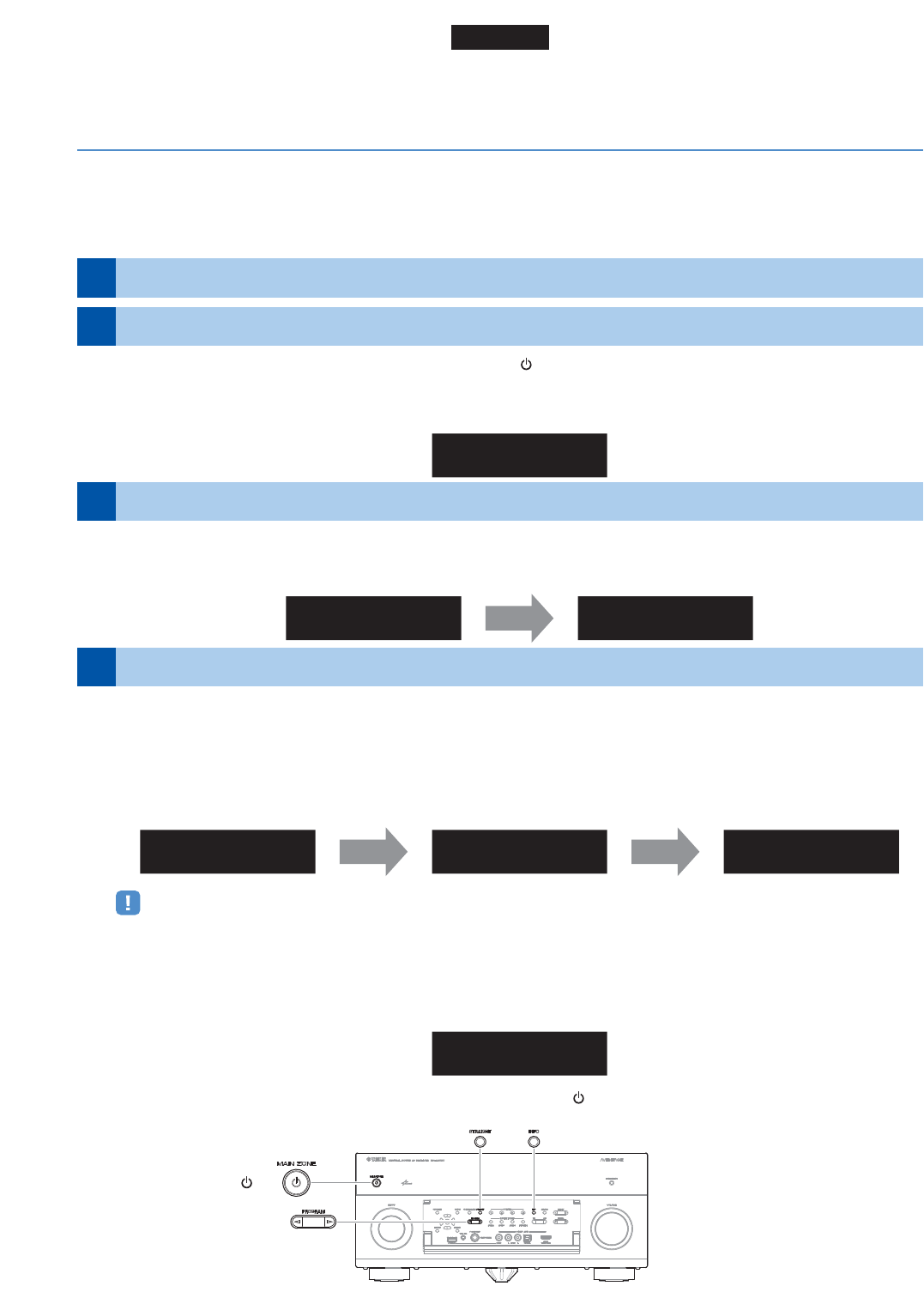
While pressing the STRAIGHT key, press the MAIN ZONE key and keep STRAIGHT key pressed until
“ ADVANCED SETUP ” appears on the front panel display.
* “
ADVANCED SETUP ” is displayed only for a few seconds.
a. Press the PROGRAM key until “ FIRM UPDATE USB ” is displayed.
b. Then, press STRAIGHT key until “ NETWORK ” is displayed.
a. Press INFO key to start the update.
(Update process may take up to 15 minutes)
* If “
UPDATE SUCCESS ” appears, this means your receiver is already up-to-date. In this case, power off to
exit from Advanced Setup. Your AV receiver is ready for normal use.
b. When completed, “ UPDATE SUCCESS ” appears on the display.
c. Turn off the power of the receiver by pressing the MAIN ZONE key.
Firmware update in progress
Power o the receiver (Standby mode)
Enter the ADVANCED SETUP mode
Select “FIRM UPDATE” from the menu
Start rmware update
1
2
3
4
ADVANCED SETUP
UPDATE SUCCESS
NETWORK UPDATE VERIFYING... Sx-x:xx%
Caution
DO NOT interrupt power during the update.
In case the power is accidentally cut off resulting in a condition where you can’t recover normal operation, refer
to the troubleshooting method (Troubleshooting CASE 2) on the last page.
RX-A3030
MAIN ZONE key
PROGRAM key
INFO keySTRAIGHT key
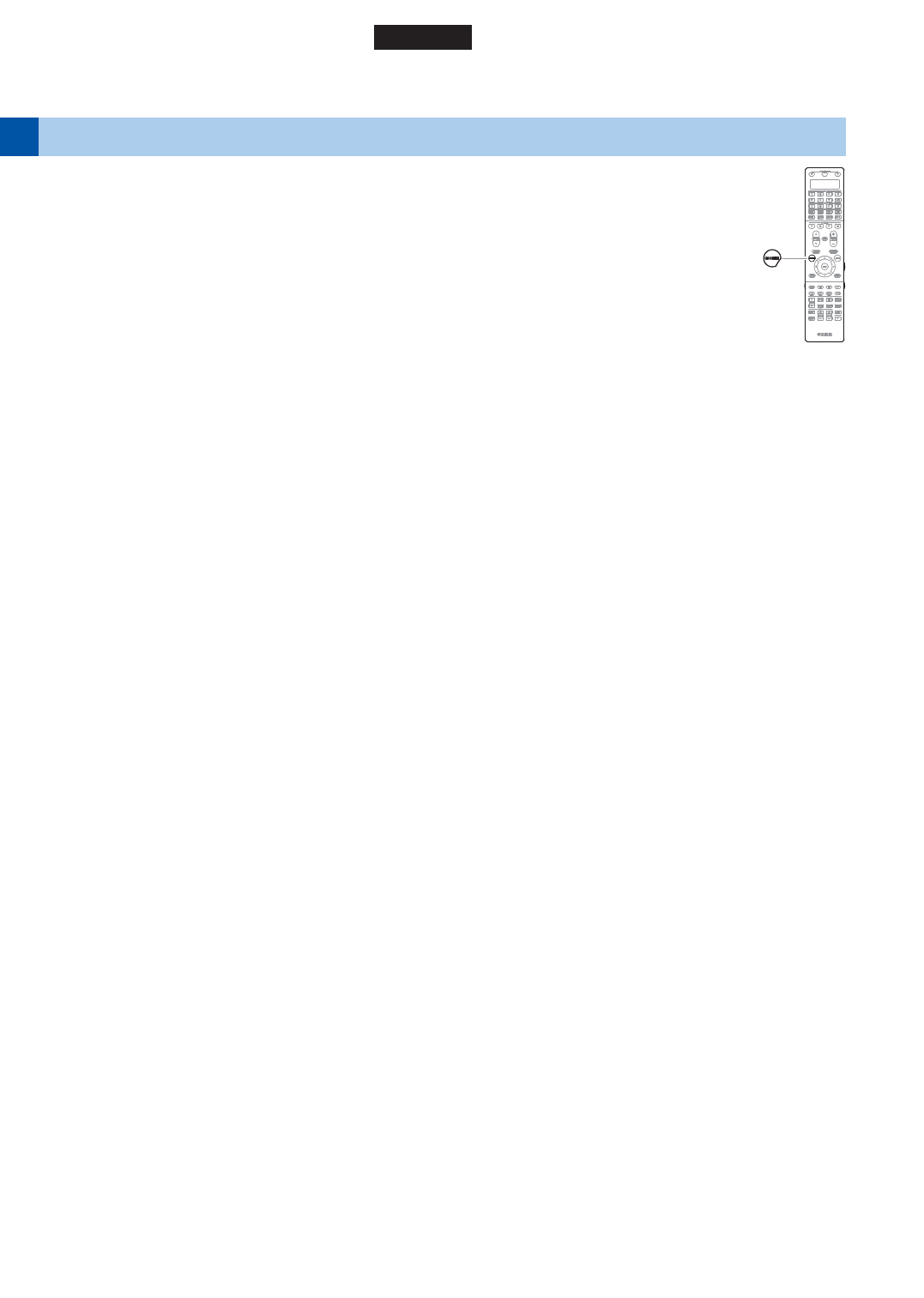
ON SCREEN key
a. Power on the AV receiver and press the ON SCREEN key on the remote control.
b. Select “Information” > “System”.
c. Confirm that the firmware version is updated to the latest version.
Check the updated rmware version5
Congratulations!
You have completed the firmware update. Your AV receiver is ready for normal use.
RX-A3030
Firmware Update by USB
Requirement: USB thumb drive, with enough free space to store over 25MB.
(File system with FAT16 or FAT32 format)
Firmware file provided by YAMAHA,”R0339-xxxx.bin”.
Prepare USB thumb drive for the update1
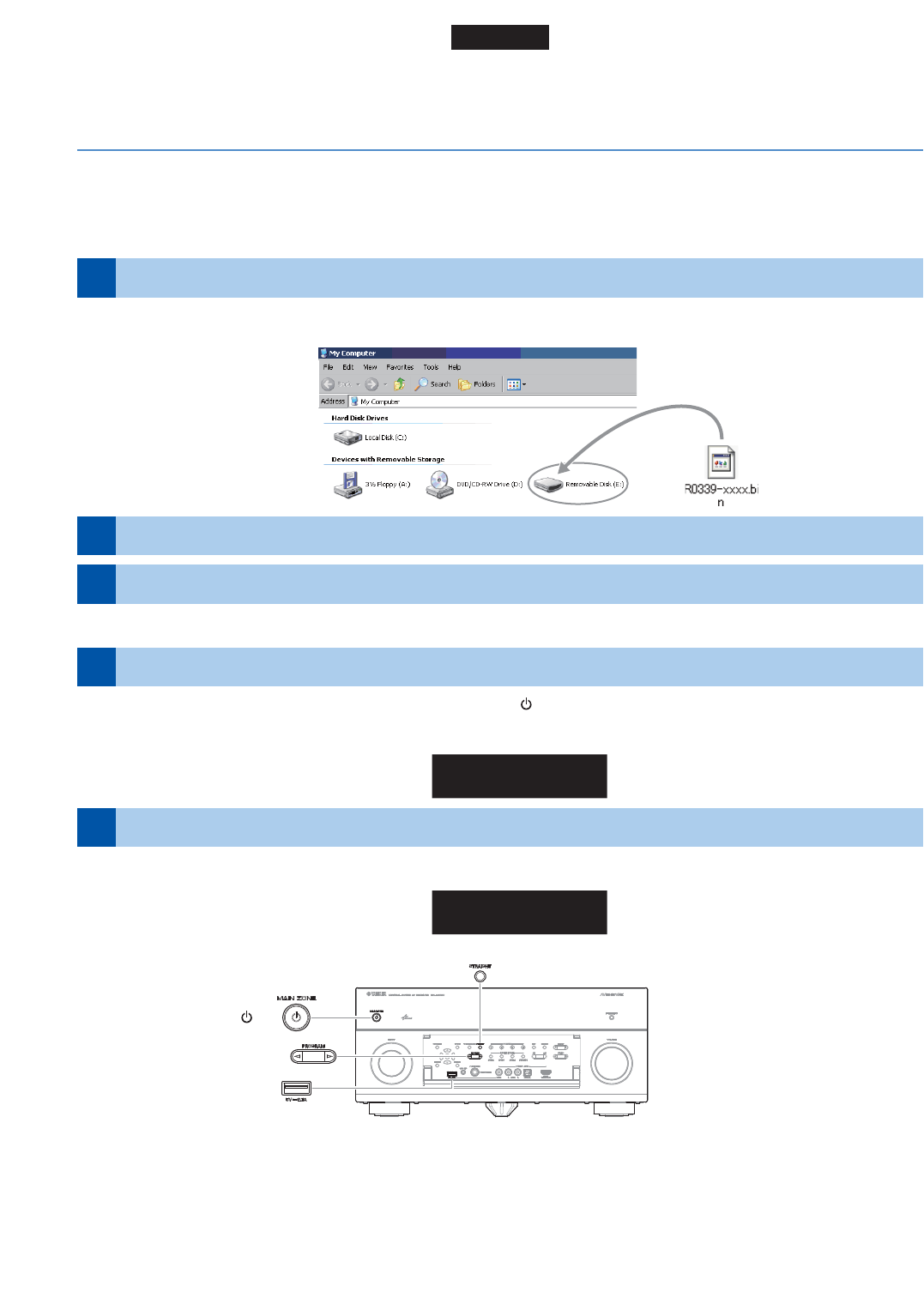
Download the firmware, unzip and copy “R0339-xxxx.bin” into the root directory of the USB thumb drive.
Insert the USB thumb drive
Power o the receiver (Standby mode)
3
2
USB port is located at the lower left corner of the front panel.
While pressing the STRAIGHT key, press the MAIN ZONE key and keep STRAIGHT key pressed until
“ ADVANCED SETUP ” appears on the front panel display.
Press the PROGRAM key until “ FIRM UPDATE USB ” is displayed.
Enter the ADVANCED SETUP mode
Select rmware update from the menu
4
5
ADVANCED SETUP
FIRM UPDATE
USB
RX-A3030
Drag & Drop the file into USB thumb drive.
USB port
MAIN ZONE key
PROGRAM key
STRAIGHT key
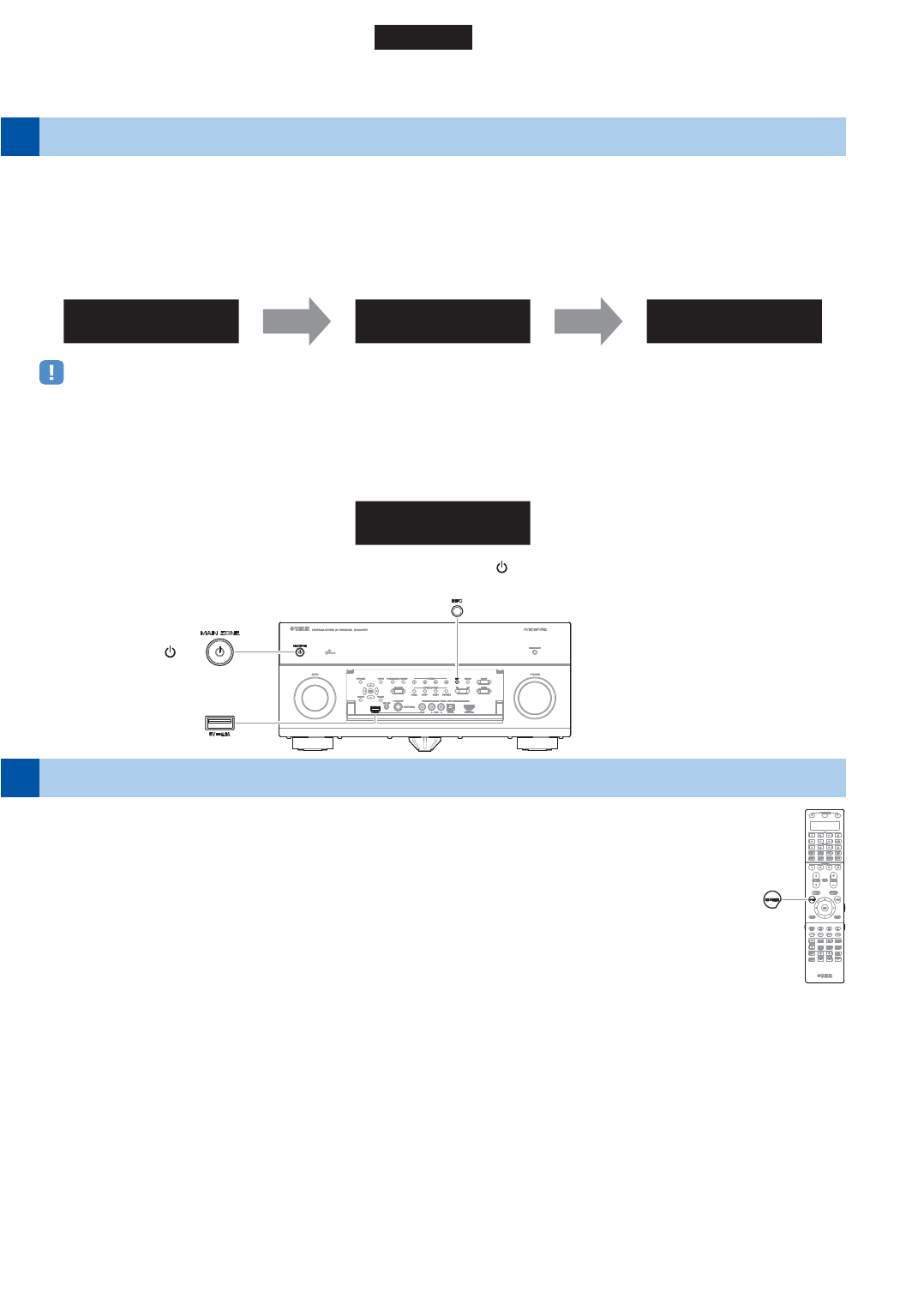
ON SCREEN key
a. Press INFO key to start the update.
(Update process may take up to 10 minutes)
* If “
UPDATE SUCCESS ” appears, this means your receiver is already up-to-date. In this case, power off to
exit from Advanced Setup. Your AV receiver is ready for normal use.
b. When completed, “ UPDATE SUCCESS ” appears on the display.
c. Turn off the power of the receiver by pressing the MAIN ZONE key.
Firmware update in progress
Start rmware update6
UPDATE SUCCESS
USB UPDATE VERIFYING... Sx-x:xx%
Caution
DO NOT interrupt power during the update.
In case the power is accidentally cut off resulting in a condition where you can’t recover normal operation, refer
to the troubleshooting method (Troubleshooting CASE 2) on the last page.
a. Power on the AV receiver and press the ON SCREEN key on the remote control.
b. Select “Information” > “System”.
c. Confirm that the firmware version is updated to the latest version.
Check the updated rmware version7
Congratulations!
You have completed the firmware update. Your AV receiver is ready for normal use.
RX-A3030
USB port
MAIN ZONE key
INFO key
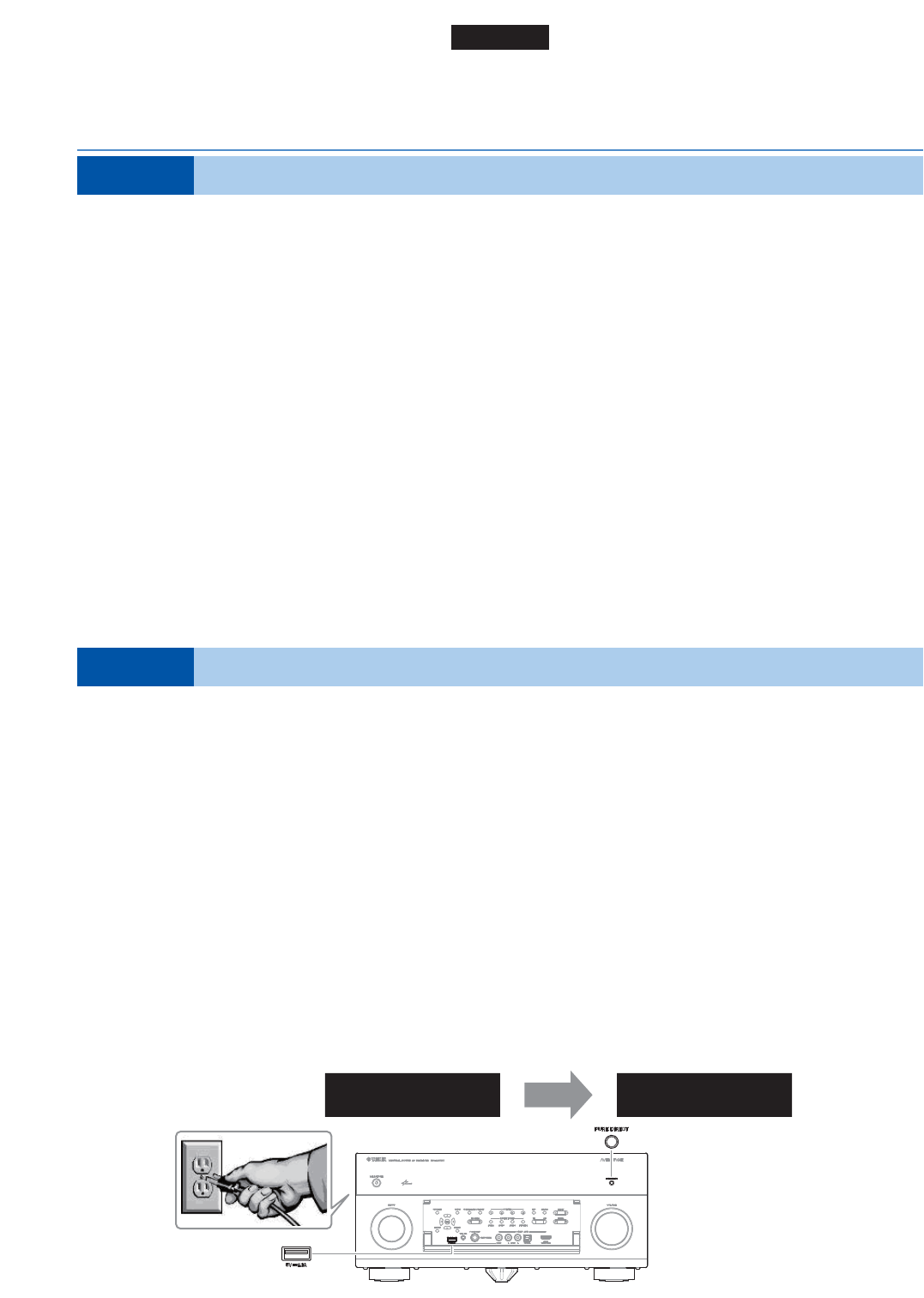
USB port
PURE DIRECT key
Troubleshooting
Cause: For some reason, the receiver can’t read the firmware data.
Method: For your solution, check the following
[Update through Internet]
❏ Check Internet connection.
Your Internet connection is working by playing an Internet radio station.
(See owner’s manual for details)
[Update by USB thumb drive]
❏ USB thumb drive is connected properly to the receiver.
❏ USB thumb drive is not password protected.
(AV receiver cannot read data from a security protected USB thumb drive)
❏ Make sure the USB thumb drive is inserted before the receiver is powered on for the
update.
❏ The firmware data, R0339-xxxx.bin is stored in the root directory of the USB thumb drive.
❏ There is no other data except the firmware data in the USB thumb drive.
❏ No folders are created in the USB thumb drive.
Else, retry the update by USB using another USB thumb drive.
Error message appeared during the updateCASE 1
● Receiver doesn’t power up after the update.
● Or, error message appeared when confirming the firmware version.
Recovery method using USB method:
1. Unplug the AC power cable from wall outlet.
2. Insert the USB thumb drive which has the firmware data stored inside, into the USB port
located on the front panel.
3. Press and hold the PURE DIRECT key and keep it pressed while you plug the AC
power cable back into the wall outlet again.
“ FIRM UPDATE USB ” will appear on the front display. Then, release the PURE
DIRECT key.
4. The update will start automatically.
5. When “
UPDATE SUCCESS ” appears on the display, firmware update is completed.
Power off the receiver and remove the USB thumb drive.
6. Confirm updated firmware version.
Firmware update doesn’t start for other reasonsCASE 2
FIRM UPDATE
USB UPDATE SUCCESS
RX-A3030
