Yamaha RX V371 Quick Reference Guide
User Manual: Yamaha RX-V371 Quick Reference Guide
Open the PDF directly: View PDF  .
.
Page Count: 8
PUSH
- 1 -
for North America
Quick Reference Guide
English
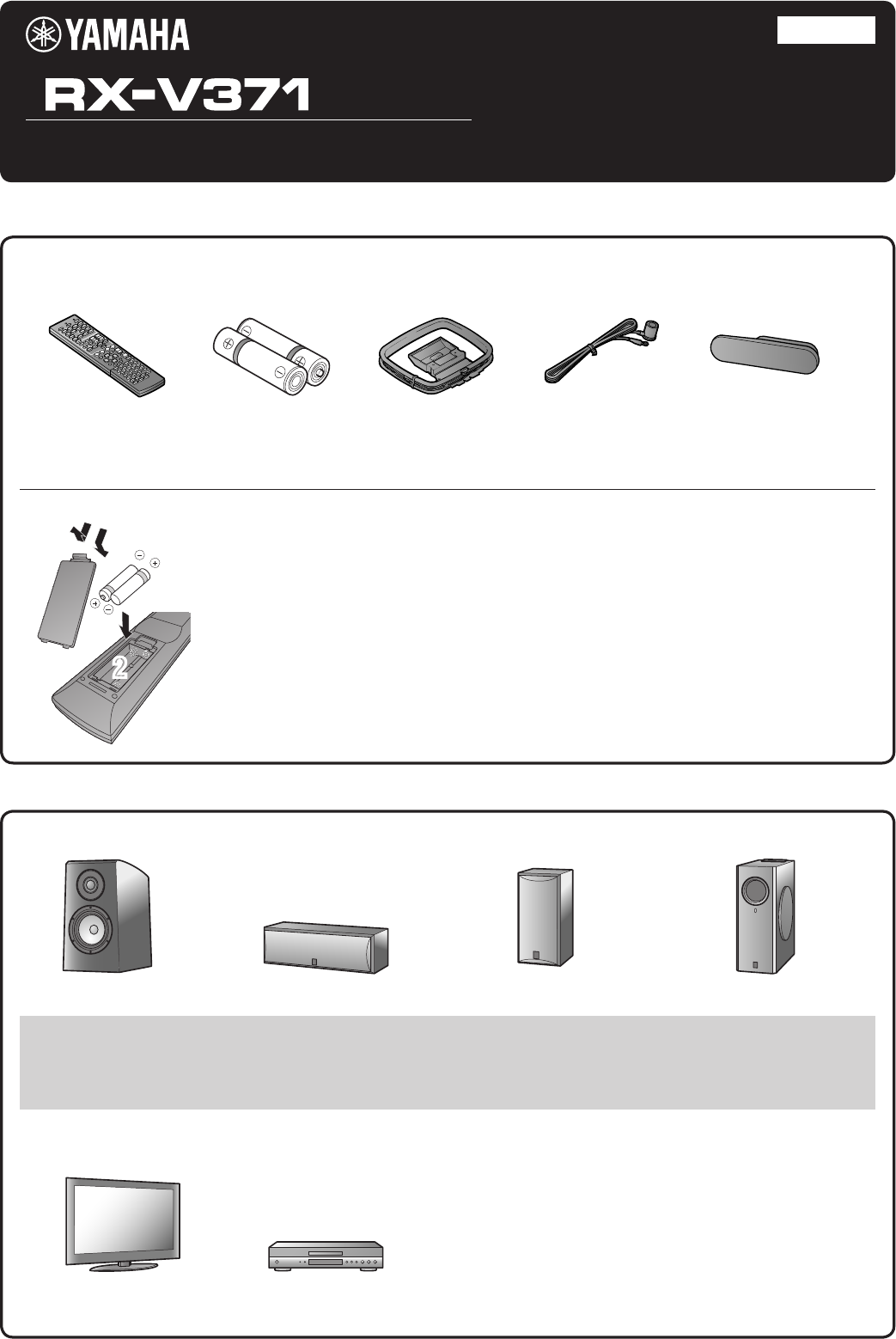
Preparing the remote control
1 Take off the battery compartment cover.
2 Insert the two supplied AAA batteries into the battery case, following the polarity
markings.
3 Snap the battery compartment cover back into place.
■
Accessories
■
Items necessary for connection
The following accessories are supplied with this product.
Speakers
External components Cable
• Cables for connecting external components
(may differ depending on the devices you are connecting)
• Speaker cables
(a quantity to match the number of speakers you are connecting)
• Audio pin cable
(for subwoofer)
Remote control
Front speaker
TV
Ex. Ex. Ex. Ex.
Playback device such as BD
(Blu-ray Disc)/DVD players
Batteries (2) (AAA, R03,
UM-4)
Center speaker
AM loop antenna
Surround speaker
Indoor FM antenna VIDEO AUX input cover
Active subwoofer
• Use speakers with an impedance of at least 6Ω.
• If you are using a CRT TV, we recommend that you use magnetically shielded speakers.
• Prepare at least two speakers (for front). The priority of the other speakers is as follows:
1 Two surround speakers
2 One center speaker
3
1
2
2
3
- 2 -
When connection and installation is nished, set up the speaker parameters
5
5 .
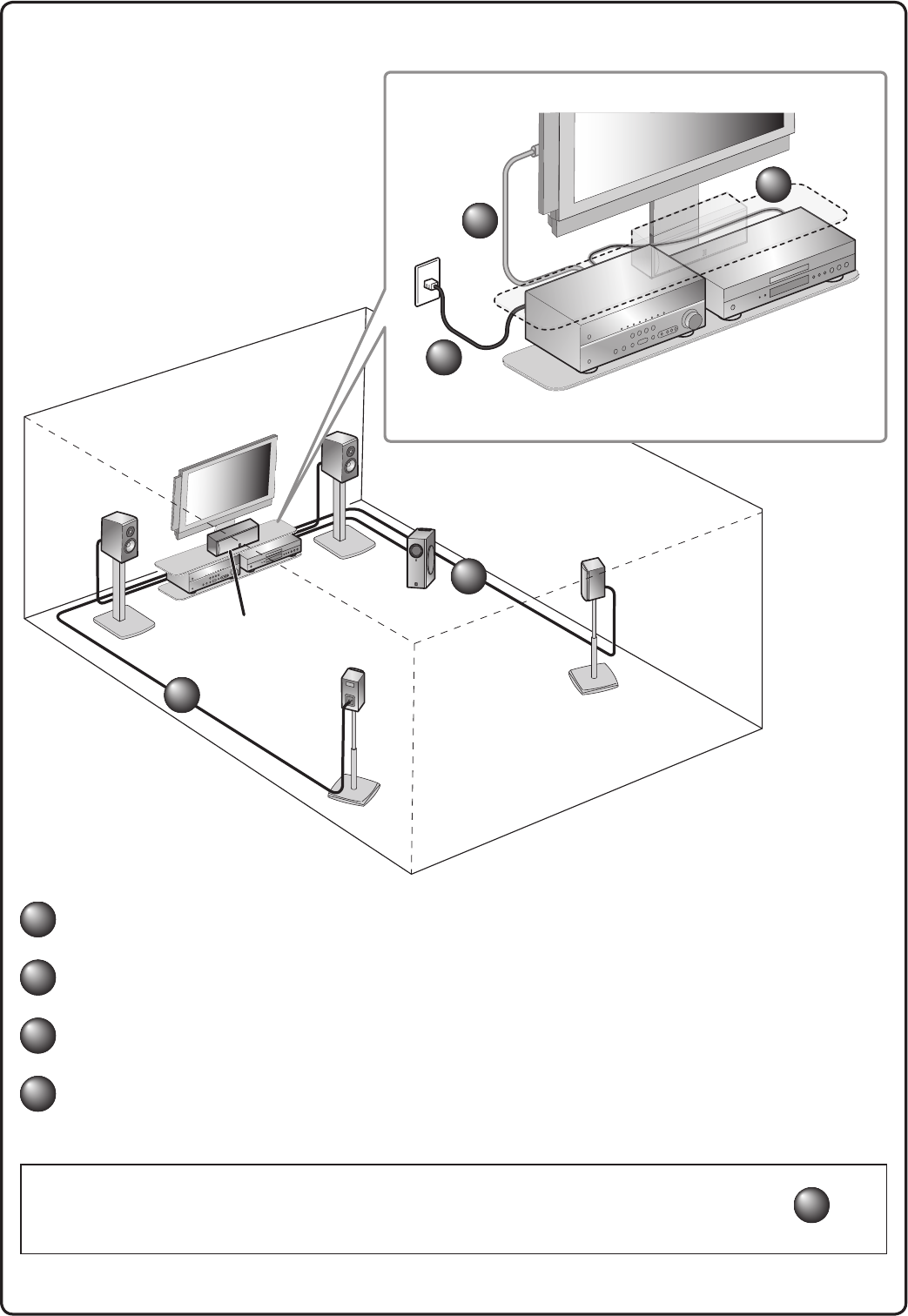
Connect and install as follows the rst time you use this unit.
See the following explanations for the connections for each number.
1
1 Connect the speakers
2
2 Connect a TV
3
3 Connect playback device such as BD/DVD players and recorders
4
4 Connect the AC power cord, and turn the power on
This unit
TV
Subwoofer
1
1
1
1
2
2
3
3
4
4
BD/DVD player
(recorder)
Center speaker
Surround
speaker R
Surround
speaker L
Front
speaker R
Front
speaker L
ANTENNA
FM
GND
AM
CENTER
SURROUND
FRONT
SUBWOOFER
SPEAKERS
- 3 -
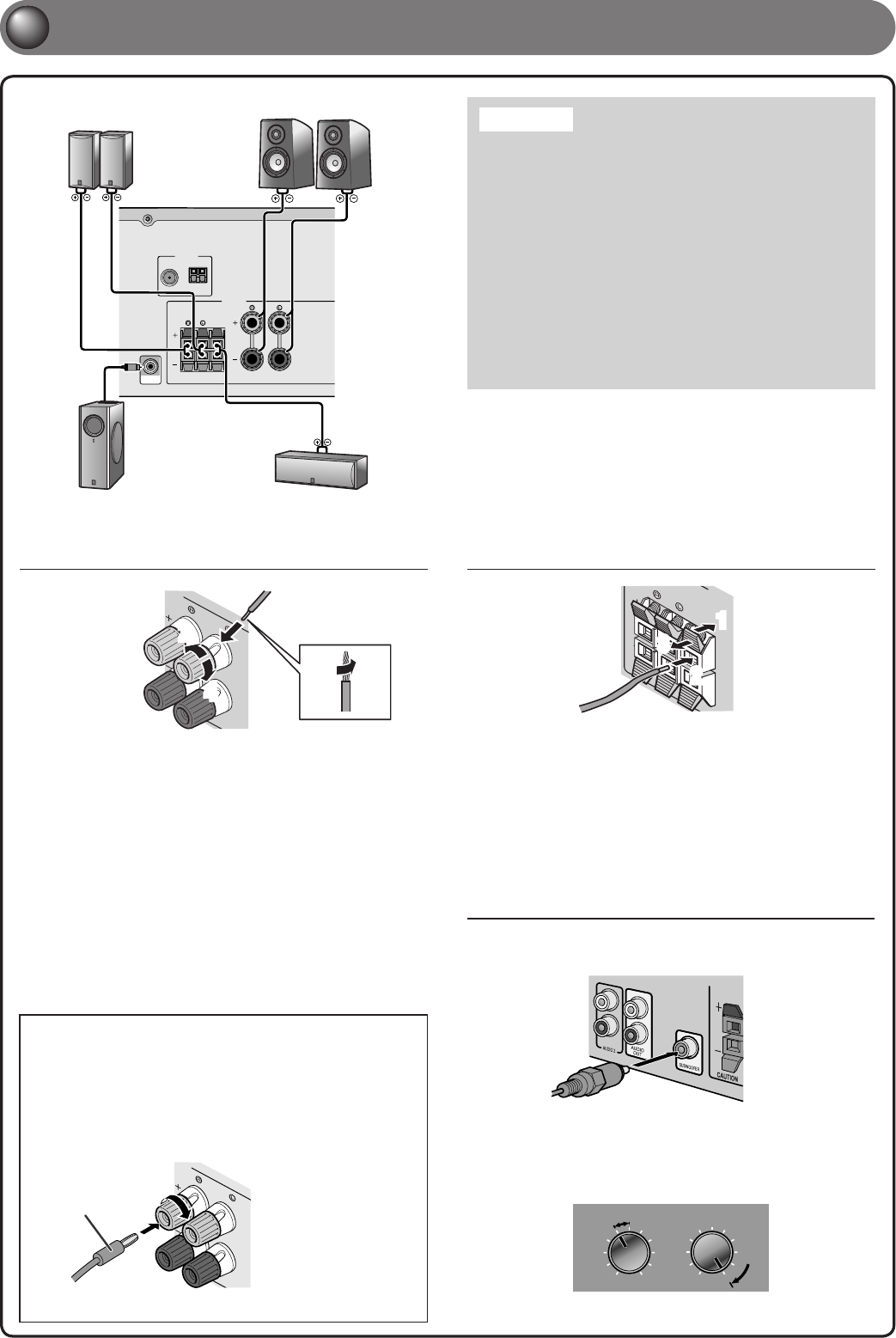
Connecting front speakers
FRONT
KERS
2
3
1
4
1 Remove approximately 10mm of insulation from
the ends of the speaker cables, and twist the bare
wires of the cables together rmly so that they will
not cause short circuits.
2 Loosen the speaker terminals.
3 Insert the bare wire of the speaker cable into the
gap on the side of the terminal.
4 Tighten the terminal.
Connecting the banana plug
(Except U.K., Europe, Asia and Korea
models)
Tighten the knob, and then insert the banana plug
into the end of the terminal.
Banana plug
FRONT
KERS
Caution:
• Remove the AC power cord of this unit from the power outlet
before connecting the speakers.
• Generally speaker cables consist of two parallel insulated
cables. One of these cables is a different color, or has a
line running along it, to indicate different polarity. Insert the
different colored (or lined) cable into the “+” (positive, red)
terminal on this unit and the speakers, and the other cable into
the “-” (minus, black) terminal.
• Be careful that the core of the speaker cable does not touch
anything or come into contact with the metal areas of this
unit. This may damage this unit or the speakers. If the speaker
cables short circuit, “CHECK SP WIRES!” will appear on the
front panel display when this unit is switched on.
• When connecting 6Ω speakers, set the speaker impedance to
6Ω on this unit before making connections. Refer to Owner’s
Manual for information on settings.
1
1 Connect the speakers
Connecting center speakers /
surround speakers
CENTER
SURROUND
SPEAKE
2
3
1
1 Press the tab on the speaker terminal down.
2 Insert the speaker cable end into the terminal.
3 Lift the tab to x the speaker cable in place.
Surround speaker
R L Front speaker
R L
Subwoofer Center speaker
Connecting the subwoofer
1
Connect the subwoofer input jack to the SUBWOOFER
jack on this unit with an audio pin cable.
2 Set the subwoofer volume as follows.
Volume: Set to approximately half volume (or slightly less than
half).
Crossover frequency (if available): Set to maximum.
Subwoofer examples
VOLUME
MIN MAX
CROSSOVER/
HIGH CUT
MIN MAX
- 4 -
2
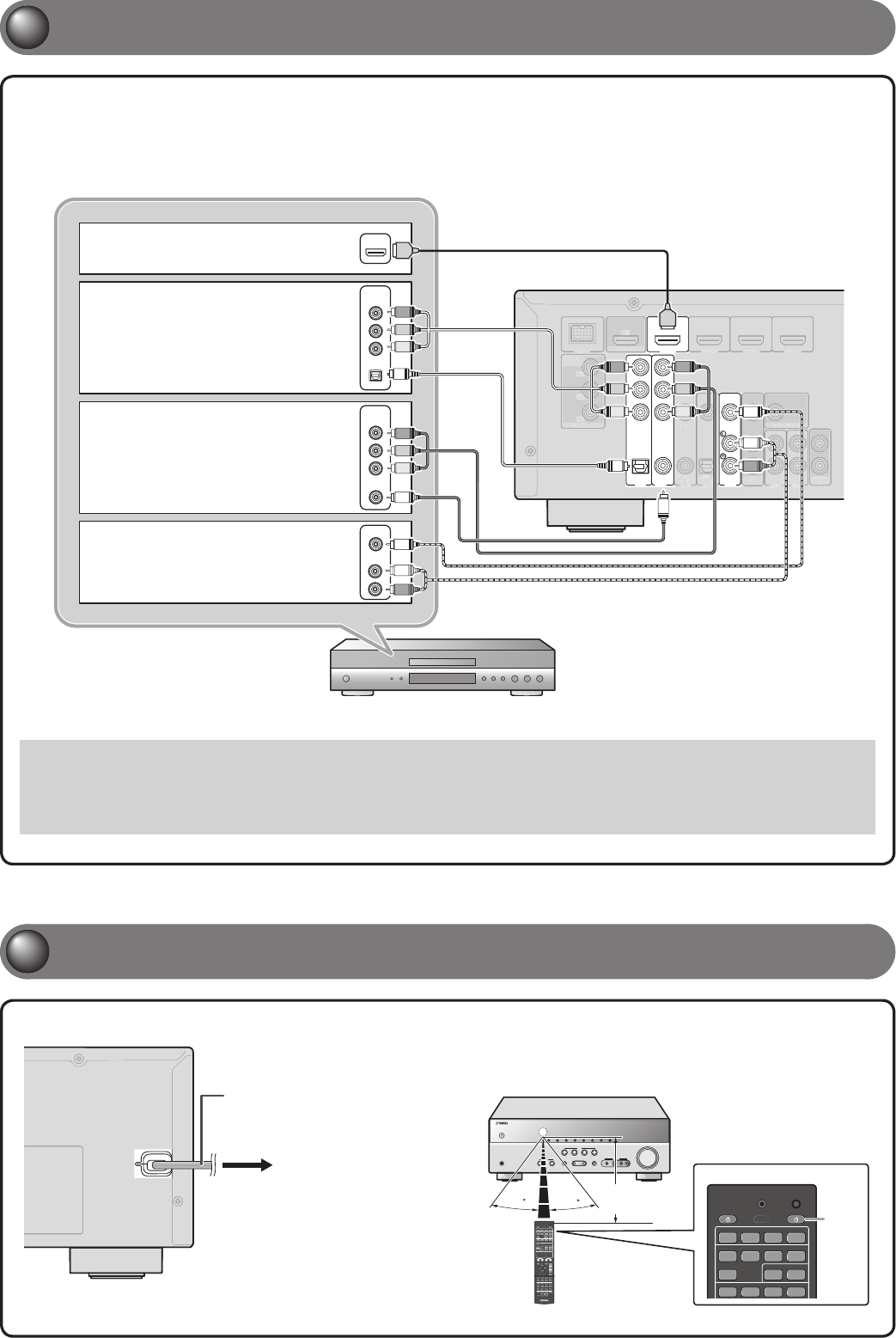
2 Connect a TV
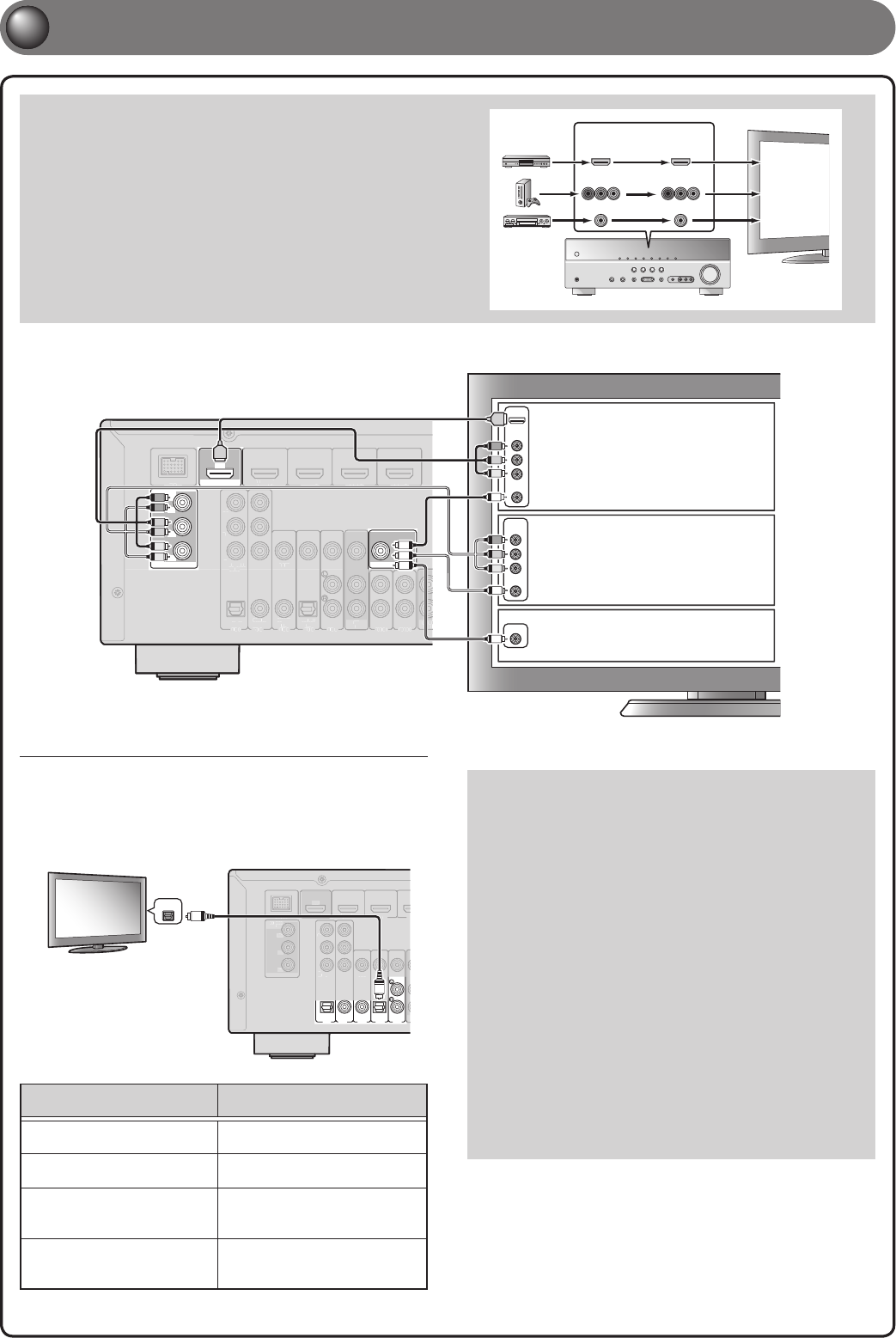
Video input to this unit is output to a TV using output jacks of the
same kind.
When you have made connections using different types of video
such as HDMI and component video, make the same connection
with your TV. When viewing, be sure to switch the input source on
your TV to match the playback device.
COMPONENT
VIDEO
HDMI
VIDEO
COMPONENT
VIDEO
HDMI
VIDEO
Input Output
HDMI input
Component
video input
Video input
If your TV has multiple inputs, connect with the following priority (A to C).
COMPONENT
VIDEO
P
R
P
B
Y
OPTICAL
( TV )
AV 1 AV 2 AV 3 AV 4 AV 5
AUDIO 1AUDIO 2
COAXIAL
(CD)
COAXIAL OPTICAL
AV
OUT
AUDI
OU
T
VIDEO
COMPONENT
VIDEO
HDMI
HDMI 1
(BD/DVD)
HDMI 2 HDMI 3
HDMI 4
OUT
MONITOR OUT
MONITOR OUT
P
R
P
B
Y
DOCK
C
O
M
P
O
N
E
N
T
V
I
D
E
O
P
R
P
B
Y
O
P
T
I
C
A
L
(
T
V
)
A
V
A
A
1
A
V
A
A
2
A
V
A
A
3
A
V
A
A
4
A
V
A
A
5
A
U
D
I
O
1
A
U
D
I
O
2
C
O
A
X
I
A
L
(
C
D
)
C
O
A
X
I
A
L
O
P
T
I
C
A
L
A
V
A
A
O
U
T
A
U
D
I
O
U
T
V
I
D
E
O
H
D
M
I
1
(
B
D
/
D
V
D
)
H
D
M
I
2
H
D
M
I
3
H
D
M
I
4
D
O
C
K
VIDEO
VIDEO
COMPONENT
VIDEO
VIDEO
COMPONENT
VIDEO
HDMI
V
V
V
V
P
B
Y
P
R
V
P
R
Y
V
Y
P
B
P
R
P
B
ARC
HDMI
HDMI
P
R
Y
P
B
A When using an HDMI
compatible TV.
B When using a component
video input-compatible TV.
C
When using a TV compatible
with video input only.
Listening to TV audio
To playback TV audio on this unit, connect the TV audio output to this
unit.
Connect the following input jacks, matching the audio output jacks on
your TV. When viewing your TV, select the appropriate input source on
this unit.
Audio
output
ARC
COMPONENT
VIDEO
PR
PB
Y
OPTICAL
( TV )
AV 1AV 2AV 3AV 4AV 5
COAXIAL
(CD)
COAXIAL OPTICAL
VIDEO
COMPONENT
VIDEO
HDMI
HDMI 1
(BD/DVD)
HDMI 2 H
OUT
MONITOR OUT
PR
PB
Y
DOCK
ARC
C
O
M
P
O
N
E
N
T
V
I
D
E
O
P
R
P
B
Y
V
I
D
E
O
C
O
M
P
O
N
E
N
T
V
I
D
E
O
H
D
M
I
H
D
M
I
1
(
B
D
/
D
V
D
)
H
D
M
I
2
H
O
U
T
M
O
N
I
T
O
R
O
U
T
P
R
P
B
Y
D
O
C
K
A
R
C
OPTICAL
O
O
Audio output from TV
Input jack on this unit
Optical digital output AV1 or AV4
Coaxial digital output AV2 or AV3
Analog output AV5, AUDIO1, AUDIO2, or
V-AUX
HDMI Audio Return Channel
(Described in the right column) HDMI OUT
✽Connecting to AV4 allows you to playback TV audio just by pressing
the “TV” under “SCENE” key.
When using an HDMI compatible TV that supports Audio
Return Channel functions and / or HDMI Control functions (Ex.
Panasonic VIERA Link), you can enjoy the TV sound on this unit
as follows:
When using a TV that supports the Audio Return
Channel functions and HDMI Control functions
The audio / video output from the unit to the TV and audio
output from the TV to the unit are possible using a single HDMI
cable.
The input source is switched automatically to match operations
carried out on the TV, and that makes TV sound control easier
to use.
For the connections and settings, refer to “Single HDMI cable
input to TV audio with Audio Return Channel function” in
Owner’s Manual.
When using a TV that supports HDMI Control functions
When HDMI Control functions are enabled on the unit, input
source can be switched automatically to match operations
carried out on the TV.
For the connections and settings, refer to “Switching the input
source on this unit automatically when listening to TV audio” in
Owner’s Manual.
- 5 -
3
3
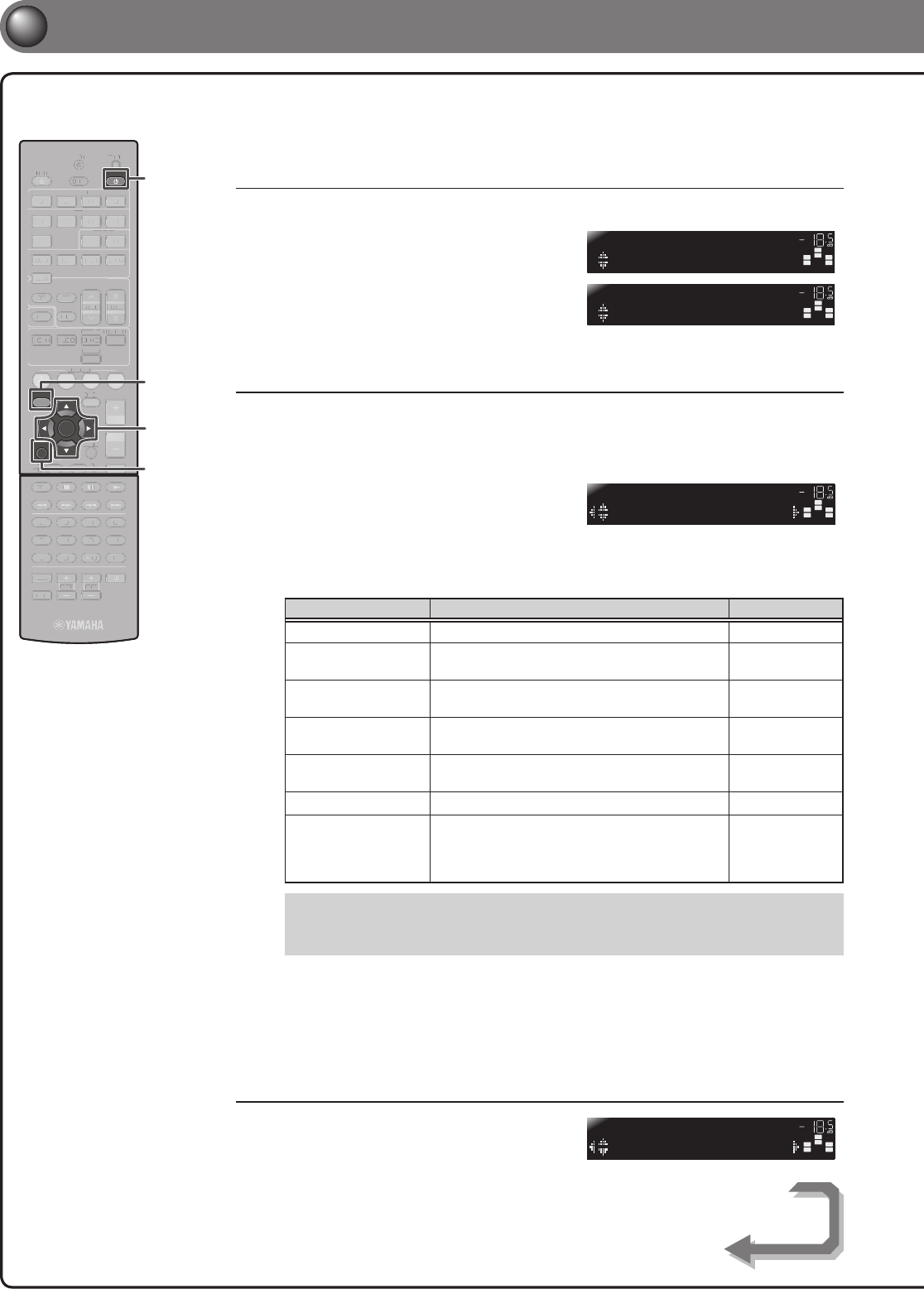
Connect playback device such as BD/DVD players and recorders
4
4 Connect the AC power cord, and turn the power on
• When playback, select the corresponding input source the jack is connected.
• Connecting to HDMI1 allows you to select the HDMI input just by pressing the “BD/DVD” under “SCENE” key.
• Connecting to AV3 allows you to select the AV3 input just by pressing the “CD” under “SCENE” key.
• If necessary, you can connect components that cannot be connected using the above methods, such as devices that output video from
component video output jacks and audio from analog output jacks. Refer to Owner’s Manual for details.
COMPONENT
VIDEO
P
R
P
B
Y
OPTICAL
( TV )
AV 1 AV 2 AV 3 AV 4 AV 5
AUDIO 1AUDIO 2
COAXIAL
(CD)
COAXIAL OPTICAL
AV
OUT
AUDI O
OUT
VIDEO
COMPONENT
VIDEO
HDMI
HDMI 1
(BD/DVD)
HDMI 2 HDMI 3
HDMI 4
OUT
MONITOR OUT
MONITOR OUT
P
R
P
B
Y
DOCK
ARC
(
T
V
)
A
V
A
A
3
A
V
A
A
4
A
U
D
I
O
1
A
U
D
I
O
2
(
C
D
)
C
O
A
X
I
A
L
O
P
T
I
C
A
L
A
V
A
A
O
U
T
A
U
D
I
O
O
U
T
V
I
D
E
O
C
O
M
P
O
N
E
N
T
V
I
D
E
O
H
D
M
I
H
D
M
I
2
H
D
M
I
3
H
D
M
I
4
O
U
T
M
O
N
I
T
O
R
O
U
T
M
O
N
I
T
O
R
O
U
T
P
R
P
B
Y
D
O
C
K
A
R
C
AUDIO
VIDEO
COMPONENT
VIDEO
COAXIAL
OPTICAL
COMPONENT
VIDEO
HDMI
HDMI
P
R
P
R
P
B
Y
P
R
Y
O
O
R
R
HDMI
Y
P
B
P
B
O
P
B
P
B
C
C
V
V
P
R
Y
Y
P
R
L
L
A When playback device is
capable of HDMI output
B When playback device is
capable of component video
output (with optical digital
audio output)
C When playback device is
capable of component video
output (with coaxial digital
audio output)
D
When playback device is
capable of video output (with
analog audio output) only
Be sure to aim the remote control directly at the remote control sensor
on this unit during operation.
RECEIVER
HDMI
AV
AUDIO
TRANSMIT
SLEEP
1234
1234
125
V-AUX
SOURCE
CODE SET
[ A ] [ B ] DOCK
30 30
Press
within
20 ft
AC power cord
To the power outlet.
If your playback device has multiple audio/video outputs, connect with the following
priority (A to D) to enjoy a higher quality sounds and images.
- 6 -
5
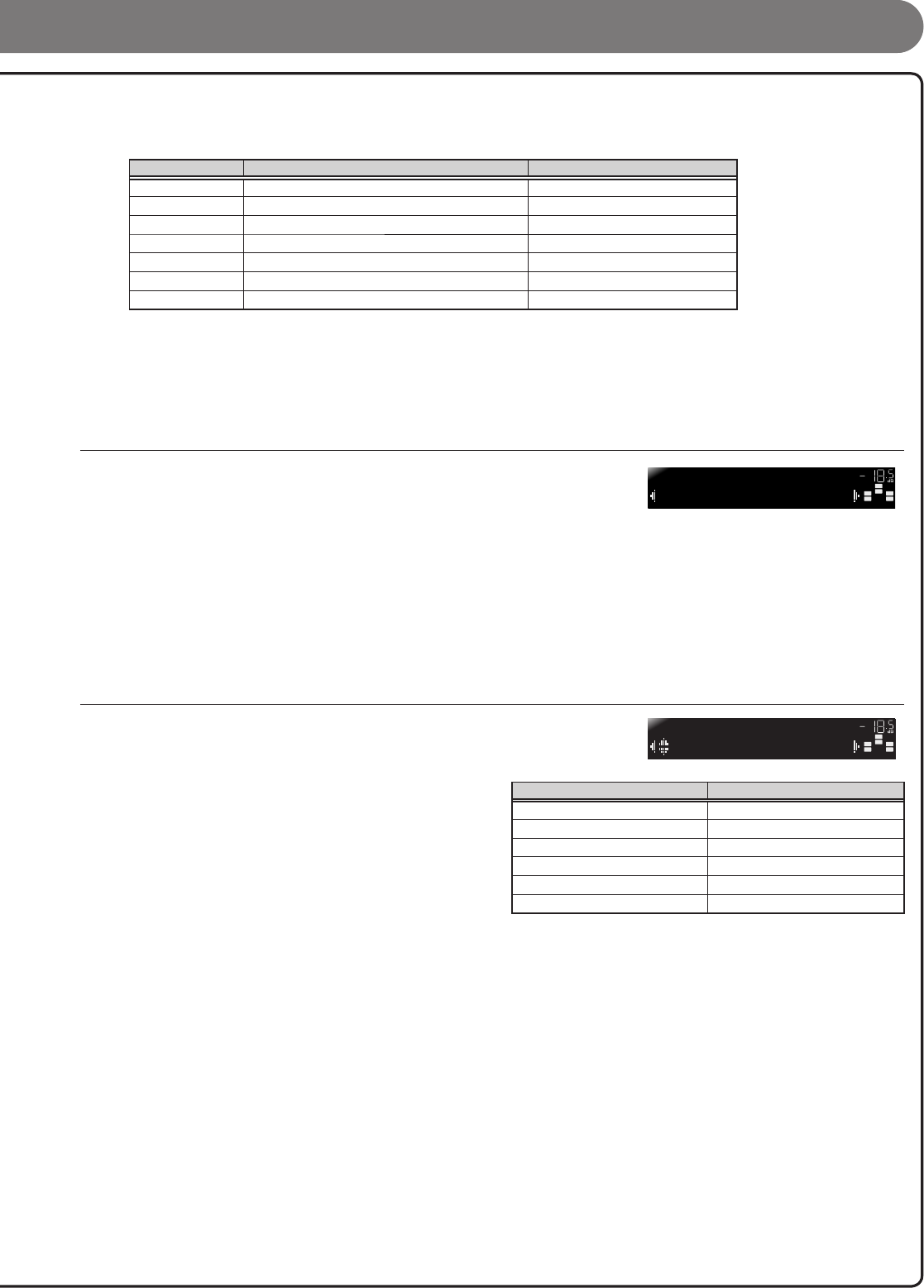
5 Set up speaker parameters
When you nish connecting, adjust the status, size, and volume
of each speaker so that the output is normal.
STEP 1: Display the setting menu
1 Press RECEIVER A on the remote control to switch this unit on.
2 Press SETUP on the remote control.
3 Check that “Speaker Setup” appears
and press ENTER.
This completes step 1.
STEP 2: Set the speaker status and size
The settings in step 2 are not necessary with the following speaker con guration:
• Front speaker: woofer diameter is 16 cm or larger
• Center/surround speakers: woofer diameter is 16 cm or smaller
• Subwoofer: connected
4 Check that “Con g” appears and
press ENTER.
5 Use Cursor B / C to select the speaker (subwoofer) you want to con gure,
and then use Cursor D / E to select speaker status and size.
Information Description Setting
Subwoofer Sets the subwoofer status. Yes/None
Front Selects the size (sound reproduction capacity) of
the front speakers. Small/Large
Center Selects the size of the center speakers. Choose
“None” if you do not have a speaker connected. None/Small/Large
Sur. LR Selects the size of the surround speakers. Choose
“None” if you do not have a speaker connected. None/Small/Large
Crossover Audio with a frequency below this limit will be
output from the subwoofer or the front speakers. 40 Hz to 200 Hz
SWFR Phase Switchs the phase of the subwoofer. NRM/REV
Extra Bass
Selects whether to play front channel
low-frequency components through either the front
speakers or the subwoofer (Off), or through both
the subwoofer and front speakers (On).
On/Off
• Whether or not you set “Crossover,” “SWFR Phase,” and “Extra Bass” is optional. Check
how the effects sound and then con gure them to your liking.
• Use the following as a guide when setting speaker sizes.
When you have completed the settings for one speaker, repeat the same procedure for all speakers
to complete settings.
6 Press RETURN when setting is complete.
This completes step 2.
STEP 3: Set the distance from the listening point
7 Press Cursor C to display “Distance”
and press ENTER.
RECEIVER
SCENE
OPTION
SETUP
RETURN
VOLUME
ENHANCER SUR. DECODE
STRAIGHT
HDMI
AV
AUDIO
TRANSMIT
SLEEP
1234
1234
125
V-AUX
TUNER
FM
INFO
MEMORY
AM
PRESET
TUNING
MOVIE MUSIC
STEREO
BD
DVD TV
CD
RADIO
MUTE
ENTER
7856
90
10
1234
REC
ENT
TV
TV VOL TV CH
TOP
MENU
POP-UP
MENU
DISPLAY
SOURCE
CODE SET
INPUT
MUTE
[ A ] [ B ] DOCK
7
8
5
6
9
0
1
0
1
2
3
4
R
E
C
E
N
T
T
V
T
V
V
O
L
T
V
C
H
I
N
P
U
T
M
U
T
E
S
C
E
N
E
O
P
T
I
O
N
V
O
L
U
M
E
E
N
H
A
N
C
E
R
S
U
R
.
D
E
C
O
D
E
S
T
R
A
I
G
H
T
H
D
M
I
A
V
A
A
A
U
D
I
O
T
R
A
N
S
M
I
T
S
L
E
E
P
1
2
3
4
1
2
3
4
1
2
5
V
-
V
V
A
U
X
T
U
N
E
R
F
M
I
N
F
O
M
E
M
O
R
Y
A
M
P
R
E
S
E
T
T
U
N
I
N
G
M
O
V
I
E
M
U
S
I
C
S
T
E
R
E
O
B
D
D
V
D
T
V
C
D
R
A
D
I
O
M
U
T
E
T
O
P
M
E
N
U
P
O
P
-
U
P
M
E
N
U
D
I
S
P
L
A
Y
A
A
S
O
U
R
C
E
C
O
D
E
S
E
T
[
A
]
[
B
]
D
O
C
K
SETUP
RECEIVER A
Cursor
ENTER
RETURN
SW
C
L
SL SR
R
Config
SP SET VOL.
SW
C
L
SL SR
R
Speaker Setup
SETUP VOL.
SW
C
L
SL SR
R
Subwoofer;;Yes
CONFIG VOL.
SW
C
L
SL SR
R
Unit;;;;;;feet
DIST VOL.
Continues to
the next page
- 7 -
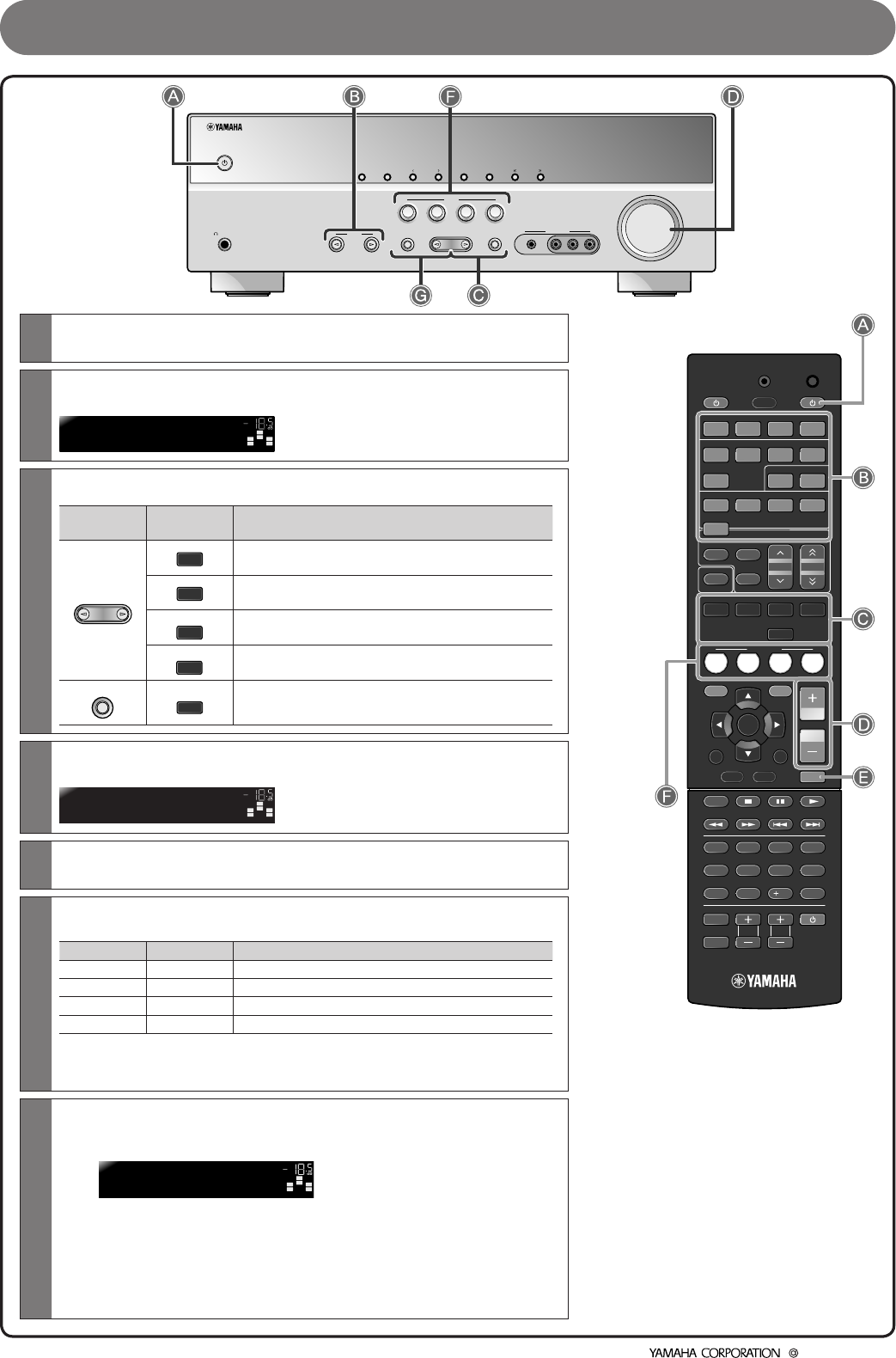
8 Press Cursor B / C to select the speaker (subwoofer) that you want to con gure, and press Cursor D / E
to set the distance.
If necessary, you can change the setting units under “Unit.”
Information Description Setting
Unit Switches between setting units (feet / meters). feet (ft) / meters (m)
Front L Front speaker L 1.0 ft to 80.0 ft (0.30 m to 24.0 m)
Front R Front speaker R 1.0 ft to 80.0 ft (0.30 m to 24.0 m)
Center Center speaker 1.0 ft to 80.0 ft (0.30 m to 24.0 m)
Sur. L Surround speaker L 1.0 ft to 80.0 ft (0.30 m to 24.0 m)
Sur. R Surround speaker R 1.0 ft to 80.0 ft (0.30 m to 24.0 m)
SWFR Subwoofer 1.0 ft to 80.0 ft (0.30 m to 24.0 m)
When you have completed the settings for one speaker, repeat the same procedure for all speakers to complete settings.
9 Press RETURN when setting is complete.
This completes step 3.
STEP 4: Playback a test tone
10 Press Cursor C repeatedly to display “Test Tone” and press ENTER.
11 Use Cursor D / E to select “On.”
A test tone plays back from the speakers as soon as you select “On.” The test tone plays back in a clockwise fashion. Only speakers
con gured for use in procedure 5 output the test tone.
12 Check that the test tone is playing back and press RETURN.
This completes step 4.
STEP 5: Adjust the volume
13 Press Cursor B repeatedly to display “Level” and press ENTER.
14 Use Cursor B / C to switch the speaker that is
outputting the test tone, looking for speakers with
a different volume level to the others.
The front panel display shows the speaker that is outputting
the test tone.
Only speakers con gured for use in procedure 5 output the
test tone.
15 If you nd a speaker with a different volume level to the others, use Cursor D / E to adjust the volume. Use
Front speaker L or R as a default when adjusting volumes.
To raise the volume: Press Cursor E.
To lower the volume: Press Cursor D.
16 Repeat steps 14 and 15 to adjust the volume balance for all speakers to your preference.
17 Press RETURN when setting is complete.
Return to the previous menu.
This completes step 5.
18 Repeat procedures 10-12 (step 4) to stop playback of the test tone.
19 Once you have completed all settings, press SETUP to close the Setup menu.
SW
C
L
SL SR
R
FL----d----
d
LEVEL VOL.
SW
C
L
SL SR
R
>Off On
TEST VOL.
Information Speakers
FL Front speaker L
FR Front speaker R
CCenter speaker
SL Surround speaker L
SR Surround speaker R
SWFR Subwoofer
- 8 -
RECEIVER
SCENE
OPTION
SETUP
RETURN
VOLUME
ENHANCER SUR. DECODE
STRAIGHT
HDMI
AV
AUDIO
TRANSMIT
SLEEP
1234
1234
125
V-AUX
TUNER
FM
INFO
MEMORY
AM
PRESET
TUNING
MOVIE MUSIC
STEREO
BD
DVD TV
CD
RADIO
MUTE
ENTER
7856
90
10
1234
REC
ENT
TV
TV VOL TV CH
TOP
MENU
POP-UP
MENU
DISPLAY
SOURCE
CODE SET
INPUT
MUTE
[ A ] [ B ] DOCK
Operation guide
ASwitches this unit between on and standby modes
This unit switches between on and standby mode every time you press this key.
BChoose an input source to listen to
The name of the selected input source appears on the front panel display.
SW
C
L
SL SR
R
HDMI1
VOL.
CSelect sound eld programs and sound decoders
Front
panel Remote
control Description
PROGRAM
MOVIE
Selects sound eld programs optimized for viewing
movies, dramas, and sports.
MUSIC
Selects sound eld programs optimized for
appreciating music.
ENHANCER
STEREO
Selects settings for stereo playback or enhancers for
compressed audio.
SUR. DECODE
Selects surround decoders such as Dolby Pro Logic II.
STRAIGHT
STRAIGHT
Switches to straight decoding mode for faithful
reproduction of audio / video.
DAdjusts the volume level
The current volume level is displayed on the front panel display.
SW
C
L
SL SR
R
Volume -18.5dB
VOL.
EMutes the sound
The indicator blinks while the sound is muted.
FSwitches between input settings
You can switch input sources and sound eld programs with a single key.
SCENE Input Sound field program
BD/DVD HDMI 1 STRAIGHT
TV AV4 STRAIGHT
CD AV3 STRAIGHT
RADIO TUNER 5ch Enhancer
- Pressing and holding this key allows you to store input sources/sound eld
programs.
- Press this key when this unit is in standby mode to switch on the unit.
GAdjusting high/low-frequency sound (Tone control)
1 Press TONE CONTROL to select “Treble” or “Bass.”
SW
C
L
SL SR
R
TONE
Treble 0.0dB
VOL.
2 Press PROGRAM l / h to increase the setting.
- You can set the tone control for speakers and headphones separately. Connect
the headphones when adjusting the headphone tone control.
- If you set an extreme tone balance, sounds may not match those from other
channels.
VIDEO
AUX
PHONES
SILENT
CINEMA
TONE
CONTROL
STRAIGHT
VOLU ME
TV
BD
DVD
CD
RADIO
INPUT PROGRAM
SCENE
VIDEO
AUDIO
PORTABLE
INFO
MEMORY
PRESET
FM AM
TUNING
© 2011 Yamaha Corporation YD282A0/QREN1
