Yamaha THR HD_H Utility Operation Manual Manual_EN HD H OM E Web
User Manual: Yamaha THR HD_H Utility Manual_EN
Open the PDF directly: View PDF  .
.
Page Count: 12

THR HD_H Utility Operation Manual 1
THR HD_H Utility
Operation Manual
Special Notices
• ThesoftwareandthisOperationManualaretheexclusivecopyrightsofYamahaCorporation.
• CopyingofthesoftwareorreproductionofthisOperationManualinwholeorinpartbyanymeansisexpressly
forbiddenwithoutthewrittenconsentofthemanufacturer.
• Yamahamakesnorepresentationsorwarrantieswithregardtotheuseofthesoftwareanddocumentationandcan-
notbeheldresponsiblefortheresultsoftheuseofthisOperationManualandthesoftware.
• ForinformationaboutthelatestinformationofTHRHD_HUtility,checkthewebsitebelow.
http://download.yamaha.com/
• ThescreendisplaysasillustratedinthisOperationManualareforinstructionalpurposes,andmayappearsomewhat
differentfromthescreenswhichappearonyourcomputer.
• CopyingofthecommerciallyavailablemusicaldataincludingbutnotlimitedtoMIDIdataand/oraudiodataisstrictly
prohibitedexceptforyourpersonaluse.
• WindowsisaregisteredtrademarkofMicrosoft®CorporationintheUnitedStatesandothercountries.
• Apple,MacandMacintosharetrademarksofAppleInc.,registeredintheU.S.andothercountries.
• ThecompanynamesandproductnamesinthisUpdateManualarethetrademarksorregisteredtrademarksoftheir
respectivecompanies.
• Futureupgradesofapplicationandsystemsoftware(e.g.,firmwareoftheproducts)andanychangesinspecifica-
tionsandfunctionswillbeannouncedatthefollowingwebsite.
http://download.yamaha.com/
ThisInstallationGuideassumesthatyouarealreadyfamiliarwithbasicWindows/Macintoshoperations.Ifyou
arenot,pleaserefertotheowner’smanualwhichcamewithyourWindows/MacOSsoftwarebeforeusingthe
THRHD_HUtility.
Forinformationonsoftwareandhardwarerequirementsandtheinterconnectionofdevicesthatarerequiredto
usetheTHRHD_HUtility,pleaserefertotheOwner’sManualthatcamewithyourTHR100HD/THR100H.
ThescreenillustrationsinthismanualaremainlytakenfromWindows(withtheTHR100HDconnected).Differ-
encesthatexistintheMacintoshversionaredulyshownandexplained.
What is the THR HD_H Utility?
TheTHRHD_HUtilityisasoftwareapplicationthatletsyoufreelyadjustonacomputerthefollowing
settings,whicharenotavailableascontrollersorswitchesonthecontrolpaneloftheTHR100HDor
THR100Hamplifier.Theamplifier’sinternalsettingscanbeoverwrittenwiththesettingsspecifiedonthe
computer,allowingtheamplifiertobesetupwithcustomspecifications.
• Internalboostertype(3types)
• Serial/parallelconnectionforeffectloop
• Internalreverbtype(4types)
• Noisegatesetting
• Speakersimulationsetting
• Switchthesignalpath(Separate/Mixed)oftheEFFECTLOOPSEND/RETURN.

THR HD_H Utility Operation Manual 2
What is speaker simulation using impulse response?
ImpulseResponse,or“IR,”isastate-of-the-artspeakersimulationtechnologythatimprovesonprevious,
lessrealisticsimulationsthatreliedonfairlysimplerecreationsoftheEQfrequencycurvesofspecific
speakers.Atheart,IRisarecordingandanalysisofasystem’soutputwhenaveryshortinputsignal
calledanimpulseisreleasedintoacabinet.Thiscreatesadigitalpictureofthecabinet’slinearcharac-
teristicssuchasfrequencyandphaseresponse,phasecancellationbetweenmultiplespeakers,edge
reflectionsandotheraudiblesignaturesofthecabinet’sconstruction.IRtechnologyissoaccuratethat
itispossibletodistinguishbetweenspecificcabinetmodels,themicrophonesusedtocapturetheIR
image,andevendifferentroomtypeswiththesamemicrophone/cabinetsetup.Additionally,IRdoesnot
introducenon-lineardistortionorcompressioncharacteristics.
The benefits of using IR
Thistechnologyoffersawealthofbenefitsovertraditionalcabinetmic-ingandprevioussimulationtech-
niques,givingplayersaccesstoawealthofoptionstocrafttheiridealsoundwithgearandacoustic
spacecharacteristicsthatmightotherwisebeunavailabletothem.Theabilitytorunincompletesilence
meansthatyoucanuseIRwithheadphonesinyourhomeinsteadofarecordingstudiotorecordguitars
thatsoundliketheyhavebeenpassedthroughspeakercabinetsathighvolume.IRalsooffersimmense
benefitsinalivesetupbecausetherigisfeedingdirectlyintothesoundsystem,effectivelyeliminating
feedbackfromotherinstrumentsormicrophones,whilegivingyoumorecontrolofyouroveralltone.It
alsoreducestime-consumingmicrophoneplacementandsetuptime,ultimatelyallowingyoutorepro-
duceyoursoundwithgreaterprecisionateachnewvenue.Additionally,theabilitytoplugdirectlyintoa
mixerallowsclearersoundtobesenttomonitorspeakersandin-earmonitors,providingabettermoni-
toringenvironmentonstage.
OwnHammerisathirdpartyimpulseresponsedeveloperthatprovidespremiumIRcontentin.wav
fileformat.Thelibrariesofferedcoveralargerangeofvintageandmoderncabinetandspeaker
combinations,sampledwiththebestoutboardgear,usingthemostmodernsamplingtechniques,
andincludetime-testedmicrophoneandmicrophonecombinationstaplesusedtheworldoverby
highprofileengineersandproducersandhomeusersalikeforbothlivesoundandstudiorecord-
ing.Theselibrariesoffermultiplespeakertypespercabinet,individualmicsinmultipleplacement
positions,aswellaspre-mademulti-micandmulti-speakermixesbuiltaroundtechniquesusedon
internationallyacclaimedrecordsinvariousmusicstyles.Thewidearrayofcabinets,speakers,
mics,andmixesavailableenableincredibleamountsoftonalpossibilities,flexibility,customization,
individuality,andreplicationofguitartonehistory’sclassicsounds.Formoreinformationandprod-
uctlistings,pleaseseetheOwnHammerwebsiteatwww.ownhammer.com/free/cab-irs,whereyou
cantryafullyfeaturedFREElibrarytostartyourjourneyincreatingthesoundthatmovesyou.
THR HD_H Utility Operation Manual 3
Installing the THR HD_H Utility
1. Downloadthelatestversionofthe“YamahaSteinbergUSBDriver”fromthefollowingwebsite,and
theninstallitonyourcomputer.
http://download.yamaha.com/
* Version1.9.3orlateriscompatiblewiththeTHR100HD/THR100H.
2. Downloadthe“THRHD_HUtility”fromthefollowingwebsite,andthenunzipthecompressedZIPfile.
http://download.yamaha.com/
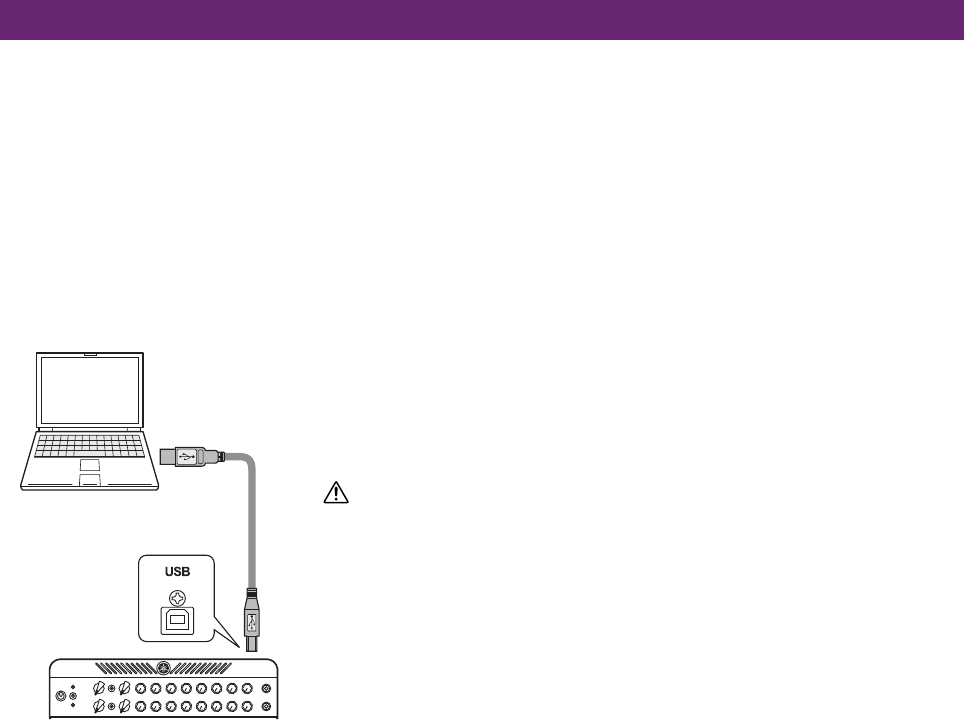
3. ConnectacommerciallyavailableUSBcabletotheUSBjacksoftheTHR100HD/THR100Handthe
computer.
Precautions in regard to using the USB jack
Makesureyoufollowthepointsbelowwhenconnectingacomputertothe
THRUSBjack.FailingtodosomayresultinthecomputerortheTHRfreezing
orshuttingdown,aswellascorruptionorevenlossofdata.Ifthedeviceor
computerdoesfreeze,restarttheapplicationorcomputer.
CAUTION
• UseonlyanABtypeUSBcablelessthanthree(3)metersinlength.USB3.0
cablesarenotcompatible.
• WithoutusingaUSBhub,directlyconnectthecomputerandTHR100HD/THR100H.
• Besuretowakethecomputerfromsuspended/sleep/standbymodebefore
connectingacomputertotheUSBjack.
• Alwaysquitallapplicationsthatarerunningonthecomputerbeforeconnecting
ordisconnectingtheUSBcable.
• Waitatleast6secondsbetweenconnectingordisconnectingtheUSBcable.
• Connectingtheampliertoacomputermayblockthecomputer’ssoundinput/
output.Switchtoanotherdeviceasneeded.
4. Double-clickthe“THRHD_HUtility”installericontostartit.
Thenamesoftheinstallersforeachoperatingsystemarelistedbelow.
• EnglishversionofWindowsinstaller .......... THR_HD_H_Utility_setup.exe
• JapaneseversionofWindowsinstaller ...... THR_HD_H_Utility_setupJ.exe
• Macinstaller(JapaneseandEnglish) ......... THR-HD-H-Utility.pkg
5. Followtheon-screeninstructionstoinstallthe“THRHD_HUtility”.
The“THRHD_HUtility”isinstalledatthefollowinglocationforeachoperatingsystem.
• ForWindows(32-bit) .........C:\ProgramFiles\Yamaha\THRHD_HUtility.exe
• ForWindows(64-bit) .........C:\ProgramFiles(x86)\Yamaha\THRHD_HUtility.exe
• ForMac .............................../Applications/THR HD_H Utility.app
TheincludedIRdata,installedatthesametimeasthe“THRHD_HUtility”,isinstalledatthefollow-
inglocation.
• ForWindows ......................C:\Users\<User account name>\Music\THR
• ForMac ...............................Users/<User account name>/Music/THR
Thiscompletestheinstallation.
AfterturningontheTHR100HD/THR100H,startthe“THRHD_HUtility”.
THR HD_H Utility Operation Manual 4
THR HD_H Utility Settings screens
WhentheTHRHD_HUtilitystarts,theconnectedamplifier(THR100HDorTHR100H)isautomatically
detected,andthenasettingsscreenforthecorrespondingampappears.
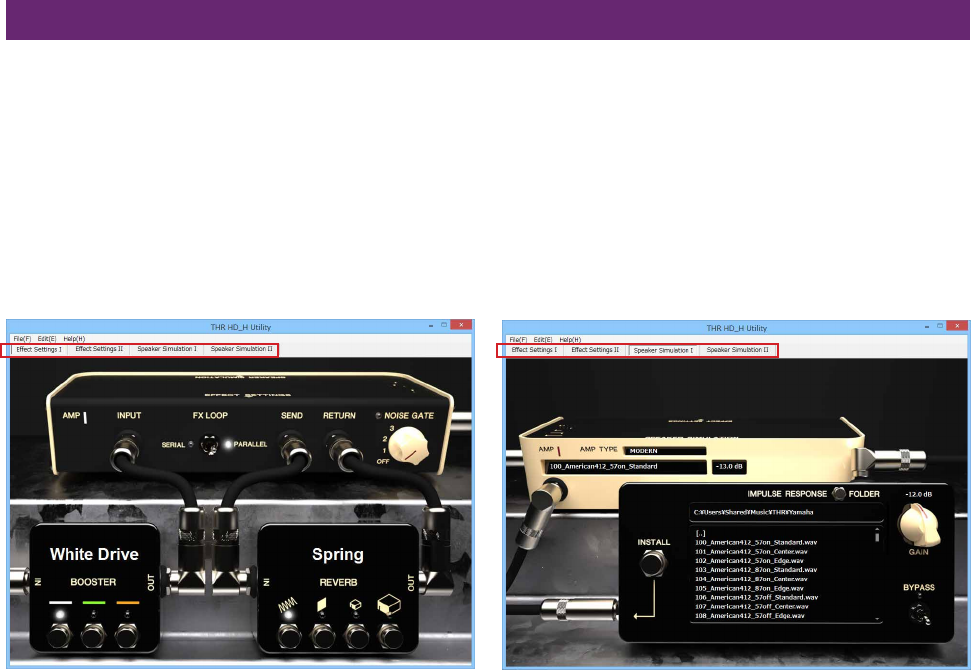
TheTHRHD_HUtilityhastwosettingsscreens(EffectSettingsandSpeakerSimulation),andthereis
onesettingsscreenforeachamplifierchannel(IandII)withtheTHR100HD.
Selectthedesiredsettingsscreenbyclickingthecorrespondingtabatthetopofthewindow.
lEffectSettingsscreen
•THR100HD:EffectSettingsI/II
•THR100H:EffectSettingsI
l Speaker Simulation settings screen
•THR100HD:SpeakerSimulationI/II
•THR100H:SpeakerSimulationI
n THR HD_H Utility Operations
• Clickaswitchinthewindowtoswitchthesettingonoroff(theindicatorlightswhen
switchedon).
• Eachcontrolknobcanbeadjustedbyclickingtheknobinthewindow,thenmovingthe
pointer.Youcanalsosettheknobbyclickingthedesiredpositionoftheknob.
• WhensettingsarechangedintheTHRHD_HUtility,thatinformationissentinreal-timeto
theTHR100HD/THR100HthroughtheUSBcableandreflectedontheamplifier.Likewise,
setting changes made with the THR100HD/THR100H control knobs are reflected in the THR
HD_H Utility window.
• SettingschangedintheTHRHD_HUtilityaresavedintheTHR100HD/THR100H,evenafter
quitting the THR HD_H Utility or turning off the THR100HD/THR100H.
THR HD_H Utility Operation Manual 5
EffectSettingsscreen
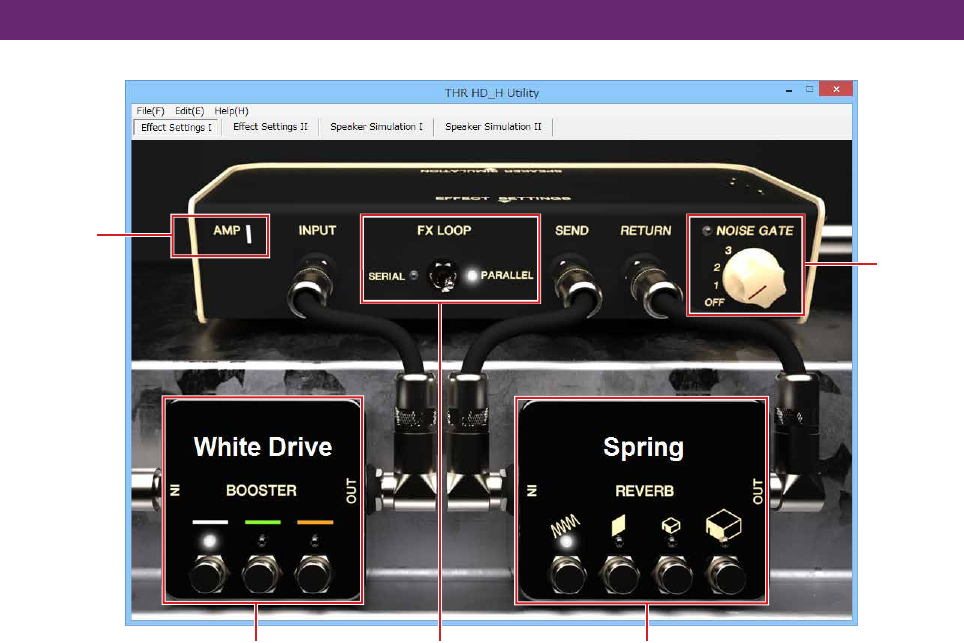
qAMPI/IIchanneldisplay(THR100HDonly)
Displaystheamplifierchannel(I/II)whosesettingsaretobechanged.Selectthedesiredchannelby
clickingthecorrespondingtab(EffectSettingsI/EffectSettingsII)atthetopofthewindow.
wBOOSTERswitches
Clickoneoftheswitchesinthescreentoselectoneofthethreeboostertypesthatcanbespecified
withtheBOOSTERswitches/knobsinthecontrolpaneloftheTHR100HD/THR100H.Theindicator
fortheselectedtypelights,andthetypenameappears.
WhiteDrive: Basedonanoverdrivepedalthatprovidescleanboost,maintainingtheoriginaltone
characteristics.
GreenDrive: Basedonanoverdrivepedalknownforitsdistinctivemid-rangeboost.
AmberDrive: Basedonanoverdrivepedalthatrespondstopickingdynamicsandtouchsensitivity.
eFXLOOPswitch
SwitchesbetweenSERIALandPARALLELforconnectionoftheexternaleffectorbetweenthe
EFFECTLOOPSENDandRETURNjacksontherearpaneloftheTHR100HD/THR100H.
*Whenthisswitchissetto“PARALLEL,”onlythewetsoundfromtheexternaleffectisreturnedto
theEFFECTLOOPRETURNjack.
*Whenthisswitchissetto“SERIAL,”nosoundisproducedfromtheamplifierwhentheFXLOOPon
thefootswitchisturnedonandnoexternaleffectisconnectedbetweentheEFFECTLOOPSEND
andRETURNjacks.Inthiscase,setthisswitchto“PARALLEL”orconnectanexternaleffect.
rREVERBswitches
Clickoneoftheswitchesinthescreentoselectoneofthefourreverbtypes(Spring,Plate,Room
andHall)thatcanbespecifiedwiththeREVERBknobinthecontrolpaneloftheTHR100HD/
THR100H.Theindicatorfortheselectedtypelights,andthetypenameappears.
tNOISEGATEswitch
ThiseffectcannotbeeditedfromthecontrolpaneloftheTHR100HD/THR100H.Itremovesnoiseby
cuttingthesignalatandbelowthespecifiedlevel.Thehigherthenumber,thehigherthethresholdlevel
(thegreaterthesignalleveliscut).Whensetto“OFF”,thenoisegatefunctionisturnedoff(indicatoroff).
er
t
q
w
THR HD_H Utility Operation Manual 6
Speaker Simulation Settings screen
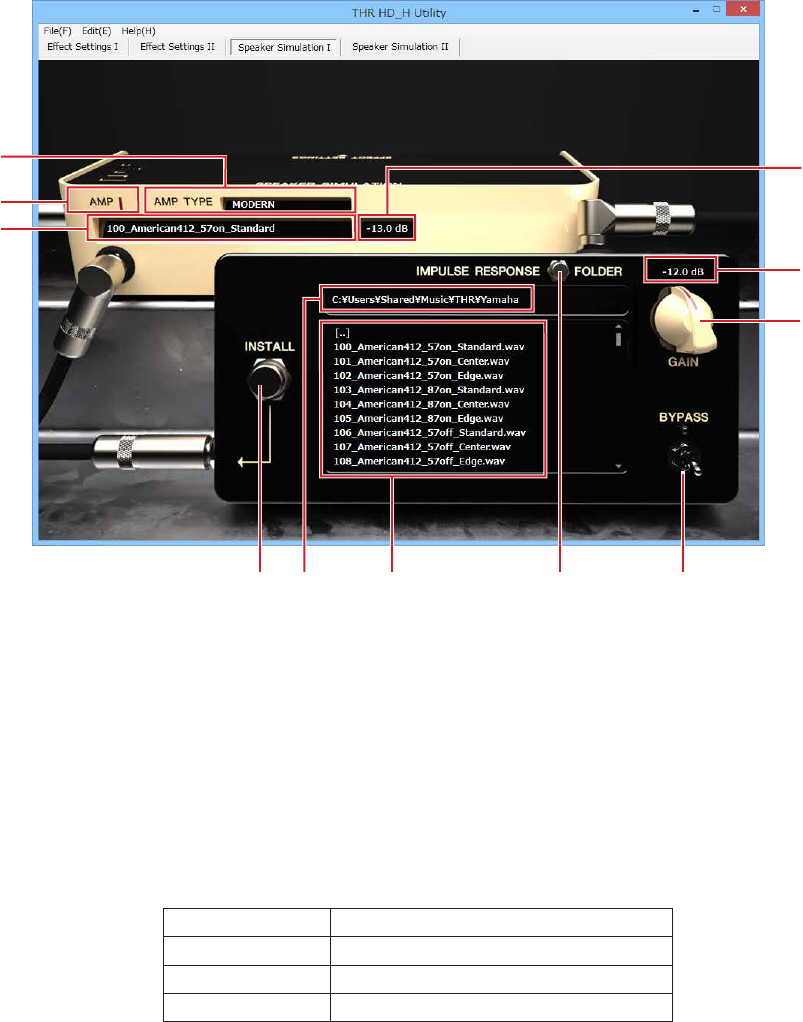
Thisfunctionrecreatesthecharacterandairinessofsoundasrecordedfromaspeakercabinetwitha
microphoneandoutputsitfromtheLINEOUTandPHONESjacks.
BywritingIRdata(speakerresponsecharacteristics)totheamplifier,variousspeakercabinetand
microphonecombinationscanberecreated.
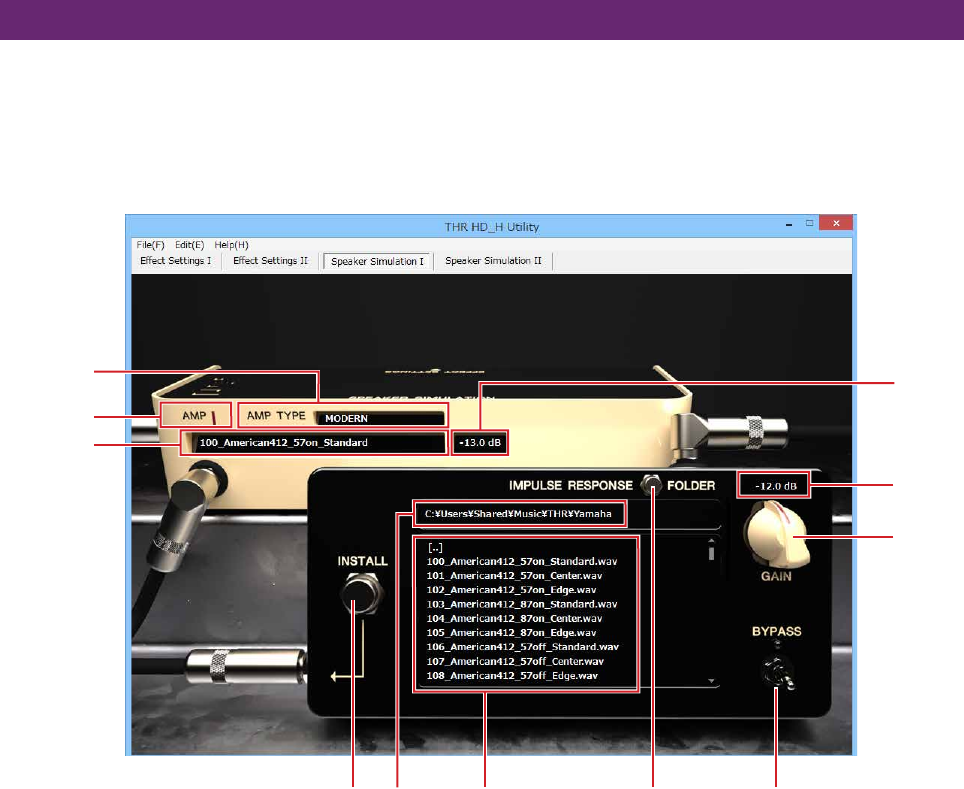
qthroughrshowIRdatasettingsfortheamplifier.
qAMPI/IIchanneldisplay(THR100HDonly)
Displaystheamplifierchannel(I/II)whosesettingsaretobechanged.Switchthechannelby
clickingthecorrespondingtab(SpeakerSimulationI/SpeakerSimulationII)atthetopofthewindow.
wAMPTYPEdisplay
Displaysthetypeselectedfortheamplifier.
*IftheamptypeischangedwhiletheBYPASSswitch!0isturnedon(indicatorlit),theBYPASSswitch
!0willbeturnedoff(indicatoroff).
e IR name display
DisplaysthenameoftheIRdatacorrespondingwiththeamptypew.TheIRnamecanbechanged
byclickingthetext.(maximum63characters)
* Single-byte alphanumeric characters can be used in IR names.
*IftheIRnamecontainscharactersthatcannotbeused,thosecharacterswillappearas“?”.
r IR gain display
DisplaystheIRgain(dB)correspondingtotheamptypew.
q
e
!1 u t !0
wr
i
o
y
THR HD_H Utility Operation Manual 7
tthrough!1showinformationonthespeakersimulation.WritethespecifiedIRdatatotheamplifier.
tFOLDERbutton o Gain display
yFolderdisplay !0BYPASSswitch
uFilelist !1 INSTALL button
i GAIN knob
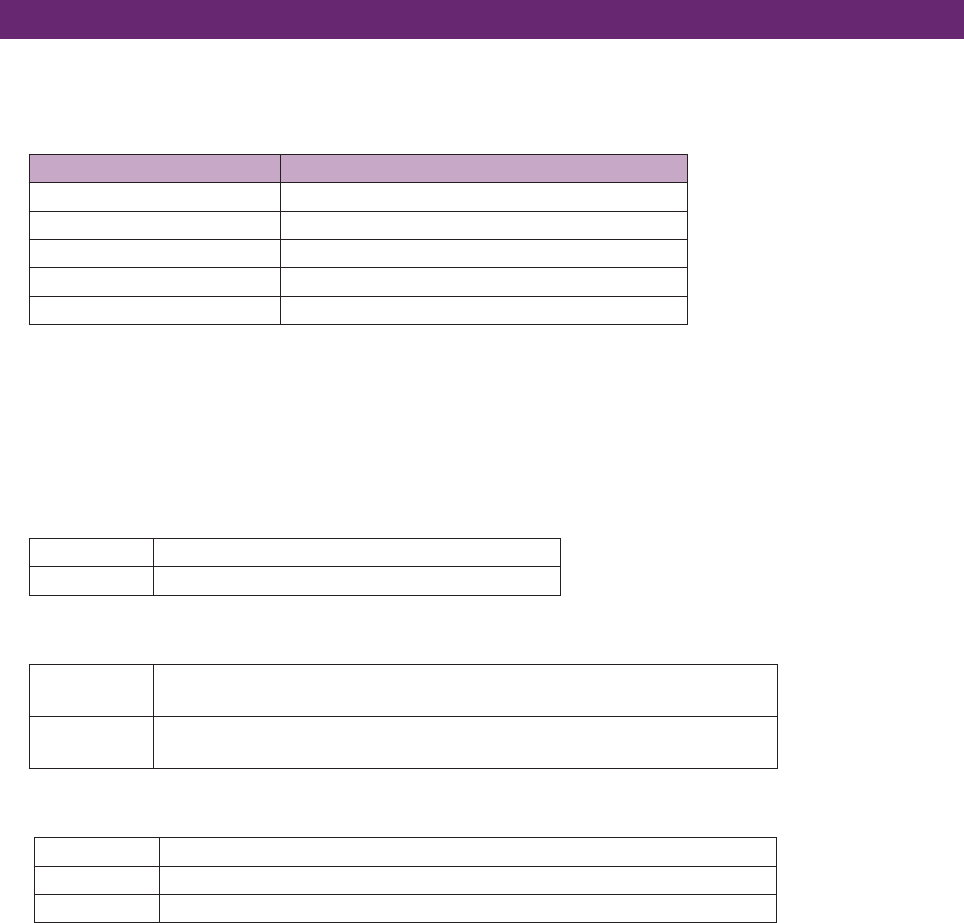
1. ClicktheFOLDERbuttont,andthenfromthedialogboxthatappears,selectthefoldercontaining
theIRdatafile.Thefoldernameappearsiny,andtheIRfilesinthefolderarelistedinu.
*OnlyIRfileshavingtheextensions".aif,"".aiff"and".wav"canberecognized.
Supported formats Bitdepth 16-bit,24-bit,32-bit
No.ofchannels Monauralorstereo
Samplingrate 44.1kHz
IRlength 2048samples
*Double-click[..]tomoveuponefolderlevel.
*Double-click[foldername]tomovetothatfolder.
* Single-byte alphanumeric characters can be used in file names and folder names.
*
Ifthefilenameorfoldernamecontainscharactersthatcannotbeused,thosecharacterswillappearas
questionmarks("?").
2. WiththeampselectorontheTHR100HD/THR100H,selecttheamptypetobeset.
3. ClickanIRfilefromthefilelistutoplayasoundusingthatspeakersimulation.
4. IftheBYPASSswitch!0isturnedon(indicatorlights),youcancomparethenewsoundwiththeone
withoutspeakersimulation.
q
e
!1 u t !0
wr
i
o
y
THR HD_H Utility Operation Manual 8
5. WhentheBYPASSswitchisturnedonoroff,adjusttheGAINknobisothatthevolumeremains
thesame.
* While an IR file is being selected or data is being transferred to the THR100HD/THR100H after the
BYPASSswitchisoperated,theswitchesandbuttonsinthewindowwillhavenoeffect.Atthistime,
do not operate the amp type selector on the THR100HD/THR100H.
*SincetheIRdatahasnotyetbeenwrittentotheamplifieratthispoint,changingtheamptypereverts
the IR data to that prior to changing the settings.
*IfastereoIRfilewasselected,adialogboxforselectingtheLchorRchmayappear,dependingon
your Utility settings.
6. ClicktheINSTALLbutton!1towritetheeditedsettingstotheTHR100HD/THR100H.TheIRname
displayeandIRgaindisplayrchangetothefilenameandgainsettingfortheeditedIRfile.
*IftheBYPASSswitch!0isturnedon(indicatorlights),datathatdoesnotusethespeakersimulation
is written.
About included IR data
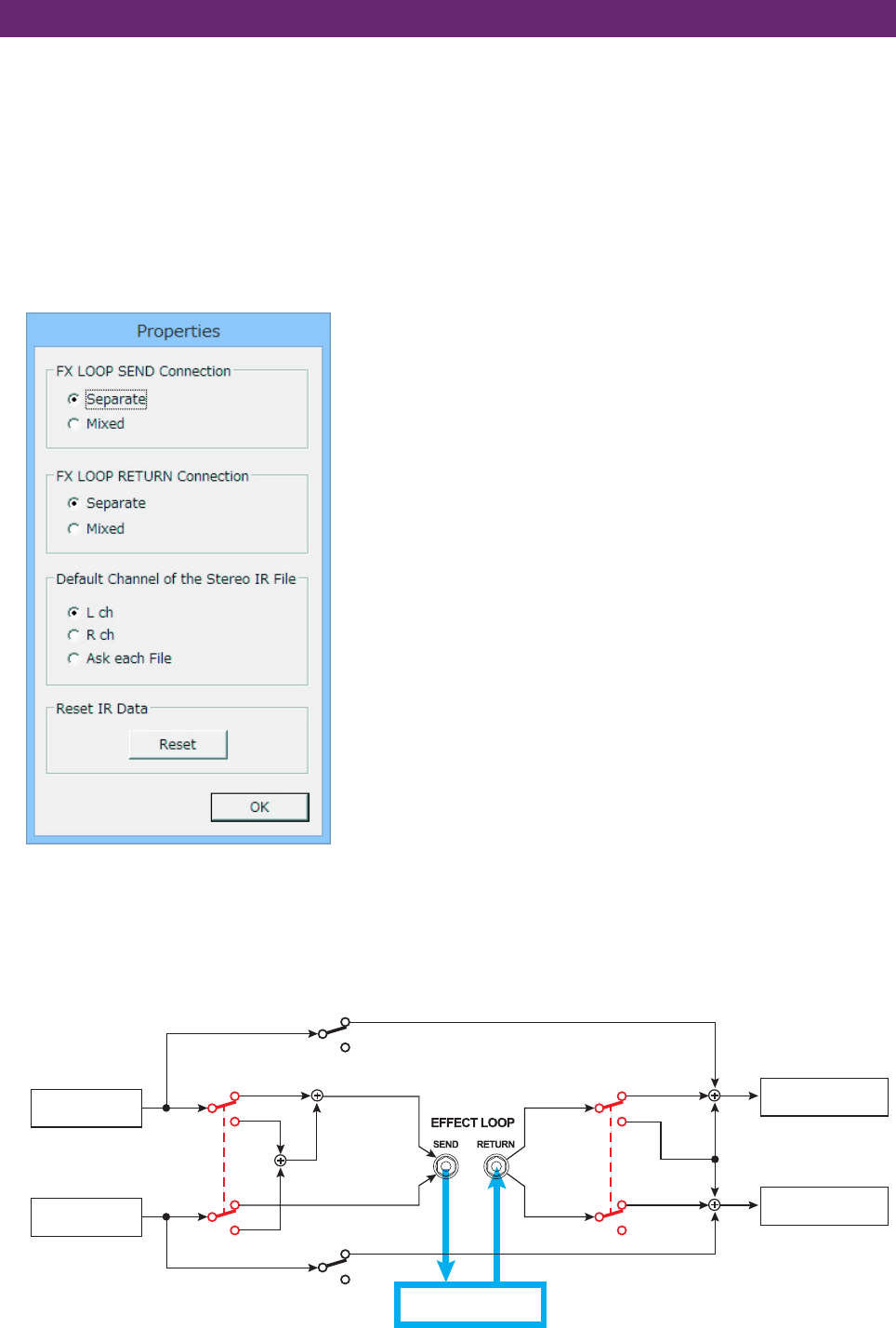
ThefilenamesofincludedIRdataareconfiguredasshownbelow.
lExample:For“100_American412_57on_Standard”
Element Details
Serialnumber 100
Cabinettype American,4speakers,12inches
Microphonetype 57
OnMic/OffMic on
Microphoneposition Standard
l Cabinet type
Cabinets:American,British,Brown,F100,THRC212_Dual,THRC212_Single
No.ofspeakers:4,2,1
Speakersize(inches):12
l Microphone type
57 ShureSM57
87 NeumannU87
l On Mic/Off Mic
on Recreatesthedirectspeakersoundasifpickedupfroma
microphoneplacednearthespeaker.
off Recreatesthespeakersoundandairinessoftheroomasif
pickedupfromamicrophoneplacedfarawayfromthespeaker.
l Microphone position
Standard Recreatesthesoundofamixofmultiplemicrophones.
Center Recreatesthesoundatthecenterofthespeakerunit.
Edge Recreatesthesoundattheedgeofthespeakerunit.
THR HD_H Utility Operation Manual 9
Menu bars and dialogs
Windows version
nFile
Exit:QuitstheTHRHD_HUtilityapplication.
nEdit
Exceptfor“Properties”,themenucommandsareonlyforeditingtheIRnameintheSpeakerSimulationscreens.
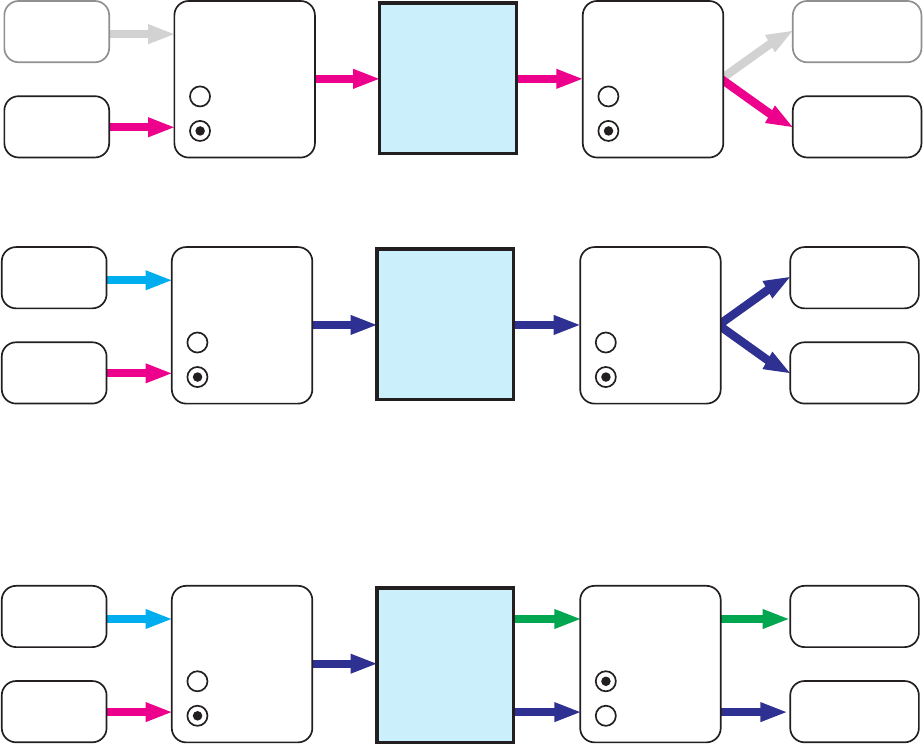
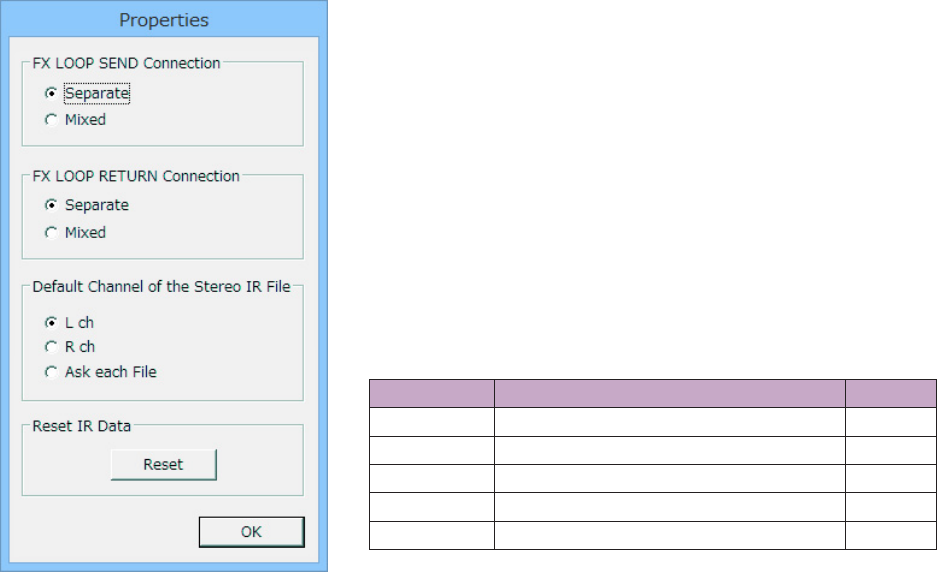
Properties: Clickingthisopensthesettingsdialogboxshownbelow.
FXLOOPSENDConnection(THR100HDonly)
SelectshowLandRsignalsonFXLOOPSENDconnectionare
routed.
•Separate...........ThissendsthePreampIsignaltotheSEND
LchannelandthePreampIIsignaltothe
SENDRchannel.
•Mixed................ThismixesthePreampIandPreampII
signalsandsendsthemtotheSENDL
channelformonooutput.
FXLOOPRETURNConnection(THR100HDonly)
SelectswhethertheL/Rchannelsignalsreceivedfromthe
FXLOOP’sRETURNjackaresenttoPowerAmpI/IIcircuits
independently(Separate)oronlytheLchannelsignalissentto
both(Mixed).
•Separate...........ThissendstheRETURNLsignaltothe
PowerAmpIcircuit,andtheRETURNRto
thePowerAmpIIcircuit.
* To use Power Amp I and II for each of the L
andRsignalsfromastereo-outtypeeffect,
choose Separate.
•Mixed................ThissendsonlytheRETURNLsignaltoboth
thePowerAmpIandPowerAmpIIcircuits.
* WerecommendsettingtheSENDconnection
to Mixed as well when using the Mixed setting
withtheFXLOOPRETURNconnection.
Signal Flow
External Effector(s)
Pre Amplifier I
Pre Amplifier II
Power Amplifier I
Power Amplifier II
L ch
R ch
L ch
R ch
Separate
Mixed
Separate
Mixed
Separate
Mixed
Separate
Mixed
Parallel
Serial
Parallel
Serial
FX LOOP RETURN
Connection
FX LOOP SEND
Connection
* FXLOOPSENDandFXLOOP
RETURNsettingsareavailablein
ampfirmwareV1.10andlater.
THR HD_H Utility Operation Manual 10
Example of Connection 1
Share Mono in/Mono out effects with AMP I and AMP II
Intheexamplebelow,theFXLOOPSENDissettoMixed,anditsRETURNisalsosettoMixedallowing
theAMPIIsignaltobeprocessedthroughtheexternaleffectorloop.
•WhentheAmpSelectSwitchissettoAMPII
AMP I
Pre Amp
AMP II
Pre Amp
AMP I
Power Amp
AMP II
Power Amp
FX LOOP
SEND
Separate
Mixed
FX LOOP
RETURN
Separate
Mixed
External
Effector
Mono
in
Mono
out
•WhentheAmpSelectSwitchissettoDual(AMPI+AMPII)
AMP I
Pre Amp
AMP II
Pre Amp
AMP I
Power Amp
AMP II
Power Amp
FX LOOP
SEND
Separate
Mixed
FX LOOP
RETURN
Separate
Mixed
External
Effector
Mono
in
Mono
out
Example of Connection 2
When using a Mono in/Stereo out effector with AMP I and AMP II
AMP I
Pre Amp
AMP II
Pre Amp
AMP I
Power Amp
AMP II
Power Amp
FX LOOP
SEND
Separate
Mixed
FX LOOP
RETURN
Separate
Mixed
External
Effector
Mono
in
Stereo
out
THR HD_H Utility Operation Manual 11
DefaultChanneloftheStereoIRFile
DetermineswhetherthedatafortheLorRchannelisused
whenastereoIRfileisselected.
•Lch..................UsesLchanneldata.
•Rch..................UsesRchanneldata.
•AskeachFile....Witheachfile,displaysadialogbox
requestingconfirmationofthechanneltobe
used.
Reset IR Data
Clicking[Reset]opensthe“ResetIRData”dialogbox.
ClicktheOKbuttoninthatdialogboxtoreverttheIRdataforall
amptypestothefactorydefaults.
•FactorydefaultIRdatasettings
Amp type
IR data
IR gain
MODERN 100_American412_57on_Standard -13dB
LEAD 200_British412_57on_Standard -12dB
CRUNCH 300_British212_57on_Standard -11dB
CLEAN 400_American112_57on_Standard -10dB
SOLID
500_THRC212_Single_57on_Standard
-11dB
n Help
About : Displaysinformationsuchasthesoftwareversion.
Macintosh version
n THR HD_H Utility
About THR HD_H Utility: Displaysinformationsuchasthesoftwareversion.
Preferences...: Clickingopensadialogboxwithcontentthatisthesameaswith“Properties”inthe
Windowsversion.
Quit: QuitstheTHRHD_HUtilityapplication.
nEdit
AllmenucommandsareonlyforeditingtheIRnameintheSpeakerSimulationscreens.

THR HD_H Utility Operation Manual 12
Troubleshooting
Ifyouexperienceproblems,suchasnosoundorabnormaloperation,firstmakesurethatthe
THR100HD/THR100Hisproperlyconnectedtothecomputer.Iftheproblempersists,pleasecheckthe
followingitems.
lTheswitchesandbuttonsinthewindowhavenoeffect.
• Isthelatestversionofthe“YamahaSteinbergUSBDriver”installed?
• Alternately,tryreplacingtheUSBcable.
l An error message appears.
•
QuittheUtility,turnofftheTHR100HD/THR100H,andthenperformtheoperationfromthebeginning.
lAphasereffectcanbeheardwhentheFXLOOPswitchissetto“PARALLEL”.
• WhentheFXLOOPswitchissetto“PARALLEL”,returnonlywetsoundfromtheexternaleffector
totheRETURNjack.
lThereisnosoundwhentheFXLOOPswitchissetto“SERIAL”.
• Checktheconnectionsoftheexternaleffector.
lWhentheamptypeischanged,thespeakersimulationsettingsreverttothoseprior
to changing the settings.
• BesuretoclicktheINSTALLbuttonbeforechangingtheamptype.
l The speaker simulation sound is low. Crackling is produced.
• AdjusttheGAINknobappropriately.
lThespeakersimulationdoesnotaffecttheSPEAKEROUTjacks.
• ThespeakersimulationaffectsonlytheoutputfromtheLINEOUTandPHONESjacks.
Manual Development Group
© 2016 Yamaha Corporation
Published 07/2016 PO-A0
