Yamaha DTX PROX Owner's Manual En Om B0
User Manual: Yamaha DTX-PROX Owner's Manual
Open the PDF directly: View PDF  .
.
Page Count: 68
S-1 DTX-PROX Owner’s Manual
This product utilizes batteries or an external power supply (adapter).
DO NOT connect this product to any power supply or adapter other
than one described in the manual, on the name plate, or specifically
recommended by Yamaha.
WARNING: Do not place this product in a position where anyone
could walk on, trip over, or roll anything over power or connecting
cords of any kind. The use of an extension cord is not recommended!
If you must use an extension cord, the minimum wire size for a 25’
cord (or less ) is 18 AWG. NOTE: The smaller the AWG number, the
larger the current handling capacity. For longer extension cords, con-
sult a local electrician.
This product should be used only with the components supplied or; a
cart, rack, or stand that is recommended by Yamaha. If a cart, etc., is
used, please observe all safety markings and instructions that accom-
pany the accessory product.
SPECIFICATIONS SUBJECT TO CHANGE:
The information contained in this manual is believed to be correct at
the time of printing. However, Yamaha reserves the right to change or
modify any of the specifications without notice or obligation to update
existing units.
This product, either alone or in combination with an amplifier and
headphones or speaker/s, may be capable of producing sound levels
that could cause permanent hearing loss. DO NOT operate for long
periods of time at a high volume level or at a level that is uncomfort-
able. If you experience any hearing loss or ringing in the ears, you
should consult an audiologist.
IMPORTANT: The louder the sound, the shorter the time period before
damage occurs.
NOTICE:
Service charges incurred due to a lack of knowledge relating to how a
function or effect works (when the unit is operating as designed) are
not covered by the manufacturer’s warranty, and are therefore the
owners responsibility. Please study this manual carefully and consult
your dealer before requesting service.
ENVIRONMENTAL ISSUES:
Yamaha strives to produce products that are both user safe and envi-
ronmentally friendly. We sincerely believe that our products and the
production methods used to produce them, meet these goals. In keep-
ing with both the letter and the spirit of the law, we want you to be
aware of the following:
Battery Notice:
This product MAY contain a small non-rechargeable battery which (if
applicable) is soldered in place. The average life span of this type of
battery is approximately five years. When replacement becomes nec-
essary, contact a qualified service representative to perform the
replacement.
This product may also use “household” type batteries. Some of these
may be rechargeable. Make sure that the battery being charged is a
rechargeable type and that the charger is intended for the battery
being charged.
When installing batteries, never mix old batteries with new ones, and
never mix different types of batteries. Batteries MUST be installed cor-
rectly. Mismatches or incorrect installation may result in overheating
and battery case rupture.
Warning:
Do not attempt to disassemble, or incinerate any battery. Keep all bat-
teries away from children. Dispose of used batteries promptly and as
regulated by the laws in your area. Note: Check with any retailer of
household type batteries in your area for battery disposal information.
Disposal Notice:
Should this product become damaged beyond repair, or for some rea-
son its useful life is considered to be at an end, please observe all
local, state, and federal regulations that relate to the disposal of prod-
ucts that contain lead, batteries, plastics, etc. If your dealer is unable
to assist you, please contact Yamaha directly.
NAME PLATE LOCATION:
The name plate is located on the bottom of the product. The model
number, serial number, power requirements, etc., are located on this
plate. You should record the model number, serial number, and the
date of purchase in the spaces provided below and retain this manual
as a permanent record of your purchase.
Model
Serial No.
Purchase Date
PLEASE KEEP THIS MANUAL
SPECIAL MESSAGE SECTION
92-BP (bottom)
COMPLIANCE INFORMATION STATEMENT (Supplier’s declaration of conformity procedure)
Responsible Party : Yamaha Corporation of America
Address : 6600 Orangethorpe Ave., Buena Park, Calif. 90620
Telephone : 714-522-9011
Type of Equipment : Drum Trigger Module
Model Name : DTX-PROX
This device complies with Part 15 of the FCC Rules.
Operation is subject to the following two conditions:
1) this device may not cause harmful interference, and
2) this device must accept any interference received including interference that may cause undesired operation.
* This applies only to products distributed by Yamaha Corporation of America. (FCC SDoC)
(can_b_02)
CAN ICES-3 (B)/NMB-3(B)

S-2
DTX-PROX Owner’s Manual
1. IMPORTANT NOTICE: DO NOT MODIFY THIS UNIT!
This product, when installed as indicated in the instructions con-
tained in this manual, meets FCC requirements. Modifications not
expressly approved by Yamaha may void your authority, granted by
the FCC, to use the product.
2. IMPORTANT: When connecting this product to accessories and/
or another product use only high quality shielded cables. Cable/s
supplied with this product MUST be used. Follow all installation
instructions. Failure to follow instructions could void your FCC
authorization to use this product in the USA.
3. NOTE: This product has been tested and found to comply with the
requirements listed in FCC Regulations, Part 15 for Class “B” digital
devices. Compliance with these requirements provides a reason-
able level of assurance that your use of this product in a residential
environment will not result in harmful interference with other elec-
tronic devices. This equipment generates/uses radio frequencies
and, if not installed and used according to the instructions found in
the users manual, may cause interference harmful to the operation
of other electronic devices. Compliance with FCC regulations does
not guarantee that interference will not occur in all installations. If
this product is found to be the source of interference, which can be
determined by turning the unit “OFF” and “ON”, please try to elimi-
nate the problem by using one of the following measures:
Relocate either this product or the device that is being affected by
the interference.
Utilize power outlets that are on different branch (circuit breaker or
fuse) circuits or install AC line filter/s.
In the case of radio or TV interference, relocate/reorient the
antenna. If the antenna lead-in is 300 ohm ribbon lead, change the
lead-in to co-axial type cable.
If these corrective measures do not produce satisfactory results,
please contact the local retailer authorized to distribute this type of
product. If you can not locate the appropriate retailer, please contact
Yamaha Corporation of America, Electronic Service Division, 6600
Orangethorpe Ave, Buena Park, CA90620
The above statements apply ONLY to those products distributed by
Yamaha Corporation of America or its subsidiaries.
* This applies only to products distributed by Yamaha Corporation of America. (class B)
FCC INFORMATION (U.S.A.)
S-3 DTX-PROX Owner’s Manual
For AC adaptor
The above warning is located on the bottom of the unit.
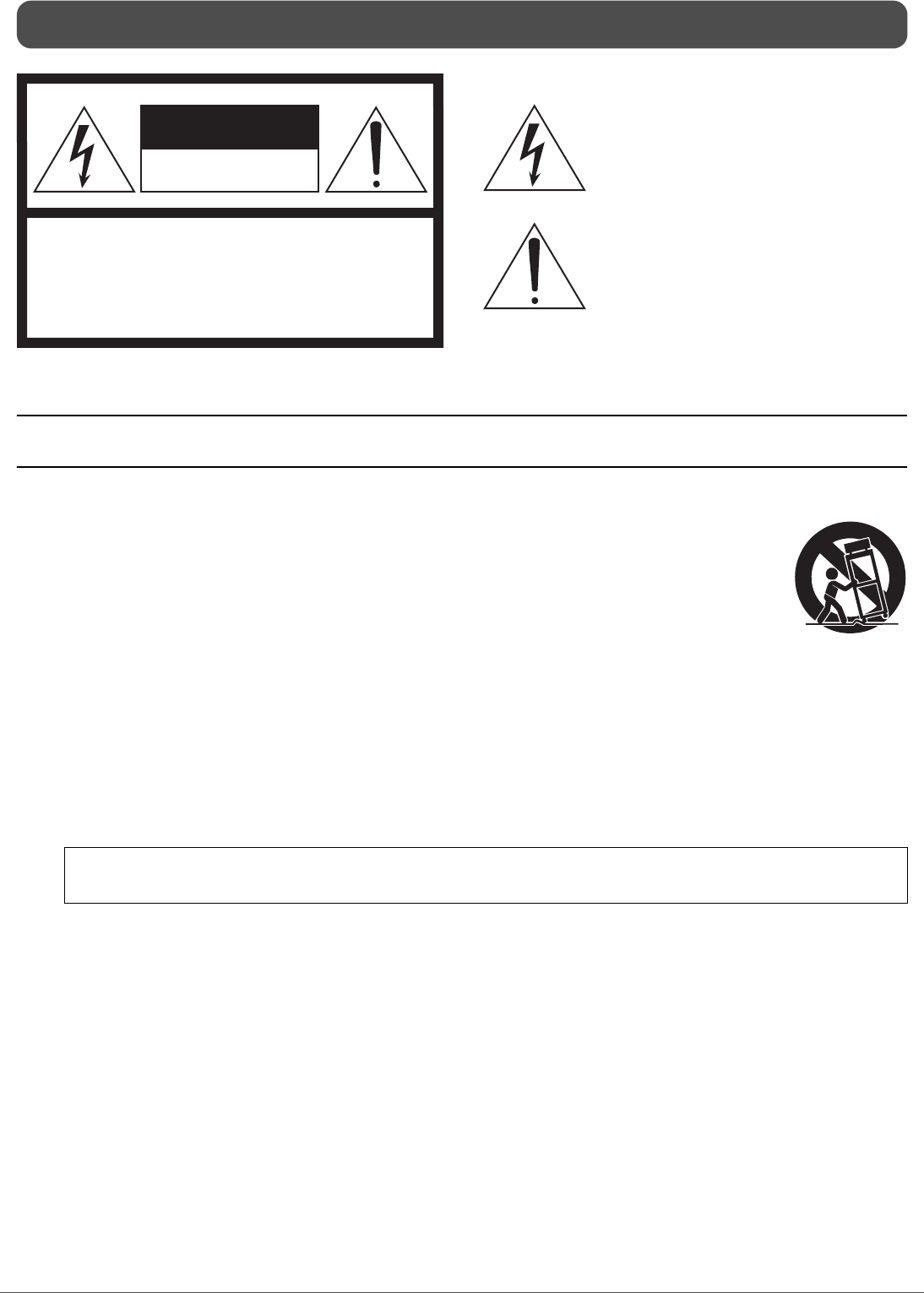
Explanation of Graphical Symbols
The lightning flash with arrowhead symbol within
an equilateral triangle is intended to alert the user
to the presence of uninsulated “dangerous voltage”
within the product’s enclosure that may be of suffi-
cient magnitude to constitute a risk of electric
shock to persons.
The exclamation point within an equilateral trian-
gle is intended to alert the user to the presence of
important operating and maintenance (servicing)
instructions in the literature accompanying the
product.
IMPORTANT SAFETY INSTRUCTIONS
1 Read these instructions.
2 Keep these instructions.
3 Heed all warnings.
4 Follow all instructions.
5 Do not use this apparatus near water.
6 Clean only with dry cloth.
7 Do not block any ventilation openings. Install in accor-
dance with the manufacturer’s instructions.
8 Do not install near any heat sources such as radiators, heat
registers, stoves, or other apparatus (including amplifiers)
that produce heat.
9 Do not defeat the safety purpose of the polarized or
grounding-type plug. A polarized plug has two blades with
one wider than the other. A grounding type plug has two
blades and a third grounding prong. The wide blade or the
third prong are provided for your safety. If the provided
plug does not fit into your outlet, consult an electrician for
replacement of the obsolete outlet.
10 Protect the power cord from being walked on or pinched
particularly at plugs, convenience receptacles, and the
point where they exit from the apparatus.
11 Only use attachments/accessories specified by the manu-
facturer.
12 Use only with the cart, stand, tri-
pod, bracket, or table specified by
the manufacturer, or sold with the
apparatus. When a cart is used,
use caution when moving the cart/
apparatus combination to avoid
injury from tip-over.
13 Unplug this apparatus during light-
ning storms or when unused for long periods of time.
14 Refer all servicing to qualified service personnel. Servicing
is required when the apparatus has been damaged in any
way, such as power-supply cord or plug is damaged, liquid
has been spilled or objects have fallen into the apparatus,
the apparatus has been exposed to rain or moisture, does
not operate normally, or has been dropped
(UL60065_03)
CAUTION: TO REDUCE THE RISK OF
ELECTRIC SHOCK, DO NOT REMOVE
COVER (OR BACK). NO USER-SERVICEABLE
PARTS INSIDE. REFER SERVICING TO
QUALIFIED SERVICE PERSONNEL.
CAUTION
RISK OF ELECTRIC SHOCK
DO NOT OPEN
WARNING
TO REDUCE THE RISK OF FIRE OR ELECTRIC SHOCK, DO NOT EXPOSE THIS APPARATUS TO RAIN OR MOISTURE.
S-4
DTX-PROX Owner’s Manual
(bottom_en_01)
(weee_eu_en_02)
The model number, serial number, power requirements, etc., may be found on or near the
name plate, which is at the bottom of the unit.
You should note this serial number in the space provided below and retain this manual as a
permanent record of your purchase to aid identification in the event of theft.
Model No.
Serial No.
Information for users on collection and disposal of old equipment:
This symbol on the products, packaging, and/or accompanying documents means that used electrical and
electronic products should not be mixed with general household waste.
For proper treatment, recovery and recycling of old products, please take them to applicable collection
points, in accordance with your national legislation.
By disposing of these products correctly, you will help to save valuable resources and prevent any potential
negative effects on human health and the environment which could otherwise arise from inappropriate
waste handling.
For more information about collection and recycling of old products, please contact your local municipality,
your waste disposal service or the point of sale where you purchased the items.
For business users in the European Union:
If you wish to discard electrical and electronic equipment, please contact your dealer or supplier for further
information.
Information on Disposal in other Countries outside the European Union:
This symbol is only valid in the European Union. If you wish to discard these items, please contact your
local authorities or dealer and ask for the correct method of disposal.
2DTX-PROX Owner’s Manual
PRECAUTIONS
PLEASE READ CAREFULLY BEFORE PROCEEDING
Please keep this manual in a safe and handy place for future reference.
WARNING
• This AC adaptor is designed for use with only Yamaha electronic instruments.
Do not use for any other purpose.
• Indoor use only. Do not use in any wet environments.
CAUTION
• When setting up, make sure that the AC outlet is easily accessible. If some
trouble or malfunction occurs, immediately turn off the power switch of the
instrument and disconnect the AC adaptor from the outlet. When the AC
adaptor is connected to the AC outlet, keep in mind that electricity is flowing at
the minimum level, even if the power switch is turned off. When you are not
using the instrument for a long time, make sure to unplug the power cord from
the wall AC outlet.
WARNING
Always follow the basic precautions listed below to avoid the possibility of serious injury or even death from electrical shock, short-circuiting,
damages, fire or other hazards. These precautions include, but are not limited to, the following:
• Do not place the power cord near heat sources such as heaters or radiators.
Also, do not excessively bend or otherwise damage the cord, or place heavy
objects on it.
• Only use the voltage specified as correct for the instrument. The required
voltage is printed on the name plate of the instrument.
• Use the specified adaptor (page 60) only. Using the wrong adaptor can result
in damage to the instrument or overheating.
• Check the electric plug periodically and remove any dirt or dust which may
have accumulated on it.
• This instrument contains no user-serviceable parts. Do not open the
instrument or attempt to disassemble or modify the internal components in
any way. If it should appear to be malfunctioning, discontinue use immediately
and have it inspected by qualified Yamaha service personnel.
• Do not expose the instrument to rain, use it near water or in damp or wet
conditions, or place on it any containers (such as vases, bottles or glasses)
containing liquids which might spill into any openings. If any liquid such as
water seeps into the instrument, turn off the power immediately and unplug the
power cord from the AC outlet. Then have the instrument inspected by
qualified Yamaha service personnel.
• Never insert or remove an electric plug with wet hands.
• Do not put burning items, such as candles, on the unit. A burning item may fall
over and cause a fire.
• Radio waves or magnetism may affect electro-medical devices.
- Do not use this product near medical devices or inside areas in which the
use of radio waves is restricted.
- Do not use this product within 15cm (6 in.) of persons with a heart
pacemaker or defibrillator implant.
• When one of the following problems occur, immediately turn off the power
switch and disconnect the electric plug from the outlet. Then have the device
inspected by Yamaha service personnel.
- The power cord or plug becomes frayed or damaged.
- It emits unusual smells or smoke.
- Some object has been dropped into the instrument.
- There is a sudden loss of sound during use of the instrument.
- If any cracks or breakages exist on the instrument.
For the AC adaptor
For DTX-PROX
Power supply/AC adaptor
Do not open
Water warning
Fire warning
Influences on electro-medical devices
If you notice any abnormality
DMI-7 1/2
3
DTX-PROX Owner’s Manual
CAUTION
Always follow the basic precautions listed below to avoid the possibility of physical injury to you or others, or damage to the instrument or other
property. These precautions include, but are not limited to, the following:
• Do not connect the instrument to an electrical outlet using a multiple-
connector. Doing so can result in lower sound quality, or possibly cause
overheating in the outlet.
• When removing the electric plug from the instrument or an outlet, always hold
the plug itself and not the cord. Pulling by the cord can damage it.
• Remove the electric plug from the outlet when the instrument is not to be used
for extended periods of time, or during electrical storms.
• Assemble the instrument in the proper sequence by following the assembly
instructions in this manual. Also, make sure to tighten the bolts regularly.
Failure to do so might result in damage to the instrument or even injury.
• Do not place the instrument in an unstable position where it might accidentally
fall over.
• Before moving the instrument, remove all connected cables, to prevent
damage to the cables or injury to anyone who might trip over them.
• When setting up the product, make sure that the AC outlet you are using is
easily accessible. If some trouble or malfunction occurs, immediately turn off
the power switch and disconnect the plug from the outlet. Even when the
power switch is turned off, electricity is still flowing to the product at the
minimum level. When you are not using the product for a long time, make sure
to unplug the power cord from the wall AC outlet.
• Use the included module holder if you are installing the DTX-PROX on the
drum hardware. Also, make sure you use the wing bolts included with the
module holder. Failure to do so could cause damage to the internal
components or result in the instrument falling over.
• Take care when setting up cables. If anyone were to trip on a cable, the
instrument could topple over and cause injury.
• Before connecting the instrument to other electronic components, turn off the
power for all components. Before turning the power on or off for all
components, set all volume levels to minimum.
• Be sure to set the volumes of all components at their minimum levels and
gradually raise the volume controls while playing the instrument to set the
desired listening level.
• Do not insert a finger or hand in any gaps on the instrument.
• Never insert or drop paper, metallic, or other objects into the gaps on the
panel. This could cause physical injury to you or others, damage to the
instrument or other property, or operational failure.
• Do not rest your weight on, or place heavy objects on the instrument, and do
not use excessive force on the buttons, switches or connectors.
• Keep small parts out of the reach of infants. Your children may accidentally
swallow them.
• Do not use the instrument/device or headphones for a long period of time at a
high or uncomfortable volume level, since this can cause permanent hearing
loss. If you experience any hearing loss or ringing in the ears, consult a
physician.
Always turn the power off when the instrument is not in use.
Even when the [ ] (Standby/On) switch is in standby status (display is off), electricity is still flowing to the instrument at the minimum level.
When you are not using the instrument for a long time, make sure you unplug the power cord from the wall AC outlet.
Power supply/AC adaptor
Assembly
Location
Connections
Handling caution
Yamaha cannot be held responsible for damage caused by improper use or modifications to the instrument, or data that is lost or destroyed.
DMI-7 2/2

4DTX-PROX Owner’s Manual
NOTICE
To avoid the possibility of malfunction/ damage to the product, damage
to data, or damage to other property, follow the notices below.
Handling
• Do not use the instrument in the vicinity of a TV, radio, stereo equip-
ment, mobile phone, or other electric devices. Otherwise, the
instrument, TV, or radio may generate noise.
When you use the instrument along with an application on your
smart device such as a smartphone or tablet, we recommend that
you set Wi-Fi or Bluetooth to on after setting “Airplane Mode” to on
on that device in order to avoid noise caused by communication.
• Do not expose the instrument to excessive dust or vibrations, or
extreme cold or heat (such as in direct sunlight, near a heater, or in
a car during the day) to prevent the possibility of panel disfiguration,
damage to the internal components or unstable operation.
• Do not place vinyl, plastic or rubber objects on the instrument,
since this might discolor the panel.
Maintenance
• When cleaning the instrument, use a soft and dry/slightly damp
cloth. Do not use paint thinners, solvents, alcohol, cleaning fluids,
or chemical-impregnated wiping cloths.
Saving data
• System settings (Reference Manual (PDF)) are retained when the
power is turned off. However, the saved data may be lost due to
some failure, an operation mistake, etc. Save your important data
onto USB flash drive/an external device such as a computer (Refer-
ence Manual (PDF)). Before using a USB flash drive, make sure to
refer to page 21.
• Edited Kit/Click, etc. are lost when you turn off the power to the
instrument. This also occurs when the power is turned off by the
Auto Power Off function (page 19). Save the data to the instrument,
or to USB flash drive/an external device such as a computer (Refer-
ence Manual (PDF)). However, the data saved to the instrument
may be lost due to some failure, an operation mistake, etc. Save
your important data onto USB flash drive/an external device such
as a computer (Reference Manual (PDF)). Before using a USB
flash drive, make sure to refer to page 21.
• To protect against data loss through USB flash drive damage, we
recommend that you save your important data onto spare USB
flash drive or an external device such as a computer as backup
data.
About Bluetooth
Bluetooth is a technology for wireless communication between devices
within an area of about 10 meters (33 ft.) employing the 2.4 GHz fre-
quency band.
Handling Bluetooth communications
• The 2.4 GHz band used by Bluetooth compatible devices is a radio
band shared by many types of equipment. While Bluetooth compat-
ible devices use a technology minimizing the influence of other
components using the same radio band, such influence may
reduce the speed or distance of communications and in some
cases interrupt communications.
• The speed of signal transfer and the distance at which communica-
tion is possible differs according to the distance between the com-
municating devices, the presence of obstacles, radio wave
conditions and the type of equipment.
• Yamaha does not guarantee all wireless connections between this
unit and devices compatible with Bluetooth function.
Information
About copyrights
• Copying of the commercially available musical data including but
not limited to MIDI data and/or audio data is strictly prohibited
except for your personal use.
• This product incorporates and bundles contents in which Yamaha
owns copyrights or with respect to which Yamaha has license to use
others’ copyrights. Due to copyright laws and other relevant laws,
you are NOT allowed to distribute media in which these contents
are saved or recorded and remain virtually the same or very similar
to those in the product.
* The contents described above include a computer program, Accompani-
ment Style data, MIDI data, WAVE data, voice recording data, a score,
score data, etc.
* You are allowed to distribute medium in which your performance or music
production using these contents is recorded, and the permission of Yamaha
Corporation is not required in such cases.
About this manual
• The illustrations and LCD screens as shown in this manual are for
instructional purposes only, and may appear somewhat different
from those on your instrument.
• Windows is a registered trademark of Microsoft® Corporation in the
United States and other countries.
• Apple, Mac, Macintosh, iPhone, iPad, iPod touch are trademarks of
Apple Inc., registered in the U.S. and other countries.
• Android is a trademark of Google LLC.
• The Bluetooth® word mark and logos are registered trademarks
owned by Bluetooth SIG, Inc. and any use of such marks by
Yamaha Corporation is under license.
• The company names and product names in this manual are the
trademarks or registered trademarks of their respective companies.
• The names of buttons, terminals, and the like from the DTX-PROX’s
front, rear and top panels are enclosed in [ ] (square brackets).
Latest Firmware Version
From time to time, Yamaha may update product firmware without
prior notice.
We recommend, therefore, that you check our web site (below) for
the latest version and keep your DTX-PROX firmware up to date.
https://download.yamaha.com/
The content of this Owner’s Manual applies to the newest version of
the firmware as of printing. Details regarding any functions added to
later versions will also be made available via the above web site.
About the Electronic Drum Pads (Pads)
Within this Owner’s Manual, the optional external pads that may be
connected to the DTX-PROX are referred to by model name. Please
note that these model names were up-to-date as of printing of this
manual.
Details regarding any subsequently released models will be made
available via the following web site.
https://download.yamaha.com/
* Yamaha Corporation reserves the right to modify this URL at any
time without prior notice.

5
DTX-PROX Owner’s Manual
Importer: Yamaha Music Europe GmbH
Siemensstrasse 22-34, 25462 Rellingen, Germany
This transmitter must not be co-located or operated in conjunction with any other
antenna or transmitter.
This equipment complies with FCC radiation exposure limits set forth for an
uncontrolled environment and meets the FCC radio frequency (RF) Exposure
Guidelines. This equipment has very low levels of RF energy that is deemed to
comply without testing of specific absorption rate (SAR).
This equipment complies with IC radiation exposure limits set forth for an uncon-
trolled environment and meets RSS-102 of the IC radio frequency (RF) Expo-
sure rules. This equipment has very low levels of RF energy that is deemed to
comply without testing of specific absorption rate (SAR).
This device complies with Industry Canada’s licence-exempt RSSs. Operation is
subject to the following two conditions:
(1) This device may not cause interference; and
(2) This device must accept any interference, including interference that may
cause undesired operation of the device.
EN SIMPLIFIED EU DECLARATION OF CONFORMITY
Hereby, Yamaha Music Europe GmbH declares that the radio equipment type
[DTX-PROX] is in compliance with Directive 2014/53/EU. The full text of the
EU declaration of conformity is available at the following internet address:
https://europe.yamaha.com/en/support/compliance/doc.html
FR DECLARATION UE DE CONFORMITE SIMPLIFIEE
Le soussigné, Yamaha Music Europe GmbH, déclare que l'équipement
radioélectrique du type [DTX-PROX] est conforme à la directive 2014/53/
UE. Le texte complet de la déclaration UE de conformité est disponible à
l'adresse internet suivante:
https://europe.yamaha.com/en/support/compliance/doc.html
DE VEREINFACHTE EU-KONFORMITÄTSERKLÄRUNG
Hiermit erklärt Yamaha Music Europe GmbH, dass der Funkanlagentyp
[DTX-PROX] der Richtlinie 2014/53/EU entspricht. Der vollständige Text der
EU-Konformitätserklärung ist unter der folgenden Internetadresse verfügbar:
https://europe.yamaha.com/en/support/compliance/doc.html
SV FÖRENKLAD EU-FÖRSÄKRAN OM ÖVERENSSTÄMMELSE
Härmed försäkrar Yamaha Music Europe GmbH att denna typ av radiout-
rustning [DTX-PROX] överensstämmer med direktiv 2014/53/EU. Den full-
ständiga texten till EU-försäkran om överensstämmelse finns på följande
webbadress:
https://europe.yamaha.com/en/support/compliance/doc.html
IT DICHIARAZIONE DI CONFORMITÀ UE SEMPLIFICATA
Il fabbricante, Yamaha Music Europe GmbH, dichiara che il tipo di appare-
cchiatura radio [DTX-PROX] è conforme alla direttiva 2014/53/UE. Il testo
completo della dichiarazione di conformità UE è disponibile al seguente
indirizzo Internet:
https://europe.yamaha.com/en/support/compliance/doc.html
ES DECLARACIÓN UE DE CONFORMIDAD SIMPLIFICADA
Por la presente, Yamaha Music Europe GmbH declara que el tipo de
equipo radioeléctrico [DTX-PROX] es conforme con la Directiva 2014/53/
UE. El texto completo de la declaración UE de conformidad está disponible
en la dirección Internet siguiente:
https://europe.yamaha.com/en/support/compliance/doc.html
PT DECLARAÇÃO UE DE CONFORMIDADE SIMPLIFICADA
O(a) abaixo assinado(a) Yamaha Music Europe GmbH declara que o pre-
sente tipo de equipamento de rádio [DTX-PROX] está em conformidade
com a Diretiva 2014/53/UE. O texto integral da declaração de conformi-
dade está disponível no seguinte endereço de Internet:
https://europe.yamaha.com/en/support/compliance/doc.html
NL VEREENVOUDIGDE EU-CONFORMITEITSVERKLARING
Hierbij verklaar ik, Yamaha Music Europe GmbH, dat het type radioappa-
ratuur [DTX-PROX] conform is met Richtlijn 2014/53/EU. De volledige tekst
van de EU-conformiteitsverklaring kan worden geraadpleegd op het vol-
gende internetadres:
https://europe.yamaha.com/en/support/compliance/doc.html
BG ОПРОСТЕНА ЕС ДЕКЛАРАЦИЯ ЗА СЪОТВЕТСТВИЕ
С настоящото Yamaha Music Europe GmbH декларира, че този тип
радиосъоръжение [DTX-PROX] е в съответствие с Директива 2014/53/
ЕС. Цялостният текст на ЕС декларацията за съответствие може да се
намери на следния интернет адрес:
https://europe.yamaha.com/en/support/compliance/doc.html
CS ZJEDNODUŠENÉ EU PROHLÁŠENÍ O SHODĚ
Tímto Yamaha Music Europe GmbH prohlašuje, že typ rádiového zařízení
[DTX-PROX] je v souladu se směrnicí 2014/53/EU. Úplné znění EU
prohlášení o shodě je k dispozici na této internetové adrese:
https://europe.yamaha.com/en/support/compliance/doc.html
DA FORENKLET EU-OVERENSSTEMMELSESERKLÆRING
Hermed erklærer Yamaha Music Europe GmbH, at radioudstyrstypen [DTX-
PROX] er i overensstemmelse med direktiv 2014/53/EU. EU-overensstem-
melseserklæringens fulde tekst kan findes på følgende internetadresse:
https://europe.yamaha.com/en/support/compliance/doc.html
ET LIHTSUSTATUD ELI VASTAVUSDEKLARATSIOON
Käesolevaga deklareerib Yamaha Music Europe GmbH, et käesolev raadio-
seadme tüüp [DTX-PROX] vastab direktiivi 2014/53/EL nõuetele. ELi vas-
tavusdeklaratsiooni täielik tekst on kättesaadav järgmisel internetiaadressil:
https://europe.yamaha.com/en/support/compliance/doc.html
EL ΑΠΛΟΥΣΤΕΥΜΕΝΗ ΔΗΛΩΣΗ ΣΥΜΜΟΡΦΩΣΗΣ ΕΕ
Με την παρούσα ο/η Yamaha Music Europe GmbH, δηλώνει ότι ο
ραδιοεξοπλισμός [DTX-PROX] πληροί την οδηγία 2014/53/ΕΕ. Το πλήρες
κείμενο της δήλωσης συμμόρφωσης ΕΕ διατίθεται στην ακόλουθη
ιστοσελίδα στο διαδίκτυο:
https://europe.yamaha.com/en/support/compliance/doc.html
HR POJEDNOSTAVLJENA EU IZJAVA O SUKLADNOSTI
Yamaha Music Europe GmbH ovime izjavljuje da je radijska oprema tipa
[DTX-PROX] u skladu s Direktivom 2014/53/EU. Cjeloviti tekst EU izjave o
sukladnosti dostupan je na sljedećoj internetskoj adresi:
https://europe.yamaha.com/en/support/compliance/doc.html
LV VIENKĀRŠOTA ES ATBILSTĪBAS DEKLARĀCIJA
Ar šo Yamaha Music Europe GmbH deklarē, ka radioiekārta [DTX-PROX]
atbilst Direktīvai 2014/53/ES. Pilns ES atbilstības deklarācijas teksts ir
pieejams šādā interneta vietnē:
https://europe.yamaha.com/en/support/compliance/doc.html
LT SUPAPRASTINTA ES ATITIKTIES DEKLARACIJA
Aš, Yamaha Music Europe GmbH, patvirtinu, kad radijo įrenginių tipas
[DTX-PROX] atitinka Direktyvą 2014/53/ES. Visas ES atitikties deklaracijos
tekstas prieinamas šiuo interneto adresu:
https://europe.yamaha.com/en/support/compliance/doc.html
HU EGYSZERŰSÍTETT EU-MEGFELELŐSÉGI NYILATKOZAT
Yamaha Music Europe GmbH igazolja, hogy a [DTX-PROX] típusú rádió-
berendezés megfelel a 2014/53/EU irányelvnek. Az EU-megfelelőségi
nyilatkozat teljes szövege elérhető a következő internetes címen:
https://europe.yamaha.com/en/support/compliance/doc.html
PL UPROSZCZONA DEKLARACJA ZGODNOŚCI UE
Yamaha Music Europe GmbH niniejszym oświadcza, że typ urządzenia
radiowego [DTX-PROX] jest zgodny z dyrektywą 2014/53/UE. Pełny tekst
deklaracji zgodności UE jest dostępny pod następującym adresem interne-
towym:
https://europe.yamaha.com/en/support/compliance/doc.html
RO DECLARAȚIA UE DE CONFORMITATE SIMPLIFICATĂ
Prin prezenta, Yamaha Music Europe GmbH declară că tipul de echipa-
mente radio [DTX-PROX] este în conformitate cu Directiva 2014/53/UE.
Textul integral al declarației UE de conformitate este disponibil la
următoarea adresă internet:
https://europe.yamaha.com/en/support/compliance/doc.html
SK ZJEDNODUŠENÉ EÚ VYHLÁSENIE O ZHODE
Yamaha Music Europe GmbH týmto vyhlasuje, že rádiové zariadenie typu
[DTX-PROX] je v súlade so smernicou 2014/53/EÚ. Úplné EÚ vyhlásenie o
zhode je k dispozícii na tejto internetovej adrese:
https://europe.yamaha.com/en/support/compliance/doc.html
SL POENOSTAVLJENA IZJAVA EU O SKLADNOSTI
Yamaha Music Europe GmbH potrjuje, da je tip radijske opreme [DTX-
PROX] skladen z Direktivo 2014/53/EU. Celotno besedilo izjave EU o
skladnosti je na voljo na naslednjem spletnem naslovu:
https://europe.yamaha.com/en/support/compliance/doc.html
FI
YKSINKERTAISTETTU EU-VAATIMUSTENMUKAISUUSVAKUUTUS
Yamaha Music Europe GmbH vakuuttaa, että radiolaitetyyppi [DTX-PROX]
on direktiivin 2014/53/EU mukainen. EU-vaatimustenmukaisuusvakuutuk-
sen täysimittainen teksti on saatavilla seuraavassa internetosoitteessa:
https://europe.yamaha.com/en/support/compliance/doc.html
TR BASİTLEŞTİRİLMİŞ AVRUPA BİRLİĞİ UYGUNLUK BİLDİRİMİ
İşbu belge ile, Yamaha Music Europe GmbH, radyo cihaz tipinin [DTX-
PROX], Direktif 2014/53/ AB'ye uygunluğunu beyan eder. AB uyumu bey-
anının tam metni aşağıdaki internet adresinden edinilebilir:
https://europe.yamaha.com/en/support/compliance/doc.html
6DTX-PROX Owner’s Manual
Welcome
Thank you for purchasing this Yamaha DTX-PROX.
The DTX-PROX is a drum trigger module that you can use for playing electronic drum
kits and drum pads at homes, studios or live venues.
To get the most out of your DTX-PROX, be sure to read this Owner’s Manual carefully.
And after reading through this manual, be sure to store it in a safe place so that you can
refer back to it again as needed.
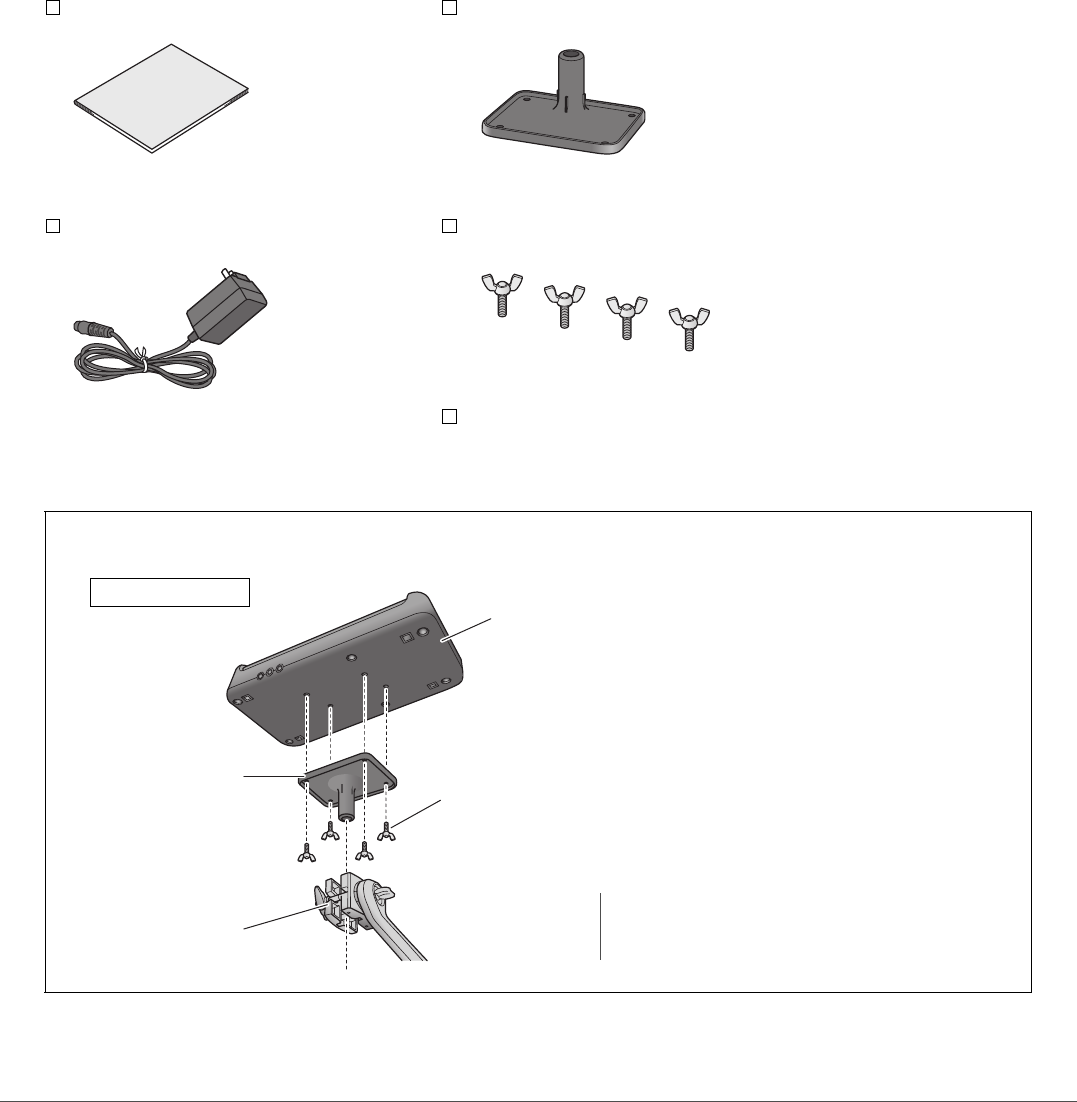
Included Accessories
Owner’s Manual (this book)
AC adaptor
Module holder
Module holder wing bolts (× 4)
Cubase AI Download Information
How to Attach the Module Holder
Exploded view
DTX-PROX
Module holder
wing bolts
Holder clamp
Module Holder
NOTE
The module holder is compatible with standard
drum hardware (22.2-mm or 7/8-inch diameter).
7
DTX-PROX Owner’s Manual
About the Manuals
The following manuals are provided for using the DTX-PROX. These manuals are intended for
users of the DTX-PROX.
Owner’s Manual (this book)
Setup Guide
Explains how to attach and setup the DTX-PROX for producing sound.
Basic Guide
Describes the fundamentals needed to operate the DTX-PROX.
Application Guide
Describes parameter settings and other more advanced uses.
Reference
Describes troubleshooting techniques and contains other reference materials.
Reference Manual
The Reference Manual provides a description of all the functions that can be accessed by pressing the [MENU] button as
well as other advanced settings that can be used with the DTX-PROX.
Data List
This provides lists of Kit and Effect names in the DTX-PROX, and MIDI related information.
iPhone/iPad Connection Manual
Smart Device Connection Manual for Android™
Describes how to connect smartphones and tablets.
Printed Manual
Digital Manual (PDF)
The digital format manuals listed above can be obtained from the Yamaha Downloads web page.
To do so, go to the web page using the following URL, enter “DTX-PROX” in the “Model Name”
field, and then click “Search.”
Yamaha Downloads: https://download.yamaha.com/

8DTX-PROX Owner’s Manual
Features of the DTX-PROX
-Intuitive operation for playing your ideal drum sounds
Includes natural drum sounds with real ambience, played by top studio drummers
and recorded in renowned studios, including Real World Studios.
Includes unique KIT MODIFIERS giving you intuitive control of Ambience, Comp,
and Effects—the core elements of the drum sound creation (page 33).
Equipped with a high-quality headphone amplifier that delivers high fidelity
reproduction of all drum sounds.
High-quality tone generator that enables natural expressive control like that of
acoustic drums—with high-definition dynamics, high-performance effects pro-
cessing, position sensing (*1) on snare and ride cymbal pads, low latency and 256
polyphony.
The instrument features LED rotary faders that allow easy access to parameters for
drum sound creation and intuitive control of external devices during live perfor-
mances
-Useful for live performance
The Live Set feature lets you prepare a custom sequence of kit, tempo, audio file,
and other parameters in, for example, the order of a performance set list and
switch among settings with a single step operation as you play live.
Routing flexibility enables each of the instrument sounds, such as snare and kick,
to be sent separately to the mixer using 8 lines from the INDIVIDUAL OUTPUT jacks.
Both stereo phone and stereo mini jacks are available for PHONES and AUX IN. No
adaptor or mixer is needed when connecting external devices.
-Boost your drumming skills through effective practice
A sophisticated programmable metronome allows you to adjust the volume of
each click beat, change the tone of the click sound, and much more (page 42).
You can record or playback your songs using the build-in recorder or a USB flash
drive (page 46).
-Enables you to create music, make a video of your performance, and
share your video over the Internet.
The instrument is compatible with iOS or Android apps such as Rec’n’Share. By dig-
itally connecting to smart devices via a USB cable, you can record and playback
high quality sound. You can also play the drums along with your favorite music or
make a video of your performance for uploading to social networking sites (*2)
(page 23).
Audio playback available via Bluetooth Audio connection (*3)
Includes Steinberg Cubase AI for comprehensive music production tools (page 54).
*1 For more information on the list of compatible drum pads, refer to the Pad Module Compatibility
Table.
*2 The DTX-PROX is a class compliant USB device. A separate cable is required for connecting to a com-
puter or to a smartphone.
*3 For details, see “Panel Controls and Functions” on page 10.

9
DTX-PROX Owner’s Manual
PRECAUTIONS 2
Welcome 6
Included Accessories 6
About the Manuals 7
Printed Manual.............................................................................. 7
Digital Manual (PDF) .................................................................... 7
Features of the DTX-PROX 8
Panel Controls and Functions 10
Top Panel ................................................................................... 10
Front Panel ................................................................................. 12
Rear Panel.................................................................................. 13
Setup Guide 14
Preparations ............................................................................... 14
Installing the DTX-PROX ............................................................ 14
Turning On or Off........................................................................ 17
Changing the Overall Settings .................................................... 19
Using a USB Flash Drive ............................................................ 21
Using Smart Devices .................................................................. 23
Listening to Audio Data from a Smart Device through
the DTX-PROX (Bluetooth Audio Function) ............................... 24
Basic Guide 26
Structure of the Kit ...................................................................... 26
Playing the Pads......................................................................... 27
Basic Operation of the DTX-PROX............................................. 32
Changing the Drum Set Sound (Building Your Own Drum Set) . 34
Using the Click (Metronome) ...................................................... 42
Creating Your Own Click (Metronome) Settings......................... 43
Changing the Trigger Settings .................................................... 45
Recording Your Performance ..................................................... 46
Connecting a PA System............................................................ 49
Using Live Sets........................................................................... 50
Application Guide 51
Connecting Separately Sold Add-ons and External Devices...... 51
Reference 55
Message List............................................................................... 55
Troubleshooting .......................................................................... 57
Specifications.............................................................................. 60
Index ........................................................................................... 61
Contents
10 DTX-PROX Owner’s Manual
Panel Controls and Functions
Top Panel
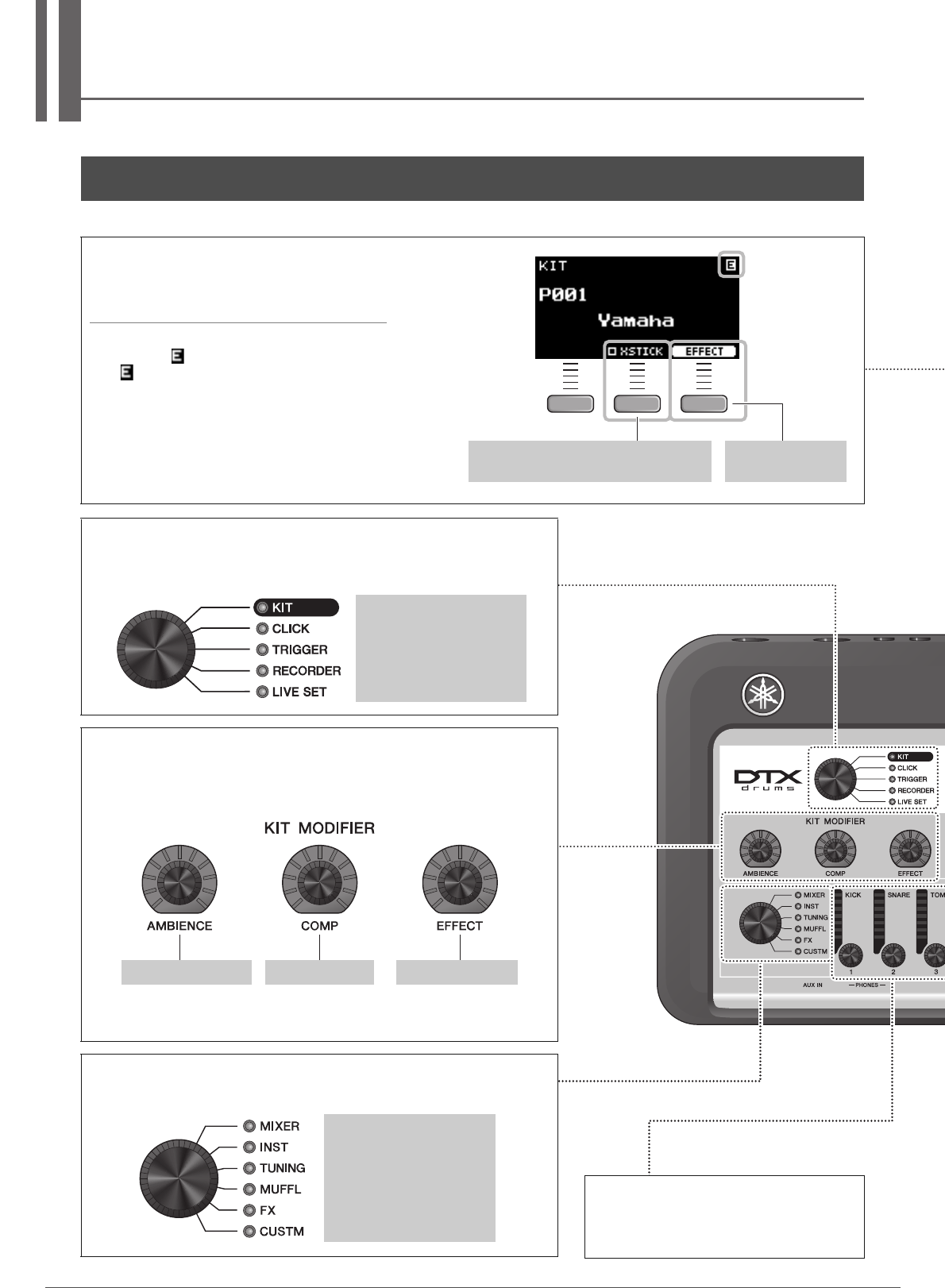
Mode Select knob
Changes the mode (Kit, Click, Trigger, Recorder and Live set). Shows the screen
for each mode.
KIT MODIFIER knobs
Adjust the amount of Ambience (the background sounds of the location), Comp
(the punchiness or loudness of the sound), Effect (other effects assigned to the
Kit)
Structure of the Kit (page 26)
Adjusting (Modifying) the Sound Effects (page 33)
Fader Select knob
Selects the function for assigning to the LED Rotary Faders. (page 34)
KIT
CLICK
TRIGGER
RECORDER
LIVE SET
[AMBIENCE] knob [COMP] knob [EFFECT] knob
MIXER
INST
TUNING
MUFFL (Muffling)
FX (Effects)
CUSTM (Custom)
Display
Function Buttons 1–3 ([F1], [F2], [F3])
Selects the functions that appear at the bottom of
each screen.
NOTICE
About the “ ” mark:
The mark appears in the upper right of the
screen when the Kit, Click, and other settings have
been changed. This is to remind you that the set-
tings have changed but have not yet been saved
(Store). The mark disappears when you store the
settings (page 40). When you change the Kit or
Click without first storing the settings, the changes
will be lost.
F1 F2 F3
Cross stick setting (page 28)
May not be shown depending on the pad
EFFECT screen
(page 33)
How to read
the KIT screen
LED Rotary Faders
Changes the settings of the function selected
with the Fader Select knob. Changes in val-
ues are shown in the indicators.

120
11
DTX-PROX Owner’s Manual
Panel Controls and Functions
Increases or decrease the value(s).
The knob is useful for changing multiple values, while the buttons are useful for
changing the value in steps. In this manual, the [–][+] knob, the [–] button and the
[+] button are collectively called the “[–][+] controllers” for situations where you
can use either the knob or the buttons.
[PAD SELECT] button
Shows the Trigger Input screens or the Trigger Input Source screen.
For more information, refer to the Reference Manual (PDF).
NOTE
Press this button to select a pad while changing settings with the LED
rotary faders.
[–][+] knob [–] button [+] button
[ ] (Standby/On) switch (page 17)
Switches the power between standby (off) and on.
Click Tempo Display
[TEMPO] knob (page 42)
Adjusts the tempo.
[CLICK] button (page 42)
Starts or stops the click (metronome). The
indicator flashes in sync with the click
tempo.
[AUDITION] button
Use this button to check the sound of the cur-
rently selected trigger input source (Reference
Manual (PDF)). As a default setting, the voice
assigned to the head of the snare pad connected
to the [qSNARE] jack is played.
Buttons for showing screens
[MENU] button
Accesses the advanced settings screen. For
more detailed information, refer to the Reference
Manual (PDF).
[STORE] button
STORE screen (page 40)
Stores Kit, Click, Trigger, or, Live set settings that
you have created.
[EXIT] button
Cancels the action or returns to the screen one
level higher.
NOTE
This button can also be used as a Panic Button to
stop the KIT sounds (on top screen for each
mode).
Bluetooth figure mark (page 24)
Bluetooth capability
Depending on the country in which you pur-
chased the product, the instrument may not
have Bluetooth capability. If the Bluetooth logo
is shown or printed on the control panel, this
means that the product is equipped with Blue-
tooth functionality.
Sliders
These change the corresponding volume levels.
[AUX IN] (auxiliary inputs from the [AUX IN] jacks on front and
rear panels)
[AUDIO] (audio including USB audio, Bluetooth audio, Song,
and recorder playback)
[CLICK] (click)
[OUTPUT] (outputs from the OUTPUT [R]/[L/MONO] jacks)
[PHONES] (headphones)
12 DTX-PROX Owner’s Manual
Panel Controls and Functions
Front Panel
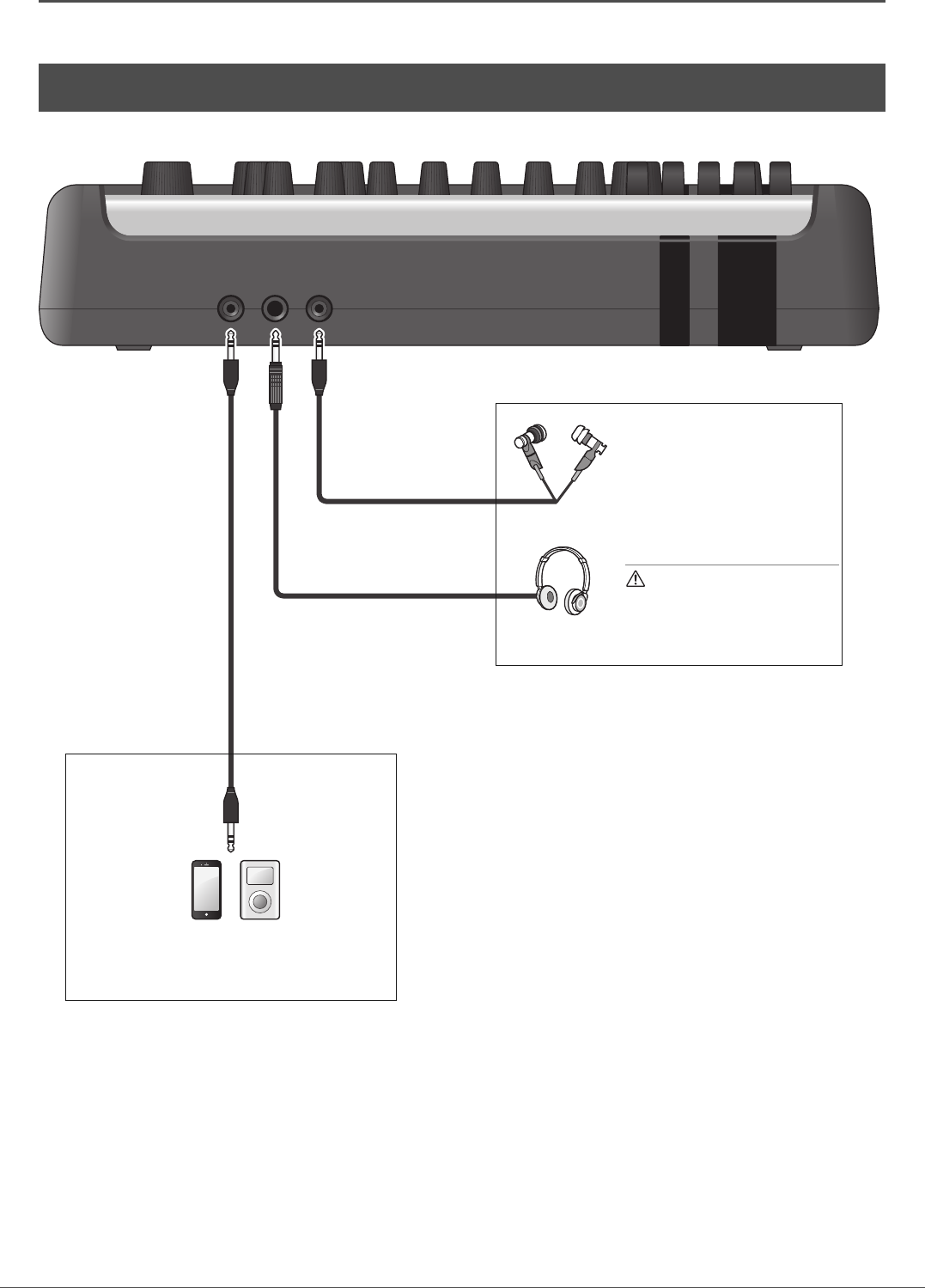
Stereo mini phone plug
(3.5 mm)
Stereo mini plug
(3.5 mm)
[PHONES] (Headphone)
jack (page 16)
For connecting headphones. The
one on the left is a standard ste-
reo phone type (6.3 mm) output
jack, and the one on the right is a
stereo mini phone type (3.5 mm)
output jack.
CAUTION
Do not use headphones for a
long period of time at high vol-
ume. Doing so can cause loss of
hearing.
[AUX IN] (auxiliary input) jack
Connect to the headphone jack on a smart phone
or portable music player.
Standard stereo phone plug
(6.3 mm)
13
DTX-PROX Owner’s Manual
Panel Controls and Functions
Rear Panel
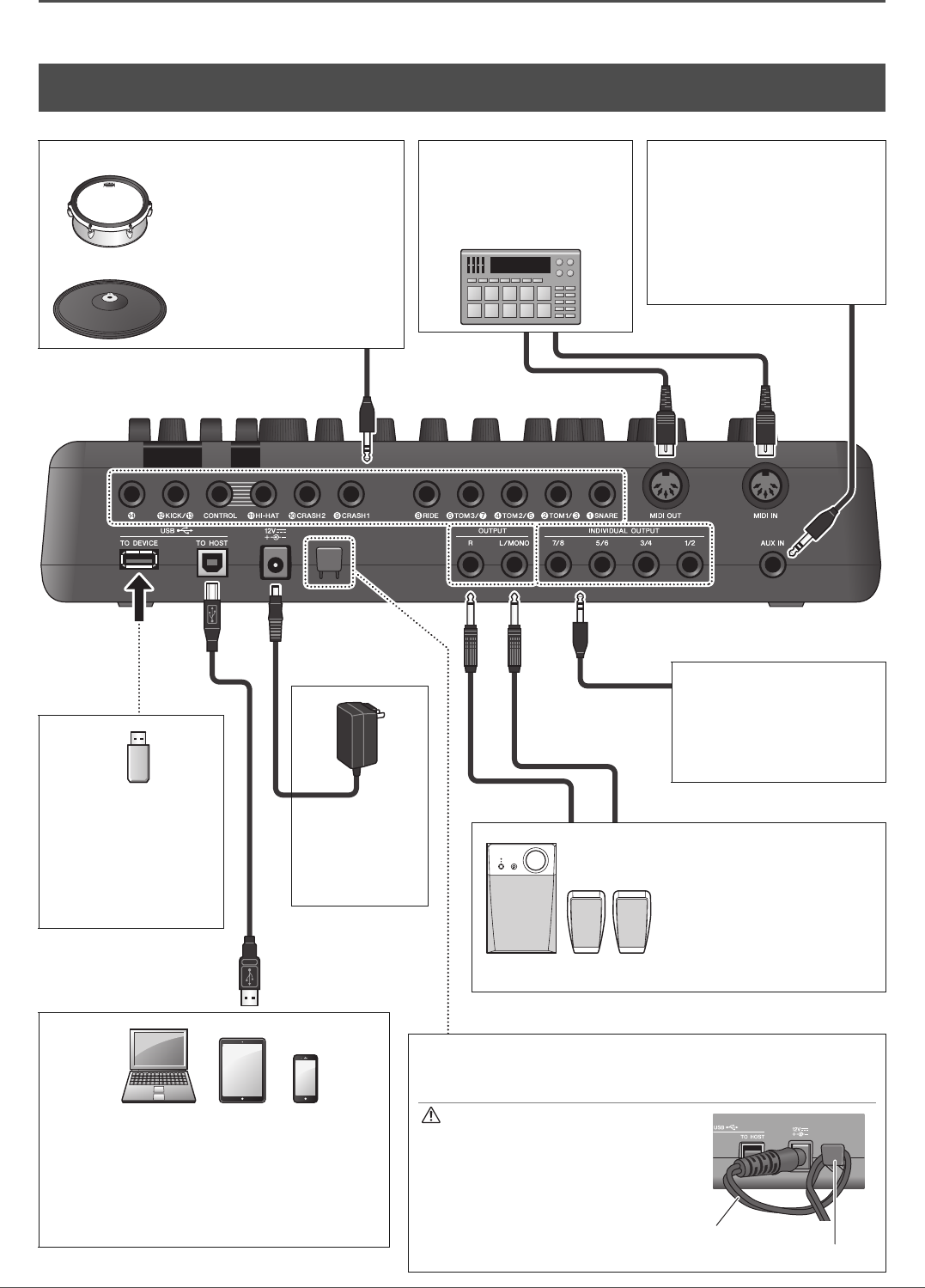
Trigger Input jacks
[!4] jack to [qSNARE] jack
Connects the DTX series pads.
To connect the pads included in
your Drum Kit, refer to the Assem-
bly Manual.
These trigger input jacks also
accept separately sold add-ons.
For more information, see “About
the Trigger Input Jacks” (page 51).
XP125SD-X
PCY175
[MIDI OUT] connector
[MIDI IN] connector
Connects MIDI devices for
sending and receiving MIDI
messages with the DTX-PROX.
Standard stereo phone plug (6.3 mm)
Standard phone plug
(6.3mm)
MIDI cable
[USB TO DEVICE]
terminal (page 21)
Connects a USB flash
drive. Cannot be used with
other USB devices.
“Using a USB Flash
Drive” (page 21)
DC IN jack
(page 14)
Use the AC adap-
tor that came with
the DTX-PROX.
[USB TO HOST] terminal (page 54)
Connect a computer or smart device such as a smart
phone or a tablet to send and receive digital signals
(audio and MIDI).
Computers “Connecting a Computer” (page 54)
Reference Manual (PDF)
Smart devices “Using Smart Devices” (page 23)
Cord hook
Wrap the AC adaptor cord around this hook to prevent accidental unplug-
ging during use.
CAUTION
Excessive bending can damage the AC
adaptor cord and create a fire hazard. For
this reason, make sure that the power
cord is not bent at an extreme angle when
wrapped around the hook.
AC adaptor
cord Cord hook
OUTPUT [R]/[L/MONO]
jacks (UNBALANCED)
(page 14)
Connect to powered speakers
or other such PA system.
These jacks are standard phone
type output jacks.
If mono output is required, use
only the [L/MONO] jack.
USB cable
[AUX IN] (auxiliary input) jack
Stereo standard phone jack for con-
necting an electronic instrument or
for inputting audio from a PA sys-
tem. The audio signals from the
[AUX IN] jack on the front panel and
the [AUX IN] on the rear panel are
mixed. For more information, refer
to the Reference Manual (PDF).
Standard stereo phone plug
(6.3 mm)
[INDIVIDUAL OUTPUT]
jacks (UNBALANCED)
(page 49)
Output the sound of each
instrument, such as snare and
kick.
Standard stereo phone plug (6.3 mm)
14 DTX-PROX Owner’s Manual
Setup Guide
This provides information on setup and initial settings in preparation for playing.
This completes set up.
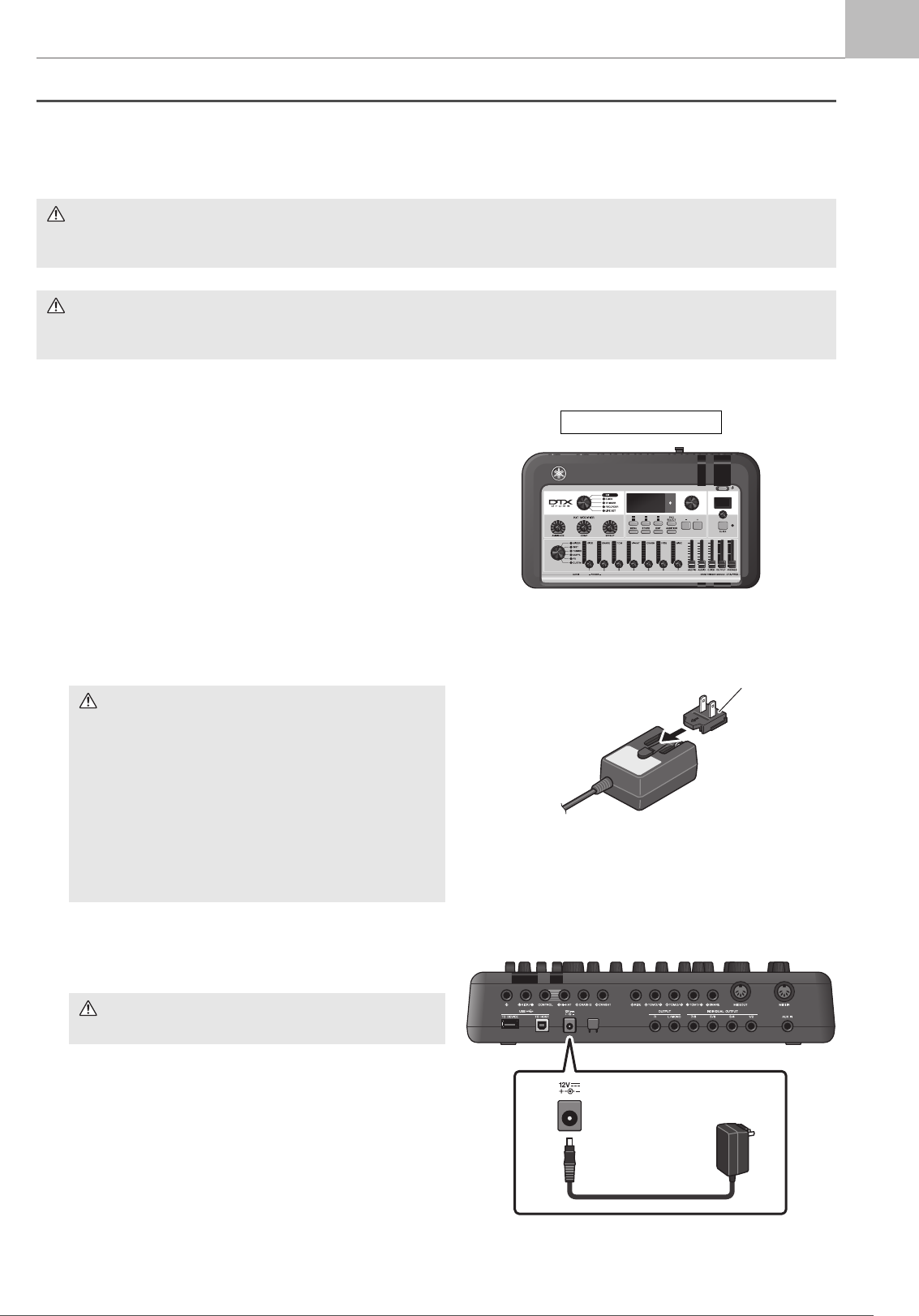
First, install the DTX-PROX.
There are three different ways of installation as shown below.
-Attach the DTX-PROX onto the rack of your drum kit. (For more information, refer to the Assembly Manual.)
-Use the included module holder (page 6) to attach the standard drum hardware. (See “Integrating Electronic &
Acoustic Drums” on page 53.)
-Place on a flat surface
After installing the DTX-PROX, connect cables to the Pads. For more information on the connections, refer to the specific
Assembly Manual of your drum kit.
Preparations
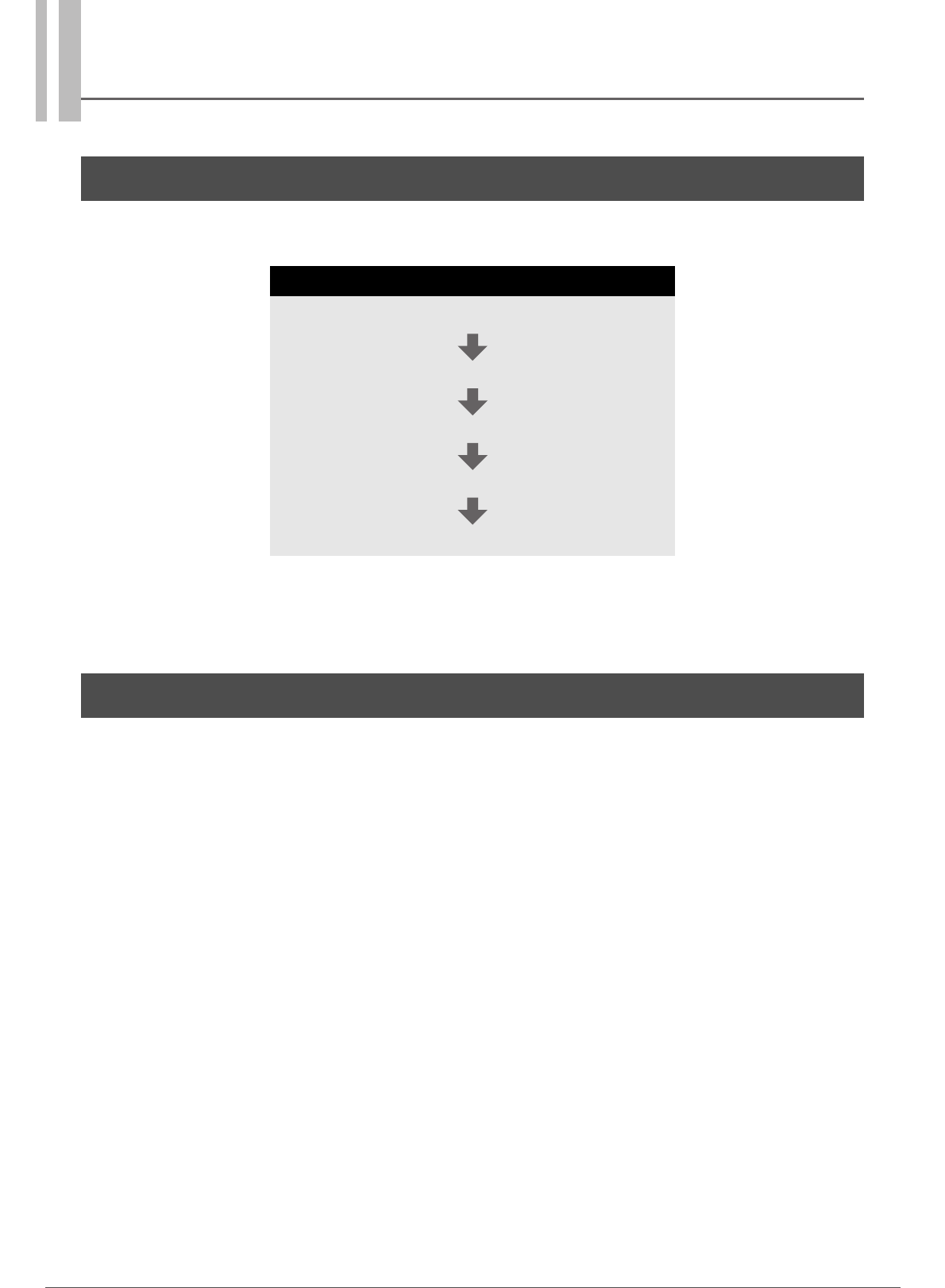
Workflow
Installing the DTX-PROX
Connecting the AC adaptor
Connecting Headphones
Turning On
Initial Setup (Trigger Setup Wizard)
Installing the DTX-PROX
15
DTX-PROX Owner’s Manual
Installing the DTX-PROX
Setup Guide
Connecting the AC adaptor
1. Make sure that the power is turned off (all
panel lights and the screen backlight are
off).
2. For removable plug type AC adaptors only:
Make sure that the plug is not disconnected.
3. Connect the AC adaptor.
WARNING
Only use the specified AC adaptor (page 60). Using a different AC adaptor can cause malfunction, overheating, fire, and
other problems. This may void the warranty so please take careful note.
CAUTION
Locate the DTX-PROX close to an AC outlet. If you notice any abnormalities during operation, turn the power off immedi-
ately and unplug the AC adaptor.
WARNING
• For AC adaptors with a removable plug, only use the
AC adaptor with the plug attached, and keep the
plug. Plugging only the plug into the power outlet
can cause electric shock or fire.
• If the removable plug comes off from the AC adaptor,
avoid touching the metal parts on the plug and slide
the AC adaptor onto the plug until you hear it lock on
to the adaptor with a click. Also, make sure you keep
any foreign objects out of the plug. This can cause
electrical shock, short circuit, or failure.
WARNING
Make sure to use the specified AC adaptor.
No screen backlight
Slide in the direction
indicated with the arrow.
Plug
DC IN jack
(page 60)

16 DTX-PROX Owner’s Manual
Installing the DTX-PROX
Setup Guide
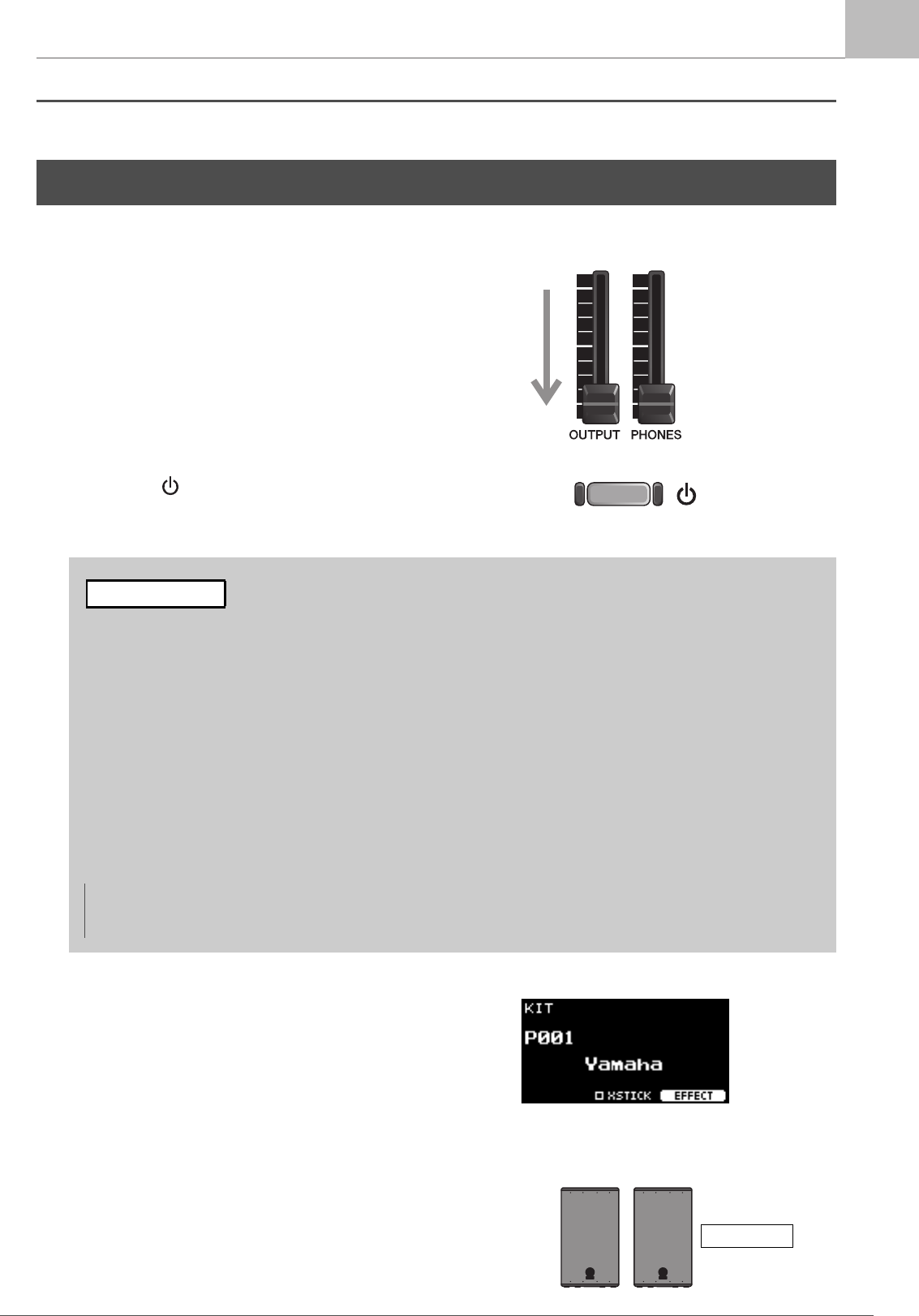
4. Hook the AC adaptor’s cord around the cord
hook to secure it in place.
5. Plug the AC adaptor’s AC plug into a domes-
tic power outlet.
Connecting Headphones
Connect the headphones to the [PHONES] (headphone) jack.
To adjust the headphone volume, use the [PHONES] slider.
To adjust the headphone EQ, set the Fader Select knob to
“CUSTM,” and use the LED rotary faders.
One standard stereo phone jack and one stereo mini phone
jack are available. Select the proper jack that matches the con-
nector size of the cable. The output volume may be lower than
expected if both phone jacks are used at the same time.
CAUTION
Excessive bending can damage the AC adaptor cord
and create a fire hazard. Ensure, therefore, that the
power cord is not bent at an extreme angle when
wrapped around the hook.
CAUTION
Even when the [ ] (Standby/On) switch is in standby
status (display is off), electricity is still flowing to the
instrument at the minimum level.
When you are not using the DTX-PROX for a long
period of time, make sure that you unplug the AC
adaptor from the wall AC outlet.
NOTE
When disconnecting the AC adaptor, turn the instrument and then carry out this procedure in reverse order.
CAUTION
Do not use headphones at high volume for an extended
period of time. Doing so can cause loss of hearing.
Cord hookAC adaptor cord
Power outlet
AC adaptor
Front panel side
17
DTX-PROX Owner’s Manual
Turning On or Off
Setup Guide
Turning On
1. Lower the [OUTPUT] and [PHONES] sliders
to set the volume levels to their minimum.
2. Press the [ ] (Standby/On) switch.
If the initial setup is already complete, the KIT screen
appears directly after the startup screen, without showing
the Trigger Setup Wizard.
3. If you are connected to a PA system:
Turn the external speakers on.
Turning On or Off
Initial Setup (Trigger Setup Wizard)
When you turn on your DTX-PROX for the first time, the Initial Setup page will be displayed. On this page, you
will be required to specify the following. When you specify the model number, the DTX-PROX will automati-
cally optimize the trigger output levels for all of your pads.
1. Identify your drum kit using the [–][+] controllers and press the button below “OK”
([F3]).
Your drum kit’s model number is indicated on the Assembly Manual for your drum kit. Make sure to select
the proper pad type (DTX**K-X or DTX**K-M) for your particular drum kit.
2. When the confirmation screen appears, press the button below “YES” ([F1]).
When the initial setting is complete, the KIT screen appears.
IMPORTANT
NOTE
You can change the specified drum kit at any time after completing Initial Setup. (“Changing the Trigger Settings” (page
45))
* XSTICK: May not be shown depending on the pad
Power on

18 DTX-PROX Owner’s Manual
Turning On or Off
Setup Guide
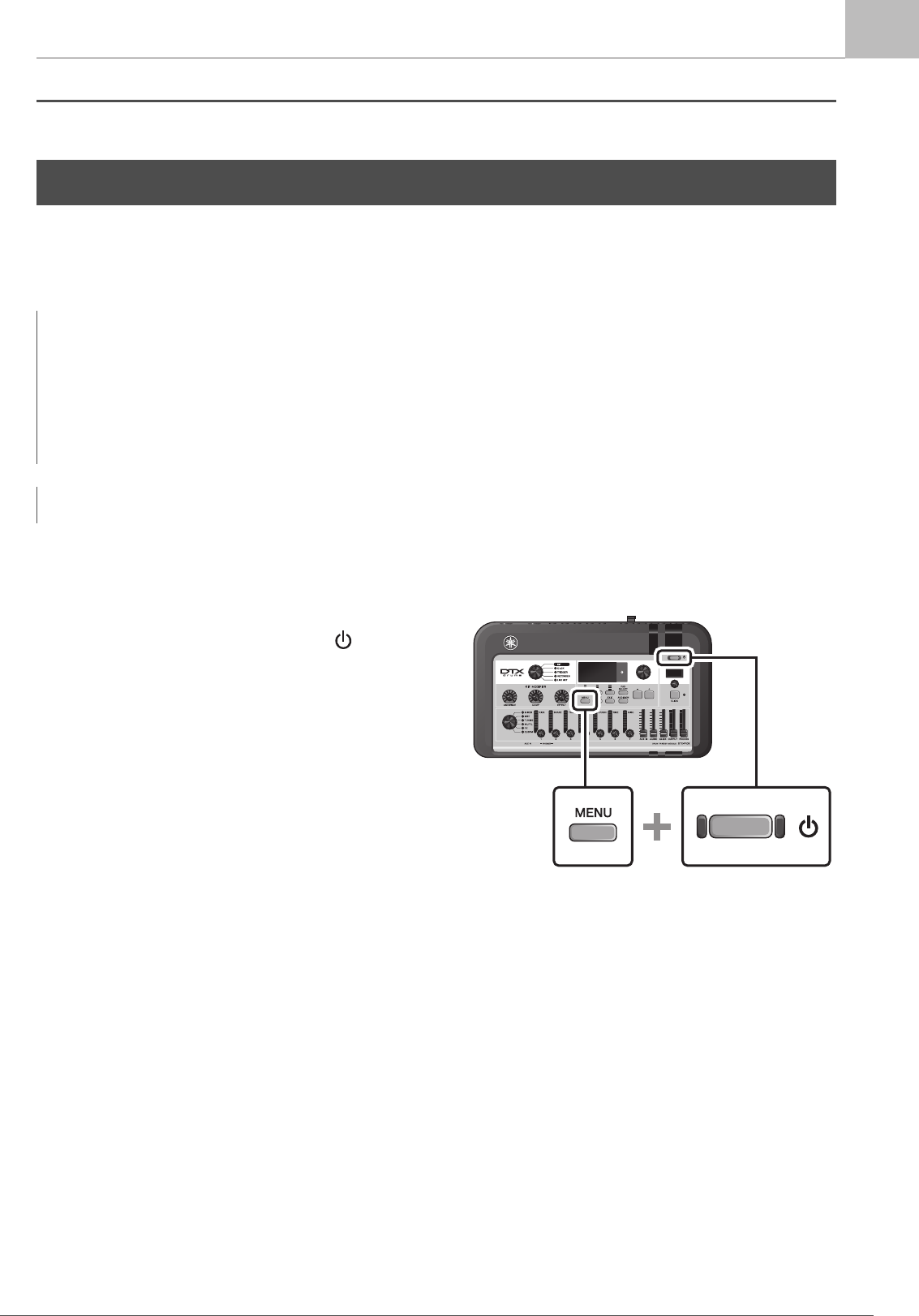
Turning Off
1. If you are connected to a PA system:
Turn the external speakers off.
2. Lower the [OUTPUT] and [PHONES] sliders
to set the volume levels to their minimum.
3. Hold down the [ ] (Standby/On) switch.
The DTX-PROX is in Standby and the display and lights
are off.
NOTICE
• The DTX-PROX automatically stores settings when the power is turned off, so do not unplug the AC adaptor until the
LCD screen is turned off completely.
• Any unsaved Kit, Click, Trigger settings, and Live Set data will be lost, so always save (Store) data before turning the
power off.
Power off
Hold down
All off
19
DTX-PROX Owner’s Manual
Changing the Overall Settings
Setup Guide
Auto Power-Off
The Auto Power-Off function automatically turns off the DTX-PROX after a certain period of inactivity. The factory default
is set at 30 minutes.
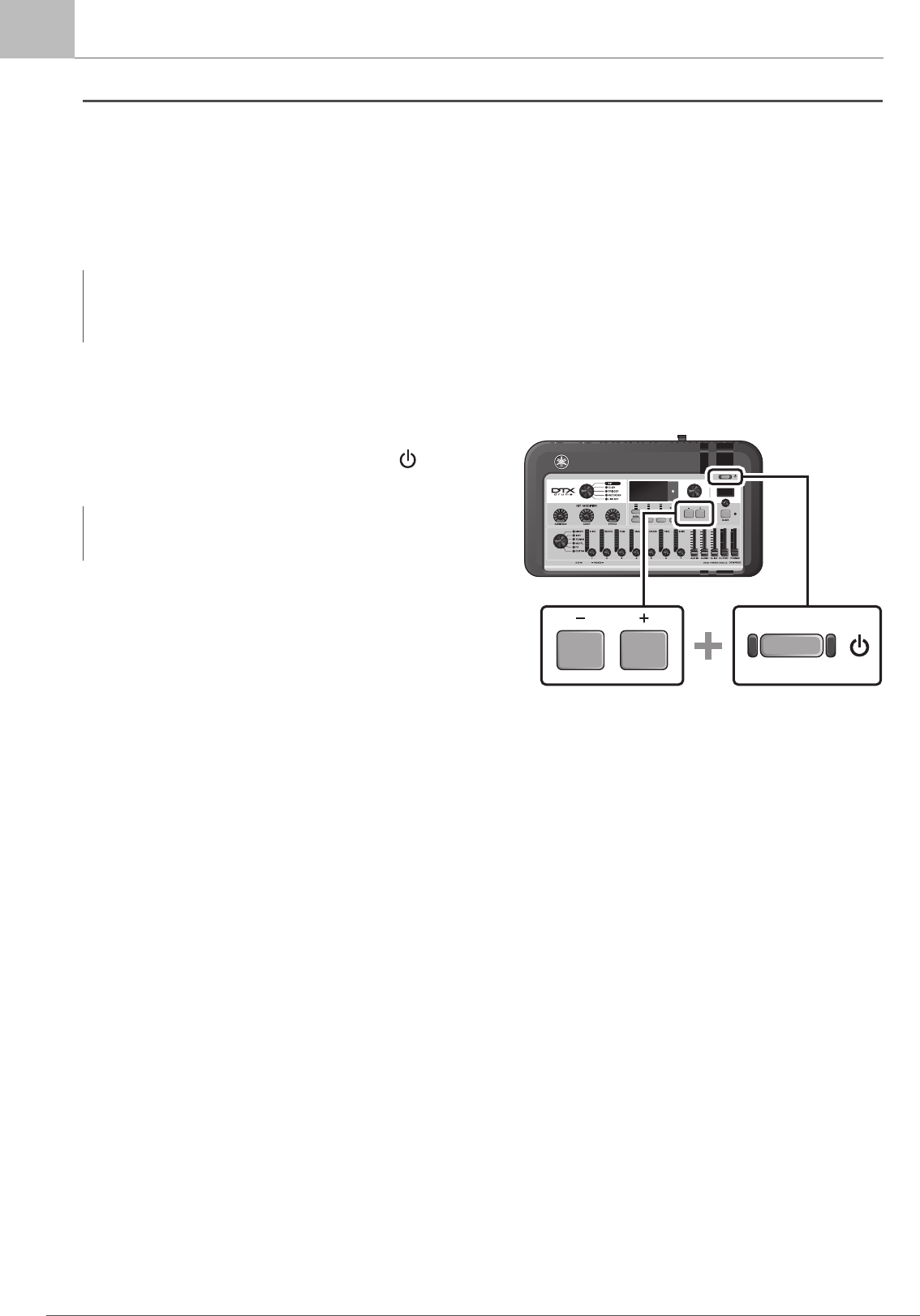
-Auto Power-Off Quick Cancel
First, make sure that the DTX-PROX is turned off. Then, while
holding down the [MENU] button, press the [ )] (Standby/
On) button to cancel the Auto Power-Off function. The func-
tion will remain off until you set a new Auto Power-Off time.
Changing the Overall Settings
NOTICE
• Unsaved data is lost when the DTX-PROX is turned off with the Auto Power-Off function. Always store data before turn-
ing the power off.
• In certain modes of operation, the Auto Power-Off function will not turn off the DTX-PROX when the set time has
elapsed. So we recommend that you always turn off the DTX-PROX manually when you are finished using it.
• If you expect the DTX-PROX to be inactive for a certain length of time while connected to external audio equipment or a
PA, we recommend fully lowering the volume on the external equipment. Alternatively, you can disable the Auto Power-
Off function to ensure that the DTX-PROX stays on.
NOTE
To set the Auto Power-Off to a time other than 30 minutes, access the setting from the [MENU] button. (MENU/Utility/General)
20 DTX-PROX Owner’s Manual
Changing the Overall Settings
Setup Guide
Restoring DTX-PROX Settings to the Factory Defaults (Factory
Reset)
Use the Factory Reset function to restore the DTX-PROX’s settings to their factory defaults, even if you have accidentally
overwritten them.
-Performing a Factory Reset
First, make sure that the DTX-PROX is turned off. Then, while
holding down the [–] and [+] buttons, press the [ ] (Standby/
On) button to perform the Factory Reset function.
NOTICE
A factory reset overwrites any settings you have made with the corresponding factory defaults. Save any important user-
defined data to a USB flash drive before carrying out a factory reset. For more information, refer to the Reference Manual
(PDF). (MENU/File)
NOTE
You can also access the factory reset with the [MENU] button.
(MENU/Factory Reset)

21
DTX-PROX Owner’s Manual
Using a USB Flash Drive
Setup Guide
Connect a USB flash drive to the [USB TO DEVICE] terminal on the rear panel of the DTX-PROX and record your perfor-
mance directly to the USB flash drive. Also, you can save DTX-PROX settings to and load settings from a USB flash drive.
Connecting a USB Flash Drive to the DTX-PROX
Precautions When Using the [USB TO DEVICE] Terminal
When connecting a USB flash drive to the [USB TO DEVICE] terminal, be sure to follow the important precautions below.
-Compatible USB Devices
USB flash drives only
Please check the URL shown below for a list of compatible USB flash drives.
https://download.yamaha.com/
-Connecting a USB Flash Drive
When connecting a USB device to the [USB TO DEVICE] terminal, make sure that the connector on the DTX-PROX is
appropriate and that it is connected in the proper direction.
Although USB devices 2.0 to 3.0 can be used on the DTX-PROX, the amount of time for saving to or loading from the USB
device may differ depending on the type of data or the status of the instrument.
Using a USB Flash Drive
NOTE
For more information about the handling of USB flash drives, refer to the owner’s manual of your USB flash drive.
NOTE
• Other USB devices such as USB hub, mouse, computer keyboard, cannot be used.
• A USB cable cannot be used to connect a USB device to the [USB TO DEVICE] terminal.
NOTICE
The rating of the [USB TO DEVICE] terminal is a maximum of 5 V / 500 mA. Do not connect USB devices having a rating
above this, since this can cause damage to the instrument itself.
NOTICE
• Avoid connecting or disconnecting the USB device during playback/recording and file management operations (such as
Save, Copy, Delete, and Format), or when accessing the USB device. Failure to observe this may result in “freezing” of
the operation of the instrument or corruption of the USB device and the data.
• When connecting then disconnecting the USB device (and vice versa), make sure to wait a few seconds between the
two operations.

22 DTX-PROX Owner’s Manual
Using a USB Flash Drive
Setup Guide
-Formatting the USB Flash Drive
Some USB flash drives should be formatted with this instrument before they can be used. For information on how to format
the USB flash drive, refer to the Reference Manual (PDF). (MENU/File/Format)
-To Protect Your Data (Write Protection)
To prevent important data from being inadvertently erased, write-protect the USB flash drive. When you are saving data to
the USB flash drive, make sure you disable the write-protect first.
NOTICE
The format operation erases any previously existing data. Make sure that the USB flash drive you are formatting does not
contain any important data.

23
DTX-PROX Owner’s Manual
Using Smart Devices
Setup Guide
Connecting a smart device to the [USB TO HOST] jack establishes a digital connection and allows you to:
• Record and play back high-quality audio using apps
• Practice, record (both audio and video), and share your recordings on social networks using Rec’n’Share
Additional parts are required for connecting a smart device.
For more information on the connection, refer to the “iPhone/iPad Connection Manual” or “Smart Device Connection Man-
ual for Android™.”
For details on compatible smart devices and smart device applications such as Rec’n’Share, refer to the web page below.
https://download.yamaha.com/
Using Smart Devices
NOTICE
• Before connecting devices, make sure the volume levels on all external devices are set at their minimum.
• Be sure to place your smart device on a stable surface to prevent it from falling over and being damaged.
NOTE
To eliminate the risk of interference due to noise by your smart device when used in combination with the DTX-PROX, turn on
the Airplane Mode and then turn on Wi-Fi.
24 DTX-PROX Owner’s Manual
Listening to Audio Data from a Smart Device through the DTX-PROX (Bluetooth Audio Function)
Setup Guide
Bluetooth capability
Depending on the country in which you purchased the product, the DTX-PROX may not have Bluetooth capability. If the
Bluetooth logo is shown or printed on the top panel, this means that the product is equipped with Bluetooth functionality.
You can input the sound of the audio data saved in a Bluetooth-equipped device, such as a smart phone or digital audio
player, to the DTX-PROX and listen to it through the headphones or speakers connected to the DTX-PROX. The input audio
data can be recorded. (page 46)
*Bluetooth-equipped device
In this manual, “Bluetooth-equipped device” refers to a device that can transmit audio data on it to the DTX-PROX
using the Bluetooth function, via wireless communication. (i.e., smart phones and portable audio players.)
Pairing with the Bluetooth-equipped device
To connect the Bluetooth-equipped device for the first time, the Bluetooth-equipped device and the DTX-PROX must be
“paired.” Once the device and the DTX-PROX are paired, it is not necessary to pair the two again (unless you’ve disabled
pairing).
-Paring
“Pairing” means to register Bluetooth-equipped smart devices on the DTX-PROX and establish the mutual recognition for
wireless communication between the two.
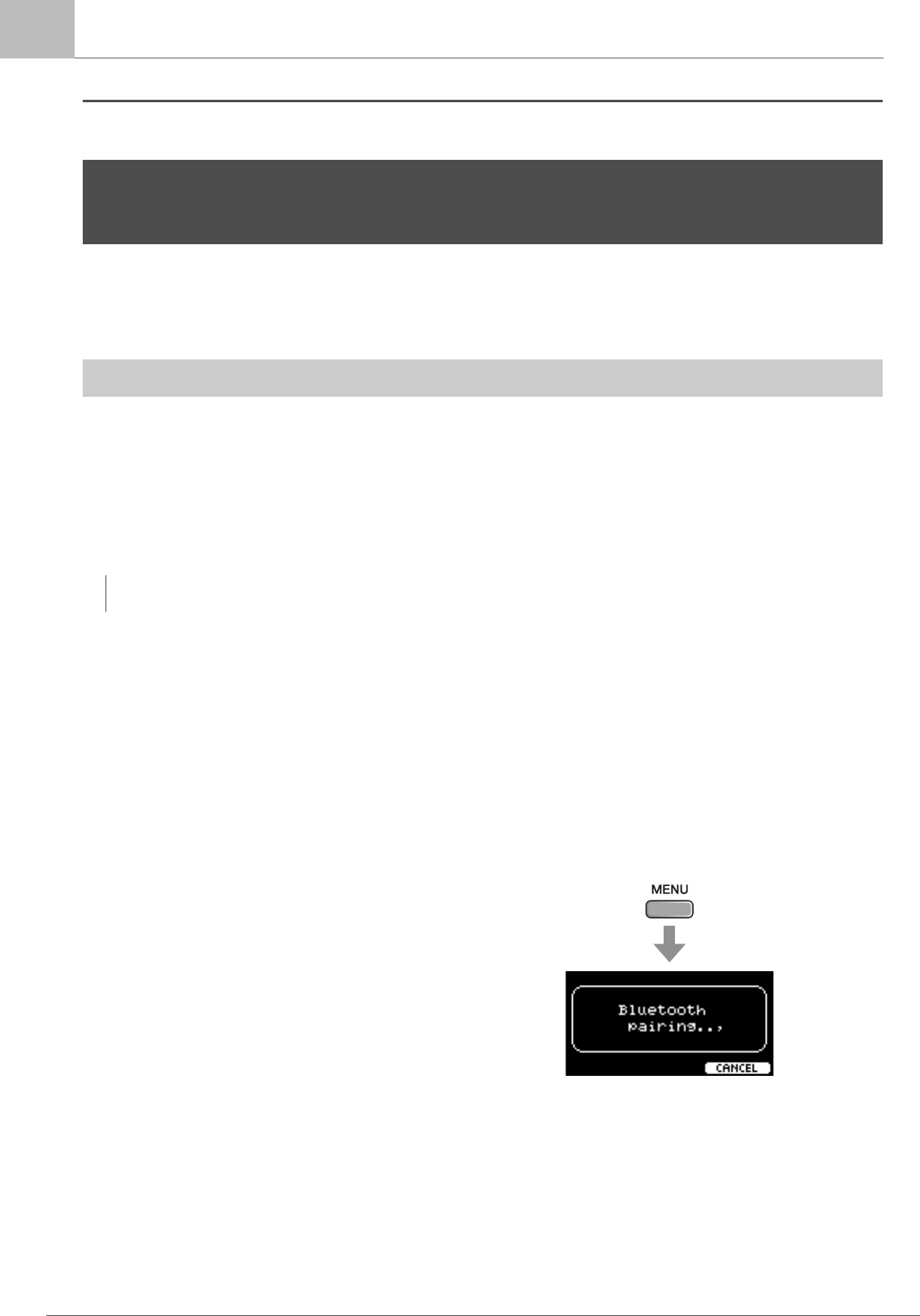
1. Hold down the [MENU] button.
The screen appears while the device is being paired.
To cancel pairing, use the button below “CANCEL”
([F3]).
2. Turn the Bluetooth setting ON on the Blue-
tooth-equipped device and select “DTX-
PROX AUDIO” from the list.
• Make sure to complete the settings on the smart device
within 5 minutes. After that, the pairing mode ends auto-
matically.
• If you are required to enter a passkey, enter the numerals
“0000.”
Listening to Audio Data from a Smart Device through the
DTX-PROX (Bluetooth Audio Function)
Before using the Bluetooth function, be sure to read “About Bluetooth” on page 4.
NOTE
Bluetooth headphones or speakers cannot be connected.
Hold down
Listening to Audio Data from a Smart Device through the DTX-PROX (Bluetooth Audio Function)
25
DTX-PROX Owner’s Manual
Listening to Audio Data from a Smart Device through the DTX-PROX (Bluetooth Audio Function)
Setup Guide
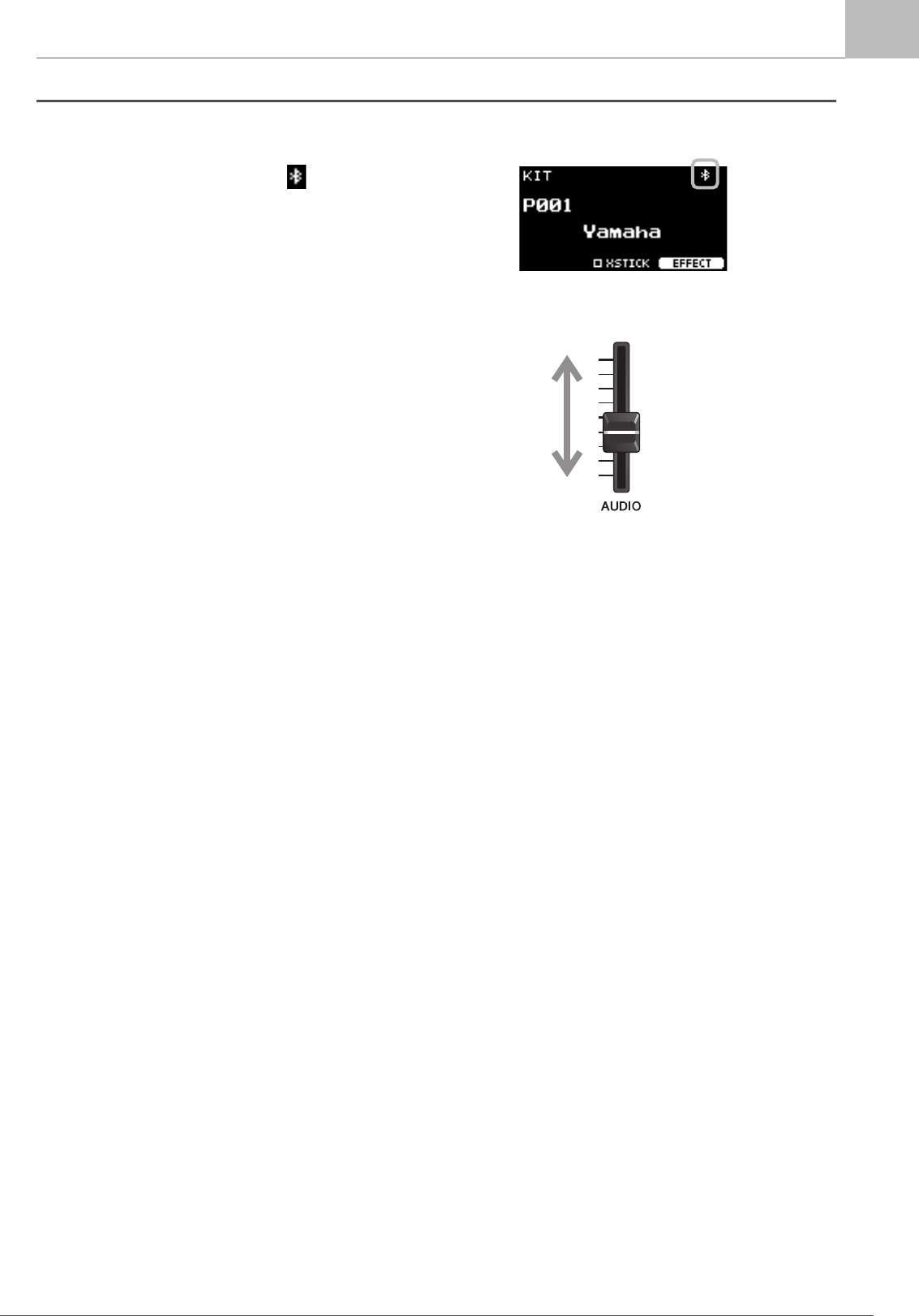
When the pairing completed, the (Bluetooth) mark
appears on top screen for each mode.
3. Play back audio data on the smart device to
confirm that the headphones or speakers
connected to the DTX-PROX can output the
audio sound.
You can adjust the volume of the sound input via Blue-
tooth by the [AUDIO] slider.
When you turn on the DTX-PROX the next time, the last-
connected smart device will be connected to the DTX-
PROX automatically, if the Bluetooth function of the
smart device and the DTX-PROX is set to on. If it is not
connected automatically, select the model name of the
instrument from the connection list on the smart device.
To switch the Bluetooth function on the DTX-PROX,
press the [MENU] button to open the screen. For more
information, refer to the Reference Manual (PDF).
(MENU/Bluetooth)
Listening to Audio Data from a Smart Device through the DTX-PROX (Bluetooth Audio Function)
26 DTX-PROX Owner’s Manual
Basic Guide
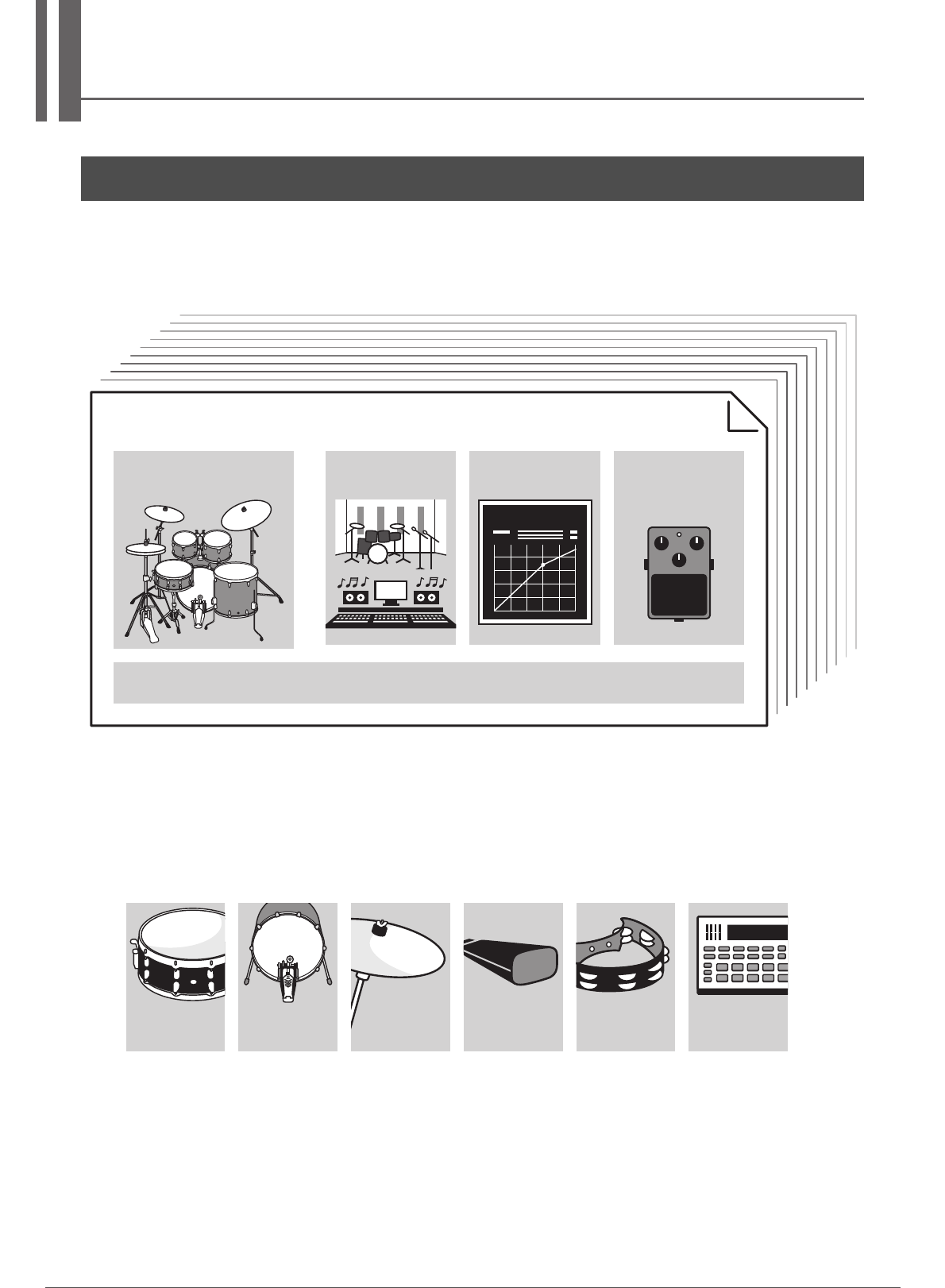
A Kit is a combination of drum set sounds and the sound modifier settings that enhance the sounds, such as Ambience,
Comp (Compressor) and Effects. This drum trigger module contains numerous sets of preset kits, and you can change the
drum set sounds by selecting another kit or by changing the sound modifier settings.
Each drum or percussion instrument in the drum set is called an instrument or “Inst,” and you can play the Inst sounds by
striking drum pads.
Structure of the Kit
Compressor
EFFECT
Kit
Drum set Ambience Comp Effects
Other settings for the Kit
Snare drum Kick CowbellCymbal Tambourine Other
instruments
Example of the Instruments (Inst):
27
DTX-PROX Owner’s Manual
Playing the Pads
Basic Guide
To play the Inst sounds, strike the pads connected to the DTX-PROX.
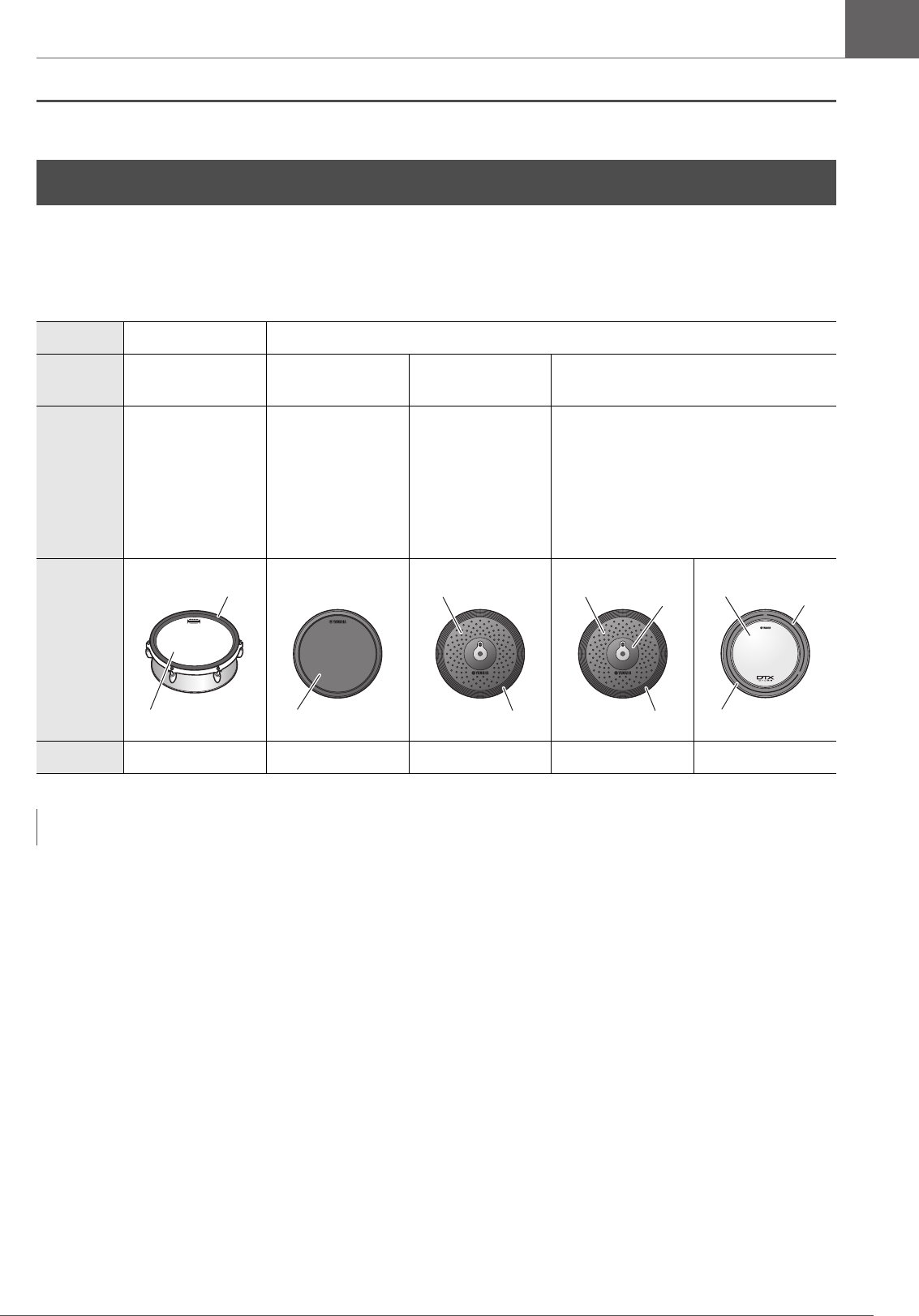
You can play different sounds by striking different sections (or “Zones”) of the pad, depending on the number of zones
available on the pad.
When position sensing is available, you can express a subtle nuance by striking different locations within a Zone.
Playing the Pads
Pad Type Multi Piezo Single Piezo
Number of
Zones 212 3
Produces two differ-
ent sounds (one for
each zone)
Produces the same
sound regardless of
where the pad is
struck.
Also called the
“monaural pads” or
“1-zone pads.”
Produces two differ-
ent sounds (one for
each zone)
Produces three different sounds (one for
each zone).
Also referred to as “3-zone pads.”
Zone
Example XP125SD-X TP70 RHH135 PCY135 XP80
NOTE
For the information on the type of the drum sticks or beaters, refer to the Owner’s Manual for the pad.
Rim
Head
Pad
Bow
Edge
Bow Cup
Edge
Pad Rim B
Rim A

28 DTX-PROX Owner’s Manual
Playing the Pads
Basic Guide
Snare and Tom
Strike different sections of the pad in the same way you would play an acoustic snare drum or tom.
With the snare pad (the pad with position sensor connected to the [qSNARE] jack), you can create natural tonal changes
according to the location within the Zone.
Head shots
Strike the main surface of the pad to produce a
conventional head hit sound.
Multi Piezo pad with position sensing:
With certain snare sounds, the sound changes
depending on how far from the rim you strike.
Open rim shots
Strike the head and the rim at once to produces a
rim shot sound.
Multi piezo pads with position sensing:
You can use normal rim shots or shallow rim
shots. Depending on the distance from the rim,
the rim shot sound changes slightly.
Single piezo 3-zone pads:
Strike the open rim.
Closed rim shots, (cross sticking)
Strike only the rim. Do not touch the head.
Multi piezo pads:
Press the button below “XSTICK” ([F2]) in the
KIT screen to switch between on (for playing the
cross-stick sound) or off (for playing the open rim
shot sound).
Single piezo 3-zone pads:
Strike the closed rim.
Head
Head
Rim
Head
Open rim
Rim
Closed rim
29
DTX-PROX Owner’s Manual
Playing the Pads
Basic Guide
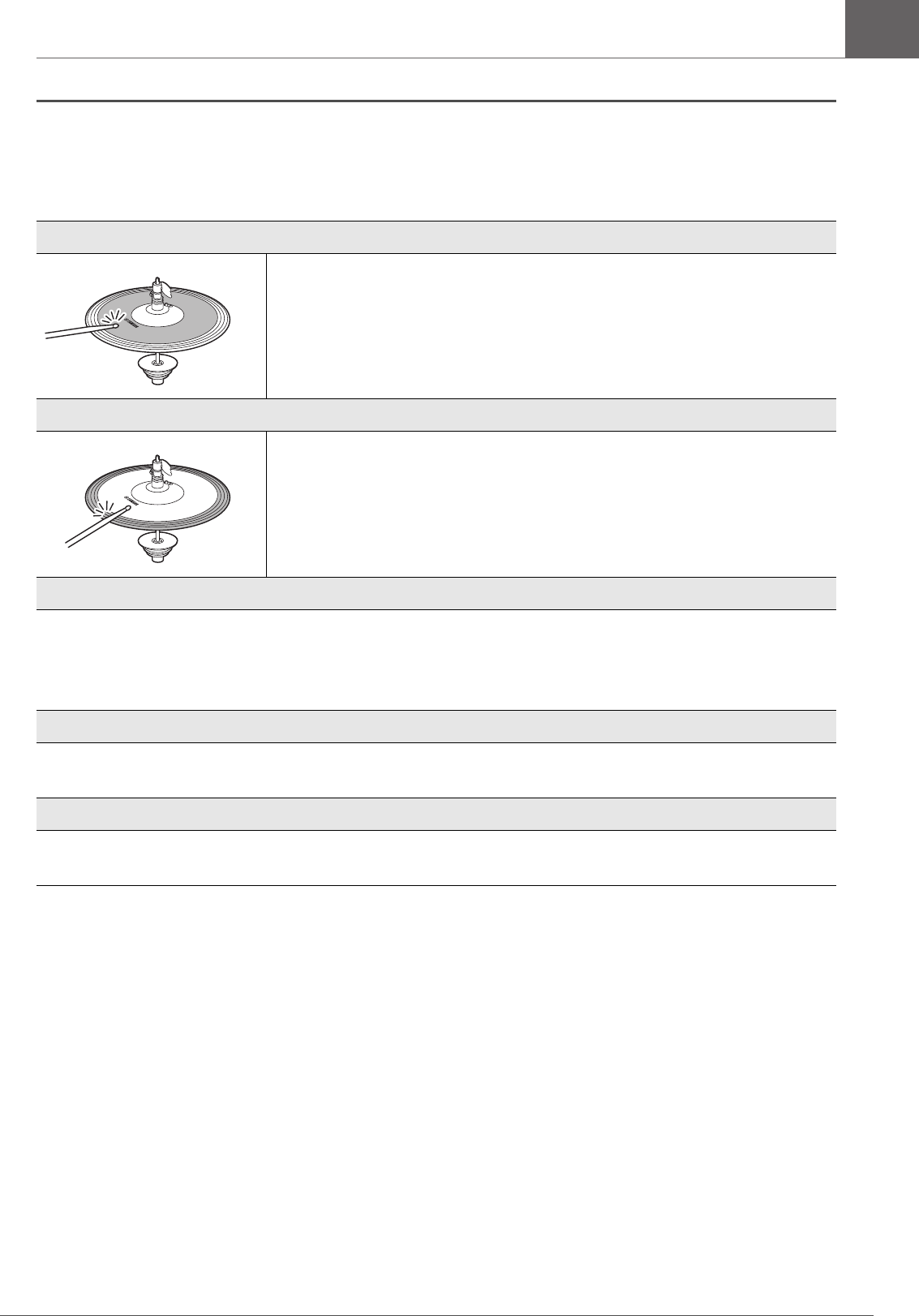
Hi-hats
Strike different sections of the pad in the same way you would play an acoustic hi-hat cymbal.
*1 The front side of the pad is indicated by the Yamaha logo.
Bow shots
Striking the main surface of the hi-hat pad (i.e., the bow section located between the
cup and edge) produces a bow shot sound.
Edge shots
Striking the front side on the outer edge of the hi-hat pad produces an edge shot
sound.
*1
Make sure that the drumstick is parallel to the pad surface when striking the pad. The
edge sensor switch on the cymbal pad may not react properly when the pad is struck
completely from the side.
Open/Close
• You can produce an open hi-hat sound by striking the hi-hat pad with the hi-hat pedal fully open.
• You can produce a closed hi-hat sound by striking the hi-hat pad with the hi-hat pedal fully pressed.
• Different hi-hat sound is produced depending on the how much the pedal is opened or pressed.
Foot-close sounds
You can press down the hi-hat pedal to create a foot-close sound without having to strike the hi-hat pad.
Hi-hat splash sounds
Pressing down the hi-hat pedal and then immediately releasing it produces a hi-hat splash sound.

30 DTX-PROX Owner’s Manual
Playing the Pads
Basic Guide
Cymbals
Strike different sections of the pad in the same way you would play an acoustic cymbal. With the ride cymbal (the pad with
position sensor connected to the [iRIDE] jack), you can create natural tonal changes according to the location within the
Zone.
Bow shots
Striking the main surface of the cymbal pad (i.e., the bow section located between the
cup and edge) produces a bow shot sound.
With the ride cymbal, strike the front side of the bow section, you can create natural
tonal changes according to the location within the Zone.
*1
Edge shots
Striking the front side on the outer edge of the cymbal pad produces an edge shot
sound.
*1
Make sure that the drumstick is parallel to the pad surface when striking the pad. The
edge sensor switch on the cymbal pad may not react properly when the pad is struck
completely from the side.
Bell shots
Striking the bell (cup) produces a bell shot sound.
Choking
Grabbing the front side on the outer edge of a cymbal pad immediately after striking it
will mute the sound being produced.
*1
Front side on
the outer edge
Front side on
the outer edge

31
DTX-PROX Owner’s Manual
Playing the Pads
Basic Guide
*1 The front side of the pad is indicated by the Yamaha logo.
Muting
Striking the pad while holding the front side of the outer edge will produce a muted
sound.
*1
Front side on the
outer edge
32 DTX-PROX Owner’s Manual
Basic Operation of the DTX-PROX
Basic Guide
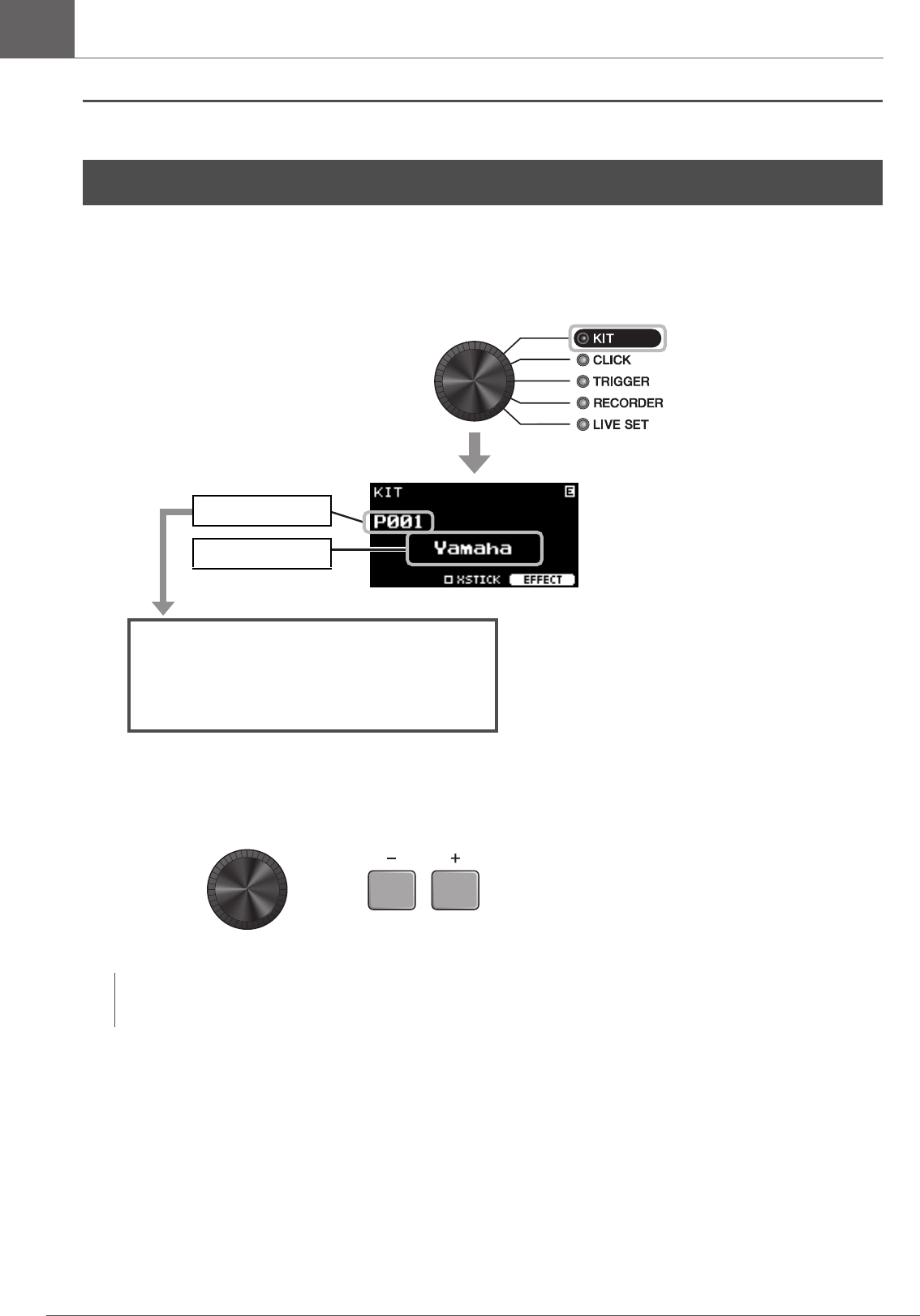
Selecting a Kit
1. Set the Mode Select knob to “KIT.”
The KIT screen appears.
2. Use the [–][+] controllers to select a kit.
Basic Operation of the DTX-PROX
NOTE
If you’ve inadvertently selected another Kit before storing the Kit being edited, you can use the recall function to recall the
edited contents. For more information, refer to the Reference Manual (PDF). (MENU/Job/Kit/Recall)
* This screen is shown when multi-piezo pads
are connected.
Kit number
Kit name
P***: Preset Kits (Presets that are already
stored in the DTX-PROX)
U***: User Kits (Kits you have created)
or
33
DTX-PROX Owner’s Manual
Basic Operation of the DTX-PROX
Basic Guide
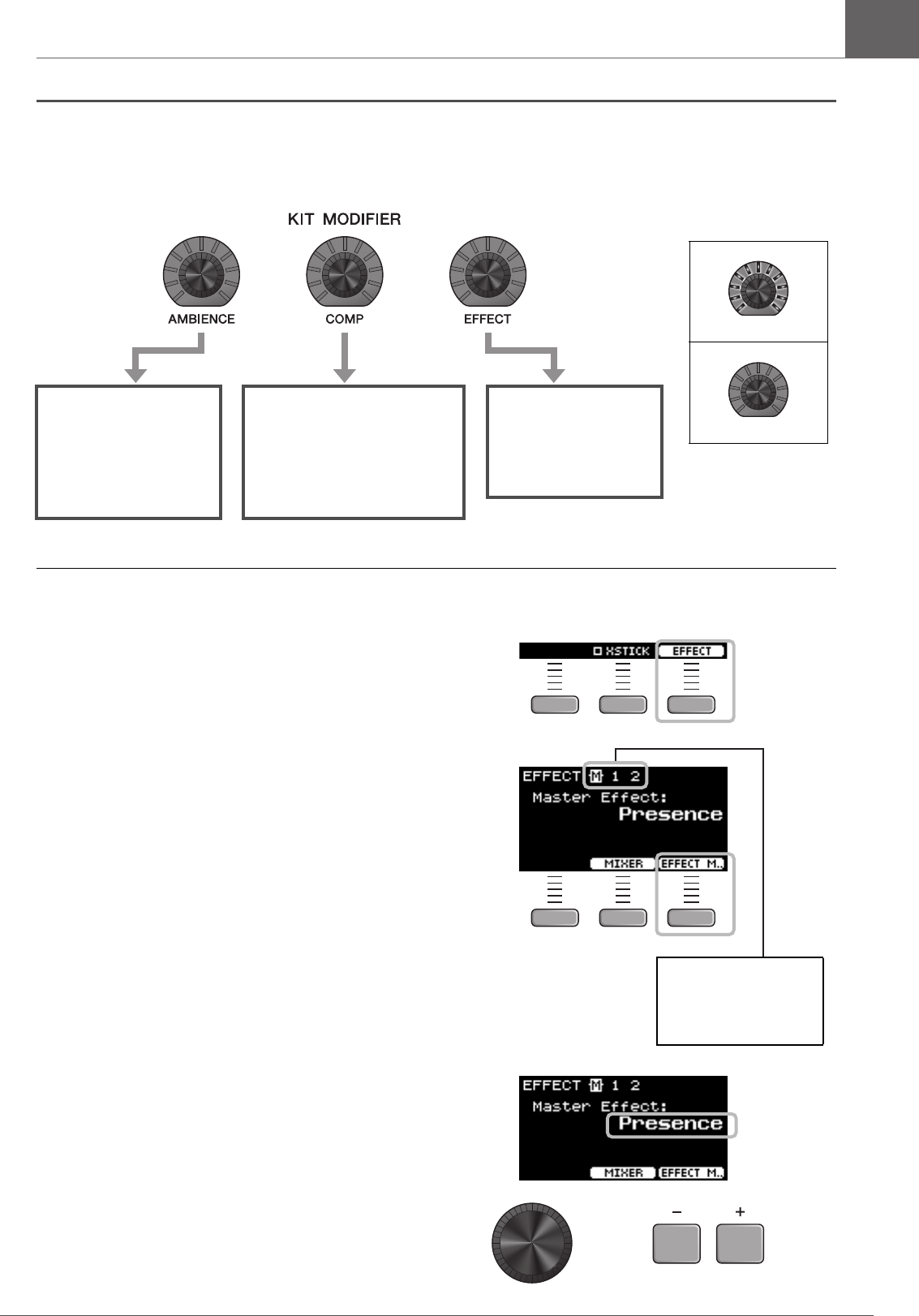
Adjusting (Modifying) the Sound Effects
Changing the Effect Type to Apply
1. Press the button below “EFFECT” ([F3]).
2. Press the button below “EFFECT M…” ([F3])
to select the effect you wish to set.
3. Use the [–] [+] controllers to select the effect
type.
[AMBIENCE] knob
Adjusts the amount
of ambience or the
reflective sounds of
the virtual room
[COMP] knob
Adjusts the amount of
compression or the
amount of the punchiness
or loudness of the sound
[EFFECT] knob
Adjusts the amount
of other effects
assigned to the Kit
Maximum: All lit
Minimum: All off
Effect Selection
M: Master effect
1: Effect 1
2: Effect 2
or
34 DTX-PROX Owner’s Manual
Changing the Drum Set Sound (Building Your Own Drum Set)
Basic Guide
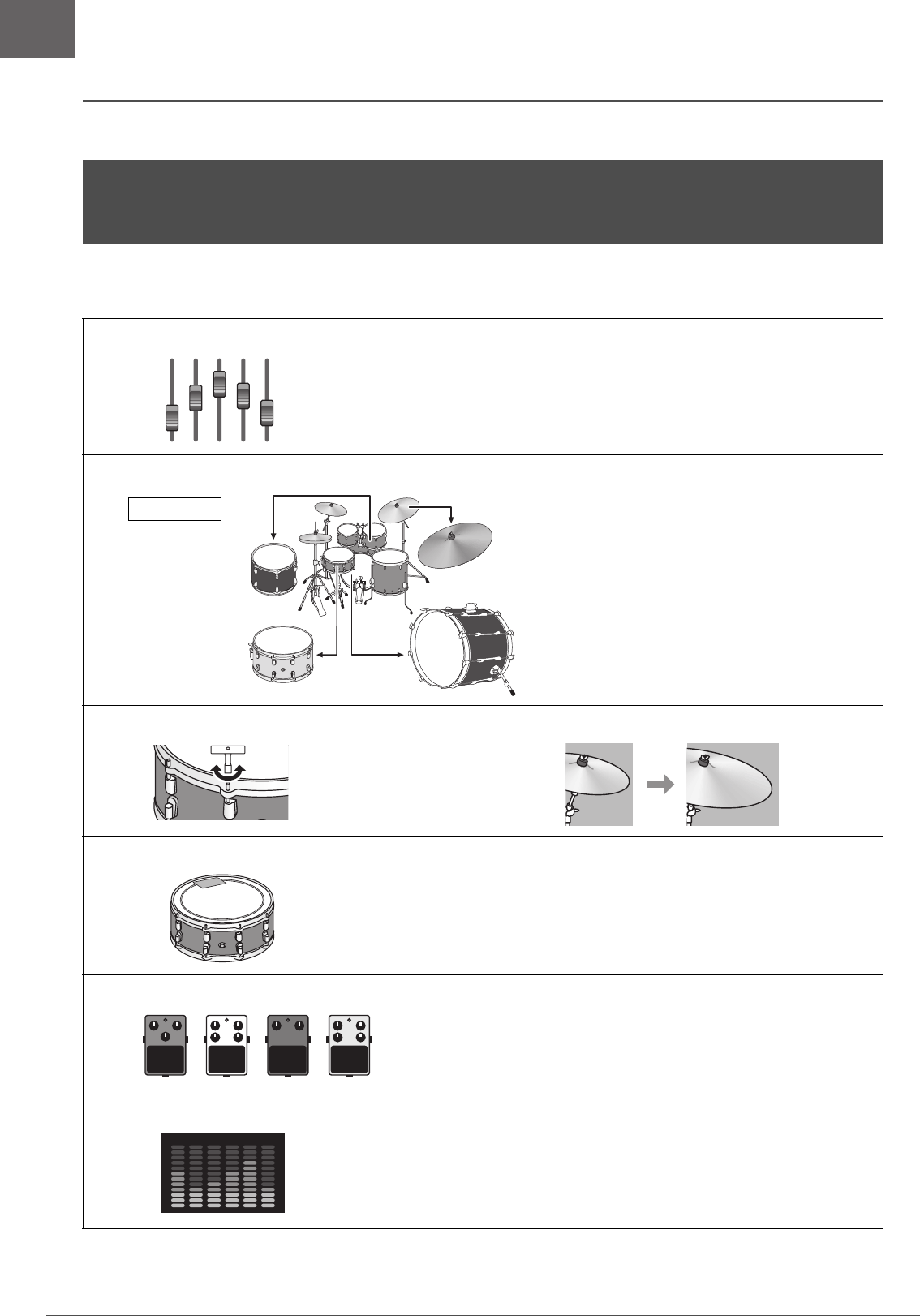
With the DTX-PROX, you can build your own drum set by changing the drum set sound within the Kit.
By changing the settings shown below, you can customize the drum set sound.
If you want to make more detailed changes to the settings, press the [MENU] button. For more information, refer to the Ref-
erence Manual (PDF). (MENU/Kit Edit/Inst or MENU/Kit Edit/Voice)
Changing the Drum Set Sound (Building Your Own Drum
Set)
-Adjusting the Audio Balance
-Replacing Instruments
-Changing the Tunings -Changing the Cymbal Size
-Muffling (muting) the drum -Sustain length of the cymbal
-Hi-hat clutch positions, etc.
-Changing the Amount of Effect to Apply
-Creating Custom settings
Drum set
DISTORTION
DELAY
FLANGER
PHASER

35
DTX-PROX Owner’s Manual
Changing the Drum Set Sound (Building Your Own Drum Set)
Basic Guide
Adjusting the Audio Balance
Use the mixer to adjust the overall volume balance of the pads.
1. Set the fader select knob to “MIXER.”
The MIXER screen appears.
2. Use the LED rotary faders to adjust the settings.
To adjust the volume of each pad, press the [MENU] button to change the Inst volume settings.
To adjust the volume of each section of the pad (Zone), press the [MENU] button to change the Voice volume settings.
For more information, refer to the Reference Manual (PDF).
3. Press the button below “OK” (F3).
NOTE
• The mixer setting is retained after switching to another Kit.
• The mixer setting is not saved as a Kit setting.
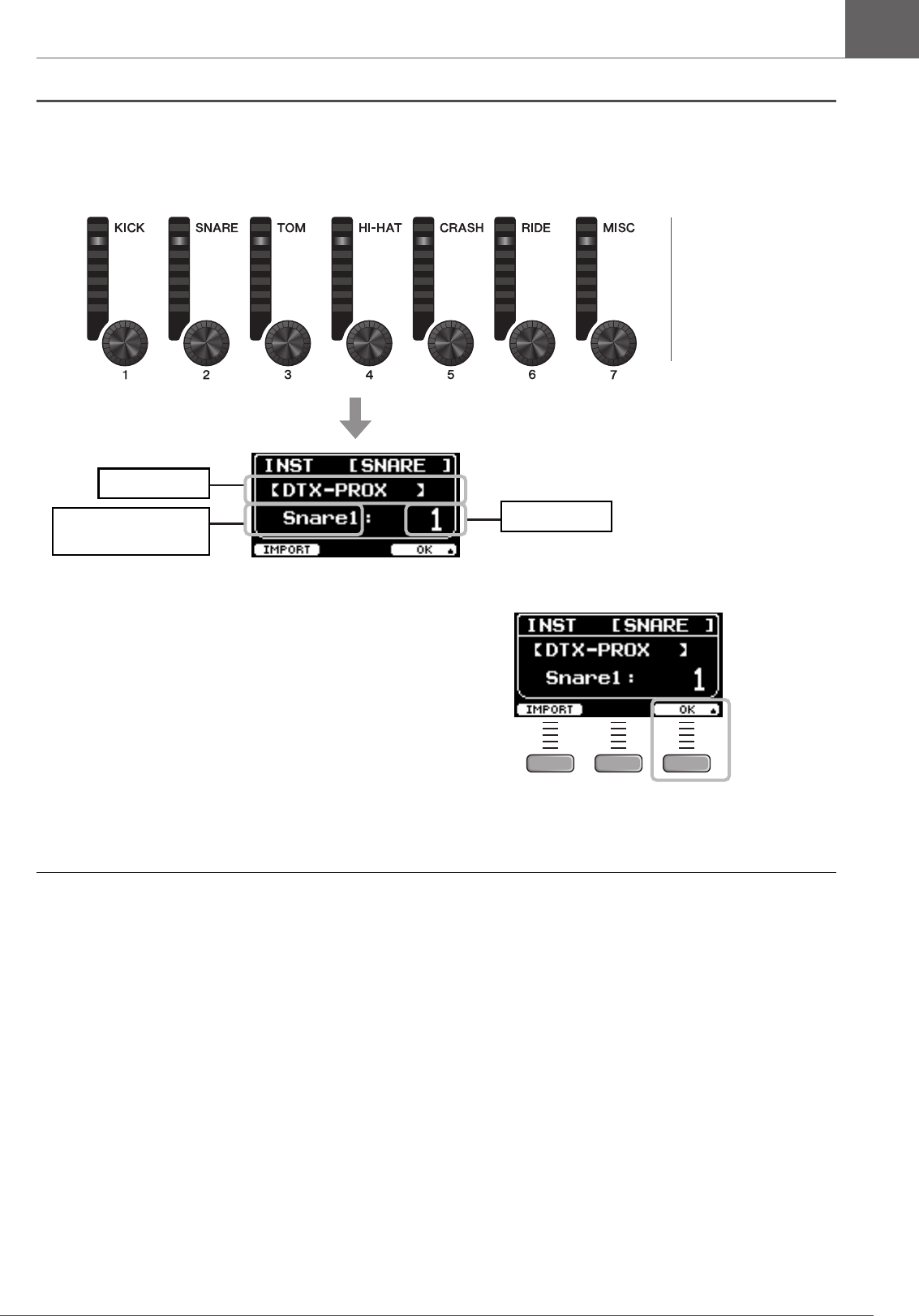
Shown on the panel KICK SNARE TOM HI-HAT CRASH RIDE MISC
Pad Kick Snare Tom1
Tom 2
Tom 3
Hi-Hat Crash1
Crash2
Ride Others
Trigger input jack the
pad is connected to
!2KICK qSNARE wTOM1
rTOM2
yTOM3
!1HI-HAT oCRASH1
!0CRASH2
iRIDE e, t, u,
!3, !4
36 DTX-PROX Owner’s Manual
Changing the Drum Set Sound (Building Your Own Drum Set)
Basic Guide
Replacing Instruments
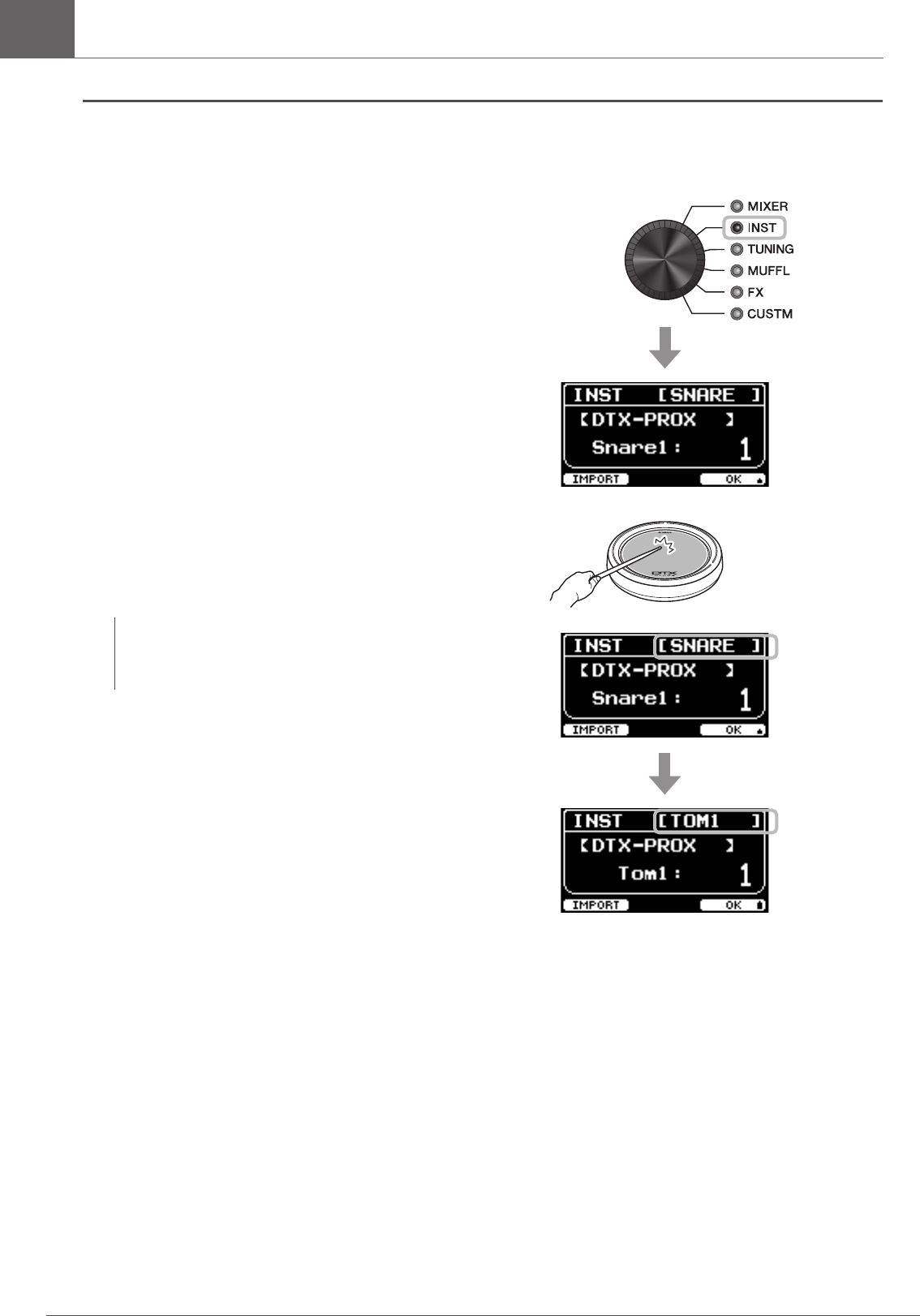
1. Set the fader select knob to “INST”.
The INST screen appears.
2. Strike the drum pad for which you wish to
change the settings.
The pad name appears on the upper right corner of the
screen.
NOTE
For the TOM, CRASH, and MISC pads, you can use the
[PAD SELECT] button to change the pad selection. For more
information, refer to the Reference Manual (PDF).
37
DTX-PROX Owner’s Manual
Changing the Drum Set Sound (Building Your Own Drum Set)
Basic Guide
3. Use the LED Rotary Faders to select an Instrument.
The selected Instrument is shown on the screen.
4. Press the button below “OK” (F3).
Using Imported Sounds (.wav)
You can import audio files (.wav) into the DTX-PROX to use as Inst sounds.
For more information on importing audio files and settings, refer to the Reference Manual (PDF).
For more information on using a USB flash drive, see “Using a USB Flash Drive” (page 21).
Inst name
Inst Category for the
selected Instrument
Inst number
NOTE
For the TOM, CRASH,
and MISC pads, you can
use the [PAD SELECT]
button to change the pad
selection. For more infor-
mation, refer to the Ref-
erence Manual (PDF).

38 DTX-PROX Owner’s Manual
Changing the Drum Set Sound (Building Your Own Drum Set)
Basic Guide
Changing Settings such as Tuning and Muffling (muting)
Inst settings such as tuning and muffling (muting) can be changed.
Settings that can be changed with TUNING or MUFFL are different depending on the Inst Category.
1. Set the fader select knob to “TUNING” or “MUFFL.”
The setting screen appears.
Inst Category for the selected instrument (INST)
Kick1
Kick2
Snare1
Snare2
Tom1
Tom2
Cymbal1
Cymbal2
HiHat1
HiHat2
Perc
Effect
User
TUNING Tu n i n g
Determines the
tuning (pitch).
Size
Simulates the effect
of changing the
cymbal size.
Size
Simulates the effect of
changing the cymbal
size.
Tu n i n g
Determines the
tuning (pitch).
MUFFL Muffling
Simulates the effect
of changing the
degree of muffling
(or how much the
drum head is
muted)
Sustain
Determines the
cymbal’s sustain
time (i.e., how
quickly the sound
decays to silence).
Clutch
Simulates the effect of
changing the hi-hat’s
clutch position. The
smaller the setting, the
quicker an open hi-hat
sound will decay to
silence.
Decay
Determines how
quickly the sound
decays to silence.
NOTE
Hi-Hat Clutch setting
is applied to all Kits.
or
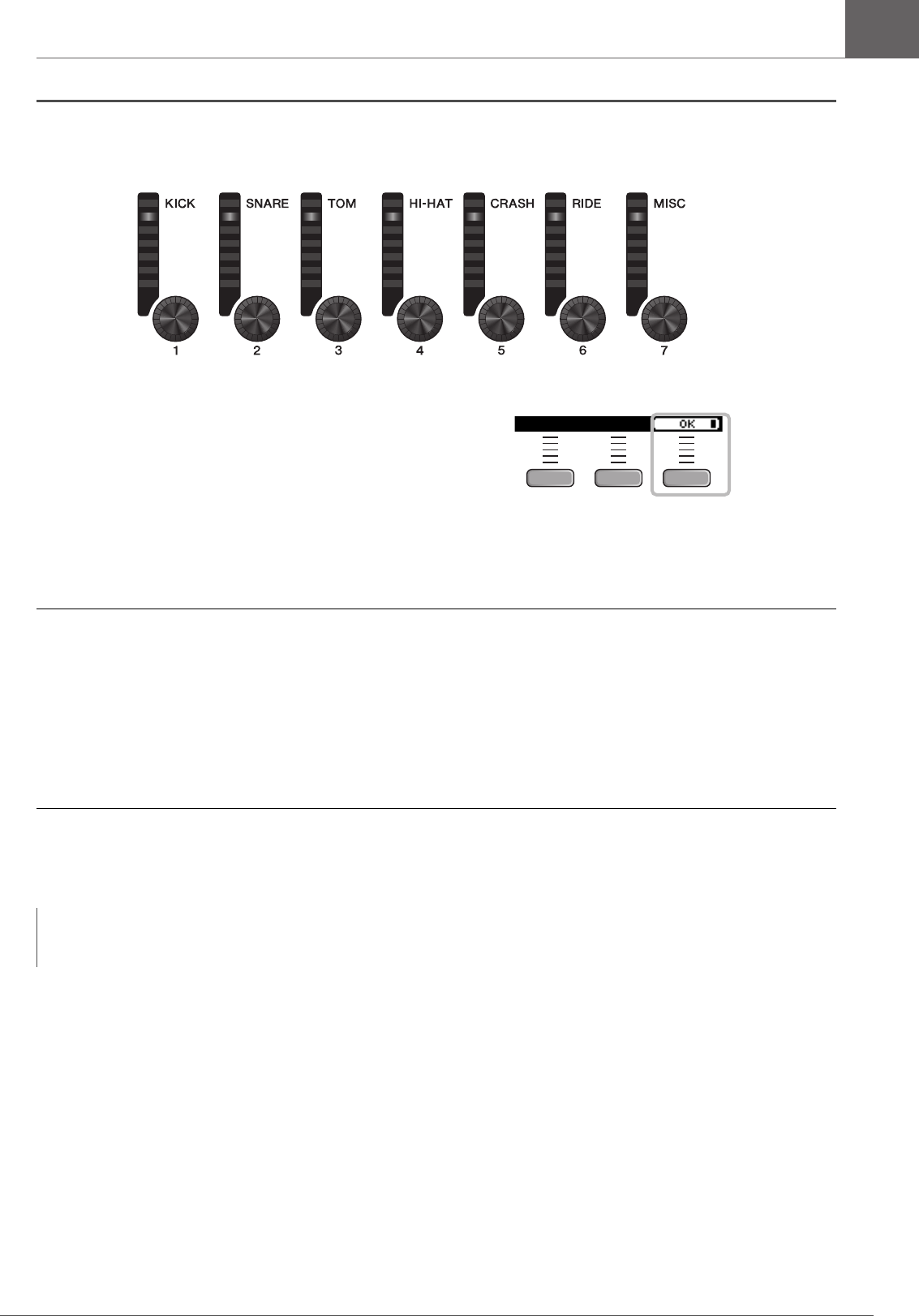
39
DTX-PROX Owner’s Manual
Changing the Drum Set Sound (Building Your Own Drum Set)
Basic Guide
2. Use the LED Rotary Faders to adjust settings.
3. Press the button below “OK” (F3).
Changing the Amount of Effect Applied to each Instrument
The amount of effects (such as Effect1, Effect2, Transient) can be set independently for each Inst.
For example, you can use these settings to apply deeper effects only to the snare.
For more information, refer to the Reference Manual (PDF).
Creating Custom settings
Other settings such as Master EQ, Phones EQ gain, volume of the individual click timing. and the send settings on MIDI
control change can be customized. For more information, refer to the Reference Manual (PDF).
NOTE
• The CUSTM setting is retained after switching to another Kit.
• The CUSTM setting is not saved as a Kit setting.
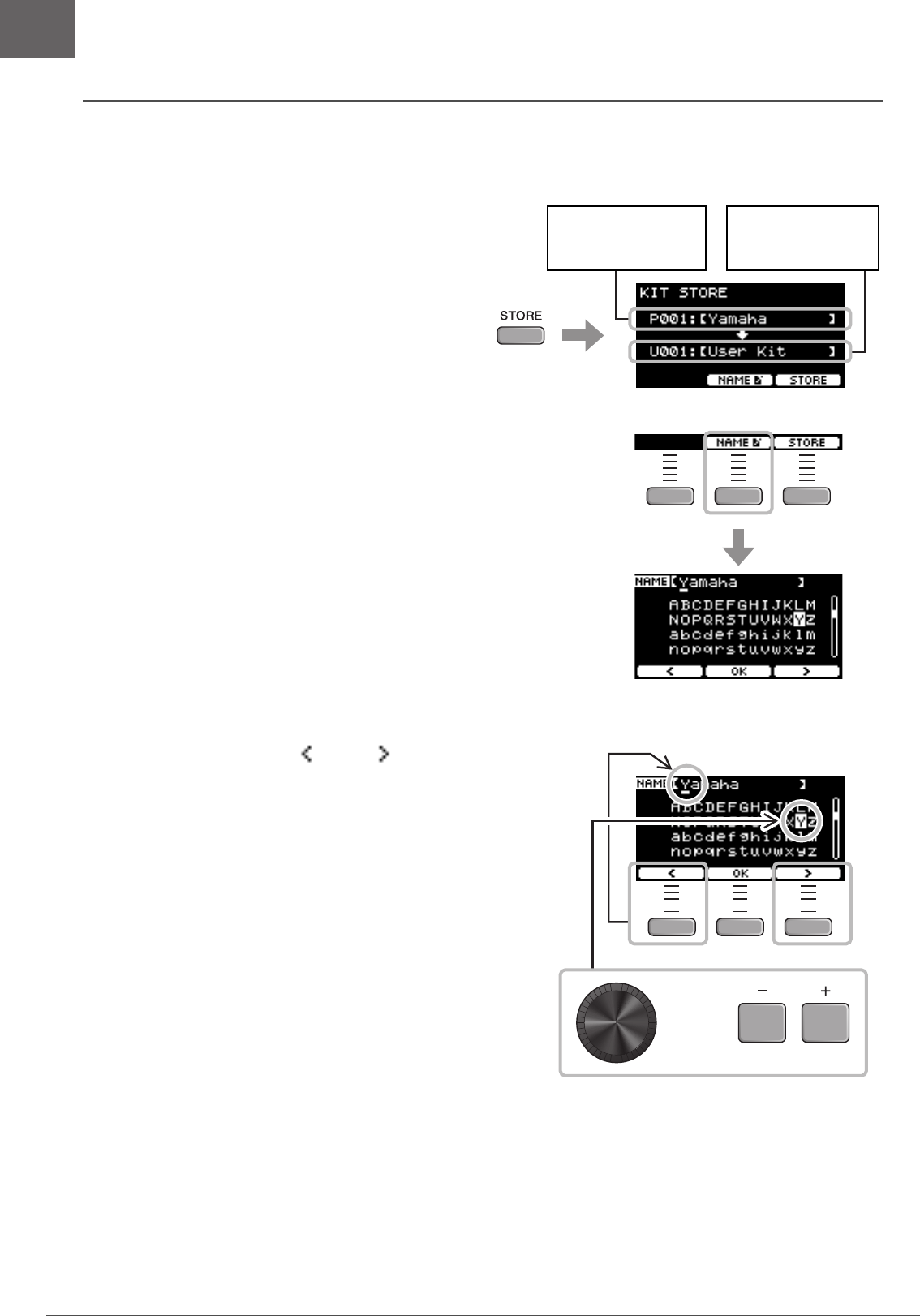
40 DTX-PROX Owner’s Manual
Changing the Drum Set Sound (Building Your Own Drum Set)
Basic Guide
Saving a Customized Kit under a New Name
1. Press the [STORE] button.
The KIT STORE screen appears.
2. Press the button below “NAME” ([F2)] to open
the NAME screen.
3. Use the buttons below “ ” and “ ” ([F1] and
[F3]) to select the character position, then use
the [–] [+] controllers to select a letter.
A name of up to 12 characters can be set to the Kit.
Kit number and Kit
name of the Kit you are
editing.
User Kit number and
User Kit name of the
Store Destination.
or
Character
position
(cursor)
Character
you want to
enter
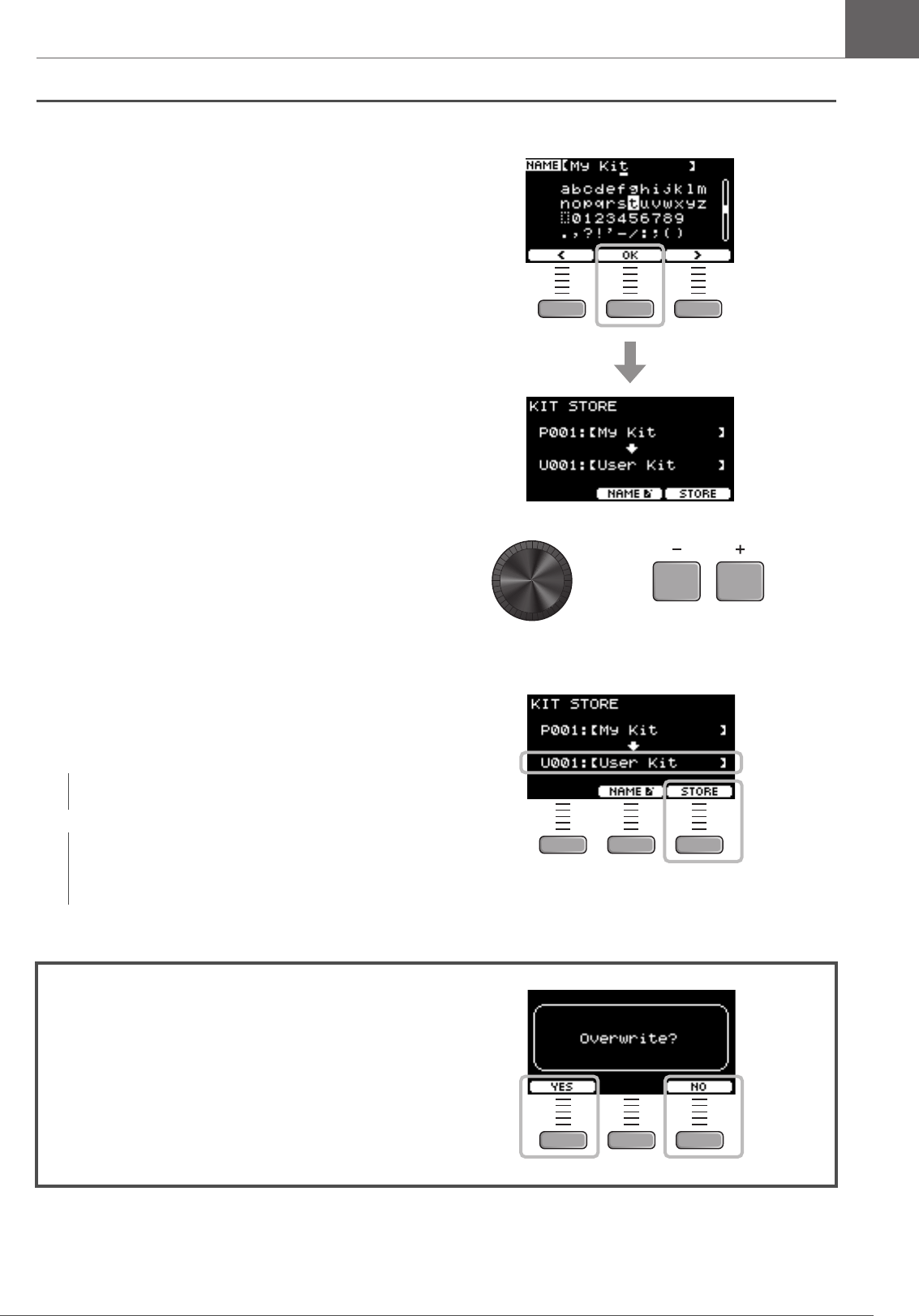
41
DTX-PROX Owner’s Manual
Changing the Drum Set Sound (Building Your Own Drum Set)
Basic Guide
4. After entering all characters, press the button
below “OK” ([F2]) and return to the STORE
screen.
5. Use the [–] [+] controllers to select a User Kit
Number to store your Kit to.
6. After confirming the new Kit Number and Kit
Name, press the button below “STORE”
([F3]).
When the Kit operation is complete, the display returns to the Kit screen.
NOTE
You cannot save an edited Kit to a Preset Kit.
NOTICE
When overwriting a Kit, the current Kit settings are
replaced with the new settings. Before overwriting a Kit,
ensure that the Kit contains no irreplaceable settings.
“Overwrite?” appears when the selected Kit Number already
contains a Kit.
If you want to overwrite to save the Kit, press the button below
“YES” ([F1]).
If you do not want to overwrite, press the button below “NO”
([F3]) and return to the previous screen where you can select
another Kit number.
or
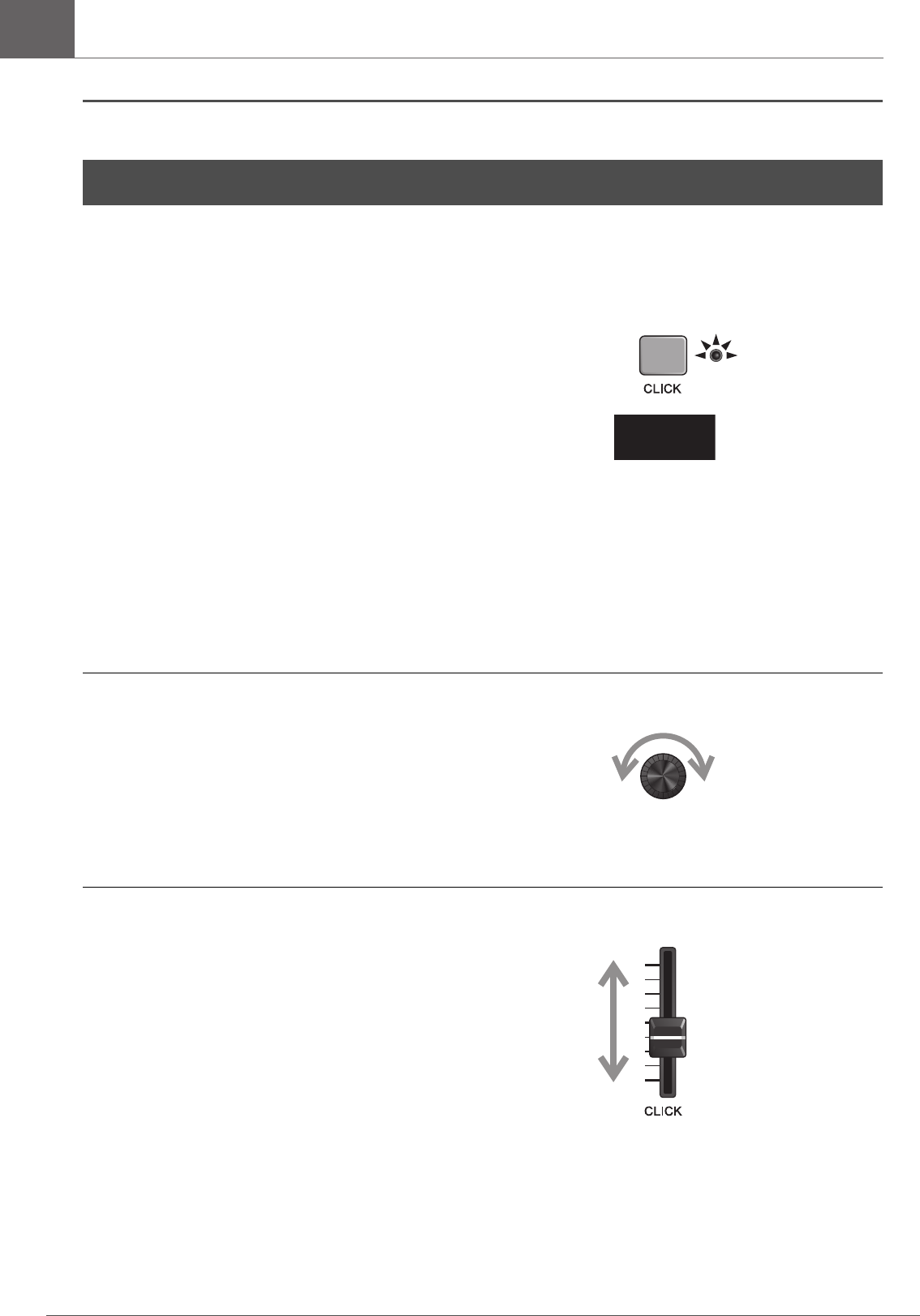
42 DTX-PROX Owner’s Manual
Using the Click (Metronome)
Basic Guide
Practicing your drumming along with the click (metronome) sounds helps you perfect your rhythms.
Starting and Stopping the Click
1. Press the [CLICK] button to start the Click.
Click sounds are played at the tempo shown in the Click
Tempo display.
The lamp next to the [CLICK] button flashes in sync with
the tempo while the Click sounds.
2. To stop the click, press the [CLICK] button
again.
Changing the Tempo
1. Turn the [TEMPO] knob.
Setting the Click Beat Volume
1. Move the [CLICK] slider.
Using the Click (Metronome)
120
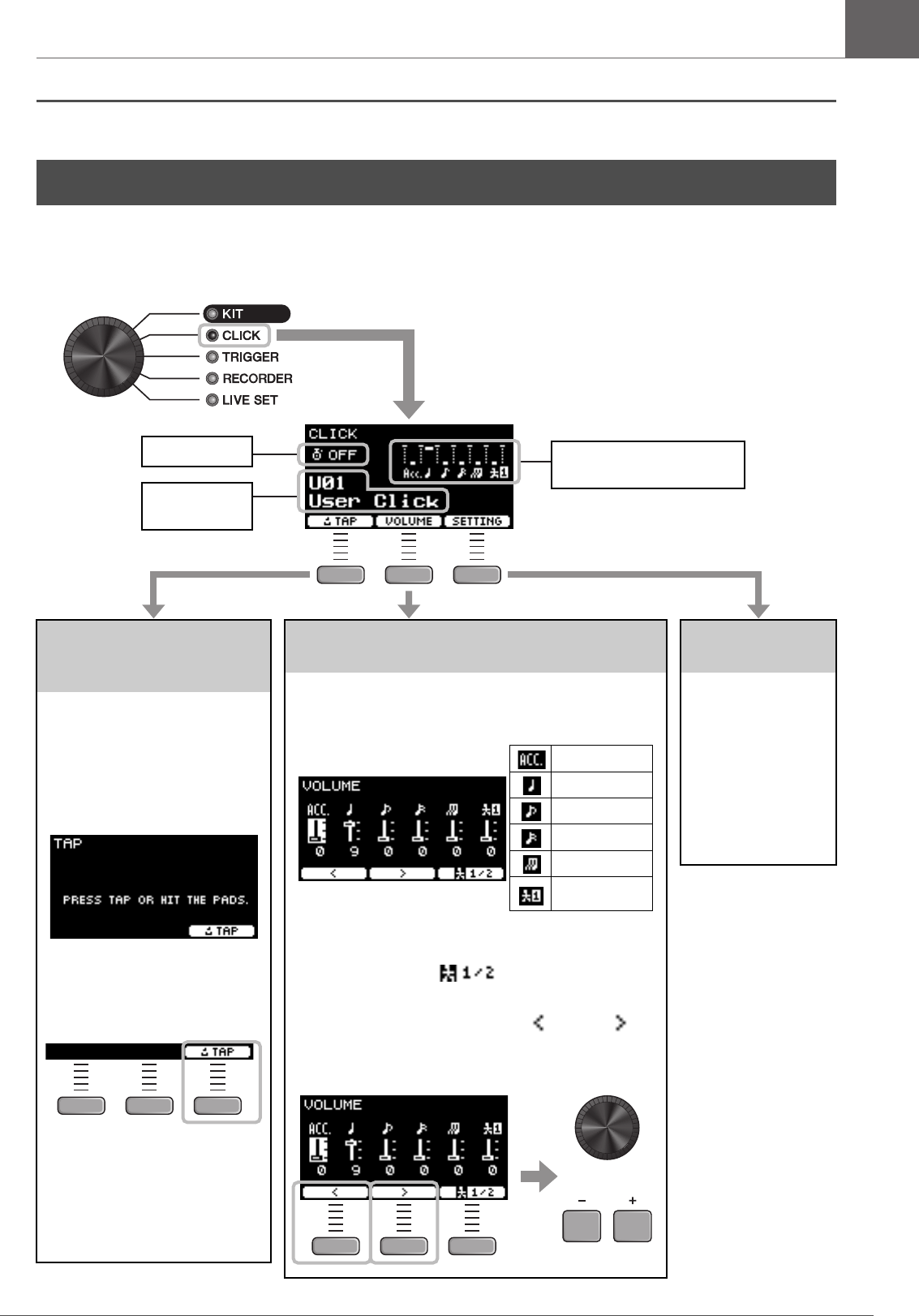
43
DTX-PROX Owner’s Manual
Creating Your Own Click (Metronome) Settings
Basic Guide
Set the Click (metronome) tempo, volume, etc.
1. Set the Mode Select knob to “CLICK.”
Creating Your Own Click (Metronome) Settings
Setting the Tempo by
Tapping the Button
(Tap Tempo)
Tap the button at the desired tempo
to set the tempo.
2. Press the button
below “TAP” ([F1]).
The TAP screen appears.
3. Tap the button below
“TAP” ([F3]) at least
3 times.
The tapped tempo is detected and
appears on the Click tempo display.
NOTE
You can also set the tempo by
striking a pad connected to the
Trigger Input jacks.
Changing the Volume of the Individual Click
Timing
2. Press the button below “VOLUME”
([F2]).
3/8, 6/8, 9/8, 12/8, 15/8 beats only have settings for Acc, dot-
ted quarter, eighth, and sixteenth notes.
Press the button below “ ” ([F3]) to switch between
Human voice1 and Human voice2 to change counts.
3. Use the buttons below “ ” and ” ”
([F1] and [F2]) to move the cursor and
use [–][+] to change the volume.
The VOLUME screen appears. Accents
Quarter notes
Eighth notes
Sixteenth notes
Eighth note triplets
Human voice
or
Changing Other
Settings
Beat, Timer settings,
click sound types, and
other settings can be
changed. Also, you
can use your choice of
a wav file as click
sound. For more infor-
mation, refer to the
Reference Manual
(PDF).
The CLICK
screen appears.
Timer settings
Click number
Click name
Volume settings for individual
click timing

44 DTX-PROX Owner’s Manual
Creating Your Own Click (Metronome) Settings
Basic Guide
Saving the Customized Click Setting under a New Name
The Click settings you have customized can be saved in the same way as saving a kit. See “Saving a Customized Kit under
a New Name” (page 40).
Using Saved Click Settings
While the CLICK screen is shown on the display, use the [–][+]
controllers to select a user click.
or
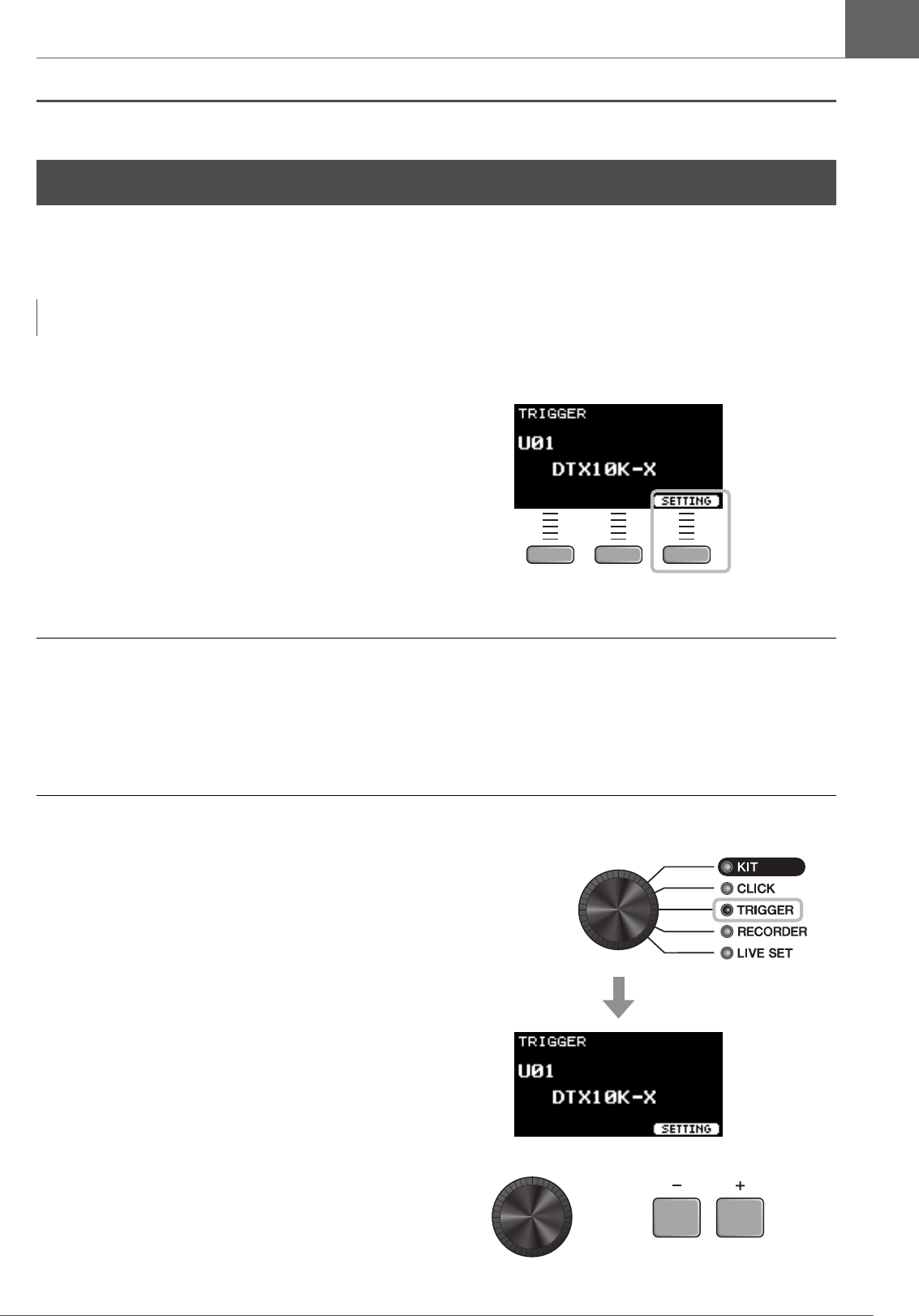
45
DTX-PROX Owner’s Manual
Changing the Trigger Settings
Basic Guide
With the Initial setup (Trigger Setup Wizard), the DTX-PROX will automatically optimize the trigger output levels for all
pads. You can adjust each of settings later or create a new Trigger setup. Several sets of customized trigger setups can be
saved on the DTX-PROX.
Creating a customized trigger setup
Trigger setups can be changed from the button below “SET-
TING” ([F3]). For more information, refer to the Reference
Manual (PDF).
Saving the customized trigger setup
The Trigger setups you have customized can be saved in the same way as saving a kit. See “Saving a Customized Kit under
a New Name” (page 40).
Selecting a Trigger setup
1. Set the Mode Select knob to “TRIGGER.”
The TRIGGER screen appears.
2. Select the desired Trigger setup with the
[–][+] controllers.
Changing the Trigger Settings
NOTE
The setting selected with the Trigger Setup Wizard appears as the first setting shown on the screen.
or
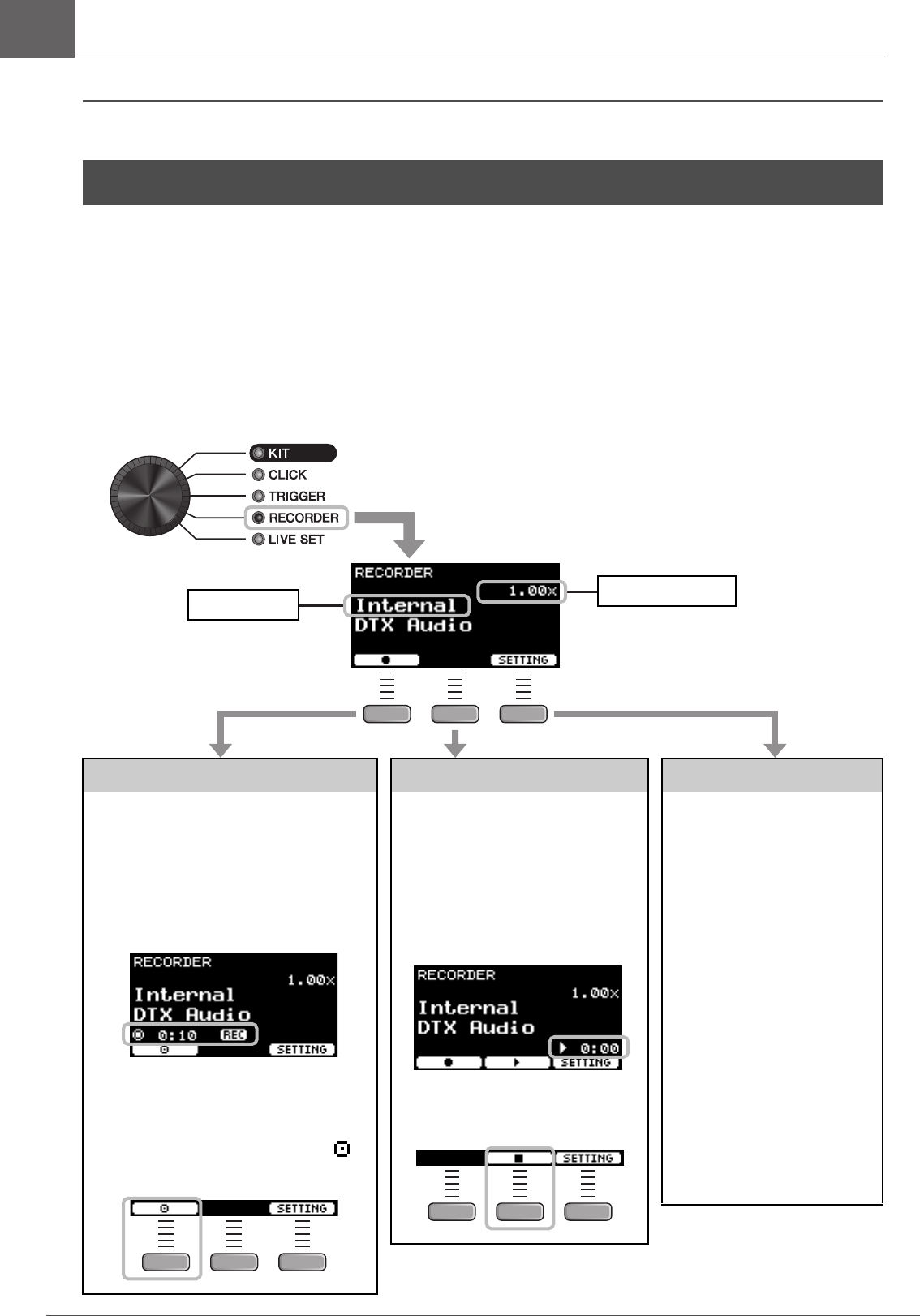
46 DTX-PROX Owner’s Manual
Recording Your Performance
Basic Guide
Use the DTX-PROX to record your performance. When a USB flash drive is connected to the DTX-PROX, audio is
recorded to the USB flash drive.
You can overdub your performance onto an accompaniment song (input via the [AUX IN] jack or Bluetooth) and save your
performance combined with the accompaniment song as a single audio file.
Recording to the DTX-PROX (when no USB flash drive is connected
to the terminal)
1. Set the Mode Select knob to “RECORDER.”
Recording Your Performance
Recording
Recording time to the DTX-PROX is about 1
minute 30 seconds.
2. Press the button below “-”
([F1]) to start recording.
While recording, the elapsed recording time
(min: sec) appears.
3. Play the drums.
4. After you finish playing,
press the button below “ ”
([F1]) to stop recording.
Playing Back
NOTE
This is not displayed when there is no
recorded song.
2. Press the “>” button
([F2]) to start playback.
While playing back, the elapsed play-
back time (min: sec) appears.
3. To stop playback, press
the “” button ([F2]).
Changing other settings
Other settings such as the play-
back speed or the recording
source can be changed. For more
information, refer to the Refer-
ence Manual (PDF).
NOTICE
• When your performance is
already recorded on the
DTX-PROX, recording again
on the DTX-PROX erases the
previous recording.
• Any performance recorded
to the DTX-PROX will be lost
when the power is turned
off. If you wish to save your
recordings, export the
recorded data as audio files.
For more information, refer
to the Reference Manual
(PDF). (MENU/Job/Recorder/
Export Audio)
Destination
Playback speed
The RECORDER screen opens.
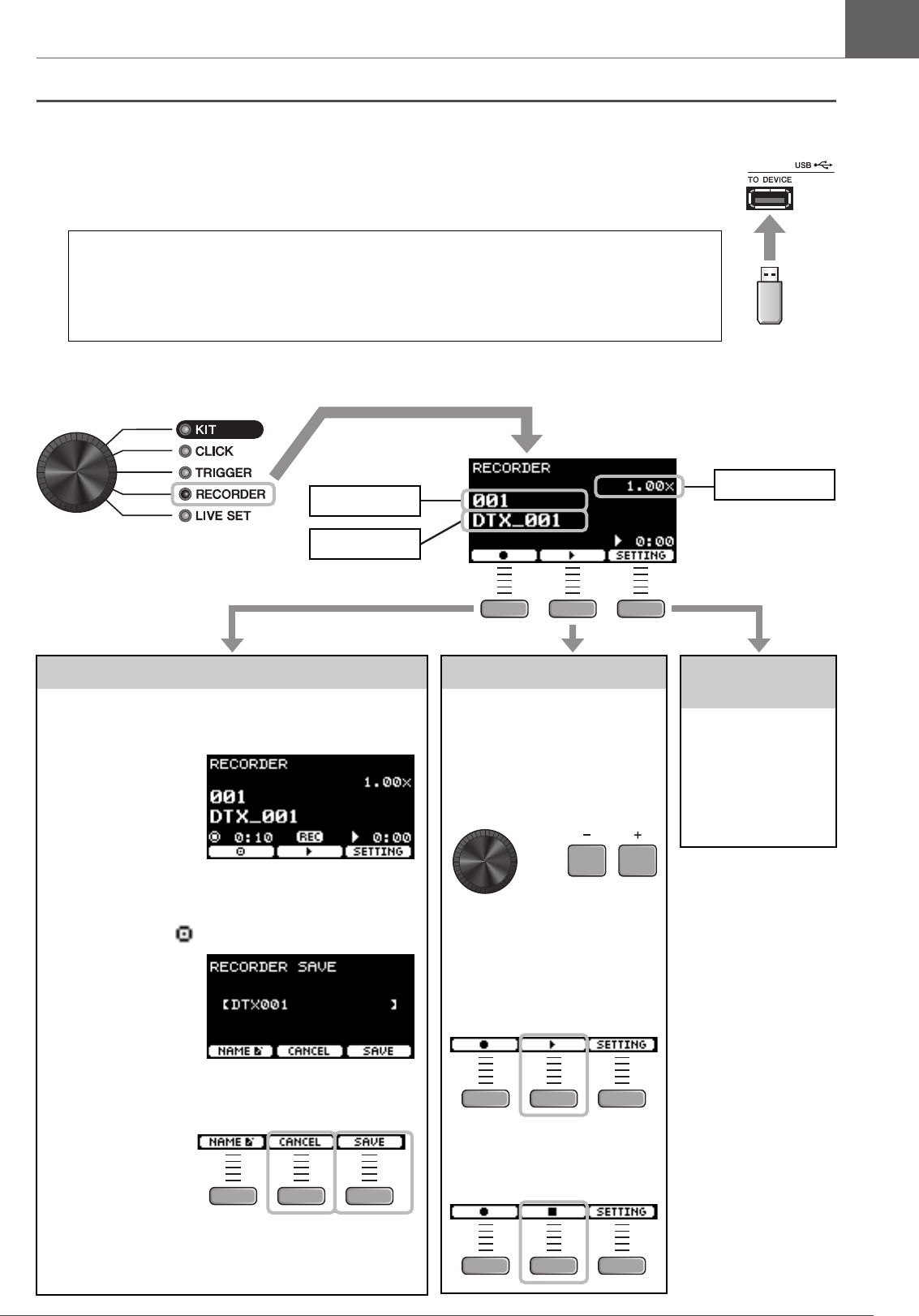
47
DTX-PROX Owner’s Manual
Recording Your Performance
Basic Guide
Recording to a USB Flash Drive
1. Connect a USB flash drive to the [USB TO DEVICE] terminal on the rear panel.
2. Set the Mode Select knob to “RECORDER.”
When a USB flash drive is connected
• You can record up to 90 minutes at a time.
• A new file is created every time you record.
• Simultaneous playback and recording to overdub your performance onto the currently playing
song.
Recording
3. Press the button below “-” ([F1]) to
start recording.
While recording, the
elapsed recording time
(min: sec) appears.
4. Play the drums.
5. After you finish playing, press the but-
ton below “ ” ([F1]) to stop recording.
The RECORDER SAVE
screen appears.
6. Press the button below “SAVE” ([F3])
and save the file.
Press the button below
“CANCEL” ([F2]) if
you do not want to save
the file.
NOTE
If you want to change the file name, press the button below
“NAME” ([F1]) and enter a new name. (page 40)
Playing Back
NOTE
This is not displayed when there
is no recorded song.
3. Use the [–][+] con-
trollers to select a
song for playback.
NOTE
Up to 1,000 songs are recog-
nized.
4. Press the button
below “>” ([F2]) to
start playback.
5. Press the button
below “” ([F2]) to
stop playback.
or
Changing Other
Settings
Other settings such as
the playback speed or
the recording source
can be changed. For
more information,
refer to the Reference
Manual (PDF).
Destination
File name
Playback speed
The RECORDER (USB) screen appears.
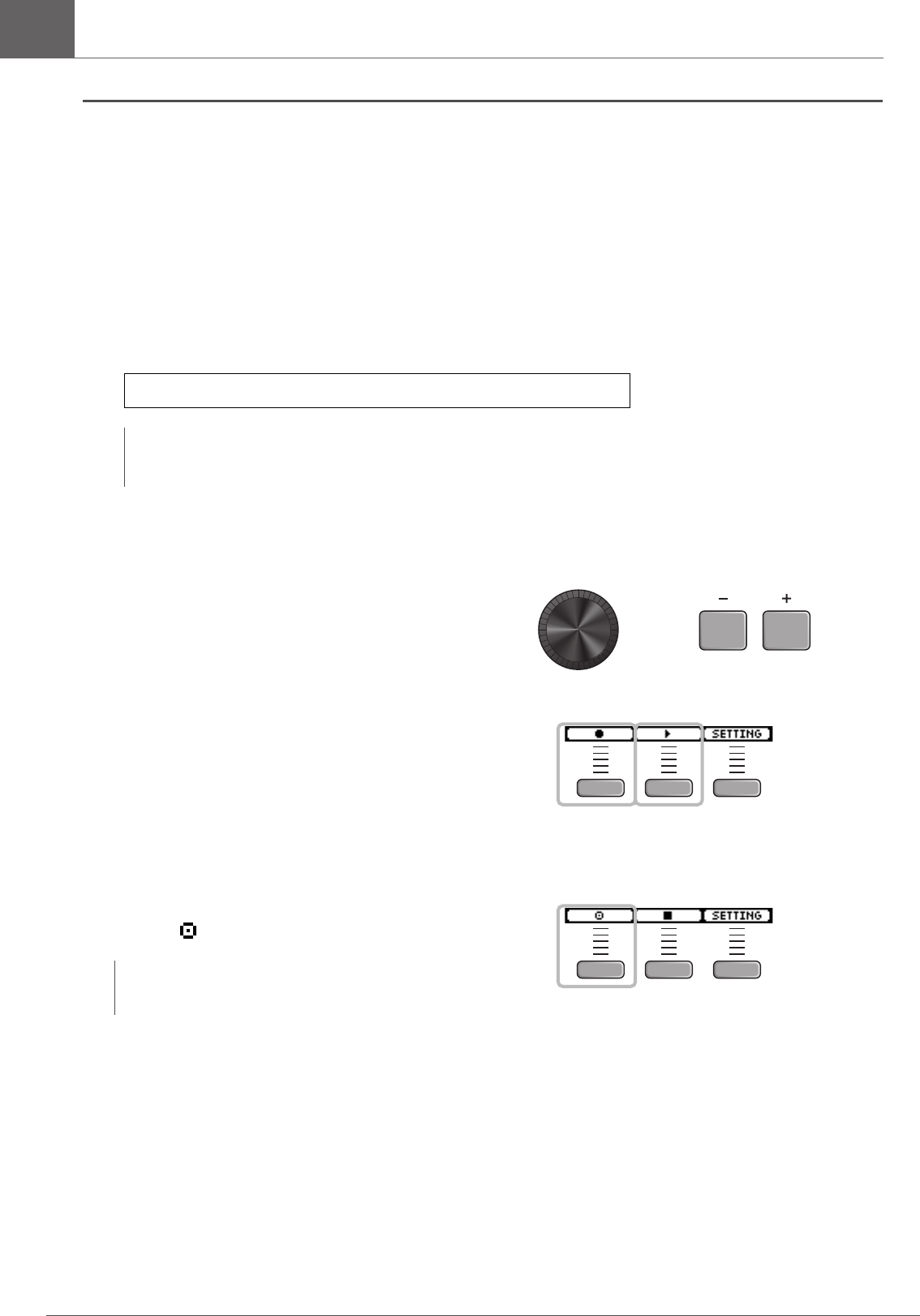
48 DTX-PROX Owner’s Manual
Recording Your Performance
Basic Guide
Overdub Recording Your Performance onto an Accompaniment
Song
You can also overdub your performance onto an accompaniment song that you’ve imported onto a USB flash drive and save
your performance combined with the accompaniment song as a single audio file.
-Preparing an Accompaniment Song (Audio File)
• Importing from a Computer
Save the audio file (.wav file) from the computer to the root directory on a USB flash drive.
-Recording Yourself Playing Along with the Accompaniment Song
1. Use the [–] [+] controllers to select the
accompaniment you have prepared.
2. Press the button below “-” ([F1]) and the
button below “>” ([F2]) to start recording
and playback.
3. Play the drums.
4. After you finish playing, press the button
below “ ” ([F1]) to stop recording.
Audio file requirements: 16-bit, 44.1 kHz, stereo, wav format
NOTE
• Some of the audio files may not play back even when the above requirements are met.
• The DTX-PROX does not recognize the audio file if it is in a folder.
NOTE
Pressing the button below “” ([F2]) stops accompaniment
playback, but recording continues.
or
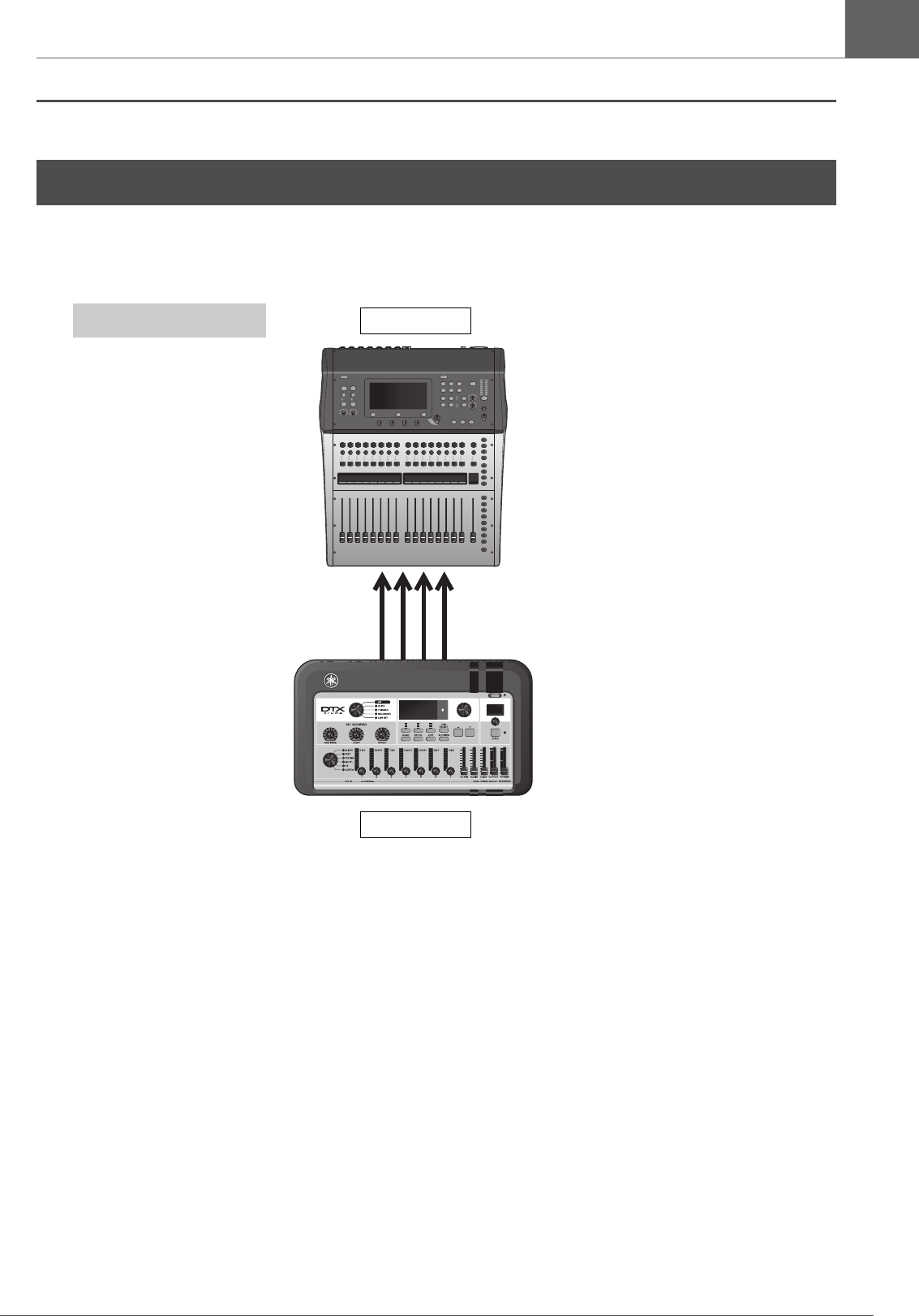
49
DTX-PROX Owner’s Manual
Connecting a PA System
Basic Guide
When sending the DTX-PROX sounds to a mixer for live performance or other applications, connect the PA system as fol-
lows:
[INDIVIDUAL OUTPUT] jacks (1/2 to 7/8)
Output the sound of each instrument, such as snare and kick.
• Stereo standard phone jack (UNBALANCED)
• Up to 8 mono outputs (or 4 stereo outputs)
• Any sounds (such as pad sounds, and click) can be assigned independently to the outputs
To split one stereo output into two mono outputs, use a commercially available Y-cable.
The routing settings can be changed. For more information, refer to the Reference Manual (PDF).
Connecting a PA System
PA mixer
DTX-PROX
INDIVIDUAL
OUTPUT
Example connection
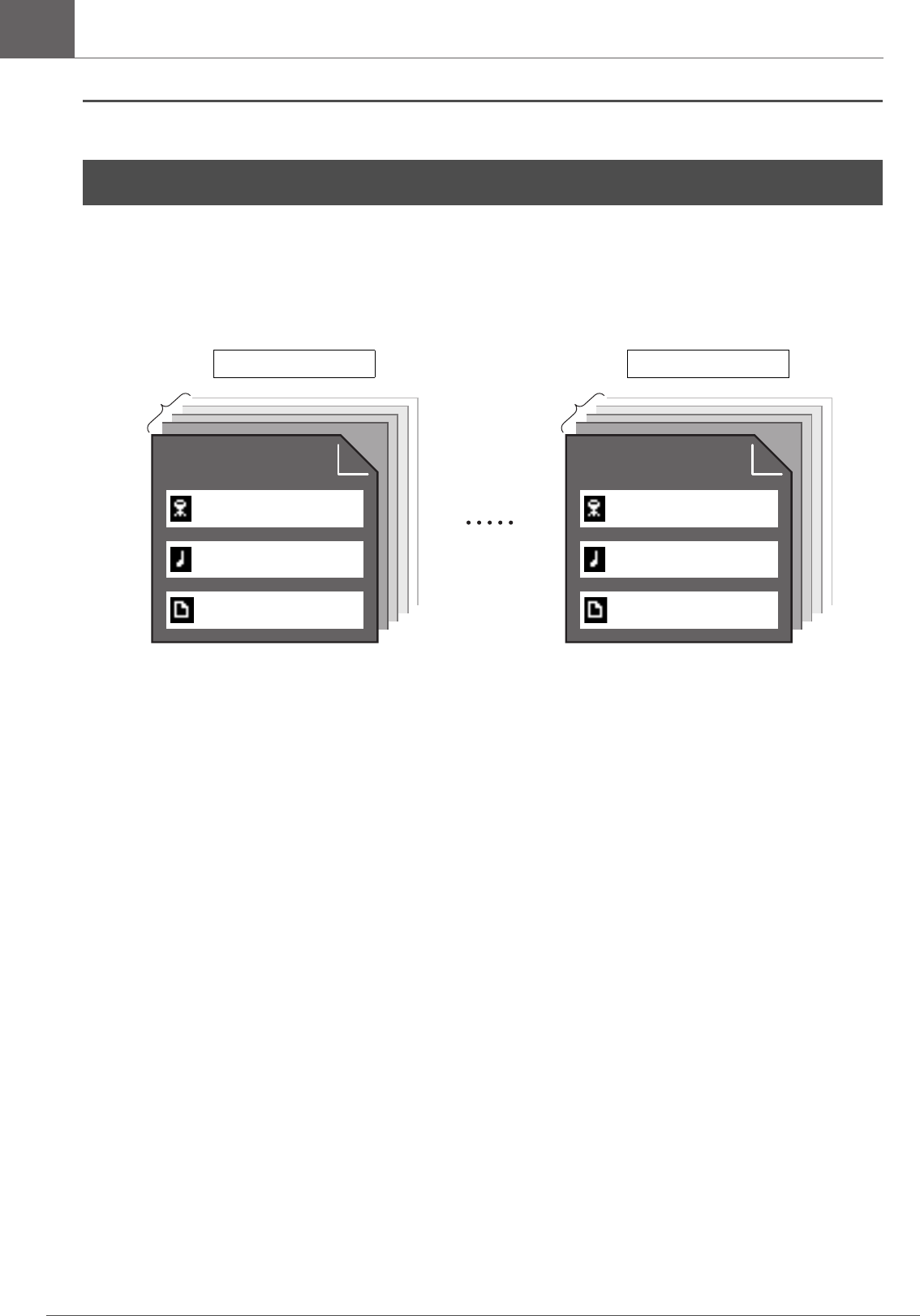
50 DTX-PROX Owner’s Manual
Using Live Sets
Basic Guide
A Live Set is a combination of the Kit, tempo, audio files and other settings sequenced in the order you like. For example,
you can create a chain of Kits in the order of a performance set list when playing live, or arrange a series of audio files in the
order of difficulty level for use in your daily practice.
With the DTX-PROX, you can save up to 10 Live Sets, and use them anytime during your performance.
Creating a Live Set
You can create a Live Set by registering the combination for each Step. For more information, refer to the Reference Manual
(PDF).
Using Live Sets
Live set 1 Live set 10
Up to 20
steps
etc.
Up to 20
steps
etc.
Kit
Tempo
Audio file
Step1
Kit
Tempo
Audio file
Step1
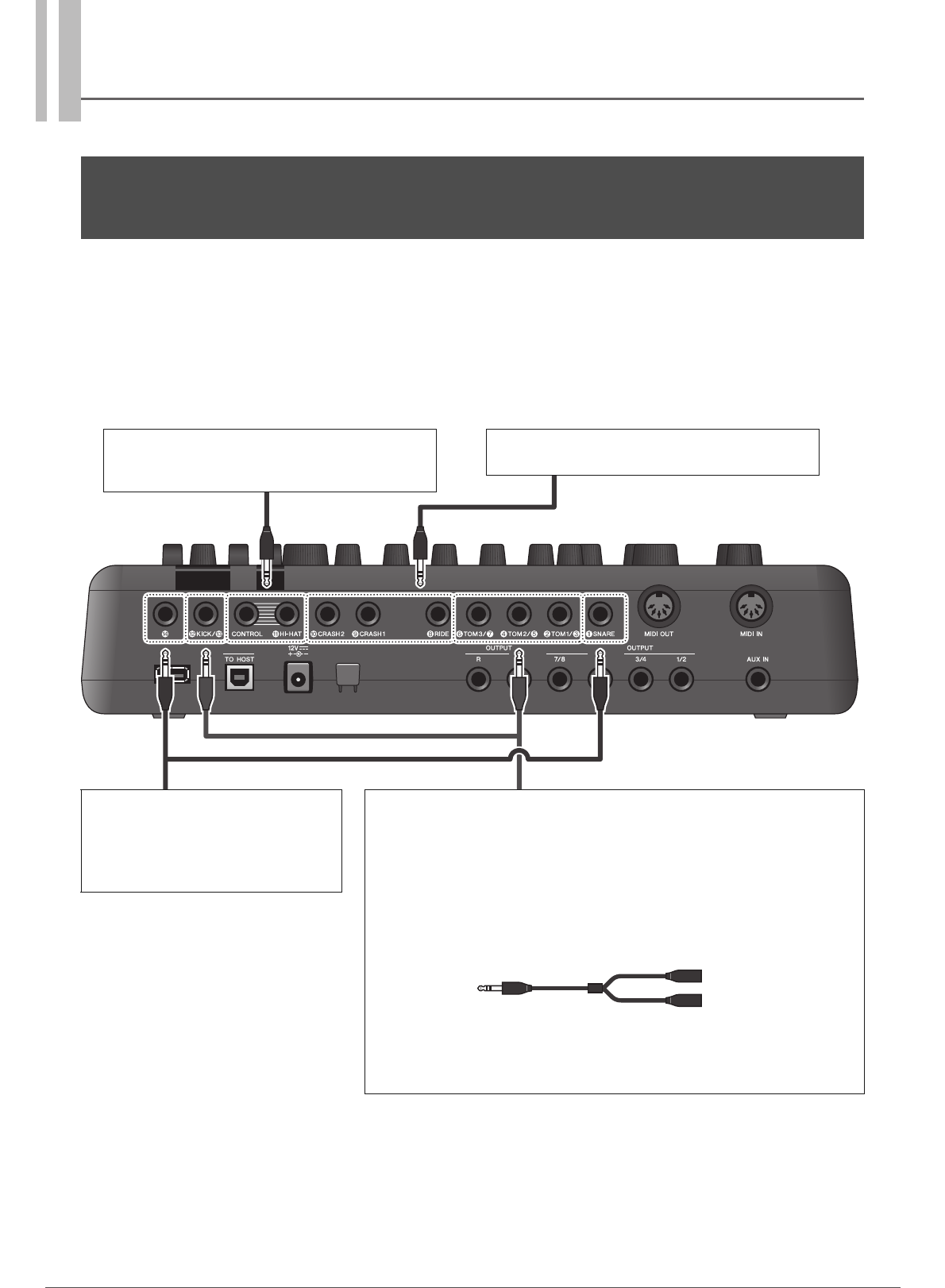
51
DTX-PROX Owner’s Manual
Application Guide
You can connect add-ons (sold separately) and external devices to the DTX-PROX to access more functions of the DTX-
PROX.
About the Trigger Input Jacks
Trigger Input jacks are used for connecting pads. The [qSNARE] to [!4] jacks on the rear panel accept up to 14 pads. For
more information on the types of pads you can use, see “Playing the Pads” (page 27).
For information on the voice assignment of trigger inputs, refer to the Data List (PDF).
For more information on the separately-sold accessories that can be connected to each trigger input jack, refer to the Pad
Module Compatibility table available on the website shown below.
Yamaha Downloads: https://download.yamaha.com/
* Yamaha Corporation reserves the right to modify this URL at any time without prior notice.
Connecting Separately Sold Add-ons and External
Devices
CONTROL, !1HI-HAT
For connecting the HH65 hi-hat controller, RHH135 real
hi-hat pad and others.
!0CRASH2, oCRASH1, iRIDE
Supports single-piezo pads (3-zone).
!4, qSNARE
Supports multi-piezo pads and single-
piezo pads (3-zone).
To connect additional toms and other
pads, use the [!4] jack.
!2KICK/!3, yTOM3/u, rTOM2/t, wTOM1/e
Supports multi-piezo pads.
Single-piezo pads connected to these jacks function as 1-zone pads.
When kick pads such as the KP90 are connected to these jacks, you can use the
input jack on the back of the kick pad to add another pad.
You can connect two pads to one jack using a commercially available Y-cable. (In this
condition, all pads function as single-piezo 1-zone pads.)
To connect two pads to a jack, you may need to set the trigger input to use it sepa-
rately (TRIGGER/SETTING/Input mode). For more information, refer to the Reference
Manual (PDF).
Stereo phone plug
Mono phone jack
Mono phone jack
- Y- c a bl e
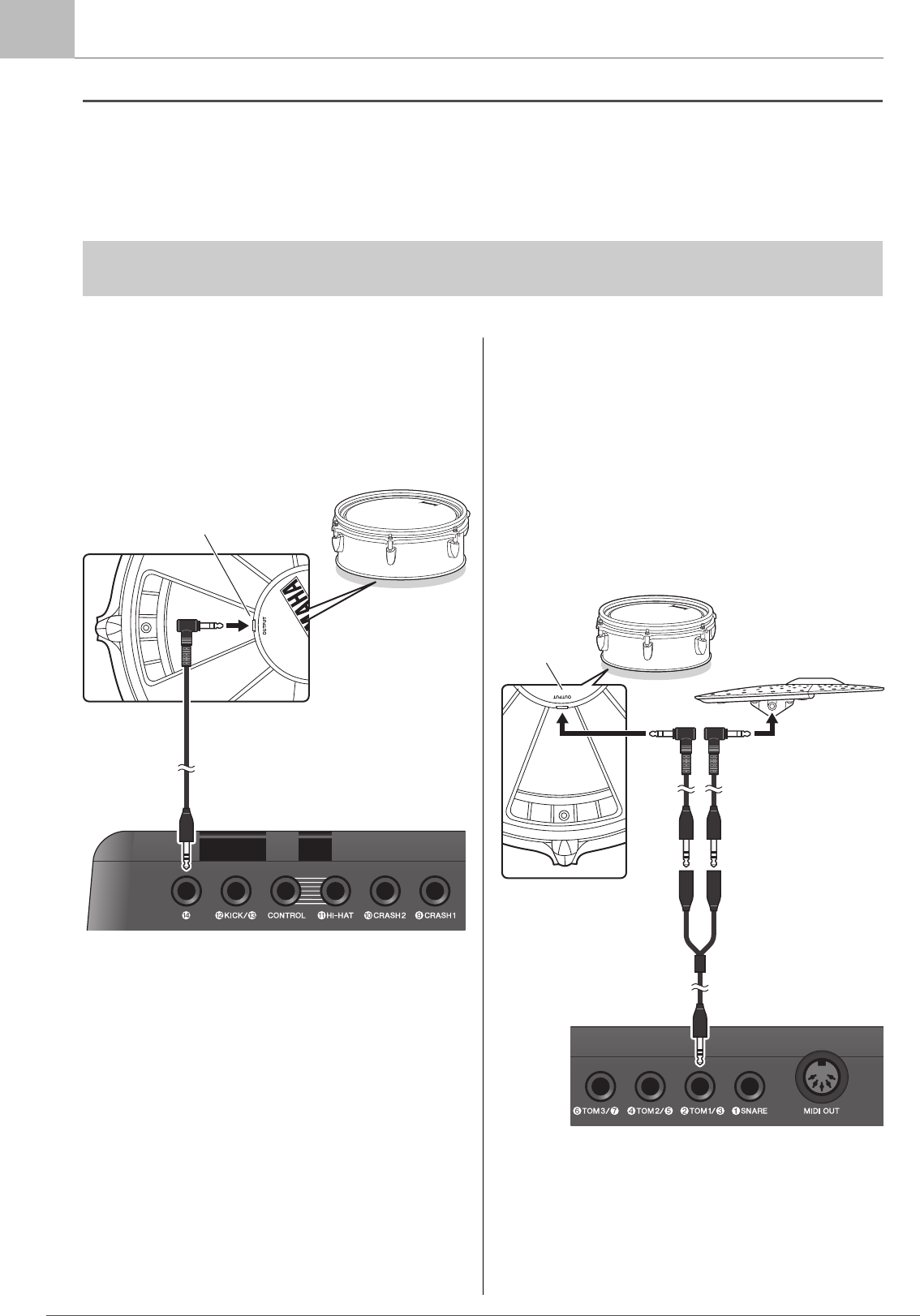
52 DTX-PROX Owner’s Manual
Connecting Separately Sold Add-ons and External Devices
Application Guide
Integrating Separately Sold Accessories
You can expand your electronic drum kit with various accessories* for an even more enjoyable drumming experience.
(*: sold separately)
-Adding a tom to the [!4] jack
1. Turn off the drum trigger module.
2. Connect the XP125T-X to the [!4] jack.
3. Turn on the drum trigger module.
4. Choose the correct pad type for the
XP125T-X.
(TRIGGER/SETTING/Pad Type)
-Adding a cymbal to the [wTOM1/e]
jack
By attaching a commercially available Y-cable to the
[wTOM1/e] jack, you can connect an additional cymbal.
In that condition, those two pads connected to the same
jack function as single-piezo 1-zone pads.)
1. Turn off the drum trigger module.
2. Connect a commercially available Y-cable
and a pad to the [wTOM1/e] jack.
3. Turn on the drum trigger module.
4. Set the Pad Type to “PCY95AT.”
To split the trigger input, set the Input Mode to “sepa-
rate.”
(TRIGGER/SETTING/input mode)
The following describes how to connect a XP125T-X or a PCY95AT. For the information on the compatibility of
other pads, refer to the Pad Module compatibility table (PDF). https://download.yamaha.com/
OUTPUT
to DTX-PROX
XP125T-X
Stereo standard phone cable
(such as the included cable)
to DTX-PROX
XP105T-X
OUTPUT PCY95AT
Y- c a b l e
Stereo standard phone
cable (such as the
included cable)
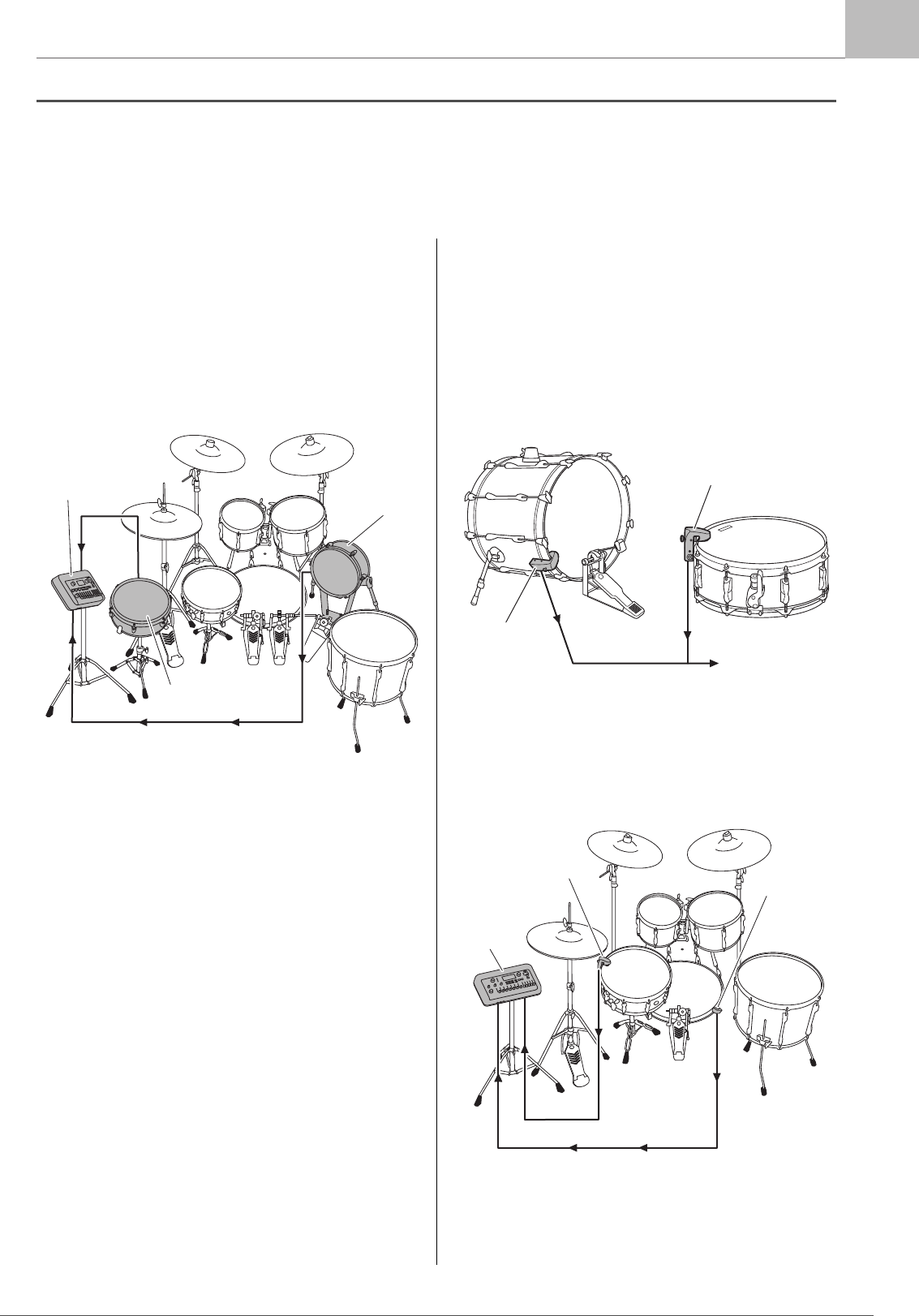
53
DTX-PROX Owner’s Manual
Connecting Separately Sold Add-ons and External Devices
Application Guide
Integrating Electronic & Acoustic Drums
The following describes a couple of examples of how you can integrate electronic and acoustic drums.
-Adding Pads to an Acoustic Drum
Set
You can easily add a pad such as the XP125SD-X to an
acoustic drum set. Set the proper Pad Type for the con-
nected pad (TRIGGER/SETTING/Pad Type).
-Typical setup
-Playing the DTX-PROX Using
Acoustic Drums
You can attach a DT50K or DT50S Drum Trigger to the
bass drum or the snare drum and connect to the [!2KICK/
!3] jack or the [qSNARE] jack on the DTX-PROX to
send trigger signals to your drum trigger module whenever
the drum is struck. After connecting cables, set the pad
type parameter. (TRIGGER/SETTING/Pad Type)
-Typical setup (for attaching the Drum Triggers to the
snare and the bass drum)
XP125SD-X
DTX-PROX
KP128
For more information on how to attach the Drum Trigger,
refer to the DT50S/DT50K Owner’s Manual.
DT50S
DT50K
to DTX-PROX
DT50S
DTX-PROX
DT50K

54 DTX-PROX Owner’s Manual
Connecting Separately Sold Add-ons and External Devices
Application Guide
Connecting a Computer
You can connect the DTX-PROX to a computer and use DAW (Digital Audio Workstation) software such as the included
Cubase AI to record your performance, edit, or mix audio.
For more information on how to connect a computer, refer to the Reference Manual (PDF). For more information on how to
use the DAW software, refer to the Owner’s Manual for your DAW software.
Precautions when using the [USB TO HOST] terminal
When connecting the computer to the [USB TO HOST] terminal, make sure to observe the following points to avoid
freezing the computer and corrupting or losing the data.
If the computer or the instrument freezes, restart the application software or the computer OS, or turn the power to
the instrument off then on again.
NOTICE
• Use an AB type USB cable of less than 3 meters. USB 3.0 cables cannot be used.
• Execute the following before turning the power to the instrument on/off or plugging/unplugging the USB cable to/
from the [USB TO HOST] terminal.
- Quit any open application software on the computer.
- Make sure that data is not being transmitted from the instrument.
• While the computer is connected to the instrument, you should wait for six seconds or more between these oper-
ations: (1) when turning the power of the instrument off then on again, or (2) when alternately connecting/discon-
necting the USB cable.

55
DTX-PROX Owner’s Manual
Reference
Message List
Message Description
Are you sure? Confirms whether or not you want to run the specified operation.
Auto power off disabled. Appears when the [MENU] button is held down while turning on the
power informing the user that the Auto Power Off function is dis-
abled.
Backup error. Appears when writing data to the DTX-PROX has failed.
If data was not be properly saved when turning off the unit, this mes-
sage appears the next time the power is turned on. After the error
message appears, the Factory Reset is carried out automatically.
Bluetooth pairing.... Waiting for Bluetooth devices to pair. (page 24)
Canceled. Appears when the cancel operation is complete.
Can’t process. The DTX-PROX cannot process a requested operation.
Completed. Appears when a Kit Store, File Load/Save, Job, or other function is
complete.
Connecting USB device... Appears when connecting to a USB device.
Excessive demand for USB power. Power consumption of the USB device exceeds the specified value.
Factory Reset initializing... Appears on startup if you did a factory reset.
File already exists. A file with the same name already exists.
File not found. The selected file type was not found.
Illegal file. Appears when loading a file and the DTX-PROX cannot handle the
target file or does not support the audio file.
Incompatible USB device. Appears when an unsupported USB device is connected to the [USB
TO DEVICE] terminal.
Invalid USB device. The USB device is faulty. Format the USB device again.
Keybank full. Appears when the total number of keybanks for waveforms have
exceeded the maximum capacity.
No data. Appears when the target data does not exist when using the
Recorder or using Wav-related parameters under “Job.”
No response from USB device. There is no response from the USB device.
Now importing... Appears when importing a .wav file.
Now loading... Appears when loading a file.
Now processing... Appears when running the Kit Store or Job operation. Appears
during post-processing after canceling the File Load or File Save
operation.
Now saving... Appears when saving a file.
Overwrite? Appears when saving a file to the USB device and a file with the
same name already exists in the USB device.
Appears when attempting to rerun the Store User Kit operation for
the Kit previously saved.
56 DTX-PROX Owner’s Manual
Message List
Reference
Please stop recorder. Appears when performing an operation that exits the Recorder
during recorder playback or recording. Stop the Recorder and try
again.
Recording time limit exceeded. Appears when the recorder has reached the time limit. Recording
time is about 1 minute 30 seconds with internal memory, and about
90 minutes with a USB flash drive.
This message also appears when the USB flash drive has reached
its capacity during recording.
Read only file. Appears when a read-only file is selected during a file operation.
Sample is too long. Sample is too long and cannot be loaded.
Sample is too short. Sample is too short and cannot be loaded.
Song is too long. The song file is too large and cannot be loaded.
USB connection terminated. Appears if connection with the USB device was interrupted by an
abnormal electric current. Disconnect the USB device and press the
button below “OK”.
USB device’s transfer speed too slow. Appears when the transfer speed to the USB device is insufficient.
For information on devices that have been tested and confirmed to
work properly with the DTX-PROX, refer to the “Compatible USB
Device List” on the Yamaha web site.
USB device full. Appears when the USB device is full and files cannot be saved on it.
Use a new USB device or make space by erasing unnecessary files
from the full device.
USB device not ready. Appears if the USB device is not properly connected to the DTX-
PROX.
USB device read/write error. Appears if an error occurred while reading or writing data to the USB
device.
USB device write protected. Appears if the USB device is write-protected.
USB transmission error. Appears if an error occurred while communicating with the USB
device.
User Voice full. Appears when the total number of User voices have exceeded the
maximum capacity.
Waveform full. Appears when the total number of waveforms have exceeded the
maximum capacity.
Wave memory error. Appears when loading data to the Wave memory has failed.
When the Wave data was not saved properly, this message appears
the next time the DTX-PROX is turned ON. After this message
appears, the recovery process starts automatically.
Wave memory full. Appears if the WAVE memory is full and operations such as Import,
Job, or Load cannot be carried out.
Message Description
57
DTX-PROX Owner’s Manual
Troubleshooting
Reference
For more troubleshooting tips, refer to the Reference Manual (PDF).
See page 7 for details on downloading this manual.
Troubleshooting
Symptom Possible cause Solution Reference
page
No sound
Out of balance
No sound The cable is not properly
connected
• Ensure that the DTX-PROX is properly
connected to headphones or an external
audio system, such as an amplifier and/
or speakers.
• Ensure that the cables you are using are
in good condition.
page 12
page 13
page 16
The volume or level settings
are improper
The headphone volume is
not turned up
The metronome volume is
not turned up
Check the following:
• Volume controllers on amplifiers and/or
speakers connected to the DTX-PROX.
• Sliders ([OUTPUT], [PHONES]) on the
DTX-PROX top panel.
• LED rotary faders
• Volume for the metronome (Click)
([CLICK] slider).
• The trigger output level of any pads with
a dial allowing this to be adjusted.
page 10
page 13
Poor volume balance Poor volume balance
between each of the pads
Ensure that the LED rotary faders have
been set appropriately.
page 35
Poor volume balance
between the external audio
device and the DTX-PROX
• Individually adjust the output volumes of
the DTX-PROX and the external audio
devices.
• Adjust the volume with the [AUDIO]
slider.
page 10
page 13
page 24
Poor EQ balance Poor EQ balance • Adjust the Phones EQ and the Master
EQ.
page 16
page 39
Pads with position sens-
ing do not produce
sounds properly
• Ensure that the Pad Type and trigger
parameters have been set correctly. (For
more information, refer to the “Refer-
ence Manual” (PDF).)
• Check the orientation of the cymbal pad.
When this is not set properly, the cymbal
pad may not be fully functional.
• Make sure to connect the pad to the
proper jack that supports position sens-
ing.
page 27
Assembly
Manual
Headphone volume is
too low
• Adjust the values in MENU/Utility/Out-
put Gain.
• Use one headphone at a time. Using
two at once may reduce the output level.
Reference
Manual
(PDF)
page 16

58 DTX-PROX Owner’s Manual
Troubleshooting
Reference
Having difficul-
ties during perfo-
mance
Cymbal/Hi-hat sounds
are too soft
The DTX-PROX pro-
duces sound but the
sensitivity (i.e., volume)
is too low.
Orientation of the cymbal
pad is incorrect
Shaft on the Hi-hat pad is
loose
Extra felt is attached
The pad type or trigger
parameter setting is incorrect
LED rotary fader is set at the
minimum level
The level settings for the pad
are improper
• Check the orientation of the cymbal pad.
When it is improper, the cymbal pad
may not be fully functional.
• The shaft on the hi-hat stand may come
loose during use and cause the hi-hat
pad to rotate. If this happens, the pad
may not function properly. To avoid the
problem, we recommend that you
tighten the shaft and check the position
of the hi-hat pad on a regular basis.
• Putting extra felt under the cymbal pad
may result in lower volume.
• Ensure that the Pad Type parameter is
set correctly. (A suitable cymbal-pad
type must be selected for the pad being
used. (For more information, refer to the
“Reference Manual” (PDF).)
• The trigger output level of any pads with
a dial allow this to be adjusted.
page 27
Assembly
Manual
• Ensure that the LED rotary fader for the
pad for which a sound is not being pro-
duced is set high enough.
page 35
Sound is produced with-
out striking the pad
Sound is produced by a
pad that was not struck
(Crosstalk is occurring)
For more information, refer to the “Refer-
ence Manual” (PDF).
Reference
Manual
(PDF)
Cannot choke
Cannot mute
Check the orientation of the cymbal pad.
When the orientation of the pad is
improper, the cymbal pad may not func-
tion fully.
page 27
Assembly
Manual
Foot closed hi-hat
sounds cannot be played
It is difficult to produce
closed hi-hat sounds
Shaft on the Hi-hat pad is
loose
Extra felt is attached
LED rotary fader is set at the
minimum
level
The level settings for the pad
are improper
• Make sure that you are fully and firmly
operating the hi-hat pedal.
• Ensure that the foot controller is cor-
rectly connected to the [CONTROL]
jack.
• Putting extra felt under the cymbal pad
may result in lower volume.
Assembly
Manual
• Ensure that the LED rotary fader for the
pad for which a sound is not being pro-
duced is set high enough.
page 35
Pads with position sens-
ing do not produce
sounds properly
• Ensure that the Pad Type and trigger
parameters have been set correctly. (For
more information, refer to the “Refer-
ence Manual” (PDF).)
• Check the orientation of the cymbal pad.
When this is not set properly, the cymbal
pad may not be fully functional.
• Make sure to connect the pad to the
proper jack that supports position sens-
ing.
page 27
Assembly
Manual
Symptom Possible cause Solution Reference
page
59
DTX-PROX Owner’s Manual
Troubleshooting
Reference
Settings The drum module does
not store its settings
The drum module automatically stores its
system settings whenever you turn it off
using the [ ] (Standby/On) button.
• Do not turn off the drum module by
unplugging the AC adaptor. This will
prevent it from storing the system set-
tings.
• User settings for kits, click sets, and trig-
gers must be stored manually.
page 18
page 15
page 40
Data cannot be saved on
a USB flash drive
USB 1.1 compatible flash drives cannot
be used on the DTX-PROX.
• Ensure that the USB flash drive in ques-
tion has been formatted using the DTX-
PROX.
• Ensure that the USB flash drive in ques-
tion has not been write-protected.
• Ensure that there is sufficient free space
on the USB flash drive to save the data.
(For more information, refer to the “Ref-
erence Manual” (PDF).)
Reference
Manual
(PDF)
Cannot send data to or
from the smart device
Check the connection. For more informa-
tion, refer to the iPhone/iPad Connection
Manual or Smart Device Connection
Manual for Android™.
page 23
The Bluetooth-equipped
smart device cannot be
paired with nor con-
nected to the instrument.
• Check the Bluetooth function of the
smart device is activated. To connect
the smart device and the instrument via
Bluetooth, both devices need to be func-
tional.
• The smart device and the instrument
need to be paired (page 24).
• In case there is a device (microwave
oven, wireless LAN device, etc.) that
outputs signals in the 2.4 GHz fre-
quency band nearby, move this instru-
ment away from the device that is
emitting radio-frequency signals.
page 24
Power turns off unex-
pectedly
Disable the Auto Power-Off function. page 19
The DTX-PROX does
not receive any switch or
trigger signals at all
I want to reset the DTX-
PROX to the factory
default
Use the Factory Reset to restore the set-
tings to the factory defaults.
page 20
Symptom Possible cause Solution Reference
page
60 DTX-PROX Owner’s Manual
Specifications
Reference
The contents of this manual apply to the latest specifications as of the publishing date. To obtain the latest manual, access the Yamaha website then download
the manual file. Since specifications, equipment or separately sold accessories may not be the same in every locale, please check with your Yamaha dealer.
Specifications
Tone generator Type AWM2
Maximum polyphony 256 notes
Effect units For each Inst
EQ / Comp / Transient / Insertion (*1)
For each Kit
Ambience / Effect 1 / Effect 2
Master Comp / Master Effect
For overall
Master EQ / Phones EQ
(*1) Insertion effects can be used only for specific Inst.
Kits Quantity Preset: more than 40 kits
User: 200 kits
Number of voices Drum/Percussion: more than 400
Metronome User click sets 30
Tempo 30 to 300 BPM; tap tempo supported
Time signatures 1/4 to 16/4, 1/8 to 16/8, and 1/16 to 16/16
Subdivisions Accents, quarter notes, eighth notes, sixteenth notes, and eight-note triplets
Others Individual click volume control, wav import, timer
Training Types 10
Training Songs Preset: 37 songs
User: 1 song
Audio files Import limit 1,000 files
Maximum loadable
sample time
50 minutes 40 seconds (44.1 kHz, 16 bit, mono)
25 minutes 20 seconds (44.1 kHz, 16 bit, stereo)
Sampling format WAV
Recorder Recording time Internal memory maximum of 90 seconds
USB flash drive maximum of 90 minutes per file
Format Record/playback WAV (44.1 kHz, 16 bit, stereo)
Display Full Dot LCD (128×64 dot)
Connectivity DC IN DC IN (+12V)
Headphones Headphones (standard stereo phone jack ×1, stereo mini jack ×1)
AUX IN AUX IN (stereo mini jack ×1, stereo standard phone jack ×1)
Output OUTPUT L/MONO, R (standard phone jack, one for each)
INDIVIDUAL OUTPUT 1/2, 3/4, 5/6, 7/8 (stereo standard phone jack, one for each)
USB USB TO DEVICE
USB TO HOST
MIDI MIDI OUT ×1
MIDI IN ×1
Trigger Input Jacks 10 (standard stereo phone jack, not including the HI-HAT CONTROL jack)
Maximum number of
pads to be connected
(when Y-cable is used)
14
Bluetooth
(May not have
this functional-
ity depending
on the country
in which you
purchased the
product.)
Supported profile A2DP
Compatible codec SBC
Bluetooth version 4.1
Wireless output Bluetooth class 2
Maximum communication distance Approx. 10 m
Radio Frequency (Operational Frequency)
2402–2480 MHz
Maximum output power (EIRP) +4 dBm
Type of modulation GFSK, π/4 DQPSK, 8DPSK
Power consumption 13 W
Dimensions 342 (W) mm × 196 (D) mm × 66 (H) mm
(13-7/16 in × 7-11/16 in × 2-5/8 in)
Weight 2.0 kg (4 lb 7 oz)
Included Accessories AC adaptor (PA-150 or an equivalent recommended by Yamaha (Output : DC 12V,
1. 5 A ) ) (*2), Owner’s Manual (this document), module holder, module holder wing
bolts (× 4), Cubase AI Download Information
(*2) May not be included depending on your area. Check with your Yamaha dealer.

61
DTX-PROX Owner’s Manual
Index
Reference
Symbols
[–][+] controllers................................11
[–][+] knob ........................................11
[–] button ..........................................11
[+] button ..........................................11
Numerics
1-zone pads..................................... 27
3-zone pads .................................... 27
A
AC adaptor ...................................... 15
Accompaniment .............................. 48
Acoustic Drums............................... 53
Ambience ........................................ 26
[AMBIENCE] knob .................... 10, 33
Audio files (.wav) ............................. 37
[AUDIO] slider ..................................11
[AUDITION] button ...........................11
Auto Power-Off ................................ 19
[AUX IN] (auxiliary input) jack ... 12, 13
[AUX IN] slider..................................11
B
Bell shots ........................................ 30
Bluetooth................................4, 11, 24
Bow shots.................................. 29, 30
C
Choking........................................... 30
Click .......................................... 42, 43
[CLICK] button..................................11
CLICK mode ................................... 10
[CLICK] slider...................................11
Click Tempo Display .........................11
Closed rim shots ............................. 28
Comp............................................... 26
[COMP] knob ............................ 10, 33
Computer ........................................ 54
Cord hook........................................ 13
Cross stick setting ........................... 10
Cross sticking.................................. 28
CUSTM (Custom)............................ 10
Custom settings............................... 34
Cymbal Size .................................... 34
Cymbals .......................................... 30
D
DAW (Digital Audio Workstation)
software ....................................... 54
DC IN jack....................................... 13
Display ............................................ 10
Drum set ................................... 26, 34
E
Edge shots ................................ 29, 30
Effect ................................... 26, 33, 34
[EFFECT] knob ......................... 10, 33
EFFECT screen .............................. 10
[EXIT] button ....................................11
F
Factory Reset.................................. 20
Fader Select knob ........................... 10
Foot-close sounds........................... 29
Front Panel...................................... 12
Function Buttons 1–3
([F1], [F2], [F3])............................ 10
FX (Effects) ..................................... 10
H
Head shots...................................... 28
Headphones.................................... 16
Hi-hat clutch positions..................... 34
Hi-hat splash sounds ...................... 29
Hi-hats............................................. 29
I
[INDIVIDUAL OUTPUT] jacks ... 13, 49
INST................................................ 10
Inst ............................................ 26, 34
K
Kit.............................................. 26, 32
KIT mode ........................................ 10
KIT MODIFIER knobs ..................... 10
KIT screen................................. 10, 32
L
LED Rotary Faders ......................... 10
LIVE SET mode .............................. 10
Live Sets ......................................... 50
M
[MENU] button..................................11
Metronome................................ 42, 43
[MIDI IN] connector ......................... 13
[MIDI OUT] connector ..................... 13
MIXER............................................. 10
Mixer ......................................... 34, 35
Mode Select knob ........................... 10
Monaural pads ................................ 27
MUFFL (Muffling) ............................ 10
Muffling............................................ 34
Multi Piezo ...................................... 27
Multi-piezo pads.............................. 51
Muting ....................................... 31, 34
O
Open rim shots ............................... 28
Open/Close ..................................... 29
OUTPUT [R]/[L/MONO] jacks ......... 13
[OUTPUT] slider...............................11
P
PA.................................................... 49
[PAD SELECT] button ......................11
Pads................................................ 27
Paring.............................................. 24
[PHONES] (Headphone) jack ......... 12
[PHONES] slider ..............................11
Position sensing................... 27, 28, 30
R
Rear Panel ...................................... 13
RECORDER mode ..........................10
S
Separately Sold Accessories........... 52
Single Piezo .................................... 27
Single-piezo pads ........................... 51
Smart Devices................................. 23
Snare .............................................. 28
[ ] (Standby/On) switch..................11
Step................................................. 50
[STORE] button ................................11
Sustain length of the cymbal........... 34
T
Tap Tempo....................................... 43
Tempo ............................................. 42
[TEMPO] knob .................................11
Tom ................................................. 28
Top Panel .........................................10
Trigger Input jacks..................... 13, 51
TRIGGER mode...............................10
Trigger Settings ............................... 45
Trigger Setup Wizard....................... 17
TUNING ...........................................10
Tunings............................................ 34
U
[USB TO DEVICE] terminal....... 13, 21
[USB TO HOST] terminal .......... 13, 54
W
.wav................................................. 37
Y
Y-cable ............................................ 51
Z
Zones .............................................. 27
Index

62 DTX-PROX Owner’s Manual
Drums Limited Warranty
LIMITED WARRANTY ON YAMAHA DRUMS, HARDWARE AND ACCESSORY PRODUCTS
Thank you for selecting a YAMAHA product. YAMAHA products are designed and manufactured to provide a high level of defect-free
performance. Yamaha Corporation of America (“YAMAHA”) is proud of the experience and craftsmanship that goes into each and every YAMAHA
product. YAMAHA sells its products through a network of reputable, specially authorized dealers and is pleased to offer you, the Original Owner,
the following Limited Warranty, which applies only to products that have been (1) directly purchased from YAMAHA’s authorized dealers in the
fifty states of the USA and District of Columbia (the “Warranted Area”) and (2) used exclusively in the Warranted Area. YAMAHA suggests that
you read the Limited Warranty thoroughly, and invites you to contact your authorized YAMAHA dealer or YAMAHA Customer Service if you have
any questions.
THIS WARRANTY COVERS THE LISTED PRODUCTS AGAINST DEFECTS IN MATERIALS OR WORKMANSHIP.
Warranty Term
Duration of Warranty from Date of
Type of Product Purchase by or for the Original Owner
Acoustic Drum Shells, Finish, Drum Hardware, Freestanding Hardware, Pedals, Hardware Accessories 5 Years
Electronic Drums Modules, Pads, Accessories, Hardware, Pedals 1 Year
Coverage: YAMAHA will, at its option, repair or replace the product covered by this warranty if it becomes defective, malfunctions or otherwise
fails to conform with this warranty under normal use and service during the term of this warranty, without charge for labor or materials. Repairs
may be performed using new or refurbished parts that meet or exceed YAMAHA specifications for new parts. If YAMAHA elects to replace the
product, the replacement may be a reconditioned unit. You will be responsible for any installation or removal charges and for any initial shipping
charges if the product(s) must be shipped for warranty service. However, YAMAHA will pay the return shipping charges to any destination within
the USA if the repairs are covered by the warranty. This warranty does not cover (a) damage, deterioration or malfunction resulting from accident,
negligence, misuse, abuse, improper installation or operation or failure to follow instructions according to the Owner’s Manual for this product;
any shipment of the product (claims must be presented to the carrier); repair or attempted repair by anyone other than YAMAHA or an authorized
YAMAHA Service Center; (b) any unit which has been altered or on which the serial number has been defaced, modified or removed; (c) normal
wear and any periodic maintenance; (d) deterioration due to perspiration, corrosive atmosphere or other external causes such as extremes in
temperature or humidity; (e) damages attributable to power line surge or related electrical abnormalities, lightning damage or acts of God; or (f)
RFI/EMI (Interference/noise) caused by improper grounding or the improper use of either certified or uncertified equipment, if applicable. Any
evidence of alteration, erasing or forgery of proof-of-purchase documents will cause this warranty to be void. This warranty covers only the
Original Owner and is not transferable.
In Order to Obtain Warranty Service: Warranty service will only be provided for defective products within the Warranted Area. Contact your local
authorized YAMAHA dealer who will advise you of the procedures to be followed. If this is not successful, contact YAMAHA at the address,
telephone number or website shown below. YAMAHA may request that you send the defective product to a local authorized YAMAHA Servicer or
authorize return of the defective product to YAMAHA for repair. If you are uncertain as to whether a dealer has been authorized by YAMAHA,
please contact YAMAHA’s Service Department at the number shown below, or check Yamaha’s website at http://usa.yamaha.com. Product(s)
shipped for service should be packed securely and must be accompanied by a detailed explanation of the problem(s) requiring service, together
with the original or a machine reproduction of the bill of sale or other dated, proof-of-purchase document describing the product, as evidence of
warranty coverage. Should any product submitted for warranty service be found ineligible therefore, an estimate of repair cost will be furnished
and the repair will be accomplished only if requested by you and upon receipt of payment or acceptable arrangement for payment.
Limitation of Implied Warranties and Exclusion of Damages: ANY IMPLIED WARRANTIES, INCLUDING WARRANTIES OF MERCHANTABILITY
AND FITNESS FOR A PARTICULAR PURPOSE SHALL BE LIMITED IN DURATION TO THE APPLICABLE PERIOD OF TIME SET FORTH ABOVE.
YAMAHA SHALL NOT BE RESPONSIBLE FOR INCIDENTAL OR CONSEQUENTIAL DAMAGES OR FOR DAMAGES BASED UPON INCONVENIENCE,
LOSS OF USE, DAMAGE TO ANY OTHER EQUIPMENT OR OTHER ITEMS AT THE SITE OF USE OR INTERRUPTION OF PERFORMANCES OR ANY
CONSEQUENCES. YAMAHA’S LIABILITY FOR ANY DEFECTIVE PRODUCT IS LIMITED TO REPAIR OR REPLACEMENT OF THE PRODUCT, AT
YAMAHA’S OPTION. SOME STATES DO NOT ALLOW LIMITATIONS ON HOW LONG AN IMPLIED WARRANTY LASTS OR THE EXCLUSION OR
LIMITATION OF INCIDENTAL OR CONSEQUENTIAL DAMAGES, SO THE ABOVE LIMITATION OR EXCLUSION MAY NOT APPLY TO YOU. This
Warranty gives you specific legal rights, and you may also have other rights which vary from state to state. This is the only express warranty
applicable to the product specified herein; Yamaha neither assumes nor authorizes anyone to assume for it any other express warranty.
If you have any questions about service received or if you need assistance in locating an authorized YAMAHA Servicer, please contact:
CUSTOMER SERVICE
Yamaha Corporation of America
6600 Orangethorpe Avenue, Buena Park, California 90620-1373
Telephone: 800-854-1569 • http://usa.yamaha.com
Do not return any product to the above address without a written Return Authorization issued by YAMAHA.
63
DTX-PROX Owner’s Manual
For details of products, please contact your nearest Yamaha representative or
the authorized distributor listed below.
Pour plus de détails sur les produits, veuillez-vous adresser à Yamaha ou au
distributeur le plus proche de vous figurant dans la liste suivante.
Die Einzelheiten zu Produkten sind bei Ihrer unten aufgeführten
Niederlassung und bei Yamaha Vertragshändlern in den jeweiligen
Bestimmungsländern erhältlich.
Para detalles sobre productos, contacte su tienda Yamaha más cercana o el
distribuidor autorizado que se lista debajo.
CANADA
Yamaha Canada Music Ltd.
135 Milner Avenue, Toronto, Ontario M1S 3R1, Canada
Tel: +1-416-298-1311
U.S.A.
Yamaha Corporation of America
6600 Orangethorpe Avenue, Buena Park, CA 90620, U.S.A.
Tel: +1-714-522-9011
MEXICO
Yamaha de México, S.A. de C.V.
Av. Insurgentes Sur 1647 Piso 9, Col. San José Insurgentes,
Delegación Benito Juárez, México, D.F., C.P. 03900,
México
Tel: +52-55-5804-0600
BRAZIL
Yamaha Musical do Brasil Ltda.
Praça Professor José Lannes, 40, Cjs 21 e 22, Brooklin
Paulista Novo CEP 04571-100 – São Paulo – SP, Brazil
Tel: +55-11-3704-1377
ARGENTINA
Yamaha Music Latin America, S.A., Sucursal Argentina
Olga Cossettini 1553, Piso 4 Norte,
Madero Este-C1107CEK, Buenos Aires, Argentina
Tel: +54-11-4119-7000
PANAMA AND OTHER LATIN
AMERICAN REGIONS/CARIBBEAN REGIONS
Yamaha Music Latin America, S.A.
Edificio Torre Davivienda, Piso: 20
Avenida Balboa, Marbella, Corregimiento de Bella Vista,
Ciudad de Panamá, Rep. de Panamá
Tel: +507-269-5311
THE UNITED KINGDOM/IRELAND
Yamaha Music Europe GmbH (UK)
Sherbourne Drive, Tilbrook, Milton Keynes,
MK7 8BL, U.K.
Tel: +44-1908-366700
GERMANY
Yamaha Music Europe GmbH
Siemensstrasse 22-34, 25462 Rellingen, Germany
Tel: +49-4101-303-0
SWITZERLAND/LIECHTENSTEIN
Yamaha Music Europe GmbH, Branch
Switzerland in Thalwil
Seestrasse 18a, 8800 Thalwil, Switzerland
Tel: +41-44-3878080
AUSTRIA/CROATIA/
CZECH REPUBLIC
/
HUNGARY/ROMANIA/SLOVAKIA/SLOVENIA
Yamaha Music Europe GmbH, Branch Austria
Schleiergasse 20, 1100 Wien, Austria
Tel: +43-1-60203900
POLAND
Yamaha Music Europe Sp.z o.o. Oddział w Polsce
ul. Wielicka 52, 02-657 Warszawa, Poland
Tel: +48-22-880-08-88
BULGARIA
Dinacord Bulgaria LTD.
Bul.Iskarsko Schose 7 Targowski Zentar Ewropa
1528 Sofia, Bulgaria
Tel: +359-2-978-20-25
MALTA
Olimpus Music Ltd.
Valletta Road, Mosta MST9010, Malta
Tel: +356-2133-2093
NETHERLANDS/BELGIUM/LUXEMBOURG
Yamaha Music Europe, Branch Benelux
Clarissenhof 5b, 4133 AB Vianen, The Netherlands
Tel: +31-347-358040
FRANCE
Yamaha Music Europe
7 rue Ambroise Croizat, Zone d'activités de Pariest,
77183 Croissy-Beaubourg, France
Tel: +33-1-6461-4000
ITALY
Yamaha Music Europe GmbH, Branch Italy
Via Tinelli N.67/69 20855 Gerno di Lesmo (MB), Italy
Tel: +39-039-9065-1
SPAIN/PORTUGAL
Yamaha Music Europe GmbH Ibérica, Sucursal en
España
Ctra. de la Coruña km. 17,200, 28231
Las Rozas de Madrid, Spain
Tel: +34-91-639-88-88
GREECE
Philippos Nakas S.A. The Music House
19th klm. Leof. Lavriou 190 02 Peania – Attiki, Greece
Tel: +30-210-6686260
SWEDEN
Yamaha Music Europe GmbH Germany filial
Scandinavia
JA Wettergrensgata 1, 400 43 Göteborg, Sweden
Tel: +46-31-89-34-00
DENMARK
Yamaha Music Denmark,
Fillial of Yamaha Music Europe GmbH, Tyskland
Generatorvej 8C, ST. TH., 2860 Søborg, Denmark
Tel: +45-44-92-49-00
FINLAND
F-Musiikki Oy
Antaksentie 4
FI-01510 Vantaa, Finland
Tel: +358 (0)96185111
NORWAY
Yamaha Music Europe GmbH Germany -
Norwegian Branch
Grini Næringspark 1, 1332 Østerås, Norway
Tel: +47-6716-7800
ICELAND
Hljodfaerahusid Ehf.
Sidumula 20
IS-108 Reykjavik, Iceland
Tel: +354-525-5050
CYPRUS
Nakas Music Cyprus Ltd.
Nikis Ave 2k
1086 Nicosia
Tel: + 357-22-511080
Major Music Center
21 Ali Riza Ave. Ortakoy
P.O.Box 475 Lefkoşa, Cyprus
Tel: (392) 227 9213
RUSSIA
Yamaha Music (Russia) LLC.
Room 37, entrance 7, bld. 7, Kievskaya street, Moscow,
121059, Russia
Tel: +7-495-626-5005
OTHER EUROPEAN REGIONS
Yamaha Music Europe GmbH
Siemensstrasse 22-34, 25462 Rellingen, Germany
Tel: +49-4101-303-0
Yamaha Music Gulf FZE
JAFZA-16, Office 512, P.O.Box 17328,
Jebel Ali FZE, Dubai, UAE
Tel: +971-4-801-1500
TURKEY
Yamaha Music Europe GmbH
Merkezi Almanya Türkiye İstanbul Şubesi
Mor Sumbul Sokak Varyap Meridian Business 1.Blok No:1
113-114-115
Bati Atasehir Istanbul, Turkey
Tel: +90-216-275-7960
ISRAEL
RBX International Co., Ltd.
P.O Box 10245, Petach-Tikva, 49002
Tel: (972) 3-925-6900
OTHER REGIONS
Yamaha Music Gulf FZE
JAFZA-16, Office 512, P.O.Box 17328,
Jebel Ali FZE, Dubai, UAE
Tel: +971-4-801-1500
THE PEOPLE’S REPUBLIC OF CHINA
Yamaha Music & Electronics (China) Co., Ltd.
2F, Yunhedasha, 1818 Xinzha-lu, Jingan-qu,
Shanghai, China
Tel: +86-400-051-7700
HONG KONG
Tom Lee Music Co., Ltd.
11/F., Silvercord Tower 1, 30 Canton Road,
Tsimshatsui, Kowloon, Hong Kong
Tel: +852-2737-7688
INDIA
Yamaha Music India Private Limited
P-401, JMD Megapolis, Sector-48, Sohna Road,
Gurugram-122018, Haryana, India
Tel: +91-124-485-3300
INDONESIA
PT. Yamaha Musik Indonesia (Distributor)
Yamaha Music Center Bldg. Jalan Jend. Gatot Subroto Kav.
4, Jakarta 12930, Indonesia
Tel: +62-21-520-2577
KOREA
Yamaha Music Korea Ltd.
11F, Prudential Tower, 298, Gangnam-daero, Gangnam-gu,
Seoul, 06253, Korea
Tel: +82-2-3467-3300
MALAYSIA
Yamaha Music (Malaysia) Sdn. Bhd.
No.8, Jalan Perbandaran, Kelana Jaya, 47301
Petaling Jaya, Selangor, Malaysia
Tel: +60-3-78030900
SINGAPORE
Yamaha Music (Asia) Private Limited
Block 202 Hougang Street 21, #02-00,
Singapore 530202, Singapore
Tel: +65-6740-9200
TAIWAN
Yamaha Music & Electronics Taiwan Co., Ltd.
2F., No.1, Yuandong Rd., Banqiao Dist.,
New Taipei City 22063, Taiwan (R.O.C.)
Tel: +886-2-7741-8888
THAILAND
Siam Music Yamaha Co., Ltd.
3, 4, 15, 16th Fl., Siam Motors Building,
891/1 Rama 1 Road, Wangmai,
Pathumwan, Bangkok 10330, Thailand
Tel: +66-2215-2622
VIETNAM
Yamaha Music Vietnam Company Limited
15th Floor, Nam A Bank Tower, 201-203 Cach Mang Thang
Tam St., Ward 4, Dist.3,
Ho Chi Minh City, Vietnam
Tel: +84-28-3818-1122
OTHER ASIAN REGIONS
https://asia-latinamerica-mea.yamaha.com/index.html
AUSTRALIA
Yamaha Music Australia Pty. Ltd.
Level 1, 80 Market Street, South Melbourne,
VIC 3205 Australia
Tel: +61-3-9693-5111
NEW ZEALAND
Music Works LTD
P.O.BOX 6246 Wellesley, Auckland 4680,
New Zealand
Tel: +64-9-634-0099
REGIONS AND TRUST
TERRITORIES IN PACIFIC OCEAN
https://asia-latinamerica-mea.yamaha.com/index.html
NORTH AMERICA
CENTRAL & SOUTH AMERICA
EUROPE
AFRICA
MIDDLE EAST
ASIA
OCEANIA
DMI28 Head Office/Manufacturer: Yamaha Corporation 10-1, Nakazawa-cho, Naka-ku, Hamamatsu, 430-8650, Japan
(For Europe) Importer: Yamaha Music Europe GmbH Siemensstrasse 22-34, 25462 Rellingen, Germany
Manual Development Group
© 2020 Yamaha Corporation
Published 03/2021
POMA*.*- **B0
VFC8490
