Yamaha ATS 1060 Owner's Manual Web Om B0 UA En
User Manual: Yamaha ATS-1060 Owner's Manual
Open the PDF directly: View PDF  .
.
Page Count: 36
UA
EN
Front Surround System
Owner’s Manual
English
Français
Español
XXX
2En
Explanation of Graphical Symbols
FOR CANADIAN CUSTOMERS
To prevent electric shock, match wide blade of plug to wide slot and fully insert.
CAN ICES-3 (B)/NMB-3 (B)
1 Read these instructions.
2 Keep these instructions.
3 Heed all warnings.
4 Follow all instructions.
5 Do not use this apparatus near water.
6 Clean only with dry cloth.
7 Do not block any ventilation openings. Install in accordance with the manufacturer’s
instructions.
8 Do not install near any heat sources such as radiators, heat registers, stoves, or other
apparatus (including amplifiers) that produce heat.
9 Do not defeat the safety purpose of the polarized or grounding-type plug. A polarized
plug has two blades with one wider than the other. A grounding type plug has two blades
and a third grounding prong. The wide blade or the third prong are provided for your
safety. If the provided plug does not fit into your outlet, consult an electrician for
replacement of the obsolete outlet.
10 Protect the power cord from being walked on or pinched particularly at plugs,
convenience receptacles, and the point where they exit from the apparatus.
11 Only use attachments/accessories specified by the manufacturer.
12 Use only with the cart, stand, tripod, bracket, or table specified by
the manufacturer, or sold with the apparatus. When a cart is used,
use caution when moving the cart/apparatus combination to avoid
injury from tip-over.
13 Unplug this apparatus during lightning storms or when unused for
long periods of time.
14 Refer all servicing to qualified service personnel. Servicing is
required when the apparatus has been damaged in any way, such as
power-supply cord or plug is damaged, liquid has been spilled or objects have fallen into
the apparatus, the apparatus has been exposed to rain or moisture, does not operate
normally, or has been dropped.
We Want You Listening For A Lifetime
Yamaha and the Electronic Industries Association’s Consumer Electronics
Group want you to get the most out of your equipment by playing it at a safe
level. One that lets the sound come through loud and clear without annoying
blaring or distortion – and, most importantly, without affecting your
sensitive hearing. Since hearing damage from loud sounds is often
undetectable until it is too late, Yamaha and the Electronic Industries
Association’s Consumer Electronics Group recommend you to avoid
prolonged exposure from excessive volume levels.
IMPORTANT SAFETY INSTRUCTIONS
CAUTION: TO REDUCE THE RISK OF ELECTRIC SHOCK, DO NOT
REMOVE COVER (OR BACK). NO USER-SERVICEABLE PARTS INSIDE.
REFER SERVICING TO QUALIFIED SERVICE PERSONNEL.
The lightning flash with arrowhead symbol within an equilateral triangle
is intended to alert you to the presence of uninsulated “dangerous
voltage” within the product’s enclosure that may be of sufficient
magnitude to constitute a risk of electric shock to persons.
The exclamation point within an equilateral triangle is intended to alert
you to the presence of important operating and maintenance (servicing)
instructions in the literature accompanying the appliance.
IMPORTANT
Please record the serial number of this unit in the space below.
MODEL:
Serial No.:
The serial number is located on the rear of the unit. Retain this Owner’s Manual in a safe
place for future reference.

En 3
This device complies with Part 15 of FCC Rules and Industry Canada license-exempt RSS
standard(s). Operation is subject to the following two conditions: (1) this device may not cause
interference, and (2) this device must accept any interference, including interference that may cause
undesired operation of this device.
FCC CAUTION
Changes or modifications not expressly approved by the party responsible for compliance could
void the user’s authority to operate the equipment.
NOTICE
• This equipment compiles with FCC/IC radiation exposure limits set forth for an
uncontrolled environment and meets the FCC radio frequency (RF) Exposure Guidelines
and RSS-102 of the IC radio frequency (RF) Exposure rules. This equipment has very low
levels of RF energy that it deemed to comply without maximum permissive exposure
evaluation (MPE). But it is desirable that it should be installed and operated with at least 20
cm and more between the radiator and person’s body.
• This transmitter must not be co-located or operated in conjunction with any other antenna or
transmitter.
FCC INFORMATION (for US customers)
1IMPORTANT NOTICE: DO NOT
MODIFY THIS UNIT!: This product,
when installed as indicated in the
instructions contained in this manual,
meets FCC requirements.
Modifications not expressly approved
by Yamaha may void your authority,
granted by the FCC, to use the product.
2IMPORTANT: When connecting this
product to accessories and/or another
product use only high quality shielded
cables. Cable/s supplied with this
product MUST be used. Follow all
installation instructions. Failure to
follow instructions could void your
FCC authorization to use this product
in the USA.
3NOTE: This product has been tested
and found to comply with the
requirements listed in FCC
Regulations, Part 15 for Class “B”
digital devices. Compliance with these
requirements provides a reasonable
level of assurance that your use of this
product in a residential environment
will not result in harmful interference
with other electronic devices. This
equipment generates/uses radio
frequencies and, if not installed and
used according to the instructions
found in the users manual, may cause
interference harmful to the operation of
other electronic devices.
4 Compliance with FCC regulations does
not guarantee that interference will not
occur in all installations. If this product
is found to be the source of
interference, which can be determined
by turning the unit “OFF” and “ON”,
please try to eliminate the problem by
using one of the following measures:
5 Relocate either this product or the
device that is being affected by the
interference.
6 Utilize power outlets that are on
different branch (circuit breaker or
fuse) circuits or install AC line filter/s.
7 In the case of radio or TV interference,
relocate/reorient the antenna. If the
antenna lead-in is 300 ohm ribbon lead,
change the lead-in to coaxial type
cable.
8 If these corrective measures do not
produce satisfactory results, please
contact the local retailer authorized to
distribute this type of product. If you
can not locate the appropriate retailer,
please contact Yamaha Corporation of
America A/V Division 6600
Orangethorpe Ave., Buena Park, CA
90620.
9 The above statements apply ONLY to
those products distributed by Yamaha
Corporation of America or its
subsidiaries.

4En
• To assure the finest performance, please read this manual carefully. Keep it in a safe
place for future reference.
• Install this unit in a well ventilated, cool, dry, clean place - away from direct sunlight,
heat sources, vibration, dust, moisture, and/or cold. For proper ventilation, allow the
following minimum clearances.
Top: 10 cm (4 in), Rear: 10 cm (4 in), Sides: 10 cm (4 in)
• Locate this unit away from other electrical appliances, motors, or transformers to
avoid humming sounds.
• Do not expose this unit to sudden temperature changes from cold to hot, and do not
locate this unit in an environment with high humidity (i.e. a room with a humidifier)
to prevent condensation inside this unit, which may cause an electrical shock, fire,
damage to this unit, and/or personal injury.
• Avoid installing this unit where foreign objects may fall onto this unit and/or this unit
may be exposed to liquid dripping or splashing. On the top of this unit, do not place:
−Other components, as they may cause damage and/or discoloration on the surface
of this unit.
−Burning objects (i.e. candles), as they may cause fire, damage to this unit, and/or
personal injury.
−Containers with liquid in them, as they may fall and liquid may cause electrical
shock to the user and/or damage to this unit.
• Do not cover this unit with a newspaper, tablecloth, curtain, etc., in order not to
obstruct heat radiation. If the temperature inside this unit rises, it may cause fire,
damage to this unit, and/or personal injury.
• Do not plug in this unit to a wall outlet until all connections are complete.
• Do not operate this unit upside-down. It may overheat, possibly causing damage.
• Do not use force on switches, knobs and/or cords.
• When disconnecting the power cable from the wall outlet, grasp the plug; do not pull
the cable.
• Do not clean this unit with chemical solvents; this might damage the finish. Use a
clean, dry cloth.
• Only voltage specified on this unit must be used. Using this unit with a higher voltage
than specified is dangerous and may cause fire, damage to this unit, and/or personal
injury. Yamaha will not be held responsible for any damage resulting from use of this
unit with a voltage other than specified.
• To prevent damage by lightning, keep the power cable and outdoor antennas
disconnected from a wall outlet or the unit during a lightning storm.
• Do not attempt to modify or fix this unit. Contact qualified Yamaha service personnel
when any service is needed. The cabinet should never be opened for any reasons.
• When not planning to use this unit for long periods of time (i.e. vacation), disconnect
the AC power plug from the wall outlet.
• Be sure to read the “Troubleshooting” section on common operating errors before
concluding that this unit is faulty.
• Before moving this unit, press to set this unit in standby mode, and disconnect the
power supply cable from the wall outlet.
• Condensation will form when the surrounding temperature changes suddenly.
Disconnect the power supply cable from the outlet, then leave the unit alone.
• Install this unit near the wall outlet and where the AC power plug can be reached
easily.
• Secure placement or installation is the owner’s responsibility. Yamaha shall not be
liable for any accident caused by improper placement or installation of speakers.
• Keep the product out of reach of children to avoid them swallowing small parts.
Notes on remote controls and batteries
• Do not spill water or other liquids on the remote control.
• Do not drop the remote control.
• Do not leave or store the remote control in the following places:
−places of high humidity, such as near a bath
−places of high temperatures, such as near a heater or a stove
−places of extremely low temperatures
−dusty places
• Do not expose the remote control sensor of this unit to direct sunlight or lighting such
as inverted fluorescent lamps.
• If the batteries grow old, the effective operation range of the remote control decreases
considerably. If this happens, replace the batteries with two new ones as soon as
possible.
• Exhausted batteries may leak. If the batteries have leaked, dispose of them
immediately. Avoid touching the leaked material or letting it come into contact with
clothing, etc. Clean the battery compartment thoroughly before installing new
batteries.
• Do not carry batteries in a pocket or purse with metal objects like coins, etc.
• Do not throw away batteries with general house waste. Dispose of them correctly in
accordance with your local regulations.
• Keep batteries away from children. If a battery is accidentally swallowed, contact
your doctor immediately.
CAUTION: READ THIS BEFORE OPERATING YOUR UNIT.
En 5
• When not planning to use the remote control for long periods of time, remove the
batteries from the remote control.
• Do not charge or disassemble the supplied batteries.
• The batteries shall not be exposed to excessive heat such as sunshine, fire or like.
WARNING
DO NOT INGEST BATTERY, CHEMICAL BURN HAZARD
CAUTION
Replace only with the same type or equivalent type.
Risk of explosion if battery is incorrectly replaced.
The remote control supplied with this product contains a coin/button cell battery. If
the coin/button cell battery is swallowed, it can cause severe internal burns in just 2
hours and can lead to death.
Keep new and used batteries away from children. If the battery compartment does
not close securely, stop using the product and keep it away from children.
If you think batteries might have been swallowed or placed inside any part of the
body, seek immediate medical attention.
WARNING
TO REDUCE THE RISK OF FIRE OR ELECTRIC SHOCK, DO NOT EXPOSE
THIS UNIT TO RAIN OR MOISTURE.
As long as this unit is connected to the AC wall outlet, it is not disconnected from
the AC power source even if you turn off this unit by . In this state, this unit is
designed to consume a very small quantity of power.
(Power key)
Turns on the power of this unit or sets it to the standby mode.
Do not use this unit within 22 cm (9 inches) of persons with a heart pacemaker
implant or defibrillator implant.
Radio waves may affect electro-medical devices.
Do not use this unit near medical devices or inside medical facilities.
The name plate is located on the bottom of the unit.

6En
Contents
IMPORTANT SAFETY INSTRUCTIONS ............ 2
CAUTION: READ THIS BEFORE OPERATING
YOUR UNIT....................................................... 4
Supplied items ................................................ 7
Features ......................................................... 10
Frequently asked questions......................... 11
Part names and functions ............................ 12
The unit (front panel/top panel)..................................12
The unit (rear panel).........................................................13
Installation .................................................... 14
Installing the unit on a TV stand, etc..........................14
Mounting the unit on a wall..........................................14
Connections .................................................. 16
Operations..................................................... 19
Operating the unit by TV’s remote control
(HDMI control)....................................................................22
Listening to the sound from a Bluetooth
device............................................................. 23
Settings ..........................................................26
Configuring the HDMI control function................... 26
Configuring HDMI audio output ................................ 26
Enabling/disabling the auto power standby
function ............................................................................... 27
Initializing the unit........................................................... 27
Troubleshooting............................................28
Specifications ................................................33
About this manual
NOTE
This indicates precautions for use of the product and its feature
limitations.
HINT
This indicates supplementary explanations for better use.
En 7
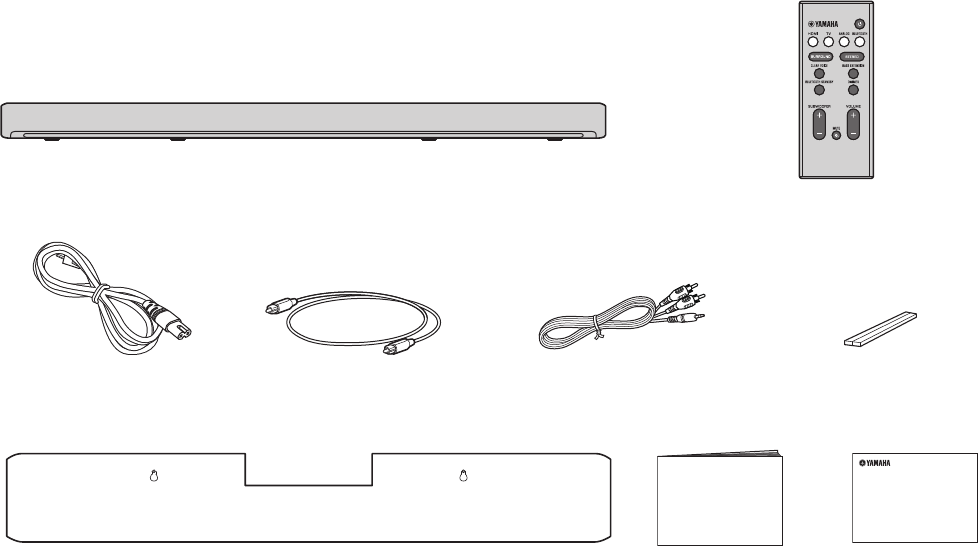
Supplied items
Make sure you have received all of the following items.
The unit
Remote control
A CR2025 Lithium battery has already been
inserted into the remote control.
Optical digital audio cablePower cable
Mounting template
Use when mounting the unit on a wall
Spacers × 2
Use when mounting the unit on a wall
Owner’s Manual
(this booklet)
Analog audio cable
(RCA plug (L/R)-3.5 mm mini
plug cable)
Quick Start Guide
8En
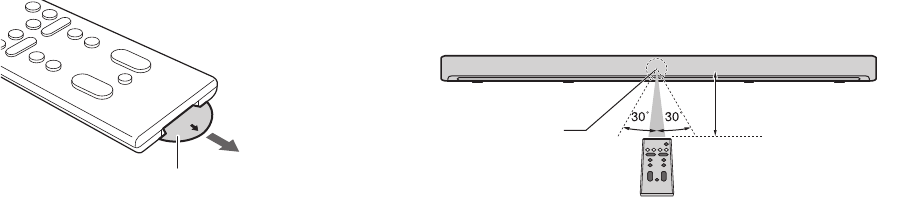
Preparing the remote control
Remove the battery’s insulating strip before attempting to use the
remote control.
Operating range of the remote control
Operate the remote control within the range as shown below. When
the unit is mounted on a wall, point the remote control at the remote
control sensor on the top panel (p. 14).
Battery’s insulating strip
Remote control sensor
Within 6 m (20 ft)
En 9
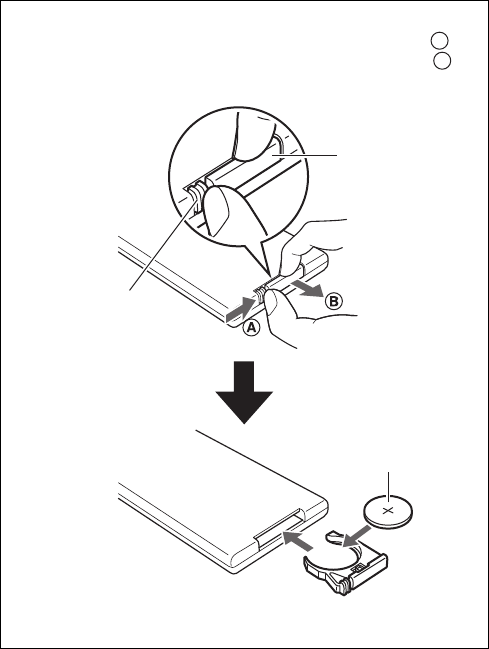
Replacing the battery in the remote control
Press and hold the release tab in the direction indicated by ,
and slide the battery holder out in the direction indicated by .
A
B
Battery holder
Release tab
CR2025 Lithium
battery

10 En
Features
This front surround system is easily installed and has a built-in subwoofer for enjoying powerful and realistic sound
with connection to a TV or other devices.
• Transmission of 4K high dynamic range (HDR) video supported
Enjoy high-resolution video from a cable or satellite set-top box, or a BD/DVD player. When a TV that supports Audio Return Channel
(ARC) is used, this ARC-compatible unit can be connected to the TV via a single HDMI cable (p. 16).
•HDMI control function
Link TV and unit functions using the TV’s remote control (p. 22).
•Bluetooth connection
Easily play content from a Bluetooth-compatible smartphone, tablet, or computer (p. 23).
Our exclusive Compressed Music Enhancer technology improves sound quality and characteristics, and can be used to enjoy realistic and
impressive sound.
• HOME THEATER CONTROLLER app
HOME THEATER CONTROLLER, a free app for smartphones, allows you to easily operate the unit using a smartphone (p. 25).
• Bass extension
Boost low bass levels to enjoy more powerful sound (p. 20).
•Clear voice
This feature makes speech, such as dialog and narration, clearer (p. 20).

En 11
Frequently asked questions
The following section covers popular functions and frequently asked questions about the unit.
Q1 Can I use the TV’s remote control to operate the unit?
A1 Yes. When the unit is connected to a TV via HDMI cable, the
TV’s remote control can be used to operate both the TV and
the unit (p. 22).
Q2 Can I improve the clarity of dialogue?
A2 Yes. Dialogue in movies, TV news, sports programs, etc.,
can be made clearer using the “clear voice” function (p. 20).
Q3 Can I use a smartphone to operate the unit? Can I use a
smartphone to turn the unit on or off?
A3 Yes. The unit can be operated with a smartphone using the
free app, HOME THEATER CONTROLLER, installed on the
smartphone (p. 25).
In addition, the Bluetooth standby function can be used to
turn on the unit when a Bluetooth connection between the
unit and the smartphone is established, and to turn off the
unit when that connection is terminated (p. 25).
Q4 Can the brightness of the indicators be adjusted?
A4 Yes. Use the DIMMER key on the remote control (p. 21).
Q5 How can surround playback be enabled?
A5 Press the SURROUND key on the remote control (p. 20).
Q6 Can the subwoofer’s volume be adjusted?
A6 Yes. Use the SUBWOOFER (+/–) keys on the remote
control (p. 21).
12 En
Part names and functions
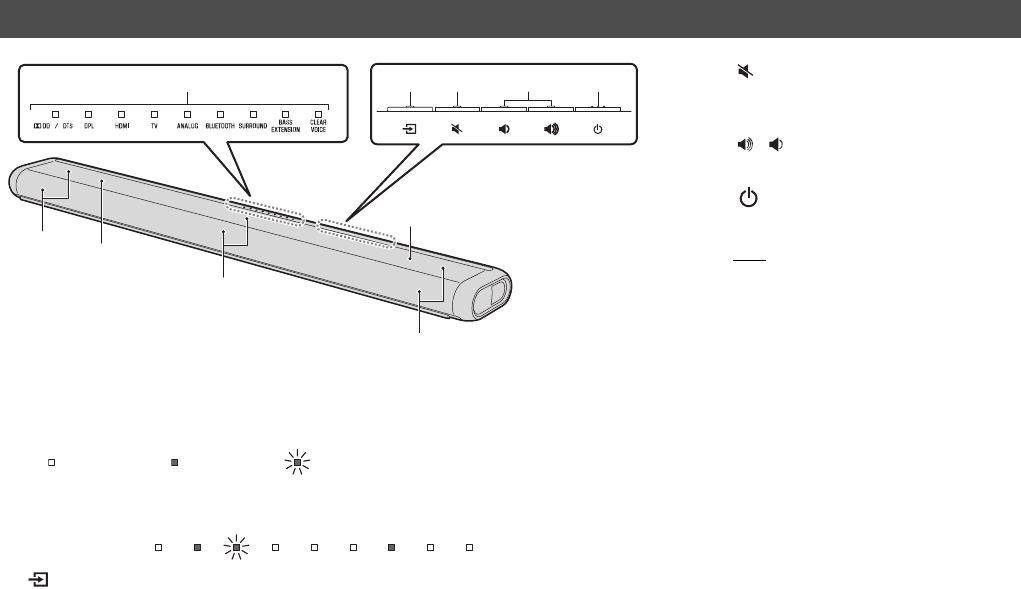
The unit (front panel/top panel)
7
6
7
8
23451
6
3 (mute) key
Mute the audio output. Press the key
again to unmute (p. 21).
4/ (volume +/-) keys
Adjust the volume (p. 21).
5 (power) key
Turn on or off the unit (p. 19).
HINT
• The unit may automatically turn off when the
auto power standby function is enabled (p. 27).
6Speakers
7Dual built-in subwoofers
The built-in subwoofers are located in
the top part of the unit.
8Remote control sensors
Receive infrared signals from the
remote control of the unit (p. 8).
1Indicators
The indicators on the top panel flash or glow, to show the operation and setting status.
In this manual, illustrations of the nine in-line indicators are used for explanation as
necessary.
Example: When the DPL and SURROUND indicators glow, and the HDMI indicator
flashes
2 (input) key
Select an input source to be played back (p. 19).
: Off : Glows : Flashes
En 13
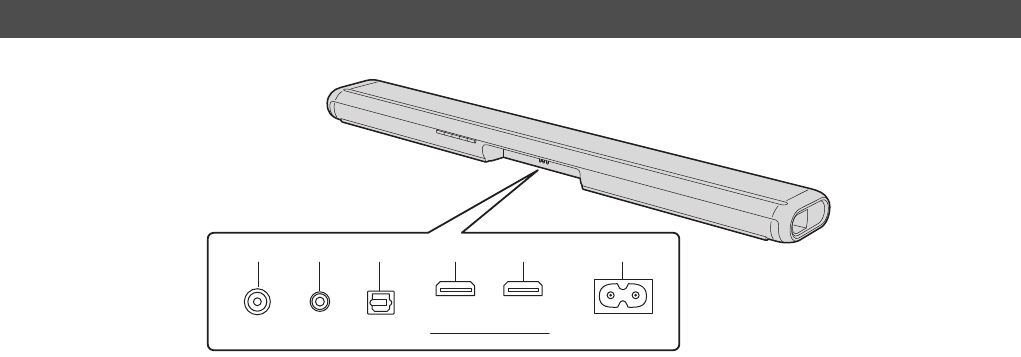
9SUBWOOFER OUT jack
For connecting to an external subwoofer with an RCA mono cable
(p. 18).
0ANALOG input jack
For connecting to an external device with an analog audio cable
(RCA plug (L/R)-3.5 mm mini plug cable) (p. 17).
aTV input jack
For connecting to a TV with an optical digital audio cable (p. 16).
bHDMI OUT (ARC) jack
For connecting to an HDMI-compatible TV (p. 16).
cHDMI IN jack
For connecting an HDMI-compatible playback device such as a
BD/DVD player, a satellite and cable TV tuner, and a game
console (p. 16).
dAC IN jack
Connect the power cable of this unit (p. 18).
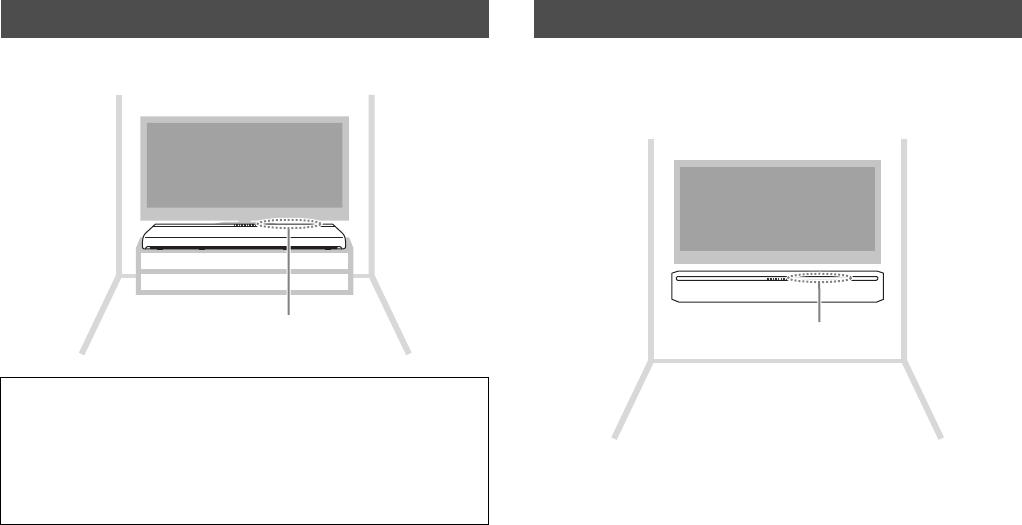
The unit (rear panel)
ANALOG TV OUT (ARC)
SUBWOOFER OUT IN
HDMI AC IN
9 0 a b c d
14 En
Installation
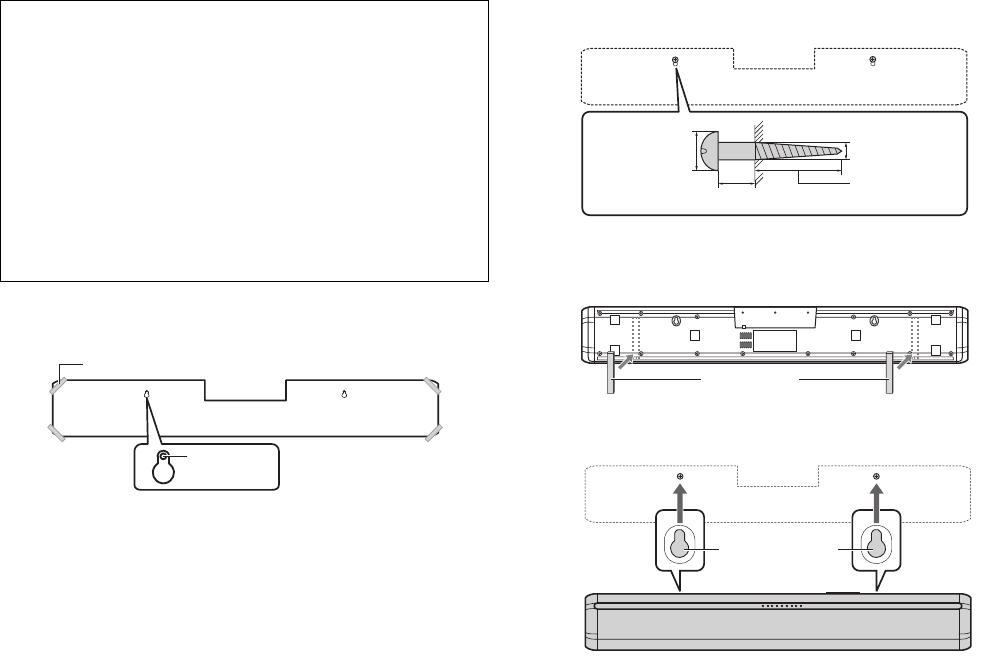
The unit can be installed on a TV stand or mounted on a wall.
Position the unit so that the keys are on the far side of the unit. Refer to “How to mount the unit on the wall” (p. 15) for
instructions on mounting the unit on a wall so that the keys face
upwards.
Installing the unit on a TV stand, etc.
Cautions
• Do not stack the unit and a BD player or other device directly on each other.
Doing so may cause a malfunction due to vibrations.
• Do not hold the speaker portion (fabric parts) on the front and the top of the unit.
• The unit contains non-magnetic shielding speakers. Do not place magnetically
sensitive items (hard disk drive, etc.) near the unit.
• Depending on your installation environment, it may be better to connect the unit
and external devices before installing the unit.
Keys
Mounting the unit on a wall
Keys
En 15
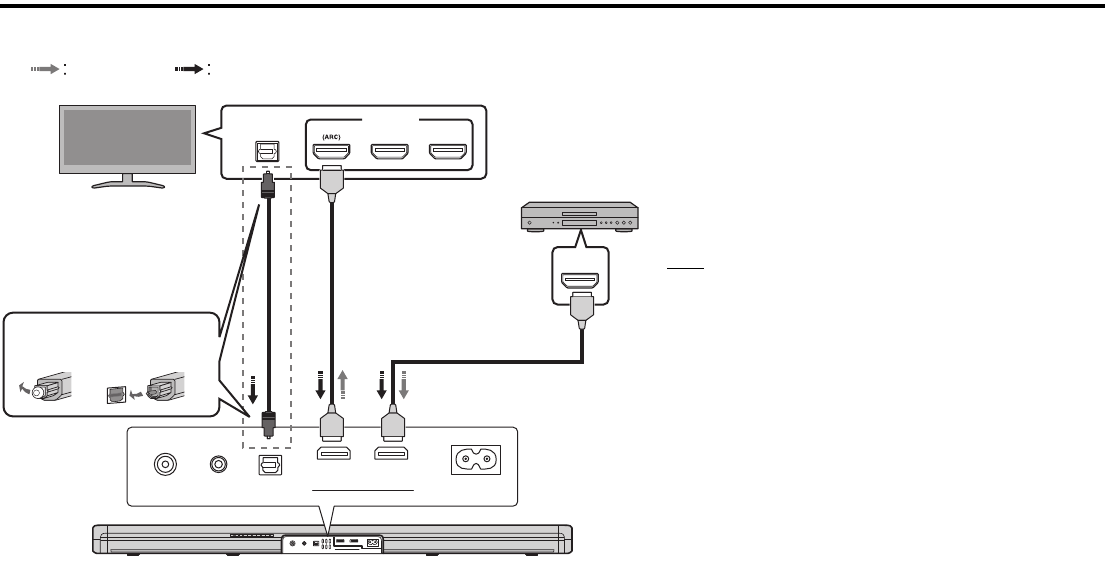
How to mount the unit on the wall
1 Attach the mounting template on a wall and mark for the
screw holes.
2 Remove the mounting template from the wall, then install
commercially available screws (as illustrated below) at the
points marked on the wall.
3 Peel off the backing paper from the spacers and attach the
adhesive face to the unit as illustrated below.
4 Hang the unit on the screws.
Cautions
• When mounting the unit on a wall, all installation work must be performed by a
qualified contractor or dealer. The customer must never attempt to perform this
installation work. Improper or inadequate installation could cause the unit to fall,
resulting in personal injury.
• To prevent the unit from falling, attach it to a wall constructed of drywall
(plasterboard).
• Make sure you use commercially available screws that can support the weight of
the installation (specified in Step 2 on the right). Using clamps other than
specified screws, such as short screws, nails, and two-sided tape, may cause
the unit to fall.
• Fix the cables in place where they will not become loose. If your foot or hand
accidentally gets caught on a loose cable, the unit may fall.
• Do not lean on the unit or apply excessive force to the top of the unit. Doing so
may cause the unit to fall.
• Check that the unit is fixed securely after the installation. Yamaha will bear no
responsibility for any accidents caused by improper installations.
Tapes or thumbtacks
Mounting template (supplied)
Screw
holes
7 to 9 mm
(1/4" to 3/8")
13 to 15 mm (1/2" to 5/8")
4 mm (#8)
20 mm (3/4")
or more
Spacers
Mounting holes
on bottom of the
unit
16 En
Connections
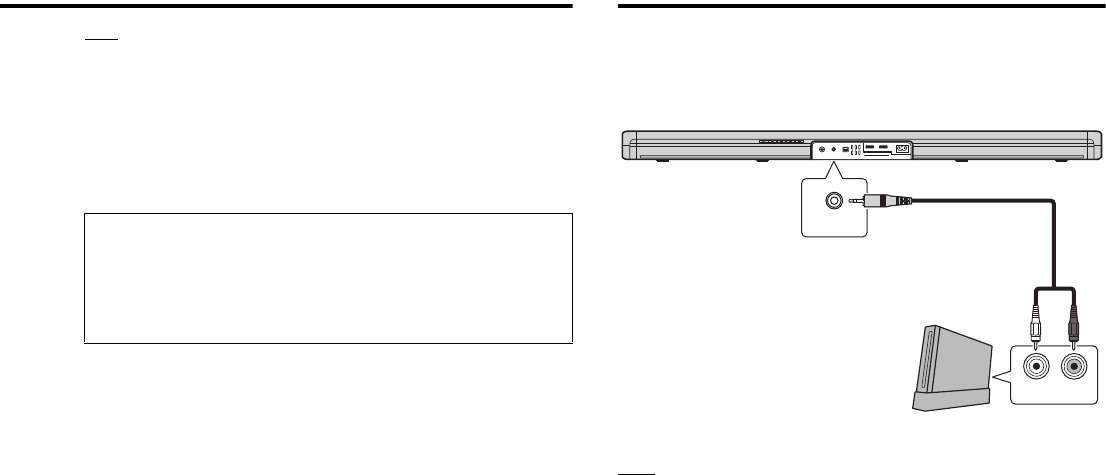
a Connecting a TV and set-top box
For the cable connection, follow the procedure below.
ANALOG TV OUT (ARC)
SUBWOOFER OUT IN
HDMI AC IN
ANALOG TV OUT (ARC)
SUBWOOFER OUT IN
HDMI AC IN
HDMI INPUT
123
OPTICAL
OUTPUT
HDMI
OUTPUT
12
1HDMI cable (optional)
The digital audio/video signals from the set-
top box or BD/DVD player are input to this
unit.
2HDMI cable (optional)
Digital video from the set-top box or BD/DVD
player is displayed on the TV.
NOTE
• Use a 19-pin HDMI cable with the HDMI logo printed on it.
A cable with a maximum length of 5 m (16 ft) is
recommended to prevent degradation of signal quality.
For playback of 3D and 4K video content, use a high-
speed HDMI cable.
• This unit supports HDCP version 2.2, a copy protection
technology. For playback of 4K video, connect the unit to
the HDMI input jack (one compatible with HDCP 2.2) on an
HDCP 2.2-compliant TV, and to the HDMI output jack on a
HDCP 2.2-compliant BD/DVD player.
Cable, satellite or
network set-top box, or
BD/DVD player
TV
1. Remove
the cap
2. Check the
direction of the
plug
Video signals
Use the optical digital audio cable
(supplied) when connecting the
unit to a TV that does not support
Audio Return Channel.
Audio signals
En 17
HINT
Audio Return Channel (ARC) supported TV
• Connect an HDMI cable to the audio return channel supported jack (the jack with
“ARC” indicated) on TV.
• Once the HDMI control function has been activated, video and audio content from
playback devices can be output from the TV even when this unit is off (HDMI signal
pass-through).
• Enable the HDMI control function of this unit to activate the Audio Return Channel
(ARC) (p. 26).
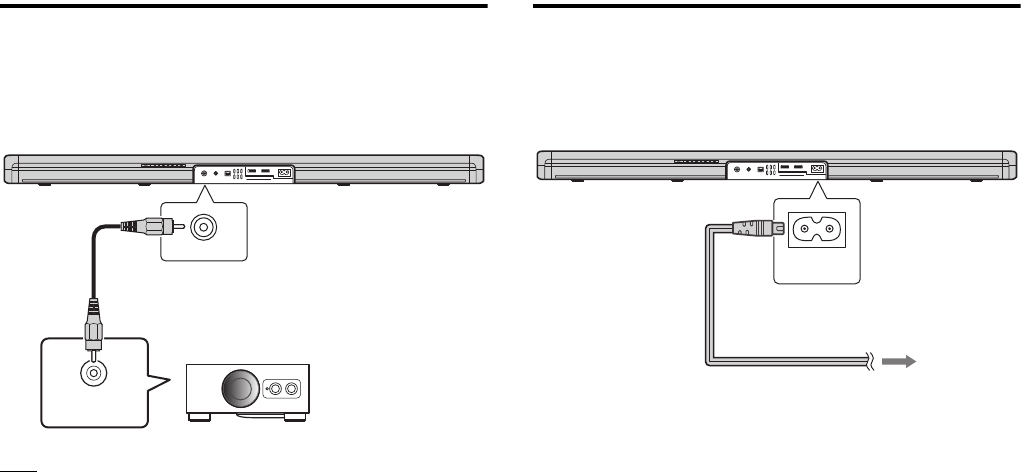
bConnecting a game consol via the
analog jack
Connect an external device, such as a game console or TV that does
not have an optical digital audio output, to the ANALOG input jack of
the unit.
NOTE
• When the ANALOG key on the remote control is pressed, the input source switches
to ANALOG, and sound from the device is output via this unit.
• If volume can be adjusted on the device connected to the unit’s ANALOG input
jack, set that device's volume to the same level as that of other devices connected
to the unit’s HDMI jacks to prevent volume from being louder than expected.
What is Audio Return Channel (ARC)?
In order for the unit to play audio from a TV, the TV must usually be
connected to the unit via an audio cable as well as an HDMI cable.
If, however, the TV supports Audio Return Channel (ARC), TV
audio signals can be input to the unit via the HDMI cable that
outputs video signals from the unit to the TV.
ANALOG TV OUT (ARC)
SUBWOOFER OUT IN
HDMI AC IN
ANALOG
LR
ANALOG
Analog audio cable
(RCA plug (L/R)-3.5 mm
mini plug cable; supplied)
Game console
18 En
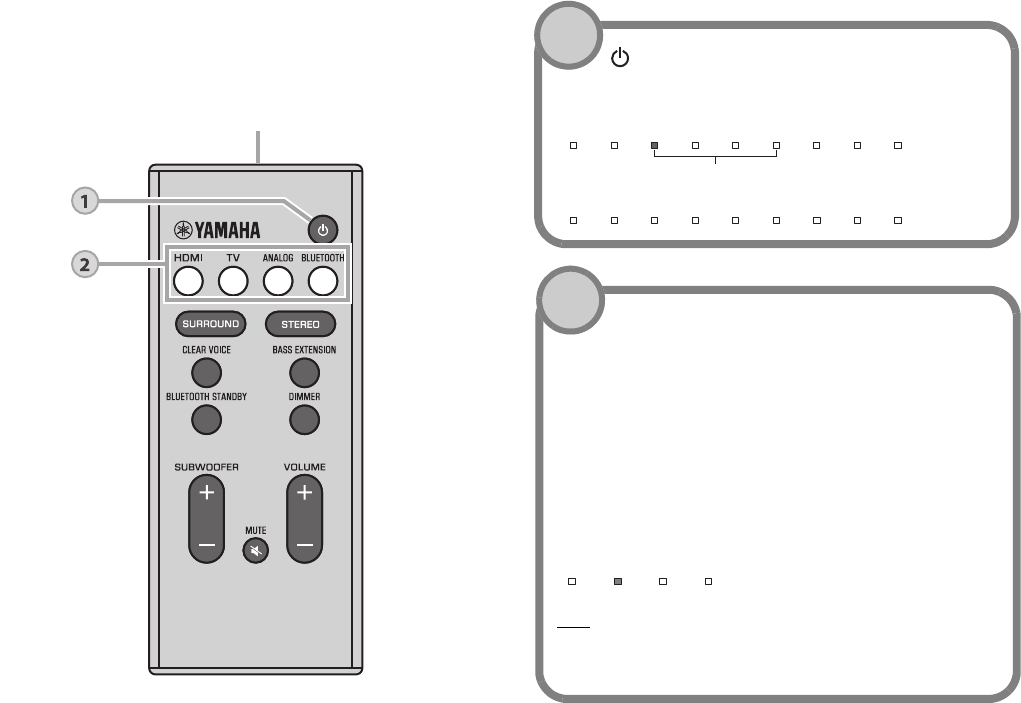
cUsing an external subwoofer
The unit has dual built-in subwoofers; however you can connect an
external subwoofer when you want to enhance low frequency sound.
Connect a subwoofer to the SUBWOOFER OUT jack of the unit.
Sound is output from both the built-in subwoofers and external
subwoofer.
NOTE
• Use an external subwoofer with built-in amplifier.
dConnecting the power cable
After all connections are complete, connect the supplied power cable
to the AC IN jack on the unit and plug the power cable into an AC wall
outlet.
ANALOG TV OUT (ARC)
SUBWOOFER OUT IN
HDMI AC IN
SUBWOOFER OUT
RCA mono cable
(optional)
Mono input
ANALOG TV OUT (ARC)
SUBWOOFER OUT IN
HDMI AC IN
AC IN
To an AC wall outlet
En 19
Operations
Remote control signal transmitter
Transmits infrared signals.
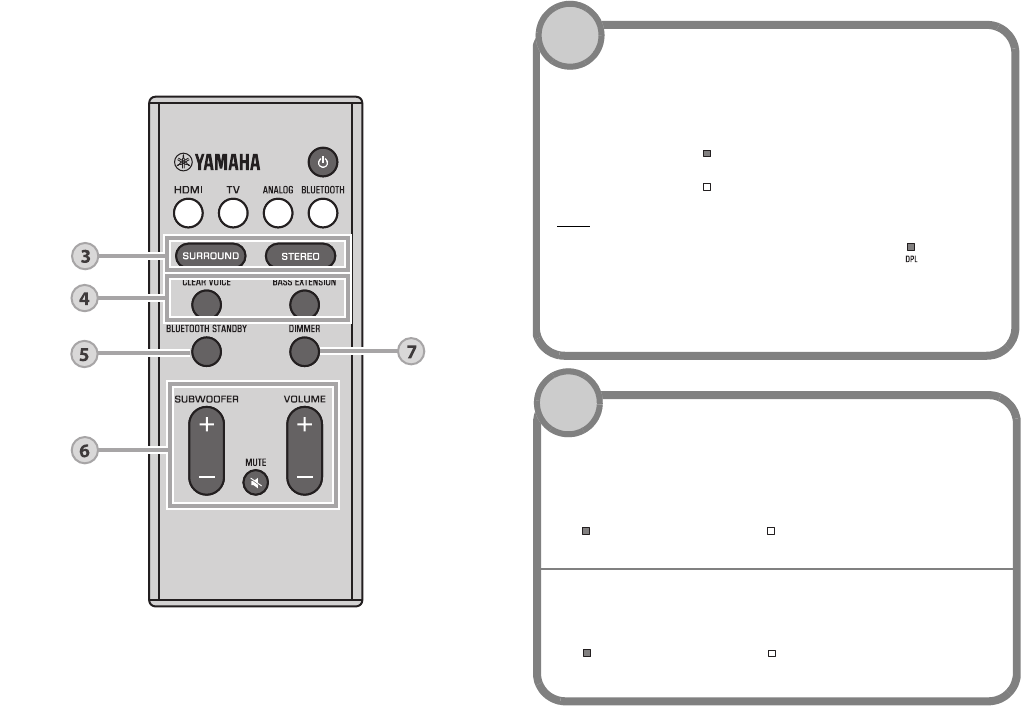
(power) key
Turns on or off the unit.
Turned on
Turned off (Bluetooth standby function enabled, p. 25)
The indicator for the last input source selected glows.
1
Input keys
Select an input source to be played back.
HDMI .................Sound from a device connected to the HDMI IN
jack
TV ......................TV audio or sound from a device connected to
the unit’s TV input jack
ANALOG ...........Sound from a device connected to the ANALOG
input jack
BLUETOOTH ....Sound from a Bluetooth connected device
The indicator for the selected input source glows.
(Example: when TV is selected)
HINT
• To play sound from the device connected to the TV or to watch video from
the device, set the TV’s input source to the device.
• For playback from a Bluetooth device, refer to page 23.
HDMI TV ANALOG BLUETOOTH
2
20 En
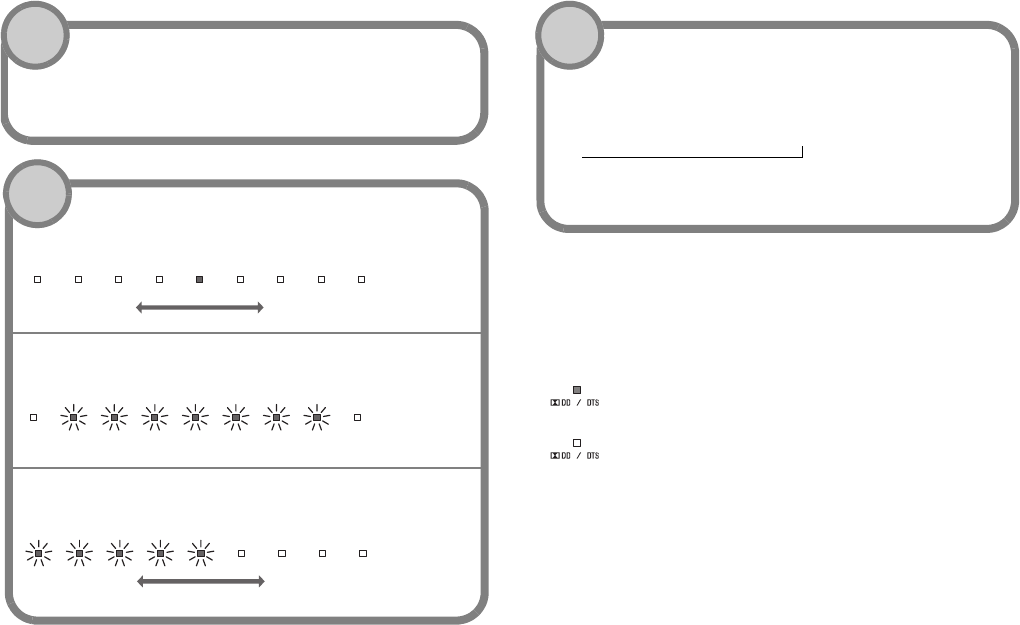
SURROUND
and
STEREO
keys
Switch between surround and stereo (2 channel) playback.
When surround playback is selected, you can enjoy a realistic
sound effect.
SURROUND........ Glows (surround playback)
STEREO.............. Off (stereo playback)
HINT
• The DPL indicator glows when 2-channel
stereo signal is played in surround.
• The TV Program, Movie, Music, Sports, or
Game surround mode can be selected
using the HOME THEATER
CONTROLLER app (p. 25) installed on a smartphone that supports the
Bluetooth function.
SURROUND
SURROUND
Glows
(Dolby ProLogic II)
3
CLEAR VOICE key
Enable/disable the clear voice function.
When this function is enabled, human voices such as lines in
movies and TV shows, or news and sport commentary, are
played clearly.
BASS EXTENSION key
Enable/disable the bass extension function. When this
function is enabled, you can enjoy more powerful sound.
CLEAR
VOICE
CLEAR
VOICE
Glows (enabled) Off (disabled)
BASS
EXTENSION
BASS
EXTENSION
Glows (enabled) Off (disabled)
4
En 21
Decoder indicator
The unit supports the following audio signals. The color of the
indicator identifies the type of audio input signal.
BLUETOOTH STANDBY key
Hold down the key for more than 3 seconds to enable/disable the
Bluetooth standby function (p. 25).
5
SUBWOOFER (+/–) keys
Adjust the volume of the subwoofer.
MUTE key
Mute the audio output. Press the key again to unmute.
VOLUME (+/–) keys
Adjust the volume of the unit.
Volume down (–) Volume up (+)
Flash (on mute)
Volume down (–) Volume up (+)
6
DIMMER key
Change the brightness of the indicators. Each time the key is
pressed, the brightness of the indicators changes as follows.
Dim (default setting) → Off → Bright
↑
Indicators glow brightly just after operation and change to the
specified brightness after a few seconds.
7
Green (Dolby Digital), Red (DTS)
Off (PCM/analog signal/no input signal)
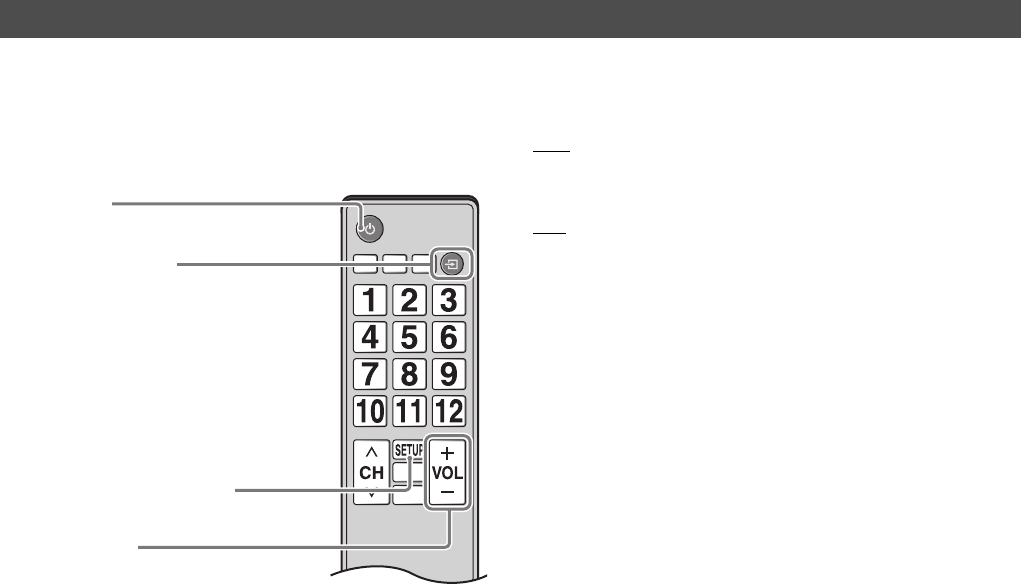
22 En
The HDMI control function (link function) coordinates operation of a TV and the unit so that the unit can be operated using the TV’s remote
control.
When a TV is connected to the unit with an HDMI cable (p. 16), the TV’s remote control can be used to perform the following operations.
Coordinated functions via the TV remote control NOTE
• If you are unable to operate the unit with your TV’s remote control, see page 26 for
more information.
HINT
• Even if your TV supports the HDMI control function, some functions may not be
available. For details, refer to documentation supplied with your TV.
• We suggest using devices (TV, BD/DVD player, etc.) from the same manufacturer.
Operating the unit by TV’s remote control (HDMI control)
Remote control of TV (Example)
2. Switch input sources
• The unit’s input source switches accordingly when
the TV’s input source is switched.
Examples
– When a TV program is selected on the TV, the
unit’s audio input source is switched to the HDMI
OUT (ARC) jack using the ARC function or TV
jack.
– When a BD/DVD player is connected to the
HDMI IN jack on the unit, the unit’s input source
switches to HDMI when the BD/DVD player is
selected with the TV’s remote control.
• The input source can be switched while the unit is
off.
1. Turn on/off
Both the TV and this unit turn on/off at the same
time.
3. Switch the audio output device
(TV or this unit (amplifier))
4. Adjust volume
This unit's volume can be adjusted when the
TV’s audio output is set to this unit (amplifier).
En 23
Listening to the sound
from a Bluetooth device
Audio from a Bluetooth device, such as a smartphone or a digital
music player, can be played over a wireless connection.
NOTE
• Adjust the volume level of the Bluetooth device as required.
• Perform Bluetooth connection with the device and unit within 10 m (33 ft) of each
other.
HINT
• See documentation supplied with your Bluetooth device for more information.
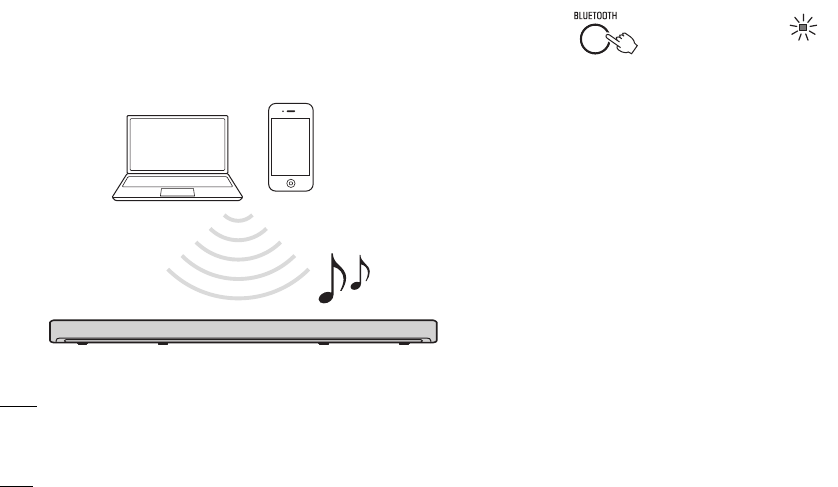
1Press the BLUETOOTH key on the unit’s remote
control to select Bluetooth as the input source.
The BLUETOOTH indicator on the unit flashes.
If a Bluetooth device has been connected before, the unit will
connect to the last connected device when the BLUETOOTH
key is pressed. Terminate this connection to connect a new
device.
2Enable the Bluetooth function on the Bluetooth
device.
Bluetooth device
BLUETOOTH
Flashes
24 En
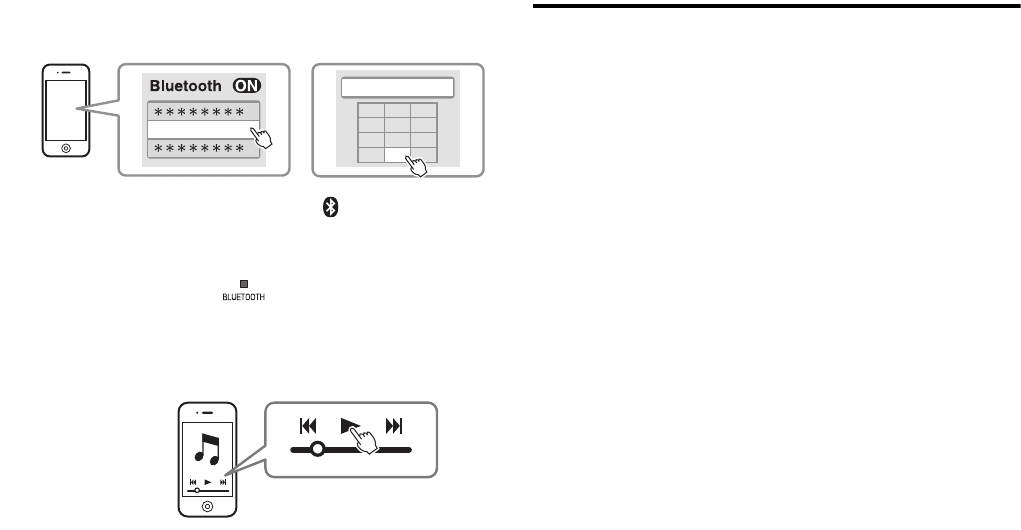
3Select “ATS-1060 Yamaha” in the Bluetooth device list
on the device.
If a passkey (PIN) is required, enter the number “0000”.
When the connection is established, the indicator or a
completion message is displayed on the Bluetooth device, and
the BLUETOOTH indicator on the unit glows.
4Play back a song on the Bluetooth device.
Terminating Bluetooth connection
Bluetooth connection is terminated in the following cases. When the
Bluetooth connection is terminated with the unit turned on, the
BLUETOOTH indicator flashes and the unit enters the connection
wait status.
•The Bluetooth function is turned off on the compatible
device.
•The BLUETOOTH key on the unit’s remote control is
pressed for more than 3 seconds.
•The unit is turned off.
ATS-1060 Yamaha
PIN 0 0 0 0
123
456
789
0
Glows
En 25
Using the Bluetooth standby function
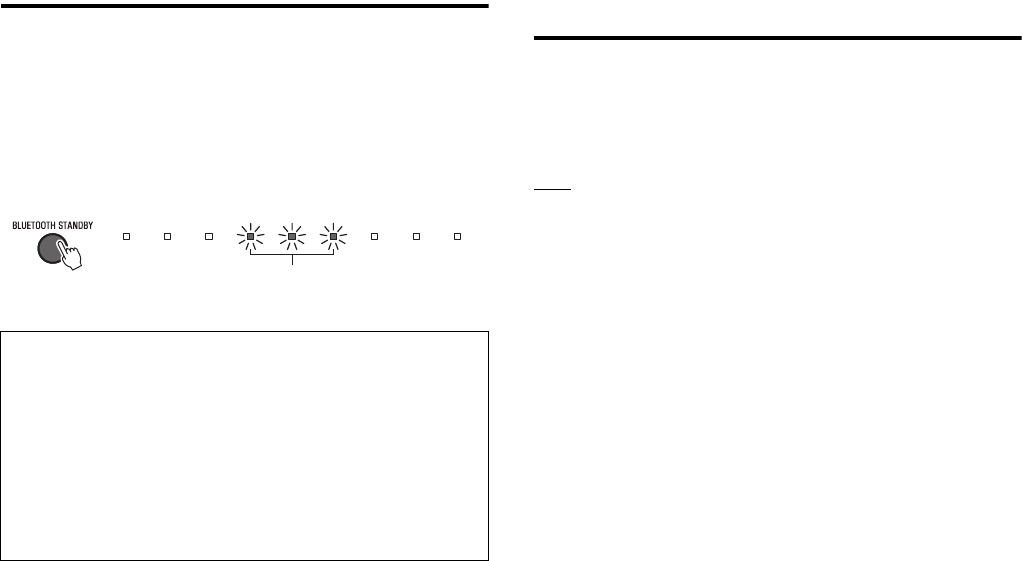
The Bluetooth standby function allows you to turn on or off the unit
automatically, linked with the operation of the Bluetooth device.
1With the unit turned on, hold down the BLUETOOTH
STANDBY key on the unit’s remote control for more
than 3 seconds.
Holding down the BLUETOOTH STANDBY key for 3 seconds
switches function status between enabled and disabled.
Using the HOME THEATER CONTROLLER
app
When the free HOME THEATER CONTROLLER app is installed on a
Bluetooth-compatible smartphone or other device, various operations
(basic operation of the unit, selection of a surround mode, adjustment
of sound settings, etc.) can be easily performed using the Bluetooth
device.
NOTE
• To use the app, connect the unit and a Bluetooth device via Bluetooth connection.
• If the Bluetooth standby function is enabled, the unit will be turned on with the
Bluetooth device.
For details on the “HOME THEATER CONTROLLER” app, see the
product information on our website.
Enabling the Bluetooth standby function allows the unit to be turned on
or off using a Bluetooth device.
Power on interlock function (when the unit is turned off)
When Bluetooth connection is made on the device, the unit will turn on
and will be ready to play back sound from the device.
Power off interlock function (when the unit is turned on)
The unit will be turned off when Bluetooth connection is terminated on a
Bluetooth device. (Only when BLUETOOTH is selected as the input
source.)
Flash 3 times (enabled), flash once (disabled; default)
26 En
Settings
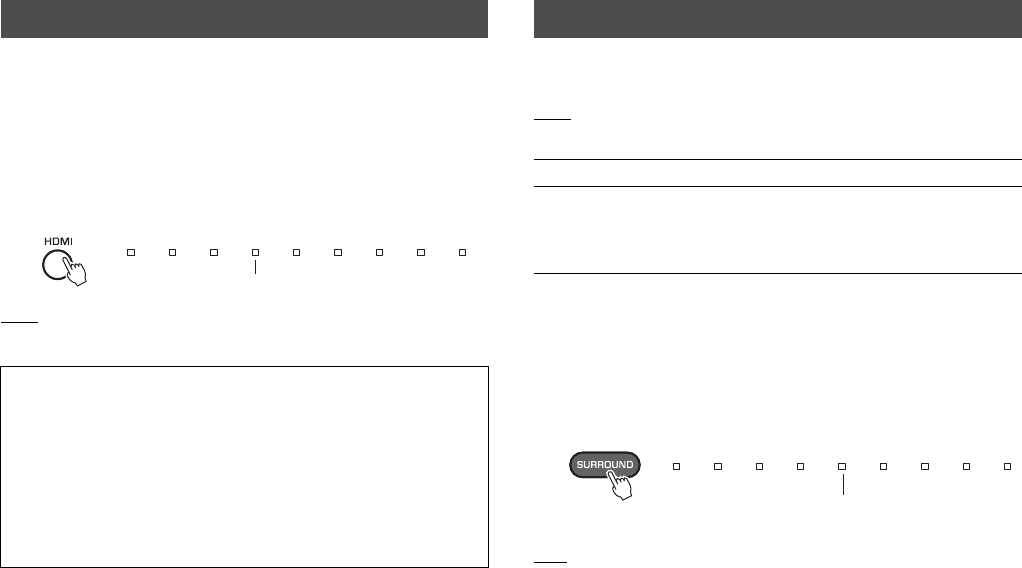
Follow the procedure below to enable or disable the unit’s HDMI
control function. This function is enabled by default.
1Turn off the unit.
2Hold down the HDMI key on the unit’s remote control
for more than 3 seconds.
Holding down the HDMI key for 3 seconds switches function
status between enabled and disabled.
NOTE
• Enable the HDMI control function when connecting a TV that supports Audio Return
Channel (ARC) (p. 17), or when using HDMI signal pass-through (p. 17).
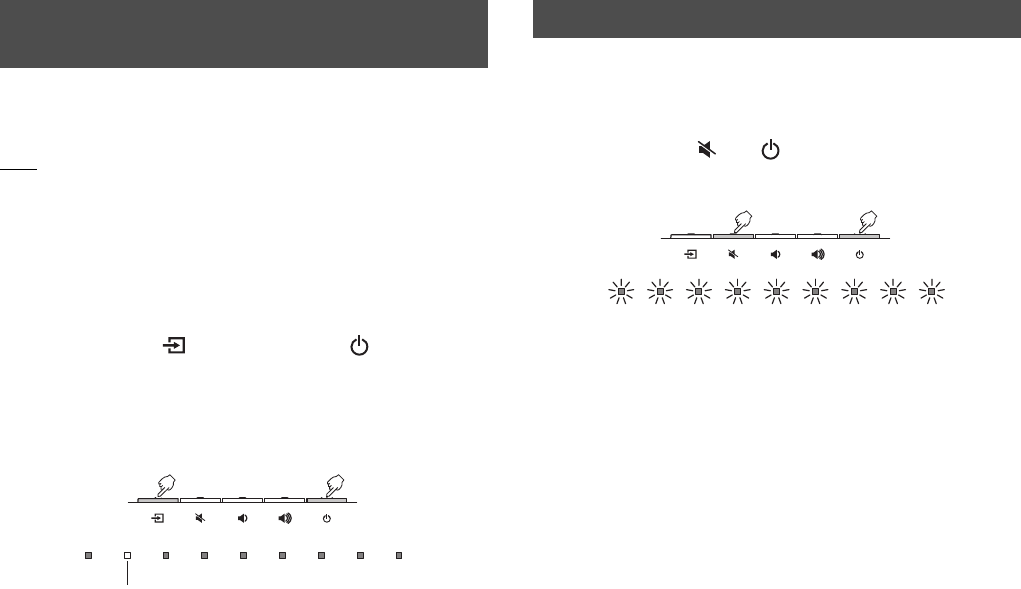
Specify whether HDMI audio input signal will be played from the unit
or the TV.
NOTE
• This setting can only be configured when the HDMI control function is disabled.
1Turn off the unit.
2Hold down the SURROUND key on the remote control
for more than 3 seconds.
Holding down the SURROUND key for 3 seconds switches
audio output between this unit and the TV.
HINT
• To configure HDMI audio output with the HDMI control function enabled, select the
audio output device configured for the TV connected to this unit.
• HDMI video signals input to the HDMI IN jack of this unit are always output from the
HDMI OUT (ARC) jack of this unit.
Configuring the HDMI control function
If the unit cannot be operated with the TV’s remote control
Confirm the settings are properly configured as described below.
– The HDMI control function of this unit is enabled.
– The HDMI control function is enabled on the TV.
Examples of TV settings
• From the setup menu on your TV, select “Link setting” ➔ “HDMI control
setting”, then set a setting such as “HDMI control function” to “ON”.
• Set audio output to any option other than TV.
If the unit cannot be operated with the TV’s remote control even after the settings
described above have been applied correctly:
– Turn off this unit and the TV, and then turn them back on again.
– Disconnect the power cable of the unit and external devices connected to the
unit via HDMI cable. Plug them in again after about 30 seconds.
Off (disabled), glows (enabled; default)
Configuring HDMI audio output
The unit (default) Play HDMI audio input signal from the unit.
TV Play HDMI audio input signal from the TV
connected to the HDMI OUT (ARC) jack on
the unit. The unit cannot be used to adjust
volume. Use TV controls to adjust volume.
Off (audio plays from the TV)
Glows (audio plays from the unit; default)
En 27
Enabling the auto power standby function prevents the unit from
remaining on when not in use.
NOTE
• When the auto power standby function is enabled, the unit automatically turns off in
any of the following situations.
− No operations for 8 hours
− No audio input and no operations for 20 minutes when BLUETOOTH or HDMI is
selected as the input source.
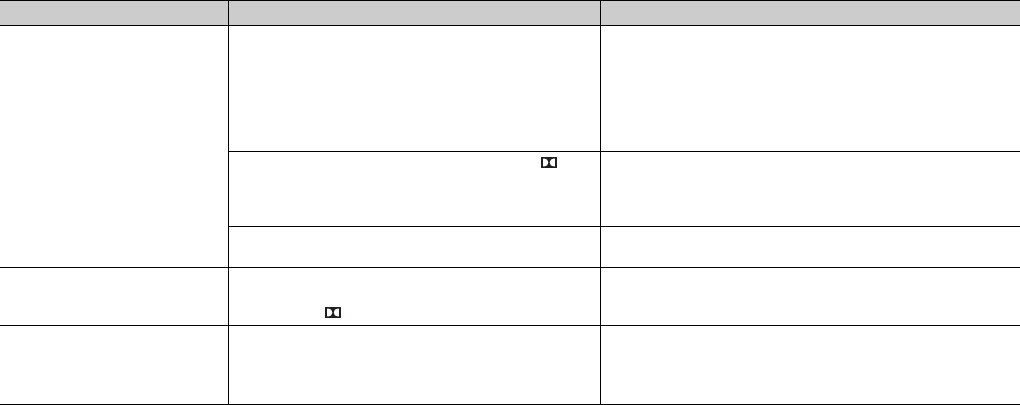
1Turn off the unit.
2Hold down the key and press the key on the
unit.
The auto power standby function is enabled or disabled, and the
unit turns on. For several seconds immediately after the unit is
turned on, the indicator shows auto power standby function
status.
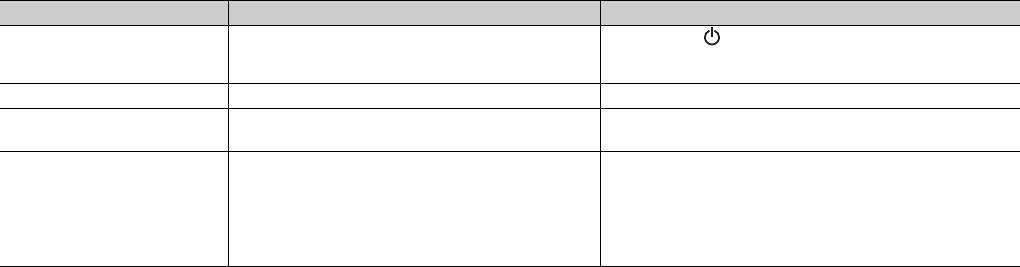
Follow the procedure below to initialize the unit.
1Turn off the unit.
2Hold down the and keys on the unit at the
same time until all indicators flash.
Enabling/disabling the auto power
standby function
Off (enabled), glows (disabled; default)
Initializing the unit
Flash (initialized)
28 En
Troubleshooting
Refer to the table below when the unit does not function properly. If the problem you are experiencing is not listed below or if the instructions
below do not help, turn off the unit, disconnect the power cable, and contact the nearest authorized Yamaha dealer or service center.
First, check the following:
1The power cables of the unit, TV and playback devices (such as BD/DVD players) are connected to AC wall outlets securely.
2The unit, TV and playback devices (such as BD/DVD players) are turned on.
3The connectors of each cable are securely inserted into jacks on each device.
Power and system
Problem Cause Remedy
The power turns off
suddenly.
When the auto power standby function is enabled, the unit
automatically turns off in any of the following situations:
– No operations have been performed for 8 hours
– BLUETOOTH or HDMI is selected as the input source,
but no audio has been input to the unit or no operations
have been performed with the unit for more than 20
minutes.
Turn on the unit again. If the auto power standby function is not
used, disable the function (p. 27).
The protection circuitry has been activated. (The DD /
DTS indicator flashes.)
After confirming that all connections are made properly, turn on
the unit again. If the power still turns off frequently, unplug the
power cable from the AC wall outlet and contact the nearest
authorized Yamaha dealer or service center.
The Bluetooth connection was terminated by a Bluetooth
device with the unit’s Bluetooth standby function enabled.
Disable the Bluetooth standby function (p. 25).
The power cannot be turned
on.
The protection circuitry has been activated three times
consecutively. (If you try to turn on the power in this
condition, the DD / DTS indicator will flash.)
To protect the product, the power cannot be turned on. Unplug
the power cable from the AC wall outlet and contact the nearest
authorized Yamaha dealer or service center.
All indicators go out although
the unit is turned on (it may
seem that the unit is turned
off).
The unit is configured so that indicators do not glow or
flash unless the unit is being operated.
Use the DIMMER key to select the desired brightness (p. 21).
En 29
The unit does not function
correctly.
The internal microcomputer is frozen, due to an external
electric shock (such as lightning or excessive static
electricity) or to a drop in the power supply voltage.
Hold down the key on the unit for more than 10 seconds to
turn on the unit. (If the problem persists, unplug the power cable
from the AC wall outlet and plug it again.)
The unit turns on by itself. Another Bluetooth device is being operated nearby. Terminate Bluetooth connection with the unit (p. 24).
The TV’s 3D glasses do not
work.
The unit is blocking the TV’s 3D glasses transmitter. Confirm the position of the TV’s 3D glasses transmitter, and
position the unit so that it does not obstruct the transmitter.
The unit cannot be operated
with the HOME THEATER
CONTROLLER app. (The
screen on the Bluetooth
device will not exit the app’s
demo mode.)
The Bluetooth device on which the app has been installed
is not connected to the unit.
Establish a Bluetooth connection between the Bluetooth device
and the unit to use the app (p. 23).
Problem Cause Remedy

30 En
Audio
Problem Cause Remedy
No sound. Another input source is selected. Select an appropriate input source (p. 19).
The mute function is activated. Cancel the mute function (p. 21).
The volume is too low. Turn up the volume (p. 21).
The power cable of the unit is not connected properly. Make sure that the power cable of the unit is connected to an AC
wall outlet securely (p. 18).
Input jacks on a playback device are connected. Connect the input jack on the unit and the output jack on the
playback device.
Signals that the unit cannot play back are being input. Change the digital audio output setting on the playback device to
PCM, Dolby Digital or DTS.
The unit is configured so that HDMI audio input signals
are output from the TV.
Configure the unit so that HDMI audio input signals are output
from the unit (p. 26)
The HDMI control function is disabled. When connecting a TV that supports ARC (Audio Return
Channel) to the unit using an HDMI cable only, enable the HDMI
control function (p. 26).
To output audio signals from this unit with the HDMI control
function disabled, connect the TV’s audio output jack to this unit’s
TV input jack (optical digital) via the optical digital audio cable (p.
16).
Sound from an HDMI control-enabled TV is set for output
from the TV’s built-in speakers.
Use the TV’s HDMI settings to set audio output to any option
other than the TV’s built-in speakers.
No sound is coming from the
subwoofer.
The volume of the subwoofer is too low. Turn up the volume of the subwoofer (p. 21).
The playback source does not contain low-frequency
signals.
Play back a sound source containing low-frequency signals, and
confirm that the sound is output from the subwoofer.
The volume decreases when
the unit is turned on.
The automatic volume adjustment function is activated.
To prevent excessive loudness, the unit automatically
controls its volume within a certain level when the unit is
turned on.
Turn up the volume as required (p. 21).

En 31
Remote control
No surround effect. Stereo playback is selected. Select surround playback (p. 20).
The volume is too low. Turn up the volume (p. 21).
The TV or playback device is set to output 2 channel
audio (such as PCM) only.
Change the digital audio output setting on the TV or playback
device to BitStream.
Sound is also heard from the TV built-in speakers. Set the TV volume to minimum (p. 22).
The listening position is too close to the unit. The listening position should be at some distance from the unit.
Noise is heard. The unit is too close to another digital or high-frequency
device.
Move those devices away from the unit.
Video is not displayed on TV
screen.
The HDMI cable is not securely connected. Connect the HDMI cable properly (p. 16).
When the unit is turned off,
video and/or audio from a
playback device are not
output to the TV.
The HDMI control function is disabled. Enable the HDMI control function (p. 26)
Problem Cause Remedy
The unit cannot be operated
using the remote control.
The unit is out of the operating range. Use the remote control within the operating range (p. 8).
The batteries are weak. Replace with new batteries (p. 9).
The remote control sensor of the unit is exposed to direct
sunlight or strong lighting.
Adjust the lighting angle, or reposition the unit.
The TV cannot be operated
using the TV’s remote
control.
The unit is blocking the TV’s remote control sensor. Position the unit so that it does not obstruct the TV’s remote
control sensor.
Problem Cause Remedy

32 En
Bluetooth
Problem Cause Remedy
Unable to connect the unit to
a Bluetooth device.
Bluetooth is not selected as the input source. Select Bluetooth as the input source (p. 23).
The device does not support A2DP. Connect to a Bluetooth audio device that supports A2DP.
A Bluetooth adaptor, etc. that you want to connect to the
unit has a password other than “0000”.
Use a Bluetooth adaptor, etc. whose password is “0000”.
The unit and device are too far apart. Position the Bluetooth device so that it is less than 10 m (33 ft)
from this unit and connect the device to this unit.
There is a device (microwave oven, wireless LAN, etc.)
outputs signals in the 2.4 GHz frequency band nearby.
Move this unit away from the device that is emitting radio
frequency signals.
Another Bluetooth device is connected. Terminate the current Bluetooth connection, and connect to the
device from which audio should be received.
As more than nine devices have been connected,
information for the oldest connection has been deleted.
Connect to the device again. The unit is can connect to up to
eight Bluetooth devices for receiving audio. If a new device is
successfully connected to the unit after eight other devices have
already been connected, the device with the earliest connection
date will have been deleted to make room for the new device.
No sound is heard or the
sound is intermittent via the
unit.
The Bluetooth connection of the unit with the device is
disconnected.
Perform Bluetooth connection operations again (p. 23).
Bluetooth is not selected as the input source. Select Bluetooth as the input source (p. 23).
The unit and device are too far apart. Move the Bluetooth device so that it is less than 10 m (33 ft) from
this unit.
There is a device (microwave oven, wireless LAN, etc.)
outputs signals in the 2.4 GHz frequency band nearby.
Move this unit away from the device that is emitting radio
frequency signal.
The device is not set to send Bluetooth audio signals to
the unit.
Check that the Bluetooth function of the device is set properly.
Playback on the device has not been performed. Perform playback on the device.
The device’s volume is set to minimum. Turn up the volume level on the device.
En 33
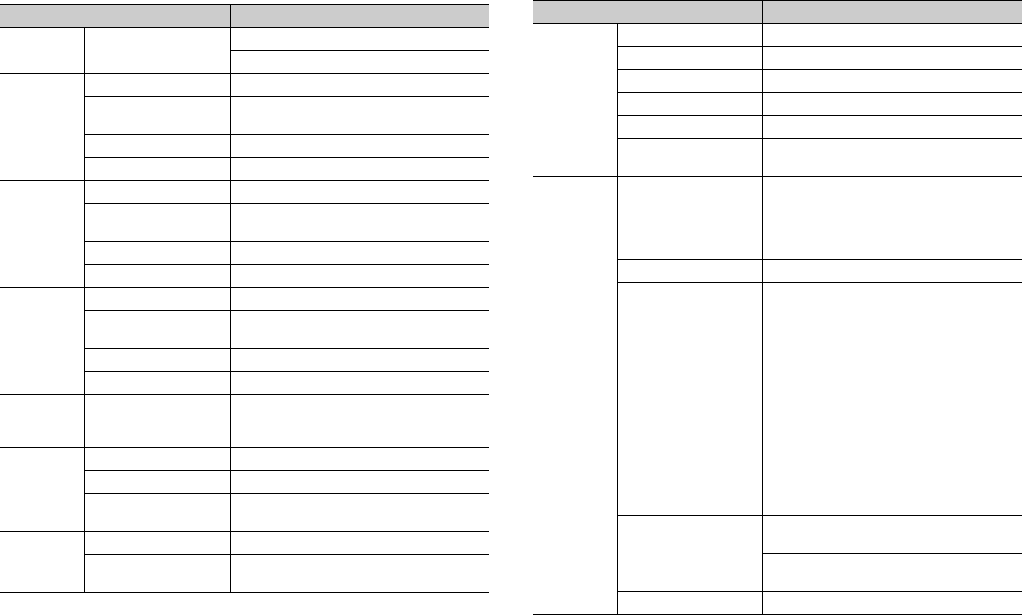
Specifications
Item Specifications
Amplifier
Section
Maximum Rated
Output Power
Front L/R 30 W x 2 ch
Subwoofer 60 W
Front L/R
Section
Type Acoustic suspension type
Driver 5.5 cm (2-1/8") cone non-magnetic
shielding type x 2
Frequency Response 160 Hz to 23 kHz
Impedance 6Ω
Tweeter
Section
Type —
Driver 25 mm (1") dome magnetic shielding type x
2
Frequency Response 4 kHz to 23 kHz
Impedance 6Ω
Subwoofer
Section
Type Bass reflex type
Driver 7.5 cm (3") cone non-magnetic shielding
type x 2
Frequency Response 60 Hz to 160 Hz
Impedance 3Ω (6Ω x 2)
Decoder Supported audio
signal
PCM (up to 5.1ch)
Dolby Digital (up to 5.1ch)
DTS Digital Surround (up to 5.1ch)
Input Jacks
HDMI 1 (HDMI IN)
Digital (Optical) 1 (TV)
Analog (3.5 mm
stereo mini)
1 (ANALOG)
Output
Jack
HDMI 1 (HDMI OUT (ARC))
Analog (RCA/
monaural)
1 (SUBWOOFER OUT)
Bluetooth
Bluetooth version Ver. 2.1 +EDR
Supported protocols Receiving: A2DP, SPP
Supported codecs Receiving: SBC, MPEG-4 AAC
Wireless output Bluetooth Class 2
Range (line-of-sight) Approx. 10 m (33 ft)
Supported content
protection method
SCMS-T
General
Power Supply
U.S.A. and Canada models: AC 120 V,
60Hz
Taiwan model: AC 110 - 120 V, 50/60Hz
China model: AC 220V, 50Hz
Other models: AC 220 - 240 V, 50/60Hz
Power Consumption 27 W
Standby Power
Consumption
Australia and China models
HDMI Control Off, Bluetooth Standby Off:
0.4 W
HDMI Control On, Bluetooth Standby Off:
1.9 W
HDMI Control Off, Bluetooth Standby On:
0.4 W
Other models
HDMI Control Off, Bluetooth Standby Off:
0.2 W
HDMI Control On, Bluetooth Standby Off:
1.8 W
HDMI Control Off, Bluetooth Standby On:
0.2 W
Dimensions
(W x H x D)
890 x 53 x 131 mm (35" x 2-1/8" x 5-1/8")
(installing the unit in front of a TV, etc.)
890 x 131 x 62 mm (35" x 5-1/8" x 2-1/2")
(mounting the unit on a wall, with spacers)
Weight 3.2 kg (7.1 lbs)
Item Specifications
34 En
HDMI signal
• Audio signals
HINT
• Refer to documentation supplied with the playback device, and set the device
appropriately.
• When CPPM copy-protected DVD-Audio is played back, video and audio signals
may not be output depending on the type of the DVD player.
• This unit is not compatible with HDCP-incompatible HDMI or DVI devices. Refer to
documentation supplied with the HDMI or DVI device for HDCP compatibility.
• To decode audio bitstream signals on this unit, set the input source device
appropriately so that the device outputs the bitstream audio signals directly (does
not decode the bitstream signals on the device). Refer to documentation supplied
with the device for details.
• Video signals
This unit is compatible with the following video signals.
• Deep Color
• x.v.Color
• 3D video signal
• High Dynamic Range (HDR) video
This unit is compatible with the following resolutions.
HINT
• The resolution of transmitted video signal varies according to specifications of the
TV connected to this unit.
Digital audio signal
•Optical
• HDMI (ARC)
The contents of this manual apply to the latest specifications as of the publishing
date.
To obtain the latest manual, access the Yamaha website then download the manual
file.
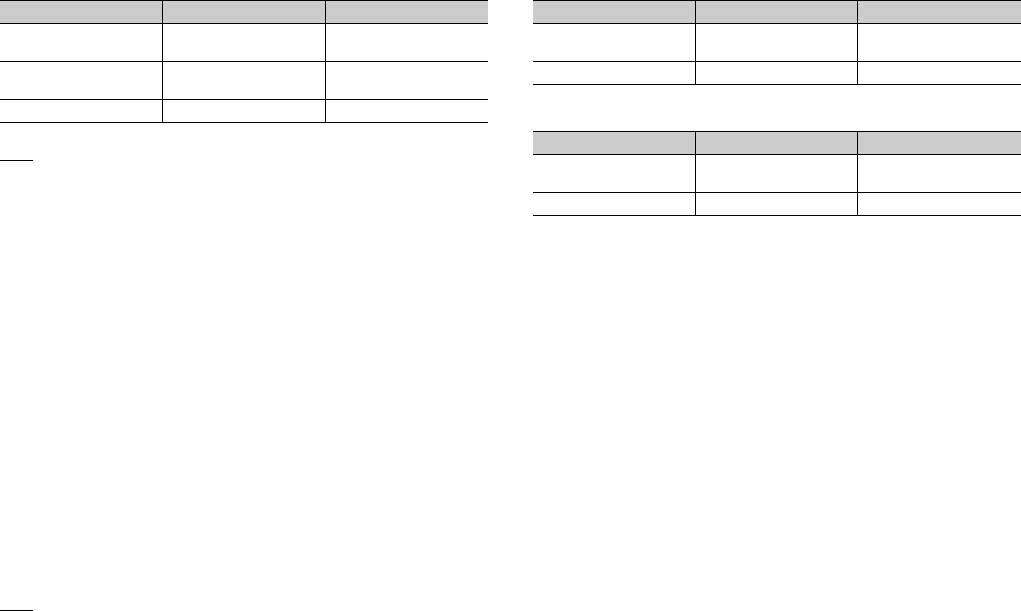
Audio signal types Audio signal formats Compatible media
2ch Linear PCM 2ch, 32–96 kHz,
16/20/24 bit
CD, DVD-Video, DVD-
Audio, etc.
Multi-ch Linear PCM 6ch, 32–96 kHz,
16/20/24 bit
DVD-Audio, Blu-ray disc,
HD DVD, etc.
Bitstream Dolby Digital, DTS DVD-Video, etc.
•VGA
• 480i/60 Hz
• 480p/60 Hz
• 576i/50 Hz
• 576p/50 Hz
• 720p/60 Hz, 50 Hz
• 1080i/60 Hz, 50 Hz
• 1080p/60 Hz, 50 Hz, 30 Hz, 25 Hz, 24 Hz
• 4K/60 Hz, 50 Hz, 30 Hz, 25 Hz, 24 Hz
Audio signal types Audio signal formats Compatible media
2ch Linear PCM 2ch, 32–48 kHz,
16/20/24 bit
CD, DVD-Video, DVD-
Audio, etc.
Bitstream Dolby Digital, DTS DVD-Video, etc.
Audio signal types Audio signal formats Compatible media
2ch Linear PCM 2ch, 32–96 kHz,
16/20/24 bit TV
Bitstream Dolby Digital, DTS TV
En 35
The Bluetooth® word mark and logos are registered trademarks owned by Bluetooth
SIG, Inc. and any use of such marks by Yamaha Corporation is under license.
Manufactured under license from Dolby Laboratories.
Dolby, Dolby Audio, Pro Logic, and the double-D symbol are trademarks of Dolby
Laboratories.
For DTS patents, see http://patents.dts.com. Manufactured under license from DTS
Licensing Limited.
DTS, the Symbol, & DTS and the Symbol together are registered trademarks, and
DTS Digital Surround is a trademark of DTS, Inc. © DTS, Inc. All Rights Reserved.
The terms HDMI, the HDMI Logo, and High-Definition Multimedia Interface are
trademarks or registered trademarks of HDMI Licensing LLC in the United States and
other countries.
Blu-ray
“Blu-ray Disc™”, “Blu-ray™”, and the logos are trademarks of the Blue-ray Disc
Association.
“Made for iPod,” “Made for iPhone,” and “Made for iPad” mean that an electronic
accessory has been designed to connect specifically to iPod, iPhone, or iPad,
respectively, and has been certified by the developer to meet Apple performance
standards. Apple is not responsible for the operation of this device or its compliance
with safety and regulatory standards. Please note that the use of this accessory with
iPod, iPhone, or iPad may affect wireless performance.
Bluetooth
Bluetooth is a technology for wireless communication employing the 2.4 GHz
frequency band, which can be used without a license.
Handling Bluetooth communications
• The 2.4 GHz band used by Bluetooth compatible devices is a radio band shared by
many types of equipment. While Bluetooth compatible devices use a technology
minimizing the influence of other components using the same radio band, such
influence may reduce the speed or distance of communications and in some cases
interrupt communications.
• The speed of signal transfer and the distance at which communications is possible
differs according to the distance between the communicating devices, the presence
of obstacles, radio wave conditions and type of equipment.
• Yamaha does not guarantee all wireless connections between this unit and devices
compatible with Bluetooth function.

Published 06/2016 KS-B0
Printed in China
Manual Development Group
© 2016 Yamaha Corporation
ATS-1060/UA
Yamaha Global Site
http://www.yamaha.com/
Yamaha Downloads
http://download.yamaha.com/
