Users Manual
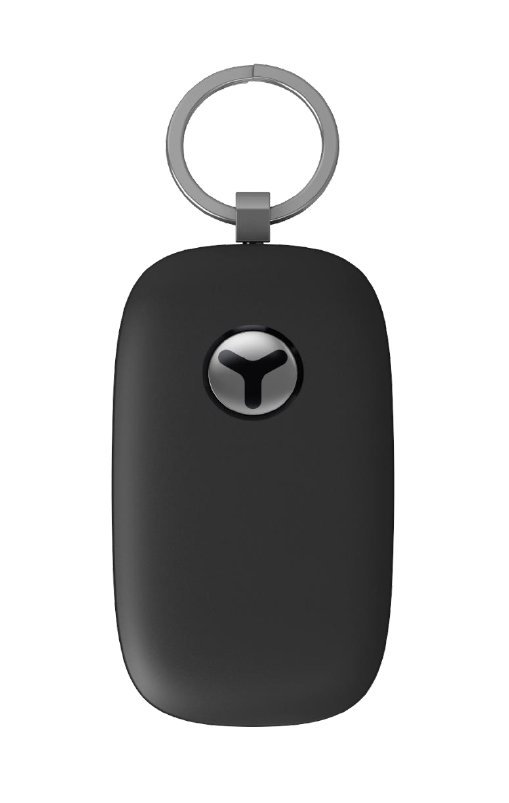
User manual
Yepzon™ Freedom
Yepzon Freedom is a personal alarm system that works with your smartphone or tablet.
The package contains one Yepzon Freedom, and a USB charger.
Getting started:
Before use
When you first start using your Yepzon Freedom, charge the battery for two hours. This ensures
optimal performance and battery life.
Pairing the Yepzon Freedom to your smartphone or tablet for the first time
1. Download the Yepzon App to your smartphone or tablet from Google Play or the Apple Store.
2. Run the App and select Add a Yepzon. The welcome screen appears.
3. Select Yepzon Freedom on the screen.
Note: If you have trouble pairing the device to your phone, make sure the Wi-Fi on your
smartphone or tablet is enabled. If the problem persists, attach the Yepzon Freedom to the
charger and try again.
3. The App requests the QR code, which you can find printed on a leaflet in the sales box.
4. Select Connect Yepzon.
The Yepzon Freedom is connected to your smartphone or tablet and you can start using it.
Adding more users
Use the Yepzon App to connect your Yepzon Freedom to another smartphone or tablet. Please note
that it cannot be paired again using the QR code.
You can add more users to your Yepzon Freedom on Settings – General – Manage access rights –
Add user
Recommended precaution: Requesting a reset link
If the only smartphone or tablet your Yepzon Freedom is connected with is lost or broken, or you
accidentally remove the Yepzon App without removing the user rights from the Yepzon device(s)
first, Yepzon Freedom cannot be connected to another smartphone or tablet without a reset. To
avoid losing the use of your Yepzon Freedom, you should request a reset link.
1. Run the Yepzon App on your device.
2. Select a Yepzon.
3. Select Settings.
4. Select Create a restore link.
5. Enter your e-mail address and select Send.
A message containing the reset link will be in your inbox in a few minutes.

Changing Modes
Yepzon Freedom has three Modes for optimal use in different situations. Pressing the button on the
Yepzon Freedom sends its location to the Yepzon App in all Modes, and a push notification with
specific SOS signal is shown and played by the phone, capturing your attention. Change between
Modes by selecting Settings and then selecting the Mode you want to use.
Quick location Mode
This is the factory setting of your Yepzon Freedom.
The Yepzon Freedom can be located right away through the Yepzon App or by pressing the
alarm button on the Yepzon Freedom.
This mode uses less data but more power. Battery life will be about 1 day.
Use this Mode for active tracking, for example for a small child. Location data is available right
away on the Yepzon App.
Battery Saving Mode
In this Mode, Yepzon Freedom connects the Yepzon Cloud only at preset intervals, so the
accurate location is not available instantly but after the next connection
User can optimize the connection intervals between a short delay to get the accurate location
and a long battery life.
Battery life is from a few days up to several weeks depending on settings and usage.
In this Mode, the Yepzon Freedom works similarly like the Yepzon One.
Use this Mode when you want to prolong the battery life and you can tolerate some delay in getting
the accurate position. You can set the connection intervals in the Yepzon App. When accurate
location is requested, the Yepzon Freedom starts the positioning right after the next connection to
the Yepzon Cloud. The longer the connection interval, the longer the delay for starting the
positioning but the longer the battery life as well.
SOS Only Mode
Yepzon Freedom can only be located by pressing the alarm button.
Yepzon Freedom cannot be located through the Yepzon App. Only battery status is available
on the Yepzon App.
Battery life will be several months.
Use this Mode when you want to have a personal alarm for someone who prefers not being tracked
on the Yepzon App and does not want to pay attention to the battery charge frequently.
Setting notifications
Yepzon Freedom can be set to send notifications for specific situations, for example when Yepzon
Freedom starts moving after a period of stillness.
1. Run the Yepzon App on your device
2. Select a Yepzon
3. Select Settings
4. Select Edit Notifications
5. Check the boxes for the events you want to be notified of.
Safety
This device complies with part 15 of the FCC Rules. Operation is subject to the following two
conditions: (1) This device may not cause harmful interference, and (2) this device must accept any
interference received, including interference that may cause undesired operation.
This product meets applicable national SAR limits of 1.6W/kg. The specific maximum SAR values
can be found at yepzon.com/support. When carrying the product, or using it while worn on your
body, either use an accessory such as a holster or otherwise maintain a distance of 0,5 cm from the
body to ensure compliance with RF exposure requirement.