Yunlink Technology CPE150P24 Outdoor AP User Manual

Shenzhen Yunlink Technology Co., Ltd Outdoor AP

User Manual

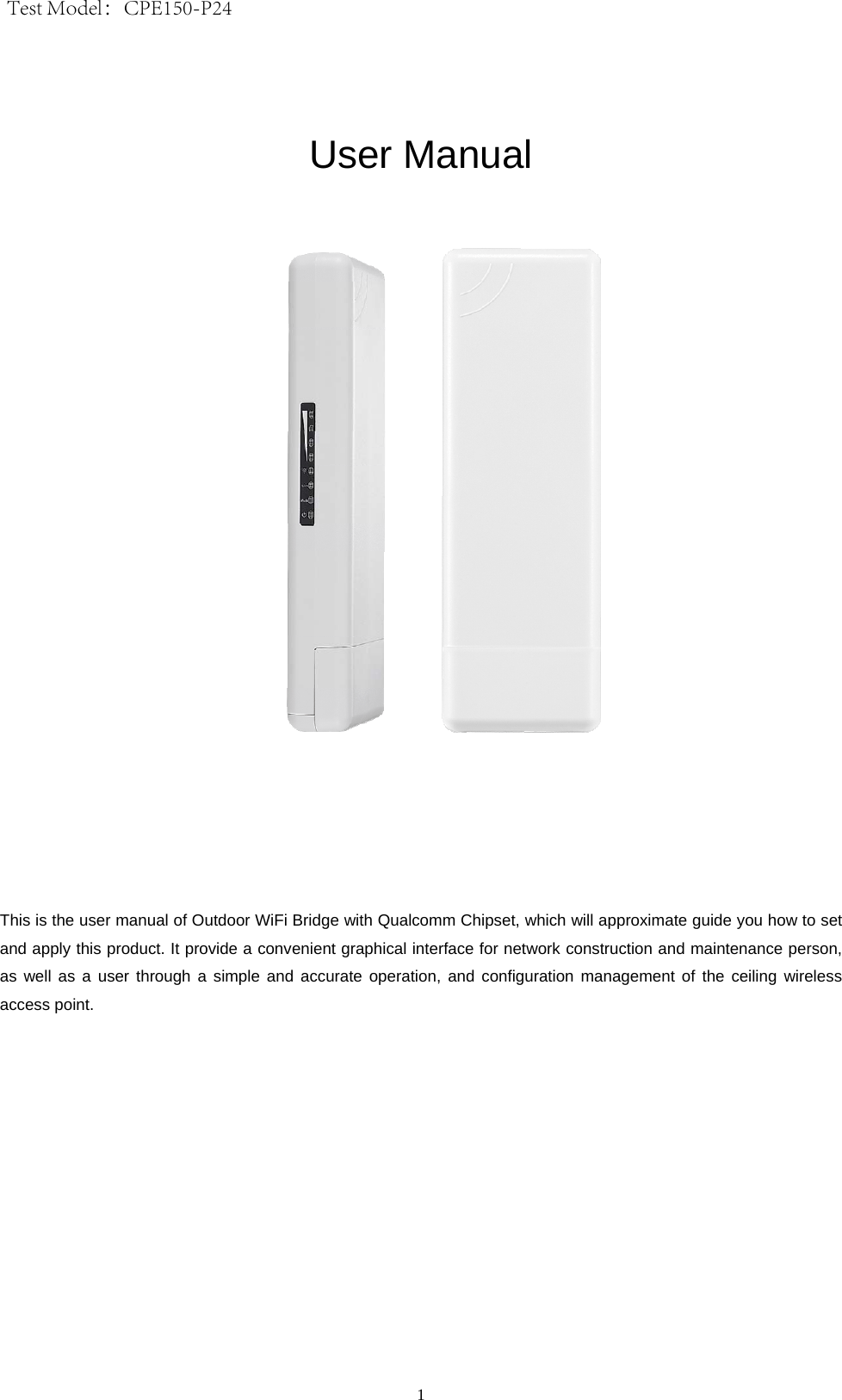
1 User Manual This is the user manual of Outdoor WiFi Bridge with Qualcomm Chipset, which will approximate guide you how to set and apply this product. It provide a convenient graphical interface for network construction and maintenance person, as well as a user through a simple and accurate operation, and configuration management of the ceiling wireless access point. Test Model:CPE150-P24
 2                 Attention:  1. Check box contents:  Outdoor CPE PoE Power adapter (for 24V Passive PoE device) LAN cable User Manual Installation Accessory   2. Warning:     Do not use the same power source for the product as other equipment, Only use the power adapter that comes with the package. Using a different voltage rating power adapter may damage the device.   Do not open or repair the case yourself. If the product is too hot, turn off the power immediately and have it repaired at a qualified service center.
 3   Contents Chapter 1: Hardware and Operation mode Instruction……………........…………...………….......……….4 1.1 Interface Instruction..……………........……………………..........................................………4 1.2: LED light instruction…………........…………………….........................................................4 1.3 PoE Power Connection and Installation……………….........................................................4 Chapter 2: Working Diagram………………..............................................................................................5 Chapter 3: WDS Switch Button Configuration………………....................................................................5 Chapter 4: WEB GUI Login………………................................................................................................9 Chapter 5 : WEB GUI interface Setting……...........................................................................................11 5. 1 User Login Page……........................................................................................................11 5.1.1 Wireless Setting…..........................................................................................................11 5.1.2 LAN Setting….................................................................................................................12 5.1.3 Super WDS Settings .....................................................................................................12 5.1.4 Wizard............................................................................................................................14 5.1.5 Advanced........................................................................................................................14 5.2 Admin Login.......................................................................................................................14 5.2.1: Wizard............................................................................................................................15 5.2.1.1 Gateway Mode.............................................................................................................16 5.2.1.2 WiFi Repeater mode…………………………………………………………….....….........18 5.2.1.3. WISP Operation mode:…………………………………………………….....……...........19 5.2.1.4. AP Operation mode:……………………………………………………………....…..........21 5.2.1.5 Super WDS Mode.........................................................................................................23 5.3 Advanced Setting…………………………………………………….…………...………...........23 5.3.1 Device Status:……………………………………………………………………...……..........23         5.3.2Wireless…………………………………………………………....………..............................24         5.3.4 Network setting……………………………………………………………………….......……27         5.3.5 Management……………………………………………………………………………..........28 Chapter 6 Share Internet and Obtain IP address automatically……………………………....….…….....31 Chapter 7 Trouble Shooting…………………………………………………………………………………...32
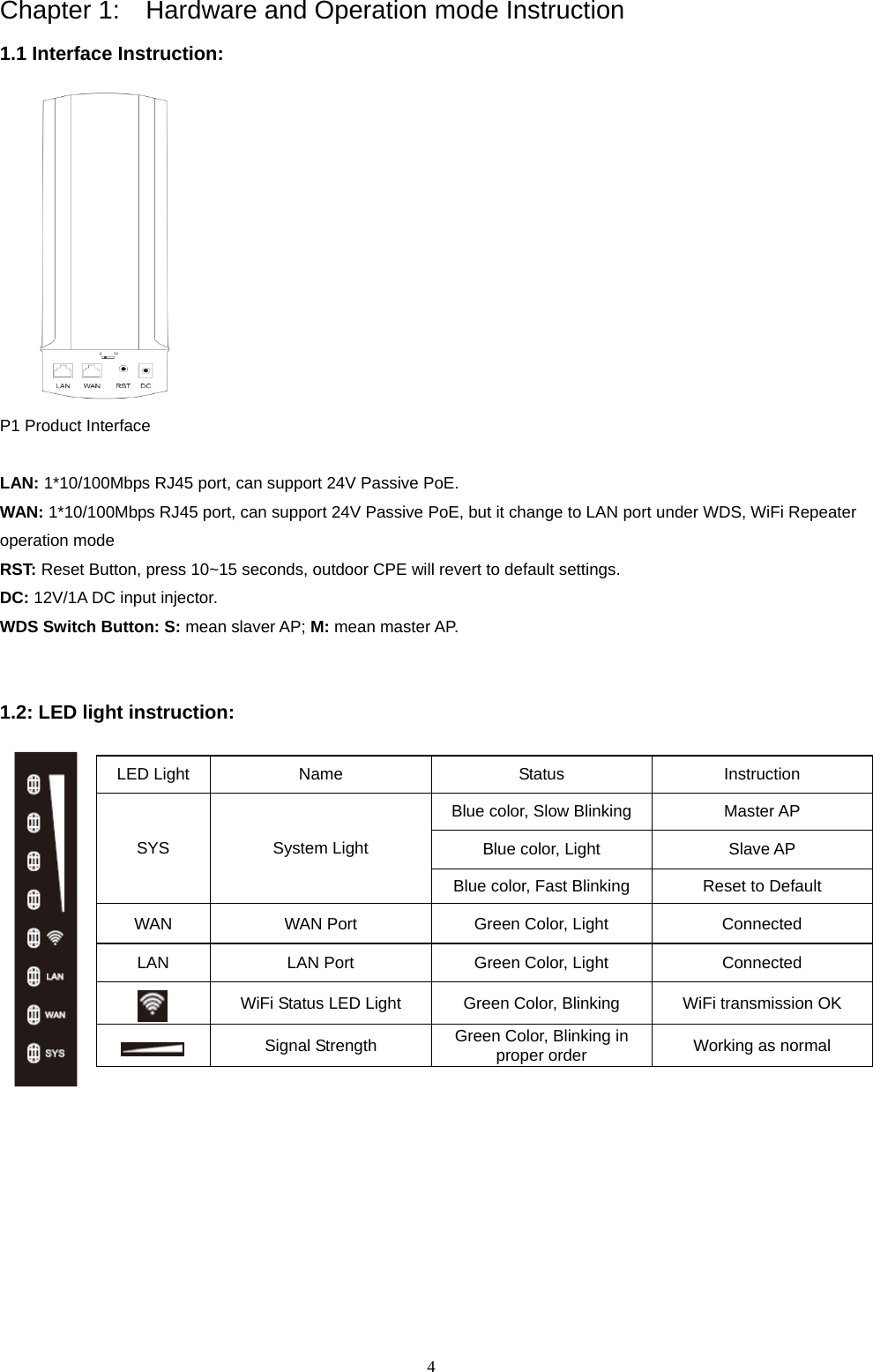
 4  Chapter 1:  Hardware and Operation mode Instruction 1.1 Interface Instruction:               P1 Product Interface  LAN: 1*10/100Mbps RJ45 port, can support 24V Passive PoE. WAN: 1*10/100Mbps RJ45 port, can support 24V Passive PoE, but it change to LAN port under WDS, WiFi Repeater operation mode RST: Reset Button, press 10~15 seconds, outdoor CPE will revert to default settings. DC: 12V/1A DC input injector. WDS Switch Button: S: mean slaver AP; M: mean master AP.   1.2: LED light instruction:    LED Light  Name  Status  Instruction SYS System Light Blue color, Slow Blinking  Master AP Blue color, Light  Slave AP Blue color, Fast Blinking  Reset to Default WAN  WAN Port  Green Color, Light  Connected LAN  LAN Port  Green Color, Light  Connected  WiFi Status LED Light  Green Color, Blinking  WiFi transmission OK   Signal Strength  Green Color, Blinking in proper order  Working as normal
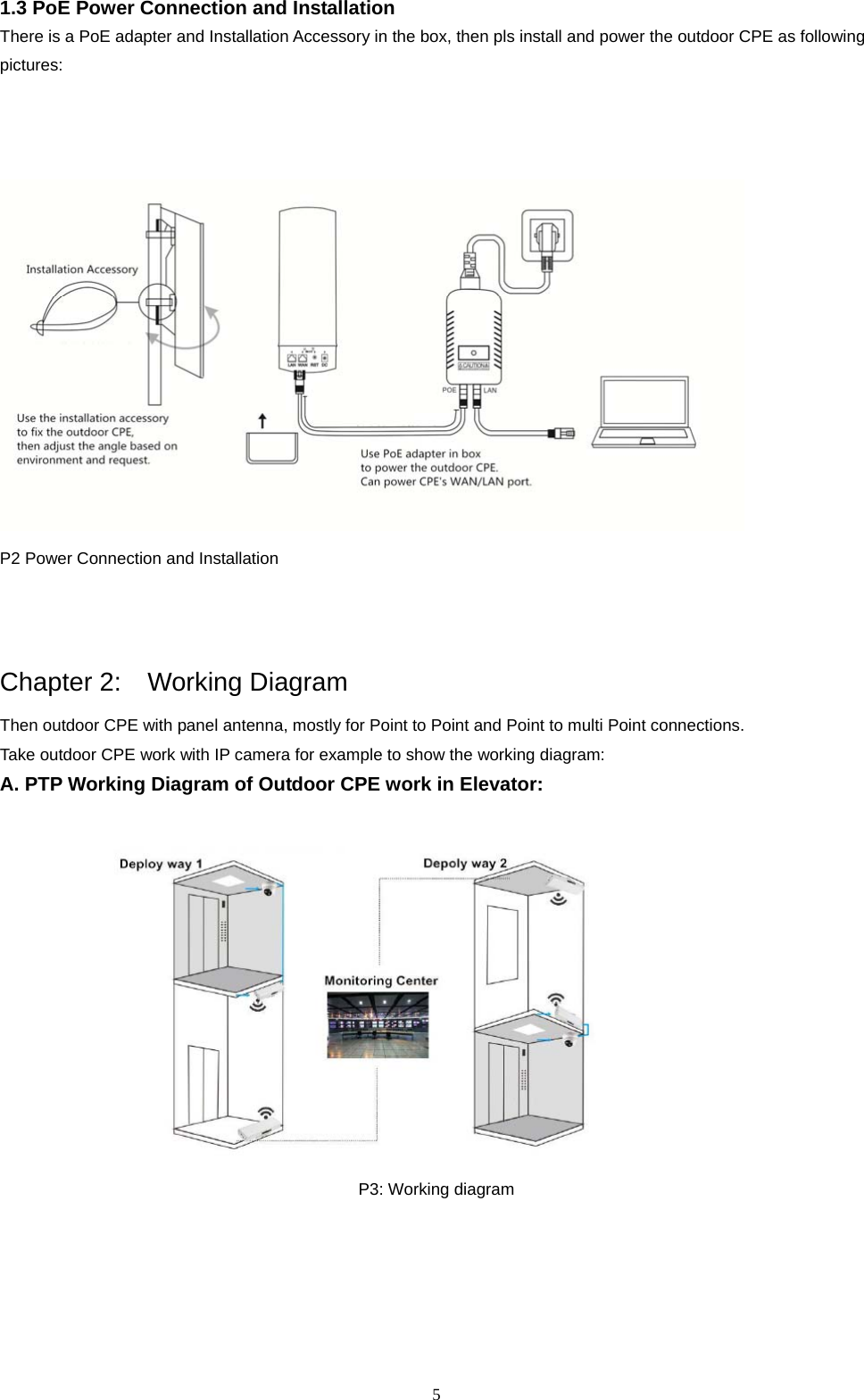
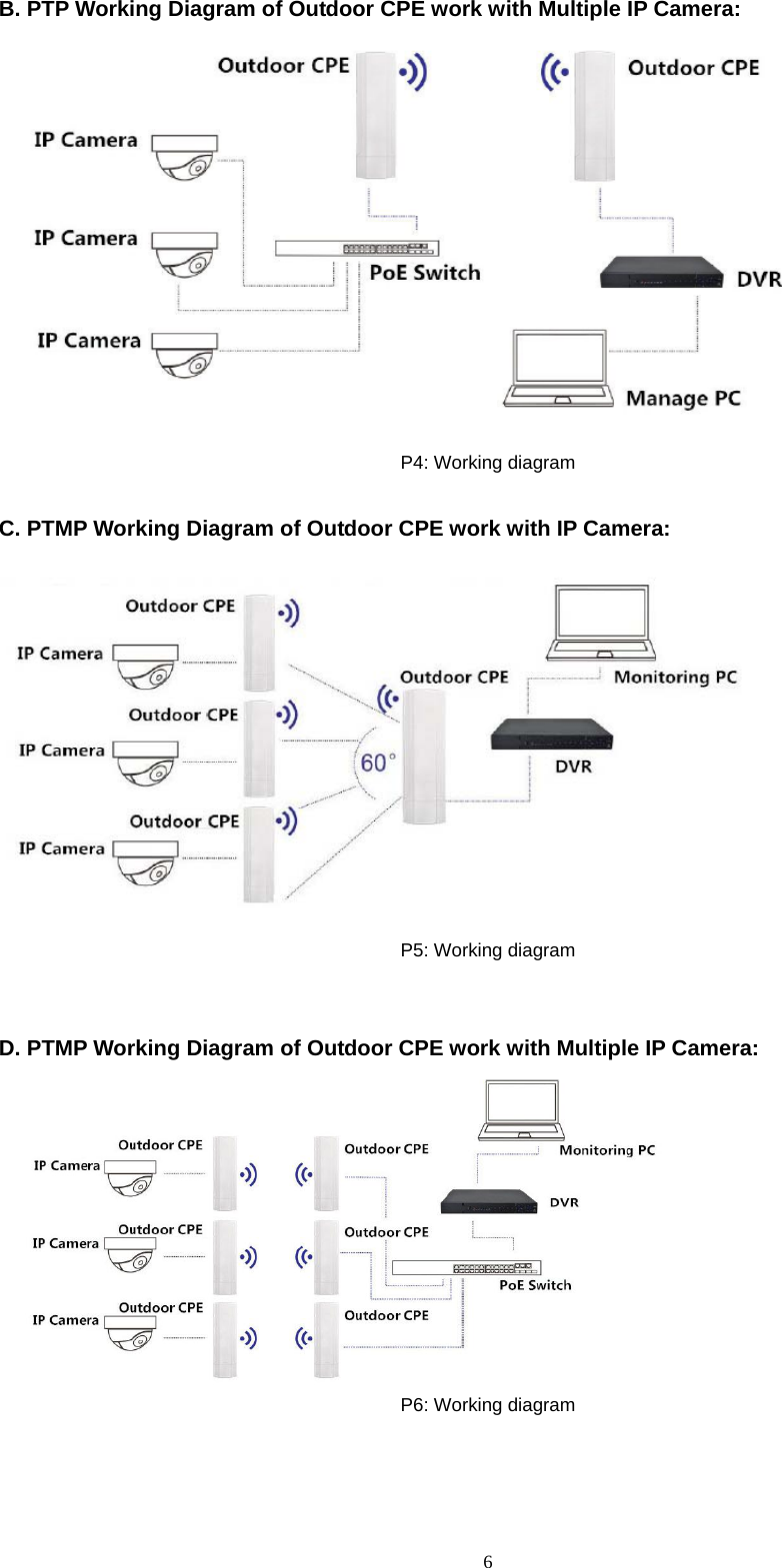
 5  1.3 PoE Power Connection and Installation There is a PoE adapter and Installation Accessory in the box, then pls install and power the outdoor CPE as following pictures:      P2 Power Connection and Installation  Chapter 2:  Working Diagram Then outdoor CPE with panel antenna, mostly for Point to Point and Point to multi Point connections.   Take outdoor CPE work with IP camera for example to show the working diagram: A. PTP Working Diagram of Outdoor CPE work in Elevator:    P3: Working diagram
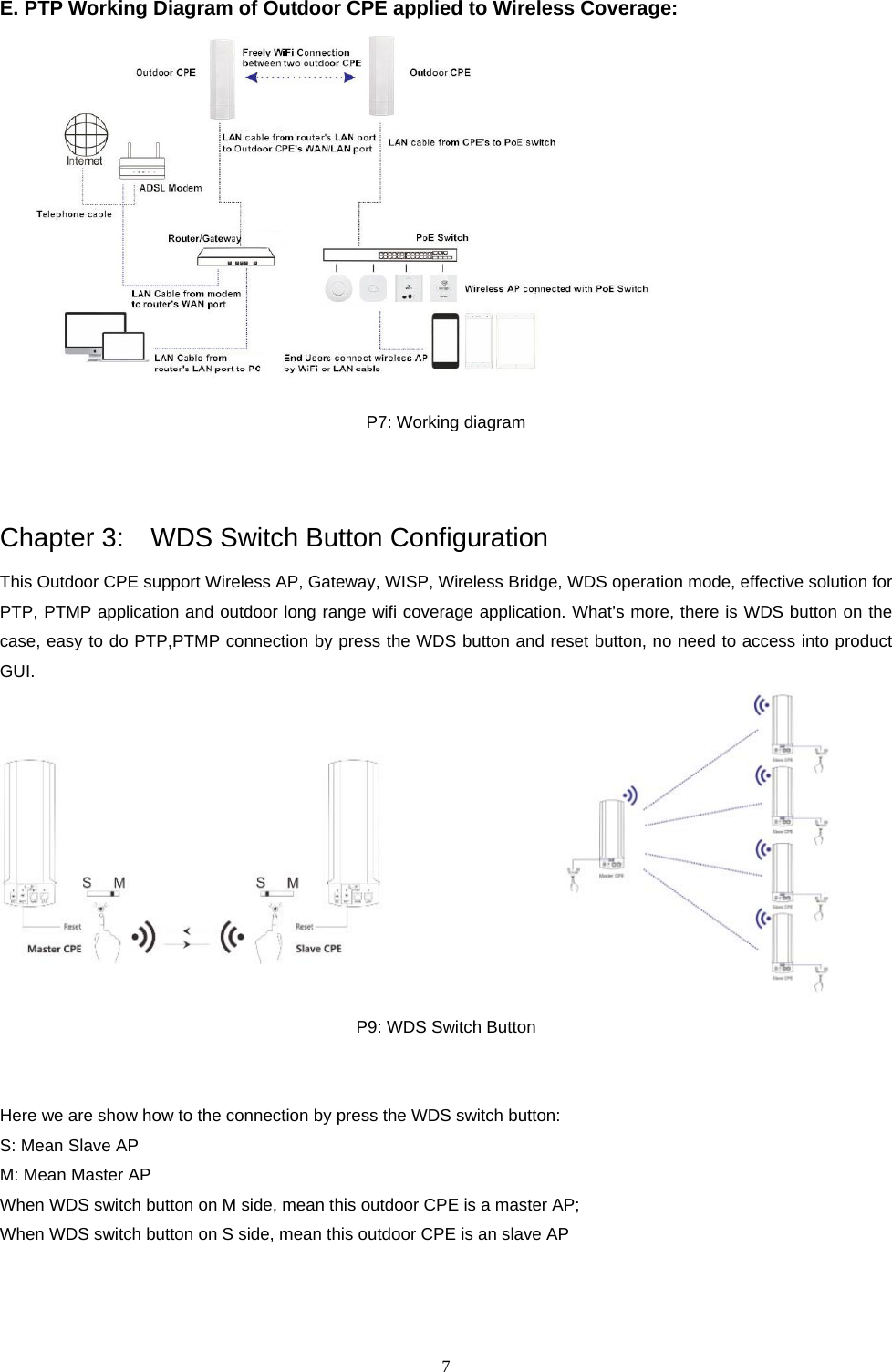
 6  B. PTP Working Diagram of Outdoor CPE work with Multiple IP Camera:    P4: Working diagram  C. PTMP Working Diagram of Outdoor CPE work with IP Camera:    P5: Working diagram   D. PTMP Working Diagram of Outdoor CPE work with Multiple IP Camera:    P6: Working diagram
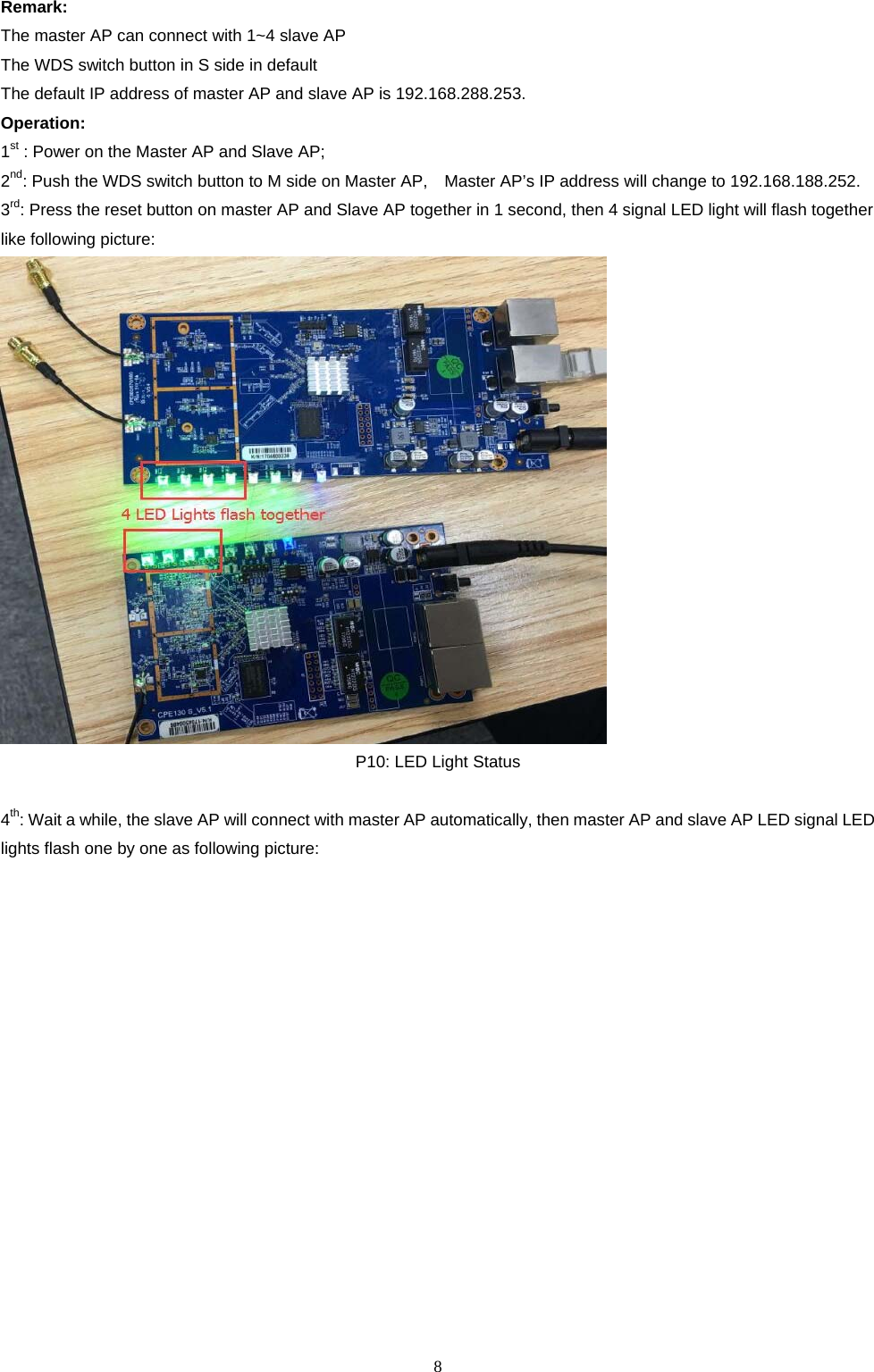
 7    E. PTP Working Diagram of Outdoor CPE applied to Wireless Coverage:  P7: Working diagram   Chapter 3:    WDS Switch Button Configuration This Outdoor CPE support Wireless AP, Gateway, WISP, Wireless Bridge, WDS operation mode, effective solution for PTP, PTMP application and outdoor long range wifi coverage application. What’s more, there is WDS button on the case, easy to do PTP,PTMP connection by press the WDS button and reset button, no need to access into product GUI.            P9: WDS Switch Button   Here we are show how to the connection by press the WDS switch button: S: Mean Slave AP M: Mean Master AP When WDS switch button on M side, mean this outdoor CPE is a master AP; When WDS switch button on S side, mean this outdoor CPE is an slave AP
 8   Remark:  The master AP can connect with 1~4 slave AP The WDS switch button in S side in default The default IP address of master AP and slave AP is 192.168.288.253. Operation: 1st : Power on the Master AP and Slave AP; 2nd: Push the WDS switch button to M side on Master AP,    Master AP’s IP address will change to 192.168.188.252. 3rd: Press the reset button on master AP and Slave AP together in 1 second, then 4 signal LED light will flash together like following picture:  P10: LED Light Status  4th: Wait a while, the slave AP will connect with master AP automatically, then master AP and slave AP LED signal LED lights flash one by one as following picture:
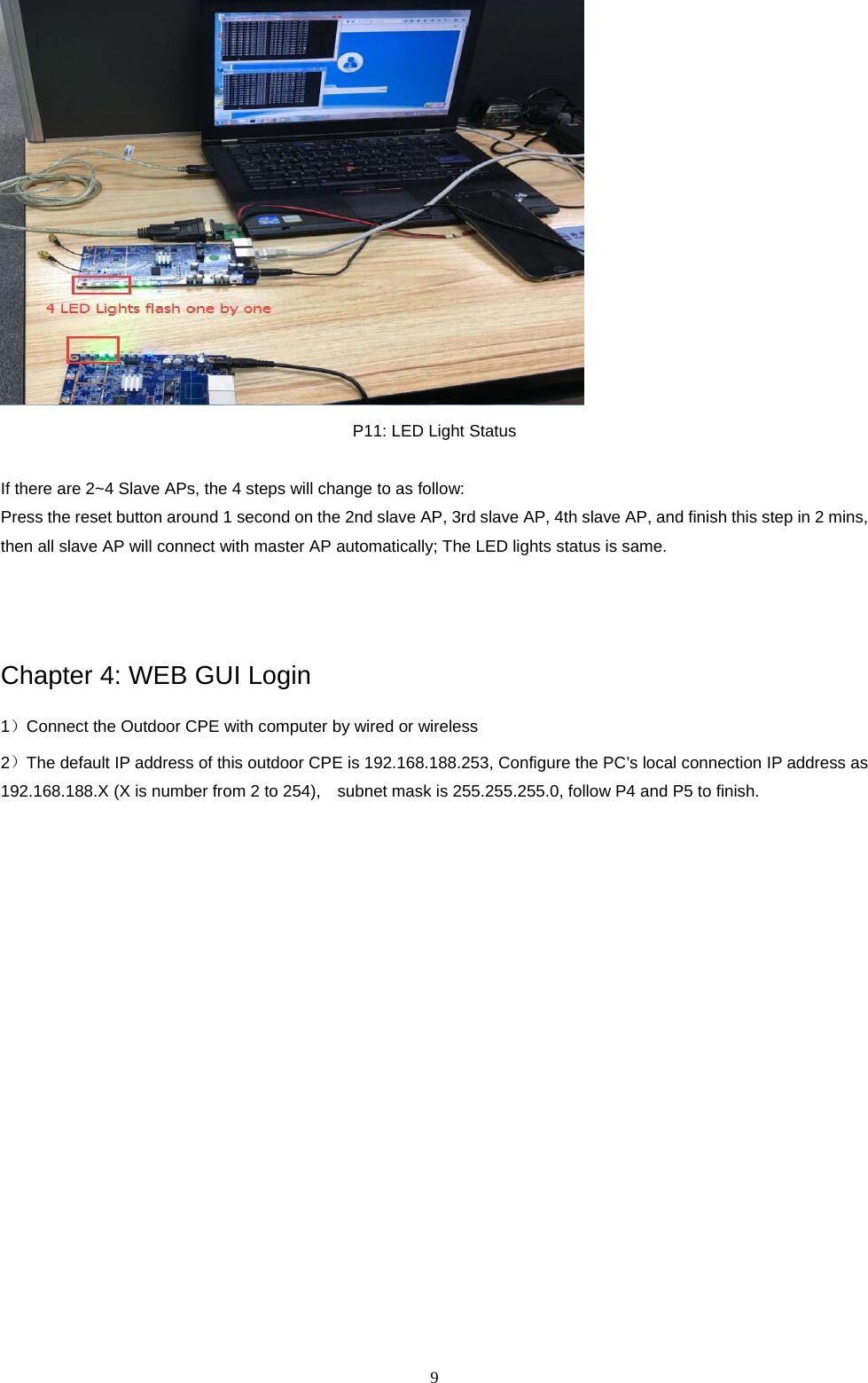
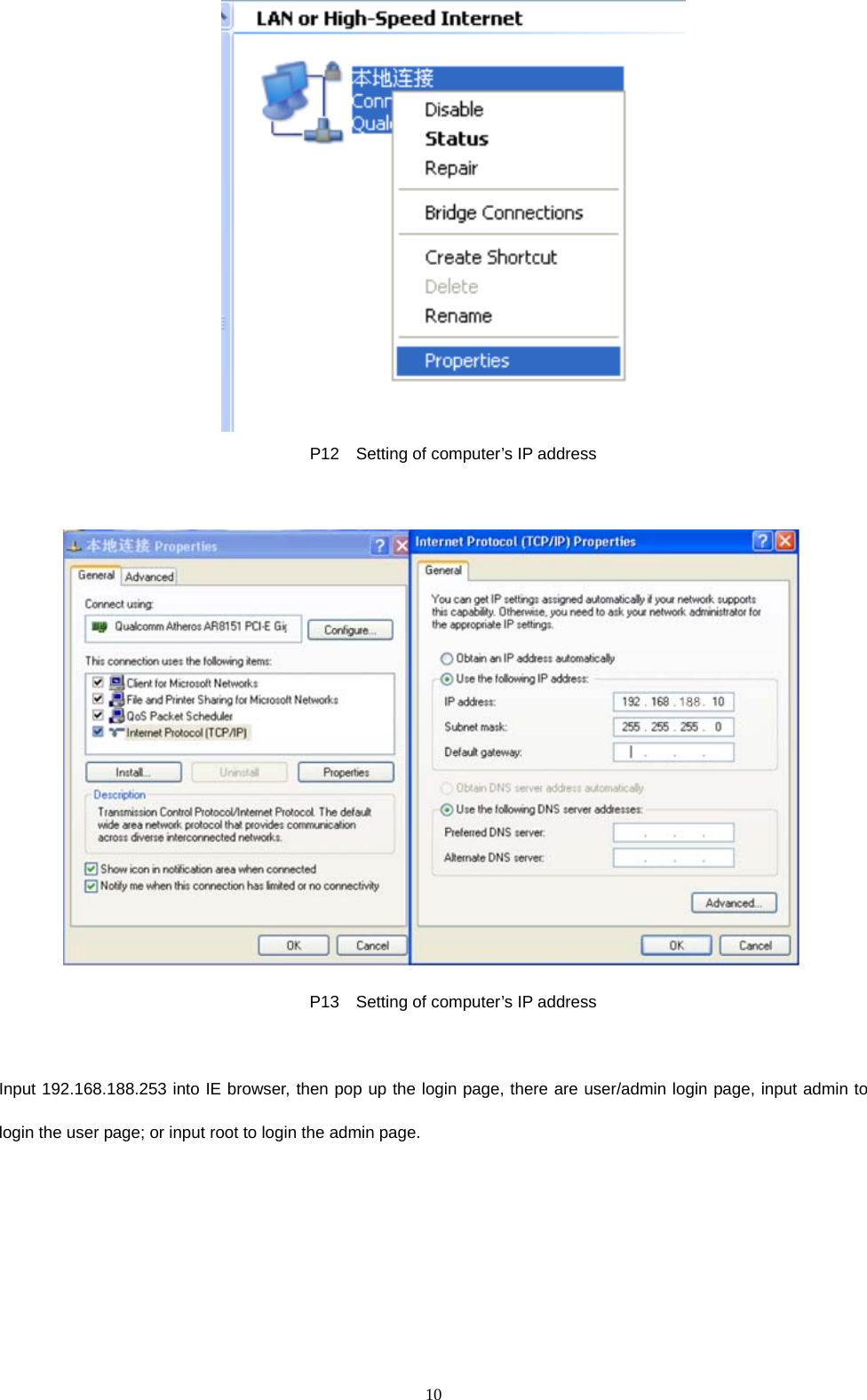
 9   P11: LED Light Status  If there are 2~4 Slave APs, the 4 steps will change to as follow: Press the reset button around 1 second on the 2nd slave AP, 3rd slave AP, 4th slave AP, and finish this step in 2 mins, then all slave AP will connect with master AP automatically; The LED lights status is same.     Chapter 4: WEB GUI Login 1)Connect the Outdoor CPE with computer by wired or wireless   2)The default IP address of this outdoor CPE is 192.168.188.253, Configure the PC’s local connection IP address as 192.168.188.X (X is number from 2 to 254),    subnet mask is 255.255.255.0, follow P4 and P5 to finish.
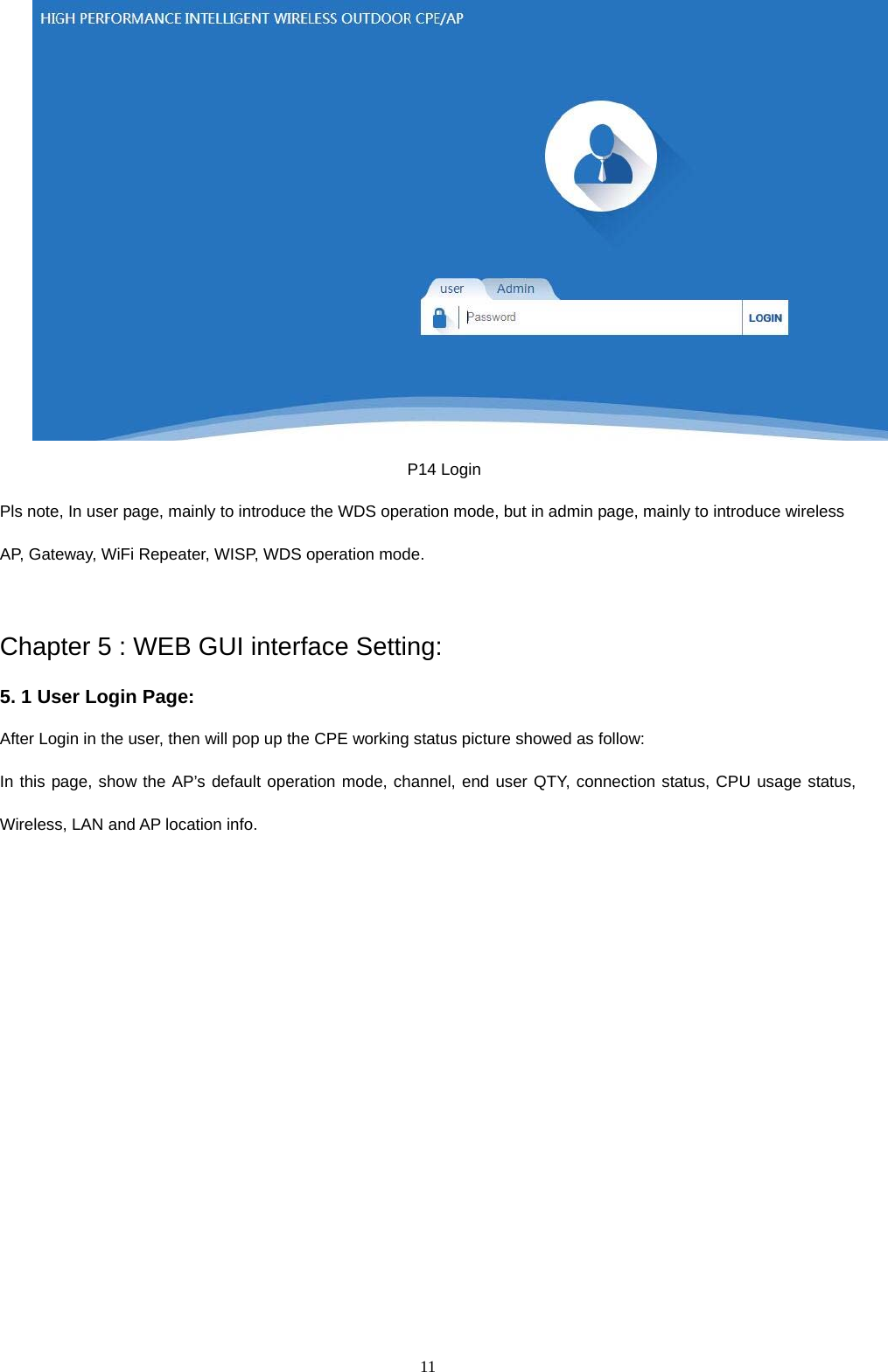
 10   P12    Setting of computer’s IP address   P13    Setting of computer’s IP address  Input 192.168.188.253 into IE browser, then pop up the login page, there are user/admin login page, input admin to login the user page; or input root to login the admin page.
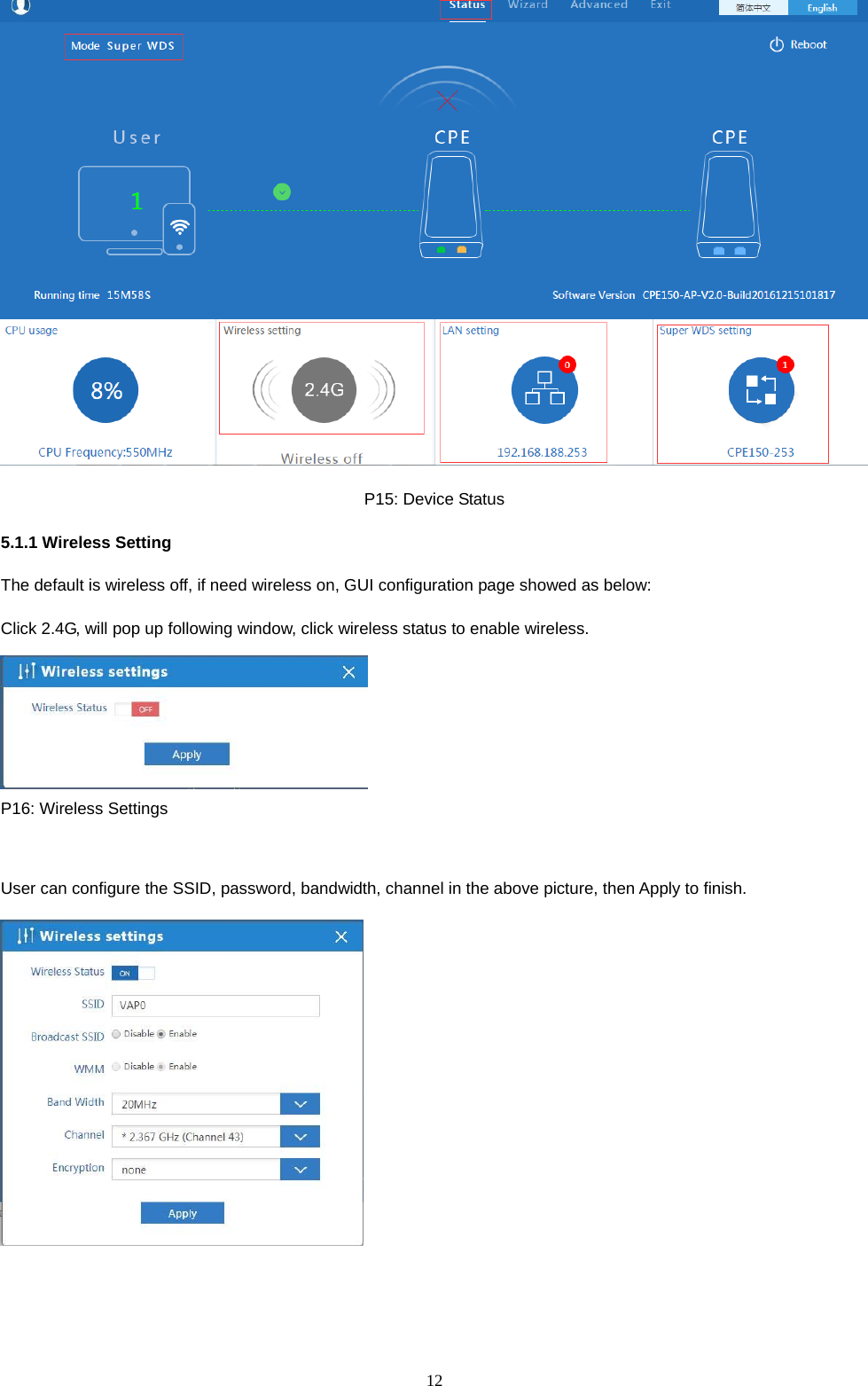
 11   P14 Login Pls note, In user page, mainly to introduce the WDS operation mode, but in admin page, mainly to introduce wireless AP, Gateway, WiFi Repeater, WISP, WDS operation mode.  Chapter 5 : WEB GUI interface Setting: 5. 1 User Login Page:   After Login in the user, then will pop up the CPE working status picture showed as follow:   In this page, show the AP’s default operation mode, channel, end user QTY, connection status, CPU usage status, Wireless, LAN and AP location info.
 12   P15: Device Status 5.1.1 Wireless Setting The default is wireless off, if need wireless on, GUI configuration page showed as below: Click 2.4G, will pop up following window, click wireless status to enable wireless.  P16: Wireless Settings  User can configure the SSID, password, bandwidth, channel in the above picture, then Apply to finish.
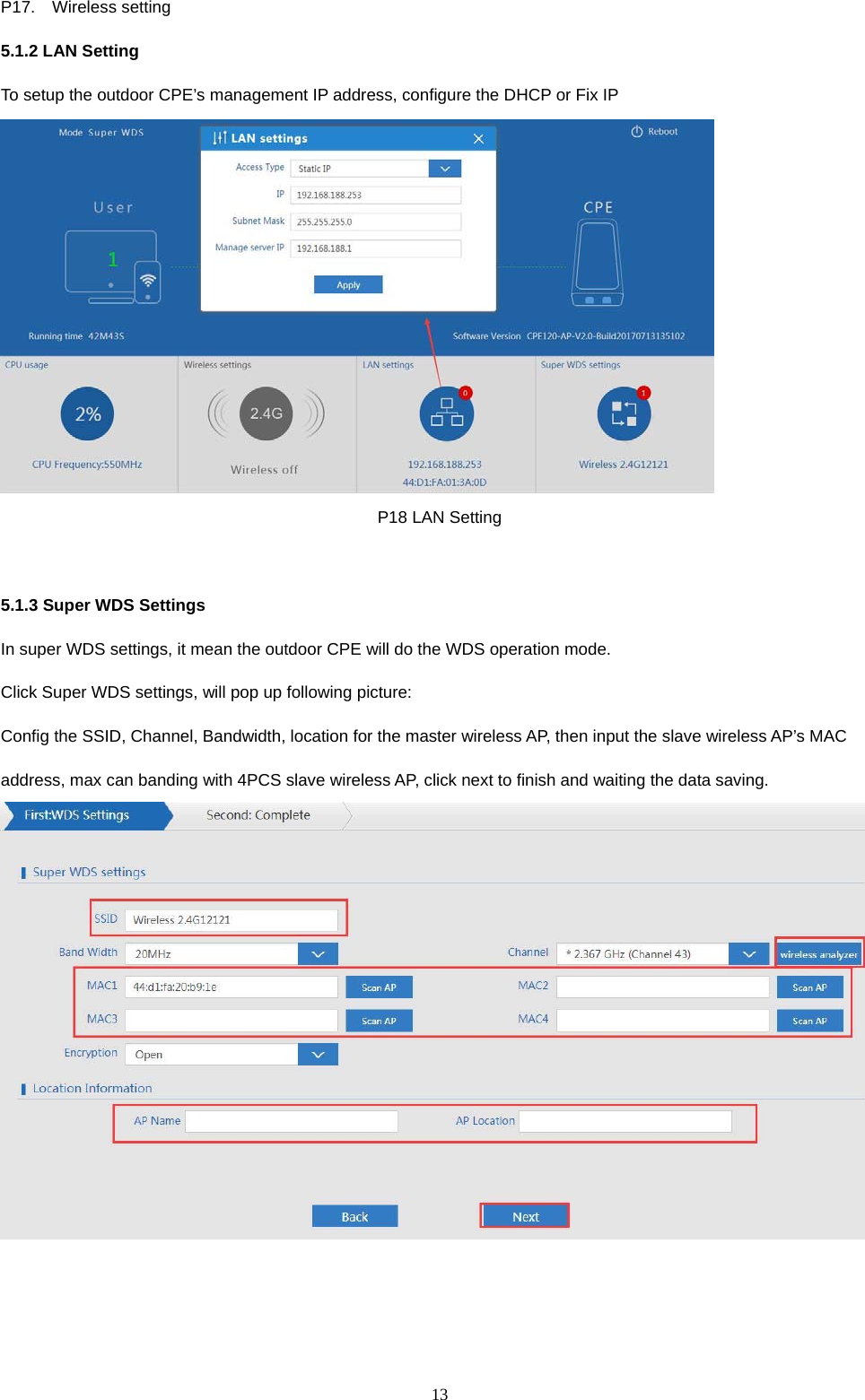
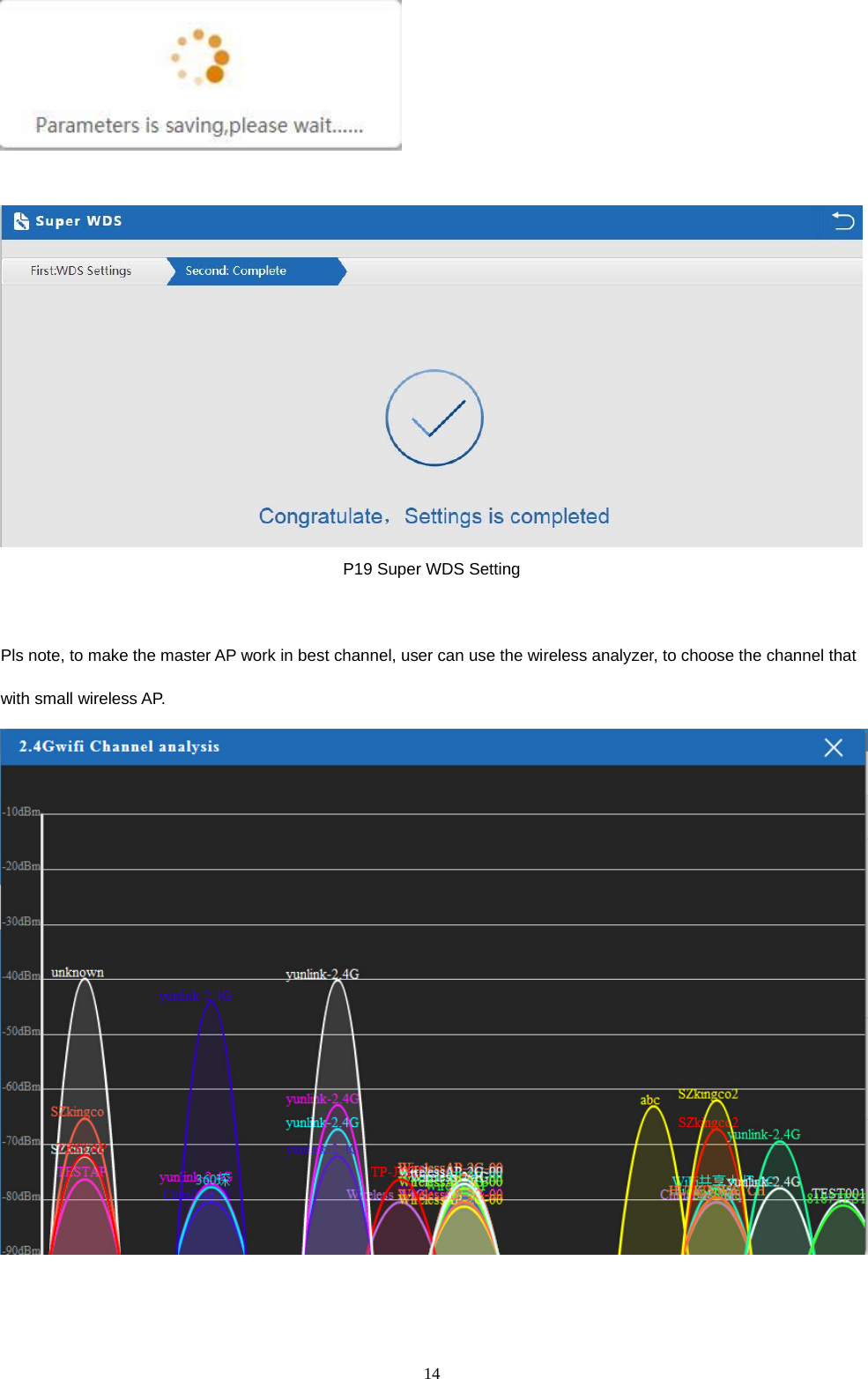
 13  P17.  Wireless setting 5.1.2 LAN Setting To setup the outdoor CPE’s management IP address, configure the DHCP or Fix IP  P18 LAN Setting  5.1.3 Super WDS Settings In super WDS settings, it mean the outdoor CPE will do the WDS operation mode. Click Super WDS settings, will pop up following picture: Config the SSID, Channel, Bandwidth, location for the master wireless AP, then input the slave wireless AP’s MAC address, max can banding with 4PCS slave wireless AP, click next to finish and waiting the data saving.
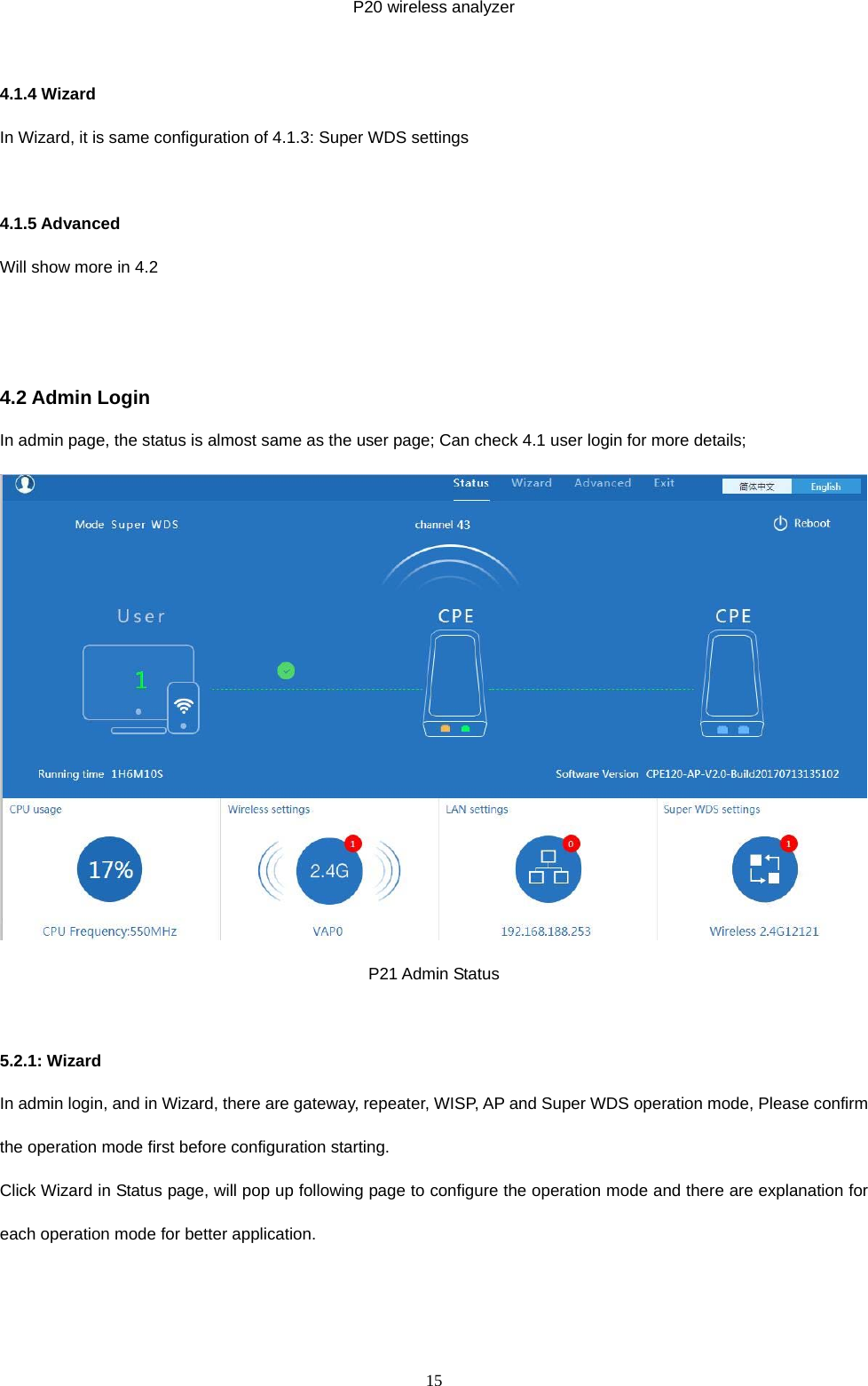
 14     P19 Super WDS Setting  Pls note, to make the master AP work in best channel, user can use the wireless analyzer, to choose the channel that with small wireless AP.
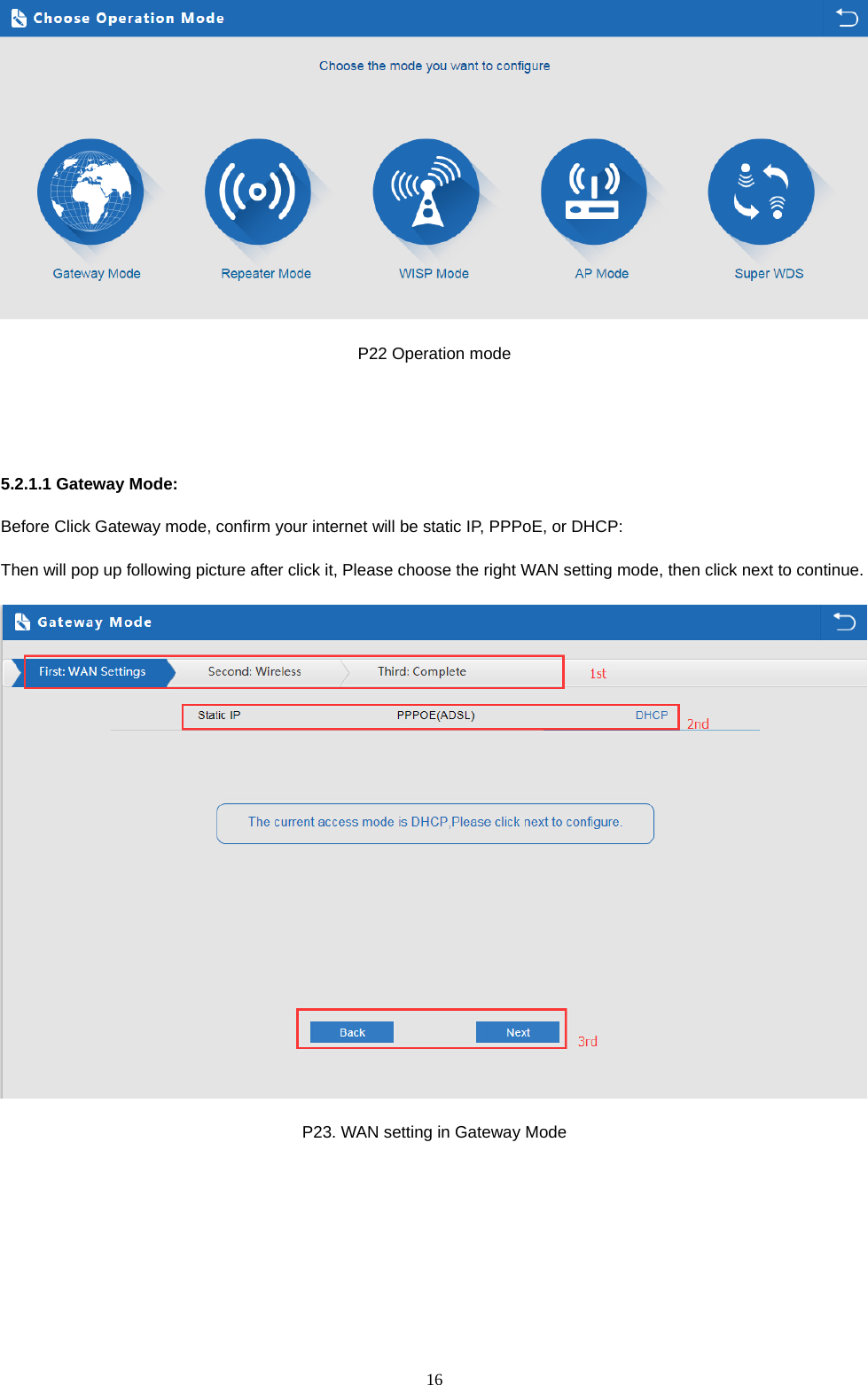
 15  P20 wireless analyzer  4.1.4 Wizard In Wizard, it is same configuration of 4.1.3: Super WDS settings  4.1.5 Advanced Will show more in 4.2   4.2 Admin Login In admin page, the status is almost same as the user page; Can check 4.1 user login for more details;  P21 Admin Status  5.2.1: Wizard In admin login, and in Wizard, there are gateway, repeater, WISP, AP and Super WDS operation mode, Please confirm the operation mode first before configuration starting. Click Wizard in Status page, will pop up following page to configure the operation mode and there are explanation for each operation mode for better application.
 16   P22 Operation mode   5.2.1.1 Gateway Mode: Before Click Gateway mode, confirm your internet will be static IP, PPPoE, or DHCP: Then will pop up following picture after click it, Please choose the right WAN setting mode, then click next to continue.  P23. WAN setting in Gateway Mode
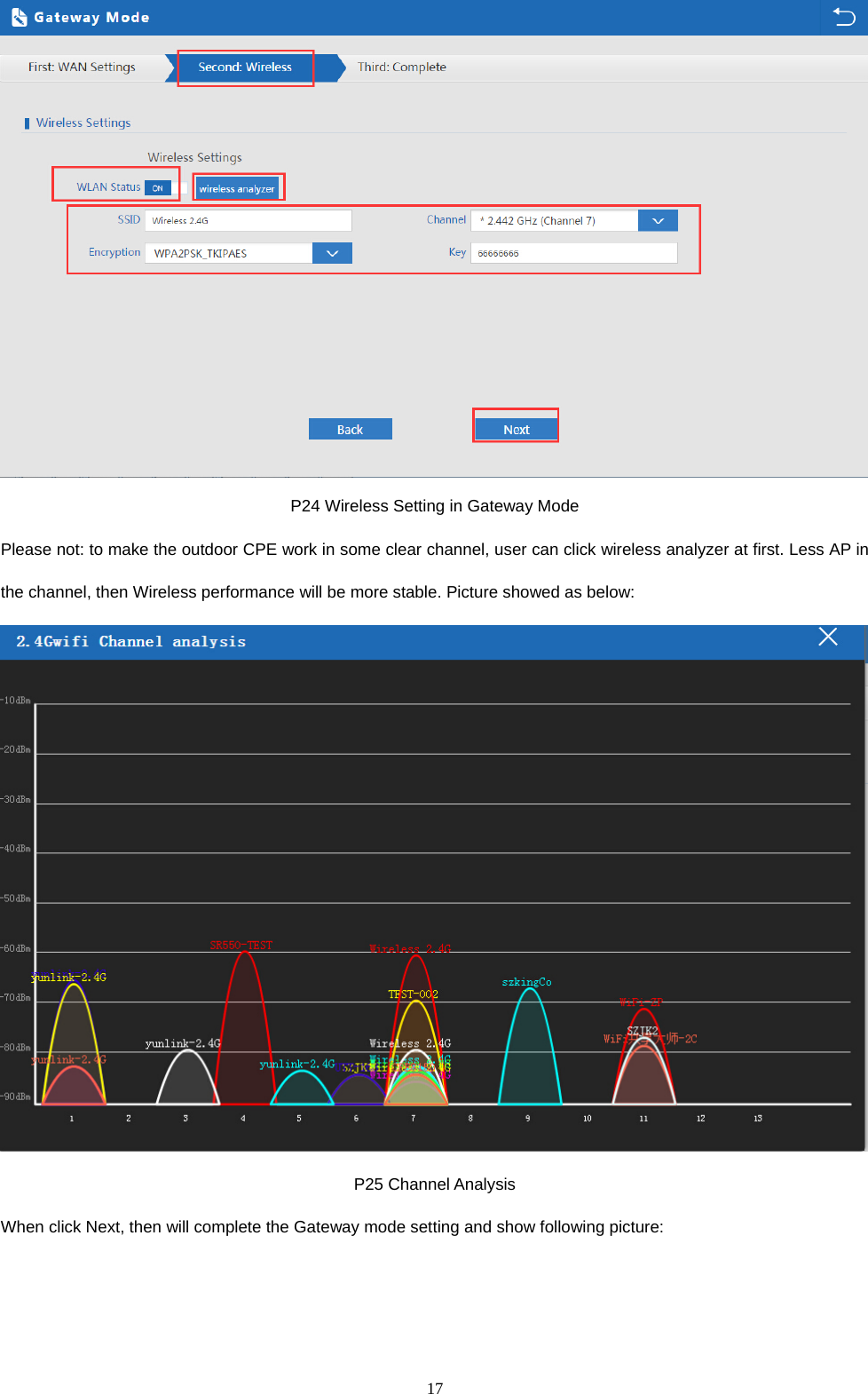
 17   P24 Wireless Setting in Gateway Mode Please not: to make the outdoor CPE work in some clear channel, user can click wireless analyzer at first. Less AP in the channel, then Wireless performance will be more stable. Picture showed as below:  P25 Channel Analysis When click Next, then will complete the Gateway mode setting and show following picture:
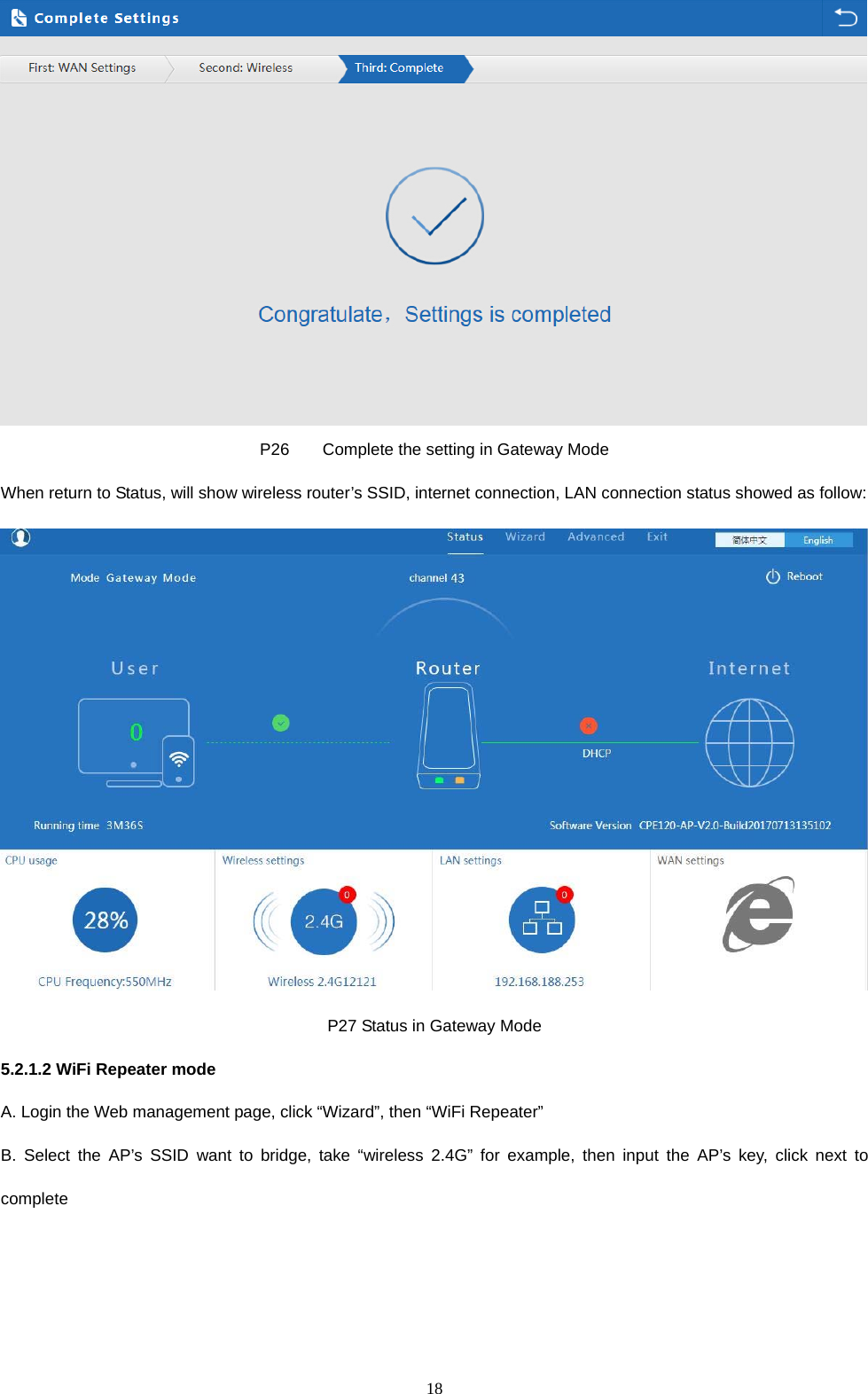
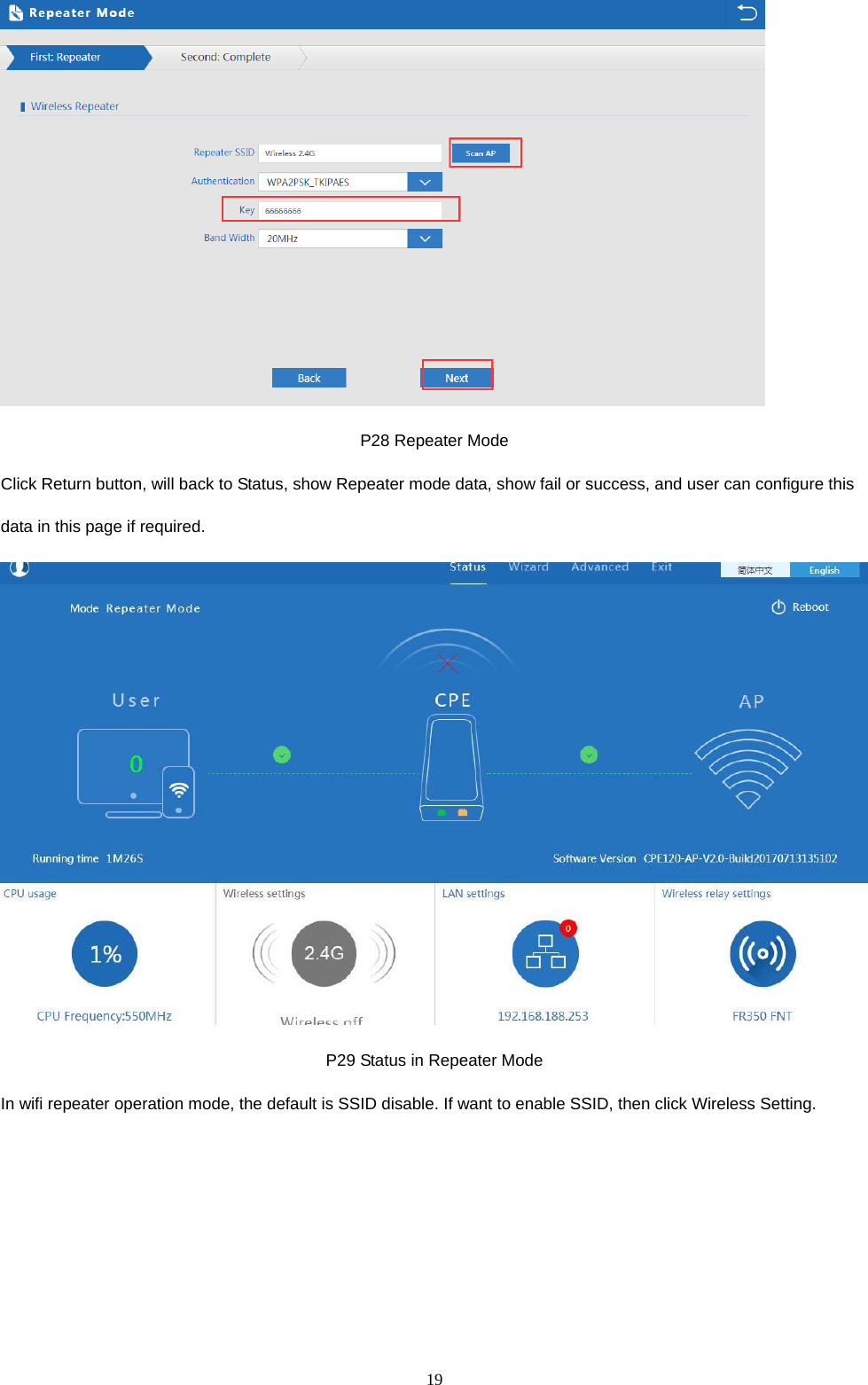
 18   P26    Complete the setting in Gateway Mode When return to Status, will show wireless router’s SSID, internet connection, LAN connection status showed as follow:  P27 Status in Gateway Mode 5.2.1.2 WiFi Repeater mode A. Login the Web management page, click “Wizard”, then “WiFi Repeater” B. Select the AP’s SSID want to bridge, take “wireless 2.4G” for example, then input the AP’s key, click next to complete
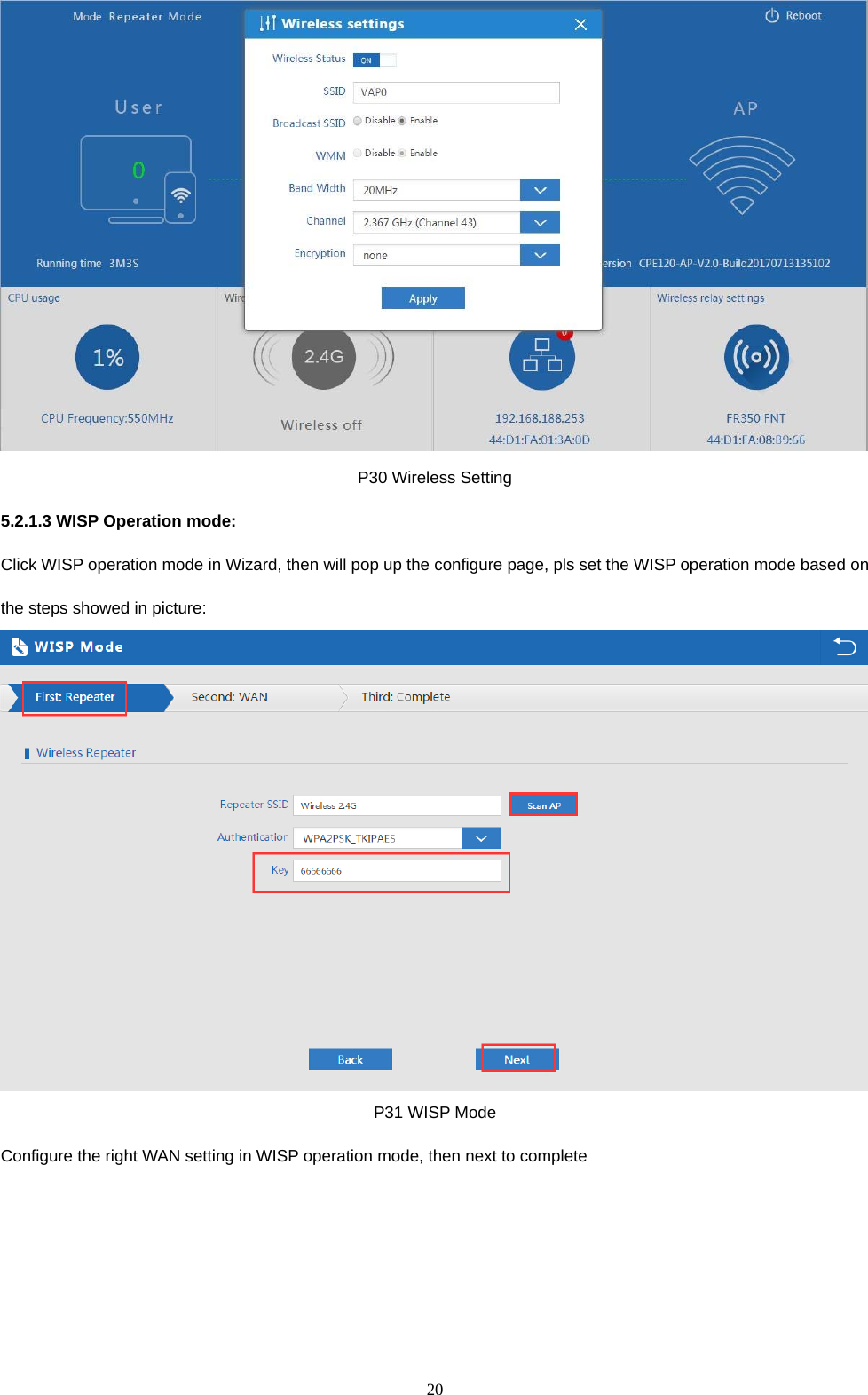
 19   P28 Repeater Mode Click Return button, will back to Status, show Repeater mode data, show fail or success, and user can configure this   data in this page if required.  P29 Status in Repeater Mode In wifi repeater operation mode, the default is SSID disable. If want to enable SSID, then click Wireless Setting.
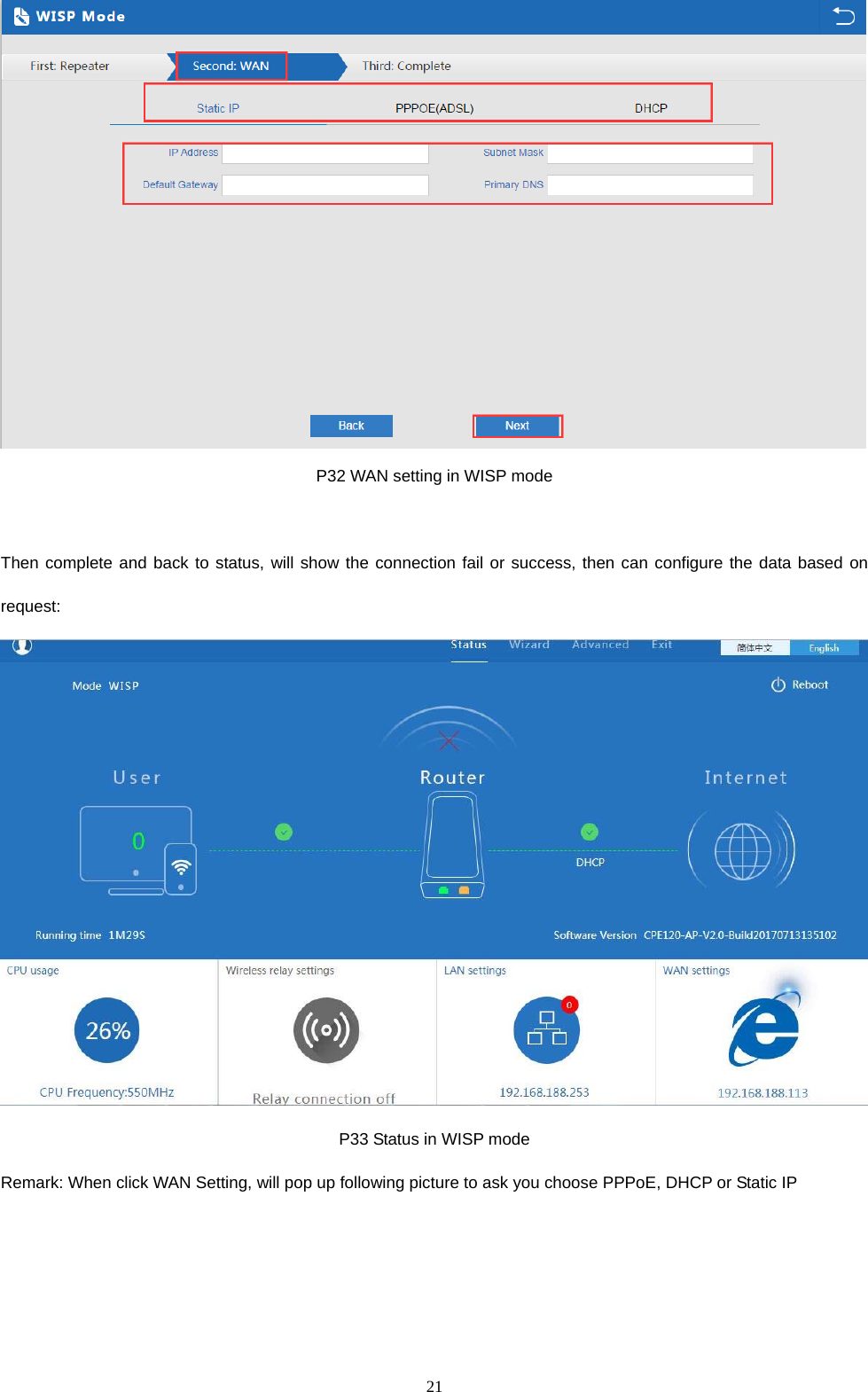
 20   P30 Wireless Setting 5.2.1.3 WISP Operation mode: Click WISP operation mode in Wizard, then will pop up the configure page, pls set the WISP operation mode based on   the steps showed in picture:  P31 WISP Mode Configure the right WAN setting in WISP operation mode, then next to complete
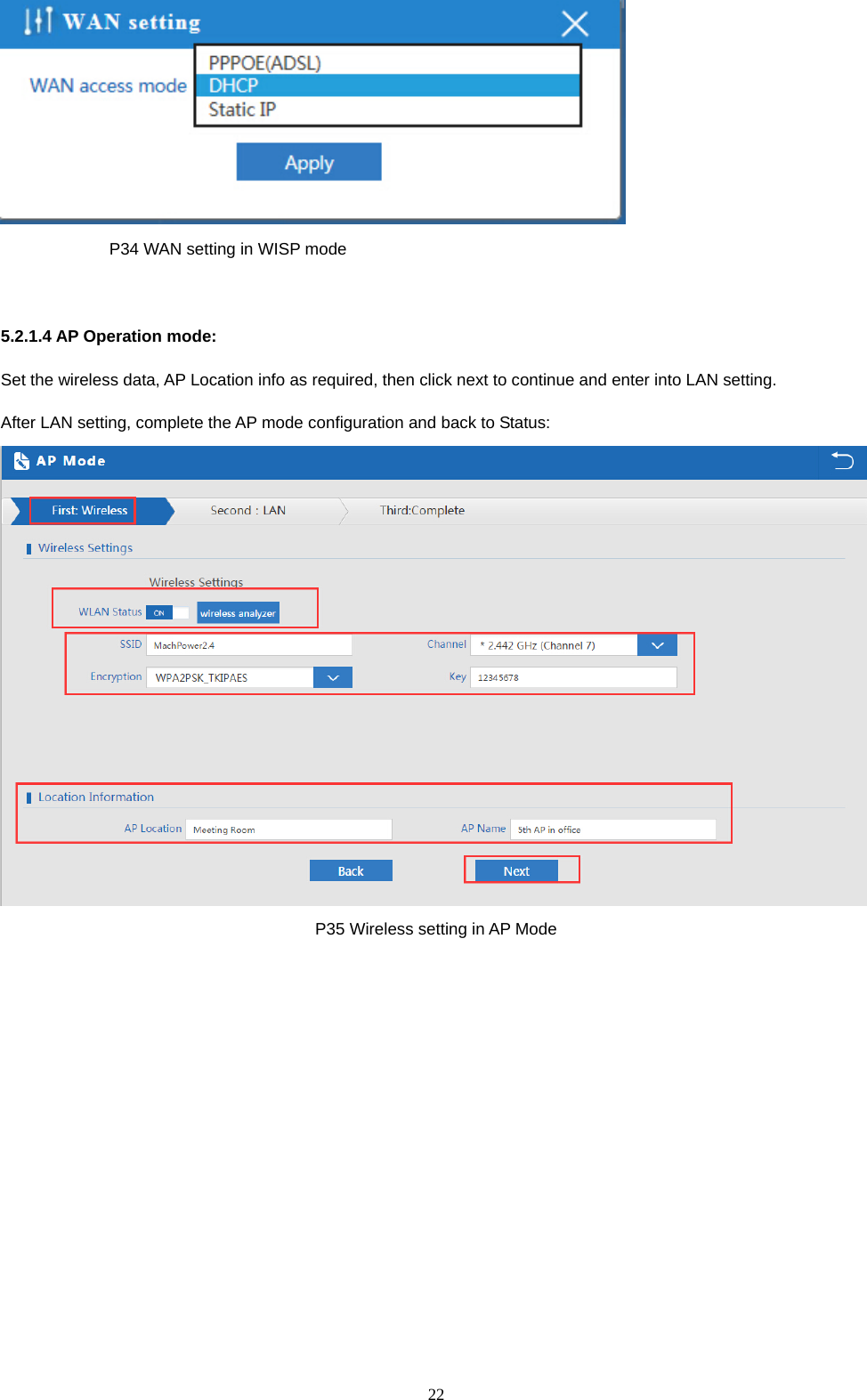
 21   P32 WAN setting in WISP mode              Then complete and back to status, will show the connection fail or success, then can configure the data based on request:  P33 Status in WISP mode Remark: When click WAN Setting, will pop up following picture to ask you choose PPPoE, DHCP or Static IP
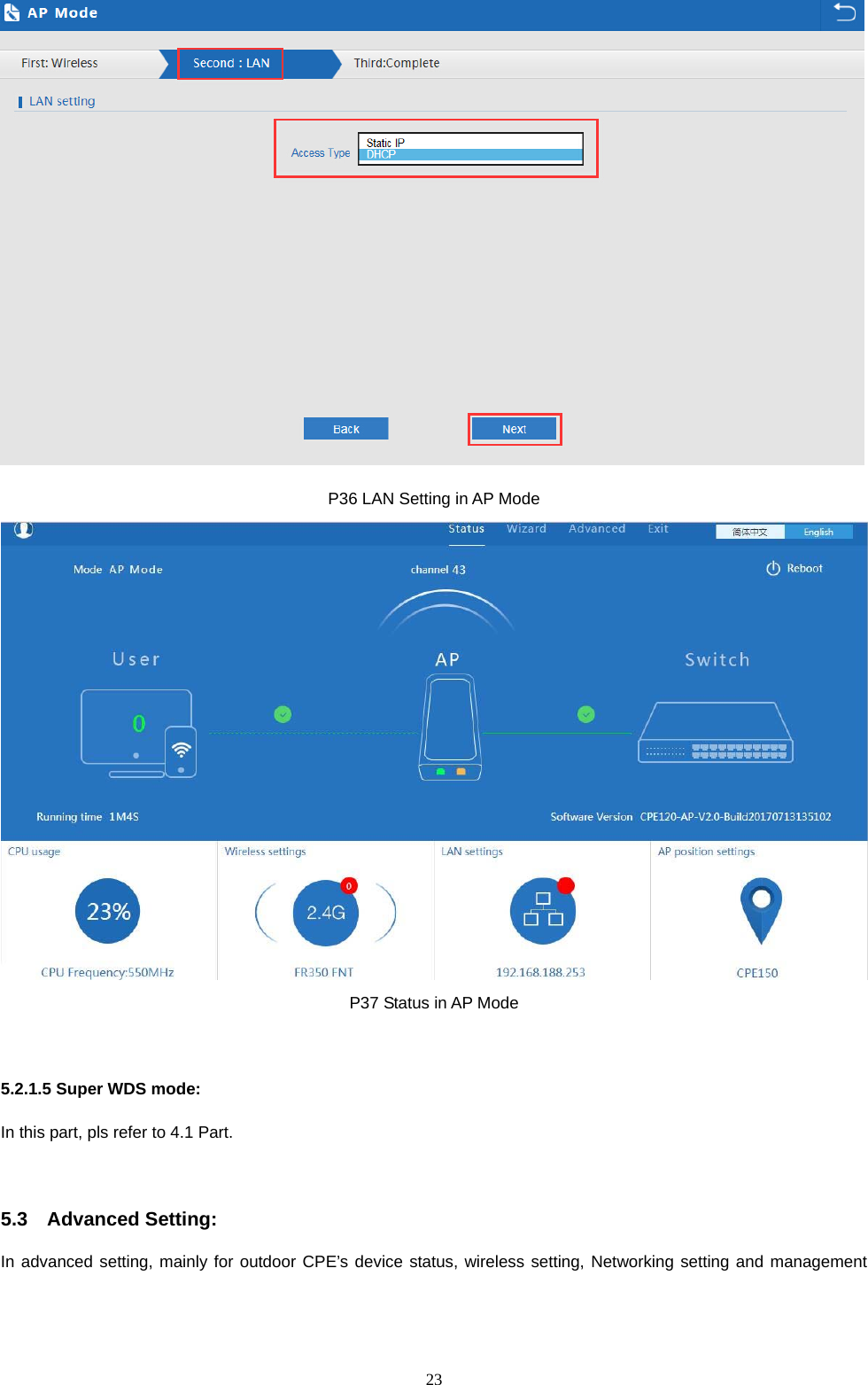
 22                P34 WAN setting in WISP mode  5.2.1.4 AP Operation mode: Set the wireless data, AP Location info as required, then click next to continue and enter into LAN setting. After LAN setting, complete the AP mode configuration and back to Status:  P35 Wireless setting in AP Mode
 23   P36 LAN Setting in AP Mode  P37 Status in AP Mode  5.2.1.5 Super WDS mode: In this part, pls refer to 4.1 Part.  5.3  Advanced Setting: In advanced setting, mainly for outdoor CPE’s device status, wireless setting, Networking setting and management
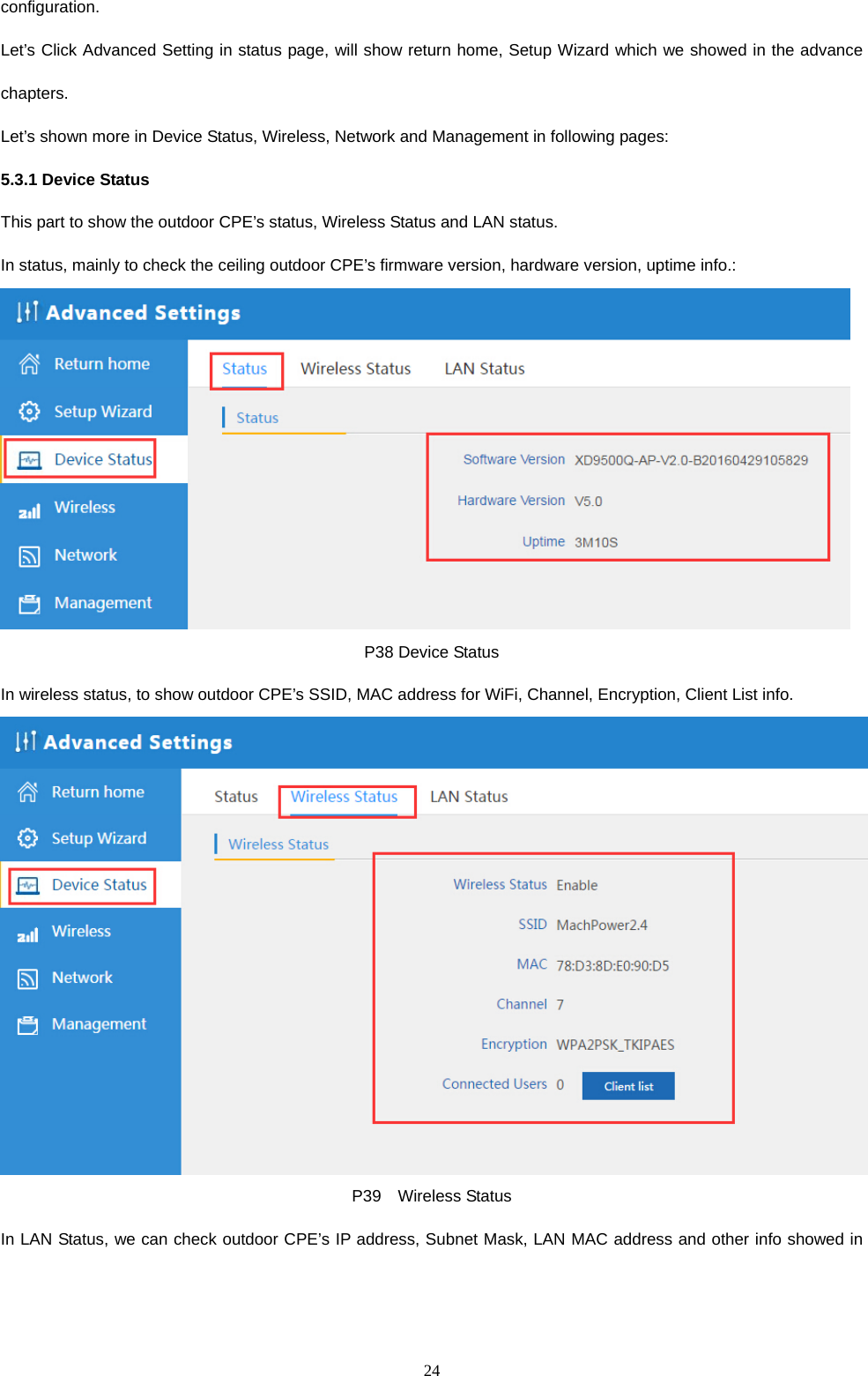
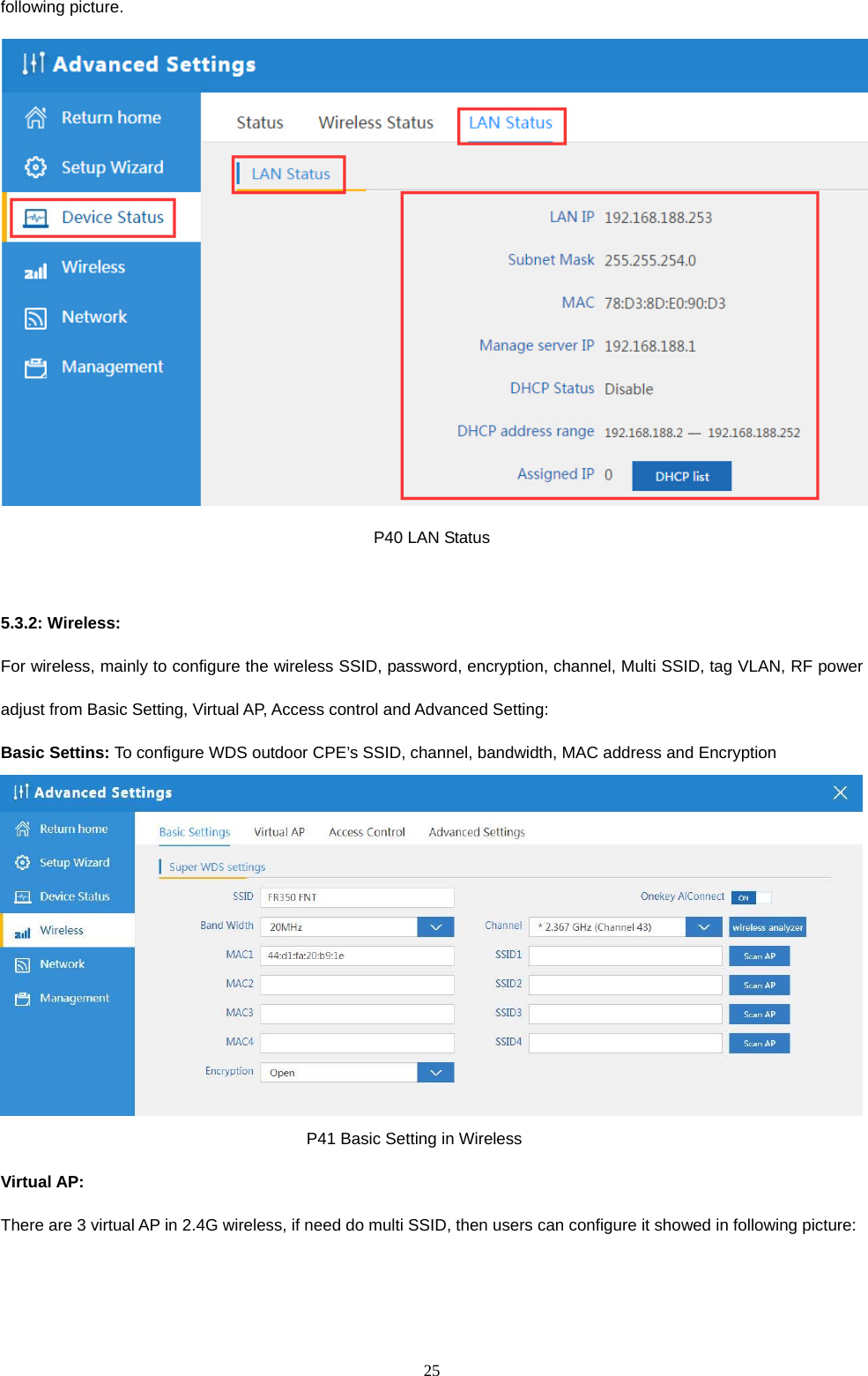
 24  configuration.  Let’s Click Advanced Setting in status page, will show return home, Setup Wizard which we showed in the advance chapters. Let’s shown more in Device Status, Wireless, Network and Management in following pages: 5.3.1 Device Status This part to show the outdoor CPE’s status, Wireless Status and LAN status. In status, mainly to check the ceiling outdoor CPE’s firmware version, hardware version, uptime info.:  P38 Device Status In wireless status, to show outdoor CPE’s SSID, MAC address for WiFi, Channel, Encryption, Client List info.  P39  Wireless Status In LAN Status, we can check outdoor CPE’s IP address, Subnet Mask, LAN MAC address and other info showed in
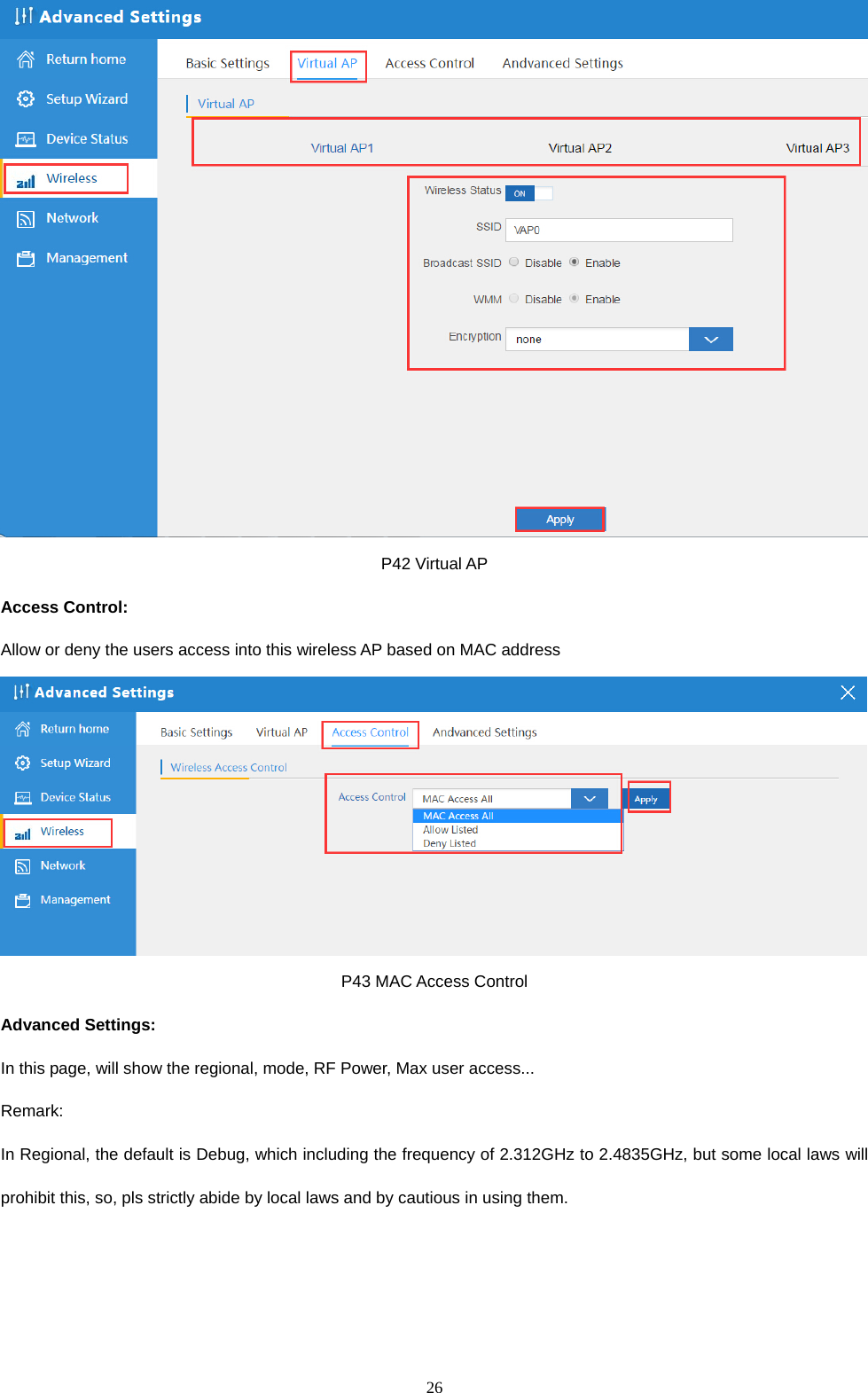
 25  following picture.  P40 LAN Status  5.3.2: Wireless: For wireless, mainly to configure the wireless SSID, password, encryption, channel, Multi SSID, tag VLAN, RF power adjust from Basic Setting, Virtual AP, Access control and Advanced Setting: Basic Settins: To configure WDS outdoor CPE’s SSID, channel, bandwidth, MAC address and Encryption                                       P41 Basic Setting in Wireless Virtual AP: There are 3 virtual AP in 2.4G wireless, if need do multi SSID, then users can configure it showed in following picture:
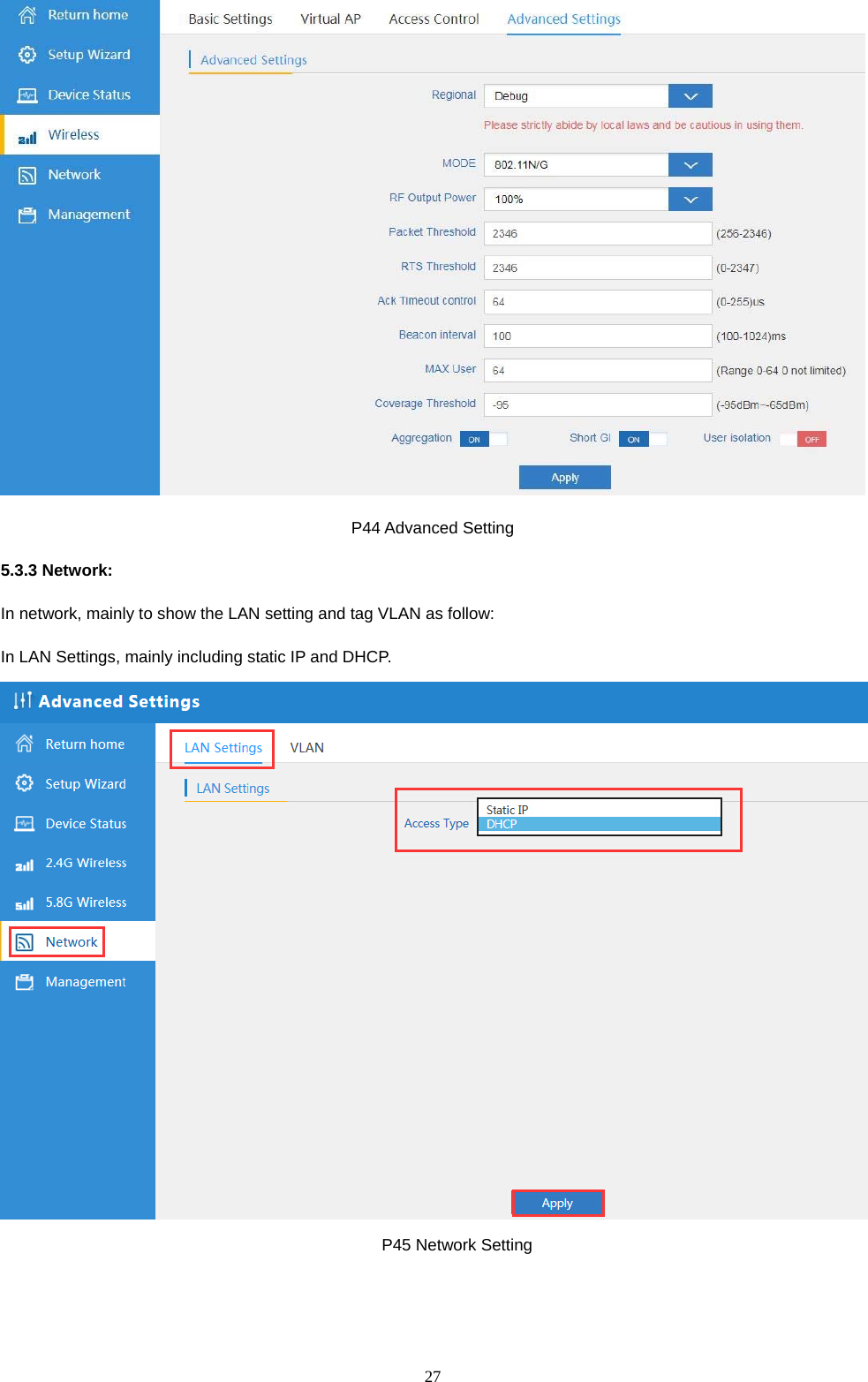
 26   P42 Virtual AP Access Control:   Allow or deny the users access into this wireless AP based on MAC address  P43 MAC Access Control Advanced Settings: In this page, will show the regional, mode, RF Power, Max user access... Remark:  In Regional, the default is Debug, which including the frequency of 2.312GHz to 2.4835GHz, but some local laws will prohibit this, so, pls strictly abide by local laws and by cautious in using them.
 27   P44 Advanced Setting 5.3.3 Network: In network, mainly to show the LAN setting and tag VLAN as follow: In LAN Settings, mainly including static IP and DHCP.                                                P45 Network Setting
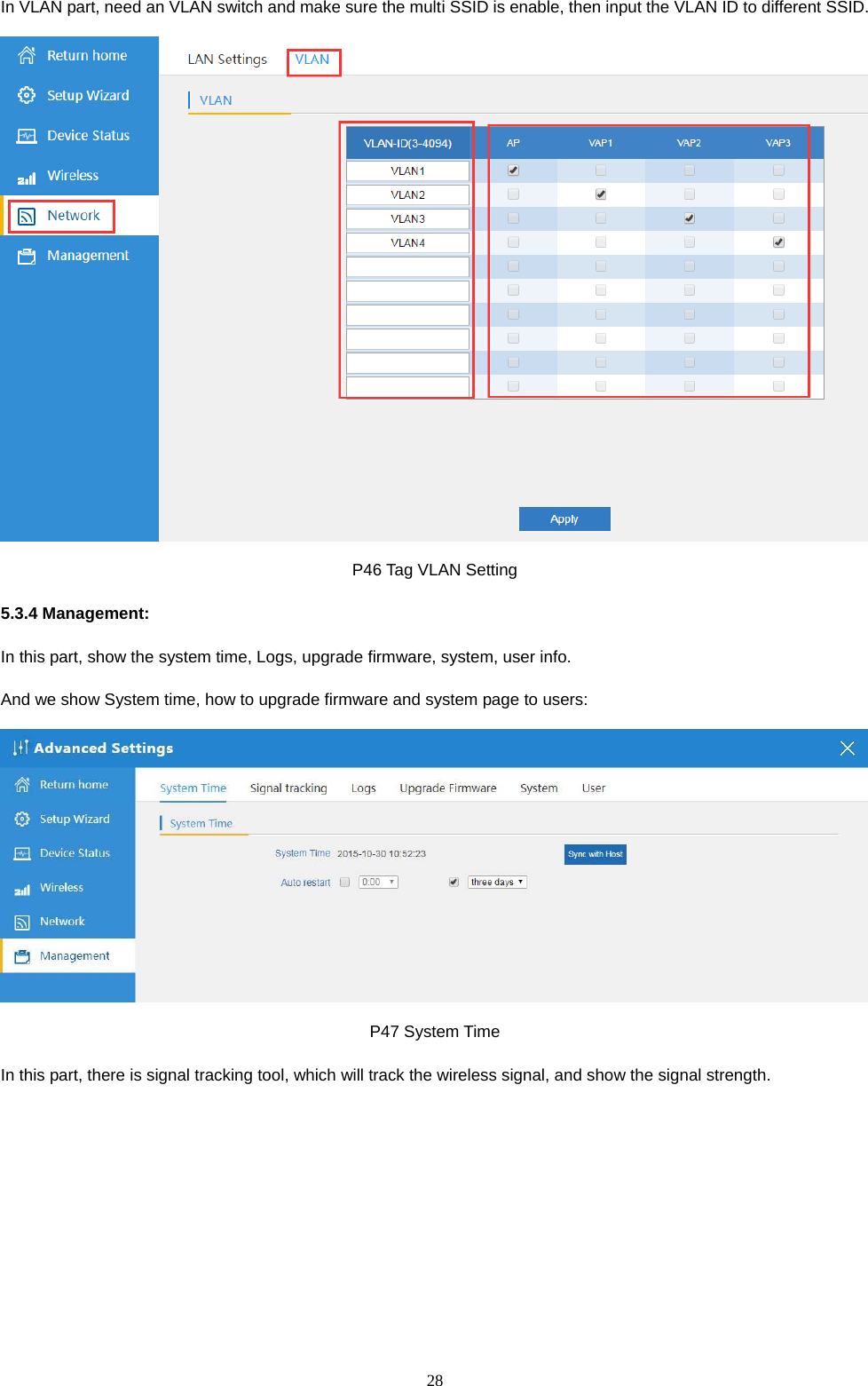
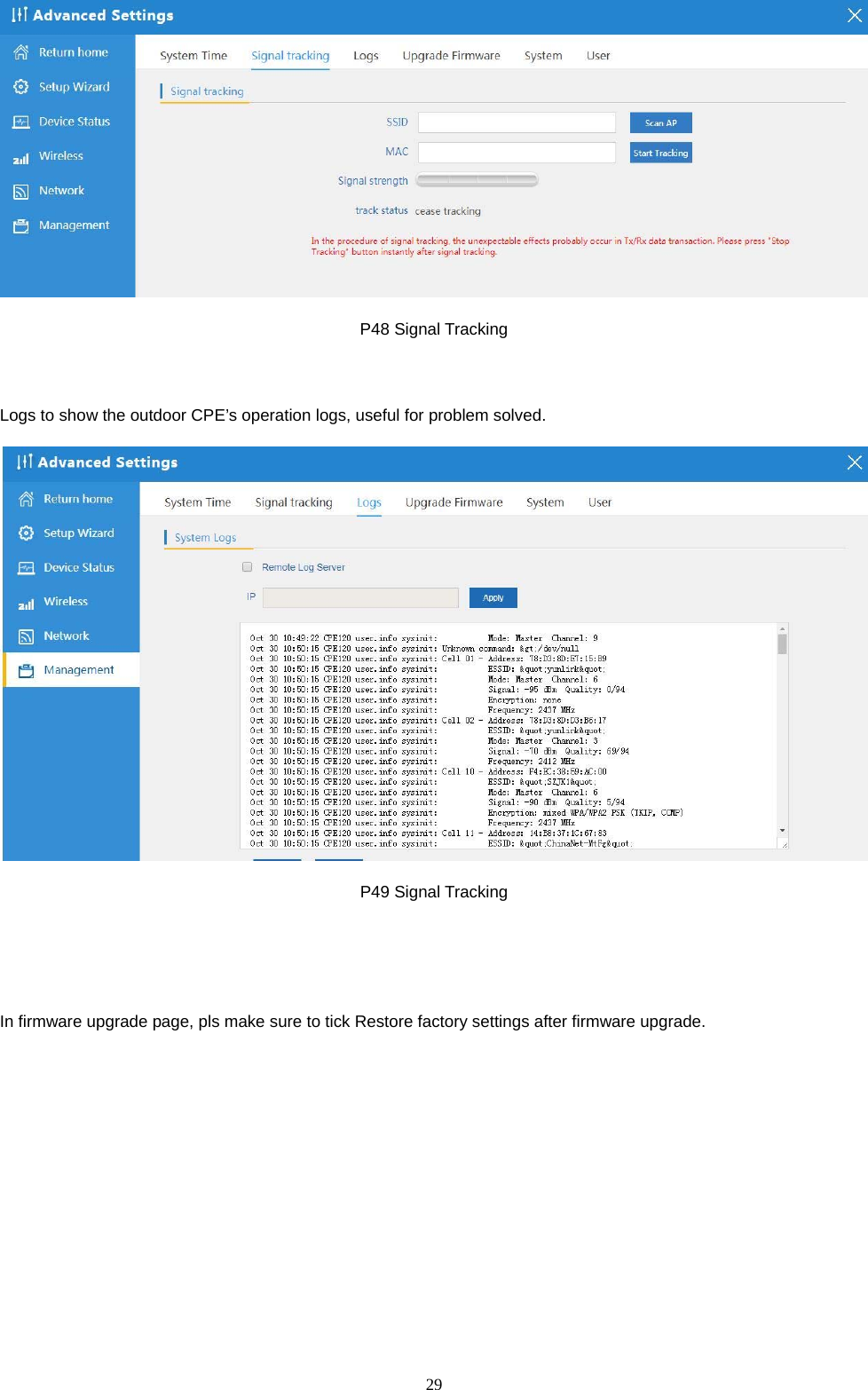
 28  In VLAN part, need an VLAN switch and make sure the multi SSID is enable, then input the VLAN ID to different SSID.  P46 Tag VLAN Setting 5.3.4 Management: In this part, show the system time, Logs, upgrade firmware, system, user info. And we show System time, how to upgrade firmware and system page to users:  P47 System Time In this part, there is signal tracking tool, which will track the wireless signal, and show the signal strength.
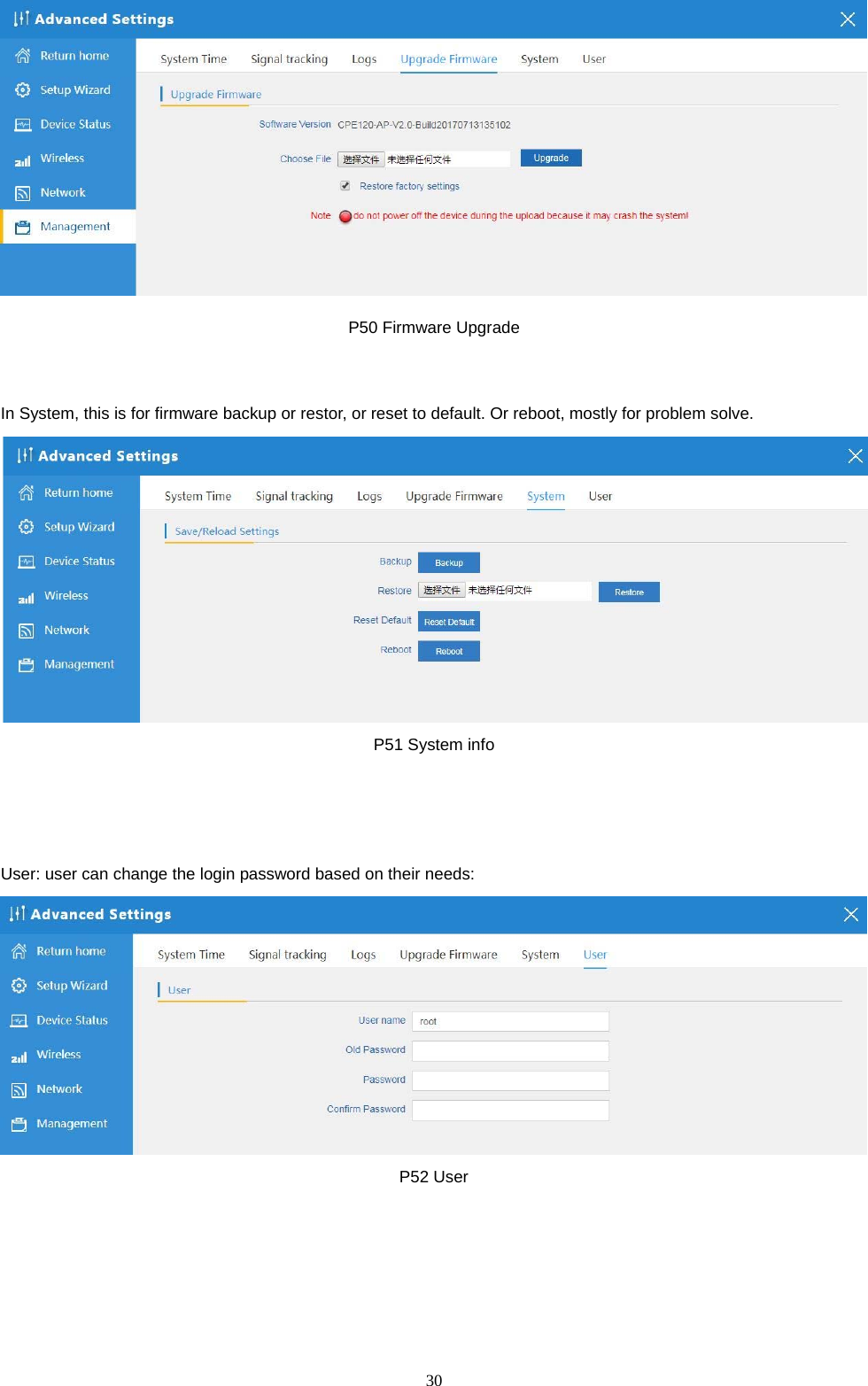
 29   P48 Signal Tracking  Logs to show the outdoor CPE’s operation logs, useful for problem solved.  P49 Signal Tracking   In firmware upgrade page, pls make sure to tick Restore factory settings after firmware upgrade.
 30   P50 Firmware Upgrade  In System, this is for firmware backup or restor, or reset to default. Or reboot, mostly for problem solve.  P51 System info   User: user can change the login password based on their needs:  P52 User
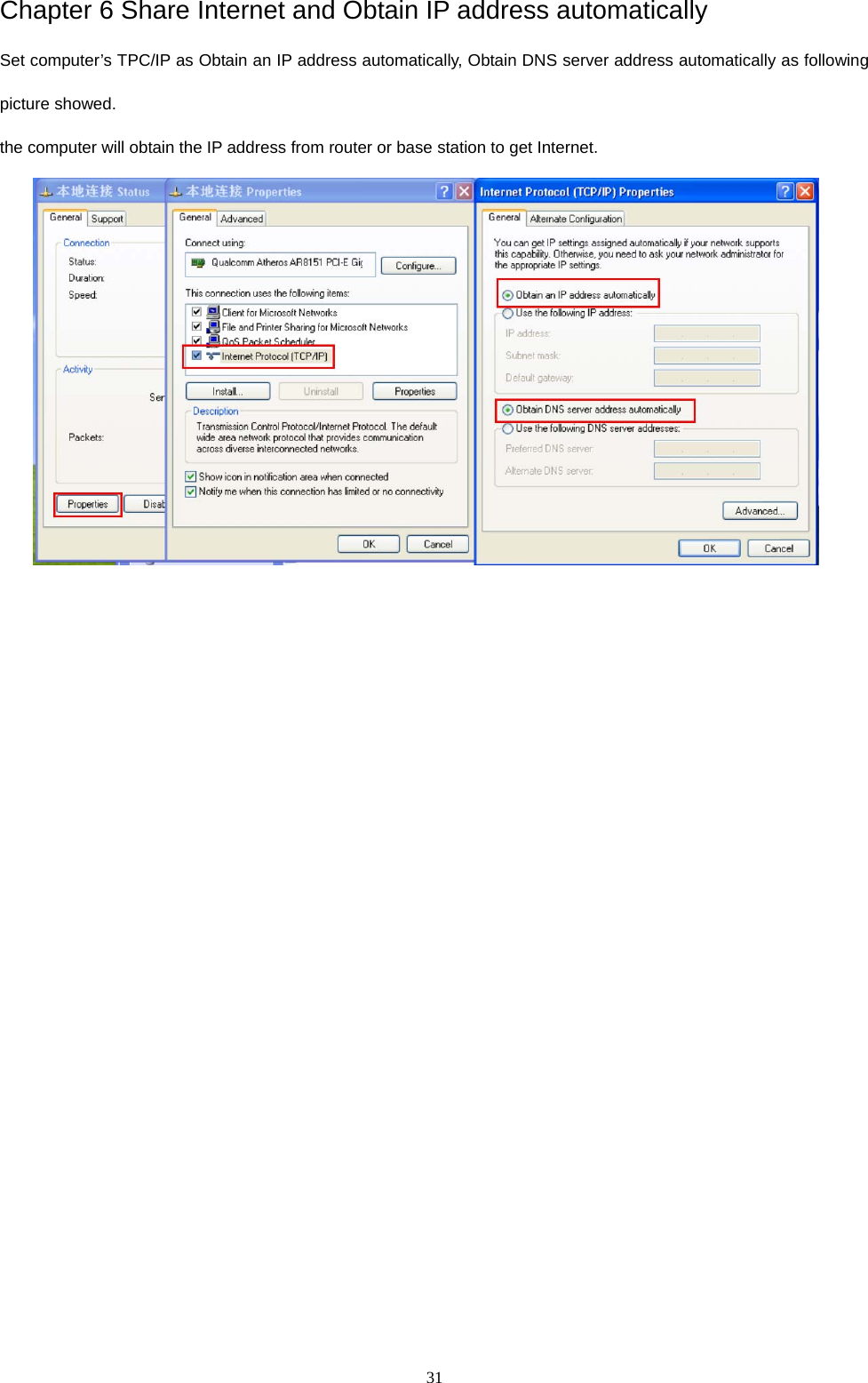
 31  Chapter 6 Share Internet and Obtain IP address automatically Set computer’s TPC/IP as Obtain an IP address automatically, Obtain DNS server address automatically as following picture showed.   the computer will obtain the IP address from router or base station to get Internet.
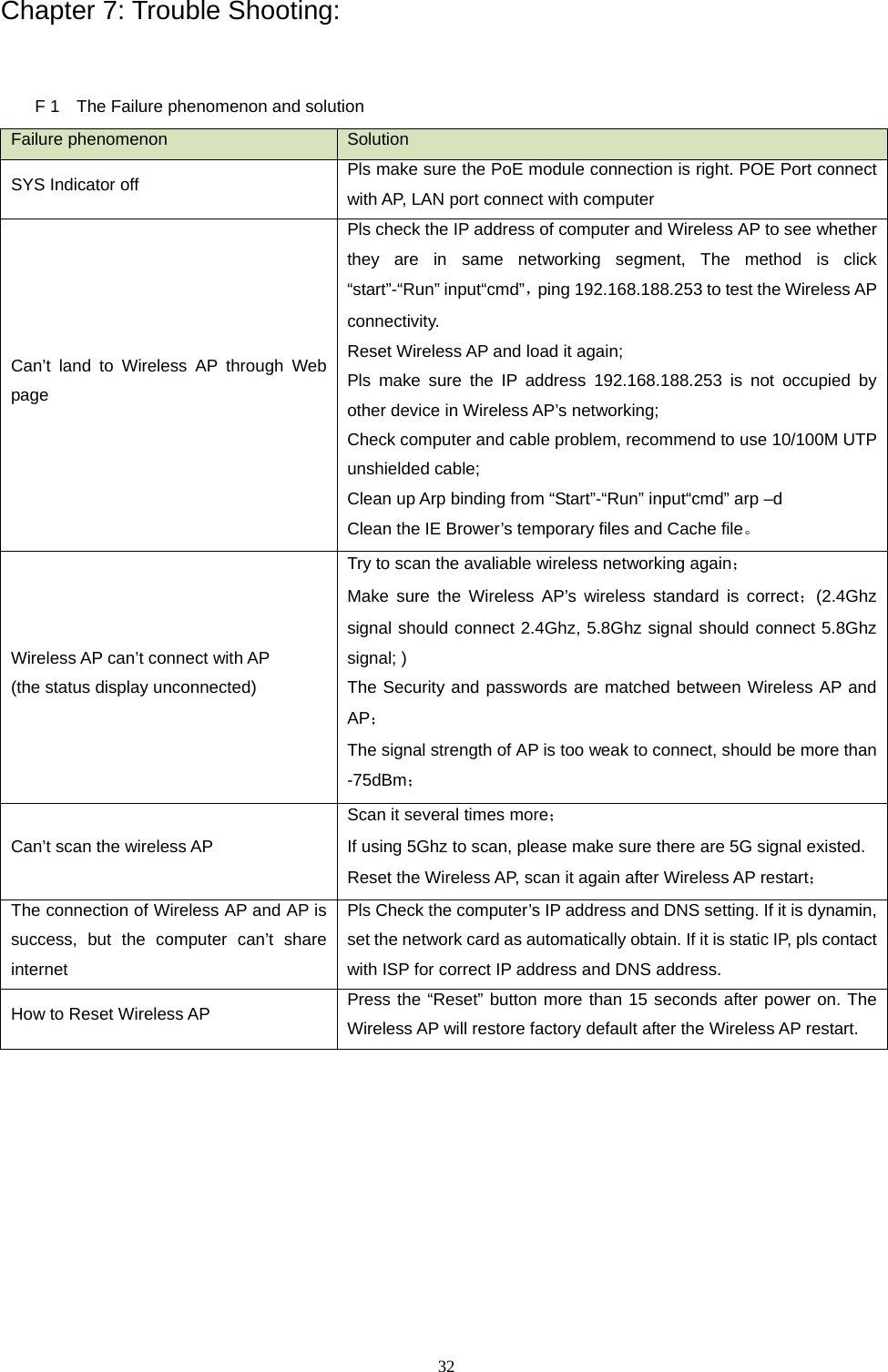
32 Chapter 7: Trouble Shooting: F 1    The Failure phenomenon and solution Failure phenomenon  Solution SYS Indicator off  Pls make sure the PoE module connection is right. POE Port connect with AP, LAN port connect with computer Can’t land to Wireless AP through Web page Pls check the IP address of computer and Wireless AP to see whether they are in same networking segment, The method is click “start”-“Run” input“cmd”,ping 192.168.188.253 to test the Wireless AP connectivity. Reset Wireless AP and load it again; Pls make sure the IP address 192.168.188.253 is not occupied by other device in Wireless AP’s networking; Check computer and cable problem, recommend to use 10/100M UTP unshielded cable; Clean up Arp binding from “Start”-“Run” input“cmd” arp –d Clean the IE Brower’s temporary files and Cache file。 Wireless AP can’t connect with AP (the status display unconnected) Try to scan the avaliable wireless networking again; Make sure the Wireless AP’s wireless standard is correct;(2.4Ghz signal should connect 2.4Ghz, 5.8Ghz signal should connect 5.8Ghz signal; ) The Security and passwords are matched between Wireless AP and AP; The signal strength of AP is too weak to connect, should be more than -75dBm; Can’t scan the wireless AP Scan it several times more; If using 5Ghz to scan, please make sure there are 5G signal existed. Reset the Wireless AP, scan it again after Wireless AP restart; The connection of Wireless AP and AP is success, but the computer can’t share internet Pls Check the computer’s IP address and DNS setting. If it is dynamin, set the network card as automatically obtain. If it is static IP, pls contact with ISP for correct IP address and DNS address.   How to Reset Wireless AP  Press the “Reset” button more than 15 seconds after power on. The Wireless AP will restore factory default after the Wireless AP restart.
20C

Navigation menu