Yunlink Technology CPE870 Wireless Access Point User Manual manual

Shenzhen Yunlink Technology Co., Ltd Wireless Access Point manual

Contents

Manual

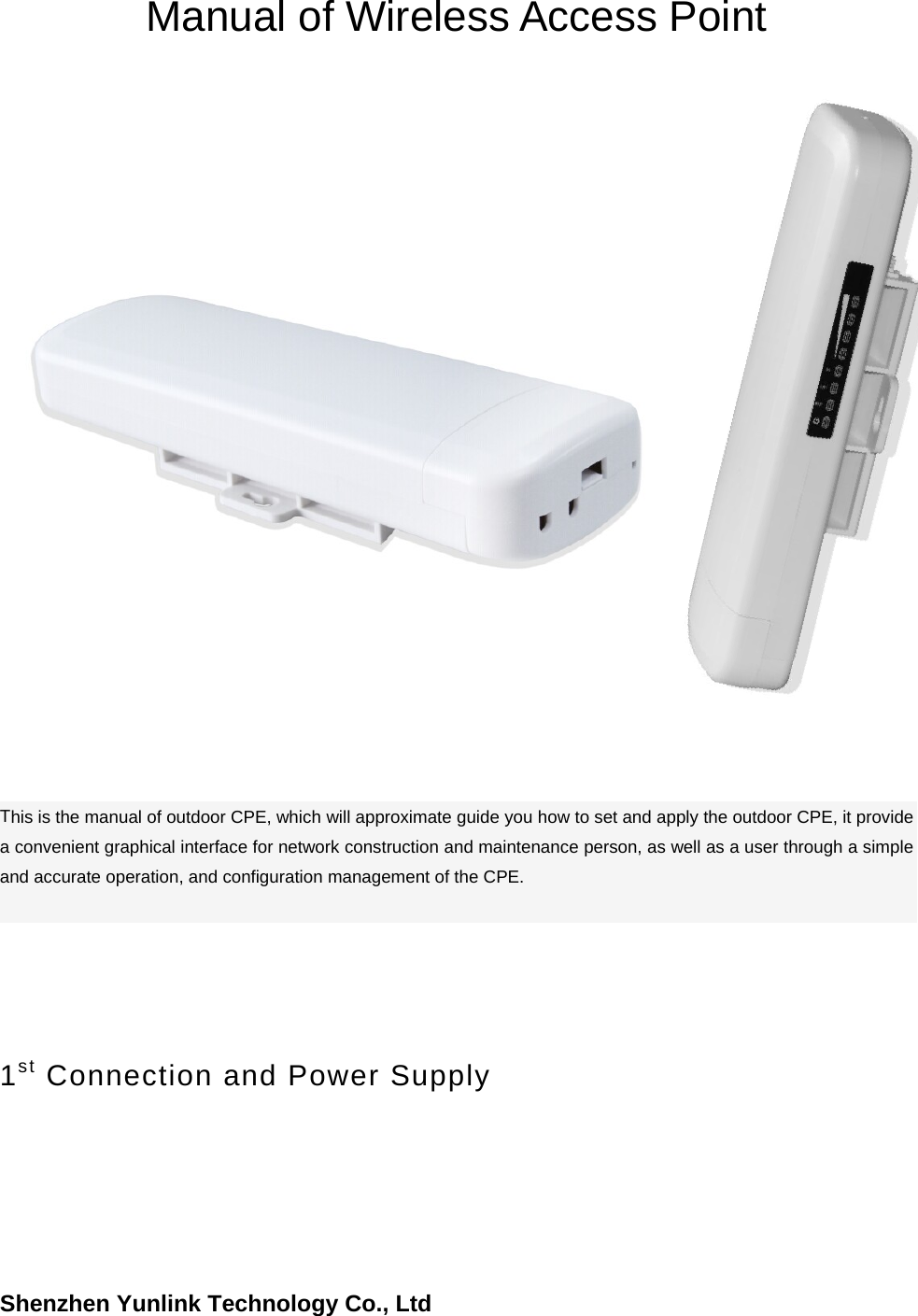
Shenzhen Yunlink Technology Co., LtdManual of Wireless Access Point This is the manual of outdoor CPE, which will approximate guide you how to set and apply the outdoor CPE, it provide a convenient graphical interface for network construction and maintenance person, as well as a user through a simple and accurate operation, and configuration management of the CPE. 1st Connection and Power Supply
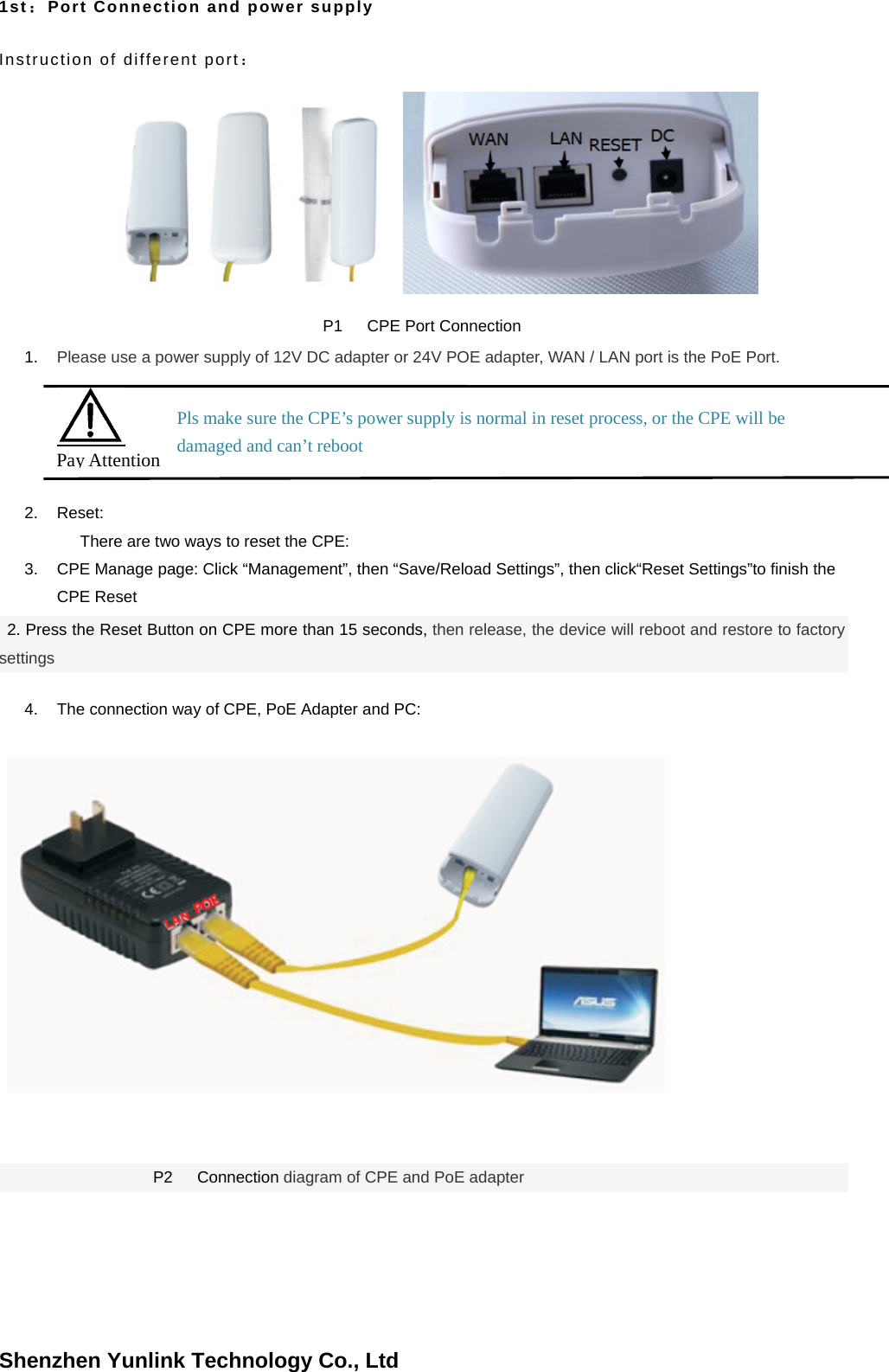
Shenzhen Yunlink Technology Co., Ltd1st:Port Connection and power supply Instruction of different port: P1   CPE Port Connection 1. Please use a power supply of 12V DC adapter or 24V POE adapter, WAN / LAN port is the PoE Port.2. Reset:There are two ways to reset the CPE: 3. CPE Manage page: Click “Management”, then “Save/Reload Settings”, then click“Reset Settings”to finish theCPE Reset2. Press the Reset Button on CPE more than 15 seconds, then release, the device will reboot and restore to factorysettings 4. The connection way of CPE, PoE Adapter and PC:P2   Connection diagram of CPE and PoE adapter Pay Attention Pls make sure the CPE’s power supply is normal in reset process, or the CPE will be damaged and can’t reboot
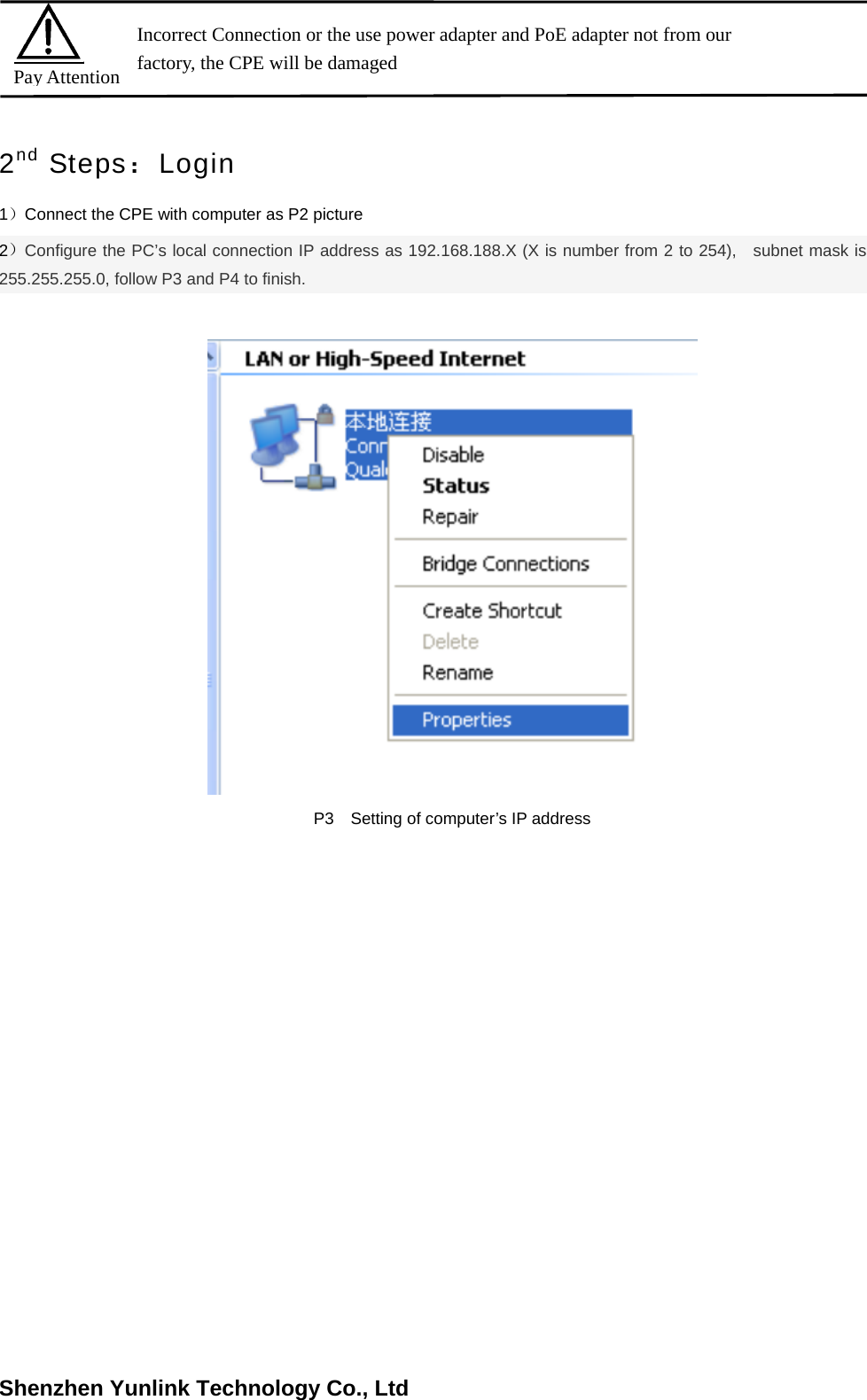
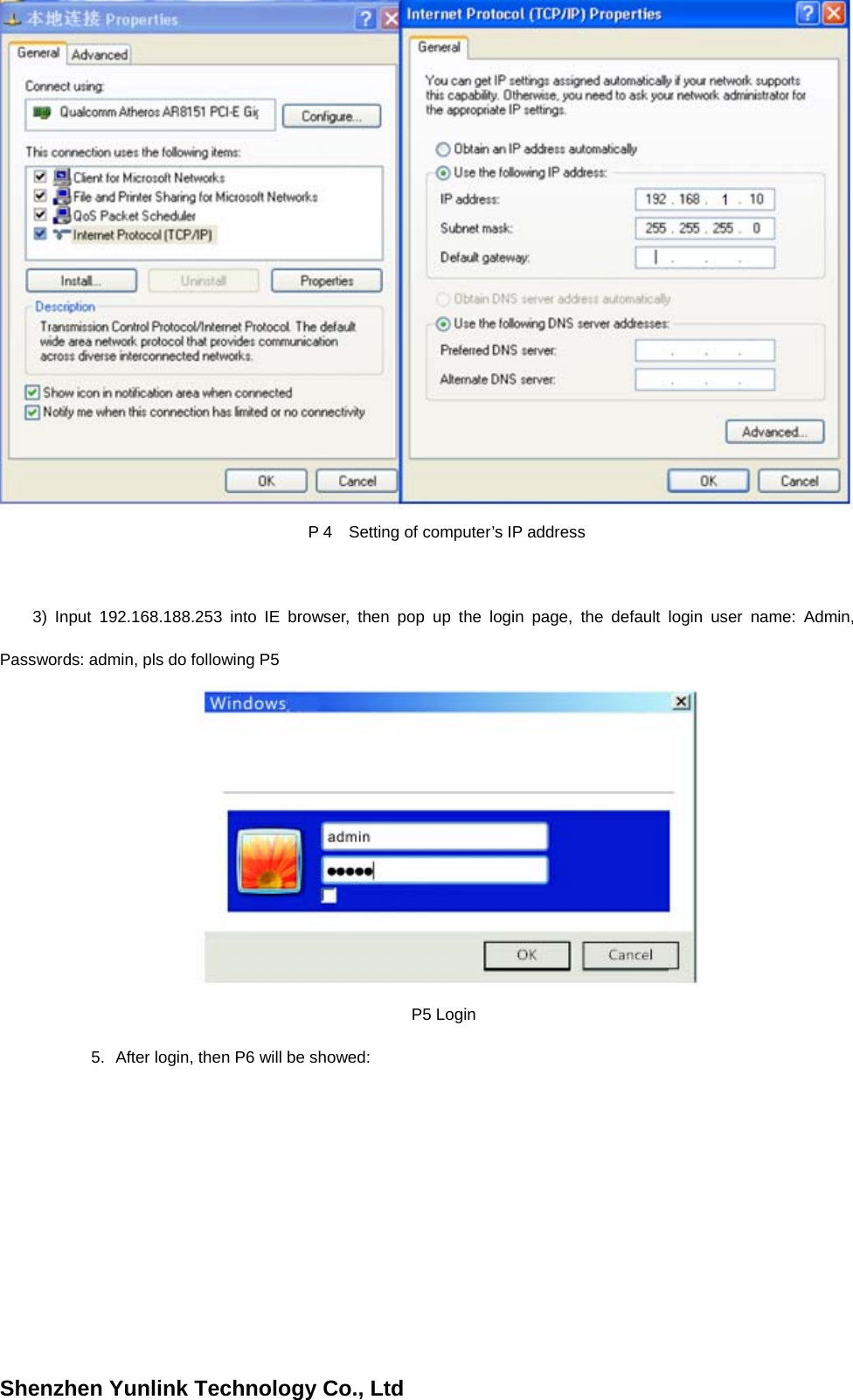
Shenzhen Yunlink Technology Co., Ltd2nd Steps:Login 1)Connect the CPE with computer as P2 picture   2)Configure the PC’s local connection IP address as 192.168.188.X (X is number from 2 to 254),   subnet mask is 255.255.255.0, follow P3 and P4 to finish. P3  Setting of computer’s IP address Pay Attention Incorrect Connection or the use power adapter and PoE adapter not from our factory, the CPE will be damaged
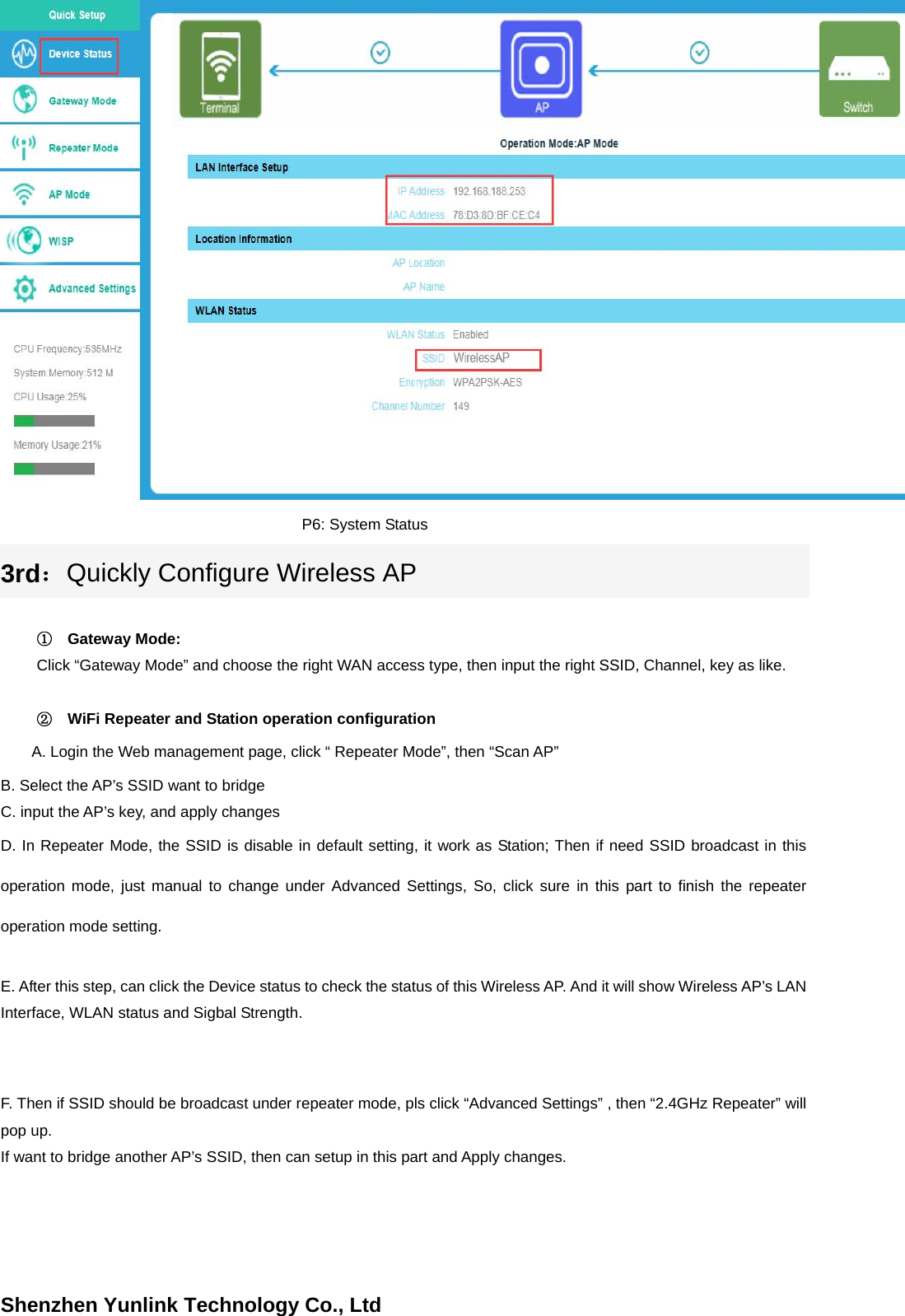
Shenzhen Yunlink Technology Co., LtdP 4    Setting of computer’s IP address 3) Input 192.168.188.253 into IE browser, then pop up the login page, the default login user name: Admin,Passwords: admin, pls do following P5 P5 Login 5. After login, then P6 will be showed:
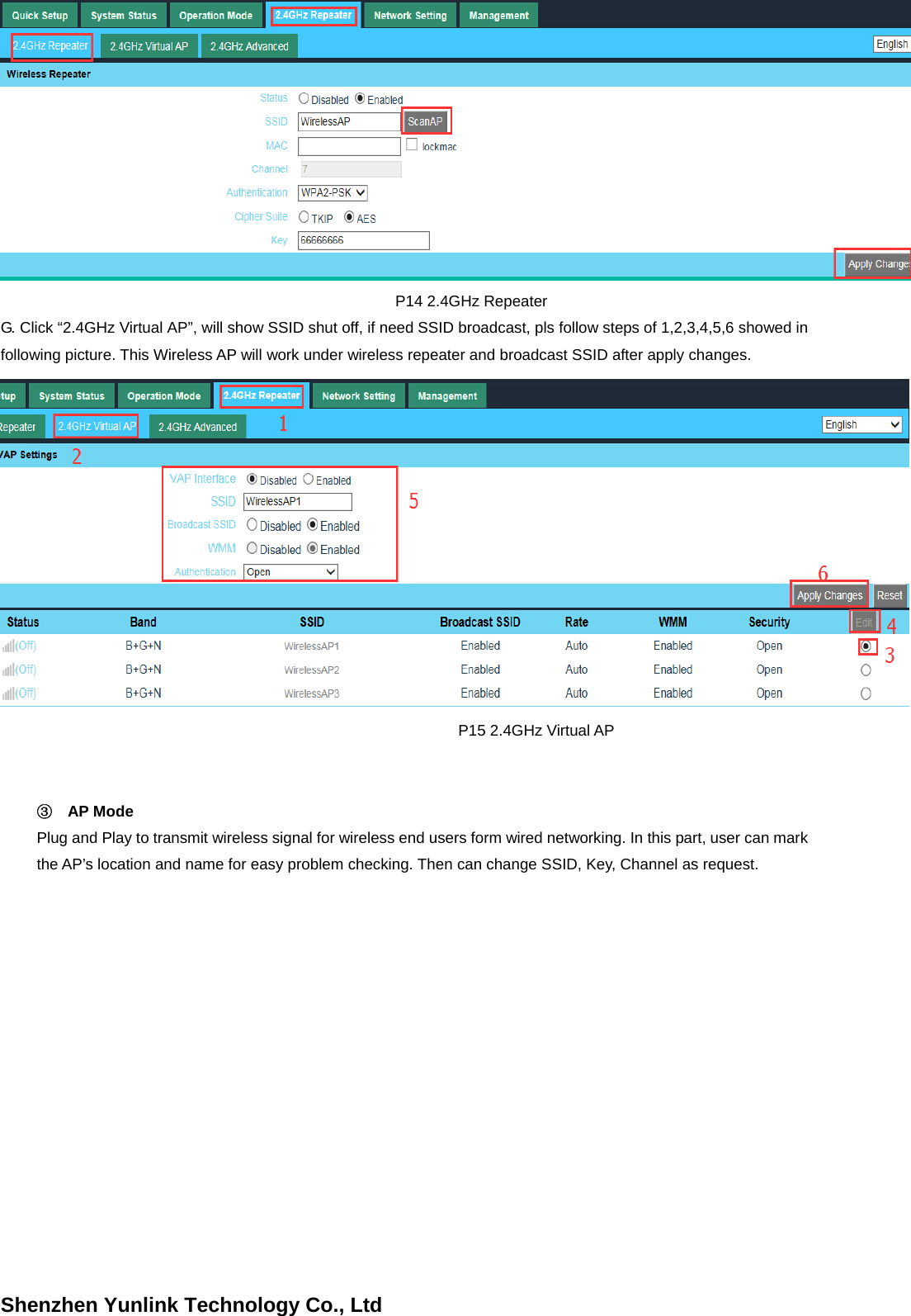
Shenzhen Yunlink Technology Co., LtdP6: System Status 3rd:Quickly Configure Wireless AP①Gateway Mode:Click “Gateway Mode” and choose the right WAN access type, then input the right SSID, Channel, key as like. ②WiFi Repeater and Station operation configurationA. Login the Web management page, click “ Repeater Mode”, then “Scan AP”     B. Select the AP’s SSID want to bridge C. input the AP’s key, and apply changes   D. In Repeater Mode, the SSID is disable in default setting, it work as Station; Then if need SSID broadcast in this operation mode, just manual to change under Advanced Settings, So, click sure in this part to finish the repeater operation mode setting. E. After this step, can click the Device status to check the status of this Wireless AP. And it will show Wireless AP’s LAN Interface, WLAN status and Sigbal Strength. F. Then if SSID should be broadcast under repeater mode, pls click “Advanced Settings” , then “2.4GHz Repeater” will pop up. If want to bridge another AP’s SSID, then can setup in this part and Apply changes.
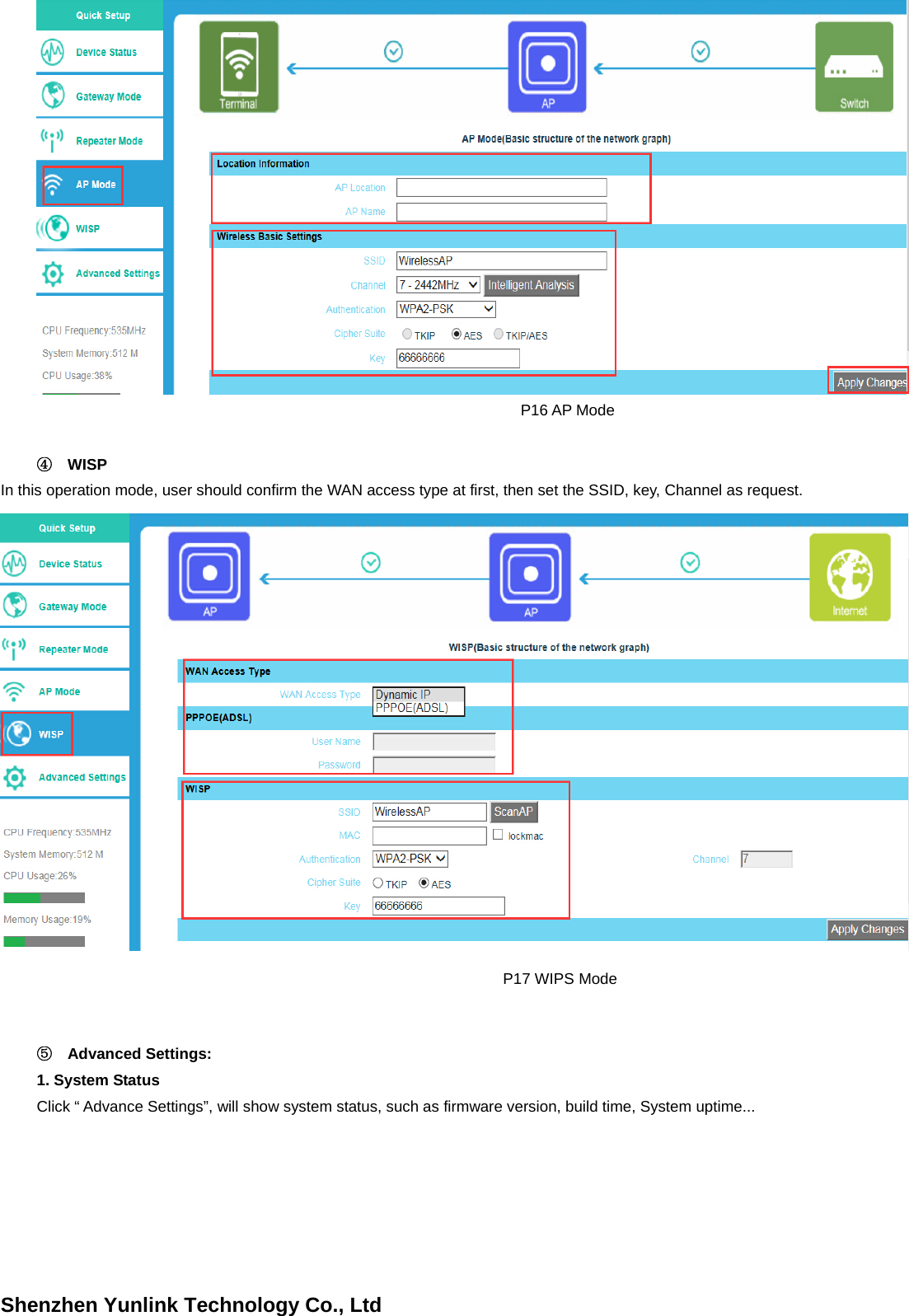
Shenzhen Yunlink Technology Co., LtdP14 2.4GHz Repeater G. Click “2.4GHz Virtual AP”, will show SSID shut off, if need SSID broadcast, pls follow steps of 1,2,3,4,5,6 showed in following picture. This Wireless AP will work under wireless repeater and broadcast SSID after apply changes.   P15 2.4GHz Virtual AP ③AP ModePlug and Play to transmit wireless signal for wireless end users form wired networking. In this part, user can mark the AP’s location and name for easy problem checking. Then can change SSID, Key, Channel as request.
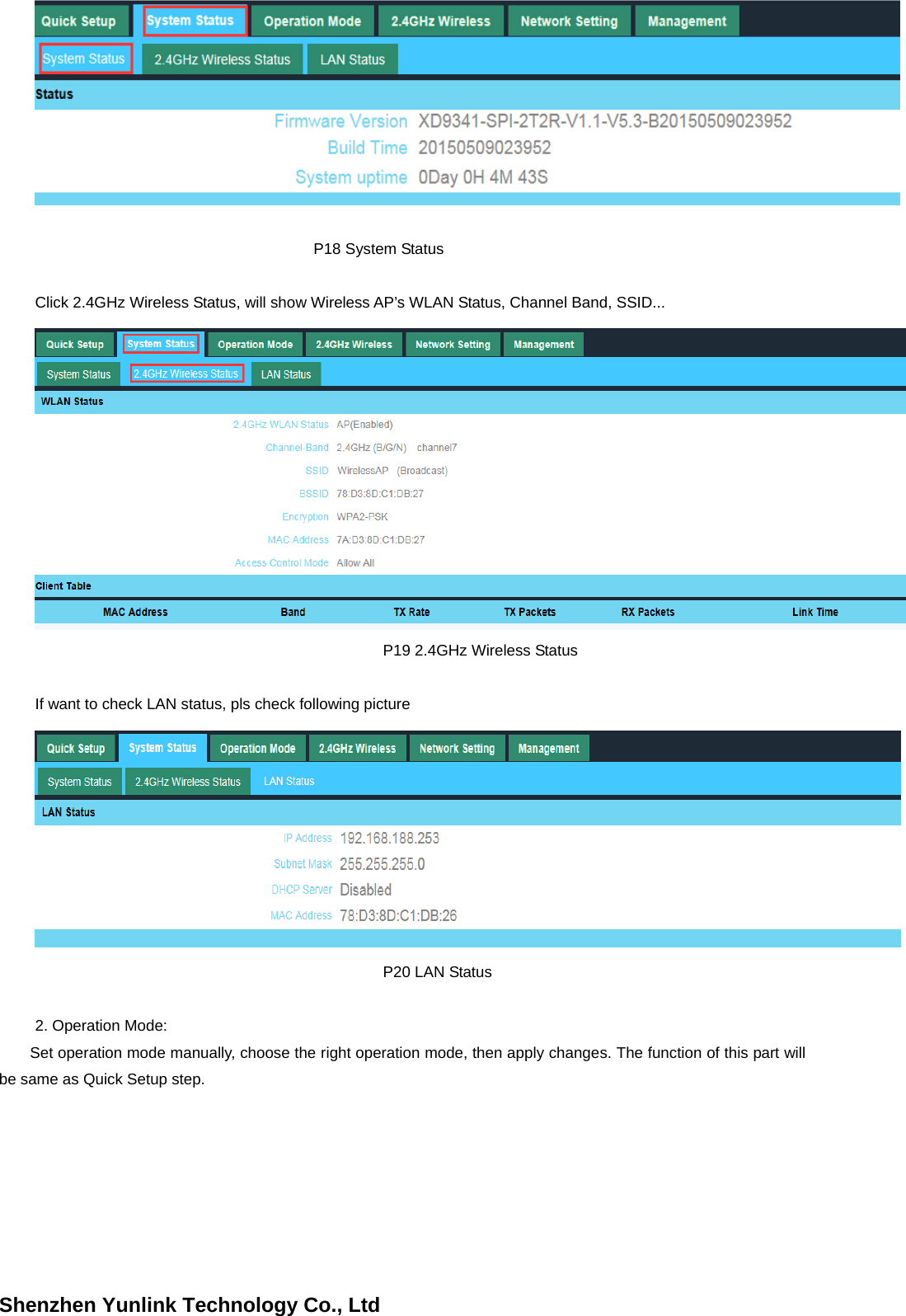
Shenzhen Yunlink Technology Co., Ltd P16 AP Mode ④WISPIn this operation mode, user should confirm the WAN access type at first, then set the SSID, key, Channel as request. P17 WIPS Mode ⑤Advanced Settings:1. System StatusClick “ Advance Settings”, will show system status, such as firmware version, build time, System uptime...
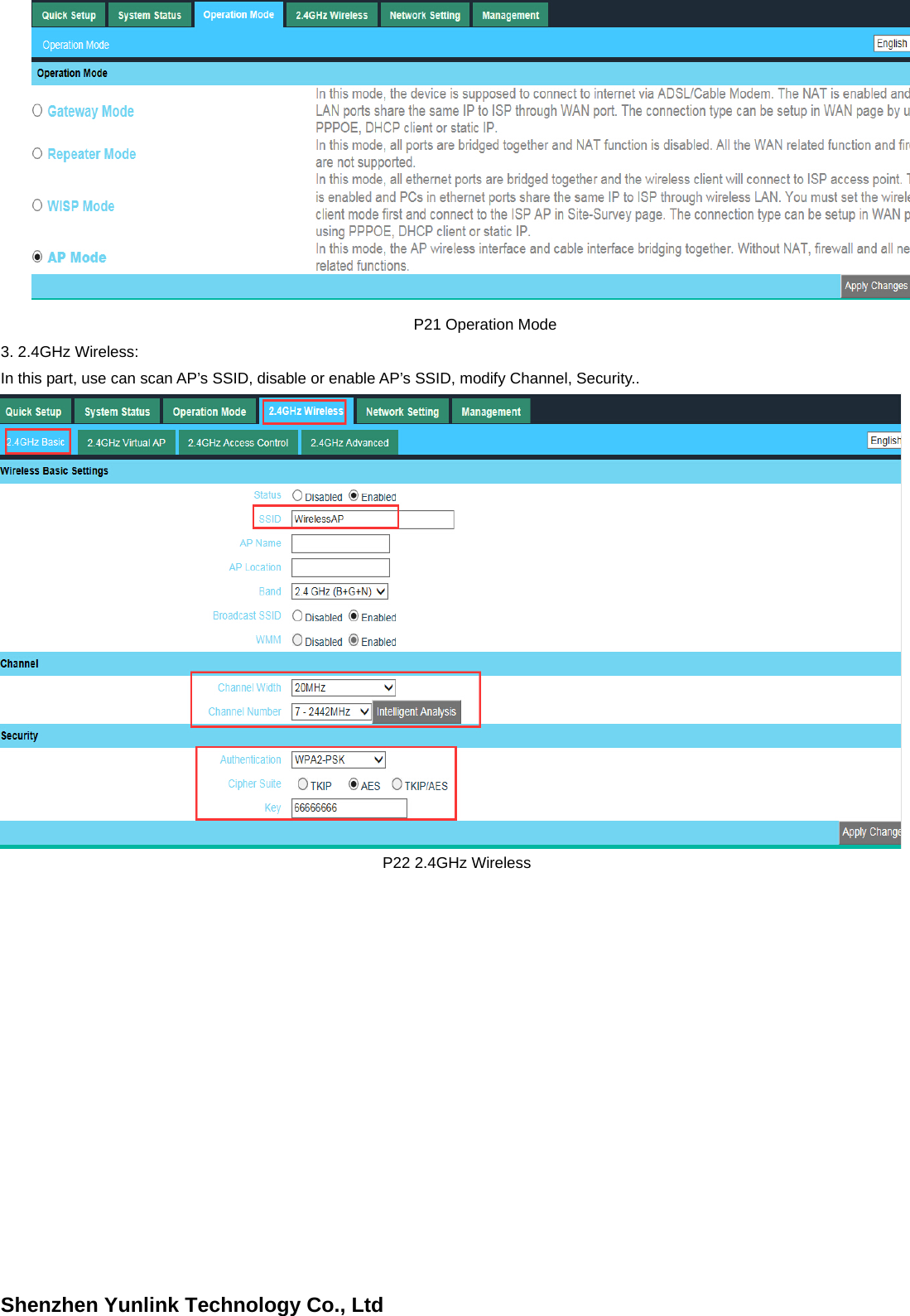
Shenzhen Yunlink Technology Co., LtdP18 System Status Click 2.4GHz Wireless Status, will show Wireless AP’s WLAN Status, Channel Band, SSID... P19 2.4GHz Wireless Status If want to check LAN status, pls check following picture P20 LAN Status 2. Operation Mode:Set operation mode manually, choose the right operation mode, then apply changes. The function of this part will be same as Quick Setup step.
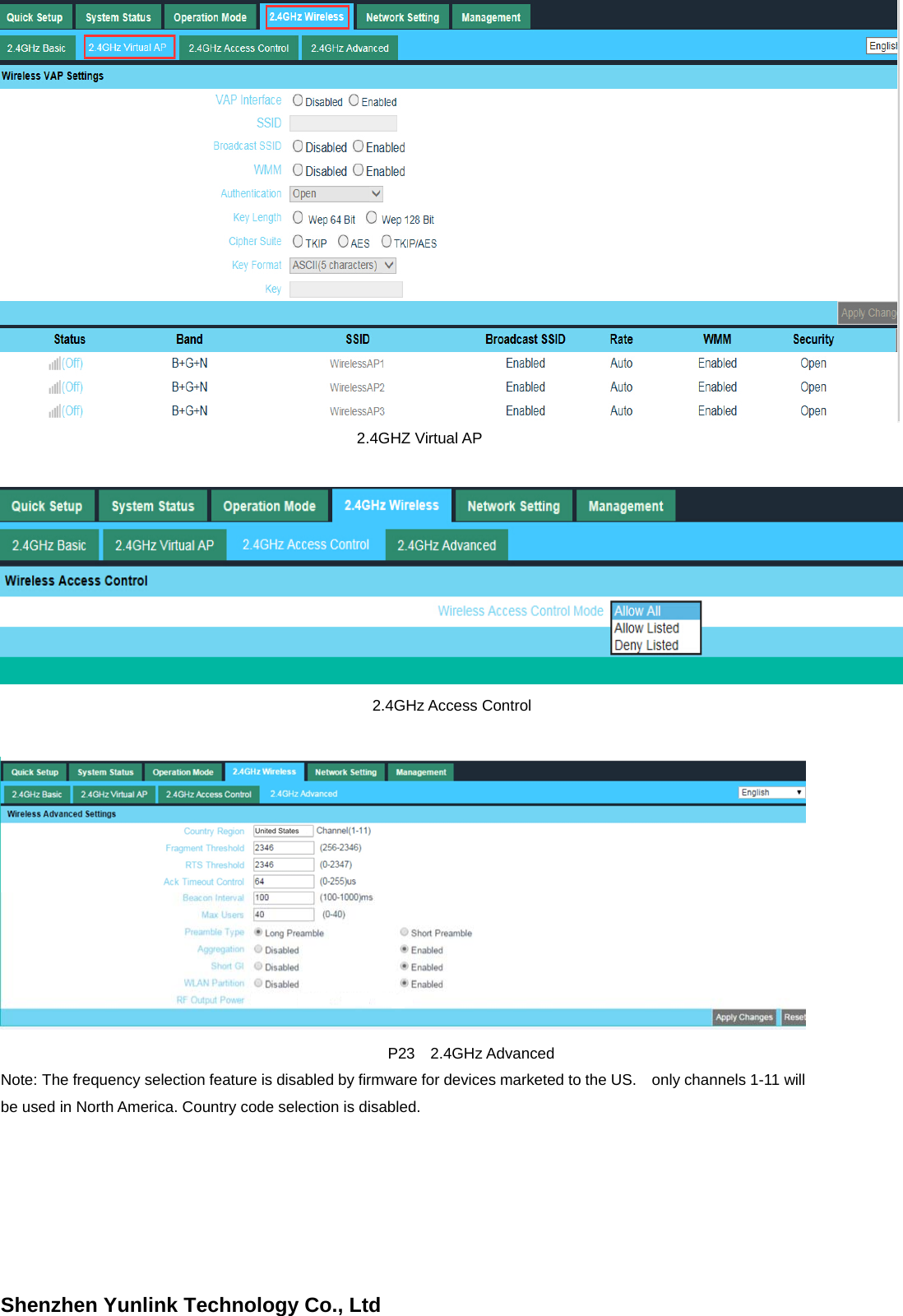
Shenzhen Yunlink Technology Co., Ltd P21 Operation Mode 3. 2.4GHz Wireless:In this part, use can scan AP’s SSID, disable or enable AP’s SSID, modify Channel, Security..   P22 2.4GHz Wireless
Shenzhen Yunlink Technology Co., Ltd    2.4GHZ Virtual AP  2.4GHz Access Control      P23  2.4GHz Advanced Note: The frequency selection feature is disabled by firmware for devices marketed to the US.    only channels 1-11 will be used in North America. Country code selection is disabled.
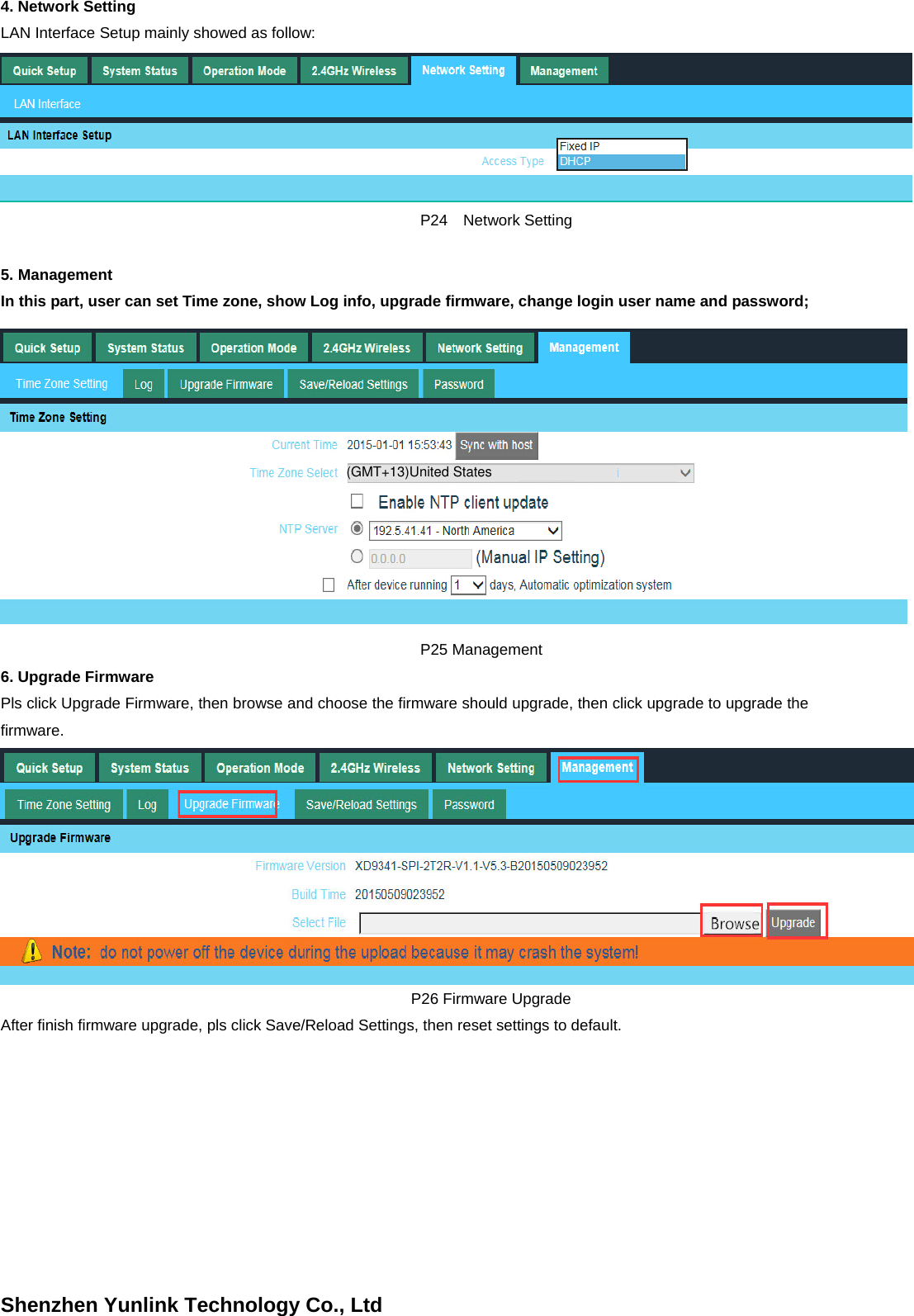
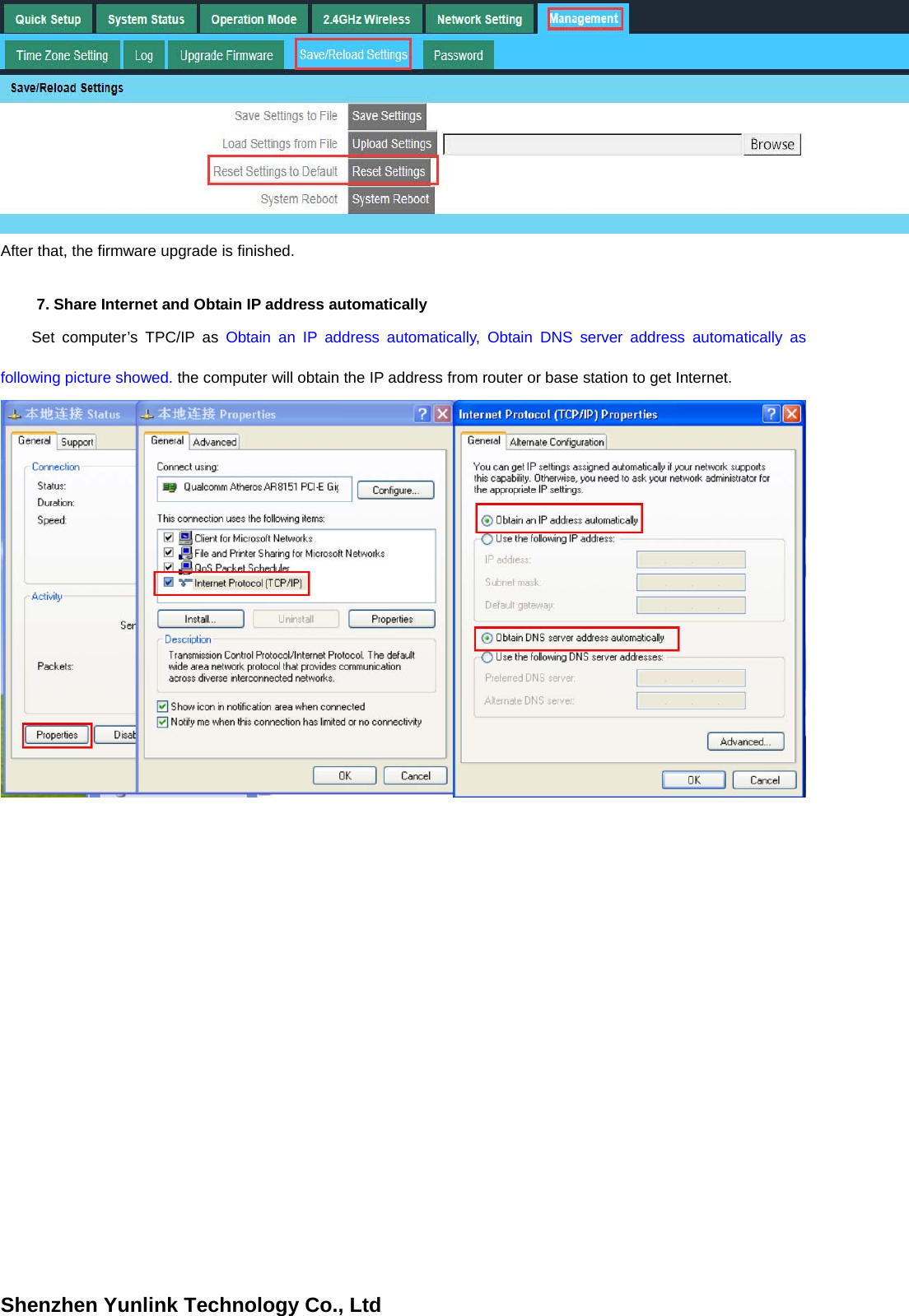
Shenzhen Yunlink Technology Co., Ltd4. Network SettingLAN Interface Setup mainly showed as follow:   P24  Network Setting 5. ManagementIn this part, user can set Time zone, show Log info, upgrade firmware, change login user name and password;   P25 Management 6. Upgrade FirmwarePls click Upgrade Firmware, then browse and choose the firmware should upgrade, then click upgrade to upgrade the firmware. P26 Firmware Upgrade After finish firmware upgrade, pls click Save/Reload Settings, then reset settings to default. (GMT+13)United States
Shenzhen Yunlink Technology Co., LtdAfter that, the firmware upgrade is finished. 7. Share Internet and Obtain IP address automaticallySet computer’s TPC/IP as Obtain an IP address automatically, Obtain DNS server address automatically as following picture showed. the computer will obtain the IP address from router or base station to get Internet.
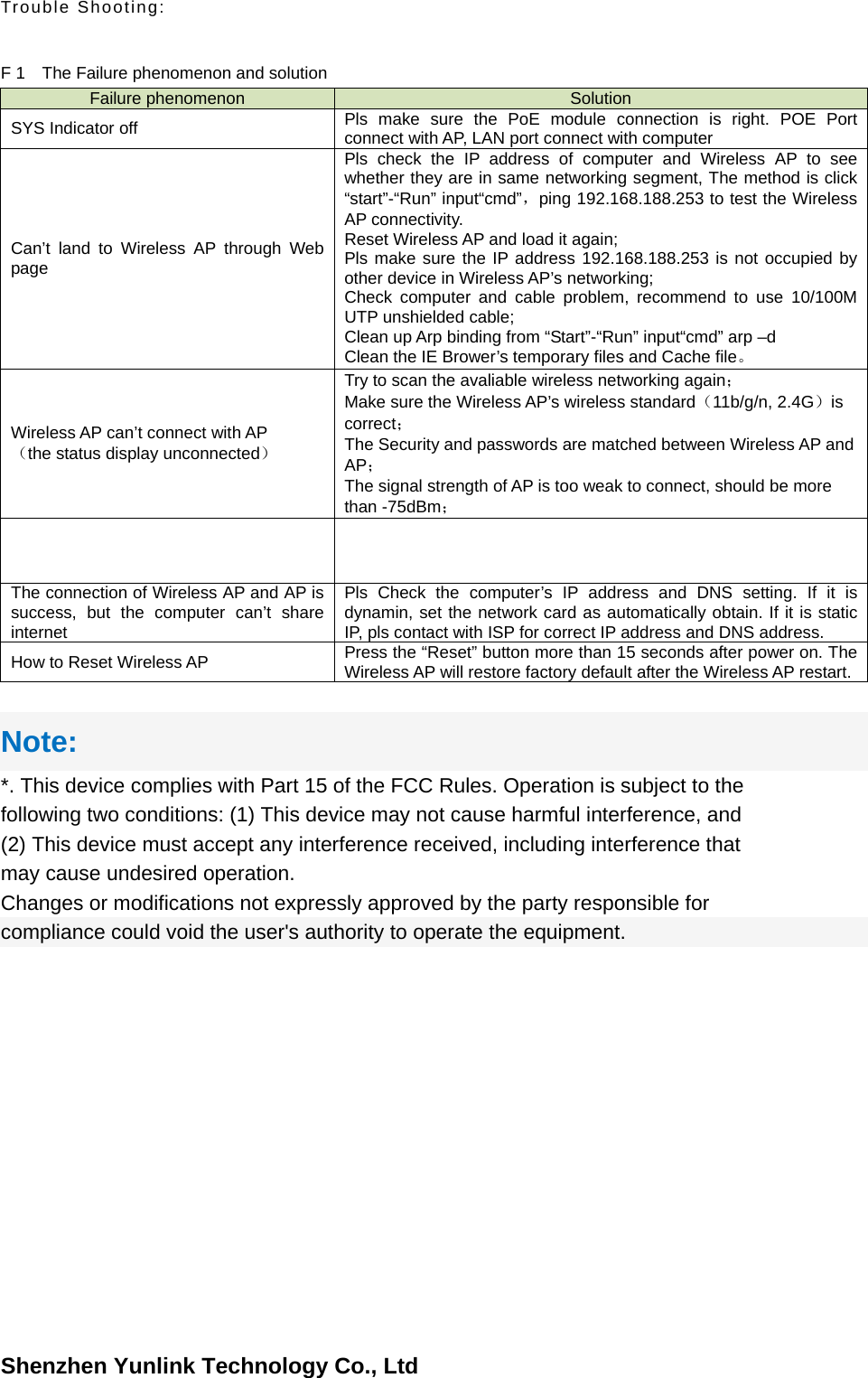
Shenzhen Yunlink Technology Co., LtdTrouble Shooting: F 1    The Failure phenomenon and solution Failure phenomenon  Solution SYS Indicator off  Pls make sure the PoE module connection is right. POE Port connect with AP, LAN port connect with computer Can’t land to Wireless AP through Web page Pls check the IP address of computer and Wireless AP to see whether they are in same networking segment, The method is click “start”-“Run” input“cmd”,ping 192.168.188.253 to test the Wireless AP connectivity. Reset Wireless AP and load it again; Pls make sure the IP address 192.168.188.253 is not occupied by other device in Wireless AP’s networking; Check computer and cable problem, recommend to use 10/100M UTP unshielded cable; Clean up Arp binding from “Start”-“Run” input“cmd” arp –d Clean the IE Brower’s temporary files and Cache file。 Wireless AP can’t connect with AP (the status display unconnected) Try to scan the avaliable wireless networking again; Make sure the Wireless AP’s wireless standard(11b/g/n, 2.4G)is correct; The Security and passwords are matched between Wireless AP and AP; The signal strength of AP is too weak to connect, should be more than -75dBm;   The connection of Wireless AP and AP is success, but the computer can’t share internet Pls Check the computer’s IP address and DNS setting. If it is dynamin, set the network card as automatically obtain. If it is static IP, pls contact with ISP for correct IP address and DNS address.   How to Reset Wireless AP  Press the “Reset” button more than 15 seconds after power on. The Wireless AP will restore factory default after the Wireless AP restart. Note: *. This device complies with Part 15 of the FCC Rules. Operation is subject to the following two conditions: (1) This device may not cause harmful interference, and (2) This device must accept any interference received, including interference that may cause undesired operation. Changes or modifications not expressly approved by the party responsible for compliance could void the user's authority to operate the equipment.

Navigation menu