Yusan ETBB301 Blackout Buddy Charge Connected User Manual 15 ET BB301 UserMan

Yusan Industries Ltd. Blackout Buddy Charge Connected 15 ET BB301 UserMan

15_ET-BB301 UserMan

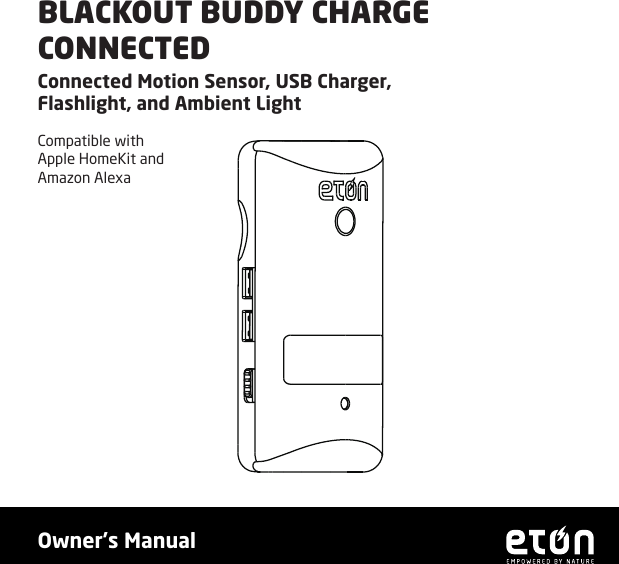
BLACKOUT BUDDY CHARGE CONNECTEDConnected Motion Sensor, USB Charger, Flashlight, and Ambient LightCompatible with Apple HomeKit and Amazon Alexa1Owner’s Manual
QUICK START GUIDE•  Plug your Blackout Buddy Charge Connected into an electrical socket. The ashlight will blink once, indicating it is ready for Wi-Fi setup.•  On your phone, download the free Etón Home app from the Apple App Store or Google Play store.•  Open the Etón Home app and tap “+” in the upper right corner to add your Blackout Buddy Charge Connected. Follow the on-screen directions to complete setup. Note: Make sure to name your device something easily recognizable, like “Bedroom Night Light.”
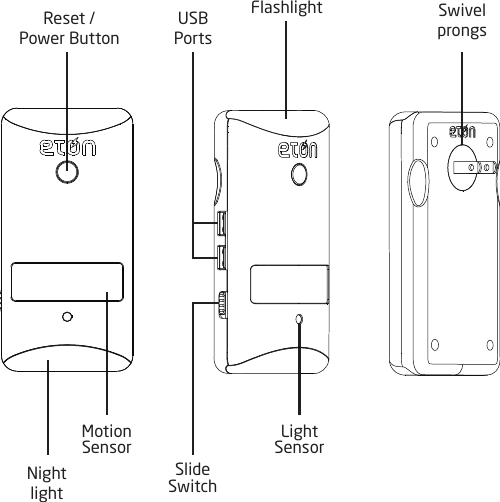
Reset / Power ButtonFlashlight Swivel  prongsNight  lightMotion  SensorLight  SensorUSB  PortsSlide Switch
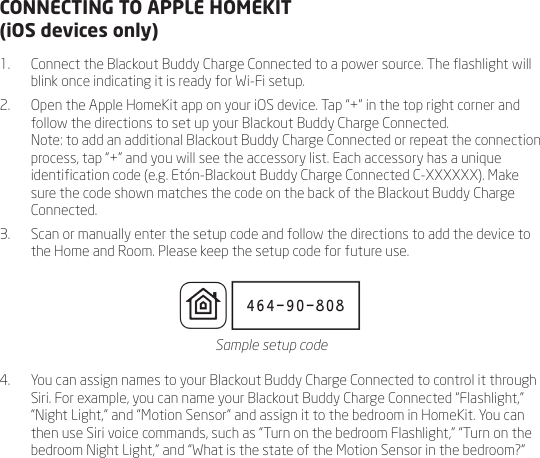
CONNECTING TO APPLE HOMEKIT  (iOS devices only) 1.  Connect the Blackout Buddy Charge Connected to a power source. The ashlight will blink once indicating it is ready for Wi-Fi setup.2.  Open the Apple HomeKit app on your iOS device. Tap “+” in the top right corner and follow the directions to set up your Blackout Buddy Charge Connected. Note: to add an additional Blackout Buddy Charge Connected or repeat the connection process, tap “+” and you will see the accessory list. Each accessory has a unique identication code (e.g. Etón-Blackout Buddy Charge Connected C-XXXXXX). Make sure the code shown matches the code on the back of the Blackout Buddy Charge Connected.3.  Scan or manually enter the setup code and follow the directions to add the device to the Home and Room. Please keep the setup code for future use.      4.  You can assign names to your Blackout Buddy Charge Connected to control it through Siri. For example, you can name your Blackout Buddy Charge Connected “Flashlight,” “Night Light,” and “Motion Sensor” and assign it to the bedroom in HomeKit. You can then use Siri voice commands, such as “Turn on the bedroom Flashlight,” “Turn on the bedroom Night Light,” and “What is the state of the Motion Sensor in the bedroom?”Sample setup code
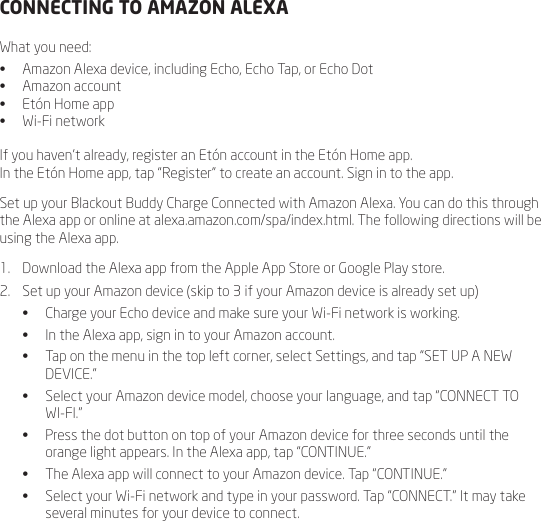
CONNECTING TO AMAZON ALEXAWhat you need:•  Amazon Alexa device, including Echo, Echo Tap, or Echo Dot•  Amazon account•  Etón Home app•  Wi-Fi networkIf you haven’t already, register an Etón account in the Etón Home app.  In the Etón Home app, tap “Register” to create an account. Sign in to the app.Set up your Blackout Buddy Charge Connected with Amazon Alexa. You can do this through the Alexa app or online at alexa.amazon.com/spa/index.html. The following directions will be using the Alexa app.1.  Download the Alexa app from the Apple App Store or Google Play store. 2.  Set up your Amazon device (skip to 3 if your Amazon device is already set up)•  Charge your Echo device and make sure your Wi-Fi network is working.•  In the Alexa app, sign in to your Amazon account.•  Tap on the menu in the top left corner, select Settings, and tap “SET UP A NEW DEVICE.”•  Select your Amazon device model, choose your language, and tap “CONNECT TO WI-FI.”•  Press the dot button on top of your Amazon device for three seconds until the orange light appears. In the Alexa app, tap “CONTINUE.”•  The Alexa app will connect to your Amazon device. Tap “CONTINUE.” •  Select your Wi-Fi network and type in your password. Tap “CONNECT.” It may take several minutes for your device to connect.
•  Once it has successfully connected, tap “CONTINUE.” An introduction video will appear. Tap “CONTINUE” again to complete setup.3.  Link your Etón account to your Amazon device•  In the Alexa app, tap on the menu in the top left corner and select “Skills.” In the search bar, search for Smart Life. Select “Smart Life” and tap “ENABLE.”•  You will be redirected to the account link page. Log in to your Etón account and select the country/region in which you live. •  Tap “Link Now” to link your Etón account. When the message “Alexa has been successfully linked with Etón” shows up, tap X on the top left corner.4.  Control your Blackout Buddy Charge Connected through Amazon Alexa•  Your Amazon device needs to discover your smart devices before it can control them. You can either say “Alexa, discover devices,” or you can open the Alexa app, select “Smart Home” in the menu, and tap “DISCOVER.” Note: every time you change the device’s name on the Smart Life app, Amazon must re-discover the device before Alexa can control it.•  You can now control your Blackout Buddy Charge Connected through Amazon Alexa voice commands, such as “Alexa, turn on [Device Name].”5.  Optional: Set up device groups•  You can also set up groups of multiple devices in the Alexa App. In the Alexa app, tap on the menu in the top left corner and select “Smart Home.” Tap “CREATE GROUP” and give your group a name (e.g. “Smart Night Lights”). Select the devices you would like to add to the group, and tap “SAVE.”•  You can now control multiple devices together. Try saying “Alexa, turn on [Group Name].”
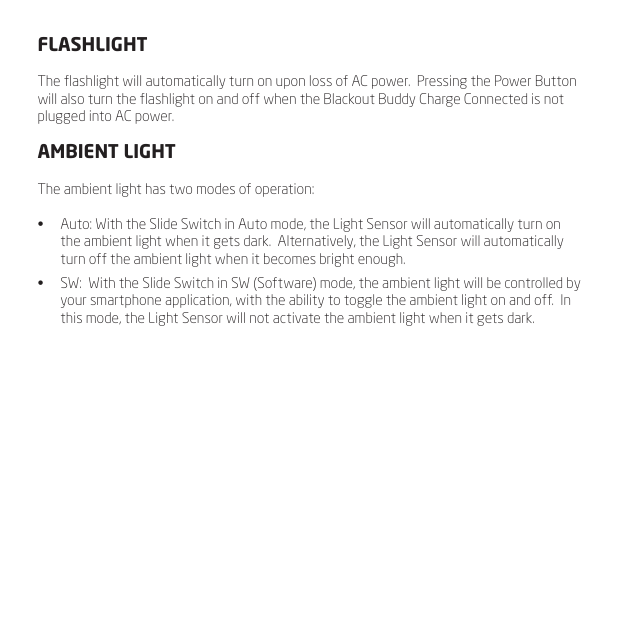
FLASHLIGHTThe ashlight will automatically turn on upon loss of AC power.  Pressing the Power Button will also turn the ashlight on and off when the Blackout Buddy Charge Connected is not plugged into AC power.AMBIENT LIGHTThe ambient light has two modes of operation:•  Auto: With the Slide Switch in Auto mode, the Light Sensor will automatically turn on the ambient light when it gets dark.  Alternatively, the Light Sensor will automatically turn off the ambient light when it becomes bright enough.•  SW:  With the Slide Switch in SW (Software) mode, the ambient light will be controlled by your smartphone application, with the ability to toggle the ambient light on and off.  In this mode, the Light Sensor will not activate the ambient light when it gets dark.
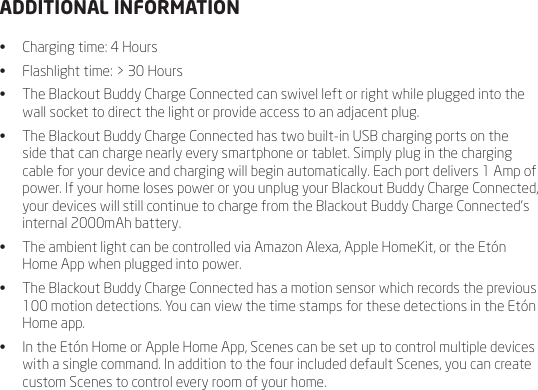
ADDITIONAL INFORMATION•  Charging time: 4 Hours•  Flashlight time: > 30 Hours•  The Blackout Buddy Charge Connected can swivel left or right while plugged into the wall socket to direct the light or provide access to an adjacent plug.•  The Blackout Buddy Charge Connected has two built-in USB charging ports on the side that can charge nearly every smartphone or tablet. Simply plug in the charging cable for your device and charging will begin automatically. Each port delivers 1 Amp of power. If your home loses power or you unplug your Blackout Buddy Charge Connected, your devices will still continue to charge from the Blackout Buddy Charge Connected’s internal 2000mAh battery.•  The ambient light can be controlled via Amazon Alexa, Apple HomeKit, or the Etón Home App when plugged into power.•  The Blackout Buddy Charge Connected has a motion sensor which records the previous 100 motion detections. You can view the time stamps for these detections in the Etón Home app.•  In the Etón Home or Apple Home App, Scenes can be set up to control multiple devices with a single command. In addition to the four included default Scenes, you can create custom Scenes to control every room of your home.
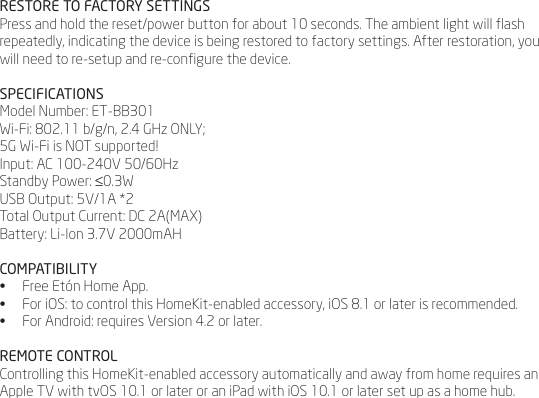
RESTORE TO FACTORY SETTINGSPress and hold the reset/power button for about 10 seconds. The ambient light will ash repeatedly, indicating the device is being restored to factory settings. After restoration, you will need to re-setup and re-congure the device.SPECIFICATIONSModel Number: ET-BB301Wi-Fi: 802.11 b/g/n, 2.4 GHz ONLY;5G Wi-Fi is NOT supported! Input: AC 100-240V 50/60HzStandby Power: ≤0.3WUSB Output: 5V/1A *2Total Output Current: DC 2A(MAX)Battery: Li-Ion 3.7V 2000mAHCOMPATIBILITY•  Free Etón Home App.•  For iOS: to control this HomeKit-enabled accessory, iOS 8.1 or later is recommended.•  For Android: requires Version 4.2 or later.REMOTE CONTROLControlling this HomeKit-enabled accessory automatically and away from home requires an Apple TV with tvOS 10.1 or later or an iPad with iOS 10.1 or later set up as a home hub.
IMPORTANT SAFETY INSTRUCTIONSWARNINGTo reduce the risk of re, electrical shock, or injury when using your appliance, follow these basic precautions:•  Read all the instructions before using the appliance.•  To reduce the risk of injury, close supervision is necessary when an appliance is used near children.•  For indoor use only. Do not use outdoors.•  To reduce the risk of electrical shock, do not put ashlight in water or other liquid. Do not place or store appliance where it can fall or be pulled into a tub or sink.•  Not a toy. Keep away from children. •  Avoid dropping.•  Only operate within specied temperature range (0°C to 30°C).•  Unplug immediately if liquid has been spilled  or any object has fallen into the apparatus.•  DO NOT expose to rain or moisture.•  DO NOT submerge or expose to water.•  DO NOT cut.•  DO NOT disassemble.•  DO NOT clean with liquid. Clean only with a dry cloth.•  DO NOT use abrasives or solvents.•  DO NOT use in wet or damp areas (e.g. bathrooms). •  DO NOT use with dimmers.•  DO NOT use in enclosed environments.•  DO NOT exceed the recommended electrical ratings.•  Refer servicing to qualied service personnel.SAVE THESE INSTRUCTIONS.
FCC REGULATIONSThis device complies with Part 15 of the FCC rules. Operation is subject to the following two conditions: (1) this device may not cause harmful interference, and (2) this device must accept any interference received, including interference that may cause undesired operation.ICC REGULATIONSThis device complies with Industry Canada licence-exempt RSS standard(s). Operation is subject to the following two conditions: (1) this device may not cause interference, and (2) this device must accept any interference, including interference that may cause undesired operation of the device.Le présent appareil est conforme aux CNR d’Industrie Canada applicables aux appareils radio exempts de licence. L’exploitation est autorisée aux deux conditions suivantes : (1) l’appareil ne doit pas produire de brouillage, et (2) l’utilisateur de l’appareil doit accepter tout brouillage radioélectrique subi, même si le brouillage est susceptible d’encompromettre le fonctionnement.
The manufacturer is not responsible for any radio or TV interference caused by unauthorized modications or change to this equipment. Such modications or change could void the user’s authority to operate the equipment.This equipment has been tested and found to comply with the limits for a Class B digital device, pursuant to part 15 of the FCC Rules. These limits are designed to provide reasonable protection against harmful interference in a residential installation. This equipment generates, uses and can radiate radio frequency energy and, if not installed and used in accordance with the instructions, may cause harmful interference to radio communications. However, there is no guarantee that interference will not occur in a particular installation. If this equipment does cause harmful interference to radio or television reception, which can be determined by turning the equipment off and on, the user is encouraged to try to correct the interference by one or more of the following measures: •  Reorient or relocate the receiving antenna. •  Increase the separation between the equipment and receiver. •  Connect the equipment into an outlet on a circuit different from that to which the receiver is connected. •  Consult the dealer or an experienced radio/TV technician for help.RF WARNING STATEMENTThe device has been evaluated to meet general RF exposure requirement. The device can be used in portable exposure condition without restriction.
LEGAL STATEMENTUse of the Works with Apple HomeKit logo means that an electronic accessory has been designed to connect specically to iPod touch, iPhone, or iPad, respectively, and has been certied by the developer to meet Apple performance standards. Apple is notresponsible for the operation of this device or its compliance with safety and regulatory standards.Apple, iPad, iPad Air, iPhone, and iPod touch are trademarks of Apple Inc., registered in the U.S. and other countries. HomeKit is a trademark of Apple Inc.The trademark “iPhone” is used with a license from Aiphone K.K. ENVIRONMENT   DISPOSALPlease dispose of all types of batteries per your Government, State, or Local rules and/or regulations. If you are unsure, please call the appropriate local authority to nd out how to dispose of them safely and help protect the environment.WARRANTY REGISTRATIONTo ensure full warranty coverage or product updates, registration of your product should be completed as soon as possible after purchase or receipt. Please go to www.etoncorp.com/productregistration to register your product.LIMITED 1 YEAR WARRANTYRetain your proof of purchase or the receipt. Limited Warranty information can be viewed at www.etoncorp.com in the Support section.
SERVICE FOR YOUR PRODUCTTo obtain service for your product, please rst contact an Etón service representative at the numbers below for problem determination and troubleshooting. If further service is required, the technical staff will instruct how to proceed based on whether the device is still under warranty or needs non-warranty service.WARRANTYIf your product is still in warranty and the Etón service representative determines that warranty service is needed, a return authorization will be issued and instructions for shipment to an authorized warranty repair facility will be provided. Do not ship your device back without obtaining the return authorization number.NON-WARRANTYIf your product is no longer under warranty and requires service, our technical staff will refer you to the nearest repair facility that will be able to best handle the repair.For service outside of North America, please refer to the distributor information included at time of purchase/receipt.Need help? Contact us.Etón Corporation1015 Corporation Way Palo Alto CA 94303USA 1-800-872-2228, Canada 1-800-637-1548WW 650-903-3866 M-F, 8:00AM to 4:30PM PSTwww.etoncorp.com
Etón CorporationCorporate Headquarters1015 Corporation WayPalo Alto, California 94303 USA tel +1 650-903-3866tel +1 800-872-2228fax +1 650-903-3867Etón Canada5580 Explorer Drive, Suite 503 Mississauga, Ontario L4W 4Y1 Canada tel +1 416-214-6885tel +1 800-637-1648fax +1 416-214-6886www.etoncorp.comDesigned by Etón Corporation and assembled in China.  © Copyright 2017 Etón Corporation. All rights reserved.

Navigation menu