Z Com 04-G3120 802.11g SMC Wireless Access Point User Manual 20040913 XG 3120 Manual
Z Com Inc 802.11g SMC Wireless Access Point 20040913 XG 3120 Manual
Z Com >
Users Manual
0
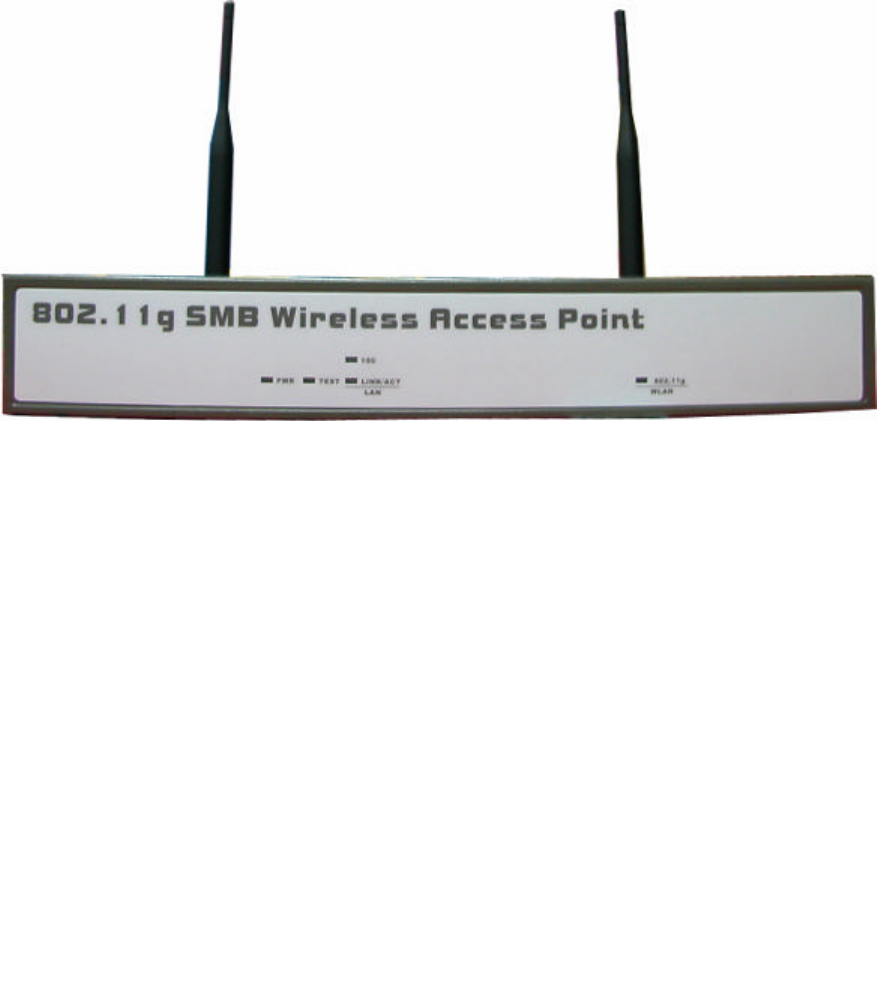
802.11g SMB
Wireless Access Point
User’s Manual

1
FCC Information
This device complies with Part 15 of the FCC Rules. Operation is subject to the following two
conditions: (1) this device may not cause harmful interference, and (2) this device must accept
any interference received; including interference that may cause undesired operation.
Federal Communications Commission (FCC) Statement
This Equipment has been tested and found to comply with the limits for a Class B digital
device, pursuant to Part 15 of the FCC rules. These limits are designed to provide reasonable
protection against harmful interference in a residential installation. This equipment generates,
uses and can radiate radio frequency energy and, if not installed and used in accordance with
the instructions, may cause harmful interference to radio communications. However, there is
no guarantee that interference will not occur in a particular installation. If this equipment does
cause harmful interference to radio or television reception, which can be determined by
turning the equipment off and on, the user is encouraged to try to correct the interference by
one or more of the following measures:
- Reorient or relocate the receiving antenna.
- Increase the separation between the equipment and receiver.
- Connect the equipment into an outlet on a circuit different from that to which the receiver is
connected.
-Consult the dealer or an experienced radio/TV technician for help.
FCC RF Radiation Exposure Statement:
1. This Transmitter must not be co-located or operating in conjunction with any other
antenna or transmitter.
2. This equipment complies with FCC RF radiation exposure limits set forth for an
uncontrolled environment. This equipment should be installed and operated with a
minimum distance of 20 centimeters between the radiator and your body.
Changes or modifications not expressly approved by the party responsible for compliance
could void the user's authority to operate the equipment."
2
Table of Content
Chapter 1 Introduction....................................................................................................... 3
1-1 Features and Benefits.................................................................................................. 3
1-2 Applications ................................................................................................................ 4
Chapter 2 Hardware Installation....................................................................................... 5
2-1 Package Contents........................................................................................................ 5
2-2 System Requirements.................................................................................................. 5
2-3 Mechanical Description.............................................................................................. 6
2-4 Hardware Installation.................................................................................................. 8
2-5 Safety Notification...................................................................................................... 9
Chapter 3 Configuring your Access Point with the Web-Based User Interface .......... 10
3-1 Start-up and Log in ................................................................................................... 10
3-2 IP Setup ..................................................................................................................... 12
3-3 Wireless Setup........................................................................................................... 15
3-4 Tools .......................................................................................................................... 25
3-5 Management.............................................................................................................. 26
3-6 AP Status ................................................................................................................... 29
Chapter 4 Troubleshooting ............................................................................................... 30
Limited Warranty ............................................................................................................. 33
3
Chapter 1 Introduction
The 802.11g SMB Wireless Access Point is 2.4GHz and up to 54Mbps wireless LAN access
point. The 802.11g SMB Wireless Access Point can communicate with other mobile devices
enabled for 802.11g standard-based wireless LAN connectivity. Using the card in conjunction
with the 802.11g SMB Wireless Access Point, you can create a wireless network for sharing
your broadband cable or DSL Internet access among multiple PCs in and around your home
or office and enjoy amazing speed of 54Mbps.
This high-speed wireless device simultaneously supports both IEEE 802.11b and 802.11g
wireless networks and lets you quickly network multiple PCs and notebooks without laying
new cables, and gives users the freedom to roam throughout the workplace and stay
connected to corporate resources, e-mail, and the Internet.
1-1 Features and Benefits
n Technique operating in the unlicensed 2.4GHz ISM band.
n Delivers up to 54Mbps. Wireless nodes negotiate to operate in the optimal data transfer
rate. In a noisy environment or when the distance between the wireless nodes is far, the
wireless nodes automatically adjusts to operate at the optimal speed.
n Interoperable with IEEE 802.11g wireless devices.
n Provides the highest available level of WEP encryption: 64-bit, 128-bit, and 152-bit for
802.11g devices.
n Interfaces directly to IEEE 802.3 (10/100-BaseTX RJ-45 LAN port) Fast Ethernet
networks.
n Supports 1, 2, 5.5, 11, 6, 9,12,18, 24, 36, 48, and 54 Mbps data rates.
n MAC Address Control provides increased security.
4
1-2 Applications
The 802.11g SMB Wireless Access Point offers a fast, reliable, high-speed, and high security
solution for wireless clients access to the network in applications like these:
1. Remote access to corporate network information
E-mail, file transfer and terminal emulation.
2. Difficult-to-wire environments
Historical or old buildings, asbestos installations, and open area where wiring is difficult
to deploy.
3. Frequently changing environments
Retailers, manufacturers and those who frequently rearrange the workplace and change
location.
4. Temporary LANs for special projects or peak time
♦ Trade shows, exhibitions and construction sites where a temporary network will be
practical.
♦ Retailers, airline and shipping companies need additional workstations during peak
period.
♦ Auditors requiring workgroups at customer sites.
5. Access to database for mobile workers
Doctors, nurses, retailers, accessing their database while being mobile in the hospital,
retail store or office campus.
6. SOHO (Small Office and Home Office) users
SOHO users need easy and quick installation of a small computer network.
7. High security connection
The secure wireless network can be installed quickly and provide flexibility.
5
Chapter 2 Hardware Installation
This chapter describes initial setup of the 802.11g SMB Wireless Access Point.
2-1 Package Contents
The package you have received should contain the following items: If any of the above items
are not included or damaged, please contact your local vendor for support.
• 802.11g SMB Wireless Access Point…………………………...……………..x1
• Power Adapter…………………………………………………………………x1
• Product CD… .…………………………………………………………………x1
• The User Manual… ...………………………………………………………….x1
2-2 System Requirements
Before installing the 802.11g SMB Wireless Access Point, please make sure that these
requirements have been met:
n A 10/100 Mbps Local Area Network device such as a hub or switch.
n Category 5 networking cable.
n An A/C power adapter (12V, 1.2A).
n A Web browser for configuration: Microsoft IE 4.0 or above, or Netscape Navigator 4.5
or later version.
n Installing TCP/IP protocol to the computer.
6
2-3 Mechanical Description
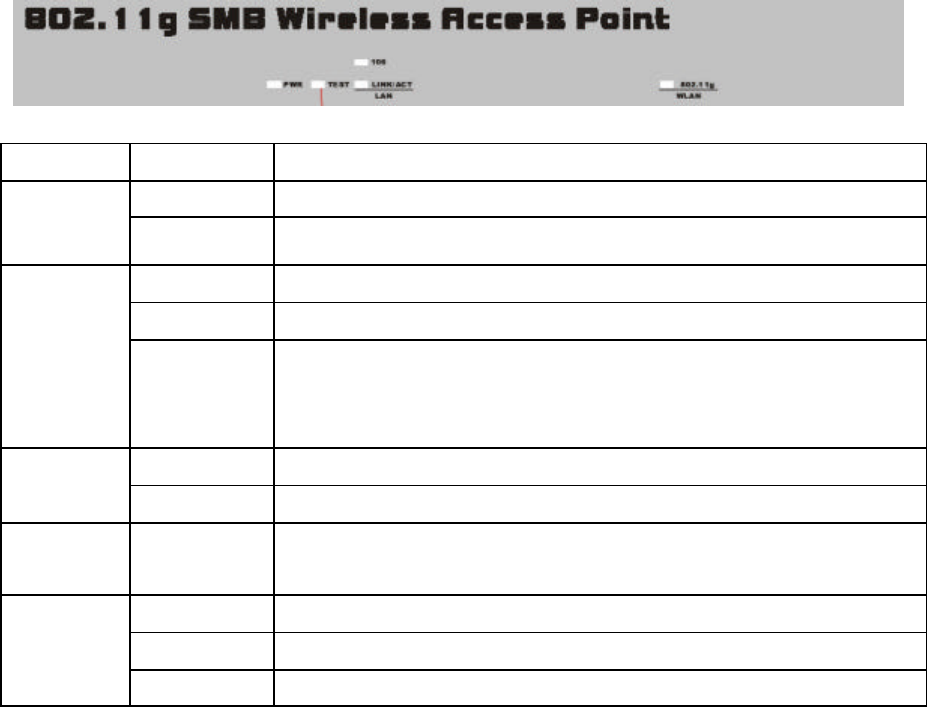
Front Panel
The front panel provides LED’s for device status. Refer to the following table for the meaning
of each feature.
LED STATUS Description
Off 802.11g SMB Wireless Access Point is off.
PWR On 802.11g SMB Wireless Access Point is in service.
Off Indicates that leaving boot-code mode.
On Indicates that entering boot-code mode.
TEST
Blinking
1.Reset button is pressed around 3 seconds (slow blinking).
2. Reset button is pressed after 3 seconds (fast blinking).
3. After firmware is upgraded, the TEST LED light will be off.
Off 10 Mbps Ethernet link is detected but no activity.
LAN
(100) On 100Mbps Fast Ethernet link is detected but no activity.
LAN
(LINK/ACT)
Blinking Indicates that Data processing. (Frequency depends on traffic)
Off Indicates no 802.11g wireless links.
On Wireless LAN is in service but no activity.
802.11g
WLAN Blinking Indicates the device is linking or active data through wireless links.
7
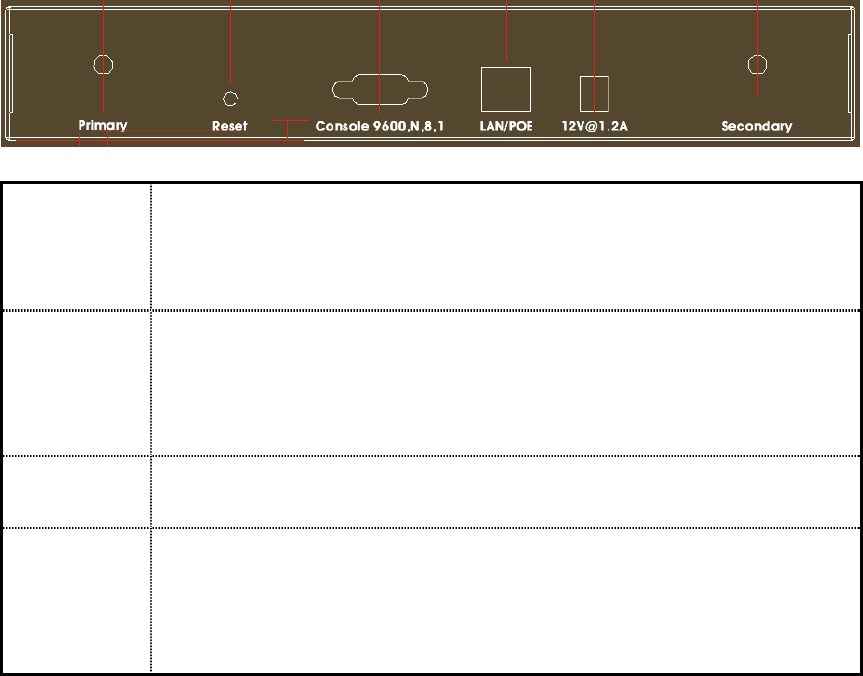
Rear Panel
To know the rear panel features, please refer to the following table for the meaning of each
feature.
Power
Socket
(DC 12v)
Connect the DV 12V/1.2A power supply. ONLY use the power adapter
supplied with the 802.11g SMB Wireless Access Point. Otherwise, the
product may be damaged.
Reset It is very quick to reset (reboot) the 802.11g SMB Wireless Access
Point without changing any settings. Simply press the button and keep
pressing it for around 10 seconds. Then, you can reset the 802.11g
SMB Wireless Access Point’s configuration to factory default settings.
LAN Use the Ethernet RJ-45 port to connect to the 10/100Mbps Ethernet
network and Ethernet through a device such as a hub, switch, or router.
Primary/
Secondary
Here you can combine the antenna with the 802.11g SMB Wireless
Access Point to wirelessly connect to the 802.11g networks. In order to
improve the RF signal radiation of your antenna, proper antenna
placement is necessary.
8
2-4 Hardware Installation
Before installing the 802.11g SMB Wireless Access Point, you should make sure that your
Ethernet network is up and working with a computer. You'll be connecting the access point to
the Ethernet network so that computers with 802.11g wireless adapters will be able to
communicate with computers on the Ethernet network.
Please take the following steps to successfully to set up the 802.11g Access Point.
Note: We suggest you first install the 802.11g SMB Wireless Access Point with default
settings.
n Site Selection
Before installation, it is very important to decide on the location of the 802.11g SMB
Wireless Access Point. Proper placement of the 802.11g SMB Wireless Access Point is
critical to ensure optimum radio range and performance. Typically, the best location to
place the 802.11g SMB Wireless Access Point at your site is the center of your wireless
coverage area. Try to place your mobile stations within the line of sight. Obstructions
may impede performance of the 802.11g SMB Wireless Access Point.
n 802.11g SMB Wireless Access Point Placement
You can place the 802.11g SMB Wireless Access Point on a flat surface such as a table
or cabinet, or mount the unit on a vertical surface like a wall. The integrated antenna of
your Access Point performs best in an open environment with as few obstructions as
possible. In most situations placing the 802.11g SMB Wireless Access Point will provide
satisfactory performance results.
Note: We suggest you configure and verify the 802.11g SMB Wireless Access Point
operations first before you are planning to mount the 802.11g SMB Wireless Access
Point on a wall or in a remote location.
n Connect the Ethernet Cable
The 802.11g SMB Wireless Access Point supports 10/100M Ethernet connection.
Attach your UTP Ethernet cable to the RJ-45 connector on the 802.11g SMB Wireless
Access Point. Then connect the other end of the RJ-45 cable to a hub or a station.
9
n Connect the Power Cable
Connect the power adapter to the power socket on the 802.11g SMB Wireless Access
Point, and plug the other end of the power into an electrical outlet.
Warning: We cannot assume the responsibility for the damage from using with the other
power adapter supplier.
n Configure the wireless device settings
To access the 802.11g SMB Wireless Access Point, wireless device needs to configure
the 802.11b or 802.11g Wireless Adapter to use the 802.11g SMB Wireless Access Point
factory default settings as follows:
SSID: Access Point
Channel: 11
WEP: Disable
n Verify wireless connectivity to the network
Using a computer with an 802.11b or 802.11g wireless adapter, browse internet or check
file access on the network. If everything is functioning properly, then you have
successfully installed the 802.11g SMB Wireless Access Point.
2-5 Safety Notification
Your Wireless AP should be placed in a safe and secure location. To ensure proper operation,
please keep the unit away from water and other damaging elements.
§ Please read the user manual thoroughly before you install the device.
§ This device should only be repaired by authorized and qualified personnel.
§ Please do not try to open or repair the device yourself.
§ Do not place the device in a damp or humid location, i.e. a bathroom.
§ Please do not expose the device to direct sunlight or other heat sources. The housing and
electronic components may be damaged by direct sunlight or heat sources.
10
Chapter 3 Configuring your Access Point
with the Web-Based User Interface
3-1 Start-up and Log in
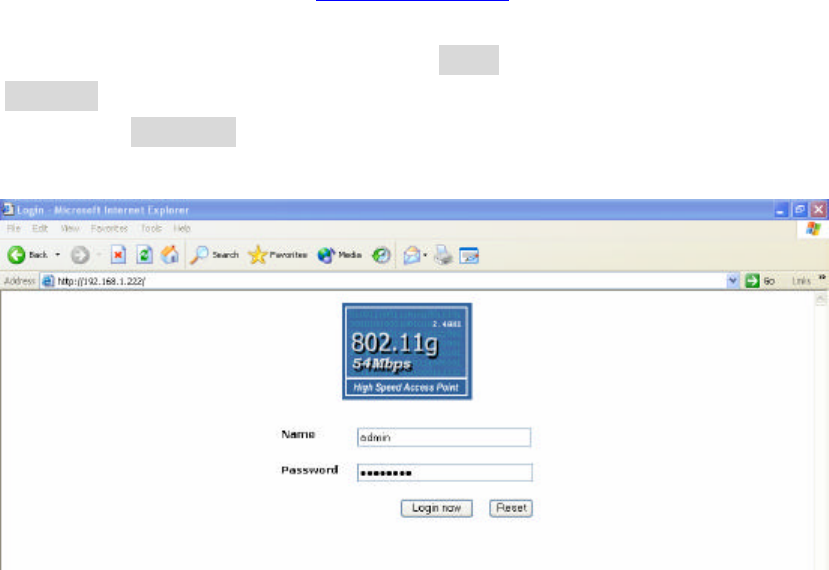
In order to configure the Access Point, you must use your web browser and please do the
following:
1. Type this Access Point’s address http://192.168.0.222 in the Location (for IE) or Address
field and press Enter.
2. Enter the system name (the default setting is “admin”) and password (the default setting is
“password”).
3. Click on the “Login now” button.
4. The main page will appear.
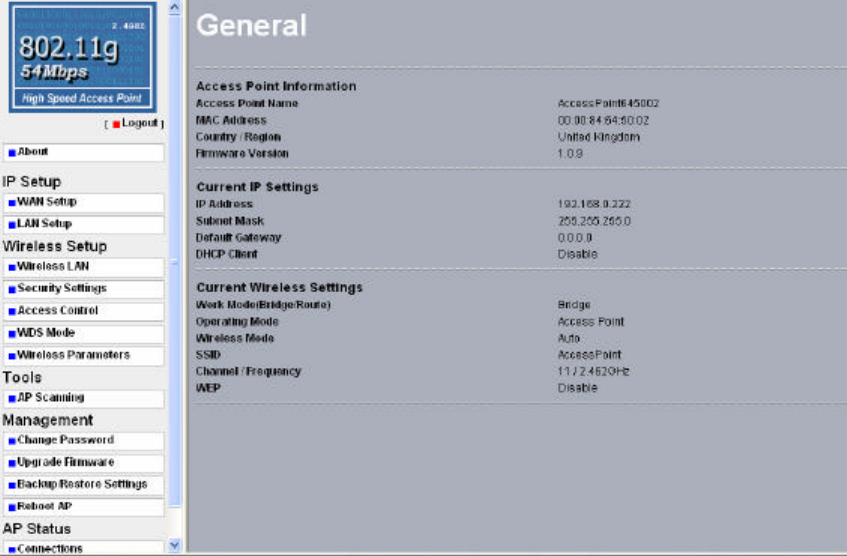
After you have logged-in the main page, the About, IP Setup, Wireless Setup, Tools,
Management, AP Status buttons will be shown. The main menu provides links to the whole
sections of the web configuration interface.
11
About
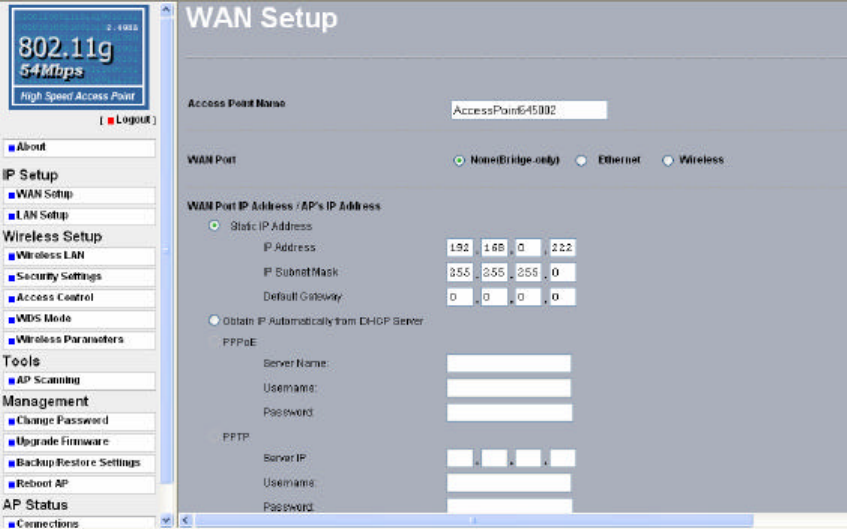
The About screen describes the product information briefly. The product information includes
Access Point Information, Current IP Settings, and Current Wireless Settings.
12
3-2 IP Setup
WAN Setup
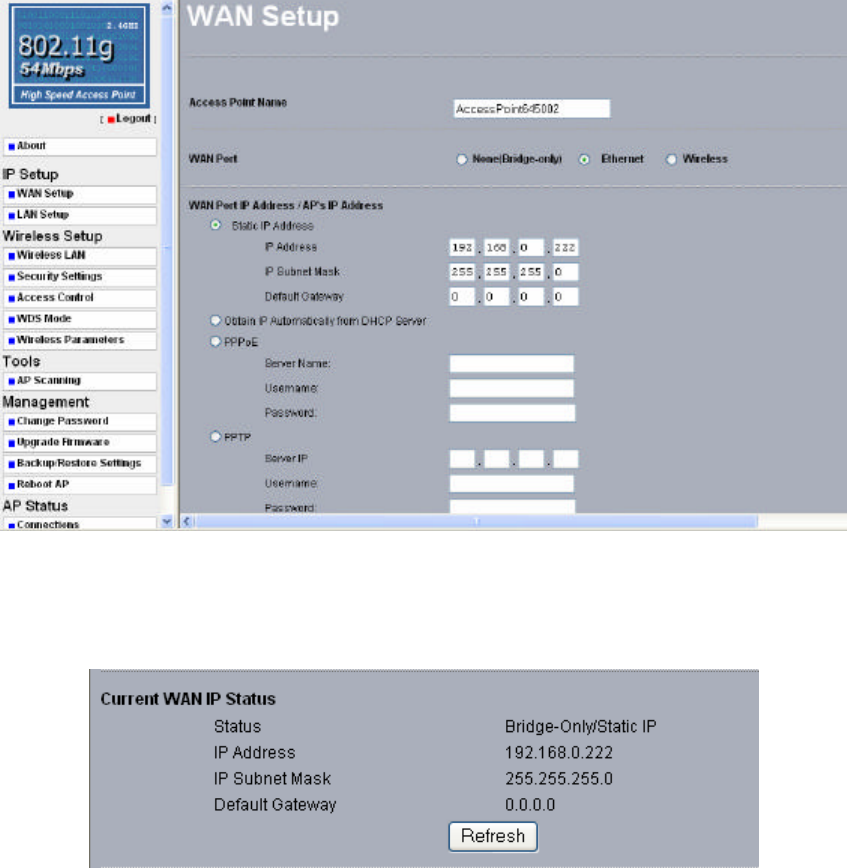
The Access Point Name is used to give a name to your Access Point. This will enable you to
manage your Access Point more easily if you have multiple Access Points on your network.
Please choose the WAN Port.
Ø None(Bridge-only): The Access Point is acting as a wireless bridge.
Ø Ethernet and Wireless: The Access Point is acting as a wireless router.
After selecting the correct WAN port, you need to give your access point WAN Port IP
Address / AP’s IP Address.
Ø Static IP Address: Allows you to assign the Access Point a static IP Address.
Static IP Address: The default setting
IP Address: 192.168.0.222
IP Subnet Mask: 255.255.255.0
Default Gateway: 0.0.0.0
To change the IP Address, specify the new IP address for the 802.11g SMB Wireless Access
Point.
13
Ø Obtain IP Automatically from DHCP Server: If you would like the Access Point to
obtain the IP address from the DHCP server on your network automatically, click the
check box next to “Obtain IP Automatically from DHCP Server”.
Ø PPPoE:
If you would like to use PPPoE, you need to enter:
Server Name: Enter the server name of your ISP account.
Username and Password: Enter the username and password of your ISP account.
Ø PPTP:
If you would like to use PPTP, you need to enter:
Server IP: Input the Server IP address of your ISP account.
Username and Password: Input the username and password that your ISP assigned to you.
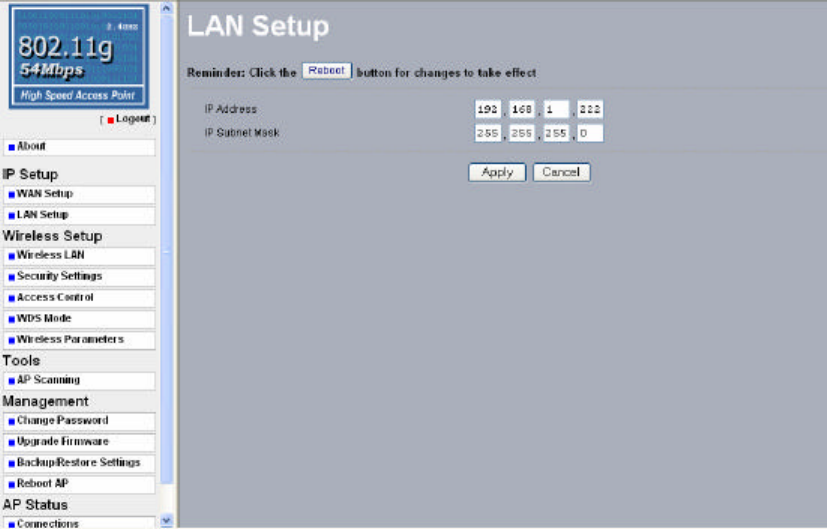
Current WAN IP Status:
Pressing the “Refresh” button shows the current WAN IP status on this Wireless Access Point
such as Status, IP Address, IP Subnet Mask as well as Default Gateway.
Note: If you complete the settings, please click on “Apply” and then “Reboot” for changes to
take effect.
14
LAN Setup
The settings for LAN Setup of the Wireless Access Point can be viewed and changed here.
After applying the settings, remember to reboot the Access Point to save your settings.
15
3-3 Wireless Setup
Wireless LAN
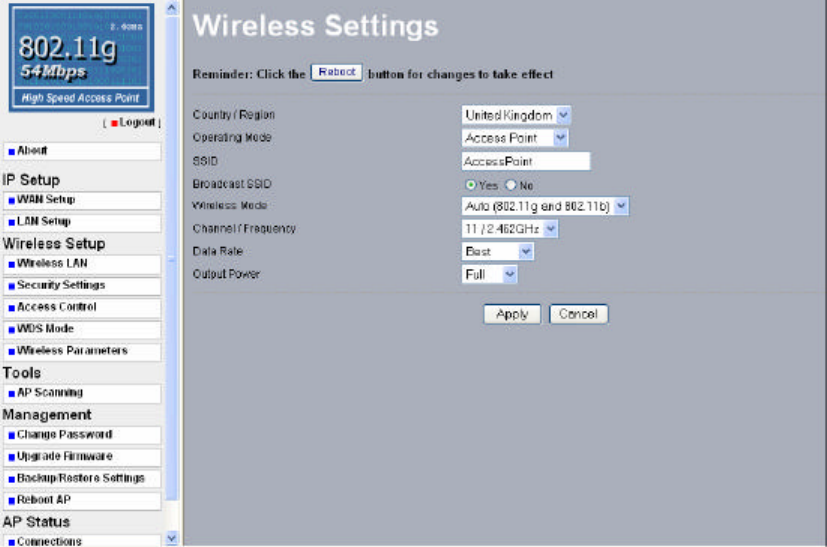
The Wireless LAN Setup page lets you make changes to the wireless network settings. From
this window you can make changes to the wireless network name Country / Region,
Operating Mode, SSID, Broadcast SSID, Wireless Mode, Channel/Frequency, Data Rate,
and Output Power.
Country / Region: Allow you to select country domain in case there is any chances that you
would use wireless network in other countries. They are Australia, Austria, Canada, China,
Denmark, Finland, France, Germany, Greece, Hong Kong, Iceland, Ireland, Italy, Japan,
Liechtenstein, Luxembourg, Netherlands, New Zealand, Norway, Portugal, Singapore, Spain,
Sweden, Switzerland, Taiwan, United Kingdom, United States.
Operating Mode: There are two operating modes: Access Point and Station Adapter. Not
only this device can be configured to work as a wireless network access point but also it can
be acting as a wireless client. To switch the mode, select the desired mode from the
down-arrow menu.
SSID: The SSID is a unique ID used by Access Points and Stations to identify a wireless
LAN. Wireless clients associating to any Access Point must have the same SSID. The default
SSID is “Access Point”. To change the SSID, type in the SSID you like to use. It is case
sensitive and must not exceed 32 characters.
16
Broadcast SSID: For security concern, you can choose not to broadcast your network’s SSID.
To turn off the broadcast of the SSID, click “No” check box next to “Broadcast SSID”. And
your Access Point will refuse the connection requests from whose are not aware the Network
ID. But certainly the Access Point can be easily connected well when you realize the Network
ID. The default setting is “Yes”.
Wireless Mode: There are three different wireless modes to operate, “Auto (802.11g and
802.11b)”, “802.11b Only”, and “802.11g Only”. In Auto (802.11g and 802.11b) mode, the
access point is compatible with a mix of both 802.11g and 802.11b clients. You will see that
the factory-set default “Auto (802.11g and 802.11b)” will prove the most efficient.
802.11b-Only mode is compatible with 802.11b clients only. This mode can be used only if
you do not allow any 802.11g clients to access to the network. 802.11g-Only mode is
compatible with 802.11g clients only. This mode can be used only if you do not allow any
802.11b clients to access to the network. To switch the mode, select the desired mode form
the pull-down menu next to “Wireless Mode”.
Channel / Frequency: Select the appropriate channel/Frequency from the list provided to
correspond with your network settings.
Date Rate: The basic transfer rates should be set depending on the speed of your wireless
network. Specifies rate of data transmission. Select the desired rate from the drop-down menu
and choose “Best” to adapt the rate to the best available.
Output Power: Set the transmit signal strength of the access point. The options are Full, 50%, 25%,
12.5%, and Min. Decrease the transmit power if necessary. The default is “Full”.
Note: If you complete the settings, please click on “Apply” and then “Reboot” for changes to
take effect.
17
Security Settings
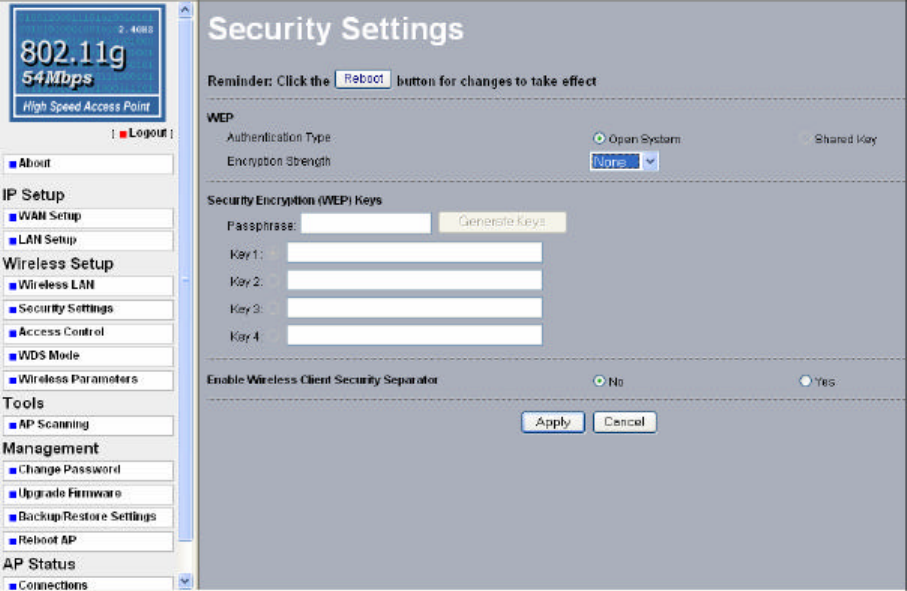
To prevent unauthorized wireless stations from accessing data transmitted over the network,
the 802.11g SMB Wireless Access Point WEP Security Configuration window offers data
encryption, known as WEP (Wired Equivalent Privacy), making your data transmission over
air more secure and allows you to specify Encryption Key(s) if you enable encryption for the
802.11g SMB Wireless Access Point.
For a step-by-step treatment of security configuration, please do the following:
1. Choose the Authentication Type
To set authentication for 802.11g band, you can select Open System or Shared Key
Authentication Type by selecting the radio button. All other devices using this band must
share this setting. Shared Key operation offers a step up in security over Open System
operation.
Open System: Requires NO authentication, since it allows any device to join a network
without performing any security check. The Authentication Type default is set to “Open
System”. We recommend that you use the default setting.
Shared Key: Requires that the station and the access point use the same WEP key to
authenticate. This basically means that WEP must be enabled and configured on both the
access point and the client with a same key. All points on your network must use the same
authentication type.
18
2. Select the Encryption Strength
For 802.11g, you must have four Encryption Keys set, and all keys must have the same
encryption strength. Your Access Point can operate in four different encryption strength,
“none”, “64-bit”, “128-bit”, and “152-bit”.
3. Set up Security Encryption Keys
There are two methods for creating WEP data encryption:
l Using a Passphrase: Type in a passphrase and click “Generate Keys”. Passphrase can
be a mixture of numbers and letters. When entering passphrase, you must not exceed 32
characters. As you type, the wireless station adapter will use an algorithm to generate 4
keys automatically. Select one key from the 4 WEP keys.
l Manually:
64 bits WEP: Enter 10 hexadecimal digits (between 0-9, a-f and A-F)
128 bits WEP: Enter 26 hexadecimal digits (between 0-9, a-f and A-F)
152 bits WEP: Enter 32 hexadecimal digits (between 0-9, a-f and A-F)
Note: The WEP key must be set up exactly the same on the Wireless Access Points as they
are on the wireless clients. If you set “0011223344” for the Wireless Access Point, the same
WEP key “0011223344” must be assigned to other client stations.
4. Enable Wireless Client Security Separator
Enable this function to let associated clients be able to separate from each other when security
is required. The default setting is Disable.
Note: If you complete the settings, please click on “Apply” and then “Reboot” for changes to
take effect.
19
Access Control
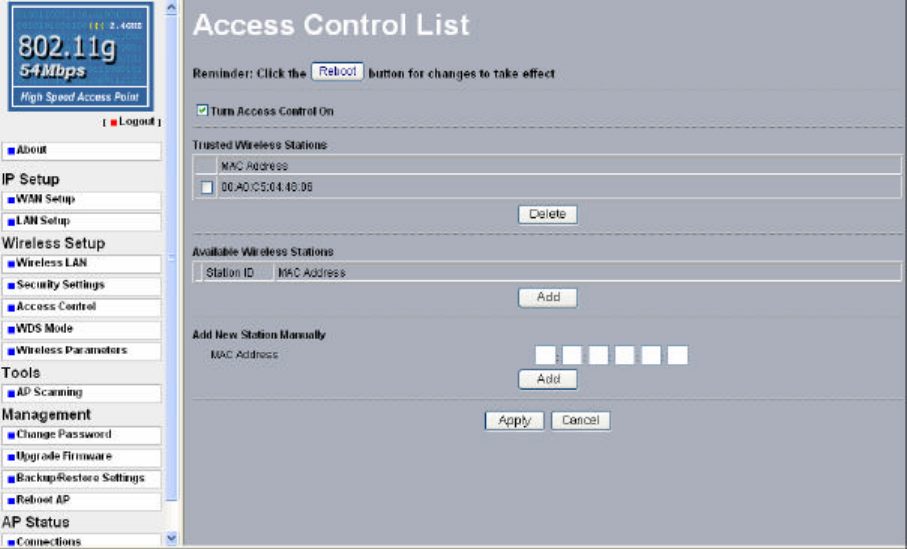
The Access Control allows you to restrict wireless access by MAC Address. This provides an
additional layer of security. Follow these steps:
1. In 802.11g SMB Wireless Access Point’s left page, choose the Access Control option from
the Wireless Setup.
2. If you want to enable filtering of computer by their MAC Address, click the check box
next to “Turn Access Control on”.
3. Then, either select form the list of available wireless stations that your Access Point has
found or enter the MAC address for each client. After enter the MAC Address, click
“Add” button in the MAC Address field to be managed.
4. Click “Delete” button if you wish to remove the MAC address from the list.
5. If you complete the settings, please click on “Apply” and then “Reboot” for changes to
take effect.
20
WDS Mode
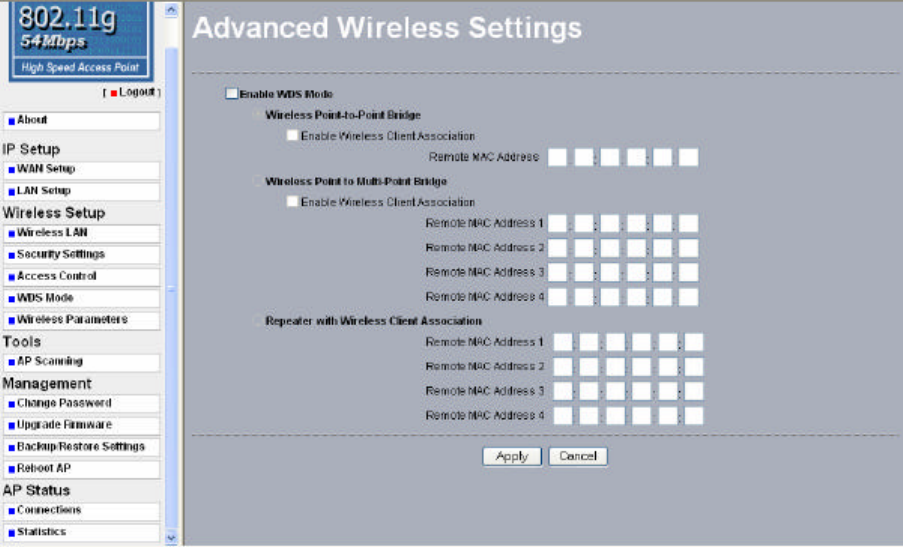
The feature lets you extend the range of your network without having to use cables to link the
Access Point, meaning that you can link the Access Points wirelessly. Under WDS, your
Access Points are still functioning as a regular Access Point, which can provide the link
services to wireless clients. To use WDS by clicking the check box next to “Enable WDS
Mode”. There are three modes in which an access point can be configured:
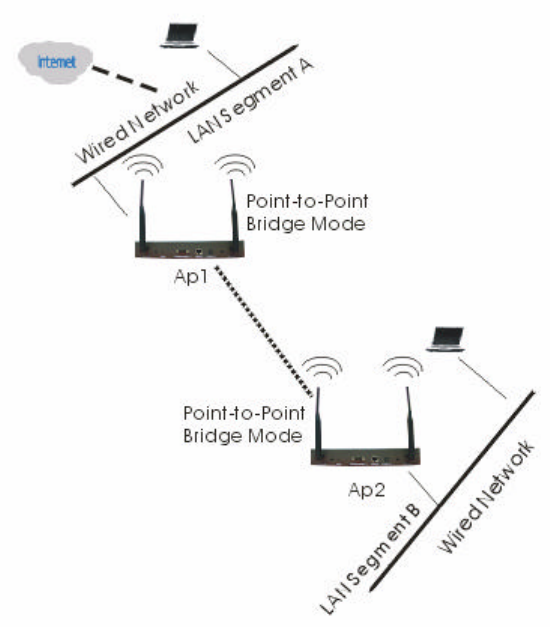
l Wireless Point-to-Point Bridge
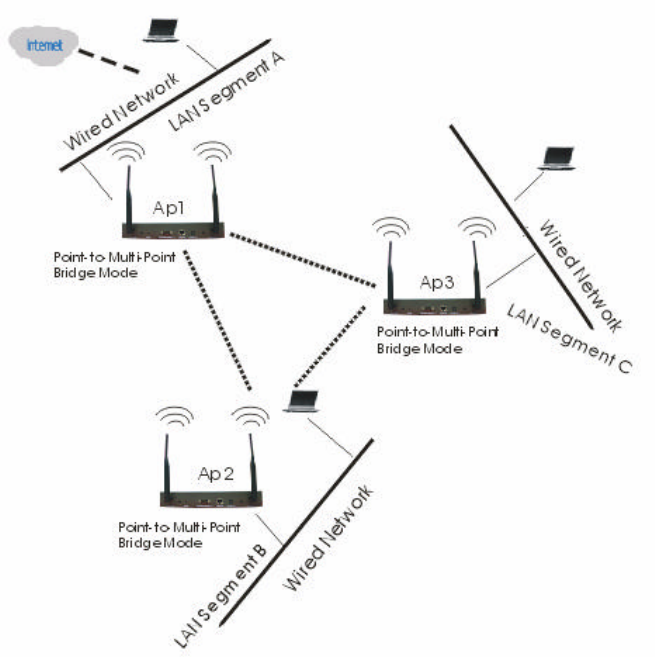
l Wireless Point to Multi-Point Bridge
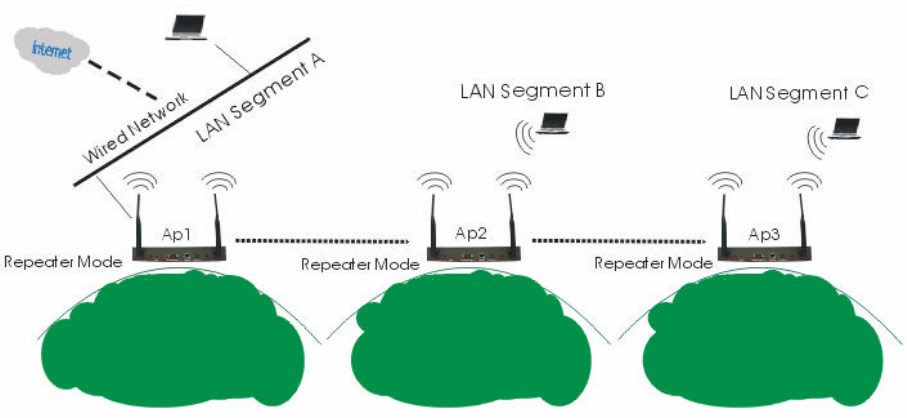
l Repeater with Wireless Client Association
21
Configure a Wireless Point-to-Point Bridge
To activate the Point-to-Point Bridge mode please do the following:
1. Configure WDS mode for both Access Point:
Ø Configure both AP1 on LAN Segment A and AP2 on LAN Segment B in Point-to-Point
Bridge mode.
Ø AP1 must have AP2’s Mac address and enter it in the Remote MAC Address field.
Ø AP2 must have AP1’s Mac address and enter it in the Remote MAC Address field.
2. Enable Access Point function:
Ø Verify that AP1 and AP2 are both configured in the same LAN network address range
as wireless clients with which associated.
Ø Make sure that Mode, SSID, Channel and encryption settings are set the same for both
of your WDS-compliant Access Points.
3. Then, wireless clients can communicate with other wireless clients that are located in
different LAN Segments.
4. After you complete the settings, please click on “Apply” and then “Reboot” for changes
to take effect.
22
Configure a Wireless Point to Multi-Point Bridge
To activate the Point-to Multi-Point Bridge mode please do the following:
1. Configure WDS mode for each Access Point:
Ø Configure AP1, AP2, and AP3 in Point-to Multi-Point Bridge mode.
Ø Verify that AP1 on LAN Segment A with the Remote MAC Address of AP2 and AP3.
Ø Verify that AP2 on LAN Segment B with the Remote MAC Address of AP1 and AP3.
Ø Verify that AP3 on LAN Segment C with the Remote MAC Address of AP1 and AP2.
2. Enable Access Point function:
Ø Verify that all access points are configured in Point-to Multi-Point Bridge mode.
Ø All the access points’ IP Address must be set in the same network.
Ø Make sure that Mode, SSID, Channel and encryption settings are set the same for all
of your WDS-compliant Access Points.
3. Then, wireless clients can communicate with other wireless clients that are located in
different LAN Segments.
4. After you complete the settings, please click on “Apply” and then “Reboot” for changes to
take effect.
Note: Under Point-to Multi-Point Bridge mode, you can extend this multi-point bridge by
adding additional 802.11g SMB Wireless Access Points for each additional LAN Segment.
23
Configure a Repeater with Wireless Client Association
To activate the Repeater with Wireless Client Association, please do the following:
1. Configure WDS mode for each Access Point:
Ø Configure AP1 on LAN Segment A in Repeater mode with the Remote MAC Address
of AP2.
Ø Configure AP2 on LAN Segment B in Repeater mode with the Remote MAC Address
of AP1 and AP3.
Ø Configure AP3 on LAN Segment C in Repeater mode with the Remote MAC Address
of AP2.
2. The device under the repeater mode also can be an AP mode. It means wireless clients
also can associate it.
Ø Verify that all access points are configured in Repeater Bridge mode.
Ø All the access points’ IP Address must be set in the same network.
Ø Make sure that Mode, SSID, Channel and encryption settings are set the same for all
of your WDS-compliant Access Points.
3. Then, wireless clients can communicate with other wireless clients that are located in
different LAN Segments.
4. After you complete the settings, please click on “Apply” and then “Reboot” for changes to
take effect.
Note: Under Repeater Bridge mode, you can extend this repeater bridge by adding additional
802.11g SMB Wireless Access Points for each additional LAN Segment.
24
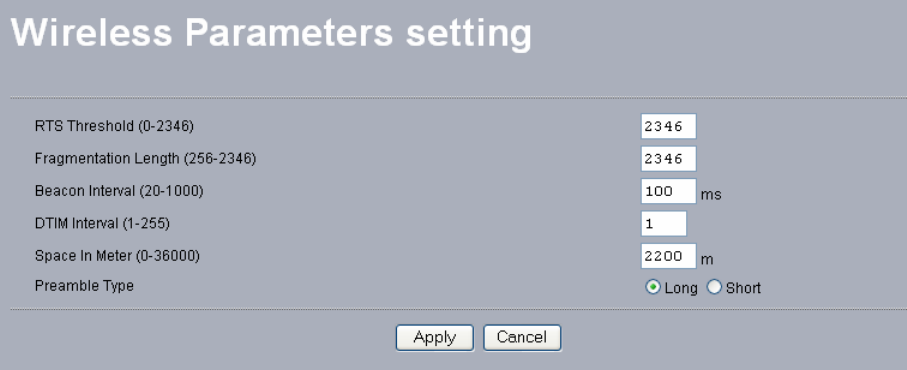
Wireless Parameters
These parameters can be changed if needed, but the default advanced setting usually work
well. It is recommended that you keep all these values in factory default.
RTS Threshold: RTS Threshold is a mechanism implemented to prevent the “Hidden Node”
problem. If the size of the packet transmitted is larger than the value you set, the RTS will be
enabled. When the RTS is activated, the station and its Access Point will use a (RTS/CTS)
mechanism for data transmission. The setting range is 0-2346.
Fragmentation Length: Fragmentation mechanism is used for improving the efficiency
when there is high traffic within the wireless network. If you transmit large files in a wireless
network, you can enable the Fragmentation Threshold and specify the packet size. This
specifies the maximum size a data packet will be before splitting and creating a new packet.
The setting range is 256-2346. For example: If you set value as 256, it means the packet will
be fragmented into “256” bytes while transmitting.
Beacon Interval: This value indicates the frequency interval of the beacon. A beacon is a
packet broadcast by the Access Point to keep the network synchronized. A beacon includes
the wireless LAN service area, the AP address, the Broadcast destination addresses, a time
stamp, Delivery Traffic Indicator Maps, and the Traffic Indicator Message (TIM).
DTIM Interval: This value indicates the interval of the Delivery Traffic Indication Message
(DTIM). A DTIM field is a countdown field informing clients of the next window for
listening to broadcast and multicast messages. When the Access Point has buffered broadcast
or multicast messages for associated clients, it sends the next DTIM with a DTIM Interval
value. Clients can hear the beacons and awaken to receive the broadcast and multicast
messages.
25
Space In Meter: This space in meter is used for extending ACK time-out destination. The
setting range is 0-36000.
Preamble Type: The preamble defines the length of the PLCP synchronization field for
communication between the Access Point and Network Card. (Short. Preamble is more
efficient but less compatibility) Select the appropriate preamble type and click the Apply
button to set it.
3-4 Tools
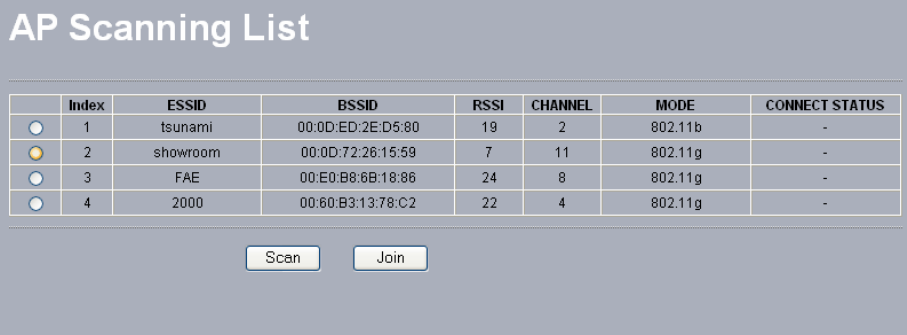
AP Scanning
The AP Scanning List will reload and display available Access Points around the working
environment by clicking the “Scan” button. Besides showing the BSSID of each Access Point,
The list includes ESSID, RSSI, CHANNEL, MODE, and CONNECT STATUS. To connect
one of displayed Access Point, just select the Access Point you desire and click the “Join”
button to make the connection.
26
3-5 Management
Change Password
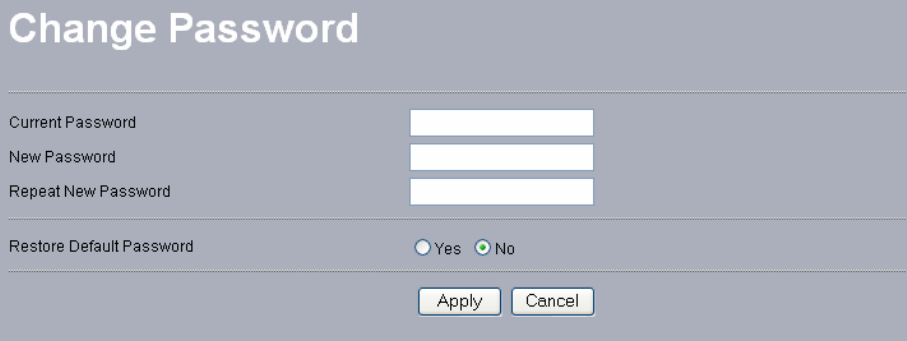
Here allow you to change the Access Point’s password, do the following:
1. To change the current password, choose the “Change Password” option from the
“Management” section in the 802.11g SMB Wireless Access Point’s left page. Key in the
default password “default” in the “Current Password” filed.
2. Changing password for the Access Point is as easy as typing the password into the New
Password field. Then, type it again into the Retype New Field to confirm. Click the
“Apply” button to save the setting.
Note: After you change password, please take note of your new password. Otherwise, you
will not able to access the 802.11g SMB Wireless Access Point setup. If you forget the
password, you could restore the default password “default” by clicking the “Yes” check box
in the “Restore Default Password” field or pressing the Reset button on the back panel of your
802.11g SMB Wireless Access Point for at least 10 second – and all previous configurations
will need to be input again.
27
Upgrade Firmware
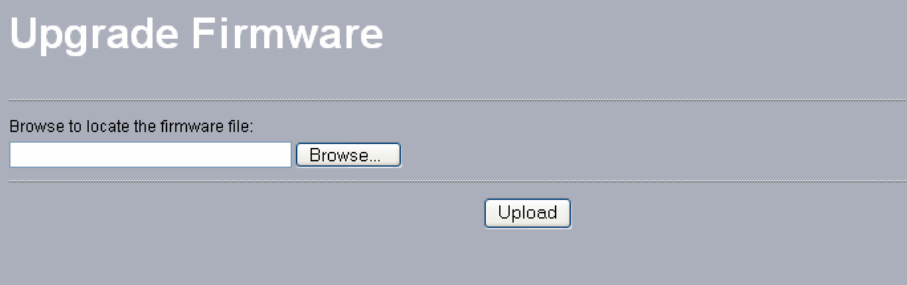
The Upgrade Firmware menu will display the Upgrade Firmware window so that you could
update the latest firmware on the 802.11g SMB Wireless Access Point.
Please make sure that you have downloaded the latest and correct firmware from the product
support website and store it in local drive before upgrading the firmware of the 802.11g SMB
Wireless Access Point.
To upgrade the latest firmware, complete the following:
l Using browser to access (192.168.0.222) AP’s main page.
1. Select Upgrade Firmware from the Management section.
2. Input the exact file path and name by clicking Browse button, then press Upload
button to upgrade the firmware.
3. Please wait for a few seconds.
l If download fail, please repeat the step 1~3 to download again.
l Note! Do not power off the unit when it is being upgraded.
28
Backup / Restore Settings
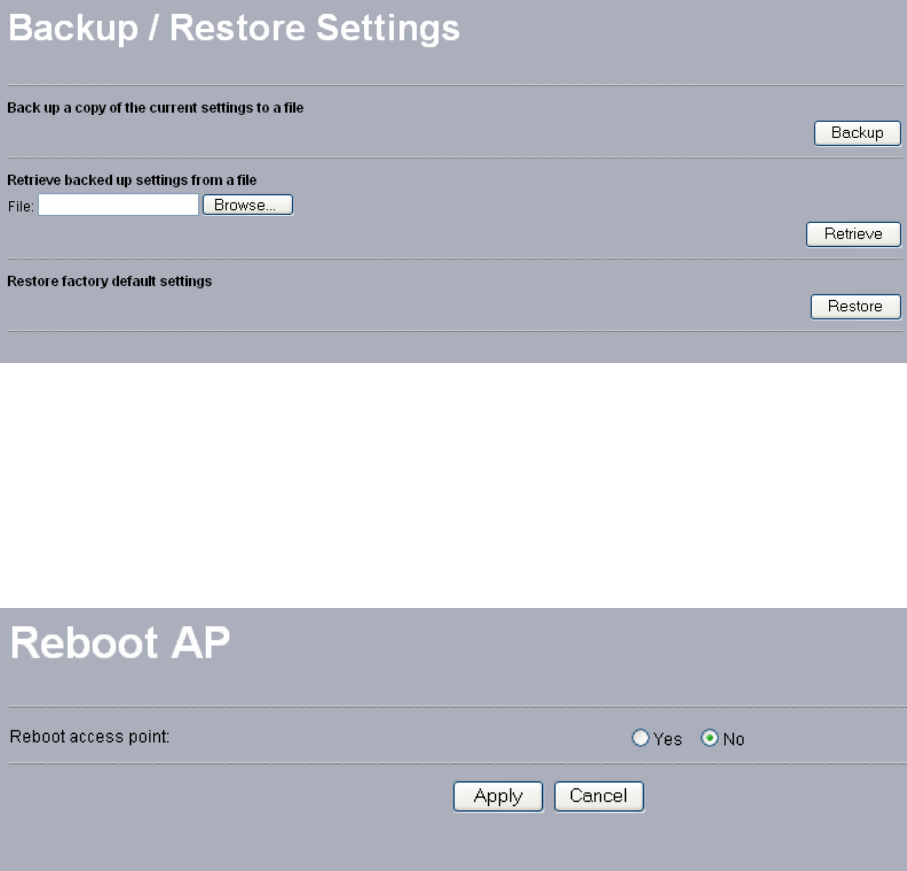
The current system settings can be backup as a file onto the local hard drive by clicking
“Backup”. The saved file can be loaded back on the Access Point by clicking “Browse”.
When you have selected the settings file, click “Retrieve” to begin the process.
Furthermore, you may click “Restore” to factory default settings.
Reboot AP
The Reboot AP screen enables you to reboot your 802.11g Wireless Access Point. If any
changes are made and you want them to take effect, you need to reboot the access point.
Select the “Yes” check box and click “Apply”. It will take you about 80 seconds to go
through reboot. The Web-browser will not be accessible until the access point has finished its
reboot process.
29
3-6 AP Status
Connections
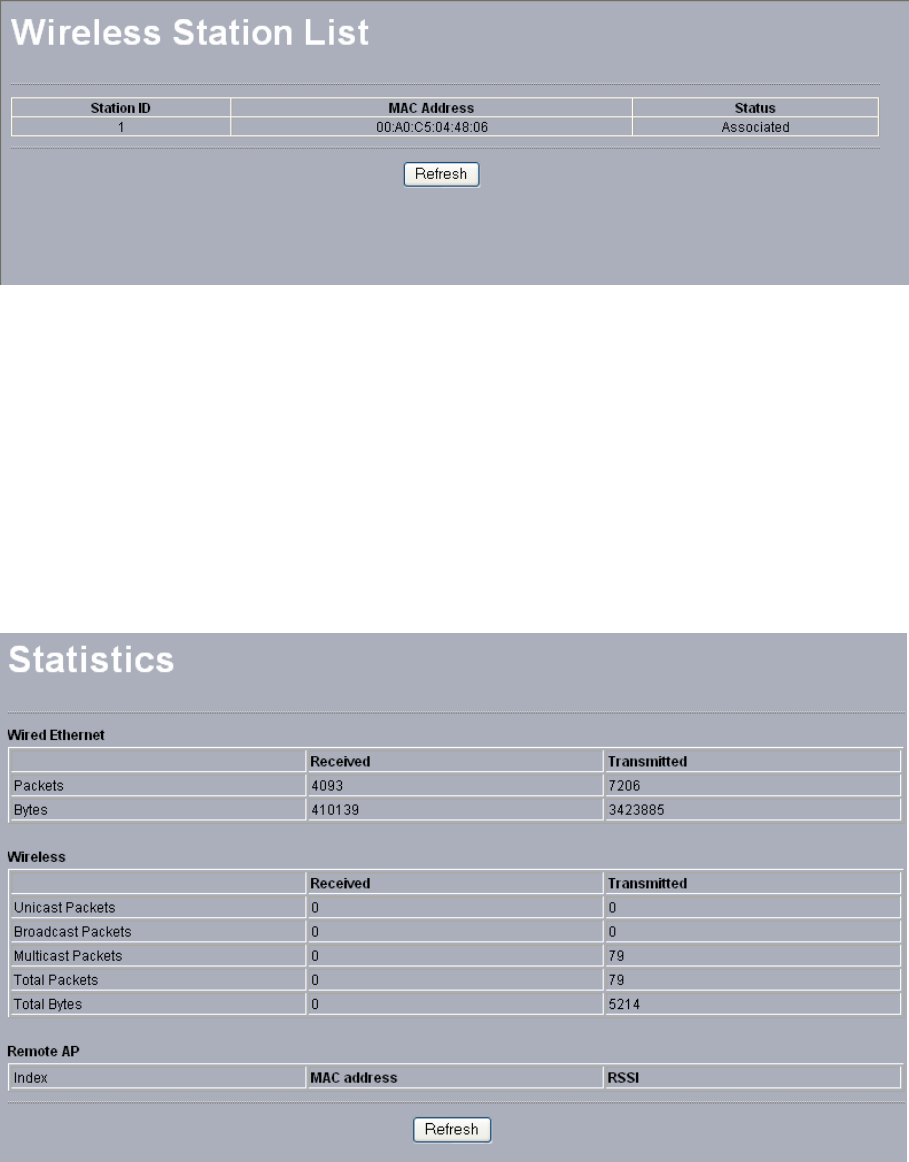
The station list page displays the association condition of AP includes ID, MAC Address, and
Status.
To display the Station List, follow these steps:
1. In 802.11g SMB Wireless Access Point’s left page, choose the Connection option from AP
Status.
2. The Station List window will display.
3. By clicking the “Refresh” button, the AP Browser will reload and show the associated
wireless stations that are currently part of its Basic Service Set (BBS).
Statistics
The Statistics screen provides various Ethernet and Wireless statistics on the Access Point.
Click the Refresh button to update the statistics on this screen.

30
Chapter 4 Troubleshooting
Q1. Why can’t I connect to Internet?
1. Make sure that your DSL or Cable modem is
running correctly.
2. The cable is connected properly form the WAN
port of the access point to your DSL or Cable
modem.
3. Make sure that the right WAN Setup is used in
the web configuration.
4. Make sure that the username and password input
in the WAN Setup is correct.
Q2. Why can’t I access my 802.11g
Wireless LAN AP?
1. Make sure that your AP is powered on.
2. Make sure that your computer has a compatible
IP address. Be sure that the IP address used on
your computer is set to the same as the AP. For
example, if the AP is set to 192.168.0.250, change
the IP address of your computer to 192.168.0.15
or another unique IP that corresponds to the
192.168.0.X subnet.
3. Use the Reset Button locates on the rear of the
AP to revert to the default settings.
31
Q3. How can I reset my 802.11g
Wireless LAN AP to factory
default?
1. Follow these steps to perform a Factory Reset
using the Reset button on the back of the 802.11g
Wireless LAN AP.
l With the unit on, press and hold the Reset
button with a pen or paper clip.
l Hold the reset button for about 10 seconds
until the Status LED on the front panel blinks
very quickly and then release.
l Wait a few seconds for the AP to reboot using
default settings.
2. A Factory Reset can also be performed through
the web configuration interface. Follow these
steps to perform a factory reset using the web
configuration interface.
l Log into the Wireless AP web configuration
interface.
l Click on the Reboot AP from the menu.
l Select “Yes” and click “Apply”.
3. You should reboot the AP to have the change take
effect.
Q4. What should I do if I forget my
password?
1. The only way is to restore factory configuration
to the Wireless AP. Please refer to question 3.
32
Q5. Why can’t I access the Wireless
AP from a wireless network card?
1. Make sure that Mode, SSID, Channel and
encryption settings are set the same on each
wireless adapters.
2. Make sure that your computer is within range and
free from any strong electrical devices that may
cause interference.
3. Check your IP address to make sure that it is
compatible with the Wireless AP.
Q6. How do I know if my computer
is connected to the Wireless AP?
1. Try the following procedure
Click “Start”-> “Programs”-> “Accessories”->
“Command prompt”.
2. At your MS-DOS prompt, you can use the ping
command to check if your computer has
successfully connected to the Wireless AP.
3. Execute the ping command: ping 192.168.0.222.
4. Check if you can access the Wireless AP’s setup
page by typing “192.168.0.222” in the Location
(for IE) or Address field.

33
Limited Warranty
This Warranty constitutes the sole and exclusive remedy of any buyer or reseller’s equipment
and the sole and exclusive liability of the supplier in connection with the products and is in
lieu of all other warranties, express, implied or statutory, including, but not limited to, any
implied warranty of merchantability of fitness for a particular use and all other obligations or
liabilities of the supplier.
In no even will the supplier or any other party or person be liable to your or anyone else for
any damages, including lost profits, lost savings or other incidental or consequential damages,
or inability to use the software provided on the software media even if the supplier or the
other party person has been advised of the possibility of such damages.
The following are special terms applicable to your hardware warranty as well as services you
may use during part of the warranty period. Your formal Warranty Statement, including the
warranty applicable to our Wireless LAN products, appears in the Quick Installation Guide
that accompanies your products.
Duration of Hardware Warranty: 13 months
Replacement, Repair or Refund Procedure for Hardware:
If your unit needs a repair or replacement, return it to your dealer/distributor in its original
packaging. When returning a defective product for Warranty, always include the following
documents:
n The Warranty Repair Card
n A copy of the invoice/proof of purchase, and
n The RMA Report Form (To receive a Return Materials Authorization form (RMA),
please contact the party from whom you purchased the product).
Upon proof-of-purchase we shall, at its option, repair or replace the defective item at no cost
to the buyer.
This warranty is contingent upon proper use in the application for which the products are
intended and does not cover products which have been modified without the reseller’s
approval or which have been subjected to unusual physical or electrical demands or damaged
in any way.

34
Please complete the information below and include it along with your products.
Name:
Title:
Company:
Telephone:
Fax:
Email:
City/State/Zip code:
Country:
Product Name:
Serial Number:
MAC Address:
Invoice Date:
Product Description:
If you have any further questions, please contact your local authorized reseller for support.