Z Com 0XG950 IEEE 802.11g Wireless LAN PCI Card User Manual About Wireless LAN PC Card 1
Z Com Inc IEEE 802.11g Wireless LAN PCI Card About Wireless LAN PC Card 1
Z Com >
Users Manual

- 1 -
IEEE 802.11g Wireless LAN
PCI Card
Date of Issue: Aug. 15th, 2003
- 2 -
Table of Contents
Chapter 1 About Wireless LAN PCI Card............................. 3
1-1 Features and Benefits ...................................................................................................... 3
1-2 Applications..................................................................................................................... 4
1-3 Product Kit....................................................................................................................... 5
1-4 About Wireless LAN PCI Card LED Indicators .............................................................. 5
Chapter 2 Getting Started ....................................................... 6
2-1 Before Installation ........................................................................................................... 6
2-2 Insert the 802.11g Wireless LAN PCI Card..................................................................... 6
Chapter 3 Install Driver for Windows.................................... 7
3-1 Set up Wireless LAN PCI Card for Windows XP ............................................................. 7
3-2 Set up Wireless LAN PCI Card for Windows 2000........................................................ 13
3-3 Set up Wireless LAN PCI Card for Windows 98SE/ ME................................................ 17
Chapter 4 Configure the Wireless LAN PCI Card ....................... 21
4-1 Install the WLAN Utility ................................................................................................ 21
4-2 Use the WLAN Utility .................................................................................................... 23
Basic Setting ................................................................................................................ 23
Advance Setting............................................................................................................ 31
Limited Warranty .................................................................. 33

- 3 -
Chapter 1 About Wireless LAN PCI Card
The 802.11g Wireless LAN PCI Card is a standard PCI adapter that fits into any standard PCI
slot in a desktop computer. The 802.11g Wireless LAN PCI Card is an enhanced
high-performance, that supports high-speed wireless networking at home, at office or in public
places. 802.11g Wireless LAN PCI Card is able to communicate with any 802.11b and 802.11g
compliant products.
1-1 Features and Benefits
1. Supports 1, 2, 5.5, 11 Mbps and up to 54Mbps data rate.
2. Working range up to 800 ft. in an open environment.
3. Seamless connectivity to wired Ethernet and PC network LAN’s augments existing
networks quickly and easily.
4. Greater flexibility to locate or move networked PCs.
5. Wireless connection without the cost of cabling.
6. Easy to install and user friendly, just Plug and Play.
7. Low power consumption.
8. Supports a variety of operating systems (Win98SE/ME/2000/XP)
9. 64-bit and 128-bits WEP encryption capable.
10. Provides Window-based Diagnostic Tools, most notably, Site Survey, Link Quality Test
and Access Point Browser.
11. Compliant with protocol 802.11g v.8.2.
12. Protection mechanism, which can avoid 11g packet and 11b packet colliding with each
other.
13. Supports Nitro mode (packet bursting), which can highly increase 11g efficiency.

- 4 -
1-2 Applications
802.11g Wireless LAN PCI Card offers a fast, reliable, cost-effective solution for wireless client
access to the network in applications like these:
1. Remote access to corporate network information
E-mail, file transfer and terminal emulation.
2. Difficult-to-wire environments
Historical or old buildings, asbestos installations, and open area where wiring is difficult
to deploy.
3. Frequently changing environments
Retailers, manufacturers and those who frequently rearrange the workplace and change
location.
4. Temporary LANs for special projects or peak time
- Trade shows, exhibitions and construction sites where a temporary network will be
practical.
- Retailers, airline and shipping companies need additional workstations during peak
period.
- Auditors requiring workgroups at customer sites.
5. Access to database for mobile workers
Doctors, nurses, retailers, accessing their database while being mobile in the hospital,
retail store or office campus.
6. SOHO (Small Office and Home Office) users
SOHO users need easy and quick installation of a small computer network.
7. High security connection
The secure wireless network can be installed quickly and provide flexibility.
- 5 -
1-3 Product Kit
802.11g Wireless LAN PCI Card comes with the following items. Please go through each item
below. If any of listed items appears to be damaged or missing, please contact your local dealer.
802.11g Wireless LAN PCI Card
! 802.11g Wireless LAN PCI Card………………….………………….….….. x 1
! 802.11g PCI Card Software and Documentation CD ………………….….... x 1
! 802.11g Wireless LAN PCI Card Quick Installation Guide…..…………..… x 1
1-4 About Wireless LAN PCI Card LED Indicators
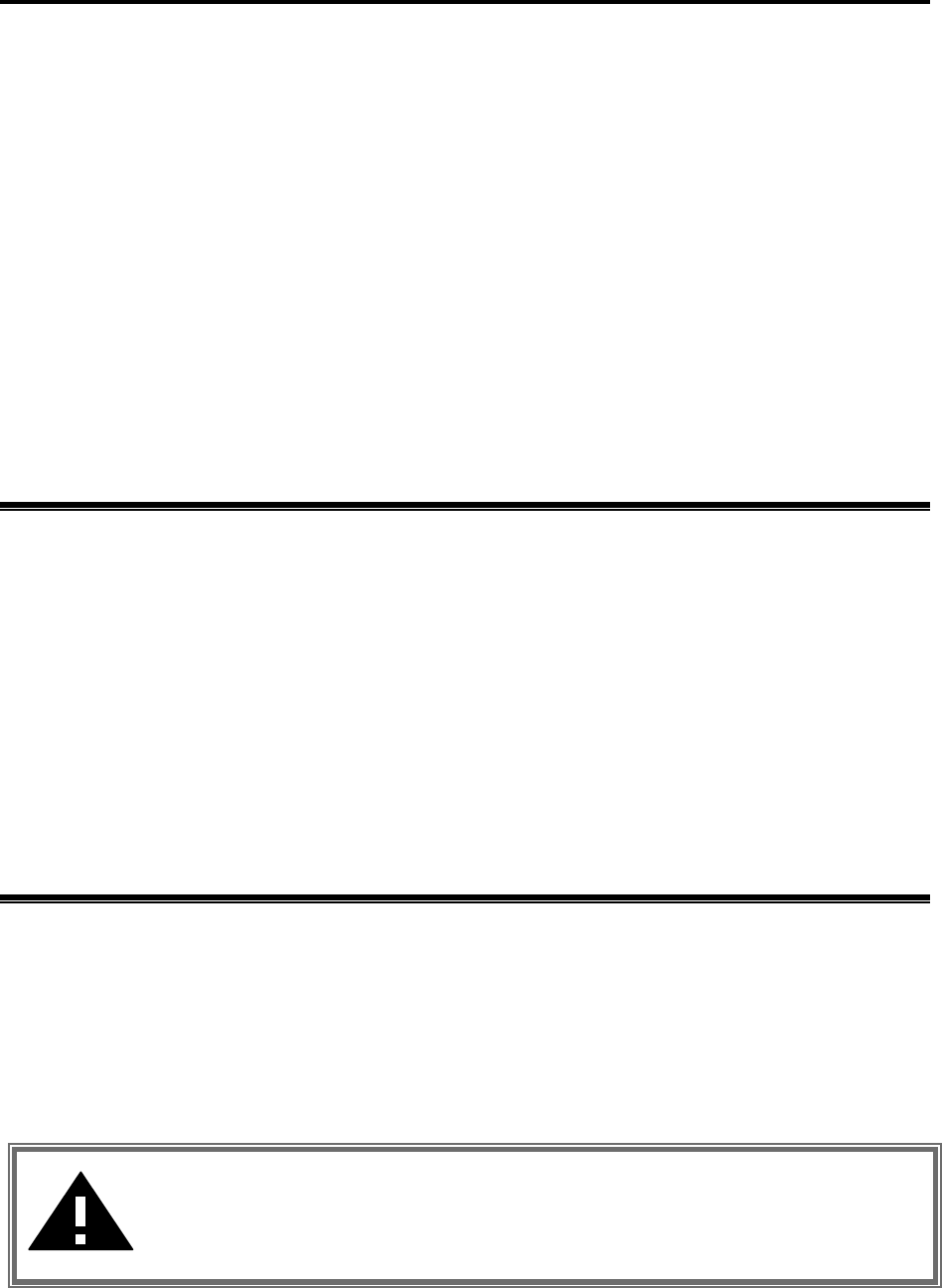
The 802.11g Wireless LAN PCI Card has one LED indicator. The behavior of the indicators is
described as below:
Link LED
# Solid Green – Connect with the Access Point or Ad-Hoc wireless workstation.
# Blinking Orange – Indicate the device is active data through the Access Point or Ad-Hoc
wireless workstation.
Link
- 6 -
Chapter 2 Getting Started
This chapter describes the instructions that guide you through the proper installation of your
802.11g Wireless LAN PCI Card for the Windows XP/2000/ME/98SE operating systems.
The complete installation of the 802.11g Wireless LAN PCI Card consists of the following
steps:
STEP 1: Insert your Wireless LAN PCI Card into the connector of any free PCI Bus Master
expansion slot on your desktop computer.
STEP 2: Install the corresponding driver and utility.
STEP 3: Set basic settings.
STEP 4: Finish Installation.
2-1 Before Installation
In addition to the items shipped with the client adapter, you will also need the following in order
to install the adapter:
1. A computer equipped with PCI slot.
2. Windows XP/2000/98SE/ME (with a Windows installation CD-ROM, diskettes for use
during installation).
3. Minimum 5 Mbytes free disk space for installing driver and utility program.
2-2 Insert the 802.11g Wireless LAN PCI Card
To install the 802.11b Wireless LAN PCI Card, please do the following:
1. Open the case of your desktop computer
2. Find an available PCI slot on your computer.
3. Insert the PCI adapter into the PCI slot.
4. Close the case of the computer and start Windows.
CAUTION: Do not force the client adapter into the slot. Forcing it will damage
both the client adapter and the slot. If the client adapter does not go in easily,
remove the card and reinsert it.
- 7 -
Chapter 3 Install Driver for Windows
This section describes the installation of the 802.11g Wireless LAN PCI Card driver for the
Windows 98SE/ME/2000 and Windows XP operating systems. The installation procedures for
Windows XP refer to 3-1 Set up Wireless LAN PCI Card for Windows XP; for Windows 2000
please see 3-2 Set up Wireless LAN PCI Card for Windows 2000; for Windows 98SE/ME refer
to 3-3 Set up Wireless LAN PCI Card for Windows 98SE/ME.
Note: Before you start the installation, you are advised to keep the Windows
CD-ROM in case you might need certain system files.
3-1 Set up Wireless LAN PCI Card for Windows XP
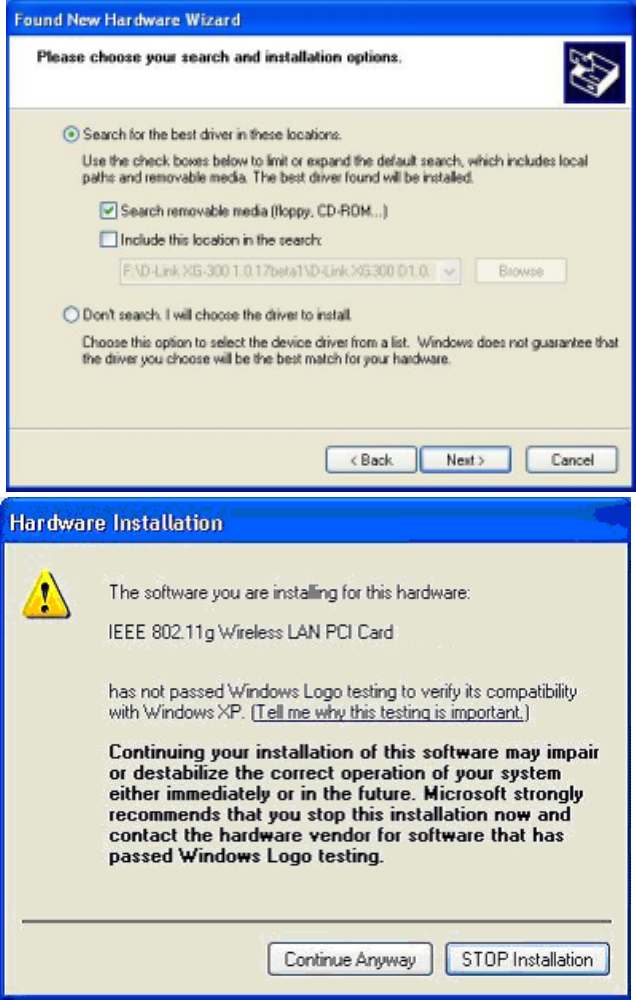
Step 1: After inserting the 802.11g Wireless LAN PCI Card into the PCI slot on your desktop
computer, the Windows will auto-detect the Wireless LAN PCI Card and a “Found New
Hardware Wizard” window will show up. Select “Install from a list or specific (Advanced)”
to install the driver.
- 8 -
Step 2: Insert the Product CD-ROM into the appropriate drive. Click on Next to install the
driver.
Step 3: The windows will appear the message about the Network Control has not passed
Windows Logo testing to verify its compatibility with Windows XP. Click on Continue
Anyway button to continue installing
- 9 -
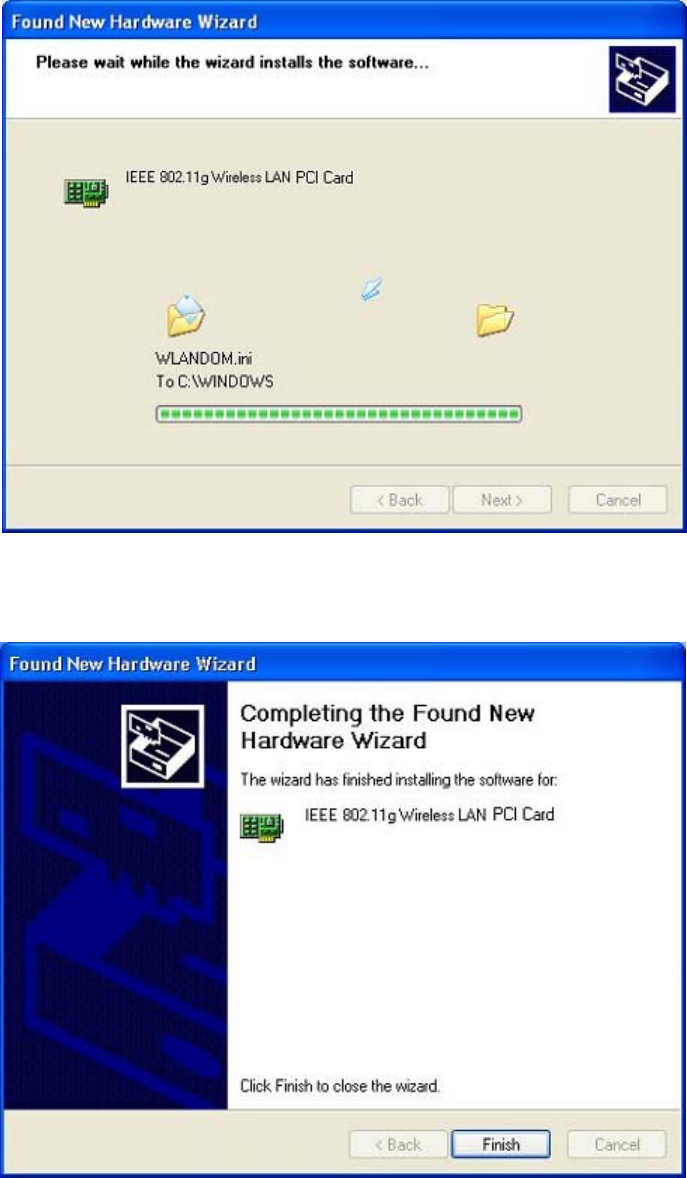
Step 4: The windows will find “IEEE 802.11g Wireless LAN PCI Card” and start copying
corresponding files into the system. Click on Next to continue.
Step 5: Click Finish to complete the installation.
- 10 -
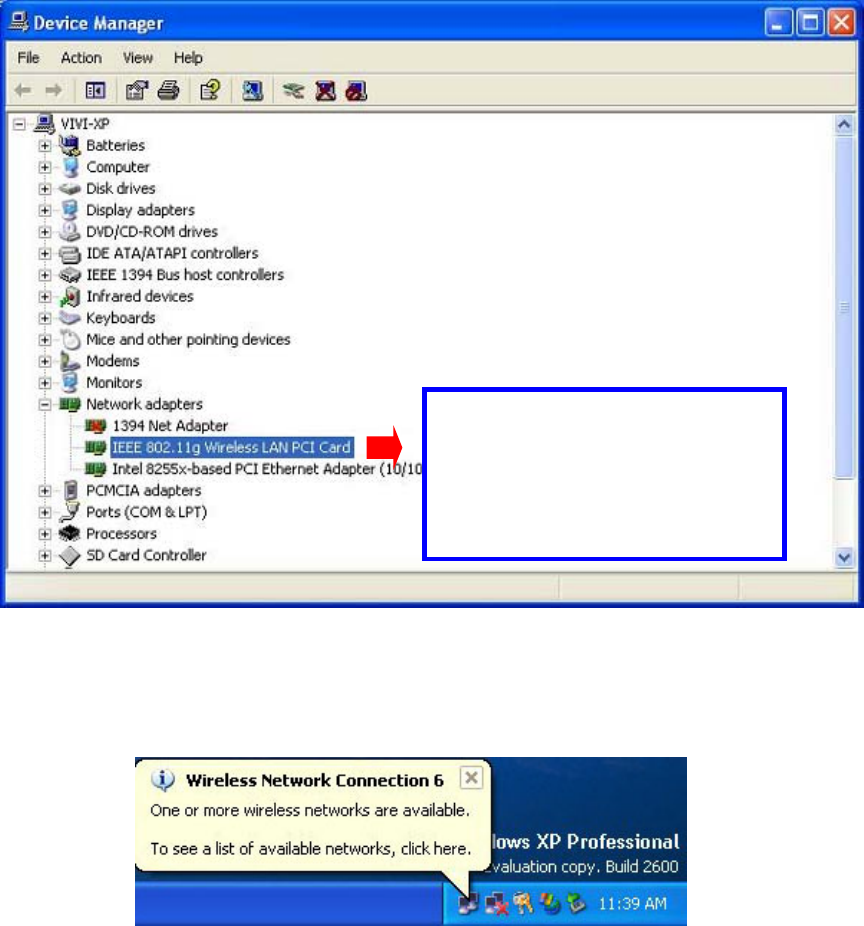
Step 6: Right click “My Computer” from Start, select Properties, go to the Hardware tab
and click the Device Manager button to see if any exclamation mark appears next to the
Network Adapter/ IEEE 802.11g Wireless LAN PCI Card. If no, your 802.11g Wireless LAN
PCI Card is working well.
After installing the Wireless LAN PCI Card, the Windows XP will display a “Wireless Network
Connection # ” message.
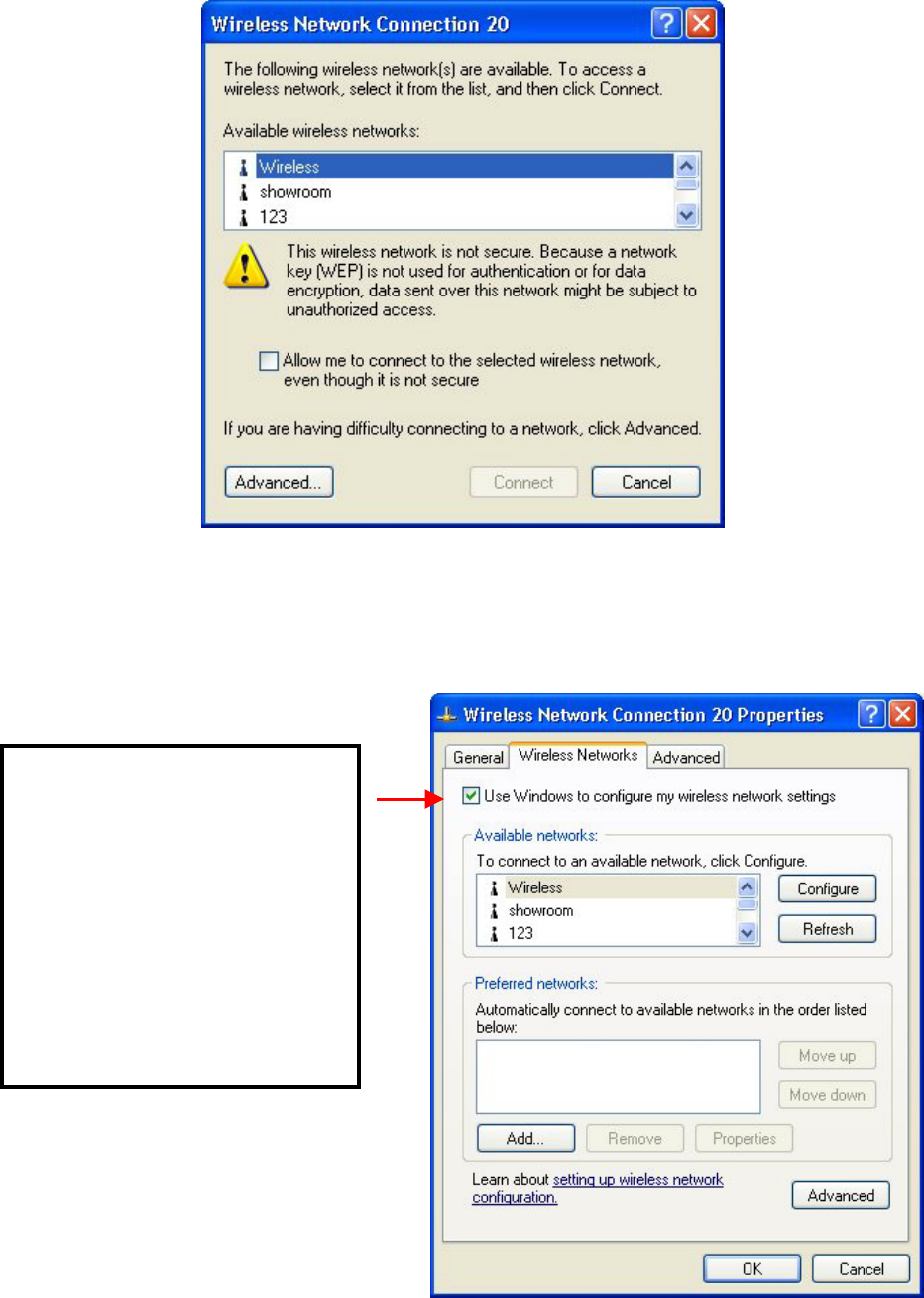
Click on the message and the “Automatic Wireless Network Configuration” will then appear
automatically. You may click on Connect button to allow users to connect to an available
wireless infrastructure network (Access Point). You may also click the Advanced button to
make advanced configuration for the Wireless LAN PCI Card, shown as below.
Check if there is exclamation
mark next to the IEEE
802.11g Wireless LAN PCI
Card
- 11 -
For more information on using the automatic wireless network configuration please refer to
Windows XP Help file.
Warning: You must choose
one way to configure
Wireless LAN PCI Card either
of using our WLAN Utility by
un-checking this check box
or using Windows XP
A
utomatic Wireless Network
Configuration first by
checking this check box.

- 12 -
However, the WLAN Utility, which comes with the Wireless LAN PCI Card, provides you more
tools to configure the Wireless LAN PCI Card and monitor the wireless connection. For more
information on installing and using the WLAN Utility, please refer to the following sections
“Installation of the WLAN Utility” and “Usage of the WLAN Utility”.
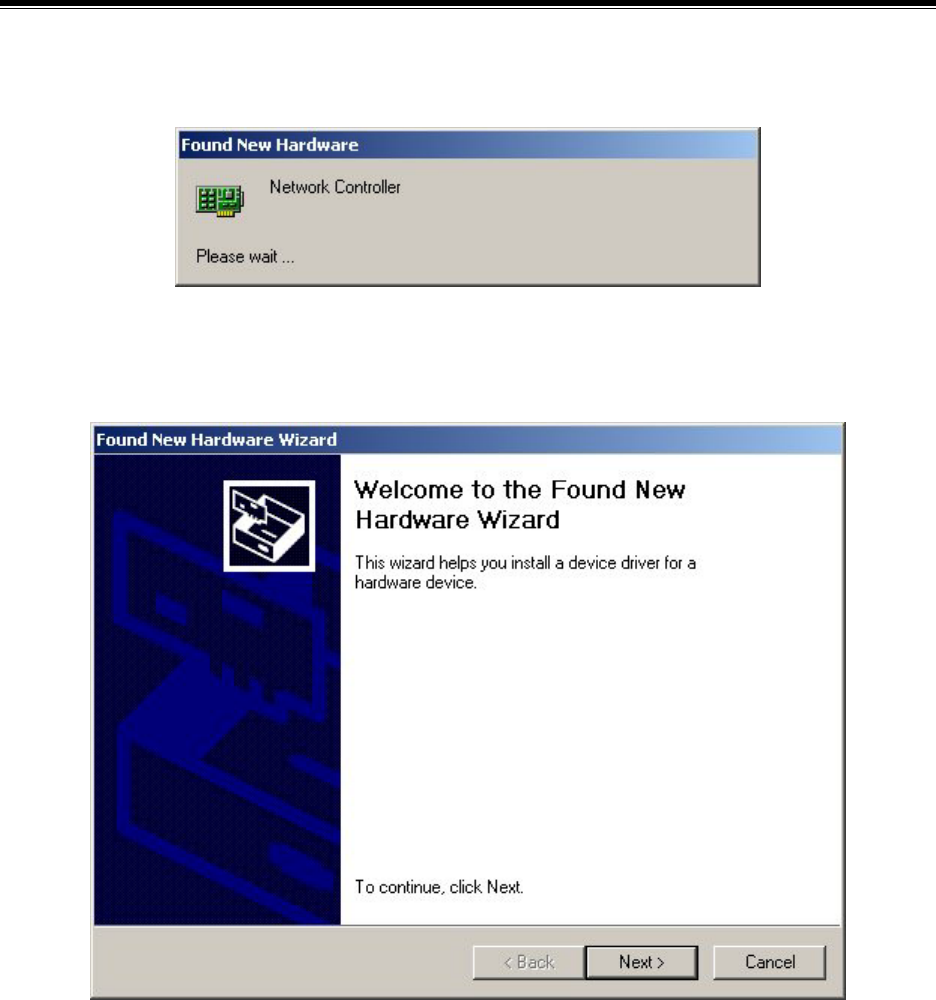
Note: To use the WLAN utility under Windows XP, you need to disable the
Automatic Wireless Network Configuration first. Steps are described as
follows:
# Right click the Network Connections icon. Select Properties.
# Go to the Wireless Networks tab.
# Uncheck the “Use Windows to configure my wireless network settings”
check box and click the OK button (see the above picture).
- 13 -
3-2 Set up Wireless LAN PCI Card for Windows 2000
Step 1: After inserting the 802.11g Wireless LAN PCI Card into the PCI slot on your desktop
computer, Windows will auto-detect the 802.11g Wireless LAN PCI Card.
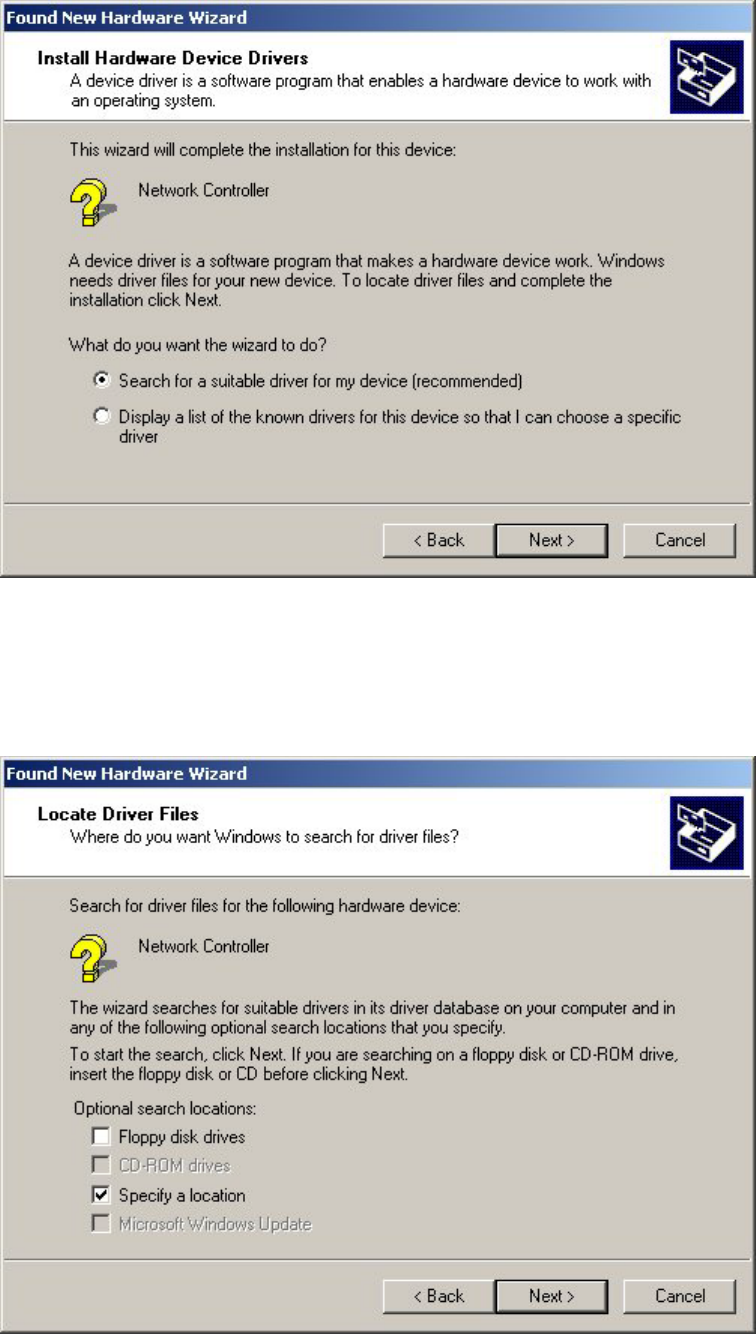
Step 2: A “Found New Hardware Wizard” window shows up. Click Next to proceed.
- 14 -
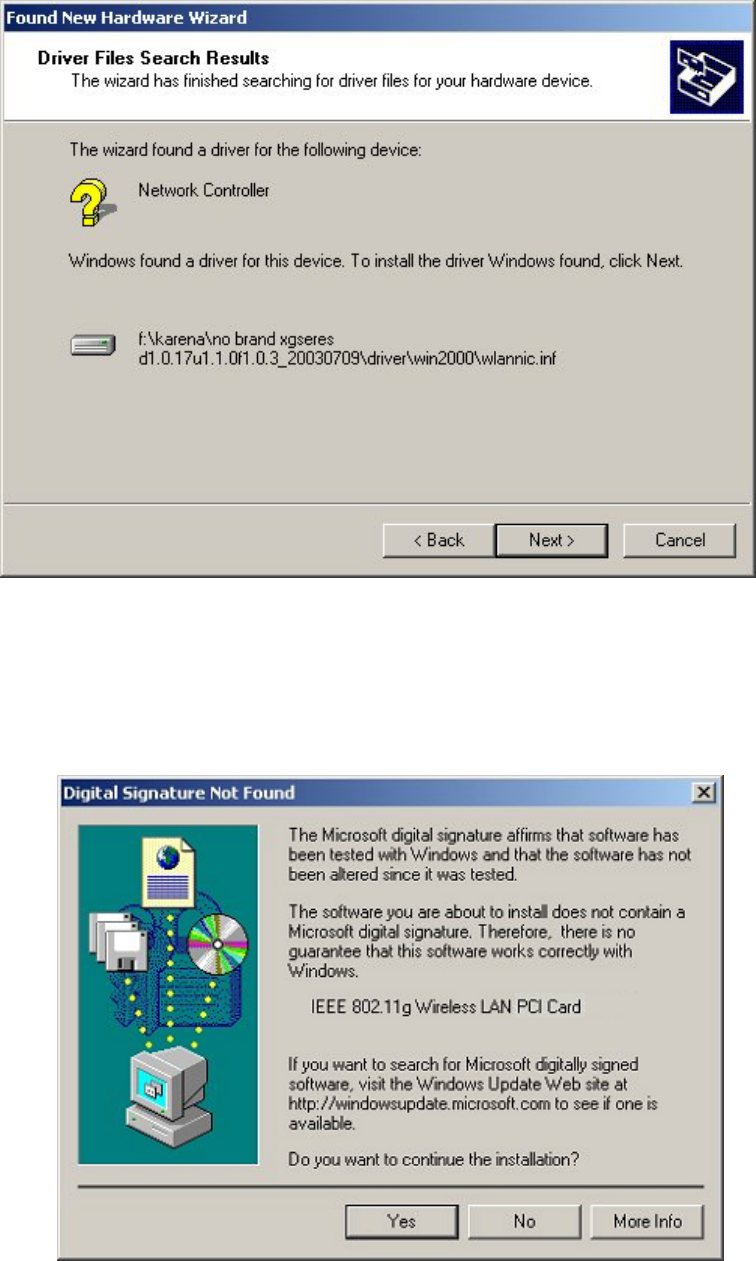
Step 3: Select “Search for a suitable driver for my device (recommended)”.
Step 4: Insert the Product CD-ROM into the appropriate drive. Click on Next to install the
driver.
- 15 -
Step 5: The windows will find “IEEE 802.11g Wireless LAN PCI Card”. Click on Next to
continue.
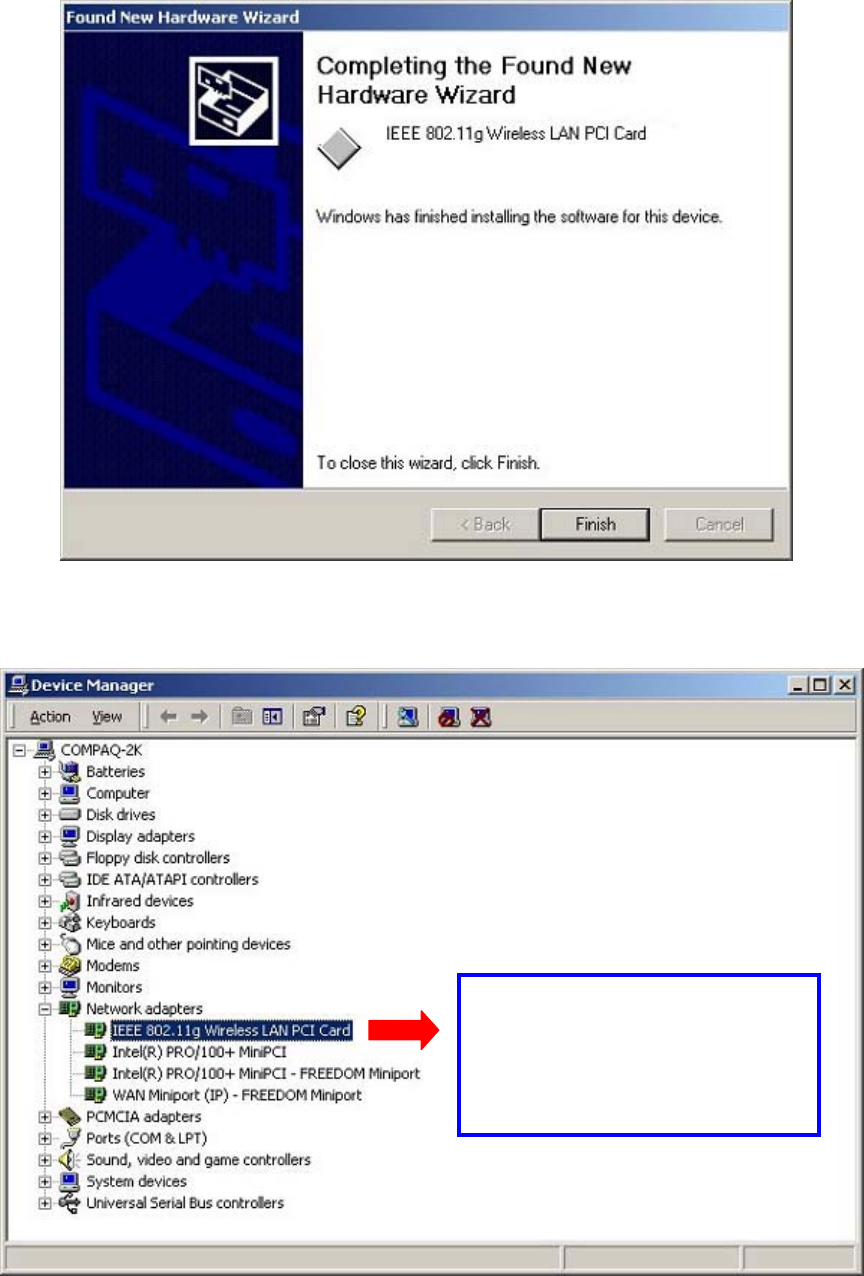
Step 6: The windows will appear the message about the Microsoft digital signature affirms
that software has not been tested with Windows and that the software has not been altered since
it was tested. Click on Yes button to continue installing.
- 16 -
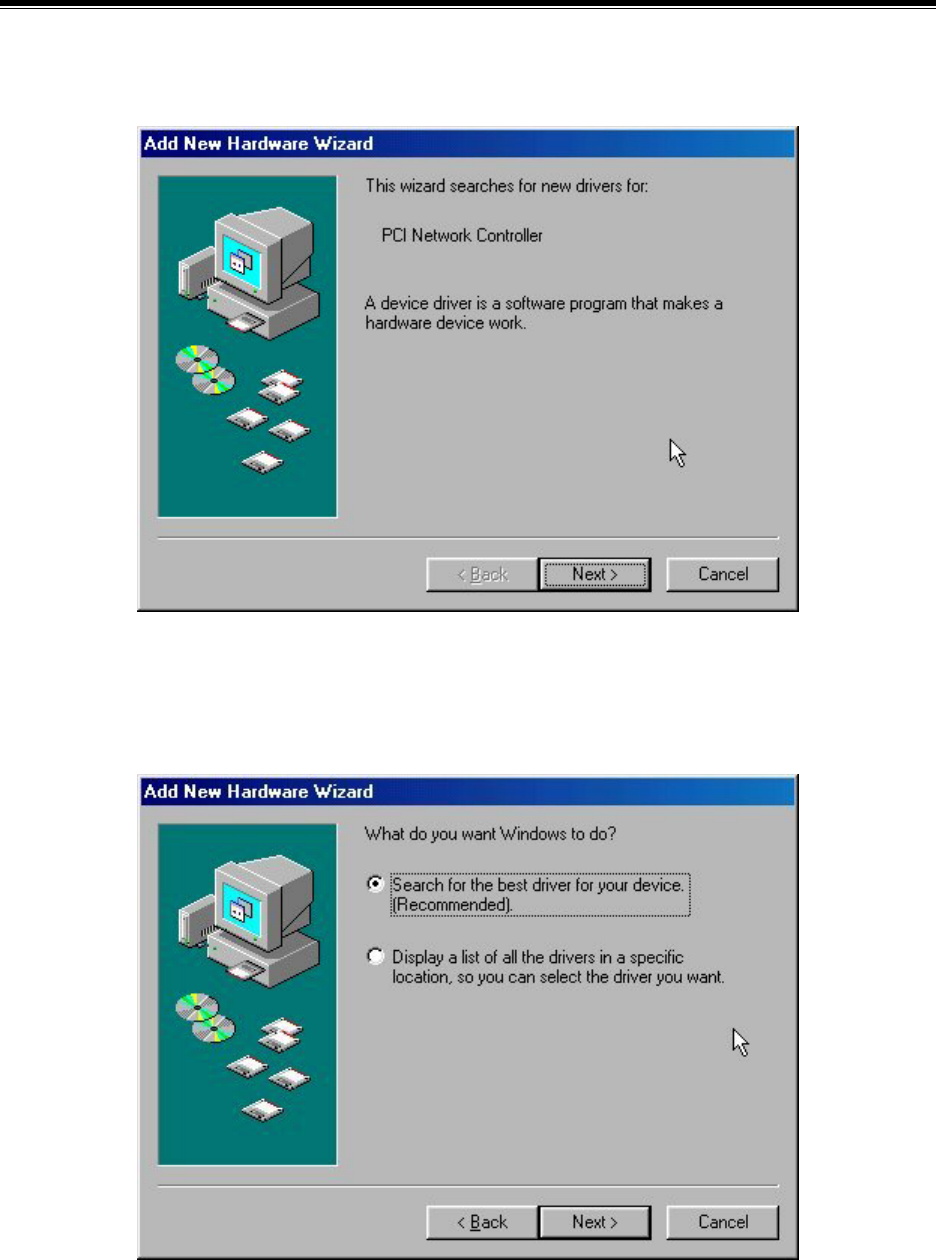
Step 7: Click Finish to complete the installation.
Step 8: Open Control Panel/System/Device Manager, and check Network Adapters to see
if any exclamation mark appears. If no, your 802.11g Wireless LAN PCI Card is working well.
Check if there is exclamation
mark next to the IEEE
802.11g Wireless LAN PCI
Card
- 17 -
3-3 Set up Wireless LAN PCI Card for Windows 98SE/ ME
Step 1: After inserting the 802.11g Wireless LAN PCI Card into the PCI slot on your desktop
computer, Windows will auto-detect new hardware and will display an “Add New Hardware
Wizard” window. Click Next to continue.
Step 2: Select “Search for the best driver for your device (Recommended)” and click
Next.
- 18 -
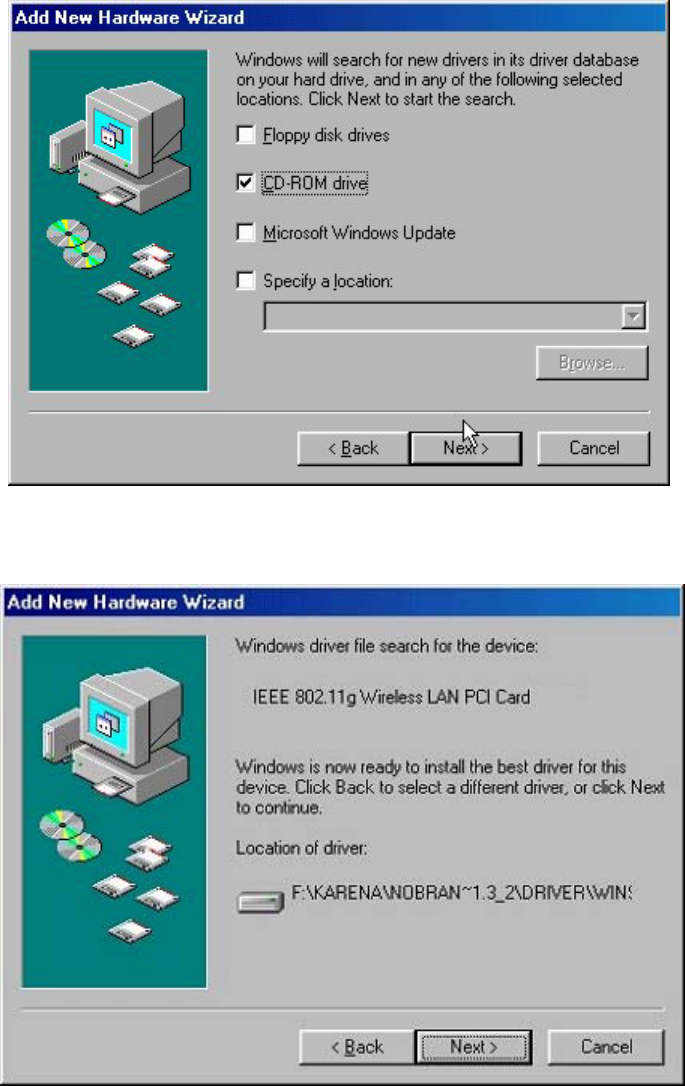
Step 3: Insert the Product CD-ROM into the appropriate drive. Click on Next to install the
driver.
Step 4: The Windows will find “IEEE 802.11g Wireless LAN PCI Card”. Click Next to
continue.
- 19 -
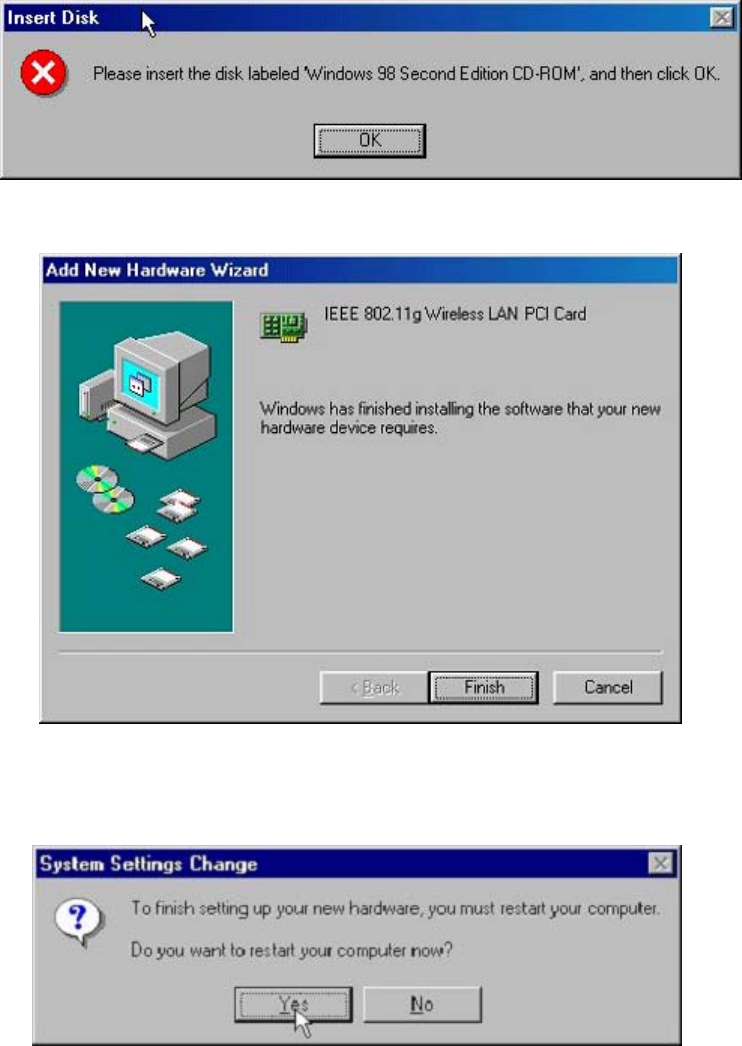
Step 5: Once the [Please insert the disk labeled ‘Windows 98 Second Edition CD-ROM/ME
CD-ROM”, and then click OK] window appears, insert and enter the path corresponding to the
appropriate drives and click OK. Usually these files can be found at C:Windows or
C:Windows\system.
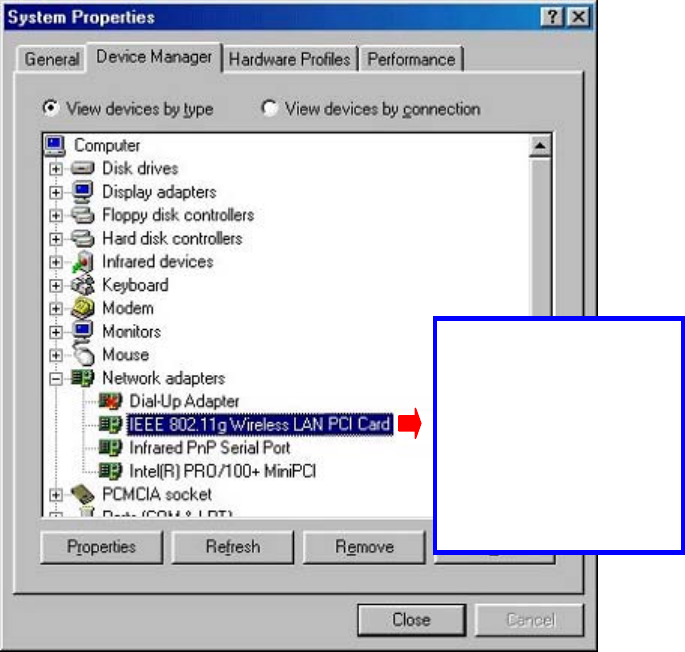
Step 6: Click Finish to complete the software installation.
Step 7: Restart the computer.
- 20 -
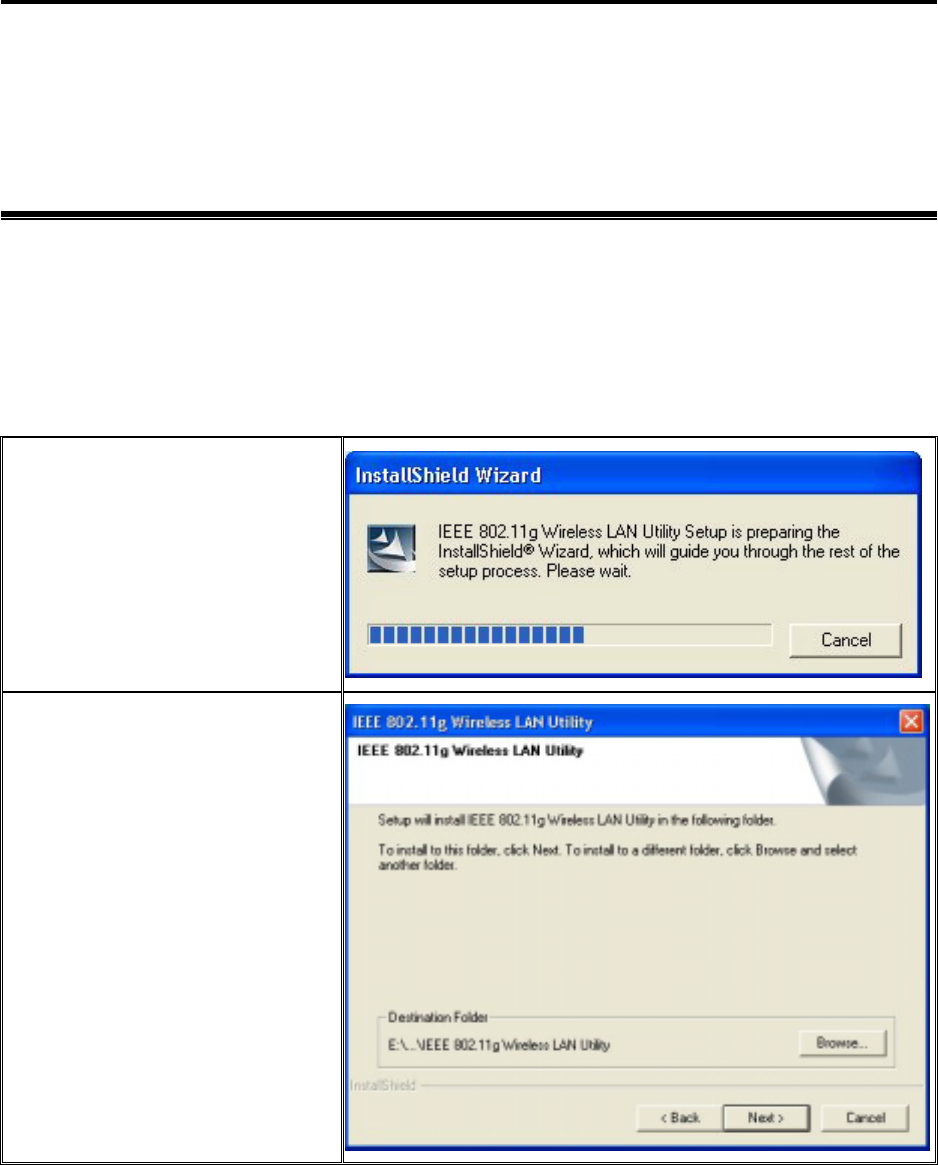
Step 8: Open Control Panel/System/Device Manager, and check Network Adapters to see
if any exclamation mark appears next to the IEEE 802.11 Wireless LAN PCI Card. If no, your
802.11g Wireless LAN PCI Card is working well.
Check if there is
exclamation mark
next to the IEEE
802.11g Wireless
LAN PCI Card
- 21 -
Chapter 4 Configure the Wireless LAN PCI Card
This chapter gives you assistance with detailed configuration for the 802.11g Wireless LAN PCI
Card under Windows XP/2000/98SE/ME.
4-1 Install the WLAN Utility
To install the WLAN Utility, follow these steps:
Step 1: Insert the Product CD-ROM.
Step 2: Go to the utility folder and run setup.exe.
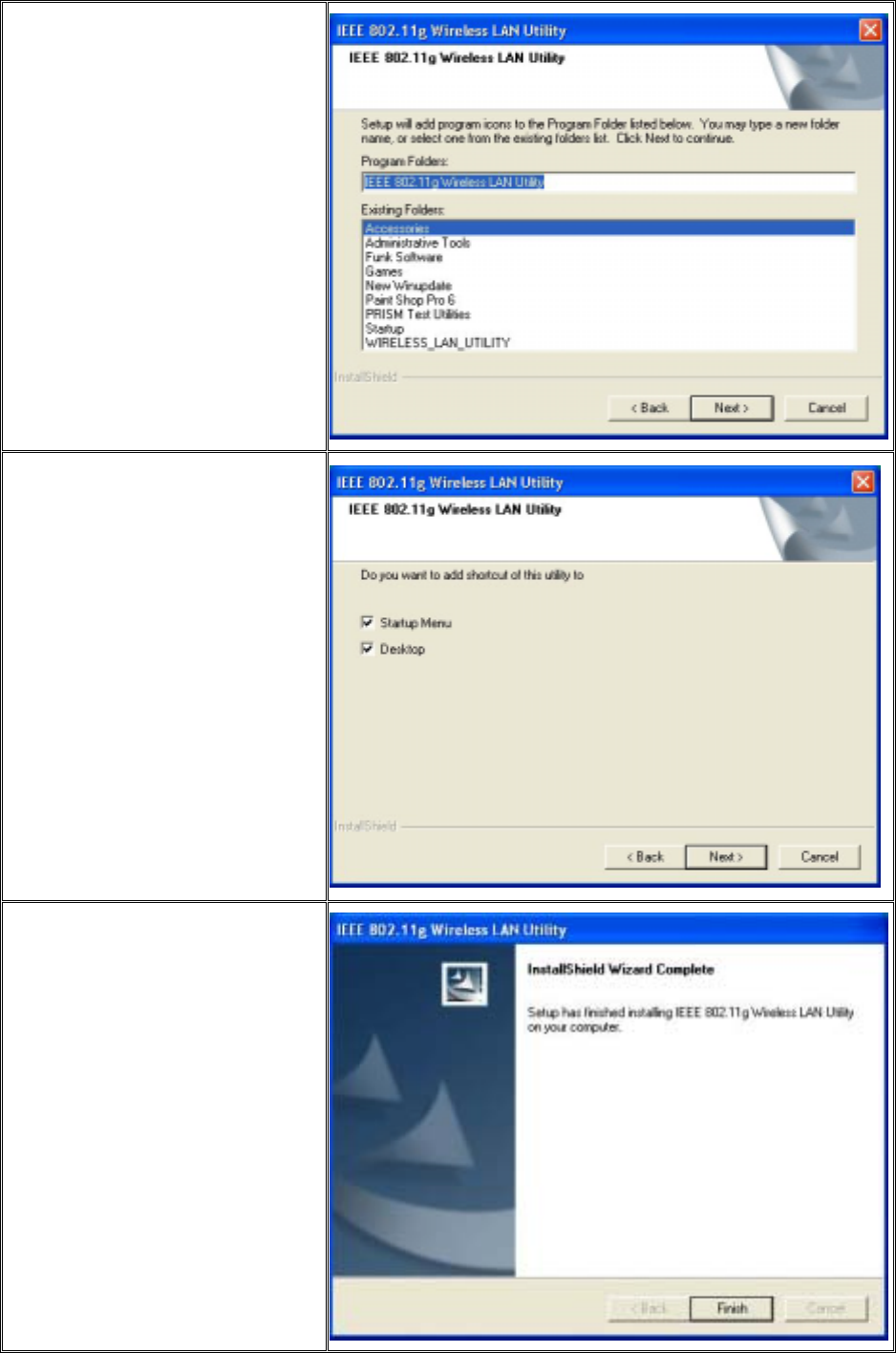
Step 3: The InstallShield Wizard will show up and guide you through the rest of the setup
process.
Run the Setup Utility
Choose Destination Location
and click Next to continue
- 22 -
Select a program folder and
click Next
Select Next if adding shortcut
of utility to Startup Menu
and Desktop
Click on Finish to complete
the installation
- 23 -
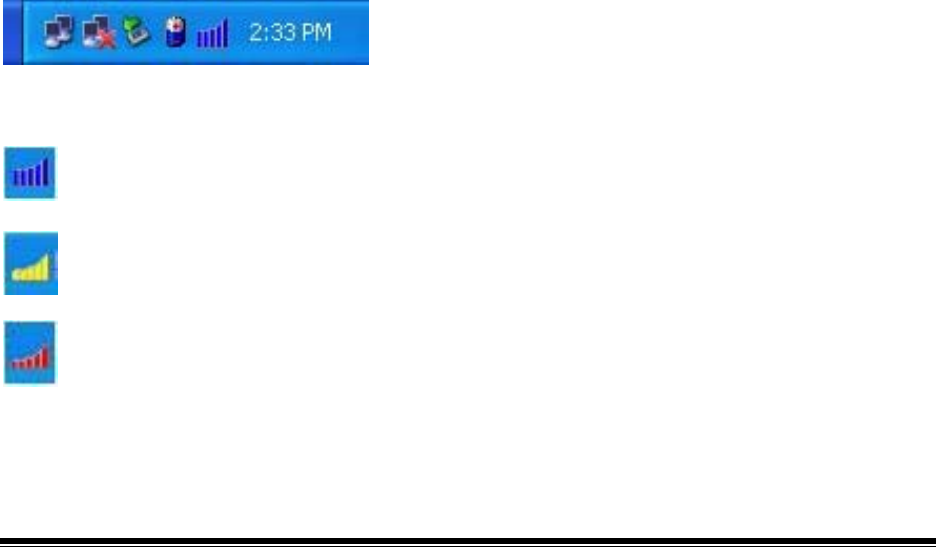
Upon completion, go to Program Files and run the WLAN Utility and its icon will appear in the
System Tray in the bottom right corner of your task bar. Clicking on the icon will open the
configuration window. When you minimize the window, the system tray icon will be loaded in
the System Tray again.
The color behind the system tray icon indicates the link status:
Blue indicates a good or excellent link.
Yellow indicates a usable but weak link.
Red indicates no or very poor link quality. When you minimize the window, the system
tray icon will be loaded in the System Tray again.
4-2 Use the WLAN Utility
The WLAN Utility enables you to make configuration changes and perform user-level
diagnostics on your 802.11g Wireless LAN PCI Card in the Windows XP/2000/98SE/ME
operating system environments. The WLAN Utility consists of window with 3 items for you to
monitor and configure the 802.11g Wireless LAN PCI Card: Configuration, Site Survey and
About.
Basic Setting
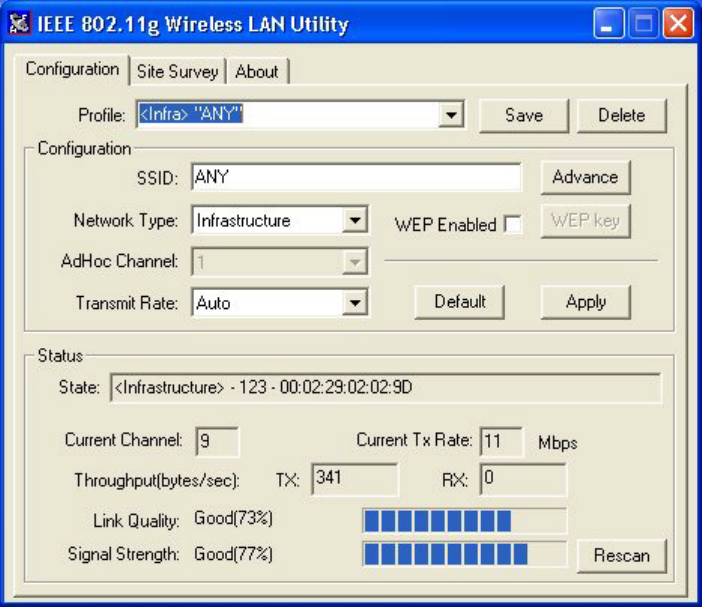
Configuration:
The Configuration item allows you to modify the configuration parameters for the 802.11g
Wireless LAN PCI Card such as Profile, SSID, Network Type, AdHoc Channel, Transmit
Rate, WEP, RTS, Fragment Threshold, and Power Save mode. Furthermore, you may
monitor the current status of the Wireless LAN PCI Card such as State, Current Channel,
Current Tx Rate, Throughput, Link Quality and Signal Strength.
- 24 -
- 25 -
Profile
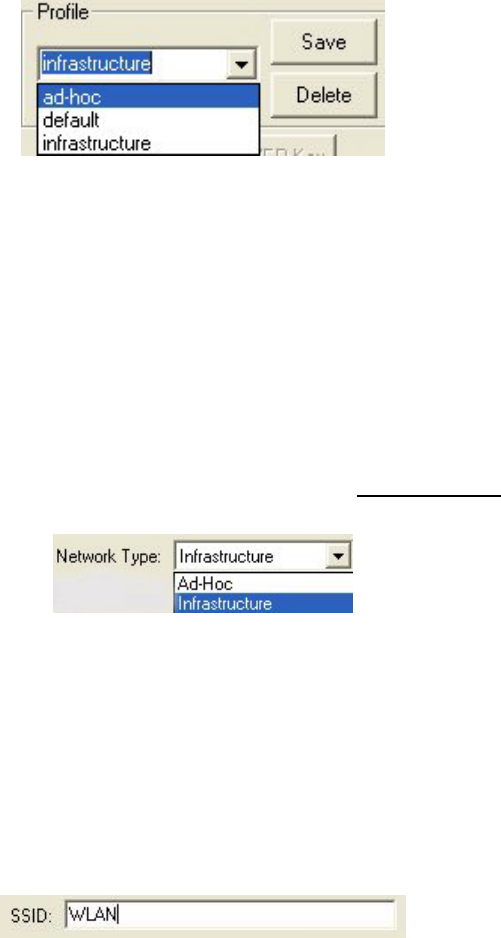
The Profile field allows you to set values for all parameters by selecting a previously defined
profile. To create the profile, go to the Profile field, type a profile name and set the
corresponding parameters. If one of the profiles is no longer used, you may remove it by
clicking the Delete button. After changing parameters, save the profile and click the Apply
button to take effect. You can have multiple profiles and modify the profile at any time.
You may also see the profile from WLAN Utility icon that appears in the System Tray in the
bottom right corner of your task bar by using right click the WLAN Utility icon or may choose
the profile by right clicking the system tray icon on the task bar, making the configuration more
friendly and efficient.
Network Type
There are 2 network types for the 802.11g Wireless LAN PCI Card to operate. If you need to
access company network or Internet via Access Point, select “Infrastructure”. If standard
“Ad-Hoc” is selected, you need to set wireless stations with the same ESS ID.
SSID
The SSID is the unique ID used by Access Points and stations to identify a wireless LAN.
Wireless clients associating to any Access Point must have the same SSID. The default setting is
ANY, which allows your Wireless LAN PCI Card to automatically associate to any Access Point
(Infrastructure mode) in the vicinity of your wireless adapter. The SSID can be set up to 32
characters and is case sensitive.

- 26 -
Transmit Rate
The 802.11g Wireless LAN PCI Card provides various data rate options for you to select. Data
rates options include 1Mbps, 2 Mbps, 5.5 Mbps, 11Mbps, 6Mbps, 9Mbps, 12 Mbps, 18Mbps,
24Mbps, 36Mbps, 48Mbps, 54Mbps and, Fully Auto. In most networking scenarios, you will
see that the factory-set default “Fully Automatic” will prove the most efficient. This setting will
allow your 802.11g Wireless LAN PCI Card to operate at the maximum data rate. When the
communications quality drops below a certain level, the PCI Card will automatically switch to a
lower data rate. Transmission at lower data speeds are usually more reliable. However, when the
communications quality improves again, the 802.11g Wireless LAN PCI Card will gradually
increase the data rate again, until it has reached the highest available transmit rate.
WEP
To prevent unauthorized wireless stations from accessing data transmitted over the network, the
WLAN Utility offers highly secure data encryption, known as WEP, making your data
transmission over air more secure. To activate the WEP Encryption, check the WEP Enabled
check box. An Encryption window will then appear. The instructions are as follows:
$ Pull down the Encryption (WEP) menu and select either 64bit or 128bit encryption
method.
$ Specify the encryption keys. There are two methods to set the WEP keys, as described
below:
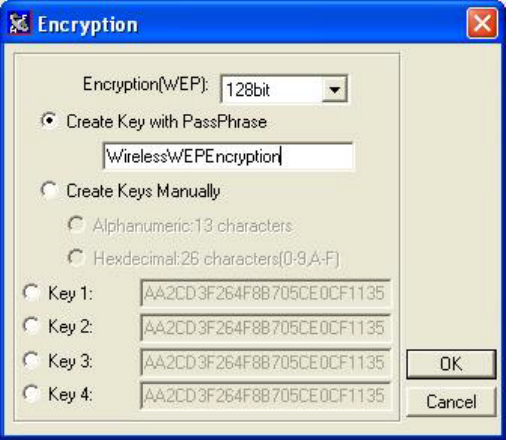
Create Encryption Keys by Using a Passphrase
To create encryption keys by using a passphrase, click the Create Key with Passphrase
check box and type a character string in the Passphrase field. As you type, the utility uses
an algorithm to generate 4 keys automatically. Select either the 64bit or 128bit encryption
first, and type a string in the Create Key with Passphrase field. Select one key from the 4
WEP keys and click OK. Then click the Apply button on the Configuration tab to make the
setting take effect.
Warning: When Create Key with Passphrase is enabled, the wireless device’s Key with
PassPhrase must match the Key with PassPharse used by the access point with which
wireless device is planning to communicate.
- 27 -
Create Encryption Keys Using a Passphrase (128bit)
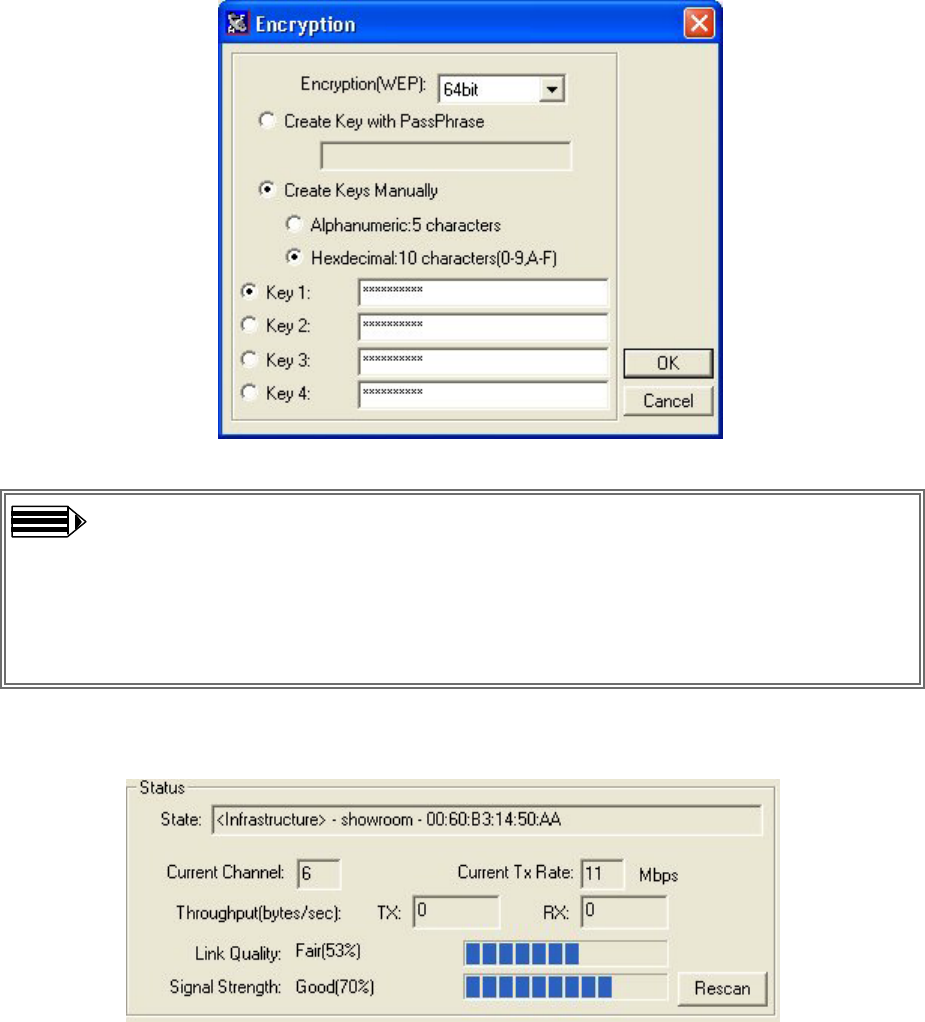
Create Encryption Keys Manually
You can also create encryption keys manually by clicking the Create Keys Manually check
box.
For 64bit encryption you may choose:
# Alphanumeric: 5 characters (case sensitive) ranging from “a-z”, “A-Z” and “0-9”
(e.g. MyKey)
# Hexadecimal: 10 hexadecimal digits in the range of “A-F”, “a-f” and “0-9” (e.g.
11AA22BB33)
For 128bit encryption you may choose:
# Alphanumeric: 13 characters (case sensitive) ranging from “a-z”, “A-Z” and
“0-9” (e.g. MyKey12345678)
# Hexadecimal: 26 hexadecimal digits in the range of “A-F”, “a-f” and “0-9” (e.g.
00112233445566778899AABBCC).
After entering the WEP keys in the key field, select one key as active key, click the OK
button and then click the Apply button on the Configuration tab to make the setting take
effect.
- 28 -
Create Encryption Keys Manually (64bit)
Warning: The WEP key must be set up exactly the same on the Wireless LAN
stations as they are on the wireless Access Points. If you set “MyKey” for the Wireless LAN
PCI Card, the same WEP Key “MyKey” must be assigned to the Access Point or other
stations.
Note: Different factories would have some different WEP setting. Therefore, before
setting access point or PCC WEP, please refer to manual respectively.
Status:
The Status field on the Configuration menu provides the following information.
State: When operating in Infrastructure mode, this field shows the MAC address of the Access
Point with which the Wireless LAN PCI Card is communicating. When operating in Ad-Hoc
mode, it shows the virtual MAC address used by computers participating in the Ad-Hoc
network.
Current Channel: Shows the channel on which the connection is made.
Current Tx Rate: Shows the highest transmit rate of the current association.
Throughput: Shows the short term transmit and receive throughput in bytes/second, and is
- 29 -
continuously updated.
Link Quality: Based on the quality of the received signal of the Access Point beacon. There are 5
states of link quality:
100%~80%: Excellent link.
80%~60%: Good link quality.
60%~40%: Fair link quality.
Under 40%: Poor or no connection.
Signal Strength: Based on the received signal strength measurement of the baseband processor
of the Beacon signal. Same as link quality, there are 5 states of signal strength:
100%~80%: Excellent signal strength.
80%~60%: Good signal strength.
60%~40%: Fair signal strength.
Under 40%: Poor or no signal strength.
You can click the Rescan button to force the radio to rescan all available channels. If your link
quality or signal strength is poor, rescanning can be used to push the radio off a weak Access
Point and search for a better link with another Access Point.
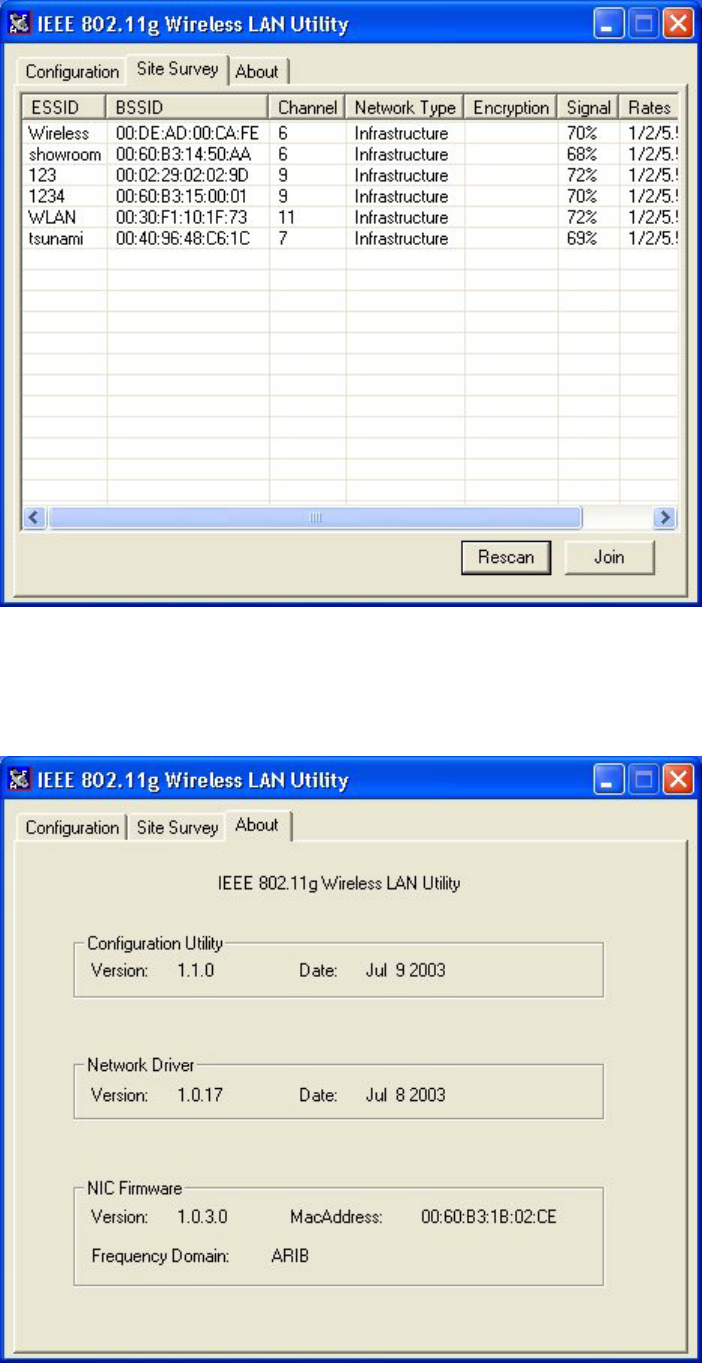
Site Survey:
By clicking the Rescan button, the Site Survey can display Access Points around the working
environment. Besides showing the ESSID of each Access Point, it also displays BSSID, Channel,
Capability, Signal, Noise and Rates. To join any of the displayed Access Points, highlight the
Access Point you desire to connect and then click the Join.
- 30 -
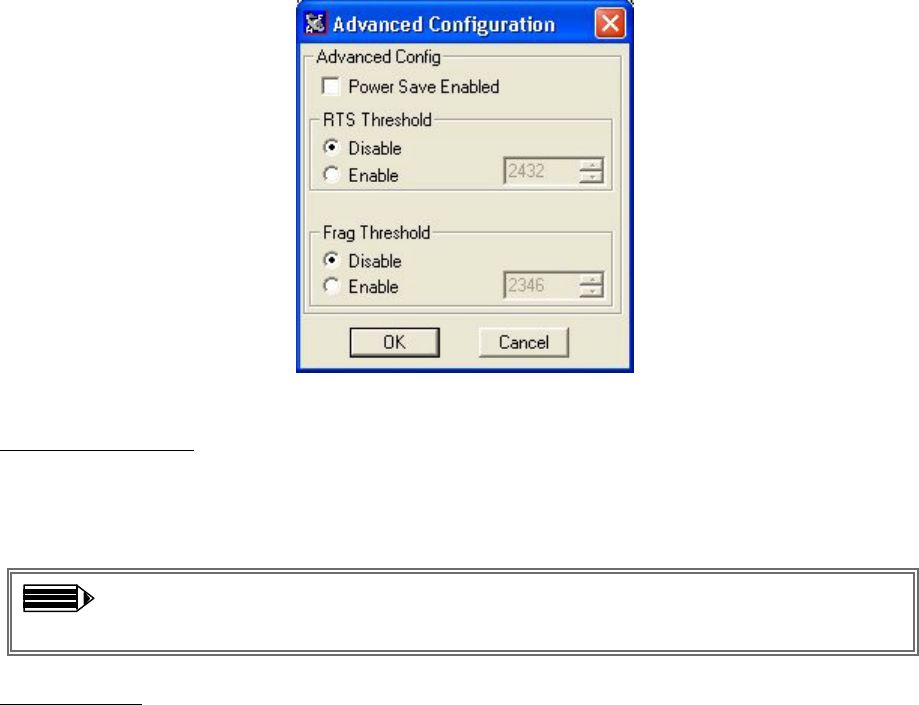
About:
The About item shows the versions of the Wireless LAN Utility, driver, firmware of the IEEE
802.11g Wireless LAN PCI Card. Also, the MAC address and frequency domain are displayed.
- 31 -
Advance Setting
Advance Options
The Advance configuration provides advance function about network environment if you want
to know more detail of the Advanced configuration. Please consults administrator.
The WLAN Utility also offers the advanced configuration for user to set the 802.11g Wireless
LAN PCI Card under certain network environment. These advanced options include Power
Management, RTS and Fragmentation Threshold. To enable the advanced configuration, go to
the Configuration tab and click the Advance button.
Power Management
The Power Save option is designed to conserve battery life of you computer. When Power Save
is enabled, your 802.11g Wireless LAN PCI Card will go into sleep mode to minimize power
consumption.
Warning: When power saving mode is enabled, the Access Points you use need
to support power saving as well so that the communication can be established.
RTS Threshold
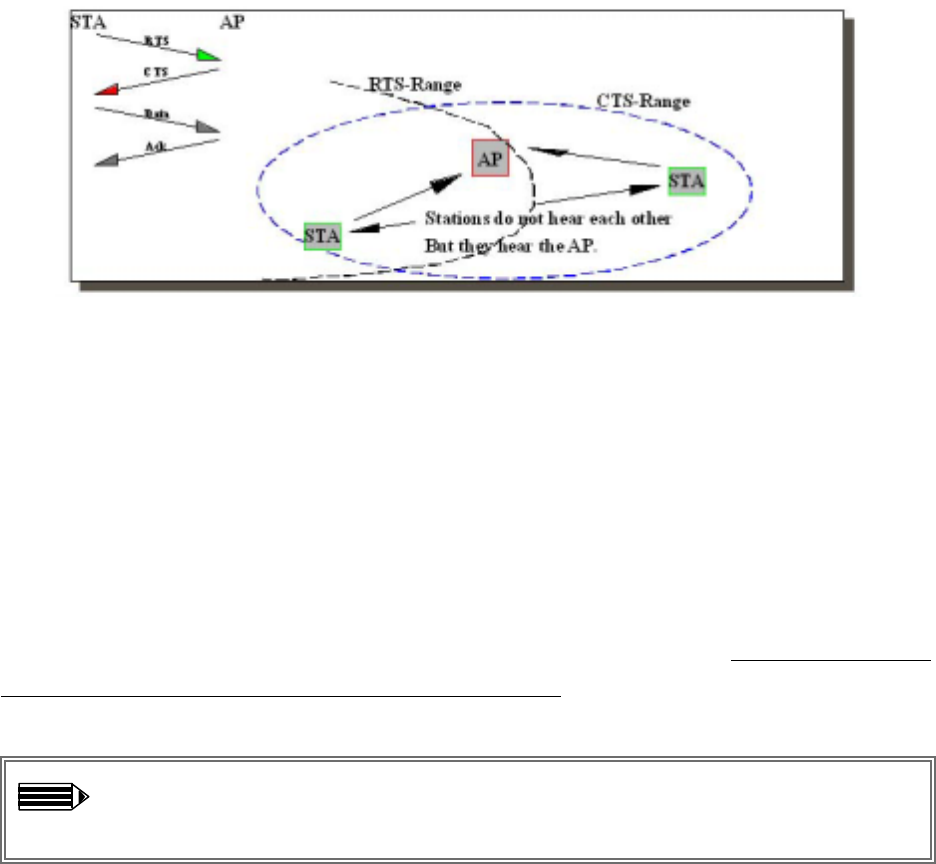
RTS Threshold is a mechanism implemented to prevent the “Hidden Node” problem. “Hidden
Node” is a situation in which two stations are within range of the same Access Point, but are not
within range of each other. The following figure illustrates an example of the “Hidden Node”
problem. Both stations (STA) are within range of the Access Point, however, they cannot hear
each other. Therefore, they are hidden nodes for each other. When a station starts data
transmission with the Access Point, it might not notice that the other station is already using the
wireless medium. When these two stations send data at the same time, they might collide when
arriving simultaneously at the Access Point. The collision will most certainly result in a loss of
messages for both stations.
- 32 -
Thus, the RTS Threshold mechanism provides a solution to prevent data collisions. When you
enable RTS Threshold on a suspect “hidden station”, this station and its Access Point will use a
Request to Send (RTS). The station will send an RTS to the Access Point, informing that it is
going to transmit the data. Upon receipt, the Access Point will respond with a CTS message to
all station within its range to notify all other stations to defer transmission. It will also confirm
the requestor station that the Access Point has reserved it for the time-frame of the requested
transmission.
If the “Hidden Node” problem is an issue, please specify the packet size. The RTS mechanism
will be activated if the data size exceeds the value you set. It is highly recommended that you set
the value ranging from 0 to 1500. The default value is Disable.
Warning: Enabling RTS Threshold would cause redundant network overhead that
could negatively affect the throughput performance instead of providing a remedy.
Frag. Threshold
Fragmentation mechanism is used for improving the efficiency when high traffic flows along
in the wireless network. If your 802.11g Wireless LAN PCI Card often transmit large files in
wireless network, you can enable the Fragmentation Threshold by clicking the Enable button
and the mechanism will split the packet. The value can be set from 256 to 1500. The default
value is Disable.
IRQ NO/IO Address
To avoid device conflict, you may modify the IRQ No. IO Address for your device (Only
available under Windows NT).

- 33 -
Limited Warranty
This Warranty constitutes the sole and exclusive remedy of any buyer or reseller’s equipment
and the sole and exclusive liability of the supplier in connection with the products and is in lieu
of all other warranties, express, implied or statutory, including, but not limited to, any implied
warranty of merchantability of fitness for a particular use and all other obligations or liabilities
of the supplier.
In no even will the supplier or any other party or person be liable to your or anyone else for any
damages, including lost profits, lost savings or other incidental or consequential damages, or
inability to use the software provided on the software media even if the supplier or the other
party person has been advised of the possibility of such damages.
The following are special terms applicable to your hardware warranty as well as services you
may use during part of the warranty period. Your formal Warranty Statement, including the
warranty applicable to our Wireless LAN products, appears in the Quick Installation Guide
which accompanies your products.
Duration of Hardware Warranty: One Year
Replacement, Repair or Refund Procedure for Hardware:
If your unit needs a repair or replacement, return it to your dealer/distributor in its original
packaging. When returning a defective product for Warranty, always include the following
documents:
# The Warranty Repair Card
# A copy of the invoice/proof of purchase, and
# The RMA Report Form (To receive a Return Materials Authorization form (RMA), please
contact the party from whom you purchased the product).
Upon proof-of-purchase we shall, at its option, repair or replace the defective item at no cost to
the buyer.
This warranty is contingent upon proper use in the application for which the products are
intended and does not cover products which have been modified without the reseller’s approval
or which have been subjected to unusual physical or electrical demands or damaged in any way.

- 34 -
FCC Information
This device, IEEE 802.11G Wireless LAN PCI Card, Model No.: XG-950, complies with Part
15 of the FCC Rules. Operation is subject to the following two conditions: (1) this device
may not cause harmful interference, and (2) this device must accept any interference received,
including interference that may cause undesired operation.
NOTE: This equipment has been tested and found to comply with the limits for a Class B
digital device, pursuant to Part 15 of the FCC Rules. These limits are designed to
provide reasonable protection against harmful interference in a residential installation.
This equipment generates, uses and can radiate radio frequency energy and, if not
installed and used in accordance with the instructions, may cause harmful interference
to radio communications.
However, there is no guarantee that interference will not occur in a particular installation. If
this equipment does cause harmful interference to radio or television reception, which can be
determined by turning the equipment off and on, the user is encouraged to try to correct the
interference by one or more of the following measures:
% Reorient or relocate the receiving antenna.
% Increase the separation between the equipment and receiver.
% Connect the equipment into an outlet on a circuit different from that to which the
receiver is needed.
% Consult the dealer or an experienced radio/TV technician for help.
Warning: Changes or modifications to this unit not expressly approved by the party
responsible for compliance could void the user authority to operate the equipment.
Tested to comply with FCC standard. FOR HOME OR OFFICE USE.
CAUTION:
This equipment complies with FCC radiation exposure limits set forth for an uncontrolled
environment. This equipment should be installed and operated with minimum distance
20cm between the radiator & your body.
This Transmitter must not be co-located or operating in conjunction with any other antenna
or transmitter
Service Centre:
COMPANY NAME: ZCOMAX TECHNOLOGIES, INC.
ADDRESS: 13850 CERRITOS CORPORATE DR., SUITE C CERRITOS, CA 90703
TEL: (562) 926-4588
- 35 -
Please complete the information below and include it along with your products.
Name:
Title:
Company:
Telephone:
Fax:
Email:
City/State/Zipcode:
Country:
Product Name:
Serial Number:
MAC Address:
Invoice Date:
Product Description:
If you have any further questions, please contact your local authorized reseller for support.