Z Com WH2330 User Manual this is Zcom EA95680 corrected

Z Com Inc this is Zcom EA95680 corrected

this is Zcom EA95680 corrected user manual

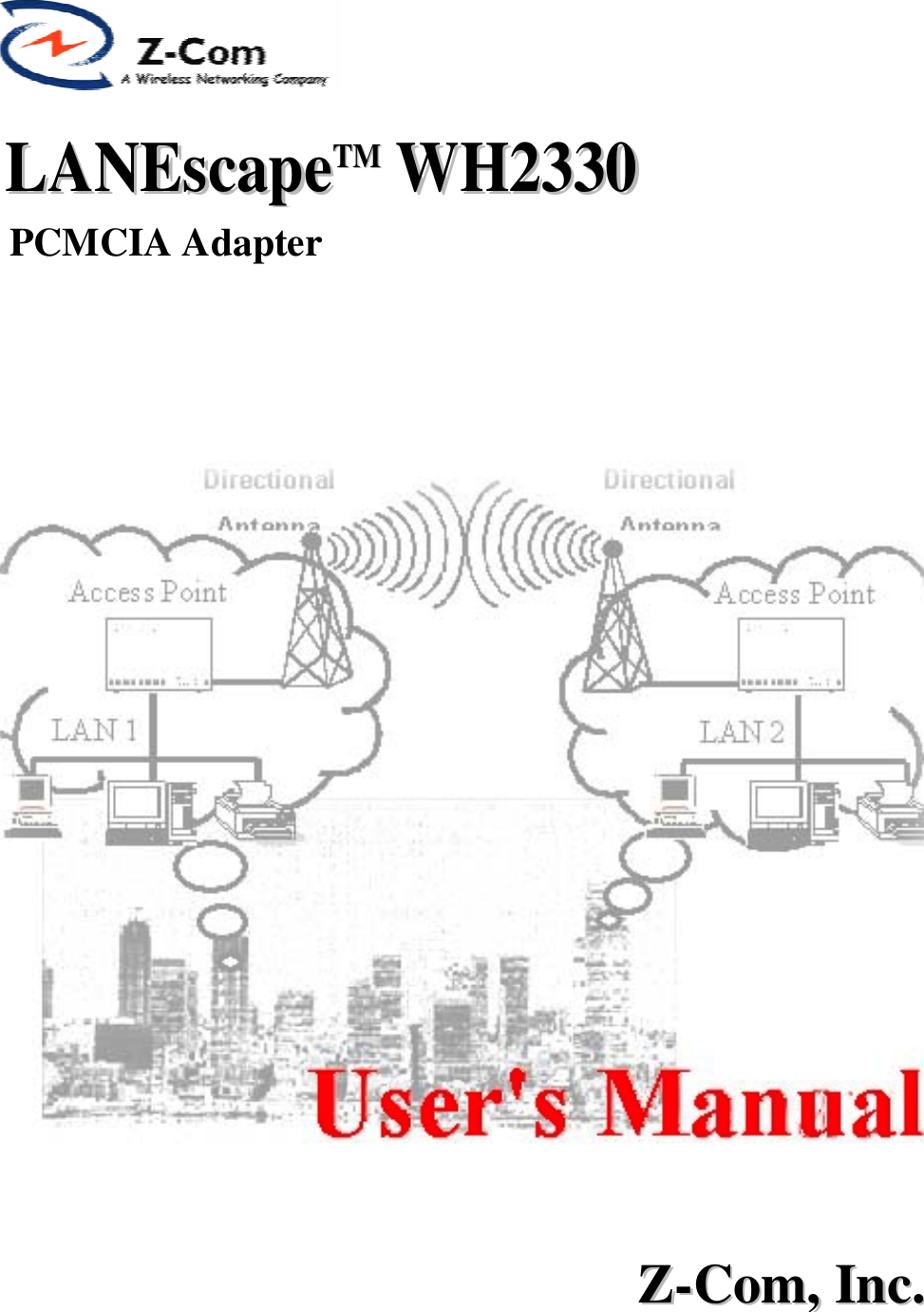
LLAANNEEssccaappeeTTMM WWHH22333300 PCMCIA AdapterZZ--CCoomm,,  IInncc..
FCC InformationThis equipment has been tested and found to comply with the limits for a Class B digital devicespursuant to part 15 of the FCC Rules.  These limits are designed to provide reasonable protectionagainst harmful interference when the equipment is operated in a commercial environment.This equipment generates, uses, and can radiate radio frequency energy and, if not installed andused in accordance with the instruction manual, may cause harmful interference to radiocommunication.Operation of this equipment in residential area is likely to cause harmful interference in whichcase the user will be required to correct the interference at this own expense.The user should not modify or change this equipment without written approval of the company.Modification could make invalid any authority to use this equipment.It is unsafe to work under circumstances in which the RF exposure exceeds recommendedamount.  To prevent the situation happening, people who work with the antenna should be awareof the following rules:1. Install the antenna so that a 20 cm distance can be kept from the antenna.2. While installing the antenna in the location, please do not turn on the power of the wirelesscard.3. While the device is working, please do not contact the antenna.1
CopyrightCopyright © 1998 Z-Com, Inc., all rights reserved.  No part of this publication may bereproduced, adapted, stored in a retrieval system, translated into any language, ortransmitted in any form or by any means without the written permission of Z-Com, Inc.TrademarksLANEscape and Z-Com are trademarks of Z-Com, Inc., all other trademarks throughoutthis manual are the property of their respective companies.Limited WarrantyIn no event will Z-Com be liable for any damage, including loss of data or profits, cost ofcover, or other incidental, consequential or indirect damages arising from the installation,maintenance, use, performance, failure or interruption of Z-Com’s products, whatevercaused and on any theory of liability.  This limitation will apply even if Z-Com has beenadvised of the possibility of such damage.Technical SupportAddress: 7F-2, No.9, Prosperity 1st Rd., Science-Based Industrial Park, Hsinchu, TaiwanTel. No.: +886-3-5777364Fax No.: +886-3-5773359E-mail: support@zcom.com.twWeb Site: http://www.zcom.com.twAbout This ManualThe purpose of this manual is to assist users in the setup of the product LANEscape WH2330,the Wireless LAN PCMCIA.  This manual, revised as version 2.0 in 1999, includes proceduresthat will help users to avoid unforeseen problems.
ContentsChapter 1  Windows 95 Set-up and Configuration ............................. 51-1 Installing the WH2330 Windows 95 Network Driver ......................................................51.2 Re-installing / Upgrading the WaveRider-II network drivers. ..........................................61.3 Operational / Optional Characteristics of the WH2330 ....................................................8Chapter 2 Using the WH2330 Upgrade Utility .................................. 11Appendix WH2330 Specifications....................................................... 12
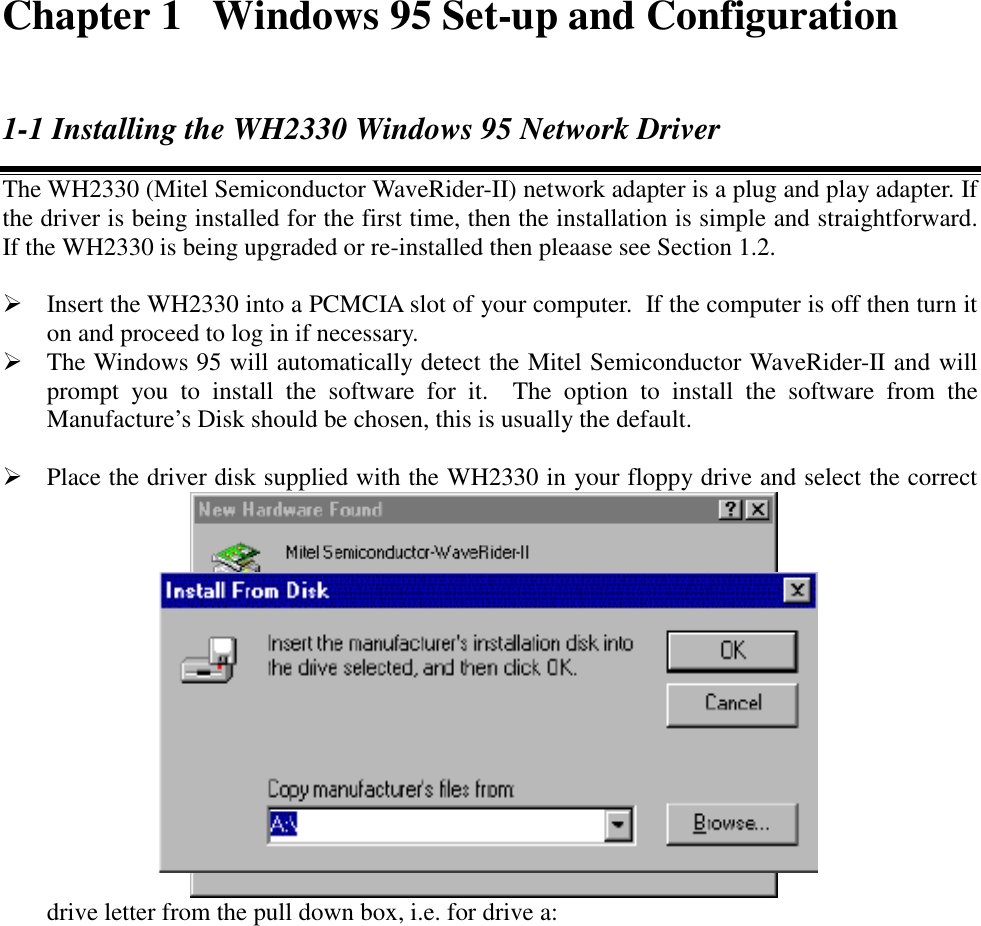
Chapter 1  Windows 95 Set-up and Configuration1-1 Installing the WH2330 Windows 95 Network DriverThe WH2330 (Mitel Semiconductor WaveRider-II) network adapter is a plug and play adapter. Ifthe driver is being installed for the first time, then the installation is simple and straightforward.If the WH2330 is being upgraded or re-installed then pleaase see Section 1.2. Insert the WH2330 into a PCMCIA slot of your computer.  If the computer is off then turn iton and proceed to log in if necessary. The Windows 95 will automatically detect the Mitel Semiconductor WaveRider-II and willprompt you to install the software for it.  The option to install the software from theManufacture’s Disk should be chosen, this is usually the default. Place the driver disk supplied with the WH2330 in your floppy drive and select the correctdrive letter from the pull down box, i.e. for drive a:
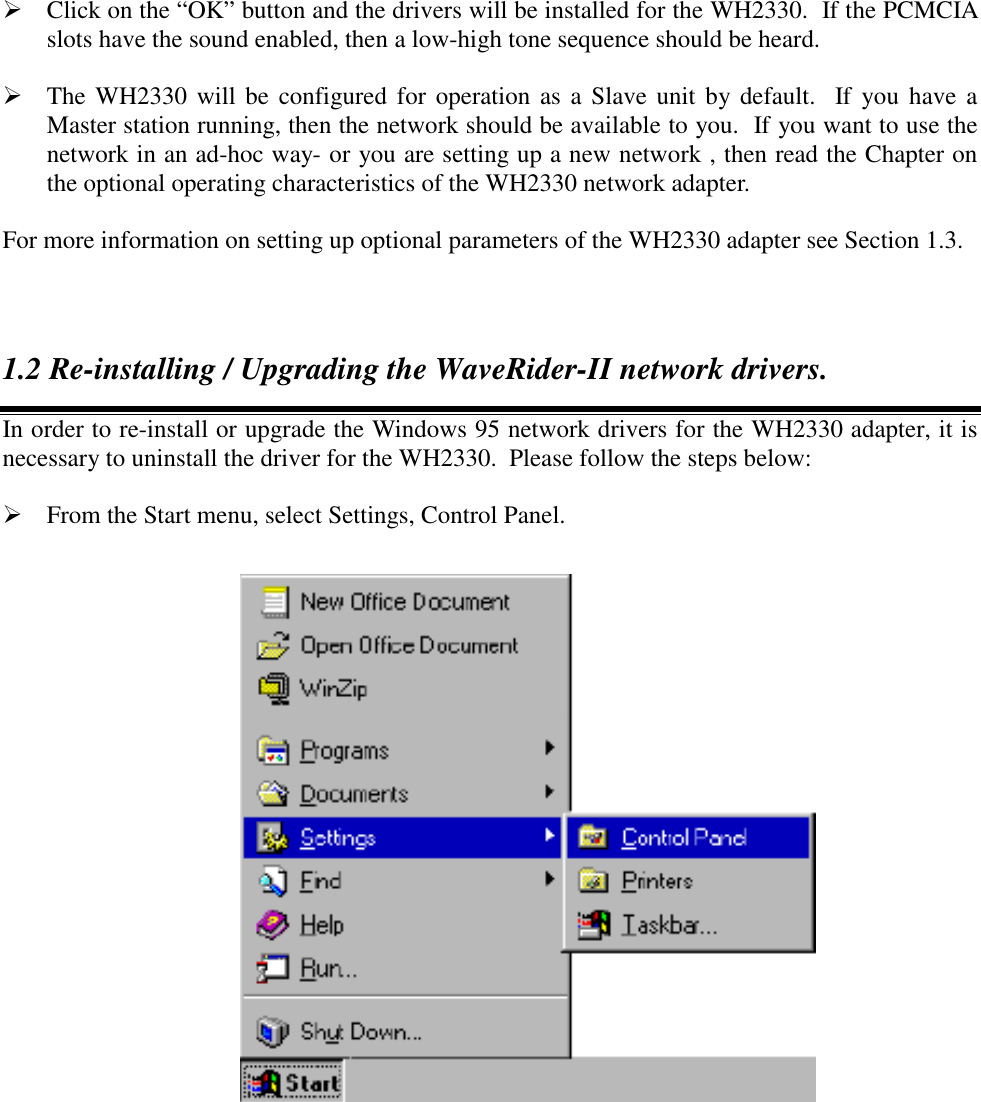
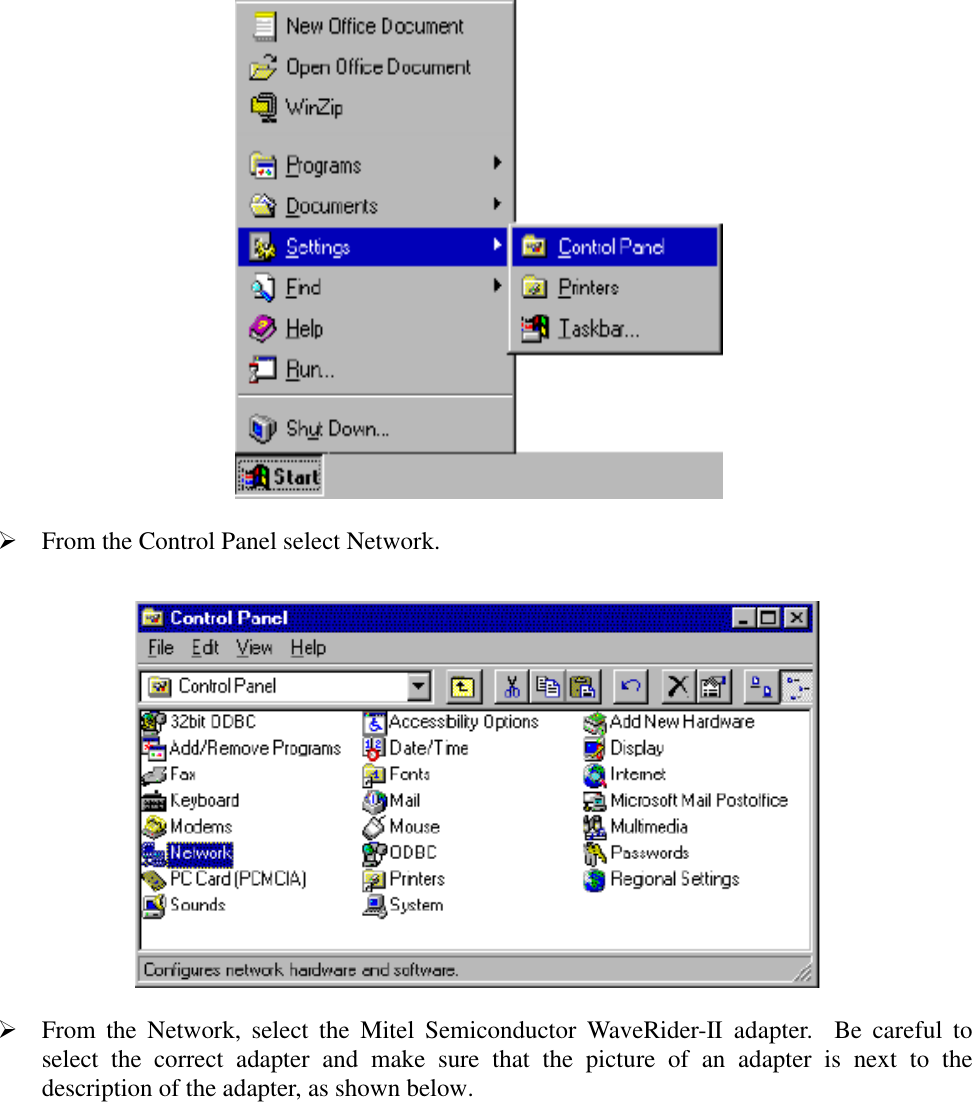
 Click on the “OK” button and the drivers will be installed for the WH2330.  If the PCMCIAslots have the sound enabled, then a low-high tone sequence should be heard. The WH2330 will be configured for operation as a Slave unit by default.  If you have aMaster station running, then the network should be available to you.  If you want to use thenetwork in an ad-hoc way- or you are setting up a new network , then read the Chapter onthe optional operating characteristics of the WH2330 network adapter.For more information on setting up optional parameters of the WH2330 adapter see Section 1.3.1.2 Re-installing / Upgrading the WaveRider-II network drivers.In order to re-install or upgrade the Windows 95 network drivers for the WH2330 adapter, it isnecessary to uninstall the driver for the WH2330.  Please follow the steps below: From the Start menu, select Settings, Control Panel.
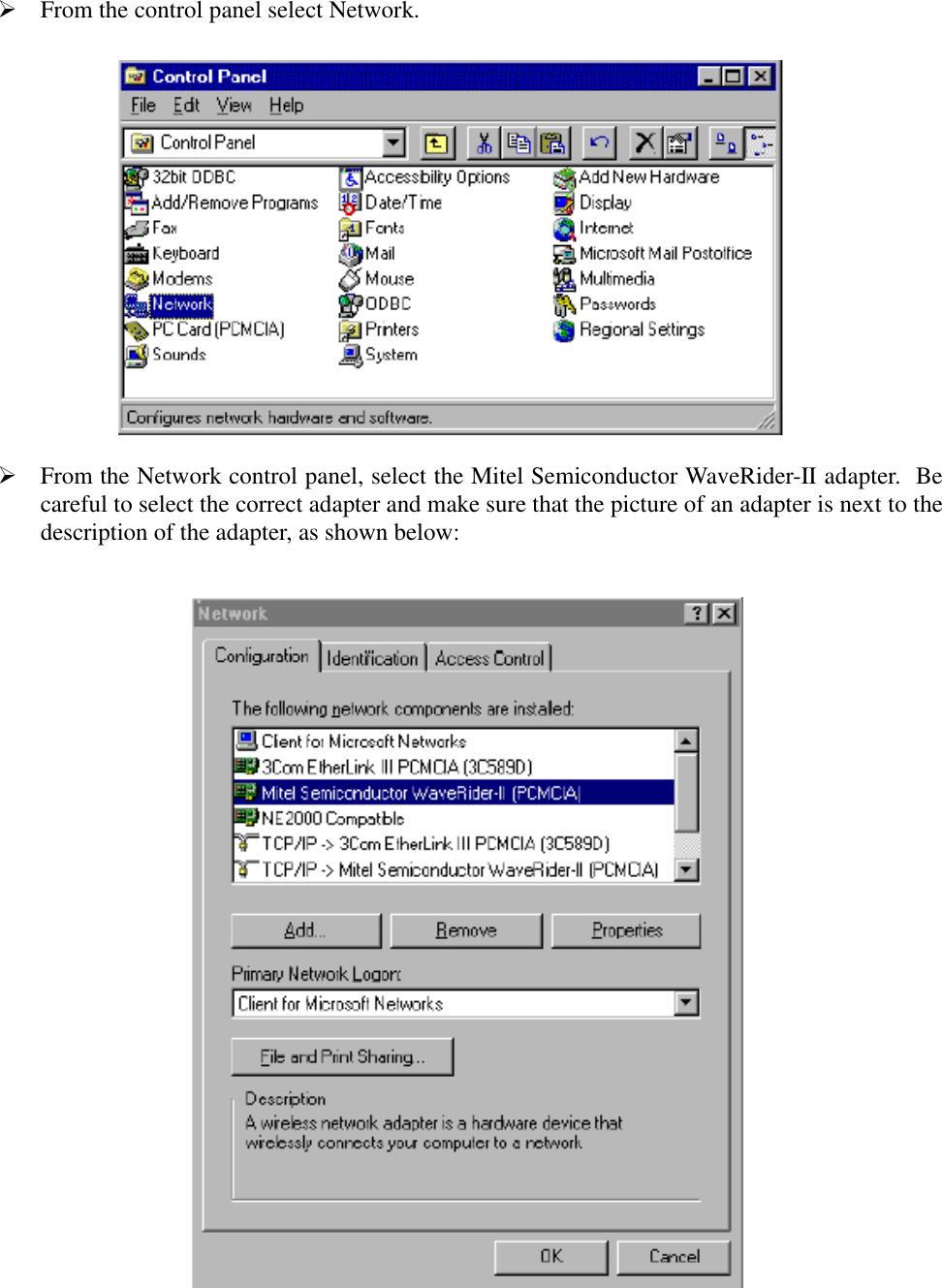
 From the control panel select Network. From the Network control panel, select the Mitel Semiconductor WaveRider-II adapter.  Becareful to select the correct adapter and make sure that the picture of an adapter is next to thedescription of the adapter, as shown below:
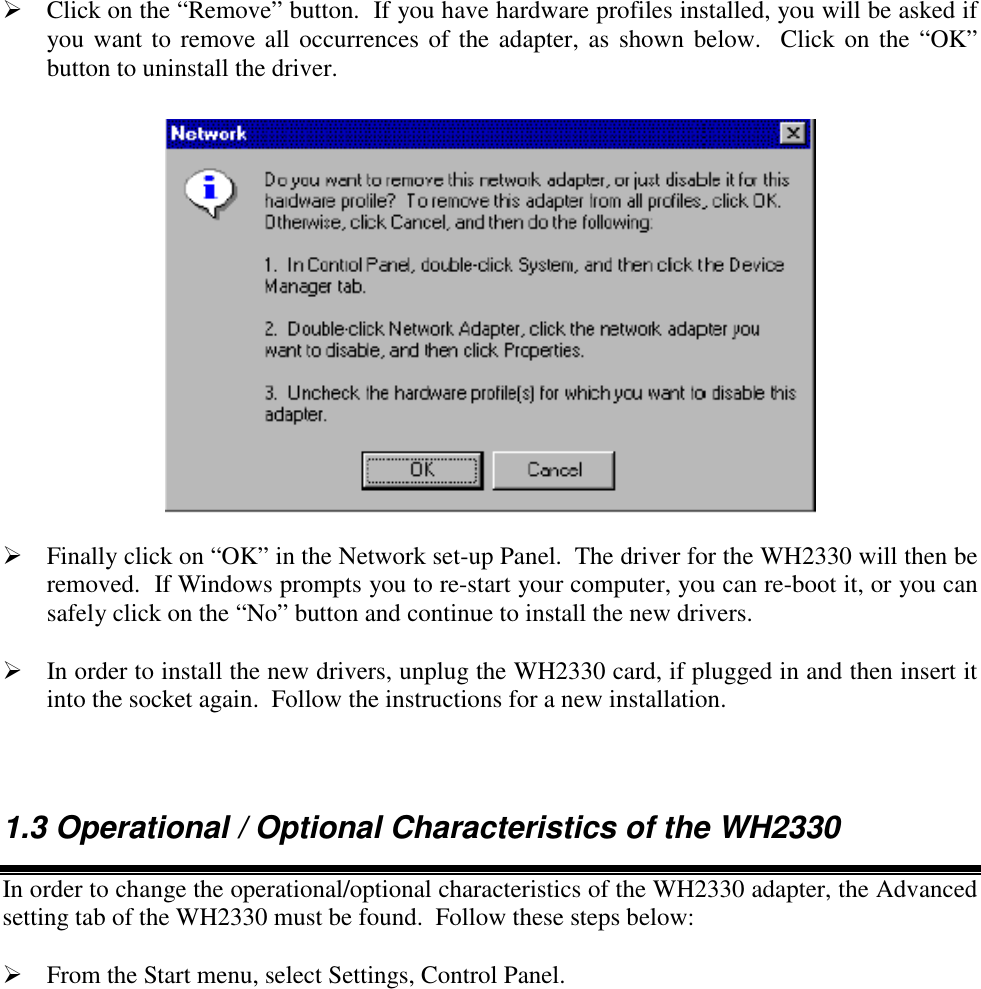
 Click on the “Remove” button.  If you have hardware profiles installed, you will be asked ifyou want to remove all occurrences of the adapter, as shown below.  Click on the “OK”button to uninstall the driver. Finally click on “OK” in the Network set-up Panel.  The driver for the WH2330 will then beremoved.  If Windows prompts you to re-start your computer, you can re-boot it, or you cansafely click on the “No” button and continue to install the new drivers. In order to install the new drivers, unplug the WH2330 card, if plugged in and then insert itinto the socket again.  Follow the instructions for a new installation.1.3 Operational / Optional Characteristics of the WH2330In order to change the operational/optional characteristics of the WH2330 adapter, the Advancedsetting tab of the WH2330 must be found.  Follow these steps below: From the Start menu, select Settings, Control Panel.
 From the Control Panel select Network. From the Network, select the Mitel Semiconductor WaveRider-II adapter.  Be careful toselect the correct adapter and make sure that the picture of an adapter is next to thedescription of the adapter, as shown below.
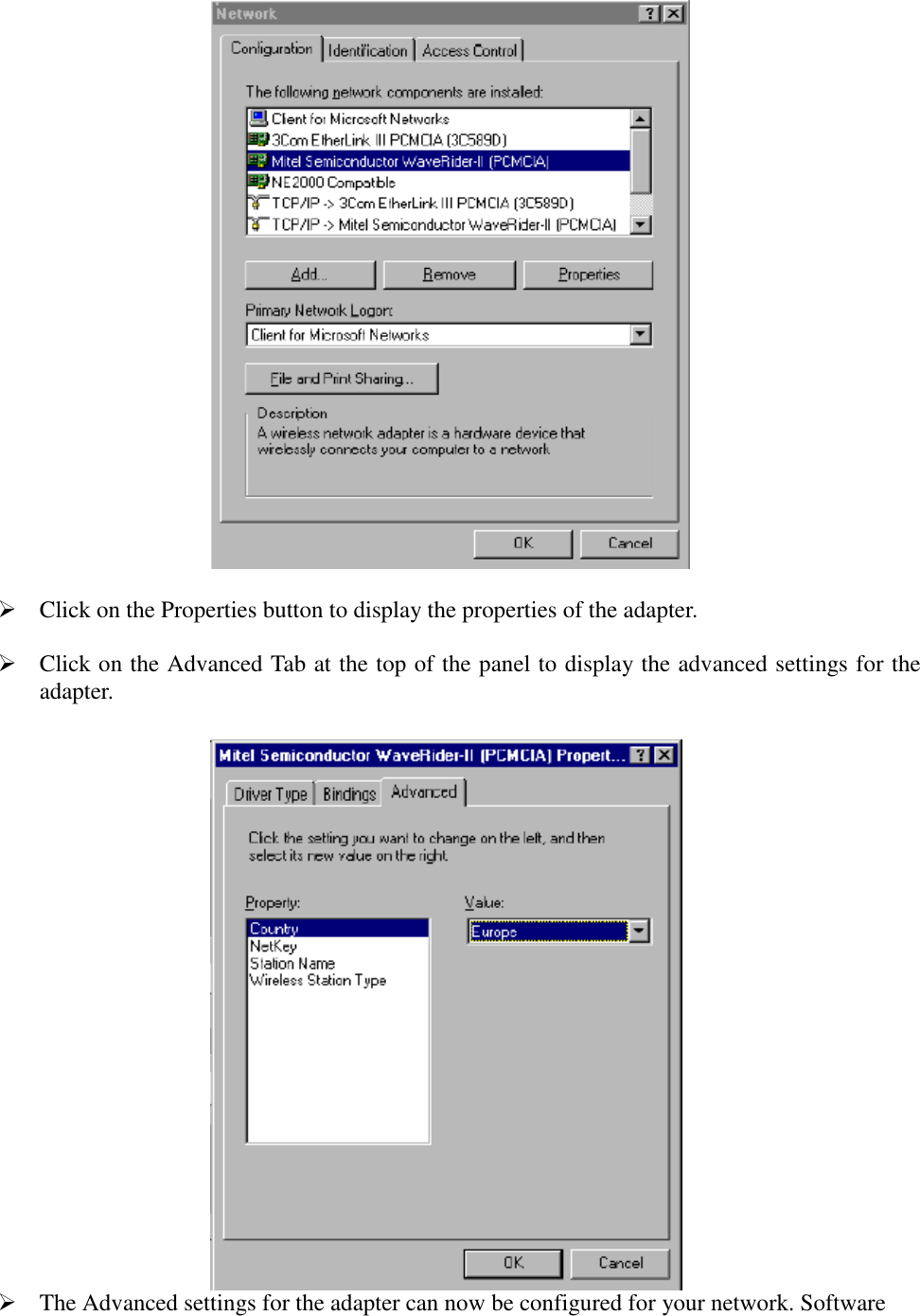
 Click on the Properties button to display the properties of the adapter. Click on the Advanced Tab at the top of the panel to display the advanced settings for theadapter. The Advanced settings for the adapter can now be configured for your network. Software
Chapter 2 Using the WH2330 Upgrade UtilityThe WH2330 upgrade utility (upgrade.exe) is a Windows application which allows users toupgrade the Media Access Control (MAC) software held in the WH2330 adapter.  We may, fromtime to time, issue new versions of the MAC software in order to add new functions or correctproblems.Upon starting the Upgrade utility (via the Windows 95 Start Menu or Explorer), you will beprompted to enter the name of the new MAC software image file.  Enter the location and nameof the file, and press the “OK” button.  The utility will then re-program the WH2330 adapter.The re-programming must be allowed to complete or the WH2330 will stop functioning.  For thisreason Windows 95 will not respond during the programming sequence.  The upgrade utility willindicate if the re-programming has been successful.  If the programming fails, please contact thesupplier for further technical support.
Appendix WH2330 SpecificationsInterface PCMCIARange Over 150 meters line of sight / 50 meters in anoffice environmentReceiver Sensitivity Typically –83dBmTx/Rx/Tx Switching Time Maximum 224usChannel Hopping Time Maximum 224usData Rate 1 Mbits/sec across airMAC Protocol GPSP CSMA/CAFrequency Band 2.4~2.4835 GHzTypical Output Power +17dBmSupply Voltage 5V OperationSize PCMCIA type 2Operating Temperature Range 0~55Storage Temperature Range -20~70

Navigation menu